Miracle Accounting Software The Way to Success Ak
- Slides: 90
Miracle Accounting Software The Way to Success … Ak Technologies Mo. +91 -94264 50998 | 98253 78685 Email. aktech 247@gmail. com Visit. www. aksoftwares. in Start
Miracle Accounting Software The Way to Success … Tax Invoice & Expense Tutorial Tax Invoice & Expense Statutory Information of Tax Invoice and Expenses Setup of Tax Invoice & Expense
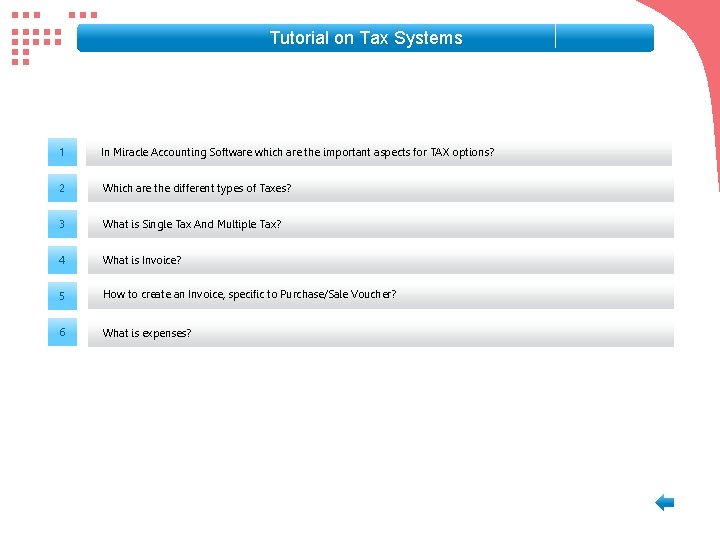
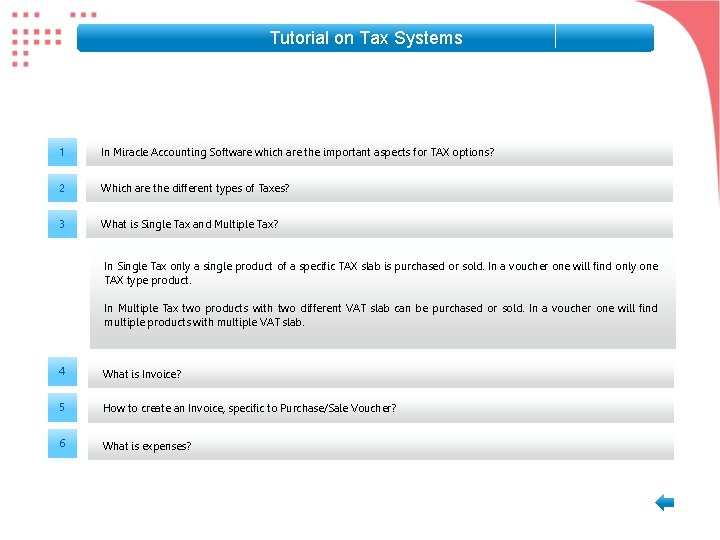
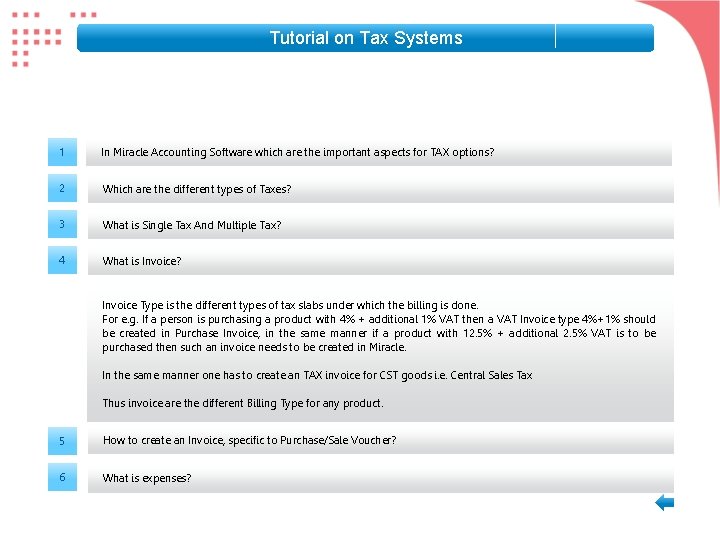
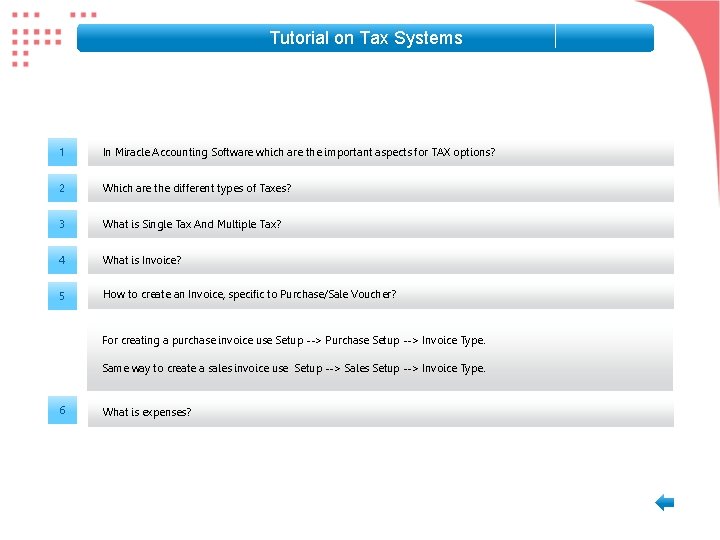
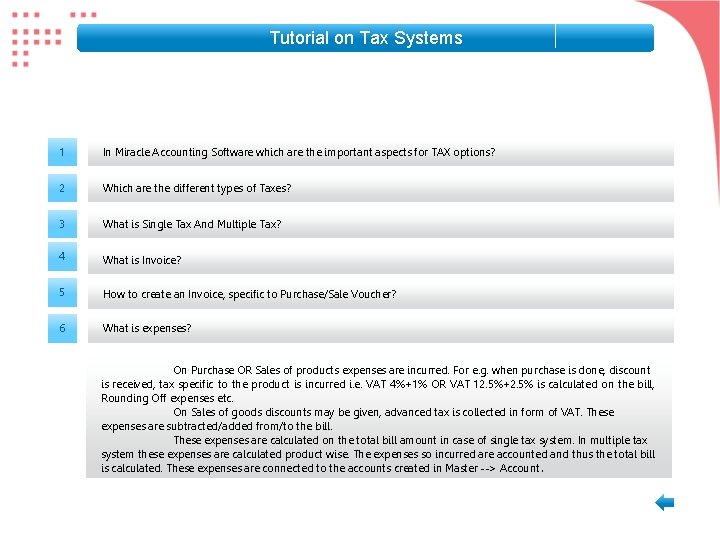
Tutorial on Tax Systems 1 In Miracle Accounting Software which are the important aspects for TAX options? 2 Which are the different types of Taxes? 3 What is Single Tax And Multiple Tax? 4 What is Invoice? 5 How to create an Invoice, specific to Purchase/Sale Voucher? 6 What is expenses?
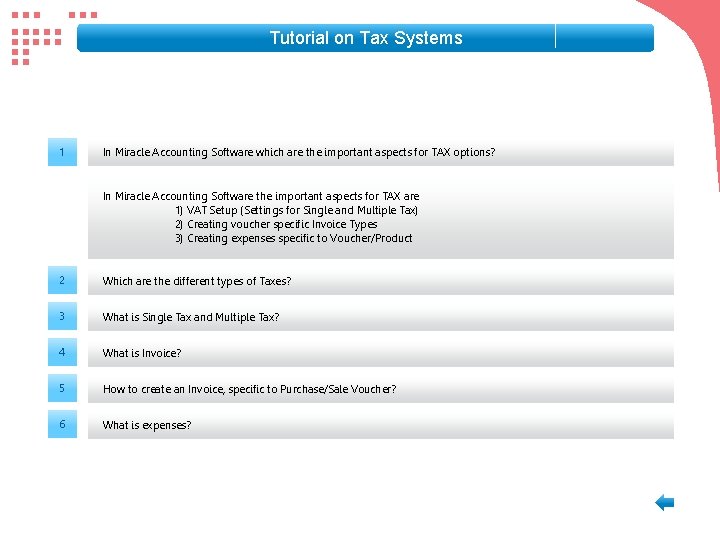
Tutorial on Tax Systems 1 In Miracle Accounting Software which are the important aspects for TAX options? In Miracle Accounting Software the important aspects for TAX are 1) VAT Setup (Settings for Single and Multiple Tax) 2) Creating voucher specific Invoice Types 3) Creating expenses specific to Voucher/Product 2 Which are the different types of Taxes? 3 What is Single Tax and Multiple Tax? 4 What is Invoice? 5 How to create an Invoice, specific to Purchase/Sale Voucher? 6 What is expenses?
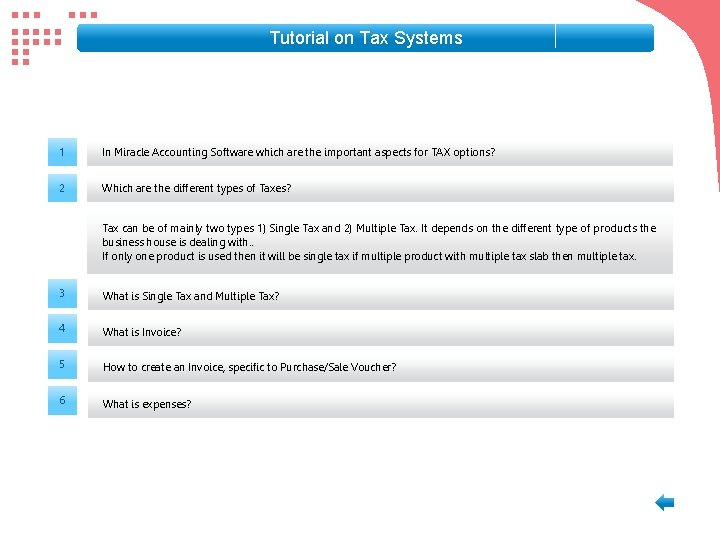
Tutorial on Tax Systems 1 In Miracle Accounting Software which are the important aspects for TAX options? 2 Which are the different types of Taxes? Tax can be of mainly two types 1) Single Tax and 2) Multiple Tax. It depends on the different type of products the business house is dealing with. . If only one product is used then it will be single tax if multiple product with multiple tax slab then multiple tax. 3 What is Single Tax and Multiple Tax? 4 What is Invoice? 5 How to create an Invoice, specific to Purchase/Sale Voucher? 6 What is expenses?
Tutorial on Tax Systems 1 In Miracle Accounting Software which are the important aspects for TAX options? 2 Which are the different types of Taxes? 3 What is Single Tax and Multiple Tax? In Single Tax only a single product of a specific TAX slab is purchased or sold. In a voucher one will find only one TAX type product. In Multiple Tax two products with two different VAT slab can be purchased or sold. In a voucher one will find multiple products with multiple VAT slab. 4 What is Invoice? 5 How to create an Invoice, specific to Purchase/Sale Voucher? 6 What is expenses?
Tutorial on Tax Systems 1 In Miracle Accounting Software which are the important aspects for TAX options? 2 Which are the different types of Taxes? 3 What is Single Tax And Multiple Tax? 4 What is Invoice? Invoice Type is the different types of tax slabs under which the billing is done. For e. g. If a person is purchasing a product with 4% + additional 1% VAT then a VAT Invoice type 4%+1% should be created in Purchase Invoice, in the same manner if a product with 12. 5% + additional 2. 5% VAT is to be purchased then such an invoice needs to be created in Miracle. In the same manner one has to create an TAX invoice for CST goods i. e. Central Sales Tax Thus invoice are the different Billing Type for any product. 5 How to create an Invoice, specific to Purchase/Sale Voucher? 6 What is expenses?
Tutorial on Tax Systems 1 In Miracle Accounting Software which are the important aspects for TAX options? 2 Which are the different types of Taxes? 3 What is Single Tax And Multiple Tax? 4 What is Invoice? 5 How to create an Invoice, specific to Purchase/Sale Voucher? For creating a purchase invoice use Setup --> Purchase Setup --> Invoice Type. Same way to create a sales invoice use Setup --> Sales Setup --> Invoice Type. 6 What is expenses?
Tutorial on Tax Systems 1 In Miracle Accounting Software which are the important aspects for TAX options? 2 Which are the different types of Taxes? 3 What is Single Tax And Multiple Tax? 4 What is Invoice? 5 How to create an Invoice, specific to Purchase/Sale Voucher? 6 What is expenses? On Purchase OR Sales of products expenses are incurred. For e. g. when purchase is done, discount is received, tax specific to the product is incurred i. e. VAT 4%+1% OR VAT 12. 5%+2. 5% is calculated on the bill, Rounding Off expenses etc. On Sales of goods discounts may be given, advanced tax is collected in form of VAT. These expenses are subtracted/added from/to the bill. These expenses are calculated on the total bill amount in case of single tax system. In multiple tax system these expenses are calculated product wise. The expenses so incurred are accounted and thus the total bill is calculated. These expenses are connected to the accounts created in Master --> Account .
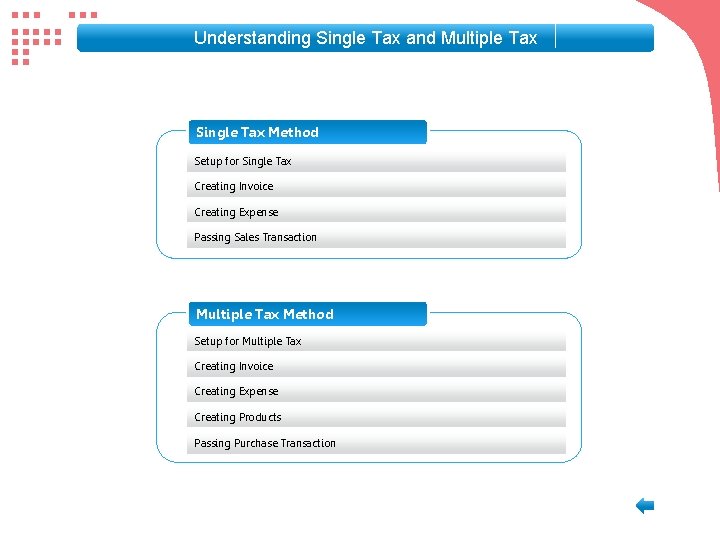
Understanding Single Tax and Multiple Tax Single Tax Method Setup for Single Tax Creating Invoice Creating Expense Passing Sales Transaction Multiple Tax Method Setup for Multiple Tax Creating Invoice Creating Expense Creating Products Passing Purchase Transaction
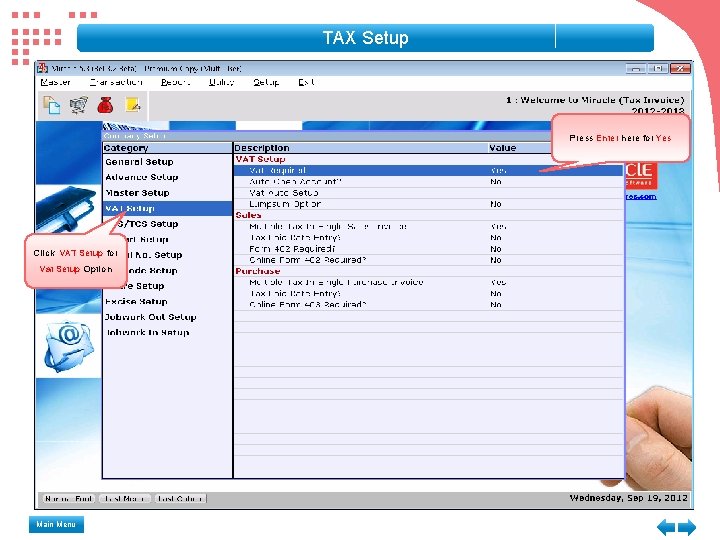
TAX Setup Press Enter here for Yes Click VAT Setup for Vat Setup Option Main Menu
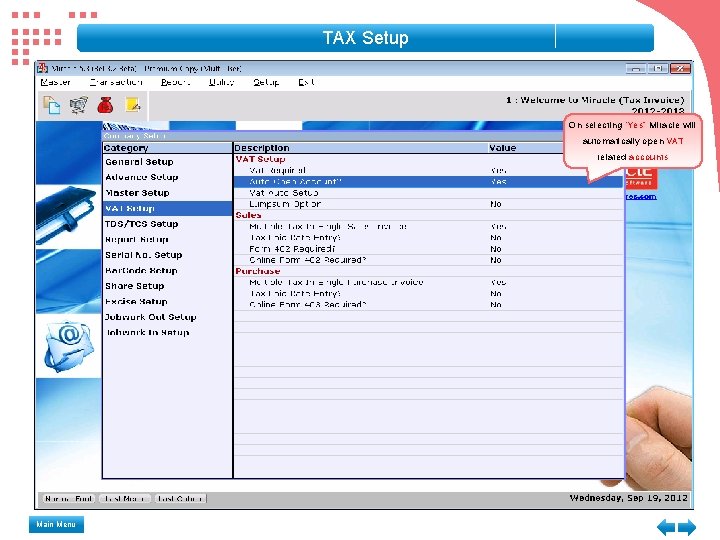
TAX Setup On selecting “Yes” Miracle will automatically open VAT related accounts Main Menu
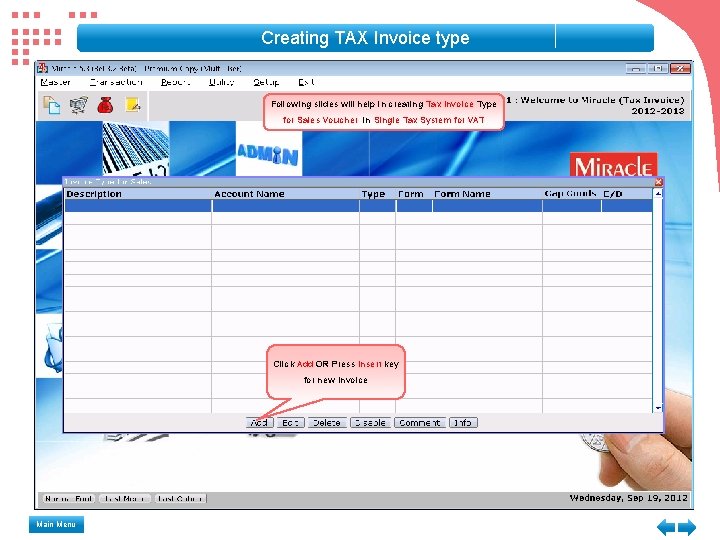
Creating TAX Invoice type Following slides will help in creating Tax Invoice Type for Sales Voucher in Single Tax System for VAT Click Add OR Press Insert key for new Invoice Main Menu
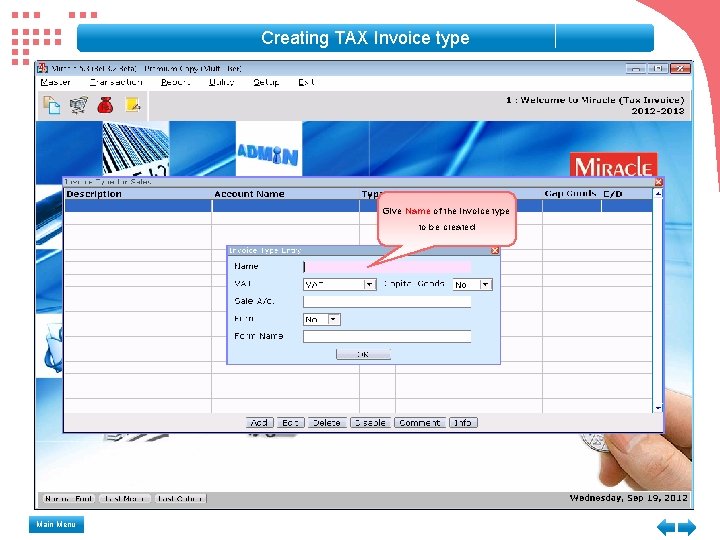
Creating TAX Invoice type Give Name of the invoice type to be created Main Menu
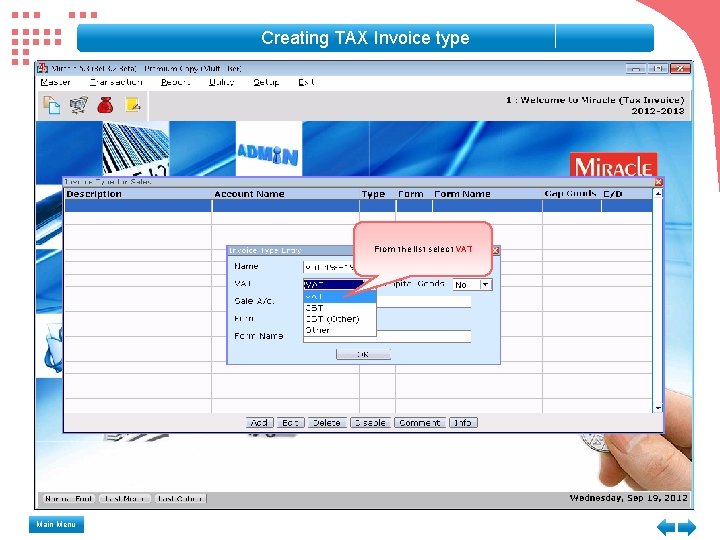
Creating TAX Invoice type From the list select VAT Main Menu
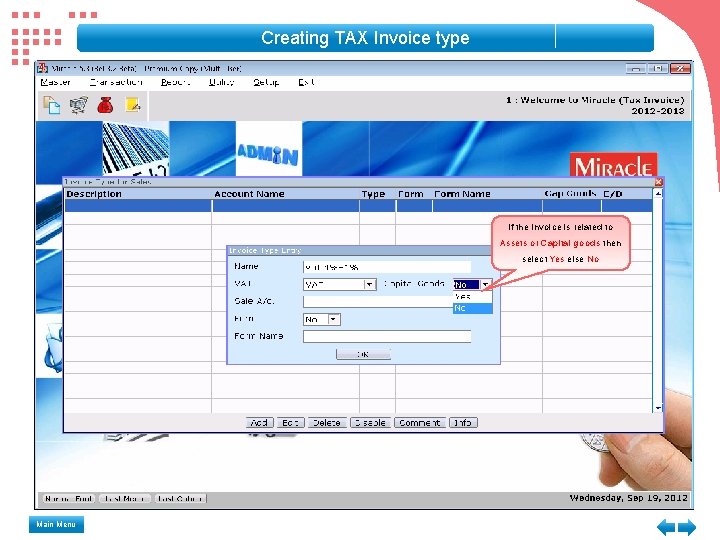
Creating TAX Invoice type If the invoice is related to Assets or Capital goods then select Yes else No Main Menu
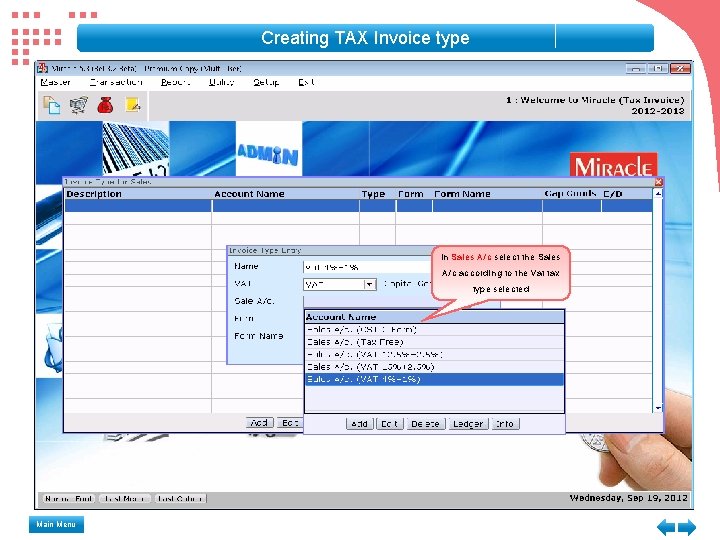
Creating TAX Invoice type In Sales A/c select the Sales A/c according to the Vat tax type selected Main Menu
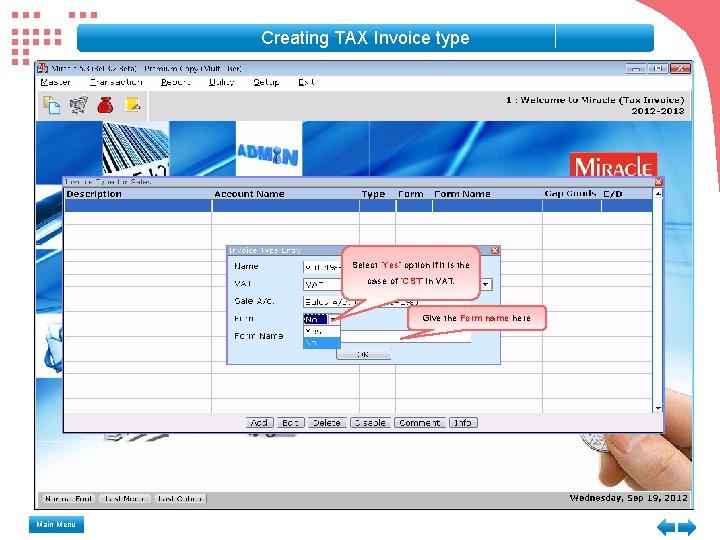
Creating TAX Invoice type Select “Yes” option if it is the case of “CST” in VAT. Give the Form name here Main Menu
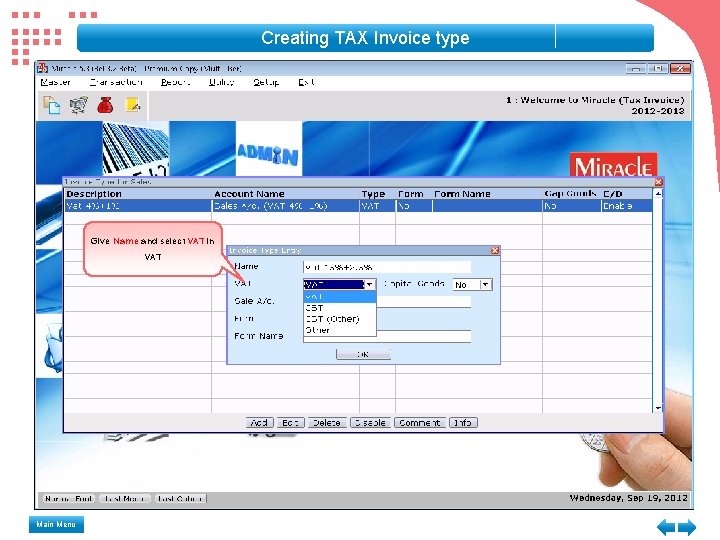
Creating TAX Invoice type Give Name and select VAT in VAT Main Menu
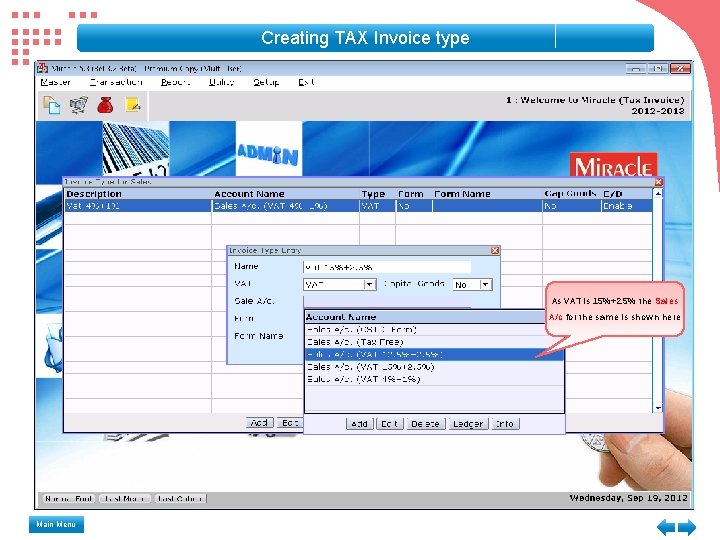
Creating TAX Invoice type As VAT is 15%+2. 5% the Sales A/c for the same is shown here Main Menu
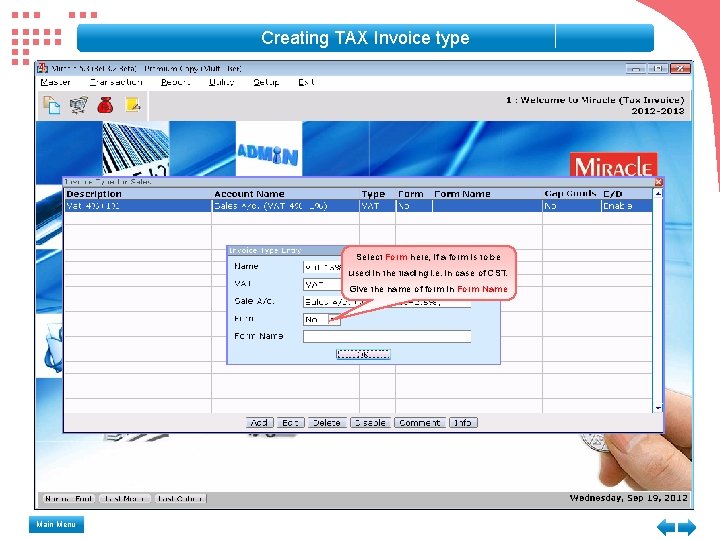
Creating TAX Invoice type Select Form here, if a form is to be used in the trading i. e. in case of CST. Give the name of form in Form Name Main Menu
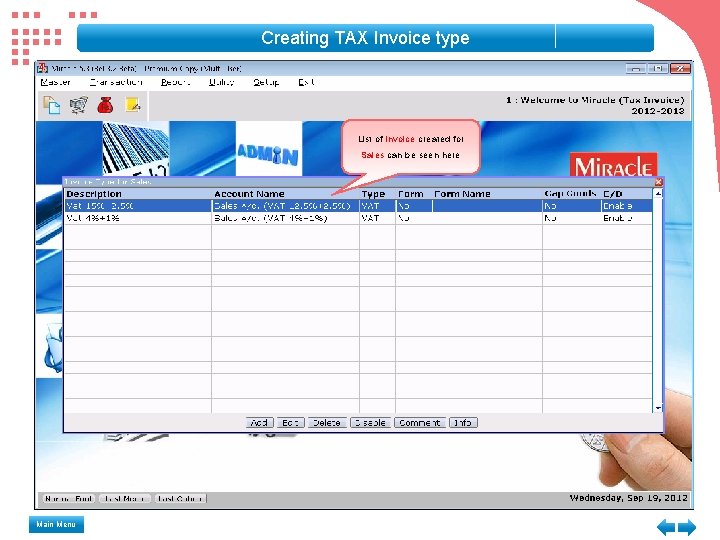
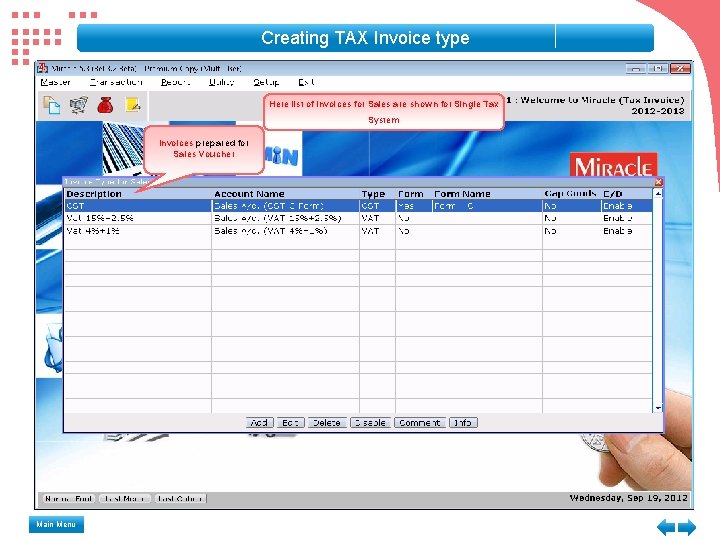
Creating TAX Invoice type List of Invoice created for Sales can be seen here Main Menu
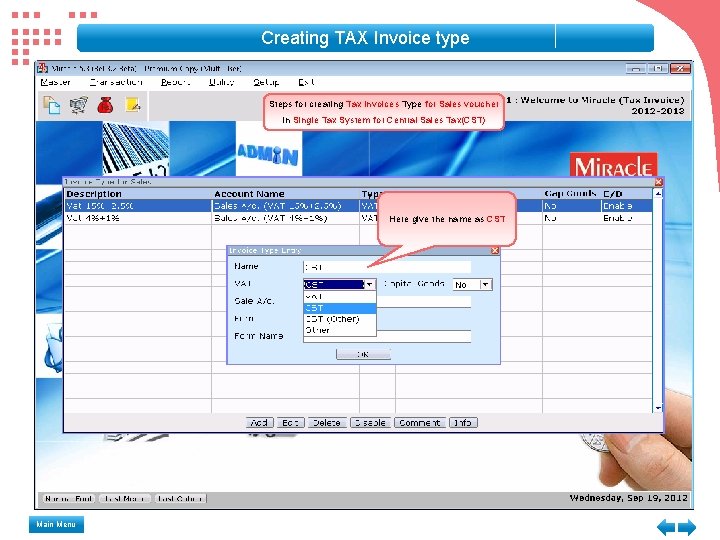
Creating TAX Invoice type Steps for creating Tax Invoices Type for Sales voucher in Single Tax System for Central Sales Tax(CST) Here give the name as CST Main Menu
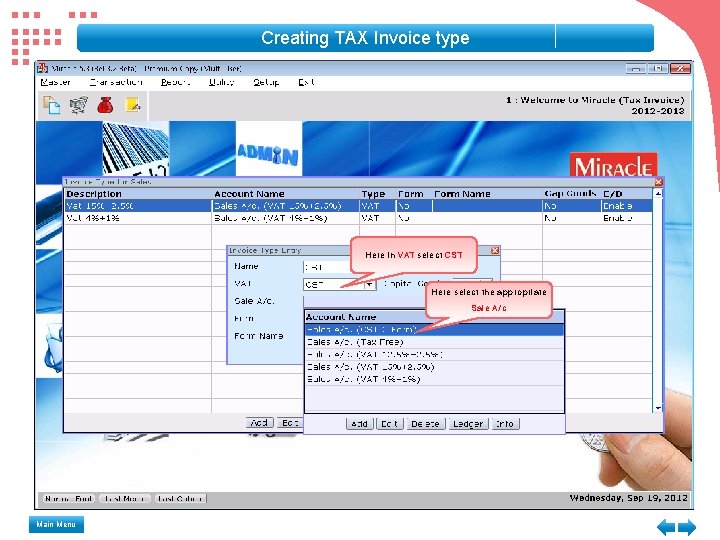
Creating TAX Invoice type Here in VAT select CST Here select the appropriate Sale A/c Main Menu
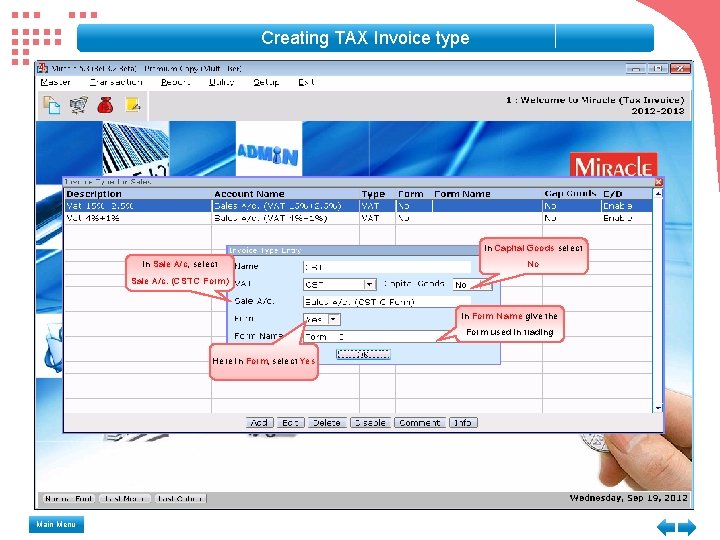
Creating TAX Invoice type In Capital Goods select In Sale A/c, select No Sale A/c. (CST C Form) In Form Name give the Form used in trading Here in Form, select Yes Main Menu
Creating TAX Invoice type Here list of Invoices for Sales are shown for Single Tax System Invoices prepared for Sales Voucher Main Menu
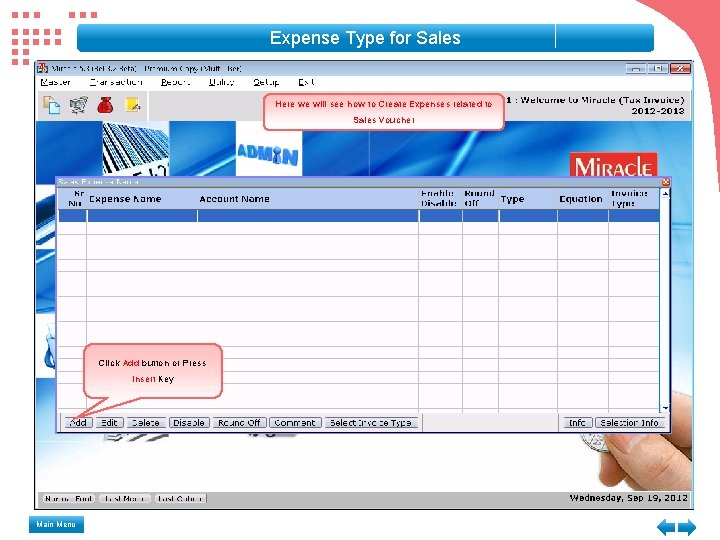
Expense Type for Sales Here we will see how to Create Expenses related to Sales Voucher Click Add button or Press Insert Key Main Menu
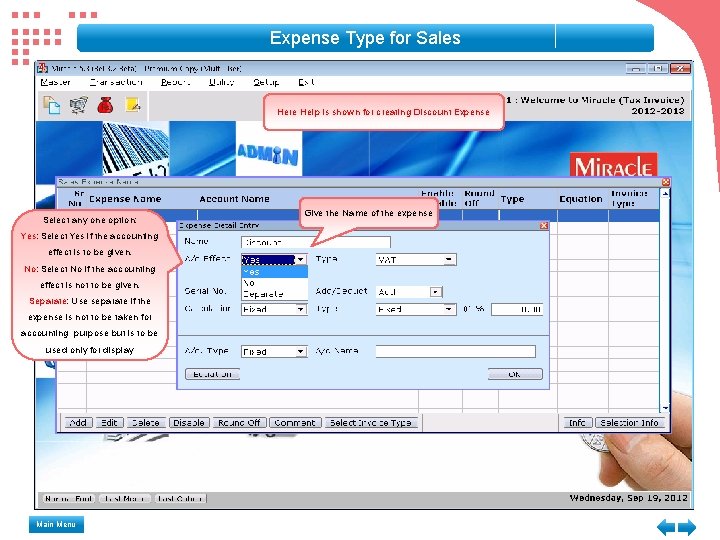
Expense Type for Sales Here Help is shown for creating Discount Expense Select any one option: Yes: Select Yes if the accounting effect is to be given. No: Select No if the accounting effect is not to be given. Separate: Use separate if the expense is not to be taken for accounting purpose but is to be used only for display Main Menu Give the Name of the expense
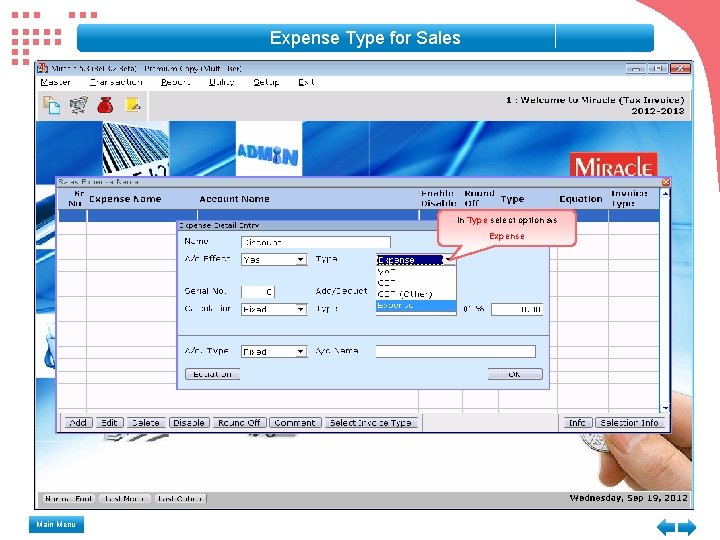
Expense Type for Sales In Type select option as Expense Main Menu
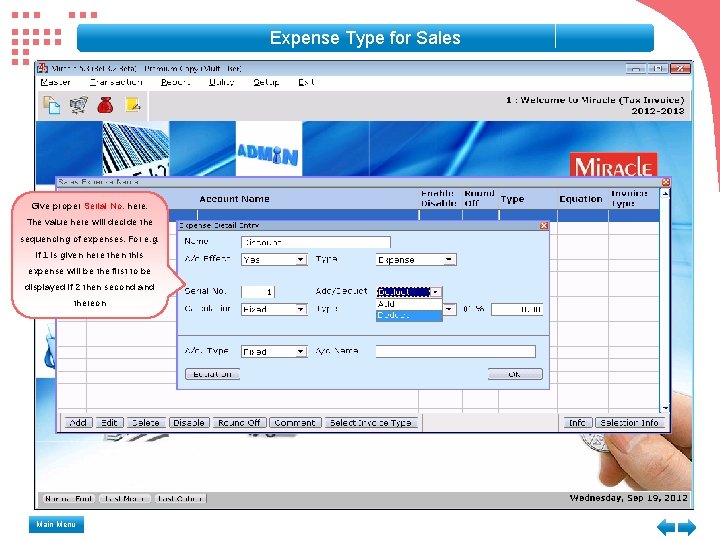
Expense Type for Sales Give proper Serial No. here. The value here will decide the sequencing of expenses. For e. g. if 1 is given here then this expense will be the first to be displayed if 2 then second and thereon Main Menu
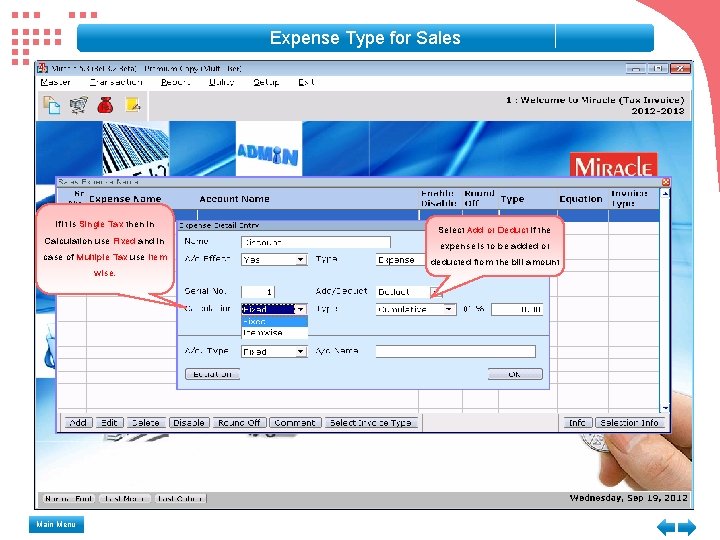
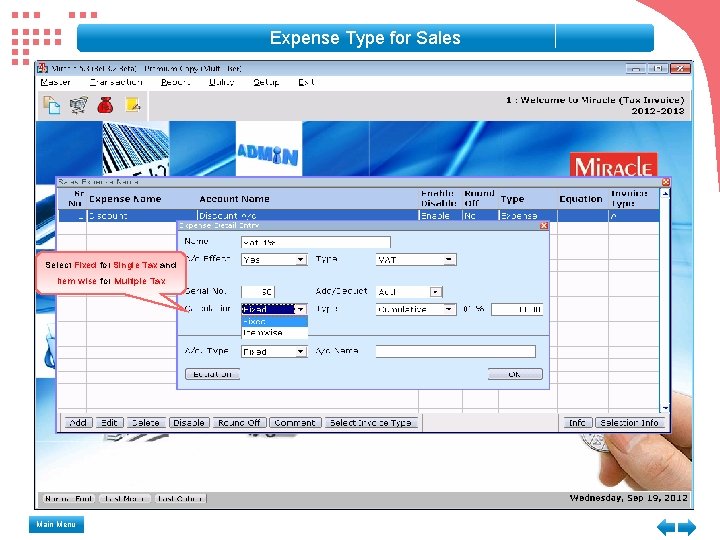
Expense Type for Sales If it is Single Tax then in Calculation use Fixed and in case of Multiple Tax use Item wise. Main Menu Select Add or Deduct if the expense is to be added or deducted from the bill amount
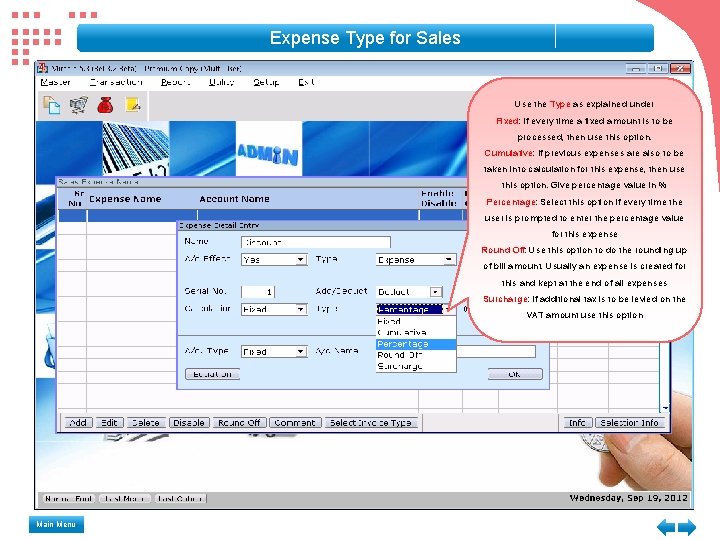
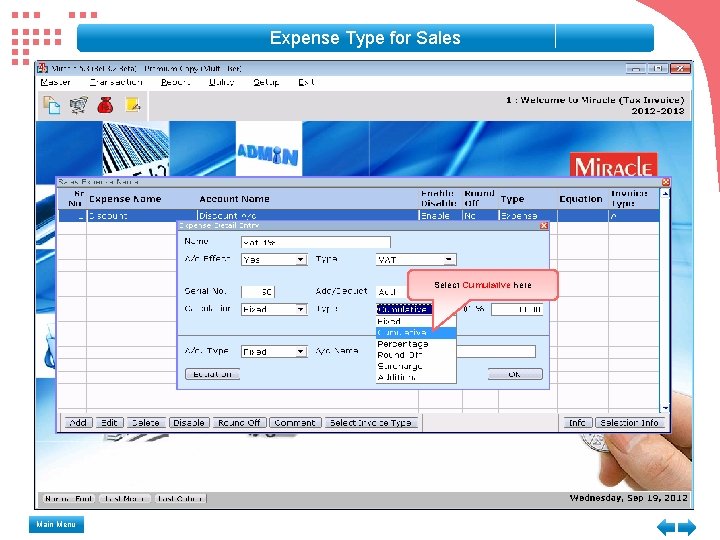
Expense Type for Sales Use the Type as explained under Fixed: If every time a fixed amount is to be processed, then use this option. Cumulative: If previous expenses are also to be taken into calculation for this expense, then use this option. Give percentage value in % Percentage: Select this option if every time the user is prompted to enter the percentage value for this expense Round Off: Use this option to do the rounding up of bill amount. Usually an expense is created for this and kept at the end of all expenses Surcharge: If additional tax is to be levied on the VAT amount use this option Main Menu
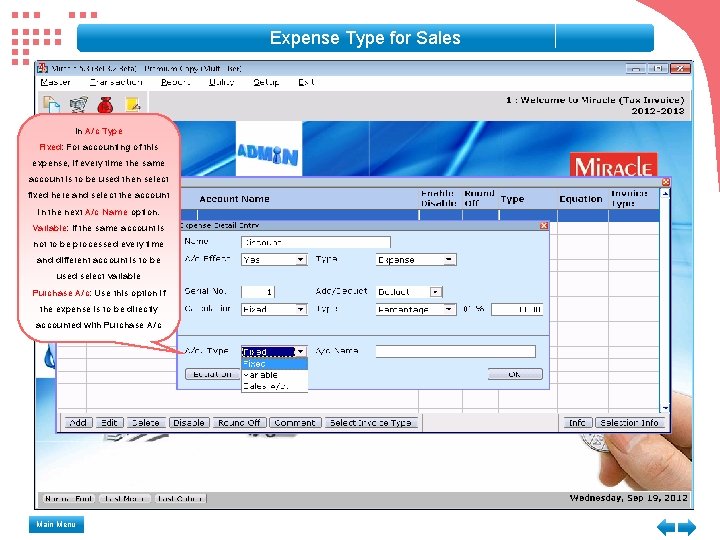
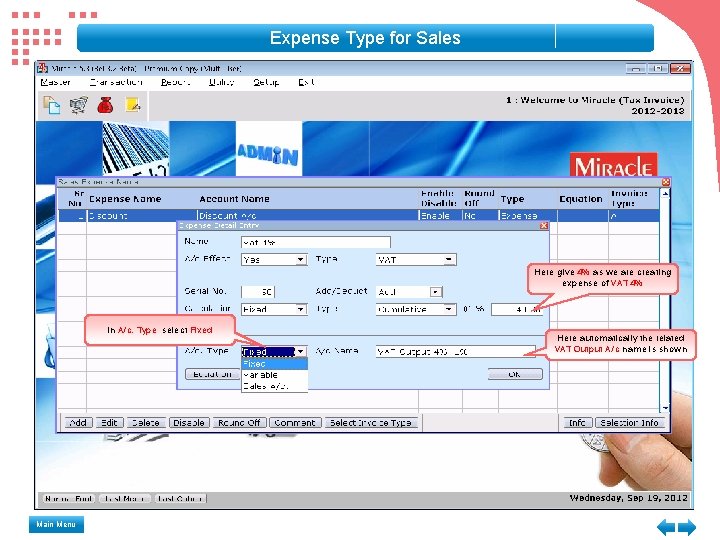
Expense Type for Sales In A/c Type Fixed: For accounting of this expense, if every time the same account is to be used then select fixed here and select the account in the next A/c Name option. Variable: If the same account is not to be processed every time and different account is to be used select variable Purchase A/c: Use this option if the expense is to be directly accounted with Purchase A/c Main Menu
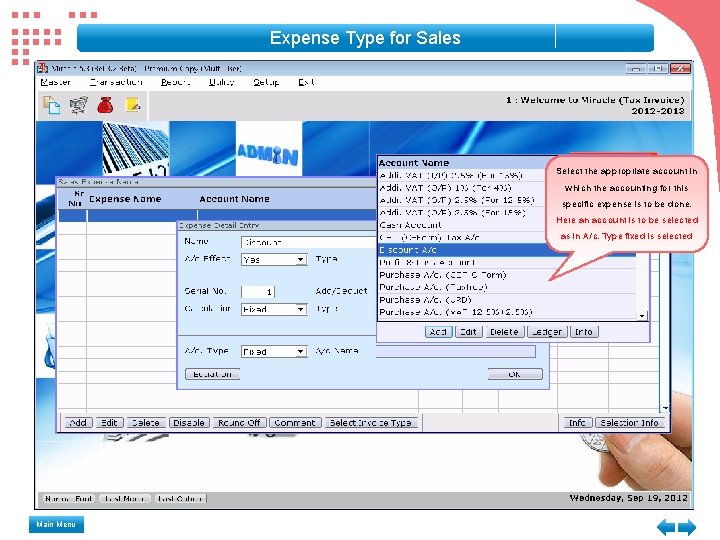
Expense Type for Sales Select the appropriate account in which the accounting for this specific expense is to be done. Here an account is to be selected as in A/c. Type fixed is selected Main Menu
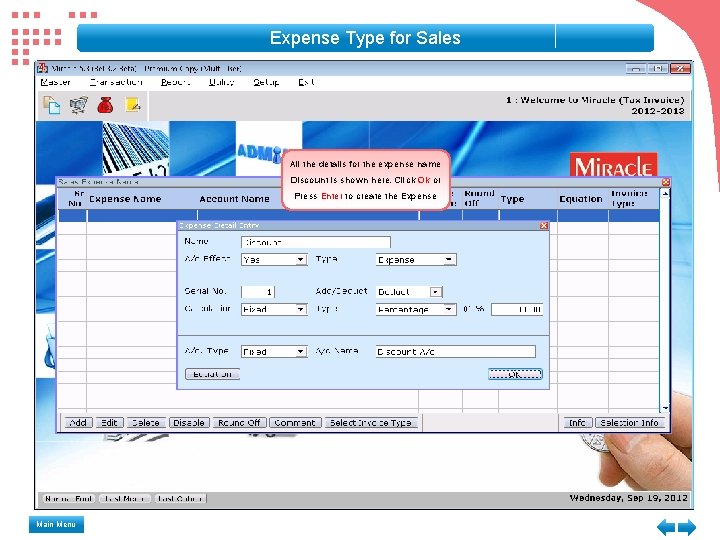
Expense Type for Sales All the details for the expense name Discount is shown here. Click Ok or Press Enter to create the Expense Main Menu
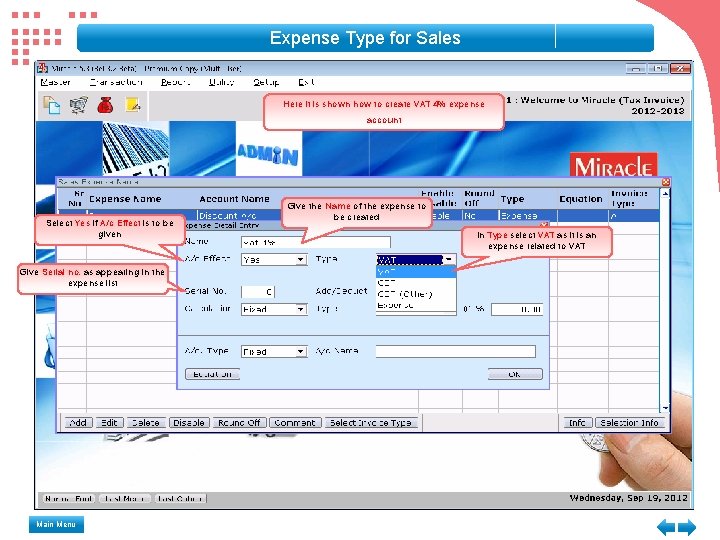
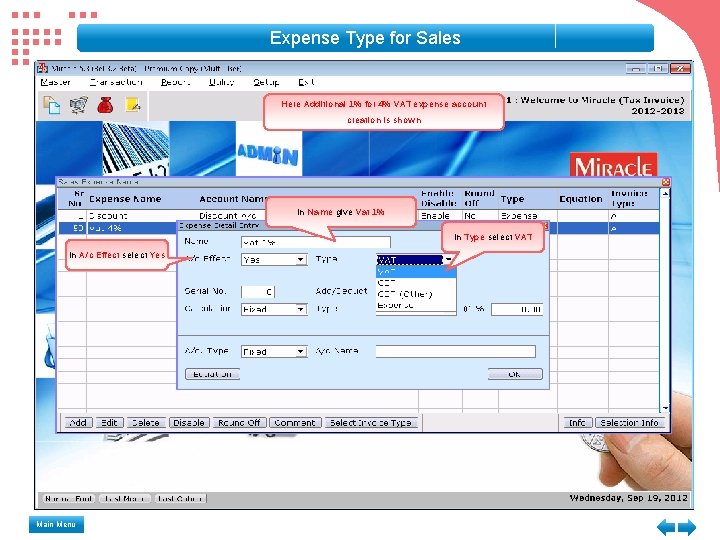
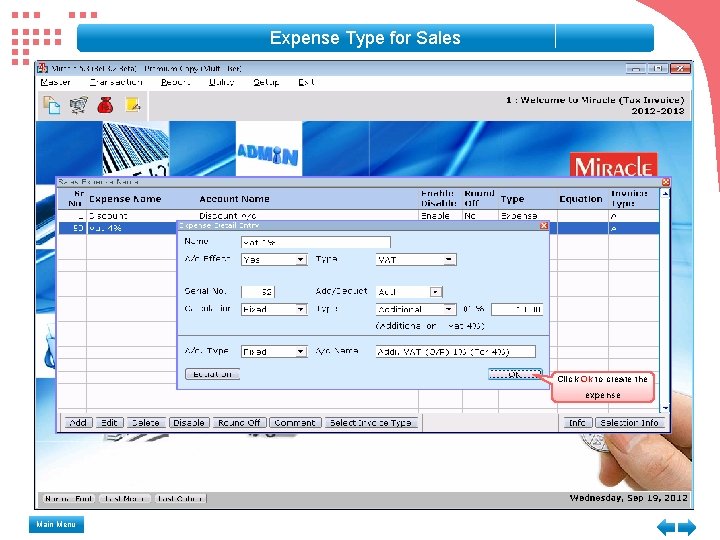
Expense Type for Sales Here it is shown how to create VAT 4% expense account Select Yes if A/c Effect is to be given Give Serial no. as appearing in the expense list Main Menu Give the Name of the expense to be created In Type select VAT as it is an expense related to VAT
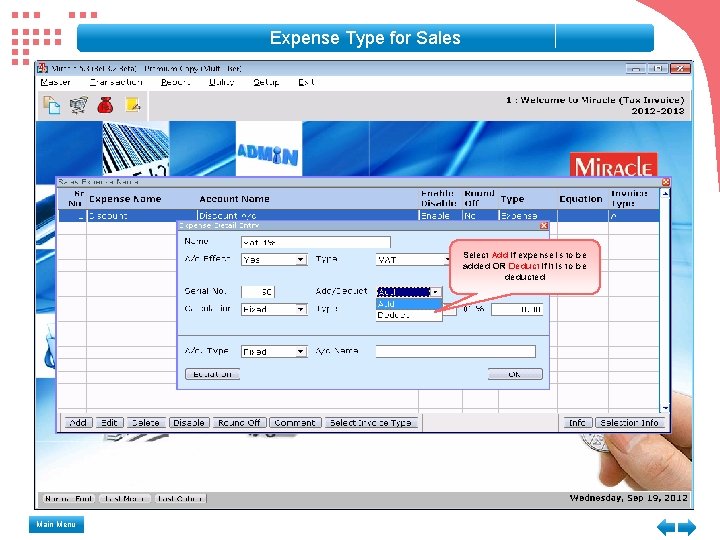
Expense Type for Sales Select Add if expense is to be added OR Deduct if it is to be deducted Main Menu
Expense Type for Sales Select Fixed for Single Tax and Item wise for Multiple Tax Main Menu
Expense Type for Sales Select Cumulative here Main Menu
Expense Type for Sales Here give 4% as we are creating expense of VAT 4% In A/c. Type select Fixed Main Menu Here automatically the related VAT Output A/c name is shown
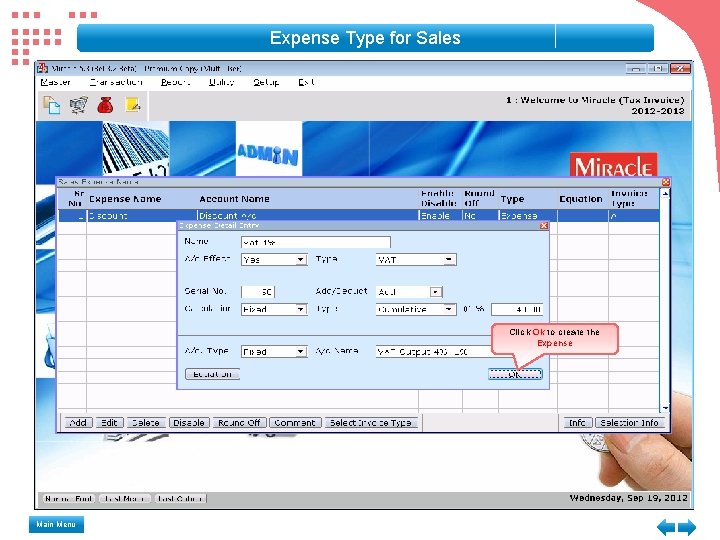
Expense Type for Sales Click Ok to create the Expense Main Menu
Expense Type for Sales Here Additional 1% for 4% VAT expense account creation is shown In Name give Vat 1% In Type select VAT In A/c Effect select Yes Main Menu
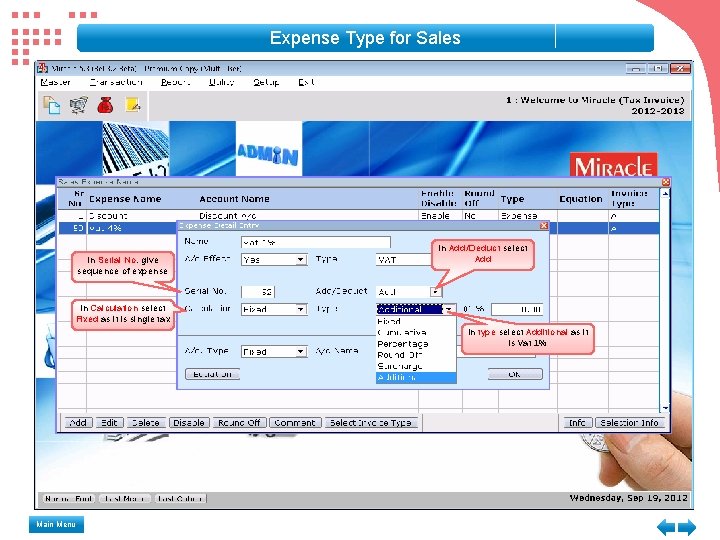
Expense Type for Sales In Serial No. give sequence of expense In Calculation select Fixed as it is single tax Main Menu In Add/Deduct select Add In type select Additional as it is Vat 1%
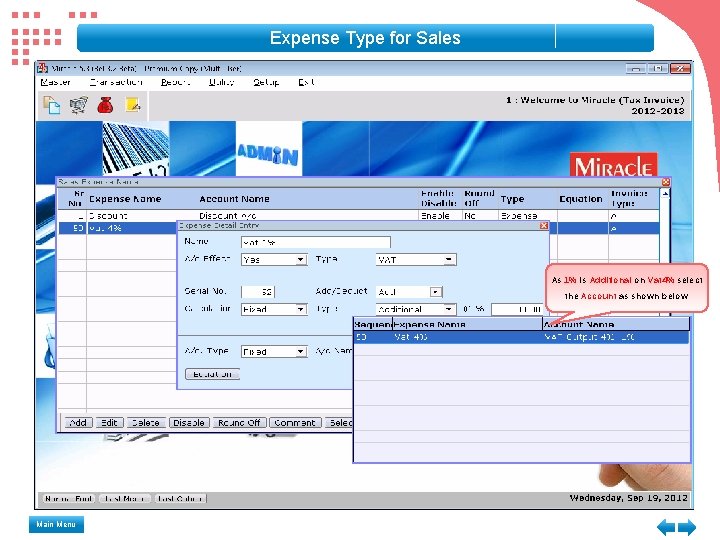
Expense Type for Sales As 1% is Additional on Vat 4% select the Account as shown below Main Menu
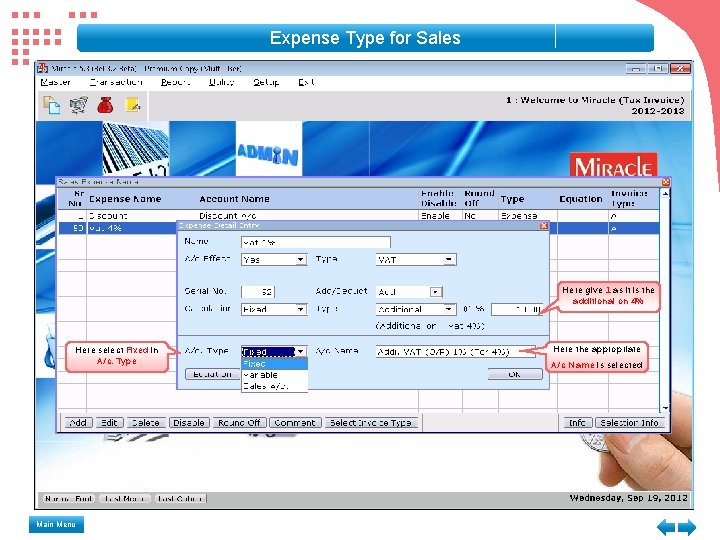
Expense Type for Sales Here give 1 as it is the additional on 4% Here select Fixed in A/c. Type Main Menu Here the appropriate A/c Name is selected
Expense Type for Sales Click Ok to create the expense Main Menu
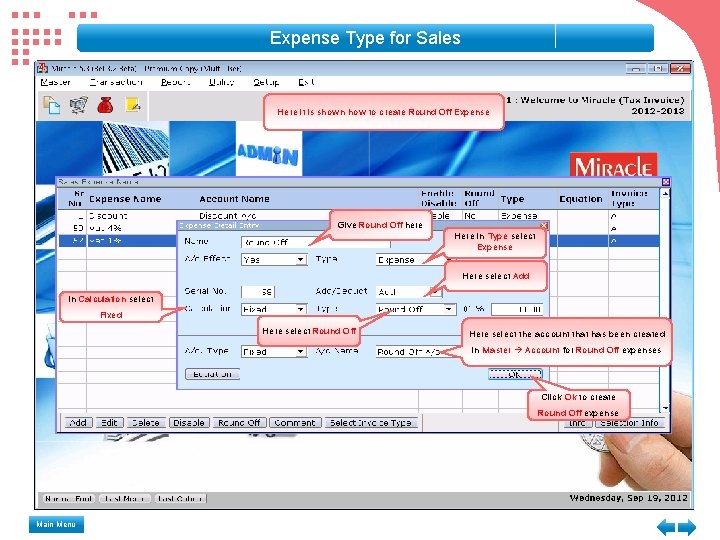
Expense Type for Sales Here it is shown how to create Round Off Expense Give Round Off here Here in Type select Expense Here select Add In Calculation select Fixed Here select Round Off Here select the account that has been created in Master Account for Round Off expenses Click Ok to create Round Off expense Main Menu
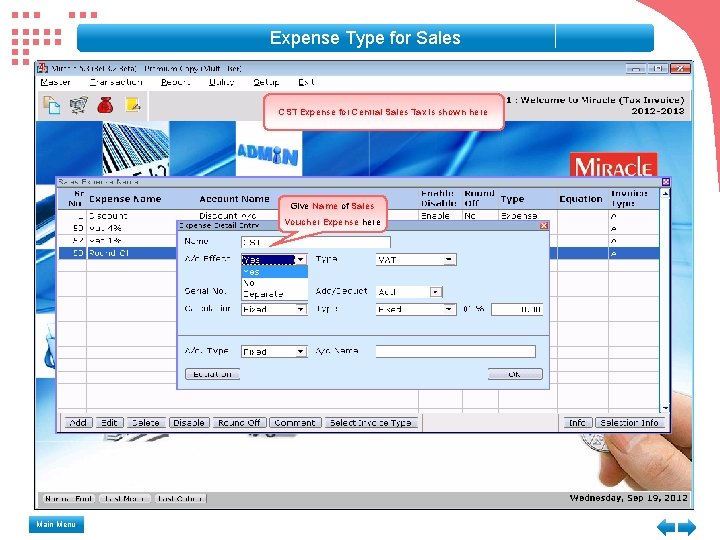
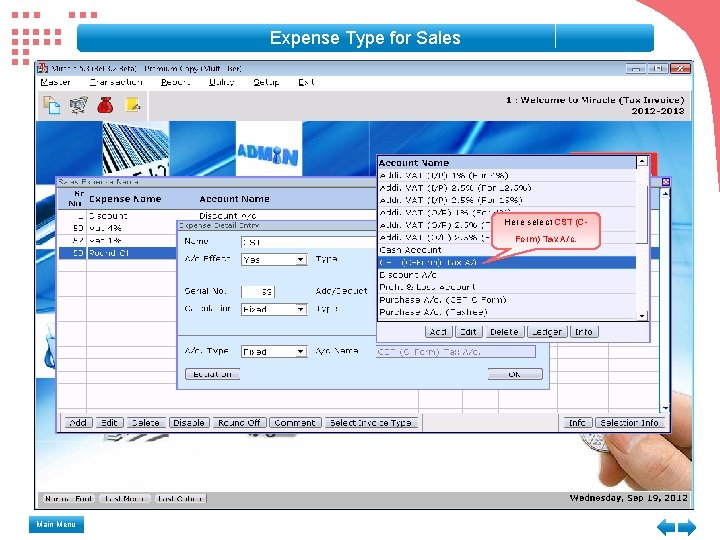
Expense Type for Sales CST Expense for Central Sales Tax is shown here Give Name of Sales Voucher Expense here Main Menu
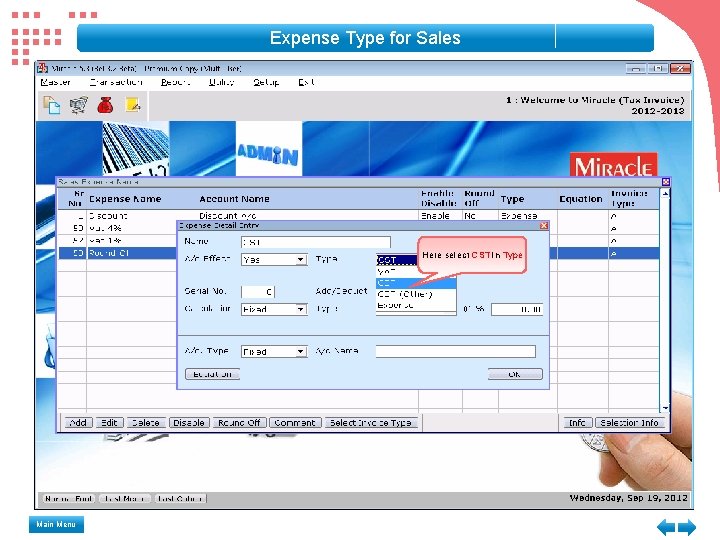
Expense Type for Sales Here select CST in Type Main Menu
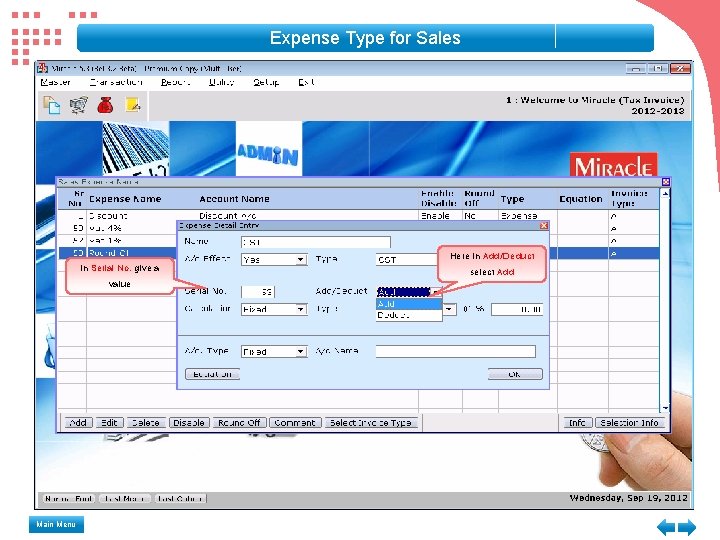
Expense Type for Sales In Serial No. give a value Main Menu Here in Add/Deduct select Add
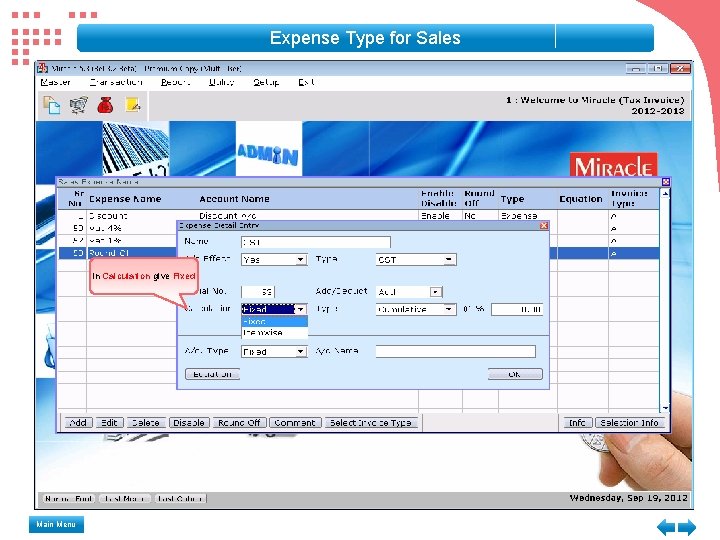
Expense Type for Sales In Calculation give Fixed Main Menu
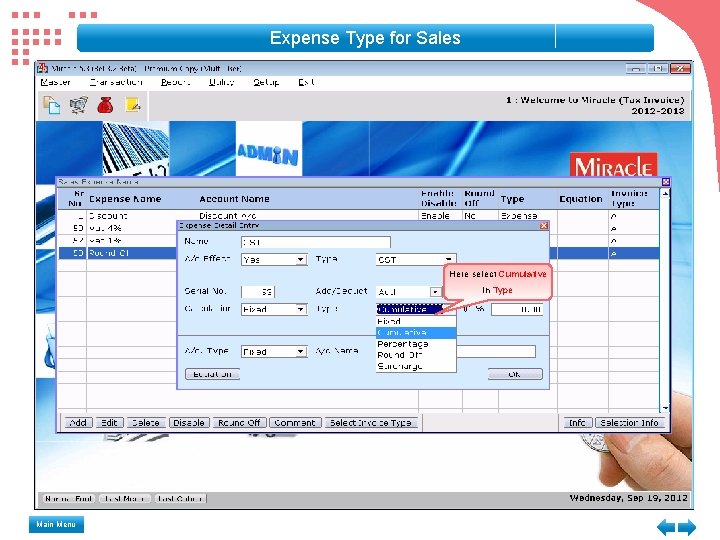
Expense Type for Sales Here select Cumulative in Type Main Menu
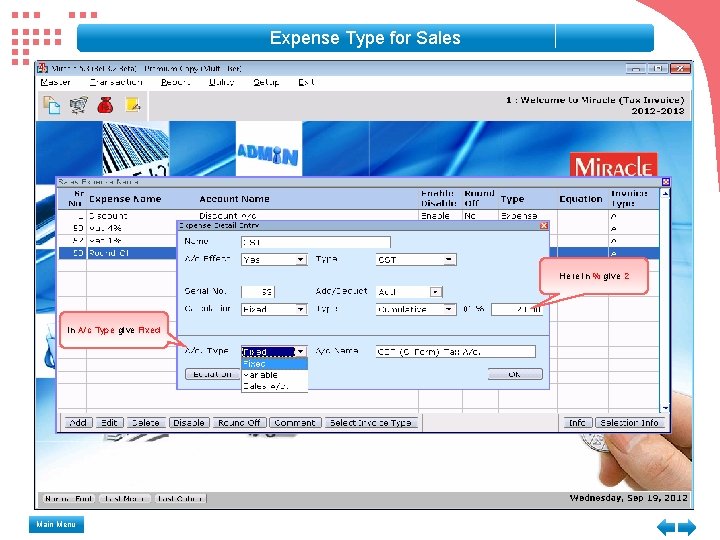
Expense Type for Sales Here in % give 2 In A/c Type give Fixed Main Menu
Expense Type for Sales Here select CST (CForm) Tax A/c. Main Menu
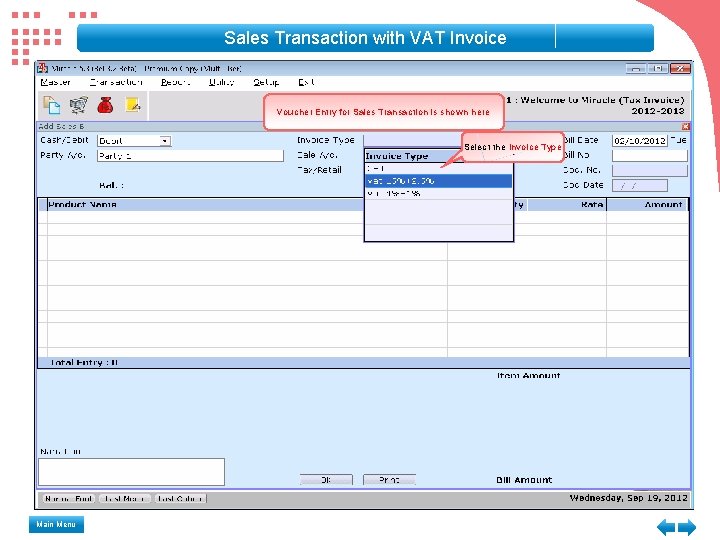
Sales Transaction with VAT Invoice Voucher Entry for Sales Transaction is shown here Select the Invoice Type Main Menu
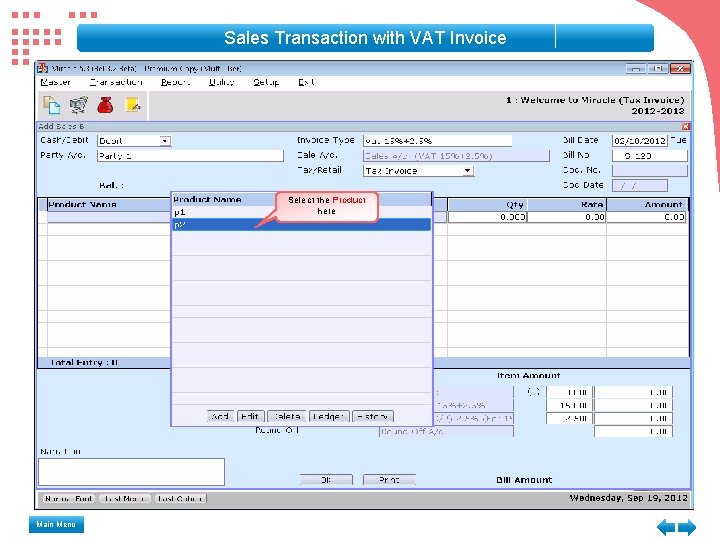
Sales Transaction with VAT Invoice Select the Product here Main Menu
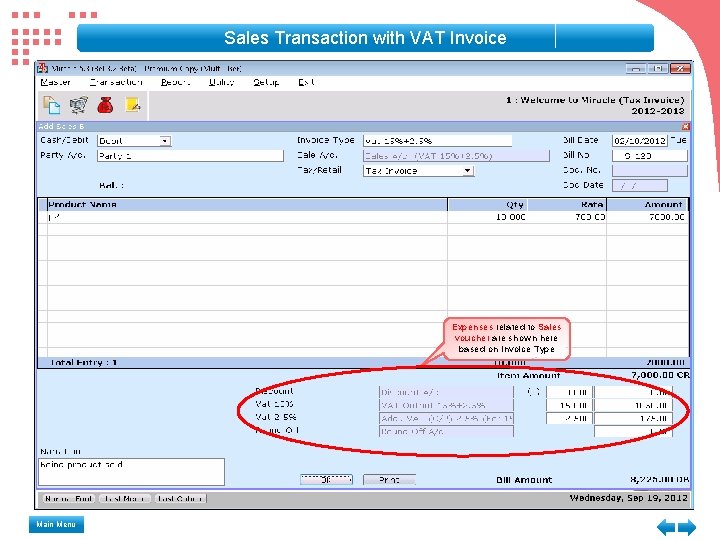
Sales Transaction with VAT Invoice Expenses related to Sales voucher are shown here based on Invoice Type Main Menu
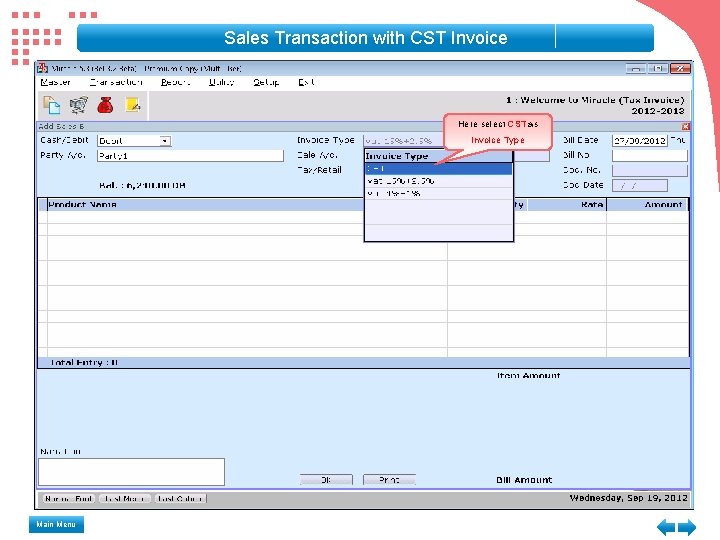
Sales Transaction with CST Invoice Here select CST as Invoice Type Main Menu
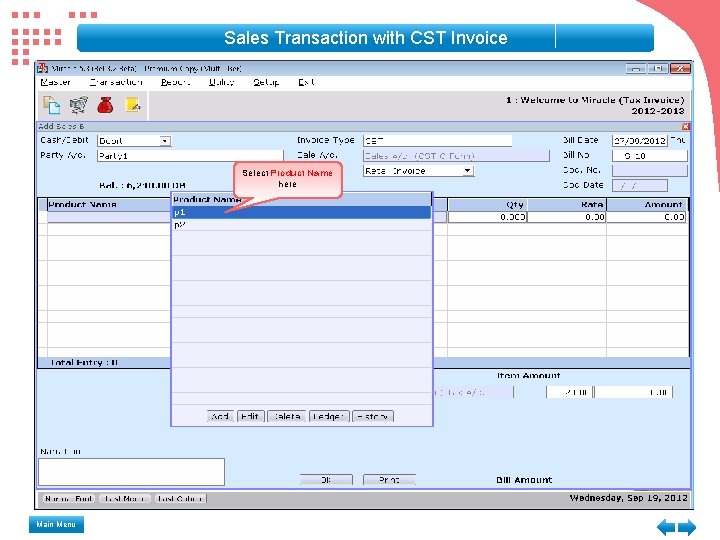
Sales Transaction with CST Invoice Select Product Name here Main Menu
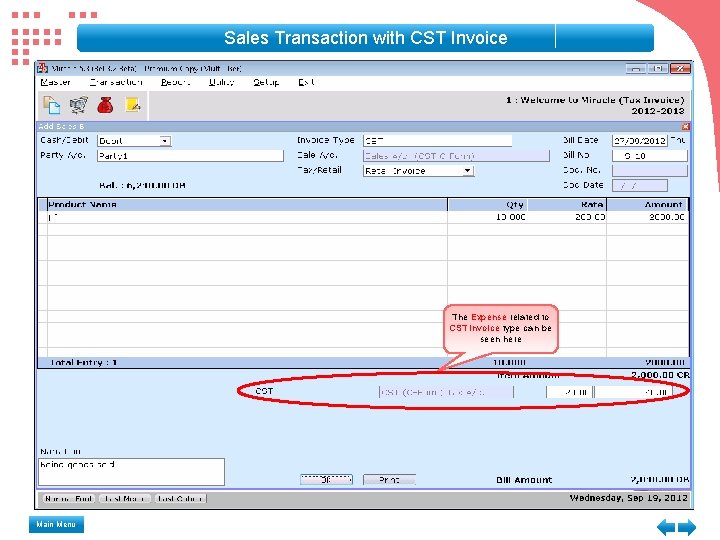
Sales Transaction with CST Invoice The Expense related to CST invoice type can be seen here Main Menu
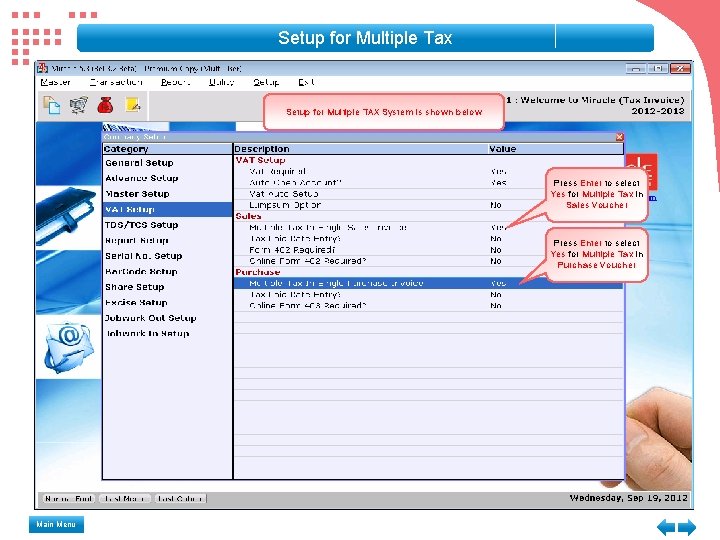
Setup for Multiple Tax Setup for Multiple TAX System is shown below Press Enter to select Yes for Multiple Tax in Sales Voucher Press Enter to select Yes for Multiple Tax in Purchase Voucher Main Menu
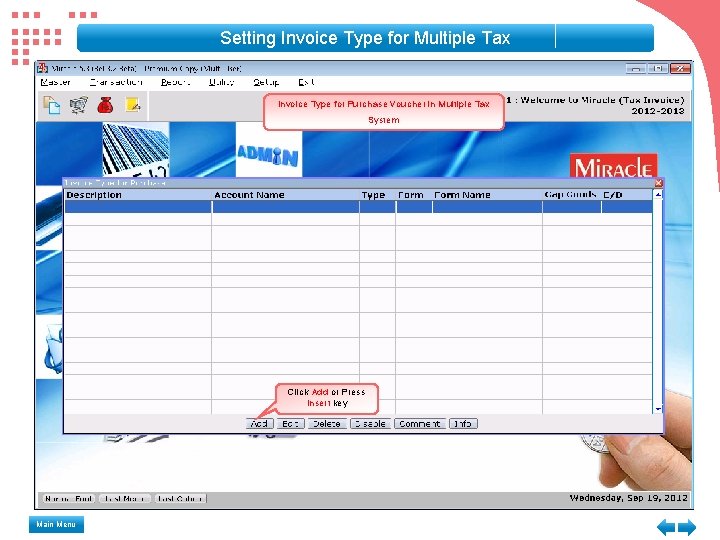
Setting Invoice Type for Multiple Tax Invoice Type for Purchase Voucher in Multiple Tax System Click Add or Press Insert key Main Menu
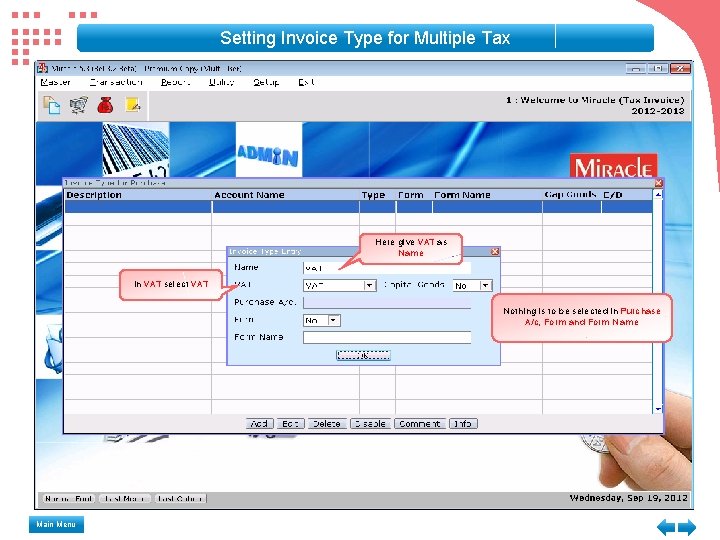
Setting Invoice Type for Multiple Tax Here give VAT as Name In VAT select VAT Nothing is to be selected in Purchase A/c, Form and Form Name Main Menu
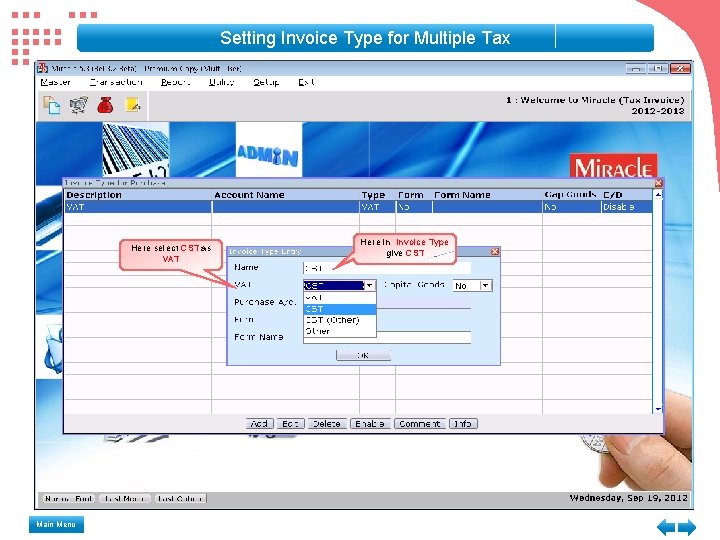
Setting Invoice Type for Multiple Tax Here select CST as VAT Main Menu Here in Invoice Type give CST
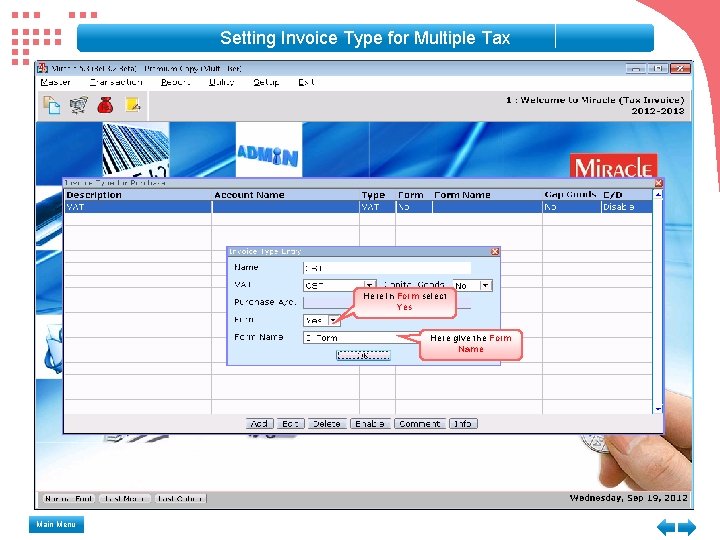
Setting Invoice Type for Multiple Tax Here in Form select Yes Here give the Form Name Main Menu
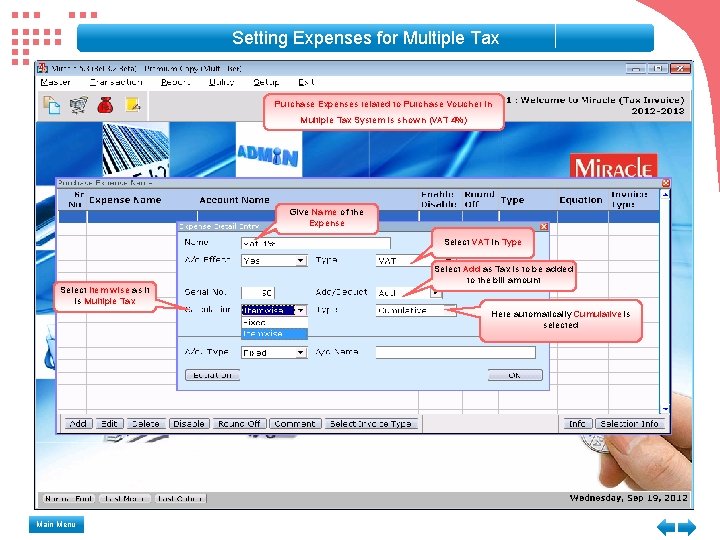
Setting Expenses for Multiple Tax Purchase Expenses related to Purchase Voucher in Multiple Tax System is shown (VAT 4%) Give Name of the Expense Select VAT in Type Select Item wise as it is Multiple Tax Main Menu Select Add as Tax is to be added to the bill amount Here automatically Cumulative is selected
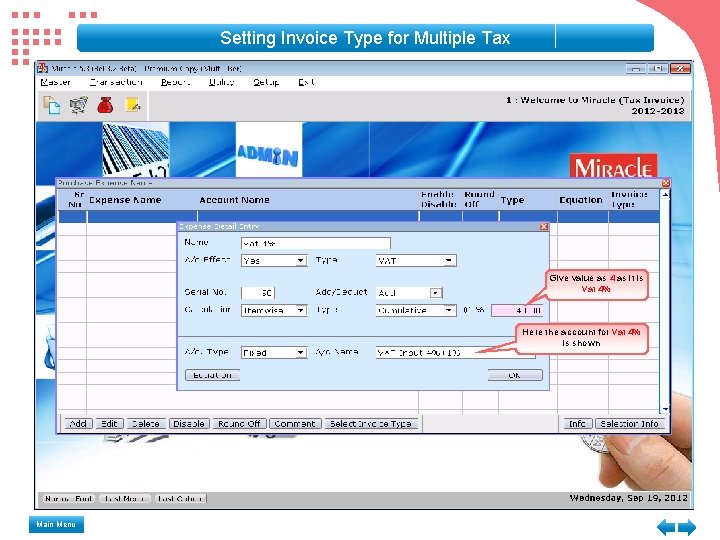
Setting Invoice Type for Multiple Tax Give value as 4 as it is Vat 4% Here the account for Vat 4% is shown Main Menu
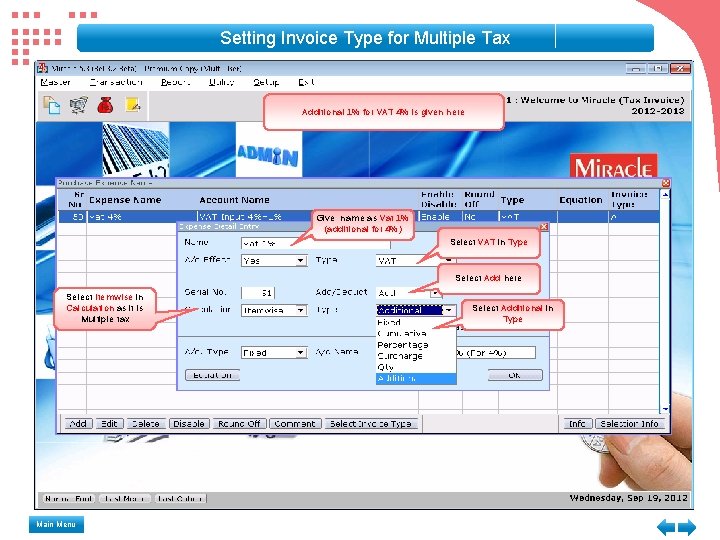
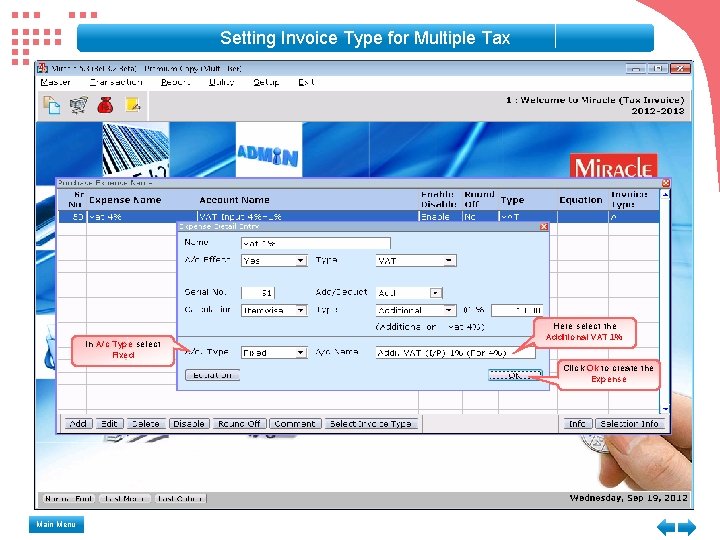
Setting Invoice Type for Multiple Tax Additional 1% for VAT 4% is given here Give name as Vat 1% (additional for 4%) Select VAT in Type Select Add here Select Itemwise in Calculation as it is Multiple tax Main Menu Select Additional in Type
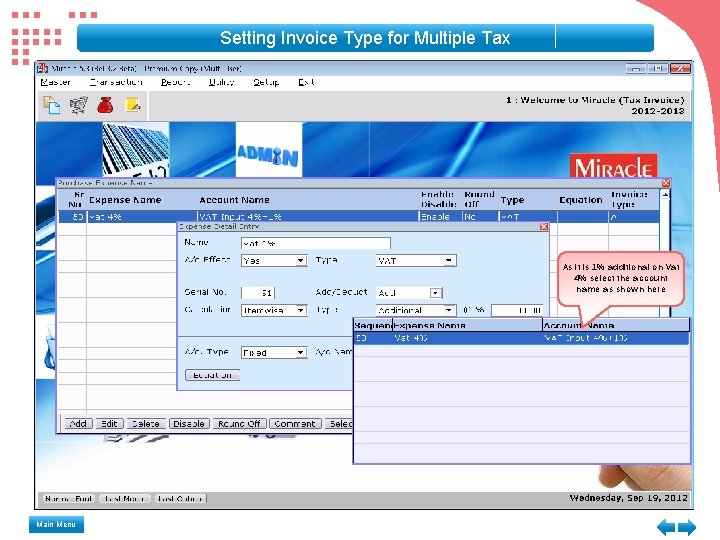
Setting Invoice Type for Multiple Tax As it is 1% additional on Vat 4% select the account name as shown here Main Menu
Setting Invoice Type for Multiple Tax In A/c Type select Fixed Main Menu Here select the Additional VAT 1% Click Ok to create the Expense
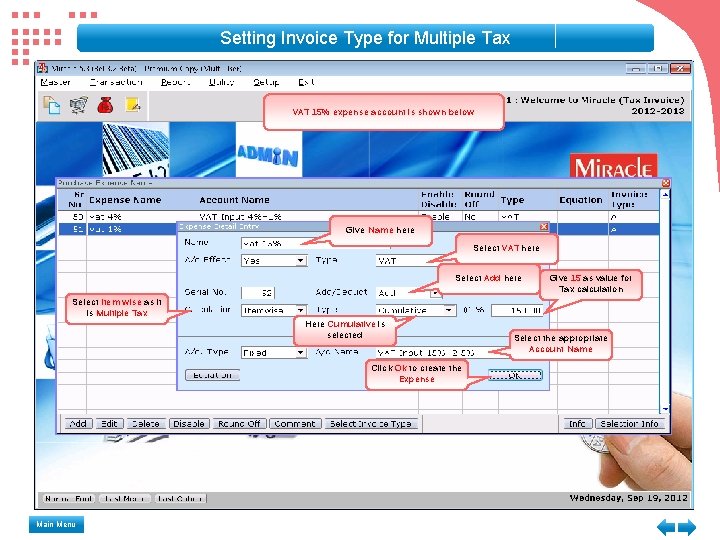
Setting Invoice Type for Multiple Tax VAT 15% expense account is shown below Give Name here Select VAT here Select Add here Select Item wise as it is Multiple Tax Here Cumulative is selected Click Ok to create the Expense Main Menu Give 15 as value for Tax calculation Select the appropriate Account Name
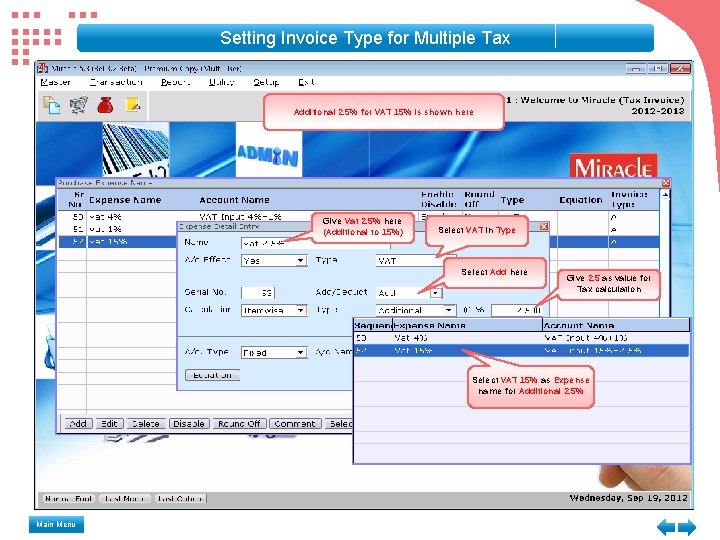
Setting Invoice Type for Multiple Tax Additional 2. 5% for VAT 15% is shown here Give Vat 2. 5% here (Additional to 15%) Select VAT in Type Select Add here Give 2. 5 as value for Tax calculation Select VAT 15% as Expense name for Additional 2. 5% Main Menu
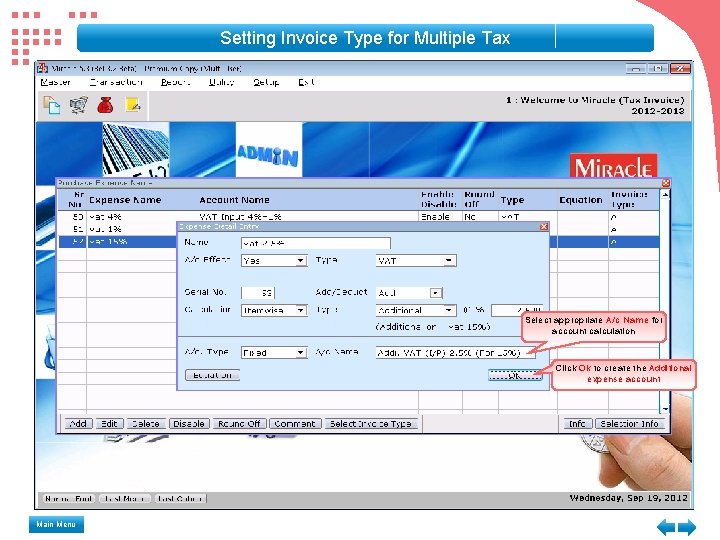
Setting Invoice Type for Multiple Tax Select appropriate A/c Name for account calculation Click Ok to create the Additional expense account Main Menu
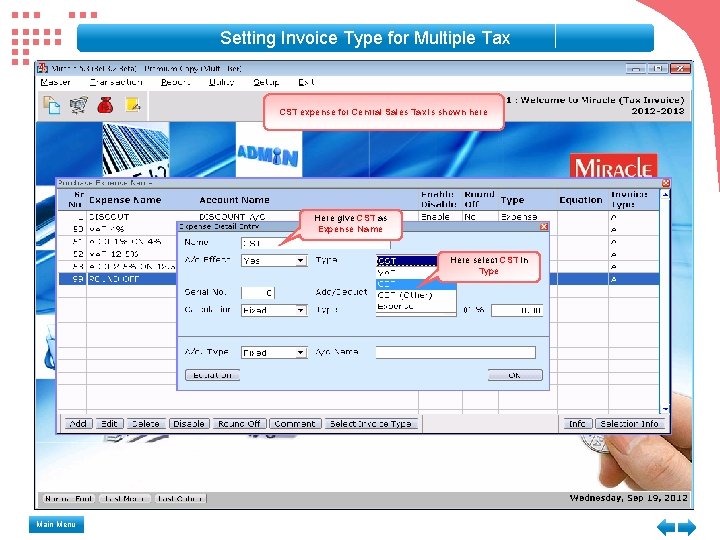
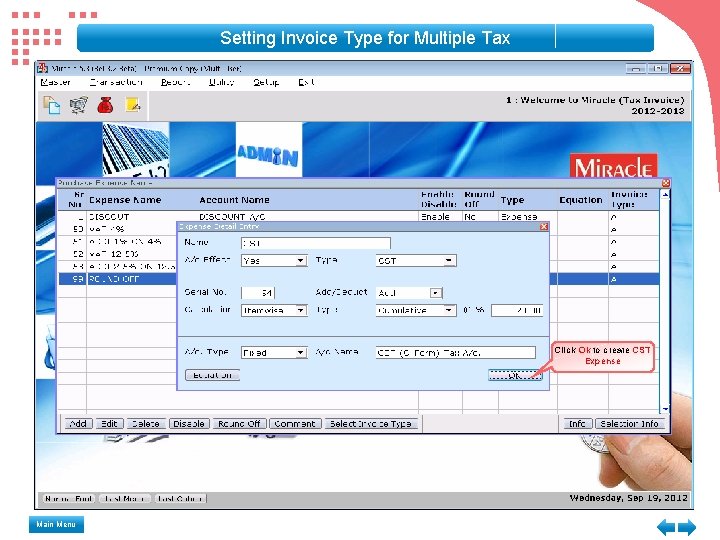
Setting Invoice Type for Multiple Tax CST expense for Central Sales Tax is shown here Here give CST as Expense Name Here select CST in Type Main Menu
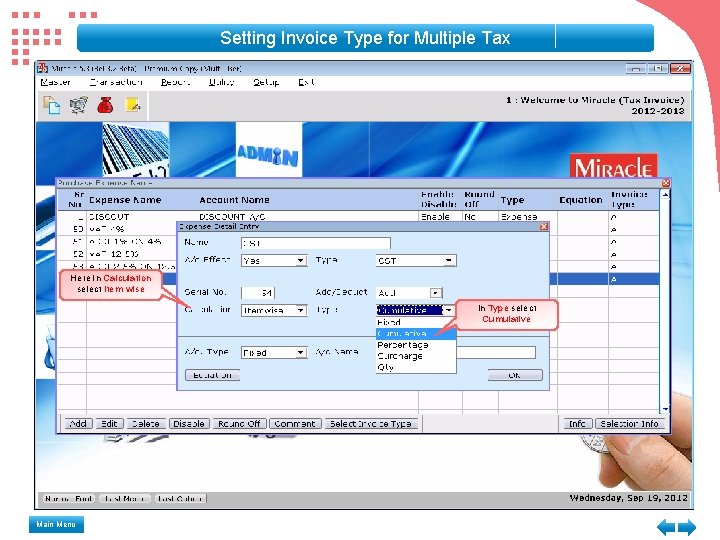
Setting Invoice Type for Multiple Tax Here in Calculation select Item wise In Type select Cumulative Main Menu
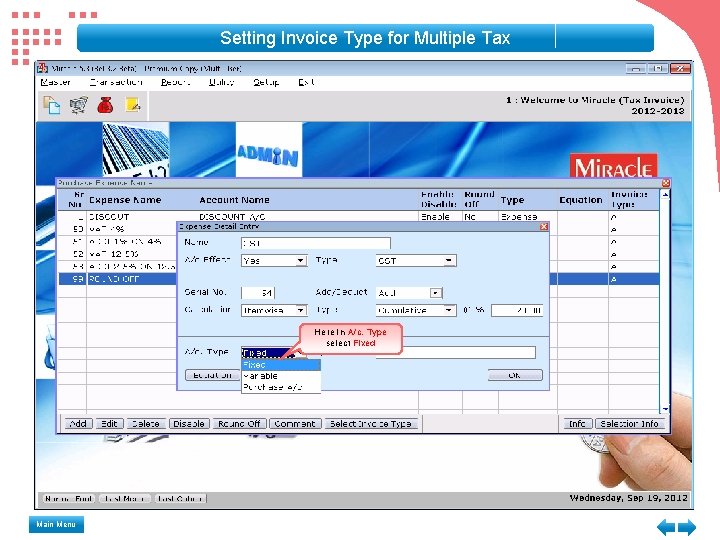
Setting Invoice Type for Multiple Tax Here in A/c. Type select Fixed Main Menu
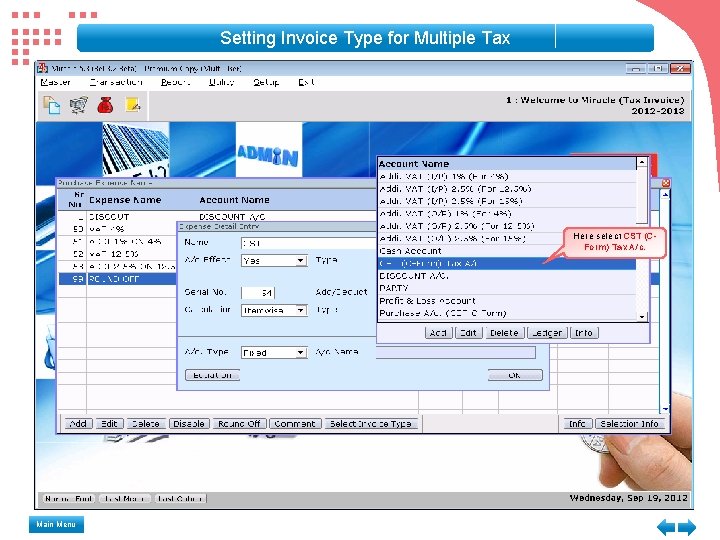
Setting Invoice Type for Multiple Tax Here select CST (CForm) Tax A/c. Main Menu
Setting Invoice Type for Multiple Tax Click Ok to create CST Expense Main Menu
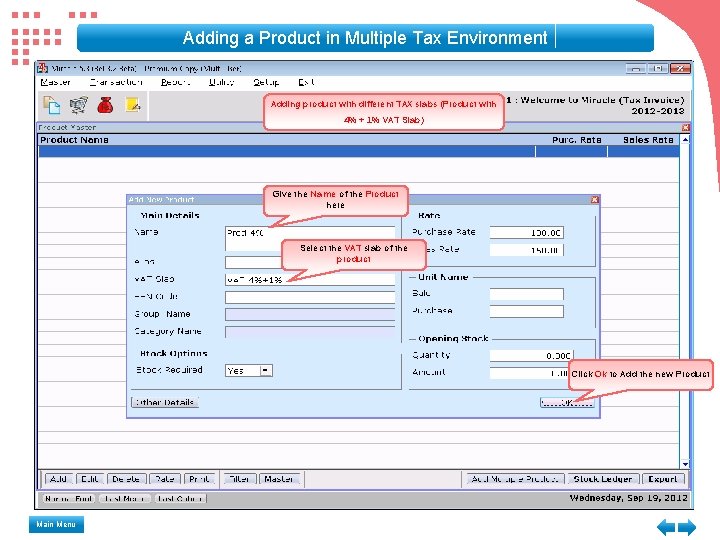
Adding a Product in Multiple Tax Environment Adding product with different TAX slabs (Product with 4% + 1% VAT Slab) Give the Name of the Product here Select the VAT slab of the product Click Ok to Add the new Product Main Menu
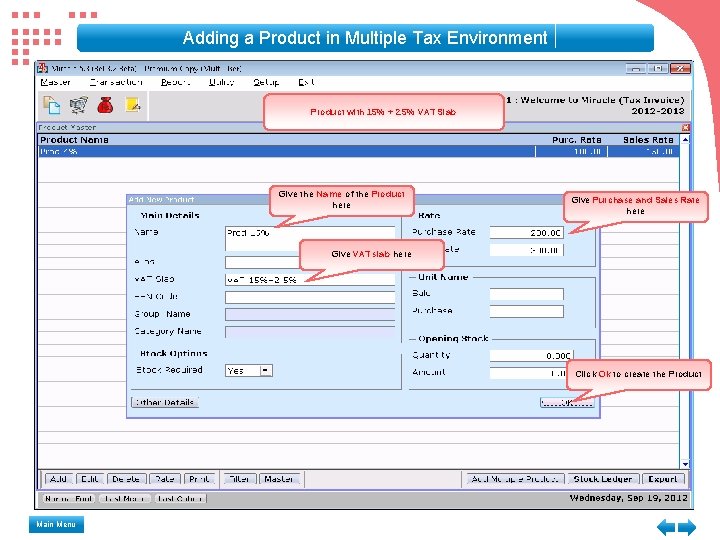
Adding a Product in Multiple Tax Environment Product with 15% + 2. 5% VAT Slab Give the Name of the Product here Give Purchase and Sales Rate here Give VAT slab here Click Ok to create the Product Main Menu
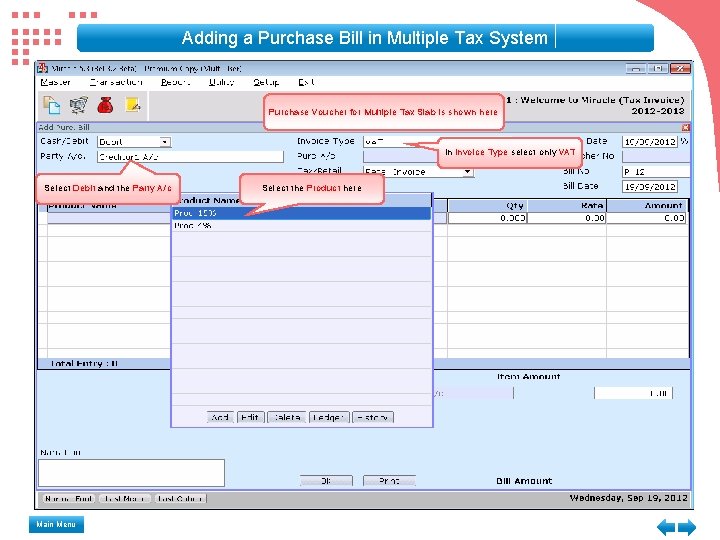
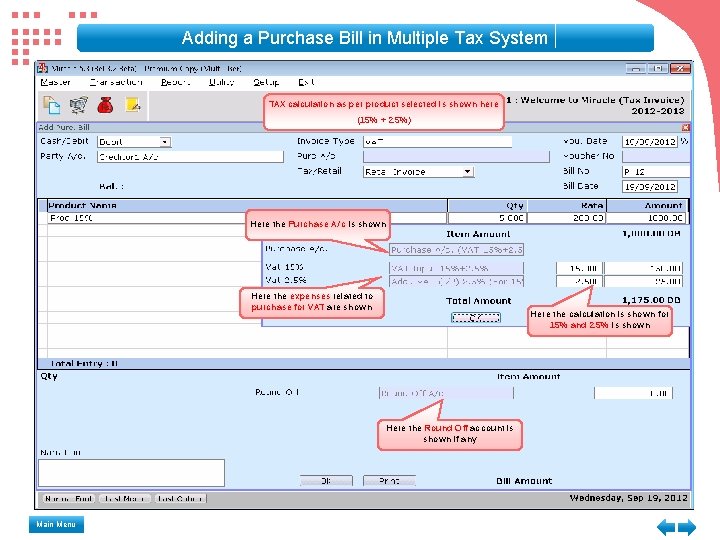
Adding a Purchase Bill in Multiple Tax System Purchase Voucher for Multiple Tax Slab is shown here In Invoice Type select only VAT Select Debit and the Party A/c Main Menu Select the Product here
Adding a Purchase Bill in Multiple Tax System TAX calculation as per product selected is shown here (15% + 2. 5%) Here the Purchase A/c is shown Here the expenses related to purchase for VAT are shown Here the calculation is shown for 15% and 2. 5% is shown Here the Round Off account is shown if any Main Menu
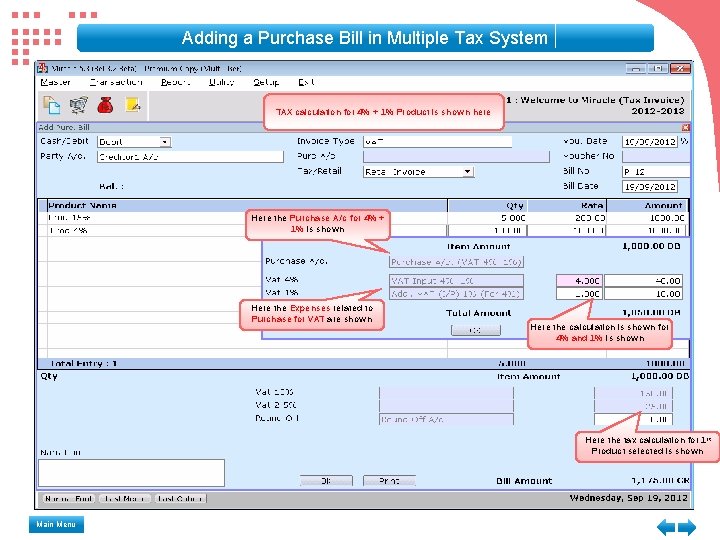
Adding a Purchase Bill in Multiple Tax System TAX calculation for 4% + 1% Product is shown here Here the Purchase A/c for 4% + 1% is shown Here the Expenses related to Purchase for VAT are shown Here the calculation is shown for 4% and 1% is shown Here the tax calculation for 1 st Product selected is shown Main Menu
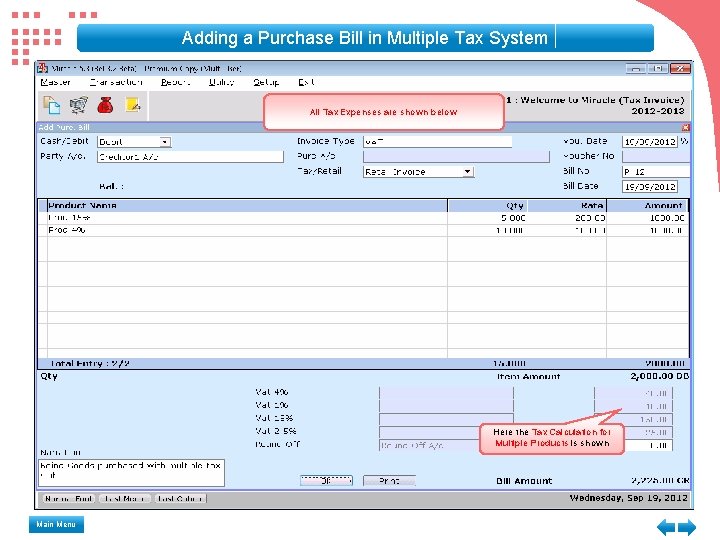
Adding a Purchase Bill in Multiple Tax System All Tax Expenses are shown below Here the Tax Calculation for Multiple Products is shown Main Menu
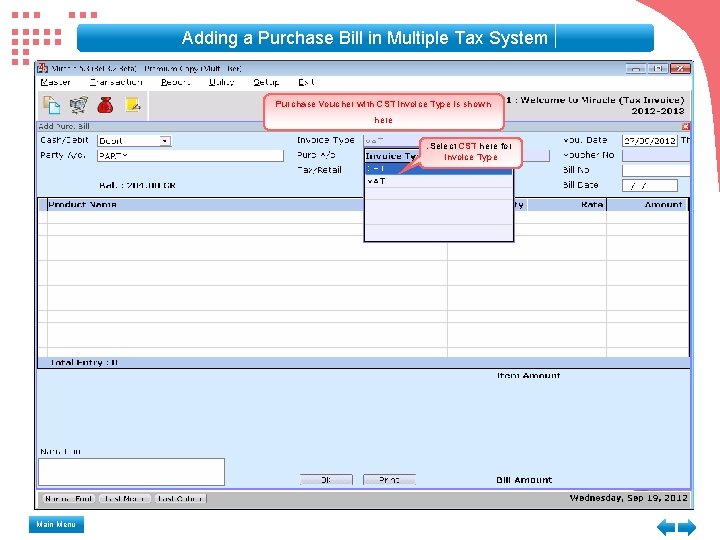
Adding a Purchase Bill in Multiple Tax System Purchase Voucher with CST Invoice Type is shown here Select CST here for Invoice Type Main Menu
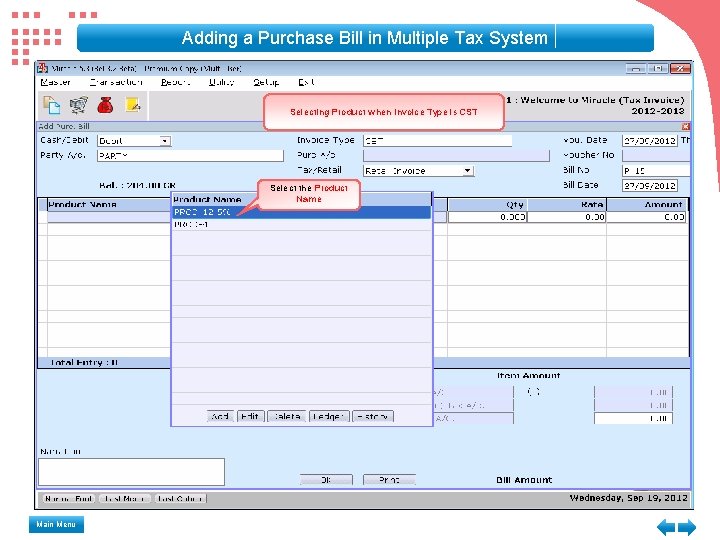
Adding a Purchase Bill in Multiple Tax System Selecting Product when Invoice Type is CST Select the Product Name Main Menu
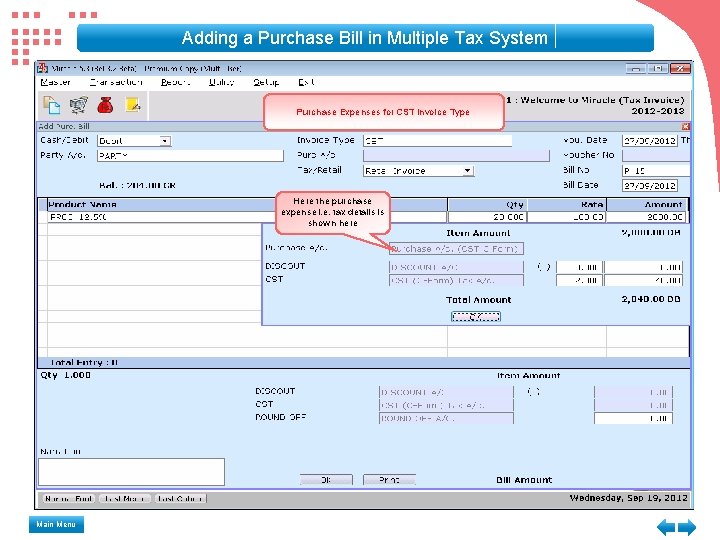
Adding a Purchase Bill in Multiple Tax System Purchase Expenses for CST Invoice Type Here the purchase expense i. e. tax details is shown here Main Menu
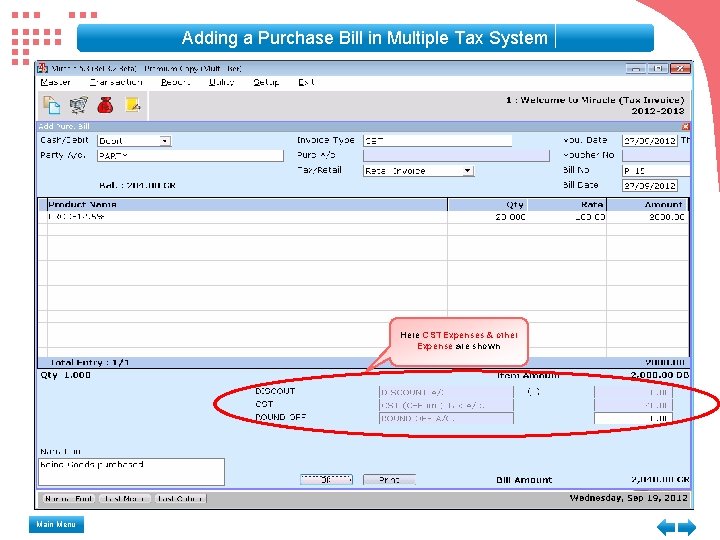
Adding a Purchase Bill in Multiple Tax System Here CST Expenses & other Expense are shown Main Menu
Miracle Accounting Software The Way to Success … Thank you for using this self running demo. For any suggestions / comments, Please write to us at aktech 247@gmail. com Back Replay
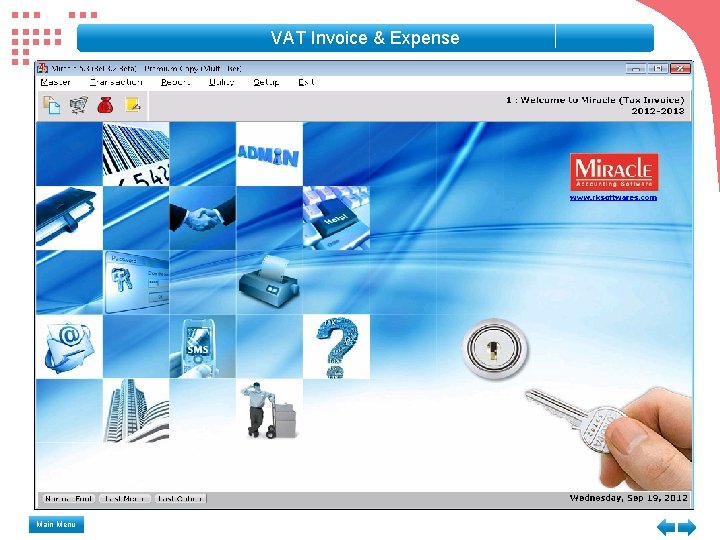
VAT Invoice & Expense Main Menu