
Miracle Accounting Software The Way to Success Ak
- Slides: 42
Miracle Accounting Software The Way to Success … Ak Technologies Mo. +91 -94264 50998 | 98253 78685 Email. aktech 247@gmail. com Visit. www. aksoftwares. in Start
Miracle Accounting Software The Way to Success … Gujarat VAT Setup VAT Auto Setup
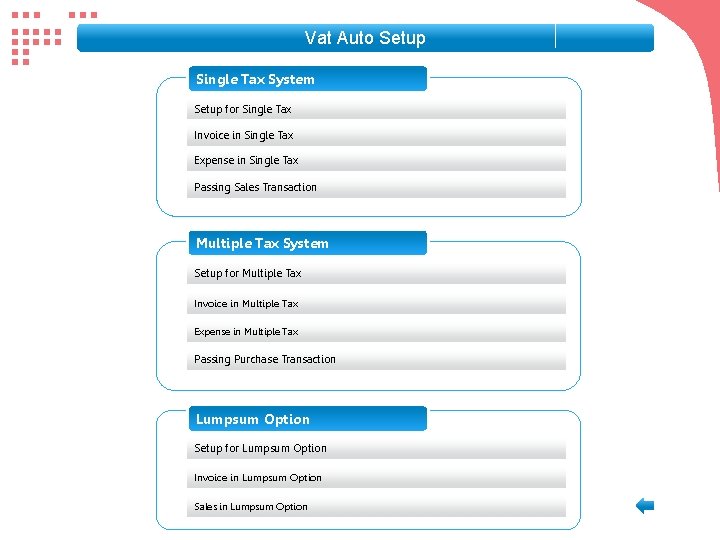
Vat Auto Setup Single Tax System Setup for Single Tax Invoice in Single Tax Expense in Single Tax Passing Sales Transaction Multiple Tax System Setup for Multiple Tax Invoice in Multiple Tax Expense in Multiple Tax Passing Purchase Transaction Lumpsum Option Setup for Lumpsum Option Invoice in Lumpsum Option Sales in Lumpsum Option
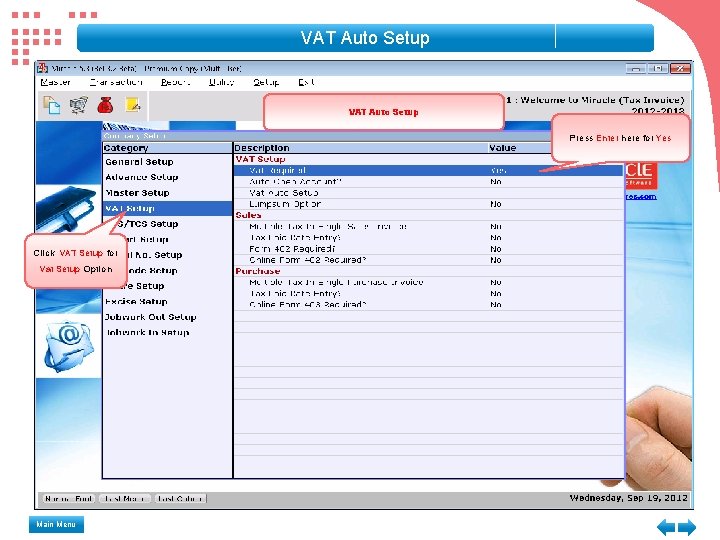
VAT Auto Setup Press Enter here for Yes Click VAT Setup for Vat Setup Option Main Menu
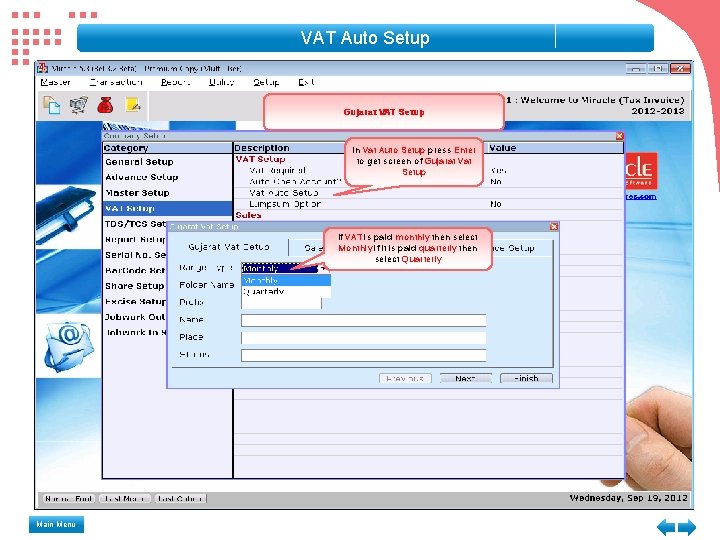
VAT Auto Setup Gujarat VAT Setup In Vat Auto Setup press Enter to get screen of Gujarat Vat Setup If VAT is paid monthly then select Monthly if it is paid quarterly then select Quarterly Main Menu
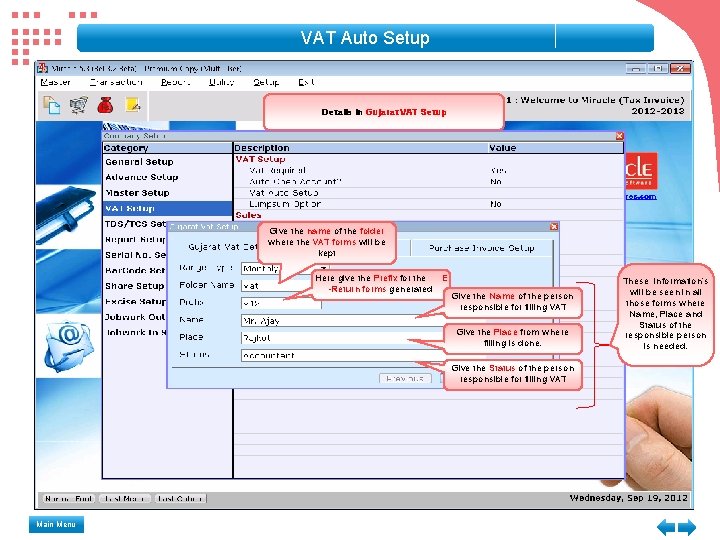
VAT Auto Setup Details in Gujarat VAT Setup Give the name of the folder where the VAT forms will be kept Here give the Prefix for the E -Return forms generated Give the Name of the person responsible for filling VAT Invoice & Expense Give the Place from where filling is done. Give the Status of the person responsible for filling VAT Main Menu These information's will be seen in all those forms where Name, Place and Status of the responsible person is needed.
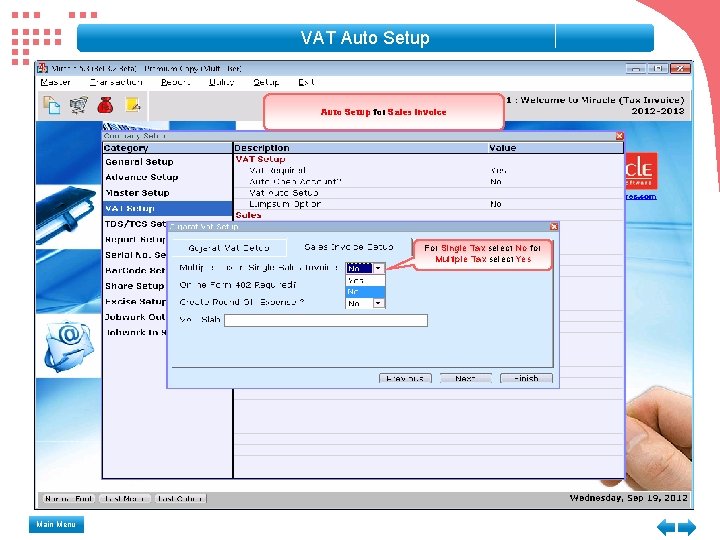
VAT Auto Setup for Sales Invoice For Single Tax select No for Multiple Tax select Yes Main Menu
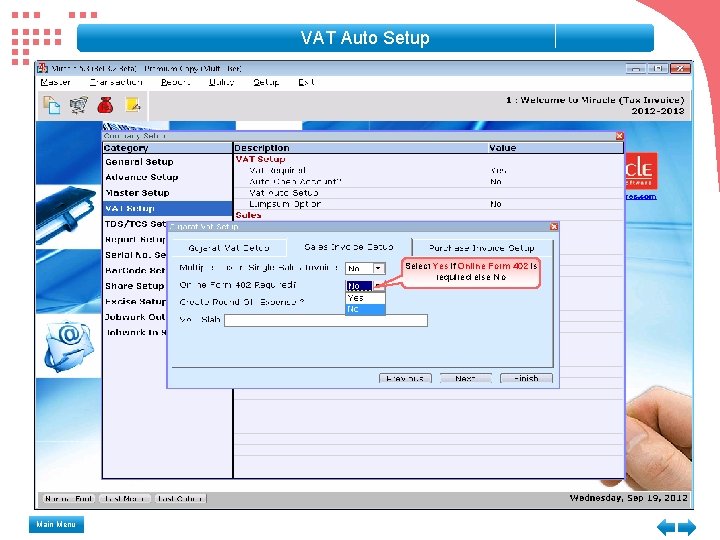
VAT Auto Setup Select Yes if Online Form 402 is required else No Main Menu
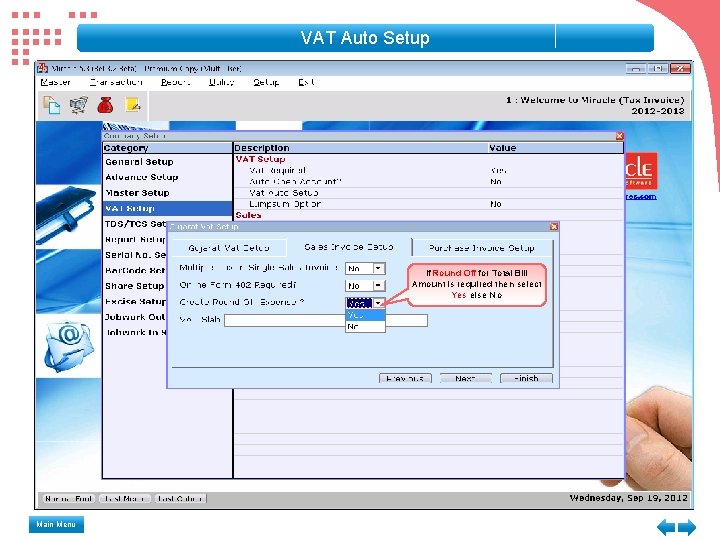
VAT Auto Setup If Round Off for Total Bill Amount is required then select Yes else No Main Menu
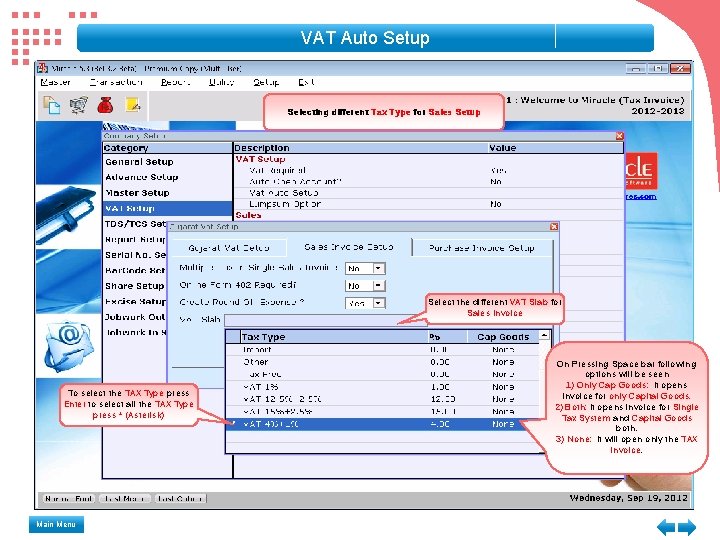
VAT Auto Setup Selecting different Tax Type for Sales Setup Select the different VAT Slab for Sales Invoice To select the TAX Type press Enter to select all the TAX Type press * (Asterisk) Main Menu On Pressing Space bar following options will be seen 1) Only Cap Goods: It opens invoice for only Capital Goods. 2) Both: It opens invoice for Single Tax System and Capital Goods both. 3) None: It will open only the TAX invoice.
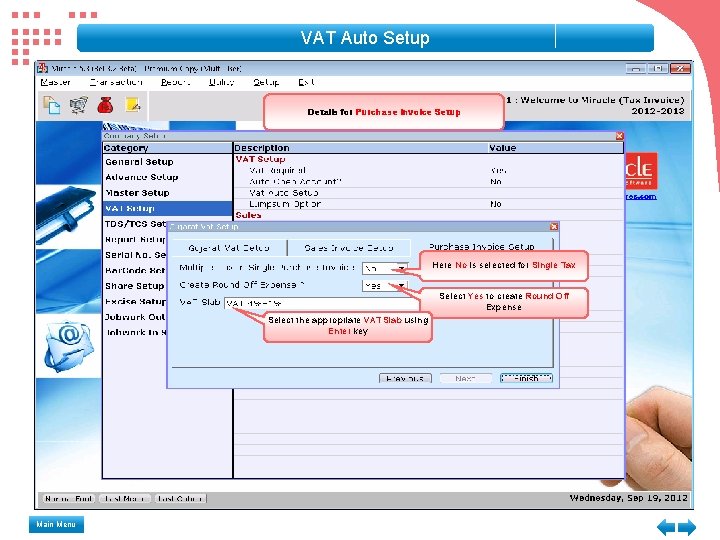
VAT Auto Setup Details for Purchase Invoice Setup Here No is selected for Single Tax Select the appropriate VAT Slab using Enter key Main Menu Select Yes to create Round Off Expense
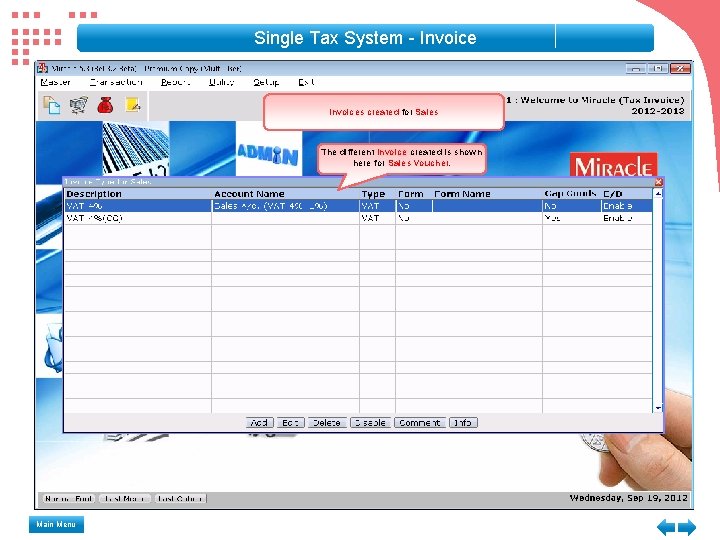
Single Tax System - Invoices created for Sales The different Invoice created is shown here for Sales Voucher. Main Menu
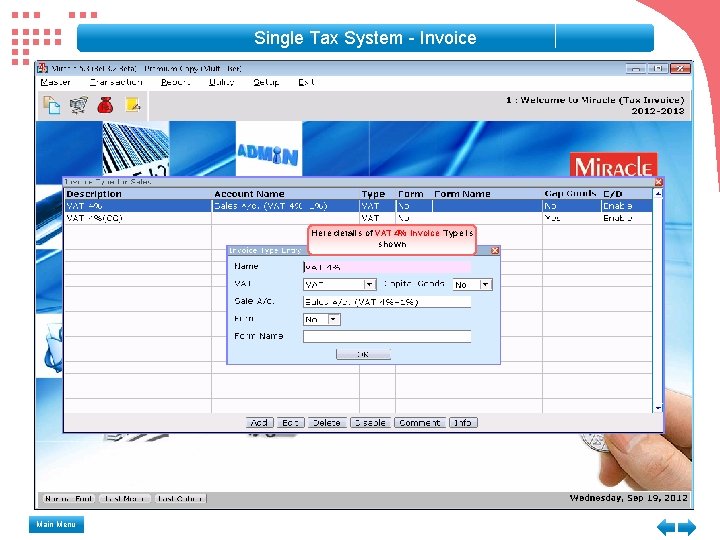
Single Tax System - Invoice Here details of VAT 4% Invoice Type is shown Main Menu
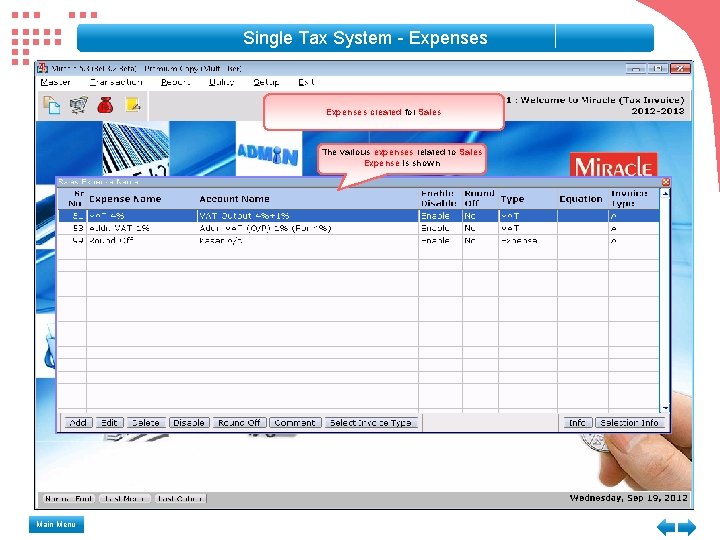
Single Tax System - Expenses created for Sales The various expenses related to Sales Expense is shown Main Menu
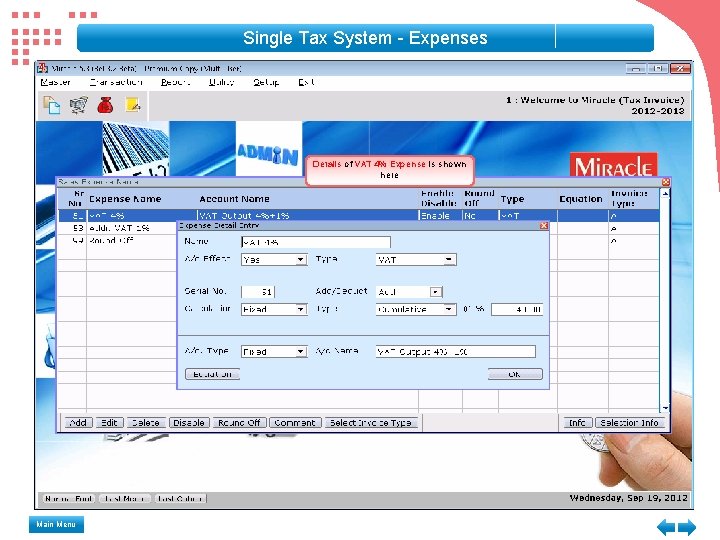
Single Tax System - Expenses Details of VAT 4% Expense is shown here Main Menu
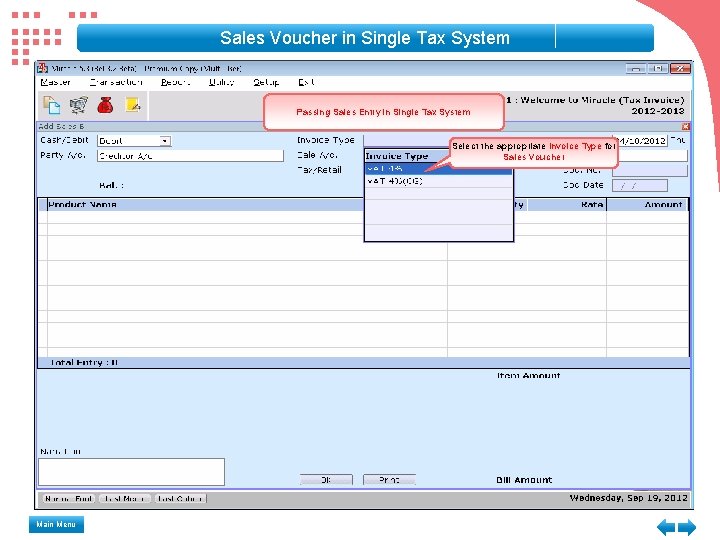
Sales Voucher in Single Tax System Passing Sales Entry in Single Tax System Select the appropriate Invoice Type for Sales Voucher Main Menu
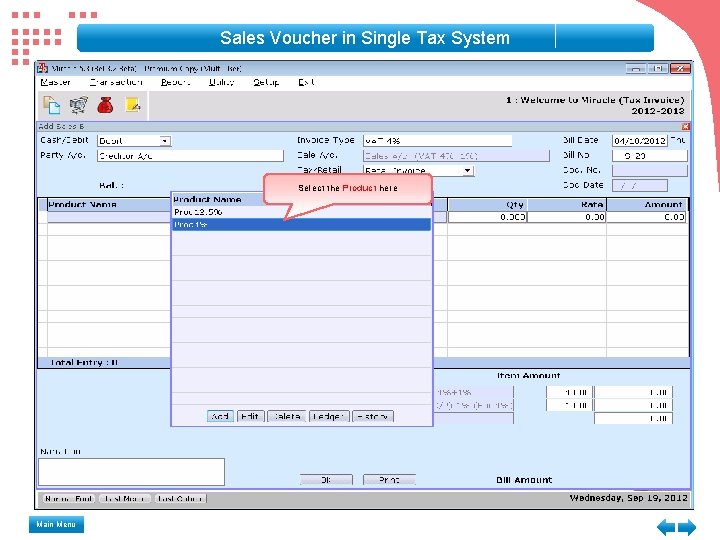
Sales Voucher in Single Tax System Select the Product here Main Menu
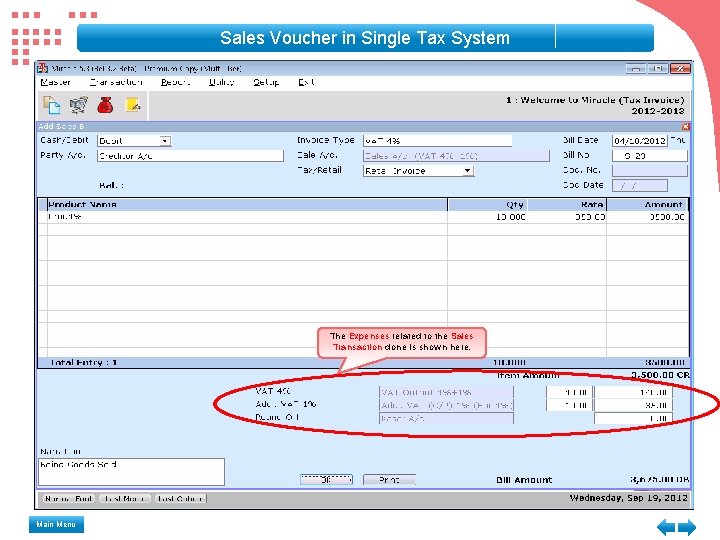
Sales Voucher in Single Tax System The Expenses related to the Sales Transaction done is shown here. Main Menu
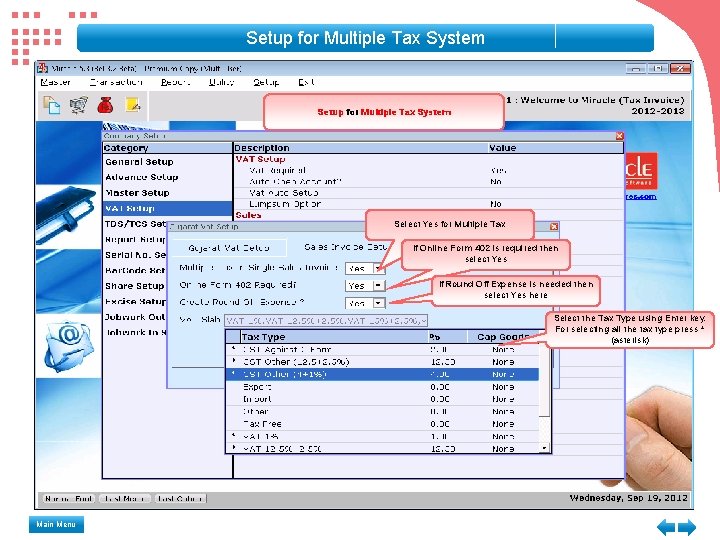
Setup for Multiple Tax System Select Yes for Multiple Tax If Online Form 402 is required then select Yes If Round Off Expense is needed then select Yes here Select the Tax Type using Enter key. For selecting all the tax type press * (asterisk) Main Menu
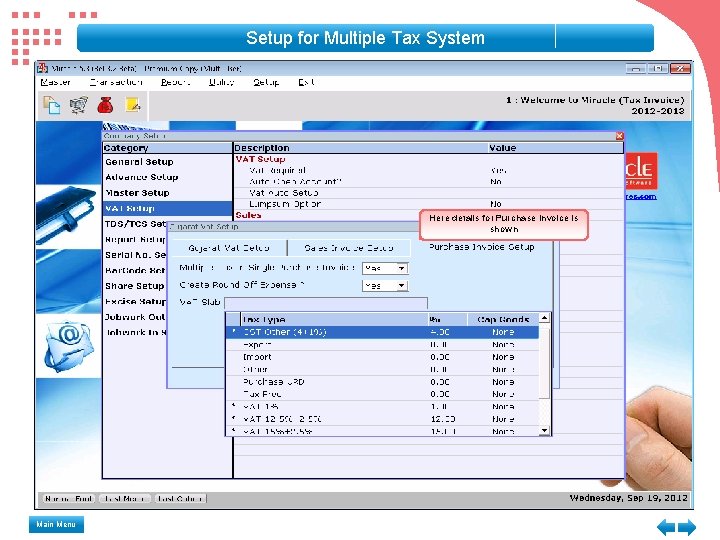
Setup for Multiple Tax System Here details for Purchase Invoice is shown Main Menu
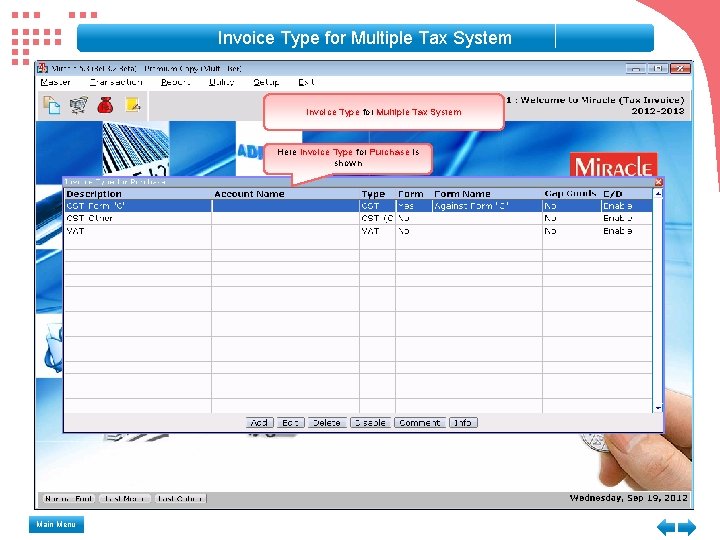
Invoice Type for Multiple Tax System Here Invoice Type for Purchase is shown Main Menu
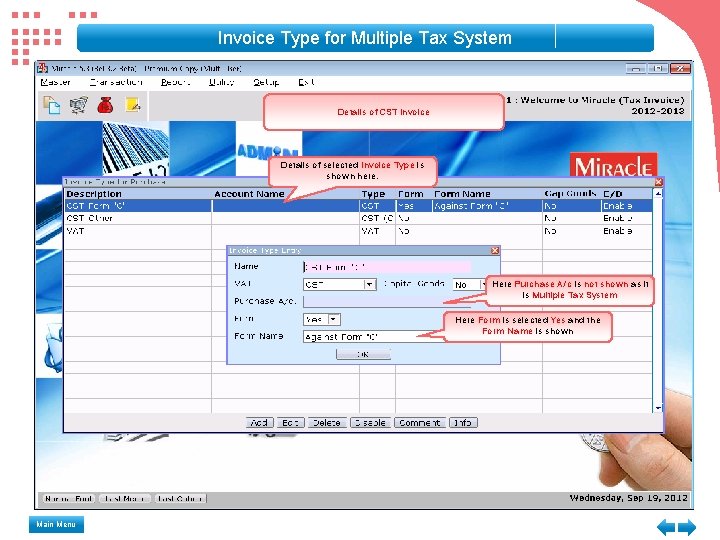
Invoice Type for Multiple Tax System Details of CST Invoice Details of selected Invoice Type is shown here. Here Purchase A/c is not shown as it is Multiple Tax System Here Form is selected Yes and the Form Name is shown Main Menu
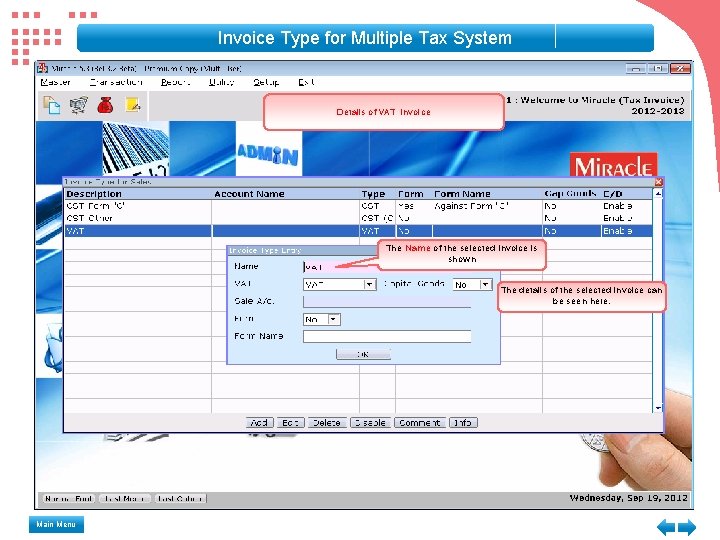
Invoice Type for Multiple Tax System Details of VAT Invoice The Name of the selected Invoice is shown The details of the selected invoice can be seen here. Main Menu
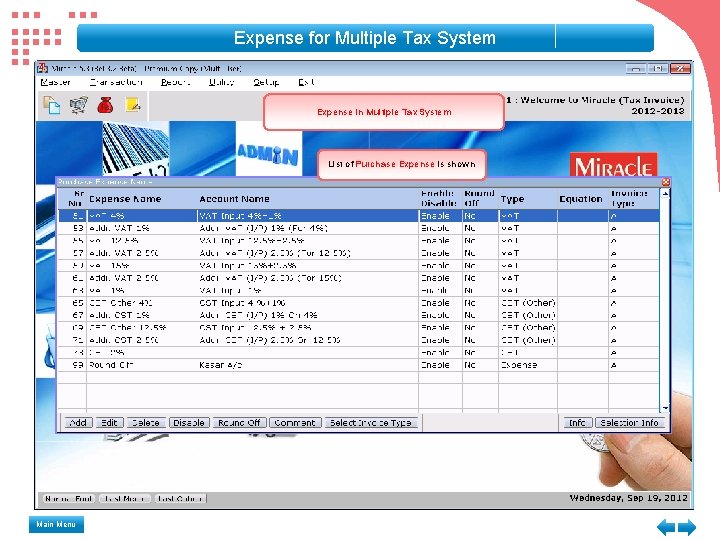
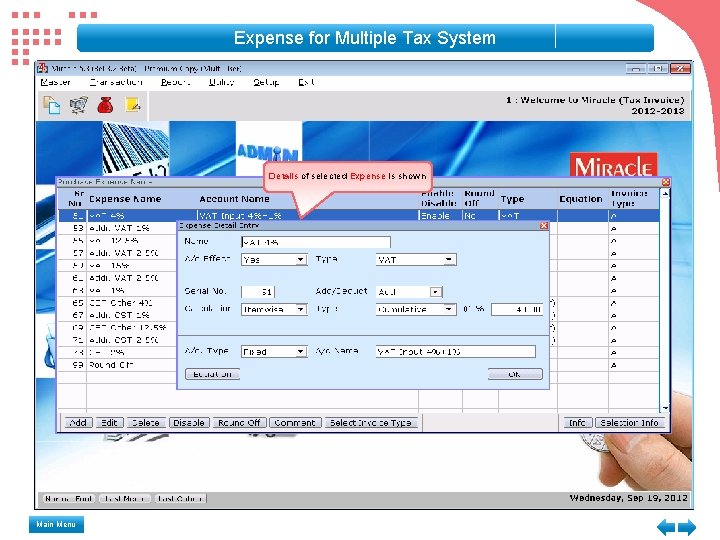
Expense for Multiple Tax System Expense in Multiple Tax System List of Purchase Expense is shown Main Menu
Expense for Multiple Tax System Details of selected Expense is shown Main Menu
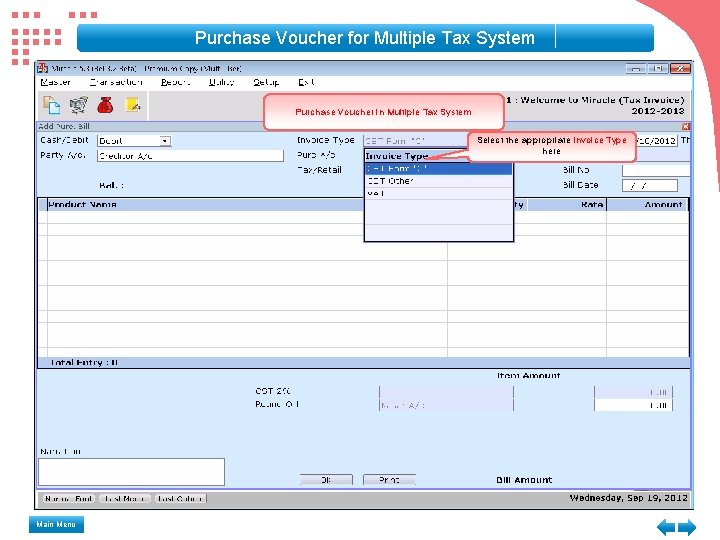
Purchase Voucher for Multiple Tax System Purchase Voucher in Multiple Tax System Select the appropriate Invoice Type here Main Menu
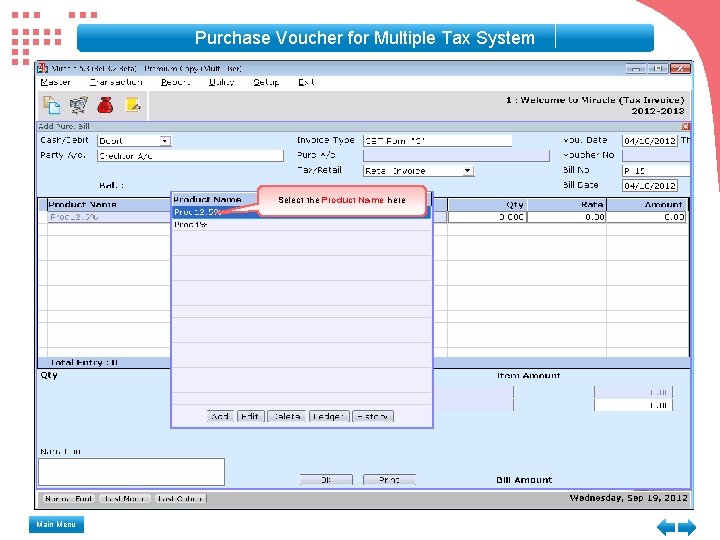
Purchase Voucher for Multiple Tax System Select the Product Name here Main Menu
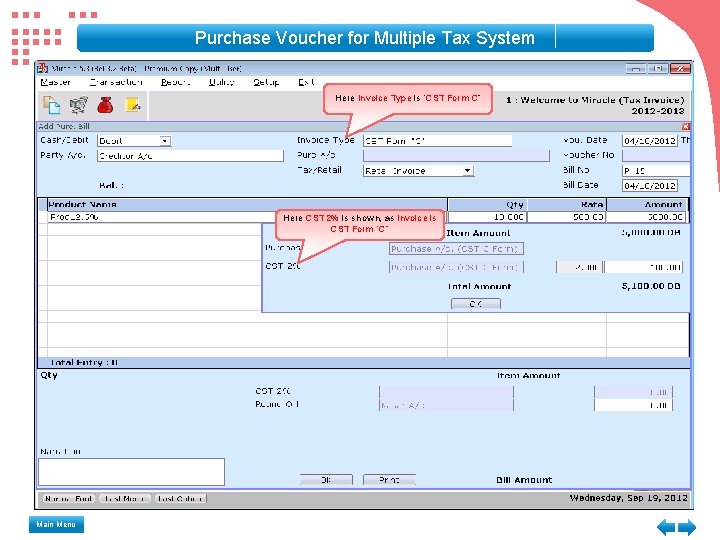
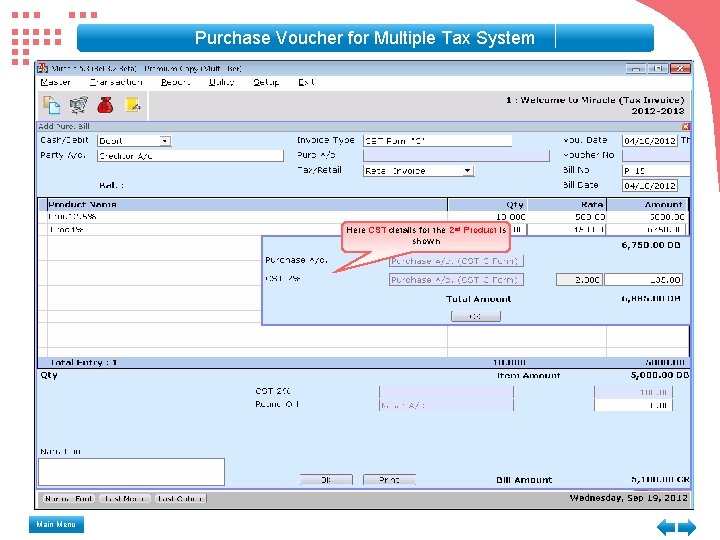
Purchase Voucher for Multiple Tax System Here Invoice Type is “CST Form C” Here CST 2% is shown, as Invoice is CST Form “C” Main Menu
Purchase Voucher for Multiple Tax System Here CST details for the 2 nd Product is shown Main Menu
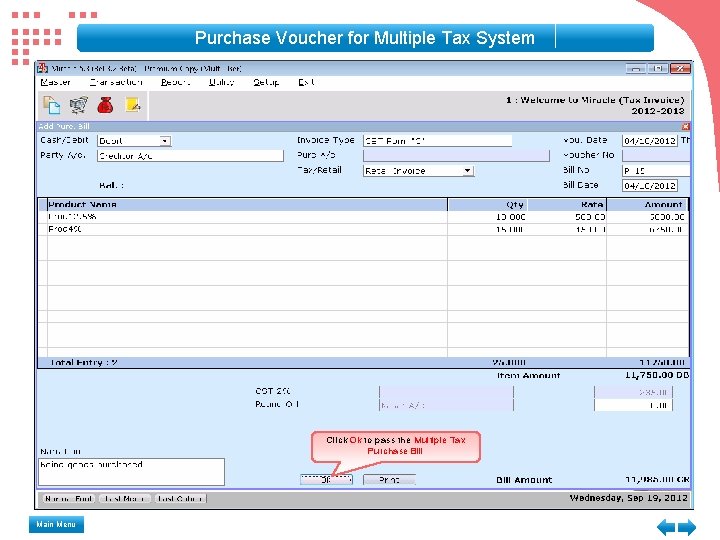
Purchase Voucher for Multiple Tax System Click Ok to pass the Multiple Tax Purchase Bill Main Menu
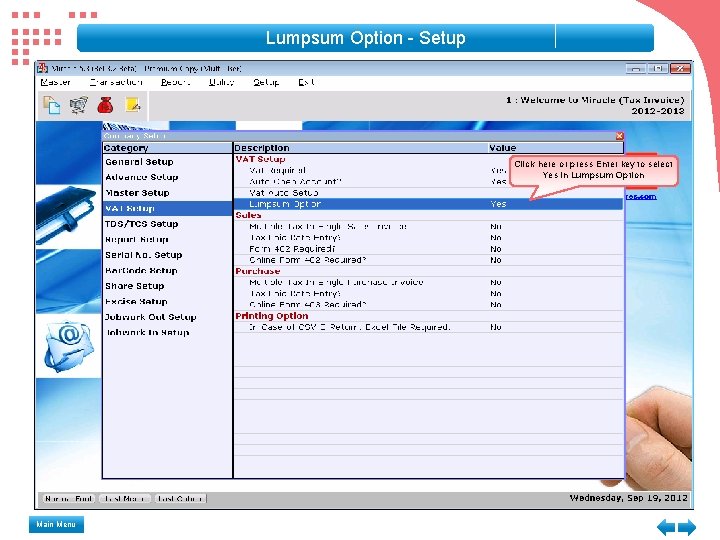
Lumpsum Option - Setup Click here or press Enter key to select Yes in Lumpsum Option Main Menu
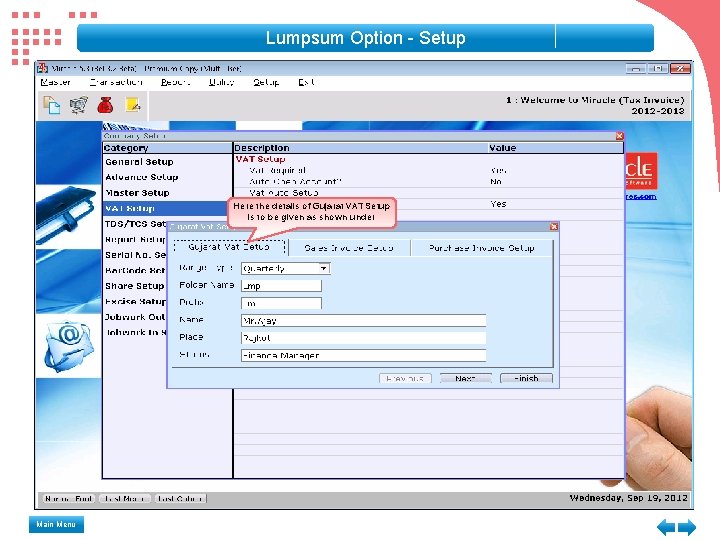
Lumpsum Option - Setup Here the details of Gujarat VAT Setup is to be given as shown under Main Menu
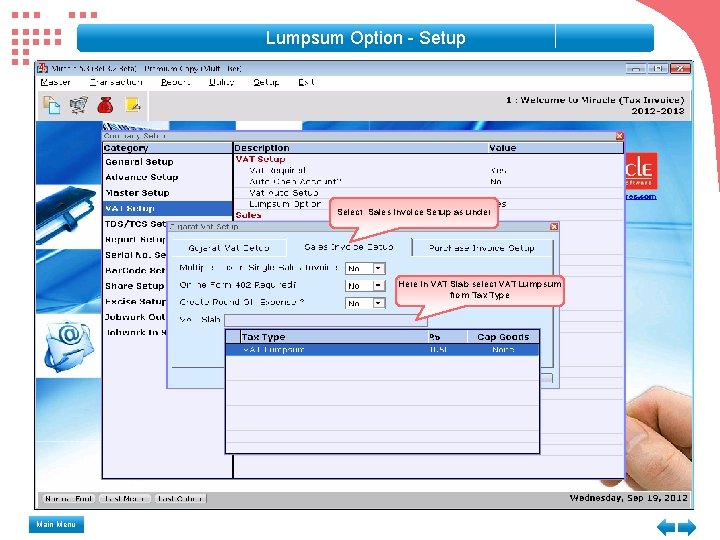
Lumpsum Option - Setup Select Sales invoice Setup as under Here in VAT Slab select VAT Lumpsum from Tax Type Main Menu
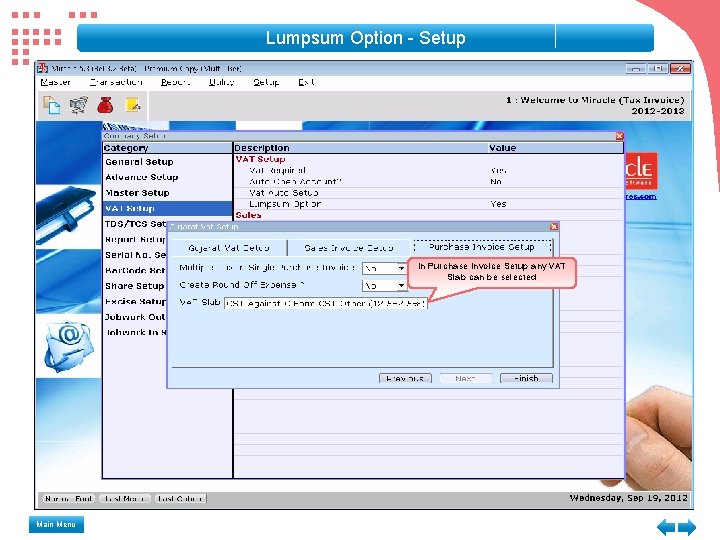
Lumpsum Option - Setup In Purchase Invoice Setup any VAT Slab can be selected Main Menu
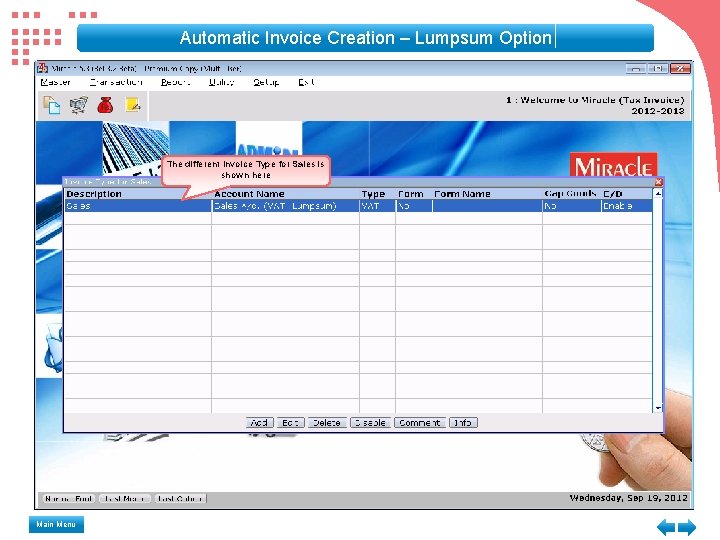
Automatic Invoice Creation – Lumpsum Option The different Invoice Type for Sales is shown here Main Menu
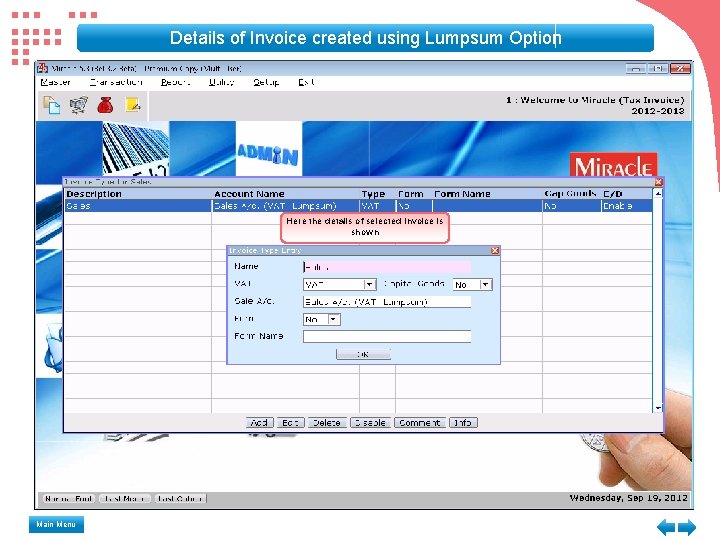
Details of Invoice created using Lumpsum Option Here the details of selected Invoice is shown Main Menu
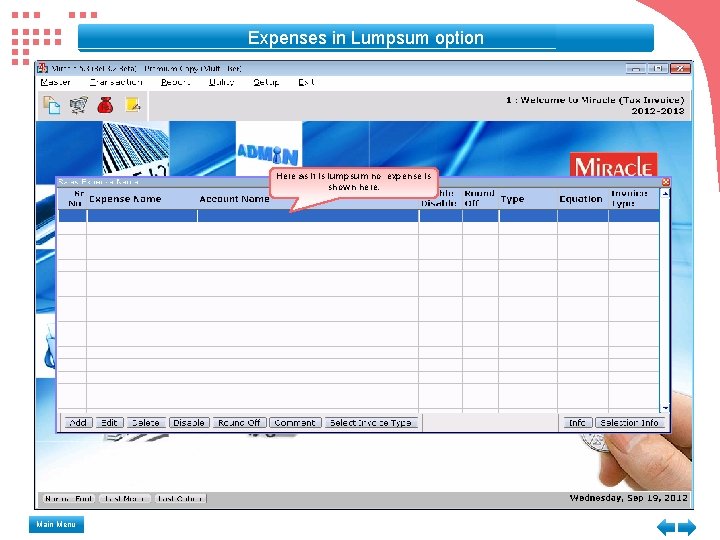
Expenses in Lumpsum option Here as it is lumpsum no expense is shown here. Main Menu
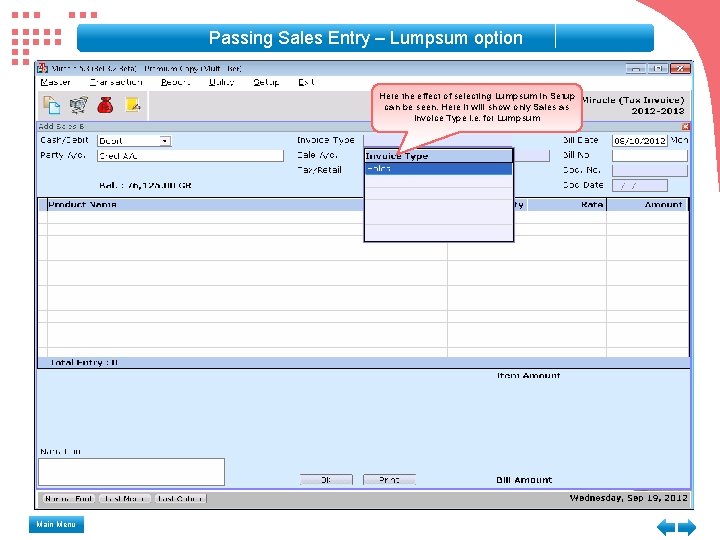
Passing Sales Entry – Lumpsum option Here the effect of selecting Lumpsum in Setup can be seen. Here it will show only Sales as Invoice Type i. e. for Lumpsum Main Menu
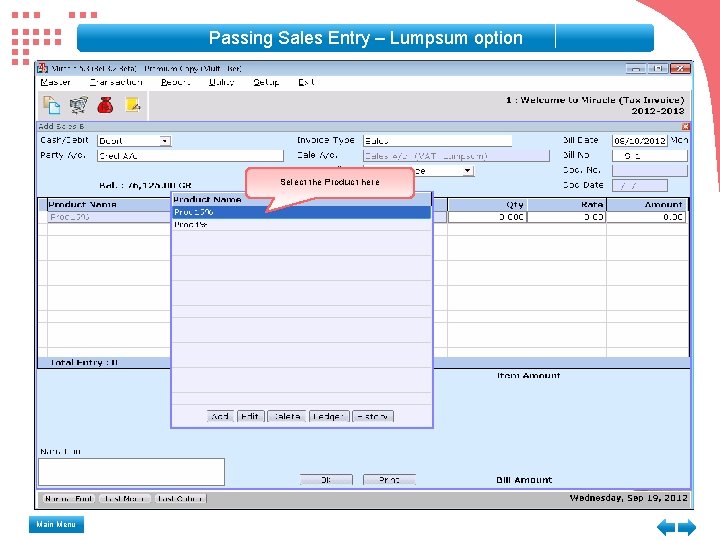
Passing Sales Entry – Lumpsum option Select the Product here Main Menu
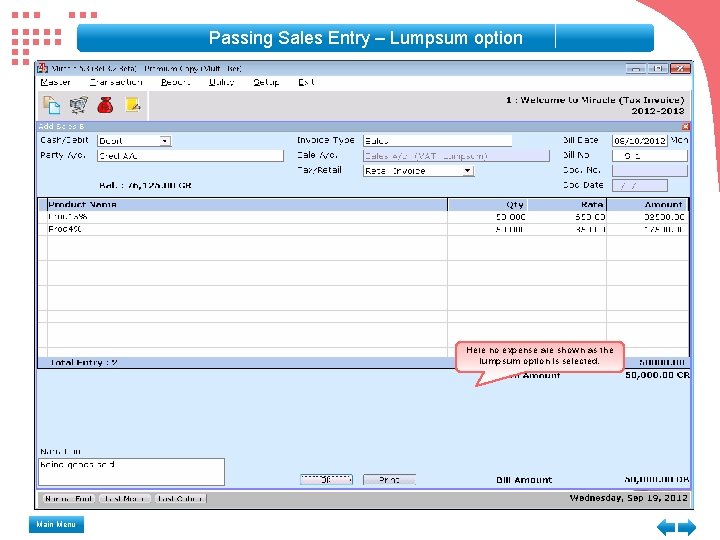
Passing Sales Entry – Lumpsum option Here no expense are shown as the lumpsum option is selected. Main Menu
Miracle Accounting Software The Way to Success … Thank you for using this self running demo. For any suggestions / comments, Please write to us at aktech 247@gmail. com Back Replay
VAT Invoice & Expense Main Menu