Kentucky Immunization Registry Welcome to KYIR The Kentucky


- Slides: 74
Kentucky Immunization Registry
Welcome to KYIR The Kentucky Immunization Registry (KYIR) is a computer based repository and tracking system implemented by the Kentucky Department of Public Health (Ky. DPH) and its partners. KYIR is designed to coordinate immunization services. It provides for the sharing of immunization information among authorized users. As of October, 2009, children, adolescent and adult immunization information may be entered into KYIR. Participation in KYIR is voluntary by both the provider. While data may be used for research and statistical information, the security and confidentiality of each participant is maintained. KYIR shall protect the privacy of registry participants and the confidentiality of information submitted.
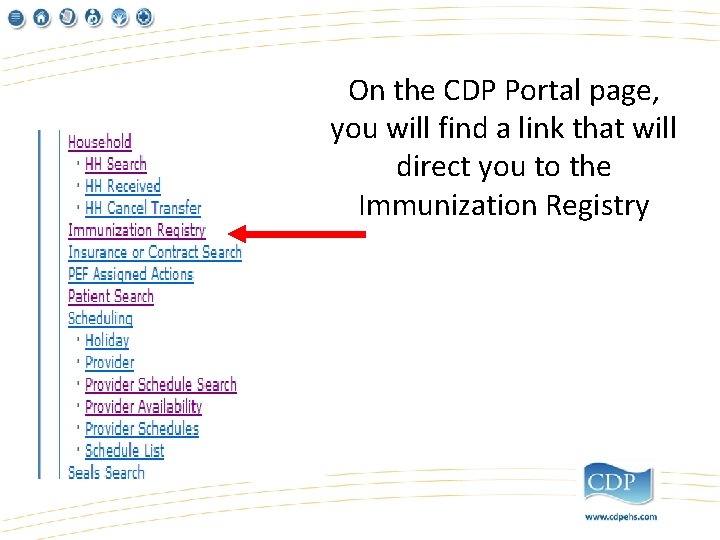
On the CDP Portal page, you will find a link that will direct you to the Immunization Registry
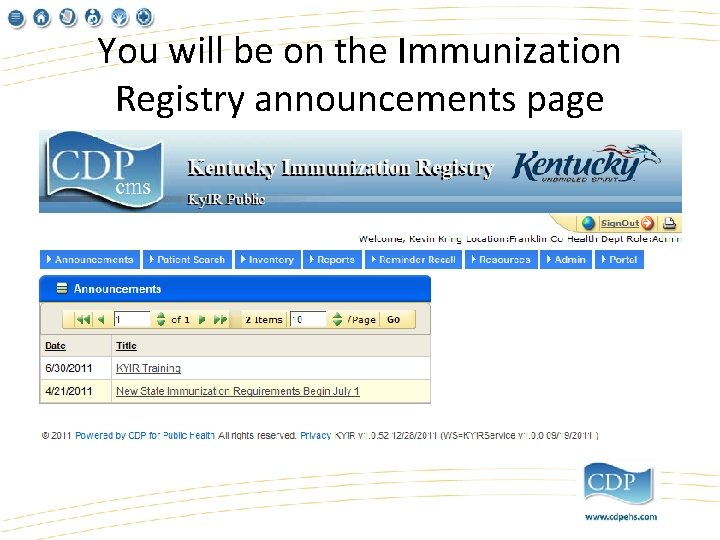
You will be on the Immunization Registry announcements page
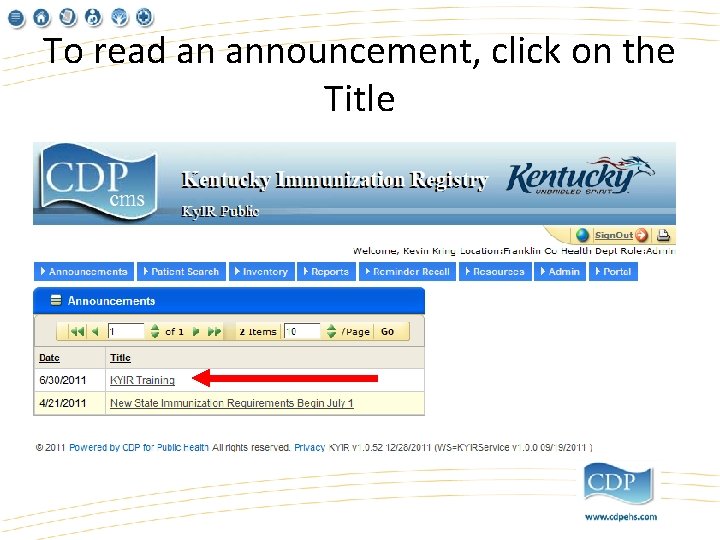
To read an announcement, click on the Title
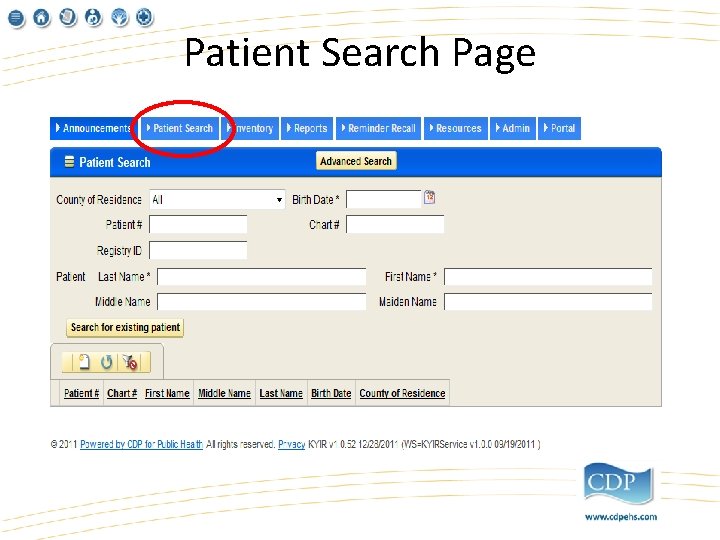
Patient Search Page
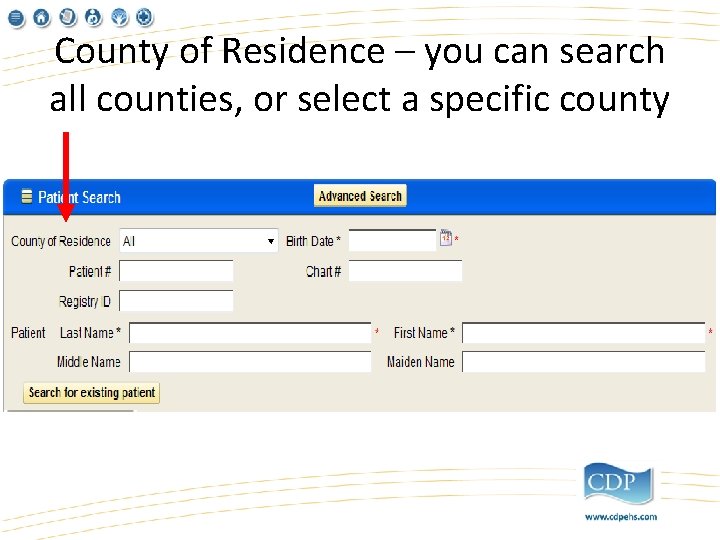
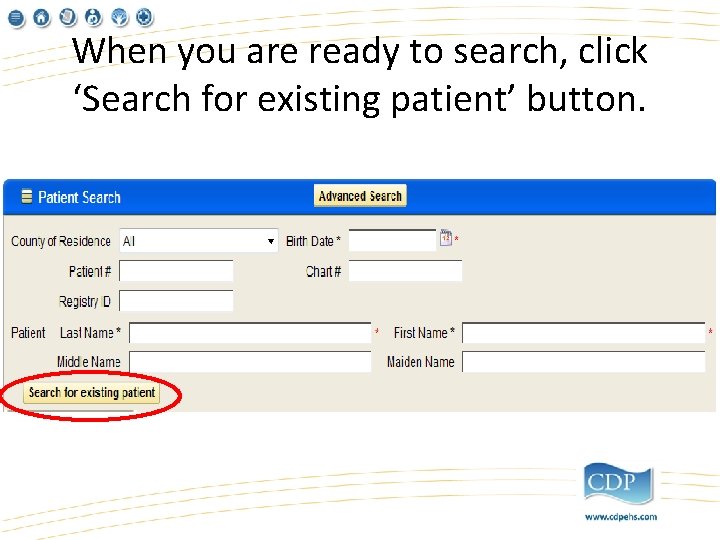
County of Residence – you can search all counties, or select a specific county
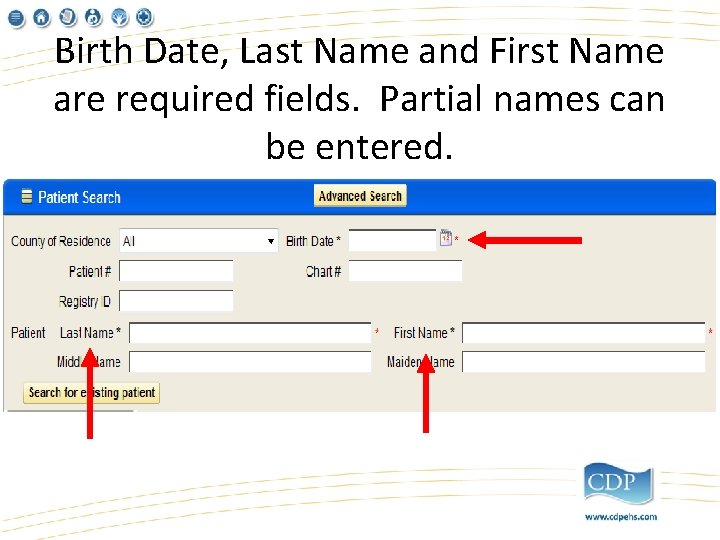
Birth Date, Last Name and First Name are required fields. Partial names can be entered.
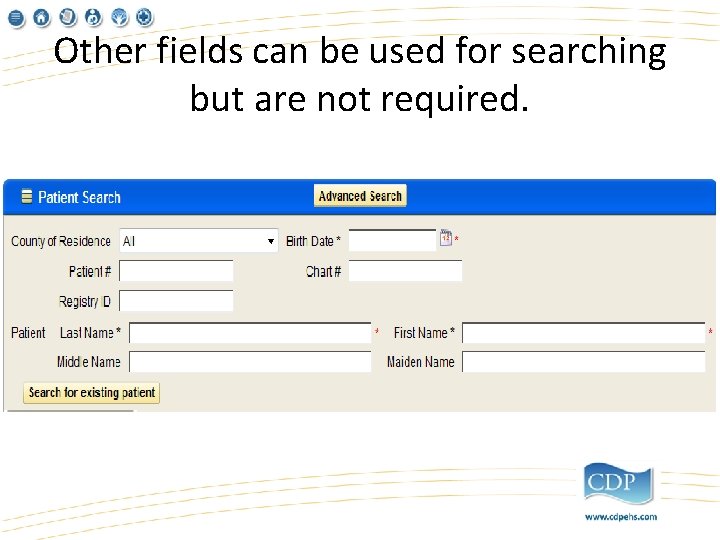
Other fields can be used for searching but are not required.
When you are ready to search, click ‘Search for existing patient’ button.
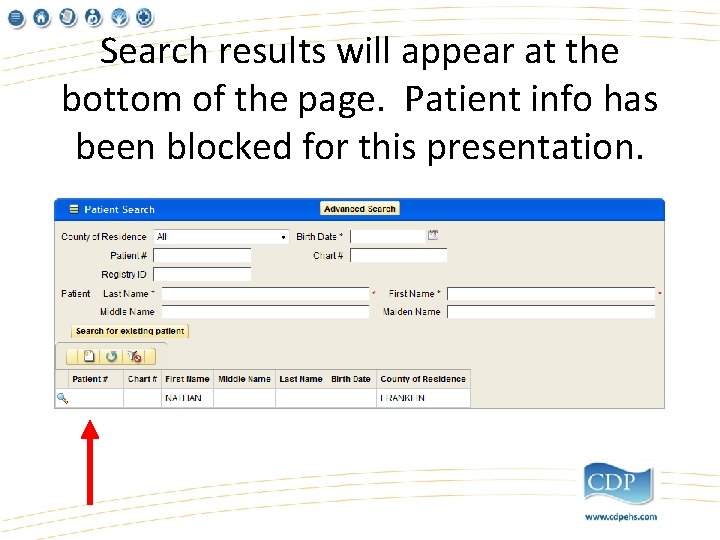
Search results will appear at the bottom of the page. Patient info has been blocked for this presentation.
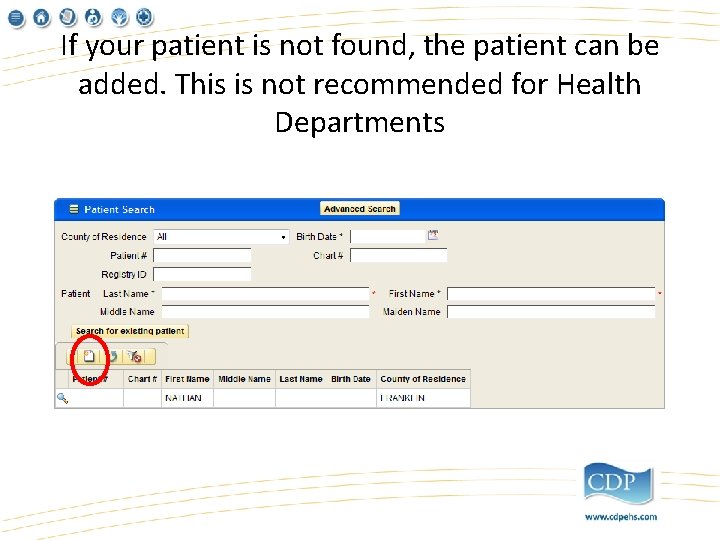
If your patient is not found, the patient can be added. This is not recommended for Health Departments
Patient Not Found If the patient is not found, this might be due to duplicate records for that patient being in the registry. If this happens, contact CDP Customer Support and they can correct.
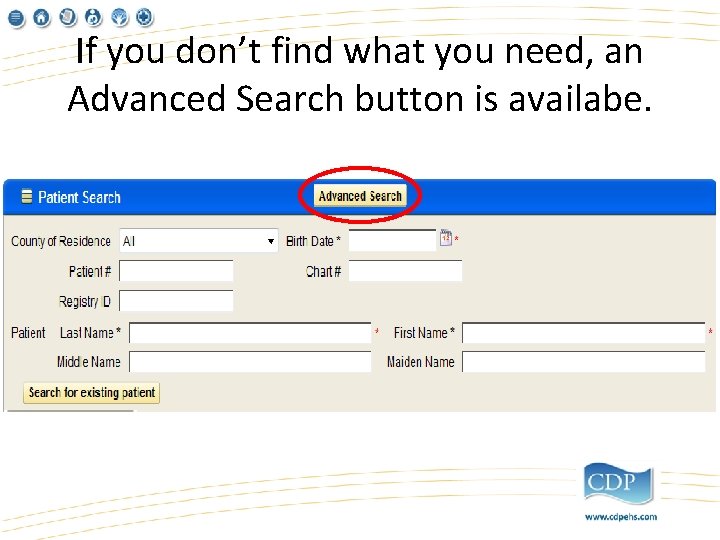
If you don’t find what you need, an Advanced Search button is availabe.
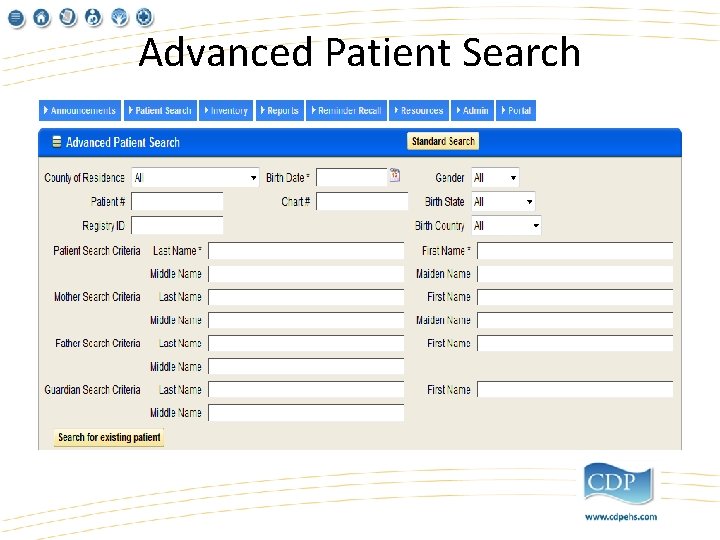
Advanced Patient Search
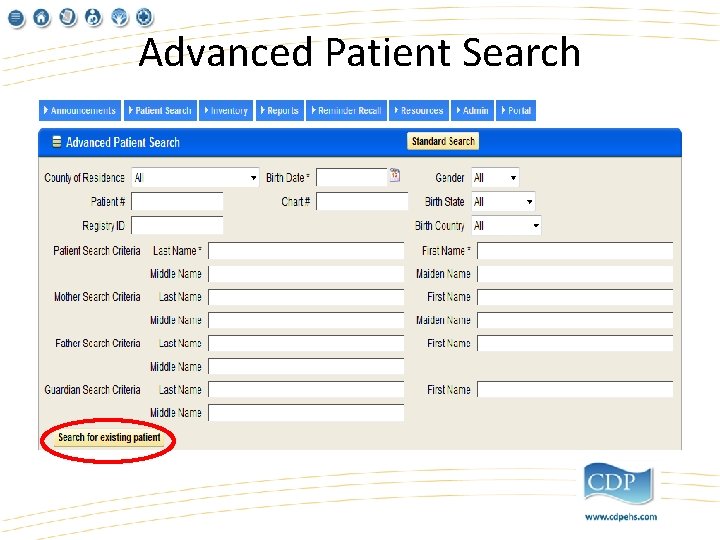
Advanced Patient Search
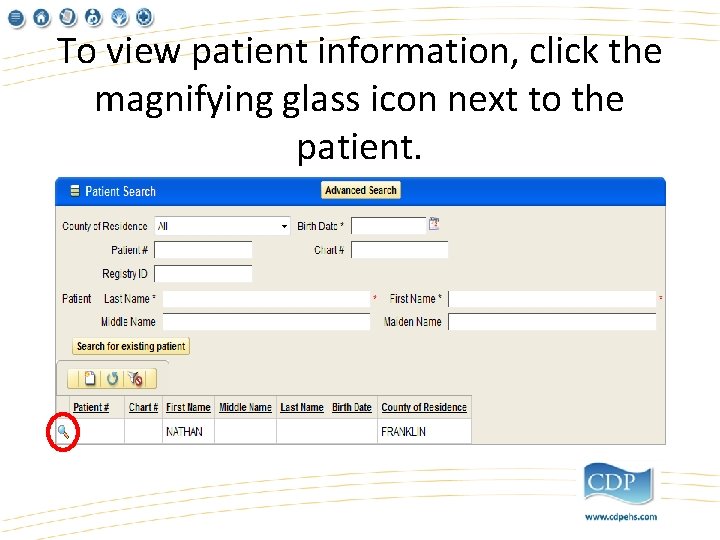
To view patient information, click the magnifying glass icon next to the patient.
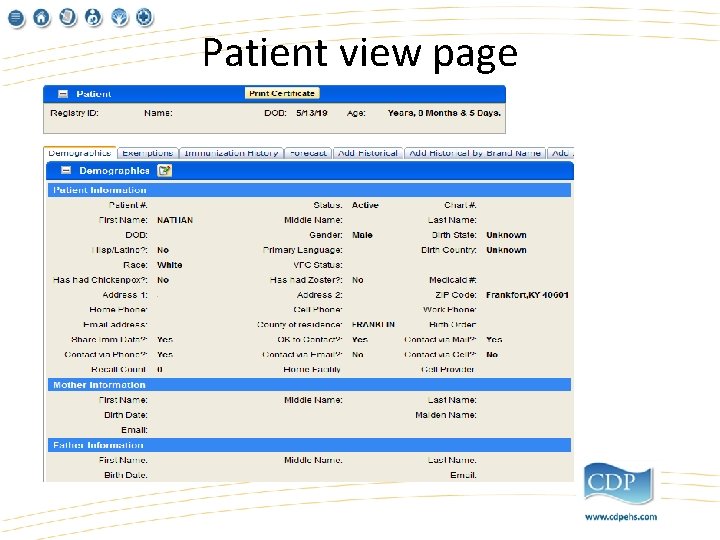
Patient view page
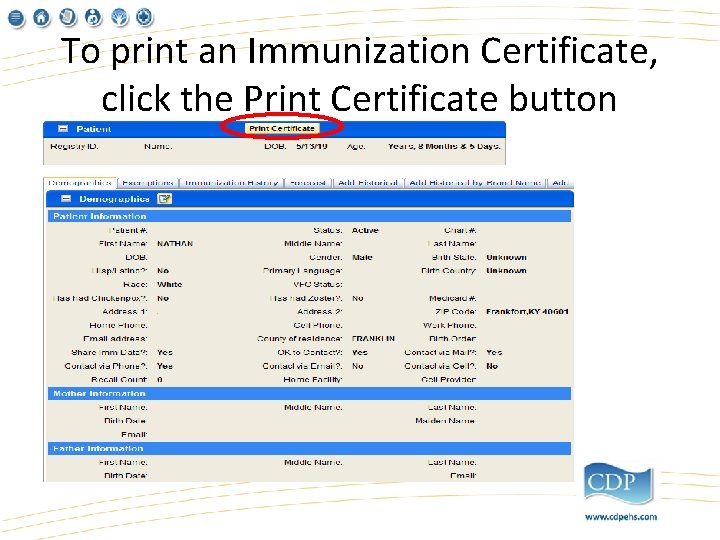
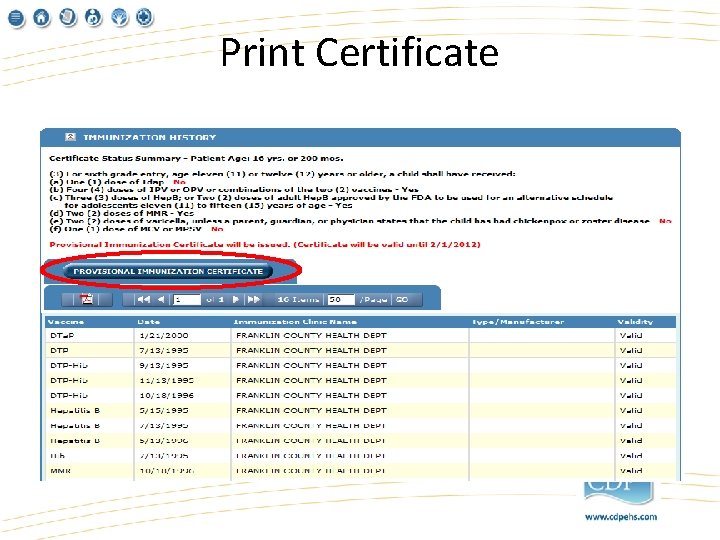
To print an Immunization Certificate, click the Print Certificate button
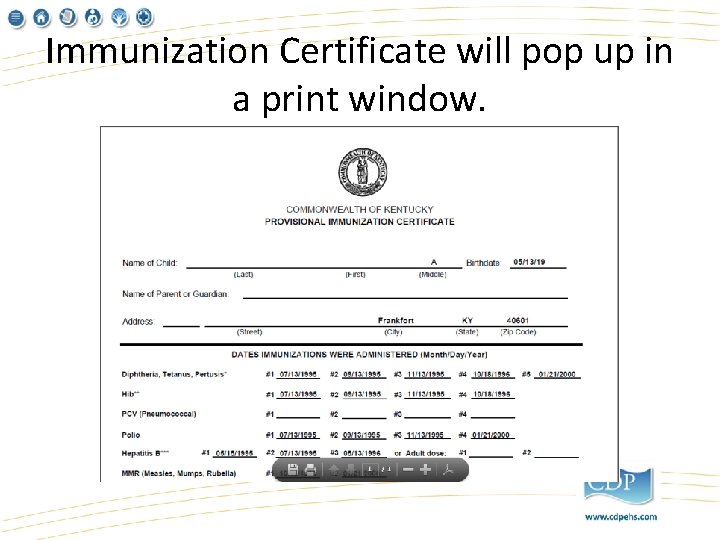
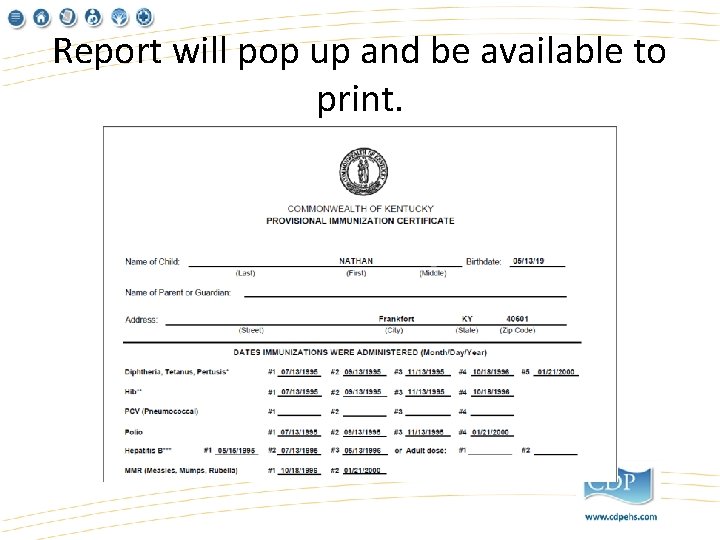
Immunization Certificate will pop up in a print window.
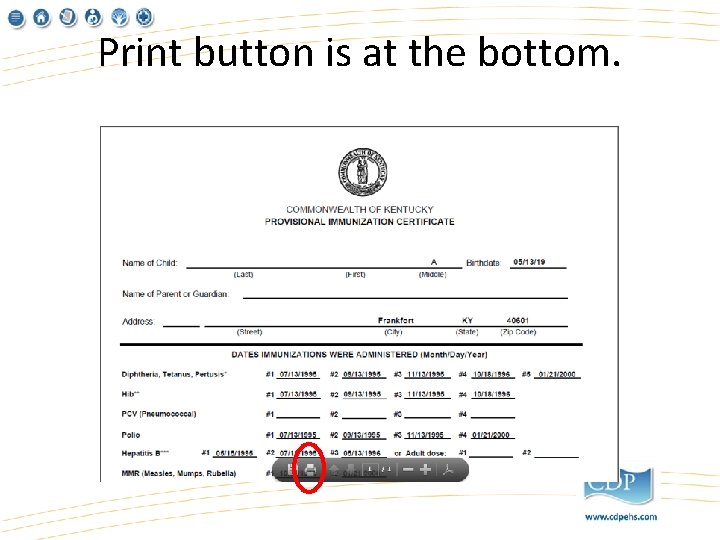
Print button is at the bottom.
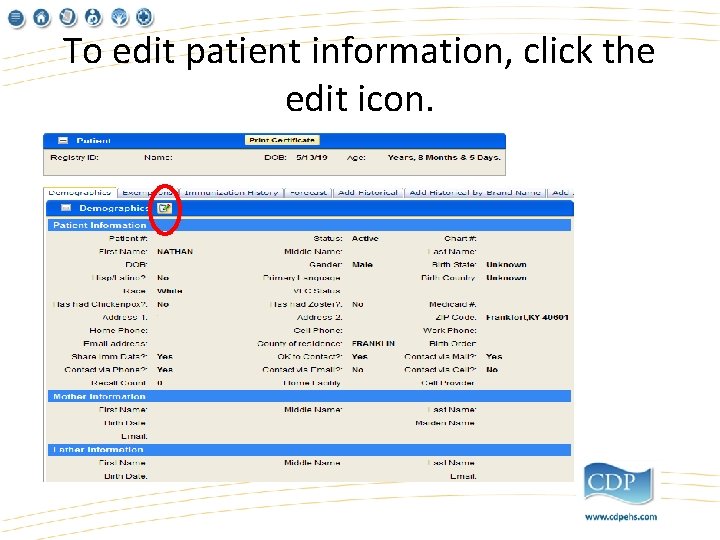
To edit patient information, click the edit icon.
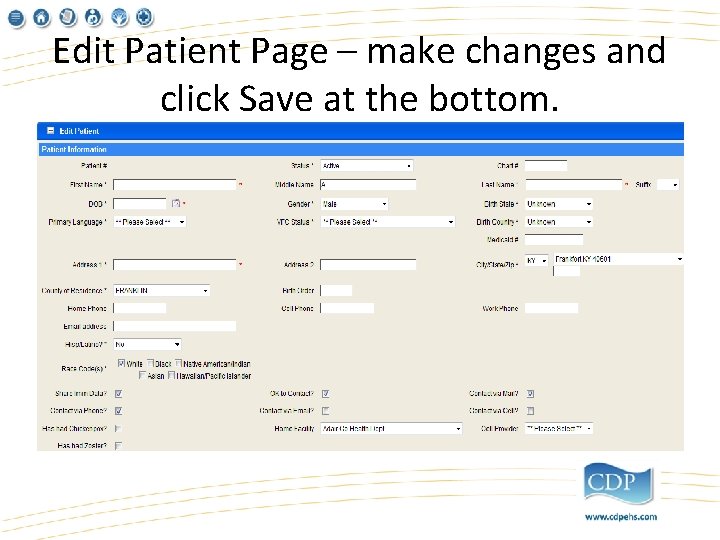
Edit Patient Page – make changes and click Save at the bottom.
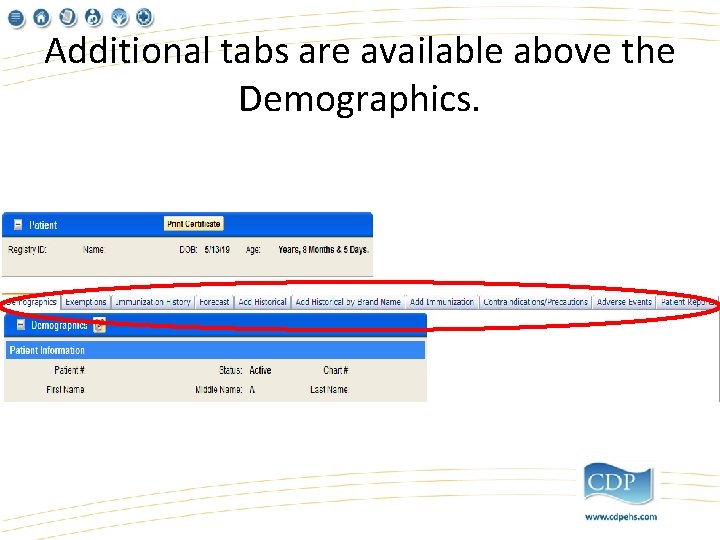
Additional tabs are available above the Demographics.
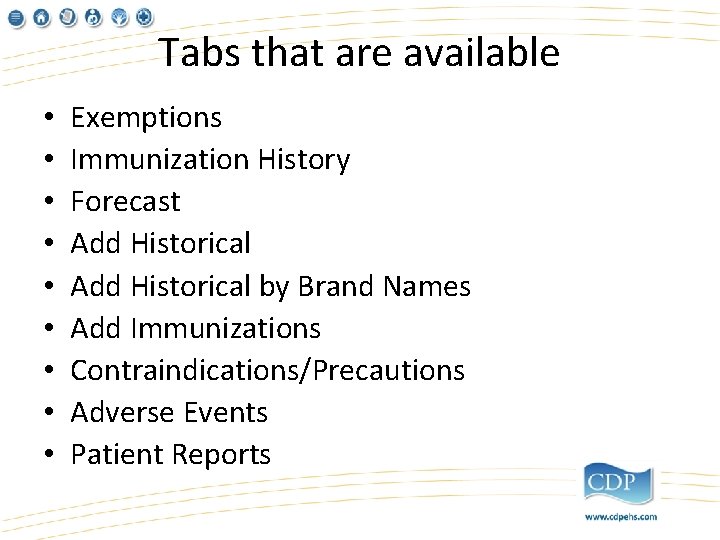
Tabs that are available • • • Exemptions Immunization History Forecast Add Historical by Brand Names Add Immunizations Contraindications/Precautions Adverse Events Patient Reports
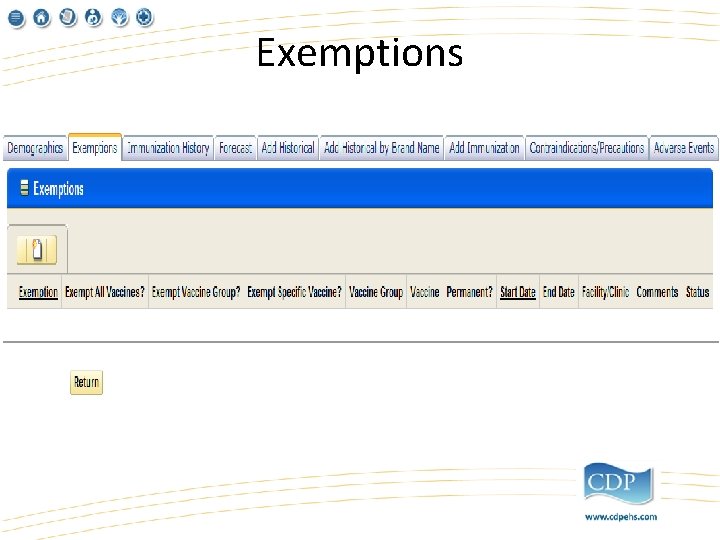
Exemptions
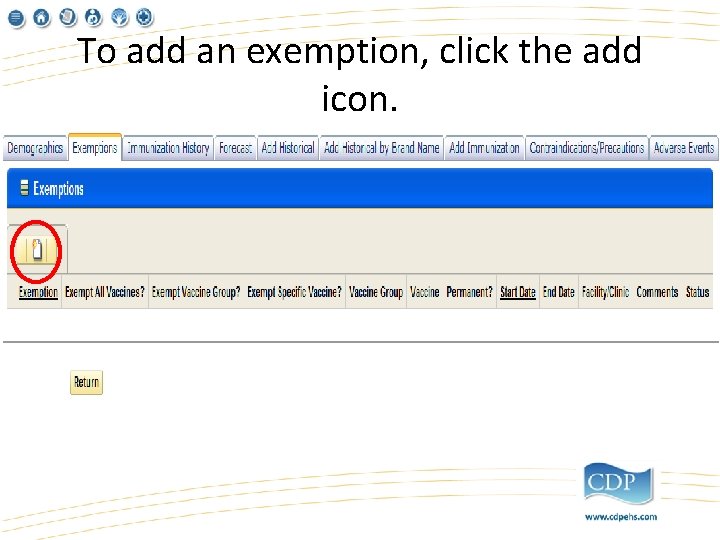
To add an exemption, click the add icon.
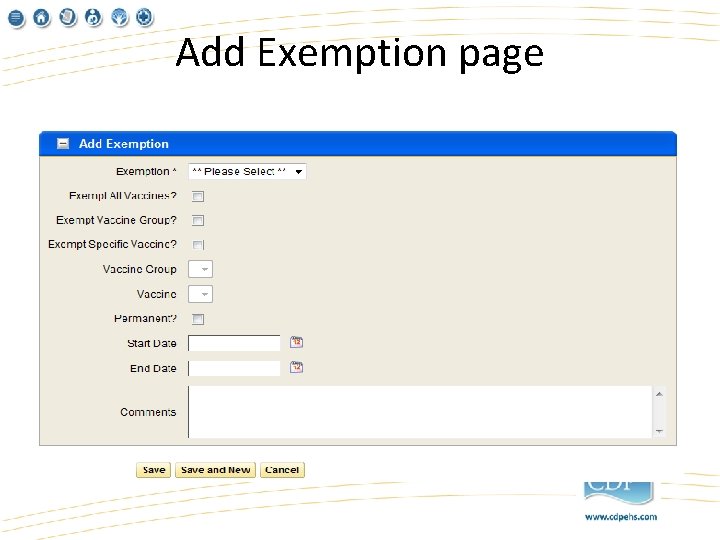
Add Exemption page
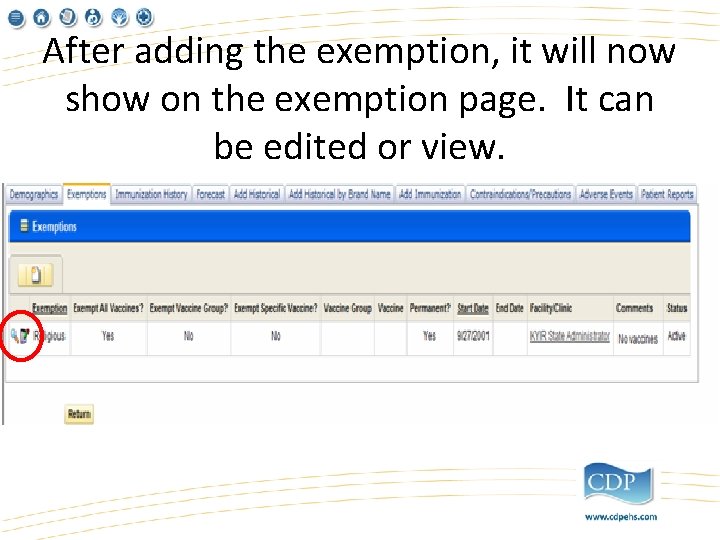
After adding the exemption, it will now show on the exemption page. It can be edited or view.
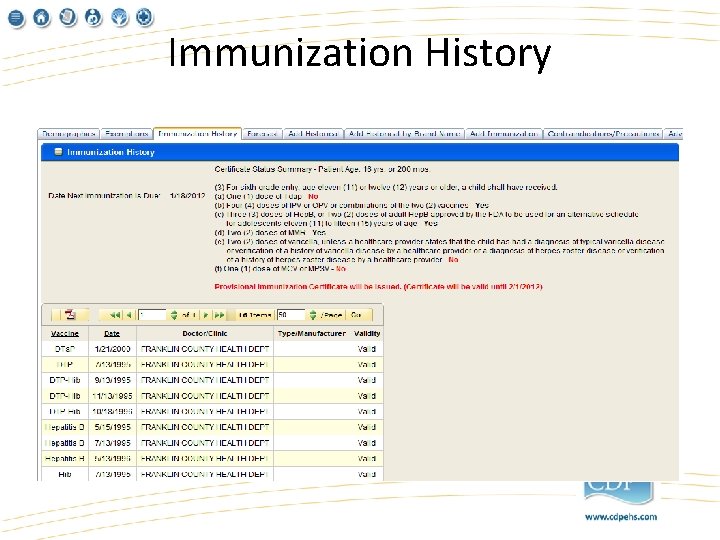
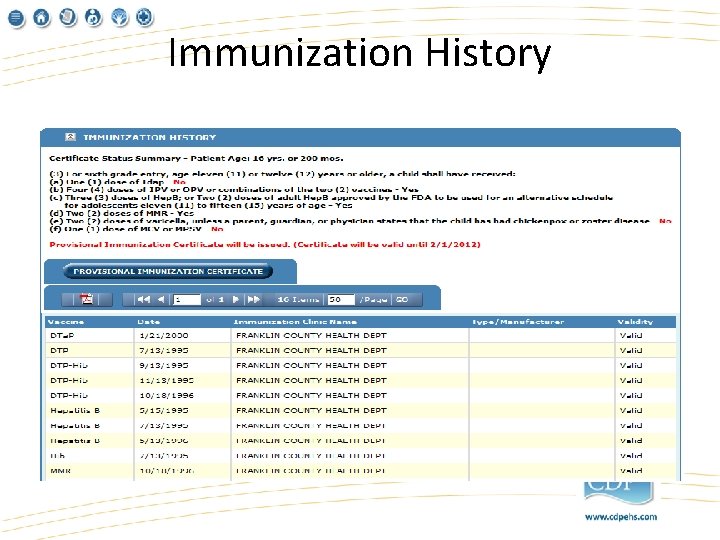
Immunization History
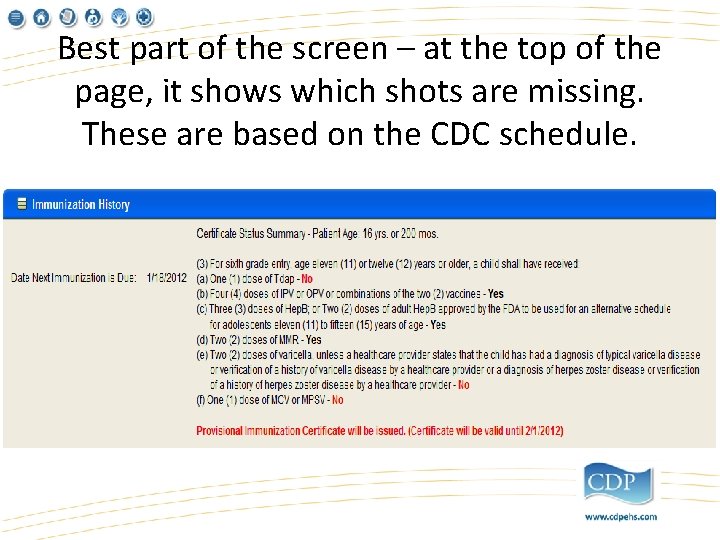
Best part of the screen – at the top of the page, it shows which shots are missing. These are based on the CDC schedule.
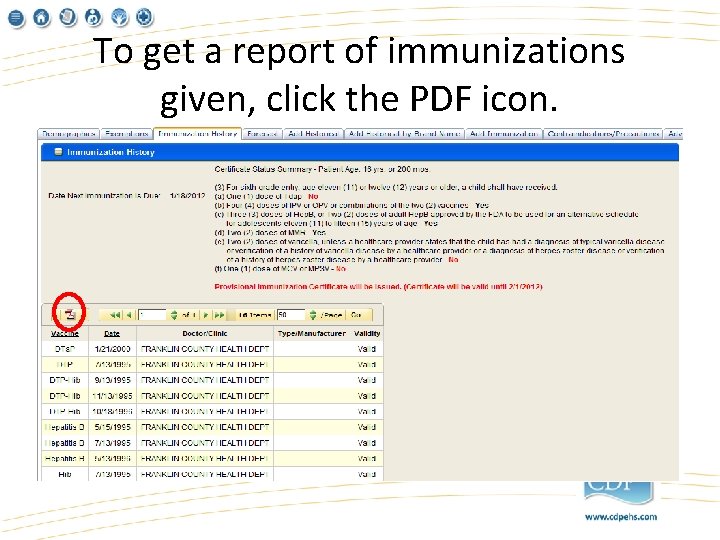
To get a report of immunizations given, click the PDF icon.
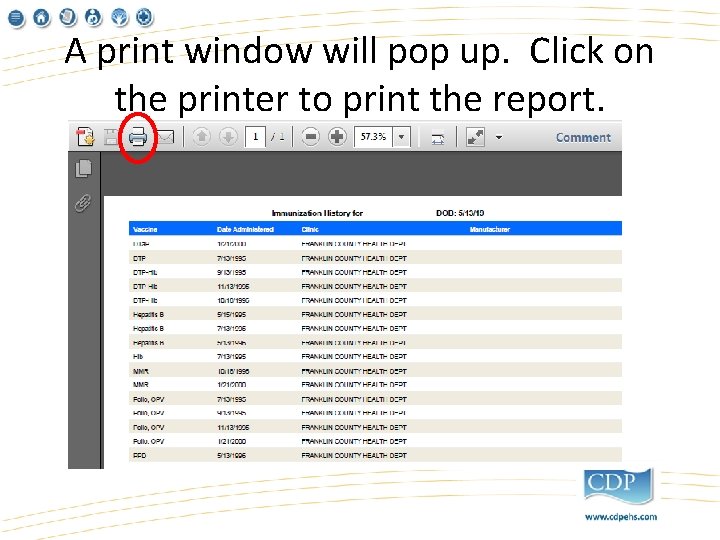
A print window will pop up. Click on the printer to print the report.
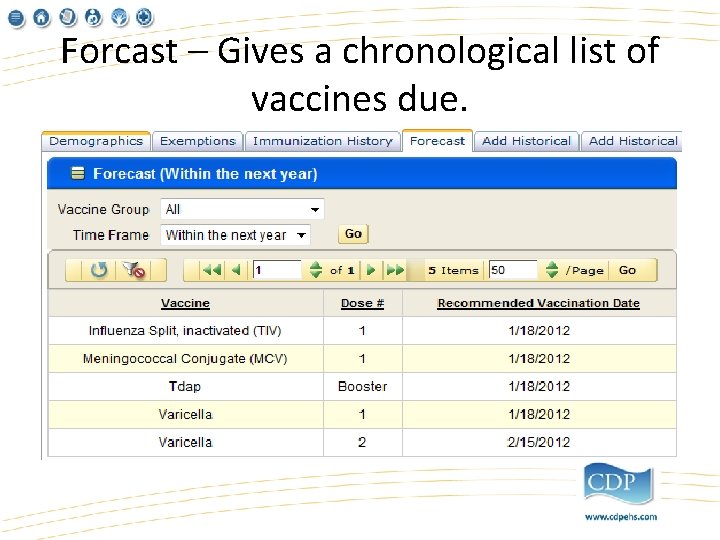
Forcast – Gives a chronological list of vaccines due.
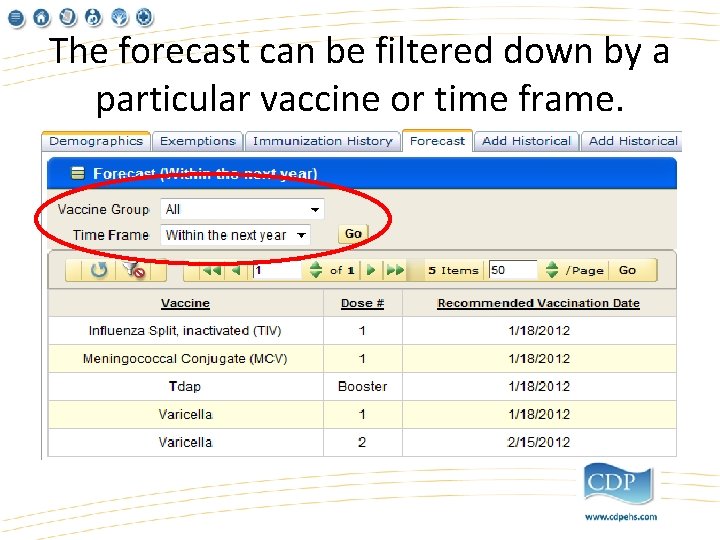
The forecast can be filtered down by a particular vaccine or time frame.
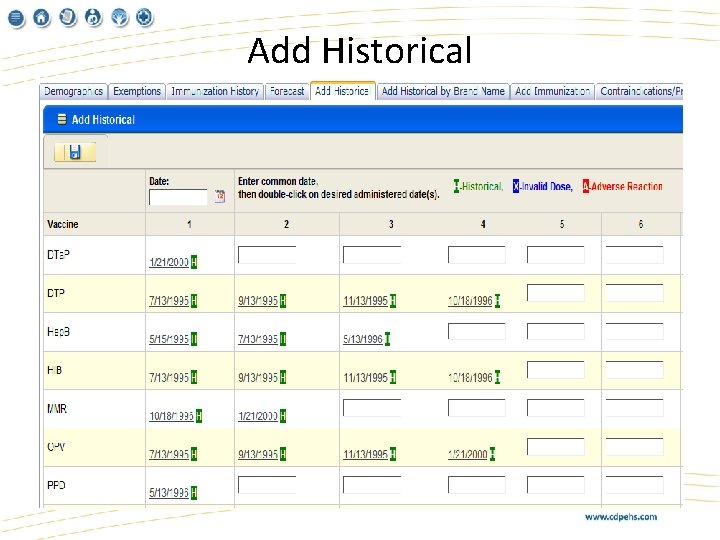
Add Historical
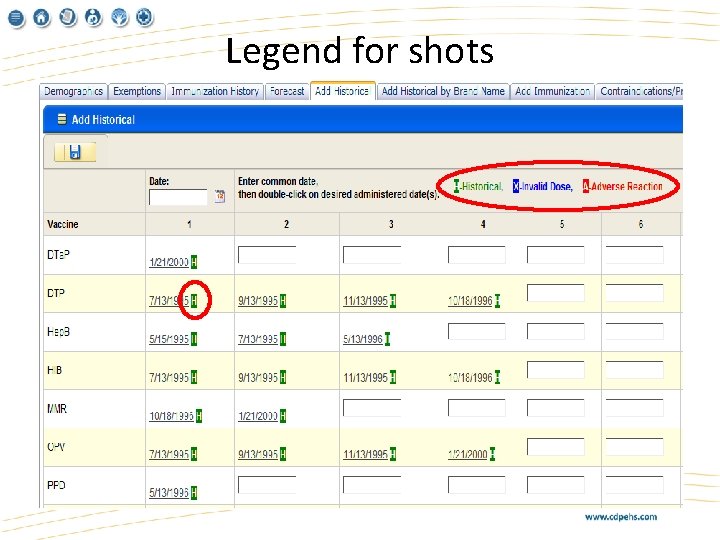
Legend for shots
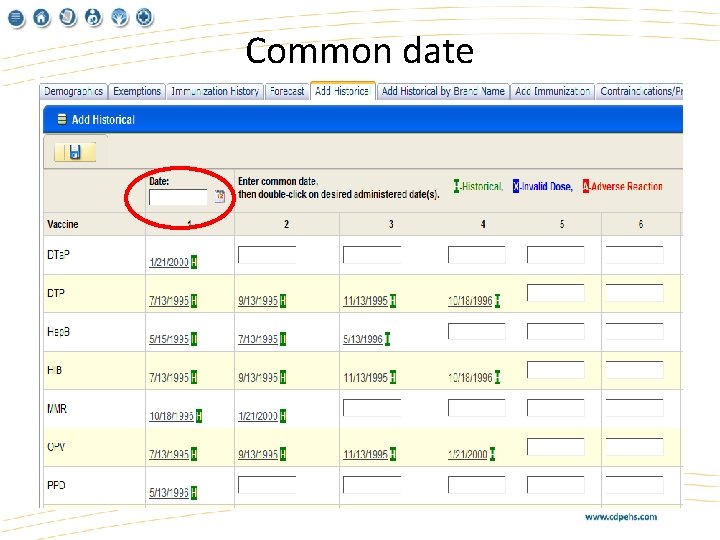
Common date
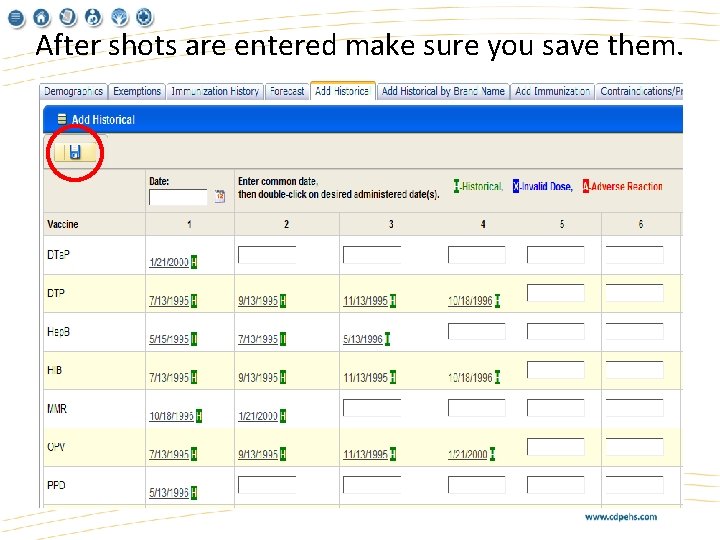
After shots are entered make sure you save them.
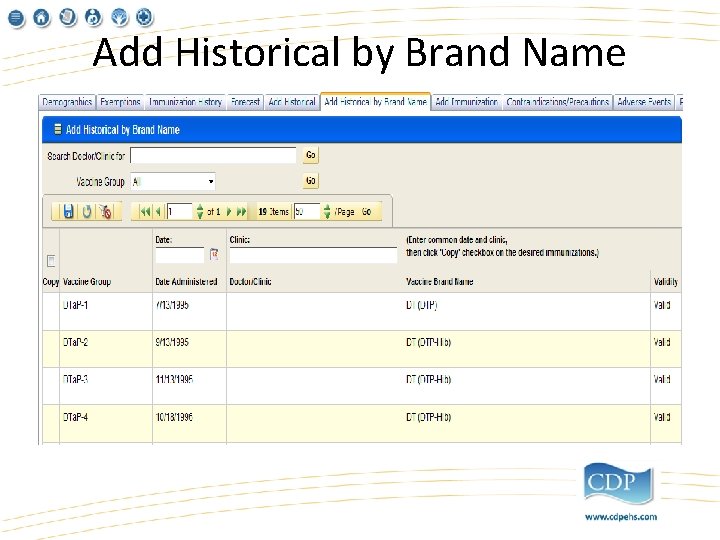
Add Historical by Brand Name
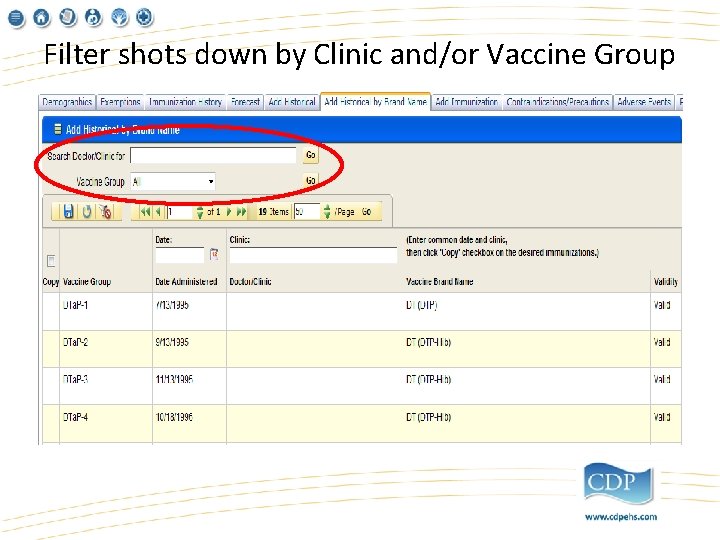
Filter shots down by Clinic and/or Vaccine Group
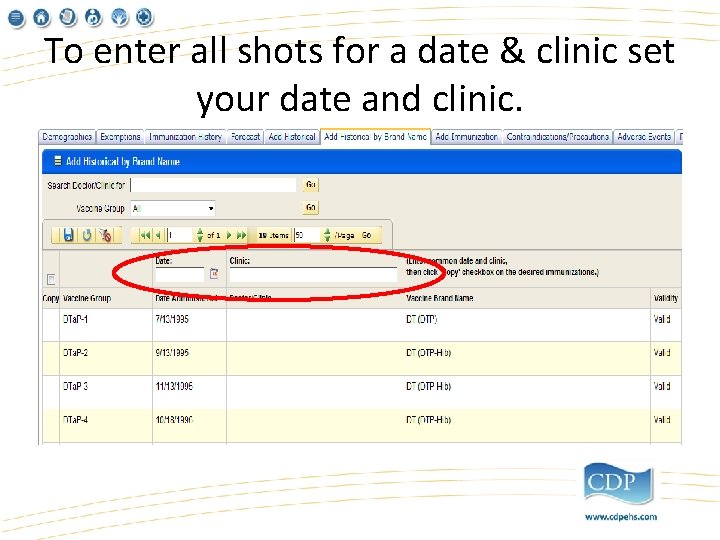
To enter all shots for a date & clinic set your date and clinic.
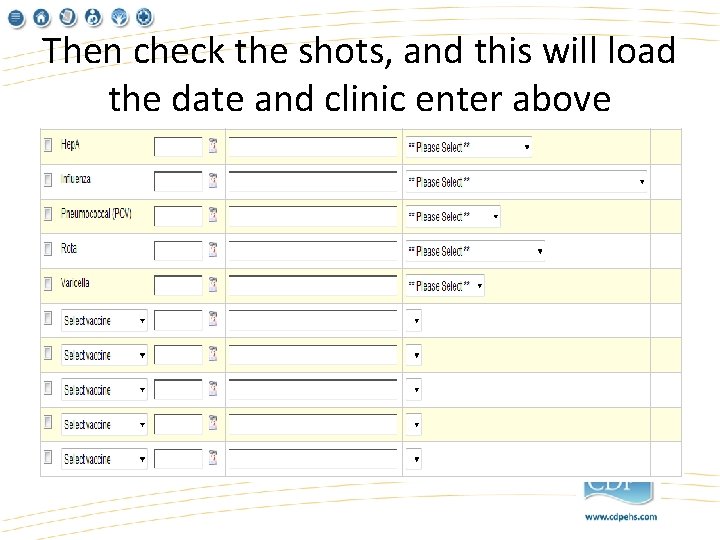
Then check the shots, and this will load the date and clinic enter above
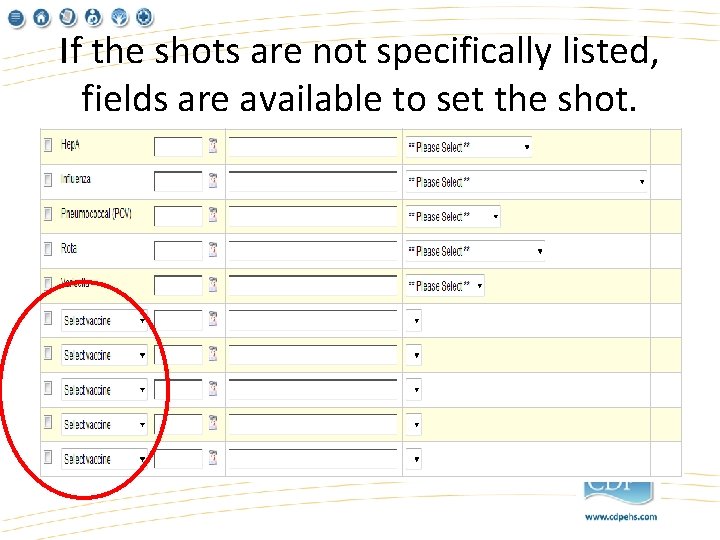
If the shots are not specifically listed, fields are available to set the shot.
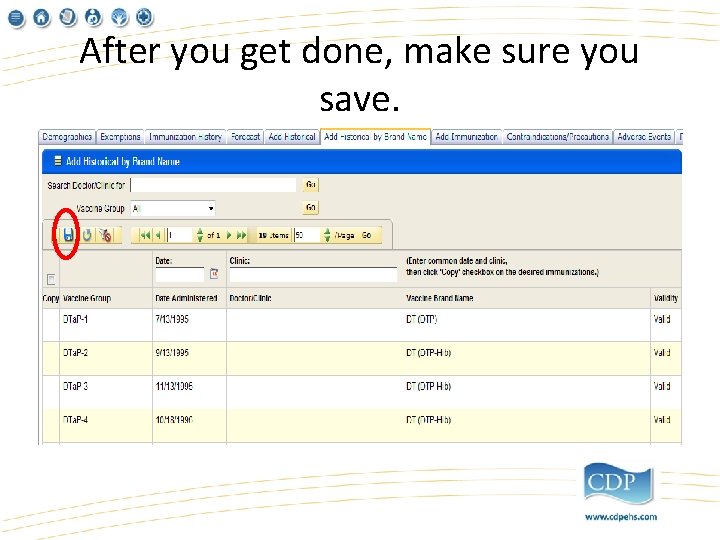
After you get done, make sure you save.
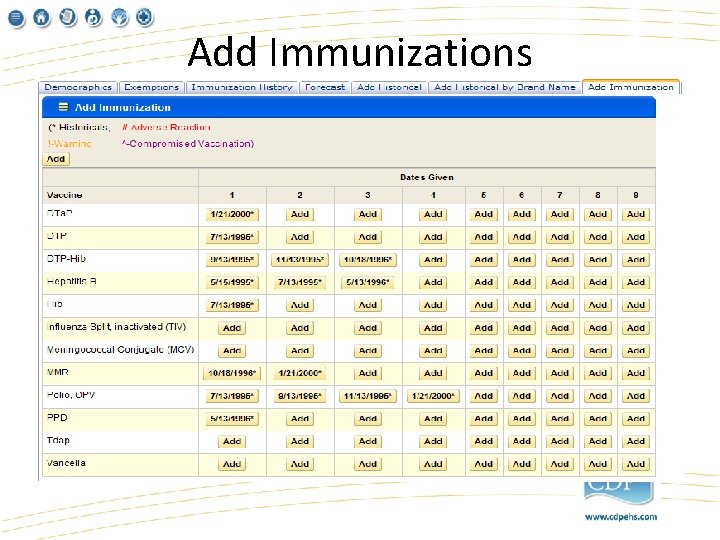
Add Immunizations
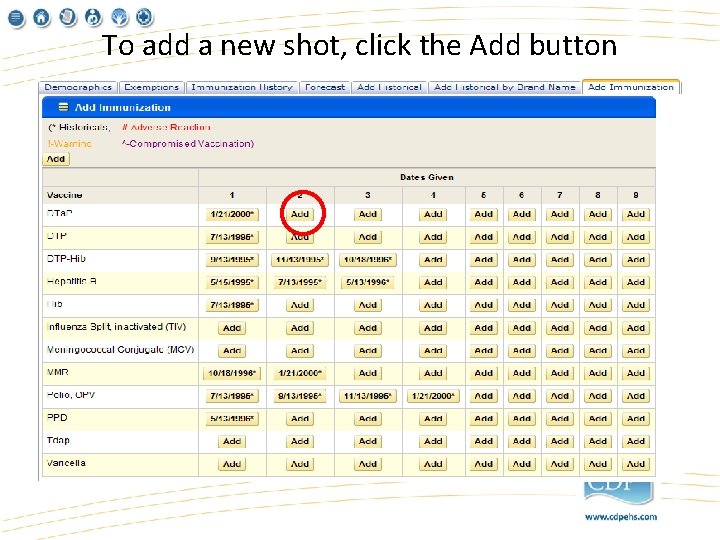
To add a new shot, click the Add button
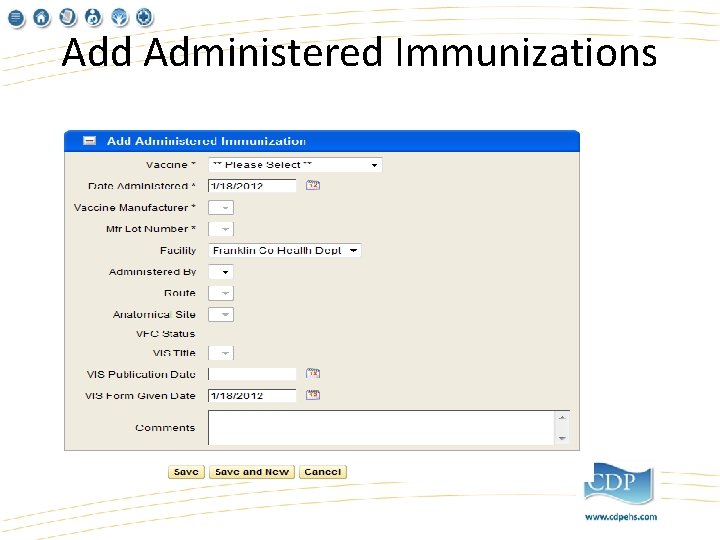
Add Administered Immunizations
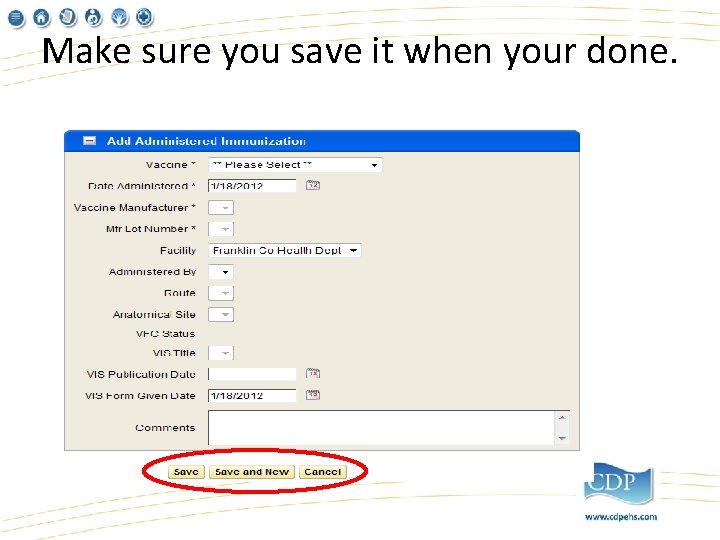
Make sure you save it when your done.
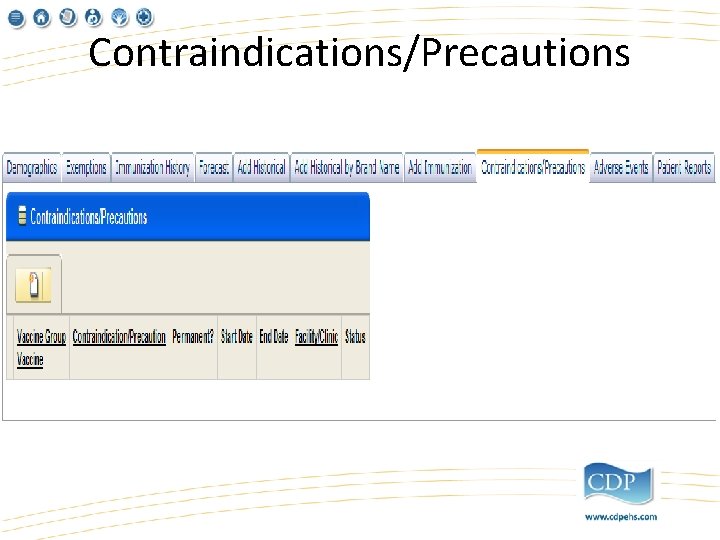
Contraindications/Precautions
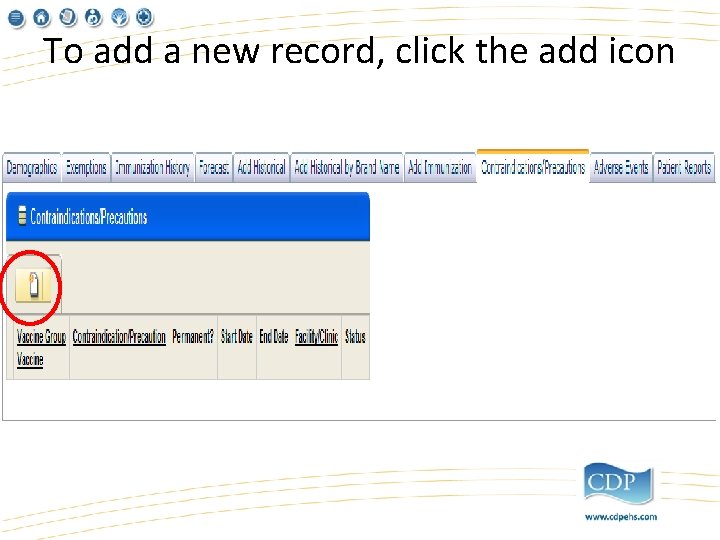
To add a new record, click the add icon
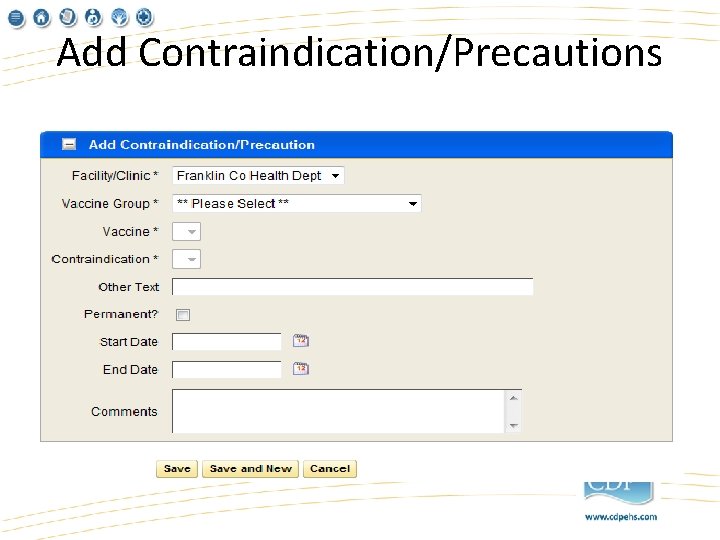
Add Contraindication/Precautions
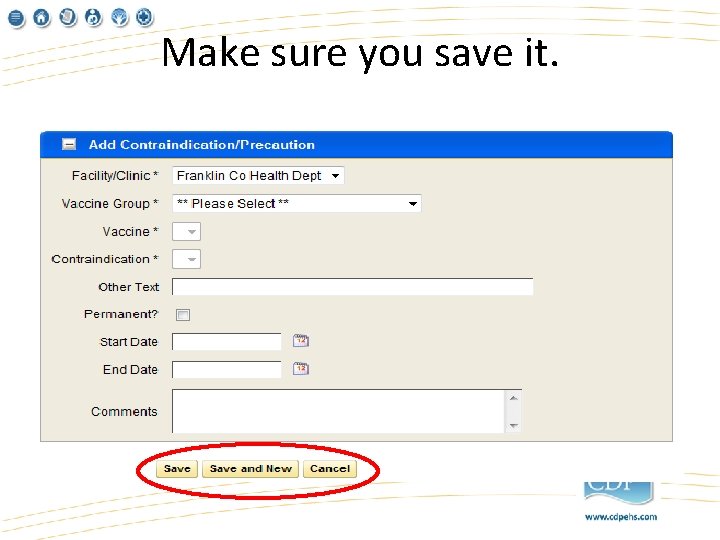
Make sure you save it.
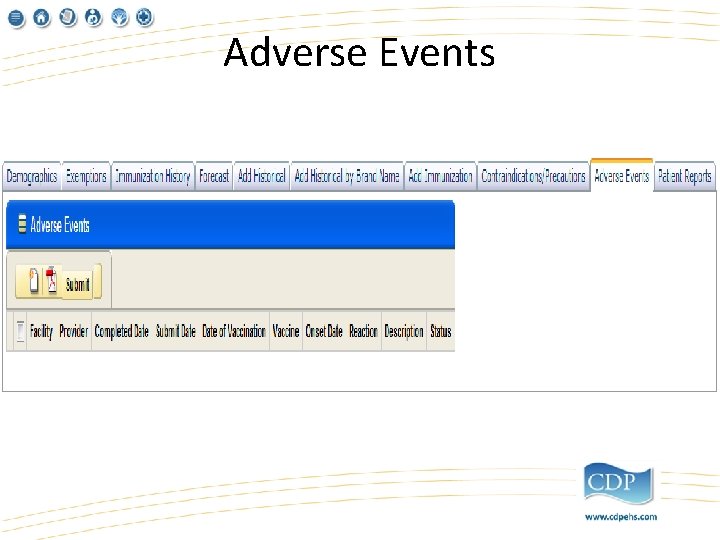
Adverse Events
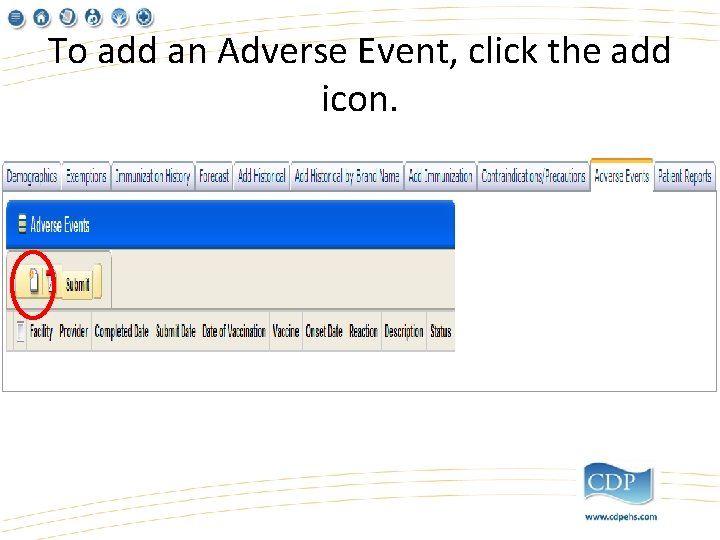
To add an Adverse Event, click the add icon.
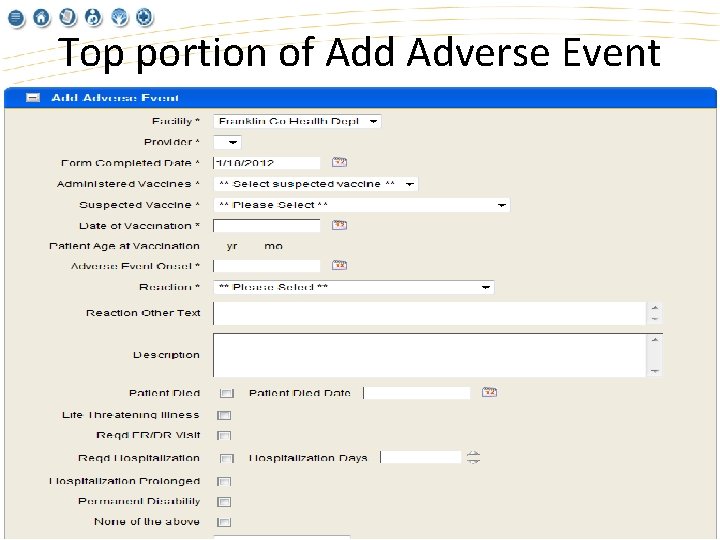
Top portion of Add Adverse Event
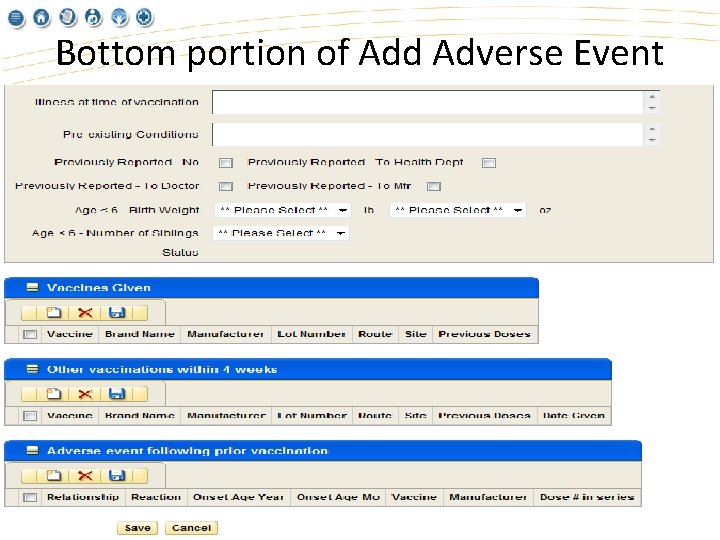
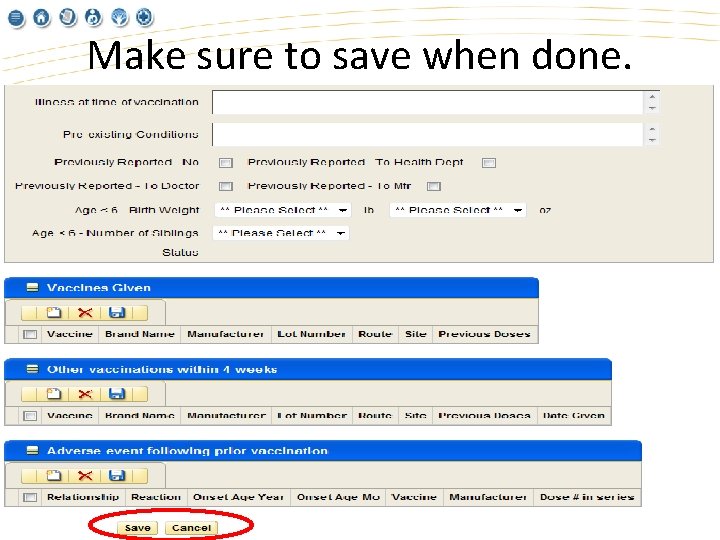
Bottom portion of Add Adverse Event
Make sure to save when done.
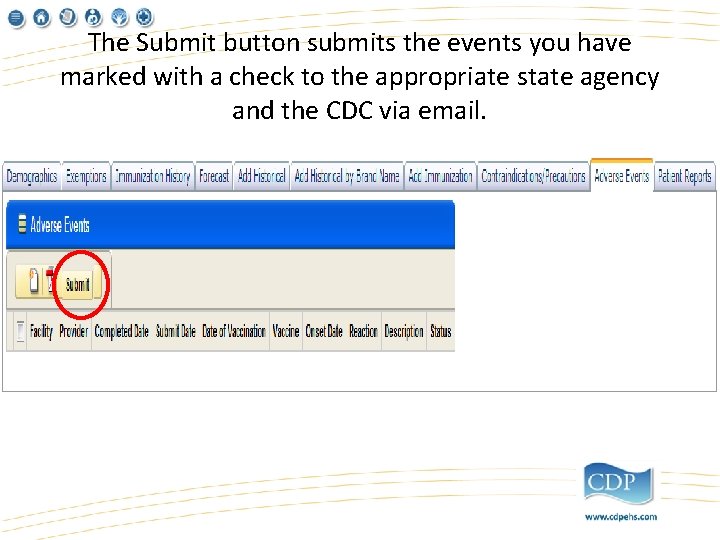
The Submit button submits the events you have marked with a check to the appropriate state agency and the CDC via email.
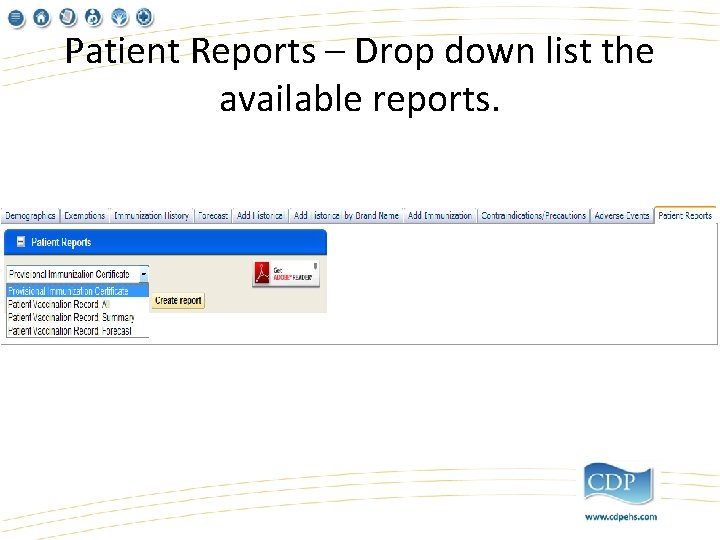
Patient Reports – Drop down list the available reports.
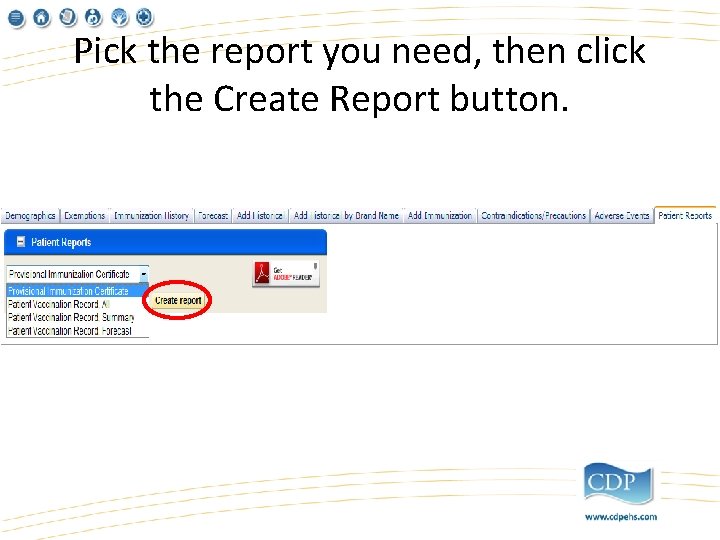
Pick the report you need, then click the Create Report button.
Report will pop up and be available to print.
Bridge Immunization Screens These screens continue to work and can still be used, for now.
Immunization Certificates Here is another way to print them from Portal.
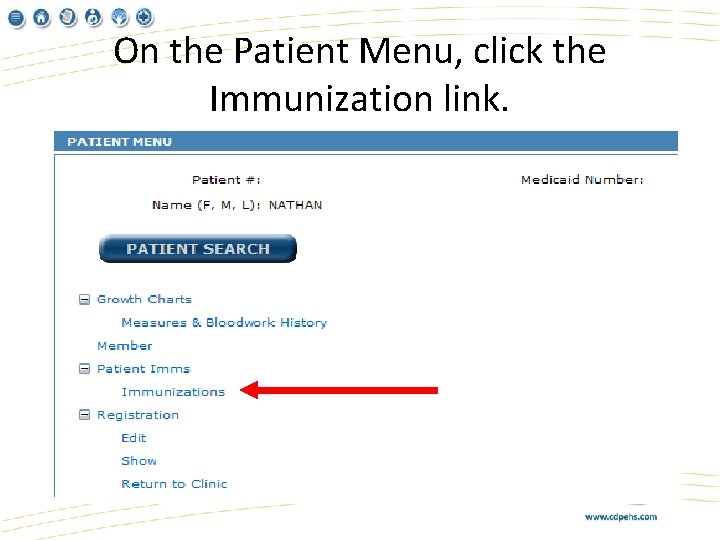
On the Patient Menu, click the Immunization link.
Immunization History
Print Certificate
Copying Patient Demographics from the Immunization Registry Saves the clerk from re-entering data that is already in the system.
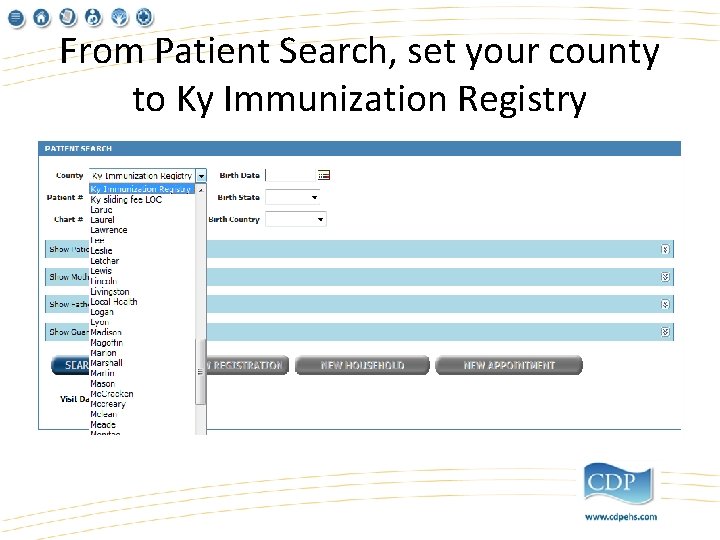
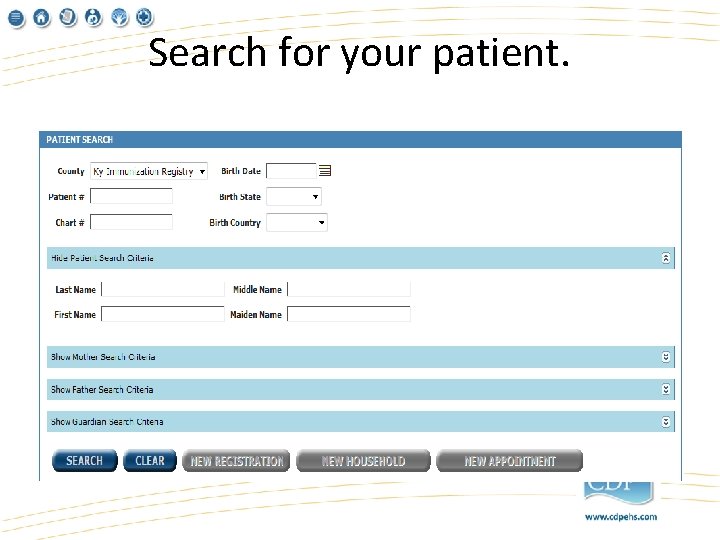
From Patient Search, set your county to Ky Immunization Registry
Search for your patient.
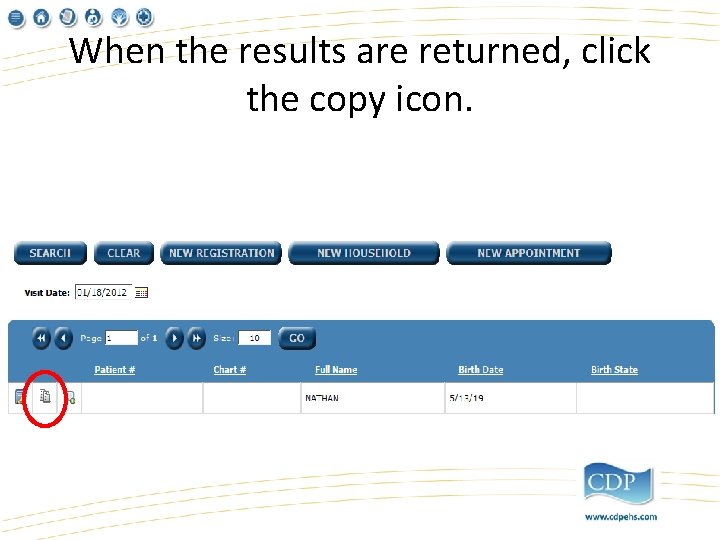
When the results are returned, click the copy icon.
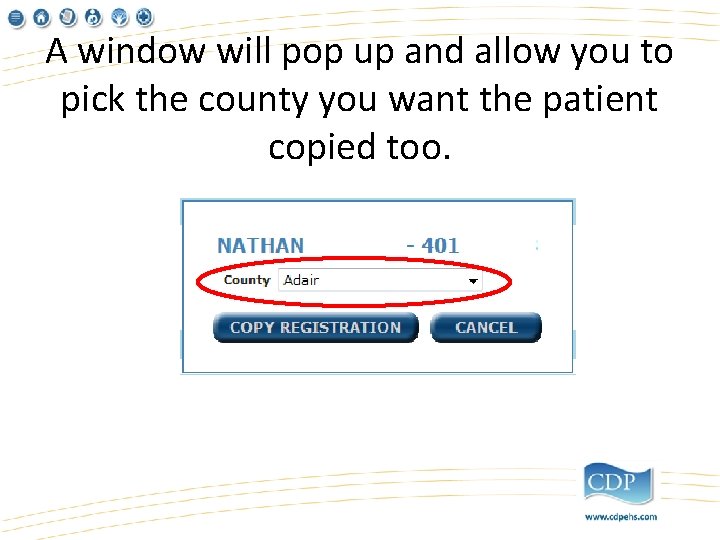
A window will pop up and allow you to pick the county you want the patient copied too.
This registry is not just for Health Departments. Currently 29 other facilities are using the registry to enter immunizations.
Any Questions? ? ?