Welcome Please initial the appropriate attendance roster near

- Slides: 69
Welcome • Please initial the appropriate attendance roster near the door. If you are on the Wait List you will find your name at the bottom. If you are not on the roster, please add your name & initial. • Pick up the handouts. • If you have been in Hawkes before, please sit in the BACK part of the room. If you are new to Hawkes, please sit in the FRONT half of the room.
Course Overview & Requirements MATH 62, 70, 72, 97
Instructor Donnie Hallstone (please call me “Donnie”) Email: dhallstone@greenriver. edu Office: HSA-41 Office Hour: Weekdays 1: 00 – 1: 50 PM or by appointment Phone: 253 -833 -9111 x 4353
Attendance Roster • The first 3 days only, please sign the appropriate attendance roster near the door. • If you are on a wait list, please keep coming each day and sign the roster. I’ll be able to tell you on the 2 nd or 3 rd day if you can get in.
Class Format • Your primary “instructor” is the Hawkes computer courseware. • This is NOT a distance education class but is considered a “flex” course. • All assignments and tests are completed on the computer. • There are no lectures, but I am here to assist when you get stuck.
Advantages • While there are deadlines for assignments and tests, students find this format a bit more flexible. • All work except tests can be done at home or on other campus computers. • It is a good way to review materials that you learned in the past.
Disadvantages • Many students are more successful in a more structured, lecture environment. • While there is an instructor available to help, you are mostly responsible for learning the material via the computer courseware. There are no scheduled lectures.
Criteria for Success • You like math, or at least don’t hate it! • You like learning math on your own. • The material you are learning is, for the most part, a review of material you have had in the past but have forgotten. • You are VERY self-motivated.
Proper Placement • If you feel you are in the wrong course because the material is too easy or too hard, please see me. • If you feel that a lecture course would be better for you, check immediately to see if any sections are open and then make the change. (Unfortunately, by the time the quarter starts, many courses are already full. ) • For more information about math placement and Sample Entrance Exams please visit: http: //www. instruction. greenriver. edu/DIV-Math/Advising/default. htm
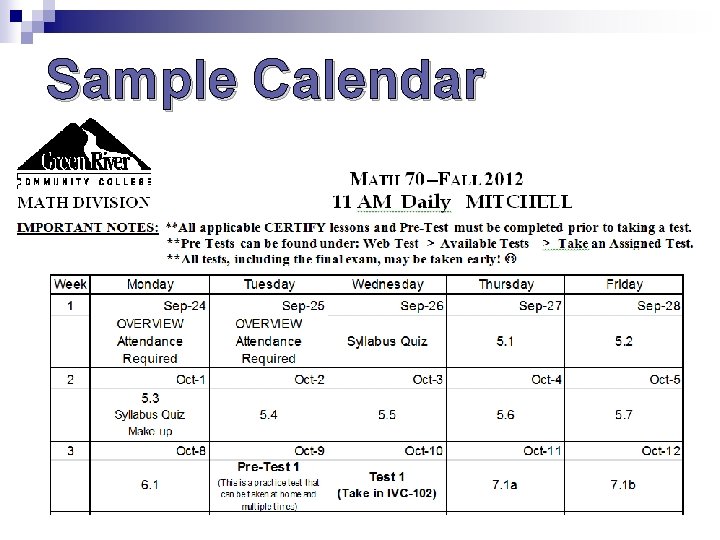
Attendance Requirement • If you are new to Hawkes, attendance the first 3 days is required. Attendance the first full week is often helpful. • After the first week, the only required attendance is for TESTS. They must be taken in class during your scheduled class time. See the calendar. • Attendance is NOT part of your grade.
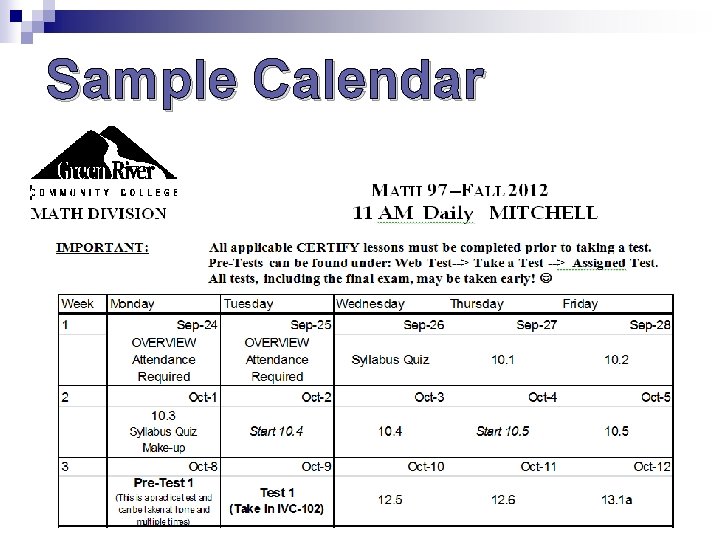
Sample Calendar
Course Calendar Certify quiz lessons may be done before the deadlines n Certify quizzes completed after midnight on the due day will have late penalties n Pre-Tests may be taken before the deadlines (they disappear after the deadline) n Tests must be taken in class n
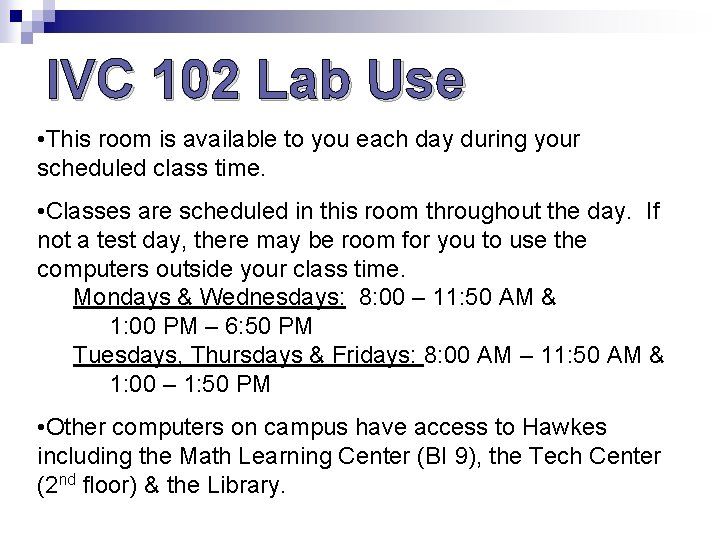
IVC 102 Lab Use • This room is available to you each day during your scheduled class time. • Classes are scheduled in this room throughout the day. If not a test day, there may be room for you to use the computers outside your class time. Mondays & Wednesdays: 8: 00 – 11: 50 AM & 1: 00 PM – 6: 50 PM Tuesdays, Thursdays & Fridays: 8: 00 AM – 11: 50 AM & 1: 00 – 1: 50 PM • Other computers on campus have access to Hawkes including the Math Learning Center (BI 9), the Tech Center (2 nd floor) & the Library.
Materials Needed • Pencil or pen. • Spiral notebook to take notes and to work problems. • Calculator MATH 62 & 70, a scientific calculator MATH 72 & 97 a graphing calculator (TI 83, 83+ or 84) • Memory Stick (optional) to save Access Code (Please name your memory stick with your name and write your name on it as well. )
Purchase options for Hawkes Learning Systems courseware
Purchase Options • Options are listed from most expensive to least: • Book & Software (CD) @ GRCC bookstore. • Software Only Online: www. hawkeslearning. com. **NOTE: If you took a Hawkes FLEX course Spring or Summer Quarter 2012, you do not need to buy the software again!
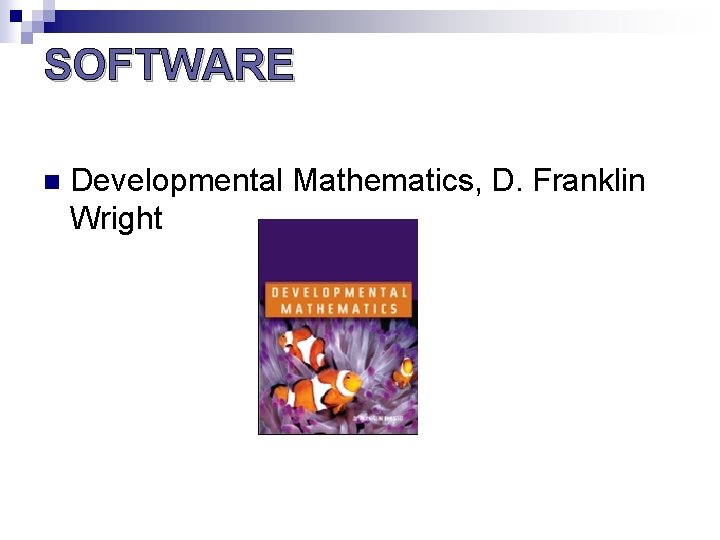
SOFTWARE n Developmental Mathematics, D. Franklin Wright
Which Option is Best? • Most students DO NOT use the textbook, and yet, a few students find it an excellent supplement, especially when needing to review when a computer is not available. • If you purchase the software online, you DO NOT get the CDs. The CDs contain live video segments that some students find helpful. You can view the videos online.
Getting an Access Code & Enrolling in the Hawkes Course
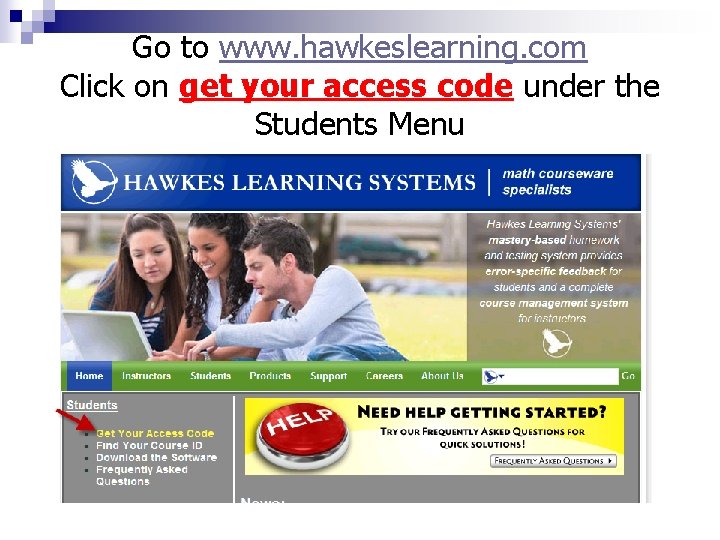
Go to www. hawkeslearning. com Click on get your access code under the Students Menu
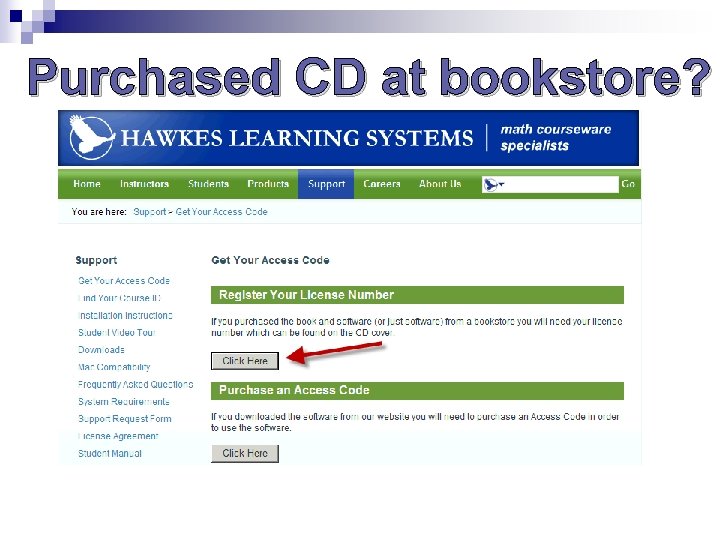
Purchased CD at bookstore?
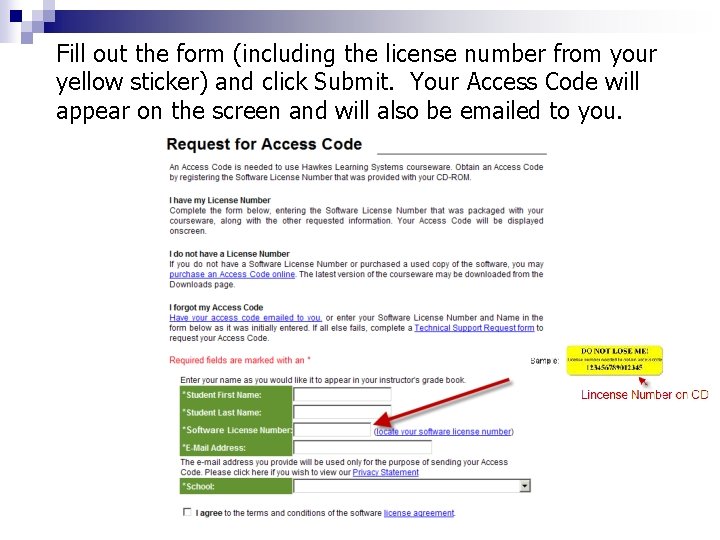
Fill out the form (including the license number from your yellow sticker) and click Submit. Your Access Code will appear on the screen and will also be emailed to you.
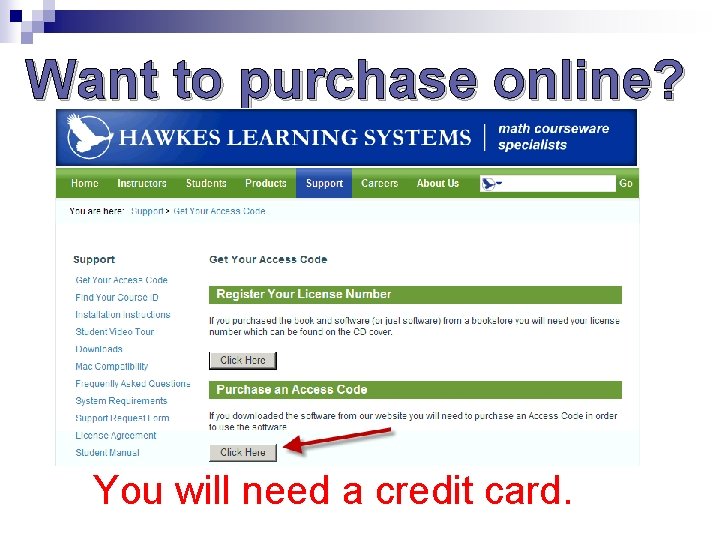
Want to purchase online? You will need a credit card.
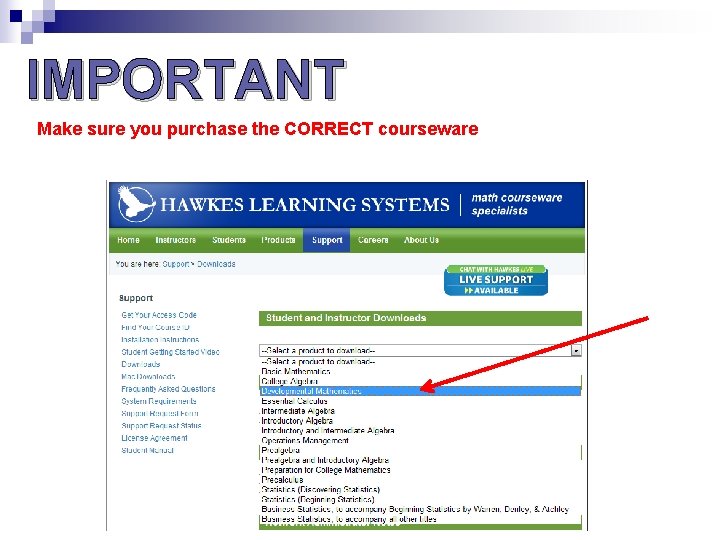
IMPORTANT Make sure you purchase the CORRECT courseware
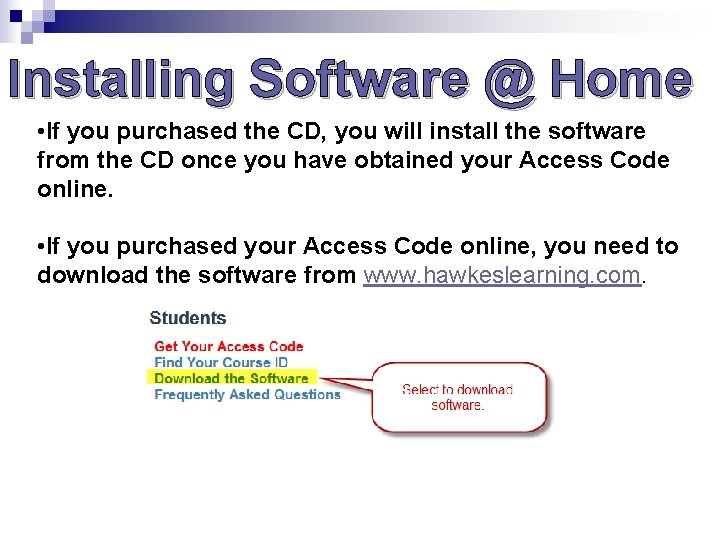
Installing Software @ Home • If you purchased the CD, you will install the software from the CD once you have obtained your Access Code online. • If you purchased your Access Code online, you need to download the software from www. hawkeslearning. com.
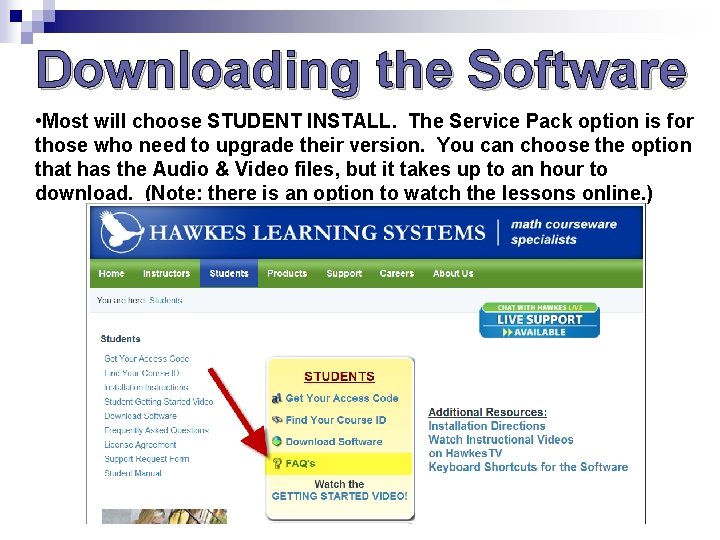
Downloading the Software • Most will choose STUDENT INSTALL. The Service Pack option is for those who need to upgrade their version. You can choose the option that has the Audio & Video files, but it takes up to an hour to download. (Note: there is an option to watch the lessons online. )
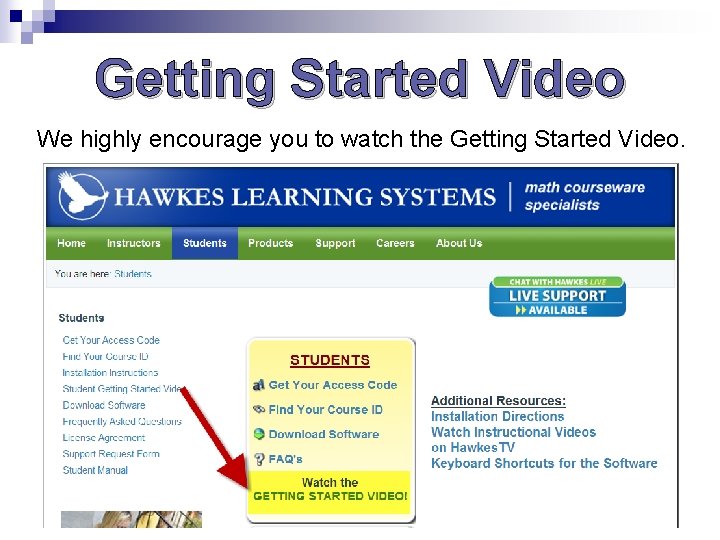
Getting Started Video We highly encourage you to watch the Getting Started Video.
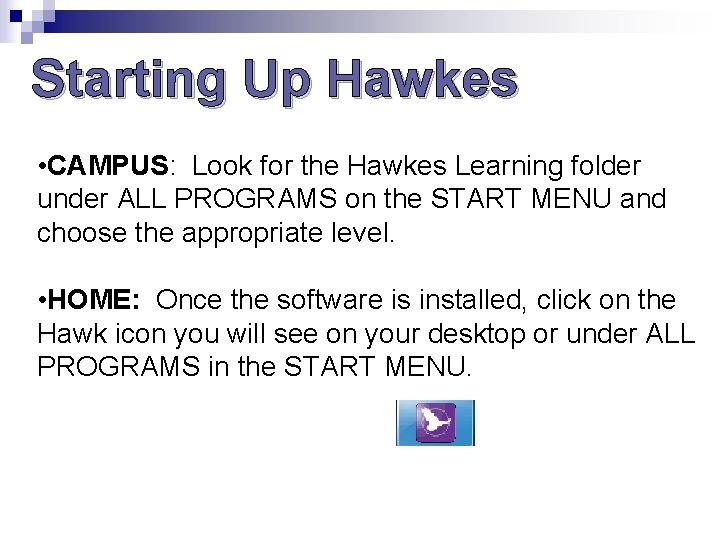
Starting Up Hawkes • CAMPUS: Look for the Hawkes Learning folder under ALL PROGRAMS on the START MENU and choose the appropriate level. • HOME: Once the software is installed, click on the Hawk icon you will see on your desktop or under ALL PROGRAMS in the START MENU.
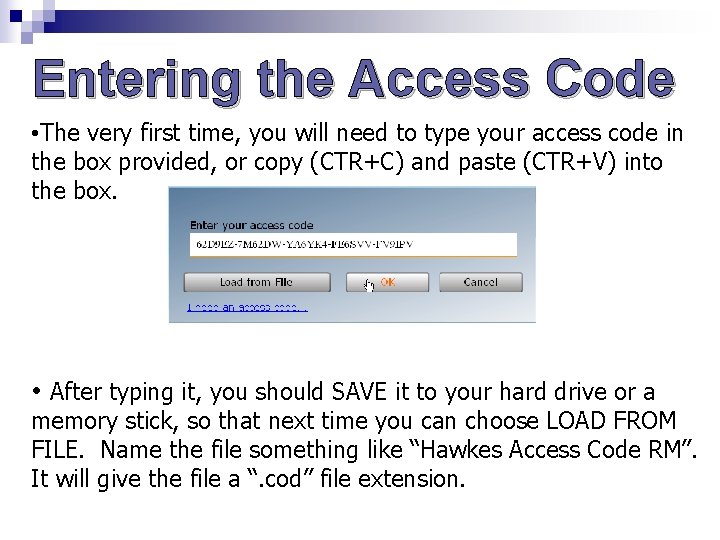
Entering the Access Code • The very first time, you will need to type your access code in the box provided, or copy (CTR+C) and paste (CTR+V) into the box. • After typing it, you should SAVE it to your hard drive or a memory stick, so that next time you can choose LOAD FROM FILE. Name the file something like “Hawkes Access Code RM”. It will give the file a “. cod” file extension.
Saving Your Access Code • On campus, save your Access Code to your Home Drive. (H: drive, the one with your SID#) • Every GRCC student is given home drive space that is accessible anywhere on campus. • When you browse for your H: drive, look for your Student # to locate it. • As a backup, if you ever arrive to campus and don’t have access to your Access Code, I can look it up for you.
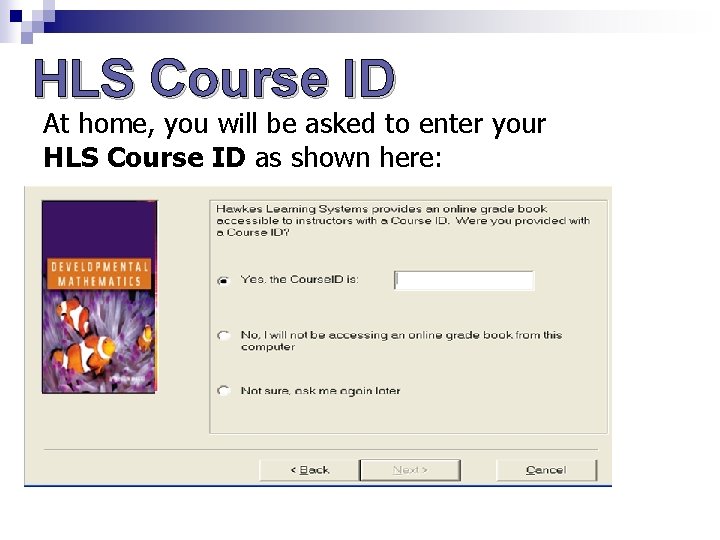
HLS Course ID At home, you will be asked to enter your HLS Course ID as shown here:
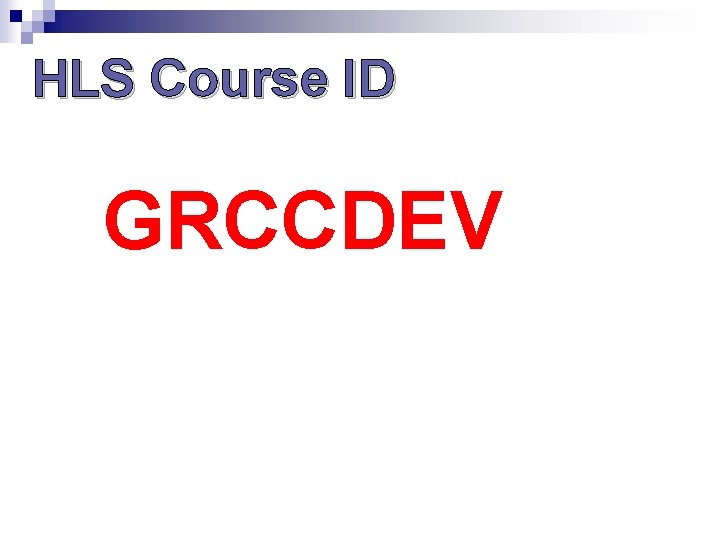
HLS Course ID GRCCDEV
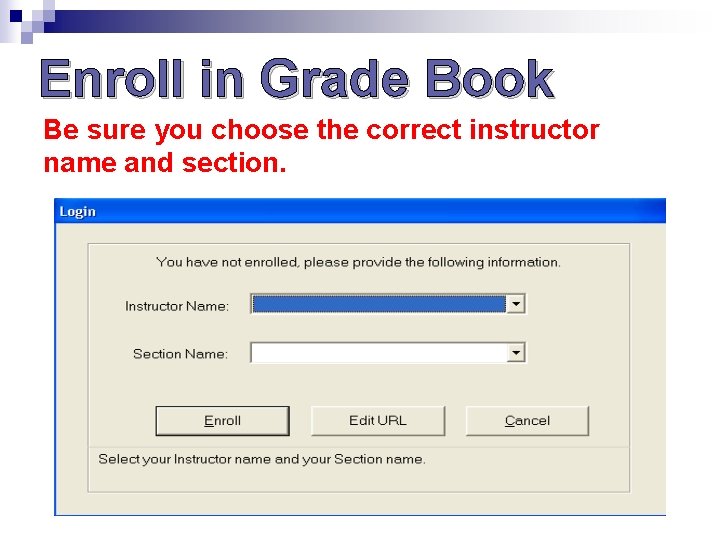
Enroll in Grade Book Be sure you choose the correct instructor name and section.
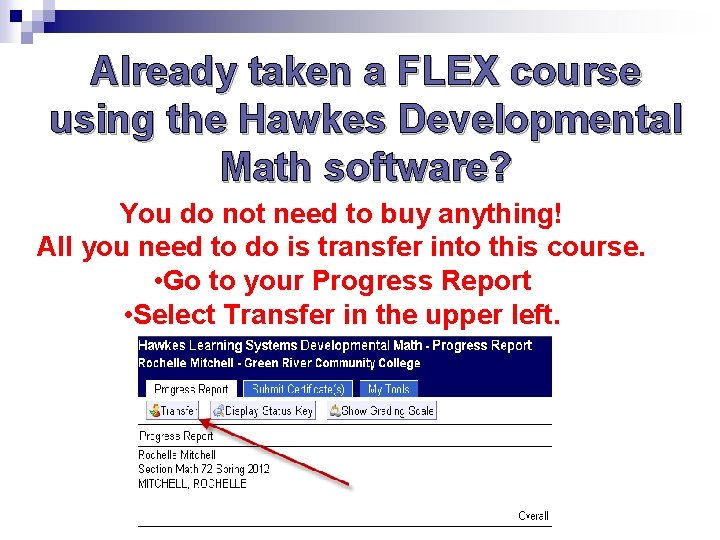
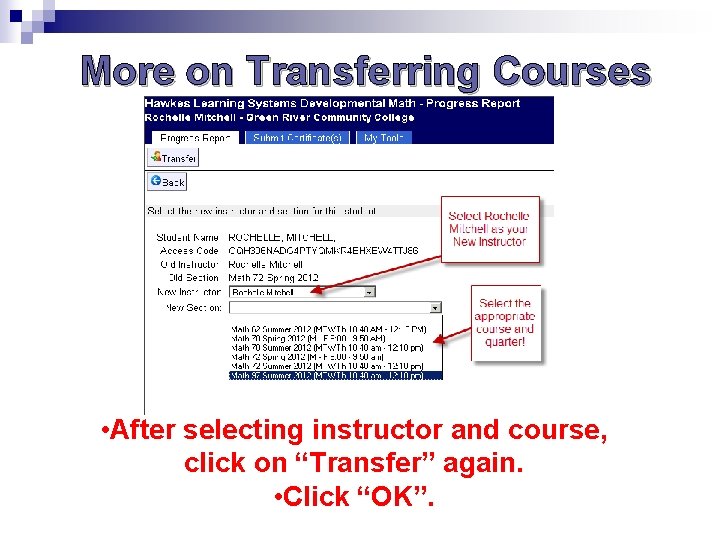
Already taken a FLEX course using the Hawkes Developmental Math software? You do not need to buy anything! All you need to do is transfer into this course. • Go to your Progress Report • Select Transfer in the upper left.
More on Transferring Courses • After selecting instructor and course, click on “Transfer” again. • Click “OK”.
How to use Hawkes Learning Systems courseware
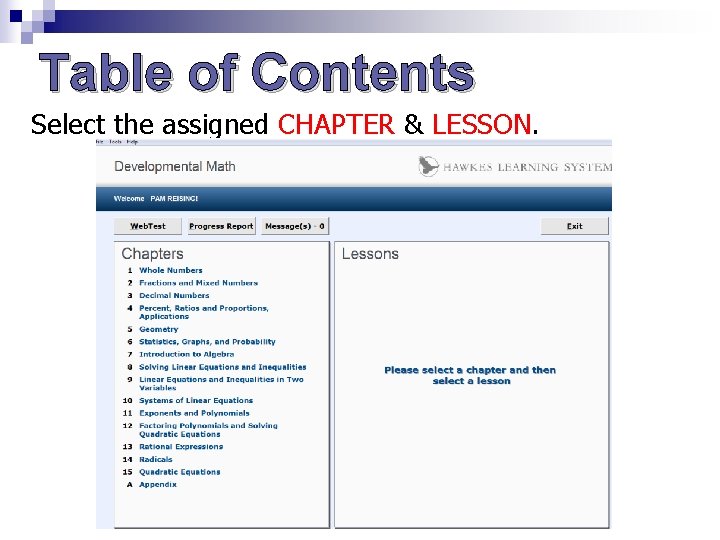
Table of Contents Select the assigned CHAPTER & LESSON.
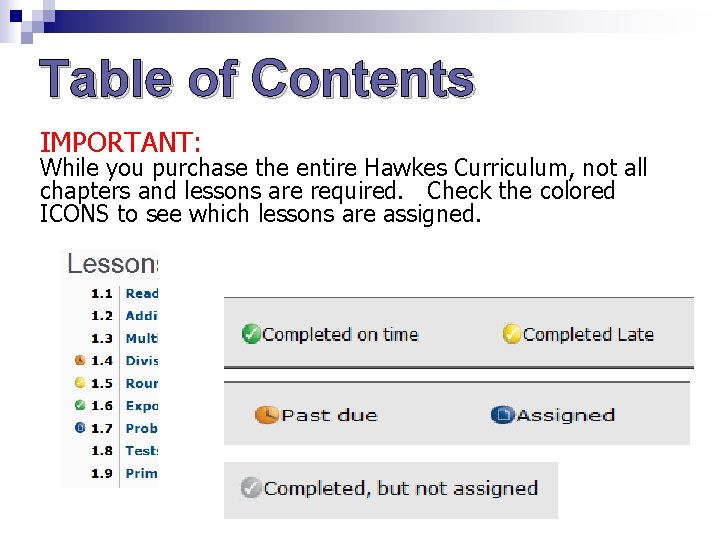
Table of Contents IMPORTANT: While you purchase the entire Hawkes Curriculum, not all chapters and lessons are required. Check the colored ICONS to see which lessons are assigned.
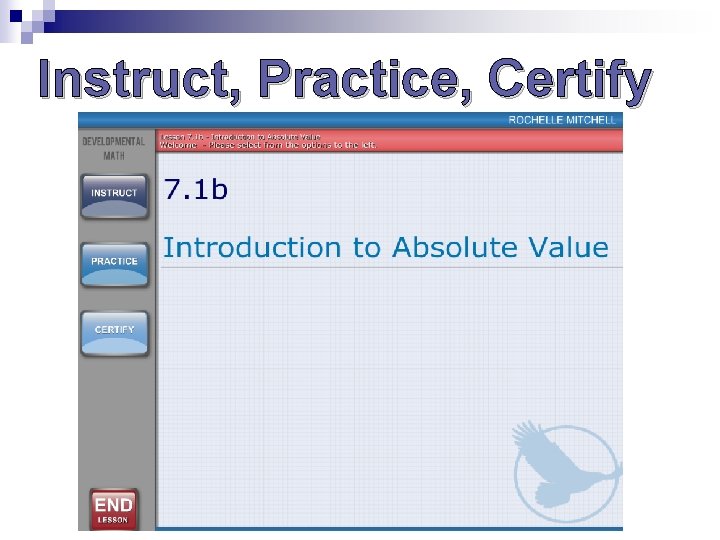
Instruct, Practice, Certify
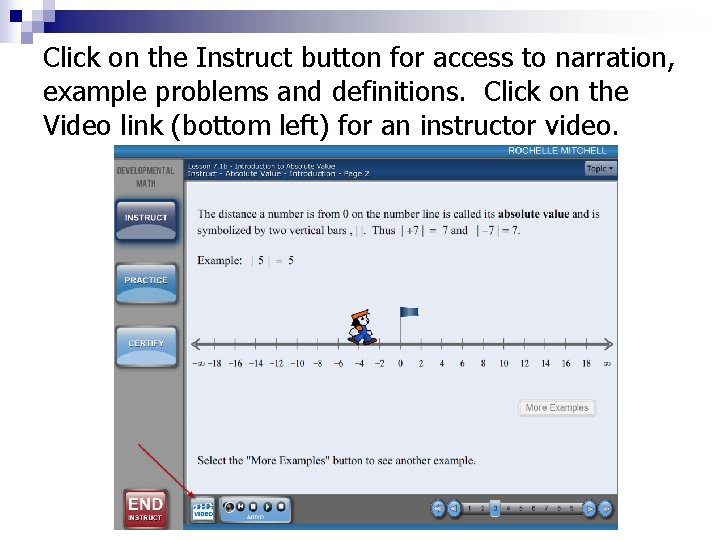
Click on the Instruct button for access to narration, example problems and definitions. Click on the Video link (bottom left) for an instructor video.
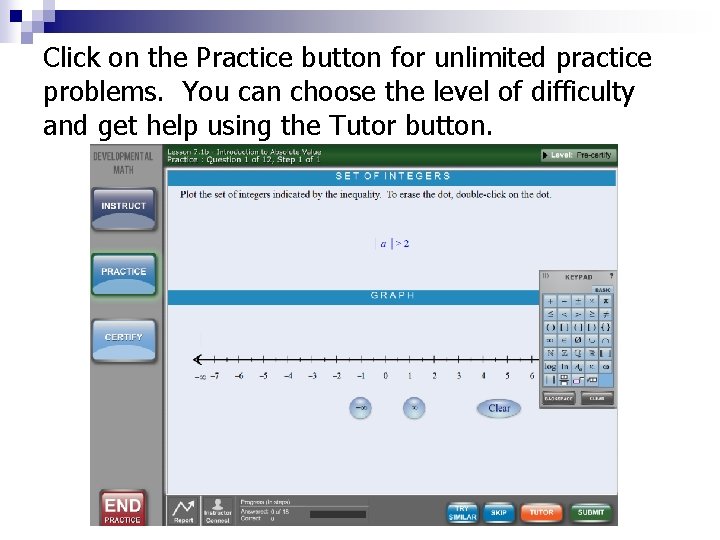
Click on the Practice button for unlimited practice problems. You can choose the level of difficulty and get help using the Tutor button.
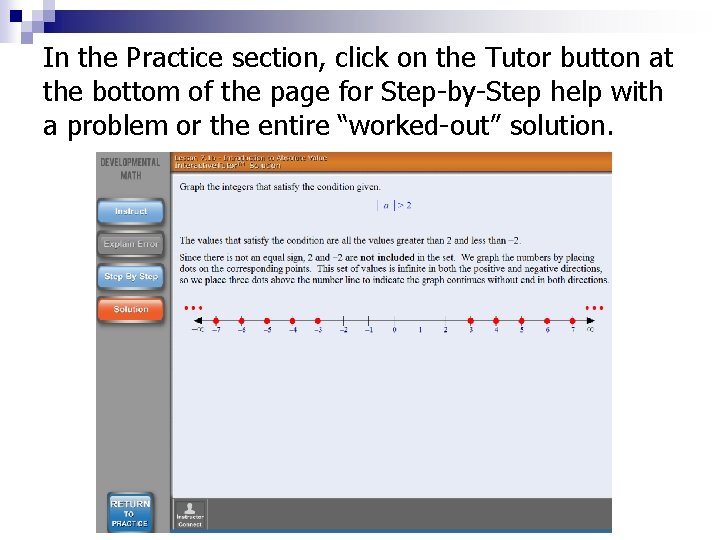
In the Practice section, click on the Tutor button at the bottom of the page for Step-by-Step help with a problem or the entire “worked-out” solution.
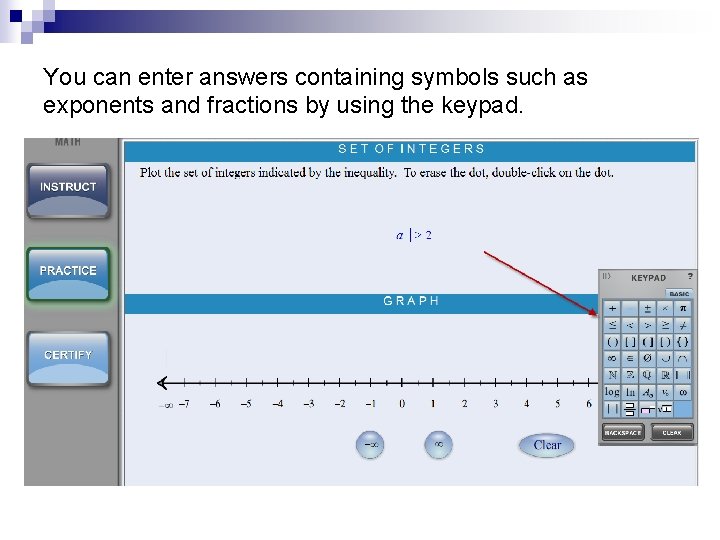
You can enter answers containing symbols such as exponents and fractions by using the keypad.
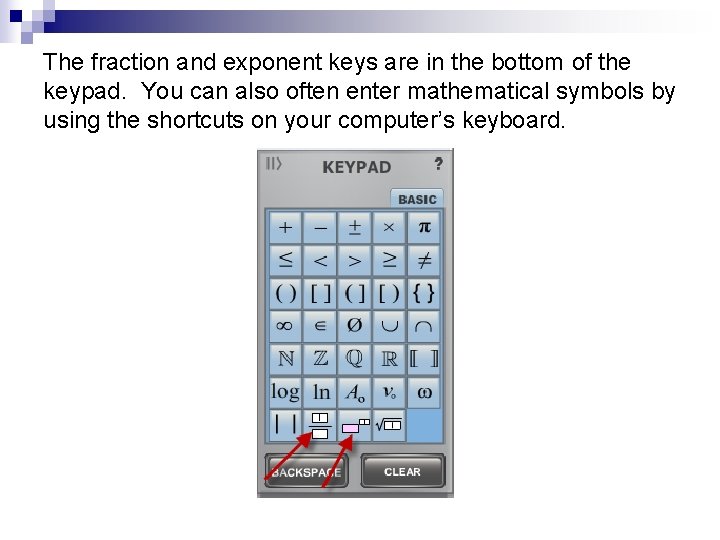
The fraction and exponent keys are in the bottom of the keypad. You can also often enter mathematical symbols by using the shortcuts on your computer’s keyboard.
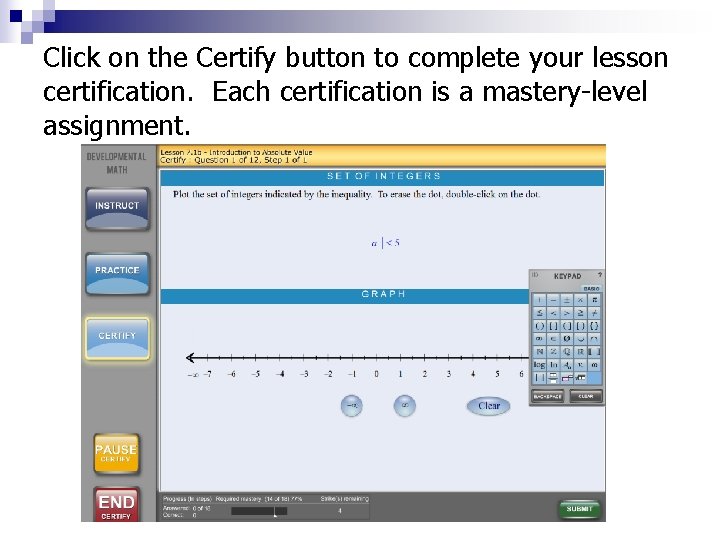
Click on the Certify button to complete your lesson certification. Each certification is a mastery-level assignment.
Mastery Level on Certifies • You are allowed to miss a certain number of questions and still pass. You must get about 80% of the problems correct. The exact number of misses (or strikes) is listed at the bottom of the page. • If you miss more than the allowed number of questions, you must start over and try a new assignment. • There is no penalty for having to start over. You should go back to Instruct and Practice to go over the material again. • When you do complete the assignment, your grade is 100%. (Make sure it’s on time - your instructor may assign late penalties!) If you don’t complete your homework, your grade is a zero and the computer will NOT let you take a test.
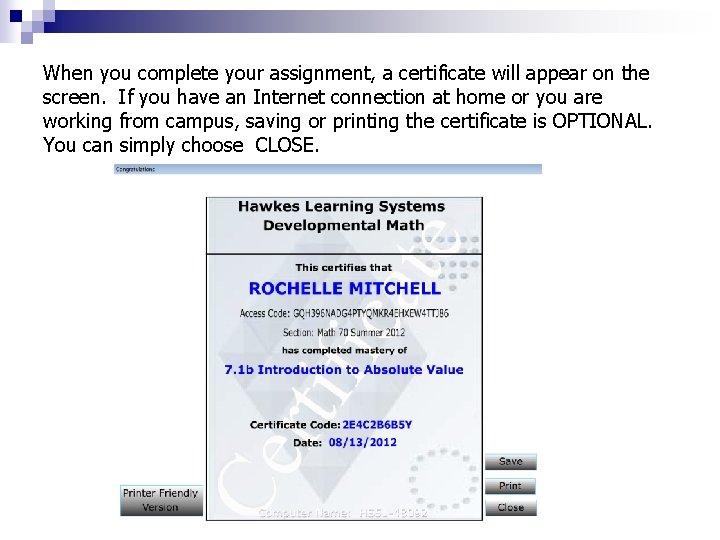
When you complete your assignment, a certificate will appear on the screen. If you have an Internet connection at home or you are working from campus, saving or printing the certificate is OPTIONAL. You can simply choose CLOSE.
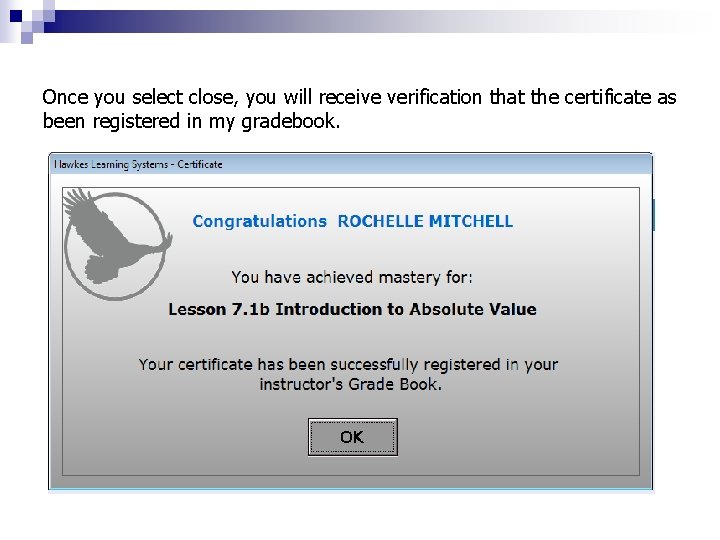
Once you select close, you will receive verification that the certificate as been registered in my gradebook.
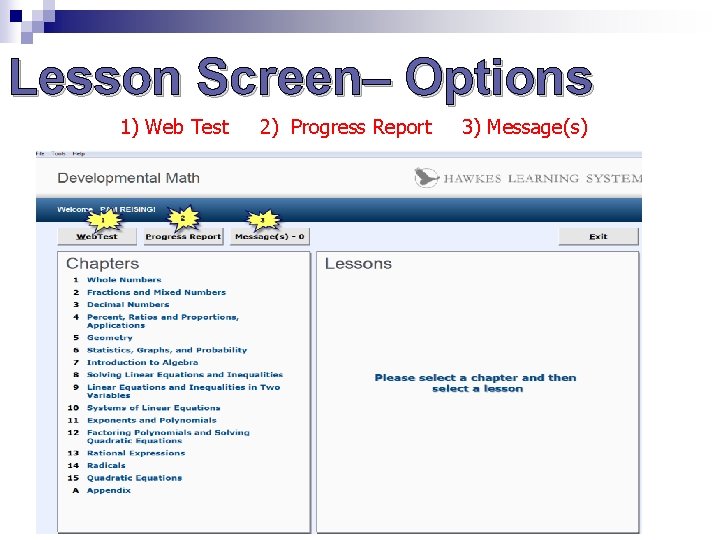
Lesson Screen– Options 1) Web Test 2) Progress Report 3) Message(s)
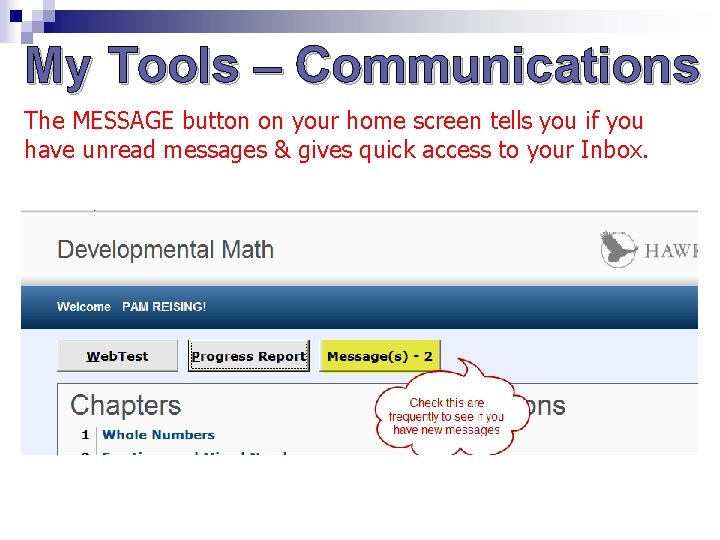
My Tools – Communications The MESSAGE button on your home screen tells you if you have unread messages & gives quick access to your Inbox.
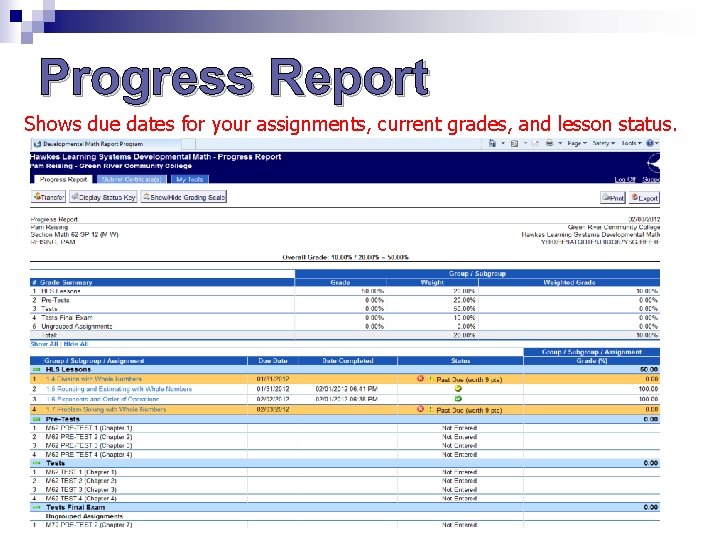
Progress Report Shows due dates for your assignments, current grades, and lesson status.
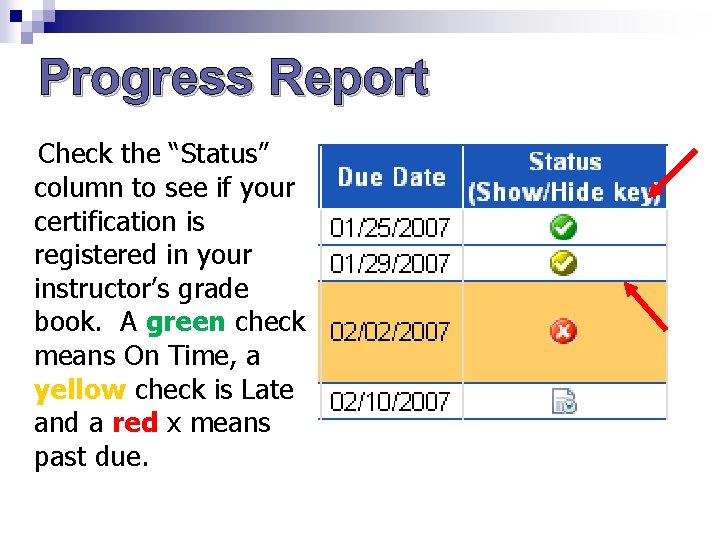
Progress Report Check the “Status” column to see if your certification is registered in your instructor’s grade book. A green check means On Time, a yellow check is Late and a red x means past due.
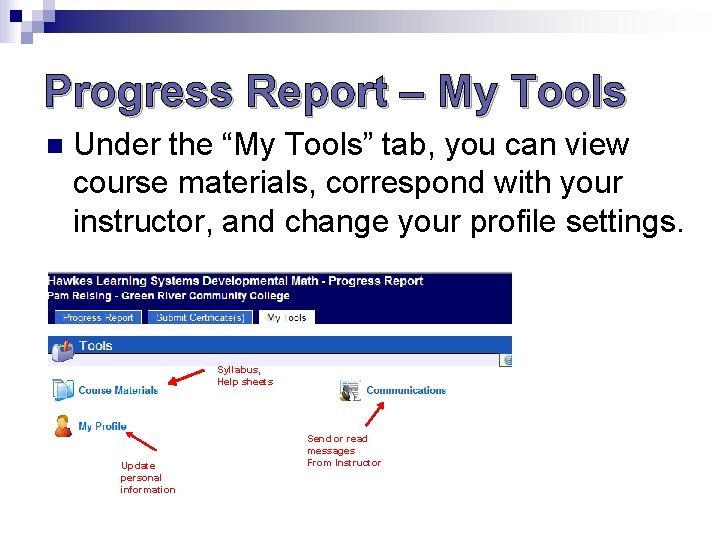
Progress Report – My Tools n Under the “My Tools” tab, you can view course materials, correspond with your instructor, and change your profile settings. Syllabus, Help sheets Update personal information Send or read messages From Instructor
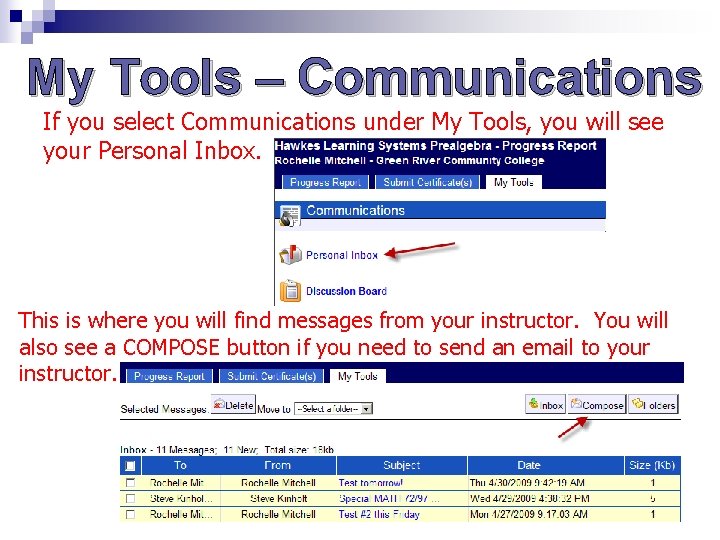
My Tools – Communications If you select Communications under My Tools, you will see your Personal Inbox. This is where you will find messages from your instructor. You will also see a COMPOSE button if you need to send an email to your instructor.
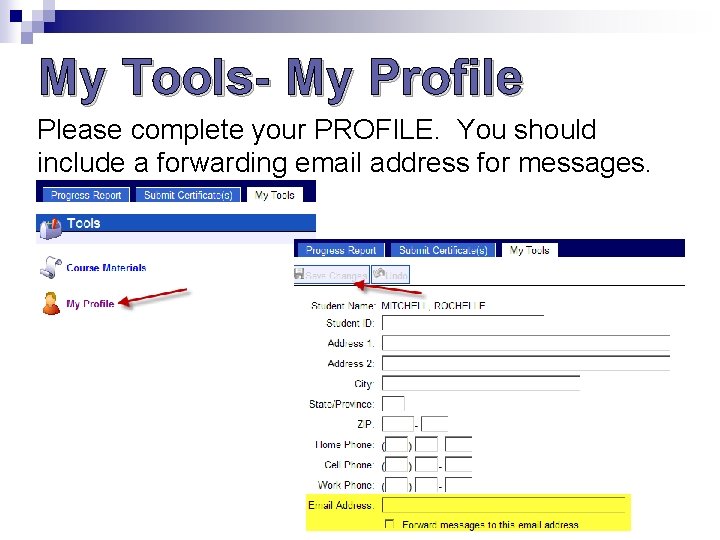
My Tools- My Profile Please complete your PROFILE. You should include a forwarding email address for messages.
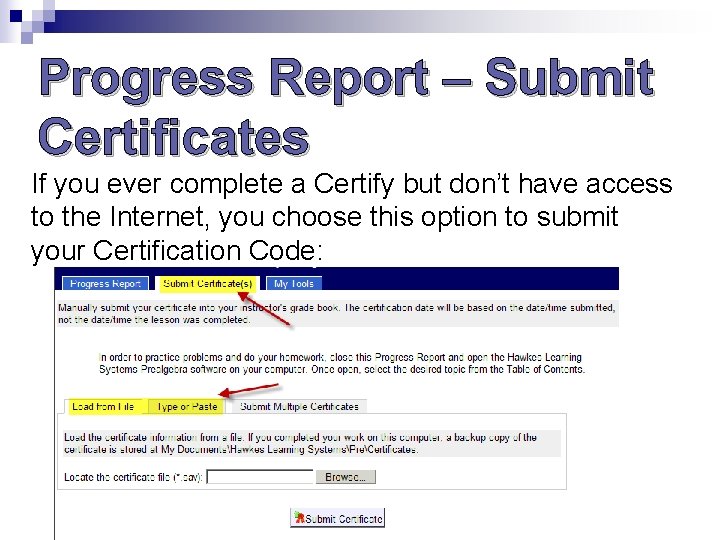
Progress Report – Submit Certificates If you ever complete a Certify but don’t have access to the Internet, you choose this option to submit your Certification Code:
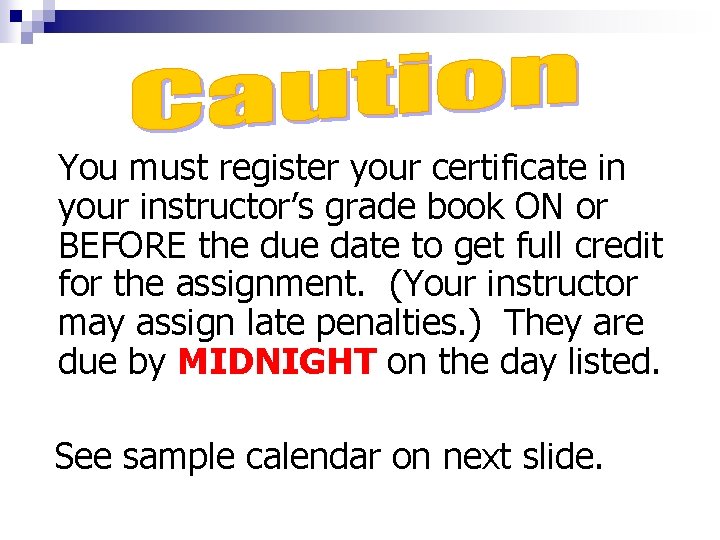
You must register your certificate in your instructor’s grade book ON or BEFORE the due date to get full credit for the assignment. (Your instructor may assign late penalties. ) They are due by MIDNIGHT on the day listed. See sample calendar on next slide.
Sample Calendar
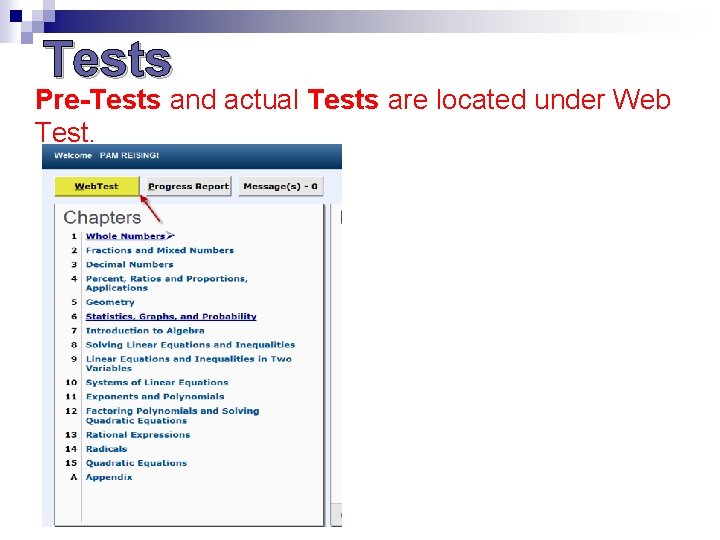
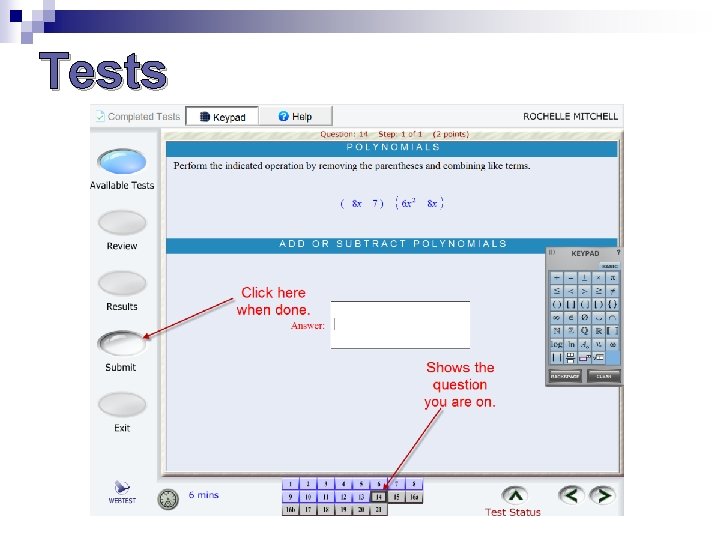
Tests Pre-Tests and actual Tests are located under Web Test.
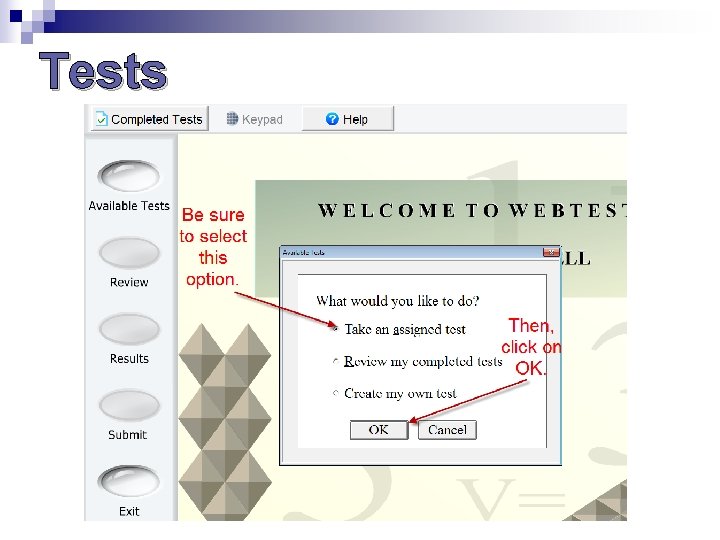
Tests
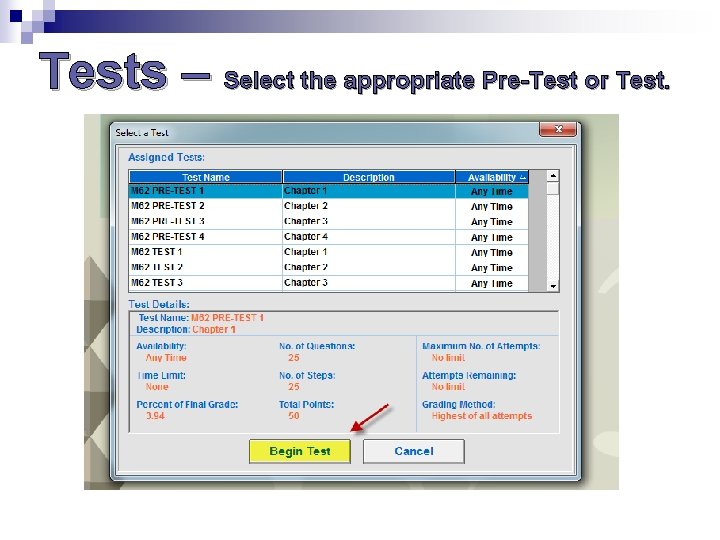
Tests – Select the appropriate Pre-Test or Test.
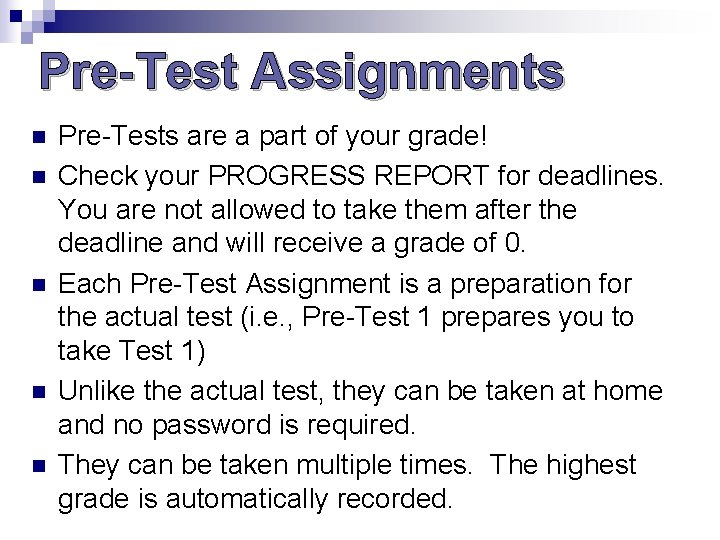
Pre-Test Assignments n n n Pre-Tests are a part of your grade! Check your PROGRESS REPORT for deadlines. You are not allowed to take them after the deadline and will receive a grade of 0. Each Pre-Test Assignment is a preparation for the actual test (i. e. , Pre-Test 1 prepares you to take Test 1) Unlike the actual test, they can be taken at home and no password is required. They can be taken multiple times. The highest grade is automatically recorded.
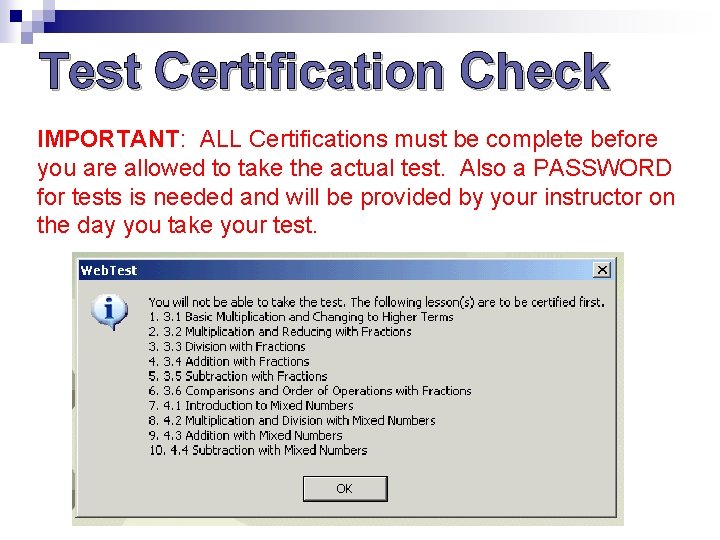
Test Certification Check IMPORTANT: ALL Certifications must be complete before you are allowed to take the actual test. Also a PASSWORD for tests is needed and will be provided by your instructor on the day you take your test.
Tests
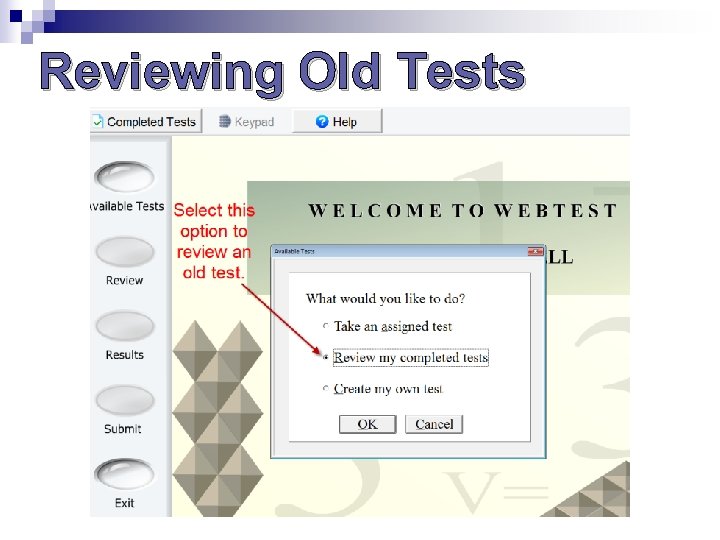
Reviewing Old Tests
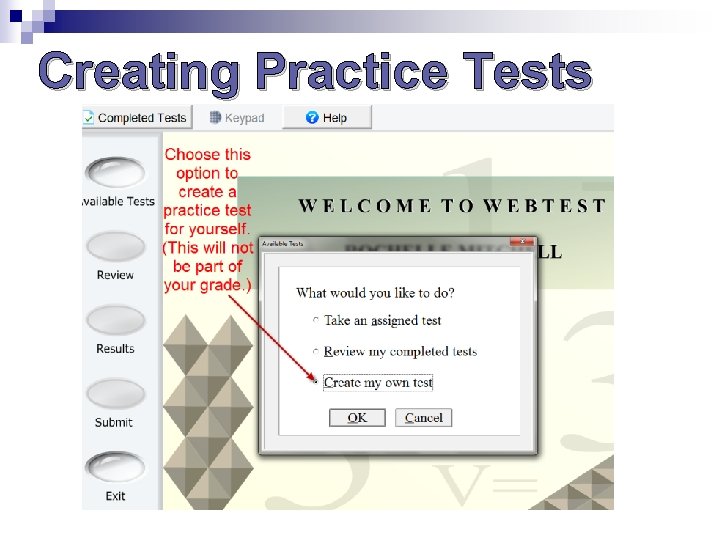
Creating Practice Tests
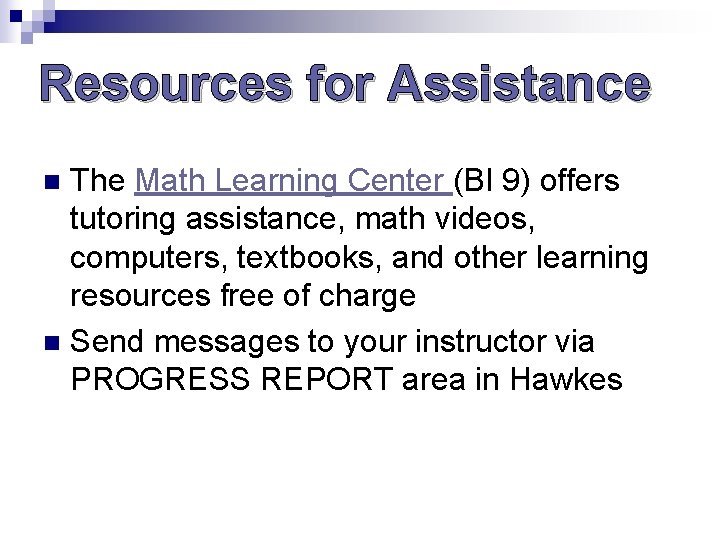
Resources for Assistance The Math Learning Center (BI 9) offers tutoring assistance, math videos, computers, textbooks, and other learning resources free of charge n Send messages to your instructor via PROGRESS REPORT area in Hawkes n
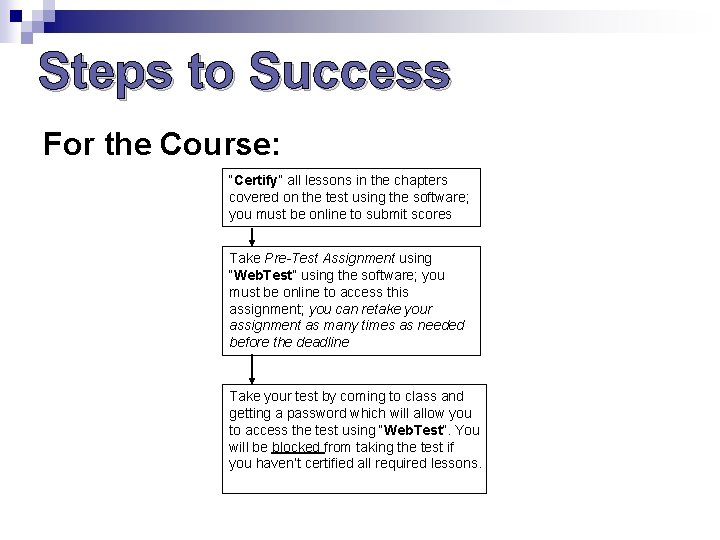
Steps to Success For the Course: “Certify” all lessons in the chapters covered on the test using the software; you must be online to submit scores Take Pre-Test Assignment using “Web. Test” using the software; you must be online to access this assignment; you can retake your assignment as many times as needed before the deadline Take your test by coming to class and getting a password which will allow you to access the test using “Web. Test”. You will be blocked from taking the test if you haven’t certified all required lessons.
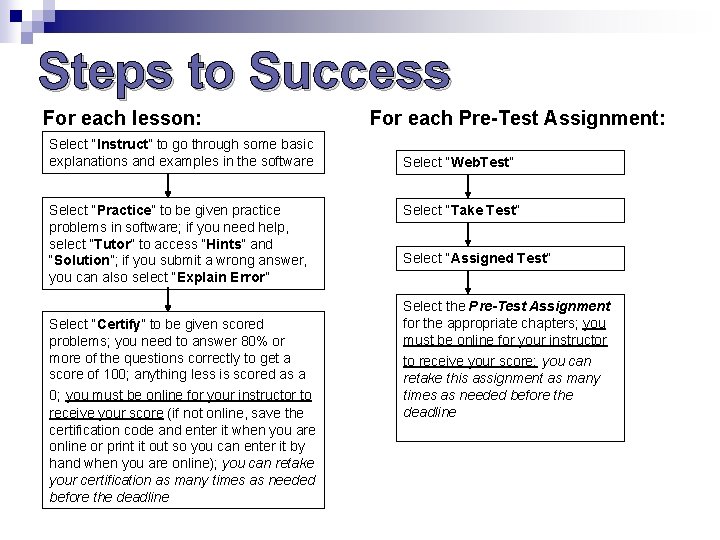
Steps to Success For each lesson: Select “Instruct” to go through some basic explanations and examples in the software Select “Practice” to be given practice problems in software; if you need help, select “Tutor” to access “Hints” and “Solution”; if you submit a wrong answer, you can also select “Explain Error” Select “Certify” to be given scored problems; you need to answer 80% or more of the questions correctly to get a score of 100; anything less is scored as a 0; you must be online for your instructor to receive your score (if not online, save the certification code and enter it when you are online or print it out so you can enter it by hand when you are online); you can retake your certification as many times as needed before the deadline For each Pre-Test Assignment: Select “Web. Test” Select “Take Test” Select “Assigned Test” Select the Pre-Test Assignment for the appropriate chapters; you must be online for your instructor to receive your score; you can retake this assignment as many times as needed before the deadline