Customer Engagement Programs CEP and the Line of
- Slides: 73
Customer Engagement Programs (CEP) and the Line of Sight (LOS) System Training for Pfizer Vendor and Agency Partners July 2018 Pfizer Confidential 1
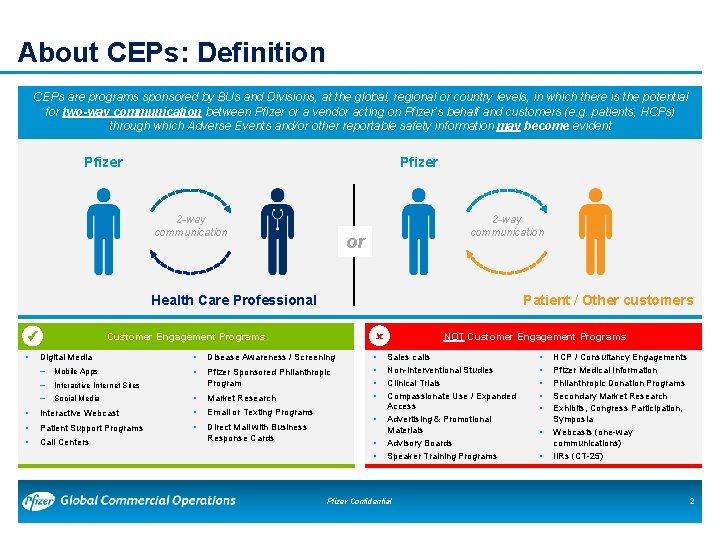
About CEPs: Definition CEPs are programs sponsored by BUs and Divisions, at the global, regional or country levels, in which there is the potential for two-way communication between Pfizer or a vendor acting on Pfizer’s behalf and customers (e. g. patients, HCPs) through which Adverse Events and/or other reportable safety information may become evident Pfizer 2 -way communication or Health Care Professional • Patient / Other customers Customer Engagement Programs Digital Media • Disease Awareness / Screening – Mobile Apps • – Interactive Internet Sites Pfizer Sponsored Philanthropic Program – Social Media • Market Research • Interactive Webcast • Email or Texting Programs • Patient Support Programs • • Call Centers Direct Mail with Business Response Cards • • NOT Customer Engagement Programs Sales calls Non-Interventional Studies Clinical Trials Compassionate Use / Expanded Access Advertising & Promotional Materials Advisory Boards Speaker Training Programs Pfizer Confidential • • HCP / Consultancy Engagements Pfizer Medical Information Philanthropic Donation Programs Secondary Market Research Exhibits, Congress Participation, Symposia Webcasts (one-way communications) IIRs (CT-25) 2
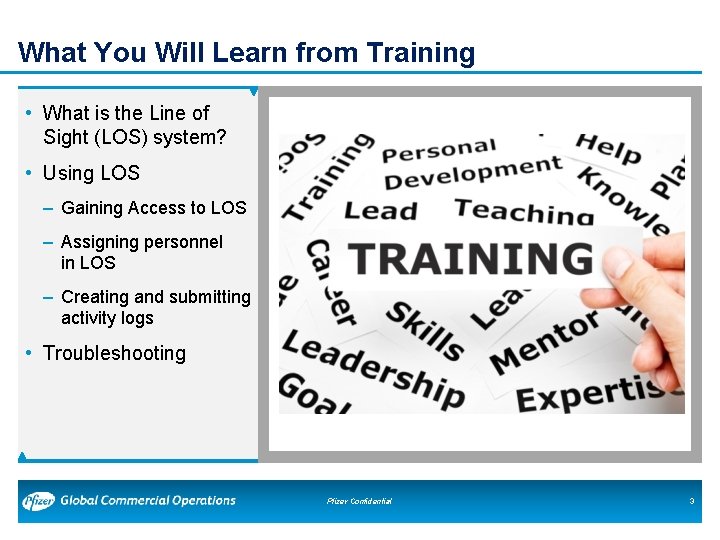
What You Will Learn from Training • What is the Line of Sight (LOS) system? • Using LOS – Gaining Access to LOS – Assigning personnel in LOS – Creating and submitting activity logs • Troubleshooting Pfizer Confidential 3
What Is the Line of Sight (LOS) System? Pfizer Confidential 4
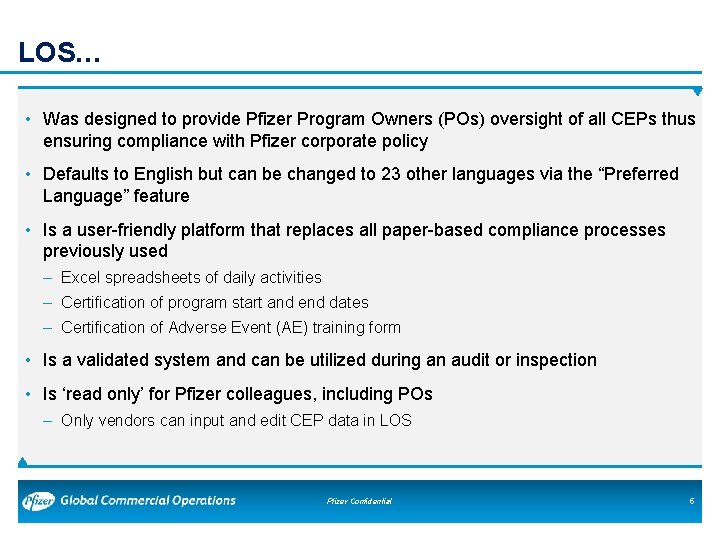
LOS… • Was designed to provide Pfizer Program Owners (POs) oversight of all CEPs thus ensuring compliance with Pfizer corporate policy • Defaults to English but can be changed to 23 other languages via the “Preferred Language” feature • Is a user-friendly platform that replaces all paper-based compliance processes previously used – Excel spreadsheets of daily activities – Certification of program start and end dates – Certification of Adverse Event (AE) training form • Is a validated system and can be utilized during an audit or inspection • Is ‘read only’ for Pfizer colleagues, including POs – Only vendors can input and edit CEP data in LOS Pfizer Confidential 5
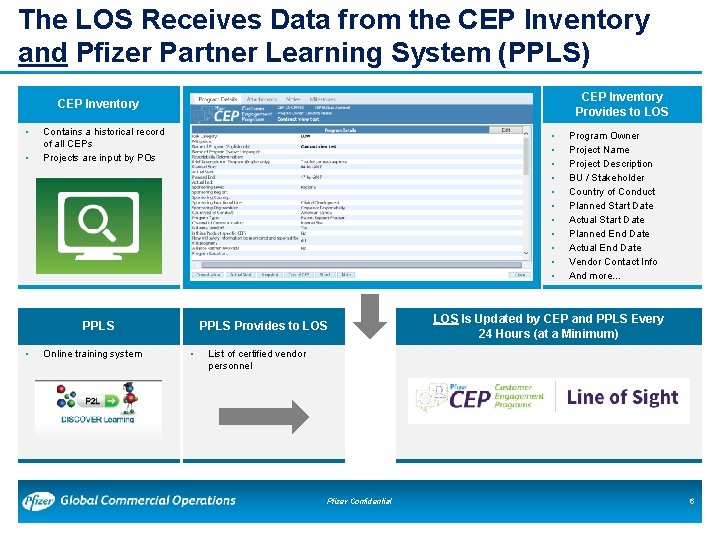
The LOS Receives Data from the CEP Inventory and Pfizer Partner Learning System (PPLS) CEP Inventory Provides to LOS CEP Inventory • • Contains a historical record of all CEPs Projects are input by POs • • • PPLS • Online training system PPLS Provides to LOS • Program Owner Project Name Project Description BU / Stakeholder Country of Conduct Planned Start Date Actual Start Date Planned End Date Actual End Date Vendor Contact Info And more… LOS Is Updated by CEP and PPLS Every 24 Hours (at a Minimum) List of certified vendor personnel Pfizer Confidential 6
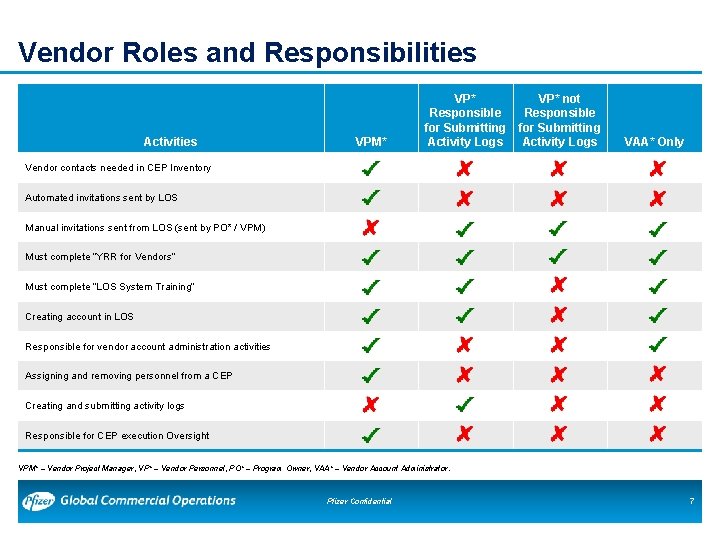
Vendor Roles and Responsibilities Activities VPM* VP* Responsible for Submitting Activity Logs VP* not Responsible for Submitting Activity Logs VAA* Only Vendor contacts needed in CEP Inventory Automated invitations sent by LOS Manual invitations sent from LOS (sent by PO* / VPM) Must complete “YRR for Vendors” Must complete “LOS System Training” Creating account in LOS Responsible for vendor account administration activities Assigning and removing personnel from a CEP Creating and submitting activity logs Responsible for CEP execution Oversight VPM* – Vendor Project Manager, VP* – Vendor Personnel, PO* – Program Owner, VAA* – Vendor Account Administrator. Pfizer Confidential 7
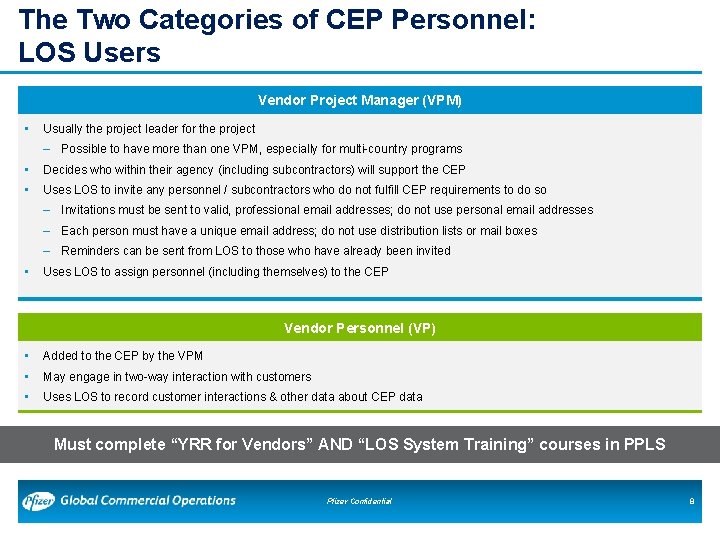
The Two Categories of CEP Personnel: LOS Users Vendor Project Manager (VPM) • Usually the project leader for the project – Possible to have more than one VPM, especially for multi-country programs • Decides who within their agency (including subcontractors) will support the CEP • Uses LOS to invite any personnel / subcontractors who do not fulfill CEP requirements to do so – Invitations must be sent to valid, professional email addresses; do not use personal email addresses – Each person must have a unique email address; do not use distribution lists or mail boxes – Reminders can be sent from LOS to those who have already been invited • Uses LOS to assign personnel (including themselves) to the CEP Vendor Personnel (VP) • Added to the CEP by the VPM • May engage in two-way interaction with customers • Uses LOS to record customer interactions & other data about CEP data Must complete “YRR for Vendors” AND “LOS System Training” courses in PPLS Pfizer Confidential 8
Using LOS Pfizer Confidential 9
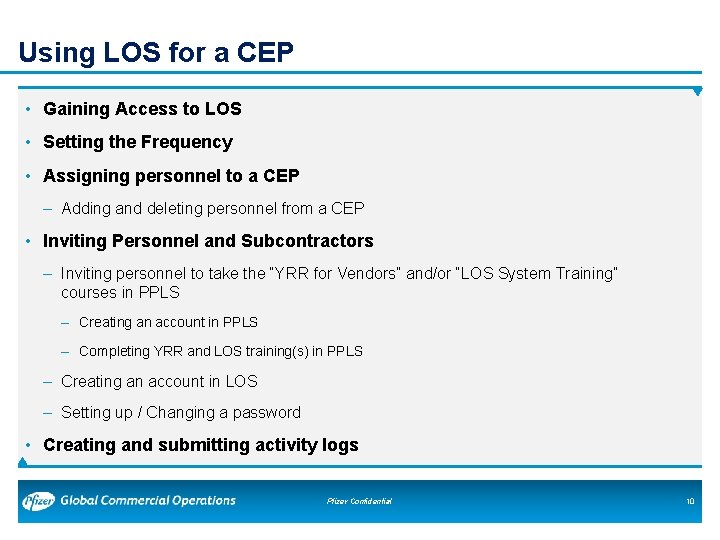
Using LOS for a CEP • Gaining Access to LOS • Setting the Frequency • Assigning personnel to a CEP – Adding and deleting personnel from a CEP • Inviting Personnel and Subcontractors – Inviting personnel to take the “YRR for Vendors” and/or “LOS System Training” courses in PPLS – Creating an account in PPLS – Completing YRR and LOS training(s) in PPLS – Creating an account in LOS – Setting up / Changing a password • Creating and submitting activity logs Pfizer Confidential 10
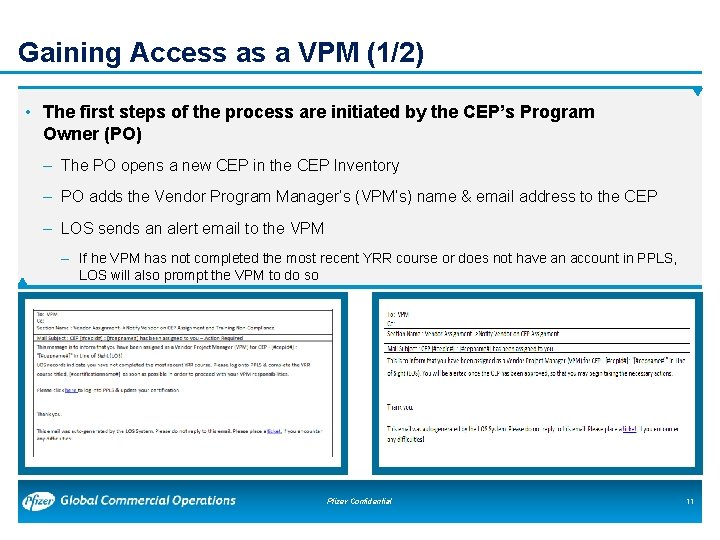
Gaining Access as a VPM (1/2) • The first steps of the process are initiated by the CEP’s Program Owner (PO) – The PO opens a new CEP in the CEP Inventory – PO adds the Vendor Program Manager’s (VPM’s) name & email address to the CEP – LOS sends an alert email to the VPM – If he VPM has not completed the most recent YRR course or does not have an account in PPLS, LOS will also prompt the VPM to do so Pfizer Confidential 11
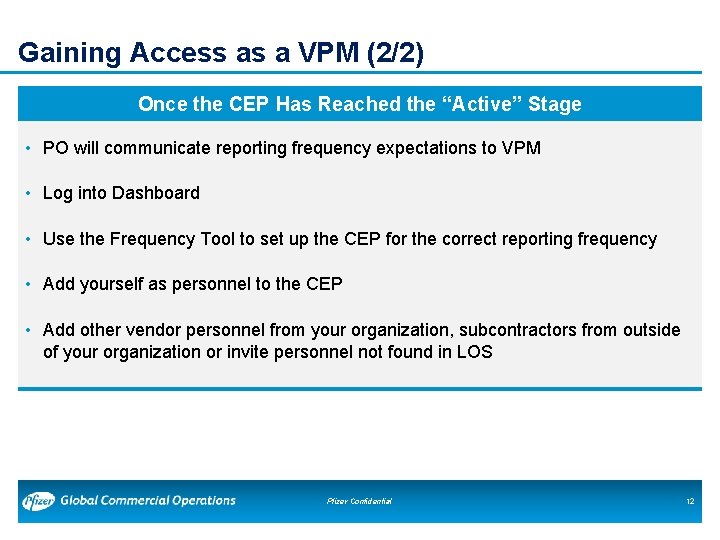
Gaining Access as a VPM (2/2) Once the CEP Has Reached the “Active” Stage • PO will communicate reporting frequency expectations to VPM • Log into Dashboard • Use the Frequency Tool to set up the CEP for the correct reporting frequency • Add yourself as personnel to the CEP • Add other vendor personnel from your organization, subcontractors from outside of your organization or invite personnel not found in LOS Pfizer Confidential 12
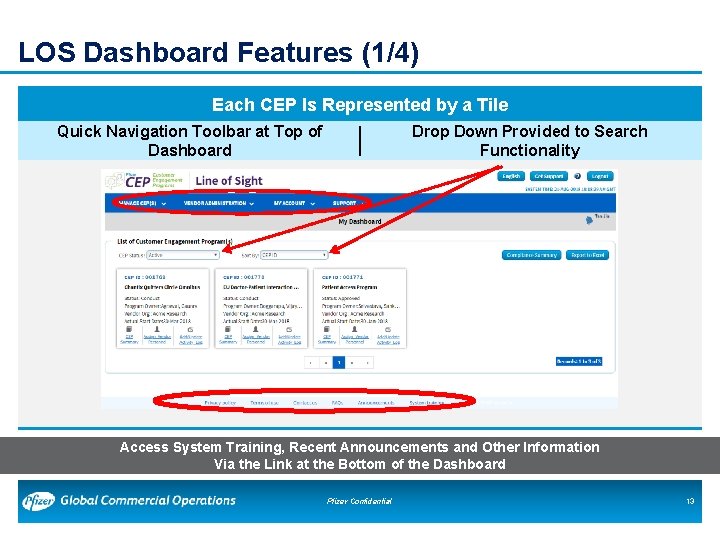
LOS Dashboard Features (1/4) Each CEP Is Represented by a Tile Quick Navigation Toolbar at Top of Dashboard Drop Down Provided to Search Functionality Access System Training, Recent Announcements and Other Information Via the Link at the Bottom of the Dashboard Pfizer Confidential 13
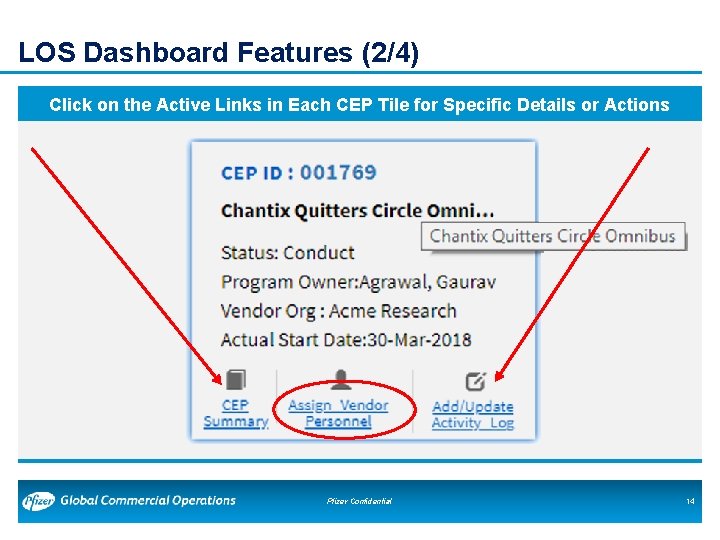
LOS Dashboard Features (2/4) Click on the Active Links in Each CEP Tile for Specific Details or Actions Pfizer Confidential 14
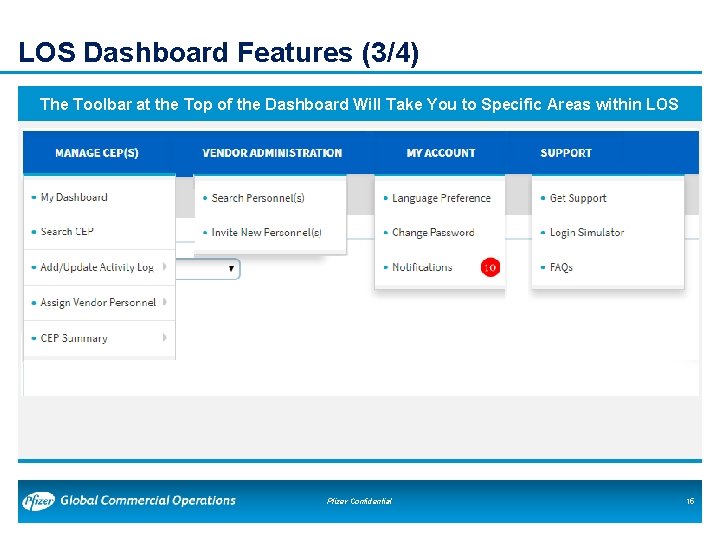
LOS Dashboard Features (3/4) The Toolbar at the Top of the Dashboard Will Take You to Specific Areas within LOS Pfizer Confidential 15
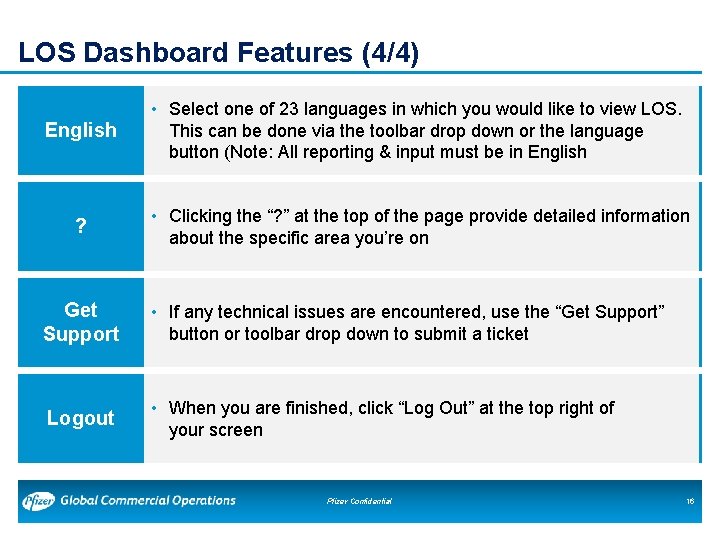
LOS Dashboard Features (4/4) English • Select one of 23 languages in which you would like to view LOS. This can be done via the toolbar drop down or the language button (Note: All reporting & input must be in English ? • Clicking the “? ” at the top of the page provide detailed information about the specific area you’re on Get Support • If any technical issues are encountered, use the “Get Support” button or toolbar drop down to submit a ticket Logout • When you are finished, click “Log Out” at the top right of your screen Pfizer Confidential 16
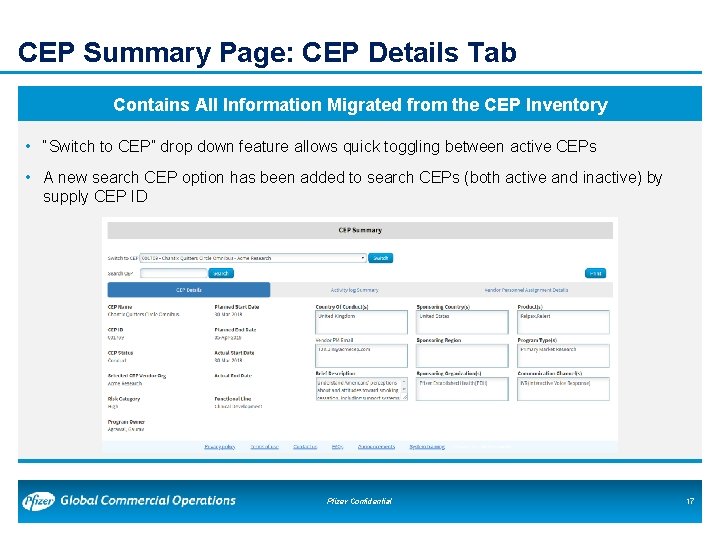
CEP Summary Page: CEP Details Tab Contains All Information Migrated from the CEP Inventory • “Switch to CEP” drop down feature allows quick toggling between active CEPs • A new search CEP option has been added to search CEPs (both active and inactive) by supply CEP ID Pfizer Confidential 17
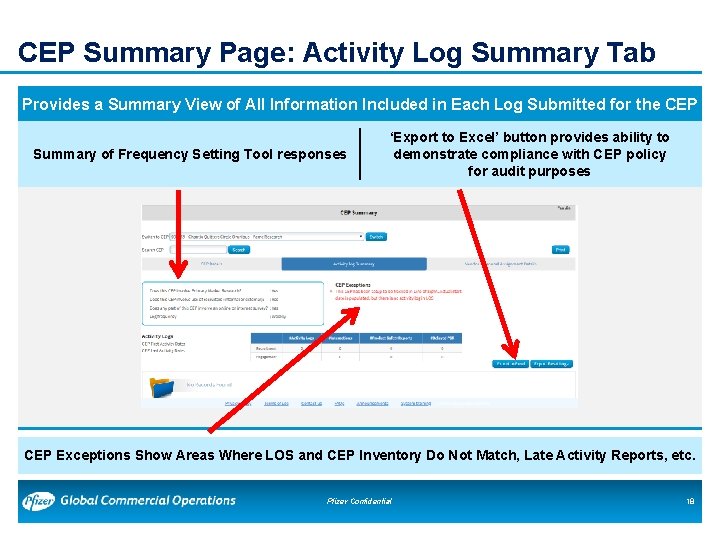
CEP Summary Page: Activity Log Summary Tab Provides a Summary View of All Information Included in Each Log Submitted for the CEP Summary of Frequency Setting Tool responses ‘Export to Excel’ button provides ability to demonstrate compliance with CEP policy for audit purposes CEP Exceptions Show Areas Where LOS and CEP Inventory Do Not Match, Late Activity Reports, etc. Pfizer Confidential 18
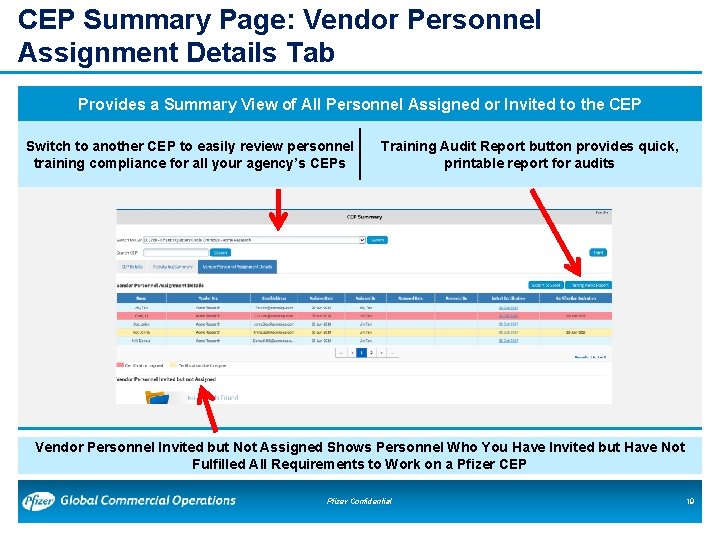
CEP Summary Page: Vendor Personnel Assignment Details Tab Provides a Summary View of All Personnel Assigned or Invited to the CEP Switch to another CEP to easily review personnel training compliance for all your agency’s CEPs Training Audit Report button provides quick, printable report for audits Vendor Personnel Invited but Not Assigned Shows Personnel Who You Have Invited but Have Not Fulfilled All Requirements to Work on a Pfizer CEP Pfizer Confidential 19
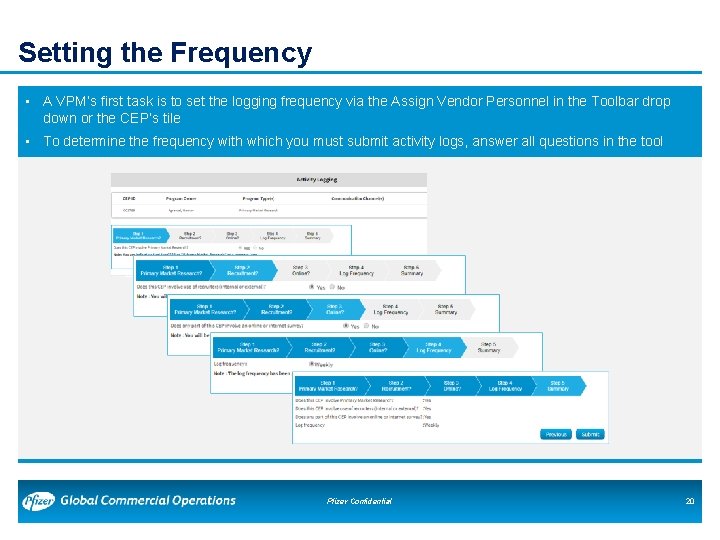
Setting the Frequency • A VPM’s first task is to set the logging frequency via the Assign Vendor Personnel in the Toolbar drop down or the CEP’s tile • To determine the frequency with which you must submit activity logs, answer all questions in the tool Pfizer Confidential 20
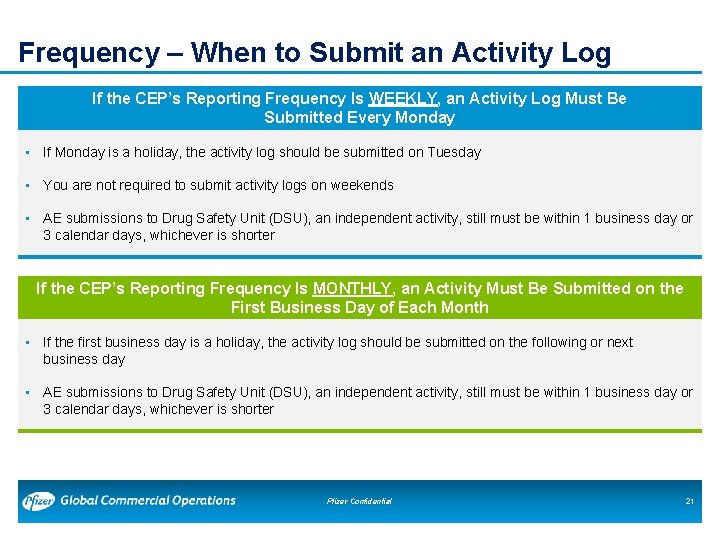
Frequency – When to Submit an Activity Log If the CEP’s Reporting Frequency Is WEEKLY, an Activity Log Must Be Submitted Every Monday • If Monday is a holiday, the activity log should be submitted on Tuesday • You are not required to submit activity logs on weekends • AE submissions to Drug Safety Unit (DSU), an independent activity, still must be within 1 business day or 3 calendar days, whichever is shorter If the CEP’s Reporting Frequency Is MONTHLY, an Activity Must Be Submitted on the First Business Day of Each Month • If the first business day is a holiday, the activity log should be submitted on the following or next business day • AE submissions to Drug Safety Unit (DSU), an independent activity, still must be within 1 business day or 3 calendar days, whichever is shorter Pfizer Confidential 21
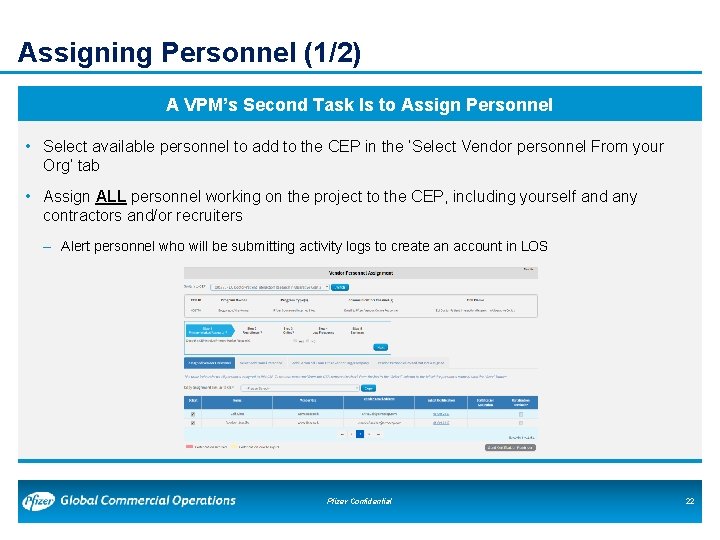
Assigning Personnel (1/2) A VPM’s Second Task Is to Assign Personnel • Select available personnel to add to the CEP in the ‘Select Vendor personnel From your Org’ tab • Assign ALL personnel working on the project to the CEP, including yourself and any contractors and/or recruiters – Alert personnel who will be submitting activity logs to create an account in LOS Pfizer Confidential 22
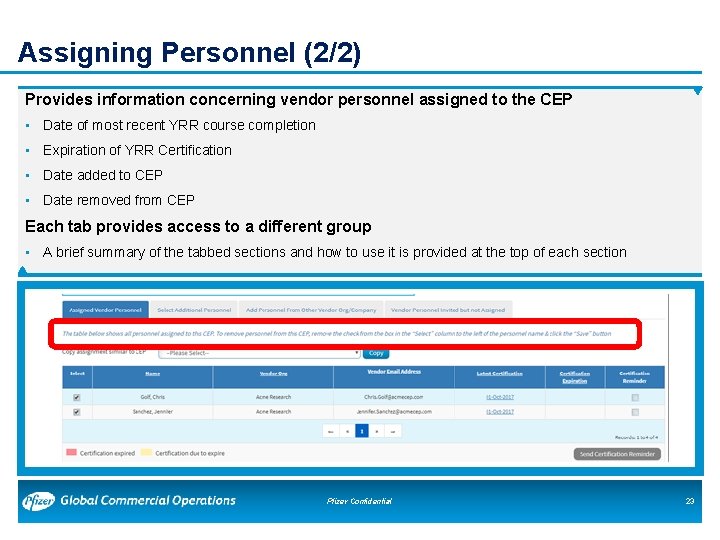
Assigning Personnel (2/2) Provides information concerning vendor personnel assigned to the CEP • Date of most recent YRR course completion • Expiration of YRR Certification • Date added to CEP • Date removed from CEP Each tab provides access to a different group • A brief summary of the tabbed sections and how to use it is provided at the top of each section Pfizer Confidential 23
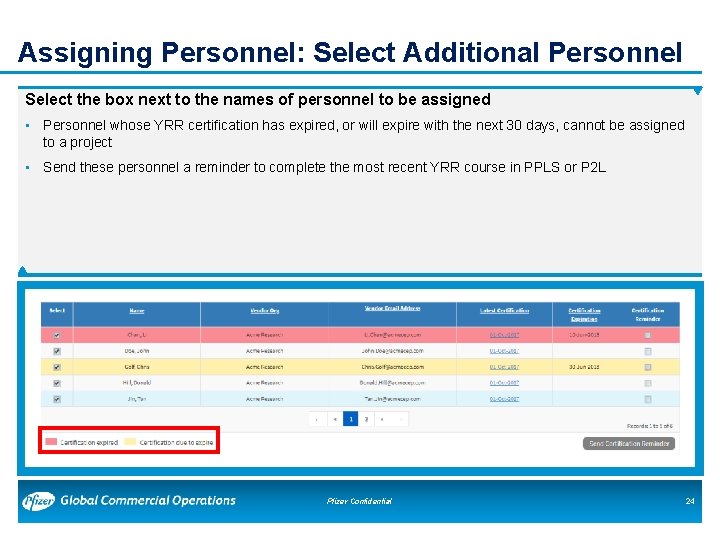
Assigning Personnel: Select Additional Personnel Select the box next to the names of personnel to be assigned • Personnel whose YRR certification has expired, or will expire with the next 30 days, cannot be assigned to a project • Send these personnel a reminder to complete the most recent YRR course in PPLS or P 2 L Pfizer Confidential 24
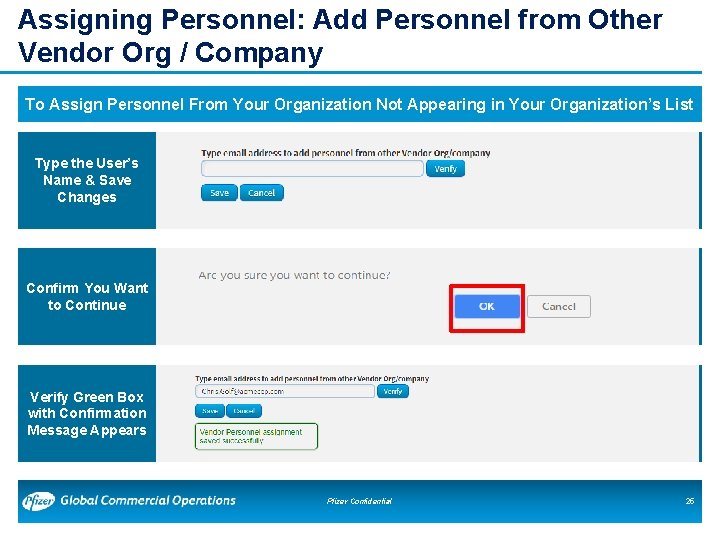
Assigning Personnel: Add Personnel from Other Vendor Org / Company To Assign Personnel From Your Organization Not Appearing in Your Organization’s List Type the User’s Name & Save Changes Confirm You Want to Continue Verify Green Box with Confirmation Message Appears Pfizer Confidential 25
Assigning Personnel: Add Personnel from Other Vendor Org / Company Personnel from other organizations are also eligible to be added to a CEP providing the following requirements are completed • Added to LOS by any vendor organization • Most recent YRR completed in PPLS – Includes recruiters, subcontractors, moderators, etc. Use the same method as noted in previous slide to assign personnel from your organization not appearing in your organization’s list If the personnel cannot be found in LOS, send an invitation Pfizer Confidential 26
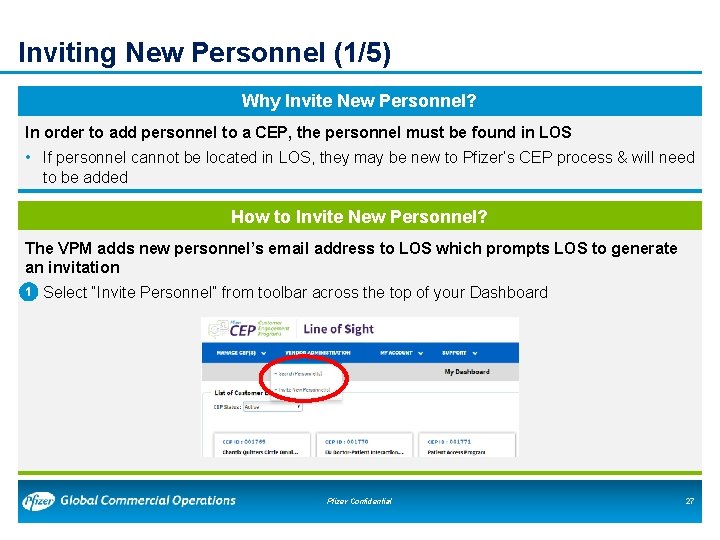
Inviting New Personnel (1/5) Why Invite New Personnel? In order to add personnel to a CEP, the personnel must be found in LOS • If personnel cannot be located in LOS, they may be new to Pfizer’s CEP process & will need to be added How to Invite New Personnel? The VPM adds new personnel’s email address to LOS which prompts LOS to generate an invitation • 1 Select “Invite Personnel” from toolbar across the top of your Dashboard Pfizer Confidential 27
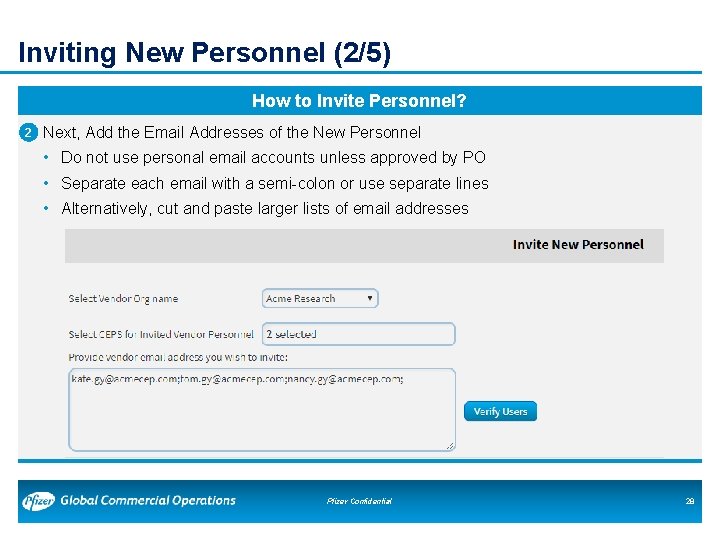
Inviting New Personnel (2/5) How to Invite Personnel? • 2 Next, Add the Email Addresses of the New Personnel • Do not use personal email accounts unless approved by PO • Separate each email with a semi-colon or use separate lines • Alternatively, cut and paste larger lists of email addresses Pfizer Confidential 28
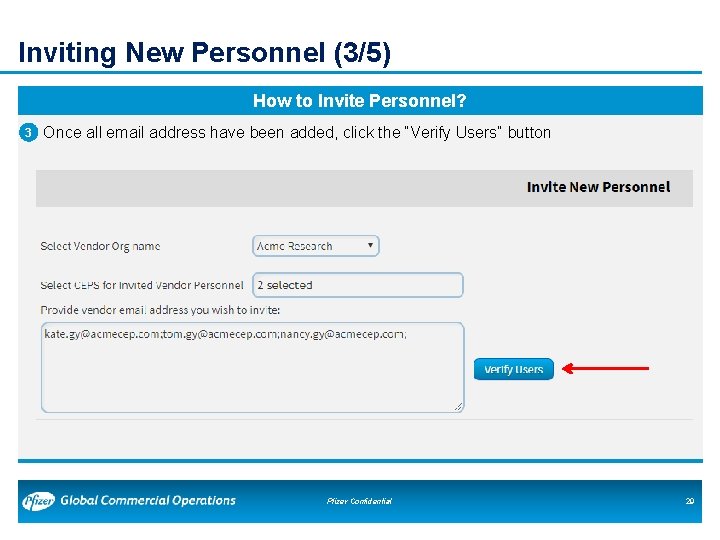
Inviting New Personnel (3/5) How to Invite Personnel? • 3 Once all email address have been added, click the “Verify Users” button Pfizer Confidential 29
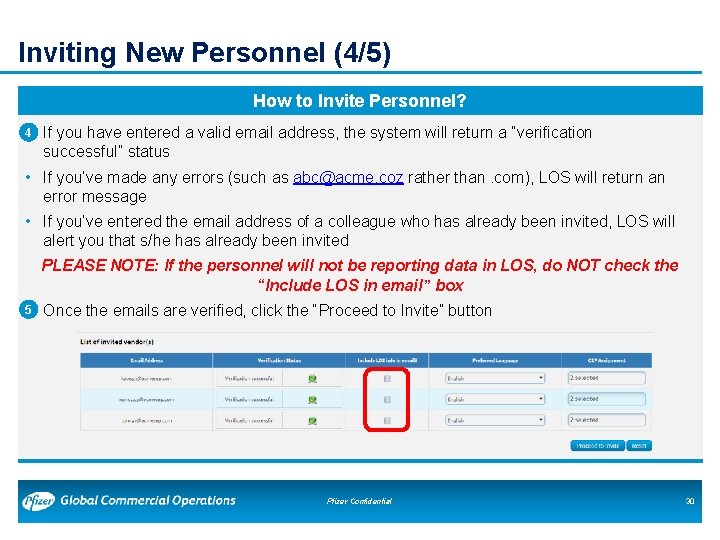
Inviting New Personnel (4/5) How to Invite Personnel? • 4 If you have entered a valid email address, the system will return a “verification successful” status • If you’ve made any errors (such as abc@acme. coz rather than. com), LOS will return an error message • If you’ve entered the email address of a colleague who has already been invited, LOS will alert you that s/he has already been invited PLEASE NOTE: If the personnel will not be reporting data in LOS, do NOT check the “Include LOS in email” box • 5 Once the emails are verified, click the “Proceed to Invite” button Pfizer Confidential 30
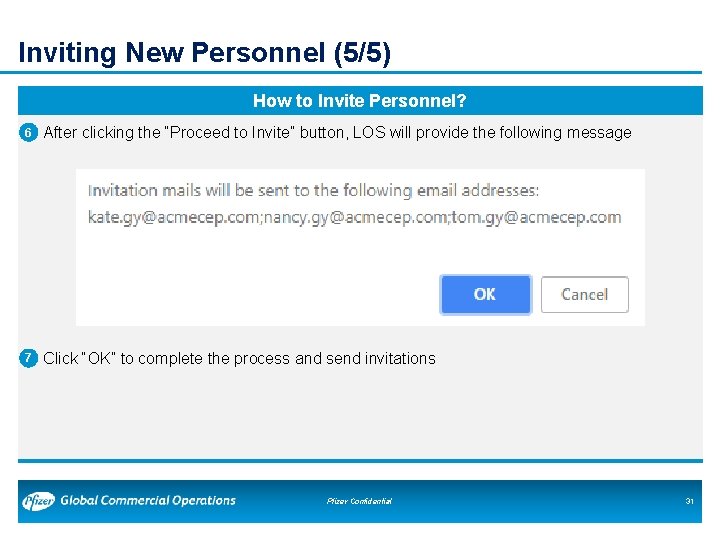
Inviting New Personnel (5/5) How to Invite Personnel? • 6 After clicking the “Proceed to Invite” button, LOS will provide the following message • 7 Click “OK” to complete the process and send invitations Pfizer Confidential 31
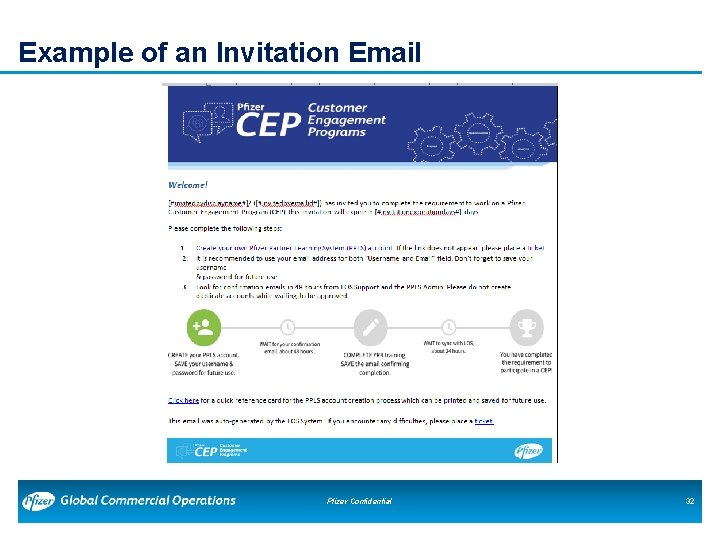
Example of an Invitation Email Pfizer Confidential 32
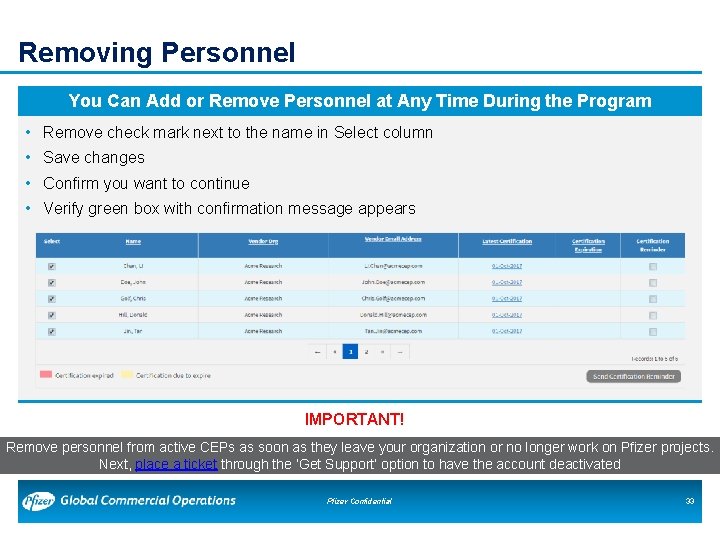
Removing Personnel You Can Add or Remove Personnel at Any Time During the Program • Remove check mark next to the name in Select column • Save changes • Confirm you want to continue • Verify green box with confirmation message appears IMPORTANT! Remove personnel from active CEPs as soon as they leave your organization or no longer work on Pfizer projects. Next, place a ticket through the ‘Get Support’ option to have the account deactivated Pfizer Confidential 33
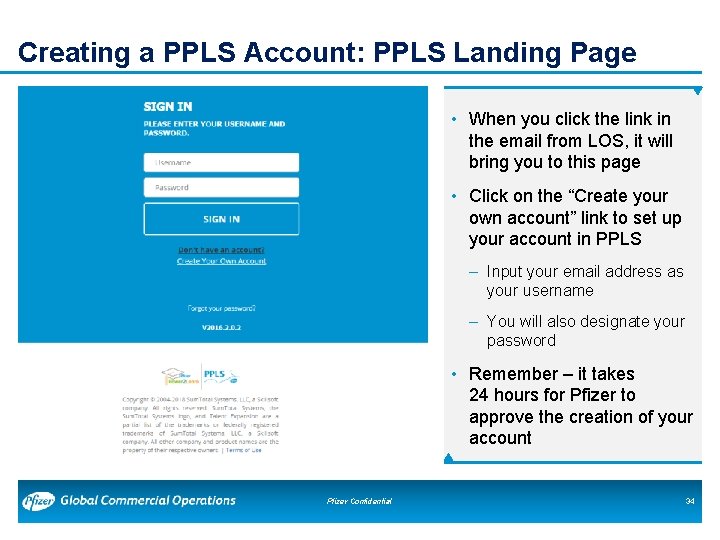
Creating a PPLS Account: PPLS Landing Page • When you click the link in the email from LOS, it will bring you to this page • Click on the “Create your own account” link to set up your account in PPLS – Input your email address as your username – You will also designate your password • Remember – it takes 24 hours for Pfizer to approve the creation of your account Pfizer Confidential 34
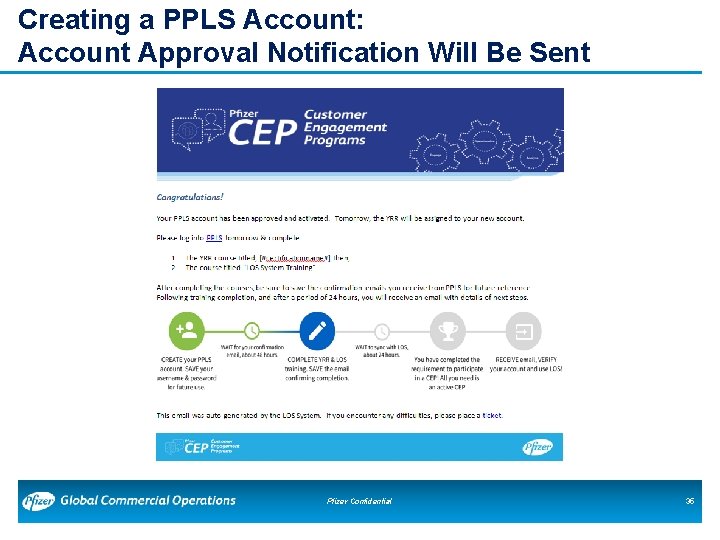
Creating a PPLS Account: Account Approval Notification Will Be Sent Pfizer Confidential 35
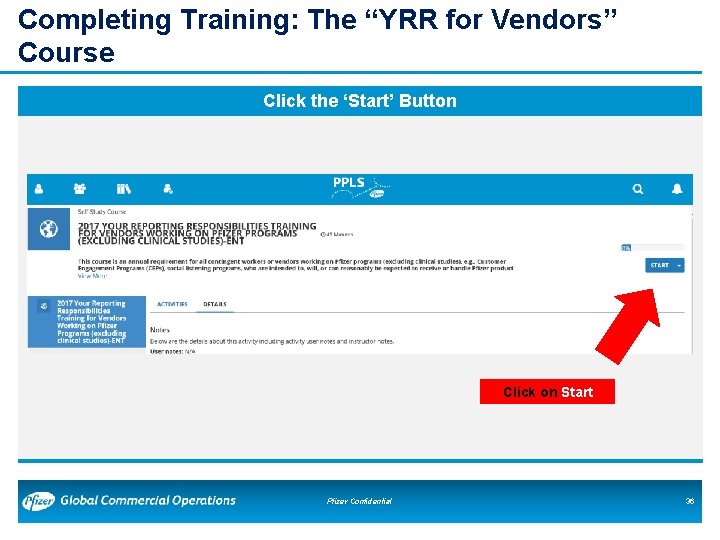
Completing Training: The “YRR for Vendors” Course Click the ‘Start’ Button Click on Start Pfizer Confidential 36
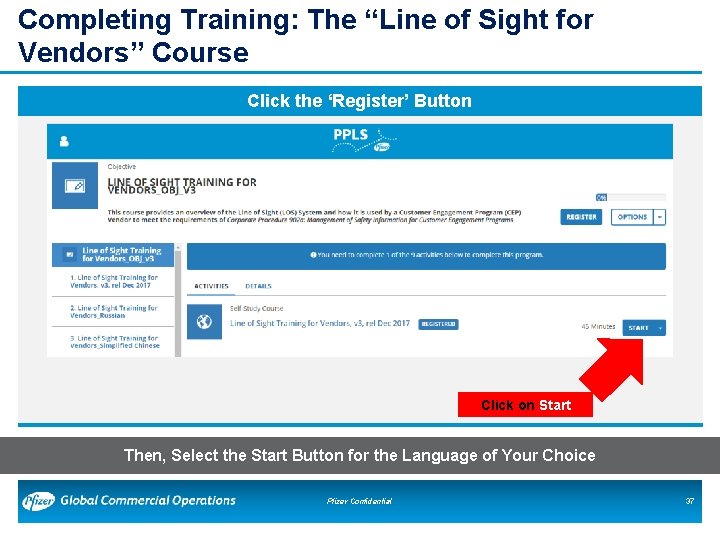
Completing Training: The “Line of Sight for Vendors” Course Click the ‘Register’ Button Click on Start Then, Select the Start Button for the Language of Your Choice Pfizer Confidential 37
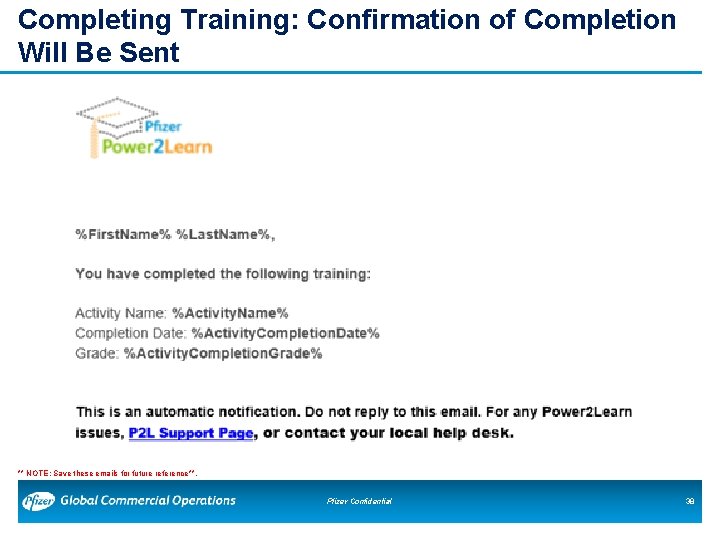
Completing Training: Confirmation of Completion Will Be Sent ** NOTE: Save these emails for future reference**. Pfizer Confidential 38
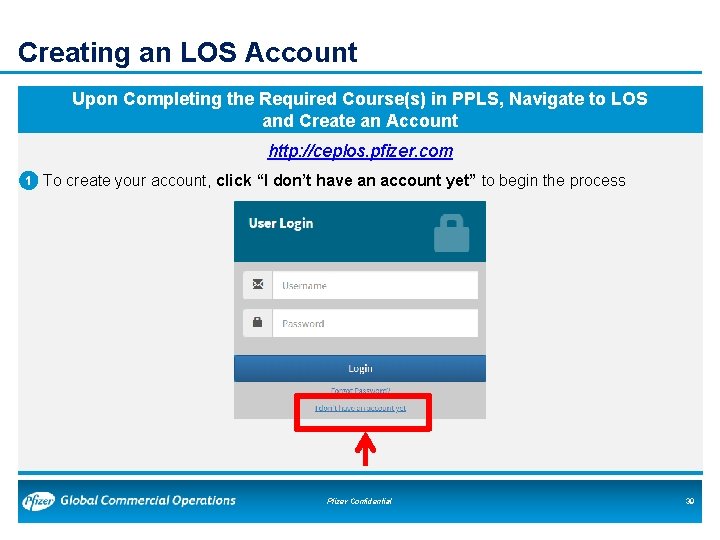
Creating an LOS Account Upon Completing the Required Course(s) in PPLS, Navigate to LOS and Create an Account http: //ceplos. pfizer. com • 1 To create your account, click “I don’t have an account yet” to begin the process Pfizer Confidential 39
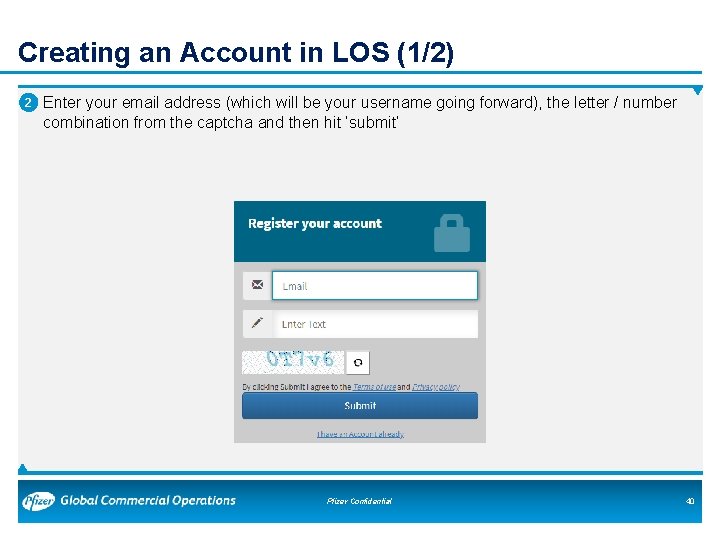
Creating an Account in LOS (1/2) • 2 Enter your email address (which will be your username going forward), the letter / number combination from the captcha and then hit ‘submit’ Pfizer Confidential 40
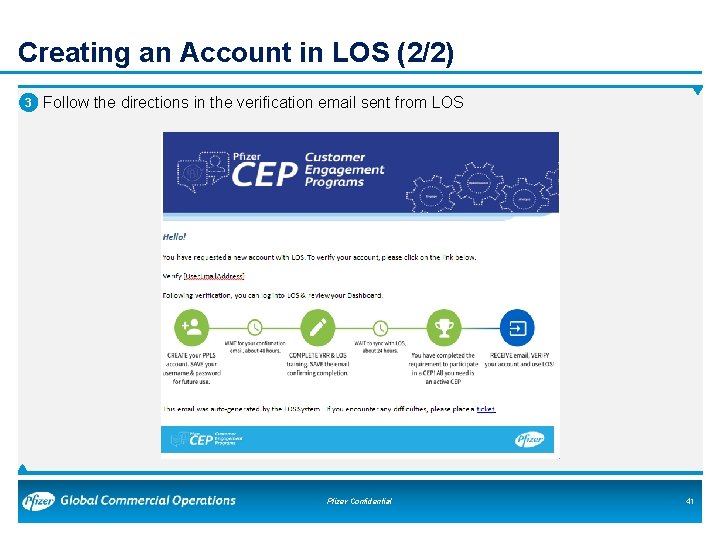
Creating an Account in LOS (2/2) • 3 Follow the directions in the verification email sent from LOS Pfizer Confidential 41
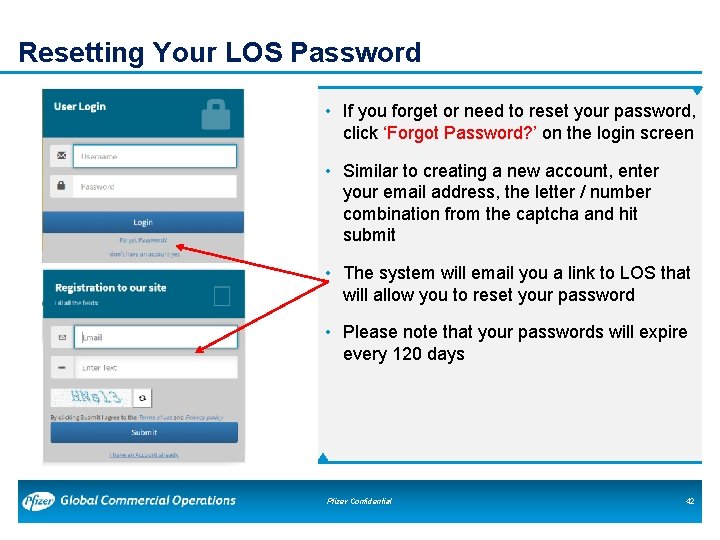
Resetting Your LOS Password • If you forget or need to reset your password, click ‘Forgot Password? ’ on the login screen • Similar to creating a new account, enter your email address, the letter / number combination from the captcha and hit submit • The system will email you a link to LOS that will allow you to reset your password • Please note that your passwords will expire every 120 days Pfizer Confidential 42
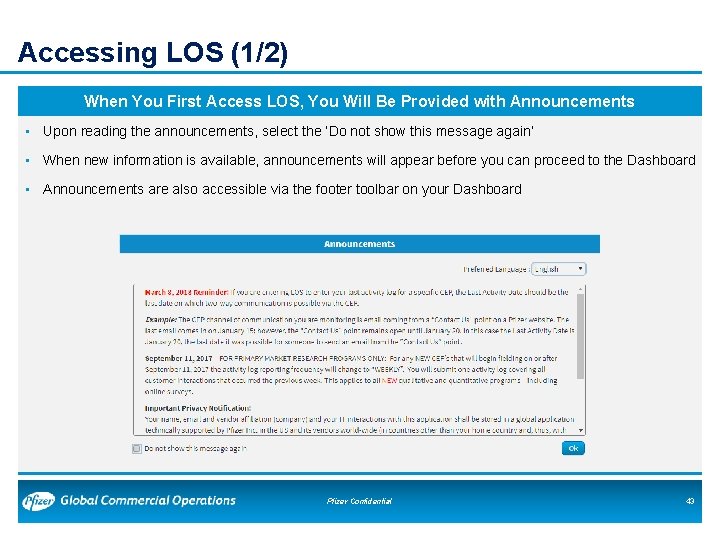
Accessing LOS (1/2) When You First Access LOS, You Will Be Provided with Announcements • Upon reading the announcements, select the ‘Do not show this message again’ • When new information is available, announcements will appear before you can proceed to the Dashboard • Announcements are also accessible via the footer toolbar on your Dashboard Pfizer Confidential 43
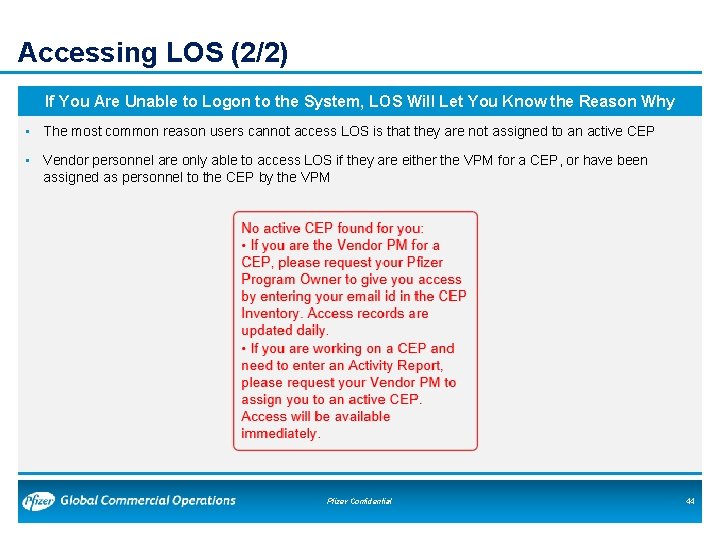
Accessing LOS (2/2) If You Are Unable to Logon to the System, LOS Will Let You Know the Reason Why • The most common reason users cannot access LOS is that they are not assigned to an active CEP • Vendor personnel are only able to access LOS if they are either the VPM for a CEP, or have been assigned as personnel to the CEP by the VPM Pfizer Confidential 44
Submitting Activity Logs • When to Submit Activity Logs • Accessing the Activity Log • Completing the Activity Log • Closing Out the CEP in LOS Pfizer Confidential
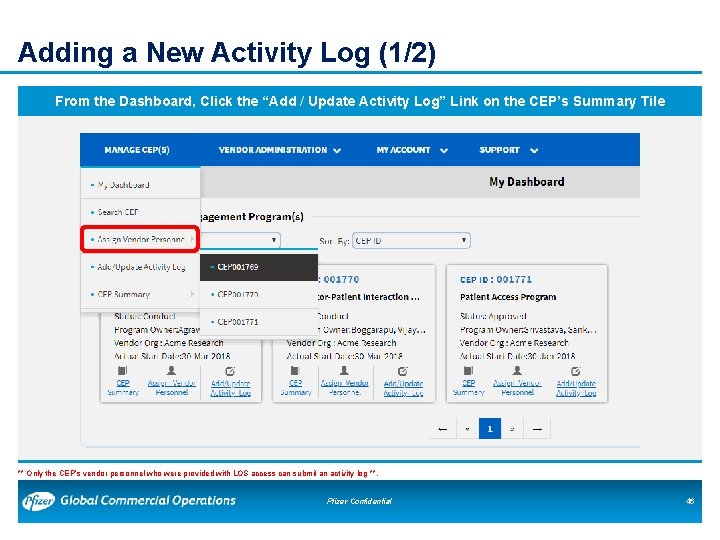
Adding a New Activity Log (1/2) From the Dashboard, Click the “Add / Update Activity Log” Link on the CEP’s Summary Tile ** Only the CEP’s vendor personnel who were provided with LOS access can submit an activity log **. Pfizer Confidential 46
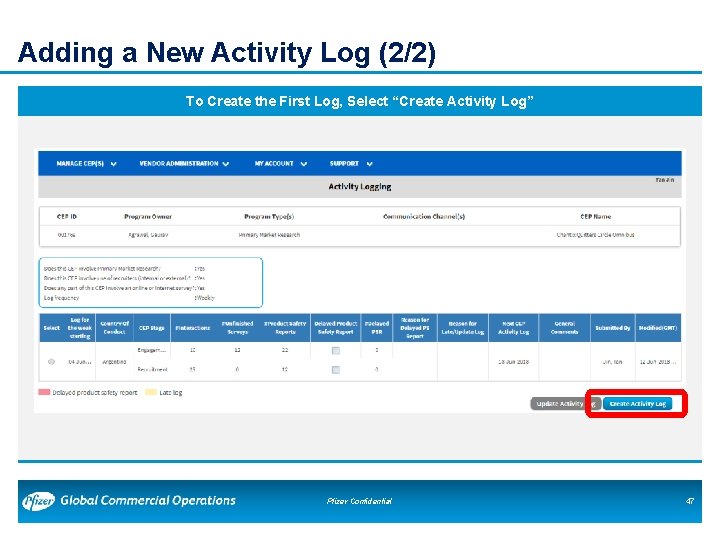
Adding a New Activity Log (2/2) To Create the First Log, Select “Create Activity Log” Pfizer Confidential 47
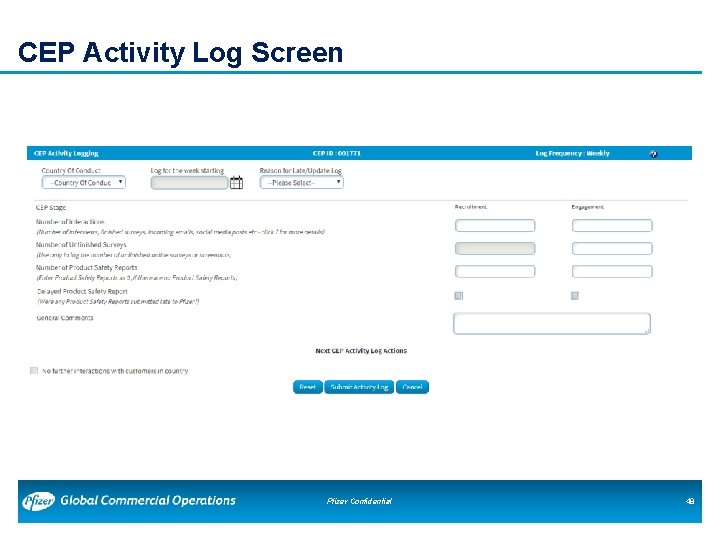
CEP Activity Log Screen Pfizer Confidential 48
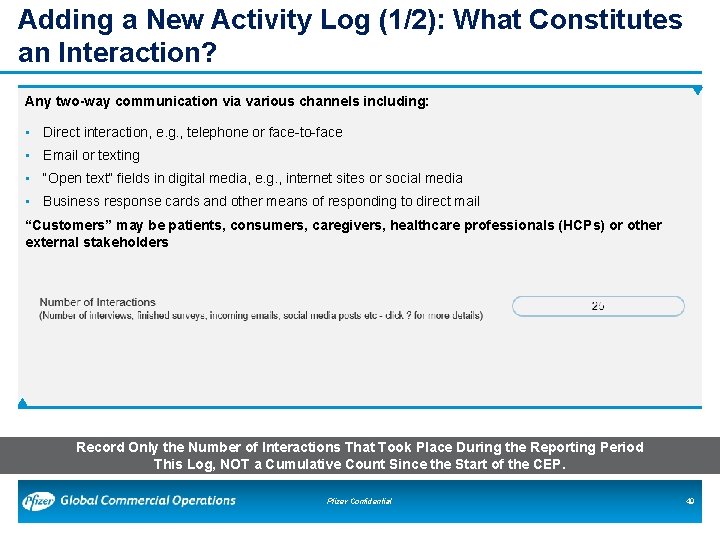
Adding a New Activity Log (1/2): What Constitutes an Interaction? Any two-way communication via various channels including: • Direct interaction, e. g. , telephone or face-to-face • Email or texting • “Open text” fields in digital media, e. g. , internet sites or social media • Business response cards and other means of responding to direct mail “Customers” may be patients, consumers, caregivers, healthcare professionals (HCPs) or other external stakeholders Record Only the Number of Interactions That Took Place During the Reporting Period This Log, NOT a Cumulative Count Since the Start of the CEP. Pfizer Confidential 49
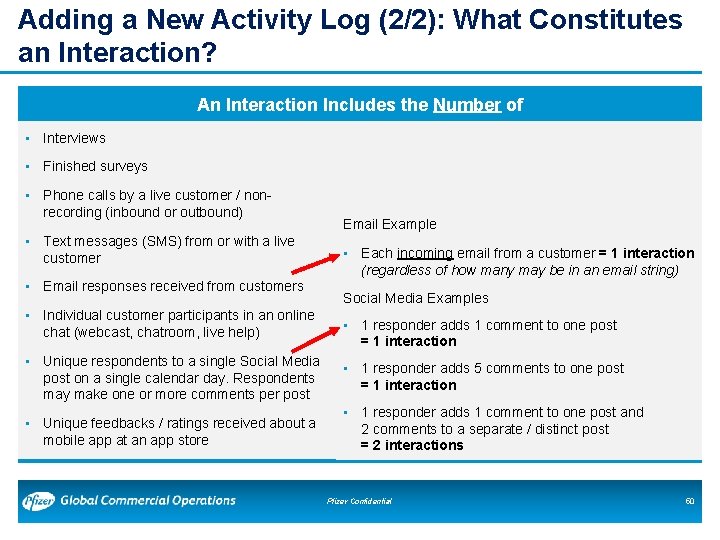
Adding a New Activity Log (2/2): What Constitutes an Interaction? An Interaction Includes the Number of • Interviews • Finished surveys • Phone calls by a live customer / nonrecording (inbound or outbound) • Text messages (SMS) from or with a live customer • Email responses received from customers • Individual customer participants in an online chat (webcast, chatroom, live help) Email Example • Each incoming email from a customer = 1 interaction (regardless of how many may be in an email string) Social Media Examples • 1 responder adds 1 comment to one post = 1 interaction • Unique respondents to a single Social Media post on a single calendar day. Respondents may make one or more comments per post • 1 responder adds 5 comments to one post = 1 interaction • Unique feedbacks / ratings received about a mobile app at an app store • 1 responder adds 1 comment to one post and 2 comments to a separate / distinct post = 2 interactions Pfizer Confidential 50
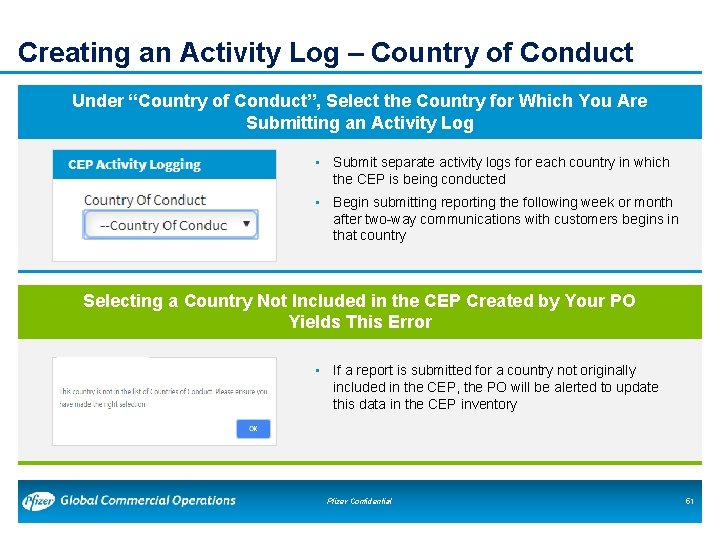
Creating an Activity Log – Country of Conduct Under “Country of Conduct”, Select the Country for Which You Are Submitting an Activity Log • Submit separate activity logs for each country in which the CEP is being conducted • Begin submitting reporting the following week or month after two-way communications with customers begins in that country Selecting a Country Not Included in the CEP Created by Your PO Yields This Error • If a report is submitted for a country not originally included in the CEP, the PO will be alerted to update this data in the CEP inventory Pfizer Confidential 51
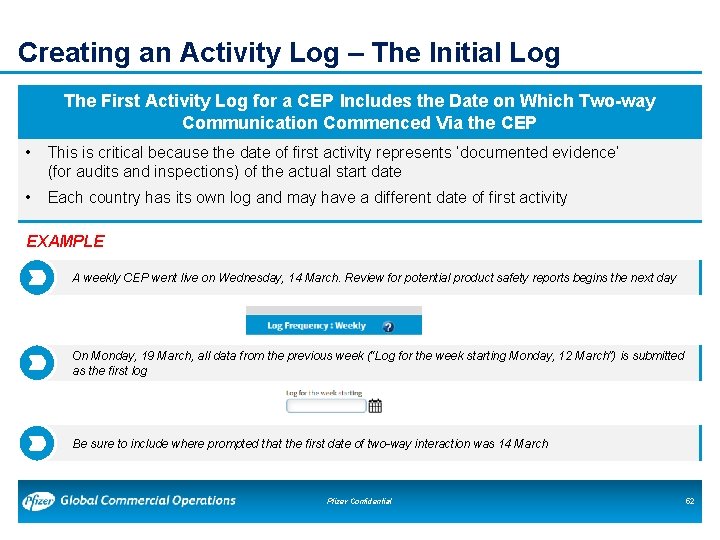
Creating an Activity Log – The Initial Log The First Activity Log for a CEP Includes the Date on Which Two-way Communication Commenced Via the CEP • This is critical because the date of first activity represents ‘documented evidence’ (for audits and inspections) of the actual start date • Each country has its own log and may have a different date of first activity EXAMPLE A weekly CEP went live on Wednesday, 14 March. Review for potential product safety reports begins the next day On Monday, 19 March, all data from the previous week (“Log for the week starting Monday, 12 March”) is submitted as the first log Be sure to include where prompted that the first date of two-way interaction was 14 March Pfizer Confidential 52
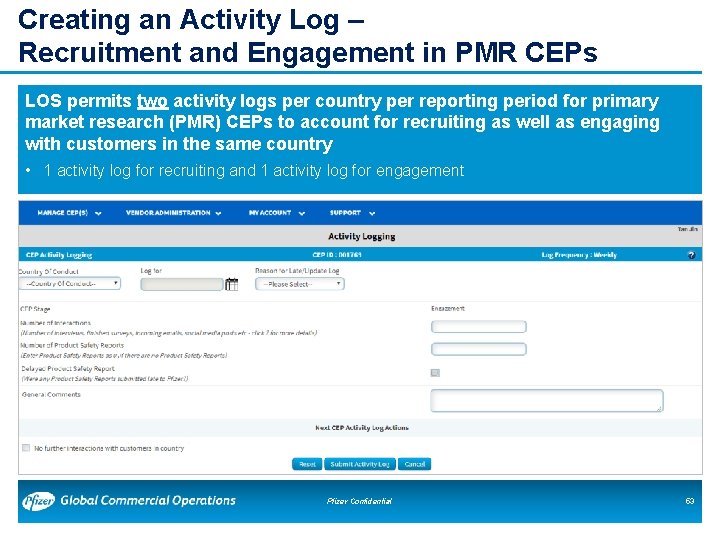
Creating an Activity Log – Recruitment and Engagement in PMR CEPs LOS permits two activity logs per country per reporting period for primary market research (PMR) CEPs to account for recruiting as well as engaging with customers in the same country • 1 activity log for recruiting and 1 activity log for engagement Pfizer Confidential 53
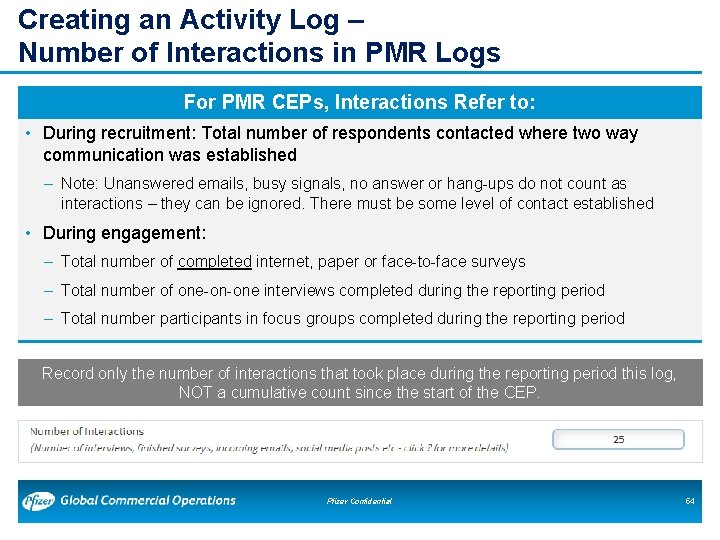
Creating an Activity Log – Number of Interactions in PMR Logs For PMR CEPs, Interactions Refer to: • During recruitment: Total number of respondents contacted where two way communication was established ‒ Note: Unanswered emails, busy signals, no answer or hang-ups do not count as interactions – they can be ignored. There must be some level of contact established • During engagement: ‒ Total number of completed internet, paper or face-to-face surveys ‒ Total number of one-on-one interviews completed during the reporting period ‒ Total number participants in focus groups completed during the reporting period Record only the number of interactions that took place during the reporting period this log, NOT a cumulative count since the start of the CEP. Pfizer Confidential 54
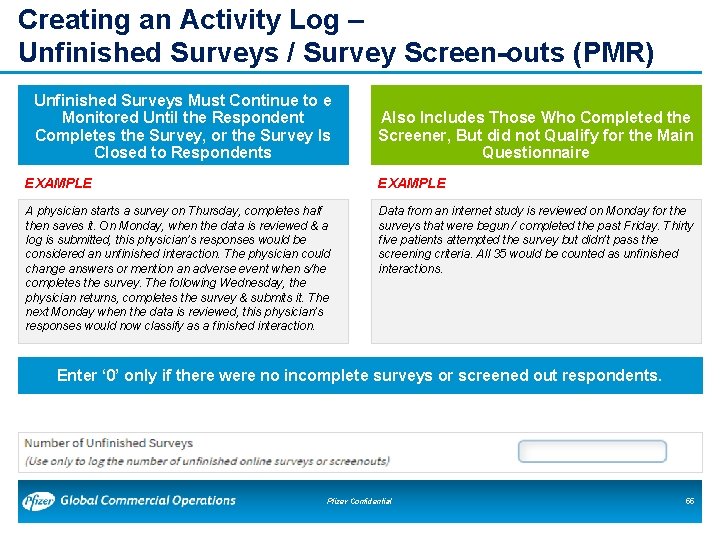
Creating an Activity Log – Unfinished Surveys / Survey Screen-outs (PMR) Unfinished Surveys Must Continue to e Monitored Until the Respondent Completes the Survey, or the Survey Is Closed to Respondents Also Includes Those Who Completed the Screener, But did not Qualify for the Main Questionnaire EXAMPLE A physician starts a survey on Thursday, completes half then saves it. On Monday, when the data is reviewed & a log is submitted, this physician’s responses would be considered an unfinished interaction. The physician could change answers or mention an adverse event when s/he completes the survey. The following Wednesday, the physician returns, completes the survey & submits it. The next Monday when the data is reviewed, this physician’s responses would now classify as a finished interaction. Data from an internet study is reviewed on Monday for the surveys that were begun / completed the past Friday. Thirty five patients attempted the survey but didn’t pass the screening criteria. All 35 would be counted as unfinished interactions. Enter ‘ 0’ only if there were no incomplete surveys or screened out respondents. Pfizer Confidential 55
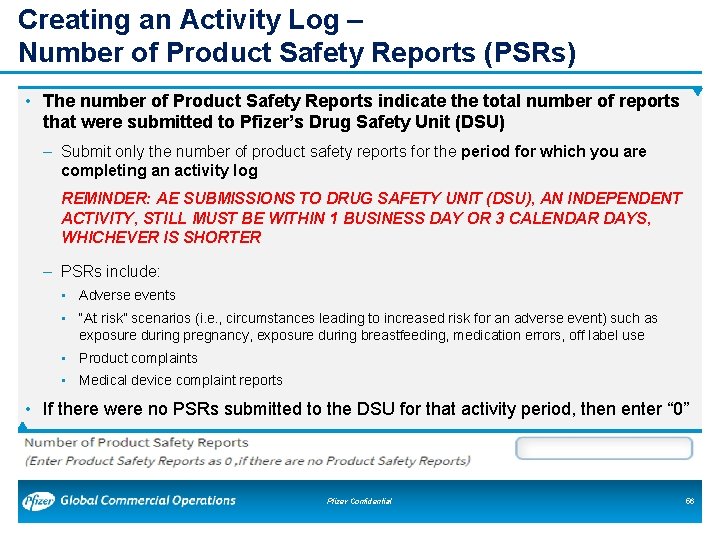
Creating an Activity Log – Number of Product Safety Reports (PSRs) • The number of Product Safety Reports indicate the total number of reports that were submitted to Pfizer’s Drug Safety Unit (DSU) ‒ Submit only the number of product safety reports for the period for which you are completing an activity log REMINDER: AE SUBMISSIONS TO DRUG SAFETY UNIT (DSU), AN INDEPENDENT ACTIVITY, STILL MUST BE WITHIN 1 BUSINESS DAY OR 3 CALENDAR DAYS, WHICHEVER IS SHORTER ‒ PSRs include: • Adverse events • “At risk” scenarios (i. e. , circumstances leading to increased risk for an adverse event) such as exposure during pregnancy, exposure during breastfeeding, medication errors, off label use • Product complaints • Medical device complaint reports • If there were no PSRs submitted to the DSU for that activity period, then enter “ 0” Pfizer Confidential 56
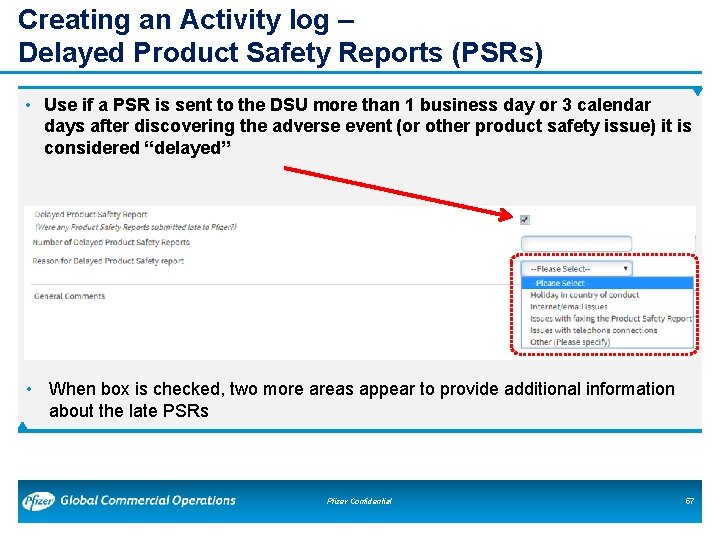
Creating an Activity log – Delayed Product Safety Reports (PSRs) • Use if a PSR is sent to the DSU more than 1 business day or 3 calendar days after discovering the adverse event (or other product safety issue) it is considered “delayed” • When box is checked, two more areas appear to provide additional information about the late PSRs Pfizer Confidential 57
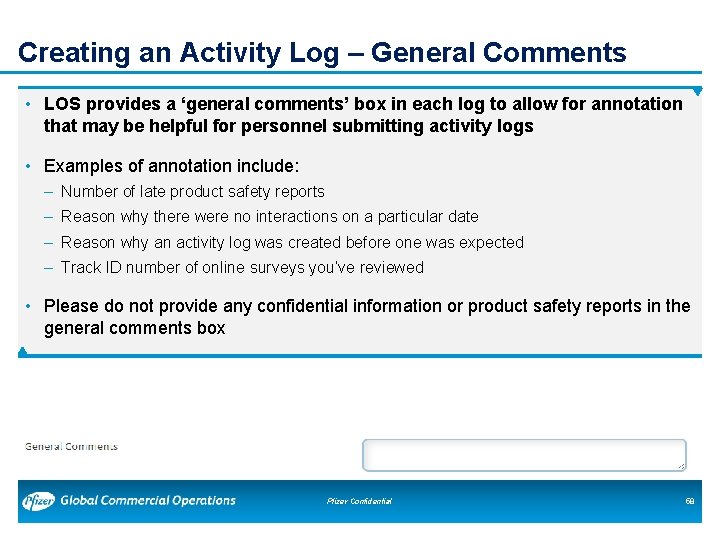
Creating an Activity Log – General Comments • LOS provides a ‘general comments’ box in each log to allow for annotation that may be helpful for personnel submitting activity logs • Examples of annotation include: ‒ Number of late product safety reports ‒ Reason why there were no interactions on a particular date ‒ Reason why an activity log was created before one was expected ‒ Track ID number of online surveys you’ve reviewed • Please do not provide any confidential information or product safety reports in the general comments box Pfizer Confidential 58
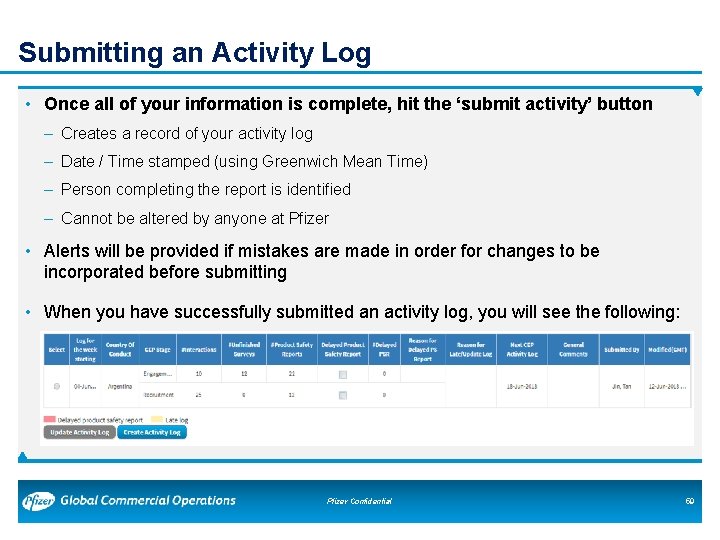
Submitting an Activity Log • Once all of your information is complete, hit the ‘submit activity’ button ‒ Creates a record of your activity log ‒ Date / Time stamped (using Greenwich Mean Time) ‒ Person completing the report is identified ‒ Cannot be altered by anyone at Pfizer • Alerts will be provided if mistakes are made in order for changes to be incorporated before submitting • When you have successfully submitted an activity log, you will see the following: Pfizer Confidential 59
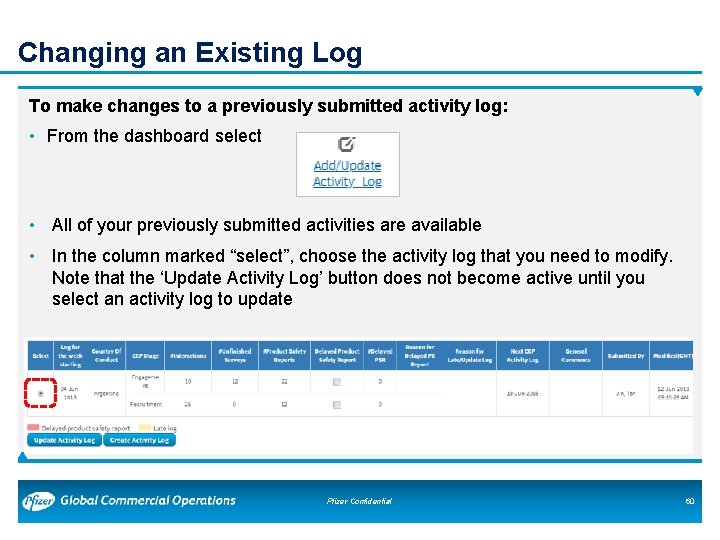
Changing an Existing Log To make changes to a previously submitted activity log: • From the dashboard select • All of your previously submitted activities are available • In the column marked “select”, choose the activity log that you need to modify. Note that the ‘Update Activity Log’ button does not become active until you select an activity log to update Pfizer Confidential 60
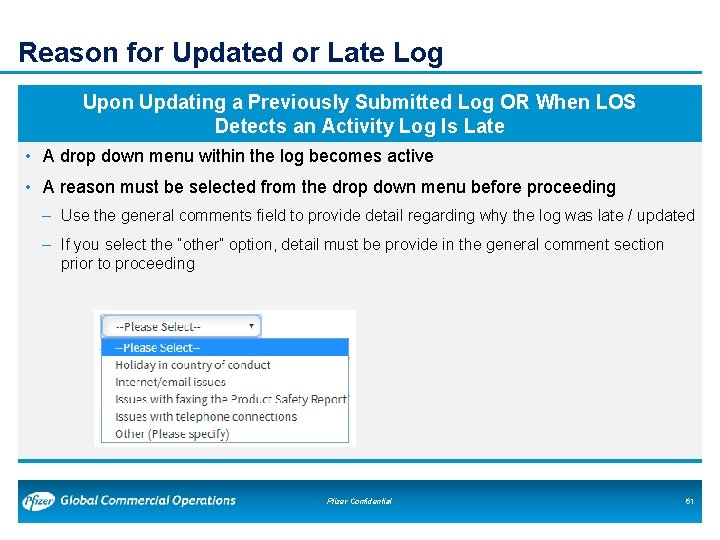
Reason for Updated or Late Log Upon Updating a Previously Submitted Log OR When LOS Detects an Activity Log Is Late • A drop down menu within the log becomes active • A reason must be selected from the drop down menu before proceeding ‒ Use the general comments field to provide detail regarding why the log was late / updated ‒ If you select the “other” option, detail must be provide in the general comment section prior to proceeding Pfizer Confidential 61
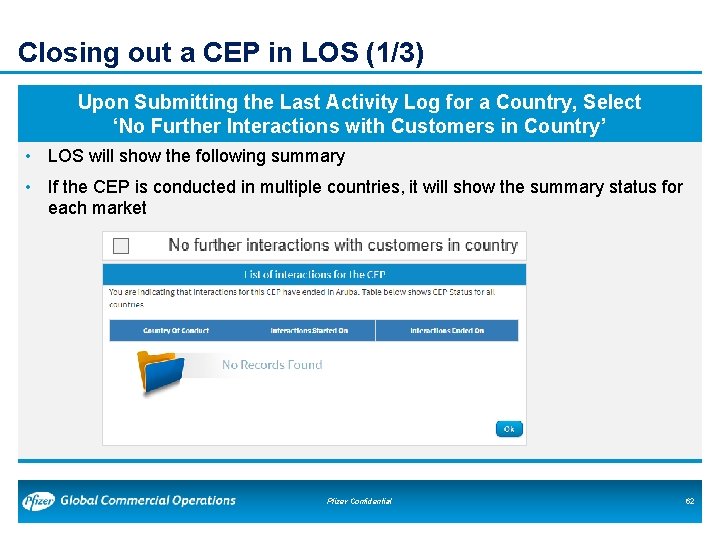
Closing out a CEP in LOS (1/3) Upon Submitting the Last Activity Log for a Country, Select ‘No Further Interactions with Customers in Country’ • LOS will show the following summary • If the CEP is conducted in multiple countries, it will show the summary status for each market Pfizer Confidential 62
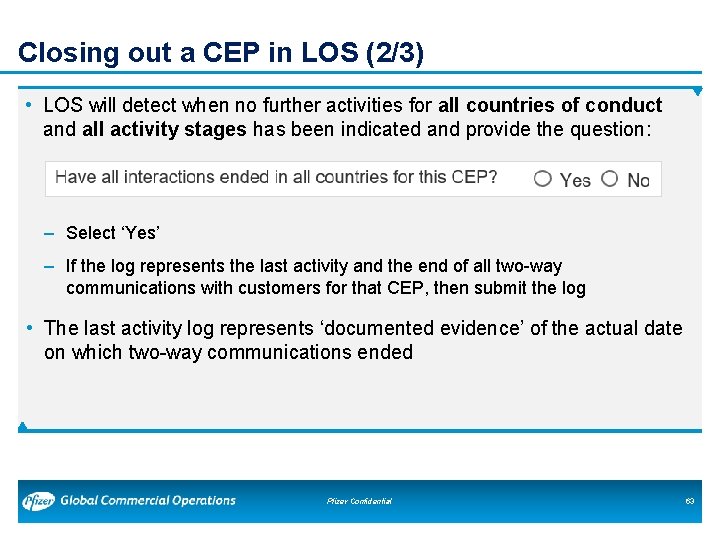
Closing out a CEP in LOS (2/3) • LOS will detect when no further activities for all countries of conduct and all activity stages has been indicated and provide the question: ‒ Select ‘Yes’ ‒ If the log represents the last activity and the end of all two-way communications with customers for that CEP, then submit the log • The last activity log represents ‘documented evidence’ of the actual date on which two-way communications ended Pfizer Confidential 63
Closing out a CEP in LOS (3/3) **THE ABILITY TO ADD, MAKE CHANGES OR UPDATE REPORTING TO THE CEP VIA THE LOS SYSTEM IS AVAILABLE UNTIL 60 DAYS AFTER THE CEP’S ACTUAL END DATE** • However, the CEP in question will not be available on the default dashboard – It will need to found via searching the Inactive CEP List • The PO must close out the CEP no more than 60 days after the final activity log was submitted & it was indicated that activity was completed • Contact the CEP’s PO and request a delay in closing the CEP in the CEP Inventory if additional time is required to provide accurate data Pfizer Confidential 64
TROUBLE SHOOTING • Email alerts • Trouble shooting PPLS or LOS access • Technical problems with PPLS • LOS Exceptions: CEPs not using LOS • What to do when LOS is down Pfizer Confidential
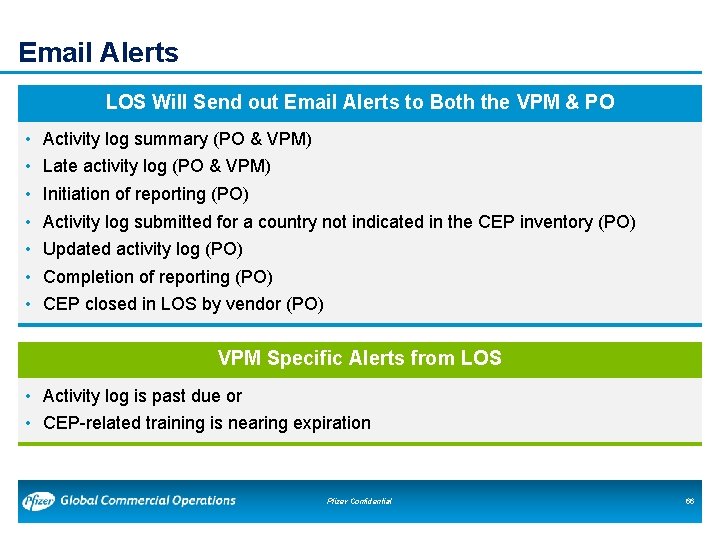
Email Alerts LOS Will Send out Email Alerts to Both the VPM & PO • • Activity log summary (PO & VPM) Late activity log (PO & VPM) Initiation of reporting (PO) Activity log submitted for a country not indicated in the CEP inventory (PO) Updated activity log (PO) Completion of reporting (PO) CEP closed in LOS by vendor (PO) VPM Specific Alerts from LOS • Activity log is past due or • CEP-related training is nearing expiration Pfizer Confidential 66
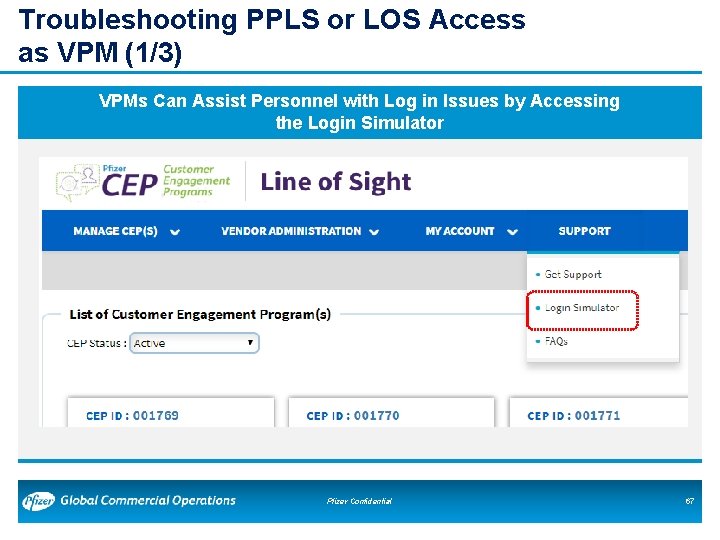
Troubleshooting PPLS or LOS Access as VPM (1/3) VPMs Can Assist Personnel with Log in Issues by Accessing the Login Simulator Pfizer Confidential 67
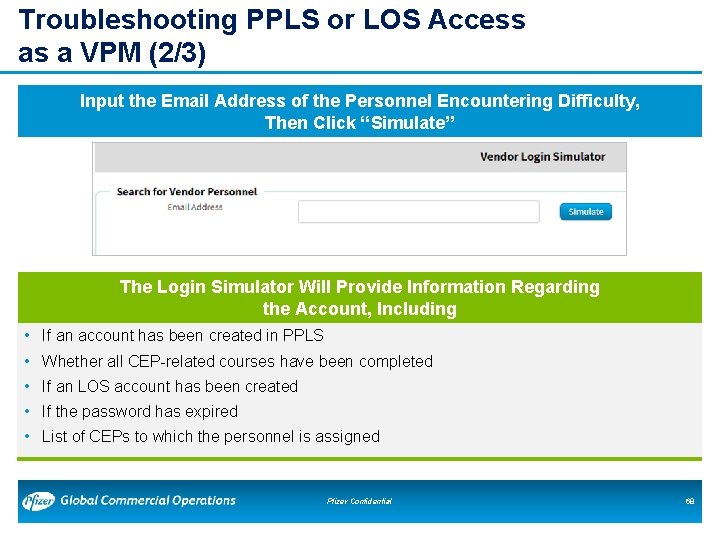
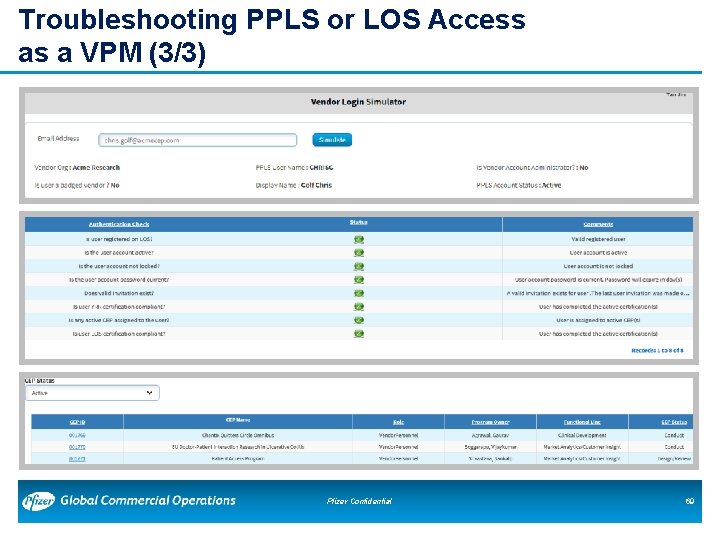
Troubleshooting PPLS or LOS Access as a VPM (2/3) Input the Email Address of the Personnel Encountering Difficulty, Then Click “Simulate” The Login Simulator Will Provide Information Regarding the Account, Including • If an account has been created in PPLS • Whether all CEP-related courses have been completed • If an LOS account has been created • If the password has expired • List of CEPs to which the personnel is assigned Pfizer Confidential 68
Troubleshooting PPLS or LOS Access as a VPM (3/3) Pfizer Confidential 69
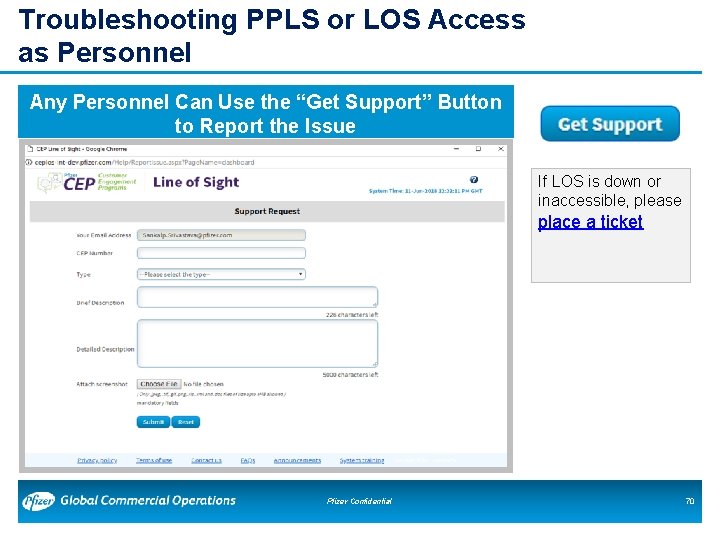
Troubleshooting PPLS or LOS Access as Personnel Any Personnel Can Use the “Get Support” Button to Report the Issue If LOS is down or inaccessible, please place a ticket Pfizer Confidential 70
Important Note for CEPs Not Using LOS Be Sure to Follow All Existing Required Activities and Processes For Any Program that Is Not Being Tracked by LOS • Collect signed training certificates • Store signed training certificates for 10 years • Provide documentation of actual start and actual end dates for each country of conduct For LOS or CEP process questions, please contact your Program Owner or CQO Local Lead Pfizer Confidential 71
If LOS Is Down or Inaccessible Revert Back to Backup Methodology in Place for the Particular Communication Channel / CEP Type • Once the system is accessible, enter all of the activities for the days that the system was down (if applicable) • In the ‘Reason for late / updated Log’ dialog box, indicate that LOS was unavailable between _____ and ______ • Capture any vendor personnel changes after the fact as needed Pfizer Confidential 72
LOS Makes It Easier for Our Vendor Partners to Comply with CEP Policy • With LOS, it is no longer necessary to ‒ Send email / any form of certification documenting the program’s actual start and end date ‒ Complete the Certification of AE Training document for employees and subcontractors ‒ Maintain copies of the CEP Certification certificates ‒ Send Excel files / email copies of activity logs • LOS provides external inspectors and internal auditors evidence of compliance with Corporate Policy 902 and 902 a • LOS will continue to improve with enhanced features Pfizer Confidential 73