Document View Architecture Need Given set of data

- Slides: 172
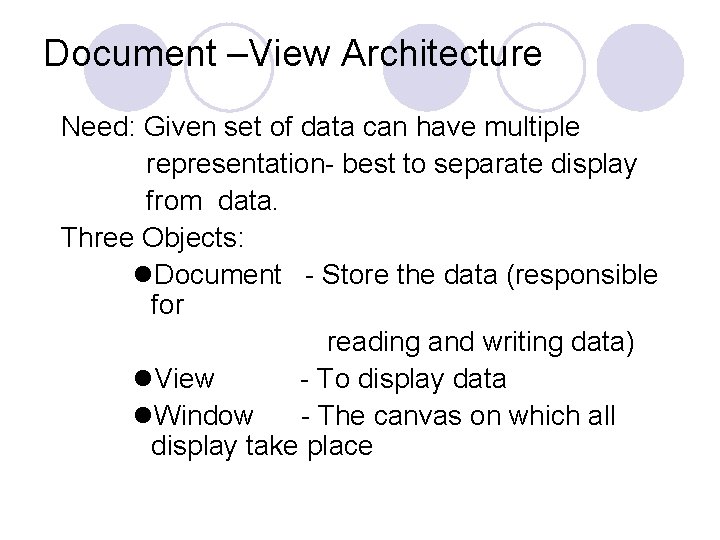
Document –View Architecture Need: Given set of data can have multiple representation- best to separate display from data. Three Objects: l. Document - Store the data (responsible for reading and writing data) l. View - To display data l. Window - The canvas on which all display take place
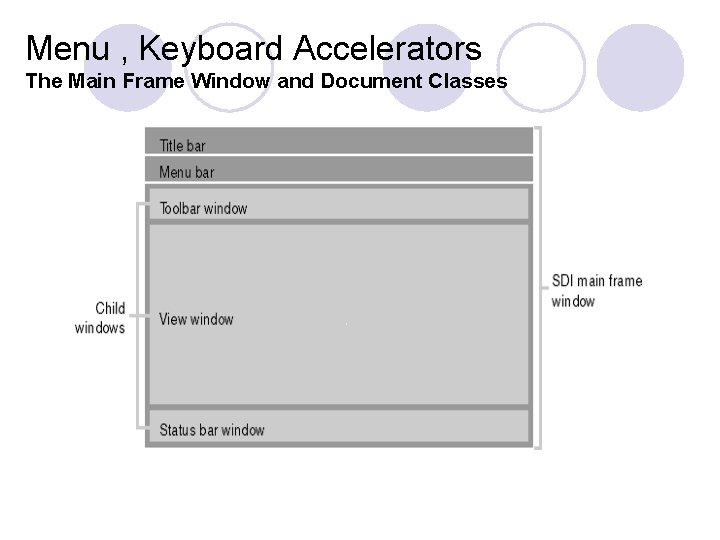
Menu , Keyboard Accelerators The Main Frame Window and Document Classes
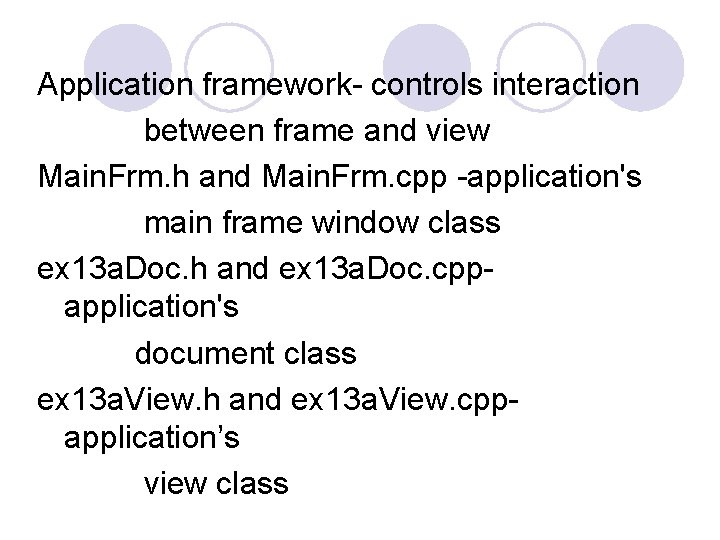
Application framework- controls interaction between frame and view Main. Frm. h and Main. Frm. cpp -application's main frame window class ex 13 a. Doc. h and ex 13 a. Doc. cppapplication's document class ex 13 a. View. h and ex 13 a. View. cppapplication’s view class
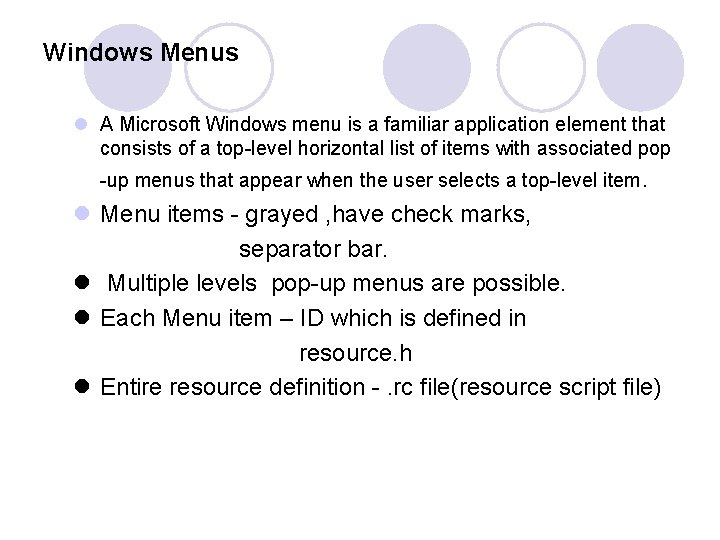
Windows Menus l A Microsoft Windows menu is a familiar application element that consists of a top-level horizontal list of items with associated pop -up menus that appear when the user selects a top-level item. l Menu items - grayed , have check marks, separator bar. l Multiple levels pop-up menus are possible. l Each Menu item – ID which is defined in resource. h l Entire resource definition -. rc file(resource script file)
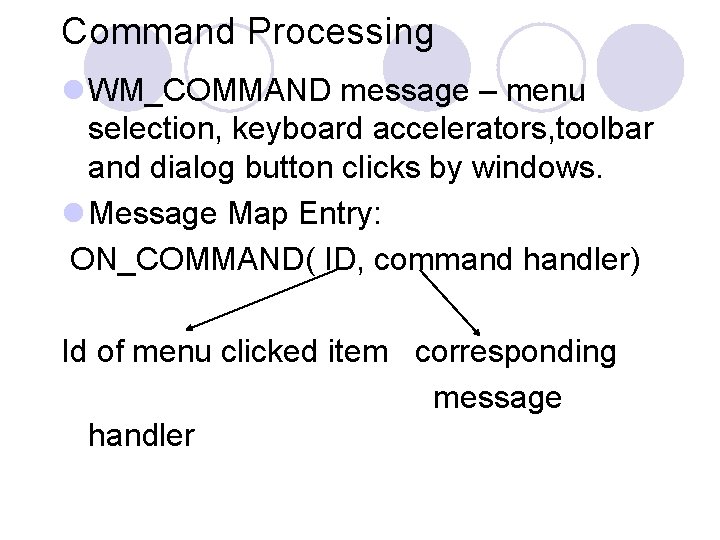
Command Processing l WM_COMMAND message – menu selection, keyboard accelerators, toolbar and dialog button clicks by windows. l Message Map Entry: ON_COMMAND( ID, command handler) Id of menu clicked item corresponding message handler
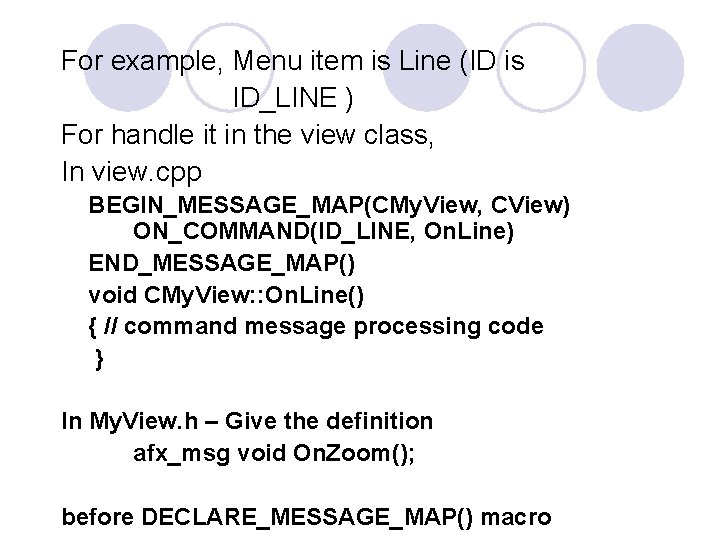
For example, Menu item is Line (ID is ID_LINE ) For handle it in the view class, In view. cpp BEGIN_MESSAGE_MAP(CMy. View, CView) ON_COMMAND(ID_LINE, On. Line) END_MESSAGE_MAP() void CMy. View: : On. Line() { // command message processing code } In My. View. h – Give the definition afx_msg void On. Zoom(); before DECLARE_MESSAGE_MAP() macro
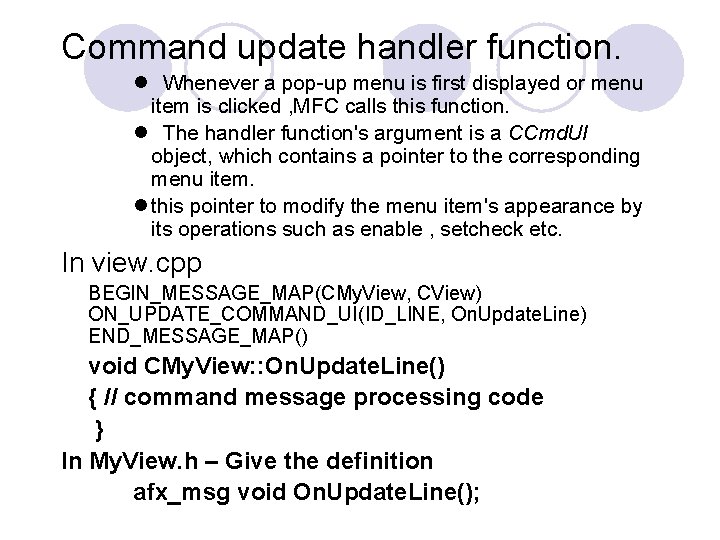
Command update handler function. l Whenever a pop-up menu is first displayed or menu item is clicked , MFC calls this function. l The handler function's argument is a CCmd. UI object, which contains a pointer to the corresponding menu item. l this pointer to modify the menu item's appearance by its operations such as enable , setcheck etc. In view. cpp BEGIN_MESSAGE_MAP(CMy. View, CView) ON_UPDATE_COMMAND_UI(ID_LINE, On. Update. Line) END_MESSAGE_MAP() void CMy. View: : On. Update. Line() { // command message processing code } In My. View. h – Give the definition afx_msg void On. Update. Line();
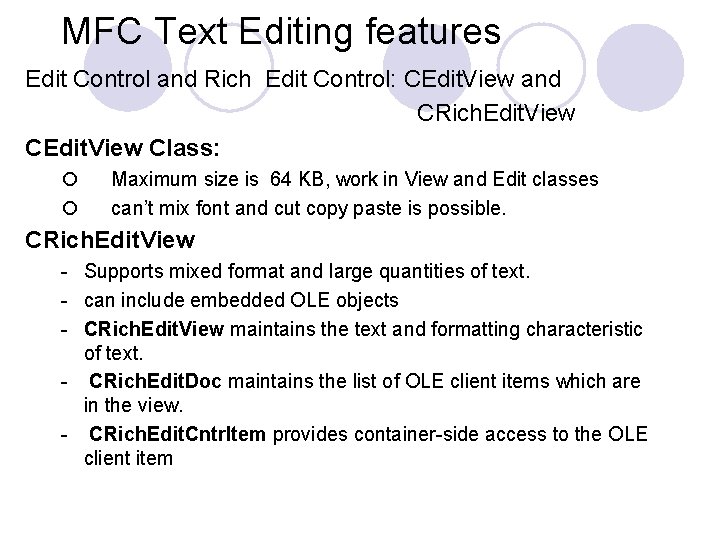
MFC Text Editing features Edit Control and Rich Edit Control: CEdit. View and CRich. Edit. View Class: ¡ Maximum size is 64 KB, work in View and Edit classes ¡ can’t mix font and cut copy paste is possible. CRich. Edit. View - Supports mixed format and large quantities of text. - can include embedded OLE objects - CRich. Edit. View maintains the text and formatting characteristic of text. - CRich. Edit. Doc maintains the list of OLE client items which are in the view. - CRich. Edit. Cntr. Item provides container-side access to the OLE client item
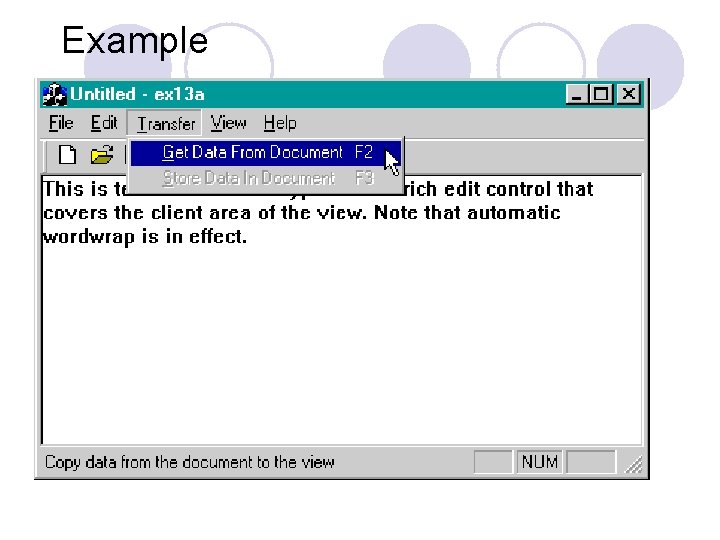
Example
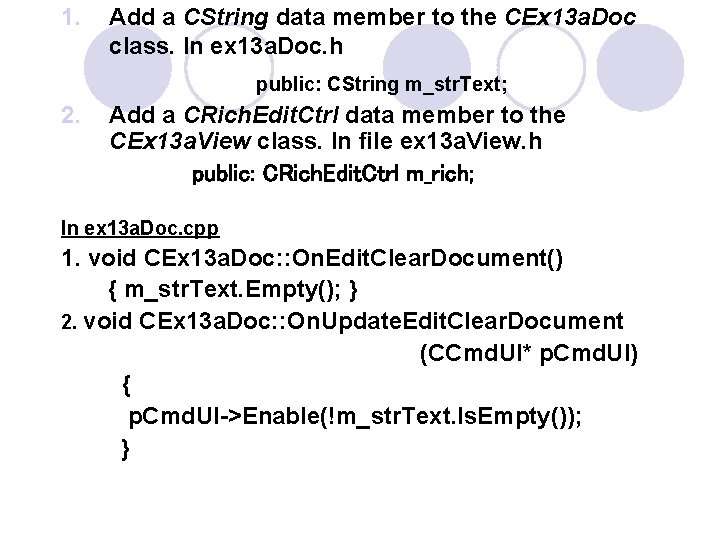
1. Add a CString data member to the CEx 13 a. Doc class. In ex 13 a. Doc. h public: CString m_str. Text; 2. Add a CRich. Edit. Ctrl data member to the CEx 13 a. View class. In file ex 13 a. View. h public: CRich. Edit. Ctrl m_rich; In ex 13 a. Doc. cpp 1. void CEx 13 a. Doc: : On. Edit. Clear. Document() { m_str. Text. Empty(); } 2. void CEx 13 a. Doc: : On. Update. Edit. Clear. Document (CCmd. UI* p. Cmd. UI) { p. Cmd. UI->Enable(!m_str. Text. Is. Empty()); }
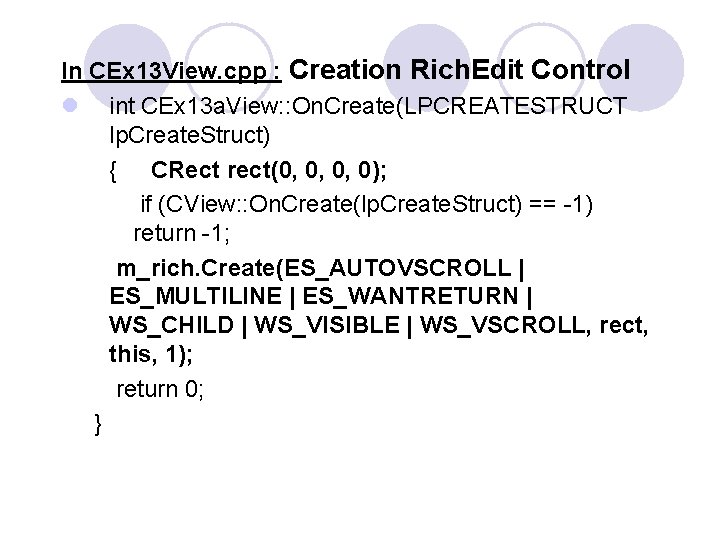
In CEx 13 View. cpp : Creation Rich. Edit Control l int CEx 13 a. View: : On. Create(LPCREATESTRUCT lp. Create. Struct) { CRect rect(0, 0, 0, 0); if (CView: : On. Create(lp. Create. Struct) == -1) return -1; m_rich. Create(ES_AUTOVSCROLL | ES_MULTILINE | ES_WANTRETURN | WS_CHILD | WS_VISIBLE | WS_VSCROLL, rect, this, 1); return 0; }
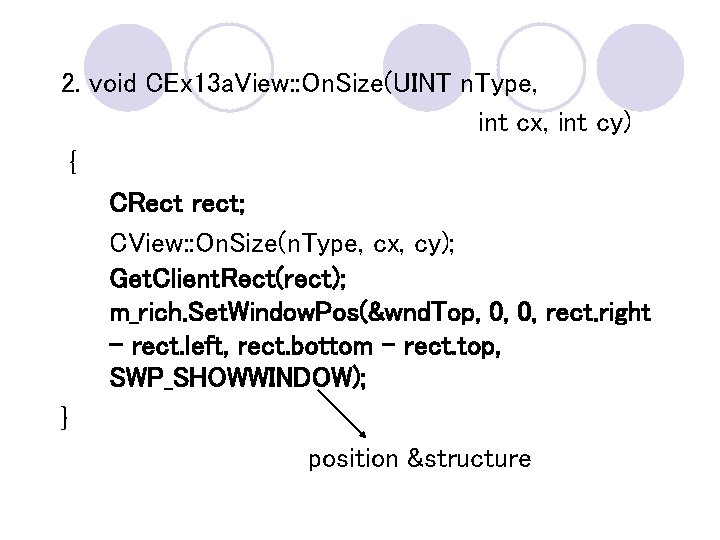
2. void CEx 13 a. View: : On. Size(UINT n. Type, int cx, int cy) { CRect rect; CView: : On. Size(n. Type, cx, cy); Get. Client. Rect(rect); m_rich. Set. Window. Pos(&wnd. Top, 0, 0, rect. right - rect. left, rect. bottom - rect. top, SWP_SHOWWINDOW); } position &structure
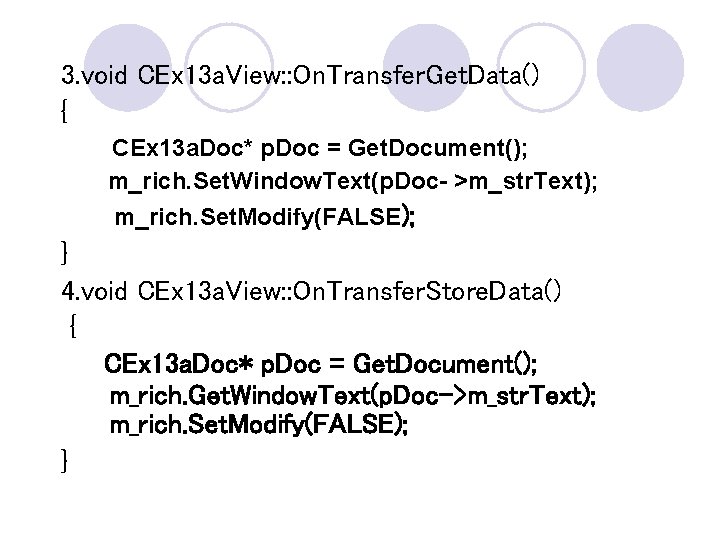
3. void CEx 13 a. View: : On. Transfer. Get. Data() { CEx 13 a. Doc* p. Doc = Get. Document(); m_rich. Set. Window. Text(p. Doc- >m_str. Text); m_rich. Set. Modify(FALSE); } 4. void CEx 13 a. View: : On. Transfer. Store. Data() { CEx 13 a. Doc* p. Doc = Get. Document(); m_rich. Get. Window. Text(p. Doc->m_str. Text); m_rich. Set. Modify(FALSE); }
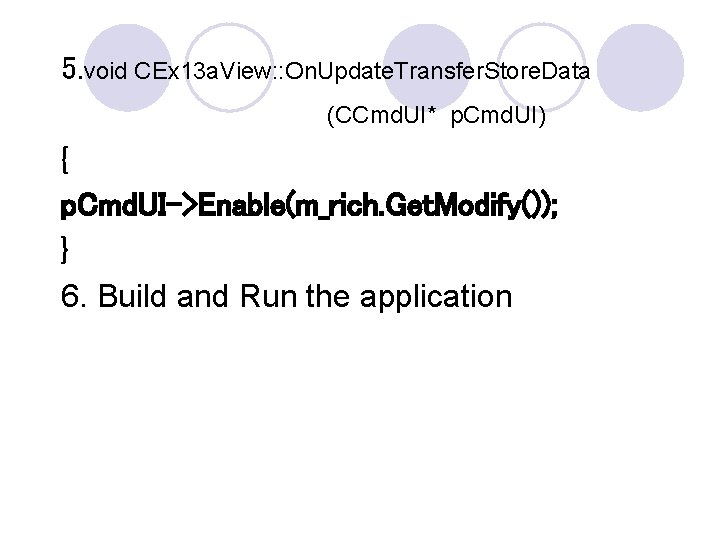
5. void CEx 13 a. View: : On. Update. Transfer. Store. Data (CCmd. UI* p. Cmd. UI) { p. Cmd. UI->Enable(m_rich. Get. Modify()); } 6. Build and Run the application
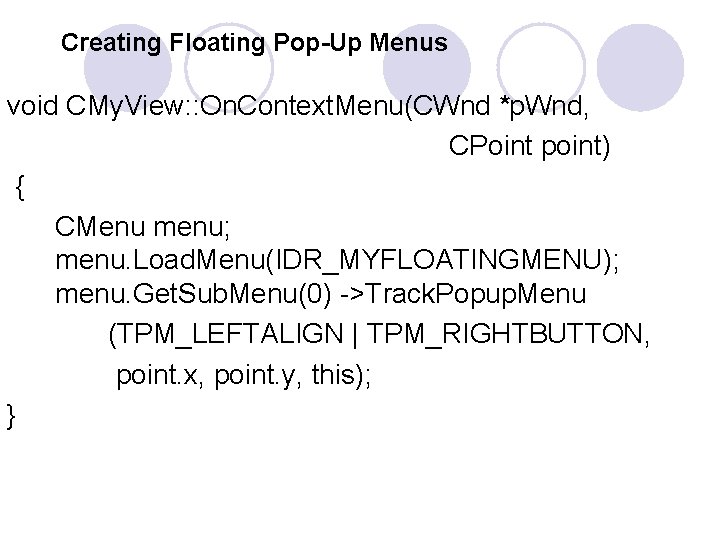
Creating Floating Pop-Up Menus void CMy. View: : On. Context. Menu(CWnd *p. Wnd, CPoint point) { CMenu menu; menu. Load. Menu(IDR_MYFLOATINGMENU); menu. Get. Sub. Menu(0) ->Track. Popup. Menu (TPM_LEFTALIGN | TPM_RIGHTBUTTON, point. x, point. y, this); }
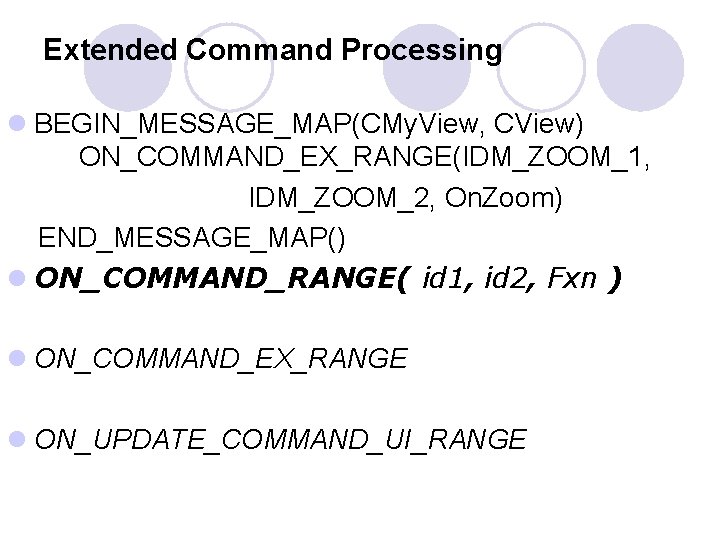
Extended Command Processing l BEGIN_MESSAGE_MAP(CMy. View, CView) ON_COMMAND_EX_RANGE(IDM_ZOOM_1, IDM_ZOOM_2, On. Zoom) END_MESSAGE_MAP() l ON_COMMAND_RANGE( id 1, id 2, Fxn ) l ON_COMMAND_EX_RANGE l ON_UPDATE_COMMAND_UI_RANGE
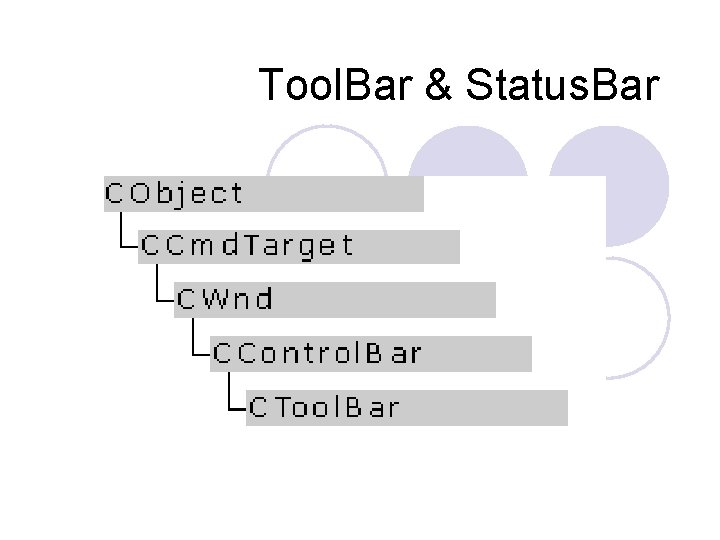
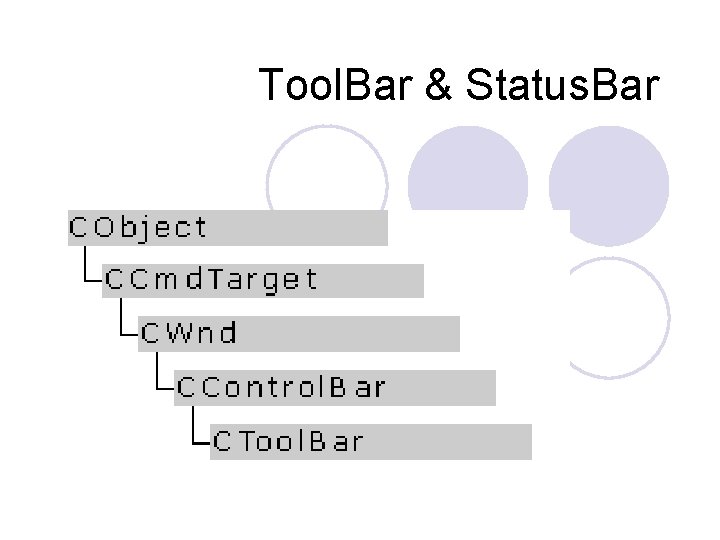
Tool. Bar & Status. Bar
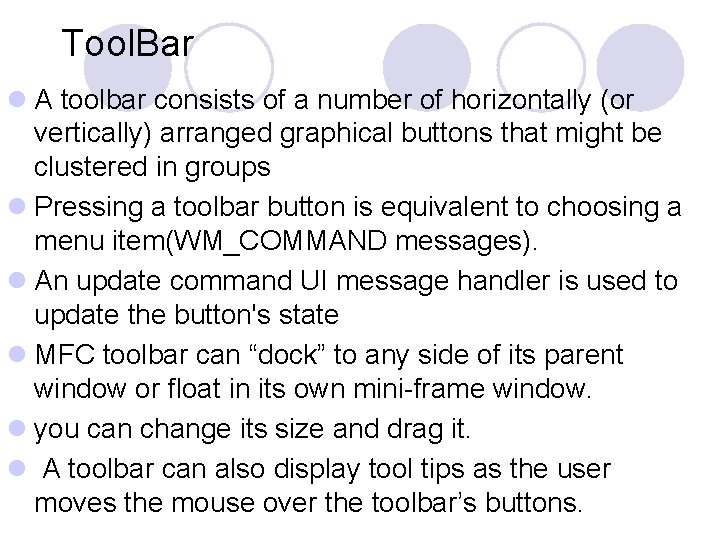
Tool. Bar l A toolbar consists of a number of horizontally (or vertically) arranged graphical buttons that might be clustered in groups l Pressing a toolbar button is equivalent to choosing a menu item(WM_COMMAND messages). l An update command UI message handler is used to update the button's state l MFC toolbar can “dock” to any side of its parent window or float in its own mini-frame window. l you can change its size and drag it. l A toolbar can also display tool tips as the user moves the mouse over the toolbar’s buttons.
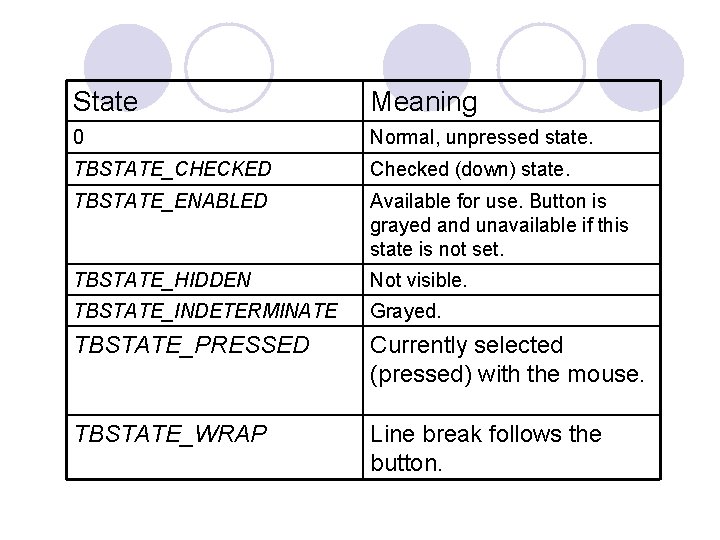
l Tool. Bar Bitmap: -Each button on a toolbar appears to have its own bitmap, but actually a single bitmap serves the entire toolbar. -has tile, 15 pixels high and 16 pixels wide -The toolbar bitmap is stored in the file Toolbar. bmp l Button State: 0: Normal, unpressed state. TBSTATE_CHECKED Checked (down) state. TBSTATE_ENABLED Available for use. Button is grayed and unavailable if this state is not set. TBSTATE_HIDDEN Not visible. TBSTATE_INDETERMINATE Grayed. TBSTATE_PRESSED Currently selected (pressed) with the mouse. TBSTATE_WRAP Line break follows the button
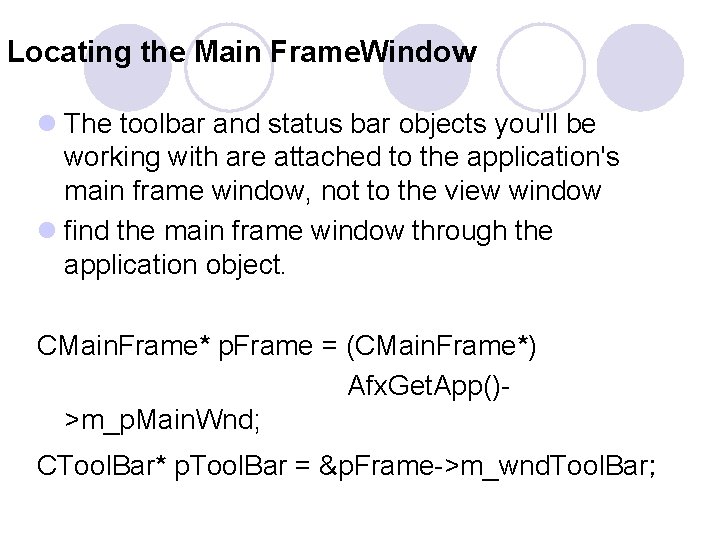
Locating the Main Frame. Window l The toolbar and status bar objects you'll be working with are attached to the application's main frame window, not to the view window l find the main frame window through the application object. CMain. Frame* p. Frame = (CMain. Frame*) Afx. Get. App()>m_p. Main. Wnd; CTool. Bar* p. Tool. Bar = &p. Frame->m_wnd. Tool. Bar;
Example
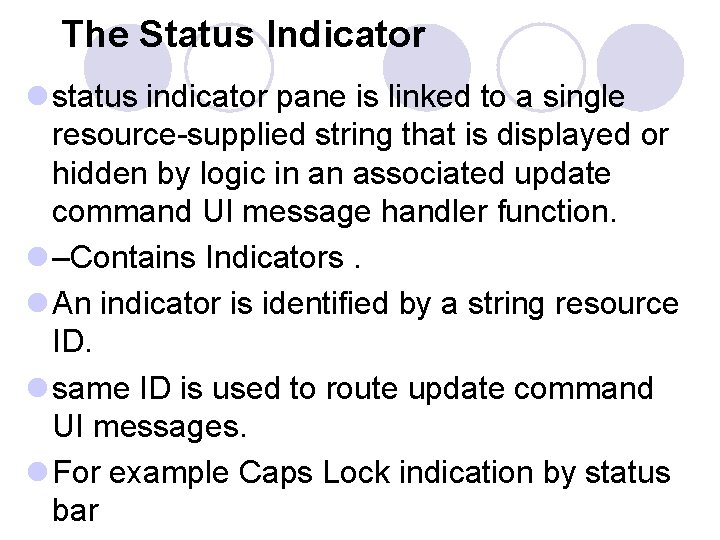
Status. Bar l neither accepts user input nor generates command messages l to display text in panes under program control l supports two types of text panes o message line panes o status indicator panes
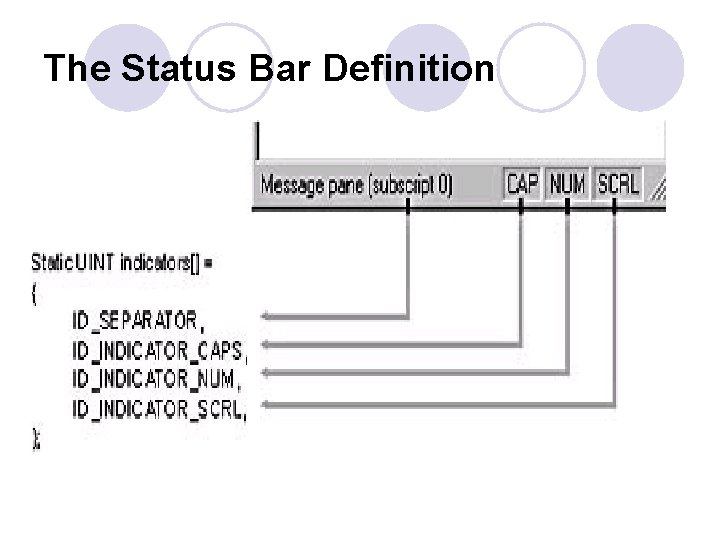
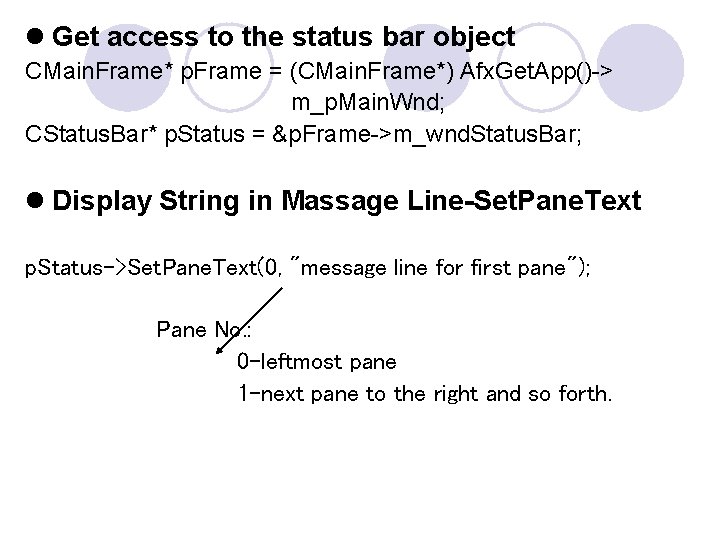
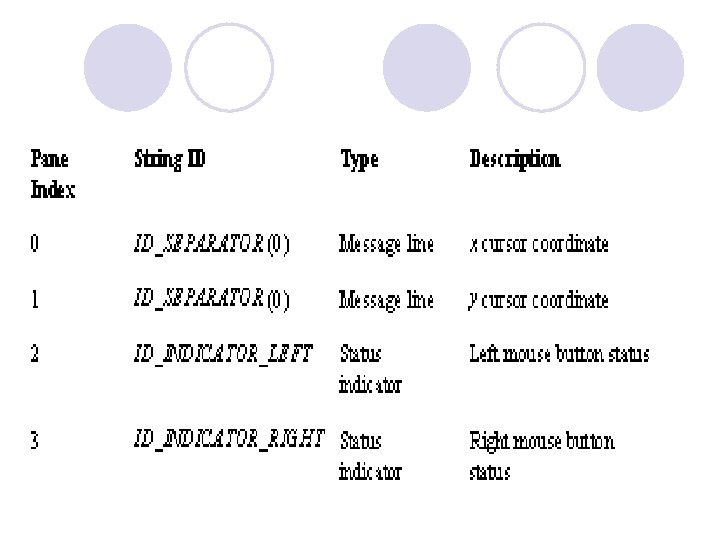
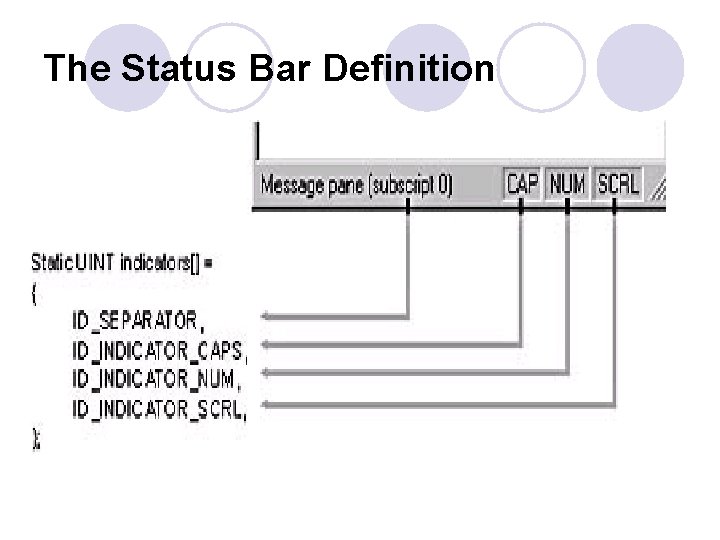
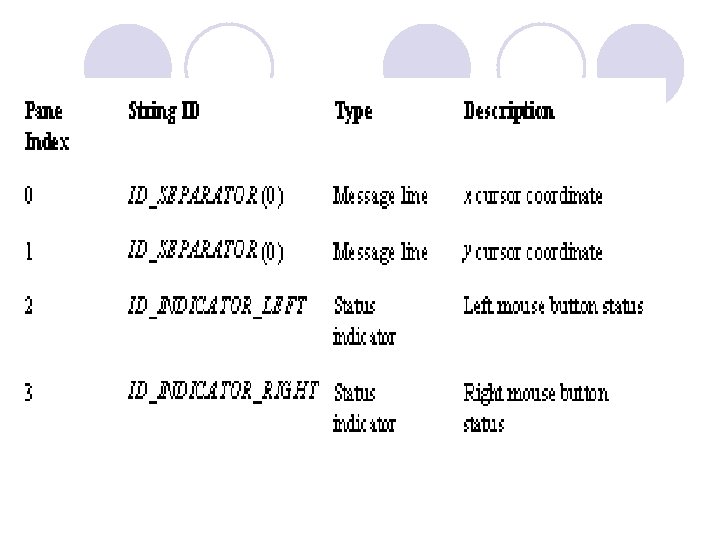
The Status Bar Definition l The static indicators array that App. Wizard generates in the Main. Frm. cpp file defines the panes for the application's status bar. l The constant ID_SEPARATOR identifies a message line pane; l the other constants are string resource IDs that identify indicator panes
The Status Bar Definition
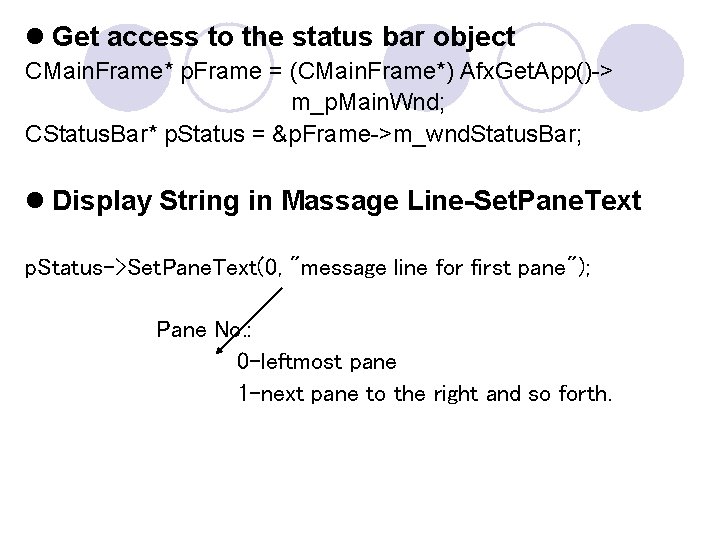
l Get access to the status bar object CMain. Frame* p. Frame = (CMain. Frame*) Afx. Get. App()-> m_p. Main. Wnd; CStatus. Bar* p. Status = &p. Frame->m_wnd. Status. Bar; l Display String in Massage Line-Set. Pane. Text p. Status->Set. Pane. Text(0, "message line for first pane"); Pane No. : 0 -leftmost pane 1 -next pane to the right and so forth.
Example
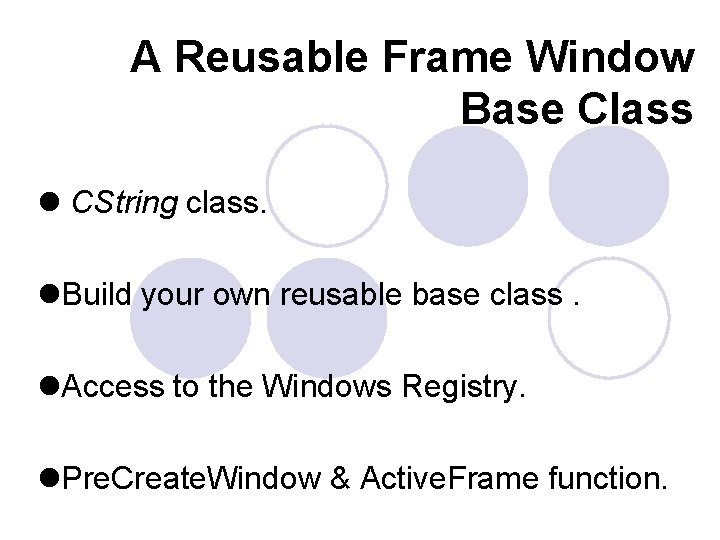
A Reusable Frame Window Base Class l CString class. l. Build your own reusable base class. l. Access to the Windows Registry. l. Pre. Create. Window & Active. Frame function.
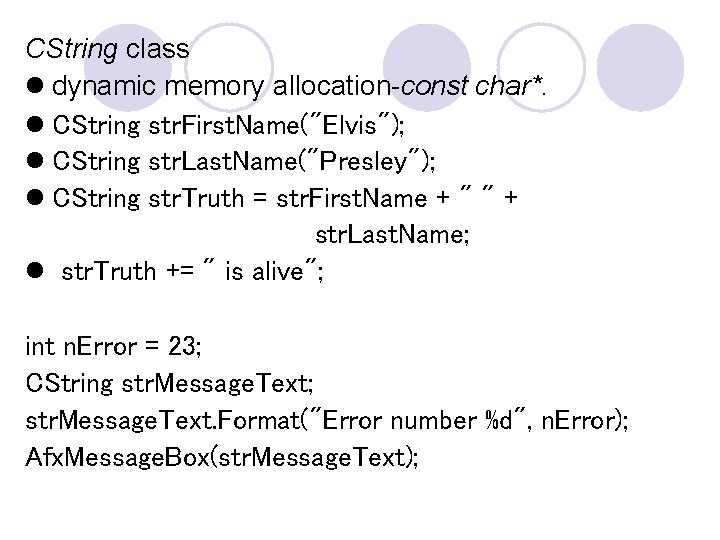
CString class l dynamic memory allocation-const char*. l CString str. First. Name("Elvis"); l CString str. Last. Name("Presley"); l CString str. Truth = str. First. Name + " " + str. Last. Name; l str. Truth += " is alive"; int n. Error = 23; CString str. Message. Text; str. Message. Text. Format("Error number %d", n. Error); Afx. Message. Box(str. Message. Text);
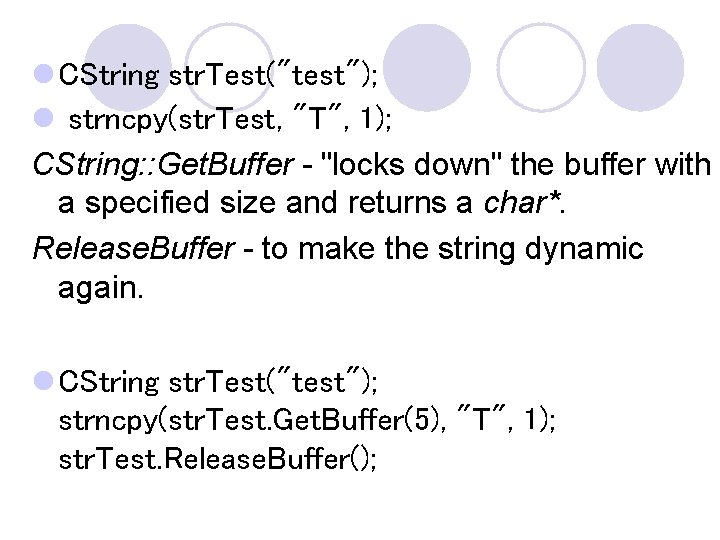
l CString str. Test("test"); l strncpy(str. Test, "T", 1); CString: : Get. Buffer - "locks down" the buffer with a specified size and returns a char*. Release. Buffer - to make the string dynamic again. l CString str. Test("test"); strncpy(str. Test. Get. Buffer(5), "T", 1); str. Test. Release. Buffer();
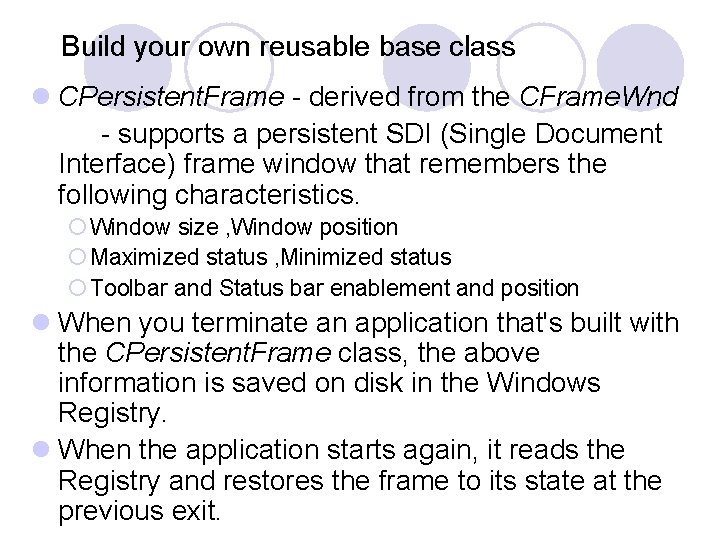
Build your own reusable base class l CPersistent. Frame - derived from the CFrame. Wnd - supports a persistent SDI (Single Document Interface) frame window that remembers the following characteristics. ¡ Window size , Window position ¡ Maximized status , Minimized status ¡ Toolbar and Status bar enablement and position l When you terminate an application that's built with the CPersistent. Frame class, the above information is saved on disk in the Windows Registry. l When the application starts again, it reads the Registry and restores the frame to its state at the previous exit.
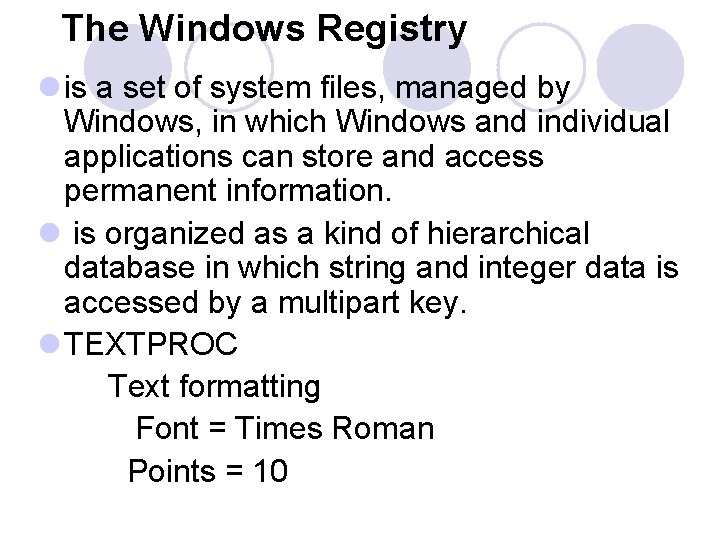
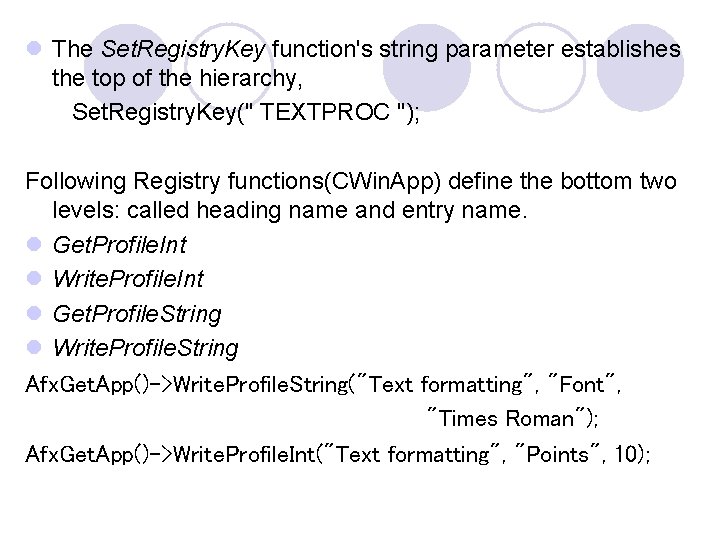
The Windows Registry l is a set of system files, managed by Windows, in which Windows and individual applications can store and access permanent information. l is organized as a kind of hierarchical database in which string and integer data is accessed by a multipart key. l TEXTPROC Text formatting Font = Times Roman Points = 10
l The Set. Registry. Key function's string parameter establishes the top of the hierarchy, Set. Registry. Key(" TEXTPROC "); Following Registry functions(CWin. App) define the bottom two levels: called heading name and entry name. l Get. Profile. Int l Write. Profile. Int l Get. Profile. String l Write. Profile. String Afx. Get. App()->Write. Profile. String("Text formatting", "Font", "Times Roman"); Afx. Get. App()->Write. Profile. Int("Text formatting", "Points", 10);
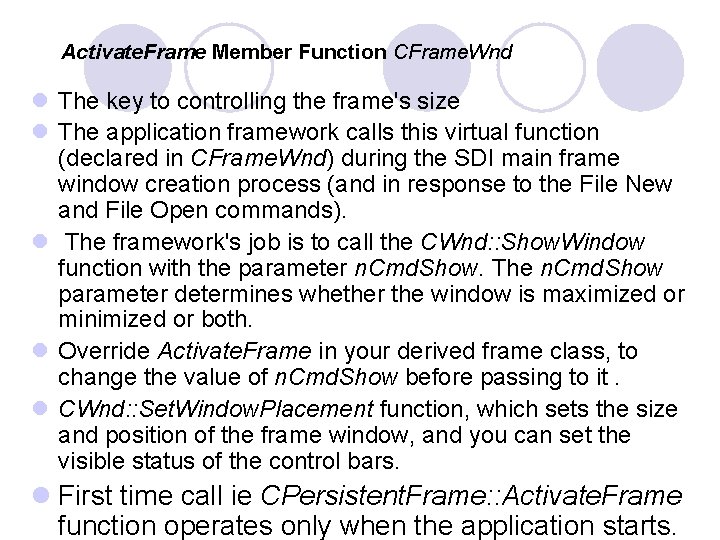
Activate. Frame Member Function CFrame. Wnd l The key to controlling the frame's size l The application framework calls this virtual function (declared in CFrame. Wnd) during the SDI main frame window creation process (and in response to the File New and File Open commands). l The framework's job is to call the CWnd: : Show. Window function with the parameter n. Cmd. Show. The n. Cmd. Show parameter determines whether the window is maximized or minimized or both. l Override Activate. Frame in your derived frame class, to change the value of n. Cmd. Show before passing to it. l CWnd: : Set. Window. Placement function, which sets the size and position of the frame window, and you can set the visible status of the control bars. l First time call ie CPersistent. Frame: : Activate. Frame function operates only when the application starts.
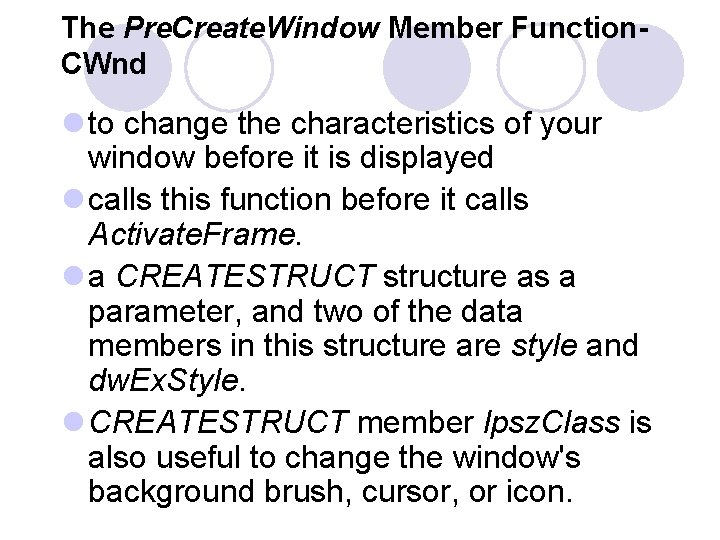
The Pre. Create. Window Member Function. CWnd l to change the characteristics of your window before it is displayed l calls this function before it calls Activate. Frame. l a CREATESTRUCT structure as a parameter, and two of the data members in this structure are style and dw. Ex. Style. l CREATESTRUCT member lpsz. Class is also useful to change the window's background brush, cursor, or icon.
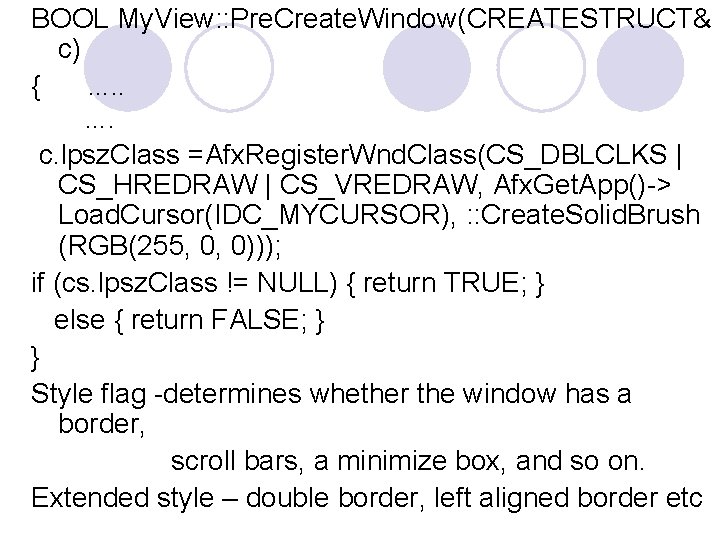
BOOL My. View: : Pre. Create. Window(CREATESTRUCT& c) { …. . …. c. lpsz. Class =Afx. Register. Wnd. Class(CS_DBLCLKS | CS_HREDRAW | CS_VREDRAW, Afx. Get. App()-> Load. Cursor(IDC_MYCURSOR), : : Create. Solid. Brush (RGB(255, 0, 0))); if (cs. lpsz. Class != NULL) { return TRUE; } else { return FALSE; } } Style flag -determines whether the window has a border, scroll bars, a minimize box, and so on. Extended style – double border, left aligned border etc
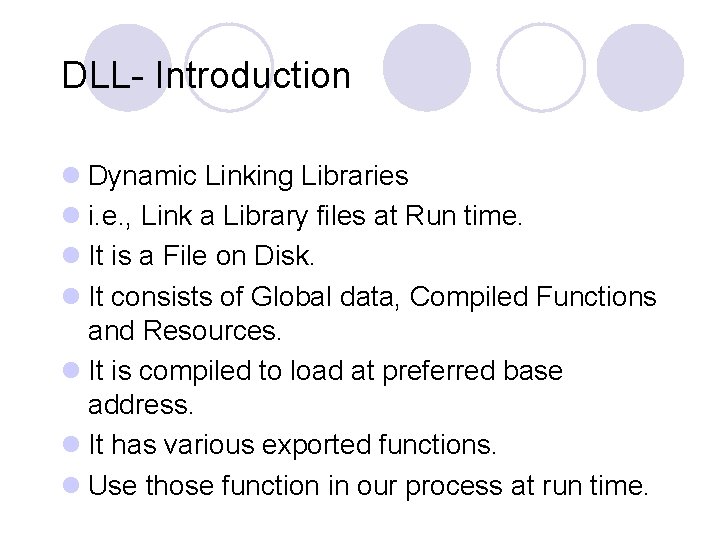
DLL- Introduction l Dynamic Linking Libraries l i. e. , Link a Library files at Run time. l It is a File on Disk. l It consists of Global data, Compiled Functions and Resources. l It is compiled to load at preferred base address. l It has various exported functions. l Use those function in our process at run time.
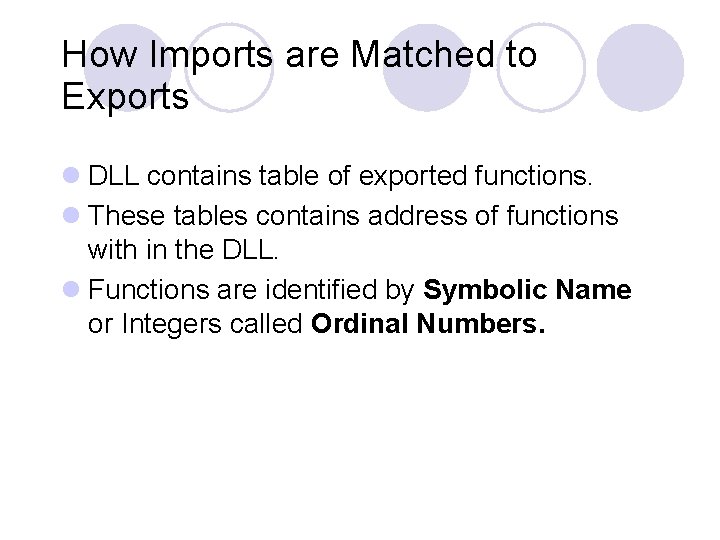
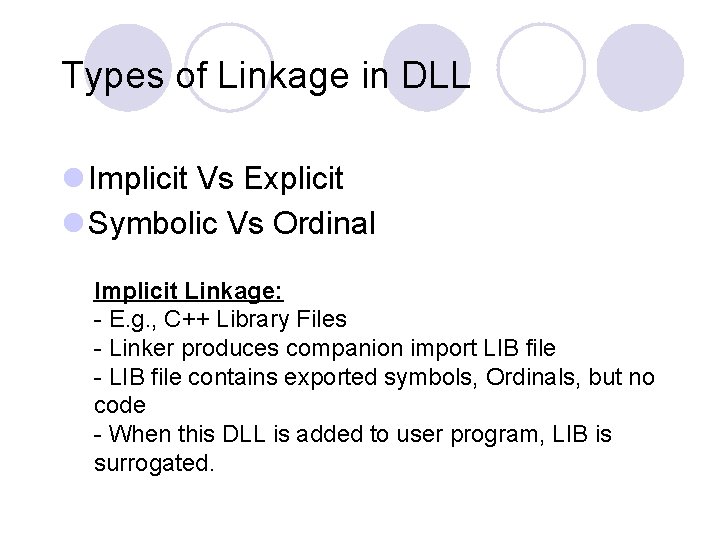
How Imports are Matched to Exports l DLL contains table of exported functions. l These tables contains address of functions with in the DLL. l Functions are identified by Symbolic Name or Integers called Ordinal Numbers.
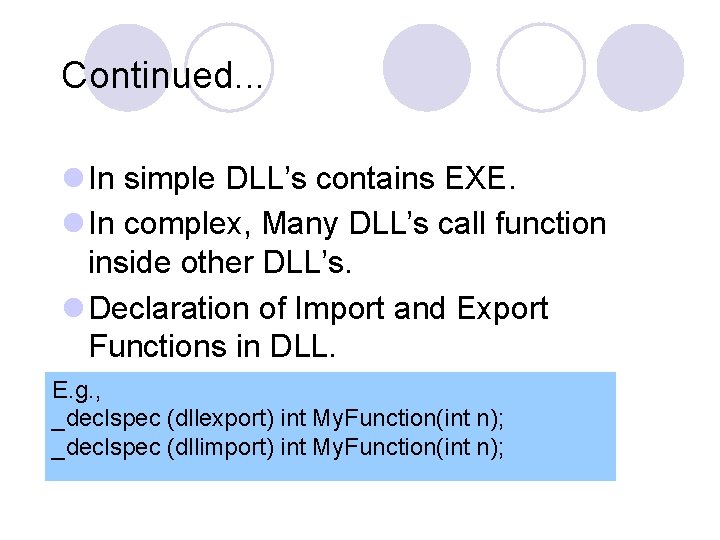
Continued. . . l In simple DLL’s contains EXE. l In complex, Many DLL’s call function inside other DLL’s. l Declaration of Import and Export Functions in DLL. E. g. , _declspec (dllexport) int My. Function(int n); _declspec (dllimport) int My. Function(int n);
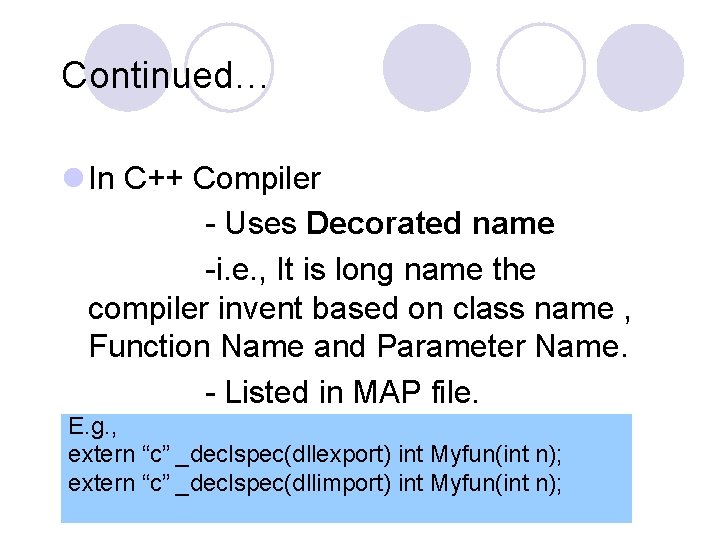
Continued… l In C++ Compiler - Uses Decorated name -i. e. , It is long name the compiler invent based on class name , Function Name and Parameter Name. - Listed in MAP file. E. g. , extern “c” _declspec(dllexport) int Myfun(int n); extern “c” _declspec(dllimport) int Myfun(int n);
Types of Linkage in DLL l Implicit Vs Explicit l Symbolic Vs Ordinal Implicit Linkage: - E. g. , C++ Library Files - Linker produces companion import LIB file - LIB file contains exported symbols, Ordinals, but no code - When this DLL is added to user program, LIB is surrogated.
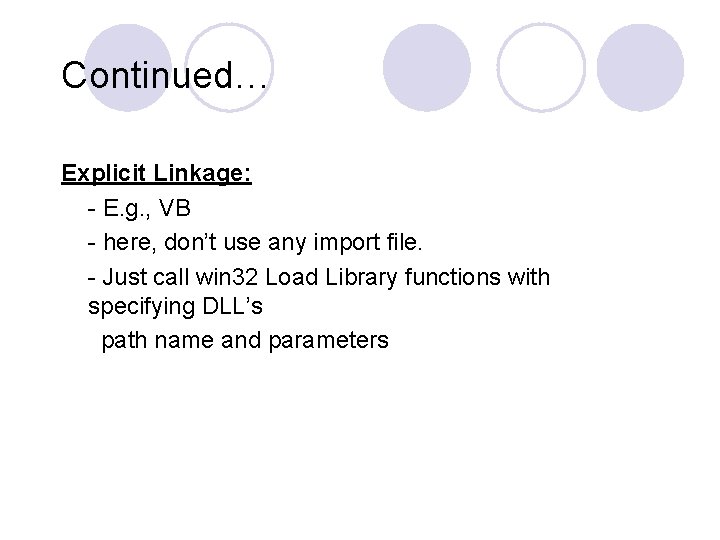
Continued… Explicit Linkage: - E. g. , VB - here, don’t use any import file. - Just call win 32 Load Library functions with specifying DLL’s path name and parameters
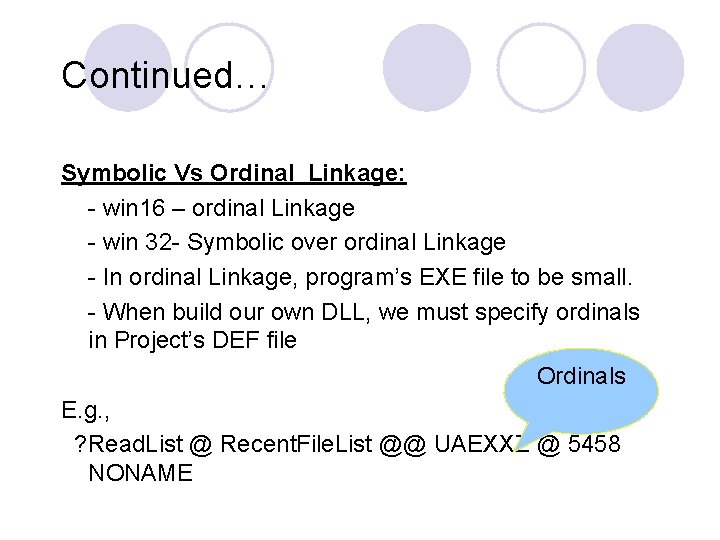
Continued… Symbolic Vs Ordinal Linkage: - win 16 – ordinal Linkage - win 32 - Symbolic over ordinal Linkage - In ordinal Linkage, program’s EXE file to be small. - When build our own DLL, we must specify ordinals in Project’s DEF file Ordinals E. g. , ? Read. List @ Recent. File. List @@ UAEXXZ @ 5458 NONAME
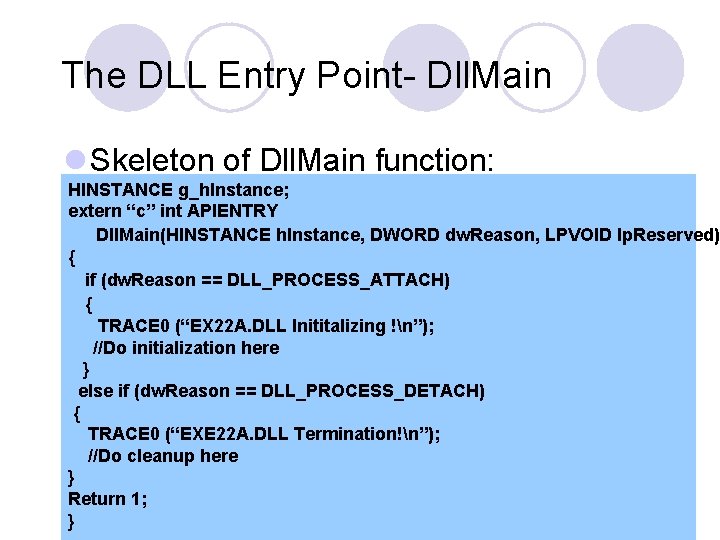
The DLL Entry Point- Dll. Main l Skeleton of Dll. Main function: HINSTANCE g_h. Instance; extern “c” int APIENTRY Dll. Main(HINSTANCE h. Instance, DWORD dw. Reason, LPVOID lp. Reserved) { if (dw. Reason == DLL_PROCESS_ATTACH) { TRACE 0 (“EX 22 A. DLL Inititalizing !n”); //Do initialization here } else if (dw. Reason == DLL_PROCESS_DETACH) { TRACE 0 (“EXE 22 A. DLL Termination!n”); //Do cleanup here } Return 1; }
Instance Handles l Each DLL in a Process is Identified by unique 32 -bit HINSTANCE value. l In Win 32, HINSTANCE and HMODULE values are Same. But type can be interchangeably. l Base address of Process (EXE) is almost 0 x 400000 l Default Base Address of DLL is loaded at 0 x 10000000
How to get an Instance Handle? l If you want EXE’s handle, call win 32 Get. Module. Handle funtion with NULL parameter. l If you want DLL’s handle, call win 32 Get. Module. Handle function with DLL name as Parameter.
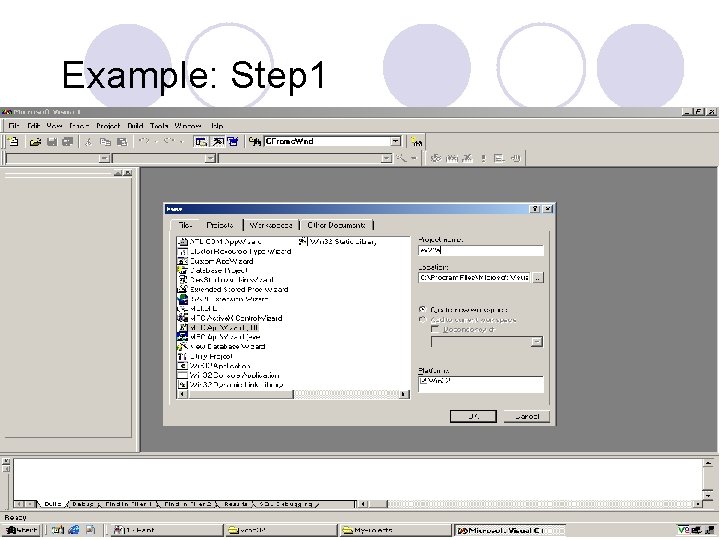
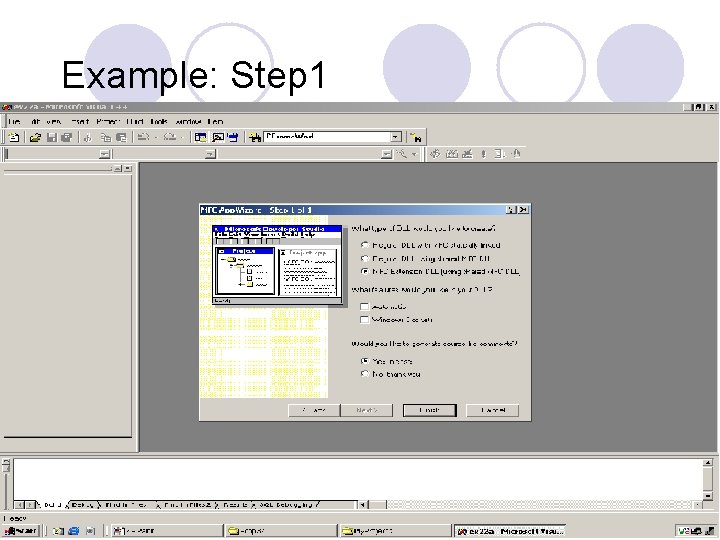
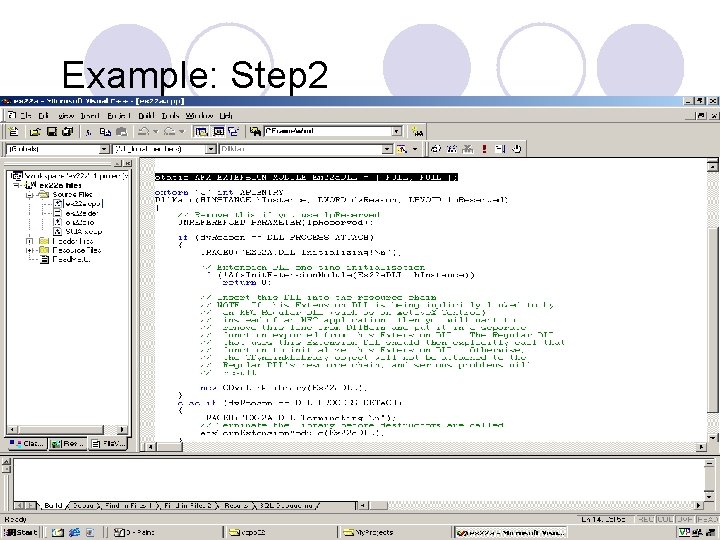
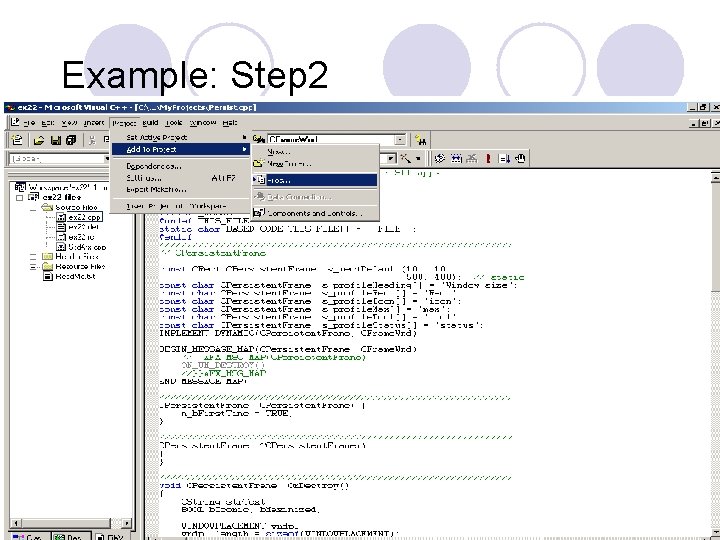
Steps for Creating DLL Skeleton l Steps for building the EX 22 A Example. Step 1: Run App. Wizard. Step 2: Examine the ex 22 a. cpp file Step 3: Edit the persist. h file Modify the Line class CPersistent. Frame : public CFrame. Wnd as class AFX_EXT_CLASS CPersistent. Frame : public CFRAMEWND Step 4: Build the project and copy the DLL file.
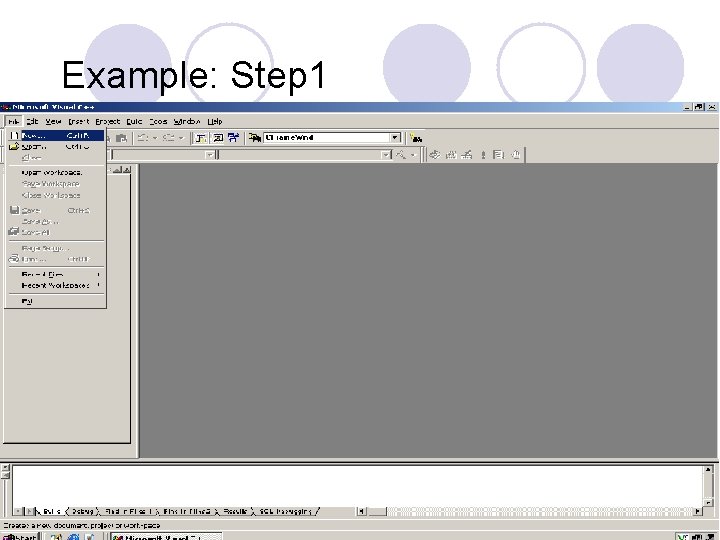
Example: Step 1
Example: Step 1
Example: Step 1
Example: Step 2
Example: Step 2
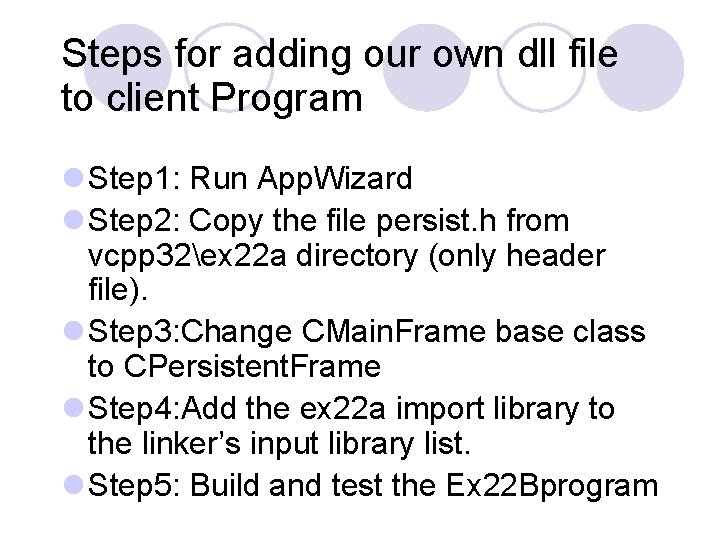
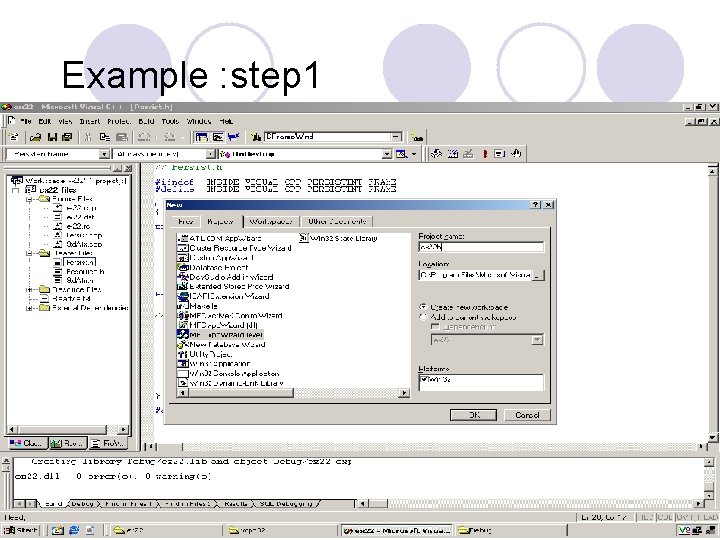
Steps for adding our own dll file to client Program l Step 1: Run App. Wizard l Step 2: Copy the file persist. h from vcpp 32ex 22 a directory (only header file). l Step 3: Change CMain. Frame base class to CPersistent. Frame l Step 4: Add the ex 22 a import library to the linker’s input library list. l Step 5: Build and test the Ex 22 Bprogram
Example : step 1
Tool. Bar & Status. Bar
Tool. Bar l A toolbar consists of a number of horizontally (or vertically) arranged graphical buttons that might be clustered in groups l Pressing a toolbar button is equivalent to choosing a menu item(WM_COMMAND messages). l An update command UI message handler is used to update the button's state l MFC toolbar can “dock” to any side of its parent window or float in its own mini-frame window. l you can change its size and drag it. l A toolbar can also display tool tips as the user moves the mouse over the toolbar’s buttons.
l Tool. Bar Bitmap: -Each button on a toolbar appears to have its own bitmap, but actually a single bitmap serves the entire toolbar. -has tile, 15 pixels high and 16 pixels wide -The toolbar bitmap is stored in the file Toolbar. bmp
State Meaning 0 Normal, unpressed state. TBSTATE_CHECKED Checked (down) state. TBSTATE_ENABLED Available for use. Button is grayed and unavailable if this state is not set. TBSTATE_HIDDEN Not visible. TBSTATE_INDETERMINATE Grayed. TBSTATE_PRESSED Currently selected (pressed) with the mouse. TBSTATE_WRAP Line break follows the button.
Locating the Main Frame. Window l The toolbar and status bar objects you'll be working with are attached to the application's main frame window, not to the view window l find the main frame window through the application object. CMain. Frame* p. Frame = (CMain. Frame*) Afx. Get. App()>m_p. Main. Wnd; CTool. Bar* p. Tool. Bar = &p. Frame->m_wnd. Tool. Bar;
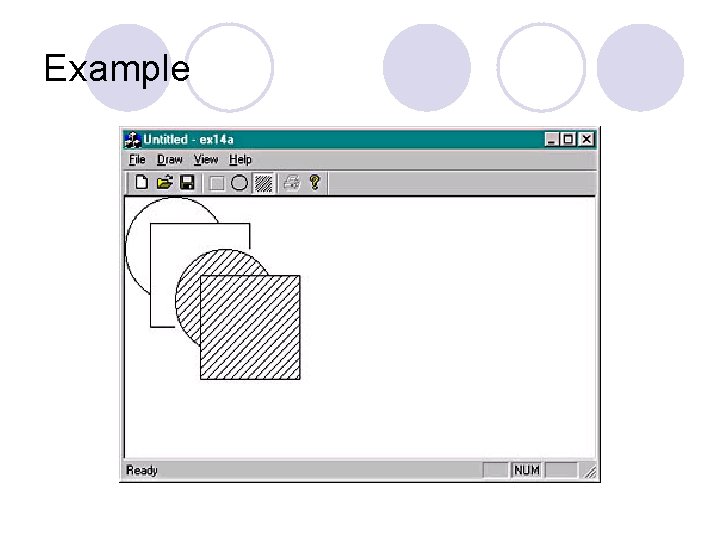
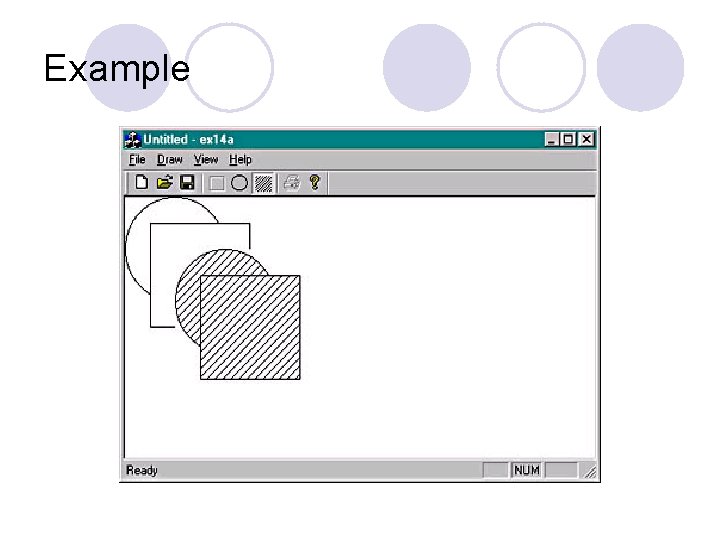
Example
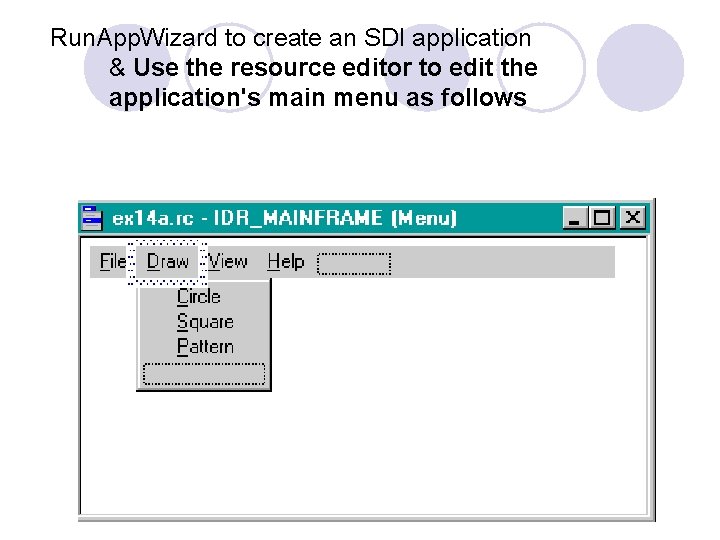
Run. App. Wizard to create an SDI application & Use the resource editor to edit the application's main menu as follows
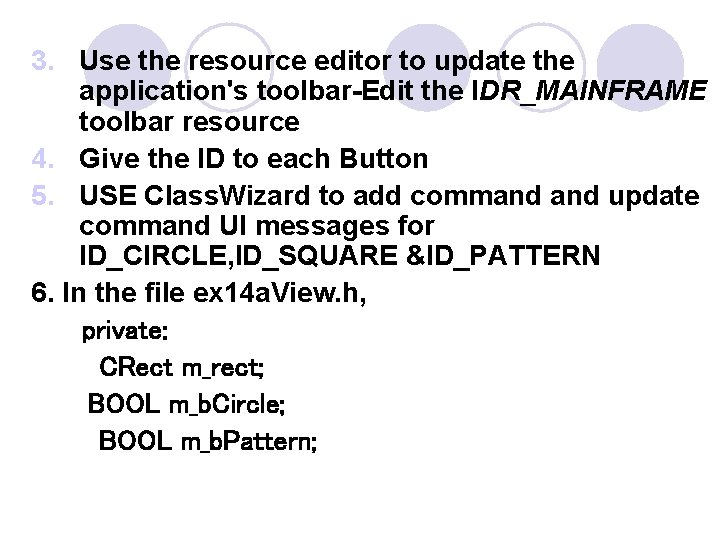
3. Use the resource editor to update the application's toolbar-Edit the IDR_MAINFRAME toolbar resource 4. Give the ID to each Button 5. USE Class. Wizard to add command update command UI messages for ID_CIRCLE, ID_SQUARE &ID_PATTERN 6. In the file ex 14 a. View. h, private: CRect m_rect; BOOL m_b. Circle; BOOL m_b. Pattern;
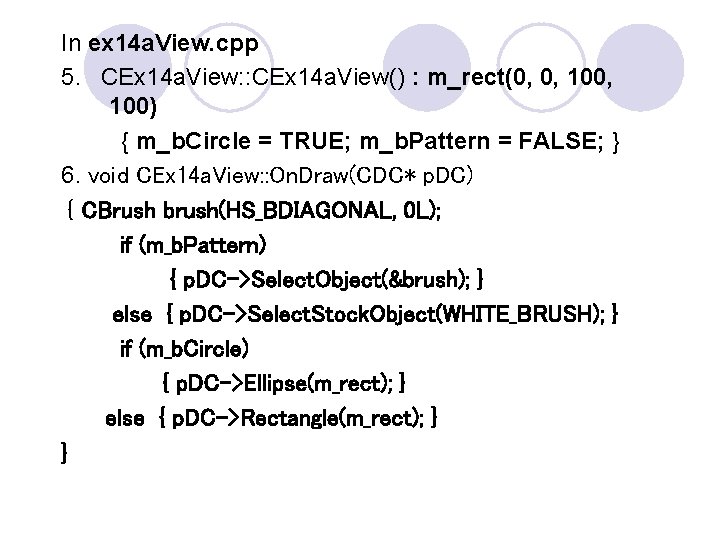
In ex 14 a. View. cpp 5. CEx 14 a. View: : CEx 14 a. View() : m_rect(0, 0, 100) { m_b. Circle = TRUE; m_b. Pattern = FALSE; } 6. void CEx 14 a. View: : On. Draw(CDC* p. DC) { CBrush brush(HS_BDIAGONAL, 0 L); if (m_b. Pattern) { p. DC->Select. Object(&brush); } else { p. DC->Select. Stock. Object(WHITE_BRUSH); } if (m_b. Circle) { p. DC->Ellipse(m_rect); } else { p. DC->Rectangle(m_rect); } }
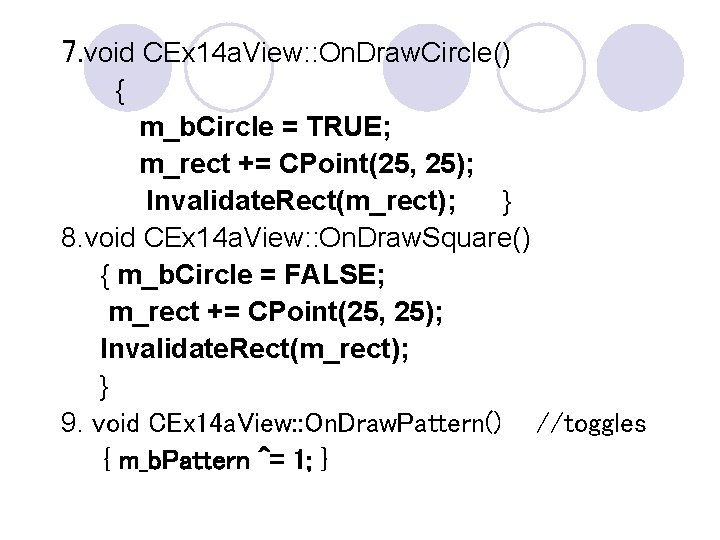
7. void CEx 14 a. View: : On. Draw. Circle() { m_b. Circle = TRUE; m_rect += CPoint(25, 25); Invalidate. Rect(m_rect); } 8. void CEx 14 a. View: : On. Draw. Square() { m_b. Circle = FALSE; m_rect += CPoint(25, 25); Invalidate. Rect(m_rect); } 9. void CEx 14 a. View: : On. Draw. Pattern() //toggles { m_b. Pattern ^= 1; }
10. void CEx 14 a. View: : On. Update. Draw. Circle (CCmd. UI* p. Cmd. UI ) { p. Cmd. UI->Enable(!m_b. Circle); } 11. void CEx 14 a. View: : On. Update. Draw. Square(CCmd. UI* p. Cmd. UI ) { p. Cmd. UI->Enable(m_b. Circle); } 12. void CEx 14 a. View: : On. Update. Draw. Pattern(CCmd. UI* p. Cmd. UI) { p. Cmd. UI->Set. Check(m_b. Pattern); }
Status. Bar l neither accepts user input nor generates command messages l to display text in panes under program control l supports two types of text panes o message line panes o status indicator panes
The Status Bar Definition l The static indicators array that App. Wizard generates in the Main. Frm. cpp file defines the panes for the application's status bar. l The constant ID_SEPARATOR identifies a message line pane; l the other constants are string resource IDs that identify indicator panes
The Status Bar Definition
l Get access to the status bar object CMain. Frame* p. Frame = (CMain. Frame*) Afx. Get. App()-> m_p. Main. Wnd; CStatus. Bar* p. Status = &p. Frame->m_wnd. Status. Bar; l Display String in Massage Line-Set. Pane. Text p. Status->Set. Pane. Text(0, "message line for first pane"); Pane No. : 0 -leftmost pane 1 -next pane to the right and so forth.
The Status Indicator l status indicator pane is linked to a single resource-supplied string that is displayed or hidden by logic in an associated update command UI message handler function. l –Contains Indicators. l An indicator is identified by a string resource ID. l same ID is used to route update command UI messages. l For example Caps Lock indication by status bar
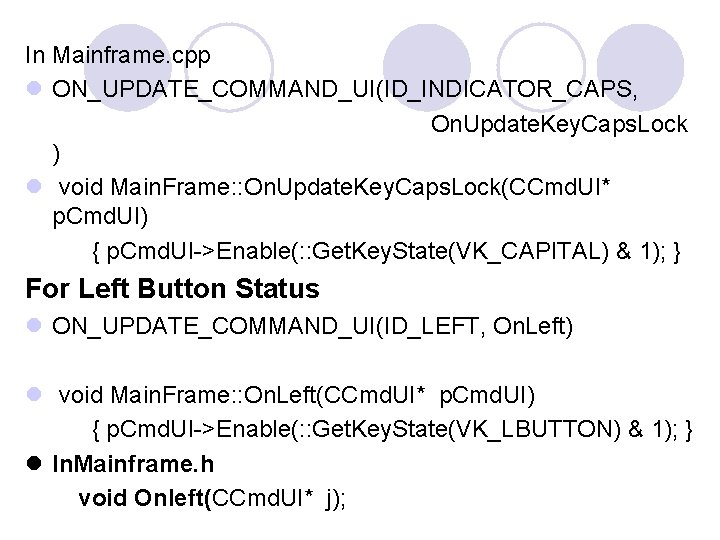
In Mainframe. cpp l ON_UPDATE_COMMAND_UI(ID_INDICATOR_CAPS, On. Update. Key. Caps. Lock ) l void Main. Frame: : On. Update. Key. Caps. Lock(CCmd. UI* p. Cmd. UI) { p. Cmd. UI->Enable(: : Get. Key. State(VK_CAPITAL) & 1); } For Left Button Status l ON_UPDATE_COMMAND_UI(ID_LEFT, On. Left) l void Main. Frame: : On. Left(CCmd. UI* p. Cmd. UI) { p. Cmd. UI->Enable(: : Get. Key. State(VK_LBUTTON) & 1); } l In. Mainframe. h void Onleft(CCmd. UI* j);
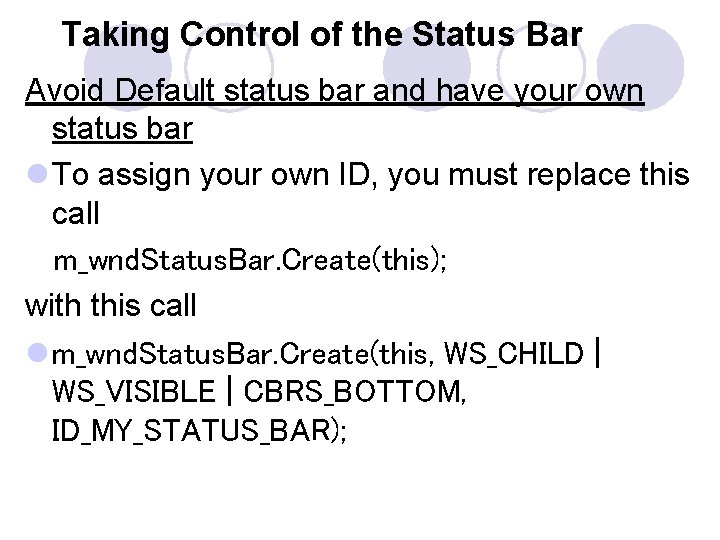
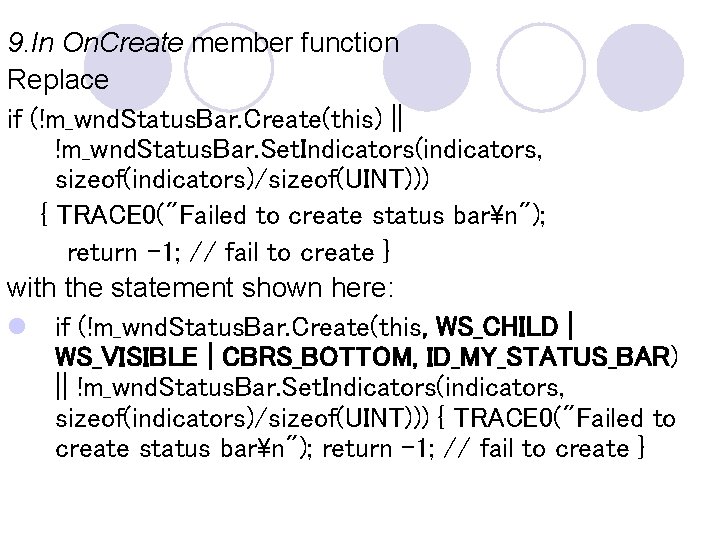
Taking Control of the Status Bar Avoid Default status bar and have your own status bar l To assign your own ID, you must replace this call m_wnd. Status. Bar. Create(this); with this call l m_wnd. Status. Bar. Create(this, WS_CHILD | WS_VISIBLE | CBRS_BOTTOM, ID_MY_STATUS_BAR);
Example
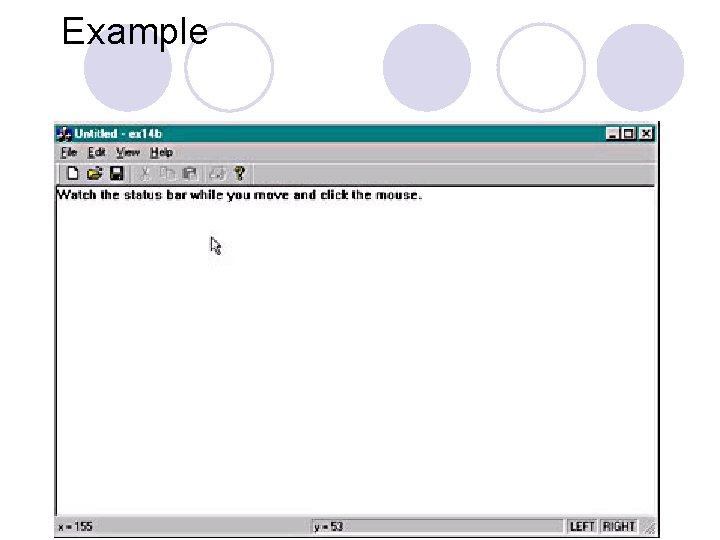
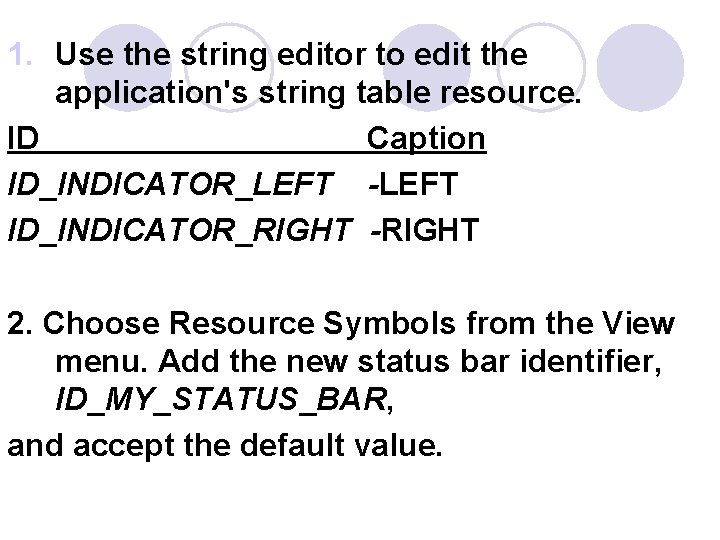
1. Use the string editor to edit the application's string table resource. ID Caption ID_INDICATOR_LEFT -LEFT ID_INDICATOR_RIGHT -RIGHT 2. Choose Resource Symbols from the View menu. Add the new status bar identifier, ID_MY_STATUS_BAR, and accept the default value.
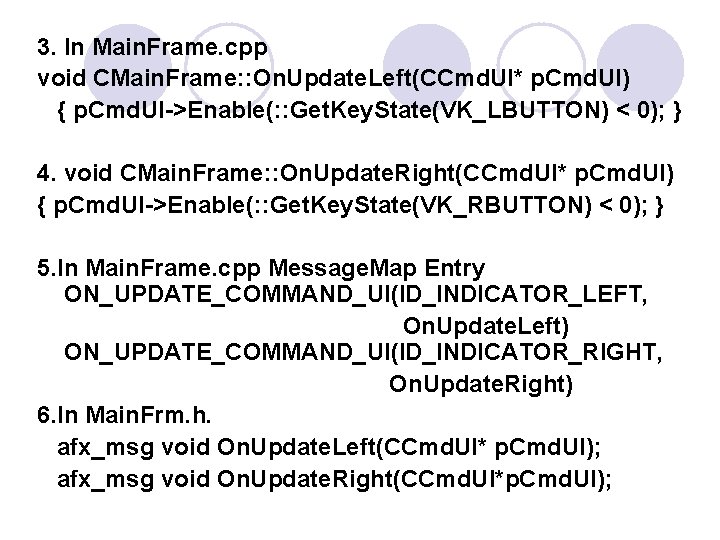
3. In Main. Frame. cpp void CMain. Frame: : On. Update. Left(CCmd. UI* p. Cmd. UI) { p. Cmd. UI->Enable(: : Get. Key. State(VK_LBUTTON) < 0); } 4. void CMain. Frame: : On. Update. Right(CCmd. UI* p. Cmd. UI) { p. Cmd. UI->Enable(: : Get. Key. State(VK_RBUTTON) < 0); } 5. In Main. Frame. cpp Message. Map Entry ON_UPDATE_COMMAND_UI(ID_INDICATOR_LEFT, On. Update. Left) ON_UPDATE_COMMAND_UI(ID_INDICATOR_RIGHT, On. Update. Right) 6. In Main. Frm. h. afx_msg void On. Update. Left(CCmd. UI* p. Cmd. UI); afx_msg void On. Update. Right(CCmd. UI*p. Cmd. UI);
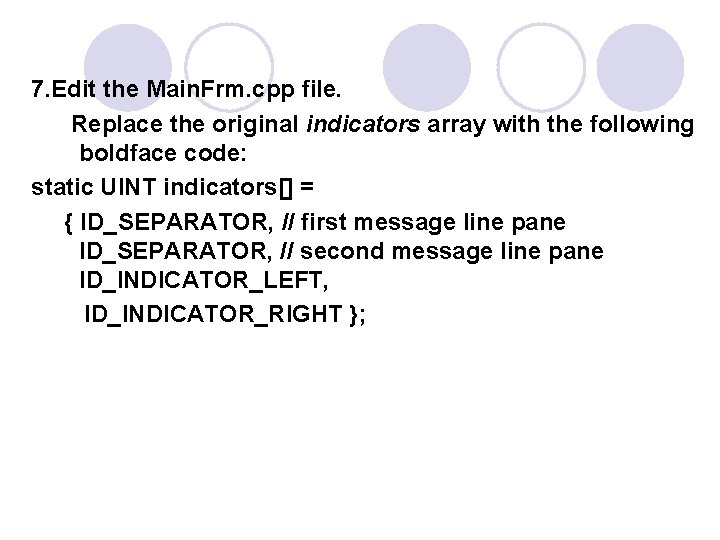
7. Edit the Main. Frm. cpp file. Replace the original indicators array with the following boldface code: static UINT indicators[] = { ID_SEPARATOR, // first message line pane ID_SEPARATOR, // second message line pane ID_INDICATOR_LEFT, ID_INDICATOR_RIGHT };
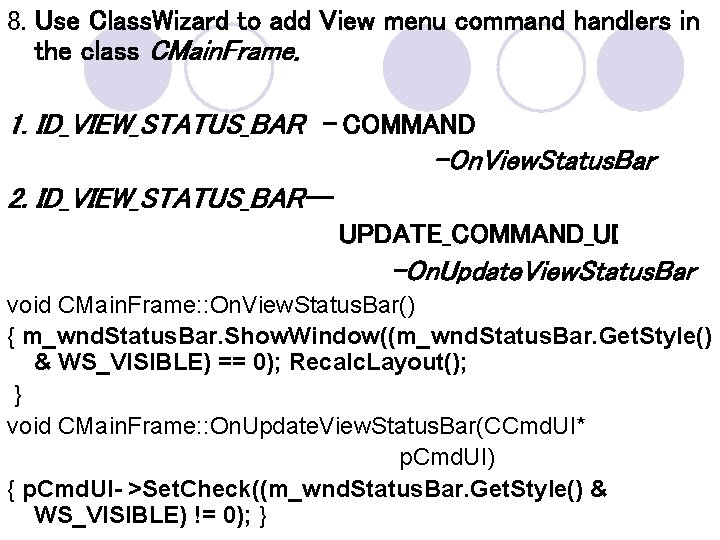
8. Use Class. Wizard to add View menu command handlers in the class CMain. Frame. 1. ID_VIEW_STATUS_BAR - COMMAND -On. View. Status. Bar 2. ID_VIEW_STATUS_BAR-UPDATE_COMMAND_UI -On. Update. View. Status. Bar void CMain. Frame: : On. View. Status. Bar() { m_wnd. Status. Bar. Show. Window((m_wnd. Status. Bar. Get. Style() & WS_VISIBLE) == 0); Recalc. Layout(); } void CMain. Frame: : On. Update. View. Status. Bar(CCmd. UI* p. Cmd. UI) { p. Cmd. UI- >Set. Check((m_wnd. Status. Bar. Get. Style() & WS_VISIBLE) != 0); }
9. In On. Create member function Replace if (!m_wnd. Status. Bar. Create(this) || !m_wnd. Status. Bar. Set. Indicators(indicators, sizeof(indicators)/sizeof(UINT))) { TRACE 0("Failed to create status barn"); return -1; // fail to create } with the statement shown here: l if (!m_wnd. Status. Bar. Create(this, WS_CHILD | WS_VISIBLE | CBRS_BOTTOM, ID_MY_STATUS_BAR) || !m_wnd. Status. Bar. Set. Indicators(indicators, sizeof(indicators)/sizeof(UINT))) { TRACE 0("Failed to create status barn"); return -1; // fail to create }
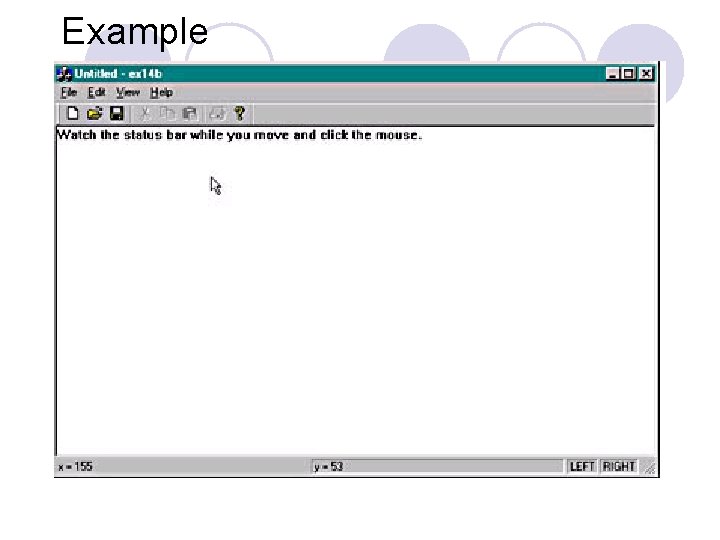
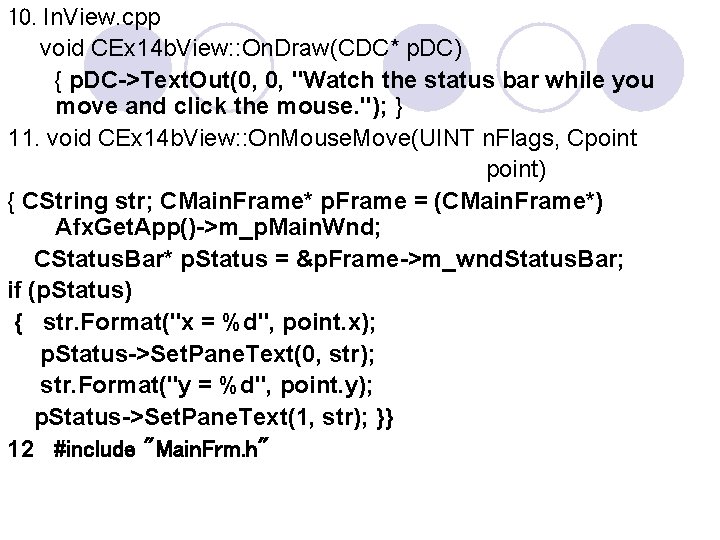
10. In. View. cpp void CEx 14 b. View: : On. Draw(CDC* p. DC) { p. DC->Text. Out(0, 0, "Watch the status bar while you move and click the mouse. "); } 11. void CEx 14 b. View: : On. Mouse. Move(UINT n. Flags, Cpoint point) { CString str; CMain. Frame* p. Frame = (CMain. Frame*) Afx. Get. App()->m_p. Main. Wnd; CStatus. Bar* p. Status = &p. Frame->m_wnd. Status. Bar; if (p. Status) { str. Format("x = %d", point. x); p. Status->Set. Pane. Text(0, str); str. Format("y = %d", point. y); p. Status->Set. Pane. Text(1, str); }} 12 #include "Main. Frm. h"
l. Document View Architecture l. Menu, Keyboard Accelerators l. Status Bar, Tool. Bar l. Reusable Frame Window Class
l Global Application object l Execution begins- Win. Main by MFC l Afx. Get. App() – Gets ptr to Applocation object l Init. Instance – Executed(Create Window &assigns l h. Instance, n. Cmdshow –appln object) l RUN()- Implements Message Loop l Terminate if WM_QUIT Message occurs l Exit. Instance()
Separating Document from its View l Need: Given set of data can have multiple representation- best to separate display from data. l Three Objects: l. Document - Store the data (responsible for reading and writing data) l. View - To display data(each view –one document) l. Window - The canvas on which all display take place
Document-View Interaction Functions l The CView: : Get. Document Function-provides the document pointer that can be used to access document class member functions or public data embers. CEx 13 a. Doc* p. Doc = Get. Document(); m_rich. Set. Window. Text(p. Doc- >m_str. Text); l The CDocument: : Get. Next. View -navigates from the document to the view, but because a document can have more than one view, it's necessary to call this member function once for each view, inside a loop
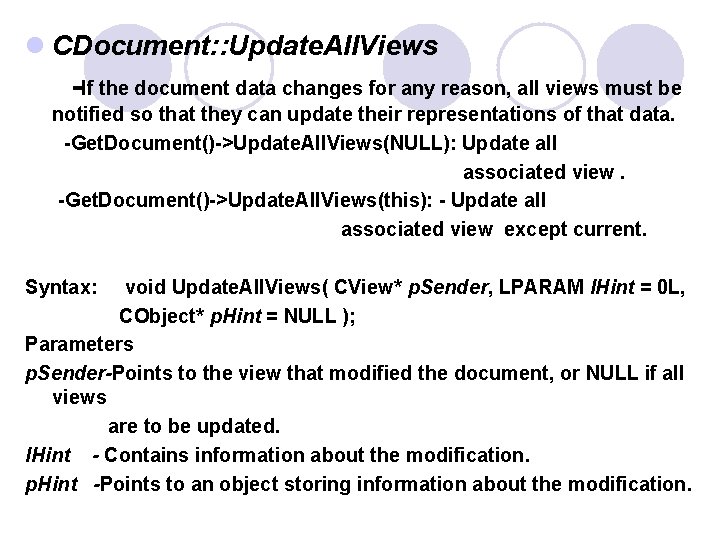
l CDocument: : Update. All. Views -If the document data changes for any reason, all views must be notified so that they can update their representations of that data. -Get. Document()->Update. All. Views(NULL): Update all associated view. -Get. Document()->Update. All. Views(this): - Update all associated view except current. Syntax: void Update. All. Views( CView* p. Sender, LPARAM l. Hint = 0 L, CObject* p. Hint = NULL ); Parameters p. Sender-Points to the view that modified the document, or NULL if all views are to be updated. l. Hint - Contains information about the modification. p. Hint -Points to an object storing information about the modification.
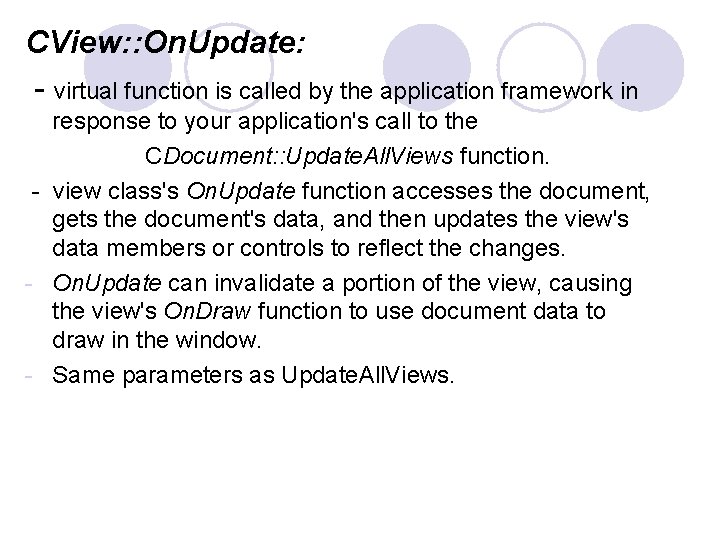
CView: : On. Update: - virtual function is called by the application framework in response to your application's call to the CDocument: : Update. All. Views function. - view class's On. Update function accesses the document, gets the document's data, and then updates the view's data members or controls to reflect the changes. - On. Update can invalidate a portion of the view, causing the view's On. Draw function to use document data to draw in the window. - Same parameters as Update. All. Views.
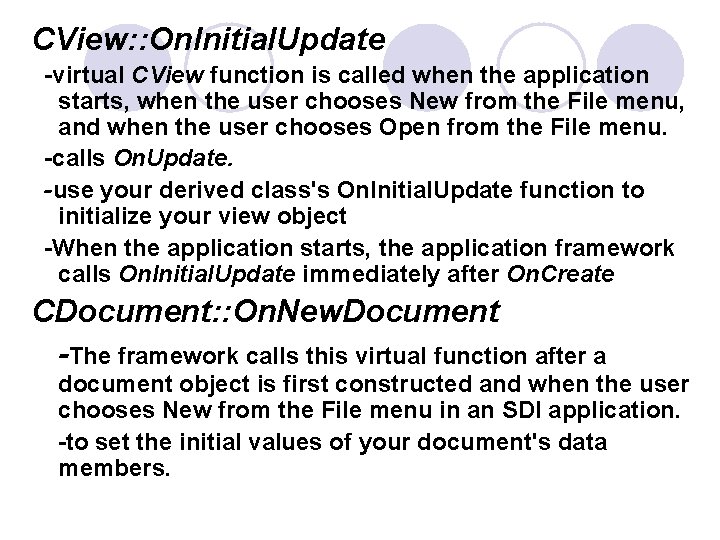
CView: : On. Initial. Update -virtual CView function is called when the application starts, when the user chooses New from the File menu, and when the user chooses Open from the File menu. -calls On. Update. -use your derived class's On. Initial. Update function to initialize your view object -When the application starts, the application framework calls On. Initial. Update immediately after On. Create CDocument: : On. New. Document -The framework calls this virtual function after a document object is first constructed and when the user chooses New from the File menu in an SDI application. -to set the initial values of your document's data members.
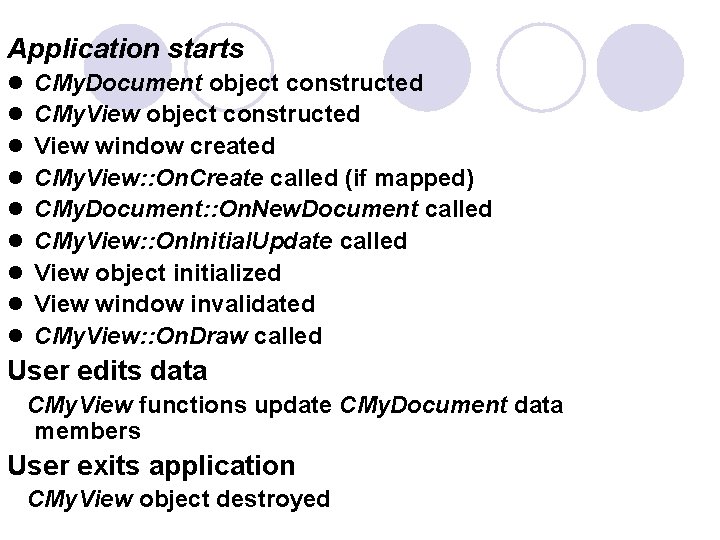
Application starts l l l l l CMy. Document object constructed CMy. View object constructed View window created CMy. View: : On. Create called (if mapped) CMy. Document: : On. New. Document called CMy. View: : On. Initial. Update called View object initialized View window invalidated CMy. View: : On. Draw called User edits data CMy. View functions update CMy. Document data members User exits application CMy. View object destroyed
Frame Windows
Frame Window - Definition l An application or some parts of an application when framed by Windows are called Frame Windows l Frame windows act as containers for other windows such as control bars or child controls.
Basic types of Frame Windows l Single Document Interface (SDI) frame windows l Multiple Document Interface (MDI) frame windows. MDI frame windows can contain MDI child windows
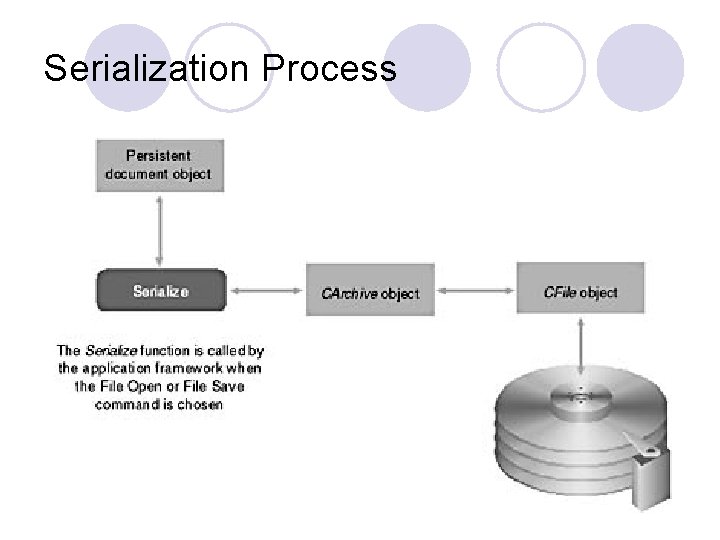
Serialization l Serialization is an important concept in MFC programming because it is the basis for MFC's ability to open and save documents in document/view applications.
Serialization Process
l when someone using a document/view application selects Open or Save from the application's File menu, MFC opens the file for reading or writing and passes the application a reference to a CArchive object. l The application, in turn, serializes its persistent data to or from the archive and, by so doing, saves a complete document to disk or reads it back again. A document whose persistent data consists entirely of primitive data types or serializable objects can often be serialized with just a few lines of code.
Serialization - Write l Assume that a CFile object named file represents an open file, that the file was opened with write access, and that you want to write a pair of integers named a and b to that file. One way to accomplish this is to call CFile: : Write once for each integer: file. Write (&a, sizeof (a)); file. Write (&b, sizeof (b)); l An alternative method is to create a CArchive object, associate it with the CFile object, and use the << operator to serialize the integers into the archive: CArchive ar (&file, CArchive: : store); ar << a << b;
Serialization – Read (deserialize) l Assuming file once again represents an open file and that the file is open with read access, the following code snippet attaches a CArchive object to the file and reads, or deserializes, the integers from the file: CArchive ar (&file, CArchive: : load); ar >> a >> b; l MFC allows a wide variety of primitive data types to be serialized this way, including BYTEs, WORDs, LONGs, DWORDs, floats, doubles, ints, unsigned ints, shorts, and chars.
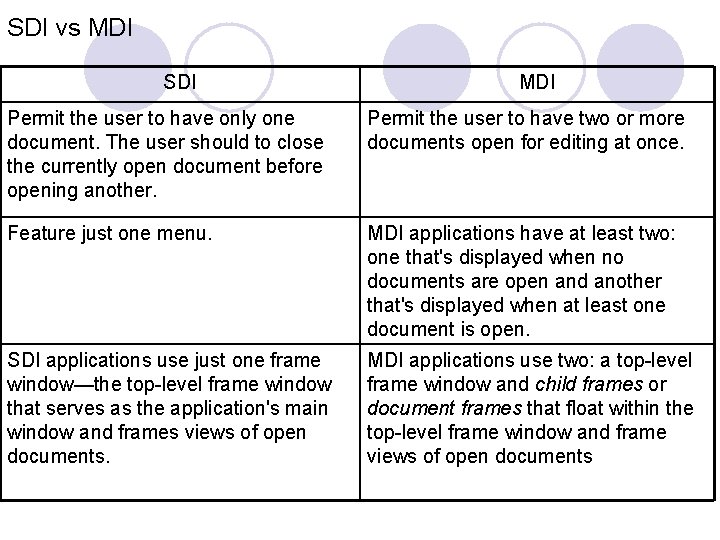
SDI and MDI l MFC supports two types of document/view applications. Single document interface (SDI) applications support just one open document at a time. Multiple document interface (MDI) applications permit two or more documents to be open concurrently and also support multiple views of a given document. The Word. Pad applet is an SDI application; Microsoft Word is an MDI application.
SDI l SDI application frame windows are derived from the class CFrame. Wnd. l The MFC library supports two distinct application types: Single Document Interface (SDI) and Multiple Document Interface (MDI). An SDI application has, only one window. If the application depends on disk-file "documents, " only one document can be loaded at a time. The original Windows Notepad is an example of an SDI application.
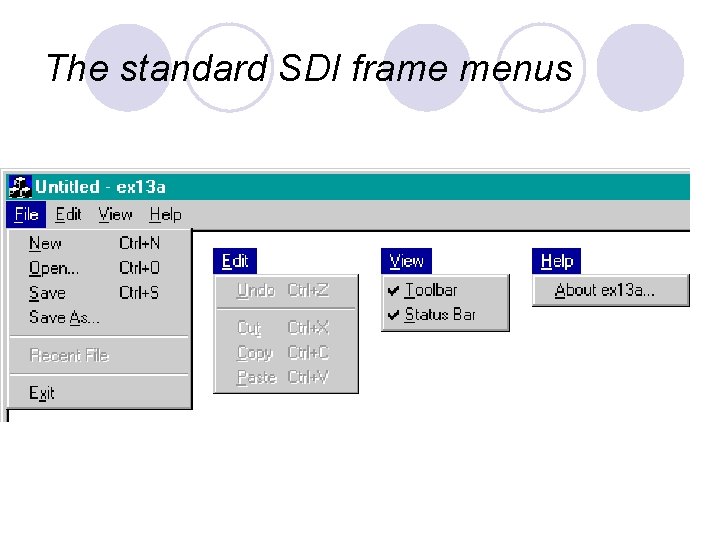
The standard SDI frame menus
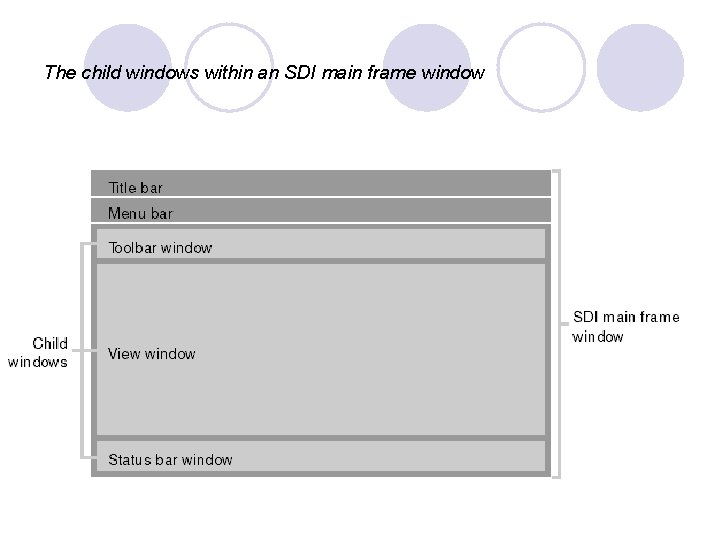
The child windows within an SDI main frame window
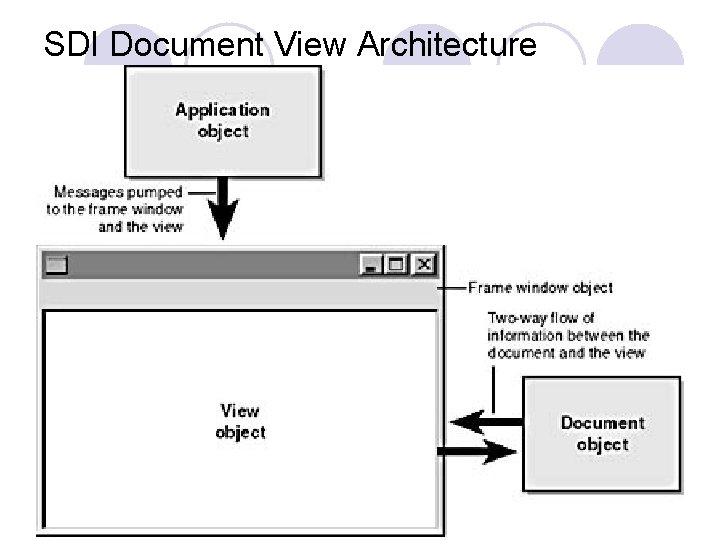
SDI Document View Architecture
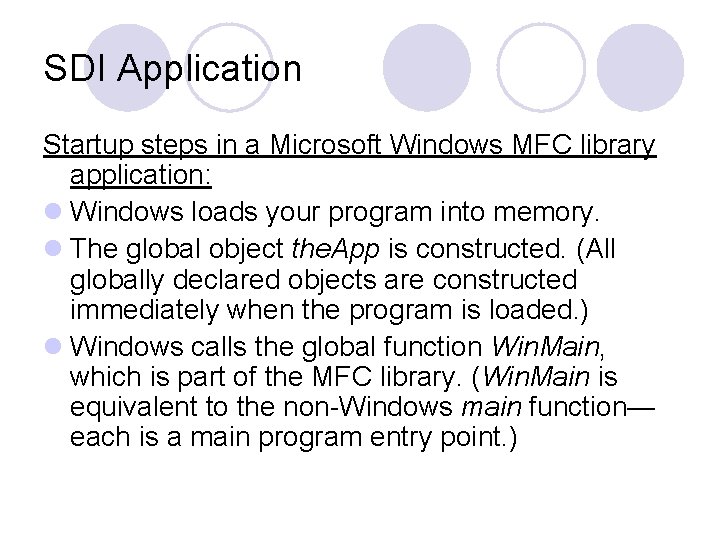
SDI Application Startup steps in a Microsoft Windows MFC library application: l Windows loads your program into memory. l The global object the. App is constructed. (All globally declared objects are constructed immediately when the program is loaded. ) l Windows calls the global function Win. Main, which is part of the MFC library. (Win. Main is equivalent to the non-Windows main function— each is a main program entry point. )
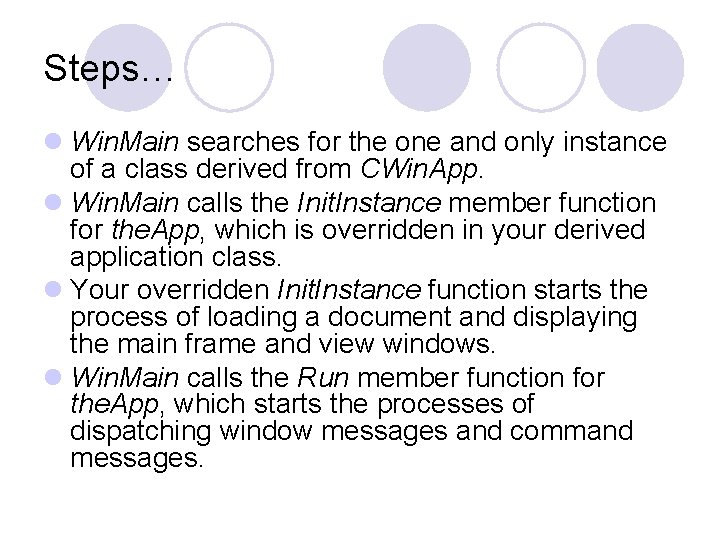
Steps… l Win. Main searches for the one and only instance of a class derived from CWin. App. l Win. Main calls the Init. Instance member function for the. App, which is overridden in your derived application class. l Your overridden Init. Instance function starts the process of loading a document and displaying the main frame and view windows. l Win. Main calls the Run member function for the. App, which starts the processes of dispatching window messages and command messages.
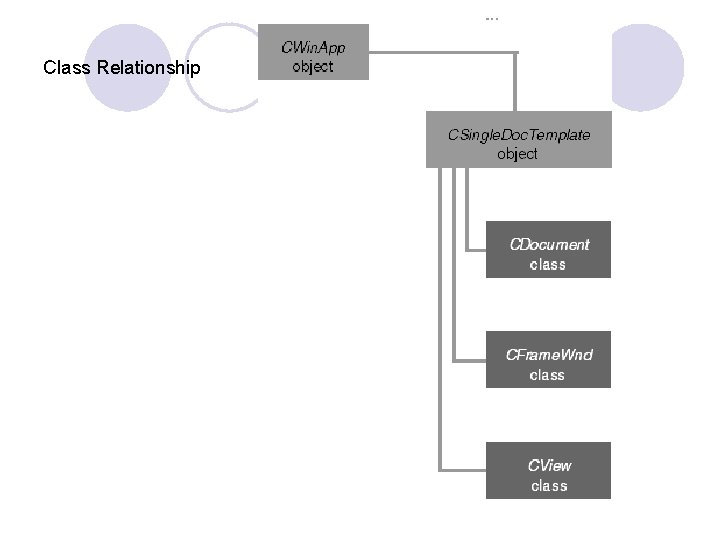
Class Relationship
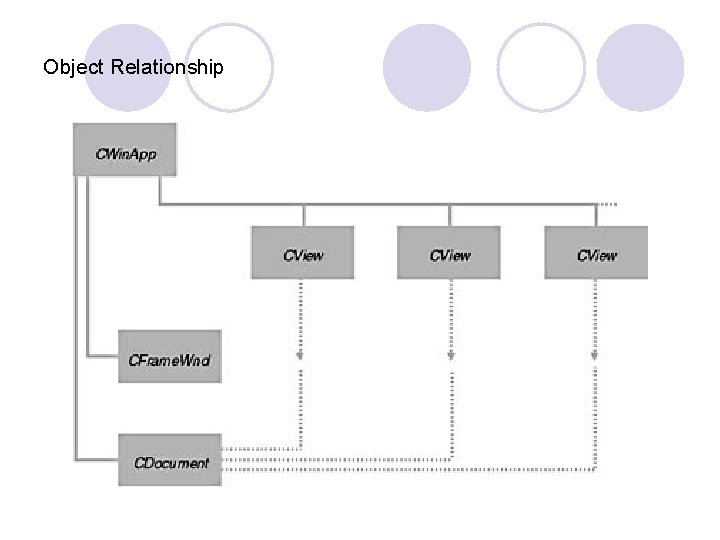
Object Relationship
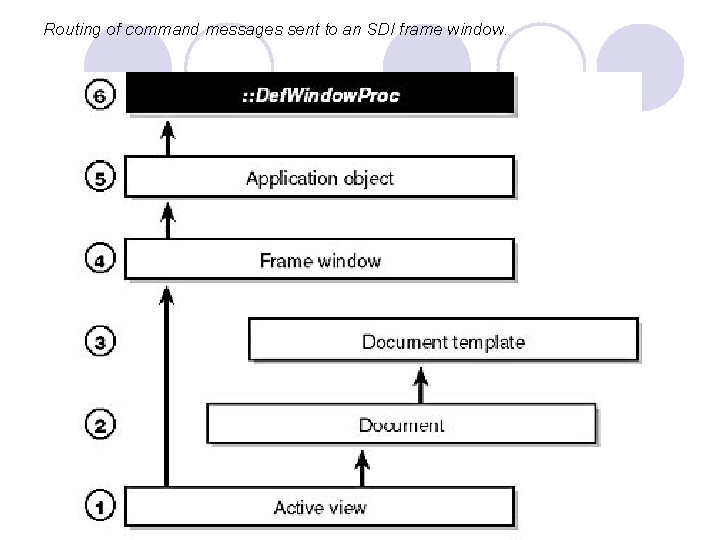
Routing of command messages sent to an SDI frame window.
SDI vs MDI SDI MDI Permit the user to have only one document. The user should to close the currently open document before opening another. Permit the user to have two or more documents open for editing at once. Feature just one menu. MDI applications have at least two: one that's displayed when no documents are open and another that's displayed when at least one document is open. SDI applications use just one frame window—the top-level frame window that serves as the application's main window and frames views of open documents. MDI applications use two: a top-level frame window and child frames or document frames that float within the top-level frame window and frame views of open documents
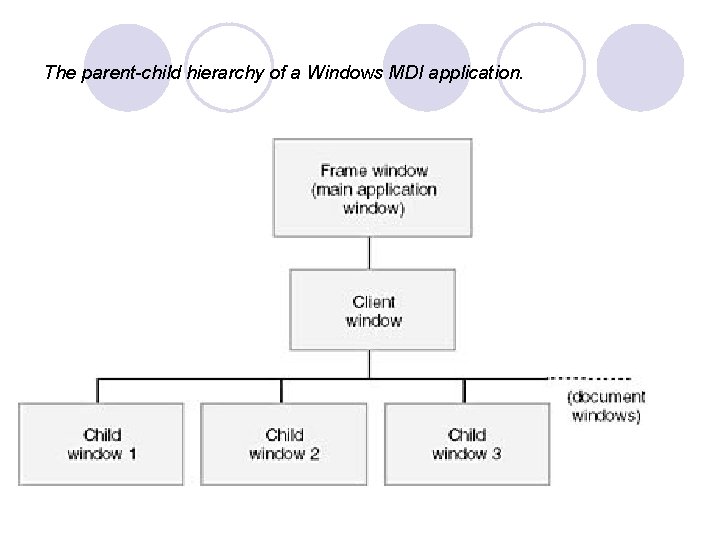
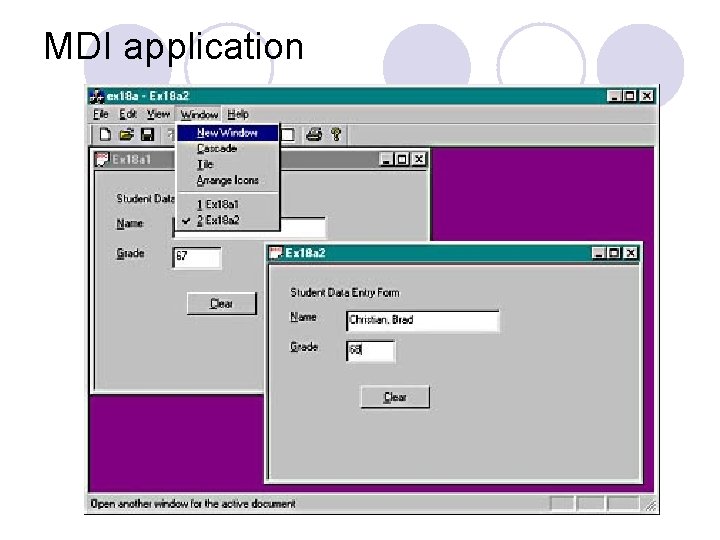
MDI l MDI application frame windows are derived from the class CMDIFrame. Wnd. l An MDI application has multiple child windows, each of which corresponds to an individual document. Microsoft Word is a good example of an MDI application. When you run App. Wizard to create a new project, MDI is the default application type
The parent-child hierarchy of a Windows MDI application.
MDI application
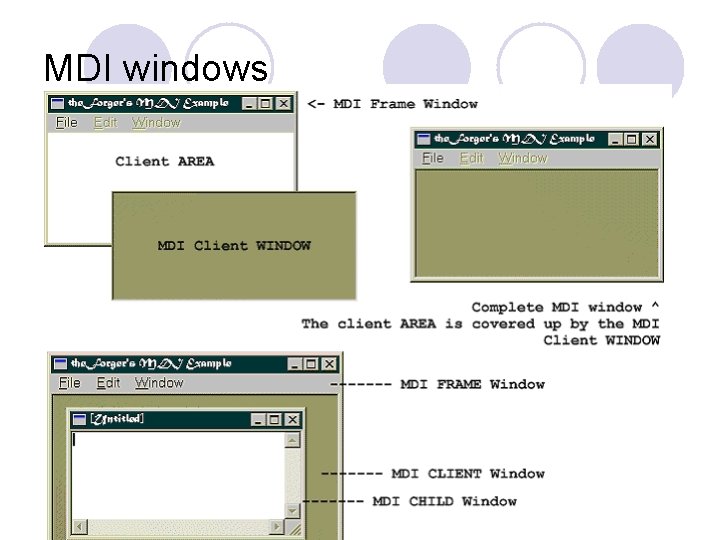
MDI windows
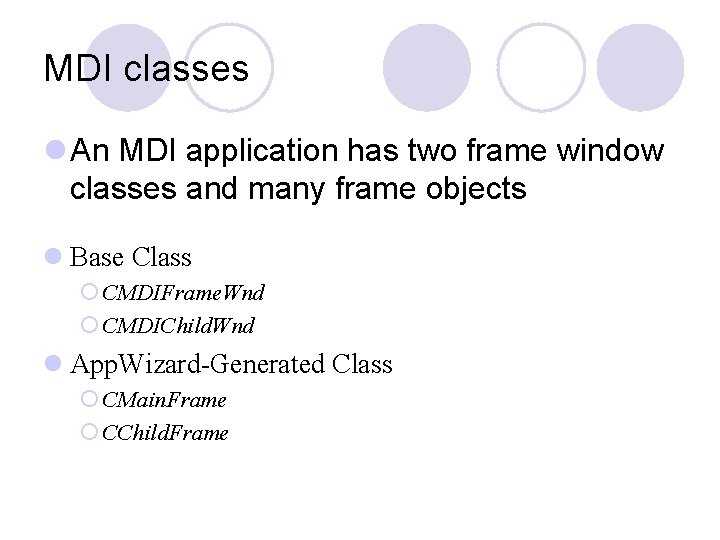
MDI classes l An MDI application has two frame window classes and many frame objects l Base Class ¡ CMDIFrame. Wnd ¡ CMDIChild. Wnd l App. Wizard-Generated Class ¡ CMain. Frame ¡ CChild. Frame
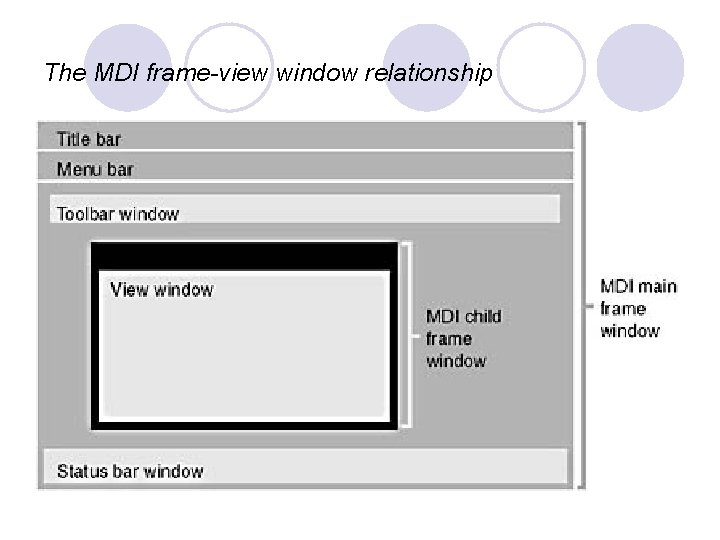
The MDI frame-view window relationship
Splitter Windows l A splitter window is a window that can be divided into two or more panes horizontally, vertically, or both horizontally and vertically using movable splitter bars. Each pane contains one view of a document's data. The views are children of the splitter window, and the splitter window itself is normally a child of a frame window.
Splitter windows l Using splitter windows provided by MFC, a single document interface (SDI) application can present two or more views of the same document in resizeable "panes" that subdivide the frame window's client area l In an SDI application, the splitter window is a child of the top-level frame window.
l In an MDI application, the splitter window is a child of an MDI document frame.
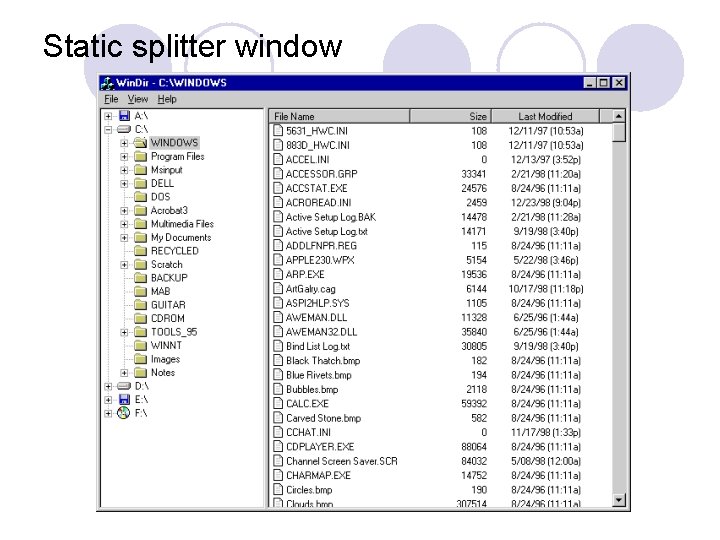
Types of splitter windows l static splitter window: The numbers of rows and columns in a static splitter window are set when the splitter is created and can't be changed by the user. The user is, however, free to resize individual rows and columns. A static splitter window can contain a maximum of 16 rows and 16 columns. For an example of an application that uses a static splitter, look no further than the Windows Explorer's main window is divided in half vertically by a static splitter window.
Static splitter window
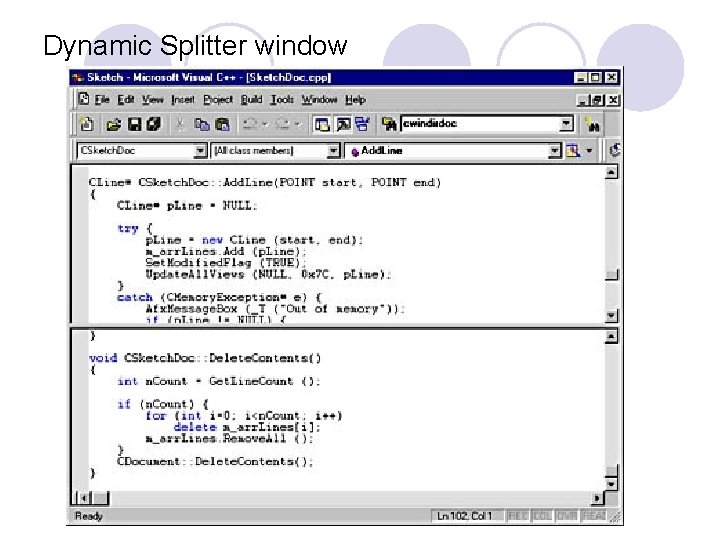
Dynamic Splitter window l A dynamic splitter window is limited to at most two rows and two columns, but it can be split and unsplit interactively. The views displayed in a dynamic splitter window's panes aren't entirely independent of each other: when a dynamic splitter window is split horizontally, the two rows have independent vertical scroll bars but share a horizontal scroll bar. Similarly, the two columns of a dynamic splitter window split vertically contain horizontal scroll bars of their own but share a vertical scroll bar. The maximum number of rows and columns a dynamic splitter window can be divided into are specified when the splitter is created. Thus, it's a simple matt
Dynamic Splitter window
Procedure for Creating and initializing a dynamic splitter window 1. Add a CSplitter. Wnd data member to the frame window class. 2. Override the frame window's virtual On. Create. Client function, and call CSplitter. Wnd: : Create to create a dynamic splitter window in the frame window's client area.
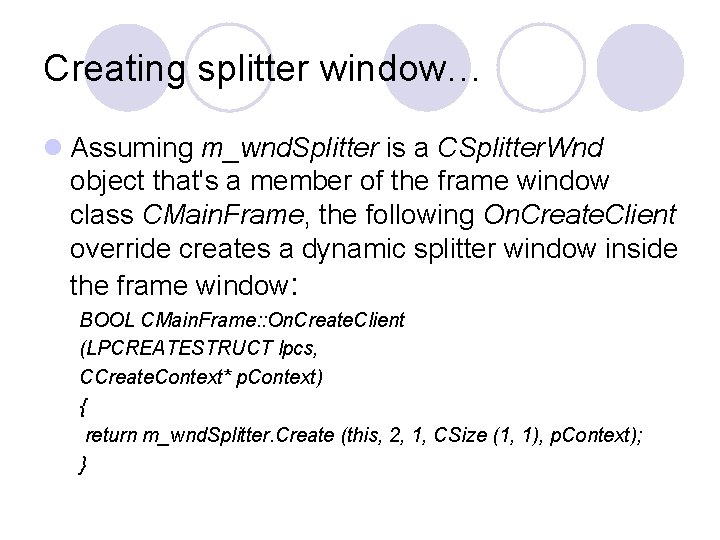
Creating splitter window… l Assuming m_wnd. Splitter is a CSplitter. Wnd object that's a member of the frame window class CMain. Frame, the following On. Create. Client override creates a dynamic splitter window inside the frame window: BOOL CMain. Frame: : On. Create. Client (LPCREATESTRUCT lpcs, CCreate. Context* p. Context) { return m_wnd. Splitter. Create (this, 2, 1, CSize (1, 1), p. Context); }
Creating splitter window… l The first parameter to CSplitter. Wnd: : Create identifies the splitter window's parent, which is the frame window. l The second and third parameters specify the maximum number of rows and columns that the window can be split into. l Because a dynamic splitter window supports a maximum of two rows and two columns, these parameter values will always be 1 or 2. l The fourth parameter specifies each pane's minimum width and height in pixels. The framework uses these values to determine when panes should be created and destroyed as splitter bars are moved.
Creating splitter window… l CSize values equal to (1, 1) specify that panes can be as little as 1 pixel wide and 1 pixel tall. l The fifth parameter is a pointer to a CCreate. Context structure provided by the framework. The structure's m_p. New. View. Class member identifies the view class used to create views in the splitter's panes. l The framework creates the initial view for you and puts it into the first pane. Other views of the same class are created automatically as additional panes are created.
l Visual Programming Basics ØCreating a Window Based Application Ø Adding an Event Handler Ø Adding Command Button, Edit Box and static Text controls ØCompleting Windows Program ØAdding Check Box, Radio Button and Group Box Controls
Ø Creating Window Based Application Ø Visual C++ Application = Visual Part + Programming Language Part Ø Although console Programs are extremely efficient for learning the programming basics of visual c++, the IDE allows you to easily create event-driven WBA that make full use of the visual elements.
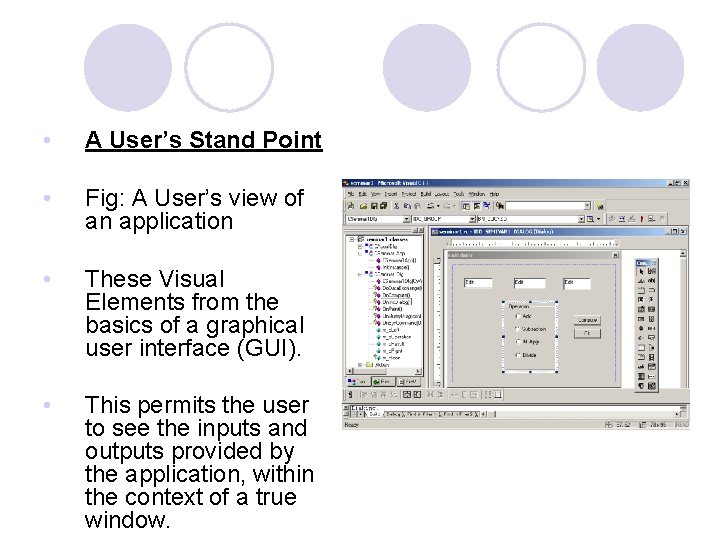
• A User’s Stand Point • Fig: A User’s view of an application • These Visual Elements from the basics of a graphical user interface (GUI). • This permits the user to see the inputs and outputs provided by the application, within the context of a true window.
From a Programmer’s Perspective • The above fig is constructed from a set of visual objects provided as resources when the program is being developed. • A Closer look at the elements shown in fig reveals that the application’s main window is defined by its border, which contains the title bar and minimize, resize and close buttons. • Additionally, although they are not shown scrollbars could also be present • The area within the main window is referred to as the client area, • And it is within this area that each application must be individually constructed. .
For Example • Inside the client area shown in Fig is a dialog box, which itself contains a number of controls. • Although dialog boxes and controls are usually considered together, a control is more formally defined as an object such as command button, that provides a unique capability • to display data, • perform an action (or) make the GUI easier to read
Standard VC++ Tool Box o Dialog boxes, which are also referred to as dialogs, for short, consist of two general types. o Modal Type – must be closed before any other part of the program using the dialog can be accessed o Non Modal type – can remain open while other elements in the same program containing the dialogs are activated. o VC++’s resource editor is activated one of the windows that is used with it is the controls window, also referred as toolbox. . o each of these objects is a control in that it permits a user to input info or receive the output from an executing application. o A majority of applications can be constructed using a minimal set of the controls provided in the toolbox window. o The minimal set consists of the Label, Edit box and Command button objects. o The next set of Objects that more frequently found in applications include the checkbox, Radio button, Group box, List box and Combo box controls.
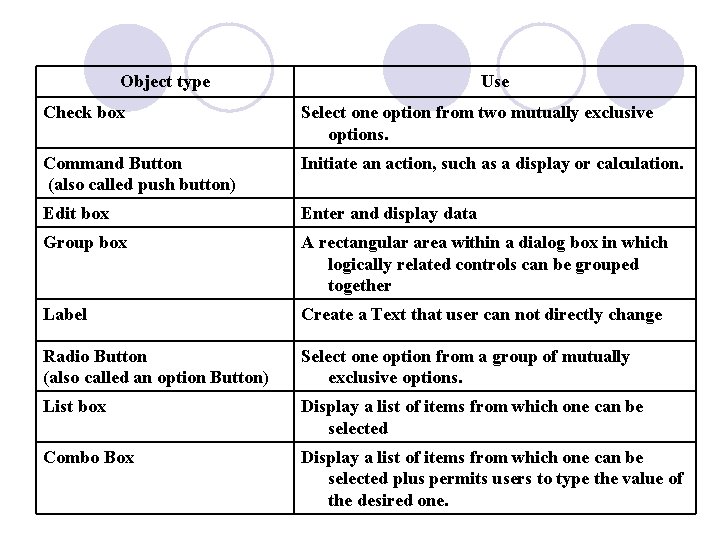
Object type Use Check box Select one option from two mutually exclusive options. Command Button (also called push button) Initiate an action, such as a display or calculation. Edit box Enter and display data Group box A rectangular area within a dialog box in which logically related controls can be grouped together Label Create a Text that user can not directly change Radio Button (also called an option Button) Select one option from a group of mutually exclusive options. List box Display a list of items from which one can be selected Combo Box Display a list of items from which one can be selected plus permits users to type the value of the desired one.
As Objects they are ultimately defined by two features, referred to as Properties and Methods. An Object’s Properties define its state Which for controls is simply how the object appears on the screen? For Example The properties of an edit box includes the location of the edit box within a dialog the color of the box (background color), The color that text will be displayed in the box (foreground color) and whether it is read only or can also be written to by the user Methods As they apply to controls are predefined procedures that are supplied with the object for performing specific tasks
Methods As they apply to controls are predefined procedures that are supplied with the object for performing specific tasks For Example You can use a method to move an Object to a different location or change its size in general a method is used to alter an object’s properties. Additionally each Object recognizes certain actions. For Example Command Button recognizes when the mouse pointer is pointing to it and the left mouse button is clicked. This types of action as we have seen are referred to as events.
As illustrated in fig an event such as clicking the mouse on a command button, sets in motion a sequence of occurrences. If code has been written for the event, the code is executed otherwise the event is ignored. This is of course the essence of GUI and event driven applications. The selection of which code is executed depends on what events occur which ultimately depends on, what the user does The code however, must still be written by the programmer. With these basics in mind, it is now time to
Although a full featured window application can be developed by using code only. You would need extensive and advanced knowledge of the MFC Library to produce such a program. Even Advanced programmers no longer create applications using only code. Because VC++ provides a number of features that permits rapid development of the GUI required for a WBA. VC++ WBA requires the following 3 steps. 1. Create the GUI 2. Set the properties of each Object on the Interface. 3. Write the code.
Dialog and Controls When designing an application, as dialog is a container upon which other controls are placed. When an application is executed, the dialog becomes a dialog box. It can either be contained which the client area of an SDI or MDI window or be displayed by itself as a stand alone window. SDI applications can have multiple windows, but only one window at a time can be viewed by a user. MDI, which means the applications, consists of a single parent or main window that contains multiple child or internal windows.
For Example Note Pad Application supplied with the windows OS is an SDI Application. MS Excel and Access are that can be placed on a dialog and has its own set of recognized properties, methods and events. Controls are used to receive user input and display the output and trigger event programming. Formally a control is considered as child window
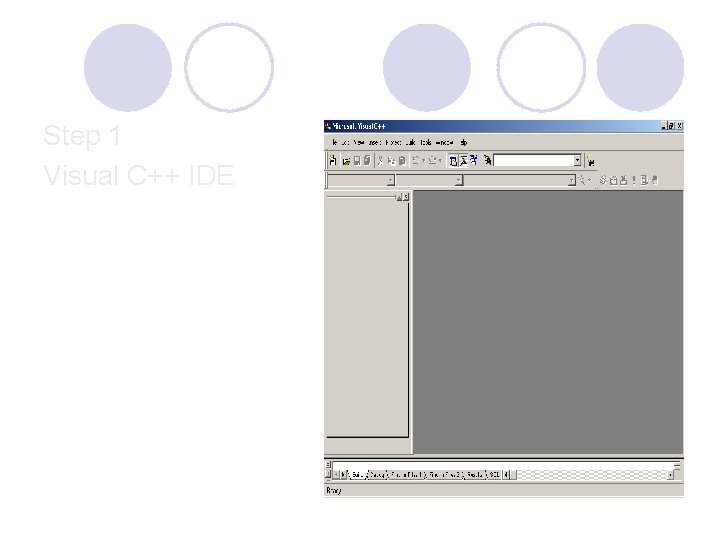
Step 1 Visual C++ IDE
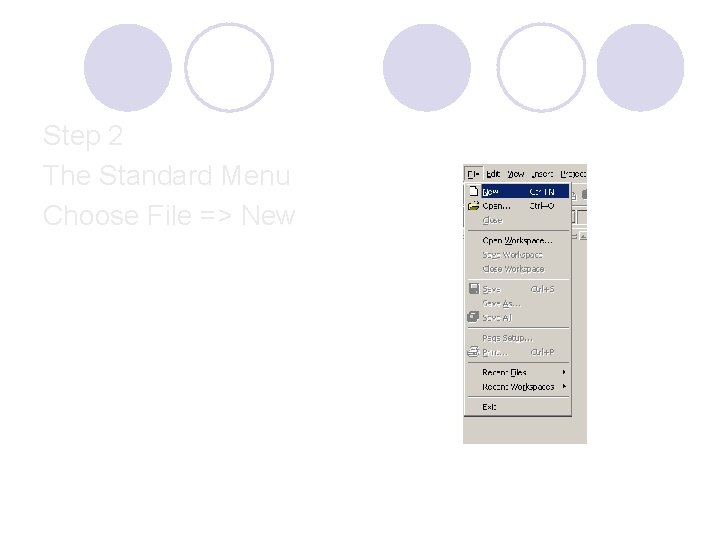
Step 2 The Standard Menu Choose File => New
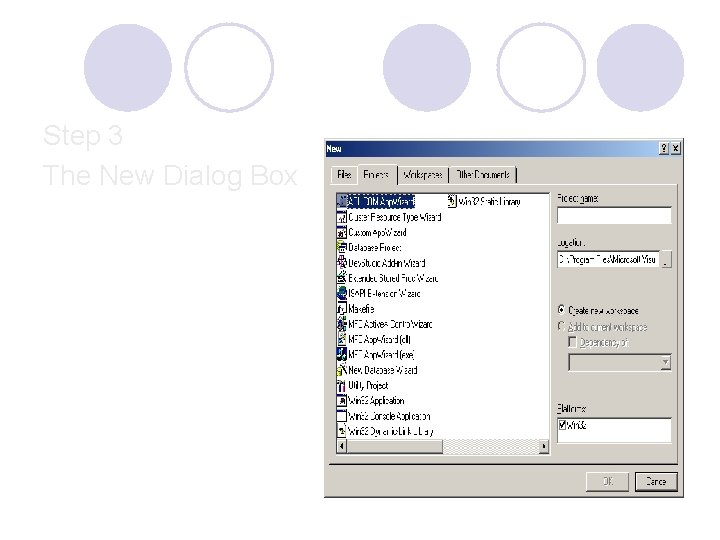
Step 3 The New Dialog Box
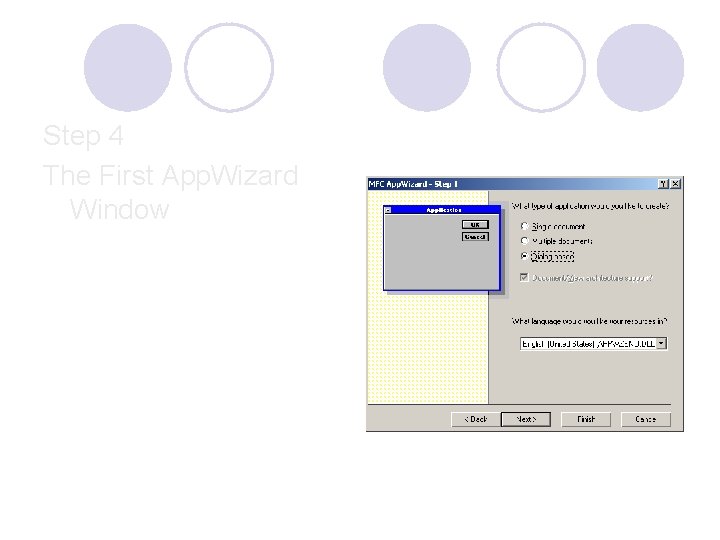
Step 4 The First App. Wizard Window
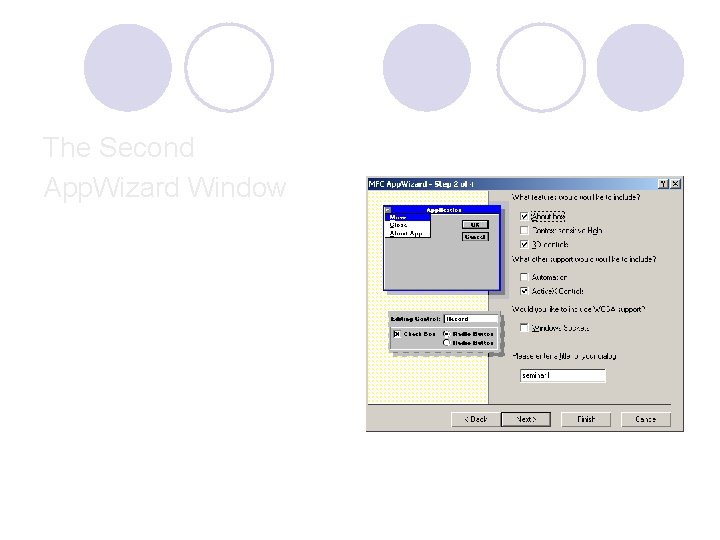
The Second App. Wizard Window
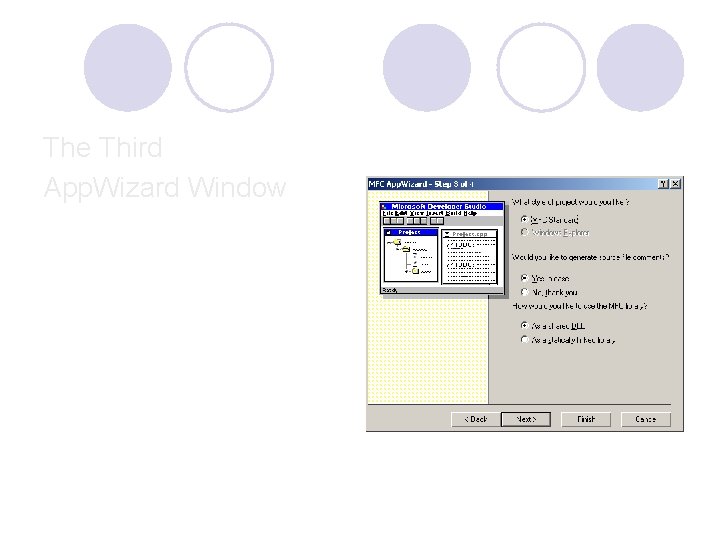
The Third App. Wizard Window
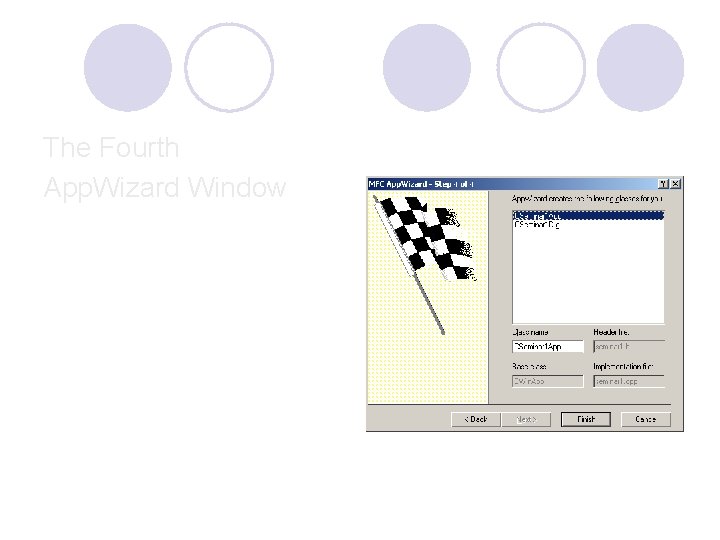
The Fourth App. Wizard Window
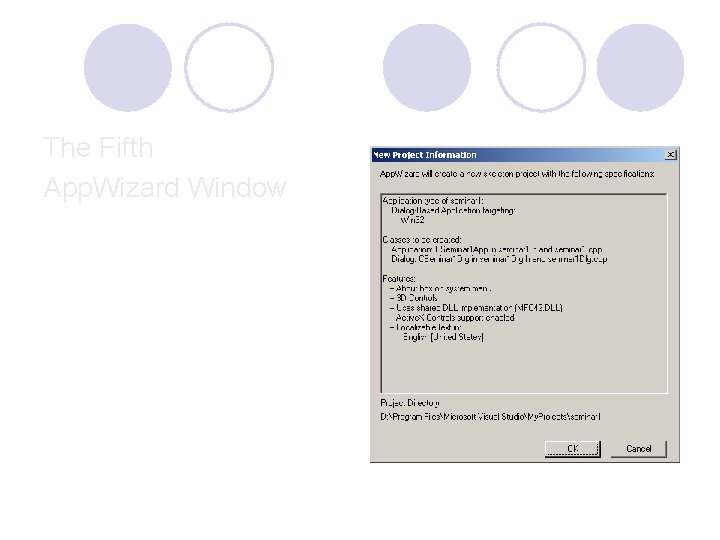
The Fifth App. Wizard Window
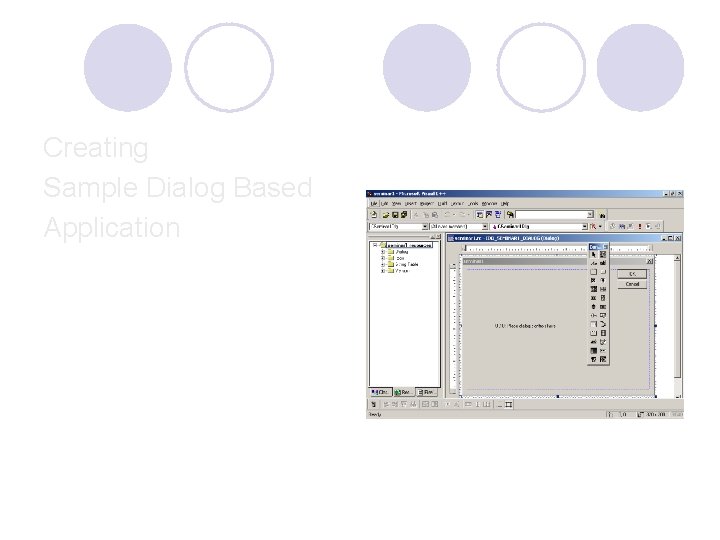
Creating Sample Dialog Based Application
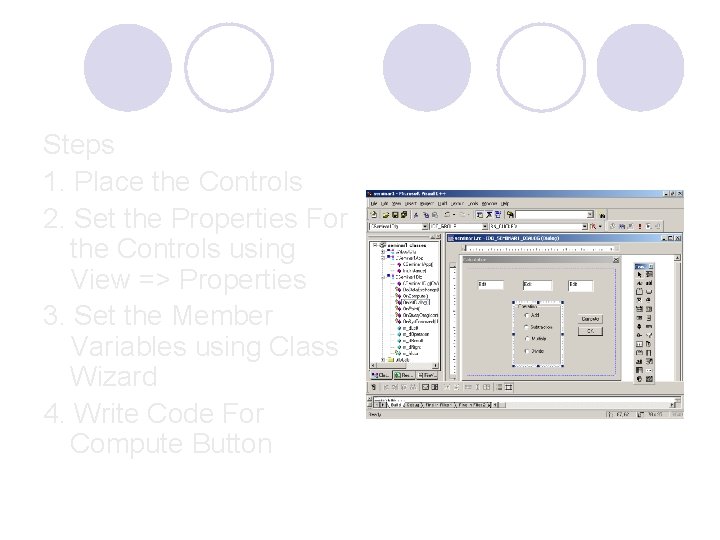
Steps 1. Place the Controls 2. Set the Properties For the Controls using View => Properties 3. Set the Member Variables using Class Wizard 4. Write Code For Compute Button
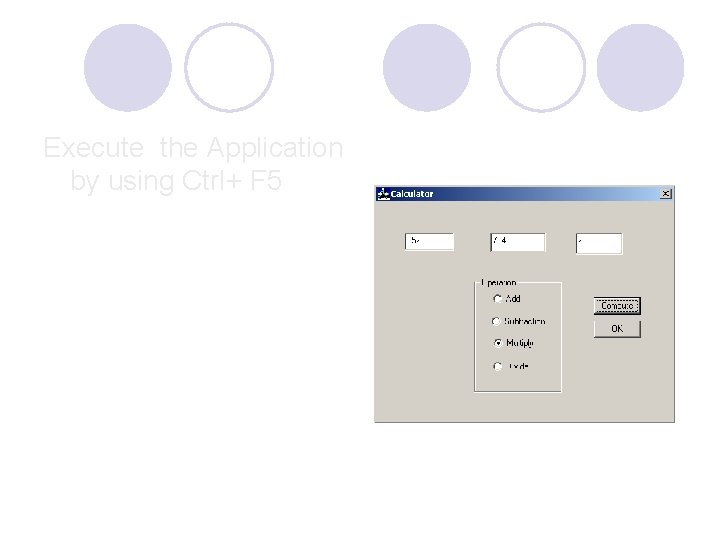
Execute the Application by using Ctrl+ F 5
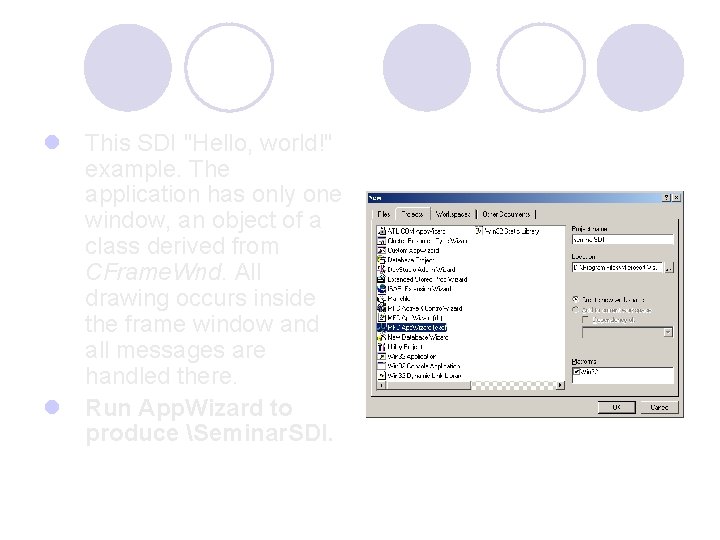
l This SDI "Hello, world!" example. The application has only one window, an object of a class derived from CFrame. Wnd. All drawing occurs inside the frame window and all messages are handled there. l Run App. Wizard to produce Seminar. SDI.
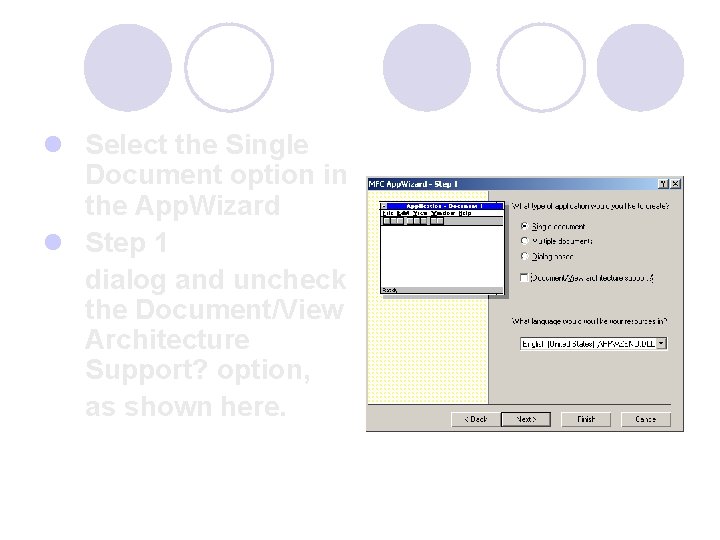
l Select the Single Document option in the App. Wizard l Step 1 dialog and uncheck the Document/View Architecture Support? option, as shown here.
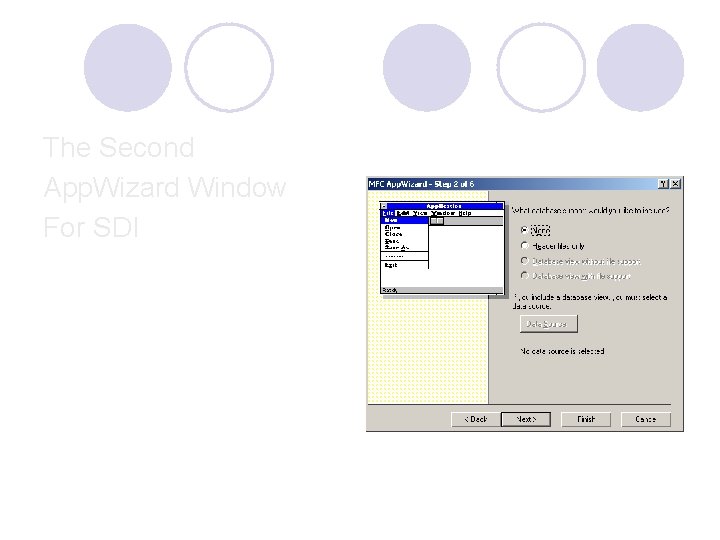
The Second App. Wizard Window For SDI
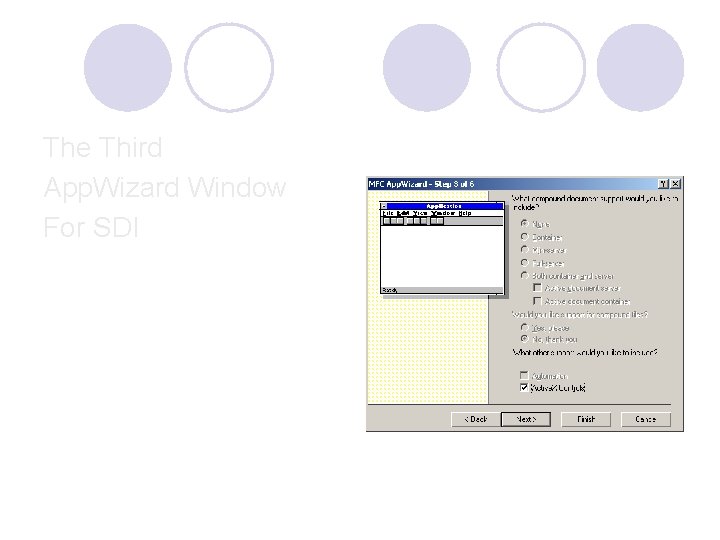
The Third App. Wizard Window For SDI
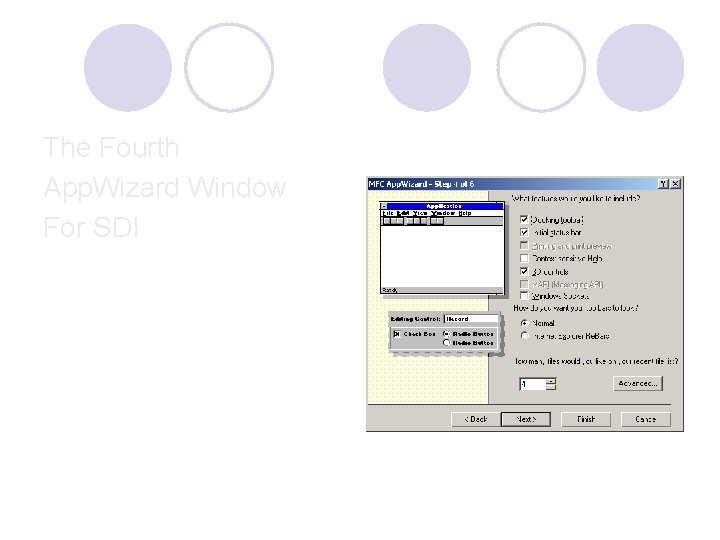
The Fourth App. Wizard Window For SDI
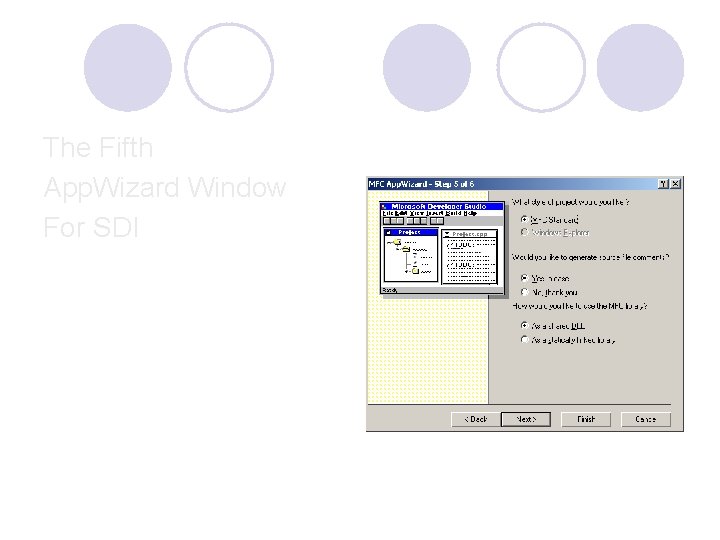
The Fifth App. Wizard Window For SDI
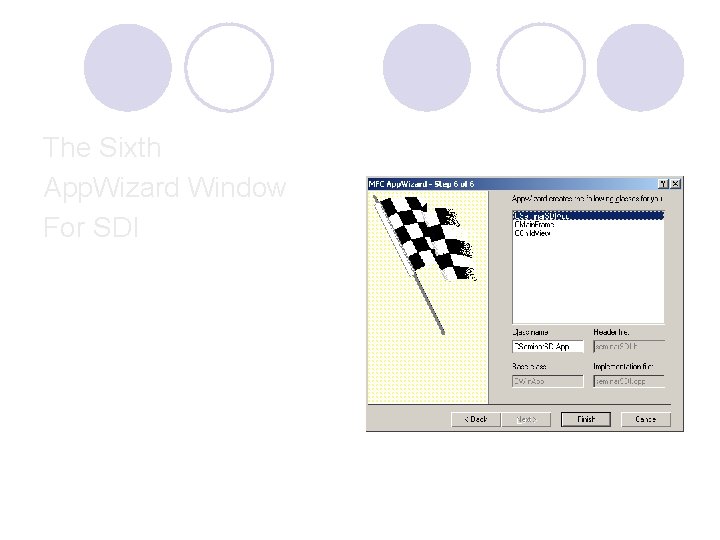
The Sixth App. Wizard Window For SDI
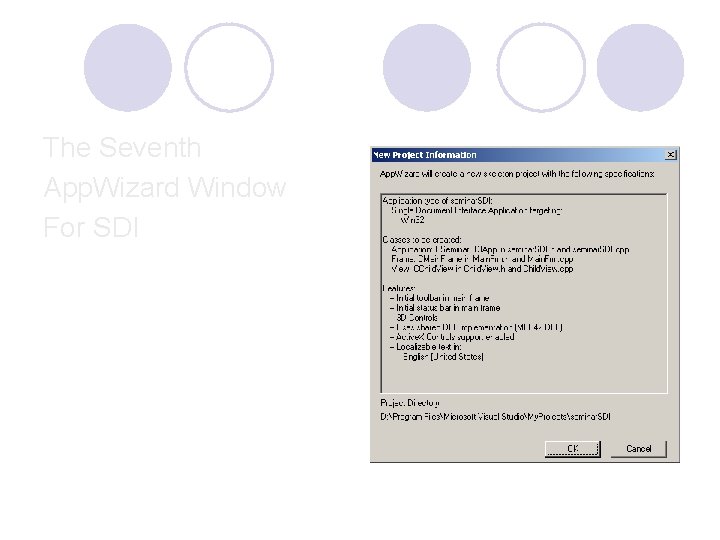
The Seventh App. Wizard Window For SDI
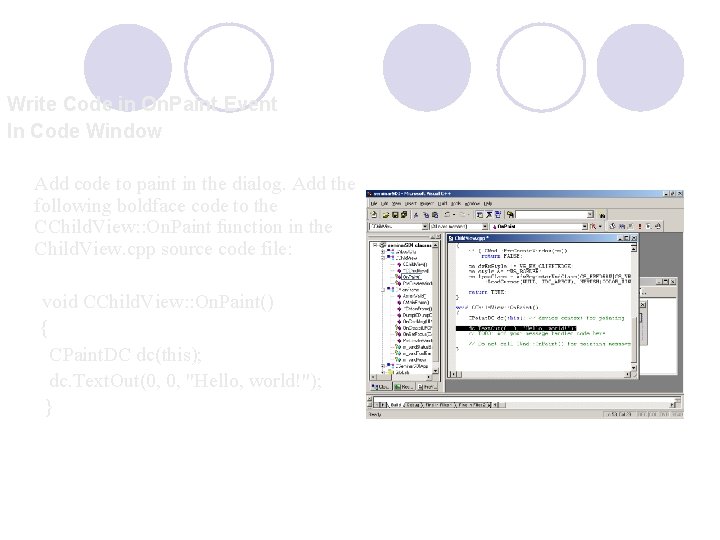
Write Code in On. Paint Event In Code Window Add code to paint in the dialog. Add the following boldface code to the CChild. View: : On. Paint function in the Child. View. cpp source code file: void CChild. View: : On. Paint() { CPaint. DC dc(this); dc. Text. Out(0, 0, "Hello, world!"); }
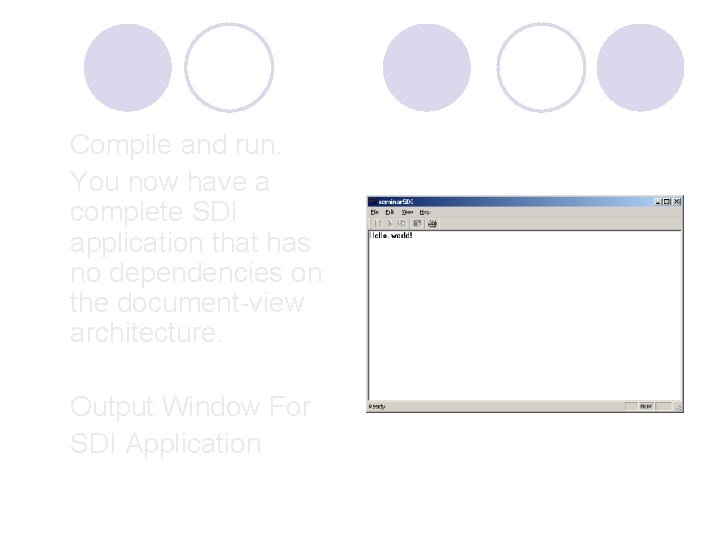
Compile and run. You now have a complete SDI application that has no dependencies on the document-view architecture. Output Window For SDI Application
l CChild. View class Contrary to its name, this class is actually a CWnd derivative that is declared in Child. View. h and implemented in Child. View. cpp. CChild. View implements only a virtual On. Paint member function, which contains any code that you want to draw in the frame window. l CMain. Frame class This class contains a data member, m_wnd. View, that is created and initialized in the CMain. Frame: : On. Create member function. l CMain. Frame: : On. Set. Focus function This function makes sure the focus is translated to the CChild. View: l void CMain. Frame: : On. Set. Focus(CWnd* p. Old. Wnd) { // forward focus to the view window m_wnd. View. Set. Focus(); } l CMain. Frame: : On. Cmd. Msg function This function gives the view a chance to handle any command messages first: BOOL CMain. Frame: : On. Cmd. Msg(UINT n. ID, int n. Code, void* p. Extra, AFX_CMDHANDLERINFO* p. Handler. Info) { // let the view have first crack at the command if (m_wnd. View. On. Cmd. Msg(n. ID, n. Code, p. Extra, p. Handler. Info)) return TRUE; // otherwise, do default handling return CFrame. Wnd: : On. Cmd. Msg(n. ID, n. Code, p. Extra, p. Handler. Info); }
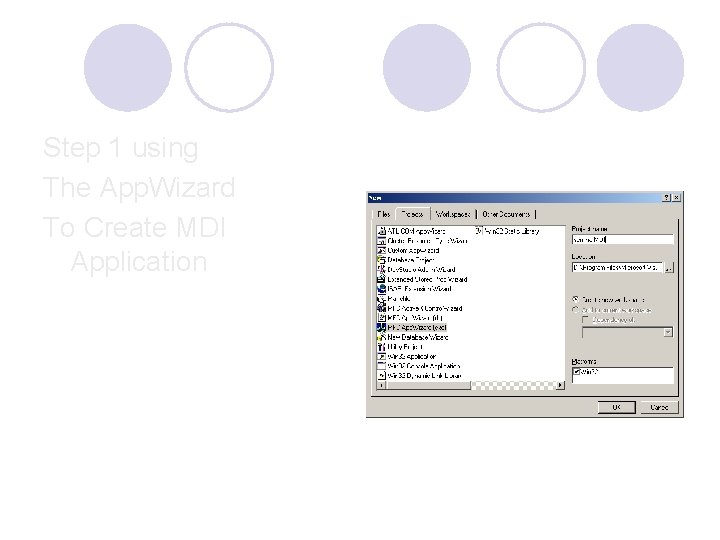
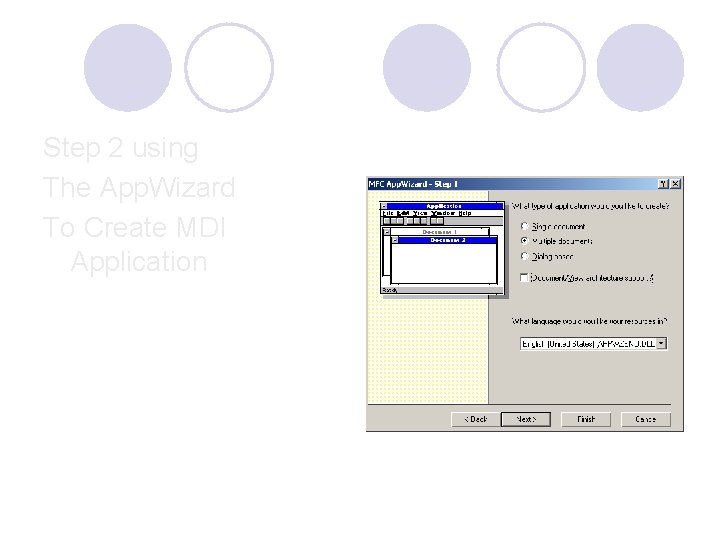
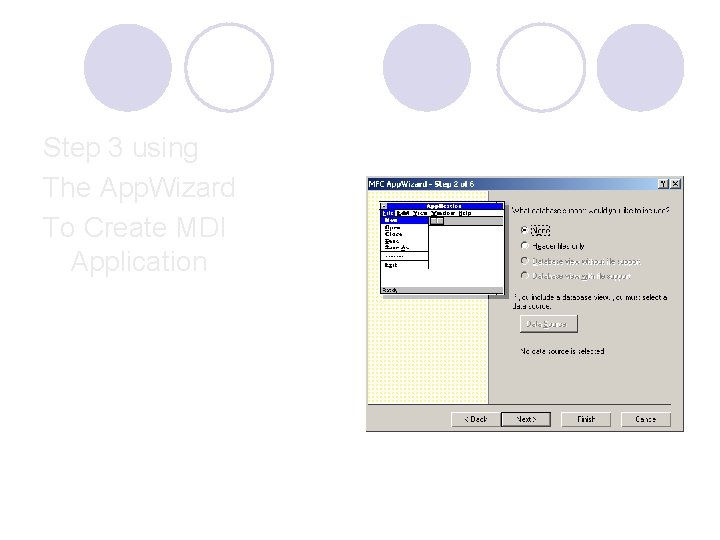
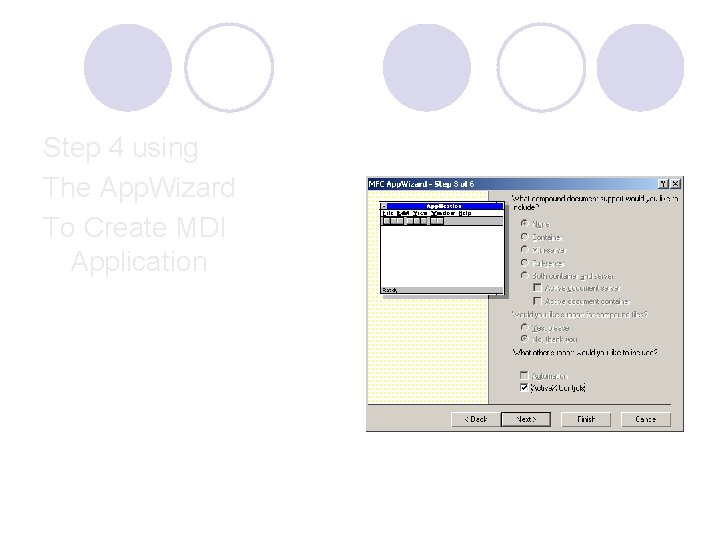
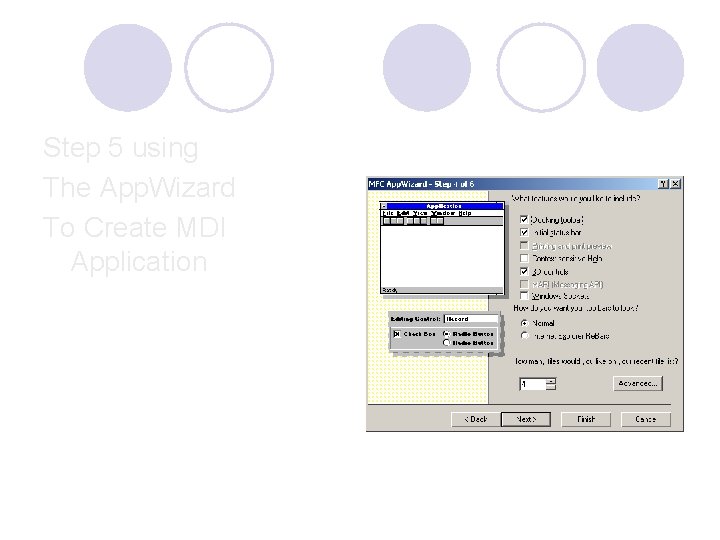
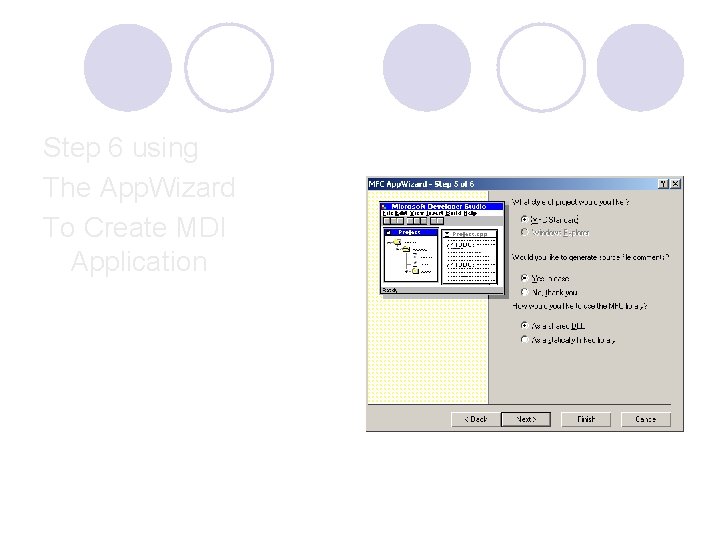
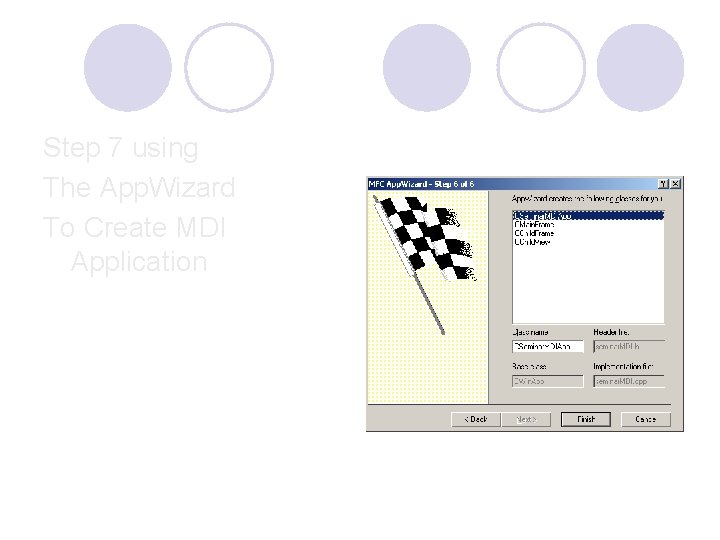
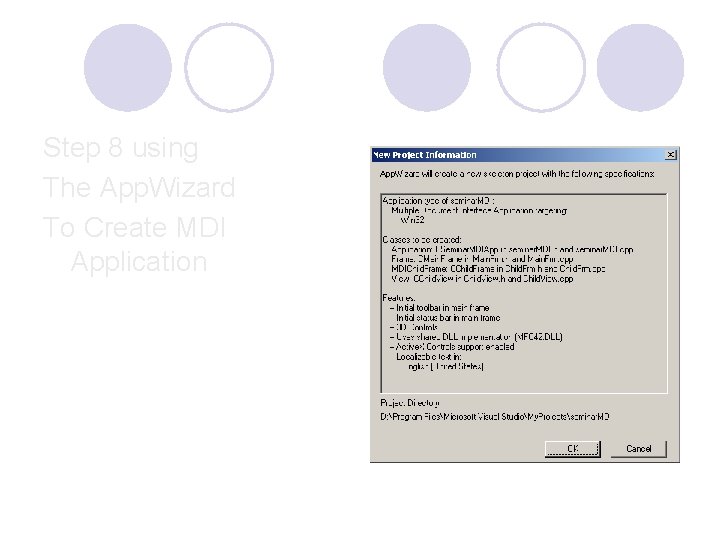
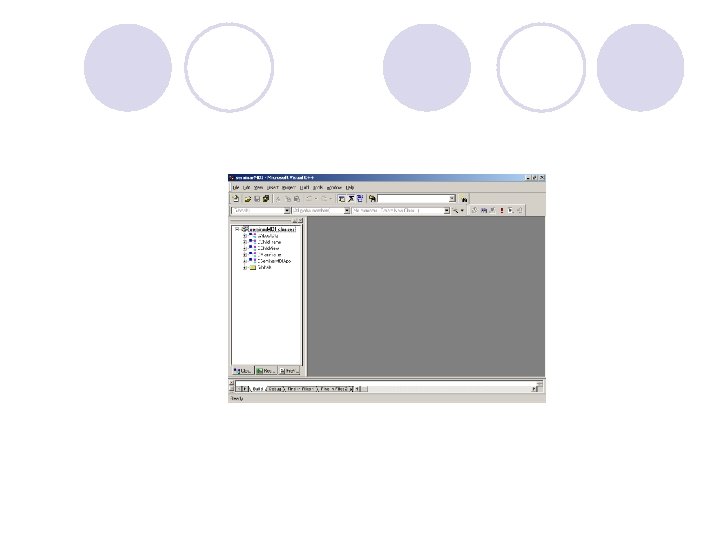
Create an MDI application that doesn't use the document-view architecture. l Run App. Wizard to produce seminar. MDI. Select the Multiple Documents option in the App. Wizard Step 1 dialog and uncheck the Document/View Architecture Support? option, as shown here.
Step 1 using The App. Wizard To Create MDI Application
Step 2 using The App. Wizard To Create MDI Application
Step 3 using The App. Wizard To Create MDI Application
Step 4 using The App. Wizard To Create MDI Application
Step 5 using The App. Wizard To Create MDI Application
Step 6 using The App. Wizard To Create MDI Application
Step 7 using The App. Wizard To Create MDI Application
Step 8 using The App. Wizard To Create MDI Application
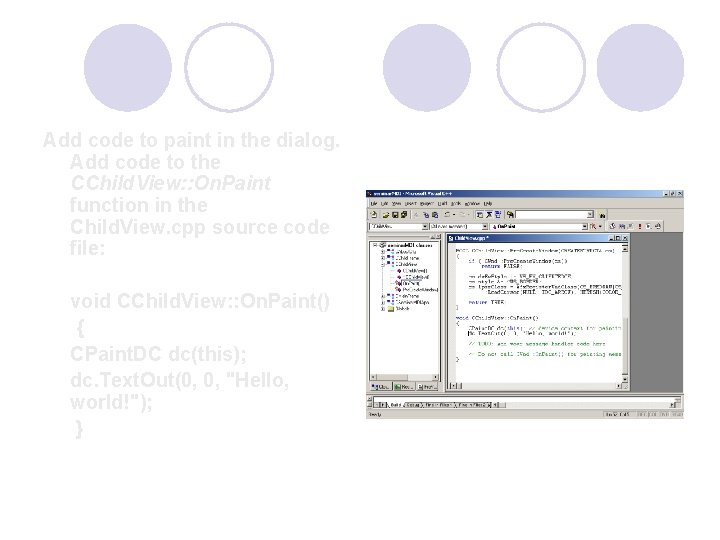
Add code to paint in the dialog. Add code to the CChild. View: : On. Paint function in the Child. View. cpp source code file: void CChild. View: : On. Paint() { CPaint. DC dc(this); dc. Text. Out(0, 0, "Hello, world!"); }
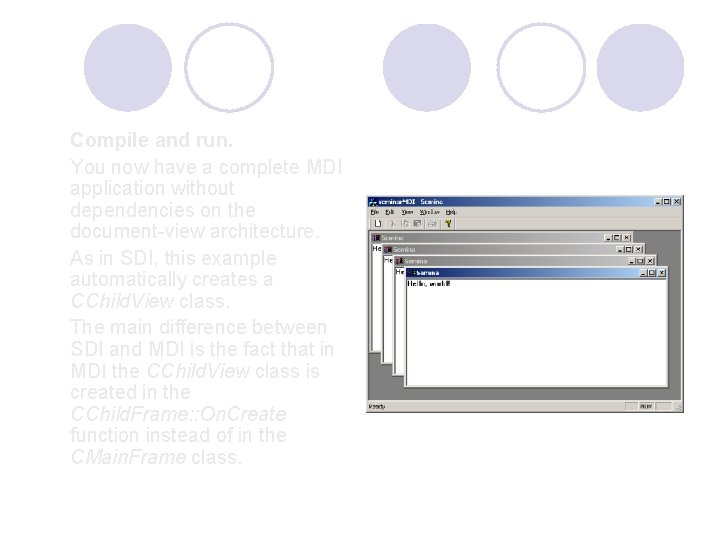
Compile and run. You now have a complete MDI application without dependencies on the document-view architecture. As in SDI, this example automatically creates a CChild. View class. The main difference between SDI and MDI is the fact that in MDI the CChild. View class is created in the CChild. Frame: : On. Create function instead of in the CMain. Frame class.
Thank You