z Tree Workshop Fundamentals of z Tree Justin

- Slides: 116
z. Tree Workshop: Fundamentals of z. Tree Justin Esarey Florida State University Department of Political Science July 11 th, 2005
What is z. Tree? l l Zurich Toolbox for Readymade Economic Experiments Consists of two programs l l l z. Tree (the programming environment and experiment server) z. Leaf (the client program for subjects) Designed primarily for public goods games, structured bargaining experiments, posted-offermarkets and double auctions
What You Will Need to Program in z. Tree l z. Tree and z. Leaf Programs (z. Tree. exe and z. Leaf. exe) l l z. Tree Tutorial Manual (ztree 21 tutorial. pdf) l l Available at http: //www. som. yale. edu/faculty/Sunder/Experime ntal. Economics/Exp. Econ. html A “guided tour” of z. Tree’s capabilities; more instructional z. Tree Reference Manual (ztree 21 ref. pdf) l An organized reference of z. Tree code
Readings to Do l Today l l Basic Experiments and Questionnaires (Tutorial pp. 7 -16, 77 -81) Tomorrow l l Running Experiments and Recovering Data (Tutorial pp. 83 -89) Functions and Control Structures (Tutorial pp. 1741)
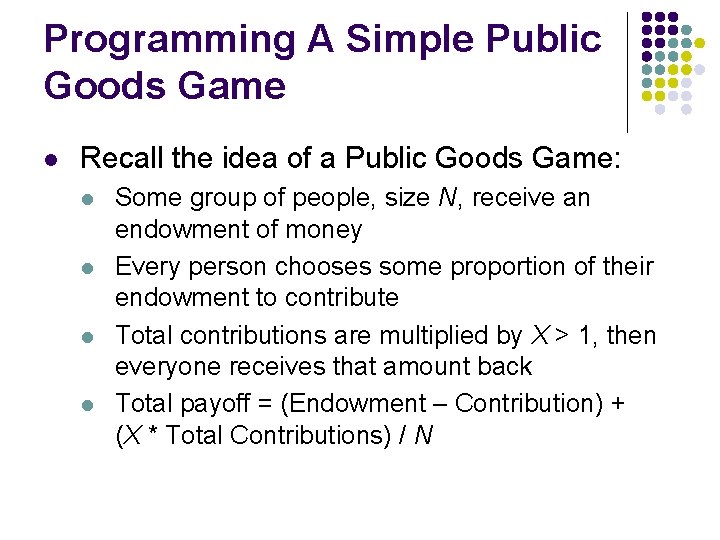
Programming A Simple Public Goods Game l Recall the idea of a Public Goods Game: l l Some group of people, size N, receive an endowment of money Every person chooses some proportion of their endowment to contribute Total contributions are multiplied by X > 1, then everyone receives that amount back Total payoff = (Endowment – Contribution) + (X * Total Contributions) / N
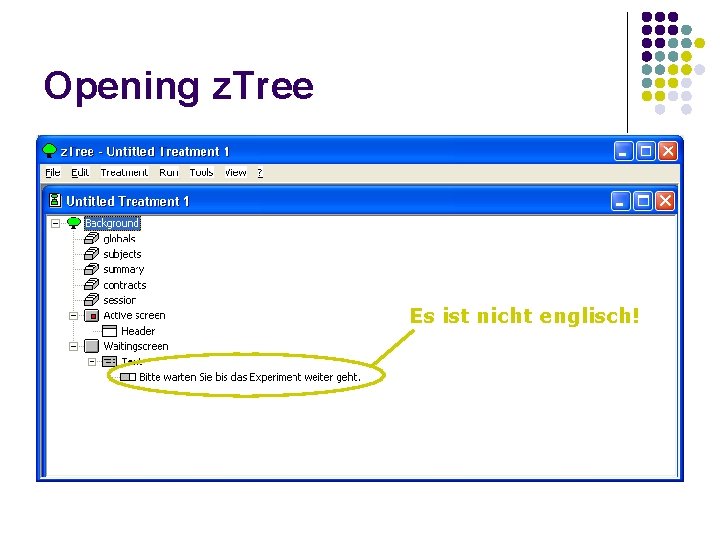
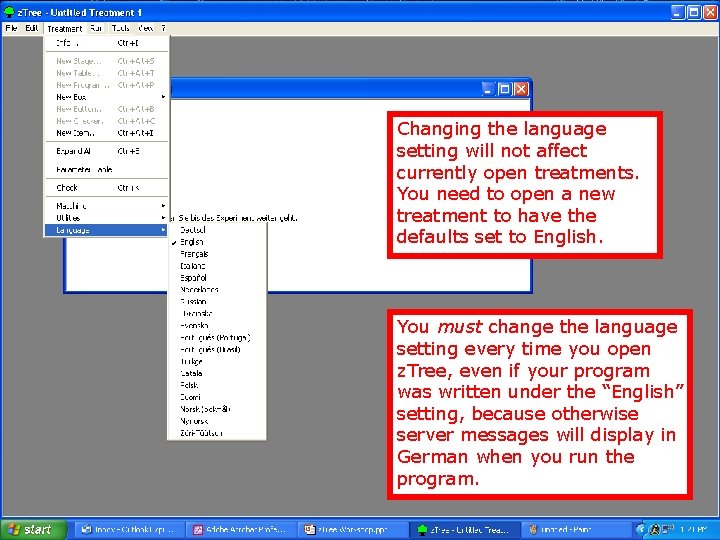
Opening z. Tree Es ist nicht englisch!
Changing the language setting will not affect currently open treatments. You need to open a new treatment to have the defaults set to English. You must change the language setting every time you open z. Tree, even if your program was written under the “English” setting, because otherwise server messages will display in German when you run the program.
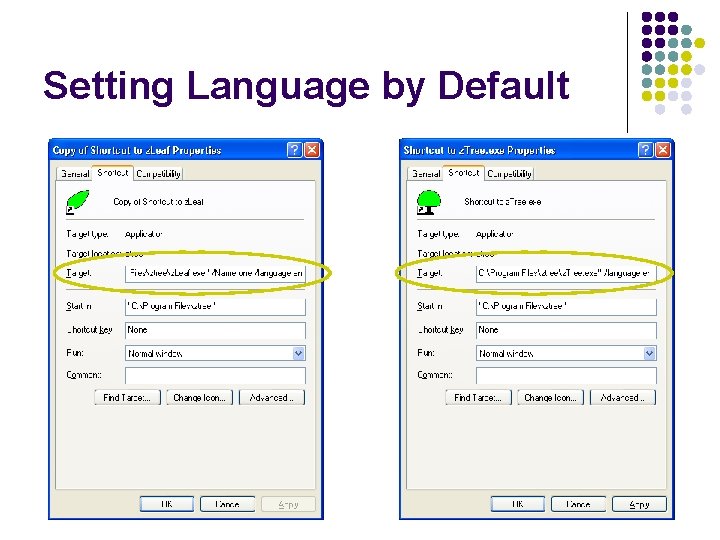
Setting Language by Default
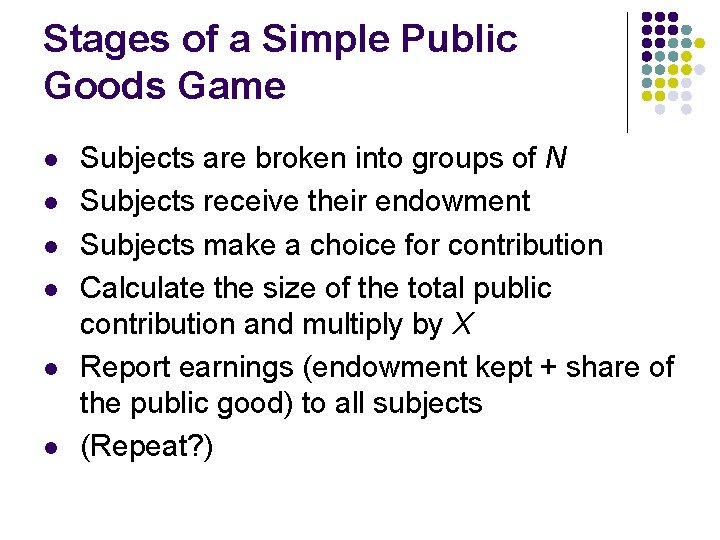
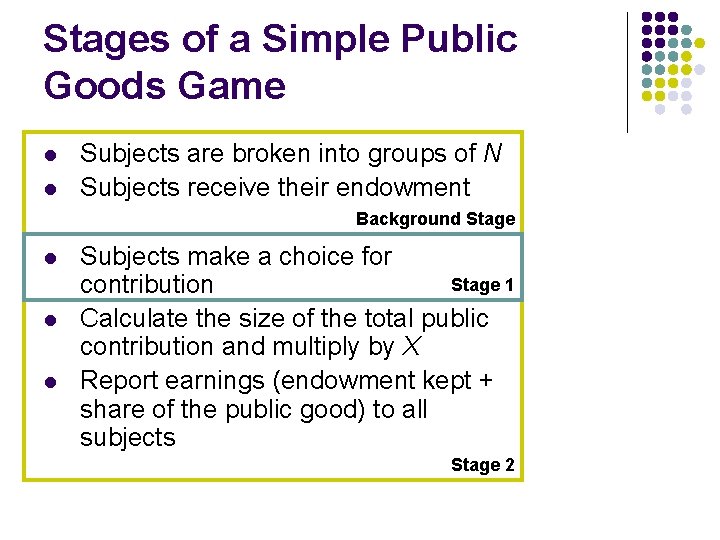
Stages of a Simple Public Goods Game l l l Subjects are broken into groups of N Subjects receive their endowment Subjects make a choice for contribution Calculate the size of the total public contribution and multiply by X Report earnings (endowment kept + share of the public good) to all subjects (Repeat? )
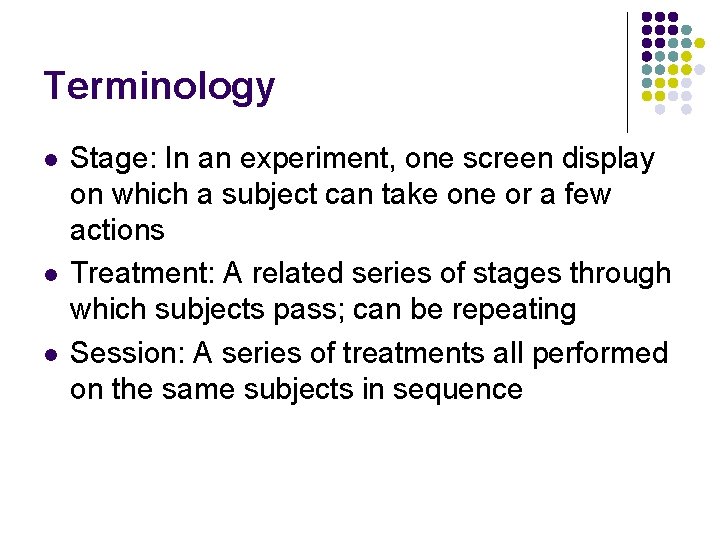
Terminology l l l Stage: In an experiment, one screen display on which a subject can take one or a few actions Treatment: A related series of stages through which subjects pass; can be repeating Session: A series of treatments all performed on the same subjects in sequence
Stages of a Simple Public Goods Game l l Subjects are broken into groups of N Subjects receive their endowment Background Stage l l l Subjects make a choice for Stage 1 contribution Calculate the size of the total public contribution and multiply by X Report earnings (endowment kept + share of the public good) to all subjects Stage 2
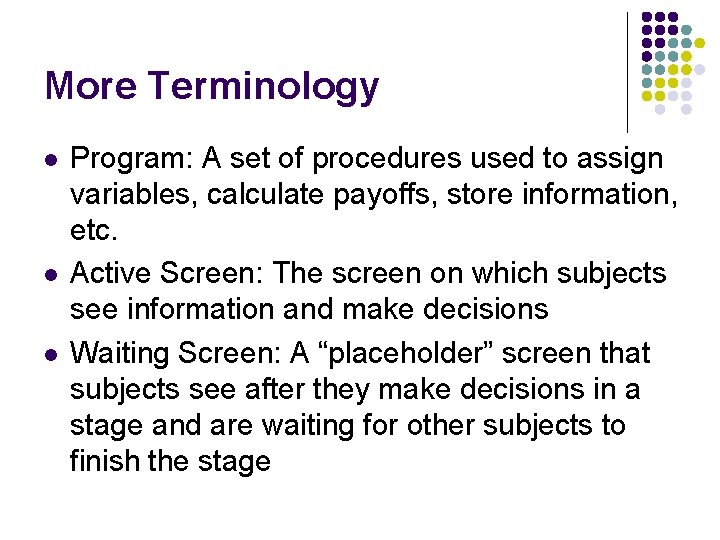
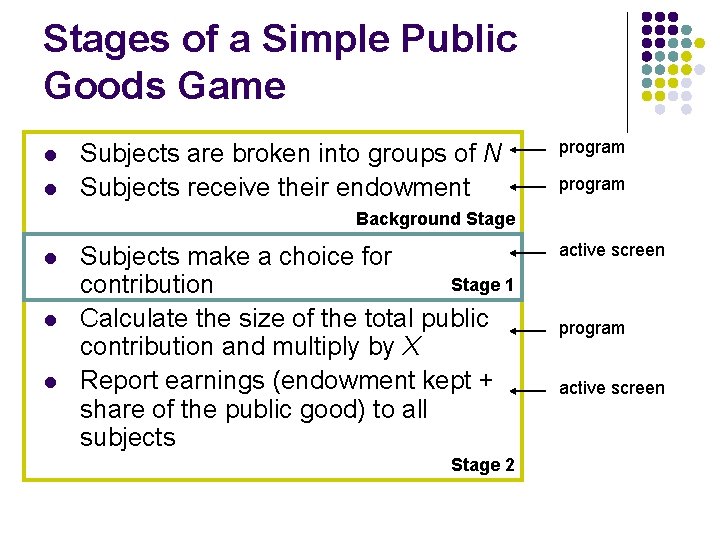
More Terminology l l l Program: A set of procedures used to assign variables, calculate payoffs, store information, etc. Active Screen: The screen on which subjects see information and make decisions Waiting Screen: A “placeholder” screen that subjects see after they make decisions in a stage and are waiting for other subjects to finish the stage
Stages of a Simple Public Goods Game l l Subjects are broken into groups of N Subjects receive their endowment program Background Stage l l l Subjects make a choice for Stage 1 contribution Calculate the size of the total public contribution and multiply by X Report earnings (endowment kept + share of the public good) to all subjects Stage 2 active screen program active screen
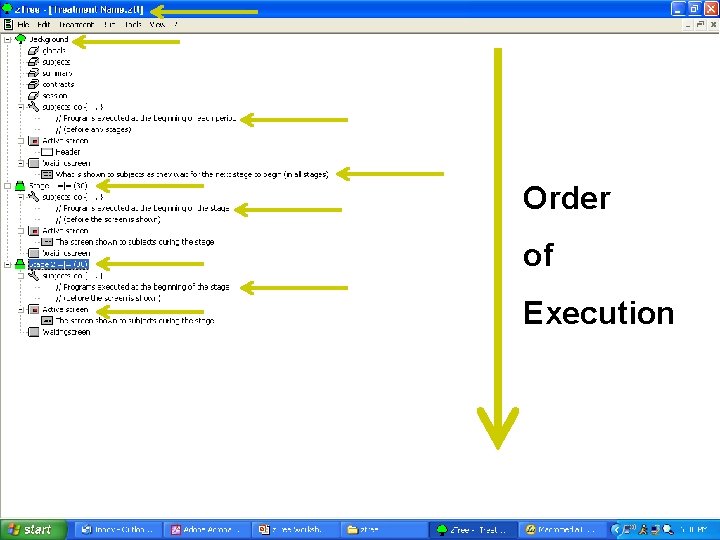
Order of Execution
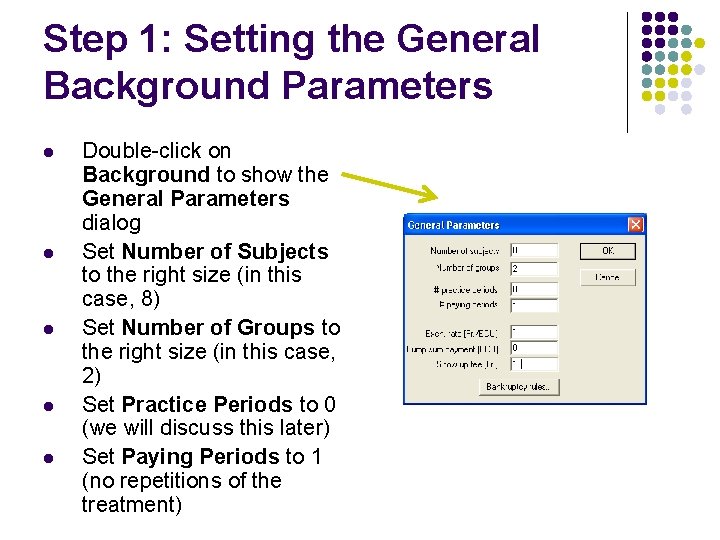
Step 1: Setting the General Background Parameters l l l Double-click on Background to show the General Parameters dialog Set Number of Subjects to the right size (in this case, 8) Set Number of Groups to the right size (in this case, 2) Set Practice Periods to 0 (we will discuss this later) Set Paying Periods to 1 (no repetitions of the treatment)
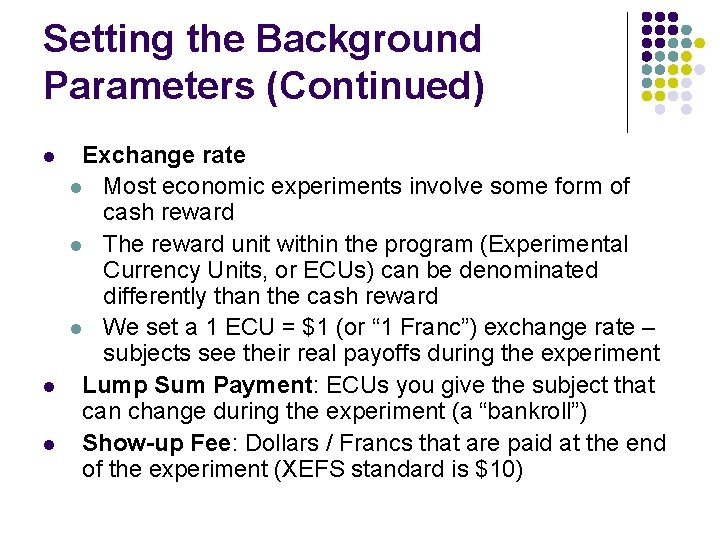
Setting the Background Parameters (Continued) l l l Exchange rate l Most economic experiments involve some form of cash reward l The reward unit within the program (Experimental Currency Units, or ECUs) can be denominated differently than the cash reward l We set a 1 ECU = $1 (or “ 1 Franc”) exchange rate – subjects see their real payoffs during the experiment Lump Sum Payment: ECUs you give the subject that can change during the experiment (a “bankroll”) Show-up Fee: Dollars / Francs that are paid at the end of the experiment (XEFS standard is $10)
Step 2: Set Non-General Background Parameters for the Experiment l l l Think about what variable parameters we have in this experiment… the number of subjects (gen. background) the number of periods (gen. background) X – the “efficiency factor” the size of the endowment Set these in a list at the top of the program – makes them easy to change for different treatments
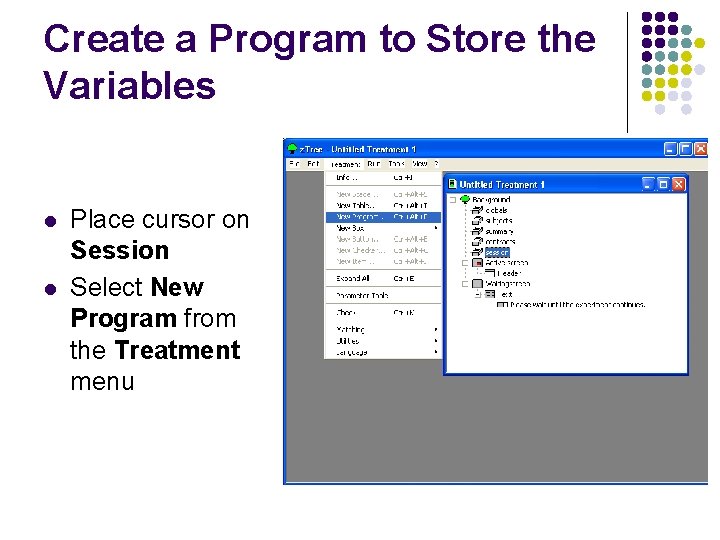
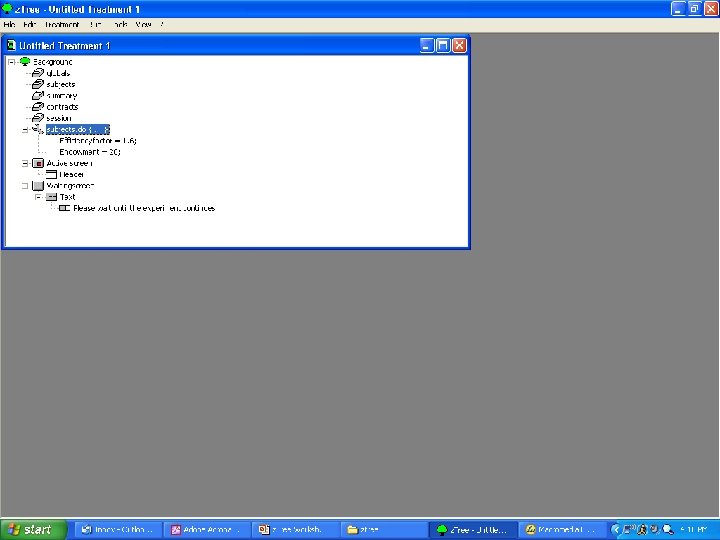
Create a Program to Store the Variables l l Place cursor on Session Select New Program from the Treatment menu
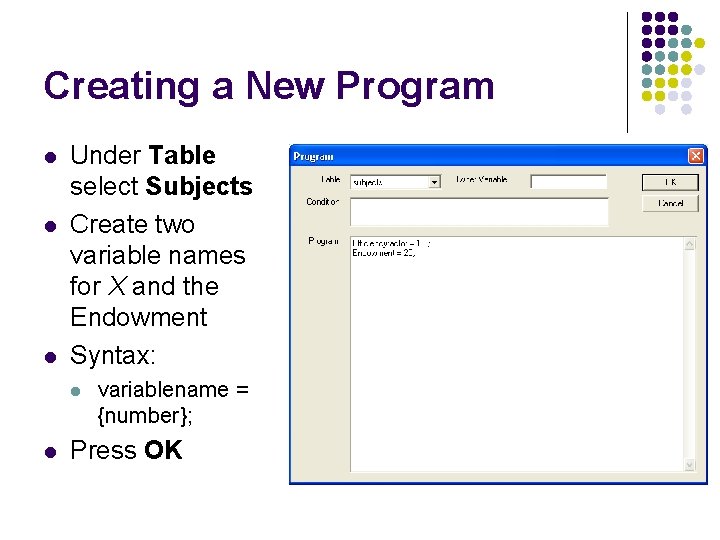
Creating a New Program l l l Under Table select Subjects Create two variable names for X and the Endowment Syntax: l l variablename = {number}; Press OK
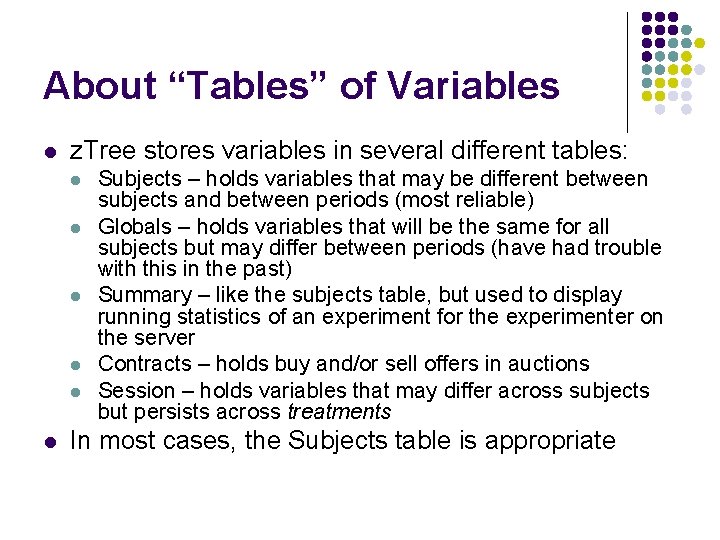
About “Tables” of Variables l z. Tree stores variables in several different tables: l l l Subjects – holds variables that may be different between subjects and between periods (most reliable) Globals – holds variables that will be the same for all subjects but may differ between periods (have had trouble with this in the past) Summary – like the subjects table, but used to display running statistics of an experiment for the experimenter on the server Contracts – holds buy and/or sell offers in auctions Session – holds variables that may differ across subjects but persists across treatments In most cases, the Subjects table is appropriate
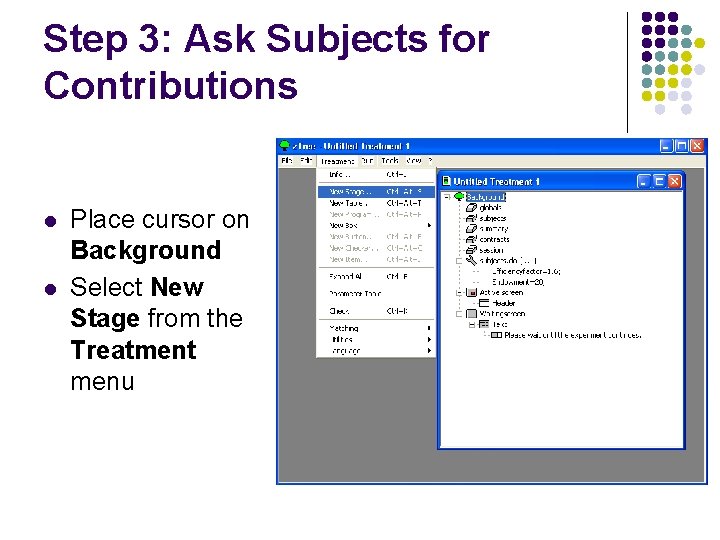
Step 3: Ask Subjects for Contributions l l Place cursor on Background Select New Stage from the Treatment menu
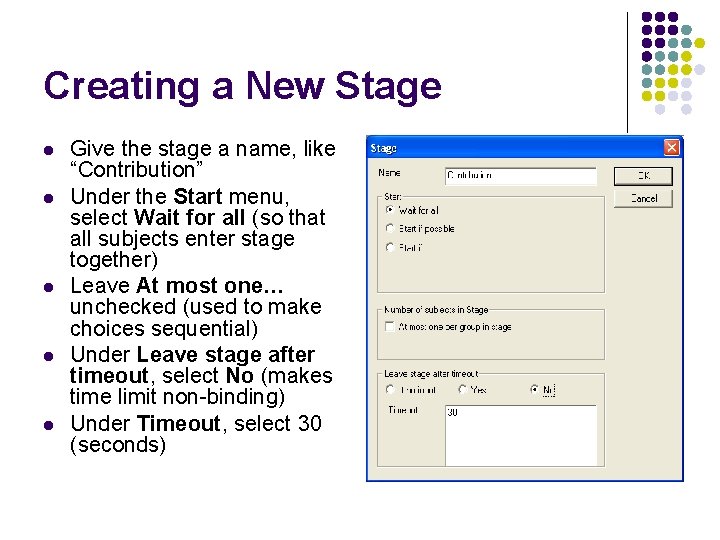
Creating a New Stage l l l Give the stage a name, like “Contribution” Under the Start menu, select Wait for all (so that all subjects enter stage together) Leave At most one… unchecked (used to make choices sequential) Under Leave stage after timeout, select No (makes time limit non-binding) Under Timeout, select 30 (seconds)
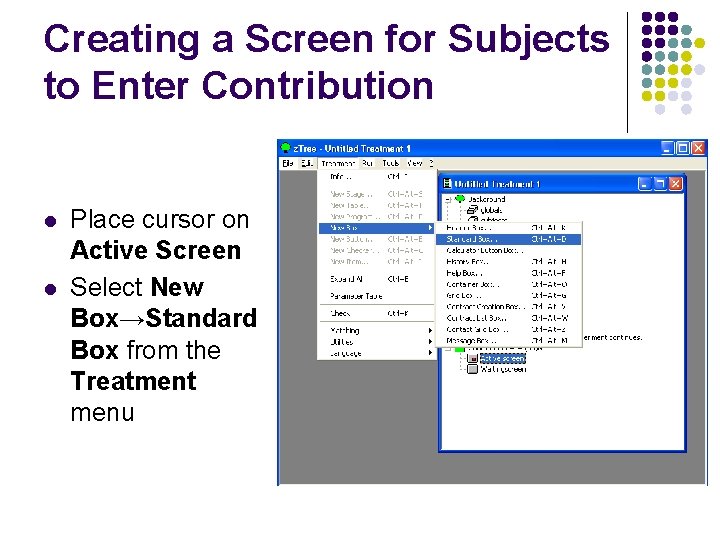
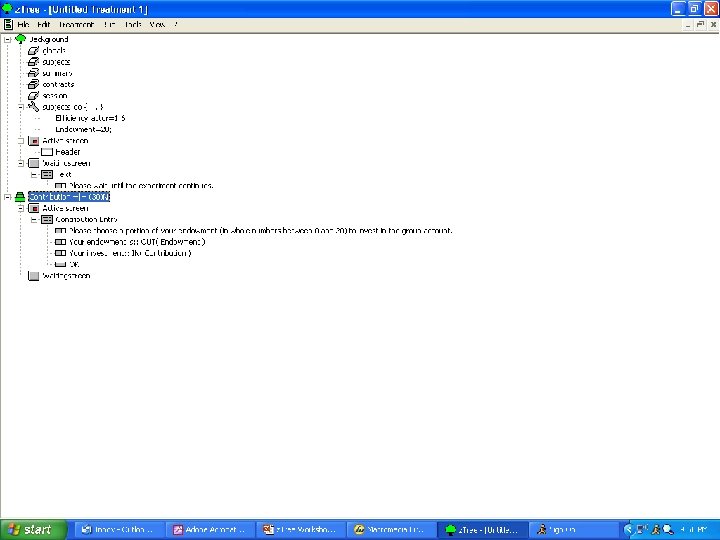
Creating a Screen for Subjects to Enter Contribution l l Place cursor on Active Screen Select New Box→Standard Box from the Treatment menu
Terminology l Box: A container in which text displays and entry buttons are placed on the Active Screen
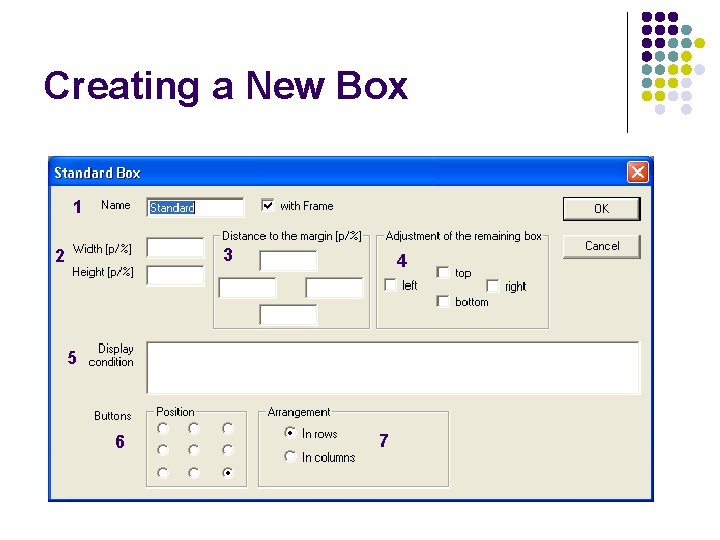
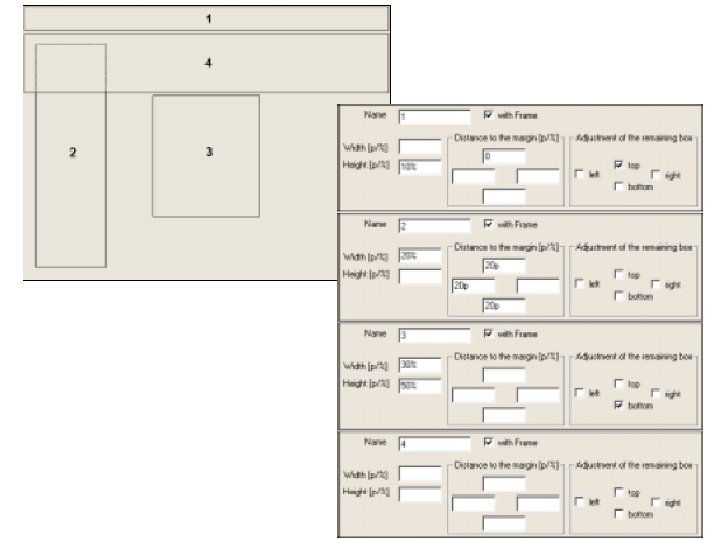
Creating a New Box 1 3 2 4 5 6 7
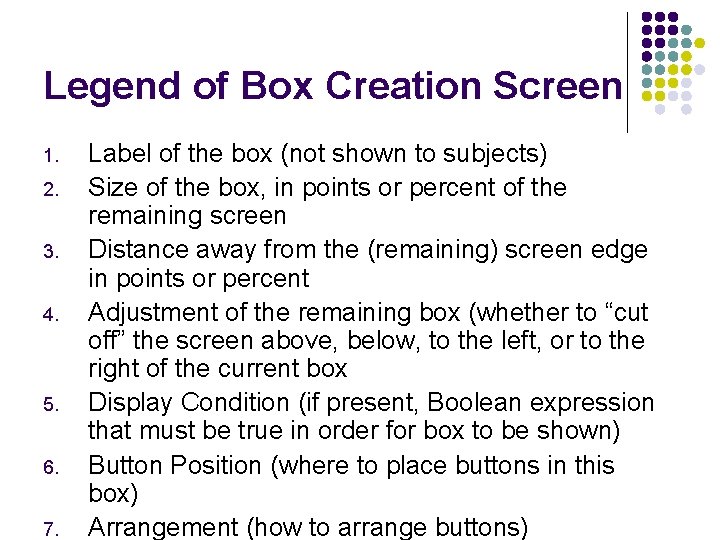
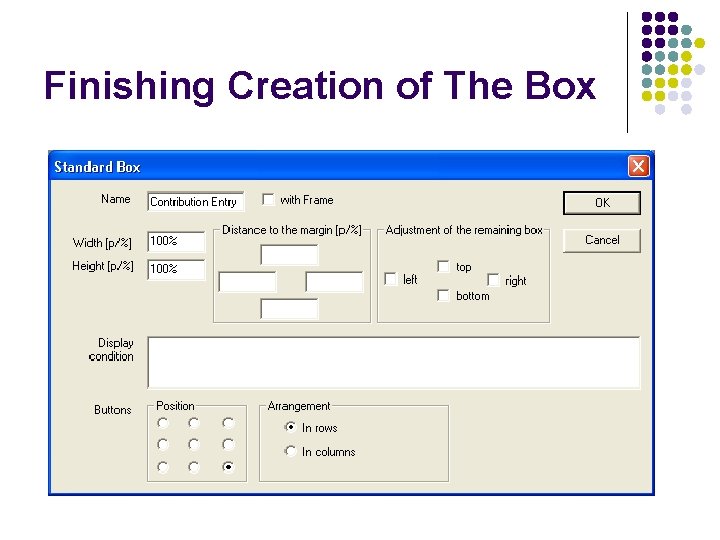
Legend of Box Creation Screen 1. 2. 3. 4. 5. 6. 7. Label of the box (not shown to subjects) Size of the box, in points or percent of the remaining screen Distance away from the (remaining) screen edge in points or percent Adjustment of the remaining box (whether to “cut off” the screen above, below, to the left, or to the right of the current box Display Condition (if present, Boolean expression that must be true in order for box to be shown) Button Position (where to place buttons in this box) Arrangement (how to arrange buttons)
Finishing Creation of The Box
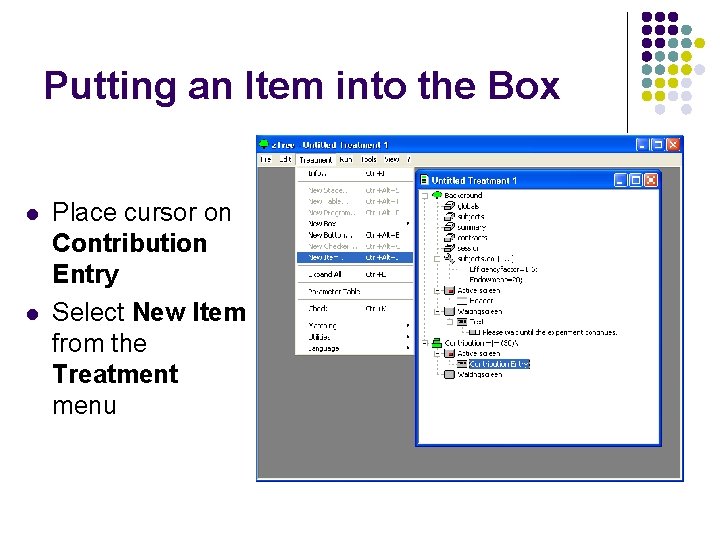
Putting an Item into the Box l l Place cursor on Contribution Entry Select New Item from the Treatment menu
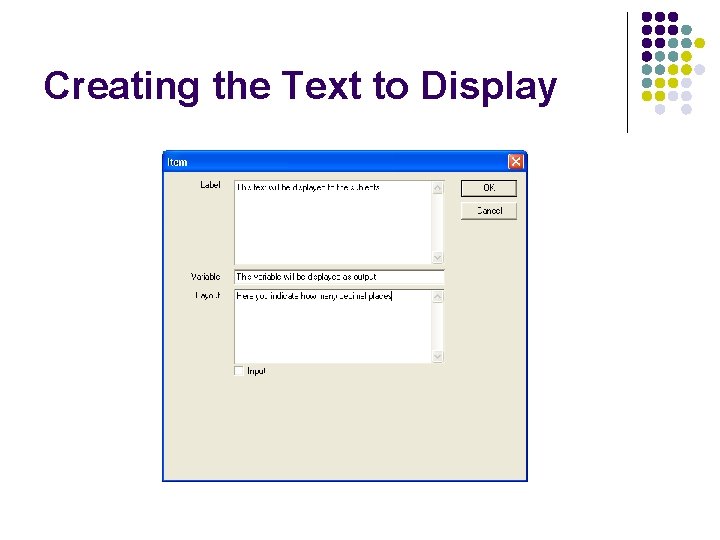
Creating the Text to Display
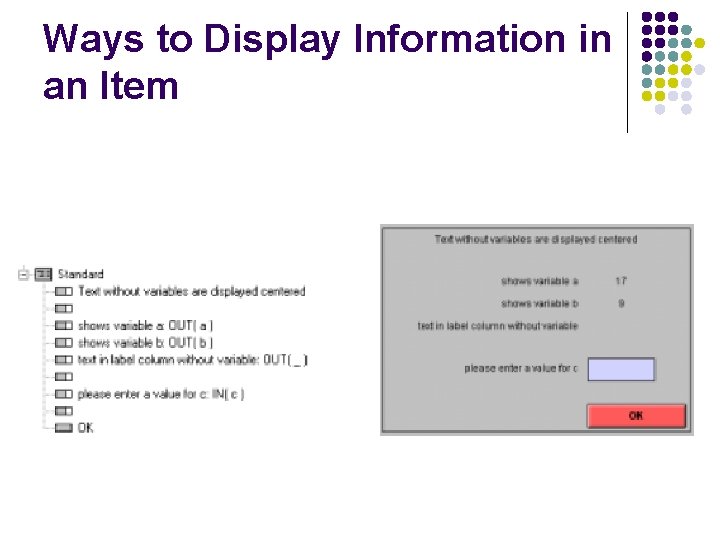
Ways to Display Information in an Item
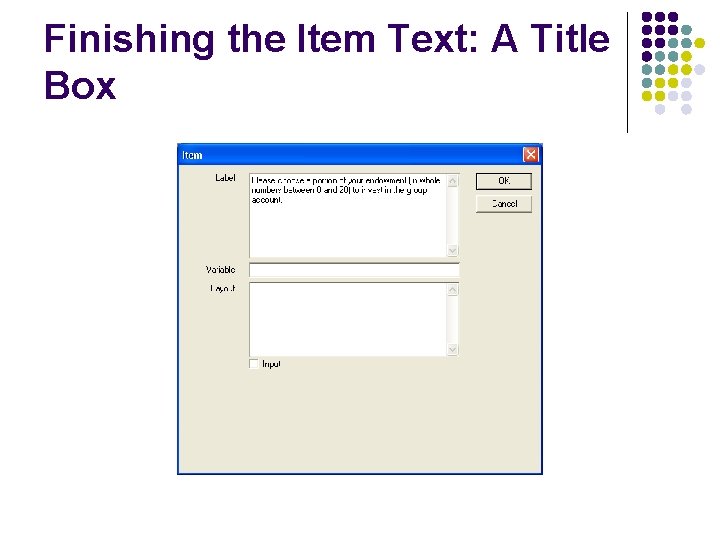
Finishing the Item Text: A Title Box
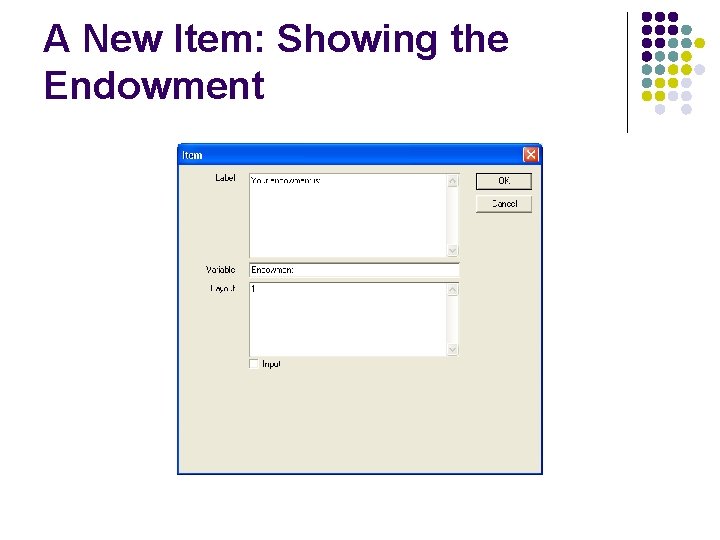
A New Item: Showing the Endowment
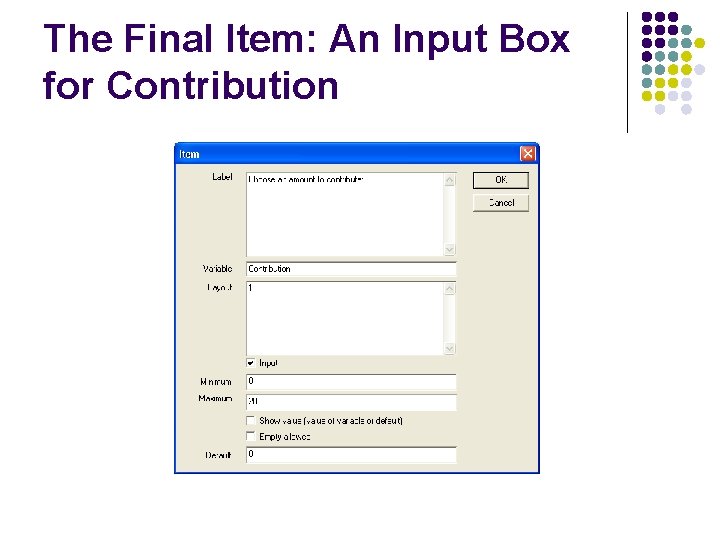
The Final Item: An Input Box for Contribution
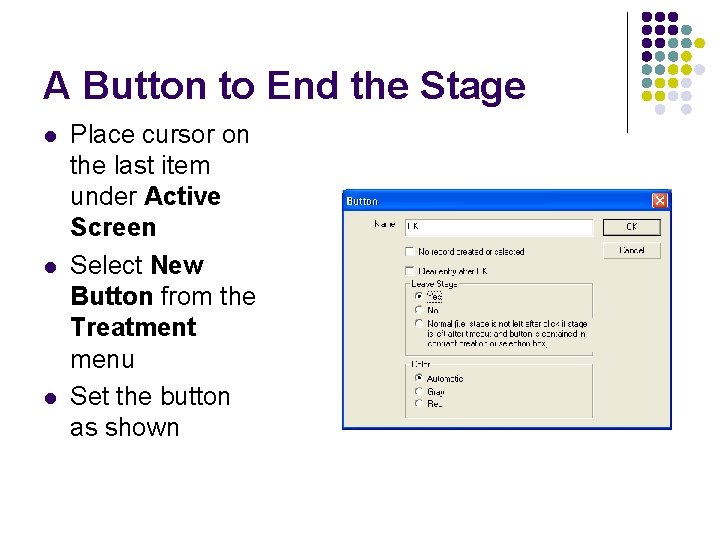
A Button to End the Stage l l l Place cursor on the last item under Active Screen Select New Button from the Treatment menu Set the button as shown
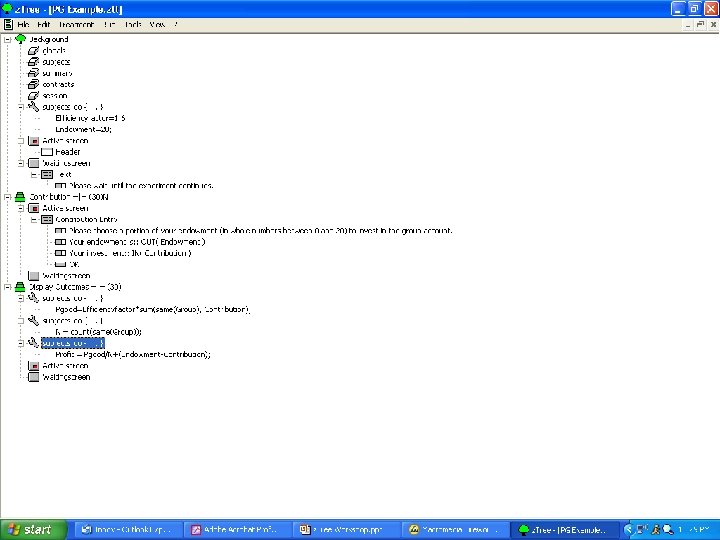
Step 3: Calculate Public Good l l l Create a new stage, call it “Display Outcomes” Highlight the new stage, then create a new program Enter this code into the program: l l Pgood=Efficiencyfactor*sum(same(Group), Contribution); Note this command: sum(same(Group), Contribution) – this tells the computer to sum up the variable “Contribution” for everyone in the same Group
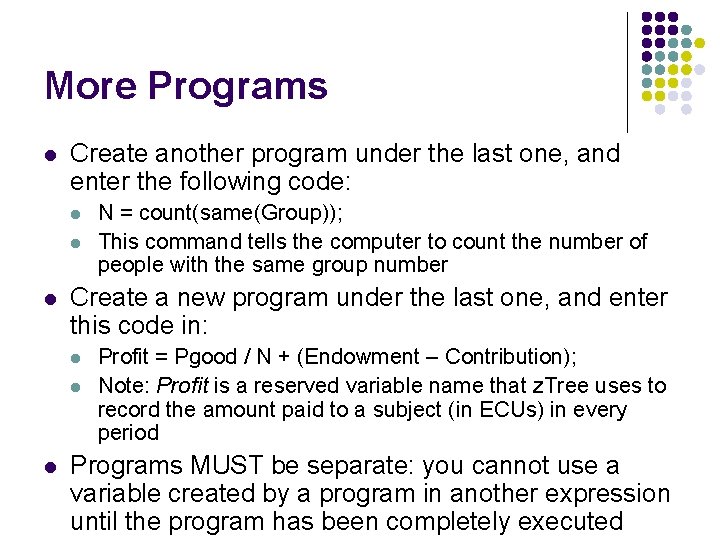
More Programs l Create another program under the last one, and enter the following code: l l l Create a new program under the last one, and enter this code in: l l l N = count(same(Group)); This command tells the computer to count the number of people with the same group number Profit = Pgood / N + (Endowment – Contribution); Note: Profit is a reserved variable name that z. Tree uses to record the amount paid to a subject (in ECUs) in every period Programs MUST be separate: you cannot use a variable created by a program in another expression until the program has been completely executed
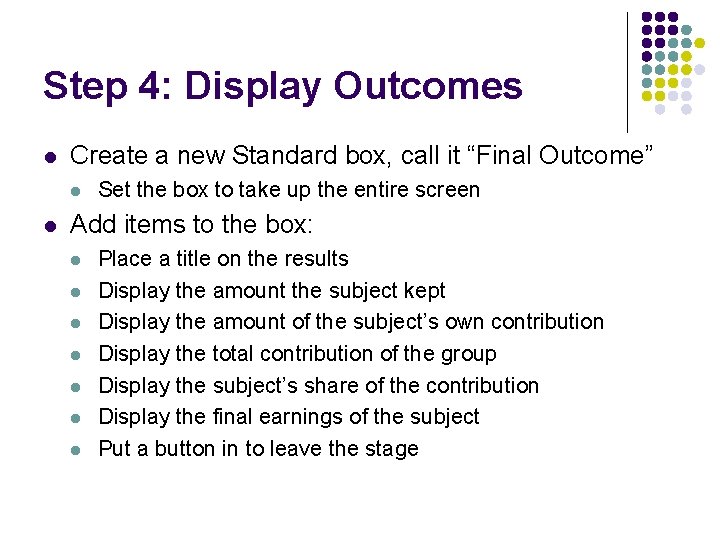
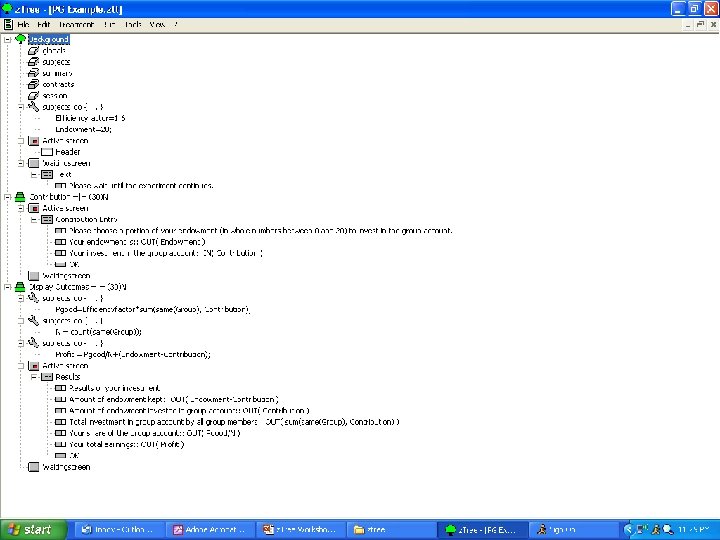
Step 4: Display Outcomes l Create a new Standard box, call it “Final Outcome” l l Set the box to take up the entire screen Add items to the box: l l l l Place a title on the results Display the amount the subject kept Display the amount of the subject’s own contribution Display the total contribution of the group Display the subject’s share of the contribution Display the final earnings of the subject Put a button in to leave the stage
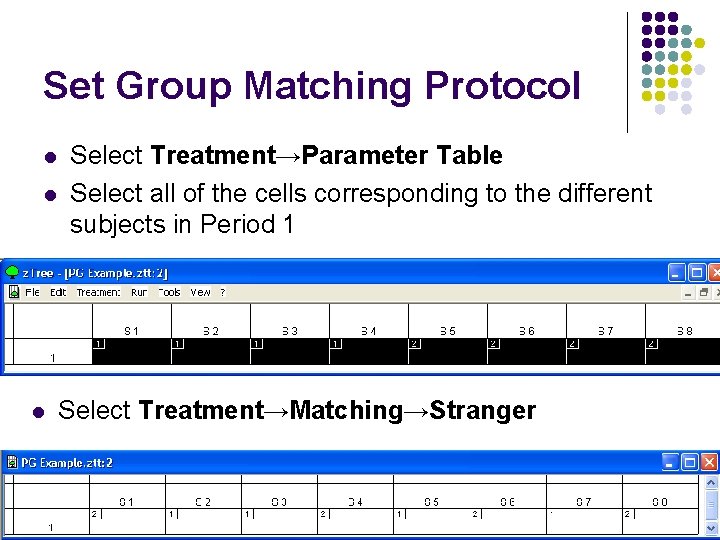
Set Group Matching Protocol l Select Treatment→Parameter Table Select all of the cells corresponding to the different subjects in Period 1 Select Treatment→Matching→Stranger
That’s It! l l Save the file using File→Save We are now ready to run an experiment
Suggested Homework l l Try modifying today’s program into a “Common Pool Resource” Game (Ostrom et al. APSR article, “Covenants With and Without a Sword”) 8 agents have a given number of work hours in a day (say, 10) and can allocate them between harvesting a common pool resource (x) and leisure (10 -x) CPR yields diminishing returns to increasingly intense harvesting Payoff = x*(23 X-. 25 X^2)+5(10 -x), where X=sum(x) over all subjects
Questionnaires
Questionnaires l l l You must run a questionnaire at the end of an experiment in order to retrieve the data from that experiment Questionnaires can be simple, just names and social security numbers, or involve more complicated surveys Today, we will do a simple example of a questionnaire and show more complicated examples later
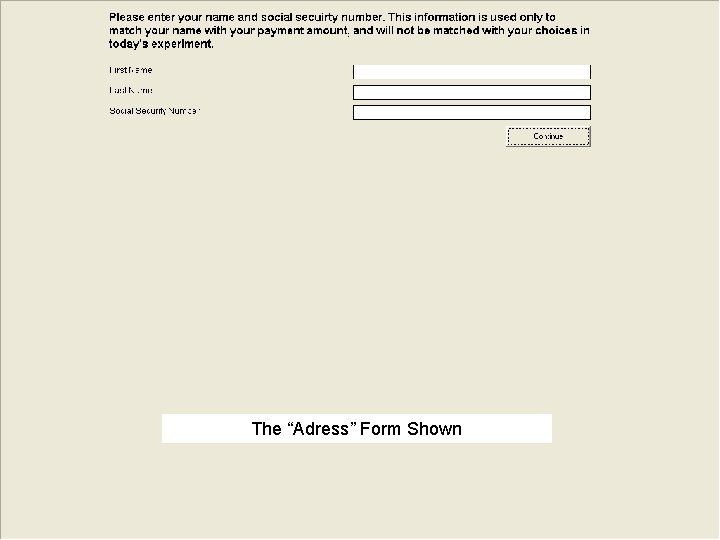
Create a Questionnaire l l Go to File→New Questionnaire Double-click on “Adress” (the German spelling of Address, I think)
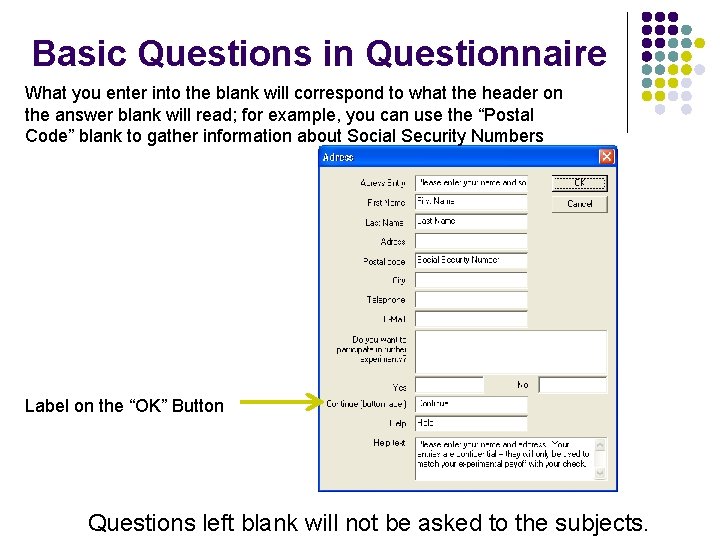
Basic Questions in Questionnaire What you enter into the blank will correspond to what the header on the answer blank will read; for example, you can use the “Postal Code” blank to gather information about Social Security Numbers Label on the “OK” Button Questions left blank will not be asked to the subjects.
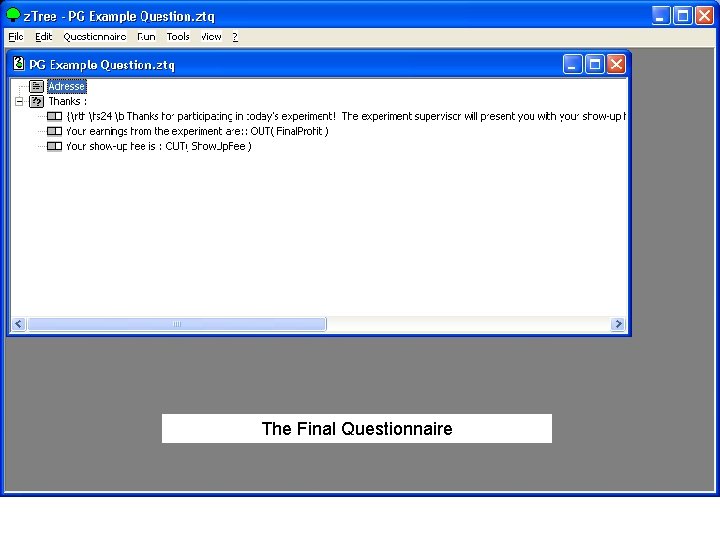
Adding a Final Display Screen l l l Select (single-click) “Adress”, then go to Questionnaire→New Question Form You can add items to this question form, just like you do with a box in a normal treatment Typical items to display might include: l l l The variable Final. Profit – total earnings from the experiment, not including the show-up fee The variable Show. Up. Fee Create items (with labels) to display these variables
The Final Questionnaire
Running a Session
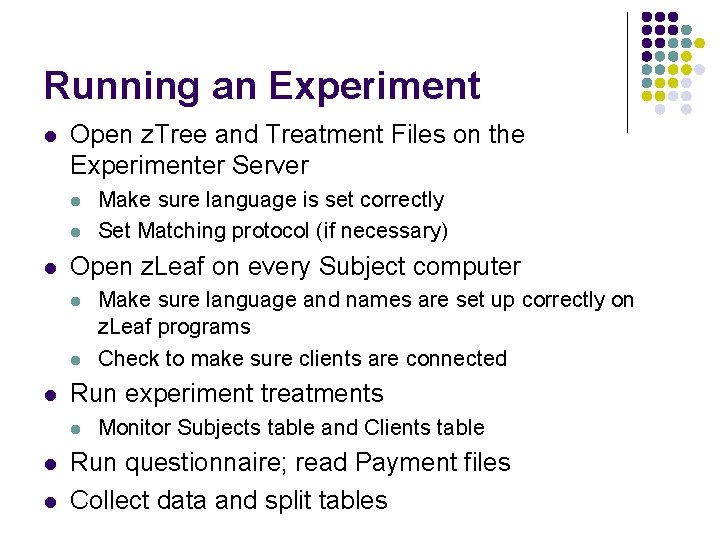
Running an Experiment l Open z. Tree and Treatment Files on the Experimenter Server l l l Open z. Leaf on every Subject computer l l Make sure language and names are set up correctly on z. Leaf programs Check to make sure clients are connected Run experiment treatments l l Make sure language is set correctly Set Matching protocol (if necessary) Monitor Subjects table and Clients table Run questionnaire; read Payment files Collect data and split tables
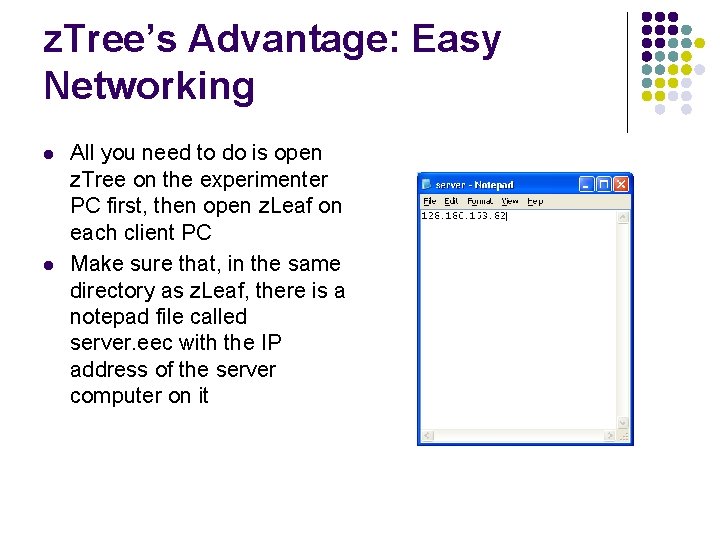
z. Tree’s Advantage: Easy Networking l l All you need to do is open z. Tree on the experimenter PC first, then open z. Leaf on each client PC Make sure that, in the same directory as z. Leaf, there is a notepad file called server. eec with the IP address of the server computer on it
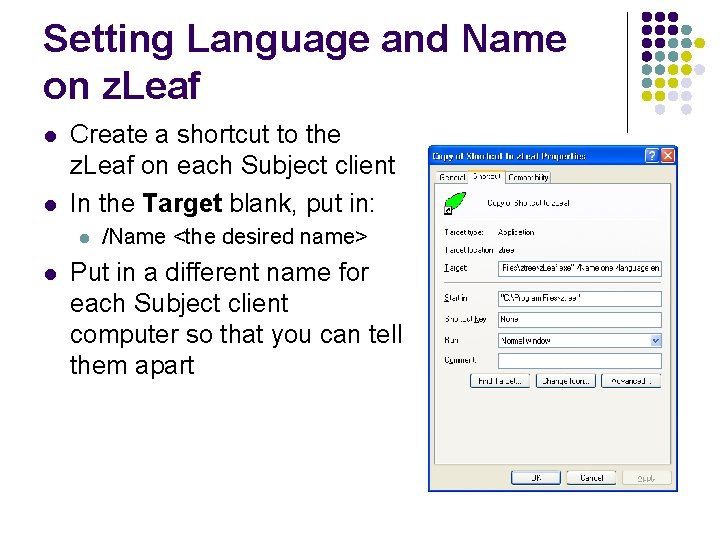
Setting Language and Name on z. Leaf l l Create a shortcut to the z. Leaf on each Subject client In the Target blank, put in: l l /Name <the desired name> Put in a different name for each Subject client computer so that you can tell them apart
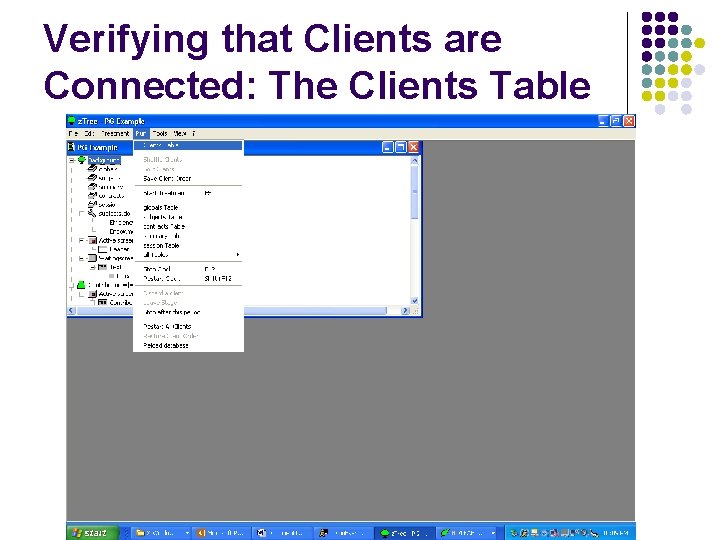
Verifying that Clients are Connected: The Clients Table
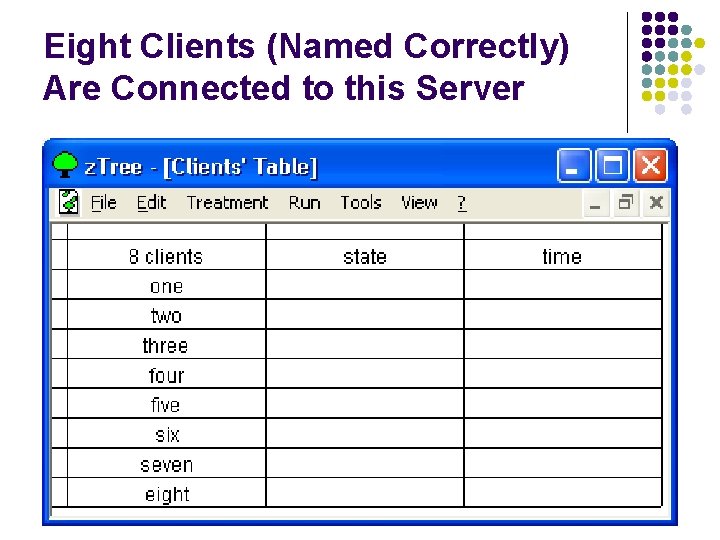
Eight Clients (Named Correctly) Are Connected to this Server
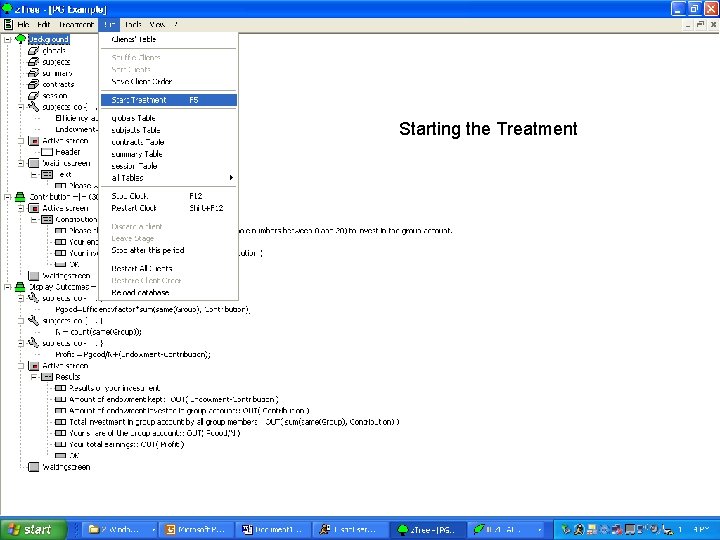
Starting the Treatment
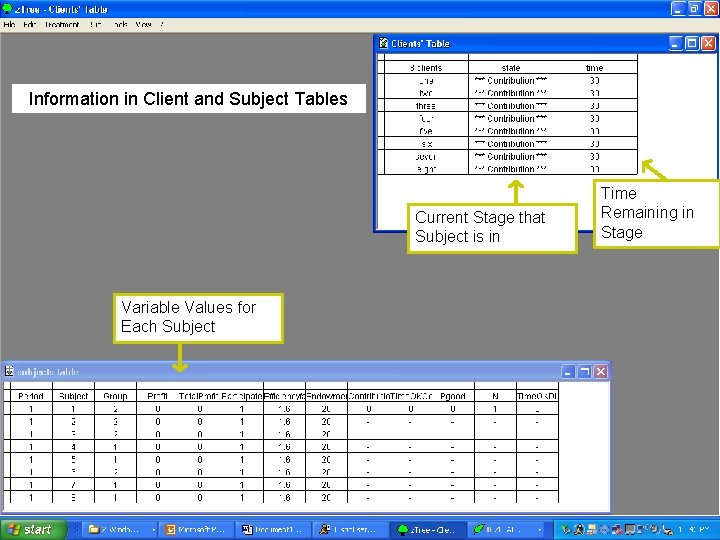
Monitor Subject Progress l The Clients table and the Subjects table provide most of the important information
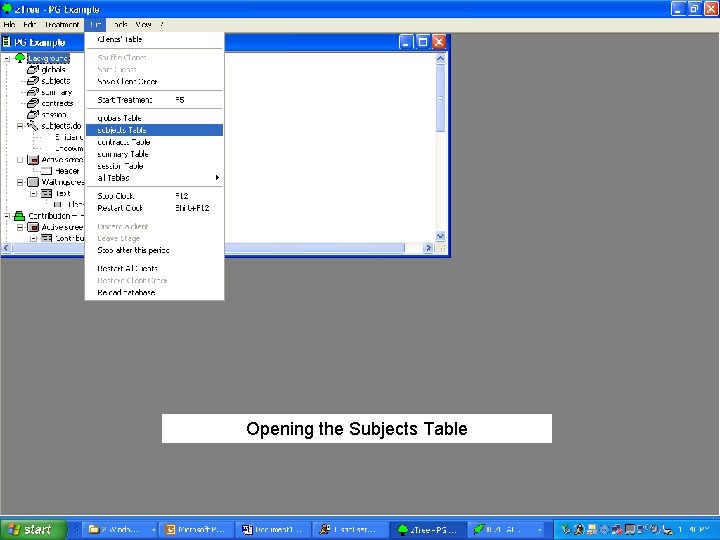
Opening the Subjects Table
Information in Client and Subject Tables Current Stage that Subject is in Variable Values for Each Subject Time Remaining in Stage
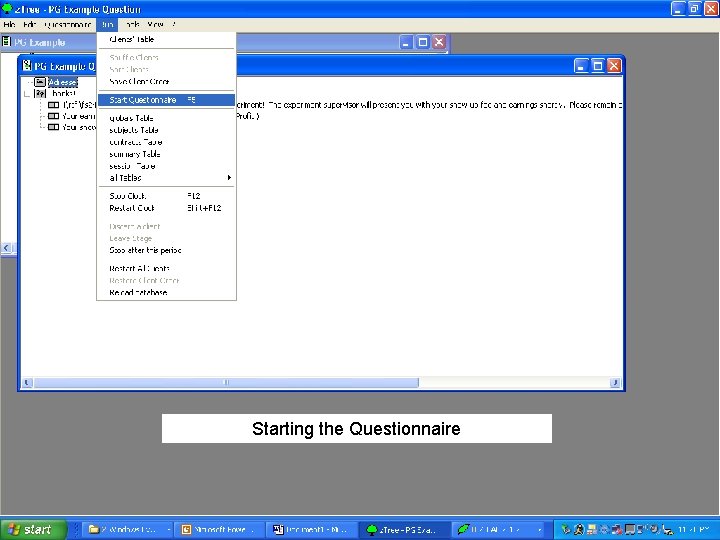
Starting the Questionnaire
The “Adress” Form Shown
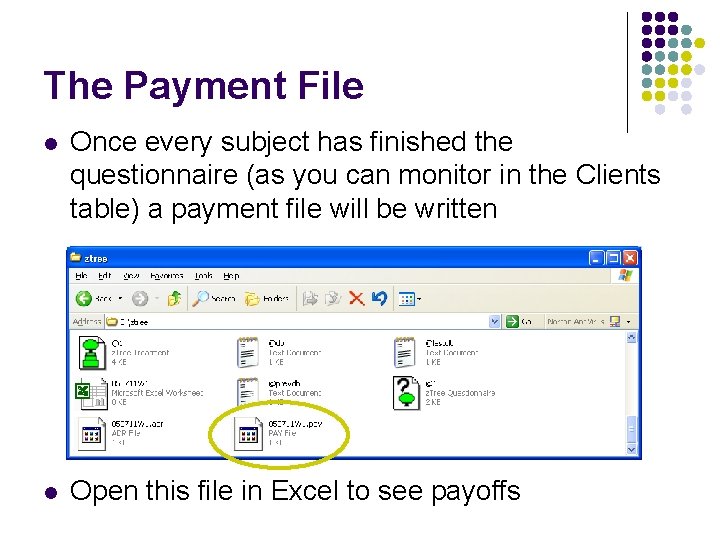
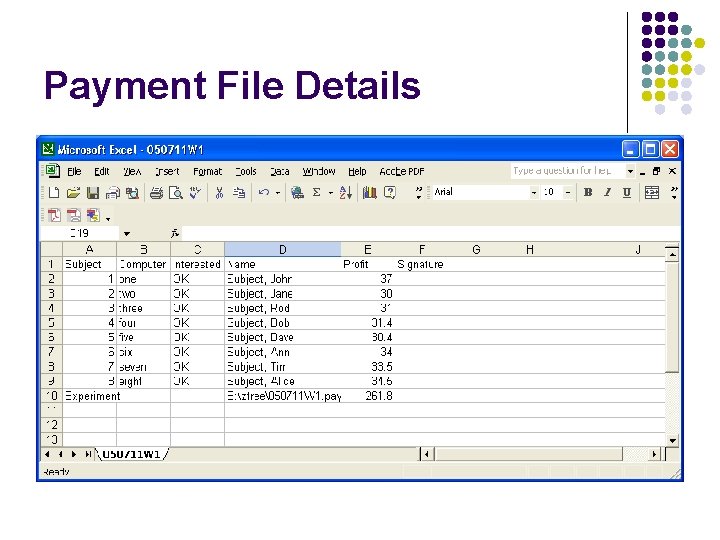
The Payment File l Once every subject has finished the questionnaire (as you can monitor in the Clients table) a payment file will be written l Open this file in Excel to see payoffs
Payment File Details
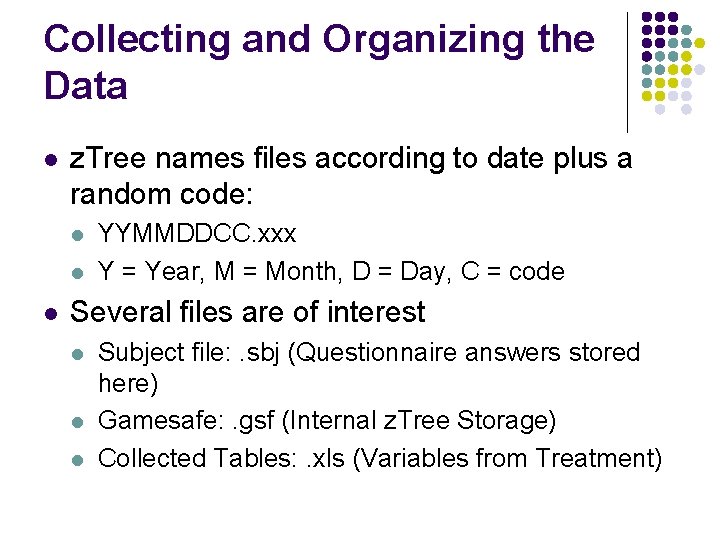
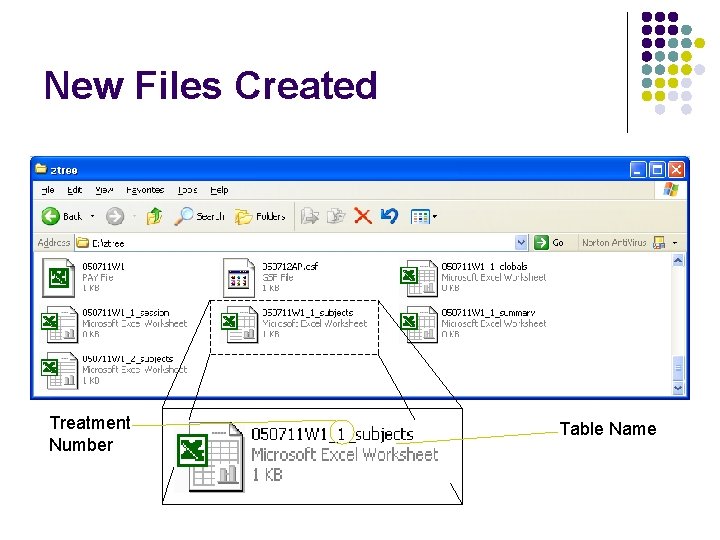
Collecting and Organizing the Data l z. Tree names files according to date plus a random code: l l l YYMMDDCC. xxx Y = Year, M = Month, D = Day, C = code Several files are of interest l l l Subject file: . sbj (Questionnaire answers stored here) Gamesafe: . gsf (Internal z. Tree Storage) Collected Tables: . xls (Variables from Treatment)
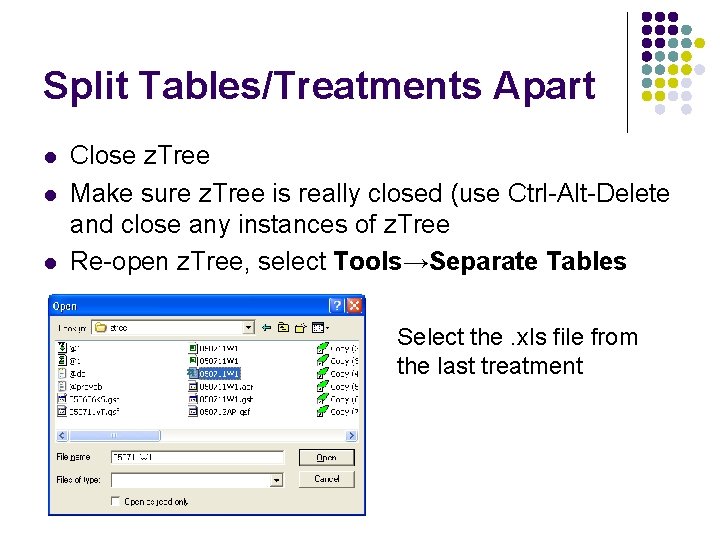
Split Tables/Treatments Apart l l l Close z. Tree Make sure z. Tree is really closed (use Ctrl-Alt-Delete and close any instances of z. Tree Re-open z. Tree, select Tools→Separate Tables Select the. xls file from the last treatment
New Files Created Treatment Number Table Name
Sample Treatment Run l l On your desktop, create a shortcut to z. Leaf Call it /Name <number>, where I give you the number
How can you test programs on your own? l l Open your treatment with z. Tree Open as many z. Leaf Shortcuts on your own computer as necessary to run the treatment l l Name them differently to help differentiate them Run treatment in z. Tree as normal, switching among z. Leafs (using Alt-Tab) to make entries
More Complicated Programs: Functions and Simple Control Statements
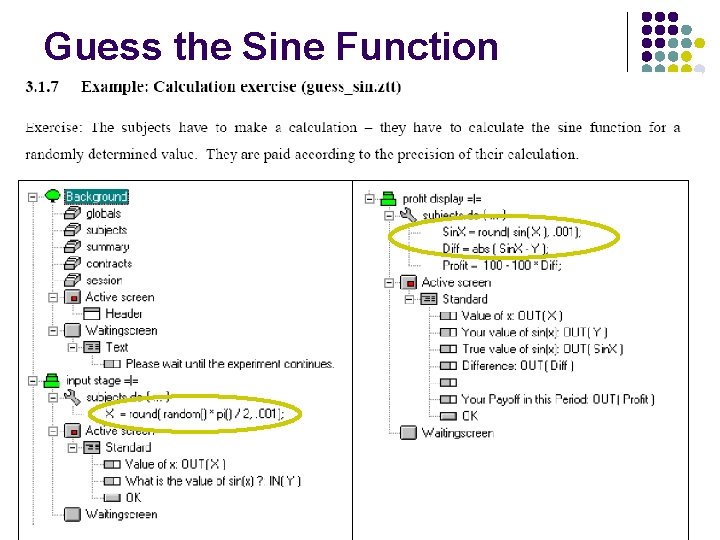
Guess the Sine Function
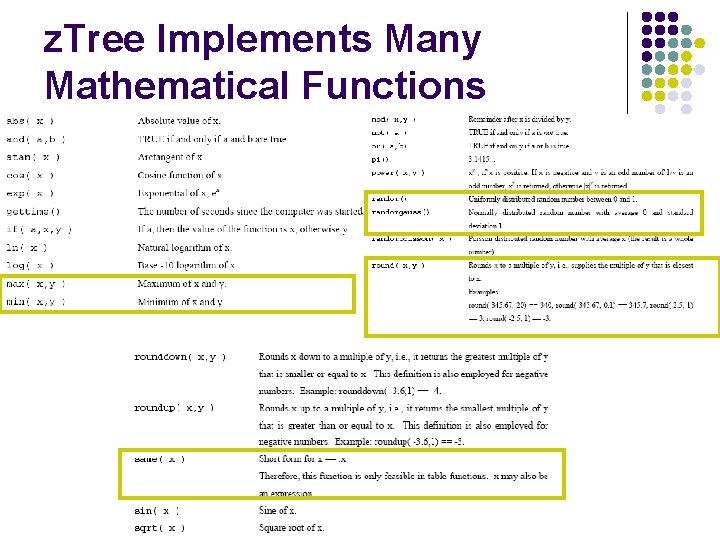
z. Tree Implements Many Mathematical Functions
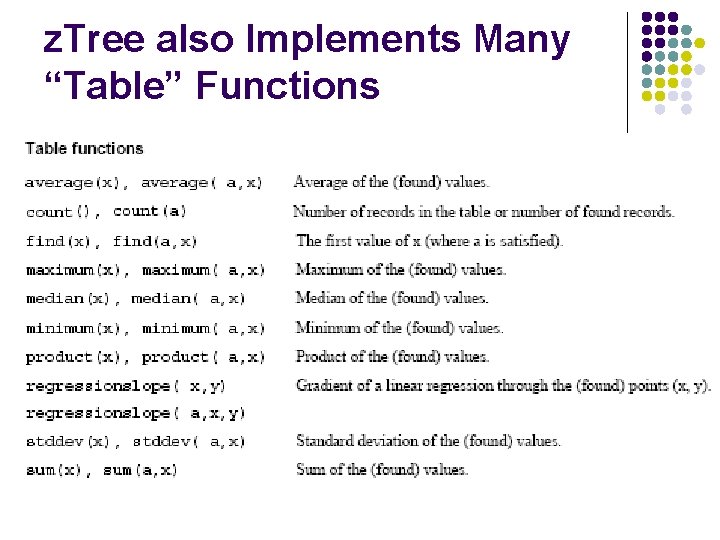
z. Tree also Implements Many “Table” Functions
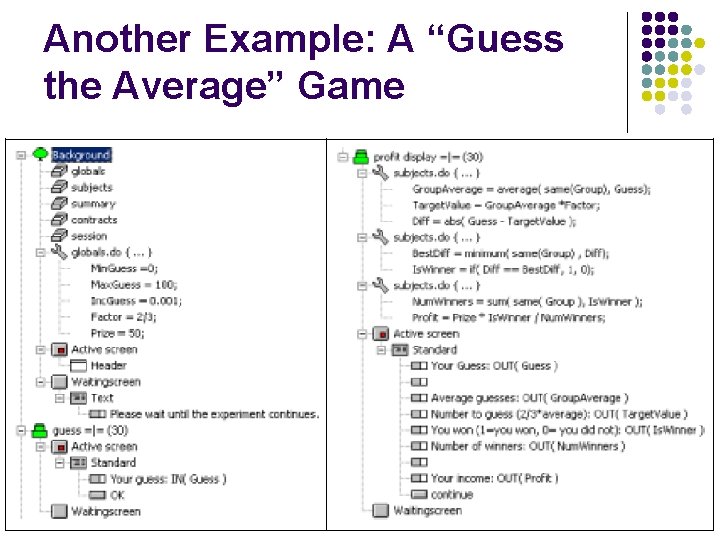
Another Example: A “Guess the Average” Game
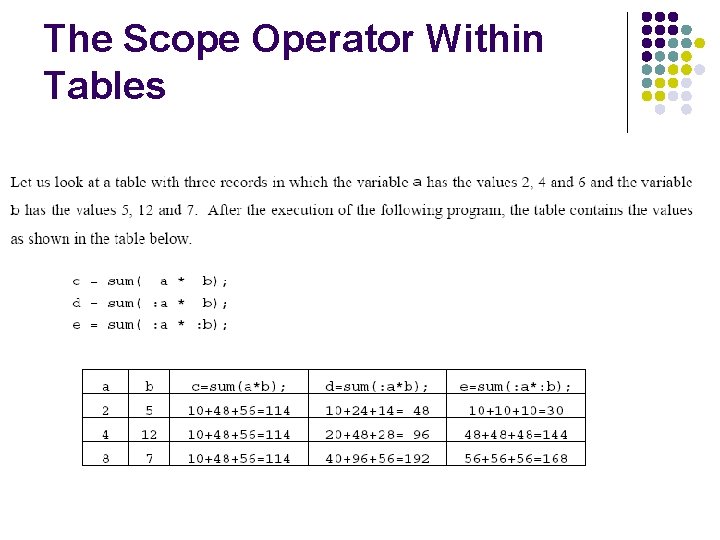
The Scope Operator Within Tables
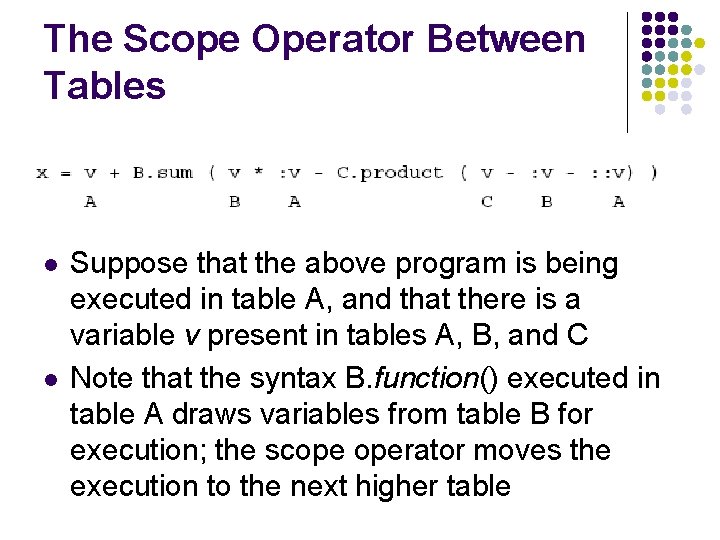
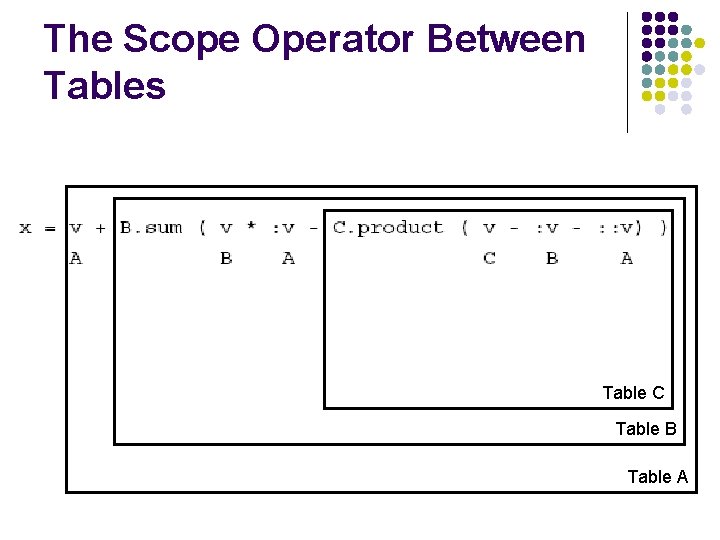
The Scope Operator Between Tables l l Suppose that the above program is being executed in table A, and that there is a variable v present in tables A, B, and C Note that the syntax B. function() executed in table A draws variables from table B for execution; the scope operator moves the execution to the next higher table
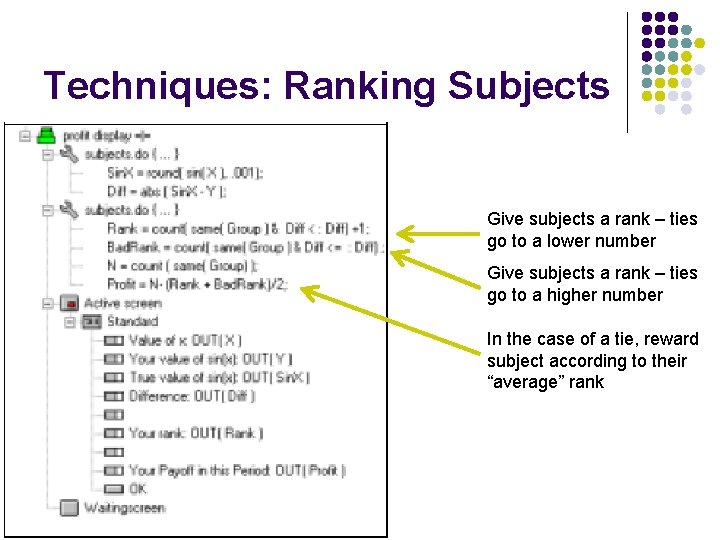
Techniques: Ranking Subjects Give subjects a rank – ties go to a lower number Give subjects a rank – ties go to a higher number In the case of a tie, reward subject according to their “average” rank
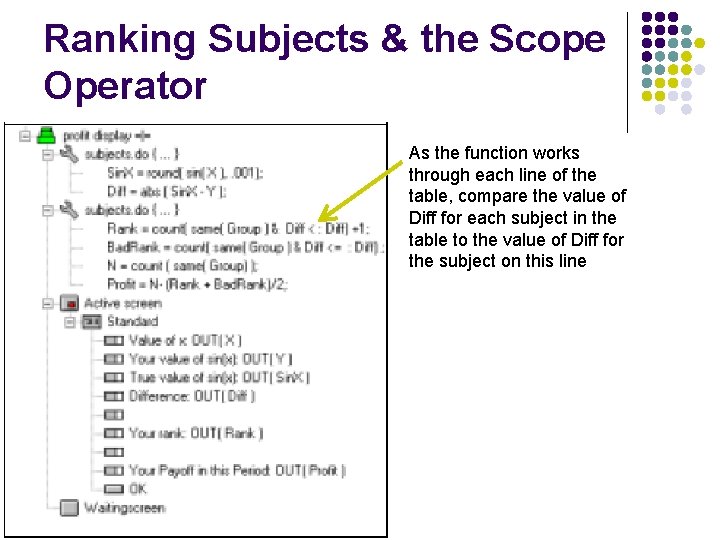
Ranking Subjects & the Scope Operator As the function works through each line of the table, compare the value of Diff for each subject in the table to the value of Diff for the subject on this line
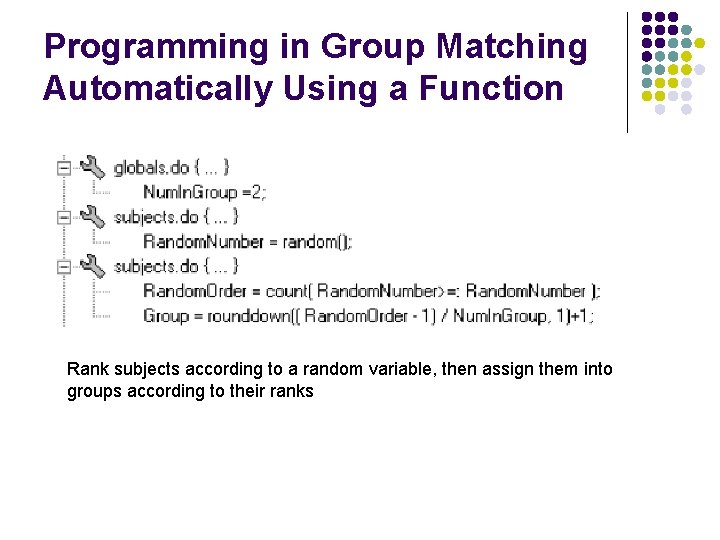
Programming in Group Matching Automatically Using a Function Rank subjects according to a random variable, then assign them into groups according to their ranks
The Scope Operator Between Tables Table C Table B Table A
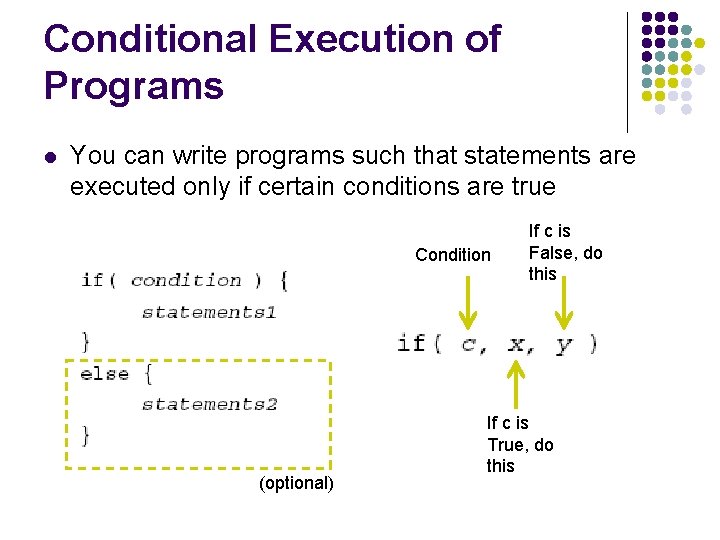
Conditional Execution of Programs l You can write programs such that statements are executed only if certain conditions are true Condition (optional) If c is False, do this If c is True, do this
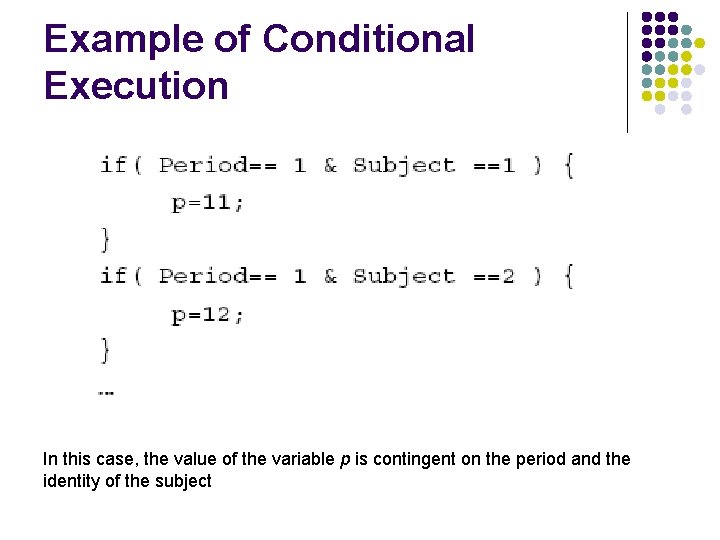
Example of Conditional Execution In this case, the value of the variable p is contingent on the period and the identity of the subject
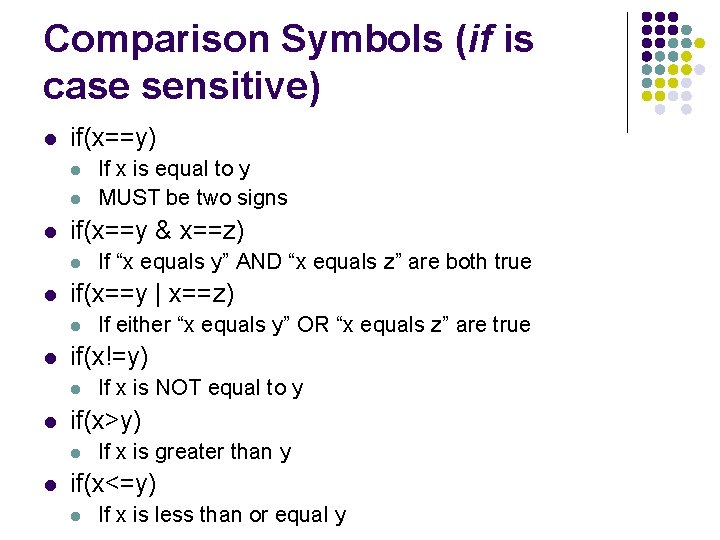
Comparison Symbols (if is case sensitive) l if(x==y) l l l if(x==y & x==z) l l If x is NOT equal to y if(x>y) l l If either “x equals y” OR “x equals z” are true if(x!=y) l l If “x equals y” AND “x equals z” are both true if(x==y | x==z) l l If x is equal to y MUST be two signs If x is greater than y if(x<=y) l If x is less than or equal y
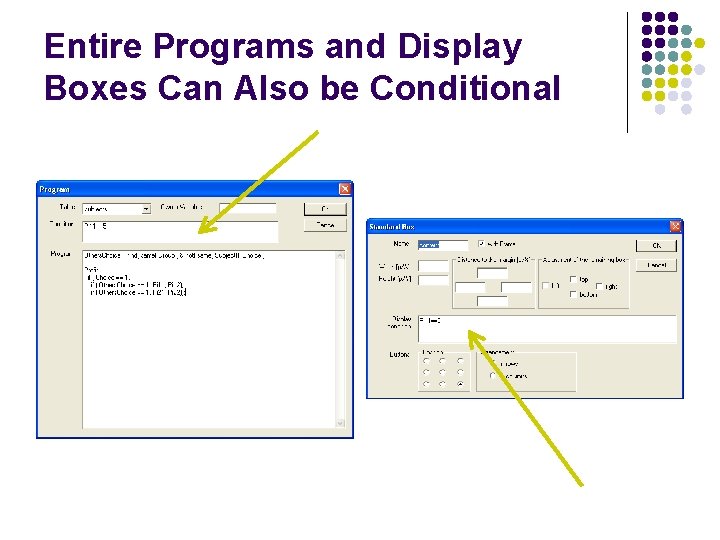
Entire Programs and Display Boxes Can Also be Conditional
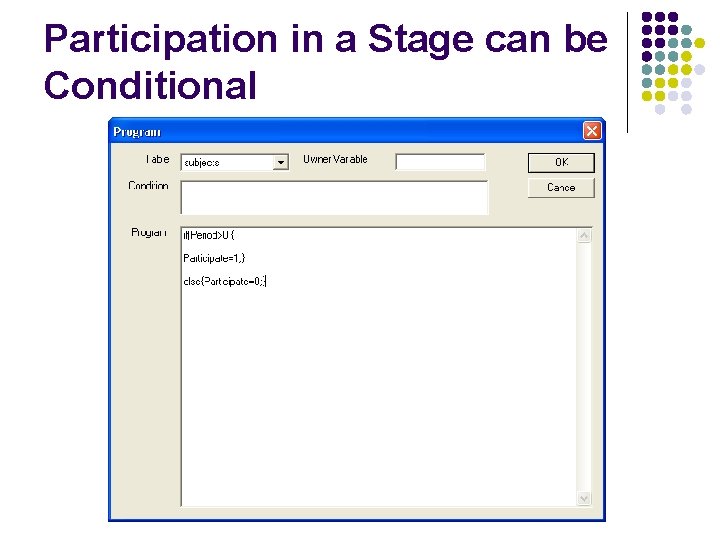
Participation in a Stage can be Conditional
More Complicated Programs: Display Options
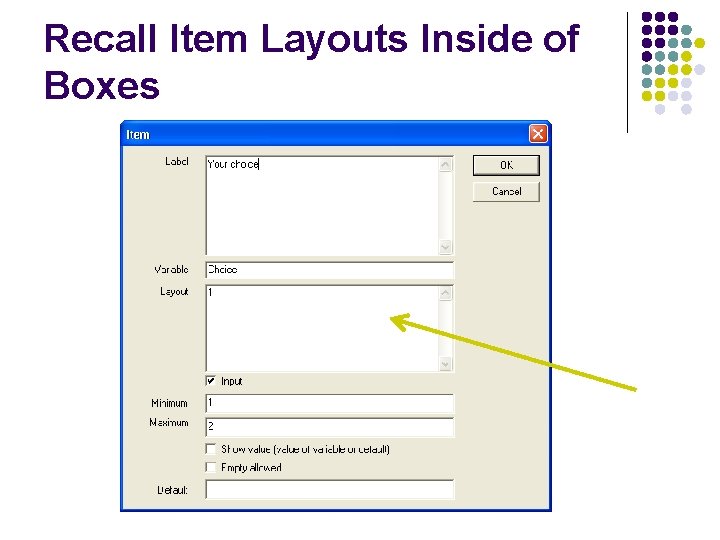
Recall Item Layouts Inside of Boxes
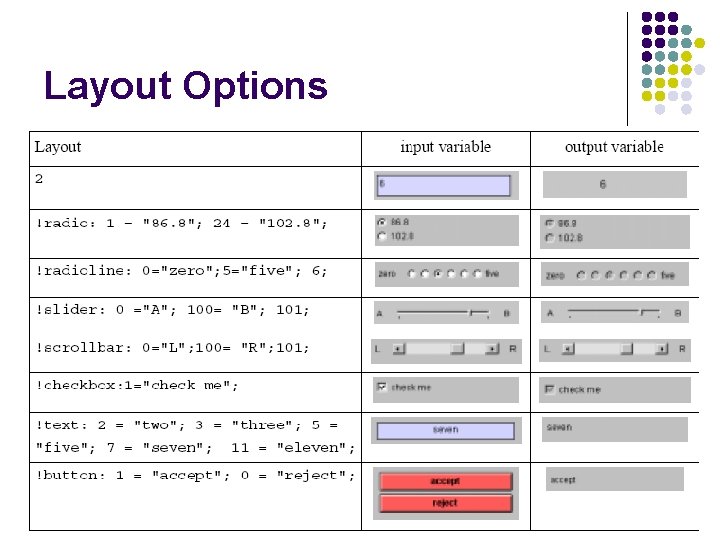
Layout Options
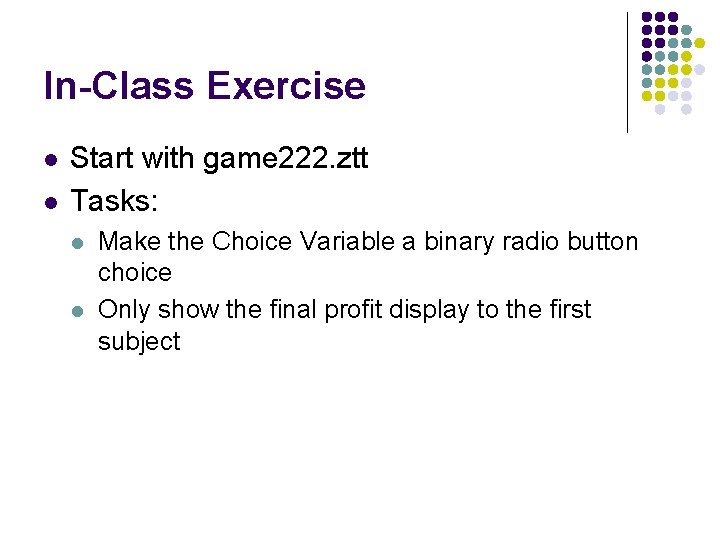
In-Class Exercise l l Start with game 222. ztt Tasks: l l Make the Choice Variable a binary radio button choice Only show the final profit display to the first subject
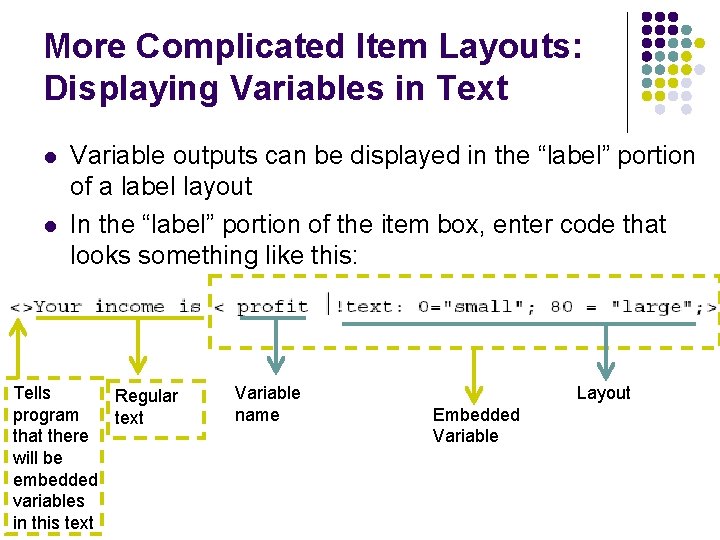
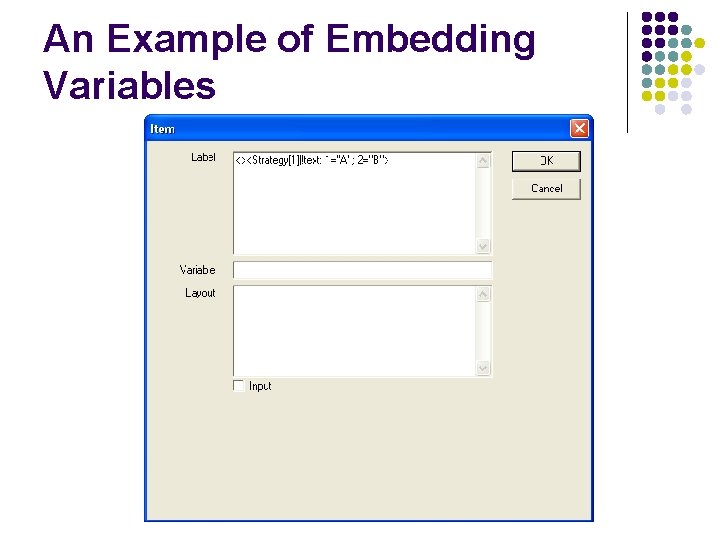
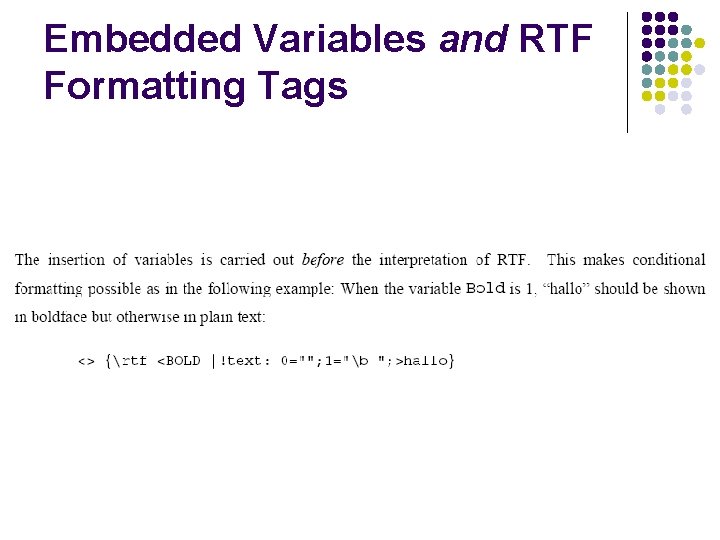
More Complicated Item Layouts: Displaying Variables in Text l l Variable outputs can be displayed in the “label” portion of a label layout In the “label” portion of the item box, enter code that looks something like this: Tells Regular program text that there will be embedded variables in this text Variable name Layout Embedded Variable
An Example of Embedding Variables
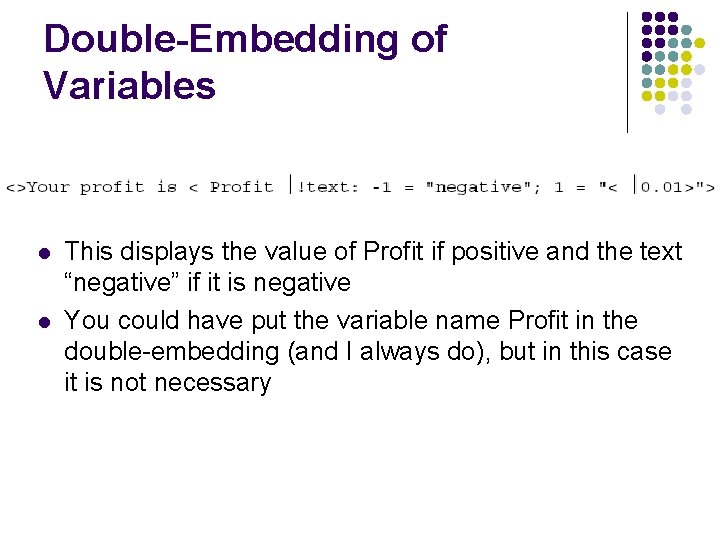
Double-Embedding of Variables l l This displays the value of Profit if positive and the text “negative” if it is negative You could have put the variable name Profit in the double-embedding (and I always do), but in this case it is not necessary
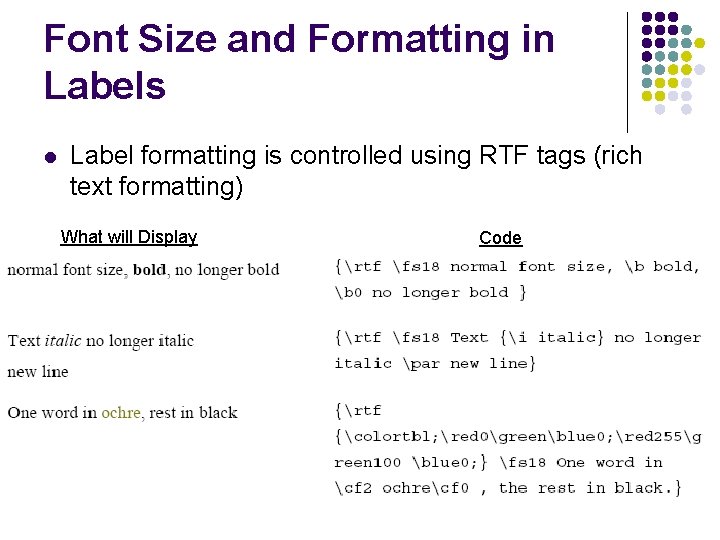
Font Size and Formatting in Labels l Label formatting is controlled using RTF tags (rich text formatting) What will Display Code
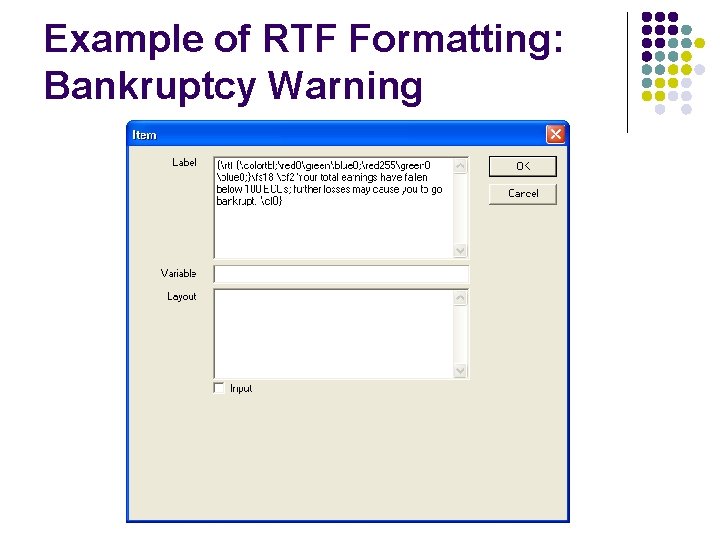
Example of RTF Formatting: Bankruptcy Warning
Embedded Variables and RTF Formatting Tags
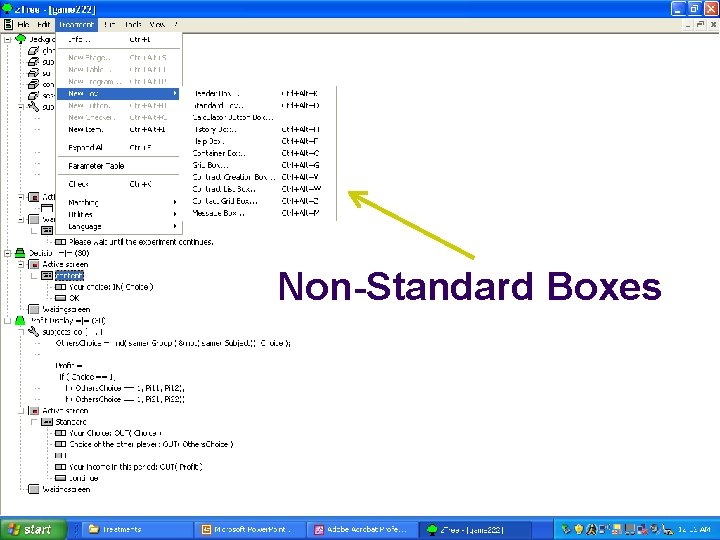
Non-Standard Boxes
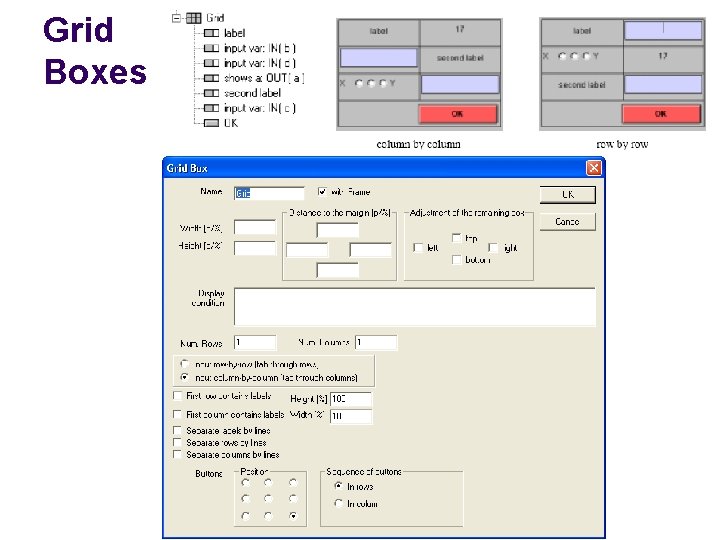
Grid Boxes
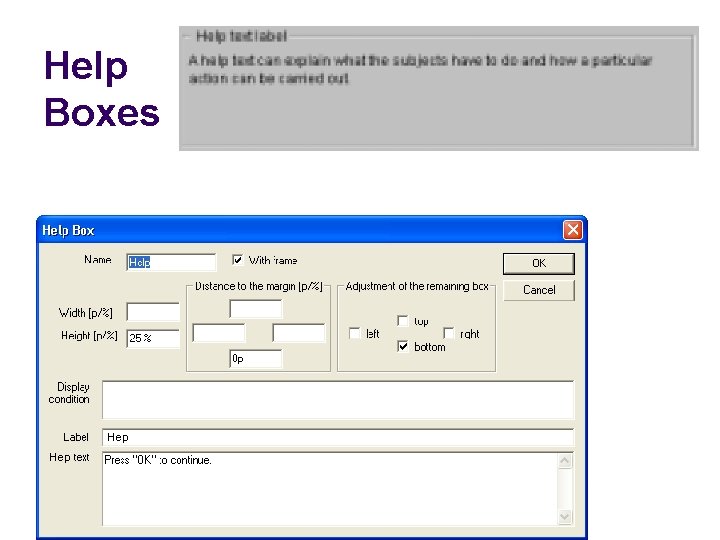
Help Boxes
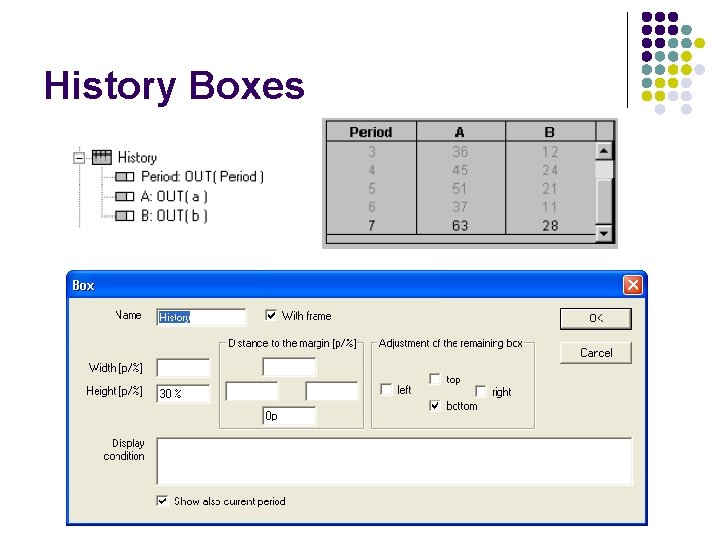
History Boxes
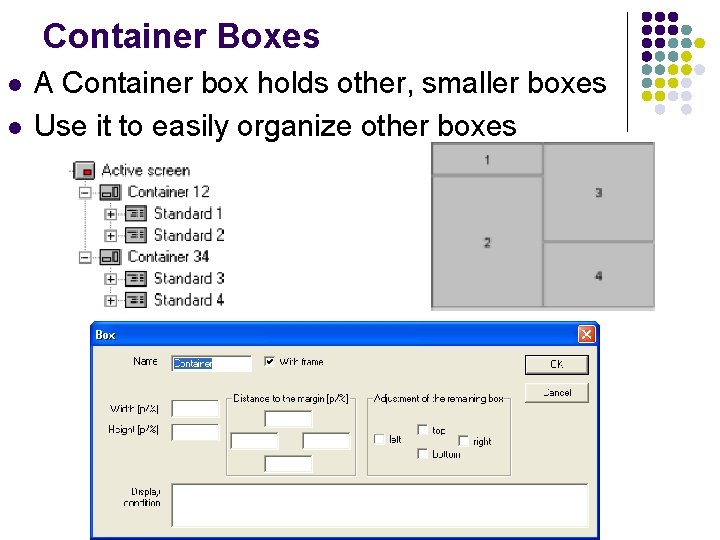
Container Boxes l l A Container box holds other, smaller boxes Use it to easily organize other boxes
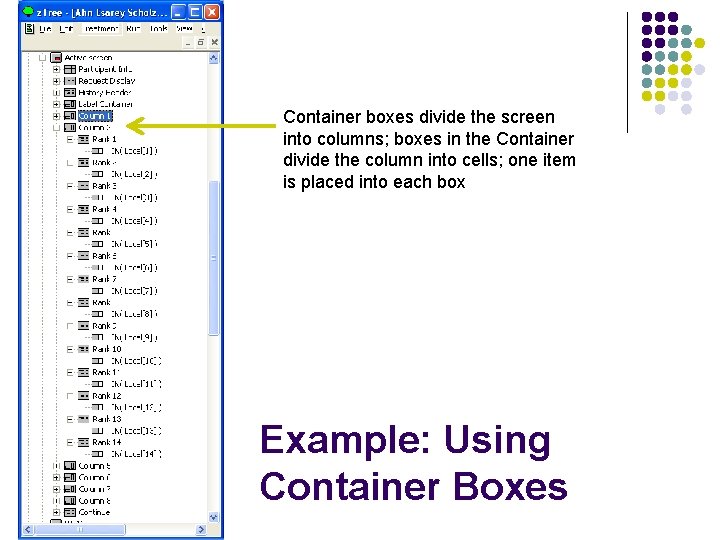
Container boxes divide the screen into columns; boxes in the Container divide the column into cells; one item is placed into each box Example: Using Container Boxes
More Complicated Programs: Arrays and Iterators
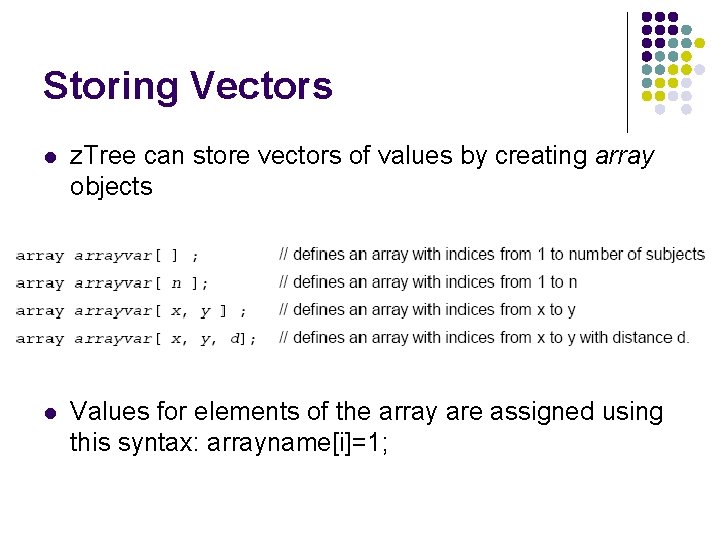
Storing Vectors l z. Tree can store vectors of values by creating array objects l Values for elements of the array are assigned using this syntax: arrayname[i]=1;
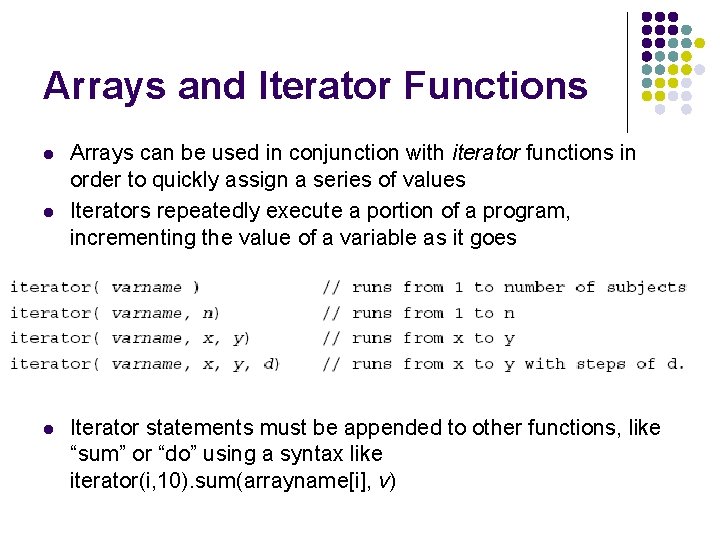
Arrays and Iterator Functions l l l Arrays can be used in conjunction with iterator functions in order to quickly assign a series of values Iterators repeatedly execute a portion of a program, incrementing the value of a variable as it goes Iterator statements must be appended to other functions, like “sum” or “do” using a syntax like iterator(i, 10). sum(arrayname[i], v)
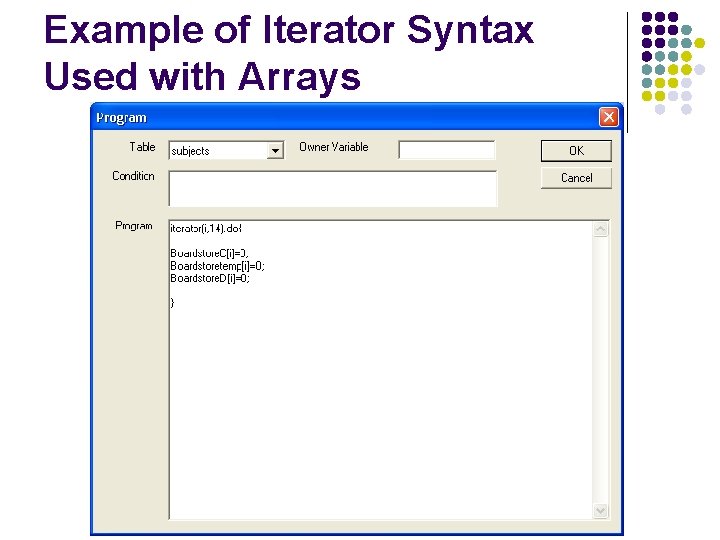
Example of Iterator Syntax Used with Arrays
Things z. Tree Cannot do With Arrays l l Store matrices (or arrays that have other arrays as elements) Do matrix multiplication or other matrix operations
More Complicated Programs: Storing Past Histories
Storing Information From Previous Periods l l Sometimes, you may wish to present historical information from previous periods to subjects The problem: z. Tree only remembers the value of a variable one period prior l These previous values are stored in a table called OLDtable; so, the previous variables in the subjects table can be called from the table called OLDsubjects
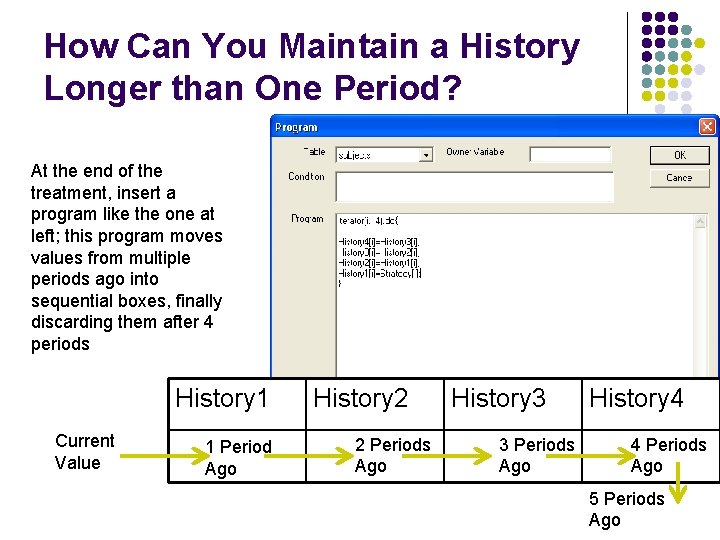
How Can You Maintain a History Longer than One Period? At the end of the treatment, insert a program like the one at left; this program moves values from multiple periods ago into sequential boxes, finally discarding them after 4 periods History 1 Current Value 1 Period Ago History 2 2 Periods Ago History 3 3 Periods Ago History 4 4 Periods Ago 5 Periods Ago
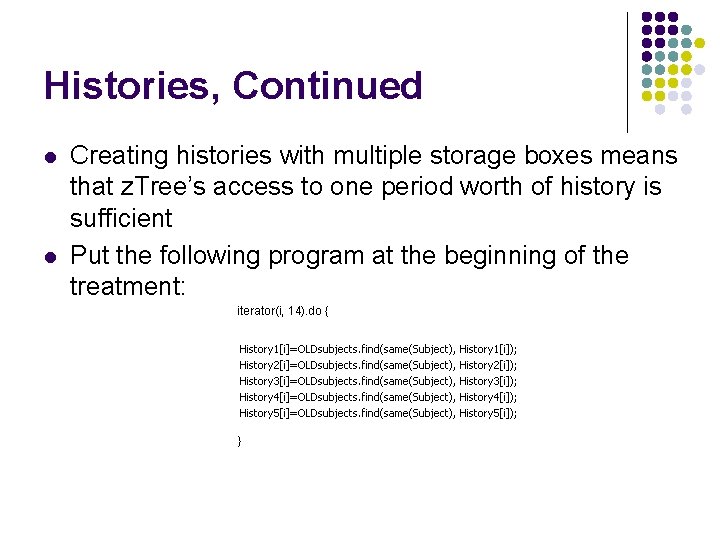
Histories, Continued l l Creating histories with multiple storage boxes means that z. Tree’s access to one period worth of history is sufficient Put the following program at the beginning of the treatment: iterator(i, 14). do { }
More Complicated Programs: Popup Windows Between Stages
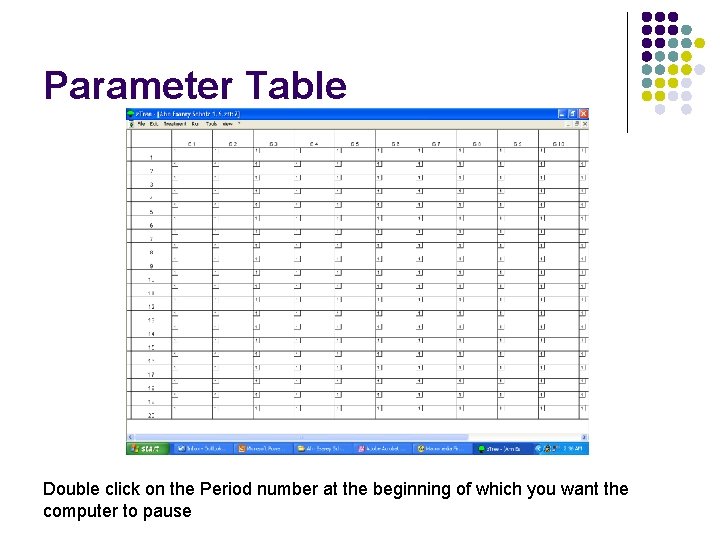
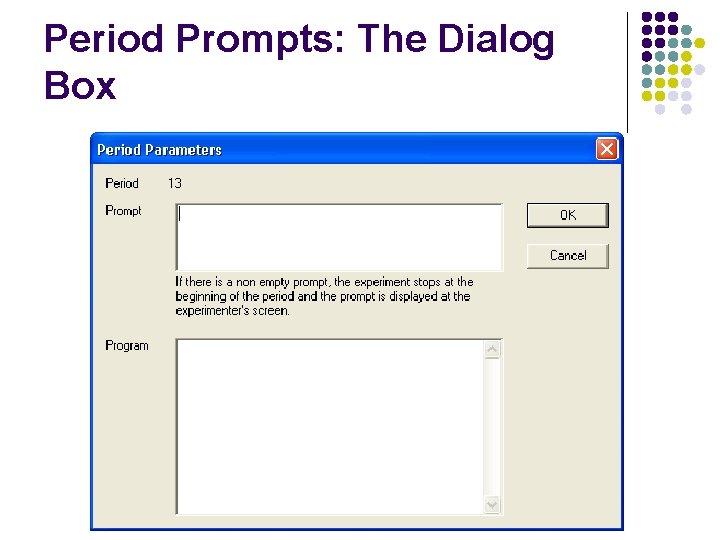
Pauses and Prompts In Programs l l Suppose you want a program to pause and bring up a message to the experimenter between phases in an experiment. What do you do? Open the Parameter Table that we used for Parameter Matching before
Parameter Table Double click on the Period number at the beginning of which you want the computer to pause
Period Prompts: The Dialog Box
In-Class Assignment l Work with some pre-programmed treatments I wrote for experimental programs l l l Grouped Public Goods (Ahn Isaac and Salmon) Endogenous Tax Choice (Barrilleaux Esarey and Salmon) Endogenous Network Creation (Ahn Esarey and Scholz)