SFC 2014 General MS Training System for Fund

- Slides: 54
SFC 2014 General MS Training System for Fund management in the European Community 2014 -2020
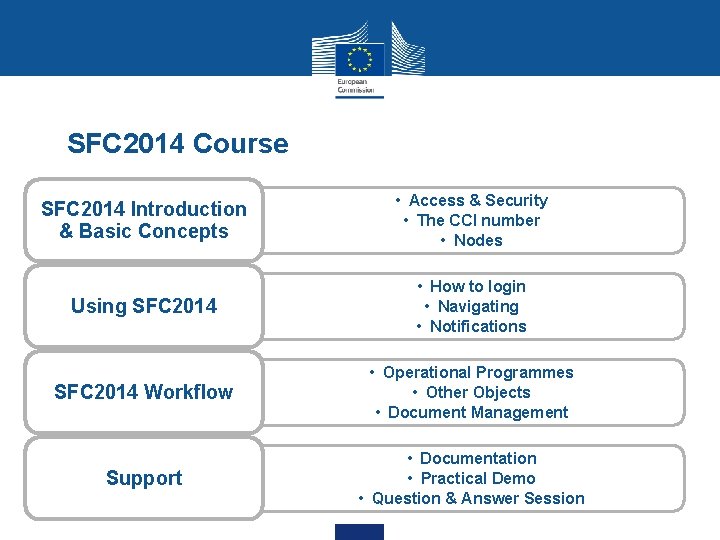
SFC 2014 Course SFC 2014 Introduction & Basic Concepts • Access & Security • The CCI number • Nodes Using SFC 2014 • How to login • Navigating • Notifications SFC 2014 Workflow • Operational Programmes • Other Objects • Document Management Support • Documentation • Practical Demo • Question & Answer Session
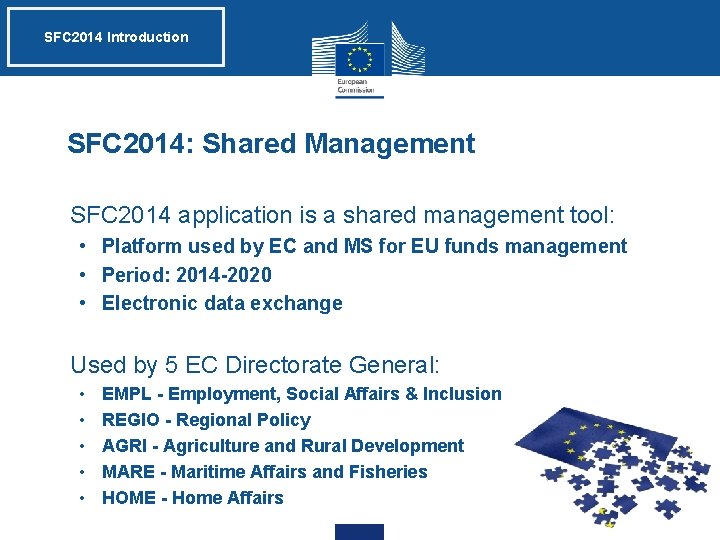
SFC 2014 Introduction SFC 2014: Shared Management • SFC 2014 application is a shared management tool: • Platform used by EC and MS for EU funds management • Period: 2014 -2020 • Electronic data exchange • Used by 5 EC Directorate General: • • • EMPL - Employment, Social Affairs & Inclusion REGIO - Regional Policy AGRI - Agriculture and Rural Development MARE - Maritime Affairs and Fisheries HOME - Home Affairs
SFC 2014 Introduction SFC 2014: Shared Management • Centralisation and standard format of data • Interactive action between MS and EC • Real time information • Data & Document Upload & Submission (by MS) • Uploading documents & Following workflow (by EC) • Reporting • Data consistency • Transparency
SFC 2014 Introduction Legislation • SFC 2014 is described in Article 74(4) of the Regulation (EU) No 1303/2013 of the European Parliament and of the Council of 17 th December 2013 • The SFC 2014 Implementing Act is the Commission Implementing regulation No 184/2014 • Available on the SFC Portal : http: //ec. europa. eu/sfc/en/2014/about-sfc 2014
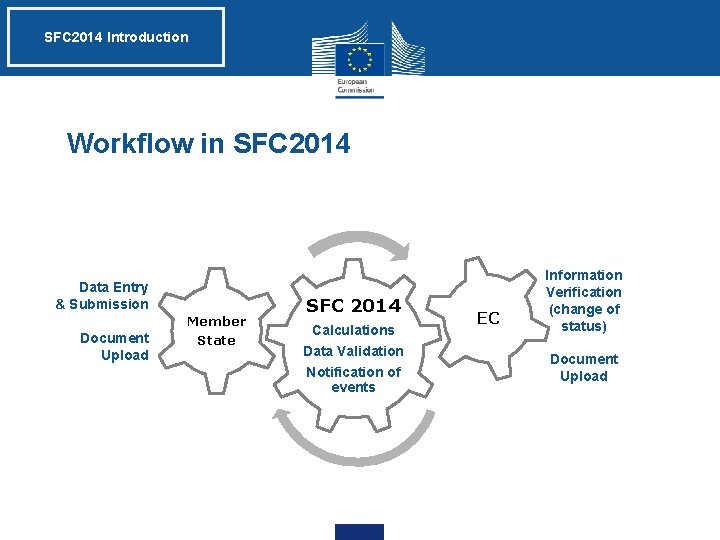
SFC 2014 Introduction Workflow in SFC 2014 Data Entry & Submission Document Upload Member State SFC 2014 Calculations Data Validation Notification of events EC Information Verification (change of status) Document Upload
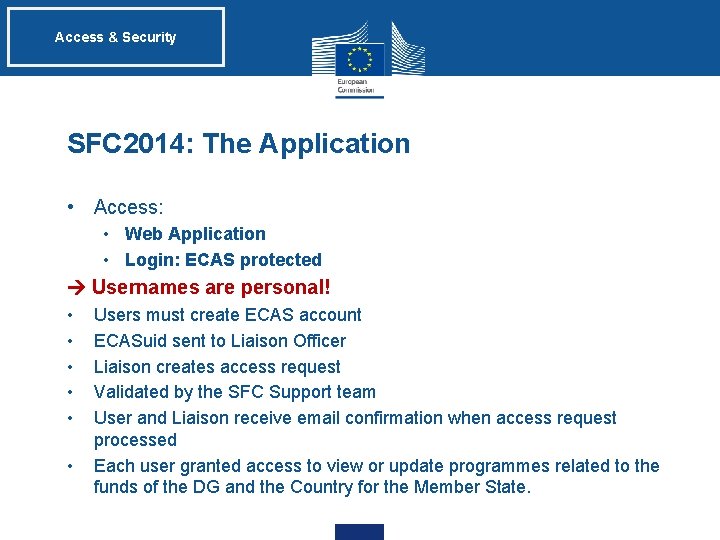
Access & Security SFC 2014: The Application • Access: • Web Application • Login: ECAS protected Usernames are personal! • • • Users must create ECAS account ECASuid sent to Liaison Officer Liaison creates access request Validated by the SFC Support team User and Liaison receive email confirmation when access request processed Each user granted access to view or update programmes related to the funds of the DG and the Country for the Member State.
Access & Security Liaison officers: • MS Liaison and Deputies • Nominated per Member State • In charge of User Management • Verification of user entitlement (Roles/Fund) • Creation of access request via SFC 2014 User & Security Module (USM) • Update of user roles/access
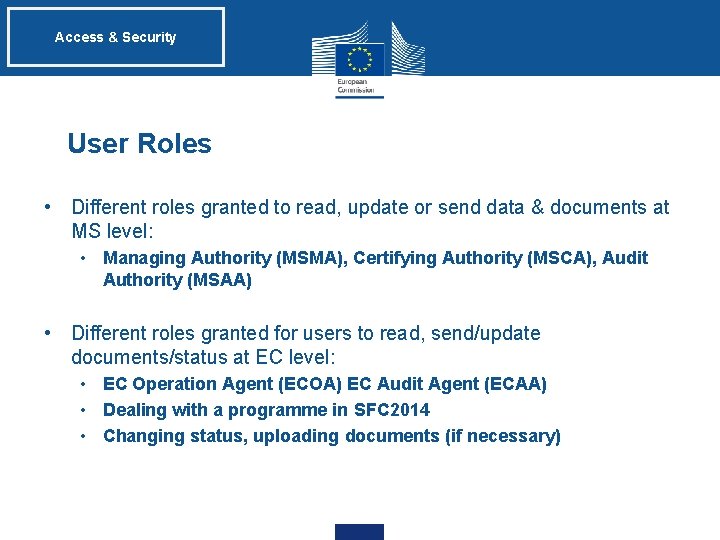
Access & Security User Roles • Different roles granted to read, update or send data & documents at MS level: • Managing Authority (MSMA), Certifying Authority (MSCA), Audit Authority (MSAA) • Different roles granted for users to read, send/update documents/status at EC level: • EC Operation Agent (ECOA) EC Audit Agent (ECAA) • Dealing with a programme in SFC 2014 • Changing status, uploading documents (if necessary)
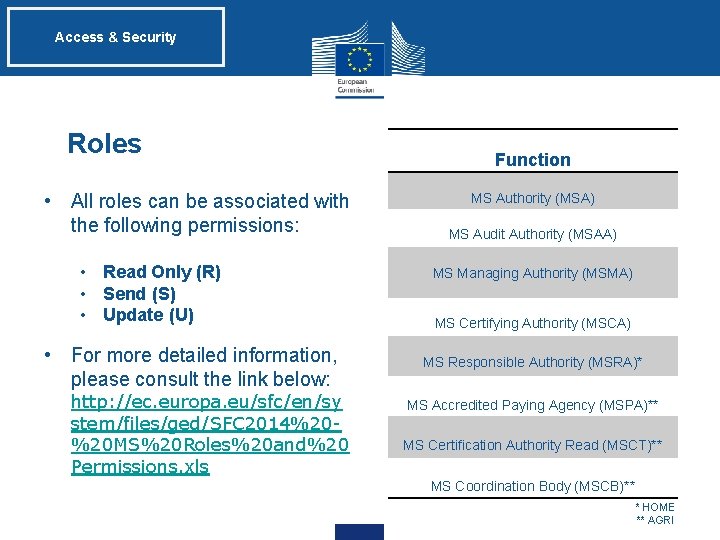
Access & Security Roles • All roles can be associated with the following permissions: • Read Only (R) • Send (S) • Update (U) • For more detailed information, please consult the link below: http: //ec. europa. eu/sfc/en/sy stem/files/ged/SFC 2014%20%20 MS%20 Roles%20 and%20 Permissions. xls Function MS Authority (MSA) MS Audit Authority (MSAA) MS Managing Authority (MSMA) MS Certifying Authority (MSCA) MS Responsible Authority (MSRA)* MS Accredited Paying Agency (MSPA)** MS Certification Authority Read (MSCT)** MS Coordination Body (MSCB)** * HOME ** AGRI
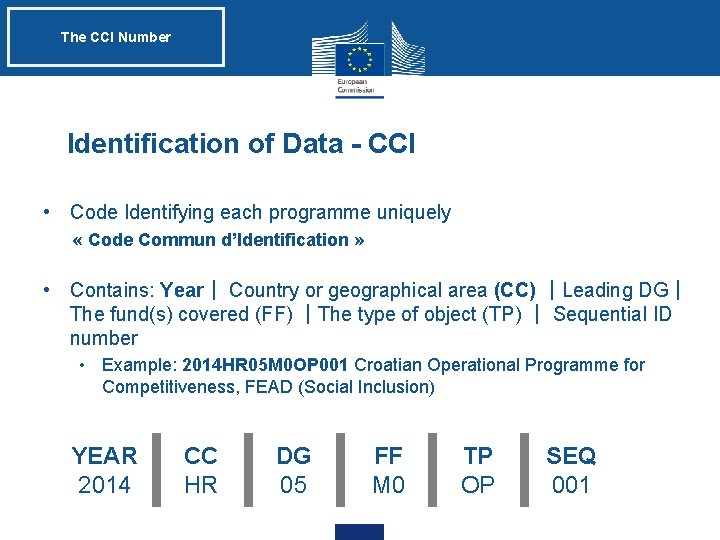
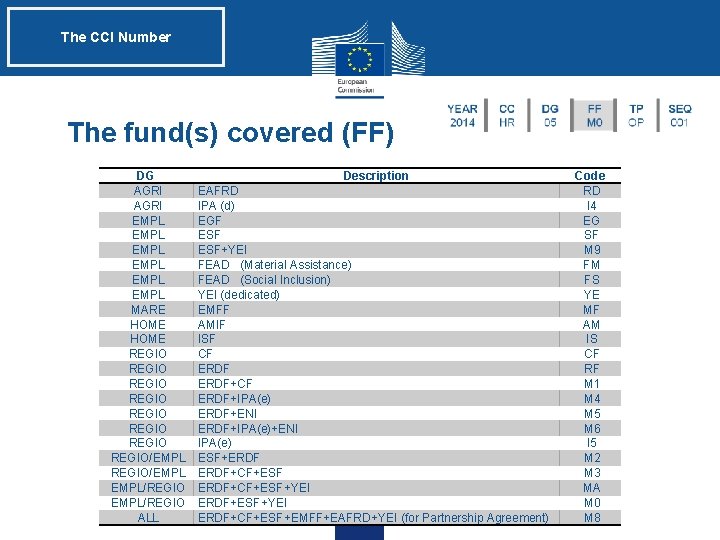
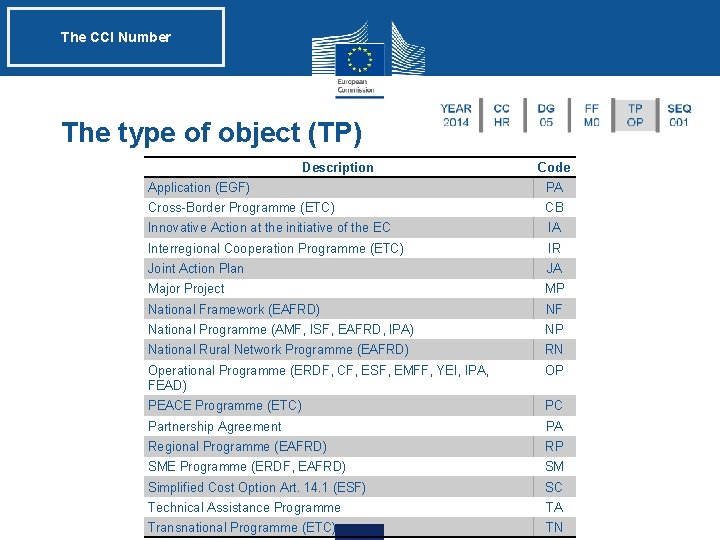
The CCI Number Identification of Data - CCI • Code Identifying each programme uniquely « Code Commun d’Identification » • Contains: Year| Country or geographical area (CC) |Leading DG| The fund(s) covered (FF) |The type of object (TP) | Sequential ID number • Example: 2014 HR 05 M 0 OP 001 Croatian Operational Programme for Competitiveness, FEAD (Social Inclusion) | | | YEAR 2014 CC HR DG 05 FF M 0 TP OP SEQ 001
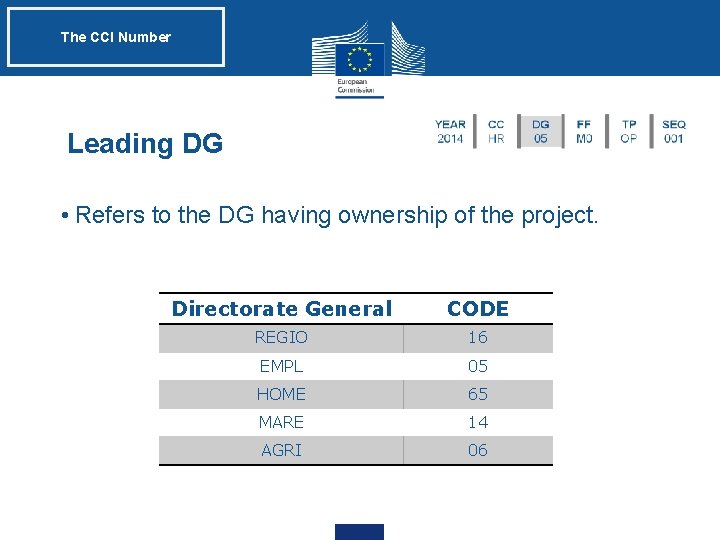
The CCI Number Leading DG • Refers to the DG having ownership of the project. Directorate General CODE REGIO 16 EMPL 05 HOME 65 MARE 14 AGRI 06
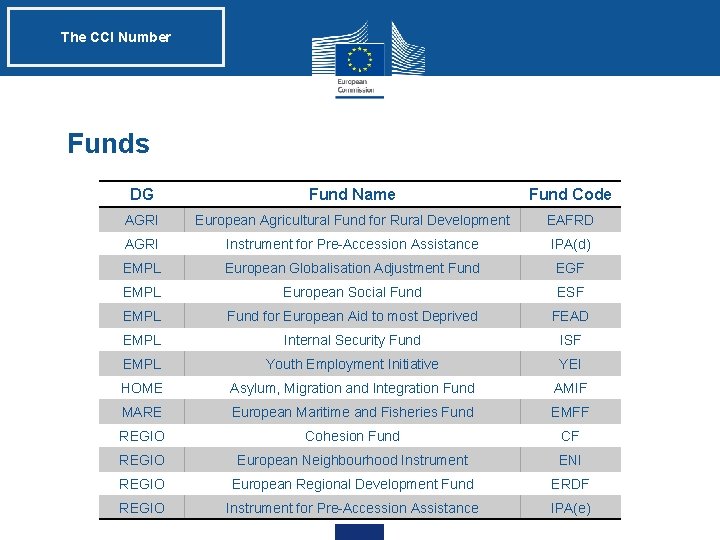
The CCI Number Funds DG Fund Name Fund Code AGRI European Agricultural Fund for Rural Development EAFRD AGRI Instrument for Pre-Accession Assistance IPA(d) EMPL European Globalisation Adjustment Fund EGF EMPL European Social Fund ESF EMPL Fund for European Aid to most Deprived FEAD EMPL Internal Security Fund ISF EMPL Youth Employment Initiative YEI HOME Asylum, Migration and Integration Fund AMIF MARE European Maritime and Fisheries Fund EMFF REGIO Cohesion Fund CF REGIO European Neighbourhood Instrument ENI REGIO European Regional Development Fund ERDF REGIO Instrument for Pre-Accession Assistance IPA(e)
The CCI Number The fund(s) covered (FF) DG AGRI EMPL EMPL MARE HOME REGIO REGIO/EMPL REGIO/EMPL/REGIO ALL Description EAFRD IPA (d) EGF ESF+YEI FEAD (Material Assistance) FEAD (Social Inclusion) YEI (dedicated) EMFF AMIF ISF CF ERDF+CF ERDF+IPA(e) ERDF+ENI ERDF+IPA(e)+ENI IPA(e) ESF+ERDF+CF+ESF+YEI ERDF+ESF+YEI ERDF+CF+ESF+EMFF+EAFRD+YEI (for Partnership Agreement) Code RD I 4 EG SF M 9 FM FS YE MF AM IS CF RF M 1 M 4 M 5 M 6 I 5 M 2 M 3 MA M 0 M 8
The CCI Number The type of object (TP) Description Code Application (EGF) PA Cross-Border Programme (ETC) CB Innovative Action at the initiative of the EC IA Interregional Cooperation Programme (ETC) IR Joint Action Plan JA Major Project MP National Framework (EAFRD) NF National Programme (AMF, ISF, EAFRD, IPA) NP National Rural Network Programme (EAFRD) RN Operational Programme (ERDF, CF, ESF, EMFF, YEI, IPA, FEAD) OP PEACE Programme (ETC) PC Partnership Agreement PA Regional Programme (EAFRD) RP SME Programme (ERDF, EAFRD) SM Simplified Cost Option Art. 14. 1 (ESF) SC Technical Assistance Programme TA Transnational Programme (ETC) TN
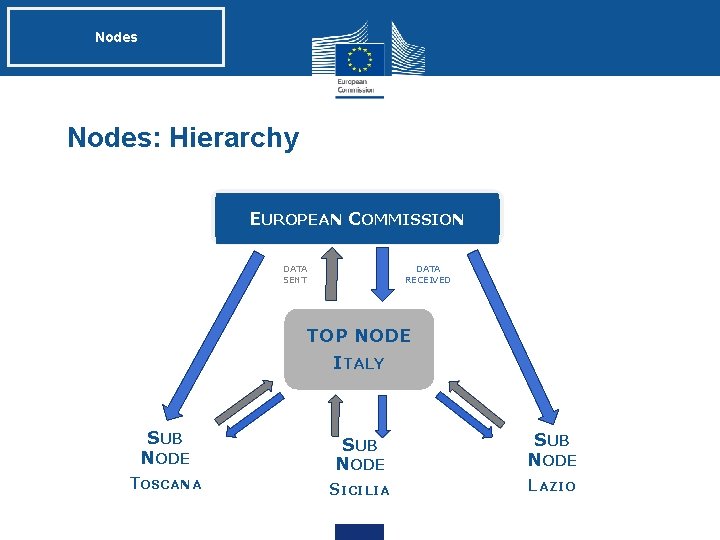
Nodes • The NODE is the point of access of a user • User location (Country/Region) • EC represented as single node ‘Commission’ • Depending on the MS, there can be: • One node representing the whole country OR • several sub-nodes representing each region (and a Top/Management node representing central management).
Nodes: Hierarchy EUROPEAN COMMISSION DATA SENT DATA RECEIVED TOP NODE ITALY SUB NODE TOSCANA SUB NODE SICILIA LAZIO
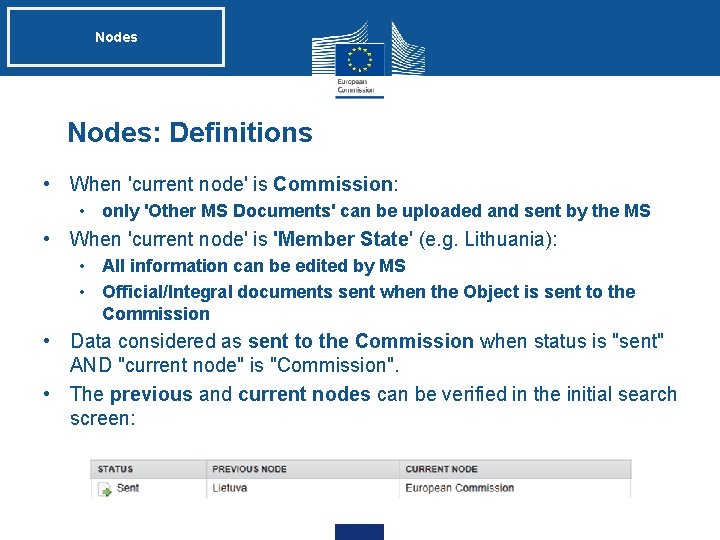
Nodes: Definitions • When 'current node' is Commission: • only 'Other MS Documents' can be uploaded and sent by the MS • When 'current node' is 'Member State' (e. g. Lithuania): • All information can be edited by MS • Official/Integral documents sent when the Object is sent to the Commission • Data considered as sent to the Commission when status is "sent" AND "current node" is "Commission". • The previous and current nodes can be verified in the initial search screen:
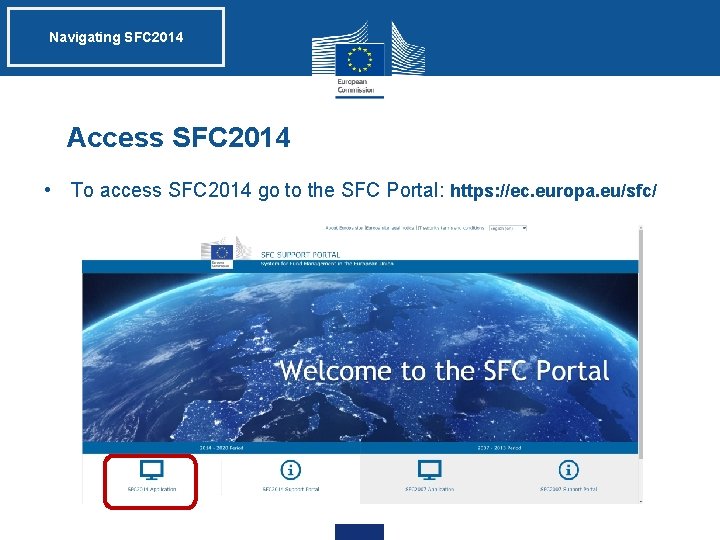
Navigating SFC 2014 Access SFC 2014 • To access SFC 2014 go to the SFC Portal: https: //ec. europa. eu/sfc/
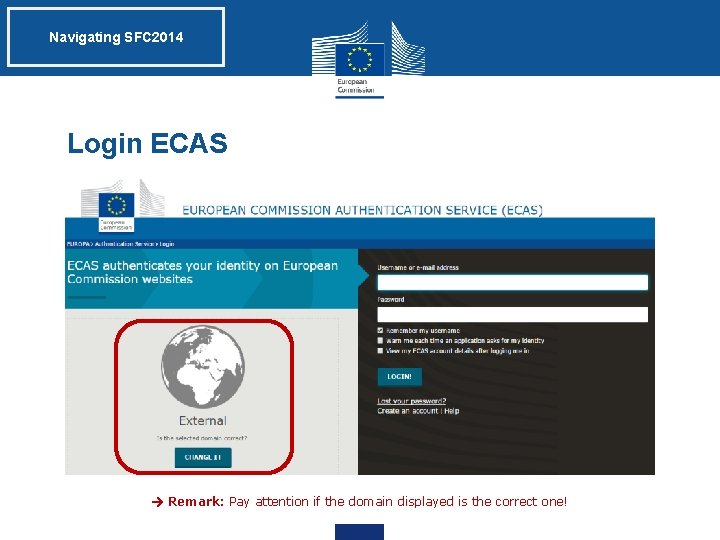
Navigating SFC 2014 Login ECAS Remark: Pay attention if the domain displayed is the correct one!
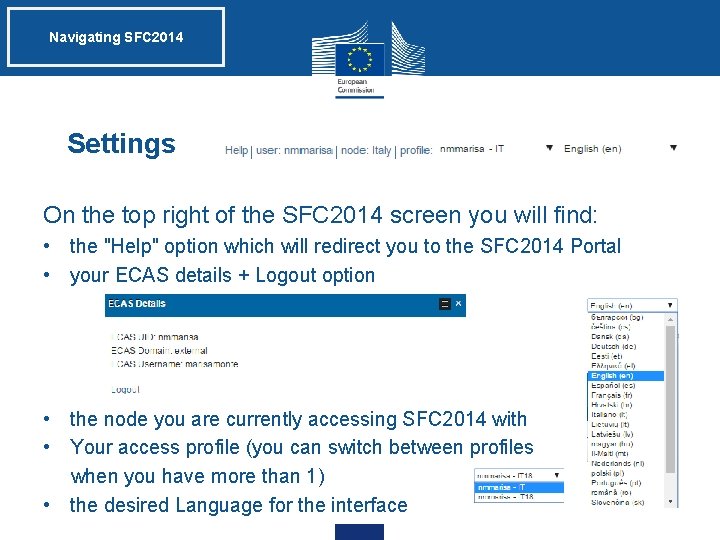
Navigating SFC 2014 Settings On the top right of the SFC 2014 screen you will find: • the "Help" option which will redirect you to the SFC 2014 Portal • your ECAS details + Logout option • the node you are currently accessing SFC 2014 with • Your access profile (you can switch between profiles when you have more than 1) • the desired Language for the interface
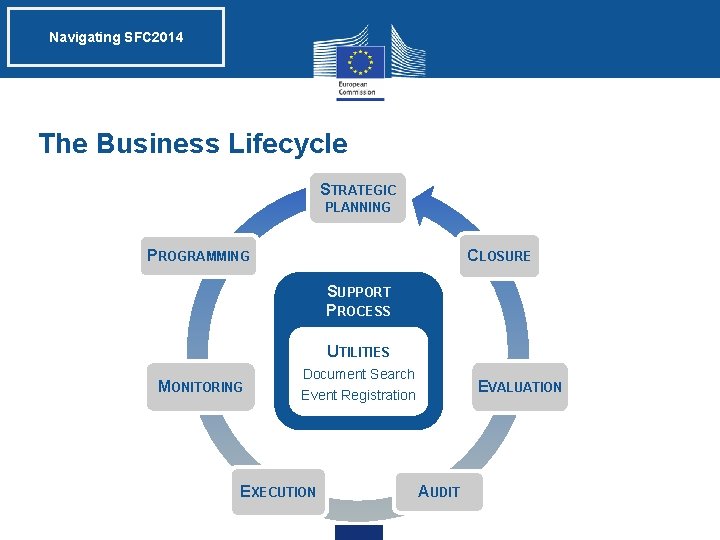
Navigating SFC 2014 The Business Lifecycle STRATEGIC PLANNING CLOSURE PROGRAMMING SUPPORT PROCESS UTILITIES MONITORING Document Search Event Registration EXECUTION EVALUATION AUDIT
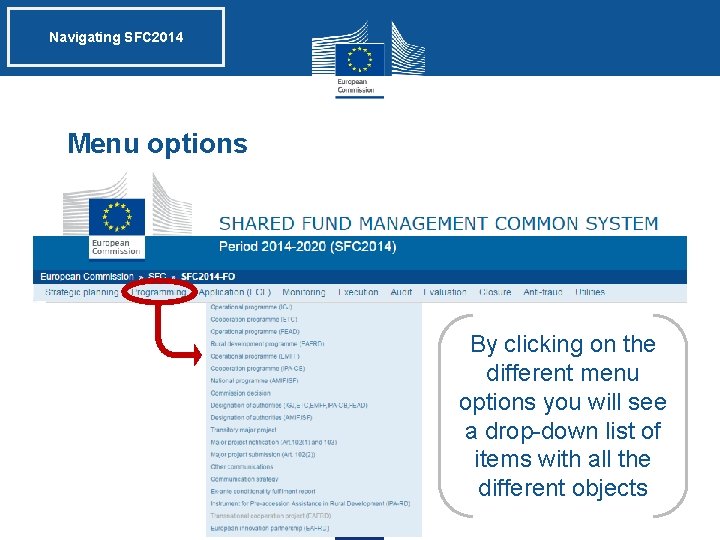
Navigating SFC 2014 Menu options By clicking on the different menu options you will see a drop-down list of items with all the different objects
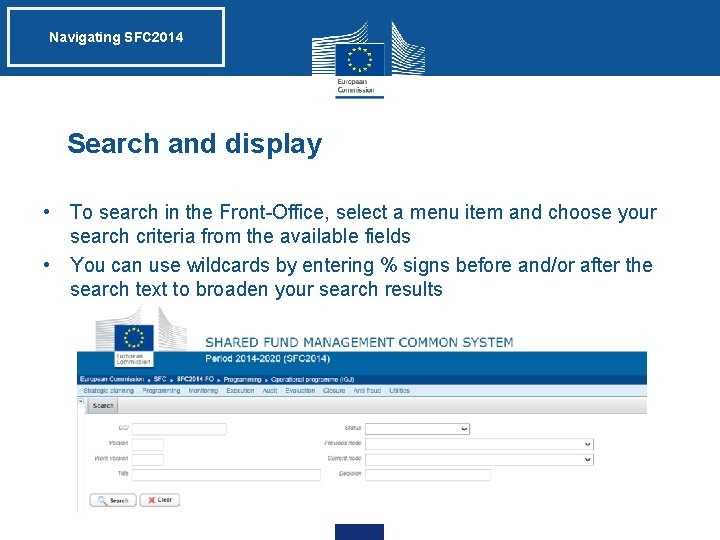
Navigating SFC 2014 Search and display • To search in the Front-Office, select a menu item and choose your search criteria from the available fields • You can use wildcards by entering % signs before and/or after the search text to broaden your search results
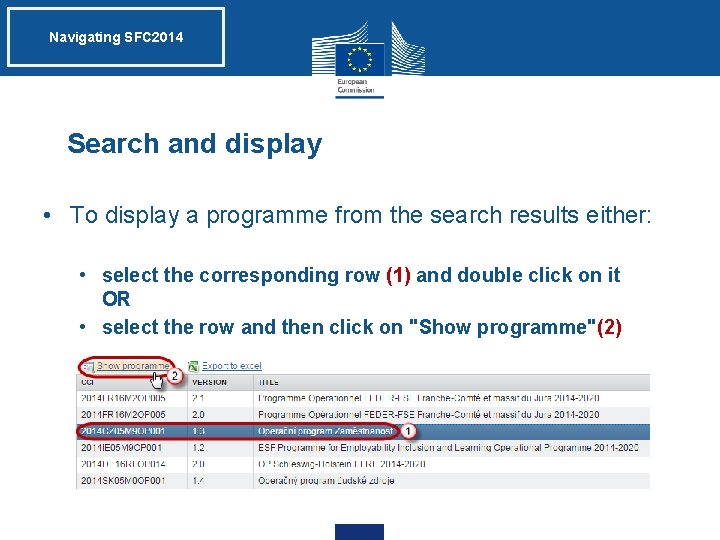
Navigating SFC 2014 Search and display • To display a programme from the search results either: • select the corresponding row (1) and double click on it OR • select the row and then click on "Show programme"(2)
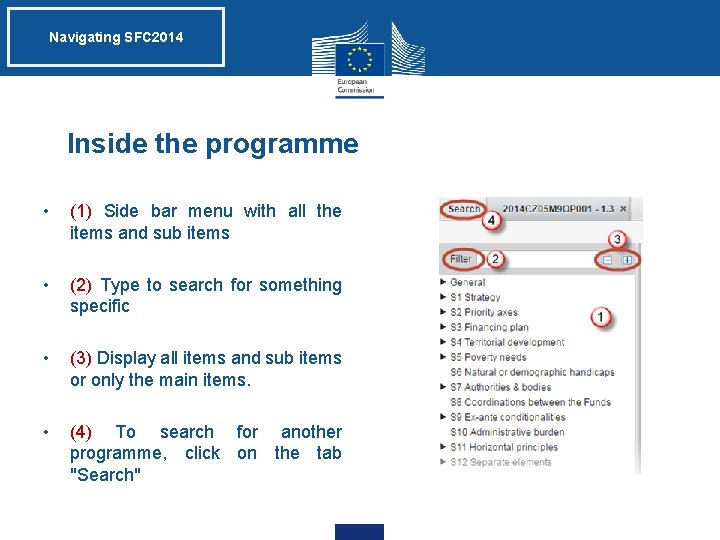
Navigating SFC 2014 Inside the programme • (1) Side bar menu with all the items and sub items • (2) Type to search for something specific • (3) Display all items and sub items or only the main items. • (4) To search for another programme, click on the tab "Search"
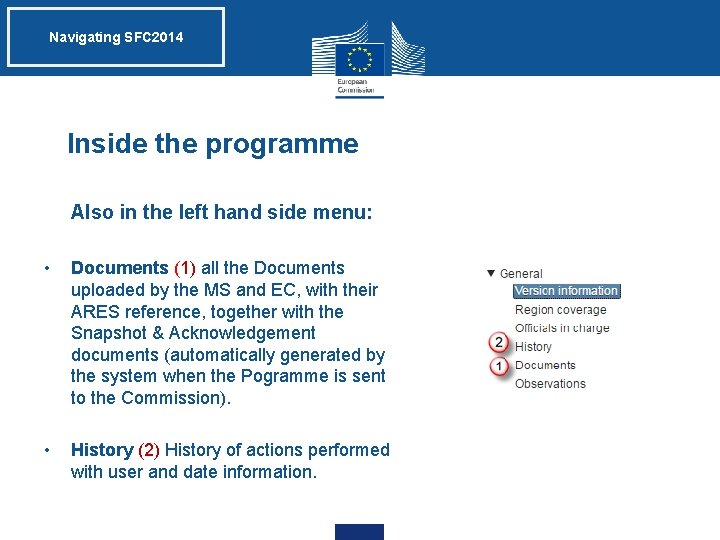
Navigating SFC 2014 Inside the programme • Also in the left hand side menu: • Documents (1) all the Documents uploaded by the MS and EC, with their ARES reference, together with the Snapshot & Acknowledgement documents (automatically generated by the system when the Pogramme is sent to the Commission). • History (2) History of actions performed with user and date information.
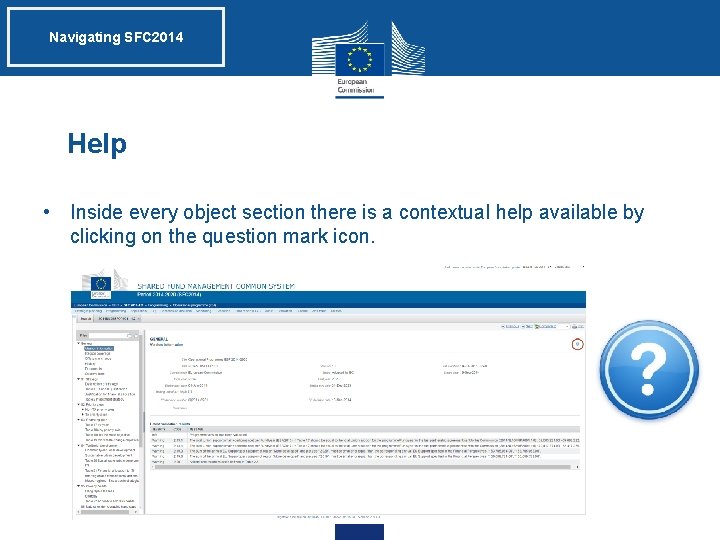
Navigating SFC 2014 Help • Inside every object section there is a contextual help available by clicking on the question mark icon.
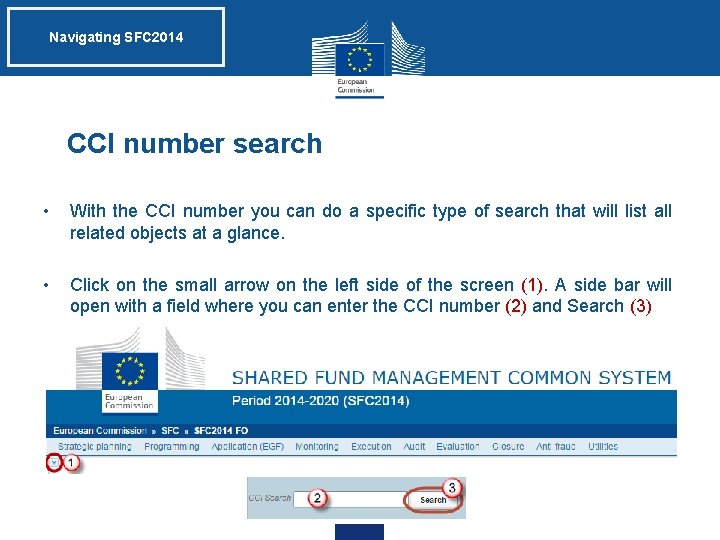
Navigating SFC 2014 CCI number search • With the CCI number you can do a specific type of search that will list all related objects at a glance. • Click on the small arrow on the left side of the screen (1). A side bar will open with a field where you can enter the CCI number (2) and Search (3)
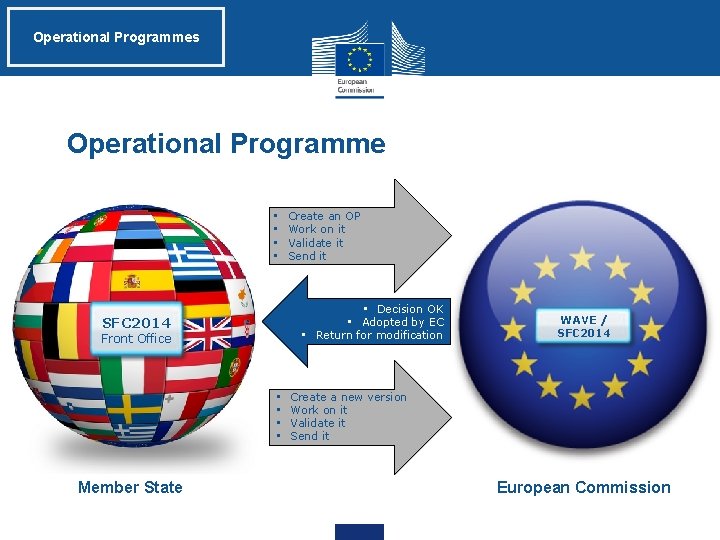
Operational Programmes Operational Programme • • • Decision OK • Adopted by EC • Return for modification SFC 2014 Front Office • • Member State Create an OP Work on it Validate it Send it WAVE / SFC 2014 Create a new version Work on it Validate it Send it European Commission
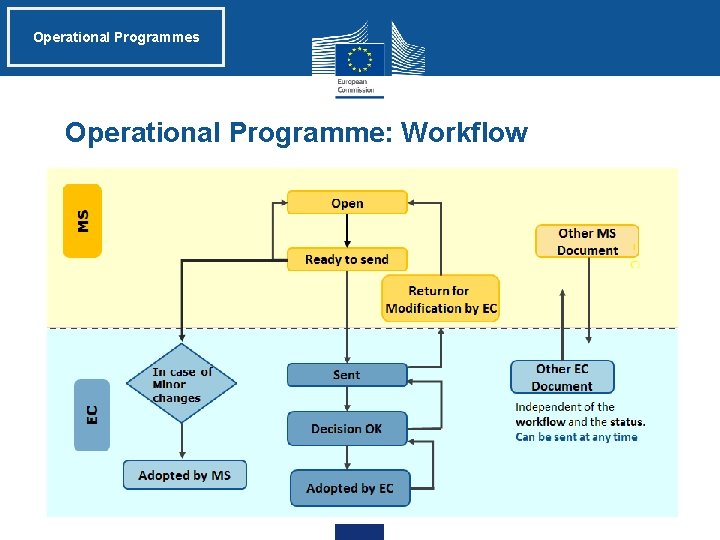
Operational Programmes Operational Programme: Workflow
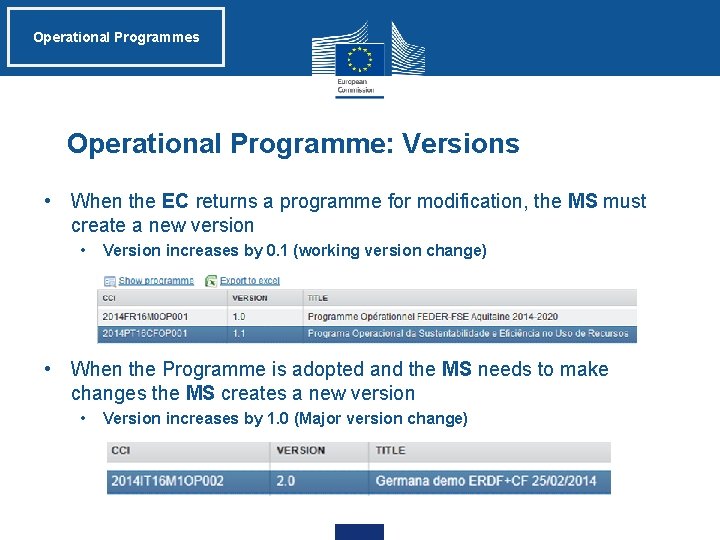
Operational Programmes Operational Programme: Versions • When the EC returns a programme for modification, the MS must create a new version • Version increases by 0. 1 (working version change) • When the Programme is adopted and the MS needs to make changes the MS creates a new version • Version increases by 1. 0 (Major version change)
Operational Programmes Returned Operational Programme • An OP is returned to the MS when missing elements, allowing MS to edit data and re-upload Official Documents • Any Integral documents must be uploaded again before dossier is validated and sent to EC • Once returned, current node of the returned version remains 'European Commission'
Operational Programmes Operational Programme: Versions • A new version must be created in order to edit and send a returned OP • The new version is an editable copy of the previous one and it can be created when: • an object is in its final status* • an object has been returned for modification • The status is ‘created’ and it can be modified by the MS • Must be validated and sent again
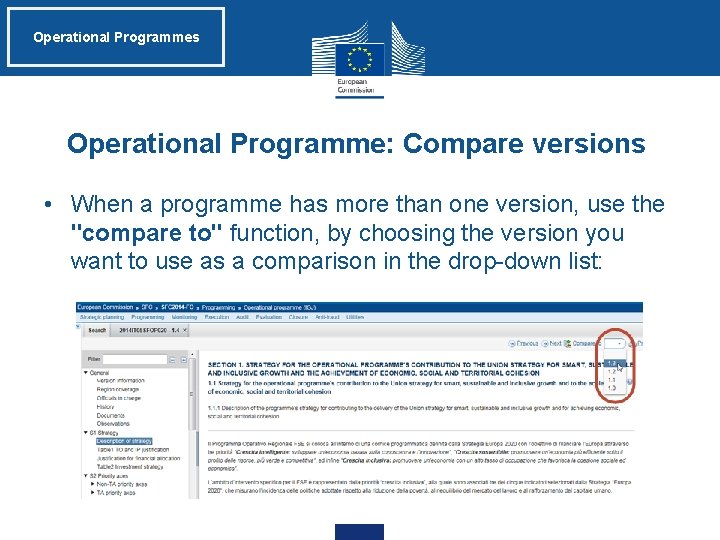
Operational Programmes Operational Programme: Compare versions • When a programme has more than one version, use the "compare to" function, by choosing the version you want to use as a comparison in the drop-down list:
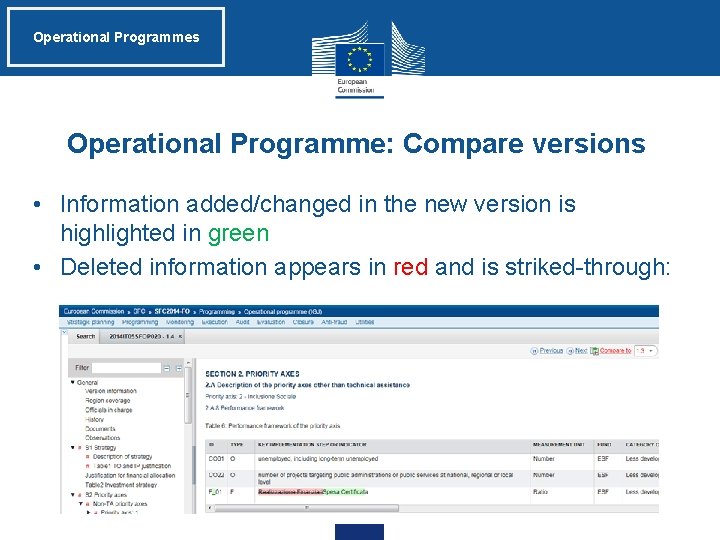
Operational Programmes Operational Programme: Compare versions • Information added/changed in the new version is highlighted in green • Deleted information appears in red and is striked-through:
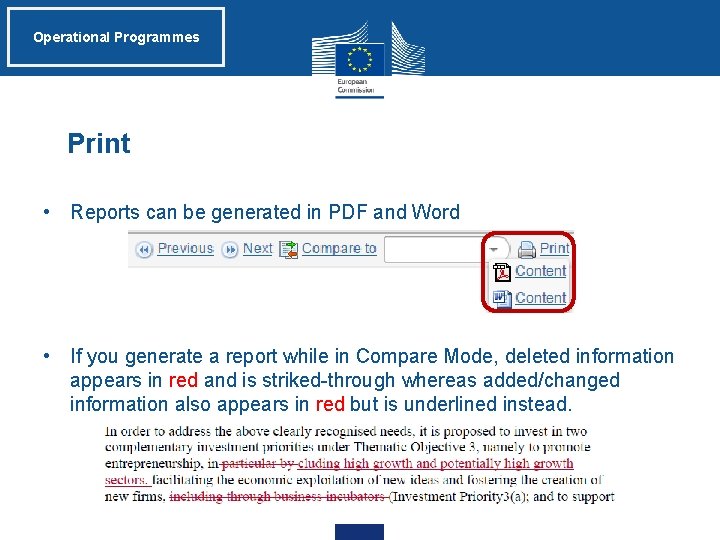
Operational Programmes Print • Reports can be generated in PDF and Word • If you generate a report while in Compare Mode, deleted information appears in red and is striked-through whereas added/changed information also appears in red but is underlined instead.
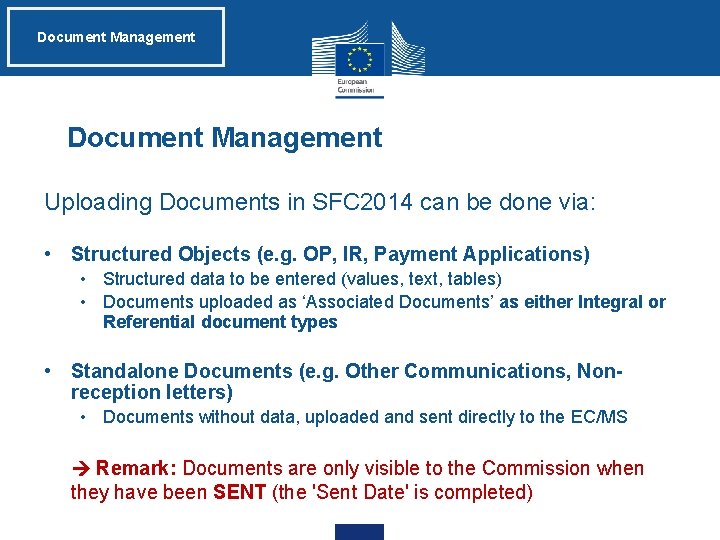
Document Management Uploading Documents in SFC 2014 can be done via: • Structured Objects (e. g. OP, IR, Payment Applications) • Structured data to be entered (values, text, tables) • Documents uploaded as ‘Associated Documents’ as either Integral or Referential document types • Standalone Documents (e. g. Other Communications, Nonreception letters) • Documents without data, uploaded and sent directly to the EC/MS • Remark: Documents are only visible to the Commission when they have been SENT (the 'Sent Date' is completed)
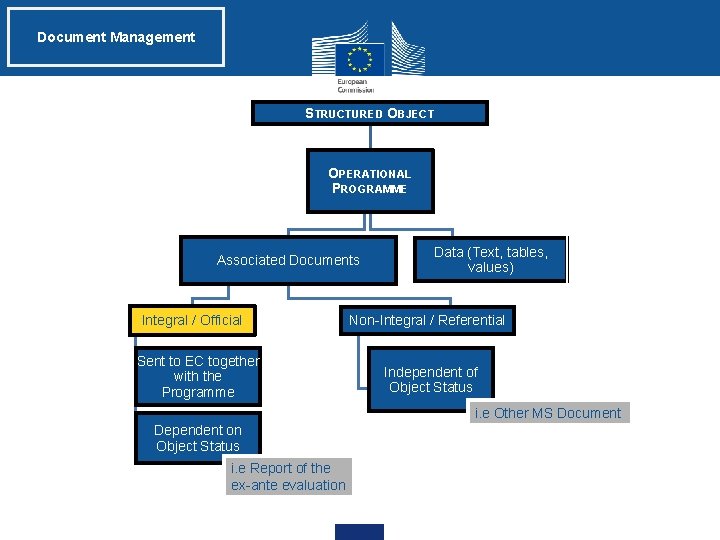
Document Management STRUCTURED OBJECT OPERATIONAL PROGRAMME Associated Documents Integral / Official Sent to EC together with the Programme Data (Text, tables, values) Non-Integral / Referential Independent of Object Status i. e Other MS Document Dependent on Object Status i. e Report of the ex-ante evaluation
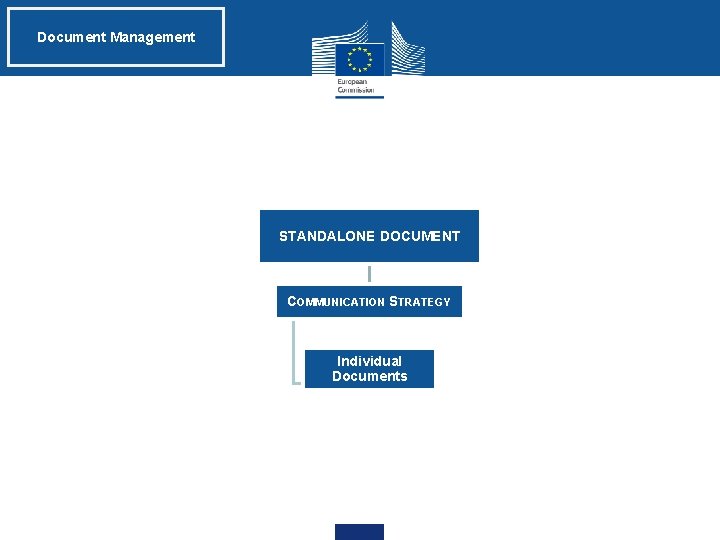
Document Management STANDALONE DOCUMENT COMMUNICATION STRATEGY Individual Documents
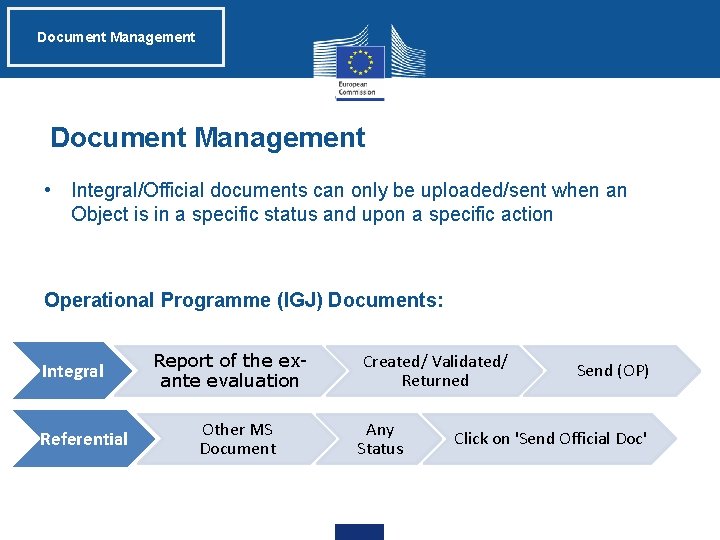
Document Management • Integral/Official documents can only be uploaded/sent when an Object is in a specific status and upon a specific action Operational Programme (IGJ) Documents: Integral Referential Report of the exante evaluation Other MS Document Created/ Validated/ Returned Any Status Send (OP) Click on 'Send Official Doc'
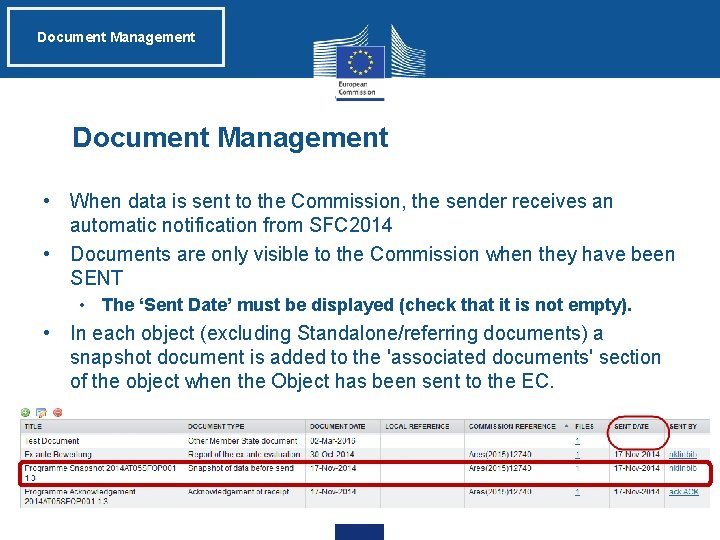
Document Management • When data is sent to the Commission, the sender receives an automatic notification from SFC 2014 • Documents are only visible to the Commission when they have been SENT • The ‘Sent Date’ must be displayed (check that it is not empty). • In each object (excluding Standalone/referring documents) a snapshot document is added to the 'associated documents' section of the object when the Object has been sent to the EC.
Document Management The "four-eyes" principle • SFC 2014 enforces the "four-eyes" principle, which means that the user who last validated the Object cannot submit it. • Two different users are required: one to validate it (object status will become 'Ready to Send') and another one to finally send it. • According to Article 3(2) of Commission Implementing Regulation (EU) No 184/2014, “any transmission of information to the Commission shall be verified and submitted by a person other than the person who entered the data for that transmission. This separation of tasks shall be supported by SFC 2014 or by Member State’s management and control information systems connected automatically with SFC 2014. ”
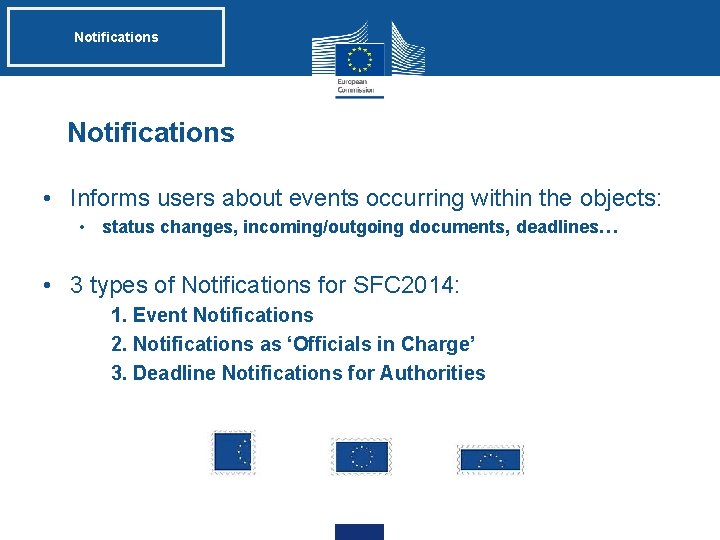
Notifications • Informs users about events occurring within the objects: • status changes, incoming/outgoing documents, deadlines… • 3 types of Notifications for SFC 2014: 1. Event Notifications 2. Notifications as ‘Officials in Charge’ 3. Deadline Notifications for Authorities
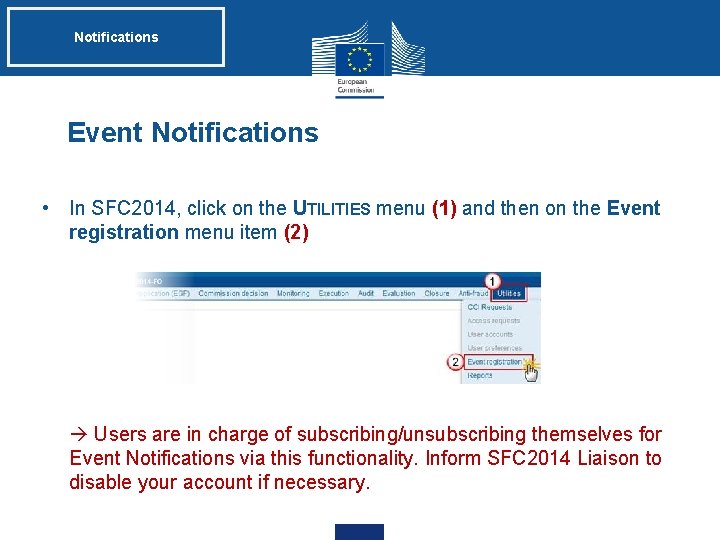
Notifications Event Notifications • In SFC 2014, click on the UTILITIES menu (1) and then on the Event registration menu item (2) • Users are in charge of subscribing/unsubscribing themselves for Event Notifications via this functionality. Inform SFC 2014 Liaison to disable your account if necessary.
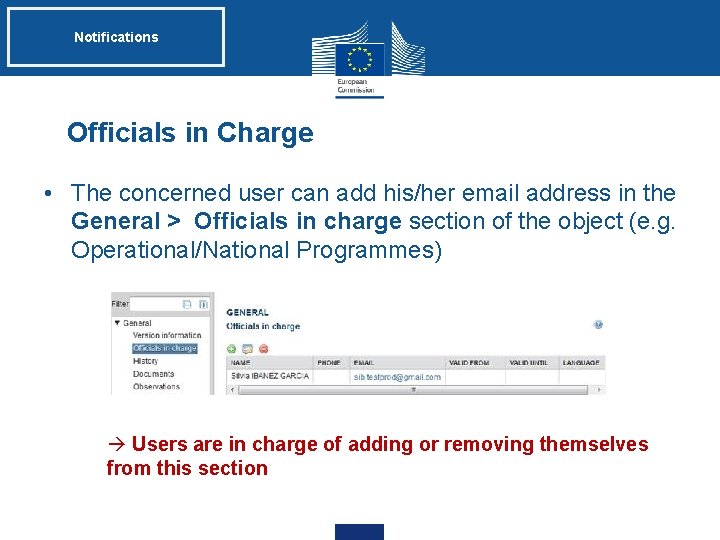
Notifications Officials in Charge • The concerned user can add his/her email address in the General > Officials in charge section of the object (e. g. Operational/National Programmes) Users are in charge of adding or removing themselves from this section
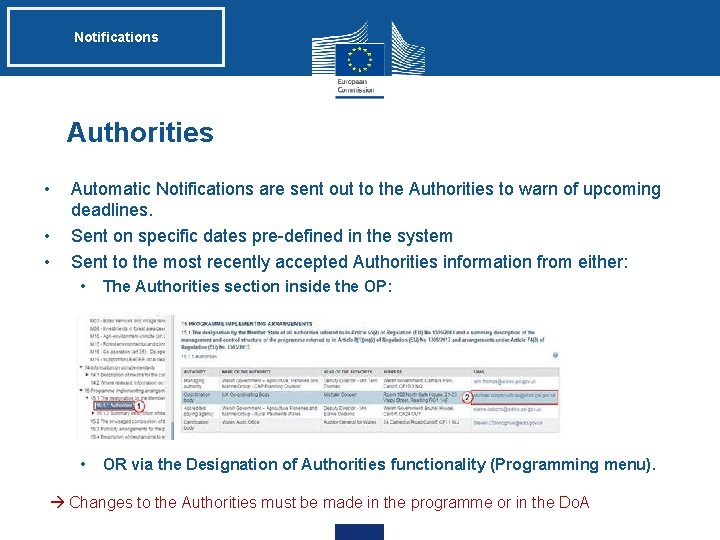
Notifications Authorities • • • Automatic Notifications are sent out to the Authorities to warn of upcoming deadlines. Sent on specific dates pre-defined in the system Sent to the most recently accepted Authorities information from either: • The Authorities section inside the OP: • OR via the Designation of Authorities functionality (Programming menu). Changes to the Authorities must be made in the programme or in the Do. A
Practical Demonstration Practical Demo: Operational Programme • Creation of an Operational Programme in SFC 2014 • verification of data • upload of integral documents ('Report of the ex-ante evaluation' and 'Notification of Designation') • upload of Other MS document (to be sent manually) • validate OP • send OP • Create a New Version of an Operational Programme
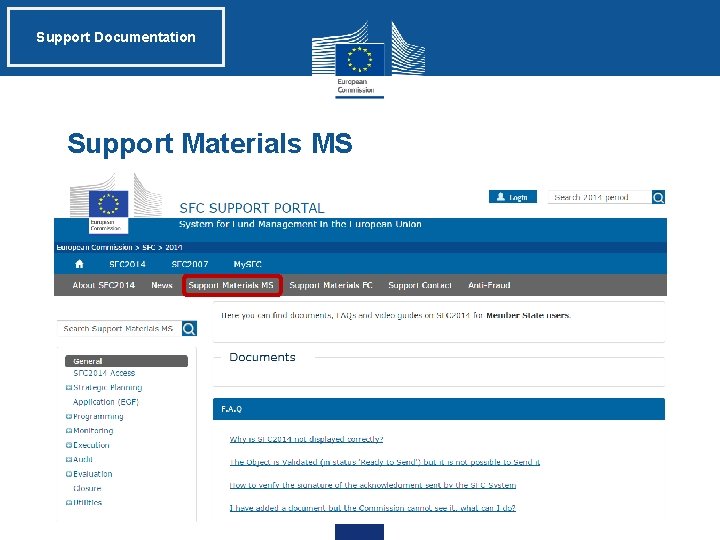
Support Documentation Support and Documentation • SFC Support Portal: • http: //ec. europa. eu/sfc/en/2014 • SFC MS Support Material (Latest Information, Regulation sources, Documentation, Guides, Videos): • http: //ec. europa. eu/sfc/en/2014/support-ms • Support contact: • ec-sfc 2014 -info@ec. europa. eu
Support Documentation Support Materials MS
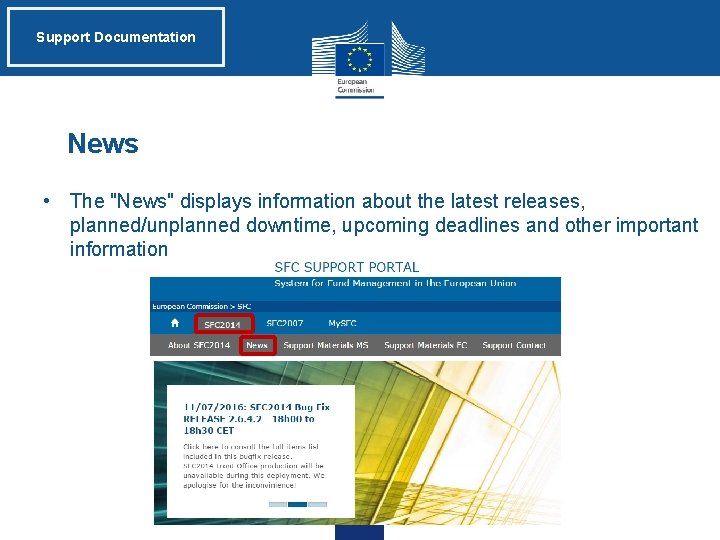
Support Documentation News • The "News" displays information about the latest releases, planned/unplanned downtime, upcoming deadlines and other important information
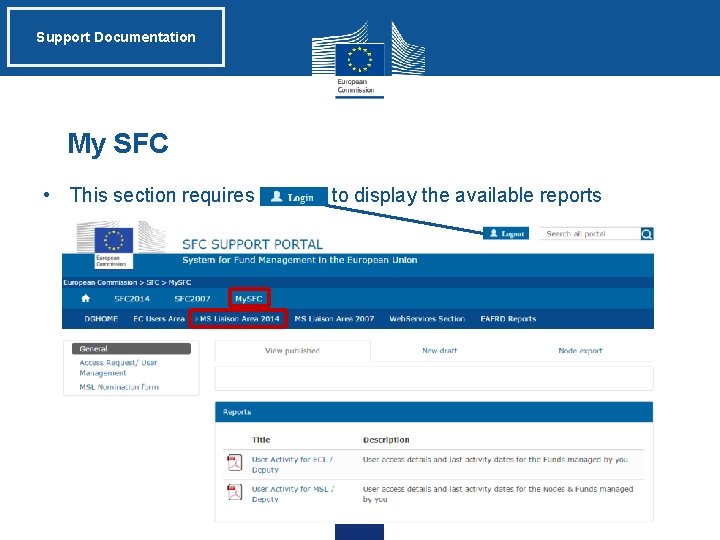
Support Documentation My SFC • This section requires to display the available reports
Question & Answer Session Questions
Thank you for your attention!