Introduction to HPCC at MSU ChunMin Chang Research




- Slides: 95
Introduction to HPCC at MSU Chun-Min Chang Research Consultant Institute for Cyber-Enabled Research Download this presentation: https: //wiki. hpcc. msu. edu/display/TEAC/2016 -10 -18+Introduction+to+HPCC
How this workshop works • We are going to cover some basics with hands on exampes. • Exercises are denoted by the following icon in this presents: • Bold italic means commands which I expect you type on your terminal in most cases.
Green and Red Sticky • Use the sticky notes provided to help me help you. - No Sticky = I am working - Green = I am done and ready to move on (yea!) - Red = I am stuck and need more time and/or some help If you have not followed the set up instructions: https: //wiki. hpcc. msu. edu/display/TEAC/i. CER+Workshops%3 A+Set+Up+Instructions Please do now
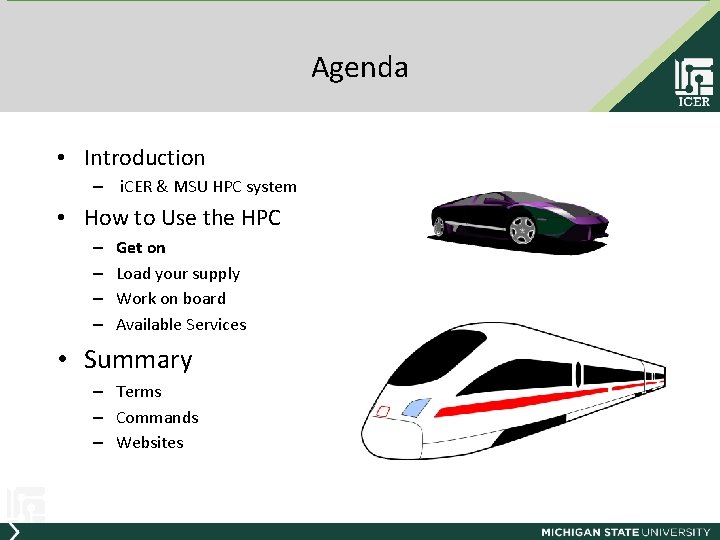
Agenda • Introduction – i. CER & MSU HPC system • How to Use the HPC – – Get on Load your supply Work on board Available Services • Summary – Terms – Commands – Websites
i. CER Overview • What does i. CER stand for? – Institute for Cyber-Enabled Research – Established in 2009 to encourage and support the application of advanced computing resources and techniques by MSU researchers. • Mission – Reducing the “Mean time to Science” (Latency and Throughput) – i. CER’s mission to help researchers with computational components of their research
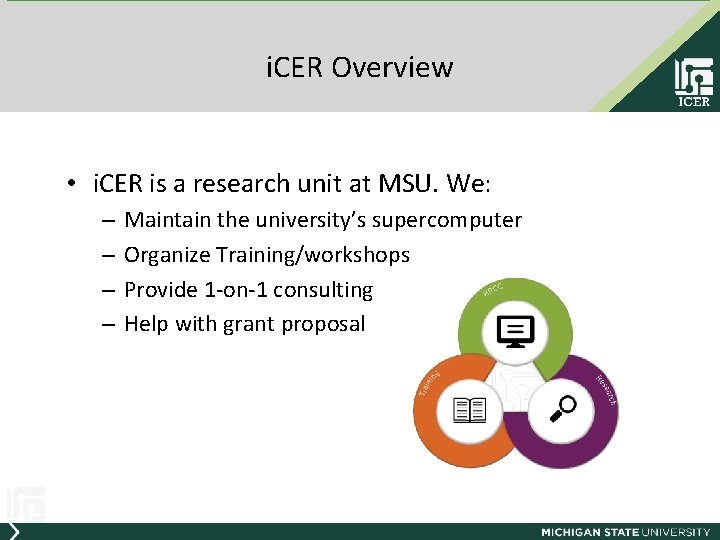
i. CER Overview • i. CER is a research unit at MSU. We: – – Maintain the university’s supercomputer Organize Training/workshops Provide 1 -on-1 consulting Help with grant proposal
Funding From… • The Vice President office for Research and Graduate Studies (VPRGS) • Engineering College, College of Natural Science and College of Social Science • This allows us to provides services and resources for FREE!!!
Our Fleet
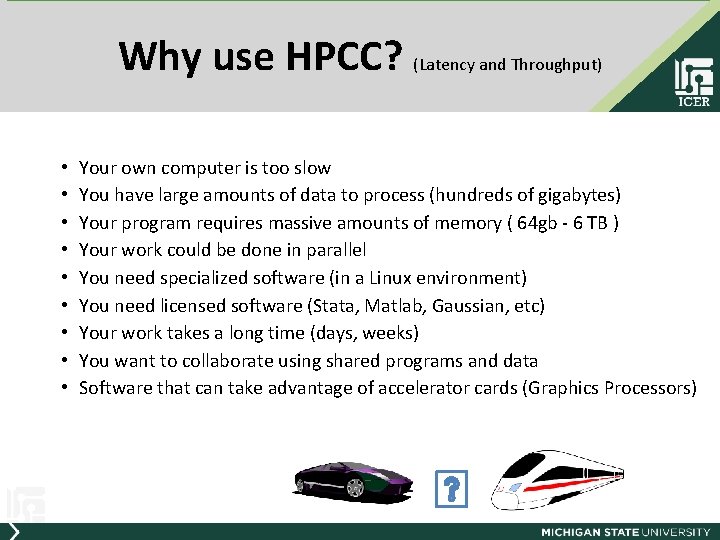
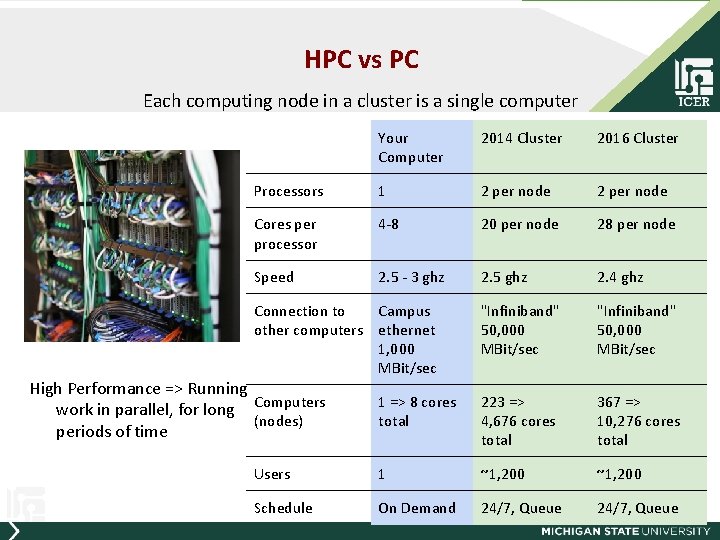
Why use HPCC? (Latency and Throughput) • • • Your own computer is too slow You have large amounts of data to process (hundreds of gigabytes) Your program requires massive amounts of memory ( 64 gb - 6 TB ) Your work could be done in parallel You need specialized software (in a Linux environment) You need licensed software (Stata, Matlab, Gaussian, etc) Your work takes a long time (days, weeks) You want to collaborate using shared programs and data Software that can take advantage of accelerator cards (Graphics Processors)
HPC vs PC Each computing node in a cluster is a single computer Your Computer 2014 Cluster 2016 Cluster Processors 1 2 per node Cores per processor 4 -8 20 per node 28 per node Speed 2. 5 - 3 ghz 2. 5 ghz 2. 4 ghz "Infiniband" 50, 000 MBit/sec 1 => 8 cores total 223 => 4, 676 cores total 367 => 10, 276 cores total Users 1 ~1, 200 Schedule On Demand 24/7, Queue Connection to Campus other computers ethernet 1, 000 MBit/sec High Performance => Running work in parallel, for long Computers (nodes) periods of time
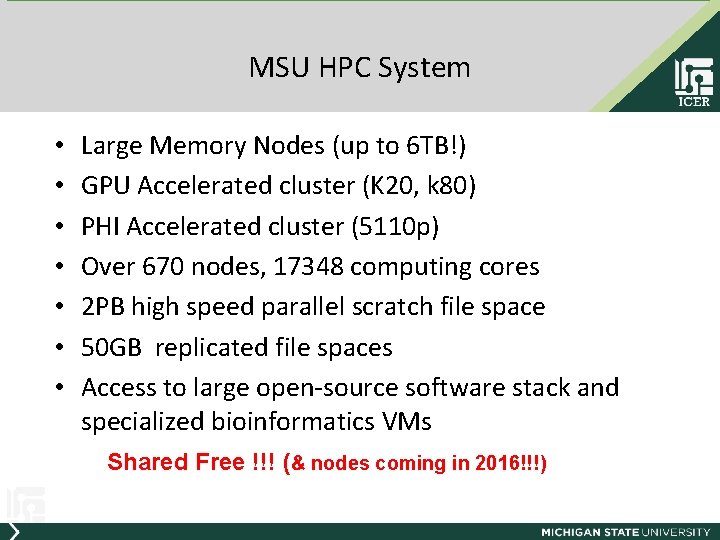
MSU HPC System • • Large Memory Nodes (up to 6 TB!) GPU Accelerated cluster (K 20, k 80) PHI Accelerated cluster (5110 p) Over 670 nodes, 17348 computing cores 2 PB high speed parallel scratch file space 50 GB replicated file spaces Access to large open-source software stack and specialized bioinformatics VMs Shared Free !!! (& nodes coming in 2016!!!)
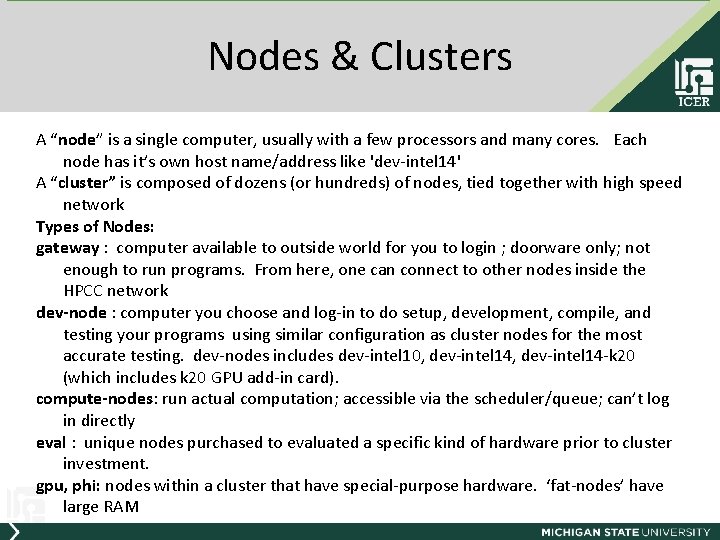
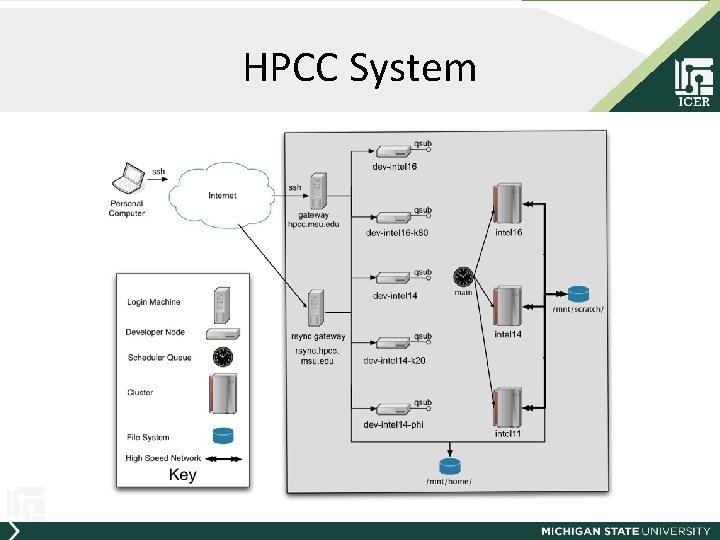
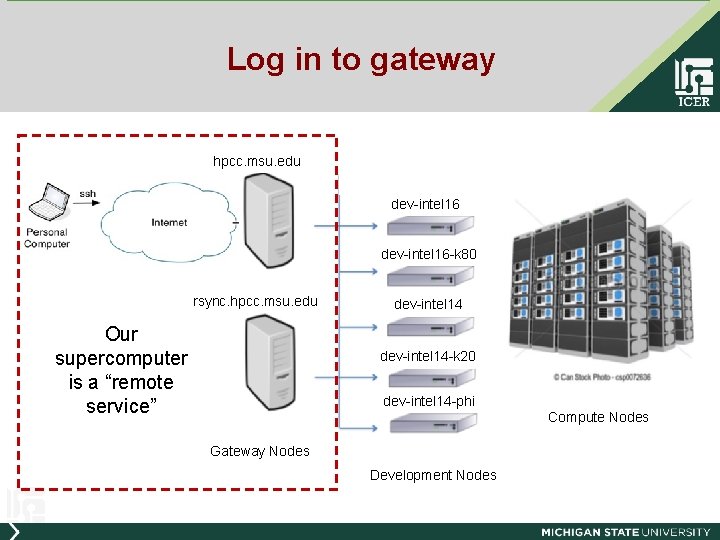
Nodes & Clusters A “node” is a single computer, usually with a few processors and many cores. Each node has it’s own host name/address like 'dev-intel 14' A “cluster” is composed of dozens (or hundreds) of nodes, tied together with high speed network Types of Nodes: gateway : computer available to outside world for you to login ; doorware only; not enough to run programs. From here, one can connect to other nodes inside the HPCC network dev-node : computer you choose and log-in to do setup, development, compile, and testing your programs using similar configuration as cluster nodes for the most accurate testing. dev-nodes includes dev-intel 10, dev-intel 14 -k 20 (which includes k 20 GPU add-in card). compute-nodes: run actual computation; accessible via the scheduler/queue; can’t log in directly eval : unique nodes purchased to evaluated a specific kind of hardware prior to cluster investment. gpu, phi: nodes within a cluster that have special-purpose hardware. ‘fat-nodes’ have large RAM
HPCC System
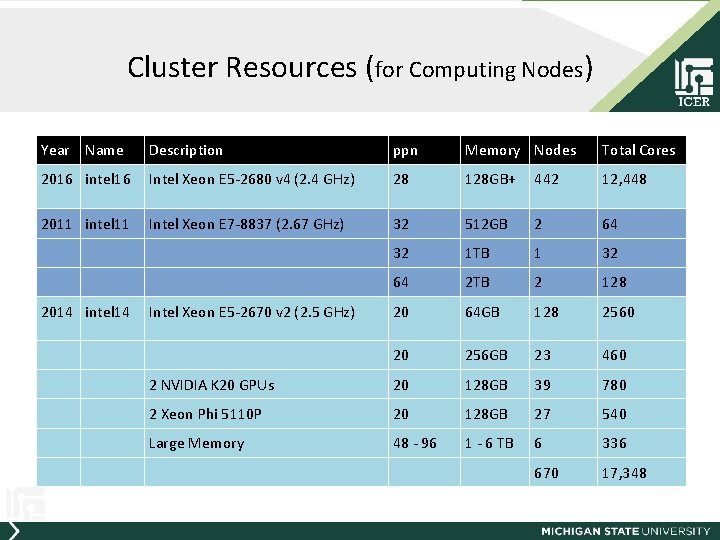
Cluster Resources (for Computing Nodes) Year Name Description ppn Memory Nodes Total Cores 2016 intel 16 Intel Xeon E 5 -2680 v 4 (2. 4 GHz) 28 128 GB+ 442 12, 448 2011 intel 11 Intel Xeon E 7 -8837 (2. 67 GHz) 32 512 GB 2 64 32 1 TB 1 32 64 2 TB 2 128 20 64 GB 128 2560 20 256 GB 23 460 2 NVIDIA K 20 GPUs 20 128 GB 39 780 2 Xeon Phi 5110 P 20 128 GB 27 540 Large Memory 48 - 96 1 - 6 TB 6 336 670 17, 348 2014 intel 14 Intel Xeon E 5 -2670 v 2 (2. 5 GHz)
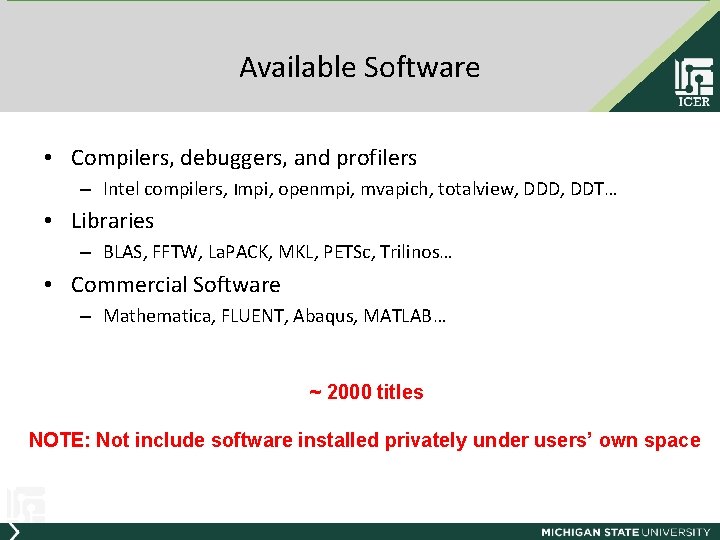
Available Software • Compilers, debuggers, and profilers – Intel compilers, Impi, openmpi, mvapich, totalview, DDD, DDT… • Libraries – BLAS, FFTW, La. PACK, MKL, PETSc, Trilinos… • Commercial Software – Mathematica, FLUENT, Abaqus, MATLAB… ~ 2000 titles NOTE: Not include software installed privately under users’ own space
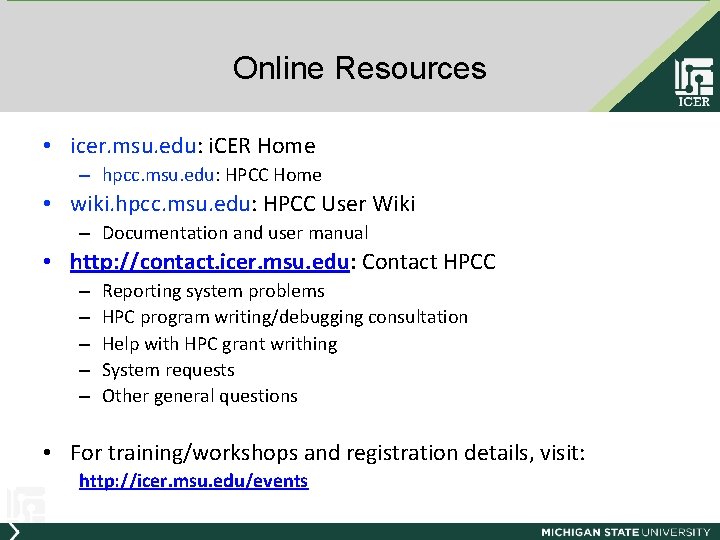
Online Resources • icer. msu. edu: i. CER Home – hpcc. msu. edu: HPCC Home • wiki. hpcc. msu. edu: HPCC User Wiki – Documentation and user manual • http: //contact. icer. msu. edu: Contact HPCC – – – Reporting system problems HPC program writing/debugging consultation Help with HPC grant writhing System requests Other general questions • For training/workshops and registration details, visit: http: //icer. msu. edu/events
Agenda • Introduction – i. CER & MSU HPC system • How to Use the HPC – – Get on Load your supply Work on board Available Services • Summary – Terms – Commands – Websites
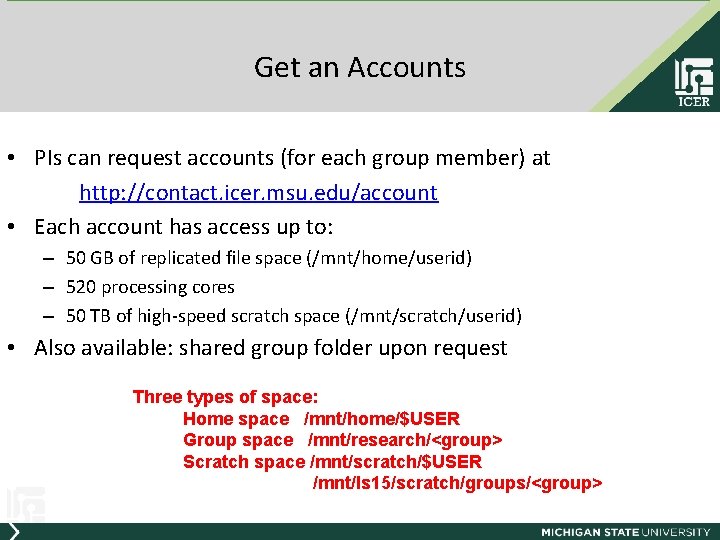
Get an Accounts • PIs can request accounts (for each group member) at http: //contact. icer. msu. edu/account • Each account has access up to: – 50 GB of replicated file space (/mnt/home/userid) – 520 processing cores – 50 TB of high-speed scratch space (/mnt/scratch/userid) • Also available: shared group folder upon request Three types of space: Home space /mnt/home/$USER Group space /mnt/research/<group> Scratch space /mnt/scratch/$USER /mnt/ls 15/scratch/groups/<group>
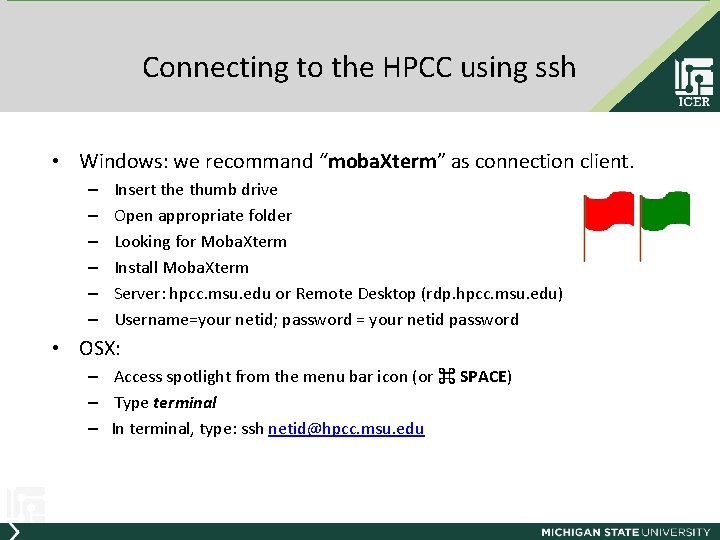
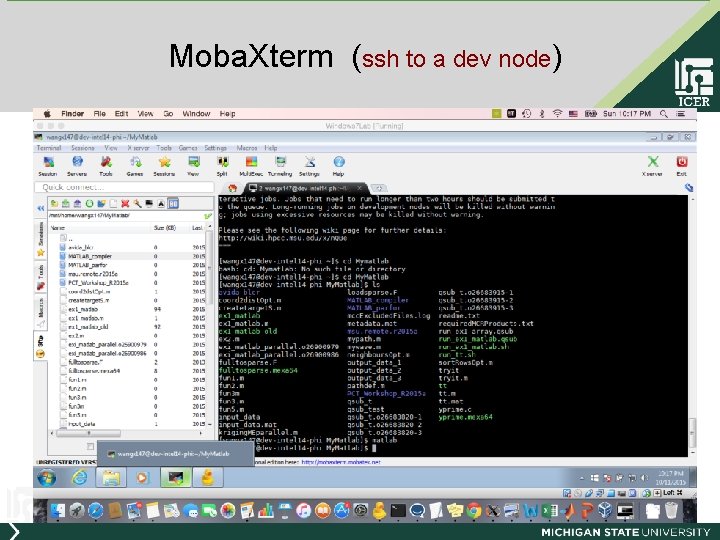
Connecting to the HPCC using ssh • Windows: we recommand “moba. Xterm” as connection client. – – – Insert the thumb drive Open appropriate folder Looking for Moba. Xterm Install Moba. Xterm Server: hpcc. msu. edu or Remote Desktop (rdp. hpcc. msu. edu) Username=your netid; password = your netid password • OSX: – Access spotlight from the menu bar icon (or ⌘ SPACE) – Type terminal – In terminal, type: ssh netid@hpcc. msu. edu
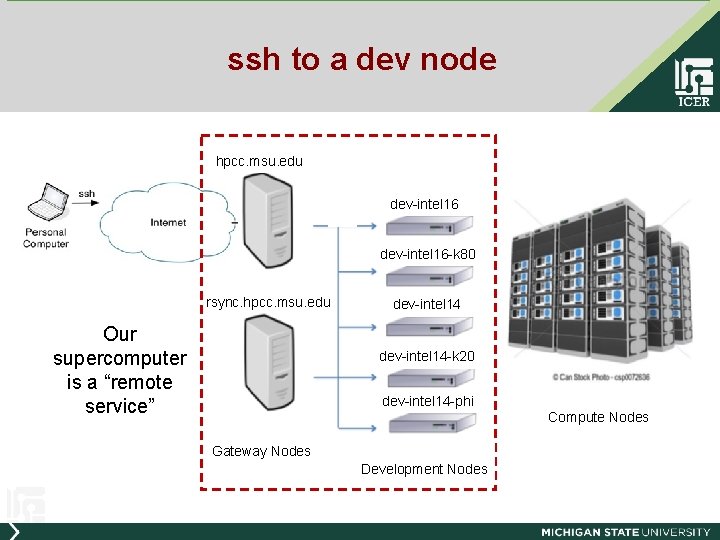
Log in to gateway hpcc. msu. edu dev-intel 16 -k 80 rsync. hpcc. msu. edu Our supercomputer is a “remote service” dev-intel 14 -k 20 dev-intel 14 -phi Compute Nodes Gateway Nodes Development Nodes
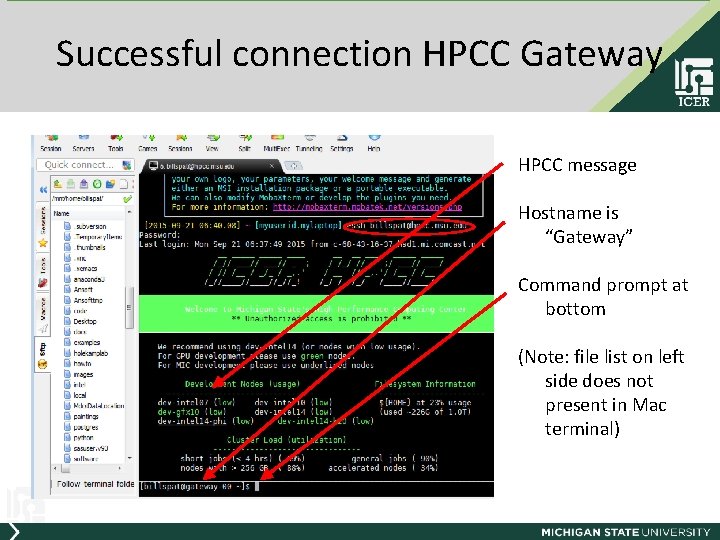
Successful connection HPCC Gateway HPCC message Hostname is “Gateway” Command prompt at bottom (Note: file list on left side does not present in Mac terminal)
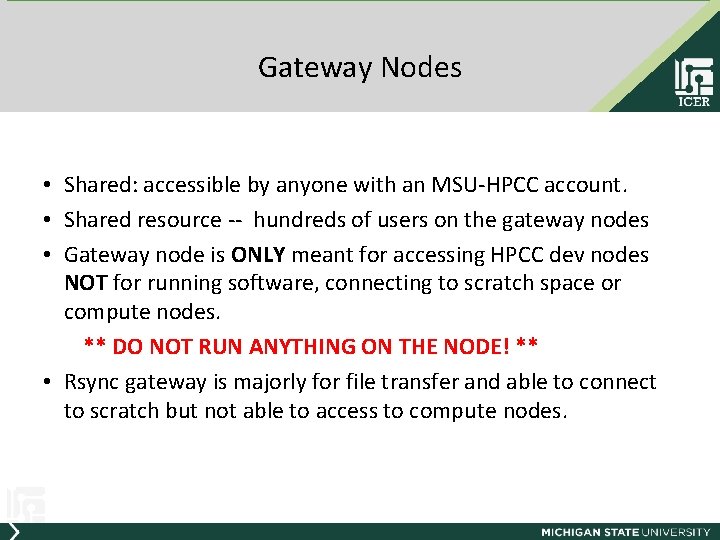
Gateway Nodes • Shared: accessible by anyone with an MSU-HPCC account. • Shared resource -- hundreds of users on the gateway nodes • Gateway node is ONLY meant for accessing HPCC dev nodes NOT for running software, connecting to scratch space or compute nodes. ** DO NOT RUN ANYTHING ON THE NODE! ** • Rsync gateway is majorly for file transfer and able to connect to scratch but not able to access to compute nodes.
ssh to a dev node hpcc. msu. edu dev-intel 16 -k 80 rsync. hpcc. msu. edu Our supercomputer is a “remote service” dev-intel 14 -k 20 dev-intel 14 -phi Compute Nodes Gateway Nodes Development Nodes
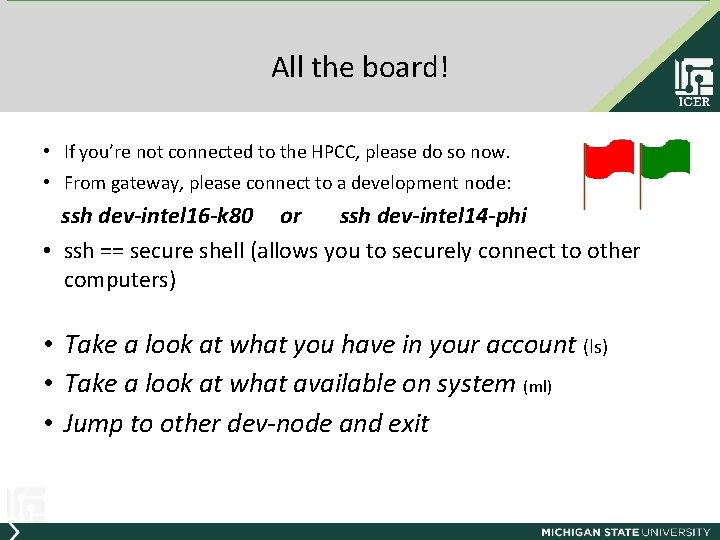
All the board! • If you’re not connected to the HPCC, please do so now. • From gateway, please connect to a development node: ssh dev-intel 16 -k 80 or ssh dev-intel 14 -phi • ssh == secure shell (allows you to securely connect to other computers) • Take a look at what you have in your account (ls) • Take a look at what available on system (ml) • Jump to other dev-node and exit
Moba. Xterm (ssh to a dev node)
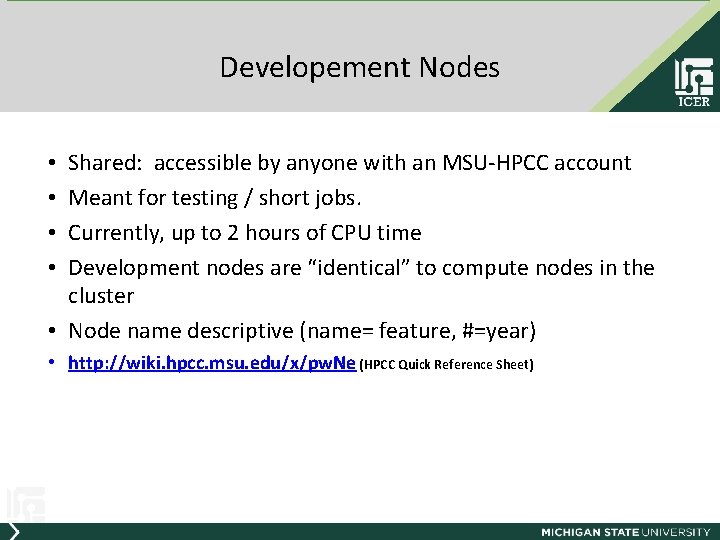
Developement Nodes Shared: accessible by anyone with an MSU-HPCC account Meant for testing / short jobs. Currently, up to 2 hours of CPU time Development nodes are “identical” to compute nodes in the cluster • Node name descriptive (name= feature, #=year) • • • http: //wiki. hpcc. msu. edu/x/pw. Ne (HPCC Quick Reference Sheet)
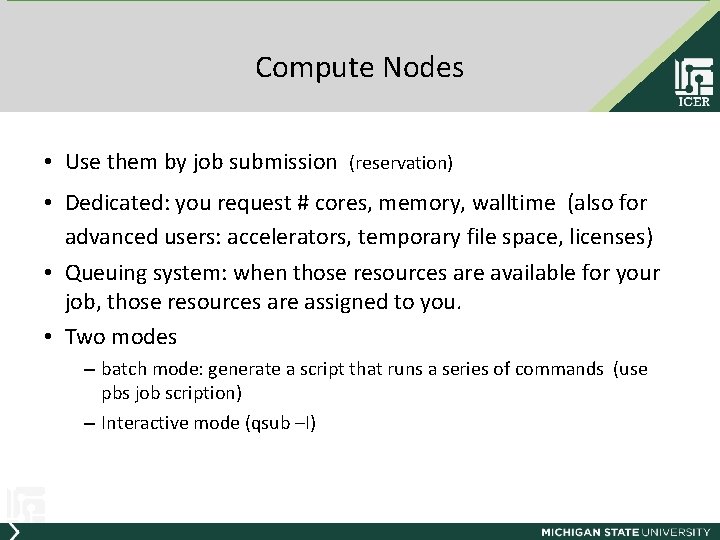
Compute Nodes • Use them by job submission (reservation) • Dedicated: you request # cores, memory, walltime (also for advanced users: accelerators, temporary file space, licenses) • Queuing system: when those resources are available for your job, those resources are assigned to you. • Two modes – batch mode: generate a script that runs a series of commands (use pbs job scription) – Interactive mode (qsub –I)
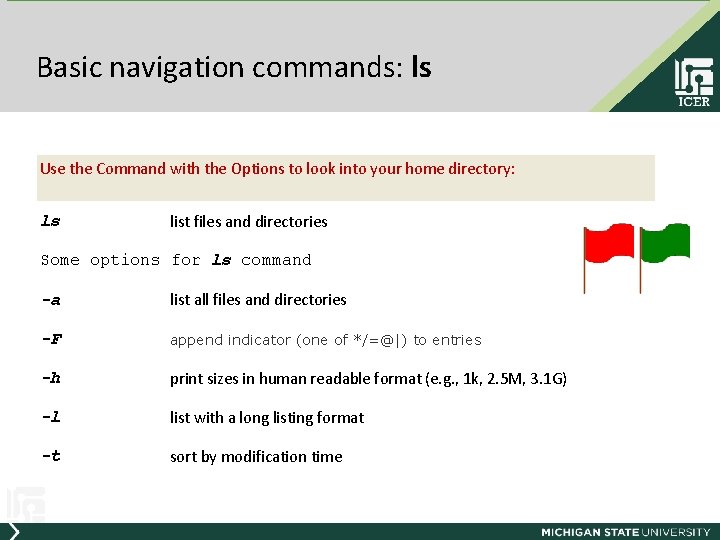
Basic navigation commands: ls Use the Command with the Options to look into your home directory: ls list files and directories Some options for ls command -a list all files and directories -F append indicator (one of */=@|) to entries -h print sizes in human readable format (e. g. , 1 k, 2. 5 M, 3. 1 G) -l list with a long listing format -t sort by modification time
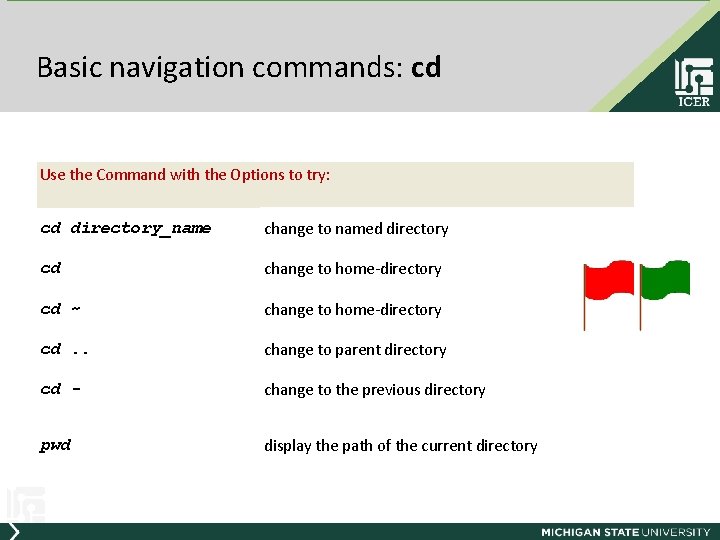
Basic navigation commands: cd Use the Command with the Options to try: cd directory_name change to named directory cd change to home-directory cd ~ change to home-directory cd. . change to parent directory cd - change to the previous directory pwd display the path of the current directory
Agenda • Introduction – i. CER & MSU HPC system • How to Use the HPC – – Get on Load your supply Work on board Available Services • Summary – Terms – Commands – Websites
Old fashion • scp source destination scp == secure copy • SFTP Use hostname: rsync. hpcc. msu. edu
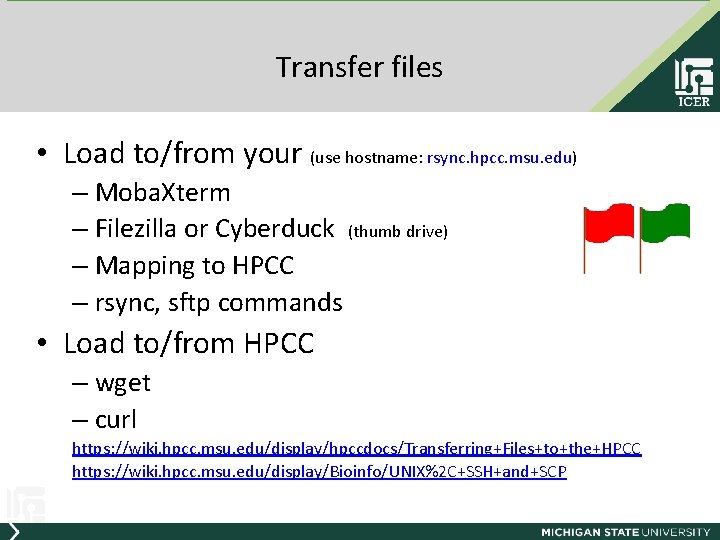
Transfer files • Load to/from your (use hostname: rsync. hpcc. msu. edu) – Moba. Xterm – Filezilla or Cyberduck (thumb drive) – Mapping to HPCC – rsync, sftp commands • Load to/from HPCC – wget – curl https: //wiki. hpcc. msu. edu/display/hpccdocs/Transferring+Files+to+the+HPCC https: //wiki. hpcc. msu. edu/display/Bioinfo/UNIX%2 C+SSH+and+SCP
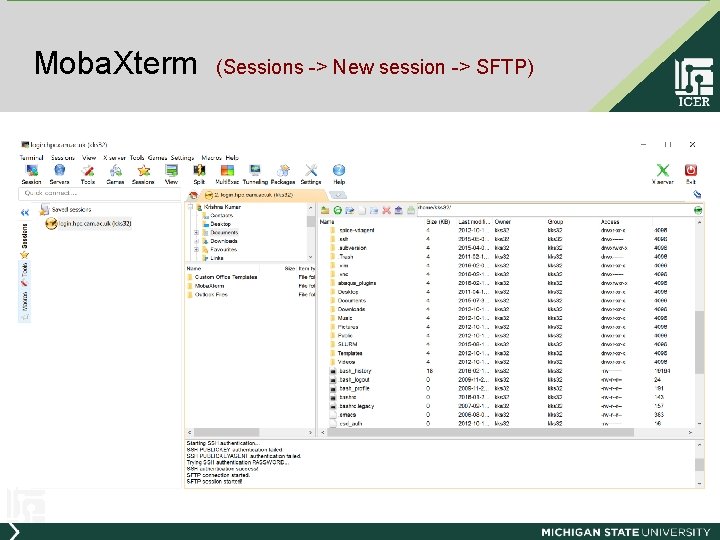
Moba. Xterm (Sessions -> New session -> SFTP)
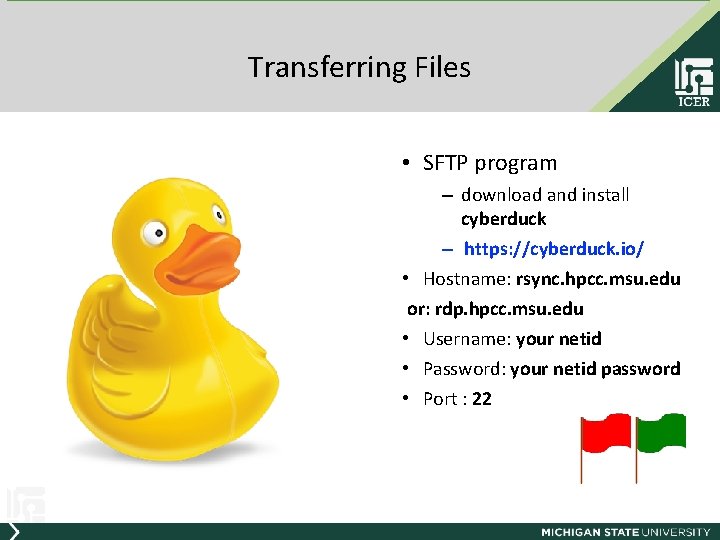
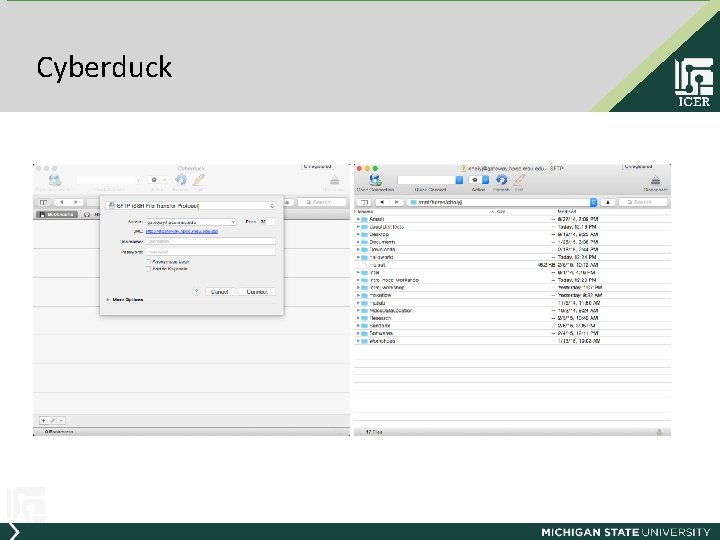
Transferring Files • SFTP program – download and install cyberduck – https: //cyberduck. io/ • Hostname: rsync. hpcc. msu. edu or: rdp. hpcc. msu. edu • Username: your netid • Password: your netid password • Port : 22
Cyberduck
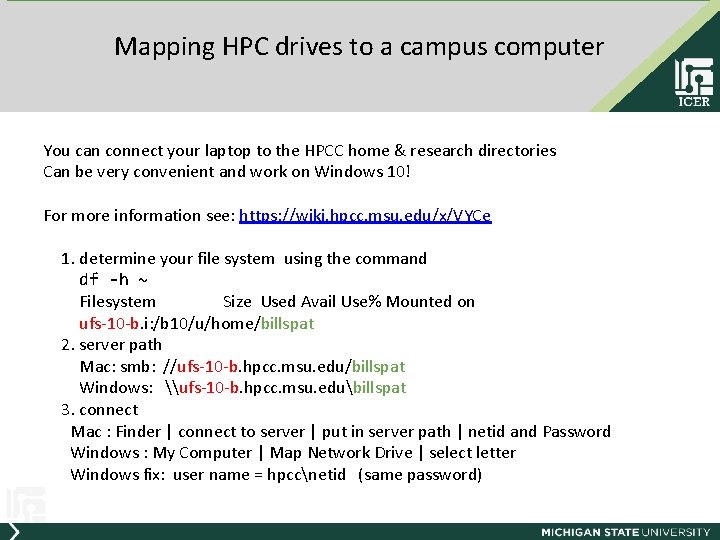
Mapping HPC drives to a campus computer You can connect your laptop to the HPCC home & research directories Can be very convenient and work on Windows 10! For more information see: https: //wiki. hpcc. msu. edu/x/VYCe 1. determine your file system using the command df -h ~ Filesystem Size Used Avail Use% Mounted on ufs-10 -b. i: /b 10/u/home/billspat 2. server path Mac: smb: //ufs-10 -b. hpcc. msu. edu/billspat Windows: \ufs-10 -b. hpcc. msu. edubillspat 3. connect Mac : Finder | connect to server | put in server path | netid and Password Windows : My Computer | Map Network Drive | select letter Windows fix: user name = hpccnetid (same password)
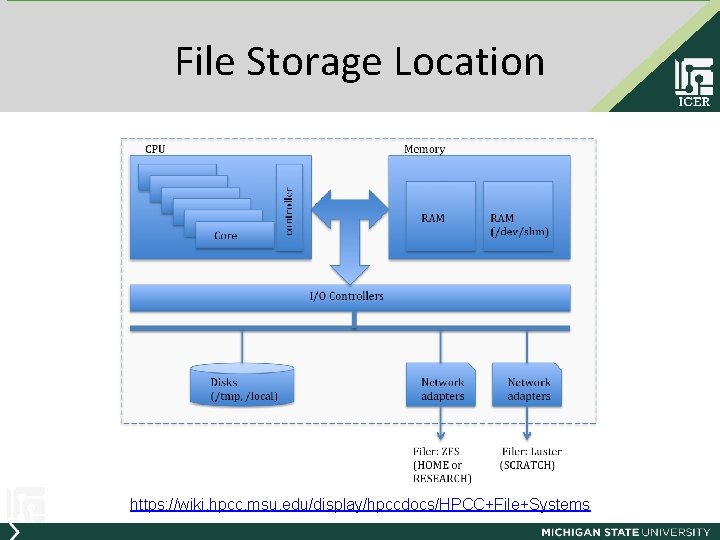
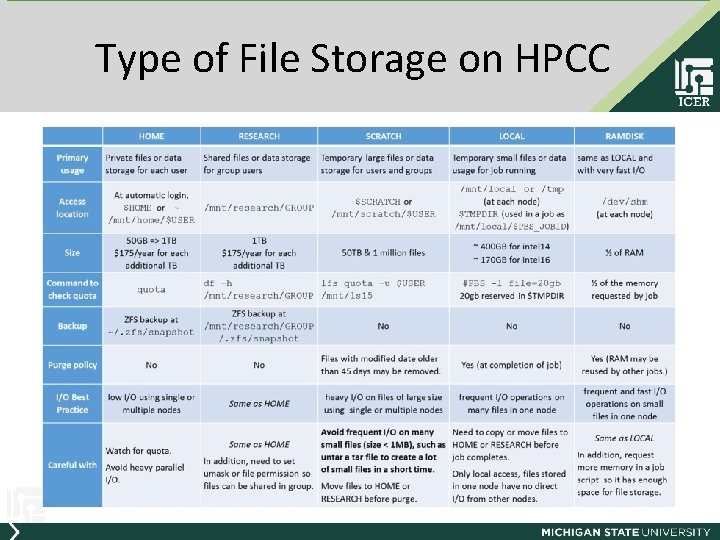
File Storage Location https: //wiki. hpcc. msu. edu/display/hpccdocs/HPCC+File+Systems
Type of File Storage on HPCC
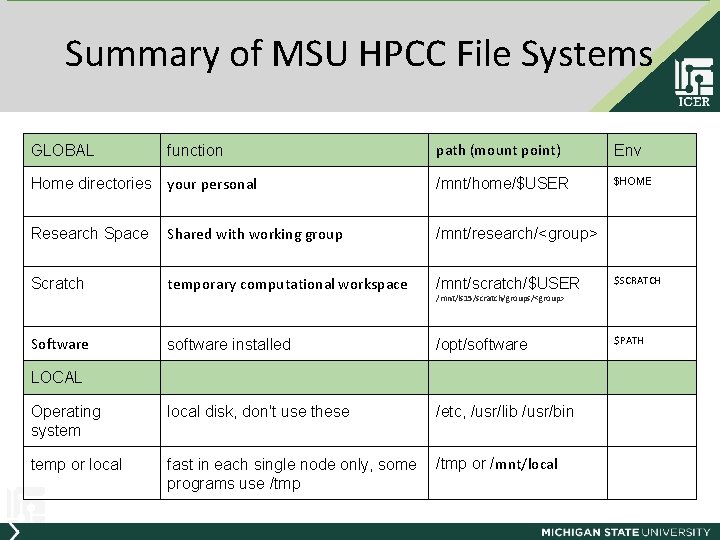
Summary of MSU HPCC File Systems GLOBAL function Home directories your personal path (mount point) Env /mnt/home/$USER $HOME Research Space Shared with working group /mnt/research/<group> Scratch temporary computational workspace /mnt/scratch/$USER software installed /opt/software Operating system local disk, don't use these /etc, /usr/lib /usr/bin temp or local fast in each single node only, some programs use /tmp or /mnt/local Software $SCRATCH /mnt/ls 15/scratch/groups/<group> LOCAL $PATH
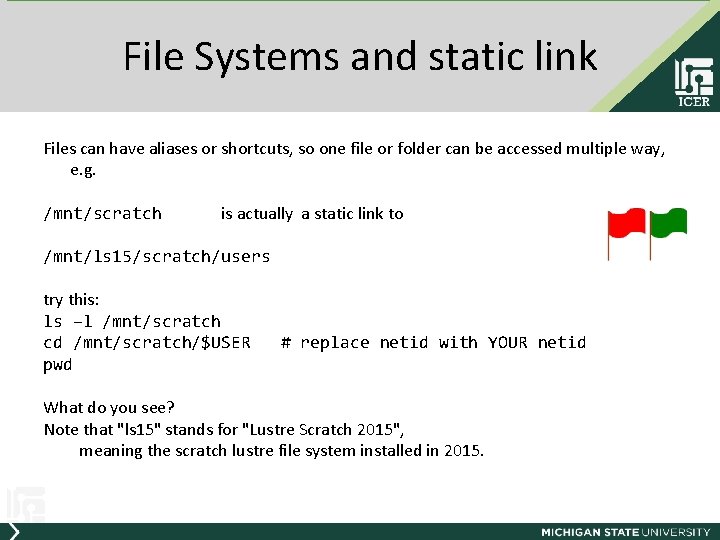
File Systems and static link Files can have aliases or shortcuts, so one file or folder can be accessed multiple way, e. g. /mnt/scratch is actually a static link to /mnt/ls 15/scratch/users try this: ls –l /mnt/scratch cd /mnt/scratch/$USER pwd # replace netid with YOUR netid What do you see? Note that "ls 15" stands for "Lustre Scratch 2015", meaning the scratch lustre file system installed in 2015.
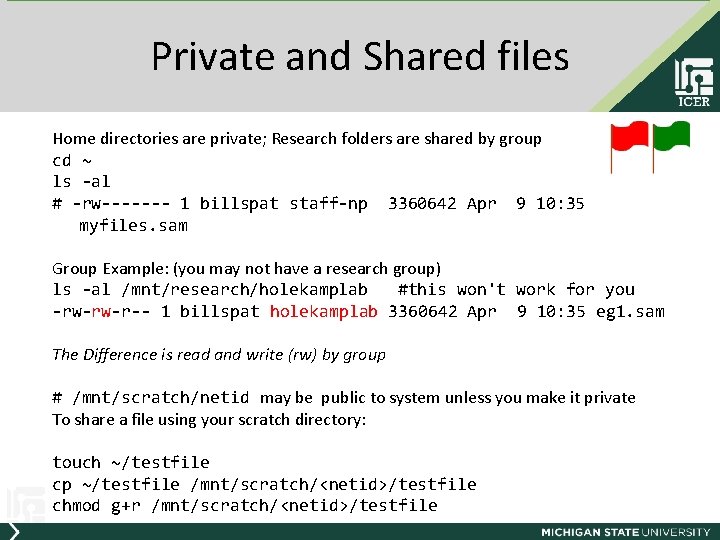
Private and Shared files Home directories are private; Research folders are shared by group cd ~ ls -al # -rw------- 1 billspat staff-np 3360642 Apr 9 10: 35 myfiles. sam Group Example: (you may not have a research group) ls -al /mnt/research/holekamplab #this won't work for you -rw-rw-r-- 1 billspat holekamplab 3360642 Apr 9 10: 35 eg 1. sam The Difference is read and write (rw) by group # /mnt/scratch/netid may be public to system unless you make it private To share a file using your scratch directory: touch ~/testfile cp ~/testfile /mnt/scratch/<netid>/testfile chmod g+r /mnt/scratch/<netid>/testfile
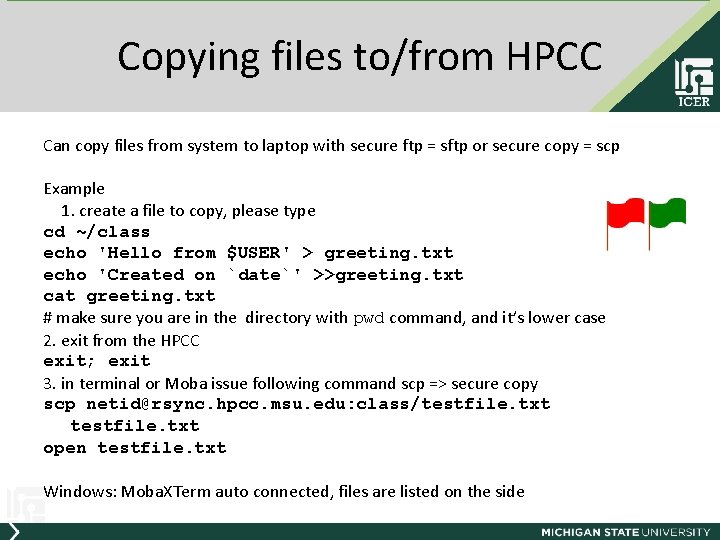
Copying files to/from HPCC Can copy files from system to laptop with secure ftp = sftp or secure copy = scp Example 1. create a file to copy, please type cd ~/class echo 'Hello from $USER' > greeting. txt echo 'Created on `date`' >>greeting. txt cat greeting. txt # make sure you are in the directory with pwd command, and it’s lower case 2. exit from the HPCC exit; exit 3. in terminal or Moba issue following command scp => secure copy scp netid@rsync. hpcc. msu. edu: class/testfile. txt open testfile. txt Windows: Moba. XTerm auto connected, files are listed on the side
Great job! Let’s take a 5 min break.
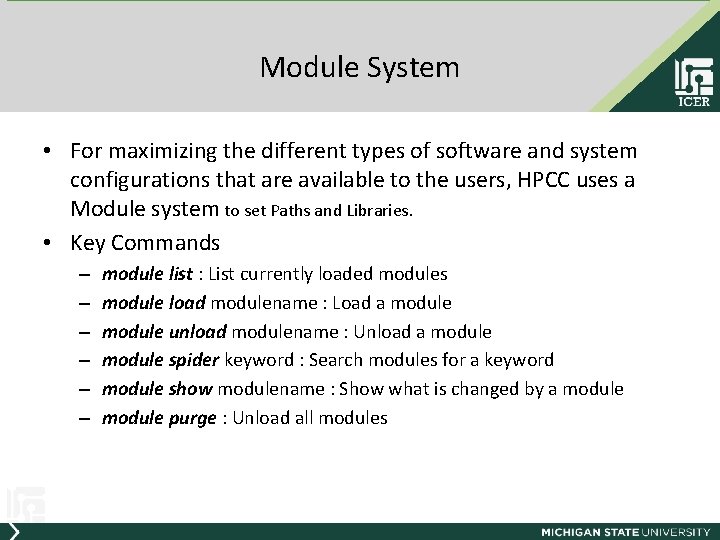
Module System • For maximizing the different types of software and system configurations that are available to the users, HPCC uses a Module system to set Paths and Libraries. • Key Commands – – – module list : List currently loaded modules module load modulename : Load a module unload modulename : Unload a module spider keyword : Search modules for a keyword module show modulename : Show what is changed by a module purge : Unload all modules
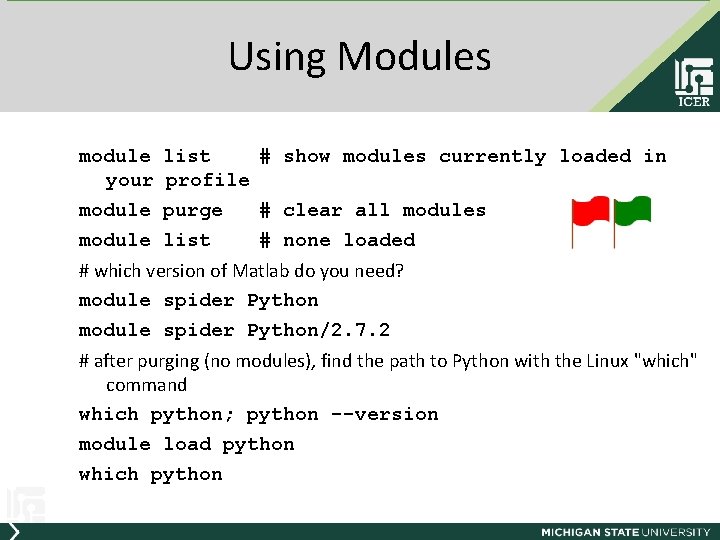
Using Modules module list # show modules currently loaded in your profile module purge # clear all modules module list # none loaded # which version of Matlab do you need? module spider Python/2. 7. 2 # after purging (no modules), find the path to Python with the Linux "which" command which python; python --version module load python which python
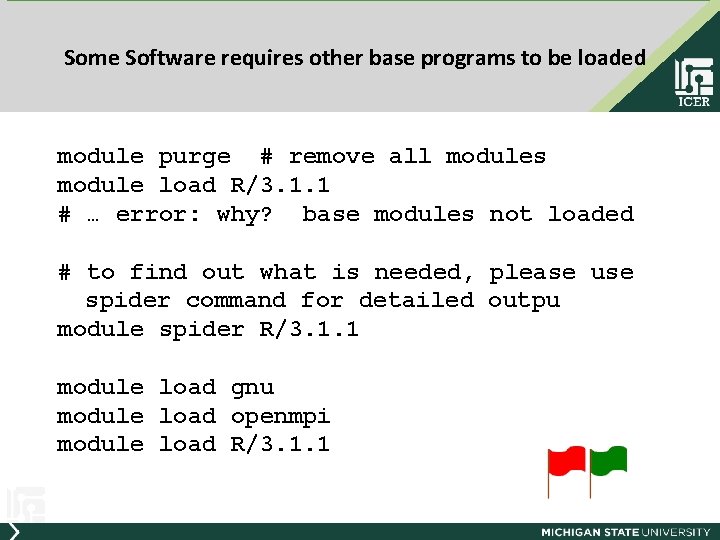
Some Software requires other base programs to be loaded module purge # remove all modules module load R/3. 1. 1 # … error: why? base modules not loaded # to find out what is needed, please use spider command for detailed outpu module spider R/3. 1. 1 module load gnu module load openmpi module load R/3. 1. 1
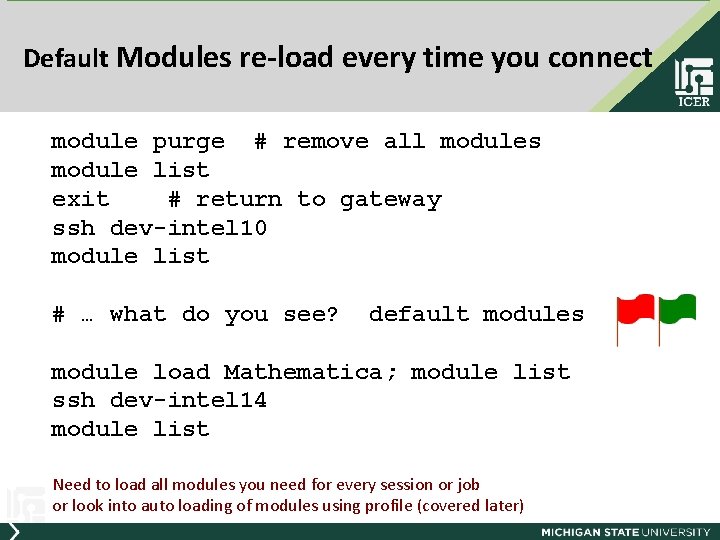
Default Modules re-load every time you connect module purge # remove all modules module list exit # return to gateway ssh dev-intel 10 module list # … what do you see? default modules module load Mathematica; module list ssh dev-intel 14 module list Need to load all modules you need for every session or job or look into auto loading of modules using profile (covered later)
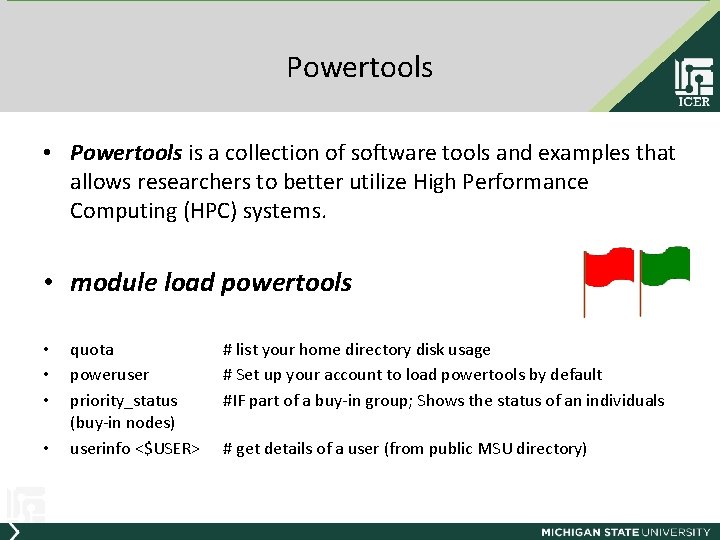
Powertools • Powertools is a collection of software tools and examples that allows researchers to better utilize High Performance Computing (HPC) systems. • module load powertools • • quota poweruser priority_status (buy-in nodes) userinfo <$USER> # list your home directory disk usage # Set up your account to load powertools by default #IF part of a buy-in group; Shows the status of an individuals # get details of a user (from public MSU directory)
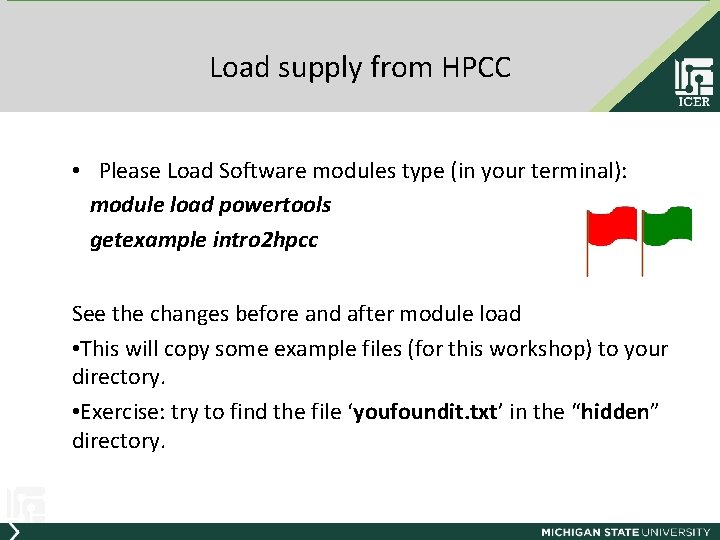
Load supply from HPCC • Please Load Software modules type (in your terminal): module load powertools getexample intro 2 hpcc See the changes before and after module load • This will copy some example files (for this workshop) to your directory. • Exercise: try to find the file ‘youfoundit. txt’ in the “hidden” directory.
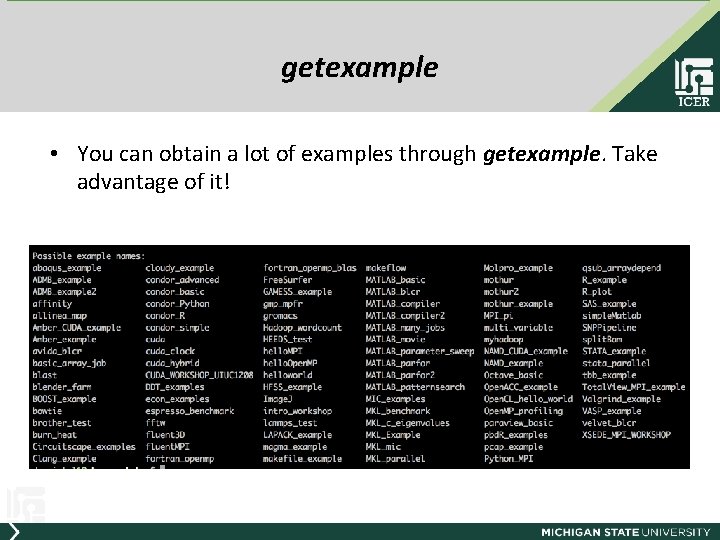
getexample • You can obtain a lot of examples through getexample. Take advantage of it!
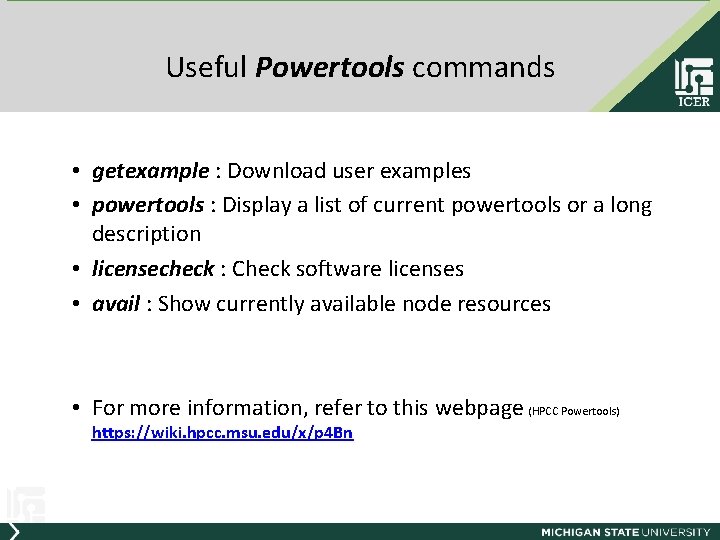
Useful Powertools commands • getexample : Download user examples • powertools : Display a list of current powertools or a long description • licensecheck : Check software licenses • avail : Show currently available node resources • For more information, refer to this webpage (HPCC Powertools) https: //wiki. hpcc. msu. edu/x/p 4 Bn
Short Exercise • Unload all modules and load these modules – GNU, powertools • Check which modules are loaded • Several versions of MATLAB are installed on HPC. Find what versions are available on HPC. Load the latest version. (What are the commands you use to accomplish above? )
getexample • If you do not load powertools, please do it now: • Download the helloworld example using getexample • Check what you downloaded. What is the biggest file?
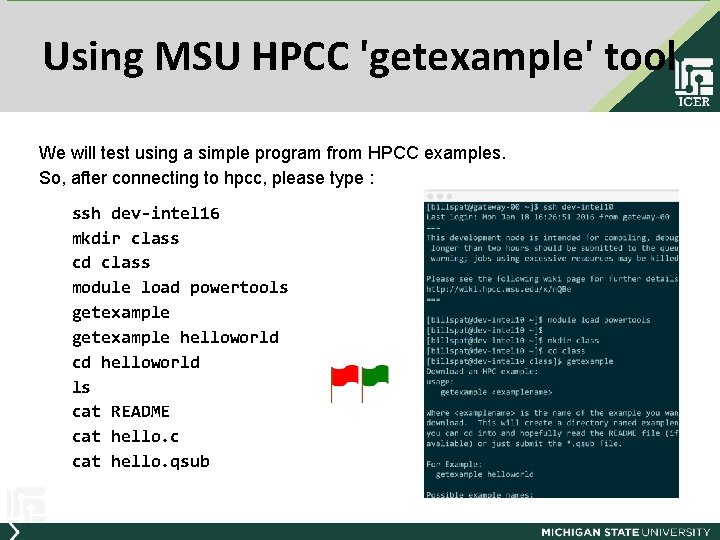
Using MSU HPCC 'getexample' tool We will test using a simple program from HPCC examples. So, after connecting to hpcc, please type : ssh dev-intel 16 mkdir class cd class module load powertools getexample helloworld cd helloworld ls cat README cat hello. c cat hello. qsub connect to dev node create directory change directory HPCC scripts list all examples copy one example change directory list files show README file show c program show qsub program
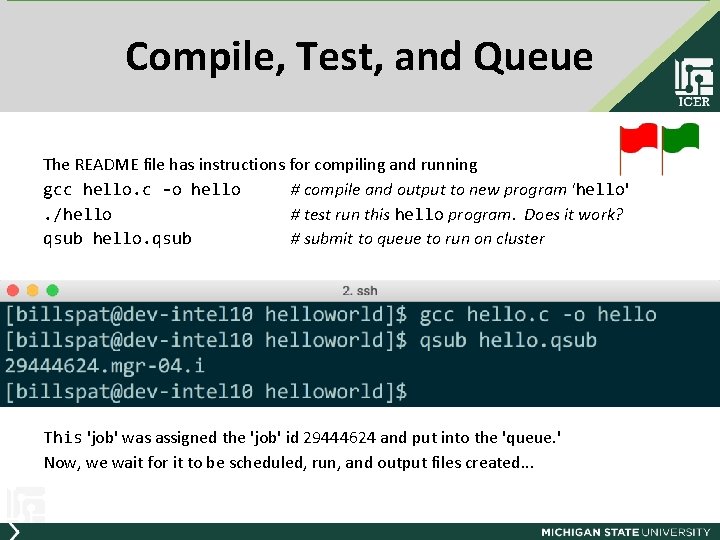
Compile, Test, and Queue The README file has instructions for compiling and running gcc hello. c -o hello # compile and output to new program 'hello'. /hello # test run this hello program. Does it work? qsub hello. qsub # submit to queue to run on cluster This 'job' was assigned the 'job' id 29444624 and put into the 'queue. ' Now, we wait for it to be scheduled, run, and output files created. . .
Agenda • Introduction – i. CER & MSU HPC system • How to Use the HPC – – Get on Load your supply Work on board Available Services • Summary – Terms – Commands – Websites
CLI vs. GUI • CLI: Command Line Interface: So far, we used CLI • GUI: Graphical User Interface
Run Matlab on HPCC • Run Matlab in command line mode • Can you Run Matlab in GUI ? If you have problem open GUI, you may need some more tools
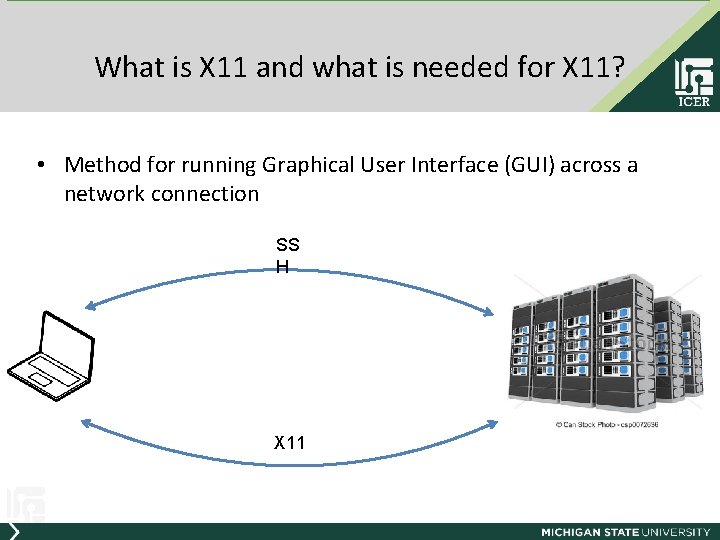
What is X 11 and what is needed for X 11? • Method for running Graphical User Interface (GUI) across a network connection SS H X 11
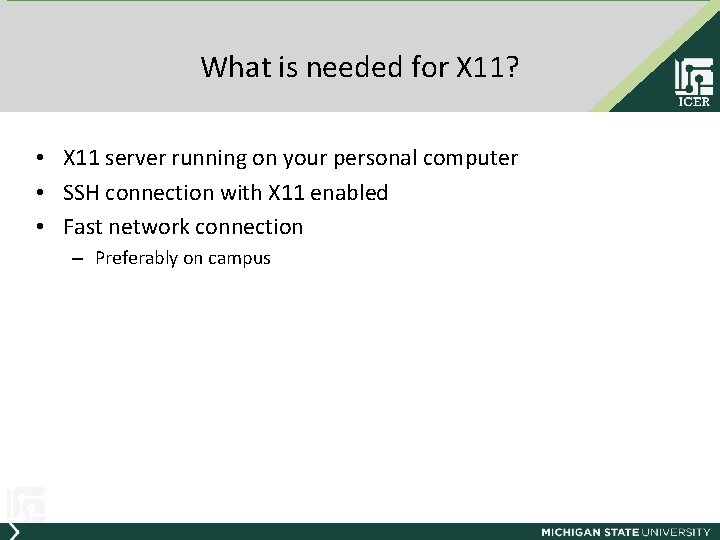
What is needed for X 11? • X 11 server running on your personal computer • SSH connection with X 11 enabled • Fast network connection – Preferably on campus
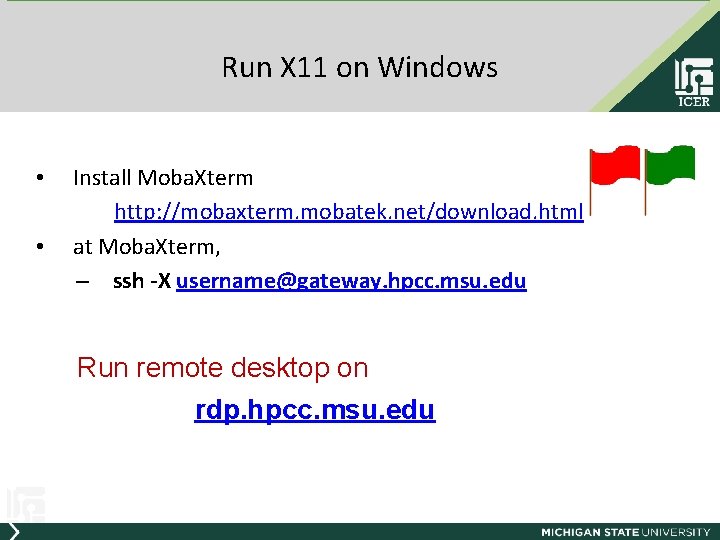
Run X 11 on Windows • • Install Moba. Xterm http: //mobaxterm. mobatek. net/download. html at Moba. Xterm, – ssh -X username@gateway. hpcc. msu. edu Run remote desktop on rdp. hpcc. msu. edu
Run X 11 on Mac (OSX) • • • Mac users: Install XQuartz from i. CER thumb drive Run XQuartz Quit terminal Run terminal again • ssh -X username@gateway. hpcc. msu. edu Download remote desktop from Apple store (free) and run it on rdp. hpcc. msu. edu
Test GUI using X 11 • run X 11 • Try one of the following commands xeyes or/and firefox
Batch vs. Interactive • Send job to scheduler and run in batch queue • Interactive
Running Jobs on the HPC • The developer (dev) nodes are used to compile, test and debug programs • Two ways to run jobs – submission job scripts – interactive way • Submission scripts are used to run (heavy/many) jobs on the cluster.
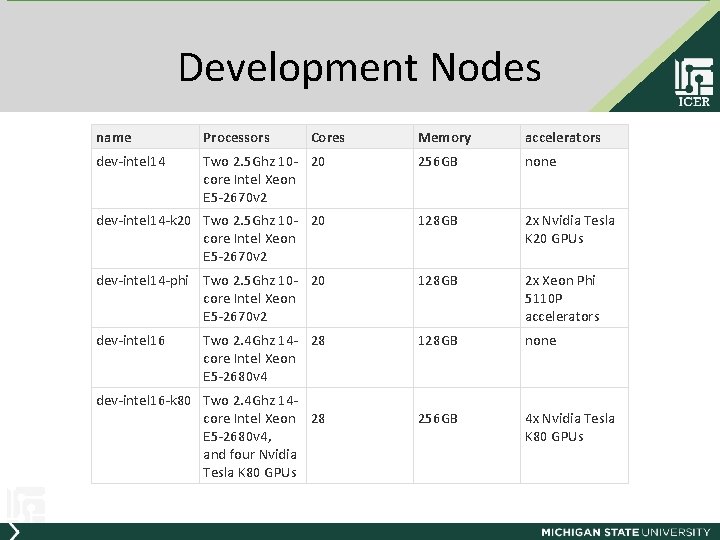
Development Nodes name Processors dev-intel 14 Cores Memory accelerators Two 2. 5 Ghz 10 - 20 core Intel Xeon E 5 -2670 v 2 256 GB none dev-intel 14 -k 20 Two 2. 5 Ghz 10 - 20 core Intel Xeon E 5 -2670 v 2 128 GB 2 x Nvidia Tesla K 20 GPUs dev-intel 14 -phi Two 2. 5 Ghz 10 - 20 core Intel Xeon E 5 -2670 v 2 128 GB 2 x Xeon Phi 5110 P accelerators dev-intel 16 Two 2. 4 Ghz 14 - 28 core Intel Xeon E 5 -2680 v 4 128 GB none dev-intel 16 -k 80 Two 2. 4 Ghz 14 - core Intel Xeon 28 E 5 -2680 v 4, and four Nvidia Tesla K 80 GPUs 256 GB 4 x Nvidia Tesla K 80 GPUs
Advantages of running Interactively • Yo do not need to write a submission script • Yo do not need to wait in the queue • You can provide input to and get feedback from your programs as they are running
Disadvantages of running Interactively • All the resources on developer nodes are shared between all uses • Any single process is limited to 2 hours of cpu time. If a process runs longer than 2 hours it will be killed. • Programs that overutilize the resources on a developer node (preventing other to use the system) can be killed without warning.
Programs that can use GUI • MATLAB • Mathematica • total. View : C/C++/fortran debugger especially for multiple processors • DDD (Data Display Debugger) : graphical front-end for command-line debugger • Etc, etc, and etc
Need to run Jobs with more resources? • We’ve focused so far on working interactively (command line) • Need dedicated resources for a computationally intensive task? – – List resource requests in a job script List commands in the job script Submit job to the scheduler Check results when job is finished
The Queue The system is busy and used by many people may want to run one program for a long time may want to run many programs all at once on multiple nodes or cores To share we have a 'resource manager' that takes in requests to run programs, and allocates them you write a special script that tells the resource manager what you need, and how to run your program, and 'submit to the queue' (get in line) with the qsub command We submitted our job to the queue using the command qsub hello. qsub And the 'qsub file' had the instructions to the scheduler on how to run
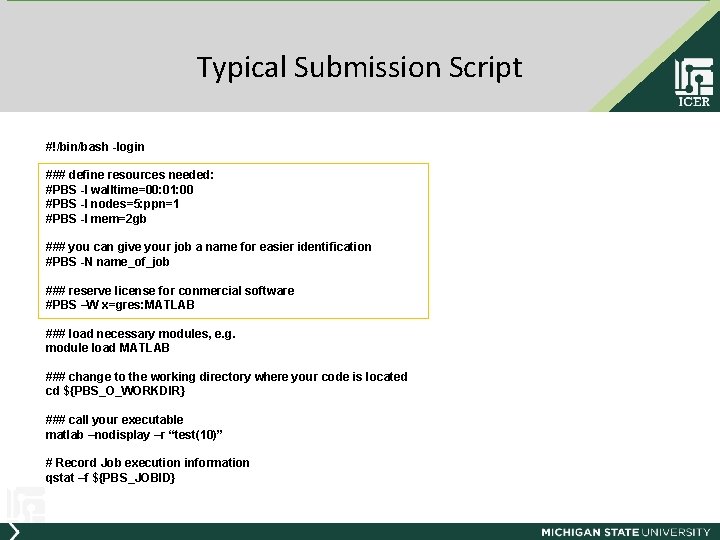
Submission of Job to the Queue A Submission Script is a mini program for the scheduler that has : 1. List of required resources 2. All command line instructions needed to run the computation including loading all modules 3. Ability for script to identify arguments 4. collect diagnostic output (qstat -f) Script tells the scheduler how to run your program on the cluster. Unless you specify, your program can run on any one of the 7, 500 cores available.
Submission Script • List of required resources https: //wiki. hpcc. msu. edu/display/hpccdocs/Scheduling+Jobs • All command line instructions needed to run the computation
Typical Submission Script #!/bin/bash -login ### define resources needed: #PBS -l walltime=00: 01: 00 #PBS -l nodes=5: ppn=1 #PBS -l mem=2 gb ### you can give your job a name for easier identification #PBS -N name_of_job ### reserve license for conmercial software #PBS –W x=gres: MATLAB ### load necessary modules, e. g. module load MATLAB ### change to the working directory where your code is located cd ${PBS_O_WORKDIR} ### call your executable matlab –nodisplay –r “test(10)” # Record Job execution information qstat –f ${PBS_JOBID}
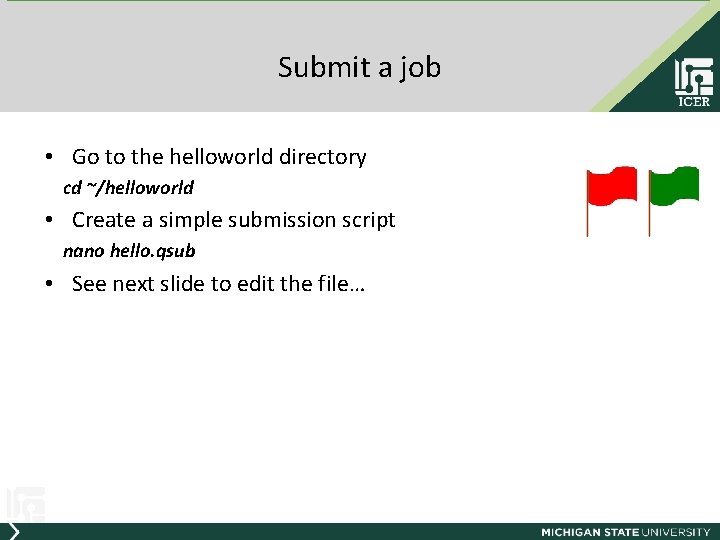
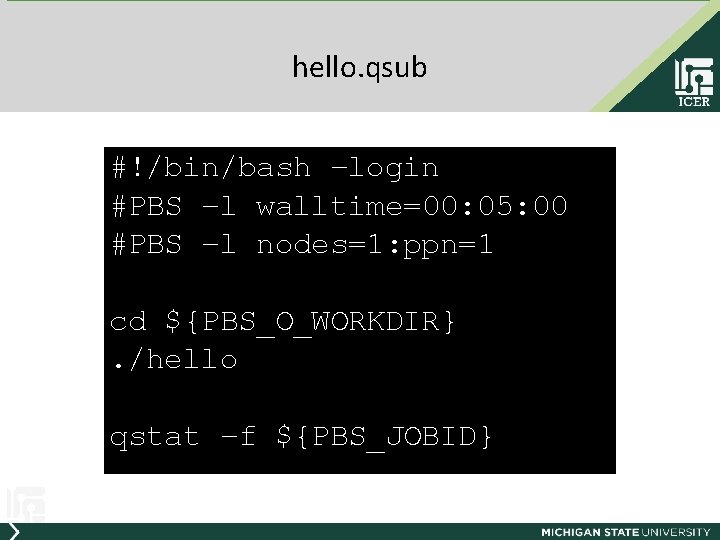
Submit a job • Go to the helloworld directory cd ~/helloworld • Create a simple submission script nano hello. qsub • See next slide to edit the file…
hello. qsub #!/bin/bash –login #PBS –l walltime=00: 05: 00 #PBS –l nodes=1: ppn=1 cd ${PBS_O_WORKDIR}. /hello qstat –f ${PBS_JOBID}
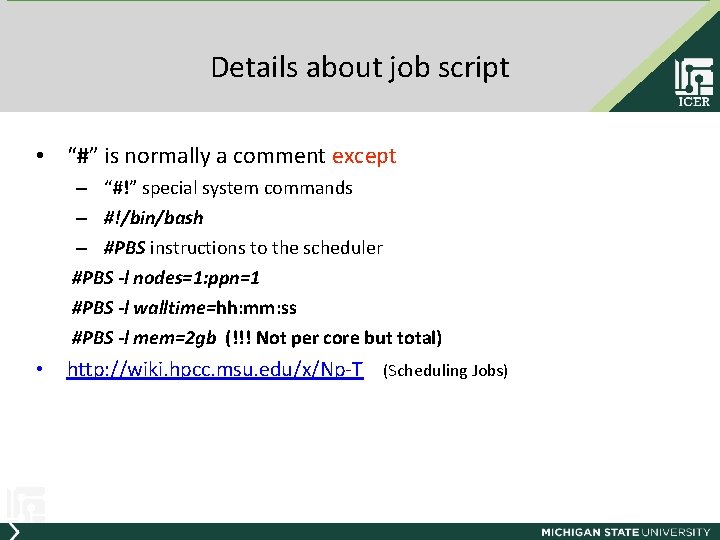
Details about job script • “#” is normally a comment except – “#!” special system commands – #!/bin/bash – #PBS instructions to the scheduler #PBS -l nodes=1: ppn=1 #PBS -l walltime=hh: mm: ss #PBS -l mem=2 gb (!!! Not per core but total) • http: //wiki. hpcc. msu. edu/x/Np-T (Scheduling Jobs)
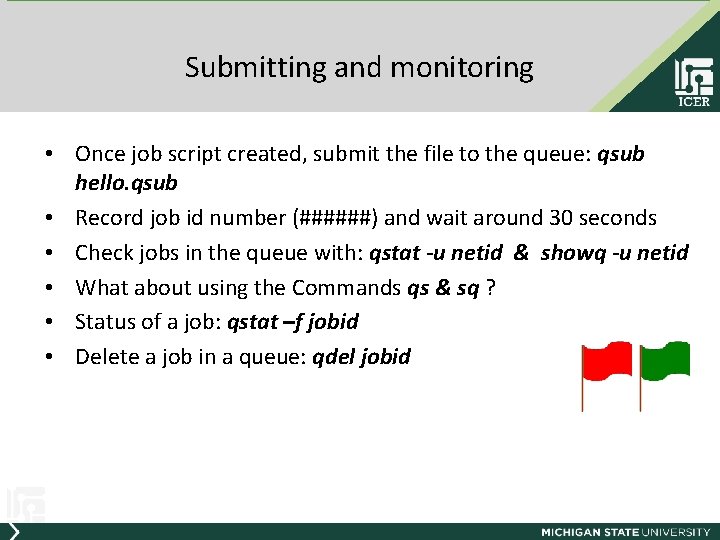
Submitting and monitoring • Once job script created, submit the file to the queue: qsub hello. qsub • Record job id number (######) and wait around 30 seconds • Check jobs in the queue with: qstat -u netid & showq -u netid • What about using the Commands qs & sq ? • Status of a job: qstat –f jobid • Delete a job in a queue: qdel jobid
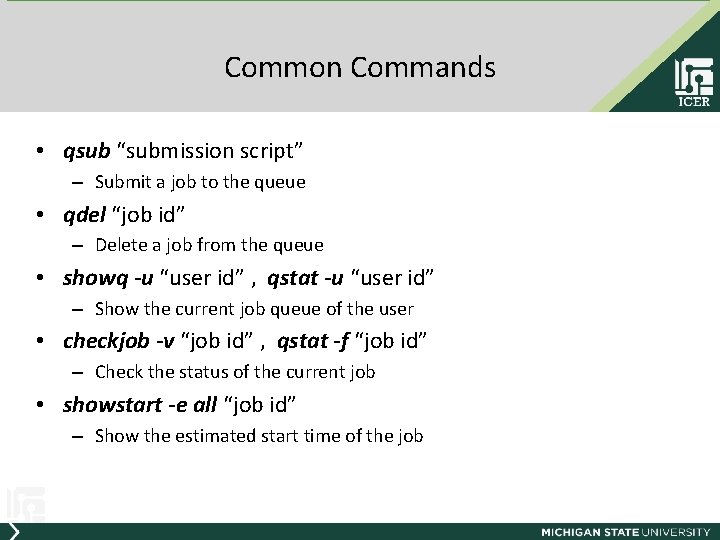
Common Commands • qsub “submission script” – Submit a job to the queue • qdel “job id” – Delete a job from the queue • showq -u “user id” , qstat -u “user id” – Show the current job queue of the user • checkjob -v “job id” , qstat -f “job id” – Check the status of the current job • showstart -e all “job id” – Show the estimated start time of the job
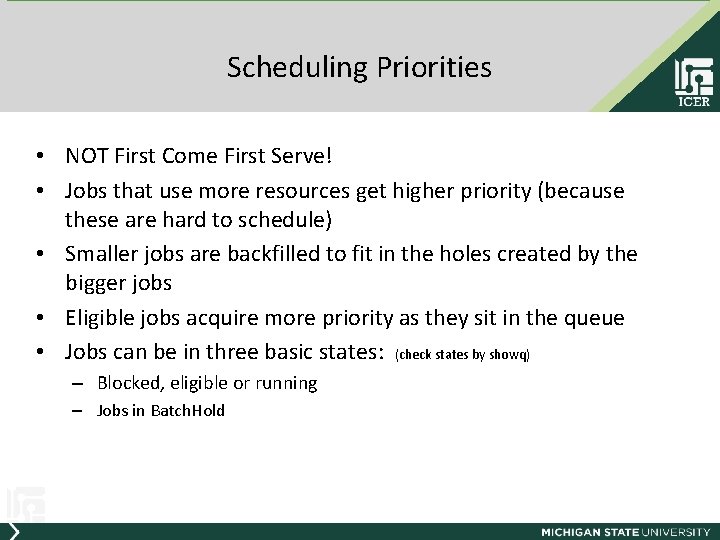
Scheduling Priorities • NOT First Come First Serve! • Jobs that use more resources get higher priority (because these are hard to schedule) • Smaller jobs are backfilled to fit in the holes created by the bigger jobs • Eligible jobs acquire more priority as they sit in the queue • Jobs can be in three basic states: (check states by showq) – Blocked, eligible or running – Jobs in Batch. Hold
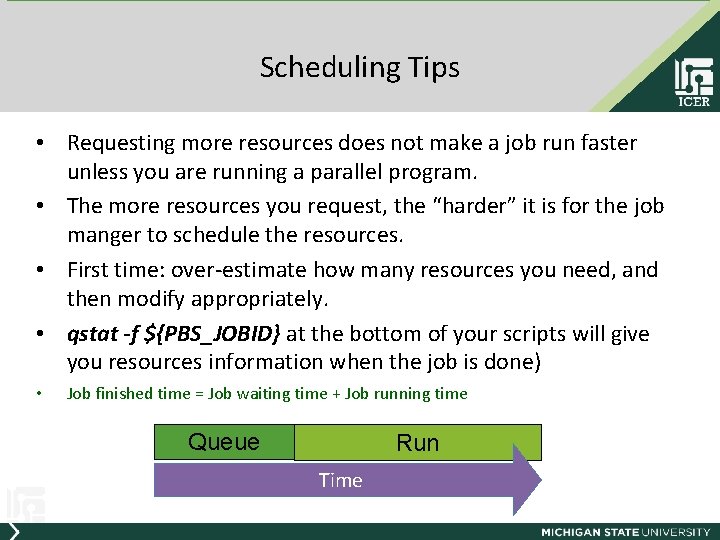
Scheduling Tips • Requesting more resources does not make a job run faster unless you are running a parallel program. • The more resources you request, the “harder” it is for the job manger to schedule the resources. • First time: over-estimate how many resources you need, and then modify appropriately. • qstat -f ${PBS_JOBID} at the bottom of your scripts will give you resources information when the job is done) • Job finished time = Job waiting time + Job running time Queue Run Time
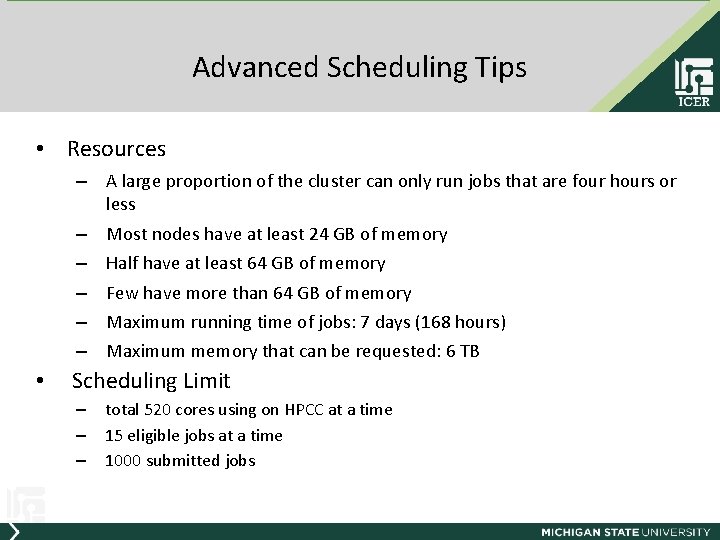
Advanced Scheduling Tips • Resources – A large proportion of the cluster can only run jobs that are four hours or less – Most nodes have at least 24 GB of memory – Half have at least 64 GB of memory – Few have more than 64 GB of memory – Maximum running time of jobs: 7 days (168 hours) – Maximum memory that can be requested: 6 TB • Scheduling Limit – – – total 520 cores using on HPCC at a time 15 eligible jobs at a time 1000 submitted jobs
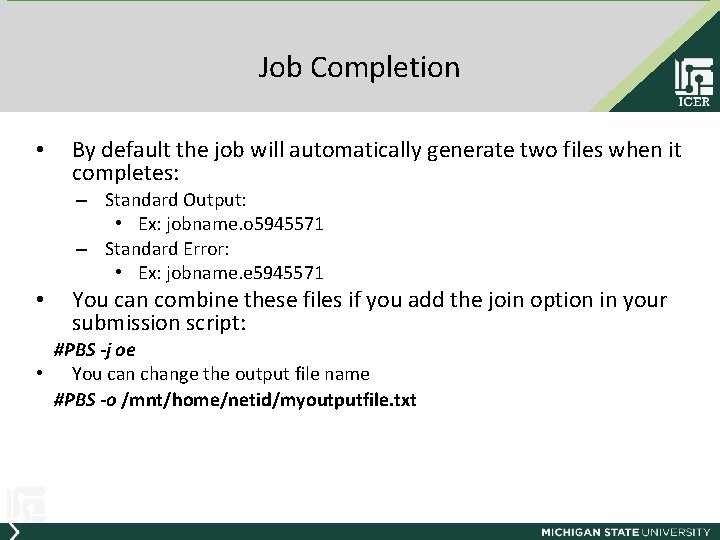
Job Completion • By default the job will automatically generate two files when it completes: – Standard Output: • Ex: jobname. o 5945571 – Standard Error: • Ex: jobname. e 5945571 • You can combine these files if you add the join option in your submission script: #PBS -j oe • You can change the output file name #PBS -o /mnt/home/netid/myoutputfile. txt
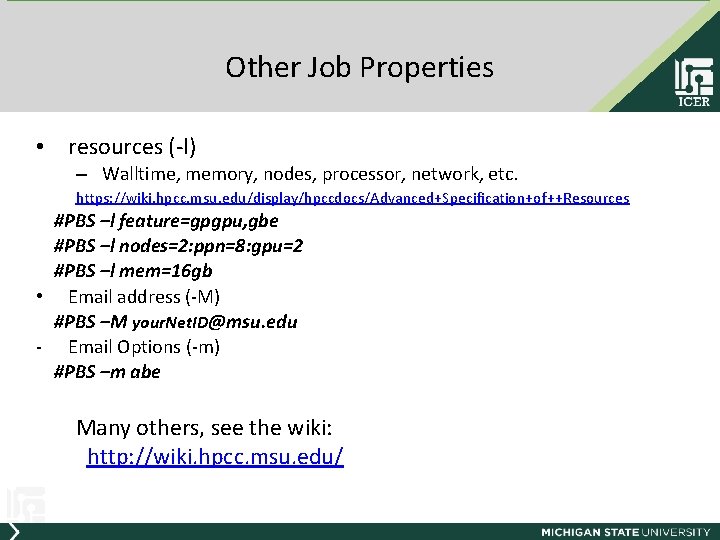
Other Job Properties • resources (-l) – Walltime, memory, nodes, processor, network, etc. https: //wiki. hpcc. msu. edu/display/hpccdocs/Advanced+Specification+of++Resources #PBS –l feature=gpgpu, gbe #PBS –l nodes=2: ppn=8: gpu=2 #PBS –l mem=16 gb • Email address (-M) #PBS –M your. Net. ID@msu. edu - Email Options (-m) #PBS –m abe Many others, see the wiki: http: //wiki. hpcc. msu. edu/
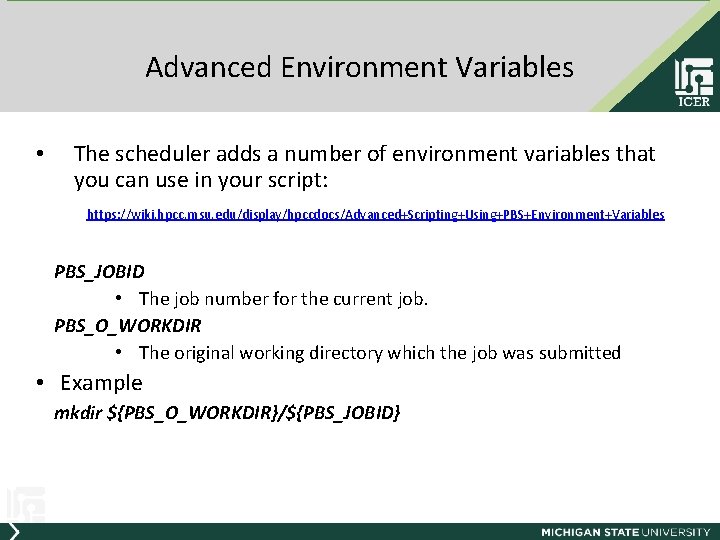
Advanced Environment Variables • The scheduler adds a number of environment variables that you can use in your script: https: //wiki. hpcc. msu. edu/display/hpccdocs/Advanced+Scripting+Using+PBS+Environment+Variables PBS_JOBID • The job number for the current job. PBS_O_WORKDIR • The original working directory which the job was submitted • Example mkdir ${PBS_O_WORKDIR}/${PBS_JOBID}
Agenda • Introduction – i. CER & MSU HPC system • How to Use the HPC – – Get on Load your supply Work on board Available Services • Summary – Terms – Commands – Websites
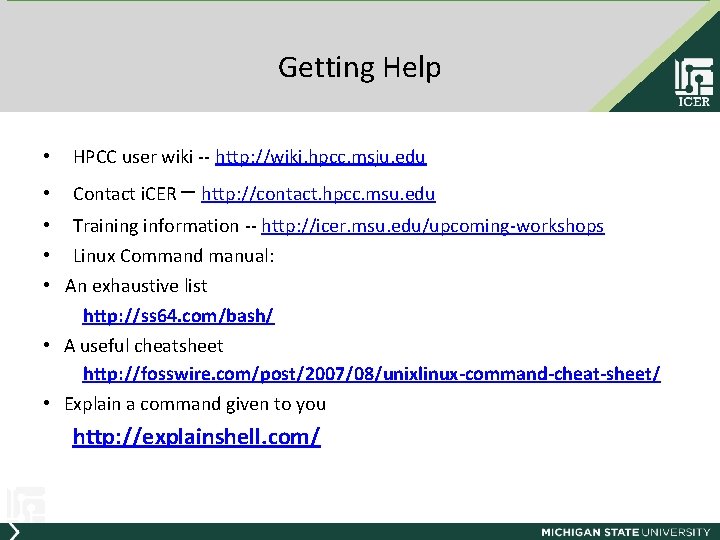
Getting Help • HPCC user wiki -- http: //wiki. hpcc. msju. edu • Contact i. CER – http: //contact. hpcc. msu. edu • Training information -- http: //icer. msu. edu/upcoming-workshops • Linux Command manual: • An exhaustive list http: //ss 64. com/bash/ • A useful cheatsheet http: //fosswire. com/post/2007/08/unixlinux-command-cheat-sheet/ • Explain a command given to you http: //explainshell. com/
Agenda • Introduction – i. CER & MSU HPC system • How to Use the HPC – – Get on Load your supply Work on board Available Services • Summary – Terms – Commands – Websites
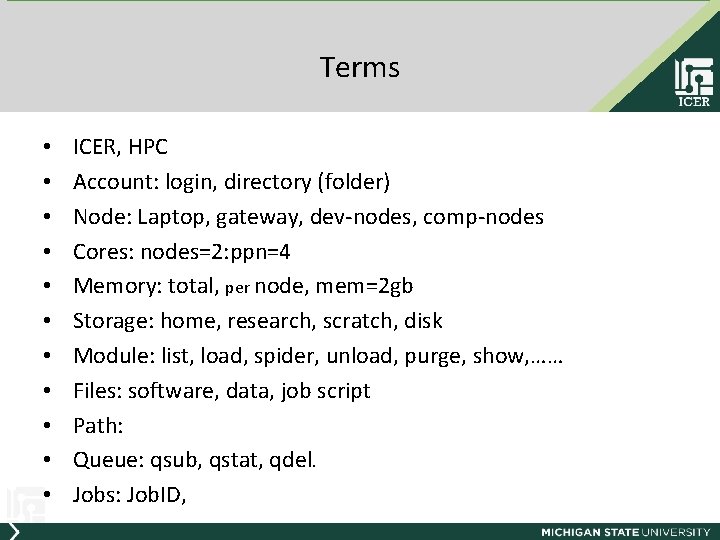
Terms • • • ICER, HPC Account: login, directory (folder) Node: Laptop, gateway, dev-nodes, comp-nodes Cores: nodes=2: ppn=4 Memory: total, per node, mem=2 gb Storage: home, research, scratch, disk Module: list, load, spider, unload, purge, show, …… Files: software, data, job script Path: Queue: qsub, qstat, qdel. Jobs: Job. ID,
Agenda • Introduction – i. CER & MSU HPC system • How to Use the HPC – – Get on Load your supply Work on board Available Services • Summary – Terms – Commands – Websites
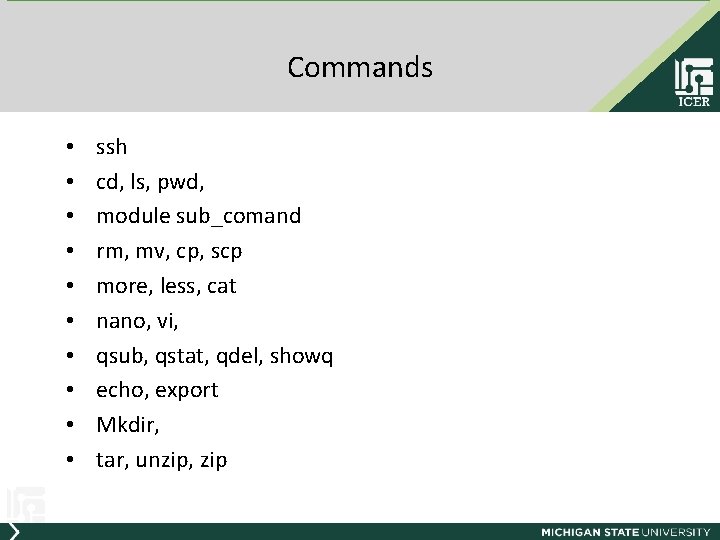
Commands • • • ssh cd, ls, pwd, module sub_comand rm, mv, cp, scp more, less, cat nano, vi, qsub, qstat, qdel, showq echo, export Mkdir, tar, unzip, zip
Agenda • Introduction – i. CER & MSU HPC system • How to Use the HPC – – Get on Load your supply Work on board Available Services • Summary – Terms – Commands – Websites
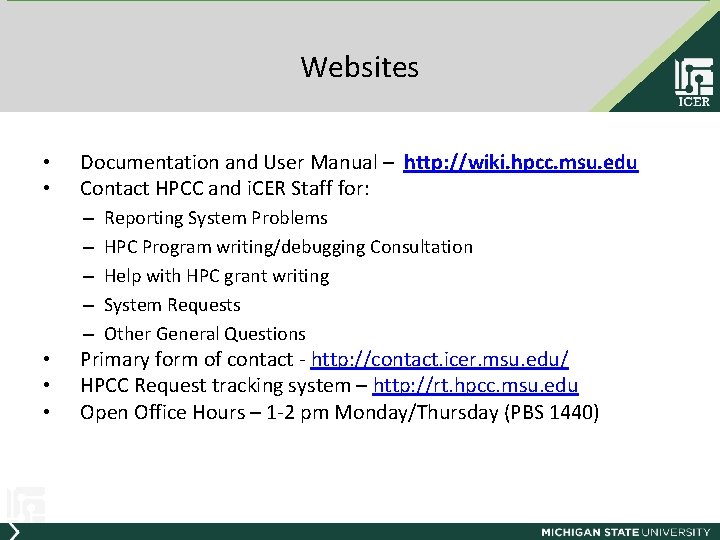
Websites • • Documentation and User Manual – http: //wiki. hpcc. msu. edu Contact HPCC and i. CER Staff for: – – – • • • Reporting System Problems HPC Program writing/debugging Consultation Help with HPC grant writing System Requests Other General Questions Primary form of contact - http: //contact. icer. msu. edu/ HPCC Request tracking system – http: //rt. hpcc. msu. edu Open Office Hours – 1 -2 pm Monday/Thursday (PBS 1440)
Q&A
Thanks!