UCR UCPATH TRANSACTION PILOT UCPATH AND PROCESS SUMMARY




- Slides: 124
UCR UCPATH TRANSACTION PILOT UCPATH AND PROCESS SUMMARY OVERVIEW
TRAINER INTRODUCTION Shannon Minter Title: UCPath Principal HR Business Analyst Department: UCPath Campus Support Center Year(s) @UC: 2 1/2 Previous Experience: 14 years of professional human resources analyst experience, focusing on classification & compensation, training development, position management, and recruitment.
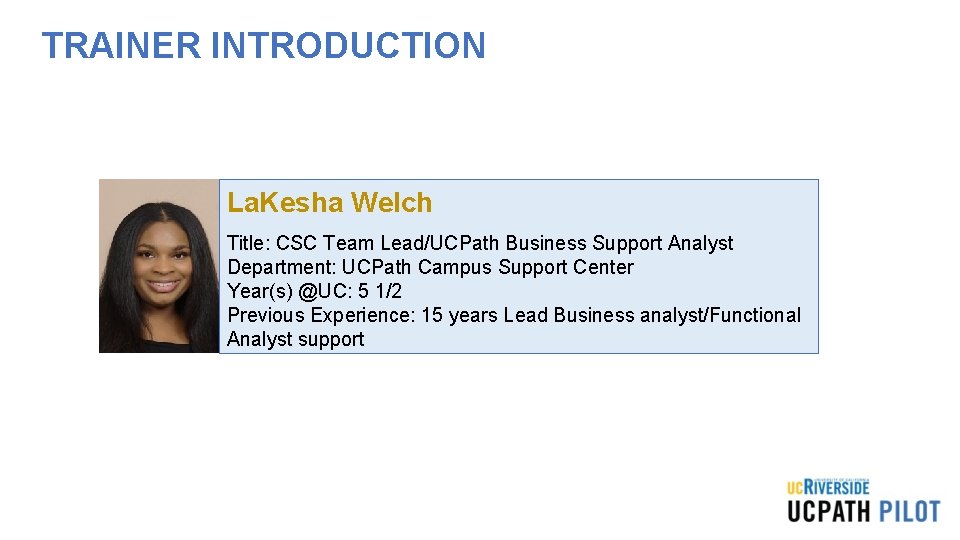
TRAINER INTRODUCTION La. Kesha Welch Title: CSC Team Lead/UCPath Business Support Analyst Department: UCPath Campus Support Center Year(s) @UC: 5 1/2 Previous Experience: 15 years Lead Business analyst/Functional Analyst support
HOUSEKEEPING
LEARNING OBJECTIVES Understand the definitions for each process Understand how to navigate through UCPath Understand how each of the hand-offs work in each process and the roles and responsibilities of the Transactional Unit, Shared Services Center and the Central Office(s). Understand the policy implications of each process Understand the key things to remember from each process
REVISITNG LEARNING TOPICS 1. INTRO TO PEOPLESOFT AND UCPATH 2. PAYROLL CALENDARS AND AUTOMATED PROCESSES 3. ON BEHALF CASE MANAGEMENT 4. POSITION CONTROL 5. CONTINGENT WORKER 6. PERSONAL DATA CHANGES 7. PERSON OF INTEREST 8. ONE–TIME PAYMENTS 9. VOLUNTARY TERMINATION 10. KNOW ISSUES, WORKAROUNDS, TROUBLSHOOTING AND DOWNSTREAM IMPACTS 11. INTERACTIVE ACTIVITY 12. APPENDIX 13. FEEDBACK
INTRO TO PEOPLESOFT
LEARNING OBJECTIVES Recognize and define key UCPath terms and acronyms Describe Approval Workflow Engine in UCPath Learn how to view comments and clone a template transaction Describe how the WFA Overview and Employee Lifecycle work
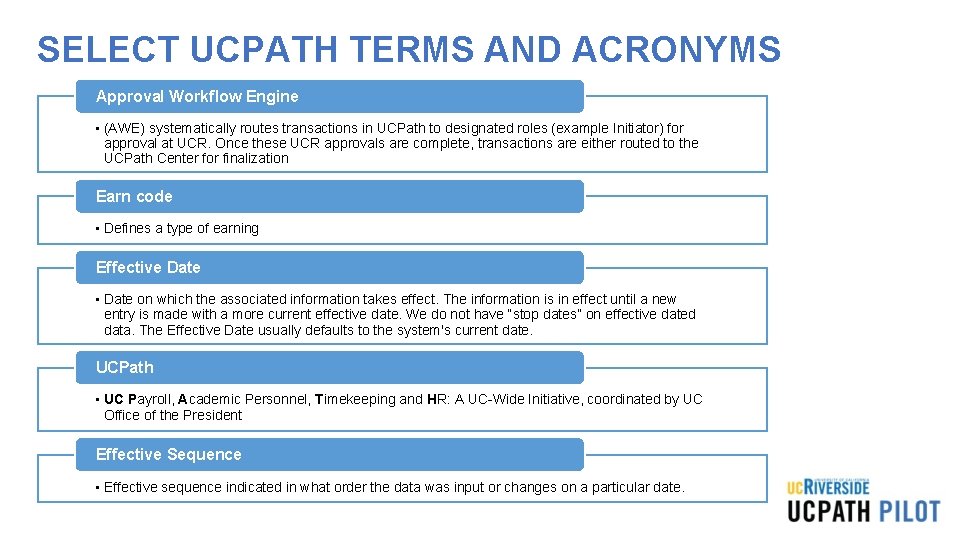
SELECT UCPATH TERMS AND ACRONYMS Approval Workflow Engine • (AWE) systematically routes transactions in UCPath to designated roles (example Initiator) for approval at UCR. Once these UCR approvals are complete, transactions are either routed to the UCPath Center for finalization Earn code • Defines a type of earning Effective Date • Date on which the associated information takes effect. The information is in effect until a new entry is made with a more current effective date. We do not have “stop dates” on effective dated data. The Effective Date usually defaults to the system's current date. UCPath • UC Payroll, Academic Personnel, Timekeeping and HR: A UC-Wide Initiative, coordinated by UC Office of the President Effective Sequence • Effective sequence indicated in what order the data was input or changes on a particular date.
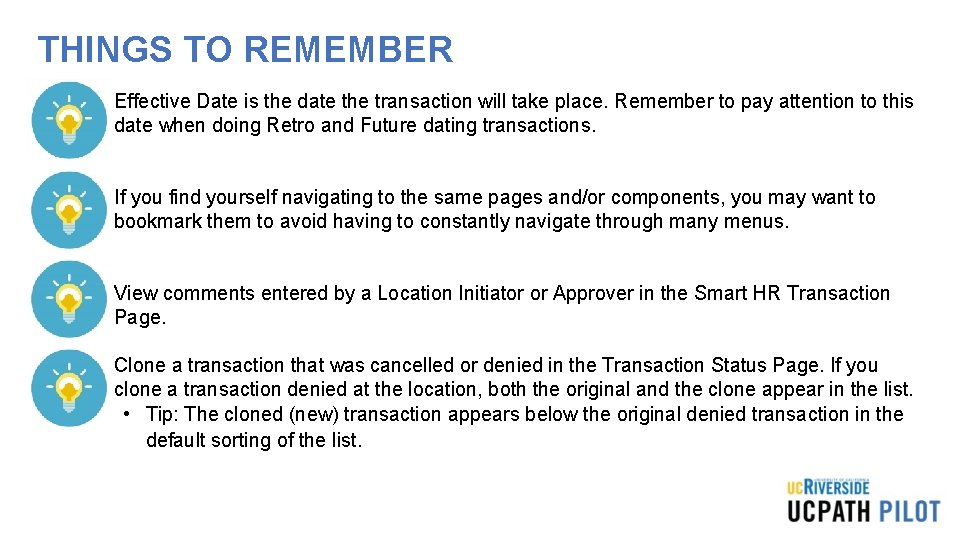
THINGS TO REMEMBER • Effective Date is the date the transaction will take place. Remember to pay attention to this date when doing Retro and Future dating transactions. • If you find yourself navigating to the same pages and/or components, you may want to bookmark them to avoid having to constantly navigate through many menus. • View comments entered by a Location Initiator or Approver in the Smart HR Transaction Page. • Clone a transaction that was cancelled or denied in the Transaction Status Page. If you clone a transaction denied at the location, both the original and the clone appear in the list. • Tip: The cloned (new) transaction appears below the original denied transaction in the default sorting of the list.
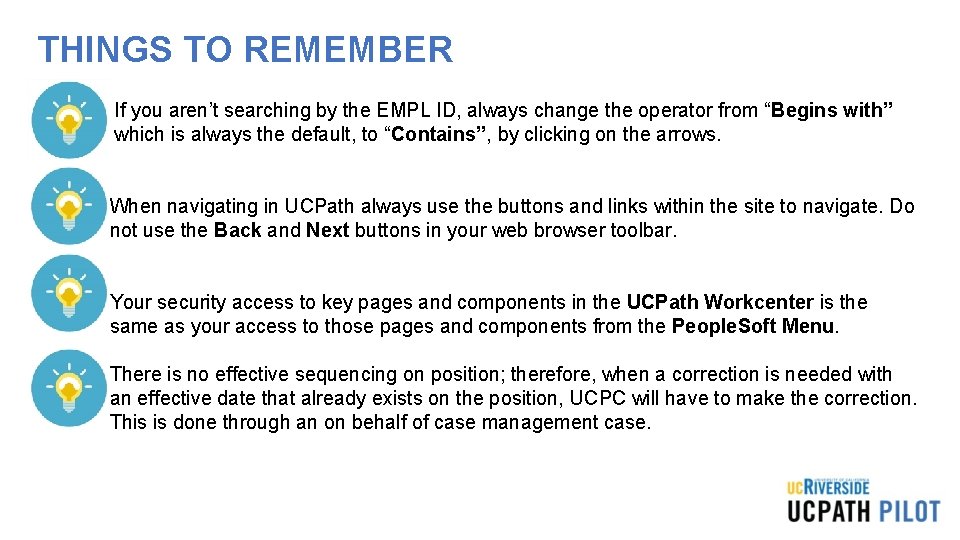
THINGS TO REMEMBER • If you aren’t searching by the EMPL ID, always change the operator from “Begins with” which is always the default, to “Contains”, by clicking on the arrows. • When navigating in UCPath always use the buttons and links within the site to navigate. Do not use the Back and Next buttons in your web browser toolbar. • Your security access to key pages and components in the UCPath Workcenter is the same as your access to those pages and components from the People. Soft Menu. • There is no effective sequencing on position; therefore, when a correction is needed with an effective date that already exists on the position, UCPC will have to make the correction. This is done through an on behalf of case management case.
Payroll Calendars Overview
LEARNING OBJECTIVES Understand Milestones on UCPath Payroll Processing Schedule Understand Criticality and Impact of Payroll Milestones Recognize and define key UCPath terms and acronyms Understand Payroll-impacting Inbound Files Understand UCPath Automated Processes Understand SSC Calendar Deadlines and SLA Insert Learning Objective Review Topic Here
PAYROLL CALENDARS DEFINITION The UCPath Payroll Process involves a series of actions and interfaces to process gross to net paychecks and finalize the payroll balances each pay cycle. • The process begins with calculating initial hours, taxes, and deductions. An iterative calculation routine will produce various validation edits for review, as well as data for subsequent processes and reports. • The process ends when payments are calculated and confirmed in UCPath, and employees receive both their paychecks and earnings statements correctly through direct deposit or paper check. • The UCPath Center enforces a strict timeline for payroll processing deadlines that all UC locations must adhere to.
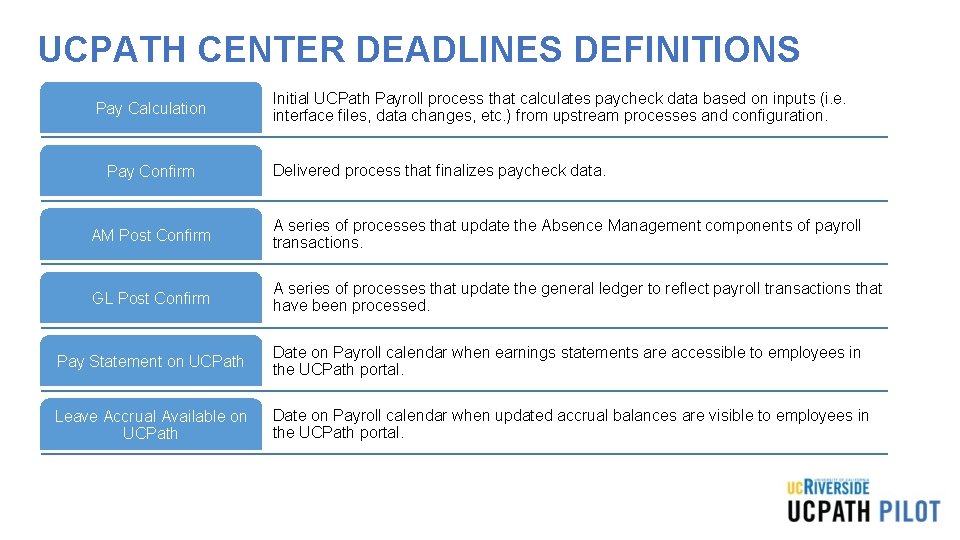
UCPATH CENTER DEADLINES DEFINITIONS Pay Calculation Pay Confirm Initial UCPath Payroll process that calculates paycheck data based on inputs (i. e. interface files, data changes, etc. ) from upstream processes and configuration. Delivered process that finalizes paycheck data. AM Post Confirm A series of processes that update the Absence Management components of payroll transactions. GL Post Confirm A series of processes that update the general ledger to reflect payroll transactions that have been processed. Pay Statement on UCPath Date on Payroll calendar when earnings statements are accessible to employees in the UCPath portal. Leave Accrual Available on UCPath Date on Payroll calendar when updated accrual balances are visible to employees in the UCPath portal.
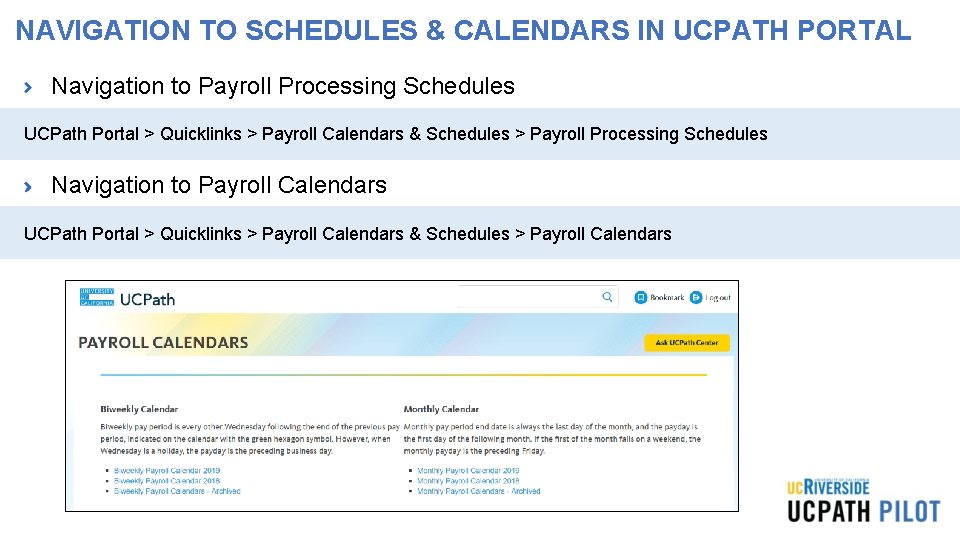
NAVIGATION TO SCHEDULES & CALENDARS IN UCPATH PORTAL Navigation to Payroll Processing Schedules UCPath Portal > Quicklinks > Payroll Calendars & Schedules > Payroll Processing Schedules Navigation to Payroll Calendars UCPath Portal > Quicklinks > Payroll Calendars & Schedules > Payroll Calendars
THINGS TO REMEMBER • Payroll Deadlines are enforced by the UCPath Center for all UC Locations. • Payroll Deadlines cannot be moved or rescheduled by locations. • Monthly-paid and Biweekly-paid employee populations are processed in separate Payroll instances and adhere to different Payroll Processing deadlines. The UCPath Center Publishes a new Payroll Schedule for the year in the UCPath Portal. The UCPath Payroll Processing Schedule is subject to change throughout year.
On Behalf of Case Management Overview
LEARNING OBJECTIVES Initiate a UCPath Sales. Force Case Insert Learning Objective Review Topic Here Monitor a UCPath Sales. Force Case Insert Learning Objective Review Topic Here Reopen a UCPath Sales. Force Case Insert Learning Objective Review Topic Here Share. Point Objectives Insert Learning Objective Review Topic Here
ON BEHALF OF DEFINITION On Behalf Of Case Management is the task of submitting an inquiry or an update on behalf of another employee or yourself to the UCPath Center via the UCPath website. This process is also used for the following common tasks (Not an exhaustive list): • Update, modify, edit, or change an employee/CWR information. • Open a Case for Transactions created on behalf of the employee, that did not process correctly, or were improperly cancelled by UCPath. • To make specific Personal Data Change updates as defined in the Future State Process Design (FSPD).
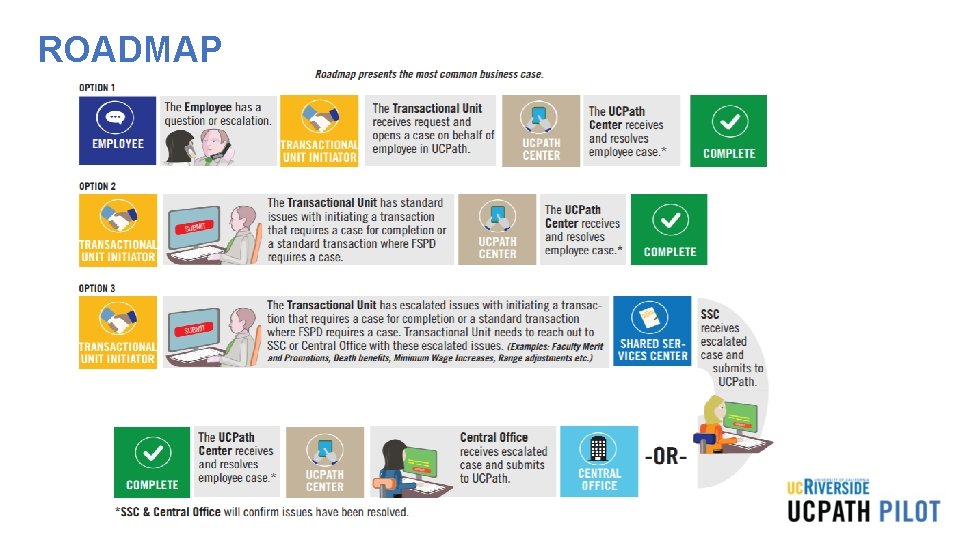
ROADMAP
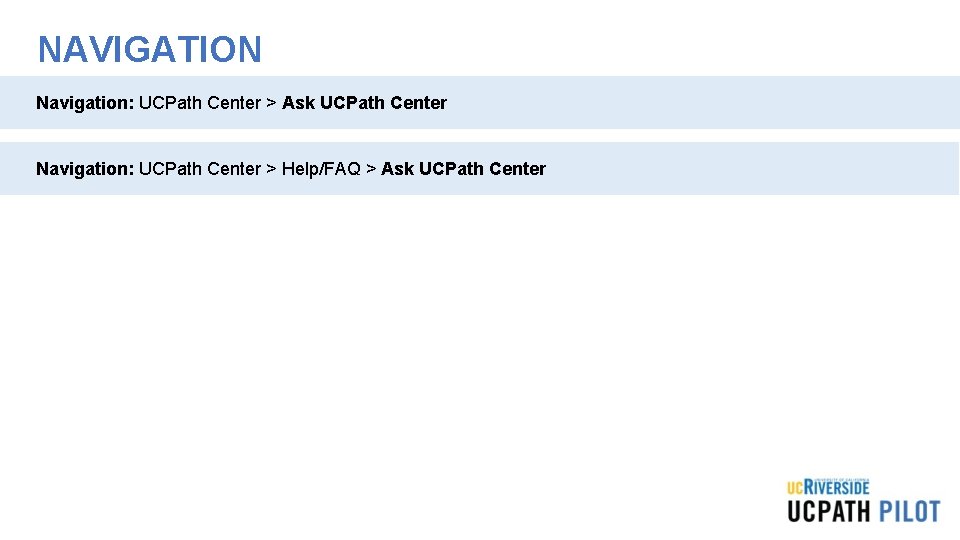
NAVIGATION Navigation: UCPath Center > Ask UCPath Center Navigation: UCPath Center > Help/FAQ > Ask UCPath Center
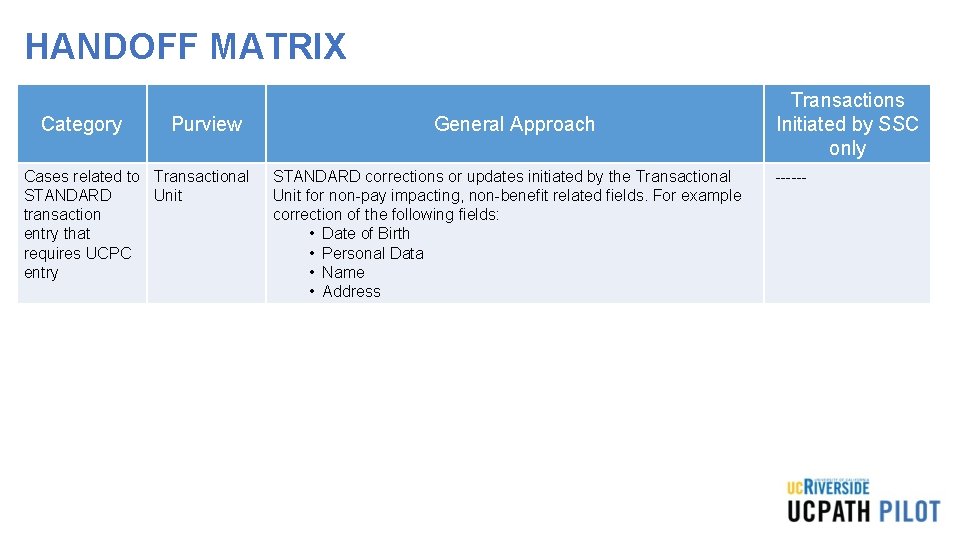
HANDOFF MATRIX Category Purview Cases related to Transactional STANDARD Unit transaction entry that requires UCPC entry General Approach STANDARD corrections or updates initiated by the Transactional Unit for non-pay impacting, non-benefit related fields. For example correction of the following fields: • Date of Birth • Personal Data • Name • Address Transactions Initiated by SSC only ------
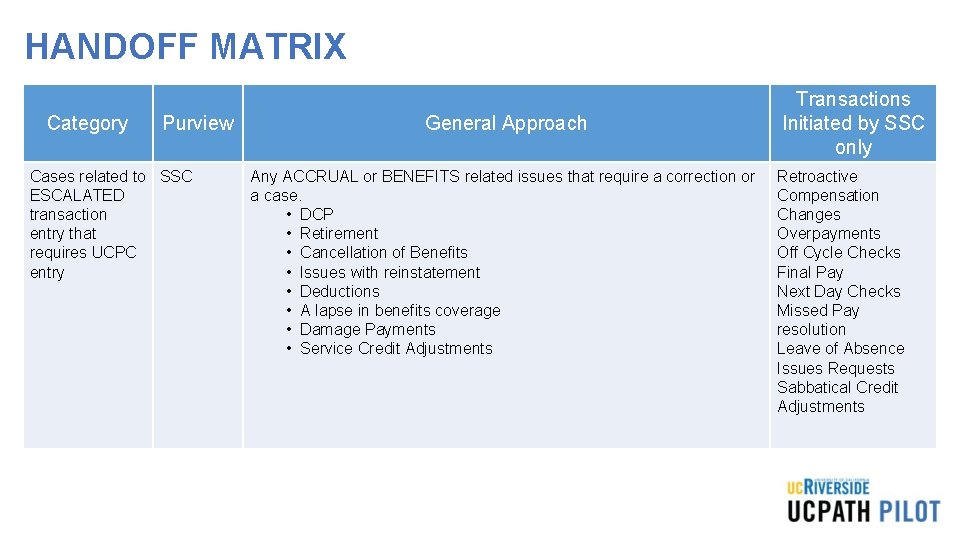
HANDOFF MATRIX Category Purview Cases related to SSC ESCALATED transaction entry that requires UCPC entry General Approach Any ACCRUAL or BENEFITS related issues that require a correction or a case. • DCP • Retirement • Cancellation of Benefits • Issues with reinstatement • Deductions • A lapse in benefits coverage • Damage Payments • Service Credit Adjustments Transactions Initiated by SSC only Retroactive Compensation Changes Overpayments Off Cycle Checks Final Pay Next Day Checks Missed Pay resolution Leave of Absence Issues Requests Sabbatical Credit Adjustments
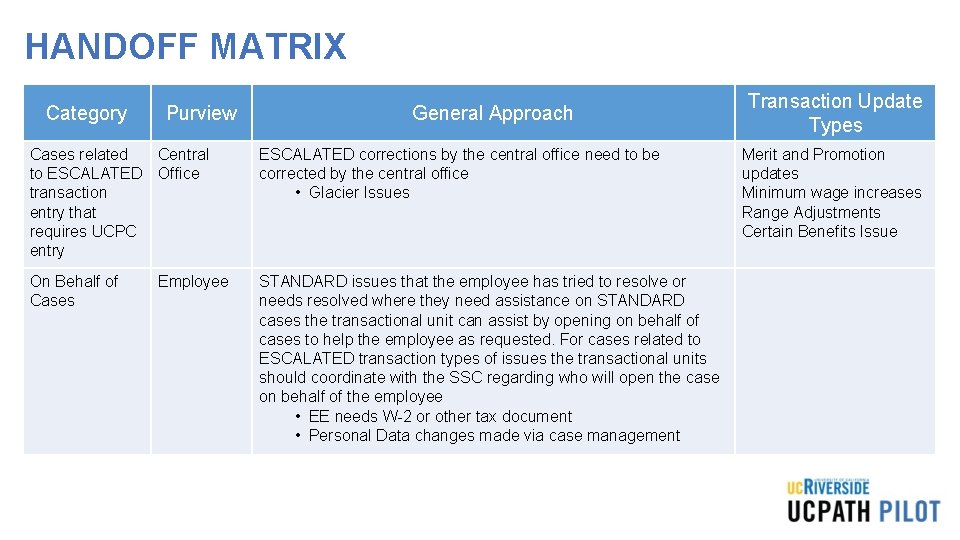
HANDOFF MATRIX Category Purview Transaction Update Types General Approach Cases related Central to ESCALATED Office transaction entry that requires UCPC entry ESCALATED corrections by the central office need to be corrected by the central office • Glacier Issues Merit and Promotion updates Minimum wage increases Range Adjustments Certain Benefits Issue On Behalf of Cases STANDARD issues that the employee has tried to resolve or needs resolved where they need assistance on STANDARD cases the transactional unit can assist by opening on behalf of cases to help the employee as requested. For cases related to ESCALATED transaction types of issues the transactional units should coordinate with the SSC regarding who will open the case on behalf of the employee • EE needs W-2 or other tax document • Personal Data changes made via case management Employee
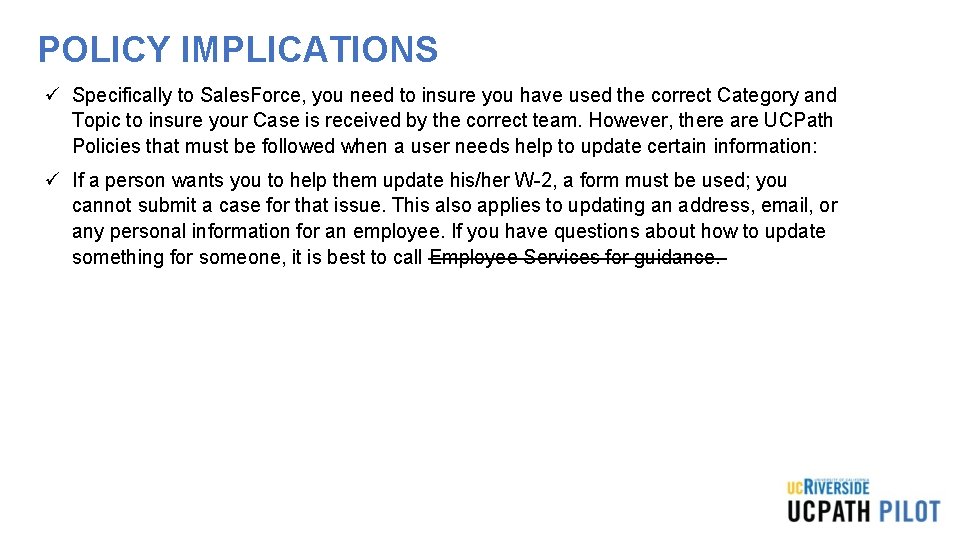
POLICY IMPLICATIONS ü Specifically to Sales. Force, you need to insure you have used the correct Category and Topic to insure your Case is received by the correct team. However, there are UCPath Policies that must be followed when a user needs help to update certain information: ü If a person wants you to help them update his/her W-2, a form must be used; you cannot submit a case for that issue. This also applies to updating an address, email, or any personal information for an employee. If you have questions about how to update something for someone, it is best to call Employee Services for guidance.
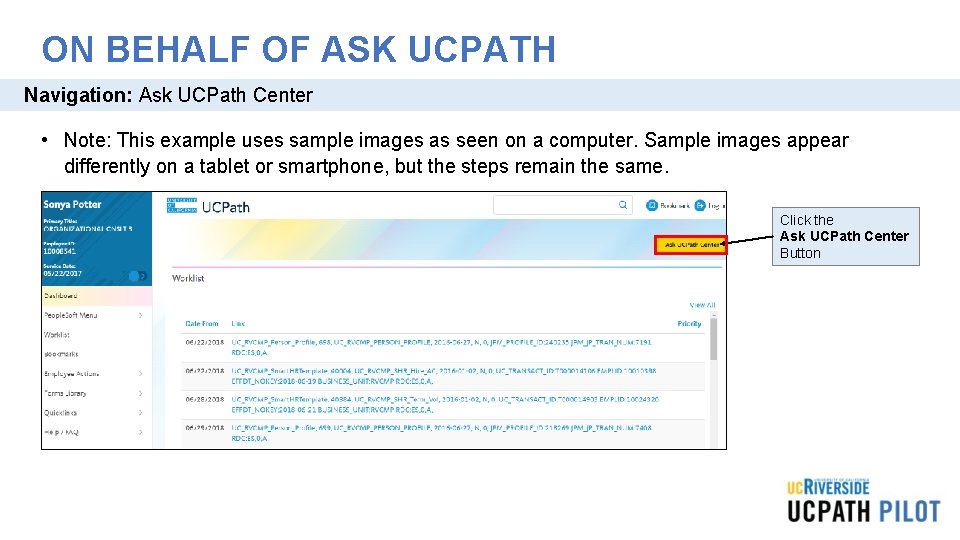
ON BEHALF OF ASK UCPATH Navigation: Ask UCPath Center • Note: This example uses sample images as seen on a computer. Sample images appear differently on a tablet or smartphone, but the steps remain the same. Click the Ask UCPath Center Button
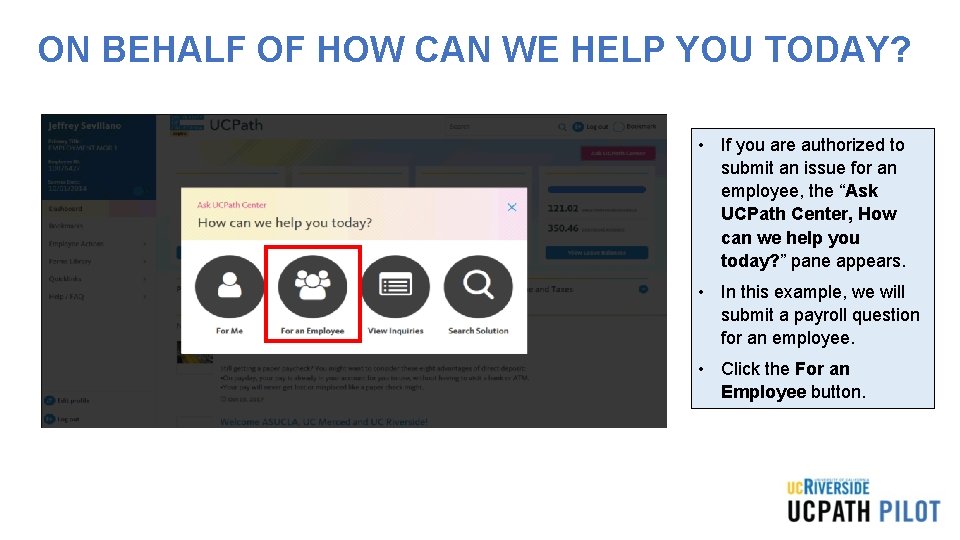
ON BEHALF OF HOW CAN WE HELP YOU TODAY? • If you are authorized to submit an issue for an employee, the “Ask UCPath Center, How can we help you today? ” pane appears. • In this example, we will submit a payroll question for an employee. • Click the For an Employee button.
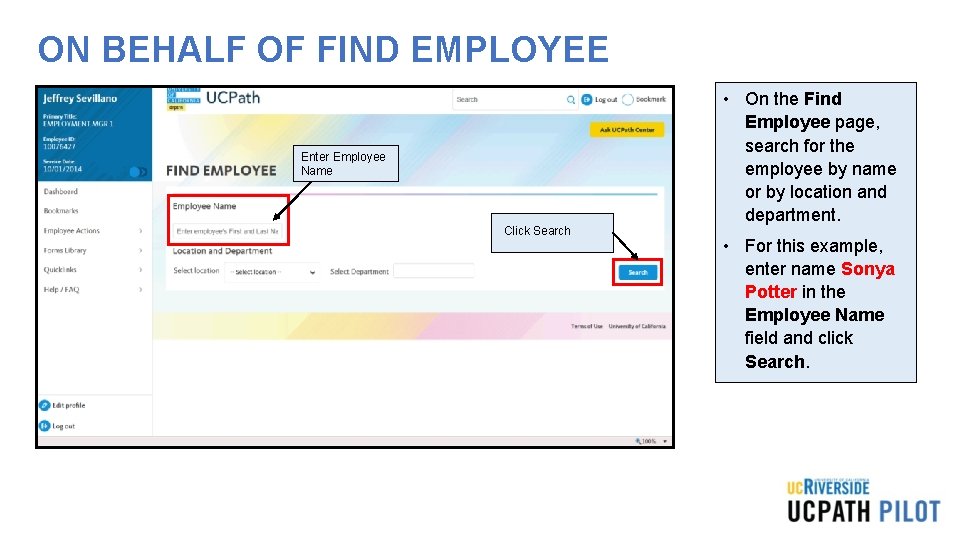
ON BEHALF OF FIND EMPLOYEE Enter Employee Name Click Search • On the Find Employee page, search for the employee by name or by location and department. • For this example, enter name Sonya Potter in the Employee Name field and click Search.
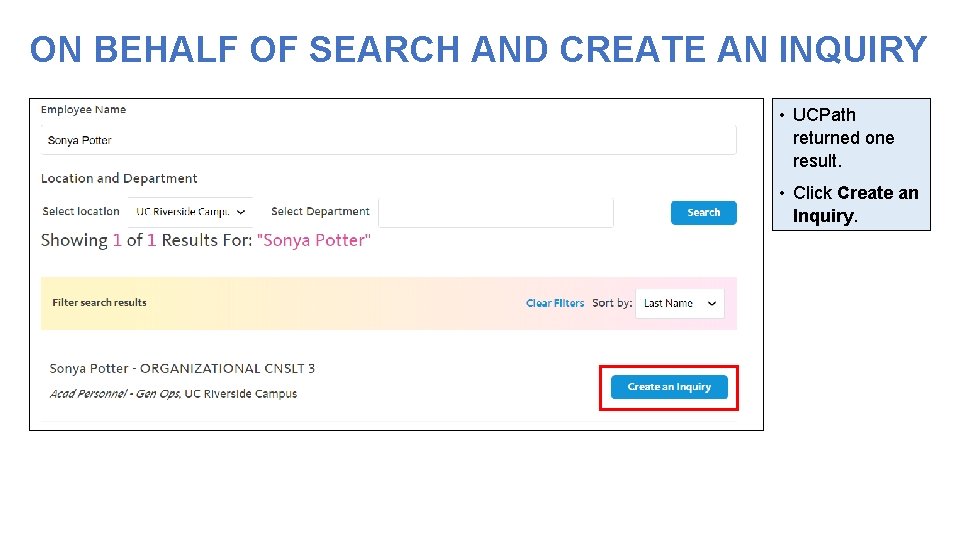
ON BEHALF OF SEARCH AND CREATE AN INQUIRY • UCPath returned one result. • Click Create an Inquiry.
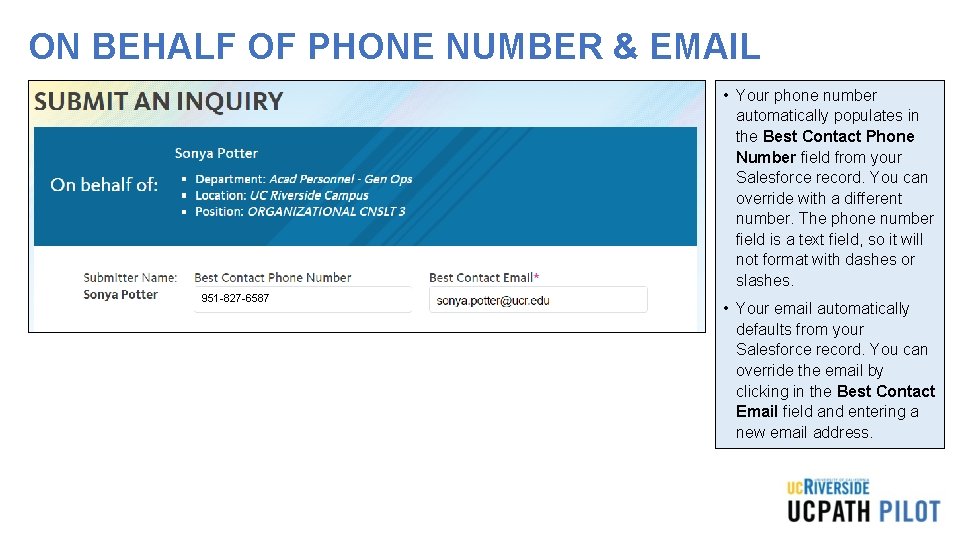
ON BEHALF OF PHONE NUMBER & EMAIL • Your phone number automatically populates in the Best Contact Phone Number field from your Salesforce record. You can override with a different number. The phone number field is a text field, so it will not format with dashes or slashes. 951 -827 -6587 • Your email automatically defaults from your Salesforce record. You can override the email by clicking in the Best Contact Email field and entering a new email address.
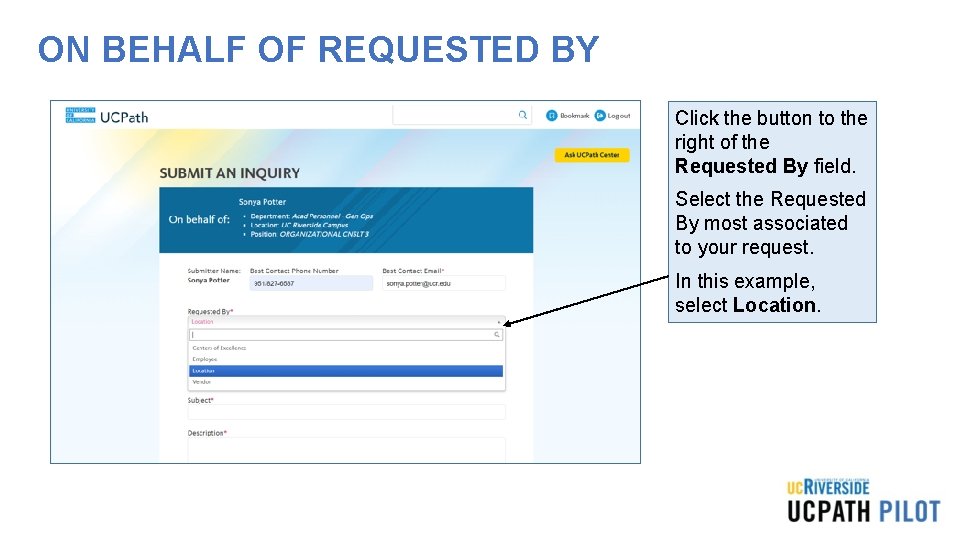
ON BEHALF OF REQUESTED BY Click the button to the right of the Requested By field. Select the Requested By most associated to your request. In this example, select Location.
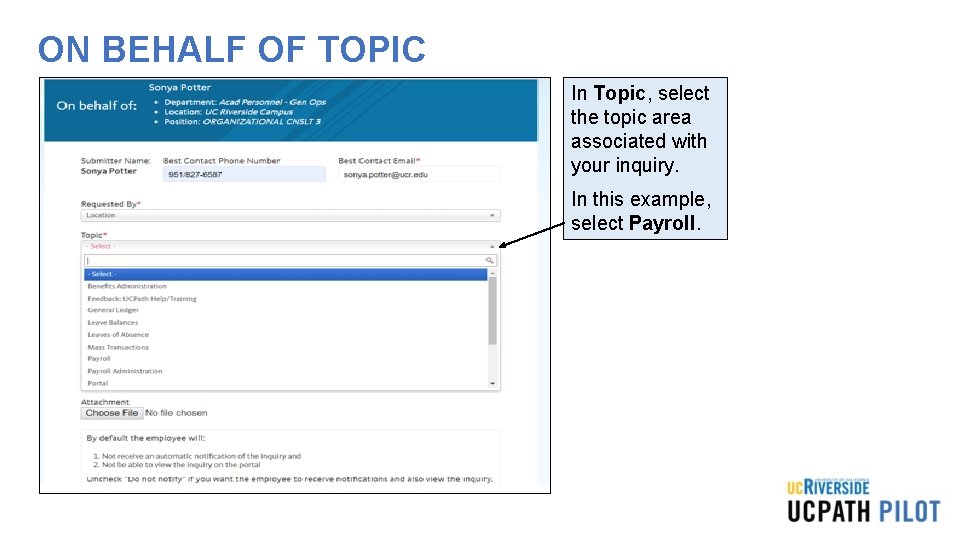
ON BEHALF OF TOPIC In Topic, select the topic area associated with your inquiry. In this example, select Payroll.
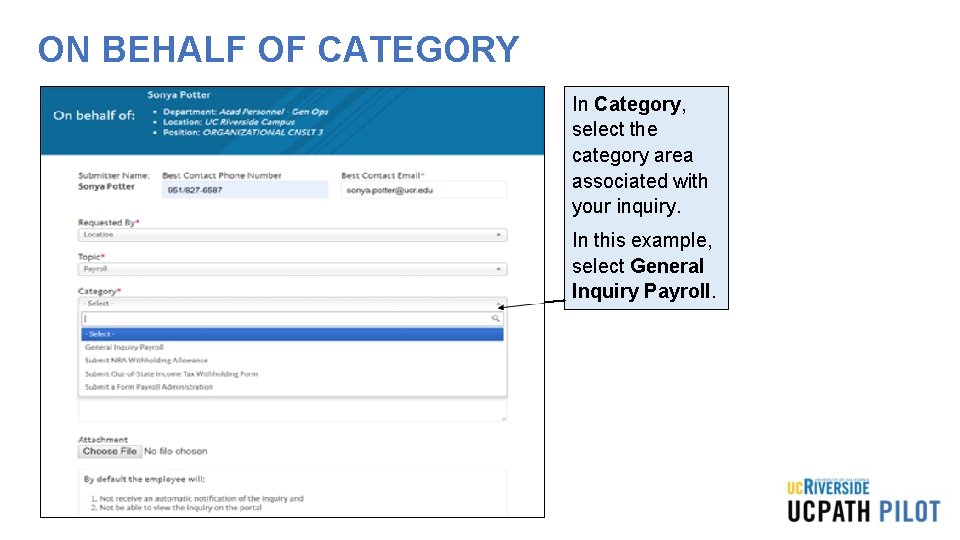
ON BEHALF OF CATEGORY In Category, select the category area associated with your inquiry. In this example, select General Inquiry Payroll.
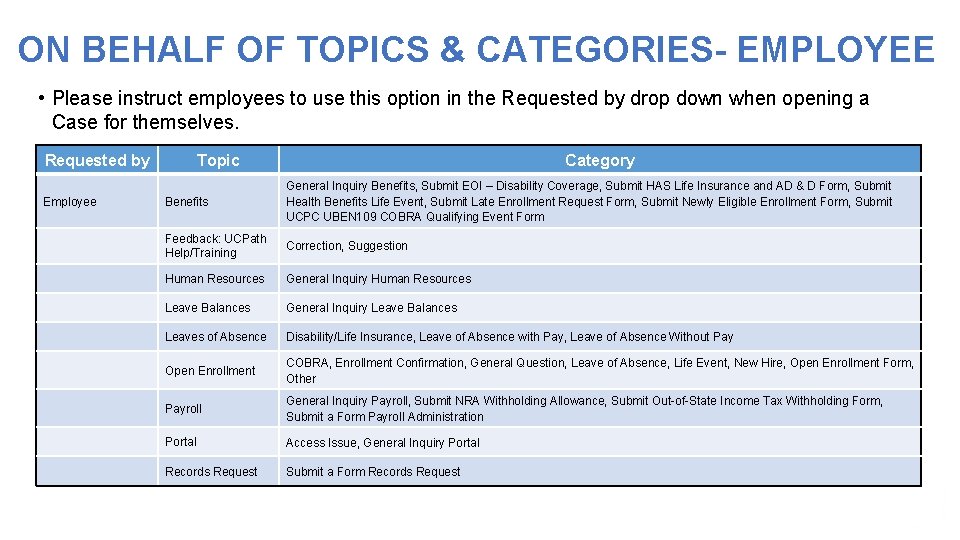
ON BEHALF OF TOPICS & CATEGORIES- EMPLOYEE • Please instruct employees to use this option in the Requested by drop down when opening a Case for themselves. Requested by Employee Topic Category Benefits General Inquiry Benefits, Submit EOI – Disability Coverage, Submit HAS Life Insurance and AD & D Form, Submit Health Benefits Life Event, Submit Late Enrollment Request Form, Submit Newly Eligible Enrollment Form, Submit UCPC UBEN 109 COBRA Qualifying Event Form Feedback: UCPath Help/Training Correction, Suggestion Human Resources General Inquiry Human Resources Leave Balances General Inquiry Leave Balances Leaves of Absence Disability/Life Insurance, Leave of Absence with Pay, Leave of Absence Without Pay Open Enrollment COBRA, Enrollment Confirmation, General Question, Leave of Absence, Life Event, New Hire, Open Enrollment Form, Other Payroll General Inquiry Payroll, Submit NRA Withholding Allowance, Submit Out-of-State Income Tax Withholding Form, Submit a Form Payroll Administration Portal Access Issue, General Inquiry Portal Records Request Submit a Form Records Request
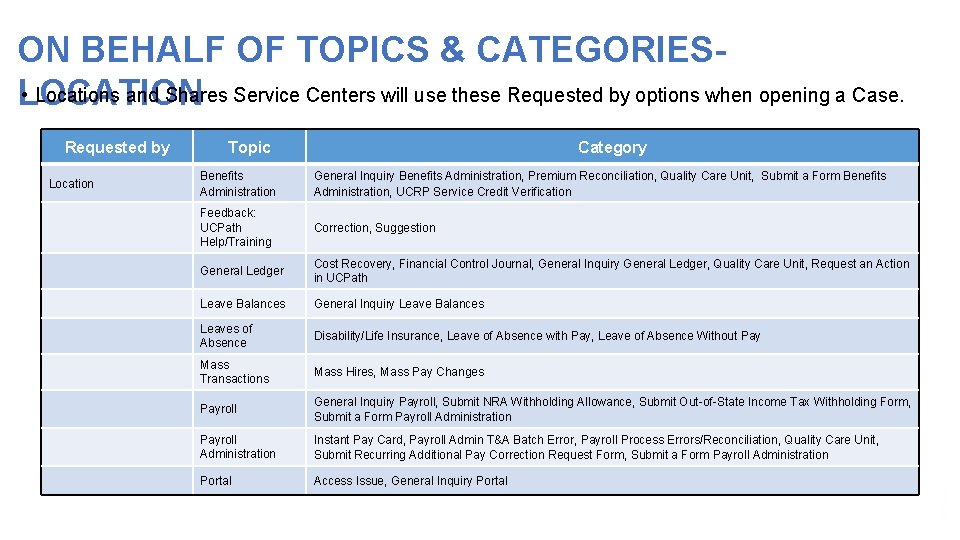
ON BEHALF OF TOPICS & CATEGORIES- • Locations and Shares Service Centers will use these Requested by options when opening a Case. LOCATION Requested by Location Topic Category Benefits Administration General Inquiry Benefits Administration, Premium Reconciliation, Quality Care Unit, Submit a Form Benefits Administration, UCRP Service Credit Verification Feedback: UCPath Help/Training Correction, Suggestion General Ledger Cost Recovery, Financial Control Journal, General Inquiry General Ledger, Quality Care Unit, Request an Action in UCPath Leave Balances General Inquiry Leave Balances Leaves of Absence Disability/Life Insurance, Leave of Absence with Pay, Leave of Absence Without Pay Mass Transactions Mass Hires, Mass Pay Changes Payroll General Inquiry Payroll, Submit NRA Withholding Allowance, Submit Out-of-State Income Tax Withholding Form, Submit a Form Payroll Administration Instant Pay Card, Payroll Admin T&A Batch Error, Payroll Process Errors/Reconciliation, Quality Care Unit, Submit Recurring Additional Pay Correction Request Form, Submit a Form Payroll Administration Portal Access Issue, General Inquiry Portal
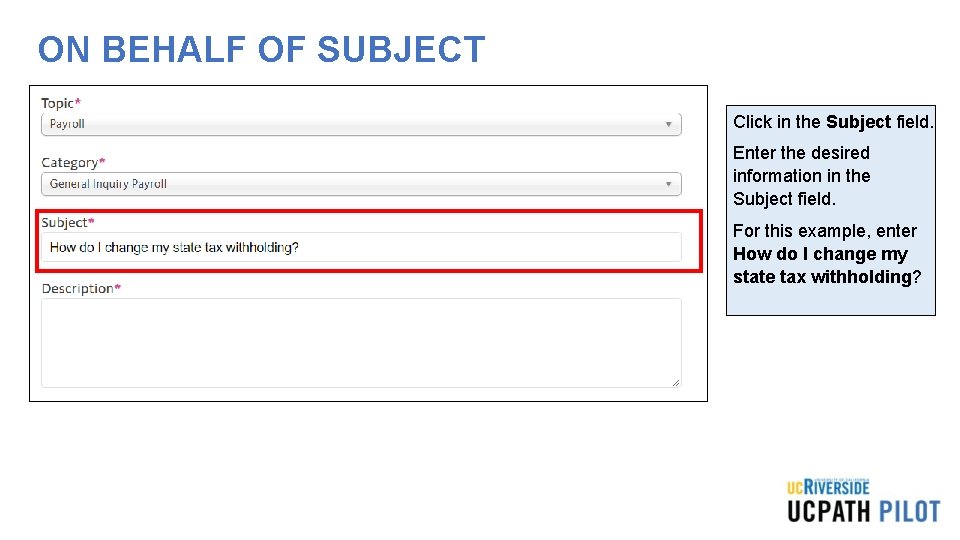
ON BEHALF OF SUBJECT Click in the Subject field. Enter the desired information in the Subject field. For this example, enter How do I change my state tax withholding?
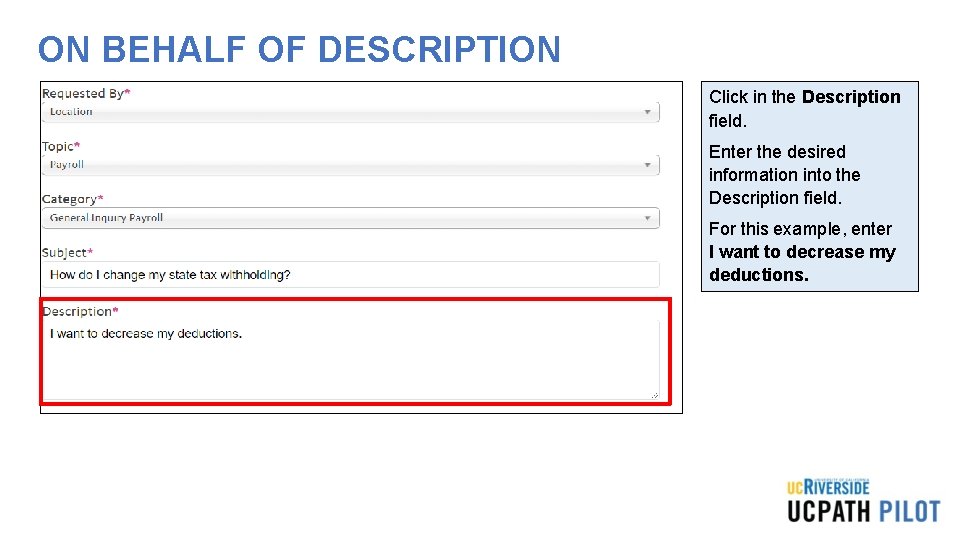
ON BEHALF OF DESCRIPTION Click in the Description field. Enter the desired information into the Description field. For this example, enter I want to decrease my deductions.
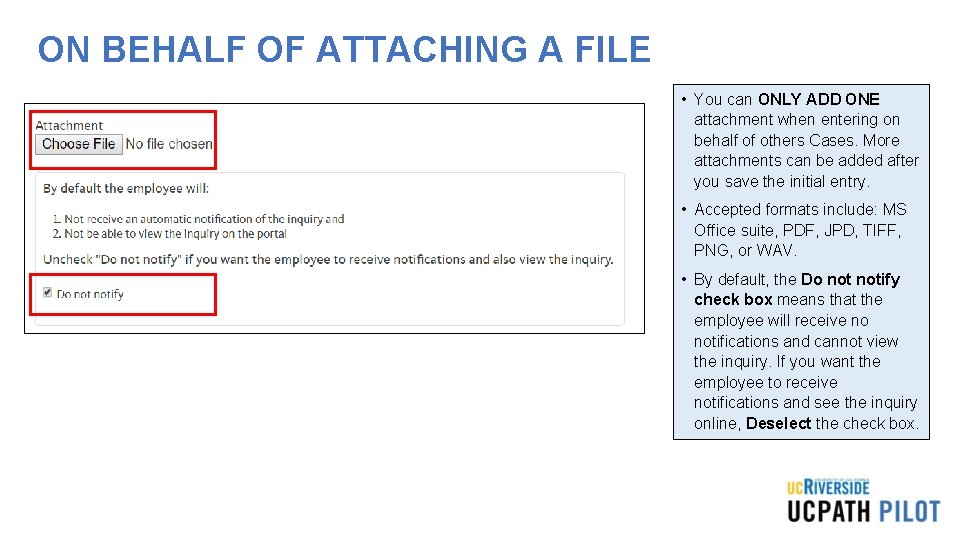
ON BEHALF OF ATTACHING A FILE • You can ONLY ADD ONE attachment when entering on behalf of others Cases. More attachments can be added after you save the initial entry. • Accepted formats include: MS Office suite, PDF, JPD, TIFF, PNG, or WAV. • By default, the Do notify check box means that the employee will receive no notifications and cannot view the inquiry. If you want the employee to receive notifications and see the inquiry online, Deselect the check box.
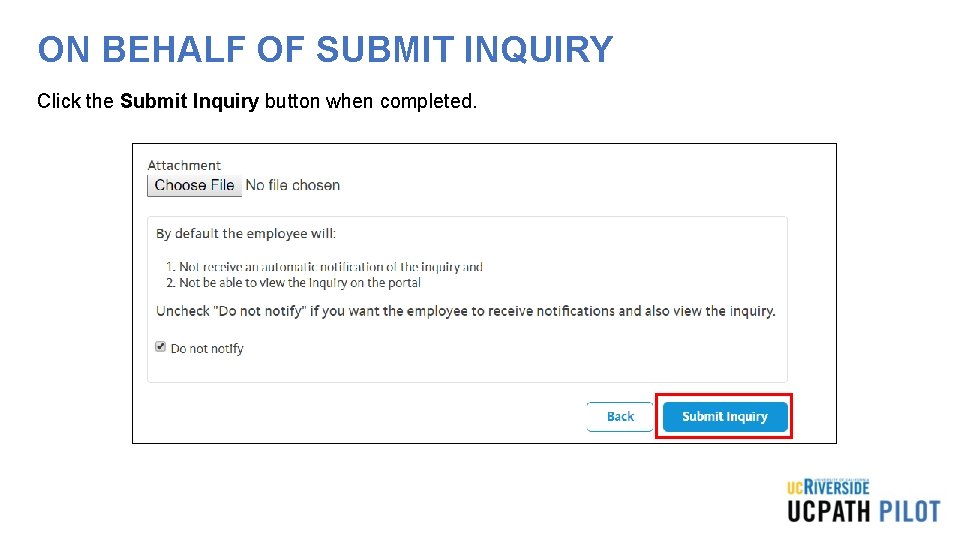
ON BEHALF OF SUBMIT INQUIRY Click the Submit Inquiry button when completed.
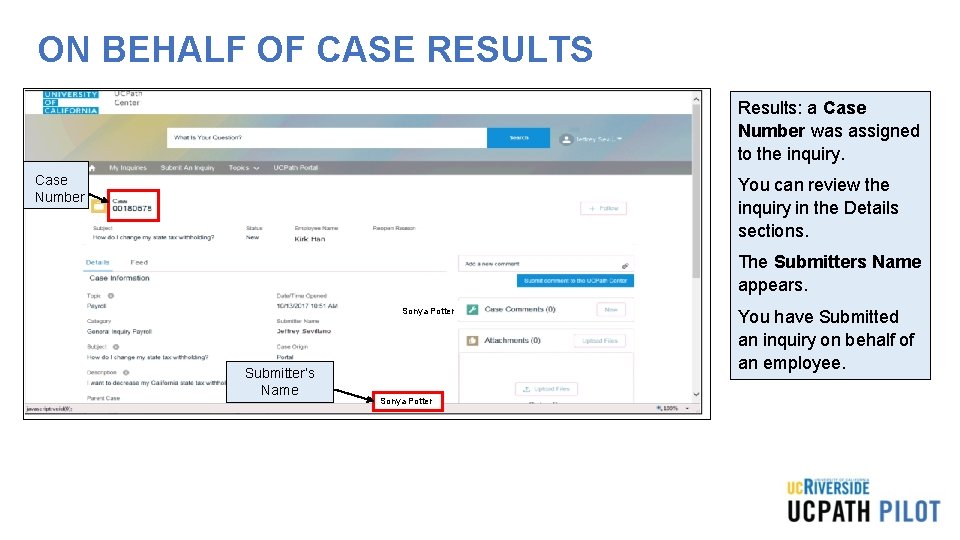
ON BEHALF OF CASE RESULTS Results: a Case Number was assigned to the inquiry. Case Number You can review the inquiry in the Details sections. The Submitters Name appears. Sonya Potter Submitter’s Name Sonya Potter You have Submitted an inquiry on behalf of an employee.
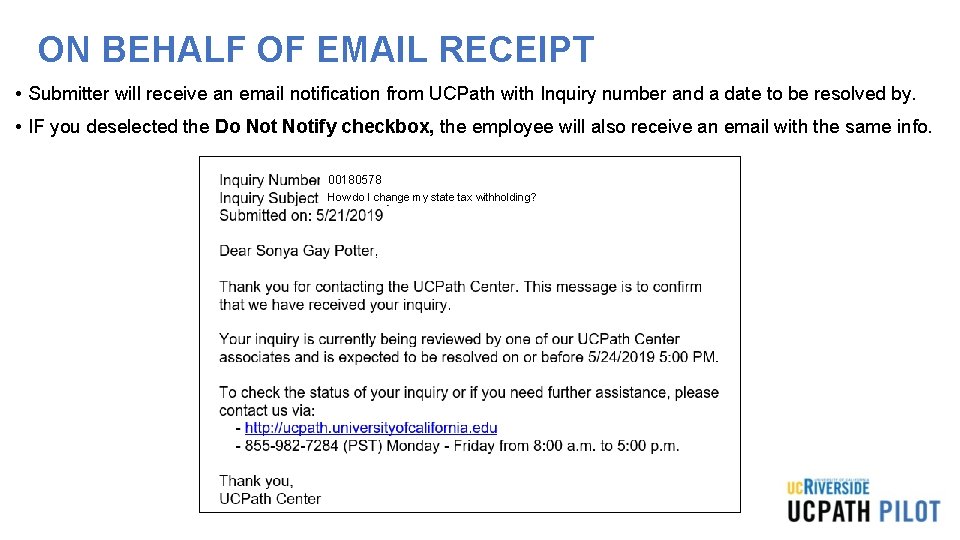
ON BEHALF OF EMAIL RECEIPT • Submitter will receive an email notification from UCPath with Inquiry number and a date to be resolved by. • IF you deselected the Do Notify checkbox, the employee will also receive an email with the same info. 00180578 How do I change my state tax withholding?
MATERIALS Resource material regarding how to open on Behalf of Cases to UCPath is located here please utilize these documents as a reference. On Behalf of Case Management: • Submit Case to UCPath Center • Submit Case (on Behalf of Employee) to UCPath Center • Reopen Closed UCPath Center Case • Monitor UCPath Center Cases • On Behalf of Case Management Infographic • On Behalf of Case Management Process Workbook On Behalf of Case Management Process Map
THINGS TO REMEMBER • Follow up on your cases weekly, however it can take UCPath a long time to complete a case, keep following up. If you do not get a response, you should contact the CSC support team at ucpathhelp@ucr. edu to escalate your matter. • Phone Number to call for UCPC – Employee Service line (ES) 855 -982 -7284, Quality Care Unit (QCU) – 951 -787 -5470 used for escalation calls. • UCPath Center Portal has an area for Trending Questions and Feature Topics you can use to help to find answers for your questions - https: //ucpathsupport. force. com/askucpath/s/ • On Behalf of Topics and Categories, please refer to the list of Topics and Categories to categorized your Case correctly. If it is not categorized correctly, it could delay your issue from being reviewed timely by UCPath.
Position Control Overview
PROCESS DEFINITION UCPath Position Data Management refers to the process of creating and editing existing position data within People. Soft. Position data includes Business Unit, Department, Location, Establishment ID, Job Code, FLSA Status, Union Code, Reports To, Salary Plan, Salary Grade, FTE, and Standard Hours.
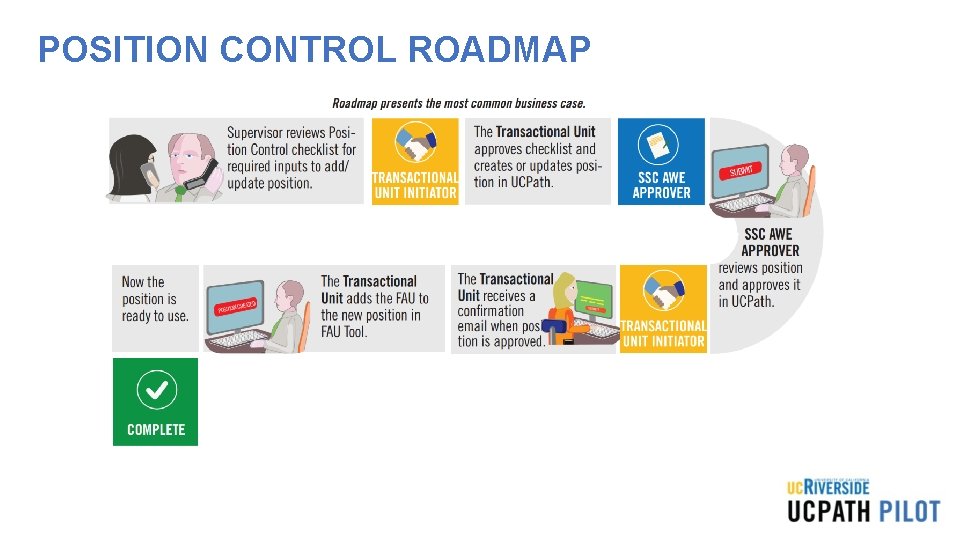
POSITION CONTROL ROADMAP
NAVIGATION Navigation: People. Soft Menu > UC Customizations > UC Extensions > Positon Control Request Navigation: People. Soft Menu > UCPath Workcenter > Positon Control Request
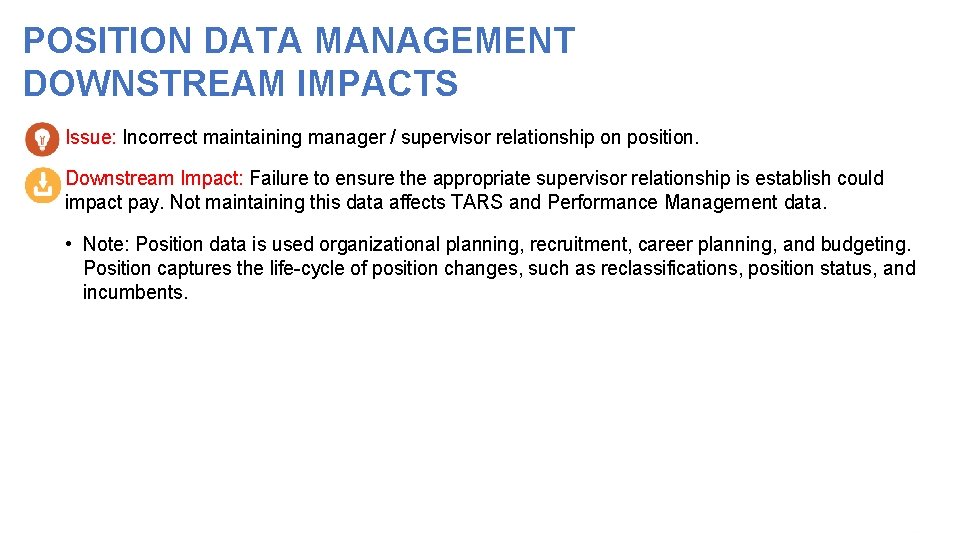
POSITION DATA MANAGEMENT DOWNSTREAM IMPACTS • Issue: Incorrect maintaining manager / supervisor relationship on position. • Downstream Impact: Failure to ensure the appropriate supervisor relationship is establish could impact pay. Not maintaining this data affects TARS and Performance Management data. • Note: Position data is used organizational planning, recruitment, career planning, and budgeting. Position captures the life-cycle of position changes, such as reclassifications, position status, and incumbents.
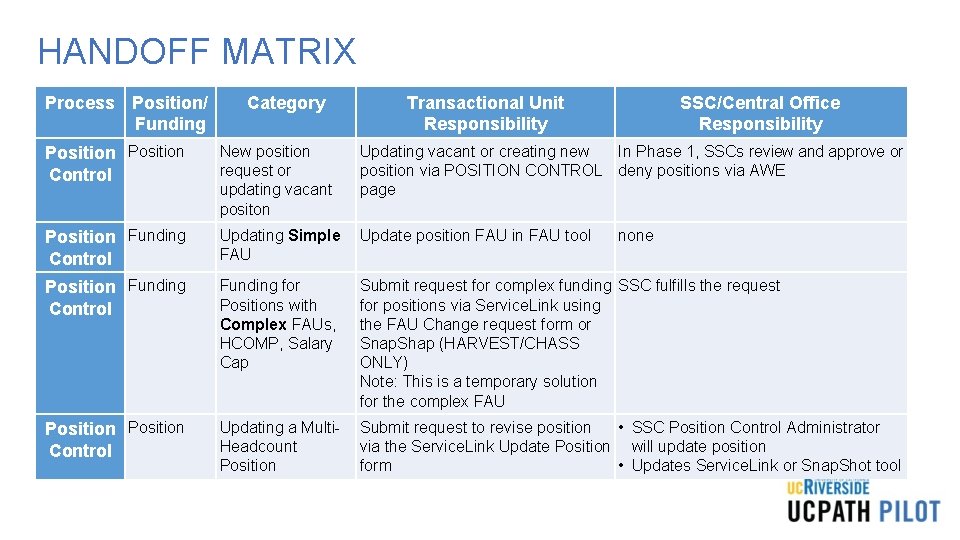
HANDOFF MATRIX Process Position/ Funding Category Transactional Unit Responsibility SSC/Central Office Responsibility Position Control New position request or updating vacant positon Updating vacant or creating new In Phase 1, SSCs review and approve or position via POSITION CONTROL deny positions via AWE page Position Funding Control Updating Simple Update position FAU in FAU tool FAU Position Funding Control Funding for Positions with Complex FAUs, HCOMP, Salary Cap Submit request for complex funding SSC fulfills the request for positions via Service. Link using the FAU Change request form or Snap. Shap (HARVEST/CHASS ONLY) Note: This is a temporary solution for the complex FAU Position Control Updating a Multi. Headcount Position Submit request to revise position • SSC Position Control Administrator via the Service. Link Update Position will update position form • Updates Service. Link or Snap. Shot tool none
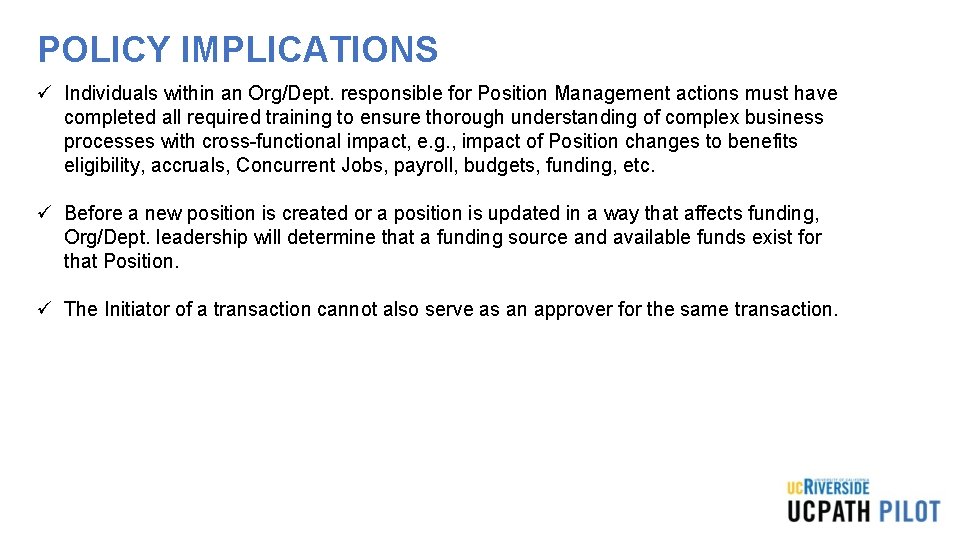
POLICY IMPLICATIONS ü Individuals within an Org/Dept. responsible for Position Management actions must have completed all required training to ensure thorough understanding of complex business processes with cross-functional impact, e. g. , impact of Position changes to benefits eligibility, accruals, Concurrent Jobs, payroll, budgets, funding, etc. ü Before a new position is created or a position is updated in a way that affects funding, Org/Dept. leadership will determine that a funding source and available funds exist for that Position. ü The Initiator of a transaction cannot also serve as an approver for the same transaction.
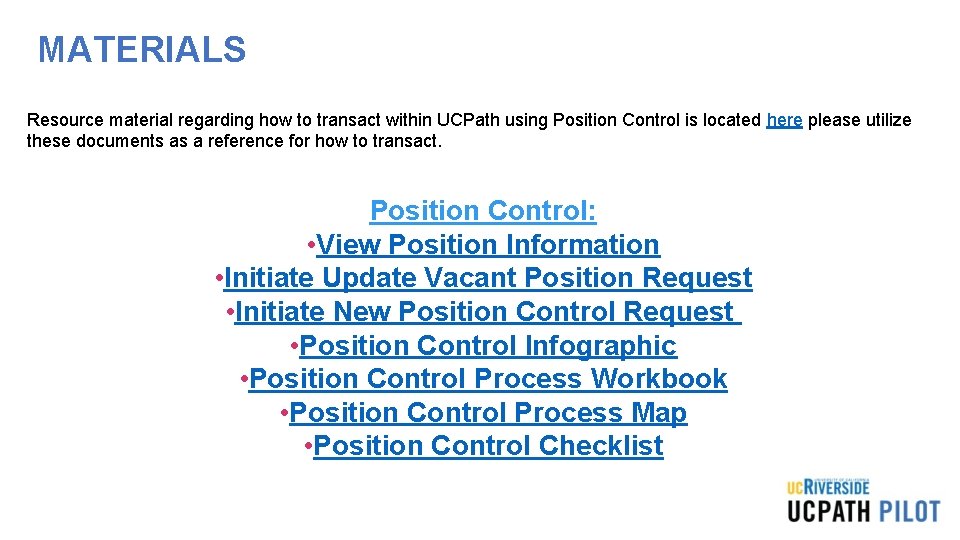
MATERIALS Resource material regarding how to transact within UCPath using Position Control is located here please utilize these documents as a reference for how to transact. Position Control: • View Position Information • Initiate Update Vacant Position Request • Initiate New Position Control Request • Position Control Infographic • Position Control Process Workbook • Position Control Process Map • Position Control Checklist
THINGS TO REMEMBER • It is important to review the HRDW Position Report for existing positions; this can be used before creating new positions. • If new position has a complex FAU or earn codes, such as add’l comp, summer salary etc. , submit request to SSC to create. • Wait 1 day to add FAU positon in FAU tool. Failure to add FAU prior to any funds being paid will result in the funds hitting the default fund and require a SCT. • Changes to multi-head count positions can only be made by a Position Administrator in a Shared Services Center.
Contingent Worker Overview
PROCESS DEFINITION Contingent Workers are defined as individuals engaged by the University of California on a non-permanent basis to complete a specific function or task who do NOT have an employee relationship with UCR and do NOT receive remuneration through UCPath. An example of a contingent worker is a volunteer, since they are not paid, but also agency workers who perform work for UCR, but are paid through their agency. As such, all contingent workers, including temporary agency workers MUST be entered in UCPath for tracking purposes.
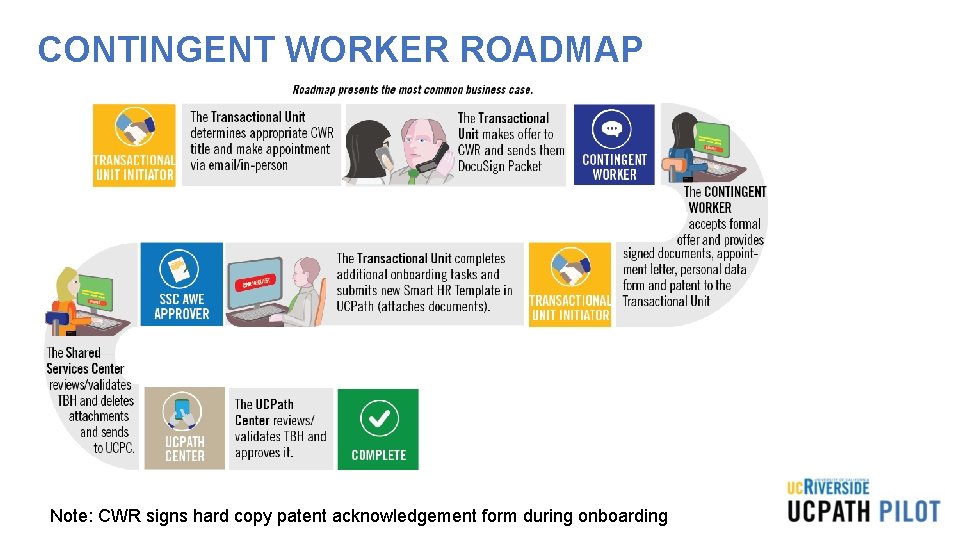
CONTINGENT WORKER ROADMAP Note: CWR signs hard copy patent acknowledgement form during onboarding
NAVIGATION Navigation: People. Soft Menu > Workforce Administration > Smart HR Template > Smart HR Transactions
POLICY IMPLICATIONS ü ALL contingent workers, including temporary agency workers MUST be entered in UCPath ü Contingent Workers are defined as individuals engaged by the University of California on a nonpermanent basis to complete a specific function or task who do NOT have an employee relationship with UCR and do NOT receive remuneration through UCPath. An example of a contingent worker is a volunteer, since they are not paid, but also agency workers who perform work for UCR, but are paid through their agency. As such, all contingent workers, including temporary agency workers MUST be entered in UCPath for tracking purposes. ü If you have an agency worker working in your department that is not in UCPath, they will need to be entered ASAP. Prior to requesting that they be entered in UCPath, please determine if the contingent worker in question needs a position. ü If a contingent worker in your department supervises UCR employee, please create a position for them first. Generally, contingent workers will not supervise UCR employees, and will therefore not require a position. In that case, contingent worker can be added to UCPath using a job code. Job codes for contingent workers ALWAYS start with the prefix CWR. ü If a contingent worker does NOT supervise UCR Employee(s), they can be Onboarded without a Position.
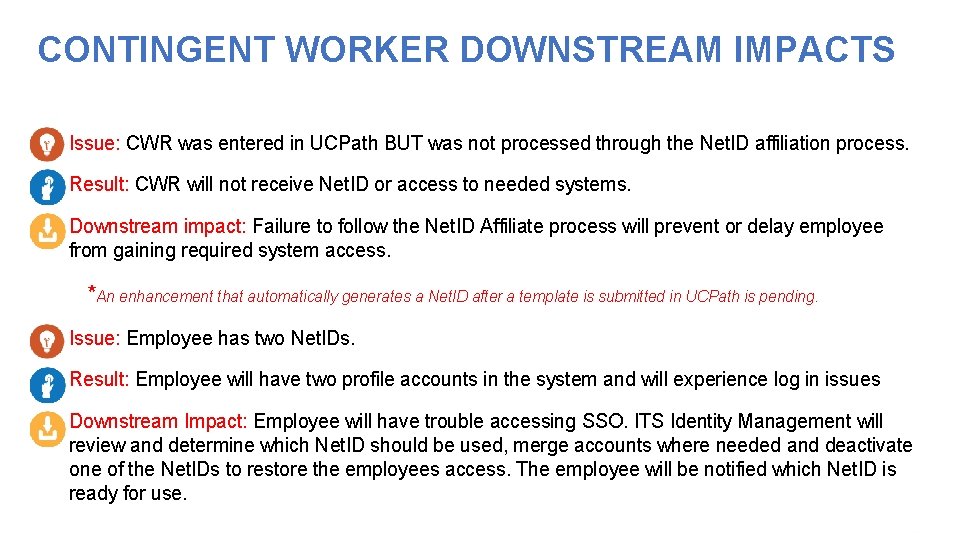
CONTINGENT WORKER DOWNSTREAM IMPACTS • Issue: CWR was entered in UCPath BUT was not processed through the Net. ID affiliation process. • Result: CWR will not receive Net. ID or access to needed systems. • Downstream impact: Failure to follow the Net. ID Affiliate process will prevent or delay employee from gaining required system access. *An enhancement that automatically generates a Net. ID after a template is submitted in UCPath is pending. • Issue: Employee has two Net. IDs. • Result: Employee will have two profile accounts in the system and will experience log in issues • Downstream Impact: Employee will have trouble accessing SSO. ITS Identity Management will review and determine which Net. ID should be used, merge accounts where needed and deactivate one of the Net. IDs to restore the employees access. The employee will be notified which Net. ID is ready for use.
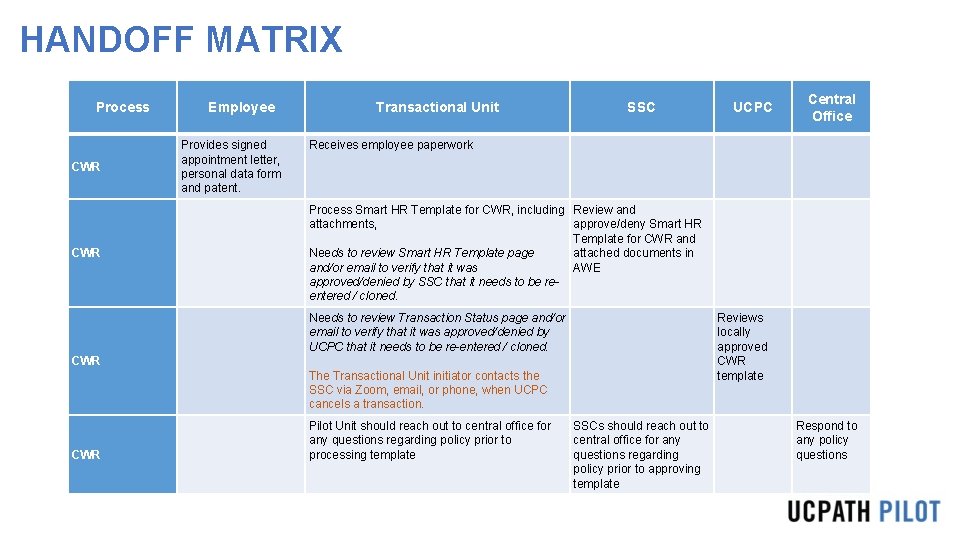
HANDOFF MATRIX Process CWR Employee Provides signed appointment letter, personal data form and patent. Transactional Unit SSC Central Office Receives employee paperwork Process Smart HR Template for CWR, including Review and attachments, approve/deny Smart HR Template for CWR and Needs to review Smart HR Template page attached documents in and/or email to verify that it was AWE approved/denied by SSC that it needs to be reentered / cloned. Needs to review Transaction Status page and/or email to verify that it was approved/denied by UCPC that it needs to be re-entered / cloned. Reviews locally approved CWR template CWR The Transactional Unit initiator contacts the SSC via Zoom, email, or phone, when UCPC cancels a transaction. CWR UCPC Pilot Unit should reach out to central office for any questions regarding policy prior to processing template SSCs should reach out to central office for any questions regarding policy prior to approving template Respond to any policy questions
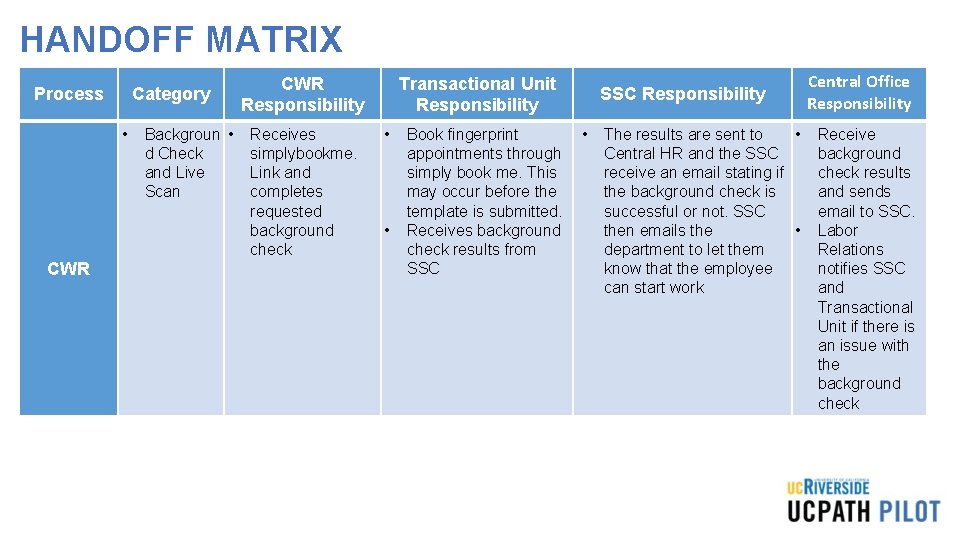
HANDOFF MATRIX Process Category • CWR Backgroun • d Check and Live Scan CWR Responsibility Receives simplybookme. Link and completes requested background check Transactional Unit Responsibility • • Book fingerprint • appointments through simply book me. This may occur before the template is submitted. Receives background check results from SSC Responsibility The results are sent to • Central HR and the SSC receive an email stating if the background check is successful or not. SSC then emails the • department to let them know that the employee can start work Central Office Responsibility Receive background check results and sends email to SSC. Labor Relations notifies SSC and Transactional Unit if there is an issue with the background check
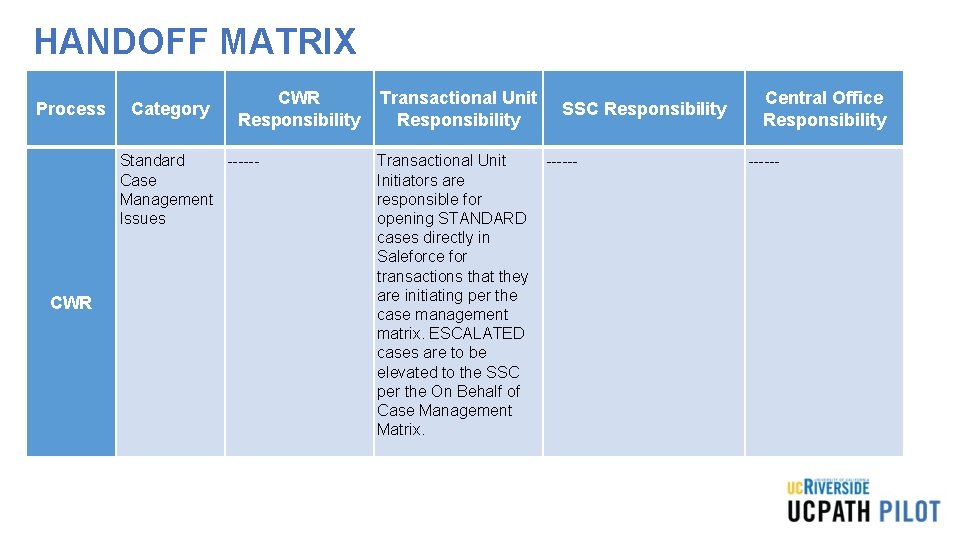
HANDOFF MATRIX Process Category CWR Responsibility Standard -----Case Management Issues CWR Transactional Unit Responsibility SSC Responsibility Transactional Unit -----Initiators are responsible for opening STANDARD cases directly in Saleforce for transactions that they are initiating per the case management matrix. ESCALATED cases are to be elevated to the SSC per the On Behalf of Case Management Matrix. Central Office Responsibility ------
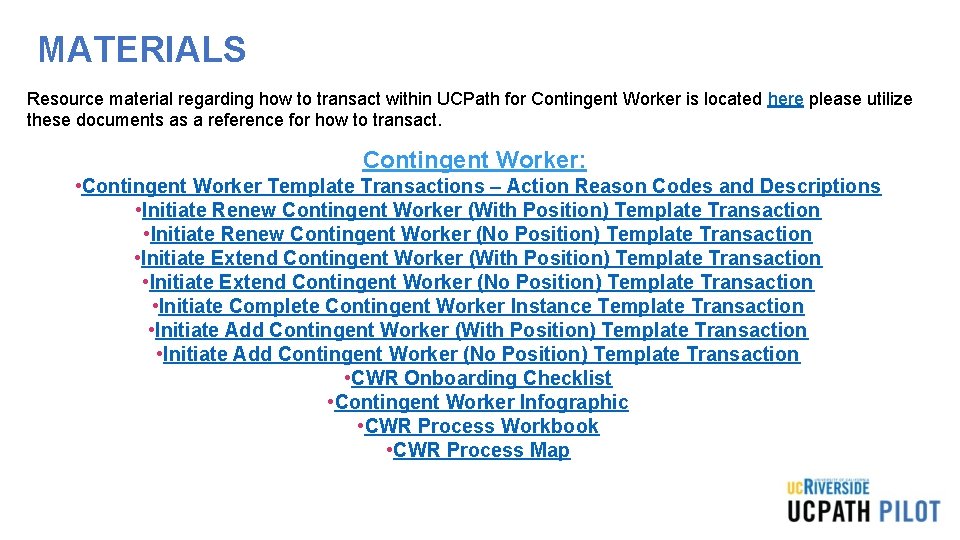
MATERIALS Resource material regarding how to transact within UCPath for Contingent Worker is located here please utilize these documents as a reference for how to transact. Contingent Worker: • Contingent Worker Template Transactions – Action Reason Codes and Descriptions • Initiate Renew Contingent Worker (With Position) Template Transaction • Initiate Renew Contingent Worker (No Position) Template Transaction • Initiate Extend Contingent Worker (With Position) Template Transaction • Initiate Extend Contingent Worker (No Position) Template Transaction • Initiate Complete Contingent Worker Instance Template Transaction • Initiate Add Contingent Worker (With Position) Template Transaction • Initiate Add Contingent Worker (No Position) Template Transaction • CWR Onboarding Checklist • Contingent Worker Infographic • CWR Process Workbook • CWR Process Map
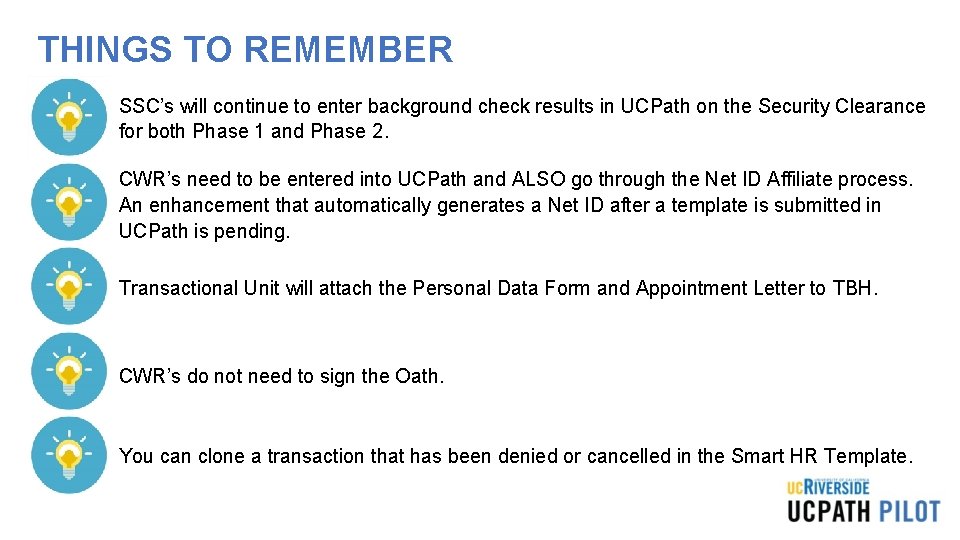
THINGS TO REMEMBER • SSC’s will continue to enter background check results in UCPath on the Security Clearance for both Phase 1 and Phase 2. • CWR’s need to be entered into UCPath and ALSO go through the Net ID Affiliate process. An enhancement that automatically generates a Net ID after a template is submitted in UCPath is pending. • Transactional Unit will attach the Personal Data Form and Appointment Letter to TBH. • CWR’s do not need to sign the Oath. • You can clone a transaction that has been denied or cancelled in the Smart HR Template.
Personal Data Changes Overview
PROCESS DEFINITION Personal Data is information that is unique to each employee. For example: your name, personal email address, education credentials, and contact information.
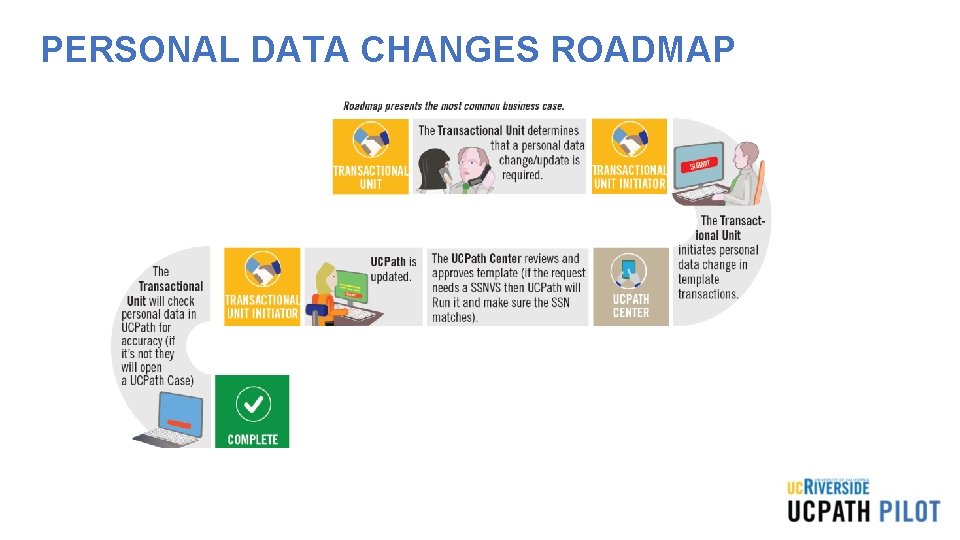
PERSONAL DATA CHANGES ROADMAP
NAVIGATION Navigation: People. Soft Menu > Workforce Administration > Smart HR Template > Smart HR Transactions
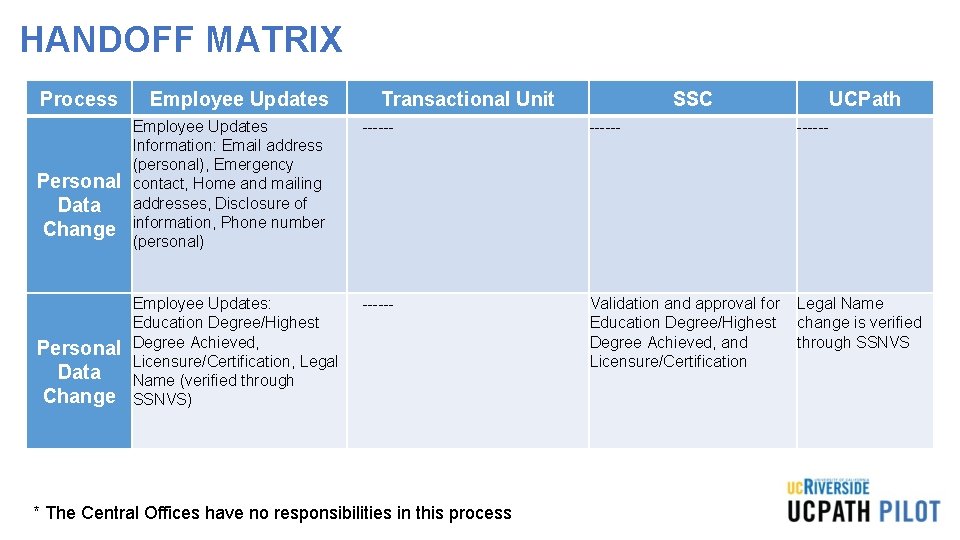
HANDOFF MATRIX Process Personal Data Change Employee Updates Transactional Unit SSC UCPath Employee Updates Information: Email address (personal), Emergency contact, Home and mailing addresses, Disclosure of information, Phone number (personal) ------ Employee Updates: Education Degree/Highest Degree Achieved, Licensure/Certification, Legal Name (verified through SSNVS) ------ Validation and approval for Legal Name Education Degree/Highest change is verified Degree Achieved, and through SSNVS Licensure/Certification * The Central Offices have no responsibilities in this process ------
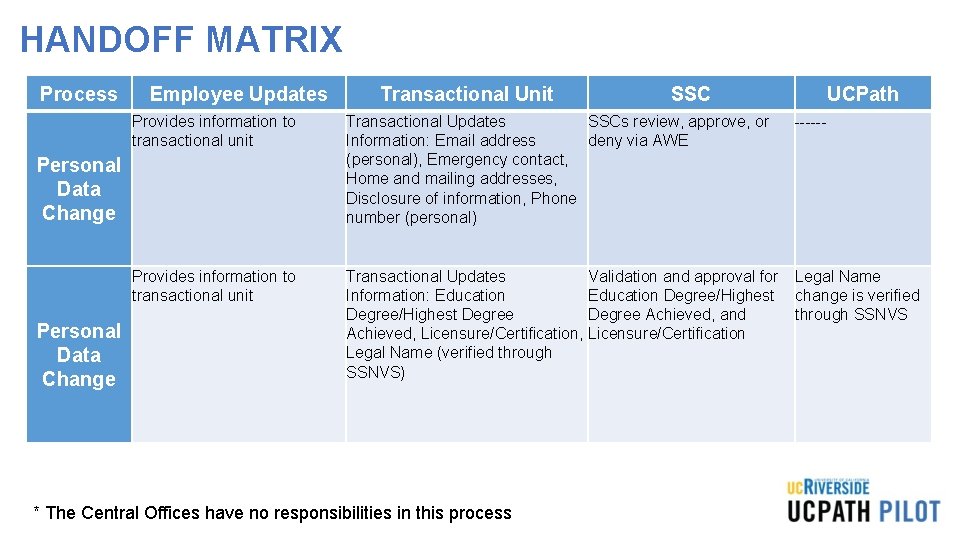
HANDOFF MATRIX Process Employee Updates SSC UCPath Provides information to transactional unit Transactional Updates SSCs review, approve, or Information: Email address deny via AWE (personal), Emergency contact, Home and mailing addresses, Disclosure of information, Phone number (personal) Provides information to transactional unit Transactional Updates Validation and approval for Legal Name Information: Education Degree/Highest change is verified Degree/Highest Degree Achieved, and through SSNVS Achieved, Licensure/Certification Legal Name (verified through SSNVS) Personal Data Change Transactional Unit * The Central Offices have no responsibilities in this process ------
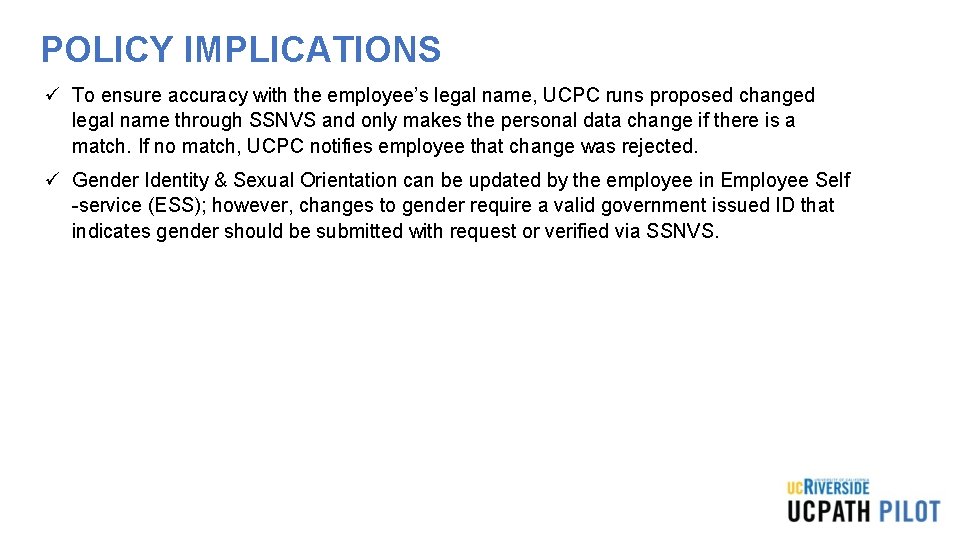
POLICY IMPLICATIONS ü To ensure accuracy with the employee’s legal name, UCPC runs proposed changed legal name through SSNVS and only makes the personal data change if there is a match. If no match, UCPC notifies employee that change was rejected. ü Gender Identity & Sexual Orientation can be updated by the employee in Employee Self -service (ESS); however, changes to gender require a valid government issued ID that indicates gender should be submitted with request or verified via SSNVS.
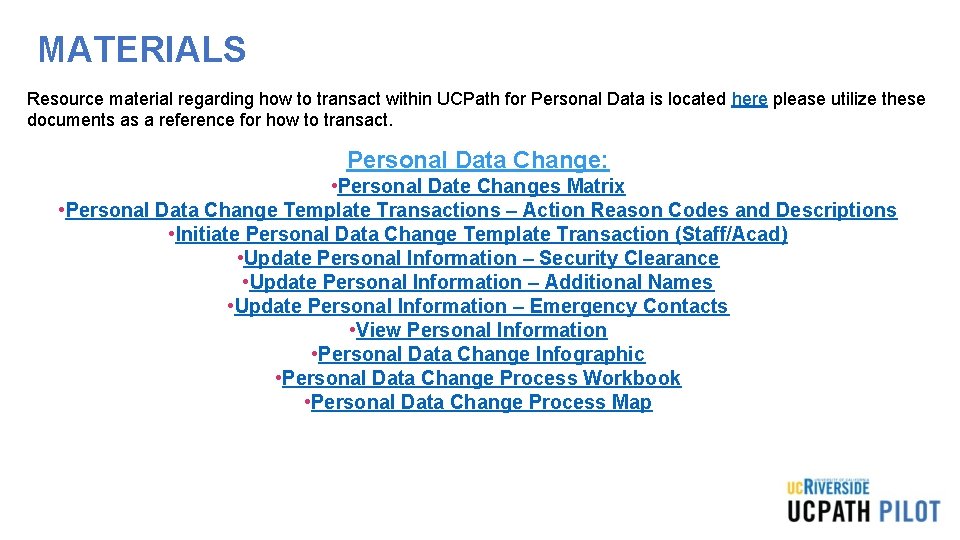
MATERIALS Resource material regarding how to transact within UCPath for Personal Data is located here please utilize these documents as a reference for how to transact. Personal Data Change: • Personal Date Changes Matrix • Personal Data Change Template Transactions – Action Reason Codes and Descriptions • Initiate Personal Data Change Template Transaction (Staff/Acad) • Update Personal Information – Security Clearance • Update Personal Information – Additional Names • Update Personal Information – Emergency Contacts • View Personal Information • Personal Data Change Infographic • Personal Data Change Process Workbook • Personal Data Change Process Map
THINGS TO REMEMBER • Employees can make most updates to their personal data directly in UCPath and are written directly to the database. • Documentation is required when updating Education Degree/Highest Degree Achieved, Licensure/Certification, Legal Name or Gender. • Changes requiring documentation is will not be written to the database until change is verified. • When personal data changes are made by the SSC or Transactional Pilot, AWE is required.
Person of Interest Overview
PROCESS DEFINITION A Person Of Interest (POI) is someone who is tracked by Locations for various reasons, such as a potential hire or potential external resource. Locations are responsible for adding and maintaining POI records in UCPath.
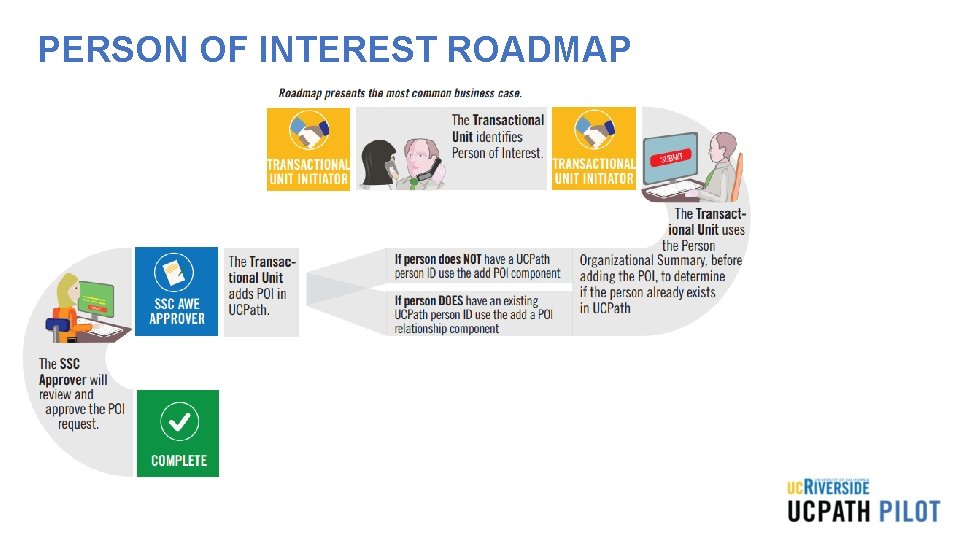
PERSON OF INTEREST ROADMAP
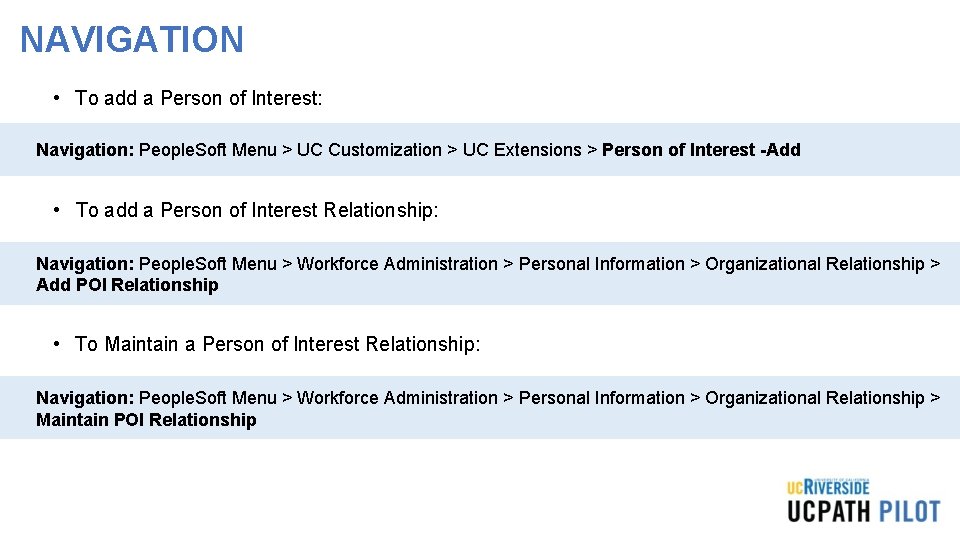
NAVIGATION • To add a Person of Interest: Navigation: People. Soft Menu > UC Customization > UC Extensions > Person of Interest -Add • To add a Person of Interest Relationship: Navigation: People. Soft Menu > Workforce Administration > Personal Information > Organizational Relationship > Add POI Relationship • To Maintain a Person of Interest Relationship: Navigation: People. Soft Menu > Workforce Administration > Personal Information > Organizational Relationship > Maintain POI Relationship
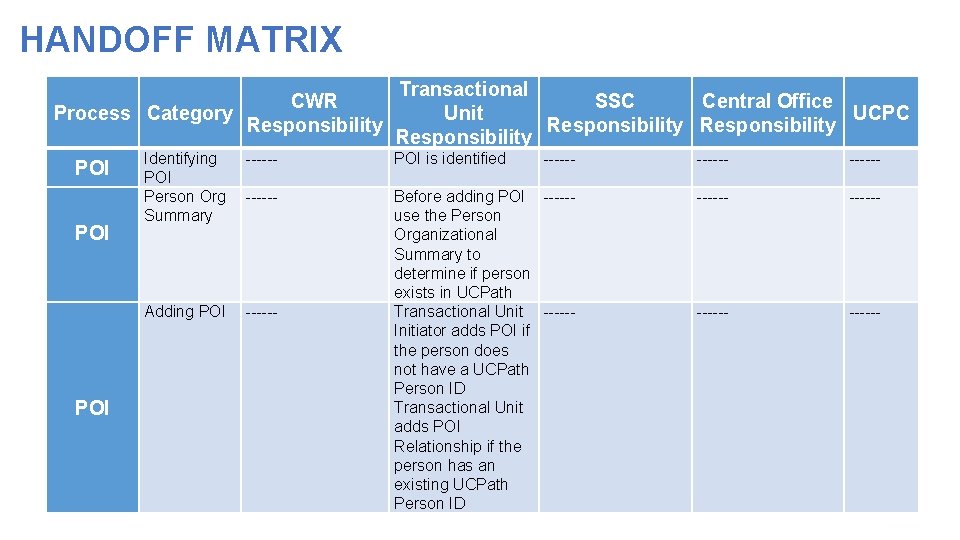
HANDOFF MATRIX CWR Process Category Responsibility POI Identifying -----POI Person Org -----Summary Adding POI ------ Transactional SSC Central Office Unit UCPC Responsibility POI is identified ------ Before adding POI -----use the Person Organizational Summary to determine if person exists in UCPath Transactional Unit -----Initiator adds POI if the person does not have a UCPath Person ID Transactional Unit adds POI Relationship if the person has an existing UCPath Person ID ------
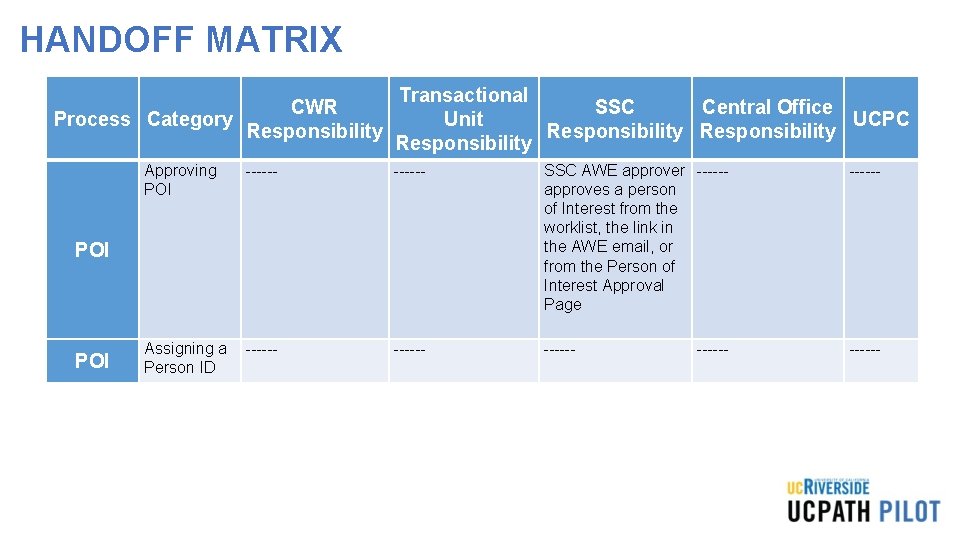
HANDOFF MATRIX CWR Process Category Responsibility Approving POI Transactional SSC Central Office Unit UCPC Responsibility ------ SSC AWE approver -----approves a person of Interest from the worklist, the link in the AWE email, or from the Person of Interest Approval Page ------ Assigning a -----Person ID ------ POI ------
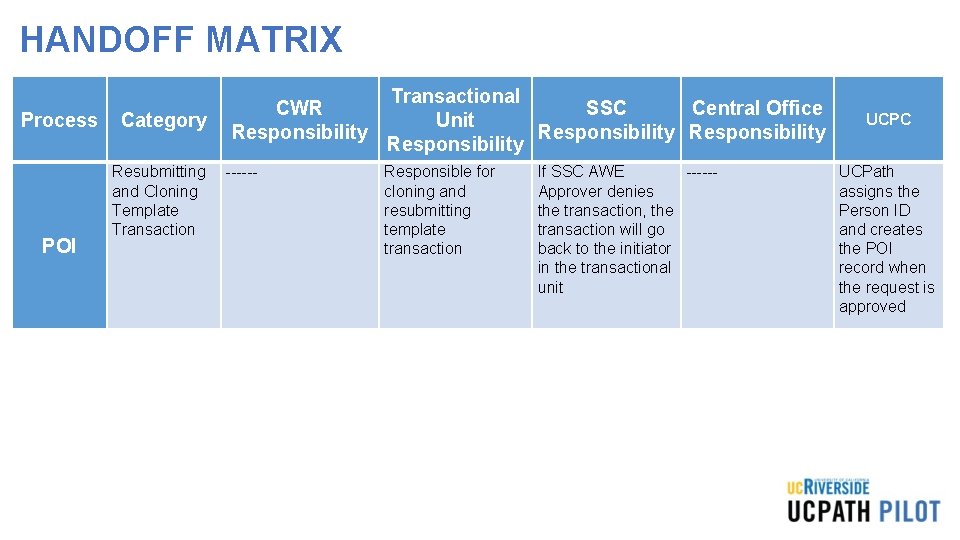
HANDOFF MATRIX Process POI Category Resubmitting and Cloning Template Transaction CWR Responsibility ------ Transactional SSC Central Office Unit Responsibility Responsible for cloning and resubmitting template transaction If SSC AWE -----Approver denies the transaction, the transaction will go back to the initiator in the transactional unit UCPC UCPath assigns the Person ID and creates the POI record when the request is approved
POLICY IMPLICATIONS ü A person, whether a POI, a contingent worker (CWR), or an employee (EMP), should have only one Person ID in UCPath. ü POIs are assigned a POI Type in UCPath. At minimum, each UCPath Business Unit has four POI types: • • Assoc Of Pres/Chancellor Potential Hire/Academic Exter Compliance/Auditor Potential Hire/Staff
MATERIALS Resource material regarding how to transact within UCPath for Person of Interest is located here please utilize these documents as a reference for how to transact. Person of Interest: • View Person Organizational Summary • Extend or Inactivate POI • Approve POI • Add Person of Interest Relationship • POI Infographic • POI Process Workbook • POI Process Map
THINGS TO REMEMBER • Locations are responsible for adding and maintaining POI records in UCPath. A POI is not an employee of the University; and will not receive compensation through UCPath. • A POI does not have Position Data or Job Data in UCPath. • POIs are assigned a Person ID, instead of an Employee ID. If a POI later becomes an employee or a Contingent Worker (CWR), then their assigned Person ID becomes their Employee ID. • POI records that create a Person ID in UCPath are approved using Automated Workflow Engine (AWE). POI instances added to existing Person IDs do not use AWE. • UCPath Center does not add nor maintain POI records in UCPath. However, only UCPC can update a POI’s address and phone number. Locations must create a case to have UCPC update this information.
One-Time Pay Overview
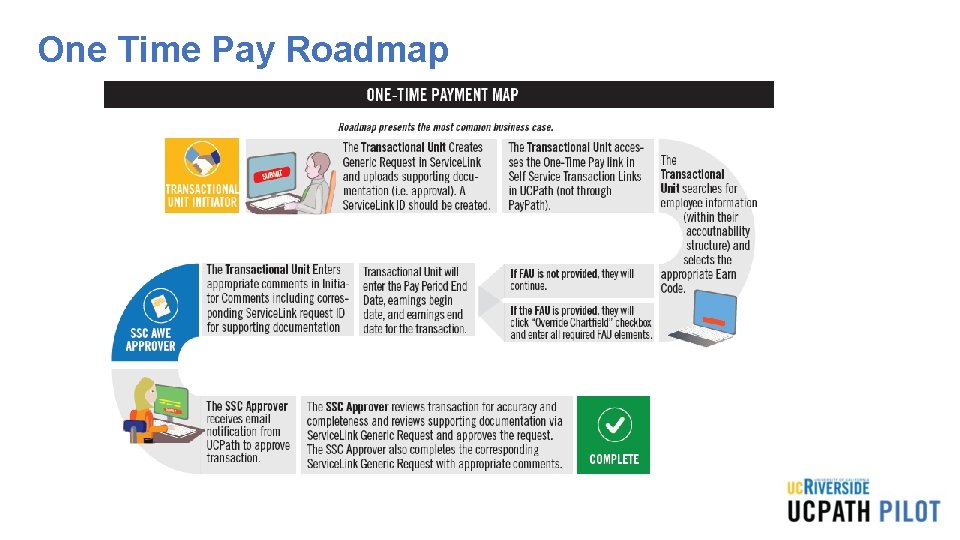
PROCESS DEFINITION The One Time Pay process is the method to add a flat dollar amount payment for staff and academic employees to be processed in a specific pay period. • The Transactional Units will have the opportunity to submit one-time payments for employees within their Accountability Structures. • The process begins when a department initiator in a Transactional Unit submits a one-time payment transaction for an employee in UCPath. • The process ends when all Payroll processes have been completed for the applicable pay period and the employee receives the payment on their paycheck.
One Time Pay Roadmap
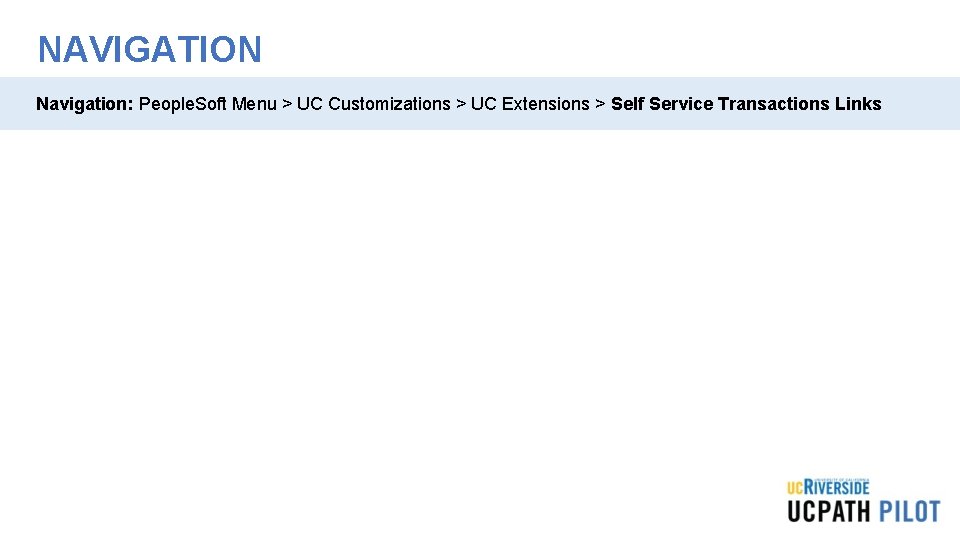
NAVIGATION Navigation: People. Soft Menu > UC Customizations > UC Extensions > Self Service Transactions Links
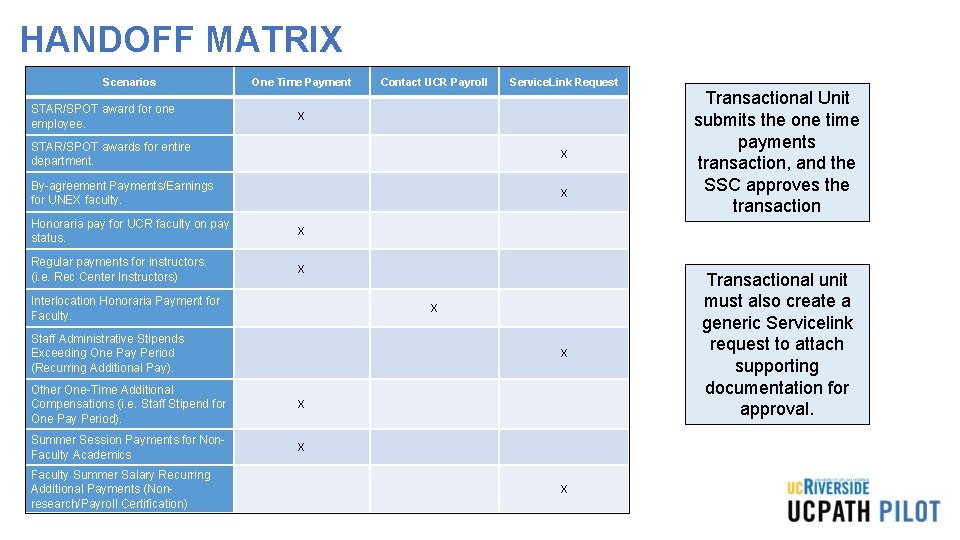
HANDOFF MATRIX Scenarios One Time Payment Contact UCR Payroll Service. Link Request STAR/SPOT award for one employee. X STAR/SPOT awards for entire department. X By-agreement Payments/Earnings for UNEX faculty. X Honoraria pay for UCR faculty on pay status. X Regular payments for instructors. (i. e. Rec Center Instructors) X Interlocation Honoraria Payment for Faculty. X Staff Administrative Stipends Exceeding One Pay Period (Recurring Additional Pay). X Other One-Time Additional Compensations (i. e. Staff Stipend for One Pay Period). X Summer Session Payments for Non. Faculty Academics X Faculty Summer Salary Recurring Additional Payments (Nonresearch/Payroll Certification) X Transactional Unit submits the one time payments transaction, and the SSC approves the transaction Transactional unit must also create a generic Servicelink request to attach supporting documentation for approval.
POLICY IMPLICATIONS PPSM 30 - Compensation - https: //policy. ucop. edu/doc/4010400/PPSM-30 ü UC Policy regarding compensation rules for exempt and non-exempt UC employees. ü Policy also outlines acceptable additional cash compensation scenarios. (Refer to Section III. Policy text, B. , 7 -8 of policy). PPSM 30 Local Guidance – Compensation - https: //hr. ucr. edu/policiesandcontracts/local_guidance_30_compensation. pdf ü UCR guidance for PPSM 30 UC Policy. ü APM Policy – Additional Compensation Honoraria - https: //www. ucop. edu/academicpersonnel-programs/_files/apm-666. pdf ü UC Policy regarding Additional Compensation requirements for honoraria payments for Academic Appointments.
THINGS TO REMEMBER • Transactional Unit must create a generic Service. Link request to attach supporting documentation for approval. • SSCs cannot clone denied one-time payments, if they are denied they always have to be re-entered. • Transactional Unit submits one-time payment transaction, and SSC will approve the transaction. • Transactional Units can only submit one-time payment transactions for employees within their accountability structure.
ONE TIME PAY DOWNSTREAM IMPACTS • Issue: Incorrect earn code selected. Earn Codes will need to be selected appropriately. • Downstream impact: If an earn code is incorrect then financial management impacts will occur. To correct this issue, a Payroll Adjustment is required. Earnings cannot be transferred to different earn codes, so a Salary Cost Transfer will not work in this scenario. • Issue: Using the incorrect schedule affects timing around when a transaction is submitted AND approved in UCPath. It is critical to ensure transactions meet payroll deadlines. The One Time Pay page does not display an error message when transactions are submitted past the payroll deadline for a particular pay period. • Downstream Impact: If a One Time Pay transaction is submitted AND approved against a pay period after its deadline, the transaction will be rejected/unprocessed, resulting in a delay in the employee’s payment. To correct the issue, the transaction would need to be submitted against a future payroll for that employee. If the payment is urgent (i. e. the employee’s primary source of earnings), reach out to your Shared Services partners for assistance/guidance. (Note: refer to the UCPath Production Processing Schedule Deadline in the UCPath Portal –“Pay. Path/Mass Hire” column; denotes the approval deadline for one time payments for a particular pay cycle/period).
ONE TIME PAY DOWNSTREAM • Issue: Failure to add /department approvals will delay the approval process. One Time Pay IMPACTS process requires documentation/department approvals be attached to Generic Service. Link requests for Shared Service Center Approvers to reference when approving in UCPath. • Downstream Impact: If a One Time Payment is submitted in UCPath and there is no corresponding Generic Service. Link Request with supporting documentation, there may be a delay in when the transaction is approved. To minimize this delay, it is critical to create the corresponding request. Failure to do so can result in a transaction being “denied” which could cause the employee’s payment to be delayed. • Issue: Incorrect FAU values entered on “Chartfield Override”. • Downstream Impact: If the incorrect FAU values are submitted on a One Time Pay transaction then financial management impacts will occur. To correct this issue when it occurs, a Salary Cost Transfer (SCT) can be performed.
Voluntary Termination & Retirement Overview
PROCESS DEFINITION The process of Voluntary Termination starts with the employee’s decision to resign or retire, and ends with the final payment information being transferred to the UCPath Center Payroll Production team. Voluntary terminations are processed for both staff and academic employees. There are benefits and payroll implications of voluntary terminations. These are dealt with in separate processes. • The process ends with the confirmation that the employee has been separated, all access to systems and facilities has been updated or terminated, and all outstanding university and employee obligations related to compensation are settled.
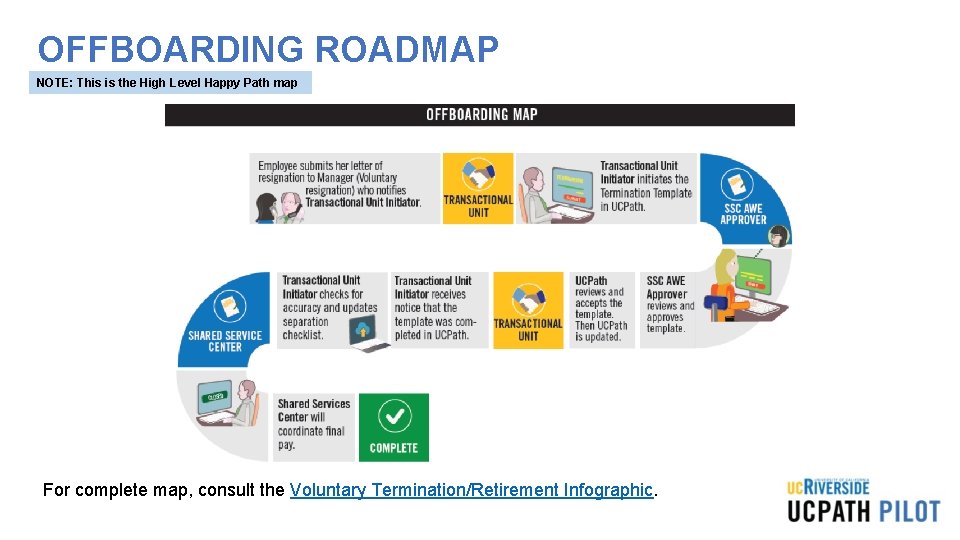
OFFBOARDING ROADMAP NOTE: This is the High Level Happy Path map For complete map, consult the Voluntary Termination/Retirement Infographic.
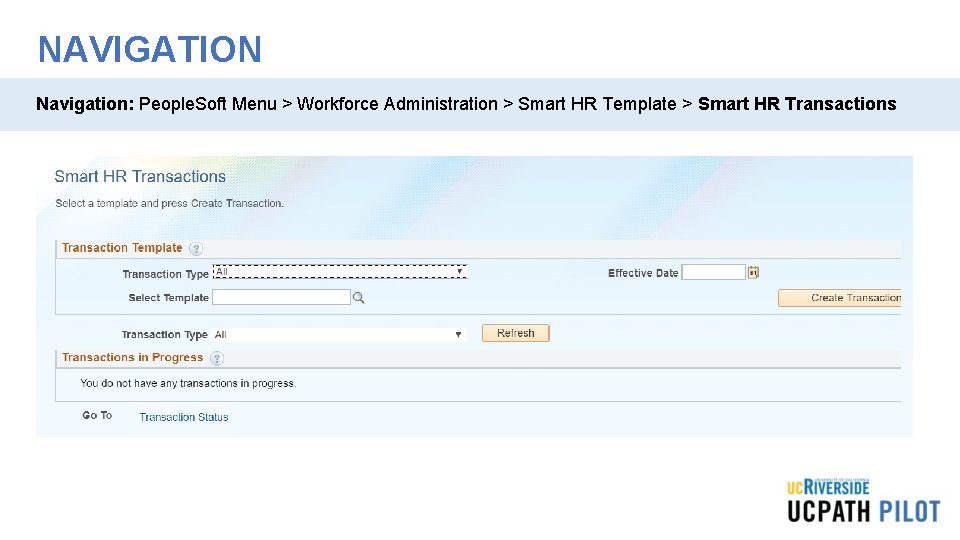
NAVIGATION Navigation: People. Soft Menu > Workforce Administration > Smart HR Template > Smart HR Transactions
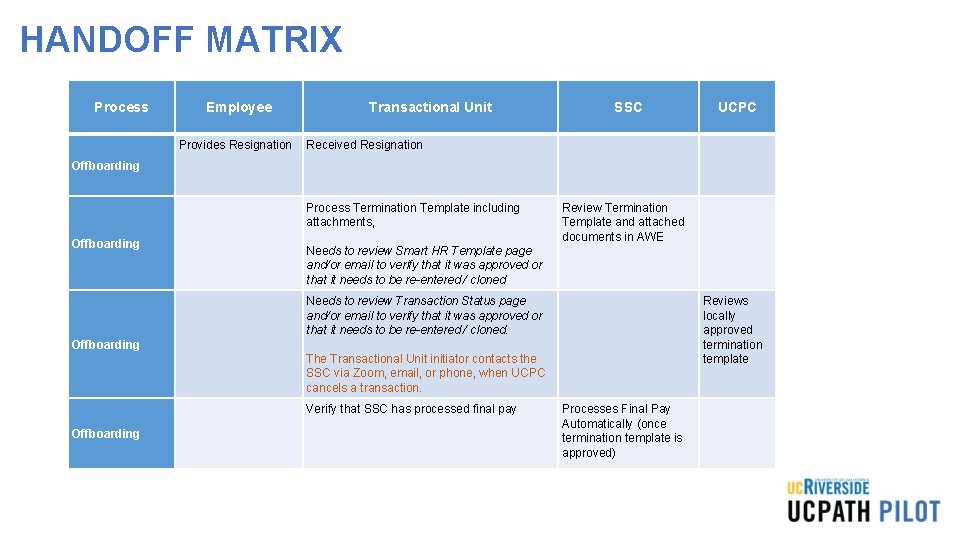
HANDOFF MATRIX Process Employee Provides Resignation Transactional Unit SSC UCPC Received Resignation Offboarding Process Termination Template including attachments, Offboarding Review Termination Template and attached documents in AWE Needs to review Smart HR Template page and/or email to verify that it was approved or that it needs to be re-entered / cloned Needs to review Transaction Status page and/or email to verify that it was approved or that it needs to be re-entered / cloned. Reviews locally approved termination template Offboarding The Transactional Unit initiator contacts the SSC via Zoom, email, or phone, when UCPC cancels a transaction. Verify that SSC has processed final pay Offboarding Processes Final Pay Automatically (once termination template is approved)
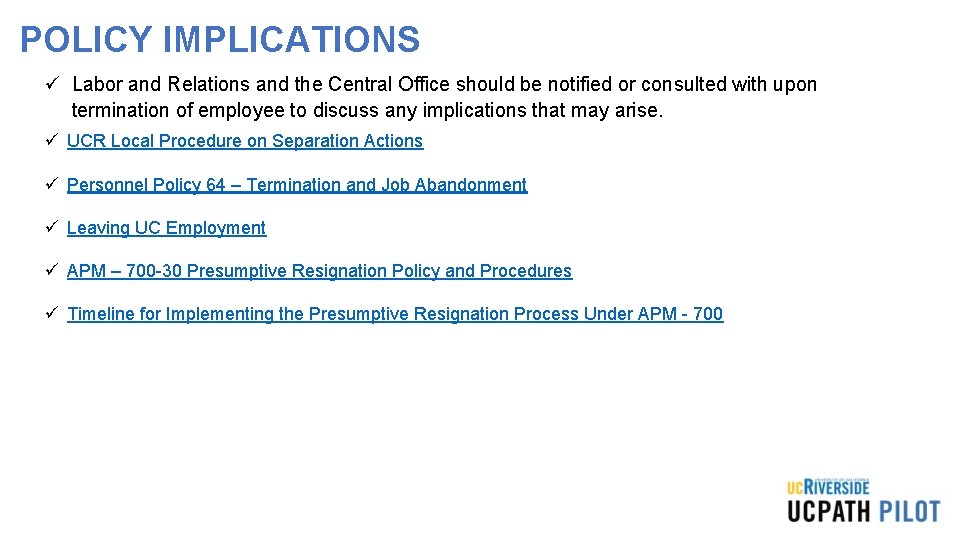
POLICY IMPLICATIONS ü Labor and Relations and the Central Office should be notified or consulted with upon termination of employee to discuss any implications that may arise. ü UCR Local Procedure on Separation Actions ü Personnel Policy 64 – Termination and Job Abandonment ü Leaving UC Employment ü APM – 700 -30 Presumptive Resignation Policy and Procedures ü Timeline for Implementing the Presumptive Resignation Process Under APM - 700
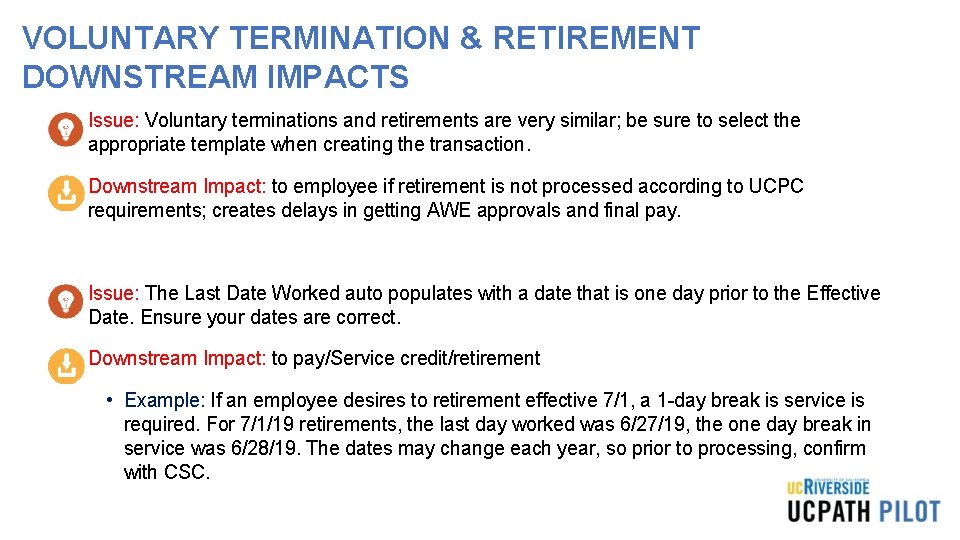
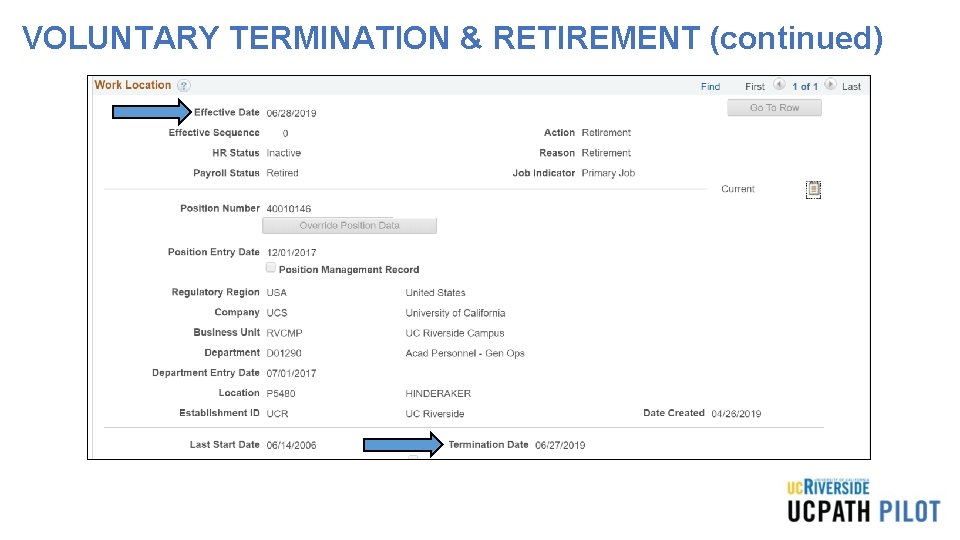
VOLUNTARY TERMINATION & RETIREMENT DOWNSTREAM IMPACTS • Issue: Voluntary terminations and retirements are very similar; be sure to select the appropriate template when creating the transaction. • Downstream Impact: to employee if retirement is not processed according to UCPC requirements; creates delays in getting AWE approvals and final pay. • Issue: The Last Date Worked auto populates with a date that is one day prior to the Effective Date. Ensure your dates are correct. • Downstream Impact: to pay/Service credit/retirement • Example: If an employee desires to retirement effective 7/1, a 1 -day break is service is required. For 7/1/19 retirements, the last day worked was 6/27/19, the one day break in service was 6/28/19. The dates may change each year, so prior to processing, confirm with CSC.
VOLUNTARY TERMINATION & RETIREMENT (continued) Project Policy ANL 4
MATERIALS Resource material regarding how to transact within UCPath for Offboarding Voluntary Termination and Retirement is located here please utilize these documents as a reference for how to transact. Offboarding Voluntary Termination: • Offboarding Checklist • Voluntary Termination / Retirement Template Transactions – Action Reason Codes and Descriptions • Initiate Voluntary Termination Template Transaction • Voluntary Termination (Offboarding) Infographic • Voluntary Termination (Offboarding) Process Workbook • Voluntary Termination (Offboarding) Process Map
Known Issues, Workarounds, Troubleshooting and Downstream Impacts
KNOWN ISSUE: MISSING PAY • Issue: Employee missing pay that creates a hardship. • Result: If an employee has a hardship due to missing pay, two options are available. • Insta Paycard can be requested for up 70% of the gross pay. The request is made via the SSC. • Employee can wait for an off-cycle check. This process normally takes about 72 business hours. • Downstream Impact: Employee will need to wait until the next on-cycle if the missing pay is not addressed.
EMERITUS APPOINTMENT • Issue: It is important to add emeritus appointment as retirement occurs. • Downstream Impact: Failure to add can result in loss of access to research, email, etc. , after 90 days. • Note: Process to reinstate access can take up to a week or more. - Impact
DEFAULT FUNDING - SCT • Issue: All newly created positions are given default funding. • Once a position is created and available in the FAU tool, the correct FAU needs to be added, prior to any funds being paid out. • Downstream Impact: Failure to maintain correct FAU will result in future SCTs.
UCPATH DATES • Issue: Incorrect effective dating • Incorrect chronological record of historic, current and future data: • Current Effective Date - Date that is less than or equal to the current system date. • Historic Effective Date – Dates that are less than the current information • Future Effective Date – Effective dates that are greater than the current information • Retro Effective Date – Date prior to the current pay period begin date • Issue: Incorrect Effective dates for inter-campus transfer • Downstream Impact: Breaks in service, retirement tier changes, new probation period to serve
UCPATH DATES (continued) • Issue: Incorrect Effective dates for end of fiscal year retirements • Downstream Impact: no compounded COLA for the employee • Issue: Incorrect effective sequencing (By policy, there is an order in which actions should occur) • Downstream Impact: incorrect chronological record, incorrect compensation and Range adjustment 1. Range Adjustment 2. Merit increase 3. Reclassification
THINGS TO REMEMBER • Voluntary and Involuntary transactions are very similar, be sure to select the appropriate template when creating the transaction. Be sure to select the correct Action/Reason code, or if needed, contact Labor and Relations for direction on which one is the appropriate one to use for the employee. • Effective Date is the date the transaction will take place. • The Last Date Worked auto populates with a date that is one day prior to the Effective Date. • Initiators can submit templates only for employees within departments for which they have security access. If needed, you must coordinate with other departments for terminating other UC jobs.
THINGS TO REMEMBER • If termination is due to death, only one termination template should be initiated. UCPC WFA Production will terminate all other UC Jobs for the employee. • Make note of your transaction ID for reference to find your transaction later. • Shared Service Centers will continue to transact for final pay. Final Pay should be submitted for any employee. • You can clone a transaction that has been denied or cancelled in the Smart HR Template.
THINGS TO REMEMBER • The transaction units will maintain a valid Offboarding checklist. • If a transaction is cancelled by UCPath, the transactional unit will need to advise the SSC of the action, and why it happened. • The employee will have access to the Former Employee portal for 36 months after termination. • The Employee is responsible for confirming retirement eligibility prior to submitting the retirement request.
THINGS TO REMEMBER Enterprise Directory is updated 30 days after Staff termination, 90 days after Faculty Termination, and 180 days after Termination for Post-Docs. Affiliates have until the end date set up for them when the account was created. In all cases, the account can be immediately inactivated in the Enterprise Directory by a departmental Enterprise Directory admin or ITS Super User.
LEARNING OBJECTIVES REVIEW Having completed this course, you should be able to: Know what each process is and what it means Access and initiate transactions in UCPath Understand where the hand offs in each process are Understand the policy behind each process Understand the key concepts and takeaways from each process
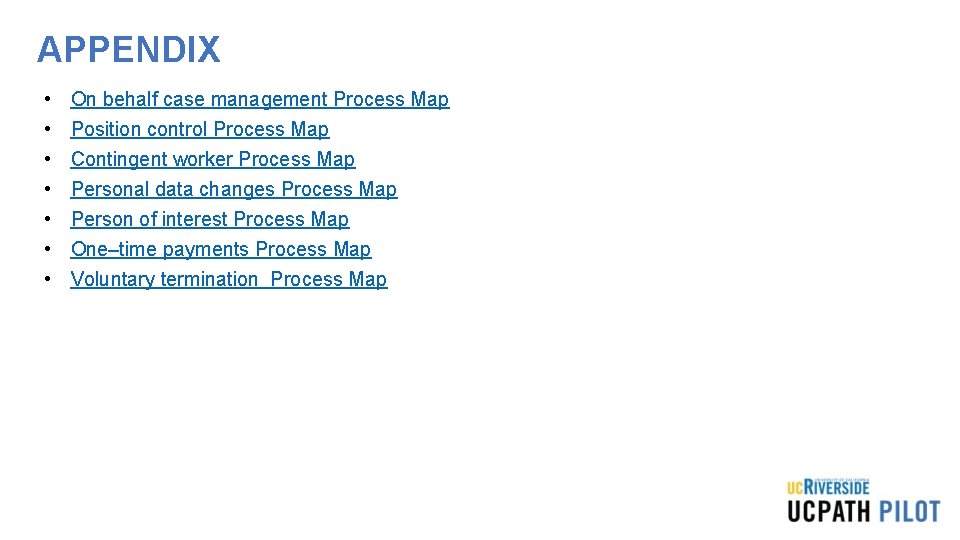
APPENDIX • • On behalf case management Process Map Position control Process Map Contingent worker Process Map Personal data changes Process Map Person of interest Process Map One–time payments Process Map Voluntary termination Process Map
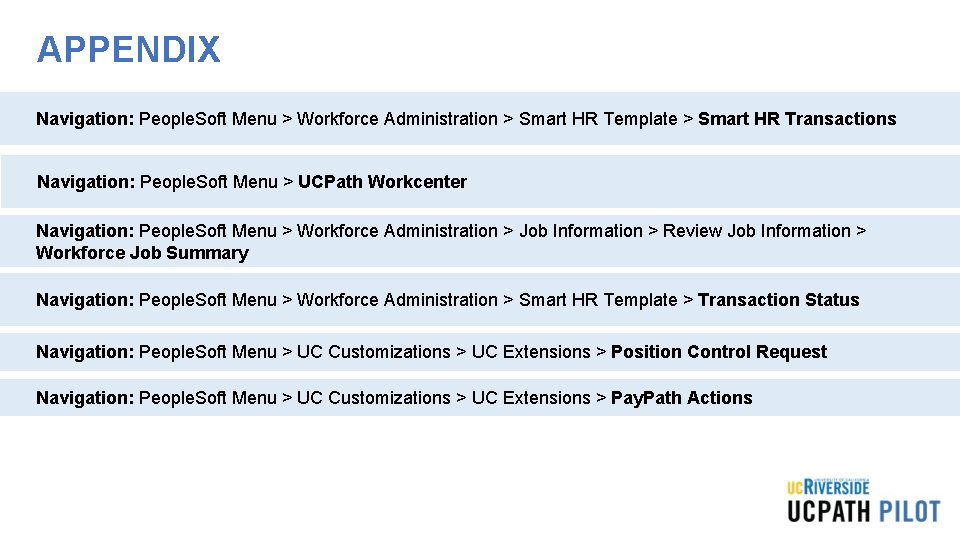
APPENDIX Navigation: People. Soft Menu > Workforce Administration > Smart HR Template > Smart HR Transactions Navigation: People. Soft Menu > UCPath Workcenter Navigation: People. Soft Menu > Workforce Administration > Job Information > Review Job Information > Workforce Job Summary Navigation: People. Soft Menu > Workforce Administration > Smart HR Template > Transaction Status Navigation: People. Soft Menu > UC Customizations > UC Extensions > Position Control Request Navigation: People. Soft Menu > UC Customizations > UC Extensions > Pay. Path Actions
UCR UCPATH TRANSACTION PILOT READINESS ASSESSMENT REVIEW
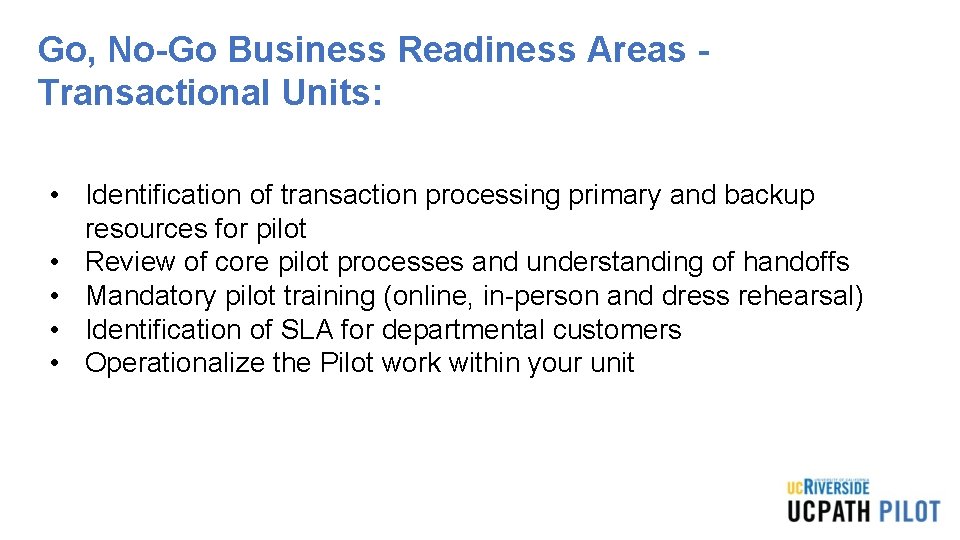
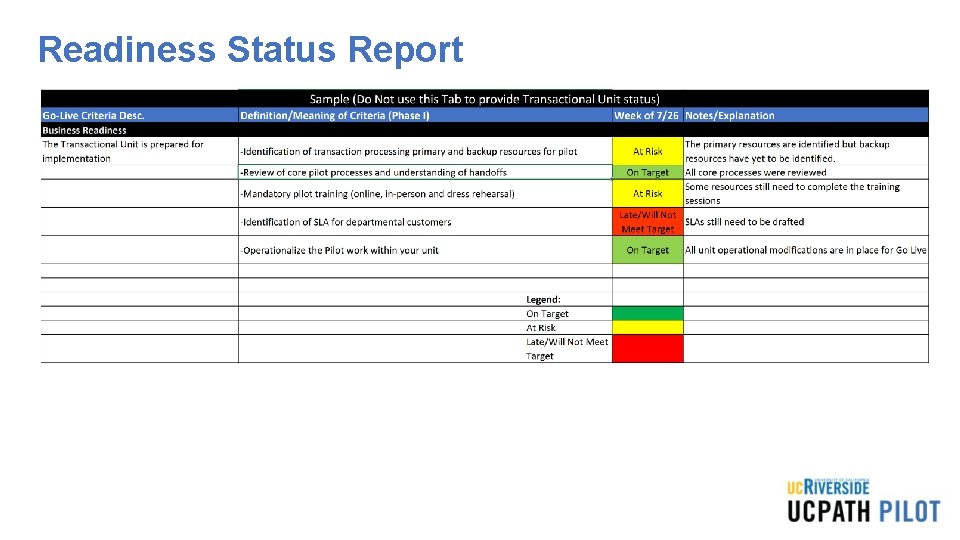
Go, No-Go Business Readiness Areas - Transactional Units: • Identification of transaction processing primary and backup resources for pilot • Review of core pilot processes and understanding of handoffs • Mandatory pilot training (online, in-person and dress rehearsal) • Identification of SLA for departmental customers • Operationalize the Pilot work within your unit
Readiness Status Report
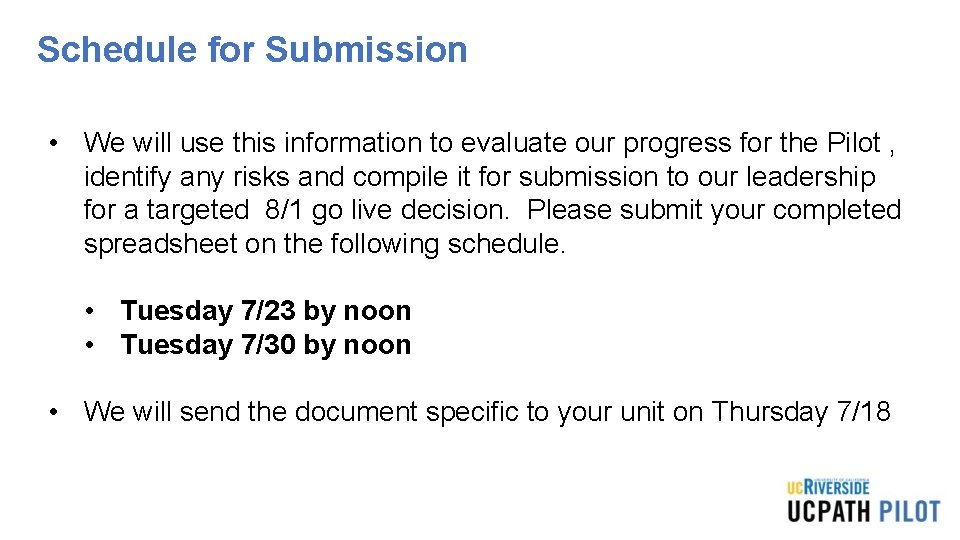
Schedule for Submission • We will use this information to evaluate our progress for the Pilot , identify any risks and compile it for submission to our leadership for a targeted 8/1 go live decision. Please submit your completed spreadsheet on the following schedule. • Tuesday 7/23 by noon • Tuesday 7/30 by noon • We will send the document specific to your unit on Thursday 7/18
Additional Topics for Review • • Expectations Monitoring/Auditing your transactions What to do when you need help Where do I go for Support?
UCR UCPATH TRANSACTION PILOT QUESTIONS, COMMENTS, FEEDBACK
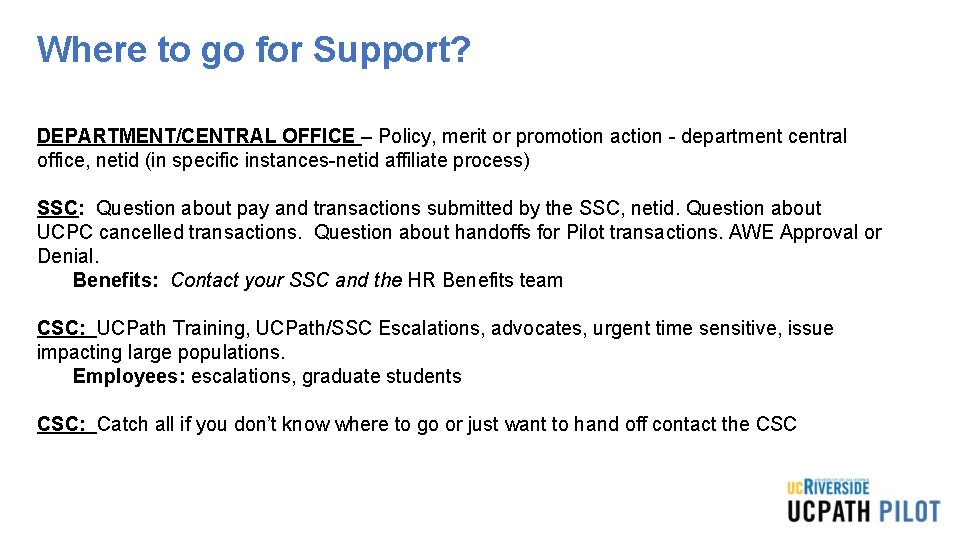
Where to go for Support? DEPARTMENT/CENTRAL OFFICE – Policy, merit or promotion action - department central office, netid (in specific instances-netid affiliate process) SSC: Question about pay and transactions submitted by the SSC, netid. Question about UCPC cancelled transactions. Question about handoffs for Pilot transactions. AWE Approval or Denial. Benefits: Contact your SSC and the HR Benefits team CSC: UCPath Training, UCPath/SSC Escalations, advocates, urgent time sensitive, issue impacting large populations. Employees: escalations, graduate students CSC: Catch all if you don’t know where to go or just want to hand off contact the CSC
Your Feedback Please http: //bit. ly/ucpathpilottraining