UCR UCPATH TRANSACTION PILOT INTRO TO PEOPLESOFT AND






- Slides: 74
UCR UCPATH TRANSACTION PILOT INTRO TO PEOPLESOFT AND UCPATH
TRAINER INTRODUCTION NAME: Antonette Toney, Robert Feinstein, Kameron Johnson, Lakesha Welch Title: Varies Department: UCPath Campus Support Center Year @UC: Varies Previous Experience: Varies
HOUSEKEEPING
Transaction Pilot & Training Overview
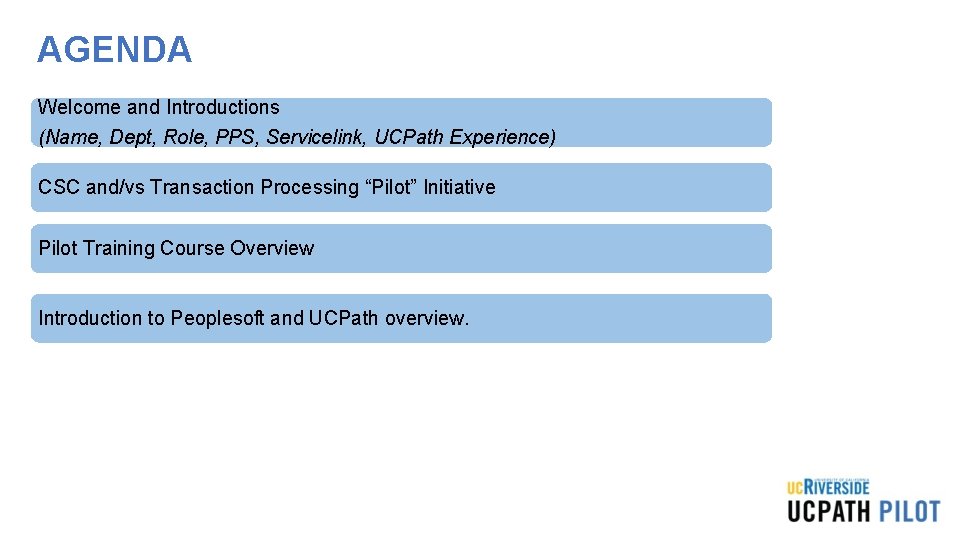
AGENDA Welcome and Introductions (Name, Dept, Role, PPS, Servicelink, UCPath Experience) CSC and/vs Transaction Processing “Pilot” Initiative Pilot Training Course Overview Introduction to Peoplesoft and UCPath overview.
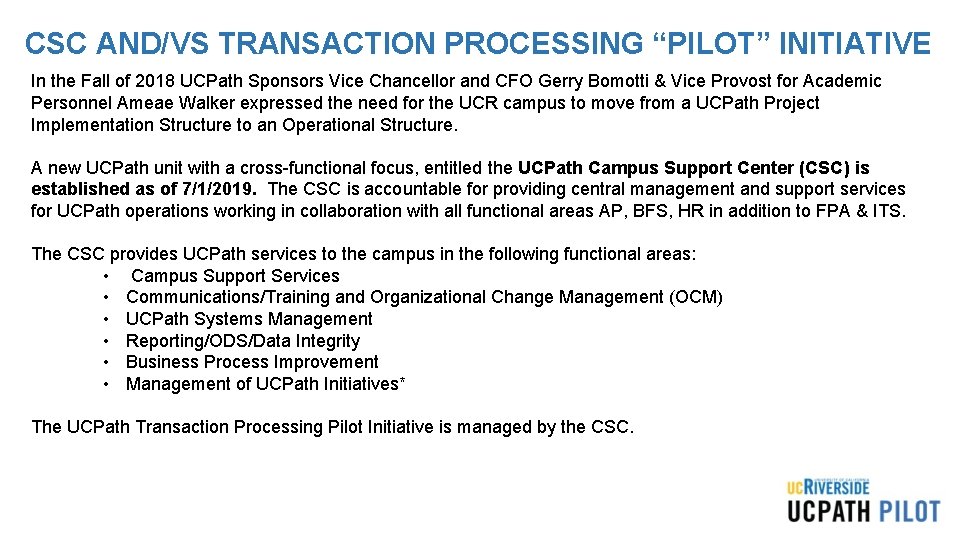
CSC AND/VS TRANSACTION PROCESSING “PILOT” INITIATIVE In the Fall of 2018 UCPath Sponsors Vice Chancellor and CFO Gerry Bomotti & Vice Provost for Academic Personnel Ameae Walker expressed the need for the UCR campus to move from a UCPath Project Implementation Structure to an Operational Structure. A new UCPath unit with a cross-functional focus, entitled the UCPath Campus Support Center (CSC) is established as of 7/1/2019. The CSC is accountable for providing central management and support services for UCPath operations working in collaboration with all functional areas AP, BFS, HR in addition to FPA & ITS. The CSC provides UCPath services to the campus in the following functional areas: • Campus Support Services • Communications/Training and Organizational Change Management (OCM) • UCPath Systems Management • Reporting/ODS/Data Integrity • Business Process Improvement • Management of UCPath Initiatives* The UCPath Transaction Processing Pilot Initiative is managed by the CSC.
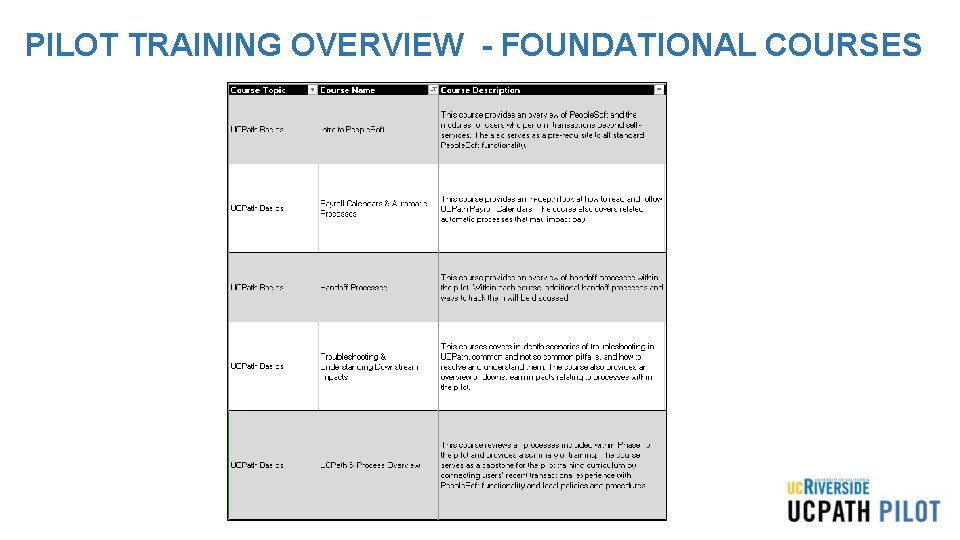
PILOT TRAINING OVERVIEW - FOUNDATIONAL COURSES
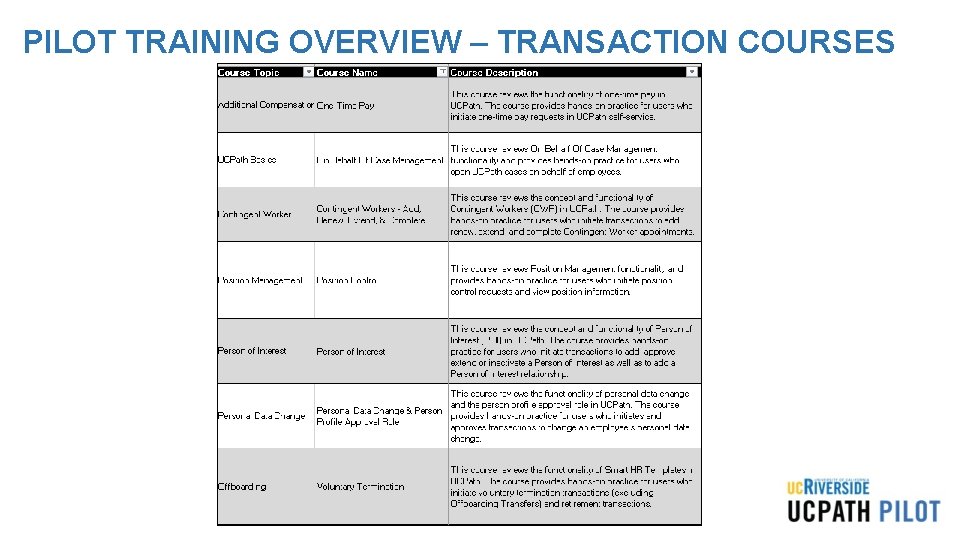
PILOT TRAINING OVERVIEW – TRANSACTION COURSES
Introduction to Peoplesoft (PS) and UCPath
LEARNING OBJECTIVES Recognize and define key UCPath terms and acronyms Describe High Level Transaction Process flows View the functionalities of the UCPath Dashboard Describe Approval Workflow Engine in UCPath Learn how to view comments Describe how the WFA Overview and Employee Lifecycle work
LEARNING TOPICS Ø HIGH LEVEL TRANSACTION PROCESS FLOW Ø UCPATH TERMS AND ACRONYMS Ø UCPATH NAVIGATION – Demo Ø UCPATH FUNCTIONALITY - Demo Ø AWE OVERVIEW AND APPROVALS - Demo Ø WFA OVERVIEW AND EMPLOYEE LIFECYCLE Ø LEARNING OBJECTIVES REVIEW Ø THINGS TO REMEMBER Ø APPENDIX
High Level Transaction Process Flow
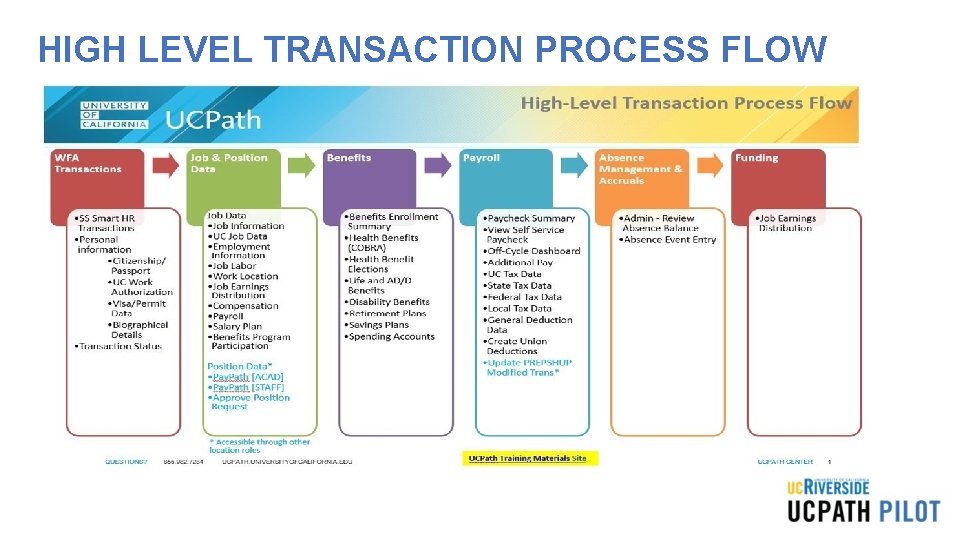
HIGH LEVEL TRANSACTION PROCESS FLOW
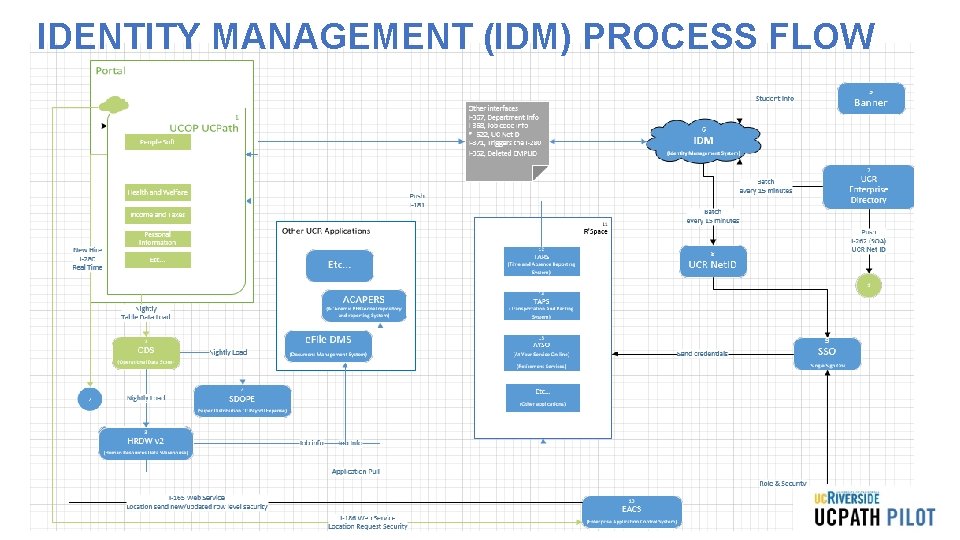
IDENTITY MANAGEMENT (IDM) PROCESS FLOW
UCPath Navigation
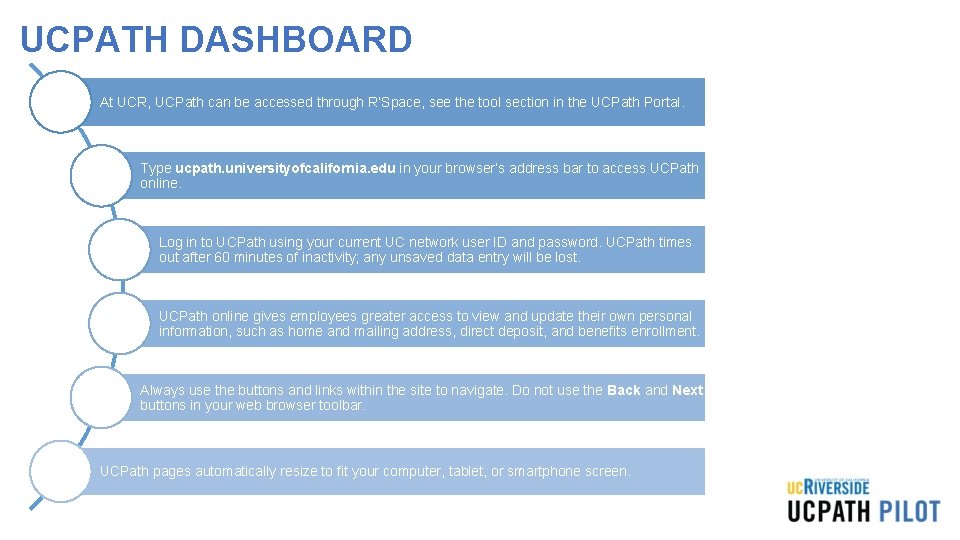
UCPATH DASHBOARD At UCR, UCPath can be accessed through R’Space, see the tool section in the UCPath Portal. Type ucpath. universityofcalifornia. edu in your browser’s address bar to access UCPath online. Log in to UCPath using your current UC network user ID and password. UCPath times out after 60 minutes of inactivity; any unsaved data entry will be lost. UCPath online gives employees greater access to view and update their own personal information, such as home and mailing address, direct deposit, and benefits enrollment. Always use the buttons and links within the site to navigate. Do not use the Back and Next buttons in your web browser toolbar. UCPath pages automatically resize to fit your computer, tablet, or smartphone screen.
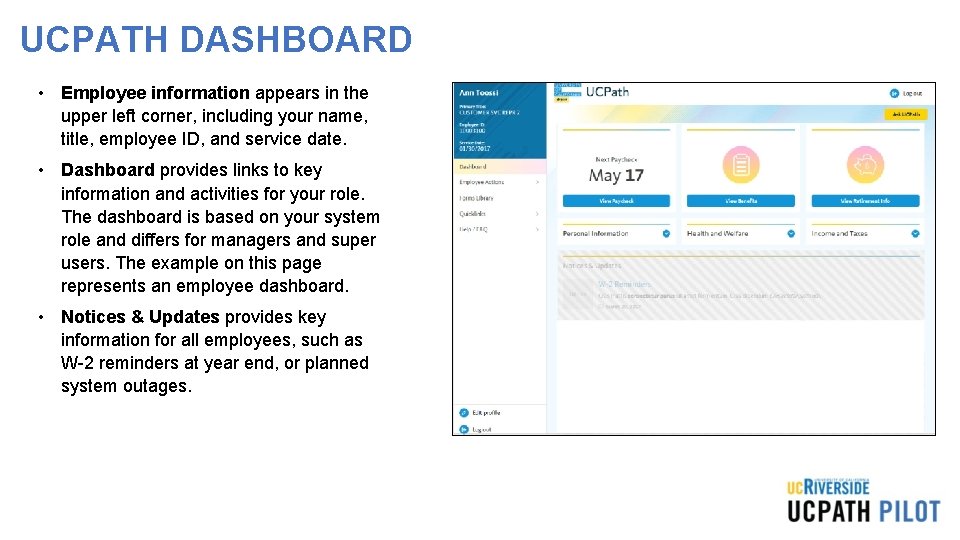
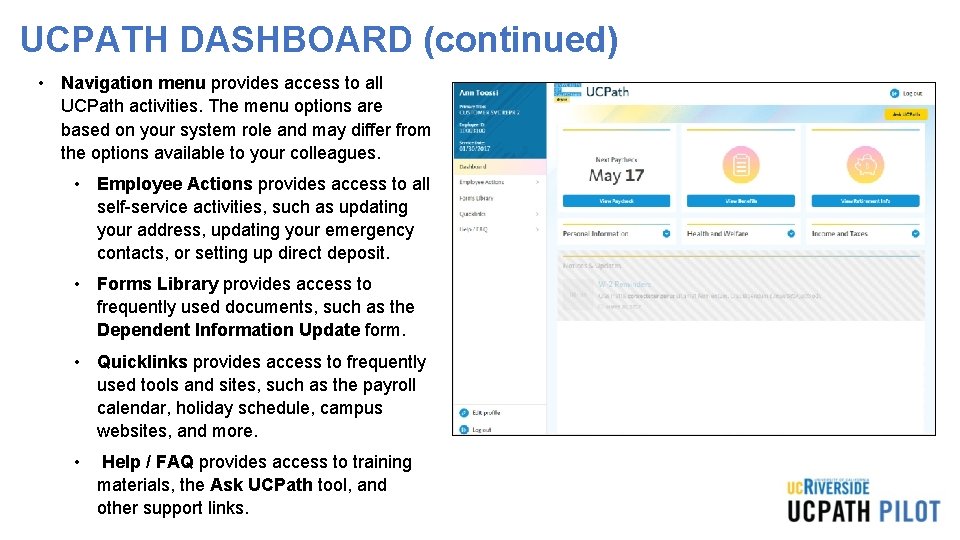
UCPATH DASHBOARD • Employee information appears in the upper left corner, including your name, title, employee ID, and service date. • Dashboard provides links to key information and activities for your role. The dashboard is based on your system role and differs for managers and super users. The example on this page represents an employee dashboard. • Notices & Updates provides key information for all employees, such as W-2 reminders at year end, or planned system outages.
UCPATH DASHBOARD (continued) • Navigation menu provides access to all UCPath activities. The menu options are based on your system role and may differ from the options available to your colleagues. • Employee Actions provides access to all self-service activities, such as updating your address, updating your emergency contacts, or setting up direct deposit. • Forms Library provides access to frequently used documents, such as the Dependent Information Update form. • Quicklinks provides access to frequently used tools and sites, such as the payroll calendar, holiday schedule, campus websites, and more. • Help / FAQ provides access to training materials, the Ask UCPath tool, and other support links.
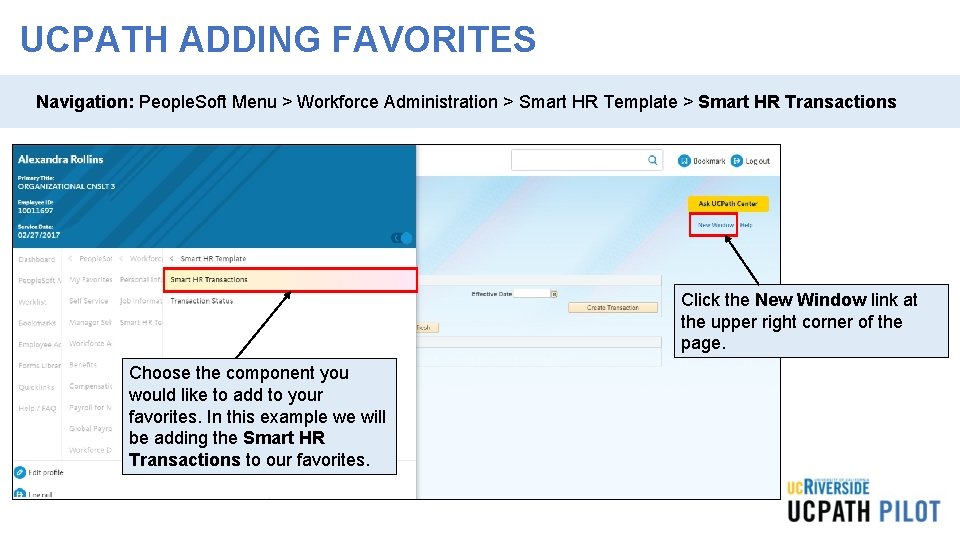
UCPATH ADDING FAVORITES Navigation: People. Soft Menu > Workforce Administration > Smart HR Template > Smart HR Transactions Click the New Window link at the upper right corner of the page. Choose the component you would like to add to your favorites. In this example we will be adding the Smart HR Transactions to our favorites.
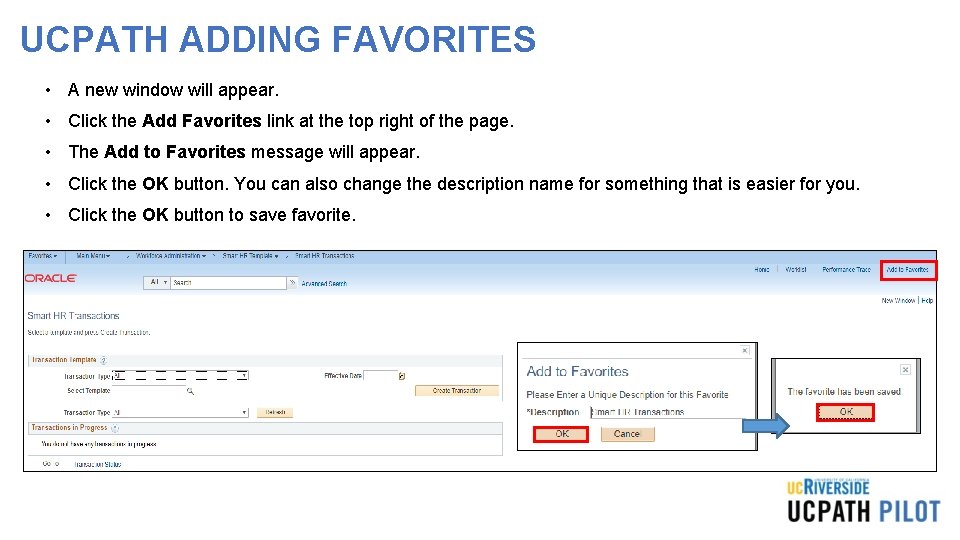
UCPATH ADDING FAVORITES • A new window will appear. • Click the Add Favorites link at the top right of the page. • The Add to Favorites message will appear. • Click the OK button. You can also change the description name for something that is easier for you. • Click the OK button to save favorite.
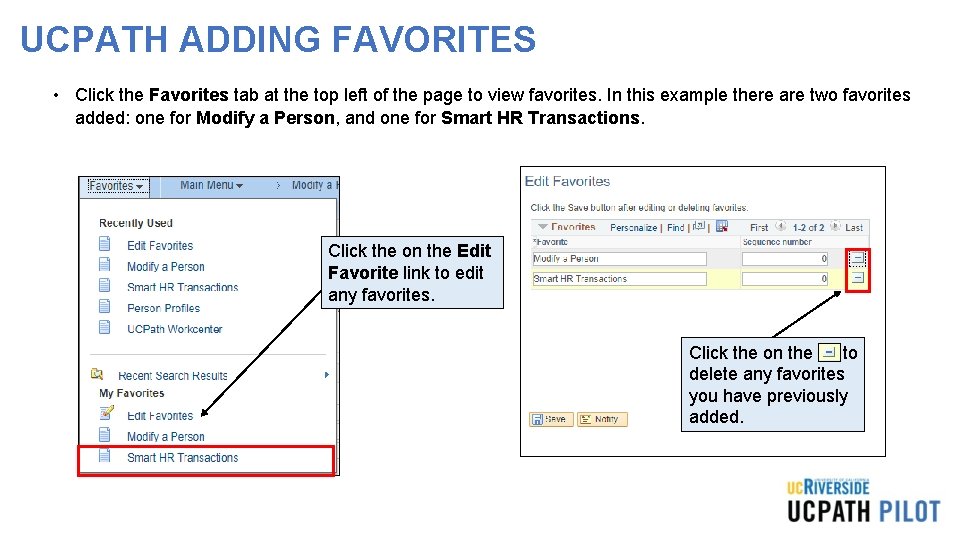
UCPATH ADDING FAVORITES • Click the Favorites tab at the top left of the page to view favorites. In this example there are two favorites added: one for Modify a Person, and one for Smart HR Transactions. Click the on the Edit Favorite link to edit any favorites. Click the on the to delete any favorites you have previously added.
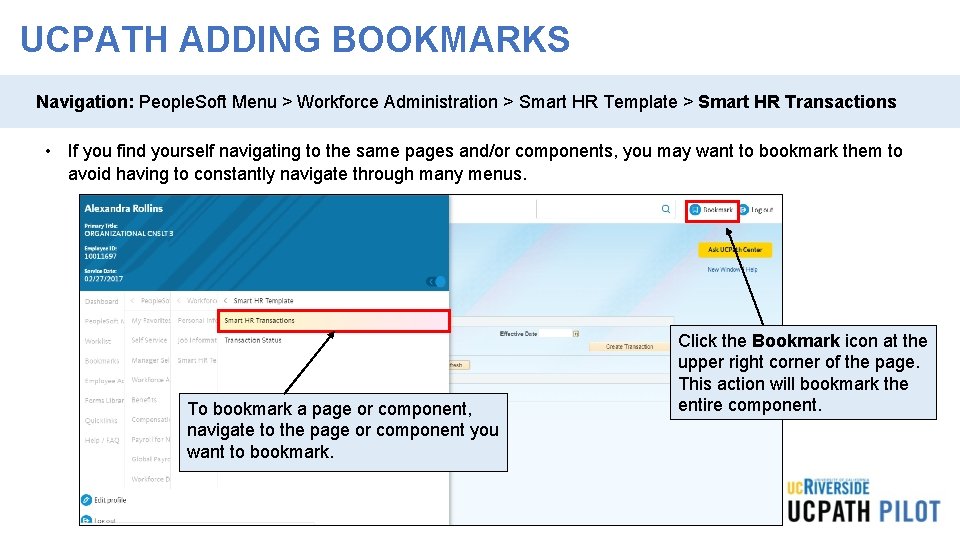
UCPATH ADDING BOOKMARKS Navigation: People. Soft Menu > Workforce Administration > Smart HR Template > Smart HR Transactions • If you find yourself navigating to the same pages and/or components, you may want to bookmark them to avoid having to constantly navigate through many menus. To bookmark a page or component, navigate to the page or component you want to bookmark. Click the Bookmark icon at the upper right corner of the page. This action will bookmark the entire component.
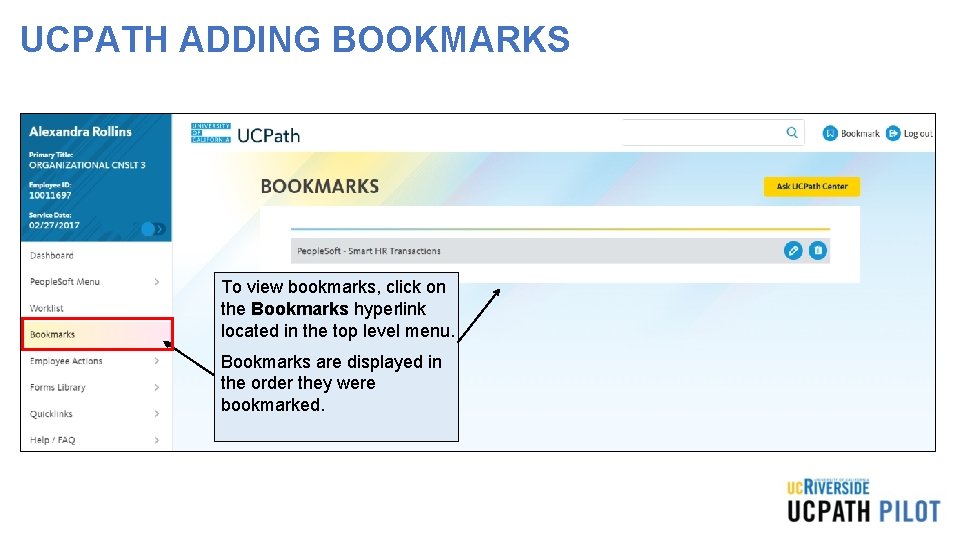
UCPATH ADDING BOOKMARKS To view bookmarks, click on the Bookmarks hyperlink located in the top level menu. Bookmarks are displayed in the order they were bookmarked.
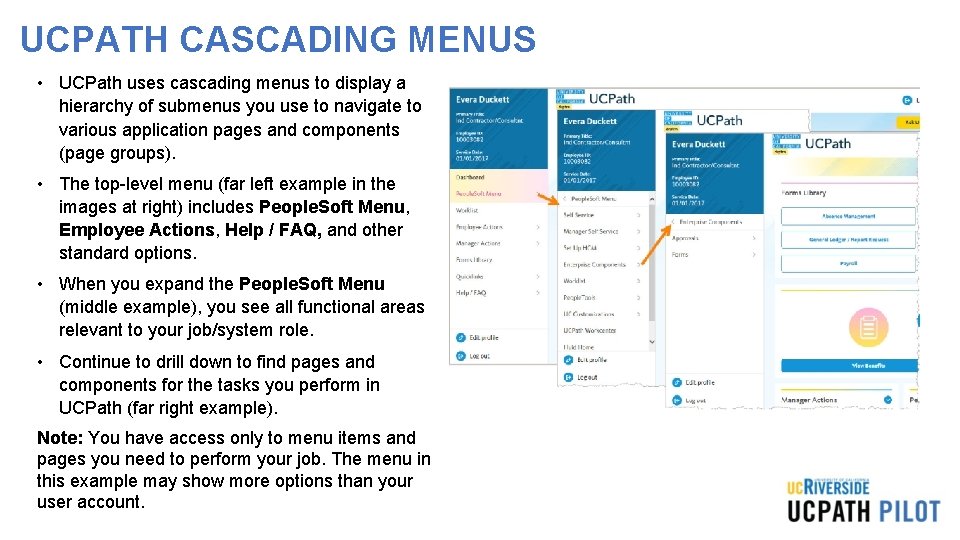
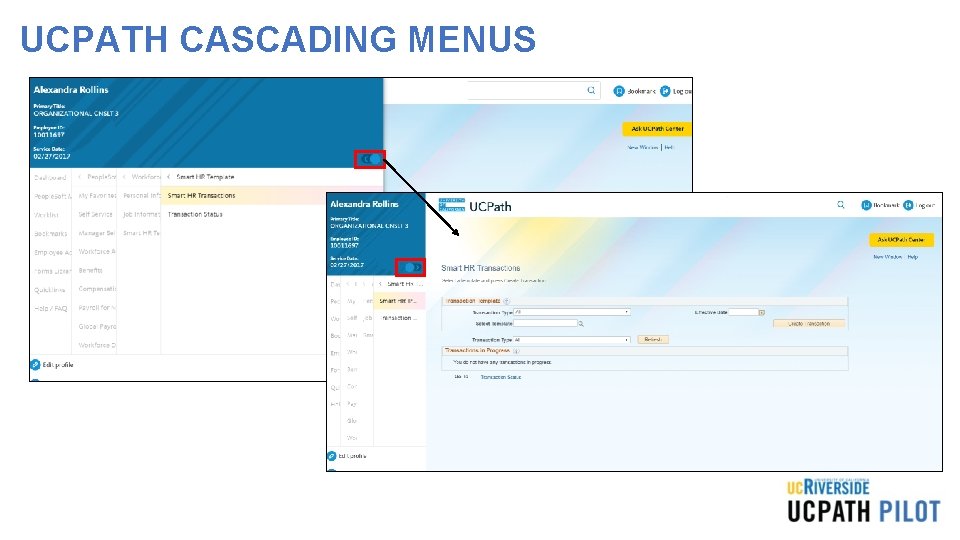
UCPATH CASCADING MENUS • UCPath uses cascading menus to display a hierarchy of submenus you use to navigate to various application pages and components (page groups). • The top-level menu (far left example in the images at right) includes People. Soft Menu, Employee Actions, Help / FAQ, and other standard options. • When you expand the People. Soft Menu (middle example), you see all functional areas relevant to your job/system role. • Continue to drill down to find pages and components for the tasks you perform in UCPath (far right example). Note: You have access only to menu items and pages you need to perform your job. The menu in this example may show more options than your user account.
UCPATH CASCADING MENUS
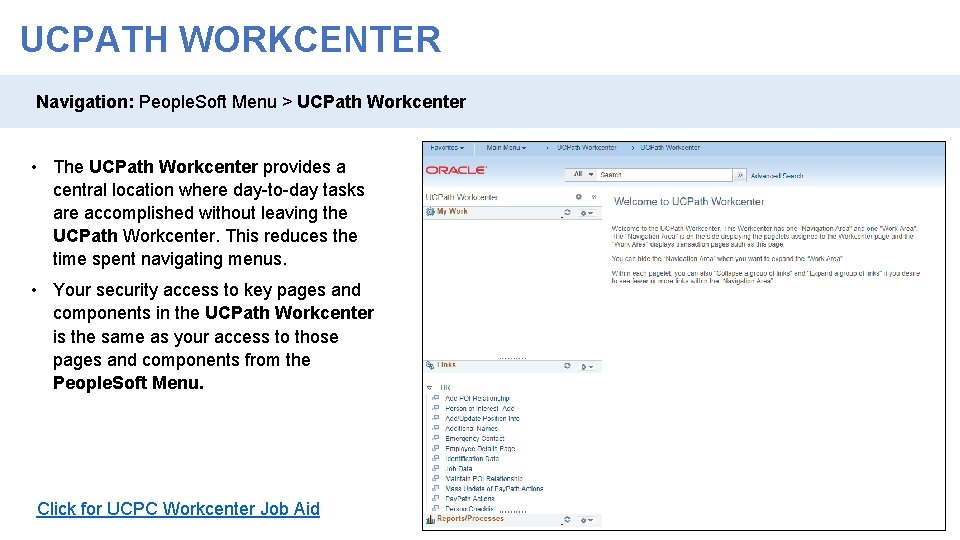
UCPATH WORKCENTER Navigation: People. Soft Menu > UCPath Workcenter • The UCPath Workcenter provides a central location where day-to-day tasks are accomplished without leaving the UCPath Workcenter. This reduces the time spent navigating menus. • Your security access to key pages and components in the UCPath Workcenter is the same as your access to those pages and components from the People. Soft Menu. Click for UCPC Workcenter Job Aid
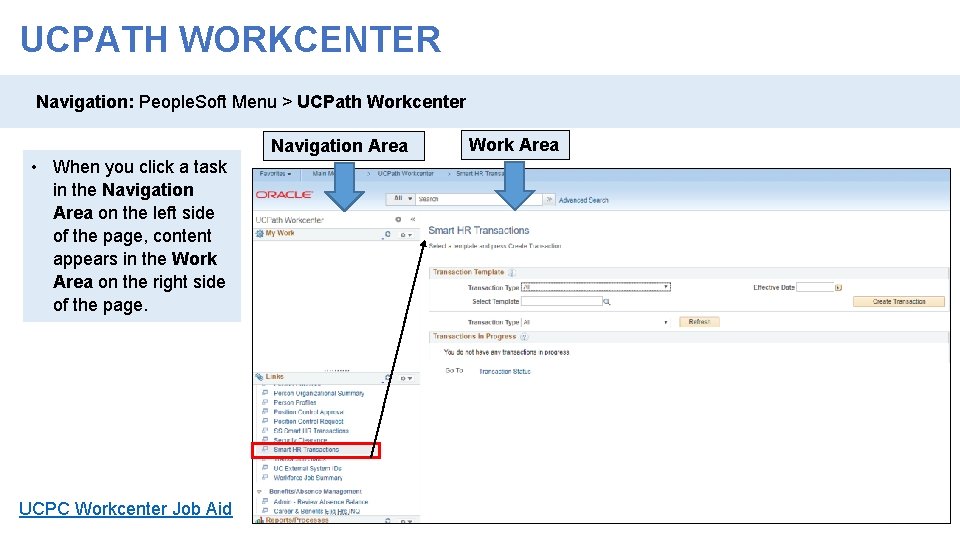
UCPATH WORKCENTER Navigation: People. Soft Menu > UCPath Workcenter Navigation Area • When you click a task in the Navigation Area on the left side of the page, content appears in the Work Area on the right side of the page. UCPC Workcenter Job Aid Work Area
UCPATH SELF-SERVICE EMPLOYEE ACTIONS • The Self-Service Employee Actions allows employees to be able to directly update some of their own personal data. Self-Service includes: • Add a preferred name to personal information or update legal name • Enter disability status • Enter Veteran status • Generate Employment summary, including dates of employment and earnings • Update address or Phone number • Update Educational Information • Update honors, awards, licenses, or certifications • Enroll to Receive W-2 online in UCPath • Review leave balances • Review online paystub • Update Direct Deposit Information • Enroll in benefits Click for UCPC Job Aid
UCPATH SELF-SERVICE EMPLOYEE ACTIONS • The Self-Service Employee Actions allows employees to be able to directly update some of their own personal data. Self-Service includes: • Review patent acknowledgment • Review status of an existing case that you submitted • Submit a case to the UCPath Center • Set up security questions and answers • Update California tax withholding (DE-4) Click for UCPC Job Aid
UCPath Terms and Acronyms
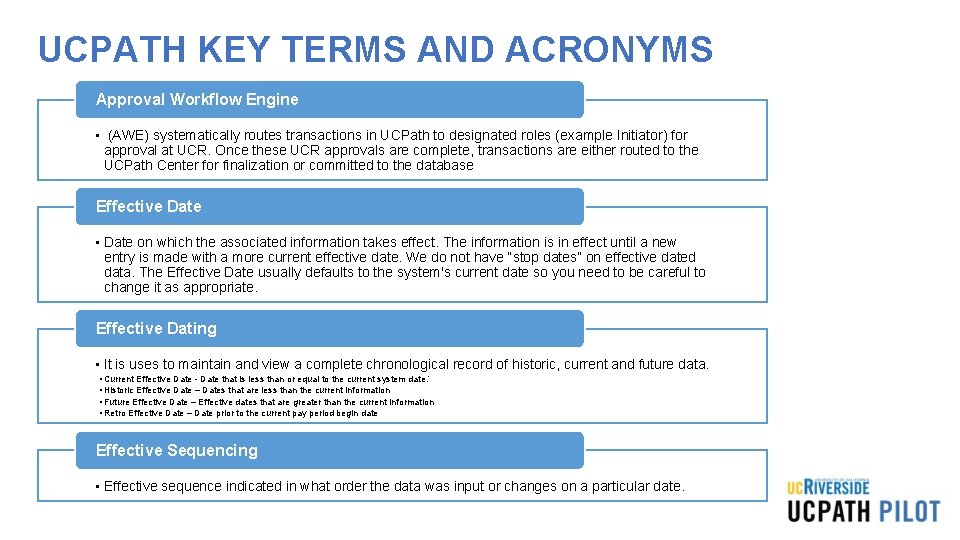
UCPATH KEY TERMS AND ACRONYMS Approval Workflow Engine • (AWE) systematically routes transactions in UCPath to designated roles (example Initiator) for approval at UCR. Once these UCR approvals are complete, transactions are either routed to the UCPath Center for finalization or committed to the database Effective Date • Date on which the associated information takes effect. The information is in effect until a new entry is made with a more current effective date. We do not have “stop dates” on effective dated data. The Effective Date usually defaults to the system's current date so you need to be careful to change it as appropriate. Effective Dating • It is uses to maintain and view a complete chronological record of historic, current and future data. • Current Effective Date - Date that is less than or equal to the current system date. ’ • Historic Effective Date – Dates that are less than the current information • Future Effective Date – Effective dates that are greater than the current information • Retro Effective Date – Date prior to the current pay period begin date Effective Sequencing • Effective sequence indicated in what order the data was input or changes on a particular date.
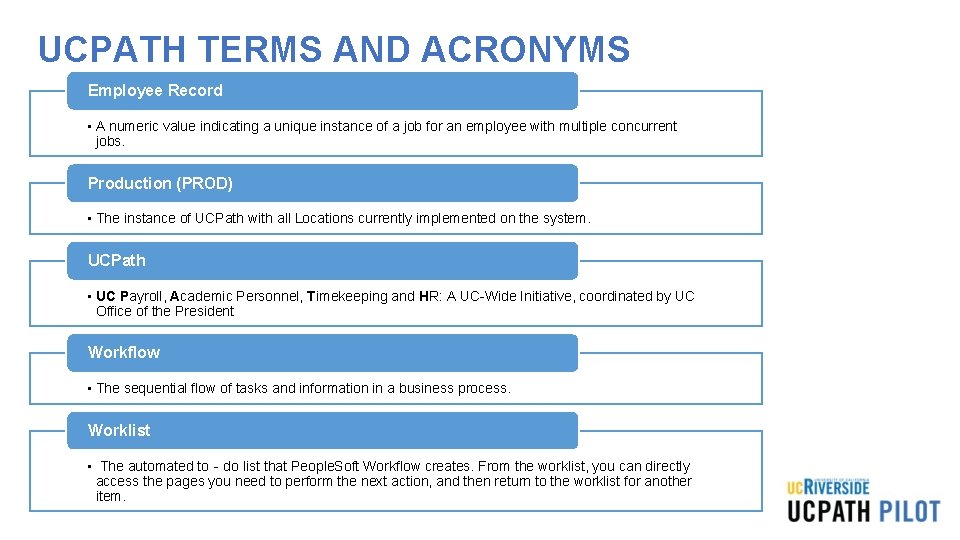
UCPATH TERMS AND ACRONYMS Employee Record • A numeric value indicating a unique instance of a job for an employee with multiple concurrent jobs. Production (PROD) • The instance of UCPath with all Locations currently implemented on the system. UCPath • UC Payroll, Academic Personnel, Timekeeping and HR: A UC-Wide Initiative, coordinated by UC Office of the President Workflow • The sequential flow of tasks and information in a business process. Worklist • The automated to‐do list that People. Soft Workflow creates. From the worklist, you can directly access the pages you need to perform the next action, and then return to the worklist for another item.
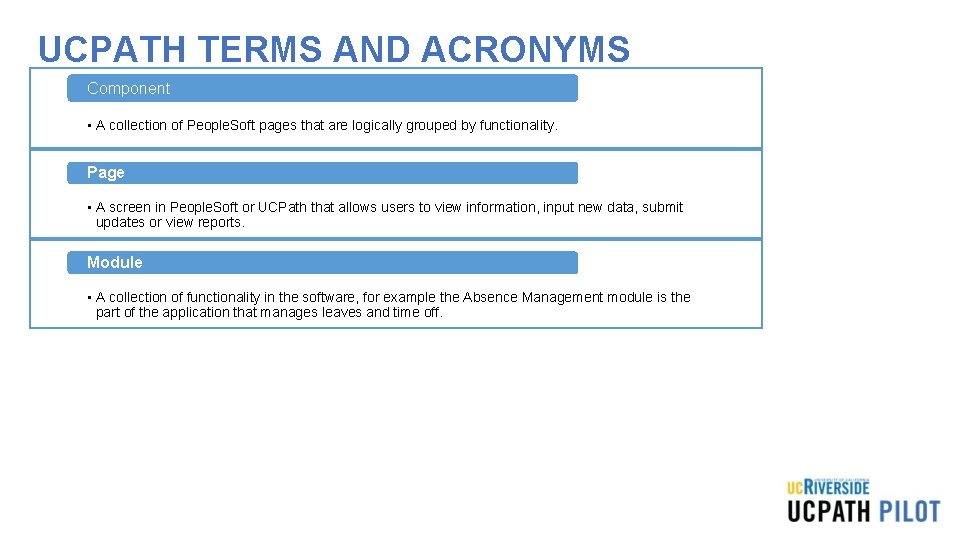
UCPATH TERMS AND ACRONYMS Component • A collection of People. Soft pages that are logically grouped by functionality. Page • A screen in People. Soft or UCPath that allows users to view information, input new data, submit updates or view reports. Module • A collection of functionality in the software, for example the Absence Management module is the part of the application that manages leaves and time off.
UCPath Functionality
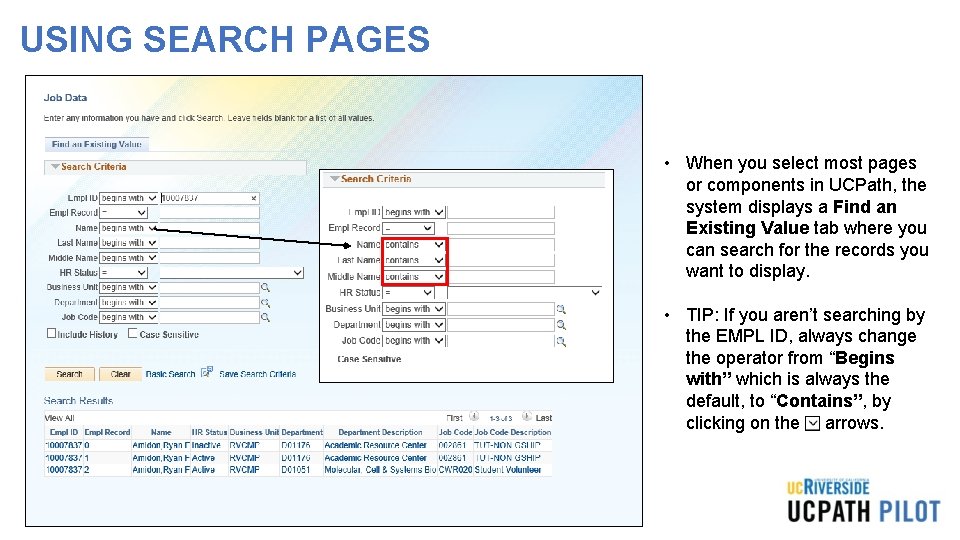
USING SEARCH PAGES • When you select most pages or components in UCPath, the system displays a Find an Existing Value tab where you can search for the records you want to display. • TIP: If you aren’t searching by the EMPL ID, always change the operator from “Begins with” which is always the default, to “Contains”, by clicking on the arrows.
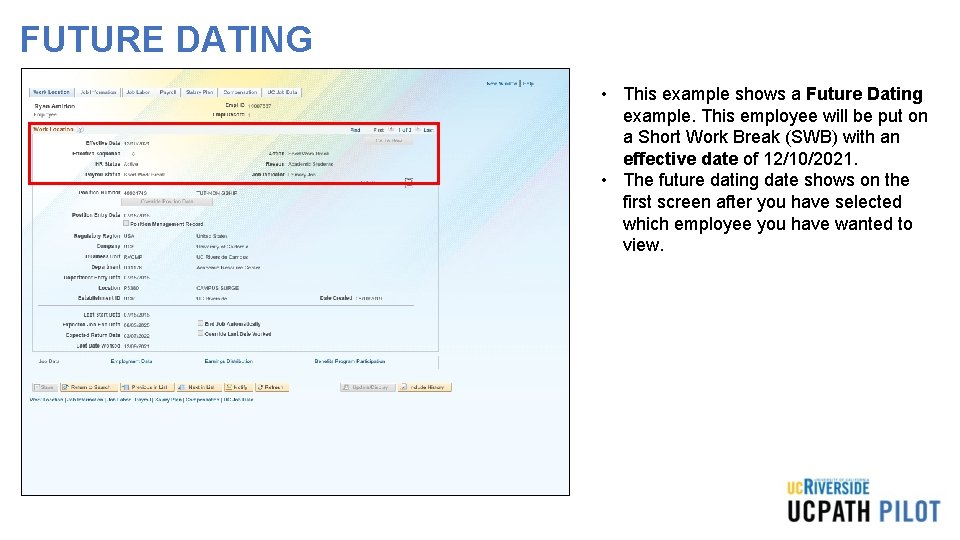
FUTURE DATING • This example shows a Future Dating example. This employee will be put on a Short Work Break (SWB) with an effective date of 12/10/2021. • The future dating date shows on the first screen after you have selected which employee you have wanted to view.
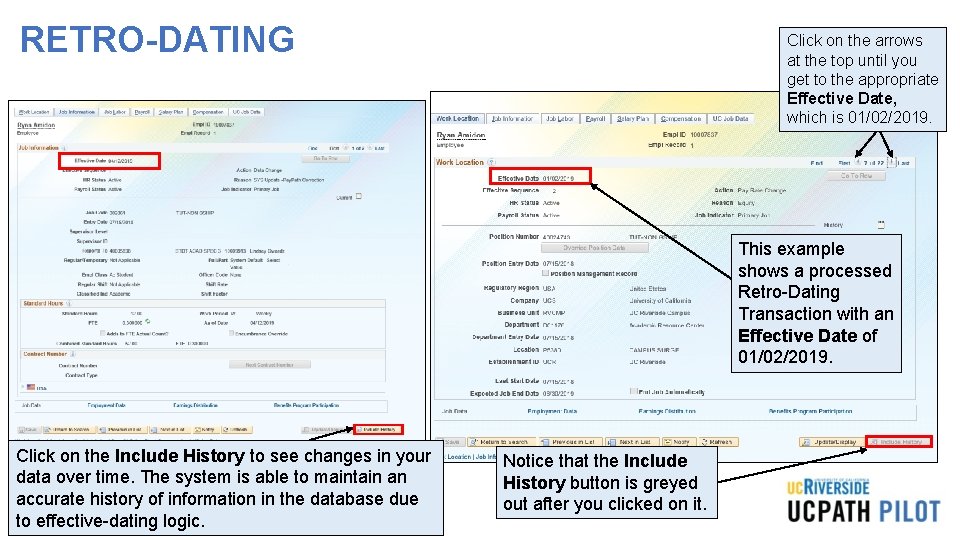
RETRO-DATING Click on the arrows at the top until you get to the appropriate Effective Date, which is 01/02/2019. This example shows a processed Retro-Dating Transaction with an Effective Date of 01/02/2019. Click on the Include History to see changes in your data over time. The system is able to maintain an accurate history of information in the database due to effective-dating logic. Notice that the Include History button is greyed out after you clicked on it.
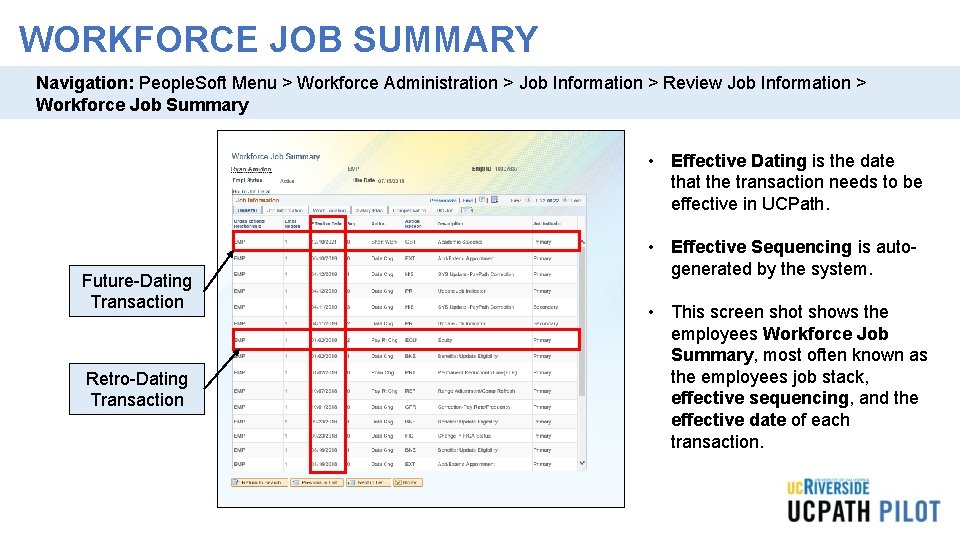
WORKFORCE JOB SUMMARY Navigation: People. Soft Menu > Workforce Administration > Job Information > Review Job Information > Workforce Job Summary • Effective Dating is the date that the transaction needs to be effective in UCPath. Future-Dating Transaction Retro-Dating Transaction • Effective Sequencing is autogenerated by the system. • This screen shot shows the employees Workforce Job Summary, most often known as the employees job stack, effective sequencing, and the effective date of each transaction.
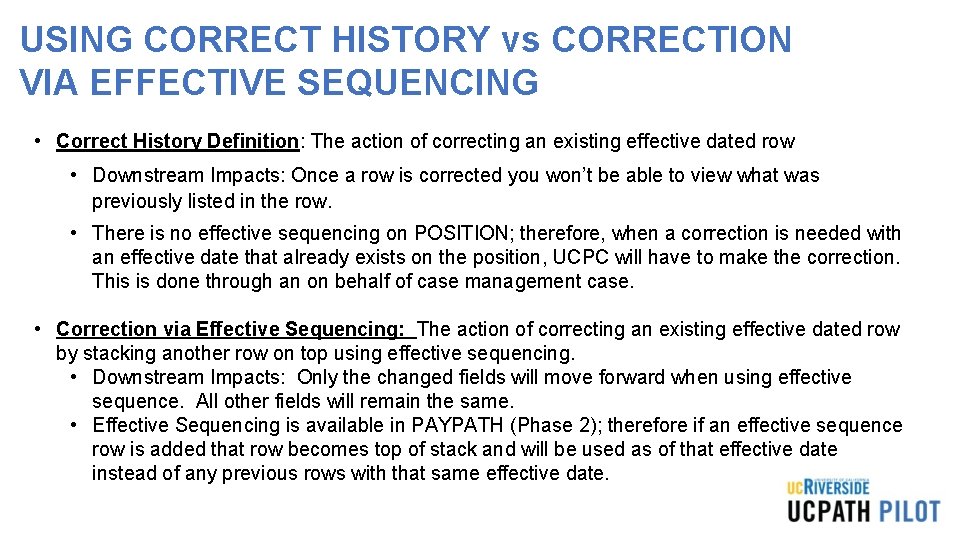
USING CORRECT HISTORY vs CORRECTION VIA EFFECTIVE SEQUENCING • Correct History Definition: The action of correcting an existing effective dated row • Downstream Impacts: Once a row is corrected you won’t be able to view what was previously listed in the row. • There is no effective sequencing on POSITION; therefore, when a correction is needed with an effective date that already exists on the position, UCPC will have to make the correction. This is done through an on behalf of case management case. • Correction via Effective Sequencing: The action of correcting an existing effective dated row by stacking another row on top using effective sequencing. • Downstream Impacts: Only the changed fields will move forward when using effective sequence. All other fields will remain the same. • Effective Sequencing is available in PAYPATH (Phase 2); therefore if an effective sequence row is added that row becomes top of stack and will be used as of that effective date instead of any previous rows with that same effective date.
AWE Overview and Approvals
INTRO TO AWE • AWE is the UCPath functionality that routes transactions for review and approval. This process ensures the appropriate users review and approve the transactions. • Location Approver options include: Approve Deny
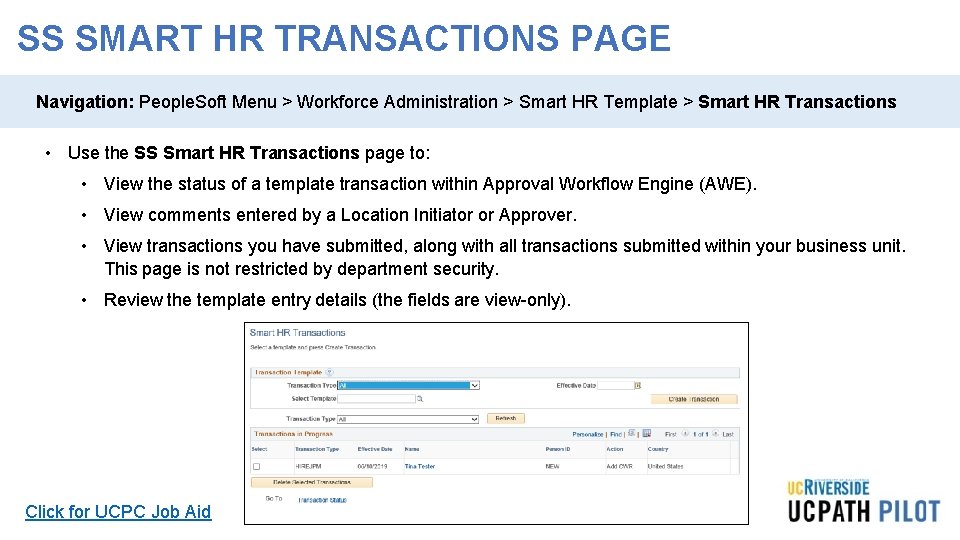
SS SMART HR TRANSACTIONS PAGE Navigation: People. Soft Menu > Workforce Administration > Smart HR Template > Smart HR Transactions • Use the SS Smart HR Transactions page to: • View the status of a template transaction within Approval Workflow Engine (AWE). • View comments entered by a Location Initiator or Approver. • View transactions you have submitted, along with all transactions submitted within your business unit. This page is not restricted by department security. • Review the template entry details (the fields are view-only). Click for UCPC Job Aid
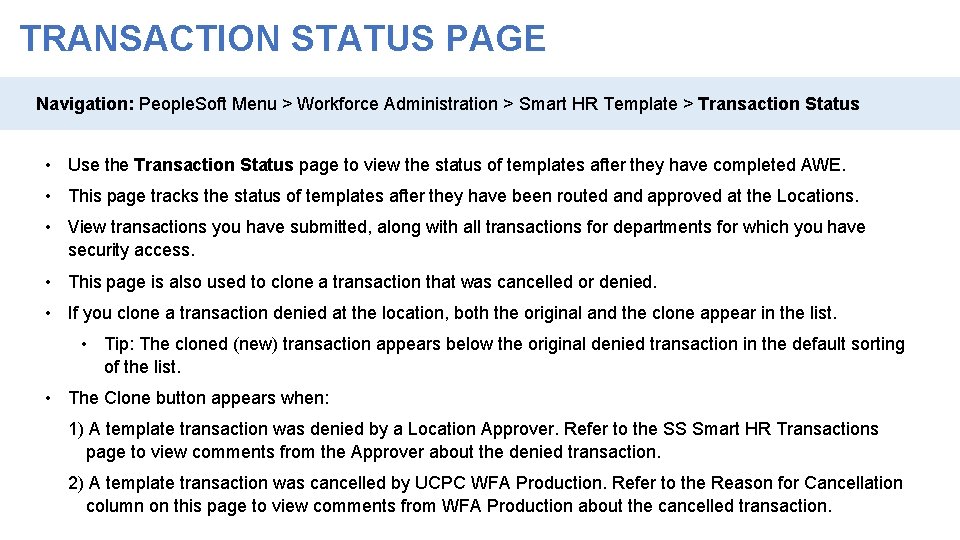
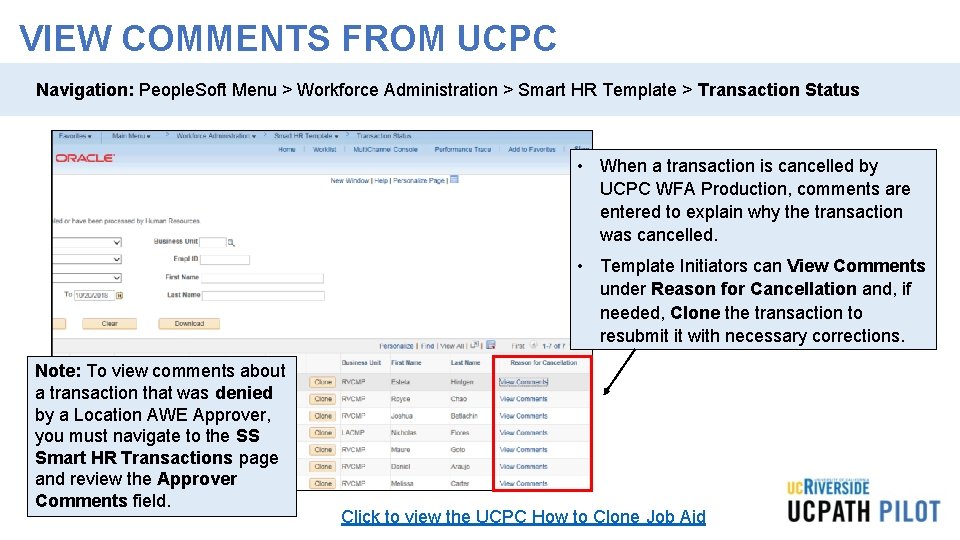
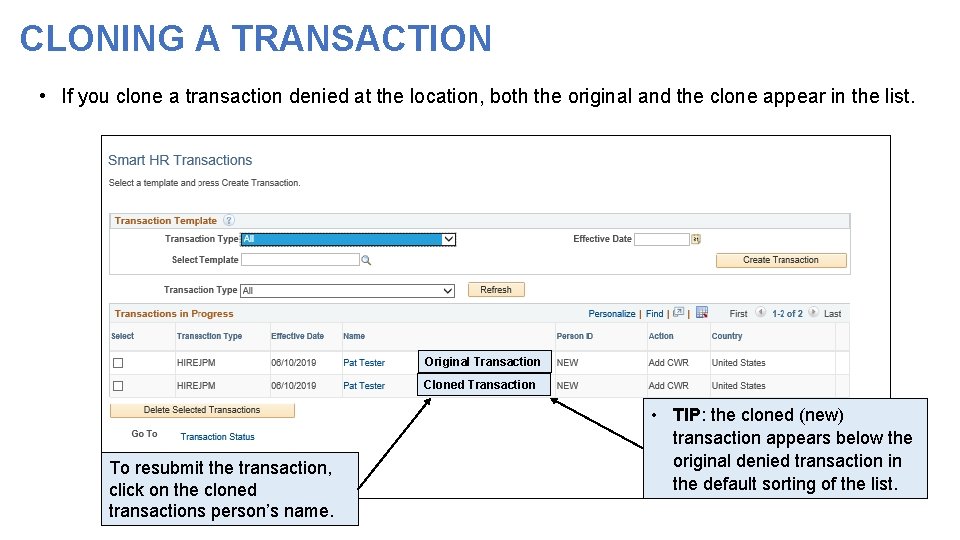
TRANSACTION STATUS PAGE Navigation: People. Soft Menu > Workforce Administration > Smart HR Template > Transaction Status • Use the Transaction Status page to view the status of templates after they have completed AWE. • This page tracks the status of templates after they have been routed and approved at the Locations. • View transactions you have submitted, along with all transactions for departments for which you have security access. • This page is also used to clone a transaction that was cancelled or denied. • If you clone a transaction denied at the location, both the original and the clone appear in the list. • Tip: The cloned (new) transaction appears below the original denied transaction in the default sorting of the list. • The Clone button appears when: 1) A template transaction was denied by a Location Approver. Refer to the SS Smart HR Transactions page to view comments from the Approver about the denied transaction. 2) A template transaction was cancelled by UCPC WFA Production. Refer to the Reason for Cancellation column on this page to view comments from WFA Production about the cancelled transaction.
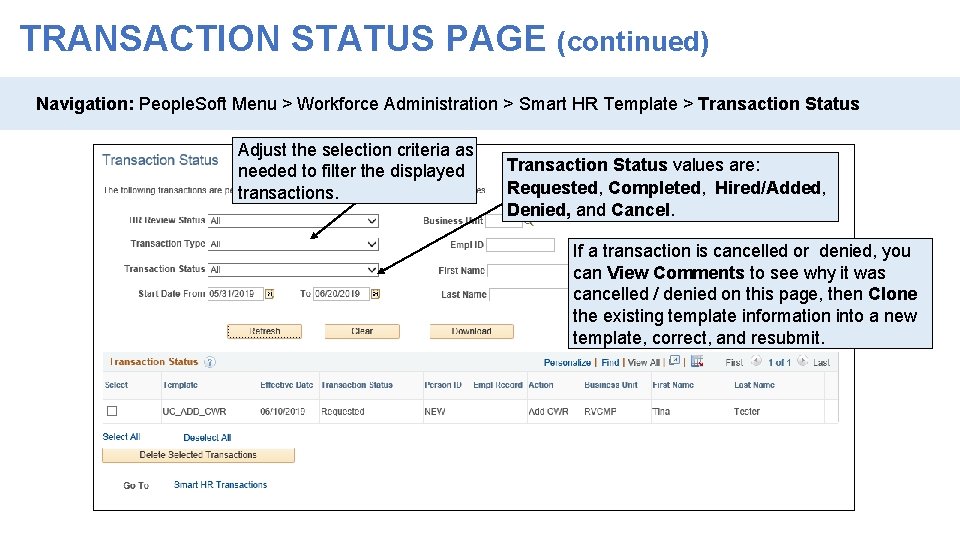
TRANSACTION STATUS PAGE (continued) Navigation: People. Soft Menu > Workforce Administration > Smart HR Template > Transaction Status Adjust the selection criteria as needed to filter the displayed transactions. Transaction Status values are: Requested, Completed, Hired/Added, Denied, and Cancel. If a transaction is cancelled or denied, you can View Comments to see why it was cancelled / denied on this page, then Clone the existing template information into a new template, correct, and resubmit.
Approving a Transaction
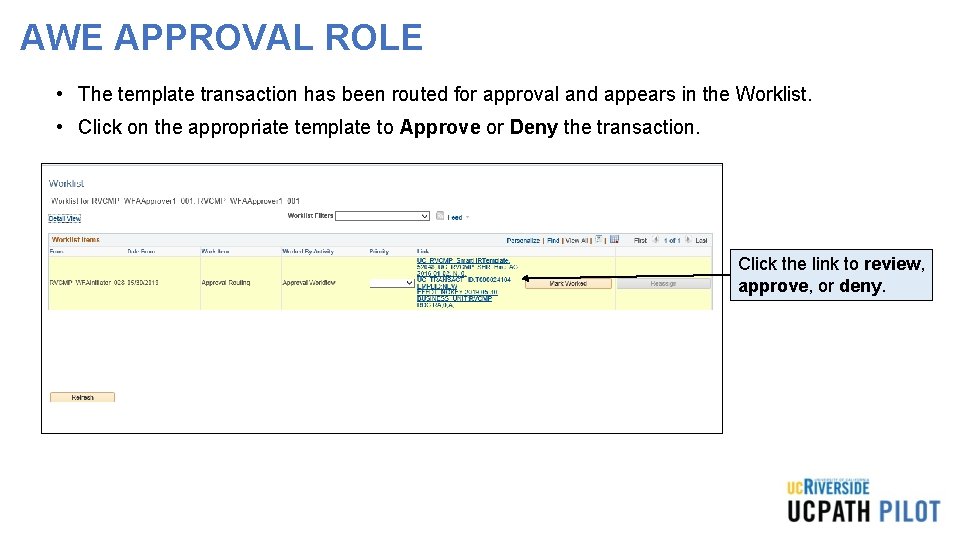
AWE APPROVAL ROLE • The template transaction has been routed for approval and appears in the Worklist. • Click on the appropriate template to Approve or Deny the transaction. Click the link to review, approve, or deny.
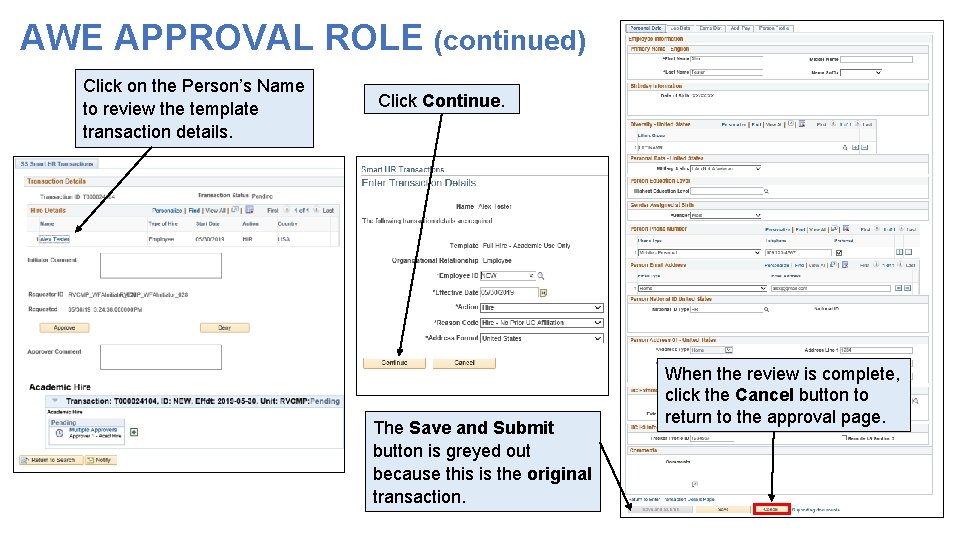
AWE APPROVAL ROLE (continued) Click on the Person’s Name to review the template transaction details. Click Continue. The Save and Submit button is greyed out because this is the original transaction. When the review is complete, click the Cancel button to return to the approval page.
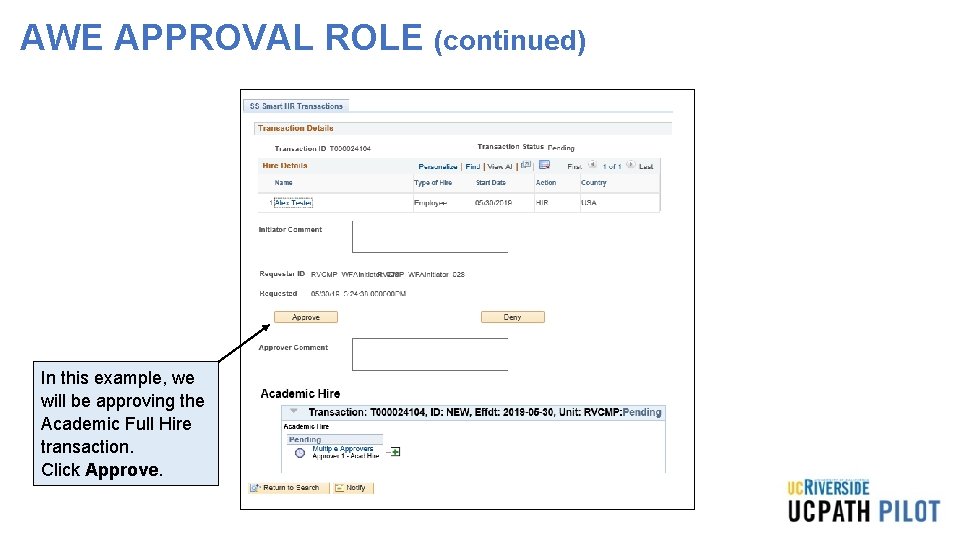
AWE APPROVAL ROLE (continued) In this example, we will be approving the Academic Full Hire transaction. Click Approve.
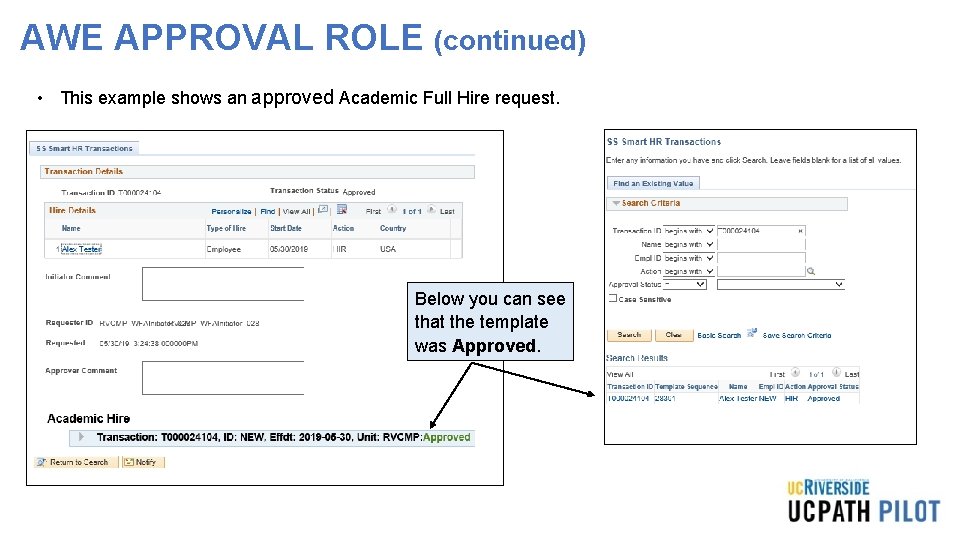
AWE APPROVAL ROLE (continued) • This example shows an approved Academic Full Hire request. Below you can see that the template was Approved.
View Comments
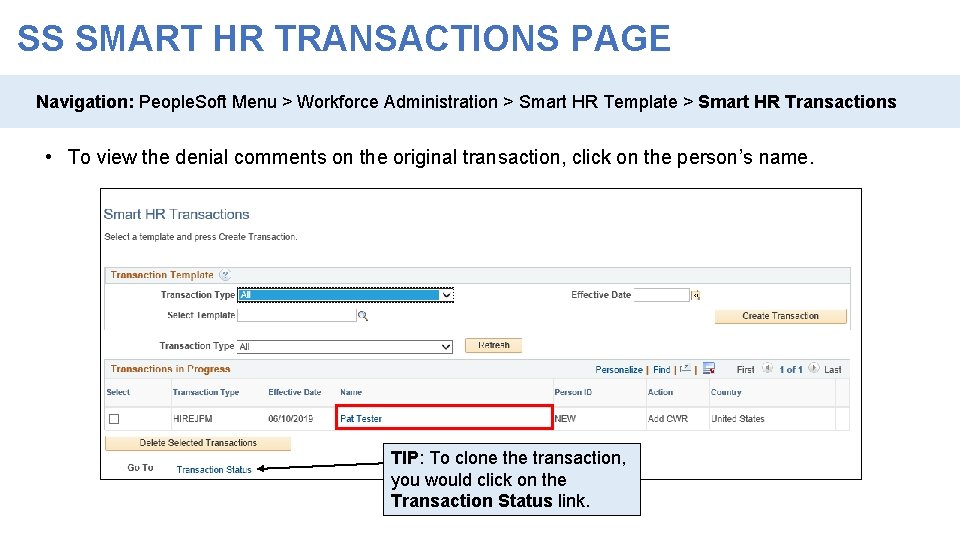
SS SMART HR TRANSACTIONS PAGE Navigation: People. Soft Menu > Workforce Administration > Smart HR Template > Smart HR Transactions • To view the denial comments on the original transaction, click on the person’s name. TIP: To clone the transaction, you would click on the Transaction Status link.
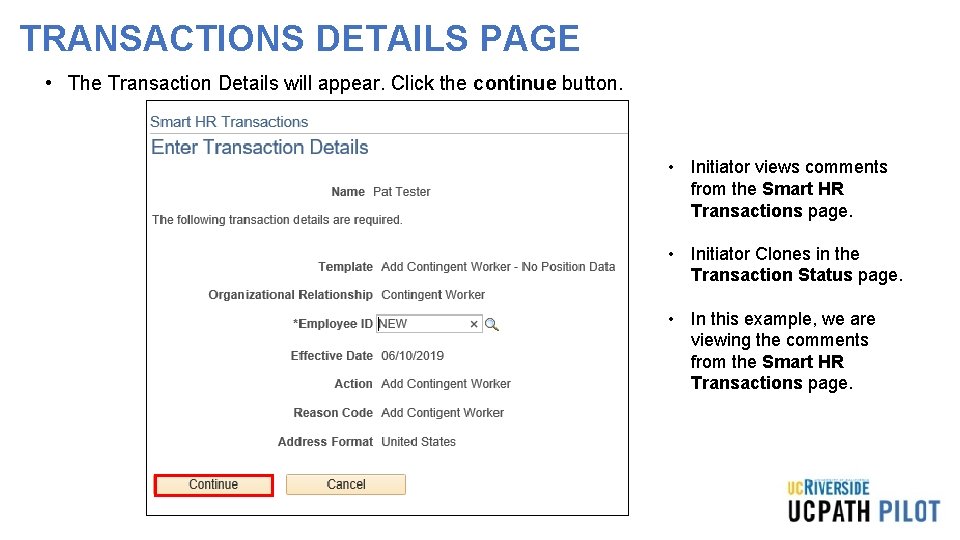
TRANSACTIONS DETAILS PAGE • The Transaction Details will appear. Click the continue button. • Initiator views comments from the Smart HR Transactions page. • Initiator Clones in the Transaction Status page. • In this example, we are viewing the comments from the Smart HR Transactions page.
VIEW COMMENTS FROM UCPC Navigation: People. Soft Menu > Workforce Administration > Smart HR Template > Transaction Status • When a transaction is cancelled by UCPC WFA Production, comments are entered to explain why the transaction was cancelled. • Template Initiators can View Comments under Reason for Cancellation and, if needed, Clone the transaction to resubmit it with necessary corrections. Note: To view comments about a transaction that was denied by a Location AWE Approver, you must navigate to the SS Smart HR Transactions page and review the Approver Comments field. Click to view the UCPC How to Clone Job Aid
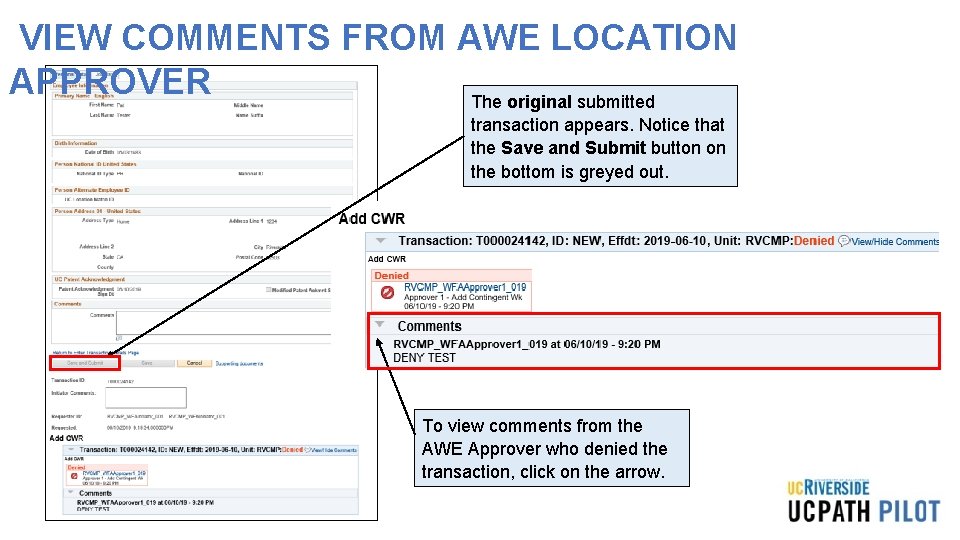
VIEW COMMENTS FROM AWE LOCATION APPROVER The original submitted transaction appears. Notice that the Save and Submit button on the bottom is greyed out. To view comments from the AWE Approver who denied the transaction, click on the arrow.
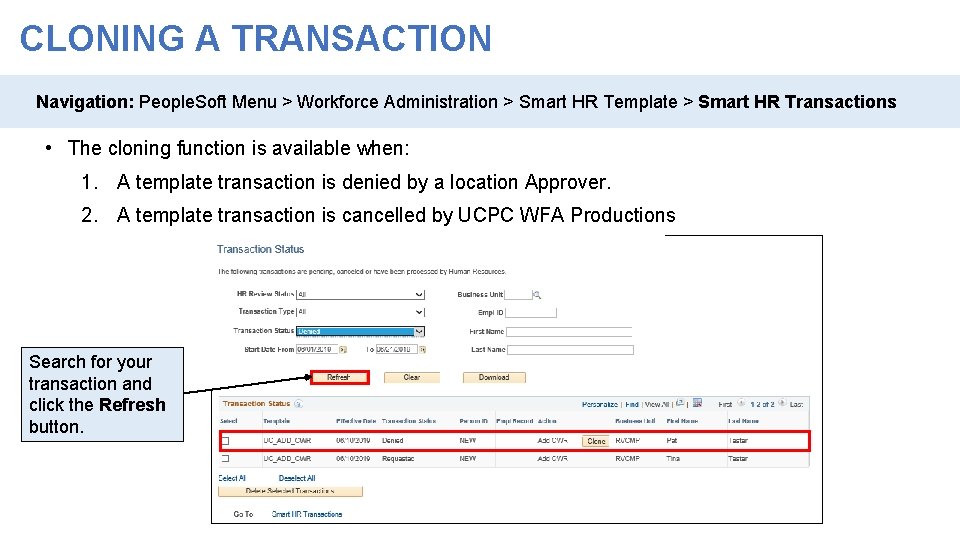
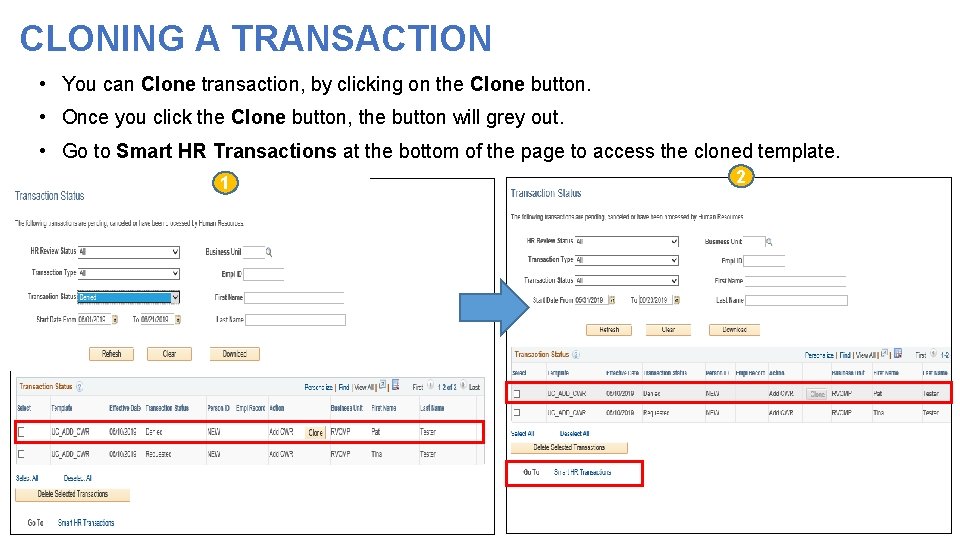
CLONING A TRANSACTION Navigation: People. Soft Menu > Workforce Administration > Smart HR Template > Smart HR Transactions • The cloning function is available when: 1. A template transaction is denied by a location Approver. 2. A template transaction is cancelled by UCPC WFA Productions Search for your transaction and click the Refresh button.
CLONING A TRANSACTION • You can Clone transaction, by clicking on the Clone button. • Once you click the Clone button, the button will grey out. • Go to Smart HR Transactions at the bottom of the page to access the cloned template. 1 2
CLONING A TRANSACTION • If you clone a transaction denied at the location, both the original and the clone appear in the list. Original Transaction Cloned Transaction To resubmit the transaction, click on the cloned transactions person’s name. • TIP: the cloned (new) transaction appears below the original denied transaction in the default sorting of the list.
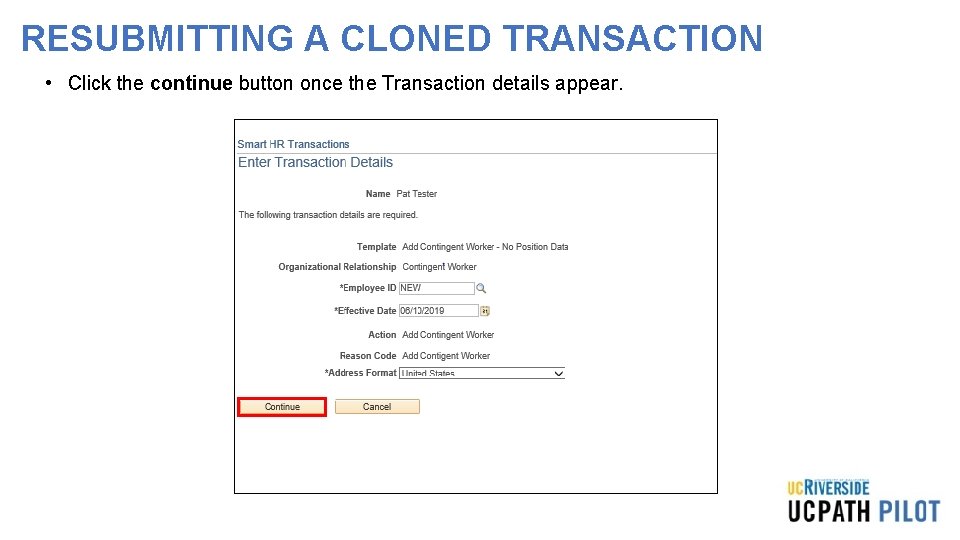
RESUBMITTING A CLONED TRANSACTION • Click the continue button once the Transaction details appear.
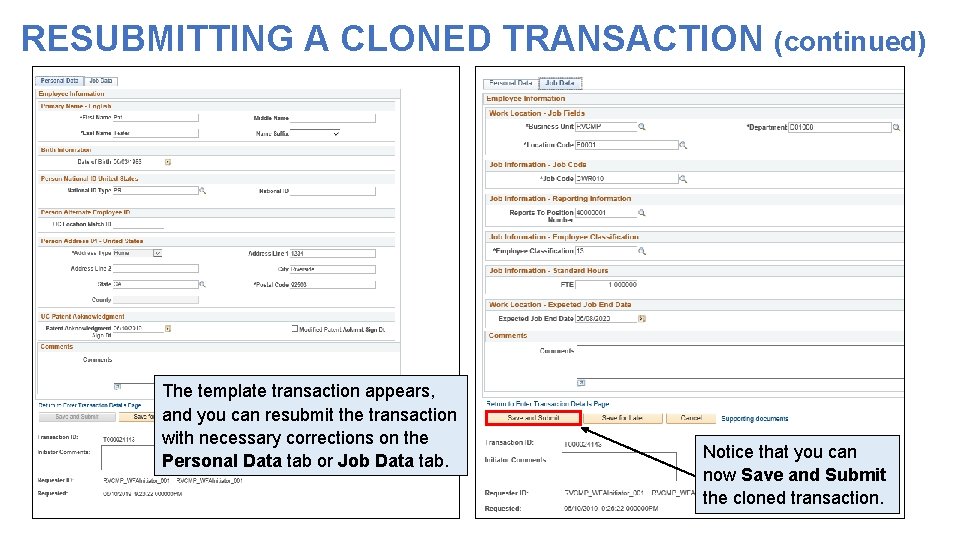
RESUBMITTING A CLONED TRANSACTION (continued) The template transaction appears, and you can resubmit the transaction with necessary corrections on the Personal Data tab or Job Data tab. Notice that you can now Save and Submit the cloned transaction.
WFA Overview and Employee Lifecycle
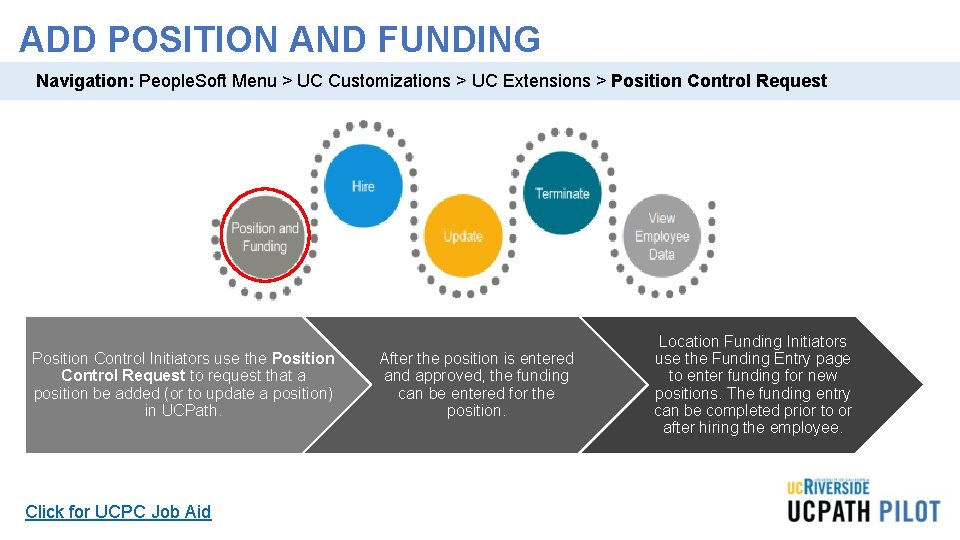
ADD POSITION AND FUNDING Navigation: People. Soft Menu > UC Customizations > UC Extensions > Position Control Request Position Control Initiators use the Position Control Request to request that a position be added (or to update a position) in UCPath. Click for UCPC Job Aid After the position is entered and approved, the funding After the position is entered can be entered for the and approved, the funding position. The next task can be entered for the demonstrates how a position. Location Funding Initiator enters the funding. Location Funding Initiators use the Funding Entry page to enter funding for new positions. The funding entry can be completed prior to or after hiring the employee.
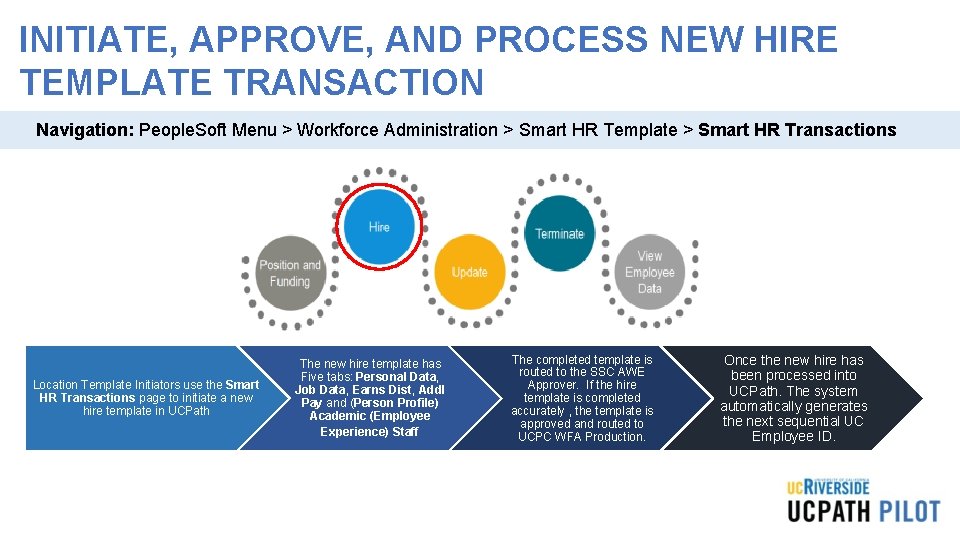
INITIATE, APPROVE, AND PROCESS NEW HIRE TEMPLATE TRANSACTION Navigation: People. Soft Menu > Workforce Administration > Smart HR Template > Smart HR Transactions Location Template Initiators use the Smart HR Transactions page to initiate a new hire template in UCPath The new hire template has Five tabs: Personal Data, Job Data, Earns Dist, Addl Pay and (Person Profile) Academic (Employee Experience) Staff The completed template is routed to the SSC AWE Approver. If the hire template is completed accurately , the template is approved and routed to UCPC WFA Production. Once the new hire has been processed into UCPath. The system automatically generates the next sequential UC Employee ID.
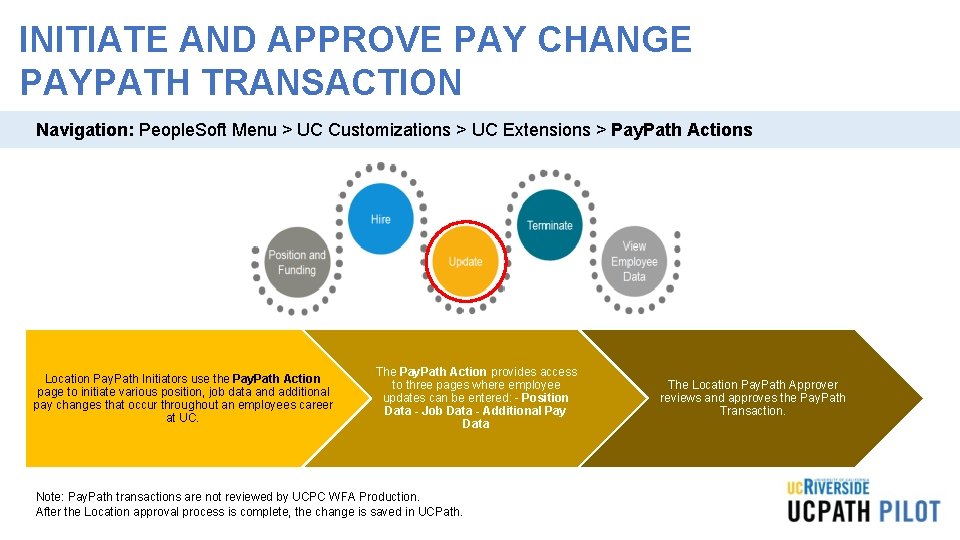
INITIATE AND APPROVE PAY CHANGE PAYPATH TRANSACTION Navigation: People. Soft Menu > UC Customizations > UC Extensions > Pay. Path Actions Location Pay. Path Initiators use the Pay. Path Action page to initiate various position, job data and additional pay changes that occur throughout an employees career at UC. The Pay. Path Action provides access to three pages where employee updates can be entered: - Position Data - Job Data - Additional Pay Data Note: Pay. Path transactions are not reviewed by UCPC WFA Production. After the Location approval process is complete, the change is saved in UCPath. The Location Pay. Path Approver reviews and approves the Pay. Path Transaction.
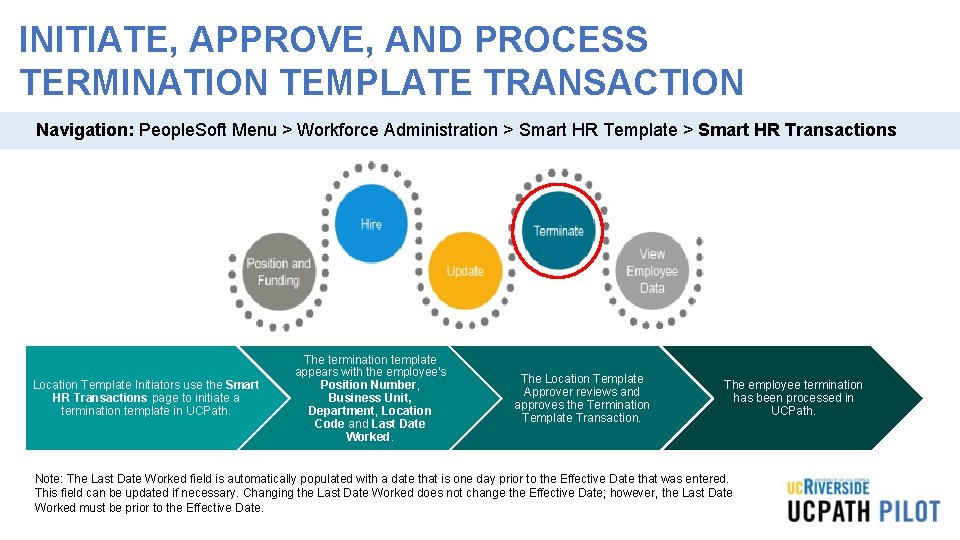
INITIATE, APPROVE, AND PROCESS TERMINATION TEMPLATE TRANSACTION Navigation: People. Soft Menu > Workforce Administration > Smart HR Template > Smart HR Transactions Location Template Initiators use the Smart HR Transactions page to initiate a termination template in UCPath. The termination template appears with the employee's Position Number, Business Unit, Department, Location Code and Last Date Worked. The Location Template Approver reviews and approves the Termination Template Transaction. The employee termination has been processed in UCPath. Note: The Last Date Worked field is automatically populated with a date that is one day prior to the Effective Date that was entered. This field can be updated if necessary. Changing the Last Date Worked does not change the Effective Date; however, the Last Date Worked must be prior to the Effective Date.
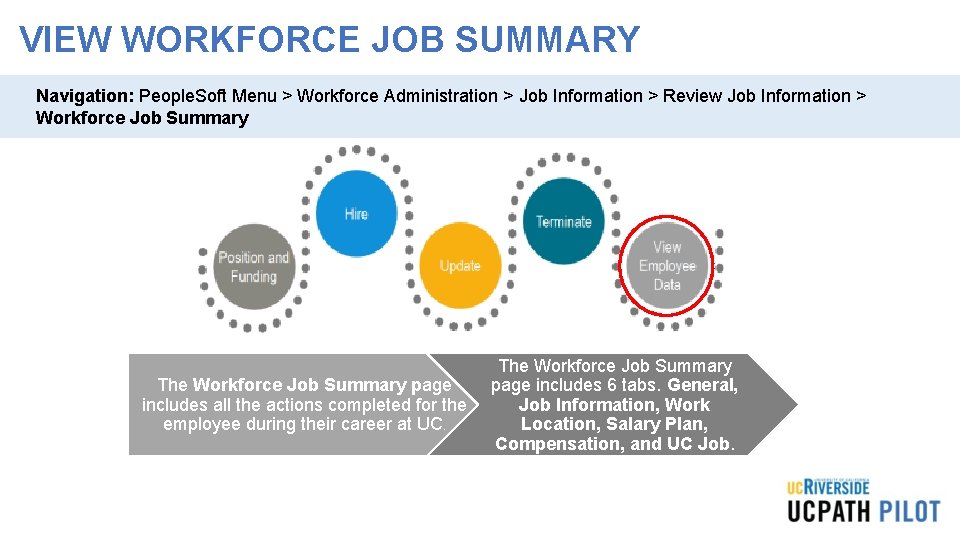
VIEW WORKFORCE JOB SUMMARY Navigation: People. Soft Menu > Workforce Administration > Job Information > Review Job Information > Workforce Job Summary The Workforce Job Summary page includes all the actions completed for the employee during their career at UC. The Workforce Job Summary page includes 6 tabs. General, Job Information, Work Location, Salary Plan, Compensation, and UC Job.
LEARNING OBJECTIVES REVIEW Having completed this course, you should be able to: Recognize and define key UCPath terms and acronyms Understand High Level Transaction Process flows Understand the functionalities of the UCPath Dashboard Describe Approval Workflow Engine (AWE) in UCPath View comments and clone a transaction Understand the WFA Overview and Employee Lifecycle
THINGS TO REMEMBER • Effective Date is the date the transaction will take place. Remember to pay attention to this date when doing Retro and Future dating transactions. • If you find yourself navigating to the same pages and/or components, you may want to bookmark them to avoid having to constantly navigate through many menus. • View comments entered by a Location Initiator or Approver in the Smart HR Transaction Page. • Clone a transaction that was cancelled or denied in the Transaction Status Page. If you clone a transaction denied at the location, both the original and the clone appear in the list. • Tip: The cloned (new) transaction appears below the original denied transaction in the default sorting of the list.
THINGS TO REMEMBER • If you aren’t searching by the EMPL ID, always change the operator from “Begins with” which is always the default, to “Contains”, by clicking on the arrows. • When navigating in UCPath always use the buttons and links within the site to navigate. Do not use the Back and Next buttons in your web browser toolbar. • Your security access to key pages and components in the UCPath Workcenter is the same as your access to those pages and components from the People. Soft Menu. • There is no effective sequencing on position; therefore, when a correction is needed with an effective date that already exists on the position, UCPC will have to make the correction. This is done through an on behalf of case management case.
APPENDIX
APPENDIX • On behalf case management Process Map • Position control Process Map • Contingent worker Process Map • Personal data changes Process Map • Person of interest Process Map • One–time payments Process Map • Voluntary termination Process Map
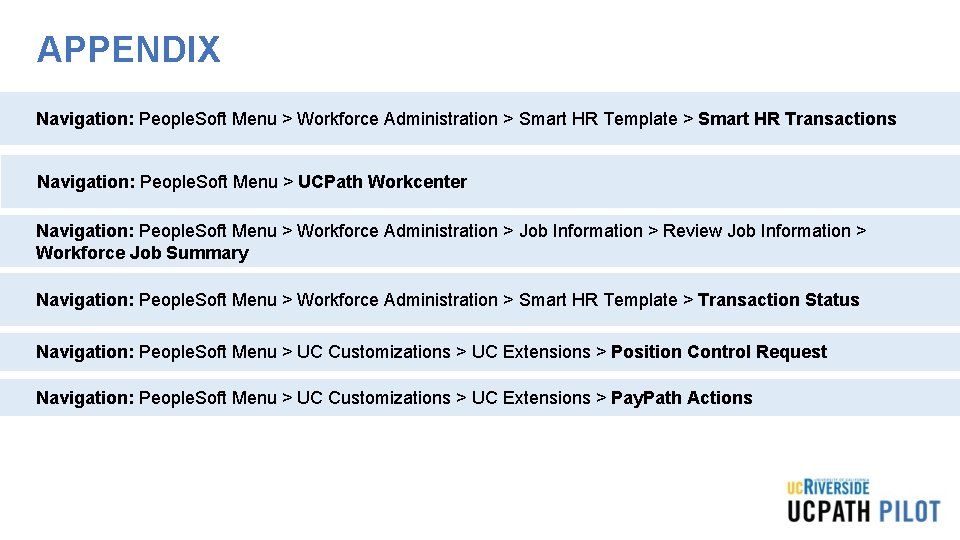
APPENDIX Navigation: People. Soft Menu > Workforce Administration > Smart HR Template > Smart HR Transactions Navigation: People. Soft Menu > UCPath Workcenter Navigation: People. Soft Menu > Workforce Administration > Job Information > Review Job Information > Workforce Job Summary Navigation: People. Soft Menu > Workforce Administration > Smart HR Template > Transaction Status Navigation: People. Soft Menu > UC Customizations > UC Extensions > Position Control Request Navigation: People. Soft Menu > UC Customizations > UC Extensions > Pay. Path Actions
Your Feedback Please http: //bit. ly/ucpathpilottraining