THE REPORTING SYSTEM FOR SUMMATIVE AND INTERIM ASSESSMENTS



- Slides: 77
THE REPORTING SYSTEM FOR SUMMATIVE AND INTERIM ASSESSMENTS Training Module 2020 -2021 Copyright © 2020 Cambium Assessment, Inc. All rights reserved.
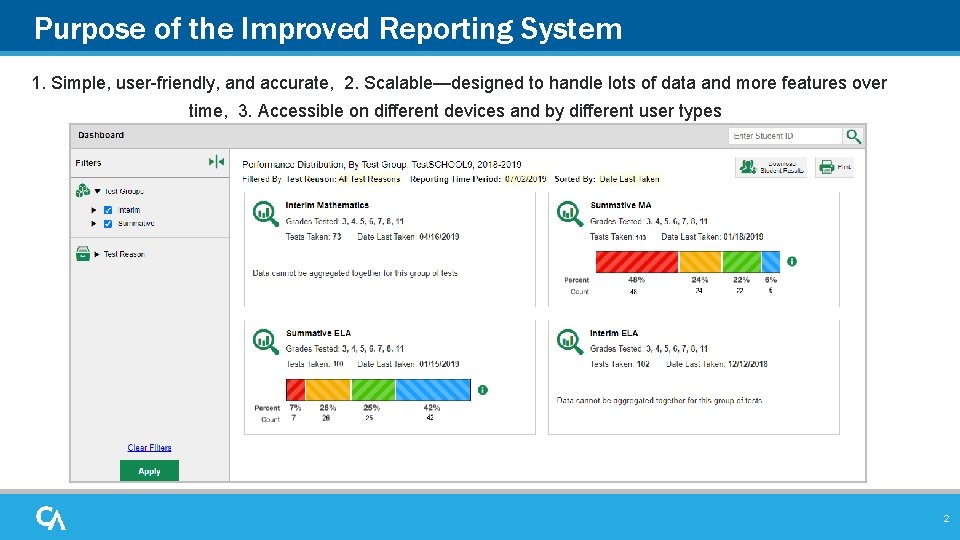
Purpose of the Improved Reporting System 1. Simple, user-friendly, and accurate, 2. Scalable—designed to handle lots of data and more features over time, 3. Accessible on different devices and by different user types 2
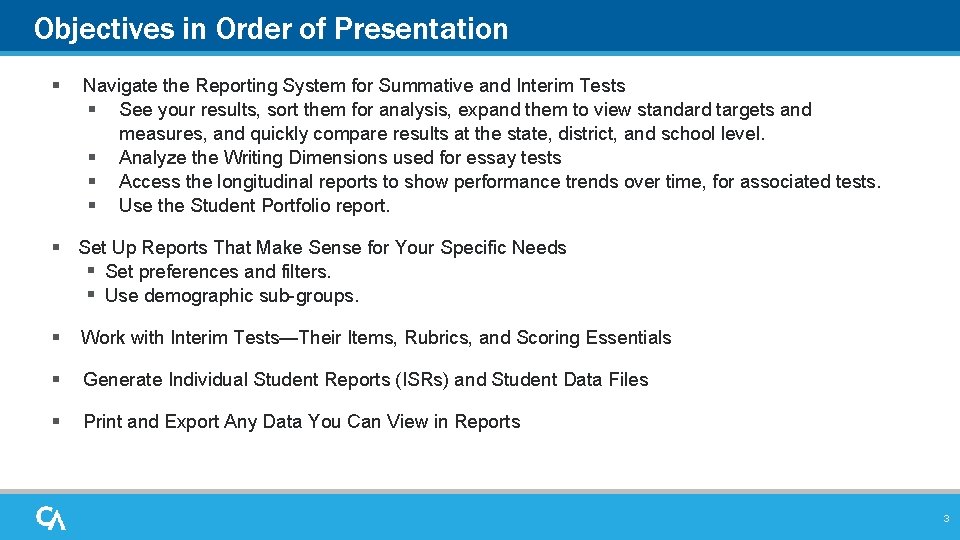
Objectives in Order of Presentation § Navigate the Reporting System for Summative and Interim Tests § See your results, sort them for analysis, expand them to view standard targets and measures, and quickly compare results at the state, district, and school level. § Analyze the Writing Dimensions used for essay tests § Access the longitudinal reports to show performance trends over time, for associated tests. § Use the Student Portfolio report. § Set Up Reports That Make Sense for Your Specific Needs § Set preferences and filters. § Use demographic sub-groups. § Work with Interim Tests—Their Items, Rubrics, and Scoring Essentials § Generate Individual Student Reports (ISRs) and Student Data Files § Print and Export Any Data You Can View in Reports 3
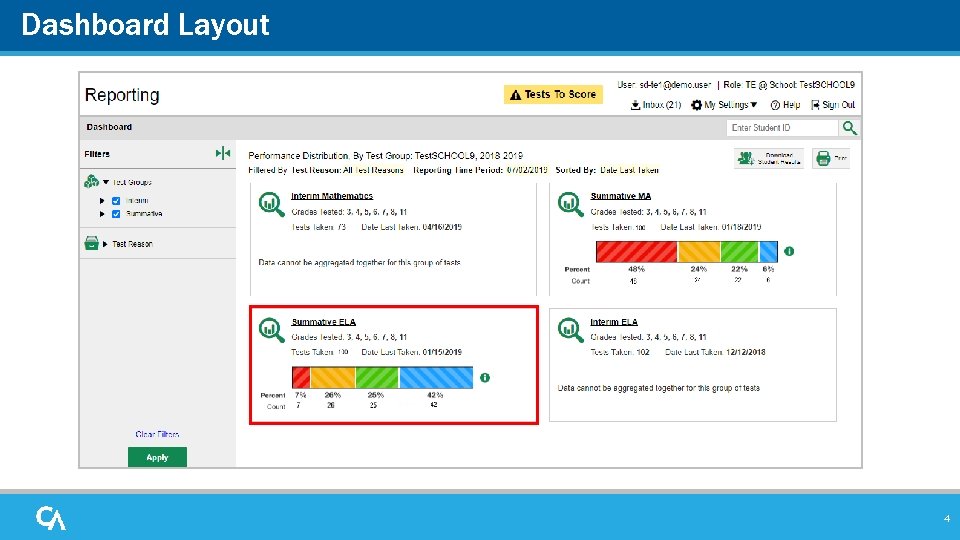
Dashboard Layout 4
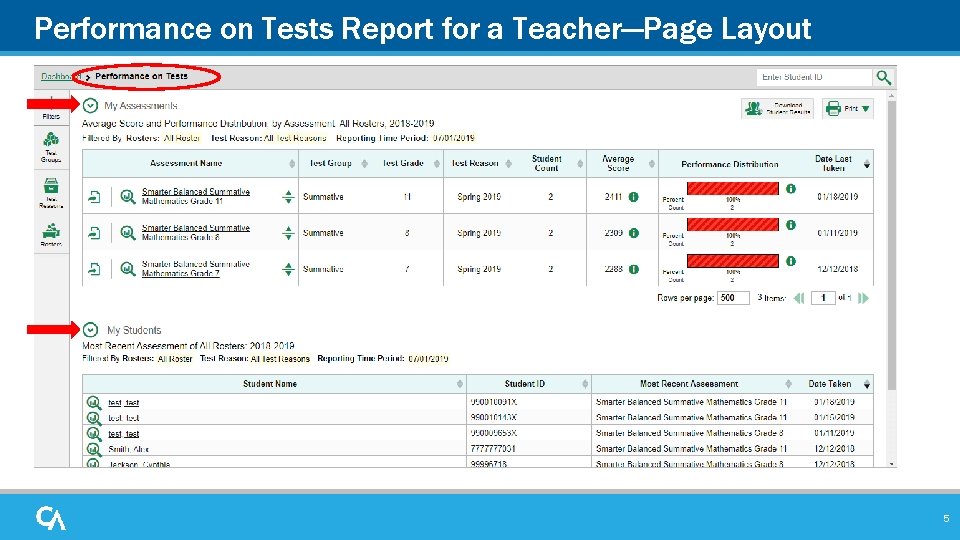
Performance on Tests Report for a Teacher—Page Layout 5
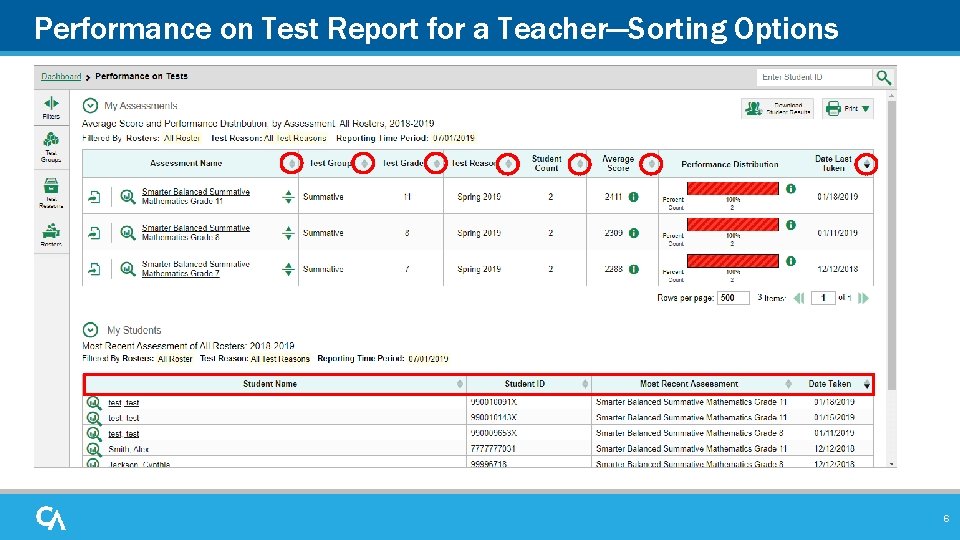
Performance on Test Report for a Teacher—Sorting Options 6
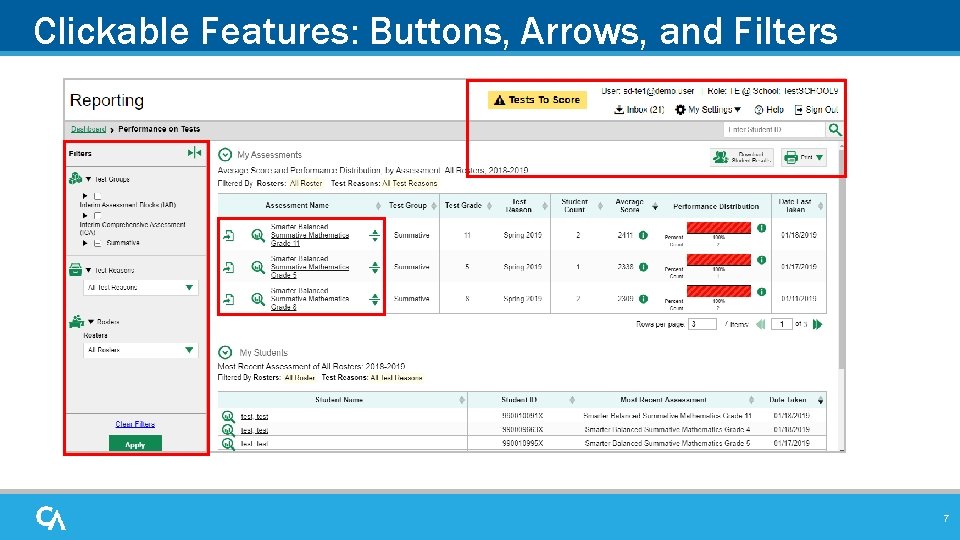
Clickable Features: Buttons, Arrows, and Filters 7
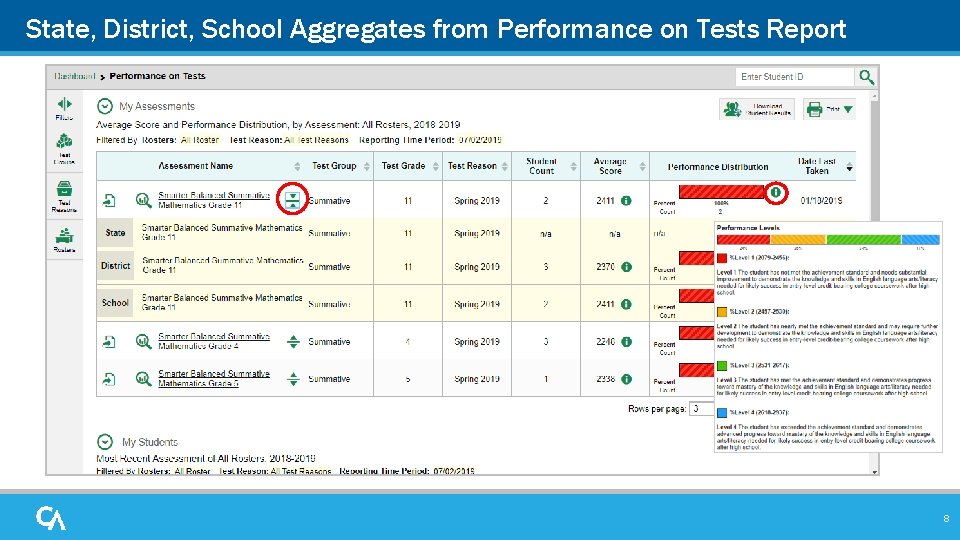
State, District, School Aggregates from Performance on Tests Report 8
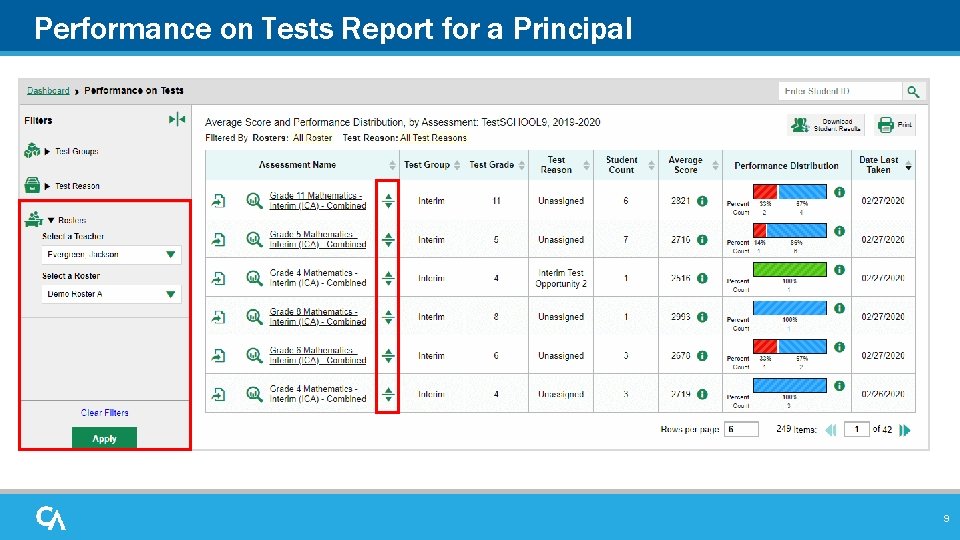
Performance on Tests Report for a Principal 9
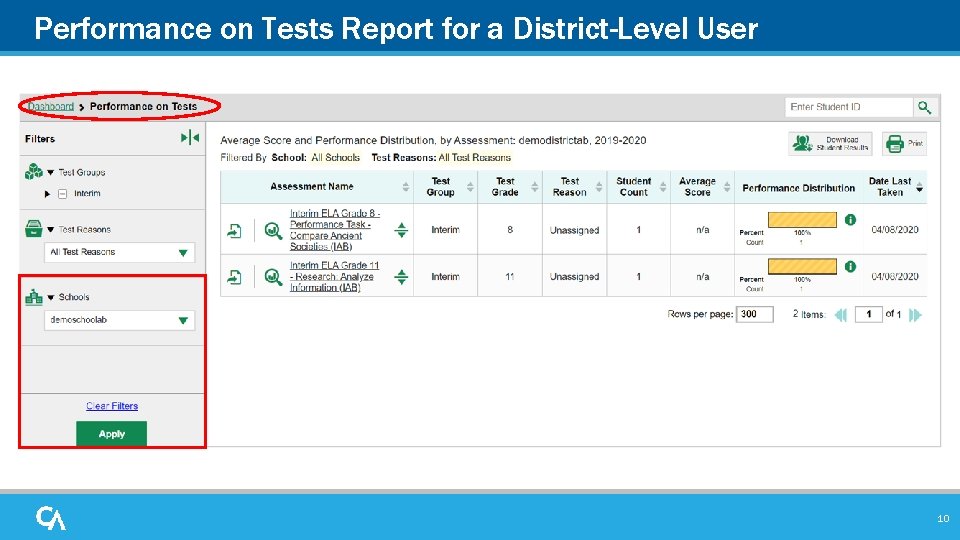
Performance on Tests Report for a District-Level User 10
Navigate the Test Results Pages
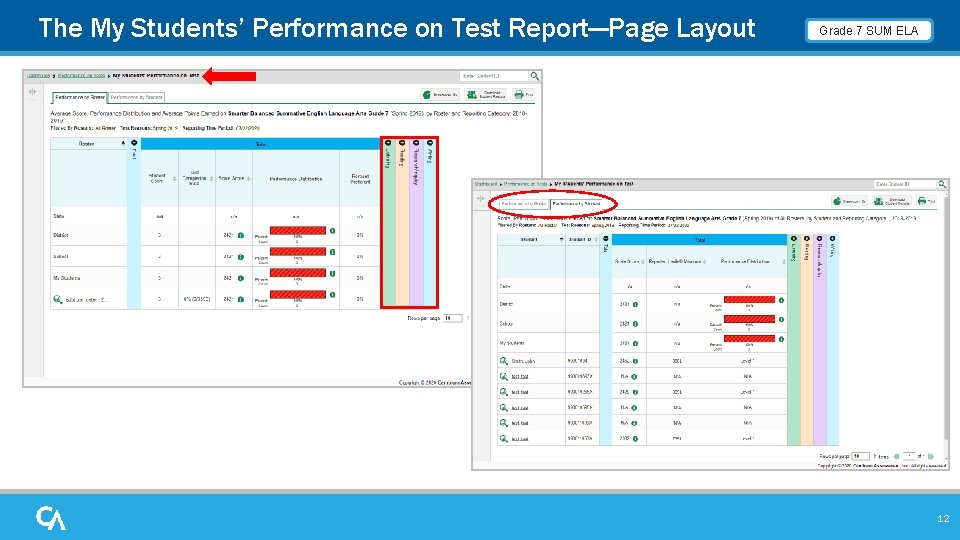
The My Students’ Performance on Test Report—Page Layout Grade 7 SUM ELA 12
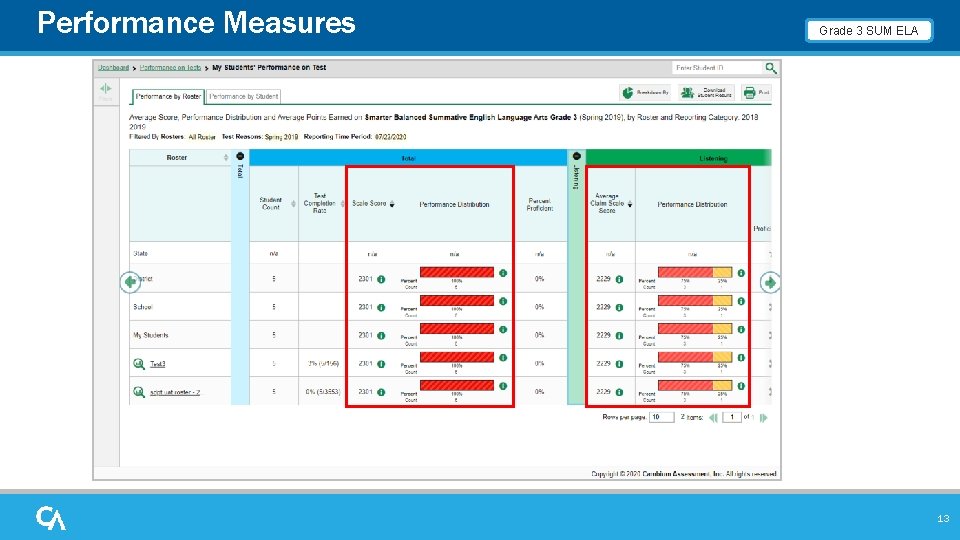
Performance Measures Grade 3 SUM ELA 13
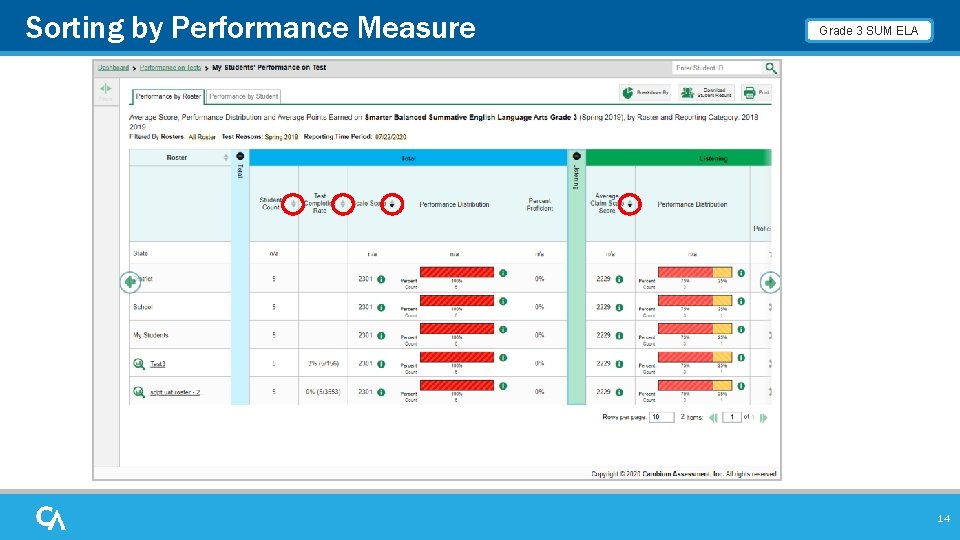
Sorting by Performance Measure Grade 3 SUM ELA 14
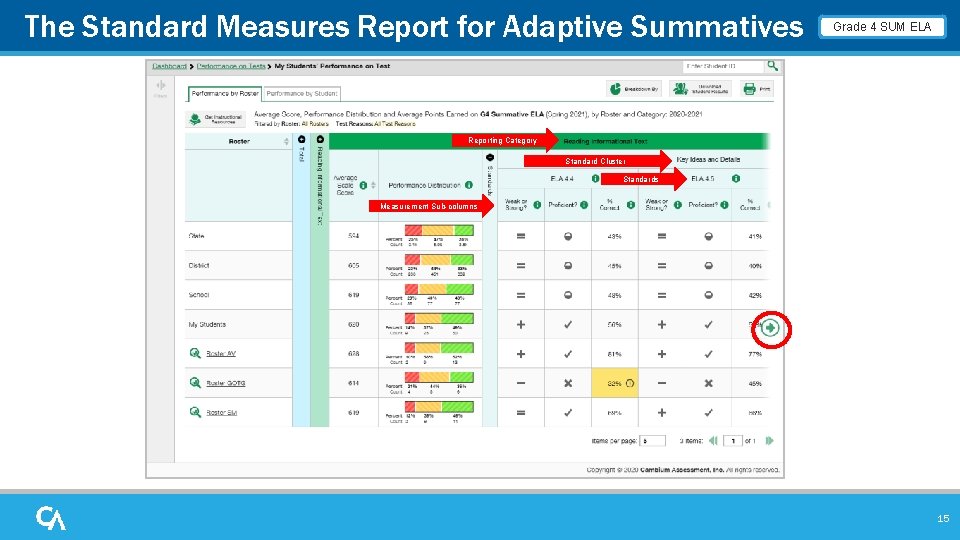
The Standard Measures Report for Adaptive Summatives Grade 4 SUM ELA Reporting Category Standard Cluster Standards Measurement Sub-columns 15
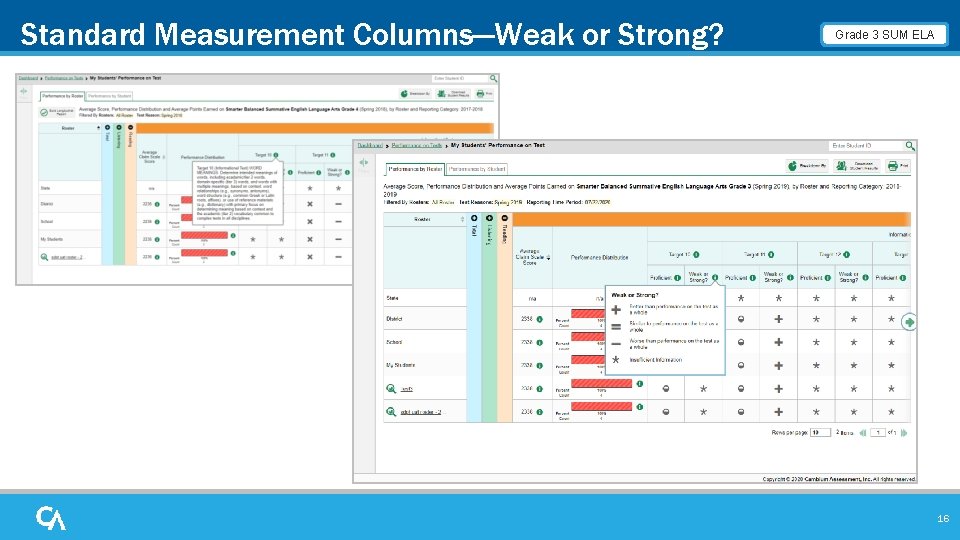
Standard Measurement Columns—Weak or Strong? Grade 3 SUM ELA 16
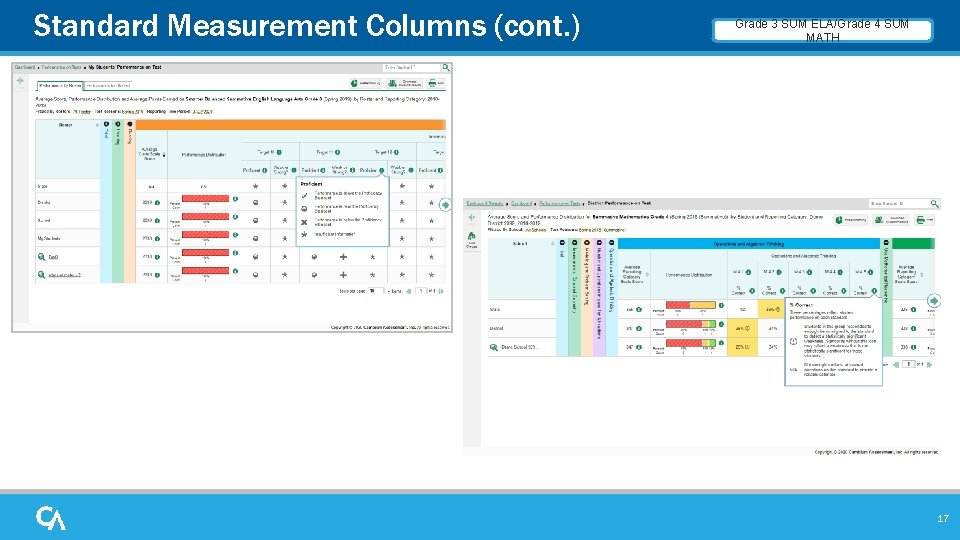
Standard Measurement Columns (cont. ) Grade 3 SUM ELA/Grade 4 SUM MATH 17
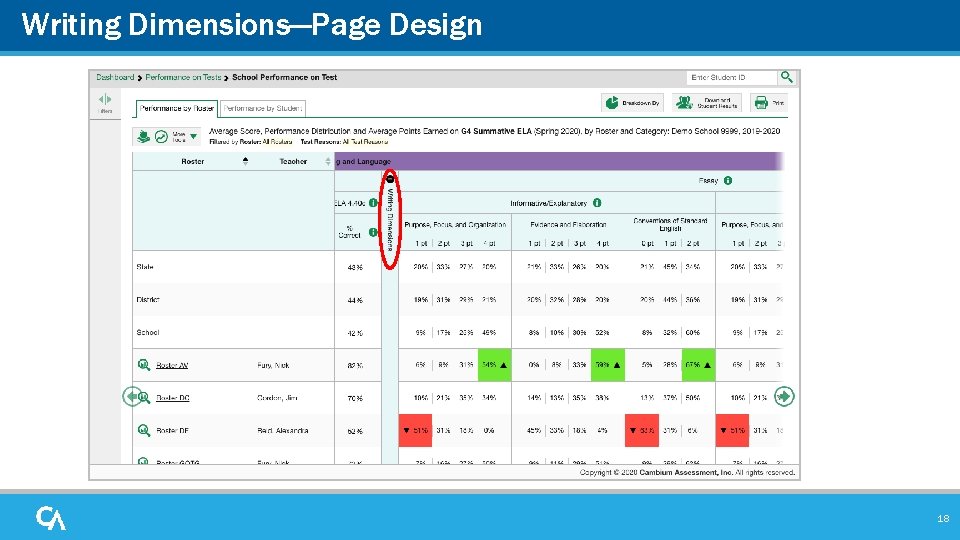
Writing Dimensions—Page Design 18
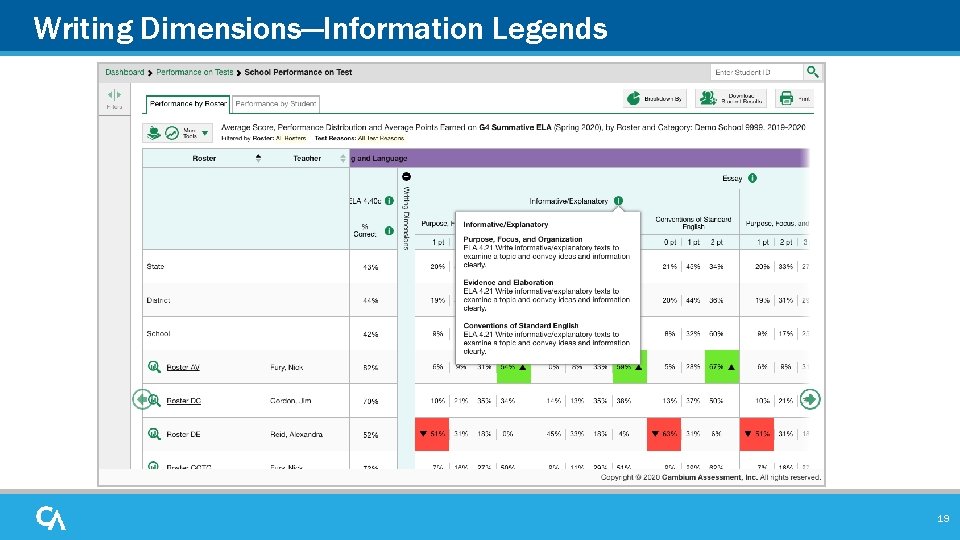
Writing Dimensions—Information Legends 19
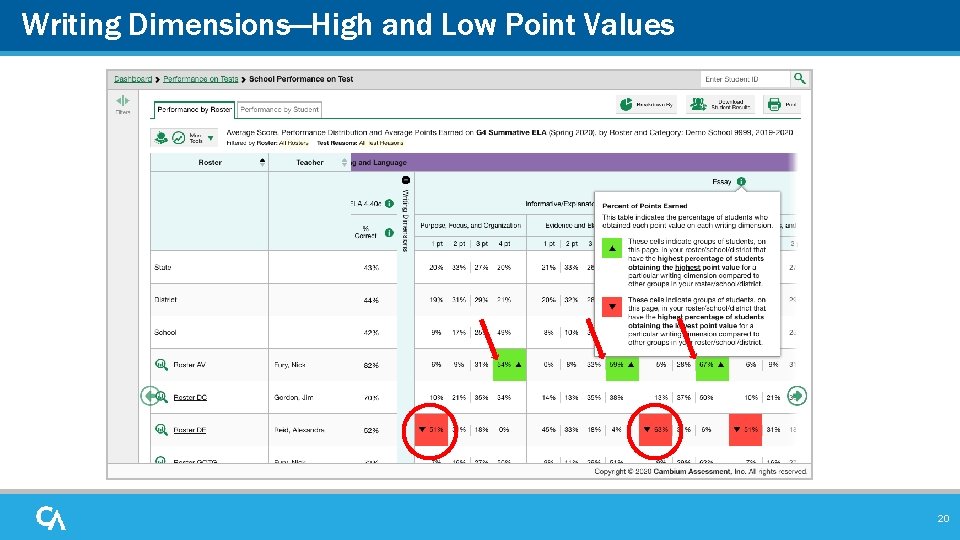
Writing Dimensions—High and Low Point Values 20
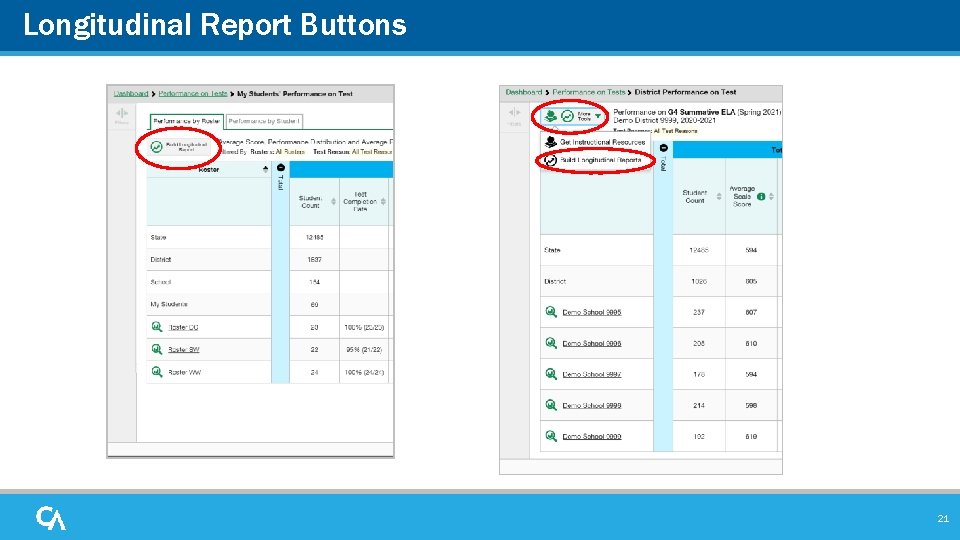
Longitudinal Report Buttons 21
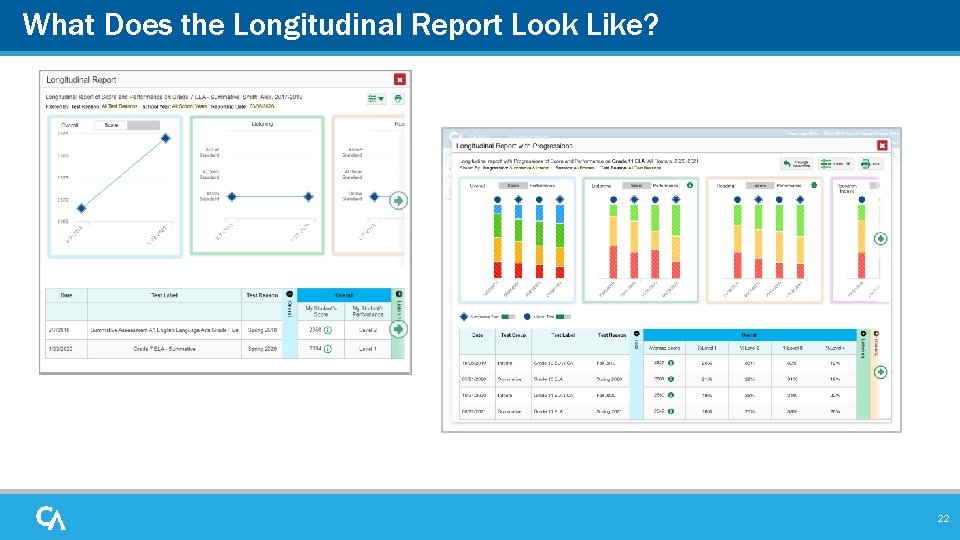
What Does the Longitudinal Report Look Like? 22
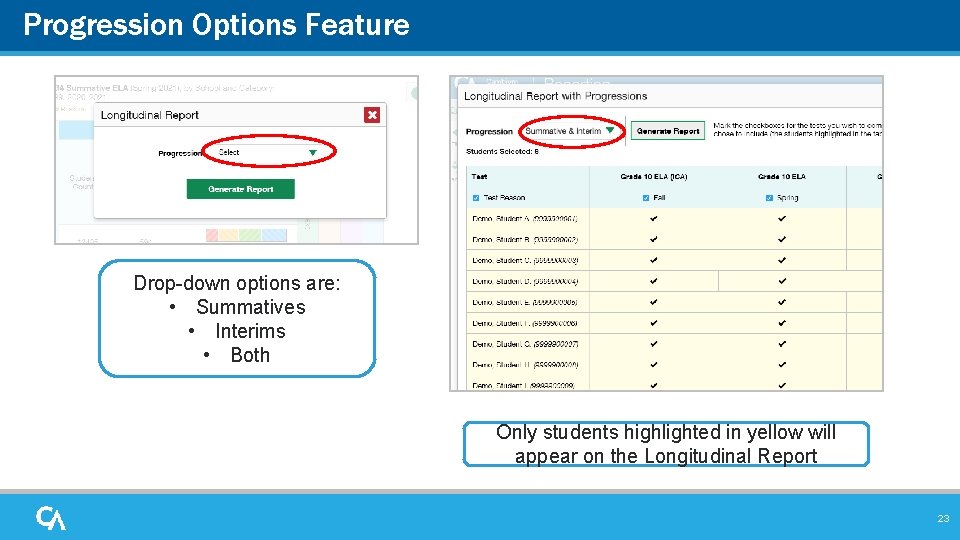
Progression Options Feature Drop-down options are: • Summatives • Interims • Both Only students highlighted in yellow will appear on the Longitudinal Report 23
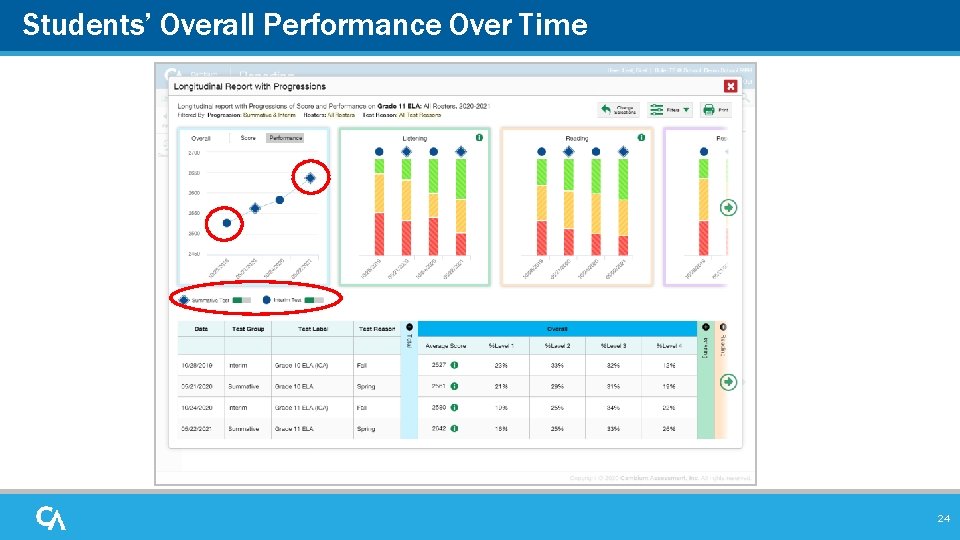
Students’ Overall Performance Over Time 24
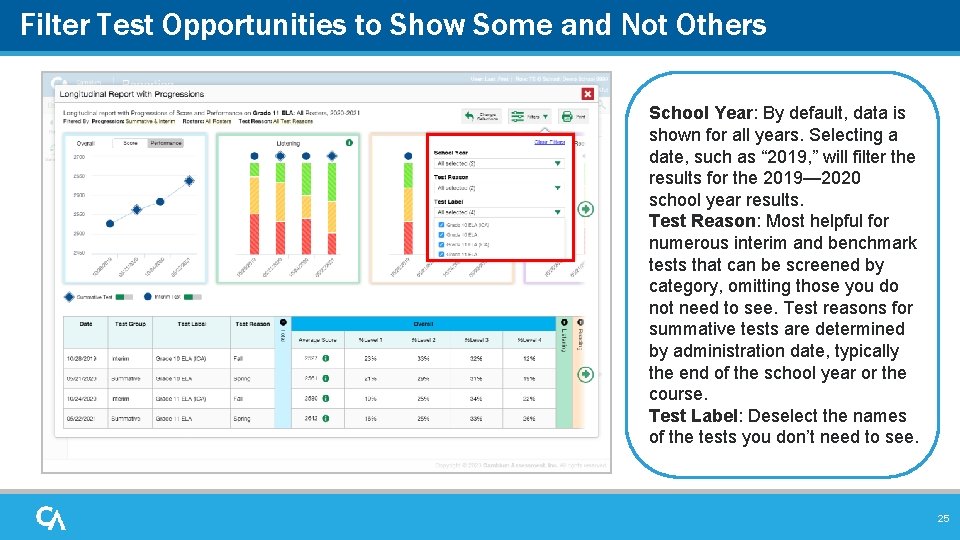
Filter Test Opportunities to Show Some and Not Others School Year: By default, data is shown for all years. Selecting a date, such as “ 2019, ” will filter the results for the 2019— 2020 school year results. Test Reason: Most helpful for numerous interim and benchmark tests that can be screened by category, omitting those you do not need to see. Test reasons for summative tests are determined by administration date, typically the end of the school year or the course. Test Label: Deselect the names of the tests you don’t need to see. 25
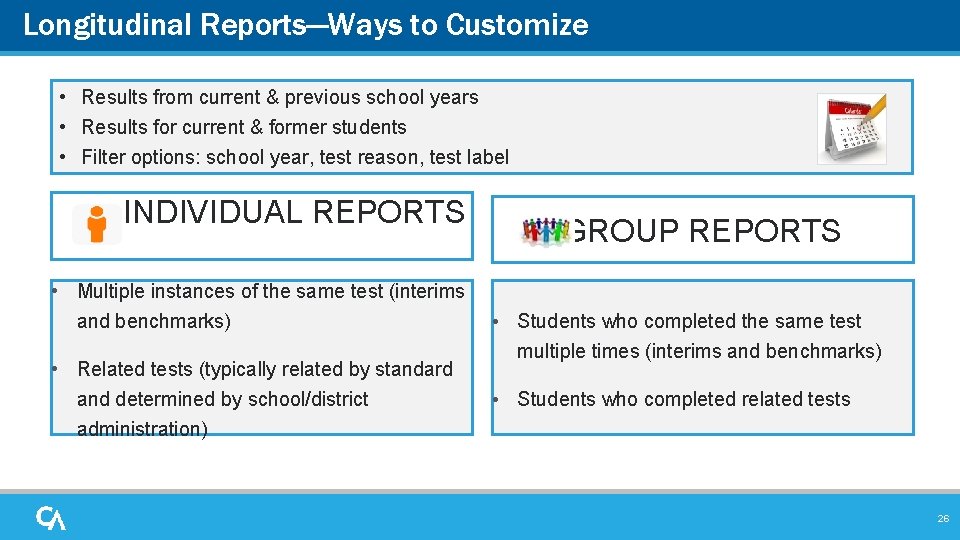
Longitudinal Reports—Ways to Customize • Results from current & previous school years • Results for current & former students • Filter options: school year, test reason, test label INDIVIDUAL REPORTS • Multiple instances of the same test (interims and benchmarks) • Related tests (typically related by standard and determined by school/district administration) GROUP REPORTS • Students who completed the same test multiple times (interims and benchmarks) • Students who completed related tests 26
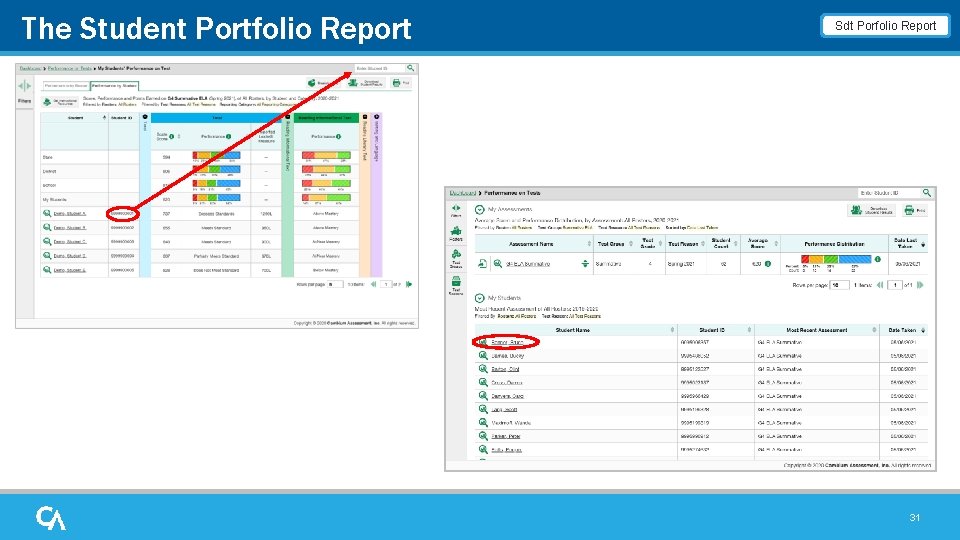
The Student Portfolio Report Sdt Porfolio Report 31
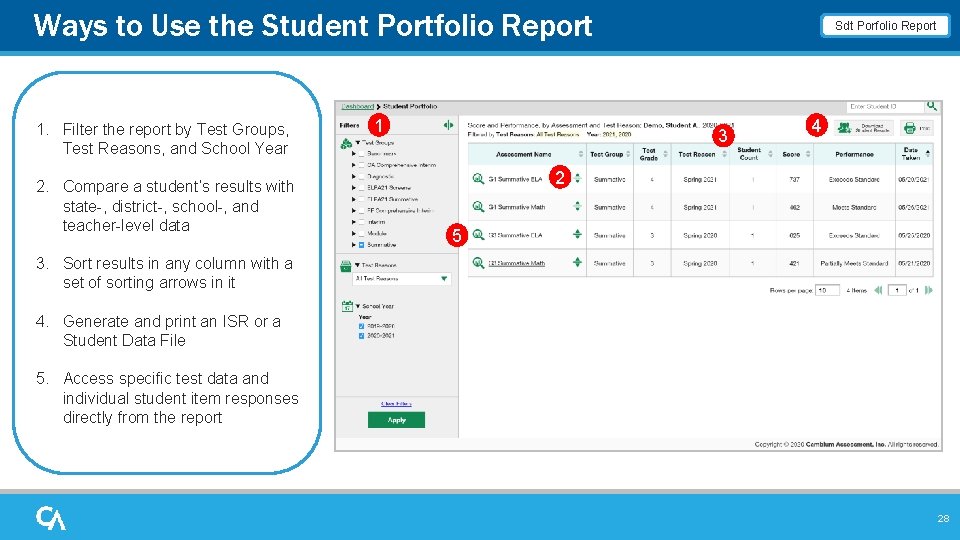
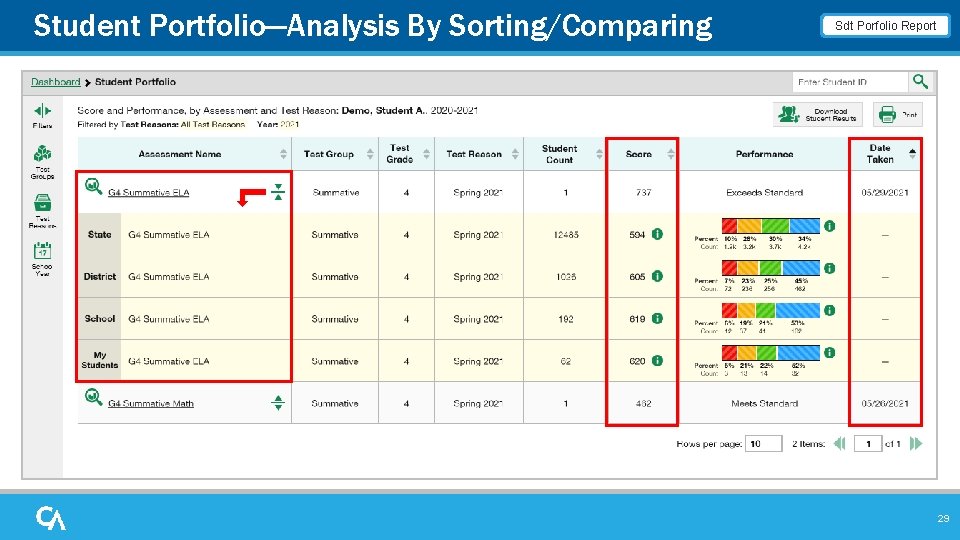
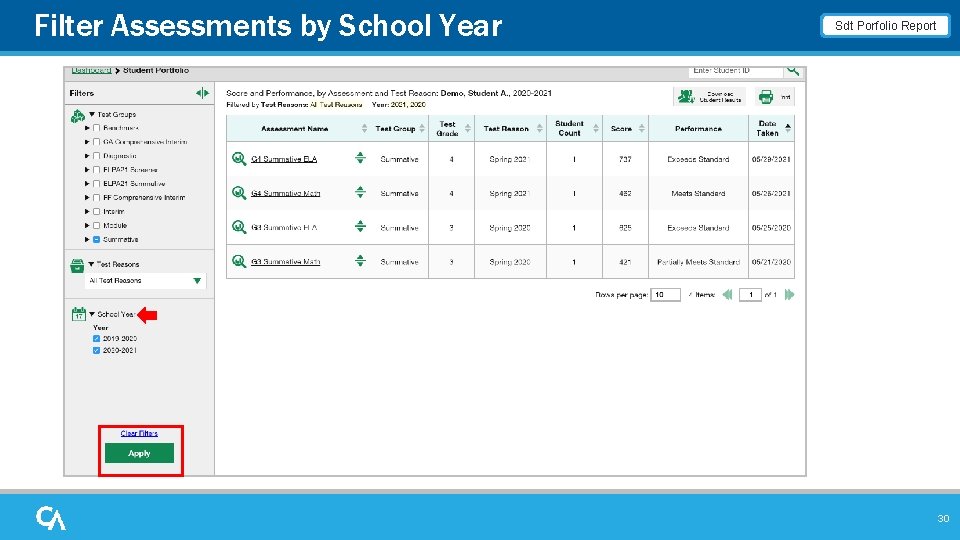
Ways to Use the Student Portfolio Report 1. Filter the report by Test Groups, Test Reasons, and School Year 2. Compare a student’s results with state-, district-, school-, and teacher-level data 1 Sdt Porfolio Report 3 4 2 5 3. Sort results in any column with a set of sorting arrows in it 4. Generate and print an ISR or a Student Data File 5. Access specific test data and individual student item responses directly from the report 28
Student Portfolio—Analysis By Sorting/Comparing Sdt Porfolio Report 29
Filter Assessments by School Year Sdt Porfolio Report 30
Set Up Reports That Make Sense For Your Specific Needs
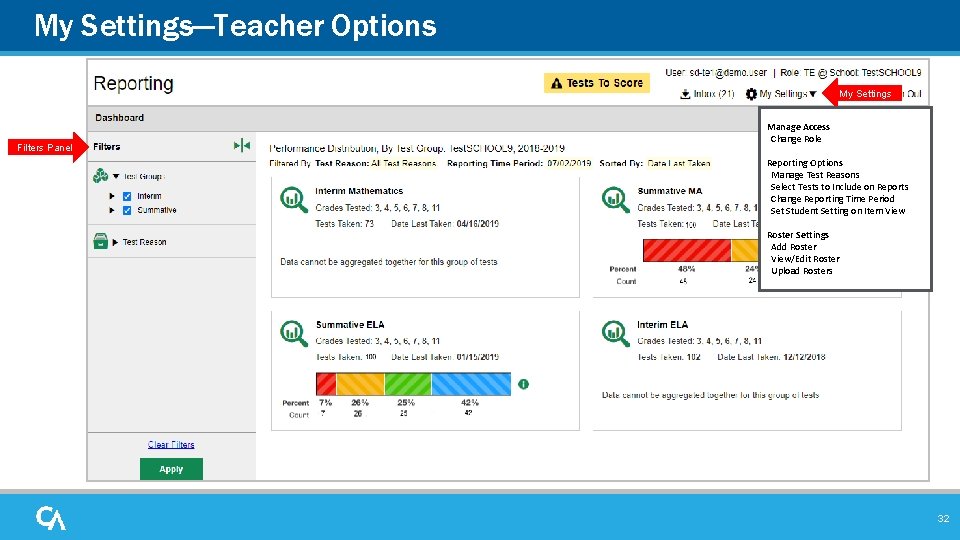
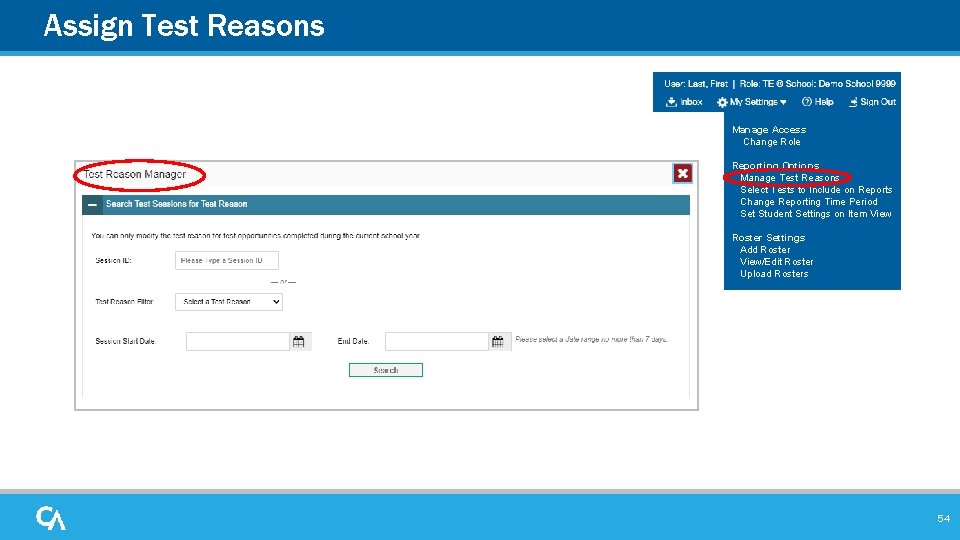
My Settings—Teacher Options My Settings Filters Panel Manage Access Change Role Reporting Options Manage Test Reasons Select Tests to Include on Reports Change Reporting Time Period Set Student Setting on Item View Roster Settings Add Roster View/Edit Roster Upload Rosters 32
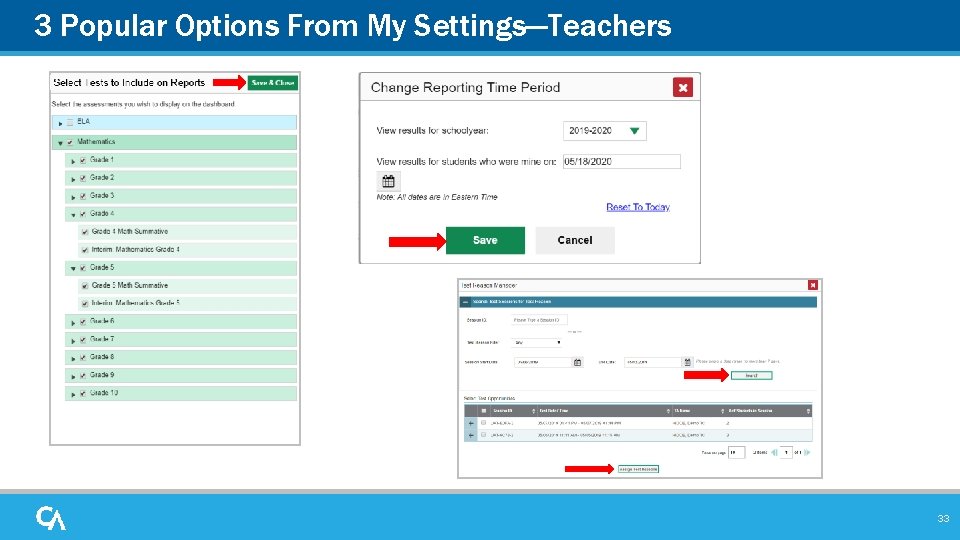
3 Popular Options From My Settings—Teachers 33
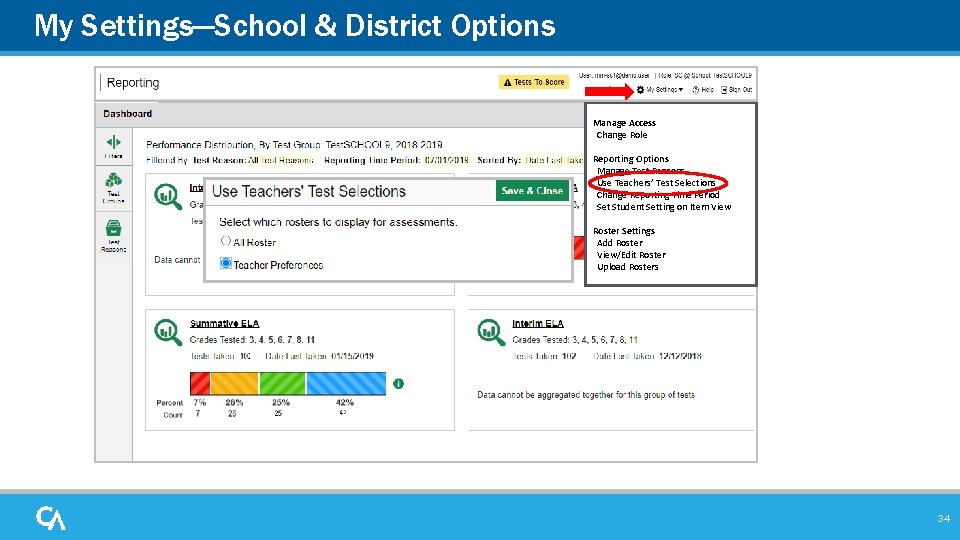
My Settings—School & District Options Manage Access Change Role Reporting Options Manage Test Reasons Use Teachers’ Test Selections Change Reporting Time Period Set Student Setting on Item View Roster Settings Add Roster View/Edit Roster Upload Rosters 34
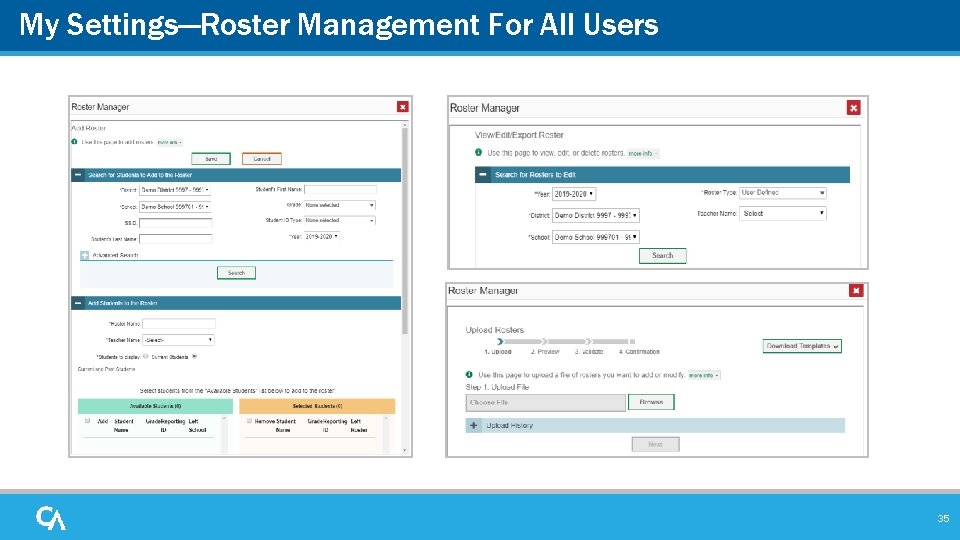
My Settings—Roster Management For All Users 35
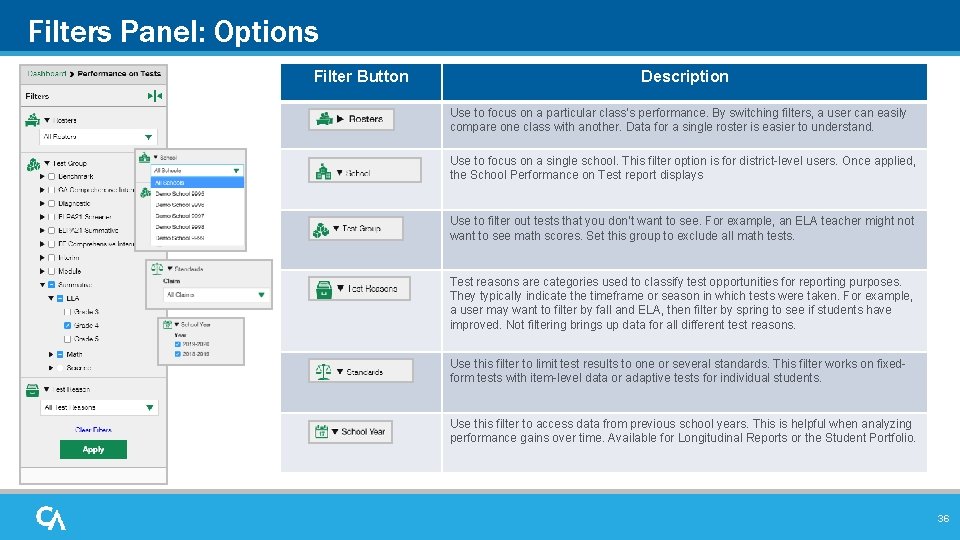
Filters Panel: Options Filter Button Description Use to focus on a particular class’s performance. By switching filters, a user can easily compare one class with another. Data for a single roster is easier to understand. Use to focus on a single school. This filter option is for district-level users. Once applied, the School Performance on Test report displays Use to filter out tests that you don’t want to see. For example, an ELA teacher might not want to see math scores. Set this group to exclude all math tests. Test reasons are categories used to classify test opportunities for reporting purposes. They typically indicate the timeframe or season in which tests were taken. For example, a user may want to filter by fall and ELA, then filter by spring to see if students have improved. Not filtering brings up data for all different test reasons. Use this filter to limit test results to one or several standards. This filter works on fixedform tests with item-level data or adaptive tests for individual students. Use this filter to access data from previous school years. This is helpful when analyzing performance gains over time. Available for Longitudinal Reports or the Student Portfolio. 36
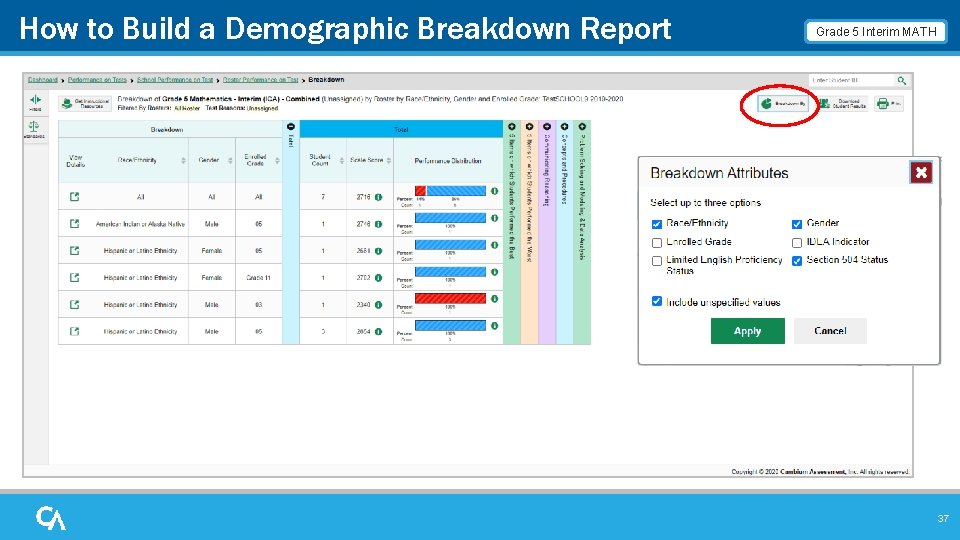
How to Build a Demographic Breakdown Report Grade 5 Interim MATH 37
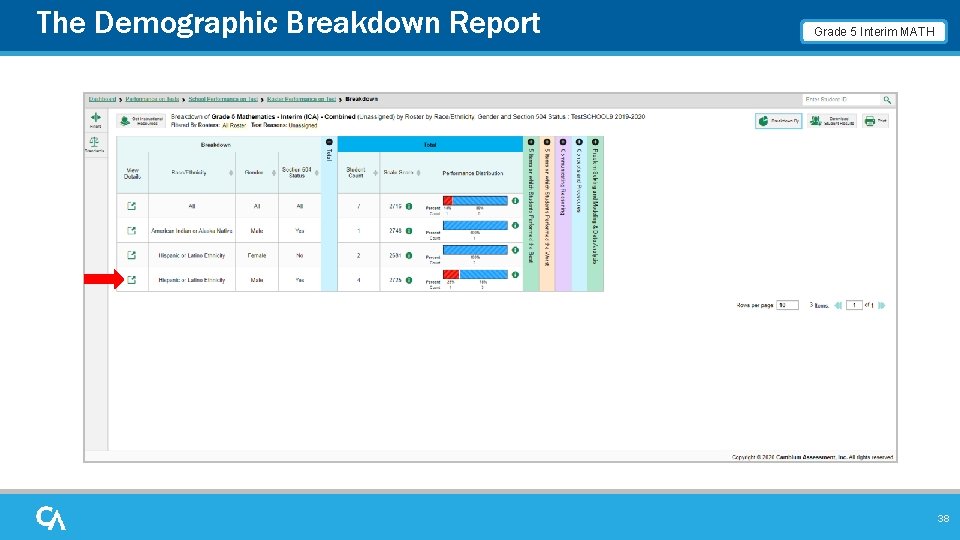
The Demographic Breakdown Report Grade 5 Interim MATH 38
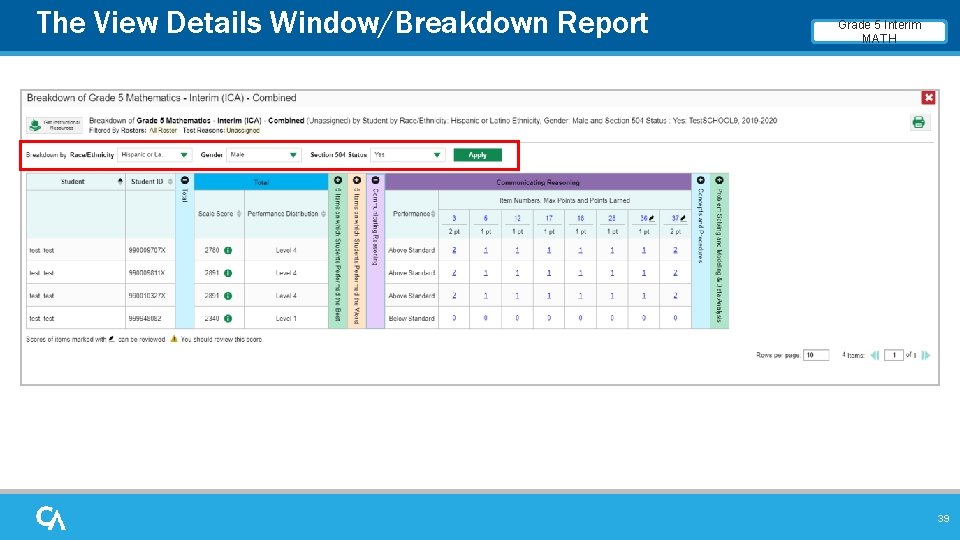
The View Details Window/Breakdown Report Grade 5 Interim MATH 39
Work with Interim Tests Items, Rubrics, and Scoring Essentials
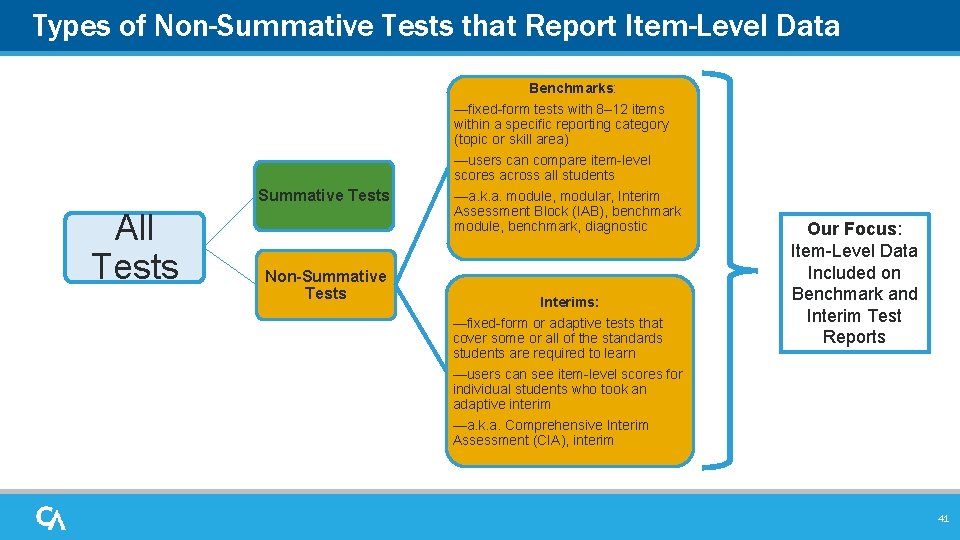
Types of Non-Summative Tests that Report Item-Level Data Benchmarks: —fixed-form tests with 8– 12 items within a specific reporting category (topic or skill area) Summative Tests All Tests Non-Summative Tests —users can compare item-level scores across all students —a. k. a. module, modular, Interim Assessment Block (IAB), benchmark module, benchmark, diagnostic Interims: —fixed-form or adaptive tests that cover some or all of the standards students are required to learn —users can see item-level scores for individual students who took an adaptive interim Our Focus: Item-Level Data Included on Benchmark and Interim Test Reports —a. k. a. Comprehensive Interim Assessment (CIA), interim 41
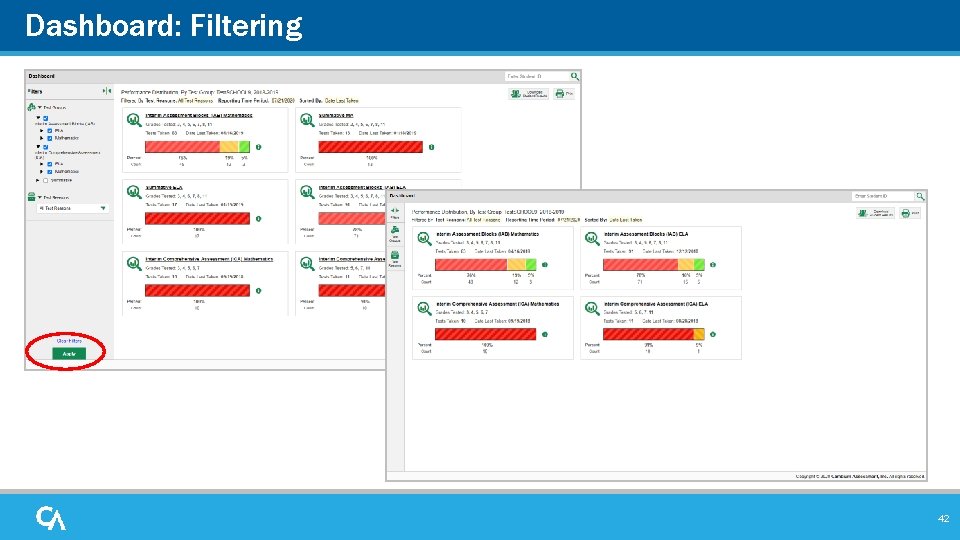
Dashboard: Filtering 42
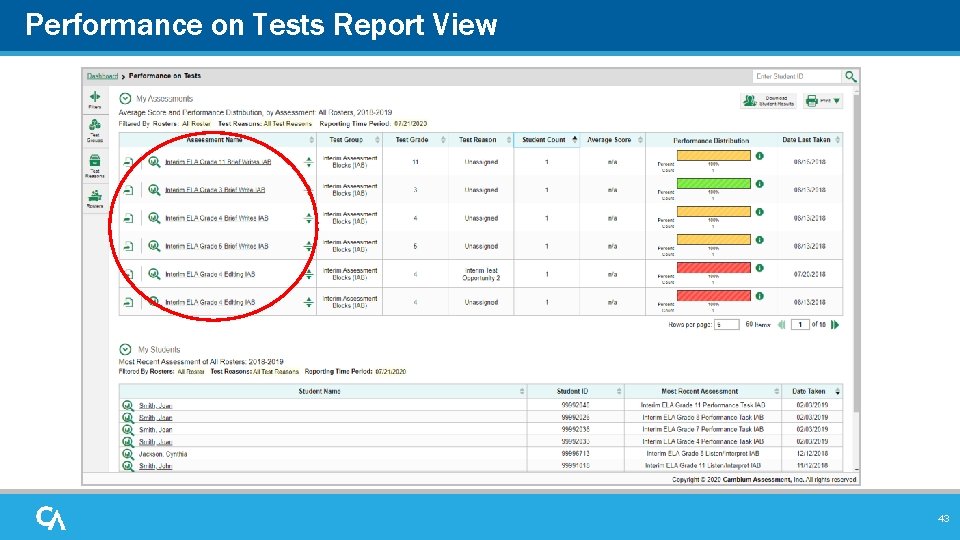
Performance on Tests Report View 43
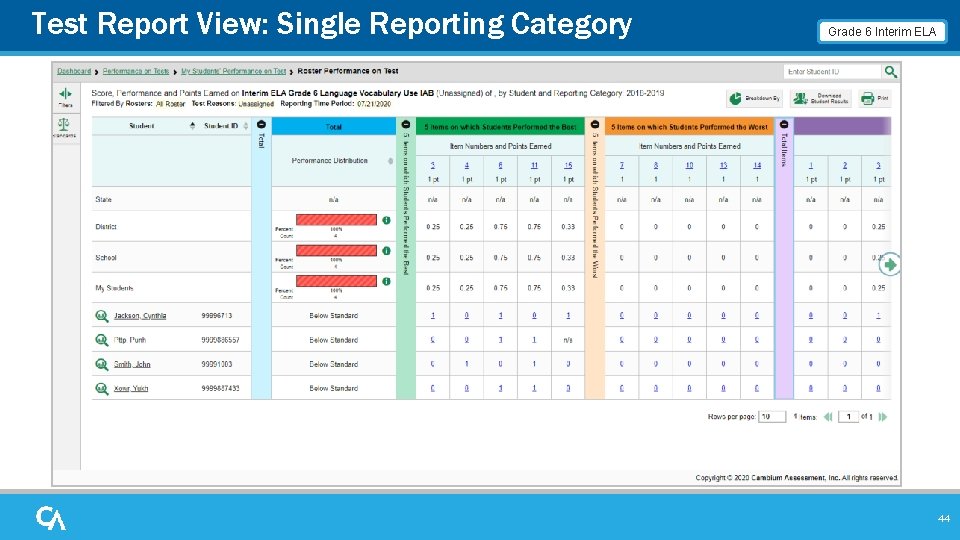
Test Report View: Single Reporting Category Grade 6 Interim ELA 44
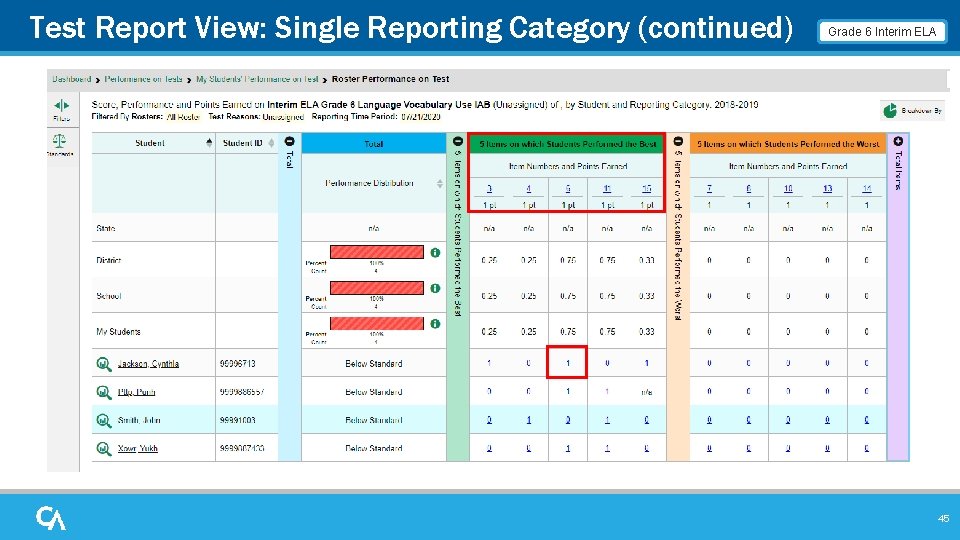
Test Report View: Single Reporting Category (continued) Grade 6 Interim ELA 45
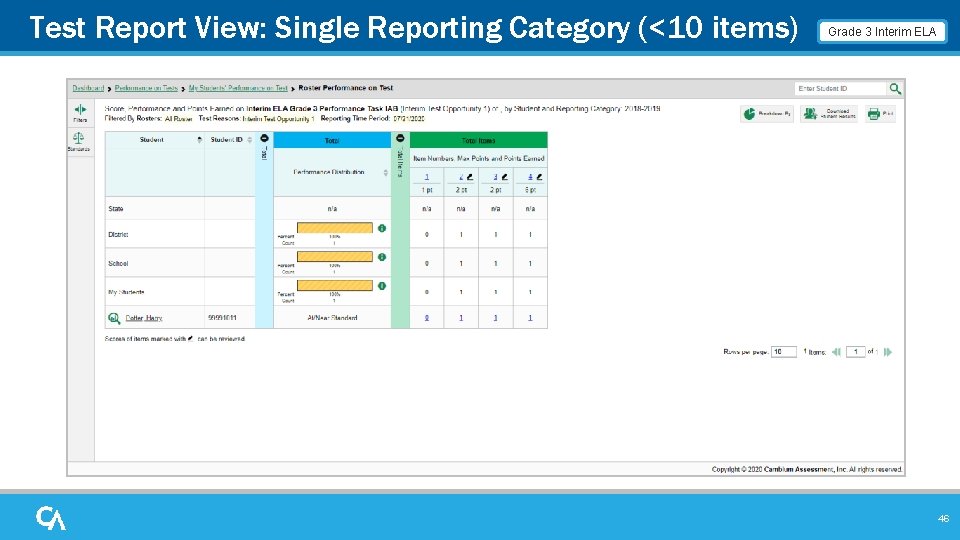
Test Report View: Single Reporting Category (<10 items) Grade 3 Interim ELA 46
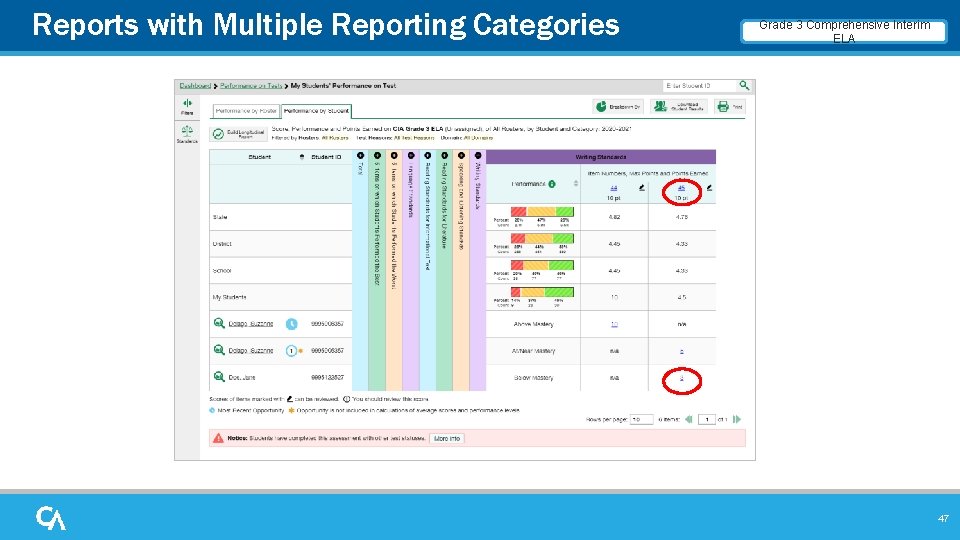
Reports with Multiple Reporting Categories Grade 3 Comprehensive Interim ELA 47
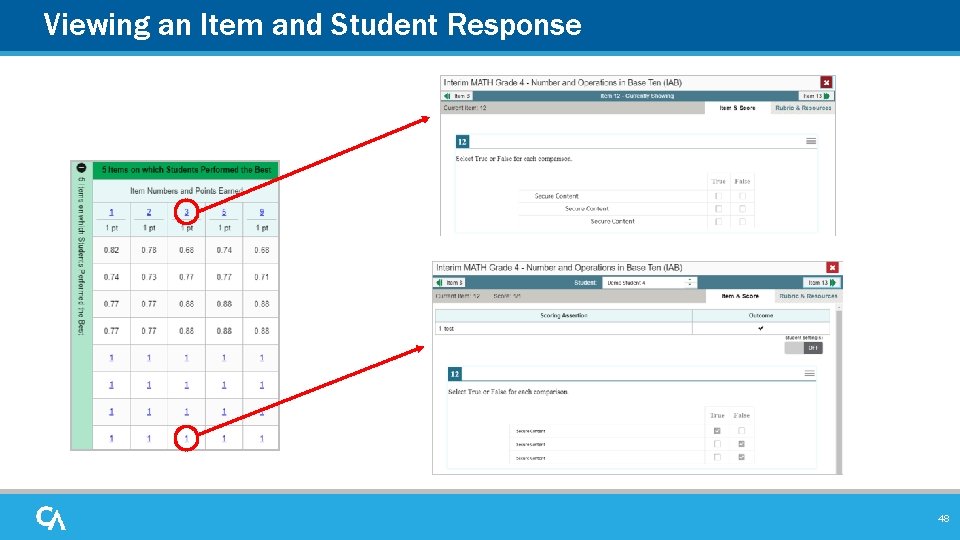
Viewing an Item and Student Response 48
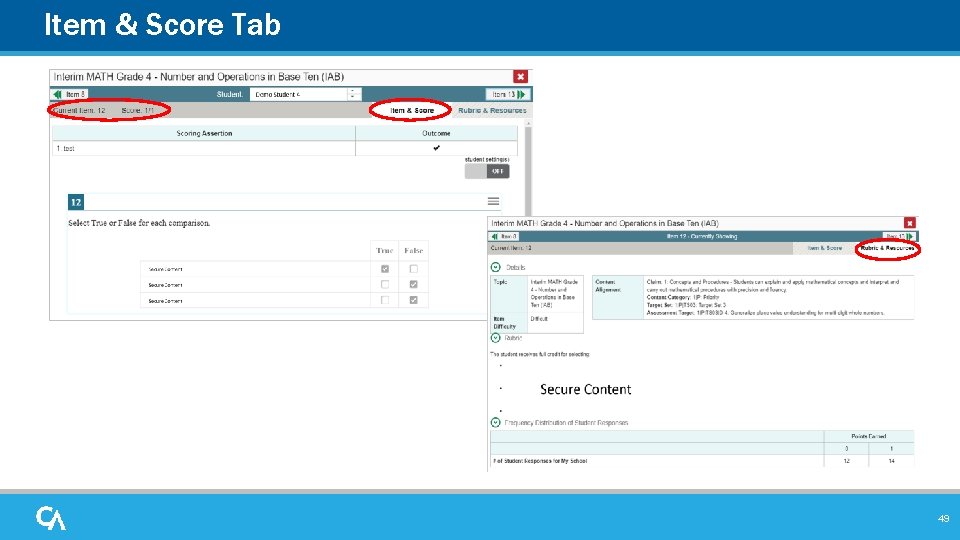
Item & Score Tab 49
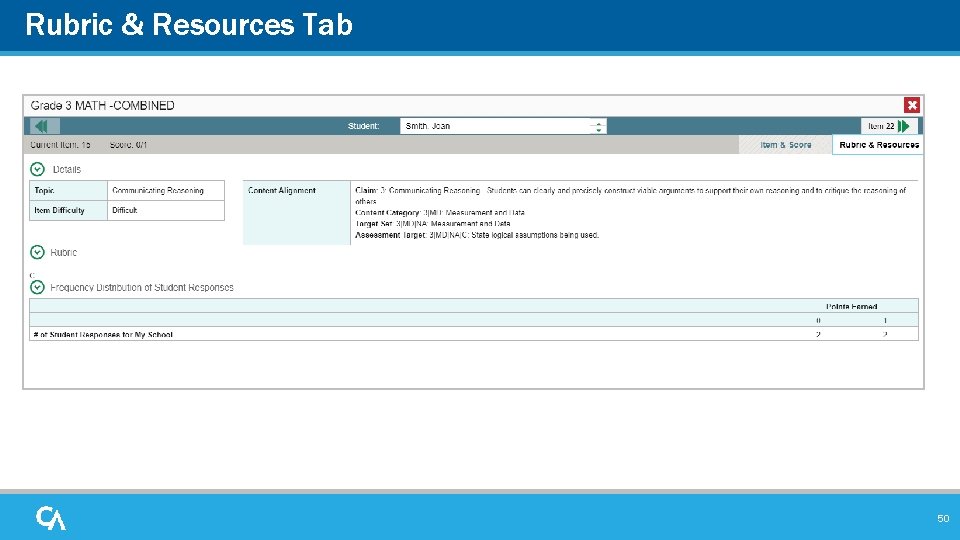
Rubric & Resources Tab 50
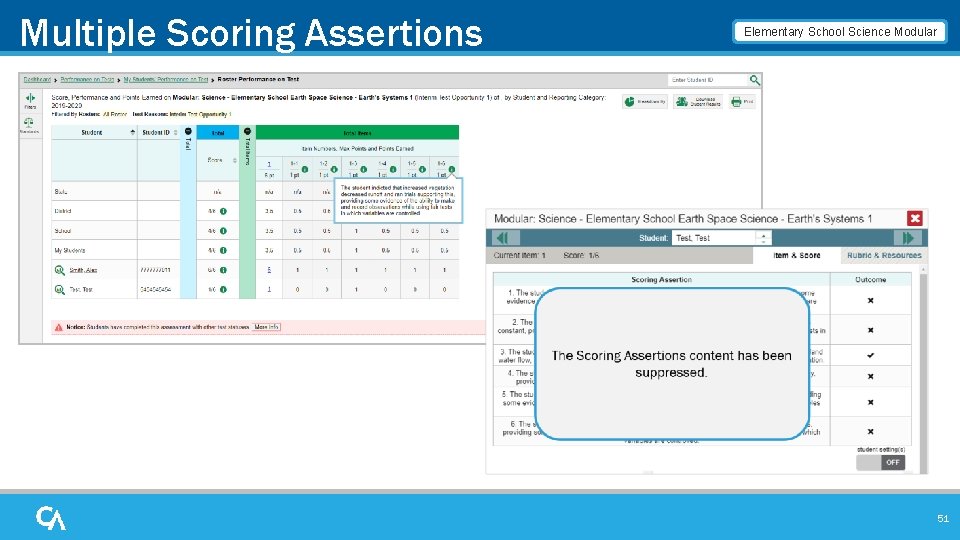
Multiple Scoring Assertions Elementary School Science Modular 51
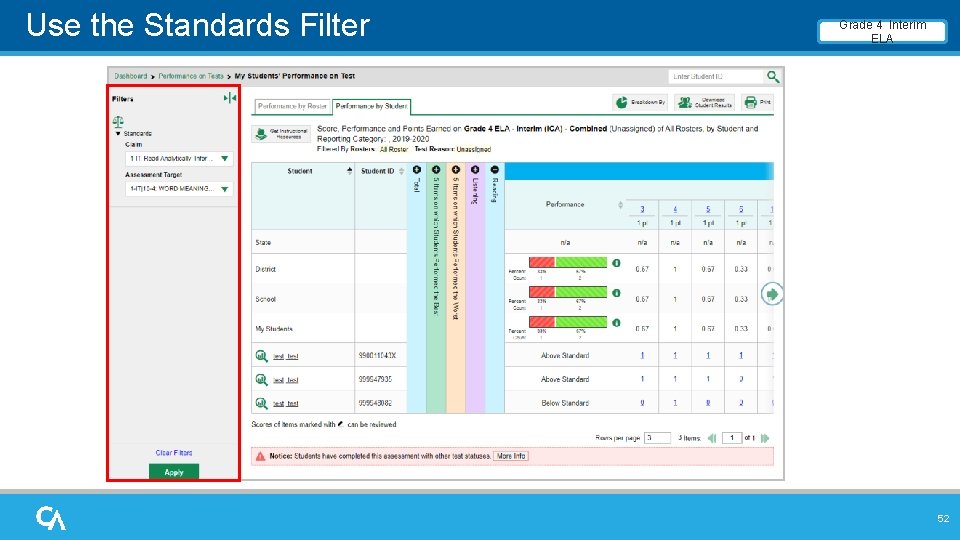
Use the Standards Filter Grade 4 Interim ELA 52
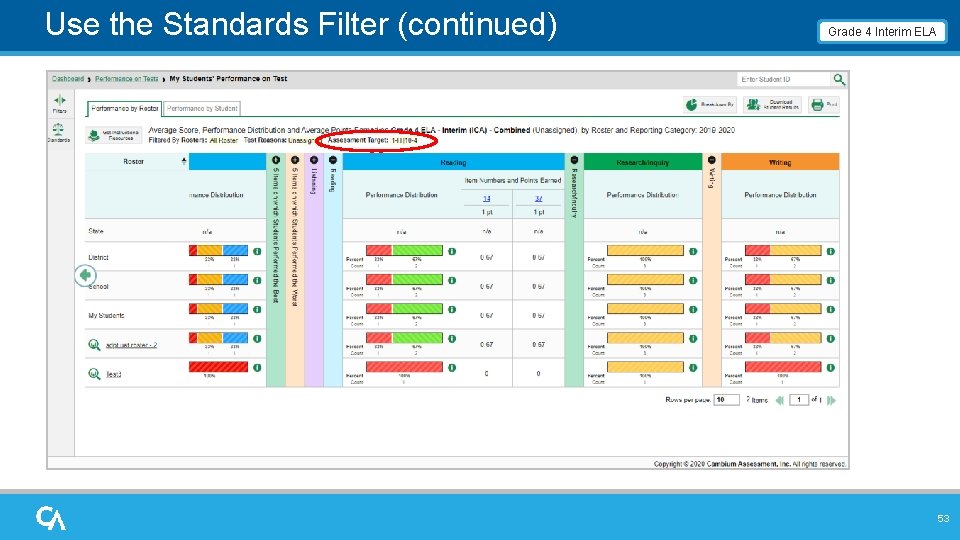
Use the Standards Filter (continued) Grade 4 Interim ELA 53
Assign Test Reasons Manage Access Change Role Reporting Options Manage Test Reasons Select Tests to Include on Reports Change Reporting Time Period Set Student Settings on Item View Roster Settings Add Roster View/Edit Roster Upload Rosters 54
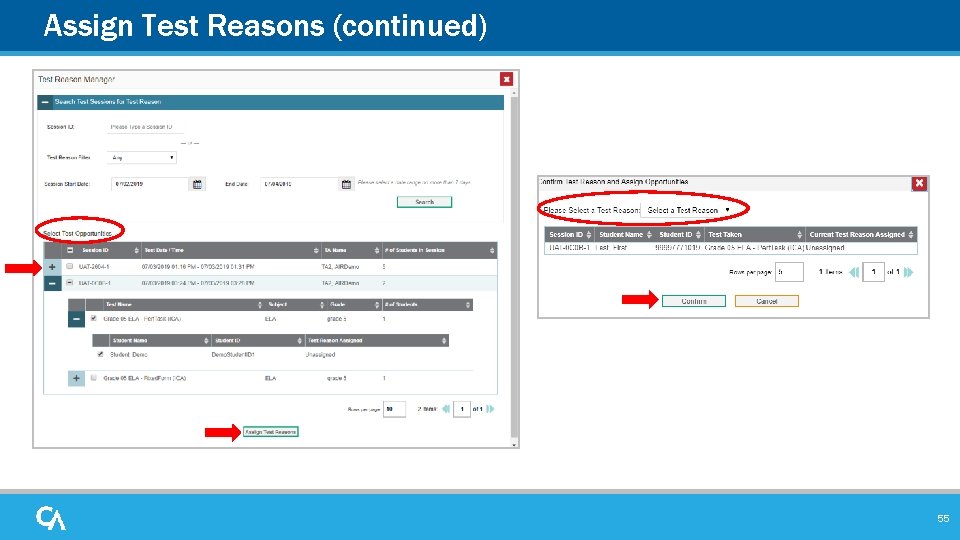
Assign Test Reasons (continued) 55
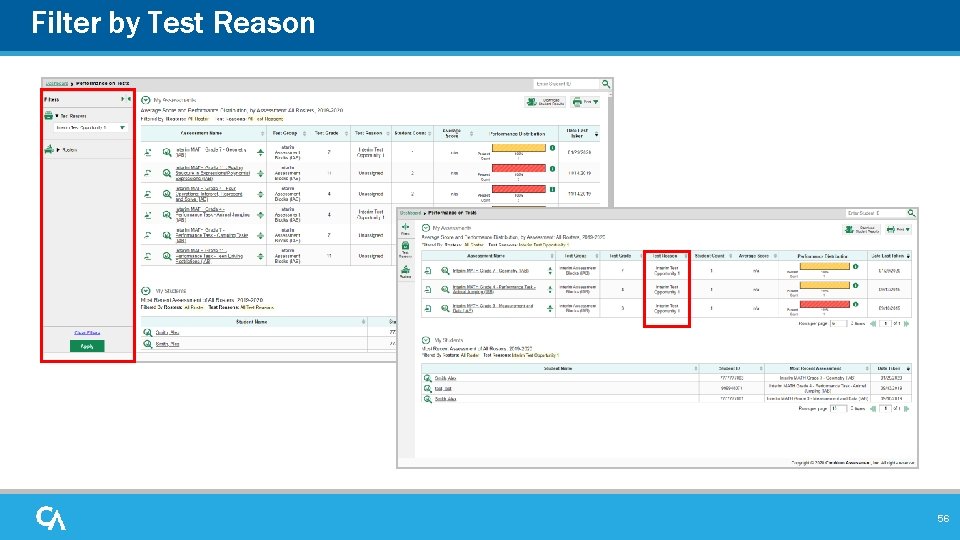
Filter by Test Reason 56
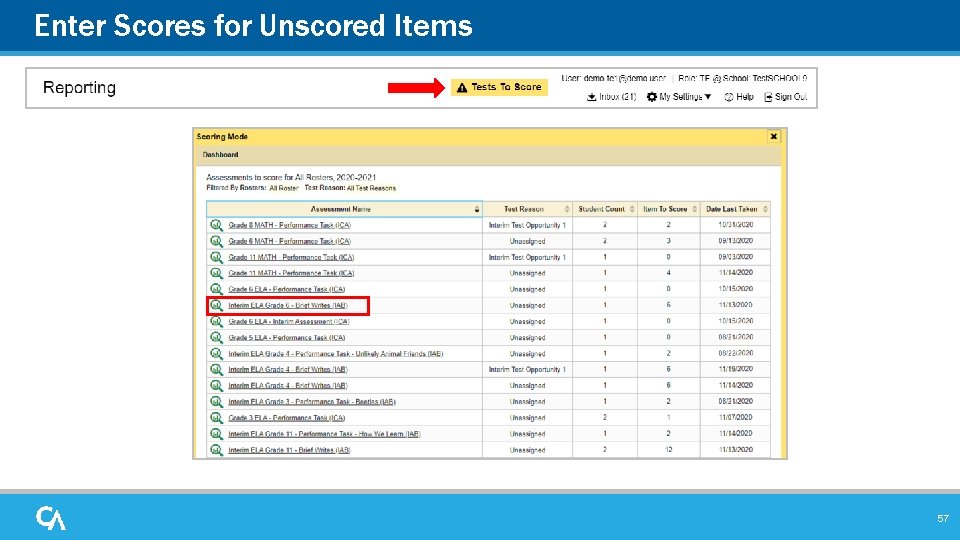
Enter Scores for Unscored Items 57
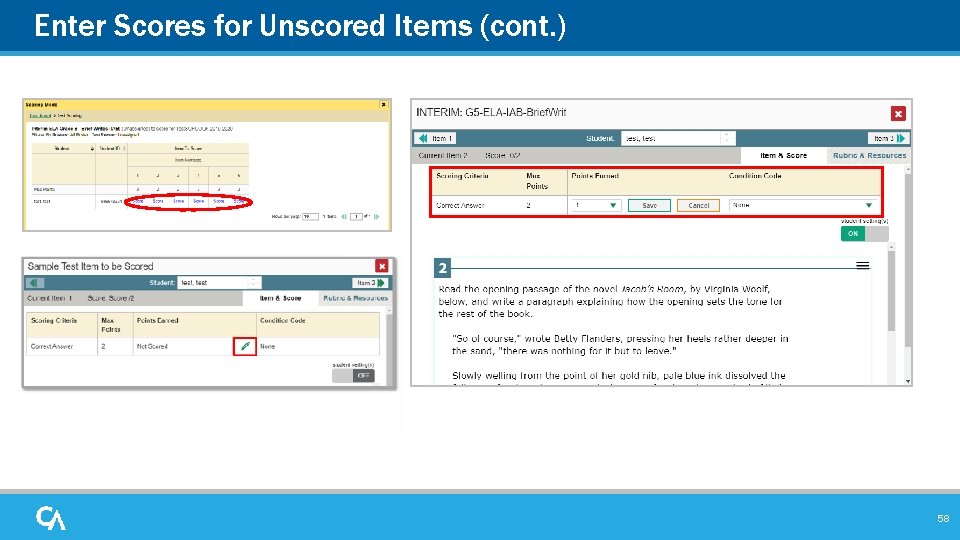
Enter Scores for Unscored Items (cont. ) 58
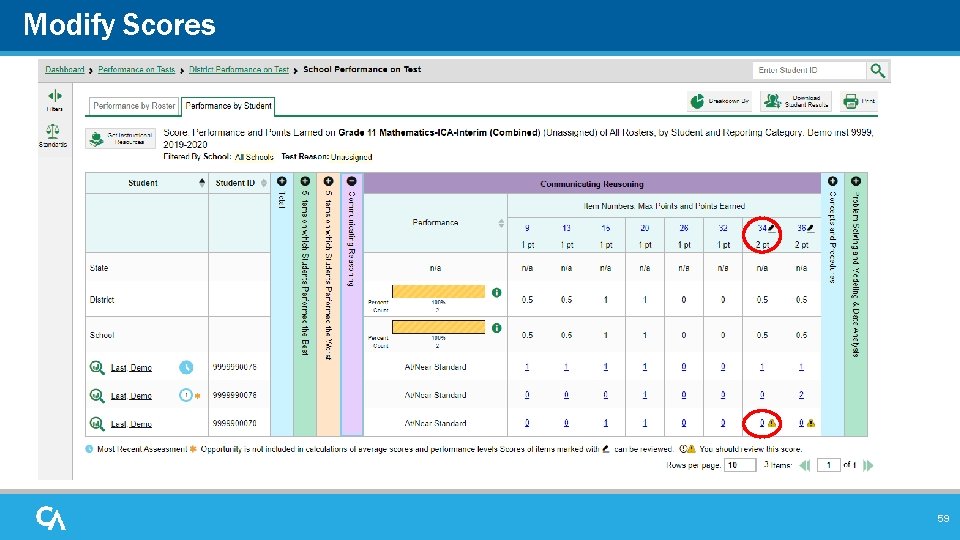
Modify Scores 59
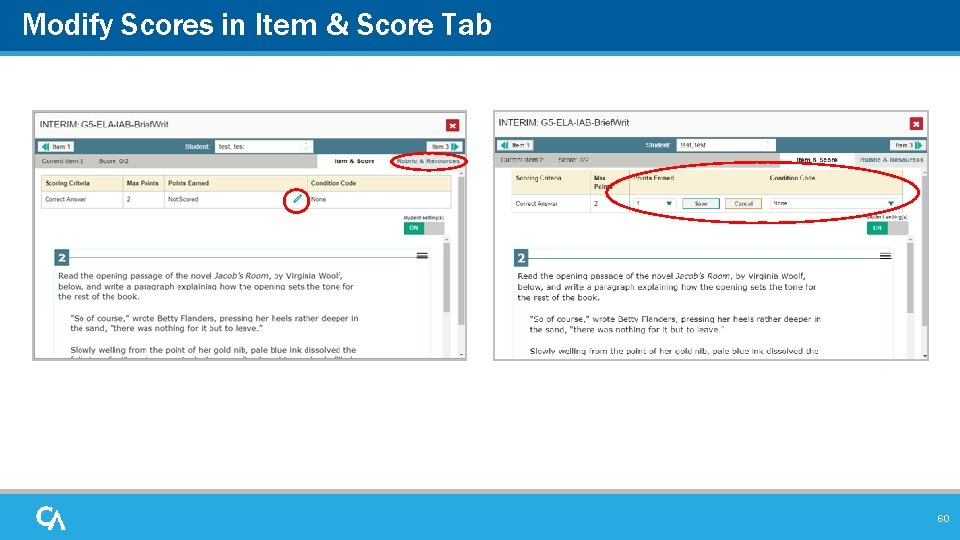
Modify Scores in Item & Score Tab 60
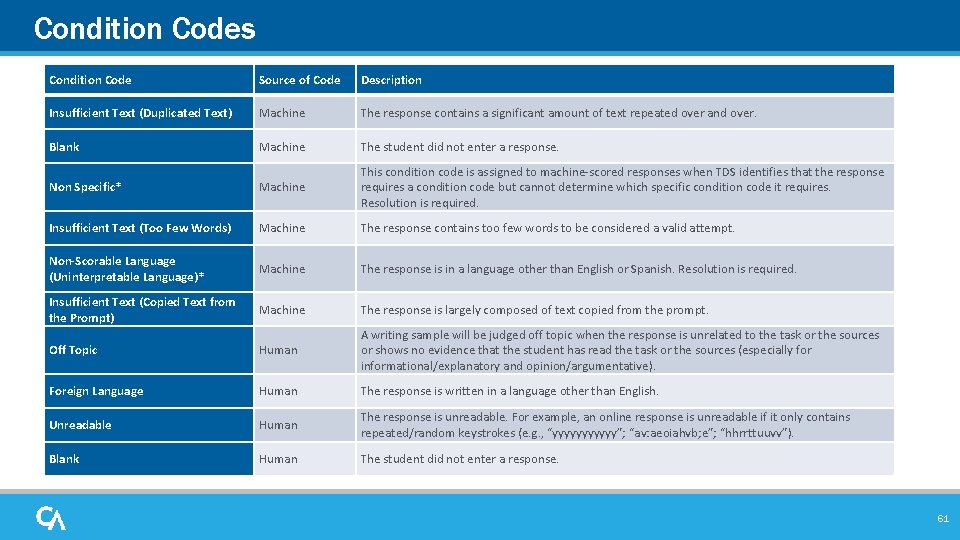
Condition Codes Condition Code Source of Code Description Insufficient Text (Duplicated Text) Machine The response contains a significant amount of text repeated over and over. Blank Machine The student did not enter a response. Non Specific* Machine This condition code is assigned to machine-scored responses when TDS identifies that the response requires a condition code but cannot determine which specific condition code it requires. Resolution is required. Insufficient Text (Too Few Words) Machine The response contains too few words to be considered a valid attempt. Non-Scorable Language (Uninterpretable Language)* Machine The response is in a language other than English or Spanish. Resolution is required. Insufficient Text (Copied Text from the Prompt) Machine The response is largely composed of text copied from the prompt. Off Topic Human A writing sample will be judged off topic when the response is unrelated to the task or the sources or shows no evidence that the student has read the task or the sources (especially for informational/explanatory and opinion/argumentative). Foreign Language Human The response is written in a language other than English. Unreadable Human The response is unreadable. For example, an online response is unreadable if it only contains repeated/random keystrokes (e. g. , “yyyyyy”; “av: aeoiahvb; e”; “hhrrttuuvv”). Blank Human The student did not enter a response. 61
Generate Individual Student Reports (ISRs) and Student Data Files
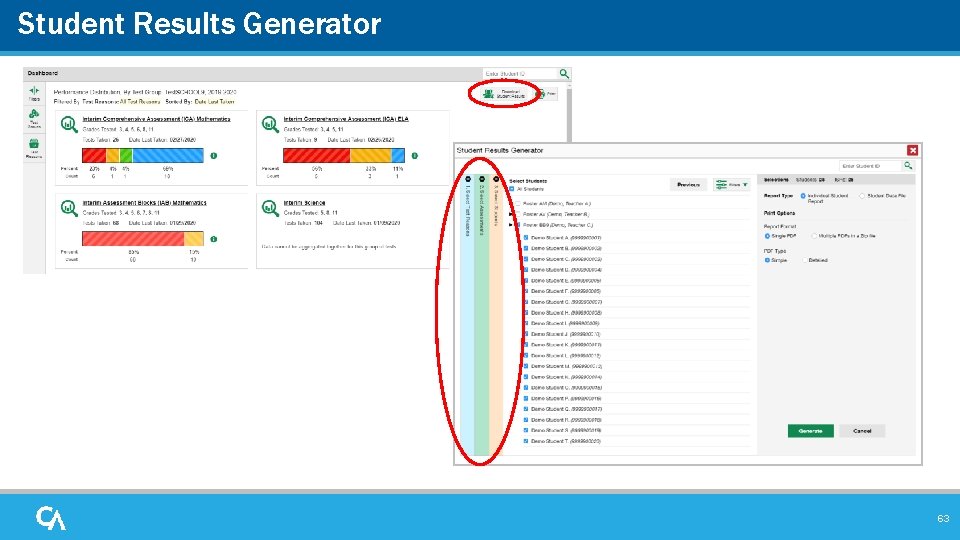
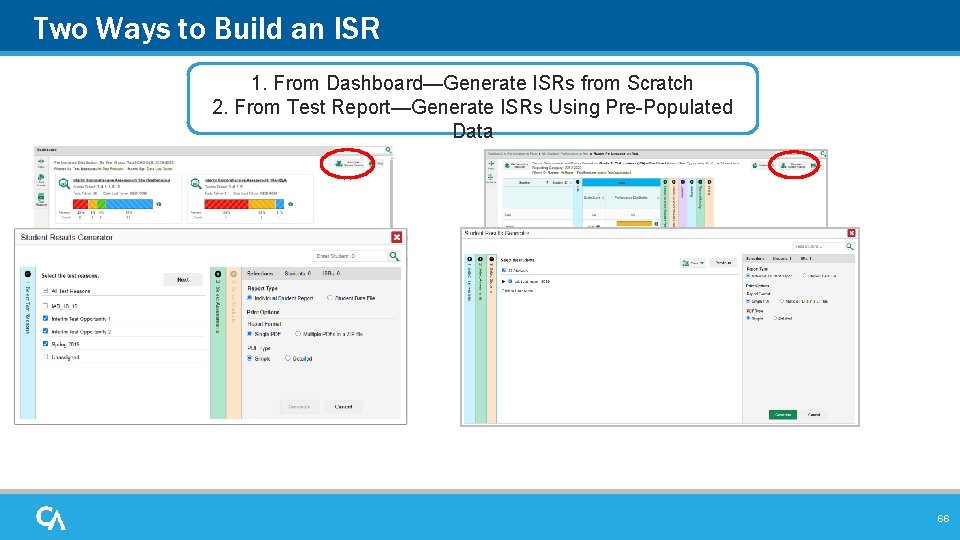
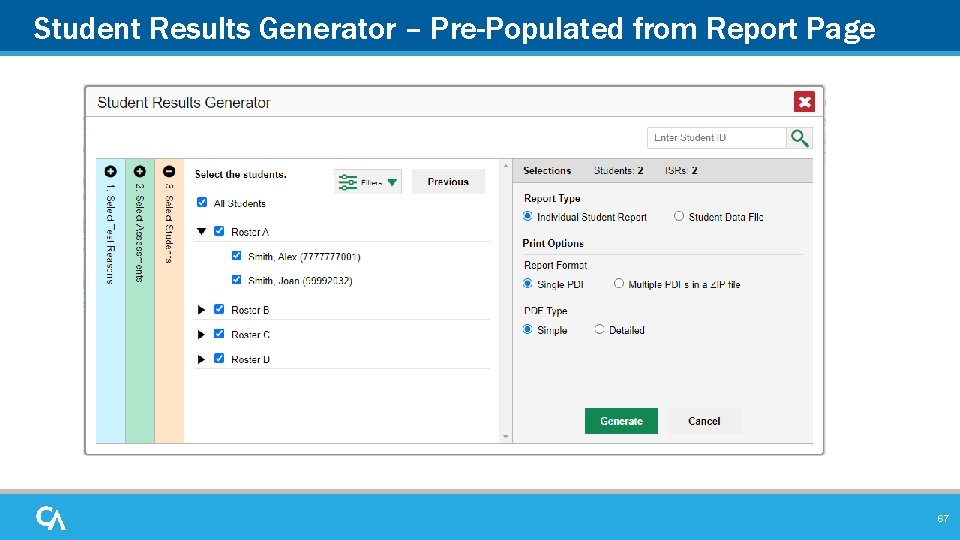
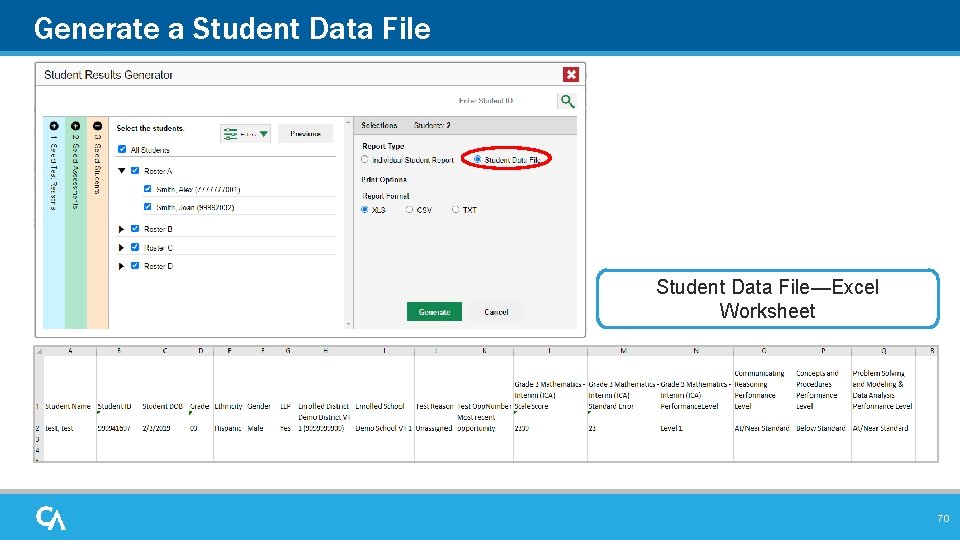
Student Results Generator 63
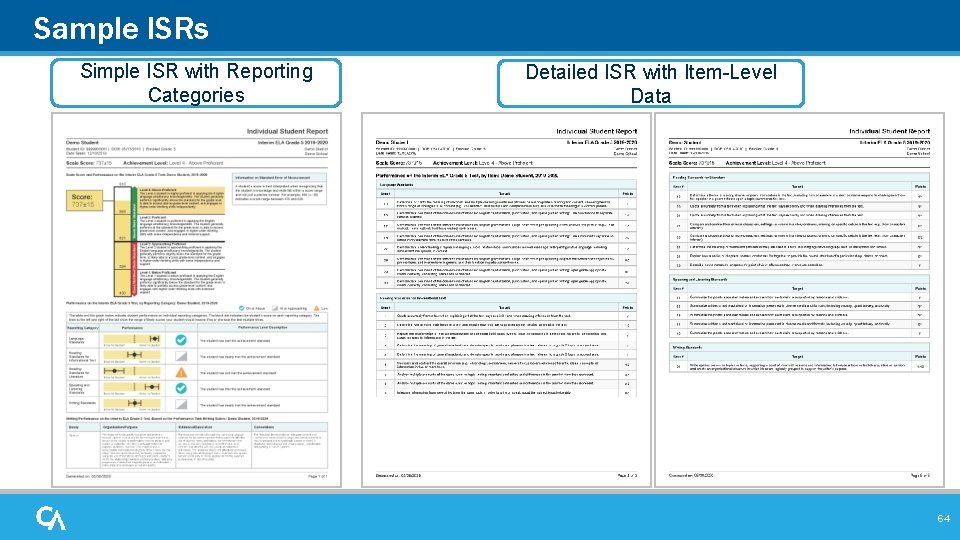
Sample ISRs Simple ISR with Reporting Categories Detailed ISR with Item-Level Data 64
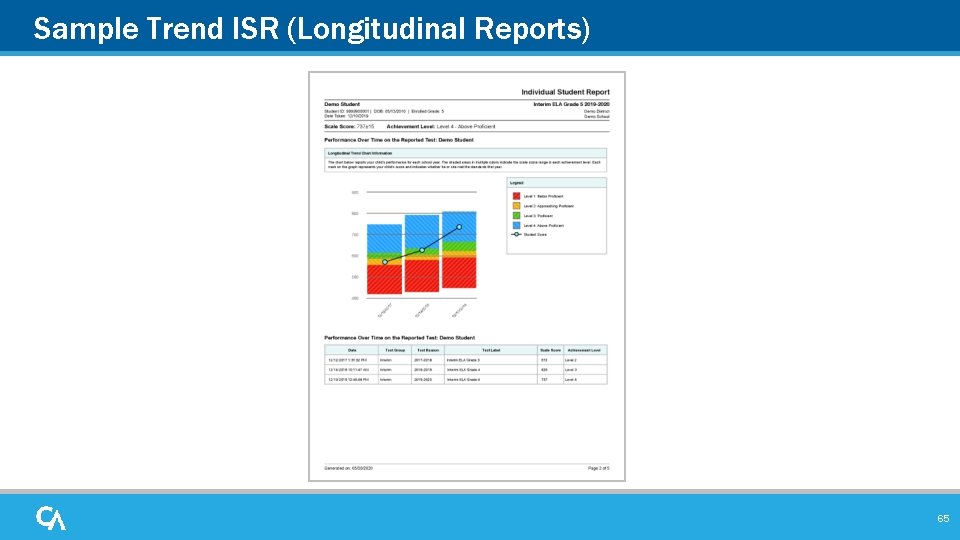
Sample Trend ISR (Longitudinal Reports) 65
Two Ways to Build an ISR 1. From Dashboard—Generate ISRs from Scratch 2. From Test Report—Generate ISRs Using Pre-Populated Data 66
Student Results Generator – Pre-Populated from Report Page 67
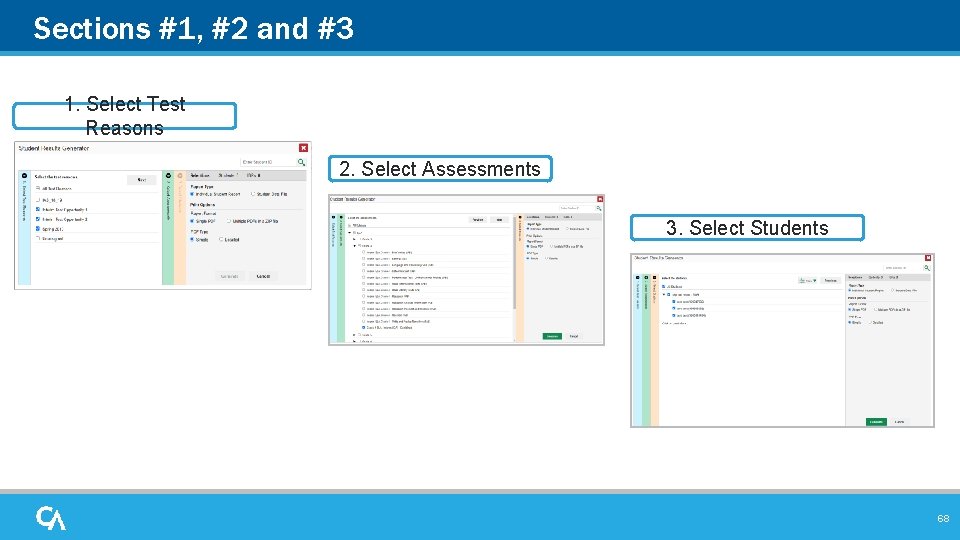
Sections #1, #2 and #3 1. Select Test Reasons 2. Select Assessments 3. Select Students 68
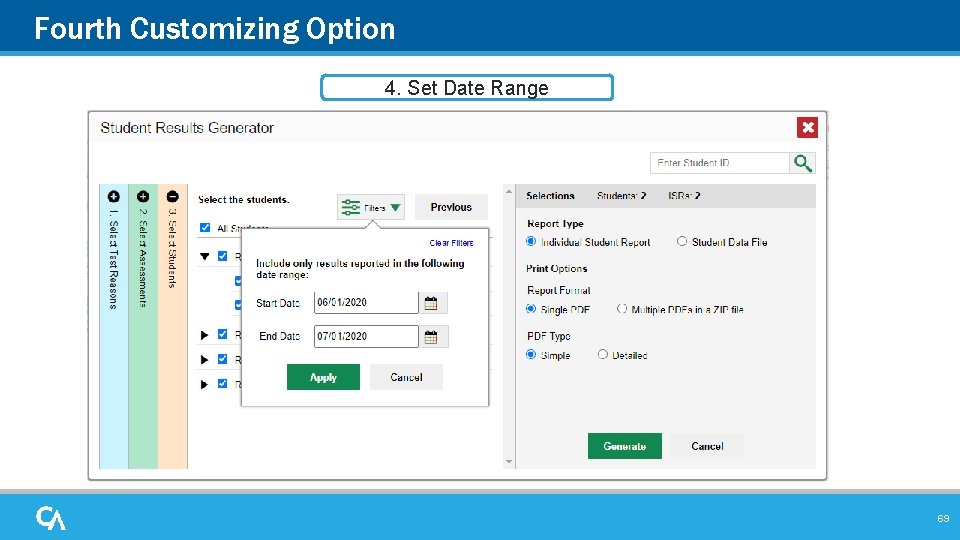
Fourth Customizing Option 4. Set Date Range 69
Generate a Student Data File—Excel Worksheet 70
Print and Export Any Data You Can View in Your Reports
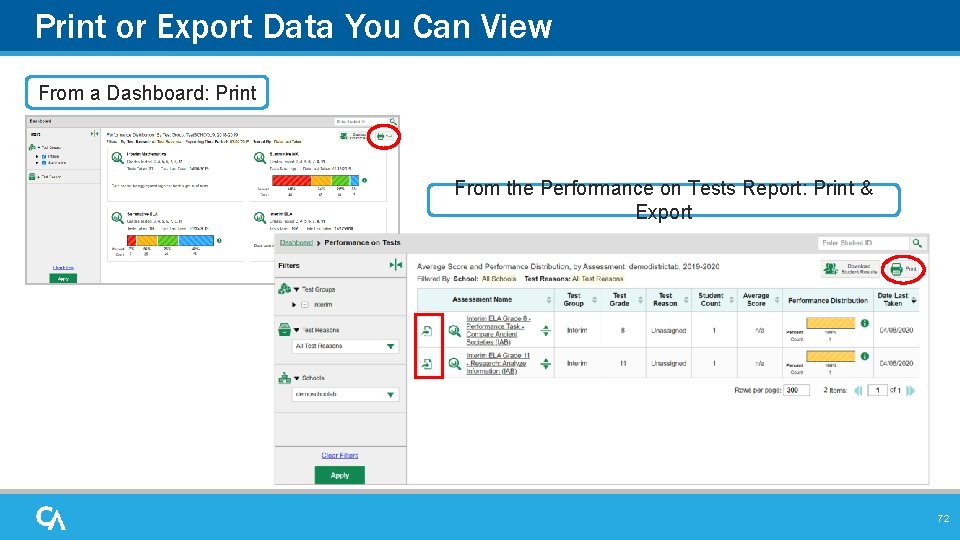
Print or Export Data You Can View From a Dashboard: Print From the Performance on Tests Report: Print & Export 72
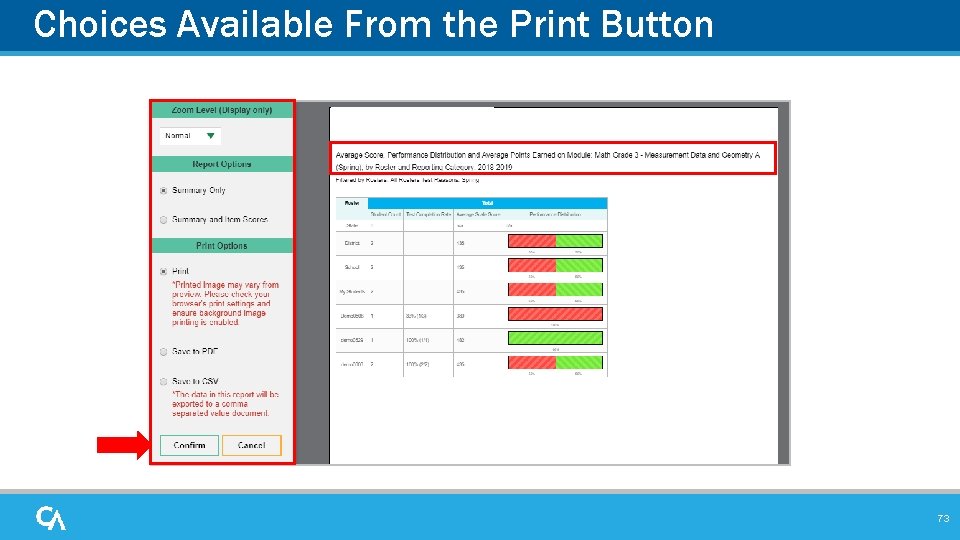
Choices Available From the Print Button 73
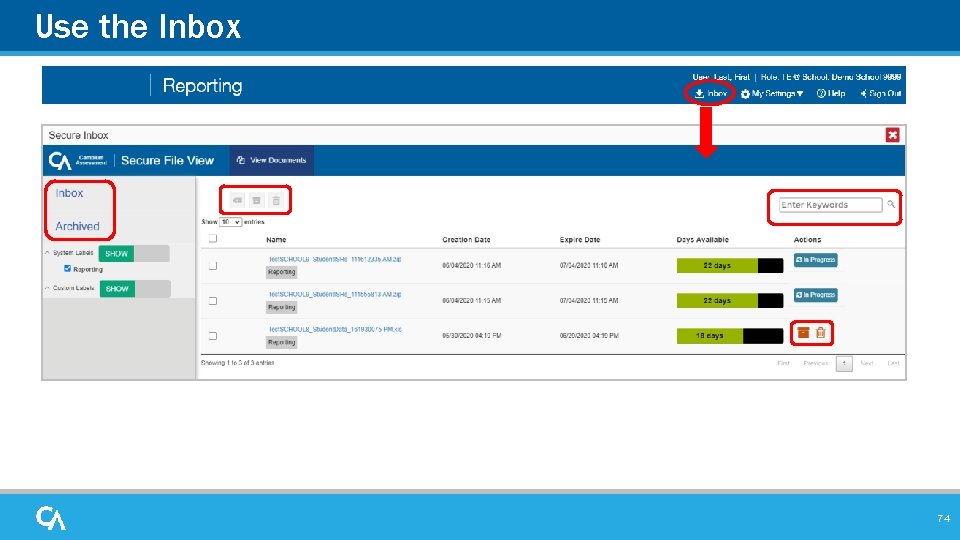
Use the Inbox 74
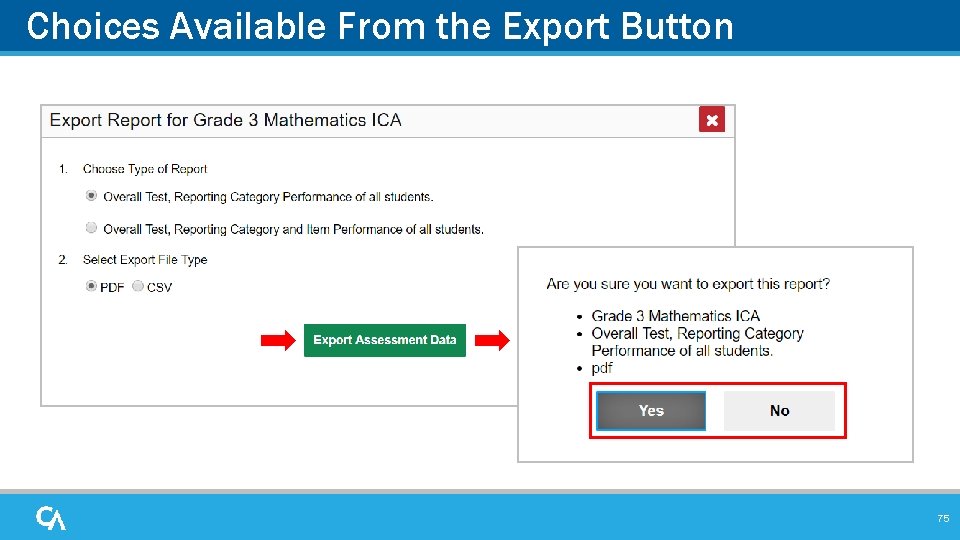
Choices Available From the Export Button 75
How Can I Get More Information? You can contact the Help Desk for assistance with any technical issues you encounter. When contacting the Help Desk, please be ready to provide: • Any error messages that are appearing (including codes) • Your operating system and browser information • Your network configuration information • Your contact information for follow-up by phone or email • Any other relevant information, such as test names or content areas, student IDs, session IDs, and search criteria For test administration or policy issues, please contact your District Test Coordinator. • You can find more announcements on your assessment portal. 76
Thank You! Further Information: Reporting System User Guide for Summative and Interim Assessments, 2020 -2021 Montana Testing Portal http: //mt. portal. cambiumast. com Montana Help Desk mthelpdesk@cambiumassessment. com 1. 877. 365. 7915 77