
LEAP 360 Diagnostic Assessments District Leadership Session Todays



- Slides: 51
LEAP 360: Diagnostic Assessments District Leadership Session
Today’s Goals By the end of today’s session, we’ll address these questions: • What is LEAP 360’s role in Louisiana’s classrooms, schools, and school systems? • What do LEAP 360 Diagnostic Assessments tell us about student readiness and learning? • How does the Quick Start Guide prepare me for implementation? • What are some important logistical points to consider? • What support resources are available? 2
LEAP 360: An Overview
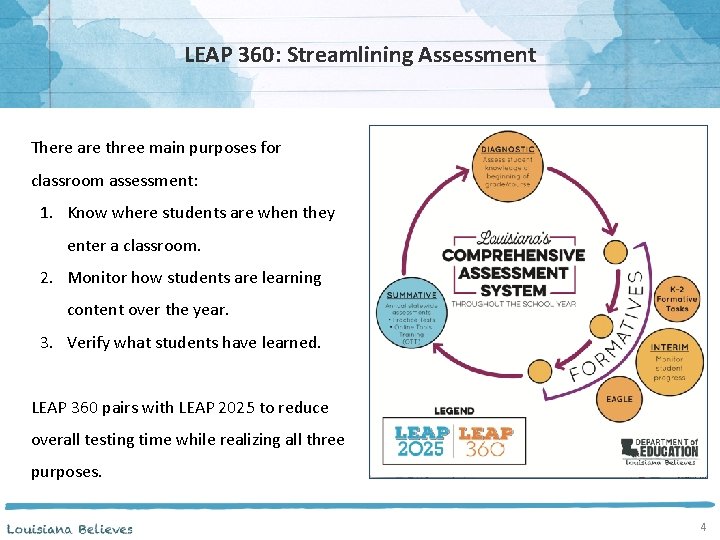
LEAP 360: Streamlining Assessment There are three main purposes for classroom assessment: 1. Know where students are when they enter a classroom. 2. Monitor how students are learning content over the year. 3. Verify what students have learned. LEAP 360 pairs with LEAP 2025 to reduce overall testing time while realizing all three purposes. 4
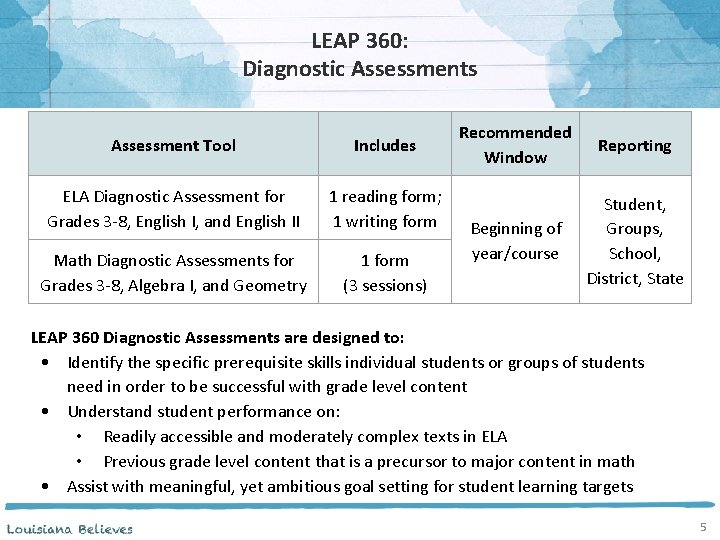
LEAP 360: Diagnostic Assessments Assessment Tool Includes ELA Diagnostic Assessment for Grades 3 -8, English I, and English II 1 reading form; 1 writing form Math Diagnostic Assessments for Grades 3 -8, Algebra I, and Geometry 1 form (3 sessions) Recommended Window Reporting Beginning of year/course Student, Groups, School, District, State LEAP 360 Diagnostic Assessments are designed to: • Identify the specific prerequisite skills individual students or groups of students need in order to be successful with grade level content • Understand student performance on: • Readily accessible and moderately complex texts in ELA • Previous grade level content that is a precursor to major content in math • Assist with meaningful, yet ambitious goal setting for student learning targets 5
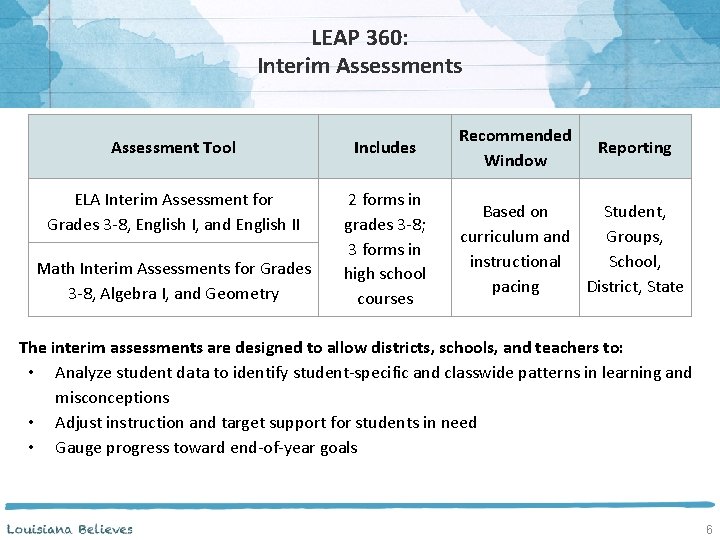
LEAP 360: Interim Assessments Assessment Tool Includes ELA Interim Assessment for Grades 3 -8, English I, and English II 2 forms in grades 3 -8; 3 forms in high school courses Math Interim Assessments for Grades 3 -8, Algebra I, and Geometry Recommended Window Reporting Based on Student, curriculum and Groups, instructional School, pacing District, State The interim assessments are designed to allow districts, schools, and teachers to: • Analyze student data to identify student-specific and classwide patterns in learning and misconceptions • Adjust instruction and target support for students in need • Gauge progress toward end-of-year goals 6
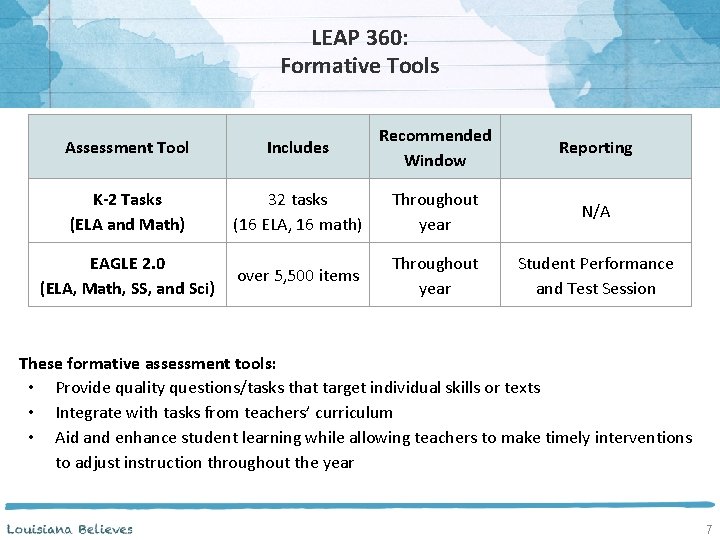
LEAP 360: Formative Tools Assessment Tool Includes Recommended Window Reporting K-2 Tasks (ELA and Math) 32 tasks (16 ELA, 16 math) Throughout year N/A EAGLE 2. 0 (ELA, Math, SS, and Sci) over 5, 500 items Throughout year Student Performance and Test Session These formative assessment tools: • Provide quality questions/tasks that target individual skills or texts • Integrate with tasks from teachers’ curriculum • Aid and enhance student learning while allowing teachers to make timely interventions to adjust instruction throughout the year 7
Turn and Talk • What structures does your district have in place to communicate about the LEAP 360 tools to principals and teachers? 8
LEAP 360 Diagnostic Assessments: Reporting on Student Readiness
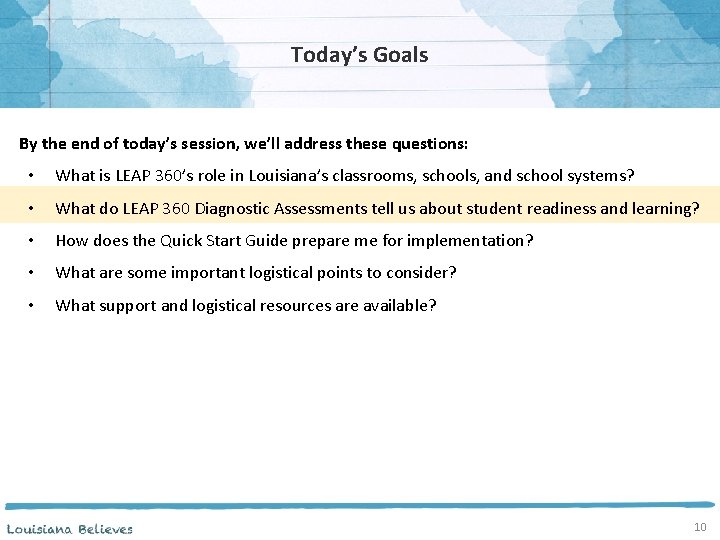
Today’s Goals By the end of today’s session, we’ll address these questions: • What is LEAP 360’s role in Louisiana’s classrooms, schools, and school systems? • What do LEAP 360 Diagnostic Assessments tell us about student readiness and learning? • How does the Quick Start Guide prepare me for implementation? • What are some important logistical points to consider? • What support and logistical resources are available? 10
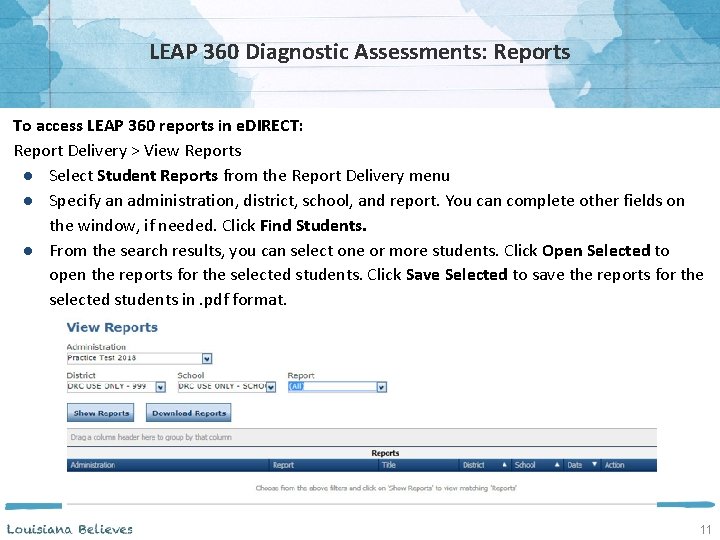
LEAP 360 Diagnostic Assessments: Reports To access LEAP 360 reports in e. DIRECT: Report Delivery > View Reports ● Select Student Reports from the Report Delivery menu ● Specify an administration, district, school, and report. You can complete other fields on the window, if needed. Click Find Students. ● From the search results, you can select one or more students. Click Open Selected to open the reports for the selected students. Click Save Selected to save the reports for the selected students in. pdf format. 11
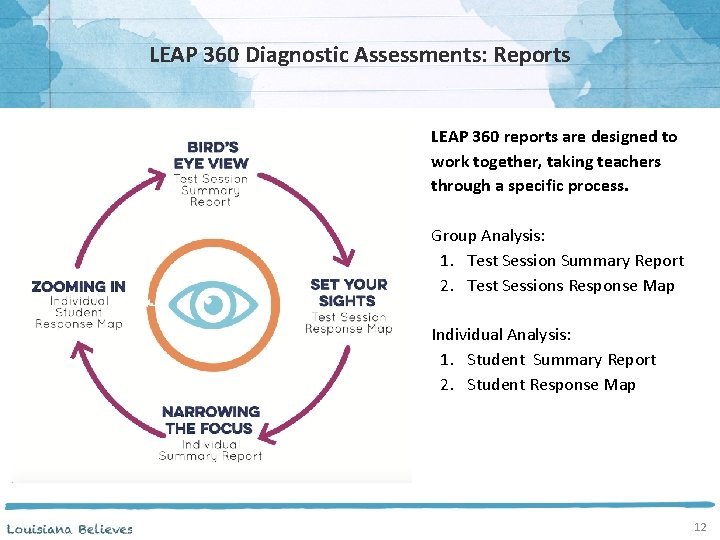
LEAP 360 Diagnostic Assessments: Reports LEAP 360 reports are designed to work together, taking teachers through a specific process. Group Analysis: 1. Test Session Summary Report 2. Test Sessions Response Map Individual Analysis: 1. Student Summary Report 2. Student Response Map 12
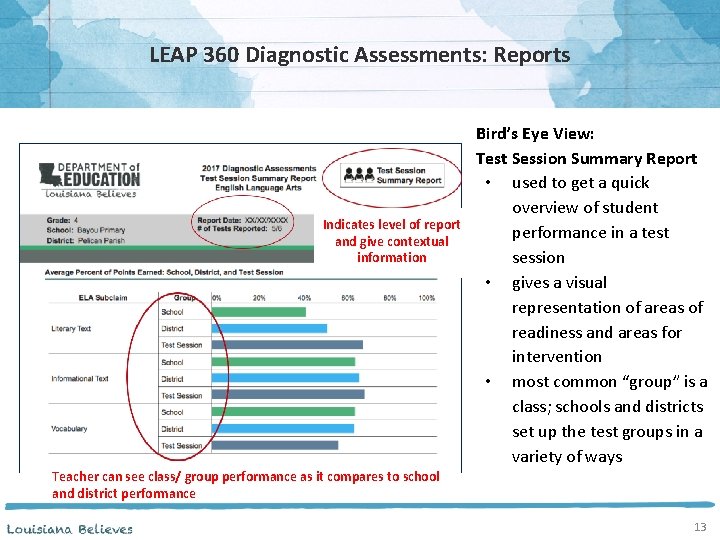
LEAP 360 Diagnostic Assessments: Reports Indicates level of report and give contextual information Bird’s Eye View: Test Session Summary Report • used to get a quick overview of student performance in a test session • gives a visual representation of areas of readiness and areas for intervention • most common “group” is a class; schools and districts set up the test groups in a variety of ways Teacher can see class/ group performance as it compares to school and district performance 13
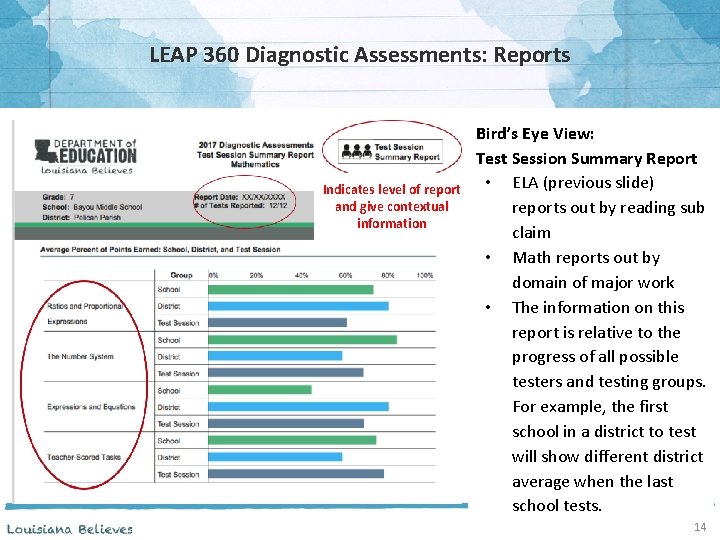
LEAP 360 Diagnostic Assessments: Reports Indicates level of report and give contextual information Bird’s Eye View: Test Session Summary Report • ELA (previous slide) reports out by reading sub claim • Math reports out by domain of major work • The information on this report is relative to the progress of all possible testers and testing groups. For example, the first school in a district to test will show different district average when the last school tests. 14
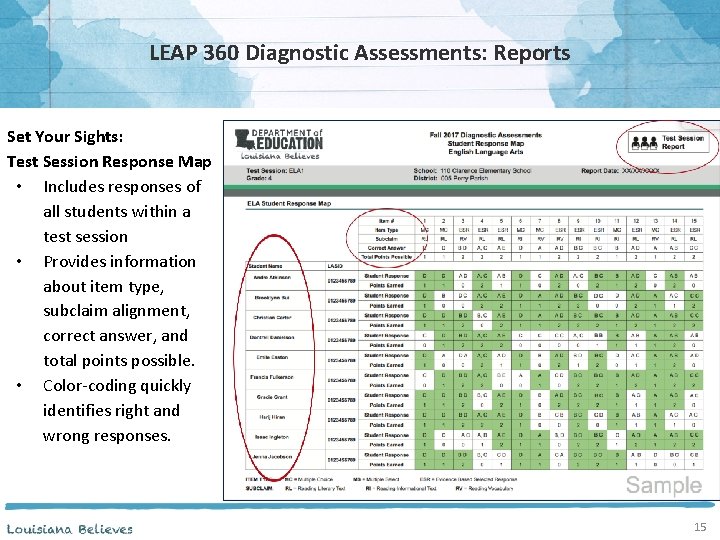
LEAP 360 Diagnostic Assessments: Reports Set Your Sights: Test Session Response Map • Includes responses of all students within a test session • Provides information about item type, subclaim alignment, correct answer, and total points possible. • Color-coding quickly identifies right and wrong responses. 15
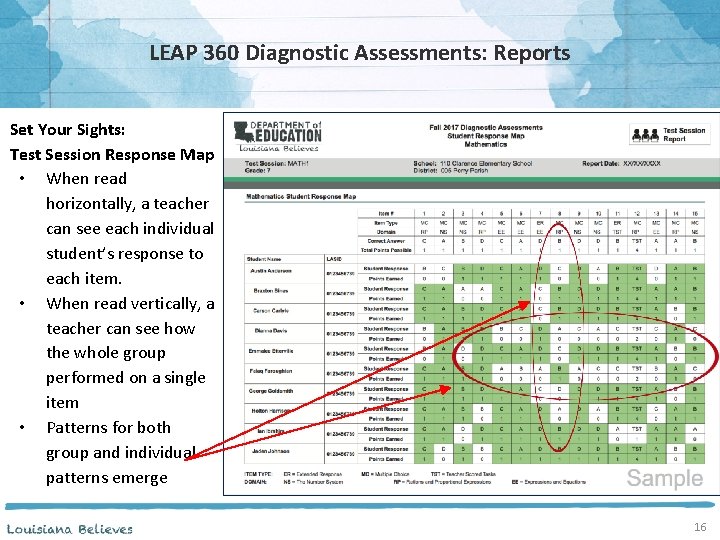
LEAP 360 Diagnostic Assessments: Reports Set Your Sights: Test Session Response Map • When read horizontally, a teacher can see each individual student’s response to each item. • When read vertically, a teacher can see how the whole group performed on a single item • Patterns for both group and individual patterns emerge 16
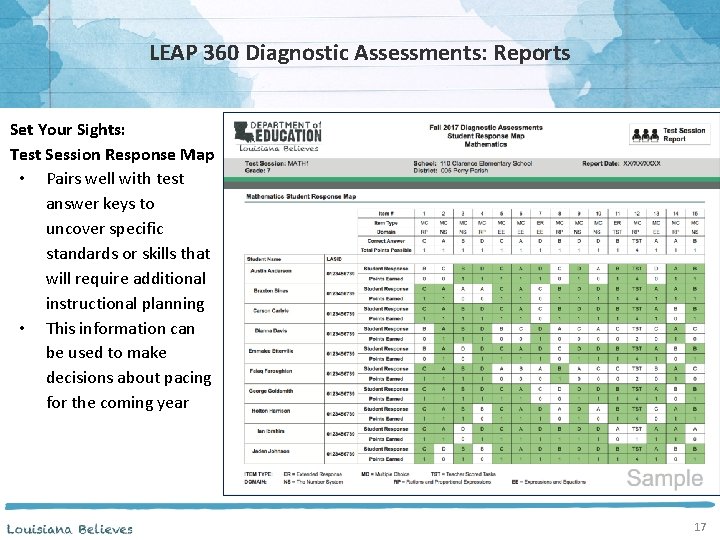
LEAP 360 Diagnostic Assessments: Reports Set Your Sights: Test Session Response Map • Pairs well with test answer keys to uncover specific standards or skills that will require additional instructional planning • This information can be used to make decisions about pacing for the coming year 17
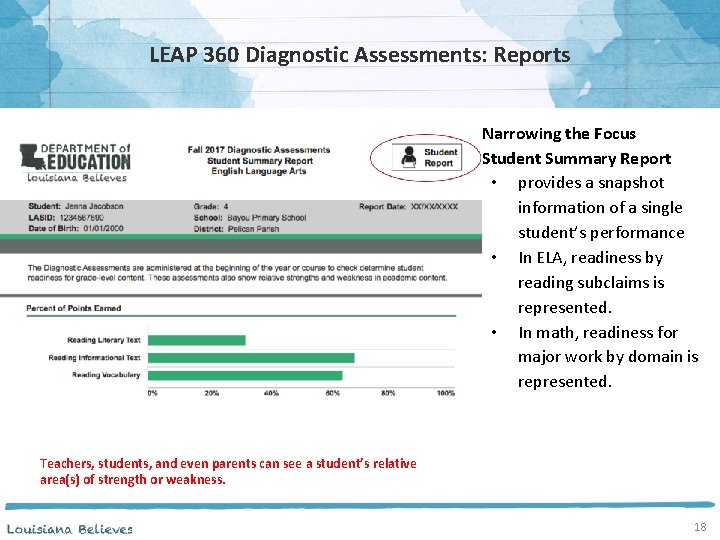
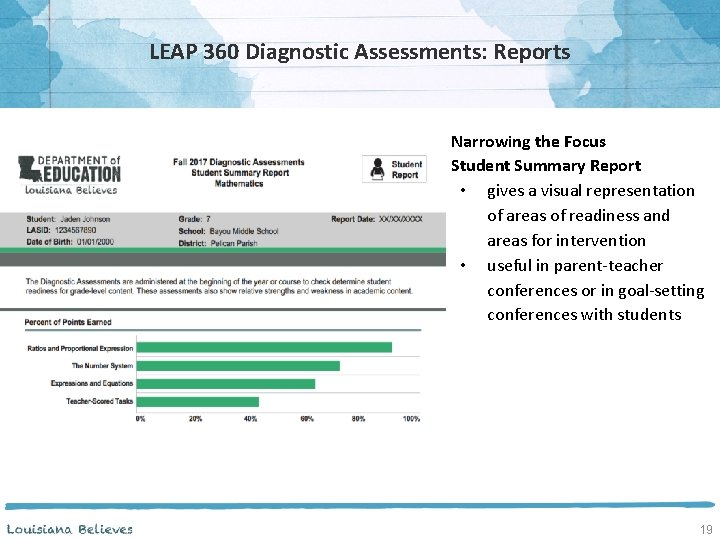
LEAP 360 Diagnostic Assessments: Reports Narrowing the Focus Student Summary Report • provides a snapshot information of a single student’s performance • In ELA, readiness by reading subclaims is represented. • In math, readiness for major work by domain is represented. Teachers, students, and even parents can see a student’s relative area(s) of strength or weakness. 18
LEAP 360 Diagnostic Assessments: Reports Narrowing the Focus Student Summary Report • gives a visual representation of areas of readiness and areas for intervention • useful in parent-teacher conferences or in goal-setting conferences with students 19
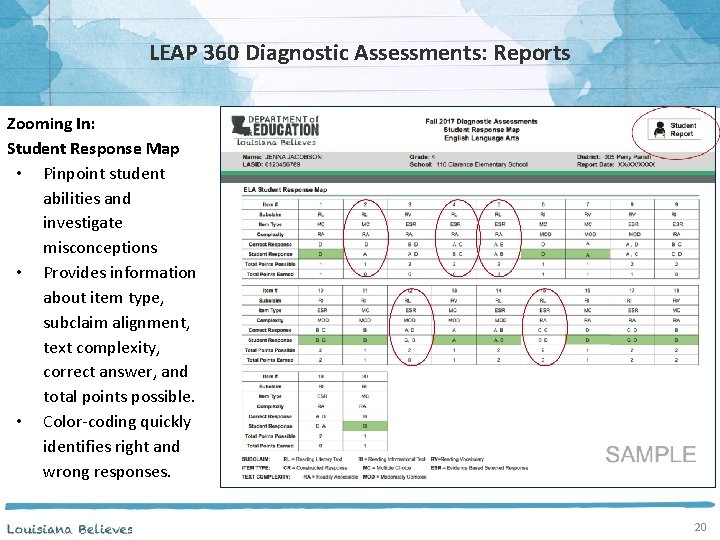
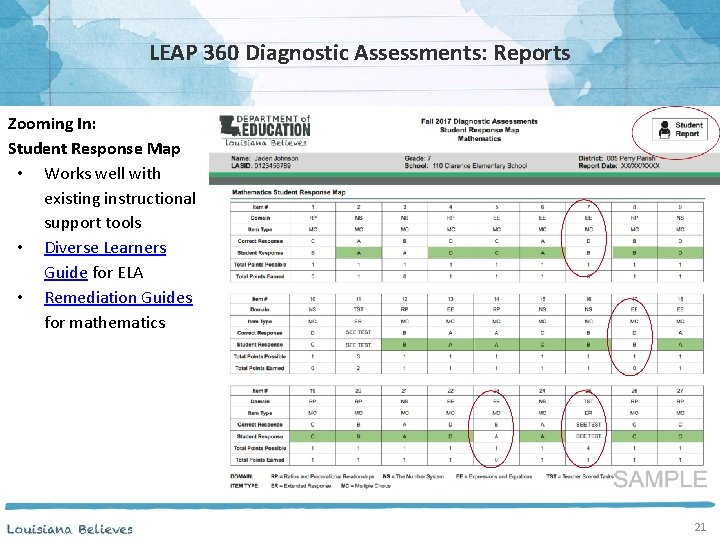
LEAP 360 Diagnostic Assessments: Reports Zooming In: Student Response Map • Pinpoint student abilities and investigate misconceptions • Provides information about item type, subclaim alignment, text complexity, correct answer, and total points possible. • Color-coding quickly identifies right and wrong responses. 20
LEAP 360 Diagnostic Assessments: Reports Zooming In: Student Response Map • Works well with existing instructional support tools • Diverse Learners Guide for ELA • Remediation Guides for mathematics 21
LEAP 360 Diagnostic Assessments: Instructional Planning Where to Go and What to Do More than likely, LEAP 360 assessments will indicate that individual students, groups of students, or even whole classes are in need of additional support or remediation in specific areas. . • The K-12 ELA Planning Resources page provides links to a variety of resources that give teachers access to Guidebook 2. 0, instructional strategies, LEAP 2025 assessment guides, and several other tools. • The K-12 Math Planning Resources page provides links to a variety of resources including sample year plans, companion documents, LEAP 2025 assessment guides, and several other tools. 22
LEAP 360 Diagnostic Assessments: Instructional Planning Once this level of analysis occurs, teachers should: • Work with students to set meaningful, ambitious learning goals for the year • Identify specific content that will need more intensive instruction as it is approached throughout the year and work to build-in additional time or scaffolding accordingly • Recognize patterns in both individual and group learning or learning misconceptions and use that information to create focused intervention groups Once this level of analysis occurs, teachers should not: • Teach the missed prerequisite standards for several weeks and readminister to the diagnostic assessment to see if students “got it” • Label students as “high” or “low” and group them accordingly for the entire year 23
LEAP 360 Diagnostic Assessments: Quick Start Specifics
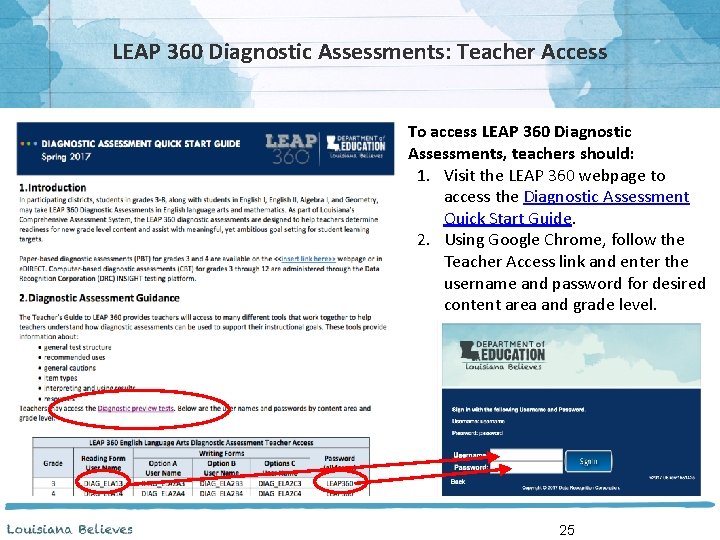
LEAP 360 Diagnostic Assessments: Teacher Access To access LEAP 360 Diagnostic Assessments, teachers should: 1. Visit the LEAP 360 webpage to access the Diagnostic Assessment Quick Start Guide. 2. Using Google Chrome, follow the Teacher Access link and enter the username and password for desired content area and grade level. 25
Diagnostic Assessment Guidance documents are highlighted in the second section of the Quick Start Guide. Guidance documents for ELA and mathematics provide information as to how teachers may use the diagnostics to support their instructional goals. The guidance documents, located in the Teacher’s Guide to LEAP 360, include information about: • • • General test structure Recommended uses of the diagnostic tests General cautions Item types Interpreting and using results Resources 26
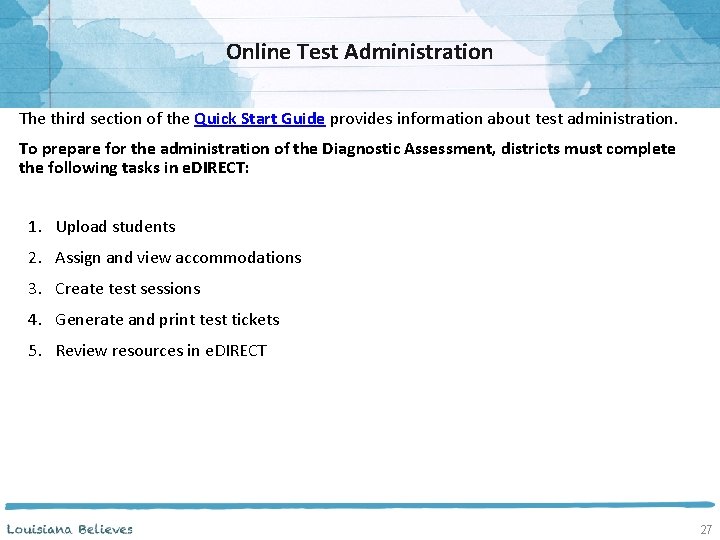
Online Test Administration The third section of the Quick Start Guide provides information about test administration. To prepare for the administration of the Diagnostic Assessment, districts must complete the following tasks in e. DIRECT: 1. Upload students 2. Assign and view accommodations 3. Create test sessions 4. Generate and print test tickets 5. Review resources in e. DIRECT 27
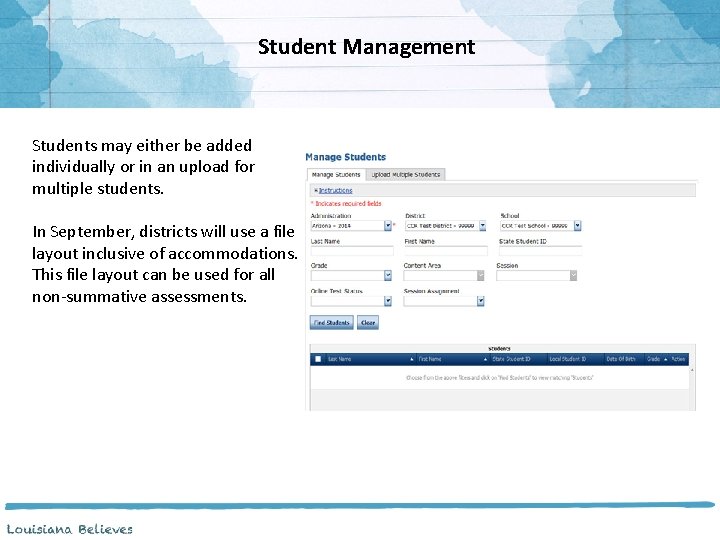
Student Management Students may either be added individually or in an upload for multiple students. In September, districts will use a file layout inclusive of accommodations. This file layout can be used for all non-summative assessments.
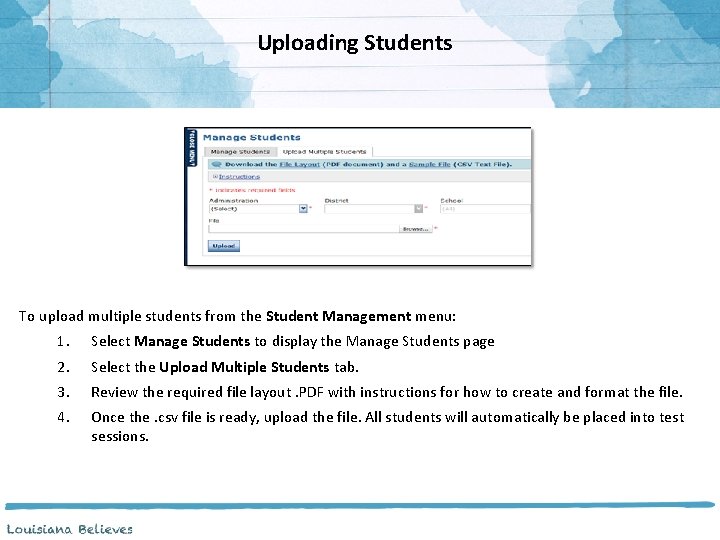
Uploading Students To upload multiple students from the Student Management menu: 1. Select Manage Students to display the Manage Students page 2. Select the Upload Multiple Students tab. 3. Review the required file layout. PDF with instructions for how to create and format the file. 4. Once the. csv file is ready, upload the file. All students will automatically be placed into test sessions.
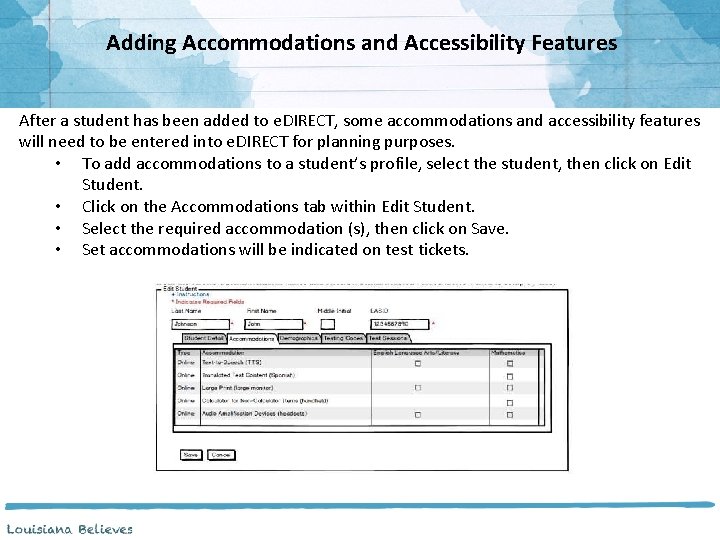
Adding Accommodations and Accessibility Features After a student has been added to e. DIRECT, some accommodations and accessibility features will need to be entered into e. DIRECT for planning purposes. • To add accommodations to a student’s profile, select the student, then click on Edit Student. • Click on the Accommodations tab within Edit Student. • Select the required accommodation (s), then click on Save. • Set accommodations will be indicated on test tickets.
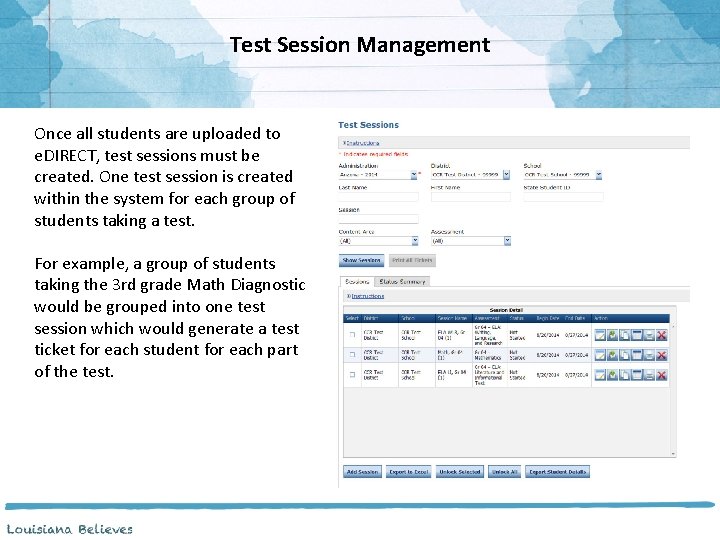
Test Session Management Once all students are uploaded to e. DIRECT, test sessions must be created. One test session is created within the system for each group of students taking a test. For example, a group of students taking the 3 rd grade Math Diagnostic would be grouped into one test session which would generate a test ticket for each student for each part of the test.
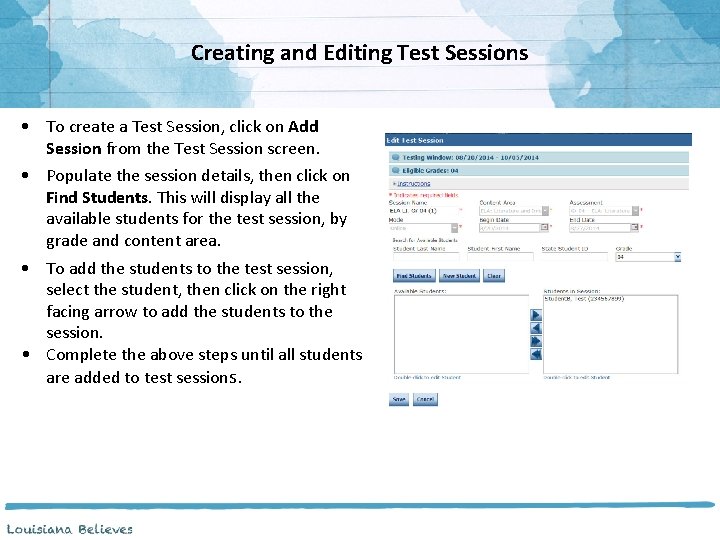
Creating and Editing Test Sessions • To create a Test Session, click on Add Session from the Test Session screen. • Populate the session details, then click on Find Students. This will display all the available students for the test session, by grade and content area. • To add the students to the test session, select the student, then click on the right facing arrow to add the students to the session. • Complete the above steps until all students are added to test sessions.
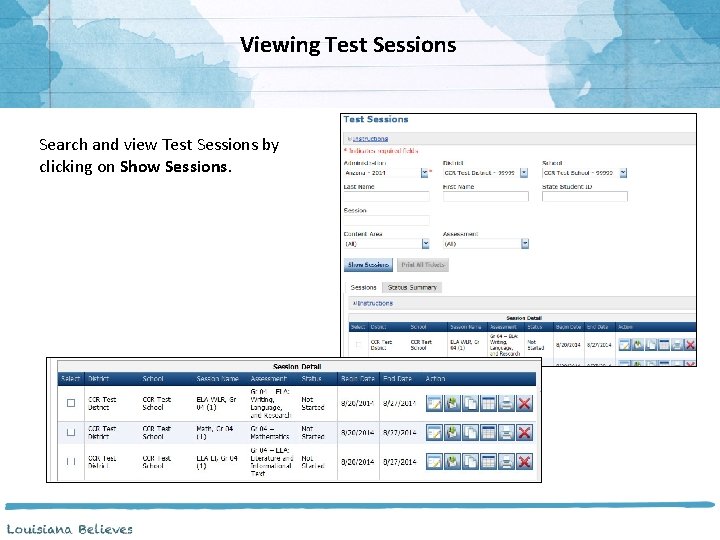
Viewing Test Sessions Search and view Test Sessions by clicking on Show Sessions.
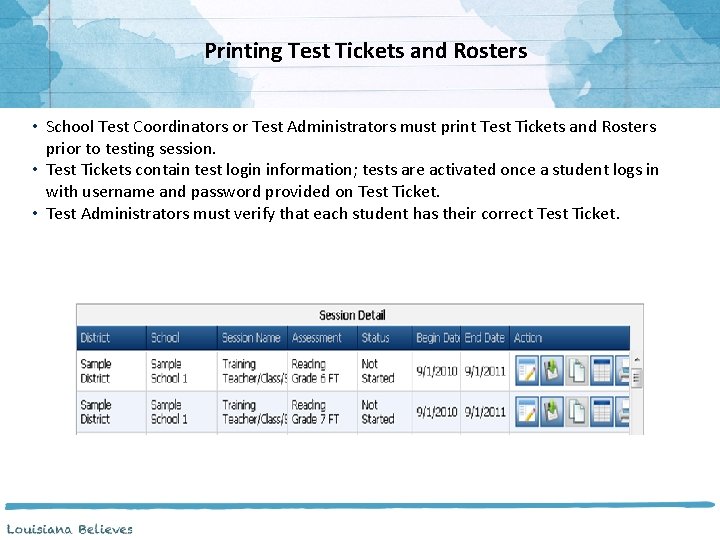
Printing Test Tickets and Rosters • School Test Coordinators or Test Administrators must print Test Tickets and Rosters prior to testing session. • Test Tickets contain test login information; tests are activated once a student logs in with username and password provided on Test Ticket. • Test Administrators must verify that each student has their correct Test Ticket.
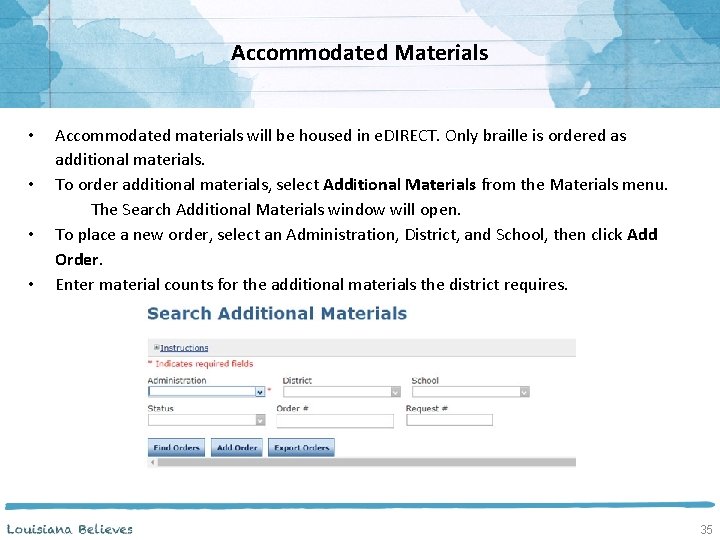
Accommodated Materials • • Accommodated materials will be housed in e. DIRECT. Only braille is ordered as additional materials. To order additional materials, select Additional Materials from the Materials menu. The Search Additional Materials window will open. To place a new order, select an Administration, District, and School, then click Add Order. Enter material counts for the additional materials the district requires. 35
General Scoring Information The fourth section of the Diagnostic Quick Start Guide provides information and links to resources needed to score both the paper- and computer-based tests. The way in which Diagnostic tests are scored depends upon the mode in which the test is administered—either paper-based or computer-based. 36
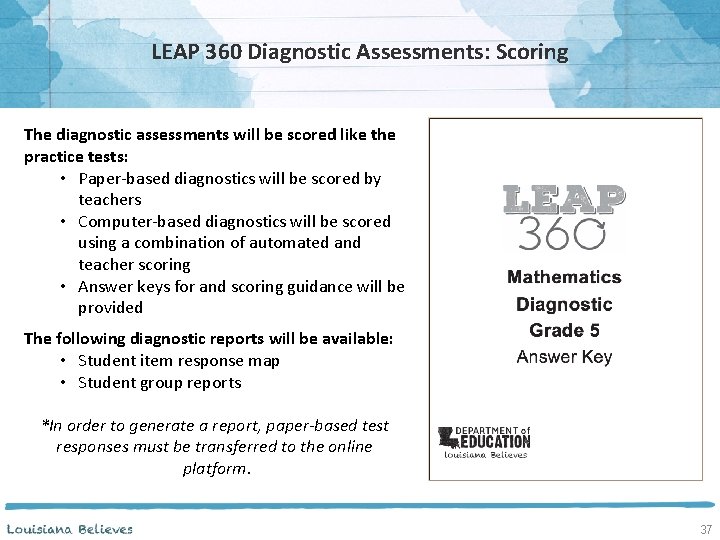
LEAP 360 Diagnostic Assessments: Scoring The diagnostic assessments will be scored like the practice tests: • Paper-based diagnostics will be scored by teachers • Computer-based diagnostics will be scored using a combination of automated and teacher scoring • Answer keys for and scoring guidance will be provided The following diagnostic reports will be available: • Student item response map • Student group reports *In order to generate a report, paper-based test responses must be transferred to the online platform. 37
Scoring Responses A few general notes about using the Educator Scoring application: • Teachers will need to be given Educator Scoring permissions within e. DIRECT in order to score student responses. • Rubrics and scoring guides for constructed- and extended-response items are located in the Answer Key documents in e. DIRECT. • DRC INSIGHT does not need to be installed on the machine used for scoring. • Scoring is to be completed using a computer or laptop with Chrome or Internet Explorer 11 installed. • Teachers may include comments and other notations on student responses while scoring. • The ability to print student responses is available to users when scoring activity is live. If you wish to print a copy of the response, you MUST use the Export to PDF tool to print the student's response and educator feedback that is displayed on the screen. This must be done PRIOR to submitting the score. 38
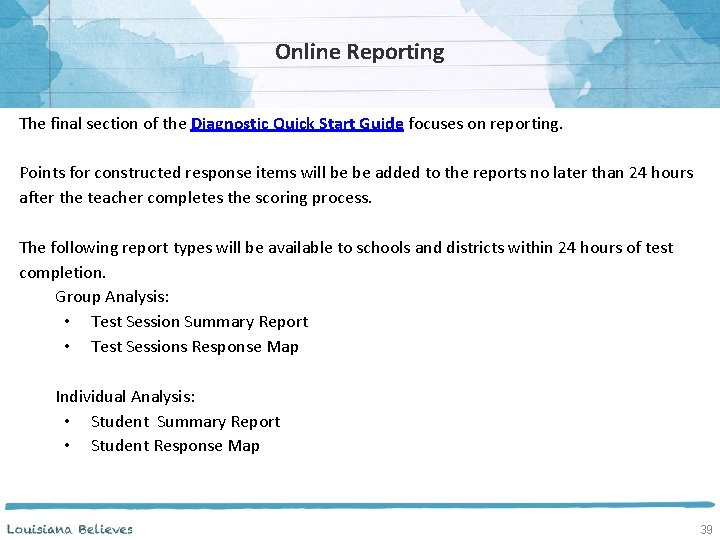
Online Reporting The final section of the Diagnostic Quick Start Guide focuses on reporting. Points for constructed response items will be be added to the reports no later than 24 hours after the teacher completes the scoring process. The following report types will be available to schools and districts within 24 hours of test completion. Group Analysis: • Test Session Summary Report • Test Sessions Response Map Individual Analysis: • Student Summary Report • Student Response Map 39
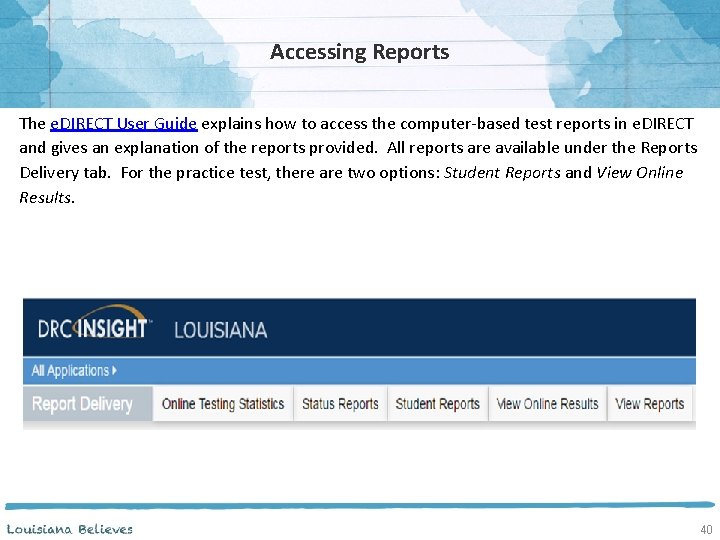
Accessing Reports The e. DIRECT User Guide explains how to access the computer-based test reports in e. DIRECT and gives an explanation of the reports provided. All reports are available under the Reports Delivery tab. For the practice test, there are two options: Student Reports and View Online Results. 40
LEAP 360 Diagnostic Assessments: Logistics and Resources
Today’s Goals By the end of today’s session, we’ll address these questions: • What is LEAP 360’s role in Louisiana’s classrooms, schools, and school systems? • What do LEAP 360 Diagnostic Assessments tell us about student readiness and learning? • How does the Quick Start Guide prepare me for implementation? • What are some important logistical points to consider? • What support and logistical resources are available? 42
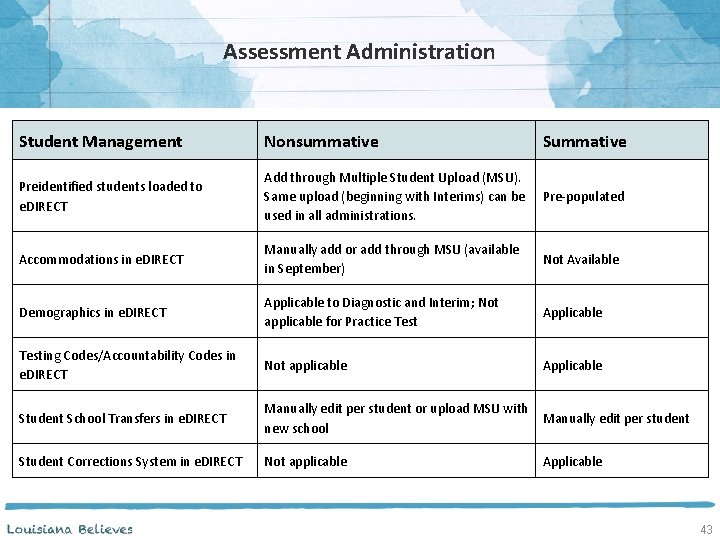
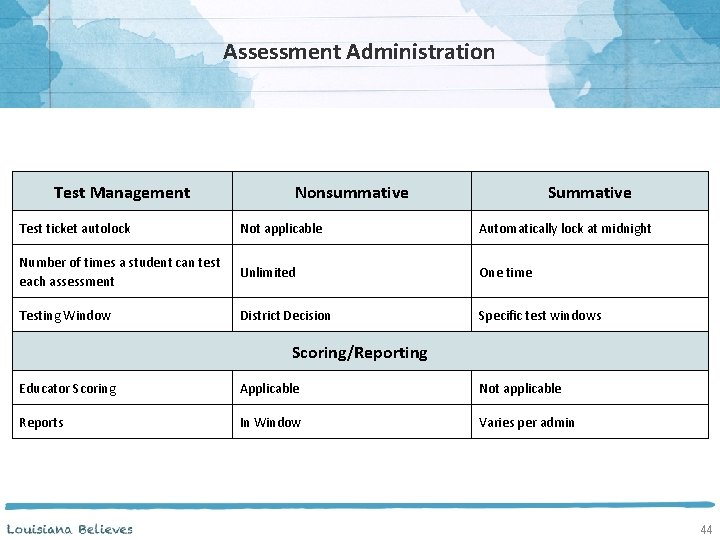
Assessment Administration Student Management Nonsummative Summative Preidentified students loaded to e. DIRECT Add through Multiple Student Upload (MSU). Same upload (beginning with Interims) can be used in all administrations. Pre-populated Accommodations in e. DIRECT Manually add or add through MSU (available in September) Not Available Demographics in e. DIRECT Applicable to Diagnostic and Interim; Not applicable for Practice Test Applicable Testing Codes/Accountability Codes in e. DIRECT Not applicable Applicable Student School Transfers in e. DIRECT Manually edit per student or upload MSU with Manually edit per student new school Student Corrections System in e. DIRECT Not applicable Applicable 43
Assessment Administration Test Management Nonsummative Summative Test ticket autolock Not applicable Automatically lock at midnight Number of times a student can test each assessment Unlimited One time Testing Window District Decision Specific test windows Scoring/Reporting Educator Scoring Applicable Not applicable Reports In Window Varies per admin 44
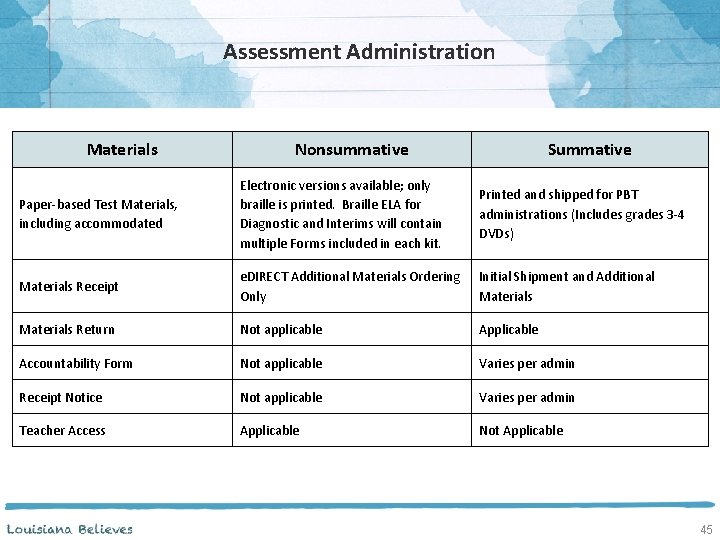
Assessment Administration Materials Nonsummative Summative Paper-based Test Materials, including accommodated Electronic versions available; only braille is printed. Braille ELA for Diagnostic and Interims will contain multiple Forms included in each kit. Printed and shipped for PBT administrations (Includes grades 3 -4 DVDs) Materials Receipt e. DIRECT Additional Materials Ordering Only Initial Shipment and Additional Materials Return Not applicable Accountability Form Not applicable Varies per admin Receipt Notice Not applicable Varies per admin Teacher Access Applicable Not Applicable 45
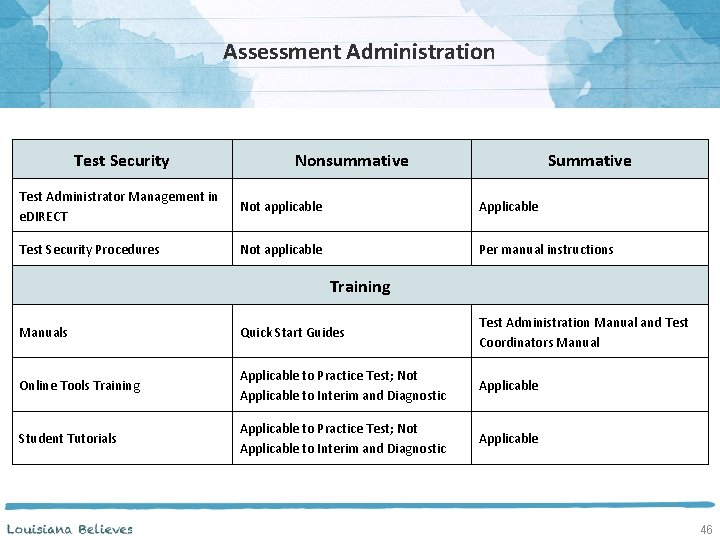
Assessment Administration Test Security Nonsummative Summative Test Administrator Management in e. DIRECT Not applicable Applicable Test Security Procedures Not applicable Per manual instructions Training Manuals Quick Start Guides Test Administration Manual and Test Coordinators Manual Online Tools Training Applicable to Practice Test; Not Applicable to Interim and Diagnostic Applicable Student Tutorials Applicable to Practice Test; Not Applicable to Interim and Diagnostic Applicable 46
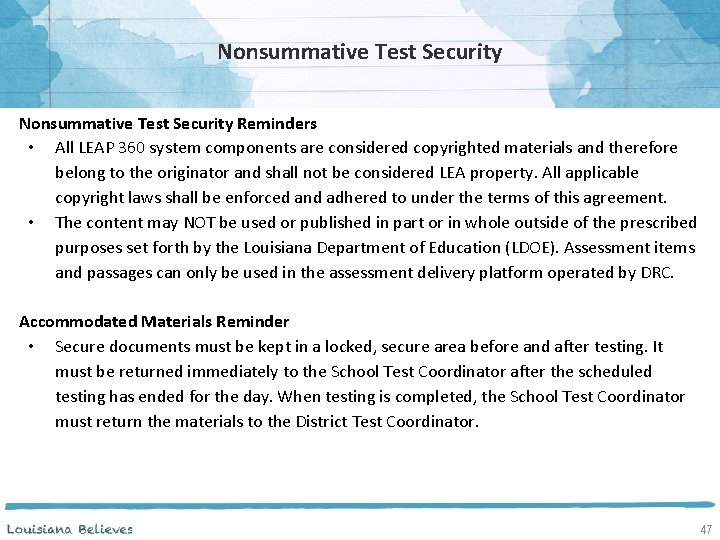
Nonsummative Test Security Reminders • All LEAP 360 system components are considered copyrighted materials and therefore belong to the originator and shall not be considered LEA property. All applicable copyright laws shall be enforced and adhered to under the terms of this agreement. • The content may NOT be used or published in part or in whole outside of the prescribed purposes set forth by the Louisiana Department of Education (LDOE). Assessment items and passages can only be used in the assessment delivery platform operated by DRC. Accommodated Materials Reminder • Secure documents must be kept in a locked, secure area before and after testing. It must be returned immediately to the School Test Coordinator after the scheduled testing has ended for the day. When testing is completed, the School Test Coordinator must return the materials to the District Test Coordinator. 47
LEAP 360: Planning and Scheduling As outlined in the previous slides, LEAP 360 provides maximum flexibility to meet the needs of teachers and academic needs of students. • • How does the administration of nonsummative assessments look and feel different than summative assessments? How are you ensuring principals and teachers understand the flexibility of using LEAP 360? 48
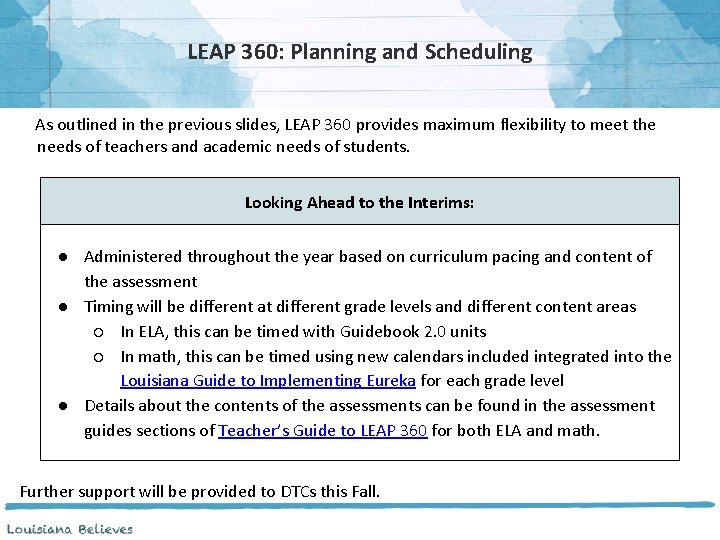
LEAP 360: Planning and Scheduling As outlined in the previous slides, LEAP 360 provides maximum flexibility to meet the needs of teachers and academic needs of students. Looking Ahead to the Interims: ● Administered throughout the year based on curriculum pacing and content of the assessment ● Timing will be different at different grade levels and different content areas ○ In ELA, this can be timed with Guidebook 2. 0 units ○ In math, this can be timed using new calendars included integrated into the Louisiana Guide to Implementing Eureka for each grade level ● Details about the contents of the assessments can be found in the assessment guides sections of Teacher’s Guide to LEAP 360 for both ELA and math. Further support will be provided to DTCs this Fall.
Today’s Goals By the end of today’s session, we’ll address these questions: • What is LEAP 360’s role in Louisiana’s classrooms, schools, and school systems? • What do LEAP 360 Diagnostic Assessments tell us about student readiness and learning? • How does the Quick Start Guide prepare me for implementation? • What are some important logistical points to consider? • What support and logistical resources are available? 50
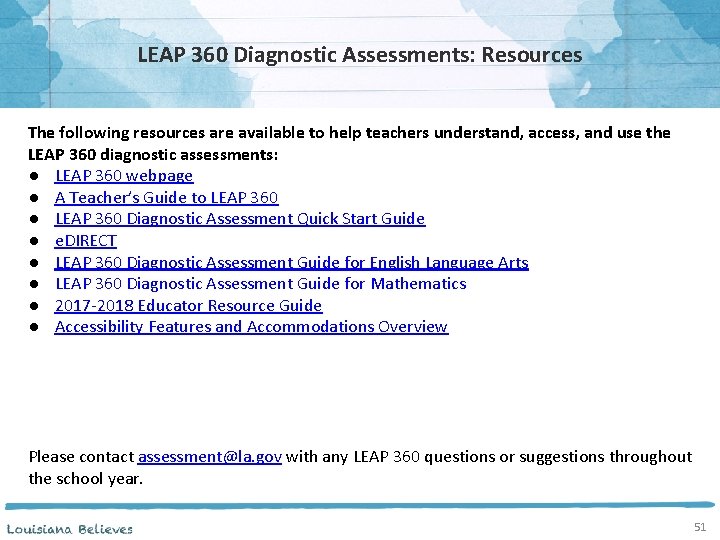
LEAP 360 Diagnostic Assessments: Resources The following resources are available to help teachers understand, access, and use the LEAP 360 diagnostic assessments: ● LEAP 360 webpage ● A Teacher’s Guide to LEAP 360 ● LEAP 360 Diagnostic Assessment Quick Start Guide ● e. DIRECT ● LEAP 360 Diagnostic Assessment Guide for English Language Arts ● LEAP 360 Diagnostic Assessment Guide for Mathematics ● 2017 -2018 Educator Resource Guide ● Accessibility Features and Accommodations Overview Please contact assessment@la. gov with any LEAP 360 questions or suggestions throughout the school year. 51