Introduction Welcome to 3 D Slicer Surgical Planning

- Slides: 126
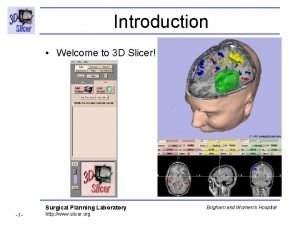
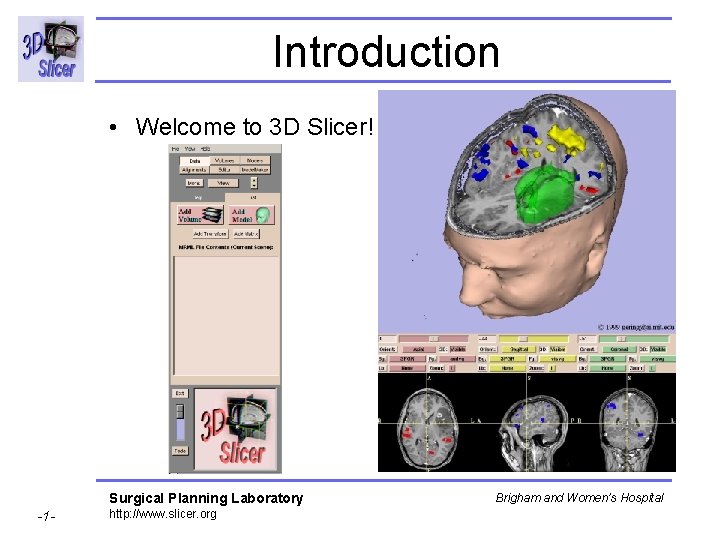
Introduction • Welcome to 3 D Slicer! Surgical Planning Laboratory -1 - http: //www. slicer. org Brigham and Women’s Hospital
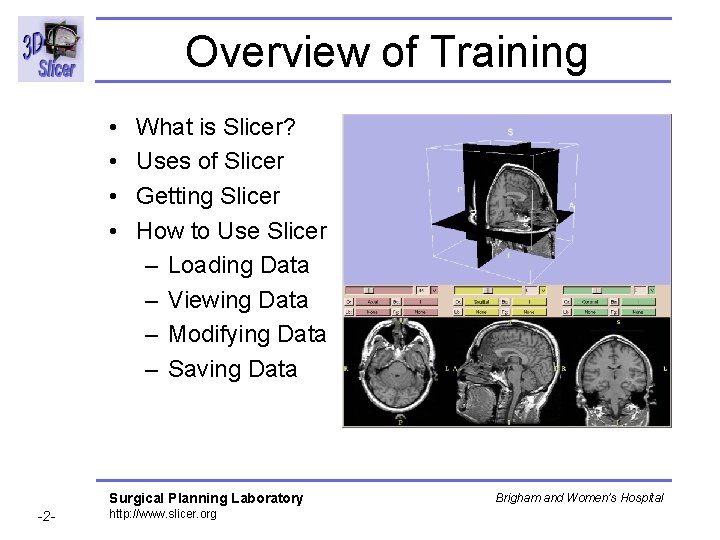
Overview of Training • • What is Slicer? Uses of Slicer Getting Slicer How to Use Slicer – Loading Data – Viewing Data – Modifying Data – Saving Data Surgical Planning Laboratory -2 - http: //www. slicer. org Brigham and Women’s Hospital
What is Slicer? Surgical Planning Laboratory -3 - http: //www. slicer. org Brigham and Women’s Hospital
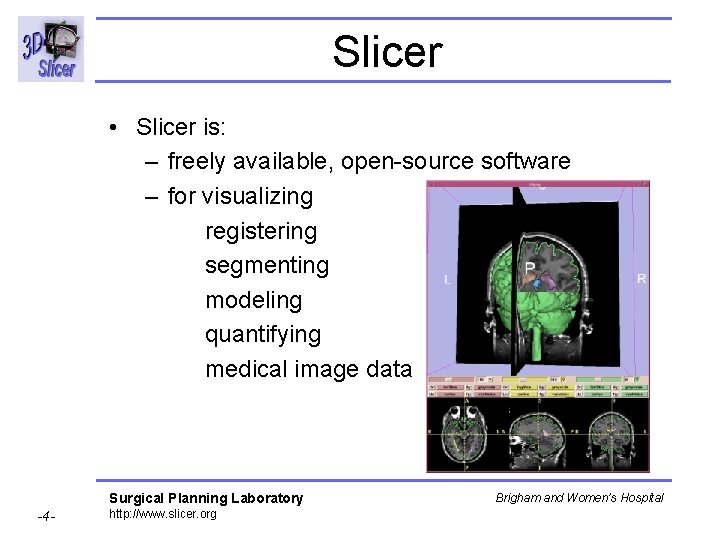
Slicer • Slicer is: – freely available, open-source software – for visualizing registering segmenting modeling quantifying medical image data Surgical Planning Laboratory -4 - http: //www. slicer. org Brigham and Women’s Hospital
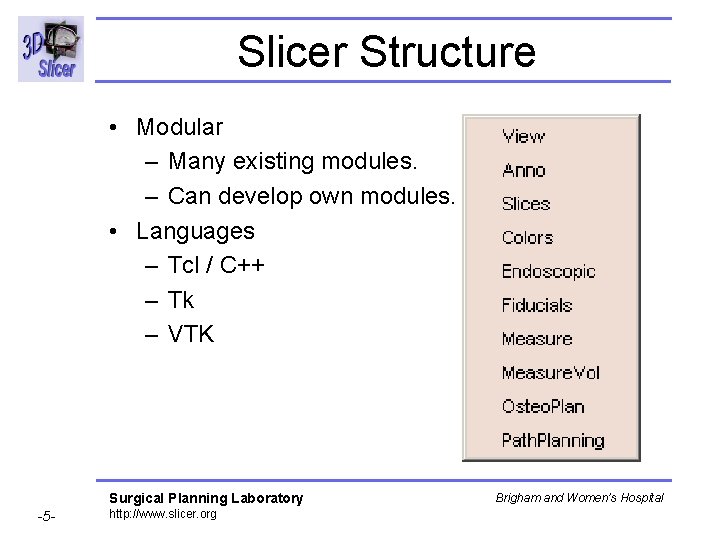
Slicer Structure • Modular – Many existing modules. – Can develop own modules. • Languages – Tcl / C++ – Tk – VTK Surgical Planning Laboratory -5 - http: //www. slicer. org Brigham and Women’s Hospital
Slicer Development • …an ongoing collaboration between: – MIT Artificial Intelligence Lab – Surgical Planning Lab (SPL) • Part of Brigham & Women's Hospital (BWH) • An affiliate of Harvard Medical School • Developers can share modules. Surgical Planning Laboratory -6 - http: //www. slicer. org Brigham and Women’s Hospital
Acknowledgements • Biomedical Informatics Research Network (BIRN) • Brigham and Women's Hospital (BWH) • Harvard Medical School • Johns Hopkins University • Massachusetts Institute of Technology (MIT) • National Center for Research Resources (NCRC) • National Science Foundation (NSF) Surgical Planning Laboratory -7 - http: //www. slicer. org Brigham and Women’s Hospital
Disclaimer • 3 D Slicer is NOT for clinical use. • The 3 D Slicer software, and the contents of the 3 D Slicer documentation, are intended for educational, research, and informational purposes only. • 3 D Slicer, or information derived from 3 D Slicer, may be used only for research and may not under any circumstances whatsoever be used for clinical purposes. • The 3 D Slicer software is not intended for treating or diagnosing human subjects, and the recipient and user will not use the 3 D Slicer software for those purposes. • The 3 D Slicer copyright holders and contributors, Brigham and Women's Hospital, and all affiliated organizations assume no responsibility for the use of 3 D Slicer for unintended purposes. Surgical Planning Laboratory -8 - http: //www. slicer. org Brigham and Women’s Hospital
Uses of Slicer Surgical Planning Laboratory -9 - http: //www. slicer. org Brigham and Women’s Hospital
Some Uses of Slicer • Image-guided medicine • Viewing image data: 2 D and 3 D • Image analysis – Registration (aligning data sets) – Segmentation (extracting 3 D structures) – Generating 3 D surface models – Quantitative analysis: • distances, angles, surface areas, and volumes Surgical Planning Laboratory -10 - http: //www. slicer. org Brigham and Women’s Hospital
Users • A variety of users and organizations employ Slicer for many tasks. Surgical Planning Laboratory -11 - http: //www. slicer. org Brigham and Women’s Hospital
Medical Research • • Visualizing anatomical structures Comparative studies Quantitative measurements Generating figures for publication Surgical Planning Laboratory -12 - http: //www. slicer. org Brigham and Women’s Hospital
Diagnostic Research • • Viewing anatomical structures Comparing images from different sources Changes over time Post-operative differences Surgical Planning Laboratory -13 - http: //www. slicer. org Brigham and Women’s Hospital
Surgical Planning • Viewing anatomical structures • 3 D models • Stages of procedures Surgical Planning Laboratory -14 - http: //www. slicer. org Brigham and Women’s Hospital
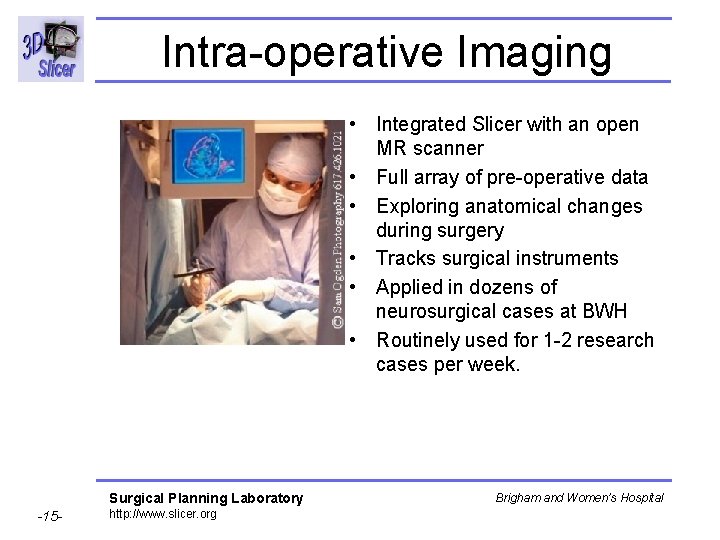
Intra-operative Imaging • Integrated Slicer with an open MR scanner • Full array of pre-operative data • Exploring anatomical changes during surgery • Tracks surgical instruments • Applied in dozens of neurosurgical cases at BWH • Routinely used for 1 -2 research cases per week. Surgical Planning Laboratory -15 - http: //www. slicer. org Brigham and Women’s Hospital
Getting Slicer Surgical Planning Laboratory -16 - http: //www. slicer. org Brigham and Women’s Hospital
Platforms • Slicer is available on a variety of popular medium - to high-end platforms • Any modern PC or workstation with a graphics chip should work fine Surgical Planning Laboratory -17 - http: //www. slicer. org Brigham and Women’s Hospital
Solaris (1 of 2) • Sun Ultra. SPARC workstations running: – Sun Solaris 2. 8 (also known as Solaris 8 or Sun. OS 5. 8) – Open. GL 1. 2 Surgical Planning Laboratory -18 - http: //www. slicer. org Brigham and Women’s Hospital
Solaris (2 of 2) • Hardware: – Memory: 128 MB+ – Disk Space: 35. 6 MB for installer, which expands to 145 MB + 37 MB for tutorial data set – Processor Speed: 450 MHz + Surgical Planning Laboratory -19 - http: //www. slicer. org Brigham and Women’s Hospital
Windows (1 of 2) • PCs running: – Windows 98 – Windows NT / 2000 / XP Surgical Planning Laboratory -20 - http: //www. slicer. org Brigham and Women’s Hospital
Windows (2 of 2) • Hardware – Memory: 128 MB + – Disk Space: 11. 5 MB for installer, which expands to 45 MB + 37 MB for tutorial data set – Processor Speed: 333 MHz + – Screen Resolution: 1024 x 786 + 1280 x 1024 suggested – Colors: 16 bit color + Surgical Planning Laboratory -21 - http: //www. slicer. org Brigham and Women’s Hospital
Linux • Red Hat Linux 7. 3 • Hardware: – Memory: 128 MB+ – Disk Space: 31. 6 MB for installer, which expands to 119 MB + 37 MB for tutorial data set – Processor Speed: 450 MHz + Surgical Planning Laboratory -22 - http: //www. slicer. org Brigham and Women’s Hospital
Mac OS X • Apple Macintosh computers running: – Mac OS 10. 2 – X Windows Server • Hardware – Recent Vintage Computer • We are working on exact requirements. Surgical Planning Laboratory -23 - http: //www. slicer. org Brigham and Women’s Hospital
Other Platforms • Source code is freely available. • Users can compile it for their operating system. Surgical Planning Laboratory -24 - http: //www. slicer. org Brigham and Women’s Hospital
Getting Slicer • License: http: //spl. bwh. harvard. edu: 8000/pages/papers/ slicer/license. html • For research only • Download slicer 2 and install • Includes documentation • Sample data available Surgical Planning Laboratory -25 - http: //www. slicer. org Brigham and Women’s Hospital
Running Slicer • Run the executable for your platform. • On platforms other than Windows, Linux, Solaris, or Mac OS X, you will need to compile Slicer source code before running. • Contact the developer list for help. Surgical Planning Laboratory -26 - http: //www. slicer. org Brigham and Women’s Hospital
Support • User’s mailing list: – slicer-users-request@lists. bwh. harvard. edu • Developer’s mailing list: – slicer-devel-request@lists. bwh. harvard. edu • slicer@ai. mit. edu Surgical Planning Laboratory -27 - http: //www. slicer. org Brigham and Women’s Hospital
How to Use Slicer • • • Slicer interface Loading data Viewing data Modifying data Saving data Surgical Planning Laboratory -28 - http: //www. slicer. org Brigham and Women’s Hospital
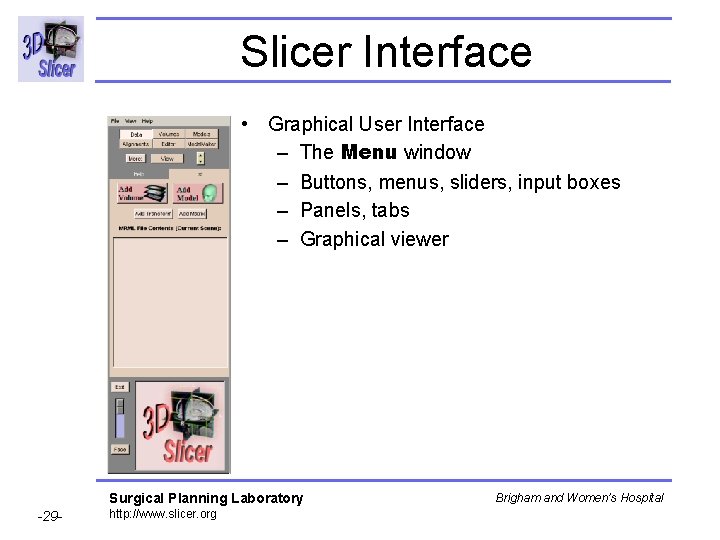
Slicer Interface • Graphical User Interface – The Menu window – Buttons, menus, sliders, input boxes – Panels, tabs – Graphical viewer Surgical Planning Laboratory -29 - http: //www. slicer. org Brigham and Women’s Hospital
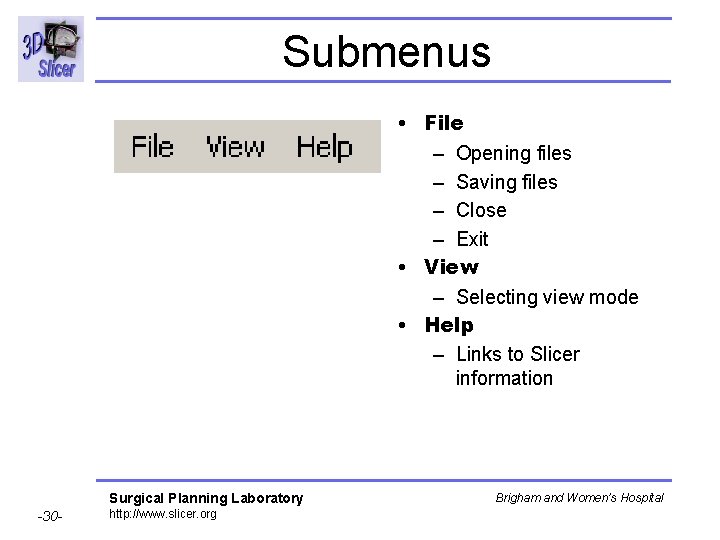
Submenus • File – Opening files – Saving files – Close – Exit • View – Selecting view mode • Help – Links to Slicer information Surgical Planning Laboratory -30 - http: //www. slicer. org Brigham and Women’s Hospital
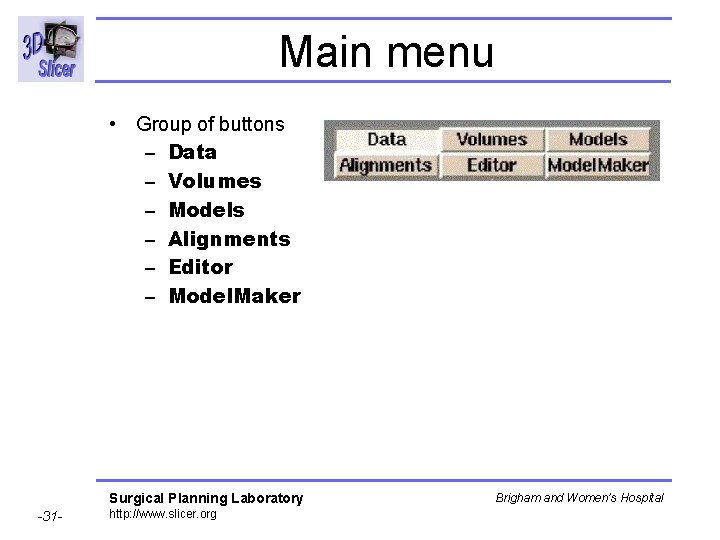
Main menu • Group of buttons – Data – Volumes – Models – Alignments – Editor – Model. Maker Surgical Planning Laboratory -31 - http: //www. slicer. org Brigham and Women’s Hospital
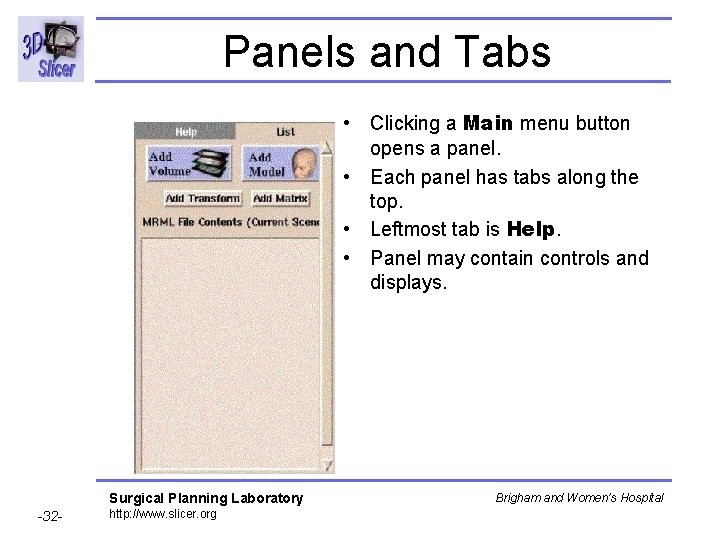
Panels and Tabs • Clicking a Main menu button opens a panel. • Each panel has tabs along the top. • Leftmost tab is Help. • Panel may contain controls and displays. Surgical Planning Laboratory -32 - http: //www. slicer. org Brigham and Women’s Hospital
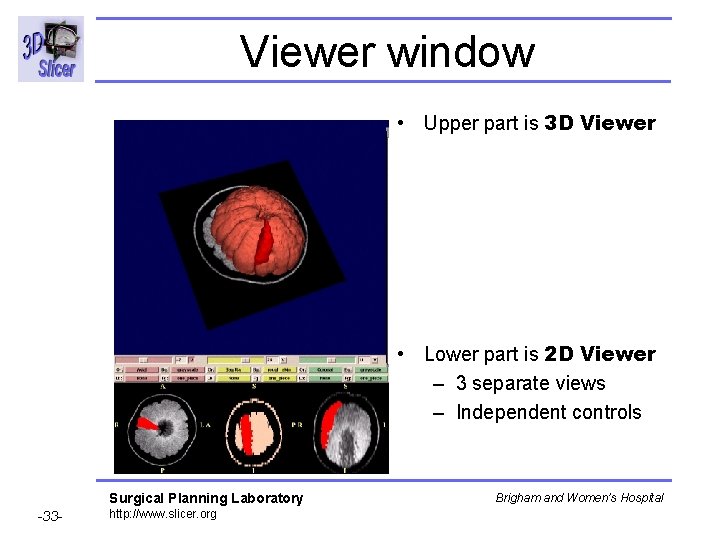
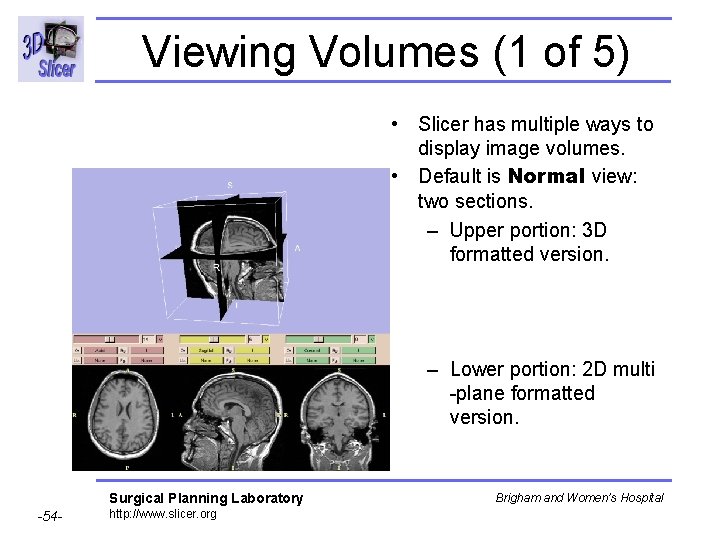
Viewer window • Upper part is 3 D Viewer • Lower part is 2 D Viewer – 3 separate views – Independent controls Surgical Planning Laboratory -33 - http: //www. slicer. org Brigham and Women’s Hospital
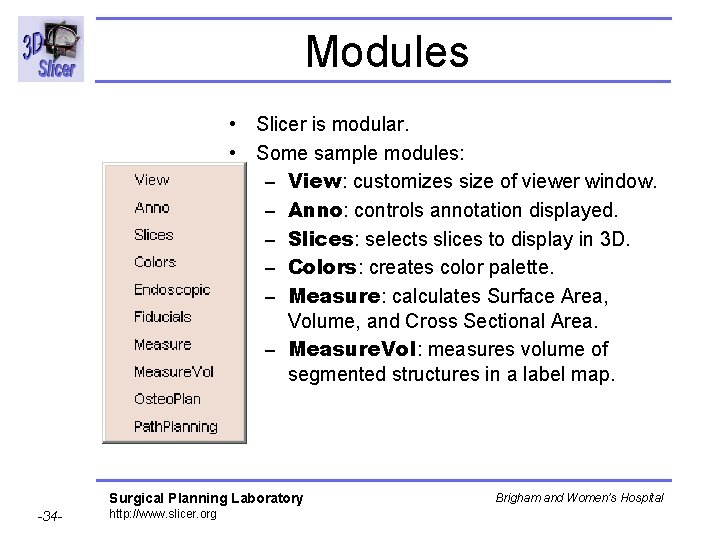
Modules • Slicer is modular. • Some sample modules: – View: customizes size of viewer window. – Anno: controls annotation displayed. – Slices: selects slices to display in 3 D. – Colors: creates color palette. – Measure: calculates Surface Area, Volume, and Cross Sectional Area. – Measure. Vol: measures volume of segmented structures in a label map. Surgical Planning Laboratory -34 - http: //www. slicer. org Brigham and Women’s Hospital
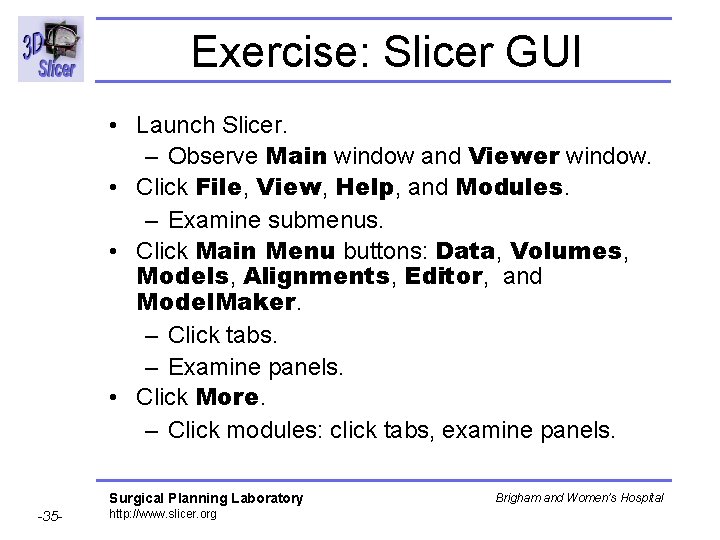
Exercise: Slicer GUI • Launch Slicer. – Observe Main window and Viewer window. • Click File, View, Help, and Modules. – Examine submenus. • Click Main Menu buttons: Data, Volumes, Models, Alignments, Editor, and Model. Maker. – Click tabs. – Examine panels. • Click More. – Click modules: click tabs, examine panels. Surgical Planning Laboratory -35 - http: //www. slicer. org Brigham and Women’s Hospital
Loading Data • Slicer can: – Load volumes of image data – Load models – Load saved scenes Surgical Planning Laboratory -36 - http: //www. slicer. org Brigham and Women’s Hospital
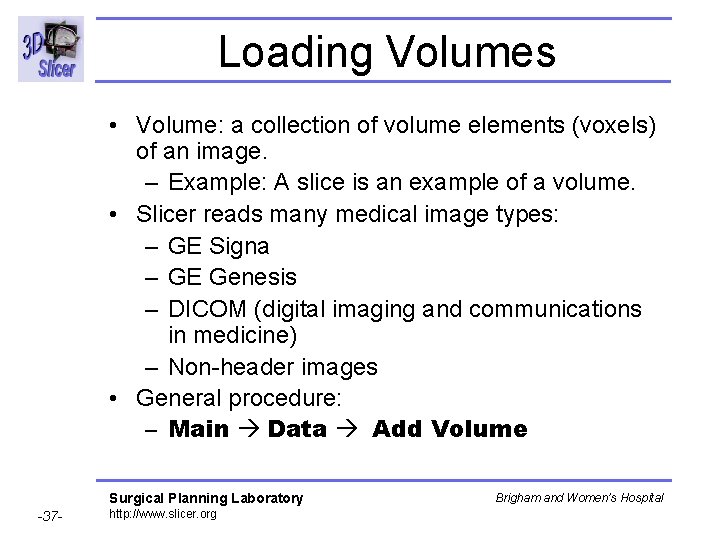
Loading Volumes • Volume: a collection of volume elements (voxels) of an image. – Example: A slice is an example of a volume. • Slicer reads many medical image types: – GE Signa – GE Genesis – DICOM (digital imaging and communications in medicine) – Non-header images • General procedure: – Main Data Add Volume Surgical Planning Laboratory -37 - http: //www. slicer. org Brigham and Women’s Hospital
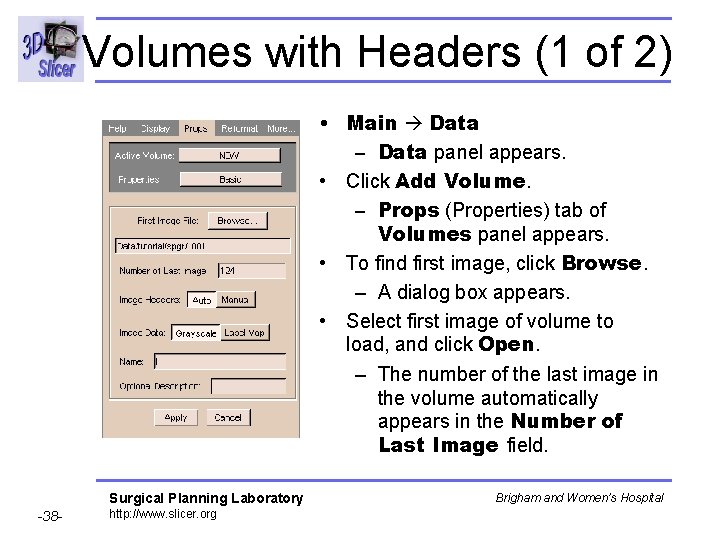
Volumes with Headers (1 of 2) • Main Data – Data panel appears. • Click Add Volume. – Props (Properties) tab of Volumes panel appears. • To find first image, click Browse. – A dialog box appears. • Select first image of volume to load, and click Open. – The number of the last image in the volume automatically appears in the Number of Last Image field. Surgical Planning Laboratory -38 - http: //www. slicer. org Brigham and Women’s Hospital
Volumes with Headers (2 of 2) • Leave Image Headers on Auto. • Image Data buttons: select whether images are grayscale or label maps. – Label map: the output of a segmentation. • Name field: the name that volume will have within Slicer. – Change to something descriptive: “Cortex“. • Description field: You may enter a description. • Click Apply to read in the volume. – Your data appears in the 2 D portion of the Viewer window. Surgical Planning Laboratory -39 - http: //www. slicer. org Brigham and Women’s Hospital
Exercise: Volume with Header • Main Data: Data panel appears. • Click Add Volume: Props tab appears. • Click Browse: Tutorial spgr – Click I. 001 and click Open. – Number of Last Image appears. • Click Apply. – Images appear in bottom of Viewer. • Click Main Data List. – Volume I is in list Surgical Planning Laboratory -40 - http: //www. slicer. org Brigham and Women’s Hospital
Volumes without Headers (1 of 4) • Similar to “with headers”, but needs more manual input. • Main Data – Data panel appears. • Click Add Volume. – Props (Properties) tab of Volumes panel appears. • To find first image file, click Browse. – A dialog box appears. • Select first image of volume to load, and click Open. – The number of the last image in the volume automatically appears in the Number of Last Image field. Surgical Planning Laboratory -41 - http: //www. slicer. org Brigham and Women’s Hospital
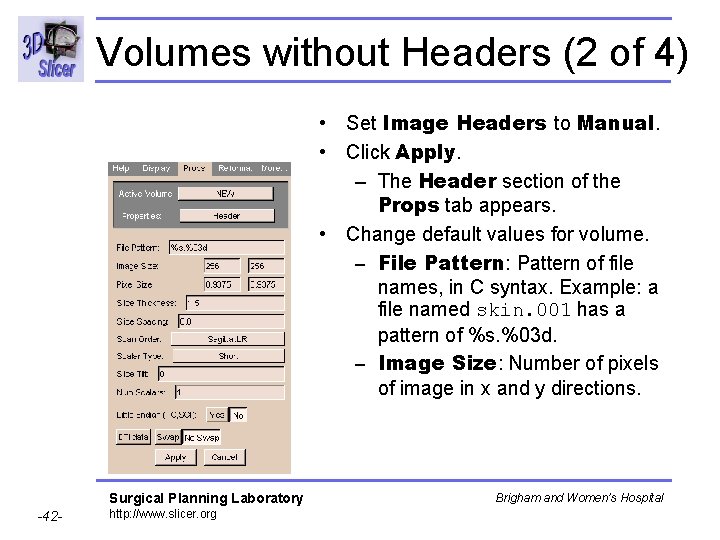
Volumes without Headers (2 of 4) • Set Image Headers to Manual. • Click Apply. – The Header section of the Props tab appears. • Change default values for volume. – File Pattern: Pattern of file names, in C syntax. Example: a file named skin. 001 has a pattern of %s. %03 d. – Image Size: Number of pixels of image in x and y directions. Surgical Planning Laboratory -42 - http: //www. slicer. org Brigham and Women’s Hospital
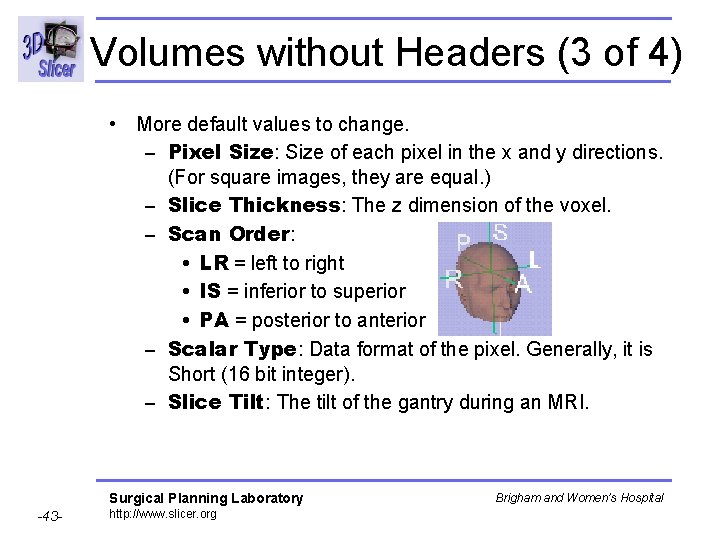
Volumes without Headers (3 of 4) • More default values to change. – Pixel Size: Size of each pixel in the x and y directions. (For square images, they are equal. ) – Slice Thickness: The z dimension of the voxel. – Scan Order: • LR = left to right • IS = inferior to superior • PA = posterior to anterior – Scalar Type: Data format of the pixel. Generally, it is Short (16 bit integer). – Slice Tilt: The tilt of the gantry during an MRI. Surgical Planning Laboratory -43 - http: //www. slicer. org Brigham and Women’s Hospital
Volumes without Headers (4 of 4) • Still more default values to change. – Num Scalars: Number of scalar components for each voxel. Gray-scale data: 1. Color data: 3. – Little Endian: In little-endian architectures, the rightmost bytes are most significant. In big-endian architectures (Slicer default), the leftmost bytes (those with a lower address) are most significant. – DTI data, Swap, No Swap: Placeholders for future. • Click Apply to read in the volume. – Your data appears in the 2 D Viewer window. Surgical Planning Laboratory -44 - http: //www. slicer. org Brigham and Women’s Hospital
Exercise: Volume w/out Header • Main Data: Data panel appears. • Click Add Volume: Props tab appears. • Click Browse: Tutorial labels – Click all. 001 and click Open. – Number of Last Image appears. • Click Apply. – “No header information found”: click OK. – Examine default data values. • Click Apply. • Volume all appears in Data List. Surgical Planning Laboratory -45 - http: //www. slicer. org Brigham and Women’s Hospital
Loading DICOM Volumes (1 of 4) • • • Digital Imaging and COmmunications in Medicine Slicer reads most, not all, the many DICOM flavors. From Main menu, click Data. The Data panel appears. Click Add Volume. The Props panel appears. From Properties pull-down menu, select Dicom. Click Select DICOM Volume. – A dialog box appears. • Select directory and click OK. – Slicer searches for every DICOM file. – A dialog box appears showing patient, studies, series, and files. Surgical Planning Laboratory -46 - http: //www. slicer. org Brigham and Women’s Hospital
Loading DICOM Volumes (2 of 4) • Select or deselect images to load. – Selected images are green; deselected images are red. • Increasing or Decreasing: loads images in either order. • Preview: displays small icon-size images in bottom panel. – The default size is 32 x 32 pixels. – You can change the size of the previewed images. • List Headers: displays header information about image. • Check: displays information about how to group the data. – Helps to show when slices are missing. – Also useful when several DICOM acquisitions are lumped together. Surgical Planning Laboratory -47 - http: //www. slicer. org Brigham and Women’s Hospital
Loading DICOM Volumes (3 of 4) • Select a patient, a study of this patient, a series of this study, and the files of this series. Then click OK. – The header data of the first file will be extracted. (You may select additional files. ) • To show header information, click Extract Header. • To check and modify the extracted values, click Header. • On Basic panel, use Image Data buttons to select whether images are grayscale or label maps. Surgical Planning Laboratory -48 - http: //www. slicer. org Brigham and Women’s Hospital
Loading DICOM Volumes (4 of 4) • Name field: the name that volume will have within Slicer. – Change to something descriptive: “Cortex“. • Description field: You may enter a description. • Click Apply to save Name and Description. • Click Apply to read in the volume. – Your data appears in the 2 D portion of the Viewer window. Surgical Planning Laboratory -49 - http: //www. slicer. org Brigham and Women’s Hospital
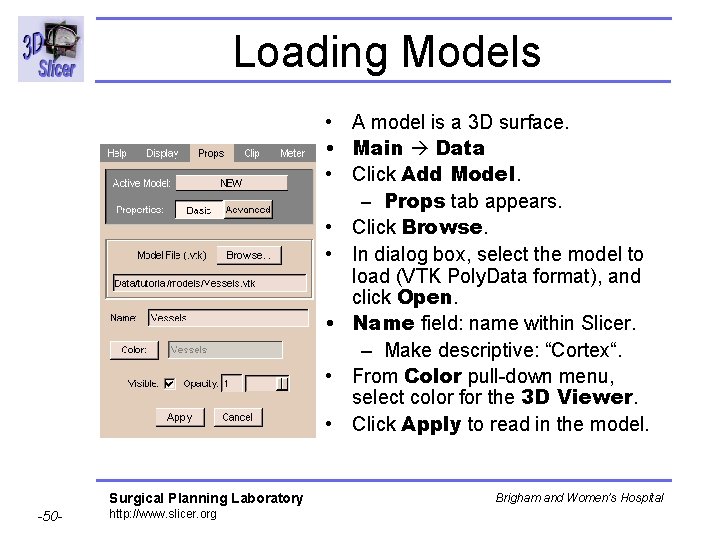
Loading Models • A model is a 3 D surface. • Main Data • Click Add Model. – Props tab appears. • Click Browse. • In dialog box, select the model to load (VTK Poly. Data format), and click Open. • Name field: name within Slicer. – Make descriptive: “Cortex“. • From Color pull-down menu, select color for the 3 D Viewer. • Click Apply to read in the model. Surgical Planning Laboratory -50 - http: //www. slicer. org Brigham and Women’s Hospital
Exercise: Loading Model • Main Data Add Model. – Props tab appears. • Click Browse: Tutorial models • Click model file (. vtk) and click Open. • Click Color and select color for model. • Click Apply to read in the model. Surgical Planning Laboratory -51 - http: //www. slicer. org Brigham and Women’s Hospital
Opening a Saved Scene • • • Click File. Click Open Scene. Find the scene. xml file. Double-click file. Wait for the volumes and models to load. Surgical Planning Laboratory -52 - http: //www. slicer. org Brigham and Women’s Hospital
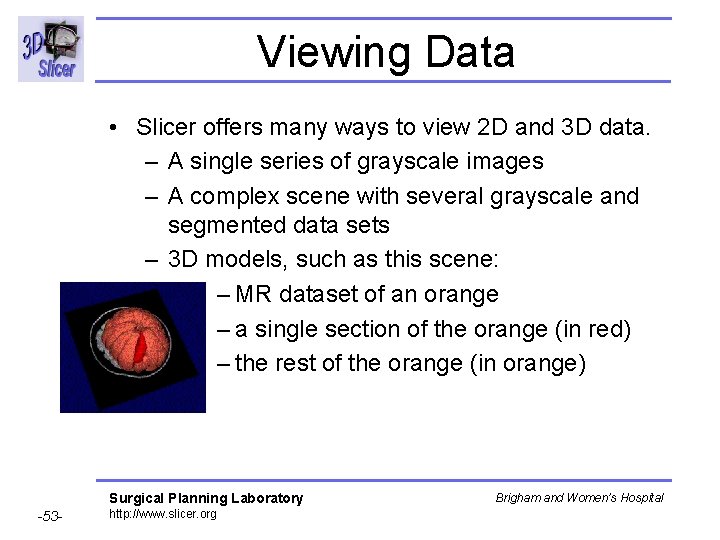
Viewing Data • Slicer offers many ways to view 2 D and 3 D data. – A single series of grayscale images – A complex scene with several grayscale and segmented data sets – 3 D models, such as this scene: – MR dataset of an orange – a single section of the orange (in red) – the rest of the orange (in orange) Surgical Planning Laboratory -53 - http: //www. slicer. org Brigham and Women’s Hospital
Viewing Volumes (1 of 5) • Slicer has multiple ways to display image volumes. • Default is Normal view: two sections. – Upper portion: 3 D formatted version. – Lower portion: 2 D multi -plane formatted version. Surgical Planning Laboratory -54 - http: //www. slicer. org Brigham and Women’s Hospital
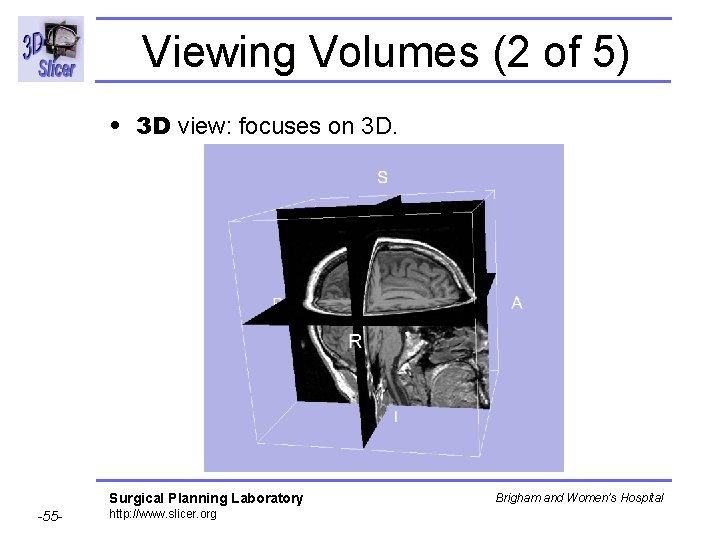
Viewing Volumes (2 of 5) • 3 D view: focuses on 3 D. Surgical Planning Laboratory -55 - http: //www. slicer. org Brigham and Women’s Hospital
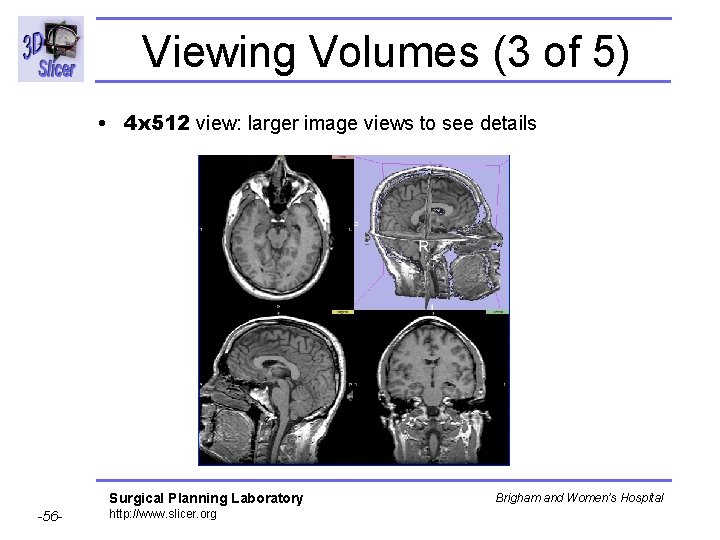
Viewing Volumes (3 of 5) • 4 x 512 view: larger image views to see details Surgical Planning Laboratory -56 - http: //www. slicer. org Brigham and Women’s Hospital
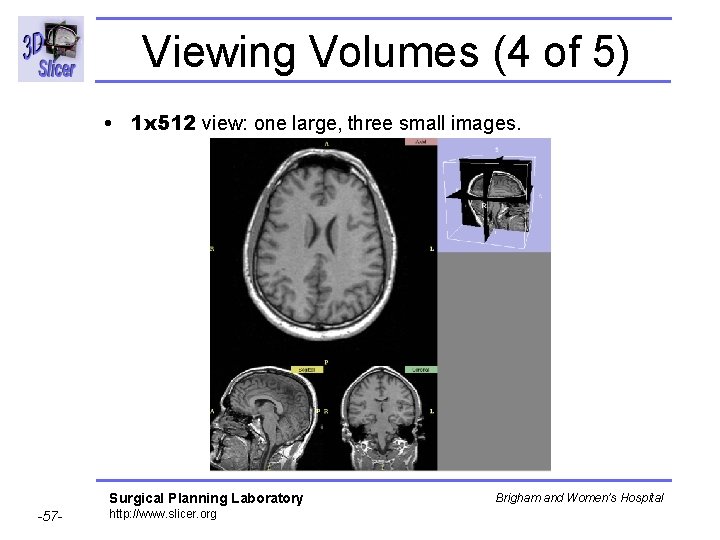
Viewing Volumes (4 of 5) • 1 x 512 view: one large, three small images. Surgical Planning Laboratory -57 - http: //www. slicer. org Brigham and Women’s Hospital
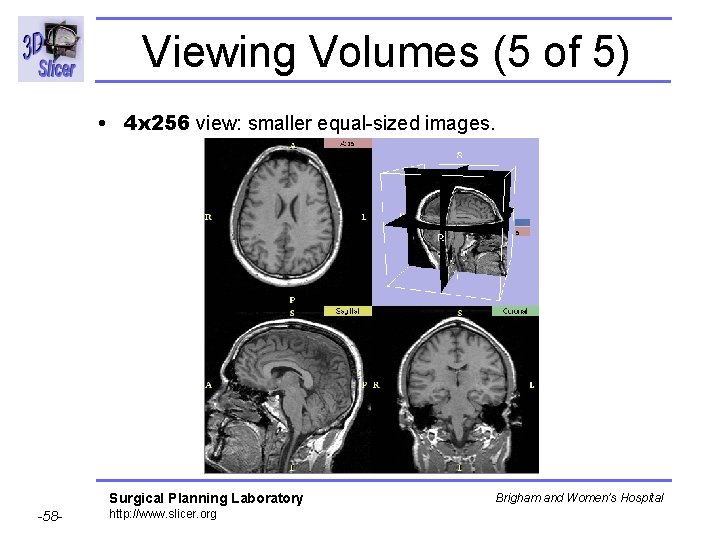
Viewing Volumes (5 of 5) • 4 x 256 view: smaller equal-sized images. Surgical Planning Laboratory -58 - http: //www. slicer. org Brigham and Women’s Hospital
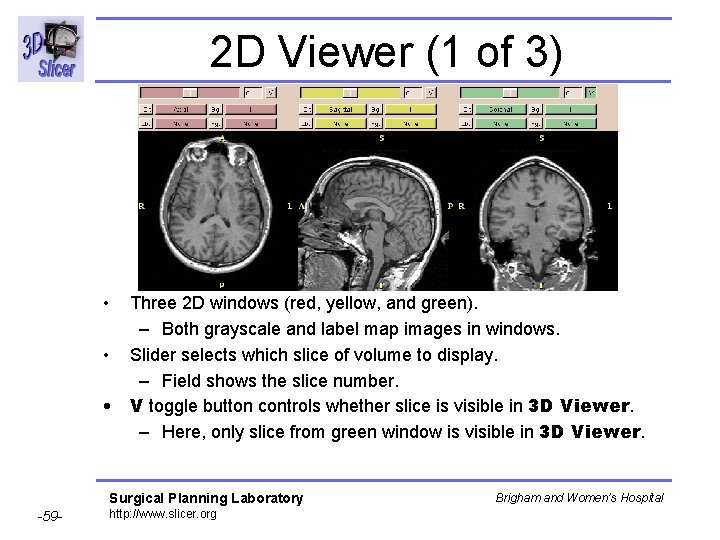
2 D Viewer (1 of 3) • Three 2 D windows (red, yellow, and green). – Both grayscale and label map images in windows. • Slider selects which slice of volume to display. – Field shows the slice number. • V toggle button controls whether slice is visible in 3 D Viewer. – Here, only slice from green window is visible in 3 D Viewer. Surgical Planning Laboratory -59 - http: //www. slicer. org Brigham and Women’s Hospital
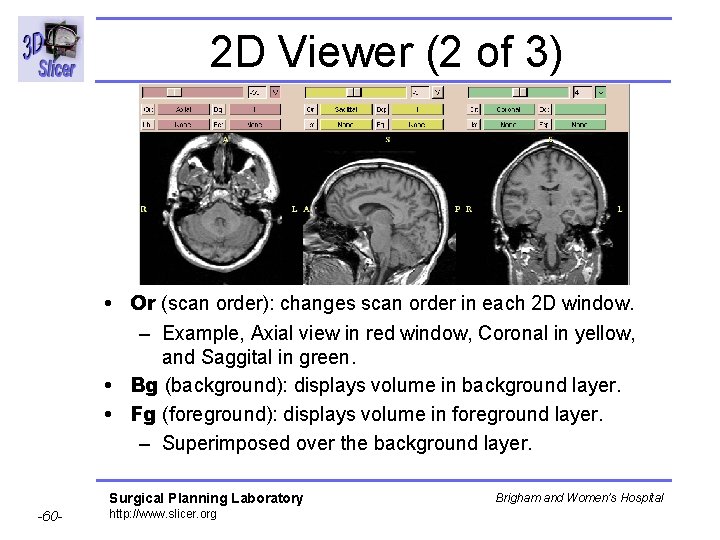
2 D Viewer (2 of 3) • Or (scan order): changes scan order in each 2 D window. – Example, Axial view in red window, Coronal in yellow, and Saggital in green. • Bg (background): displays volume in background layer. • Fg (foreground): displays volume in foreground layer. – Superimposed over the background layer. Surgical Planning Laboratory -60 - http: //www. slicer. org Brigham and Women’s Hospital
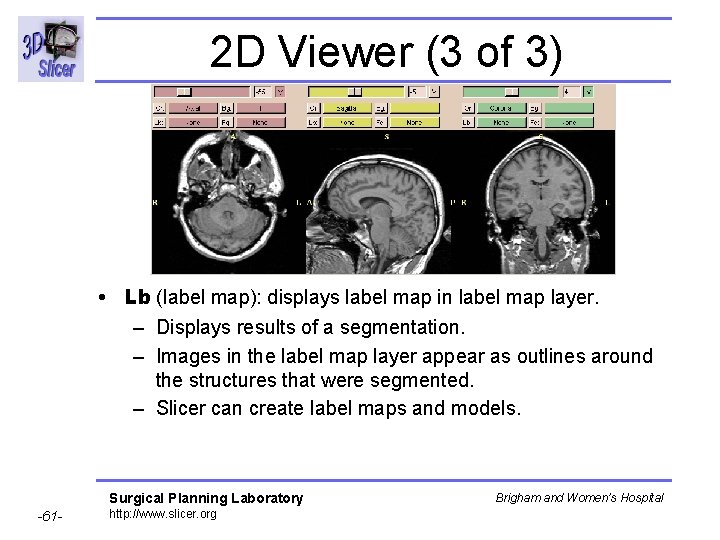
2 D Viewer (3 of 3) • Lb (label map): displays label map in label map layer. – Displays results of a segmentation. – Images in the label map layer appear as outlines around the structures that were segmented. – Slicer can create label maps and models. Surgical Planning Laboratory -61 - http: //www. slicer. org Brigham and Women’s Hospital
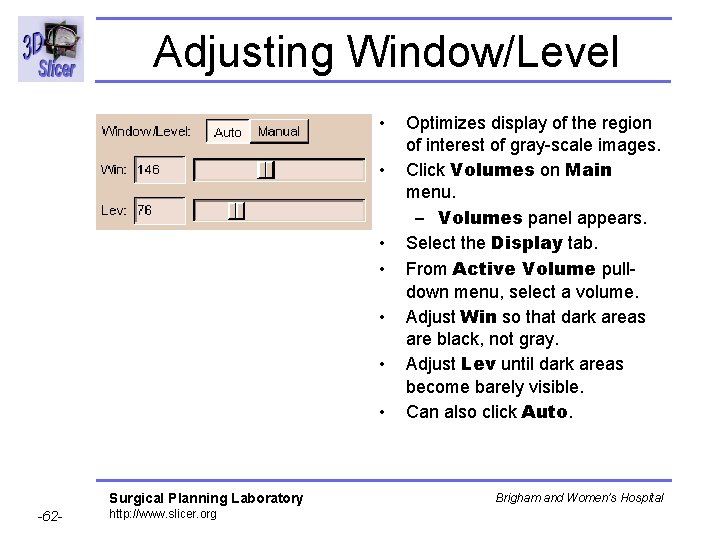
Adjusting Window/Level • • Surgical Planning Laboratory -62 - http: //www. slicer. org Optimizes display of the region of interest of gray-scale images. Click Volumes on Main menu. – Volumes panel appears. Select the Display tab. From Active Volume pulldown menu, select a volume. Adjust Win so that dark areas are black, not gray. Adjust Lev until dark areas become barely visible. Can also click Auto. Brigham and Women’s Hospital
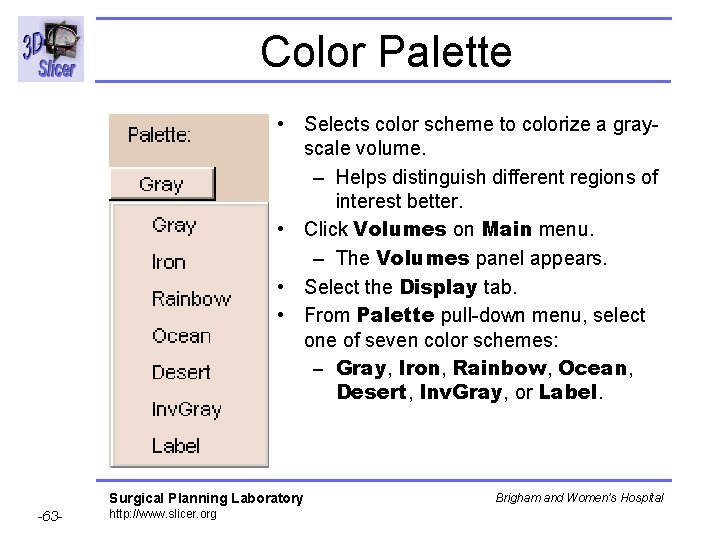
Color Palette • Selects color scheme to colorize a grayscale volume. – Helps distinguish different regions of interest better. • Click Volumes on Main menu. – The Volumes panel appears. • Select the Display tab. • From Palette pull-down menu, select one of seven color schemes: – Gray, Iron, Rainbow, Ocean, Desert, Inv. Gray, or Label. Surgical Planning Laboratory -63 - http: //www. slicer. org Brigham and Women’s Hospital
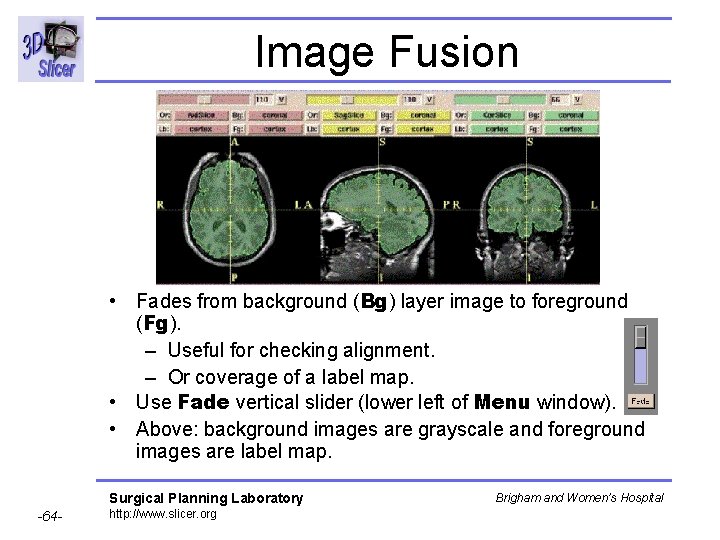
Image Fusion • Fades from background (Bg) layer image to foreground (Fg). – Useful for checking alignment. – Or coverage of a label map. • Use Fade vertical slider (lower left of Menu window). • Above: background images are grayscale and foreground images are label map. Surgical Planning Laboratory -64 - http: //www. slicer. org Brigham and Women’s Hospital
Exercise: Viewing 2 D (1 / 5) • Load the I. 001 volume as in previous exercise. • Click V on Red, Yellow, Green 2 D views. • Select the view: – View 3 D: Examine 3 D view. – View 4 x 512: Examine large views. – View 1 x 512: Examine single large view that rendered in red panel. – View 4 x 256: Examine smaller views. – View Normal: Examine normal view. – View: try Black, Blue, Midnight, White. Surgical Planning Laboratory -65 - http: //www. slicer. org Brigham and Women’s Hospital
Exercise: Viewing 2 D (2 / 5) • Click green V button: image is visible in 3 D Viewer. • Use green slider to select the slice. • Click Or, then select scan order in each 2 D window. • Click Bg to select the background layer. • Click Fg to select the foreground layer. Surgical Planning Laboratory -66 - http: //www. slicer. org Brigham and Women’s Hospital
Exercise: Viewing 2 D (3 / 5) • Click Volumes on Main menu. • Select the Display tab. • From Active Volume pull-down menu, select I volume. • Adjust Win so that dark areas are black, not gray. • Adjust Lev until dark areas become barely visible. • Examine view. • Try clicking Auto. Surgical Planning Laboratory -67 - http: //www. slicer. org Brigham and Women’s Hospital
Exercise: Viewing 2 D (4 / 5) • Click Volumes on Main menu. • Select the Display tab. • From Palette pull-down menu, select color scheme. • Observe how 2 D view changes. Surgical Planning Laboratory -68 - http: //www. slicer. org Brigham and Women’s Hospital
Exercise: Viewing 2 D (5 / 5) • Use Fade vertical slider (lower left of Menu window). • Fade from background (Bg) layer image to foreground (Fg). Surgical Planning Laboratory -69 - http: //www. slicer. org Brigham and Women’s Hospital
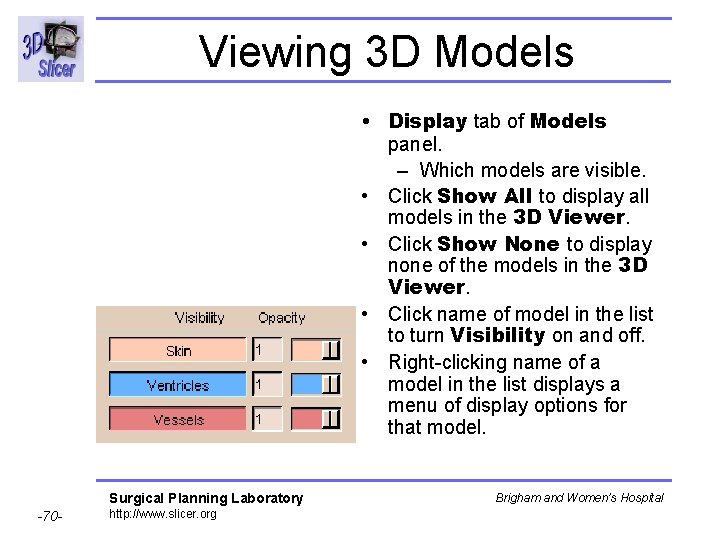
Viewing 3 D Models • Display tab of Models panel. – Which models are visible. • Click Show All to display all models in the 3 D Viewer. • Click Show None to display none of the models in the 3 D Viewer. • Click name of model in the list to turn Visibility on and off. • Right-clicking name of a model in the list displays a menu of display options for that model. Surgical Planning Laboratory -70 - http: //www. slicer. org Brigham and Women’s Hospital
Controlling the 3 D View • To rotate the view: – Left-click the view and move the mouse. • To move view left-right, up-down: – Click the middle button (or Alt-Left button) on view and move the mouse. • To change the size of the view (zoom): – Right-click the view and move the mouse up and down. Surgical Planning Laboratory -71 - http: //www. slicer. org Brigham and Women’s Hospital
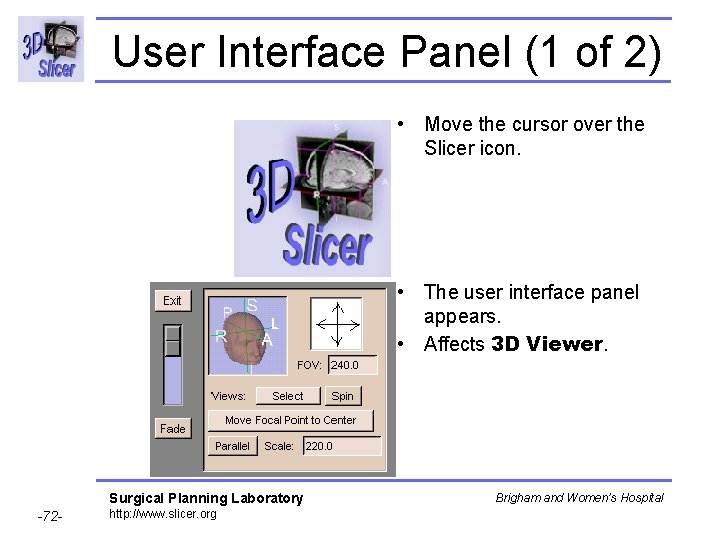
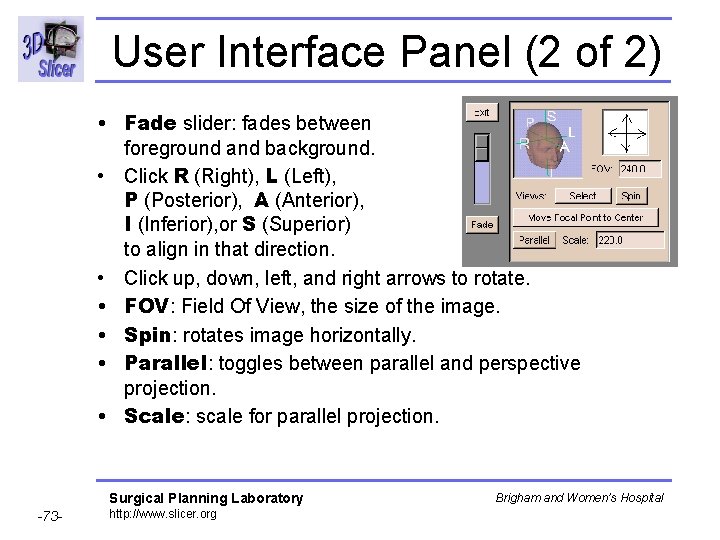
User Interface Panel (1 of 2) • Move the cursor over the Slicer icon. • The user interface panel appears. • Affects 3 D Viewer. Surgical Planning Laboratory -72 - http: //www. slicer. org Brigham and Women’s Hospital
User Interface Panel (2 of 2) • Fade slider: fades between foreground and background. • Click R (Right), L (Left), P (Posterior), A (Anterior), I (Inferior), or S (Superior) to align in that direction. • Click up, down, left, and right arrows to rotate. • FOV: Field Of View, the size of the image. • Spin: rotates image horizontally. • Parallel: toggles between parallel and perspective projection. • Scale: scale for parallel projection. Surgical Planning Laboratory -73 - http: //www. slicer. org Brigham and Women’s Hospital
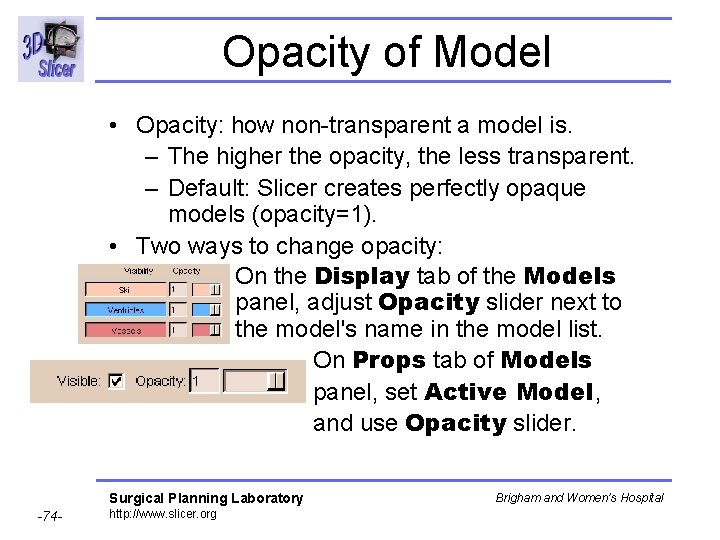
Opacity of Model • Opacity: how non-transparent a model is. – The higher the opacity, the less transparent. – Default: Slicer creates perfectly opaque models (opacity=1). • Two ways to change opacity: – On the Display tab of the Models panel, adjust Opacity slider next to the model's name in the model list. On Props tab of Models panel, set Active Model, and use Opacity slider. Surgical Planning Laboratory -74 - http: //www. slicer. org Brigham and Women’s Hospital
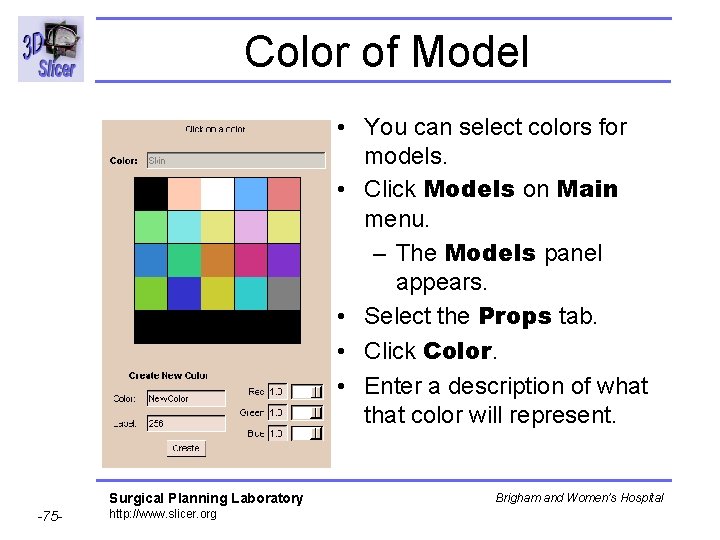
Color of Model • You can select colors for models. • Click Models on Main menu. – The Models panel appears. • Select the Props tab. • Click Color. • Enter a description of what that color will represent. Surgical Planning Laboratory -75 - http: //www. slicer. org Brigham and Women’s Hospital
Exercise: Viewing 3 D (1 / 5) • Load model as in previous exercise. • Click Models button on Main menu. • Click Display tab: observe which models are loaded. • Click name of model: turn Visibility on and off. • Right-click name of model: observe display options for that model. Surgical Planning Laboratory -76 - http: //www. slicer. org Brigham and Women’s Hospital
Exercise: Viewing 3 D (2 / 5) • Left-click 3 D view and move mouse: – Rotates the view • Click middle button (or Alt-Left button) on 3 D view and move mouse: – Moves view left-right, up-down. • Right-click 3 D view and move mouse up and down. – Changes size of view (zoom). Surgical Planning Laboratory -77 - http: //www. slicer. org Brigham and Women’s Hospital
Exercise: Viewing 3 D (3 / 5) • User Interface Panel: bottom of Main window. • • – Move cursor over the Slicer icon. Move Fade slider: fades between foreground and background. Click Right, Left, Posterior, Anterior, Inferior, or Superior to align in that direction. Click up, down, left, right arrows to rotate. Enter FOV: changes the size of image. Parallel: toggles parallel/perspective projection. Spin: rotates image horizontally. Scale: changes scale: larger for smaller image. Surgical Planning Laboratory -78 - http: //www. slicer. org Brigham and Women’s Hospital
Exercise: Viewing 3 D (4 / 5) • First way to change opacity: – Click Models button. – Click Display tab. – Adjust Opacity slider. • Second way to change opacity: – Click Models button. – Click Props tab. – Select Active Model. – Adjust Opacity slider. Surgical Planning Laboratory -79 - http: //www. slicer. org Brigham and Women’s Hospital
Exercise: Viewing 3 D (5 / 5) • • Color of model: Click Models on Main menu. Select the Props tab. Select Active Model. Click Color. Select color. Click Apply. Surgical Planning Laboratory -80 - http: //www. slicer. org Brigham and Women’s Hospital
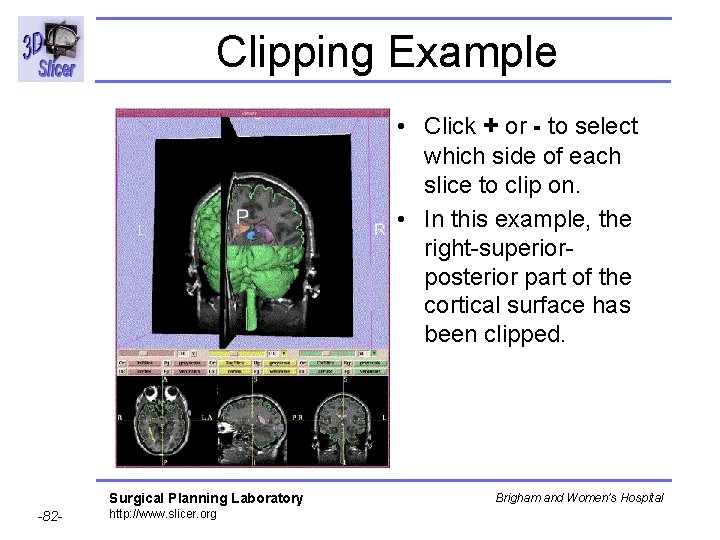
Clipping Models • Clipping: cutting away sections of a model at one or more selected slices. • The model is removed from one side of each selected slice, revealing the image of each selected slice and the rest of the visible model. • On the Display tab of the Models panel, rightclick the model's name in the list. – A drop-down menu appears. • Select Clipping. • Select the Clip tab of the Models panel. • Select which side of a slice to clip the model on. Surgical Planning Laboratory -81 - http: //www. slicer. org Brigham and Women’s Hospital
Clipping Example • Click + or - to select which side of each slice to clip on. • In this example, the right-superiorposterior part of the cortical surface has been clipped. Surgical Planning Laboratory -82 - http: //www. slicer. org Brigham and Women’s Hospital
Exercise: Clipping Data • • Load model as in previous exercise. Click Models button. Click Display tab. Right-click the model's name in the list. Click Clipping to turn clipping on. Click Clip tab. Click + or - to select which side of each slice to clip on. Surgical Planning Laboratory -83 - http: //www. slicer. org Brigham and Women’s Hospital
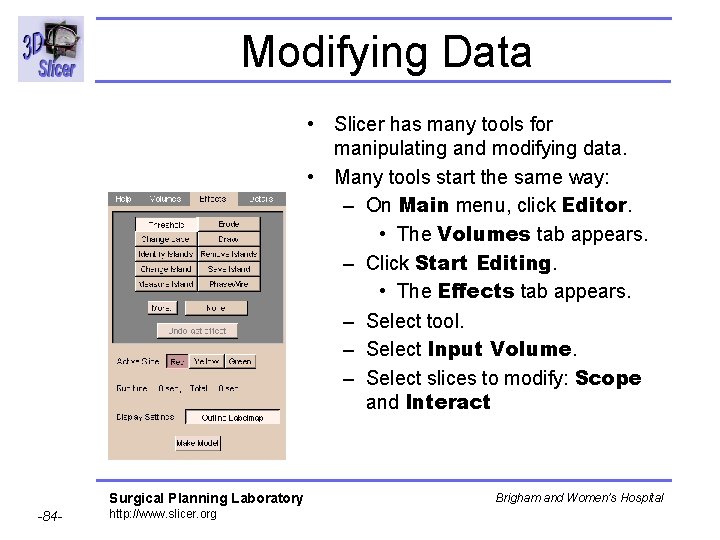
Modifying Data • Slicer has many tools for manipulating and modifying data. • Many tools start the same way: – On Main menu, click Editor. • The Volumes tab appears. – Click Start Editing. • The Effects tab appears. – Select tool. – Select Input Volume. – Select slices to modify: Scope and Interact Surgical Planning Laboratory -84 - http: //www. slicer. org Brigham and Women’s Hospital
Segmentation • Segmentation: separating and labeling anatomical structure images. • Result is a label map. • Semi-automatic process using editing tools. – Include thresholding, morphological operations, island-removal, and free-hand drawing. – Segment data in 3 D or slice-by-slice. • Merge volumes to construct complex images. • Example: segment skin from an MR scan. Surgical Planning Laboratory -85 - http: //www. slicer. org Brigham and Women’s Hospital
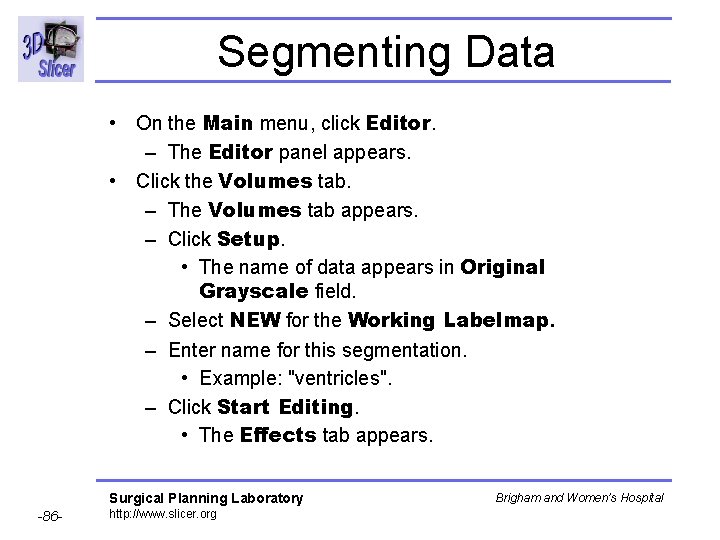
Segmenting Data • On the Main menu, click Editor. – The Editor panel appears. • Click the Volumes tab. – The Volumes tab appears. – Click Setup. • The name of data appears in Original Grayscale field. – Select NEW for the Working Labelmap. – Enter name for this segmentation. • Example: "ventricles". – Click Start Editing. • The Effects tab appears. Surgical Planning Laboratory -86 - http: //www. slicer. org Brigham and Women’s Hospital
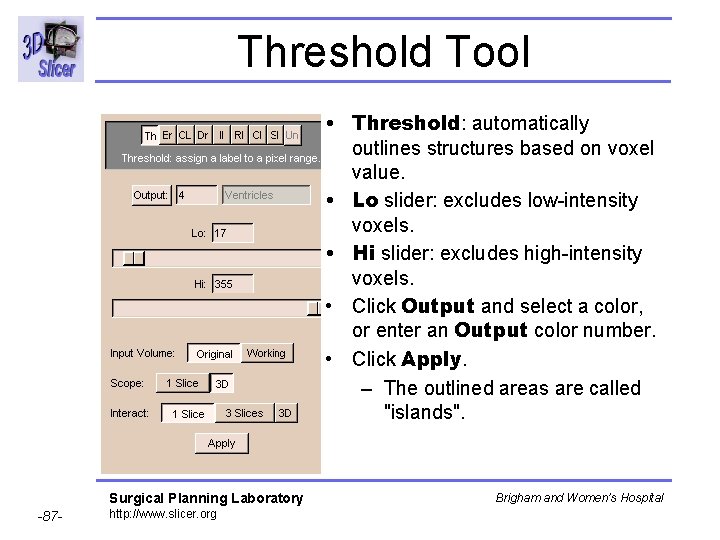
Threshold Tool • Threshold: automatically outlines structures based on voxel value. • Lo slider: excludes low-intensity voxels. • Hi slider: excludes high-intensity voxels. • Click Output and select a color, or enter an Output color number. • Click Apply. – The outlined areas are called "islands". Surgical Planning Laboratory -87 - http: //www. slicer. org Brigham and Women’s Hospital
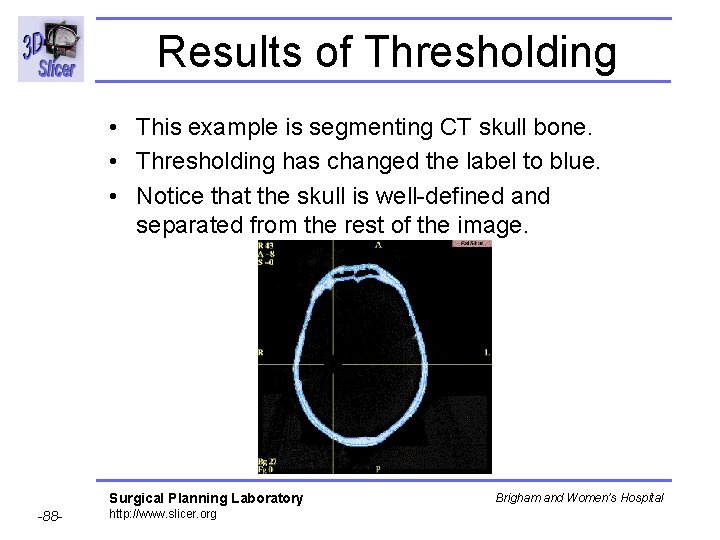
Results of Thresholding • This example is segmenting CT skull bone. • Thresholding has changed the label to blue. • Notice that the skull is well-defined and separated from the rest of the image. Surgical Planning Laboratory -88 - http: //www. slicer. org Brigham and Women’s Hospital
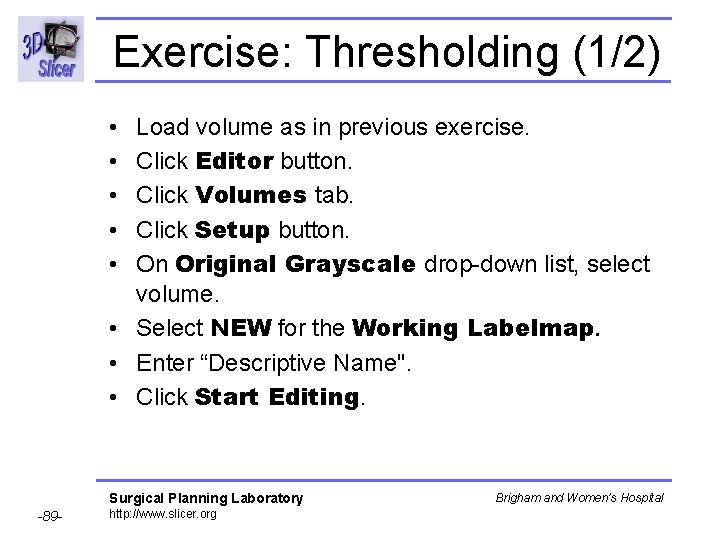
Exercise: Thresholding (1/2) • • • Load volume as in previous exercise. Click Editor button. Click Volumes tab. Click Setup button. On Original Grayscale drop-down list, select volume. • Select NEW for the Working Labelmap. • Enter “Descriptive Name". • Click Start Editing. Surgical Planning Laboratory -89 - http: //www. slicer. org Brigham and Women’s Hospital
Exercise: Thresholding (2/2) • • Click Threshold or Th. Click Output, select a color for selected voxels. Use Lo slider to exclude low-intensity voxels. Use Hi slider to exclude high-intensity voxels. – Example: if 140 is a common value on 2 D Viewer, let Lo=130 and Hi=150. Choose Scope: 1 Slice or 3 D. Choose to filter 1 Slice, 3 Slices, or 3 D. Click Apply. Result: label map. Surgical Planning Laboratory -90 - http: //www. slicer. org Brigham and Women’s Hospital
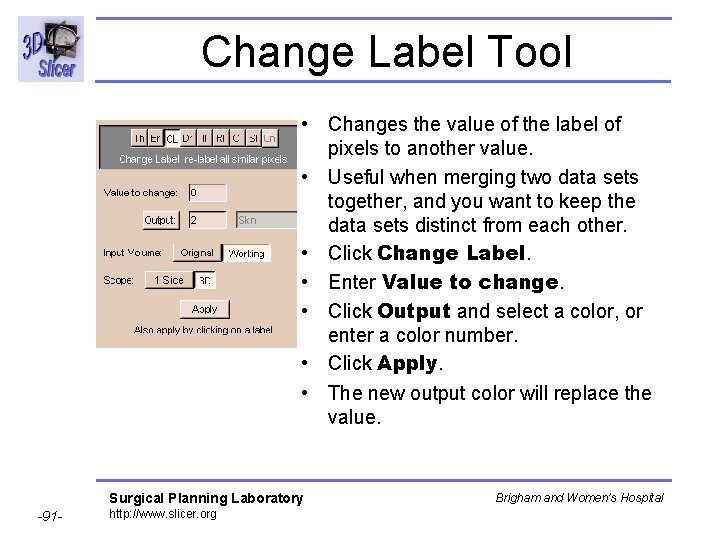
Change Label Tool • Changes the value of the label of pixels to another value. • Useful when merging two data sets together, and you want to keep the data sets distinct from each other. • Click Change Label. • Enter Value to change. • Click Output and select a color, or enter a color number. • Click Apply. • The new output color will replace the value. Surgical Planning Laboratory -91 - http: //www. slicer. org Brigham and Women’s Hospital
Exercise: Change Label • Use on label map or original volume. • On Editor, Effects tab, click CL or Change Label. • Enter Value to change. • Click Output and select a color. • Choose Scope: 1 Slice or 3 D. • Click Apply. • The new output color replaces the value. Surgical Planning Laboratory -92 - http: //www. slicer. org Brigham and Women’s Hospital
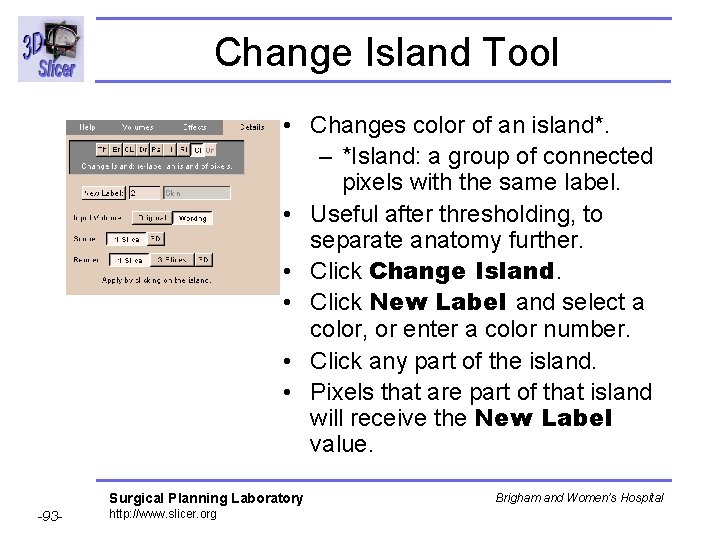
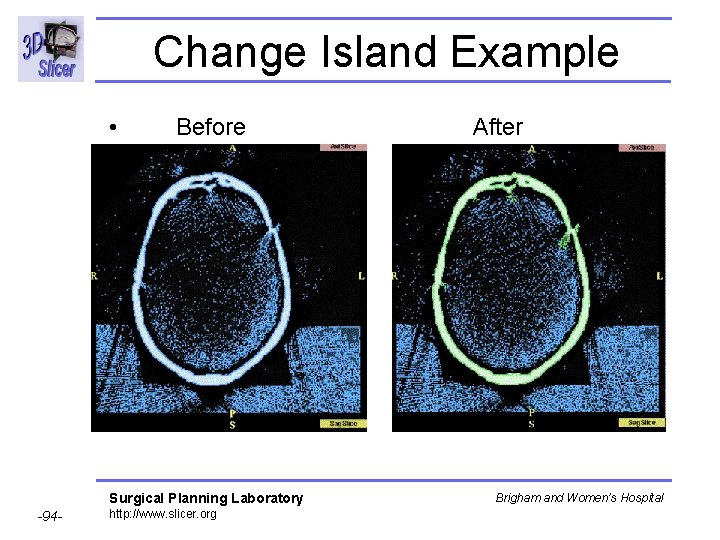
Change Island Tool • Changes color of an island*. – *Island: a group of connected pixels with the same label. • Useful after thresholding, to separate anatomy further. • Click Change Island. • Click New Label and select a color, or enter a color number. • Click any part of the island. • Pixels that are part of that island will receive the New Label value. Surgical Planning Laboratory -93 - http: //www. slicer. org Brigham and Women’s Hospital
Change Island Example • Before After Surgical Planning Laboratory -94 - http: //www. slicer. org Brigham and Women’s Hospital
Exercise: Change Island • Use on island in label map or original volume. • On Editor, Effects tab, click CI or Change Island. • Click New Label and select a new color. • Click any part of the island. • Changes island to New Label value. Surgical Planning Laboratory -95 - http: //www. slicer. org Brigham and Women’s Hospital
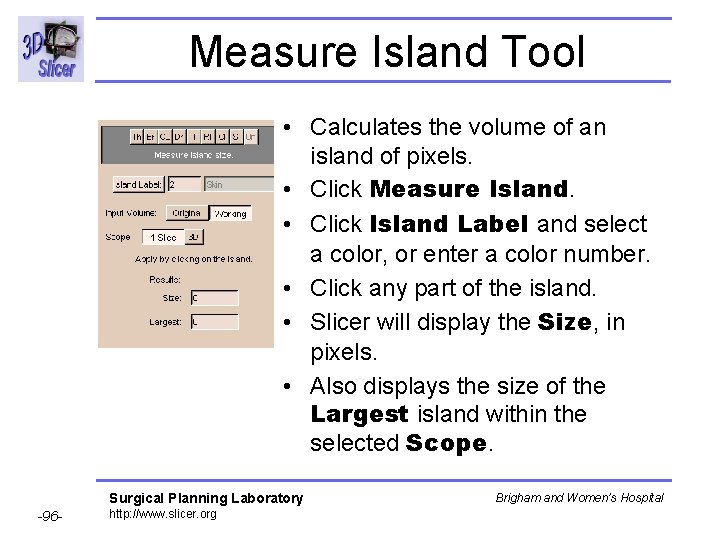
Measure Island Tool • Calculates the volume of an island of pixels. • Click Measure Island. • Click Island Label and select a color, or enter a color number. • Click any part of the island. • Slicer will display the Size, in pixels. • Also displays the size of the Largest island within the selected Scope. Surgical Planning Laboratory -96 - http: //www. slicer. org Brigham and Women’s Hospital
Exercise: Measure Island • • Use on island in label map or original volume. On Effects panel, click Measure Island. Click Island Label and select pixel color. Select 1 Slice or 3 D for Scope. Click any part of the island. Observe Size of island in pixels. Observe size of Largest island within Scope. Surgical Planning Laboratory -97 - http: //www. slicer. org Brigham and Women’s Hospital
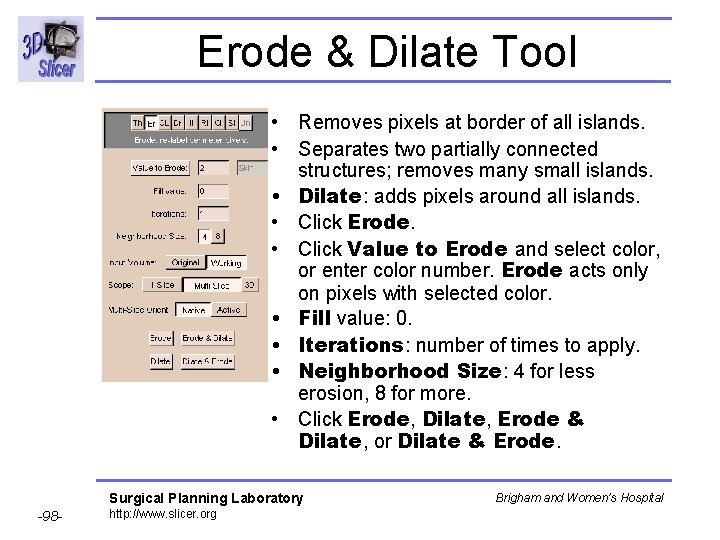
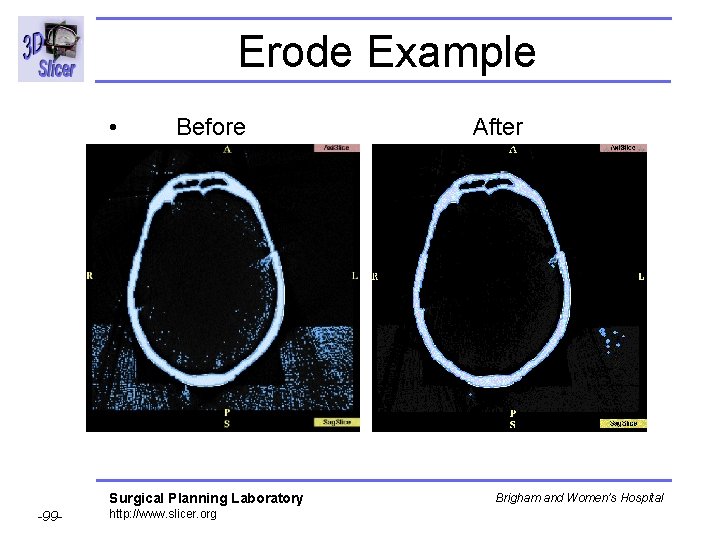
Erode & Dilate Tool • Removes pixels at border of all islands. • Separates two partially connected structures; removes many small islands. • Dilate: adds pixels around all islands. • Click Erode. • Click Value to Erode and select color, or enter color number. Erode acts only on pixels with selected color. • Fill value: 0. • Iterations: number of times to apply. • Neighborhood Size: 4 for less erosion, 8 for more. • Click Erode, Dilate, Erode & Dilate, or Dilate & Erode. Surgical Planning Laboratory -98 - http: //www. slicer. org Brigham and Women’s Hospital
Erode Example • Before After Surgical Planning Laboratory -99 - http: //www. slicer. org Brigham and Women’s Hospital
Exercise: Erode & Dilate • Use Threshold to change values: use vivid color. • Click V for green 2 D image. • Editor Volumes tab Start Editing • Effects tab: Green Active Slice, Erode. • Value to Erode: use Threshold value. • Scope: 3 D • Click Dilate: threshold value spreads. • Click Erode: threshold value area shrinks. Surgical Planning Laboratory -100 - http: //www. slicer. org Brigham and Women’s Hospital
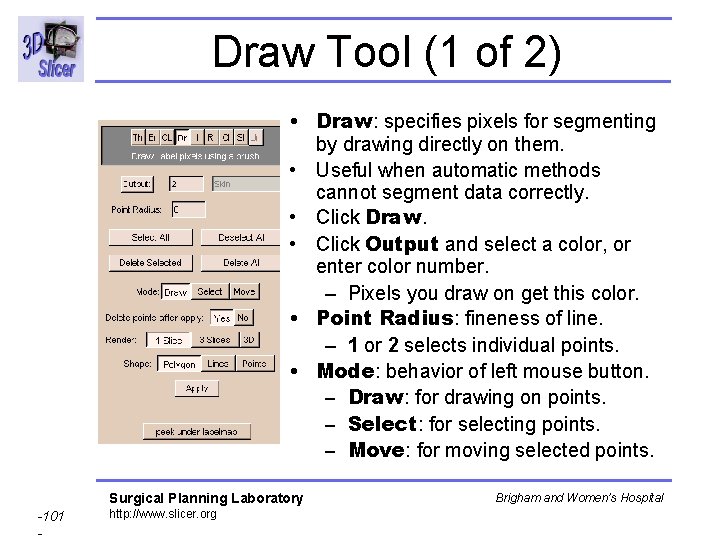
Draw Tool (1 of 2) • Draw: specifies pixels for segmenting by drawing directly on them. • Useful when automatic methods cannot segment data correctly. • Click Draw. • Click Output and select a color, or enter color number. – Pixels you draw on get this color. • Point Radius: fineness of line. – 1 or 2 selects individual points. • Mode: behavior of left mouse button. – Draw: for drawing on points. – Select: for selecting points. – Move: for moving selected points. Surgical Planning Laboratory -101 - http: //www. slicer. org Brigham and Women’s Hospital
Draw Tool (2 of 2) • • Select All: selects all points. Deselect All: deselects all points. Delete Selected: deletes selected points. Delete All: deletes all points. Shape: shape of left mouse in the draw window. Draw on the region of interest (ROI) with left mouse button. Click Apply. – Slicer will fill the ROI with the Output color. • Mistake? Use Draw with Black output to erase. • Delete last selected point of polygon with Delete Selected. Surgical Planning Laboratory -102 - http: //www. slicer. org Brigham and Women’s Hospital
Exercise: Draw • • • Load volume. Editor Volumes tab Start Editing Effects tab: Green Active Slice, Draw. Click Output: select color. On 2 D Viewer, choose area to draw around. Click mouse on edge of area. Move mouse around area, clicking as you move. When area outlined, click Apply. Area is covered by selected color. Surgical Planning Laboratory -103 - http: //www. slicer. org Brigham and Women’s Hospital
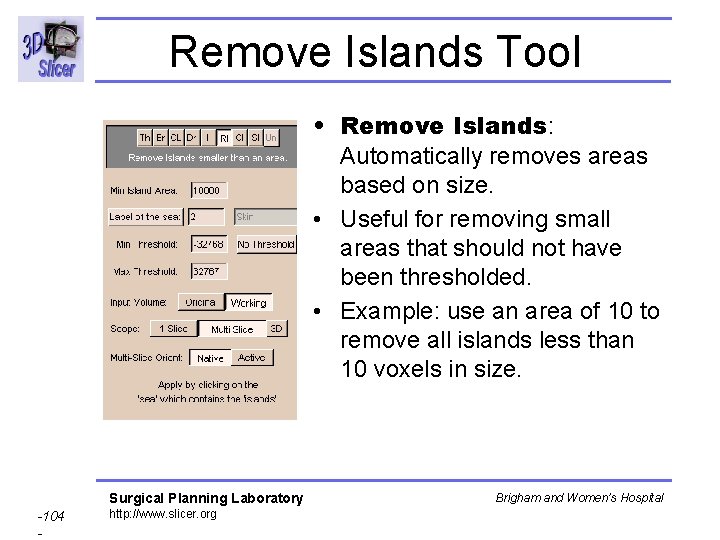
Remove Islands Tool • Remove Islands: Automatically removes areas based on size. • Useful for removing small areas that should not have been thresholded. • Example: use an area of 10 to remove all islands less than 10 voxels in size. Surgical Planning Laboratory -104 - http: //www. slicer. org Brigham and Women’s Hospital
Exercise: Remove Islands • • Use Threshold on volume. Click Remove Islands or RI. Min. Island Area: 10 Label of the sea: 0 Scope: 3 D Click on 2 D Viewer in sea (outside island). Eliminates the smaller islands. Surgical Planning Laboratory -105 - http: //www. slicer. org Brigham and Women’s Hospital
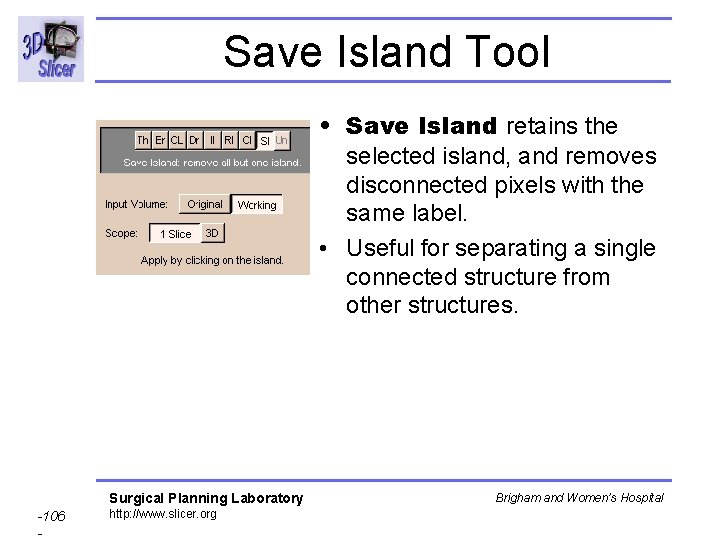
Save Island Tool • Save Island retains the selected island, and removes disconnected pixels with the same label. • Useful for separating a single connected structure from other structures. Surgical Planning Laboratory -106 - http: //www. slicer. org Brigham and Women’s Hospital
Exercise: Save Island • • Color some voxels using Threshold or Draw. Click Save Island or SI. Scope: 3 D Click an island in 2 D Viewer. – Warning: all other same-colored islands disappear. Surgical Planning Laboratory -107 - http: //www. slicer. org Brigham and Women’s Hospital
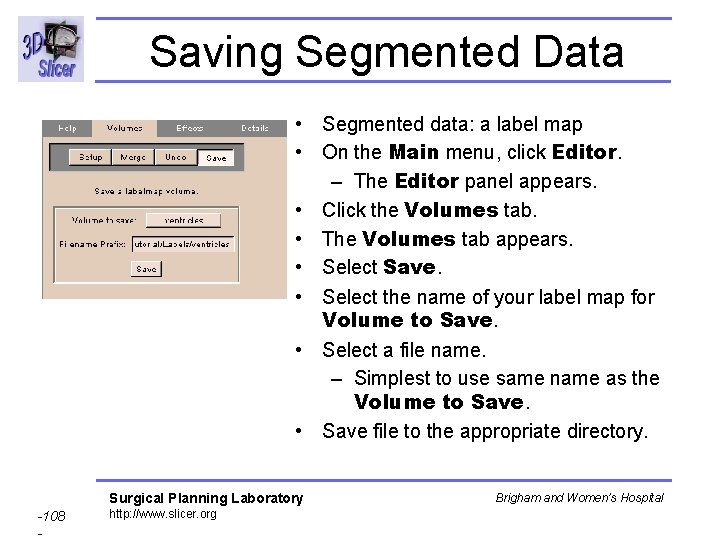
Saving Segmented Data • Segmented data: a label map • On the Main menu, click Editor. – The Editor panel appears. • Click the Volumes tab. • The Volumes tab appears. • Select Save. • Select the name of your label map for Volume to Save. • Select a file name. – Simplest to use same name as the Volume to Save. • Save file to the appropriate directory. Surgical Planning Laboratory -108 - http: //www. slicer. org Brigham and Women’s Hospital
Exercise: Saving Label Map • Use any of the previous methods to create a simple label map. – Example: Threshold. • Click Editor Volumes tab Save • Select the Volume to Save. • Add file name to end of Filename Path. • Click Save. Surgical Planning Laboratory -109 - http: //www. slicer. org Brigham and Women’s Hospital
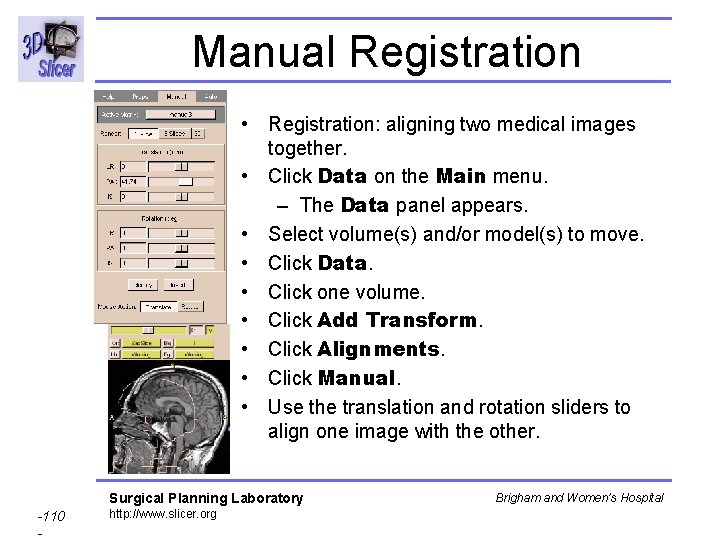
Manual Registration • Registration: aligning two medical images together. • Click Data on the Main menu. – The Data panel appears. • Select volume(s) and/or model(s) to move. • Click Data. • Click one volume. • Click Add Transform. • Click Alignments. • Click Manual. • Use the translation and rotation sliders to align one image with the other. Surgical Planning Laboratory -110 - http: //www. slicer. org Brigham and Women’s Hospital
Automatic Registration • Slicer can perform automatic registration. • Automatic registration can use manual registration as starting point. • Click Alignments. • Click Auto. • Select matrix created by manual registration. • Select the reference volume and the volume to move. • Click Run. • Automatic registration will run. This will take a few minutes, including initialization and a series of displays that appear and disappear. Surgical Planning Laboratory -111 - http: //www. slicer. org Brigham and Women’s Hospital
Exercise: Registration • Load volume from spgr folder. • Load label map from labels folder. • Use as Fg and Bg. – Toggle between them to show misaligned. • Click Alignments Auto. • Select Volume to Move and Reference Volume. • Click Intensity Good and Slow. • Click Start. – This can take a long time. Surgical Planning Laboratory -112 - http: //www. slicer. org Brigham and Women’s Hospital
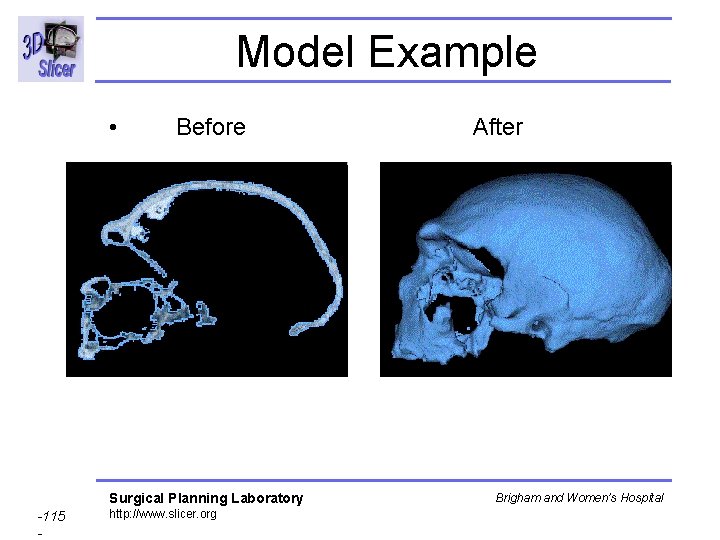
Making Models • Model: a three-dimensional surface. • Use output of segmentation process (label maps) to create models. • The bounding surfaces of the label maps are extracted and represented as a collection of triangles. • Decimation reduces the number of triangles: – can be rendered more quickly – little observable loss in detail – example: a typical brain surface is reduced from about 500, 000 triangles to 150, 000. Surgical Planning Laboratory -113 - http: //www. slicer. org Brigham and Women’s Hospital
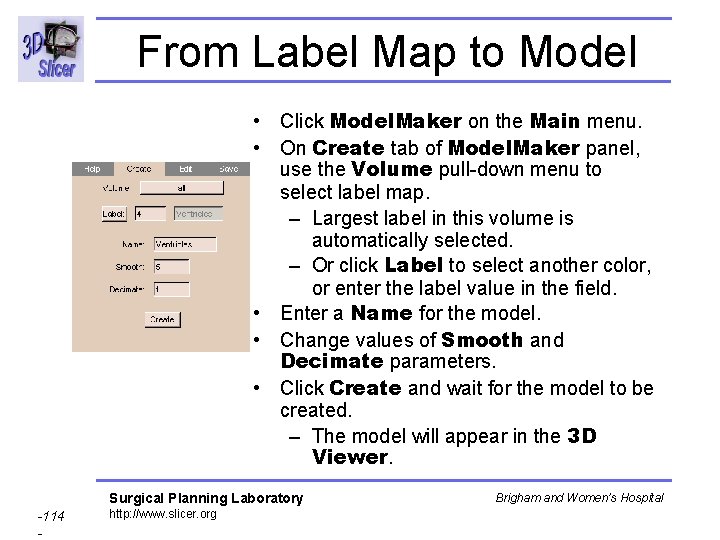
From Label Map to Model • Click Model. Maker on the Main menu. • On Create tab of Model. Maker panel, use the Volume pull-down menu to select label map. – Largest label in this volume is automatically selected. – Or click Label to select another color, or enter the label value in the field. • Enter a Name for the model. • Change values of Smooth and Decimate parameters. • Click Create and wait for the model to be created. – The model will appear in the 3 D Viewer. Surgical Planning Laboratory -114 - http: //www. slicer. org Brigham and Women’s Hospital
Model Example • Before After Surgical Planning Laboratory -115 - http: //www. slicer. org Brigham and Women’s Hospital
Exercise: Making a Model • • Load label map. Model. Maker Create tab. Select label map from Volume pull-down menu. Select Label to model (smaller area = faster). Enter a Name. Enter Smooth (larger = faster, smoother). Enter Decimate (larger = slower, fewer triangles). • Click Create. • To save: Save tab, click Save. Surgical Planning Laboratory -116 - http: //www. slicer. org Brigham and Women’s Hospital
Manipulating Model • The model appears in the 3 D Viewer. • Rotate the model: with left mouse button. • Translate the image: with middle mouse button (or Alt-Left button). • Zoom the image: with right mouse button. • Hide and unhide the model: click name of model on the Models panel. • Change opacity of model: use sliding scale next to name of model on the Models panel. Surgical Planning Laboratory -117 - http: //www. slicer. org Brigham and Women’s Hospital
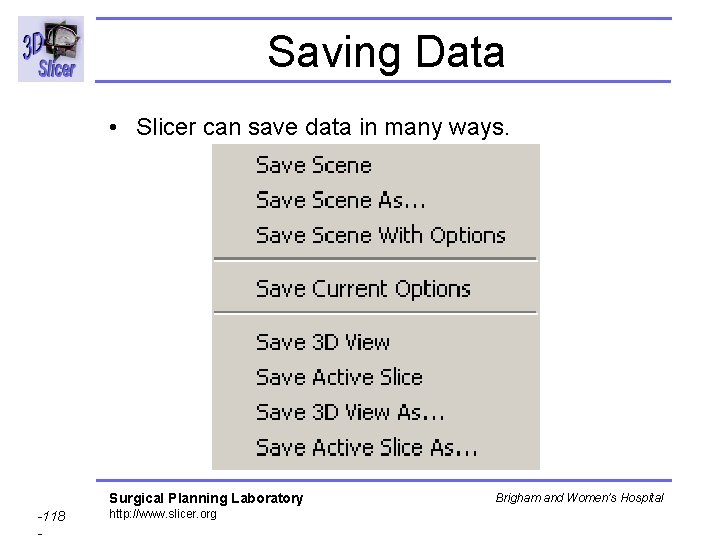
Saving Data • Slicer can save data in many ways. Surgical Planning Laboratory -118 - http: //www. slicer. org Brigham and Women’s Hospital
Saving Volumes • After creating new label map data, it may be necessary to save the new volume of data. • On the Main menu, click Editor. – The Volumes tab appears. • Click Save. • From the menu, select the label map to save and click Save. – The Save Volume dialog box appears. • Select the path and click Save. Surgical Planning Laboratory -119 - http: //www. slicer. org Brigham and Women’s Hospital
Saving Models • On the Main menu, click Model. Maker. • Click the Save tab. • From the menu, select the model to save and click Save. – The Save Model dialog box appears. • Select the path and click Save. – The model will be saved as a. vtk file, which identifies the file as a model. Surgical Planning Laboratory -120 - http: //www. slicer. org Brigham and Women’s Hospital
Saving the Scene • There are several ways to save the scene in Slicer. • Use Save Scene to save as an XML file. – The XML file lists the elements of the scene and their attributes. • Use Save 3 D View to save a picture of the 3 D View. • Use Save Active Slice to save one slice. • Use Save Current Options to save user preferences, like background color or view presets, into a special Options. xml file. Surgical Planning Laboratory -121 - http: //www. slicer. org Brigham and Women’s Hospital
Save Scene • You can save a description of the current scene. – Includes pathnames to the volumes and models. – Can later open them all, just by opening the scene file. • Before saving scene, save any new volumes and models. • Click File. – A drop-down menu appears. • To save file with default file name (data. xml) and no options, select Save Scene. • To use another file name, select Save Scene As and enter file name for the scene. • Use Save Scene With Options to include options in the scene description. Surgical Planning Laboratory -122 - http: //www. slicer. org Brigham and Women’s Hospital
Opening a Saved Scene • Click File. • Click Open Scene. • Find the scene. xml file, double-click it, and wait for the volumes and models to load. Surgical Planning Laboratory -123 - http: //www. slicer. org Brigham and Women’s Hospital
Save Images • You can save 3 D View or Active Slice as TIFF files. – Active Slice: the one that you clicked on last. • To save the 3 D View: – Click File. • A drop-down menu appears. – To save with default file name, select Save 3 D View. – Or select Save 3 D View As and enter file name. • To save the Active Slice: – Click File. • A drop-down menu appears. – To use default file name, select Save Active Slice. – Or select Save Active Slice As, enter file name. Surgical Planning Laboratory -124 - http: //www. slicer. org Brigham and Women’s Hospital
Save Current Options • You can save your preferences, including: – View Presets set under the Slicer graphic in the Menu window. – Settings from the Modules tab on the Options panel. – Background Color set using View. • Click File. – A drop-down menu appears. • Click Save Current Options. – Saves preferences to a file named Options. xml in the current directory. – When running Slicer from that directory, it will use your saved preferences. Surgical Planning Laboratory -125 - http: //www. slicer. org Brigham and Women’s Hospital
Extending Slicer • Slicer is modular. • You can extend Slicer by adding new modules. • See Developer’s Guide for more information. Surgical Planning Laboratory -126 - http: //www. slicer. org Brigham and Women’s Hospital