
Slicer IGT tutorial 2017 brain surgery navigation with

Slicer. IGT tutorial 2017 brain surgery navigation with live tractography
Prerequisites • This tutorial can be completed without any previous tutorials, but the following tutorials are recommended before this one • Slicer 4 Minute Tutorial from https: //www. slicer. org/wiki/Documentation/4. 8/Tr aining • Slicer. IGT tutorials from http: //www. slicerigt. org/wp/user-tutorial/
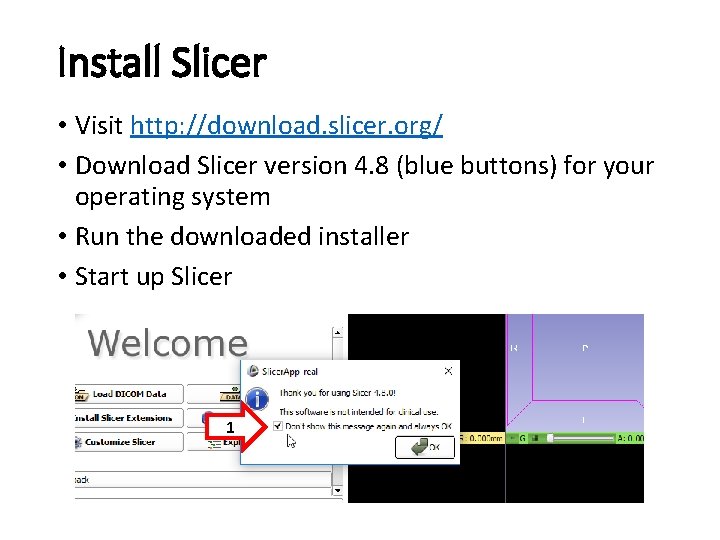
Install Slicer • Visit http: //download. slicer. org/ • Download Slicer version 4. 8 (blue buttons) for your operating system • Run the downloaded installer • Start up Slicer 1
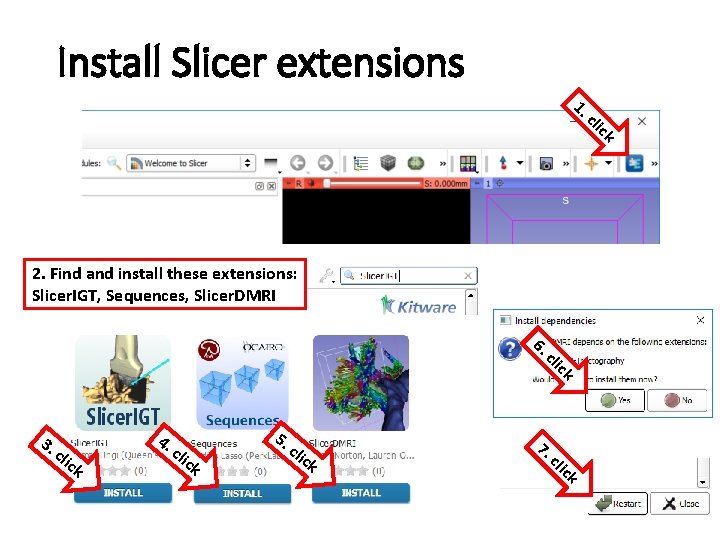
Install Slicer extensions c 1. k lic 2. Find and install these extensions: Slicer. IGT, Sequences, Slicer. DMRI 6. ck cli cli ck ck ck 5. cli lic k 4. 7. 3. c
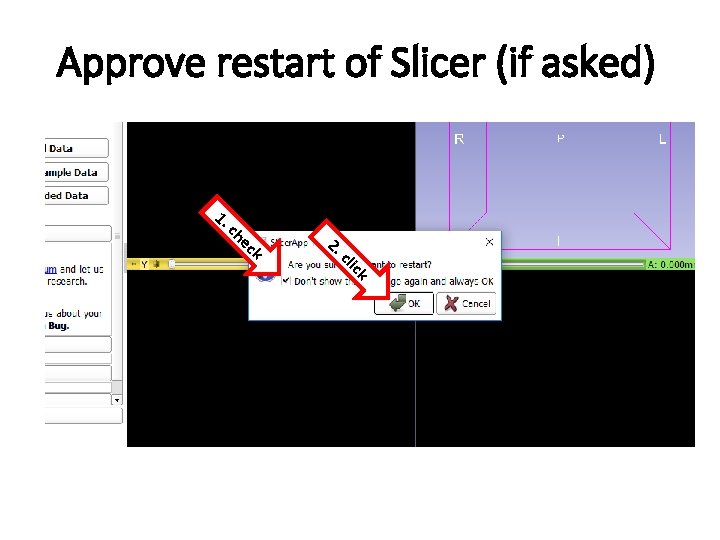
Approve restart of Slicer (if asked) 1. 2. ck cli k ec ch
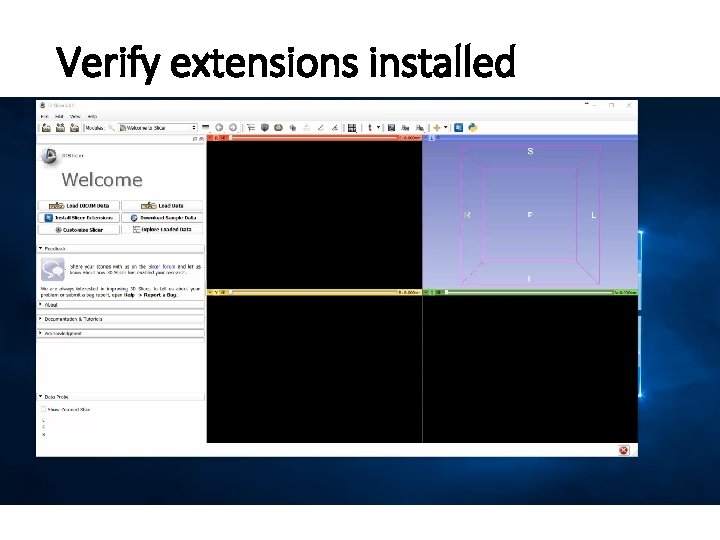
Verify extensions installed
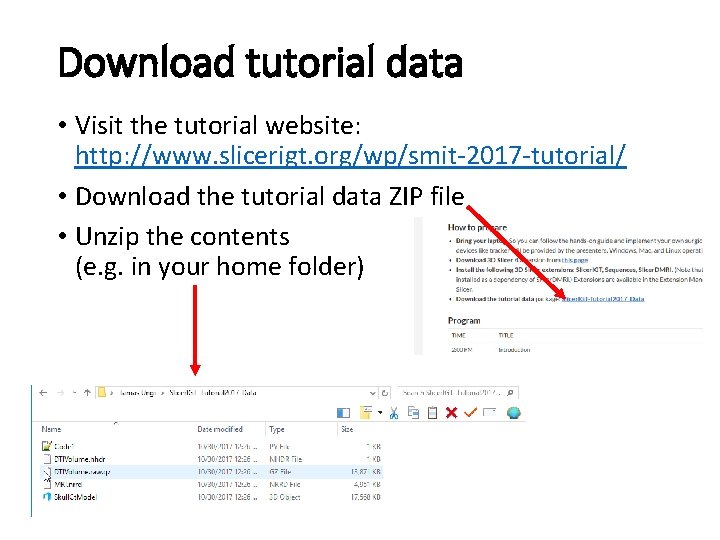
Download tutorial data • Visit the tutorial website: http: //www. slicerigt. org/wp/smit-2017 -tutorial/ • Download the tutorial data ZIP file • Unzip the contents (e. g. in your home folder)
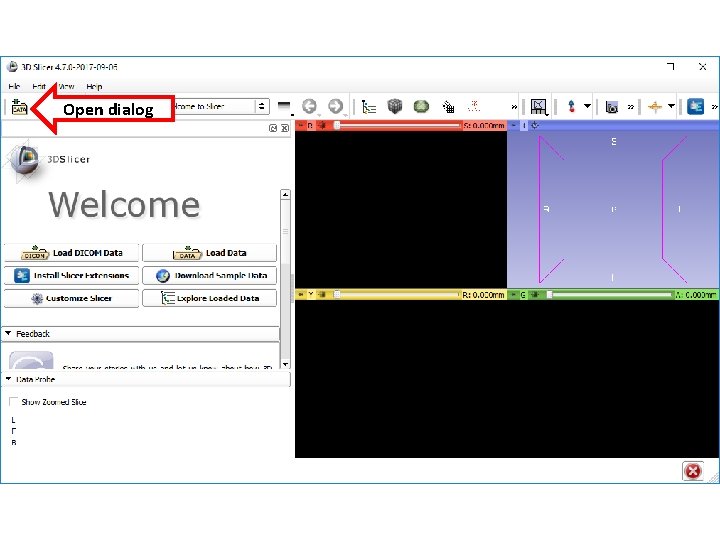
Open dialog
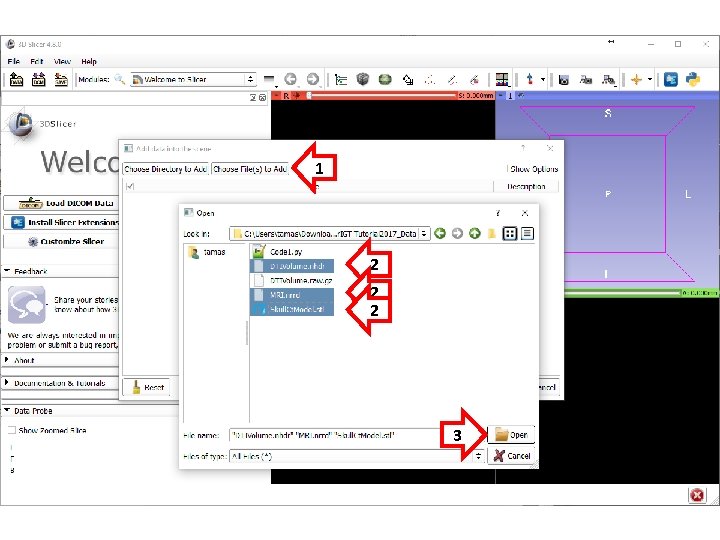
1 2 2 2 3
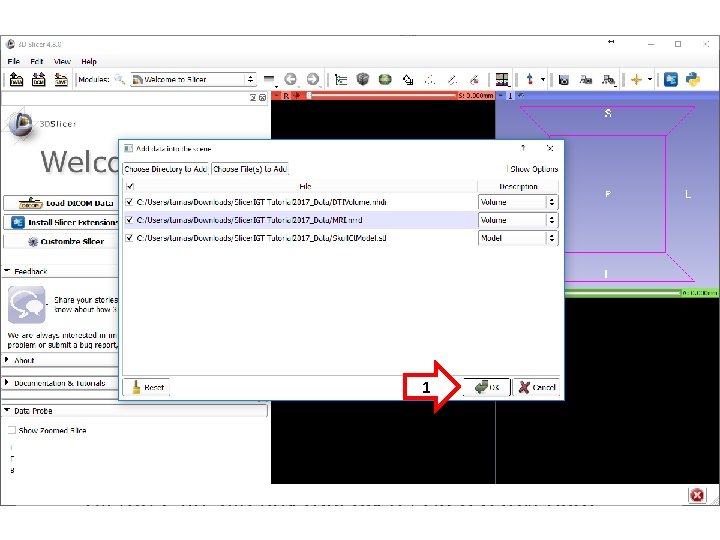
1
About the loaded data • Skull. Ct. Model. stl: Segmentation from CT scan of the plastic skull model • loaded as model • MRI. nrrd: Magnetic resonance image of a person. (not the same one the plastic model was based on) • loaded as a scalar volume • DTIVolume. nhdr: Diffusion tensor image (from a third person) • loaded as a tensor volume • All three are already roughly registered (overlap)
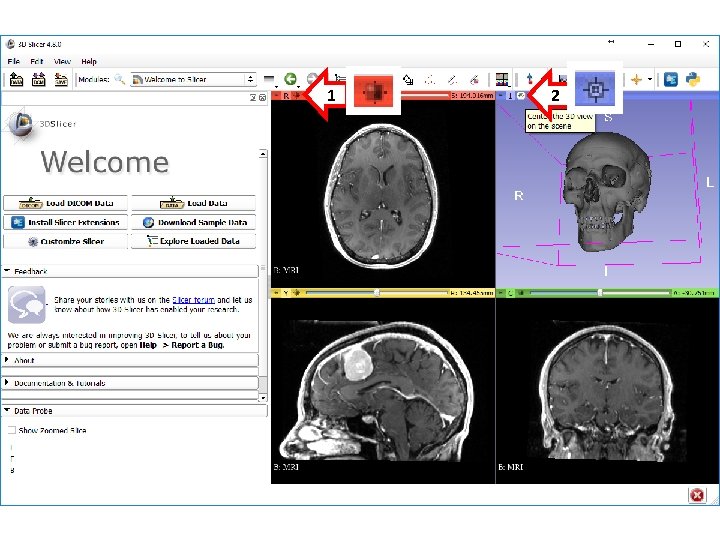
1 2
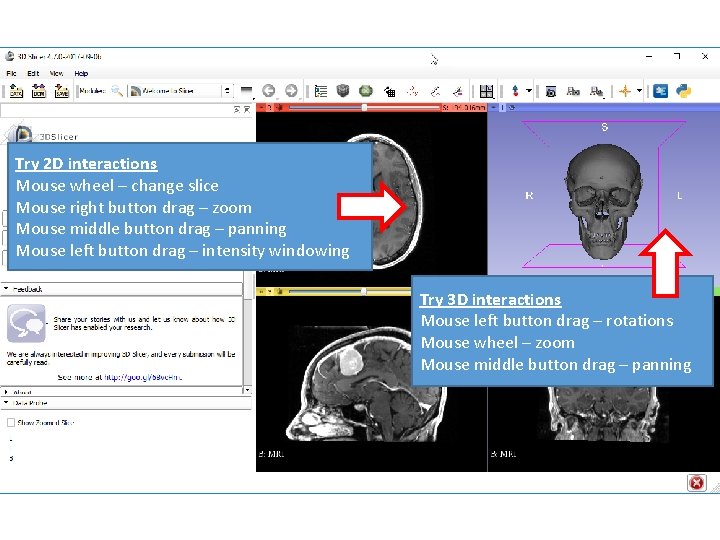
Try 2 D interactions Mouse wheel – change slice Mouse right button drag – zoom Mouse middle button drag – panning Mouse left button drag – intensity windowing Try 3 D interactions Mouse left button drag – rotations Mouse wheel – zoom Mouse middle button drag – panning
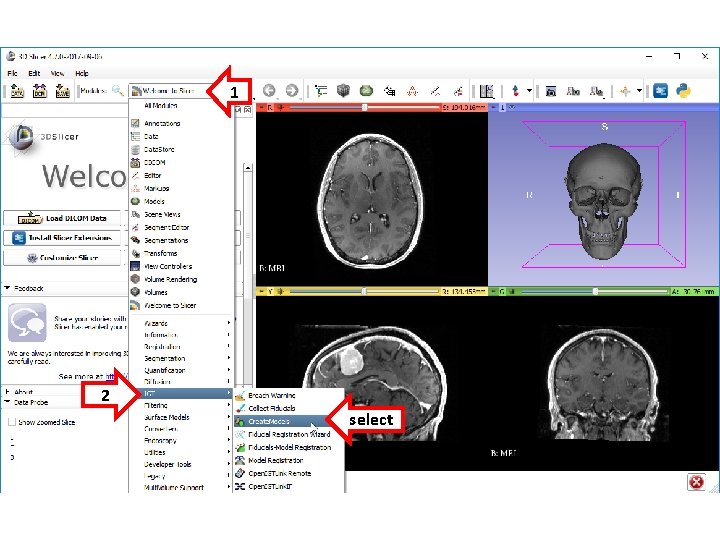
1 2 select
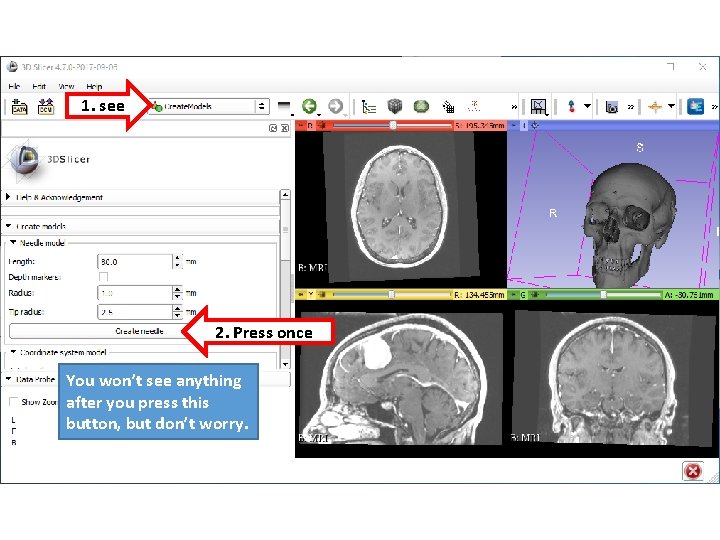
1. see 2. Press once You won’t see anything after you press this button, but don’t worry.
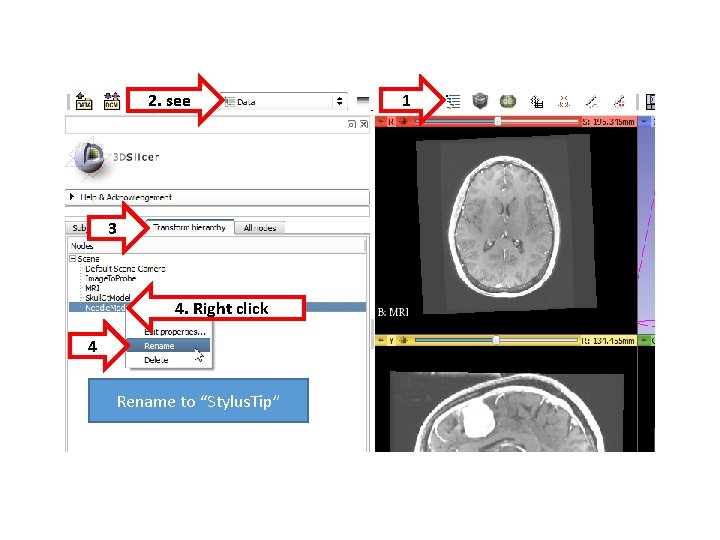
2. see 3 4. Right click 4 Rename to “Stylus. Tip” 1
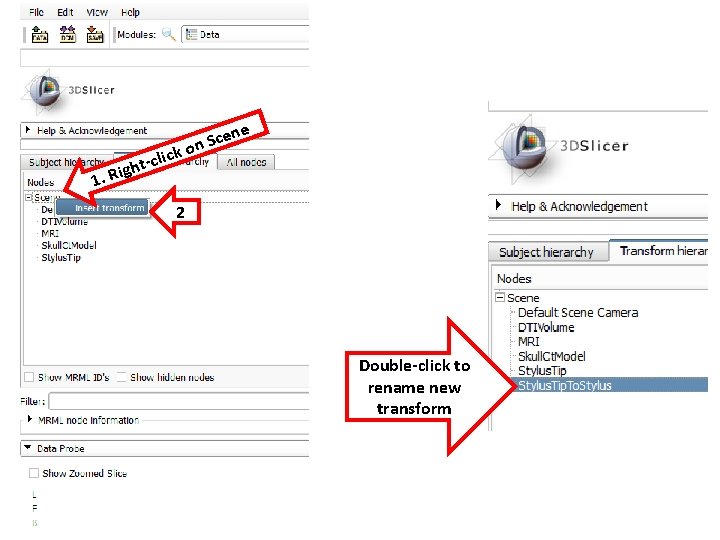
e 1. R cli t h ig ck cen S n o 2 Double-click to rename new transform
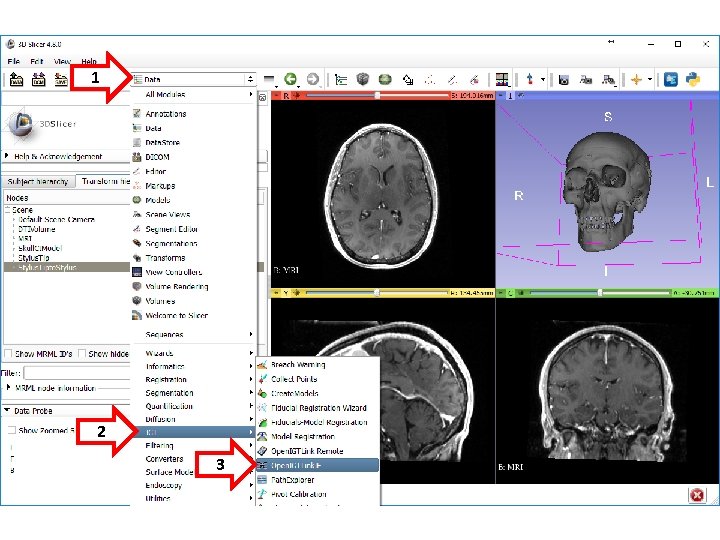
1 2 3
Connect to the PLUS computer • If you are not connected yet… • Connect to Slicer. IGT 2 Wi. Fi (or Slicer. IGT 1, but that is slower) • Password: slicerigt • There will be no internet, just local network
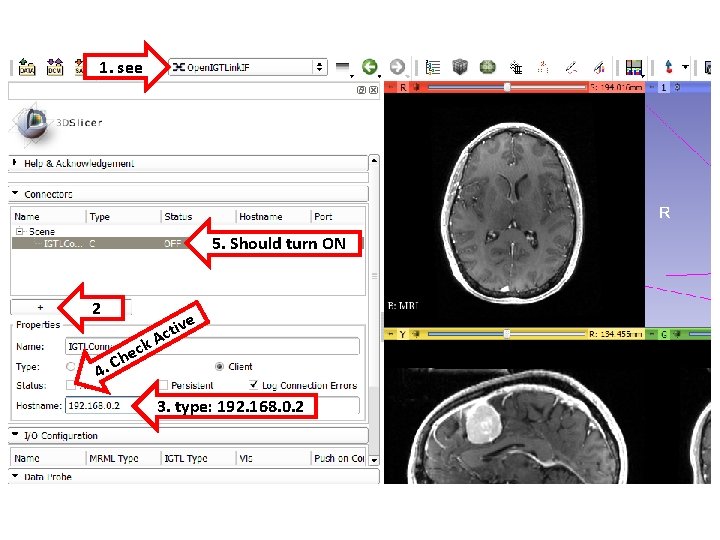
1. see 5. Should turn ON 2 ck e h 4. C e tiv c A 3. type: 192. 168. 0. 2
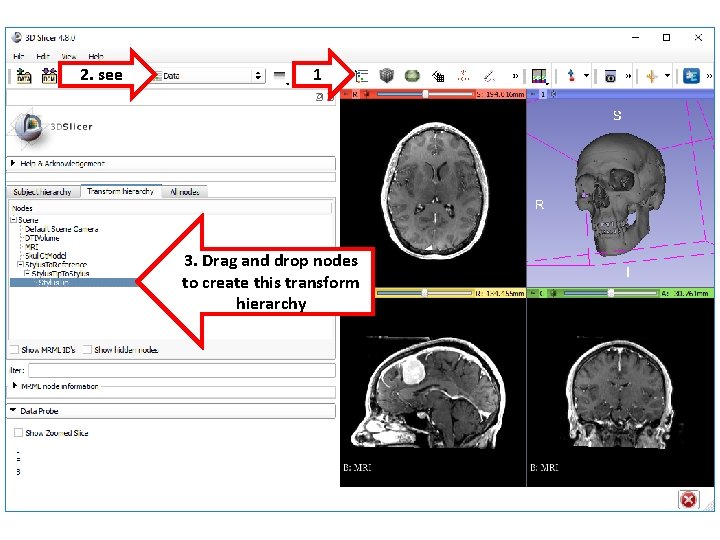
2. see 1 3. Drag and drop nodes to create this transform hierarchy

Checkpoint 01
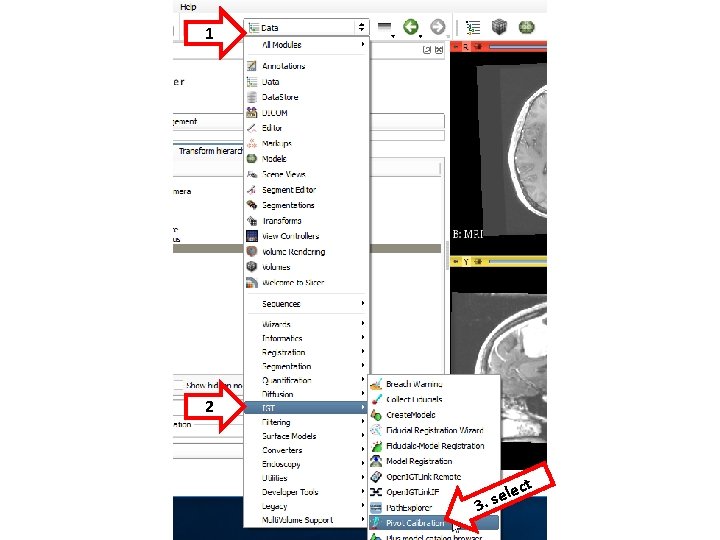
1 2 ct 3 le. se
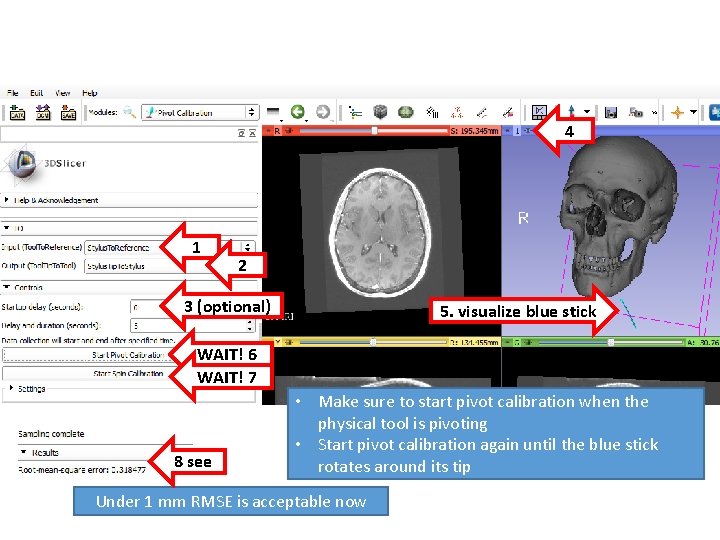
4 1 2 3 (optional) 5. visualize blue stick WAIT! 6 WAIT! 7 8 see • Make sure to start pivot calibration when the physical tool is pivoting • Start pivot calibration again until the blue stick rotates around its tip Under 1 mm RMSE is acceptable now
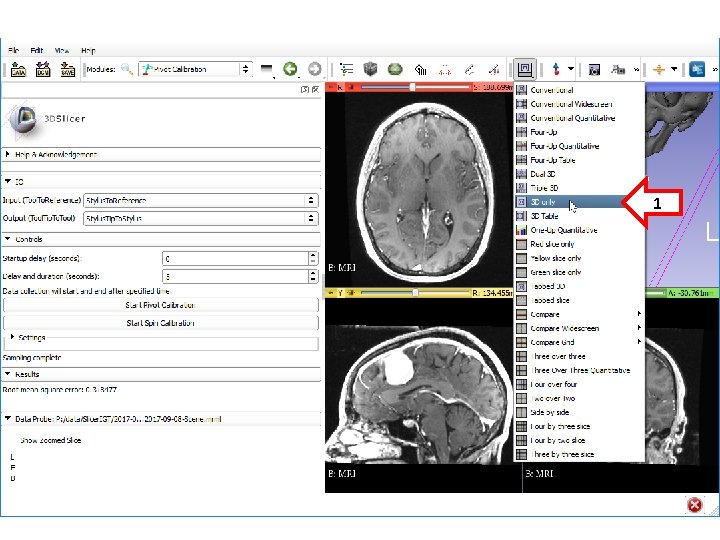
1
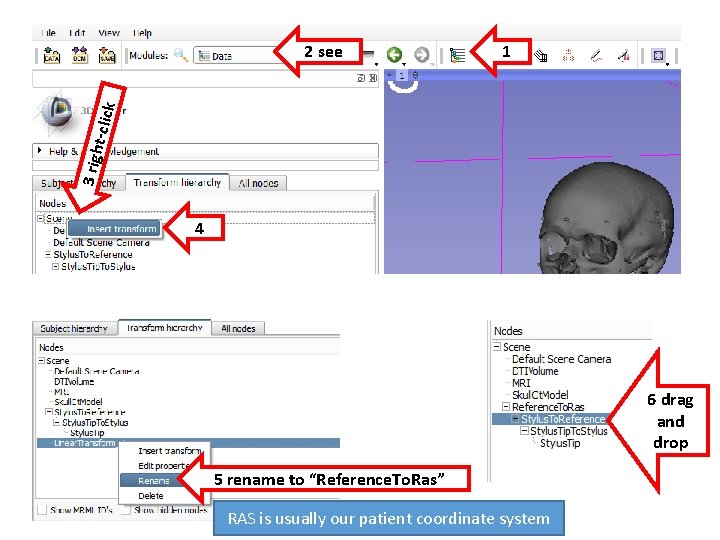
1 3 righ t-clic k 2 see 4 6 drag and drop 5 rename to “Reference. To. Ras” RAS is usually our patient coordinate system
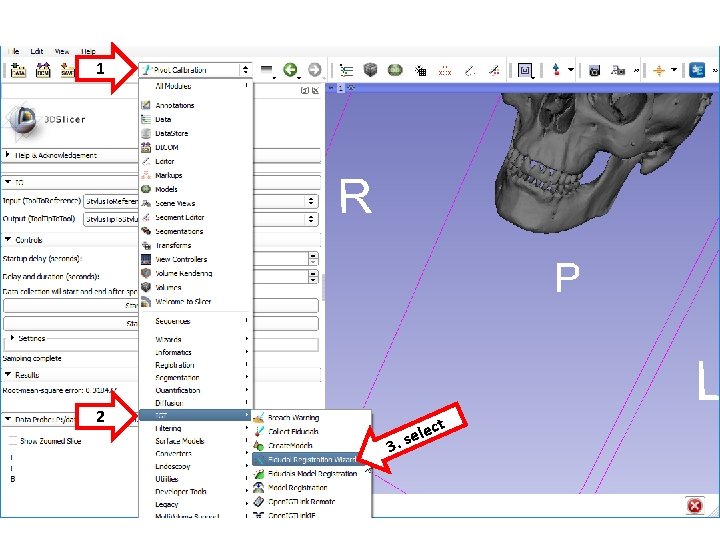
1 2 ct 3 le. se
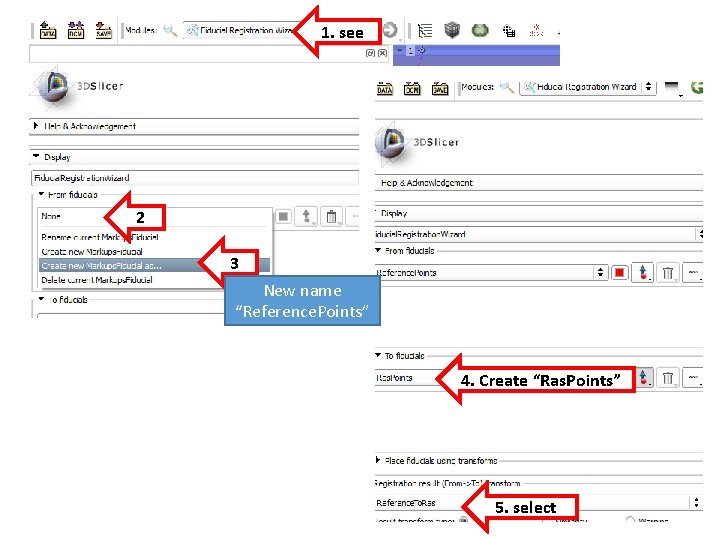
1. see 2 3 New name “Reference. Points” 4. Create “Ras. Points” 5. select
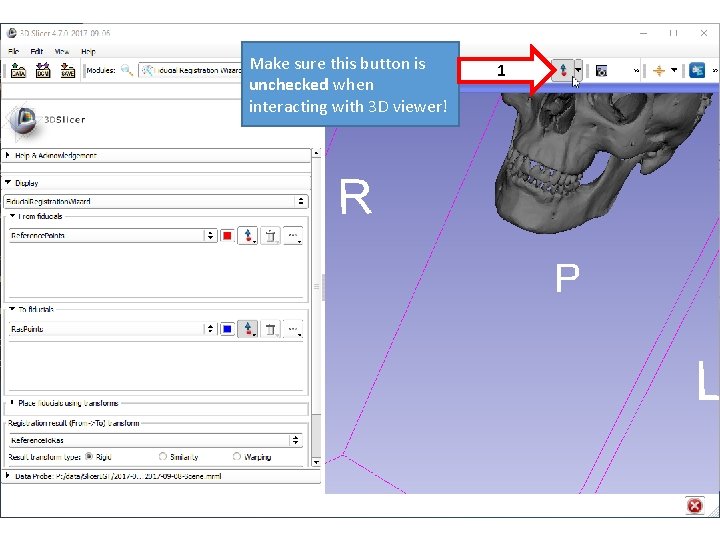
Make sure this button is unchecked when interacting with 3 D viewer! 1
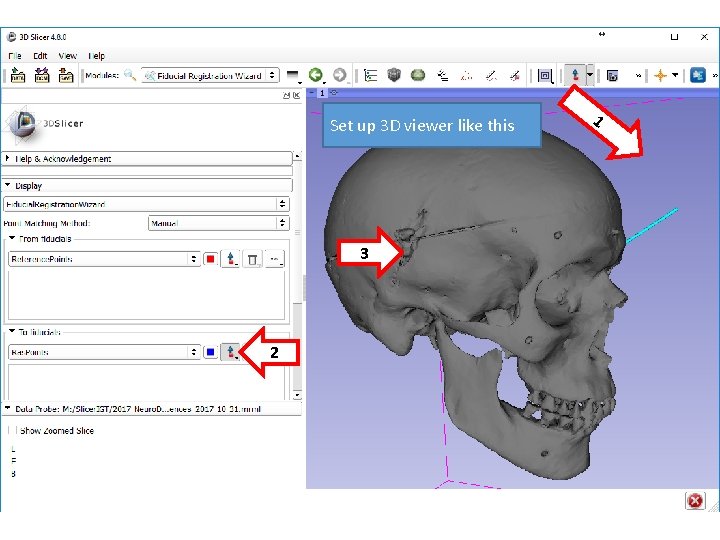
Set up 3 D viewer like this 3 2 1
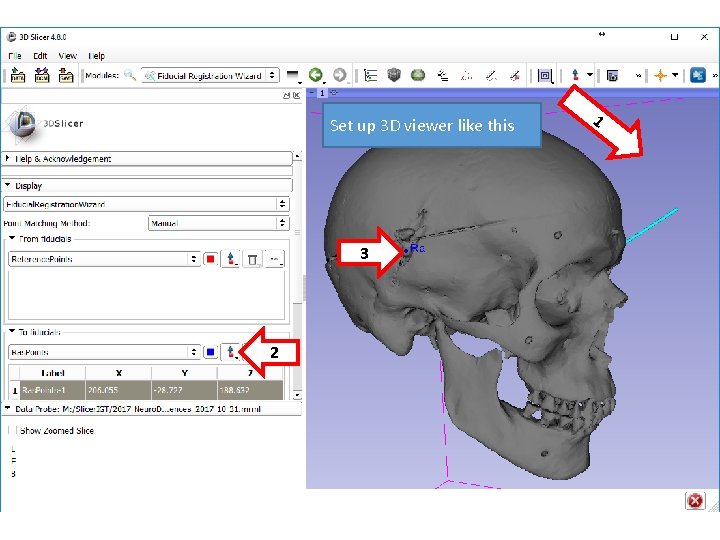
Set up 3 D viewer like this 3 2 1
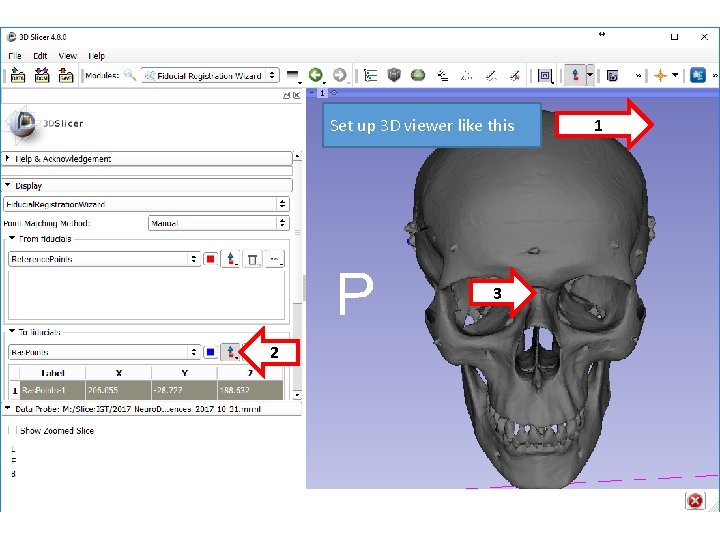
Set up 3 D viewer like this 3 2 1
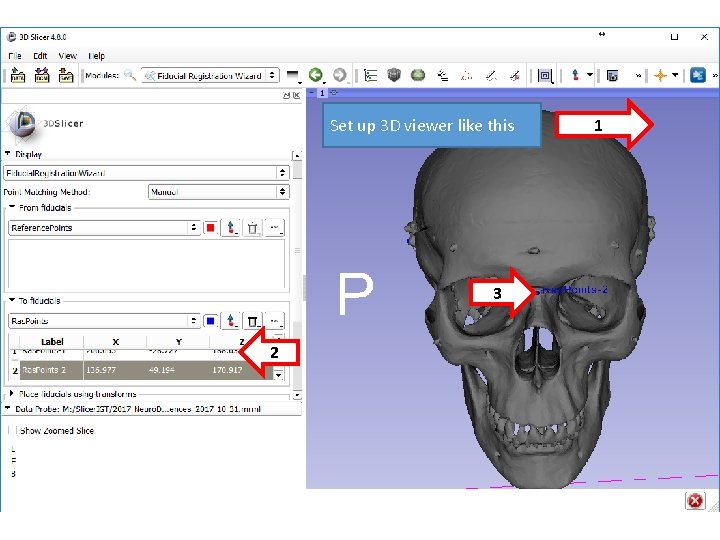
Set up 3 D viewer like this 3 2 1
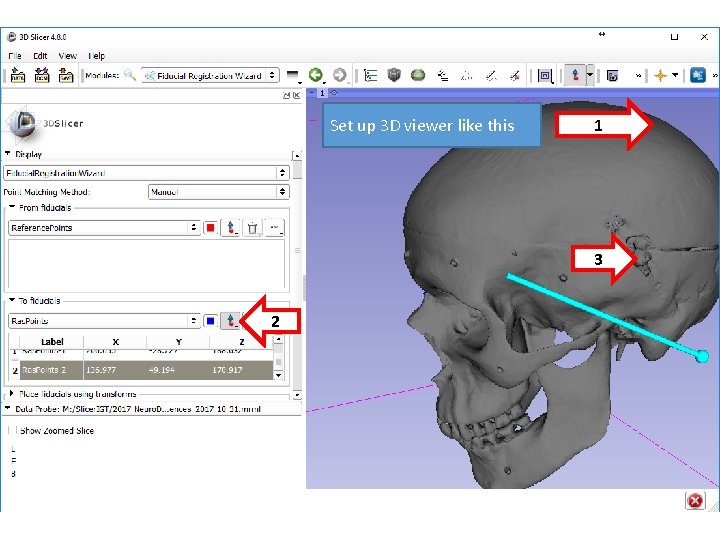
Set up 3 D viewer like this 1 3 2
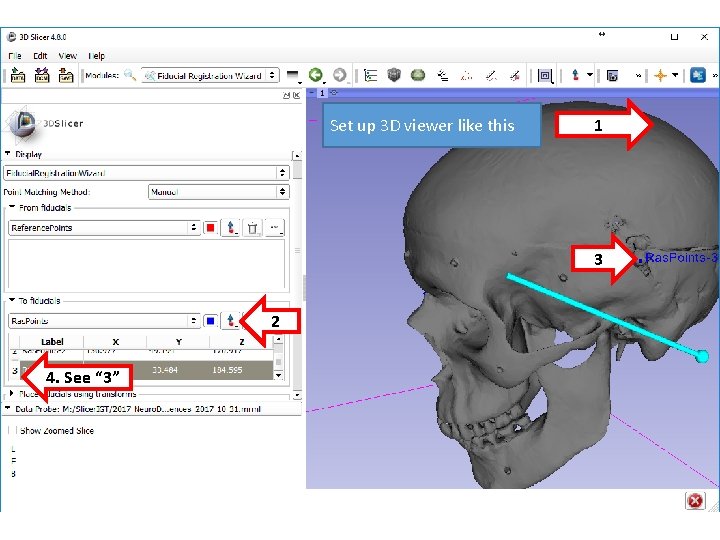
Set up 3 D viewer like this 1 3 2 4. See “ 3”

Checkpoint 02
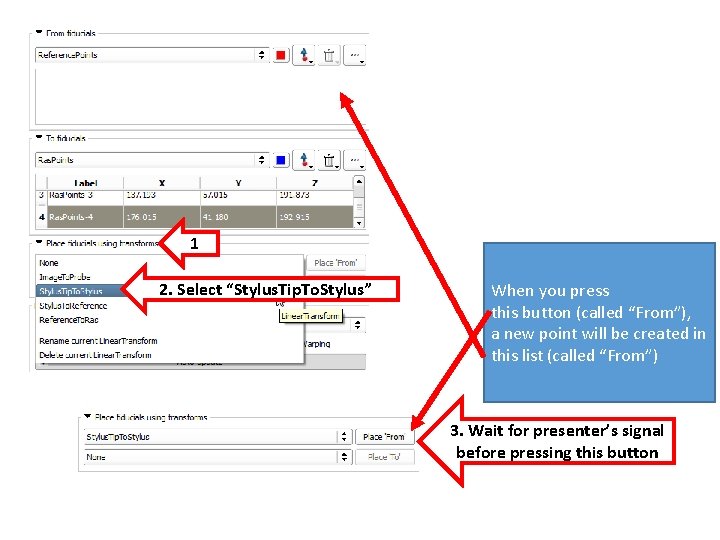
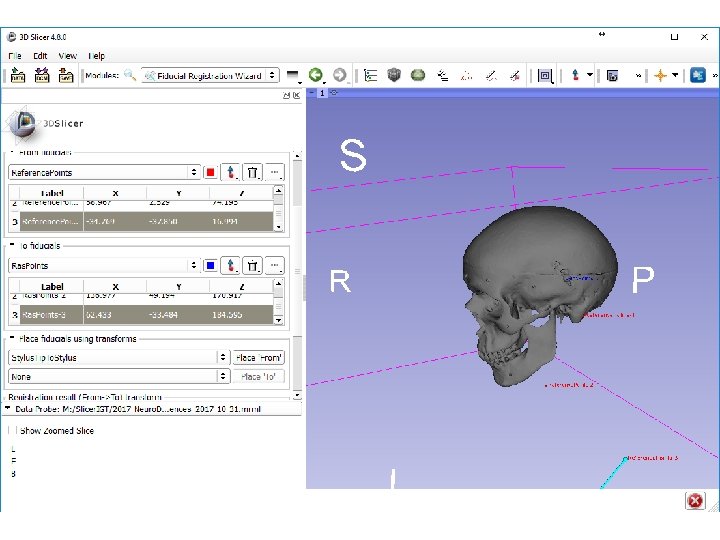
1 2. Select “Stylus. Tip. To. Stylus” When you press this button (called “From”), a new point will be created in this list (called “From”) 3. Wait for presenter’s signal before pressing this button
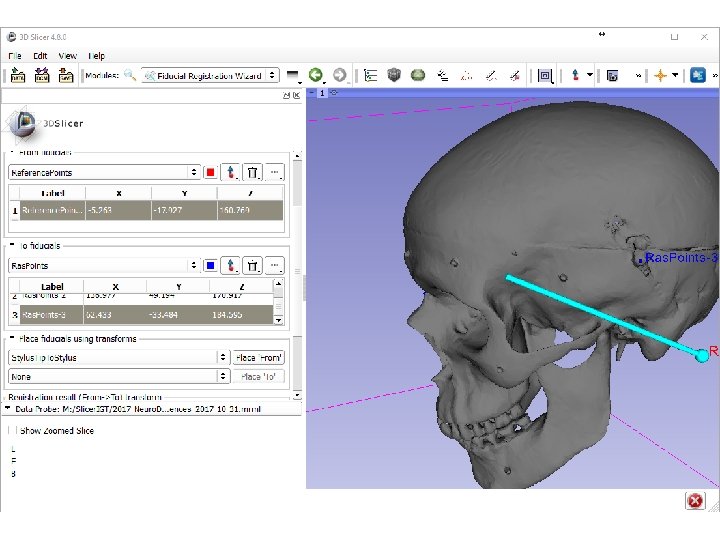
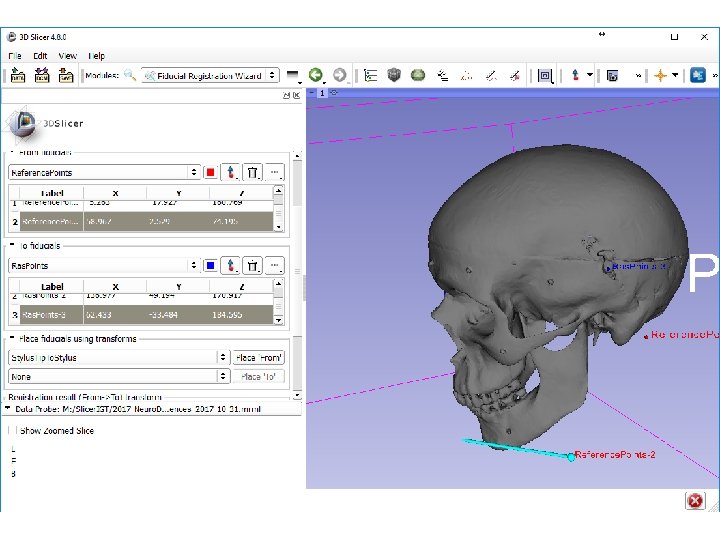
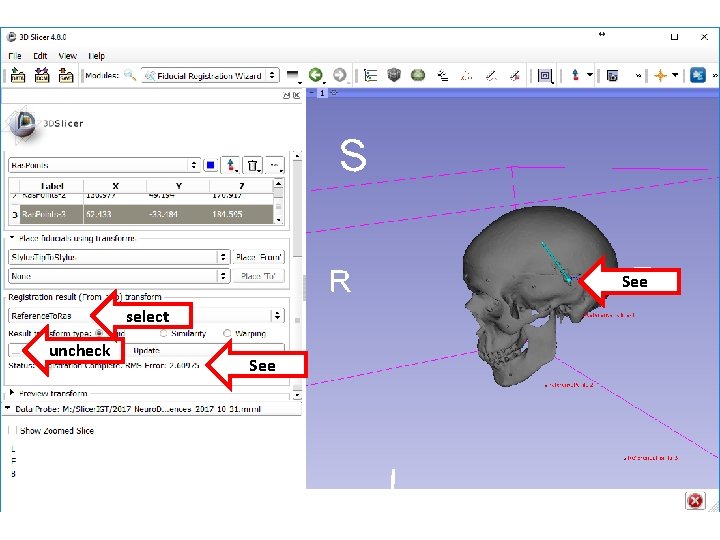
See select uncheck See
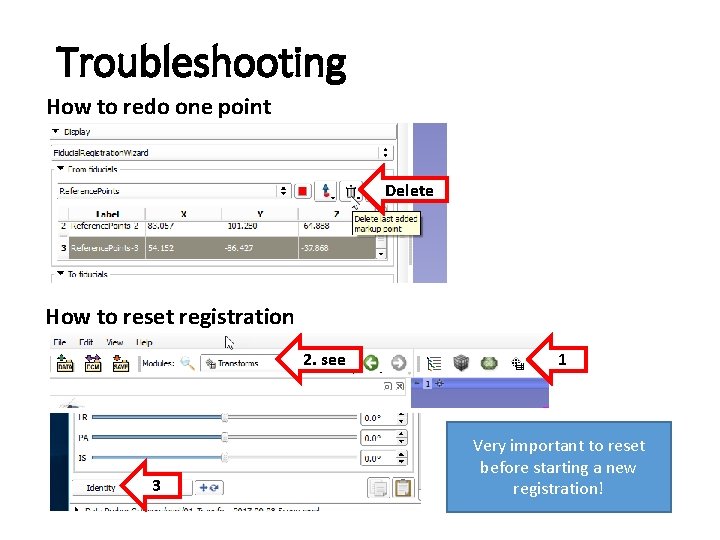
Troubleshooting How to redo one point Delete How to reset registration 2. see 3 1 Very important to reset before starting a new registration!
Checkpoint 03
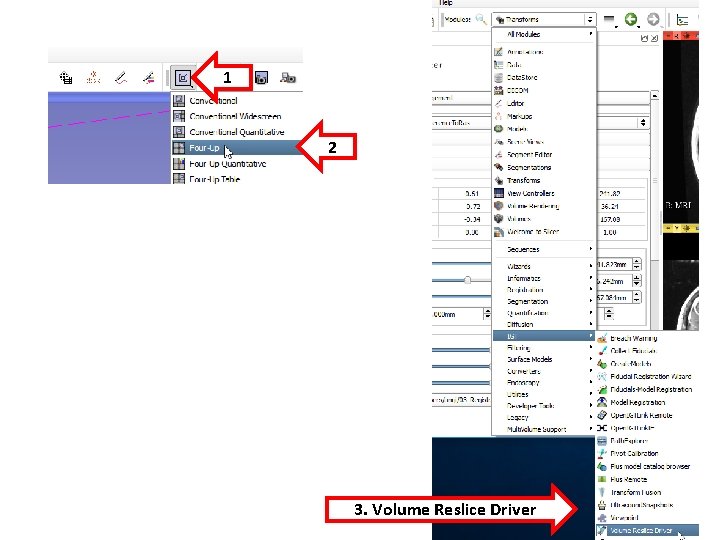
1 2 3. Volume Reslice Driver
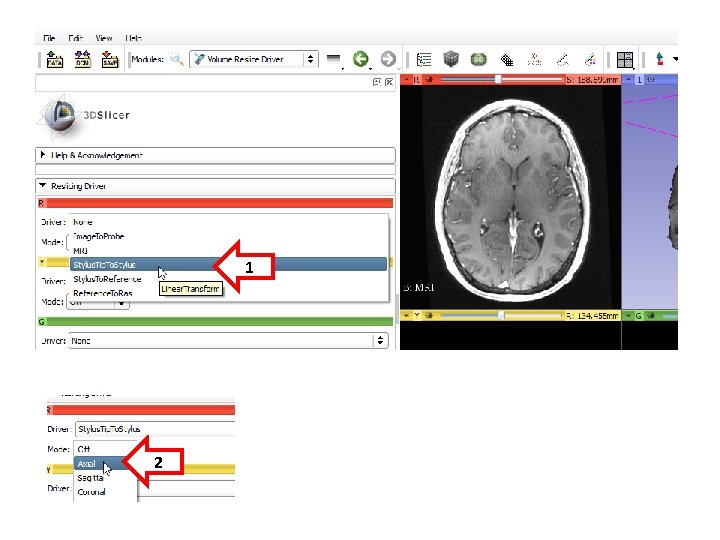
1 2
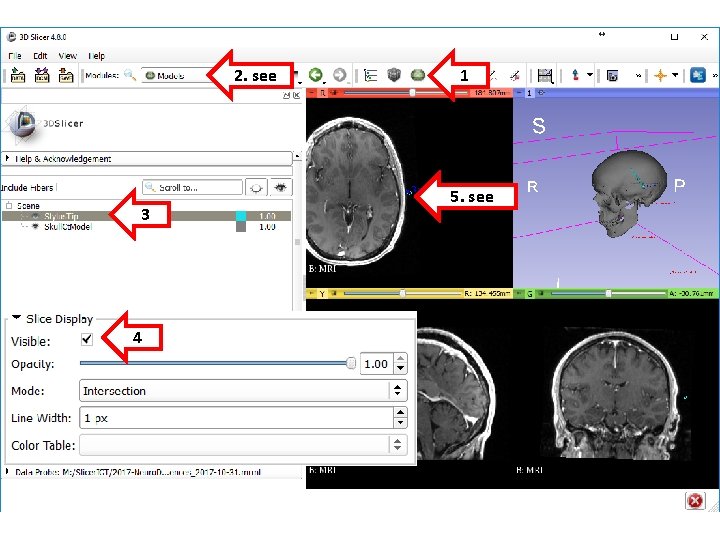
2. see 3 4 1 5. see
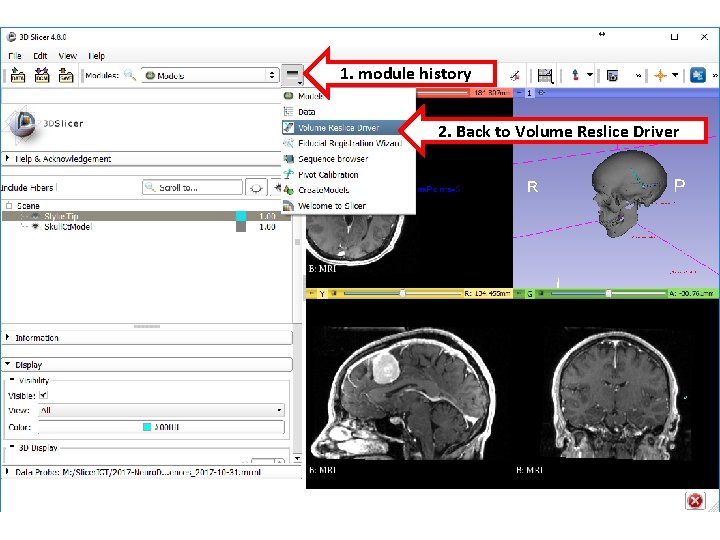
1. module history 2. Back to Volume Reslice Driver
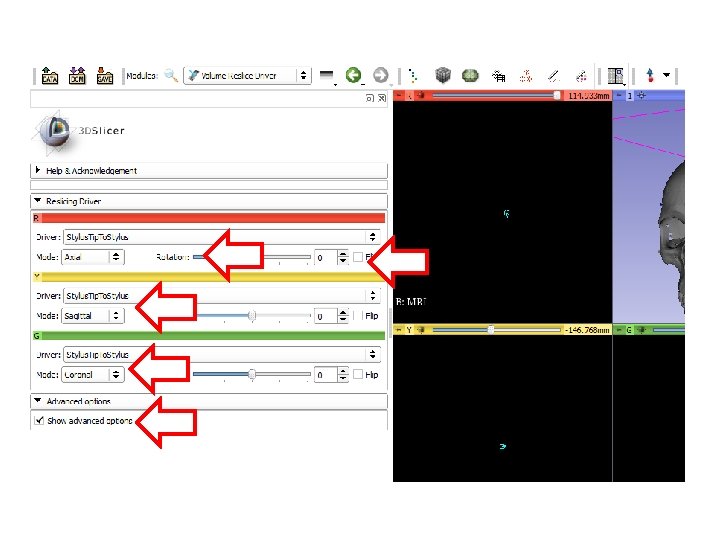

Checkpoint 04
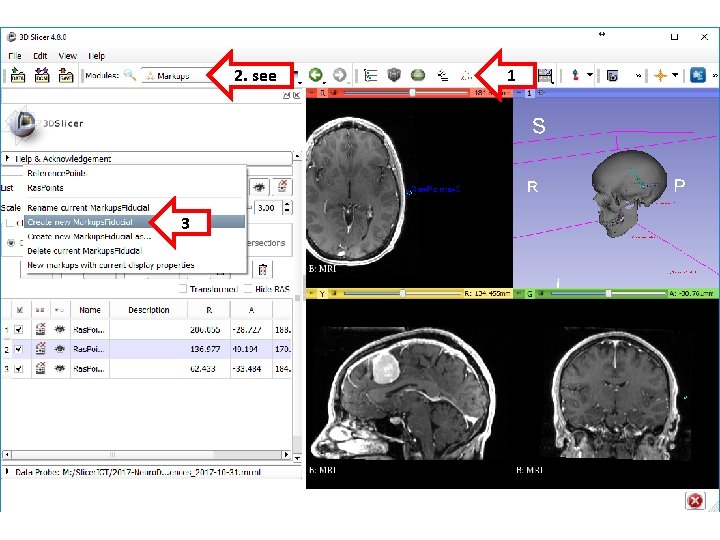
2. see 3 1
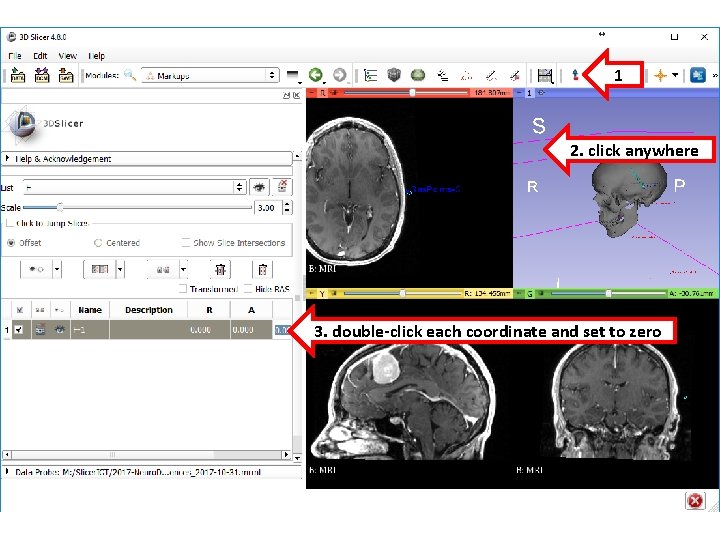
1 2. click anywhere 3. double-click each coordinate and set to zero
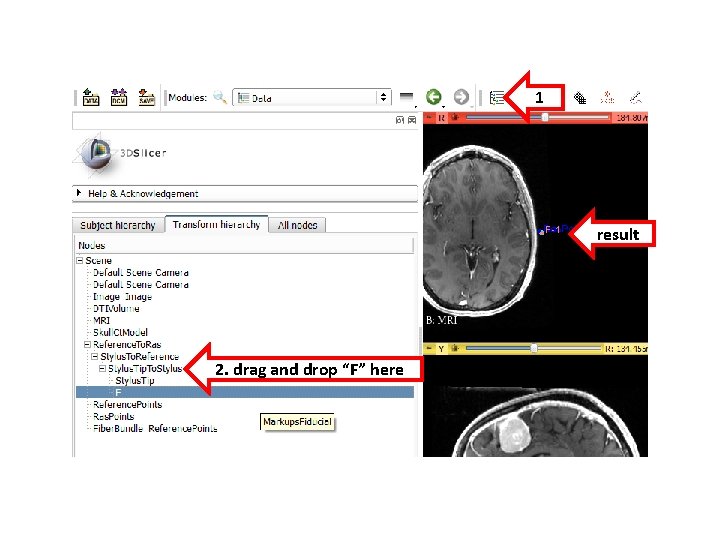
1 result 2. drag and drop “F” here
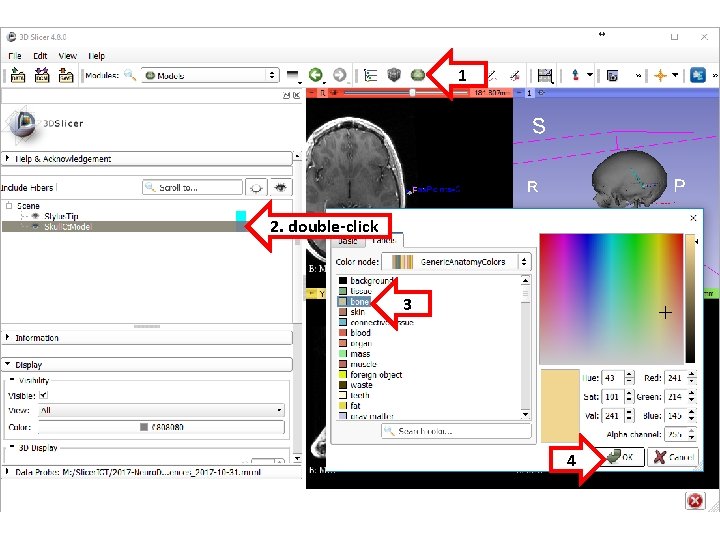
1 2. double-click 3 4
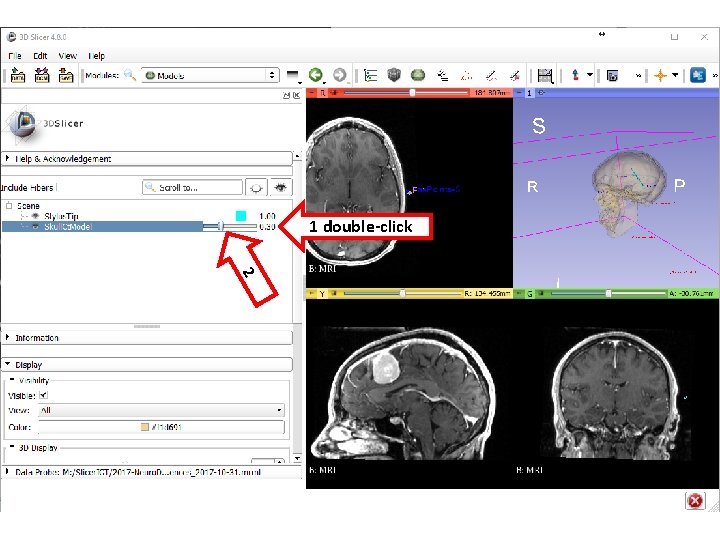
1 double-click 2
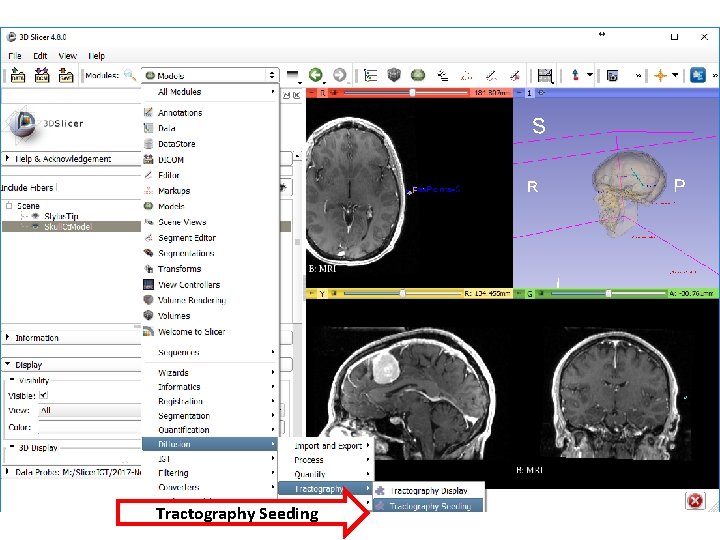
Tractography Seeding
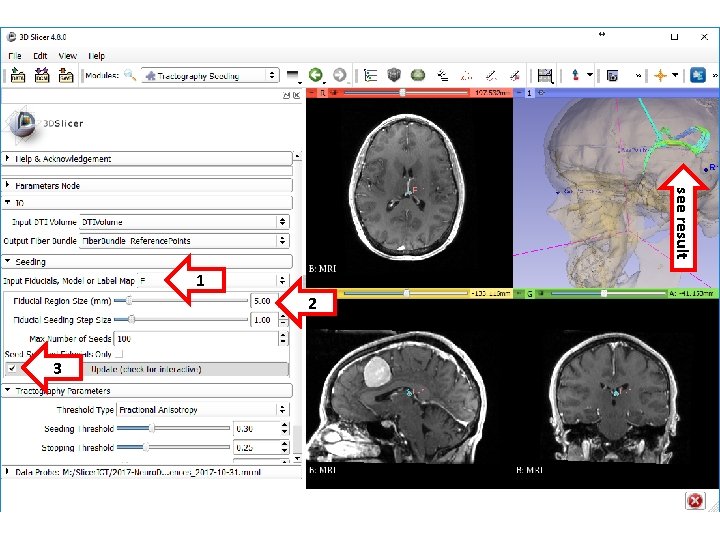
see result 1 2 3
- Slides: 56