Chapter 13 Java FX GUI Part 2 Java
- Slides: 121
Chapter 13 Java. FX GUI: Part 2 Java How to Program, 11/e Questions? E-mail paul. deitel@deitel. com © Copyright 1992 -2018 by Pearson Education, Inc. All Rights Reserved.
Introduction In this chapter, you’ll: ◦ Use additional layouts (Titled. Pane, Border. Pane and Pane) and controls (Radio. Button- and List. View). ◦ Handle mouse and Radio. Button events. ◦ Set up event handlers that respond to property changes on controls (such as the value of a Slider). ◦ Display Rectangles and Circles as nodes in the scene graph ◦ Bind a collection of objects to a List. View that displays the collection’s contents ◦ Customize the appearance of a List. View’s cells. © Copyright 1992 -2018 by Pearson Education, Inc. All Rights Reserved.
Laying Out Nodes in a Scene Graph A layout determines the size and positioning of nodes in the scene graph In general, a node’s size should not be defined explicitly ◦ Doing so often creates a design that looks pleasing when it first loads, but deteriorates when the app is resized or the content updates © Copyright 1992 -2018 by Pearson Education, Inc. All Rights Reserved.
Laying Out Nodes in a Scene Graph (cont. ) In addition to the width and height properties, most Java. FX nodes have the properties pref. Width, pref. Height, min. Width, min. Height, max. Width and max. Height that specify a node’s range of acceptable sizes as it’s laid out within its parent node ◦ The minimum size properties specify a node’s smallest allowed size in points ◦ The maximum size properties specify a node’s largest allowed size in points ◦ The preferred size properties specify a node’s preferred width and height that should be used by the layout in most cases. © Copyright 1992 -2018 by Pearson Education, Inc. All Rights Reserved.
Laying Out Nodes in a Scene Graph (cont. ) A node’s position should be defined relative to its parent node and the other nodes in its parent Java. FX layout panes are container nodes that arrange their child nodes in a scene graph relative to one another, based on their sizes and positions ◦ Child nodes are controls, other layout panes, shapes and more. Most Java. FX layout panes use relative positioning—if a layout-pane node is resized, it adjusts its children’s sizes and positions accordingly, based on their preferred, minimum and maximum sizes © Copyright 1992 -2018 by Pearson Education, Inc. All Rights Reserved.
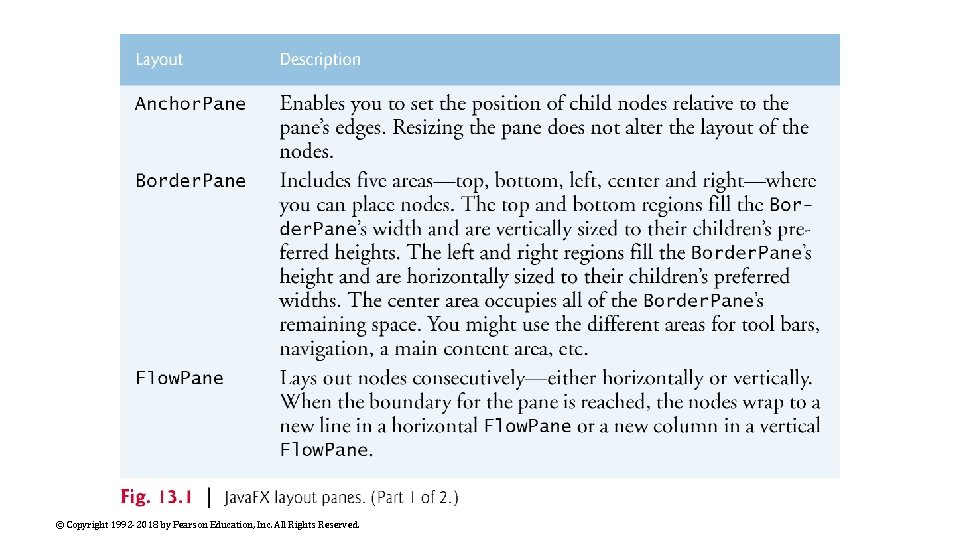
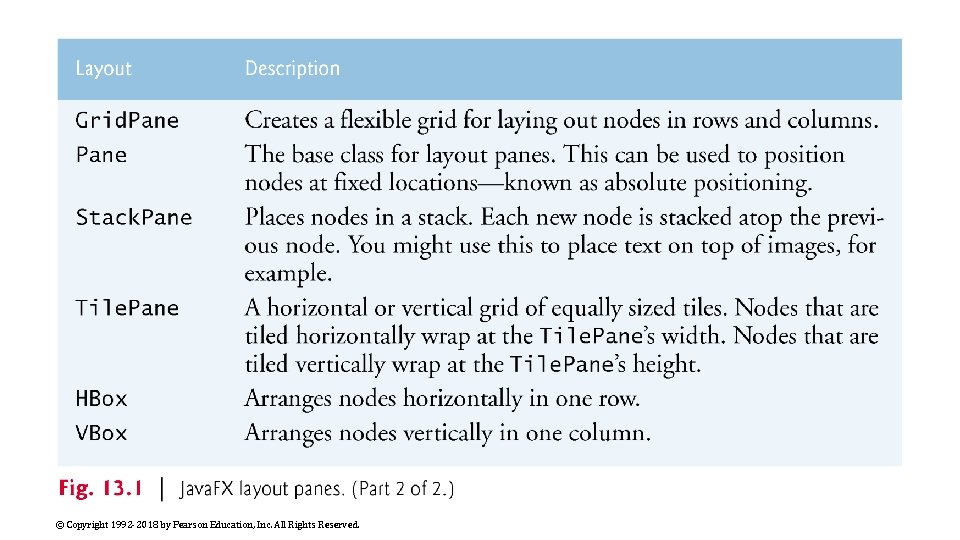
Laying Out Nodes in a Scene Graph (cont. ) Figure 13. 1 describes each of the Java. FX layout panes, including those presented in Chapter 12 In this chapter, we’ll use Pane, Border. Pane, Grid. Pane and VBox from the javafx. scene. layout package © Copyright 1992 -2018 by Pearson Education, Inc. All Rights Reserved.
© Copyright 1992 -2018 by Pearson Education, Inc. All Rights Reserved.
© Copyright 1992 -2018 by Pearson Education, Inc. All Rights Reserved.
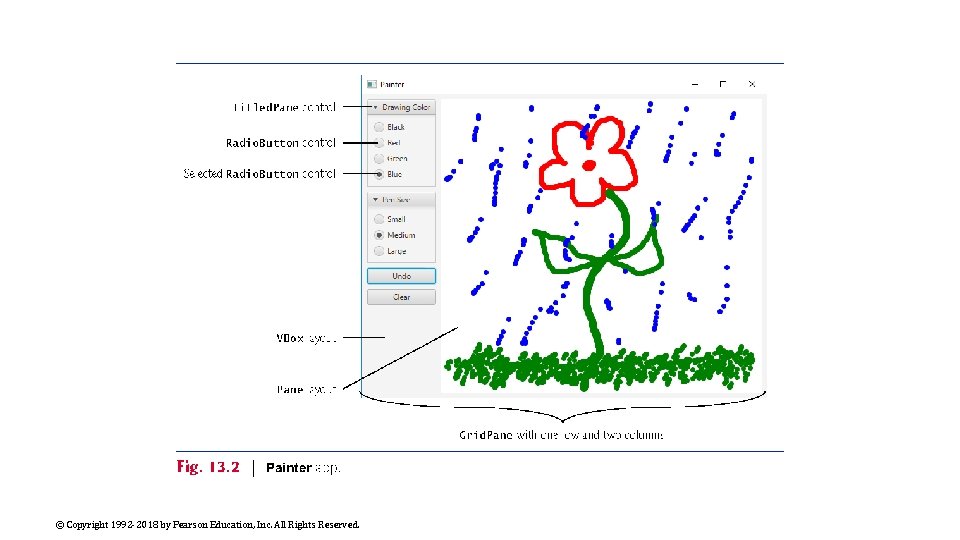
Painter App: Radio. Buttons, Mouse Events and Shapes In this section, you’ll create a simple Painter app (Fig. 13. 2) that allows you to drag the mouse to draw First, we’ll overview the technologies you’ll use, then we’ll discuss creating the app’s project and building its GUI Finally, we’ll present the source code for its Painter and Painter. Controller classes. © Copyright 1992 -2018 by Pearson Education, Inc. All Rights Reserved.
© Copyright 1992 -2018 by Pearson Education, Inc. All Rights Reserved.
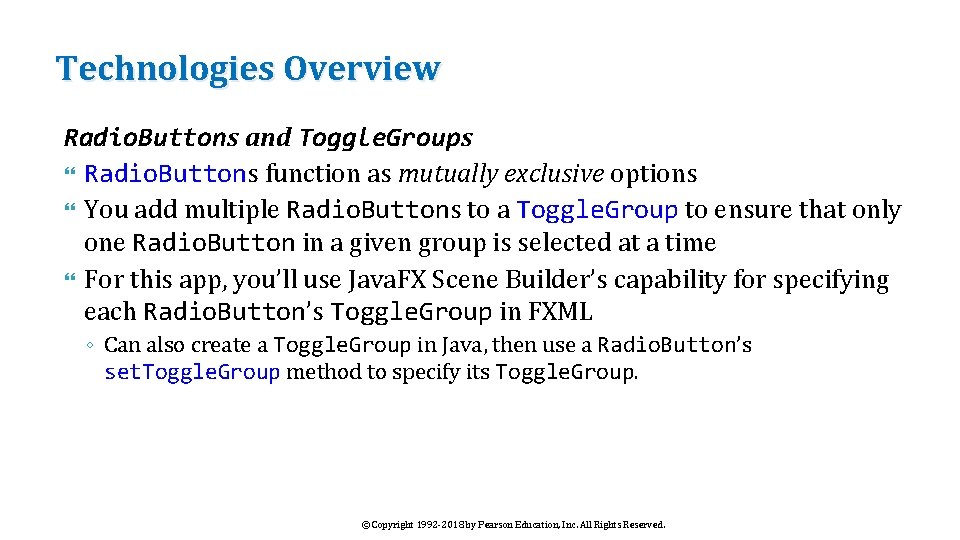
Technologies Overview Radio. Buttons and Toggle. Groups Radio. Buttons function as mutually exclusive options You add multiple Radio. Buttons to a Toggle. Group to ensure that only one Radio. Button in a given group is selected at a time For this app, you’ll use Java. FX Scene Builder’s capability for specifying each Radio. Button’s Toggle. Group in FXML ◦ Can also create a Toggle. Group in Java, then use a Radio. Button’s set. Toggle. Group method to specify its Toggle. Group. © Copyright 1992 -2018 by Pearson Education, Inc. All Rights Reserved.
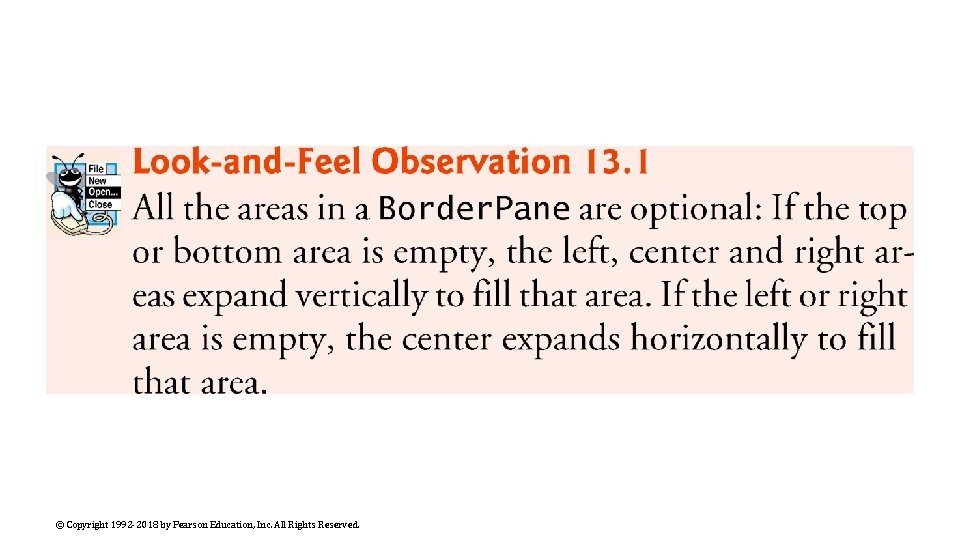
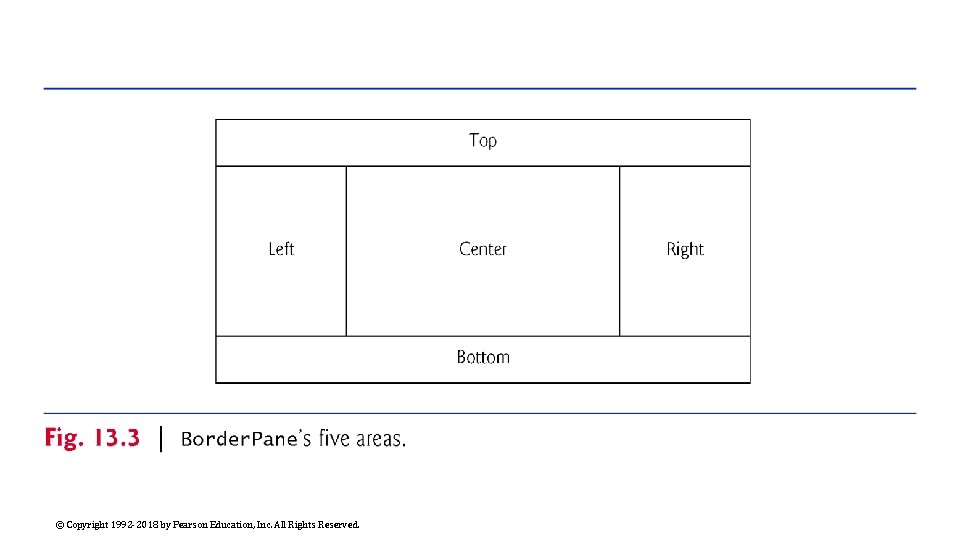
Technologies Overview (cont. ) Border. Pane Layout Container A Border. Pane layout container arranges controls into one or more of the five regions shown in Fig. 13. 3 The top and bottom areas have the same width as the Border. Pane The left, center and right areas fill the vertical space between the top and bottom areas Each area may contain only one control or one layout container that, in turn, may contain other controls © Copyright 1992 -2018 by Pearson Education, Inc. All Rights Reserved.
© Copyright 1992 -2018 by Pearson Education, Inc. All Rights Reserved.
© Copyright 1992 -2018 by Pearson Education, Inc. All Rights Reserved.
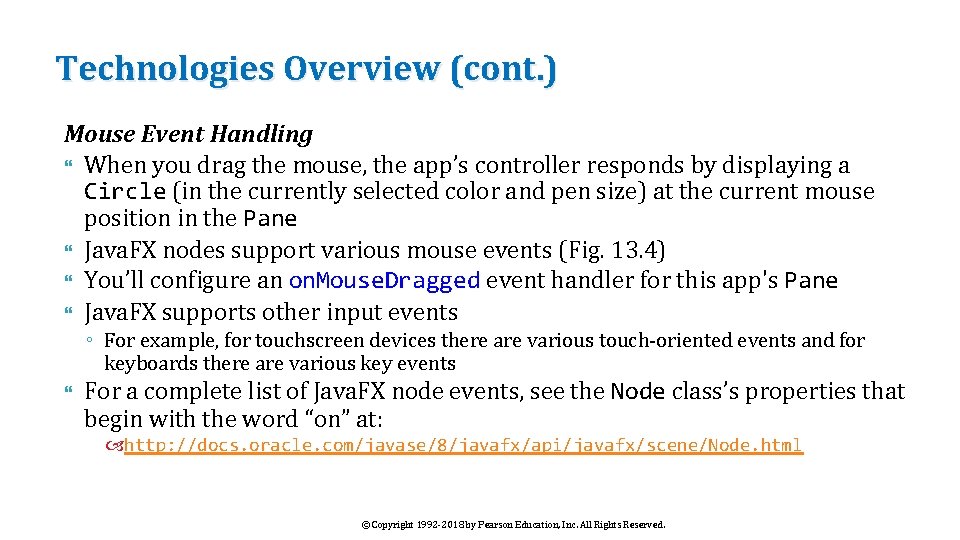
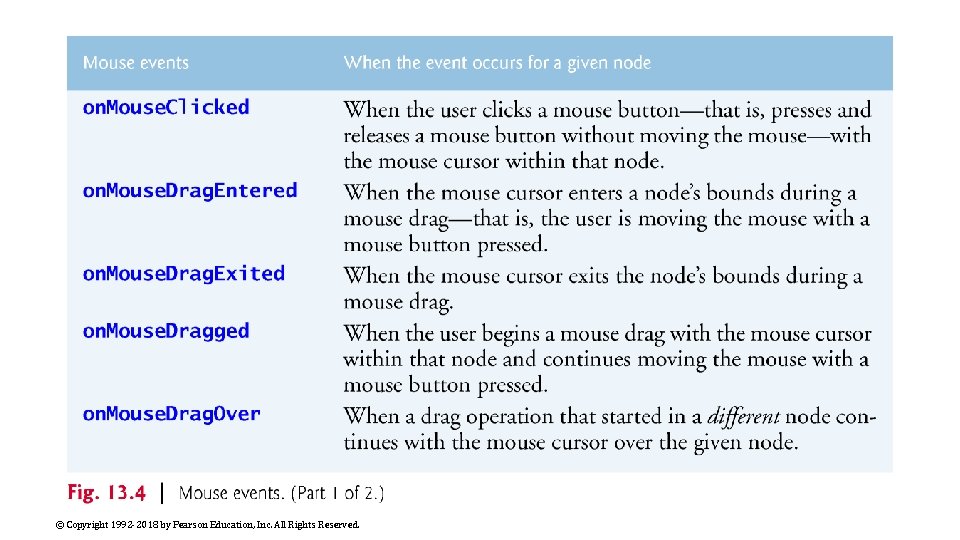
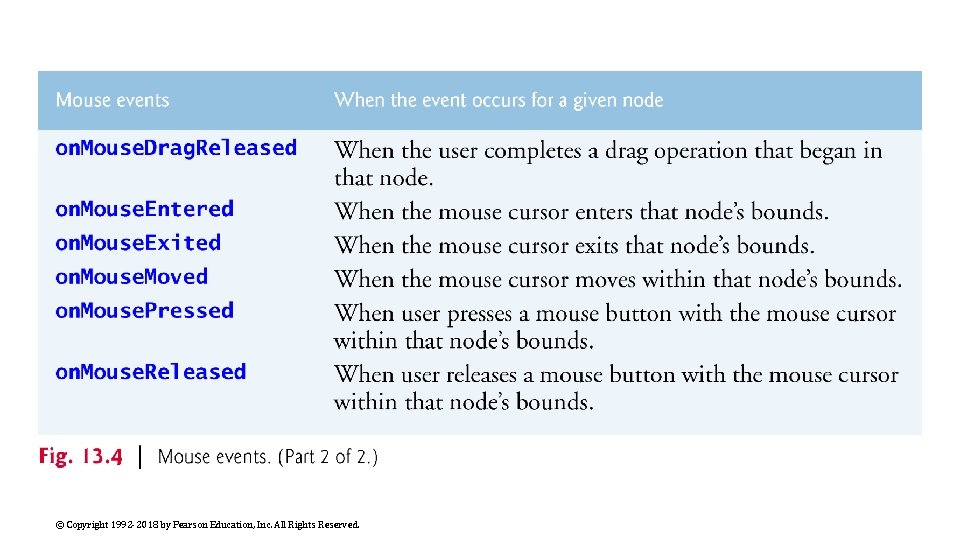
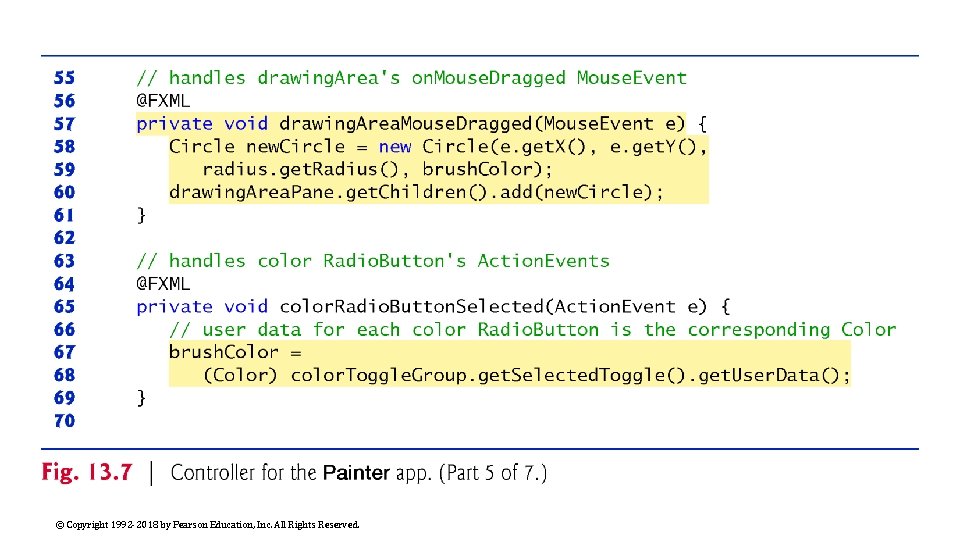
Technologies Overview (cont. ) Mouse Event Handling When you drag the mouse, the app’s controller responds by displaying a Circle (in the currently selected color and pen size) at the current mouse position in the Pane Java. FX nodes support various mouse events (Fig. 13. 4) You’ll configure an on. Mouse. Dragged event handler for this app's Pane Java. FX supports other input events ◦ For example, for touchscreen devices there are various touch-oriented events and for keyboards there are various key events For a complete list of Java. FX node events, see the Node class’s properties that begin with the word “on” at: http: //docs. oracle. com/javase/8/javafx/api/javafx/scene/Node. html © Copyright 1992 -2018 by Pearson Education, Inc. All Rights Reserved.
© Copyright 1992 -2018 by Pearson Education, Inc. All Rights Reserved.
© Copyright 1992 -2018 by Pearson Education, Inc. All Rights Reserved.
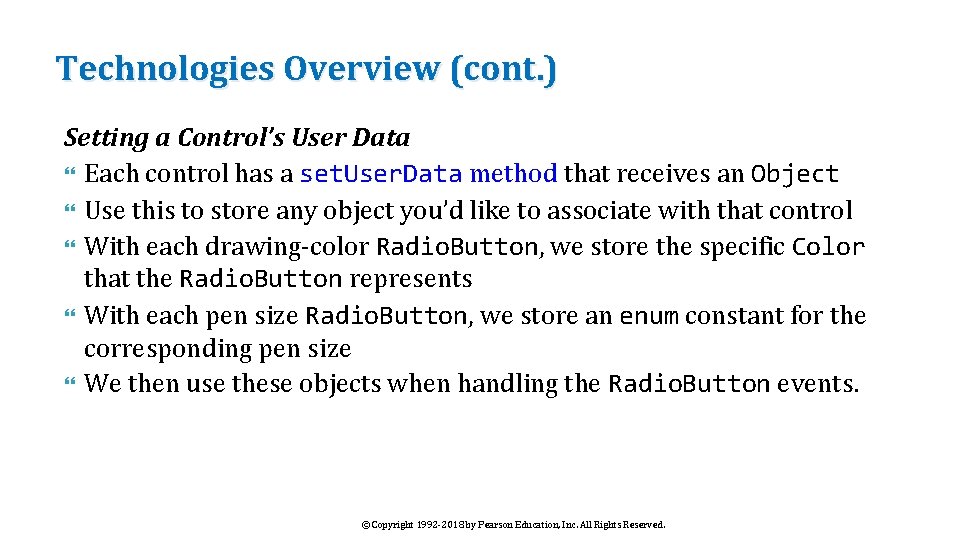
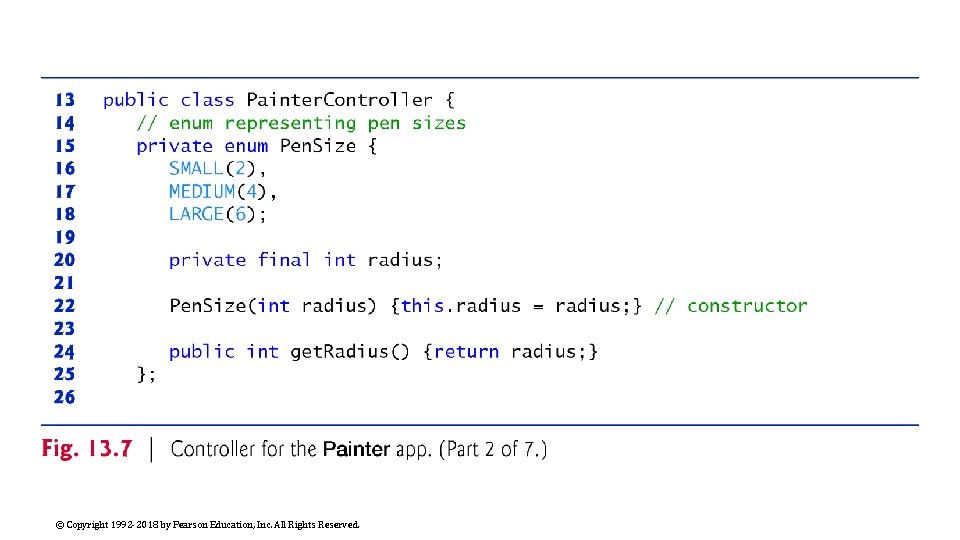
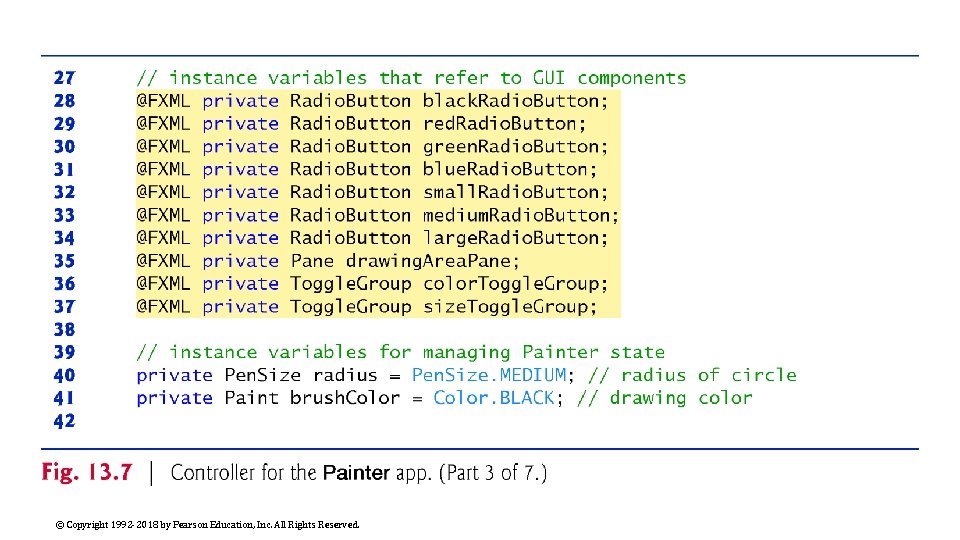
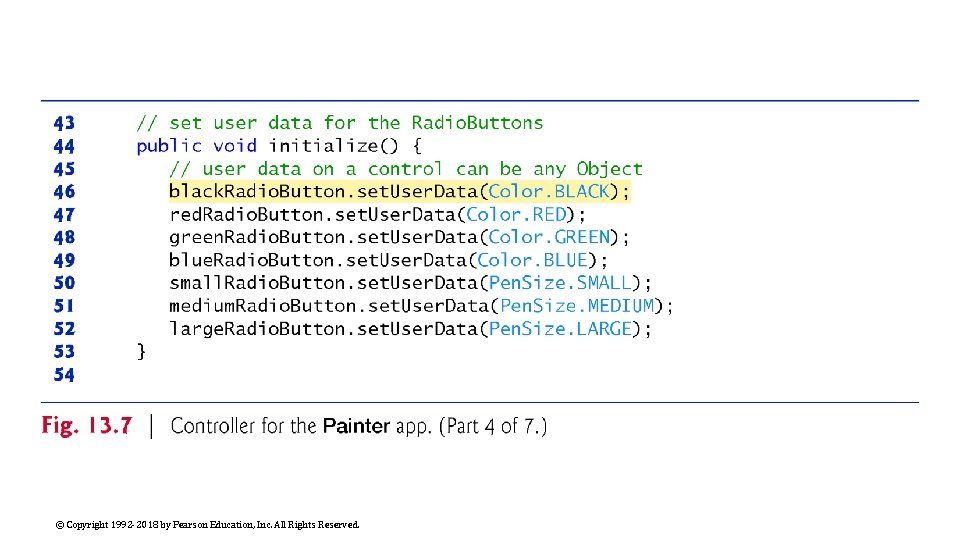
Technologies Overview (cont. ) Setting a Control’s User Data Each control has a set. User. Data method that receives an Object Use this to store any object you’d like to associate with that control With each drawing-color Radio. Button, we store the specific Color that the Radio. Button represents With each pen size Radio. Button, we store an enum constant for the corresponding pen size We then use these objects when handling the Radio. Button events. © Copyright 1992 -2018 by Pearson Education, Inc. All Rights Reserved.
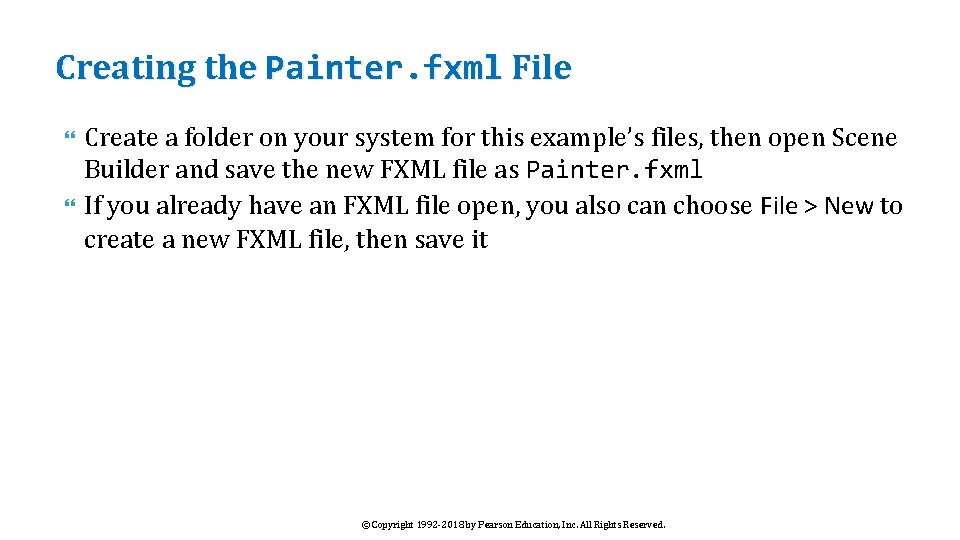
Creating the Painter. fxml File Create a folder on your system for this example’s files, then open Scene Builder and save the new FXML file as Painter. fxml If you already have an FXML file open, you also can choose File > New to create a new FXML file, then save it © Copyright 1992 -2018 by Pearson Education, Inc. All Rights Reserved.
Building the GUI In this section, we’ll discuss the Painter app’s GUI Rather than providing the exact steps as we did in Chapter 12, we’ll provide general instructions for building the GUI and focus on specific details for new concepts © Copyright 1992 -2018 by Pearson Education, Inc. All Rights Reserved.
Technologies Overview (cont. ) Titled. Pane Layout Container A Titled. Pane layout container displays a title at its top and is a collapsible panel containing a layout node, which in turn contains other nodes You’ll use Titled. Panes to organize the app’s Radio-Buttons and to help the user understand the purpose of each Radio. Button group © Copyright 1992 -2018 by Pearson Education, Inc. All Rights Reserved.
Technologies Overview (cont. ) Java. FX Shapes The javafx. scene. shape package contains various classes for creating 2 D and 3 D shape nodes that can be displayed in a scene graph You’ll programmatically create Circle objects as the user drags the mouse, then attach them to the app’s drawing area so that they’re displayed in the scene graph. Pane Layout Container Each Circle you programmatically create is attached to an Pane layout (the drawing area) at a specified x-y coordinate measured from the Pane’s upper-left corner. © Copyright 1992 -2018 by Pearson Education, Inc. All Rights Reserved.
© Copyright 1992 -2018 by Pearson Education, Inc. All Rights Reserved.
Building the GUI (cont. ) fx: id Property Values for This App’s Controls Figure 13. 5 shows the fx: id properties of the Painter app’s programmatically manipulated controls As you build the GUI, you should set the corresponding fx: id properties in the FXML document, as we discussed in Chapter 12 © Copyright 1992 -2018 by Pearson Education, Inc. All Rights Reserved.
© Copyright 1992 -2018 by Pearson Education, Inc. All Rights Reserved.
Radio Button Title. Pane VBox Button VBox © Copyright 1992 -2018 by Pearson Education, Inc. All Rights Reserved. Pane Border. Pane
Building the GUI (cont. ) Step 11: Specifying the Controller Class’s Name As we mentioned in Section 12. 5. 2, in a Java. FX FXML app, the app’s controller class typically defines instance variables for interacting with controls programmatically, as well as event-handling methods To ensure that an object of the controller class is created when the app loads the FXML file at runtime, you must specify the controller class’s name in the FXML file: ◦ Expand Scene Builder’s Controller window (located below the Hierarchy window). ◦ In the Controller Class field, type Painter. Controller © Copyright 1992 -2018 by Pearson Education, Inc. All Rights Reserved.
Building the GUI (cont. ) Step 12: Specifying the Event-Handler Method Names Next, you’ll specify in the Inspector window’s Code section the names of the methods that will be called to handle specific control’s events: ◦ For the drawing. Area. Pane, specify drawing. Area. Mouse. Dragged as the On Mouse Dragged event handler (located under the Mouse heading in the Code section) This method will draw a circle in the specified color and size for each mouse-dragged event. ◦ For the four Drawing Color Radio. Buttons, specify color. Radio. Button. Selected as each Radio. Button’s On Action event handler This method will set the current drawing color, based on the user’s selection. © Copyright 1992 -2018 by Pearson Education, Inc. All Rights Reserved.
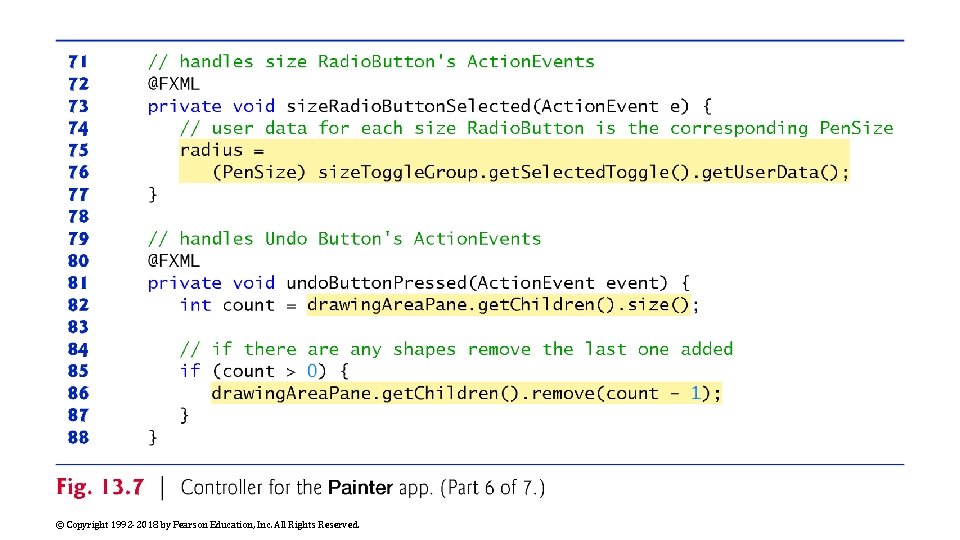
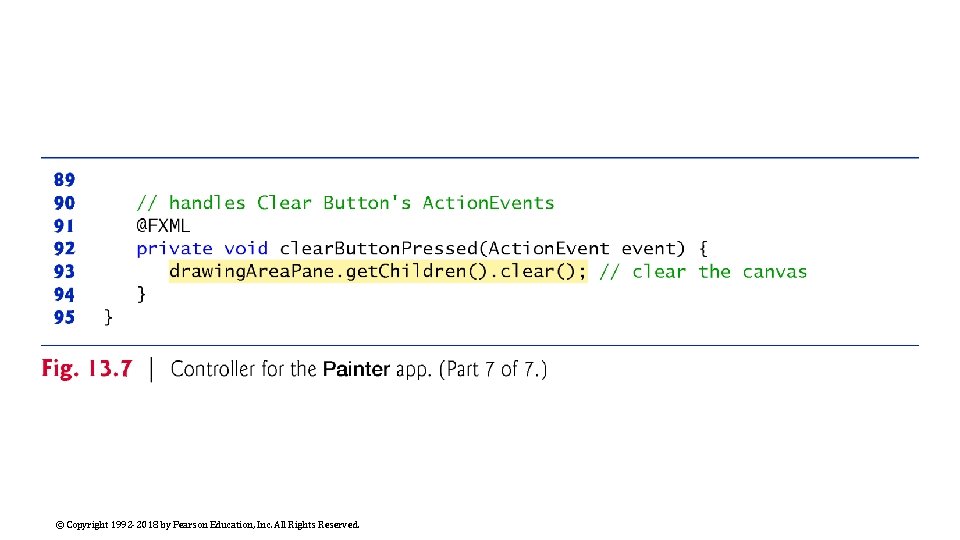
Building the GUI (cont. ) Step 12: Specifying the Event-Handler Method Names (cont. ) For the three Pen Size Radio. Buttons, specify size. Radio. Button. Selected as each Radio. Button’s On Action event handler. This method will set the current pen size, based on the user’s selection. For the Undo Button, specify undo. Button. Pressed as the On Action event handler. This method will remove the last circle the user drew on the screen. For the Clear Button, specify clear. Button. Pressed as the On Action event handler. This method will clear the entire drawing. © Copyright 1992 -2018 by Pearson Education, Inc. All Rights Reserved.
Building the GUI (cont. ) Step 13: Generating a Sample Controller Class As you saw in Section 12. 5, Scene Builder generates the initial controller-class skeleton for you when you select View > Show Sample Controller Skeleton You can copy this code into a Painter. Controller. java file and store the file in the same folder as Painter. fxml We show the completed Painter. Controller class in Section 13. 3. 5. © Copyright 1992 -2018 by Pearson Education, Inc. All Rights Reserved.
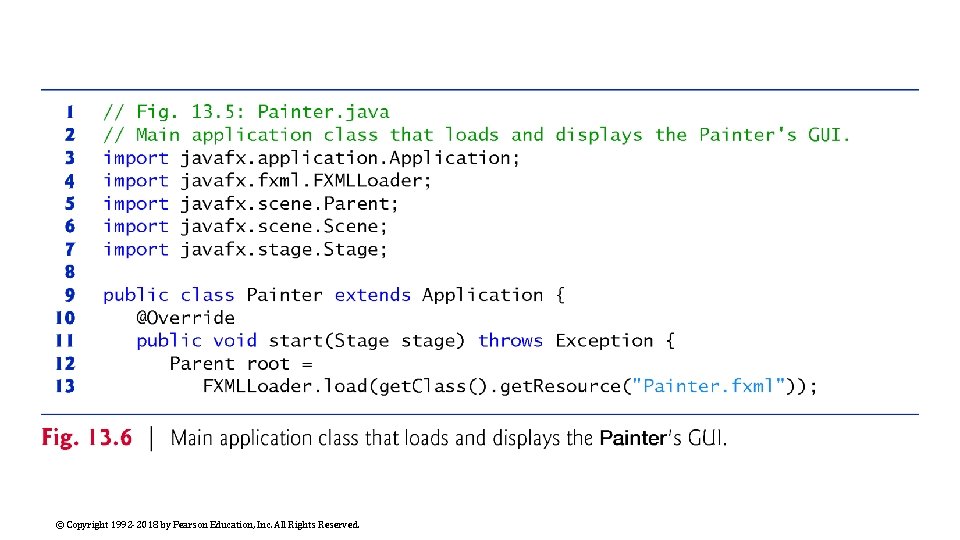
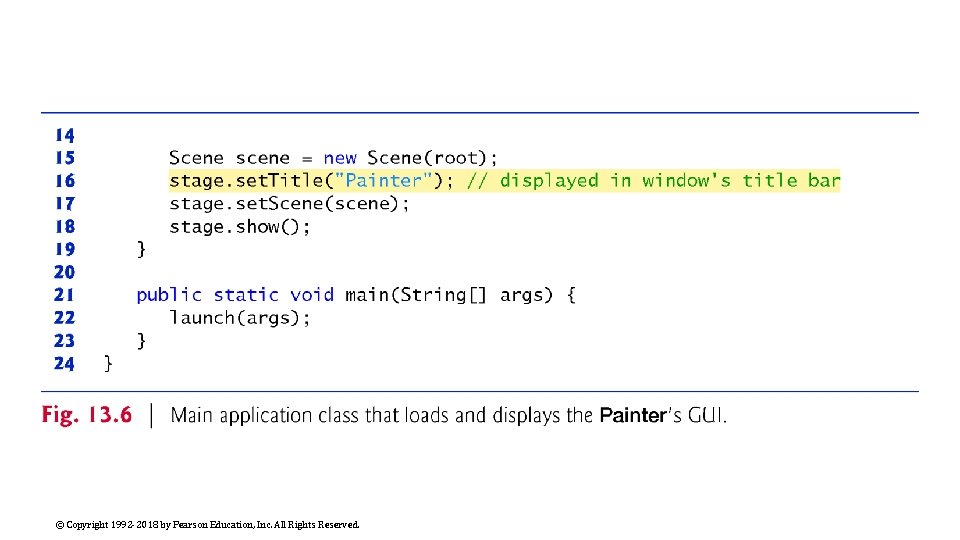
Painter Subclass of Application Figure 13. 6 shows class Painter subclass of Application that launches the app, which performs the same tasks to start the Painter app as described for the Tip Calculator app in Section 12. 5. 4 © Copyright 1992 -2018 by Pearson Education, Inc. All Rights Reserved.
© Copyright 1992 -2018 by Pearson Education, Inc. All Rights Reserved.
© Copyright 1992 -2018 by Pearson Education, Inc. All Rights Reserved.
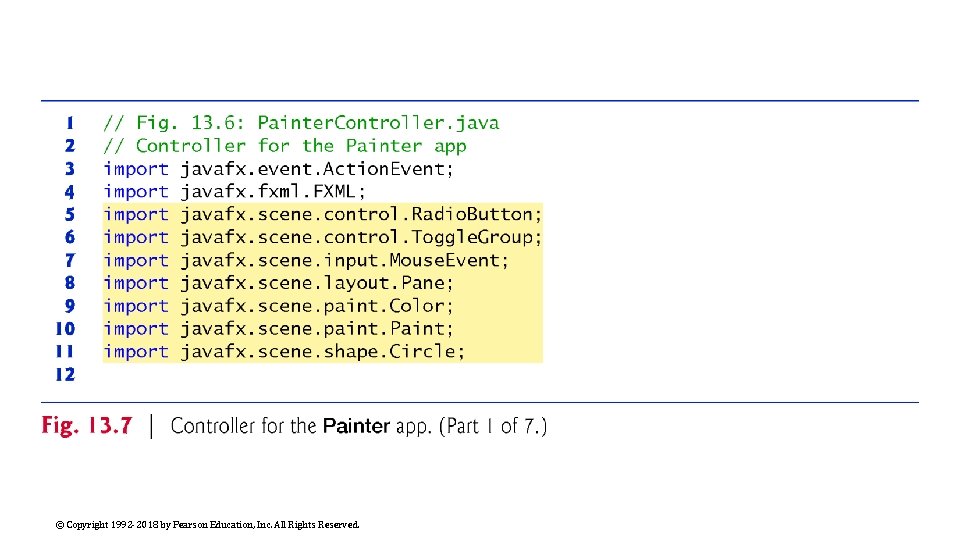
Painter. Controller Class Figure 13. 7 shows the final version of class Painter. Controller with this app’s new features highlighted © Copyright 1992 -2018 by Pearson Education, Inc. All Rights Reserved.
© Copyright 1992 -2018 by Pearson Education, Inc. All Rights Reserved.
© Copyright 1992 -2018 by Pearson Education, Inc. All Rights Reserved.
© Copyright 1992 -2018 by Pearson Education, Inc. All Rights Reserved.
© Copyright 1992 -2018 by Pearson Education, Inc. All Rights Reserved.
© Copyright 1992 -2018 by Pearson Education, Inc. All Rights Reserved.
© Copyright 1992 -2018 by Pearson Education, Inc. All Rights Reserved.
© Copyright 1992 -2018 by Pearson Education, Inc. All Rights Reserved.
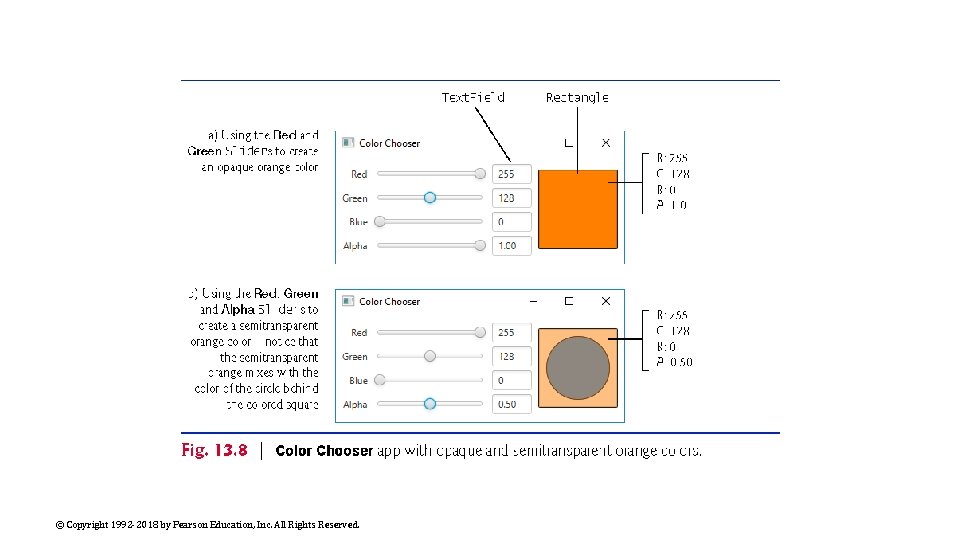
Color Chooser App: Property Bindings and Property Listeners In this section, we present a Color Chooser app (Fig. 13. 8) that demonstrates property bindings and property listeners © Copyright 1992 -2018 by Pearson Education, Inc. All Rights Reserved.
© Copyright 1992 -2018 by Pearson Education, Inc. All Rights Reserved.
Technologies Overview RGBA Colors The app uses the RGBA color system to display a rectangle of color based on the values of four Sliders In RGBA, every color is represented by its red, green and blue color values, each ranging from 0 to 255, where 0 denotes no color and 255 full color The alpha value (A)—which ranges from 0. 0 to 1. 0—represents a color’s opacity, with 0. 0 being completely transparent and 1. 0 completely opaque ◦ The color displayed in Fig. 13. 8(b) is semitransparent You’ll use a Color object that’s created with RGBA values to fill a Rectangle that displays the Color. © Copyright 1992 -2018 by Pearson Education, Inc. All Rights Reserved.
Technologies Overview (cont. ) Properties of a Class Java. FX makes extensive use of properties A property is defined by creating set/get methods named as follows public final void set. Property. Name(Type property. Name) public final Type get. Property. Name() Typically, such methods manipulate a corresponding private instance variable that has the same name as the property, but this is not required ◦ Methods set. Hour and get. Hour together represent a property named hour and typically would manipulate a private hour instance variable If the property represents a boolean value, its get method name typically begins with “is” rather than “get”—for example, Array. List method is. Empty. © Copyright 1992 -2018 by Pearson Education, Inc. All Rights Reserved.
© Copyright 1992 -2018 by Pearson Education, Inc. All Rights Reserved.
Technologies Overview (cont. ) Property Bindings Java. FX properties are observable—when a property’s value changes, other objects can respond accordingly ◦ This is similar to event handling One way to respond to a property change is via a property binding—enables a property of one object to be updated when a property of another changes ◦ You’ll use property bindings to enable a Text. Field to display the corresponding Slider’s current value when the user moves that Slider’s thumb Property bindings are not limited to Java. FX controls Package javafx. beans. property contains many classes that you can use to define bindable properties in your own classes © Copyright 1992 -2018 by Pearson Education, Inc. All Rights Reserved.
Technologies Overview (cont. ) Property Listeners Property listeners are similar to property bindings A property listener is an event handler that’s invoked when a property’s value changes ◦ In this app, when a Slider’s value changes, a property listener will store the value in a corresponding instance variable, create a new Color based on the values of all four Sliders and set that Color as the fill color of a Rectangle object that displays the current color More on properties, property bindings and property listeners: http: //docs. oracle. com/javase/8/javafx/properties-bindingtutorial/binding. htm © Copyright 1992 -2018 by Pearson Education, Inc. All Rights Reserved.
Building the GUI In this section, we’ll discuss the Color Chooser app’s GUI As you build the GUI, recall that it’s often easier to manipulate layouts and controls via the Scene Builder Document window’s Hierarchy section than directly in the stage design area Before proceeding, open Scene Builder and create an FXML file named Color. Chooser. fxml. © Copyright 1992 -2018 by Pearson Education, Inc. All Rights Reserved.
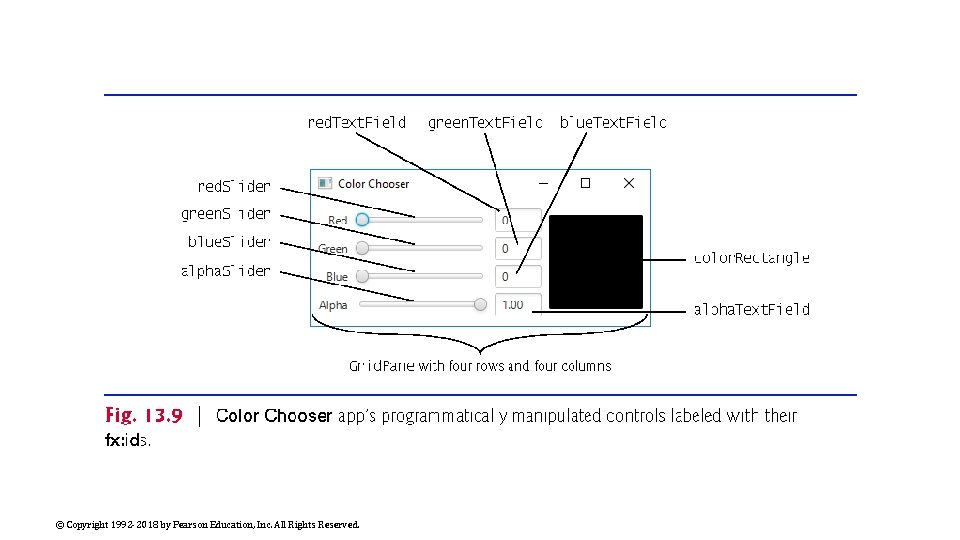
Building the GUI (cont. ) fx: id Property Values for This App’s Controls Figure 13. 9 shows the fx: id properties of the Color Choooser app’s programmatically manipulated controls As you build the GUI, you should set the corresponding fx: id properties in the FXML document, as you learned in Chapter 12 © Copyright 1992 -2018 by Pearson Education, Inc. All Rights Reserved.
© Copyright 1992 -2018 by Pearson Education, Inc. All Rights Reserved.
Building the GUI (cont. ) Step 1: Adding a Grid. Pane Drag a Grid. Pane from the Library window’s Containers section onto Scene Builder’s content panel Step 2: Configuring the Grid. Pane This app’s Grid. Pane requires four rows and four columns Use the techniques you’ve learned previously to add two columns and one row to the Grid. Pane Set the Grid. Pane’s Hgap and Padding properties to 8 to inset the Grid. Pane from the stage’s edges and to provide space between its columns © Copyright 1992 -2018 by Pearson Education, Inc. All Rights Reserved.
Building the GUI (cont. ) Step 3: Adding the Controls Using Fig. 13. 9 as a guide, add the Labels, Sliders, Text. Fields, a Circle and a Rectangle to the Grid. Pane—Circle and Rectangle are located in the Scene Builder Library’s Shapes section When adding the Circle and Rectangle, place both into the rightmost column’s first row Be sure to add the Circle before the Rectangle so that it will be located behind the rectangle in the layout Set the text of the Labels and Text. Fields as shown and set all the appropriate fx: id properties as you add each control. © Copyright 1992 -2018 by Pearson Education, Inc. All Rights Reserved.
Building the GUI (cont. ) Step 4: Configuring the Sliders For the red, green and blue Sliders, set the Max properties to 255 (the maximum amount of a given color in the RGBA color scheme) For the alpha Slider, set its Max property to 1. 0 (the maximum opacity in the RGBA color scheme). Step 5: Configuring the Text. Fields Set all of the Text. Field’s Pref Width properties to 50. © Copyright 1992 -2018 by Pearson Education, Inc. All Rights Reserved.
Building the GUI (cont. ) Step 6: Configuring the Rectangle Set the Rectangle’s Width and Height properties to 100, then set its Row Span property to Remainder so that it spans all four rows. Step 7: Configuring the Circle Set the Circle’s Radius property to 40, then set its Row Span property to Remainder so that it spans all four rows. © Copyright 1992 -2018 by Pearson Education, Inc. All Rights Reserved.
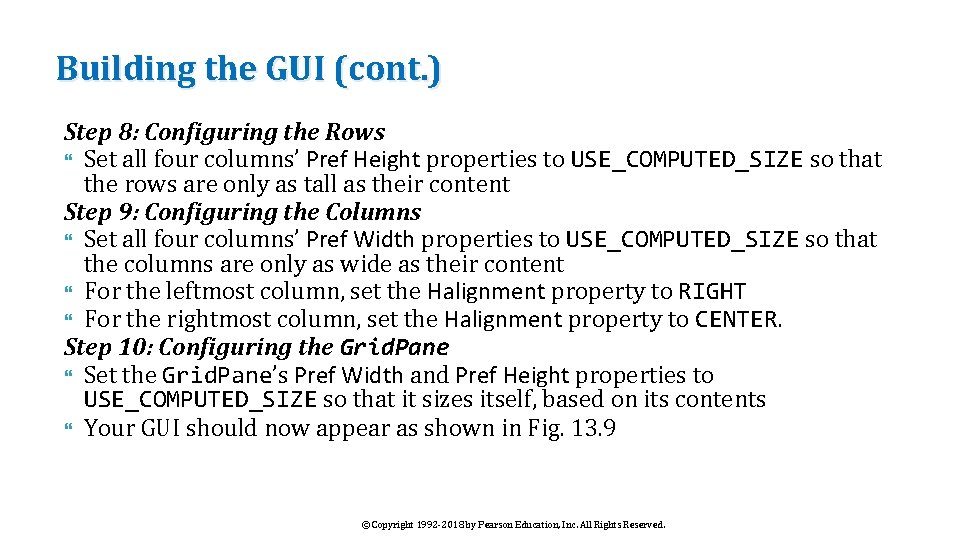
Building the GUI (cont. ) Step 8: Configuring the Rows Set all four columns’ Pref Height properties to USE_COMPUTED_SIZE so that the rows are only as tall as their content Step 9: Configuring the Columns Set all four columns’ Pref Width properties to USE_COMPUTED_SIZE so that the columns are only as wide as their content For the leftmost column, set the Halignment property to RIGHT For the rightmost column, set the Halignment property to CENTER. Step 10: Configuring the Grid. Pane Set the Grid. Pane’s Pref Width and Pref Height properties to USE_COMPUTED_SIZE so that it sizes itself, based on its contents Your GUI should now appear as shown in Fig. 13. 9 © Copyright 1992 -2018 by Pearson Education, Inc. All Rights Reserved.
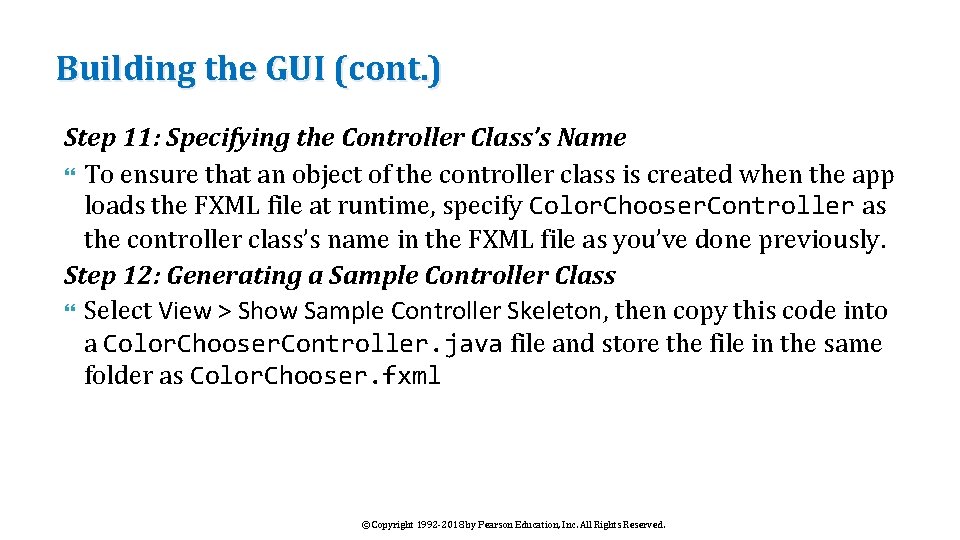
Building the GUI (cont. ) Step 11: Specifying the Controller Class’s Name To ensure that an object of the controller class is created when the app loads the FXML file at runtime, specify Color. Chooser. Controller as the controller class’s name in the FXML file as you’ve done previously. Step 12: Generating a Sample Controller Class Select View > Show Sample Controller Skeleton, then copy this code into a Color. Chooser. Controller. java file and store the file in the same folder as Color. Chooser. fxml © Copyright 1992 -2018 by Pearson Education, Inc. All Rights Reserved.
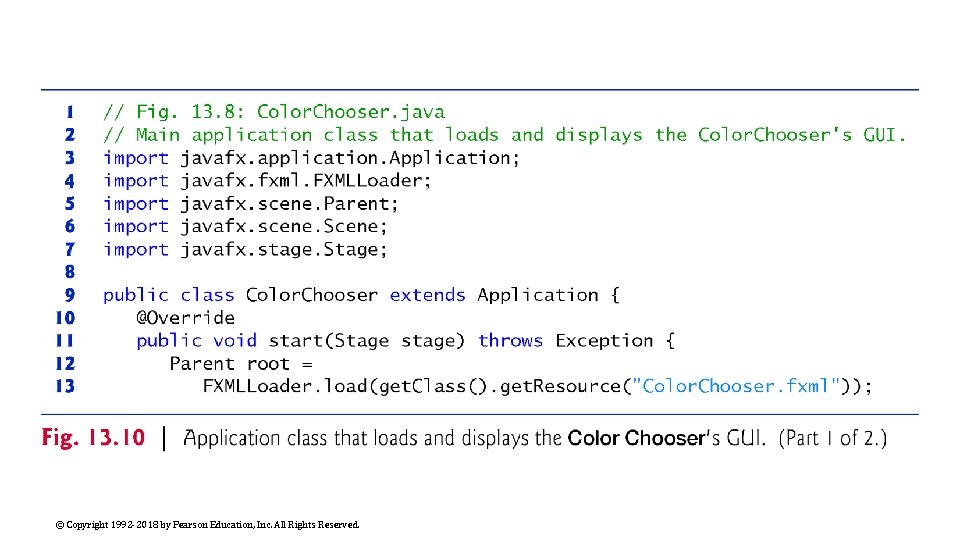
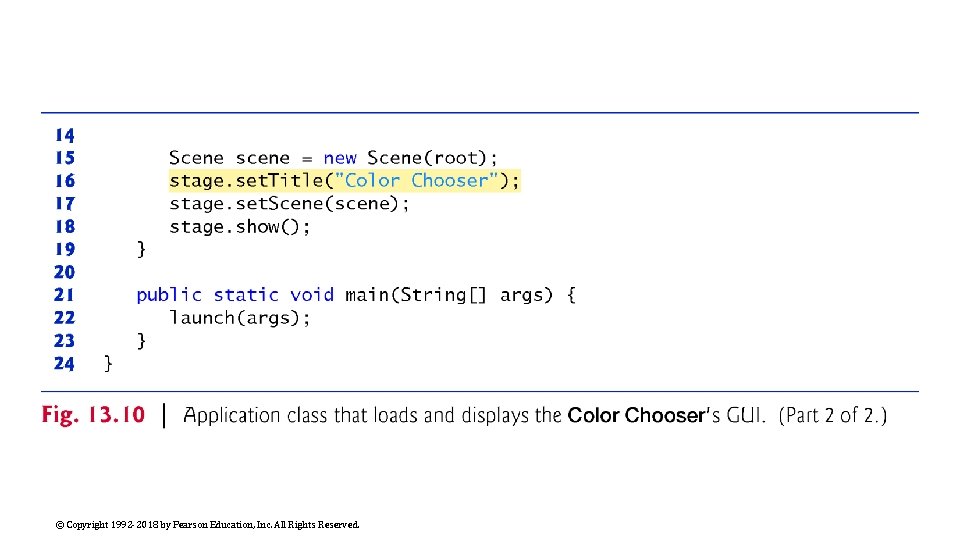
Color. Chooser Subclass of Application Figure 13. 6 shows the Color. Chooser subclass of Application that launches the app This class loads the FXML and displays the app as in the prior Java. FX examples © Copyright 1992 -2018 by Pearson Education, Inc. All Rights Reserved.
© Copyright 1992 -2018 by Pearson Education, Inc. All Rights Reserved.
© Copyright 1992 -2018 by Pearson Education, Inc. All Rights Reserved.
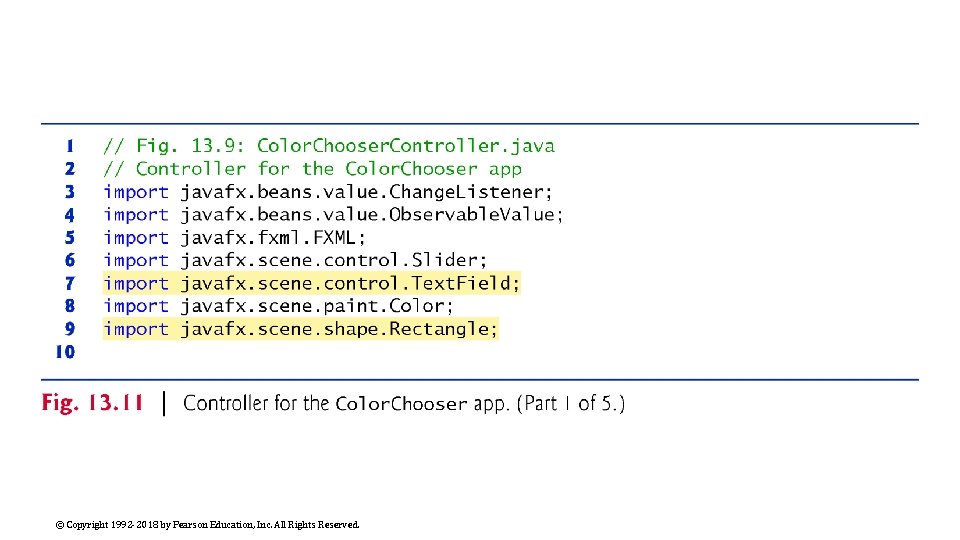
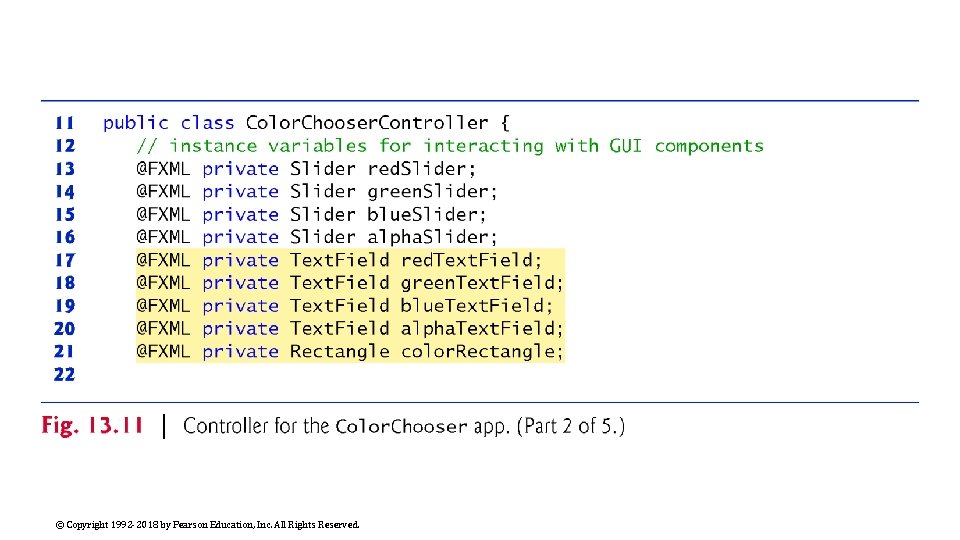
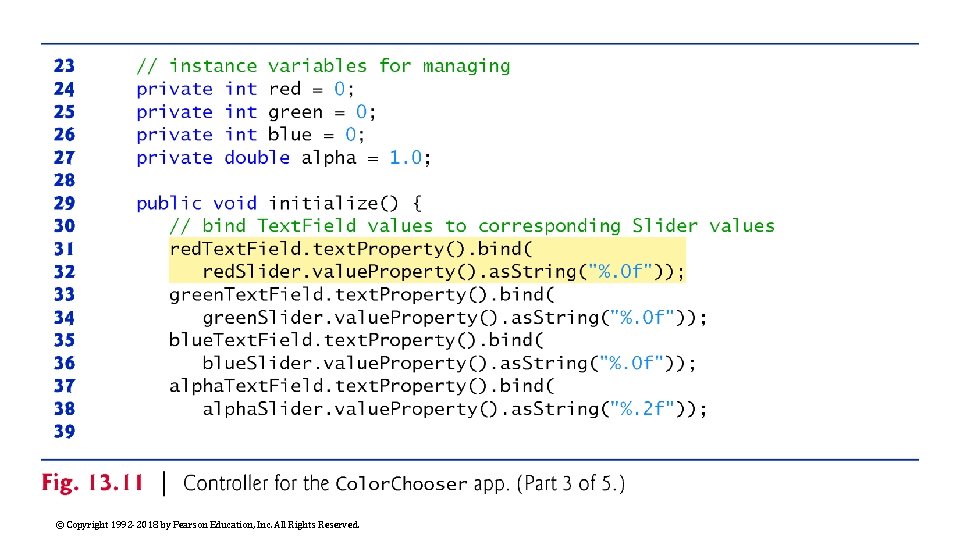
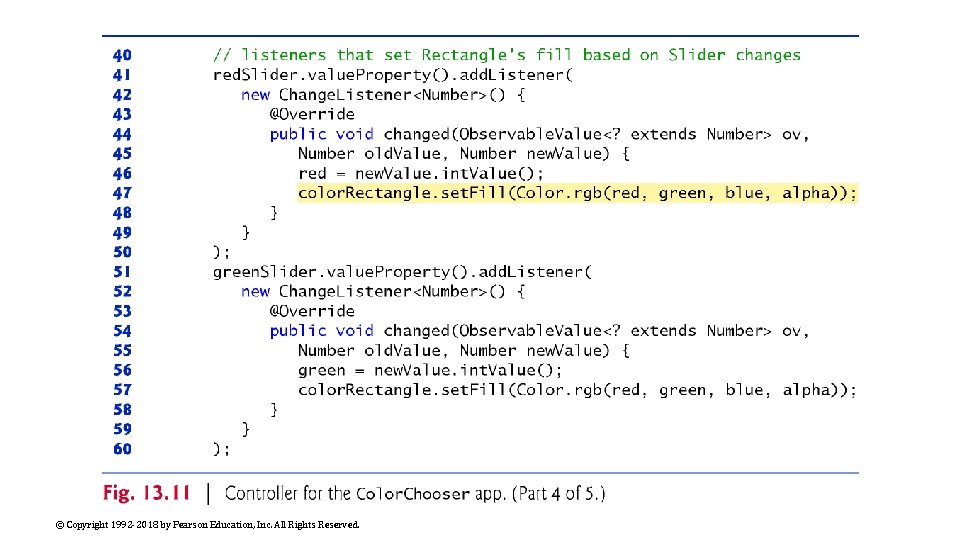
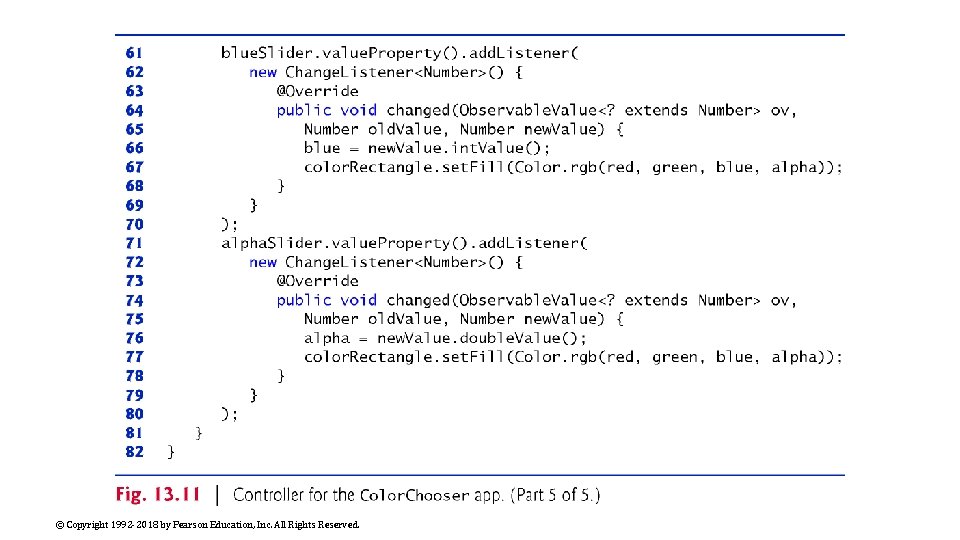
Color. Chooser. Controller Class Figure 13. 11 shows the final version of class Color. Chooser. Controller with this app’s new features highlighted © Copyright 1992 -2018 by Pearson Education, Inc. All Rights Reserved.
© Copyright 1992 -2018 by Pearson Education, Inc. All Rights Reserved.
© Copyright 1992 -2018 by Pearson Education, Inc. All Rights Reserved.
© Copyright 1992 -2018 by Pearson Education, Inc. All Rights Reserved.
© Copyright 1992 -2018 by Pearson Education, Inc. All Rights Reserved.
© Copyright 1992 -2018 by Pearson Education, Inc. All Rights Reserved.
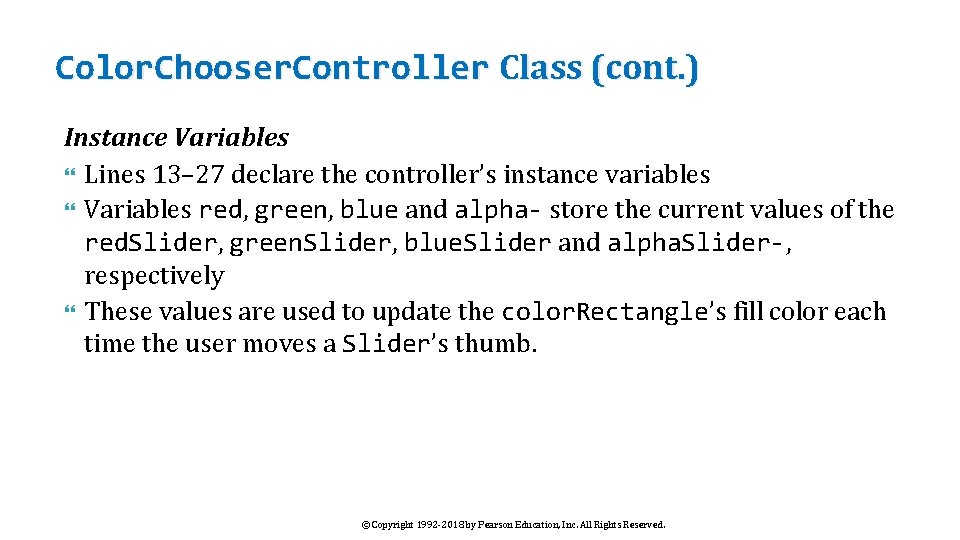
Color. Chooser. Controller Class (cont. ) Instance Variables Lines 13– 27 declare the controller’s instance variables Variables red, green, blue and alpha- store the current values of the red. Slider, green. Slider, blue. Slider and alpha. Slider-, respectively These values are used to update the color. Rectangle’s fill color each time the user moves a Slider’s thumb. © Copyright 1992 -2018 by Pearson Education, Inc. All Rights Reserved.
Color. Chooser. Controller Class (cont. ) Method initialize Lines 29– 81 define method initialize, which initializes the controller after the GUI is created In this app, initialize configures the property bindings and property listeners. © Copyright 1992 -2018 by Pearson Education, Inc. All Rights Reserved.
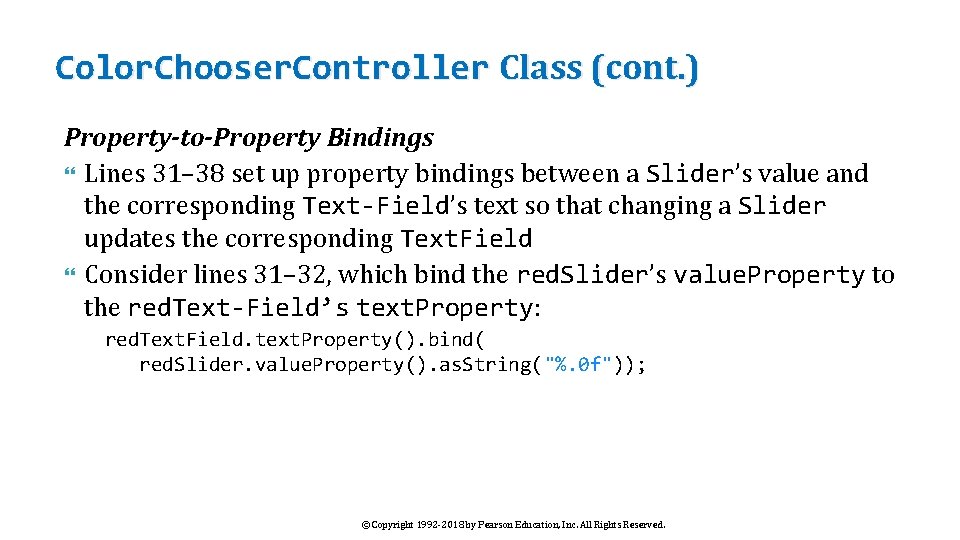
Color. Chooser. Controller Class (cont. ) Property-to-Property Bindings Lines 31– 38 set up property bindings between a Slider’s value and the corresponding Text-Field’s text so that changing a Slider updates the corresponding Text. Field Consider lines 31– 32, which bind the red. Slider’s value. Property to the red. Text-Field’s text. Property: red. Text. Field. text. Property(). bind( red. Slider. value. Property(). as. String("%. 0 f")); © Copyright 1992 -2018 by Pearson Education, Inc. All Rights Reserved.
Color. Chooser. Controller Class (cont. ) Property-to-Property Bindings (cont. ) Each Text. Field has a text property that’s returned by its text. Property method as a String. Property (package javafx. beans. property) String. Property method bind receives an Observable. Value as an argument When the Observable. Value changes, the bound property updates accordingly In this case the Observable. Value is the result of the expression red. Slider. value. Property(). as. String("%. 0 f") © Copyright 1992 -2018 by Pearson Education, Inc. All Rights Reserved.
Color. Chooser. Controller Class (cont. ) Property-to-Property Bindings (cont. ) Slider’s value. Property method returns the Slider’s value property as a Double. Property—an observable double value Because the Text. Field’s text property must be bound to a String, we call Double. Property method as. String, which returns a String. Binding object (an Observable. Value) that produces a String representation of the Double. Property This version of as. String receives a format-control String specifying the Double. Property’s format © Copyright 1992 -2018 by Pearson Education, Inc. All Rights Reserved.
Color. Chooser. Controller Class (cont. ) Property Listeners To perform an arbitrary task when a property’s value changes, register a property listener Lines 41– 80 register property listeners for the Sliders’ value properties Consider lines 41– 50, which register the Change. Listener that executes when the user moves the red. Slider’s thumb Each Change. Listener stores the int value of the new. Value parameter in a corresponding instance variable, then calls the color. Rectangle’s set. Fill method to change its color, using Color method rgb to create the new Color object © Copyright 1992 -2018 by Pearson Education, Inc. All Rights Reserved.
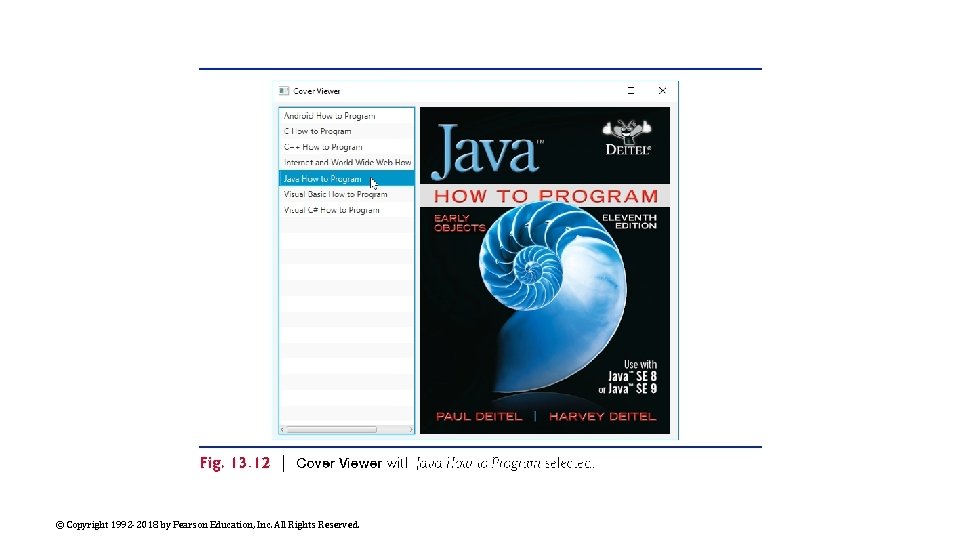
Cover Viewer App: Data-Driven GUIs with Java. FX Collections Often an app needs to edit and display data Java. FX provides a comprehensive model for allowing GUIs to interact with data In this section, you’ll build the Cover Viewer app (Fig. 13. 12), which binds a list of Book objects to a List. View When the user selects an item in the List. View, the corresponding Book’s cover image is displayed in an Image. View. © Copyright 1992 -2018 by Pearson Education, Inc. All Rights Reserved.
© Copyright 1992 -2018 by Pearson Education, Inc. All Rights Reserved.
Technologies Overview This app uses a List. View control to display a collection of book titles Though you can individually add items to a List. View, in this app you’ll bind an Observable. List object to the List. View ◦ If you make changes to an Observable. List, its observer (the List. View in this app) will automatically be notified of those changes Package javafx. collections defines Observable. List (similar to an Array. List) and other observable collection interfaces The package also contains class FXCollections, which provides static methods for creating and manipulating observable collections You’ll use a property listener to display the correct image when the user selects an item from the List. View—in this case, the property that changes is the selected item © Copyright 1992 -2018 by Pearson Education, Inc. All Rights Reserved.
Adding Images to the App’s Folder From this chapter’s examples folder, copy the images folder (which contains the large and small subfolders) into the folder where you’ll save this app’s FXML file, and the source-code files Cover. Viewer. java and Cover. Viewer. Controller. java Though you’ll use only the large images in this example, you’ll copy this app’s folder to create the next example, which uses both sets of images © Copyright 1992 -2018 by Pearson Education, Inc. All Rights Reserved.
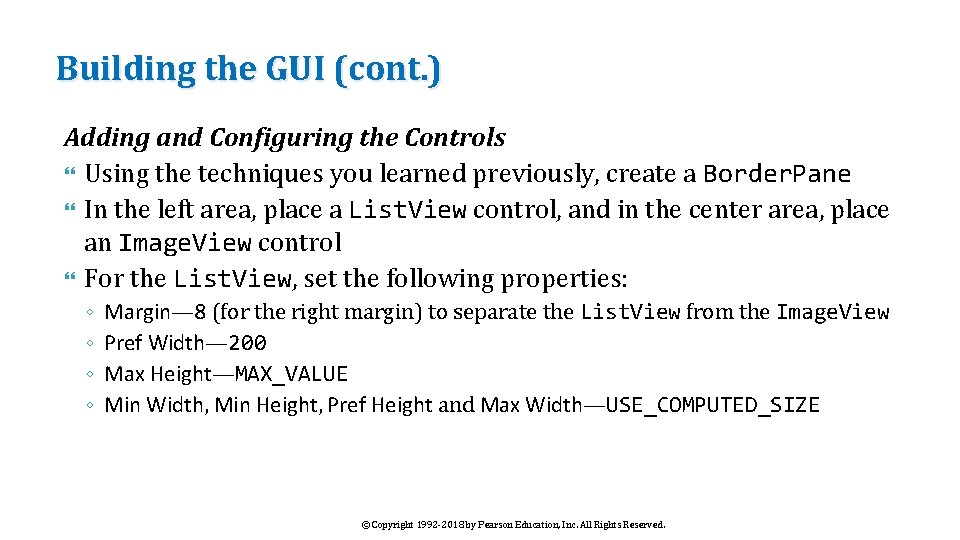
Building the GUI In this section, we’ll discuss the Cover Viewer app’s GUI As you’ve done previously, create a new FXML file, then save it as Cover. Viewer. fxml. fx: id Property Values for This App’s Controls Figure 13. 13 shows the fx: id properties of the Cover Viewer app’s programmatically manipulated controls As you build the GUI, you should set the corresponding fx: id properties in the FXML document © Copyright 1992 -2018 by Pearson Education, Inc. All Rights Reserved.
© Copyright 1992 -2018 by Pearson Education, Inc. All Rights Reserved.
Building the GUI (cont. ) Adding and Configuring the Controls Using the techniques you learned previously, create a Border. Pane In the left area, place a List. View control, and in the center area, place an Image. View control For the List. View, set the following properties: ◦ ◦ Margin— 8 (for the right margin) to separate the List. View from the Image. View Pref Width— 200 Max Height—MAX_VALUE Min Width, Min Height, Pref Height and Max Width—USE_COMPUTED_SIZE © Copyright 1992 -2018 by Pearson Education, Inc. All Rights Reserved.
Building the GUI (cont. ) Adding and Configuring the Controls (cont. ) For the Image. View, set the Fit Width and Fit Height properties to 370 and 480, respectively To size the Border. Pane based on its contents, set its Pref Width and Pref Height to USE_COMPUTED_SIZE Also, set the Padding property to 8 to inset the Border. Pane from the stage. © Copyright 1992 -2018 by Pearson Education, Inc. All Rights Reserved.
Building the GUI (cont. ) Specifying the Controller Class’s Name To ensure that an object of the controller class is created when the app loads the FXML file at runtime, specify Cover. Viewer. Controller as the controller class’s name in the FXML file as you’ve done previously. Generating a Sample Controller Class Select View > Show Sample Controller Skeleton, then copy this code into a Cover. Viewer. Controller. java file and store the file in the same folder as Cover. Viewer. fxml © Copyright 1992 -2018 by Pearson Education, Inc. All Rights Reserved.
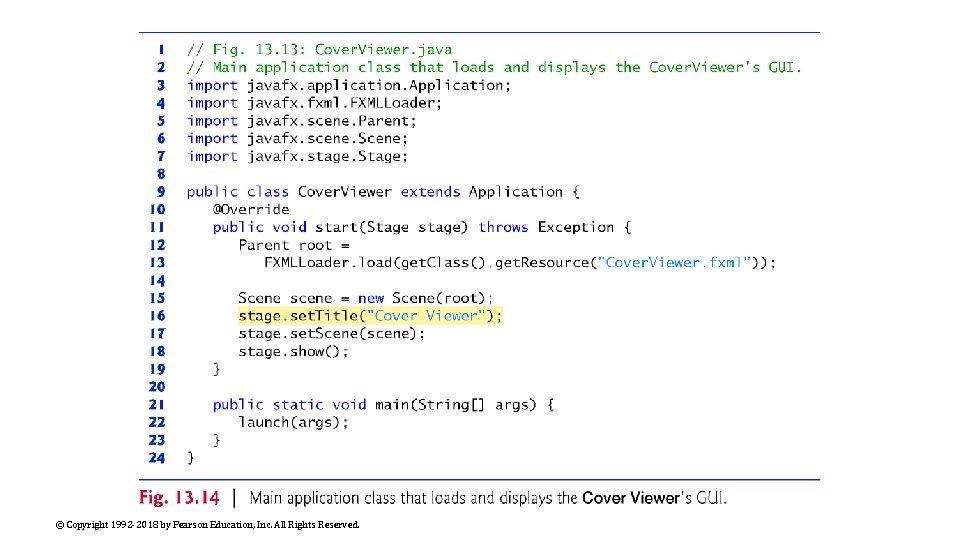
Cover. Viewer Subclass of Application Figure 13. 14 shows class Cover. Viewer subclass of Application © Copyright 1992 -2018 by Pearson Education, Inc. All Rights Reserved.
© Copyright 1992 -2018 by Pearson Education, Inc. All Rights Reserved.
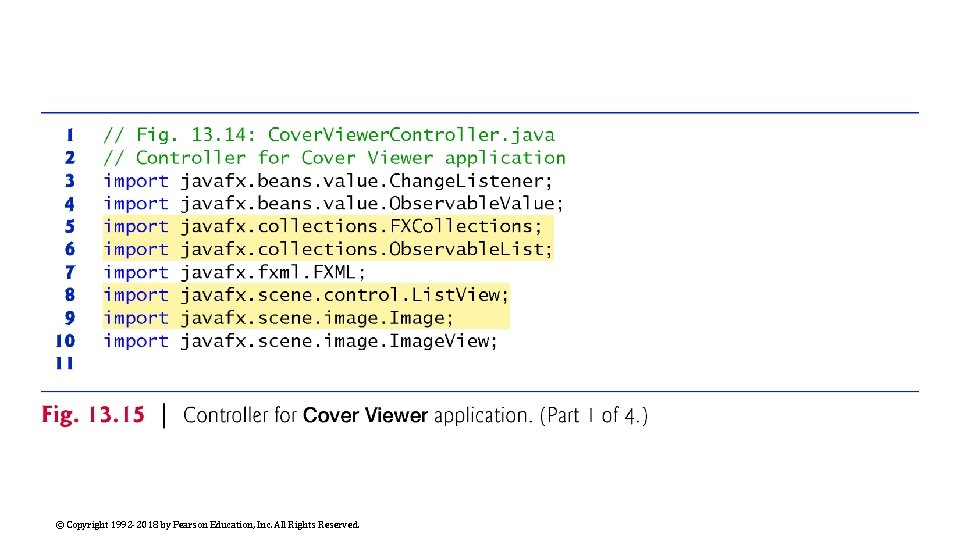
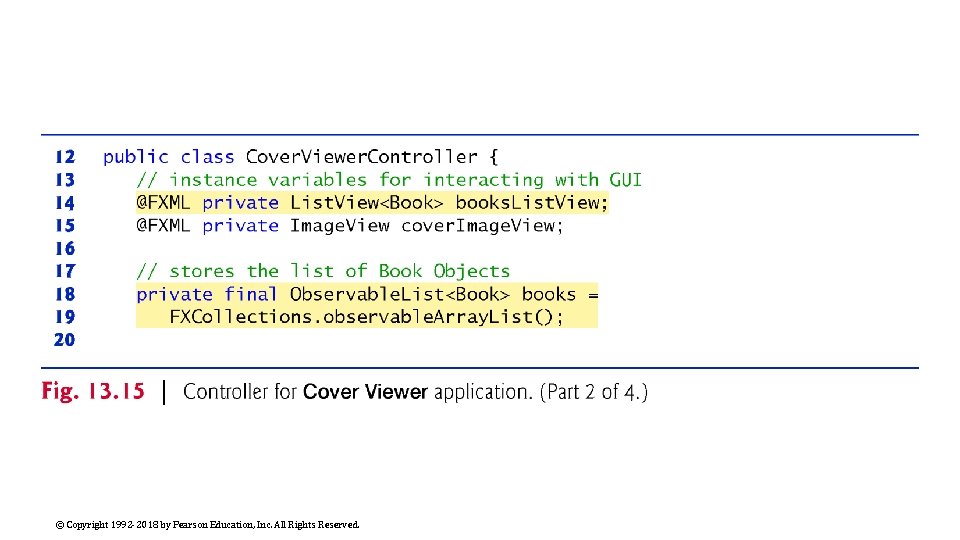
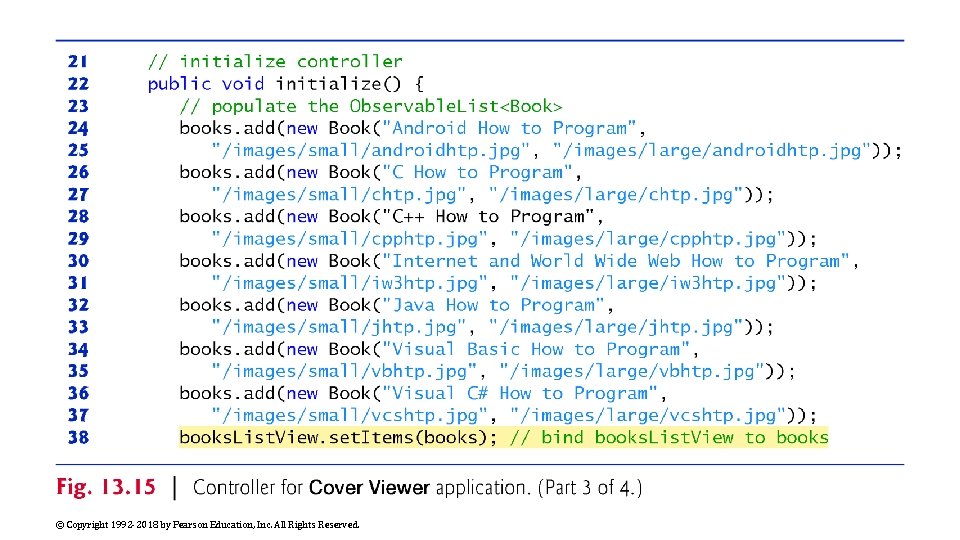
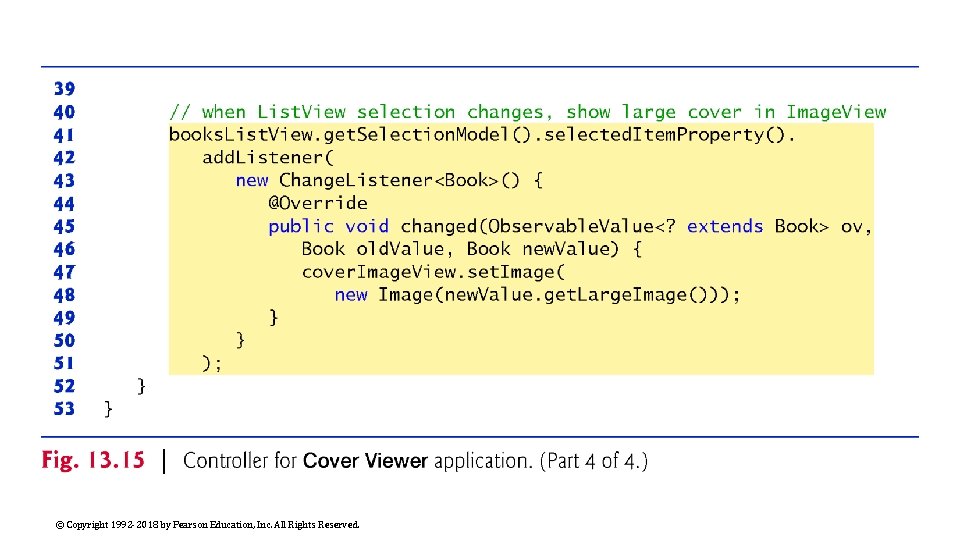
Cover. Viewer. Controller Class Figure 13. 15 shows the final version of class Cover. Viewer. Controller with the app’s new features highlighted © Copyright 1992 -2018 by Pearson Education, Inc. All Rights Reserved.
© Copyright 1992 -2018 by Pearson Education, Inc. All Rights Reserved.
© Copyright 1992 -2018 by Pearson Education, Inc. All Rights Reserved.
© Copyright 1992 -2018 by Pearson Education, Inc. All Rights Reserved.
© Copyright 1992 -2018 by Pearson Education, Inc. All Rights Reserved.
Cover. Viewer. Controller Class (cont. ) @FXML Instance Variables Lines 14– 15 declare the controller’s @FXML instance variables In this case, the List. View displays Book objects Class Book contains three String instance variables with set/get methods: ◦ title—the book’s title. ◦ thumb. Image—the path to the book’s thumbnail image (used in the next example). ◦ large. Image—the path to the book’s large cover image The class also provides a to. String method that returns the Book’s title and a constructor that initializes the three instance variables Copy Book. java from this chapter’s examples folder into the folder that contains Cover. Viewer. fxml, Cover. Viewer. java and Cover. Viewer. Controller. java © Copyright 1992 -2018 by Pearson Education, Inc. All Rights Reserved.
Cover. Viewer. Controller Class (cont. ) Instance Variable books Lines 18– 19 define the books instance variable as an Observable. List<Book> and initialize it by calling FXCollections static method observable. Array. List This method returns an empty collection object (similar to an Array. List) that implements the Observable-List interface © Copyright 1992 -2018 by Pearson Education, Inc. All Rights Reserved.
Cover. Viewer. Controller Class (cont. ) Initializing the books Observable. List Lines 24– 37 in method initialize create and add Book objects to the books collection Line 38 passes this collection to List. View method set. Items, which binds the List. View to the Observable. List This data binding allows the List. View to display the Book objects automatically By default, the List. View displays each Book’s String representation © Copyright 1992 -2018 by Pearson Education, Inc. All Rights Reserved.
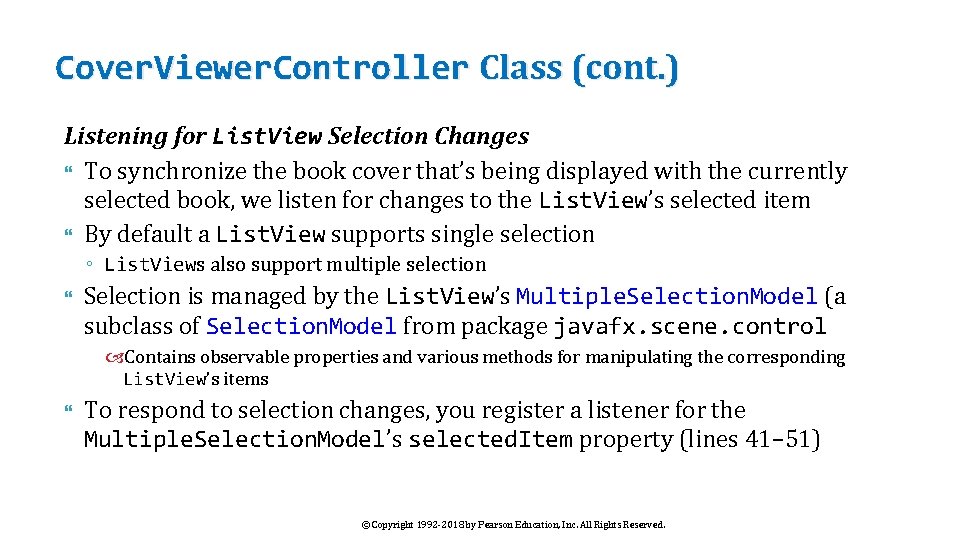
Cover. Viewer. Controller Class (cont. ) Listening for List. View Selection Changes To synchronize the book cover that’s being displayed with the currently selected book, we listen for changes to the List. View’s selected item By default a List. View supports single selection ◦ List. Views also support multiple selection Selection is managed by the List. View’s Multiple. Selection. Model (a subclass of Selection. Model from package javafx. scene. control Contains observable properties and various methods for manipulating the corresponding List. View’s items To respond to selection changes, you register a listener for the Multiple. Selection. Model’s selected. Item property (lines 41– 51) © Copyright 1992 -2018 by Pearson Education, Inc. All Rights Reserved.
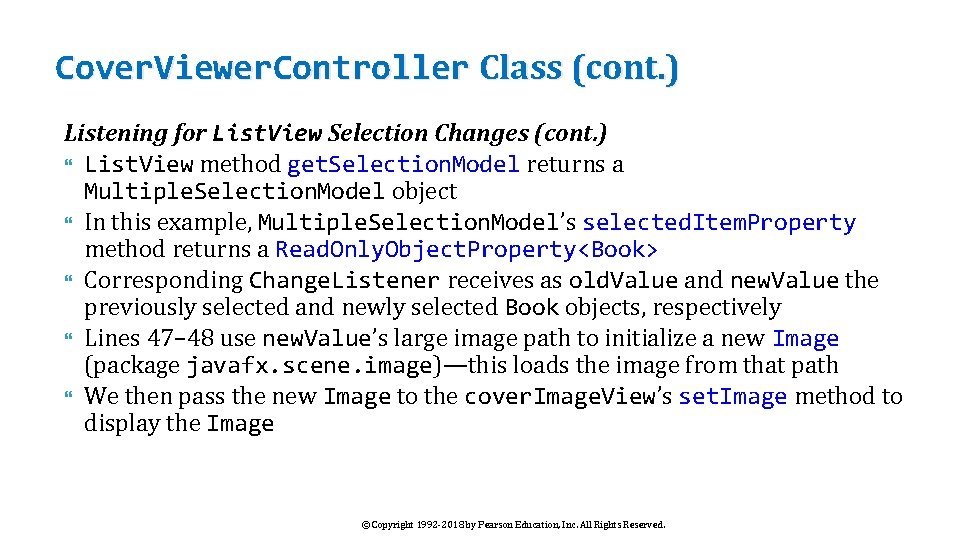
Cover. Viewer. Controller Class (cont. ) Listening for List. View Selection Changes (cont. ) List. View method get. Selection. Model returns a Multiple. Selection. Model object In this example, Multiple. Selection. Model’s selected. Item. Property method returns a Read. Only. Object. Property<Book> Corresponding Change. Listener receives as old. Value and new. Value the previously selected and newly selected Book objects, respectively Lines 47– 48 use new. Value’s large image path to initialize a new Image (package javafx. scene. image)—this loads the image from that path We then pass the new Image to the cover. Image. View’s set. Image method to display the Image © Copyright 1992 -2018 by Pearson Education, Inc. All Rights Reserved.
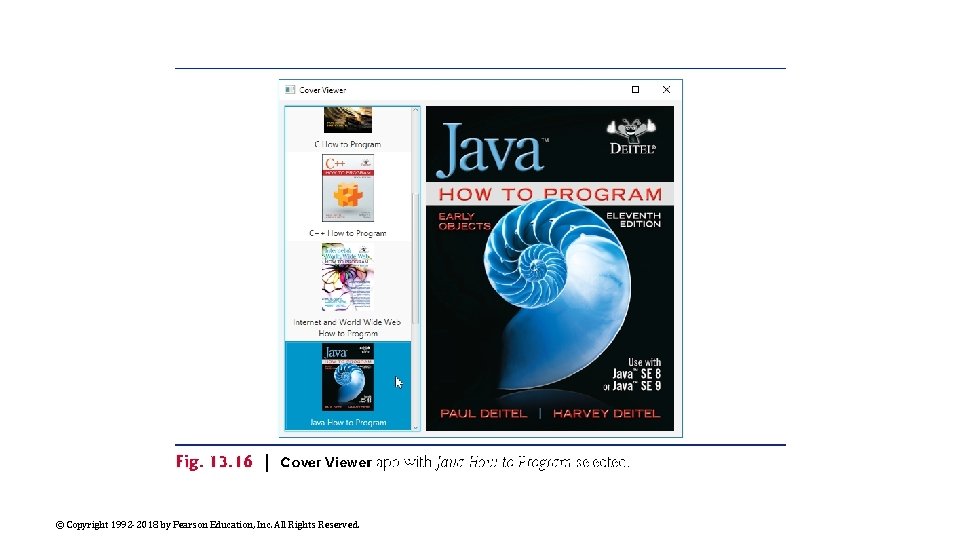
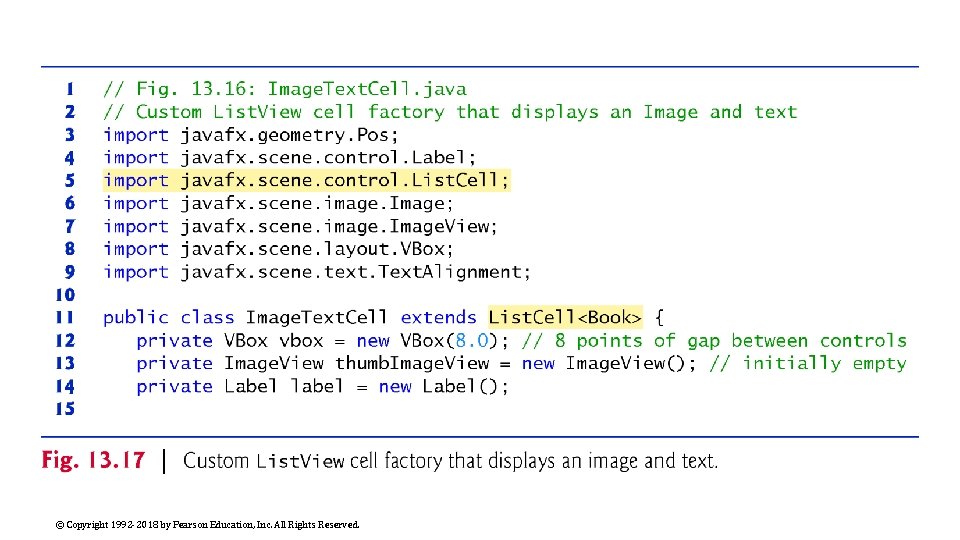
Cover Viewer App: Customizing List. View Cells In the preceding example, the List. View displayed a Book’s String representation (i. e. , its title) In this example, you’ll create a custom List. View cell factory to create cells that display each book as its thumbnail image and title using a VBox, an Image. View and a Label (Fig. 13. 16) © Copyright 1992 -2018 by Pearson Education, Inc. All Rights Reserved.
© Copyright 1992 -2018 by Pearson Education, Inc. All Rights Reserved.
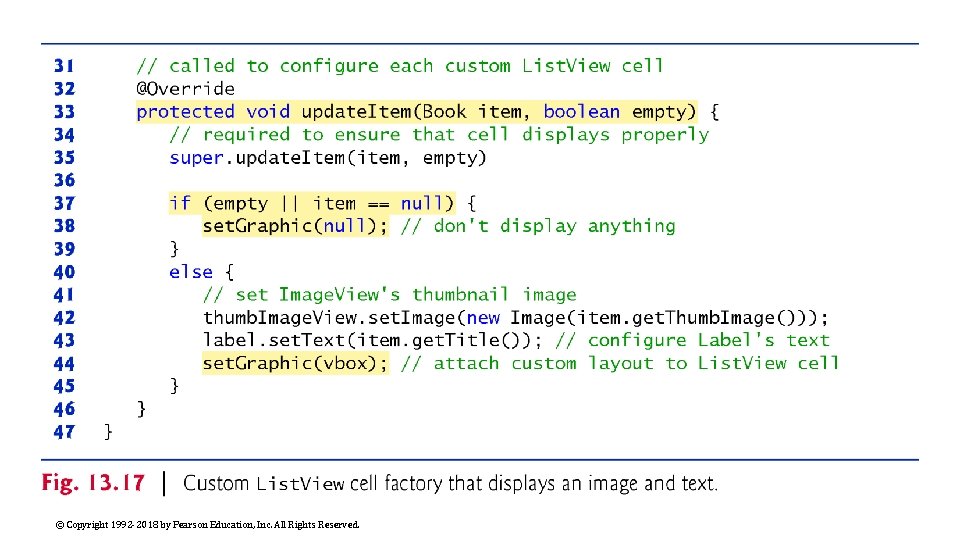
Technologies Overview List. Cell Generic Class for Custom List. View Cell Formats As you saw in Section 13. 5, List. View cells display the String representations of a List. View’s items by default To create a custom cell format, you must first define a subclass of the List. Cell generic class (package javafx. scene. control) that specifies how to create a List. View cell As the List. View displays items, it gets List. Cells from its cell factory You’ll use the List. View’s set. Cell. Factory method to replace the default cell factory with one that returns objects of the List. Cell subclass You’ll override this class’s update. Item method to specify the cells’ custom layout and contents © Copyright 1992 -2018 by Pearson Education, Inc. All Rights Reserved.
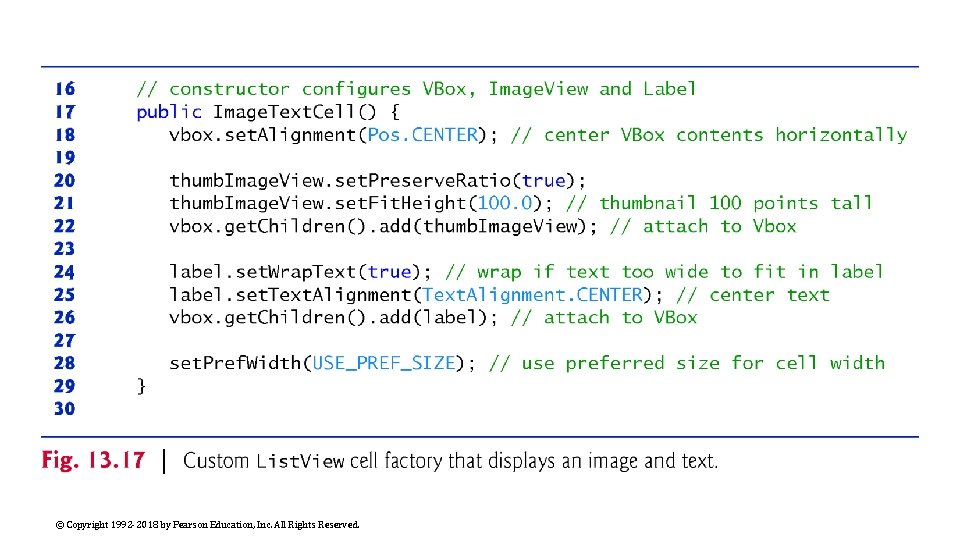
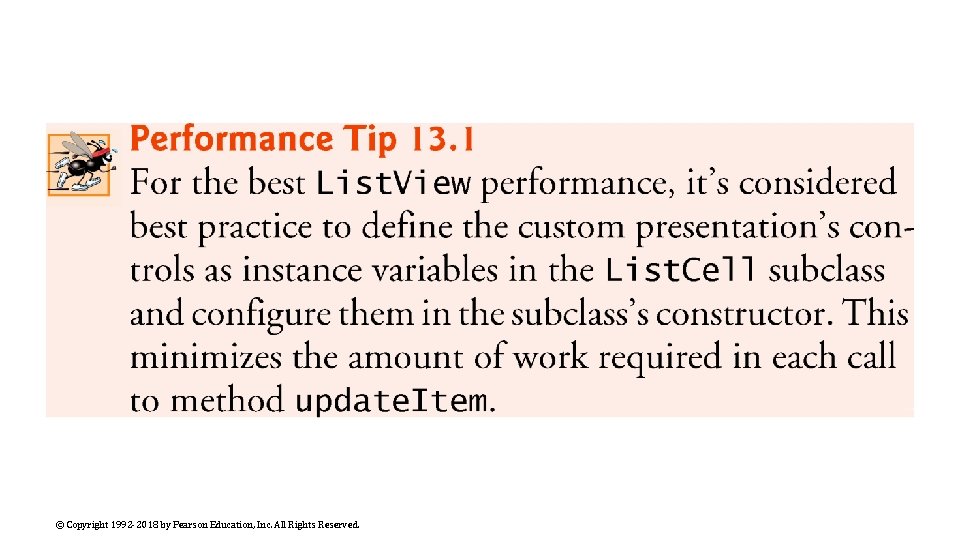
Technologies Overview (cont. ) Programmatically Creating Layouts and Controls So far, you’ve created GUIs visually using Java. FX Scene Builder In this app, you’ll also create a portion of the GUI programmatically—in fact, everything we’ve shown you in Scene Builder also can be accomplished in Java code directly In particular, you’ll create and configure a VBox layout containing an Image. View and a Label The VBox represents the custom List. View cell format © Copyright 1992 -2018 by Pearson Education, Inc. All Rights Reserved.
Copying the Cover. Viewer App This app’s FXML layout and classes Book and Cover. Viewer are identical to those in Section 13. 5, and the Cover. Viewer. Controller class has only one new statement For this example, we’ll show a new class that implements the custom List. View cell factory and the one new statement in class Cover. Viewer. Controller Rather than creating a new app from scratch, copy the Cover. Viewer app from the previous example into a new folder named Cover. Viewer. Custom. List. View © Copyright 1992 -2018 by Pearson Education, Inc. All Rights Reserved.
Image. Text. Cell Custom Cell Factory Class Image. Text. Cell (Fig. 13. 17) defines the custom List. View cell layout for this version of the Cover Viewer app The class extends List. Cell<Book> because it defines a customized presentation of a Book in a List. View cell © Copyright 1992 -2018 by Pearson Education, Inc. All Rights Reserved.
© Copyright 1992 -2018 by Pearson Education, Inc. All Rights Reserved.
© Copyright 1992 -2018 by Pearson Education, Inc. All Rights Reserved.
© Copyright 1992 -2018 by Pearson Education, Inc. All Rights Reserved.
© Copyright 1992 -2018 by Pearson Education, Inc. All Rights Reserved.
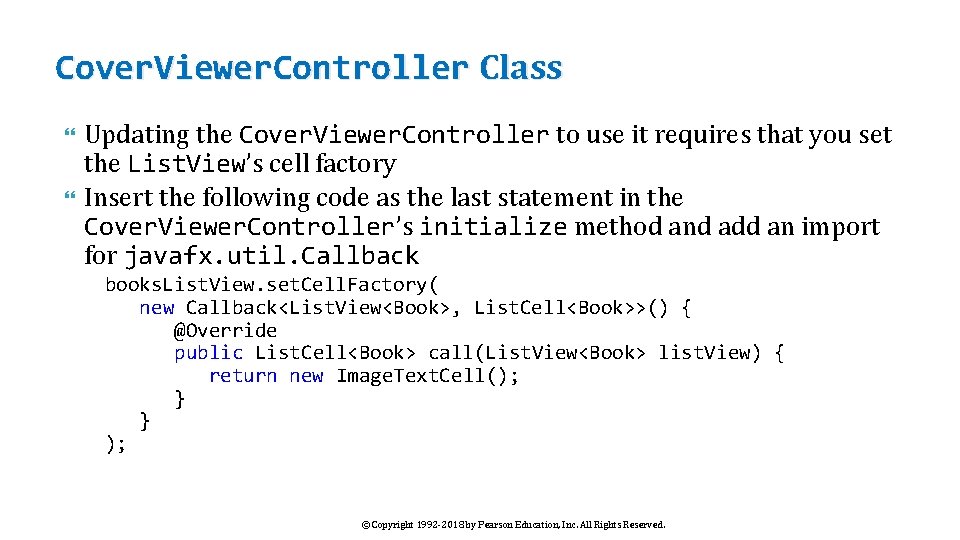
Cover. Viewer. Controller Class Updating the Cover. Viewer. Controller to use it requires that you set the List. View’s cell factory Insert the following code as the last statement in the Cover. Viewer. Controller’s initialize method and add an import for javafx. util. Callback books. List. View. set. Cell. Factory( new Callback<List. View<Book>, List. Cell<Book>>() { @Override public List. Cell<Book> call(List. View<Book> list. View) { return new Image. Text. Cell(); } } ); © Copyright 1992 -2018 by Pearson Education, Inc. All Rights Reserved.
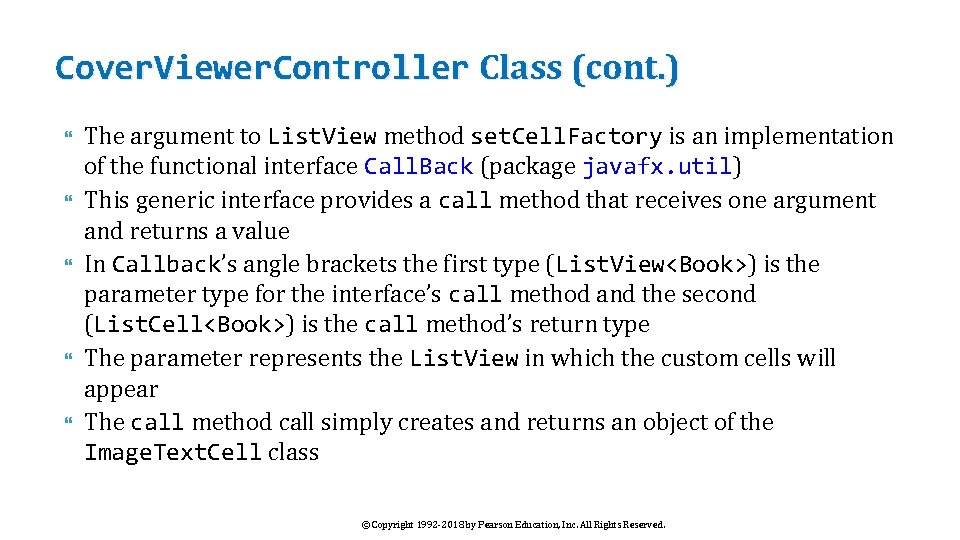
Cover. Viewer. Controller Class (cont. ) The argument to List. View method set. Cell. Factory is an implementation of the functional interface Call. Back (package javafx. util) This generic interface provides a call method that receives one argument and returns a value In Callback’s angle brackets the first type (List. View<Book>) is the parameter type for the interface’s call method and the second (List. Cell<Book>) is the call method’s return type The parameter represents the List. View in which the custom cells will appear The call method call simply creates and returns an object of the Image. Text. Cell class © Copyright 1992 -2018 by Pearson Education, Inc. All Rights Reserved.
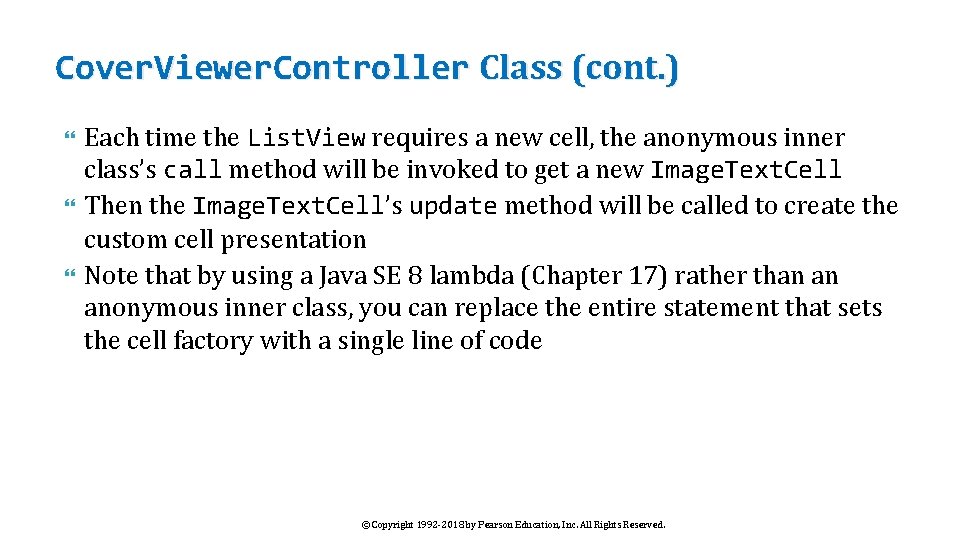
Cover. Viewer. Controller Class (cont. ) Each time the List. View requires a new cell, the anonymous inner class’s call method will be invoked to get a new Image. Text. Cell Then the Image. Text. Cell’s update method will be called to create the custom cell presentation Note that by using a Java SE 8 lambda (Chapter 17) rather than an anonymous inner class, you can replace the entire statement that sets the cell factory with a single line of code © Copyright 1992 -2018 by Pearson Education, Inc. All Rights Reserved.
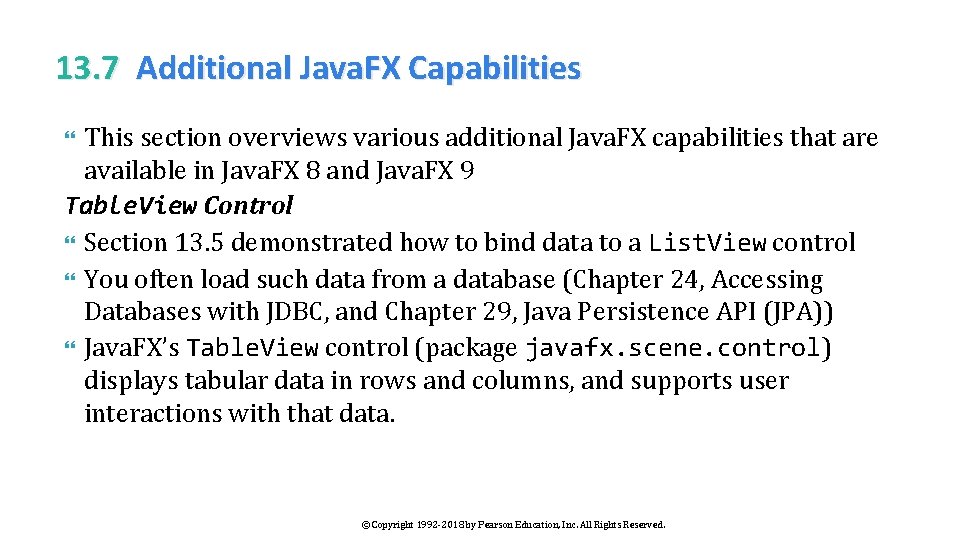
13. 7 Additional Java. FX Capabilities This section overviews various additional Java. FX capabilities that are available in Java. FX 8 and Java. FX 9 Table. View Control Section 13. 5 demonstrated how to bind data to a List. View control You often load such data from a database (Chapter 24, Accessing Databases with JDBC, and Chapter 29, Java Persistence API (JPA)) Java. FX’s Table. View control (package javafx. scene. control) displays tabular data in rows and columns, and supports user interactions with that data. © Copyright 1992 -2018 by Pearson Education, Inc. All Rights Reserved.
13. 7 Additional Java. FX Capabilities (cont. ) Accessibility In a Java SE 8 update, Java. FX added accessibility features to help people with visual impairments use their devices For example, the screen readers in various operating systems can speak screen text or text that you provide to help users with visual impairments understand the purpose of a control Visually impaired users must enable their operating systems’ screenreading capabilities © Copyright 1992 -2018 by Pearson Education, Inc. All Rights Reserved.
13. 7 Additional Java. FX Capabilities (cont. ) Accessibility (cont. ) Java. FX controls also support: ◦ GUI navigation via the keyboard—for example, the user can press the Tab key to jump from one control to the next. If a screen reader also is enabled, as the user moves the focus from control to control, the screen reader will speak appropriate information about each control (discussed below). ◦ A high-contrast mode to make controls more readable—as with screen readers, visually impaired users must enable this feature in their operating systems. See your operating system’s documentation for information on enabling its screen reader and high-contrast mode. © Copyright 1992 -2018 by Pearson Education, Inc. All Rights Reserved.
13. 7 Additional Java. FX Capabilities (cont. ) Accessibility (cont. ) Every Java. FX Node subclass also has these accessibility-related properties: ◦ accessible. Text. Property—A String that a screen reader speaks for a control ◦ accessible. Help. Property—A more detailed control description String than that provided by the accessible. Text. Property Should help the user understand the purpose of the control in the context of your app ◦ accessible. Role. Property—A value from the enum Accessible. Role (package javafx -. scene) Screen reader uses this to determine attributes and actions supported for a control ◦ accessible. Role. Description. Property—A String text description of a control that a screen reader typically speaks followed by the control’s contents or the value of the accessible. Text. Property © Copyright 1992 -2018 by Pearson Education, Inc. All Rights Reserved.
13. 7 Additional Java. FX Capabilities (cont. ) Accessibility (cont. ) In addition, you can add Labels to a GUI that describe other controls In such cases, you should set each Label’s label. For property to the specific control the Label describes For example, a Text. Field in which the user can enter a phone number might be preceded by a Label containing the text "Phone Number" If the Label’s label. For property references the Text. Field, then a screen reader will read the Label’s text as well when describing the Text. Field to the user © Copyright 1992 -2018 by Pearson Education, Inc. All Rights Reserved.
13. 7 Additional Java. FX Capabilities (cont. ) Third-Party Java. FX Libraries Various libraries for additional Java. FX capabilities ◦ Controls. FX (http: //www. controlsfx. org/) provides common dialogs, additional controls, validation capabilities, Text. Field enhancements, a Spread. Sheet. View, Table. View enhancements and more ◦ JFXtras (http: //jfxtras. org/) provides many additional Java. FX controls, including date/time pickers, controls for maintaining an agenda, a calendar control, additional window features and more. ◦ Medusa provides many Java. FX gauges that look like clocks, speedometers and more. You can view samples at https: //github. com/Han. Solo/Medusa/blob/master/README. md © Copyright 1992 -2018 by Pearson Education, Inc. All Rights Reserved.
13. 7 Additional Java. FX Capabilities (cont. ) Creating Custom Java. FX Controls You can create custom controls by extending existing Java. FX control classes to customize them or by extending Java. FX’s Control class directly Java. FXPorts: Java. FX for Mobile and Embedded Devices Oracle officially supports Java. FX only for desktop apps Gluon’s open-source Java. FXPorts project (http: //javafxports. org/) brings desktop Java. FX to mobile devices (i. OS and Android) and devices like the Raspberry Pi (https: //www. raspberrypi. org/) In addition, Gluon Mobile provides a mobile-optimized Java. FX implementation for i. OS and Android http: //gluonhq. com/products/mobile/ © Copyright 1992 -2018 by Pearson Education, Inc. All Rights Reserved.
13. 7 Additional Java. FX Capabilities (cont. ) Scenic View for Debugging Java. FX Scenes and Nodes Scenic View is a debugging tool for Java. FX scenes and nodes Embed Scenic View directly into apps or run it as a standalone app Inspect your Java. FX scenes and nodes, and modify them dynamically to see how changes affect their presentation on the screen ◦ Without having to edit your code, recompile it and re-run it For more information, visit ◦ http: //www. scenic-view. org © Copyright 1992 -2018 by Pearson Education, Inc. All Rights Reserved.
13. 7 Additional Java. FX Capabilities (cont. ) Java. FX Resources and Java. FX in the Real World Visit the following website for a lengthy and growing list of Java. FX resources ◦ http: //bit. ly/Java. FXResources © Copyright 1992 -2018 by Pearson Education, Inc. All Rights Reserved.
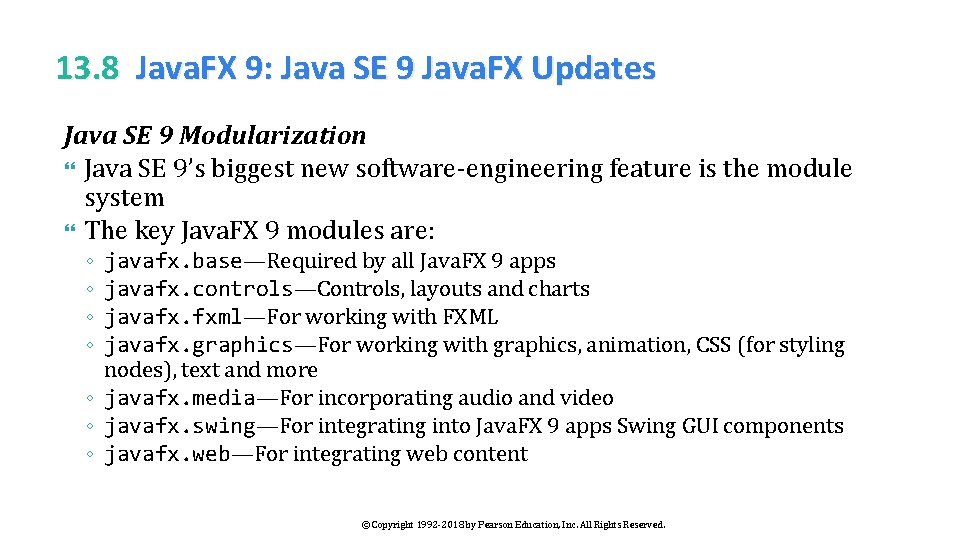
13. 8 Java. FX 9: Java SE 9 Java. FX Updates Java SE 9 Modularization Java SE 9’s biggest new software-engineering feature is the module system The key Java. FX 9 modules are: ◦ ◦ javafx. base—Required by all Java. FX 9 apps javafx. controls—Controls, layouts and charts javafx. fxml—For working with FXML javafx. graphics—For working with graphics, animation, CSS (for styling nodes), text and more ◦ javafx. media—For incorporating audio and video ◦ javafx. swing—For integrating into Java. FX 9 apps Swing GUI components ◦ javafx. web—For integrating web content © Copyright 1992 -2018 by Pearson Education, Inc. All Rights Reserved.
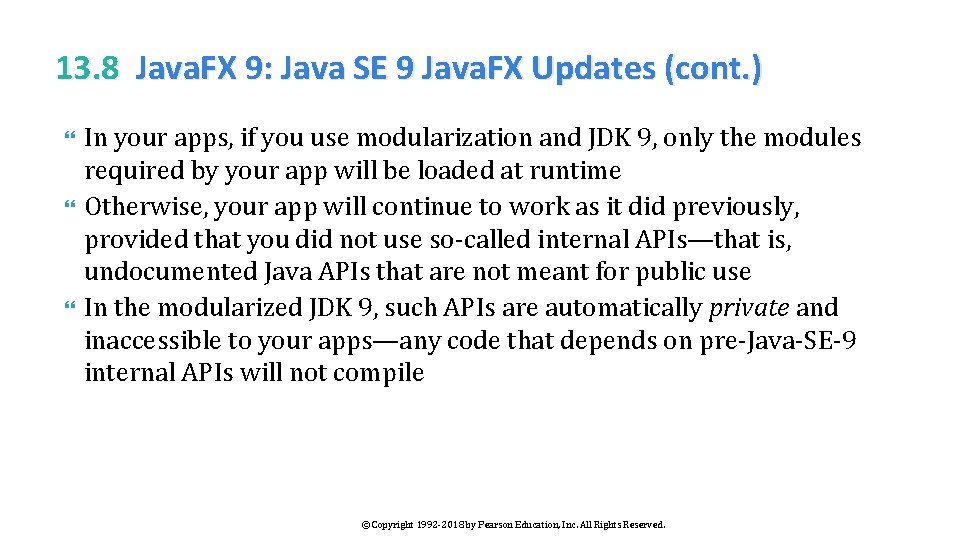
13. 8 Java. FX 9: Java SE 9 Java. FX Updates (cont. ) In your apps, if you use modularization and JDK 9, only the modules required by your app will be loaded at runtime Otherwise, your app will continue to work as it did previously, provided that you did not use so-called internal APIs—that is, undocumented Java APIs that are not meant for public use In the modularized JDK 9, such APIs are automatically private and inaccessible to your apps—any code that depends on pre-Java-SE-9 internal APIs will not compile © Copyright 1992 -2018 by Pearson Education, Inc. All Rights Reserved.
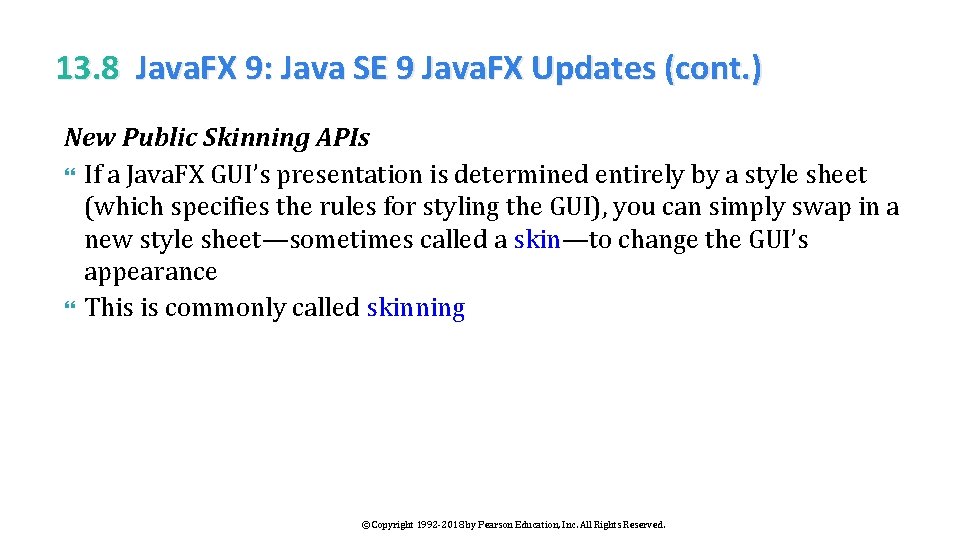
13. 8 Java. FX 9: Java SE 9 Java. FX Updates (cont. ) New Public Skinning APIs If a Java. FX GUI’s presentation is determined entirely by a style sheet (which specifies the rules for styling the GUI), you can simply swap in a new style sheet—sometimes called a skin—to change the GUI’s appearance This is commonly called skinning © Copyright 1992 -2018 by Pearson Education, Inc. All Rights Reserved.
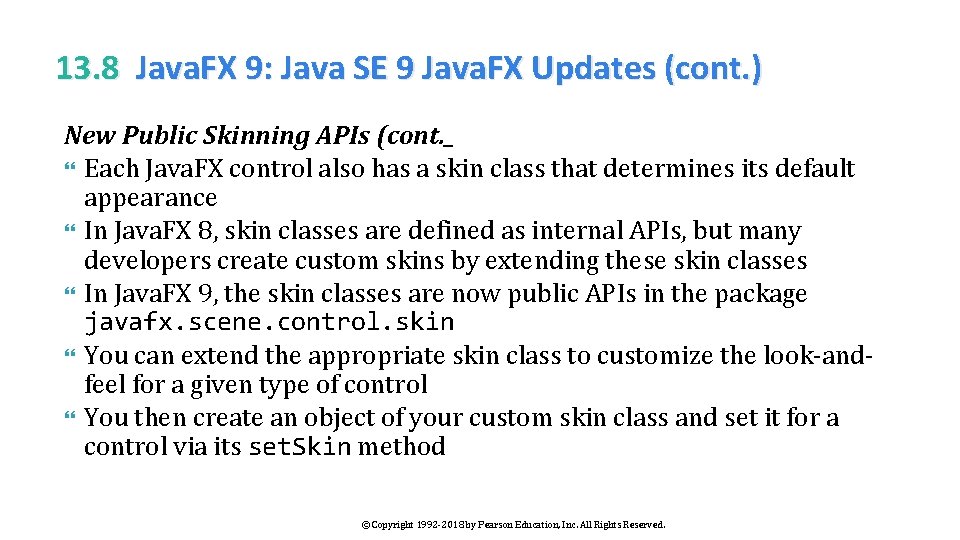
13. 8 Java. FX 9: Java SE 9 Java. FX Updates (cont. ) New Public Skinning APIs (cont. _ Each Java. FX control also has a skin class that determines its default appearance In Java. FX 8, skin classes are defined as internal APIs, but many developers create custom skins by extending these skin classes In Java. FX 9, the skin classes are now public APIs in the package javafx. scene. control. skin You can extend the appropriate skin class to customize the look-andfeel for a given type of control You then create an object of your custom skin class and set it for a control via its set. Skin method © Copyright 1992 -2018 by Pearson Education, Inc. All Rights Reserved.
13. 8 Java. FX 9: Java SE 9 Java. FX Updates (cont. ) GTK+ 3 Support on Linux GTK+ (GIMP Toolkit—http: //gtk. org) is a GUI toolkit that Java. FX uses behind the scenes to render GUIs and graphics on Linux In Java SE 9, Java. FX now supports GTK+ 3—the latest version of GTK+ High-DPI Screen Support In a Java SE 8 update, Java. FX added support for High DPI (dots-perinch) screens on Windows and mac. OS Java SE 9 adds Linux High-DPI support, as well as capabilities to programmatically manipulate the scale at which Java. FX apps are rendered on Windows, mac. OS and Linux. © Copyright 1992 -2018 by Pearson Education, Inc. All Rights Reserved.
13. 8 Java. FX 9: Java SE 9 Java. FX Updates (cont. ) Updated GStreamer Java. FX implements its audio and video multimedia capabilities using GStreamer (https: //gstreamer. freedesktop. org) Java. FX 9 incorporates a more recent version of GStreamer Updated Web. Kit Web. View control embeds web content in Java. FX apps Based on Web. Kit framework (http: //www. webkit. org)—a web browser engine that supports loading and rendering web pages Java. FX 9 incorporates an updated version of Web. Kit © Copyright 1992 -2018 by Pearson Education, Inc. All Rights Reserved.