
5 Configuring Network Devices Working at a SmalltoMedium
- Slides: 66
5: Configuring Network Devices Working at a Small-to-Medium Business or ISP
Objectives
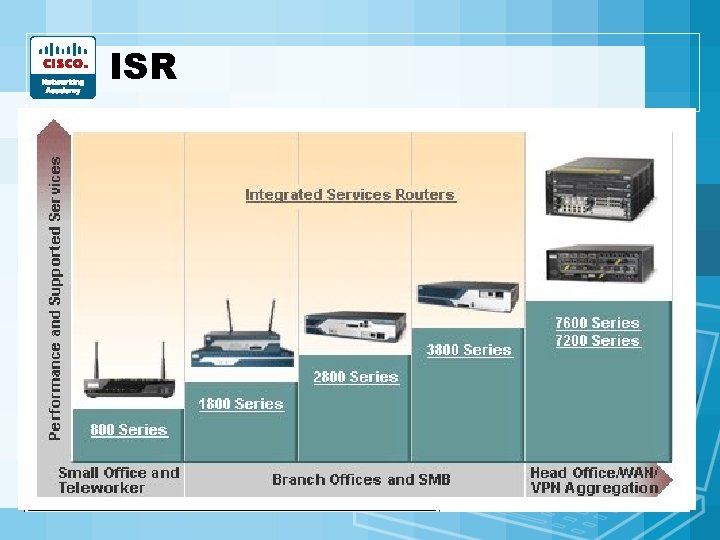
ISR • What’s an ISR? – One device that combines features • • LAN/WAN connectivity Security Wireless And more…
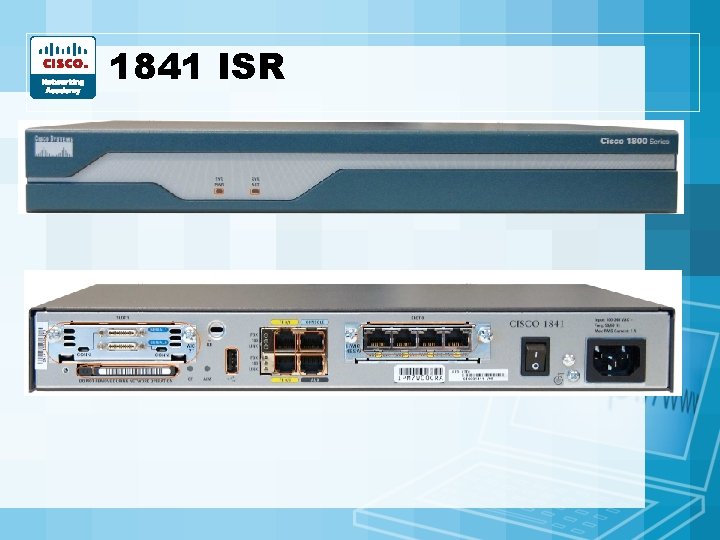
1841 ISR
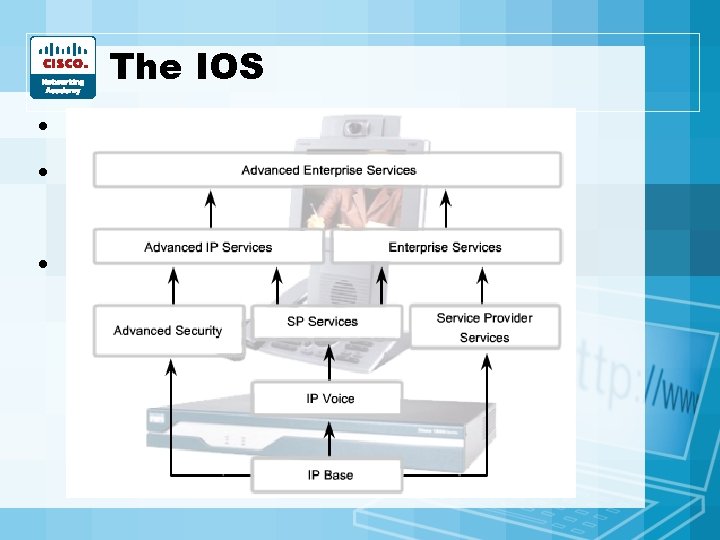
The IOS • Internetwork Operating System • Describe what an OS does? • IOS is offered in images – Each image supports different features
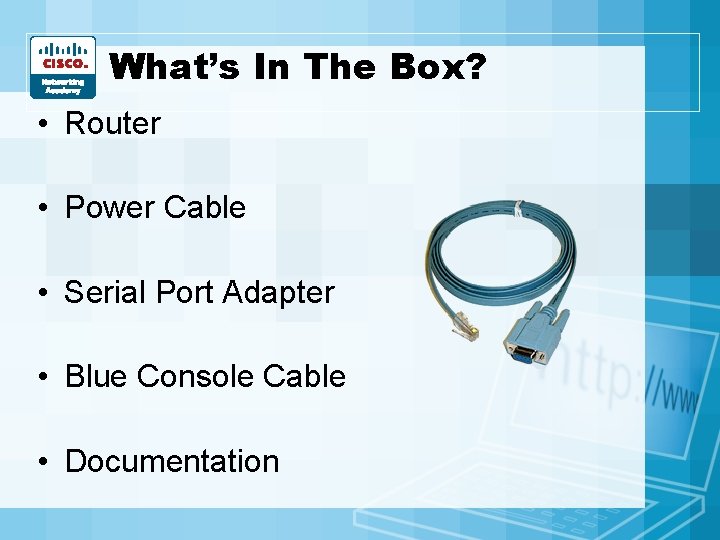
What’s In The Box? • Router • Power Cable • Serial Port Adapter • Blue Console Cable • Documentation
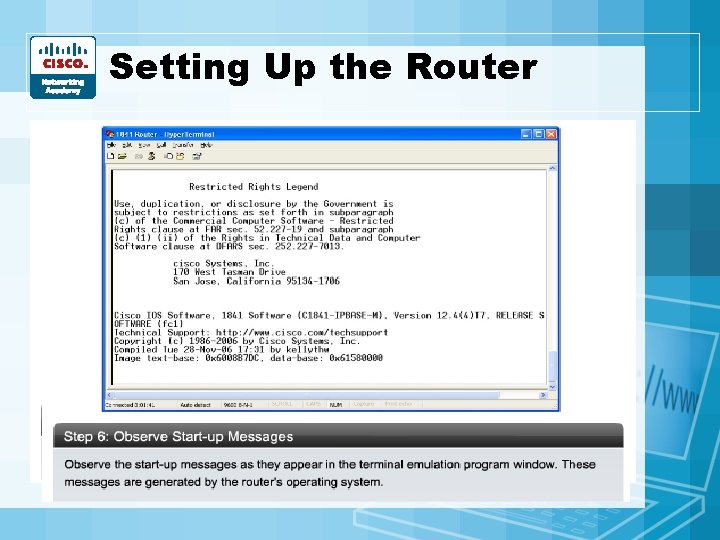
Setting Up the Router
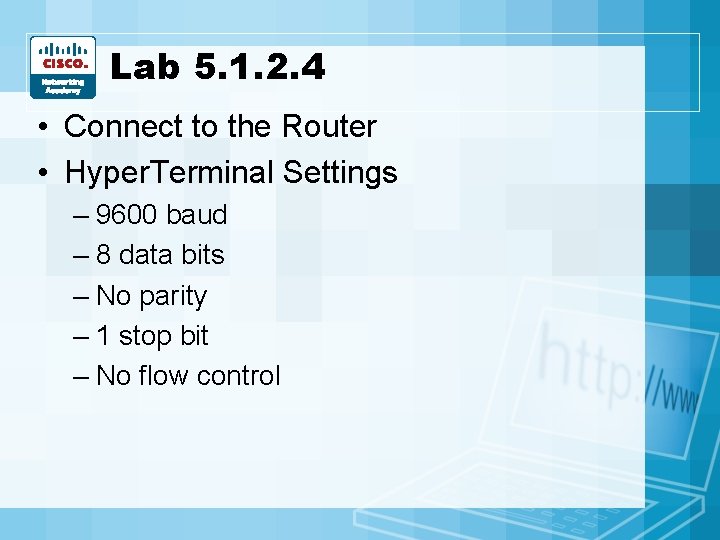
Lab 5. 1. 2. 4 • Connect to the Router • Hyper. Terminal Settings – 9600 baud – 8 data bits – No parity – 1 stop bit – No flow control
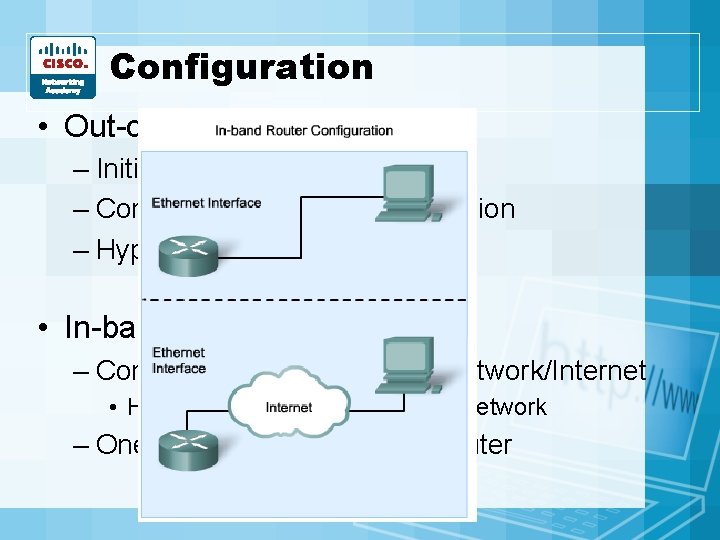
Configuration • Out-of-band management – Initial configuration – Console or AUX direct connection – Hyper. Terminal • In-band management – Configuration changes over network/Internet • HTTP or Telnet from outside of network – One port must be active on router
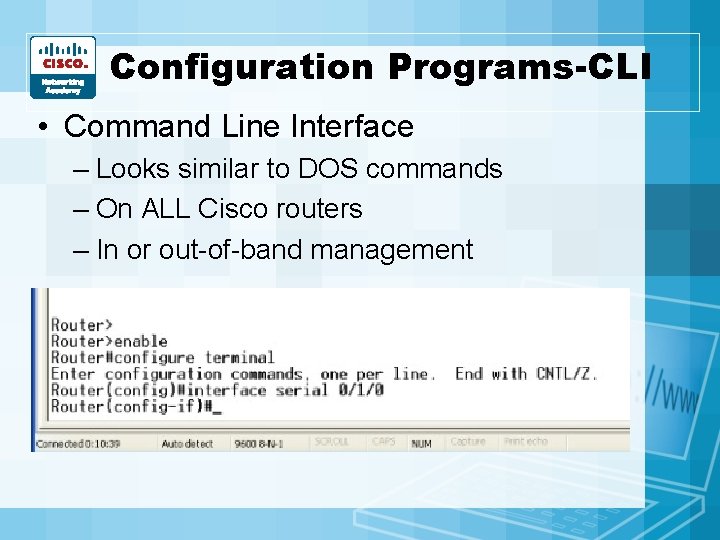
Configuration Programs-CLI • Command Line Interface – Looks similar to DOS commands – On ALL Cisco routers – In or out-of-band management
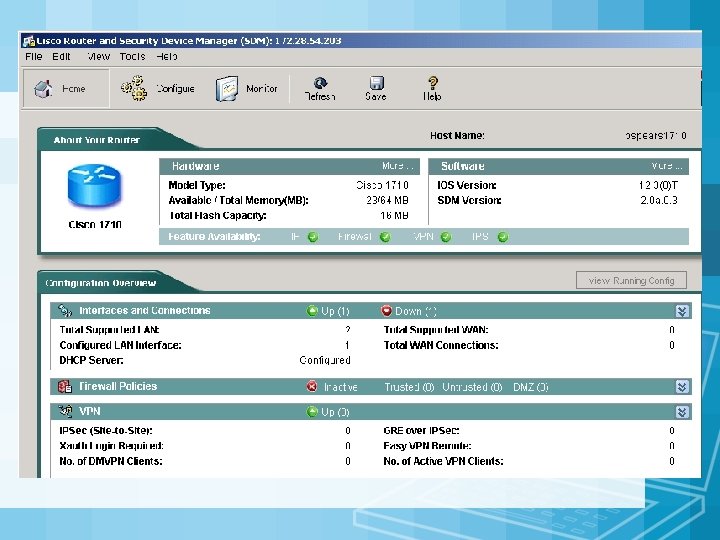
Configuration Programs-SDM • Security Device Manager – GUI – In-band management ONLY – Configure additional LAN and WAN connections – Create firewalls – Configure VPN connections – Perform security tasks
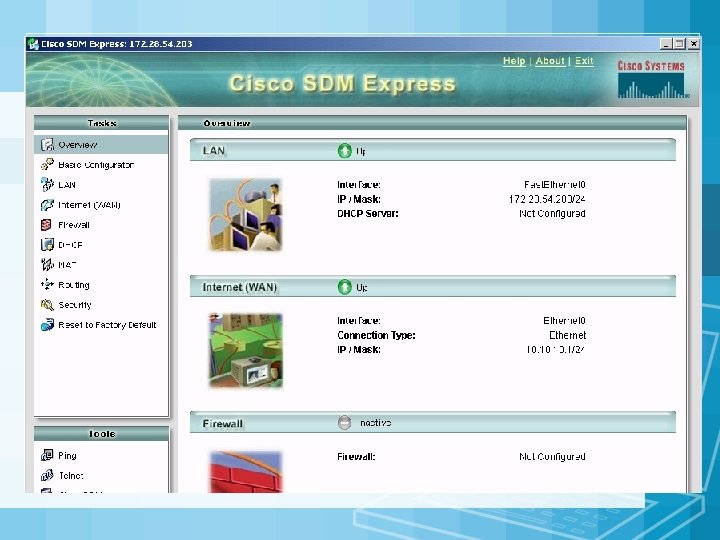
SDM Express • SDM Express – Initial router config
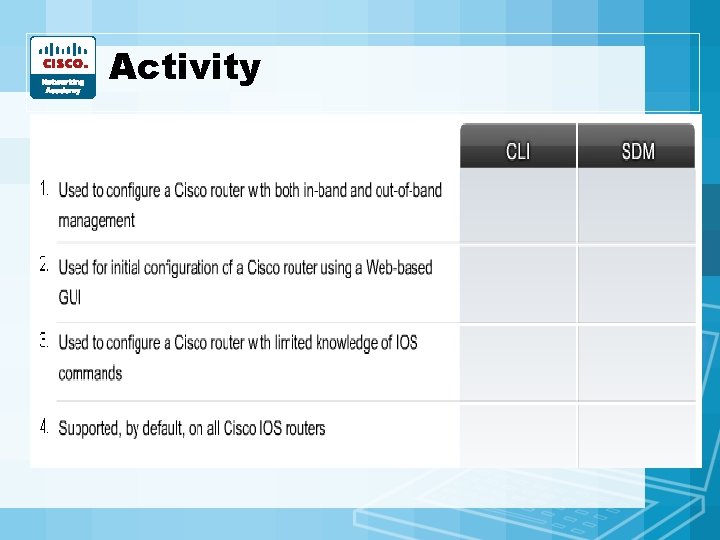
Activity • CLI or SDM? • • • Web-based? Text-based commands? Command-prompt based? Don’t need to know CLI commands? Step-by-step config process?
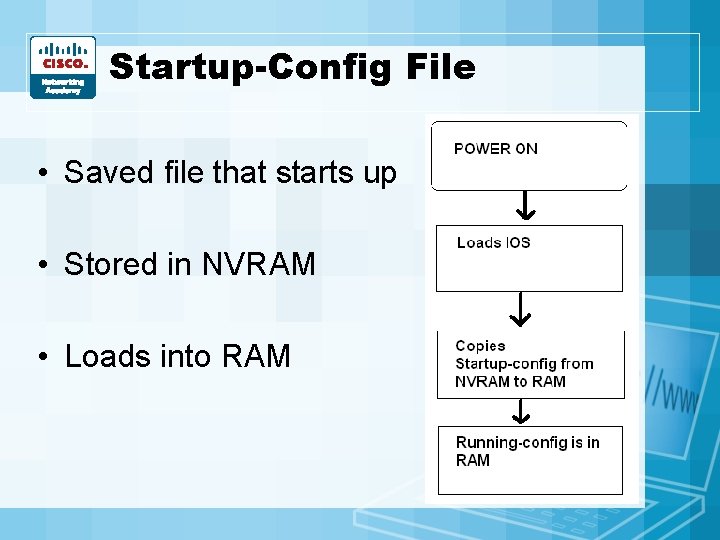
Startup-Config File • Saved file that starts up • Stored in NVRAM • Loads into RAM
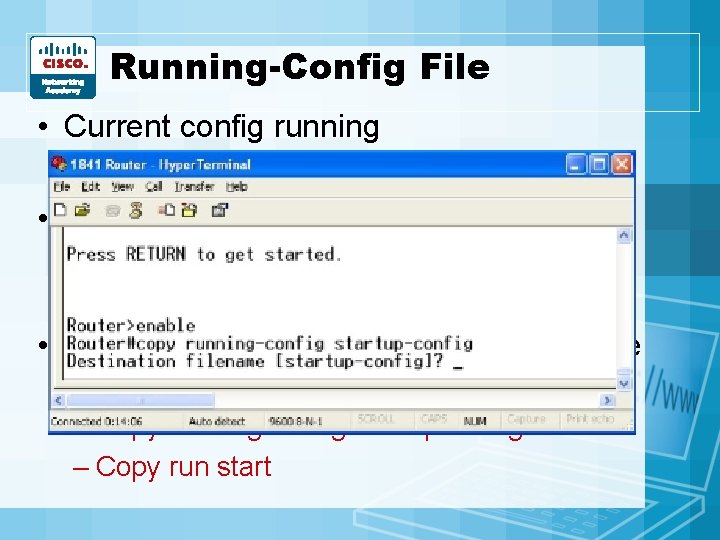
Running-Config File • Current config running • Stored in RAM – Goes away when shut down (unless saved) • If you make a config change, it MUST be saved – Copy running-config startup-config – Copy run start
Packet Tracer Lab • 5. 1. 5. 2 • Exploring the Running & Startup Configuration Files
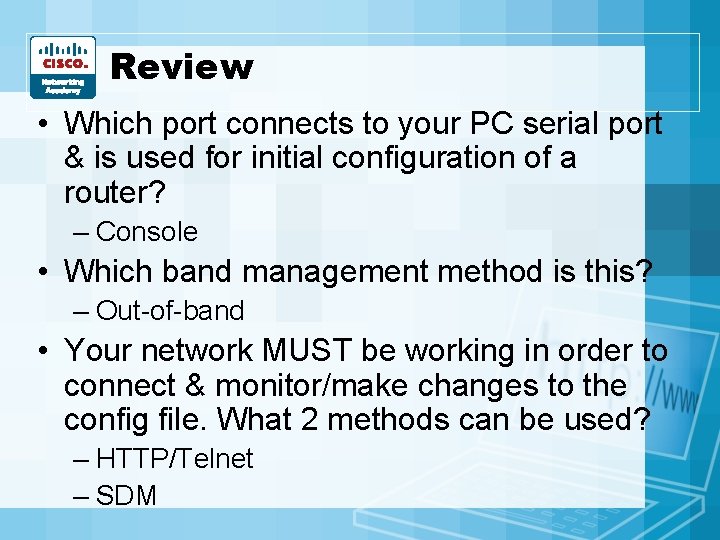
Review • Which port connects to your PC serial port & is used for initial configuration of a router? – Console • Which band management method is this? – Out-of-band • Your network MUST be working in order to connect & monitor/make changes to the config file. What 2 methods can be used? – HTTP/Telnet – SDM
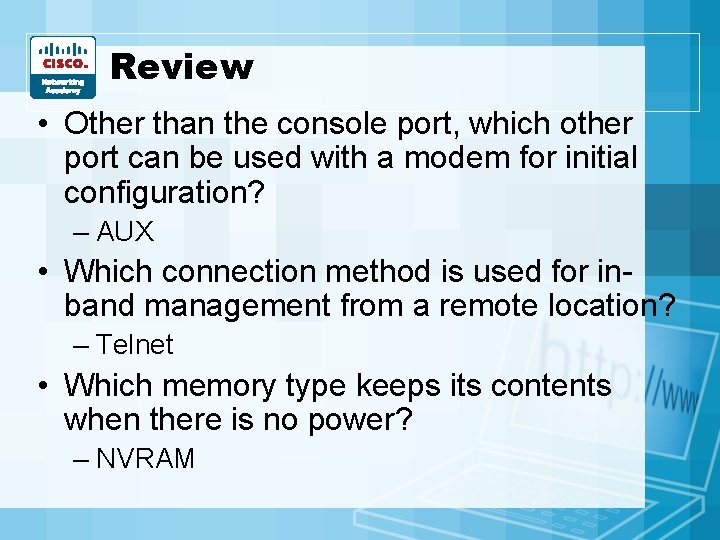
Review • Other than the console port, which other port can be used with a modem for initial configuration? – AUX • Which connection method is used for inband management from a remote location? – Telnet • Which memory type keeps its contents when there is no power? – NVRAM
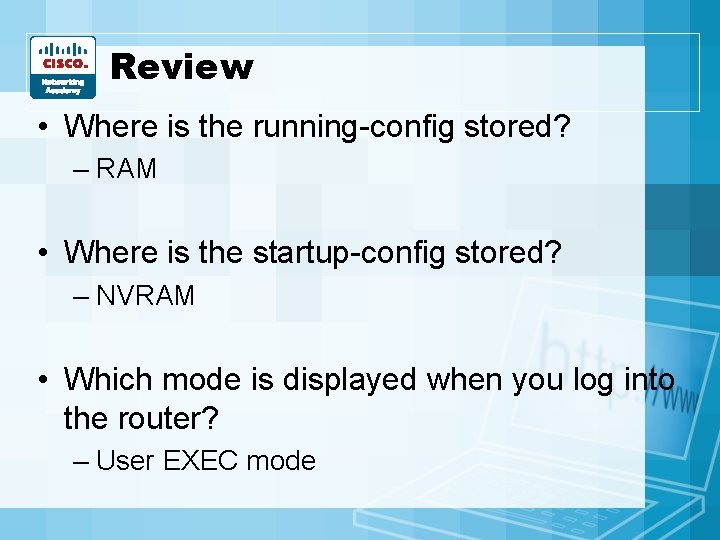
Review • Where is the running-config stored? – RAM • Where is the startup-config stored? – NVRAM • Which mode is displayed when you log into the router? – User EXEC mode
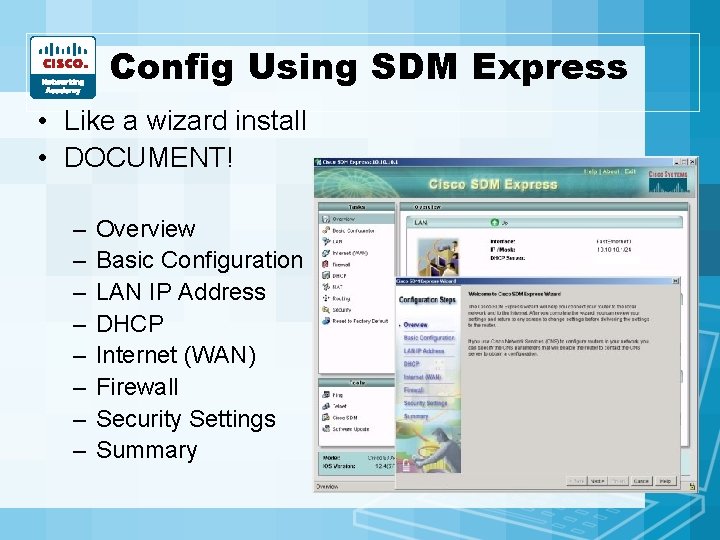
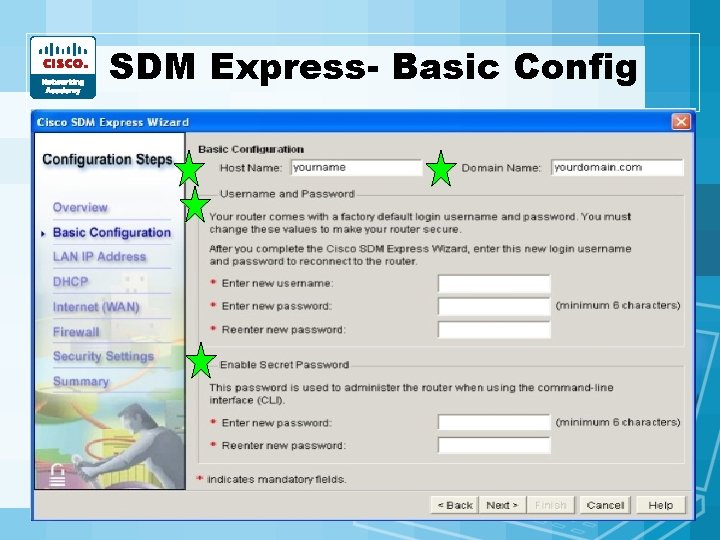
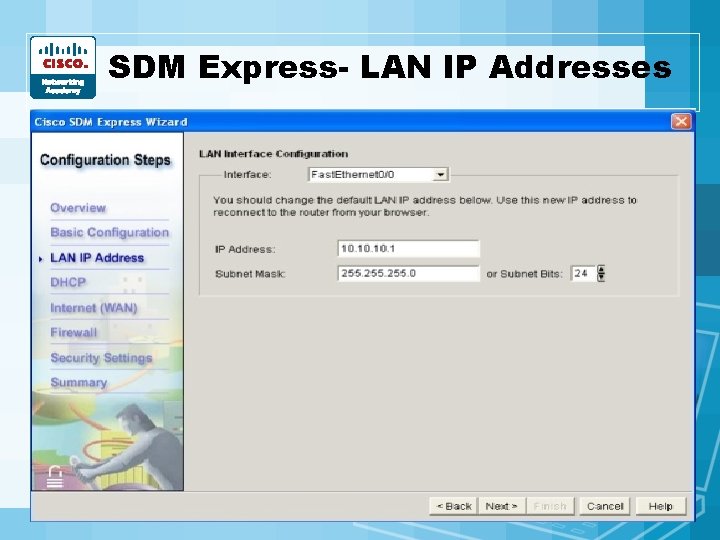
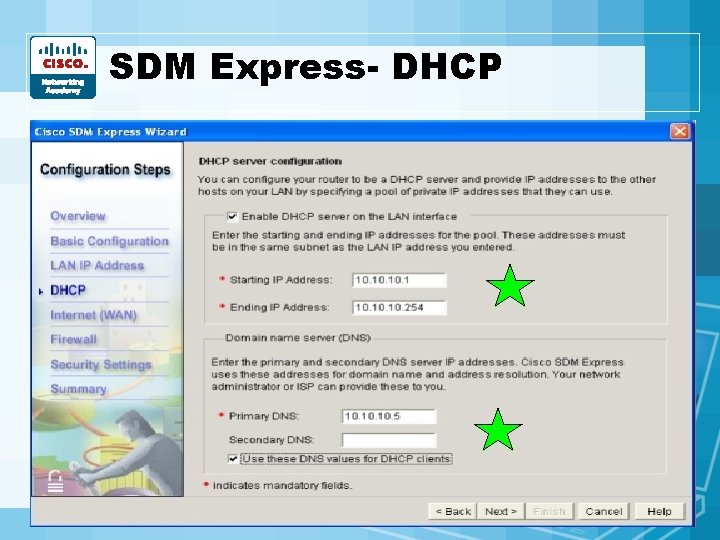
Config Using SDM Express • Like a wizard install • DOCUMENT! – – – – Overview Basic Configuration LAN IP Address DHCP Internet (WAN) Firewall Security Settings Summary
SDM Express- Basic Config
SDM Express- LAN IP Addresses
SDM Express- DHCP
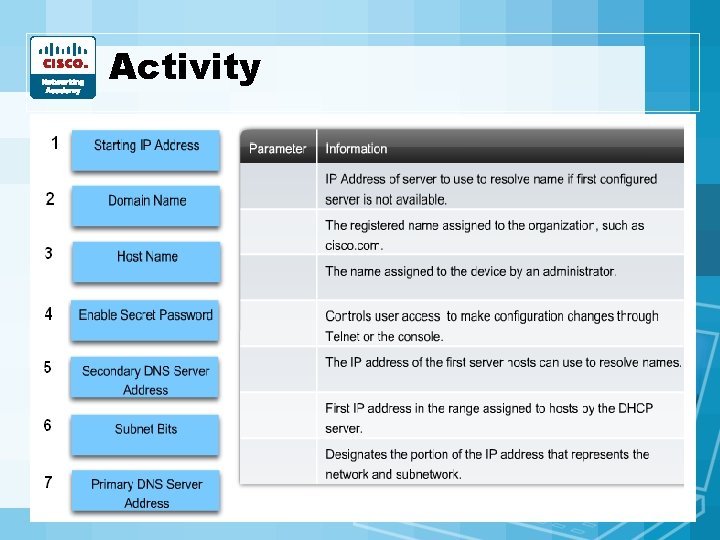
Activity
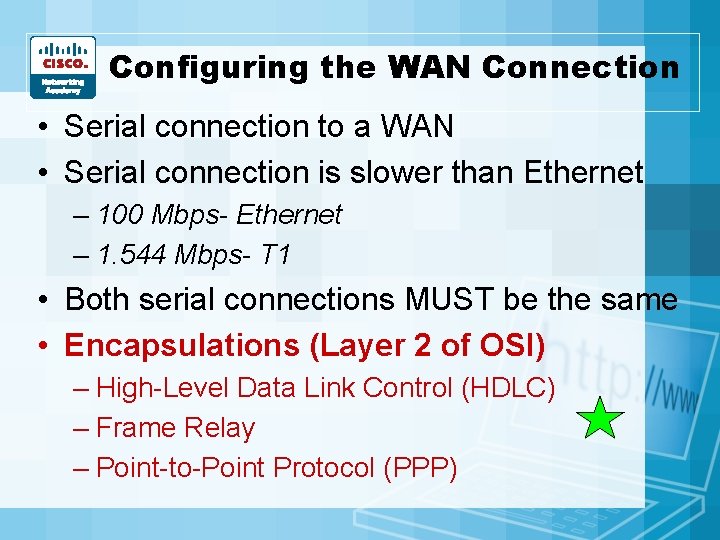
Configuring the WAN Connection • Serial connection to a WAN • Serial connection is slower than Ethernet – 100 Mbps- Ethernet – 1. 544 Mbps- T 1 • Both serial connections MUST be the same • Encapsulations (Layer 2 of OSI) – High-Level Data Link Control (HDLC) – Frame Relay – Point-to-Point Protocol (PPP)
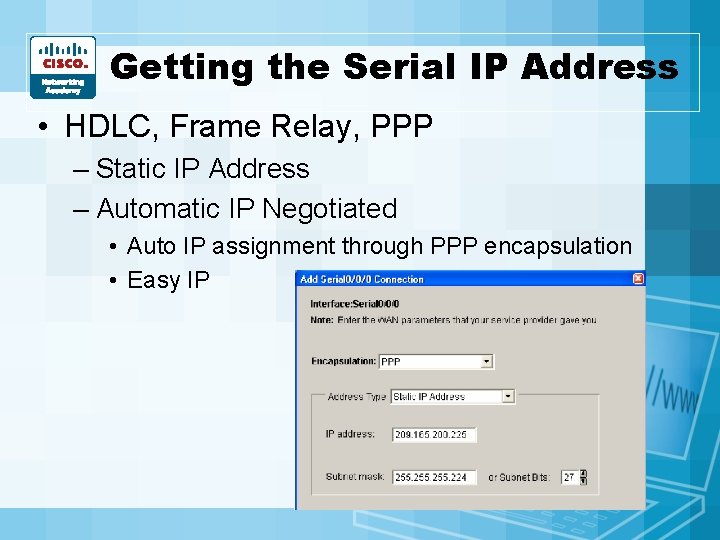
Getting the Serial IP Address • HDLC, Frame Relay, PPP – Static IP Address – Automatic IP Negotiated • Auto IP assignment through PPP encapsulation • Easy IP
Lab 5. 2. 3 • Configuring the Router with SDM Express
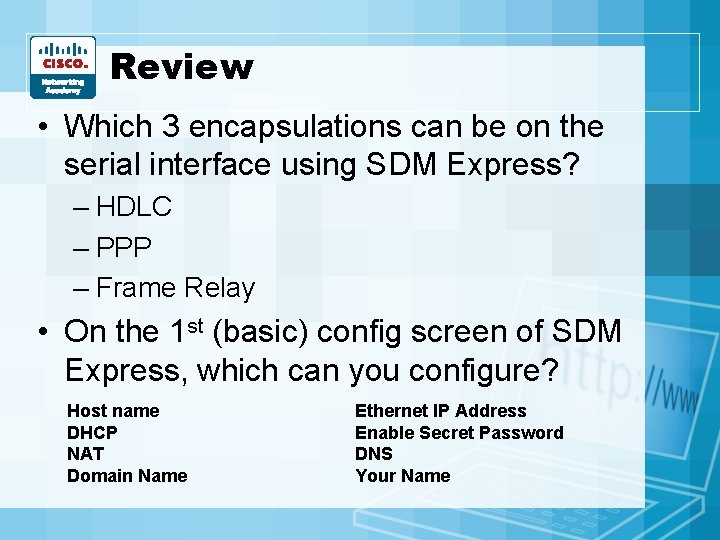
Review • Which 3 encapsulations can be on the serial interface using SDM Express? – HDLC – PPP – Frame Relay • On the 1 st (basic) config screen of SDM Express, which can you configure? Host name DHCP NAT Domain Name Ethernet IP Address Enable Secret Password DNS Your Name
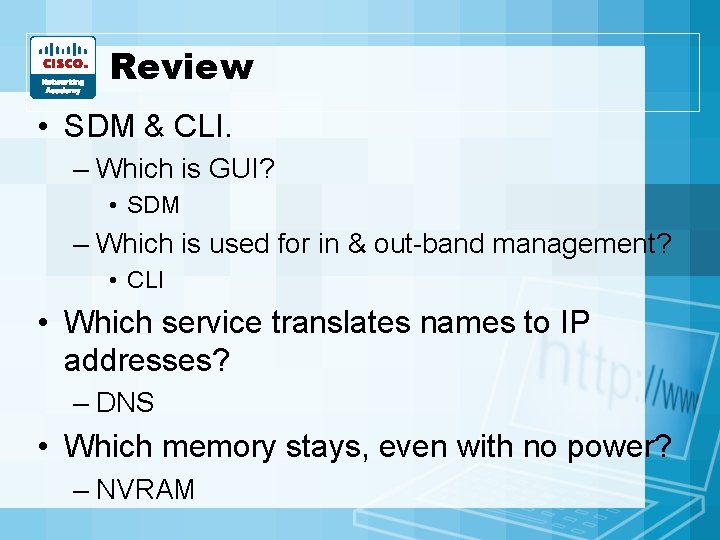
Review • SDM & CLI. – Which is GUI? • SDM – Which is used for in & out-band management? • CLI • Which service translates names to IP addresses? – DNS • Which memory stays, even with no power? – NVRAM
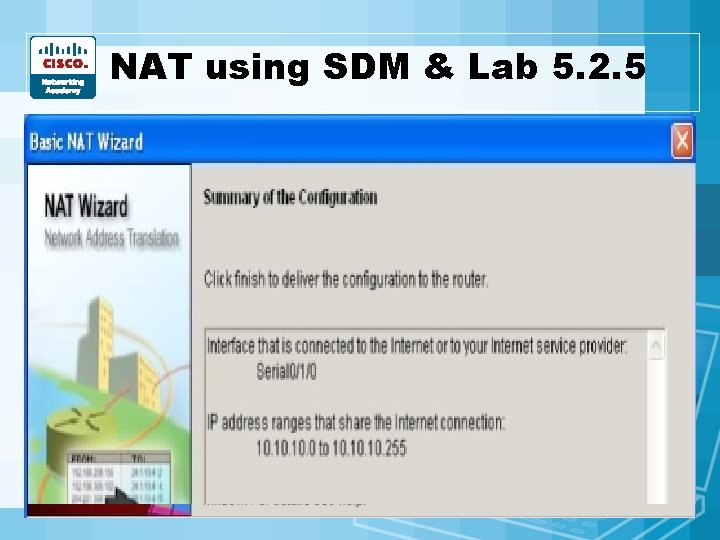
NAT using SDM & Lab 5. 2. 5 • Use Basic NAT (Dynamic) – Inside Locals share the WAN IP address (Inside Global) – Must tell it which address will share
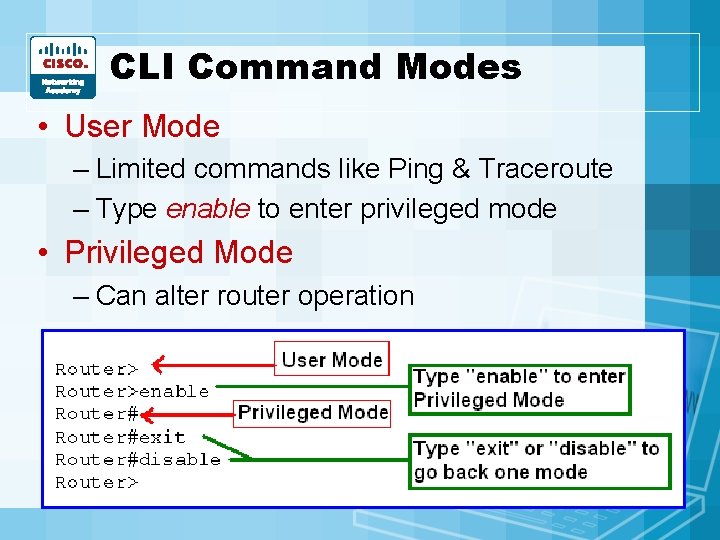
CLI Command Modes • User Mode – Limited commands like Ping & Traceroute – Type enable to enter privileged mode • Privileged Mode – Can alter router operation
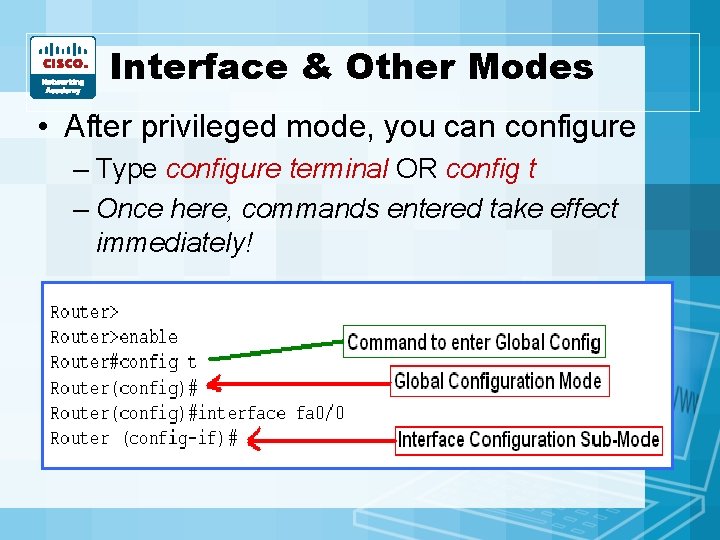
Interface & Other Modes • After privileged mode, you can configure – Type configure terminal OR config t – Once here, commands entered take effect immediately!
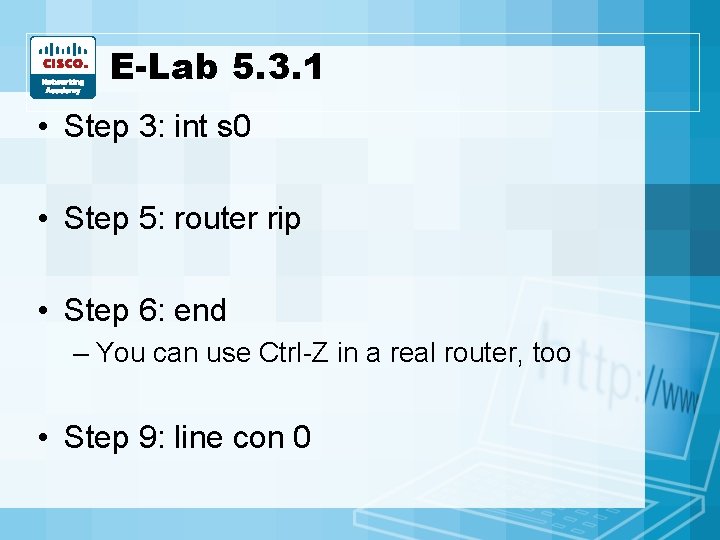
E-Lab 5. 3. 1 • Step 3: int s 0 • Step 5: router rip • Step 6: end – You can use Ctrl-Z in a real router, too • Step 9: line con 0
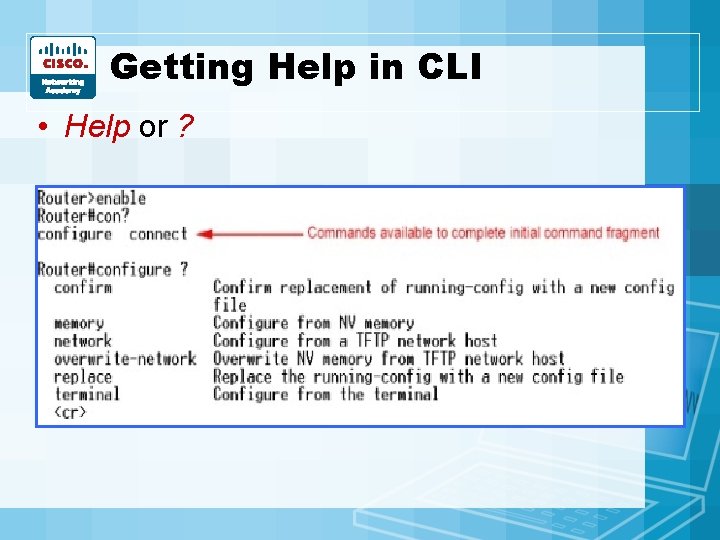
Getting Help in CLI • Help or ?
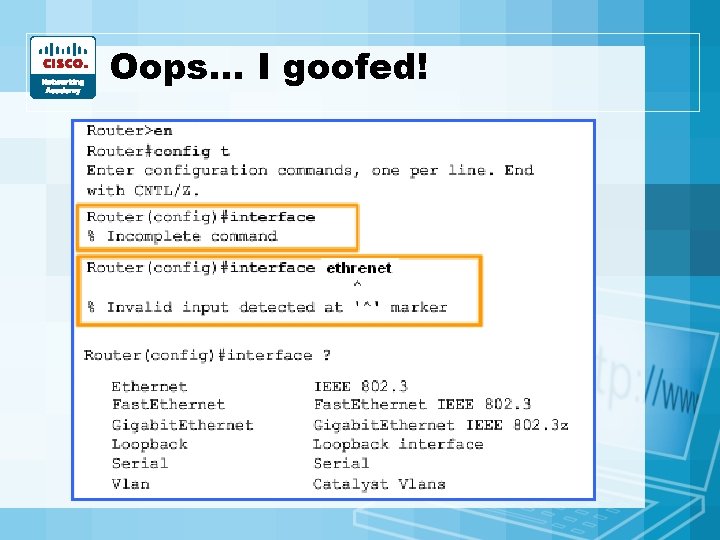
Oops… I goofed!
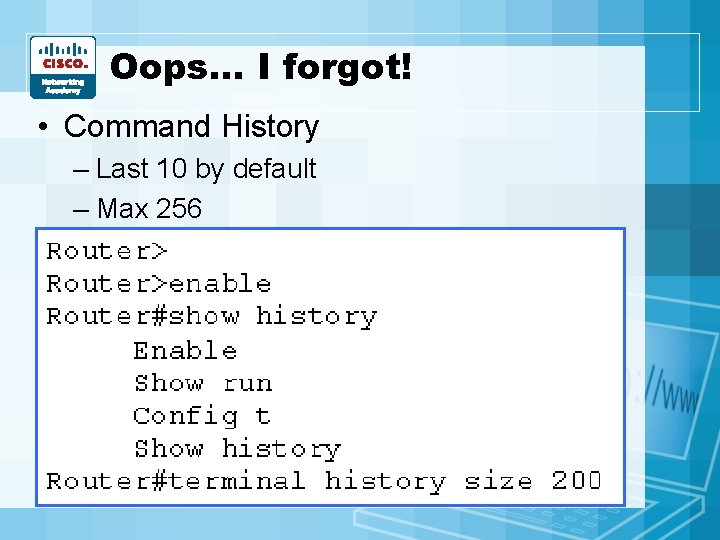
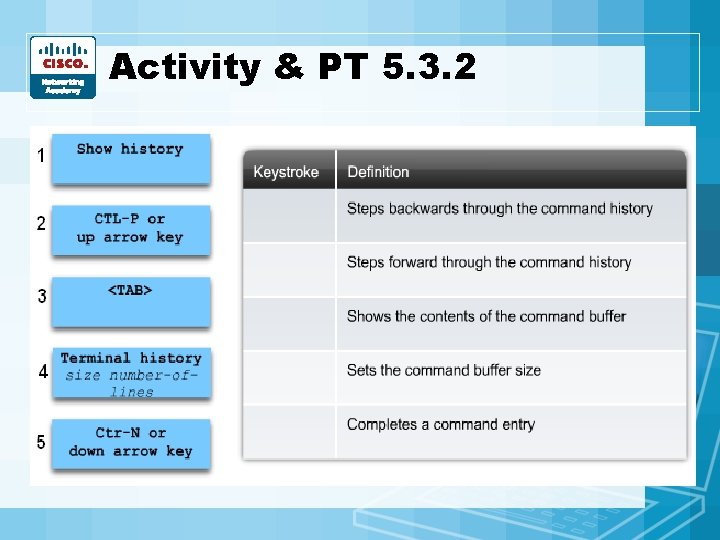
Oops… I forgot! • Command History – Last 10 by default – Max 256 • Previous command – Ctrl-P or ↑ • Recent Command – Ctrl-N or ↓ • Tab – Completes command entry
Activity & PT 5. 3. 2
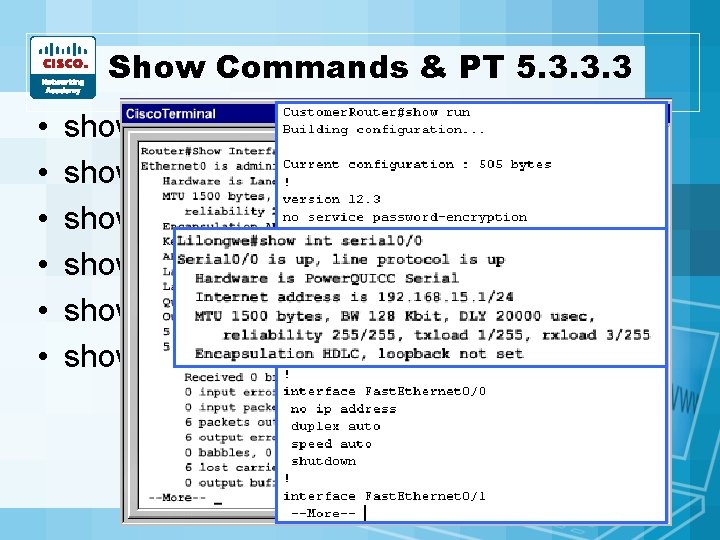
Show Commands & PT 5. 3. 3. 3 • • • show running-config show interfaces show arp show ip route show users show version
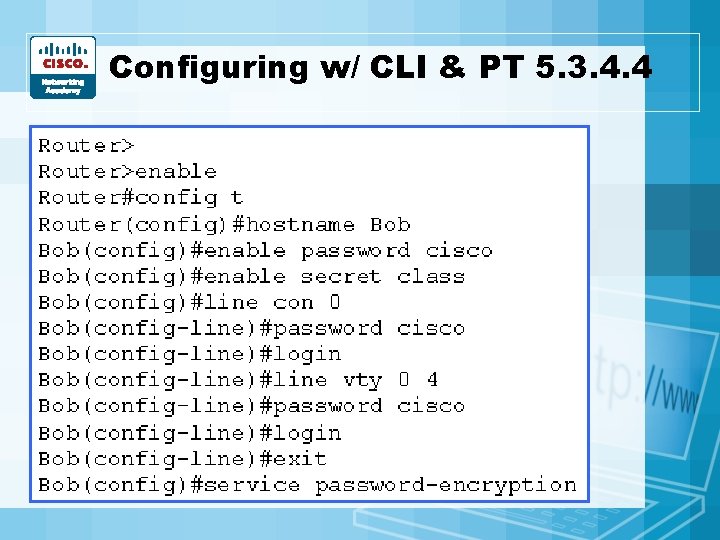
Configuring w/ CLI & PT 5. 3. 4. 4
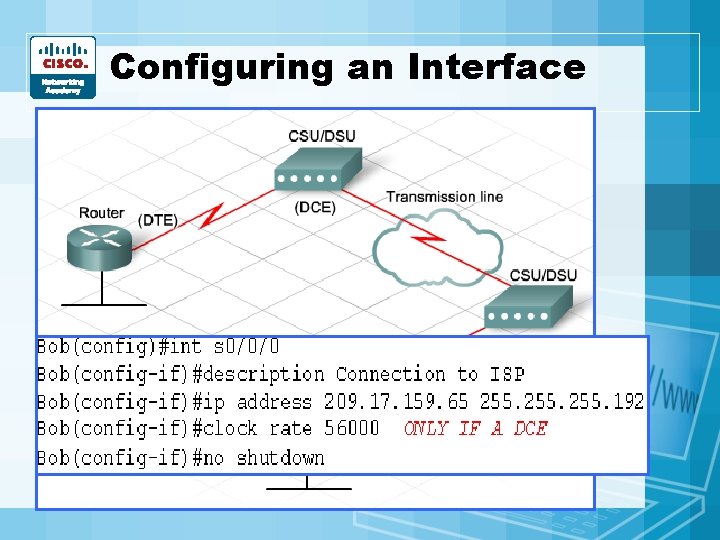
Configuring an Interface • Serial & Ethernet are common • Serial (WAN) – Your router is a DTE – CSU/DSU is the DCE – DCE provides a clocking rate
Labs, & More Labs • E-Lab 5. 3 • Packet Tracer 5. 3. 5. 4 • Lab 5. 3. 5. 5
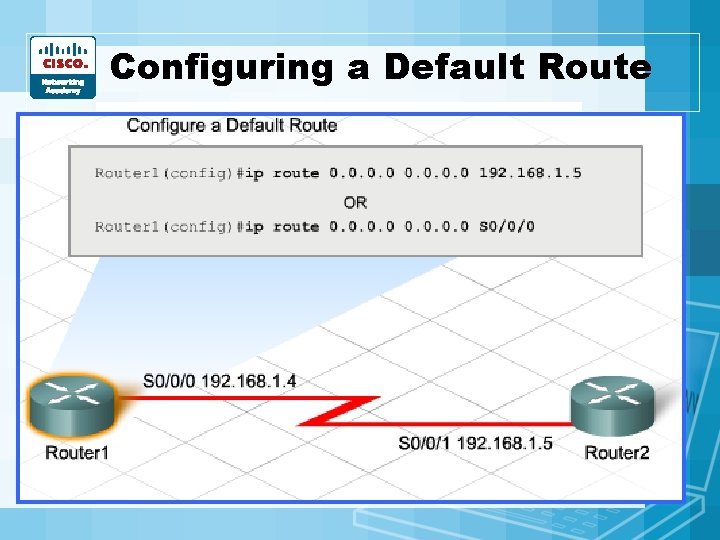
Configuring a Default Route • Router forwards packet to destination net – Looks at routing table to see which port to go out – Can set a default route to go out if not in routing table
Labs…Yup! • Only one this time • Packet Tracer 5. 3. 6. 2
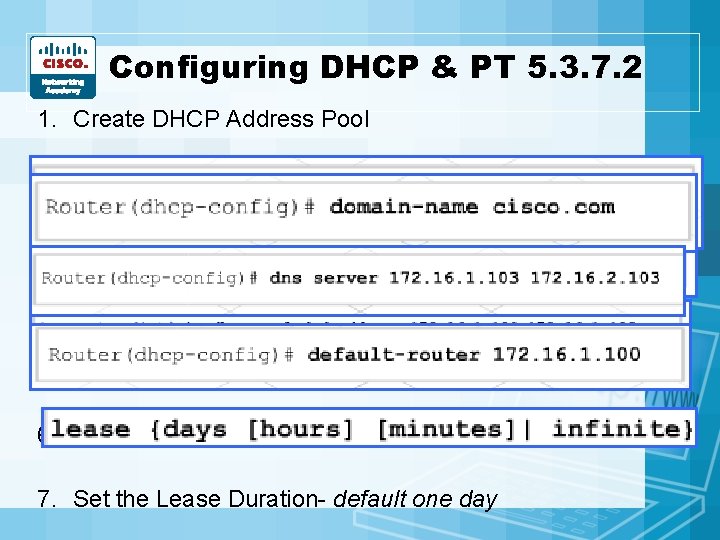
Configuring DHCP & PT 5. 3. 7. 2 1. Create DHCP Address Pool 2. Specify the Subnet 3. Exclude any IP Addresses 4. Specify the Domain Name- optional 5. DNS Server IP Address- 1 or 2 usually 6. Set the Default Gateway Address to be sent 7. Set the Lease Duration- default one day
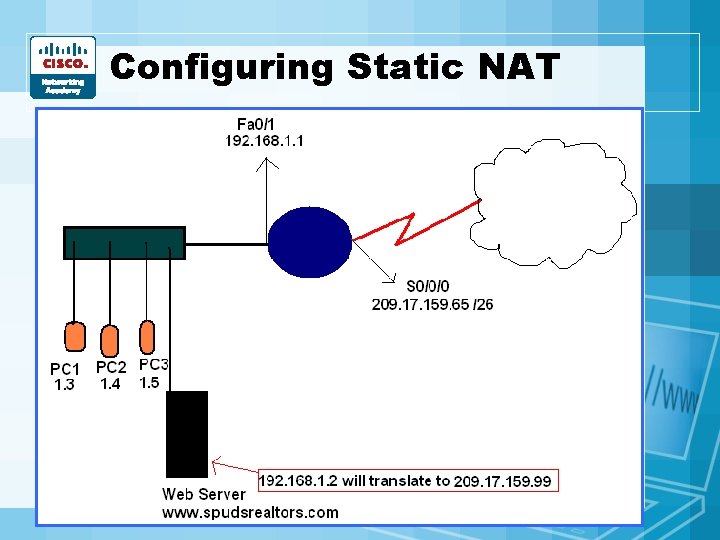
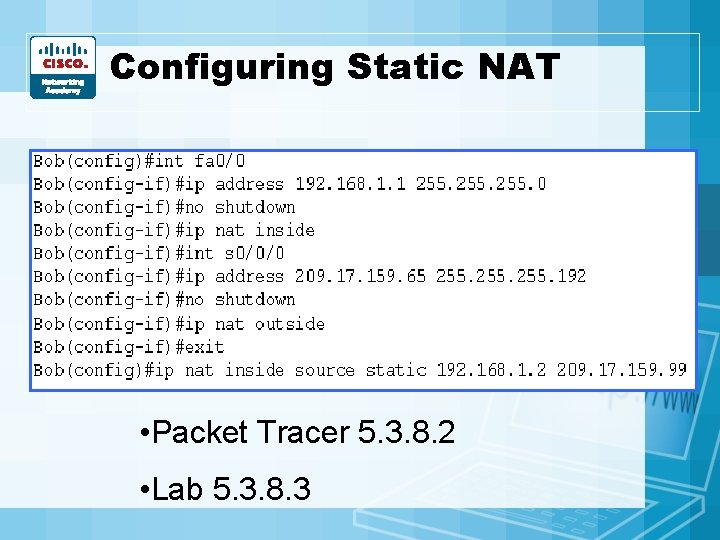
Configuring Static NAT • Inside server needs to be accessed from Internet – Must translate the private IP to the SAME public IP
Configuring Static NAT • Packet Tracer 5. 3. 8. 2 • Lab 5. 3. 8. 3
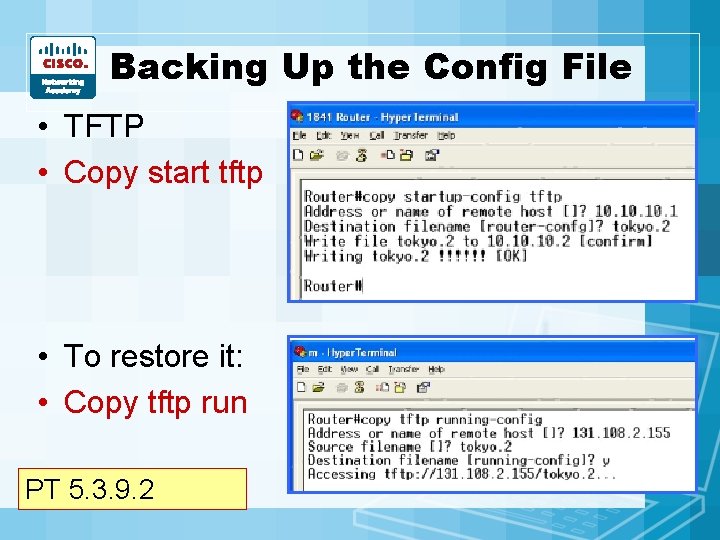
Backing Up the Config File • TFTP • Copy start tftp • To restore it: • Copy tftp run PT 5. 3. 9. 2
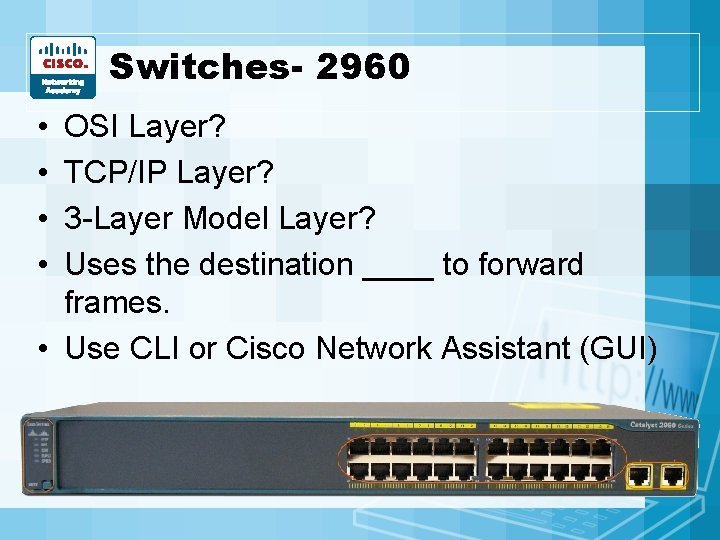
Switches- 2960 • • OSI Layer? TCP/IP Layer? 3 -Layer Model Layer? Uses the destination ____ to forward frames. • Use CLI or Cisco Network Assistant (GUI)
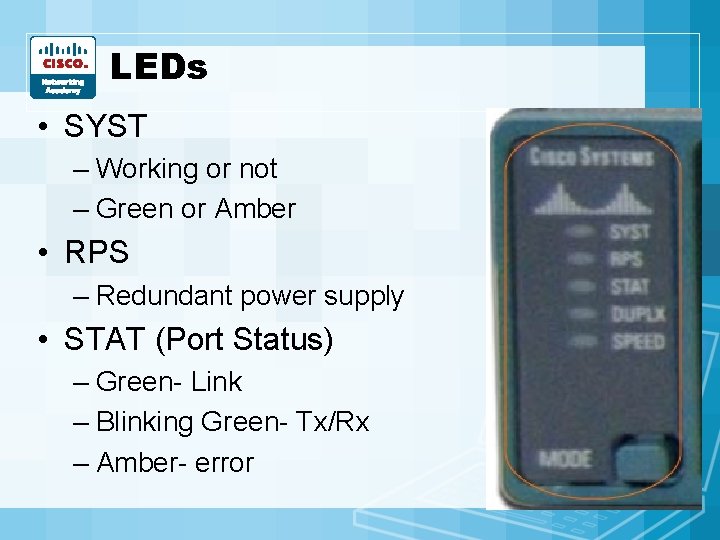
LEDs • SYST – Working or not – Green or Amber • RPS – Redundant power supply • STAT (Port Status) – Green- Link – Blinking Green- Tx/Rx – Amber- error
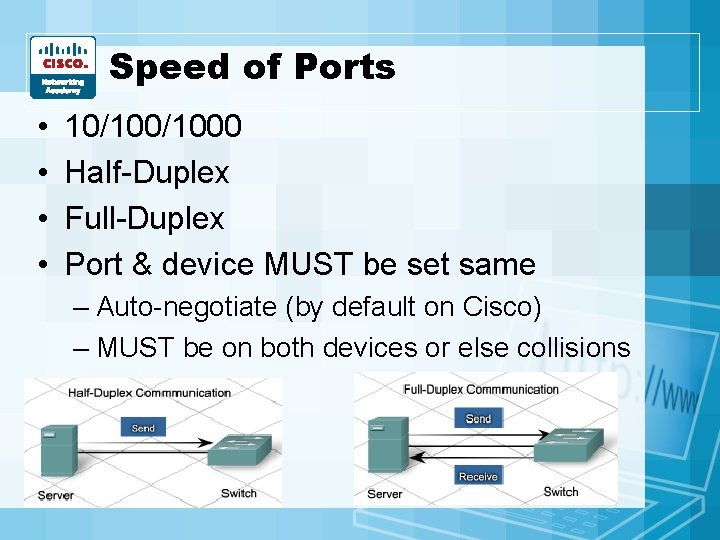
Speed of Ports • • 10/1000 Half-Duplex Full-Duplex Port & device MUST be set same – Auto-negotiate (by default on Cisco) – MUST be on both devices or else collisions
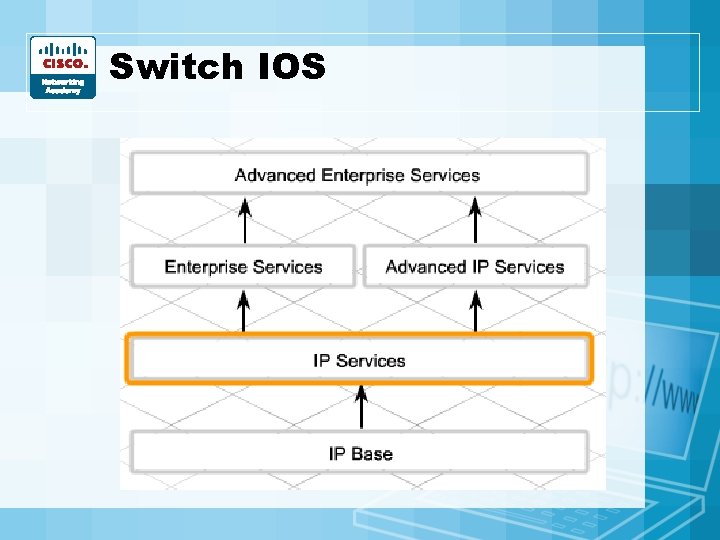
Switch IOS
Power On • • Some don’t have power switch POST 1 st LEDs blink SYST LED blinks green fast= done POST – Fails= AMBER (needs repair)
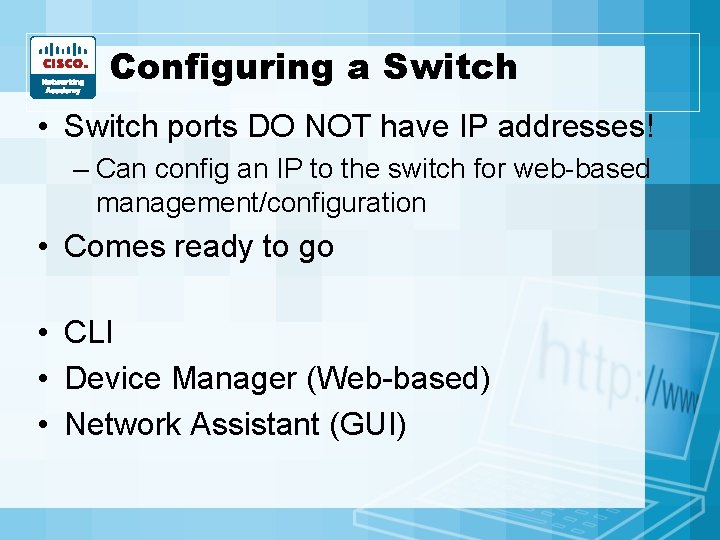
Configuring a Switch • Switch ports DO NOT have IP addresses! – Can config an IP to the switch for web-based management/configuration • Comes ready to go • CLI • Device Manager (Web-based) • Network Assistant (GUI)
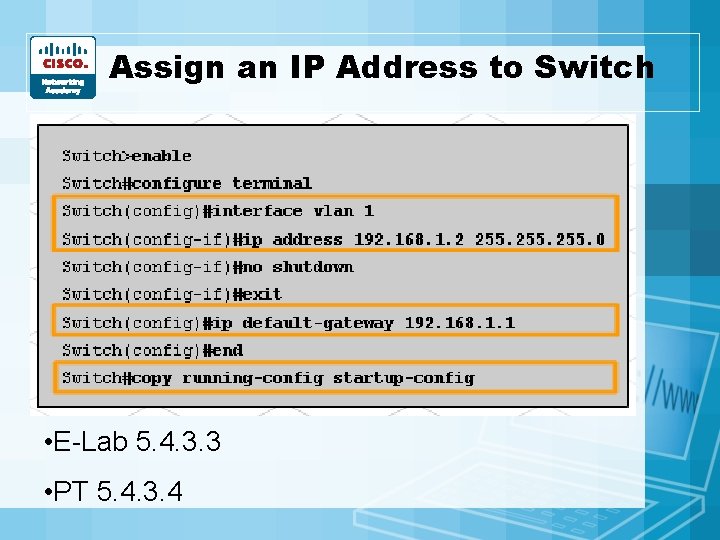
Assign an IP Address to Switch • E-Lab 5. 4. 3. 3 • PT 5. 4. 3. 4
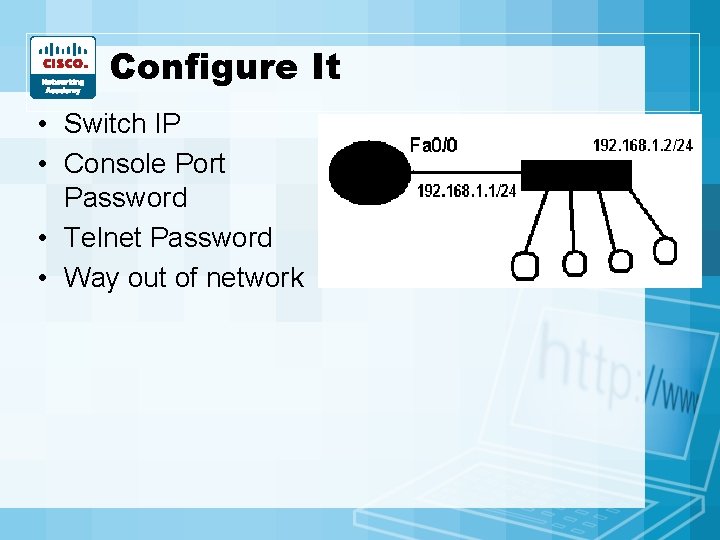
Configure It • Switch IP • Console Port Password • Telnet Password • Way out of network
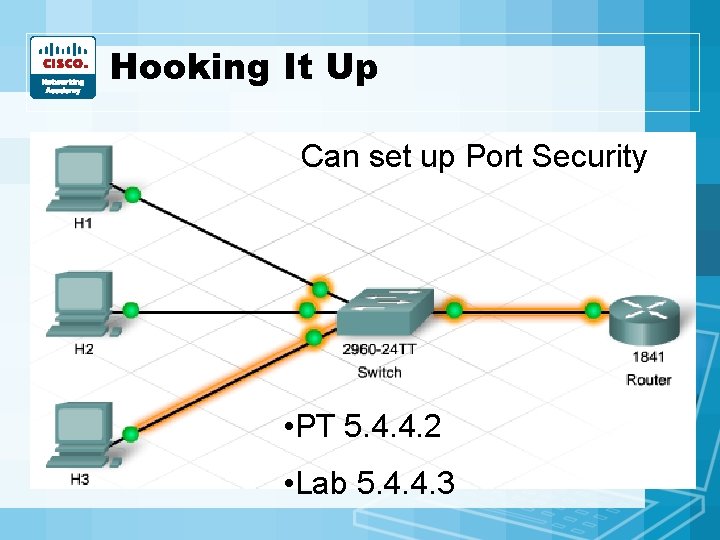
Hooking It Up Can set up Port Security • PT 5. 4. 4. 2 • Lab 5. 4. 4. 3
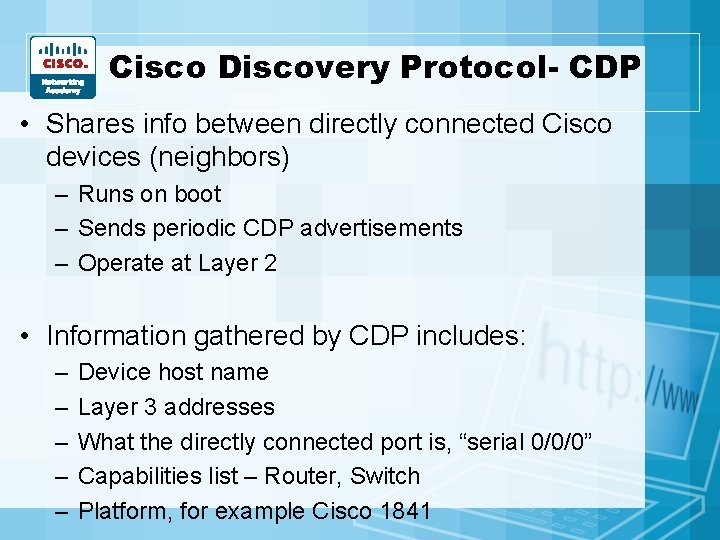
Cisco Discovery Protocol- CDP • Shares info between directly connected Cisco devices (neighbors) – Runs on boot – Sends periodic CDP advertisements – Operate at Layer 2 • Information gathered by CDP includes: – – – Device host name Layer 3 addresses What the directly connected port is, “serial 0/0/0” Capabilities list – Router, Switch Platform, for example Cisco 1841
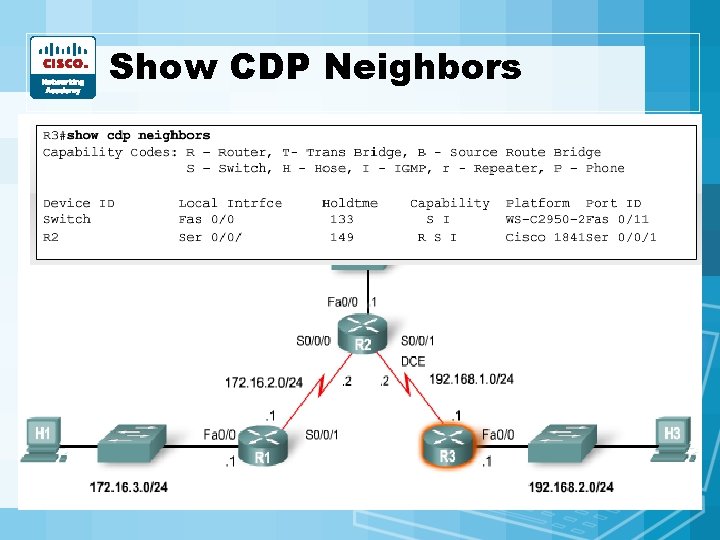
Show CDP Neighbors
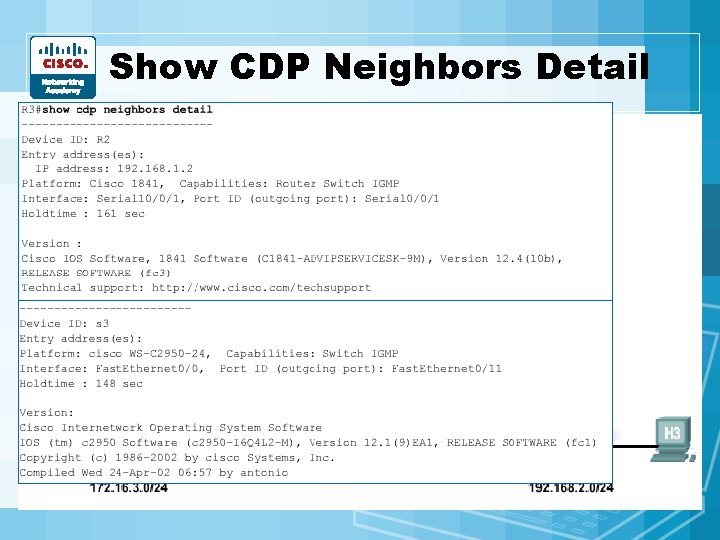
Show CDP Neighbors Detail
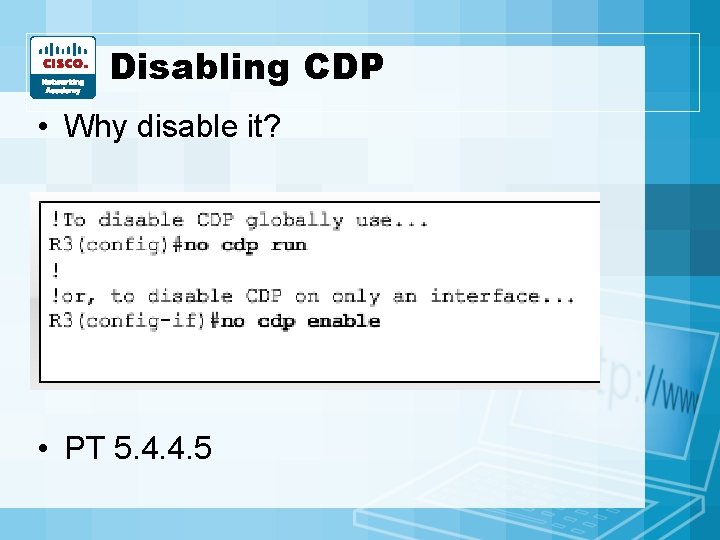
Disabling CDP • Why disable it? • PT 5. 4. 4. 5
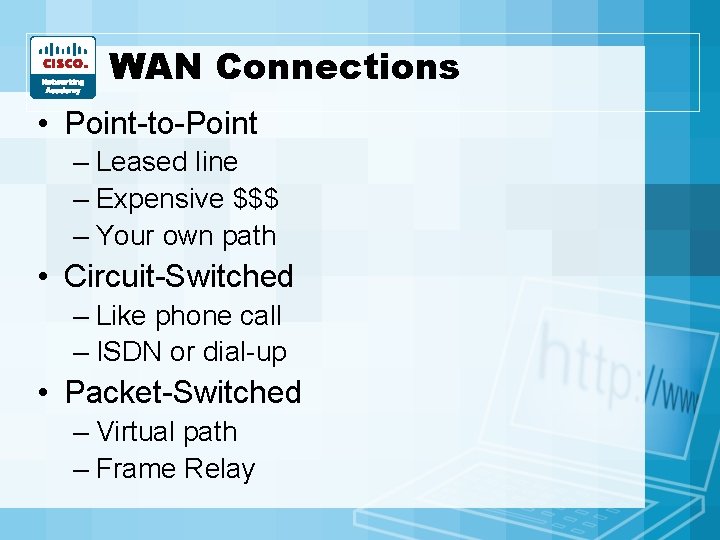
WAN Connections • Point-to-Point – Leased line – Expensive $$$ – Your own path • Circuit-Switched – Like phone call – ISDN or dial-up • Packet-Switched – Virtual path – Frame Relay
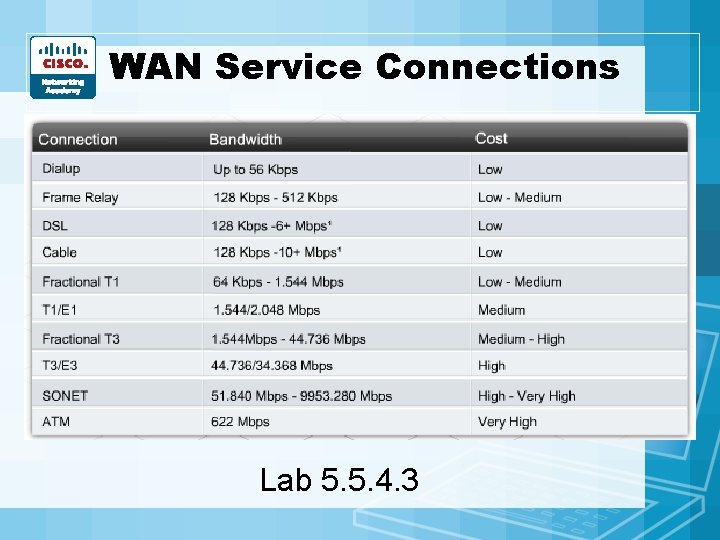
WAN Service Connections Lab 5. 5. 4. 3
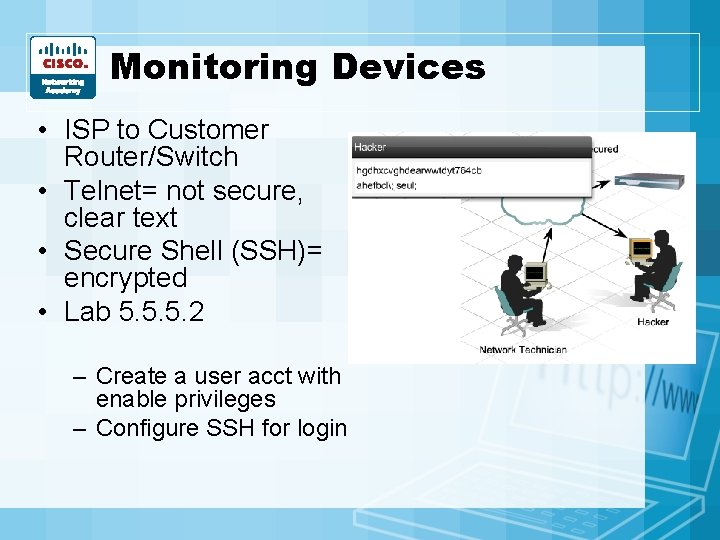
Monitoring Devices • ISP to Customer Router/Switch • Telnet= not secure, clear text • Secure Shell (SSH)= encrypted • Lab 5. 5. 5. 2 – Create a user acct with enable privileges – Configure SSH for login
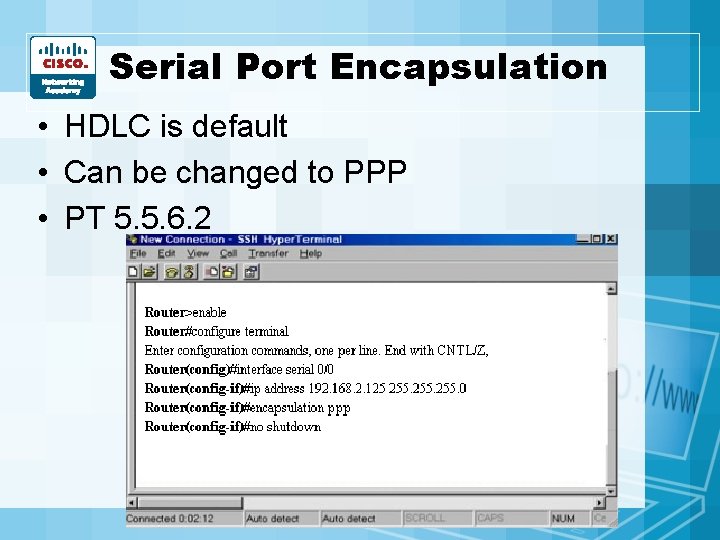
Serial Port Encapsulation • HDLC is default • Can be changed to PPP • PT 5. 5. 6. 2
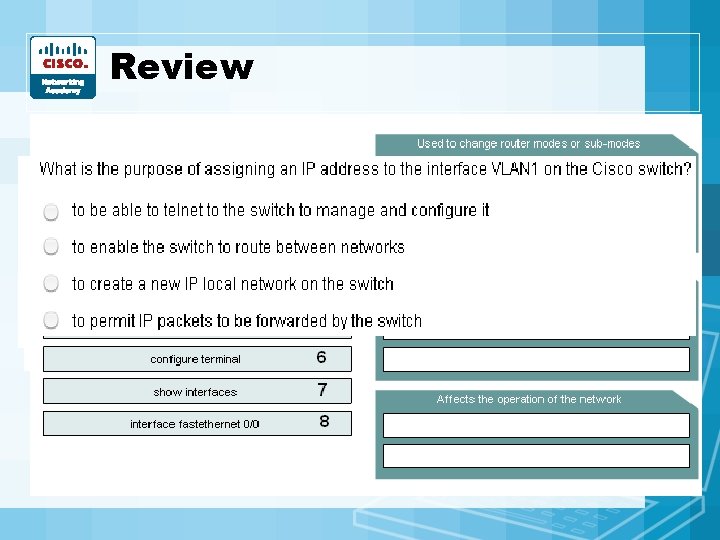
Review
5: Configuring Network Devices Working at a Small-to-Medium Business or ISP