
User Interface Design for Wordnet Website Indowordnet Workshop1
User Interface Design for Wordnet Website Indowordnet Workshop(1 -2 nd Jan 2011 IITB, Mumbai)
Success of any software depends on the acceptability of the Users
Outline � Design Concerns � Web Application � Users � Functionality and Purpose � Type of Users � Device Type and Environment � General Guidelines � Do’s and Don'ts of GUI Design � Proposed Solution � User, User type and Device dependent Designs � Steps to design GUI 3
DESIGN CONCERNS: Web Application � What are the websites /web applications required? � Individual Language Word. Net Website � One for each Consortium member language � One Indo. Word. Net Website 4 User Interface Design For Wordnet Website
DESIGN CONCERNS: Understanding the Users � Who will use the website/web application? � Category 1 : Academicians � Language Teachers � Language Students � Category 2 : Researchers � NLP Researchers � Developer of NLP tools � Linguists � Category 3: General Users 5 User Interface Design For Wordnet Website
DESIGN CONCERNS: Functionalities � What are the functionalities that the users will expect ? � Online dictionary � Act as a thesaurus � To study basic linguistics concepts � To study the structure of Word. Net � Use Word. Net to build NLP applications 6
DESIGN CONCERNS: Purpose � What will be the use of this website/web application? � Main Usages will be for � Searching a particular word � Knowing Relations between words � Research � Teaching linguistic concepts � Downloading synset data and API’s to build new NLP Application � For Word. Net Developers � Make the Word. Net data available to general public � Obtain Feedback from Users to improve the overall Word. Net quality and utility 7
DESIGN CONCERNS: Type of User � How comfortable are our users with Computers / The Web? (COMFORT LEVEL) � Medium � Advanced 8
DESIGN CONCERNS: Device Type and Environment �What are the devices that the users will be using this website / web application? Ex. Computer, Hand Held devices, Tabs, Cell phones etc. � Do we want to extend the functionalities to other devices? – To be discussed 9
DESIGN CONCERNS: Device Type and Environment �What screen resolution will the user see the website/web application? (SCREEN RESOLUTION) � Web is not WYSIWYG � 1024 X 786 (present standard)computer screen � Depends on the device 10
DESIGN CONCERNS: Device Type and Environment �In what form / format will the user be expecting the information from the website/web application? (FORMAT) � Depending on the Users. � To be decided 11
GENERAL GUIDELINES: Do’s and Don’ts of GUI Design (1/7)… � Have multiple GUI design for a website � Depending on the users - Ajax based for advanced users and simple html for general users � Depending on the devices - Separate GUI’s could be created for other devices (? ) � Design using DIV and CSS (avoid tables unless necessary). � Demonstration (Konkani Word. Net html template) � Do not use frames. � HTML 5 will not support frames 12
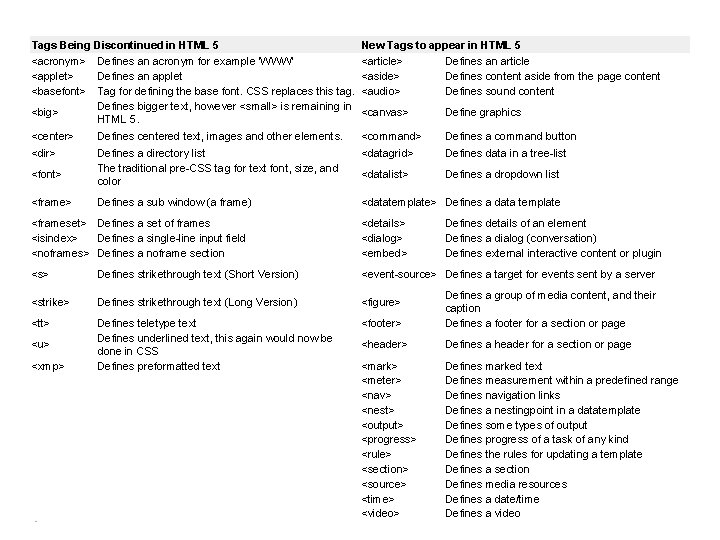
Tags Being Discontinued in HTML 5 <acronym> Defines an acronym for example ‘WWW’ <applet> Defines an applet <basefont> Tag for defining the base font. CSS replaces this tag. Defines bigger text, however <small> is remaining in <big> HTML 5. New Tags to appear in HTML 5 <article> Defines an article <aside> Defines content aside from the page content <audio> Defines sound content <canvas> Define graphics <center> Defines centered text, images and other elements. <command> Defines a command button <dir> Defines a directory list The traditional pre-CSS tag for text font, size, and color <datagrid> Defines data in a tree-list <datalist> Defines a dropdown list Defines a sub window (a frame) <datatemplate> Defines a data template <font> <frameset> Defines a set of frames <isindex> Defines a single-line input field <noframes> Defines a noframe section <details> <dialog> <embed> <s> Defines strikethrough text (Short Version) <event-source> Defines a target for events sent by a server <strike> Defines strikethrough text (Long Version) <figure> <tt> Defines teletype text Defines underlined text, this again would now be done in CSS Defines preformatted text <footer> Defines a group of media content, and their caption Defines a footer for a section or page <header> Defines a header for a section or page <mark> <meter> <nav> <nest> <output> <progress> <rule> <section> <source> <time> <video> Defines marked text Defines measurement within a predefined range Defines navigation links Defines a nestingpoint in a datatemplate Defines some types of output Defines progress of a task of any kind Defines the rules for updating a template Defines a section Defines media resources Defines a date/time Defines a video <u> <xmp> 13 Defines details of an element Defines a dialog (conversation) Defines external interactive content or plugin
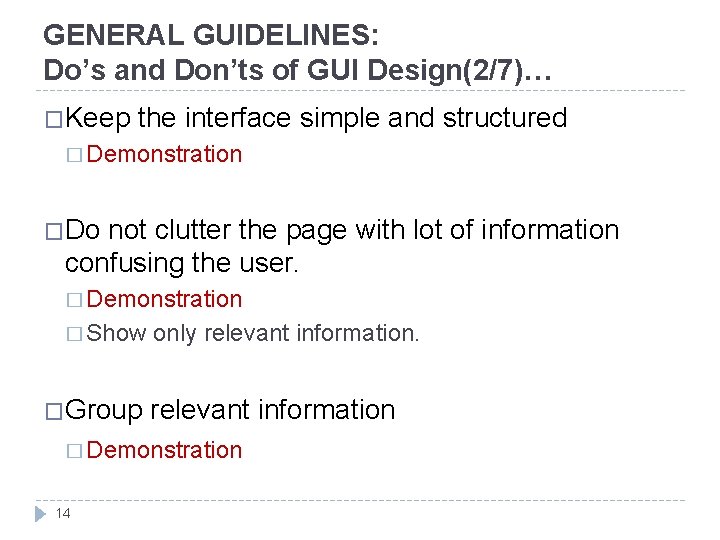
GENERAL GUIDELINES: Do’s and Don’ts of GUI Design(2/7)… �Keep the interface simple and structured � Demonstration �Do not clutter the page with lot of information confusing the user. � Demonstration � Show only relevant information. �Group relevant information � Demonstration 14
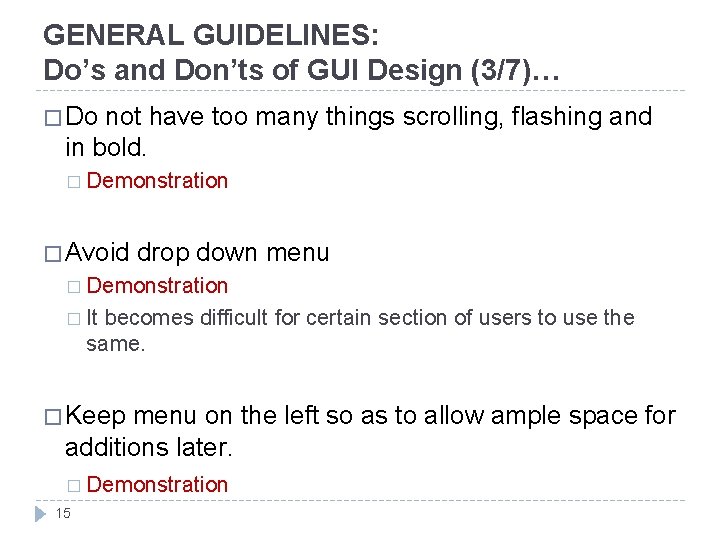
GENERAL GUIDELINES: Do’s and Don’ts of GUI Design (3/7)… � Do not have too many things scrolling, flashing and in bold. � Demonstration � Avoid drop down menu � Demonstration � It becomes difficult for certain section of users to use the same. � Keep menu on the left so as to allow ample space for additions later. � Demonstration 15
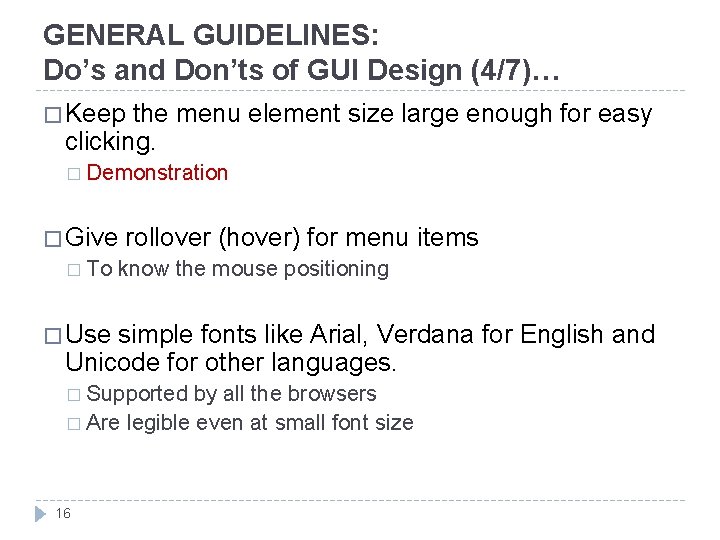
GENERAL GUIDELINES: Do’s and Don’ts of GUI Design (4/7)… � Keep the menu element size large enough for easy clicking. � Demonstration � Give rollover (hover) for menu items � To know the mouse positioning � Use simple fonts like Arial, Verdana for English and Unicode for other languages. � Supported by all the browsers � Are legible even at small font size 16
GENERAL GUIDELINES: Do’s and Don’ts of GUI Design (5/7)… �Keep the language simple and clear of technical jargons. � To be discussed �Error messages should be prominent but not overpowering. � Demonstration with Example (Konkani Word. Net) �Add help text / video to help users use certain sections of the website Ex. word search. � To be discussed 17
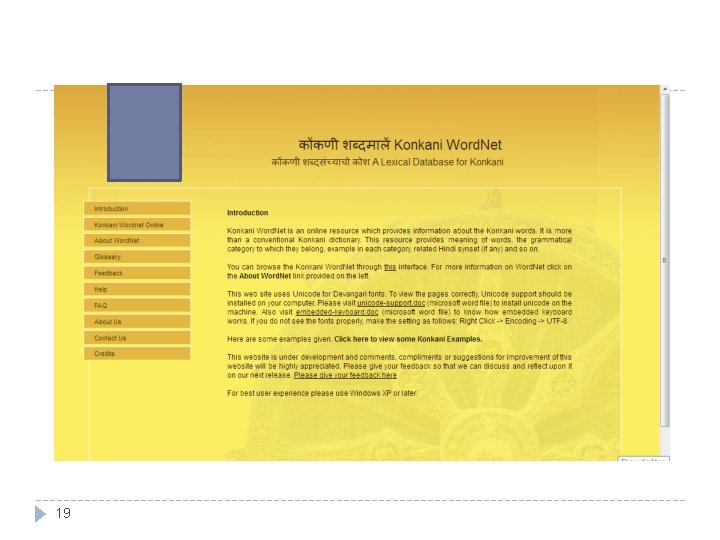
GENERAL GUIDELINES: Do’s and Don’ts of GUI Design (6/7)… � Users should get resting space on the webpage (white space). � Give enough contrast between the background color and the color of the foreground elements. � Demonstration � Do not give unnecessary watermark images that will distract the user or force the user to follow a pattern. � Demonstration with an example. 18
19
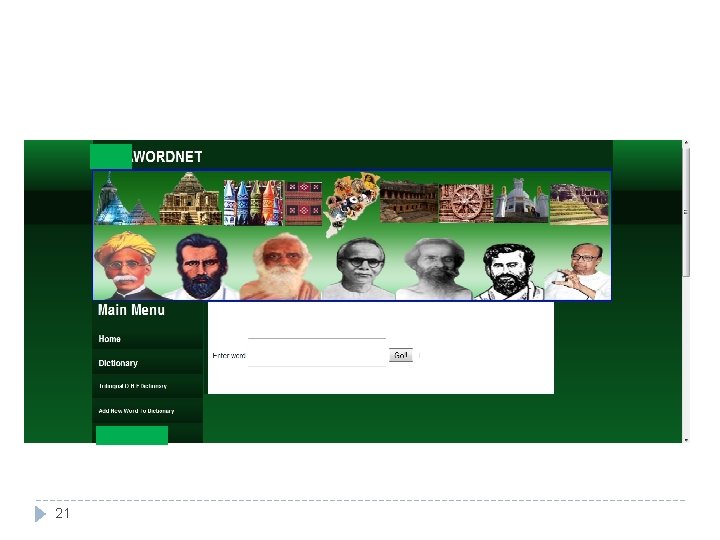
GENERAL GUIDELINES: Do’s and Don’ts of GUI Design (7/7)… �Keep the colors easy on the eye � Demonstration �Keep standard design across pages � Demonstration with example of Indowordnet �Optimize all images for fast download � Photoshop Demonstration 20
21
PROPOSED SOLUTIONS: User , User Type and Device Dependent Design… �User Dependent Design � Have one general Interface with basic functionality for general User � Keep the User of the website in mind � Category of User example � Type of user example � General user to be able to view advanced features but these features not to be seen by default 22
PROPOSED SOLUTIONS: User , User Type and Device Dependent Design… �User Dependent Design � Have separate GUI based on User Category and User Type � Functionalities based on User Category need to be decided � Include help text / Video 23
PROPOSED SOLUTIONS: User , User Type and Device Dependent Design… �Device Dependent Design � Have separate GUI based on Device and functionalities that can be made available on the device � Functionalities based on device need to be decided 24
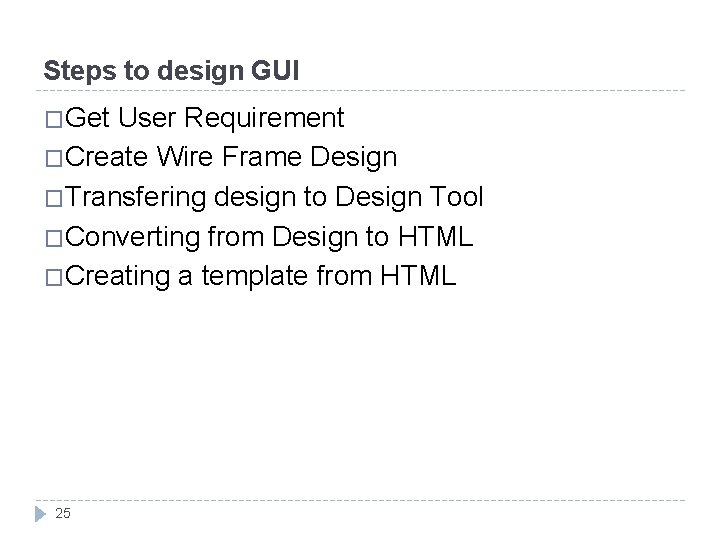
Steps to design GUI �Get User Requirement �Create Wire Frame Design �Transfering design to Design Tool �Converting from Design to HTML �Creating a template from HTML 25
- Slides: 26