Module 1 Laptop Setup Internet Email Topics 1

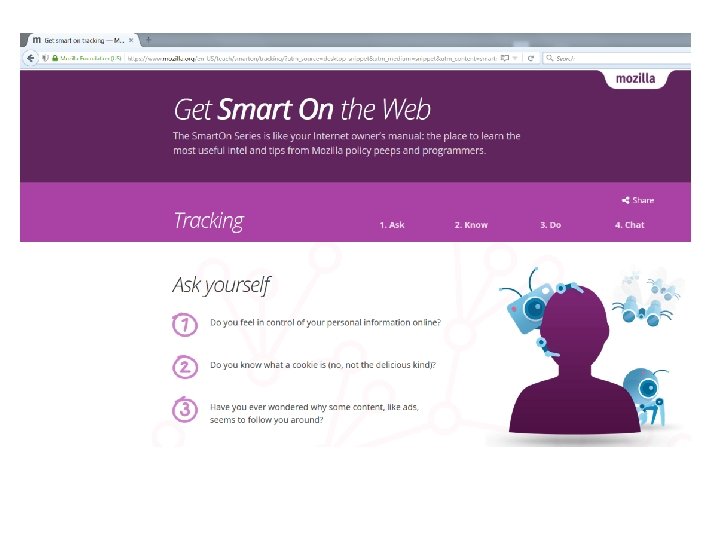
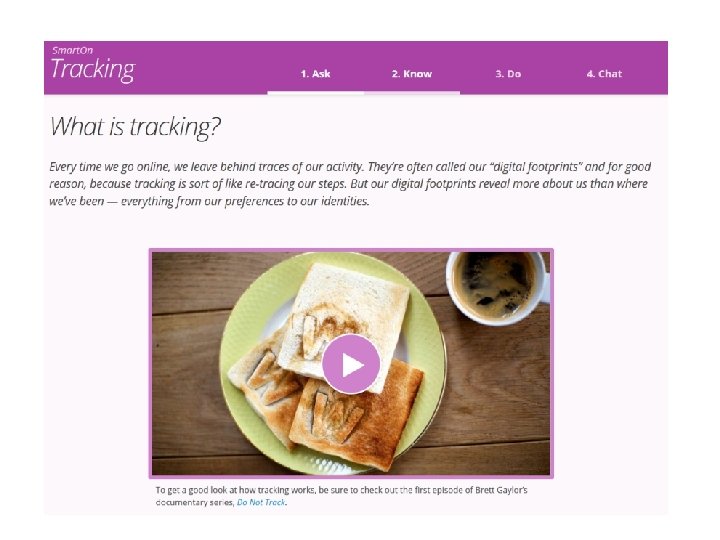
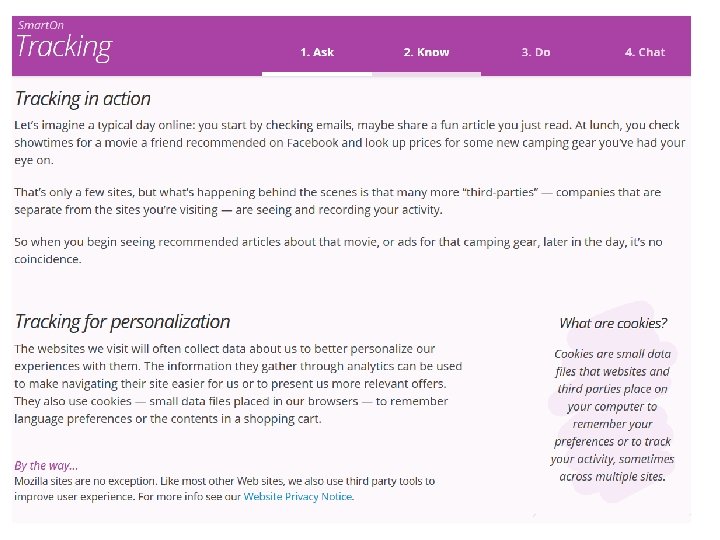
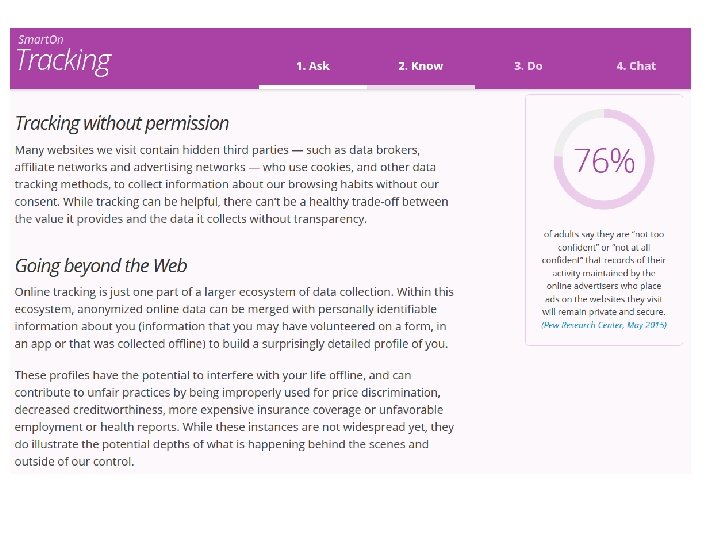
- Slides: 74
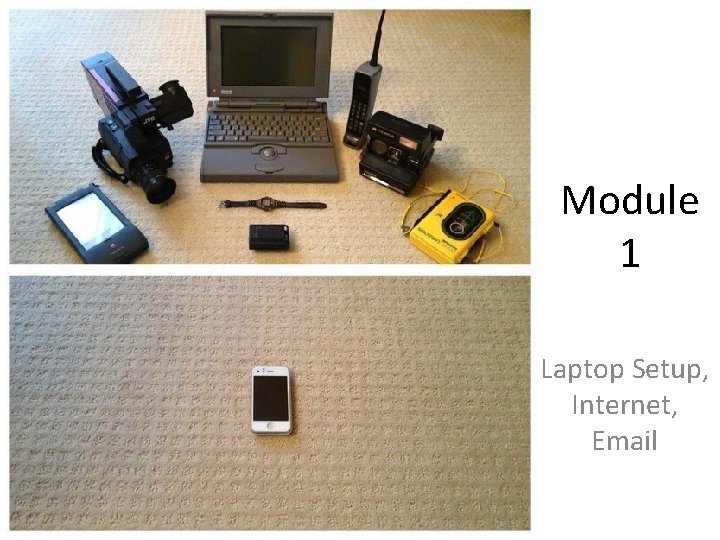
Module 1 Laptop Setup, Internet, Email
Topics 1. IT Services 2. Laptop requirement 2. Install CAD Lab Printers into your laptops 3. Web Browsing 4. E-mail
IT Service Catalogue • Welcome to the services provided by our IT group – https: //it. sheridancollege. ca/service-catalogue/ • Visit our IT group @ the Library, A wing, 2 nd floor library – https: //it. sheridancollege. ca/index. html Support In Person Support Available at the IT Service Desk. Phone or Email Service Desk at ext. 2150 or send email to servicedesk@sheridancollege. ca. Call the IT Review the Self Help documents specified with your instructor and set up your laptop to work in the Sheridan Mobile environment.
Laptop and Mobile Setup • Wireless Network Services • Sheridan's Wireless Networks • Key Features • Service Availability • • • • Wireless Resources How to Access Sheridan's Network How to Access the eduroam Wireless Network Detailed Configuration Guides Windows Wireless Config. for Windows 7 Wireless Config. for Windows 8. 1 Wireless Config. for Windows 10 Mac. OS Wireless Configuration for Sheridan's Wireless Network Mobile Devices Connecting to Sheridan Secure Access with an Android device Connecting to Sheridan Secure Access with a Blackberry device Connecting to Sheridan Secure Access with an i. OS device
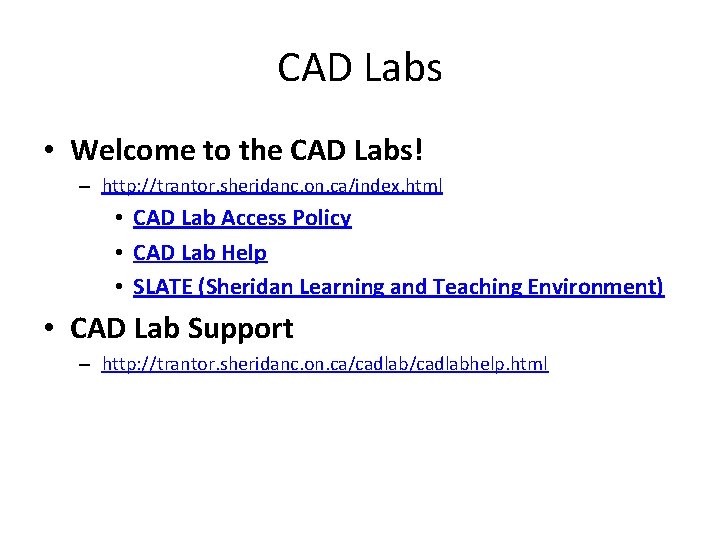
CAD Labs • Welcome to the CAD Labs! – http: //trantor. sheridanc. on. ca/index. html • CAD Lab Access Policy • CAD Lab Help • SLATE (Sheridan Learning and Teaching Environment) • CAD Lab Support – http: //trantor. sheridanc. on. ca/cadlabhelp. html
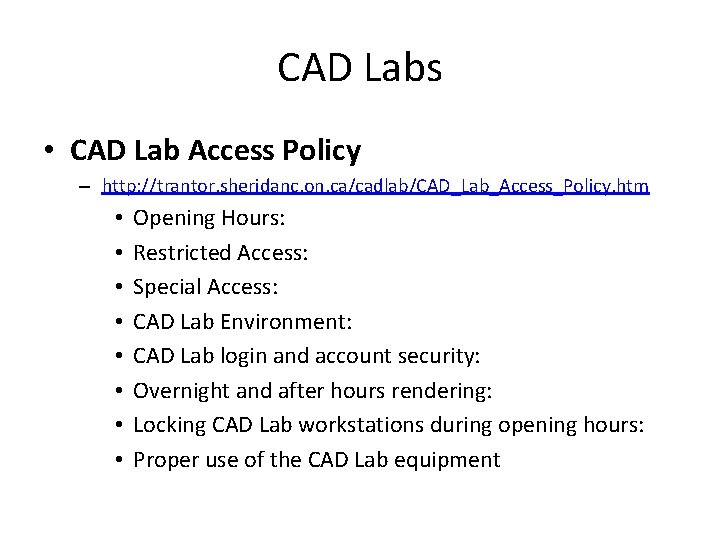
CAD Labs • CAD Lab Access Policy – http: //trantor. sheridanc. on. ca/cadlab/CAD_Lab_Access_Policy. htm • • Opening Hours: Restricted Access: Special Access: CAD Lab Environment: CAD Lab login and account security: Overnight and after hours rendering: Locking CAD Lab workstations during opening hours: Proper use of the CAD Lab equipment
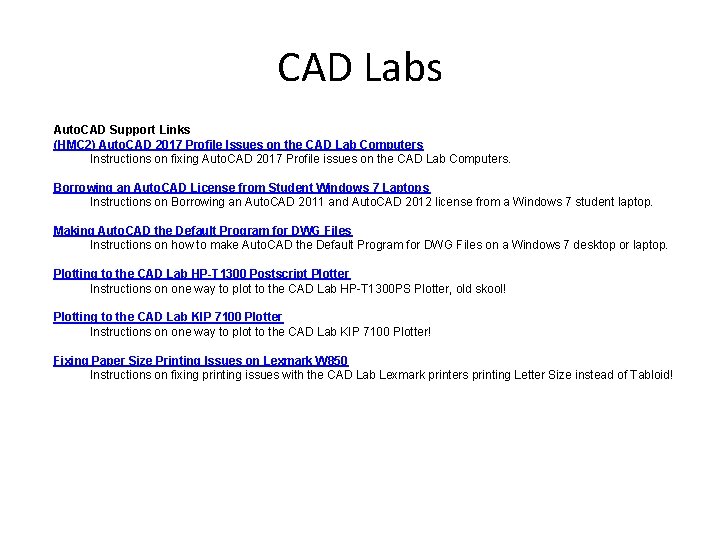
CAD Labs Auto. CAD Support Links (HMC 2) Auto. CAD 2017 Profile Issues on the CAD Lab Computers Instructions on fixing Auto. CAD 2017 Profile issues on the CAD Lab Computers. Borrowing an Auto. CAD License from Student Windows 7 Laptops Instructions on Borrowing an Auto. CAD 2011 and Auto. CAD 2012 license from a Windows 7 student laptop. Making Auto. CAD the Default Program for DWG Files Instructions on how to make Auto. CAD the Default Program for DWG Files on a Windows 7 desktop or laptop. Plotting to the CAD Lab HP-T 1300 Postscript Plotter Instructions on one way to plot to the CAD Lab HP-T 1300 PS Plotter, old skool! Plotting to the CAD Lab KIP 7100 Plotter Instructions on one way to plot to the CAD Lab KIP 7100 Plotter! Fixing Paper Size Printing Issues on Lexmark W 850 Instructions on fixing printing issues with the CAD Lab Lexmark printers printing Letter Size instead of Tabloid!
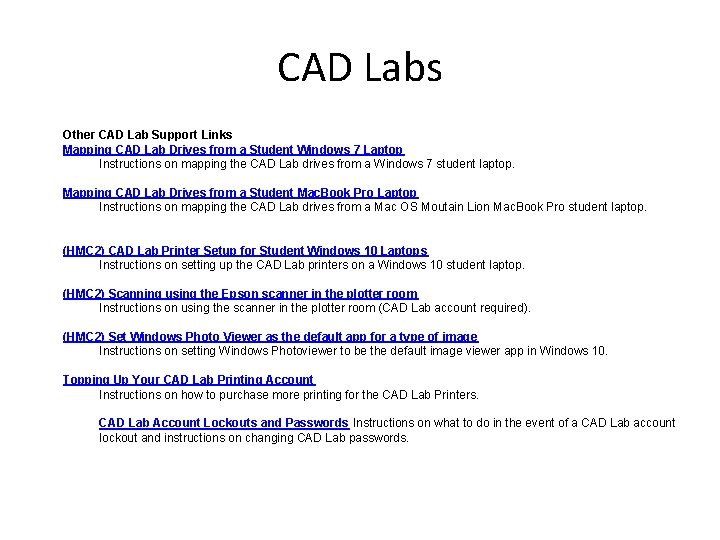
CAD Labs Other CAD Lab Support Links Mapping CAD Lab Drives from a Student Windows 7 Laptop Instructions on mapping the CAD Lab drives from a Windows 7 student laptop. Mapping CAD Lab Drives from a Student Mac. Book Pro Laptop Instructions on mapping the CAD Lab drives from a Mac OS Moutain Lion Mac. Book Pro student laptop. (HMC 2) CAD Lab Printer Setup for Student Windows 10 Laptops Instructions on setting up the CAD Lab printers on a Windows 10 student laptop. (HMC 2) Scanning using the Epson scanner in the plotter room Instructions on using the scanner in the plotter room (CAD Lab account required). (HMC 2) Set Windows Photo Viewer as the default app for a type of image Instructions on setting Windows Photoviewer to be the default image viewer app in Windows 10. Topping Up Your CAD Lab Printing Account Instructions on how to purchase more printing for the CAD Lab Printers. CAD Lab Account Lockouts and Passwords Instructions on what to do in the event of a CAD Lab account lockout and instructions on changing CAD Lab passwords.
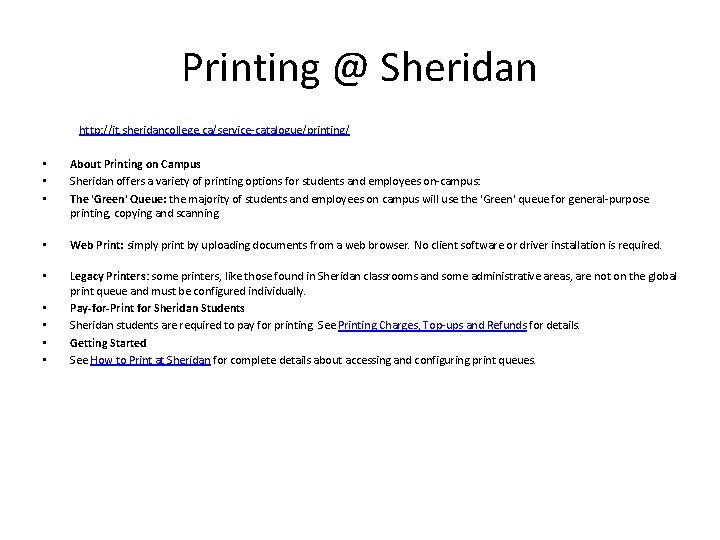
Printing @ Sheridan http: //it. sheridancollege. ca/service-catalogue/printing/ • • • About Printing on Campus Sheridan offers a variety of printing options for students and employees on-campus: The 'Green' Queue: the majority of students and employees on campus will use the 'Green' queue for general-purpose printing, copying and scanning. • Web Print: simply print by uploading documents from a web browser. No client software or driver installation is required. • Legacy Printers: some printers, like those found in Sheridan classrooms and some administrative areas, are not on the global print queue and must be configured individually. Pay-for-Print for Sheridan Students Sheridan students are required to pay for printing. See Printing Charges, Top-ups and Refunds for details. Getting Started See How to Print at Sheridan for complete details about accessing and configuring print queues. • •
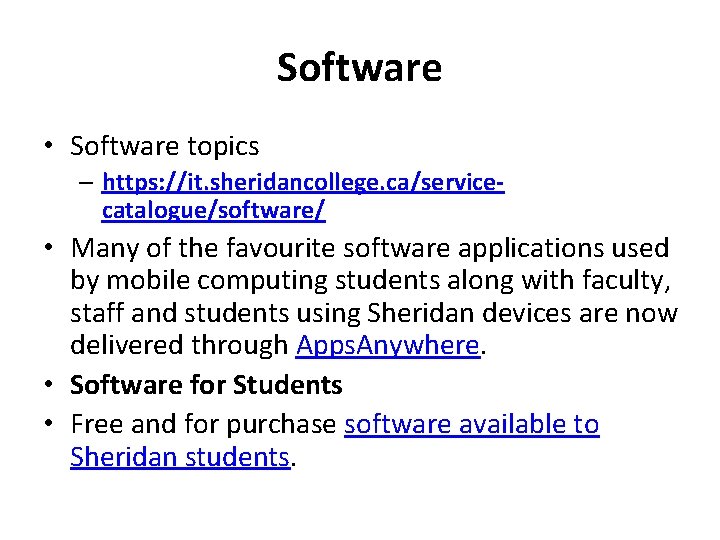
Software • Software topics – https: //it. sheridancollege. ca/servicecatalogue/software/ • Many of the favourite software applications used by mobile computing students along with faculty, staff and students using Sheridan devices are now delivered through Apps. Anywhere. • Software for Students • Free and for purchase software available to Sheridan students.
Internet • In Sheridan, you may access the internet through the: – Desktops in the computer laboratories and learning commons – Your Laptop – Your Mobile devices
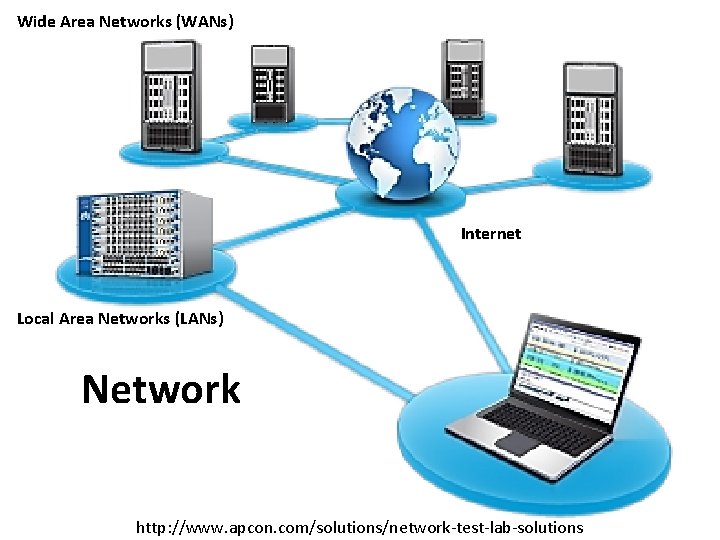
Network • . . . what is a network? . . . A computer network is two or more computers connected together to share resources. There are two broad categories of networks; Local Area Networks (LANs) that connect computers in a small area such as a building, and Wide Area Networks (WANs) that cover greater areas.
Internet • . . . what is the Internet? . . . A network of computer networks. The Internet originated from a network that the US Department of Defense's Advanced Research Project Agency used to enable researchers to communicate with each other. • An important feature of this network was it's ability to continue to work even if a portion was damaged.
Internet • Standard protocals were developed, more networks added, and the Internet began to evolve into it's current form. • It's these standard protocals and ability to function continuously that makes the internet successful, because networks can be added or removed easily.
Wide Area Networks (WANs) Internet Local Area Networks (LANs) Network http: //www. apcon. com/solutions/network-test-lab-solutions
Internet • . . . how does my computer connect to the Internet? . . . Your individual computer needs to be connected to another computer that is continually connected to the internet. • This host is usually connected to a larger network termed a regional network.
Internet • Businesses often have their own hosts, but personal use computers most often use an ISP (Internet Service Provider). • Regional networks are connected together by high-speed networks called backbone networks. • These backbone networks are connected together to form a super-network; the Internet.
Internet • . . . who owns and runs the Internet? . . . No single person or organization owns or is in charge of the internet. • Each network connected to the internet is maintained locally by it's own network administrator.
Internet • However, several organizations such as the Internet Society, Internet Architecture Board and World Wide Web Consortium establish the protocals to be used and encourage cooperation and communication between networks.
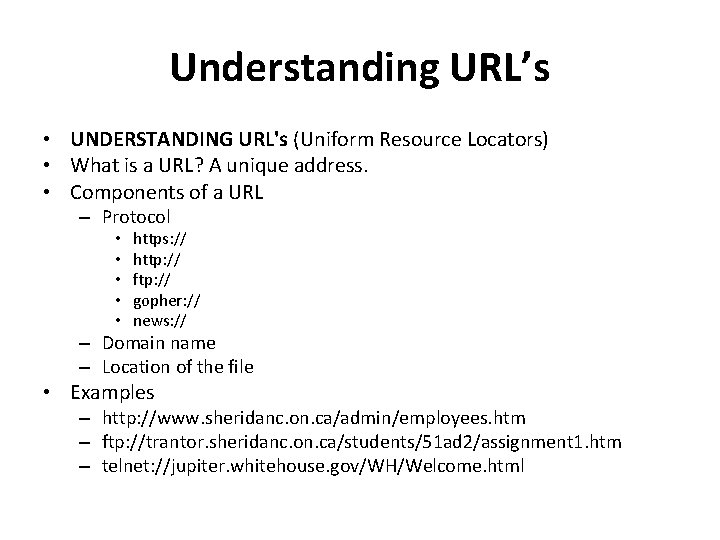
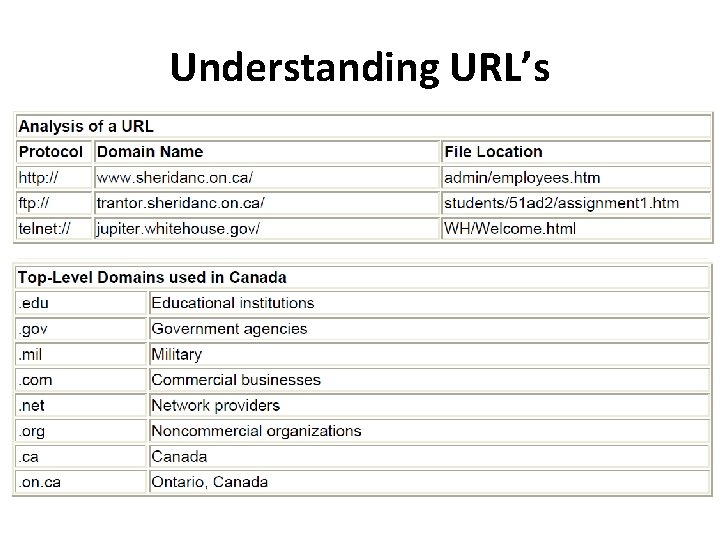
Internet • . . . how are all of these computers and networks kept track of? . . . With a Uniform Resource Locator (URL) that indicates the protocal, domain name or IP address and file location. • Computers that provide information to the internet are termed servers, while computers requesting information are clients.
Internet • Every web server (those that host web pages continuously) is named by a unique number (IP address, such as 206. 68. 137. 41) and usually a unique name (domain name, such as trantor. sheridanc. on. ca). • On that computer are files organized in directories. • The URL locates and identifies these files. More on this later.
WWW • . . . How old is the World Wide Web? . . . Pretty young. The World Wide Web was created in 1989 as a way for scientists at the European Laboratory for Particle Physics to exchange documents over the internet. • These first web pages were "just" text documents connected by hyperlinks (a trickier thing to do than it sounds).
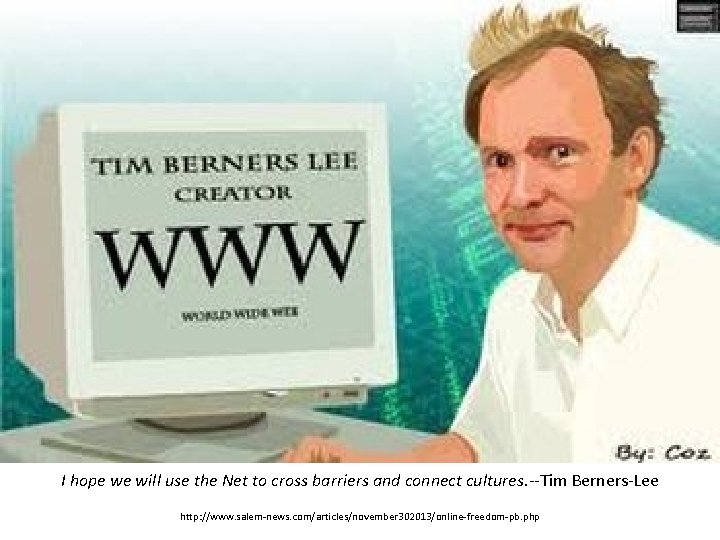
I hope we will use the Net to cross barriers and connect cultures. --Tim Berners-Lee http: //www. salem-news. com/articles/november 302013/online-freedom-pb. php
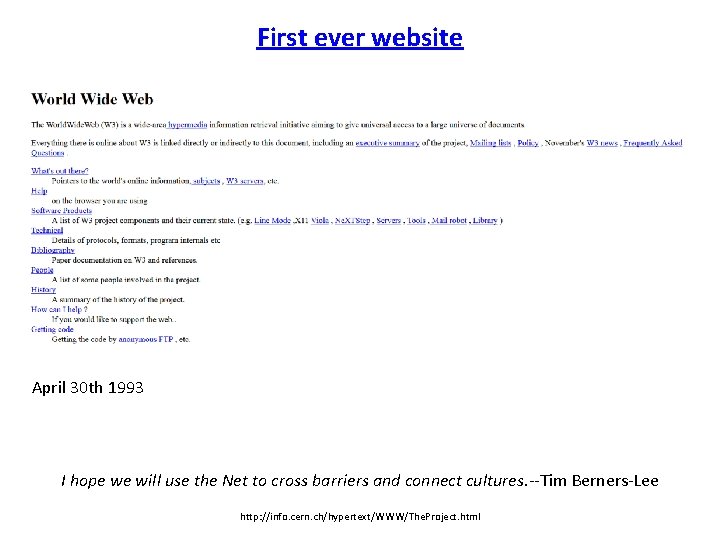
First ever website April 30 th 1993 I hope we will use the Net to cross barriers and connect cultures. --Tim Berners-Lee http: //info. cern. ch/hypertext/WWW/The. Project. html
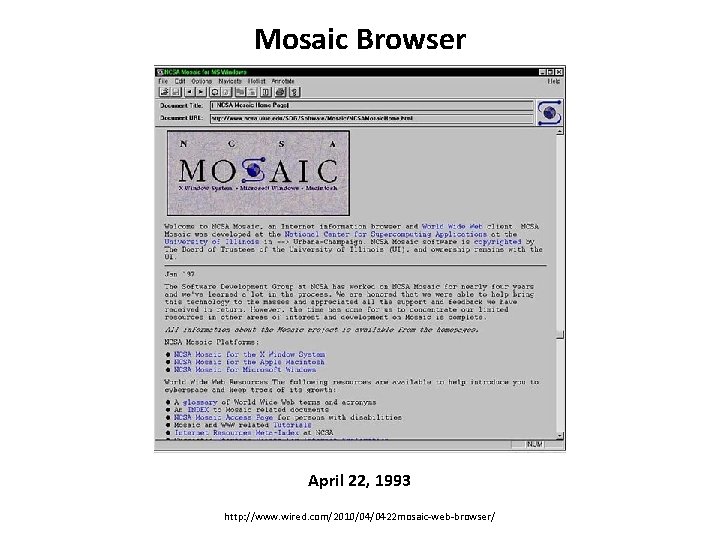
WWW • In 1993 the first web browser to include graphics was released by students and professors at the University of Illinois National Center for Supercomputing Applications. • Mosiac, as this software was named, began "surfing" as we know it today.
Mosaic Browser April 22, 1993 http: //www. wired. com/2010/04/0422 mosaic-web-browser/
Name the # 1 thing you do in the internet / WWW http: //www. cinemablend. com/new/Highlander-Fantasy-Casting-There-Can-Be-Only-One-Until-It-s-Rebooted-14883. html
What can I do on the internet besides surf web sites with my browser? • Web Browsers - allows you to surf web pages • Electronic Email - allows you to send messages to other Internet users • FTP (File Transfer Protocal) - allows you to transfer computer files from one computer toanother • Gopher - allows you to locate and retrieve internet files using menus • News & Discussion Groups - allows you to post and read articles • Telnet - allows you to network computers together to perform a variety of functions, such as remote printing. • Chat - allows you to have real-time voice or typed conversation with other users • Banking – Transfer funds, pay bills. . • Research – Allows you to get information on topics of interest • Video Streaming • Social Media • And a lot more!
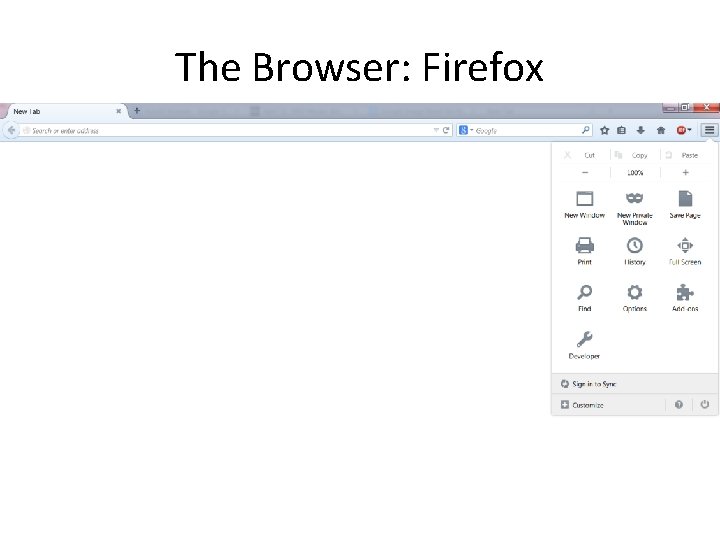
The Browser: Firefox
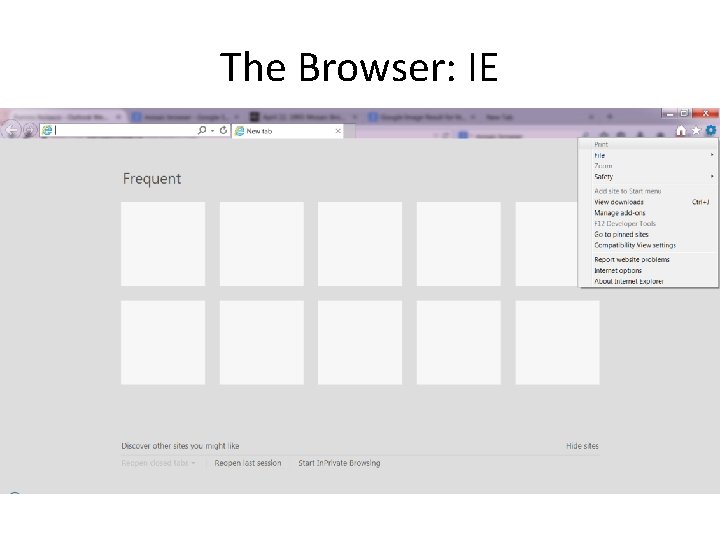
The Browser: IE
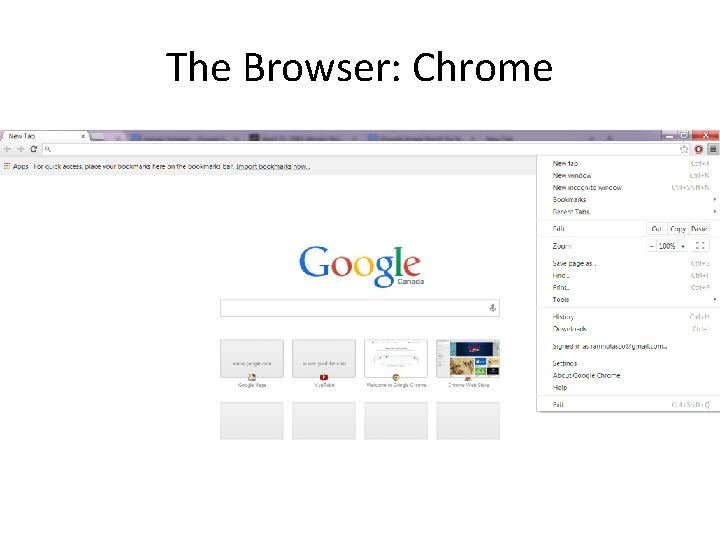
The Browser: Chrome
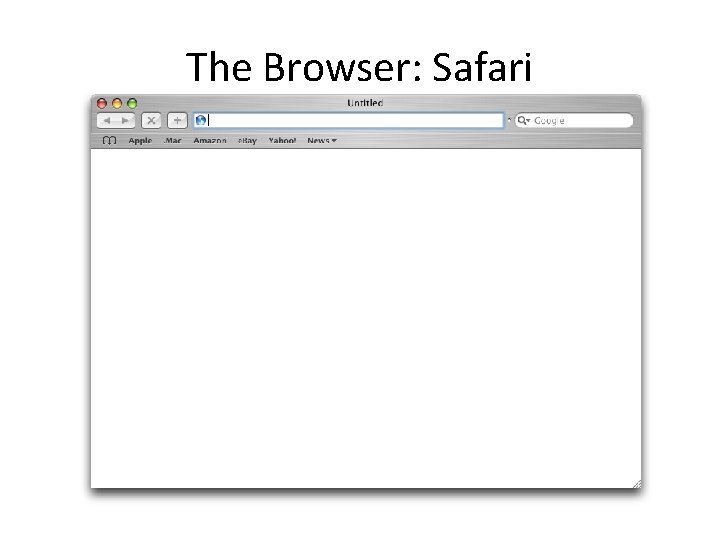
The Browser: Safari
WEB BROWSING • Understanding URL’s • Searching the Internet (Safely) Many of us use networks and the internet on a daily basis to exchange information, but have you ever stopped to consider what these things really are?
WWW • . . . is the World Wide Web the same thing as the Internet? . . No, although the terms are often used interchangeably. • The World Wide Web is a collection of documents called Web pages accessed through the internet.
WWW • These documents are stored on computers connected continually to the internet and are displayed with Web browsers. • Web pages are connected together by hyperlinks.
WWW • Hyperlinks can connect pages on the same server or on a server all of the way around the world. A large number of Web pages hyperlinked together and maintained by the same network is referred to as a Web site. • While the internet includes the WWW, it refers more specifically to the whole network.
Understanding URL’s • UNDERSTANDING URL's (Uniform Resource Locators) • What is a URL? A unique address. • Components of a URL – Protocol • • • https: // http: // ftp: // gopher: // news: // – Domain name – Location of the file • Examples – http: //www. sheridanc. on. ca/admin/employees. htm – ftp: //trantor. sheridanc. on. ca/students/51 ad 2/assignment 1. htm – telnet: //jupiter. whitehouse. gov/WH/Welcome. html
Understanding URL’s
Searching the Internet (Safely) • Search Strategies – Select directory topics to find information on a general topic – Before using a search site for the first time, read the search tip instructions to see what search options are available. – Try to be as specific as possible when typing keywords. Wherever possible use more than one keyword and use appropriate operators (e. g. "AND" or "NOT") – If your search returns numerous hits, and you can think of more specific keywords, or additional operators, go back and redo the search. – If your search is not successful, try using other words that might locate the same information. – Use more than one search site or directory - they often return surprisingly different results.
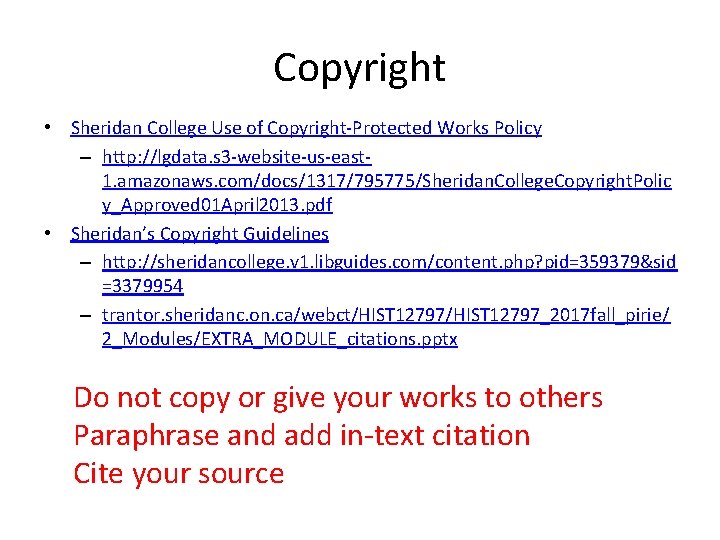
Copyright • Sheridan College Use of Copyright-Protected Works Policy – http: //lgdata. s 3 -website-us-east 1. amazonaws. com/docs/1317/795775/Sheridan. College. Copyright. Polic y_Approved 01 April 2013. pdf • Sheridan’s Copyright Guidelines – http: //sheridancollege. v 1. libguides. com/content. php? pid=359379&sid =3379954 – trantor. sheridanc. on. ca/webct/HIST 12797_2017 fall_pirie/ 2_Modules/EXTRA_MODULE_citations. pptx Do not copy or give your works to others Paraphrase and add in-text citation Cite your source
Sheridan Library https: //www. wevideo. com/hub/#media/ci/231245496
Email – https: //it. sheridancollege. ca/servicecatalogue/email-calendar/ • Email & Calendar • Student Email & Calendar • Sheridan students and alumni can take advantage of cloud-based email and calendar tools powered by Microsoft Office 365.
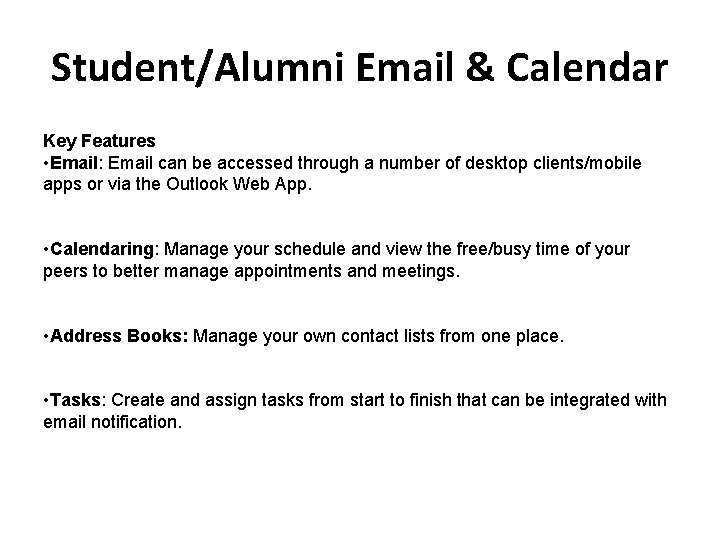
Student/Alumni Email & Calendar Key Features • Email: Email can be accessed through a number of desktop clients/mobile apps or via the Outlook Web App. • Calendaring: Manage your schedule and view the free/busy time of your peers to better manage appointments and meetings. • Address Books: Manage your own contact lists from one place. • Tasks: Create and assign tasks from start to finish that can be integrated with email notification.
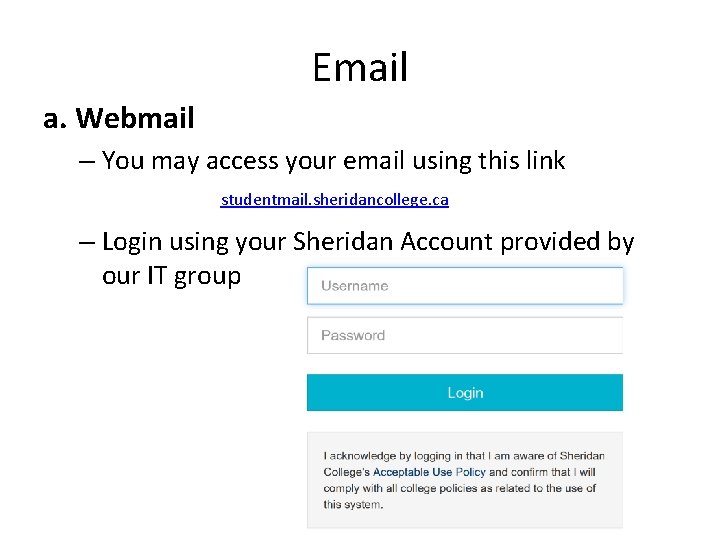
Email a. Webmail – You may access your email using this link studentmail. sheridancollege. ca – Login using your Sheridan Account provided by our IT group
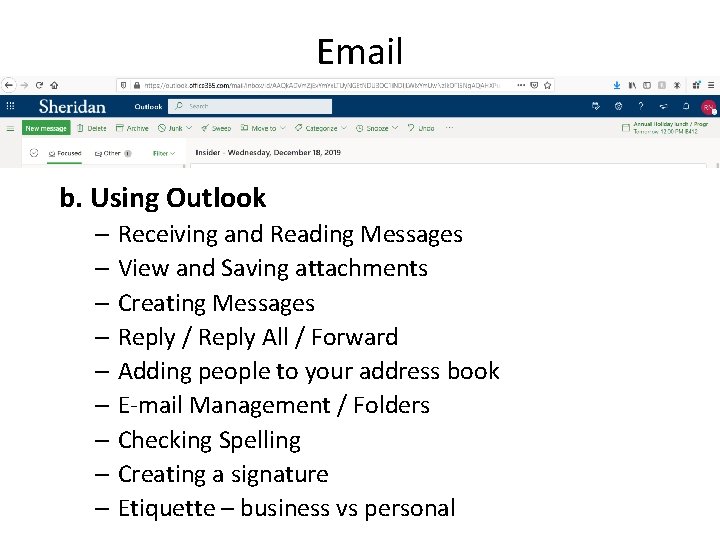
Email b. Using Outlook – Receiving and Reading Messages – View and Saving attachments – Creating Messages – Reply / Reply All / Forward – Adding people to your address book – E-mail Management / Folders – Checking Spelling – Creating a signature – Etiquette – business vs personal
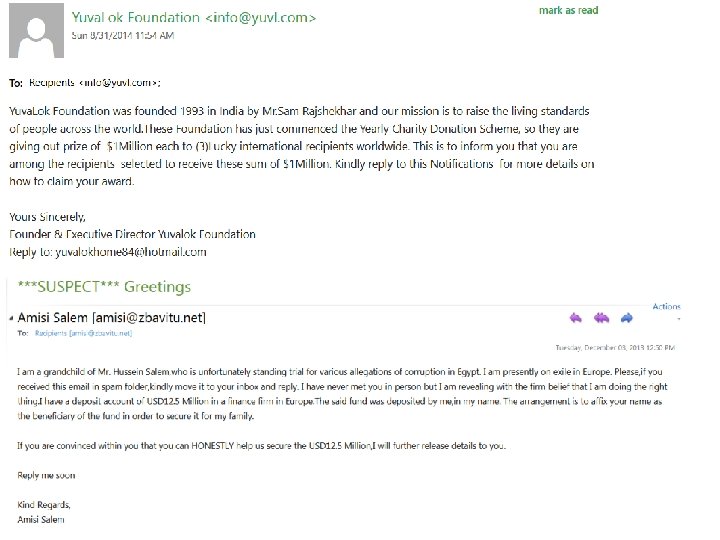
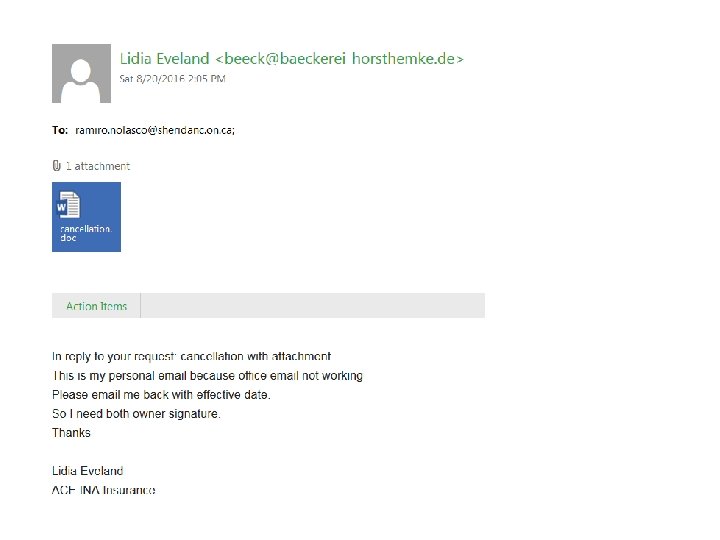
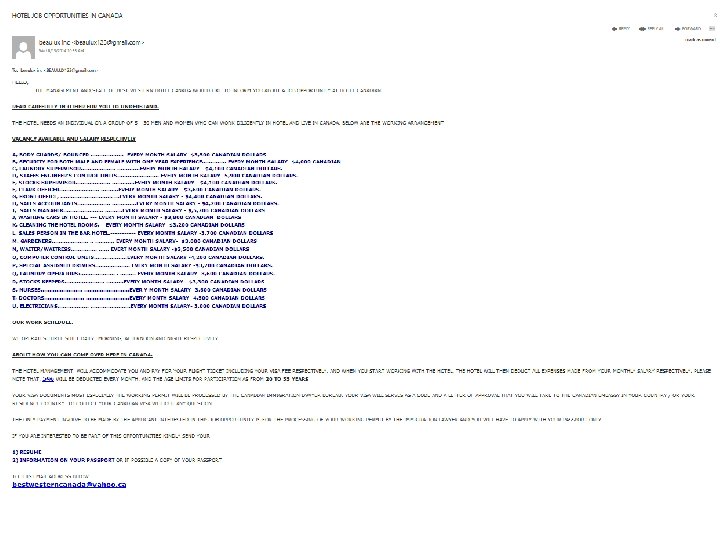
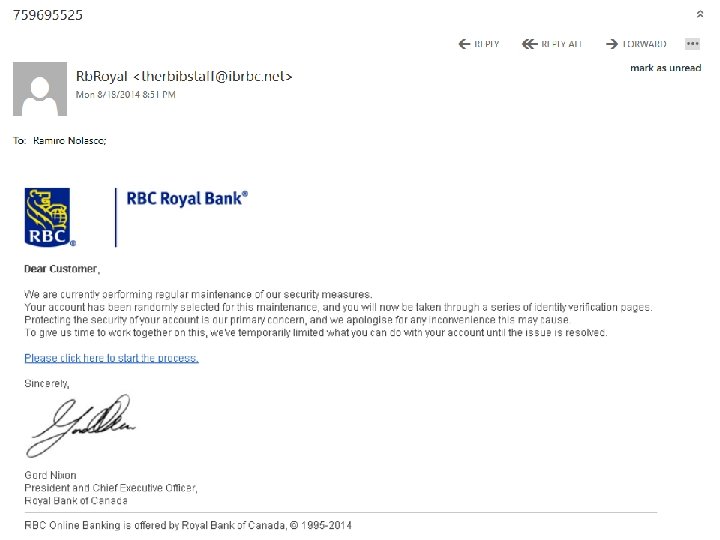
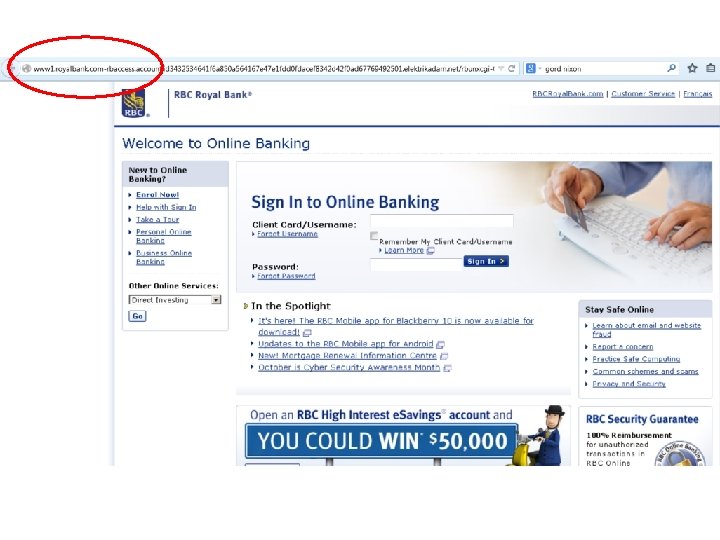
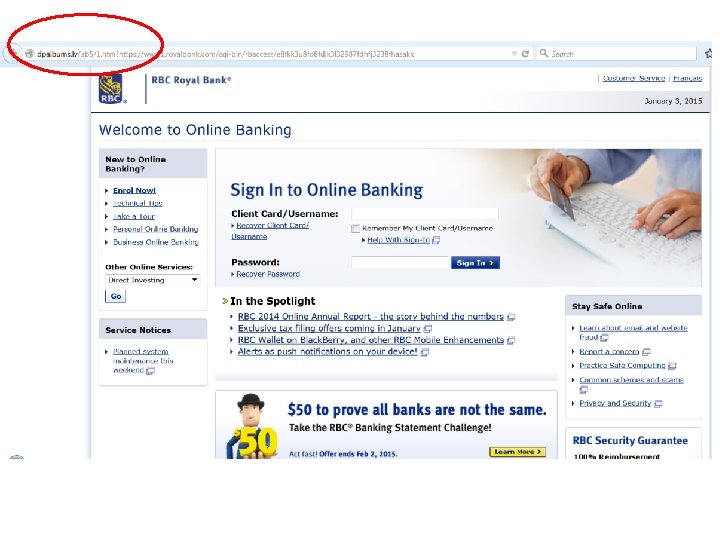
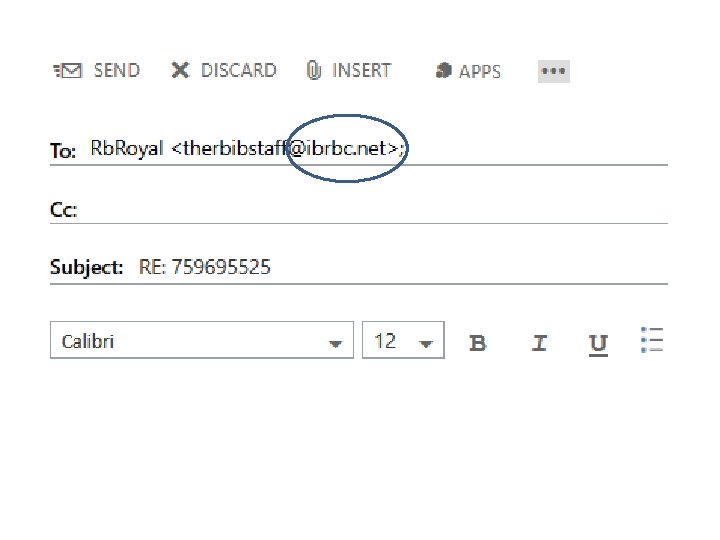
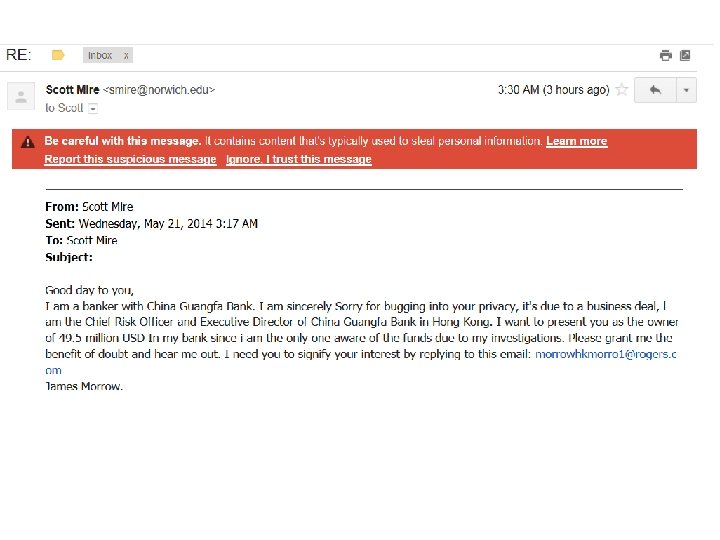
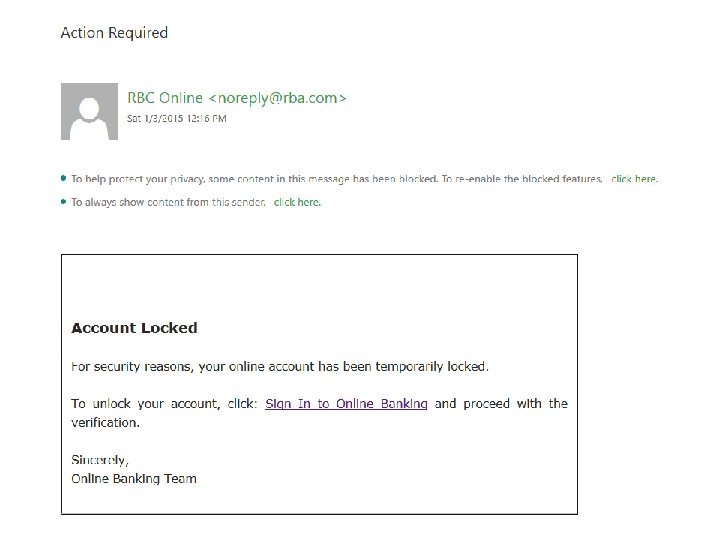
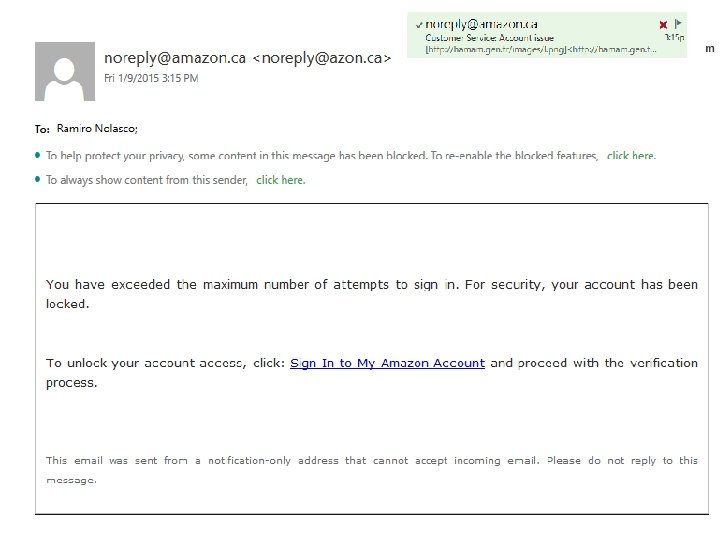
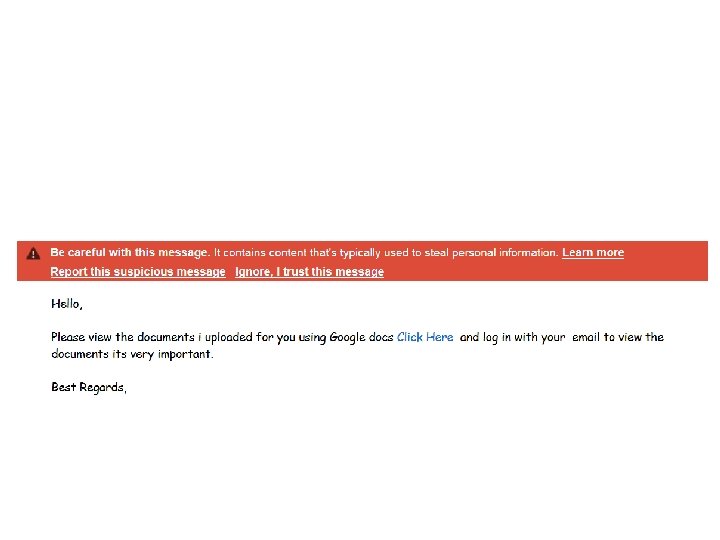
Email d. E-mail Safety Be safe and prosper Actually it is “Live long and prosper” Being safe is good in this case
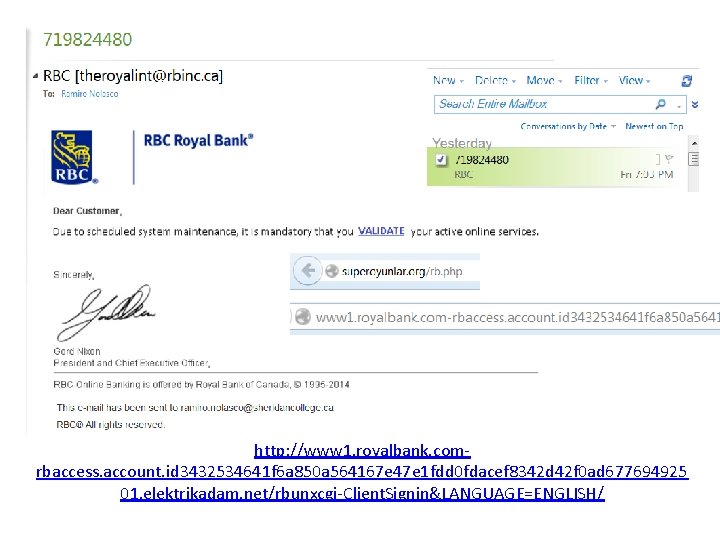
? s l i a W t a h w is g n ro th i w y m em
http: //www 1. royalbank. comrbaccess. account. id 3432534641 f 6 a 850 a 564167 e 47 e 1 fdd 0 fdacef 8342 d 42 f 0 ad 677694925 01. elektrikadam. net/rbunxcgi-Client. Signin&LANGUAGE=ENGLISH/
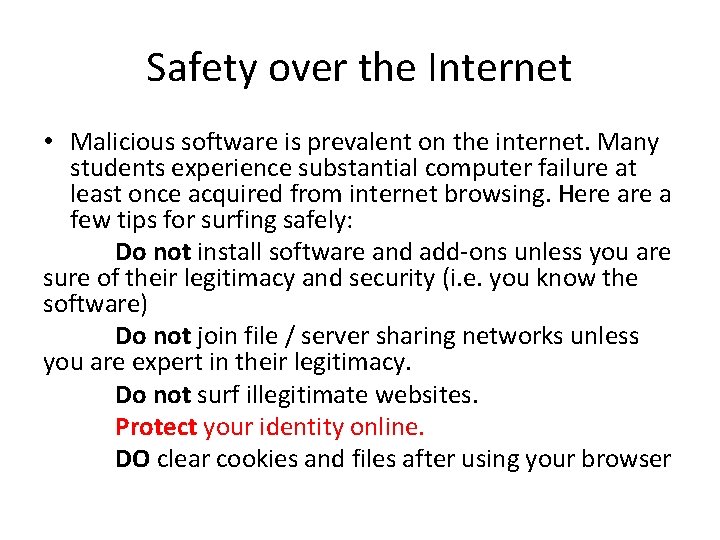
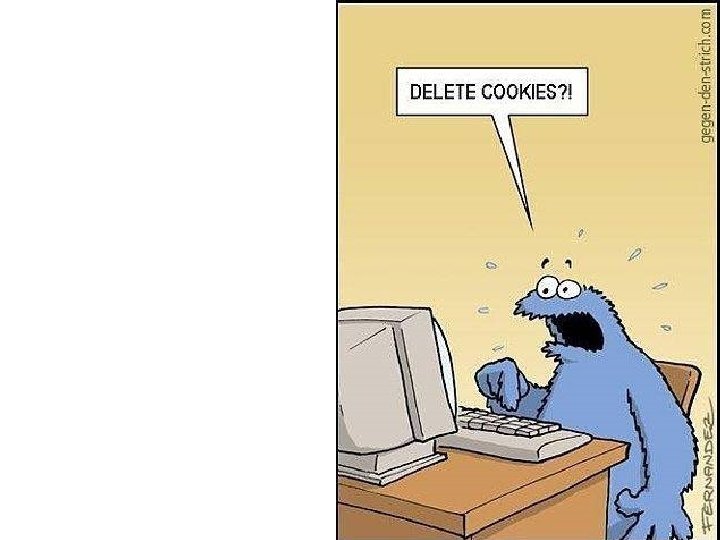
Safety over the Internet • Malicious software is prevalent on the internet. Many students experience substantial computer failure at least once acquired from internet browsing. Here a few tips for surfing safely: Do not install software and add-ons unless you are sure of their legitimacy and security (i. e. you know the software) Do not join file / server sharing networks unless you are expert in their legitimacy. Do not surf illegitimate websites. Protect your identity online. DO clear cookies and files after using your browser
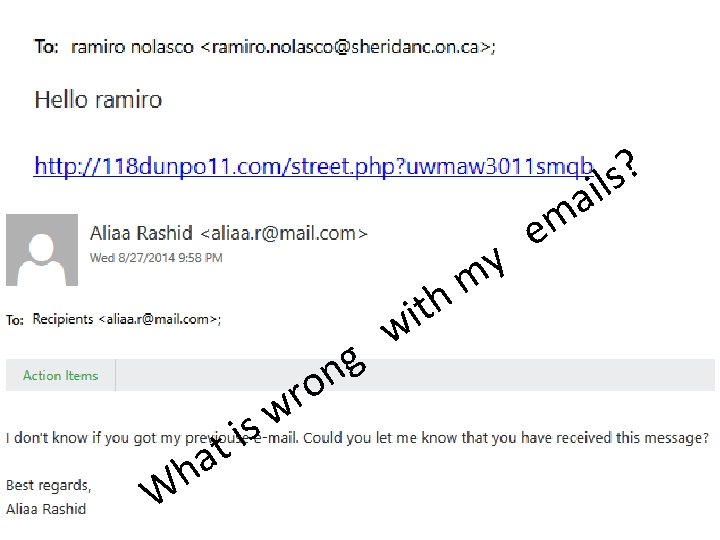
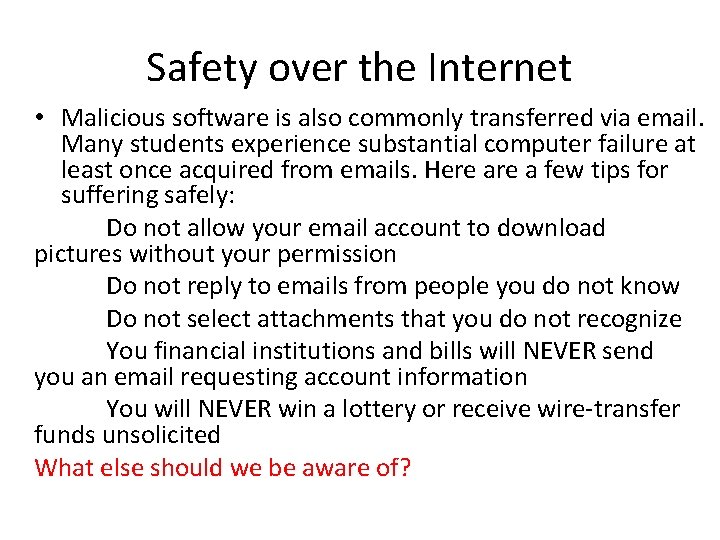
Safety over the Internet • Malicious software is also commonly transferred via email. Many students experience substantial computer failure at least once acquired from emails. Here a few tips for suffering safely: Do not allow your email account to download pictures without your permission Do not reply to emails from people you do not know Do not select attachments that you do not recognize You financial institutions and bills will NEVER send you an email requesting account information You will NEVER win a lottery or receive wire-transfer funds unsolicited What else should we be aware of?
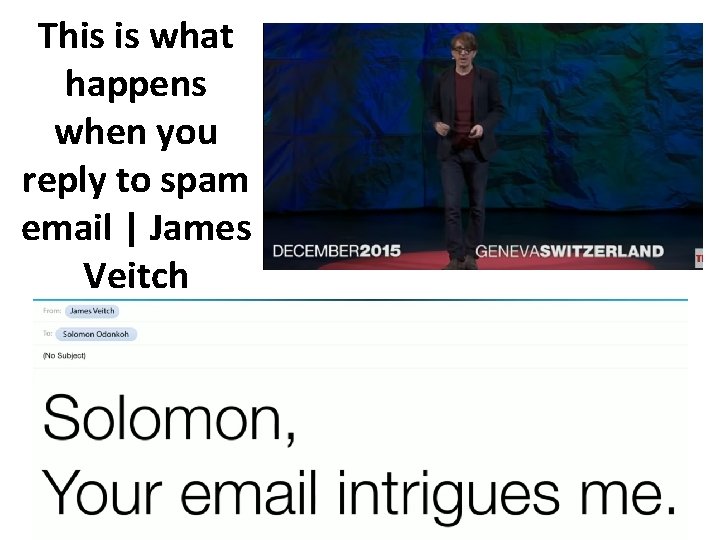
This is what happens when you reply to spam email | James Veitch
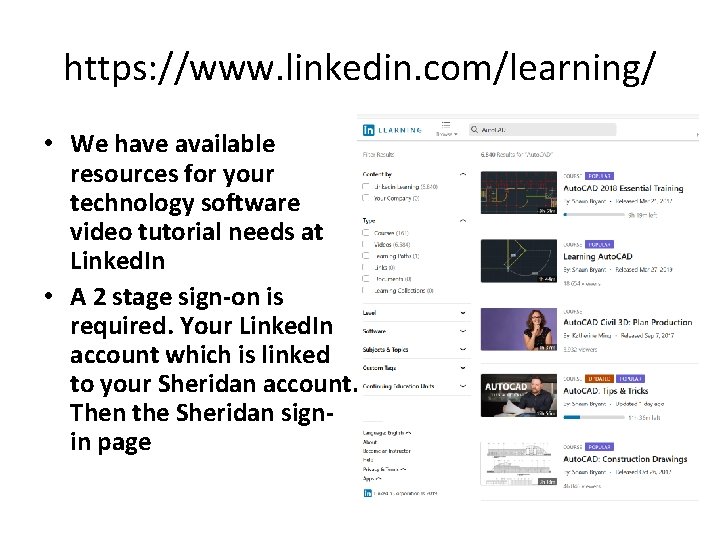
https: //www. linkedin. com/learning/ • We have available resources for your technology software video tutorial needs at Linked. In • A 2 stage sign-on is required. Your Linked. In account which is linked to your Sheridan account. Then the Sheridan signin page