
Student Guide Cisco Webex User Manual Office of
![[Student Guide] Cisco Webex User Manual Office of Academic Affairs 1](https://slidetodoc.com/presentation_image/1193e5956db4783a78c7affcbbd0c6ed/image-1.jpg "[Student Guide] Cisco Webex User Manual Office of Academic Affairs 1")
[Student Guide] Cisco Webex User Manual Office of Academic Affairs 1
Chapter 1. Important Notice 4 p 1. User's information 2. Notice 5 p 6 p Chapter 2. Using PC 6 p 1. To install 2. To Participate 8 p 10 p Chapter 3. Using Smartphone 13 p 1. To install 2. To Participate 14 p 15 p 2

Chapter 1 Important Notice 3
1. Introduction of Cisco Webex ü Cisco Webex is a lecture platform that enables two-way communication between professors and students ü In Real-time online lectures, students interact with the professor in a scheduled class-time ü The lectures can be taken on a PC or smartphone ü Students can access the meeting room opened by the professor without signing up for membership of Cisco Webex 4
1. Introduction of Cisco Webex ü You can participate in the class through the meeting link, meeting number (9 digit), and password listed in the lecture syllabus ü You must install the Desktop App to take courses on a PC ü You must install “Cisco Webex Meetings" app from Google Playstore or Apple App Store to take courses on a smartphone ü For attendance check, you must enter accurate personal information (name , student number, and email address) when accessing the Meeting Room 5
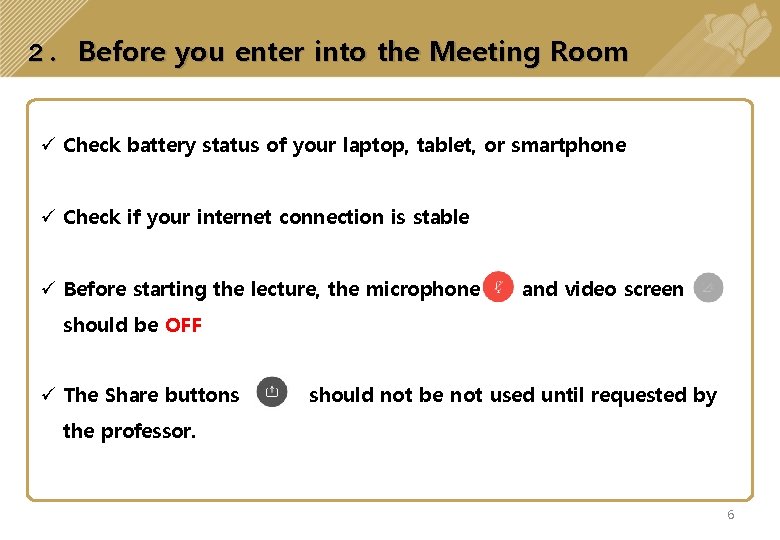
2. Before you enter into the Meeting Room ü Check battery status of your laptop, tablet, or smartphone ü Check if your internet connection is stable ü Before starting the lecture, the microphone and video screen should be OFF ü The Share buttons should not be not used until requested by the professor. 6
Chapter 2. Using PC 7

1. To install Step 1: Access https: //khu. webex. com/, enter the meeting number (9 digit) and press Enter You can select your language Meeting Number (9 digit) 8
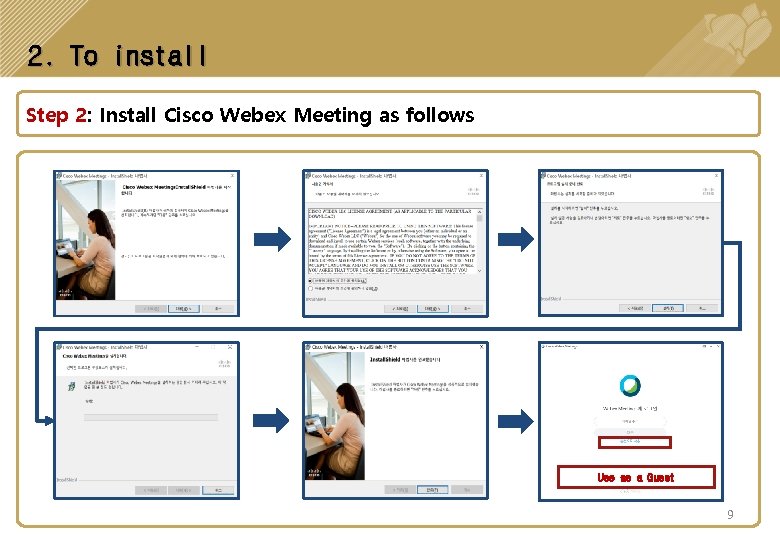
2. To install Step 2: Install Cisco Webex Meeting as follows Use as a Guest 9
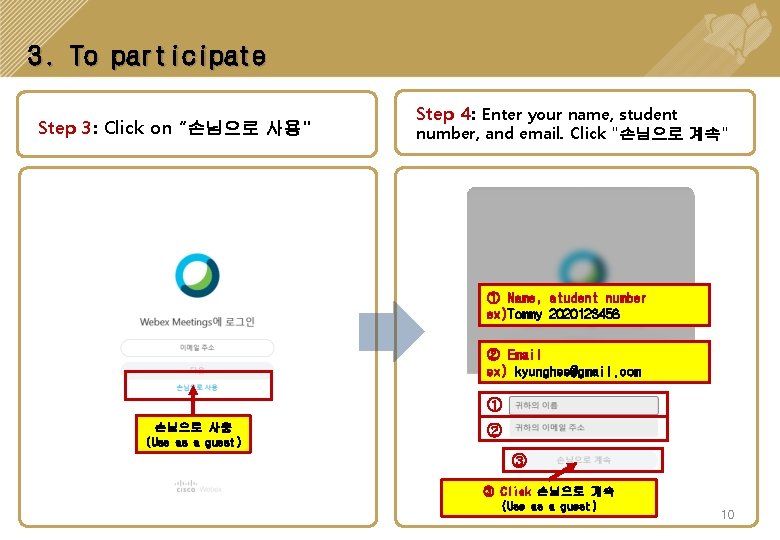
3. To participate Step 3: Click on “손님으로 사용" Step 4: Enter your name, student number, and email. Click "손님으로 계속" ① Name, student number ex)Tommy 2020123456 ② Email ex) kyunghee@gmail. com ① 손님으로 사용 (Use as a guest) ② ③ ③ Click 손님으로 계속 (Use as a guest) 10
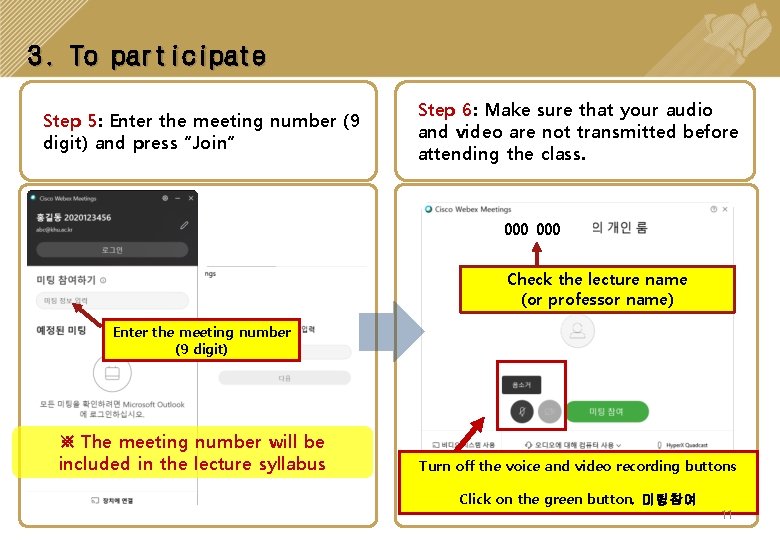
3. To participate Step 5: Enter the meeting number (9 digit) and press “Join” Step 6: Make sure that your audio and video are not transmitted before attending the class. OOO Check the lecture name (or professor name) Enter the meeting number (9 digit) ※ The meeting number will be included in the lecture syllabus Turn off the voice and video recording buttons Click on the green button, 미팅참여 11

3. To participate Step 7: Check again that your audio and video are not transmitted. ※ If you have any questions in the class, to make the streaming smoother, please ask your professor to give your turn to speak and then use your microphone. ü When you enter the classroom, you see a screen shared by the professor. ü If you can't hear the voice well, ① ② ③ ④ ⑤ ⑥ ⑦ adjust the volume on your Button bar description ①, ②Audio and video on/off ③Content Sharing ④Participants ⑤Chatting ⑥Additional Options ⑦ End the meeting computer. 12
Chapter 3. Using Smartphone 13

1. Install and Join (Android) Step 1: Install app (Cisco Webex Meetings) from Apple App Store / Google Playstore Step 2 : Click “미팅참여(Participate in a Meeting" 14
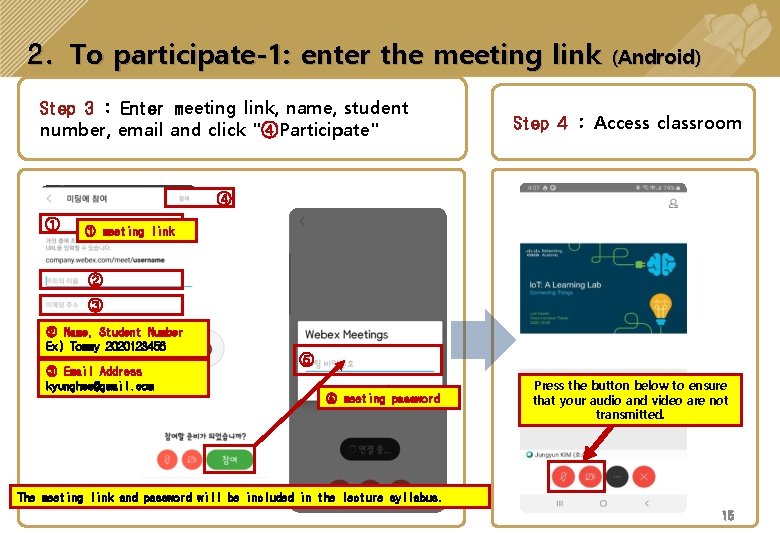
2. To participate-1: enter the meeting link Step 3 : Enter meeting link, name, student number, email and click "④Participate" (Android) Step 4 : Access classroom ④ ① ① meeting link ② ③ ② Name, Student Number Ex) Tommy 2020123456 ③ Email Address kyunghee@gmail. com ⑤ ⑤ meeting password Press the button below to ensure that your audio and video are not transmitted. The meeting link and password will be included in the lecture syllabus. 15 15
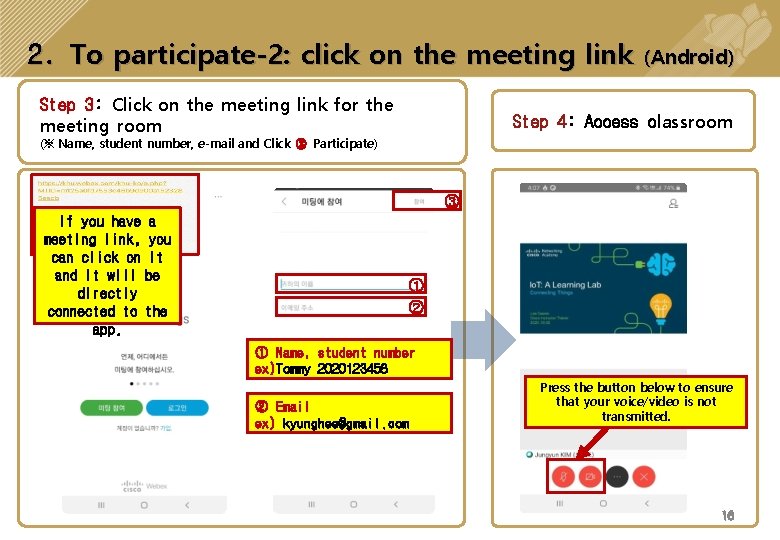
2. To participate-2: click on the meeting link Step 3: Click on the meeting link for the meeting room (Android) Step 4: Access classroom (※ Name, student number, e-mail and Click ③ Participate) ③ If you have a meeting link, you can click on it and it will be directly connected to the app. ① ② ① Name, student number ex)Tommy 2020123456 ② Email ex) kyunghee@gmail. com Press the자신 button below to정보가 ensure 반드시 음성/비디오 that your voice/video not 전송되지 않도록, 아래의is버튼을 transmitted. 누릅니다. 16 16
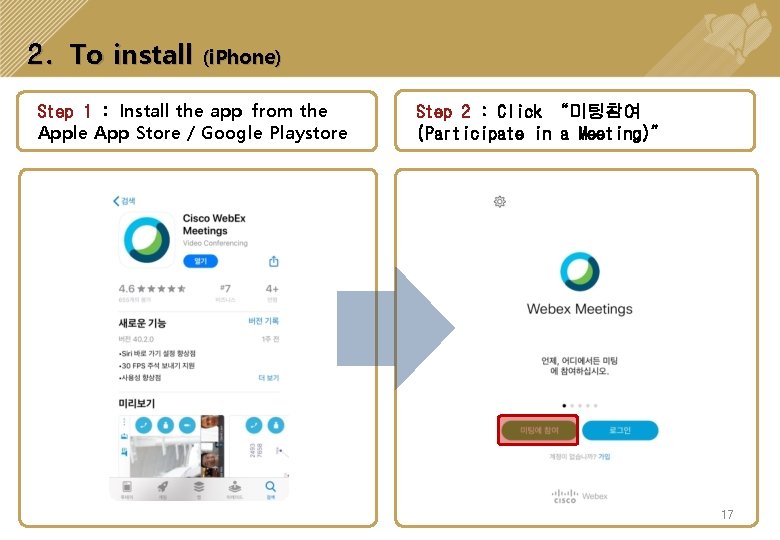
2. To install (i. Phone) Step 1 : Install the app from the Apple App Store / Google Playstore Step 2 : Click “미팅참여 (Participate in a Meeting)” 17
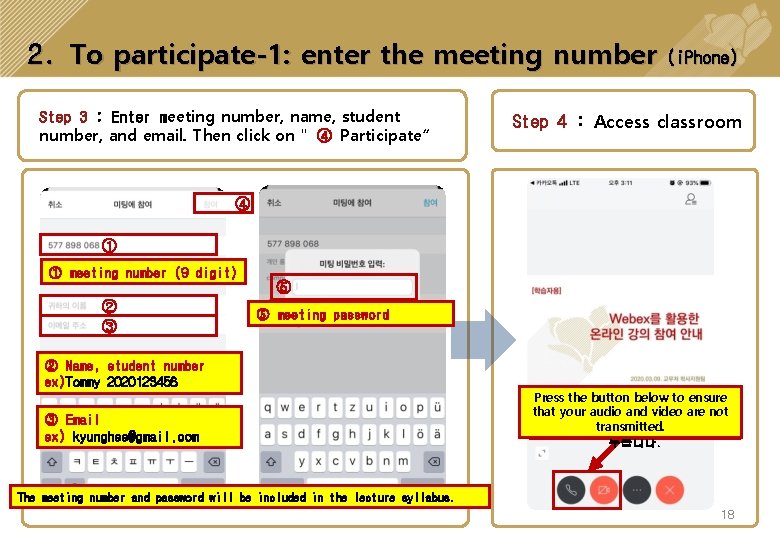
2. To participate-1: enter the meeting number Step 3 : Enter meeting number, name, student number, and email. Then click on " ④ Participate“ (i. Phone) Step 4 : Access classroom ④ ① ① meeting number (9 digit) ② ③ ⑤ ⑤ meeting password ② Name, student number ex)Tommy 2020123456 ③ Email ex) kyunghee@gmail. com Press the button below to ensure that your 자신 audio음성/비디오 and video are not 반드시 정보가 transmitted. 전송되지 않도록, 아래의 버튼을 누릅니다. The meeting number and password will be included in the lecture syllabus. 18
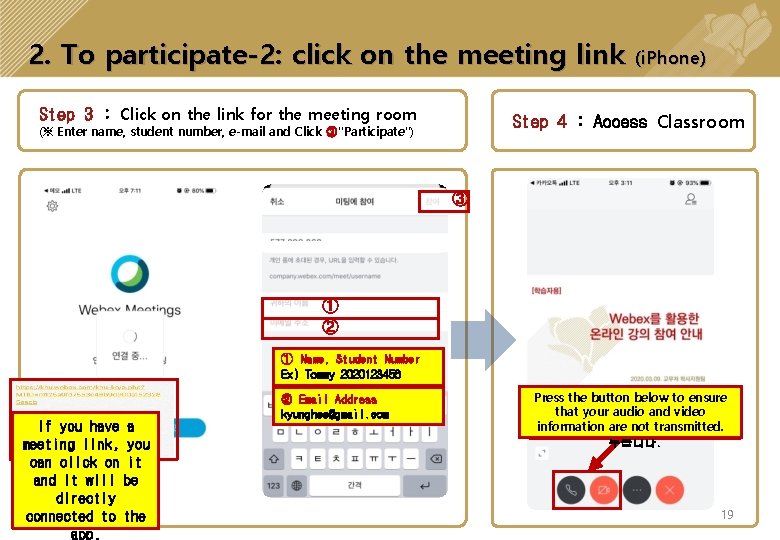
2. To participate-2: click on the meeting link Step 3 : Click on the link for the meeting room (i. Phone) Step 4 : Access Classroom (※ Enter name, student number, e-mail and Click ③"Participate") ③ ① ② ① Name, Student Number Ex) Tommy 2020123456 If you have a meeting link, you can click on it and it will be directly connected to the app. ② Email Address kyunghee@gmail. com Press the button below to ensure that your and video 반드시 자신 audio 음성/비디오 정보가 information are not transmitted. 전송되지 않도록, 아래의 버튼을 누릅니다. 19

20
- Slides: 20