
VEHICLES IN UNREAL ENGINE ANTHONY BELLUCCI TIPS FOR
VEHICLES IN UNREAL ENGINE ANTHONY BELLUCCI
TIPS FOR ART ASSETS
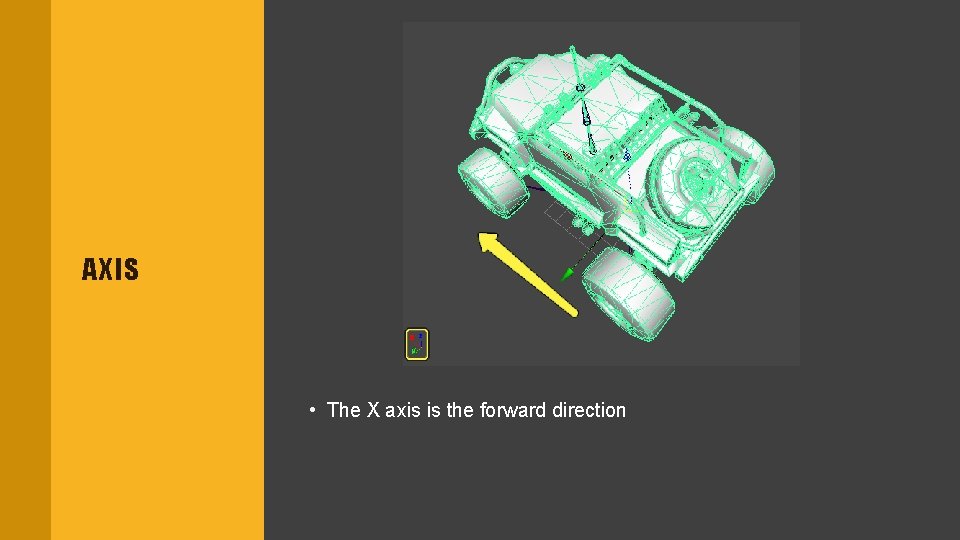
AXIS • The X axis is the forward direction
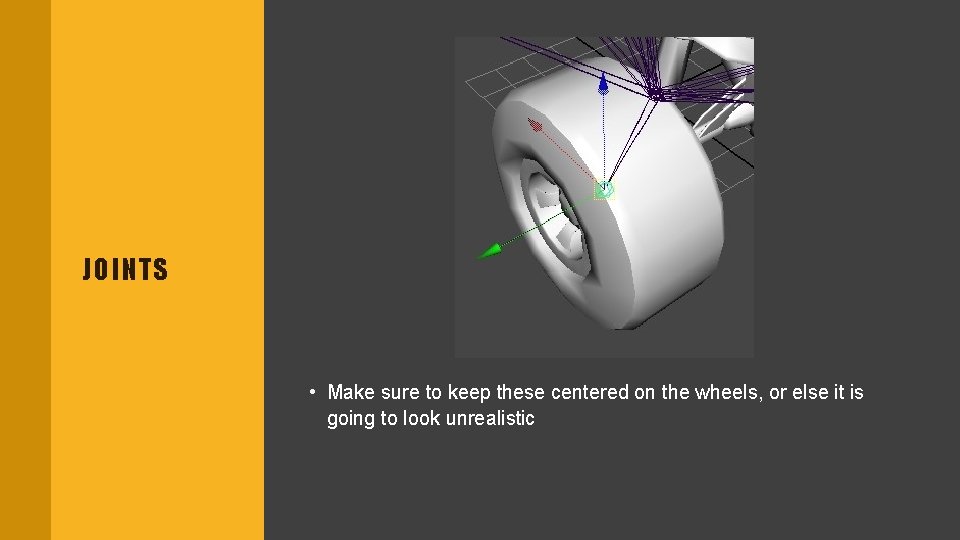
JOINTS • Make sure to keep these centered on the wheels, or else it is going to look unrealistic
PHYSICS ASSET • Necessary for the vehicle • Car frame Box • Wheels Sphere
TIRE CONFIG AND WHEEL BLUEPRINTS
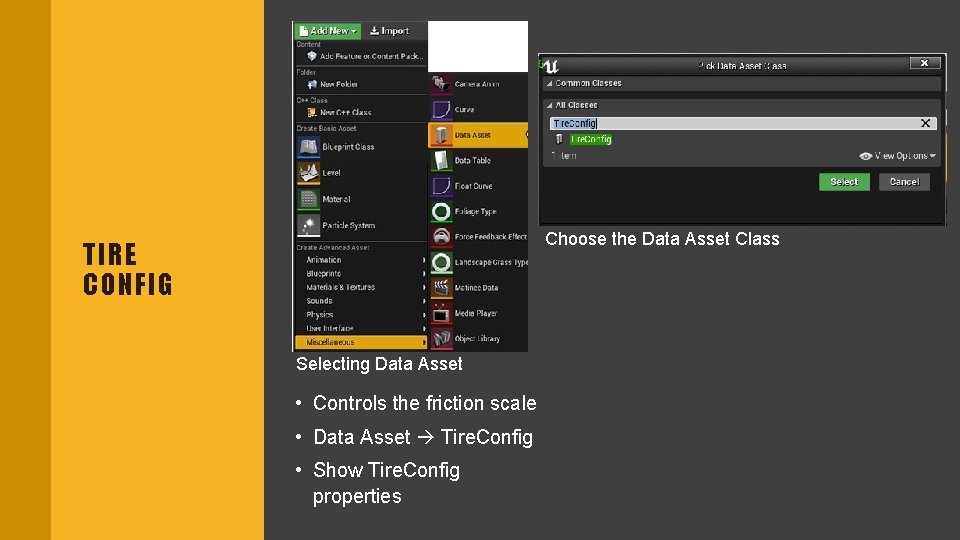
Choose the Data Asset Class TIRE CONFIG Selecting Data Asset • Controls the friction scale • Data Asset Tire. Config • Show Tire. Config properties
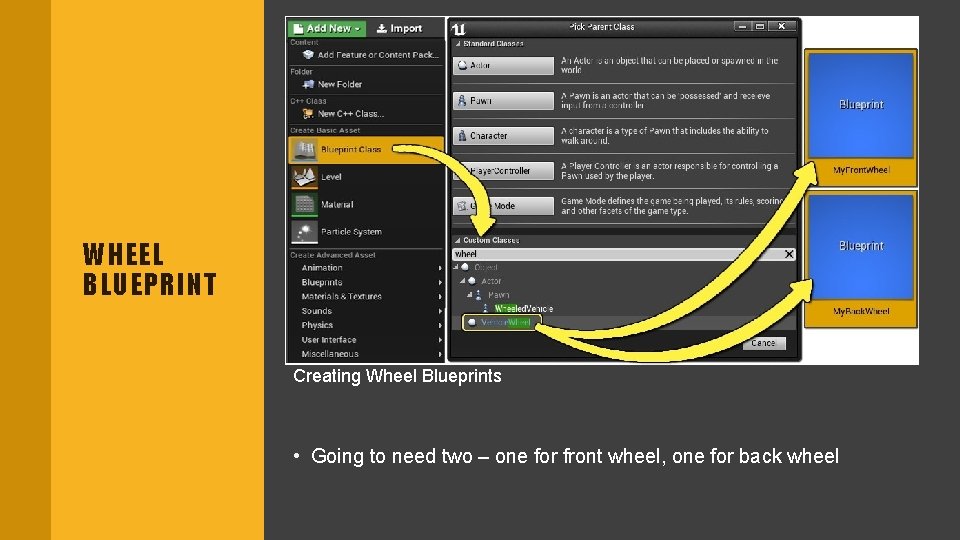
WHEEL BLUEPRINT Creating Wheel Blueprints • Going to need two – one for front wheel, one for back wheel
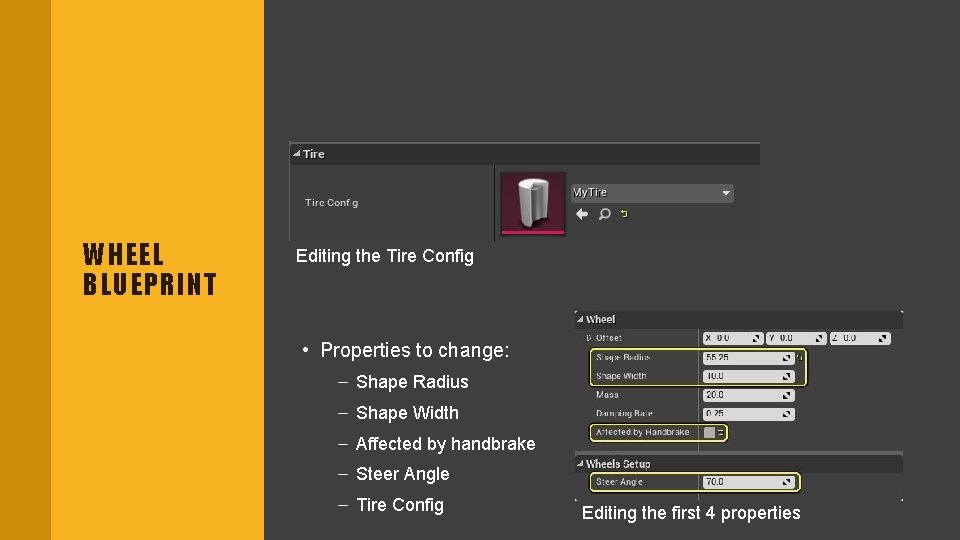
WHEEL BLUEPRINT Editing the Tire Config • Properties to change: – Shape Radius – Shape Width – Affected by handbrake – Steer Angle – Tire Config Editing the first 4 properties
ANIMATIONS
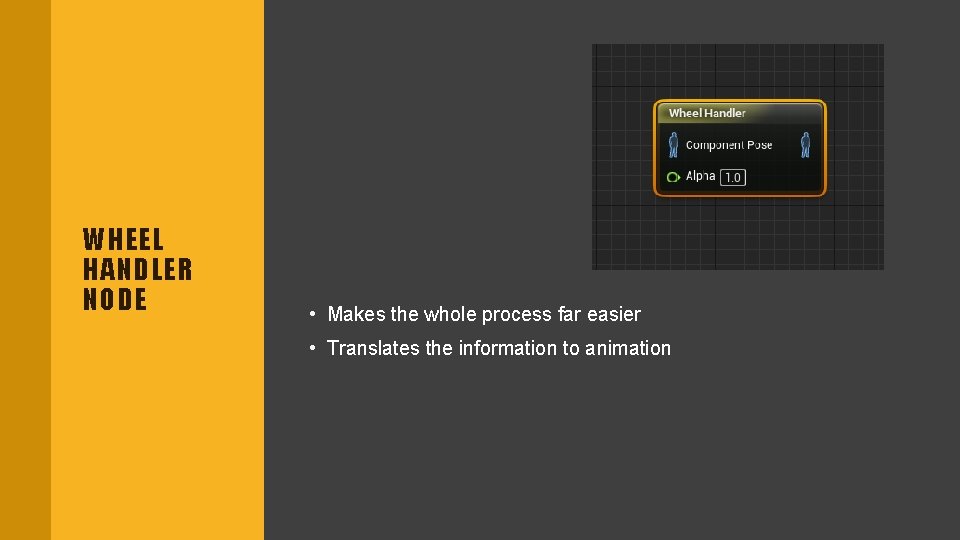
WHEEL HANDLER NODE • Makes the whole process far easier • Translates the information to animation
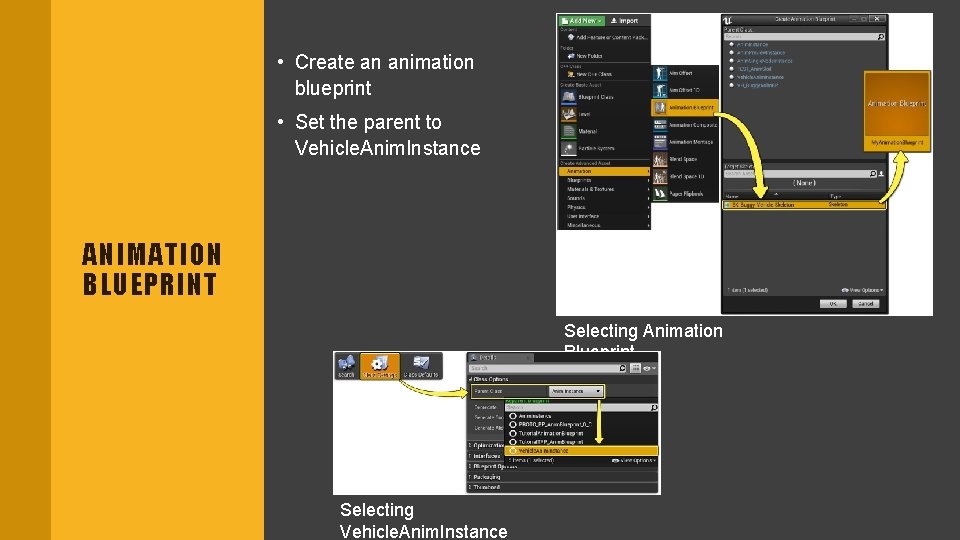
• Create an animation blueprint • Set the parent to Vehicle. Anim. Instance ANIMATION BLUEPRINT Selecting Animation Blueprint Selecting Vehicle. Anim. Instance
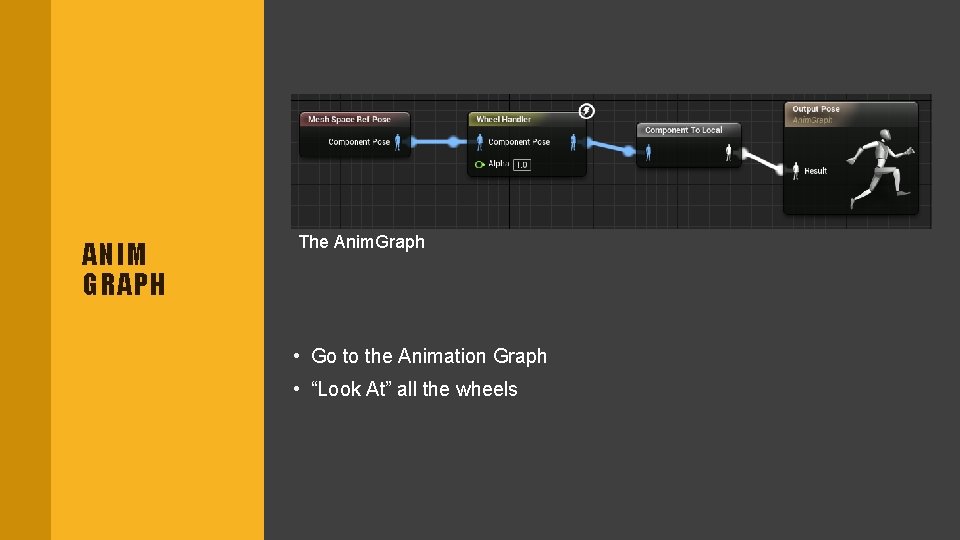
ANIM GRAPH The Anim. Graph • Go to the Animation Graph • “Look At” all the wheels

VEHICLE BLUEPRINT

VEHICLE BLUEPRINT Selecting the Wheeled. Vehicle class • This is the blueprint of the vehicle to bring it all together • Choose the Wheeled. Vehicle blueprint
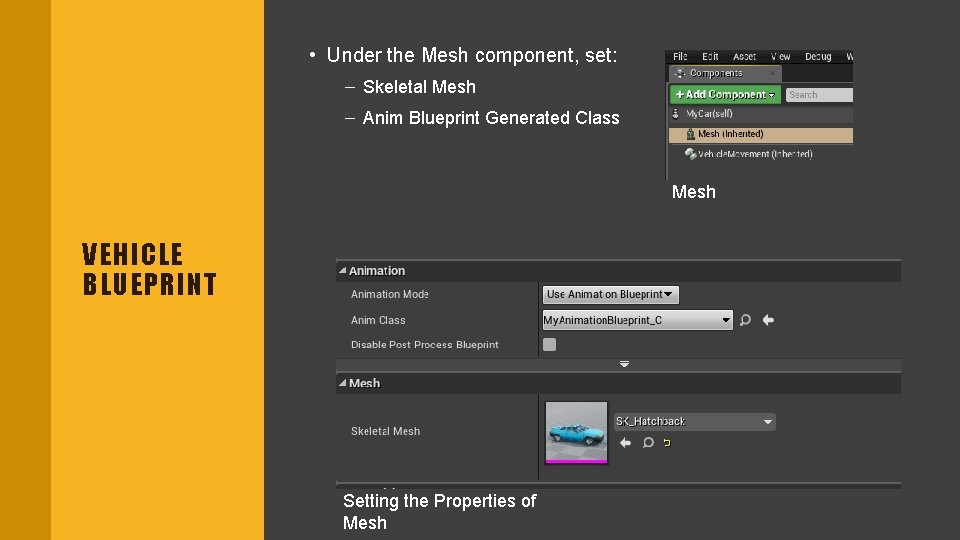
• Under the Mesh component, set: – Skeletal Mesh – Anim Blueprint Generated Class Mesh VEHICLE BLUEPRINT Setting the Properties of Mesh
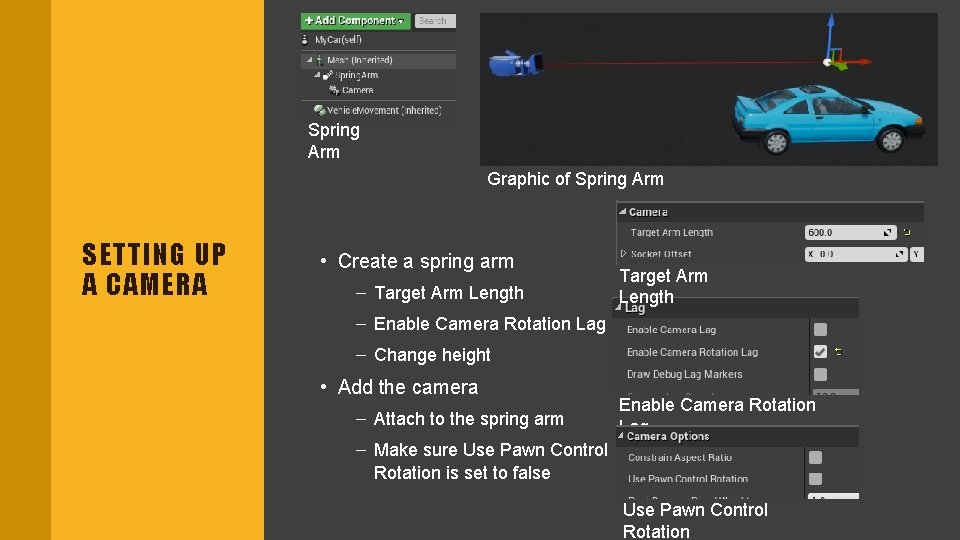
Spring Arm Graphic of Spring Arm SETTING UP A CAMERA • Create a spring arm – Target Arm Length – Enable Camera Rotation Lag – Change height • Add the camera – Attach to the spring arm – Make sure Use Pawn Control Rotation is set to false Enable Camera Rotation Lag Use Pawn Control Rotation
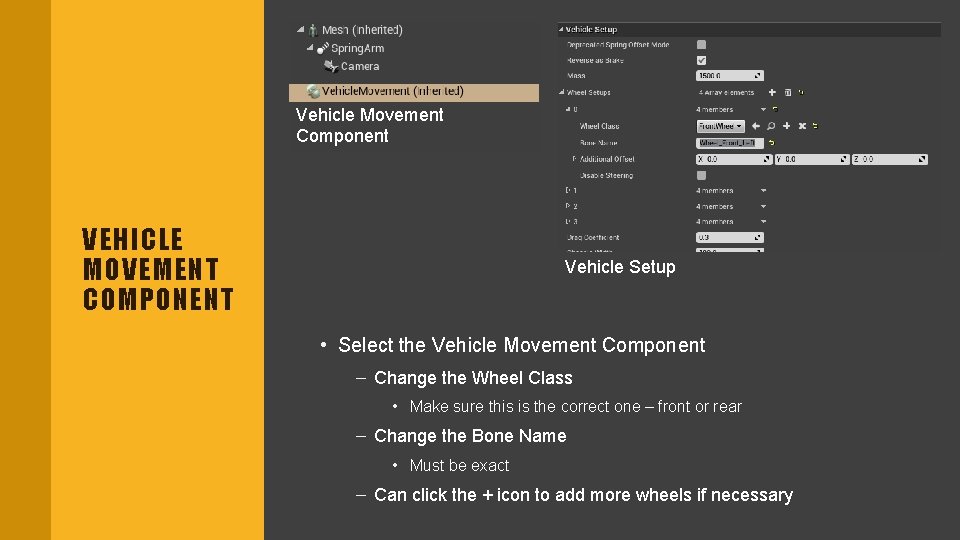
Vehicle Movement Component VEHICLE MOVEMENT COMPONENT Vehicle Setup • Select the Vehicle Movement Component – Change the Wheel Class • Make sure this is the correct one – front or rear – Change the Bone Name • Must be exact – Can click the + icon to add more wheels if necessary
USING THE VEHICLE
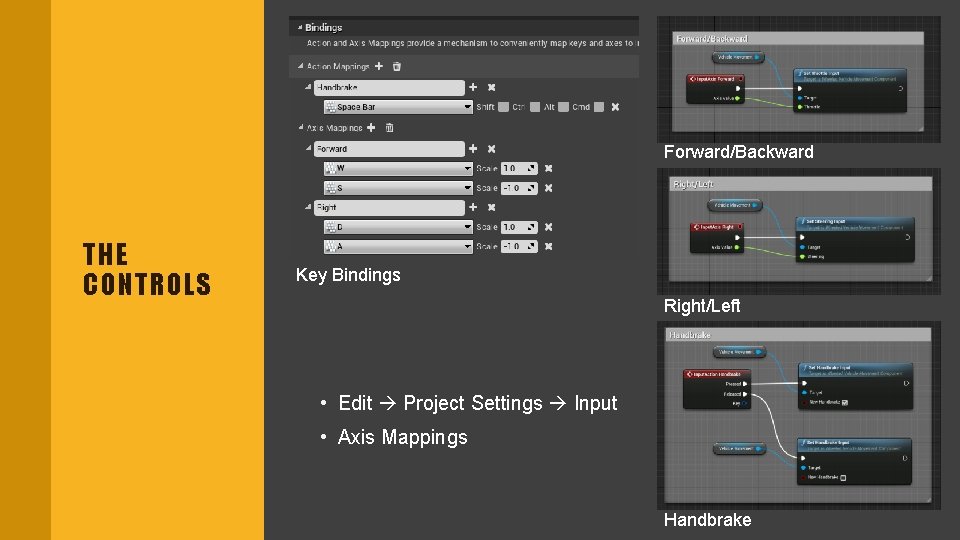
Forward/Backward THE CONTROLS Key Bindings Right/Left • Edit Project Settings Input • Axis Mappings Handbrake
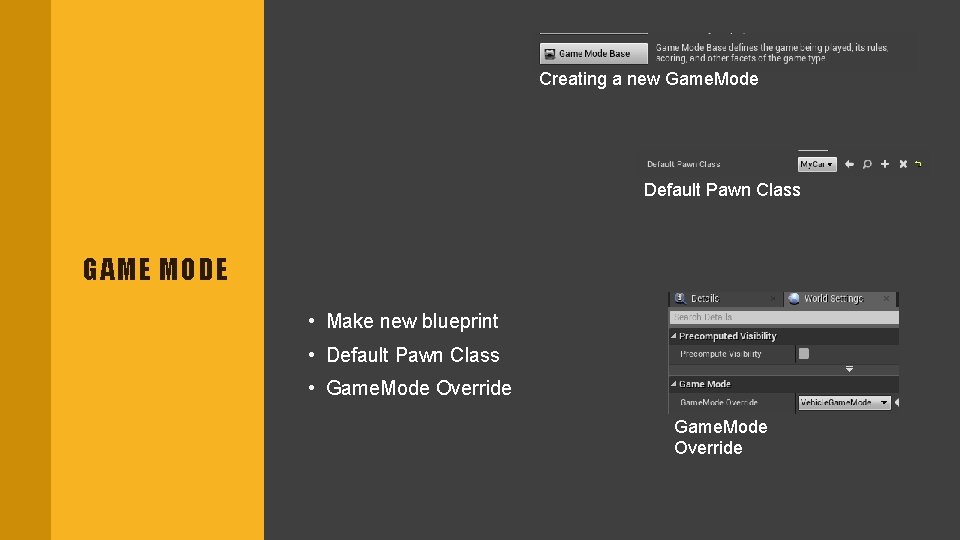
Creating a new Game. Mode Default Pawn Class GAME MODE • Make new blueprint • Default Pawn Class • Game. Mode Override
CENTER OF MASS
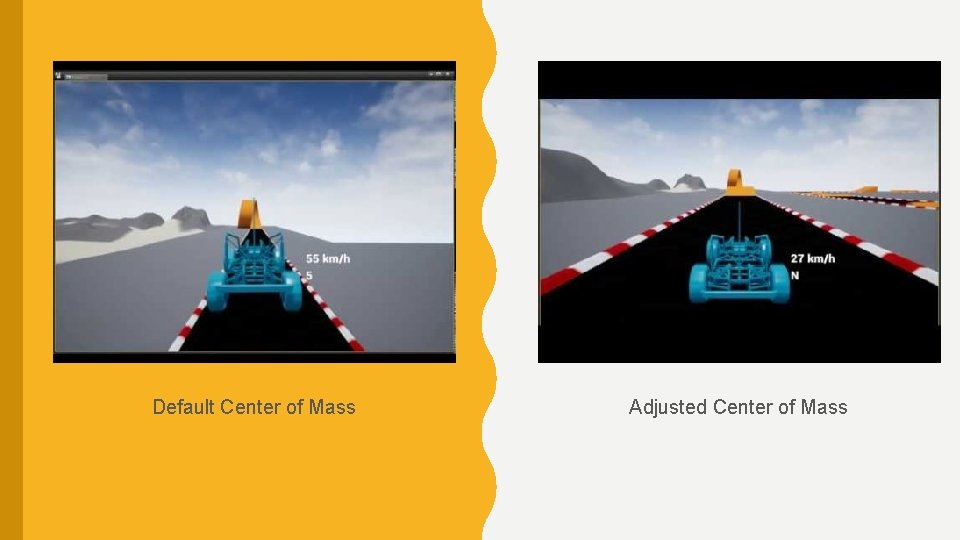
Default Center of Mass Adjusted Center of Mass
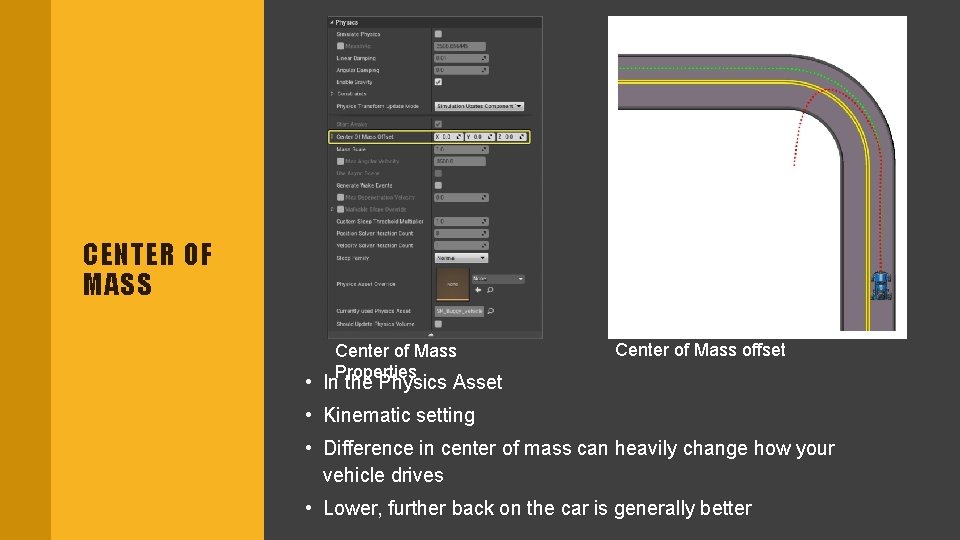
CENTER OF MASS Center of Mass Properties Center of Mass offset • In the Physics Asset • Kinematic setting • Difference in center of mass can heavily change how your vehicle drives • Lower, further back on the car is generally better
DEMONSTRATION
REFERENCES • Official Unreal Engine You. Tube tutorial • You. Tube tutorial by Michael Milord • Joints tutorial by Lusiogenic • Unreal Engine Vehicle Guide Documentation • Joints tutorial by Unreal. Tek
- Slides: 26