Clemson Mac Laptop Setup Workshop Handout laptop clemson


- Slides: 74
Clemson Mac Laptop Setup Workshop Handout: laptop. clemson. edu, click on Workshops, Workshop Links
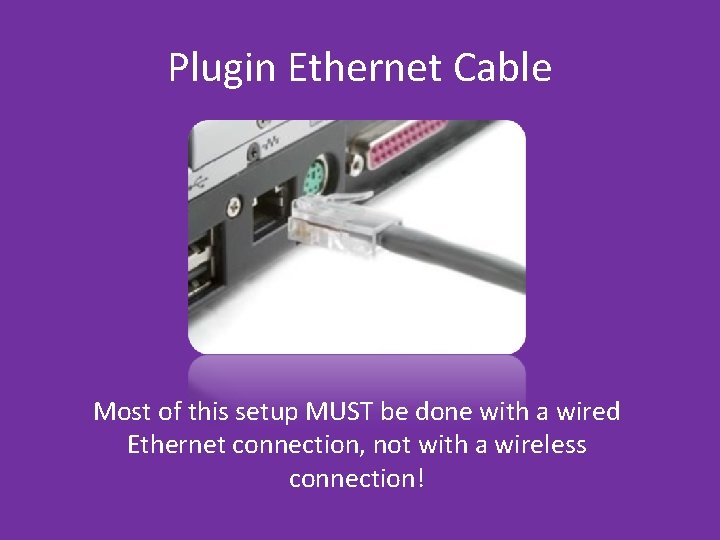
Plugin Ethernet Cable Most of this setup MUST be done with a wired Ethernet connection, not with a wireless connection!
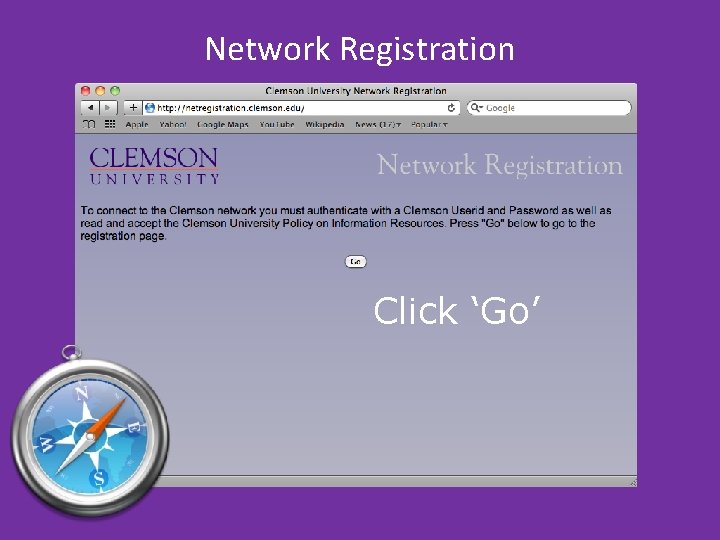
Network Registration Click ‘Go’
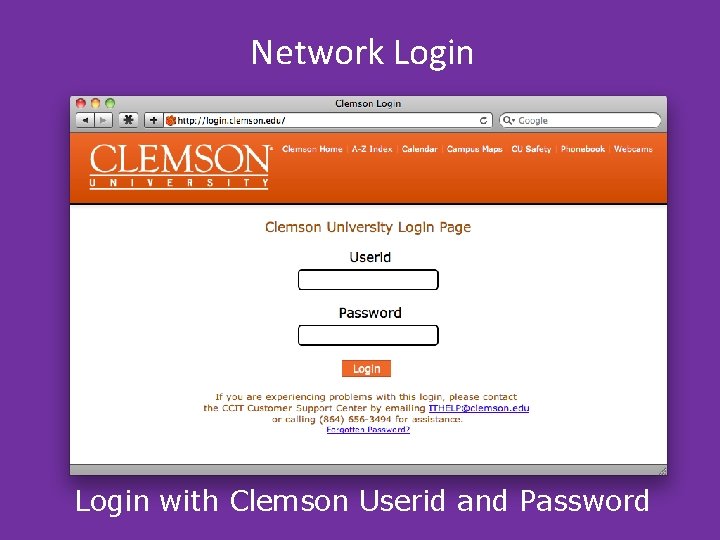
Network Login with Clemson Userid and Password
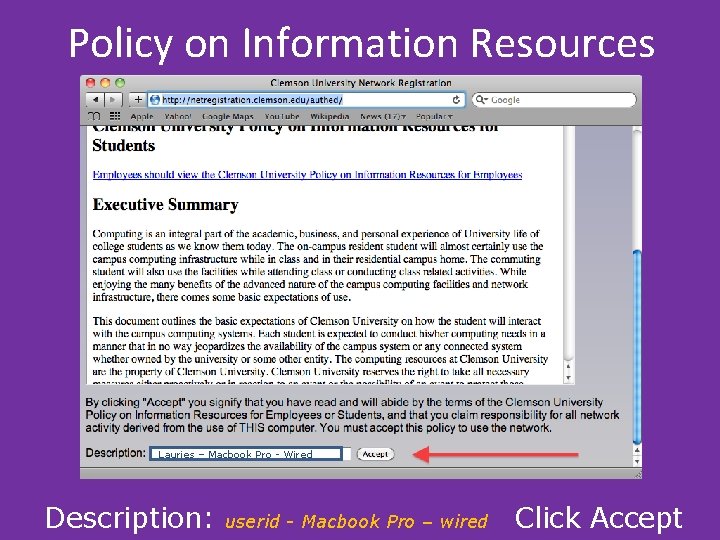
Policy on Information Resources Lauries – Macbook Pro - Wired Description: userid - Macbook Pro – wired Click Accept
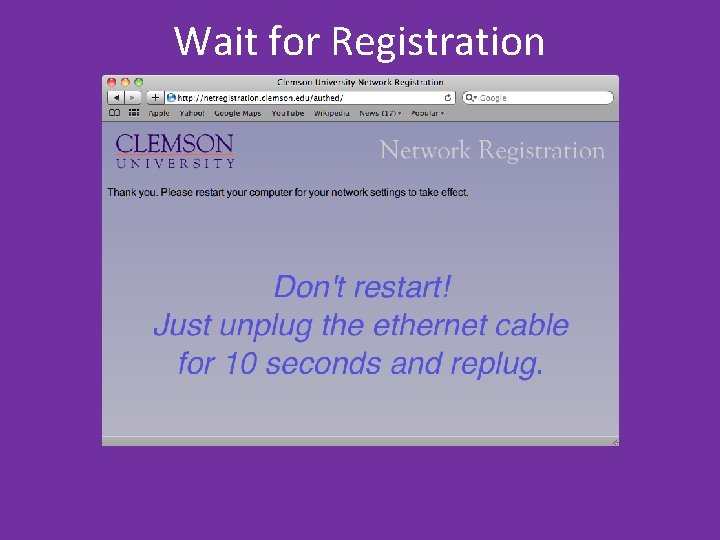
Wait for Registration
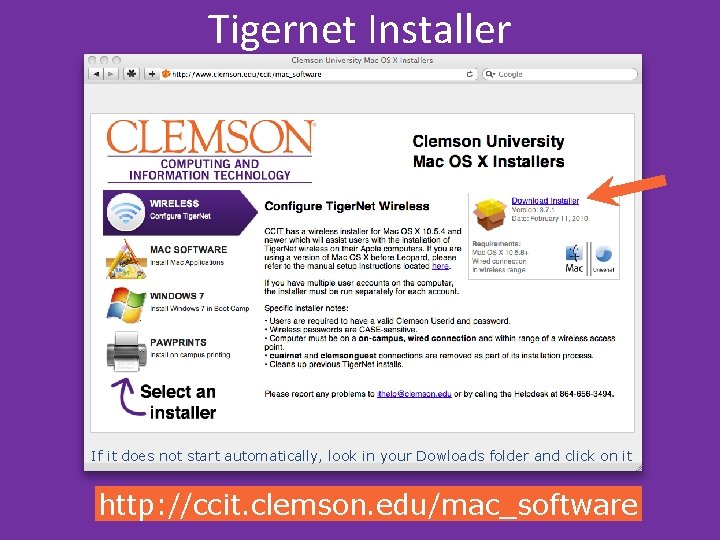
Tigernet Installer If it does not start automatically, look in your Dowloads folder and click on it http: //ccit. clemson. edu/mac_software
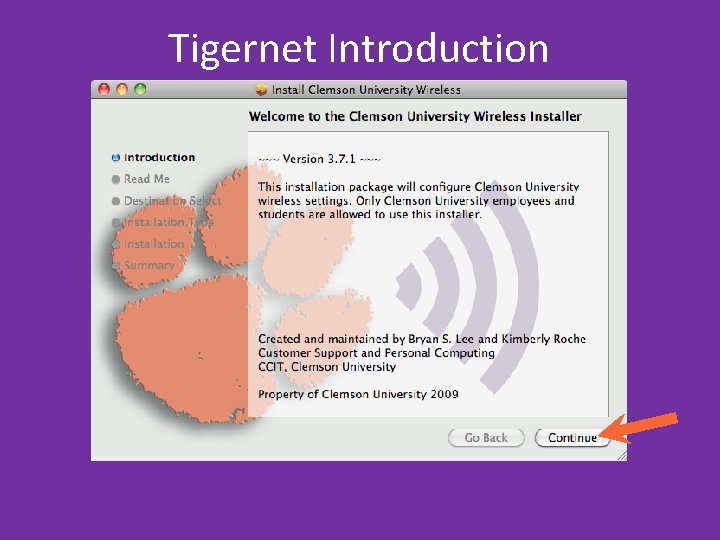
Tigernet Introduction
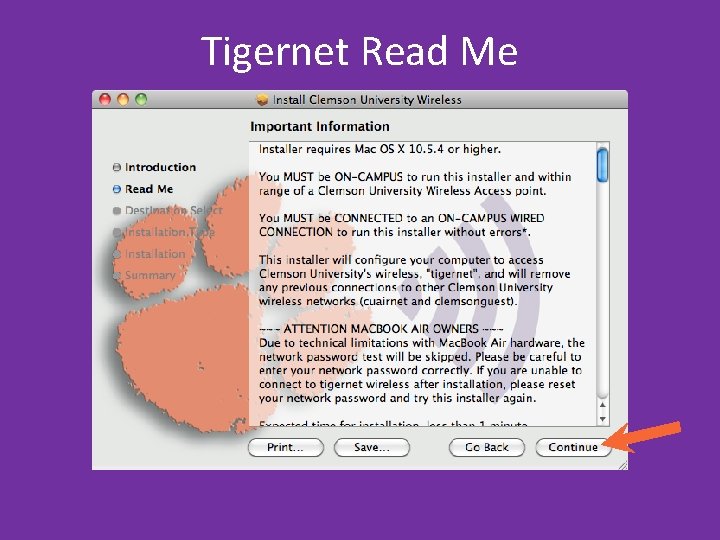
Tigernet Read Me
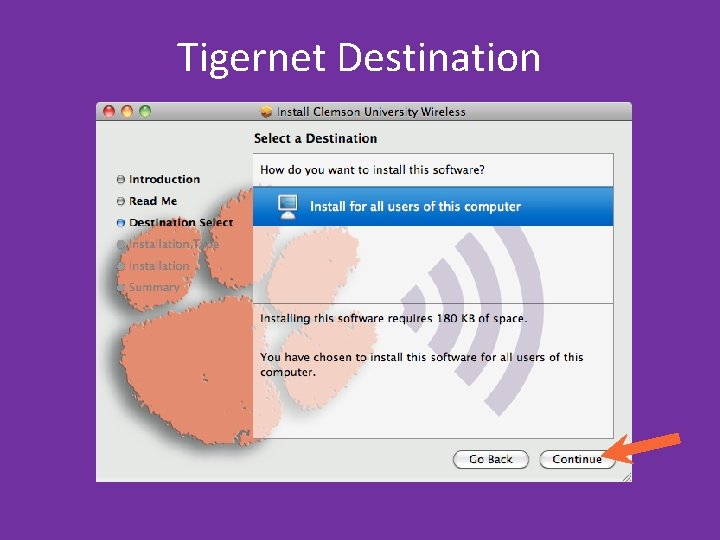
Tigernet Destination
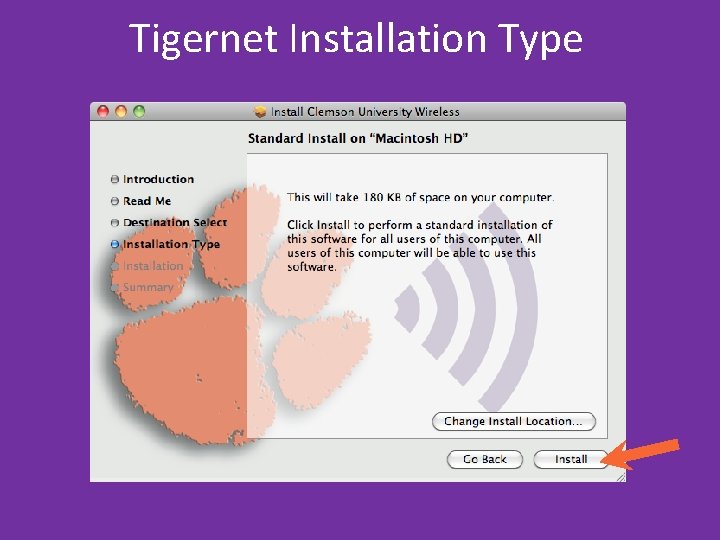
Tigernet Installation Type
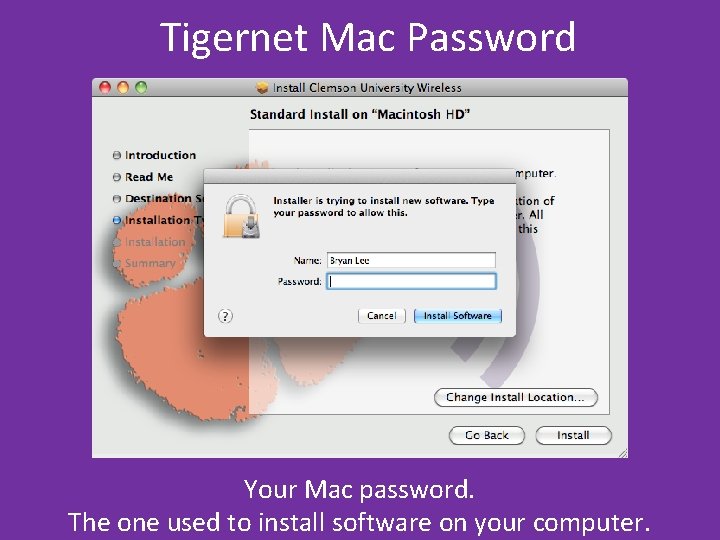
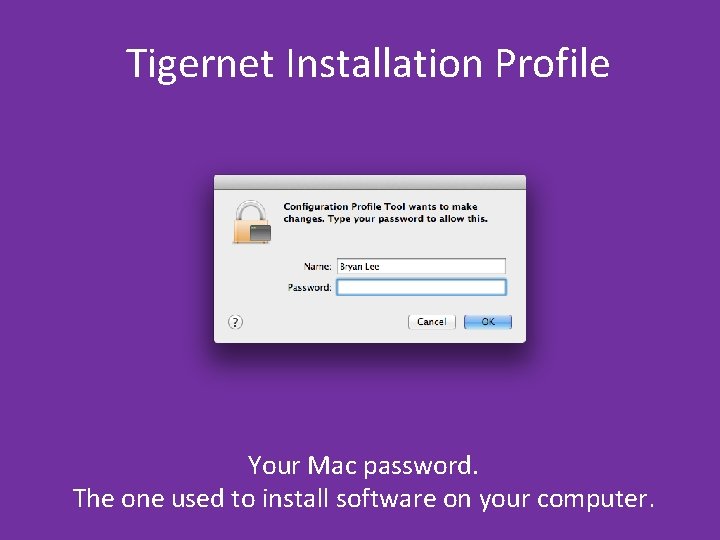
Tigernet Mac Password Your Mac password. The one used to install software on your computer.
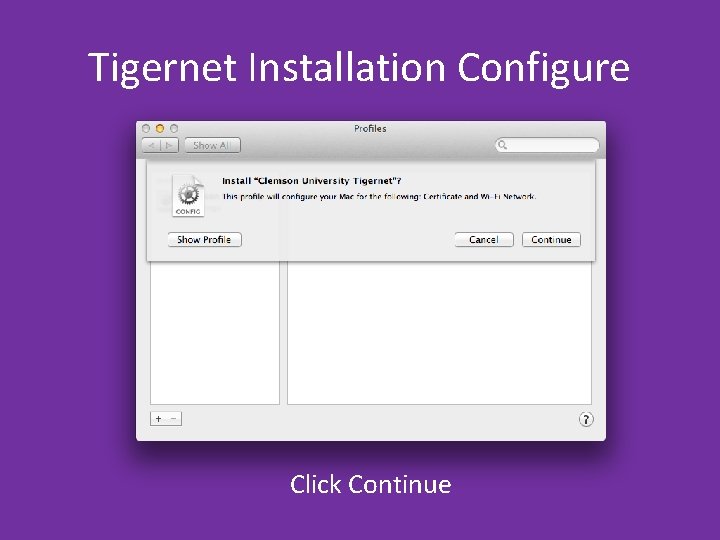
Tigernet Installation Configure Click Continue
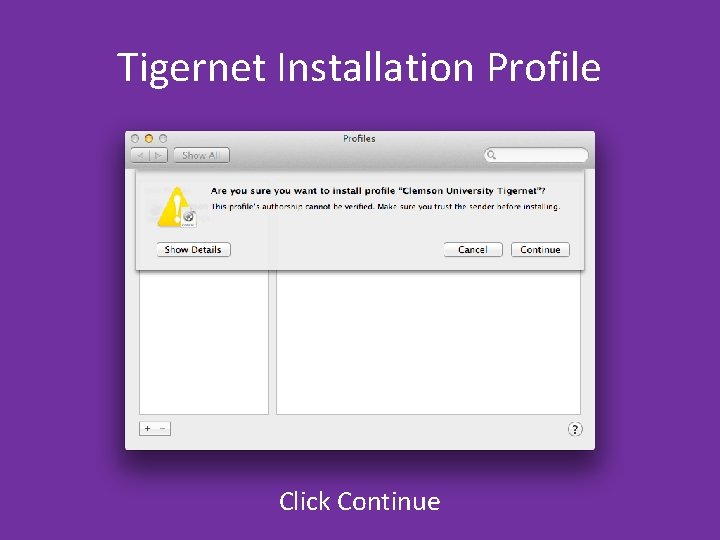
Tigernet Installation Profile Click Continue
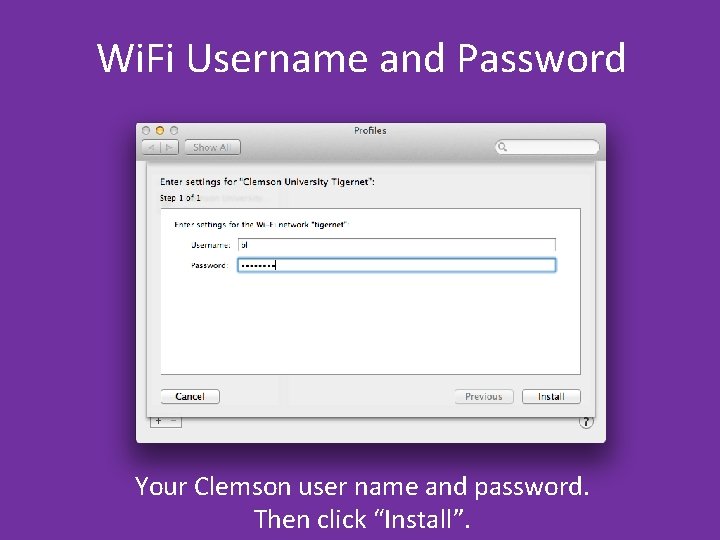
Wi. Fi Username and Password Your Clemson user name and password. Then click “Install”.
Tigernet Installation Profile Your Mac password. The one used to install software on your computer.
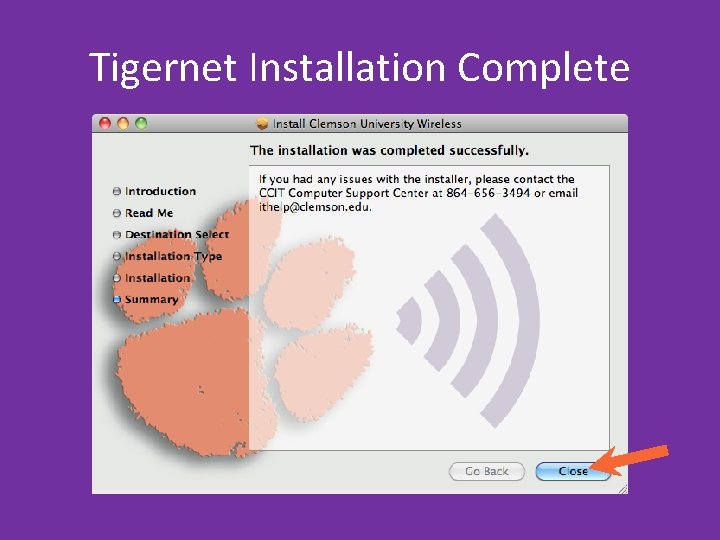
Tigernet Installation Complete
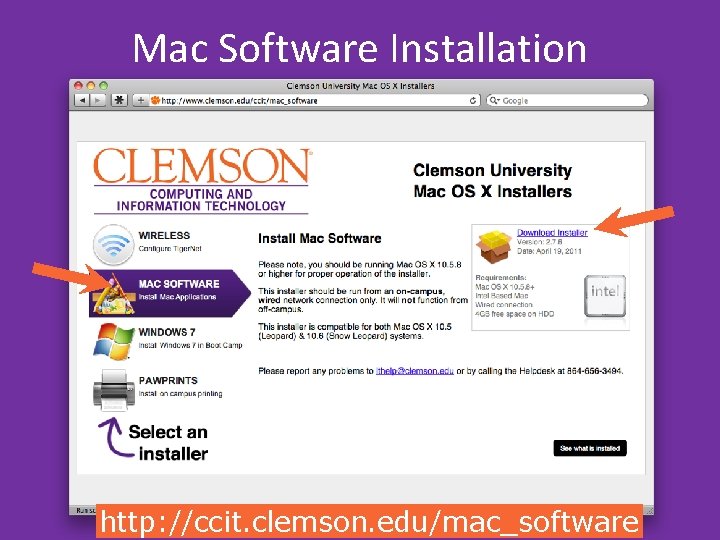
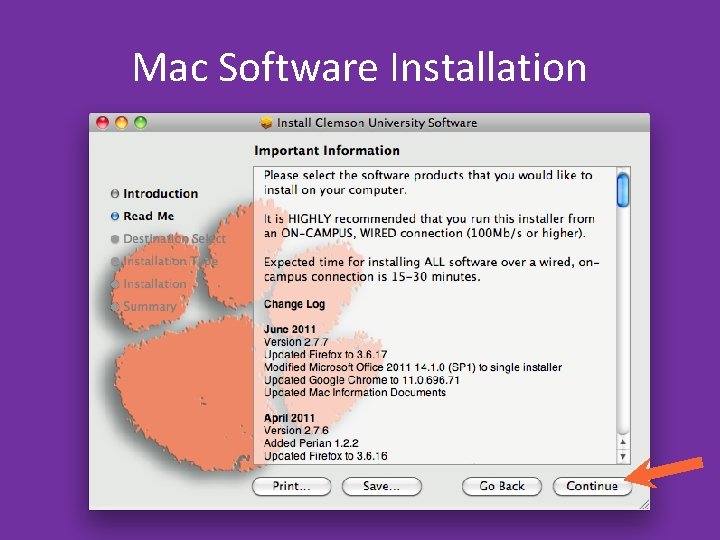
Mac Software Installation http: //ccit. clemson. edu/mac_software
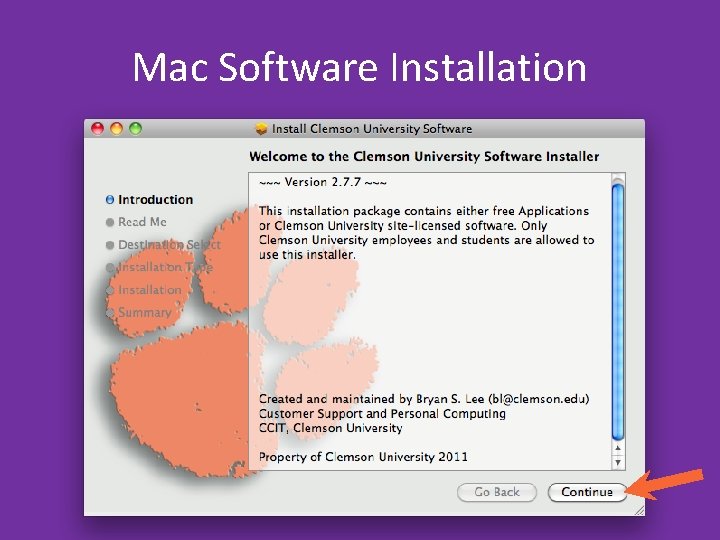
Mac Software Installation
Mac Software Installation
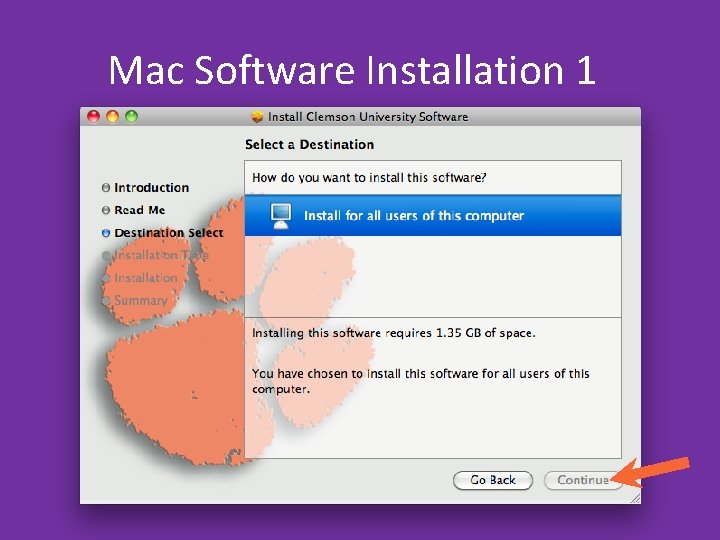
Mac Software Installation 1
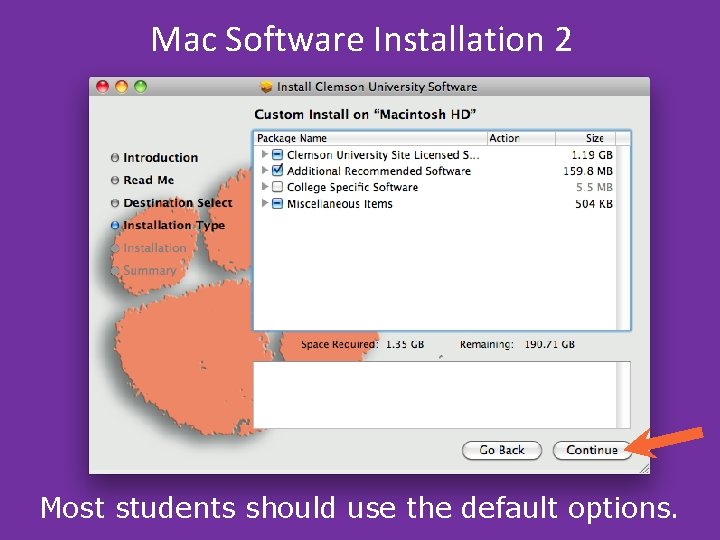
Mac Software Installation 2 Most students should use the default options.
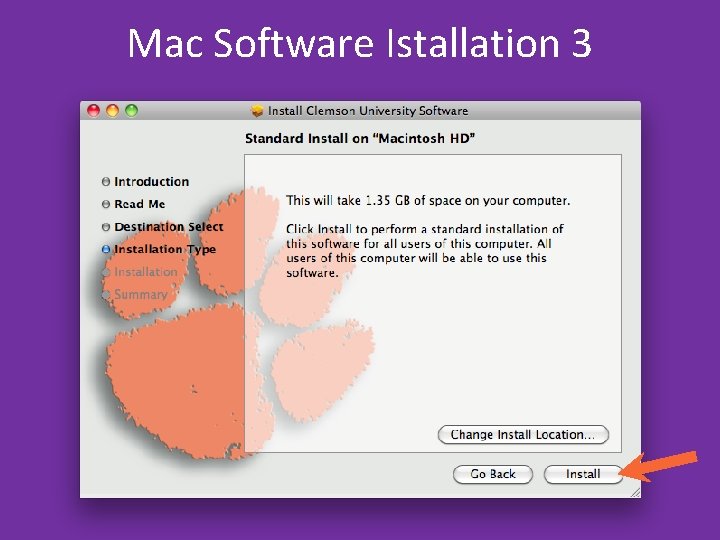
Mac Software Istallation 3
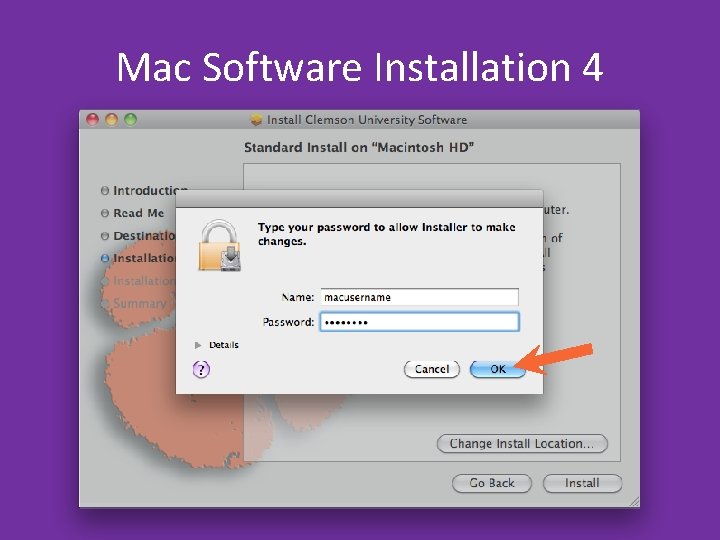
Mac Software Installation 4
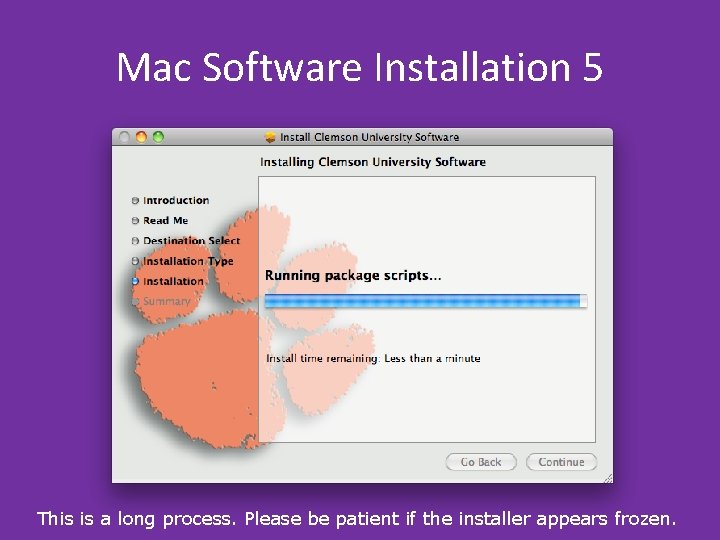
Mac Software Installation 5 This is a long process. Please be patient if the installer appears frozen.
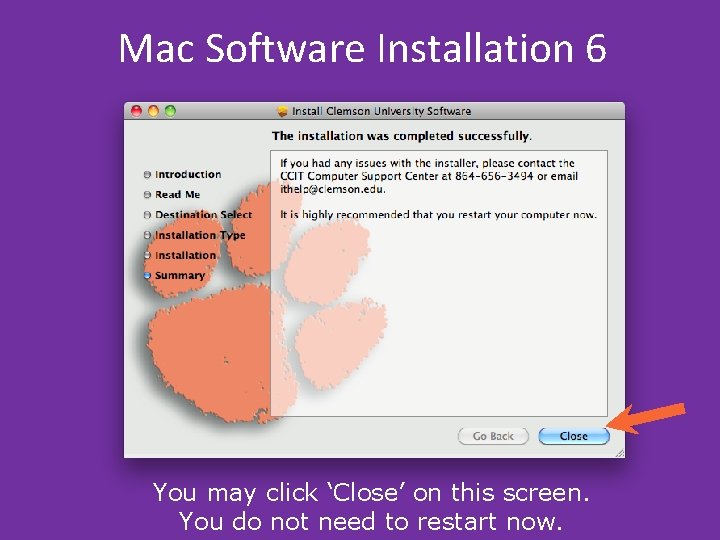
Mac Software Installation 6 You may click ‘Close’ on this screen. You do not need to restart now.
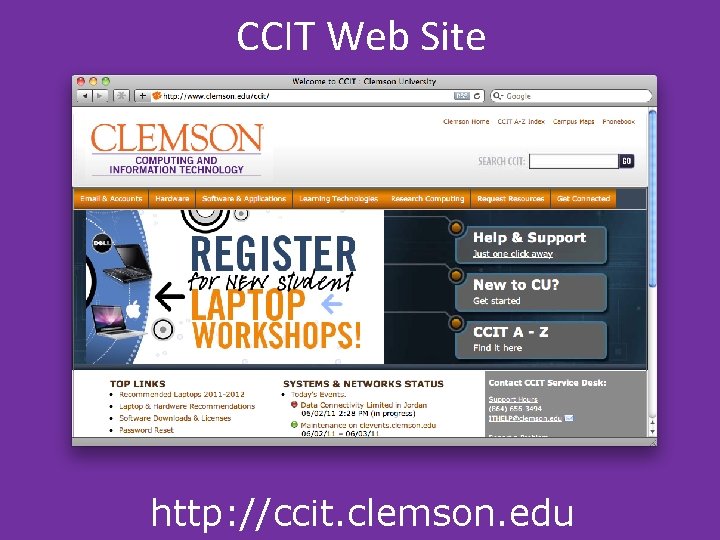
CCIT Web Site http: //ccit. clemson. edu
CCIT Support Center • Call: 864 -656 -3494 • Email: ithelp@clemson. edu • Visit: 2 nd Floor, Cooper Library.
Apple. Care • Part of recommended purchase from campus store. • Covers hardware defects for 3 years. • DOES NOT cover accidental damage.
Apple. Care Registration • If you received a box, you might need to register your plan. • Open the box when you get home and follow the directions within.
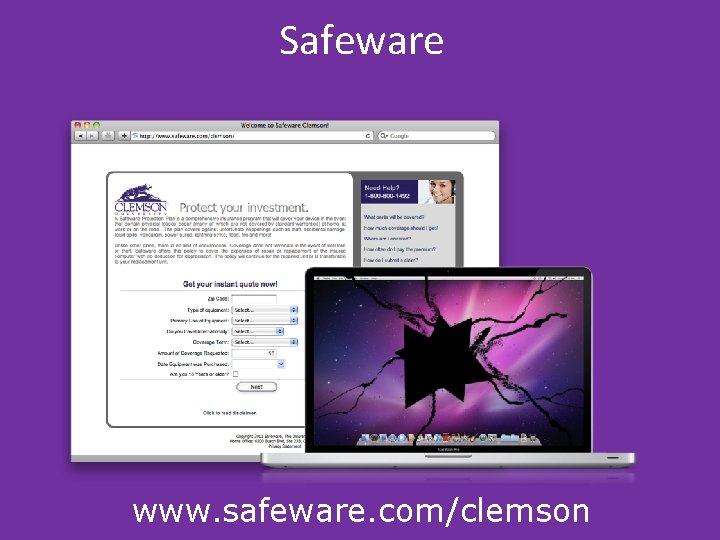
Safeware www. safeware. com/clemson
Back Up Your Data!!! If your laptop requires service from CCIT, we will not backup your data for you. You are responsible for backing up your data.
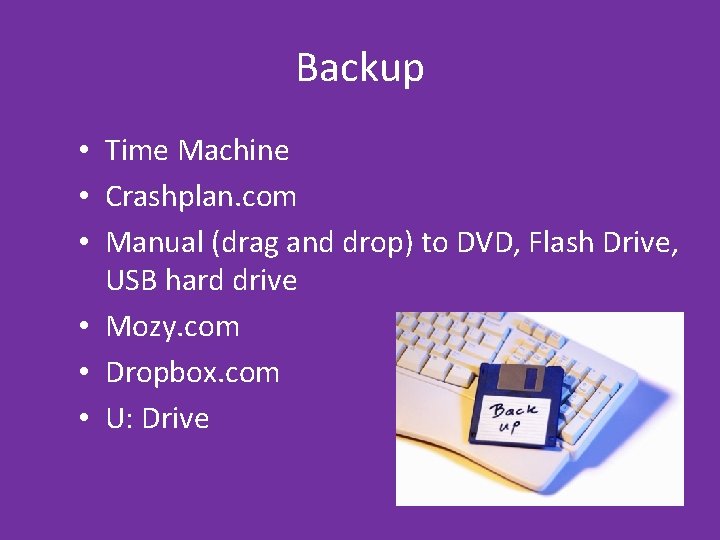
Backup • Time Machine • Crashplan. com • Manual (drag and drop) to DVD, Flash Drive, USB hard drive • Mozy. com • Dropbox. com • U: Drive
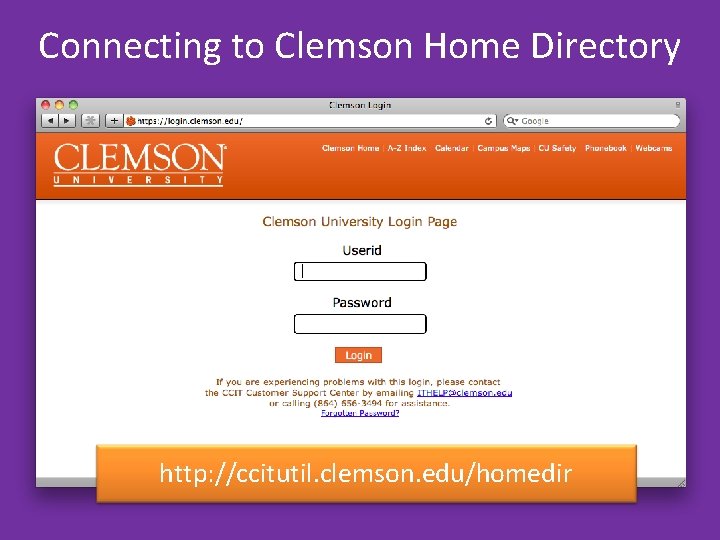
Connecting to Clemson Home Directory http: //ccitutil. clemson. edu/homedir
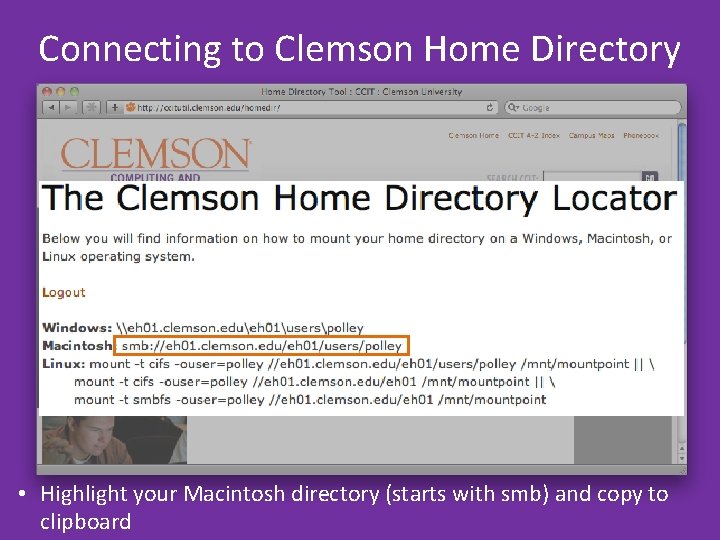
Connecting to Clemson Home Directory • Highlight your Macintosh directory (starts with smb) and copy to clipboard
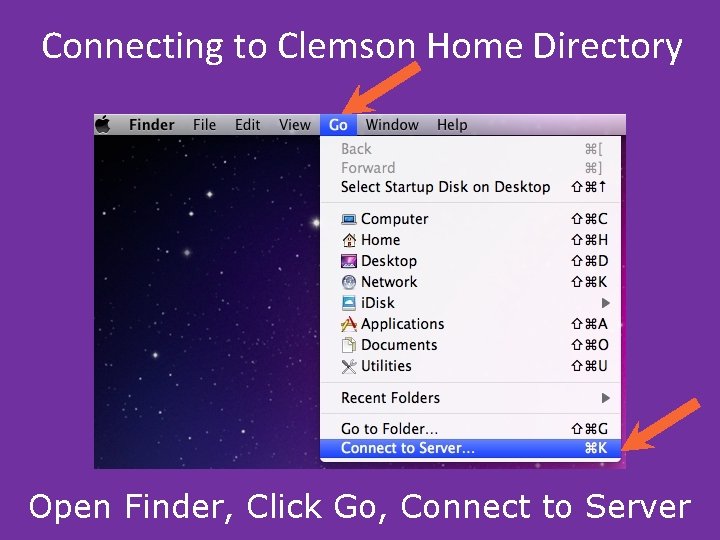
Connecting to Clemson Home Directory Open Finder, Click Go, Connect to Server
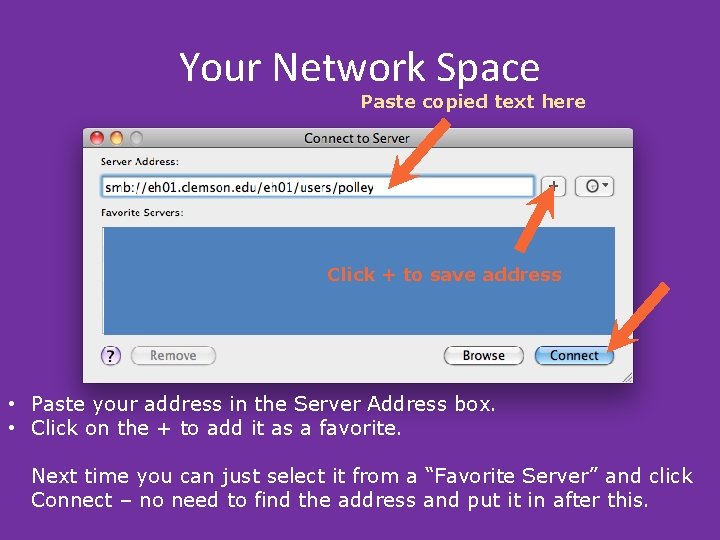
Your Network Space Paste copied text here Click + to save address • Paste your address in the Server Address box. • Click on the + to add it as a favorite. Next time you can just select it from a “Favorite Server” and click Connect – no need to find the address and put it in after this.
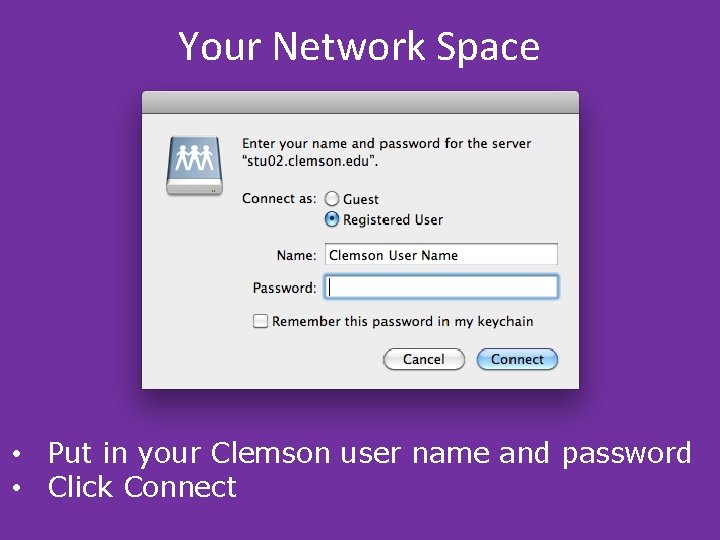
Your Network Space • Put in your Clemson user name and password • Click Connect
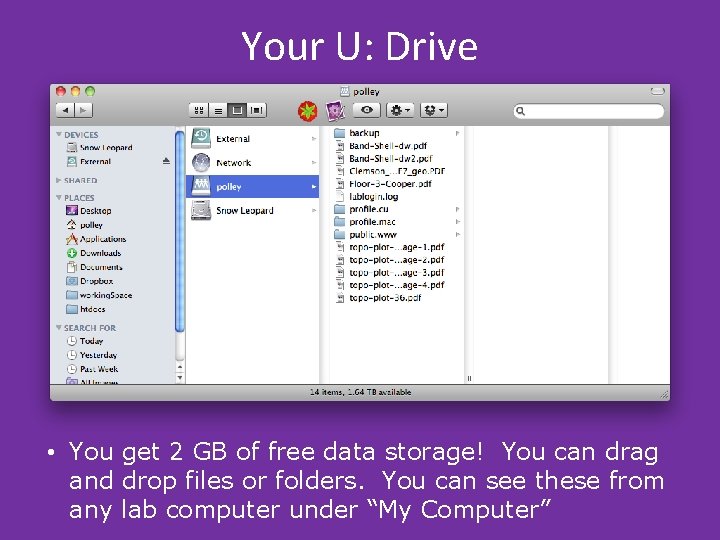
Your U: Drive • You get 2 GB of free data storage! You can drag and drop files or folders. You can see these from any lab computer under “My Computer”
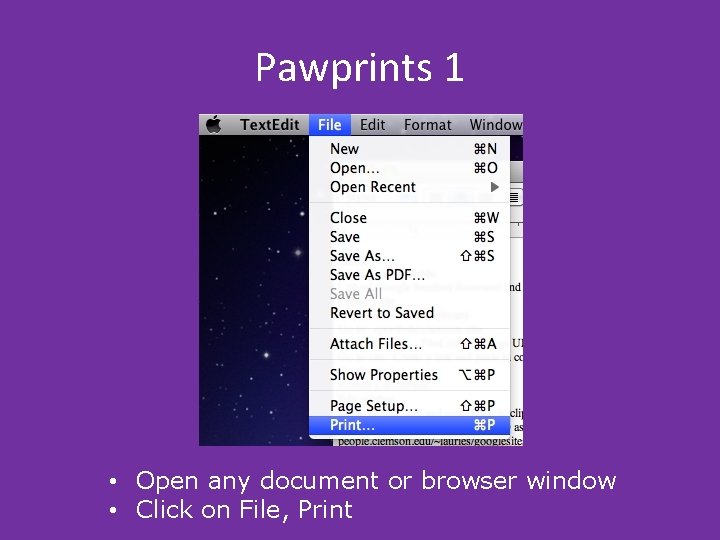
Pawprints 1 • Open any document or browser window • Click on File, Print
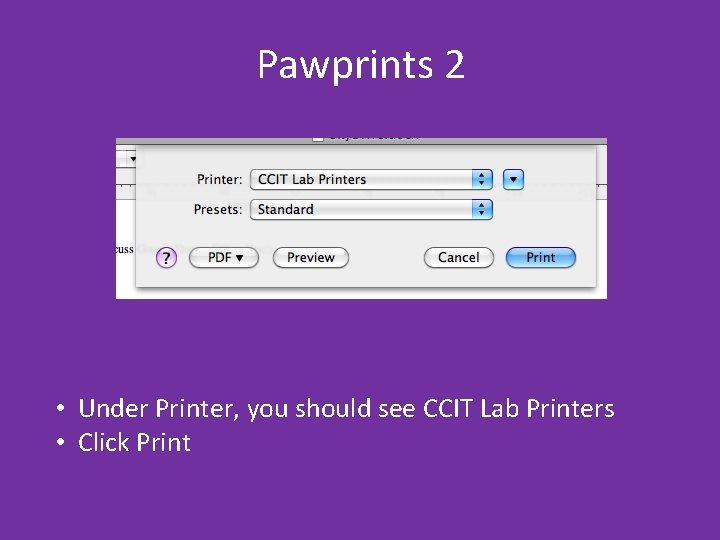
Pawprints 2 • Under Printer, you should see CCIT Lab Printers • Click Print
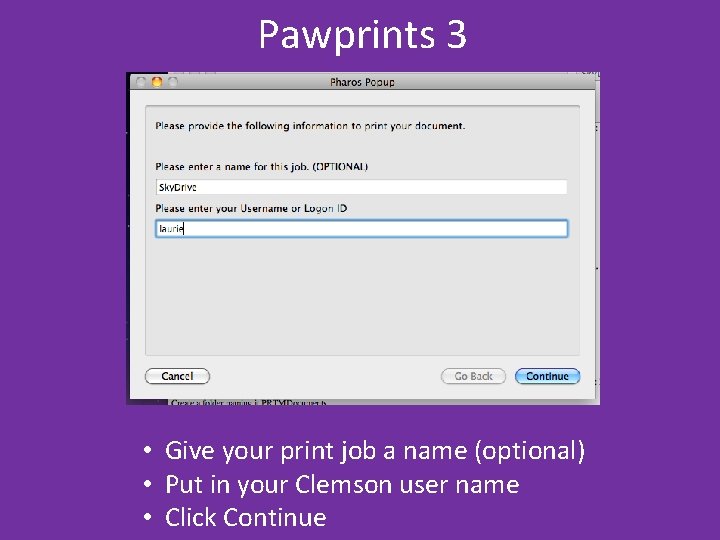
Pawprints 3 • Give your print job a name (optional) • Put in your Clemson user name • Click Continue
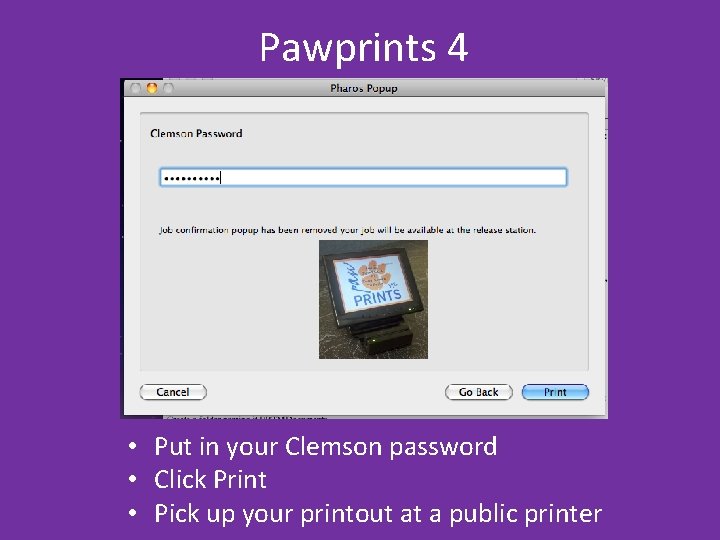
Pawprints 4 • Put in your Clemson password • Click Print • Pick up your printout at a public printer
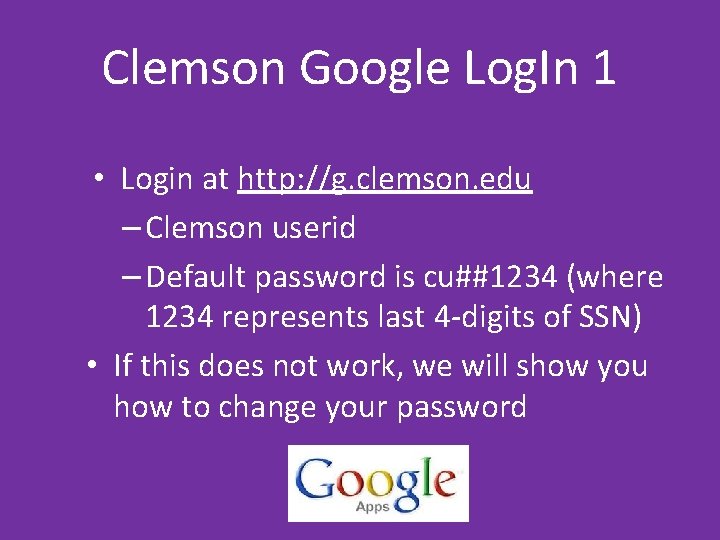
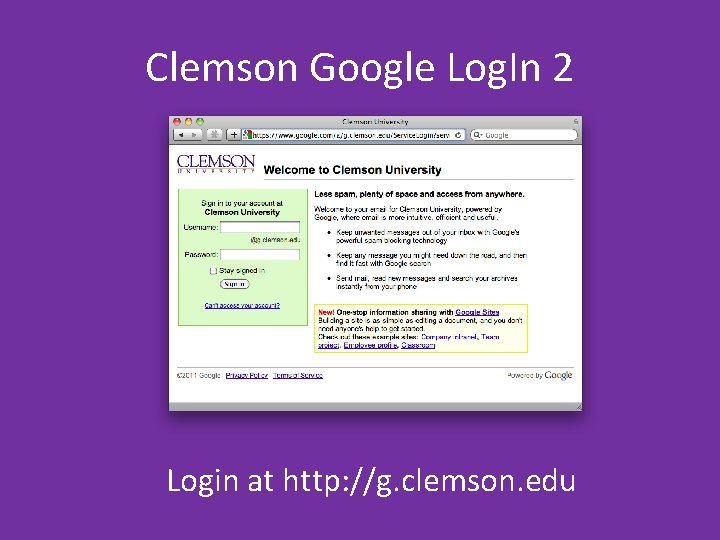
Clemson Google Log. In 1 • Login at http: //g. clemson. edu – Clemson userid – Default password is cu##1234 (where 1234 represents last 4 -digits of SSN) • If this does not work, we will show you how to change your password
Clemson Google Log. In 2 Login at http: //g. clemson. edu
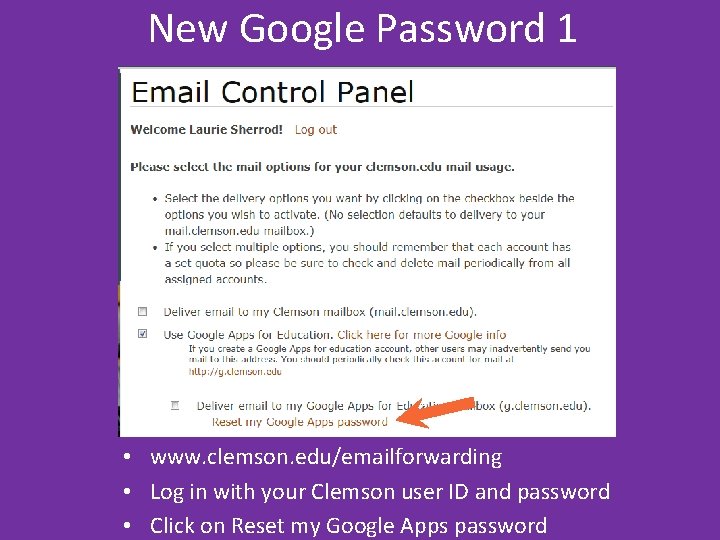
New Google Password 1 • www. clemson. edu/emailforwarding • Log in with your Clemson user ID and password • Click on Reset my Google Apps password
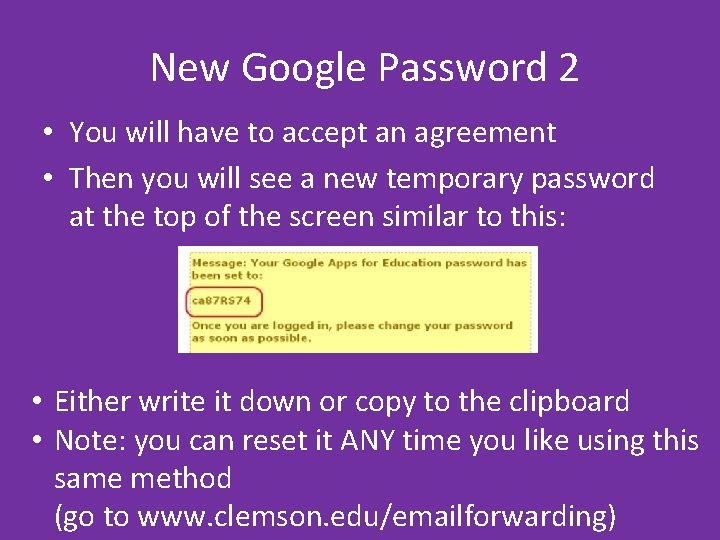
New Google Password 2 • You will have to accept an agreement • Then you will see a new temporary password at the top of the screen similar to this: • Either write it down or copy to the clipboard • Note: you can reset it ANY time you like using this same method (go to www. clemson. edu/emailforwarding)
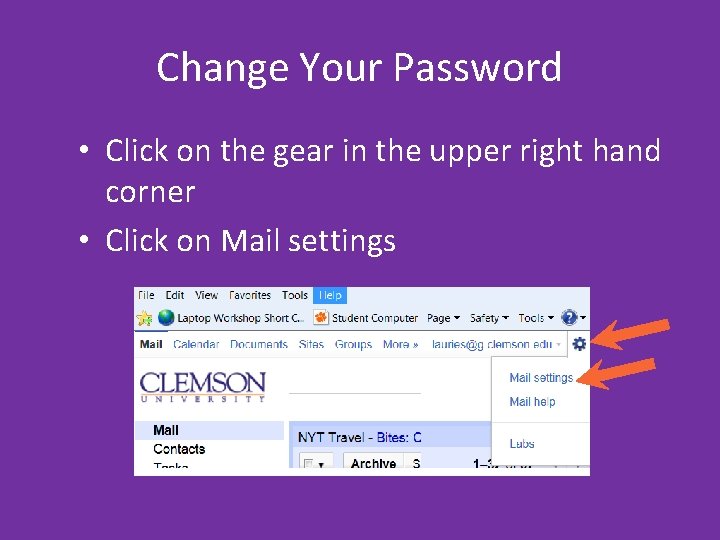
Change Your Password • Click on the gear in the upper right hand corner • Click on Mail settings
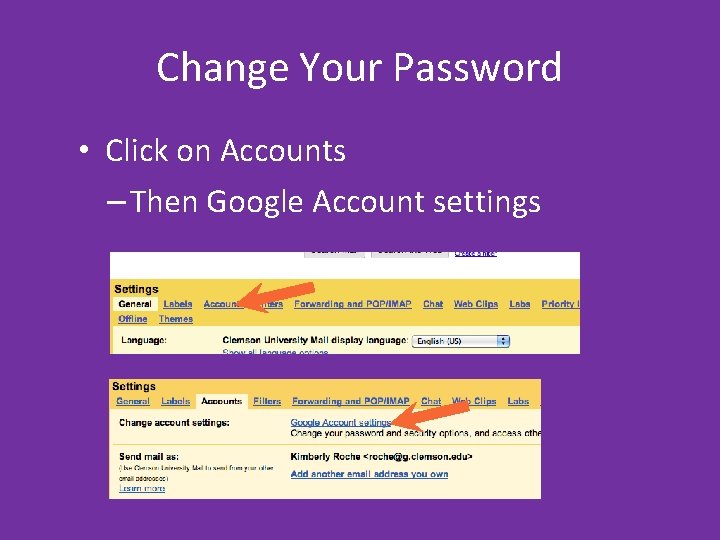
Change Your Password • Click on Accounts – Then Google Account settings
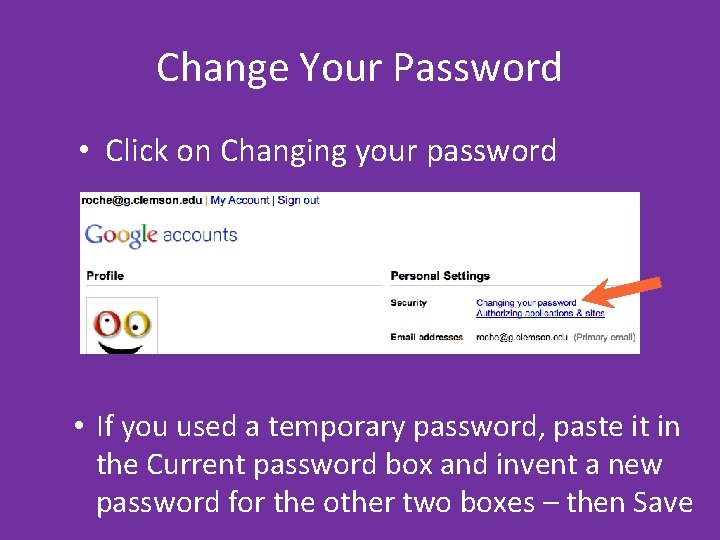
Change Your Password • Click on Changing your password • If you used a temporary password, paste it in the Current password box and invent a new password for the other two boxes – then Save
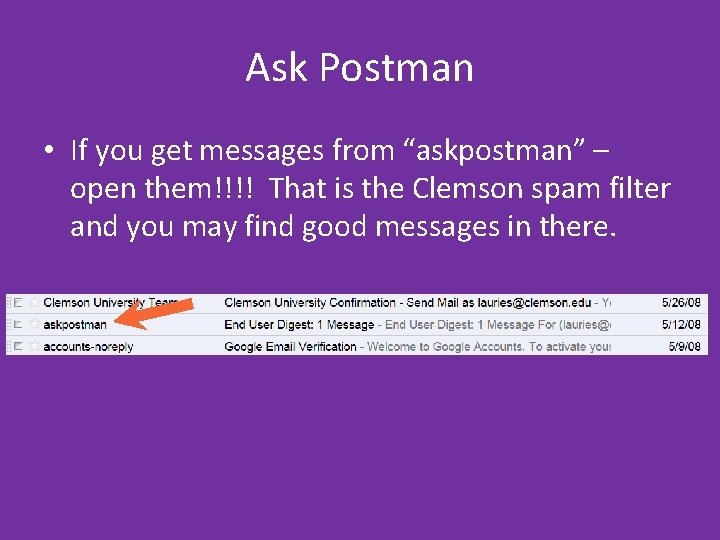
Ask Postman • If you get messages from “askpostman” – open them!!!! That is the Clemson spam filter and you may find good messages in there.
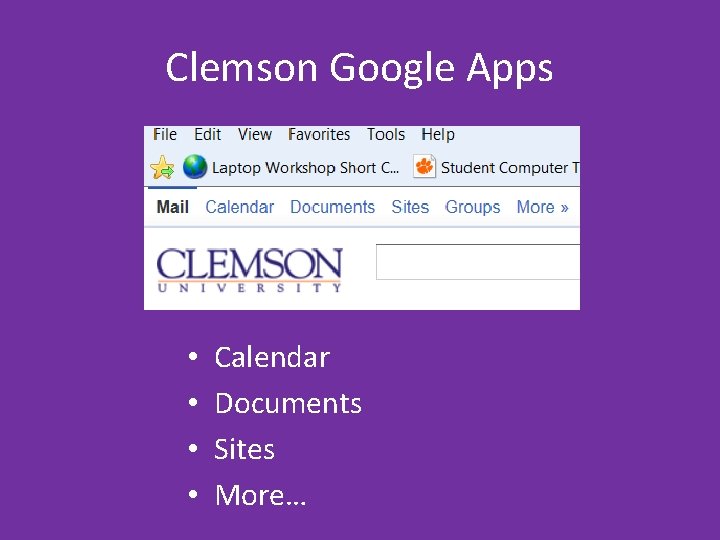
Clemson Google Apps • • Calendar Documents Sites More…
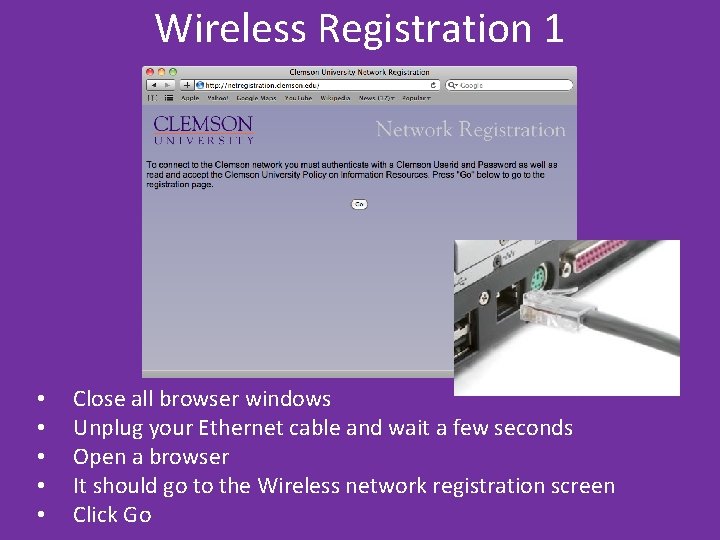
Wireless Registration 1 • • • Close all browser windows Unplug your Ethernet cable and wait a few seconds Open a browser It should go to the Wireless network registration screen Click Go
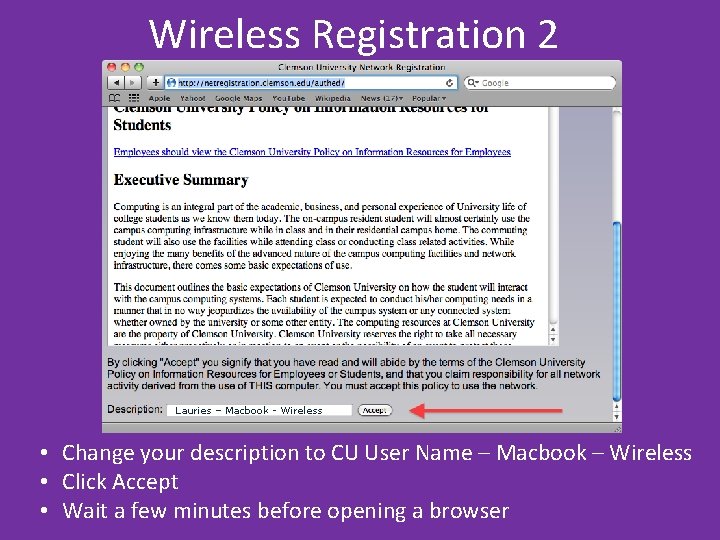
Wireless Registration 2 Lauries – Macbook - Wireless • Change your description to CU User Name – Macbook – Wireless • Click Accept • Wait a few minutes before opening a browser
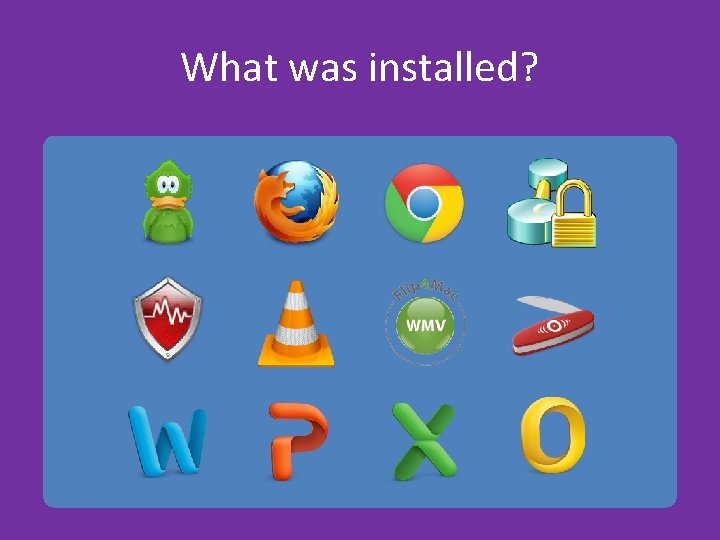
What was installed?
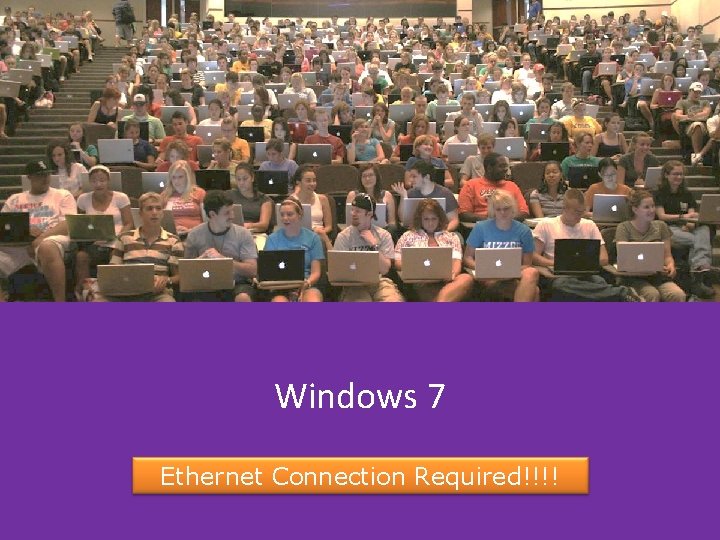
Windows 7 Ethernet Connection Required!!!!
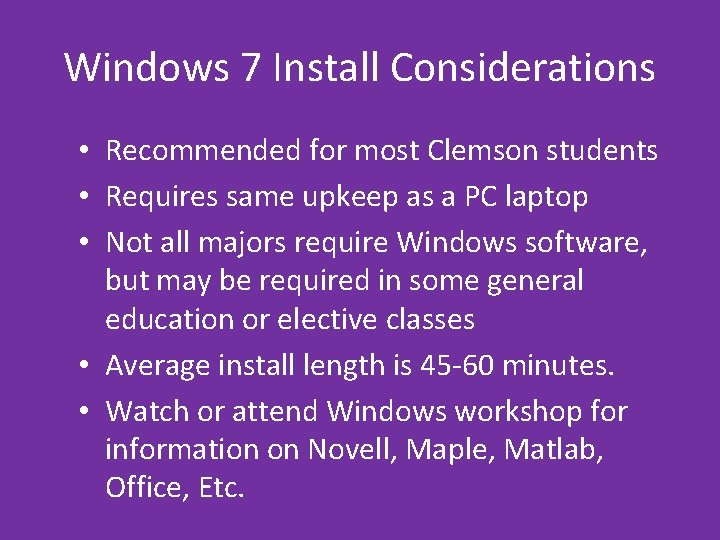
Windows 7 Install Considerations • Recommended for most Clemson students • Requires same upkeep as a PC laptop • Not all majors require Windows software, but may be required in some general education or elective classes • Average install length is 45 -60 minutes. • Watch or attend Windows workshop for information on Novell, Maple, Matlab, Office, Etc.
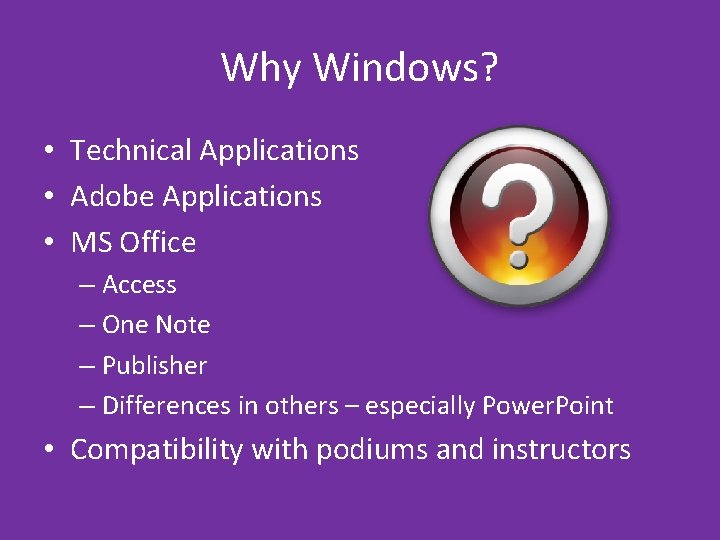
Why Windows? • Technical Applications • Adobe Applications • MS Office – Access – One Note – Publisher – Differences in others – especially Power. Point • Compatibility with podiums and instructors
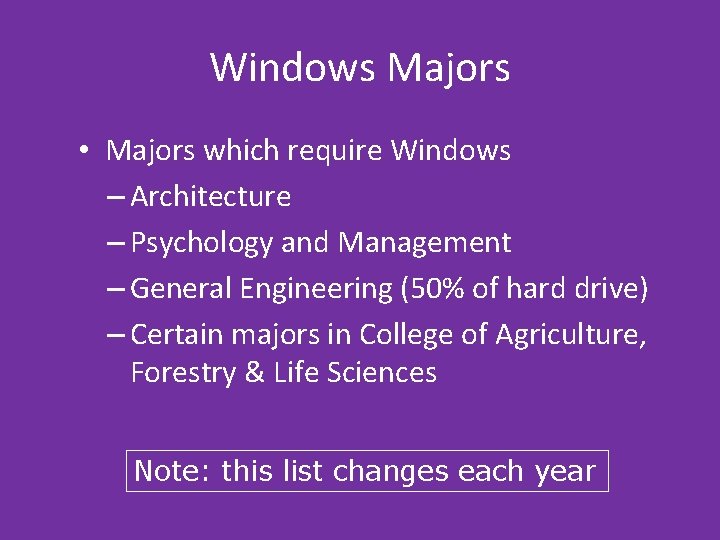
Windows Majors • Majors which require Windows – Architecture – Psychology and Management – General Engineering (50% of hard drive) – Certain majors in College of Agriculture, Forestry & Life Sciences Note: this list changes each year
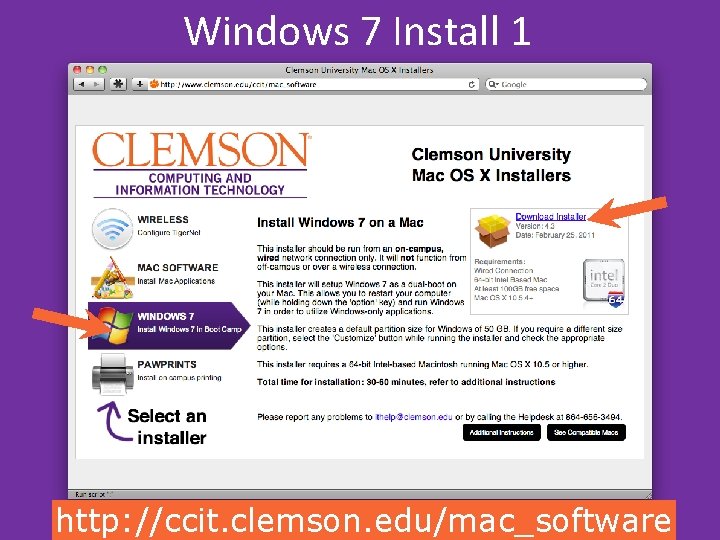
Windows 7 Install 1 http: //ccit. clemson. edu/mac_software
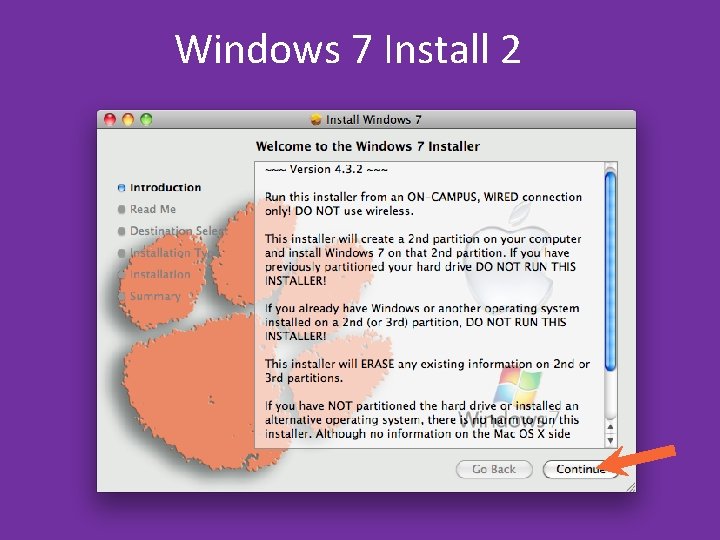
Windows 7 Install 2
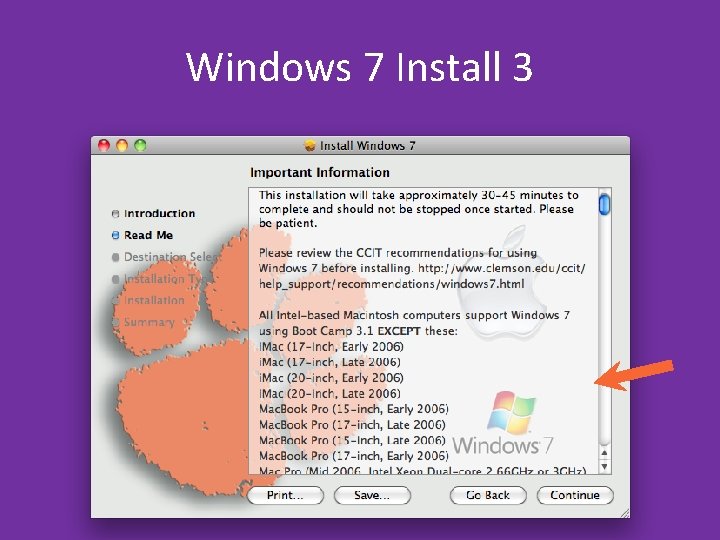
Windows 7 Install 3
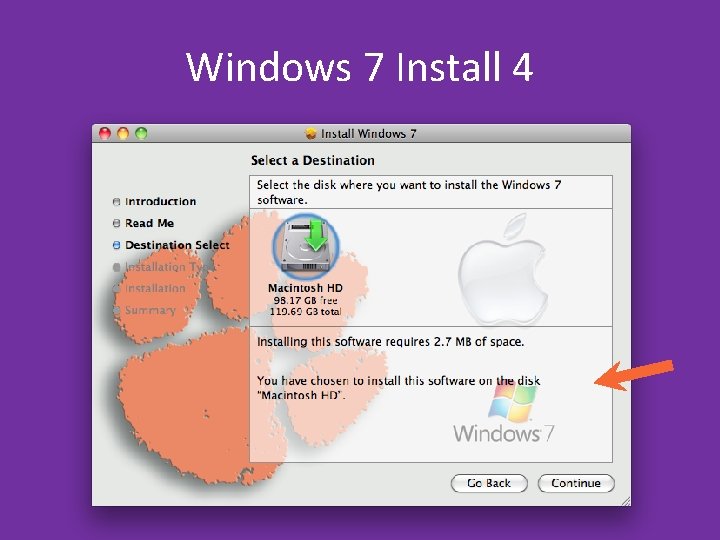
Windows 7 Install 4
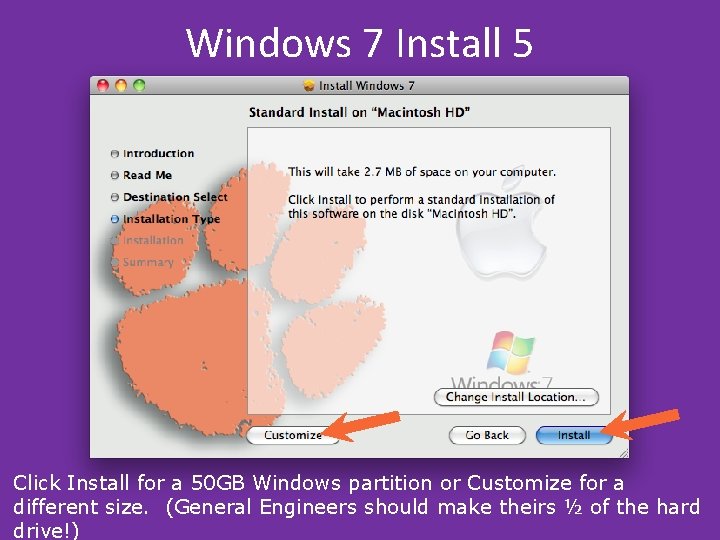
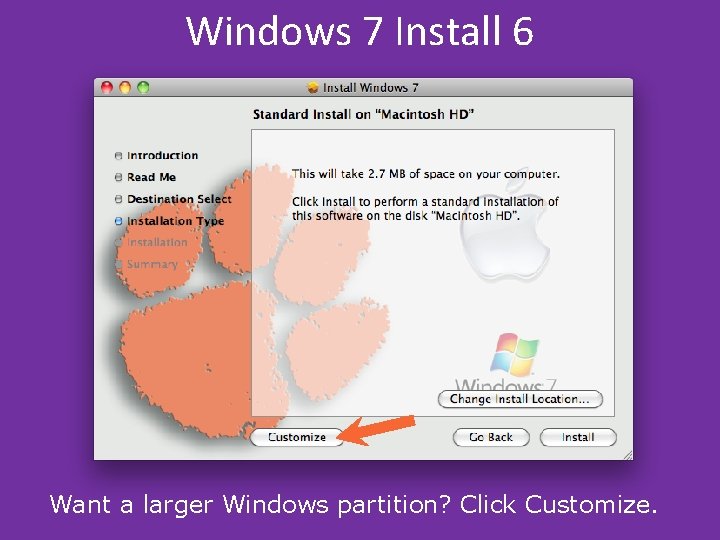
Windows 7 Install 5 Click Install for a 50 GB Windows partition or Customize for a different size. (General Engineers should make theirs ½ of the hard drive!)
Windows 7 Install 6 Want a larger Windows partition? Click Customize.
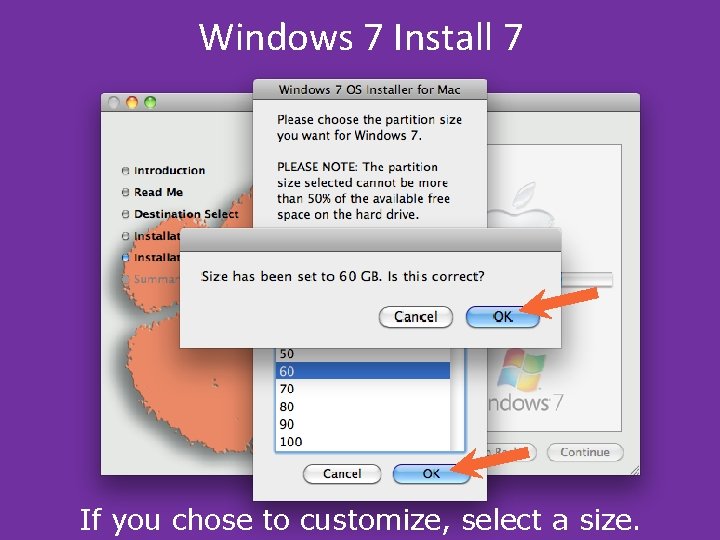
Windows 7 Install 7 If you chose to customize, select a size.
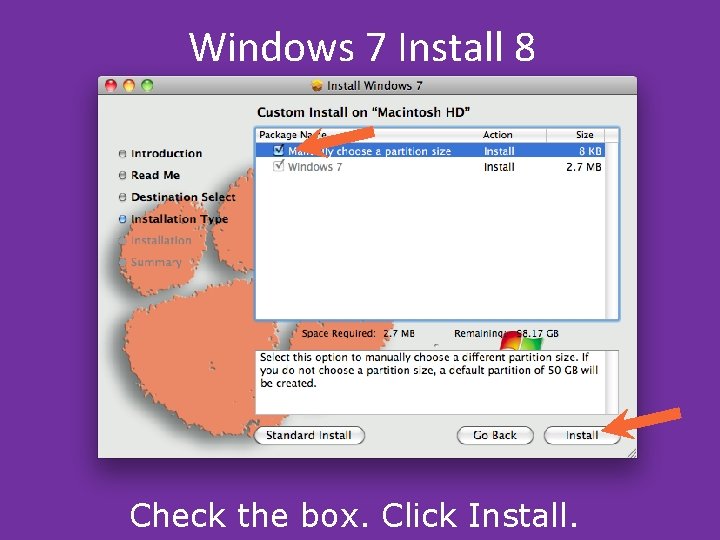
Windows 7 Install 8 Check the box. Click Install.
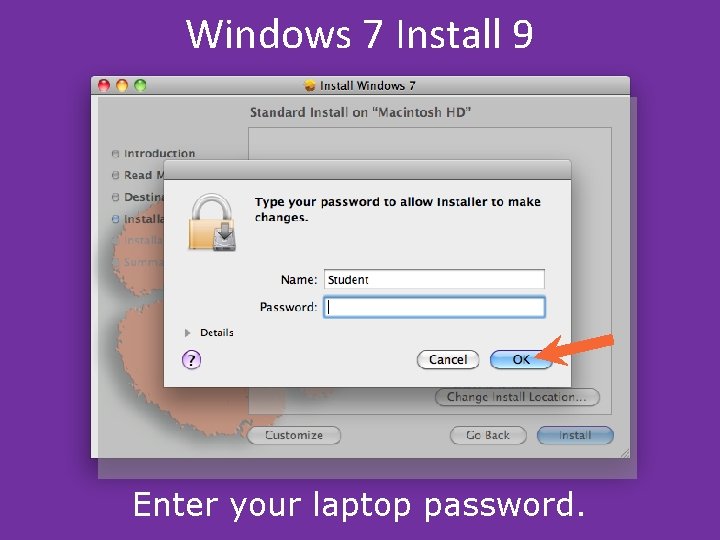
Windows 7 Install 9 Enter your laptop password.
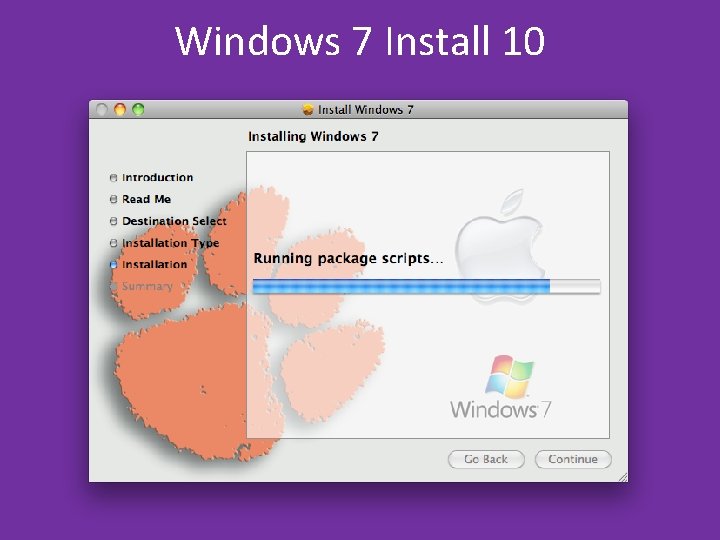
Windows 7 Install 10
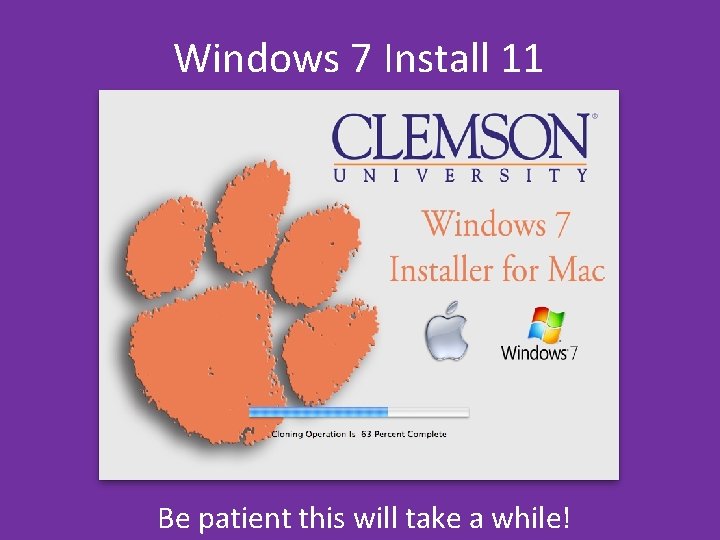
Windows 7 Install 11 Be patient this will take a while!
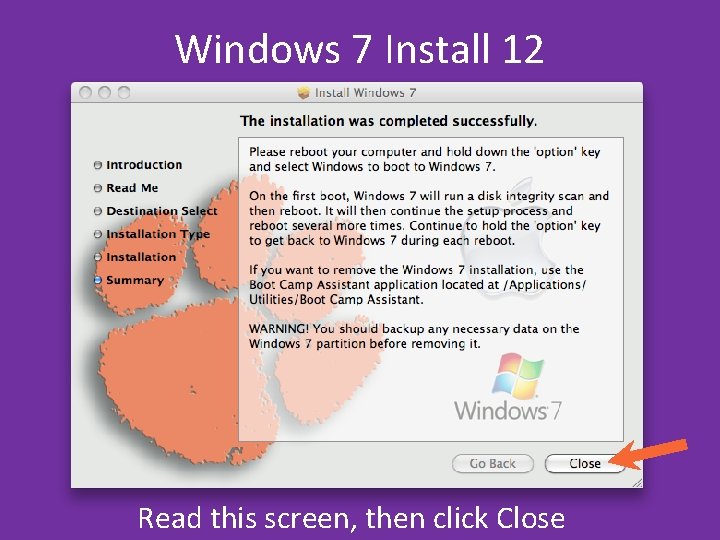
Windows 7 Install 12 Read this screen, then click Close
Finish Installing Windows • You will need to restart your computer several times to complete the Windows installation. • If it goes to Mac OS, restart again holding down Opt key and selecting Windows. • When you get into Windows, if you are a General Engineering student, go to http: //download. clemson. edu, click on Licenses, and install Maple and Matlab (using an Ethernet cable)
More Information • Laptop Workshop Links – Go to laptop. clemson. edu, Click on Workshops, Workshop Links to see Network Policy and most of the other links mentioned in the workshop • Email / Tigernet on i. Phones – Go to ccit. clemson. edu, Search on i. Phone • Training + Tech Talks + Skillport – Go to ccit. clemson. edu, Click on Training and Self. Learning Email: ITHELP@clemson. edu Phone: 864 -654 -3494
Laptop Workshop Survey Please take the Clemson Laptop Setup Workshop Survey!!! Your input is valuable. Click here for the Survey