
A Guide to IT Technical Support 9 th
- Slides: 53
A+ Guide to IT Technical Support, 9 th Edition Chapter 2 Working Inside Desktop Computers and Laptops 1
Objectives • Take apart a desktop computer and put it back together • Explain the special considerations when supporting laptop computers that are different than supporting desktop computers • Take apart a laptop computer and put it back together A+ Guide to IT Technical Support, 9 th Edition © Cengage Learning 2017 2
How to Work Inside a Desktop Computer Case • Every PC technician should know how to take a computer apart and put it back together again • The following slides will cover this skill A+ Guide to IT Technical Support, 9 th Edition © Cengage Learning 2017 3
Step 1: Plan and Organize Your Work • • • Make notes for backtracking Remove loose jewelry that might get caught Stay organized by keeping small parts in one place Do not stack boards on top of each other Do not touch board chips – With hands, magnetized screwdriver – Fingerprints on edge connectors may later cause corrosion A+ Guide to IT Technical Support, 9 th Edition © Cengage Learning 2017 4
Step 1: Plan and Organize Your Work • Protect yourself and the equipment – Don’t touch a microchip with a magnetized screwdriver – Never touch inside of a turned on computer – Consider monitor, power supply as “black boxes” • Never remove the cover or touch inside – Watch out for sharp edges that can cut A+ Guide to IT Technical Support, 9 th Edition © Cengage Learning 2017 5
Step 2: Open the Computer Case and Examine the System • Back up important data • Power down the system and unplug it – Unplug other peripherals as well • Press and hold the power button for 3 seconds – This will drain the power supply • Have a plastic bag or cup handy to hold screws • Open the case cover – Many cases require you to remove the faceplate first – Some older cases require you to remove a side panel A+ Guide to IT Technical Support, 9 th Edition © Cengage Learning 2017 6
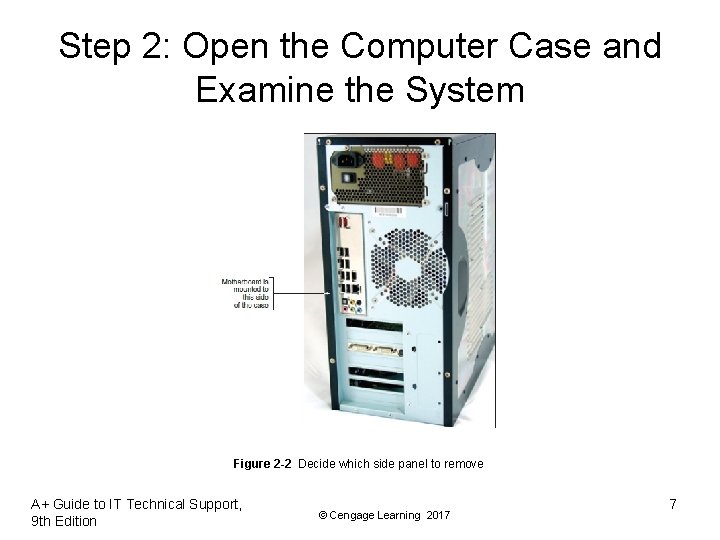
Step 2: Open the Computer Case and Examine the System Figure 2 -2 Decide which side panel to remove A+ Guide to IT Technical Support, 9 th Edition © Cengage Learning 2017 7
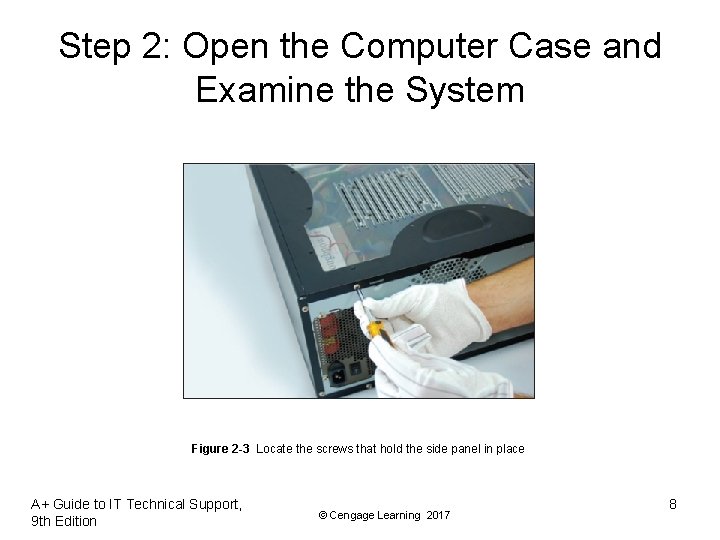
Step 2: Open the Computer Case and Examine the System Figure 2 -3 Locate the screws that hold the side panel in place A+ Guide to IT Technical Support, 9 th Edition © Cengage Learning 2017 8
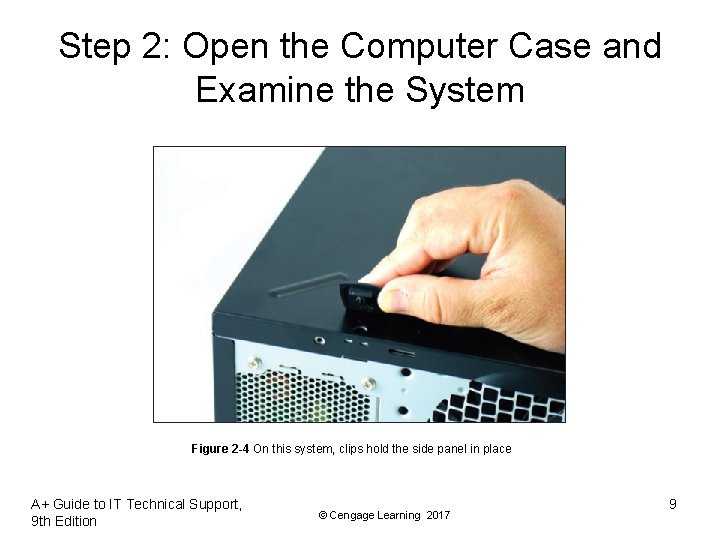
Step 2: Open the Computer Case and Examine the System Figure 2 -4 On this system, clips hold the side panel in place A+ Guide to IT Technical Support, 9 th Edition © Cengage Learning 2017 9
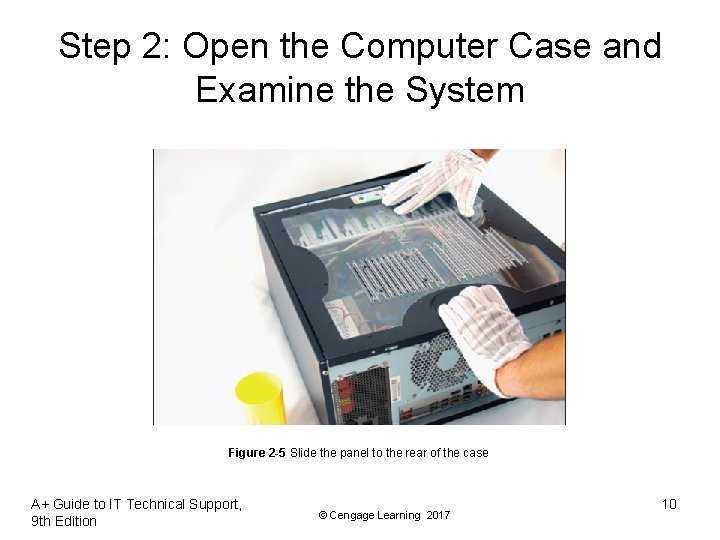
Step 2: Open the Computer Case and Examine the System Figure 2 -5 Slide the panel to the rear of the case A+ Guide to IT Technical Support, 9 th Edition © Cengage Learning 2017 10
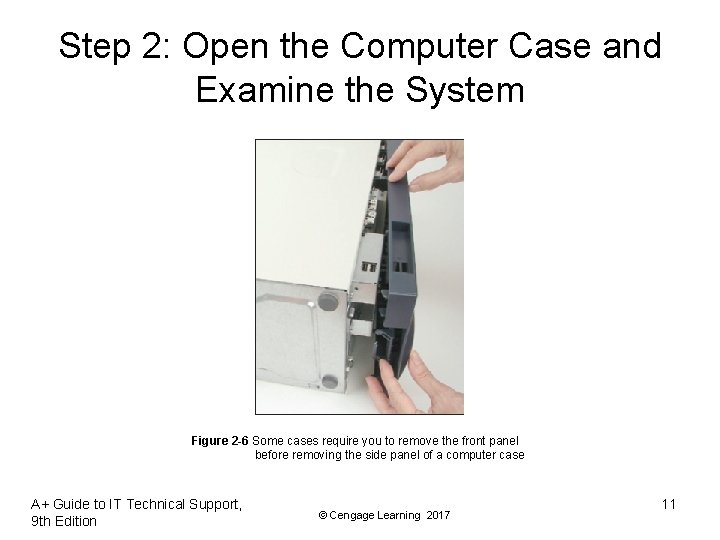
Step 2: Open the Computer Case and Examine the System Figure 2 -6 Some cases require you to remove the front panel before removing the side panel of a computer case A+ Guide to IT Technical Support, 9 th Edition © Cengage Learning 2017 11
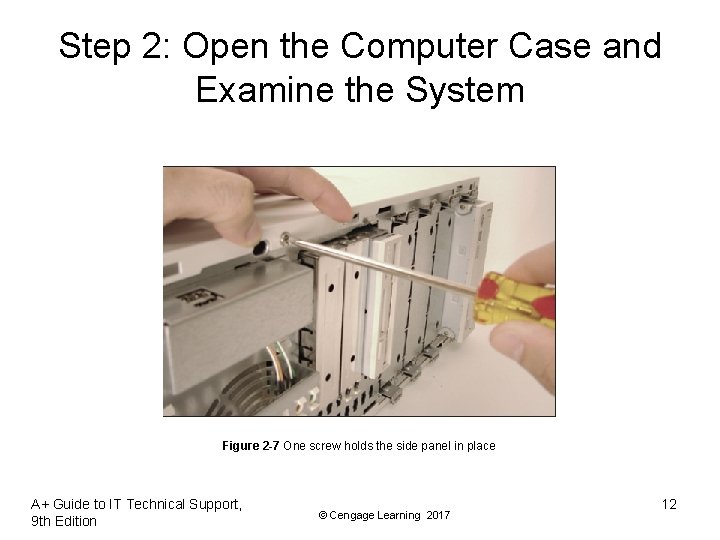
Step 2: Open the Computer Case and Examine the System Figure 2 -7 One screw holds the side panel in place A+ Guide to IT Technical Support, 9 th Edition © Cengage Learning 2017 12
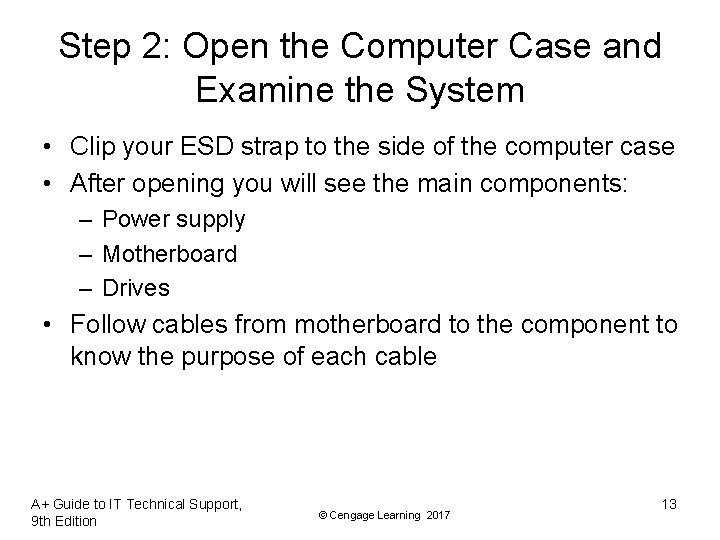
Step 2: Open the Computer Case and Examine the System • Clip your ESD strap to the side of the computer case • After opening you will see the main components: – Power supply – Motherboard – Drives • Follow cables from motherboard to the component to know the purpose of each cable A+ Guide to IT Technical Support, 9 th Edition © Cengage Learning 2017 13
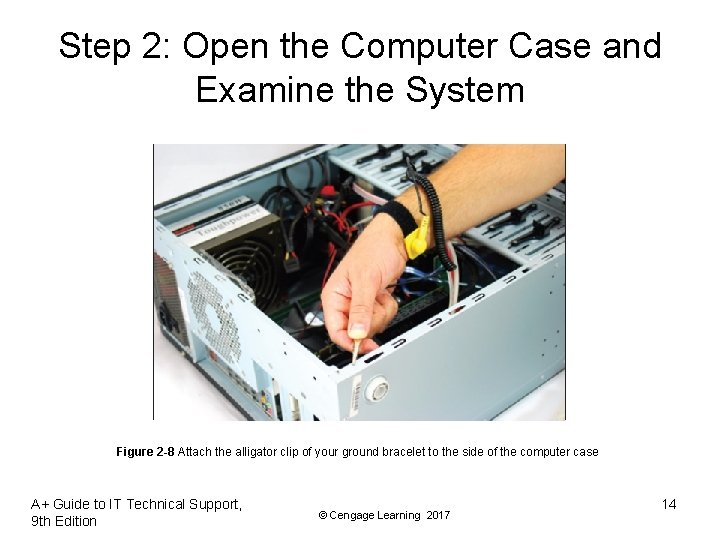
Step 2: Open the Computer Case and Examine the System Figure 2 -8 Attach the alligator clip of your ground bracelet to the side of the computer case A+ Guide to IT Technical Support, 9 th Edition © Cengage Learning 2017 14
Step 3: Remove Expansion Cards • If removing components: – Draw a diagram of all cable connections to the motherboard, expansion cards, and drives – Use a felt-tip marker to mark components in order to indicate a cable connection, board placement, orientation, etc… A+ Guide to IT Technical Support, 9 th Edition © Cengage Learning 2017 15
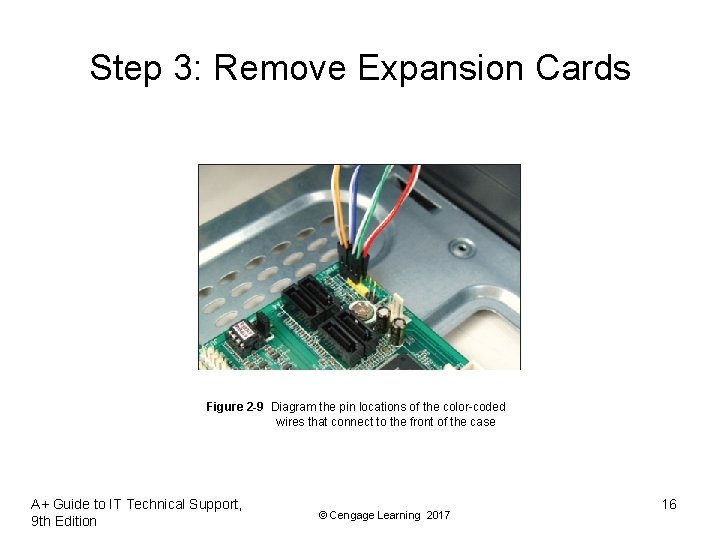
Step 3: Remove Expansion Cards Figure 2 -9 Diagram the pin locations of the color-coded wires that connect to the front of the case A+ Guide to IT Technical Support, 9 th Edition © Cengage Learning 2017 16
Step 3: Remove Expansion Cards • To remove expansion cards: – Remove any wire or cable connected to the card – Remove the screw holding the card to the case – Grasp the card with both hands and remove it by lifting straight up (can also rock the card from end to end) – Don’t put your fingers on edge connectors or touch a chip • It is best to store cards in an antistatic bag A+ Guide to IT Technical Support, 9 th Edition © Cengage Learning 2017 17
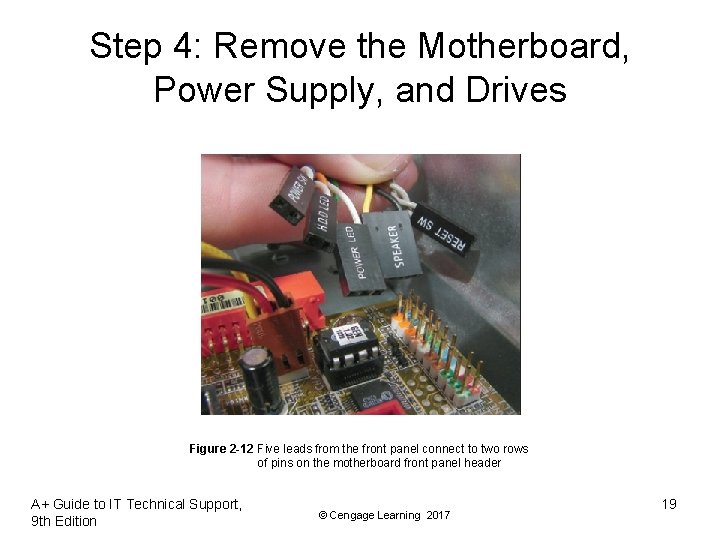
Step 4: Remove the Motherboard, Power Supply, and Drives • Depending on the system, you may have to remove the drives and/or power supply to get to the motherboard • To remove motherboard: – Unplug power supply lines – Unplug SATA cables connected to the motherboard – Disconnect wires leading from the front of the computer case to the motherboard (called front panel connectors) • Make a diagram before disconnecting A+ Guide to IT Technical Support, 9 th Edition © Cengage Learning 2017 18
Step 4: Remove the Motherboard, Power Supply, and Drives Figure 2 -12 Five leads from the front panel connect to two rows of pins on the motherboard front panel header A+ Guide to IT Technical Support, 9 th Edition © Cengage Learning 2017 19
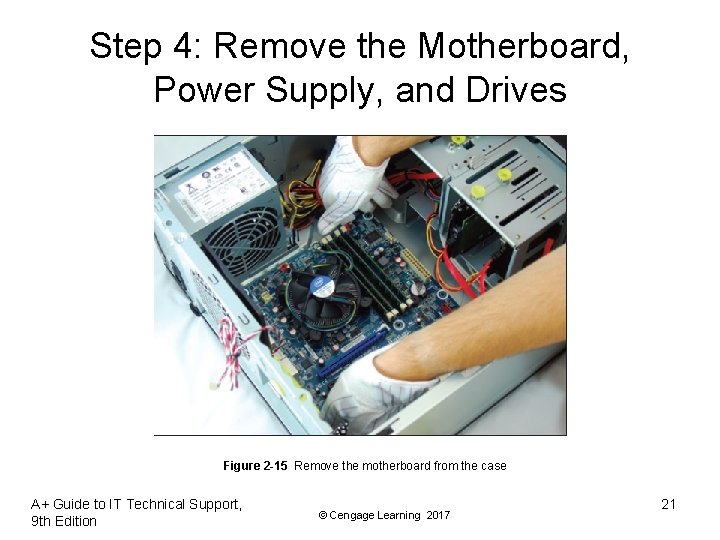
Step 4: Remove the Motherboard, Power Supply, and Drives • To remove motherboard (cont’d): – Disconnect any other cables or wires connected to the motherboard – Unscrew motherboard from spacers • Spacers (standoffs): round plastic or metal pegs that separate the board from the case • Spacers are necessary to keep motherboard from touching the metal case, which might cause a short – Motherboard should be free to remove from the case A+ Guide to IT Technical Support, 9 th Edition © Cengage Learning 2017 20
Step 4: Remove the Motherboard, Power Supply, and Drives Figure 2 -15 Remove the motherboard from the case A+ Guide to IT Technical Support, 9 th Edition © Cengage Learning 2017 21
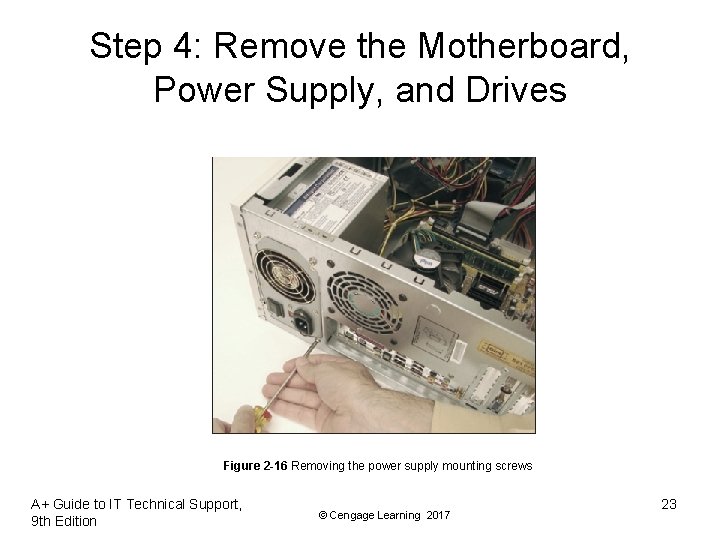
Step 4: Remove the Motherboard, Power Supply, and Drives • To remove the power supply from the case: – Look for screws that attach the power supply to the computer case • Do not remove screws that hold power supply housing together (do take housing apart) – Sometimes power supplies are also attached to the case on the underside by recessed slots • Turn case over and look for slots • If present, determine in which direction you need to slide the power supply to free it from the case A+ Guide to IT Technical Support, 9 th Edition © Cengage Learning 2017 22
Step 4: Remove the Motherboard, Power Supply, and Drives Figure 2 -16 Removing the power supply mounting screws A+ Guide to IT Technical Support, 9 th Edition © Cengage Learning 2017 23
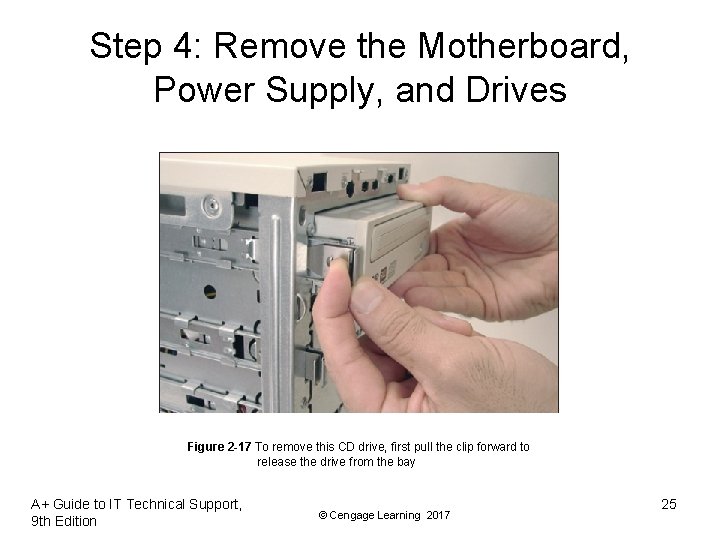
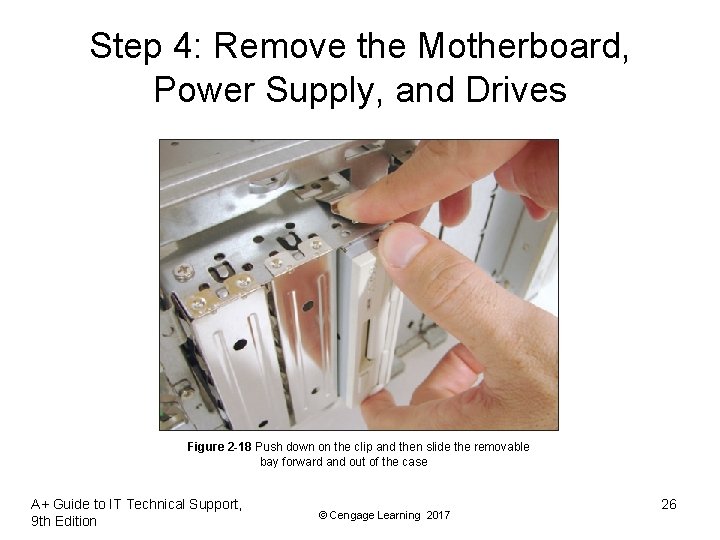
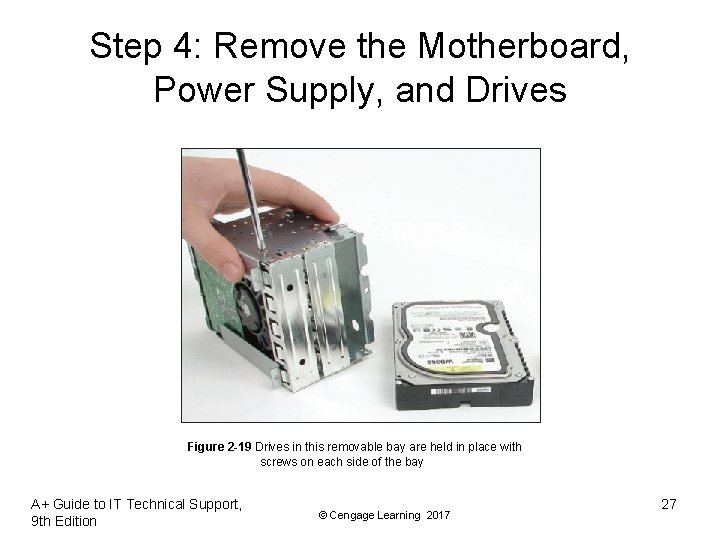
Step 4: Remove the Motherboard, Power Supply, and Drives • Tips to remove drives: – Look for screws on each side of the drive attaching the drive to the drive bay – There might be a catch underneath the drive • You must lift up as you slide the drive forward – Some drive bays have a clipping mechanism to hold the drive in the bay • Release the clip and then pull the drive forward – May have to remove the drive bay in order to remove the drives A+ Guide to IT Technical Support, 9 th Edition © Cengage Learning 2017 24
Step 4: Remove the Motherboard, Power Supply, and Drives Figure 2 -17 To remove this CD drive, first pull the clip forward to release the drive from the bay A+ Guide to IT Technical Support, 9 th Edition © Cengage Learning 2017 25
Step 4: Remove the Motherboard, Power Supply, and Drives Figure 2 -18 Push down on the clip and then slide the removable bay forward and out of the case A+ Guide to IT Technical Support, 9 th Edition © Cengage Learning 2017 26
Step 4: Remove the Motherboard, Power Supply, and Drives Figure 2 -19 Drives in this removable bay are held in place with screws on each side of the bay A+ Guide to IT Technical Support, 9 th Edition © Cengage Learning 2017 27
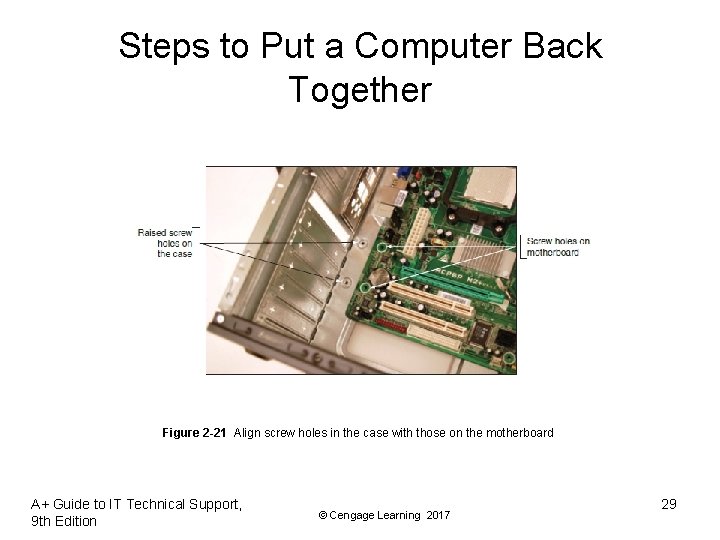
Steps to Put a Computer Back Together • Refer to any diagrams created during the disassembling process • Install components in this order: power supply, drives, motherboard, and cards – When installing drives, it may be easier to connect cables to the drives before sliding them into the bay • Place motherboard inside the case – Make sure ports and screw holes are lined up A+ Guide to IT Technical Support, 9 th Edition © Cengage Learning 2017 28
Steps to Put a Computer Back Together Figure 2 -21 Align screw holes in the case with those on the motherboard A+ Guide to IT Technical Support, 9 th Edition © Cengage Learning 2017 29
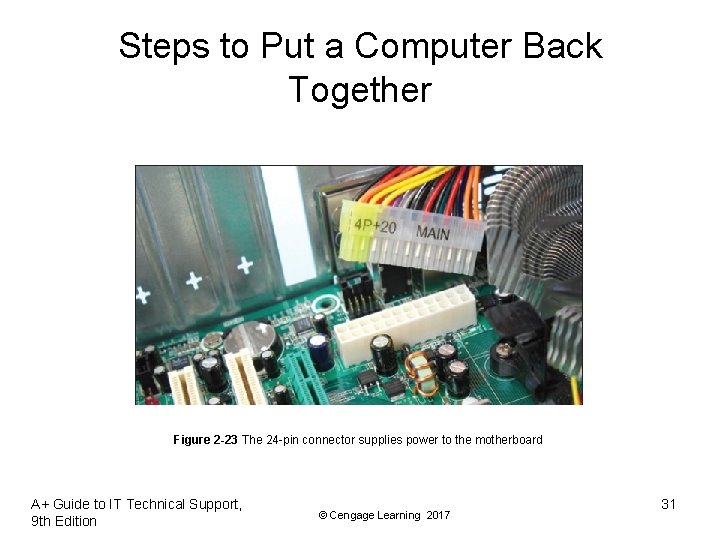
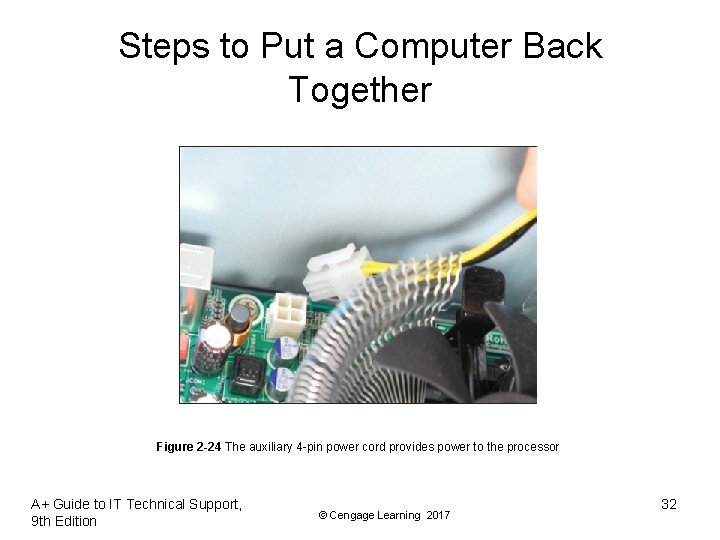
Steps to Put a Computer Back Together • Connect the power cords from the power supply to the motherboard – Will always need the main P 1 power connector and may likely need the 4 -pin auxiliary connector for the processor – A board might have a 6 -pin or 8 -pin PCIe power connector • If power supply does not have this connector, use an adapter to convert two Molex connectors to a PCIe connector A+ Guide to IT Technical Support, 9 th Edition © Cengage Learning 2017 30
Steps to Put a Computer Back Together Figure 2 -23 The 24 -pin connector supplies power to the motherboard A+ Guide to IT Technical Support, 9 th Edition © Cengage Learning 2017 31
Steps to Put a Computer Back Together Figure 2 -24 The auxiliary 4 -pin power cord provides power to the processor A+ Guide to IT Technical Support, 9 th Edition © Cengage Learning 2017 32
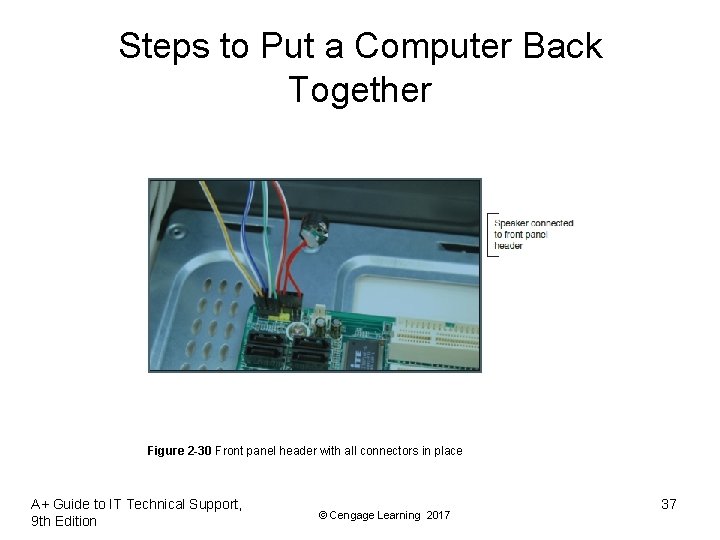
Steps to Put a Computer Back Together • Connect the power cords from the power supply to the motherboard (cont’d): – If case fan is present, connect power cord from the fan to pins on motherboard labeled “Fan Header” – If a CPU and cooler are already installed on motherboard, connect power cord from CPU to pins on motherboard labeled “Fan Header” • Connect wire leads from the front panel of the case to the front panel header on motherboard A+ Guide to IT Technical Support, 9 th Edition © Cengage Learning 2017 33
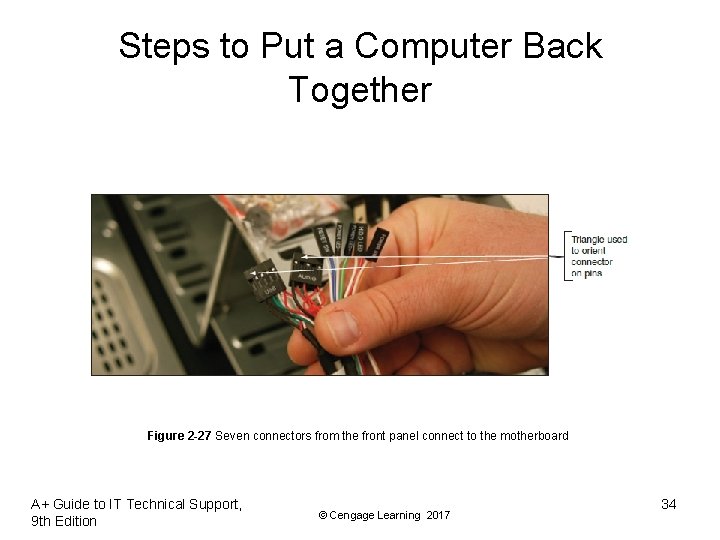
Steps to Put a Computer Back Together Figure 2 -27 Seven connectors from the front panel connect to the motherboard A+ Guide to IT Technical Support, 9 th Edition © Cengage Learning 2017 34
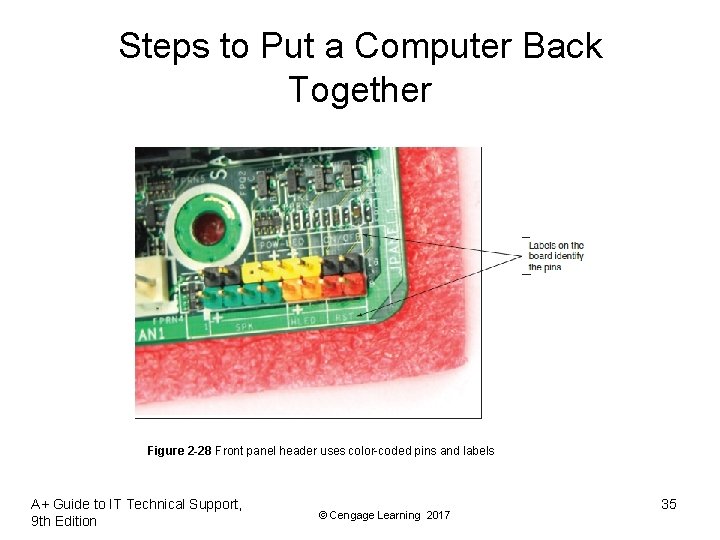
Steps to Put a Computer Back Together Figure 2 -28 Front panel header uses color-coded pins and labels A+ Guide to IT Technical Support, 9 th Edition © Cengage Learning 2017 35
Steps to Put a Computer Back Together • Look for a small triangle embedded on the connector that marks one of the outside wires as pin 1 – Line up pin 1 on connector with pin 1 marked on motherboard – If labels on motherboard are not clear, consult user guide for help A+ Guide to IT Technical Support, 9 th Edition © Cengage Learning 2017 36
Steps to Put a Computer Back Together Figure 2 -30 Front panel header with all connectors in place A+ Guide to IT Technical Support, 9 th Edition © Cengage Learning 2017 37
Steps to Put a Computer Back Together • Connect wires to ports on the front panel of the case – Audio ports or USB ports are examples • • Install the video card and other expansion cards Double-check each connection Plug in keyboard, monitor, and mouse In classroom environment, have instructor check work • Turn on the power and check that the PC is working properly – If not, most likely a loose connection A+ Guide to IT Technical Support, 9 th Edition © Cengage Learning 2017 38
Special Considerations when Supporting Laptops • Laptops and their replacement parts cost more than desktop PCs • Factors to consider that apply more to laptop than desktop computers: – Original equipment manufacturer’s warranty – Service manuals and diagnostic software provided by the manufacturer – Customized installation of the OS unique to laptops – Advantage of order replacement parts directly from the laptop manufacturer or authorized source A+ Guide to IT Technical Support, 9 th Edition © Cengage Learning 2017 39
Warranty Concerns • Always check to see if laptop is under warranty before servicing • Contacting technical support: information needed – Laptop model and serial number – Purchaser name, phone number, address • Service options – On-site – Ship to authorized service center – Phone assistance or online chat A+ Guide to IT Technical Support, 9 th Edition © Cengage Learning 2017 40
Service Manuals and Other Sources of Information • Service manuals save time – Enables safe laptop disassembly • Locating documentation – Service manual – Manufacturer’s physical manual – Manufacturer’s Web site • Support or FAQ pages – Third party websites • User manual – Provides basic maintenance tasks A+ Guide to IT Technical Support, 9 th Edition © Cengage Learning 2017 41
Diagnostic Tools Provided by Manufacturers • To determine problem components use diagnostic software provided by manufacturer – Sources: • Manufacturer’s Web site • CDs bundled with the notebook • Hard drive or floppy disk – Example: PC-Doctor • Included with Lenovo, Fujitsu, and HP notebooks • Can be purchased separately A+ Guide to IT Technical Support, 9 th Edition © Cengage Learning 2017 42
How to Work Inside a Laptop Computer • It may become necessary to open a laptop case to upgrade memory, exchange a hard drive, or replace a failed component • Replacing a broken LCD panel or motherboard can be a complex process • Screws and nuts on a laptop are smaller than a desktop – Require smaller tools A+ Guide to IT Technical Support, 9 th Edition © Cengage Learning 2017 43
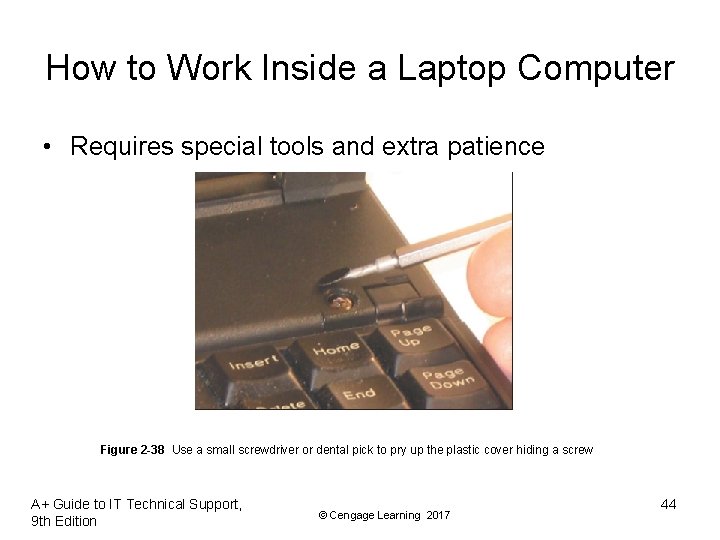
How to Work Inside a Laptop Computer • Requires special tools and extra patience Figure 2 -38 Use a small screwdriver or dental pick to pry up the plastic cover hiding a screw A+ Guide to IT Technical Support, 9 th Edition © Cengage Learning 2017 44
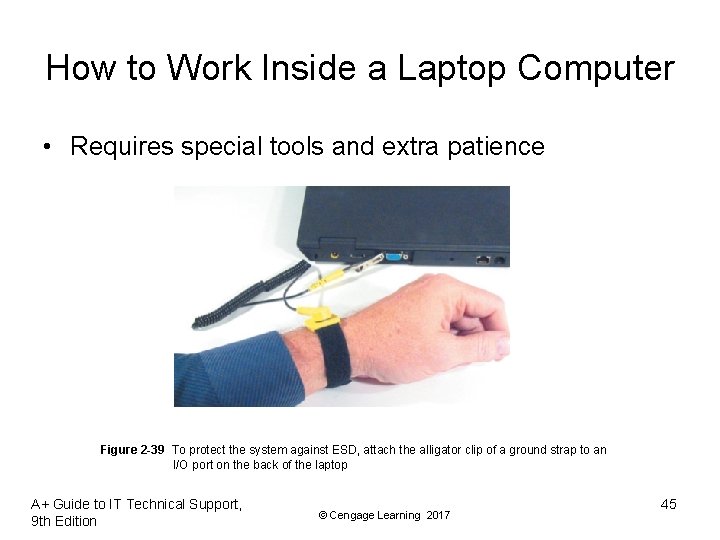
How to Work Inside a Laptop Computer • Requires special tools and extra patience Figure 2 -39 To protect the system against ESD, attach the alligator clip of a ground strap to an I/O port on the back of the laptop A+ Guide to IT Technical Support, 9 th Edition © Cengage Learning 2017 45
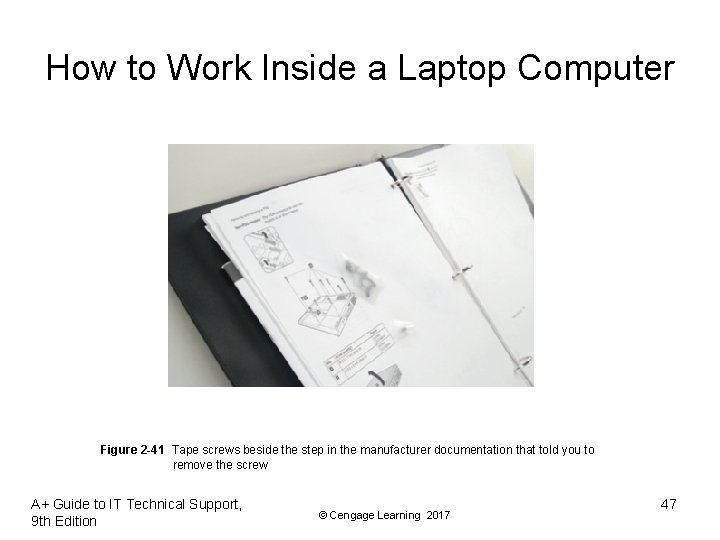
How to Work Inside a Laptop Computer • Many small screws require smaller tools • Work methodically: – Keep screws and components organized • Place screws in a pillbox (label each compartment) • Place screws on soft padded work surface – Use white labeling tape • Place screws on notebook paper – Write where screw belongs • Tape screw beside manufacturer documentation – Keep notes to help with reassembly A+ Guide to IT Technical Support, 9 th Edition © Cengage Learning 2017 46
How to Work Inside a Laptop Computer Figure 2 -41 Tape screws beside the step in the manufacturer documentation that told you to remove the screw A+ Guide to IT Technical Support, 9 th Edition © Cengage Learning 2017 47
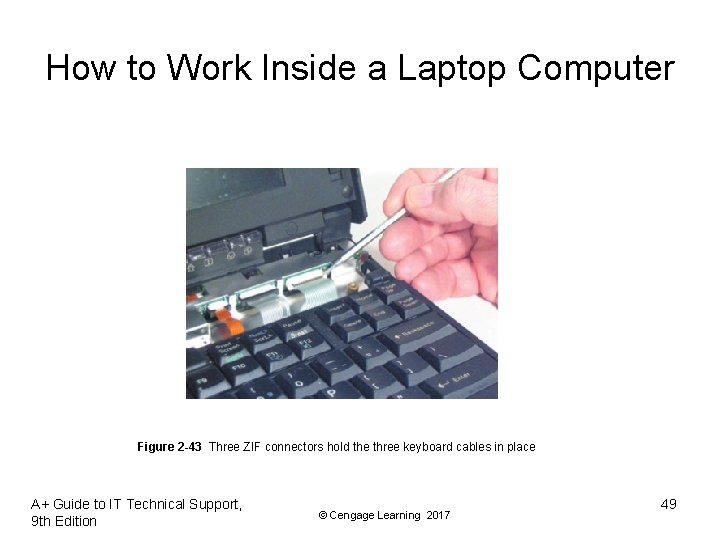
How to Work Inside a Laptop Computer • Disassembly tips: – Find the hardware service manual – Consider the warranty might still apply • Opening the case might void the warranty – – – Take the time necessary, do not force anything Protect against ESD Understand ZIF connectors Pry up plastic covers with dental pick or screwdriver Plastic screws may be used only once Disassemble components in order A+ Guide to IT Technical Support, 9 th Edition © Cengage Learning 2017 48
How to Work Inside a Laptop Computer Figure 2 -43 Three ZIF connectors hold the three keyboard cables in place A+ Guide to IT Technical Support, 9 th Edition © Cengage Learning 2017 49
How to Work Inside a Laptop Computer • Reassembly tips: – Reassemble notebook in reverse order – Tighten, but do not over tighten, all screws – Before installing the battery or AC adapter verify there are no loose parts inside the notebook A+ Guide to IT Technical Support, 9 th Edition © Cengage Learning 2017 50
Summary • When working inside a computer, stay organized, keep careful notes, and follow all safety procedures • Before opening a case, shut down the system, unplug it, disconnect all cables, and press the power button to drain residual power • An expansion card fits in a slot on the motherboard and is anchored to the case by a single screw or clip • Laptop computers are designed for travel, so smaller and more durable replacement parts cost more than they do for desktops A+ Guide to IT Technical Support, 9 th Edition © Cengage Learning 2017 51
Summary • The laptop manufacturer documentation are useful when disassembling, troubleshooting, and repairing a notebook • When an internal component needs replacing, consider the possibility of disabling the component and using an external peripheral device in its place • Replacing the laptop might be more cost effective than performing labor-intensive repairs • When disassembling a laptop, the manufacturer’s service manual is essential A+ Guide to IT Technical Support, 9 th Edition © Cengage Learning 2017 52
Summary • When upgrading components on a laptop, use components that are the same brand as the laptop • Follow directions in a service manual to disassemble a laptop A+ Guide to IT Technical Support, 9 th Edition © Cengage Learning 2017 53