Power School 101 Lisa Sutphen Shiawassee RESD Corunna




- Slides: 77
Power. School 101 Lisa Sutphen Shiawassee RESD Corunna, MI Email: Sutphen@sresd. org
About the trainer. . . Power. School Experience: – Support 14 districts in 3 counties on Power. School – Began with implementation of 6 districts in 2008 – Support from technical server installation, user level support as well as training – Power. School Level I, II and III certified; Power. Teacher Pro certified trainer – certified to do implementation to all training – Have attended PSU and many PSUG events and presented since 2010 – Manager of Application Services so I support other software – School. Messenger, Micro. Sage, etc. – Data. Hub Support Specialist and have been on steering committee from start of TRIG project Personal: – Love to travel - training
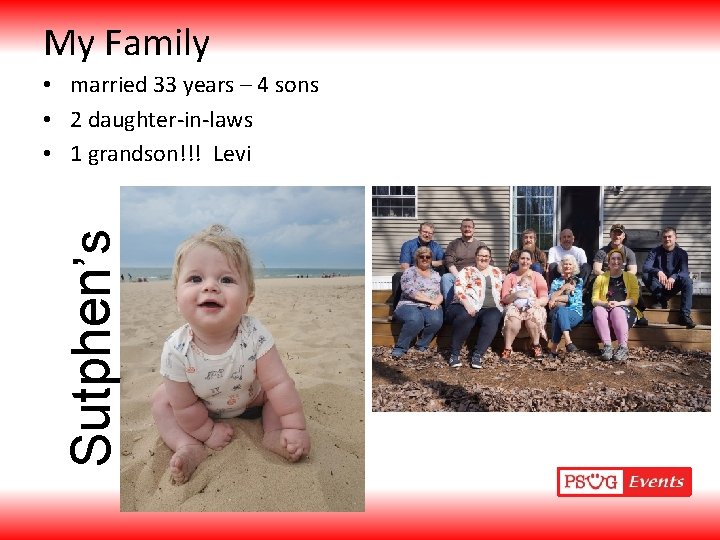
My Family Sutphen’s • married 33 years – 4 sons • 2 daughter-in-laws • 1 grandson!!! Levi
? Agenda A 101 foot overview of Power. School Admin Use • • Power. School general info Logging In basic use/function Hints and Tips throughout Where to find? ? ? Quick reports/Quick exports Menus and More
Disclaimer - Upgrades/Patches Power. School is a flexible tool allowing each district the ability to customize and use it in ways that work best for them. This information is how we use Power. School for our districts. It is not necessarily what will work for all districts. We provide our districts a higher level of service in that we do all the System and District configurations and many of the School configuration items. Many times more than 1 way to get to things and multiple screens where it may appear. We are using Version 12. 1. 4 Upgrades – State Reporting vs Power. School Version
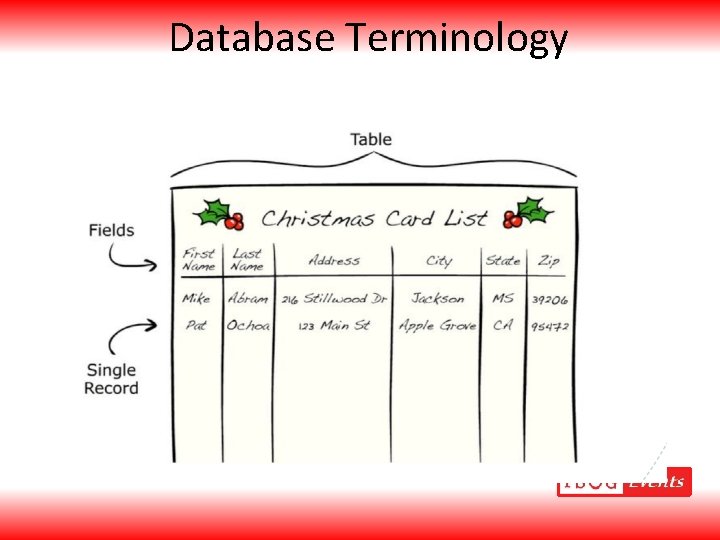
Database Terminology
Tables and Fields • Tables – Students, Courses, Sections, CC etc. • Fields – Students table has last_name, first_name, gender, grade_level etc.
Login https: //yourpowerschoolserver/xxxx 4 Different Login paths Admin = /admin Teachers = /teachers Substitutes = /subs Parents & Students = /public If left blank defaults to /public
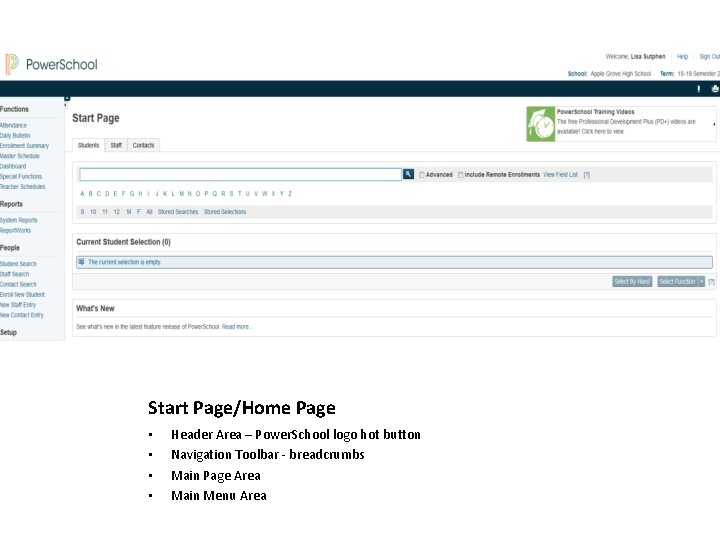
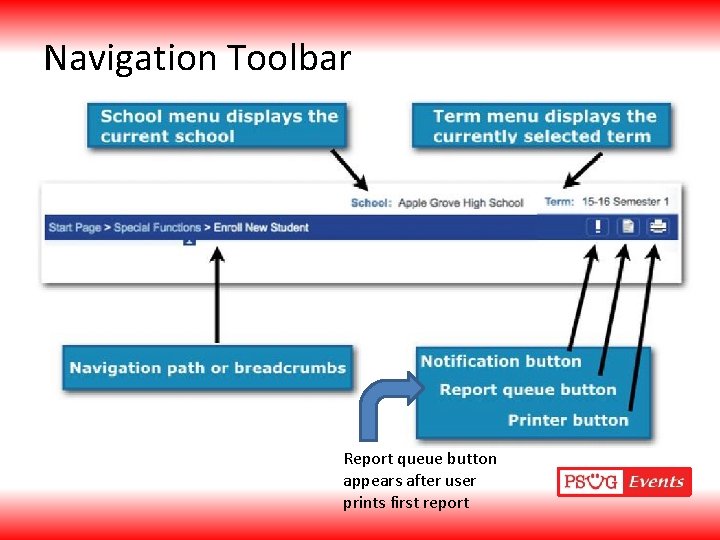
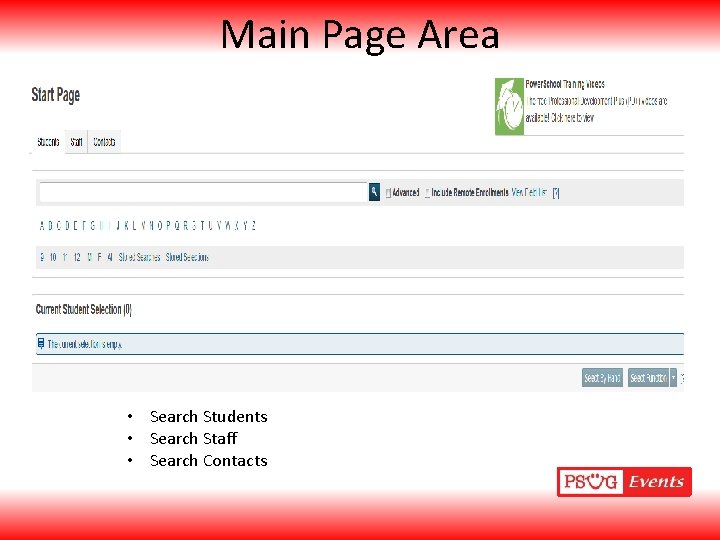
Start Page/Home Page • • Header Area – Power. School logo hot button Navigation Toolbar - breadcrumbs Main Page Area Main Menu Area
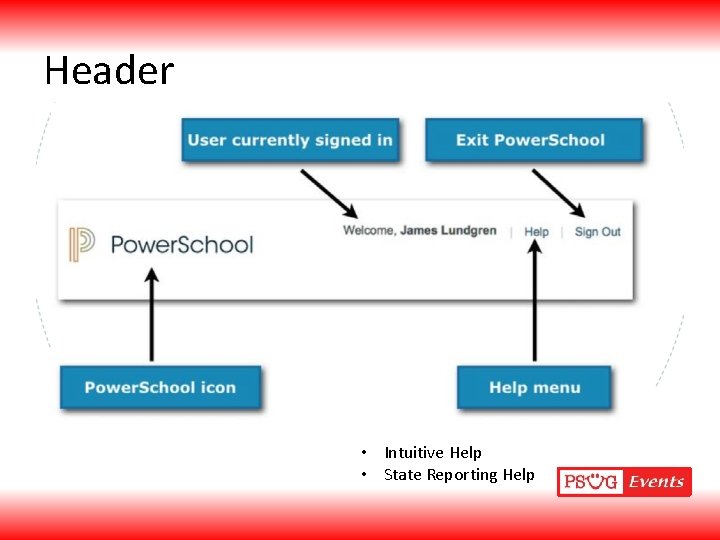
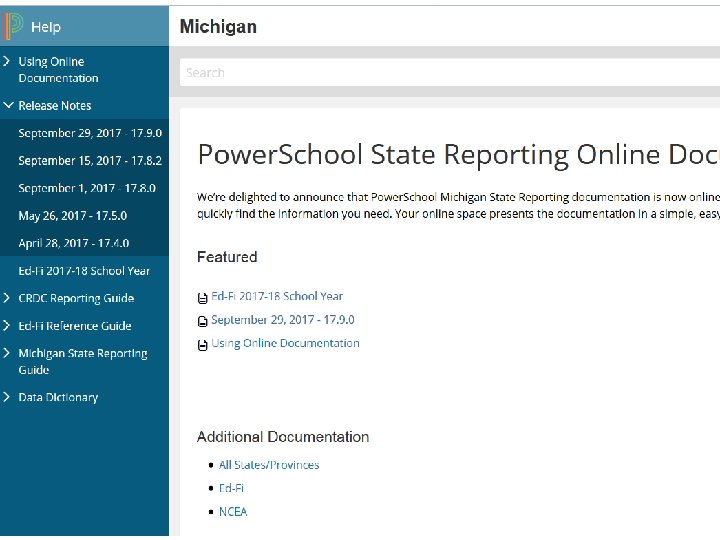
Header • Intuitive Help • State Reporting Help
Navigation Toolbar Report queue button appears after user prints first report
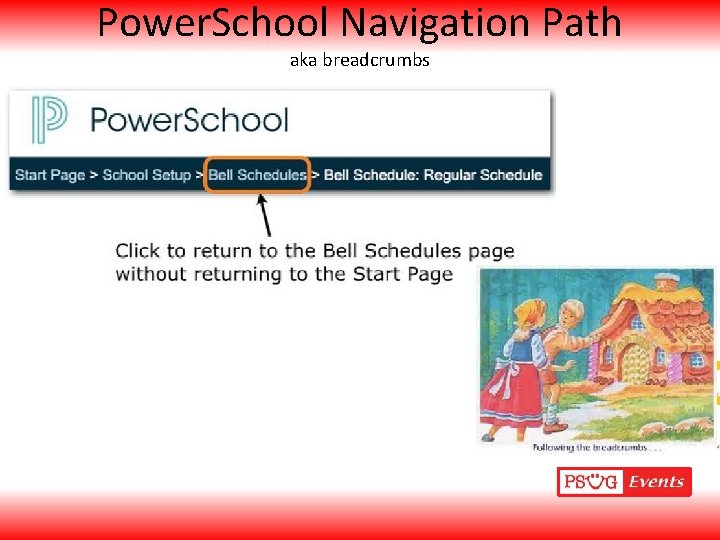
Power. School Navigation Path aka breadcrumbs
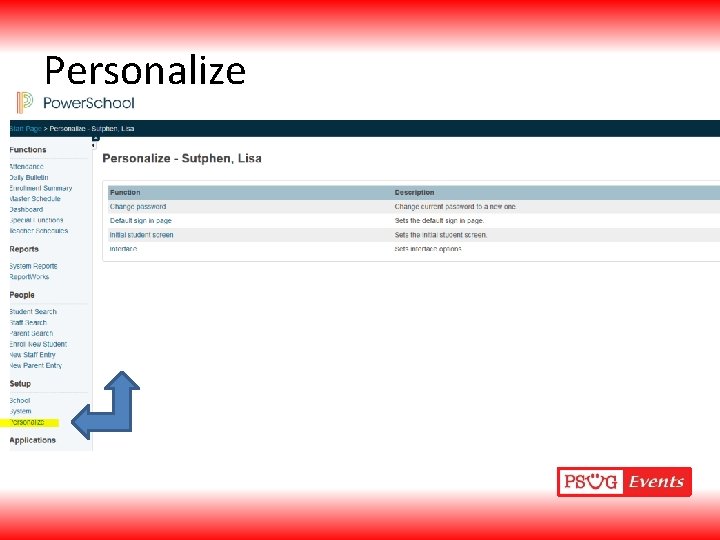
Personalize • Information
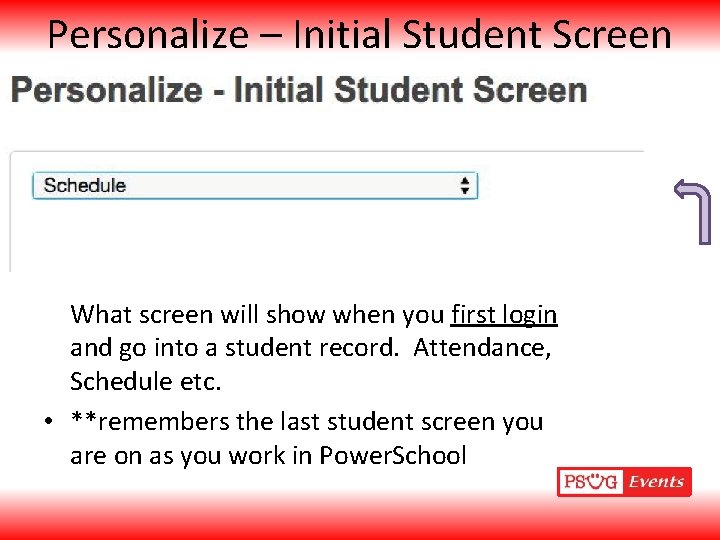
Personalize – Initial Student Screen • Enable Smart Search. When checked this will bring up smart search prompts as you What screen will show when you first login and go into a student record. Attendance, Schedule etc. • **remembers the last student screen you are on as you work in Power. School
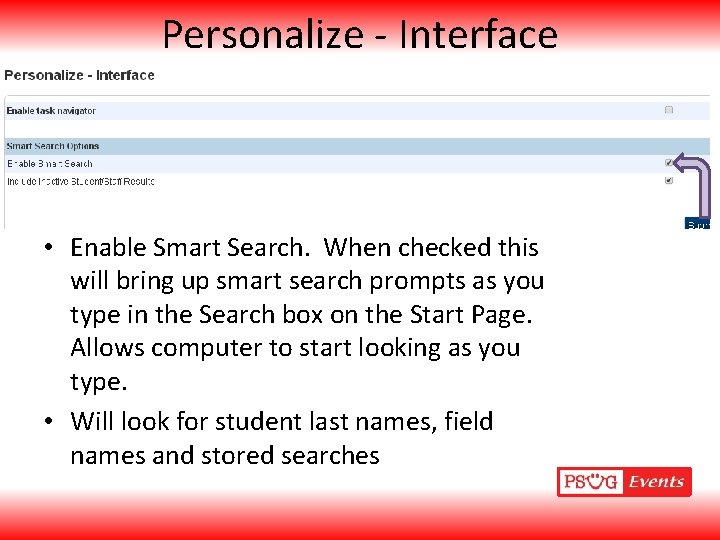
Personalize - Interface • Enable Smart Search. When checked this will bring up smart search prompts as you type in the Search box on the Start Page. Allows computer to start looking as you type. • Will look for student last names, field names and stored searches
Main Page Area • Search Students • Search Staff • Search Contacts
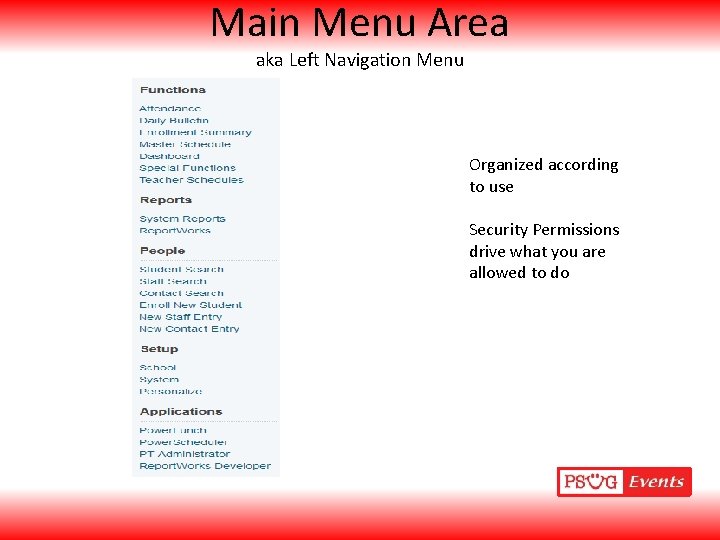
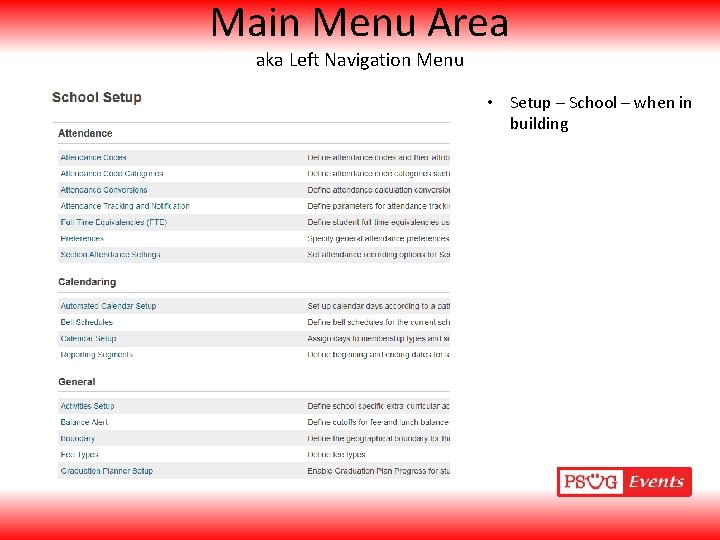
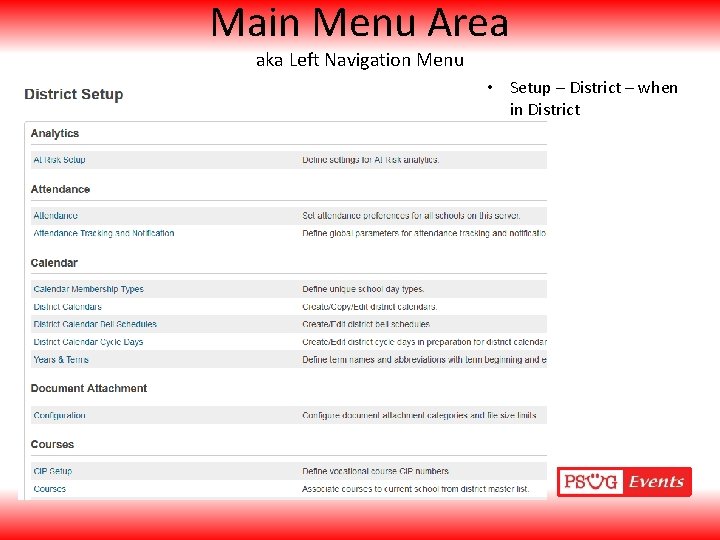
Main Menu Area aka Left Navigation Menu Organized according to use Security Permissions drive what you are allowed to do
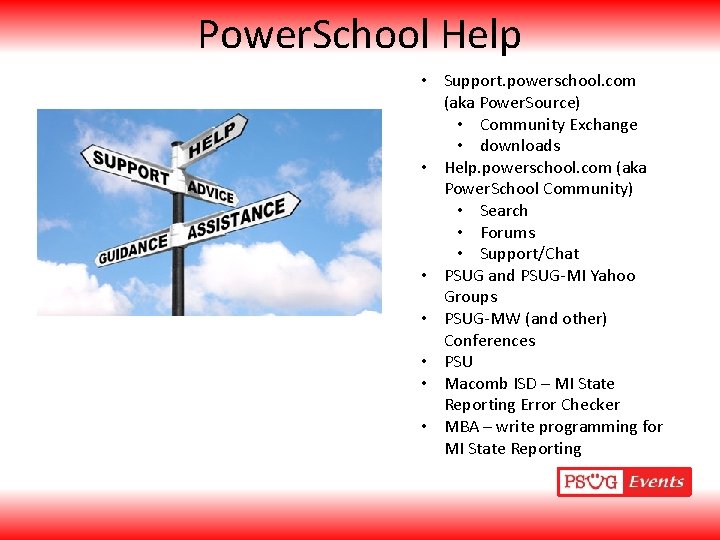
Power. School Help • Support. powerschool. com (aka Power. Source) • Community Exchange • downloads • Help. powerschool. com (aka Power. School Community) • Search • Forums • Support/Chat • PSUG and PSUG-MI Yahoo Groups • PSUG-MW (and other) Conferences • PSU • Macomb ISD – MI State Reporting Error Checker • MBA – write programming for MI State Reporting
Searching is Key • Find the correct student or group of students • Find the correct staff or group of staff • Find the correct contact
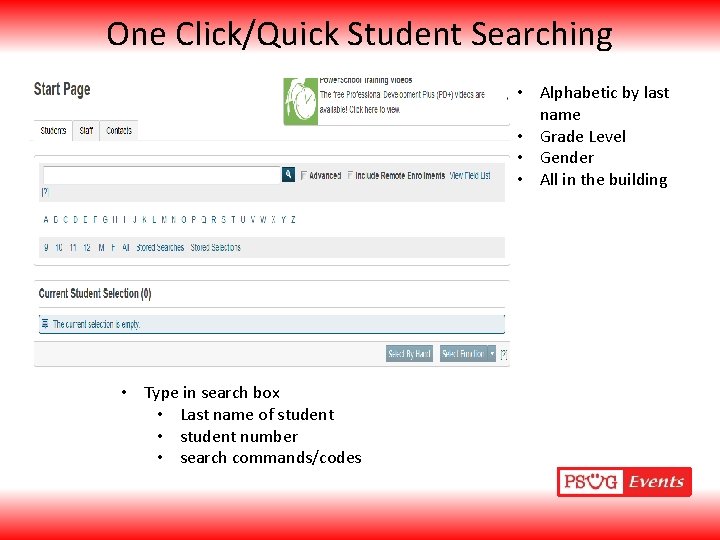
One Click/Quick Student Searching • Alphabetic by last name • Grade Level • Gender • All in the building • Type in search box • Last name of student • student number • search commands/codes
One Click/Quick Student Searching • Active vs. Inactive • Using the forward slash (“/”) in front of your search criteria will add all inactive results along with your active results that meet your search criteria. • A search command is a statement of search instructions. • Use “; ” (semi-colon) to separate multiple searches • Use “&” to search with results – it comes before any “/” search
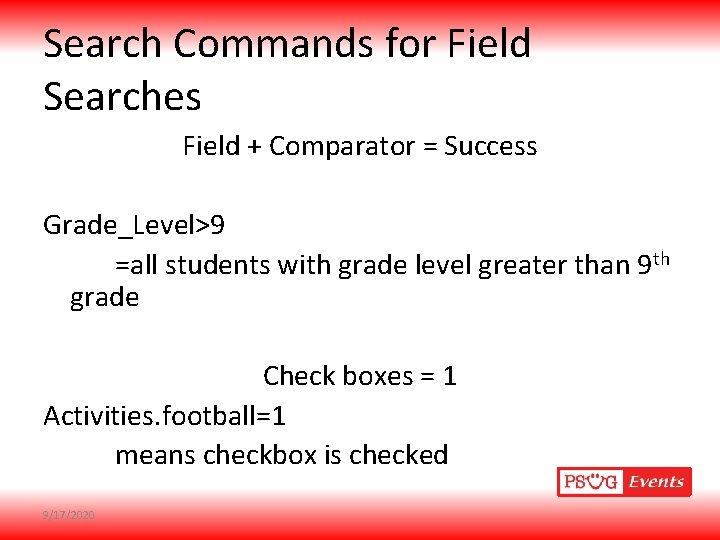
Search Commands for Field Searches Field + Comparator = Success Grade_Level>9 =all students with grade level greater than 9 th grade Check boxes = 1 Activities. football=1 means checkbox is checked 9/17/2020
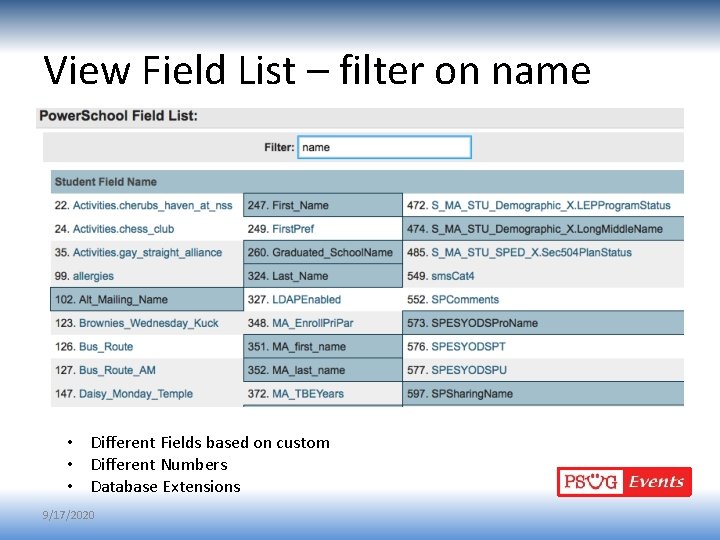
View Field List – filter on name • Different Fields based on custom • Different Numbers • Database Extensions 9/17/2020
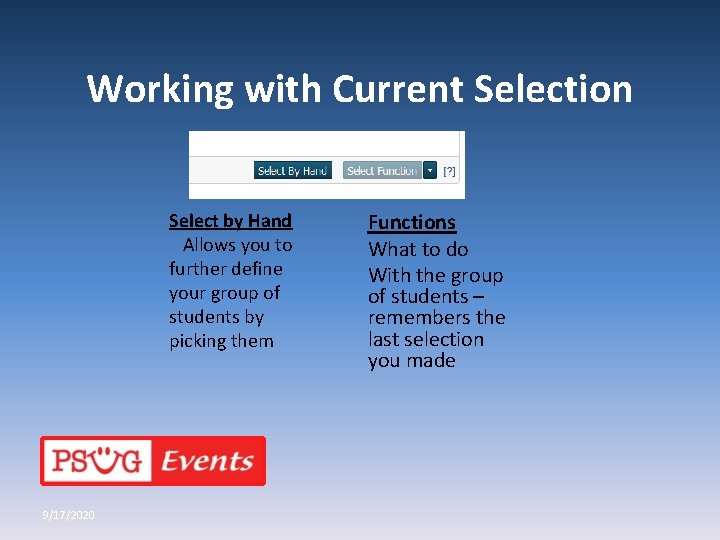
Working with Current Selection Select by Hand Allows you to further define your group of students by picking them 9/17/2020 Functions What to do With the group of students – remembers the last selection you made
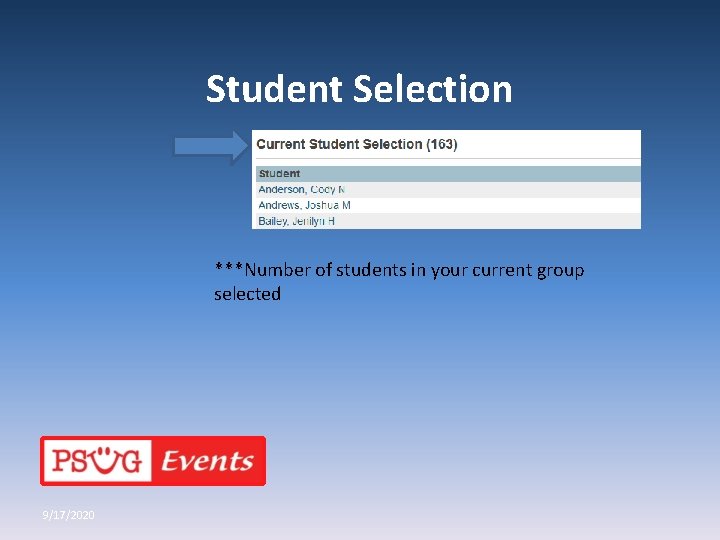
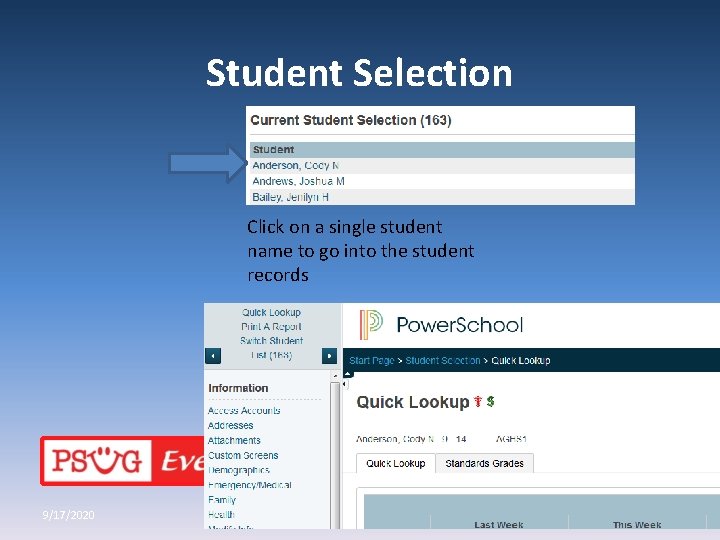
Student Selection ***Number of students in your current group selected 9/17/2020
Student Selection Click on a single student name to go into the student records 9/17/2020
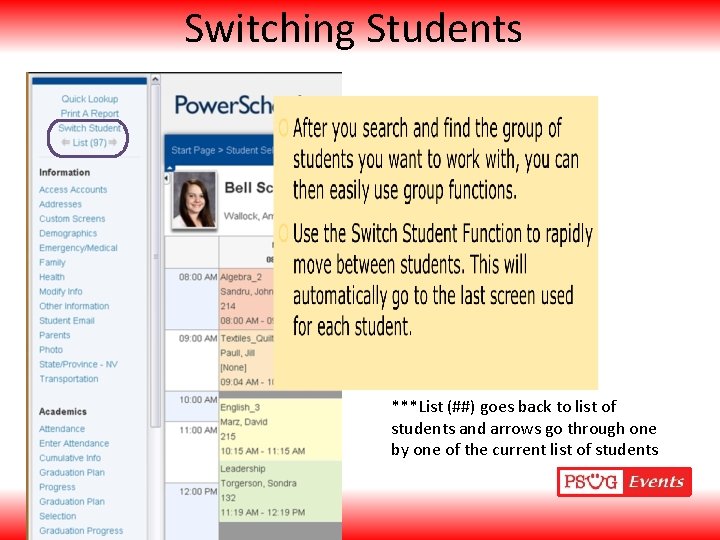
Switching Students ***List (##) goes back to list of students and arrows go through one by one of the current list of students
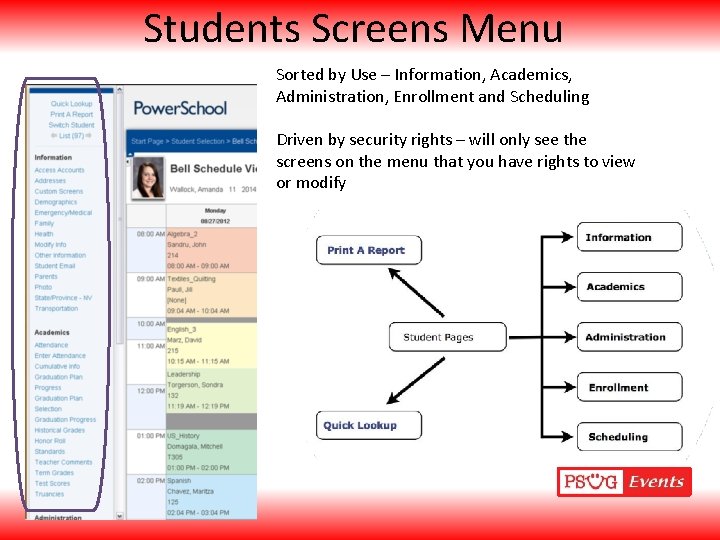
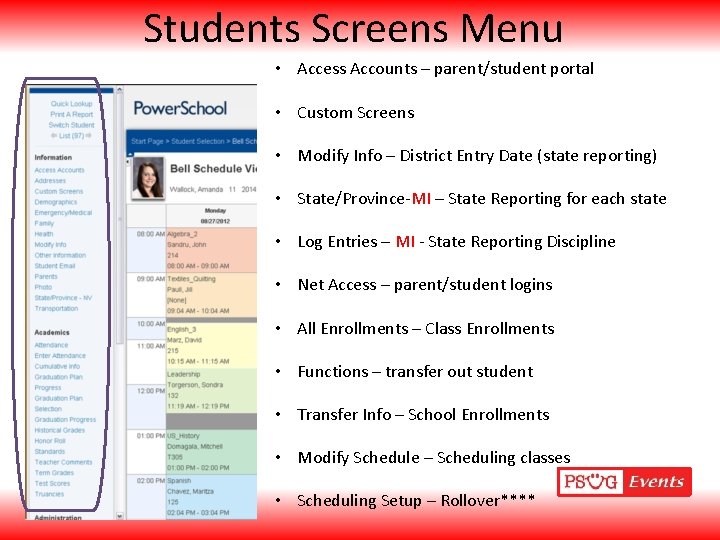
Students Screens Menu Sorted by Use – Information, Academics, Administration, Enrollment and Scheduling Driven by security rights – will only see the screens on the menu that you have rights to view or modify
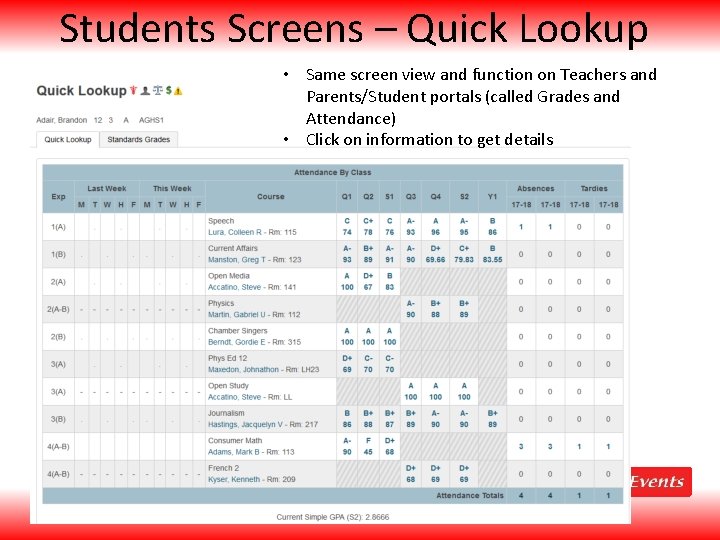
Students Screens – Quick Lookup • Same screen view and function on Teachers and Parents/Student portals (called Grades and Attendance) • Click on information to get details
Students Screens Menu • Access Accounts – parent/student portal • Custom Screens • Modify Info – District Entry Date (state reporting) • State/Province-MI – State Reporting for each state • Log Entries – MI - State Reporting Discipline • Net Access – parent/student logins • All Enrollments – Class Enrollments • Functions – transfer out student • Transfer Info – School Enrollments • Modify Schedule – Scheduling classes • Scheduling Setup – Rollover****
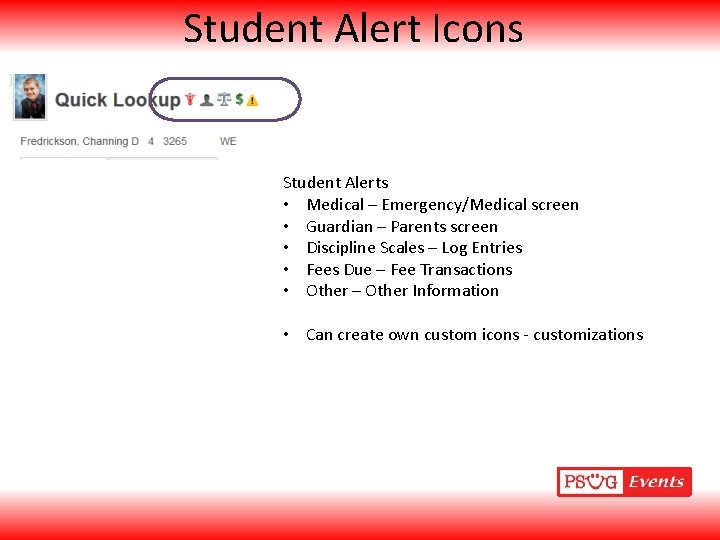
Student Alert Icons Student Alerts • Medical – Emergency/Medical screen • Guardian – Parents screen • Discipline Scales – Log Entries • Fees Due – Fee Transactions • Other – Other Information • Can create own custom icons - customizations
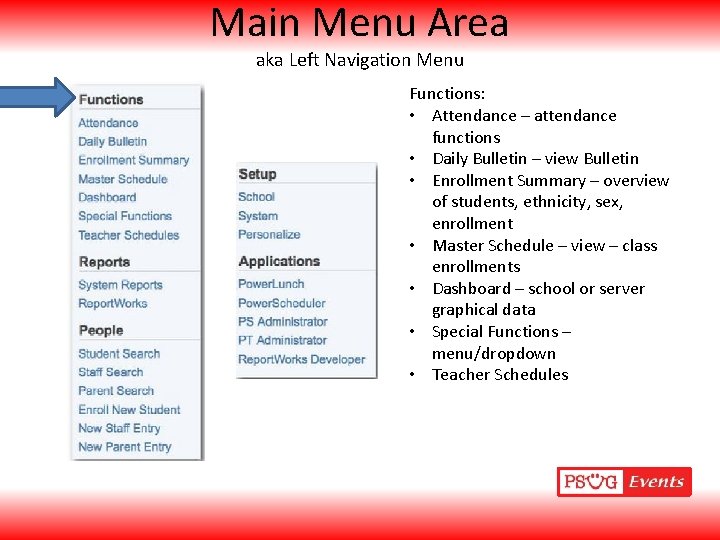
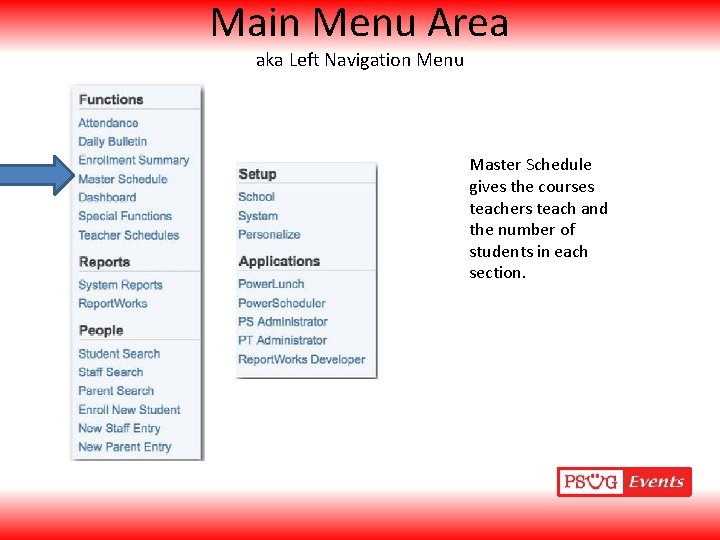
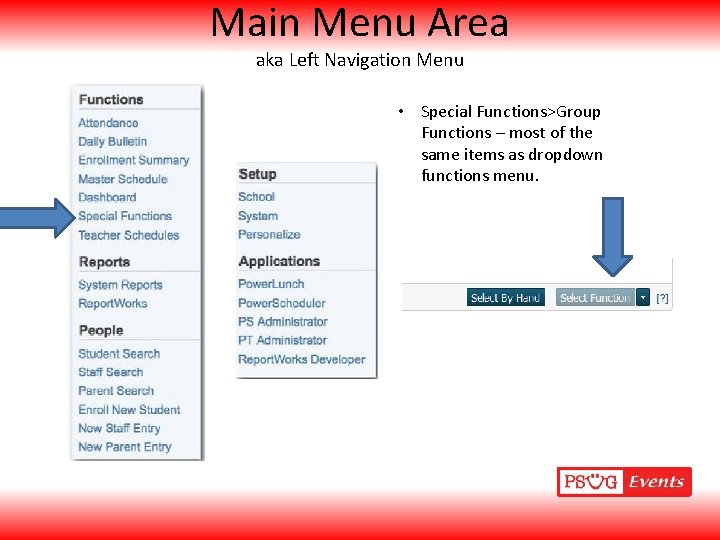
Main Menu Area aka Left Navigation Menu Functions: • Attendance – attendance functions • Daily Bulletin – view Bulletin • Enrollment Summary – overview of students, ethnicity, sex, enrollment • Master Schedule – view – class enrollments • Dashboard – school or server graphical data • Special Functions – menu/dropdown • Teacher Schedules
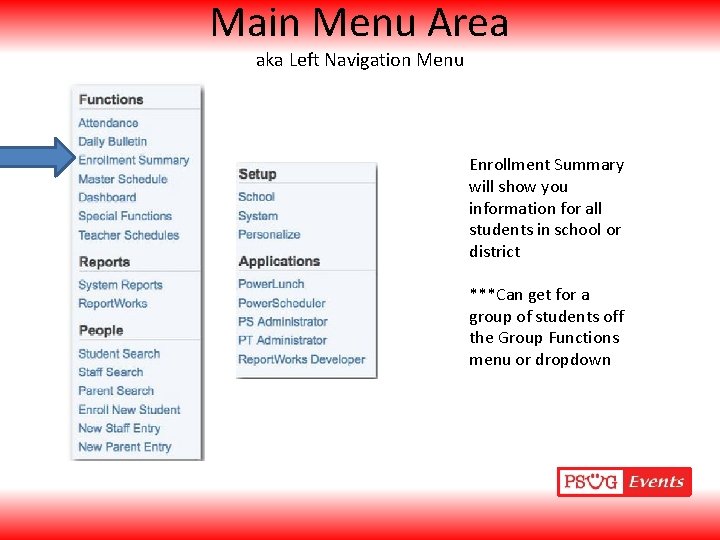
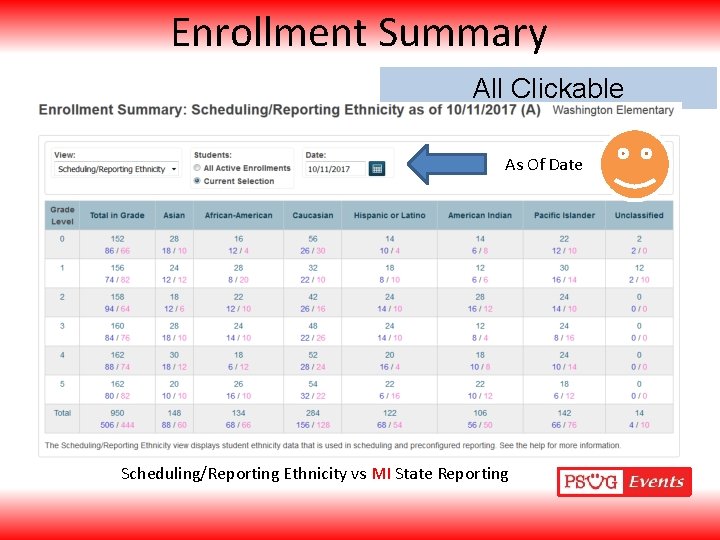
Main Menu Area aka Left Navigation Menu Enrollment Summary will show you information for all students in school or district ***Can get for a group of students off the Group Functions menu or dropdown
Enrollment Summary All Clickable As Of Date Scheduling/Reporting Ethnicity vs MI State Reporting
Main Menu Area aka Left Navigation Menu Master Schedule gives the courses teachers teach and the number of students in each section.
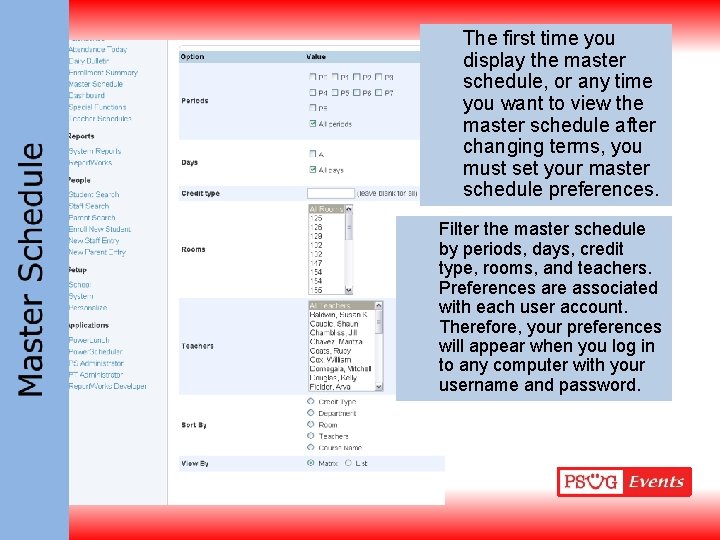
The first time you display the master schedule, or any time you want to view the master schedule after changing terms, you must set your master schedule preferences. Filter the master schedule by periods, days, credit type, rooms, and teachers. Preferences are associated with each user account. Therefore, your preferences will appear when you log in to any computer with your username and password.
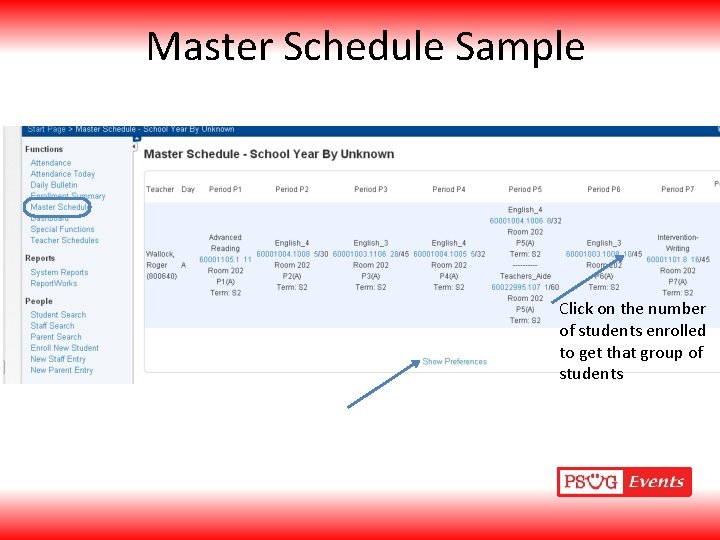
Master Schedule Sample Click on the number of students enrolled to get that group of students
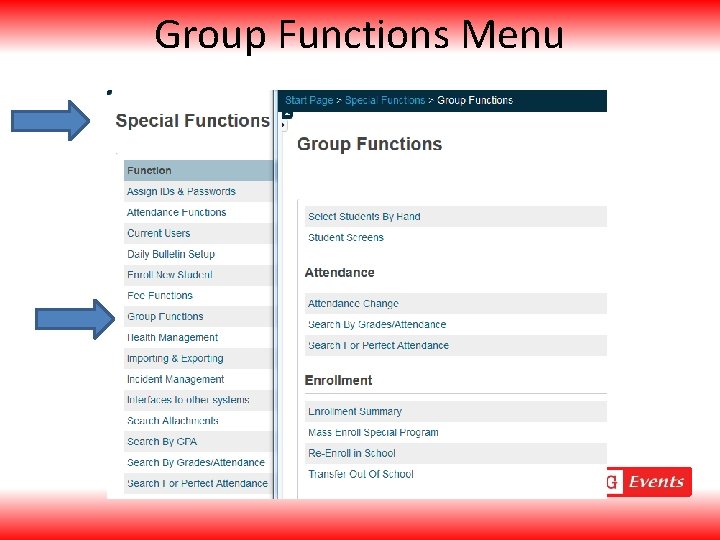
Main Menu Area aka Left Navigation Menu • Special Functions>Group Functions – most of the same items as dropdown functions menu.
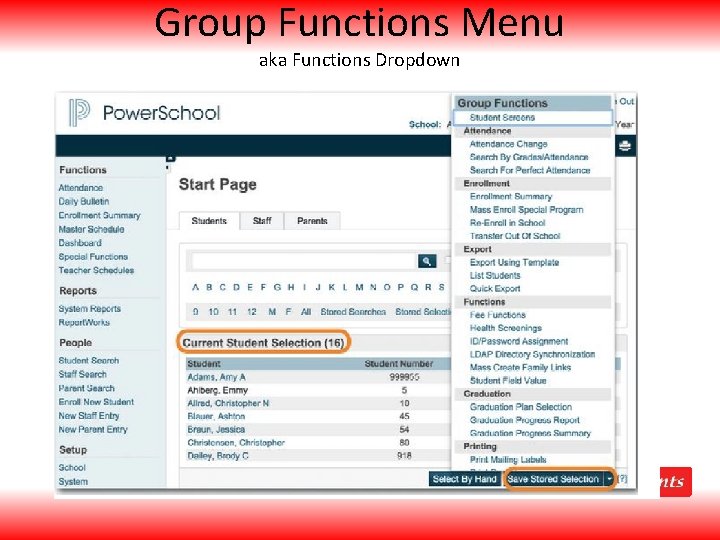
Group Functions Menu aka Functions Dropdown
Group Functions Menu
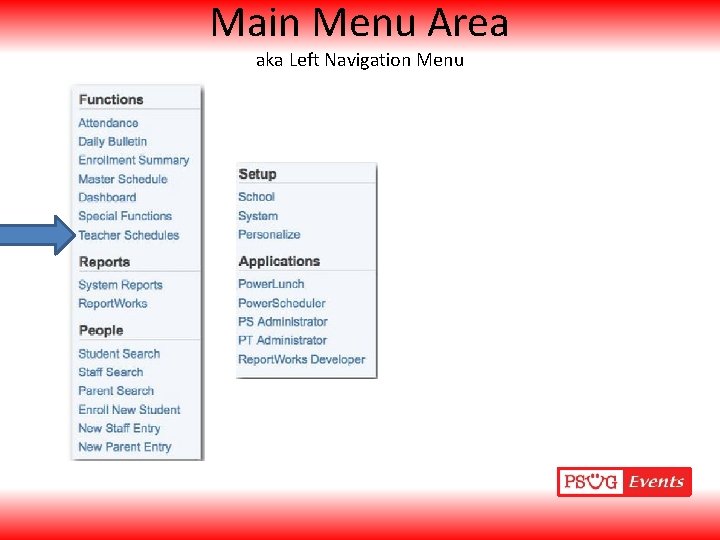
Main Menu Area aka Left Navigation Menu
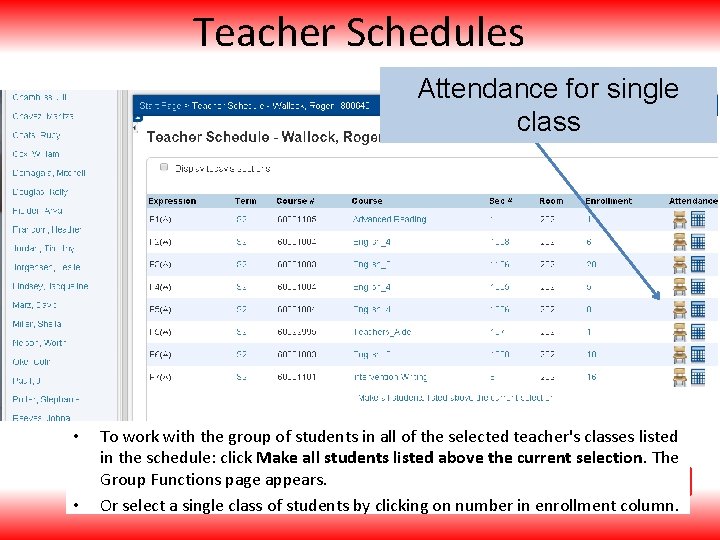
Teacher Schedules Attendance for single class • • To work with the group of students in all of the selected teacher's classes listed in the schedule: click Make all students listed above the current selection. The Group Functions page appears. Or select a single class of students by clicking on number in enrollment column.
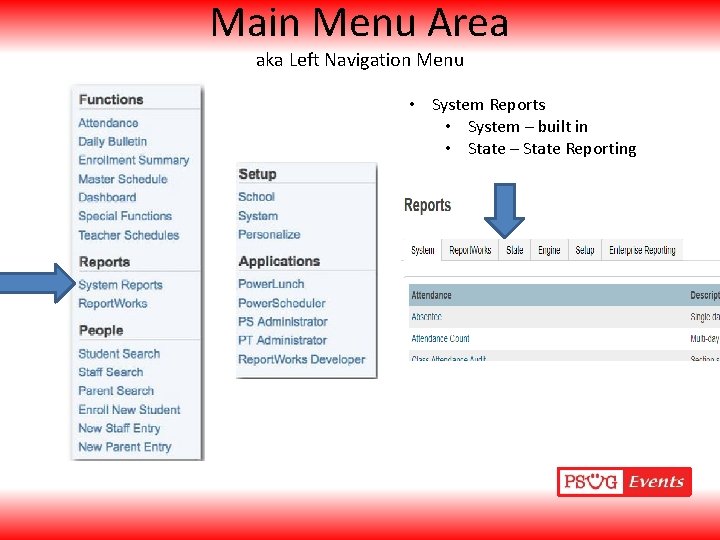
Main Menu Area aka Left Navigation Menu • System Reports • System – built in • State – State Reporting
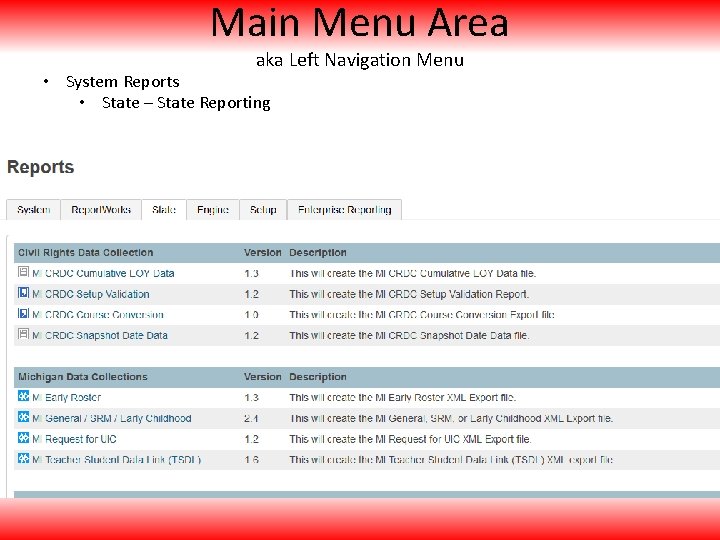
Main Menu Area aka Left Navigation Menu • System Reports • State – State Reporting
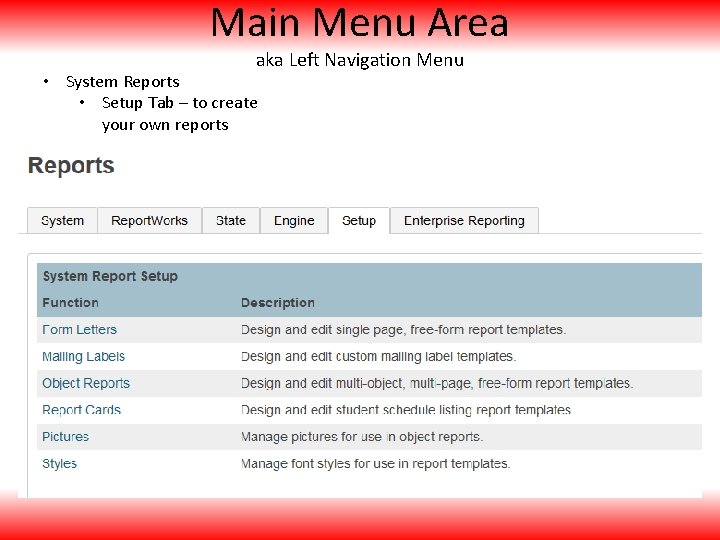
Main Menu Area aka Left Navigation Menu • System Reports • Setup Tab – to create your own reports
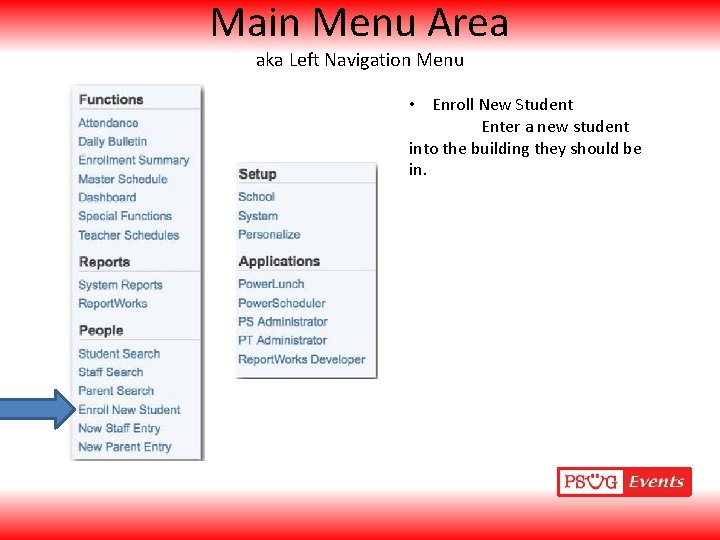
Main Menu Area aka Left Navigation Menu • Enroll New Student Enter a new student into the building they should be in.
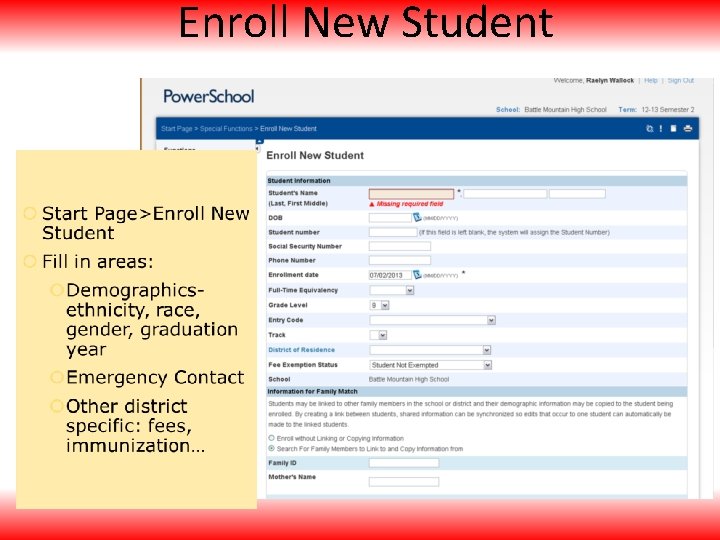
Enroll New Student
Duplicate Student – If the system finds a possible match for the new student, the “Check for Duplicate Students” page appears. If you verify that the new student is not a match with any student who appears on this page, click Enroll to continue.
Transfer Out • You can transfer students out of school individually or as a group. • Start Page>Functions>Transfer Out Of School – Or in a student record – Functions>Transfer Out of School • Clear all attendance after drop date • Enter any comments and the date of transfer and choose the appropriate exit code • Date of the day after the last day the student actually attends classes
Transfer to Another School • In a student record – Functions>Transfer Out of School as you must transfer the student out of school first to make them inactive. • Then Functions>Transfer to Another School • The new building will find them as an inactive student in their building and then re-enrolls the student
TIP – Dates Matter!!! • Student must be enrolled in school with proper start date. • Student that is dropped must have exit date after the entry date. • Do NOT use summer dates – if student rolls over but is no show use same exit date as entry date • Class records must start on same date student is enrolled in school • Class records – end date must be after enrollment date
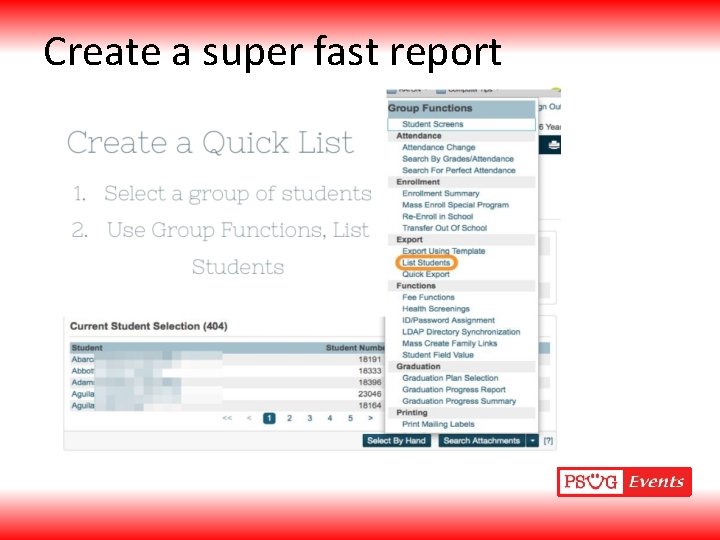
Create a super fast report
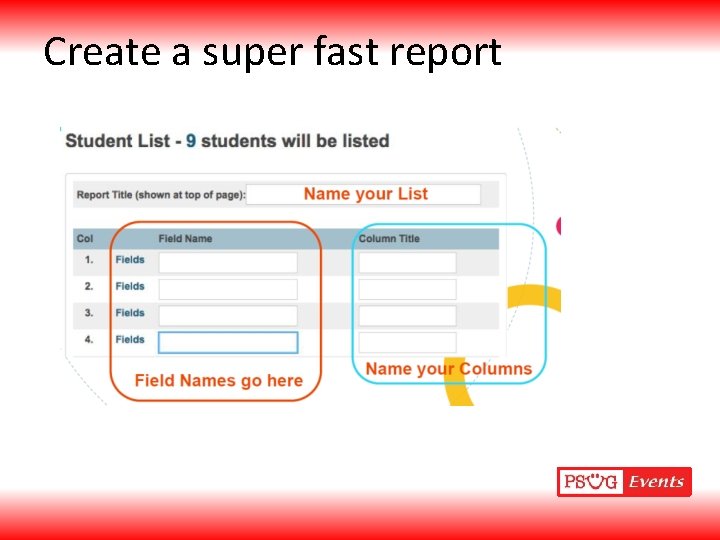
Create a super fast report
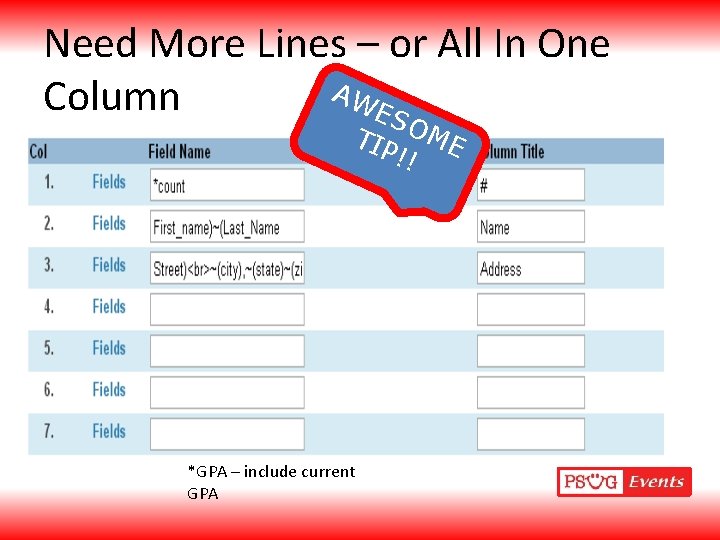
Need More Lines – or All In One AW Column ES TIP OME !! *GPA – include current GPA
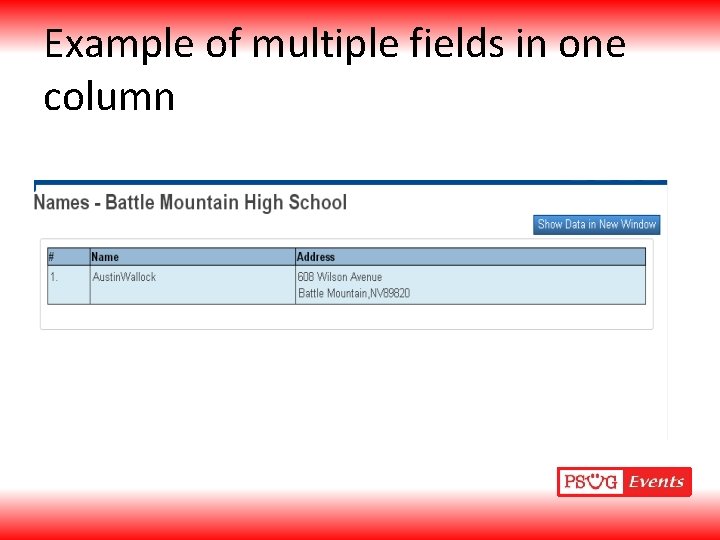
Example of multiple fields in one column
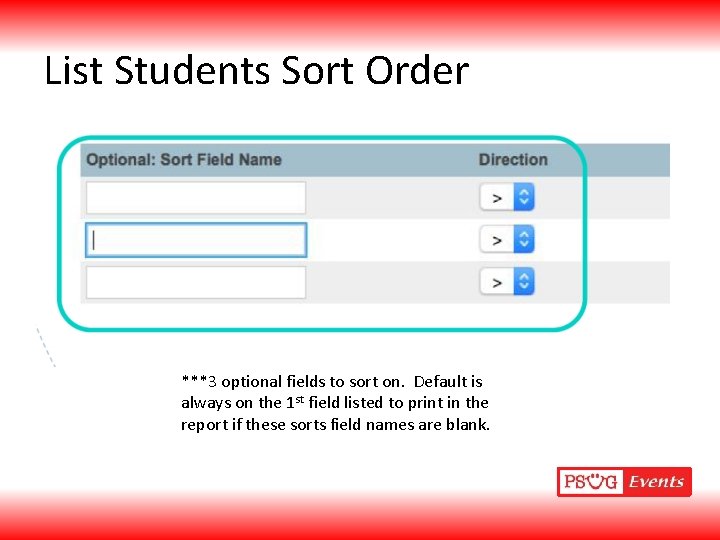
List Students Sort Order ***3 optional fields to sort on. Default is always on the 1 st field listed to print in the report if these sorts field names are blank.
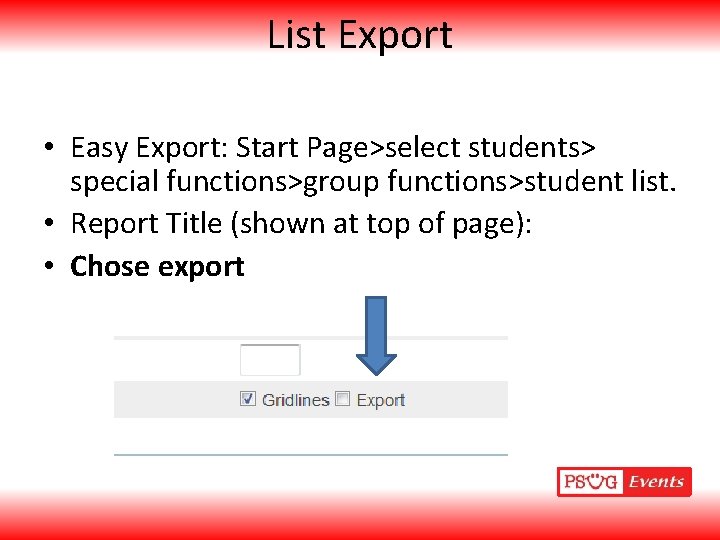
List Export • Easy Export: Start Page>select students> special functions>group functions>student list. • Report Title (shown at top of page): • Chose export
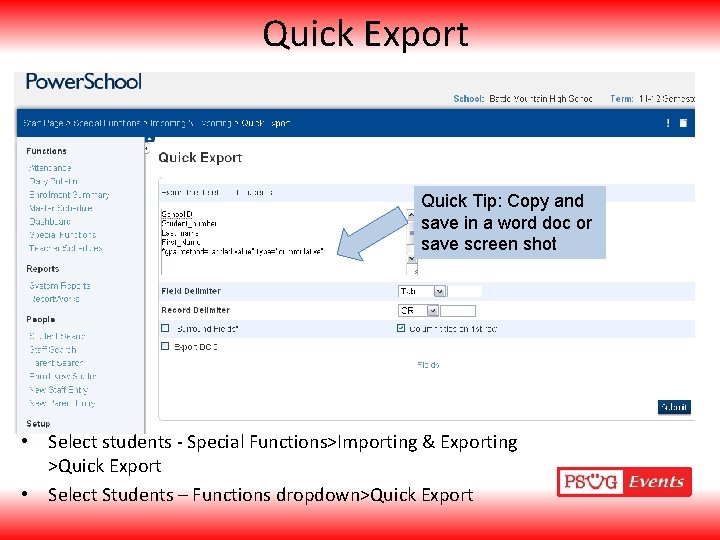
Quick Export Quick Tip: Copy and save in a word doc or save screen shot • Select students - Special Functions>Importing & Exporting >Quick Export • Select Students – Functions dropdown>Quick Export
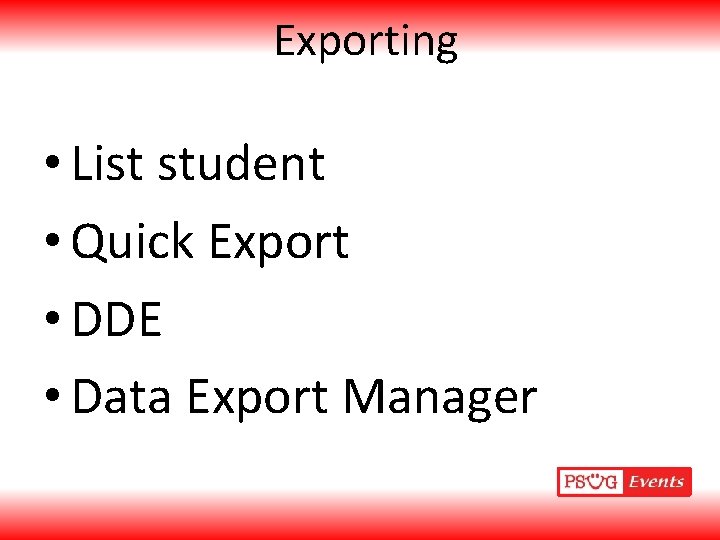
Exporting • List student • Quick Export • DDE • Data Export Manager
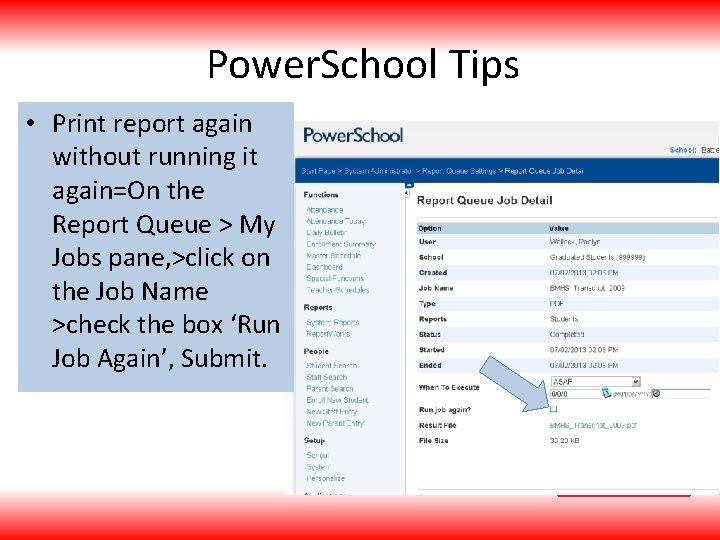
Power. School Tips • Print report again without running it again=On the Report Queue > My Jobs pane, >click on the Job Name >check the box ‘Run Job Again’, Submit.
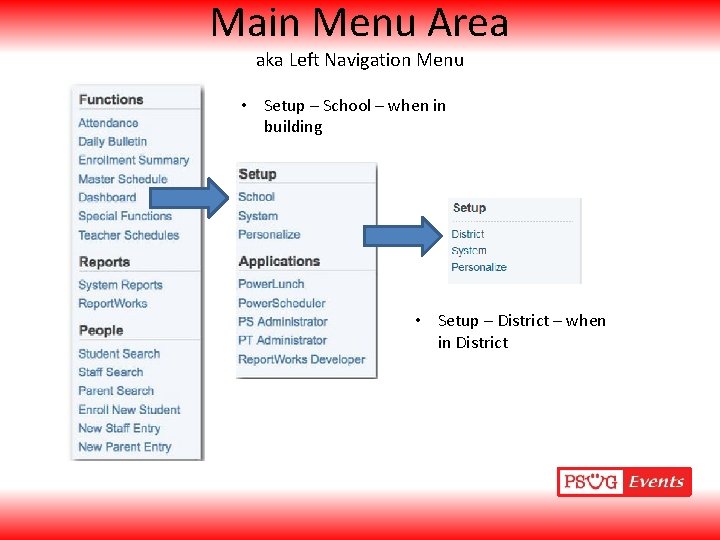
Main Menu Area aka Left Navigation Menu • Setup – School – when in building • Setup – District – when in District
Main Menu Area aka Left Navigation Menu • Setup – School – when in building
Main Menu Area aka Left Navigation Menu • Setup – District – when in District
Dropping and Adding Classes • Start Page>Modify Schedule • The day after the student actually attends the courses in the Exit Date field. • If drop a class with same exit date and enrollment date it deletes the record • Must have any future attendance cleared to drop.
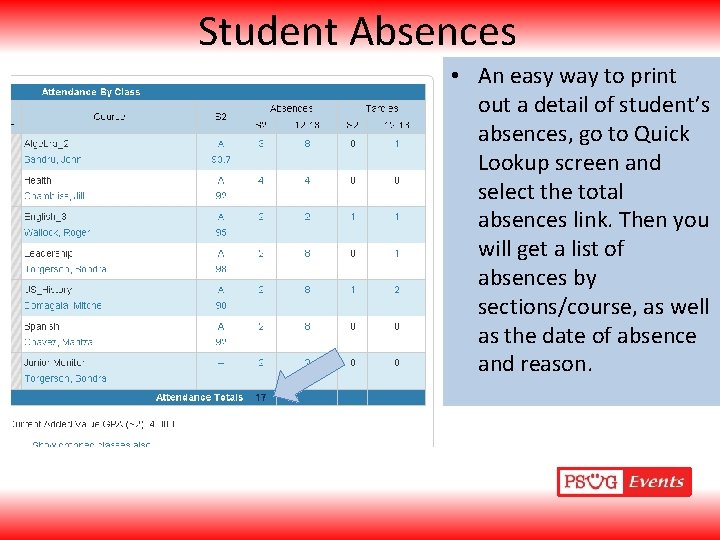
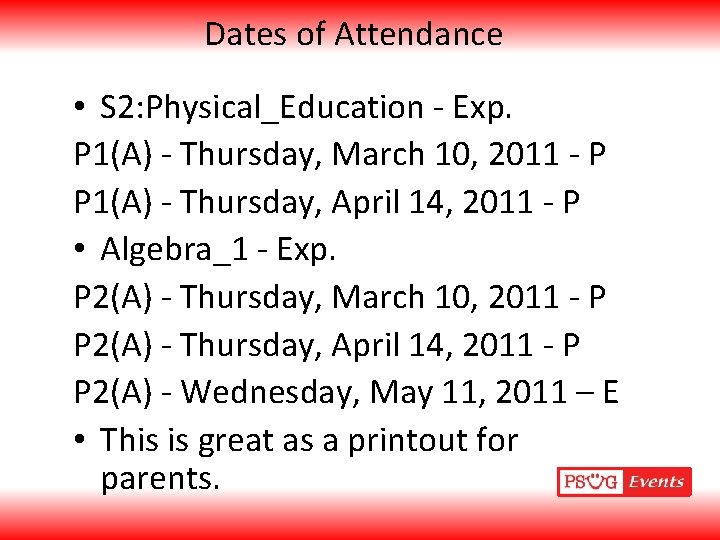
Student Absences • An easy way to print out a detail of student’s absences, go to Quick Lookup screen and select the total absences link. Then you will get a list of absences by sections/course, as well as the date of absence and reason.
Dates of Attendance • S 2: Physical_Education - Exp. P 1(A) - Thursday, March 10, 2011 - P P 1(A) - Thursday, April 14, 2011 - P • Algebra_1 - Exp. P 2(A) - Thursday, March 10, 2011 - P P 2(A) - Thursday, April 14, 2011 - P P 2(A) - Wednesday, May 11, 2011 – E • This is great as a printout for parents.
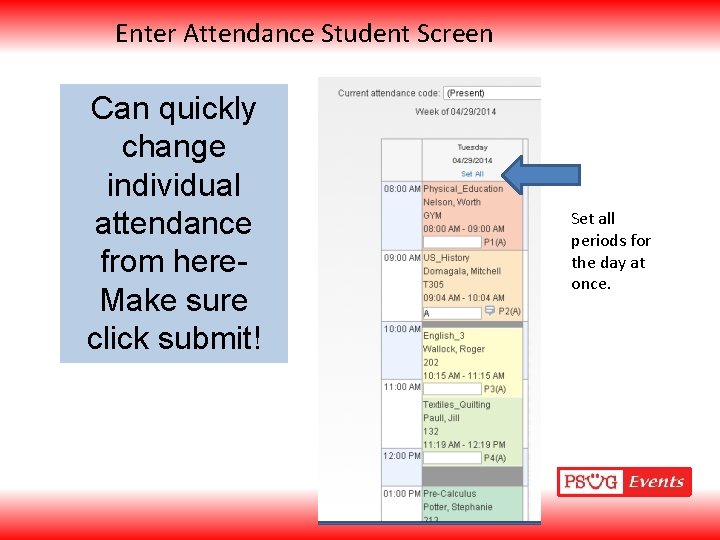
Enter Attendance Student Screen Can quickly change individual attendance from here. Make sure click submit! Set all periods for the day at once.
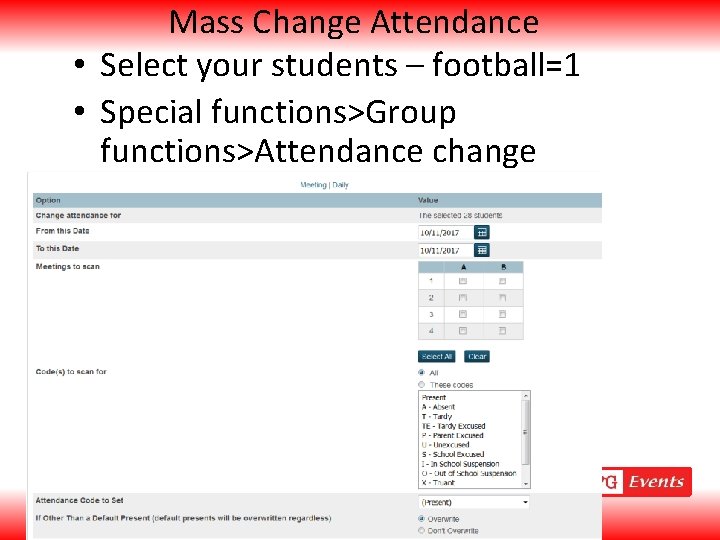
Mass Change Attendance • Select your students – football=1 • Special functions>Group functions>Attendance change
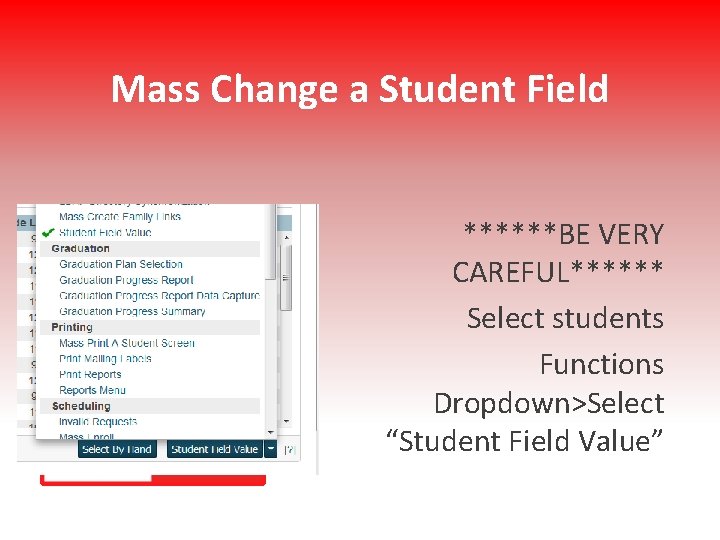
Mass Change a Student Field ******BE VERY CAREFUL****** Select students Functions Dropdown>Select “Student Field Value”
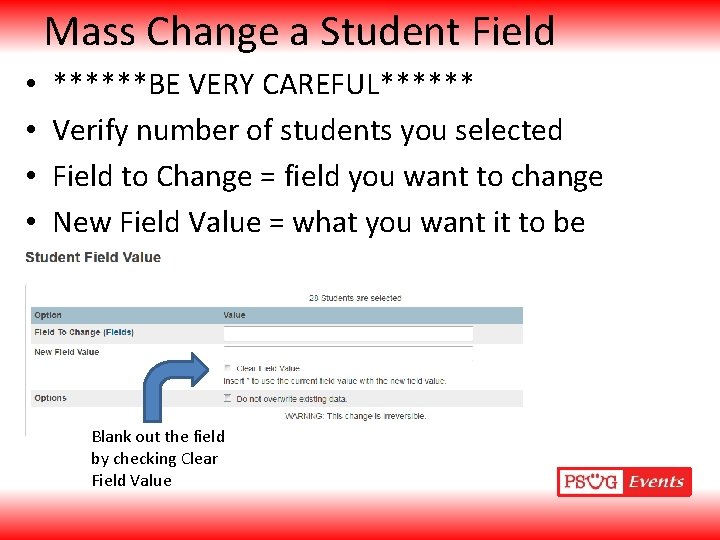
Mass Change a Student Field • • ******BE VERY CAREFUL****** Verify number of students you selected Field to Change = field you want to change New Field Value = what you want it to be Blank out the field by checking Clear Field Value
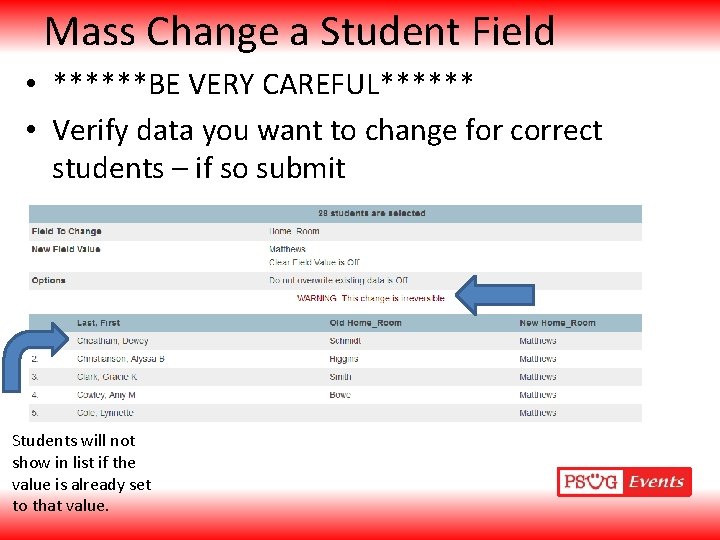
Mass Change a Student Field • ******BE VERY CAREFUL****** • Verify data you want to change for correct students – if so submit Students will not show in list if the value is already set to that value.
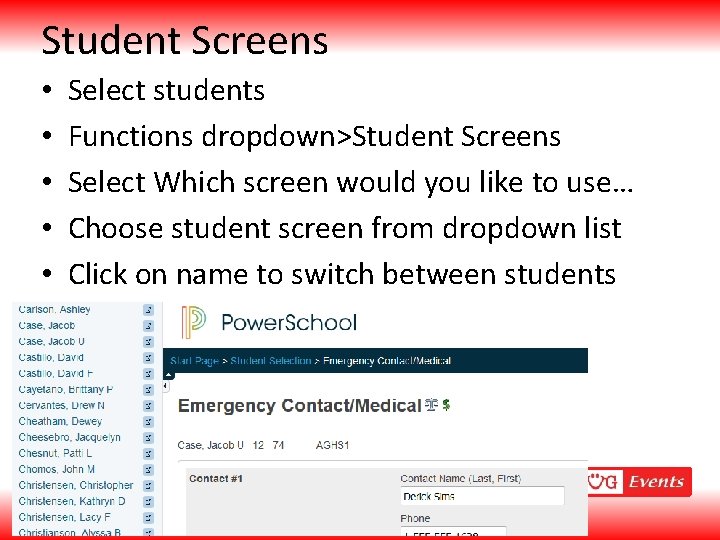
Student Screens • • • Select students Functions dropdown>Student Screens Select Which screen would you like to use… Choose student screen from dropdown list Click on name to switch between students
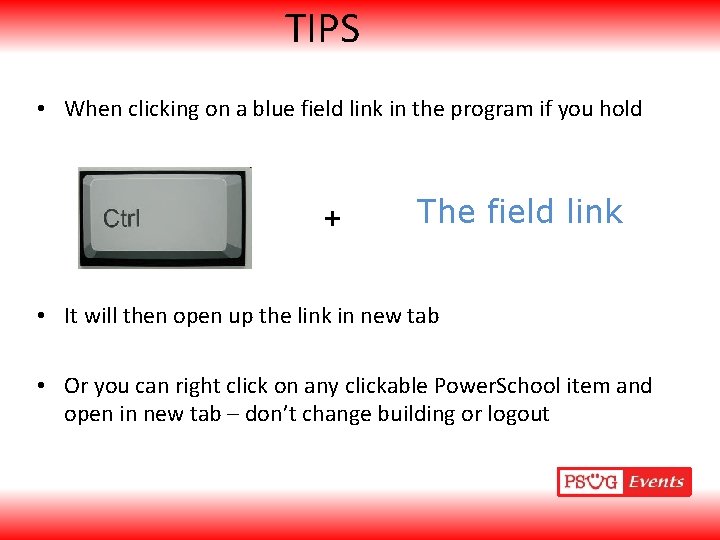
TIPS • When clicking on a blue field link in the program if you hold + The field link • It will then open up the link in new tab • Or you can right click on any clickable Power. School item and open in new tab – don’t change building or logout
More Information More Detailed Sessions • Student Searches • Power. School Resources