GIS and Geologic Mapping Day 1 Tools and
- Slides: 89
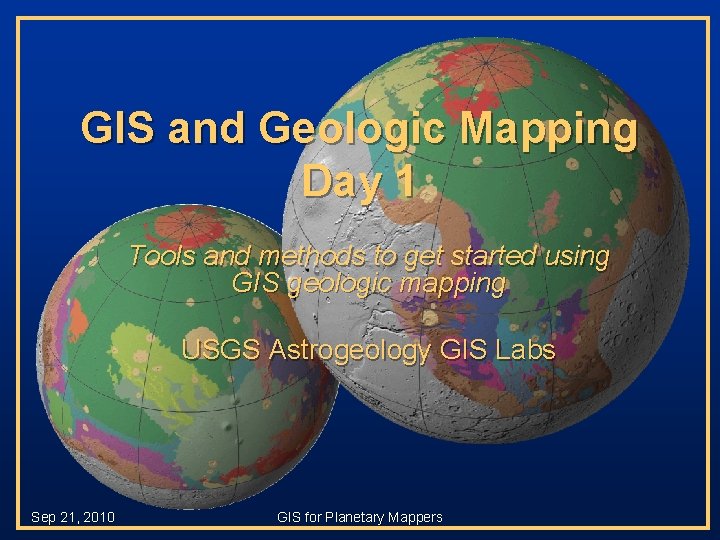
GIS and Geologic Mapping Day 1 Tools and methods to get started using GIS geologic mapping USGS Astrogeology GIS Labs Sep 21, 2010 GIS for Planetary Mappers
Introduction § There will be instructional periods to introduce you to the functions of Arc. GIS § Followed by hands-on activities to reinforce concepts § There will also be Q&A sessions at the end of each session but feel free to ask questions at anytime GIS for Planetary Mappers 2
Introductions Teachers § Trent Hare, Corey Fortezzo, and Jim Skinner § Students… GIS for Planetary Mappers 3
Introduction § Day 1 will include an introduction to GIS, the Arc. GIS interface, and the basics of adding and editing data. § Day 2 will include more advanced topics, e. g. , projections, image registration, spatial analysis and geostatistics GIS for Planetary Mappers 4
Agenda – Day 1 § § § § Class Introduction GIS Introduction and Resources Just get me started (mapping) Editing, Snapping, Streaming Lunch Domains, More Editing Building Polygons Editing Polygons Introduction to Symbols GIS for Planetary Mappers 5
Agenda – Day 2 § Query and Spatial Analysis – Crater/Feature Tools § Freie Universität Berlin (Kneissl) /USGS (Nava) § Crater density walk-though § Bringing in Data and Setting Projections – – Rasters Shapefiles (interpolation) ASCII Files (feature lists, gridded rasters) 3 D Viewers Lunch § Creating Figures (Layouts) § GIS Helper Tools – Hawths, Geodesic, USGS Image Tools § Arc. Map 10 – what to expect GIS for Planetary Mappers 6
Some important notes § USGS Astrogeology primarily uses only one “brand” of GIS (ESRI’s Arc. Map, levels) § Other brands exist, both free and commercial § “Free” – – – Jmars (jmars. asu. edu, Mars, Moon, Earth) Quantum GIS (qgis. org/) UDIG (udig. refractions. net/confluence/display/UDIG/Home) Open EV (openev. sourceforge. net/) JUMP (jump-project. org/) GRASS (grass. itc. it/) § Commercial – – – TNTmips (www. microimages. com/) ER Mapper (www. ermapper. com) PCI Geo. Matica (www. pcigeomatics. com) Global Mapper (www. globalmapper. com) Integraph (www. intergraph. com) GIS for Planetary Mappers 7
Some important notes (cont’d) § Though this presentation is geared toward geologic mappers, the information is relevant to all GIS users § Screen-shots are likely to differ from individual views § GIS skills are developed through software interaction … be patient and try new things! Tip icon will point out helpful hints throughout the presentation GIS for Planetary Mappers 8
GIS Support § ESRI online portal to technical information – http: //support. esri. com § ESRI Arc. Scripts – http: //arcscripts. esri. com/ § ESRI Educational Services – Instructor-led training – Virtual Campus courses – Web workshops § Books GIS for Planetary Mappers 9
GIS Support Nodes § Planet-specific information (e. g. , data, discussion, tutorials) – http: //webgis. wr. usgs. gov/ § USGS discussion board (login required) – http: //isis. astrogeology. usgs. gov/ … navigate to “Support” “Planetary GIS Discussions” “Plugging keywords into a internet search engine is a great way to search for GIS-related assistance” GIS for Planetary Mappers 10
Arc Environment “Just get me started…” § § Introduce Arc. Map & Arc. Catalog interfaces Create a FILE Geodatabase (GDB) Add attributes (domains) Build a feature dataset and add three features (contacts, structures, units) § Import map bases (raster data) § Edit the features by adding lines and points (vector data) GIS for Planetary Mappers 11
GIS - “The horror…the horror…. ” § § Organization!! Multi-layer display Digitize and edit on-the-fly “Easily” generate layouts/figures (Adobe Illustrator compatible) § Raster and vector analysis – Crater counts – Spectral statistics for mapped units – Endless possibilities § Editing – Set rules for validating data – Easily edit/modify existing linework GIS for Planetary Mappers 12
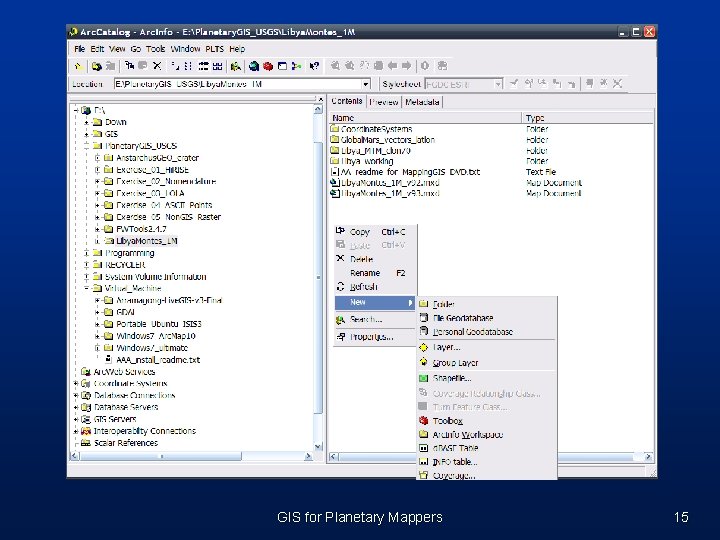
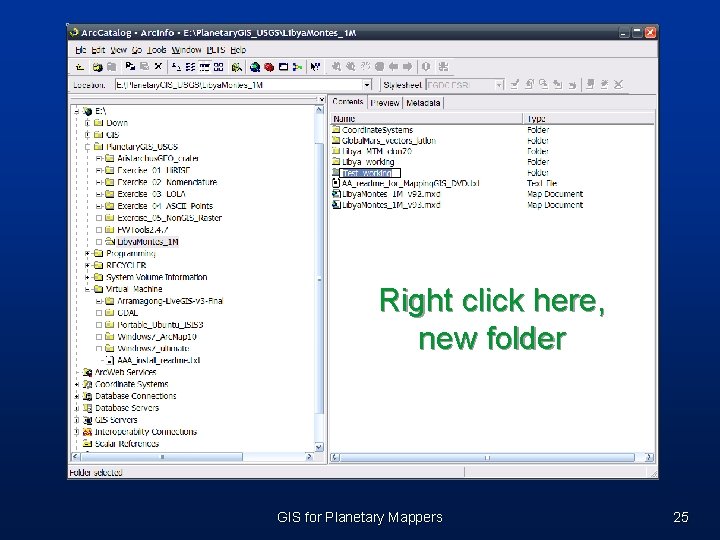
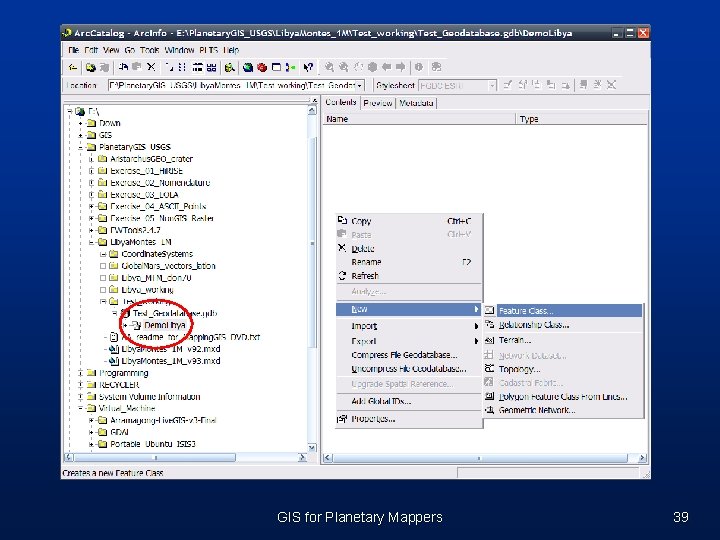
Arc. Catalog – your friend § Separate entity from Arc. Map § Interface is similar to Windows Explorer – Create new file – Add/Delete folders or files (if unlocked) – Good operating environment for Arc. Toolbox GIS for Planetary Mappers 13
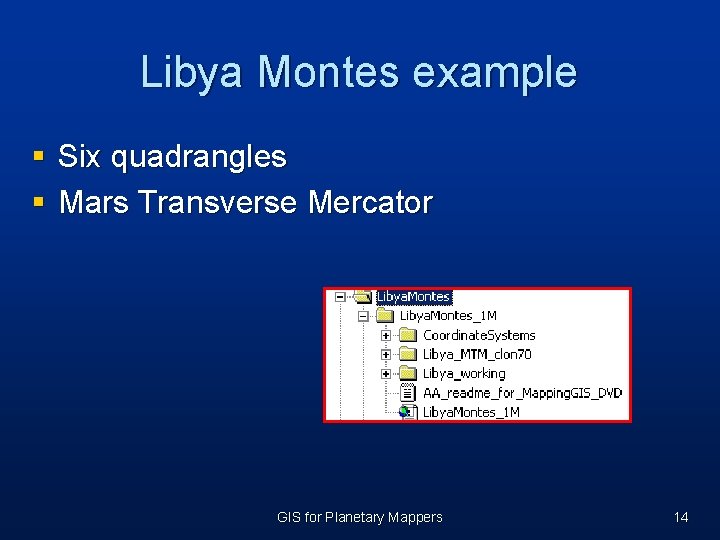
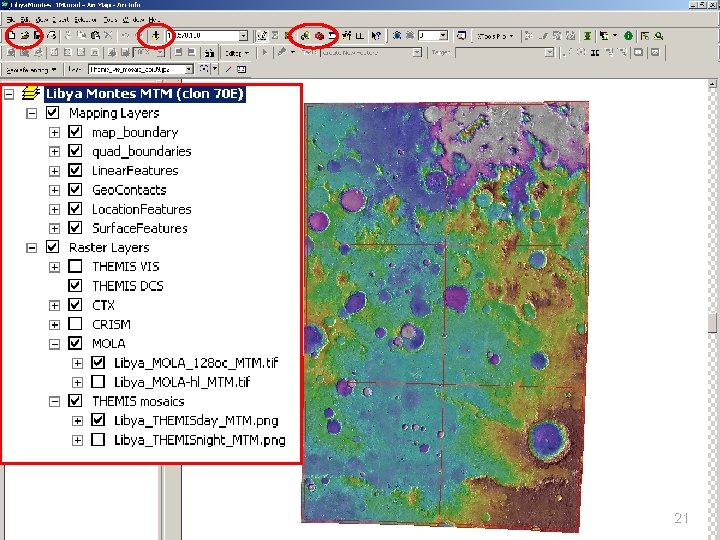
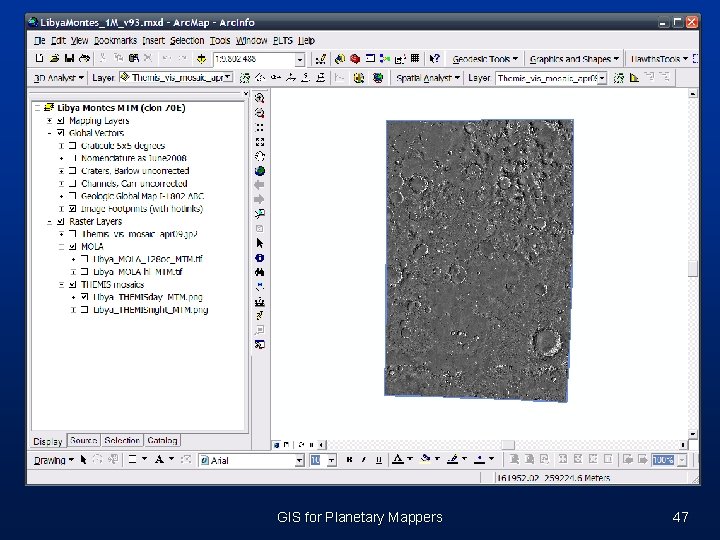
Libya Montes example § Six quadrangles § Mars Transverse Mercator GIS for Planetary Mappers 14
GIS for Planetary Mappers 15
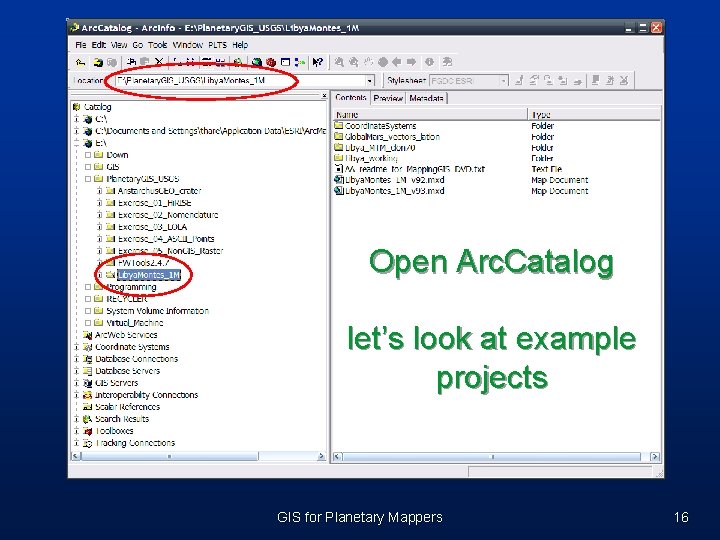
Open Arc. Catalog let’s look at example projects GIS for Planetary Mappers 16
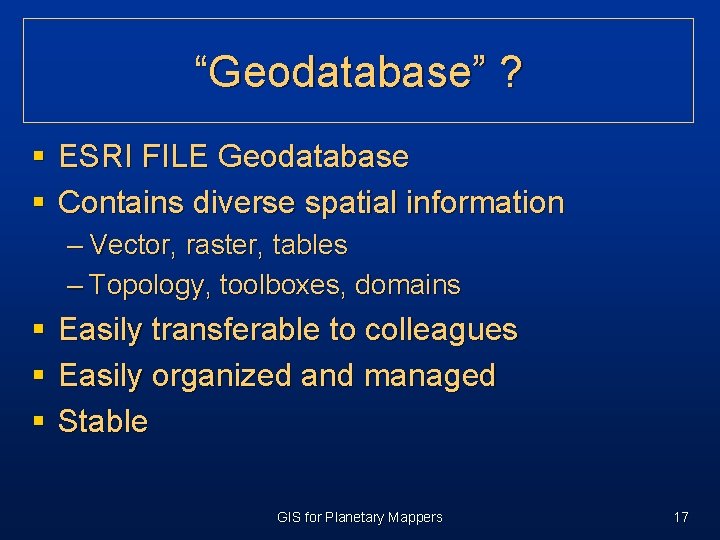
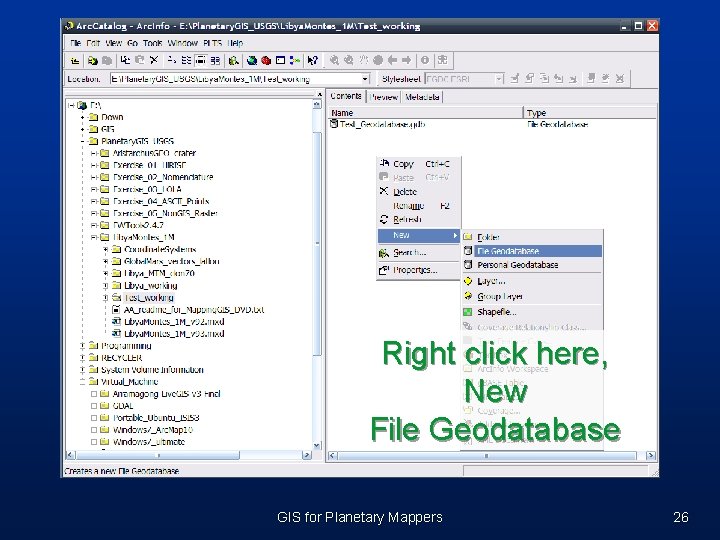
“Geodatabase” ? § ESRI FILE Geodatabase § Contains diverse spatial information – Vector, raster, tables – Topology, toolboxes, domains § § § Easily transferable to colleagues Easily organized and managed Stable GIS for Planetary Mappers 17
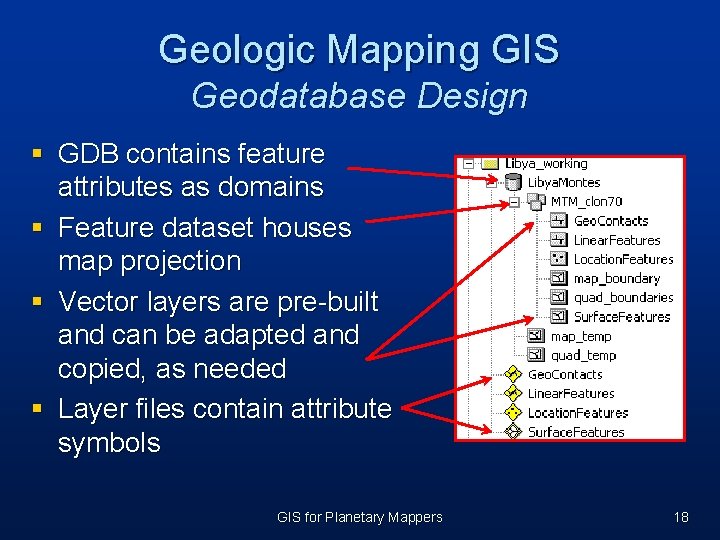
Geologic Mapping GIS Geodatabase Design § GDB contains feature attributes as domains § Feature dataset houses map projection § Vector layers are pre-built and can be adapted and copied, as needed § Layer files contain attribute symbols GIS for Planetary Mappers 18
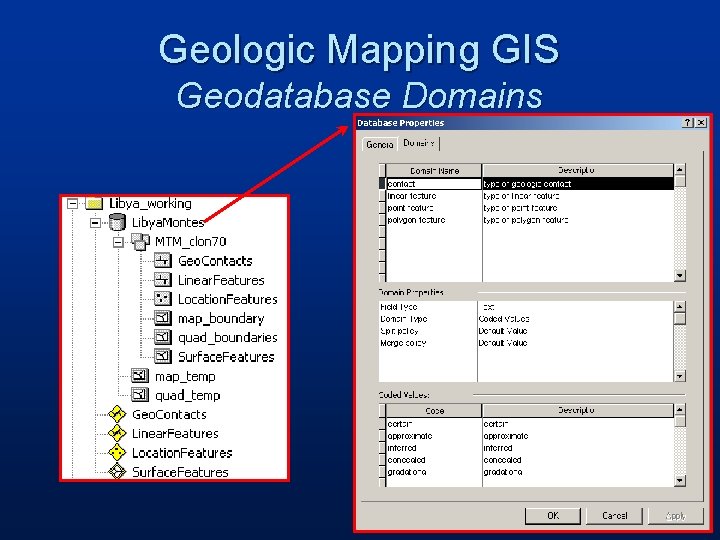
Geologic Mapping GIS Geodatabase Domains
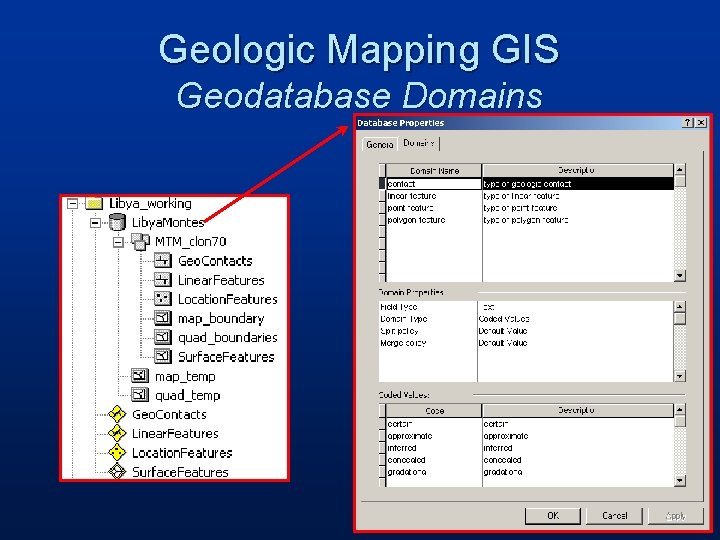
Geologic Mapping GIS Geodatabase Domains
21
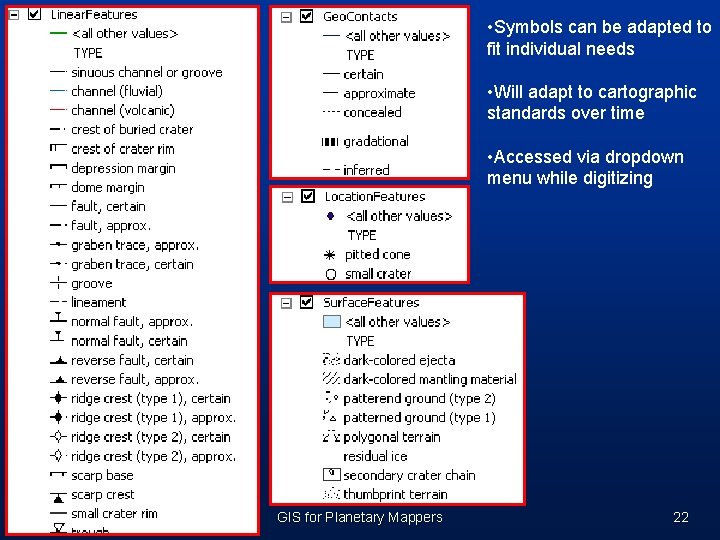
• Symbols can be adapted to fit individual needs • Will adapt to cartographic standards over time • Accessed via dropdown menu while digitizing GIS for Planetary Mappers 22
Just Get Me Started A Quick and Dirty Guide to Mapping in Arc. GIS § § Introduce Arc. Map & Arc. Catalog interfaces Create a geodatabase (GDB) Add attributes Build a feature dataset and add three features (contacts, structures, units) § Add raster data § Edit features by adding lines and point GIS for Planetary Mappers 23
Keys for Success § § § Keep project data organized! Periodically delete temporary files to avoid clutter Use succinct but conspicuous names for folders and files – /Utopia. Map. Proj/June 08 Lines/geo_contacts_june 08. shp § Use dual display, if possible (2 screens) – Assists with toggle between programs – Great for viewing hotlinked images § Keep vector data clean – Snap linework!!! – Avoids excessive cleaning at project end – Experiment with which tolerances work best for your digitizing scale § Keep detailed notes on GIS settings, methods, and approaches § Use point files to hold temporary/evolving geologic units GIS for Planetary Mappers 24
Right click here, new folder GIS for Planetary Mappers 25
Right click here, New File Geodatabase GIS for Planetary Mappers 26
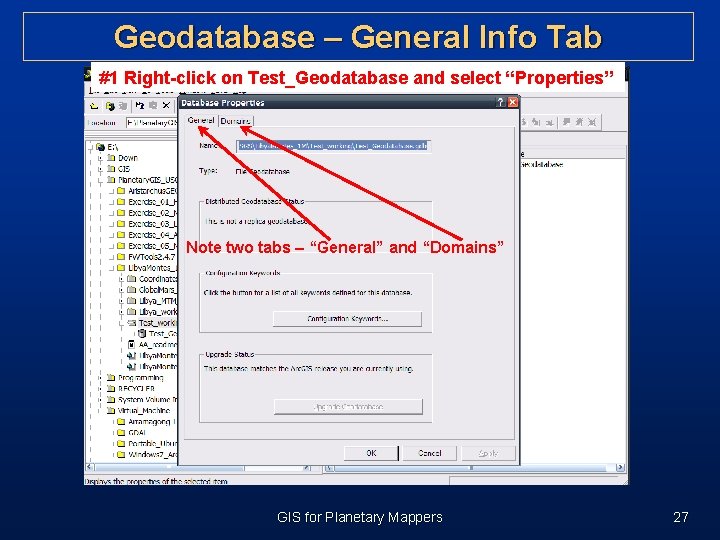
Geodatabase – General Info Tab #1 Right-click on Test_Geodatabase and select “Properties” Note two tabs – “General” and “Domains” GIS for Planetary Mappers 27
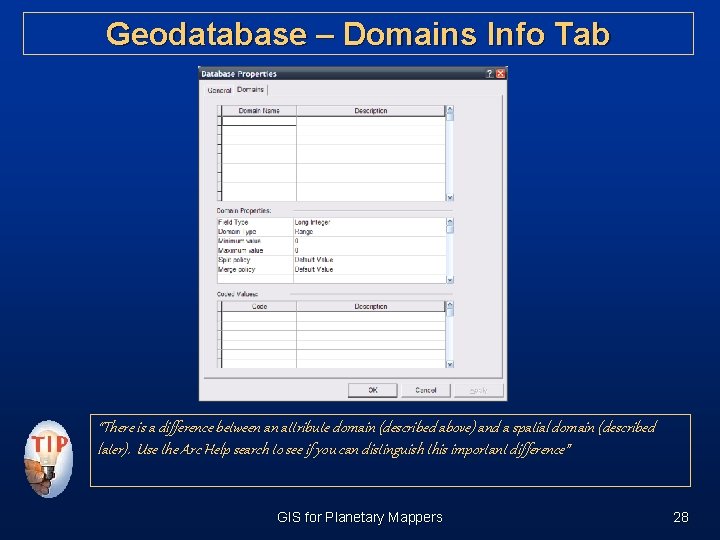
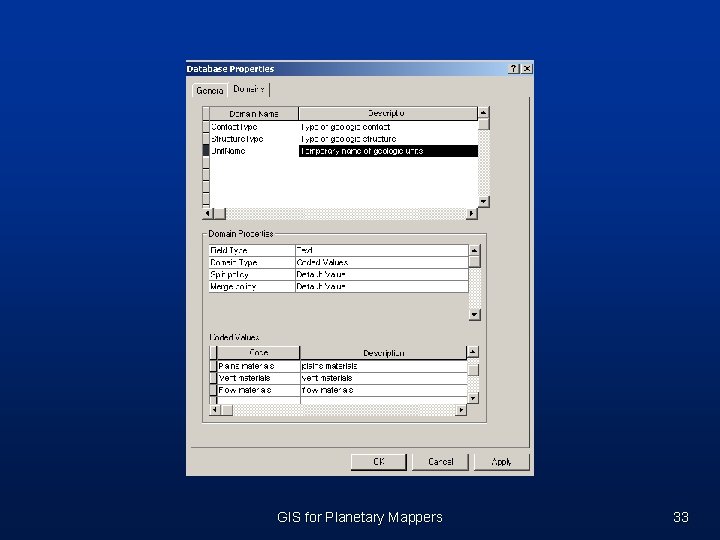
Geodatabase – Domains Info Tab “There is a difference between an attribute domain (described above) and a spatial domain (described later). Use the Arc Help search to see if you can distinguish this important difference” GIS for Planetary Mappers 28
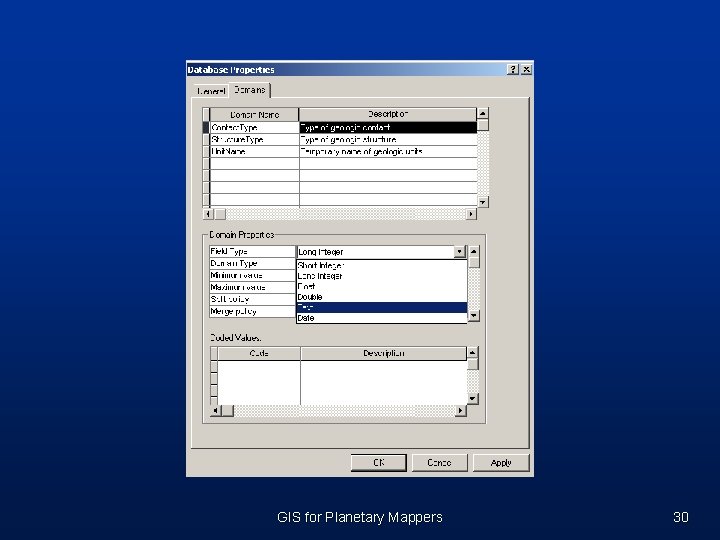
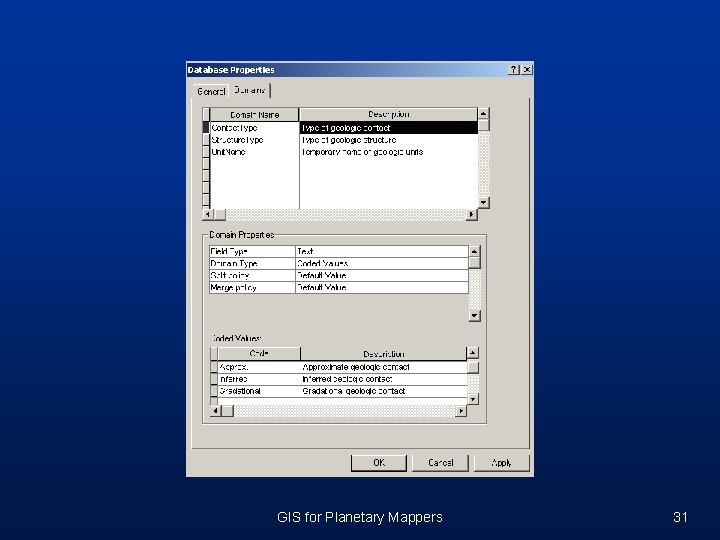
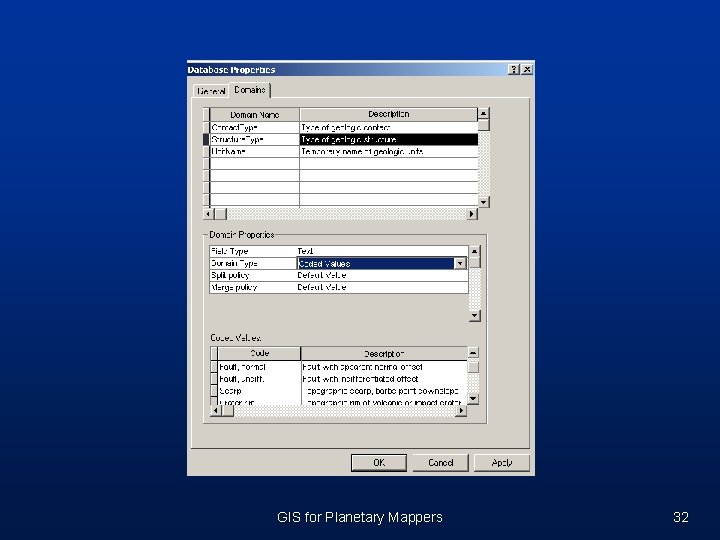
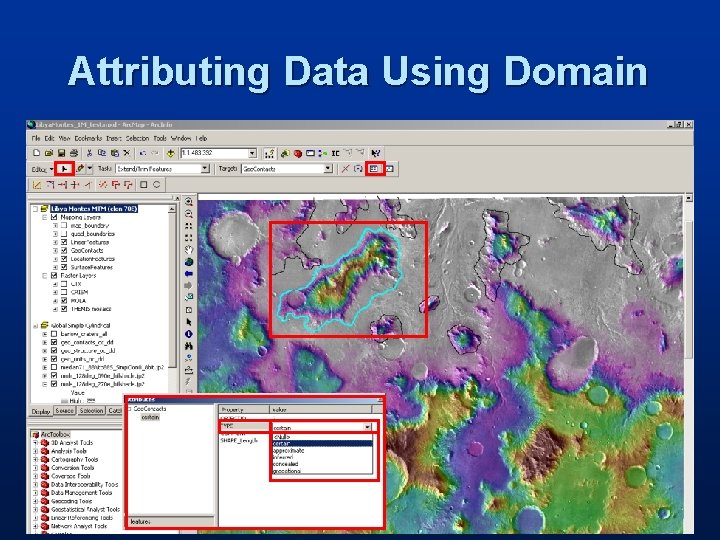
Attribute Domains § Property of geodatabase § Offer way to define a range of values that can be used for multiple attribute fields § Esure data integrity by limiting the choice of values for a particular field § User restricted to choices available from dropdown list § Useful for features “known” to exist in a particular map region – Contact attributes (certain, approximate, concealed) – Structure and feature attributes (ridge, trough, crater rim, flow direction) § Can be used for geologic unit attributes, but requires iteration GIS for Planetary Mappers 29
GIS for Planetary Mappers 30
GIS for Planetary Mappers 31
GIS for Planetary Mappers 32
GIS for Planetary Mappers 33
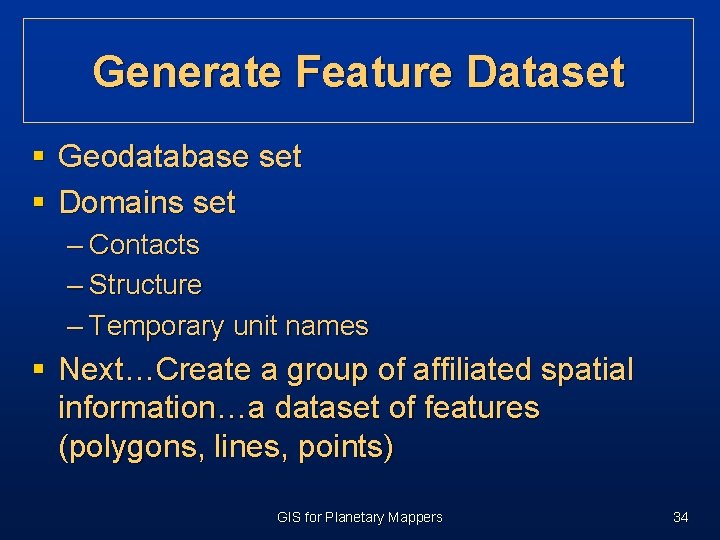
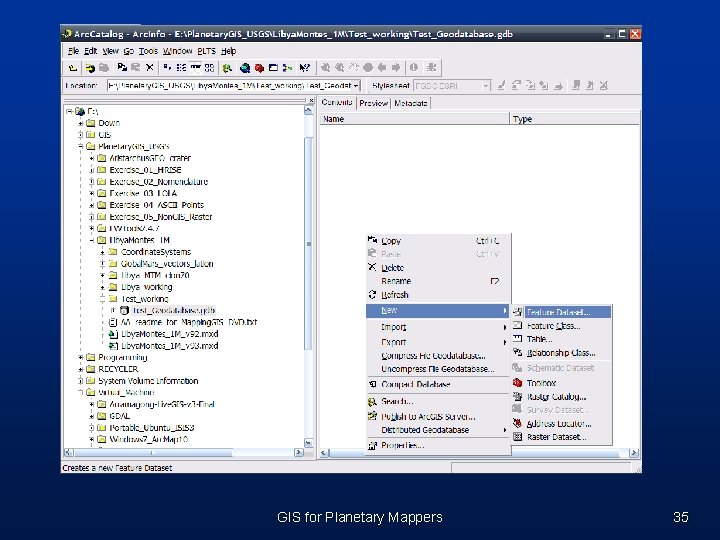
Generate Feature Dataset § Geodatabase set § Domains set – Contacts – Structure – Temporary unit names § Next…Create a group of affiliated spatial information…a dataset of features (polygons, lines, points) GIS for Planetary Mappers 34
GIS for Planetary Mappers 35
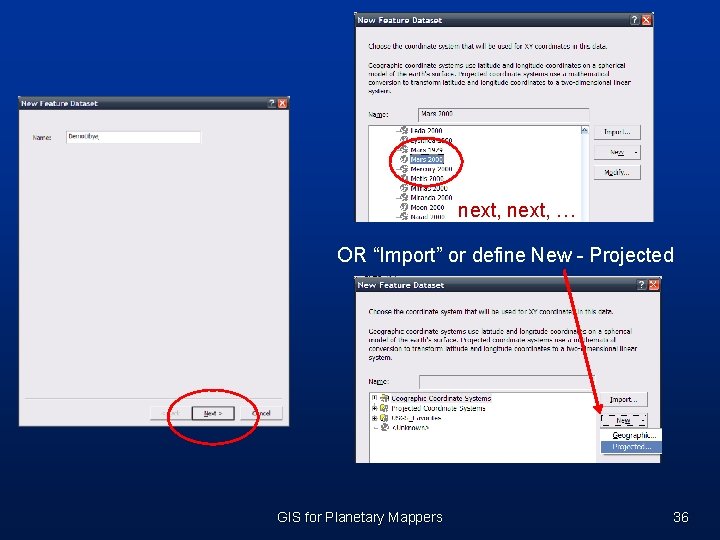
next, … OR “Import” or define New - Projected GIS for Planetary Mappers 36
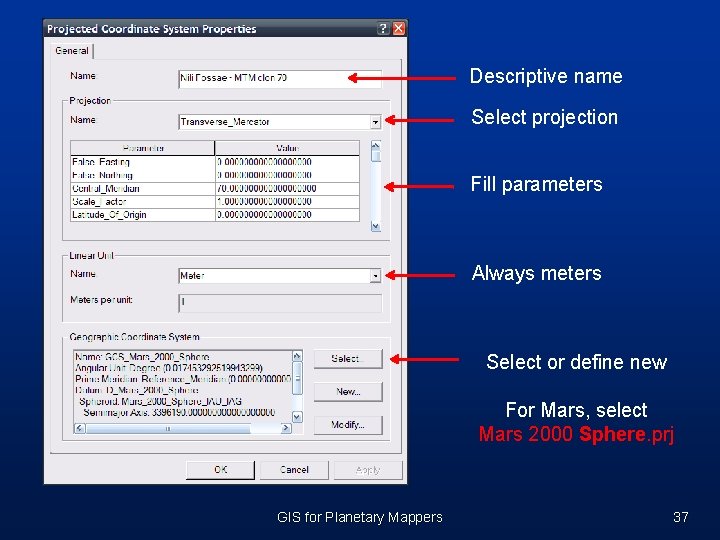
Descriptive name Select projection Fill parameters Always meters Select or define new For Mars, select Mars 2000 Sphere. prj GIS for Planetary Mappers 37
GIS for Planetary Mappers 39
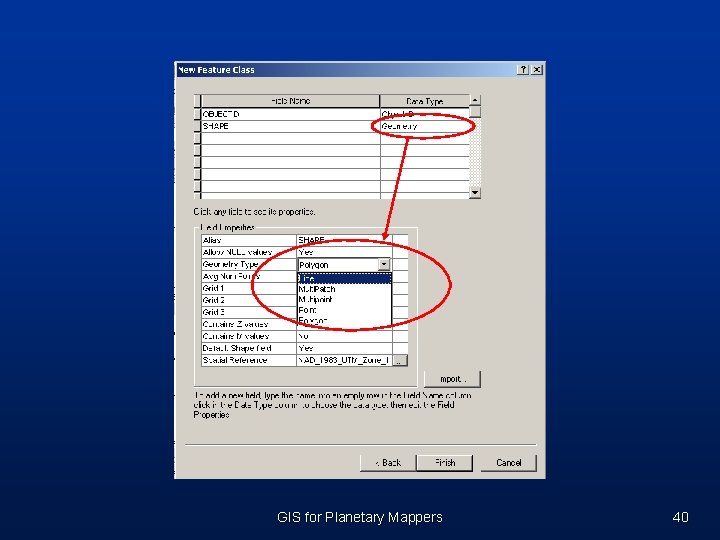
GIS for Planetary Mappers 40
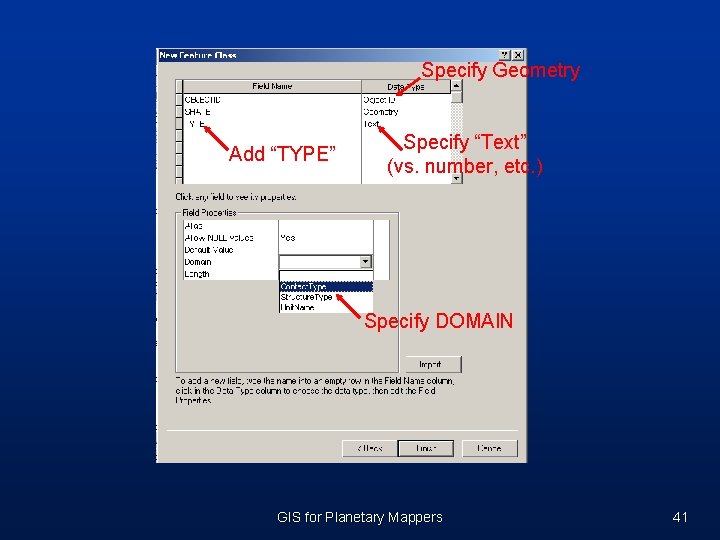
Specify Geometry Add “TYPE” Specify “Text” (vs. number, etc. ) Specify DOMAIN GIS for Planetary Mappers 41
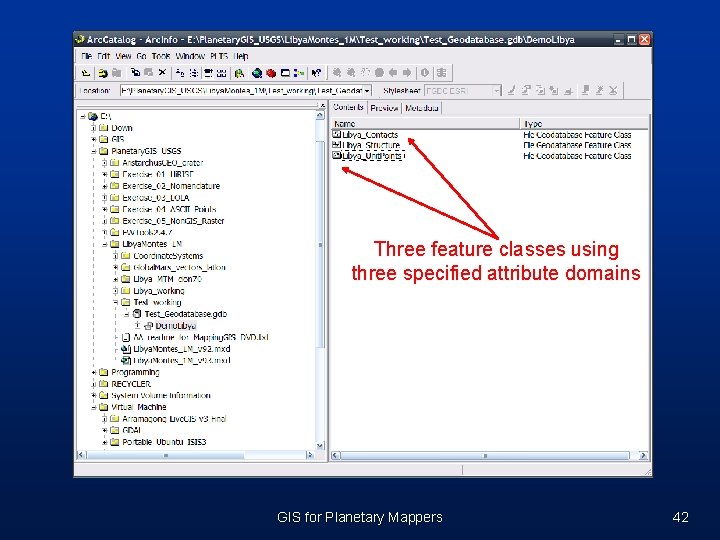
Three feature classes using three specified attribute domains GIS for Planetary Mappers 42
Predefined Geodatabases § USGS creates geodatabase for mappers § Working with other to standardize Planetary Mapping The Datamodel's Perspective and GIS Framework, S. van Gasselt, A. Nass Planetary and Space Science (in review) Special Issue: Geological Mapping of Mars GIS for Planetary Mappers 43
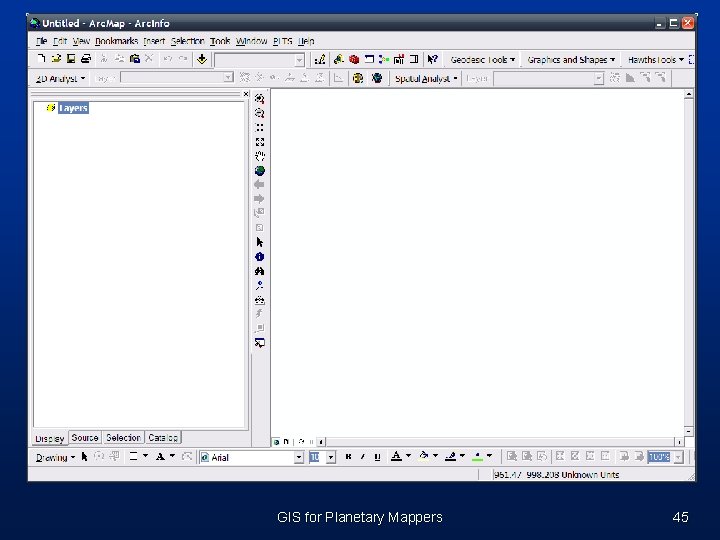
Open existing Arc. Map project § § Good to have multiple projects (~backups) Easily transferable to colleagues with GDB Organizational preferences abound Start Arc. Map Select: – New empty map – A template – An existing map GIS for Planetary Mappers 44
GIS for Planetary Mappers 45
Hands-on (Arc. Map/Arc. Catalog) § Goals (using pre-loaded GIS) § Add and move data § View properties § Attributes § Domains § Raster/vector § Menus GIS for Planetary Mappers 46
GIS for Planetary Mappers 47
Break (10 minutes) § Next Editing polylines GIS for Planetary Mappers 48
Vector Creation, Editing, and Symbols GIS for Planetary Mappers 49
Vector Creation, Editing, and Symbols § § § § Introduce Editor toolbar Briefly introduce the Advanced Editor toolbar Add feature classes (point and lines) Create point and line data Add attributes (from domains) to features Prepare lines before making polygons Build polygons from lines Use symbols to represent attributes GIS for Planetary Mappers 50
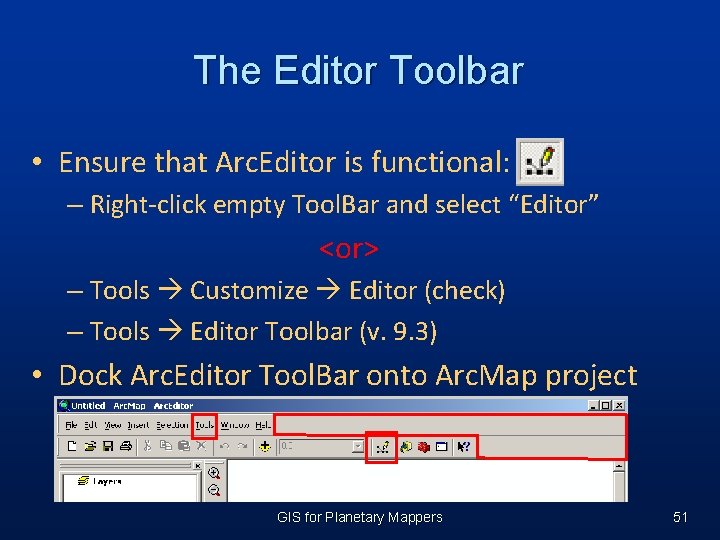
The Editor Toolbar • Ensure that Arc. Editor is functional: – Right-click empty Tool. Bar and select “Editor” <or> – Tools Customize Editor (check) – Tools Editor Toolbar (v. 9. 3) • Dock Arc. Editor Tool. Bar onto Arc. Map project GIS for Planetary Mappers 51
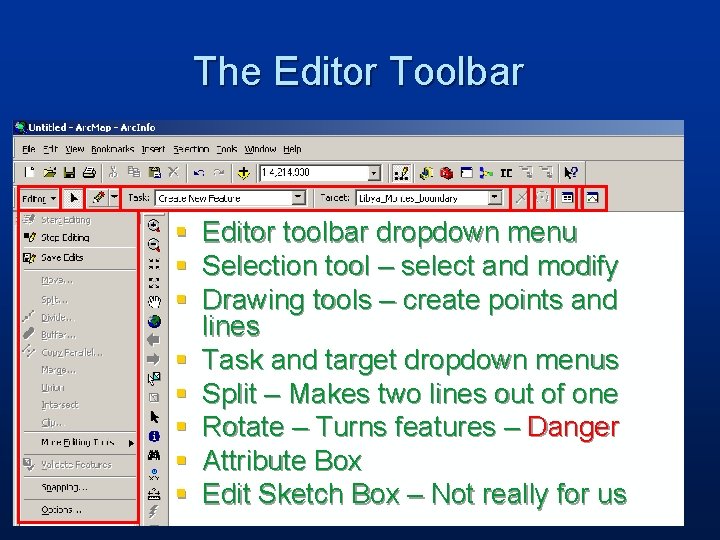
The Editor Toolbar § § § § Editor toolbar dropdown menu Selection tool – select and modify Drawing tools – create points and lines Task and target dropdown menus Split – Makes two lines out of one Rotate – Turns features – Danger Attribute Box Edit Sketch Box – Not really for us
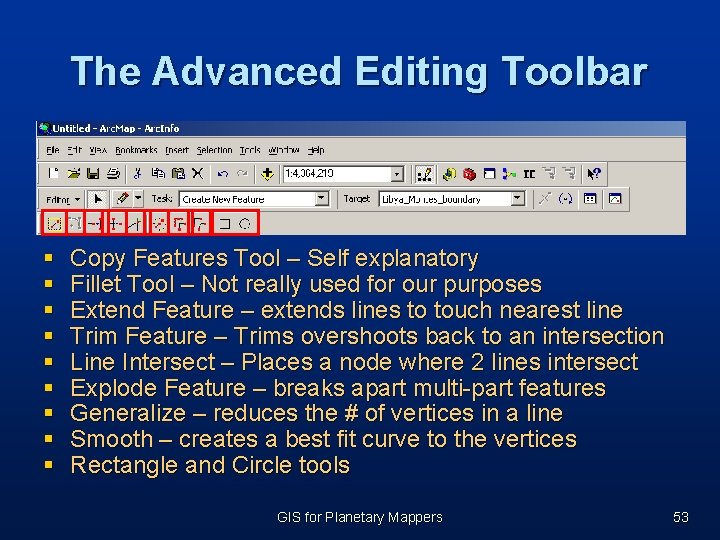
The Advanced Editing Toolbar § § § § § Copy Features Tool – Self explanatory Fillet Tool – Not really used for our purposes Extend Feature – extends lines to touch nearest line Trim Feature – Trims overshoots back to an intersection Line Intersect – Places a node where 2 lines intersect Explode Feature – breaks apart multi-part features Generalize – reduces the # of vertices in a line Smooth – creates a best fit curve to the vertices Rectangle and Circle tools GIS for Planetary Mappers 53
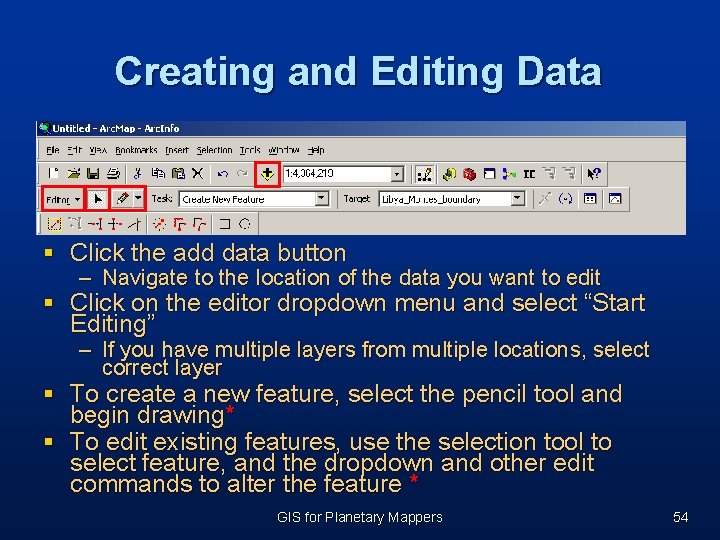
Creating and Editing Data § Click the add data button – Navigate to the location of the data you want to edit § Click on the editor dropdown menu and select “Start Editing” – If you have multiple layers from multiple locations, select correct layer § To create a new feature, select the pencil tool and begin drawing* § To edit existing features, use the selection tool to select feature, and the dropdown and other edit commands to alter the feature * GIS for Planetary Mappers 54
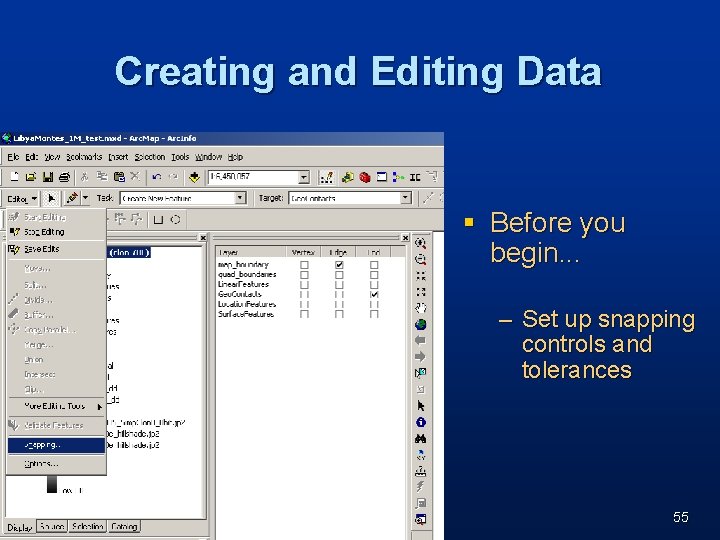
Creating and Editing Data § Before you begin. . . – Set up snapping controls and tolerances 55
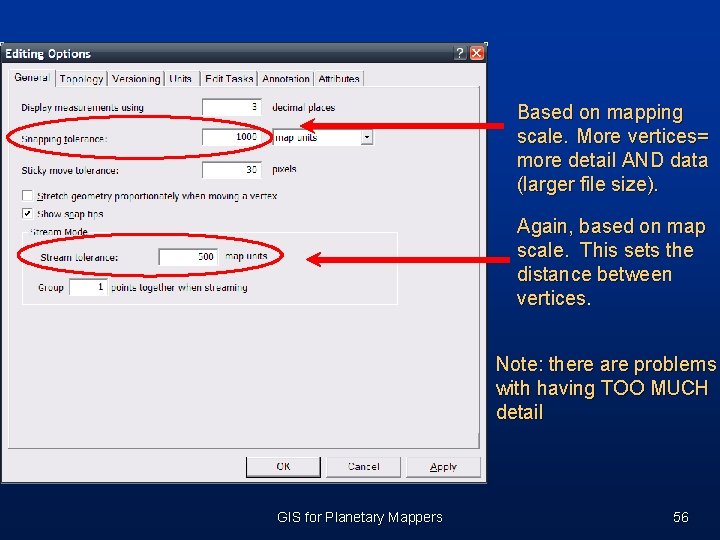
Based on mapping scale. More vertices= more detail AND data (larger file size). Again, based on map scale. This sets the distance between vertices Note: there are problems with having TOO MUCH detail GIS for Planetary Mappers 56
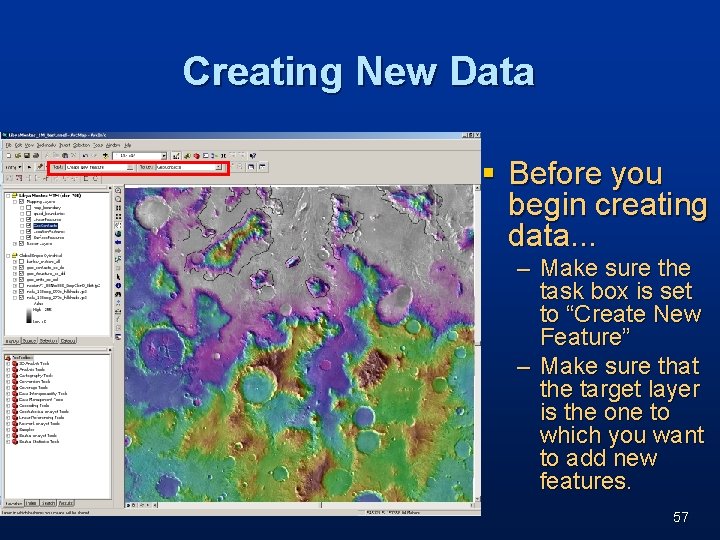
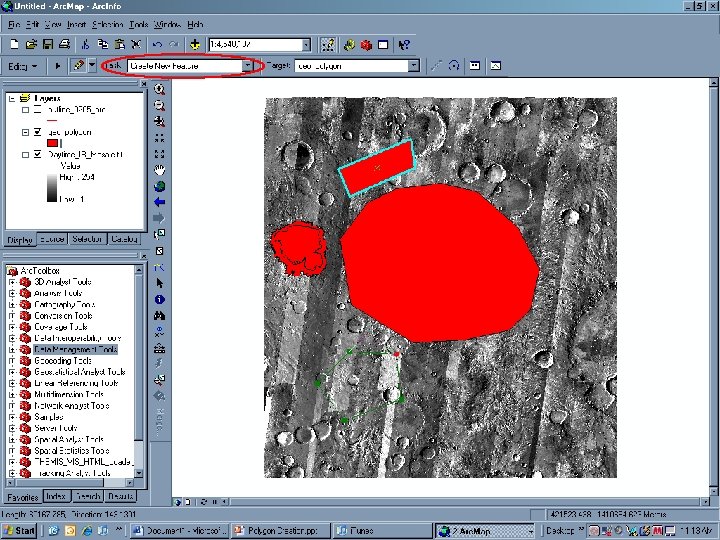
Creating New Data § Before you begin creating data. . . – Make sure the task box is set to “Create New Feature” – Make sure that the target layer is the one to which you want to add new features. 57
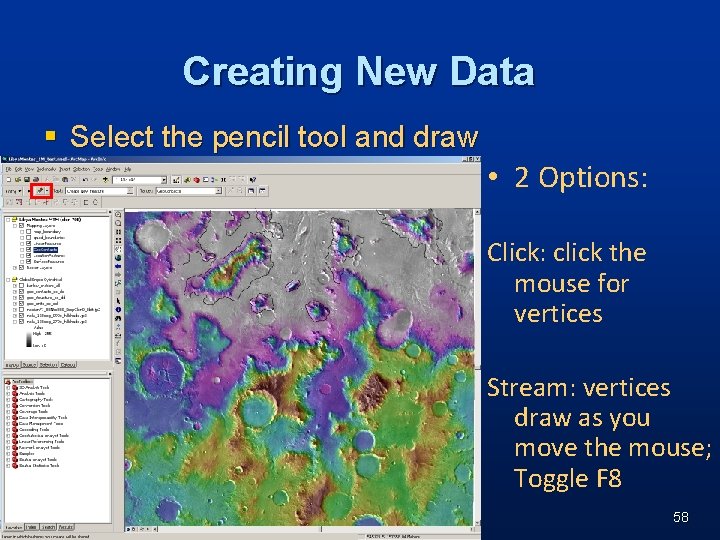
Creating New Data § Select the pencil tool and draw • 2 Options: Click: click the mouse for vertices Stream: vertices draw as you move the mouse; Toggle F 8 58
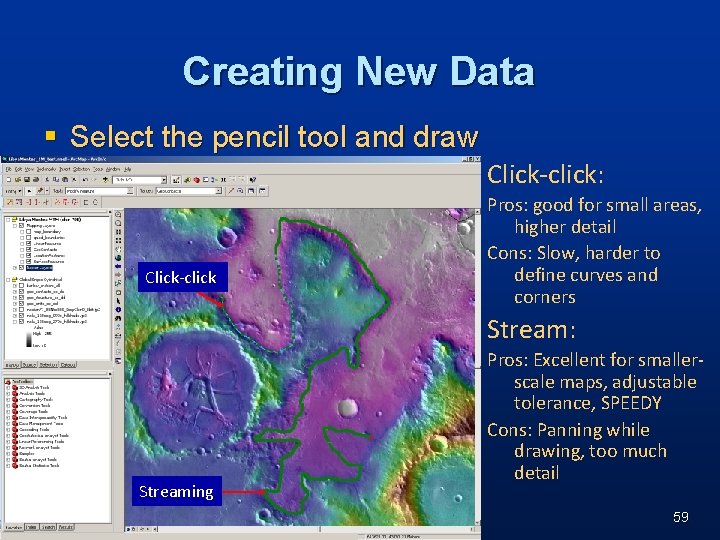
Creating New Data § Select the pencil tool and draw Click-click: Click-click Pros: good for small areas, higher detail Cons: Slow, harder to define curves and corners Stream: Streaming Pros: Excellent for smallerscale maps, adjustable tolerance, SPEEDY Cons: Panning while drawing, too much detail 59
Attributing Data Using Domain
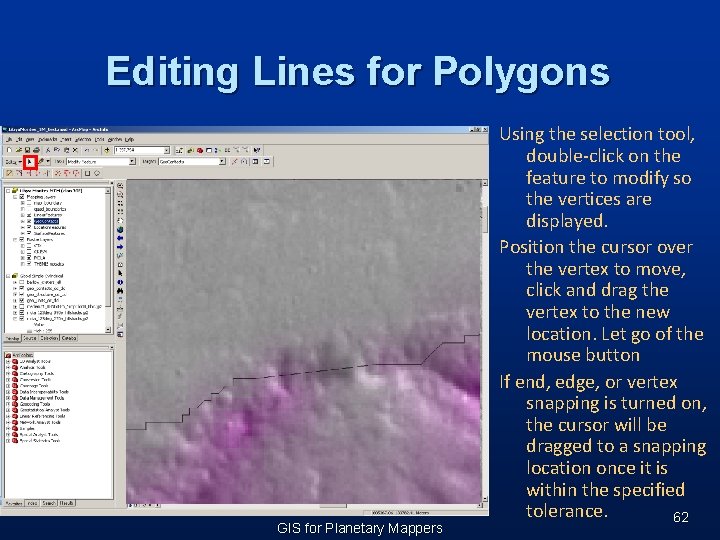
Editing Lines for Polygons • Lines must define a discrete, enclosed area to generate a polygon • It may be necessary for you to manually edit the linework • Snapping • Reshaping • Smoothing • Check your snapping environment and tolerances before editing GIS for Planetary Mappers 61
Editing Lines for Polygons GIS for Planetary Mappers Using the selection tool, double-click on the feature to modify so the vertices are displayed. Position the cursor over the vertex to move, click and drag the vertex to the new location. Let go of the mouse button If end, edge, or vertex snapping is turned on, the cursor will be dragged to a snapping location once it is within the specified tolerance. 62
Digitize, digitize… § Tricks: – Editor Snapping § Will allow linework to snap to ends or vertices – – Hit F 8 for streaming…hit F 8 again for single click F 2 Finishes a sketch You can pan while digitizing (not streaming) Attribute while you digitize § Use domains § Use hand-entered GIS for Planetary Mappers 63
Summary § § Arc. Catalog utility vs. Arc. Map utility Opening a new Arc. Map project Building a new geodatabase Creating feature datasets and feature classes § Adding Domains for attribution GIS for Planetary Mappers 64
Summary, cont’d § § Adding and starting Arc. Editor Set snapping environment Digitizing – click-click and streaming (F 8) Attributing digitized information using domains § Attributing digitized information using handentered data GIS for Planetary Mappers 65
Hands-On (Editing Lines) § Goals – Open Libya project – Set snapping – Zoom in and digitize – Save § NEXT Polygons GIS for Planetary Mappers 66
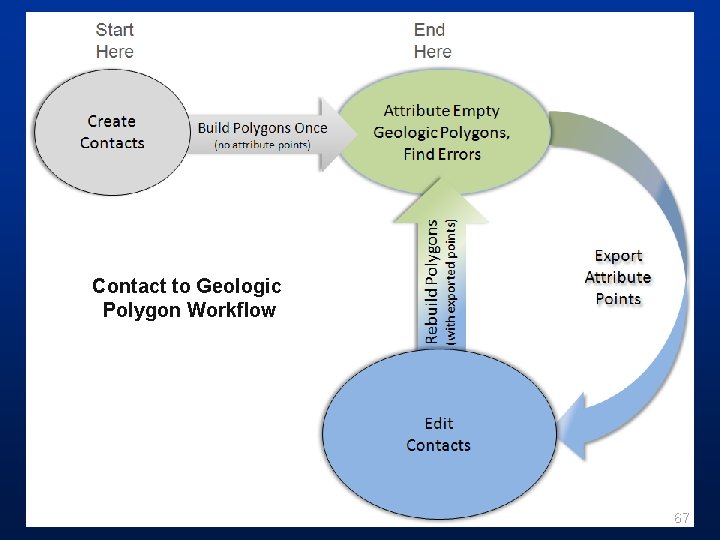
Contact to Geologic Polygon Workflow 67
Polygon Creation § Contacts to units § § § Stop editing Arc/Info license: Build polygons from Arc. Toolbox Arc. View license: free 3 rd party software to build § Tools for Graphics and Shapes § http: //www. jennessent. com/arcgis_extensions. htm GIS for Planetary Mappers 68
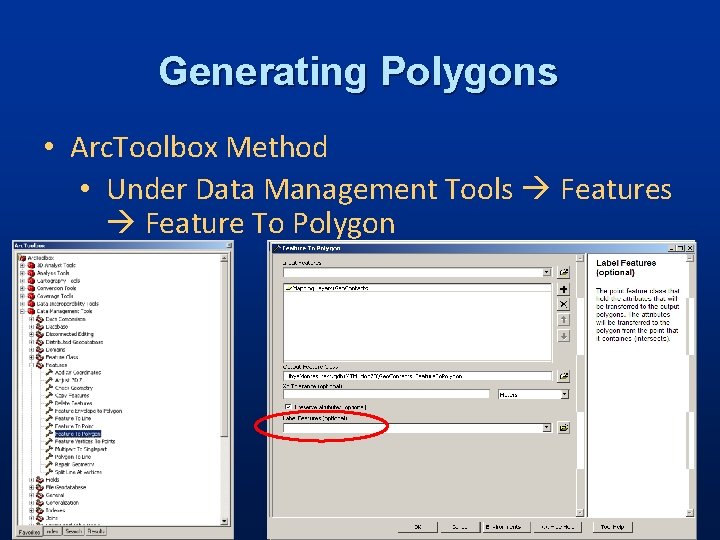
Generating Polygons • Arc. Toolbox Method • Under Data Management Tools Feature To Polygon
Generating Polygons • We do not advocate drawing polygons from the beginning because: • Polygons are difficult to edit (slivers, gaps, nested polygons, etc. ) • Lines generated from polygons will have to be edited (split, merged, attributed, etc. ) • It is easier and faster to draw, edit and attribute lines using Arc. Map GIS for Planetary Mappers 70
Generating Polygons • Recognize that building polygons from the contacts is an iterative process. You would be extremely lucky (or the pope of GIS-town) to only have to do this once. • If you have attributed a lot of your polygons and have to change a contact or fix a problem, you have not wasted your time. You can export and store the attributes as a point file. That point file can and will be used the next time you build polygons. GIS for Planetary Mappers 71
More on Polygon Creation § Multiple methods § Draw contacts and convert to unit polygons § Draw unit polygons and extract contacts GIS for Planetary Mappers 72
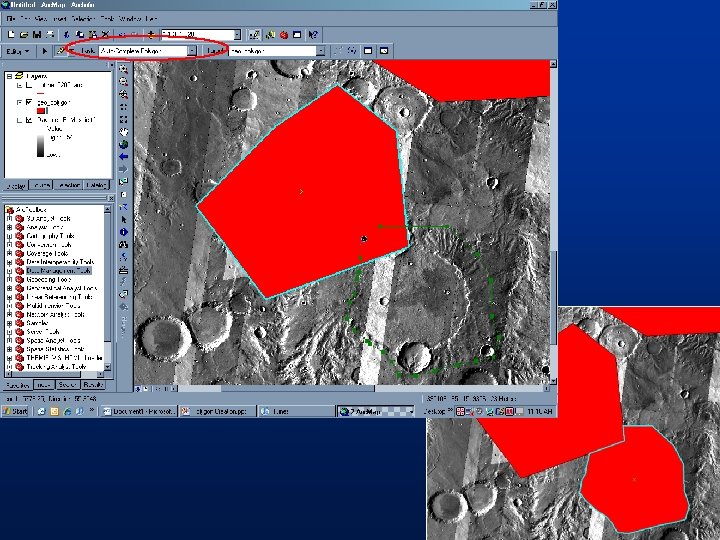
Polygon Creation § Drawing Polygons § Start by using Create New Feature § ****New polygons cannot overlap, overlay, abut or touch another polygon in the same layer in anyway**** § Autocomplete § Use when adding adjacent or internal polygons § Start inside an existing polygon § Draw the polygon around the feature of interest § End the polygon inside an existing polygon § Demonstration GIS for Planetary Mappers 73
GIS for Planetary Mappers 74
75
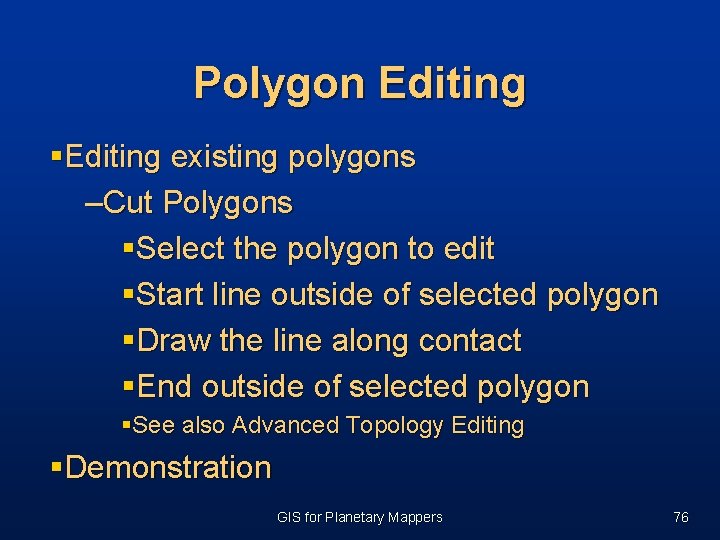
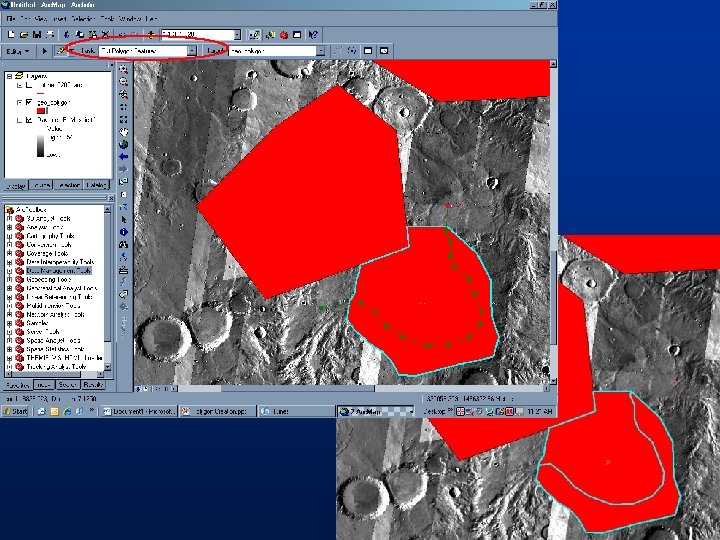
Polygon Editing §Editing existing polygons –Cut Polygons §Select the polygon to edit §Start line outside of selected polygon §Draw the line along contact §End outside of selected polygon §See also Advanced Topology Editing §Demonstration GIS for Planetary Mappers 76
77
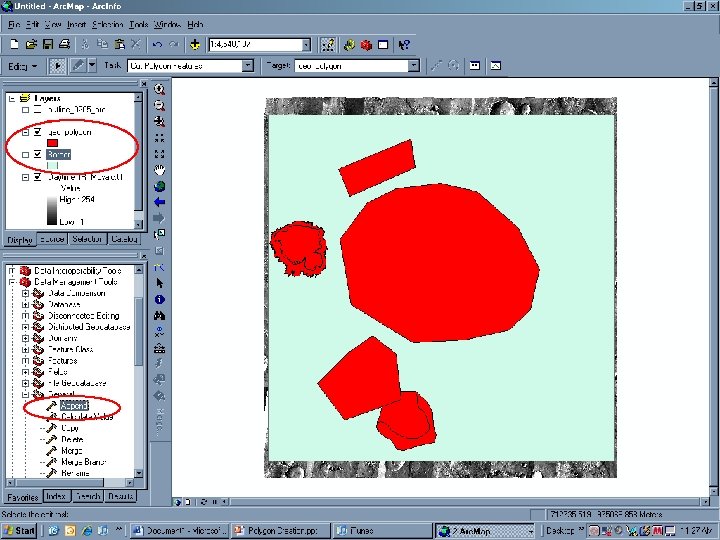
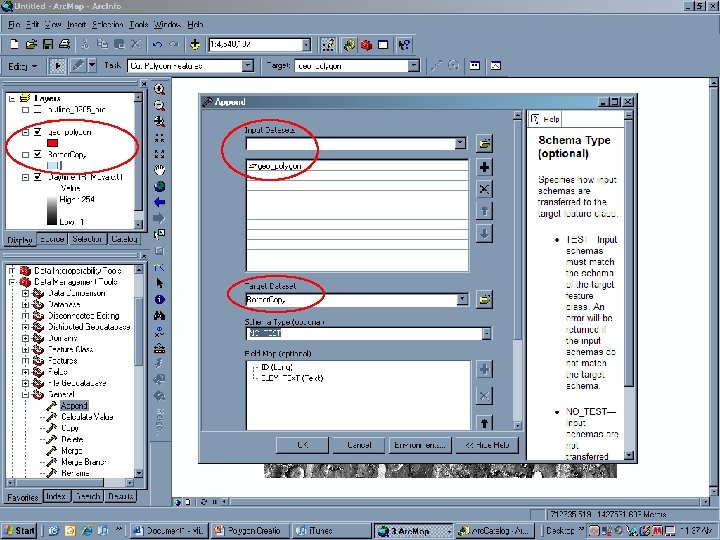
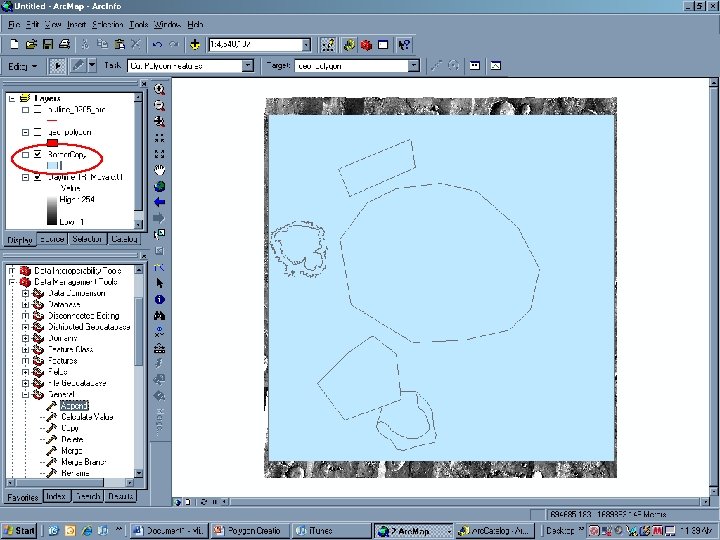
Polygon Editing § Editing existing polygons layers § Append Multiple Layers § Demonstration GIS for Planetary Mappers 78
GIS for Planetary Mappers 79
GIS for Planetary Mappers 80
GIS for Planetary Mappers 81
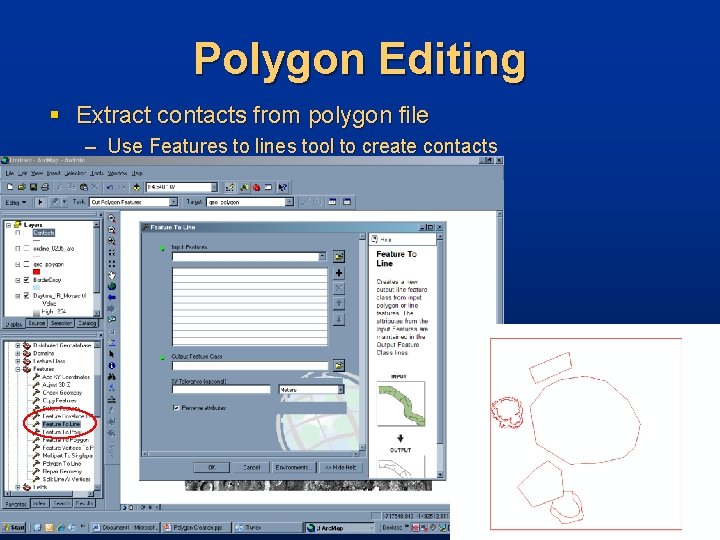
Polygon Editing § Extract contacts from polygon file – Use Features to lines tool to create contacts
Checklist for GIS Map Finalization GIS for Planetary Mappers 83
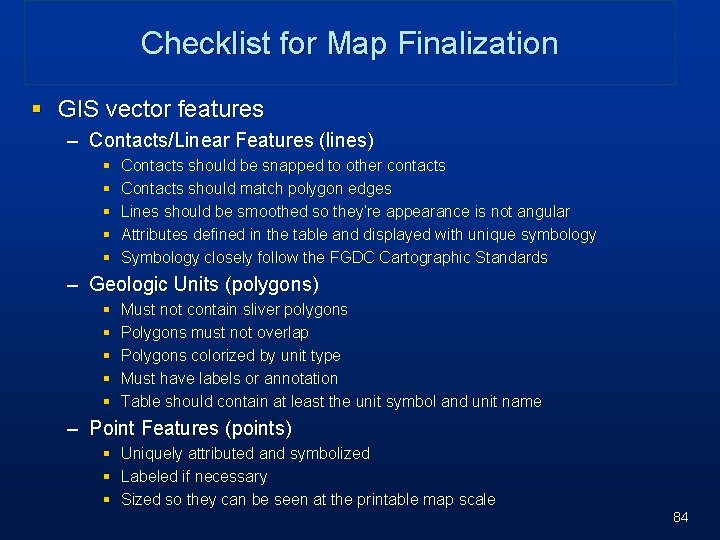
Checklist for Map Finalization § GIS vector features – Contacts/Linear Features (lines) § § § Contacts should be snapped to other contacts Contacts should match polygon edges Lines should be smoothed so they’re appearance is not angular Attributes defined in the table and displayed with unique symbology Symbology closely follow the FGDC Cartographic Standards – Geologic Units (polygons) § § § Must not contain sliver polygons Polygons must not overlap Polygons colorized by unit type Must have labels or annotation Table should contain at least the unit symbol and unit name – Point Features (points) § Uniquely attributed and symbolized § Labeled if necessary § Sized so they can be seen at the printable map scale 84
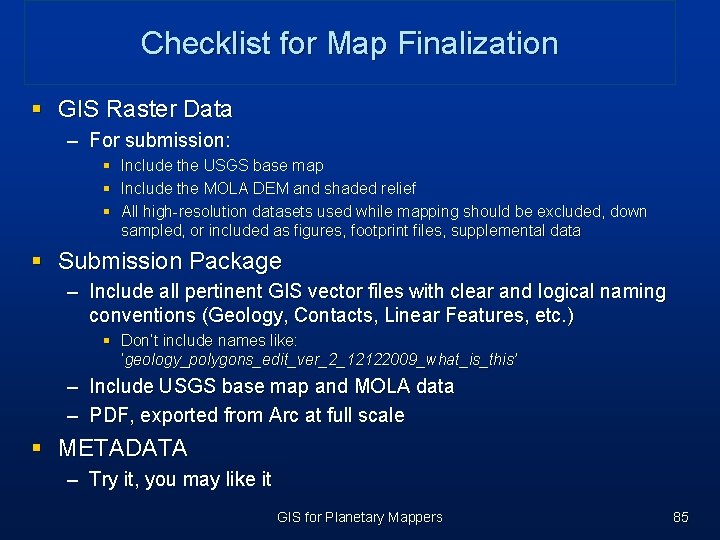
Checklist for Map Finalization § GIS Raster Data – For submission: § Include the USGS base map § Include the MOLA DEM and shaded relief § All high-resolution datasets used while mapping should be excluded, down sampled, or included as figures, footprint files, supplemental data § Submission Package – Include all pertinent GIS vector files with clear and logical naming conventions (Geology, Contacts, Linear Features, etc. ) § Don’t include names like: ‘geology_polygons_edit_ver_2_12122009_what_is_this’ – Include USGS base map and MOLA data – PDF, exported from Arc at full scale § METADATA – Try it, you may like it GIS for Planetary Mappers 85
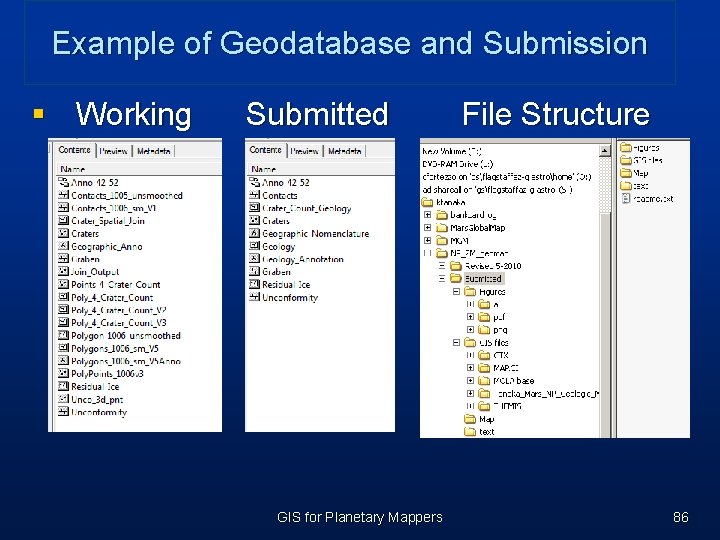
Example of Geodatabase and Submission § Working Submitted GIS for Planetary Mappers File Structure 86
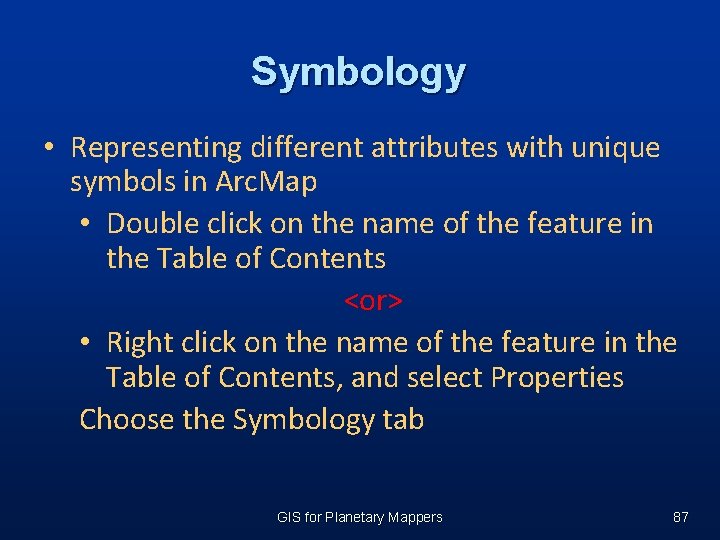
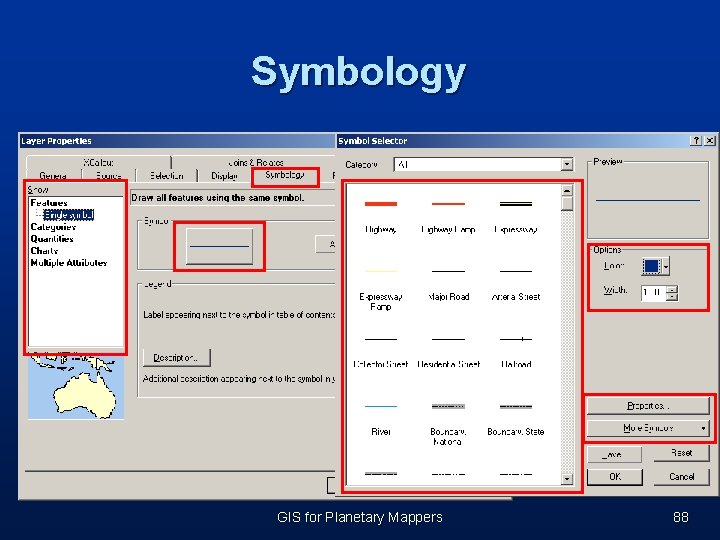
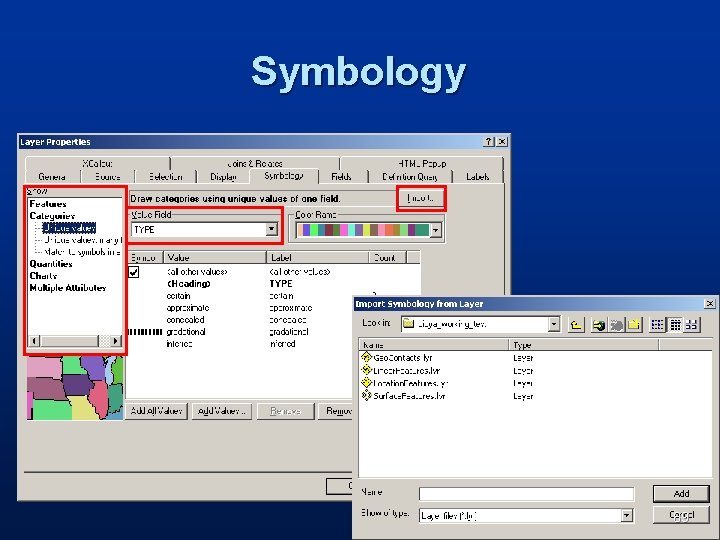
Symbology • Representing different attributes with unique symbols in Arc. Map • Double click on the name of the feature in the Table of Contents <or> • Right click on the name of the feature in the Table of Contents, and select Properties Choose the Symbology tab GIS for Planetary Mappers 87
Symbology GIS for Planetary Mappers 88
Symbology 89
Questions? GIS for Planetary Mappers 90