Computational Fluid Dynamics Course Notes Dr PK Dyson

- Slides: 68
Computational Fluid Dynamics Course Notes Dr PK Dyson Sep 2004
Computational Fluid Dynamics CFD Overview and Introduction to CFX
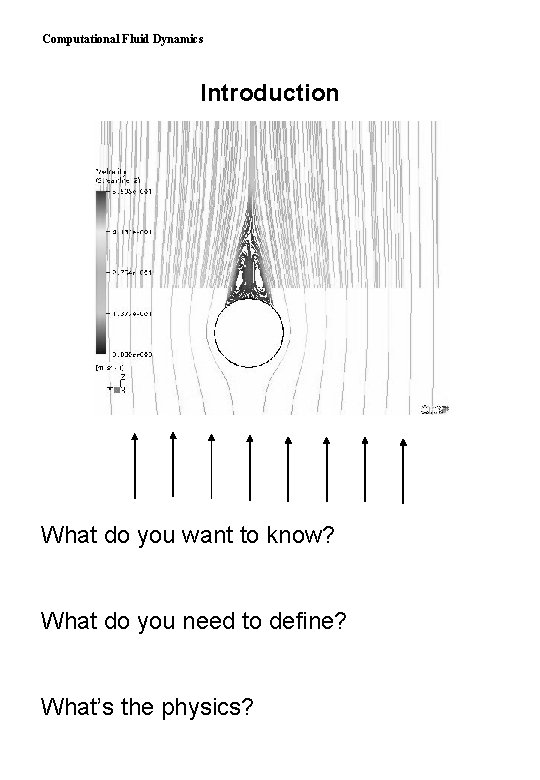
Computational Fluid Dynamics Introduction What do you want to know? What do you need to define? What’s the physics?
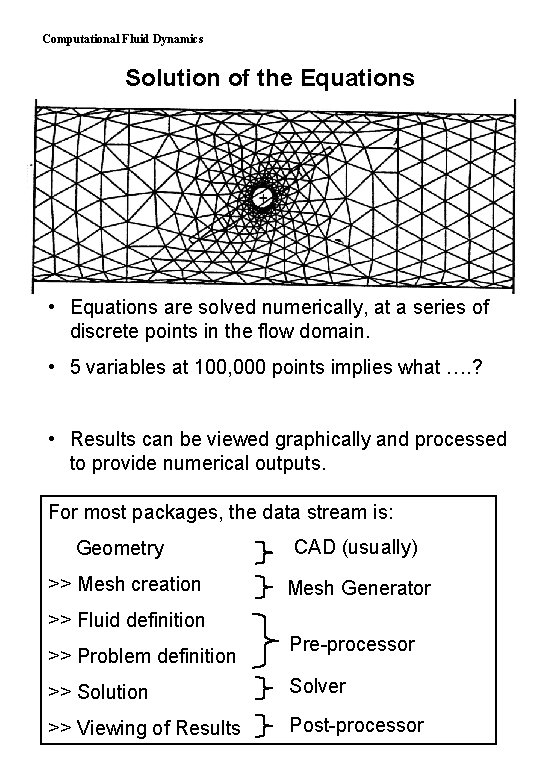
Computational Fluid Dynamics Solution of the Equations • Equations are solved numerically, at a series of discrete points in the flow domain. • 5 variables at 100, 000 points implies what …. ? • Results can be viewed graphically and processed to provide numerical outputs. For most packages, the data stream is: Geometry CAD (usually) >> Mesh creation Mesh Generator >> Fluid definition >> Problem definition Pre-processor >> Solution Solver >> Viewing of Results Post-processor
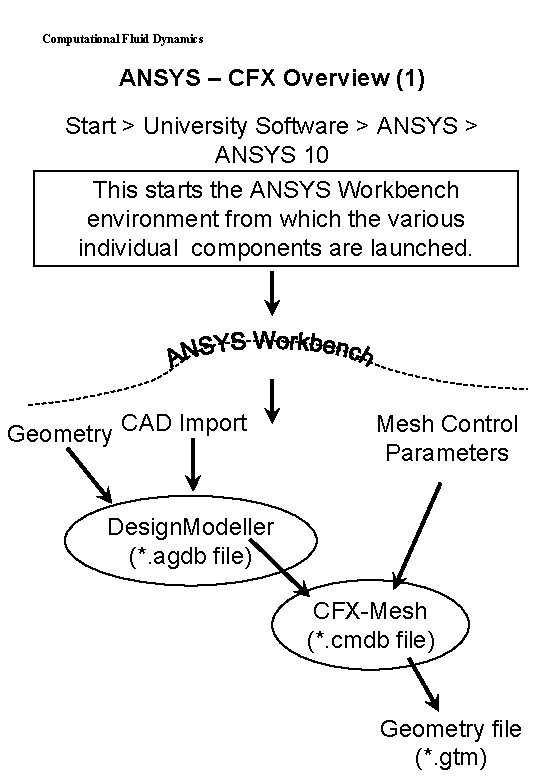
Computational Fluid Dynamics ANSYS – CFX Overview (1) Start > University Software > ANSYS 10 This starts the ANSYS Workbench environment from which the various individual components are launched. Geometry CAD Import Mesh Control Parameters Design. Modeller (*. agdb file) CFX-Mesh (*. cmdb file) Geometry file (*. gtm)
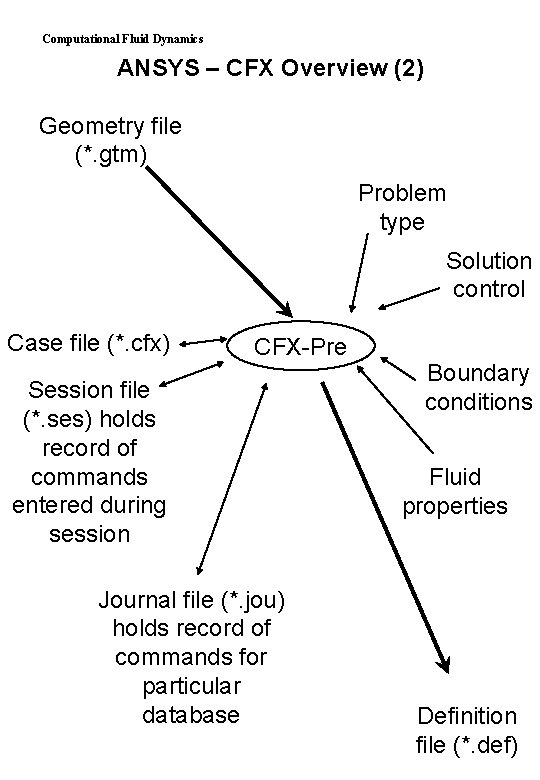
Computational Fluid Dynamics ANSYS – CFX Overview (2) Geometry file (*. gtm) Problem type Solution control Case file (*. cfx) CFX-Pre Session file (*. ses) holds record of commands entered during session Journal file (*. jou) holds record of commands for particular database Boundary conditions Fluid properties Definition file (*. def)
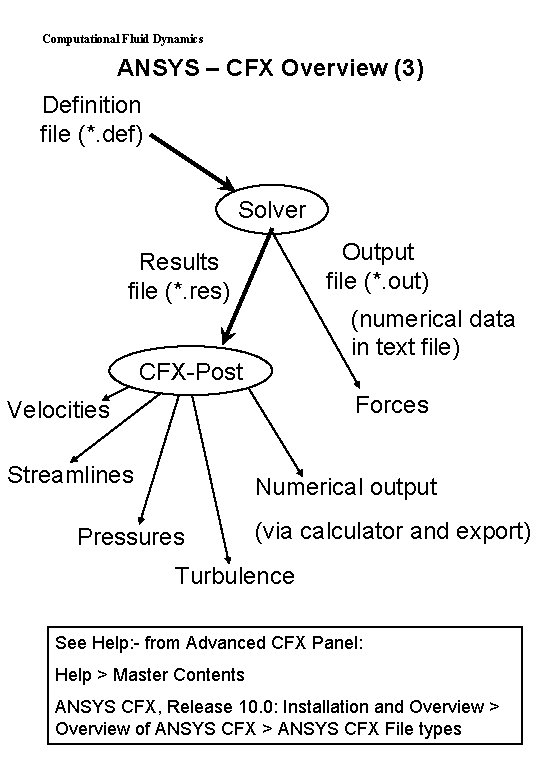
Computational Fluid Dynamics ANSYS – CFX Overview (3) Definition file (*. def) Solver Output file (*. out) Results file (*. res) (numerical data in text file) CFX-Post Forces Velocities Streamlines Numerical output Pressures (via calculator and export) Turbulence See Help: - from Advanced CFX Panel: Help > Master Contents ANSYS CFX, Release 10. 0: Installation and Overview > Overview of ANSYS CFX > ANSYS CFX File types
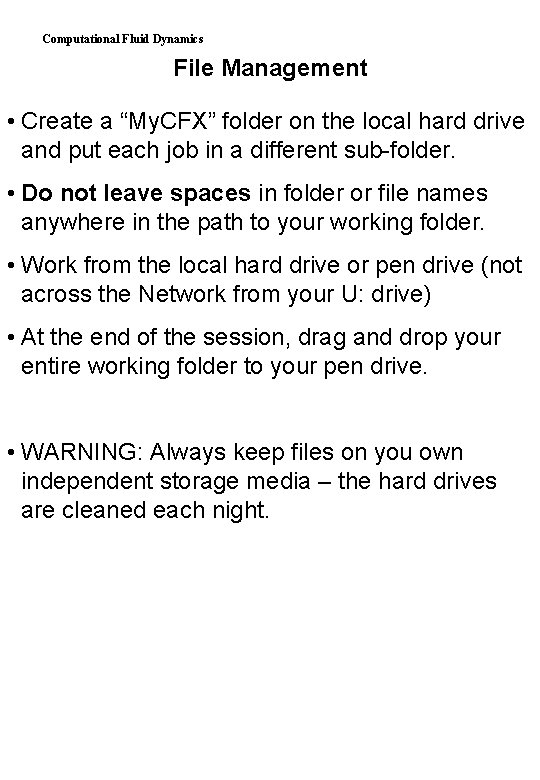
Computational Fluid Dynamics File Management • Create a “My. CFX” folder on the local hard drive and put each job in a different sub-folder. • Do not leave spaces in folder or file names anywhere in the path to your working folder. • Work from the local hard drive or pen drive (not across the Network from your U: drive) • At the end of the session, drag and drop your entire working folder to your pen drive. • WARNING: Always keep files on you own independent storage media – the hard drives are cleaned each night.
Computational Fluid Dynamics Contact with ANSYS-CFX Staff IMPORTANT NOTE If you encounter problems with CFX, then by all means visit the CFX Community pages (address is on the Resources Sheet), but do not contact ANSYS-CFX Staff until you have first discussed your problems with Uo. P staff. Contact with ANSYS-CFX should normally be through Uo. P Staff.
Computational Fluid Dynamics Theory Overview
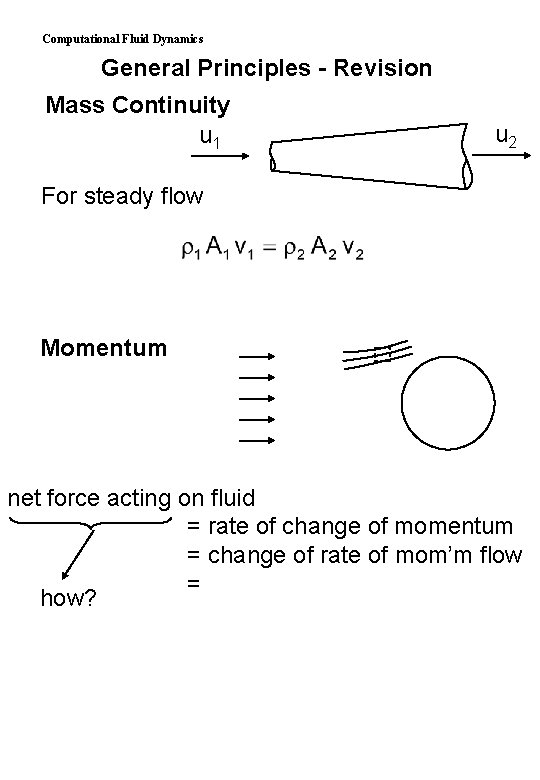
Computational Fluid Dynamics General Principles - Revision Mass Continuity u 1 u 2 For steady flow Momentum net force acting on fluid = rate of change of momentum = change of rate of mom’m flow = how?
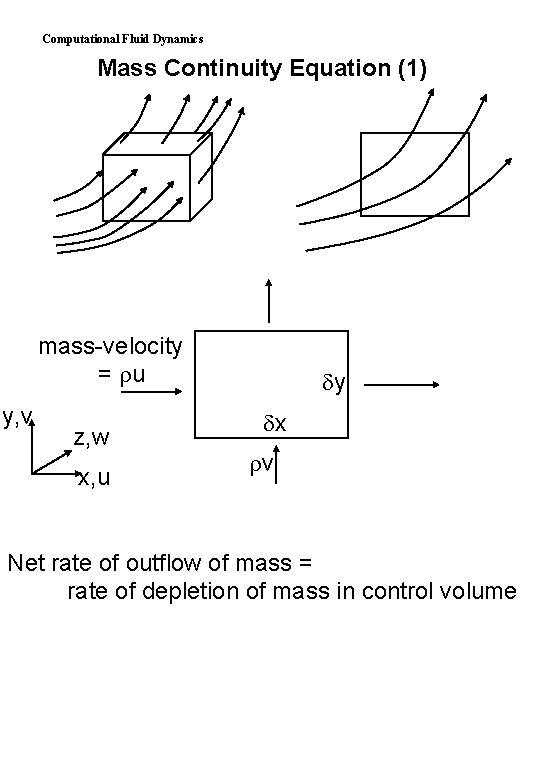
Computational Fluid Dynamics Mass Continuity Equation (1) mass-velocity = u y, v z, w x, u y x v Net rate of outflow of mass = rate of depletion of mass in control volume
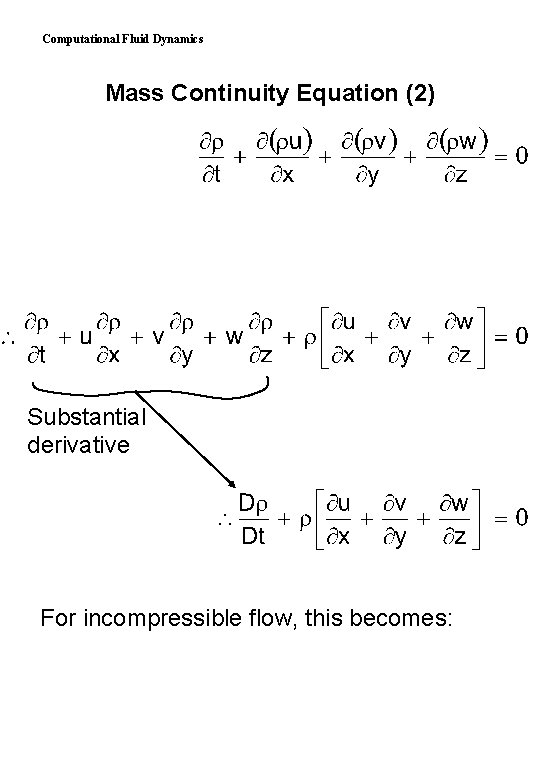
Computational Fluid Dynamics Mass Continuity Equation (2) Substantial derivative For incompressible flow, this becomes:
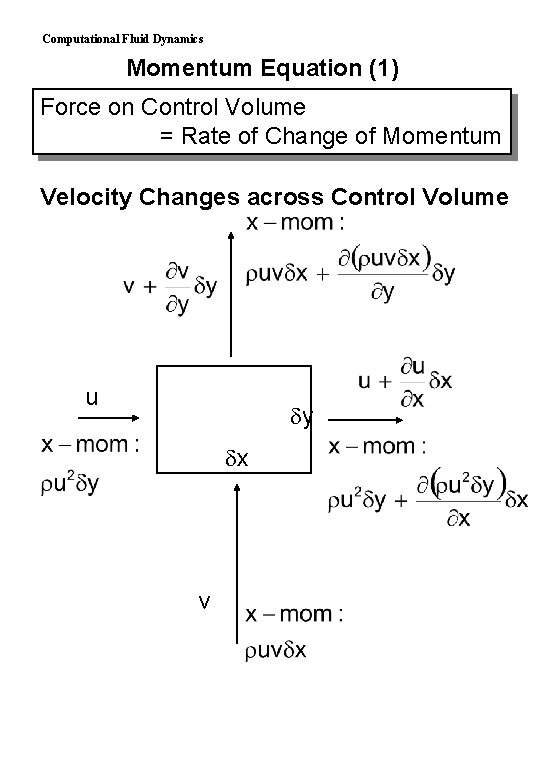
Computational Fluid Dynamics Momentum Equation (1) Force on Control Volume = Rate of Change of Momentum Velocity Changes across Control Volume u y x v
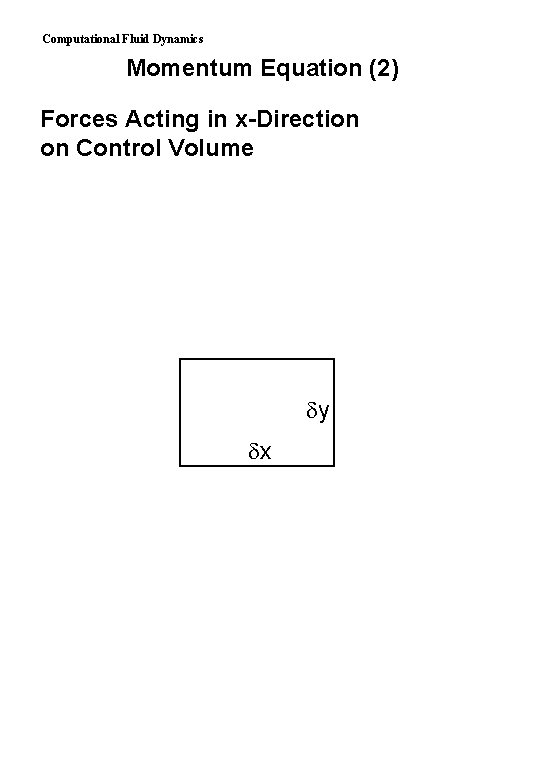
Computational Fluid Dynamics Momentum Equation (2) Forces Acting in x-Direction on Control Volume y x
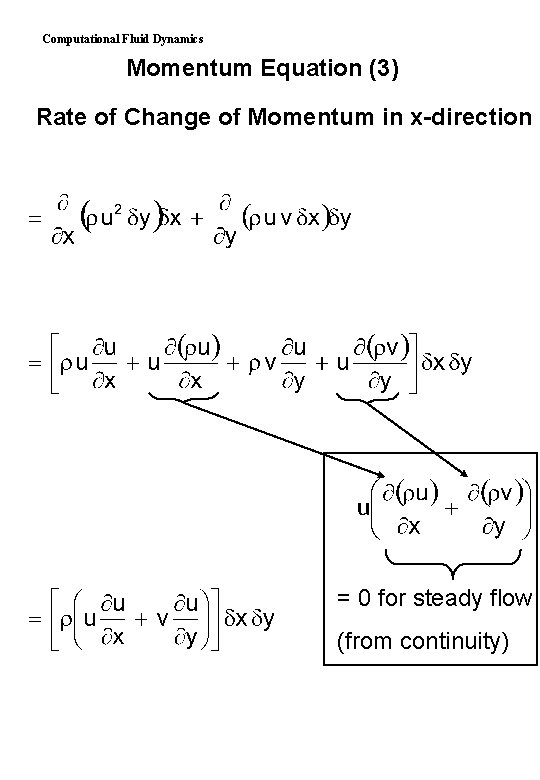
Computational Fluid Dynamics Momentum Equation (3) Rate of Change of Momentum in x-direction = 0 for steady flow (from continuity)
Computational Fluid Dynamics Momentum Equation (4) Net force in x-direction
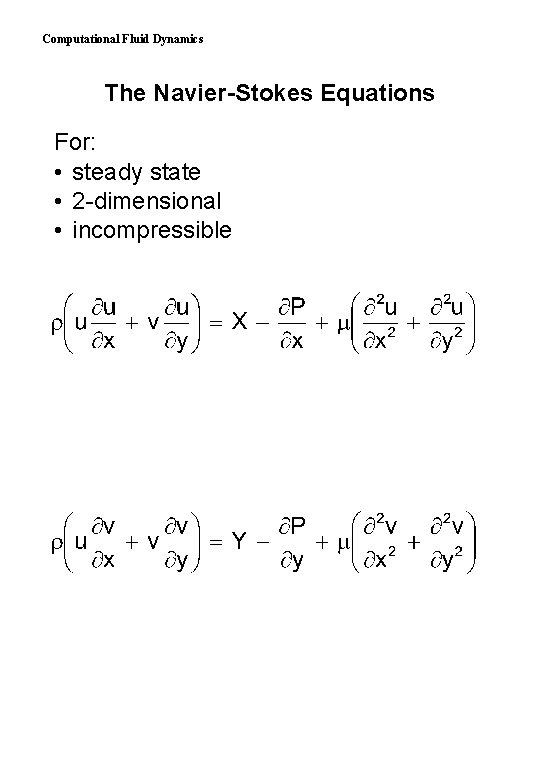
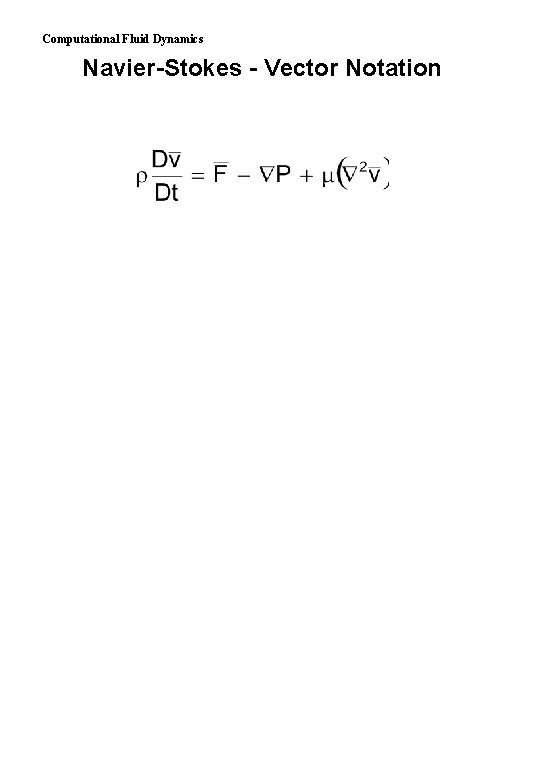
Computational Fluid Dynamics The Navier-Stokes Equations For: • steady state • 2 -dimensional • incompressible
Computational Fluid Dynamics Navier-Stokes - Vector Notation
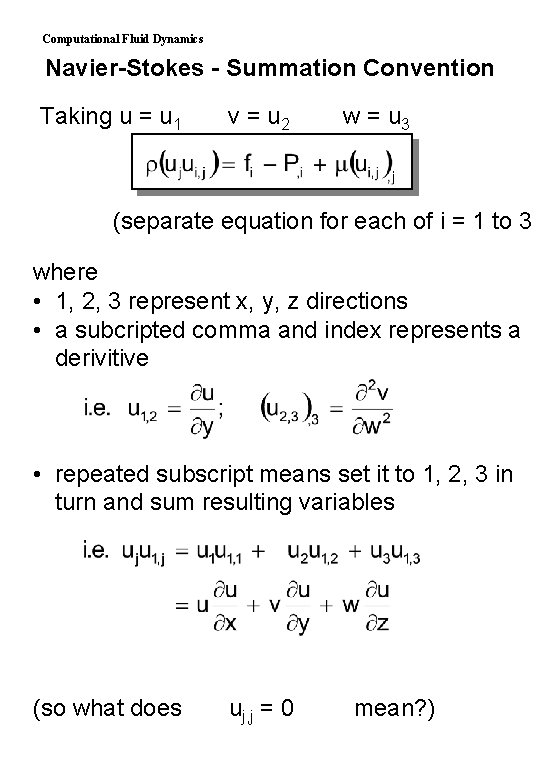
Computational Fluid Dynamics Navier-Stokes - Summation Convention Taking u = u 1 v = u 2 w = u 3 (separate equation for each of i = 1 to 3 where • 1, 2, 3 represent x, y, z directions • a subcripted comma and index represents a derivitive • repeated subscript means set it to 1, 2, 3 in turn and sum resulting variables (so what does uj, j = 0 mean? )
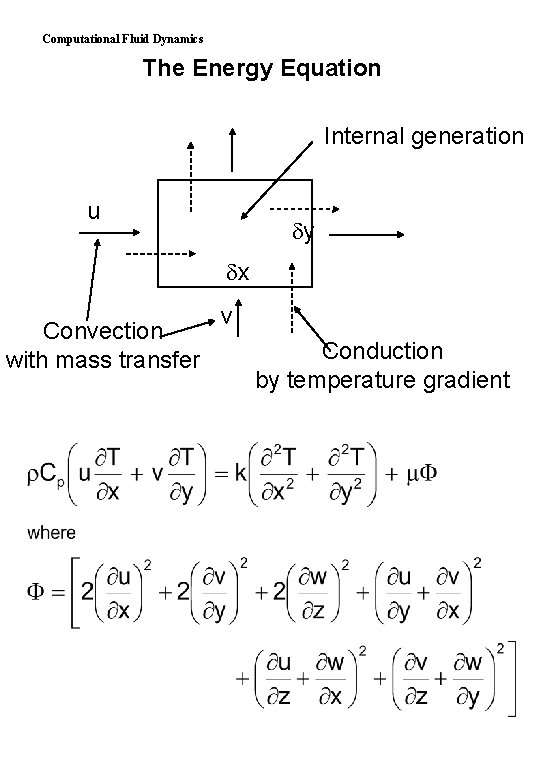
Computational Fluid Dynamics The Energy Equation Internal generation u y x Convection with mass transfer v Conduction by temperature gradient
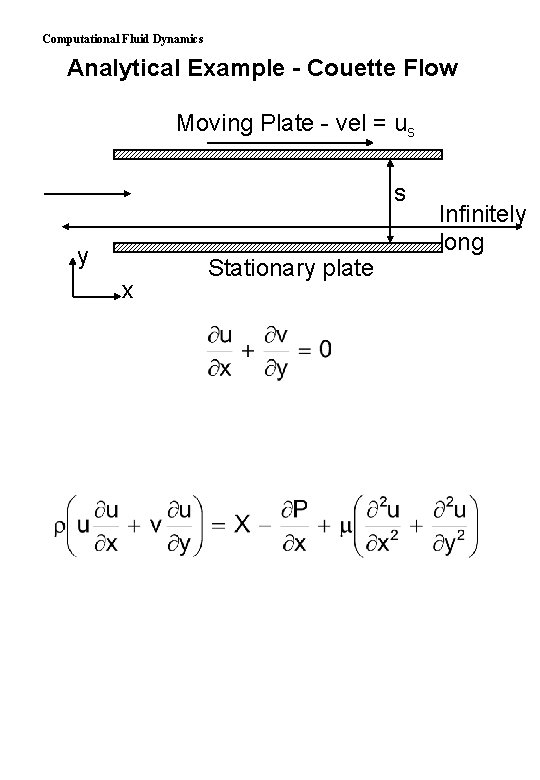
Computational Fluid Dynamics Analytical Example - Couette Flow Moving Plate - vel = us s y x Stationary plate Infinitely long
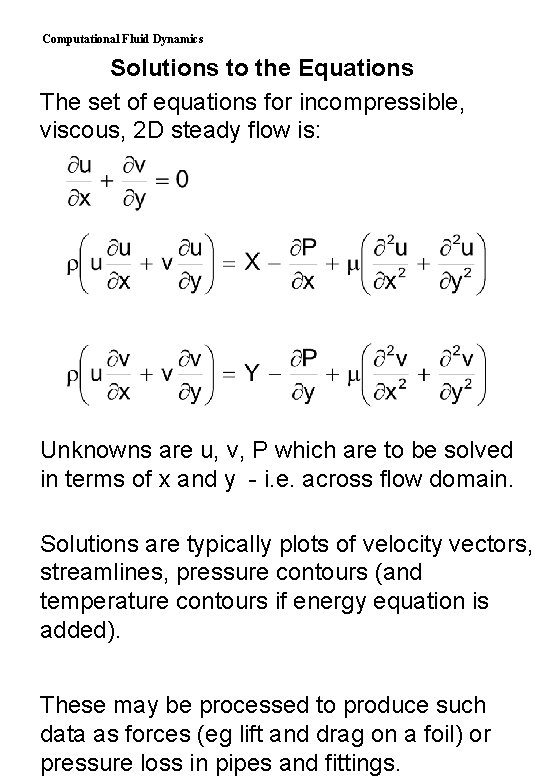
Computational Fluid Dynamics Solutions to the Equations The set of equations for incompressible, viscous, 2 D steady flow is: Unknowns are u, v, P which are to be solved in terms of x and y - i. e. across flow domain. Solutions are typically plots of velocity vectors, streamlines, pressure contours (and temperature contours if energy equation is added). These may be processed to produce such data as forces (eg lift and drag on a foil) or pressure loss in pipes and fittings.
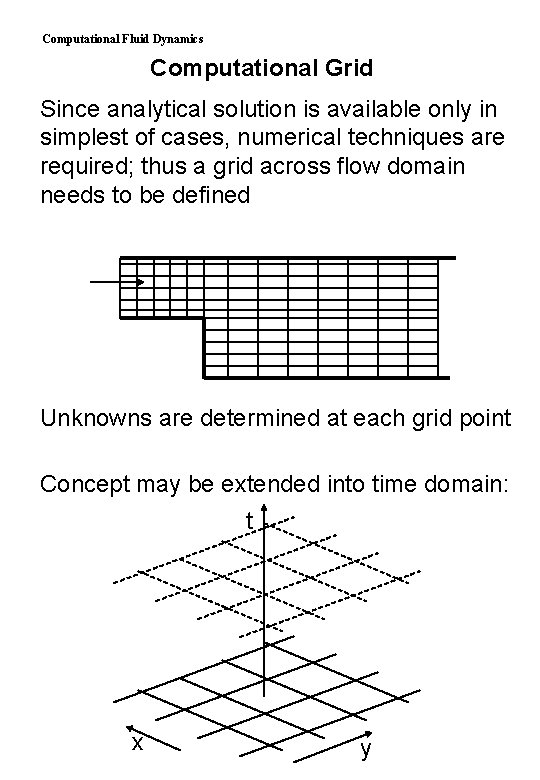
Computational Fluid Dynamics Computational Grid Since analytical solution is available only in simplest of cases, numerical techniques are required; thus a grid across flow domain needs to be defined Unknowns are determined at each grid point Concept may be extended into time domain: t x y
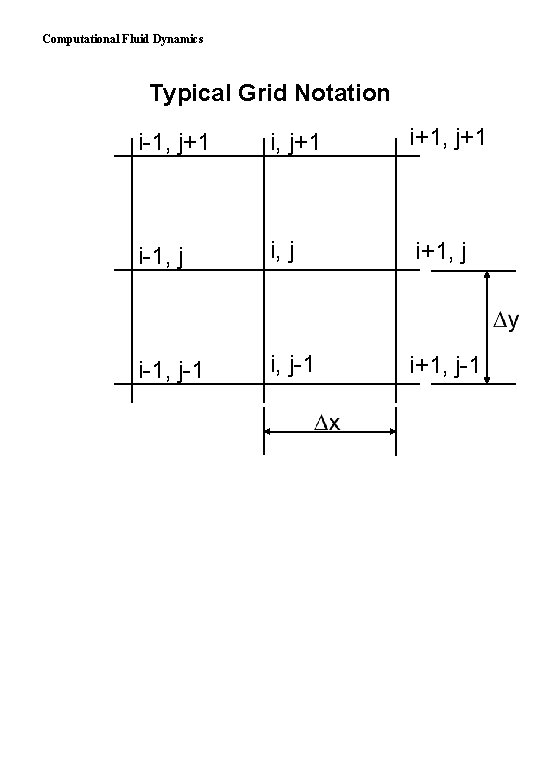
Computational Fluid Dynamics Typical Grid Notation i-1, j+1 i+1, j+1 i-1, j i+1, j i-1, j-1 i+1, j-1
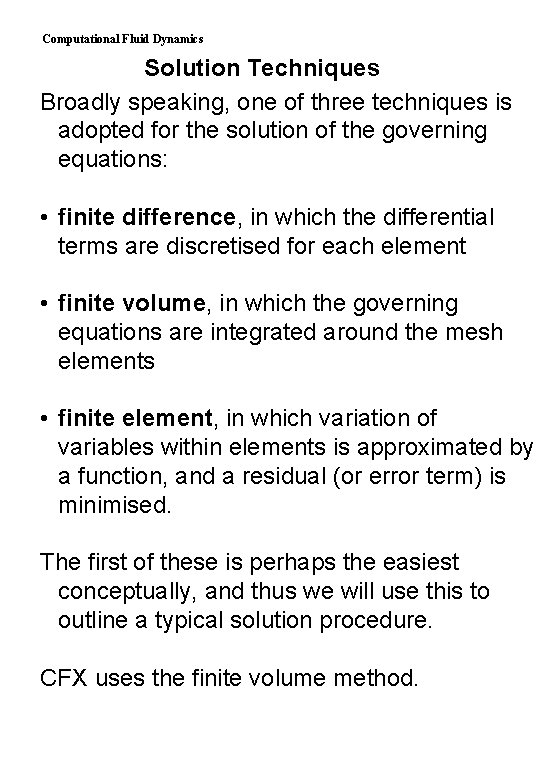
Computational Fluid Dynamics Solution Techniques Broadly speaking, one of three techniques is adopted for the solution of the governing equations: • finite difference, in which the differential terms are discretised for each element • finite volume, in which the governing equations are integrated around the mesh elements • finite element, in which variation of variables within elements is approximated by a function, and a residual (or error term) is minimised. The first of these is perhaps the easiest conceptually, and thus we will use this to outline a typical solution procedure. CFX uses the finite volume method.
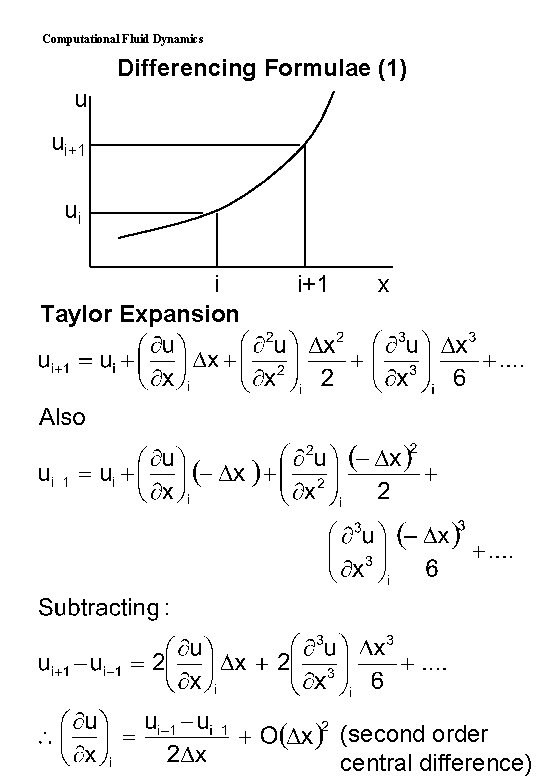
Computational Fluid Dynamics Differencing Formulae (1) u ui+1 ui i Taylor Expansion i+1 x (second order central difference)
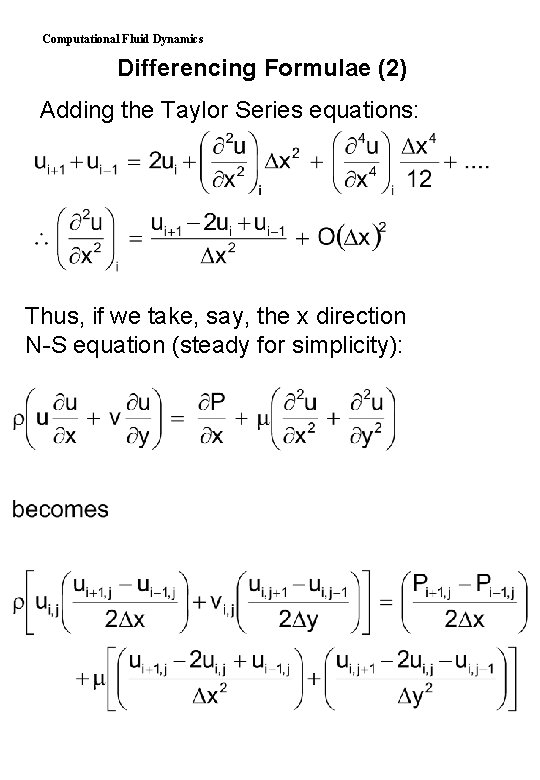
Computational Fluid Dynamics Differencing Formulae (2) Adding the Taylor Series equations: Thus, if we take, say, the x direction N-S equation (steady for simplicity):
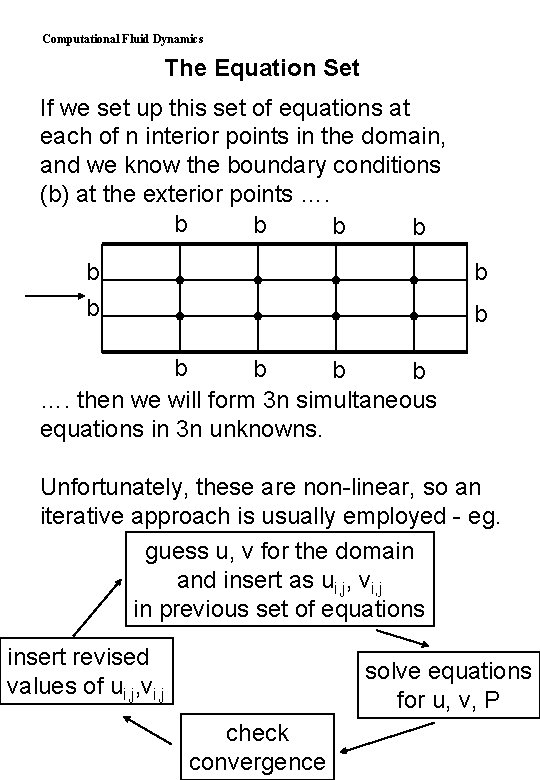
Computational Fluid Dynamics The Equation Set If we set up this set of equations at each of n interior points in the domain, and we know the boundary conditions (b) at the exterior points …. b b b …. then we will form 3 n simultaneous equations in 3 n unknowns. Unfortunately, these are non-linear, so an iterative approach is usually employed - eg. guess u, v for the domain and insert as ui, j, vi, j in previous set of equations insert revised values of ui, j, vi, j solve equations for u, v, P check convergence
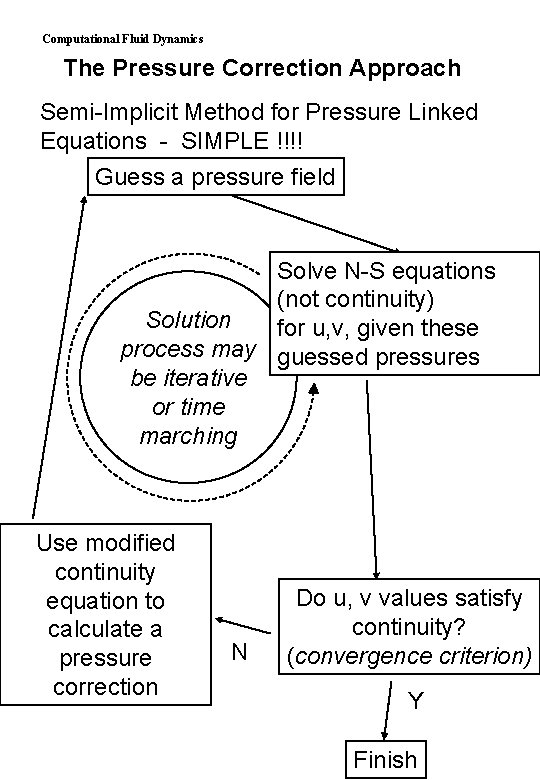
Computational Fluid Dynamics The Pressure Correction Approach Semi-Implicit Method for Pressure Linked Equations - SIMPLE !!!! Guess a pressure field Solve N-S equations (not continuity) Solution for u, v, given these process may guessed pressures be iterative or time marching Use modified continuity equation to calculate a pressure correction N Do u, v values satisfy continuity? (convergence criterion) Y Finish
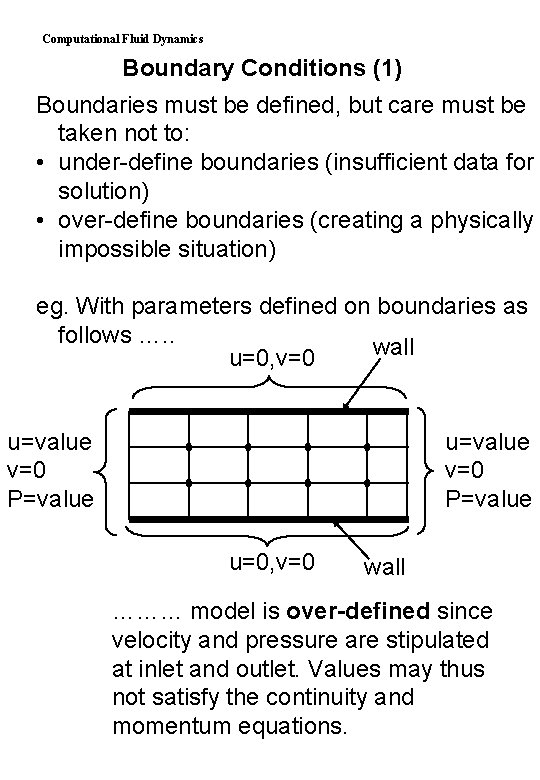
Computational Fluid Dynamics Boundary Conditions (1) Boundaries must be defined, but care must be taken not to: • under-define boundaries (insufficient data for solution) • over-define boundaries (creating a physically impossible situation) eg. With parameters defined on boundaries as follows …. . wall u=0, v=0 u=value v=0 P=value u=0, v=0 wall ……… model is over-defined since velocity and pressure are stipulated at inlet and outlet. Values may thus not satisfy the continuity and momentum equations.
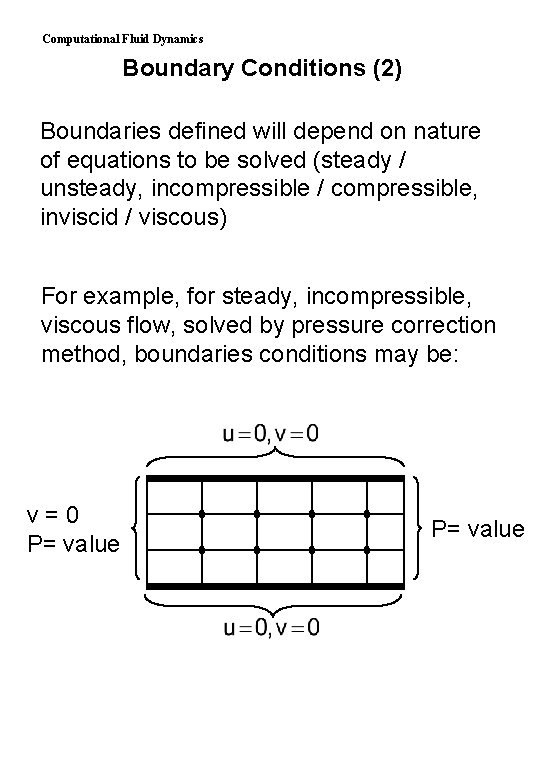
Computational Fluid Dynamics Boundary Conditions (2) Boundaries defined will depend on nature of equations to be solved (steady / unsteady, incompressible / compressible, inviscid / viscous) For example, for steady, incompressible, viscous flow, solved by pressure correction method, boundaries conditions may be: v=0 P= value
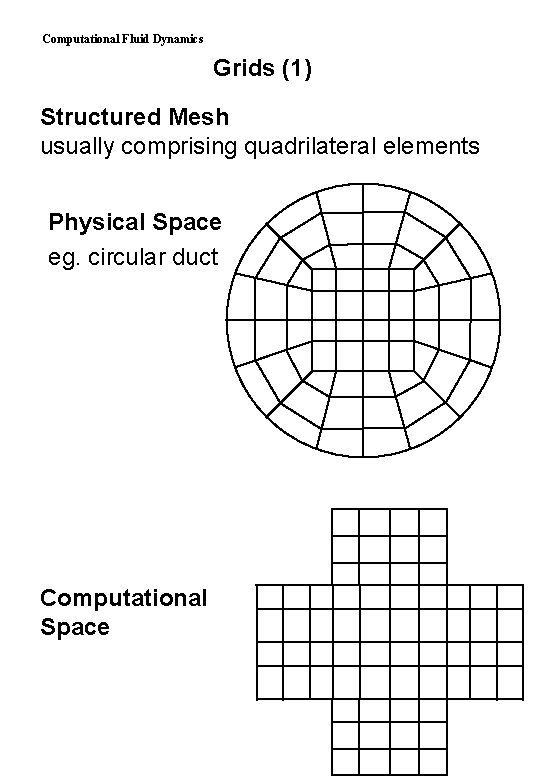
Computational Fluid Dynamics Grids (1) Structured Mesh usually comprising quadrilateral elements Physical Space eg. circular duct Computational Space
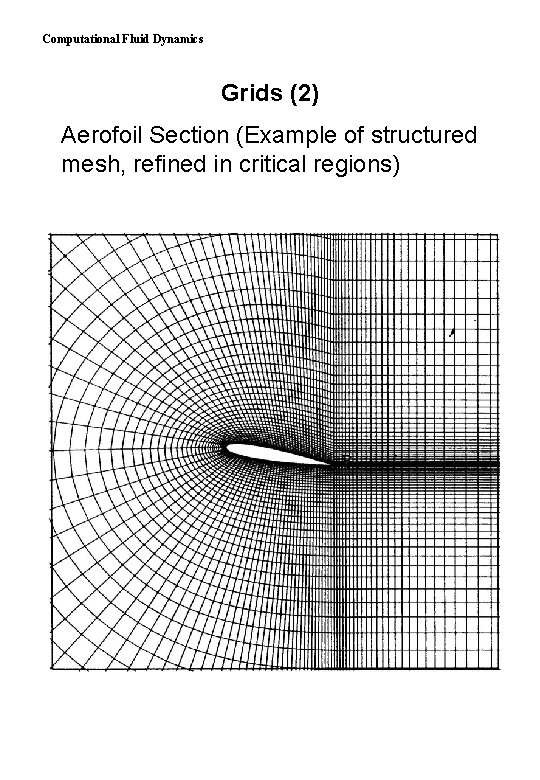
Computational Fluid Dynamics Grids (2) Aerofoil Section (Example of structured mesh, refined in critical regions)
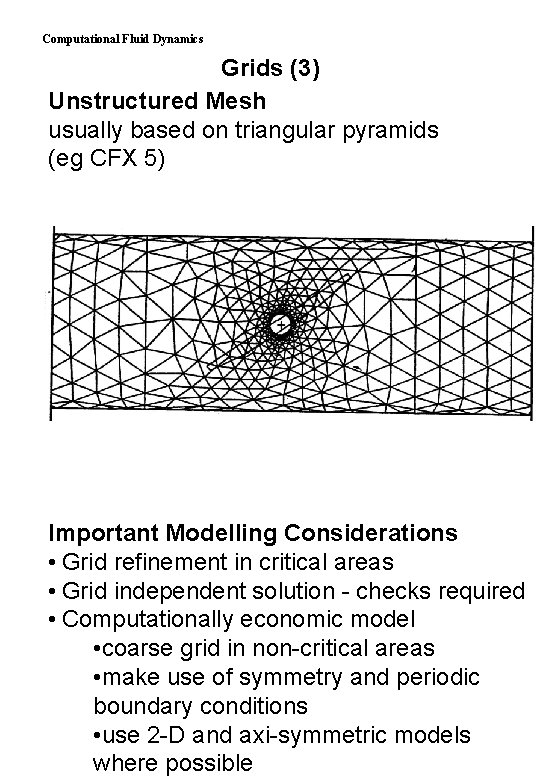
Computational Fluid Dynamics Grids (3) Unstructured Mesh usually based on triangular pyramids (eg CFX 5) Important Modelling Considerations • Grid refinement in critical areas • Grid independent solution - checks required • Computationally economic model • coarse grid in non-critical areas • make use of symmetry and periodic boundary conditions • use 2 -D and axi-symmetric models where possible
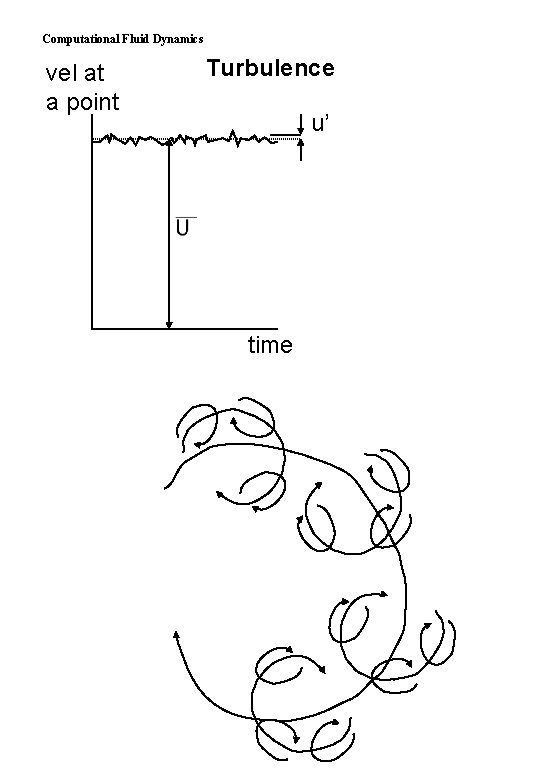
Computational Fluid Dynamics vel at a point Turbulence u’ time
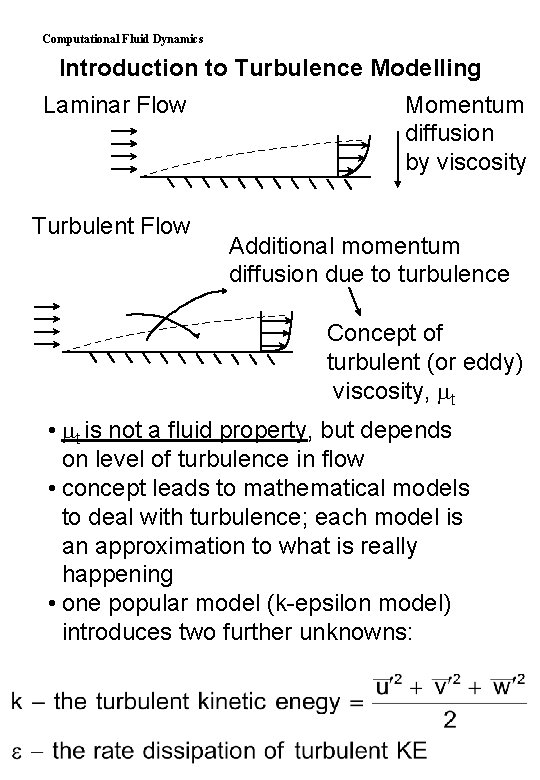
Computational Fluid Dynamics Introduction to Turbulence Modelling Laminar Flow Turbulent Flow Momentum diffusion by viscosity Additional momentum diffusion due to turbulence Concept of turbulent (or eddy) viscosity, t • t is not a fluid property, but depends on level of turbulence in flow • concept leads to mathematical models to deal with turbulence; each model is an approximation to what is really happening • one popular model (k-epsilon model) introduces two further unknowns:
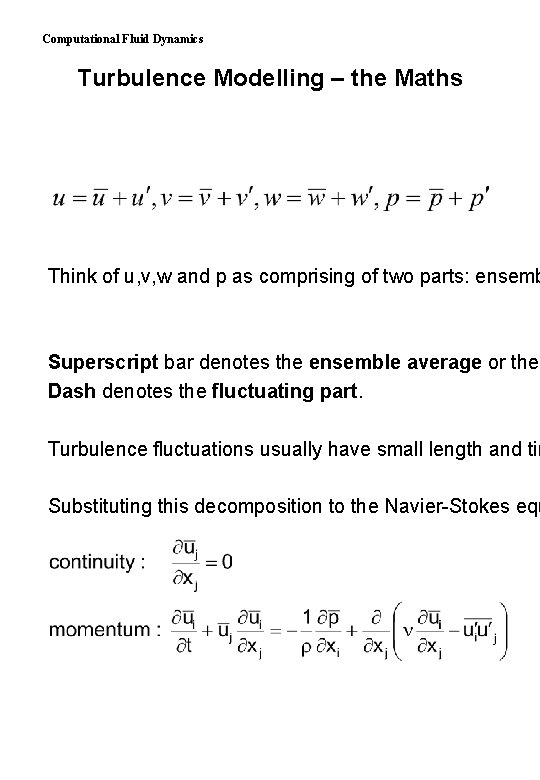
Computational Fluid Dynamics Turbulence Modelling – the Maths Think of u, v, w and p as comprising of two parts: ensemb Superscript bar denotes the ensemble average or the Dash denotes the fluctuating part. Turbulence fluctuations usually have small length and tim Substituting this decomposition to the Navier-Stokes equ
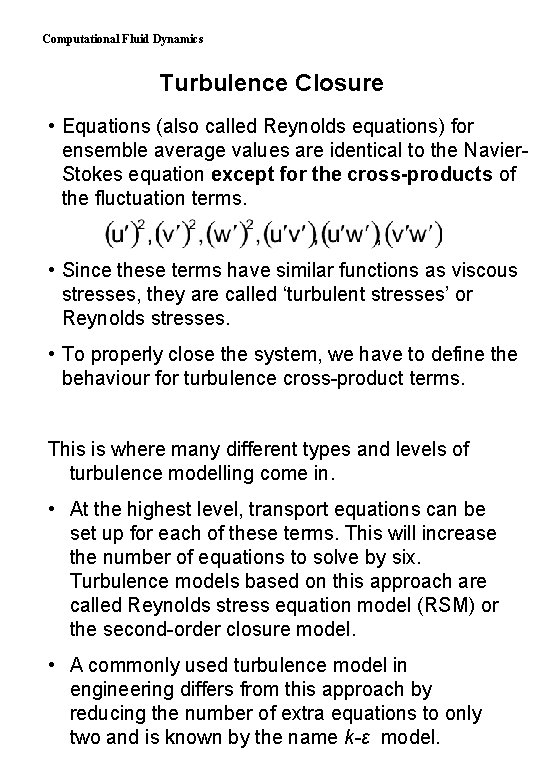
Computational Fluid Dynamics Turbulence Closure • Equations (also called Reynolds equations) for ensemble average values are identical to the Navier. Stokes equation except for the cross-products of the fluctuation terms. • Since these terms have similar functions as viscous stresses, they are called ‘turbulent stresses’ or Reynolds stresses. • To properly close the system, we have to define the behaviour for turbulence cross-product terms. This is where many different types and levels of turbulence modelling come in. • At the highest level, transport equations can be set up for each of these terms. This will increase the number of equations to solve by six. Turbulence models based on this approach are called Reynolds stress equation model (RSM) or the second-order closure model. • A commonly used turbulence model in engineering differs from this approach by reducing the number of extra equations to only two and is known by the name k-ε model.
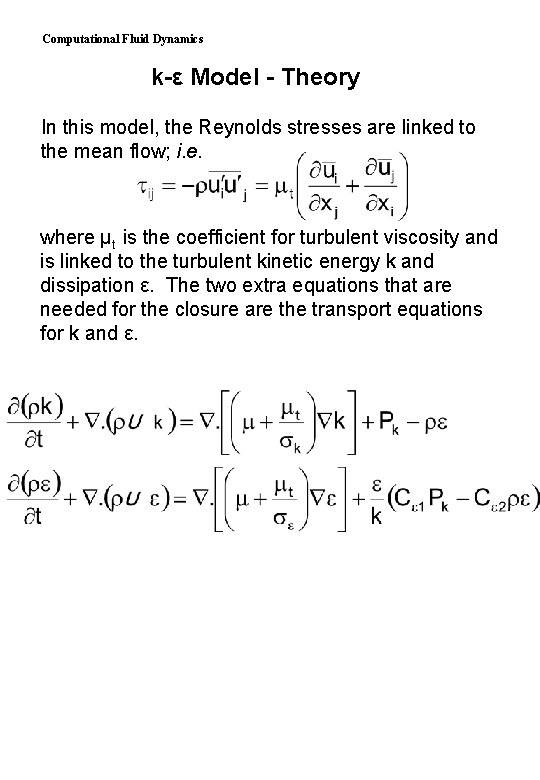
Computational Fluid Dynamics k-ε Model - Theory In this model, the Reynolds stresses are linked to the mean flow; i. e. where μt is the coefficient for turbulent viscosity and is linked to the turbulent kinetic energy k and dissipation ε. The two extra equations that are needed for the closure are the transport equations for k and ε.
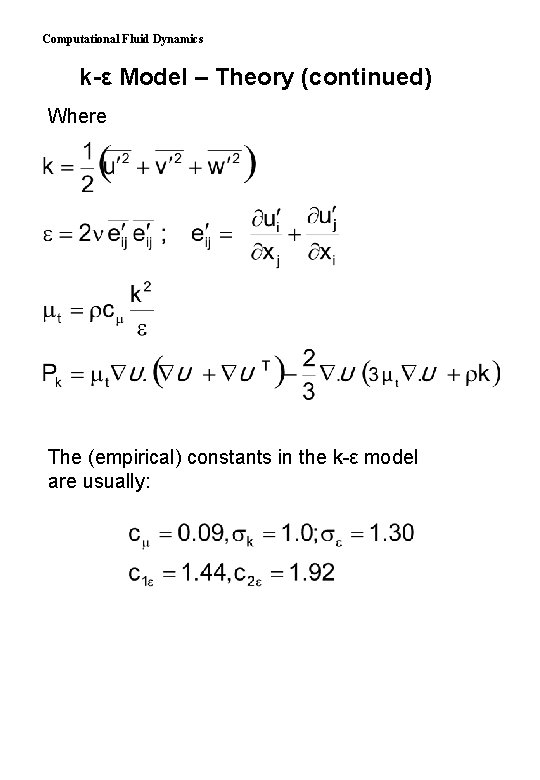
Computational Fluid Dynamics k-ε Model – Theory (continued) Where The (empirical) constants in the k-ε model are usually:
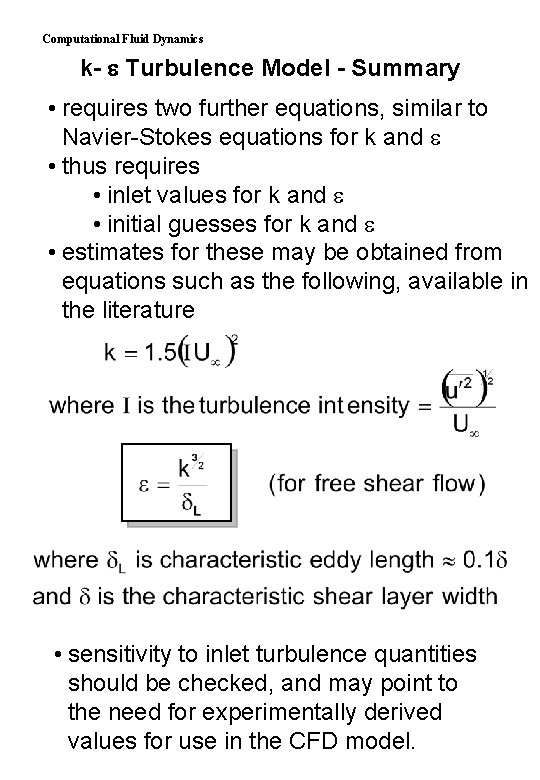
Computational Fluid Dynamics k- Turbulence Model - Summary • requires two further equations, similar to Navier-Stokes equations for k and • thus requires • inlet values for k and • initial guesses for k and • estimates for these may be obtained from equations such as the following, available in the literature • sensitivity to inlet turbulence quantities should be checked, and may point to the need for experimentally derived values for use in the CFD model.
Computational Fluid Dynamics CFD Health Warning ! We have barely scratched the surface of theory of CFD. A few of the possible areas for further fruitful reading are: • nature of the equations under different conditions - hyperbolic, parabolic, elliptic. • transient problems • choice of boundary and initial conditions • coupling between momentum and energy equations (especially in buoyancy driven flows) • supersonic flows and shock capture • turbulence modelling - what alternative models are available? • wall boundary conditions (log law of the wall) Treat CFD with respect - a little knowledge is a dangerous thing !
Computational Fluid Dynamics Exercises
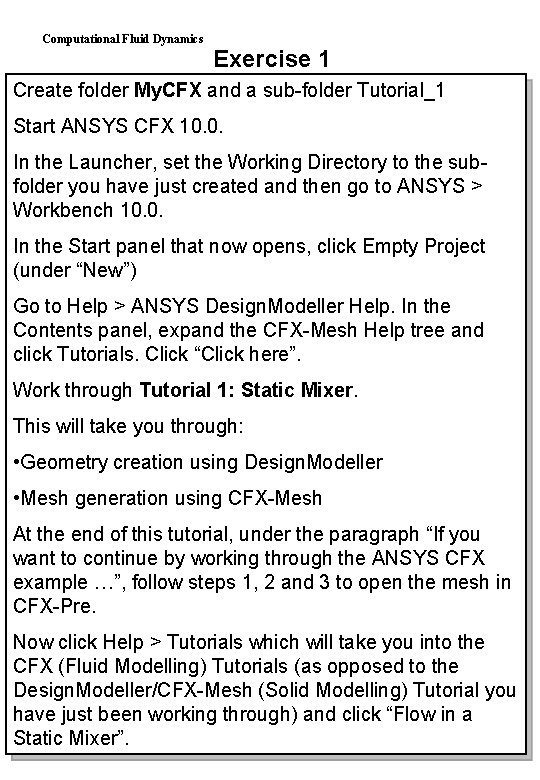
Computational Fluid Dynamics Exercise 1 Create folder My. CFX and a sub-folder Tutorial_1 Start ANSYS CFX 10. 0. In the Launcher, set the Working Directory to the subfolder you have just created and then go to ANSYS > Workbench 10. 0. In the Start panel that now opens, click Empty Project (under “New”) Go to Help > ANSYS Design. Modeller Help. In the Contents panel, expand the CFX-Mesh Help tree and click Tutorials. Click “Click here”. Work through Tutorial 1: Static Mixer. This will take you through: • Geometry creation using Design. Modeller • Mesh generation using CFX-Mesh At the end of this tutorial, under the paragraph “If you want to continue by working through the ANSYS CFX example …”, follow steps 1, 2 and 3 to open the mesh in CFX-Pre. Now click Help > Tutorials which will take you into the CFX (Fluid Modelling) Tutorials (as opposed to the Design. Modeller/CFX-Mesh (Solid Modelling) Tutorial you have just been working through) and click “Flow in a Static Mixer”.
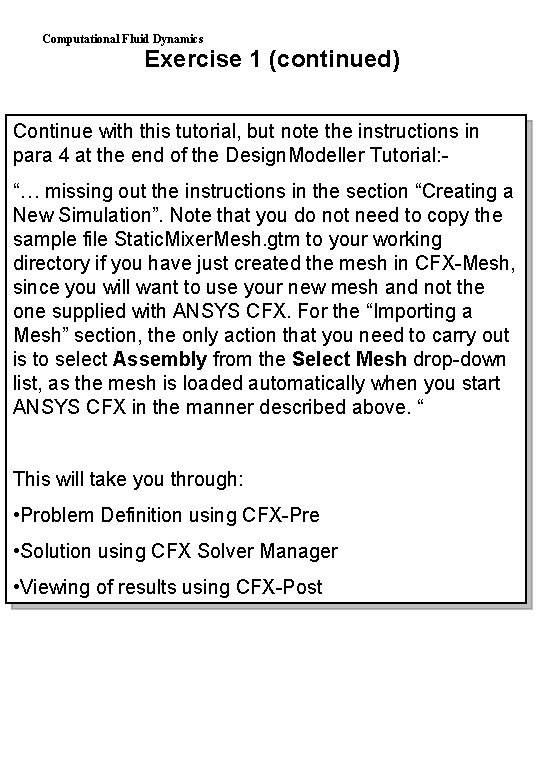
Computational Fluid Dynamics Exercise 1 (continued) Continue with this tutorial, but note the instructions in para 4 at the end of the Design. Modeller Tutorial: “… missing out the instructions in the section “Creating a New Simulation”. Note that you do not need to copy the sample file Static. Mixer. Mesh. gtm to your working directory if you have just created the mesh in CFX-Mesh, since you will want to use your new mesh and not the one supplied with ANSYS CFX. For the “Importing a Mesh” section, the only action that you need to carry out is to select Assembly from the Select Mesh drop-down list, as the mesh is loaded automatically when you start ANSYS CFX in the manner described above. “ This will take you through: • Problem Definition using CFX-Pre • Solution using CFX Solver Manager • Viewing of results using CFX-Post
Computational Fluid Dynamics Now make sure you understand …. . What’s the difference between • Sketching mode and modelling mode • Design. Modeller and CFX-Mesh • Surface Mesh and Volume Mesh … and now consolidate what you’ve done by looking through this example …. In ANSYS Workbench go to Help > ANSYS Workbench Help and in the Contents Tree go to Design. Modeller Help > Welcome to the Design. Modeller 10. 0 Help > Process for Creating a Model Read through the pages and run the video sequences to remind yourself of the process of creating a geometry.
Computational Fluid Dynamics Exercise 2 Work through Tutorial 2, Static Mixer (Refined Mesh) which will show you: • more about the mesh generation process • modifying geometry • use of CFX Command Language (CCL) to avoid too many repetitive keystrokes. As before you will need to start in the Design. Modeller/CFX-Mesh (Solid Modelling) Tutorial and switch to the CFX (Fluid Modelling) Tutorial.
Computational Fluid Dynamics Exercise 3 Refine the mesh even further in the outlet region of the mixer by inserting a mesh control as follows. • Re-open Static. Mixer in CFX-Mesh • Right click Control > Insert Point Spacing • Click Point Spacing 1 in Detail View and change the settings to: Length scale 0. 1 m, Radius of Influence 0. 5 m, Expansion Factor 1. 2 • Right click Point Spacing > Insert Line Control • Click Line Control 1 • In Detail View, for point 1 click Apply, and accept coordinates as 0, 0, 0. Repeat for point 2 and make coordinates 0, 0, -2. Click in the box next to spacing, then click Point Spacing 1 in Tree View & click Apply. • Right click Body 1 > Suppress and observe position of Line Control. Unsuppress Body 1. • Generate the surface mesh as before and note the difference around the exit. • Generate Volume Mesh, apply the physics (use import CCL in Pre), Run Solver and view results.
Computational Fluid Dynamics Finding Out More – The Help Pages Help on ANSYS Workbench, Design. Modeller and CFX -Mesh is available on the Workbench Help button and the subsequent Folder Tree Help on CFX Pre, Solver and Post is accessed from the Advanced CFD panels (-Pre, -Solver, -Post) by clicking: Help > Master contents Now use the Help pages to answer the following questions.
Computational Fluid Dynamics Finding Out More ANSYS Workbench Help > CFX-Mesh Help • What is the principle type of mesh utilised by CFX? What is its advantage over a quasi-rectangular mesh? • What is mesh control? Why use it? • What is inflation? Why use it? • What is a mesh independent solution? (Carry out a search using mesh NEAR independent as keywords. Make sure that pages referred to are for CFX-Mesh or Design. Modeller; pages referring to, for example, Design. Xplorer or Simulation (top left of page) are not relevant to you) CFX Help > CFX-Pre > Fluid Domains • What options are available for the fluid domain models? • What standard fluids are available? CFX Help > CFX-Pre > Boundary Conditions • What boundary conditions are available? CFX Help > CFX-Pre > Initial Conditions • Why are initial values set? CFX Help > CFX-Pre > Solver Control • What are convergence criteria?
Computational Fluid Dynamics Treatment of Walls and Flow Boundaries Further reading from CFX Help pages: Near Wall Modelling (ANSYS CFX-Solver 10. 0 Modelling > Turbulence & Near Wall Modelling - Modelling Flow Near the Wall) Boundary Condition Modelling (ANSYS CFX-Solver 10. 0 Modelling - Boundary Condition Modelling)
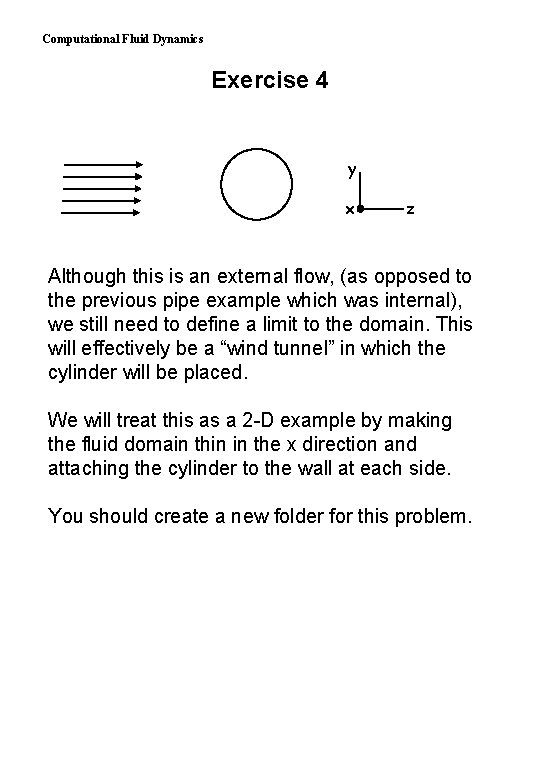
Computational Fluid Dynamics Exercise 4 y x z Although this is an external flow, (as opposed to the previous pipe example which was internal), we still need to define a limit to the domain. This will effectively be a “wind tunnel” in which the cylinder will be placed. We will treat this as a 2 -D example by making the fluid domain thin in the x direction and attaching the cylinder to the wall at each side. You should create a new folder for this problem.
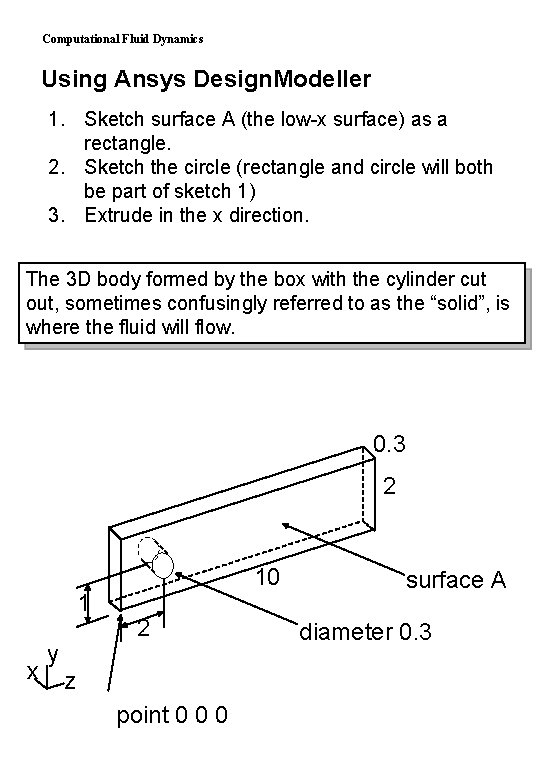
Computational Fluid Dynamics Using Ansys Design. Modeller 1. Sketch surface A (the low-x surface) as a rectangle. 2. Sketch the circle (rectangle and circle will both be part of sketch 1) 3. Extrude in the x direction. The 3 D body formed by the box with the cylinder cut out, sometimes confusingly referred to as the “solid”, is where the fluid will flow. 0. 3 2 1 x y 10 2 z point 0 0 0 surface A diameter 0. 3
Computational Fluid Dynamics Using Ansys CFX-Mesh If we want, say, around 6 elements in the region with the most coarse mesh (near the exit), then this gives a default mesh length of about 0. 3 m. Since this is a 2 D problem, it needs only to be 1 element thick, which is why we also make the box width 0. 3 m. Would making it thicker give any benefit or penalty? 4. Open CFX-Mesh and create a 2 -D region for each of the surfaces (left, right, inlet, outlet, cylinder – leave top & bottom undefined – they will form the “default 2 D region”), giving each a suitable name (you will use these later to define boundary conditions). 5. Set mesh default body spacing to a maximum of 0. 3 m. 6. Set up Inflation parameters (use defaults) and apply inflation to the cylinder with a maximum thickness of 0. 03 m.
Computational Fluid Dynamics 7. Place mesh controls to refine the mesh in the region of the cylinder and its wake. 8. Create surface mesh, and check it to ensure it is refined in the appropriate places. 9. Create the volume mesh (thus writing the. gtm file) and start CFX-Pre.
Computational Fluid Dynamics Using CFX-Pre 10. Create a fluid domain - use standard air or water, select steady state, k- turbulence model, scalable wall function, isothermal, non-buoyant. Set reference pressure at 0 Pa. 11. In the Object Selector Panel, double click on the material you have chosen (under the “library” tree), and make a note of its density and dynamic viscosity (under “Transport Properties”). 12. • • • Create boundary conditions: non-slip smooth wall on the cylinder free slip wall on top and bottom surfaces (why? ) symmetry on the left surface (why? ) symmetry on the right surface inlet velocity giving Re=105 based on cylinder diameter outlet velocity set to “average static pressure” of 0 Pa.
Computational Fluid Dynamics 13. You can check and edit Boundary Conditions by double clicking on the relevant condition in “Object Selector”. Note that the “Default” boundary condition (a no-slip wall) applies to any boundary which is undefined. 14. Apply defaults for initial values. 15. Apply defaults for the solver parameters, except number of iterations which you should change to 50. 16. Write definition file and go to Solver.
Computational Fluid Dynamics Using CFX-Solver 17. Run the solver. Does it converge within the 50 iterations which have been set? If not you can click “start” again and the solver will continue where it left off. (If, when tackling other problems, it shows no prospect of converging after a reasonable time, click “stop” and consider modifying the modelling strategy). Using CFX-Post 18. View streamlines, using the inlet as the location. 19. Create a line from 0. 15, 0, 1 to 0. 15, 2 , 1 using a “cut” line type. Now use this as the location for the streamlines. (where the line cuts an element, a “seed” point for a streamline is created. 20. Move the line to a location just downstream of the cylinder.
Computational Fluid Dynamics 21. Draw vectors and a pressure profile based on one of the side walls. Experiment with different arrangements of streamlines, different lengths of vector arrow, and with a shaded pressure plot (by checking the “Draw Faces” box on the “Render” panel). 22. Print one of the plots to a JPEG file using File - Print, and check the “White background” box. This could later be included in a report. 23. Use the line which you created earlier to produce a chart (ie a graph) showing how the z-direction velocity varies across the wake at a position just downstream of the cylinder. 24. Use the calculator to find the total force on the cylinder in the z-direction. Compare this with the drag shown in the. out file (you will need to add 2 values from. out together to get the drag - why? ). Calculate the drag coefficient - is it anywhere near correct?
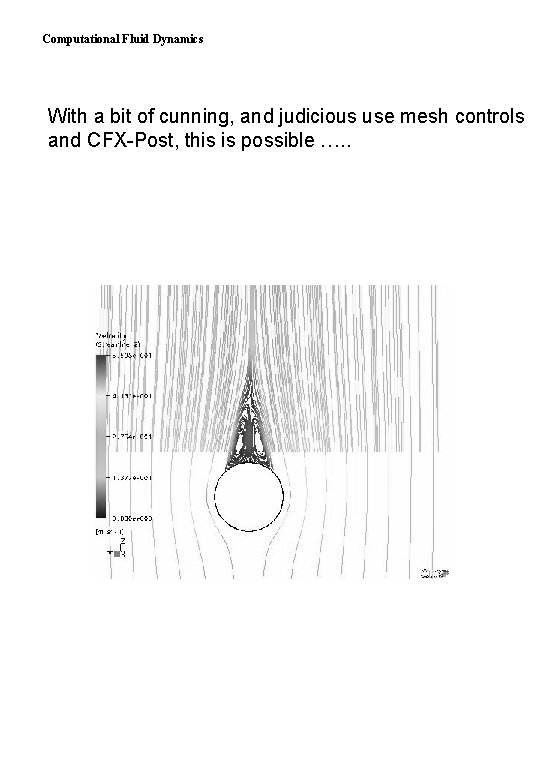
Computational Fluid Dynamics With a bit of cunning, and judicious use mesh controls and CFX-Post, this is possible …. .
Computational Fluid Dynamics Modifying the Model Try placing an extra cylinder in close to the first. What is the effect on the flow and the drag on the cylinders?
Computational Fluid Dynamics Questions • What is the effect of having a very narrow (say 0. 01) or a very wide (say 3. 0) box? • How does the proximity of the top and bottom walls affect the solution? • How does the position of the upstream and downstream boundary affect the solution? • Could a plane of symmetry have been used to reduce the computational time?
Computational Fluid Dynamics Extracting Numerical Data The most useful ways of extracting numerical data are: Output File. *. out file contains text based data on both solution and results. In particular there is a listing of forces (x, y, z components, normal and tangential) acting on all defined boundaries. Calculation Facilities. CFX-Post has capability of calculating certain quantities (eg total mass flow through a boundary). See help files for information. Charts. CFX-Post can display line graphs of variation of a variable in space or time. Firstly a line in space, a polyline, has to be defined (see over). Then the “chart” icon leads you through appropriate menus. Unfortunately hard copy of charts is tricky, so it is easier to export the chart data and use Excel to plot it.
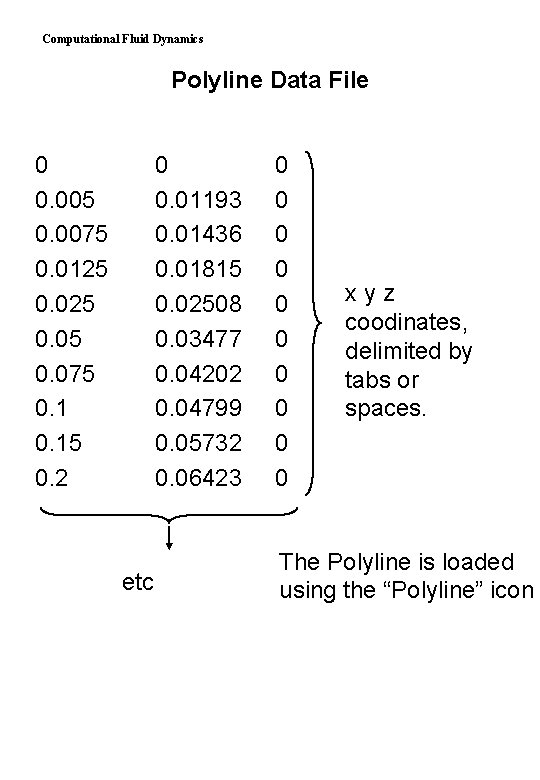
Computational Fluid Dynamics Defining Polylines Intersection Line A line of intersection between a boundary (defined in CFX-Pre) and a plane (defined in CFX-Post) may be used. File Input A text file is written (outside CFX) containing coordinates of the points required, in a format shown by the following example. Coordinates may define a straight or curved line. Data (eg pressures) will only be plotted at the points you define, so if you want good resolution, you need plenty of points, even if it’s a straight line.
Computational Fluid Dynamics Polyline Data File 0 0. 005 0. 0075 0. 0125 0. 05 0. 075 0. 15 0. 2 0 0. 01193 0. 01436 0. 01815 0. 02508 0. 03477 0. 04202 0. 04799 0. 05732 0. 06423 etc 0 0 0 0 0 xyz coodinates, delimited by tabs or spaces. The Polyline is loaded using the “Polyline” icon
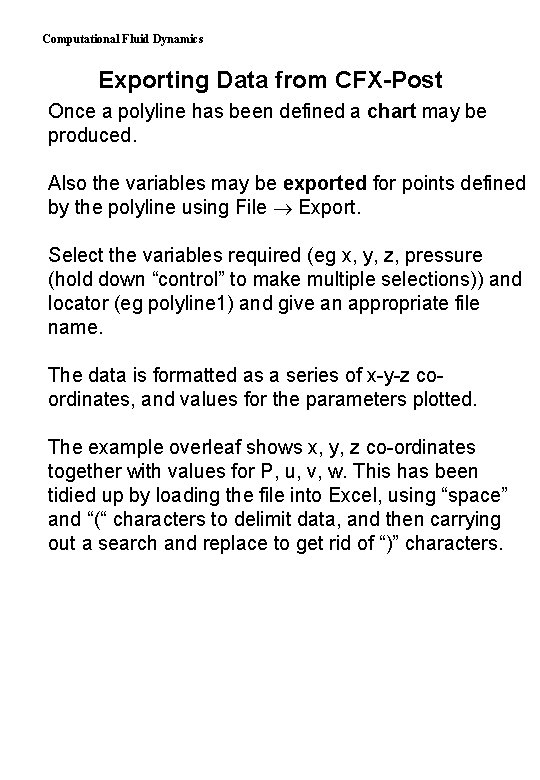
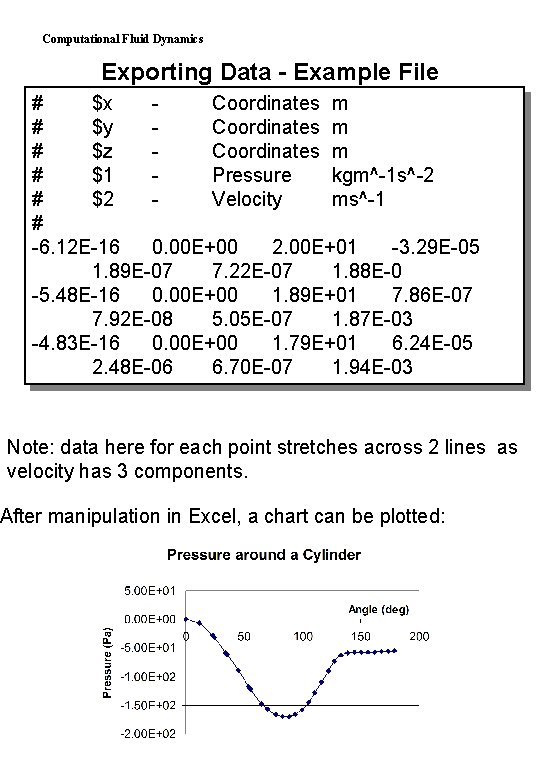
Computational Fluid Dynamics Exporting Data from CFX-Post Once a polyline has been defined a chart may be produced. Also the variables may be exported for points defined by the polyline using File Export. Select the variables required (eg x, y, z, pressure (hold down “control” to make multiple selections)) and locator (eg polyline 1) and give an appropriate file name. The data is formatted as a series of x-y-z coordinates, and values for the parameters plotted. The example overleaf shows x, y, z co-ordinates together with values for P, u, v, w. This has been tidied up by loading the file into Excel, using “space” and “(“ characters to delimit data, and then carrying out a search and replace to get rid of “)” characters.
Computational Fluid Dynamics Exporting Data - Example File # $x Coordinates m # $y Coordinates m # $z Coordinates m # $1 Pressure kgm^-1 s^-2 # $2 Velocity ms^-1 # -6. 12 E-16 0. 00 E+00 2. 00 E+01 -3. 29 E-05 1. 89 E-07 7. 22 E-07 1. 88 E-0 -5. 48 E-16 0. 00 E+00 1. 89 E+01 7. 86 E-07 7. 92 E-08 5. 05 E-07 1. 87 E-03 -4. 83 E-16 0. 00 E+00 1. 79 E+01 6. 24 E-05 2. 48 E-06 6. 70 E-07 1. 94 E-03 Note: data here for each point stretches across 2 lines as velocity has 3 components. After manipulation in Excel, a chart can be plotted: