COMPSCI 345 HTML for Prototyping Prof Jim Warren




- Slides: 62
COMPSCI 345 HTML for Prototyping Prof Jim Warren
Learning outcomes • Learn how to write dynamic HTML for high-fidelity design prototypes • Demonstrate layout and colour as it would appear in a full implementation • Also demonstrate ‘dynamics’ such as data entry control behavior, conditionally-visible elements, and links to other screens (without Wizard-of-Oz human operator) • Includes • Combining the Document Object Model (DOM) and Web Storage with Java. Script and Cascading Style Sheets (CSS) to enable dynamic content and embed functionality in Web pages • Implementing drag&drop and other event handling and on-screen movement in Web pages using HTML, Java. Script and CSS 2
Resources • Course-specific tutorial materials • https: //www. cs. auckland. ac. nz/courses/compsci 345 s 1 c/tutorials /Prototyping/ (also includes resources on wireframing tools and HTML editors) • Tutorials for weeks 8 -10 • Your tutor • Thomas Suselo: tsus 609@aucklanduni. ac. nz • These slides • The Web • http: //www. w 3 schools. com/ is great for getting started • Links in the prototyping tutorial page above 1 -3
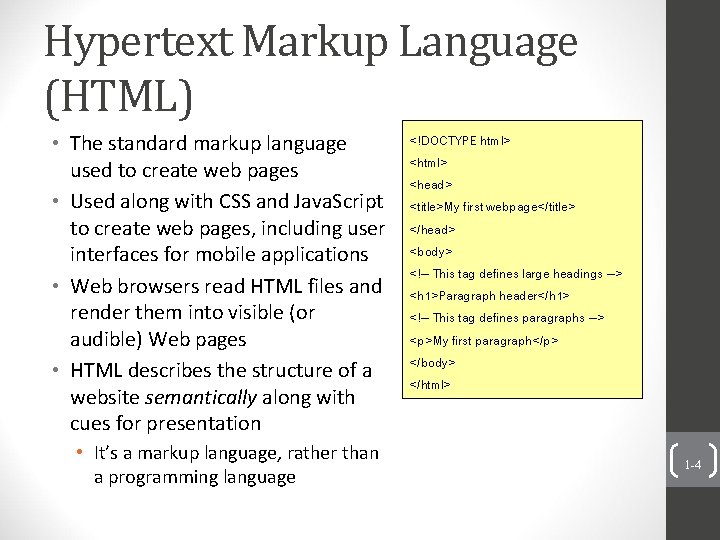
Hypertext Markup Language (HTML) • The standard markup language used to create web pages • Used along with CSS and Java. Script to create web pages, including user interfaces for mobile applications • Web browsers read HTML files and render them into visible (or audible) Web pages • HTML describes the structure of a website semantically along with cues for presentation • It’s a markup language, rather than a programming language <!DOCTYPE html> <head> <title>My first webpage</title> </head> <body> <!-- This tag defines large headings --> <h 1>Paragraph header</h 1> <!-- This tag defines paragraphs --> <p>My first paragraph</p> </body> </html> 1 -4
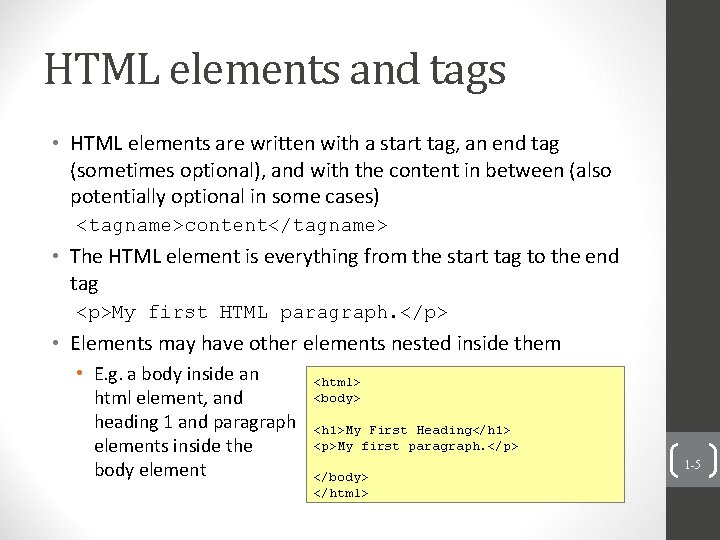
HTML elements and tags • HTML elements are written with a start tag, an end tag (sometimes optional), and with the content in between (also potentially optional in some cases) <tagname>content</tagname> • The HTML element is everything from the start tag to the end tag <p>My first HTML paragraph. </p> • Elements may have other elements nested inside them • E. g. a body inside an html element, and heading 1 and paragraph elements inside the body element <html> <body> <h 1>My First Heading</h 1> <p>My first paragraph. </p> </body> </html> 1 -5
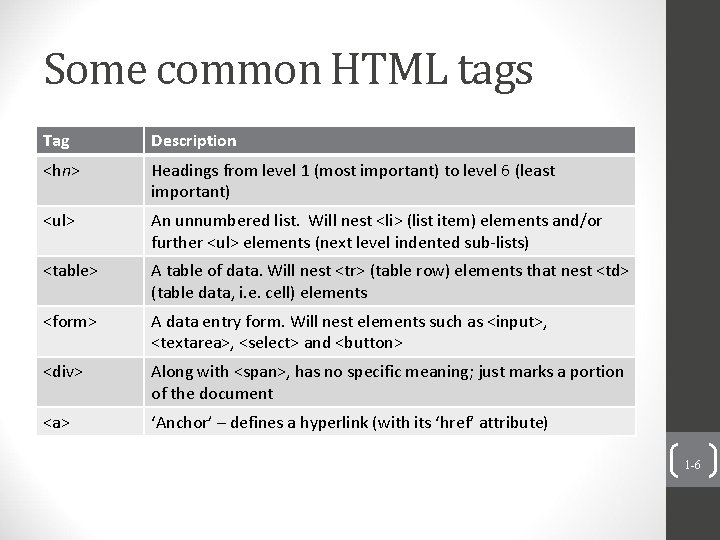
Some common HTML tags Tag Description <hn> Headings from level 1 (most important) to level 6 (least important) <ul> An unnumbered list. Will nest <li> (list item) elements and/or further <ul> elements (next level indented sub-lists) <table> A table of data. Will nest <tr> (table row) elements that nest <td> (table data, i. e. cell) elements <form> A data entry form. Will nest elements such as <input>, <textarea>, <select> and <button> <div> Along with <span>, has no specific meaning; just marks a portion of the document <a> ‘Anchor’ – defines a hyperlink (with its ‘href’ attribute) 1 -6
HTML attributes • HTML attributes provide additional information about an HTML element • They appear inside the start tag of the element • They are in name=“value” pairs • Examples: • A hyperlink to another Web page: <a href="http: //www. cs. auckland. ac. nz/~jim">Jim Warren</a> • Image attributes (alt lets a screen reader say about the image) <img src="w 3 schools. jpg" alt="W 3 Schools. com" width="104" height="142"> • Classes (non-unique) and identifiers (unique) <div class="sidebar-box"> <div id="sidebar 2"> (provide ‘hooks’ for CSS styling; also id can be used for hash value in URL, e. g. http: //yourdomain. com#sidebar 2 1 -7
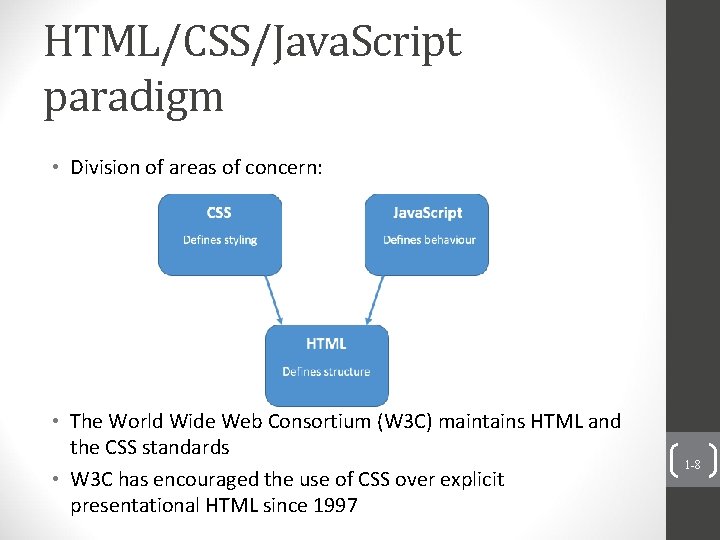
HTML/CSS/Java. Script paradigm • Division of areas of concern: • The World Wide Web Consortium (W 3 C) maintains HTML and the CSS standards • W 3 C has encouraged the use of CSS over explicit presentational HTML since 1997 1 -8
What is HTML 5? • Offers various APIs including drag-and-drop and Web storage (although technically the latter is now outside HTML 5) • Even defines some processing for invalid documents for greater uniformity in responses to syntax errors • Adopted as standard formally in October 2014 • But had been in development for 10 years and was widely supported well before 2014 • Supplanted Abode Flash (with 2010 endorsement by Apple) the human 1 • Includes <video>, <audio> and <canvas> elements • Scalable vector graphics (SVG) • Math. ML (so formulae don’t have to be images) 9 • Subsumes HTML 4, XHTML 1 and DOM Level 2 HTML • Better handling for multimedia and graphical content to avoid resorting to proprietary plug-ins
What is DHTML? • Dynamic HTML • It’s not a language • Java. Script • Cascading Style Sheets (CSS) • Document Object Model (DOM) • DHTML activities include • Event detection (e. g. mouse-over) • Form validation • Changing content (or its attributes on the fly) • E. g. Turning objects visible/invisible • Contrasts with Ajax in that all processing is done on client side the human 1 • DHTML is an umbrella term for techniques to create interaction and animation using 10 • You don’t give a. dhtml extension or such
Why is DHTML/HTML 5 such a useful approach? • Portability • Run same code on anything with a Web browser (still some need for browser-specific coding, but less every year) • Maximizes client-side interpretation • E. g. to run appropriately on a wide variety of devices • Searchability and openness to screen readers • Make as much of your content as possible available for machine processing • Google can’t reach inside a Java applet to find and index your content (and that’s how people find things nowadays) • Growing popularity • Probably because of the above reasons, and also it’s getting to be powerful enough to do most of what you want without resorting to Java, . Net, Objective-C or the like 1 -11
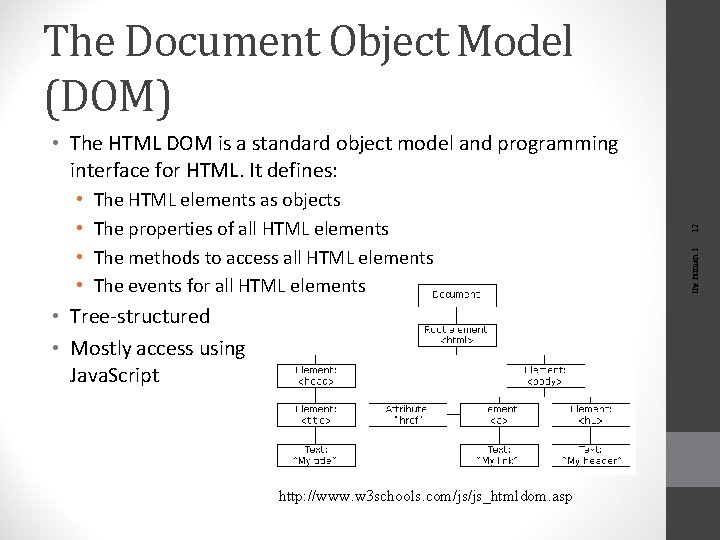
The Document Object Model (DOM) The HTML elements as objects The properties of all HTML elements The methods to access all HTML elements The events for all HTML elements • Tree-structured • Mostly access using Java. Script http: //www. w 3 schools. com/js/js_htmldom. asp the human 1 • • 12 • The HTML DOM is a standard object model and programming interface for HTML. It defines:
Java. Script is a scripting language very broadly supported in browsers • • • Not really officially, or syntactically, all that related to Java: was officially called Live. Script when it first shipped in beta releases of Netscape Navigator 2. 0 in September 1995 Standardized through European Computer Manufacturers Association (ECMA) Dynamically typed with first-class functions (functions are themselves objects) Use the <script> tag to indicate a block of Java. Script in your HTML 13
Java. Script uses • Java. Script enables dynamism and tailored behaviour in your Web pages • Some major uses in DHTML are: • Event handling • Creating custom behaviour for user actions on HTML elements (beyond default validation, like range checks, built into HTML 5) • Accessing the DOM • Basing logic on the values of parts of the Web page (e. g. for validation of interactively-entered HTML form variables) • Dynamically updating attributes of variables (e. g. visibility, colour), or adding and deleting elements • Accessing Web storage • Persisting data in the browser for continuity • In prototyping, this can simulate a server-side database 1 -14
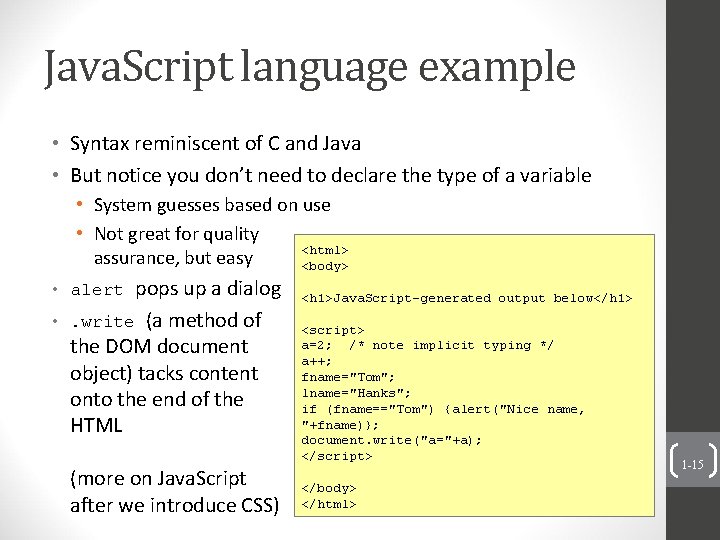
Java. Script language example • Syntax reminiscent of C and Java • But notice you don’t need to declare the type of a variable • System guesses based on use • Not great for quality <html> assurance, but easy <body> • alert pops up a dialog • . write (a method of the DOM document object) tacks content onto the end of the HTML (more on Java. Script after we introduce CSS) <h 1>Java. Script-generated output below</h 1> <script> a=2; /* note implicit typing */ a++; fname="Tom"; lname="Hanks"; if (fname=="Tom") {alert("Nice name, "+fname)}; document. write("a="+a); </script> </body> </html> 1 -15
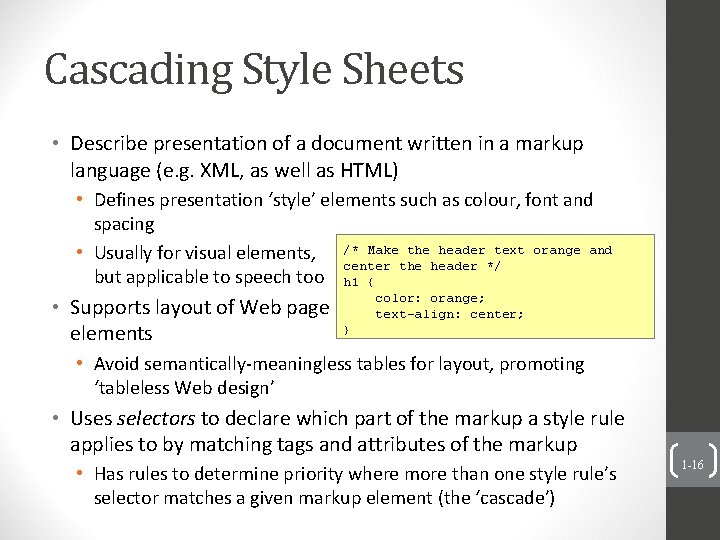
Cascading Style Sheets • Describe presentation of a document written in a markup language (e. g. XML, as well as HTML) • Defines presentation ‘style’ elements such as colour, font and spacing • Usually for visual elements, /* Make the header text orange and center the header */ but applicable to speech too h 1 { • Supports layout of Web page elements color: orange; text-align: center; } • Avoid semantically-meaningless tables for layout, promoting ‘tableless Web design’ • Uses selectors to declare which part of the markup a style rule applies to by matching tags and attributes of the markup • Has rules to determine priority where more than one style rule’s selector matches a given markup element (the ‘cascade’) 1 -16
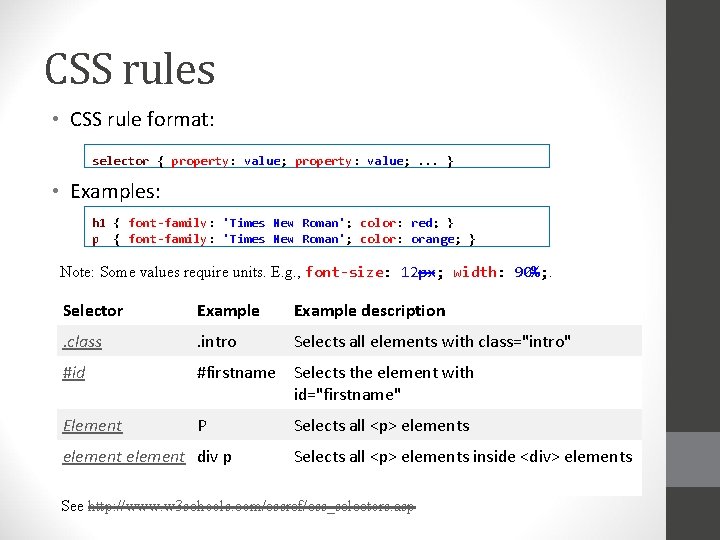
CSS rules • CSS rule format: selector { property: value; . . . } • Examples: h 1 { font-family: 'Times New Roman'; color: red; } p { font-family: 'Times New Roman'; color: orange; } Note: Some values require units. E. g. , font-size: 12 px; width: 90%; . Selector Example description . class . intro Selects all elements with class="intro" #id #firstname Selects the element with id="firstname" Element P element div p Selects all <p> elements inside <div> elements See http: //www. w 3 schools. com/cssref/css_selectors. asp
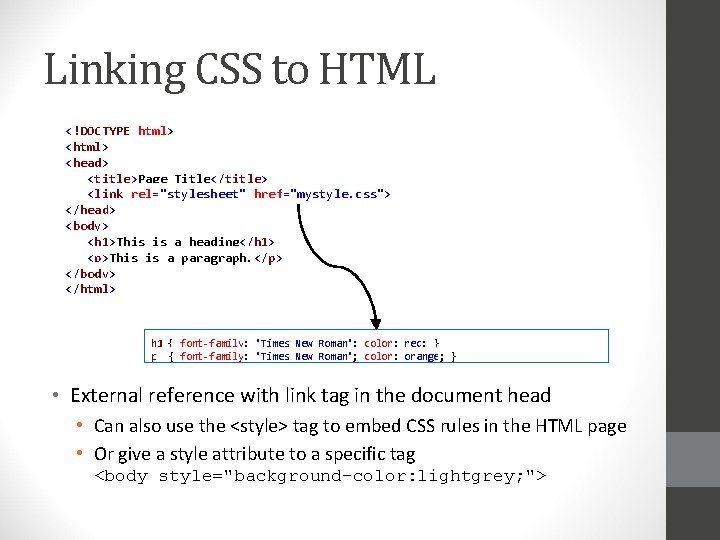
Linking CSS to HTML <!DOCTYPE html> <head> <title>Page Title</title> <link rel="stylesheet" href="mystyle. css"> </head> <body> <h 1>This is a heading</h 1> <p>This is a paragraph. </p> </body> </html> h 1 { font-family: 'Times New Roman'; color: red; } p { font-family: 'Times New Roman'; color: orange; } • External reference with link tag in the document head • Can also use the <style> tag to embed CSS rules in the HTML page • Or give a style attribute to a specific tag <body style="background-color: lightgrey; ">
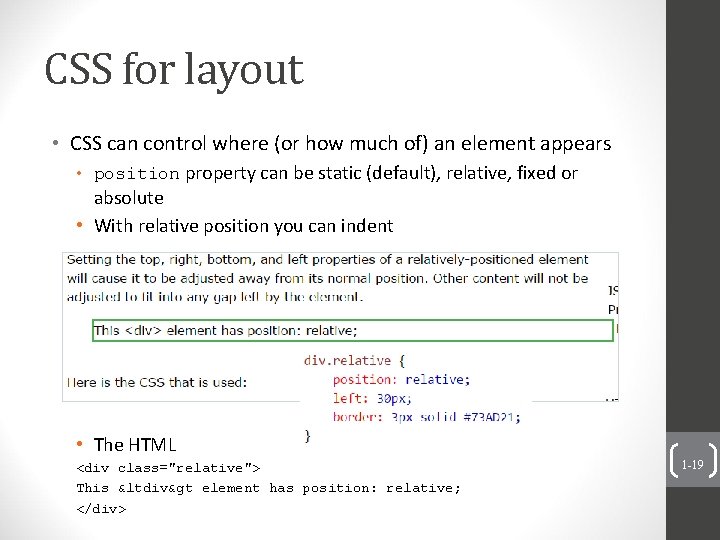
CSS for layout • CSS can control where (or how much of) an element appears • position property can be static (default), relative, fixed or absolute • With relative position you can indent • The HTML <div class="relative"> This <div> element has position: relative; </div> 1 -19
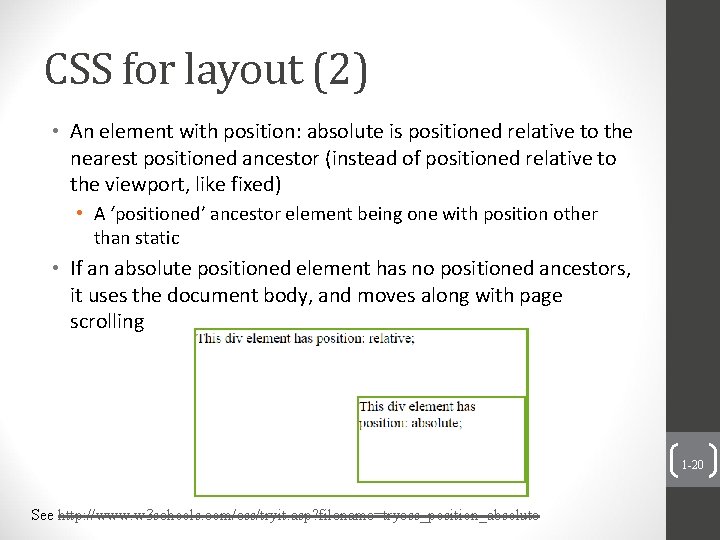
CSS for layout (2) • An element with position: absolute is positioned relative to the nearest positioned ancestor (instead of positioned relative to the viewport, like fixed) • A ‘positioned’ ancestor element being one with position other than static • If an absolute positioned element has no positioned ancestors, it uses the document body, and moves along with page scrolling 1 -20 See http: //www. w 3 schools. com/css/tryit. asp? filename=trycss_position_absolute
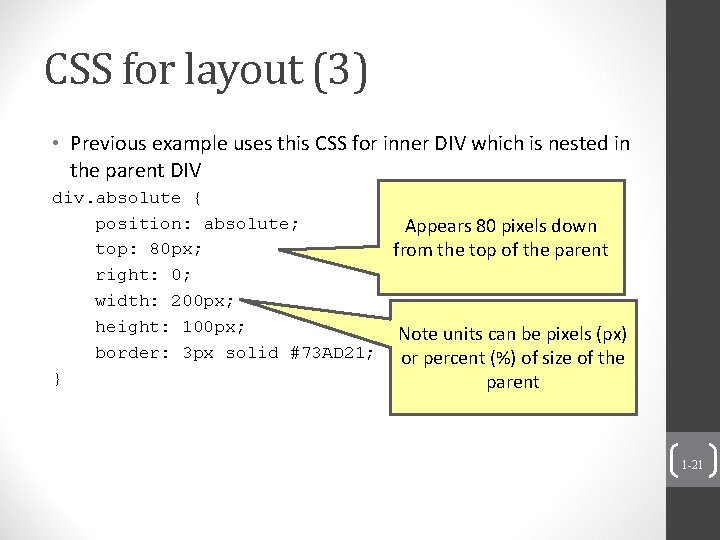
CSS for layout (3) • Previous example uses this CSS for inner DIV which is nested in the parent DIV div. absolute { position: absolute; Appears 80 pixels down top: 80 px; from the top of the parent right: 0; width: 200 px; height: 100 px; Note units can be pixels (px) border: 3 px solid #73 AD 21; or percent (%) of size of the } parent 1 -21
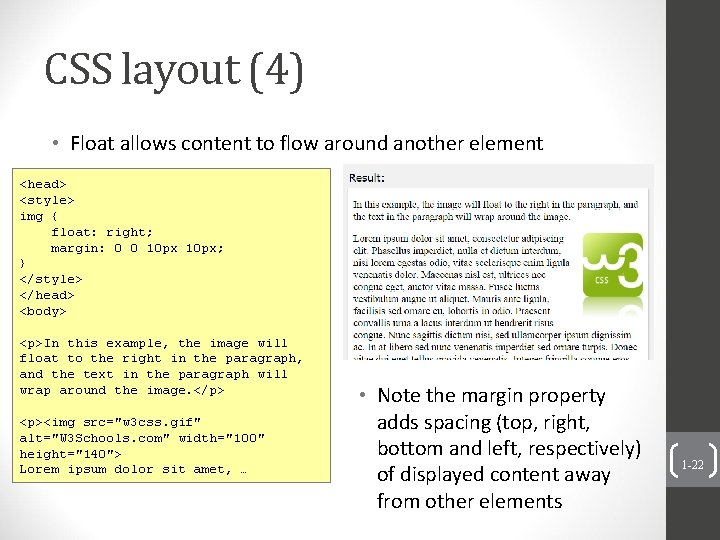
CSS layout (4) • Float allows content to flow around another element <head> <style> img { float: right; margin: 0 0 10 px; } </style> </head> <body> <p>In this example, the image will float to the right in the paragraph, and the text in the paragraph will wrap around the image. </p> <p><img src="w 3 css. gif" alt="W 3 Schools. com" width="100" height="140"> Lorem ipsum dolor sit amet, … • Note the margin property adds spacing (top, right, bottom and left, respectively) of displayed content away from other elements 1 -22
Java. Script Variables • Scope • A variable’s scope is the function it is declared in • A variable declared outside a function has a global scope • But assigning a value to a variable that has not been declared will mark the variable global – i. e. , the variable will have global scope! • Value – flexible! • Can have a single value or multiple fields • Can change type or add new fields on the fly
Java. Script variable value examples var pi = 3. 142; // simple object var user = { // complex object name: "Bond", age: 30, spy: true, address: null }; Fields of a complex object can be accessed using the familiar dot notation. E. g. , user. name. One can add new fields on the fly. E. g. , user. phone = "+44 20 7601 2407"; user. swear = function () { alert("$@1^"); };
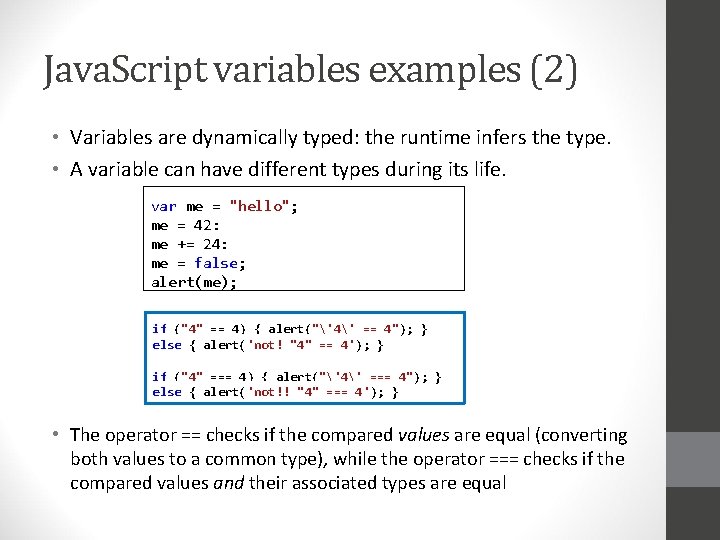
Java. Script variables examples (2) • Variables are dynamically typed: the runtime infers the type. • A variable can have different types during its life. var me = "hello"; me = 42; me += 24; me = false; alert(me); if ("4" == 4) { alert("'4' == 4"); } else { alert('not! "4" == 4'); } if ("4" === 4) { alert("'4' === 4"); } else { alert('not!! "4" === 4'); } • The operator == checks if the compared values are equal (converting both values to a common type), while the operator === checks if the compared values and their associated types are equal
Java. Script DOM reference examples (with thanks to Mano) On the button click, select the first <p> element, and change its inner HTML content to the return value of the (built-in) function Date(). The argument to query. Selector is a CSS selector. <!DOCTYPE html> <body> <button onclick='document. query. Selector("p"). inner. HTML = Date()'> Click me. </button> <p /> </body> </html> • Here we’ve provided the Java. Script code inline as the value for the onclick parameter of an HTML button • We also could’ve referenced a Java. Script function defined in a previous <script> block
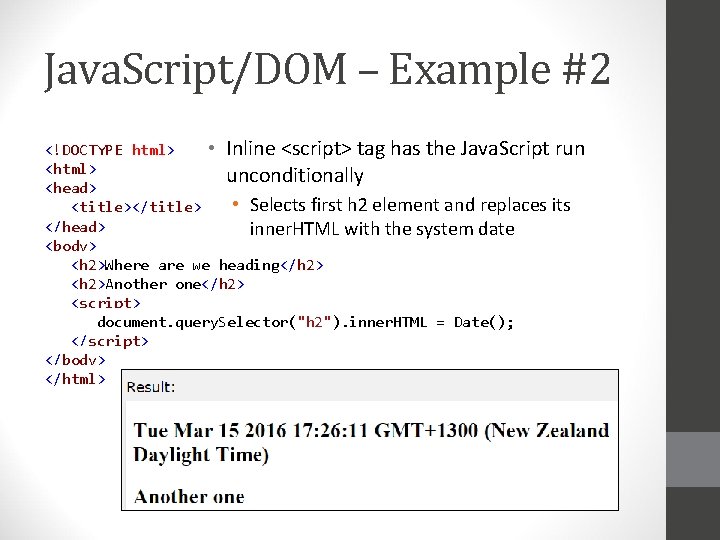
Java. Script/DOM – Example #2 • Inline <script> tag has the Java. Script run <!DOCTYPE html> <html> unconditionally <head> • Selects first h 2 element and replaces its <title></title> </head> inner. HTML with the system date <body> <h 2>Where are we heading</h 2> <h 2>Another one</h 2> <script> document. query. Selector("h 2"). inner. HTML = Date(); </script> </body> </html>
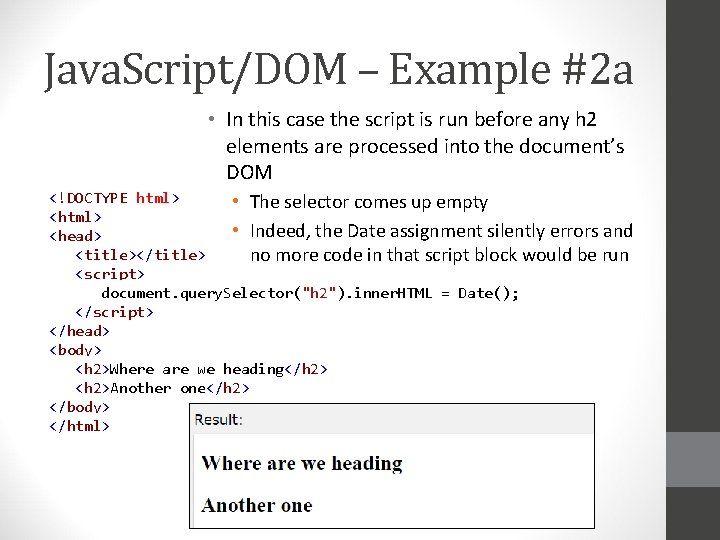
Java. Script/DOM – Example #2 a • In this case the script is run before any h 2 elements are processed into the document’s DOM <!DOCTYPE html> • The selector comes up empty <html> • Indeed, the Date assignment silently errors and <head> <title></title> no more code in that script block would be run <script> document. query. Selector("h 2"). inner. HTML = Date(); </script> </head> <body> <h 2>Where are we heading</h 2> <h 2>Another one</h 2> </body> </html>
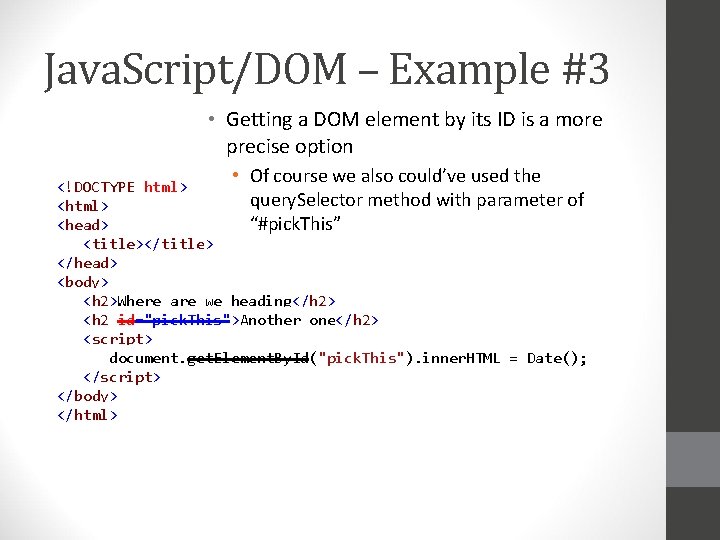
Java. Script/DOM – Example #3 • Getting a DOM element by its ID is a more precise option • Of course we also could’ve used the <!DOCTYPE html> query. Selector method with parameter of <html> <head> “#pick. This” <title></title> </head> <body> <h 2>Where are we heading</h 2> <h 2 id="pick. This">Another one</h 2> <script> document. get. Element. By. Id("pick. This"). inner. HTML = Date(); </script> </body> </html>
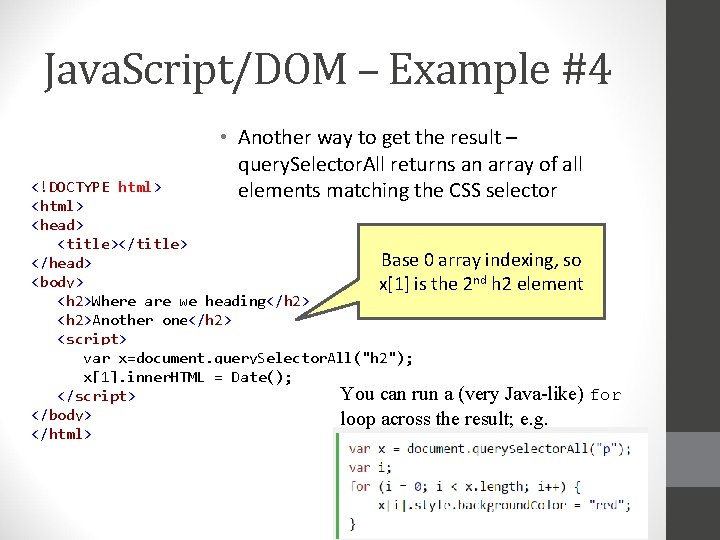
Java. Script/DOM – Example #4 • Another way to get the result – query. Selector. All returns an array of all elements matching the CSS selector <!DOCTYPE html> <head> <title></title> Base 0 array indexing, so </head> <body> x[1] is the 2 nd h 2 element <h 2>Where are we heading</h 2> <h 2>Another one</h 2> <script> var x=document. query. Selector. All("h 2"); x[1]. inner. HTML = Date(); You can run a (very Java-like) for </script> </body> loop across the result; e. g. </html>
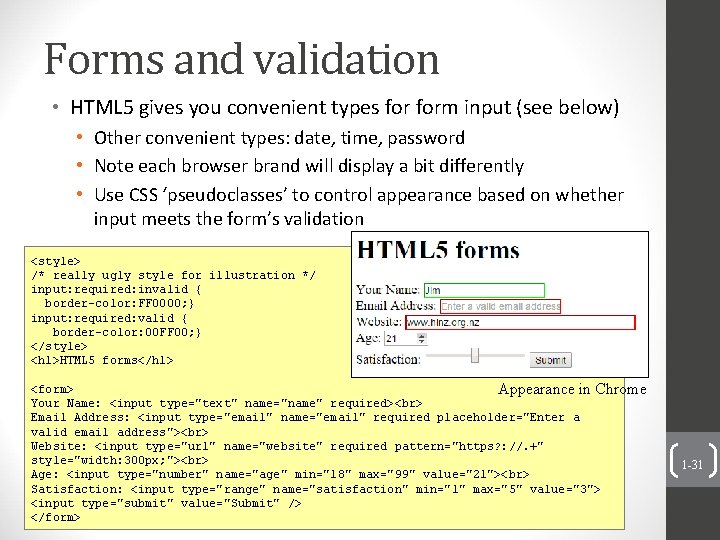
Forms and validation • HTML 5 gives you convenient types form input (see below) • Other convenient types: date, time, password • Note each browser brand will display a bit differently • Use CSS ‘pseudoclasses’ to control appearance based on whether input meets the form’s validation <style> /* really ugly style for illustration */ input: required: invalid { border-color: FF 0000; } input: required: valid { border-color: 00 FF 00; } </style> <h 1>HTML 5 forms</h 1> <form> Appearance in Chrome Your Name: <input type="text" name="name" required> Email Address: <input type="email" name="email" required placeholder="Enter a valid email address"> Website: <input type="url" name="website" required pattern="https? : //. +" style="width: 300 px; "> Age: <input type="number" name="age" min="18" max="99" value="21"> Satisfaction: <input type="range" name="satisfaction" min="1" max="5" value="3"> <input type="submit" value="Submit" /> </form> 1 -31
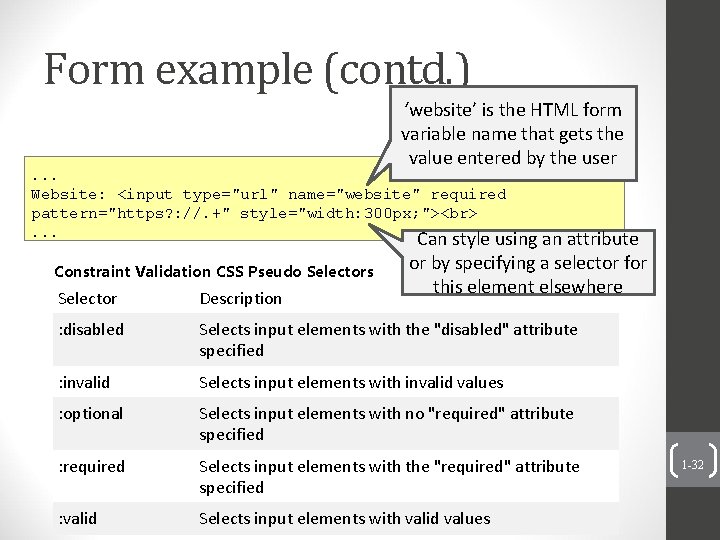
Form example (contd. ) ‘website’ is the HTML form variable name that gets the value entered by the user . . . Website: <input type="url" name="website" required pattern="https? : //. +" style="width: 300 px; "> . . . Constraint Validation CSS Pseudo Selectors Can style using an attribute or by specifying a selector for this element elsewhere Selector Description : disabled Selects input elements with the "disabled" attribute specified : invalid Selects input elements with invalid values : optional Selects input elements with no "required" attribute specified : required Selects input elements with the "required" attribute specified : valid Selects input elements with valid values 1 -32
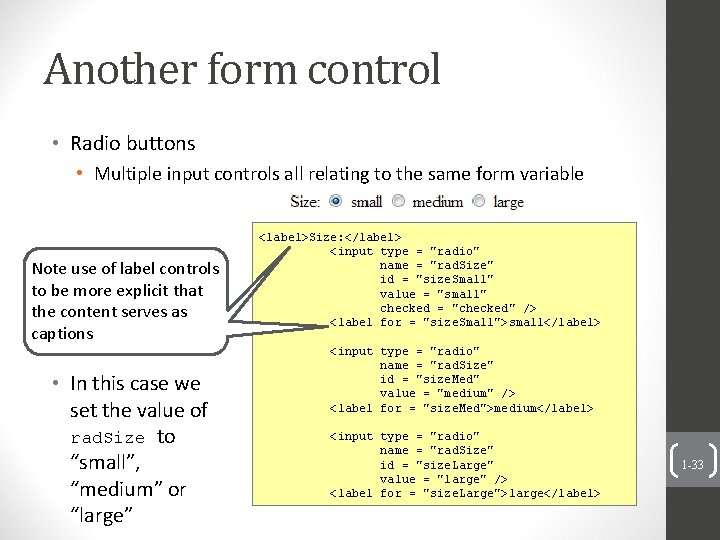
Another form control • Radio buttons • Multiple input controls all relating to the same form variable Note use of label controls to be more explicit that the content serves as captions • In this case we set the value of rad. Size to “small”, “medium” or “large” <label>Size: </label> <input type = "radio" name = "rad. Size" id = "size. Small" value = "small" checked = "checked" /> <label for = "size. Small">small</label> <input type = "radio" name = "rad. Size" id = "size. Med" value = "medium" /> <label for = "size. Med">medium</label> <input type = "radio" name = "rad. Size" id = "size. Large" value = "large" /> <label for = "size. Large">large</label> 1 -33
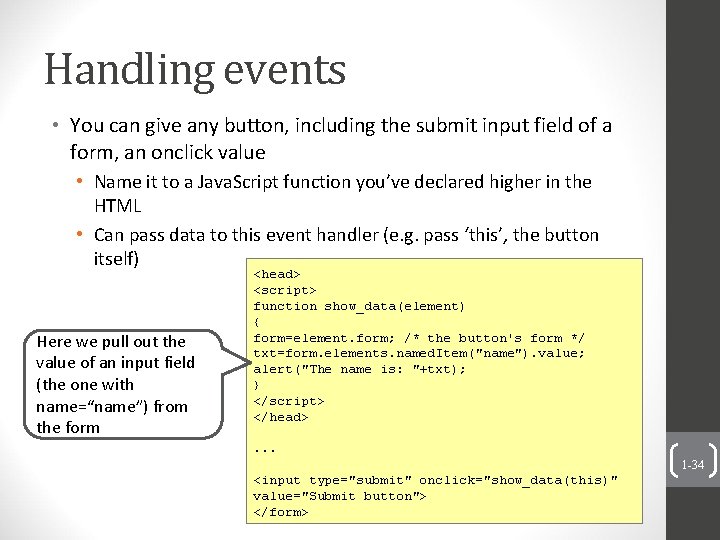
Handling events • You can give any button, including the submit input field of a form, an onclick value • Name it to a Java. Script function you’ve declared higher in the HTML • Can pass data to this event handler (e. g. pass ‘this’, the button itself) Here we pull out the value of an input field (the one with name=“name”) from the form <head> <script> function show_data(element) { form=element. form; /* the button's form */ txt=form. elements. named. Item("name"). value; alert("The name is: "+txt); } </script> </head>. . . 1 -34 <input type="submit" onclick="show_data(this)" value="Submit button"> </form>
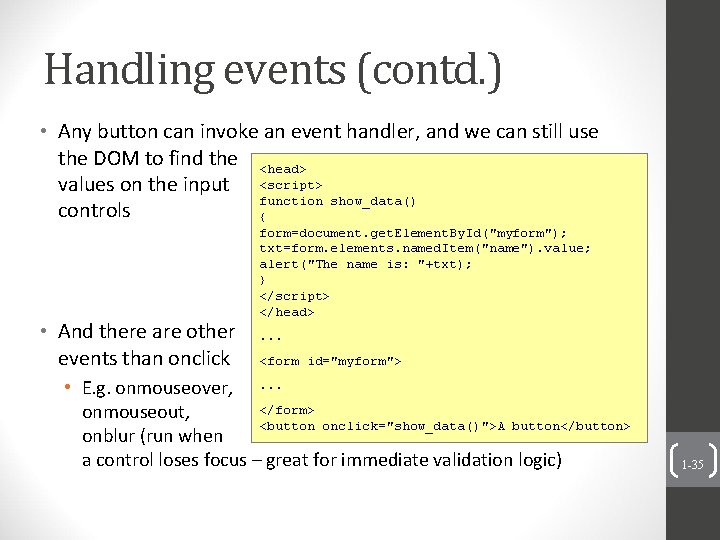
Handling events (contd. ) • Any button can invoke an event handler, and we can still use the DOM to find the <head> values on the input <script> function show_data() controls { • And there are other events than onclick form=document. get. Element. By. Id("myform"); txt=form. elements. named. Item("name"). value; alert("The name is: "+txt); } </script> </head>. . . <form id="myform"> • E. g. onmouseover, . . . </form> onmouseout, <button onclick="show_data()">A button</button> onblur (run when a control loses focus – great for immediate validation logic) 1 -35
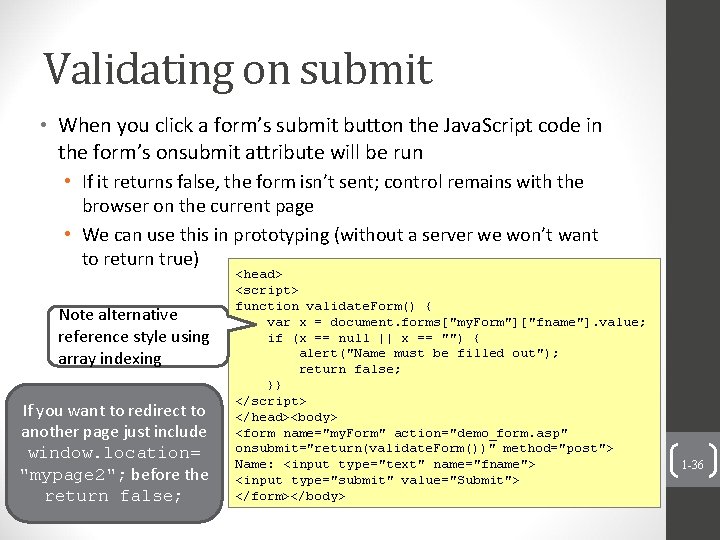
Validating on submit • When you click a form’s submit button the Java. Script code in the form’s onsubmit attribute will be run • If it returns false, the form isn’t sent; control remains with the browser on the current page • We can use this in prototyping (without a server we won’t want to return true) Note alternative reference style using array indexing If you want to redirect to another page just include window. location= "mypage 2"; before the return false; <head> <script> function validate. Form() { var x = document. forms["my. Form"]["fname"]. value; if (x == null || x == "") { alert("Name must be filled out"); return false; }} </script> </head><body> <form name="my. Form" action="demo_form. asp" onsubmit="return(validate. Form())" method="post"> Name: <input type="text" name="fname"> <input type="submit" value="Submit"> </form></body> 1 -36
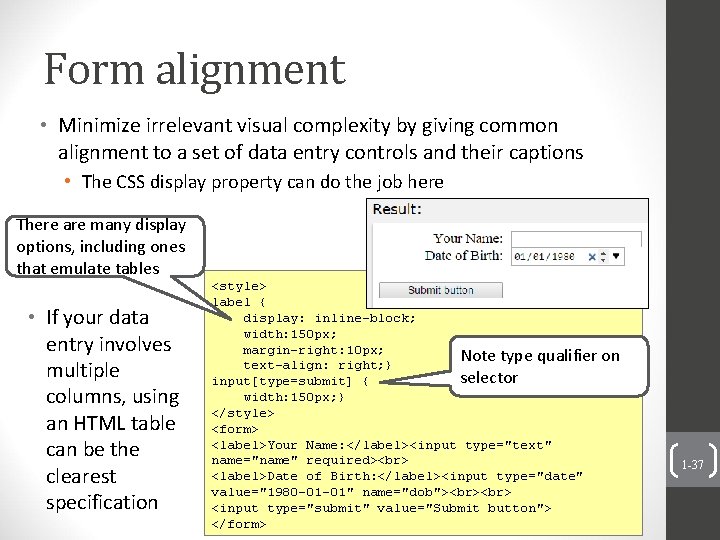
Form alignment • Minimize irrelevant visual complexity by giving common alignment to a set of data entry controls and their captions • The CSS display property can do the job here There are many display options, including ones that emulate tables • If your data entry involves multiple columns, using an HTML table can be the clearest specification <style> label { display: inline-block; width: 150 px; margin-right: 10 px; Note type qualifier on text-align: right; } selector input[type=submit] { width: 150 px; } </style> <form> <label>Your Name: </label><input type="text" name="name" required> <label>Date of Birth: </label><input type="date" value="1980 -01 -01" name="dob"> <input type="submit" value="Submit button"> </form> 1 -37
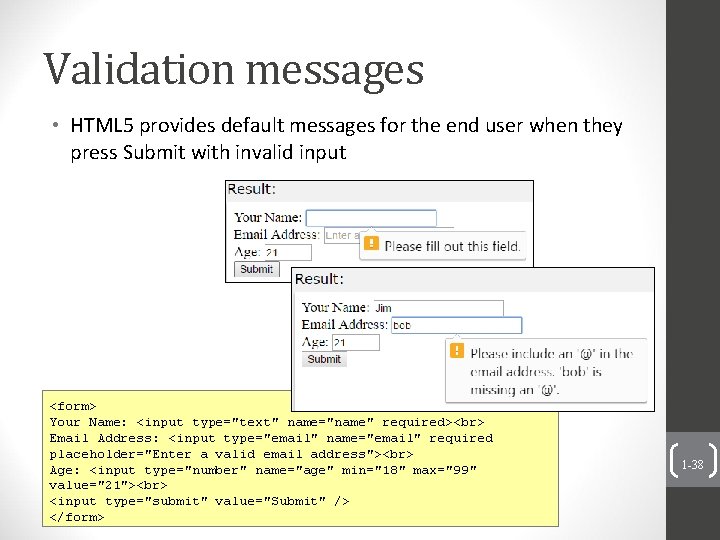
Validation messages • HTML 5 provides default messages for the end user when they press Submit with invalid input <form> Your Name: <input type="text" name="name" required> Email Address: <input type="email" name="email" required placeholder="Enter a valid email address"> Age: <input type="number" name="age" min="18" max="99" value="21"> <input type="submit" value="Submit" /> </form> 1 -38
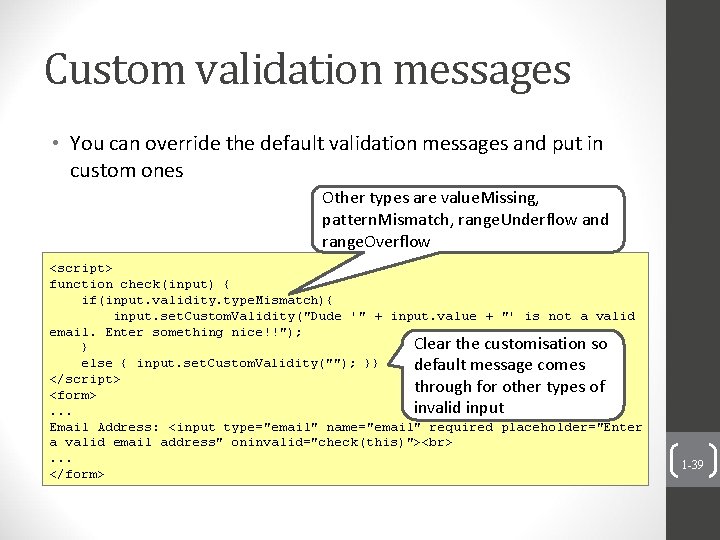
Custom validation messages • You can override the default validation messages and put in custom ones Other types are value. Missing, pattern. Mismatch, range. Underflow and range. Overflow <script> function check(input) { if(input. validity. type. Mismatch){ input. set. Custom. Validity("Dude '" + input. value + "' is not a valid email. Enter something nice!!"); Clear the customisation so } else { input. set. Custom. Validity(""); }} default message comes </script> through for other types of <form> invalid input. . . Email Address: <input type="email" name="email" required placeholder="Enter a valid email address" oninvalid="check(this)"> . . . </form> 1 -39
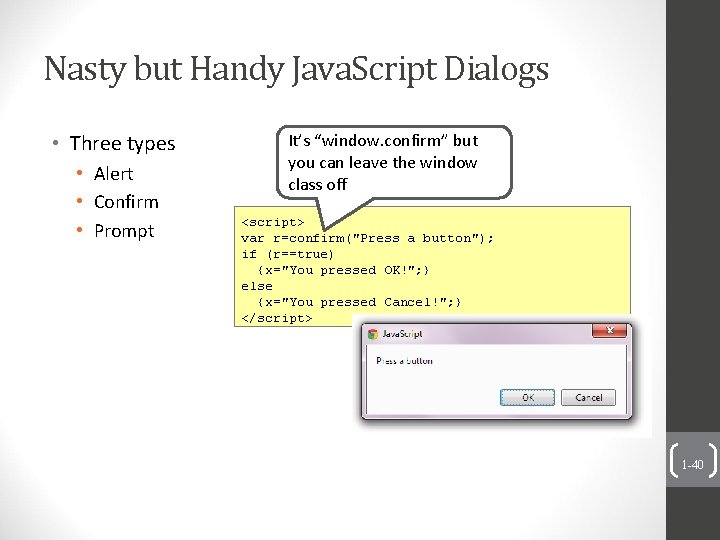
Nasty but Handy Java. Script Dialogs • Three types • Alert • Confirm • Prompt It’s “window. confirm” but you can leave the window class off <script> var r=confirm("Press a button"); if (r==true) {x="You pressed OK!"; } else {x="You pressed Cancel!"; } </script> 1 -40
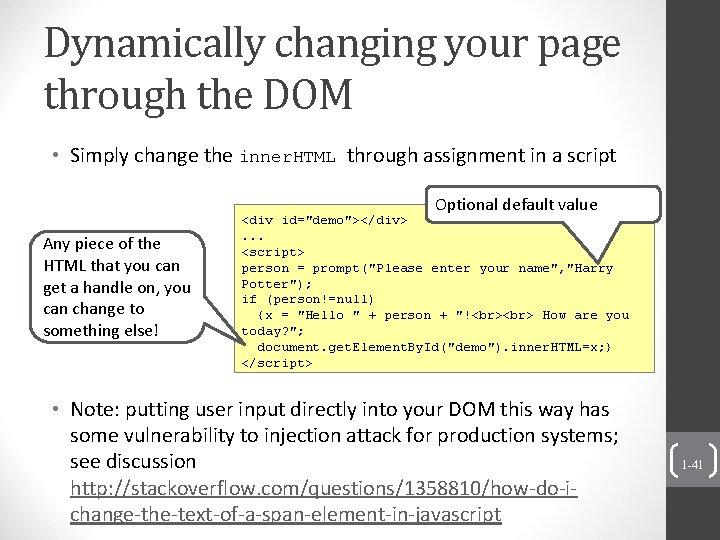
Dynamically changing your page through the DOM • Simply change the inner. HTML through assignment in a script Optional default value Any piece of the HTML that you can get a handle on, you can change to something else! <div id="demo"></div>. . . <script> person = prompt("Please enter your name", "Harry Potter"); if (person!=null) {x = "Hello " + person + "! How are you today? "; document. get. Element. By. Id("demo"). inner. HTML=x; } </script> • Note: putting user input directly into your DOM this way has some vulnerability to injection attack for production systems; see discussion http: //stackoverflow. com/questions/1358810/how-do-ichange-the-text-of-a-span-element-in-javascript 1 -41
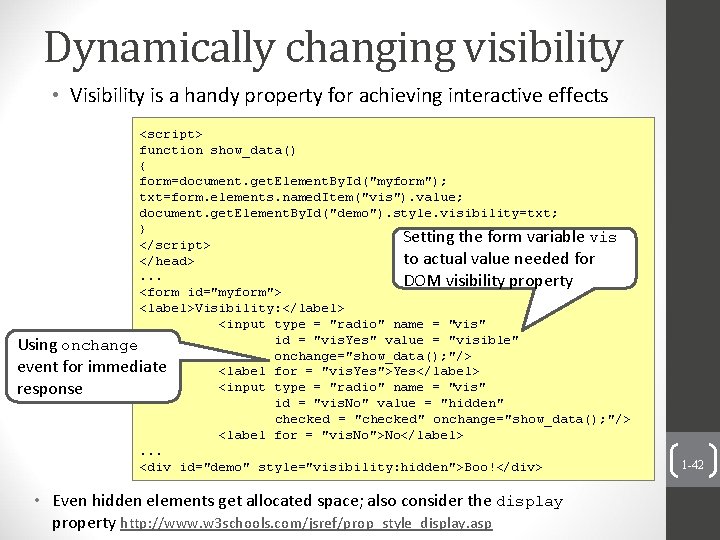
Dynamically changing visibility • Visibility is a handy property for achieving interactive effects <script> function show_data() { form=document. get. Element. By. Id("myform"); txt=form. elements. named. Item("vis"). value; document. get. Element. By. Id("demo"). style. visibility=txt; } Setting the form variable vis </script> to actual value needed for </head>. . . DOM visibility property <form id="myform"> <label>Visibility: </label> <input type = "radio" name = "vis" id = "vis. Yes" value = "visible" Using onchange="show_data(); "/> event for immediate <label for = "vis. Yes">Yes</label> <input type = "radio" name = "vis" response id = "vis. No" value = "hidden" checked = "checked" onchange="show_data(); "/> <label for = "vis. No">No</label>. . . <div id="demo" style="visibility: hidden">Boo!</div> • Even hidden elements get allocated space; also consider the display property http: //www. w 3 schools. com/jsref/prop_style_display. asp 1 -42
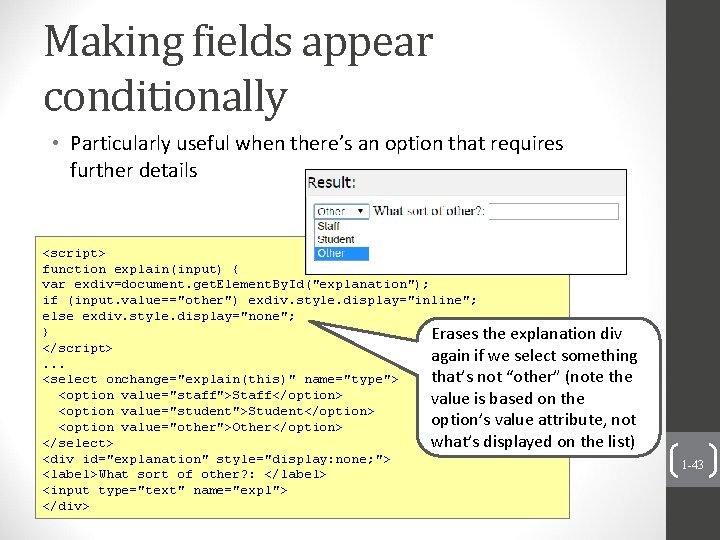
Making fields appear conditionally • Particularly useful when there’s an option that requires further details <script> function explain(input) { var exdiv=document. get. Element. By. Id("explanation"); if (input. value=="other") exdiv. style. display="inline"; else exdiv. style. display="none"; } Erases the explanation div </script> again if we select something . . . that’s not “other” (note the <select onchange="explain(this)" name="type"> <option value="staff">Staff</option> value is based on the <option value="student">Student</option> option’s value attribute, not <option value="other">Other</option> </select> what’s displayed on the list) <div id="explanation" style="display: none; "> <label>What sort of other? : </label> <input type="text" name="expl"> </div> 1 -43
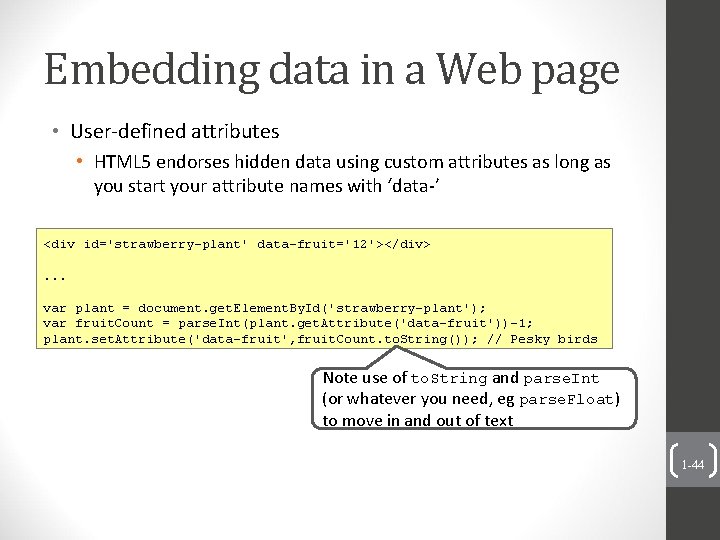
Embedding data in a Web page • User-defined attributes • HTML 5 endorses hidden data using custom attributes as long as you start your attribute names with ‘data-’ <div id='strawberry-plant' data-fruit='12'></div>. . . var plant = document. get. Element. By. Id('strawberry-plant'); var fruit. Count = parse. Int(plant. get. Attribute('data-fruit'))-1; plant. set. Attribute('data-fruit', fruit. Count. to. String()); // Pesky birds Note use of to. String and parse. Int (or whatever you need, eg parse. Float) to move in and out of text 1 -44
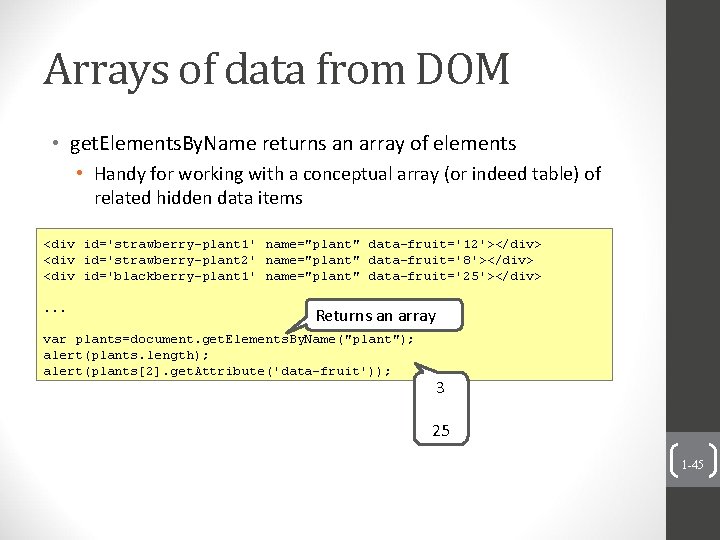
Arrays of data from DOM • get. Elements. By. Name returns an array of elements • Handy for working with a conceptual array (or indeed table) of related hidden data items <div id='strawberry-plant 1' name="plant" data-fruit='12'></div> <div id='strawberry-plant 2' name="plant" data-fruit='8'></div> <div id='blackberry-plant 1' name="plant" data-fruit='25'></div>. . . Returns an array var plants=document. get. Elements. By. Name("plant"); alert(plants. length); alert(plants[2]. get. Attribute('data-fruit')); 3 25 1 -45
Web Storage • HTML 5 Web Storage provides two new objects for storing data on the client • window. local. Storage - stores data with no expiration date • code. session. Storage - stores data for one session (data is lost when the tab is closed) • Faster and larger data limit than old method, ‘cookies’ • http: //www. w 3 schools. com/html 5_webstorage. asp 46
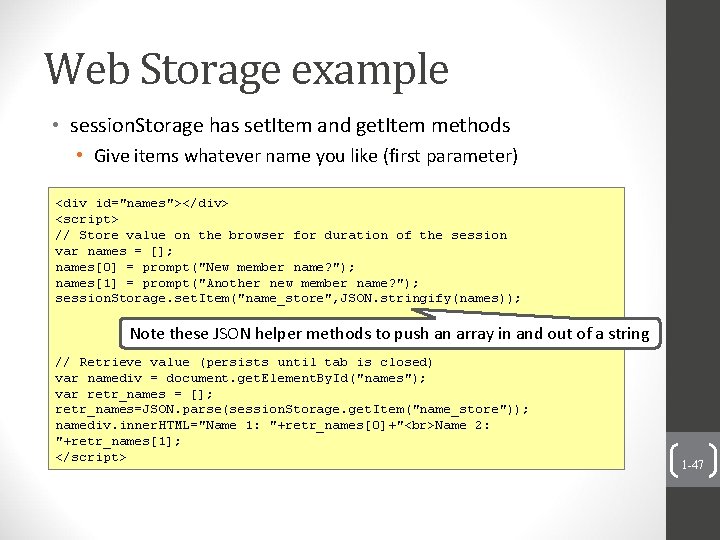
Web Storage example • session. Storage has set. Item and get. Item methods • Give items whatever name you like (first parameter) <div id="names"></div> <script> // Store value on the browser for duration of the session var names = []; names[0] = prompt("New member name? "); names[1] = prompt("Another new member name? "); session. Storage. set. Item("name_store", JSON. stringify(names)); Note these JSON helper methods to push an array in and out of a string // Retrieve value (persists until tab is closed) var namediv = document. get. Element. By. Id("names"); var retr_names = []; retr_names=JSON. parse(session. Storage. get. Item("name_store")); namediv. inner. HTML="Name 1: "+retr_names[0]+" Name 2: "+retr_names[1]; </script> 1 -47
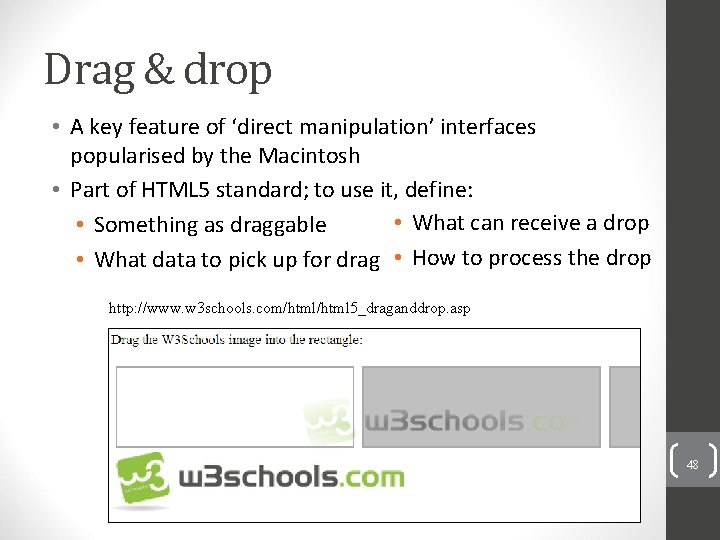
Drag & drop • A key feature of ‘direct manipulation’ interfaces popularised by the Macintosh • Part of HTML 5 standard; to use it, define: • What can receive a drop • Something as draggable • What data to pick up for drag • How to process the drop http: //www. w 3 schools. com/html 5_draganddrop. asp 48
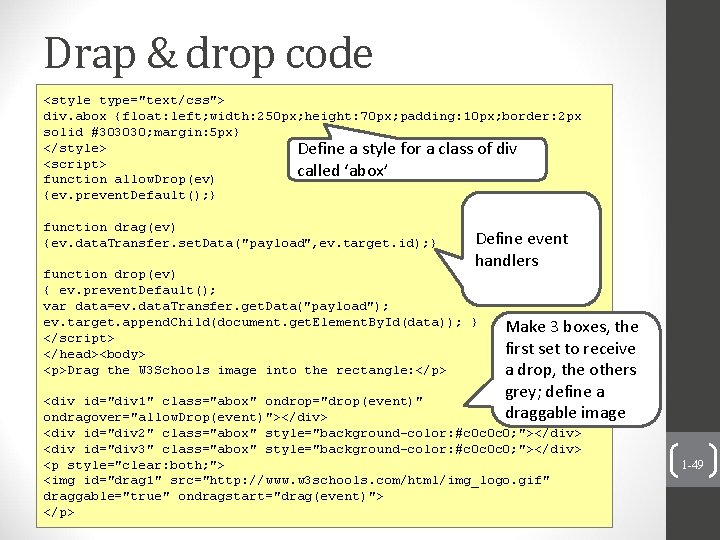
Drap & drop code <style type="text/css"> div. abox {float: left; width: 250 px; height: 70 px; padding: 10 px; border: 2 px solid #303030; margin: 5 px} </style> Define a style for a class of div <script> called ‘abox’ function allow. Drop(ev) {ev. prevent. Default(); } function drag(ev) {ev. data. Transfer. set. Data("payload", ev. target. id); } Define event handlers function drop(ev) { ev. prevent. Default(); var data=ev. data. Transfer. get. Data("payload"); ev. target. append. Child(document. get. Element. By. Id(data)); } </script> </head><body> <p>Drag the W 3 Schools image into the rectangle: </p> Make 3 boxes, the first set to receive a drop, the others grey; define a draggable image <div id="div 1" class="abox" ondrop="drop(event)" ondragover="allow. Drop(event)"></div> <div id="div 2" class="abox" style="background-color: #c 0 c 0 c 0; "></div> <div id="div 3" class="abox" style="background-color: #c 0 c 0 c 0; "></div> <p style="clear: both; "> <img id="drag 1" src="http: //www. w 3 schools. com/html/img_logo. gif" draggable="true" ondragstart="drag(event)"> </p> 1 -49
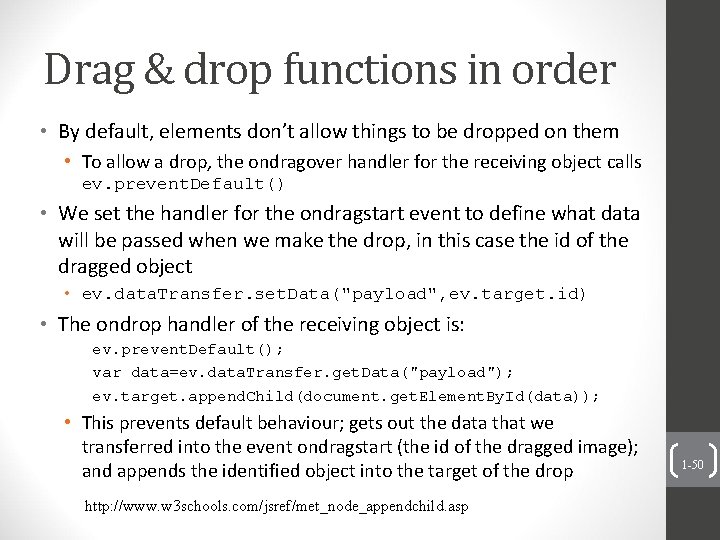
Drag & drop functions in order • By default, elements don’t allow things to be dropped on them • To allow a drop, the ondragover handler for the receiving object calls ev. prevent. Default() • We set the handler for the ondragstart event to define what data will be passed when we make the drop, in this case the id of the dragged object • ev. data. Transfer. set. Data("payload", ev. target. id) • The ondrop handler of the receiving object is: ev. prevent. Default(); var data=ev. data. Transfer. get. Data("payload"); ev. target. append. Child(document. get. Element. By. Id(data)); • This prevents default behaviour; gets out the data that we transferred into the event ondragstart (the id of the dragged image); and appends the identified object into the target of the drop http: //www. w 3 schools. com/jsref/met_node_appendchild. asp 1 -50
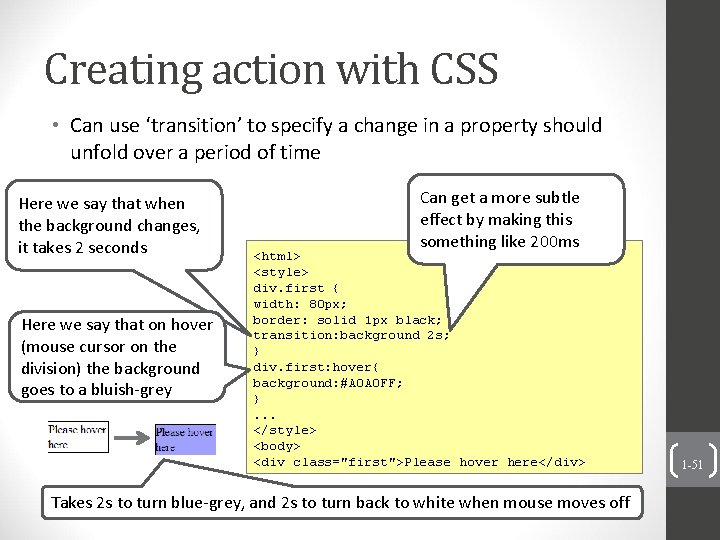
Creating action with CSS • Can use ‘transition’ to specify a change in a property should unfold over a period of time Here we say that when the background changes, it takes 2 seconds Here we say that on hover (mouse cursor on the division) the background goes to a bluish-grey Can get a more subtle effect by making this something like 200 ms <html> <style> div. first { width: 80 px; border: solid 1 px black; transition: background 2 s; } div. first: hover{ background: #A 0 A 0 FF; }. . . </style> <body> <div class="first">Please hover here</div> Takes 2 s to turn blue-grey, and 2 s to turn back to white when mouse moves off 1 -51
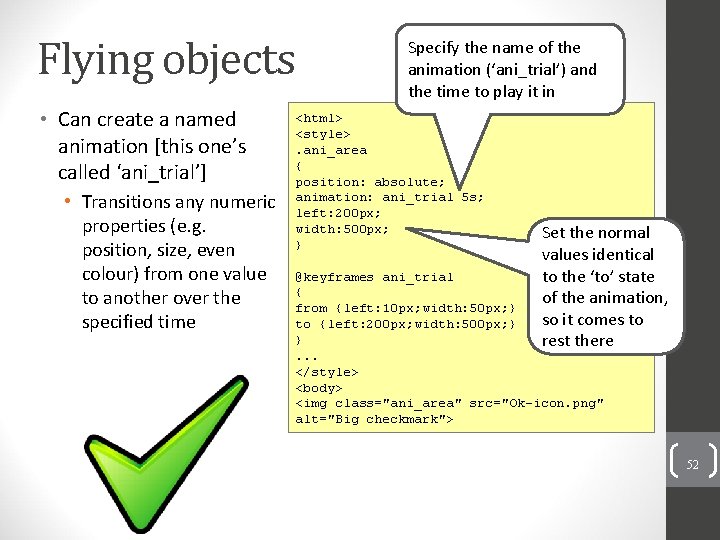
Flying objects • Can create a named animation [this one’s called ‘ani_trial’] • Transitions any numeric properties (e. g. position, size, even colour) from one value to another over the specified time Specify the name of the animation (‘ani_trial’) and the time to play it in <html> <style>. ani_area { position: absolute; animation: ani_trial 5 s; left: 200 px; width: 500 px; } Set the normal values identical to the ‘to’ state of the animation, so it comes to rest there @keyframes ani_trial { from {left: 10 px; width: 50 px; } to {left: 200 px; width: 500 px; } }. . . </style> <body> <img class="ani_area" src="Ok-icon. png" alt="Big checkmark"> 52
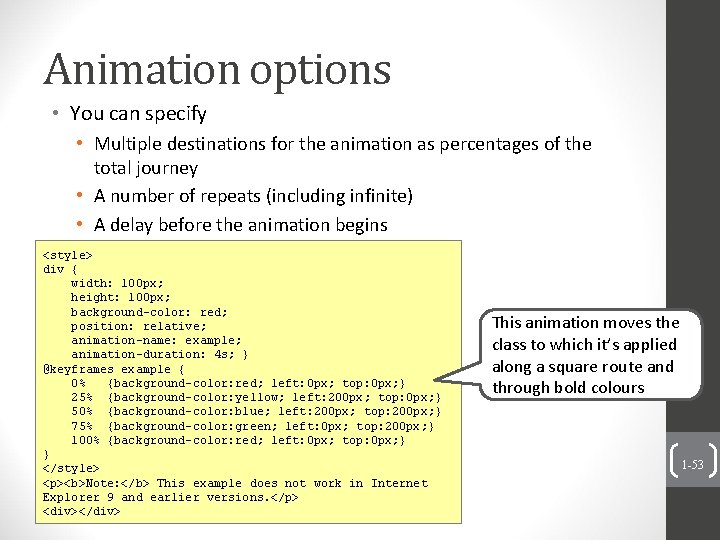
Animation options • You can specify • Multiple destinations for the animation as percentages of the total journey • A number of repeats (including infinite) • A delay before the animation begins <style> div { width: 100 px; height: 100 px; background-color: red; position: relative; animation-name: example; animation-duration: 4 s; } @keyframes example { 0% {background-color: red; left: 0 px; top: 0 px; } 25% {background-color: yellow; left: 200 px; top: 0 px; } 50% {background-color: blue; left: 200 px; top: 200 px; } 75% {background-color: green; left: 0 px; top: 200 px; } 100% {background-color: red; left: 0 px; top: 0 px; } } </style> <p><b>Note: </b> This example does not work in Internet Explorer 9 and earlier versions. </p> <div></div> This animation moves the class to which it’s applied along a square route and through bold colours 1 -53
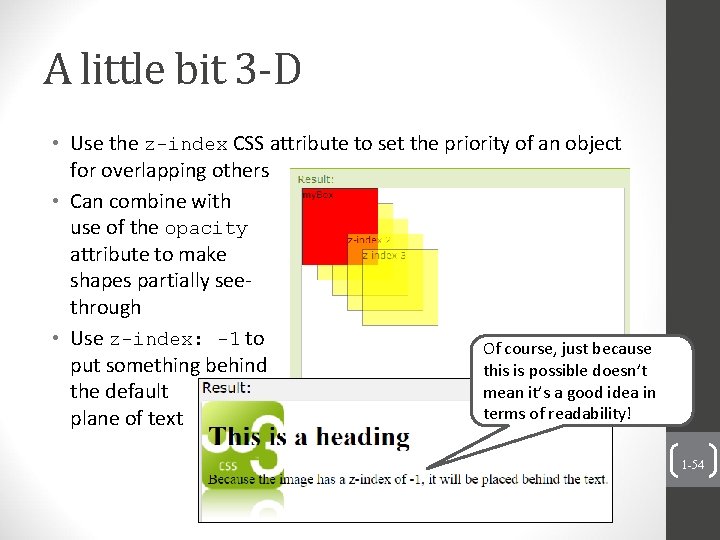
A little bit 3 -D • Use the z-index CSS attribute to set the priority of an object for overlapping others • Can combine with use of the opacity attribute to make shapes partially seethrough • Use z-index: -1 to Of course, just because put something behind this is possible doesn’t mean it’s a good idea in the default terms of readability! plane of text 1 -54
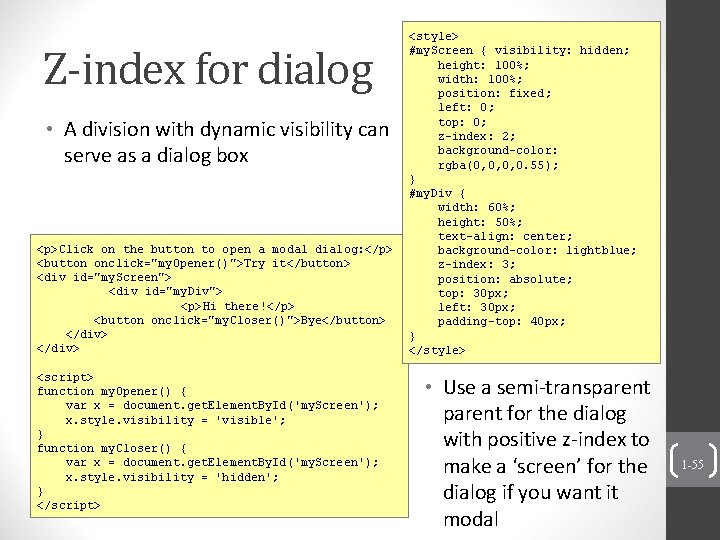
Z-index for dialog • A division with dynamic visibility can serve as a dialog box <p>Click on the button to open a modal dialog: </p> <button onclick="my. Opener()">Try it</button> <div id="my. Screen"> <div id="my. Div"> <p>Hi there!</p> <button onclick="my. Closer()">Bye</button> </div> <script> function my. Opener() { var x = document. get. Element. By. Id('my. Screen'); x. style. visibility = 'visible'; } function my. Closer() { var x = document. get. Element. By. Id('my. Screen'); x. style. visibility = 'hidden'; } </script> <style> #my. Screen { visibility: hidden; height: 100%; width: 100%; position: fixed; left: 0; top: 0; z-index: 2; background-color: rgba(0, 0, 0, 0. 55); } #my. Div { width: 60%; height: 50%; text-align: center; background-color: lightblue; z-index: 3; position: absolute; top: 30 px; left: 30 px; padding-top: 40 px; } </style> • Use a semi-transparent for the dialog with positive z-index to make a ‘screen’ for the dialog if you want it modal 1 -55
Java. Script-based libraries • Guess what? People have already compiled massive libraries of useful Java. Script functions and associated CSS • j. Query • Bootstrap • Angular. JS • To use Bootstrap components in your Web page include the following 3 file references <head> <link rel="stylesheet" type="text/css" href="css/bootstrap. css"/> <script src="https: //ajax. googleapis. com/ajax/libs/jquery/1. 11. 3/jquery. min. js"></script> <script src="js/bootstrap. js"></script> </head> Relative directory reference from the HTML page itself, dependent on your subdirectory structure 1 -56
j. Query • Most popular Java. Script library on the Web • Encourages separation of Java. Script and HTML • Facilitates DOM element selection and event handling • Extended with further ‘plugins’ • Uses the $ function which is a factory method for the j. Query object • e. g. , $("div. test") returns a j. Query object with all the div ready is run after DOM loads elements of class test • $(document). ready(function(){$("p"). click(functio n(){$(this). hide); }); adds a handler to every <p> to disappear when clicked • Popular Validate plugin used in Microsoft ASP. NET MVC for client-side ‘unobtrusive’ validation • e. g. <input type="text" name="first. Name" data-rulerequired="true" /> will make the data-msg-required value visible if the required field isn’t filled in 1 -57
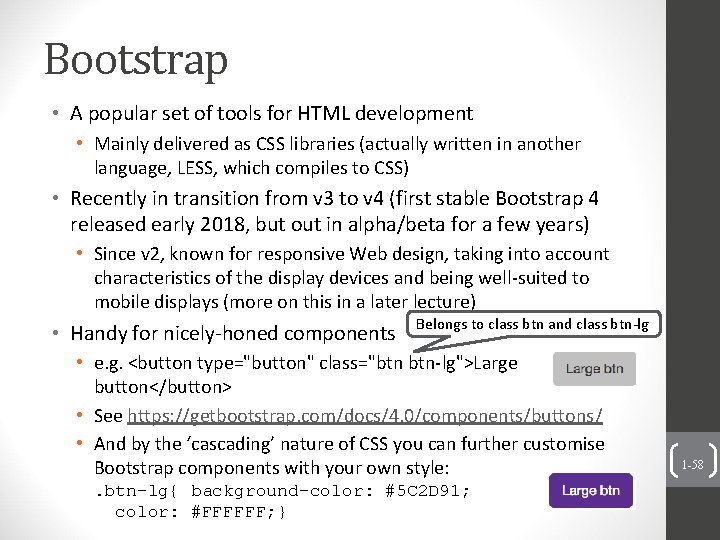
Bootstrap • A popular set of tools for HTML development • Mainly delivered as CSS libraries (actually written in another language, LESS, which compiles to CSS) • Recently in transition from v 3 to v 4 (first stable Bootstrap 4 released early 2018, but out in alpha/beta for a few years) • Since v 2, known for responsive Web design, taking into account characteristics of the display devices and being well-suited to mobile displays (more on this in a later lecture) • Handy for nicely-honed components Belongs to class btn and class btn-lg • e. g. <button type="button" class="btn btn-lg">Large button</button> • See https: //getbootstrap. com/docs/4. 0/components/buttons/ • And by the ‘cascading’ nature of CSS you can further customise Bootstrap components with your own style: . btn-lg{ background-color: #5 C 2 D 91; color: #FFFFFF; } 1 -58
Angular. JS (and others) • Angular. JS • Open toolkit (mainly developed by Google) to facilitate development of dynamic webpage based application • Uses two-way data binding of underlying data model and the view on the browser • Denoted with double curly brace notation {{ }} • Implemented as in-built event listeners to reduce the programmer’s burden • Awesome, but a bit more than we want to take on as a part of an HCI course • But, well-suited if progressing straight from prototype to production (e. g. Agile development all the way) 1 -59 • And new awesome tools and libraries come on the scene (and almost as frequently fade away) all the time
A 3 is still a design • Look over the marking criteria • If you view A 3 as a programming competition • You’ll spend too much time on it • You still might miss key sources of marks • Imagine • You have a big stake in the success of the product (salary bonus, or maybe you’re directly profit-sharing in the venture) • You’re using the prototype to convince a panel of stakeholders (other design team members including end-user rep, management and the client and/or investors) that this is the design to go with • A separate team will program the production application 1 -60
A final word (for the real world much more than A 3): Test, test, test • If you’re serious about achieving a good user experience you’ll need to try your interface over • A range of data (realistic, extreme and missing) • A range of devices (screen sizes and browser models) • If your interface prototype isn’t going to expand out to a production system directly you may go lighter on testing at this stage, or accept a few problems (but note them for the implementation programmers) • But many of problems will carry through even when implementation technology changes, esp. if you stay with a browser based solution • And testing can reveal opportunities for better solutions, not just bugs-to-fix per se • Design changes at this stage are more expensive than changes on the paper prototype, but still much cheaper than changes made later 1 -61
Summary • You can use DHTML methods to make sophisticated interaction on web pages • HTML 5 is making these methods increasingly well standardised • P. S. Have fun, but remember to focus on creating a good user experience! 62