Introduction to Linux Data Analysis Group 24 th



- Slides: 61
Introduction to Linux Data Analysis Group 24 th January 2019 dundee. ac. uk
The Data Analysis Group • Provide advice and assistance on • Experimental design • Programming • Statistics • Bioinformatics • Data analysis • Collaborate on projects • Funded through joint grant application • 'Pay-as-you-go' hourly rates • http: //dag. compbio. dundee. ac. uk James Abbott Bioinformatics/Data Analysis Group Manager Background: Genomes, variants, interface and workflow development Marek Gierlinski Bioinformatician Background: Statistics, RNA-Seq, CHi. P-Seq, Lapsed astrophysicist§ William Nicholson PRDA – Bioinformatics (co-supervised with Prof. Sara Brown) Background: Genomic data analysis, image processing and many things in between Page
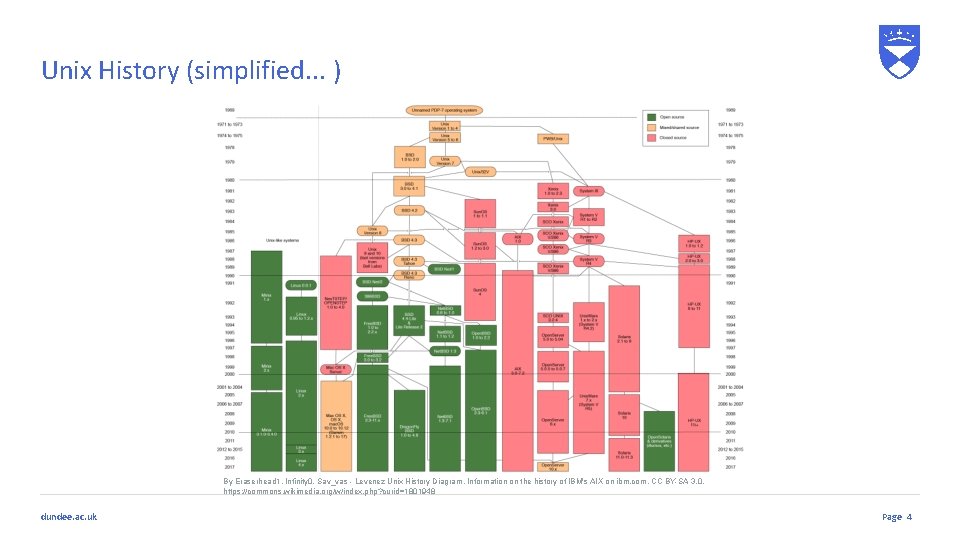
What is Unix • Multi-user operating system • Acts as interface between user and hardware • Provides secure access to resources • Original release 1969, AT & T labs • Linux: Free Unix implementation by Linux Torvalds, 1991 • Mac. OS: Based upon BSD Unix implementation • A complex history. . . dundee. ac. uk Page
Unix History (simplified. . . ) By Eraserhead 1, Infinity 0, Sav_vas - Levenez Unix History Diagram, Information on the history of IBM's AIX on ibm. com, CC BY-SA 3. 0, https: //commons. wikimedia. org/w/index. php? curid=1801948 dundee. ac. uk Page 4
Linux • Linux can be found running on • Servers • HPC systems • Desktops • Laptops • Mobile Devices • Today we will be connecting to a linux server over the network dundee. ac. uk Page 5
Logging in dundee. ac. uk
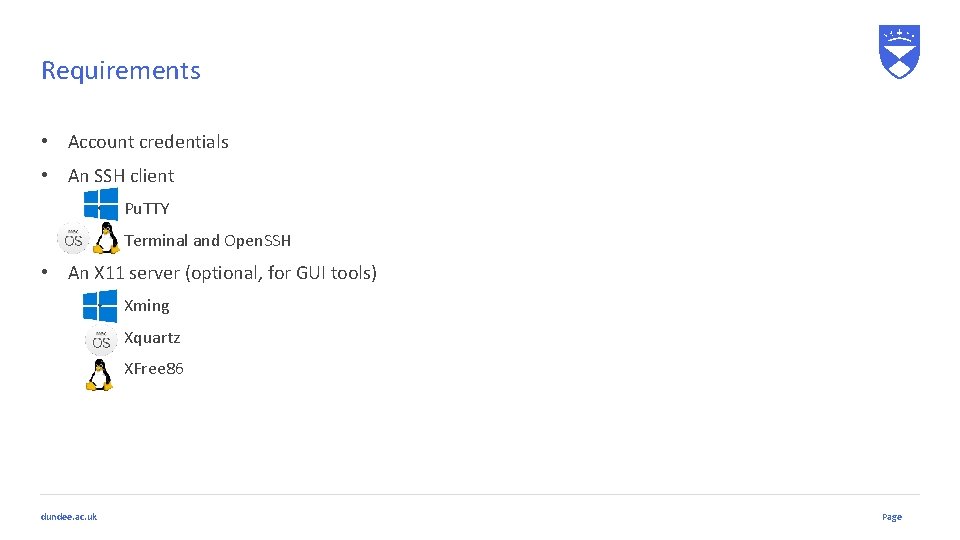
Requirements • Account credentials • An SSH client • Pu. TTY • Terminal and Open. SSH • An X 11 server (optional, for GUI tools) dundee. ac. uk • Xming • Xquartz • XFree 86 Page
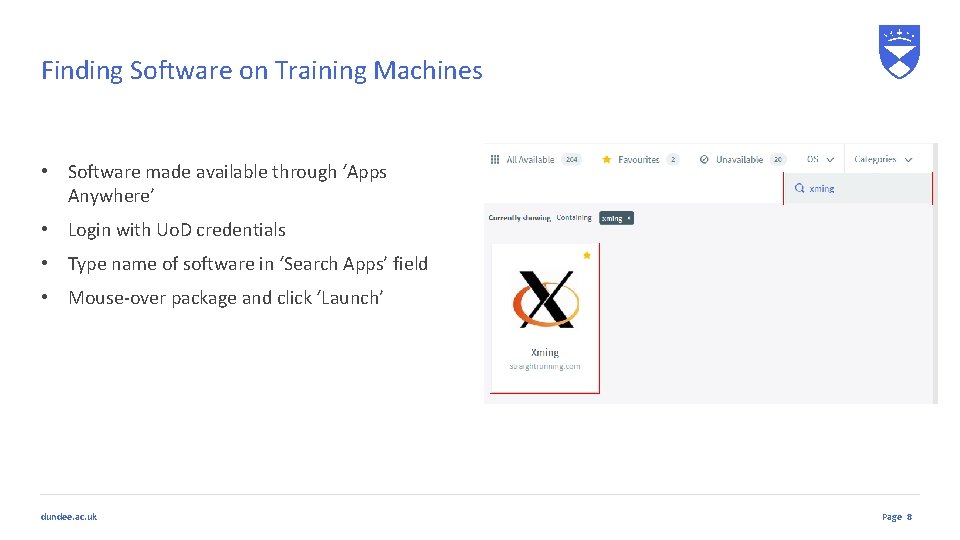
Finding Software on Training Machines • Software made available through ‘Apps Anywhere’ • Login with Uo. D credentials • Type name of software in ‘Search Apps’ field • Mouse-over package and click ‘Launch’ dundee. ac. uk Page 8
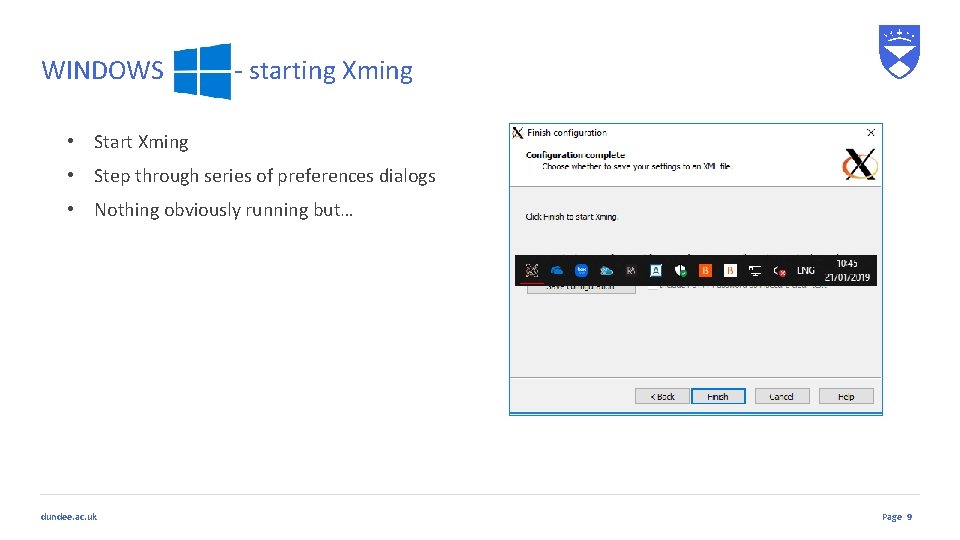
WINDOWS - starting Xming • Start Xming • Step through series of preferences dialogs • Nothing obviously running but… dundee. ac. uk Page 9
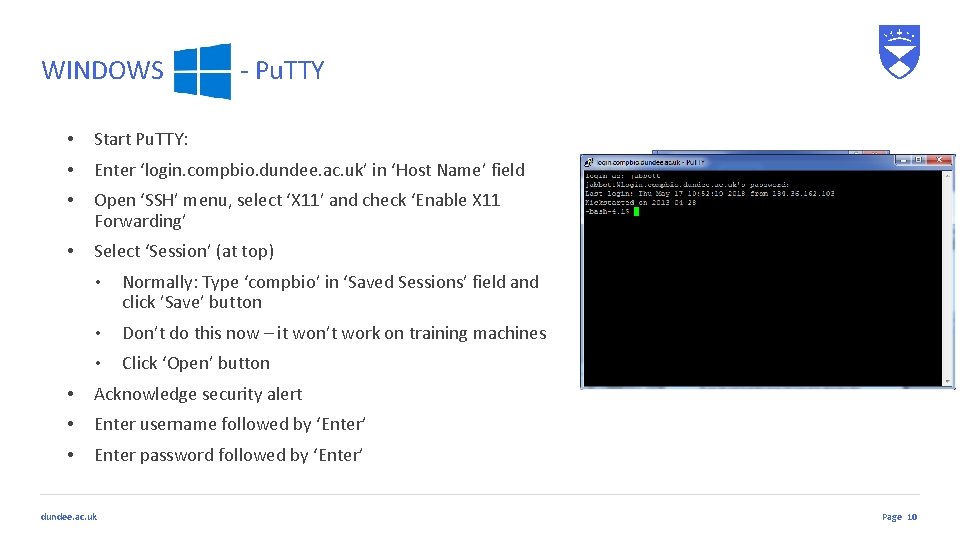
WINDOWS - Pu. TTY • Start Pu. TTY: • Enter ‘login. compbio. dundee. ac. uk’ in ‘Host Name’ field • Open ‘SSH’ menu, select ‘X 11’ and check ‘Enable X 11 Forwarding’ • Select ‘Session’ (at top) • Normally: Type ‘compbio’ in ‘Saved Sessions’ field and click ’Save’ button • Don’t do this now – it won’t work on training machines • Click ‘Open’ button • Acknowledge security alert • Enter username followed by ‘Enter’ • Enter password followed by ‘Enter’ dundee. ac. uk Page 10
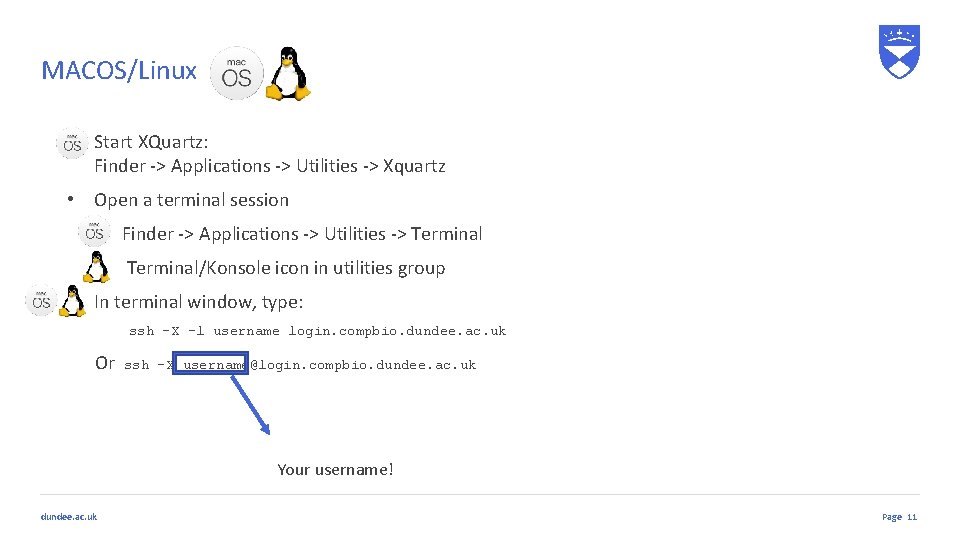
MACOS/Linux • Start XQuartz: Finder -> Applications -> Utilities -> Xquartz • Open a terminal session • Finder -> Applications -> Utilities -> Terminal • Terminal/Konsole icon in utilities group • In terminal window, type: ssh -X -l username login. compbio. dundee. ac. uk Or ssh -X username@login. compbio. dundee. ac. uk Your username! dundee. ac. uk Page 11
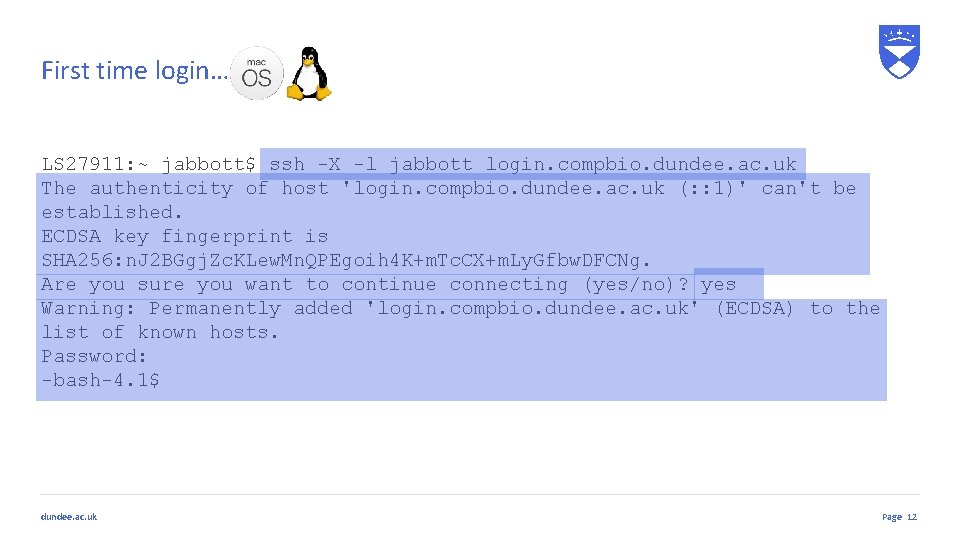
First time login… LS 27911: ~ jabbott$ ssh -X -l jabbott login. compbio. dundee. ac. uk The authenticity of host 'login. compbio. dundee. ac. uk (: : 1)' can't be established. ECDSA key fingerprint is SHA 256: n. J 2 BGgj. Zc. KLew. Mn. QPEgoih 4 K+m. Tc. CX+m. Ly. Gfbw. DFCNg. Are you sure you want to continue connecting (yes/no)? yes Warning: Permanently added 'login. compbio. dundee. ac. uk' (ECDSA) to the list of known hosts. Password: -bash-4. 1$ dundee. ac. uk Page 12
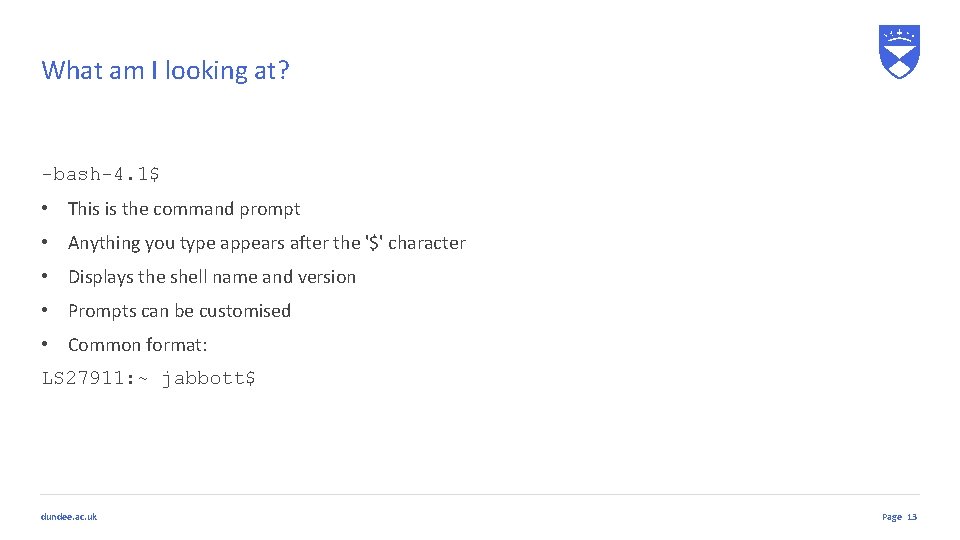
What am I looking at? -bash-4. 1$ • This is the command prompt • Anything you type appears after the '$' character • Displays the shell name and version • Prompts can be customised • Common format: LS 27911: ~ jabbott$ dundee. ac. uk Page 13
Entering Commands dundee. ac. uk 14
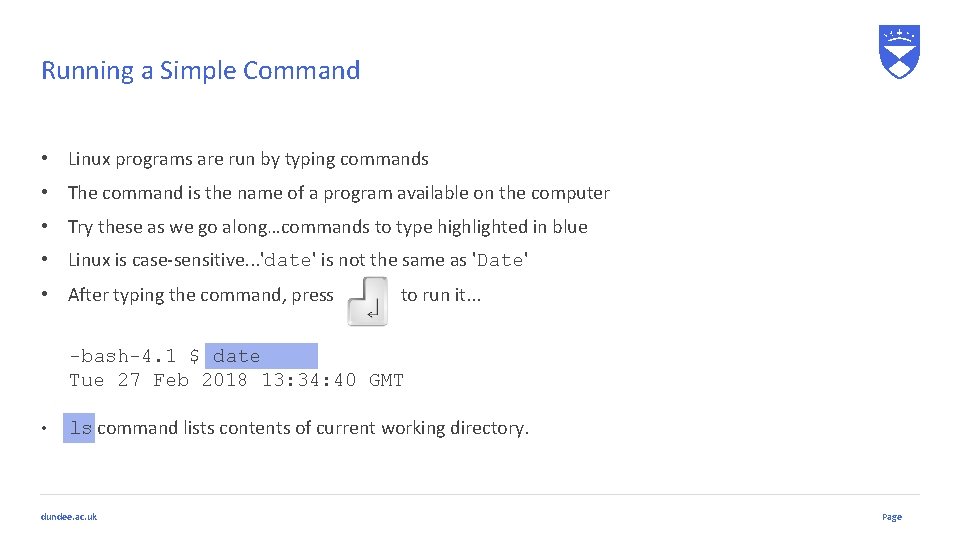
Running a Simple Command • Linux programs are run by typing commands • The command is the name of a program available on the computer • Try these as we go along…commands to type highlighted in blue • Linux is case-sensitive. . . 'date' is not the same as 'Date' • After typing the command, press to run it. . . -bash-4. 1 $ date Tue 27 Feb 2018 13: 34: 40 GMT • ls command lists contents of current working directory. dundee. ac. uk Page
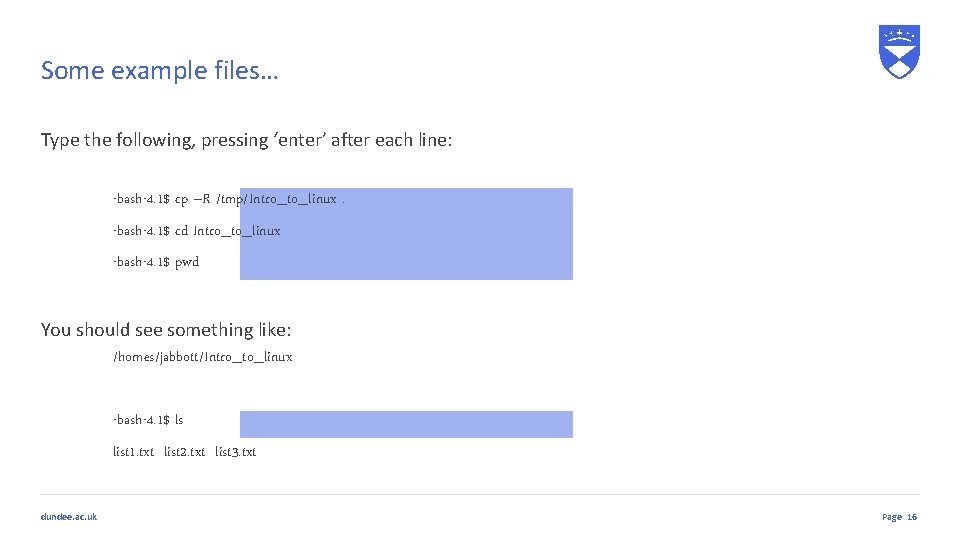
Some example files… Type the following, pressing ‘enter’ after each line: -bash-4. 1$ cp –R /tmp/Intro_to_linux. -bash-4. 1$ cd Intro_to_linux -bash-4. 1$ pwd You should see something like: /homes/jabbott/Intro_to_linux -bash-4. 1$ ls list 1. txt list 2. txt list 3. txt dundee. ac. uk Page 16
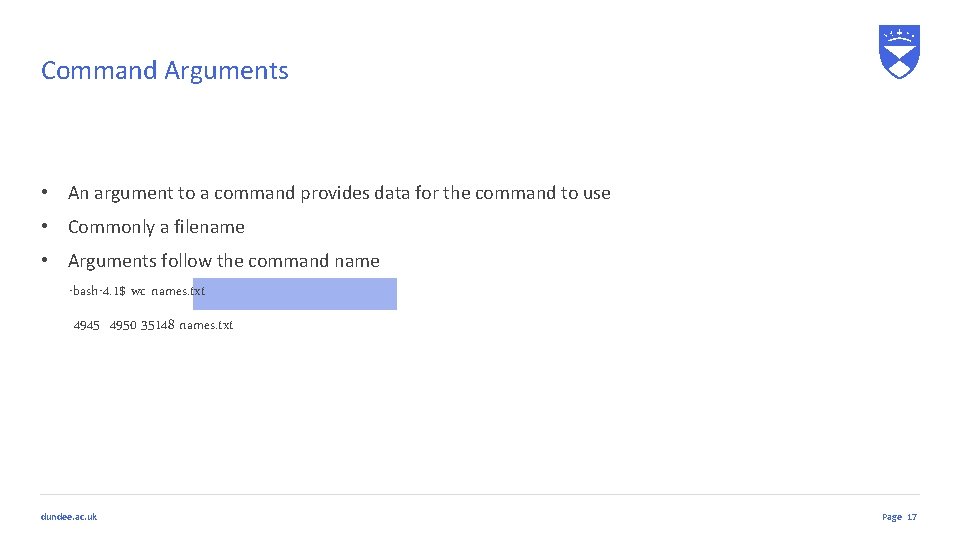
Command Arguments • An argument to a command provides data for the command to use • Commonly a filename • Arguments follow the command name -bash-4. 1$ wc names. txt 4945 4950 35148 names. txt dundee. ac. uk Page 17
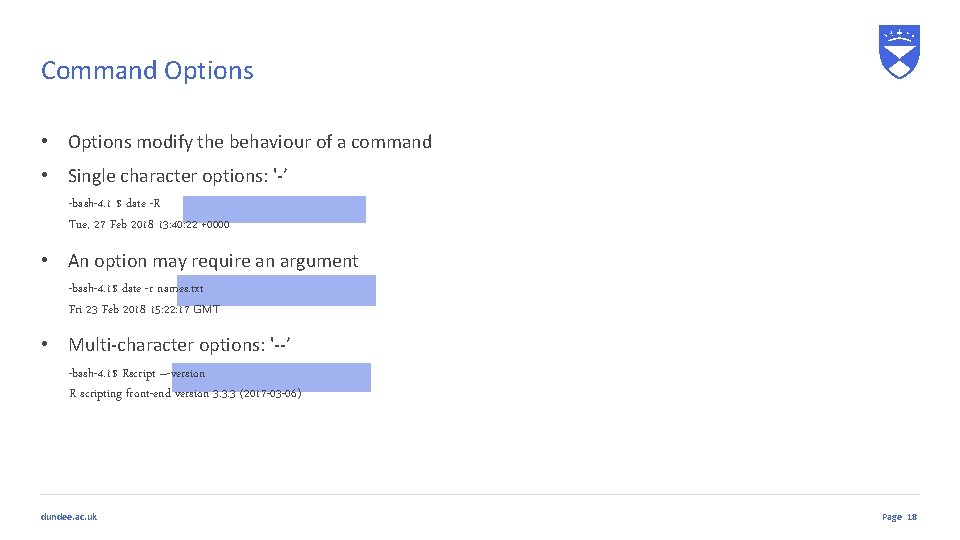
Command Options • Options modify the behaviour of a command • Single character options: '-’ -bash-4. 1 $ date -R Tue, 27 Feb 2018 13: 40: 22 +0000 • An option may require an argument -bash-4. 1$ date -r names. txt Fri 23 Feb 2018 15: 22: 17 GMT • Multi-character options: '--’ -bash-4. 1$ Rscript –-version R scripting front-end version 3. 3. 3 (2017 -03 -06) dundee. ac. uk Page 18
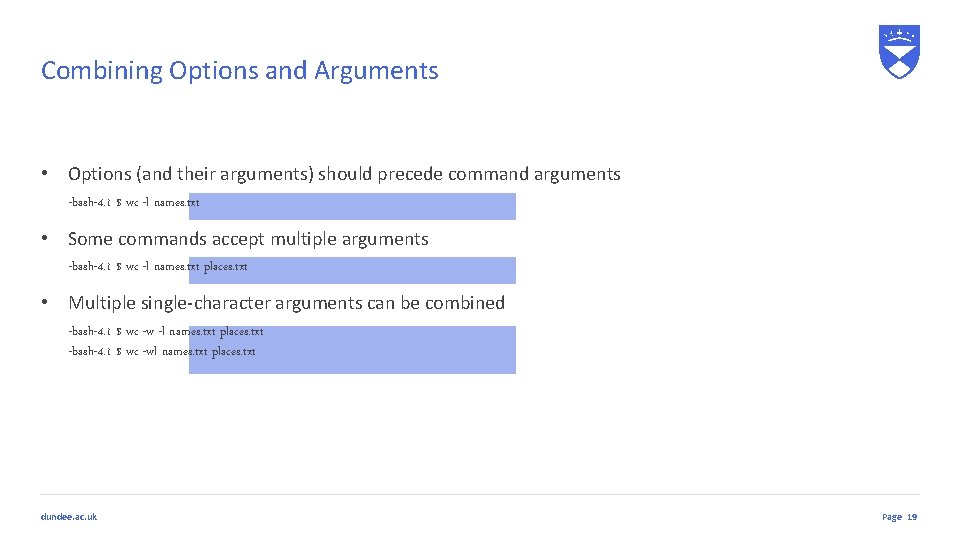
Combining Options and Arguments • Options (and their arguments) should precede command arguments -bash-4. 1 $ wc -l names. txt • Some commands accept multiple arguments -bash-4. 1 $ wc -l names. txt places. txt • Multiple single-character arguments can be combined -bash-4. 1 $ wc -w -l names. txt places. txt -bash-4. 1 $ wc -wl names. txt places. txt dundee. ac. uk Page 19
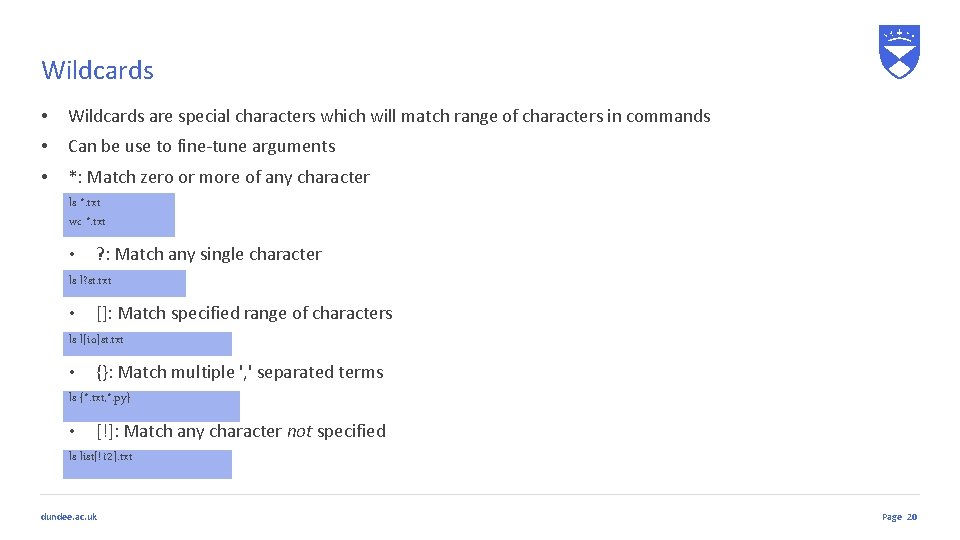
Wildcards • Wildcards are special characters which will match range of characters in commands • Can be use to fine-tune arguments • *: Match zero or more of any character ls *. txt wc *. txt • ? : Match any single character ls l? st. txt • []: Match specified range of characters ls l[io]st. txt • {}: Match multiple ', ' separated terms ls {*. txt, *. py} • [!]: Match any character not specified ls list[!12]. txt dundee. ac. uk Page 20
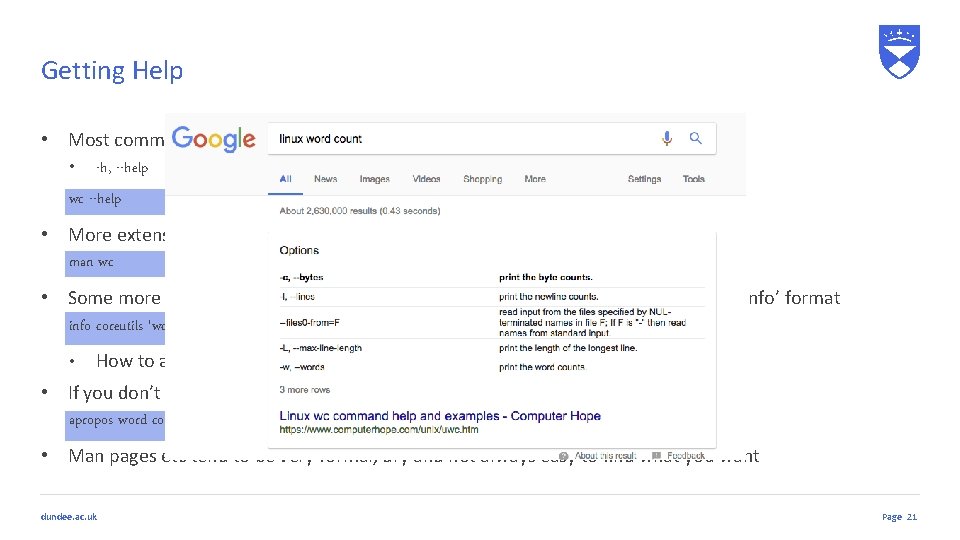
Getting Help • Most commands offer some brief help explaining their usage: • -h, --help wc --help • More extensive documentation available in a man page man wc • Some more complex programs provide even more extensive documentation in ‘Texinfo’ format info coreutils 'wc invocation' • How to access this will be described in a ‘SEE ALSO’ section of the man page • If you don’t know the command you need: apropos word count • Man pages etc tend to be very formal, dry and not always easy to find what you want dundee. ac. uk Page 21
Files and Directories dundee. ac. uk 22
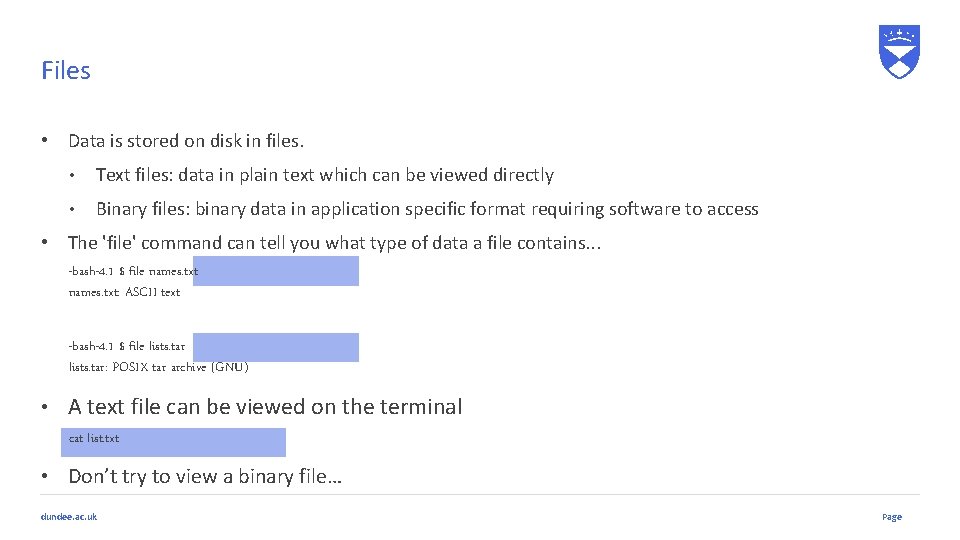
Files • Data is stored on disk in files. • Text files: data in plain text which can be viewed directly • Binary files: binary data in application specific format requiring software to access • The 'file' command can tell you what type of data a file contains. . . -bash-4. 1 $ file names. txt: ASCII text -bash-4. 1 $ file lists. tar: POSIX tar archive (GNU) • A text file can be viewed on the terminal cat list. txt • Don’t try to view a binary file… dundee. ac. uk Page
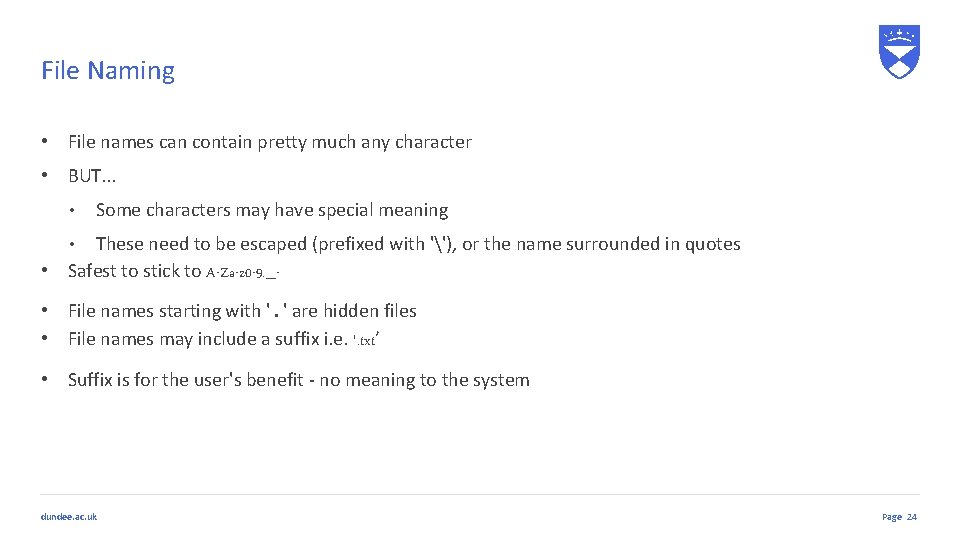
File Naming • File names can contain pretty much any character • BUT. . . • Some characters may have special meaning These need to be escaped (prefixed with ''), or the name surrounded in quotes • Safest to stick to A-Za-z 0 -9. _ • • File names starting with '. ' are hidden files • File names may include a suffix i. e. '. txt’ • Suffix is for the user's benefit - no meaning to the system dundee. ac. uk Page 24
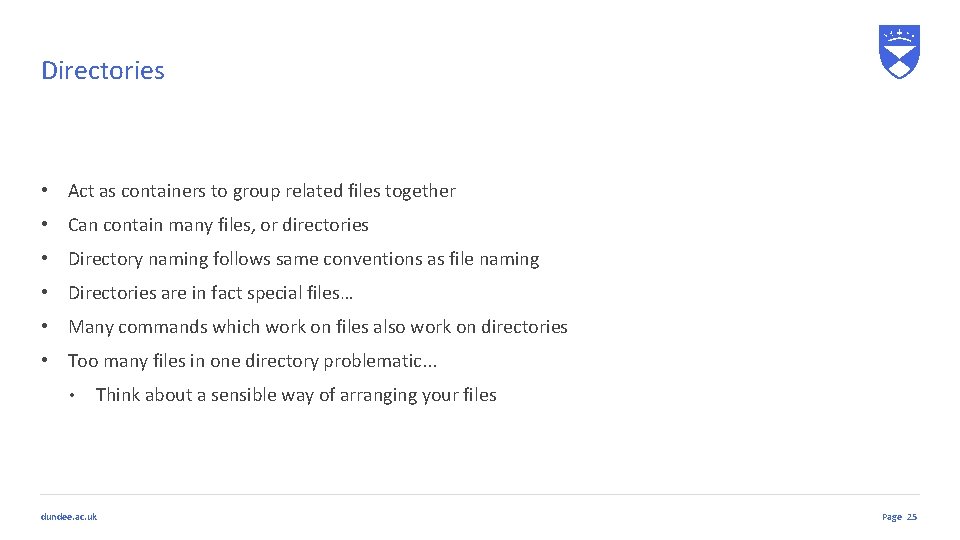
Directories • Act as containers to group related files together • Can contain many files, or directories • Directory naming follows same conventions as file naming • Directories are in fact special files… • Many commands which work on files also work on directories • Too many files in one directory problematic. . . • Think about a sensible way of arranging your files dundee. ac. uk Page 25
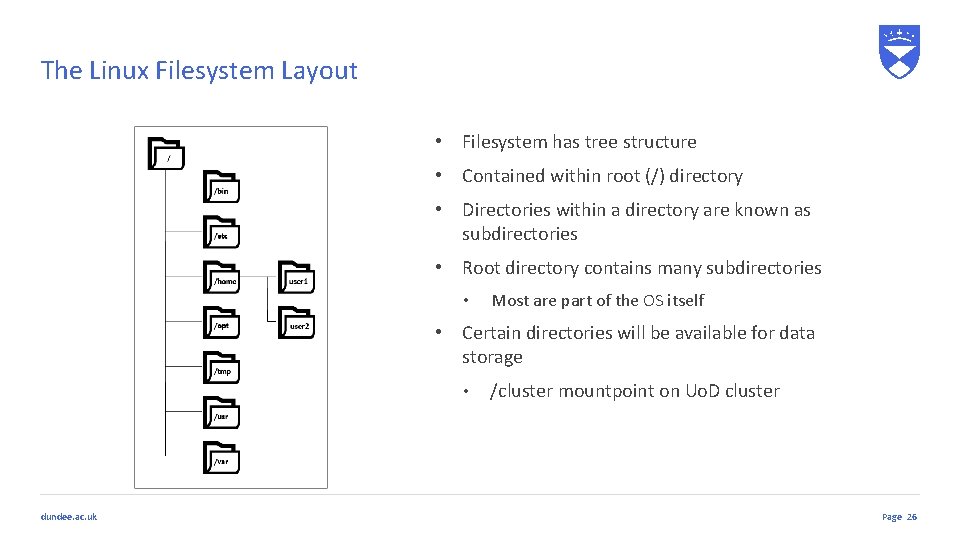
The Linux Filesystem Layout • Filesystem has tree structure • Contained within root (/) directory • Directories within a directory are known as subdirectories • Root directory contains many subdirectories • Most are part of the OS itself • Certain directories will be available for data storage • dundee. ac. uk /cluster mountpoint on Uo. D cluster Page 26
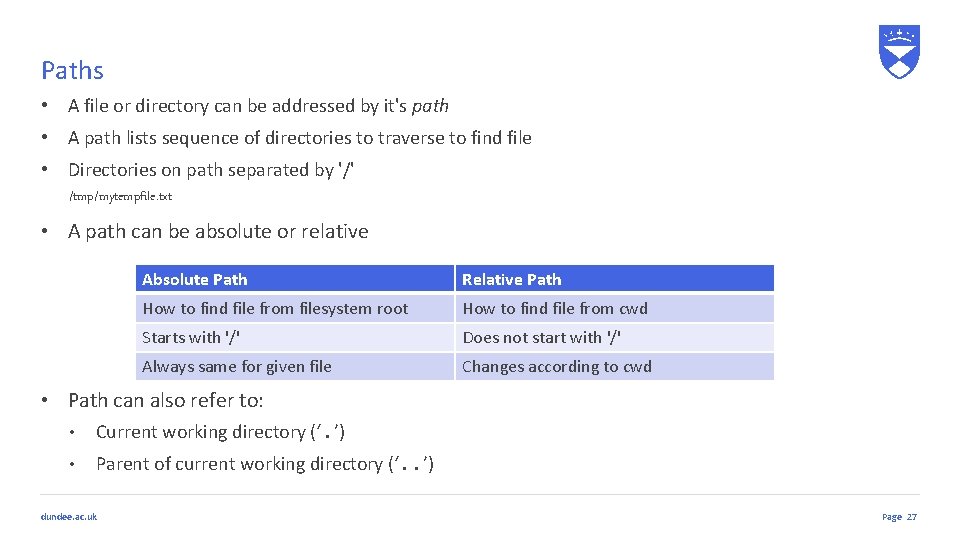
Paths • A file or directory can be addressed by it's path • A path lists sequence of directories to traverse to find file • Directories on path separated by '/' /tmp/mytempfile. txt • A path can be absolute or relative Absolute Path Relative Path How to find file from filesystem root How to find file from cwd Starts with '/' Does not start with '/' Always same for given file Changes according to cwd • Path can also refer to: • Current working directory (‘. ’) • Parent of current working directory (‘. . ’) dundee. ac. uk Page 27
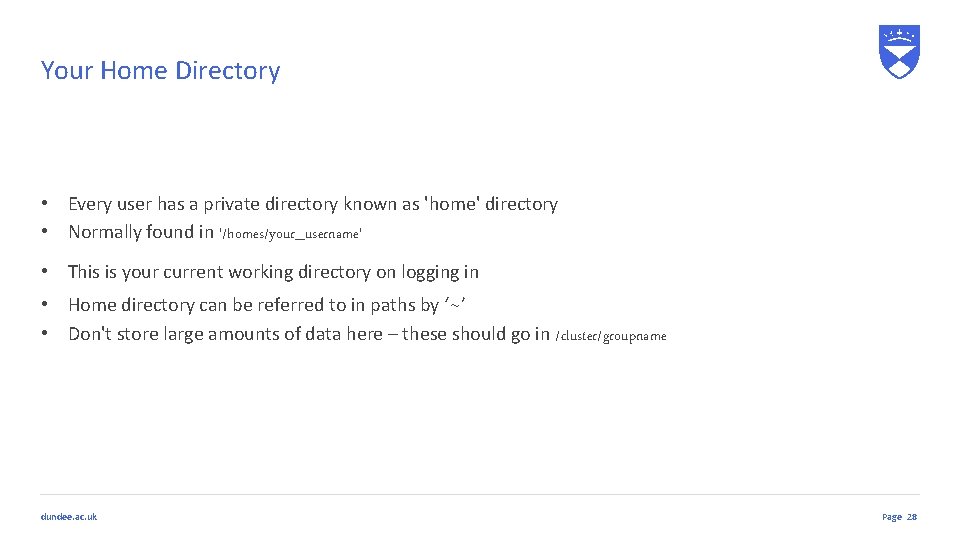
Your Home Directory • Every user has a private directory known as 'home' directory • Normally found in '/homes/your_username' • This is your current working directory on logging in • Home directory can be referred to in paths by ‘~’ • Don't store large amounts of data here – these should go in /cluster/groupname dundee. ac. uk Page 28
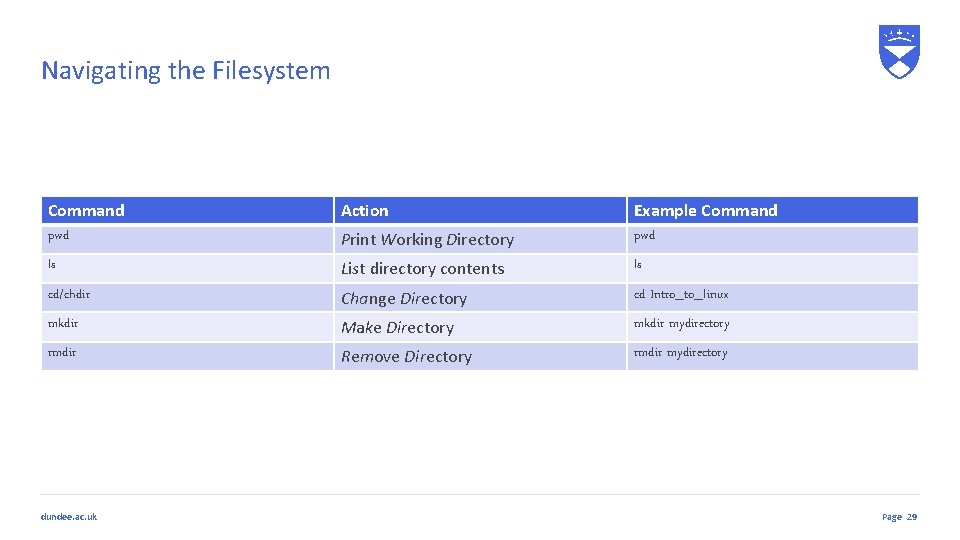
Navigating the Filesystem Command pwd Action Print Working Directory Example Command pwd ls List directory contents ls cd/chdir Change Directory cd Intro_to_linux mkdir Make Directory mkdir mydirectory rmdir Remove Directory rmdir mydirectory dundee. ac. uk Page 29
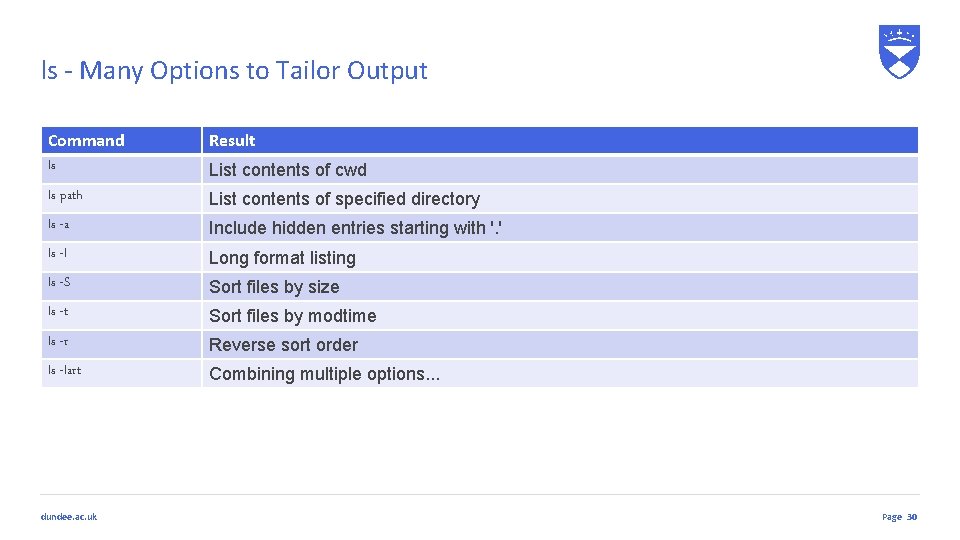
ls - Many Options to Tailor Output Command ls Result ls path List contents of specified directory ls -a Include hidden entries starting with '. ' ls -l Long format listing ls -S Sort files by size ls -t Sort files by modtime ls -r Reverse sort order ls -lart Combining multiple options. . . dundee. ac. uk List contents of cwd Page 30
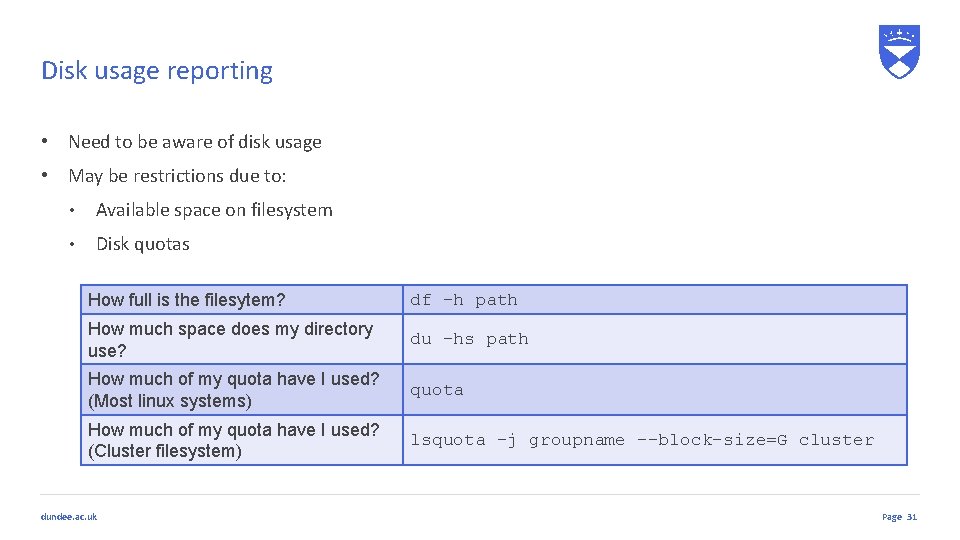
Disk usage reporting • Need to be aware of disk usage • May be restrictions due to: • Available space on filesystem • Disk quotas How full is the filesytem? df -h path How much space does my directory use? du -hs path How much of my quota have I used? (Most linux systems) quota How much of my quota have I used? (Cluster filesystem) lsquota -j groupname --block-size=G cluster dundee. ac. uk Page 31
Users and Permissions dundee. ac. uk 32
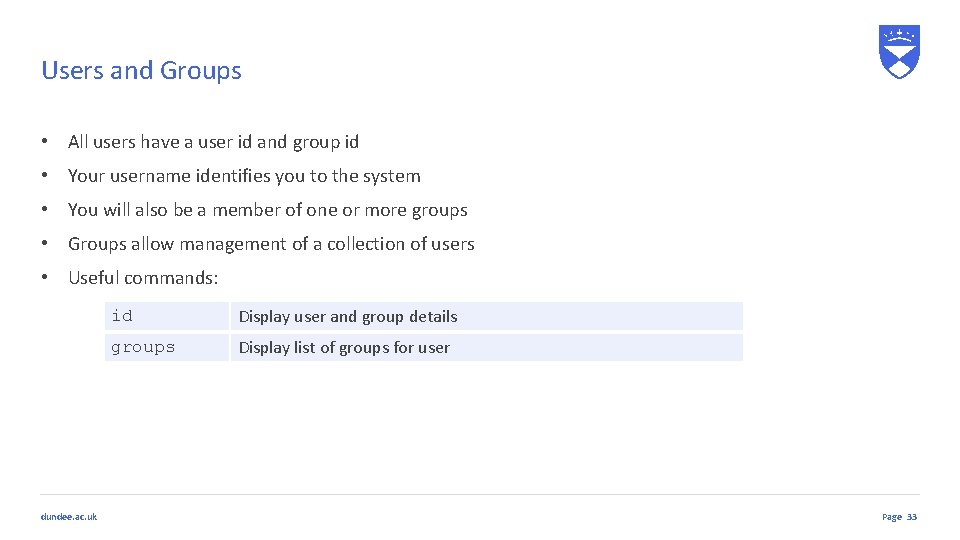
Users and Groups • All users have a user id and group id • Your username identifies you to the system • You will also be a member of one or more groups • Groups allow management of a collection of users • Useful commands: dundee. ac. uk id Display user and group details groups Display list of groups for user Page 33
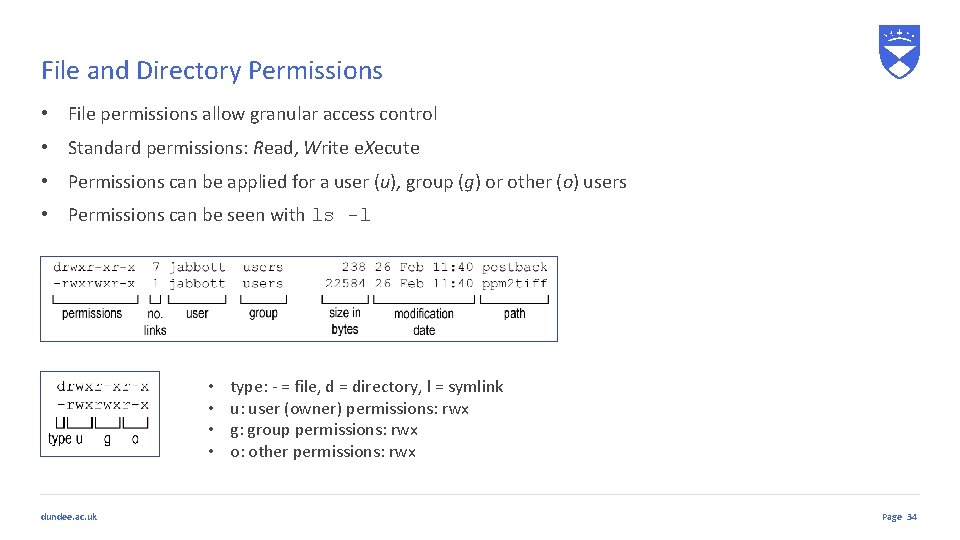
File and Directory Permissions • File permissions allow granular access control • Standard permissions: Read, Write e. Xecute • Permissions can be applied for a user (u), group (g) or other (o) users • Permissions can be seen with ls -l • • dundee. ac. uk type: - = file, d = directory, l = symlink u: user (owner) permissions: rwx g: group permissions: rwx o: other permissions: rwx Page 34
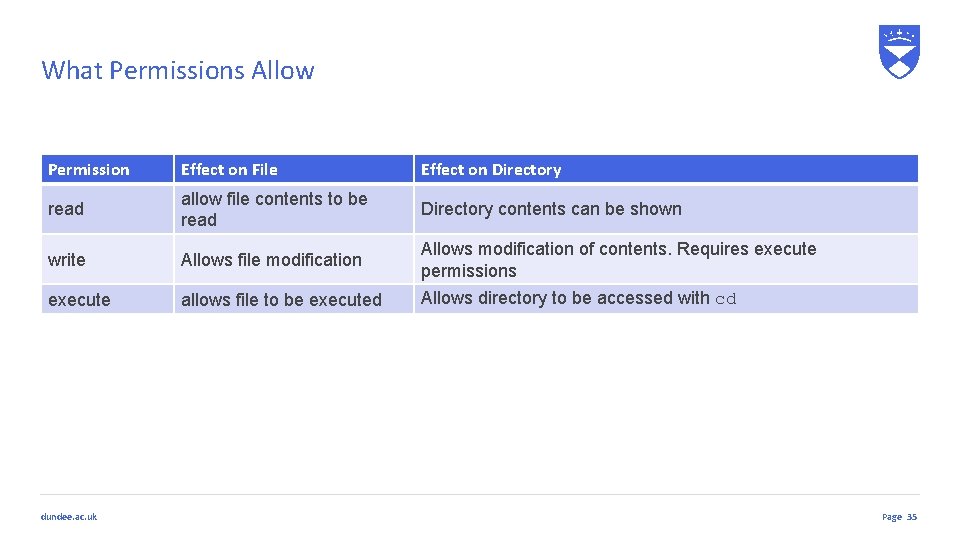
What Permissions Allow Permission Effect on File Effect on Directory read allow file contents to be read Directory contents can be shown write Allows file modification Allows modification of contents. Requires execute permissions execute allows file to be executed Allows directory to be accessed with cd dundee. ac. uk Page 35
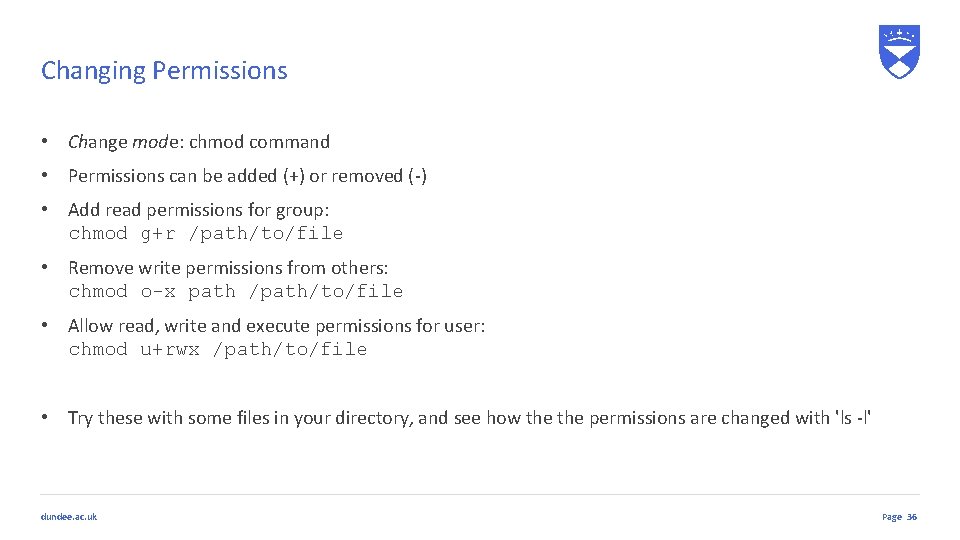
Changing Permissions • Change mode: chmod command • Permissions can be added (+) or removed (-) • Add read permissions for group: chmod g+r /path/to/file • Remove write permissions from others: chmod o-x path /path/to/file • Allow read, write and execute permissions for user: chmod u+rwx /path/to/file • Try these with some files in your directory, and see how the permissions are changed with 'ls -l' dundee. ac. uk Page 36
Working with files dundee. ac. uk 37
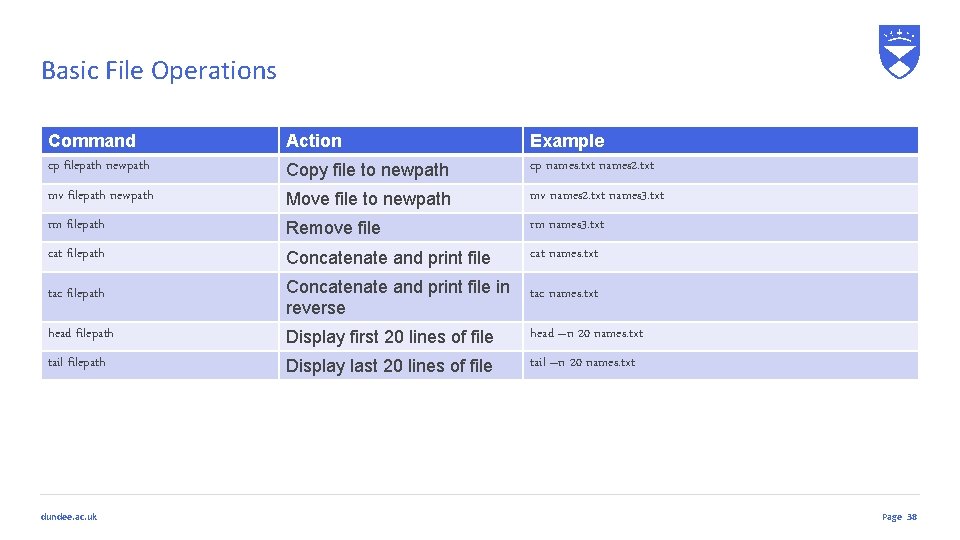
Basic File Operations Command cp filepath newpath Action Copy file to newpath Example cp names. txt names 2. txt mv filepath newpath Move file to newpath mv names 2. txt names 3. txt rm filepath Remove file rm names 3. txt cat filepath Concatenate and print file cat names. txt tac filepath head filepath Concatenate and print file in tac names. txt reverse head –n 20 names. txt Display first 20 lines of file tail filepath Display last 20 lines of file dundee. ac. uk tail –n 20 names. txt Page 38
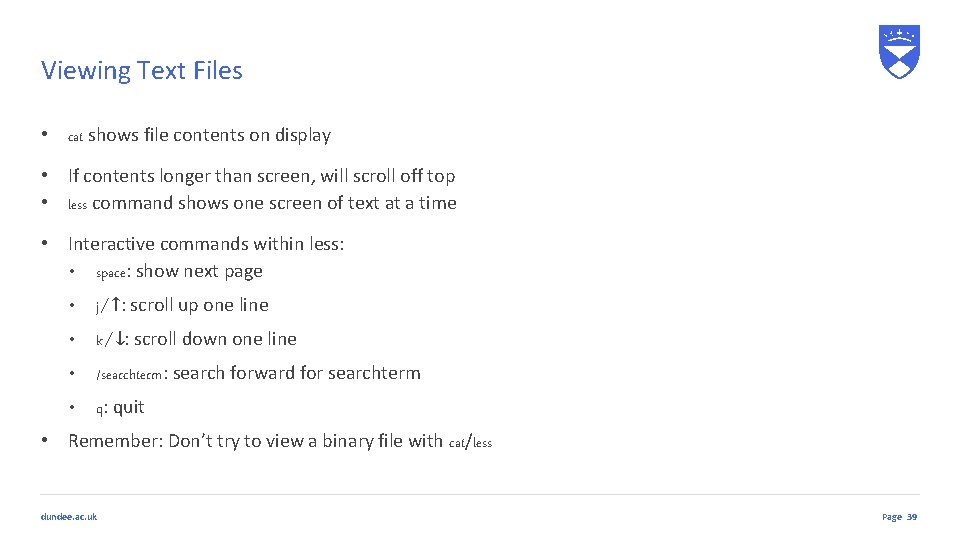
Viewing Text Files • cat shows file contents on display • If contents longer than screen, will scroll off top • less command shows one screen of text at a time • Interactive commands within less: • space: show next page • j/↑: scroll up one line • k/↓: scroll down one line • /searchterm: search forward for searchterm • q: quit • Remember: Don’t try to view a binary file with cat/less dundee. ac. uk Page 39
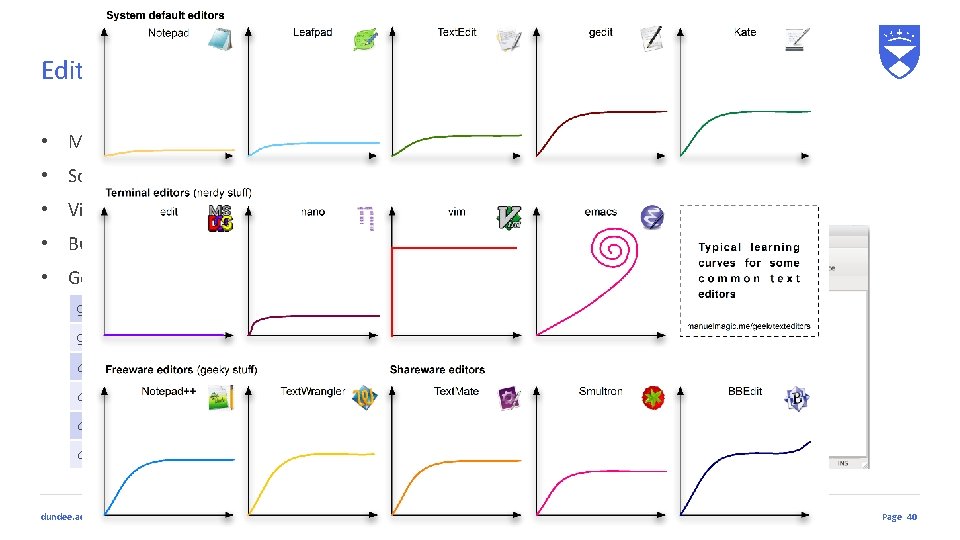
Editing Text Files • Many editors available. . . • Some don't need X 11 • Vi/emacs extremely powerful • But… • Gedit easier to get to grips with… gedit Open new empty file gedit list. txt Open existing file ctrl-o open file ctrl-n new file ctrl-s save file ctrl-q quit dundee. ac. uk Page 40
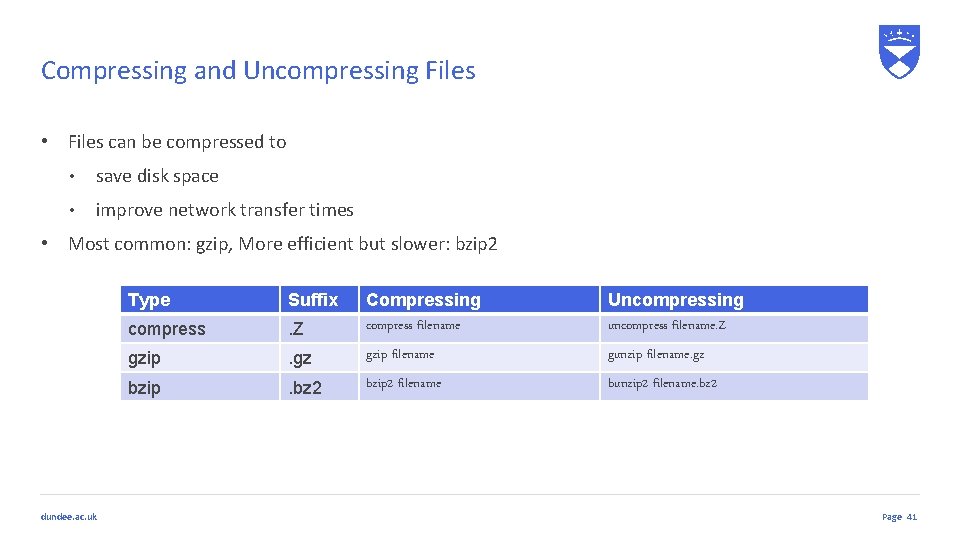
Compressing and Uncompressing Files • Files can be compressed to • save disk space • improve network transfer times • Most common: gzip, More efficient but slower: bzip 2 dundee. ac. uk Type Suffix. Z Compressing compress filename Uncompressing uncompress filename. Z compress gzip . gz gzip filename gunzip filename. gz bzip . bz 2 bzip 2 filename bunzip 2 filename. bz 2 Page 41
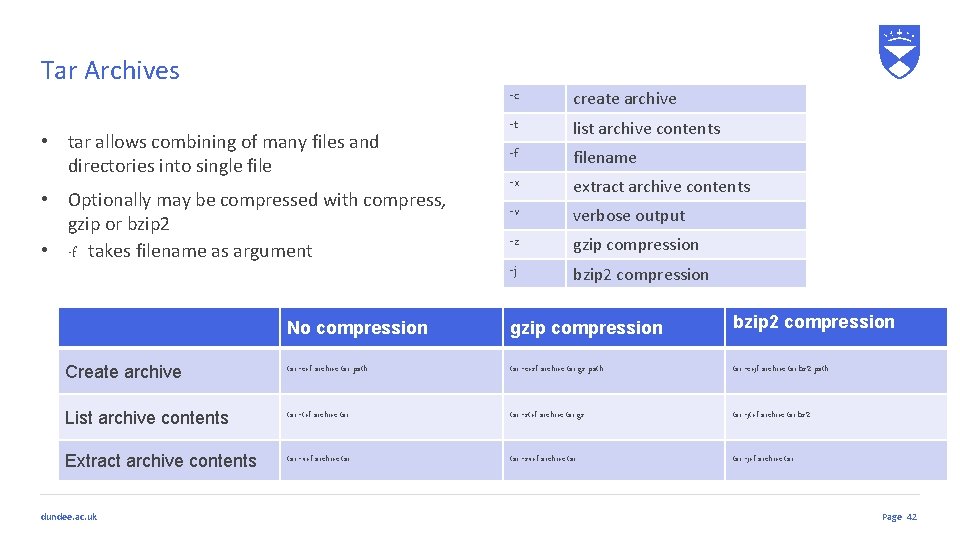
Tar Archives • tar allows combining of many files and directories into single file • Optionally may be compressed with compress, gzip or bzip 2 • -f takes filename as argument -c create archive -t list archive contents -f filename -x extract archive contents -v verbose output -z gzip compression -j bzip 2 compression No compression gzip compression bzip 2 compression Create archive tar -cvf archive. tar path tar -cvzf archive. tar. gz path tar -cvjf archive. tar. bz 2 path List archive contents tar -tvf archive. tar -ztvf archive. tar. gz tar -jtvf archive. tar. bz 2 Extract archive contents tar -xvf archive. tar -zxvf archive. tar -jvf archive. tar dundee. ac. uk Page 42
Managing Command Outputs dundee. ac. uk 43
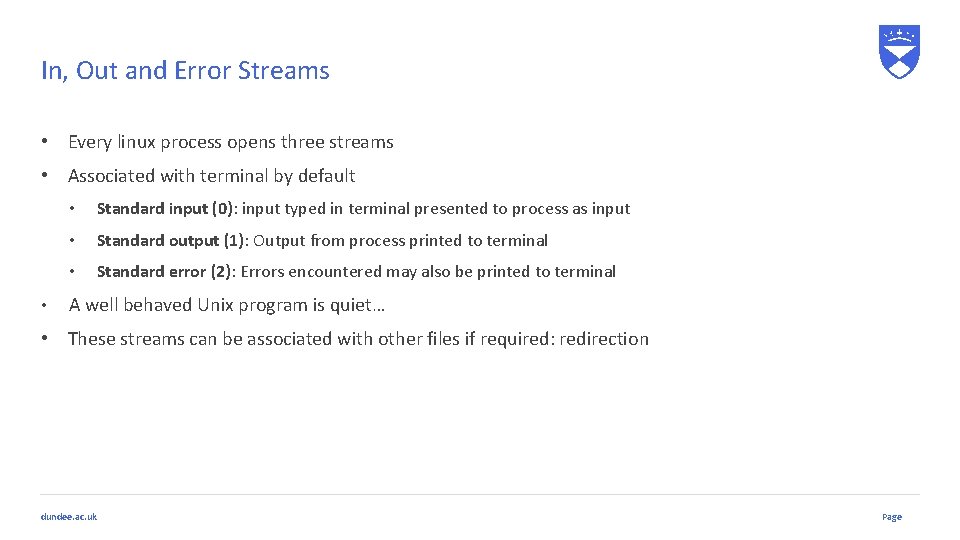
In, Out and Error Streams • Every linux process opens three streams • Associated with terminal by default • • Standard input (0): input typed in terminal presented to process as input • Standard output (1): Output from process printed to terminal • Standard error (2): Errors encountered may also be printed to terminal A well behaved Unix program is quiet… • These streams can be associated with other files if required: redirection dundee. ac. uk Page
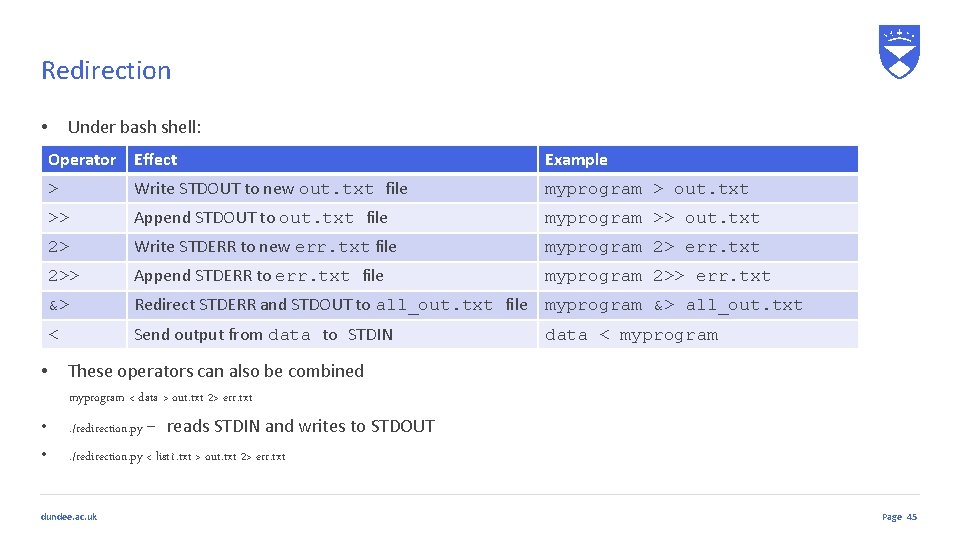
Redirection Under bash shell: • Operator Effect • Example > Write STDOUT to new out. txt file myprogram > out. txt >> Append STDOUT to out. txt file myprogram >> out. txt 2> Write STDERR to new err. txt file myprogram 2> err. txt 2>> Append STDERR to err. txt file myprogram 2>> err. txt &> Redirect STDERR and STDOUT to all_out. txt file myprogram &> all_out. txt < Send output from data to STDIN data < myprogram These operators can also be combined myprogram < data > out. txt 2> err. txt • . /redirection. py – reads STDIN and writes to STDOUT • . /redirection. py < list 1. txt > out. txt 2> err. txt dundee. ac. uk Page 45
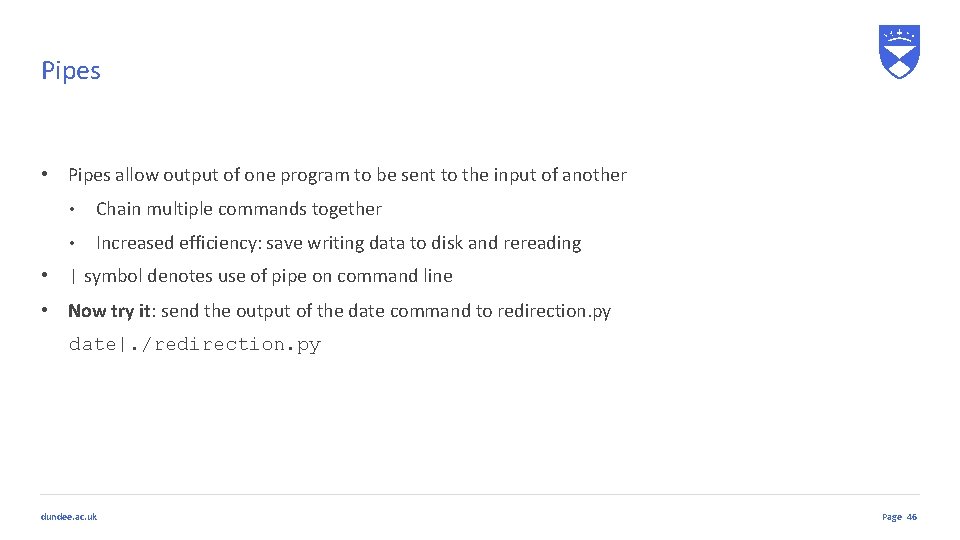
Pipes • Pipes allow output of one program to be sent to the input of another • Chain multiple commands together • Increased efficiency: save writing data to disk and rereading • | symbol denotes use of pipe on command line • Now try it: send the output of the date command to redirection. py date|. /redirection. py dundee. ac. uk Page 46
Process Management dundee. ac. uk 47
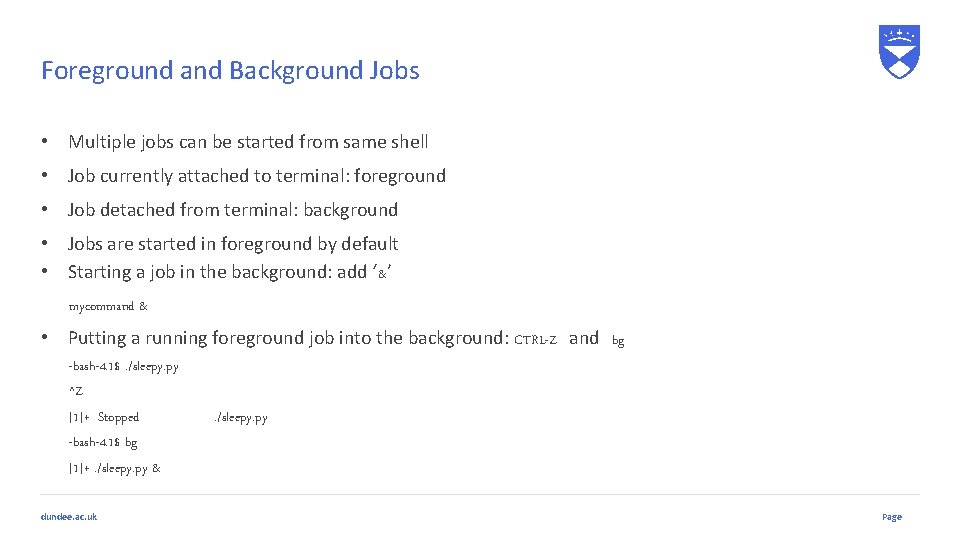
Foreground and Background Jobs • Multiple jobs can be started from same shell • Job currently attached to terminal: foreground • Job detached from terminal: background • Jobs are started in foreground by default • Starting a job in the background: add ‘&’ mycommand & • Putting a running foreground job into the background: CTRL-Z and bg -bash-4. 1$. /sleepy. py ^Z [1]+ Stopped -bash-4. 1$ bg [1]+. /sleepy. py & dundee. ac. uk . /sleepy. py Page
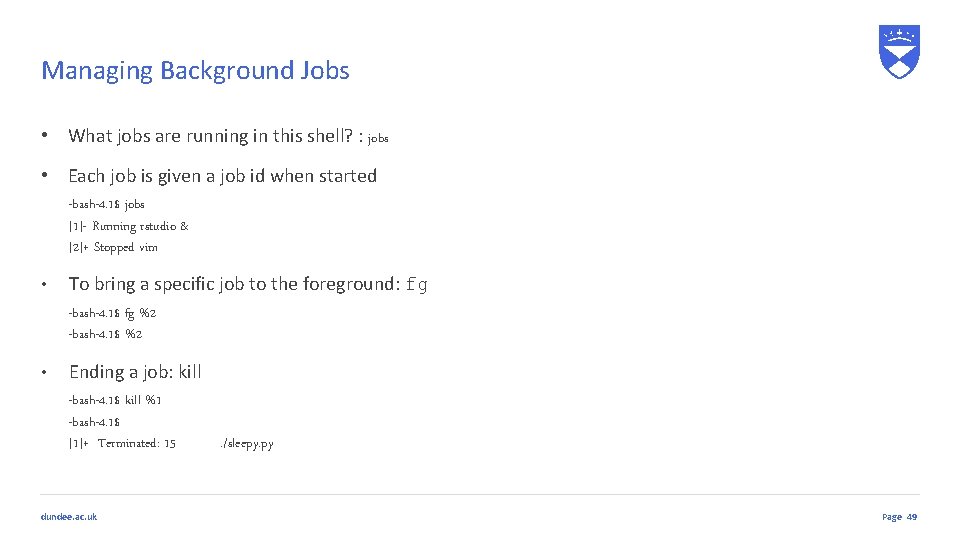
Managing Background Jobs • What jobs are running in this shell? : jobs • Each job is given a job id when started -bash-4. 1$ jobs [1]- Running rstudio & [2]+ Stopped vim • To bring a specific job to the foreground: fg -bash-4. 1$ fg %2 -bash-4. 1$ %2 • Ending a job: kill -bash-4. 1$ kill %1 -bash-4. 1$ [1]+ Terminated: 15 dundee. ac. uk . /sleepy. py Page 49
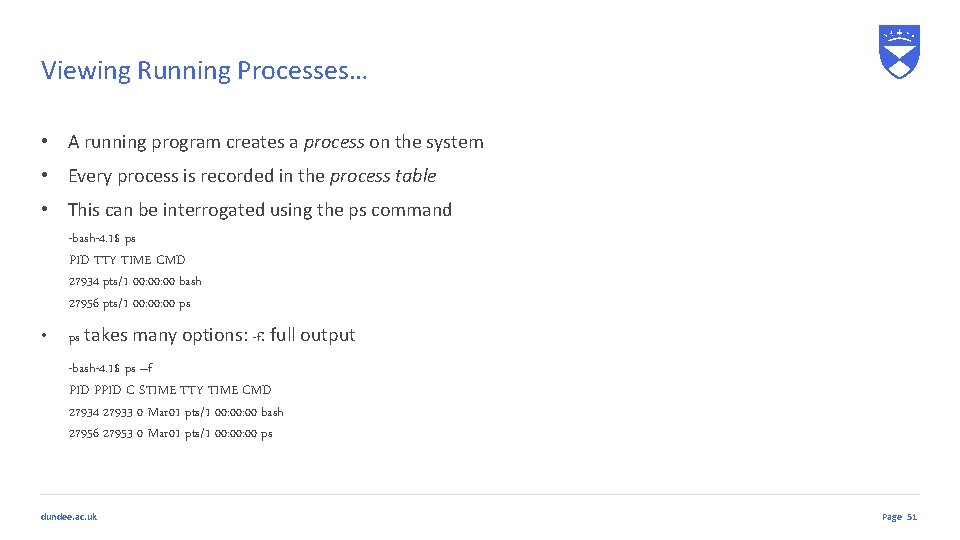
Viewing Running Processes… • A running program creates a process on the system • Every process is recorded in the process table • This can be interrogated using the ps command -bash-4. 1$ ps PID TTY TIME CMD 27934 pts/1 00: 00 bash 27956 pts/1 00: 00 ps • ps takes many options: -f: full output -bash-4. 1$ ps –f PID PPID C STIME TTY TIME CMD 27934 27933 0 Mar 01 pts/1 00: 00 bash 27956 27953 0 Mar 01 pts/1 00: 00 ps dundee. ac. uk Page 51
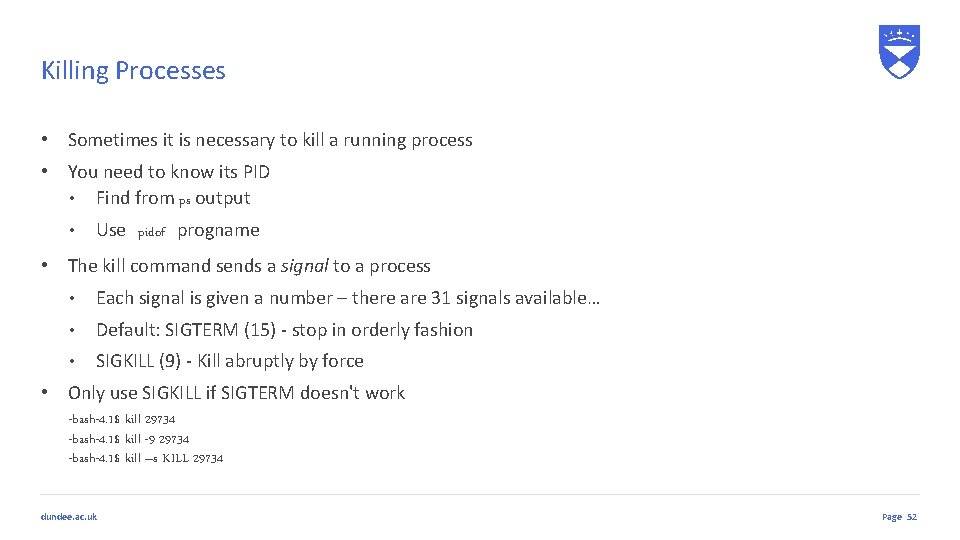
Killing Processes • Sometimes it is necessary to kill a running process • You need to know its PID • Find from ps output • Use pidof progname • The kill command sends a signal to a process • Each signal is given a number – there are 31 signals available… • Default: SIGTERM (15) - stop in orderly fashion • SIGKILL (9) - Kill abruptly by force • Only use SIGKILL if SIGTERM doesn't work -bash-4. 1$ kill 29734 -bash-4. 1$ kill -9 29734 -bash-4. 1$ kill –s KILL 29734 dundee. ac. uk Page 52
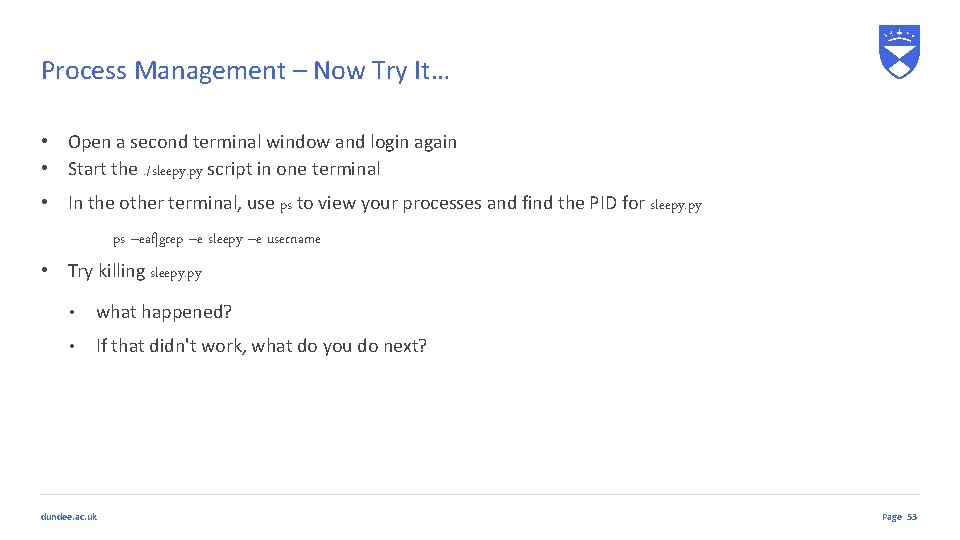
Process Management – Now Try It… • Open a second terminal window and login again • Start the. /sleepy. py script in one terminal • In the other terminal, use ps to view your processes and find the PID for sleepy. py ps –eaf|grep –e sleepy –e username • Try killing sleepy. py • what happened? • If that didn't work, what do you do next? dundee. ac. uk Page 53
Transferring Data dundee. ac. uk 54
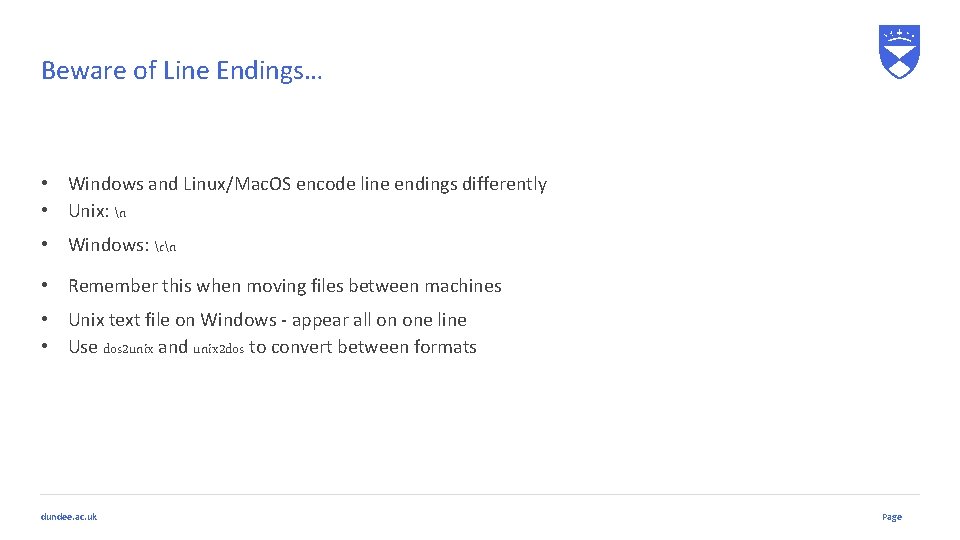
Beware of Line Endings… • Windows and Linux/Mac. OS encode line endings differently • Unix: n • Windows: rn • Remember this when moving files between machines • Unix text file on Windows - appear all on one line • Use dos 2 unix and unix 2 dos to convert between formats dundee. ac. uk Page
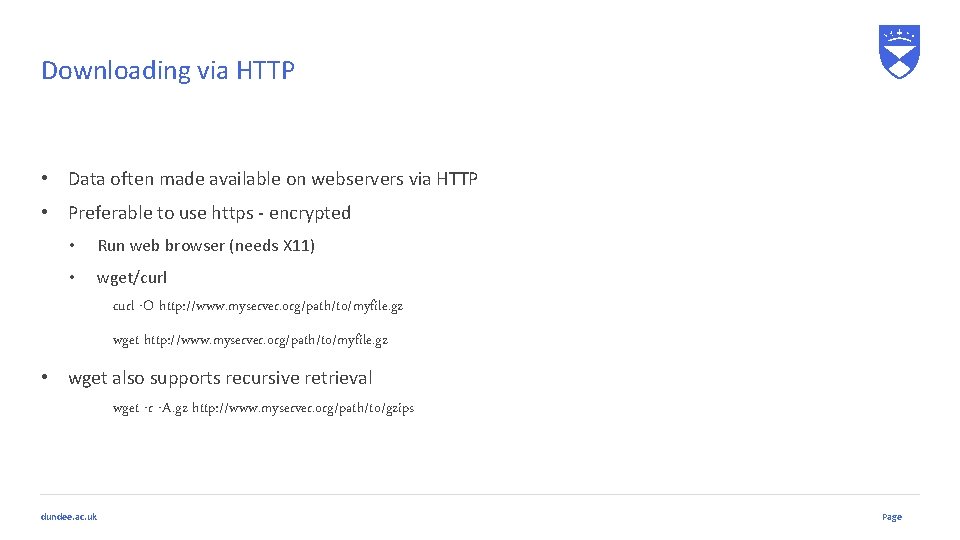
Downloading via HTTP • Data often made available on webservers via HTTP • Preferable to use https - encrypted • Run web browser (needs X 11) • wget/curl -O http: //www. myserver. org/path/to/myfile. gz wget http: //www. myserver. org/path/to/myfile. gz • wget also supports recursive retrieval wget -r -A. gz http: //www. myserver. org/path/to/gzips dundee. ac. uk Page
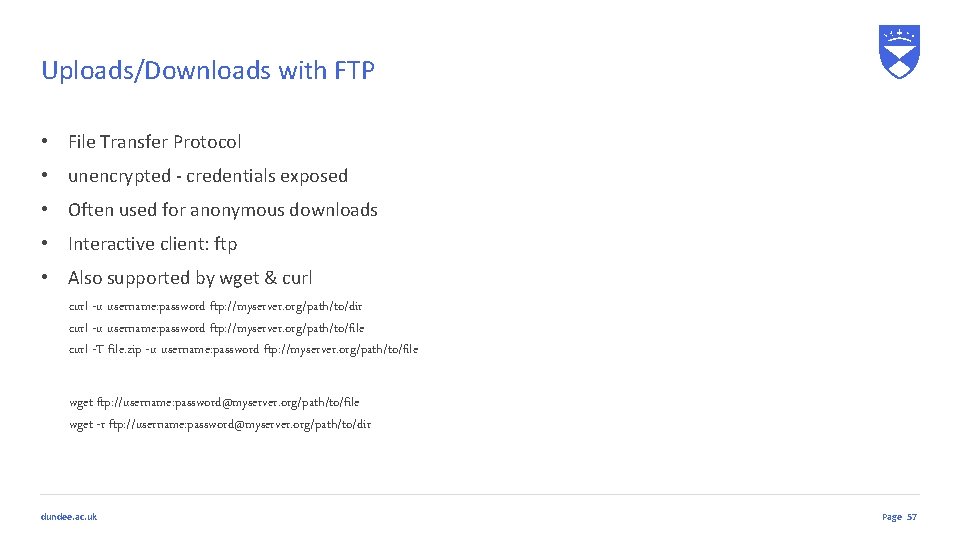
Uploads/Downloads with FTP • File Transfer Protocol • unencrypted - credentials exposed • Often used for anonymous downloads • Interactive client: ftp • Also supported by wget & curl -u username: password ftp: //myserver. org/path/to/dir curl -u username: password ftp: //myserver. org/path/to/file curl -T file. zip -u username: password ftp: //myserver. org/path/to/file wget ftp: //username: password@myserver. org/path/to/file wget -r ftp: //username: password@myserver. org/path/to/dir dundee. ac. uk Page 57
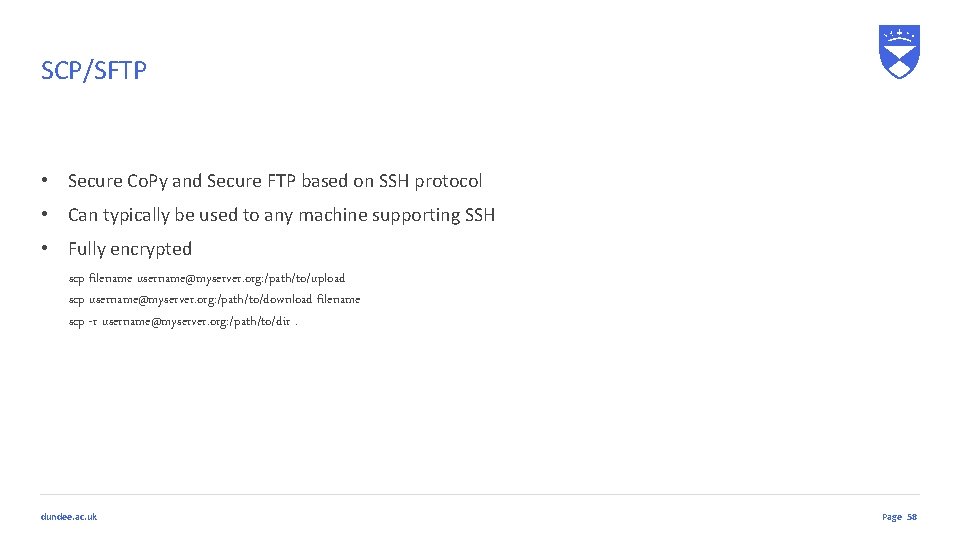
SCP/SFTP • Secure Co. Py and Secure FTP based on SSH protocol • Can typically be used to any machine supporting SSH • Fully encrypted scp filename username@myserver. org: /path/to/upload scp username@myserver. org: /path/to/download filename scp -r username@myserver. org: /path/to/dir. dundee. ac. uk Page 58
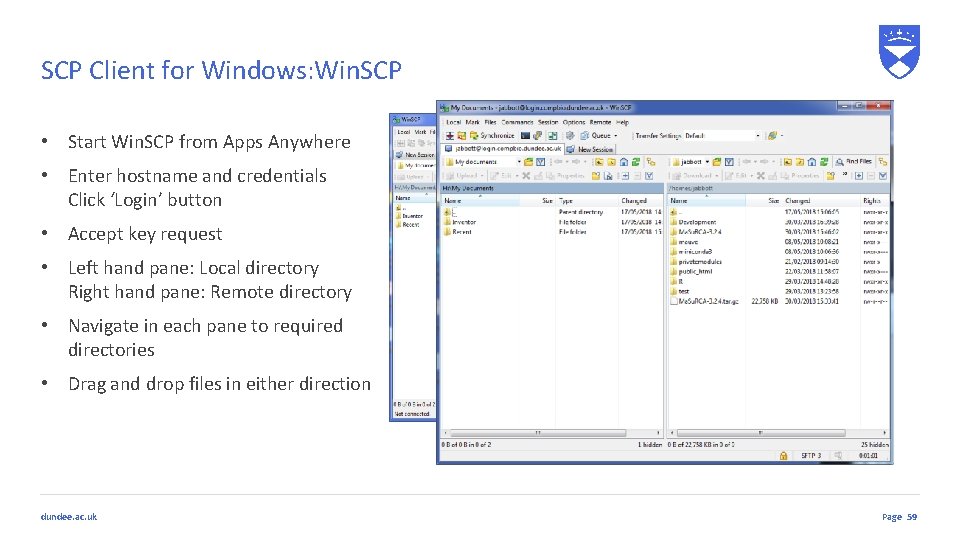
SCP Client for Windows: Win. SCP • Start Win. SCP from Apps Anywhere • Enter hostname and credentials Click ‘Login’ button • Accept key request • Left hand pane: Local directory Right hand pane: Remote directory • Navigate in each pane to required directories • Drag and drop files in either direction dundee. ac. uk Page 59
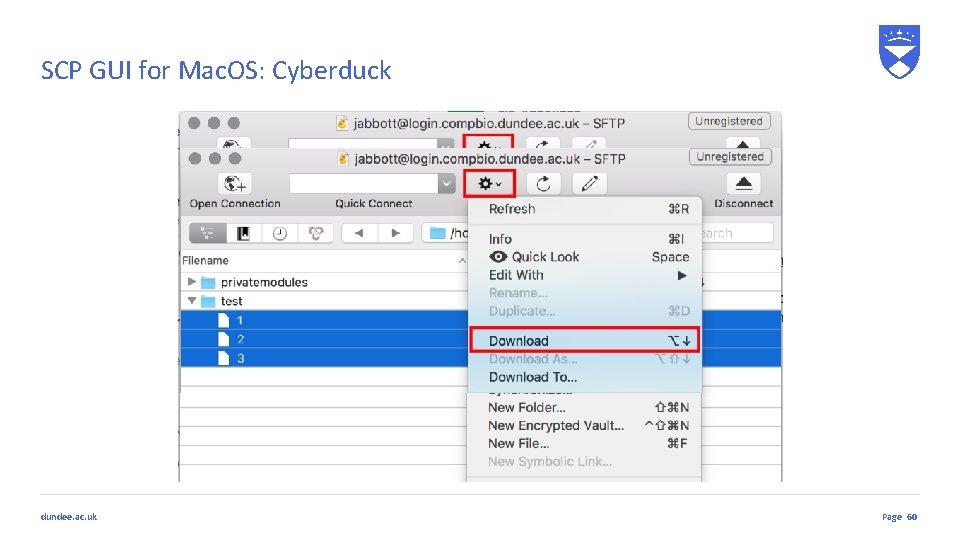
SCP GUI for Mac. OS: Cyberduck dundee. ac. uk Page 60
Summary We have covered: • What linux is • How to login to a server • How to enter commands • How to navigate the filesystem • Users and permissions • Basic file operations • Managing command output • Managing processes • Transferring data dundee. ac. uk Page 61
Any Questions? 62