How To Author MIRC Teaching Files Sunday Handson


- Slides: 64
How To Author MIRC Teaching Files Sunday Hands-on Workshop A. E. Flanders, MD
Course Objectives • “Brief” Overview of MIRC 2005. • MIRC Concepts and Lexicon. • Overview of the Authoring process. • File Cabinet Functions • Author a simple case • Practice… Practice!!! • Questions
Brief Survey! • Who has used MIRC to access cases/information? • Who has a MIRC site at their institution/practice? • Who has tried authoring a teaching file case for a MIRC?
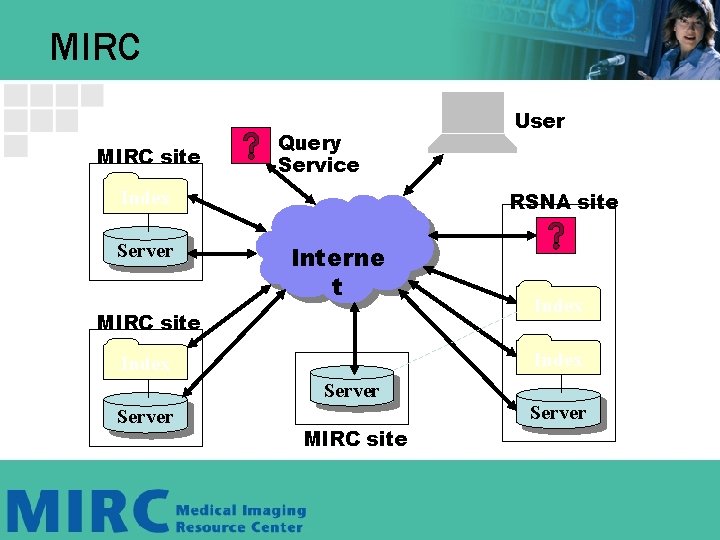
MIRC Concepts • The key technical concepts: – MIRC is a community of cooperating libraries on the Internet. – The libraries cooperate by supporting a common query mechanism. – The query mechanism allows users to find information wherever it is stored. • MIRC is an RSNA sponsored initiative. • A continual work in progress. • Built in the spirit of the open-source community. • MIRC is vendor neutral.
2005 MIRC Info. Rad Courses • MIRC: Installation and Set-Up • MIRC: How to Set Up a System for Teaching Files, Conferences, and Clinical Trials • MIRC Case Studies: Using MIRC Software for Education and Research • MIRC: How to Author MIRC Teaching Files – Hands-on – Didactic
MIRC Objective • MIRC objectives reach beyond TF. • Support the production, storage, indexing and distribution of medical imaging resources: – Teaching files – Scientific & technical documentation – Research images & datasets – Clinical trials data
MIRC supports many image storage formats. – Images: DICOM, GIF, JPEG, PNG – Hyperlinks to other web content. – Virtually any content that is displayable in a web browser. – Pointers to other files for downloading. – If your browser supports the MIME file type, it may display automatically.
The MIRC Schemas • MIRCdocument – Format for documents on the RSNA site. – Format for Index Cards on the RSNA site. • MIRCquery & MIRCqueryresponse – Format for communication between Query Services and Storage Service Indexes. • MIRCsiteindex – Format for remote site indexing.
MIRC Server Components • Query Service – An entry point into the MIRC community for a user on the Internet. – Creates queries using MIRCquery schema. • Storage Service – – A cooperating information library. Index: the library’s card catalog. Server: the library’s shelves. Responds to MIRCquery using the MIRCqueryresponse schema.
MIRC TF Configuration Scenarios • Selfish Mode • Departmental Mode • Division Mode • Worldwide Mode • Variations
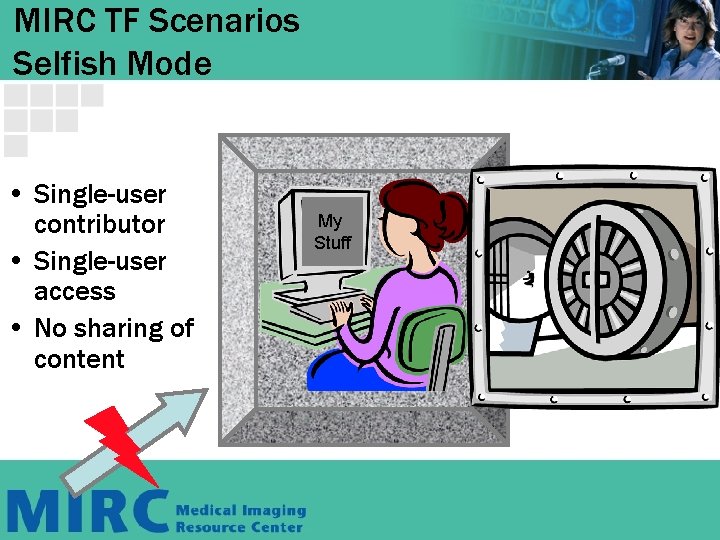
MIRC TF Scenarios Selfish Mode • Single-user contributor • Single-user access • No sharing of content My Stuff
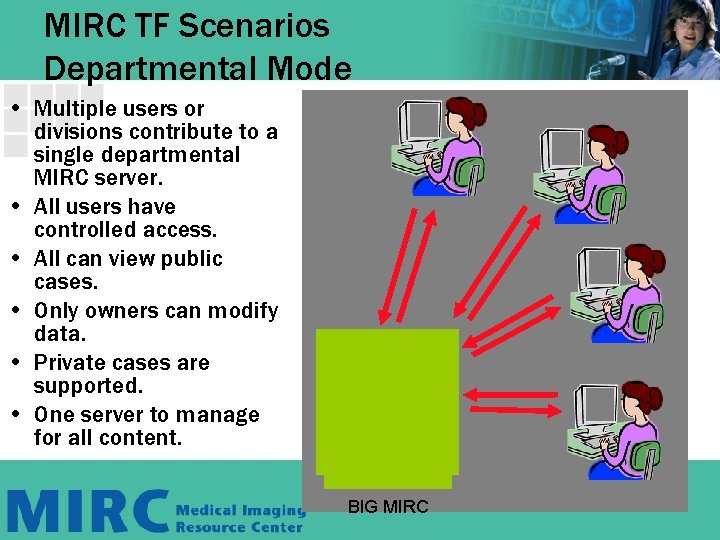
MIRC TF Scenarios Departmental Mode • Multiple users or divisions contribute to a single departmental MIRC server. • All users have controlled access. • All can view public cases. • Only owners can modify data. • Private cases are supported. • One server to manage for all content. BIG MIRC
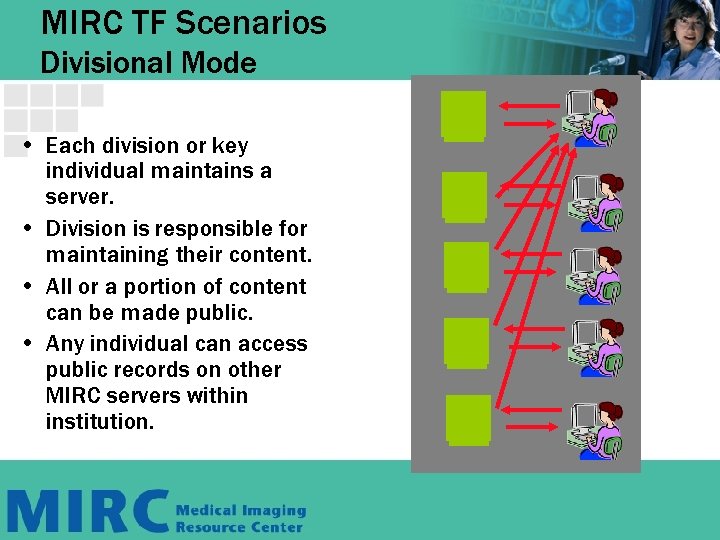
MIRC TF Scenarios Divisional Mode • Each division or key individual maintains a server. • Division is responsible for maintaining their content. • All or a portion of content can be made public. • Any individual can access public records on other MIRC servers within institution.
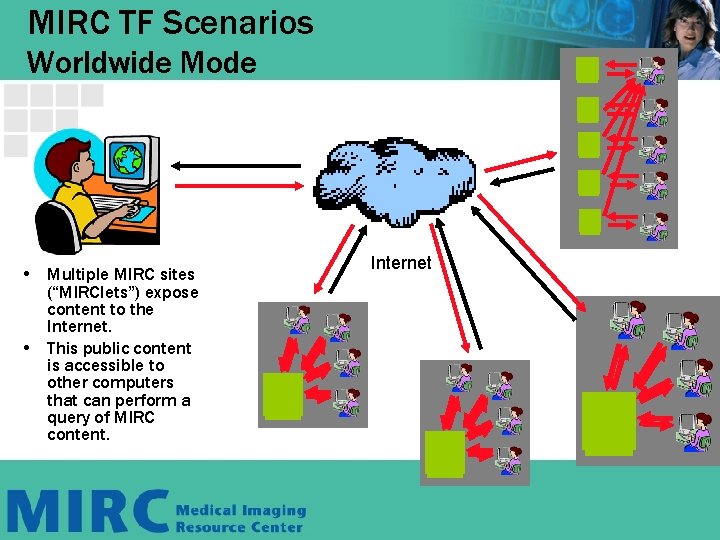
MIRC TF Scenarios Worldwide Mode • Multiple MIRC sites (“MIRClets”) expose content to the Internet. • This public content is accessible to other computers that can perform a query of MIRC content. Internet
How do you access content through MIRC?
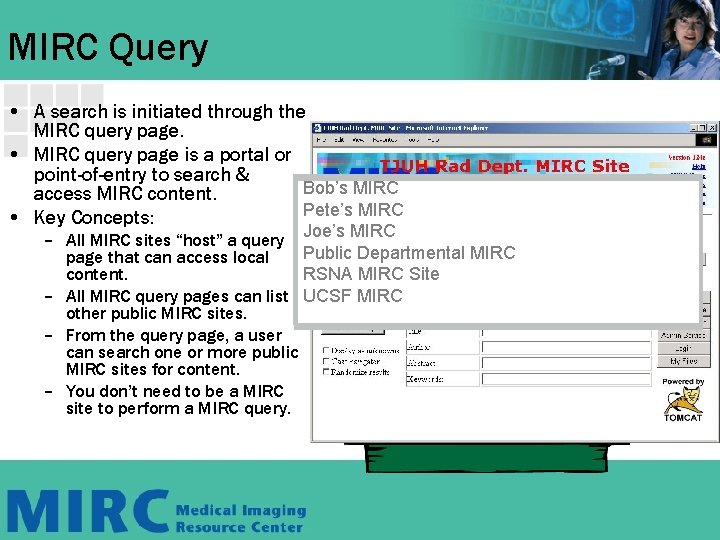
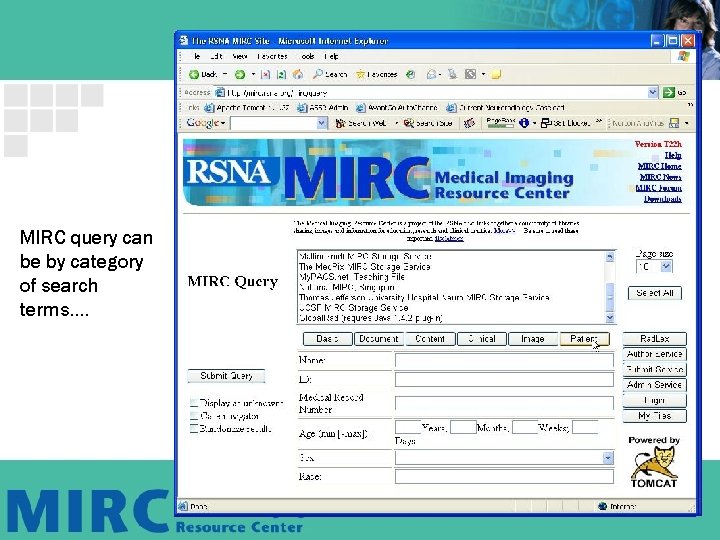
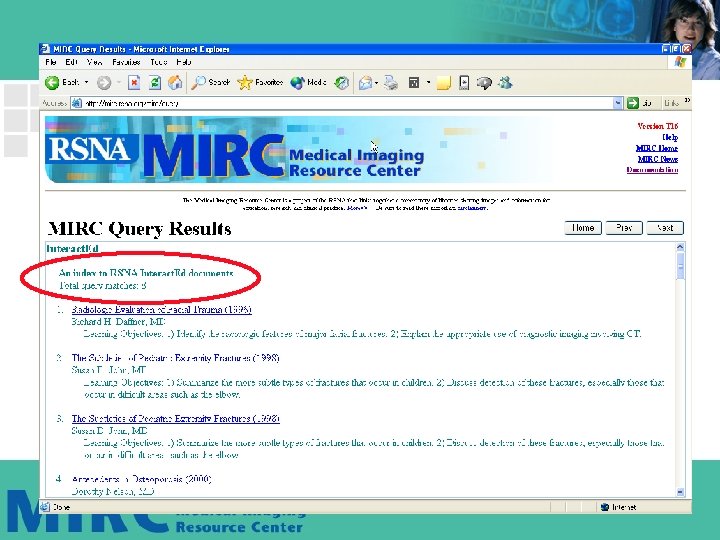
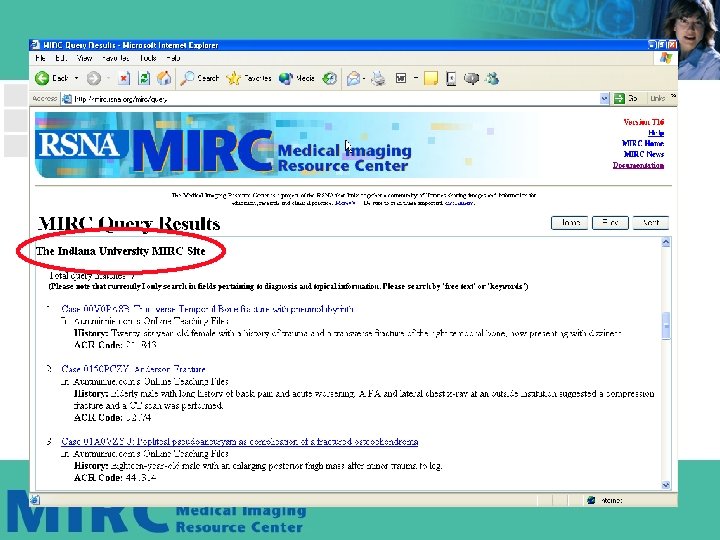
MIRC Query • A search is initiated through the MIRC query page. • MIRC query page is a portal or point-of-entry to search & Neuroradiology MIRC Site Bob’s MIRC Metropolis University access MIRC content. My MIRC Site General Radiology Pete’s MIRC Big University MIRC Site • Key Concepts: Nuclear Medicine MIRC Ultra. Big University. MIRC Site – All MIRC sites “host” a query Joe’s CVIR MIRC Public Departmental MIRC Ultra. Exclusive University MIRC Site page that can access local Body CT MIRC RSNA MIRC Site content. Whatsa. Matta. U MIRC Site UCSF MIRC Site – All MIRC query pages can list MSK RSNAMIRC other public MIRC sites. – From the query page, a user can search one or more public MIRC sites for content. – You don’t need to be a MIRC site to perform a MIRC query.
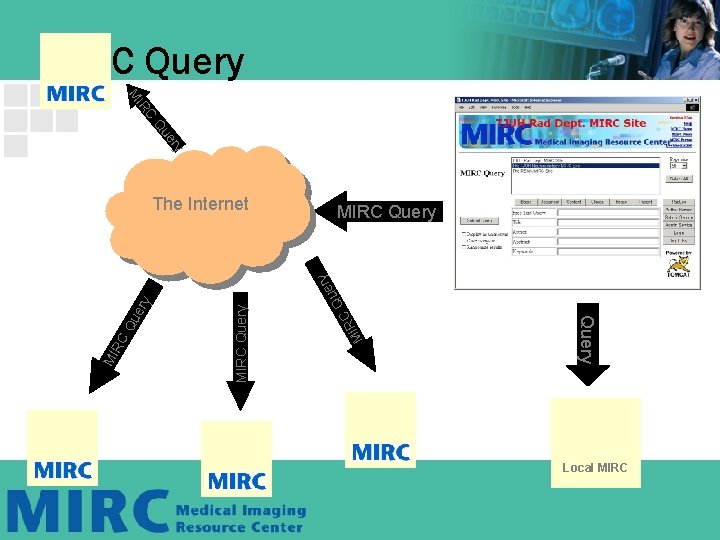
MIRC Query C IR M y er Qu The Internet MI RC e Qu MIRC Query Qu MI RC Query ry MIRC Query Local MIRC
MIRC site Query Service Index Server User RSNA site Interne t MIRC site Index Server MIRC site
MIRC query can be by category of search terms….
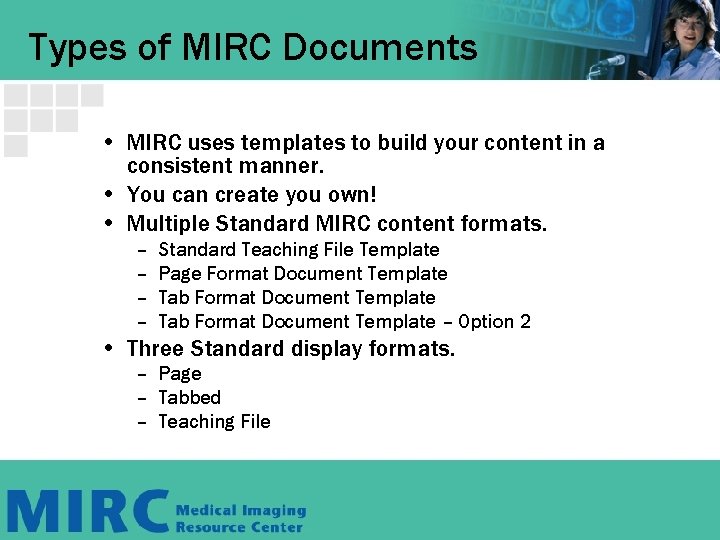
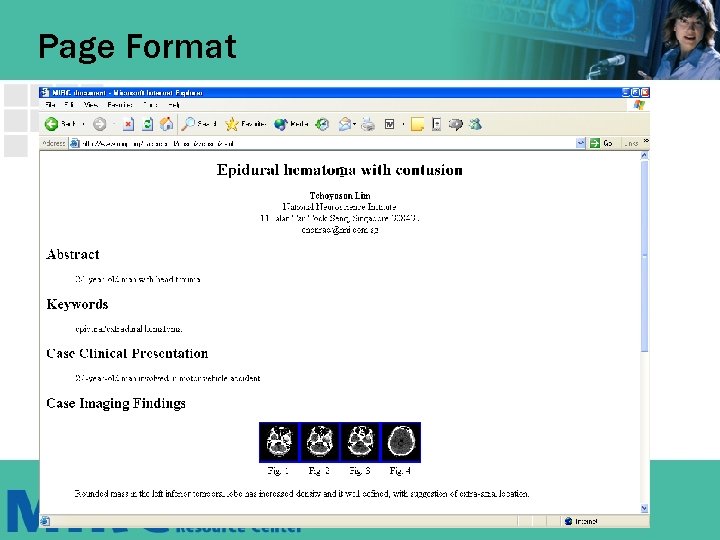
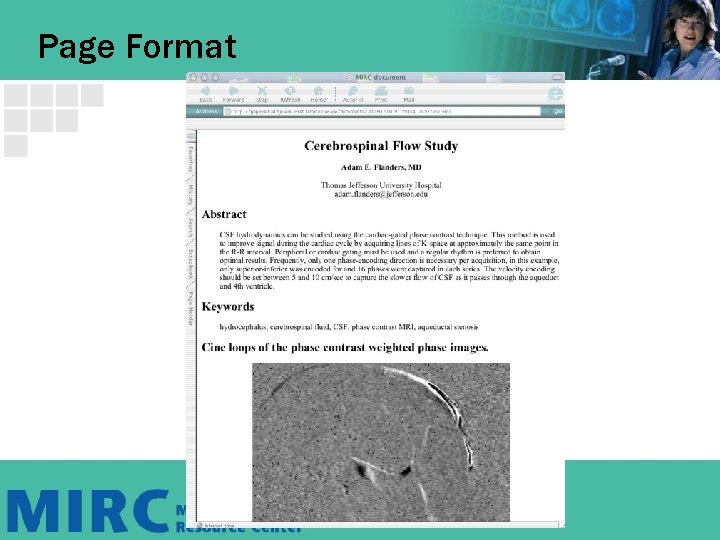
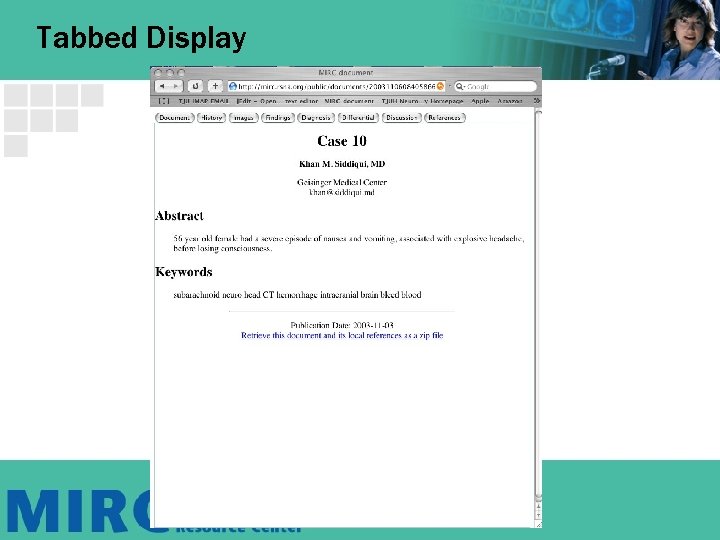
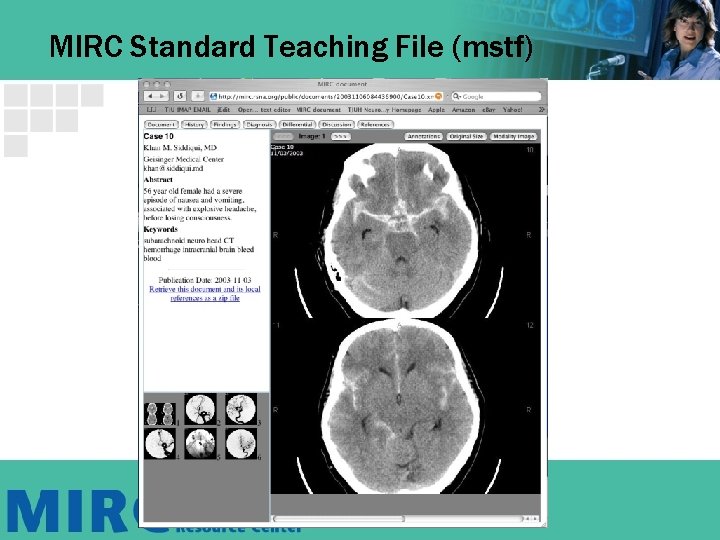
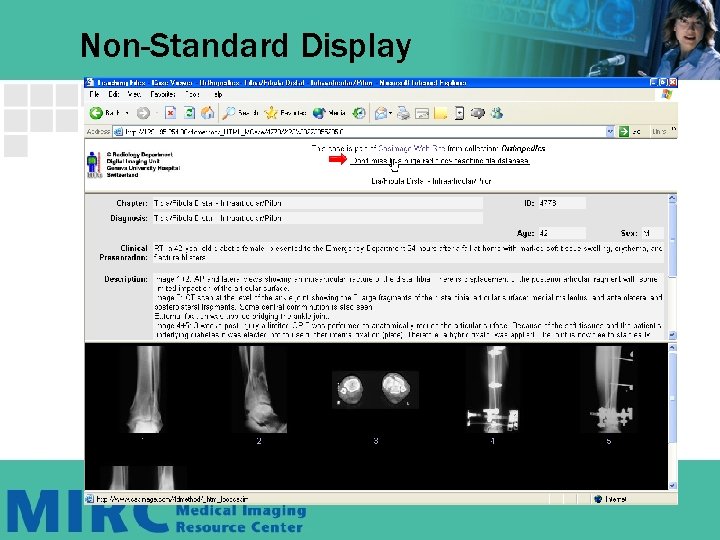
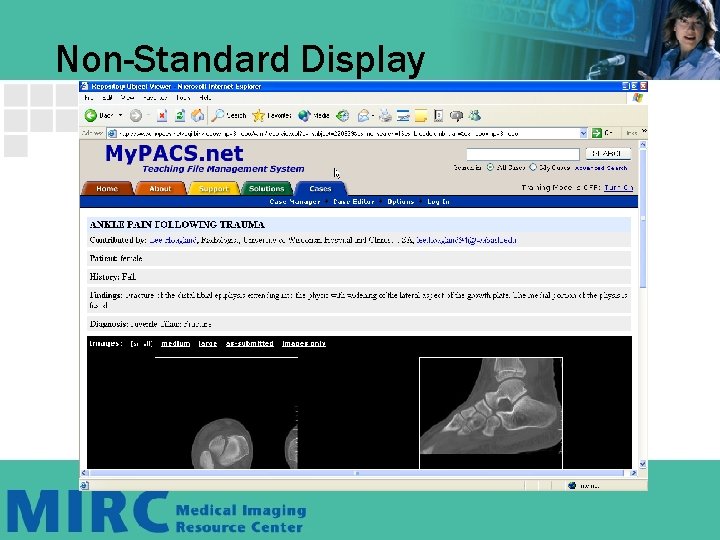
Types of MIRC Documents • MIRC uses templates to build your content in a consistent manner. • You can create you own! • Multiple Standard MIRC content formats. – – Standard Teaching File Template Page Format Document Template Tab Format Document Template – Option 2 • Three Standard display formats. – Page – Tabbed – Teaching File
Page Format
Page Format
Tabbed Display
MIRC Standard Teaching File (mstf)
Non-Standard Display
Non-Standard Display
Non-Standard Display
Fundamentals • MIRC displays your content dynamically, that is, each web page is built/displayed at the moment you ask for it. – Simple process to change the way your content is displayed without re-entering all the data. – The display types can be modified – Elements can be added or subtracted. • Unlimited possibilities to display content. • Built in features include: – Image browser – Quiz object. – Bulleted lists.
New Authoring for RSNA 2005 • Much easier to navigate • Add, subtract, reorder objects. • Add custom sections • Make tags visible/non-visible • New! PHI section • New! Non-visible index tag section. • New! Image annotation toolset
Enough Talk!!! How do we Author? ? ?
Authoring Process • Authoring requires assembling images and text to submit to MIRC storage service. • Old Method - Used a client side java app called MIRCat and Java installed on client. • New Method – Only requires a web browser only to assemble and edit content.
Features of New Authoring Tool • No client side application needed. • Uses a web browser only. • Use a personal file cabinet feature – Upload content to a personal file cabinet. – Select images from cabinet to populate into document. • You will learn how to create a simple document and publish it on a MIRC server on each of your PC’s. – Publishing is the same whether you author the document locally or remotely!
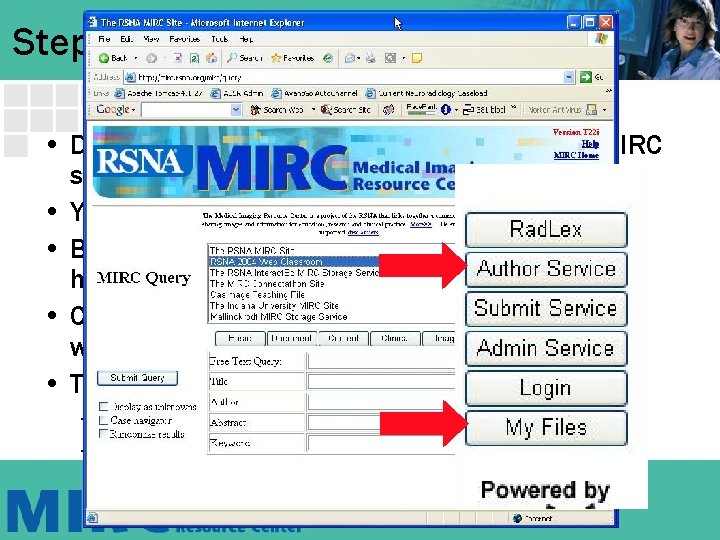
Step 1 - Startup • Double click the icon on the desktop for the MIRC storage service. • You will see the familiar MIRC query front page. • By default “A MIRC Storage Service” will be highlighted. • Concentrate on the buttons on the right of the window. • The two that we will concentrate on are: – Author Service – My Files
Before We Make Our First Case…. • We need to populate our personal file cabinet with images
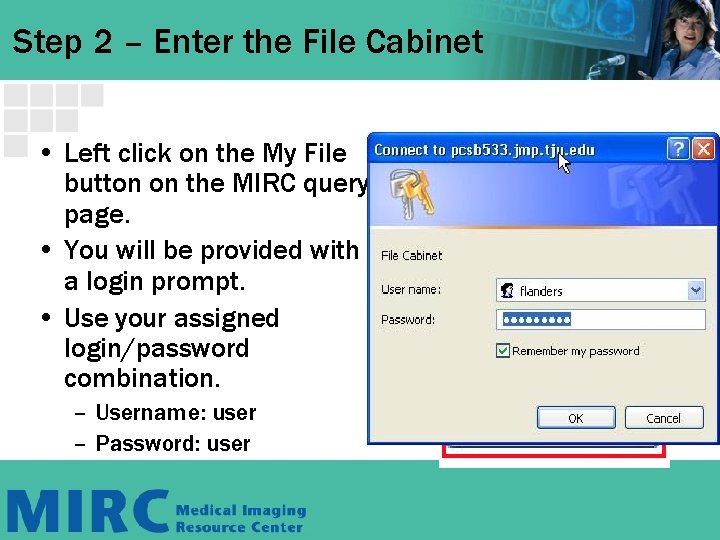
Step 2 – Enter the File Cabinet • Left click on the My File button on the MIRC query page. • You will be provided with a login prompt. • Use your assigned login/password combination. – Username: user – Password: user
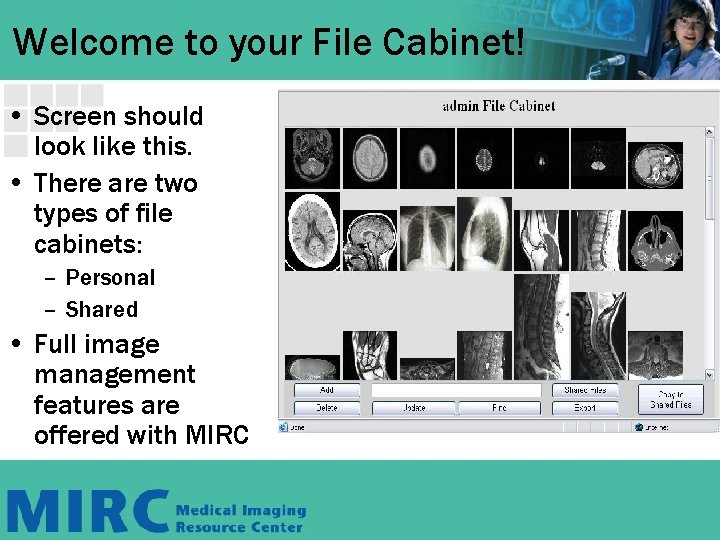
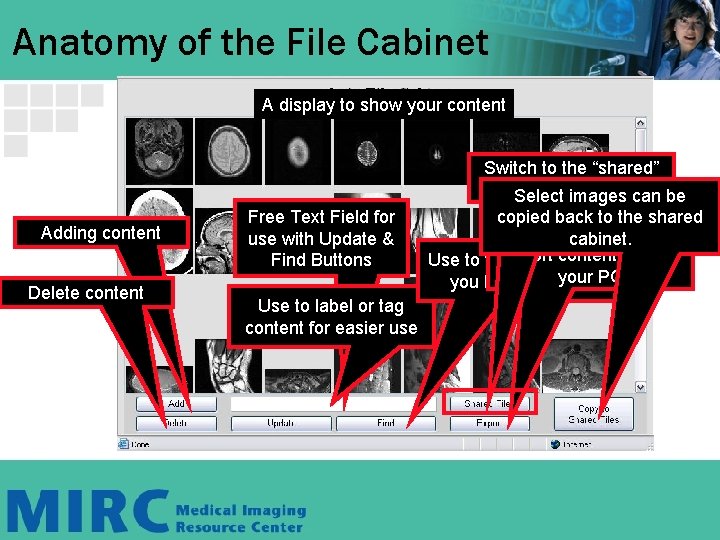
Welcome to your File Cabinet! • Screen should look like this. • There are two types of file cabinets: – Personal – Shared • Full image management features are offered with MIRC
Anatomy of the File Cabinet A display to show your content Switch to the “shared” file cabinet Select images can be Adding content Delete content Free Text Field for use with Update & Find Buttons Use to label or tag content for easier use copied back to the shared cabinet. Export content Use to find content that back to your PC you have labelled
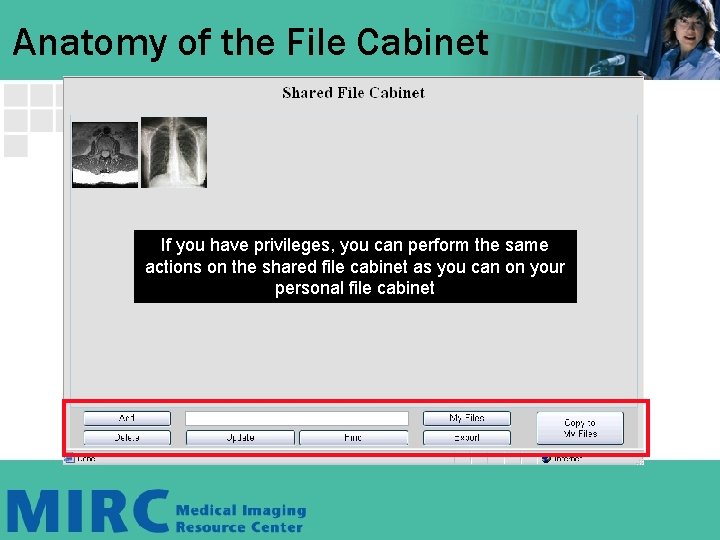
Anatomy of the File Cabinet If you have privileges, you can perform the same actions on the shared file cabinet as you can on your personal file cabinet
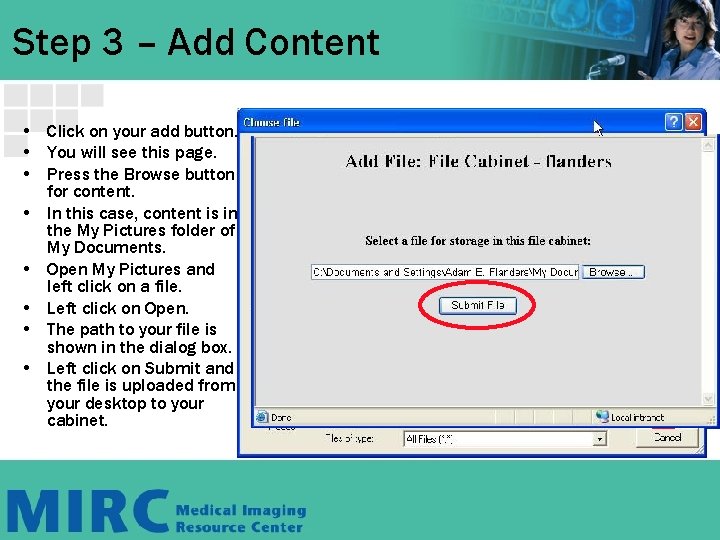
Step 3 – Add Content • Click on your add button. • You will see this page. • Press the Browse button for content. • In this case, content is in the My Pictures folder of My Documents. • Open My Pictures and left click on a file. • Left click on Open. • The path to your file is shown in the dialog box. • Left click on Submit and the file is uploaded from your desktop to your cabinet.
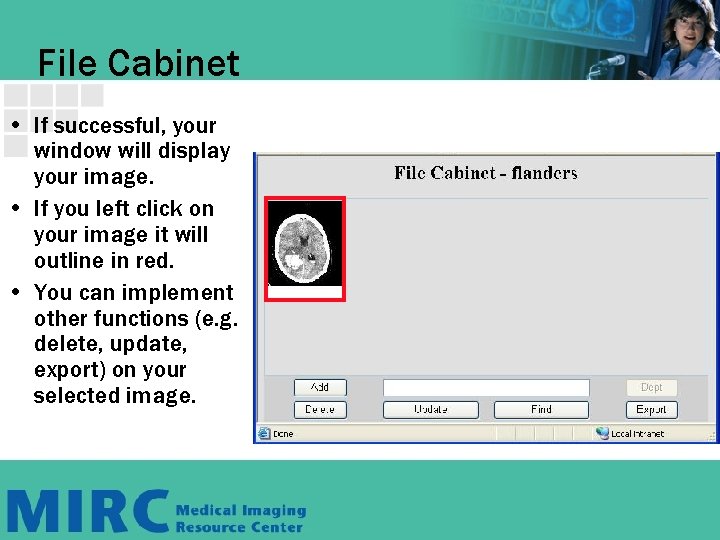
File Cabinet • If successful, your window will display your image. • If you left click on your image it will outline in red. • You can implement other functions (e. g. delete, update, export) on your selected image.
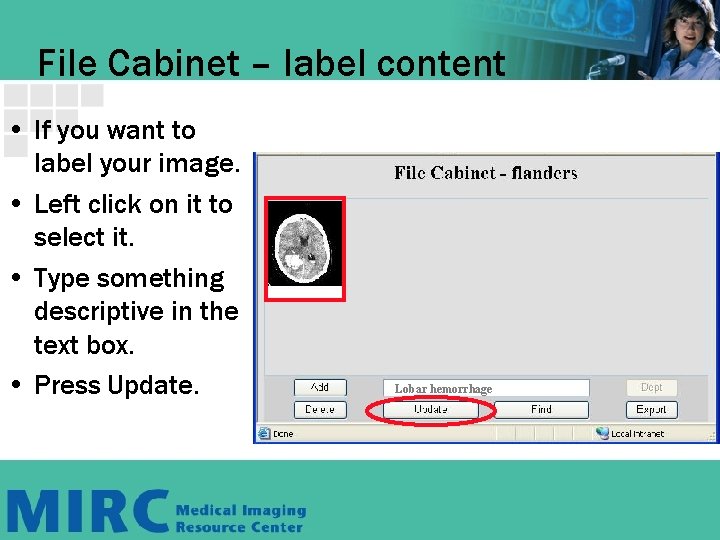
File Cabinet – label content • If you want to label your image. • Left click on it to select it. • Type something descriptive in the text box. • Press Update. Lobar hemorrhage
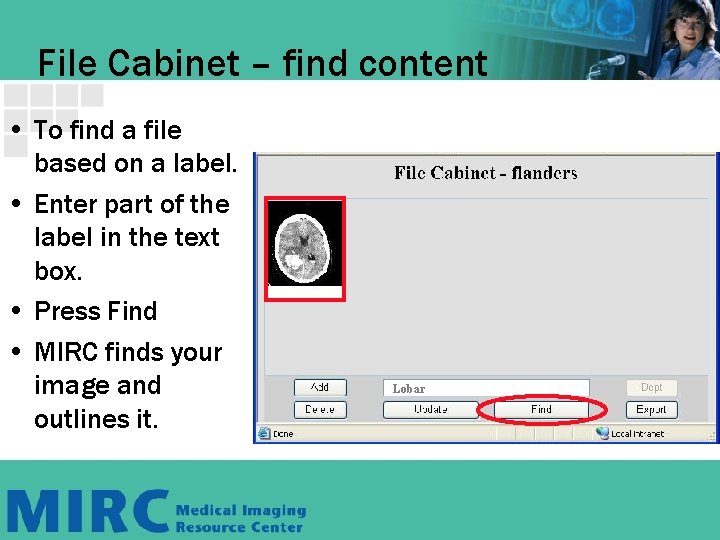
File Cabinet – find content • To find a file based on a label. • Enter part of the label in the text box. • Press Find • MIRC finds your image and outlines it. Lobar
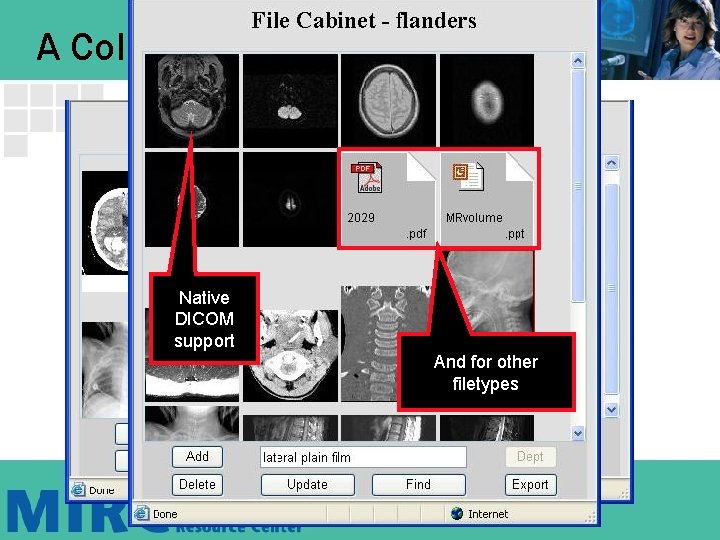
Add More Images! • Repeat the add process a few more times to build up some content. • What if you want to add more than one image at once? – How about an entire collection? • Use a archive compression program like Win. Zip to create a ZIP archive. • Use the Add function to upload the ZIP file. • MIRC will automatically decompress the file and display all your images. • Try some of the ZIP files in your my Pictures Directory.
A Collection! Native DICOM support And for other filetypes
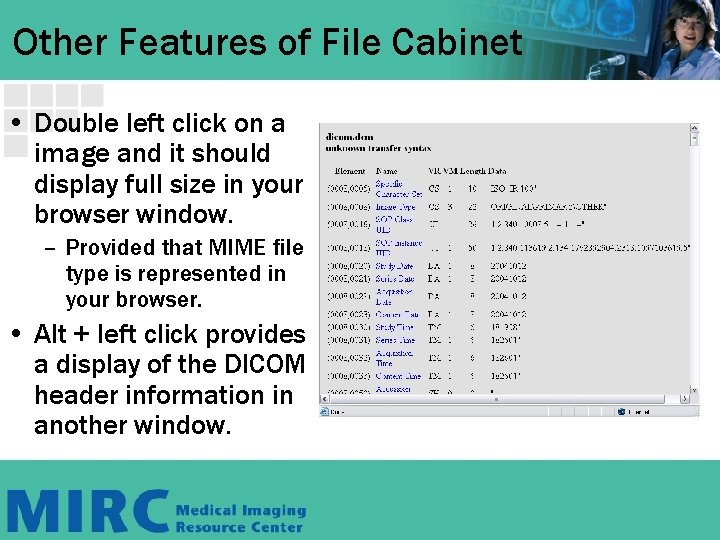
Other Features of File Cabinet • Double left click on a image and it should display full size in your browser window. – Provided that MIME file type is represented in your browser. • Alt + left click provides a display of the DICOM header information in another window.
File Cabinet Practice ü Switch between shared and personal file cabinet. ü Add ü Update/label ü Find ü Display ü Copy between shared and personal file cabinet. ü View DICOM data dump
Authoring!!!
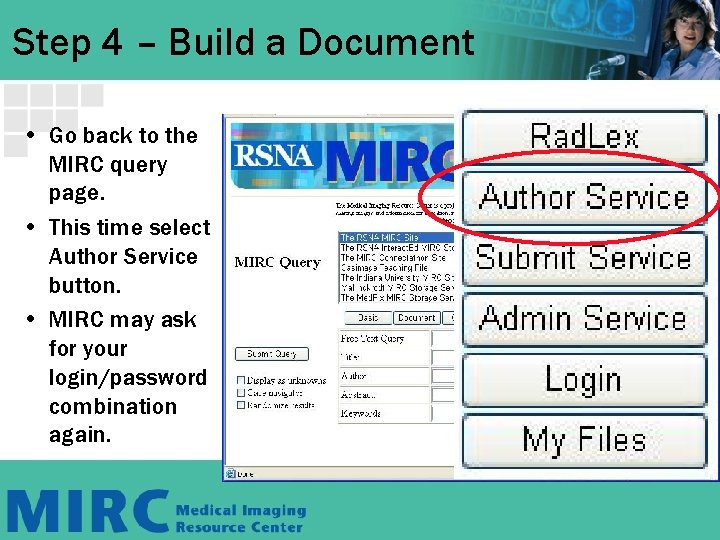
Step 4 – Build a Document • Go back to the MIRC query page. • This time select Author Service button. • MIRC may ask for your login/password combination again.
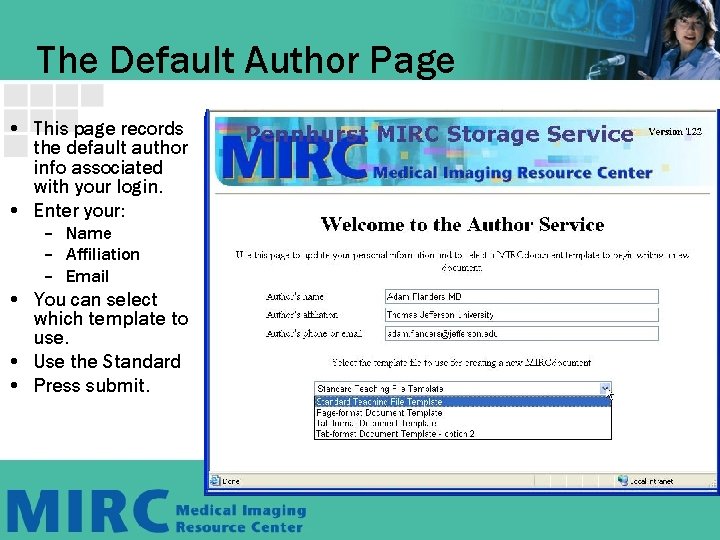
The Default Author Page • This page records the default author info associated with your login. • Enter your: – Name – Affiliation – Email • You can select which template to use. • Use the Standard • Press submit.
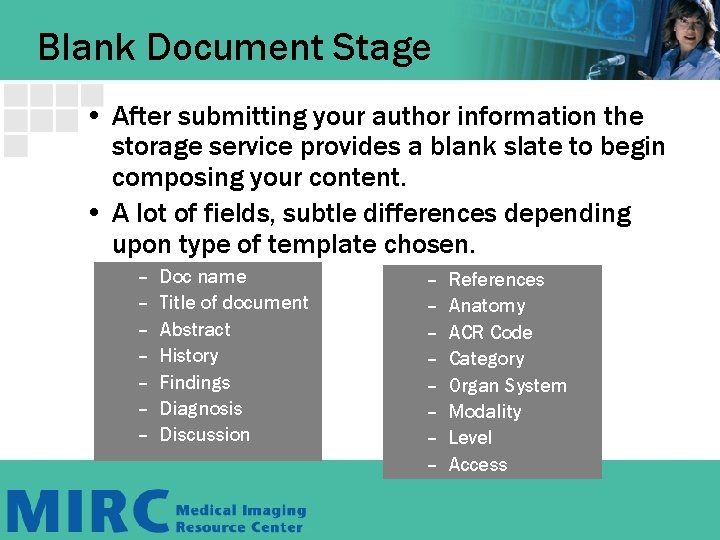
Blank Document Stage • After submitting your author information the storage service provides a blank slate to begin composing your content. • A lot of fields, subtle differences depending upon type of template chosen. – – – – Doc name Title of document Abstract History Findings Diagnosis Discussion – – – – References Anatomy ACR Code Category Organ System Modality Level Access
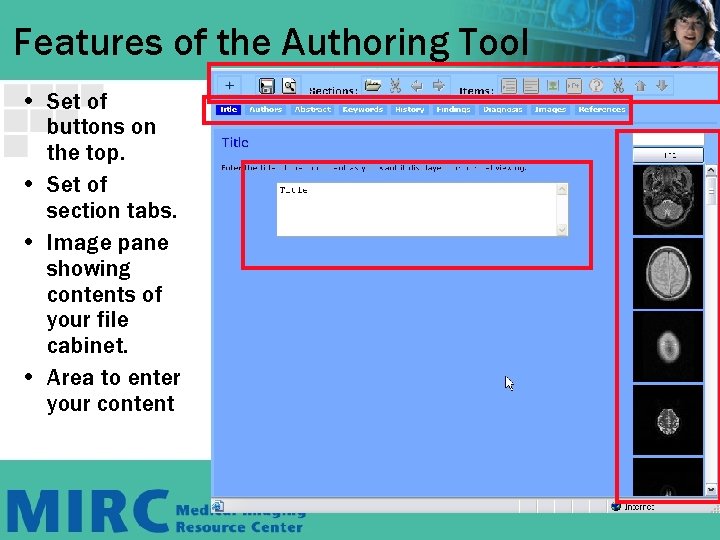
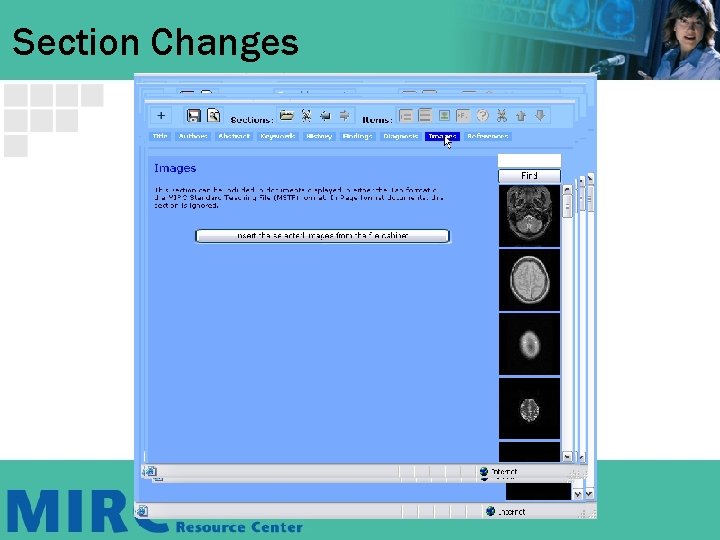
Features of the Authoring Tool • Set of buttons on the top. • Set of section tabs. • Image pane showing contents of your file cabinet. • Area to enter your content
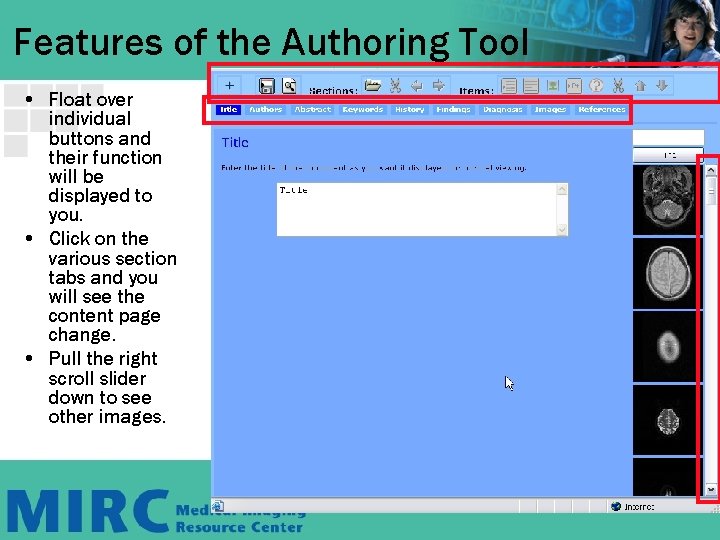
Features of the Authoring Tool • Float over individual buttons and their function will be displayed to you. • Click on the various section tabs and you will see the content page change. • Pull the right scroll slider down to see other images.
Section Changes
Let’s Build A Case!
Tasks to Accomplish ü Fill in text information. ü Build Bulleted lists ü Insert images ü Annotate Images ü Reorder images ü Reorder sections ü Insert a quiz
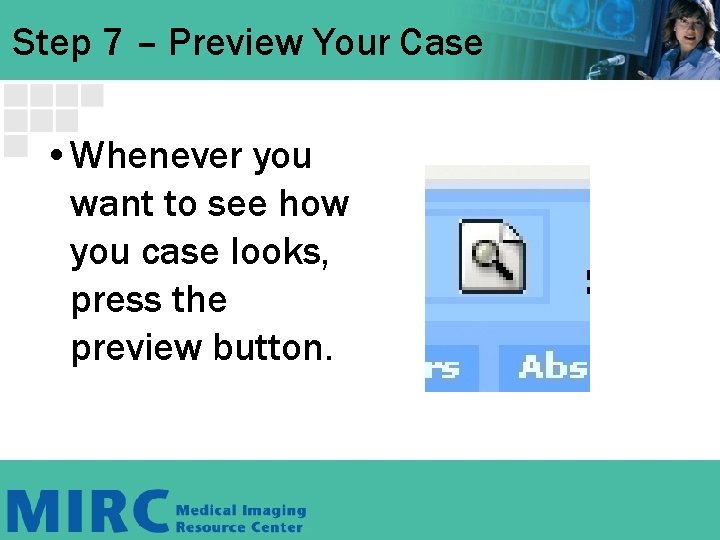
Step 7 – Preview Your Case • Whenever you want to see how you case looks, press the preview button.
Advanced Features • The advanced features are hidden until you hit the “+” key. • Change the Display type. • Add a new section • Give the section a custom name. • Make a section visible or invisible.
Future feature development • Hierarchical file cabinets. • Image selector from DICOM SCP. • Image editor. • Support for other file types. • Field dependant role access. – E. g. PHI information access by role. • Improved navigation. • And many more……
RSNA Forum • http: //forums. rsna. org/ • Please become part of the MIRC community by using the MIRC forum • Please provide feedback!