Qlik Support Portal Tata Consulting Services July 2019
- Slides: 57
Qlik Support Portal Tata Consulting Services July 2019 Yaaser Ahmed Khan, Qlik Support Toni Kautto, Qlik R&D
Objective • Support Portal • Case Clarity • Case Communication • R&D and Escalation Process 2
Support Portal 3
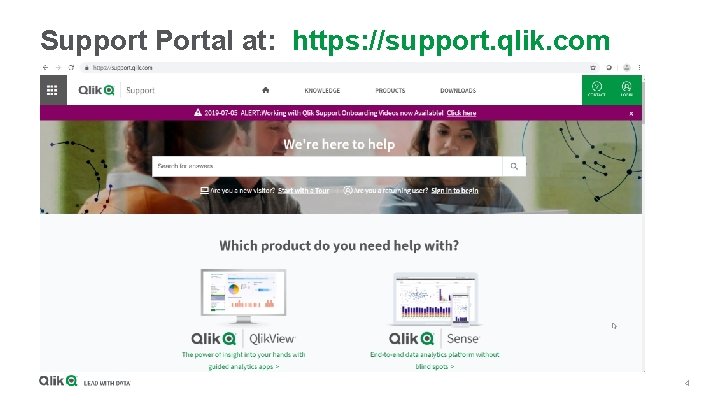
Support Portal at: https: //support. qlik. com 4
Support Portal Onboarding • Getting access - Log a ticket - Ask on live chat • Onboarding email - Instructions on portal usage - Tutorial articles and videos 5
Support Portal Qlik Knowledgebase • Federated search - Support Articles Qlik Fix Videos Online Help Qlik Community 6
Support Portal Environment details • Easy identification of environment - License Product Version DEV / UAT / PROD 7
Support Portal Stakeholders • Keep contacts up to date with support cases - Notified of case updates - Can make comments in case • Must have access to the portal 8
Support Portal Support Case Management • • • Uploading supporting materials Read attached articles Taking necessary actions Confirm solutions provided Close solved cases 9
Case Clarity 10
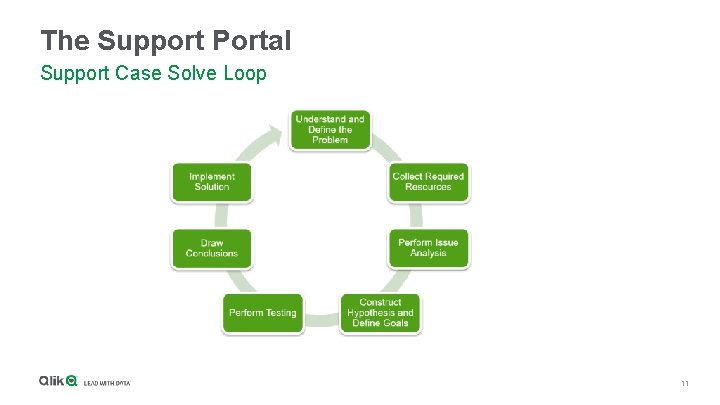
The Support Portal Support Case Solve Loop 11
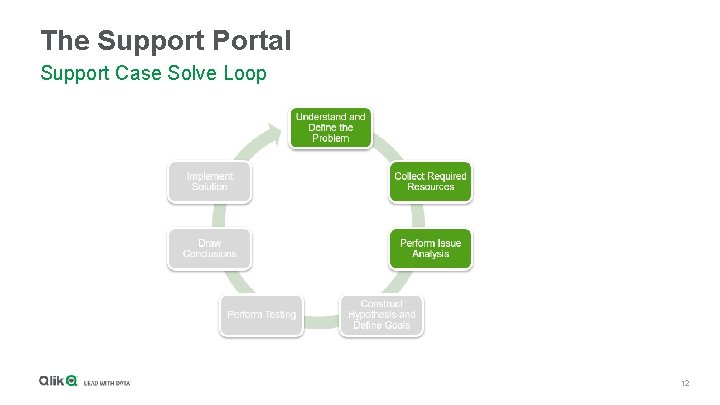
The Support Portal Support Case Solve Loop 12
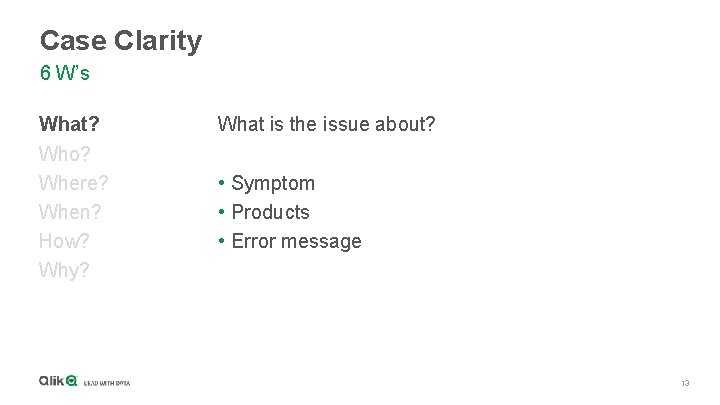
Case Clarity 6 W’s What? Who? Where? When? How? Why? What is the issue about? • Symptom • Products • Error message 13
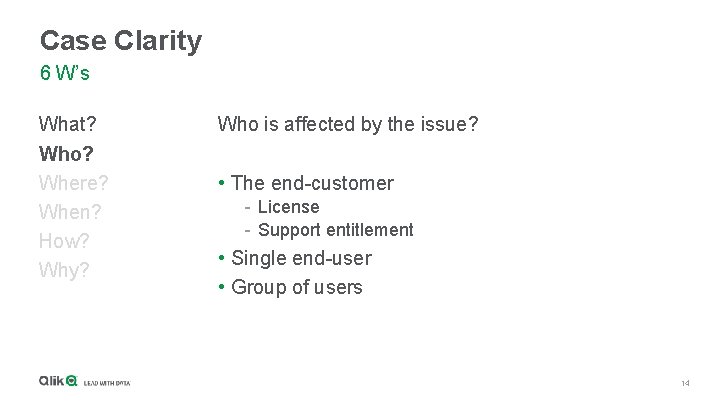
Case Clarity 6 W’s What? Who? Where? When? How? Why? Who is affected by the issue? • The end-customer - License - Support entitlement • Single end-user • Group of users 14
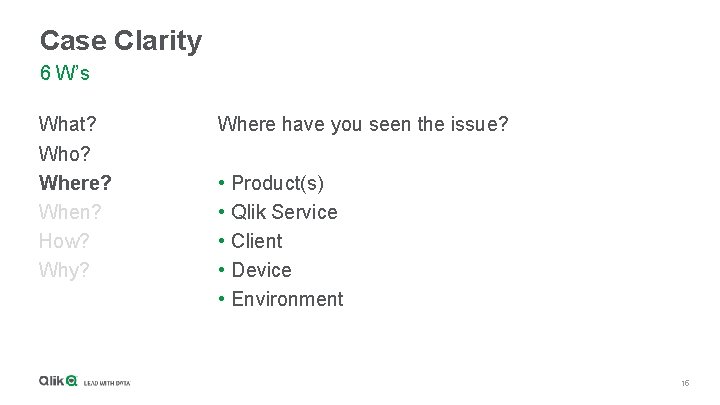
Case Clarity 6 W’s What? Who? Where? When? How? Why? Where have you seen the issue? • • • Product(s) Qlik Service Client Device Environment 15
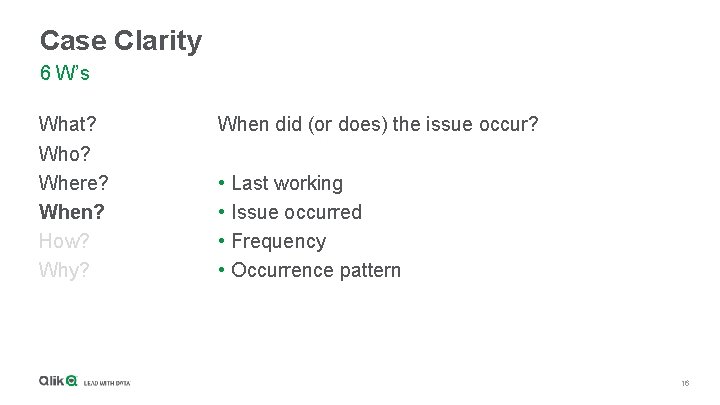
Case Clarity 6 W’s What? Who? Where? When? How? Why? When did (or does) the issue occur? • • Last working Issue occurred Frequency Occurrence pattern 16
Case Clarity 6 W’s What? Who? Where? When? How? Why? How did you try solving the issue? • Initial troubleshooting • Qlik Knowledgebase 17
Case Clarity 6 W’s What? Who? Where? When? How? Why? Why does the issue occur? • Root cause identified • Known issue • Workaround 18
Case Clarity Supporting Material • Log files • Screenshots • Sample files - Data sources - Qlik applications • Deployment overview 19
Case Communication 20
Case Communication Case ownership • Primary case contact • Accountable for case communication • Coordinate on TCS side 21
Case Communication Active dialogue • Aligning expectations - Timeline - Deliverables - Acknowledgement • TCS request clarification • Case resolution acceptance 22
R&D and Escalation Process 23
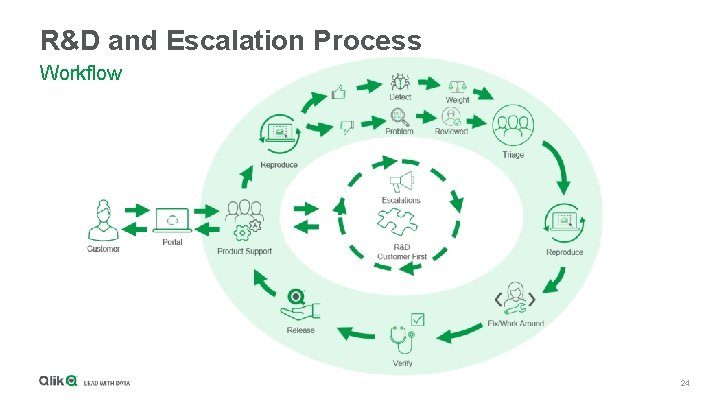
R&D and Escalation Process Workflow 24
R&D and Escalation Process Escalations • Open case with Qlik Support • Define business impact • Raise escalation by email; - APAC Support Delivery Manager, Michael Gal Michael. Gal@qlik. com - Qlik Support Escalations escalations@qlik. com 25
Questions? 26
Support Portal Demo 27
support. qlik. com
Appendix 29
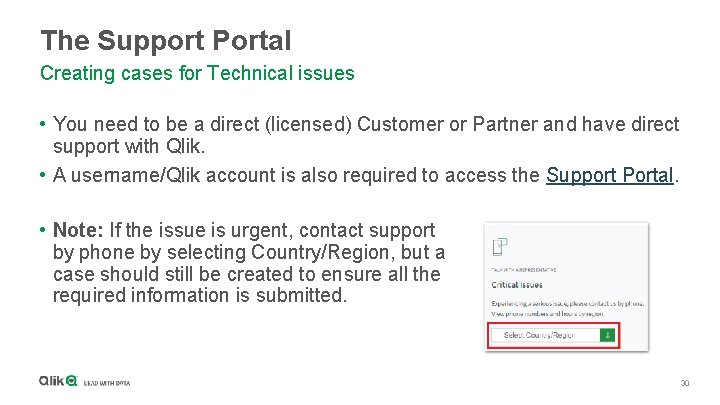
The Support Portal Creating cases for Technical issues • You need to be a direct (licensed) Customer or Partner and have direct support with Qlik. • A username/Qlik account is also required to access the Support Portal. • Note: If the issue is urgent, contact support by phone by selecting Country/Region, but a case should still be created to ensure all the required information is submitted. 30
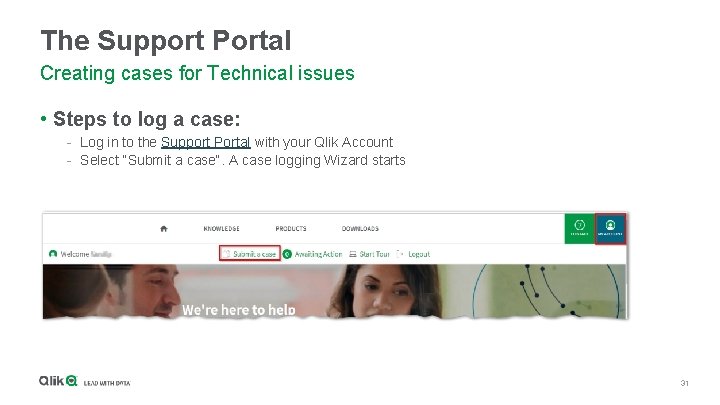
The Support Portal Creating cases for Technical issues • Steps to log a case: - Log in to the Support Portal with your Qlik Account - Select “Submit a case“. A case logging Wizard starts 31
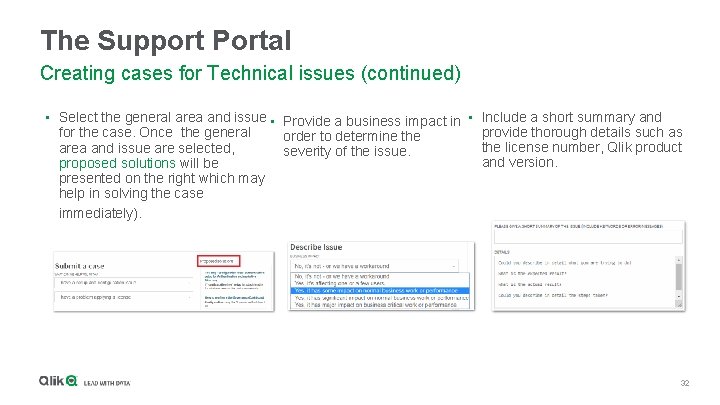
The Support Portal Creating cases for Technical issues (continued) • Select the general area and issue • Provide a business impact in • for the case. Once the general order to determine the area and issue are selected, severity of the issue. proposed solutions will be presented on the right which may help in solving the case immediately). Include a short summary and provide thorough details such as the license number, Qlik product and version. 32
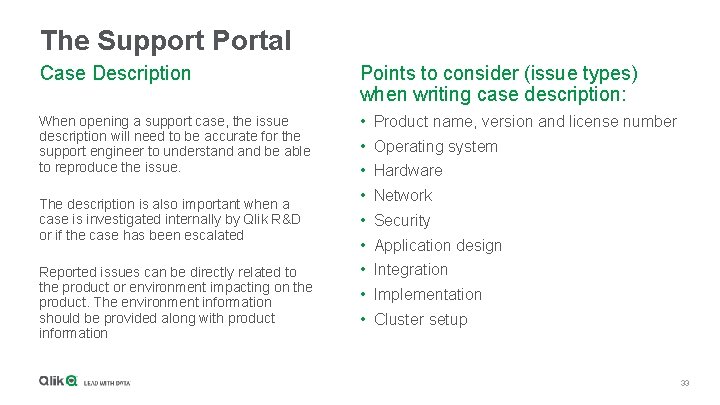
The Support Portal Case Description Points to consider (issue types) when writing case description: When opening a support case, the issue description will need to be accurate for the support engineer to understand be able to reproduce the issue. • Product name, version and license number The description is also important when a case is investigated internally by Qlik R&D or if the case has been escalated Reported issues can be directly related to the product or environment impacting on the product. The environment information should be provided along with product information • Operating system • Hardware • Network • Security • Application design • Integration • Implementation • Cluster setup 33
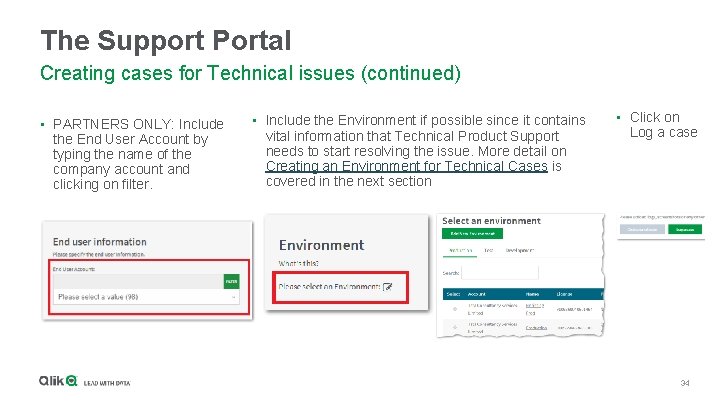
The Support Portal Creating cases for Technical issues (continued) • PARTNERS ONLY: Include the End User Account by typing the name of the company account and clicking on filter. • Include the Environment if possible since it contains vital information that Technical Product Support needs to start resolving the issue. More detail on Creating an Environment for Technical Cases is covered in the next section • Click on Log a case 34
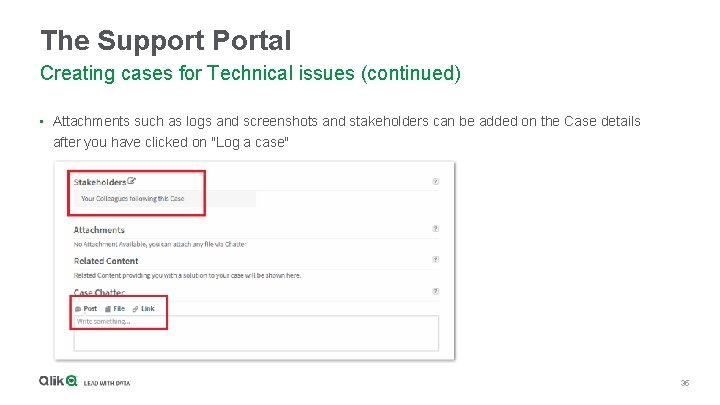
The Support Portal Creating cases for Technical issues (continued) • Attachments such as logs and screenshots and stakeholders can be added on the Case details after you have clicked on "Log a case" 35
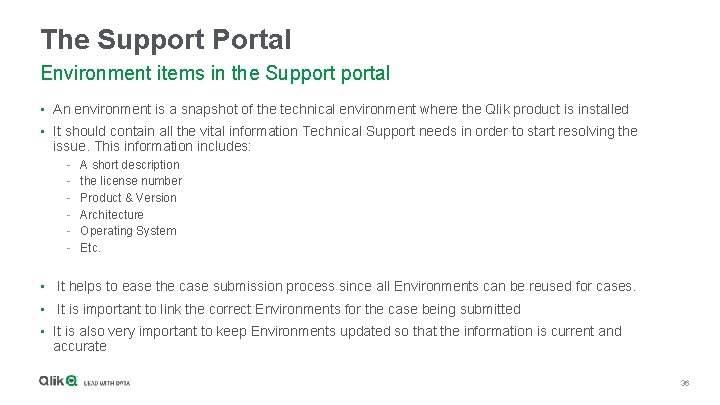
The Support Portal Environment items in the Supportal • An environment is a snapshot of the technical environment where the Qlik product is installed • It should contain all the vital information Technical Support needs in order to start resolving the issue. This information includes: - A short description the license number Product & Version Architecture Operating System Etc. • It helps to ease the case submission process since all Environments can be reused for cases. • It is important to link the correct Environments for the case being submitted • It is also very important to keep Environments updated so that the information is current and accurate 36
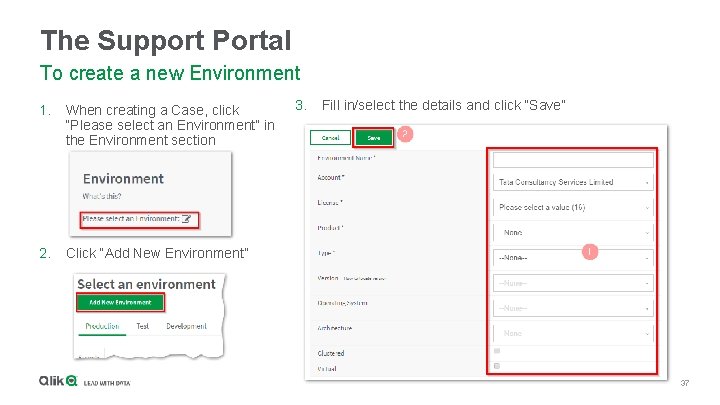
The Support Portal To create a new Environment 1. When creating a Case, click “Please select an Environment” in the Environment section 2. Click “Add New Environment” 3. Fill in/select the details and click “Save” 37
The Support Portal Reproduction Steps • Try to isolate the issue at product level • Try to isolate the issue at environment level • Define the issue type (see previous slide) • Gather related information (see links slide) • Note your replication steps • Search available resources on supportal (see next slide) 38
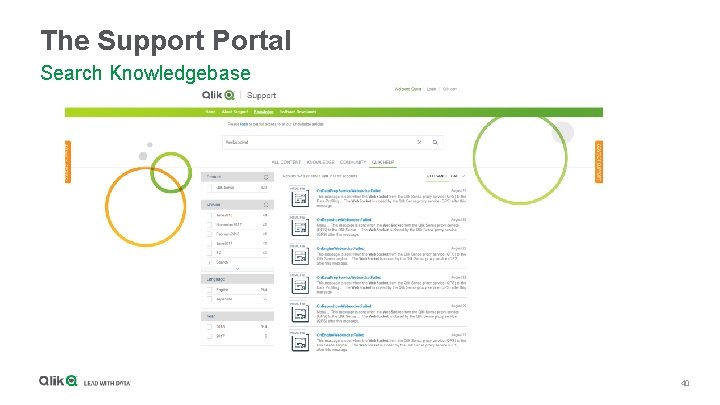
The Support Portal Search Knowledgebase • Search available resources via related keyword(s) For example, error code, error area, specific word such as: “Web. Socket” or “connection failed” • The Qlik support knowledge base for publicly available articles http: //support. qlik. com • Currently there are over 3600 public articles updated daily • Search for answers all in one place ( articles, community and Qlik help ) 39
The Support Portal Search Knowledgebase 40
The Support Portal Expected outcome • At this stage if the solution was not found in available resources, define the issue and the expected outcome • Write your expectation as part of the case description • Gather all information and make notes of your initial troubleshooting 41
The Support Portal Expected outcome • Make a note of the observed result • Mention your initial thoughts of root cause • Use system tools such as monitoring apps, provide initial information, following consistant patterns for example if issue happening during certain day / time (repeatedly) 42
The Support Portal Supporting Material to Description Details • Related log files • Environment information, auto generated • Screenshot displaying the error message • Exact date and time of the issue • See links slide for detailed information 43
The Support Portal Case communication • Support cases should be reported by key users who have a solid experience in the Qlik products • Support cases should be opened using the correct account, primary case contact and related account stakeholders • The key case contact should be responsible for the chat communication with support • Respond to support queries in a timely manner via the support chat area • Remember that the case progress depends on quick and accurate communication • 44
The Support Portal Case communication • If a Web. Ex meeting is setup, please confirm the attendance as early as possible • Provide required information prior to the Web. Ex meeting to allow support to optmise the meeting time and outcome • Depending on issue type, involve additional related departments in meetings if necessary. IT, security, infrastructure, network team and business users. • Confirm meeting summary provided by support after each meeting • Accept or reject case solution and conclusion after careful consideration and discussion with support 45
The Support Portal Resource Links • The Qlik support knowledge base for publicly available articles http: //support. qlik. com • Qlik Support You. Tube channel https: //www. youtube. com/user/Qlik. View. Support/videos • Qlik help website http: //help. qlik. com • Qlik community https: //community. qlik. com 46
The Support Portal Resource Links • Environment information, auto generated https: //qliksupport. force. com/articles/000024256 • Screenshot displaying the error message https: //qliksupport. force. com/articles/000004029 • Qlik Sense logs https: //qliksupport. force. com/articles/000006144 • Qlik. View logs https: //qliksupport. force. com/articles/000003712 • 47
The Support Portal Stakeholder Adding a stakeholder is providing other contacts under the same company account with the access to view or comment in the case apart from the contact on whom the case is created. The person who is added as a stakeholder will also be notified of any updates on the case via email. 48
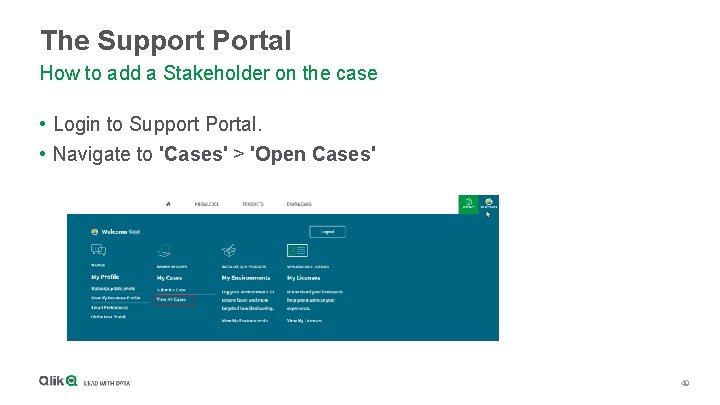
The Support Portal How to add a Stakeholder on the case • Login to Support Portal. • Navigate to 'Cases' > 'Open Cases' 49
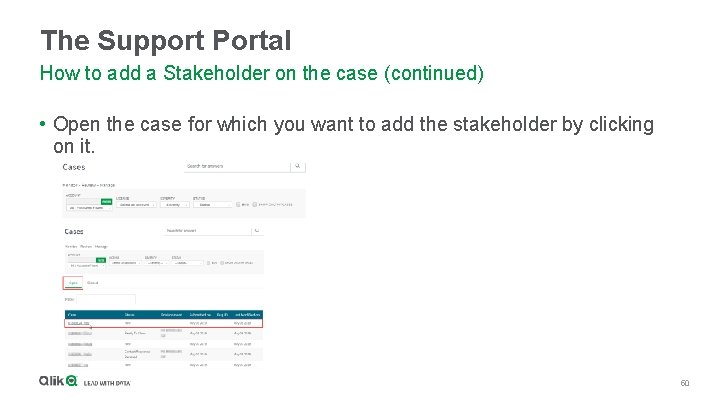
The Support Portal How to add a Stakeholder on the case (continued) • Open the case for which you want to add the stakeholder by clicking on it. 50
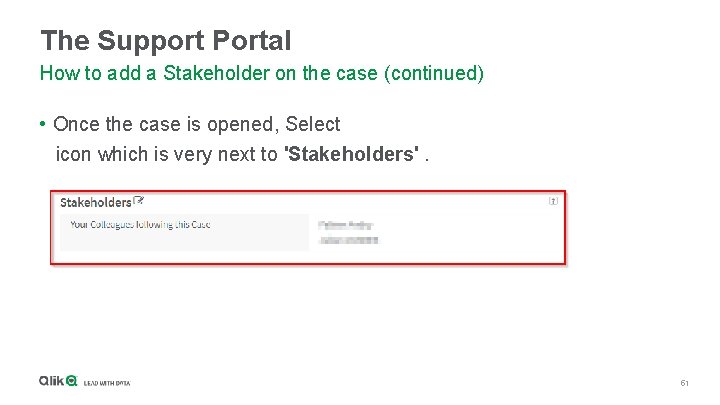
The Support Portal How to add a Stakeholder on the case (continued) • Once the case is opened, Select icon which is very next to 'Stakeholders'. 51
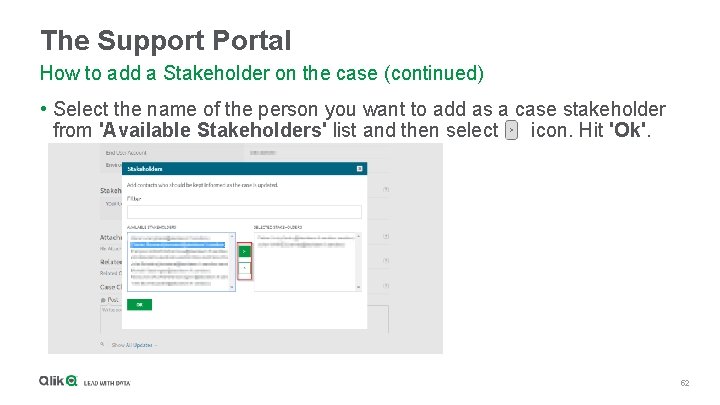
The Support Portal How to add a Stakeholder on the case (continued) • Select the name of the person you want to add as a case stakeholder from 'Available Stakeholders' list and then select icon. Hit 'Ok'. 52
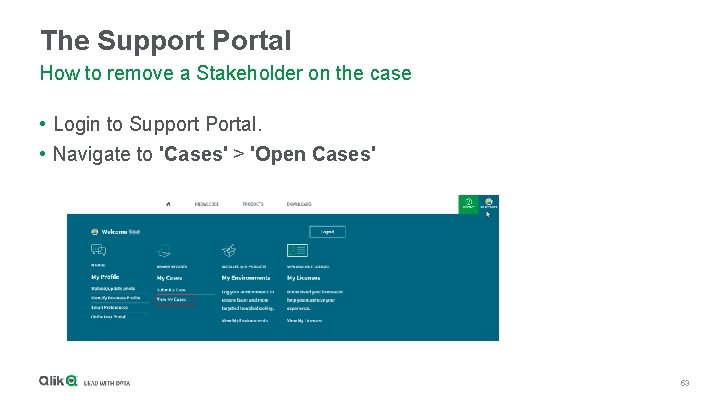
The Support Portal How to remove a Stakeholder on the case • Login to Support Portal. • Navigate to 'Cases' > 'Open Cases' 53
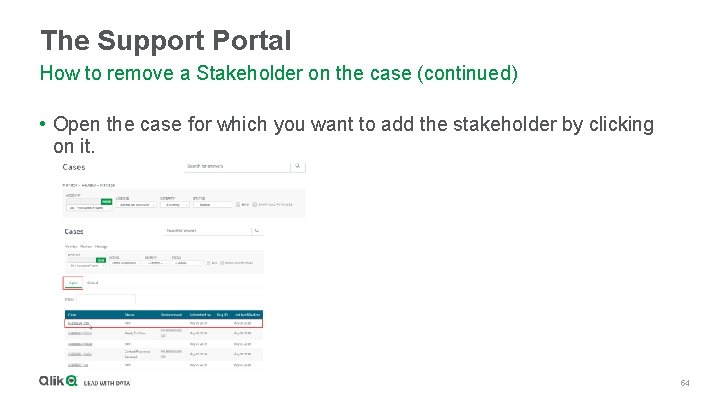
The Support Portal How to remove a Stakeholder on the case (continued) • Open the case for which you want to add the stakeholder by clicking on it. 54
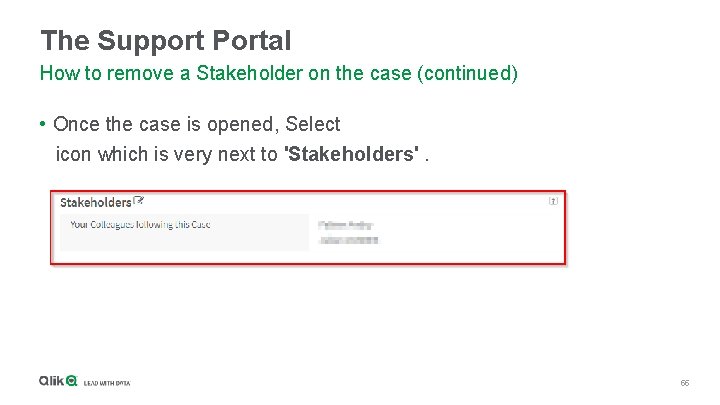
The Support Portal How to remove a Stakeholder on the case (continued) • Once the case is opened, Select icon which is very next to 'Stakeholders'. 55
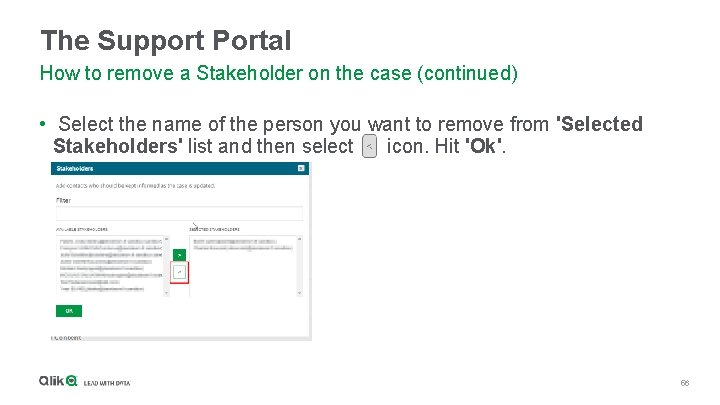
The Support Portal How to remove a Stakeholder on the case (continued) • Select the name of the person you want to remove from 'Selected Stakeholders' list and then select icon. Hit 'Ok'. 56
Useful Links • How to Log a Technical Case in the Support Portal • (Video): https: //www. youtube. com/watch? v=XVV 25 Xgv. Oo 0 • Article: https: //support. qlik. com/articles/000043147 • Creating an Environment for Technical Cases • (Video): https: //www. youtube. com/watch? v=Nbb. F 87 Ude 0 Q • Article: https: //support. qlik. com/articles/000045593 • How to add or remove a Stakeholder on the case • Article: https: //support. qlik. com/articles/000039036 57