Program EA SCE Enterprise Agreement Server and Cloud




- Slides: 34
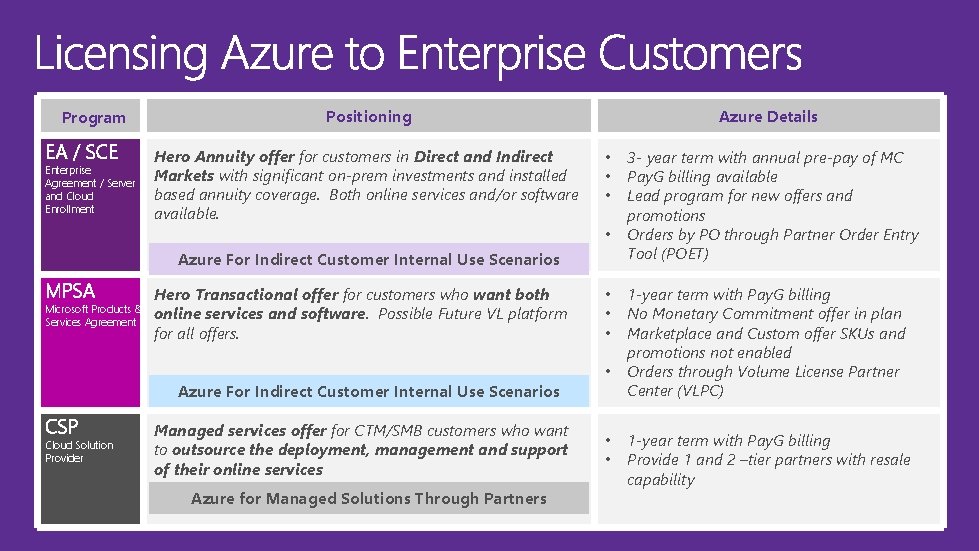
Program EA / SCE Enterprise Agreement / Server and Cloud Enrollment Positioning Hero Annuity offer for customers in Direct and Indirect Markets with significant on-prem investments and installed based annuity coverage. Both online services and/or software available. Azure Details • • Azure For Indirect Customer Internal Use Scenarios MPSA Microsoft Products & Services Agreement Hero Transactional offer for customers who want both online services and software. Possible Future VL platform for all offers. Azure For Indirect Customer Internal Use Scenarios CSP Cloud Solution Provider Managed services offer for CTM/SMB customers who want to outsource the deployment, management and support of their online services Azure for Managed Solutions Through Partners • • • 3 - year term with annual pre-pay of MC Pay. G billing available Lead program for new offers and promotions Orders by PO through Partner Order Entry Tool (POET) 1 -year term with Pay. G billing No Monetary Commitment offer in plan Marketplace and Custom offer SKUs and promotions not enabled Orders through Volume License Partner Center (VLPC) 1 -year term with Pay. G billing Provide 1 and 2 –tier partners with resale capability
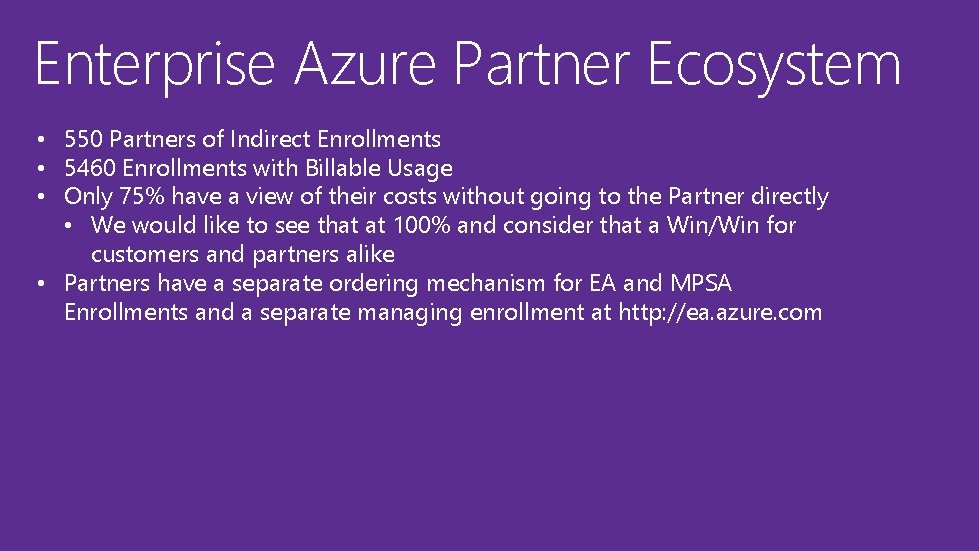
Enterprise Azure Partner Ecosystem • 550 Partners of Indirect Enrollments • 5460 Enrollments with Billable Usage • Only 75% have a view of their costs without going to the Partner directly • We would like to see that at 100% and consider that a Win/Win for customers and partners alike • Partners have a separate ordering mechanism for EA and MPSA Enrollments and a separate managing enrollment at http: //ea. azure. com
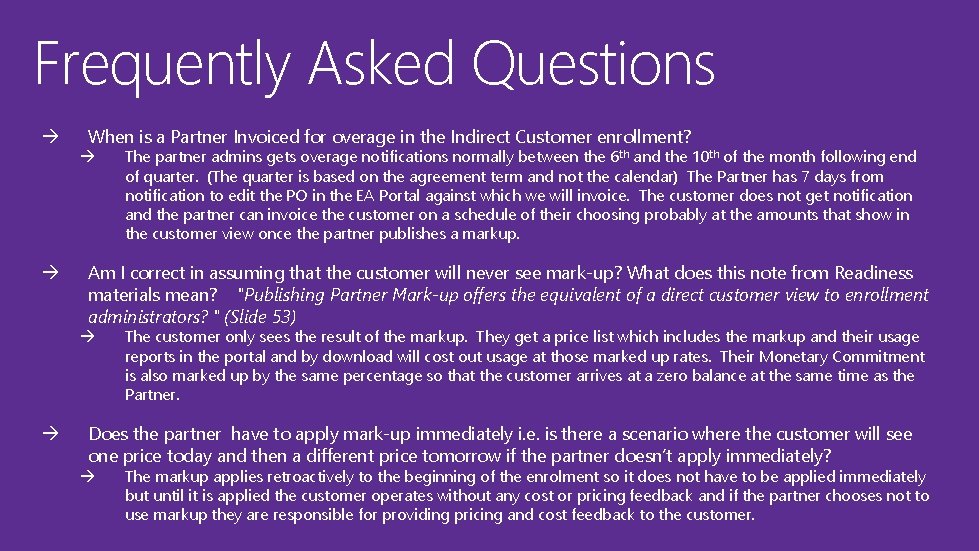
Frequently Asked Questions à When is a Partner Invoiced for overage in the Indirect Customer enrollment? à à Am I correct in assuming that the customer will never see mark-up? What does this note from Readiness materials mean? "Publishing Partner Mark-up offers the equivalent of a direct customer view to enrollment administrators? " (Slide 53) à à The partner admins gets overage notifications normally between the 6 th and the 10 th of the month following end of quarter. (The quarter is based on the agreement term and not the calendar) The Partner has 7 days from notification to edit the PO in the EA Portal against which we will invoice. The customer does not get notification and the partner can invoice the customer on a schedule of their choosing probably at the amounts that show in the customer view once the partner publishes a markup. The customer only sees the result of the markup. They get a price list which includes the markup and their usage reports in the portal and by download will cost out usage at those marked up rates. Their Monetary Commitment is also marked up by the same percentage so that the customer arrives at a zero balance at the same time as the Partner. Does the partner have to apply mark-up immediately i. e. is there a scenario where the customer will see one price today and then a different price tomorrow if the partner doesn’t apply immediately? à The markup applies retroactively to the beginning of the enrolment so it does not have to be applied immediately but until it is applied the customer operates without any cost or pricing feedback and if the partner chooses not to use markup they are responsible for providing pricing and cost feedback to the customer.
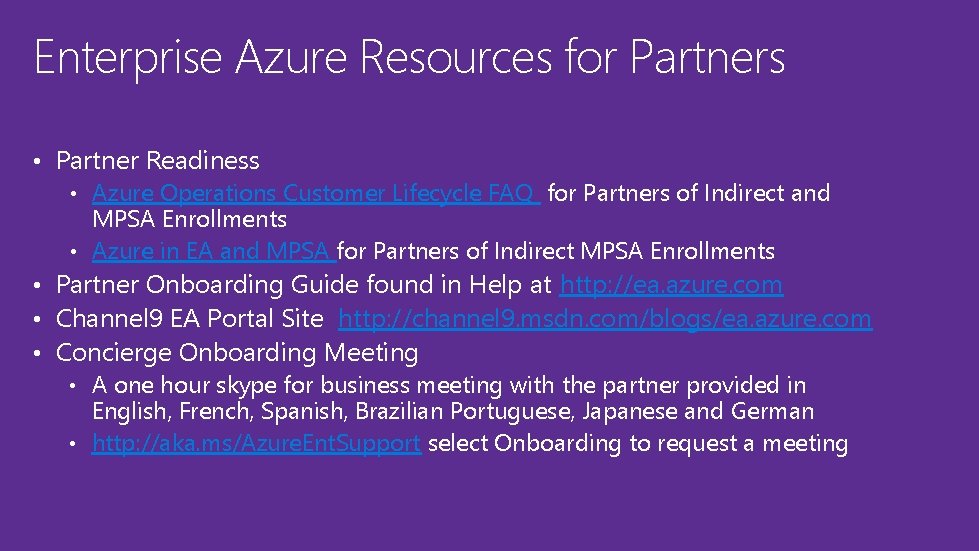
Enterprise Azure Resources for Partners • Partner Readiness • Azure Operations Customer Lifecycle FAQ for Partners of Indirect and MPSA Enrollments • Azure in EA and MPSA for Partners of Indirect MPSA Enrollments • Partner Onboarding Guide found in Help at http: //ea. azure. com • Channel 9 EA Portal Site http: //channel 9. msdn. com/blogs/ea. azure. com • Concierge Onboarding Meeting • A one hour skype for business meeting with the partner provided in English, French, Spanish, Brazilian Portuguese, Japanese and German • http: //aka. ms/Azure. Ent. Support select Onboarding to request a meeting
1 2 Onboarding Guide to the Microsoft Azure Enterprise Portal (Partner View) Enterprise Azure Operations – Updated July 2016 Microsoft Azure
Table of Contents à à Overview of Roles on Microsoft Azure Portals Access the Enterprise Portal and Manage Administrators Partner Views in the Enterprise Portal Partner Markup and Reporting
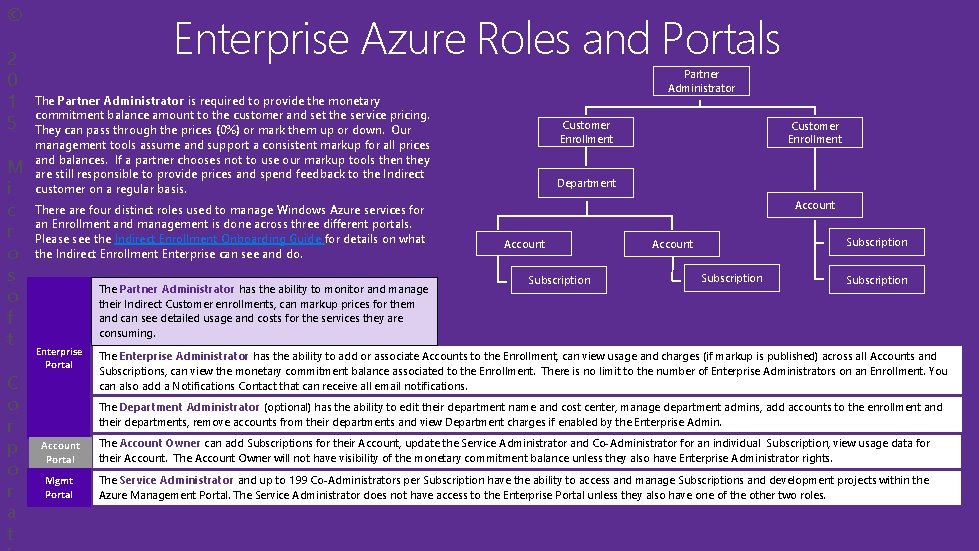
© 2 0 1 5 M i c r o s o f t C o r p o r a t Enterprise Azure Roles and Portals Partner Administrator The Partner Administrator is required to provide the monetary commitment balance amount to the customer and set the service pricing. They can pass through the prices (0%) or mark them up or down. Our management tools assume and support a consistent markup for all prices and balances. If a partner chooses not to use our markup tools then they are still responsible to provide prices and spend feedback to the Indirect customer on a regular basis. There are four distinct roles used to manage Windows Azure services for an Enrollment and management is done across three different portals. Please see the Indirect Enrollment Onboarding Guide for details on what the Indirect Enrollment Enterprise can see and do. The Partner Administrator has the ability to monitor and manage their Indirect Customer enrollments, can markup prices for them and can see detailed usage and costs for the services they are consuming. Enterprise Portal Customer Enrollment Department Account Subscription The Enterprise Administrator has the ability to add or associate Accounts to the Enrollment, can view usage and charges (if markup is published) across all Accounts and Subscriptions, can view the monetary commitment balance associated to the Enrollment. There is no limit to the number of Enterprise Administrators on an Enrollment. You can also add a Notifications Contact that can receive all email notifications. The Department Administrator (optional) has the ability to edit their department name and cost center, manage department admins, add accounts to the enrollment and their departments, remove accounts from their departments and view Department charges if enabled by the Enterprise Admin. Account Portal The Account Owner can add Subscriptions for their Account, update the Service Administrator and Co-Administrator for an individual Subscription, view usage data for their Account. The Account Owner will not have visibility of the monetary commitment balance unless they also have Enterprise Administrator rights. Mgmt Portal The Service Administrator and up to 199 Co-Administrators per Subscription have the ability to access and manage Subscriptions and development projects within the Azure Management Portal. The Service Administrator does not have access to the Enterprise Portal unless they also have one of the other two roles.
1 5 Access the Enterprise Portal and Manage Administrators The person listed as the Channel Partner Contact in Microsoft Volume Licensing Systems will automatically be added as a Partner Administrator on all Indirect Enrollments. Partner Administrators have permissions to add and remove Partner Administrators. There is no limit to the number of Partner Administrators who can access your enrollments. You will start by logging in at http: //ea. azure. com Microsoft Azure
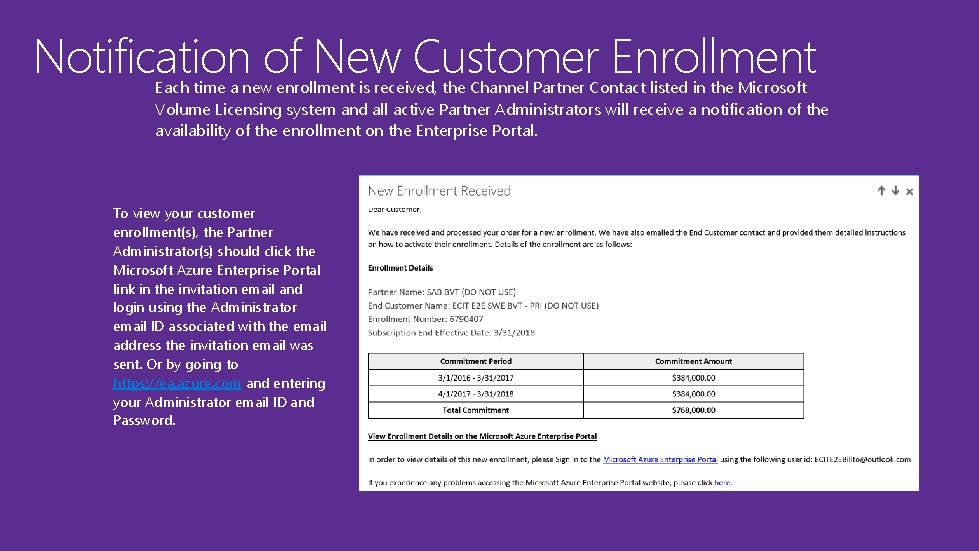
Notification of New Customer Enrollment Each time a new enrollment is received, the Channel Partner Contact listed in the Microsoft Volume Licensing system and all active Partner Administrators will receive a notification of the availability of the enrollment on the Enterprise Portal. To view your customer enrollment(s), the Partner Administrator(s) should click the Microsoft Azure Enterprise Portal link in the invitation email and login using the Administrator email ID associated with the email address the invitation email was sent. Or by going to https: //ea. azure. com and entering your Administrator email ID and Password.
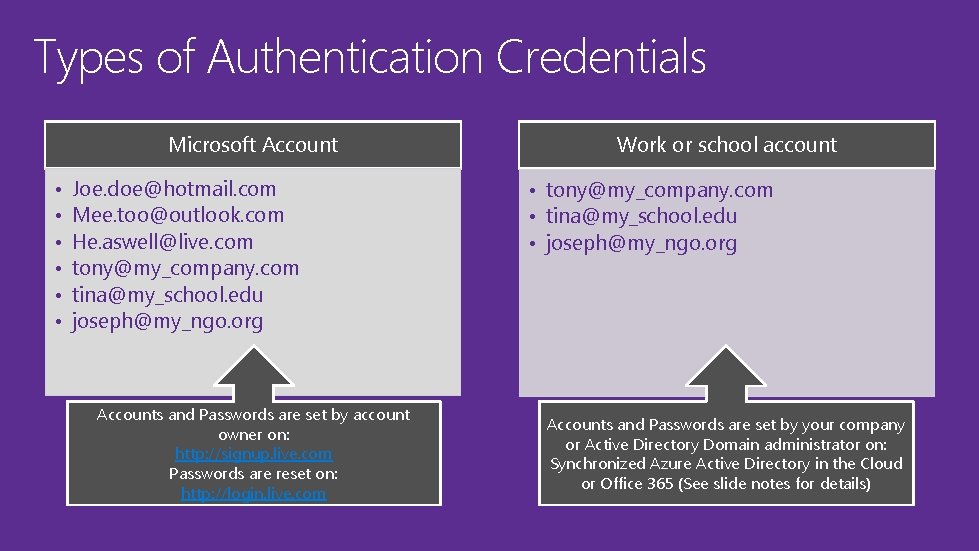
Types of Authentication Credentials Microsoft Account • • • Joe. doe@hotmail. com Mee. too@outlook. com He. aswell@live. com tony@my_company. com tina@my_school. edu joseph@my_ngo. org Accounts and Passwords are set by account owner on: http: //signup. live. com Passwords are reset on: http: //login. live. com Work or school account • tony@my_company. com • tina@my_school. edu • joseph@my_ngo. org Accounts and Passwords are set by your company or Active Directory Domain administrator on: Synchronized Azure Active Directory in the Cloud or Office 365 (See slide notes for details)
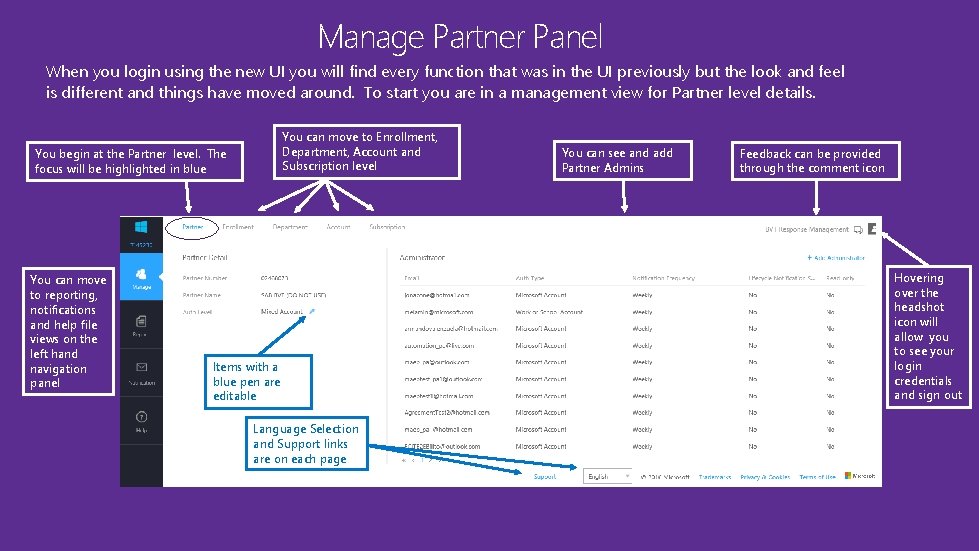
Manage Partner Panel When you login using the new UI you will find every function that was in the UI previously but the look and feel is different and things have moved around. To start you are in a management view for Partner level details. You can move to Enrollment, Department, Account and Subscription level You begin at the Partner level. The focus will be highlighted in blue You can move to reporting, notifications and help file views on the left hand navigation panel Items with a blue pen are editable Language Selection and Support links are on each page You can see and add Partner Admins Feedback can be provided through the comment icon Hovering over the headshot icon will allow you to see your login credentials and sign out
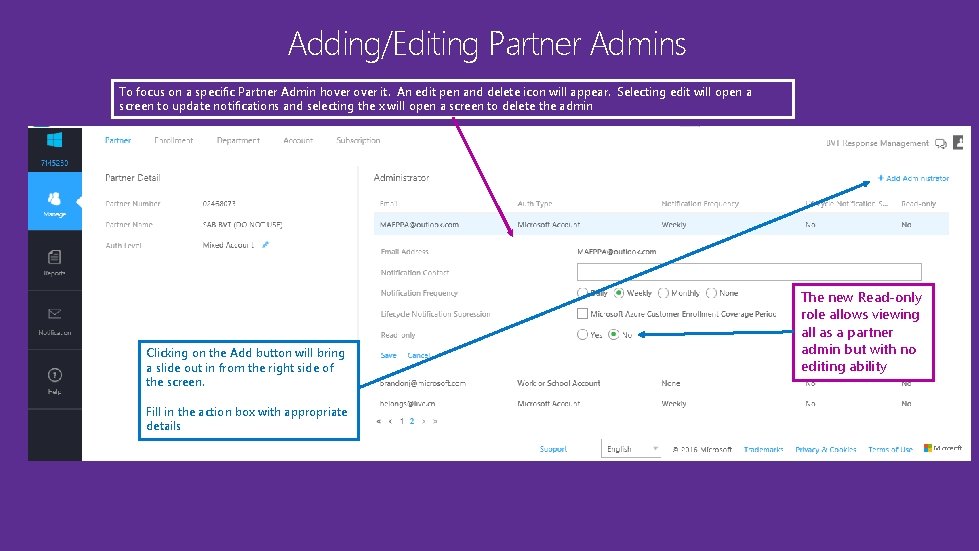
Adding/Editing Partner Admins To focus on a specific Partner Admin hover it. An edit pen and delete icon will appear. Selecting edit will open a screen to update notifications and selecting the x will open a screen to delete the admin Clicking on the Add button will bring a slide out in from the right side of the screen. Fill in the action box with appropriate details The new Read-only role allows viewing all as a partner admin but with no editing ability
2 0 Partner Views in the Enterprise Portal Once you select an enrollment to view you will be able to see the roles that the customer defined and see the usage and costs at the Department, Account and Subscription level Microsoft Azure
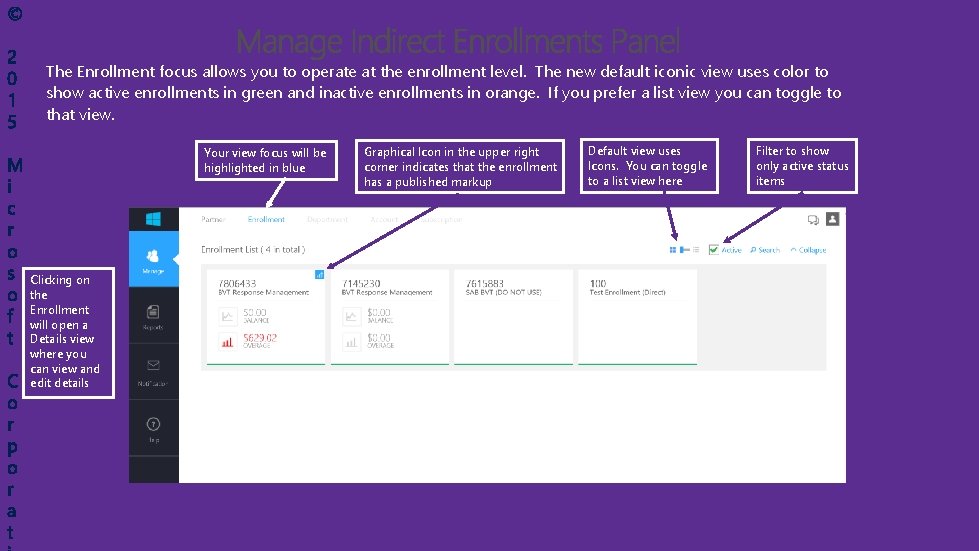
The Enrollment focus allows you to operate at the enrollment level. The new default iconic view uses color to show active enrollments in green and inactive enrollments in orange. If you prefer a list view you can toggle to that view. Your view focus will be highlighted in blue Clicking on the Enrollment will open a Details view where you can view and edit details Graphical Icon in the upper right corner indicates that the enrollment has a published markup Default view uses Icons. You can toggle to a list view here Filter to show only active status items
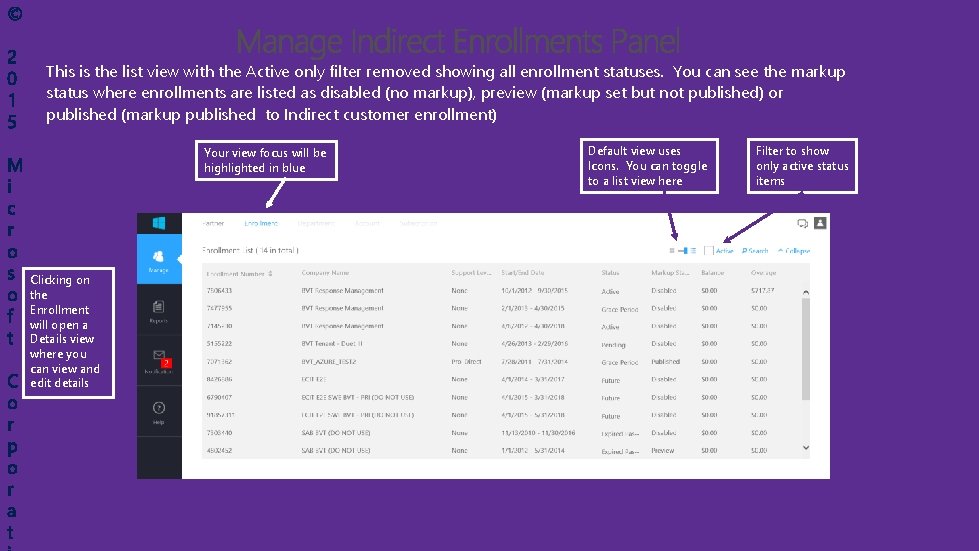
This is the list view with the Active only filter removed showing all enrollment statuses. You can see the markup status where enrollments are listed as disabled (no markup), preview (markup set but not published) or published (markup published to Indirect customer enrollment) Your view focus will be highlighted in blue Clicking on the Enrollment will open a Details view where you can view and edit details Default view uses Icons. You can toggle to a list view here Filter to show only active status items
2 3 Partner Markup and Reporting The Partner Markup allows the Partner to add markup to their Indirect Customer enrollments and publishing that markup provides nearly the equivalent of a Direct Customer view to the enrollment administrators. They will now have a Usage Summary, Price List, and Download Usage reports showing costs and prices at marked up rates. Microsoft Azure
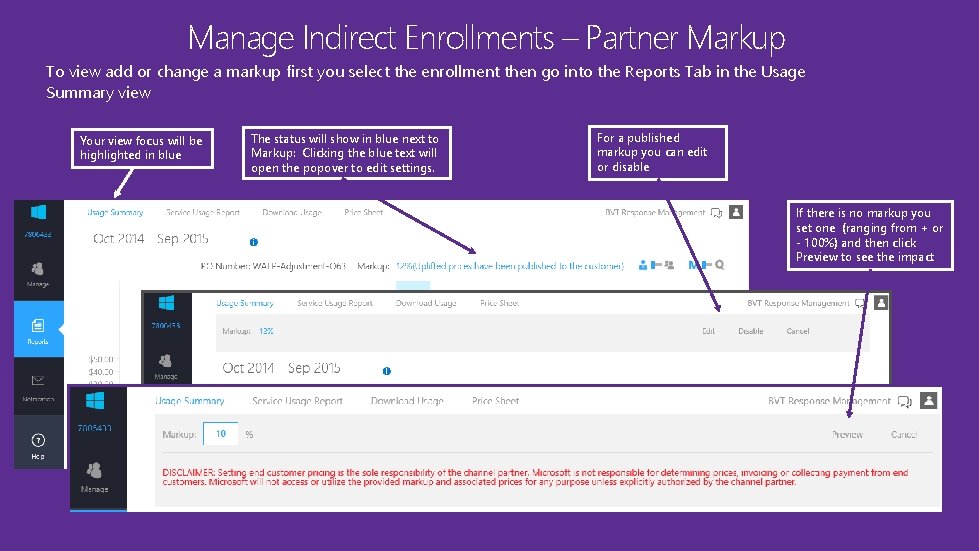
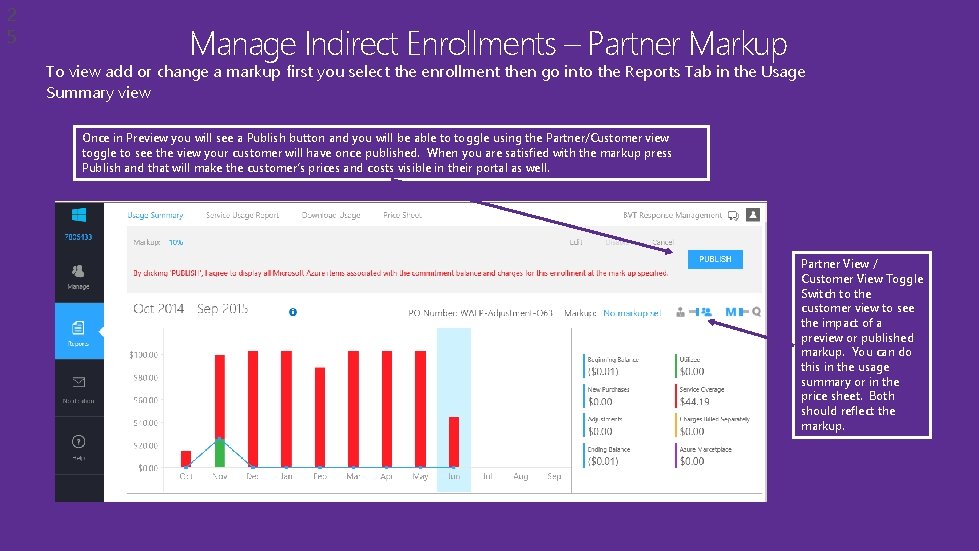
Manage Indirect Enrollments – Partner Markup To view add or change a markup first you select the enrollment then go into the Reports Tab in the Usage Summary view Your view focus will be highlighted in blue The status will show in blue next to Markup: Clicking the blue text will open the popover to edit settings. For a published markup you can edit or disable If there is no markup you set one (ranging from + or - 100%) and then click Preview to see the impact
2 5 Manage Indirect Enrollments – Partner Markup To view add or change a markup first you select the enrollment then go into the Reports Tab in the Usage Summary view Once in Preview you will see a Publish button and you will be able to toggle using the Partner/Customer view toggle to see the view your customer will have once published. When you are satisfied with the markup press Publish and that will make the customer’s prices and costs visible in their portal as well. Partner View / Customer View Toggle Switch to the customer view to see the impact of a preview or published markup. You can do this in the usage summary or in the price sheet. Both should reflect the markup.
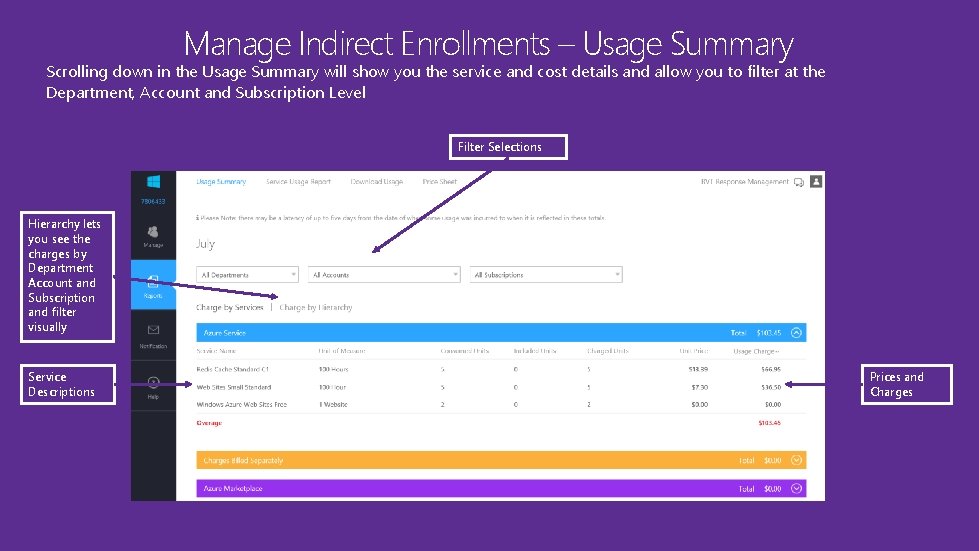
Manage Indirect Enrollments – Usage Summary Scrolling down in the Usage Summary will show you the service and cost details and allow you to filter at the Department, Account and Subscription Level Filter Selections Hierarchy lets you see the charges by Department Account and Subscription and filter visually Service Descriptions Prices and Charges
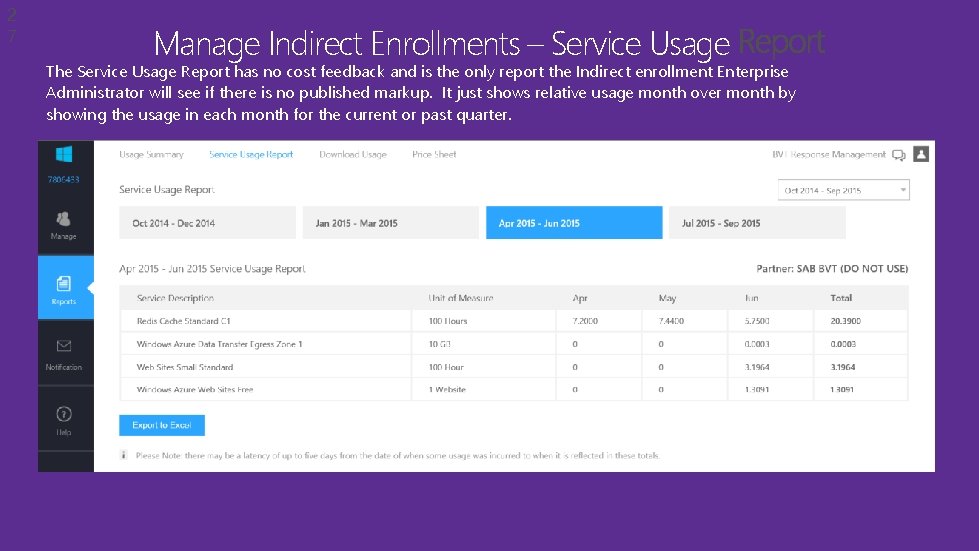
2 7 Manage Indirect Enrollments – Service Usage The Service Usage Report has no cost feedback and is the only report the Indirect enrollment Enterprise Administrator will see if there is no published markup. It just shows relative usage month over month by showing the usage in each month for the current or past quarter.
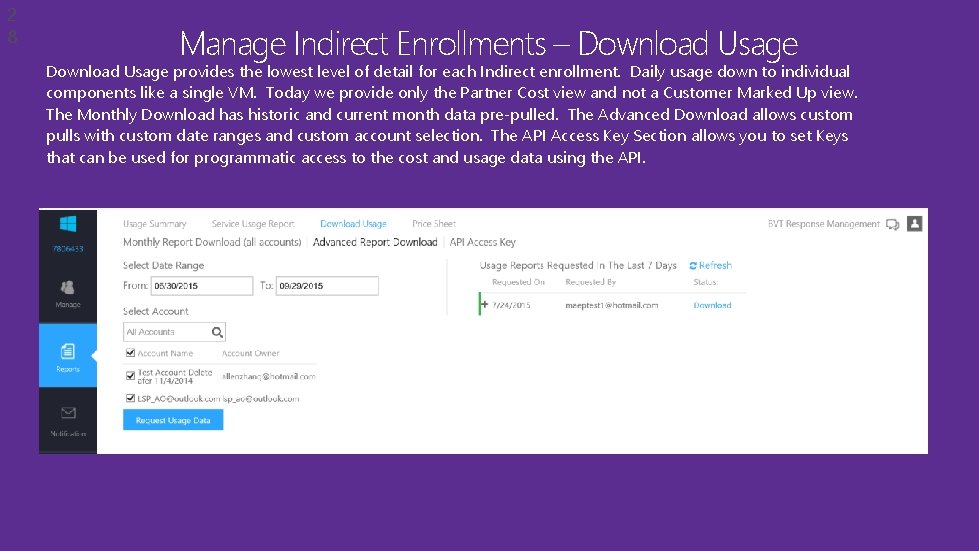
2 8 Manage Indirect Enrollments – Download Usage provides the lowest level of detail for each Indirect enrollment. Daily usage down to individual components like a single VM. Today we provide only the Partner Cost view and not a Customer Marked Up view. The Monthly Download has historic and current month data pre-pulled. The Advanced Download allows custom pulls with custom date ranges and custom account selection. The API Access Key Section allows you to set Keys that can be used for programmatic access to the cost and usage data using the API.
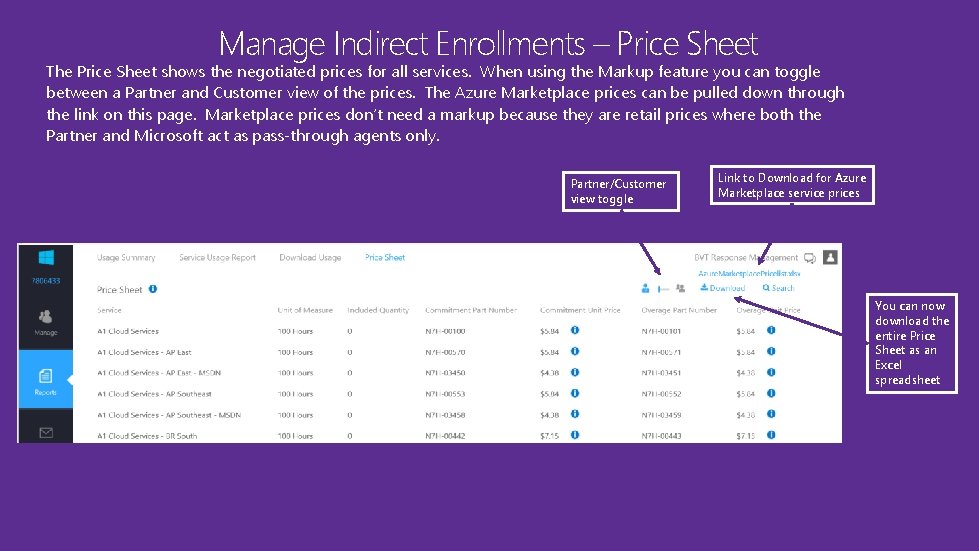
Manage Indirect Enrollments – Price Sheet The Price Sheet shows the negotiated prices for all services. When using the Markup feature you can toggle between a Partner and Customer view of the prices. The Azure Marketplace prices can be pulled down through the link on this page. Marketplace prices don’t need a markup because they are retail prices where both the Partner and Microsoft act as pass-through agents only. Partner/Customer view toggle Link to Download for Azure Marketplace service prices You can now download the entire Price Sheet as an Excel spreadsheet
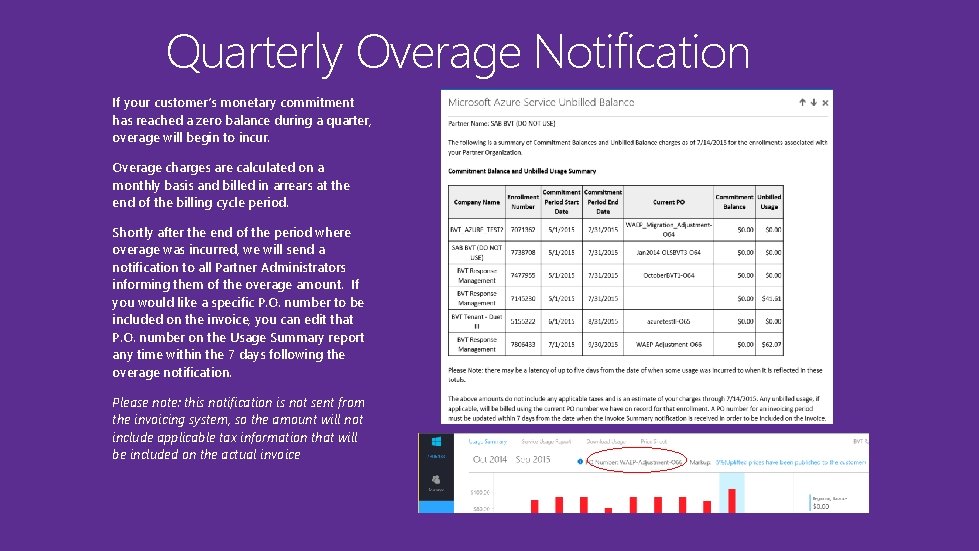
Quarterly Overage Notification If your customer’s monetary commitment has reached a zero balance during a quarter, overage will begin to incur. Overage charges are calculated on a monthly basis and billed in arrears at the end of the billing cycle period. Shortly after the end of the period where overage was incurred, we will send a notification to all Partner Administrators informing them of the overage amount. If you would like a specific P. O. number to be included on the invoice, you can edit that P. O. number on the Usage Summary report any time within the 7 days following the overage notification. Please note: this notification is not sent from the invoicing system, so the amount will not include applicable tax information that will be included on the actual invoice
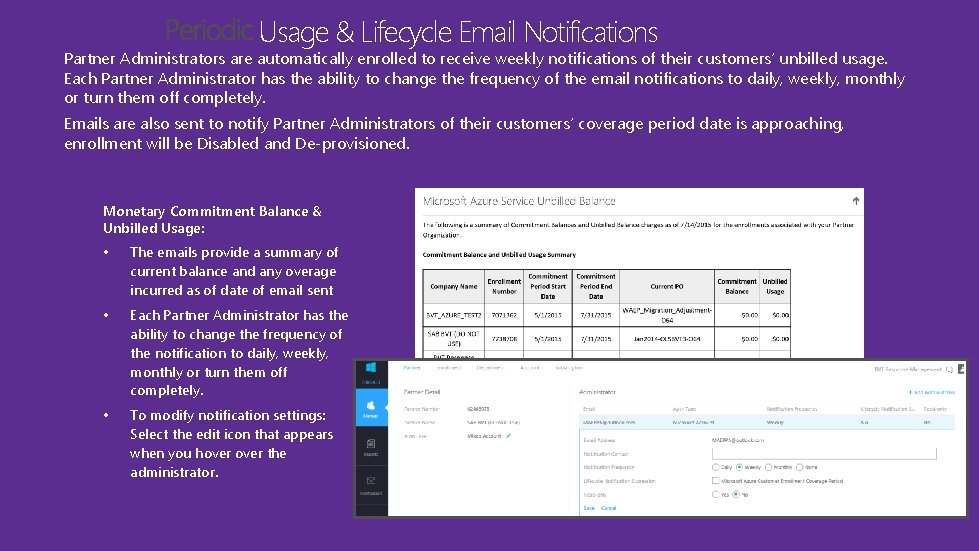
Usage & Lifecycle Email Notifications Partner Administrators are automatically enrolled to receive weekly notifications of their customers’ unbilled usage. Each Partner Administrator has the ability to change the frequency of the email notifications to daily, weekly, monthly or turn them off completely. Emails are also sent to notify Partner Administrators of their customers’ coverage period date is approaching, enrollment will be Disabled and De-provisioned. Monetary Commitment Balance & Unbilled Usage: • The emails provide a summary of current balance and any overage incurred as of date of email sent • Each Partner Administrator has the ability to change the frequency of the notification to daily, weekly, monthly or turn them off completely. • To modify notification settings: Select the edit icon that appears when you hover the administrator.
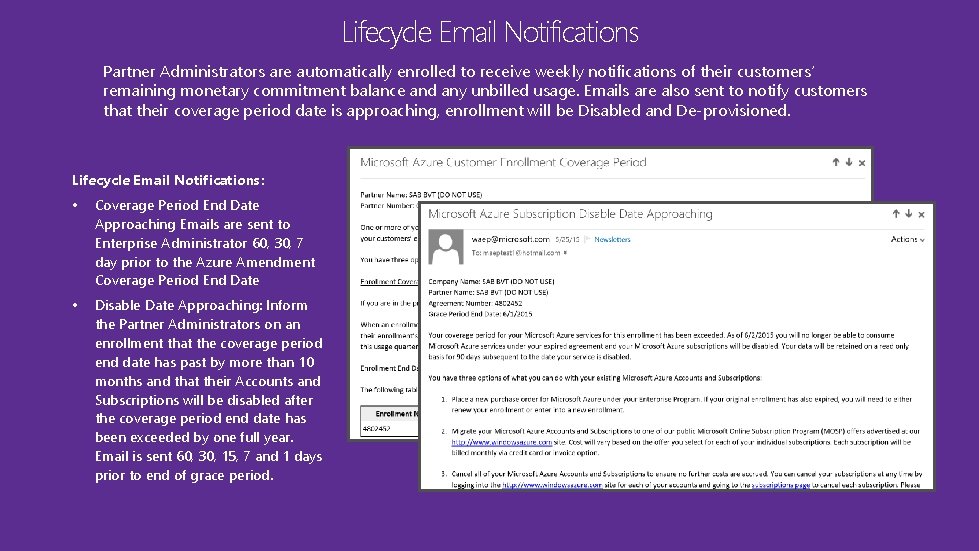
Lifecycle Email Notifications Partner Administrators are automatically enrolled to receive weekly notifications of their customers’ remaining monetary commitment balance and any unbilled usage. Emails are also sent to notify customers that their coverage period date is approaching, enrollment will be Disabled and De-provisioned. Lifecycle Email Notifications: • Coverage Period End Date Approaching Emails are sent to Enterprise Administrator 60, 30, 7 day prior to the Azure Amendment Coverage Period End Date • Disable Date Approaching: Inform the Partner Administrators on an enrollment that the coverage period end date has past by more than 10 months and that their Accounts and Subscriptions will be disabled after the coverage period end date has been exceeded by one full year. Email is sent 60, 30, 15, 7 and 1 days prior to end of grace period.
aka. ms/wpcevals