HOW TO USE IMO CHAT ON YOUR ANDROID

- Slides: 44
HOW TO USE IMO CHAT ON YOUR ANDROID PHONE
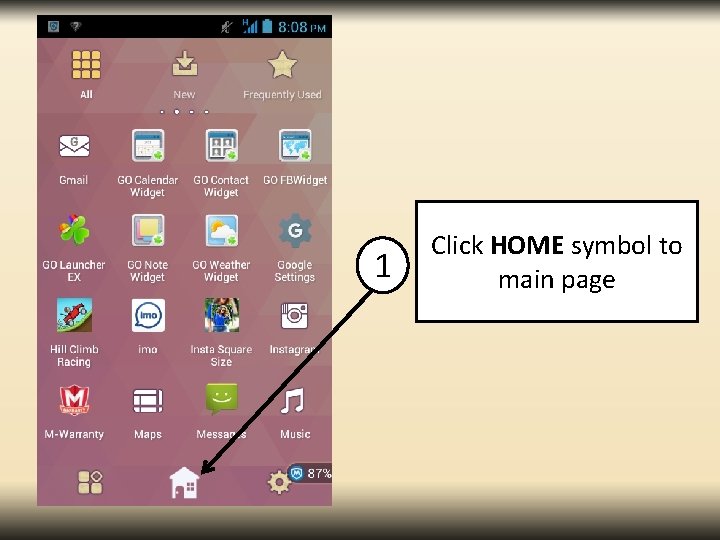
1 Click HOME symbol to main page
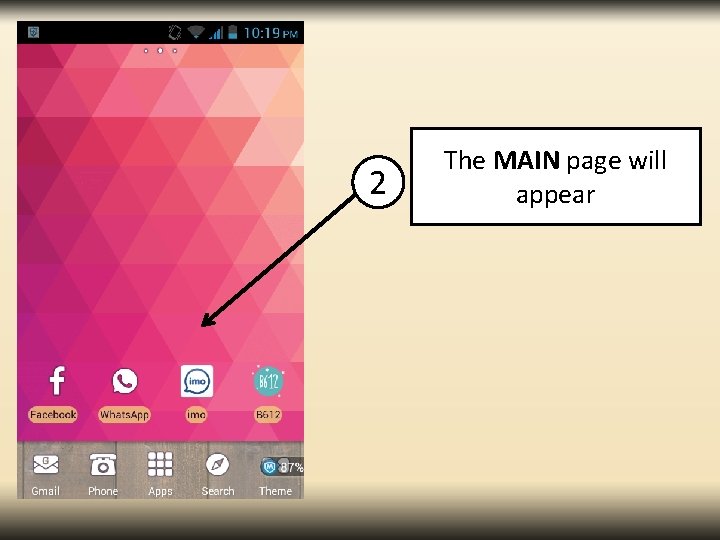
2 The MAIN page will appear
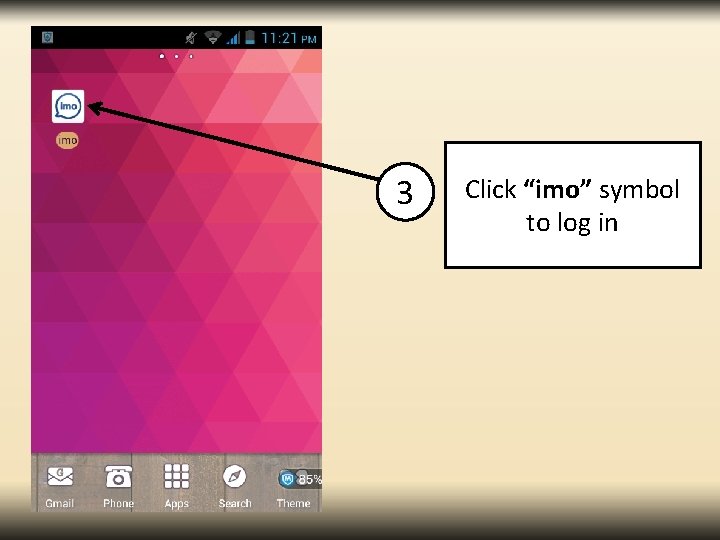
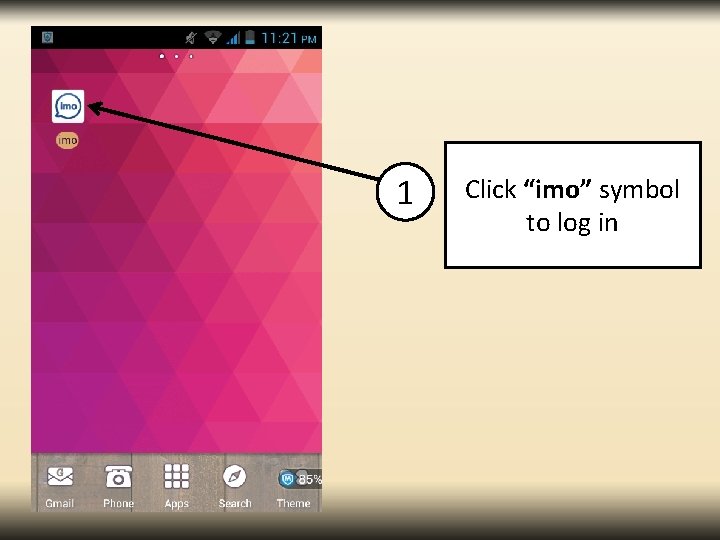
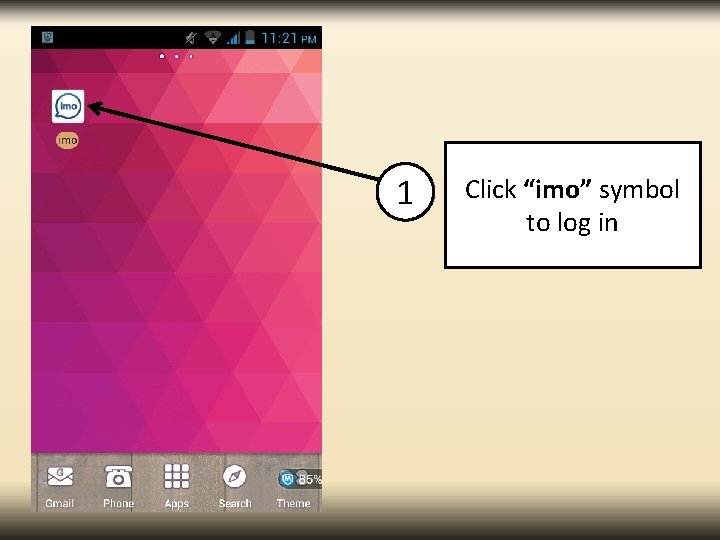
3 Click “imo” symbol to log in
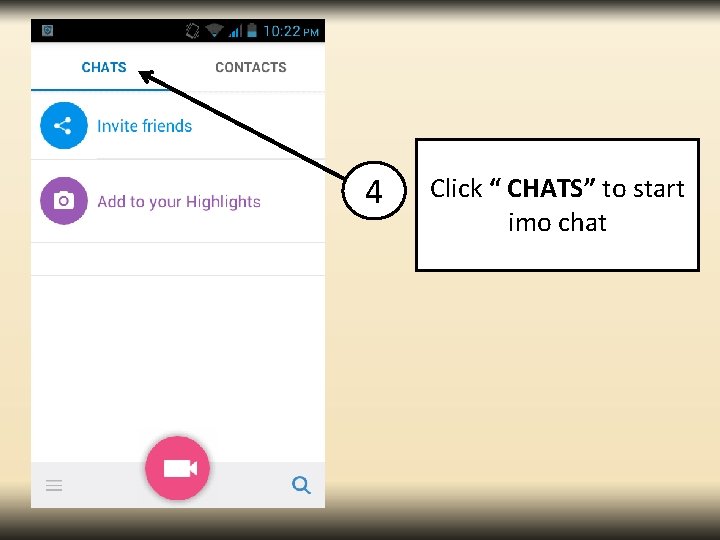
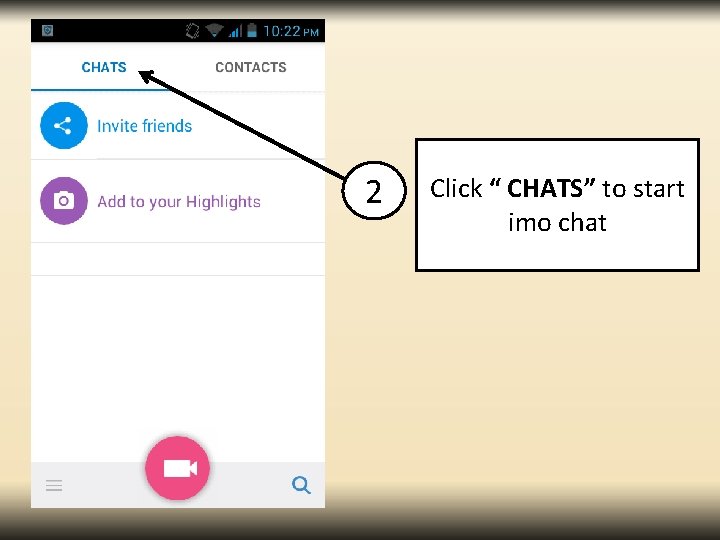
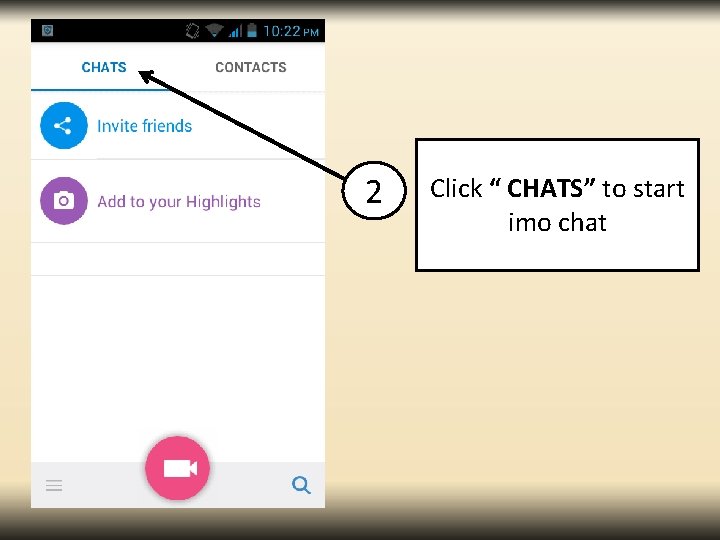
4 Click “ CHATS” to start imo chat
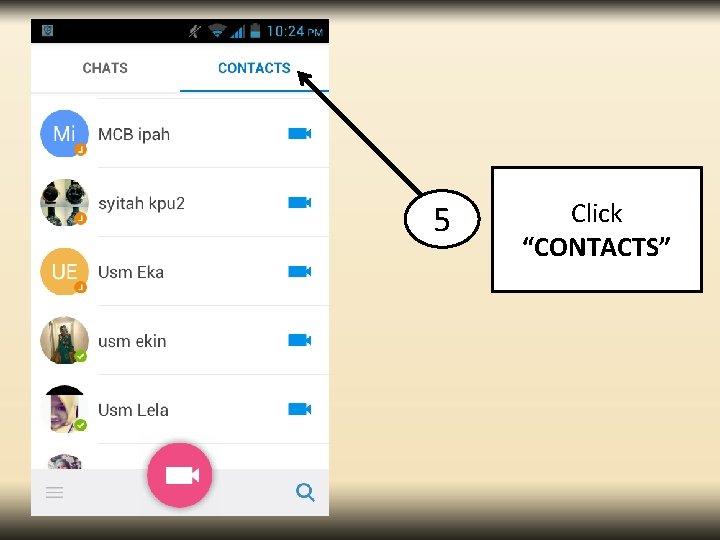
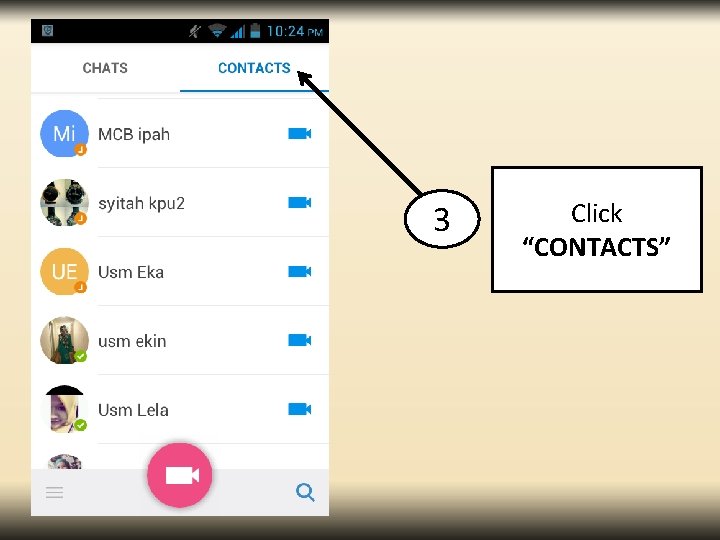
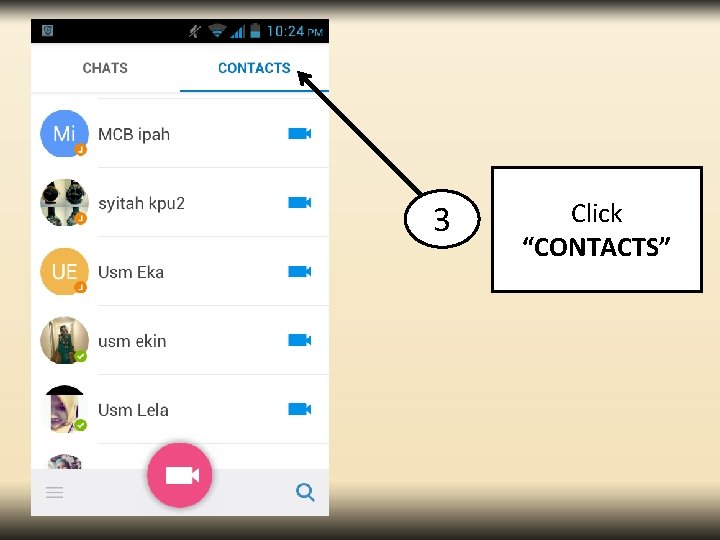
5 Click “CONTACTS”
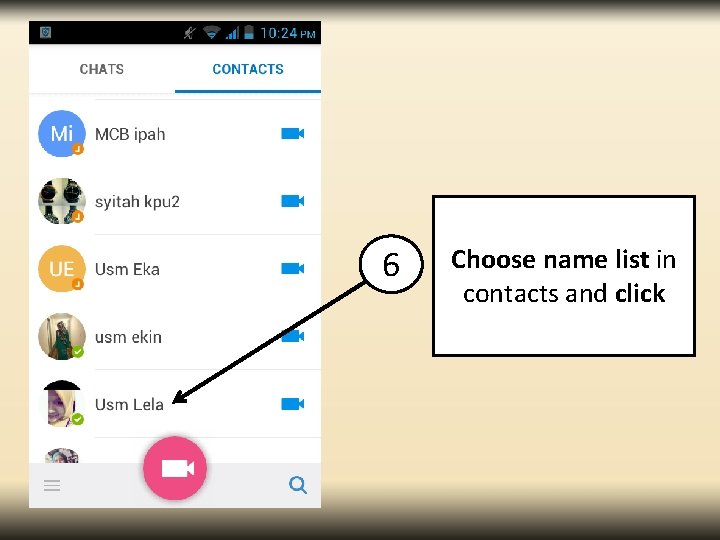
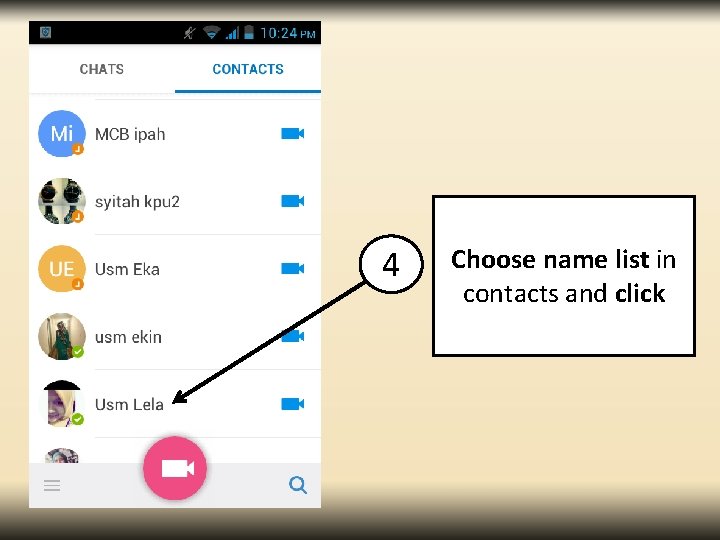
6 Choose name list in contacts and click
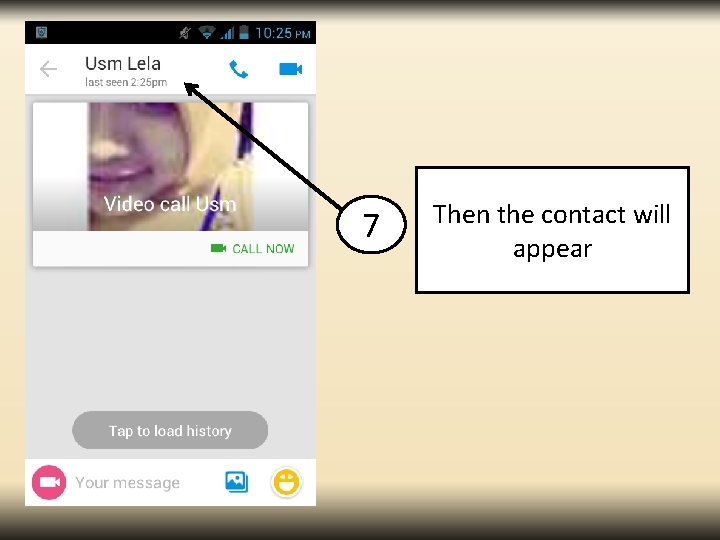
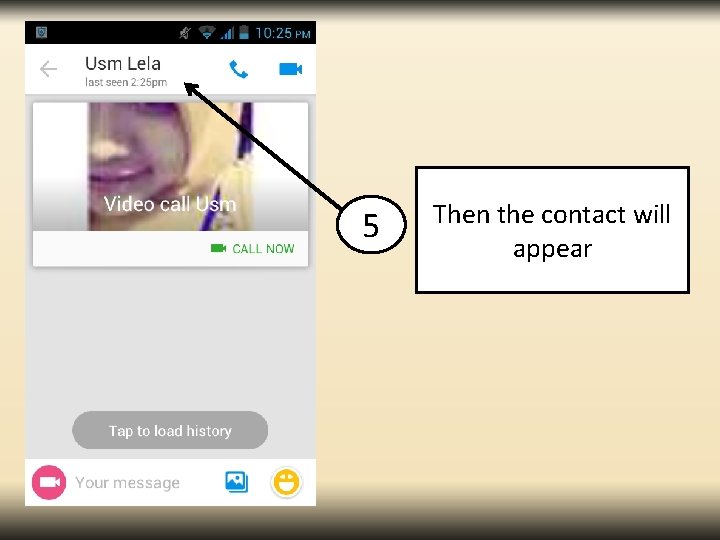
7 Then the contact will appear
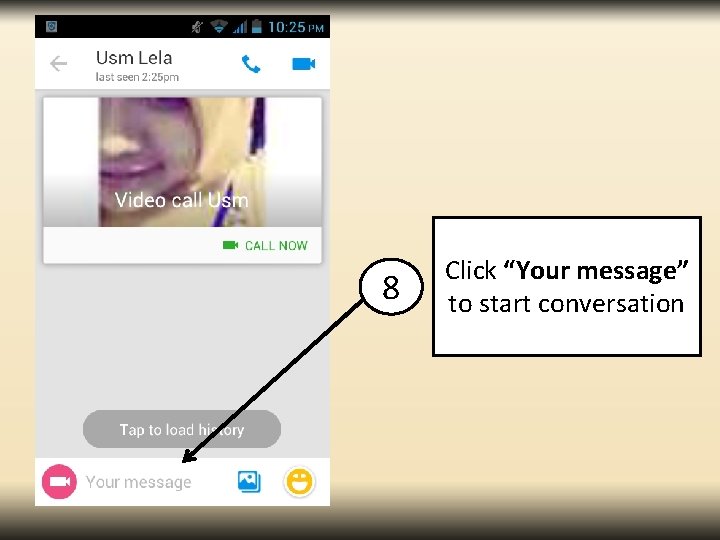
8 Click “Your message” to start conversation
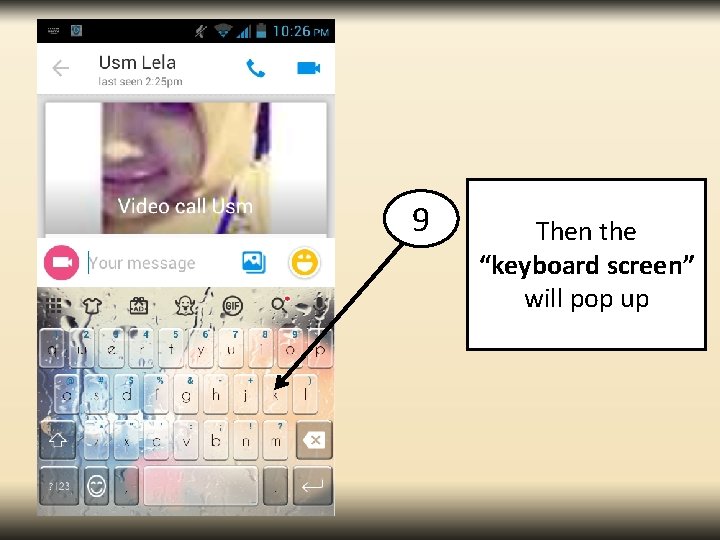
9 Then the “keyboard screen” will pop up
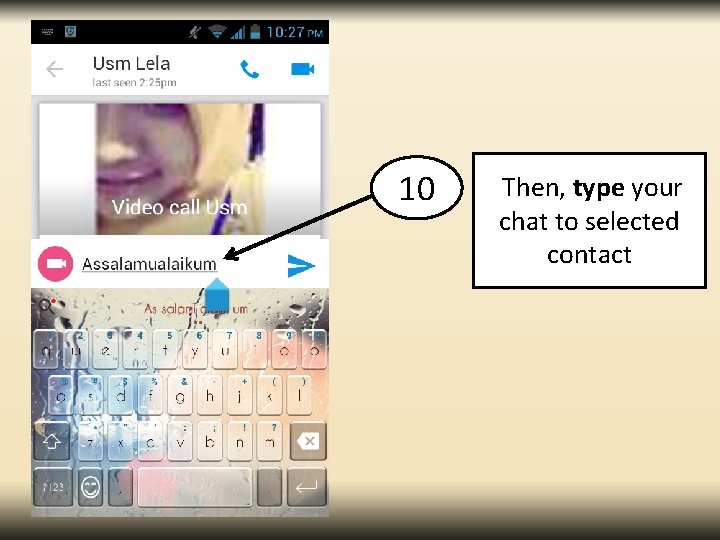
10 Then, type your chat to selected contact
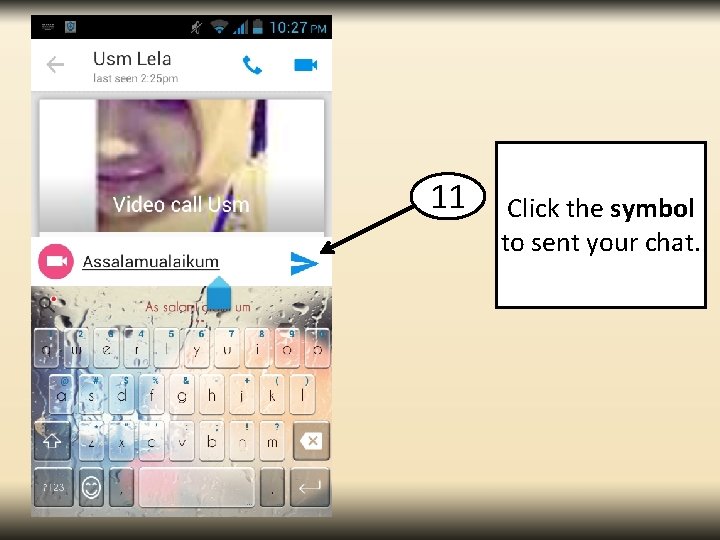
11 Click the symbol to sent your chat.
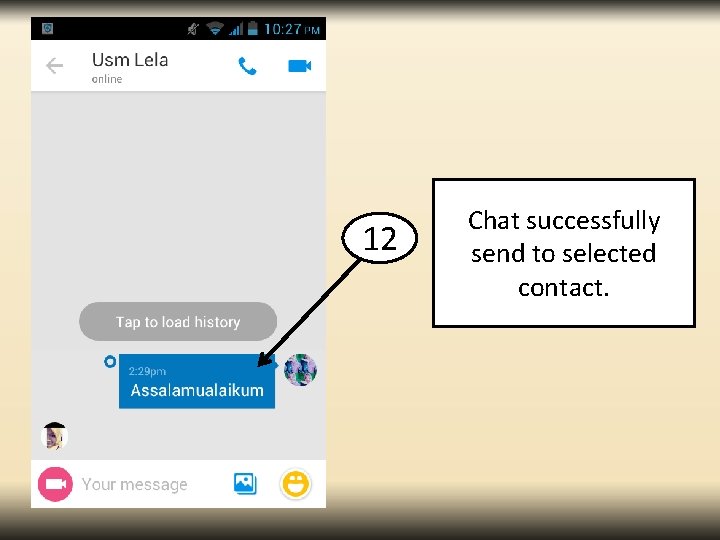
12 Chat successfully send to selected contact.
HOW TO SEND IMAGES TROUGH IMO CHAT
1 Click “imo” symbol to log in
2 Click “ CHATS” to start imo chat
3 Click “CONTACTS”
4 Choose name list in contacts and click
5 Then the contact will appear
6 Click “IMAGE” symbol to insert pictures
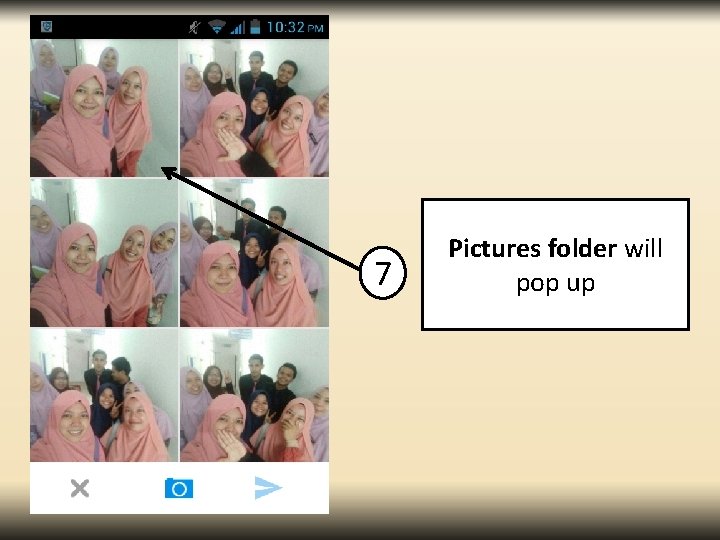
7 Pictures folder will pop up
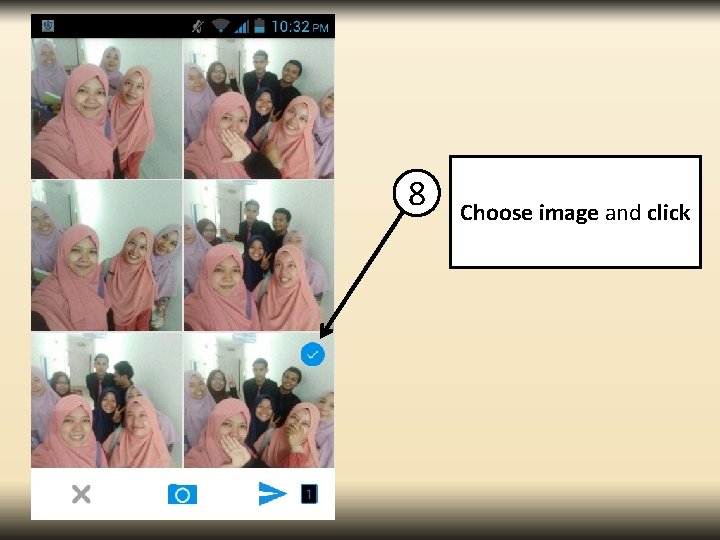
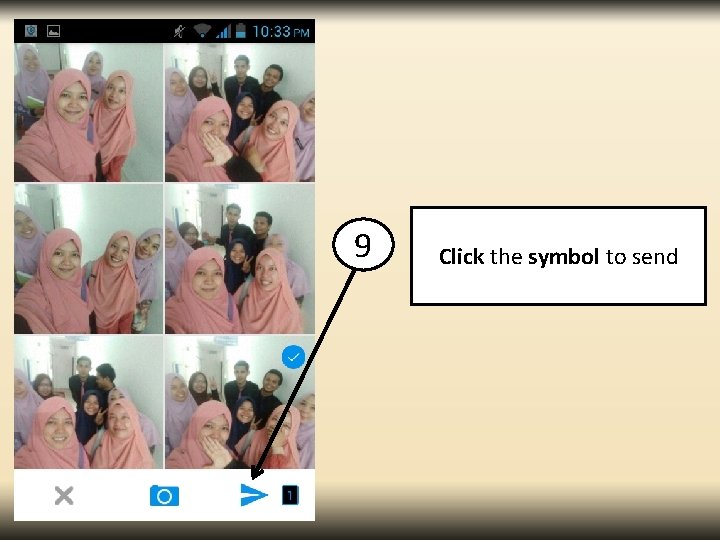
8 Choose image and click
9 Click the symbol to send
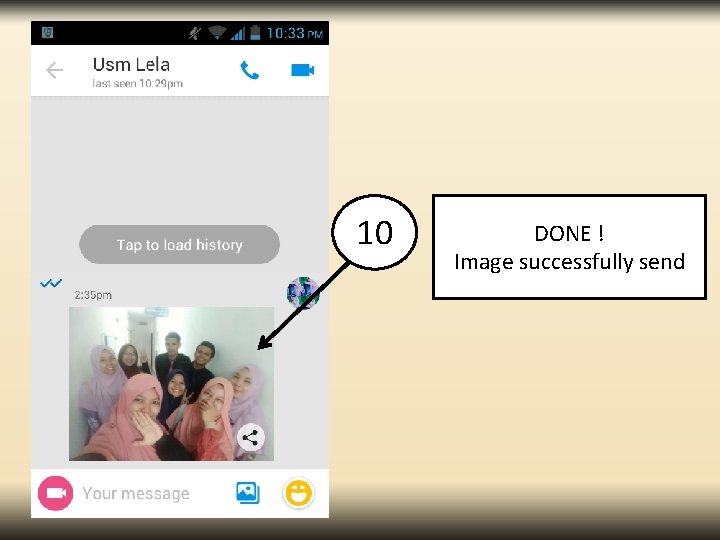
10 DONE ! Image successfully send
HOW TO SNAP IMAGE THROUGH IMO CHAT
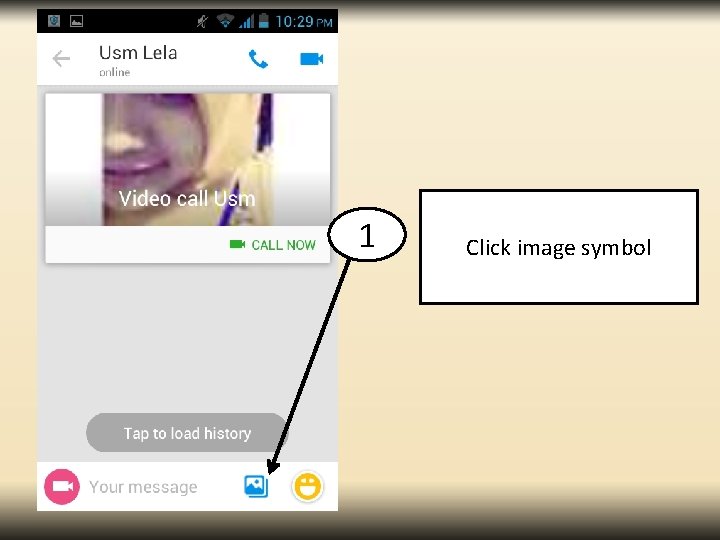
1 Click image symbol
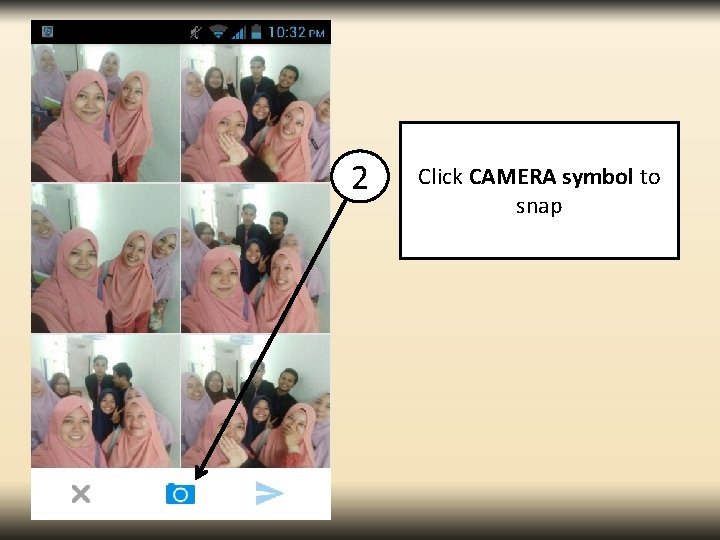
2 Click CAMERA symbol to snap
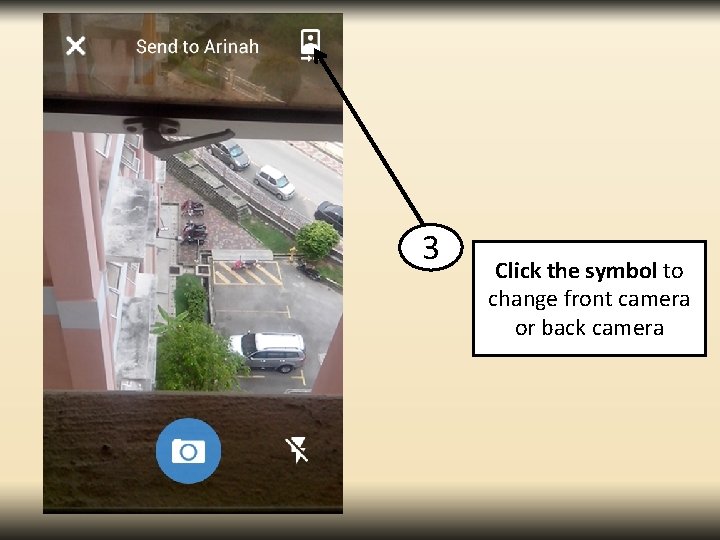
3 Click the symbol to change front camera or back camera
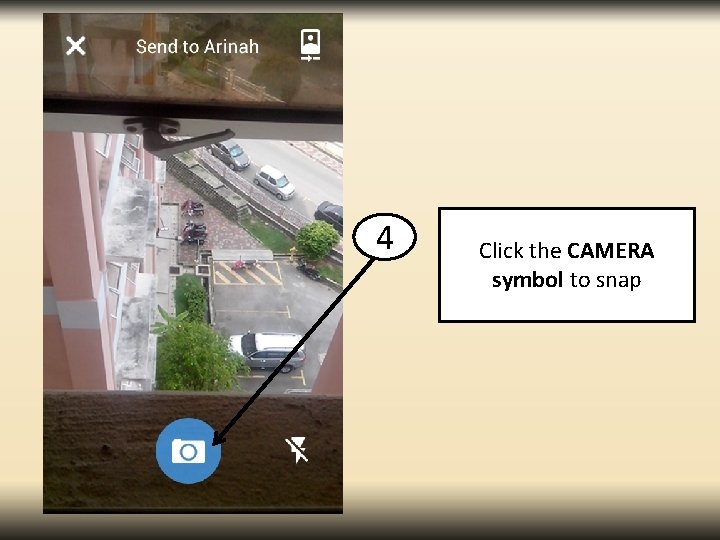
4 Click the CAMERA symbol to snap
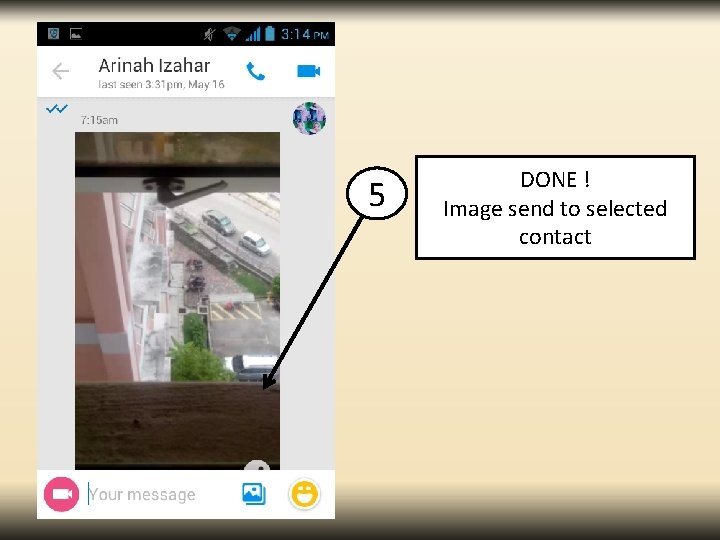
5 DONE ! Image send to selected contact
HOW TO USE EMOTICON BY IMO CHAT
1 Click “imo” symbol to log in
2 Click “ CHATS” to start imo chat
3 Click “CONTACTS”
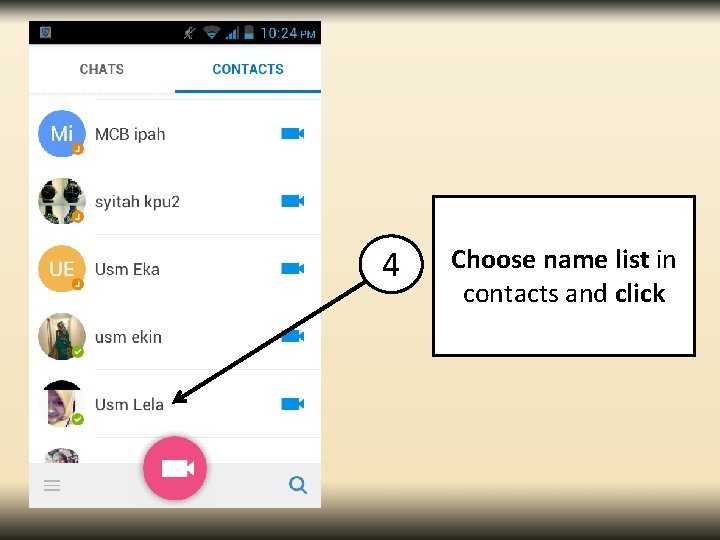
4 Choose name list in contacts and click
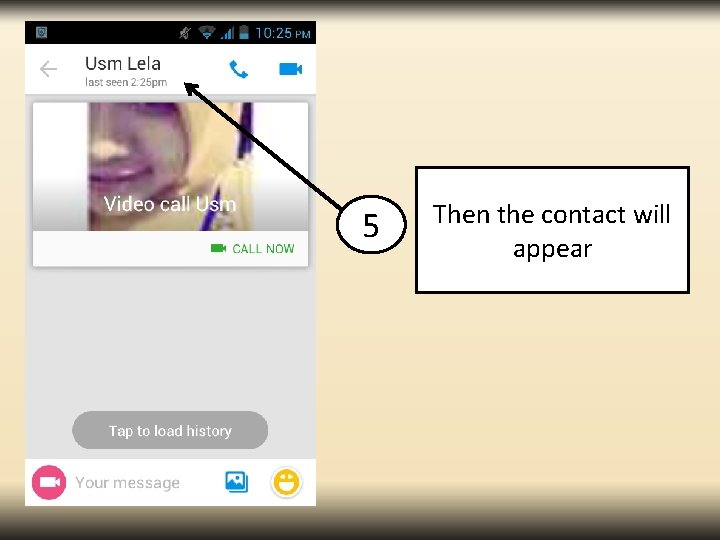
5 Then the contact will appear
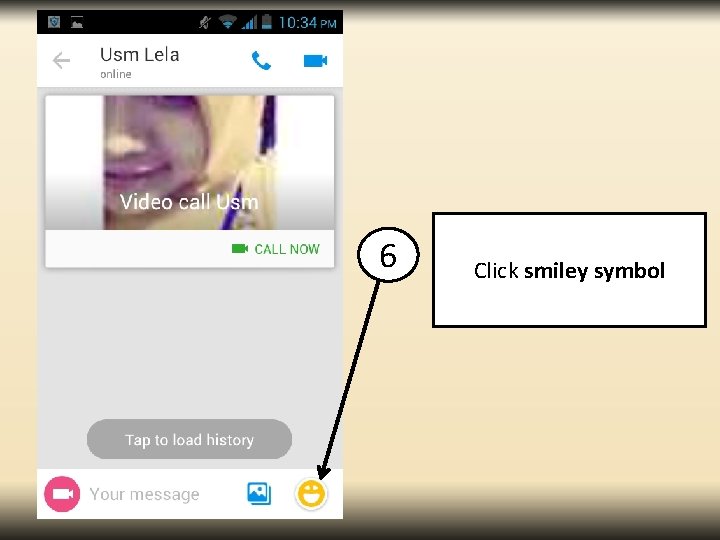
6 Click smiley symbol
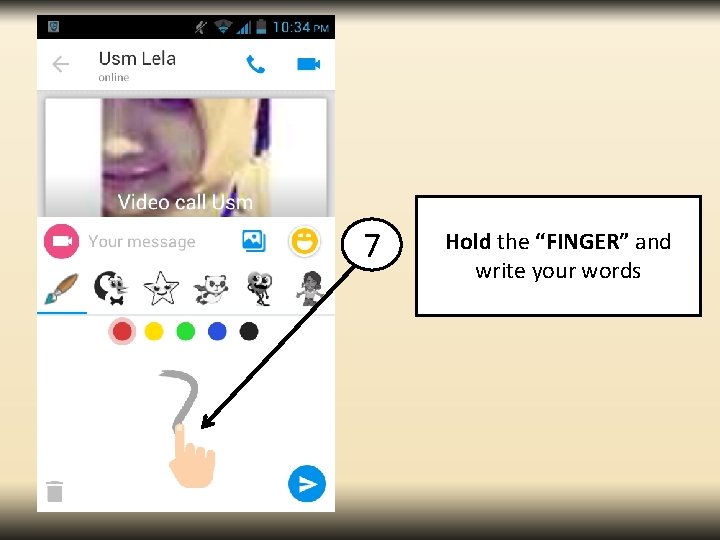
7 Hold the “FINGER” and write your words
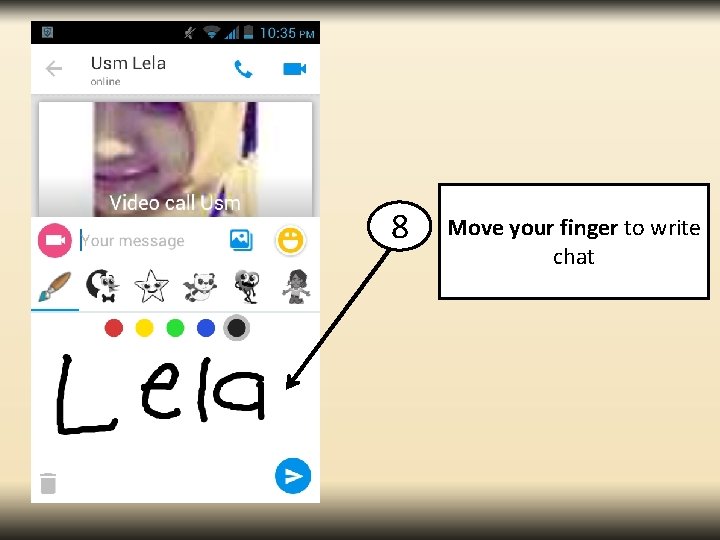
8 Move your finger to write chat
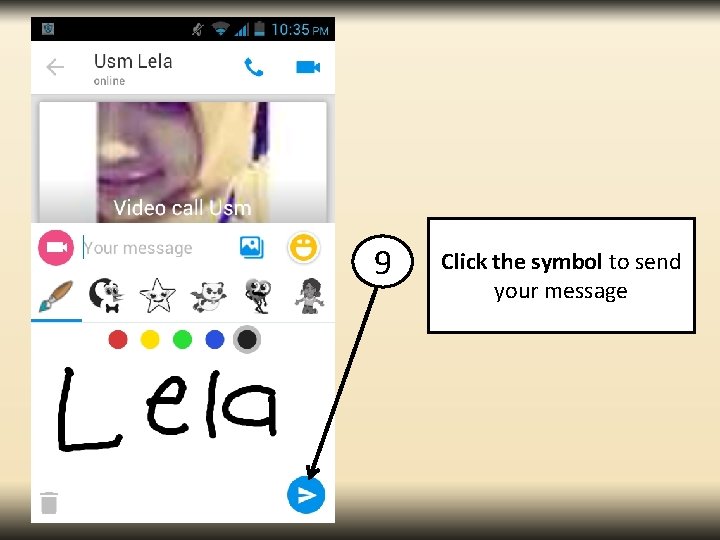
9 Click the symbol to send your message
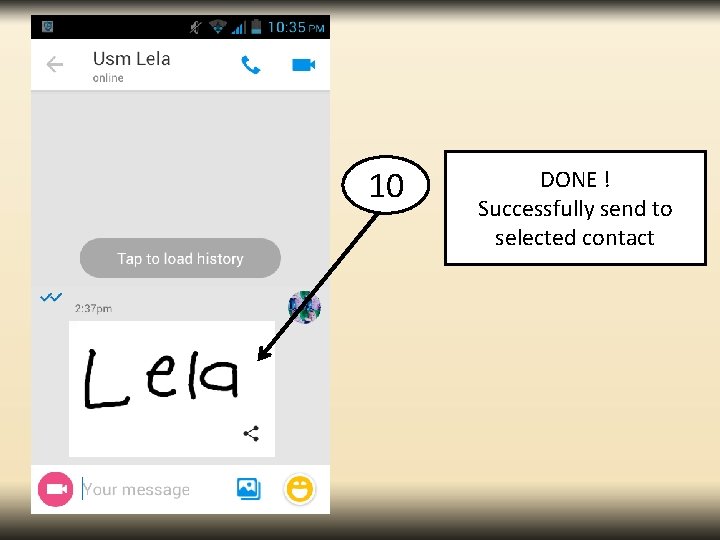
10 DONE ! Successfully send to selected contact
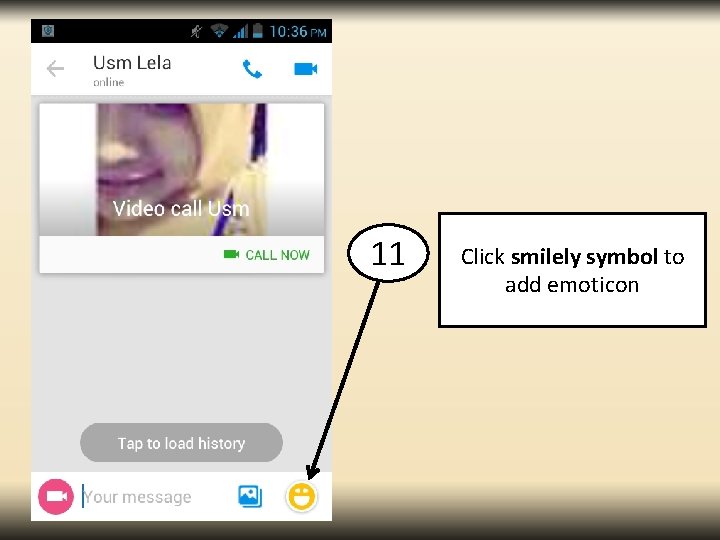
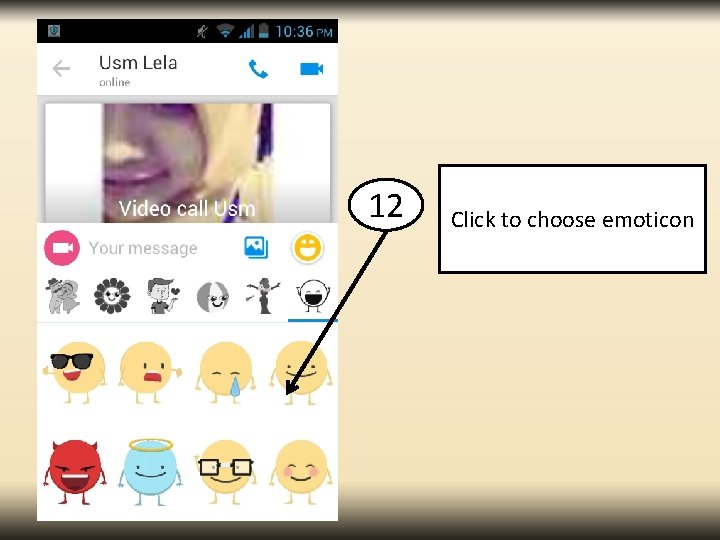
11 Click smilely symbol to add emoticon
12 Click to choose emoticon
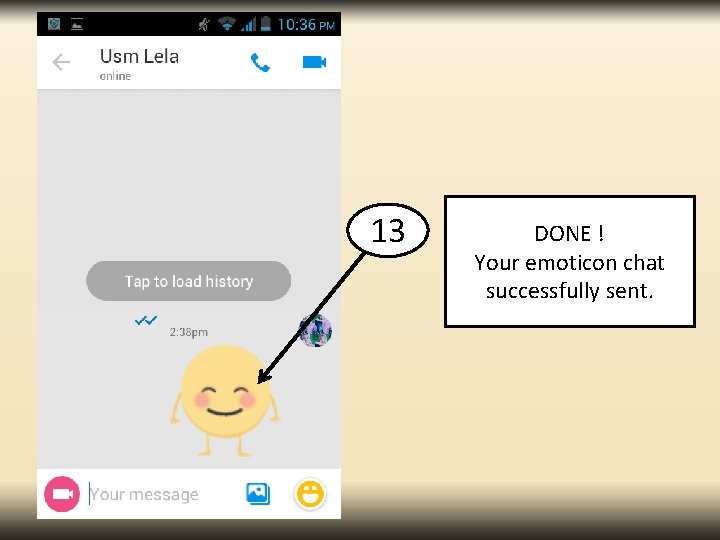
13 DONE ! Your emoticon chat successfully sent.