GUIs Mimi Opkins CECS 277 1 Anatomy of

- Slides: 67
GUIs Mimi Opkins CECS 277 1
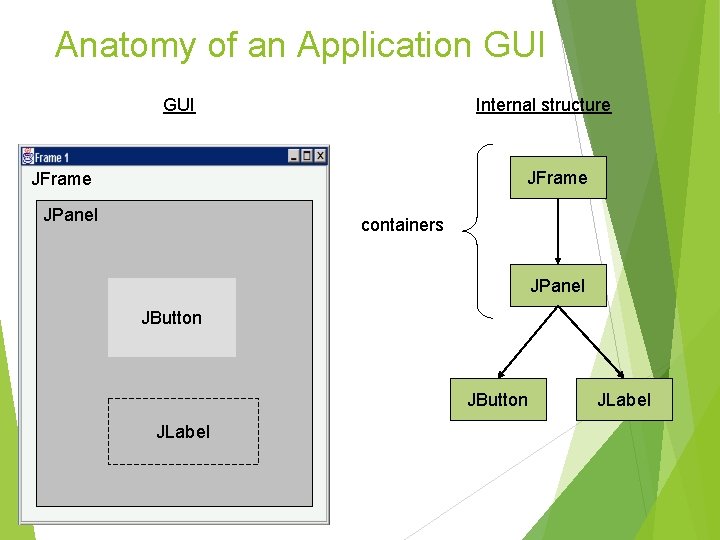
Anatomy of an Application GUI Internal structure JFrame JPanel containers JPanel JButton JLabel
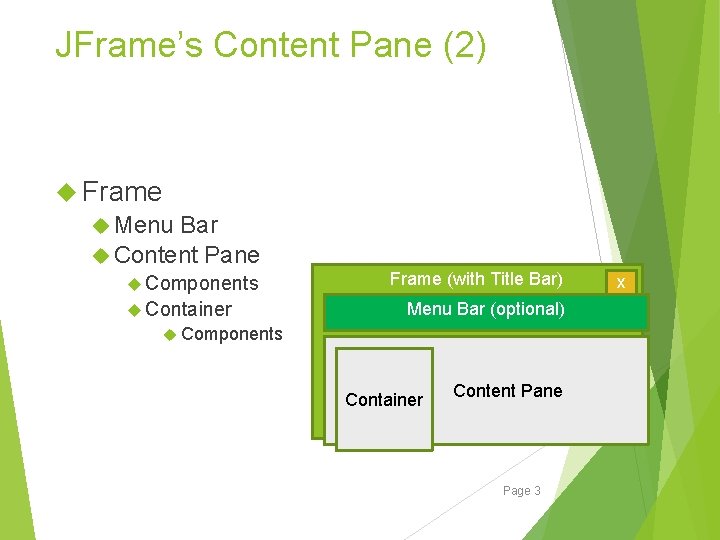
JFrame’s Content Pane (2) Frame Menu Bar Content Pane Components Container Frame (with Title Bar) Menu Bar (optional) Components Content Pane Container Page 3 x
JFrame’s Content Pane A JFrame has a content pane which is a Container where you can add components Use the get. Content. Pane method to get its reference Container content. Pane = get. Content. Pane(); Add components to the content pane or Add a container to the content pane, then add components to the container Page 4
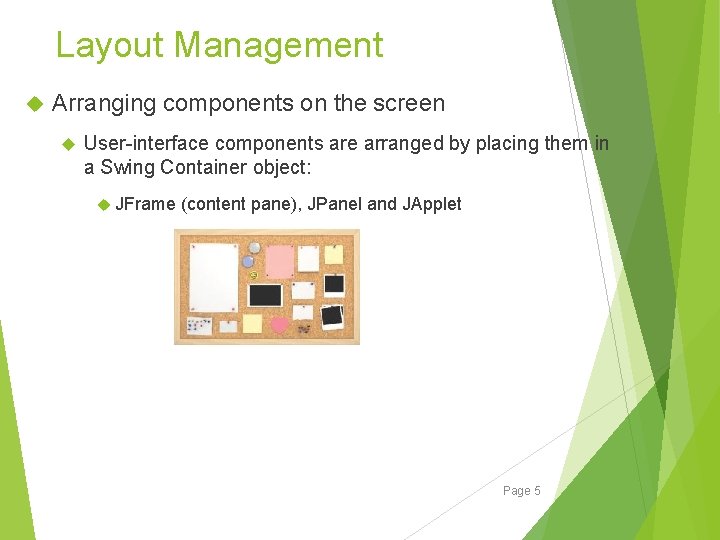
Layout Management Arranging components on the screen User-interface components are arranged by placing them in a Swing Container object: JFrame (content pane), JPanel and JApplet Page 5
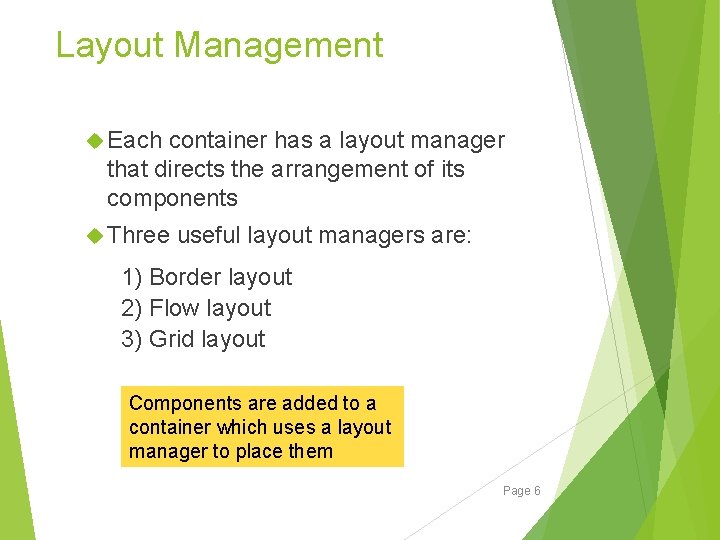
Layout Management Each container has a layout manager that directs the arrangement of its components Three useful layout managers are: 1) Border layout 2) Flow layout 3) Grid layout Components are added to a container which uses a layout manager to place them Page 6
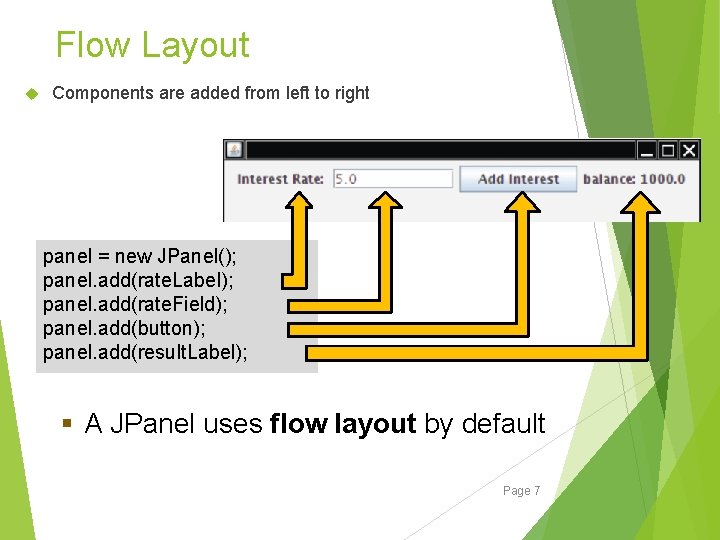
Flow Layout Components are added from left to right panel = new JPanel(); panel. add(rate. Label); panel. add(rate. Field); panel. add(button); panel. add(result. Label); § A JPanel uses flow layout by default Page 7
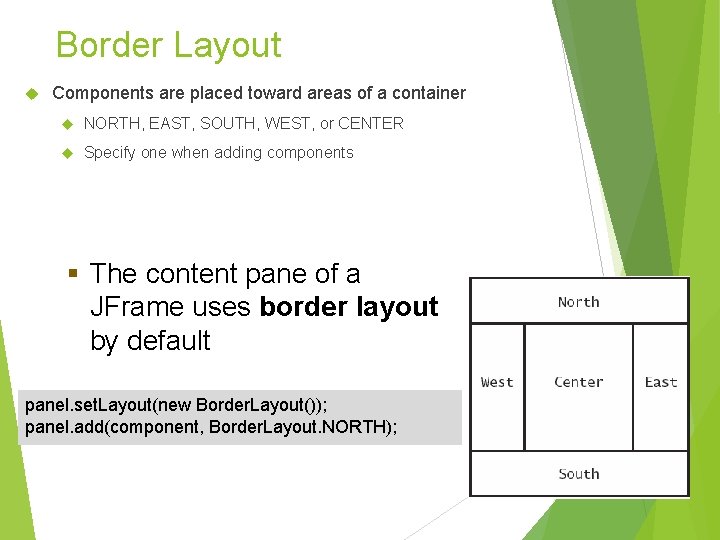
Border Layout Components are placed toward areas of a container NORTH, EAST, SOUTH, WEST, or CENTER Specify one when adding components § The content pane of a JFrame uses border layout by default panel. set. Layout(new Border. Layout()); panel. add(component, Border. Layout. NORTH); Page 8
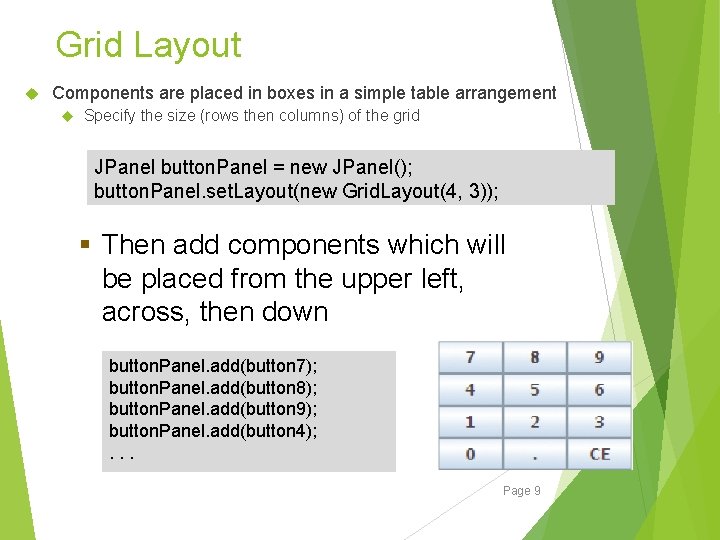
Grid Layout Components are placed in boxes in a simple table arrangement Specify the size (rows then columns) of the grid JPanel button. Panel = new JPanel(); button. Panel. set. Layout(new Grid. Layout(4, 3)); § Then add components which will be placed from the upper left, across, then down button. Panel. add(button 7); button. Panel. add(button 8); button. Panel. add(button 9); button. Panel. add(button 4); . . . Page 9
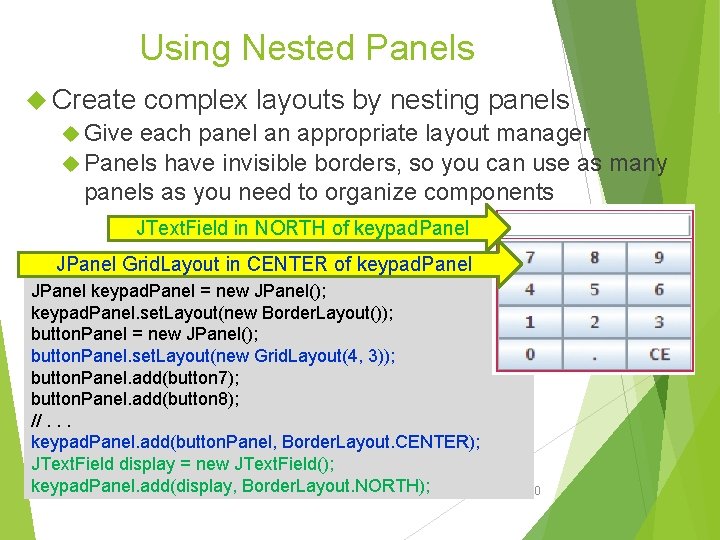
Using Nested Panels Create complex layouts by nesting panels Give each panel an appropriate layout manager Panels have invisible borders, so you can use as many panels as you need to organize components JText. Field in NORTH of keypad. Panel JPanel Grid. Layout in CENTER of keypad. Panel JPanel keypad. Panel = new JPanel(); keypad. Panel. set. Layout(new Border. Layout()); button. Panel = new JPanel(); button. Panel. set. Layout(new Grid. Layout(4, 3)); button. Panel. add(button 7); button. Panel. add(button 8); //. . . keypad. Panel. add(button. Panel, Border. Layout. CENTER); JText. Field display = new JText. Field(); keypad. Panel. add(display, Border. Layout. NORTH); Copyright © 2014 by John Wiley & Sons. All rights reserved. Page 10
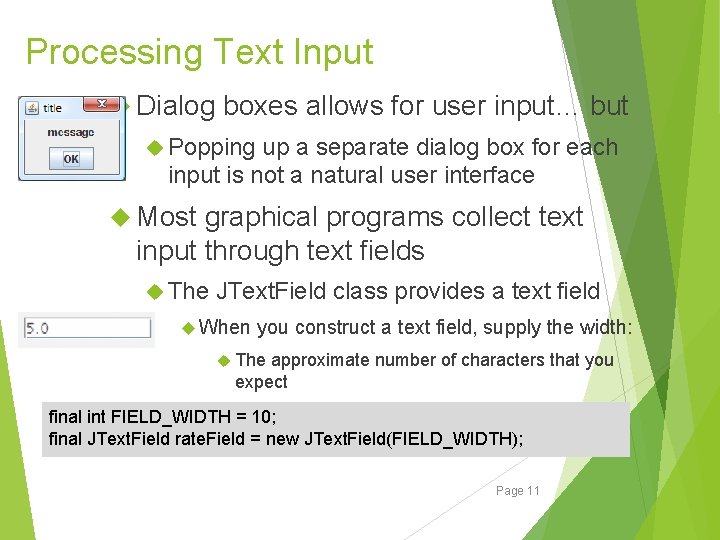
Processing Text Input Dialog boxes allows for user input… but Popping up a separate dialog box for each input is not a natural user interface Most graphical programs collect text input through text fields The JText. Field class provides a text field When you construct a text field, supply the width: The approximate number of characters that you expect If the user exceeds this number, text will ‘scroll’ final int FIELD_WIDTH = 10; left final JText. Field rate. Field = new JText. Field(FIELD_WIDTH); Page 11
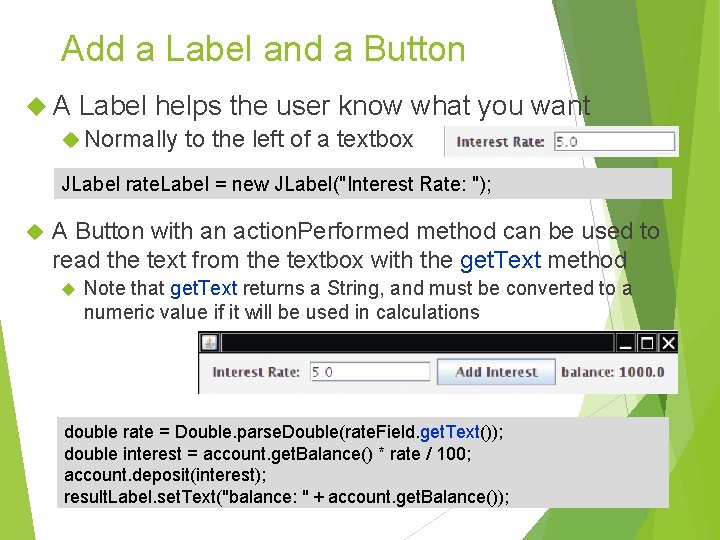
Add a Label and a Button A Label helps the user know what you want Normally to the left of a textbox JLabel rate. Label = new JLabel("Interest Rate: "); A Button with an action. Performed method can be used to read the text from the textbox with the get. Text method Note that get. Text returns a String, and must be converted to a numeric value if it will be used in calculations double rate = Double. parse. Double(rate. Field. get. Text()); double interest = account. get. Balance() * rate / 100; account. deposit(interest); Page 12 result. Label. set. Text("balance: " + account. get. Balance());
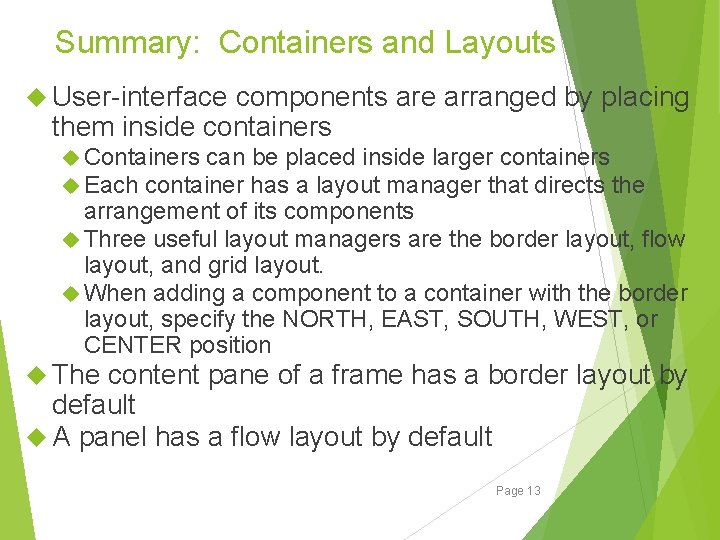
Summary: Containers and Layouts User-interface components are arranged by placing them inside containers Containers can be placed inside larger containers Each container has a layout manager that directs the arrangement of its components Three useful layout managers are the border layout, flow layout, and grid layout. When adding a component to a container with the border layout, specify the NORTH, EAST, SOUTH, WEST, or CENTER position The content pane of a frame has a border layout by default A panel has a flow layout by default Page 13
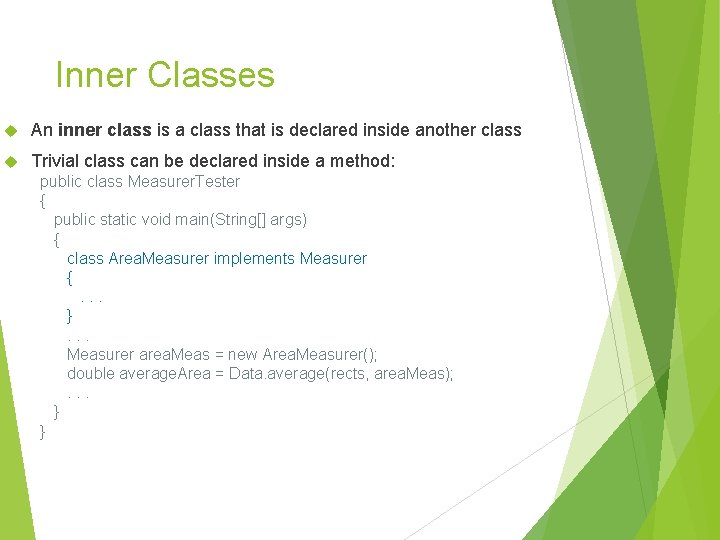
Inner Classes An inner class is a class that is declared inside another class Trivial class can be declared inside a method: public class Measurer. Tester { public static void main(String[] args) { class Area. Measurer implements Measurer { . . . } . . . Measurer area. Meas = new Area. Measurer(); double average. Area = Data. average(rects, area. Meas); . . . } }
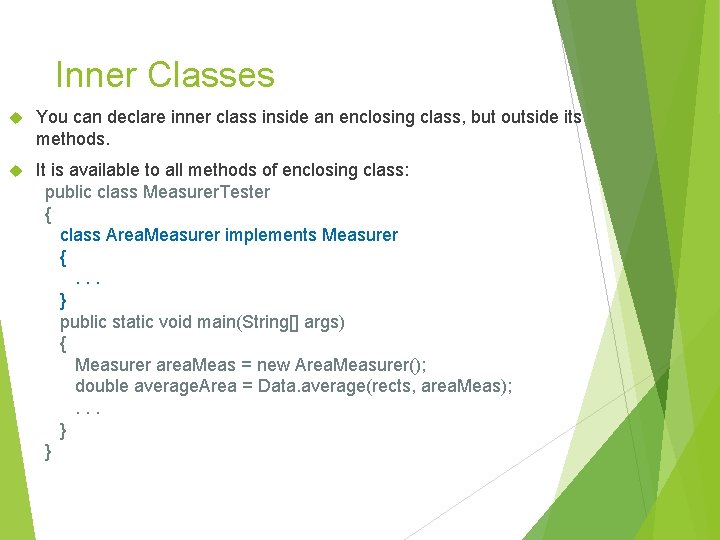
Inner Classes You can declare inner class inside an enclosing class, but outside its methods. It is available to all methods of enclosing class: public class Measurer. Tester { class Area. Measurer implements Measurer { . . . } public static void main(String[] args) { Measurer area. Meas = new Area. Measurer(); double average. Area = Data. average(rects, area. Meas); . . . } }
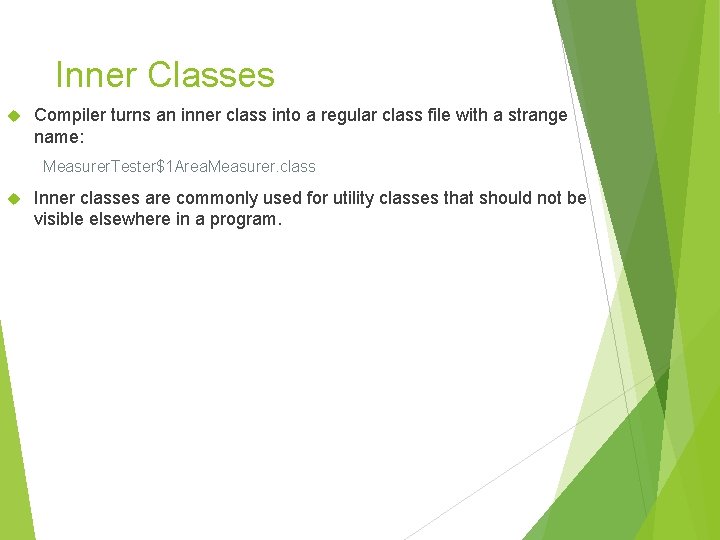
Inner Classes Compiler turns an inner class into a regular class file with a strange name: Measurer. Tester$1 Area. Measurer. class Inner classes are commonly used for utility classes that should not be visible elsewhere in a program.
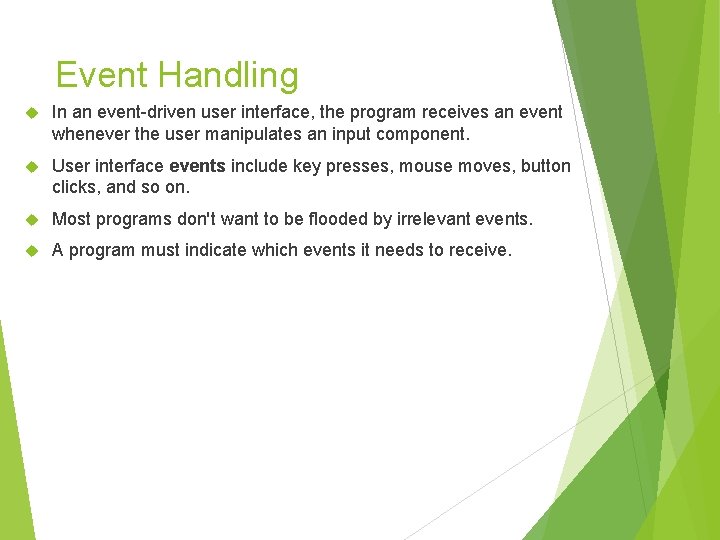
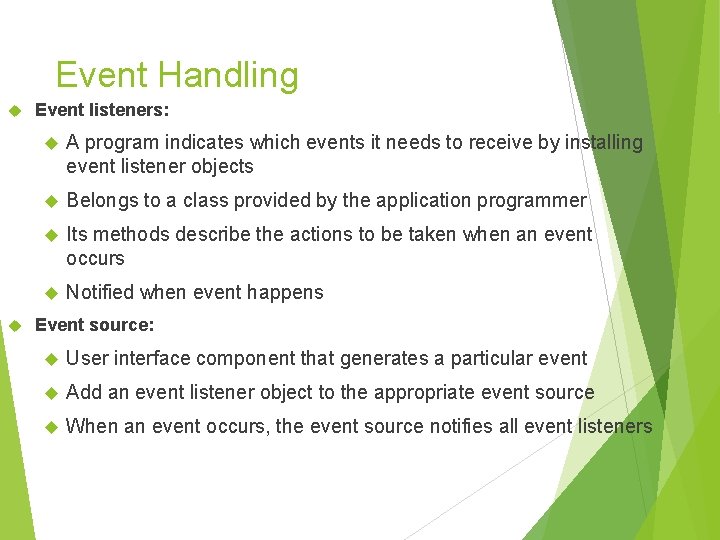
Event Handling In an event-driven user interface, the program receives an event whenever the user manipulates an input component. User interface events include key presses, mouse moves, button clicks, and so on. Most programs don't want to be flooded by irrelevant events. A program must indicate which events it needs to receive.
Event Handling Event listeners: A program indicates which events it needs to receive by installing event listener objects Belongs to a class provided by the application programmer Its methods describe the actions to be taken when an event occurs Notified when event happens Event source: User interface component that generates a particular event Add an event listener object to the appropriate event source When an event occurs, the event source notifies all event listeners
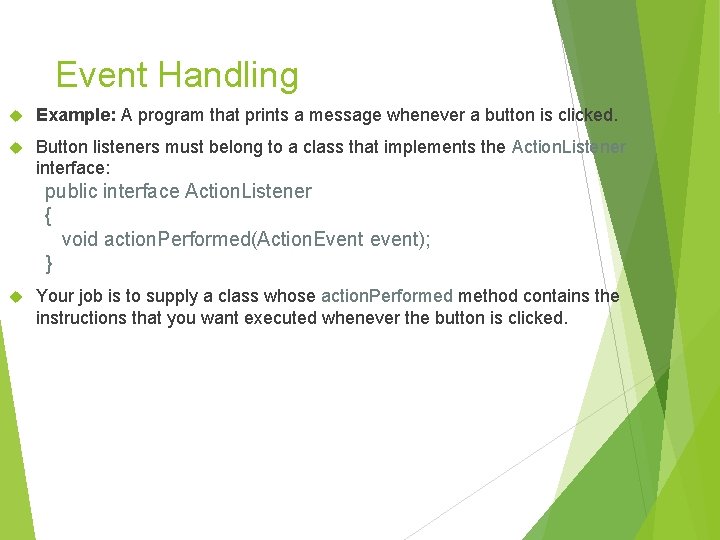
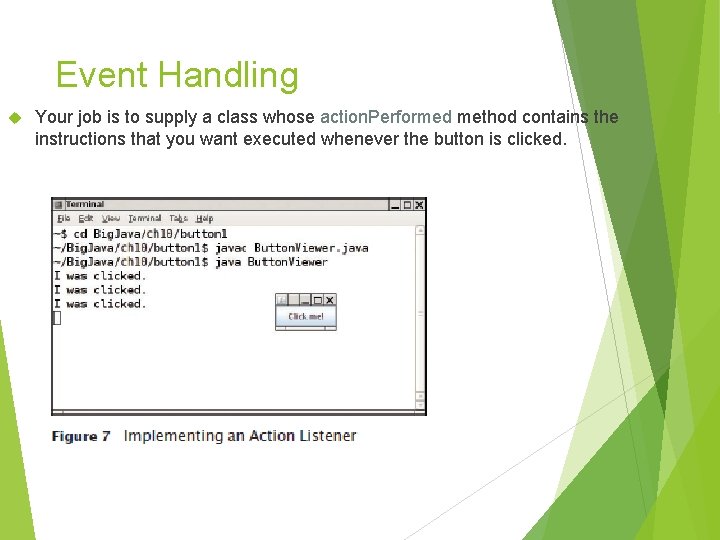
Event Handling Example: A program that prints a message whenever a button is clicked. Button listeners must belong to a class that implements the Action. Listener interface: public interface Action. Listener { void action. Performed(Action. Event event); } Your job is to supply a class whose action. Performed method contains the instructions that you want executed whenever the button is clicked.
Event Handling Your job is to supply a class whose action. Performed method contains the instructions that you want executed whenever the button is clicked.
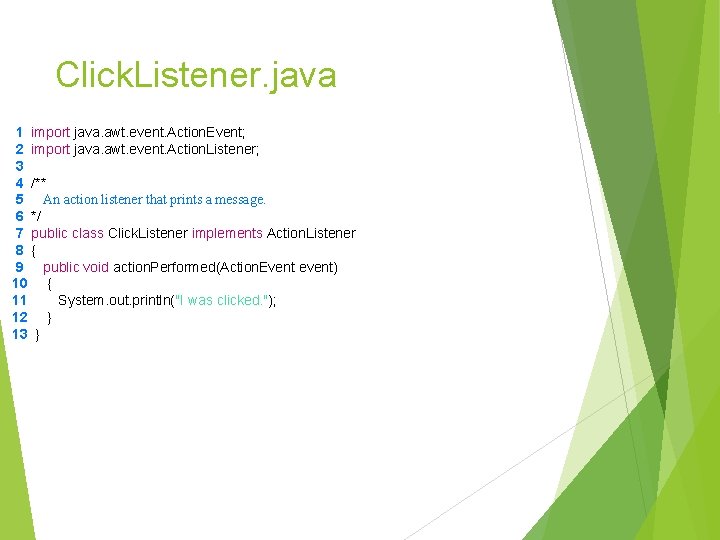
Click. Listener. java 1 import java. awt. event. Action. Event; 2 import java. awt. event. Action. Listener; 3 4 /** 5 An action listener that prints a message. 6 */ 7 public class Click. Listener implements Action. Listener 8 { 9 public void action. Performed(Action. Event event) 10 { 11 System. out. println("I was clicked. "); 12 } 13 }
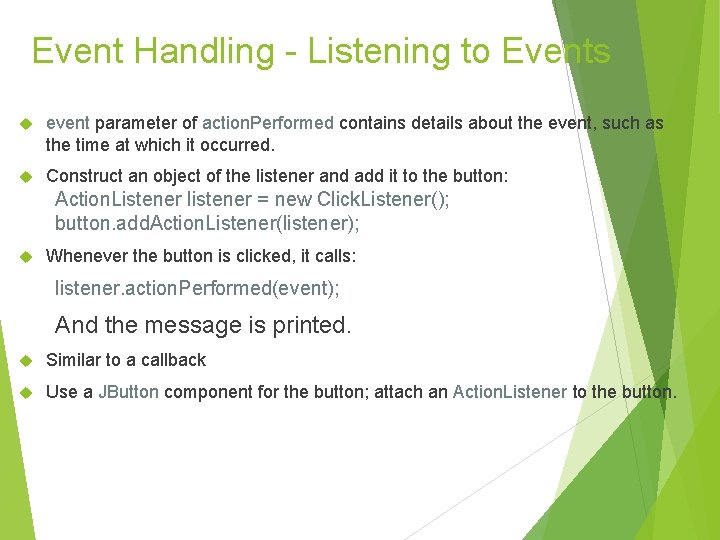
Event Handling - Listening to Events event parameter of action. Performed contains details about the event, such as the time at which it occurred. Construct an object of the listener and add it to the button: Action. Listener listener = new Click. Listener(); button. add. Action. Listener(listener); Whenever the button is clicked, it calls: listener. action. Performed(event); And the message is printed. Similar to a callback Use a JButton component for the button; attach an Action. Listener to the button.
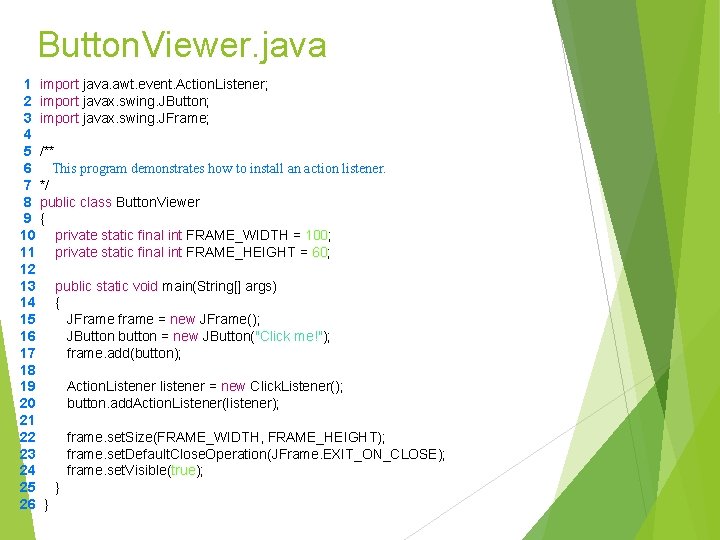
Button. Viewer. java 1 import java. awt. event. Action. Listener; 2 import javax. swing. JButton; 3 import javax. swing. JFrame; 4 5 /** 6 This program demonstrates how to install an action listener. 7 */ 8 public class Button. Viewer 9 { 10 private static final int FRAME_WIDTH = 100; 11 private static final int FRAME_HEIGHT = 60; 12 13 public static void main(String[] args) 14 { 15 JFrame frame = new JFrame(); 16 JButton button = new JButton("Click me!"); 17 frame. add(button); 18 19 Action. Listener listener = new Click. Listener(); 20 button. add. Action. Listener(listener); 21 22 frame. set. Size(FRAME_WIDTH, FRAME_HEIGHT); 23 frame. set. Default. Close. Operation(JFrame. EXIT_ON_CLOSE); 24 frame. set. Visible(true); 25 } 26 }
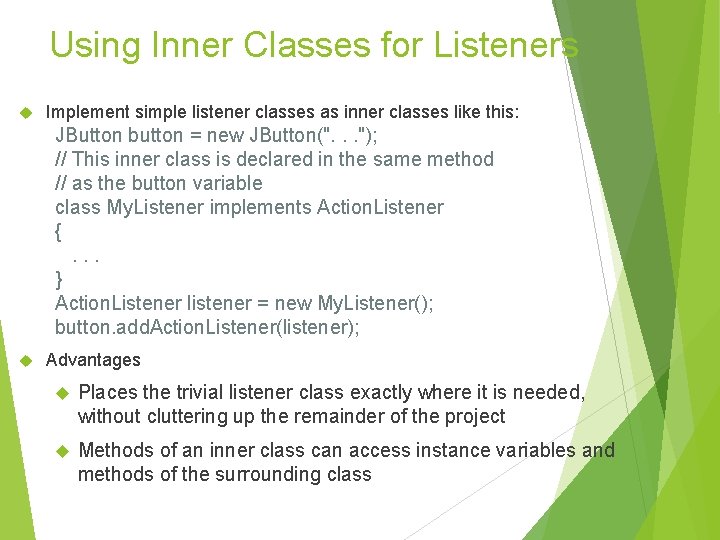
Using Inner Classes for Listeners Implement simple listener classes as inner classes like this: JButton button = new JButton(". . . "); // This inner class is declared in the same method // as the button variable class My. Listener implements Action. Listener { . . . } Action. Listener listener = new My. Listener(); button. add. Action. Listener(listener); Advantages Places the trivial listener class exactly where it is needed, without cluttering up the remainder of the project Methods of an inner class can access instance variables and methods of the surrounding class
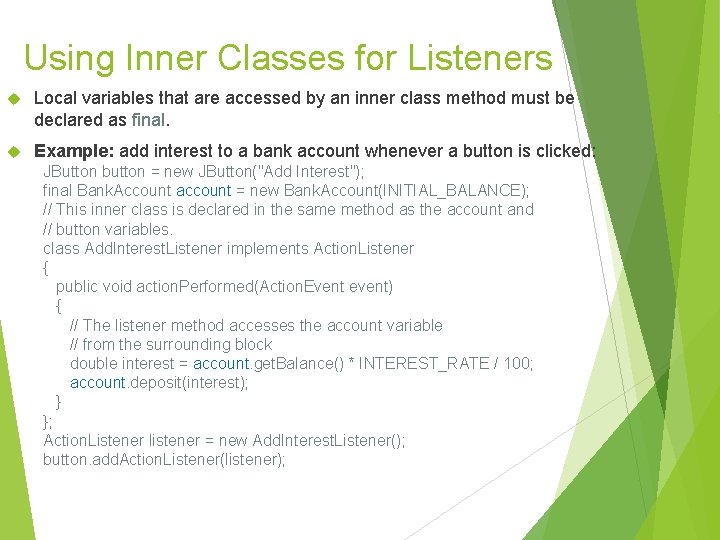
Using Inner Classes for Listeners Local variables that are accessed by an inner class method must be declared as final. Example: add interest to a bank account whenever a button is clicked: JButton button = new JButton("Add Interest"); final Bank. Account account = new Bank. Account(INITIAL_BALANCE); // This inner class is declared in the same method as the account and // button variables. class Add. Interest. Listener implements Action. Listener { public void action. Performed(Action. Event event) { // The listener method accesses the account variable // from the surrounding block double interest = account. get. Balance() * INTEREST_RATE / 100; account. deposit(interest); } }; Action. Listener listener = new Add. Interest. Listener(); button. add. Action. Listener(listener);
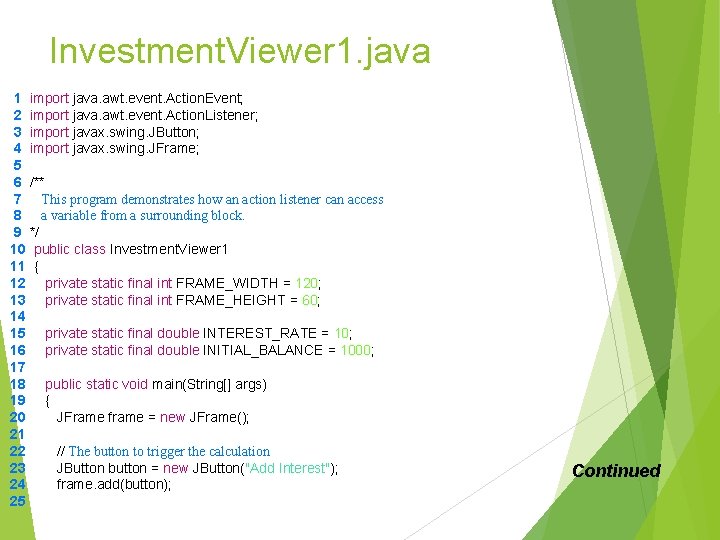
Investment. Viewer 1. java 1 import java. awt. event. Action. Event; 2 import java. awt. event. Action. Listener; 3 import javax. swing. JButton; 4 import javax. swing. JFrame; 5 6 /** 7 This program demonstrates how an action listener can access 8 a variable from a surrounding block. 9 */ 10 public class Investment. Viewer 1 11 { 12 private static final int FRAME_WIDTH = 120; 13 private static final int FRAME_HEIGHT = 60; 14 15 private static final double INTEREST_RATE = 10; 16 private static final double INITIAL_BALANCE = 1000; 17 18 public static void main(String[] args) 19 { 20 JFrame frame = new JFrame(); 21 22 // The button to trigger the calculation 23 JButton button = new JButton("Add Interest"); 24 frame. add(button); 25 Continued
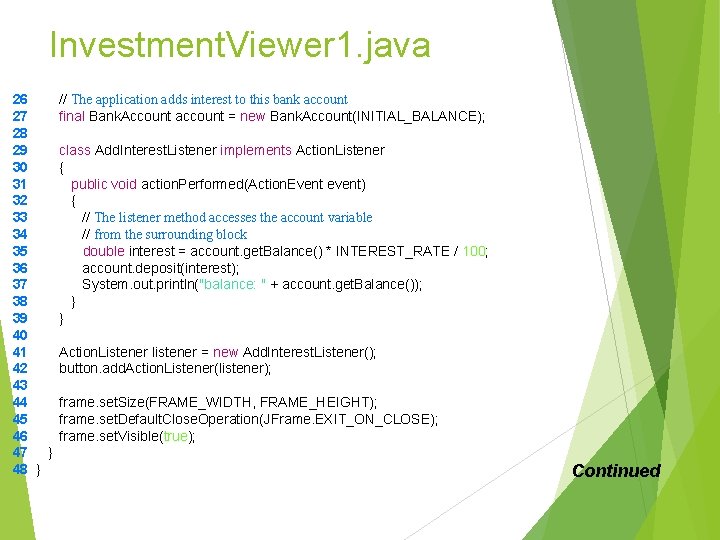
Investment. Viewer 1. java 26 27 28 29 30 31 32 33 34 35 36 37 38 39 40 41 42 43 44 45 46 47 48 // The application adds interest to this bank account final Bank. Account account = new Bank. Account(INITIAL_BALANCE); class Add. Interest. Listener implements Action. Listener { public void action. Performed(Action. Event event) { // The listener method accesses the account variable // from the surrounding block double interest = account. get. Balance() * INTEREST_RATE / 100; account. deposit(interest); System. out. println("balance: " + account. get. Balance()); } Action. Listener listener = new Add. Interest. Listener(); button. add. Action. Listener(listener); frame. set. Size(FRAME_WIDTH, FRAME_HEIGHT); frame. set. Default. Close. Operation(JFrame. EXIT_ON_CLOSE); frame. set. Visible(true); } } Continued
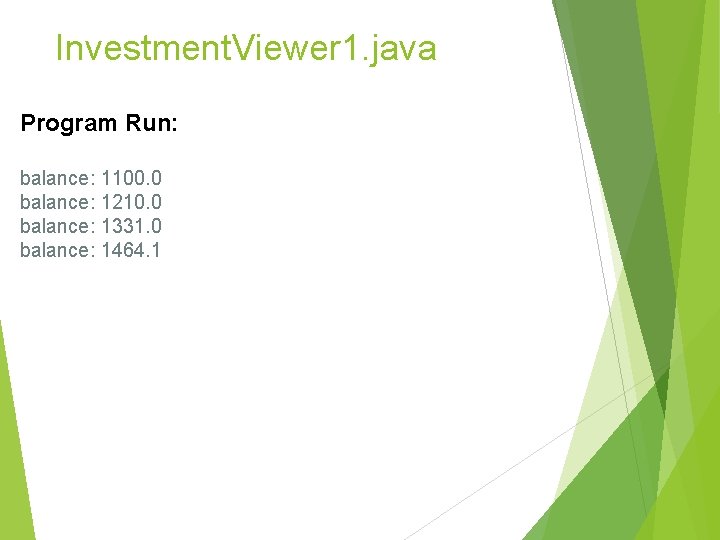
Investment. Viewer 1. java Program Run: balance: 1100. 0 balance: 1210. 0 balance: 1331. 0 balance: 1464. 1
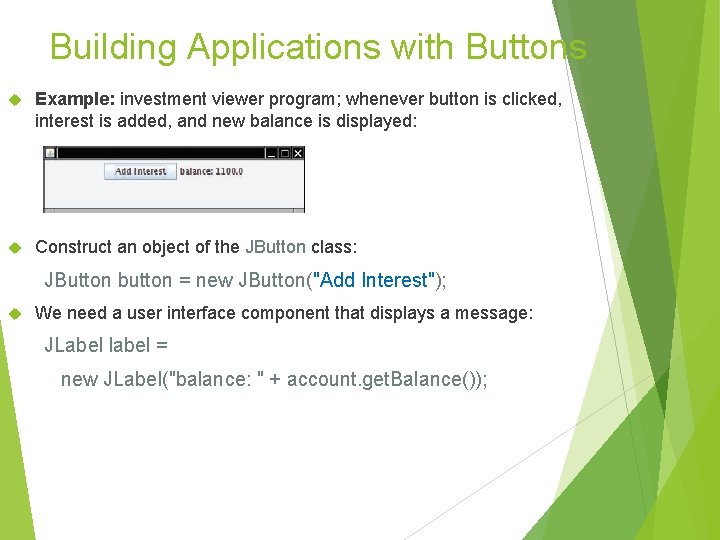
Building Applications with Buttons Example: investment viewer program; whenever button is clicked, interest is added, and new balance is displayed: Construct an object of the JButton class: JButton button = new JButton("Add Interest"); We need a user interface component that displays a message: JLabel label = new JLabel("balance: " + account. get. Balance());
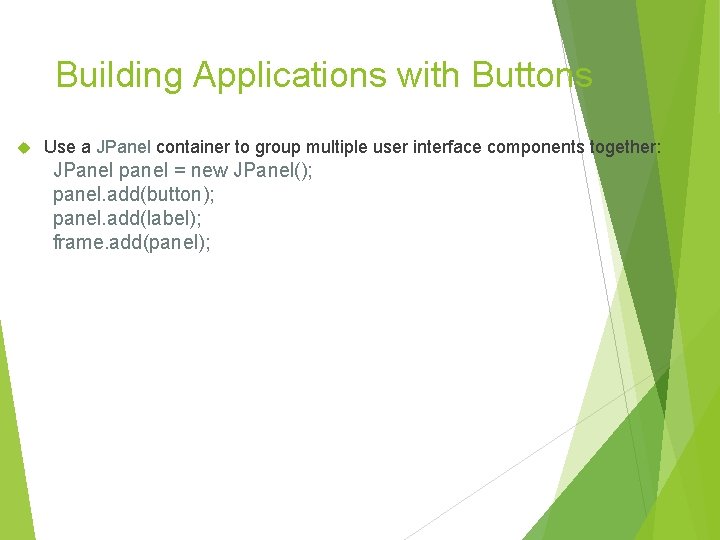
Building Applications with Buttons Use a JPanel container to group multiple user interface components together: JPanel panel = new JPanel(); panel. add(button); panel. add(label); frame. add(panel);
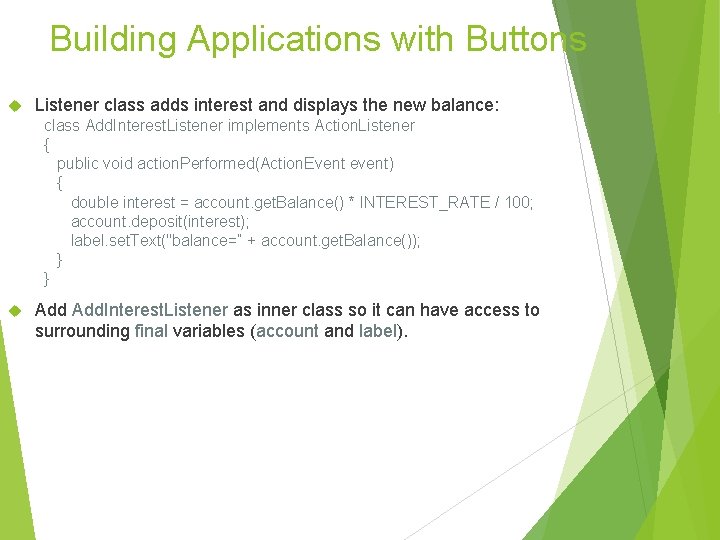
Building Applications with Buttons Listener class adds interest and displays the new balance: class Add. Interest. Listener implements Action. Listener { public void action. Performed(Action. Event event) { double interest = account. get. Balance() * INTEREST_RATE / 100; account. deposit(interest); label. set. Text("balance=” + account. get. Balance()); } } Add. Interest. Listener as inner class so it can have access to surrounding final variables (account and label).
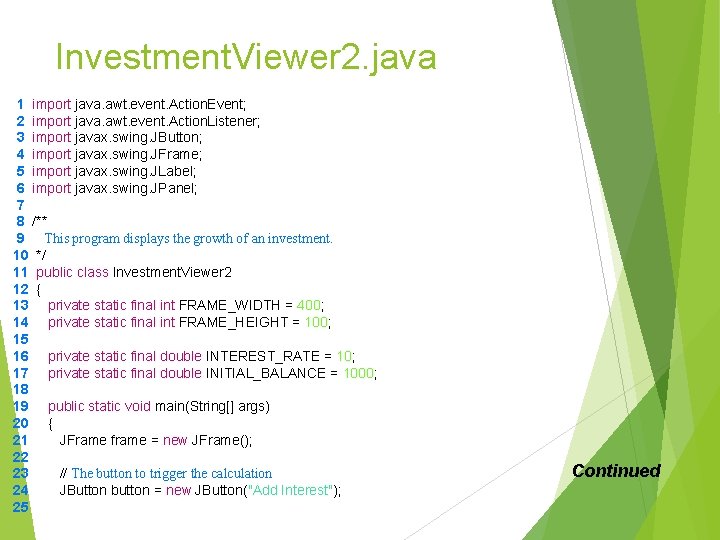
Investment. Viewer 2. java 1 import java. awt. event. Action. Event; 2 import java. awt. event. Action. Listener; 3 import javax. swing. JButton; 4 import javax. swing. JFrame; 5 import javax. swing. JLabel; 6 import javax. swing. JPanel; 7 8 /** 9 This program displays the growth of an investment. 10 */ 11 public class Investment. Viewer 2 12 { 13 private static final int FRAME_WIDTH = 400; 14 private static final int FRAME_HEIGHT = 100; 15 16 private static final double INTEREST_RATE = 10; 17 private static final double INITIAL_BALANCE = 1000; 18 19 public static void main(String[] args) 20 { 21 JFrame frame = new JFrame(); 22 23 // The button to trigger the calculation 24 JButton button = new JButton("Add Interest"); 25 Continued
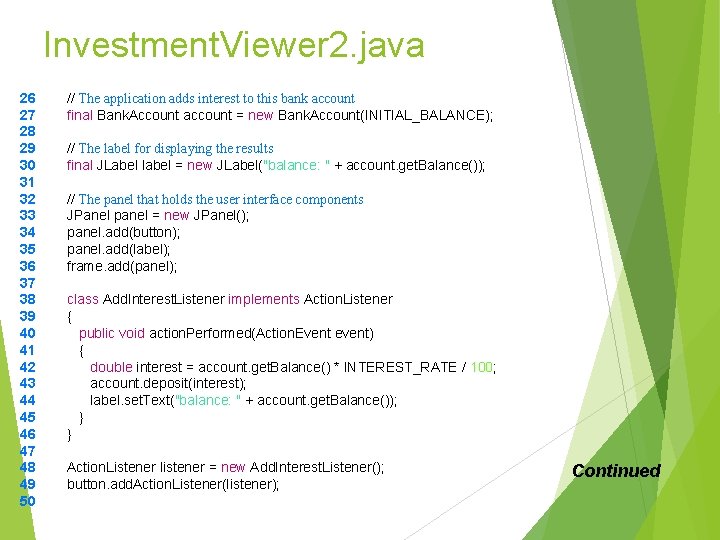
Investment. Viewer 2. java 26 27 28 29 30 31 32 33 34 35 36 37 38 39 40 41 42 43 44 45 46 47 48 49 50 // The application adds interest to this bank account final Bank. Account account = new Bank. Account(INITIAL_BALANCE); // The label for displaying the results final JLabel label = new JLabel("balance: " + account. get. Balance()); // The panel that holds the user interface components JPanel panel = new JPanel(); panel. add(button); panel. add(label); frame. add(panel); class Add. Interest. Listener implements Action. Listener { public void action. Performed(Action. Event event) { double interest = account. get. Balance() * INTEREST_RATE / 100; account. deposit(interest); label. set. Text("balance: " + account. get. Balance()); } Action. Listener listener = new Add. Interest. Listener(); button. add. Action. Listener(listener); Continued
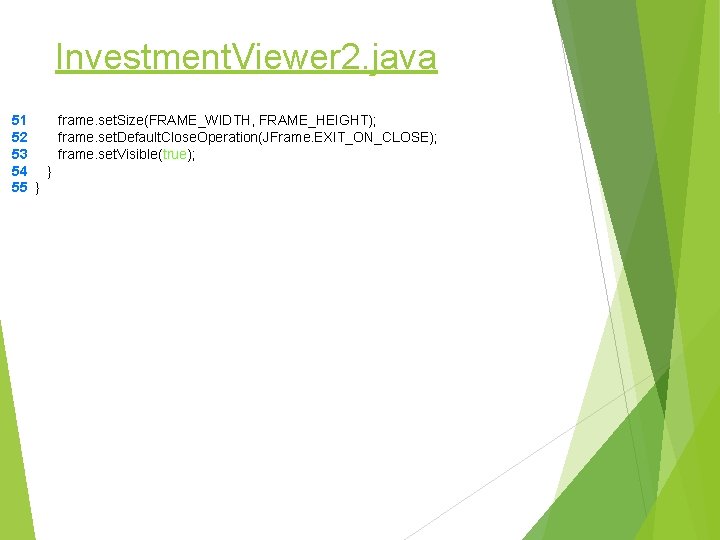
Investment. Viewer 2. java 51 52 53 54 55 frame. set. Size(FRAME_WIDTH, FRAME_HEIGHT); frame. set. Default. Close. Operation(JFrame. EXIT_ON_CLOSE); frame. set. Visible(true); } }
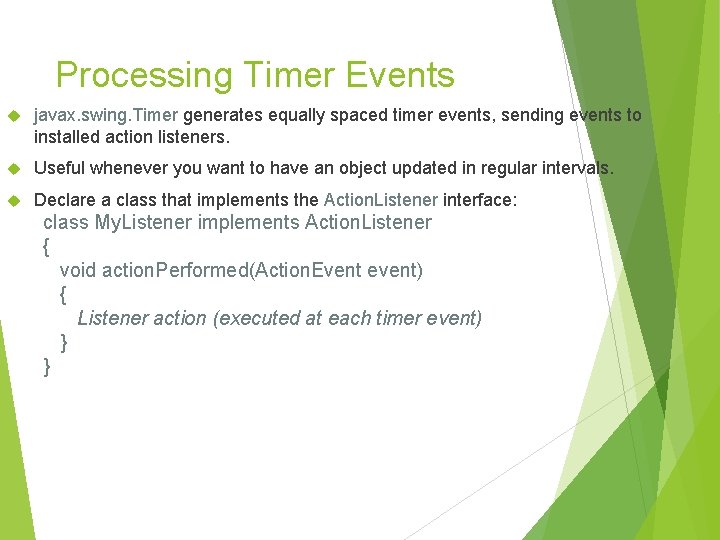
Processing Timer Events javax. swing. Timer generates equally spaced timer events, sending events to installed action listeners. Useful whenever you want to have an object updated in regular intervals. Declare a class that implements the Action. Listener interface: class My. Listener implements Action. Listener { void action. Performed(Action. Event event) { Listener action (executed at each timer event) } }
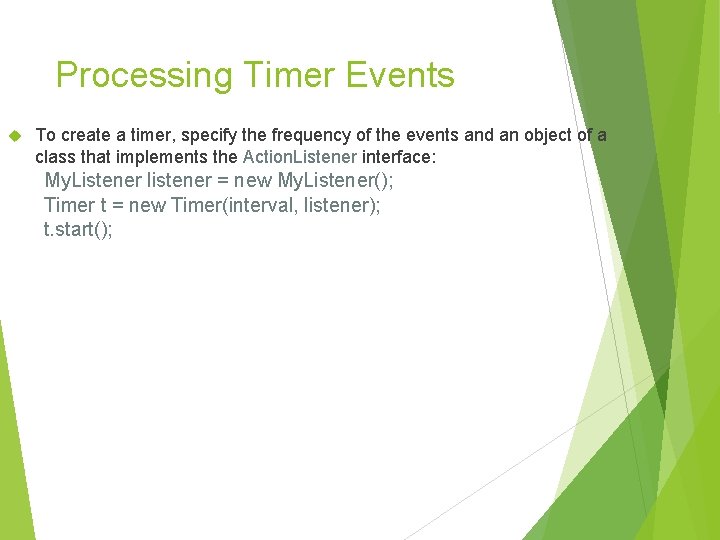
Processing Timer Events To create a timer, specify the frequency of the events and an object of a class that implements the Action. Listener interface: My. Listener listener = new My. Listener(); Timer t = new Timer(interval, listener); t. start();
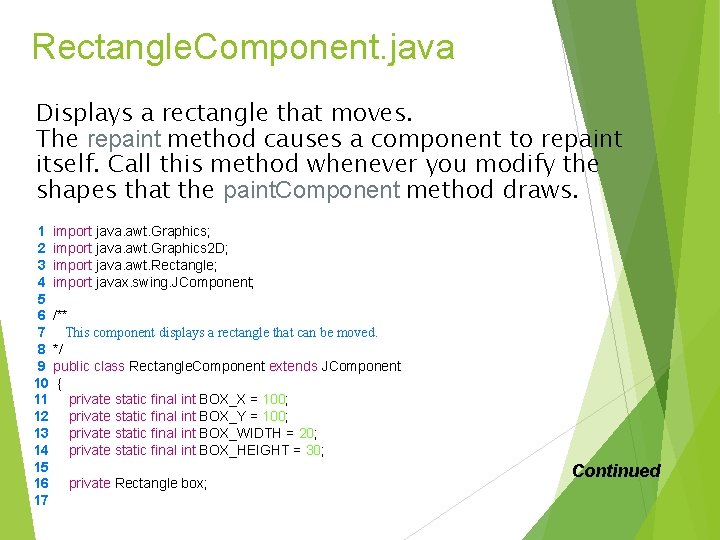
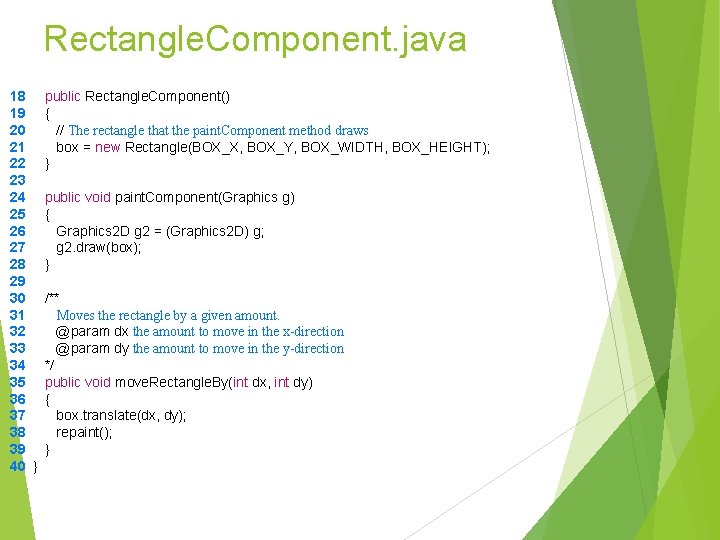
Rectangle. Component. java Displays a rectangle that moves. The repaint method causes a component to repaint itself. Call this method whenever you modify the shapes that the paint. Component method draws. 1 import java. awt. Graphics; 2 import java. awt. Graphics 2 D; 3 import java. awt. Rectangle; 4 import javax. swing. JComponent; 5 6 /** 7 This component displays a rectangle that can be moved. 8 */ 9 public class Rectangle. Component extends JComponent 10 { 11 private static final int BOX_X = 100; 12 private static final int BOX_Y = 100; 13 private static final int BOX_WIDTH = 20; 14 private static final int BOX_HEIGHT = 30; 15 16 private Rectangle box; 17 Continued
Rectangle. Component. java 18 19 20 21 22 23 24 25 26 27 28 29 30 31 32 33 34 35 36 37 38 39 40 public Rectangle. Component() { // The rectangle that the paint. Component method draws box = new Rectangle(BOX_X, BOX_Y, BOX_WIDTH, BOX_HEIGHT); } public void paint. Component(Graphics g) { Graphics 2 D g 2 = (Graphics 2 D) g; g 2. draw(box); } /** Moves the rectangle by a given amount. @param dx the amount to move in the x-direction @param dy the amount to move in the y-direction */ public void move. Rectangle. By(int dx, int dy) { box. translate(dx, dy); repaint(); } }
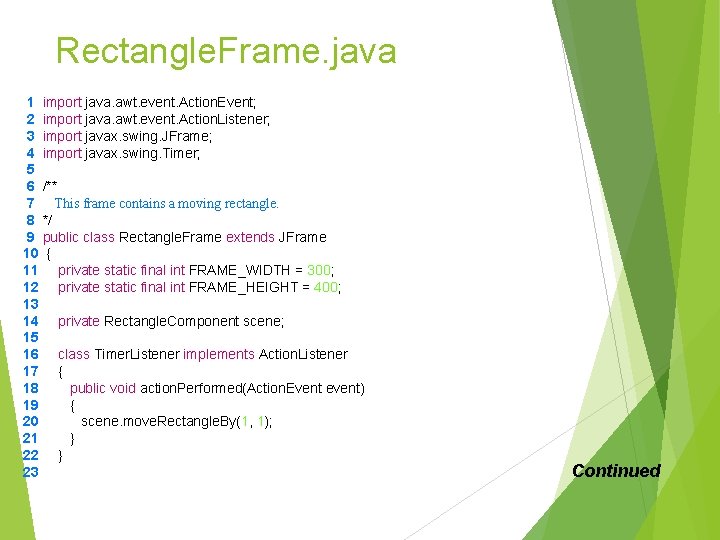
Rectangle. Frame. java 1 import java. awt. event. Action. Event; 2 import java. awt. event. Action. Listener; 3 import javax. swing. JFrame; 4 import javax. swing. Timer; 5 6 /** 7 This frame contains a moving rectangle. 8 */ 9 public class Rectangle. Frame extends JFrame 10 { 11 private static final int FRAME_WIDTH = 300; 12 private static final int FRAME_HEIGHT = 400; 13 14 private Rectangle. Component scene; 15 16 class Timer. Listener implements Action. Listener 17 { 18 public void action. Performed(Action. Event event) 19 { 20 scene. move. Rectangle. By(1, 1); 21 } 22 } 23 Continued
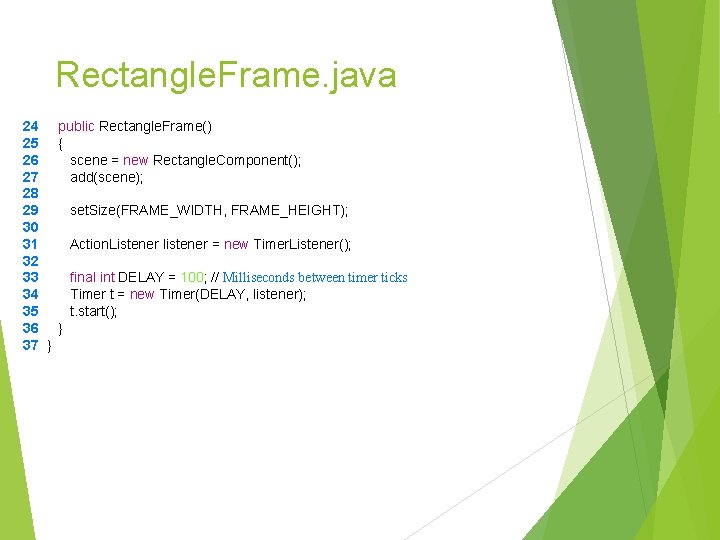
Rectangle. Frame. java 24 25 26 27 28 29 30 31 32 33 34 35 36 37 public Rectangle. Frame() { scene = new Rectangle. Component(); add(scene); set. Size(FRAME_WIDTH, FRAME_HEIGHT); Action. Listener listener = new Timer. Listener(); final int DELAY = 100; // Milliseconds between timer ticks Timer t = new Timer(DELAY, listener); t. start(); } }
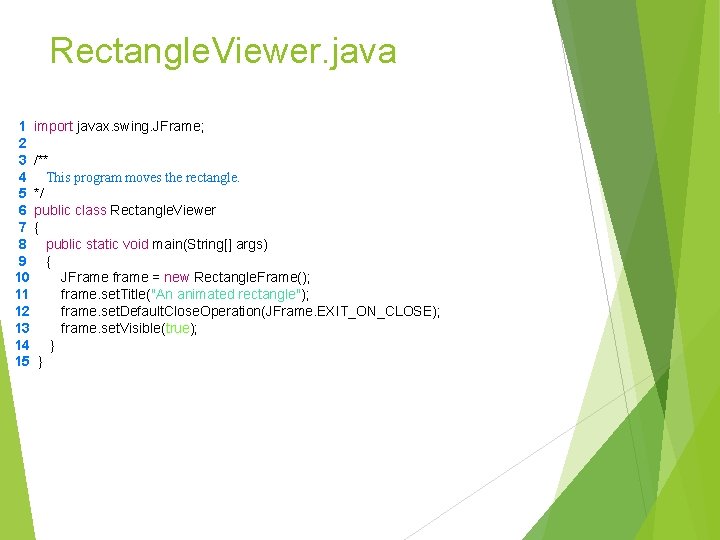
Rectangle. Viewer. java 1 import javax. swing. JFrame; 2 3 /** 4 This program moves the rectangle. 5 */ 6 public class Rectangle. Viewer 7 { 8 public static void main(String[] args) 9 { 10 JFrame frame = new Rectangle. Frame(); 11 frame. set. Title("An animated rectangle"); 12 frame. set. Default. Close. Operation(JFrame. EXIT_ON_CLOSE); 13 frame. set. Visible(true); 14 } 15 }
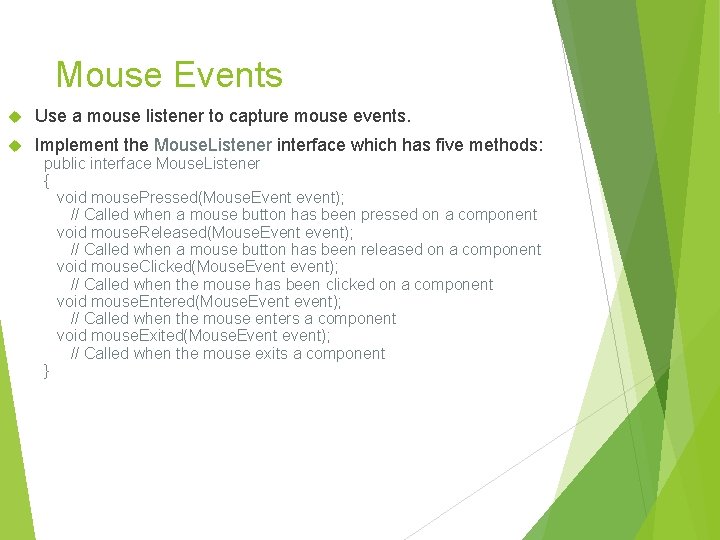
Mouse Events Use a mouse listener to capture mouse events. Implement the Mouse. Listener interface which has five methods: public interface Mouse. Listener { void mouse. Pressed(Mouse. Event event); // Called when a mouse button has been pressed on a component void mouse. Released(Mouse. Event event); // Called when a mouse button has been released on a component void mouse. Clicked(Mouse. Event event); // Called when the mouse has been clicked on a component void mouse. Entered(Mouse. Event event); // Called when the mouse enters a component void mouse. Exited(Mouse. Event event); // Called when the mouse exits a component }
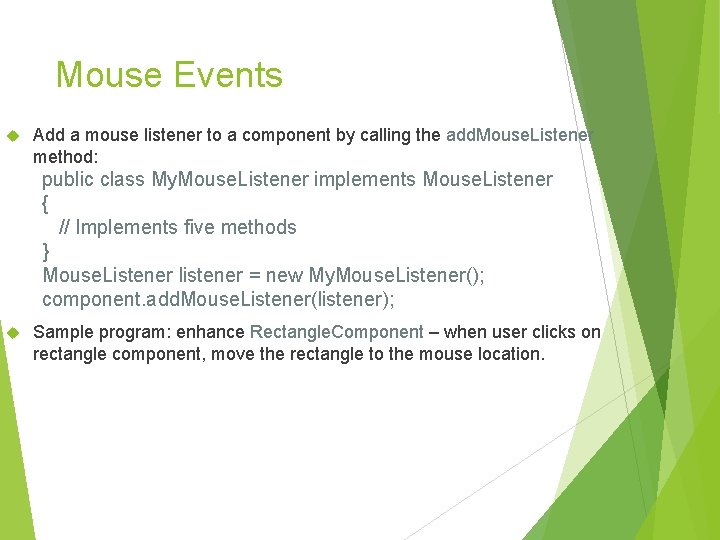
Mouse Events Add a mouse listener to a component by calling the add. Mouse. Listener method: public class My. Mouse. Listener implements Mouse. Listener { // Implements five methods } Mouse. Listener listener = new My. Mouse. Listener(); component. add. Mouse. Listener(listener); Sample program: enhance Rectangle. Component – when user clicks on rectangle component, move the rectangle to the mouse location.
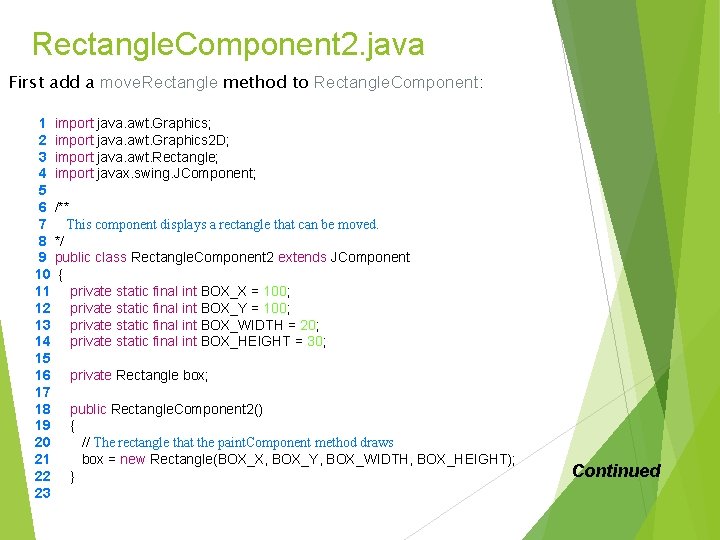
Rectangle. Component 2. java First add a move. Rectangle method to Rectangle. Component: 1 import java. awt. Graphics; 2 import java. awt. Graphics 2 D; 3 import java. awt. Rectangle; 4 import javax. swing. JComponent; 5 6 /** 7 This component displays a rectangle that can be moved. 8 */ 9 public class Rectangle. Component 2 extends JComponent 10 { 11 private static final int BOX_X = 100; 12 private static final int BOX_Y = 100; 13 private static final int BOX_WIDTH = 20; 14 private static final int BOX_HEIGHT = 30; 15 16 private Rectangle box; 17 18 public Rectangle. Component 2() 19 { 20 // The rectangle that the paint. Component method draws 21 box = new Rectangle(BOX_X, BOX_Y, BOX_WIDTH, BOX_HEIGHT); 22 } 23 Continued
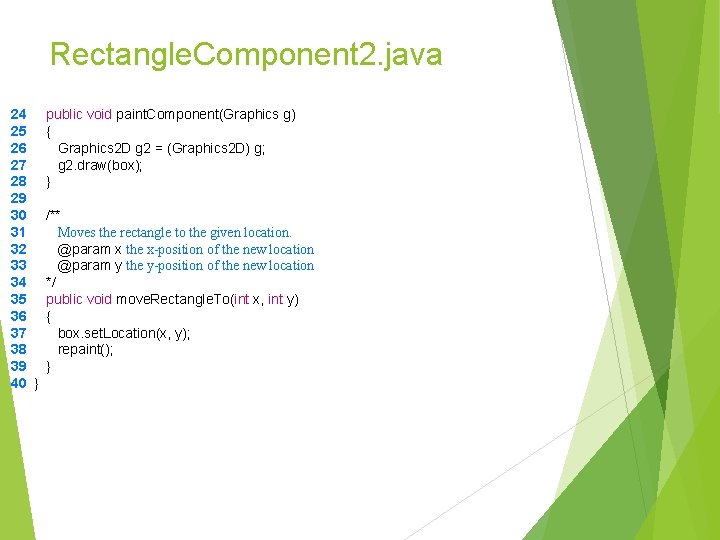
Rectangle. Component 2. java 24 25 26 27 28 29 30 31 32 33 34 35 36 37 38 39 40 public void paint. Component(Graphics g) { Graphics 2 D g 2 = (Graphics 2 D) g; g 2. draw(box); } /** Moves the rectangle to the given location. @param x the x-position of the new location @param y the y-position of the new location */ public void move. Rectangle. To(int x, int y) { box. set. Location(x, y); repaint(); } }
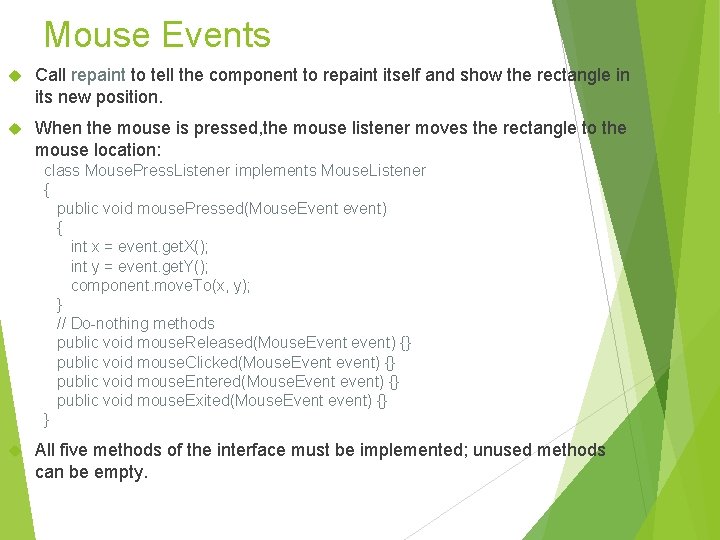
Mouse Events Call repaint to tell the component to repaint itself and show the rectangle in its new position. When the mouse is pressed, the mouse listener moves the rectangle to the mouse location: class Mouse. Press. Listener implements Mouse. Listener { public void mouse. Pressed(Mouse. Event event) { int x = event. get. X(); int y = event. get. Y(); component. move. To(x, y); } // Do-nothing methods public void mouse. Released(Mouse. Event event) {} public void mouse. Clicked(Mouse. Event event) {} public void mouse. Entered(Mouse. Event event) {} public void mouse. Exited(Mouse. Event event) {} } All five methods of the interface must be implemented; unused methods can be empty.
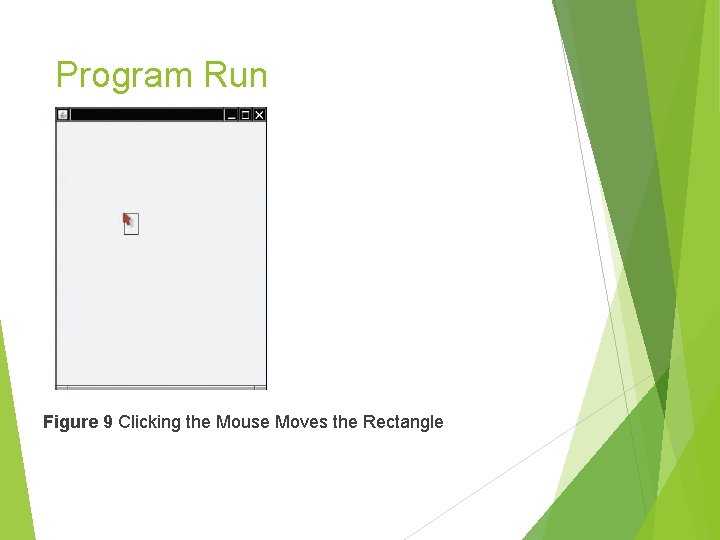
Program Run Figure 9 Clicking the Mouse Moves the Rectangle
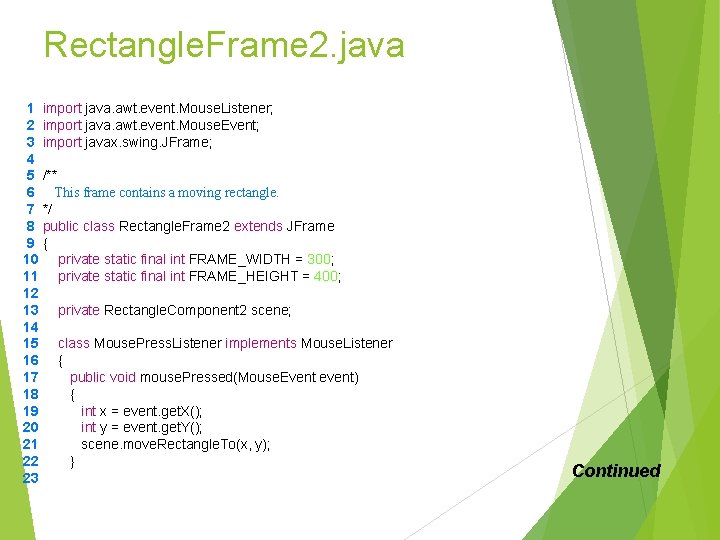
Rectangle. Frame 2. java 1 import java. awt. event. Mouse. Listener; 2 import java. awt. event. Mouse. Event; 3 import javax. swing. JFrame; 4 5 /** 6 This frame contains a moving rectangle. 7 */ 8 public class Rectangle. Frame 2 extends JFrame 9 { 10 private static final int FRAME_WIDTH = 300; 11 private static final int FRAME_HEIGHT = 400; 12 13 private Rectangle. Component 2 scene; 14 15 class Mouse. Press. Listener implements Mouse. Listener 16 { 17 public void mouse. Pressed(Mouse. Event event) 18 { 19 int x = event. get. X(); 20 int y = event. get. Y(); 21 scene. move. Rectangle. To(x, y); 22 } 23 Continued
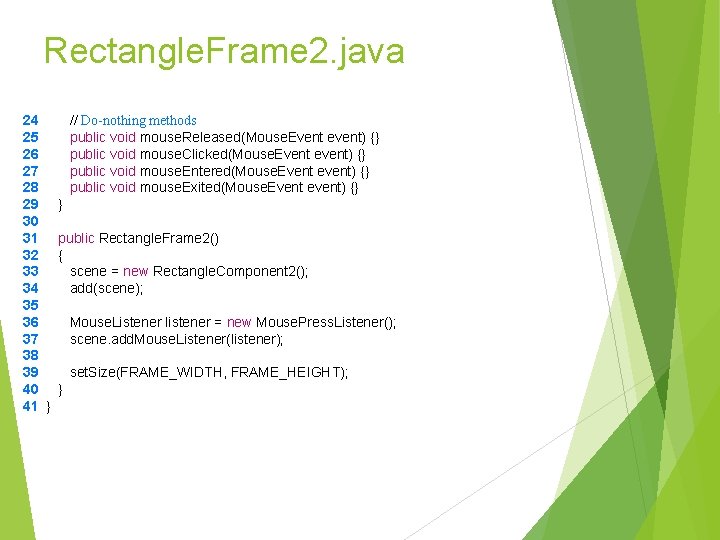
Rectangle. Frame 2. java 24 25 26 27 28 29 30 31 32 33 34 35 36 37 38 39 40 41 // Do-nothing methods public void mouse. Released(Mouse. Event event) {} public void mouse. Clicked(Mouse. Event event) {} public void mouse. Entered(Mouse. Event event) {} public void mouse. Exited(Mouse. Event event) {} } public Rectangle. Frame 2() { scene = new Rectangle. Component 2(); add(scene); Mouse. Listener listener = new Mouse. Press. Listener(); scene. add. Mouse. Listener(listener); set. Size(FRAME_WIDTH, FRAME_HEIGHT); } }
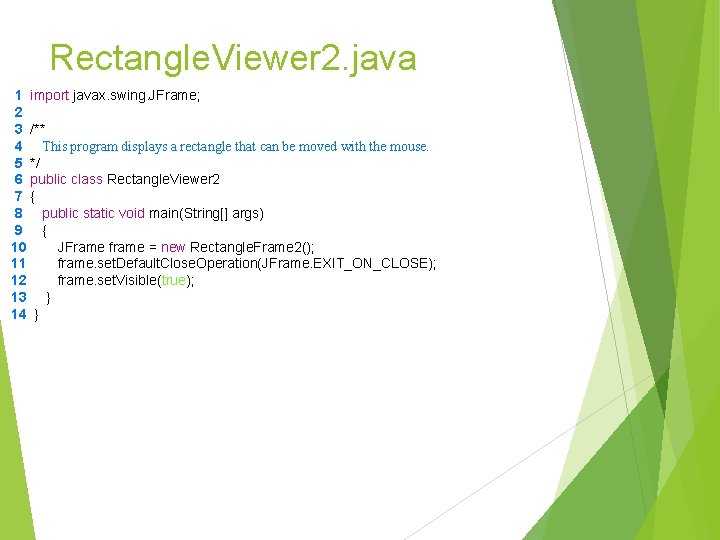
Rectangle. Viewer 2. java 1 import javax. swing. JFrame; 2 3 /** 4 This program displays a rectangle that can be moved with the mouse. 5 */ 6 public class Rectangle. Viewer 2 7 { 8 public static void main(String[] args) 9 { 10 JFrame frame = new Rectangle. Frame 2(); 11 frame. set. Default. Close. Operation(JFrame. EXIT_ON_CLOSE); 12 frame. set. Visible(true); 13 } 14 }
Summary: Timers, Events Timers and Animation A timer generates action events at fixed intervals. To make an animation, the timer listener should update and repaint a component several times per second. Mouse Events You use a mouse listener to capture mouse events. Page 51
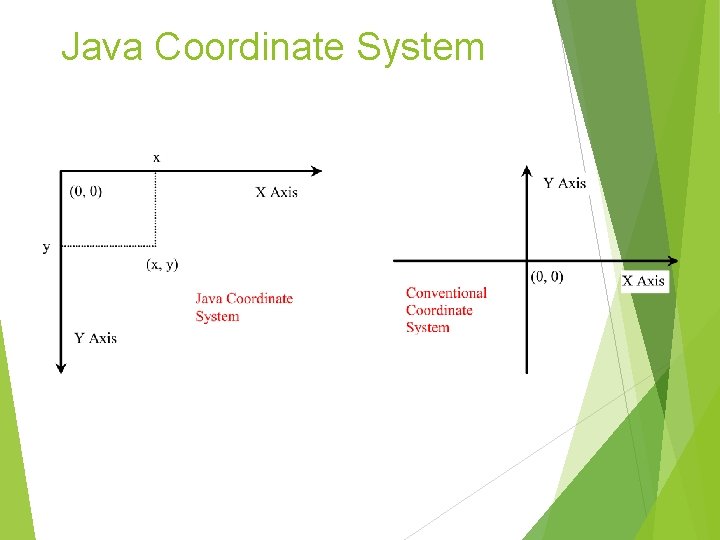
Java Coordinate System 52
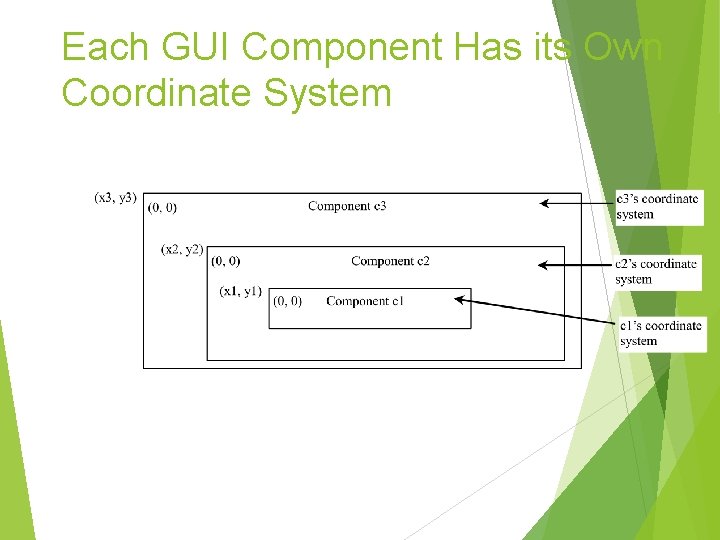
Each GUI Component Has its Own Coordinate System 53
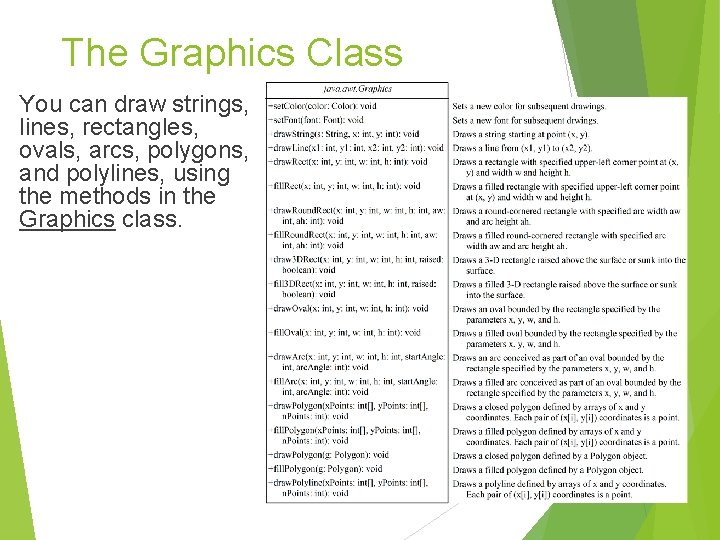
The Graphics Class You can draw strings, lines, rectangles, ovals, arcs, polygons, and polylines, using the methods in the Graphics class. 54
paint. Component Example In order to draw things on a component, you need to define a class that extends JPanel and overrides its paint. Component method to specify what to draw. 55
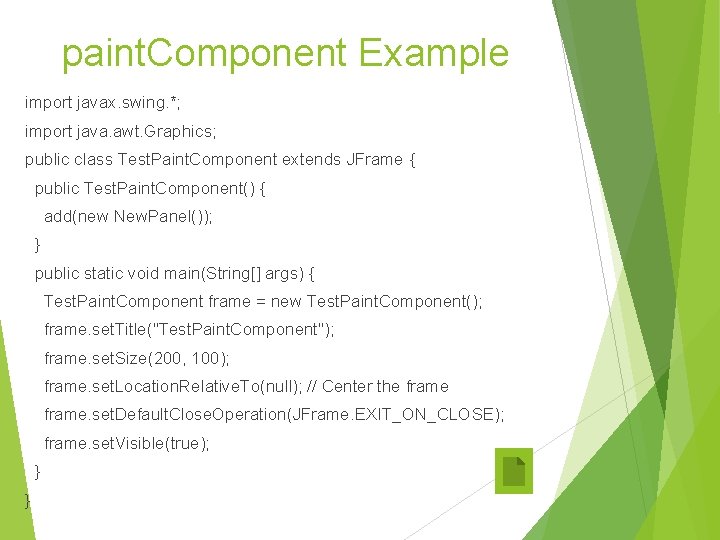
paint. Component Example import javax. swing. *; import java. awt. Graphics; public class Test. Paint. Component extends JFrame { public Test. Paint. Component() { add(new New. Panel()); } public static void main(String[] args) { Test. Paint. Component frame = new Test. Paint. Component(); frame. set. Title("Test. Paint. Component"); frame. set. Size(200, 100); frame. set. Location. Relative. To(null); // Center the frame. set. Default. Close. Operation(JFrame. EXIT_ON_CLOSE); frame. set. Visible(true); } } 56
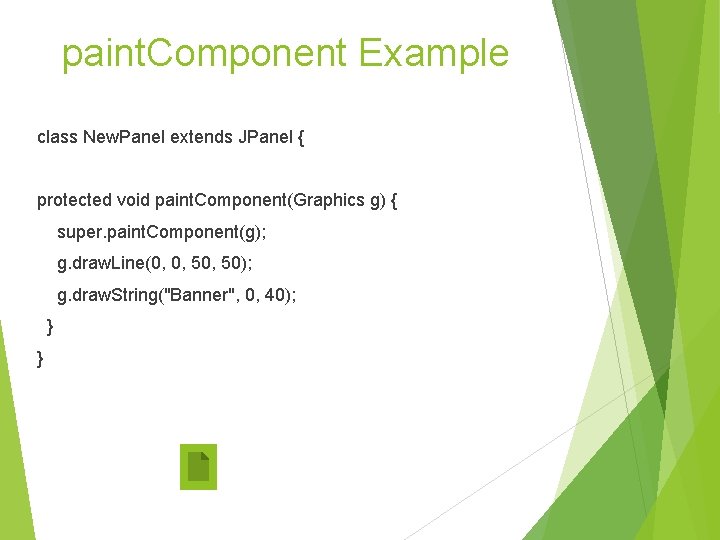
paint. Component Example class New. Panel extends JPanel { protected void paint. Component(Graphics g) { super. paint. Component(g); g. draw. Line(0, 0, 50); g. draw. String("Banner", 0, 40); } } 57
Image Icons Java uses the javax. swing. Image. Icon class to represent an icon. An icon is a fixed-size picture; typically it is small and used to decorate components. Images are normally stored in image files. You can use new Image. Icon(filename) to construct an image icon. For example, the following statement creates an icon from an image file us. gif in the image directory under the current class path: Image. Icon icon = new Image. Icon(“image/us. gif”); 58
Displaying Image Icons You learned how to create image icons and display image icons in labels and buttons. For example, the following statements create an image icon and display it in a label: Image. Icon icon = new Image. Icon("image/us. gif"); JLabel jlbl. Image = new JLabel(image. Icon); An image icon displays a fixed-size image. To display an image in a flexible size, you need to use the java. awt. Image class. An image can be created from an image icon using the get. Image() method as follows: Image image = image. Icon. get. Image(); 59
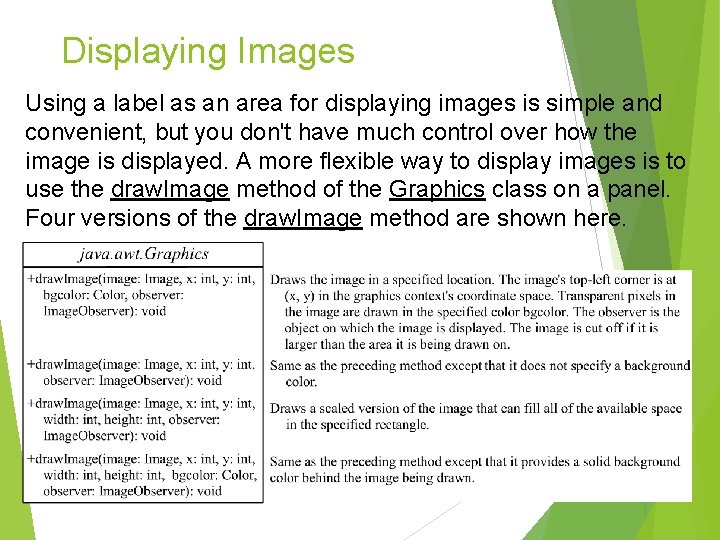
Displaying Images Using a label as an area for displaying images is simple and convenient, but you don't have much control over how the image is displayed. A more flexible way to display images is to use the draw. Image method of the Graphics class on a panel. Four versions of the draw. Image method are shown here. 60
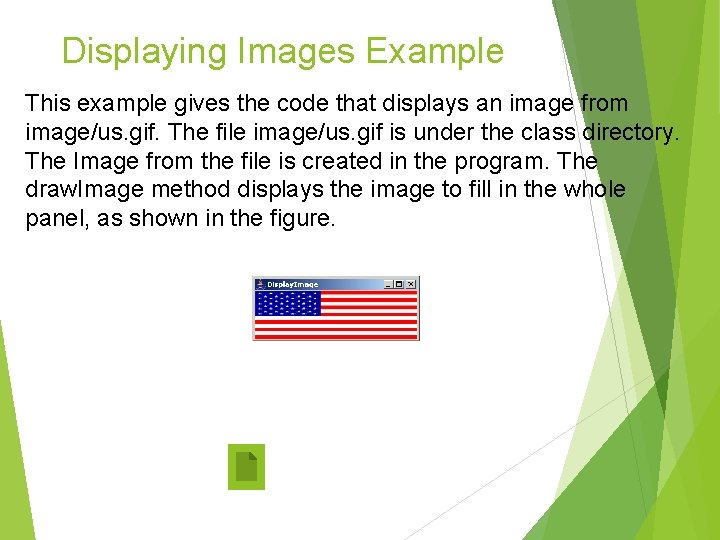
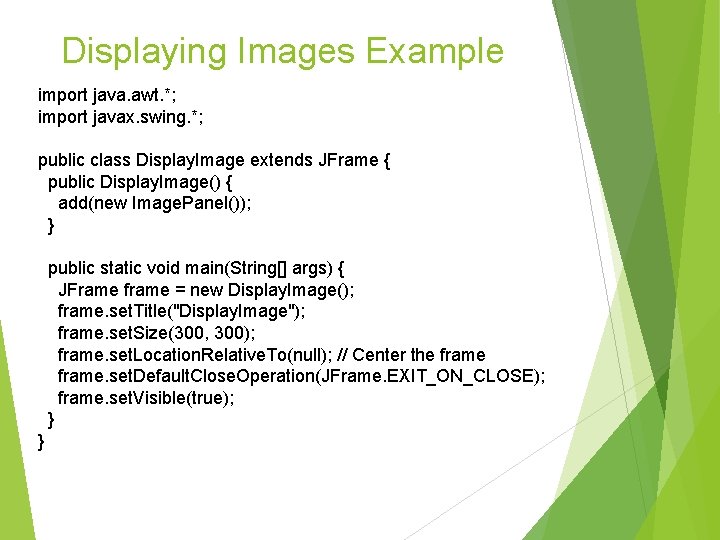
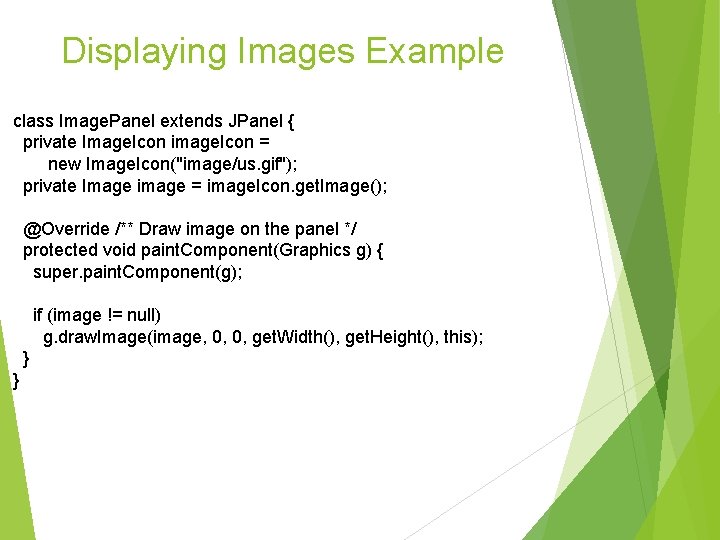
Displaying Images Example This example gives the code that displays an image from image/us. gif. The file image/us. gif is under the class directory. The Image from the file is created in the program. The draw. Image method displays the image to fill in the whole panel, as shown in the figure. 61
Displaying Images Example import java. awt. *; import javax. swing. *; public class Display. Image extends JFrame { public Display. Image() { add(new Image. Panel()); } public static void main(String[] args) { JFrame frame = new Display. Image(); frame. set. Title("Display. Image"); frame. set. Size(300, 300); frame. set. Location. Relative. To(null); // Center the frame. set. Default. Close. Operation(JFrame. EXIT_ON_CLOSE); frame. set. Visible(true); } } 62
Displaying Images Example class Image. Panel extends JPanel { private Image. Icon image. Icon = new Image. Icon("image/us. gif"); private Image image = image. Icon. get. Image(); @Override /** Draw image on the panel */ protected void paint. Component(Graphics g) { super. paint. Component(g); if (image != null) g. draw. Image(image, 0, 0, get. Width(), get. Height(), this); } } 63
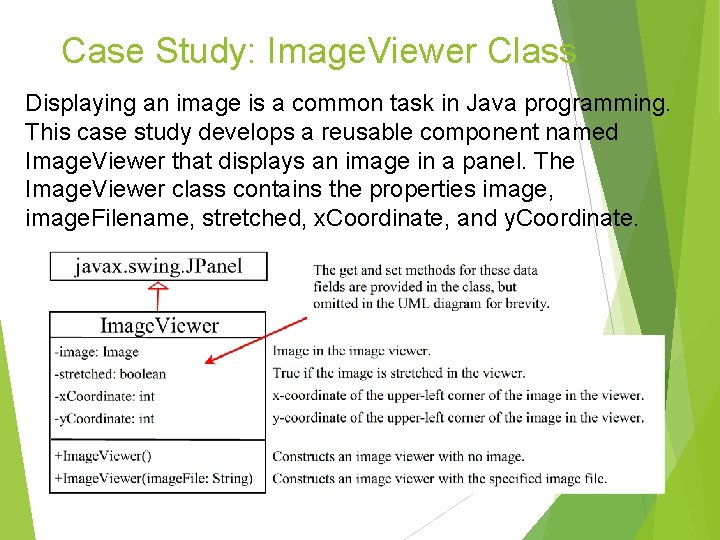
Case Study: Image. Viewer Class Displaying an image is a common task in Java programming. This case study develops a reusable component named Image. Viewer that displays an image in a panel. The Image. Viewer class contains the properties image, image. Filename, stretched, x. Coordinate, and y. Coordinate. 64
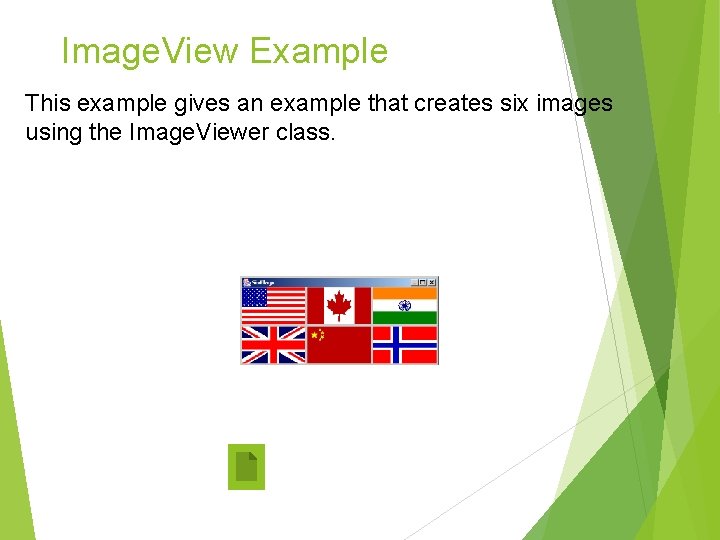
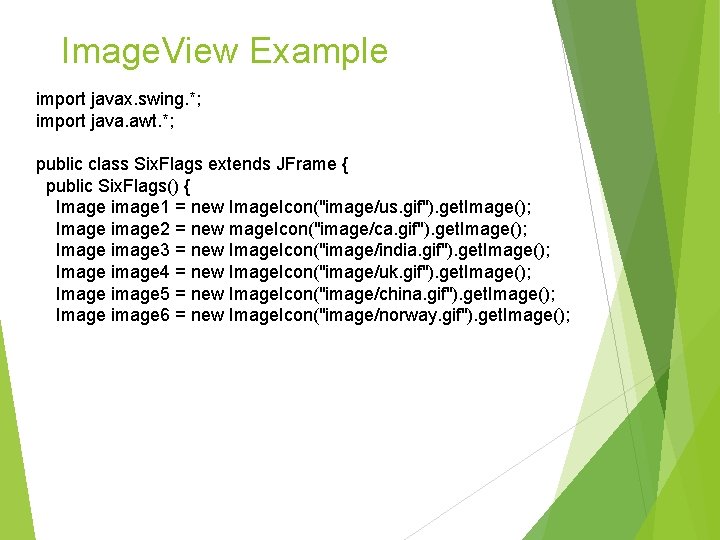
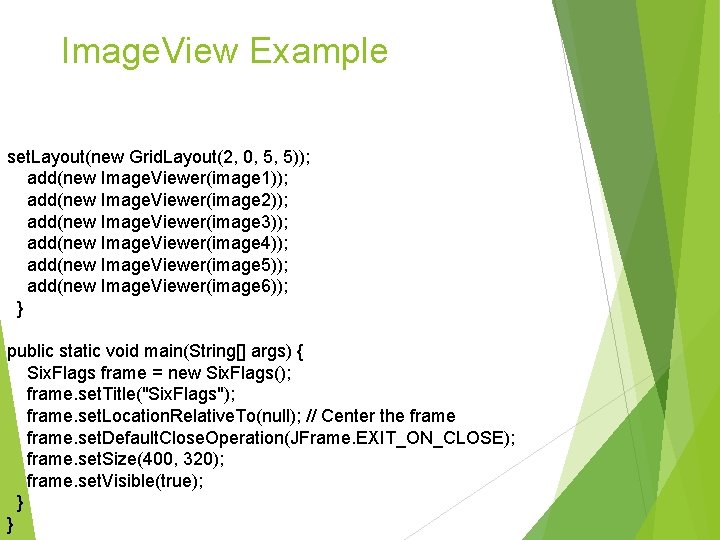
Image. View Example This example gives an example that creates six images using the Image. Viewer class. 65
Image. View Example import javax. swing. *; import java. awt. *; public class Six. Flags extends JFrame { public Six. Flags() { Image image 1 = new Image. Icon("image/us. gif"). get. Image(); Image image 2 = new mage. Icon("image/ca. gif"). get. Image(); Image image 3 = new Image. Icon("image/india. gif"). get. Image(); Image image 4 = new Image. Icon("image/uk. gif"). get. Image(); Image image 5 = new Image. Icon("image/china. gif"). get. Image(); Image image 6 = new Image. Icon("image/norway. gif"). get. Image(); 66
Image. View Example set. Layout(new Grid. Layout(2, 0, 5, 5)); add(new Image. Viewer(image 1)); add(new Image. Viewer(image 2)); add(new Image. Viewer(image 3)); add(new Image. Viewer(image 4)); add(new Image. Viewer(image 5)); add(new Image. Viewer(image 6)); } public static void main(String[] args) { Six. Flags frame = new Six. Flags(); frame. set. Title("Six. Flags"); frame. set. Location. Relative. To(null); // Center the frame. set. Default. Close. Operation(JFrame. EXIT_ON_CLOSE); frame. set. Size(400, 320); frame. set. Visible(true); } } 67