CSN 08101 Digital Forensics Lecture 10 Windows Registry

- Slides: 67
CSN 08101 Digital Forensics Lecture 10: Windows Registry Module Leader: Dr Gordon Russell Lecturers: Robert Ludwiniak
Lecture Objectives • Windows Registry – – – • • Structure Properties Examples Timeline Analysis Web Browsers – – Internet Explorer Fire. Fox
WINDOWS REGISTRY
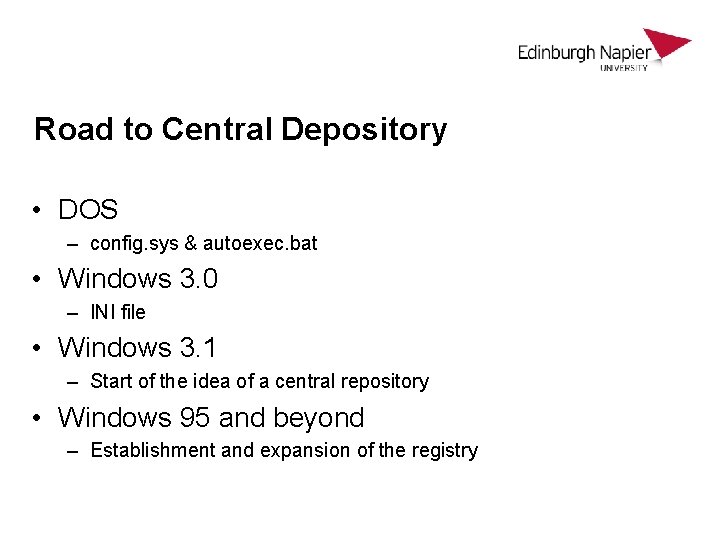
Road to Central Depository • DOS – config. sys & autoexec. bat • Windows 3. 0 – INI file • Windows 3. 1 – Start of the idea of a central repository • Windows 95 and beyond – Establishment and expansion of the registry
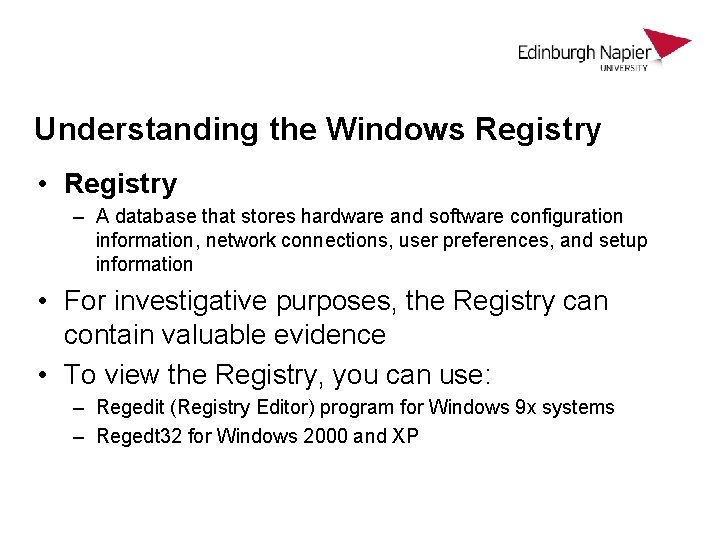
Understanding the Windows Registry • Registry – A database that stores hardware and software configuration information, network connections, user preferences, and setup information • For investigative purposes, the Registry can contain valuable evidence • To view the Registry, you can use: – Regedit (Registry Editor) program for Windows 9 x systems – Regedt 32 for Windows 2000 and XP
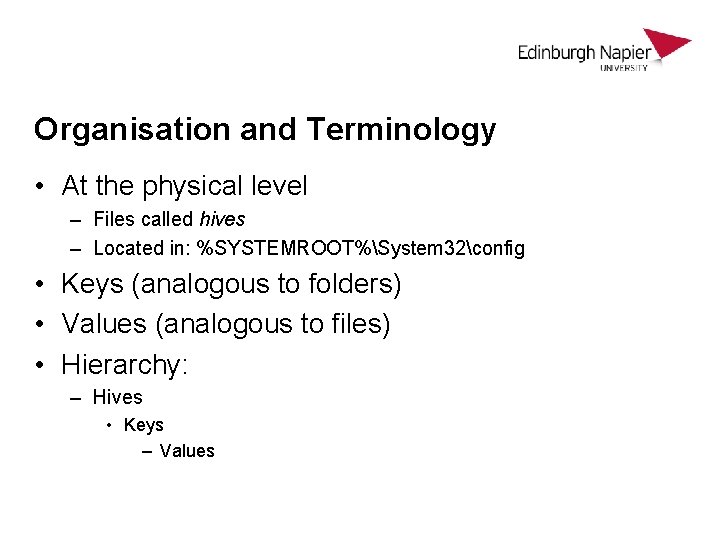
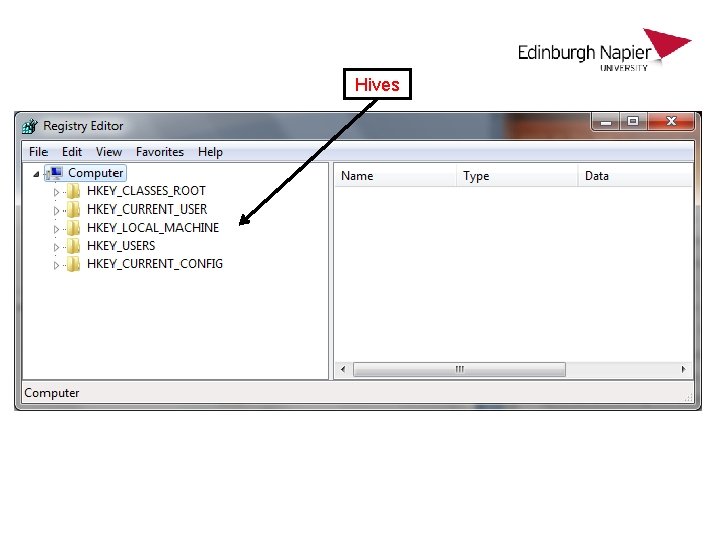
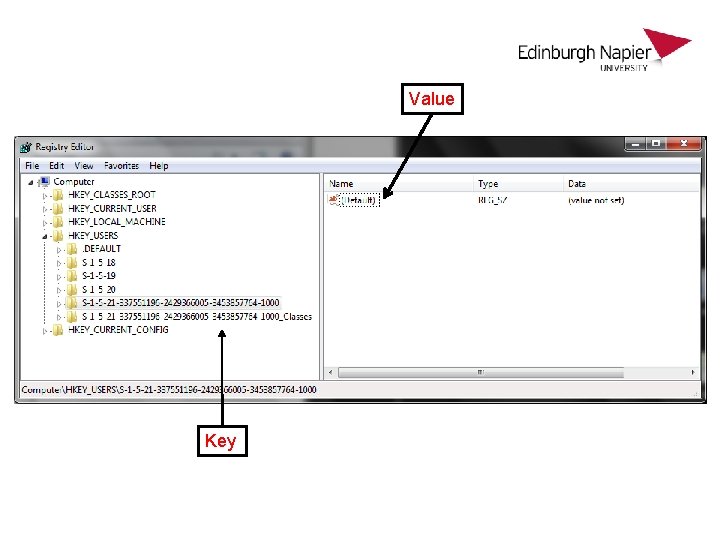
Organisation and Terminology • At the physical level – Files called hives – Located in: %SYSTEMROOT%System 32config • Keys (analogous to folders) • Values (analogous to files) • Hierarchy: – Hives • Keys – Values
Hives
Value Key
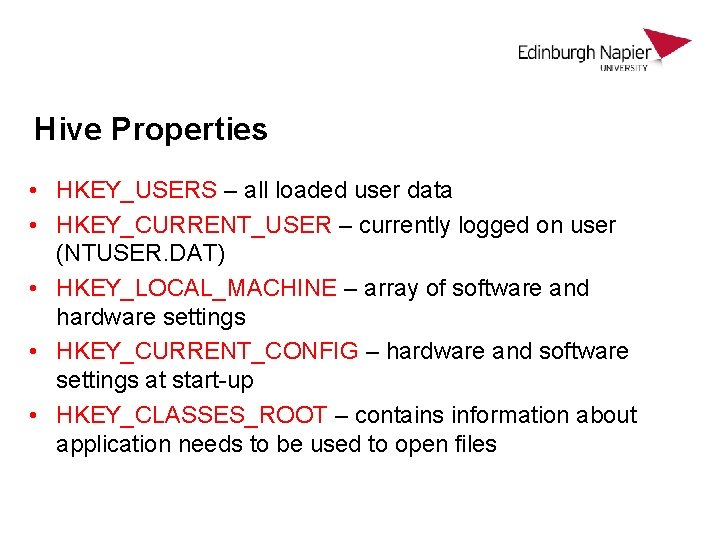
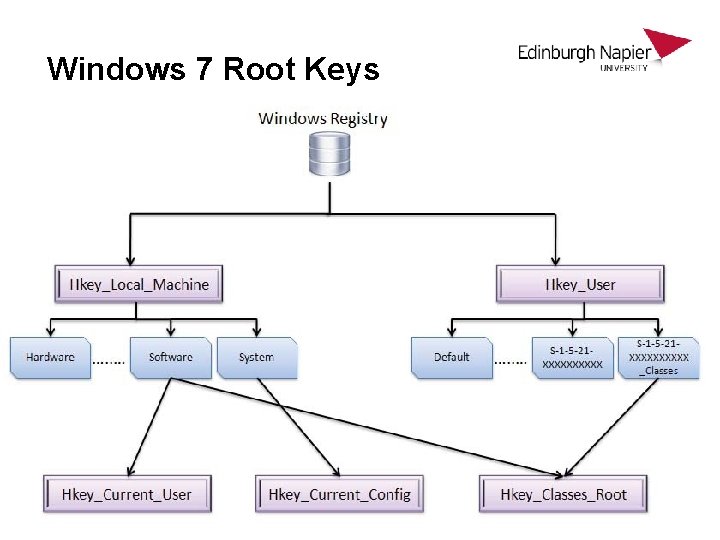
Hive Properties • HKEY_USERS – all loaded user data • HKEY_CURRENT_USER – currently logged on user (NTUSER. DAT) • HKEY_LOCAL_MACHINE – array of software and hardware settings • HKEY_CURRENT_CONFIG – hardware and software settings at start-up • HKEY_CLASSES_ROOT – contains information about application needs to be used to open files
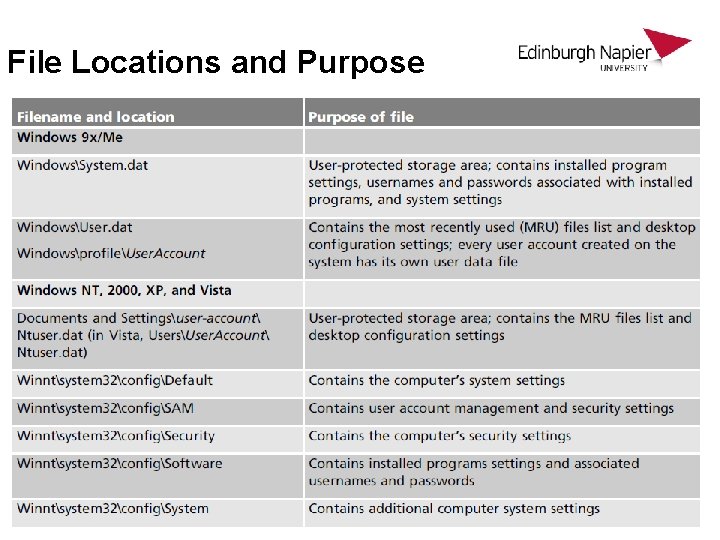
File Locations and Purpose
Windows 7 Root Keys
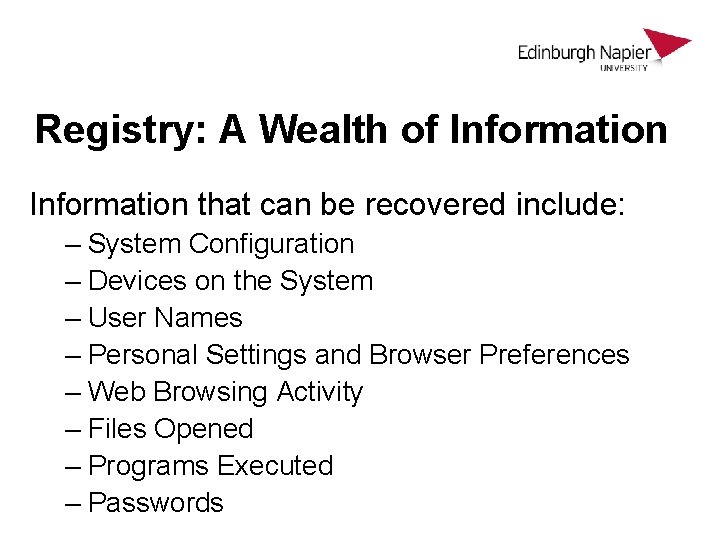
Registry: A Wealth of Information that can be recovered include: – System Configuration – Devices on the System – User Names – Personal Settings and Browser Preferences – Web Browsing Activity – Files Opened – Programs Executed – Passwords
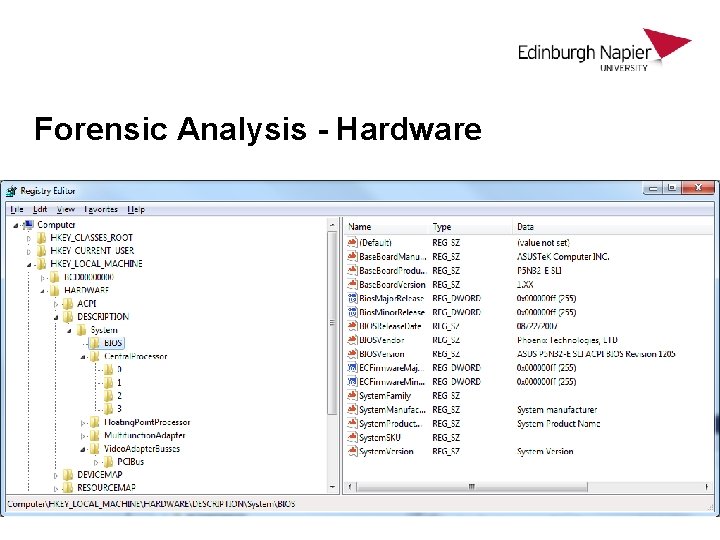
Forensic Analysis - Hardware
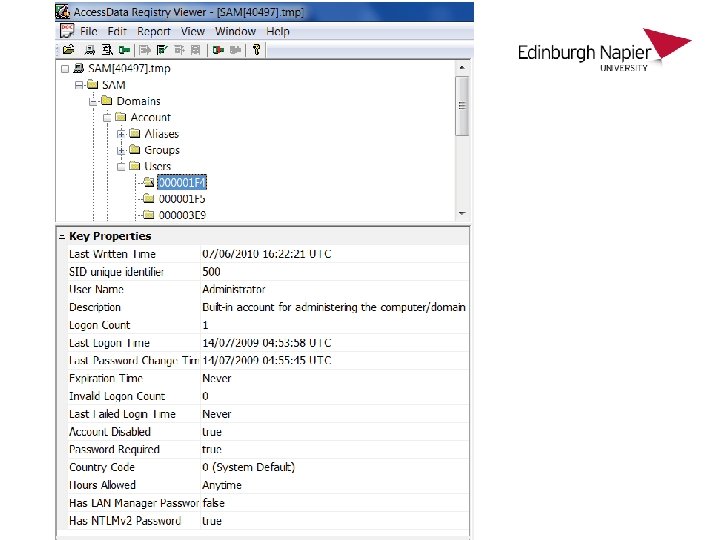
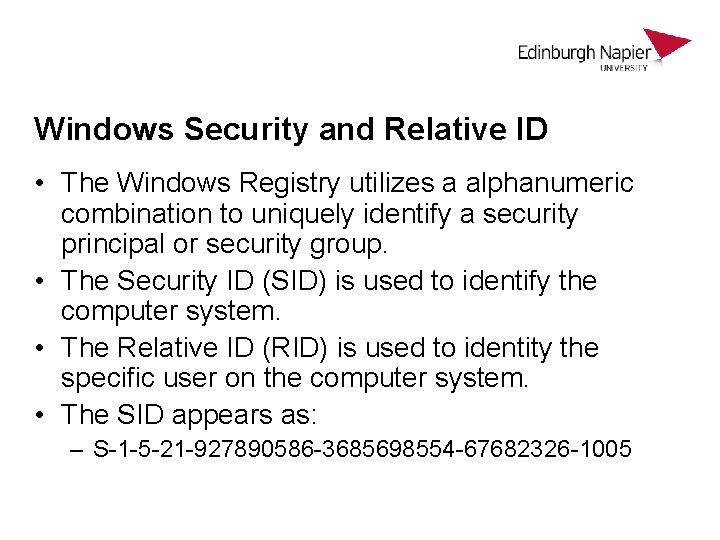
Windows Security and Relative ID • The Windows Registry utilizes a alphanumeric combination to uniquely identify a security principal or security group. • The Security ID (SID) is used to identify the computer system. • The Relative ID (RID) is used to identity the specific user on the computer system. • The SID appears as: – S-1 -5 -21 -927890586 -3685698554 -67682326 -1005
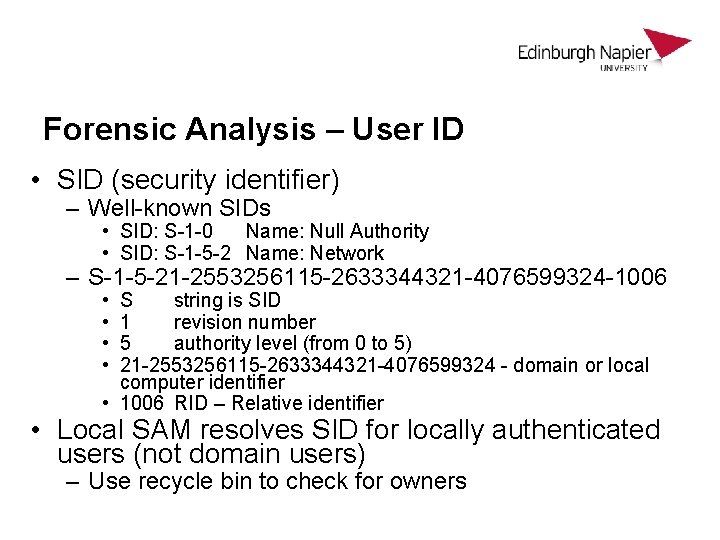
Forensic Analysis – User ID • SID (security identifier) – Well-known SIDs • SID: S-1 -0 Name: Null Authority • SID: S-1 -5 -2 Name: Network – S-1 -5 -21 -2553256115 -2633344321 -4076599324 -1006 • • S string is SID 1 revision number 5 authority level (from 0 to 5) 21 -2553256115 -2633344321 -4076599324 - domain or local computer identifier • 1006 RID – Relative identifier • Local SAM resolves SID for locally authenticated users (not domain users) – Use recycle bin to check for owners
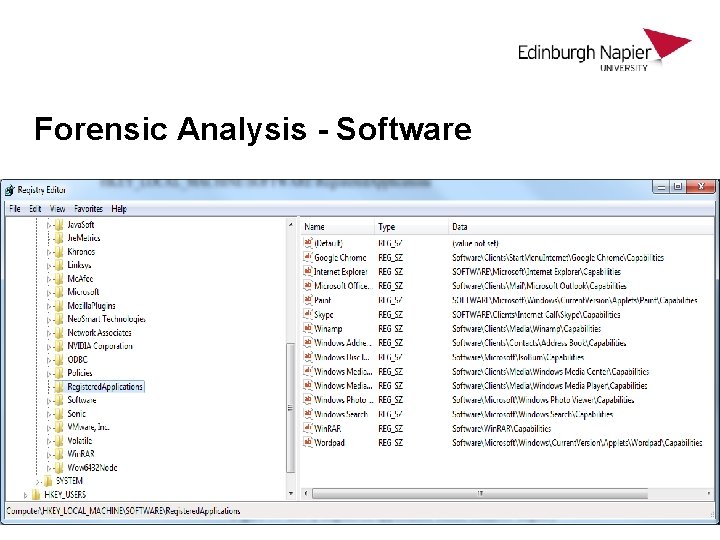
Forensic Analysis - Software
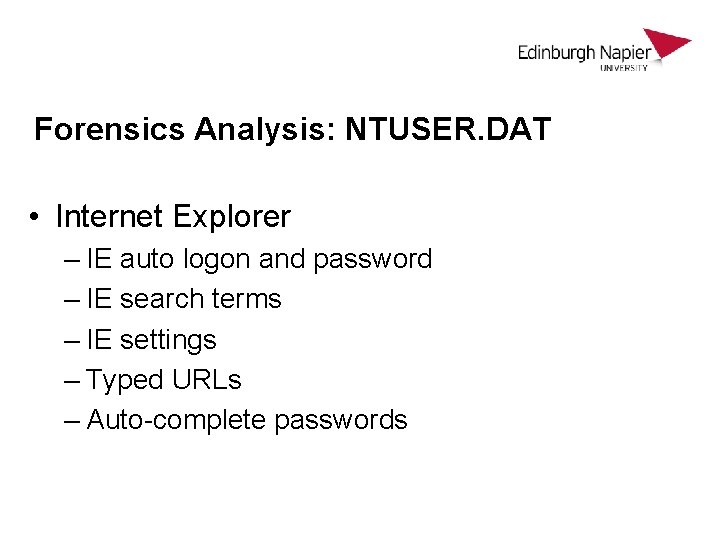
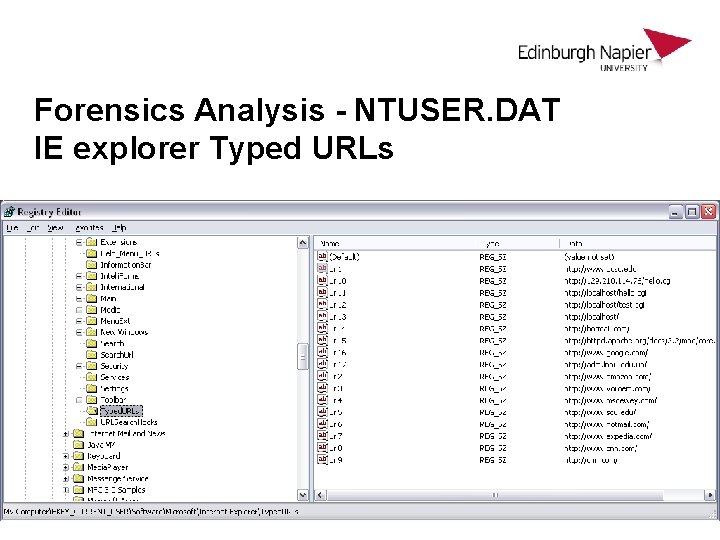
Forensics Analysis: NTUSER. DAT • Internet Explorer – IE auto logon and password – IE search terms – IE settings – Typed URLs – Auto-complete passwords
Forensics Analysis - NTUSER. DAT IE explorer Typed URLs
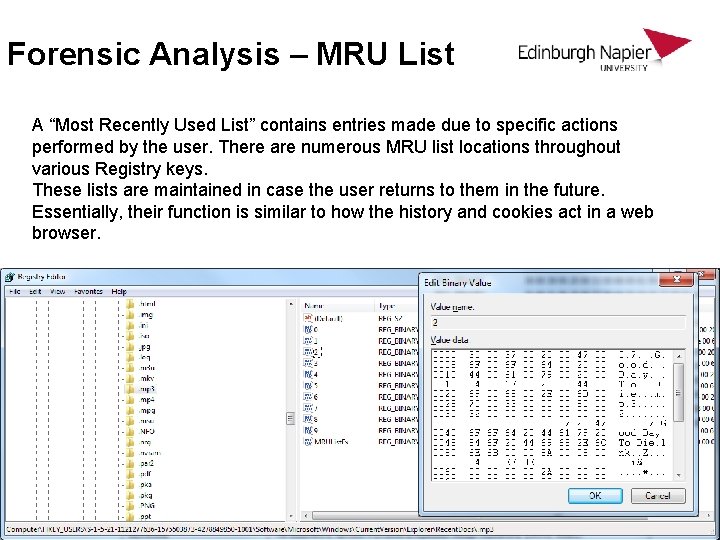
Forensic Analysis – MRU List A “Most Recently Used List” contains entries made due to specific actions performed by the user. There are numerous MRU list locations throughout various Registry keys. These lists are maintained in case the user returns to them in the future. Essentially, their function is similar to how the history and cookies act in a web browser.
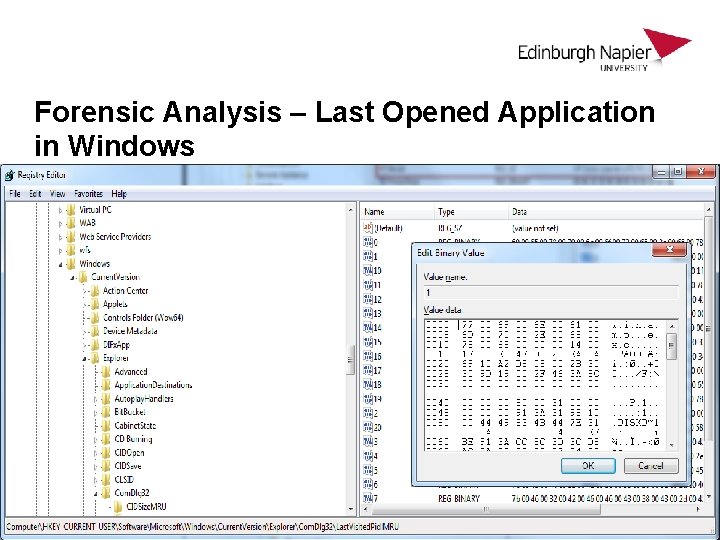
Forensic Analysis – Last Opened Application in Windows
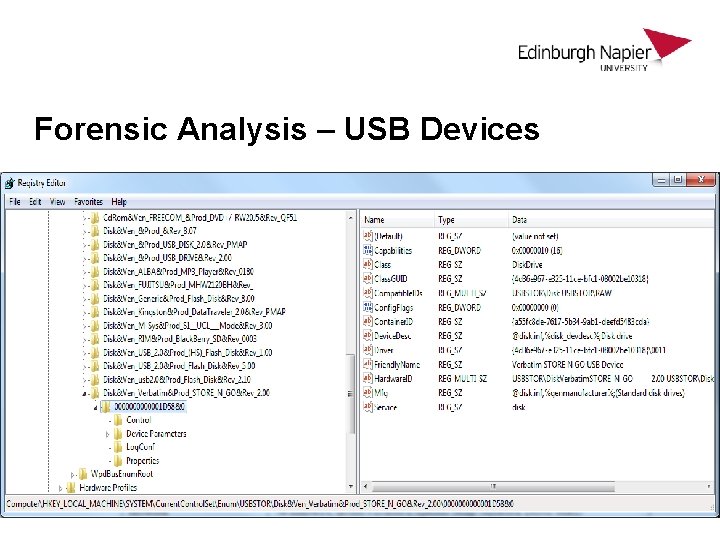
Forensic Analysis – USB Devices
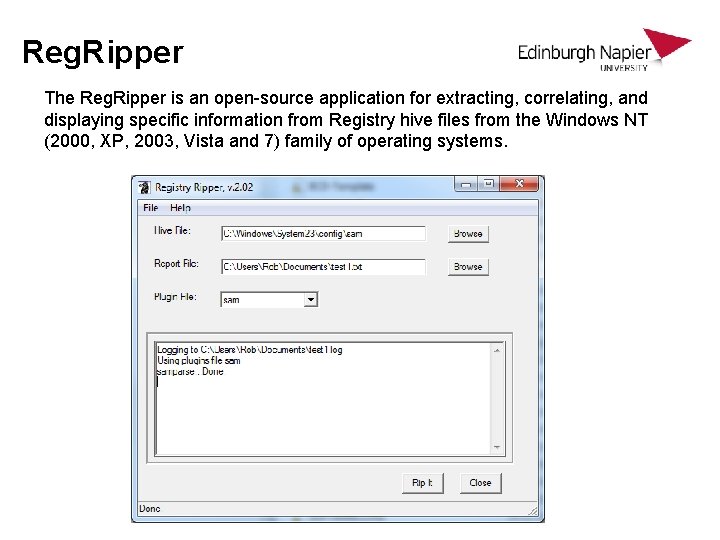
Reg. Ripper The Reg. Ripper is an open-source application for extracting, correlating, and displaying specific information from Registry hive files from the Windows NT (2000, XP, 2003, Vista and 7) family of operating systems.
TIMELINE ANALYSIS
System Time • Determined by booting into the BIOS and comparing it with an external source – Radio Signal Clock or Time Server • CMOS Clock – Complementary Metal Oxide Semiconductor Chip (CMOS) – Accessed by most OS to determine the time
Operating System Time • Embedded within the file system or high level file metadata • Will take into account local time (or not!) • Can confuse an investigation depending on tool configuration and time zone • Will ask for the time from the BIOS CMOS
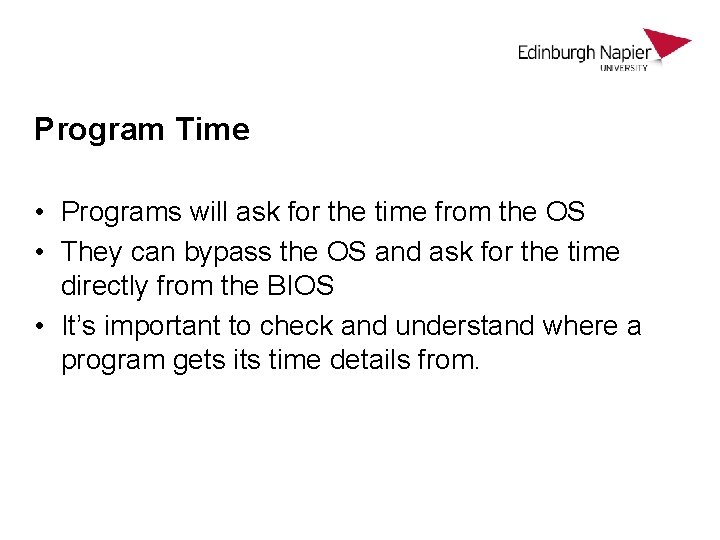
Program Time • Programs will ask for the time from the OS • They can bypass the OS and ask for the time directly from the BIOS • It’s important to check and understand where a program gets its time details from.
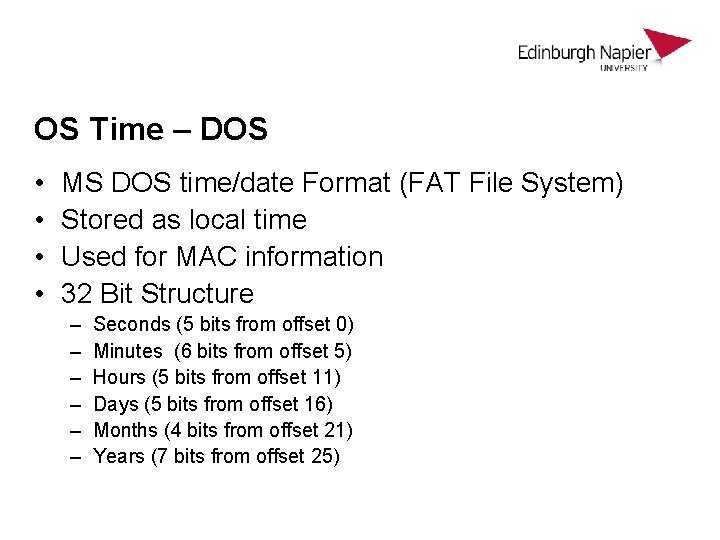
OS Time – DOS • • MS DOS time/date Format (FAT File System) Stored as local time Used for MAC information 32 Bit Structure – – – Seconds (5 bits from offset 0) Minutes (6 bits from offset 5) Hours (5 bits from offset 11) Days (5 bits from offset 16) Months (4 bits from offset 21) Years (7 bits from offset 25)
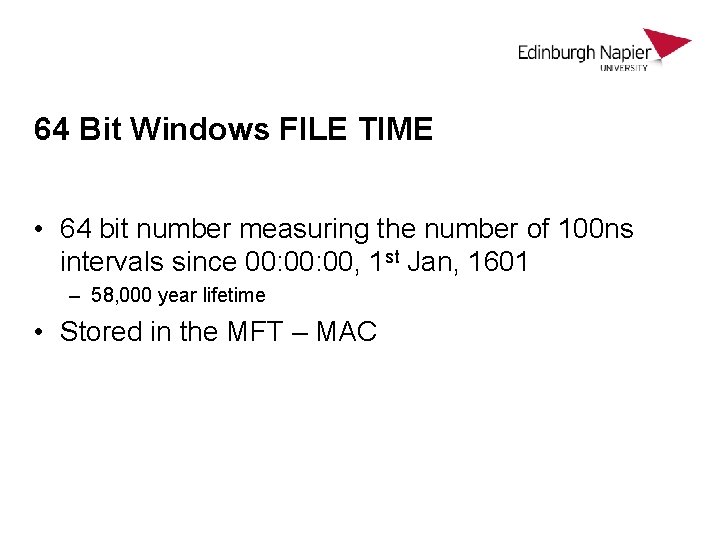
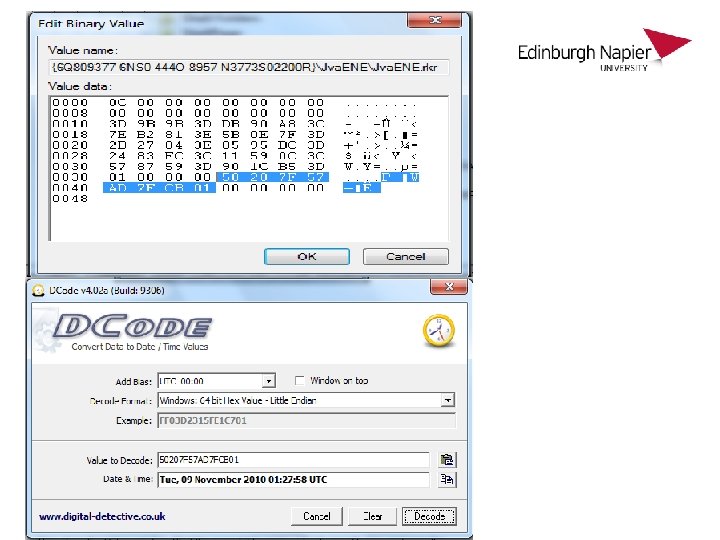
64 Bit Windows FILE TIME • 64 bit number measuring the number of 100 ns intervals since 00: 00, 1 st Jan, 1601 – 58, 000 year lifetime • Stored in the MFT – MAC
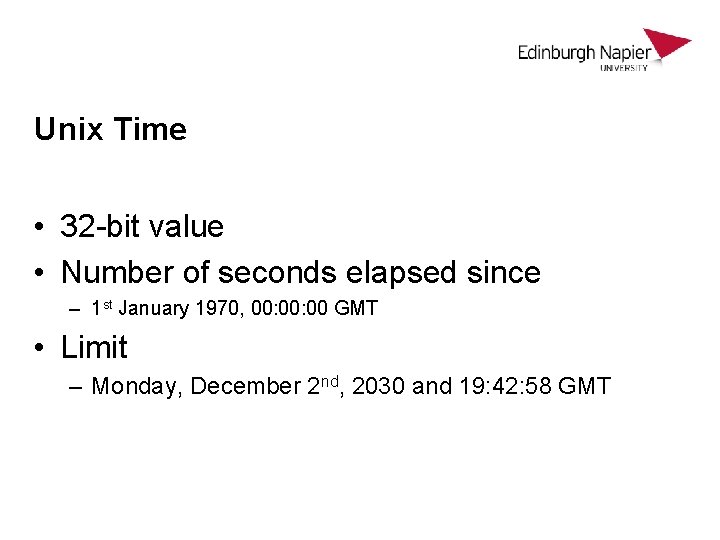
Unix Time • 32 -bit value • Number of seconds elapsed since – 1 st January 1970, 00: 00 GMT • Limit – Monday, December 2 nd, 2030 and 19: 42: 58 GMT
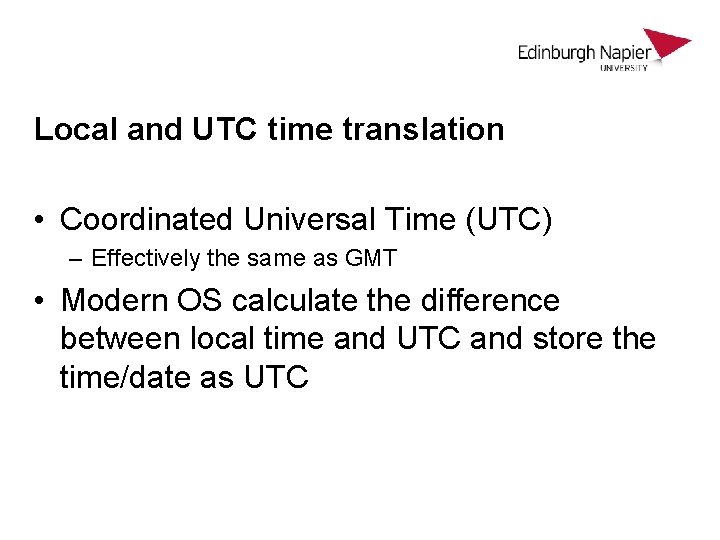
Local and UTC time translation • Coordinated Universal Time (UTC) – Effectively the same as GMT • Modern OS calculate the difference between local time and UTC and store the time/date as UTC
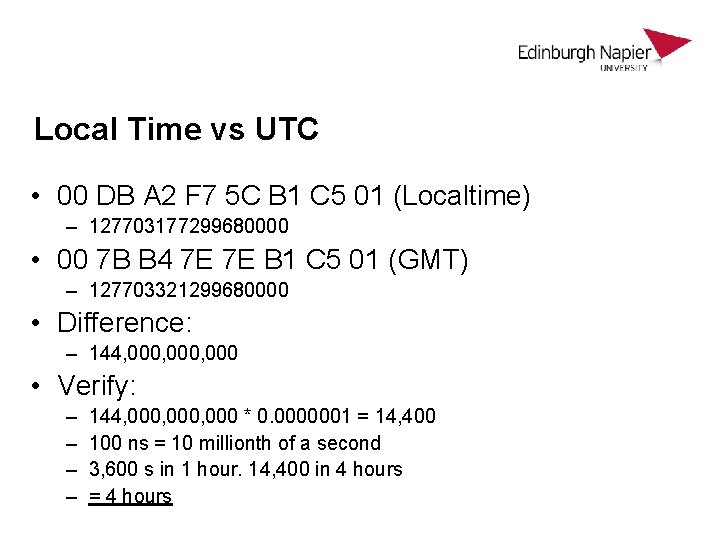
Local Time vs UTC • 00 DB A 2 F 7 5 C B 1 C 5 01 (Localtime) – 127703177299680000 • 00 7 B B 4 7 E 7 E B 1 C 5 01 (GMT) – 127703321299680000 • Difference: – 144, 000, 000 • Verify: – – 144, 000, 000 * 0. 0000001 = 14, 400 100 ns = 10 millionth of a second 3, 600 s in 1 hour. 14, 400 in 4 hours = 4 hours
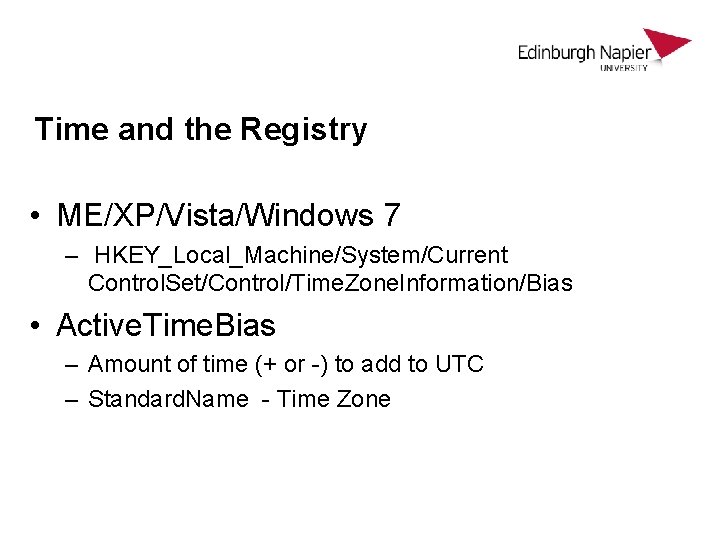
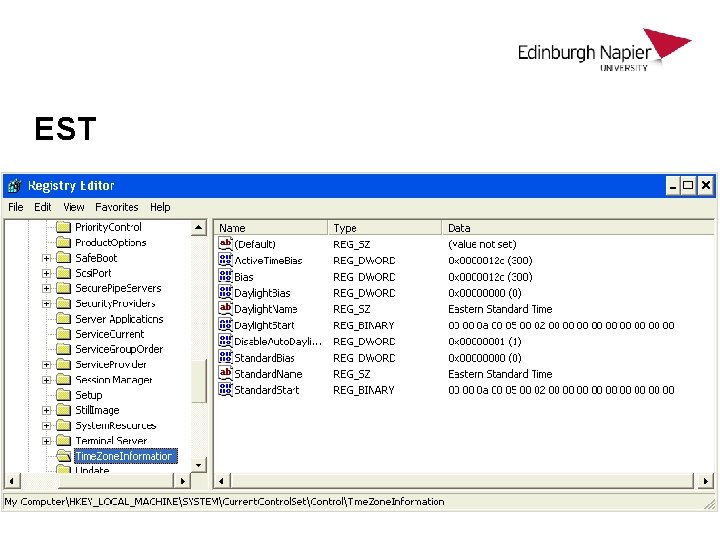
Time and the Registry • ME/XP/Vista/Windows 7 – HKEY_Local_Machine/System/Current Control. Set/Control/Time. Zone. Information/Bias • Active. Time. Bias – Amount of time (+ or -) to add to UTC – Standard. Name - Time Zone
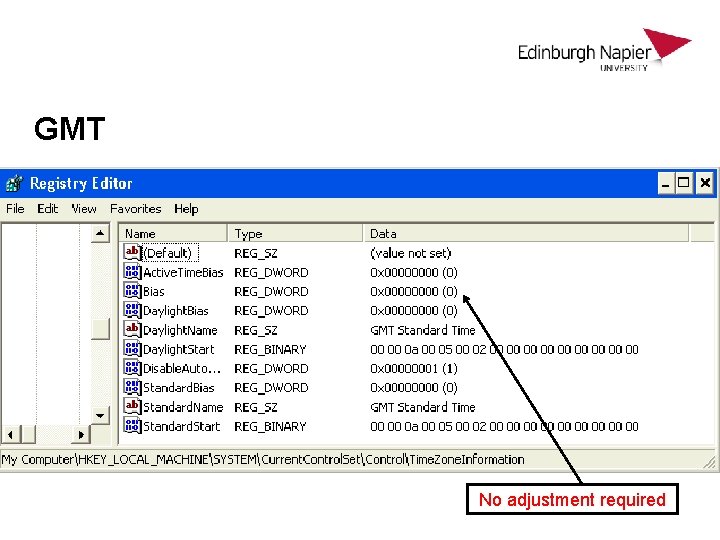
GMT No adjustment required
EST
WEB BROWSERS
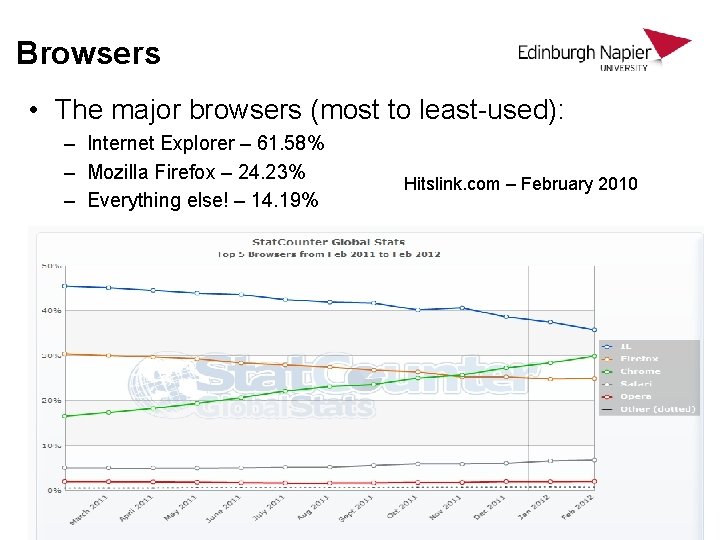
Browsers • The major browsers (most to least-used): – Internet Explorer – 61. 58% – Mozilla Firefox – 24. 23% – Everything else! – 14. 19% Hitslink. com – February 2010
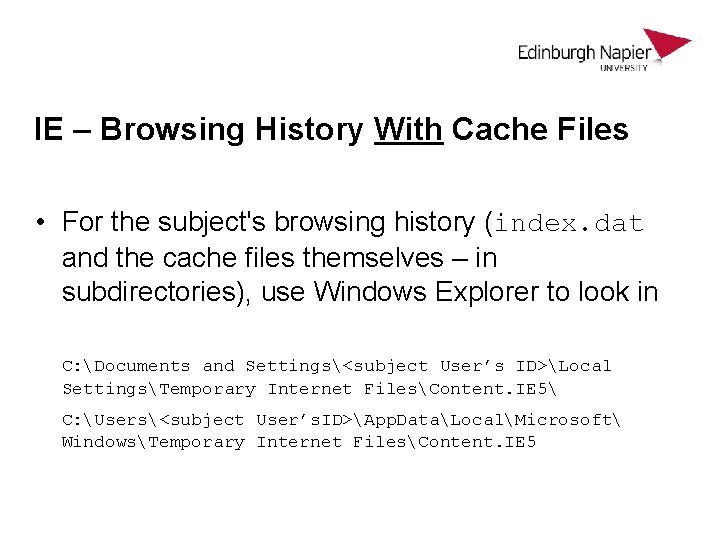
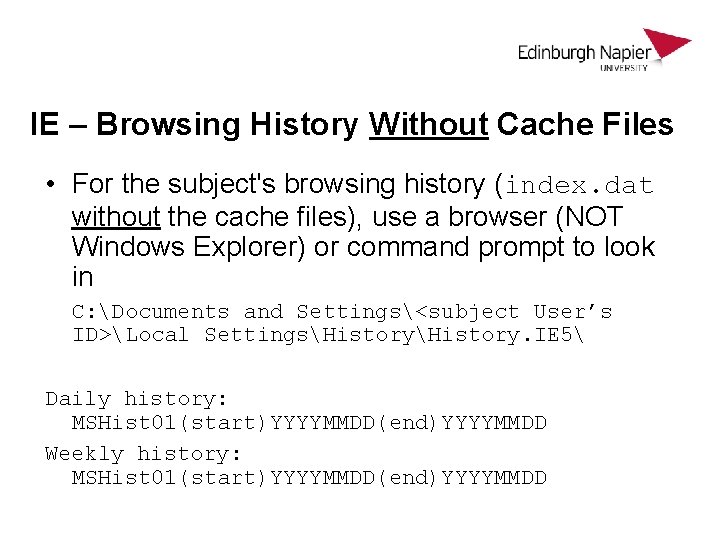
Internet Explorer - storage Stores files used in displaying web pages (cache), tracking pages visited (history) and automatic identification / authentication (cookies, credentials) • Viewed pages will retrieve its page code and embedded files (such as graphics) from the hard drive rather than the server, so the page loads faster (cache) • Able to see a record of recently visited pages (history) • No sign in again at sites that require it, or to specify preferences again (cookies and credentials). Also cookies are used by the visited site and other sites to track web browsing, which is a privacy discussion on its own.
IE – Browsing History With Cache Files • For the subject's browsing history (index. dat and the cache files themselves – in subdirectories), use Windows Explorer to look in C: Documents and Settings<subject User’s ID>Local SettingsTemporary Internet FilesContent. IE 5 C: Users<subject User’s. ID>App. DataLocalMicrosoft WindowsTemporary Internet FilesContent. IE 5
IE – Browsing History Without Cache Files • For the subject's browsing history (index. dat without the cache files), use a browser (NOT Windows Explorer) or command prompt to look in C: Documents and Settings<subject User’s ID>Local SettingsHistory. IE 5 Daily history: MSHist 01(start)YYYYMMDD(end)YYYYMMDD Weekly history: MSHist 01(start)YYYYMMDD(end)YYYYMMDD
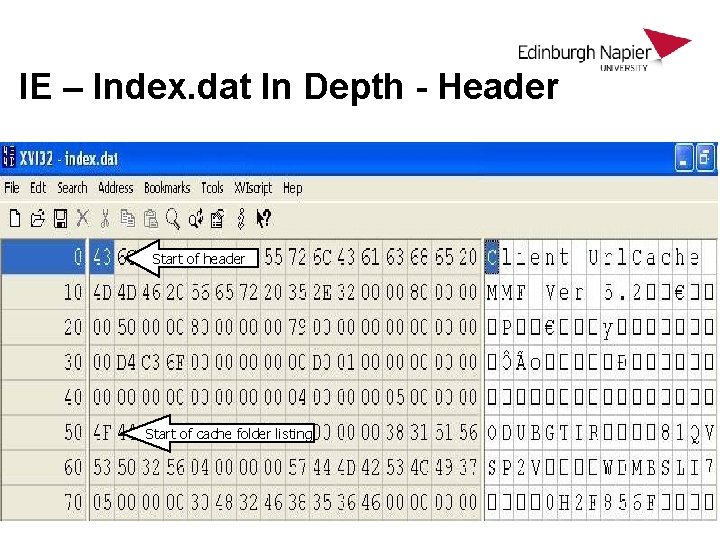
IE – Index. dat In Depth - Header Start of header Start of cache folder listing
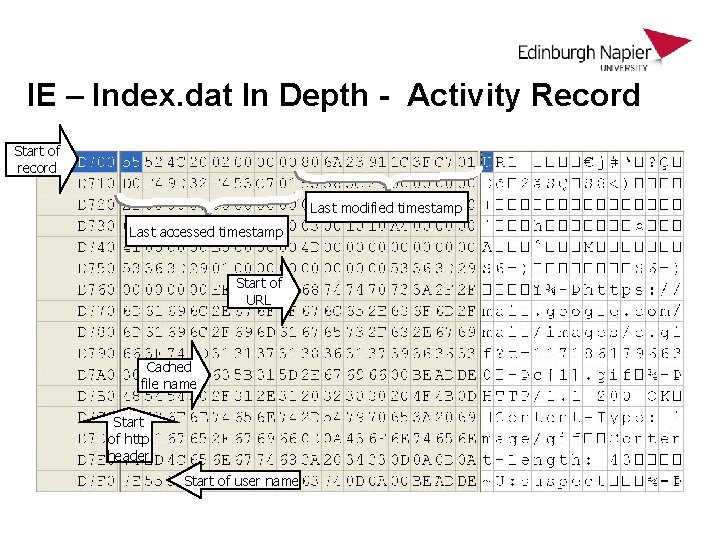
IE – Index. dat In Depth - Activity Record Start of record Last modified timestamp Last accessed timestamp Start of URL Cached file name Start of http header Start of user name
IE – What If The Subject Clears The Cache? • In IE 6, when you select Delete Files, the cache files are deleted from the hard drive, but the entries in index. dat are marked “free” and NOT removed! • IE 7 & 8 is more thorough – Selecting Delete Files removes both the files and the entries in index. dat (although you can restore the files themselves as they are not overwritten)
IE 8 – What If The subject uses “In. Private Browsing”? • In. Private does make the forensic examiner’s job more difficult by not recording items such as typed addresses, visited links, and forms, queries and passwords entered, including not recording the “host records” (URLS) in index. dat. It also deletes the contents of Temporary Internet Files when the “subject” exits the browsing session. • However, items (such as the cached filename and page header information) are still dutifully written to index. dat, making it still possible for an investigator to infer where the “subject” has been surfing.
Internet Explorer – Cookies • For cookies saved on the subject's hard drive (individual cookie text files), use Windows Explorer to look in C: Documents and Settings<subject User’s ID>Cookies
IE 6 and Before – Identification / Authentication • Stores encrypted user. IDs and passwords (Auto. Complete) in HKCUSoftwareMicrosoftInternet ExplorerIntelli. Forms SPW, and web addresses in HKLMSoftwareMicrosoftProtected Storage System Provider<subject’s user ID>
IE 7 & 8 – Identification / Authentication • Stores encrypted user. IDs and passwords (Auto. Complete) in HKCUSoftwareMicrosoftInternet ExplorerIntelli. FormsStorage 2 • Encryption has been improved
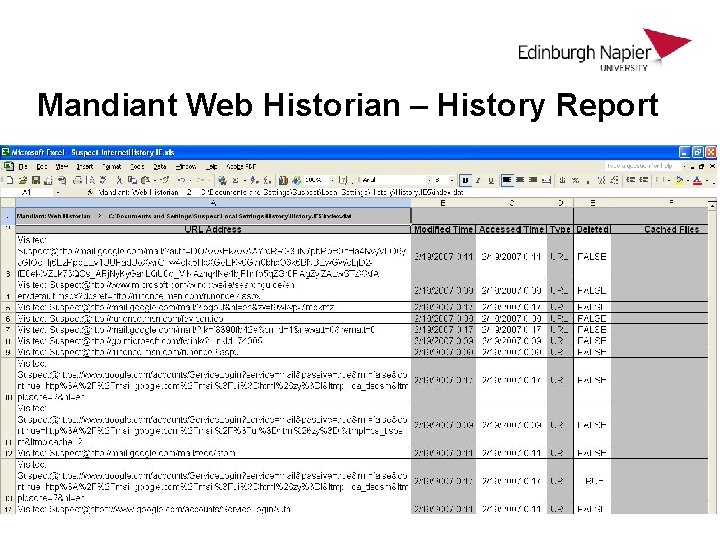
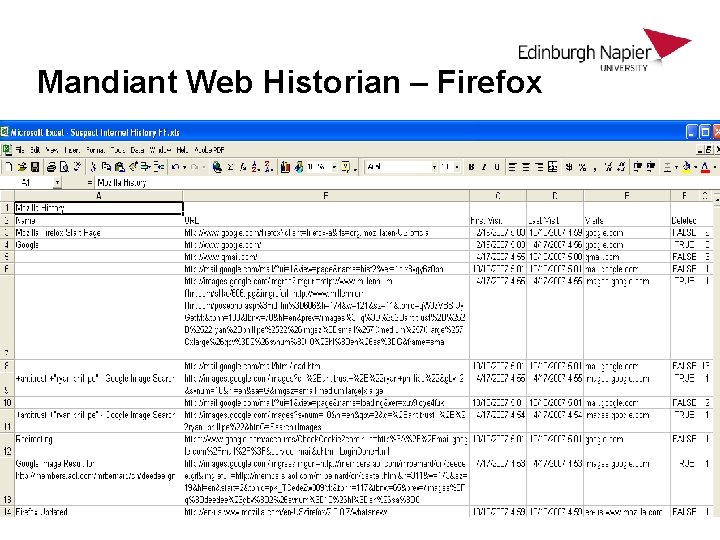
Mandiant Web Historian - Overview • A tool that allows you to take a given index. dat file and parse it into a readable / exportable format • Available at http: //www. mandiant. com/webhistorian. htm
Mandiant Web Historian – History Report
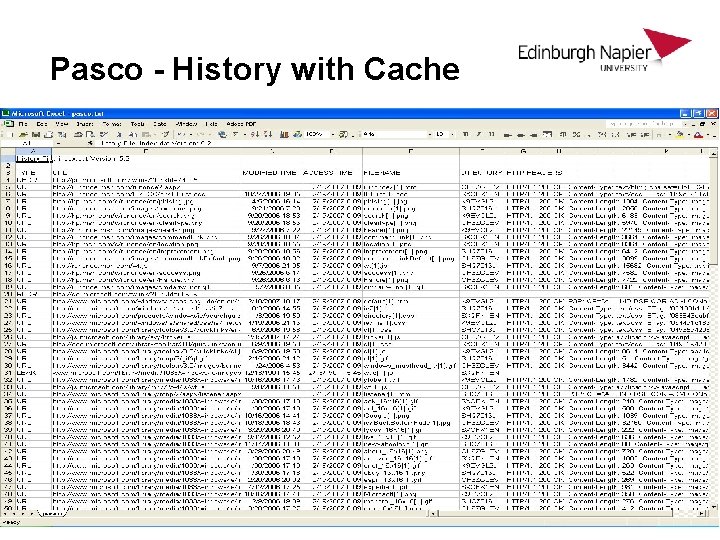
Pasco • Pasco is another tool for analysis of the index. dat files, but this one also runs on Unix, which is another environment where you may be running other forensics tools • Does basically the same operation as Web Historian, outputting to delimited text files that can be imported elsewhere
Pasco - History with Cache
Galleta - Cookie analysis • From the command line (Unix or Windows): galleta <option> (filename) • Option: -t (column delimiter – defaults to tab) • Use > to redirect output into a file
IE Pass. View - Stored Credentials • IE Pass. View reads the stored Internet Explorer credentials from the Windows Registry and returns the website, user. ID and password in columnar format • Note that this will obtain the user credentials, but not other autocomplete information such as form fields • You will have to run it on the subject's computer – not a very good idea, so create a (forensic) working copy and run it from there
Firefox - Overview • Open source web browser • Evolved from the Netscape Navigator web browser • Support for images, frames, SSL and javascript • Full disk cache support
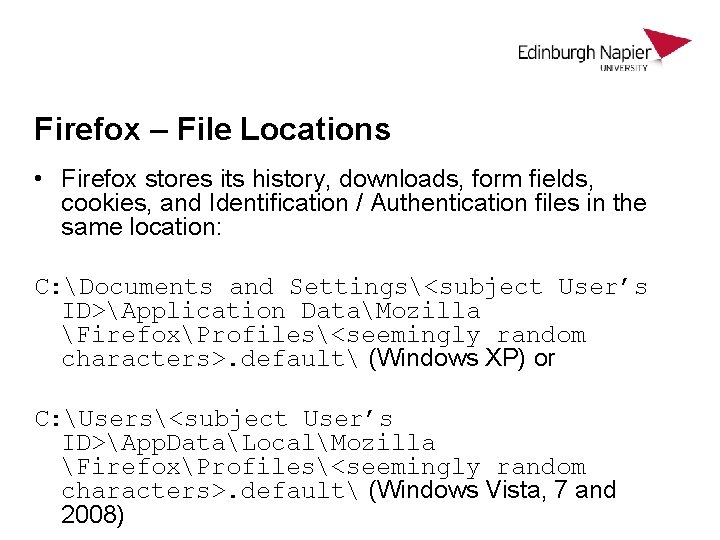
Firefox – File Locations • Firefox stores its history, downloads, form fields, cookies, and Identification / Authentication files in the same location: C: Documents and Settings<subject User’s ID>Application DataMozilla FirefoxProfiles<seemingly random characters>. default (Windows XP) or C: Users<subject User’s ID>App. DataLocalMozilla FirefoxProfiles<seemingly random characters>. default (Windows Vista, 7 and 2008)
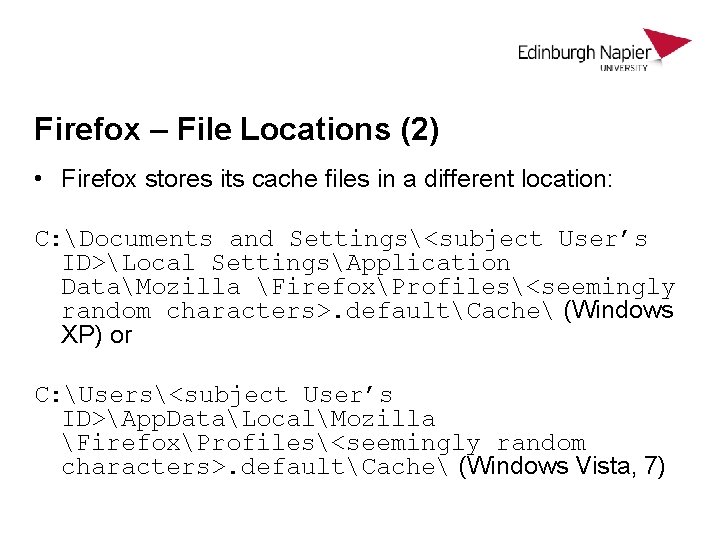
Firefox – File Locations (2) • Firefox stores its cache files in a different location: C: Documents and Settings<subject User’s ID>Local SettingsApplication DataMozilla FirefoxProfiles<seemingly random characters>. defaultCache (Windows XP) or C: Users<subject User’s ID>App. DataLocalMozilla FirefoxProfiles<seemingly random characters>. defaultCache (Windows Vista, 7)
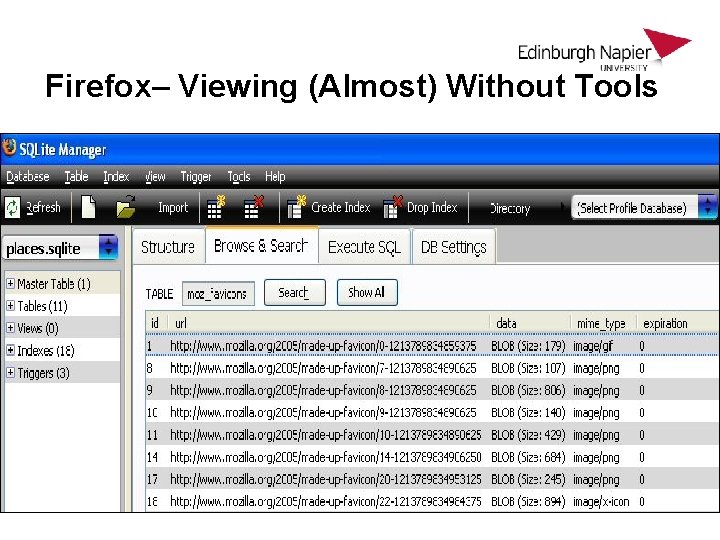
SQLite Library • Software library that implements a transactional SQL Database Engine • Used by Firefox to store information in the files we discussed before • Unlike with earlier Firefox versions, the text in SQLite format can be read easily within Firefox
Firefox– Viewing (Almost) Without Tools
Mandiant Web Historian – Firefox
Firefox Cache – Inside The Files • On Firefox, the cache information is stored across 3 types of files: one (1) cache map file, three (3) cache block files, and as many additional cache data files as required to store additional cache data
Firefox – What If The subject Clears The Cache? • In Firefox, the situation is skewed much more in favor of the subject. Going to Tools and selecting Clear Private Data deletes not only the cache files, but handily removes the cache map and cache block files, so tying the files (assuming you could recover them) to the cache map and blocks becomes quite a bit more difficult
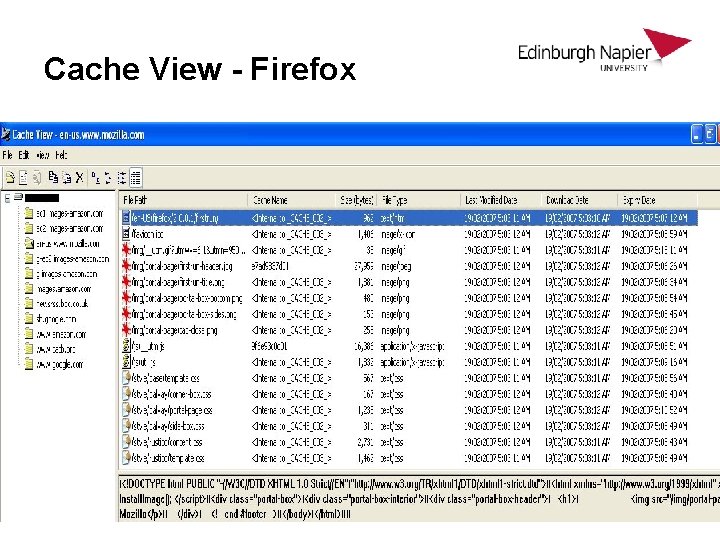
Cache View - Firefox
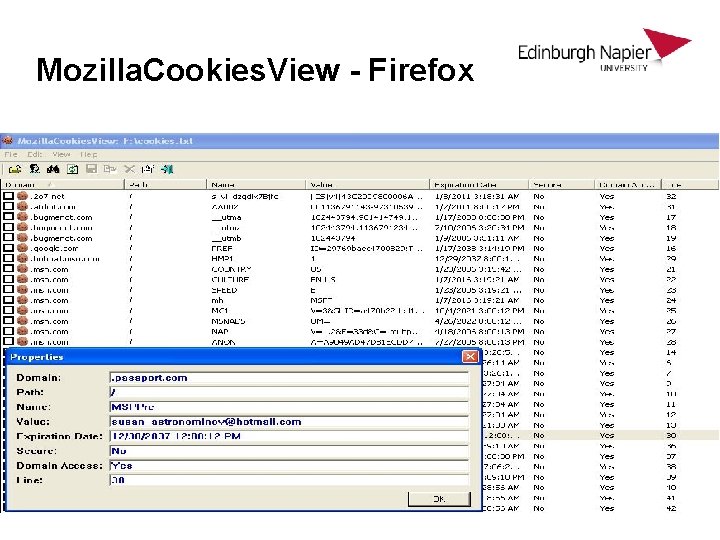
Mozilla. Cookies. View - Firefox
Fire. Master – Stored Credentials • Firefox gives you the option to save your oftenused user. IDs and passwords that you utilize to access websites • Unfortunately for the forensic investigator, the subject may specify a Master password, which prevents access to all the other passwords • Fire. Master cracks this master password, allowing you to access the password list in the browser or via Fire. Password
Fire. Password – Stored Credentials • Used with or without the Master Password (depending on if it’s been set) to see the websites your subject visited and the user. IDs and passwords s/he used to get in • Much quicker than Fire. Master, as you either don’t have a Master Password or have already specified it!
ANY QUESTIONS. . .