Introduction to UNIX Text Processing Sandeep Chinchali 10


![Anatomy of a UNIX command [options] [FILE 1] [FILE 2] • options: -n 1](https://slidetodoc.com/presentation_image_h/2deff5f0d7c604098ddcd24b14e6d986/image-6.jpg "Anatomy of a UNIX command [options] [FILE 1] [FILE 2] • options: -n 1")




![cat • Concatenates files and prints them to standard output • cat [OPTION] [FILE]…](https://slidetodoc.com/presentation_image_h/2deff5f0d7c604098ddcd24b14e6d986/image-18.jpg "cat • Concatenates files and prints them to standard output • cat [OPTION] [FILE]…")
![grep example grep -E “^CS[[: space: ]]+273$” file For lines that start with CS](https://slidetodoc.com/presentation_image_h/2deff5f0d7c604098ddcd24b14e6d986/image-27.jpg "grep example grep -E “^CS[[: space: ]]+273$” file For lines that start with CS")

- Slides: 50
Introduction to UNIX Text Processing Sandeep Chinchali 10 Oct 2014 Thank you to Cory Mc. Lean, Gus Katsiapis, Aaron Wenger, Harendra Guturu, & Jim Notwell.
Stanford UNIX resources • Host: cardinal. stanford. edu • To connect from Unix/Linux/Mac: Open a terminal: ssh user@myth. stanford. edu ssh user@cardinal. stanford. edu ssh user@corn. stanford. edu • To connect from Windows: – Secure. CRT/Secure. FX (software. stanford. edu) – Pu. TTy (http: //goo. gl/s 0 it. D)
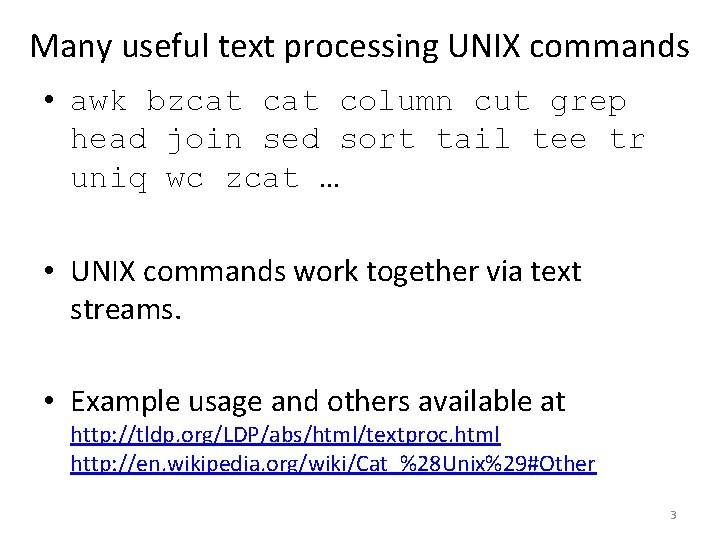
Many useful text processing UNIX commands • awk bzcat column cut grep head join sed sort tail tee tr uniq wc zcat … • UNIX commands work together via text streams. • Example usage and others available at http: //tldp. org/LDP/abs/html/textproc. html http: //en. wikipedia. org/wiki/Cat_%28 Unix%29#Other 3
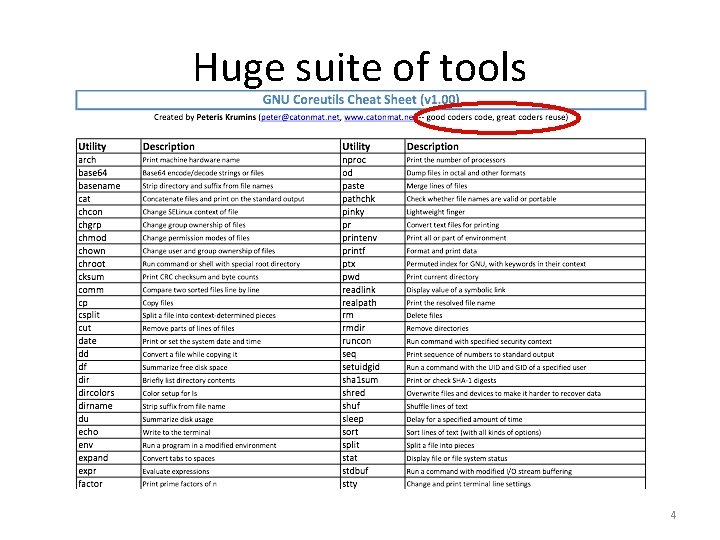
Huge suite of tools 4
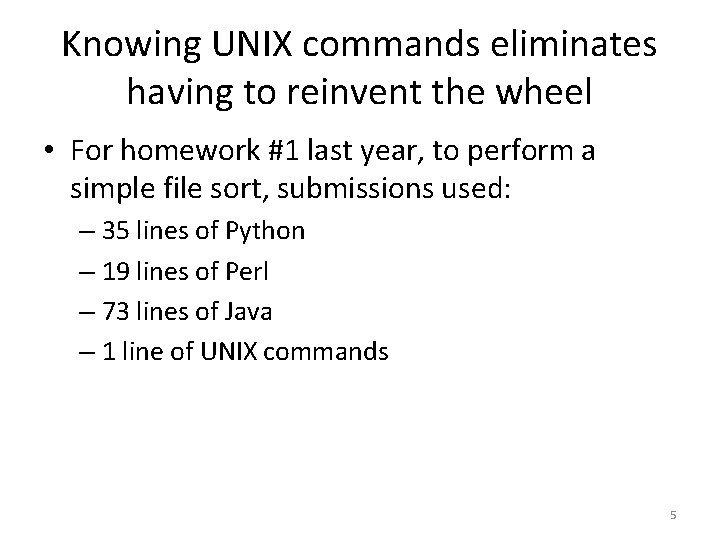
Knowing UNIX commands eliminates having to reinvent the wheel • For homework #1 last year, to perform a simple file sort, submissions used: – 35 lines of Python – 19 lines of Perl – 73 lines of Java – 1 line of UNIX commands 5
Anatomy of a UNIX command [options] [FILE 1] [FILE 2] • options: -n 1 -g -c = -n 1 -gc • output is directed to “standard output” (stdout) • if no input file is specified, input comes from “standard input” (stdin) – “-” also means stdin in a file list 6
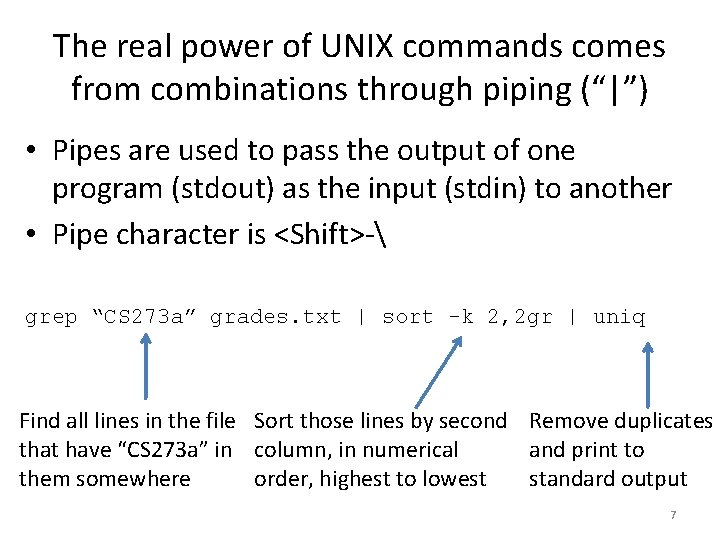
The real power of UNIX commands comes from combinations through piping (“|”) • Pipes are used to pass the output of one program (stdout) as the input (stdin) to another • Pipe character is <Shift>- grep “CS 273 a” grades. txt | sort -k 2, 2 gr | uniq Find all lines in the file Sort those lines by second Remove duplicates that have “CS 273 a” in column, in numerical and print to them somewhere order, highest to lowest standard output 7
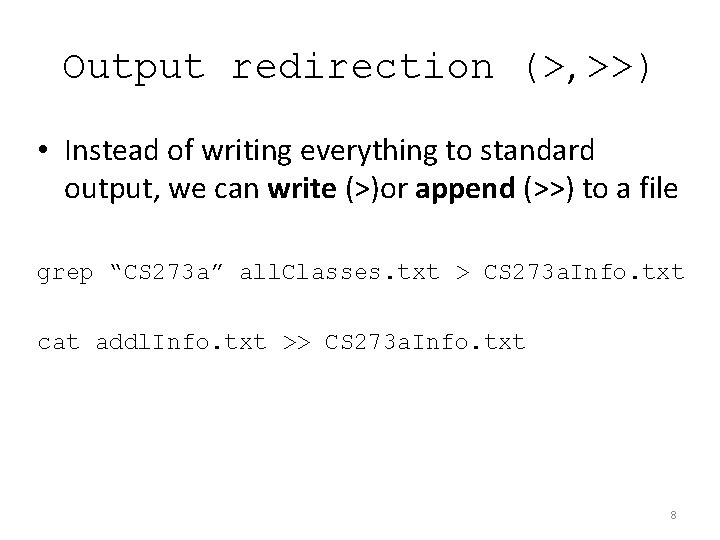
Output redirection (>, >>) • Instead of writing everything to standard output, we can write (>)or append (>>) to a file grep “CS 273 a” all. Classes. txt > CS 273 a. Info. txt cat addl. Info. txt >> CS 273 a. Info. txt 8
http: //genomewiki. ucsc. edu/index. php/Kent_source_utilities UCSC KENT SOURCE UTILITIES 9
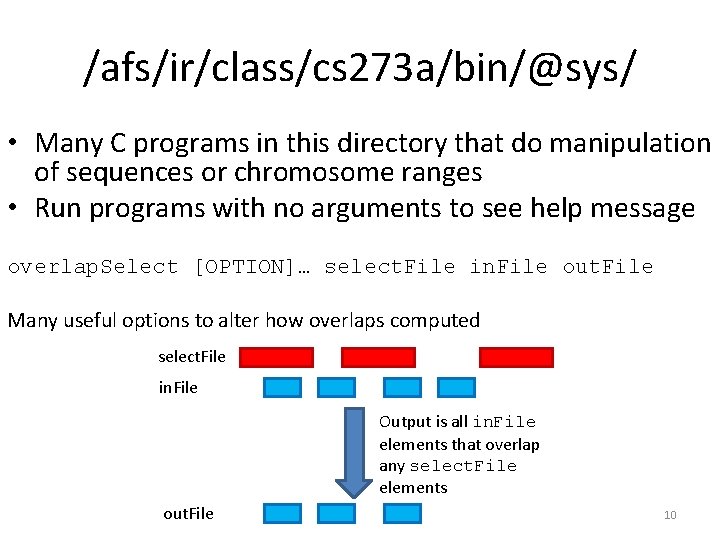
/afs/ir/class/cs 273 a/bin/@sys/ • Many C programs in this directory that do manipulation of sequences or chromosome ranges • Run programs with no arguments to see help message overlap. Select [OPTION]… select. File in. File out. File Many useful options to alter how overlaps computed select. File in. File Output is all in. File elements that overlap any select. File elements out. File 10
Kent Source and Mysql • Linux + Mac Binaries – http: //hgdownload. soe. ucsc. edu/admin/exe/ • Using My. SQL on browser – http: //genome. ucsc. edu/golden. Path/help/mysql. html 11
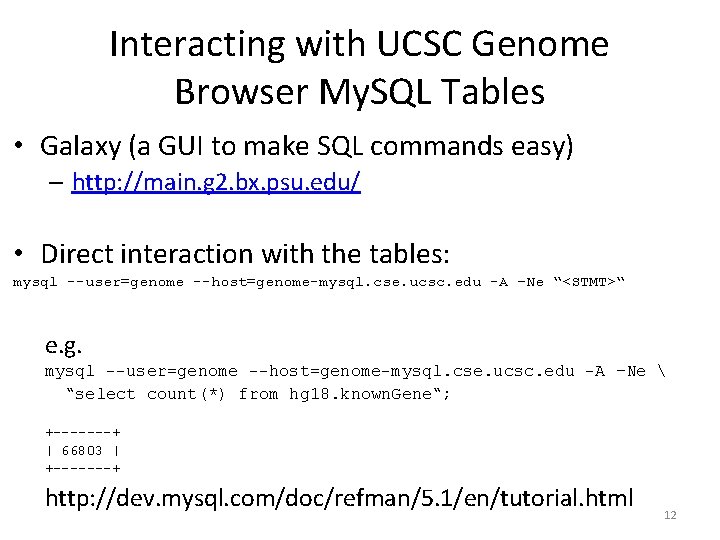
Interacting with UCSC Genome Browser My. SQL Tables • Galaxy (a GUI to make SQL commands easy) – http: //main. g 2. bx. psu. edu/ • Direct interaction with the tables: mysql --user=genome --host=genome-mysql. cse. ucsc. edu -A –Ne “<STMT>“ e. g. mysql --user=genome --host=genome-mysql. cse. ucsc. edu -A –Ne “select count(*) from hg 18. known. Gene“; +-------+ | 66803 | +-------+ http: //dev. mysql. com/doc/refman/5. 1/en/tutorial. html 12
Stop for PRACTICE EXERCISE 13
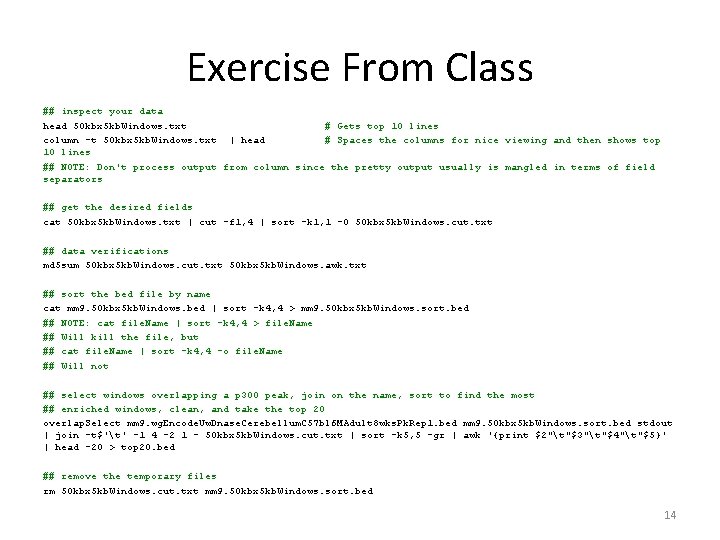
Exercise From Class ## inspect your data head 50 kbx 5 kb. Windows. txt # Gets top 10 lines column -t 50 kbx 5 kb. Windows. txt | head # Spaces the columns for nice viewing and then shows top 10 lines ## NOTE: Don't process output from column since the pretty output usually is mangled in terms of field separators ## get the desired fields cat 50 kbx 5 kb. Windows. txt | cut -f 1, 4 | sort -k 1, 1 -0 50 kbx 5 kb. Windows. cut. txt ## data verifications md 5 sum 50 kbx 5 kb. Windows. cut. txt 50 kbx 5 kb. Windows. awk. txt ## sort the bed file by name cat mm 9. 50 kbx 5 kb. Windows. bed | sort -k 4, 4 > mm 9. 50 kbx 5 kb. Windows. sort. bed ## NOTE: cat file. Name | sort -k 4, 4 > file. Name ## Will kill the file, but ## cat file. Name | sort -k 4, 4 -o file. Name ## Will not ## select windows overlapping a p 300 peak, join on the name, sort to find the most ## enriched windows, clean, and take the top 20 overlap. Select mm 9. wg. Encode. Uw. Dnase. Cerebellum. C 57 bl 6 MAdult 8 wks. Pk. Rep 1. bed mm 9. 50 kbx 5 kb. Windows. sort. bed stdout | join -t$'t' -1 4 -2 1 - 50 kbx 5 kb. Windows. cut. txt | sort -k 5, 5 -gr | awk '{print $2"t"$3"t"$4"t"$5}' | head -20 > top 20. bed ## remove the temporary files rm 50 kbx 5 kb. Windows. cut. txt mm 9. 50 kbx 5 kb. Windows. sort. bed 14
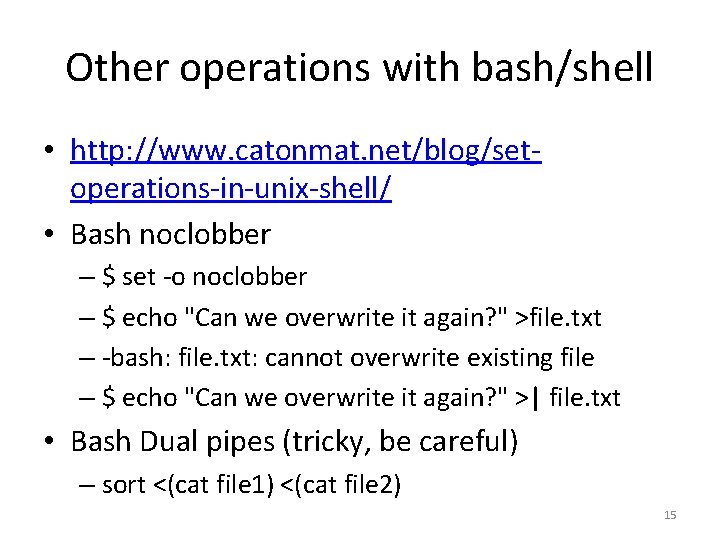
Other operations with bash/shell • http: //www. catonmat. net/blog/setoperations-in-unix-shell/ • Bash noclobber – $ set -o noclobber – $ echo "Can we overwrite it again? " >file. txt – -bash: file. txt: cannot overwrite existing file – $ echo "Can we overwrite it again? " >| file. txt • Bash Dual pipes (tricky, be careful) – sort <(cat file 1) <(cat file 2) 15
SPECIFIC UNIX COMMANDS 16
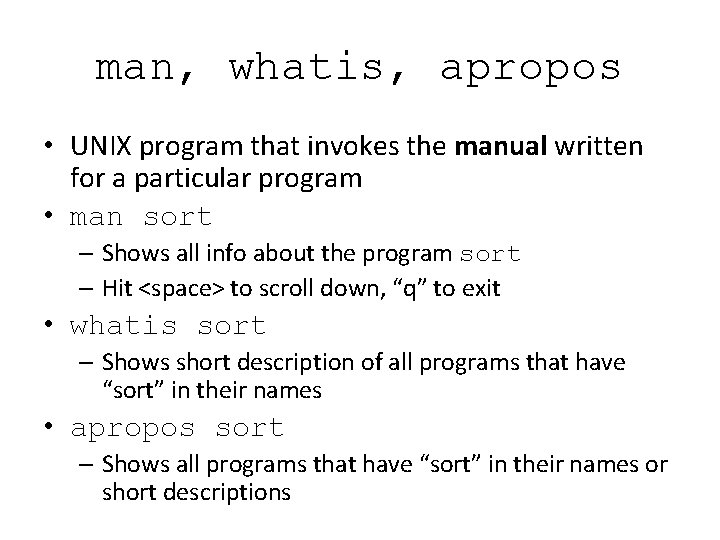
man, whatis, apropos • UNIX program that invokes the manual written for a particular program • man sort – Shows all info about the program sort – Hit <space> to scroll down, “q” to exit • whatis sort – Shows short description of all programs that have “sort” in their names • apropos sort – Shows all programs that have “sort” in their names or short descriptions
cat • Concatenates files and prints them to standard output • cat [OPTION] [FILE]… A B C D 1 2 3 • Variants for compressed input files: zcat (. gz files) bzcat (. bz 2 files) A B C D 1 2 3 18
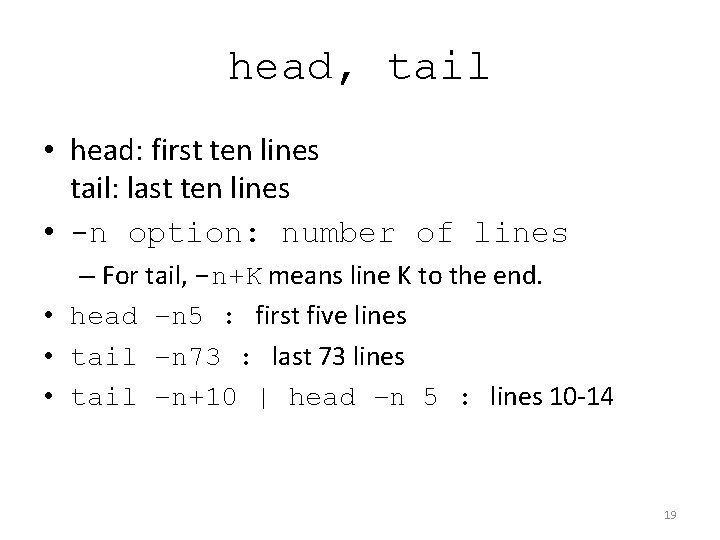
head, tail • head: first ten lines tail: last ten lines • -n option: number of lines – For tail, -n+K means line K to the end. • head –n 5 : first five lines • tail –n 73 : last 73 lines • tail –n+10 | head –n 5 : lines 10 -14 19
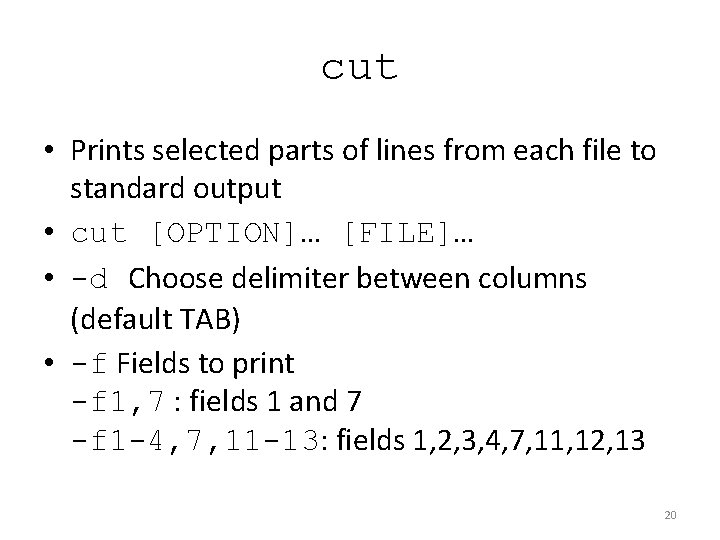
cut • Prints selected parts of lines from each file to standard output • cut [OPTION]… [FILE]… • -d Choose delimiter between columns (default TAB) • -f Fields to print -f 1, 7 : fields 1 and 7 -f 1 -4, 7, 11 -13: fields 1, 2, 3, 4, 7, 11, 12, 13 20
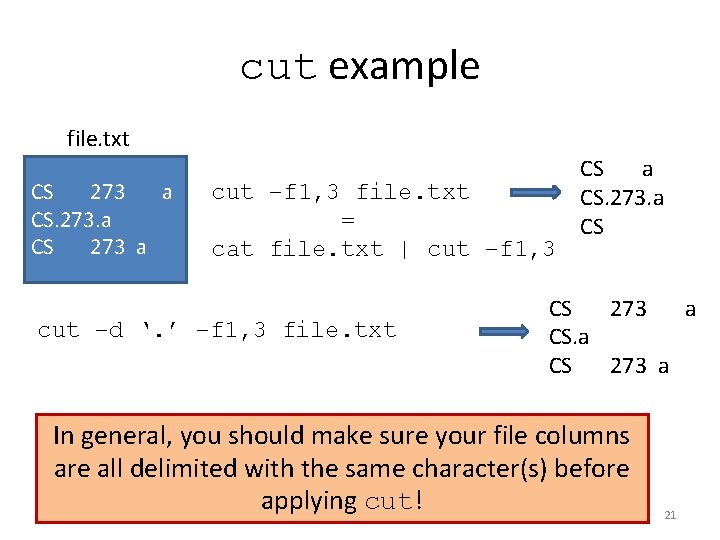
cut example file. txt CS 273 a CS. 273. a CS 273 a cut –f 1, 3 file. txt = cat file. txt | cut –f 1, 3 cut –d ‘. ’ –f 1, 3 file. txt CS a CS. 273. a CS CS 273 a In general, you should make sure your file columns are all delimited with the same character(s) before applying cut! 21
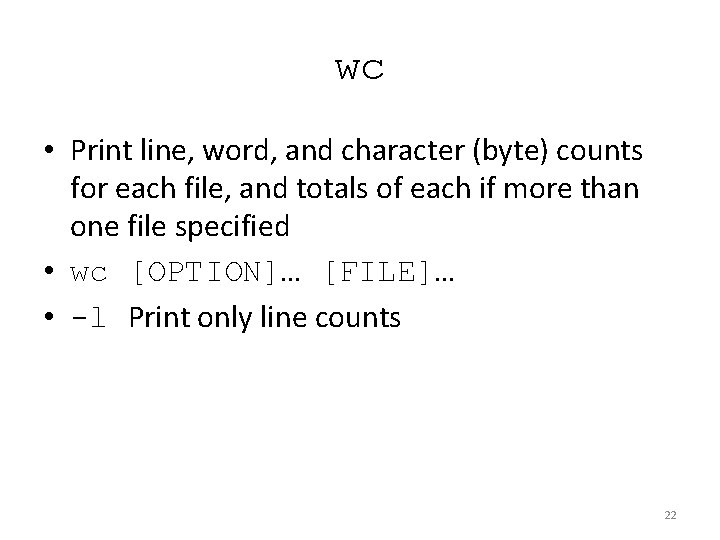
wc • Print line, word, and character (byte) counts for each file, and totals of each if more than one file specified • wc [OPTION]… [FILE]… • -l Print only line counts 22
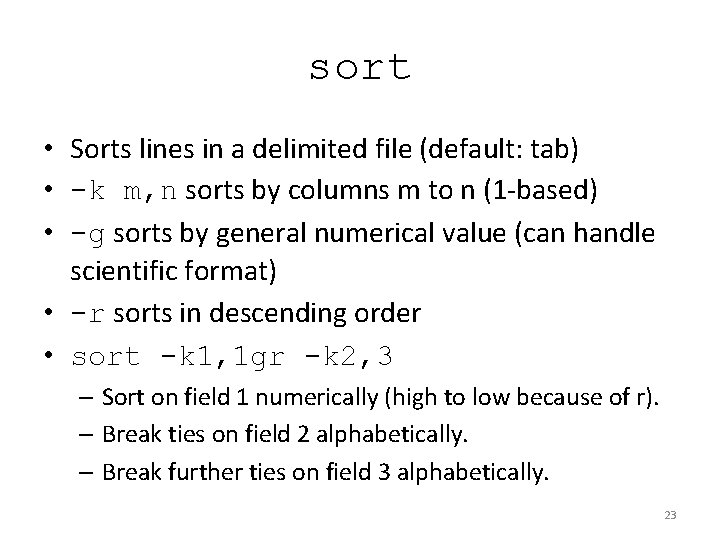
sort • Sorts lines in a delimited file (default: tab) • -k m, n sorts by columns m to n (1 -based) • -g sorts by general numerical value (can handle scientific format) • -r sorts in descending order • sort -k 1, 1 gr -k 2, 3 – Sort on field 1 numerically (high to low because of r). – Break ties on field 2 alphabetically. – Break further ties on field 3 alphabetically. 23
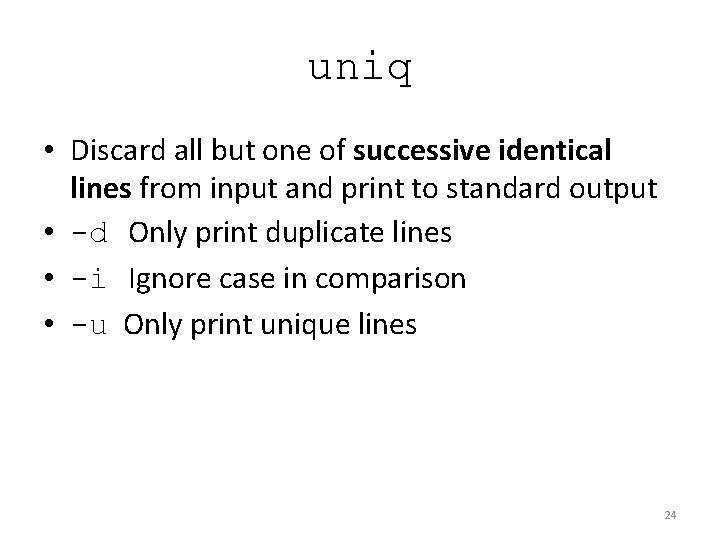
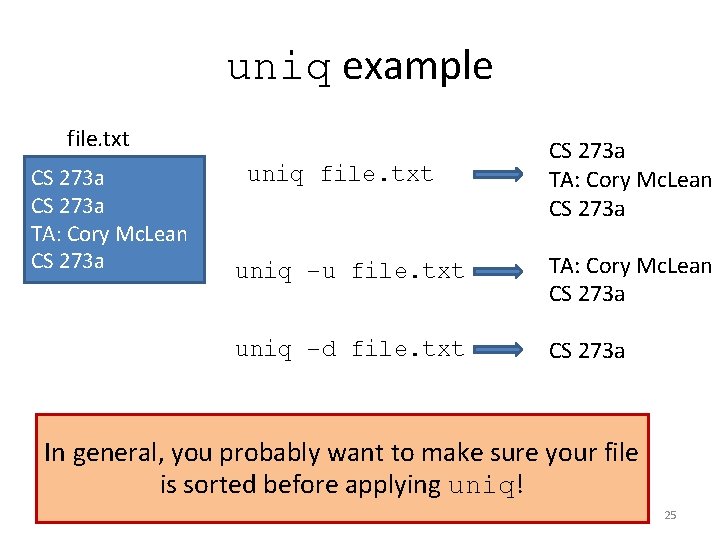
uniq • Discard all but one of successive identical lines from input and print to standard output • -d Only print duplicate lines • -i Ignore case in comparison • -u Only print unique lines 24
uniq example file. txt CS 273 a TA: Cory Mc. Lean CS 273 a uniq –u file. txt TA: Cory Mc. Lean CS 273 a uniq –d file. txt CS 273 a In general, you probably want to make sure your file is sorted before applying uniq! 25
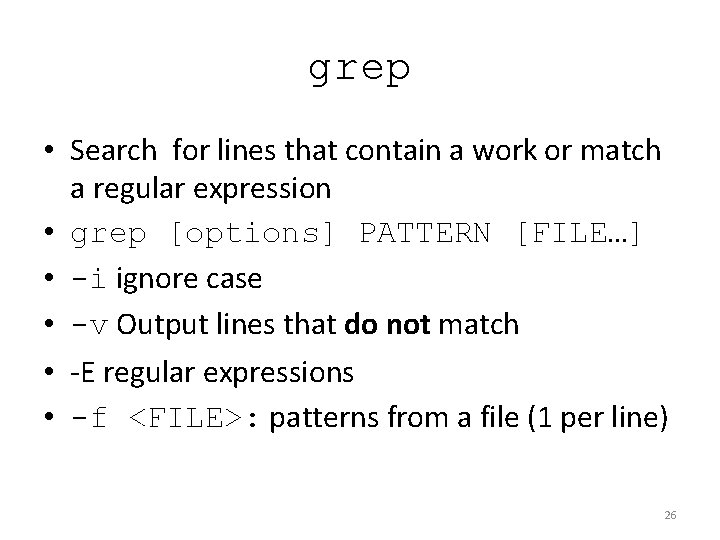
grep • Search for lines that contain a work or match a regular expression • grep [options] PATTERN [FILE…] • -i ignore case • -v Output lines that do not match • -E regular expressions • -f <FILE>: patterns from a file (1 per line) 26
grep example grep -E “^CS[[: space: ]]+273$” file For lines that start with CS file CS 273 a CS 273 cs 273 CS CS Then have one or more spaces (or tabs) And end with 273 Search through “file” 273 27
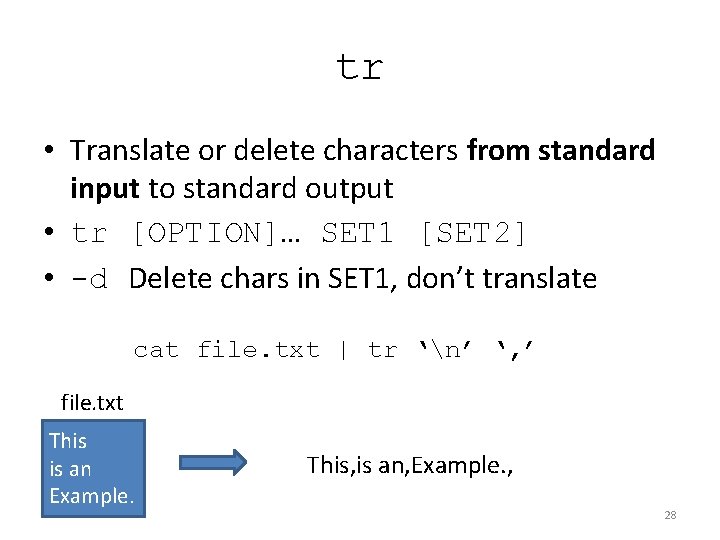
tr • Translate or delete characters from standard input to standard output • tr [OPTION]… SET 1 [SET 2] • -d Delete chars in SET 1, don’t translate cat file. txt | tr ‘n’ ‘, ’ file. txt This is an Example. This, is an, Example. , 28
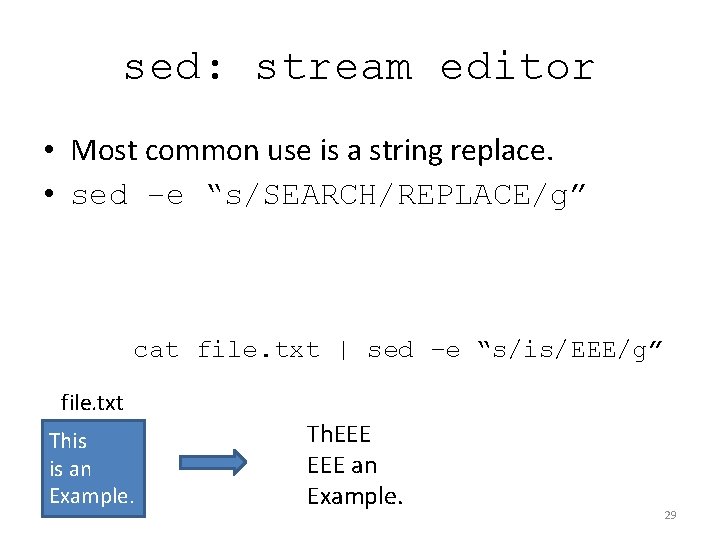
sed: stream editor • Most common use is a string replace. • sed –e “s/SEARCH/REPLACE/g” cat file. txt | sed –e “s/is/EEE/g” file. txt This is an Example. Th. EEE an Example. 29
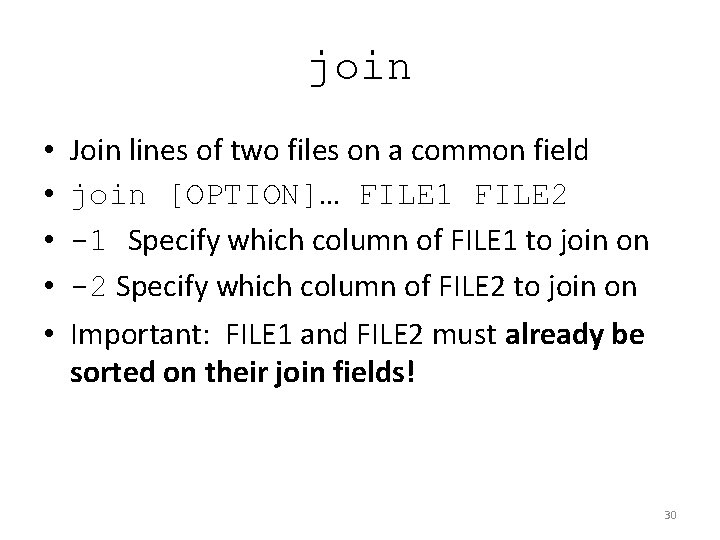
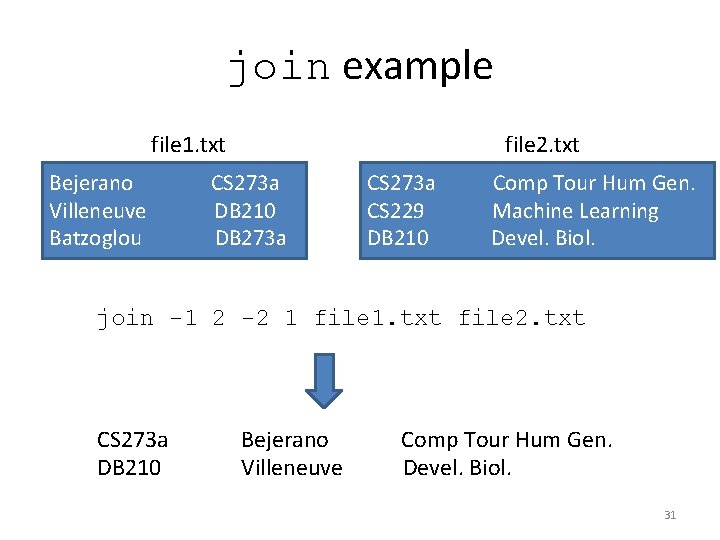
join • • • Join lines of two files on a common field join [OPTION]… FILE 1 FILE 2 -1 Specify which column of FILE 1 to join on -2 Specify which column of FILE 2 to join on Important: FILE 1 and FILE 2 must already be sorted on their join fields! 30
join example file 1. txt Bejerano Villeneuve Batzoglou file 2. txt CS 273 a DB 210 DB 273 a CS 229 DB 210 Comp Tour Hum Gen. Machine Learning Devel. Biol. join -1 2 -2 1 file 1. txt file 2. txt CS 273 a DB 210 Bejerano Villeneuve Comp Tour Hum Gen. Devel. Biol. 31
SHELL SCRIPTING 32
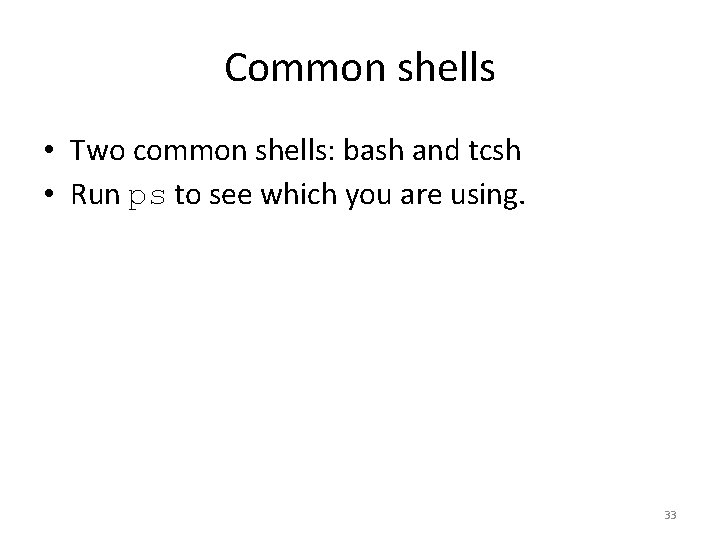
Common shells • Two common shells: bash and tcsh • Run ps to see which you are using. 33
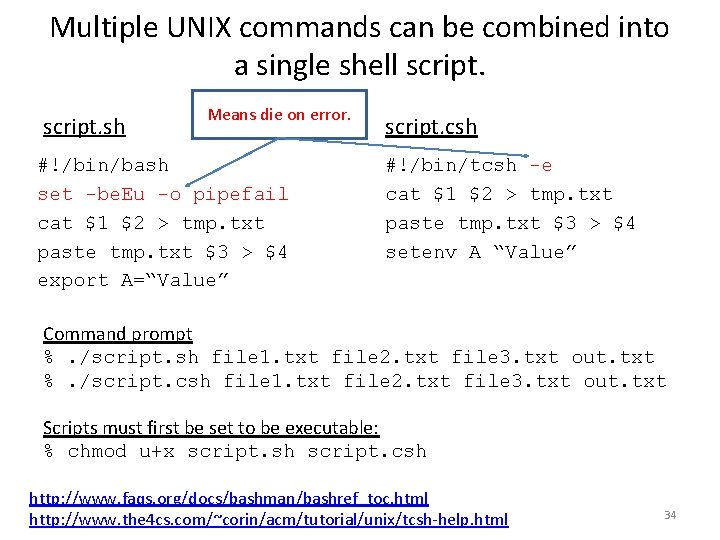
Multiple UNIX commands can be combined into a single shell script. sh Means die on error. #!/bin/bash set -be. Eu -o pipefail cat $1 $2 > tmp. txt paste tmp. txt $3 > $4 export A=“Value” script. csh #!/bin/tcsh -e cat $1 $2 > tmp. txt paste tmp. txt $3 > $4 setenv A “Value” Command prompt %. /script. sh file 1. txt file 2. txt file 3. txt out. txt %. /script. csh file 1. txt file 2. txt file 3. txt out. txt Scripts must first be set to be executable: % chmod u+x script. sh script. csh http: //www. faqs. org/docs/bashman/bashref_toc. html http: //www. the 4 cs. com/~corin/acm/tutorial/unix/tcsh-help. html 34
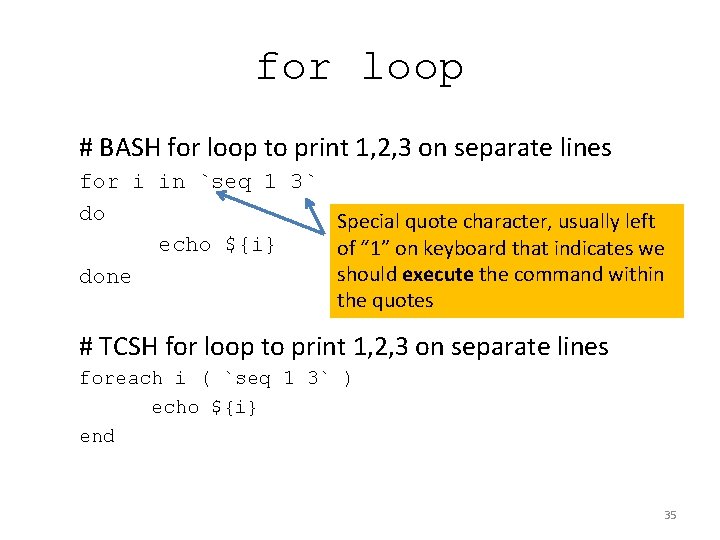
for loop # BASH for loop to print 1, 2, 3 on separate lines for i in `seq 1 3` do Special quote character, usually left echo ${i} of “ 1” on keyboard that indicates we should execute the command within done the quotes # TCSH for loop to print 1, 2, 3 on separate lines foreach i ( `seq 1 3` ) echo ${i} end 35
SCRIPTING LANGUAGES 36
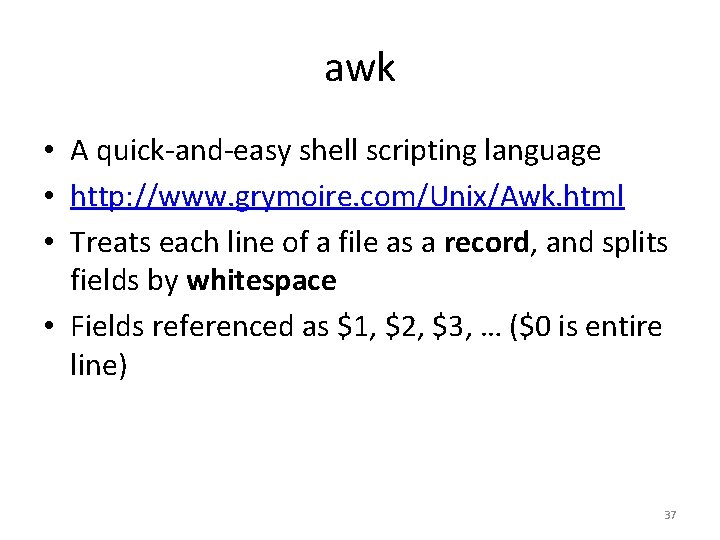
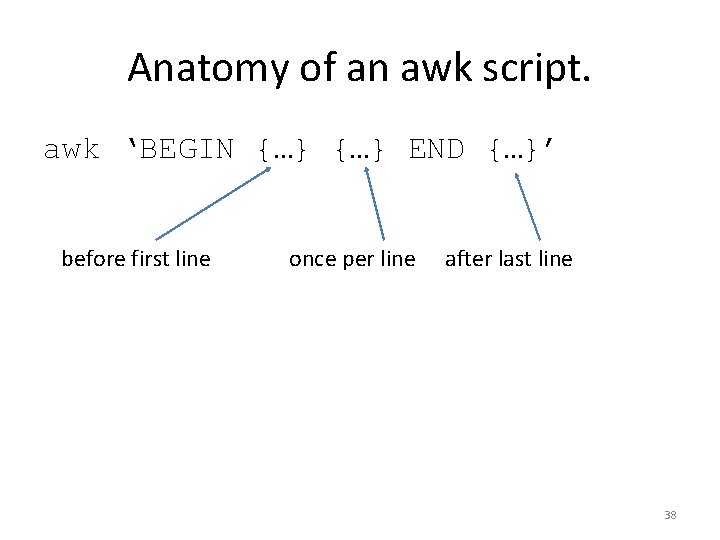
awk • A quick-and-easy shell scripting language • http: //www. grymoire. com/Unix/Awk. html • Treats each line of a file as a record, and splits fields by whitespace • Fields referenced as $1, $2, $3, … ($0 is entire line) 37
Anatomy of an awk script. awk ‘BEGIN {…} END {…}’ before first line once per line after last line 38
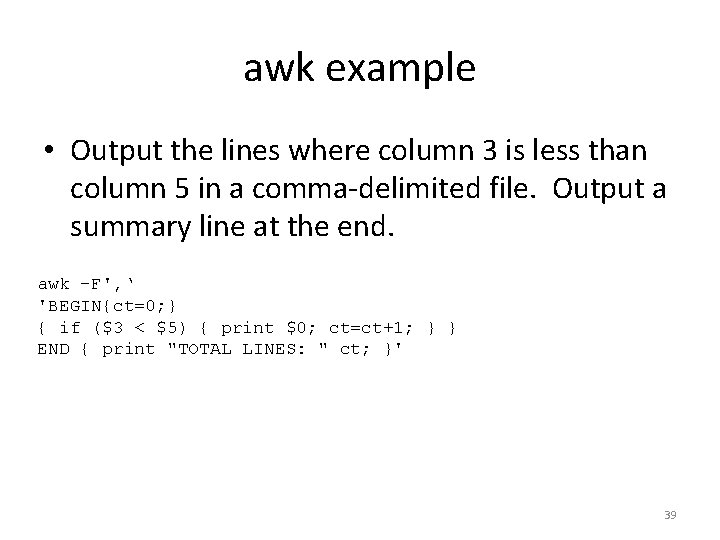
awk example • Output the lines where column 3 is less than column 5 in a comma-delimited file. Output a summary line at the end. awk -F', ‘ 'BEGIN{ct=0; } { if ($3 < $5) { print $0; ct=ct+1; } } END { print "TOTAL LINES: " ct; }' 39
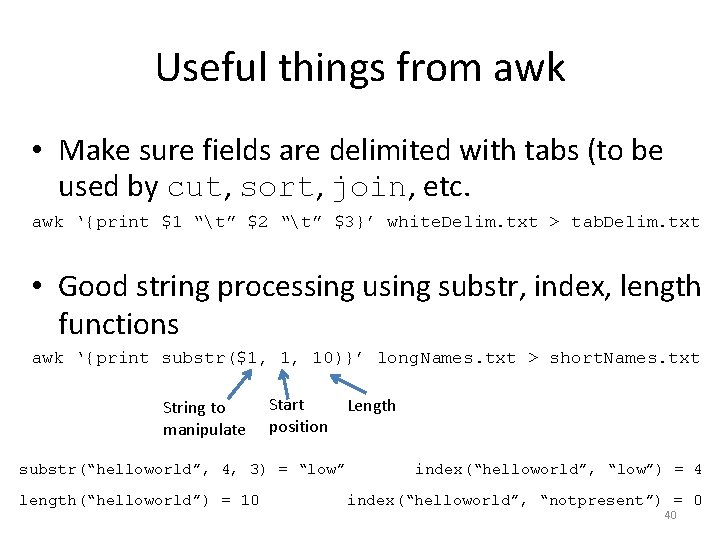
Useful things from awk • Make sure fields are delimited with tabs (to be used by cut, sort, join, etc. awk ‘{print $1 “t” $2 “t” $3}’ white. Delim. txt > tab. Delim. txt • Good string processing using substr, index, length functions awk ‘{print substr($1, 1, 10)}’ long. Names. txt > short. Names. txt String to manipulate Start position substr(“helloworld”, 4, 3) = “low” length(“helloworld”) = 10 Length index(“helloworld”, “low”) = 4 index(“helloworld”, “notpresent”) = 0 40
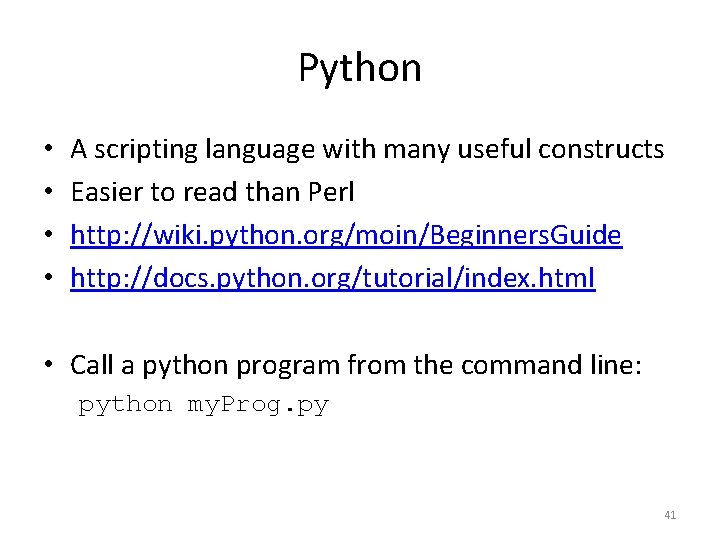
Python • • A scripting language with many useful constructs Easier to read than Perl http: //wiki. python. org/moin/Beginners. Guide http: //docs. python. org/tutorial/index. html • Call a python program from the command line: python my. Prog. py 41
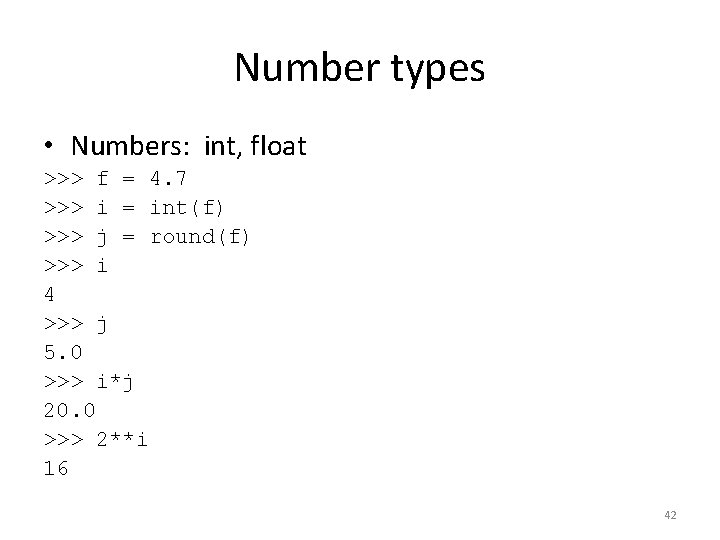
Number types • Numbers: int, float >>> f = 4. 7 >>> i = int(f) >>> j = round(f) >>> i 4 >>> j 5. 0 >>> i*j 20. 0 >>> 2**i 16 42
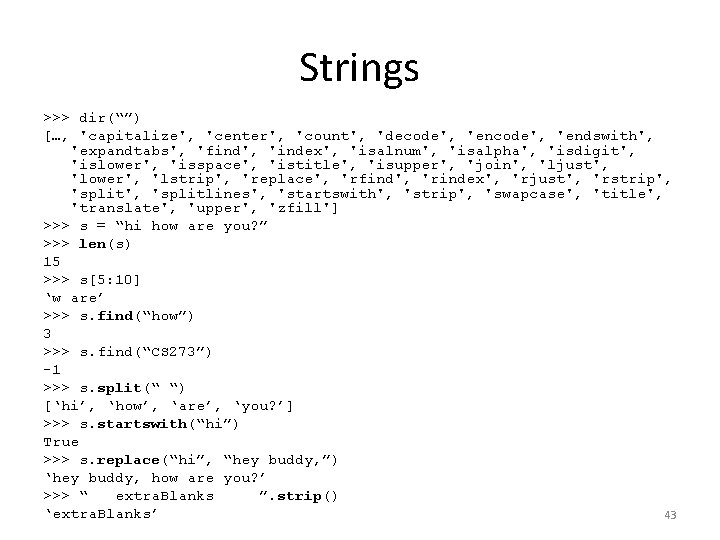
Strings >>> dir(“”) […, 'capitalize', 'center', 'count', 'decode', 'endswith', 'expandtabs', 'find', 'index', 'isalnum', 'isalpha', 'isdigit', 'islower', 'isspace', 'istitle', 'isupper', 'join', 'ljust', 'lower', 'lstrip', 'replace', 'rfind', 'rindex', 'rjust', 'rstrip', 'split', 'splitlines', 'startswith', 'strip', 'swapcase', 'title', 'translate', 'upper', 'zfill'] >>> s = “hi how are you? ” >>> len(s) 15 >>> s[5: 10] ‘w are’ >>> s. find(“how”) 3 >>> s. find(“CS 273”) -1 >>> s. split(“ “) [‘hi’, ‘how’, ‘are’, ‘you? ’] >>> s. startswith(“hi”) True >>> s. replace(“hi”, “hey buddy, ”) ‘hey buddy, how are you? ’ >>> “ extra. Blanks ”. strip() ‘extra. Blanks’ 43
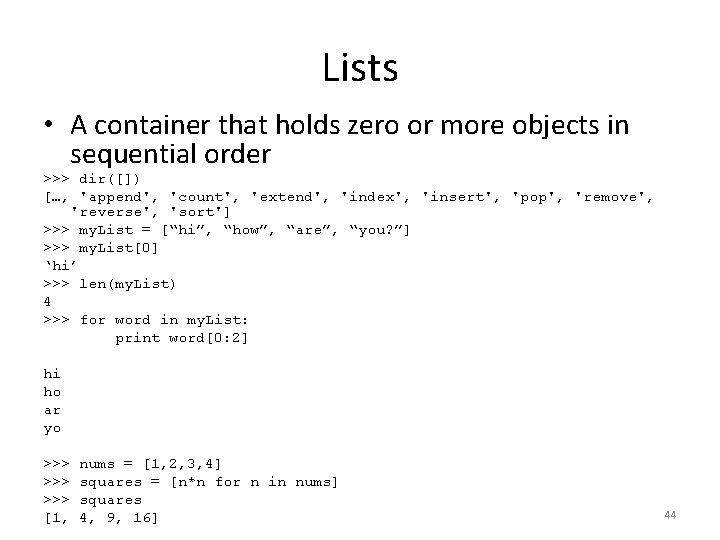
Lists • A container that holds zero or more objects in sequential order >>> dir([]) […, 'append', 'count', 'extend', 'index', 'insert', 'pop', 'remove', 'reverse', 'sort'] >>> my. List = [“hi”, “how”, “are”, “you? ”] >>> my. List[0] ‘hi’ >>> len(my. List) 4 >>> for word in my. List: print word[0: 2] hi ho ar yo >>> nums = [1, 2, 3, 4] >>> squares = [n*n for n in nums] >>> squares [1, 4, 9, 16] 44
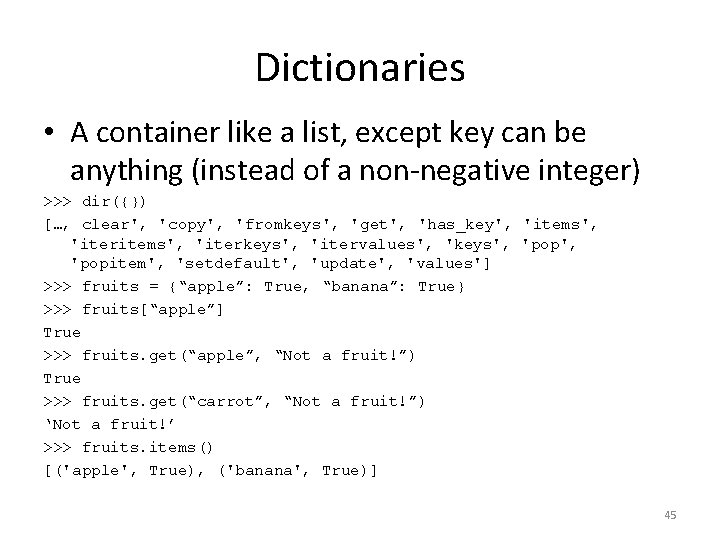
Dictionaries • A container like a list, except key can be anything (instead of a non-negative integer) >>> dir({}) […, clear', 'copy', 'fromkeys', 'get', 'has_key', 'items', 'iteritems', 'iterkeys', 'itervalues', 'keys', 'pop', 'popitem', 'setdefault', 'update', 'values'] >>> fruits = {“apple”: True, “banana”: True} >>> fruits[“apple”] True >>> fruits. get(“apple”, “Not a fruit!”) True >>> fruits. get(“carrot”, “Not a fruit!”) ‘Not a fruit!’ >>> fruits. items() [('apple', True), ('banana', True)] 45
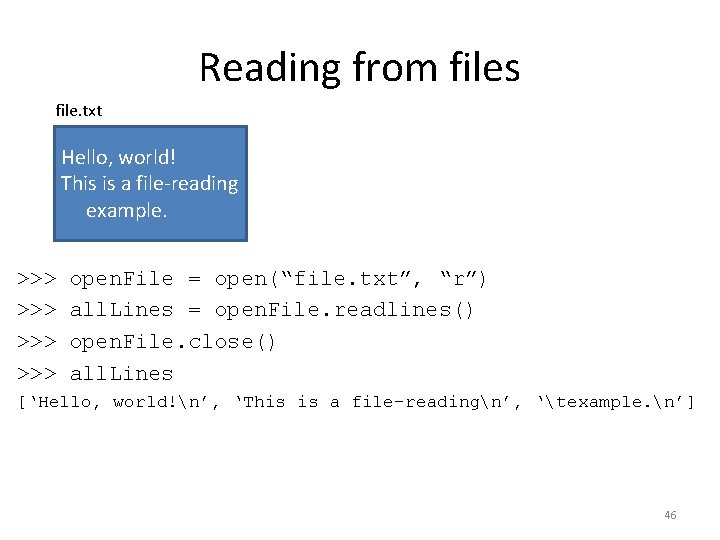
Reading from files file. txt Hello, world! This is a file-reading example. >>> open. File = open(“file. txt”, “r”) >>> all. Lines = open. File. readlines() >>> open. File. close() >>> all. Lines [‘Hello, world!n’, ‘This is a file-readingn’, ‘texample. n’] 46
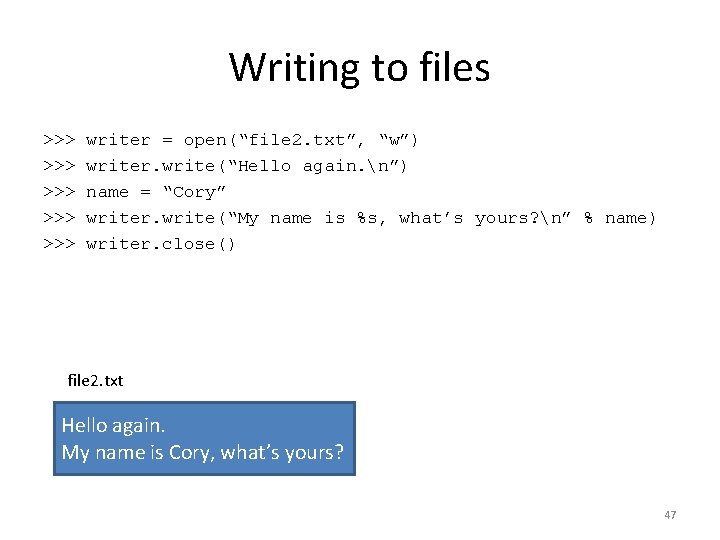
Writing to files >>> writer = open(“file 2. txt”, “w”) >>> writer. write(“Hello again. n”) >>> name = “Cory” >>> writer. write(“My name is %s, what’s yours? n” % name) >>> writer. close() file 2. txt Hello again. My name is Cory, what’s yours? 47
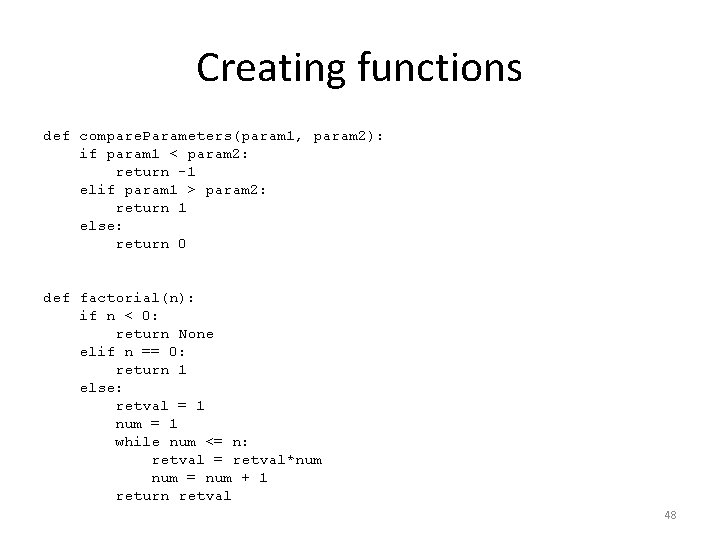
Creating functions def compare. Parameters(param 1, param 2): if param 1 < param 2: return -1 elif param 1 > param 2: return 1 else: return 0 def factorial(n): if n < 0: return None elif n == 0: return 1 else: retval = 1 num = 1 while num <= n: retval = retval*num num = num + 1 return retval 48
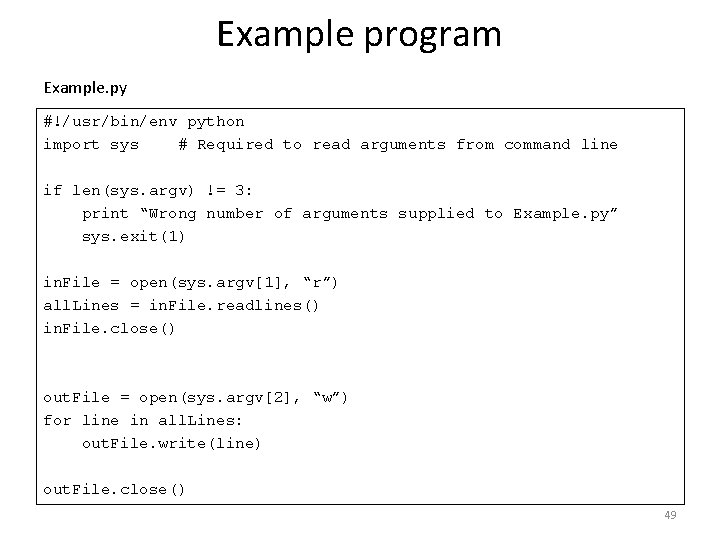
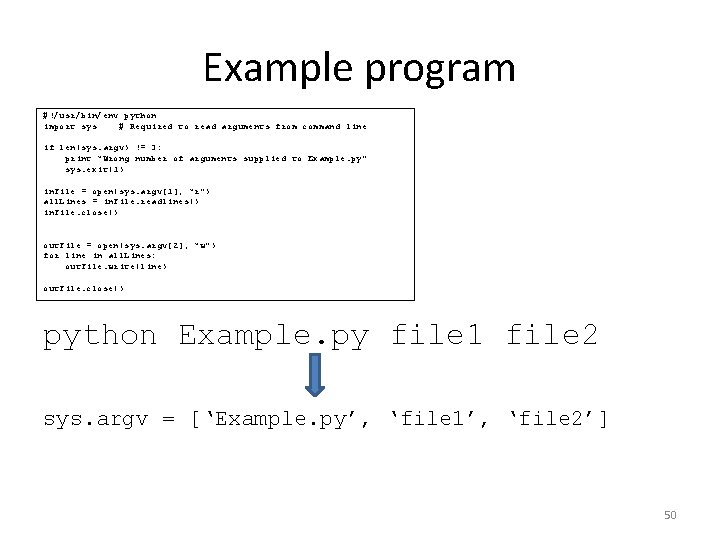
Example program Example. py #!/usr/bin/env python import sys # Required to read arguments from command line if len(sys. argv) != 3: print “Wrong number of arguments supplied to Example. py” sys. exit(1) in. File = open(sys. argv[1], “r”) all. Lines = in. File. readlines() in. File. close() out. File = open(sys. argv[2], “w”) for line in all. Lines: out. File. write(line) out. File. close() 49
Example program #!/usr/bin/env python import sys # Required to read arguments from command line if len(sys. argv) != 3: print “Wrong number of arguments supplied to Example. py” sys. exit(1) in. File = open(sys. argv[1], “r”) all. Lines = in. File. readlines() in. File. close() out. File = open(sys. argv[2], “w”) for line in all. Lines: out. File. write(line) out. File. close() python Example. py file 1 file 2 sys. argv = [‘Example. py’, ‘file 1’, ‘file 2’] 50