
Processing Text Excel can not only be used
Processing Text • Excel can not only be used to process numbers, but also text. • This often involves taking apart (parsing) or putting together text values (strings). • The parts into which we split a string will be called fields. • Fields may be separated by delimiting text • And/or fields may have a fixed width which permits them to be identified. CS 1100 Text Parsing in Excel 1
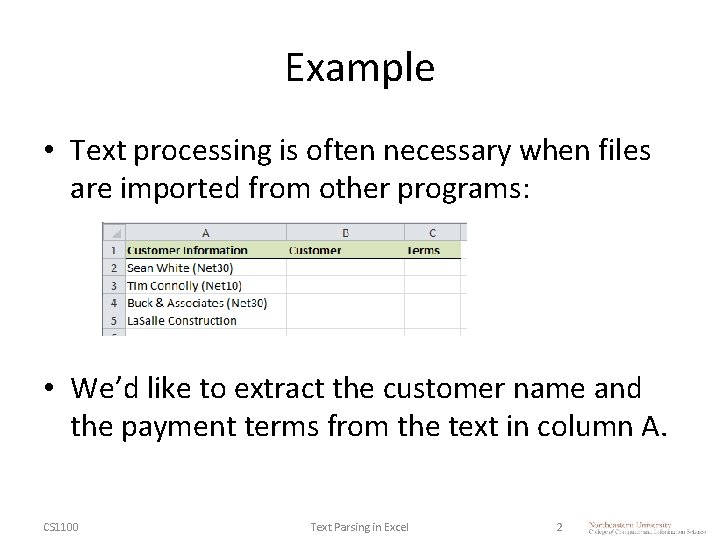
Example • Text processing is often necessary when files are imported from other programs: • We’d like to extract the customer name and the payment terms from the text in column A. CS 1100 Text Parsing in Excel 2
Text Processing Functions • Excel provides a number of functions for parsing text: – RIGHT – take part of the right side of a text value – LEFT – take part of the left side of a text value – MID – take a substring within a text value – LEN – determine the number of characters in a text value – FIND – find the start of a specific substring within a text value CS 1100 Text Parsing in Excel 3
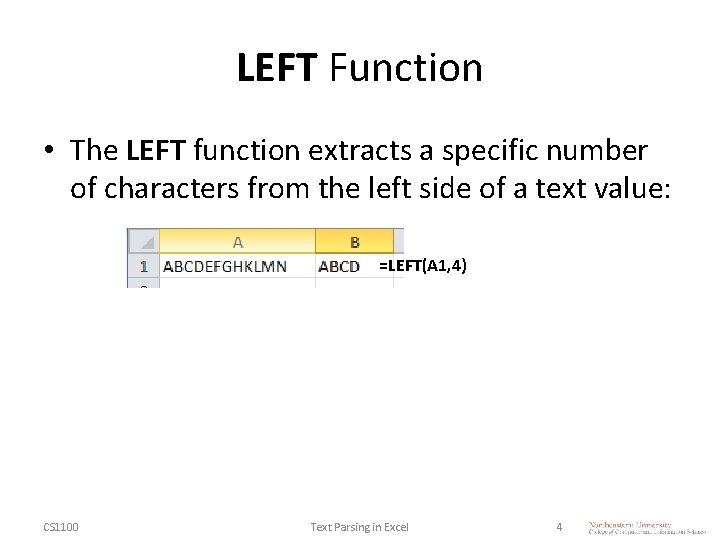
LEFT Function • The LEFT function extracts a specific number of characters from the left side of a text value: =LEFT(A 1, 4) CS 1100 Text Parsing in Excel 4
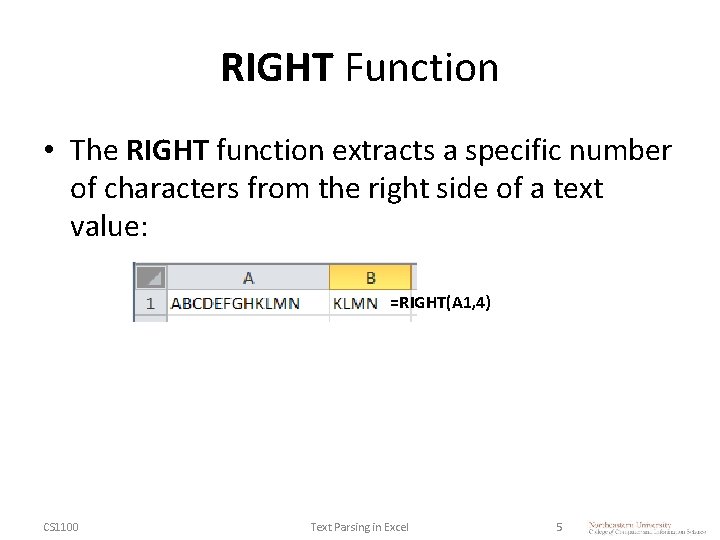
RIGHT Function • The RIGHT function extracts a specific number of characters from the right side of a text value: =RIGHT(A 1, 4) CS 1100 Text Parsing in Excel 5
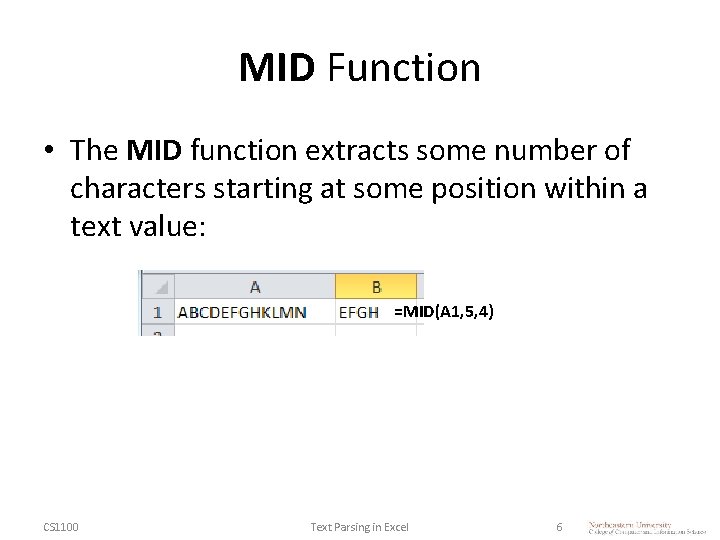
MID Function • The MID function extracts some number of characters starting at some position within a text value: =MID(A 1, 5, 4) CS 1100 Text Parsing in Excel 6
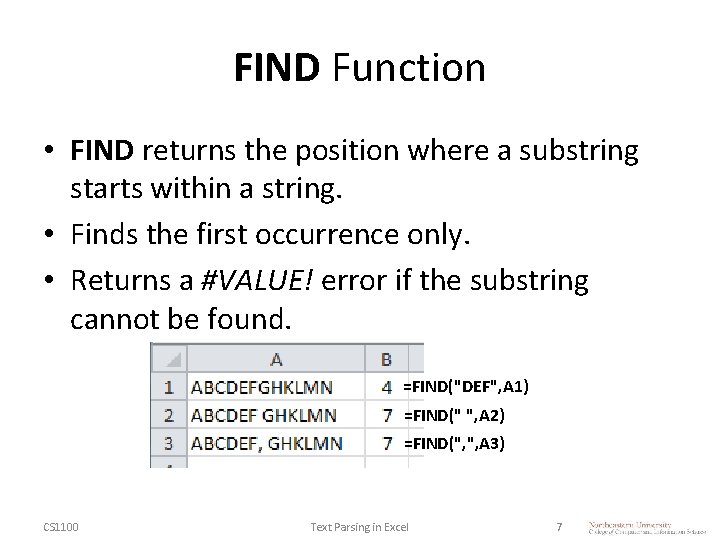
FIND Function • FIND returns the position where a substring starts within a string. • Finds the first occurrence only. • Returns a #VALUE! error if the substring cannot be found. =FIND("DEF", A 1) =FIND(" ", A 2) =FIND(", ", A 3) CS 1100 Text Parsing in Excel 7
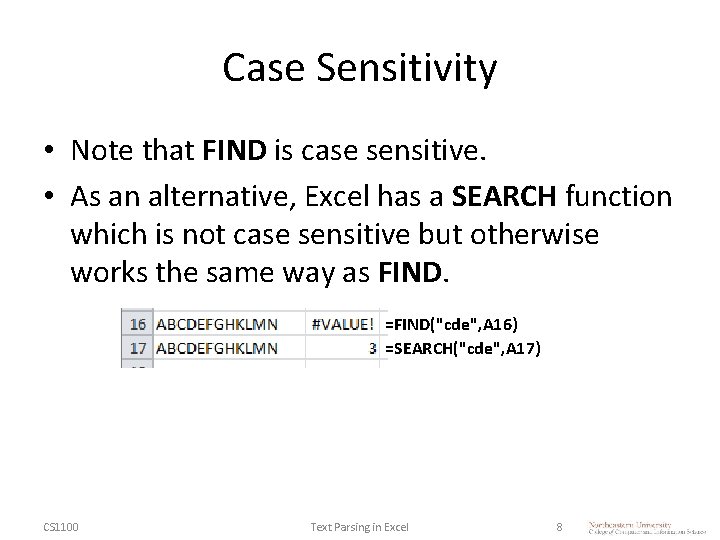
Case Sensitivity • Note that FIND is case sensitive. • As an alternative, Excel has a SEARCH function which is not case sensitive but otherwise works the same way as FIND. =FIND("cde", A 16) =SEARCH("cde", A 17) CS 1100 Text Parsing in Excel 8
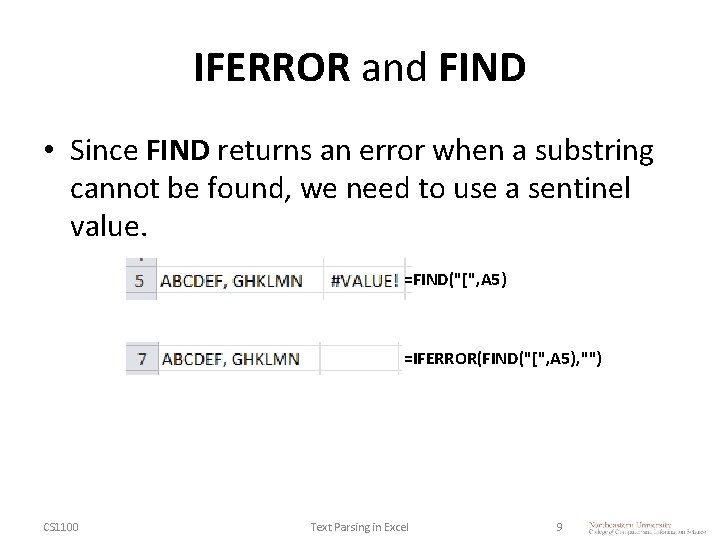
IFERROR and FIND • Since FIND returns an error when a substring cannot be found, we need to use a sentinel value. =FIND("[", A 5) =IFERROR(FIND("[", A 5), "") CS 1100 Text Parsing in Excel 9
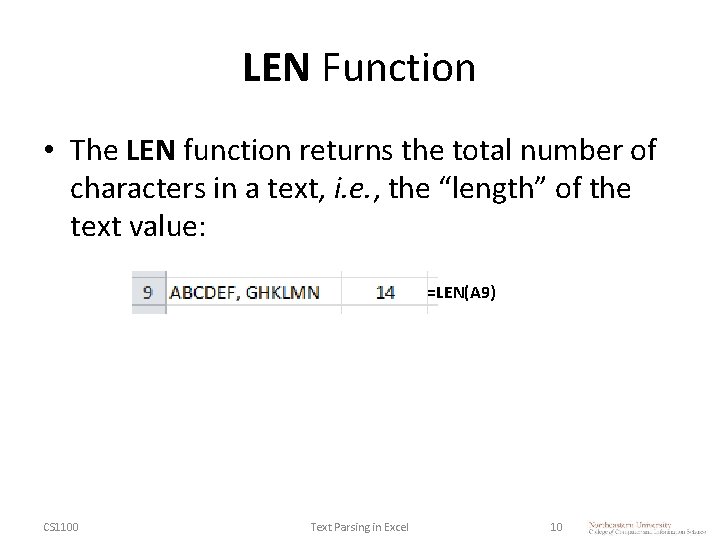
LEN Function • The LEN function returns the total number of characters in a text, i. e. , the “length” of the text value: =LEN(A 9) CS 1100 Text Parsing in Excel 10
TRIM Function • The TRIM function removes all spaces before and after a piece of text. Spaces between words are not removed. • This is useful if the text you are trying to parse has trailing spaces which may result in errors later – For example, if you need to use a result later in a VLOOKUP function. CS 1100 Text Parsing in Excel 11
Example 1 – Delimiting Text • You are given a list of usernames, each followed by a comma, then a space, then the user’s full name • A comma followed by a space only appears between the username and full name • Everything following the username, the comma and the space is the user’s full name CS 1100 Text Parsing in Excel 12
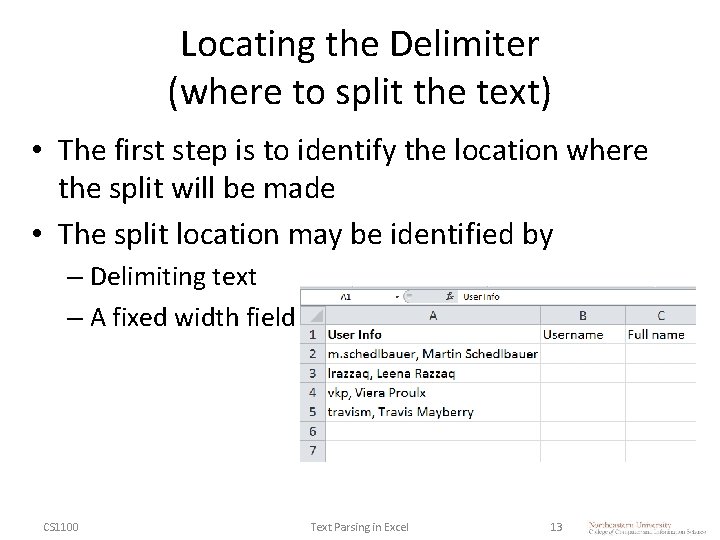
Locating the Delimiter (where to split the text) • The first step is to identify the location where the split will be made • The split location may be identified by – Delimiting text – A fixed width field CS 1100 Text Parsing in Excel 13
Delimiting Text • Delimiting text is any sequence of characters that can reliably be used to end one part of the text to be split and the beginning of another. • In this example, a comma followed by a space can serve as delimiting text. • On the other hand, the width of each field may vary, so we cannot identify the splitting location by field widths CS 1100 Text Parsing in Excel 14
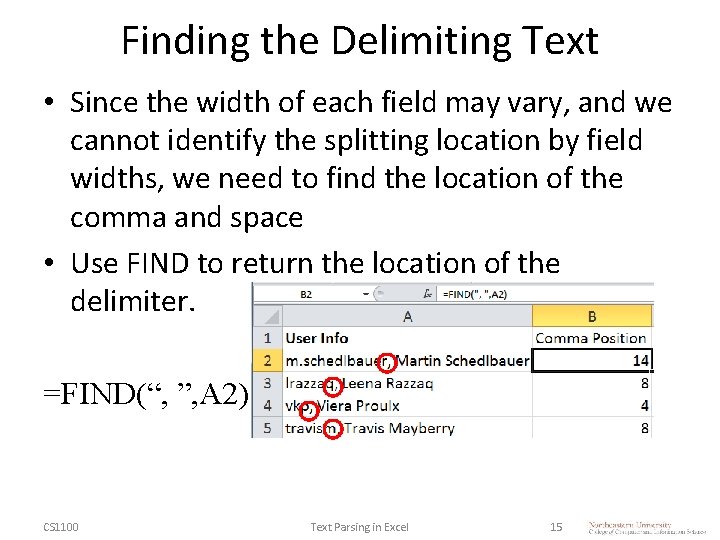
Finding the Delimiting Text • Since the width of each field may vary, and we cannot identify the splitting location by field widths, we need to find the location of the comma and space • Use FIND to return the location of the delimiter. =FIND(“, ”, A 2) CS 1100 Text Parsing in Excel 15
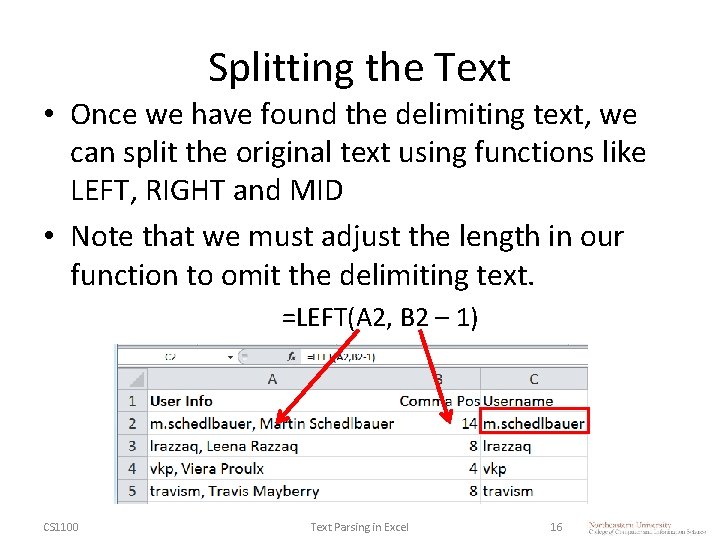
Splitting the Text • Once we have found the delimiting text, we can split the original text using functions like LEFT, RIGHT and MID • Note that we must adjust the length in our function to omit the delimiting text. =LEFT(A 2, B 2 – 1) CS 1100 Text Parsing in Excel 16
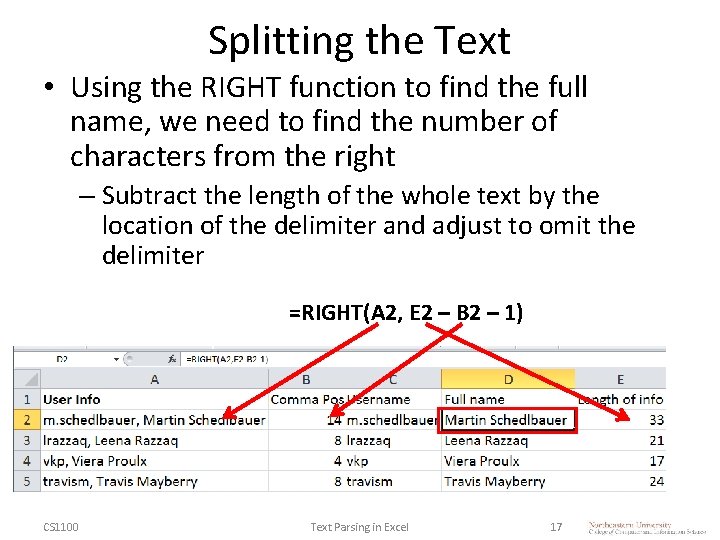
Splitting the Text • Using the RIGHT function to find the full name, we need to find the number of characters from the right – Subtract the length of the whole text by the location of the delimiter and adjust to omit the delimiter =RIGHT(A 2, E 2 – B 2 – 1) CS 1100 Text Parsing in Excel 17
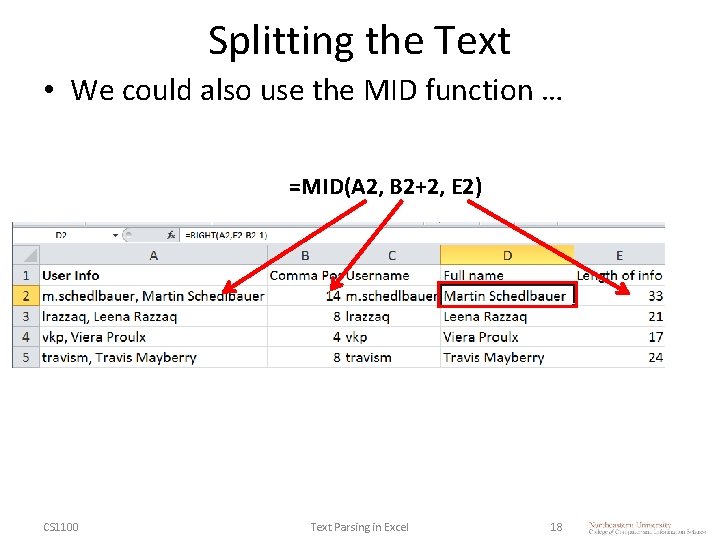
Splitting the Text • We could also use the MID function … =MID(A 2, B 2+2, E 2) CS 1100 Text Parsing in Excel 18
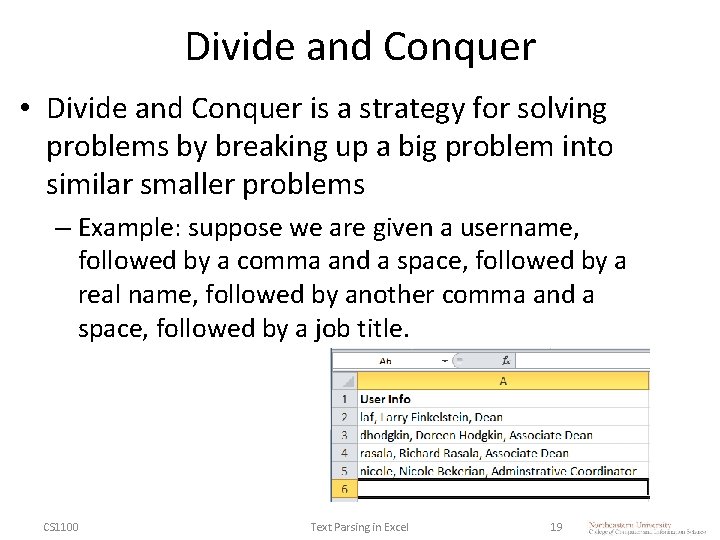
Divide and Conquer • Divide and Conquer is a strategy for solving problems by breaking up a big problem into similar smaller problems – Example: suppose we are given a username, followed by a comma and a space, followed by a real name, followed by another comma and a space, followed by a job title. CS 1100 Text Parsing in Excel 19
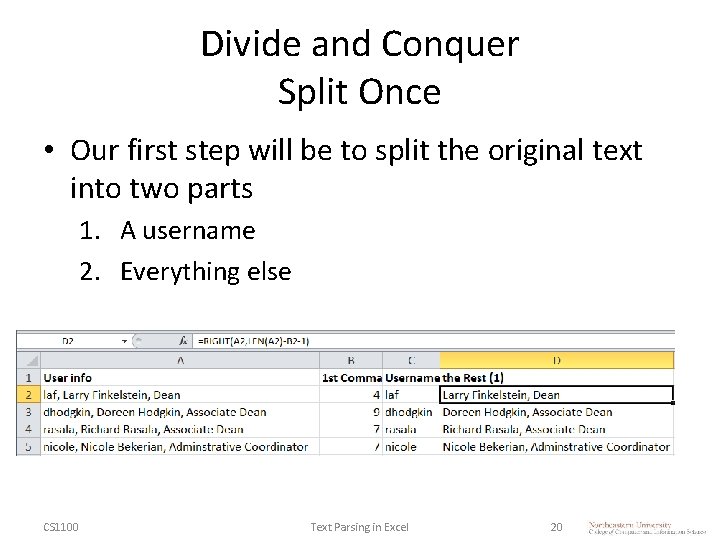
Divide and Conquer Split Once • Our first step will be to split the original text into two parts 1. A username 2. Everything else CS 1100 Text Parsing in Excel 20
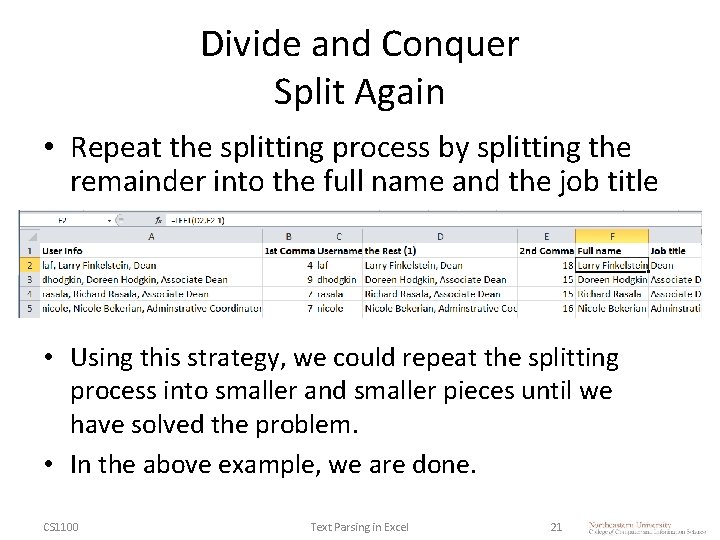
Divide and Conquer Split Again • Repeat the splitting process by splitting the remainder into the full name and the job title • Using this strategy, we could repeat the splitting process into smaller and smaller pieces until we have solved the problem. • In the above example, we are done. CS 1100 Text Parsing in Excel 21
Parsing Optional Data • Sometimes we need to split some text into parts, but one of the parts may be missing. • A reasonable first step is to determine whether or not the data is present. CS 1100 Text Parsing in Excel 22
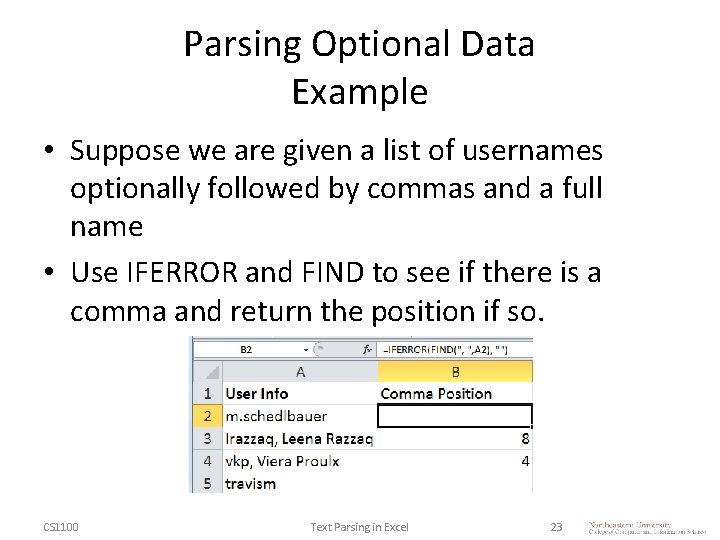
Parsing Optional Data Example • Suppose we are given a list of usernames optionally followed by commas and a full name • Use IFERROR and FIND to see if there is a comma and return the position if so. CS 1100 Text Parsing in Excel 23
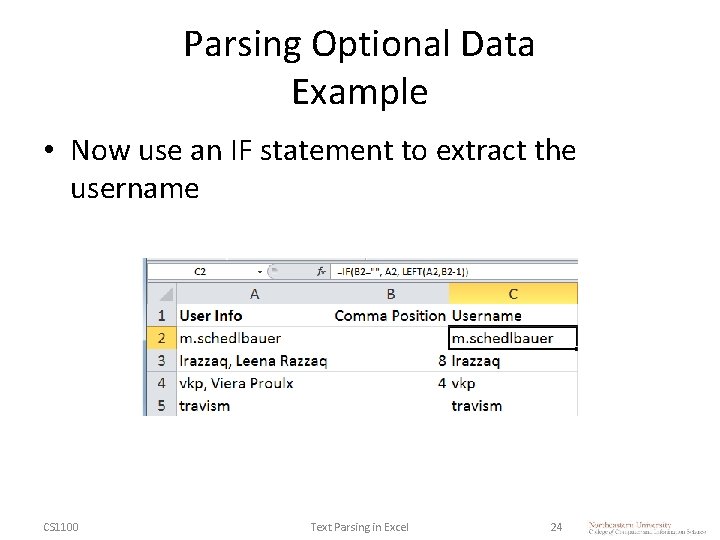
Parsing Optional Data Example • Now use an IF statement to extract the username CS 1100 Text Parsing in Excel 24
Parsing Text • To extract parts of a text value (parsing) requires thoughtful analysis and often a divide -and-conquer approach. CS 1100 Text Parsing in Excel 25
Strategy • You need think about your strategy: – How do I detect where the first name starts? – Are there some delimiters? – What is the delimiter? – Does it always work? – Is there always a first or last name? • Break the problem into several problems and create auxiliary or helper columns. CS 1100 Text Parsing in Excel 26
HIDDEN COLUMNS • Solving complex parsing problems often requires the use of intermediate values: – Solve the problem in pieces, don’t do it all in a single formula • So, place intermediate values into temporary columns and then hide the column to make the model less confusing to read. CS 1100 Text Parsing in Excel 27
COUNTA Function • We have already seen COUNT as a way to count the number of cells in a range. • However, COUNT only counts cells that contain numbers. – What about text? • To count the number of cells that contain some value (either text or number), use COUNTA. CS 1100 Text Parsing in Excel 28
COUNTBLANK Function • As an alternative to COUNTA, there is COUNTBLANK. • This function counts the number of cells in a range that do not contain any value (either text or number). CS 1100 Text Parsing in Excel 29
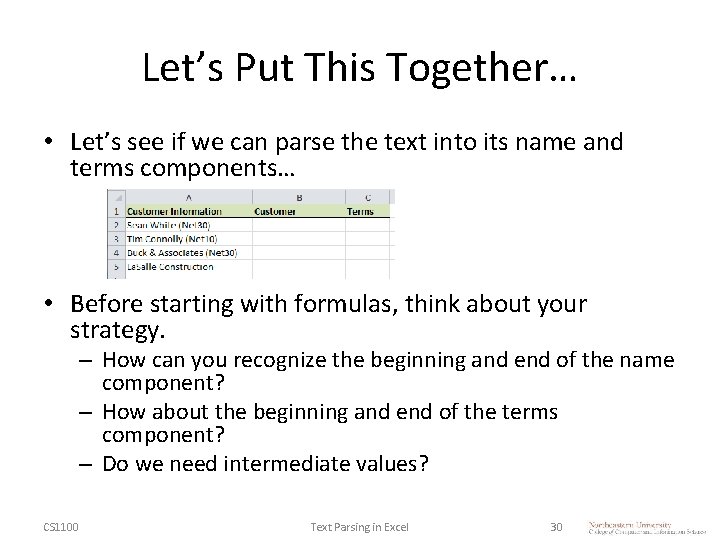
Let’s Put This Together… • Let’s see if we can parse the text into its name and terms components… • Before starting with formulas, think about your strategy. – How can you recognize the beginning and end of the name component? – How about the beginning and end of the terms component? – Do we need intermediate values? CS 1100 Text Parsing in Excel 30
- Slides: 30