HOW TO SET UP AN APPIUM AUTOMATED FRAMEWORK

- Slides: 85
HOW TO SET UP AN APPIUM AUTOMATED FRAMEWORK TO TEST MOBILE APPS Presented by Jorge Asensio © All rights reserved
Index PART 1: WHAT IS TESTING APPS LIKE? PART 2: APPIUM FEATURES PART 3: SETTING UP AN ANDROID FRAMEWORK PART 4: SETTING UP AN IOS FRAMEWORK PART 5: TESTING THE ANDROID APPS PART 6: TESTING THE IOS APPS PART 7: OBSTACLES AND LESSONS LEARNED 2 © All rights reserved
PART 1: WHAT IS TESTING APPS LIKE? HOW TO MAKE SURE AN APP IS PROPERLY TESTED © All rights reserved
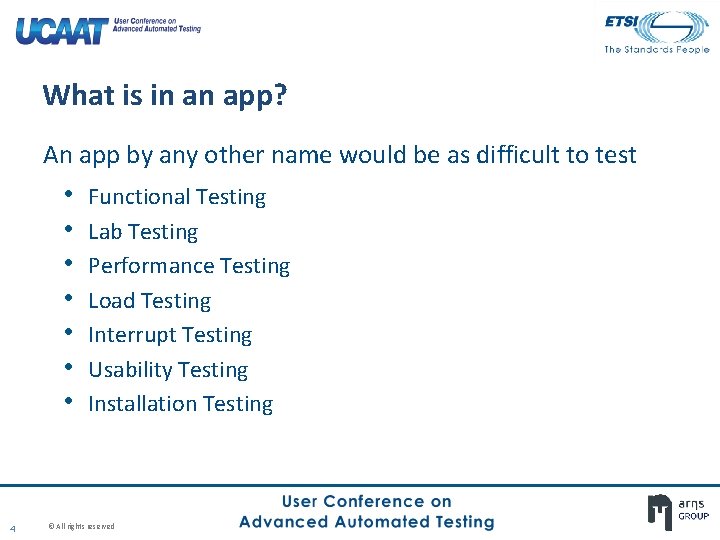
What is in an app? An app by any other name would be as difficult to test • • 4 Functional Testing Lab Testing Performance Testing Load Testing Interrupt Testing Usability Testing Installation Testing © All rights reserved
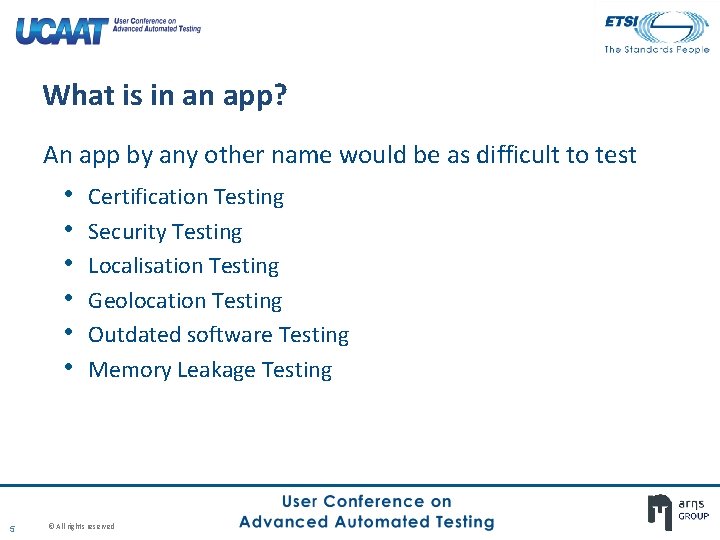
What is in an app? An app by any other name would be as difficult to test • • • 5 Certification Testing Security Testing Localisation Testing Geolocation Testing Outdated software Testing Memory Leakage Testing © All rights reserved
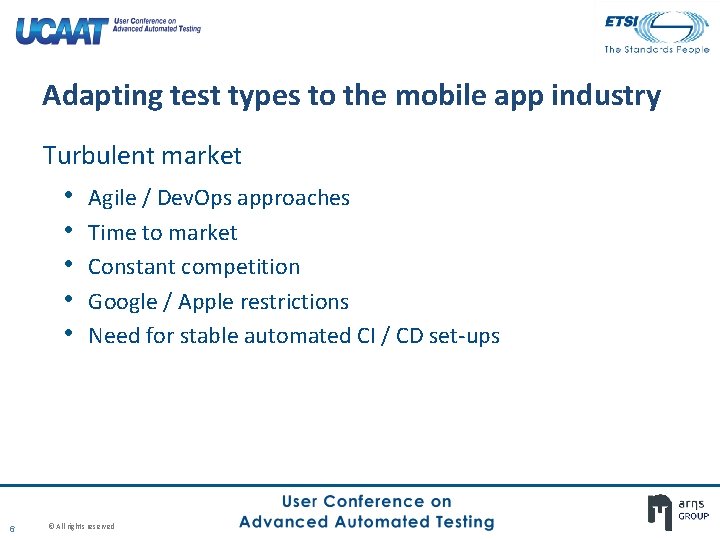
Adapting test types to the mobile app industry Turbulent market • Agile / Dev. Ops approaches • Time to market • Constant competition • Google / Apple restrictions • Need for stable automated CI / CD set-ups 6 © All rights reserved
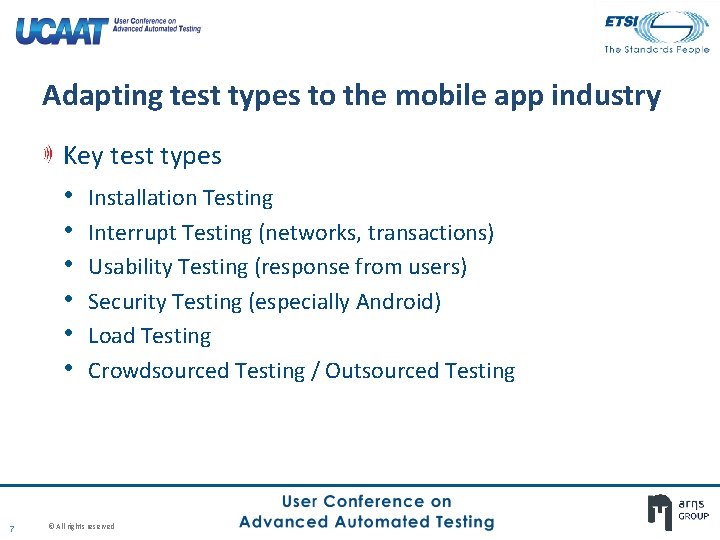
Adapting test types to the mobile app industry Key test types • Installation Testing • Interrupt Testing (networks, transactions) • Usability Testing (response from users) • Security Testing (especially Android) • Load Testing • Crowdsourced Testing / Outsourced Testing 7 © All rights reserved
PART 2: APPIUM FEATURES A FRAMEWORK DESIGNED TO TEST MOBILE APPS © All rights reserved
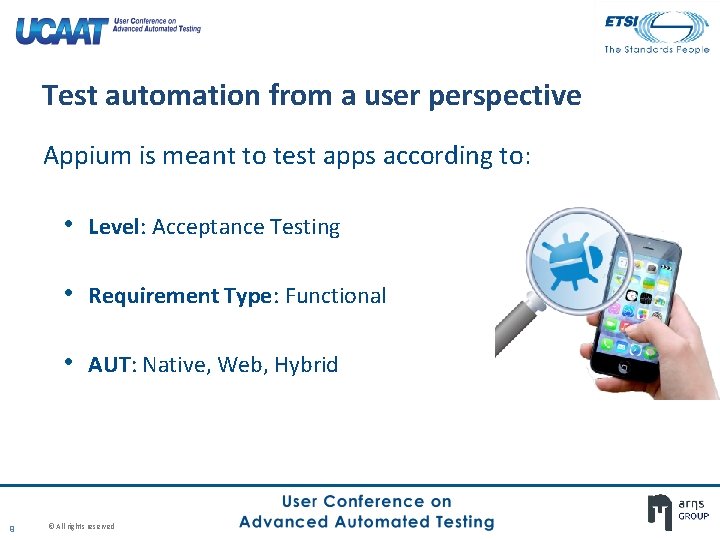
Test automation from a user perspective Appium is meant to test apps according to: • Level: Acceptance Testing • Requirement Type: Functional • AUT: Native, Web, Hybrid 9 © All rights reserved
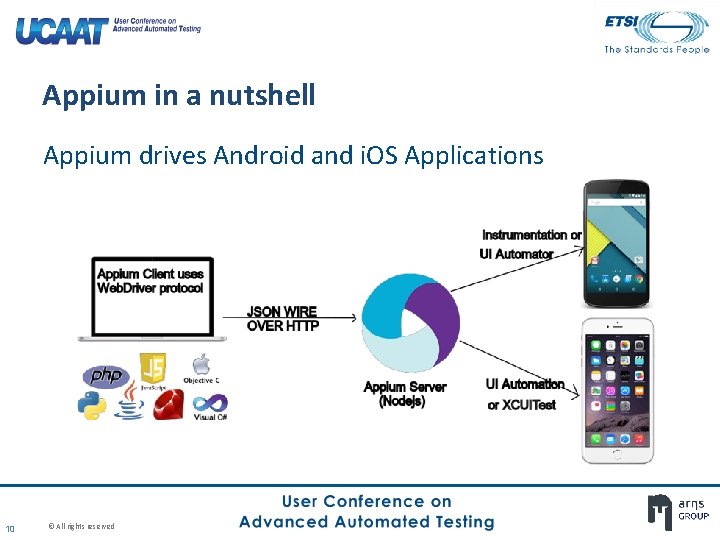
Appium in a nutshell Appium drives Android and i. OS Applications 10 © All rights reserved
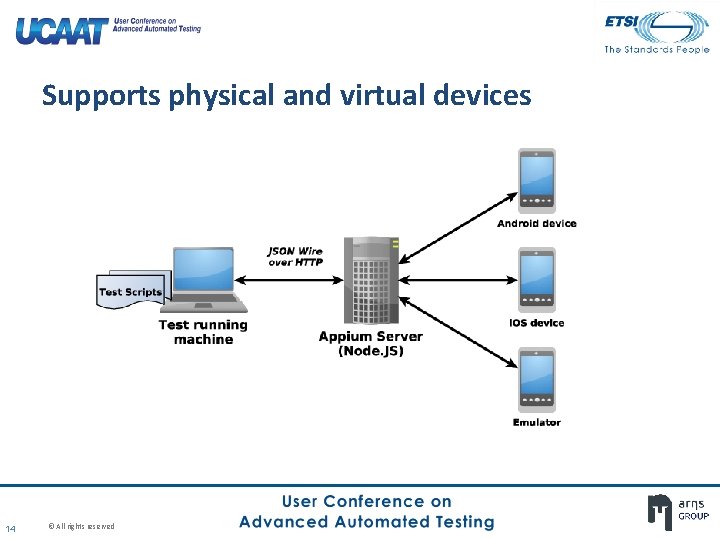
A Selenium framework for Mobile testing Open-source, freely distributed Drives native, hybrid and web apps Supports physical and virtual devices No dependency on device OS Multiple language support Multiple integrations with tools and frameworks 11 © All rights reserved
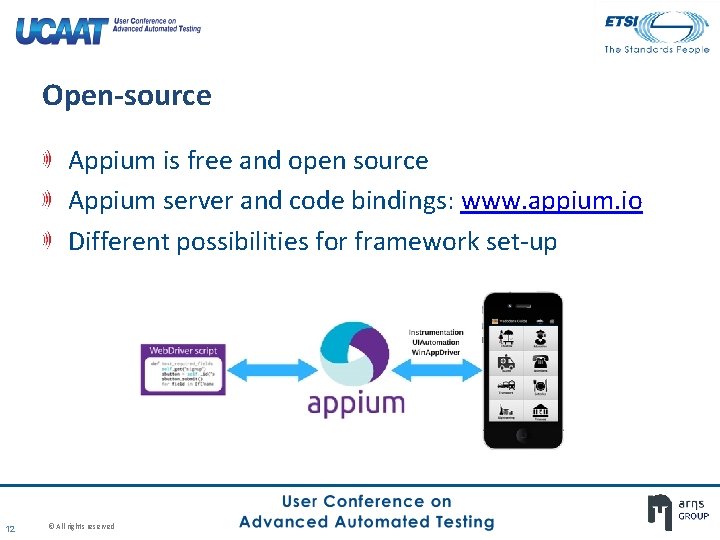
Open-source Appium is free and open source Appium server and code bindings: www. appium. io Different possibilities for framework set-up 12 © All rights reserved
Multiple types of app under test Types of app supported: Native Web Hybrid 13 © All rights reserved
Supports physical and virtual devices 14 © All rights reserved
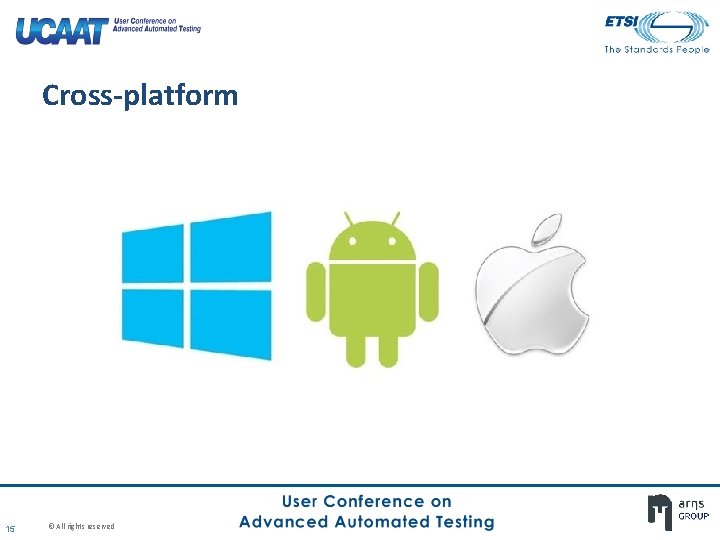
Cross-platform 15 © All rights reserved
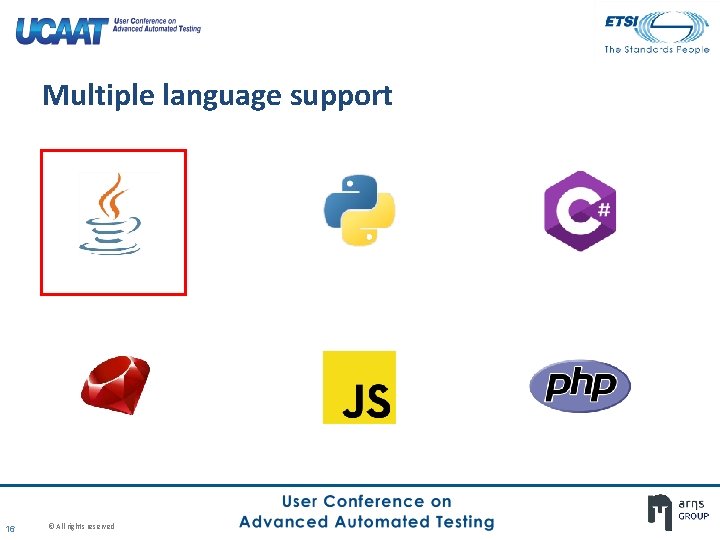
Multiple language support 16 © All rights reserved
Multiple integrations with tools and frameworks 17 © All rights reserved
Continuous Integration / Continuous Deployment Can trigger tests from the major CI / CD servers 18 © All rights reserved
PART 3: SETTING UP AN IOS FRAMEWORK i. OS + Appium © All rights reserved
Previous knowledge required • • 20 Java Mac OS X Terminal / Windows Command X-Code Selenium © All rights reserved
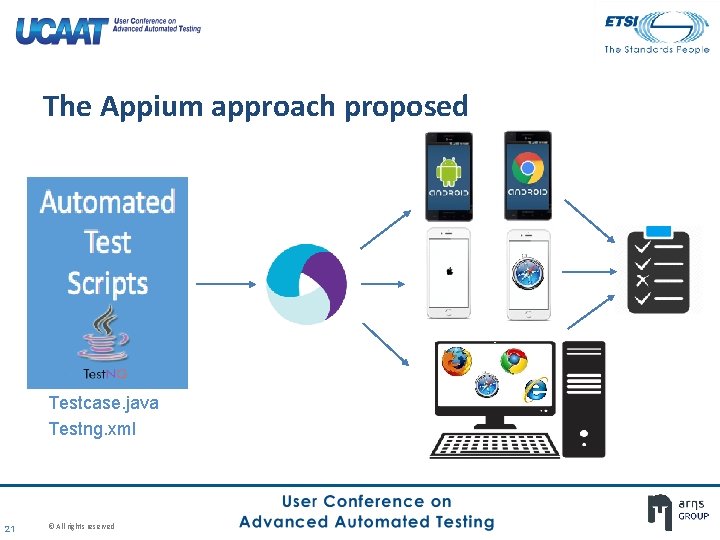
The Appium approach proposed Testcase. java Testng. xml 21 © All rights reserved
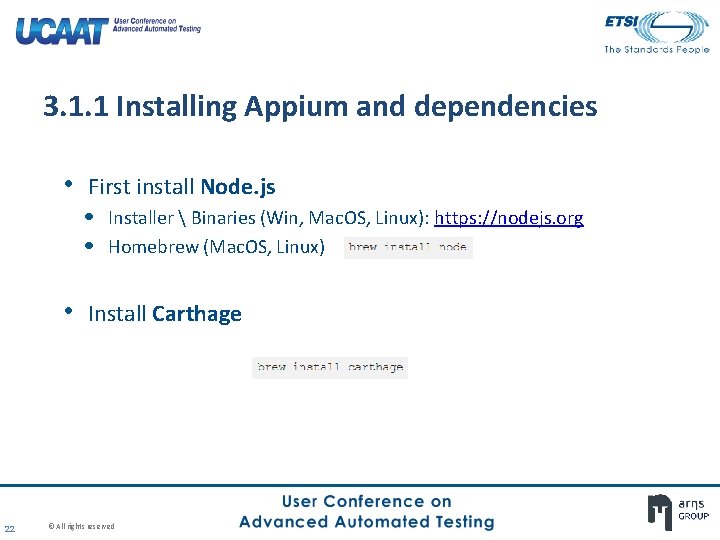
3. 1. 1 Installing Appium and dependencies • First install Node. js • Installer Binaries (Win, Mac. OS, Linux): https: //nodejs. org • Homebrew (Mac. OS, Linux) • Install Carthage 22 © All rights reserved
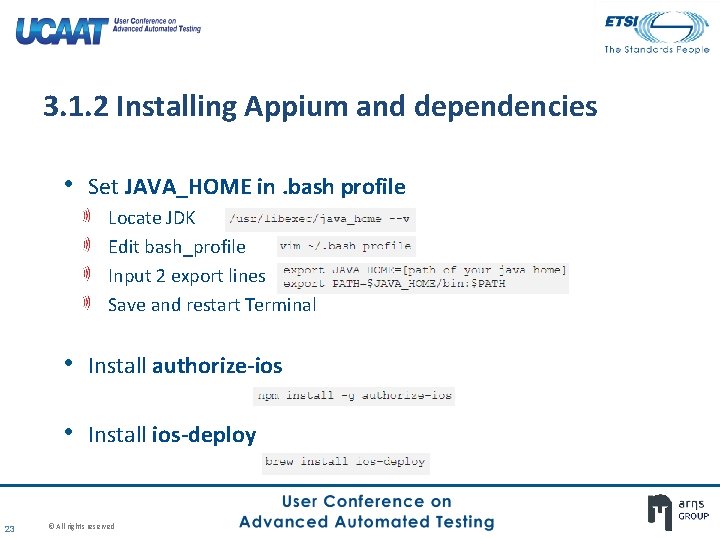
3. 1. 2 Installing Appium and dependencies • Set JAVA_HOME in. bash profile Locate JDK Edit bash_profile Input 2 export lines Save and restart Terminal • Install authorize-ios • Install ios-deploy 23 © All rights reserved
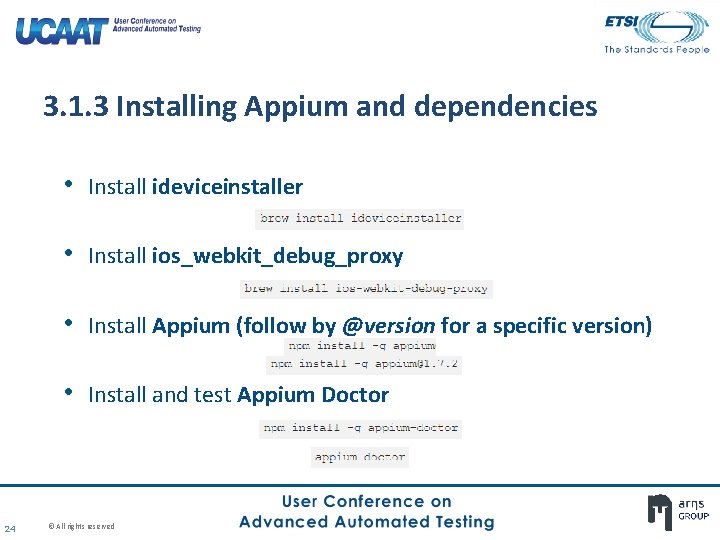
3. 1. 3 Installing Appium and dependencies • Install ideviceinstaller • Install ios_webkit_debug_proxy • Install Appium (follow by @version for a specific version) • Install and test Appium Doctor 24 © All rights reserved
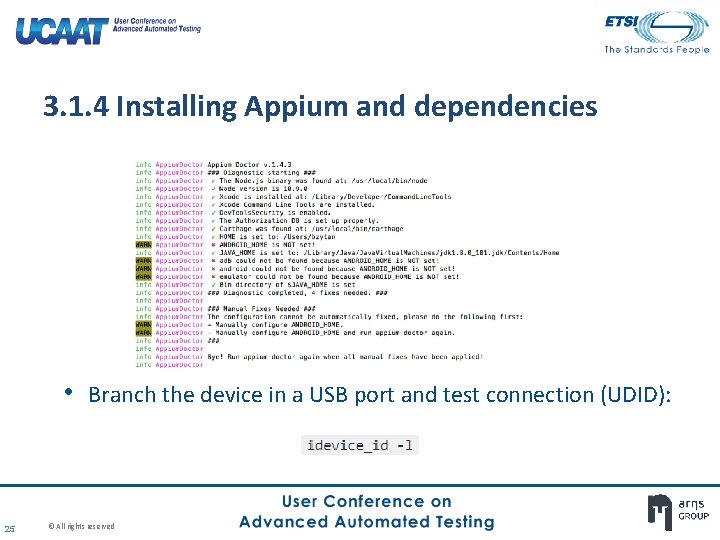
3. 1. 4 Installing Appium and dependencies • Branch the device in a USB port and test connection (UDID): 25 © All rights reserved
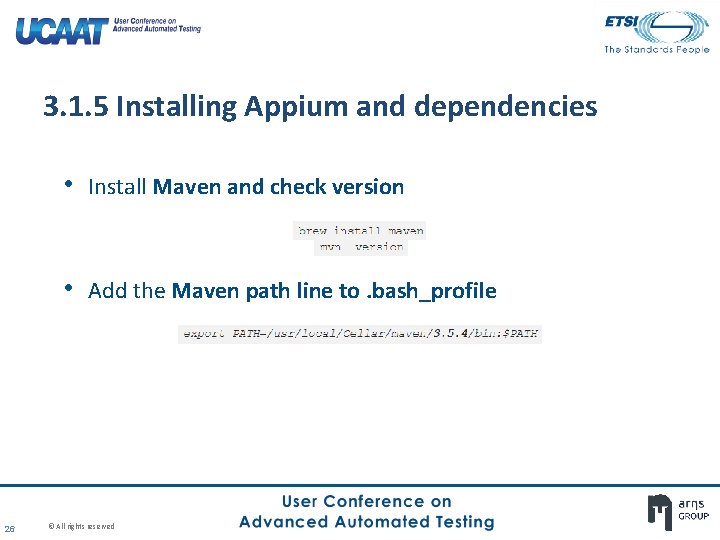
3. 1. 5 Installing Appium and dependencies • Install Maven and check version • Add the Maven path line to. bash_profile 26 © All rights reserved
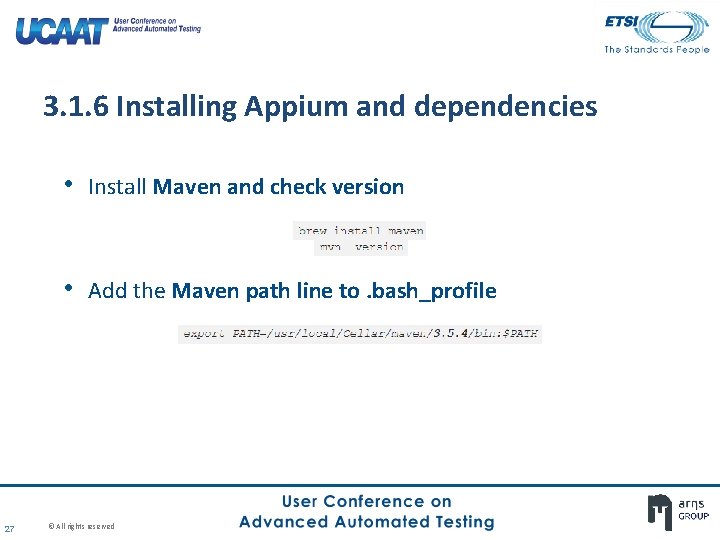
3. 1. 6 Installing Appium and dependencies • Install Maven and check version • Add the Maven path line to. bash_profile 27 © All rights reserved
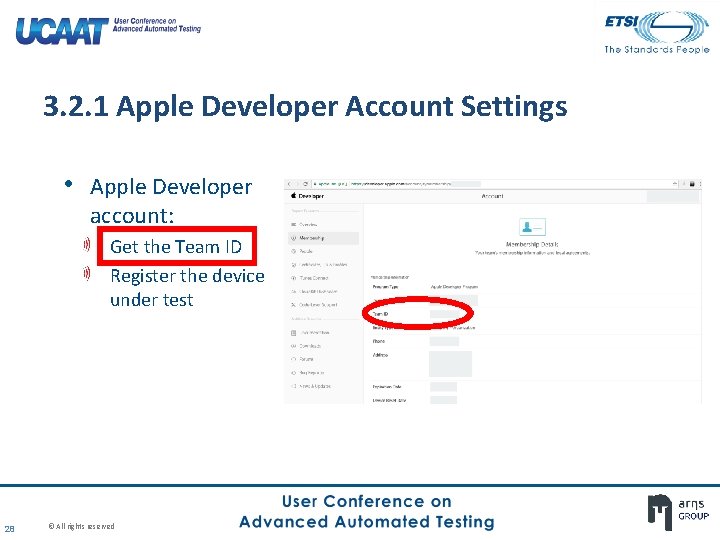
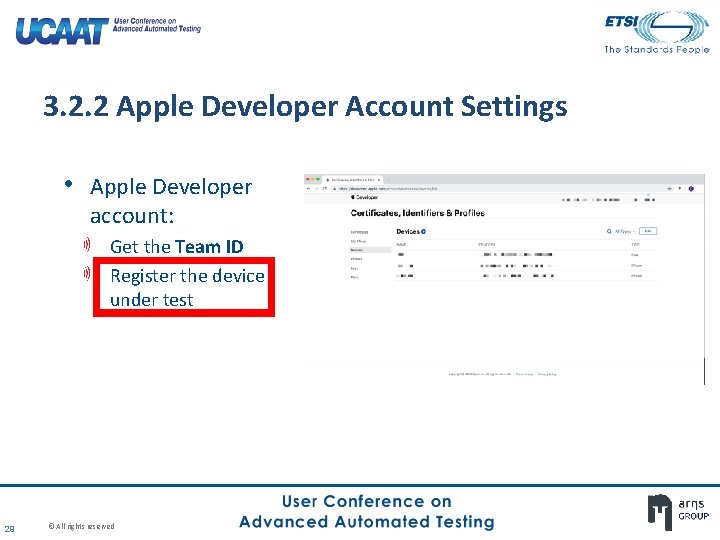
3. 2. 1 Apple Developer Account Settings • Apple Developer account: Get the Team ID Register the device under test 28 © All rights reserved
3. 2. 2 Apple Developer Account Settings • Apple Developer account: Get the Team ID Register the device under test 29 © All rights reserved
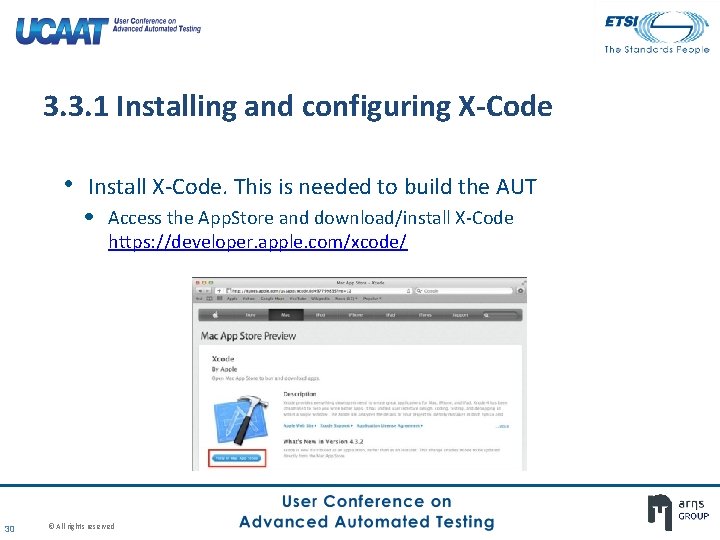
3. 3. 1 Installing and configuring X-Code • Install X-Code. This is needed to build the AUT • Access the App. Store and download/install X-Code https: //developer. apple. com/xcode/ 30 © All rights reserved
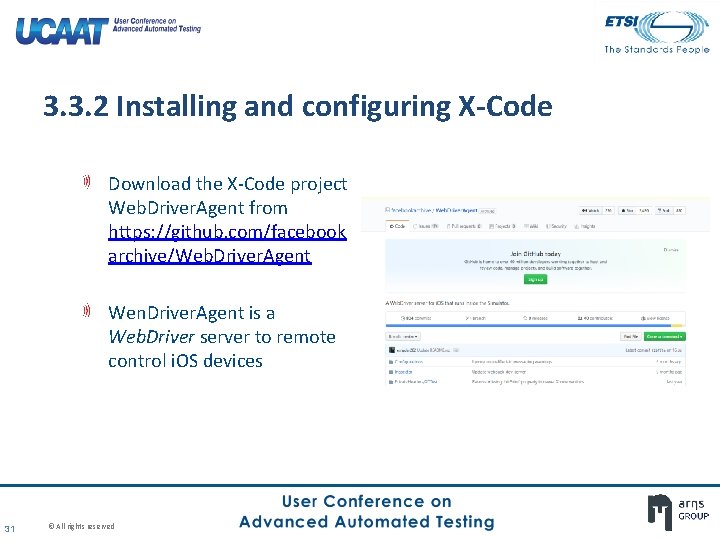
3. 3. 2 Installing and configuring X-Code Download the X-Code project Web. Driver. Agent from https: //github. com/facebook archive/Web. Driver. Agent Wen. Driver. Agent is a Web. Driver server to remote control i. OS devices 31 © All rights reserved
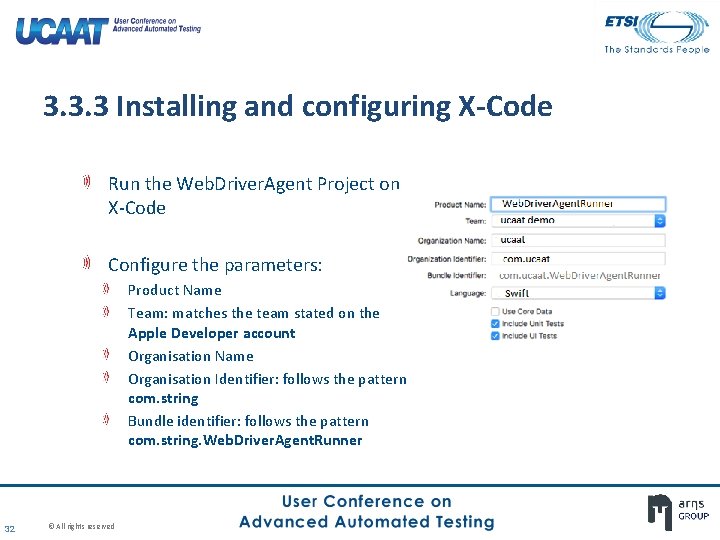
3. 3. 3 Installing and configuring X-Code Run the Web. Driver. Agent Project on X-Code Configure the parameters: Product Name Team: matches the team stated on the Apple Developer account Organisation Name Organisation Identifier: follows the pattern com. string Bundle identifier: follows the pattern com. string. Web. Driver. Agent. Runner 32 © All rights reserved
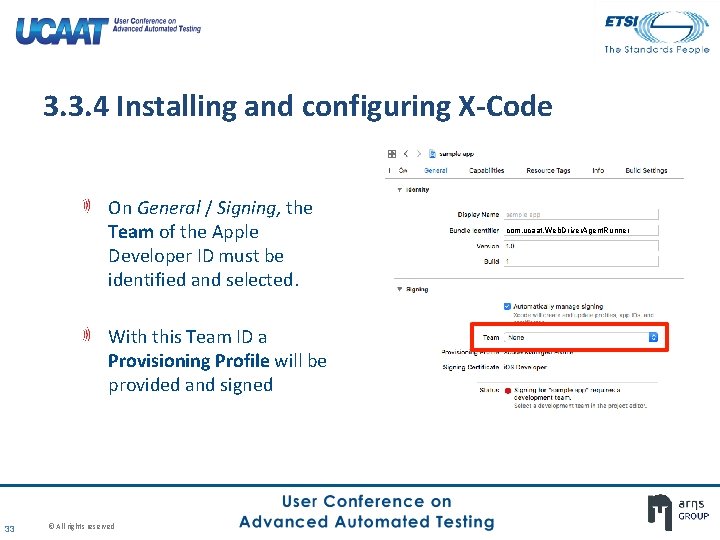
3. 3. 4 Installing and configuring X-Code On General / Signing, the Team of the Apple Developer ID must be identified and selected. With this Team ID a Provisioning Profile will be provided and signed 33 © All rights reserved com. ucaat. Web. Driver. Agent. Runner
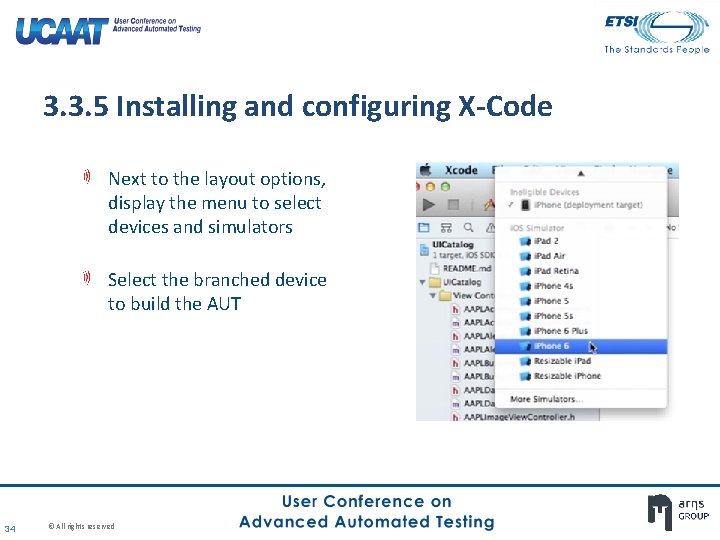
3. 3. 5 Installing and configuring X-Code Next to the layout options, display the menu to select devices and simulators Select the branched device to build the AUT 34 © All rights reserved
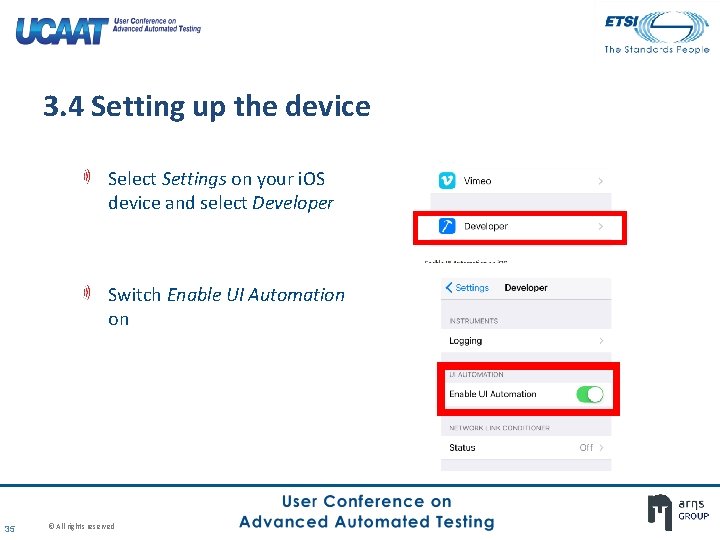
3. 4 Setting up the device Select Settings on your i. OS device and select Developer Switch Enable UI Automation on 35 © All rights reserved
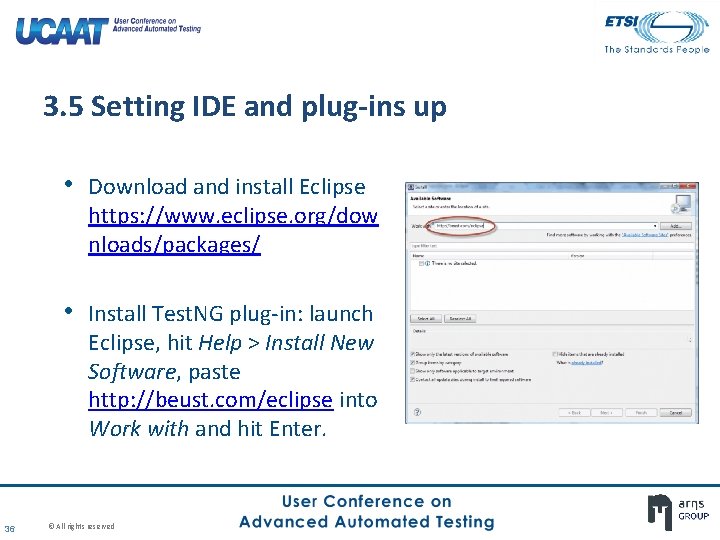
3. 5 Setting IDE and plug-ins up • Download and install Eclipse https: //www. eclipse. org/dow nloads/packages/ • Install Test. NG plug-in: launch Eclipse, hit Help > Install New Software, paste http: //beust. com/eclipse into Work with and hit Enter. 36 © All rights reserved
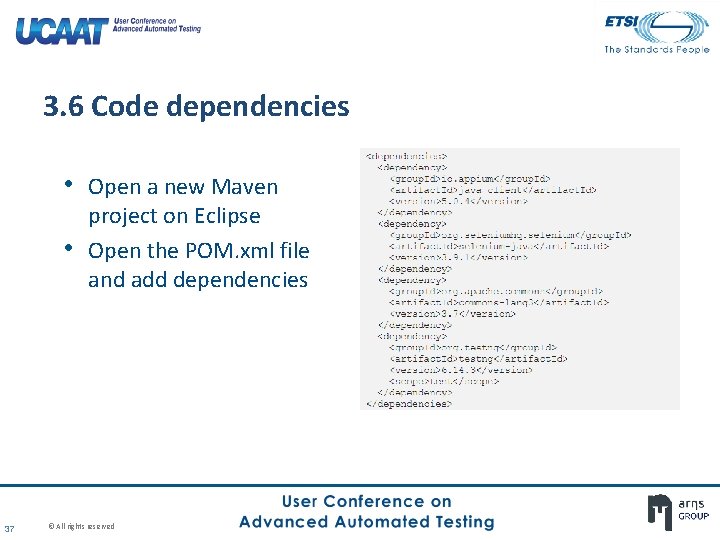
3. 6 Code dependencies • Open a new Maven • 37 project on Eclipse Open the POM. xml file and add dependencies © All rights reserved
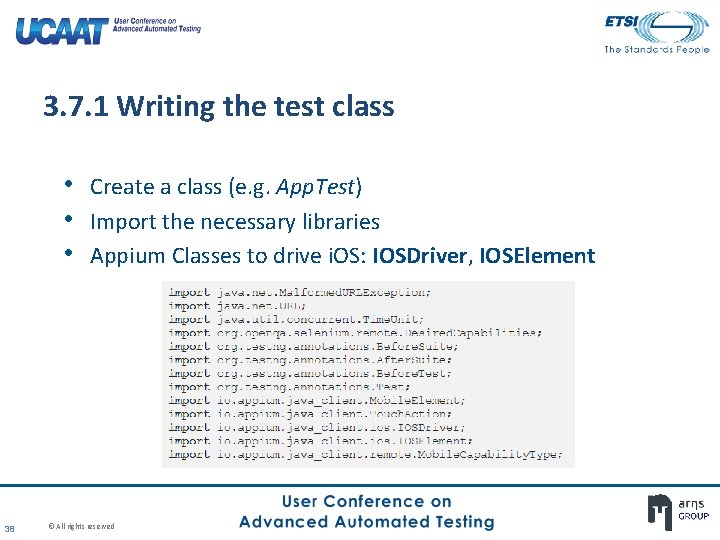
3. 7. 1 Writing the test class • Create a class (e. g. App. Test) • Import the necessary libraries • Appium Classes to drive i. OS: IOSDriver, IOSElement 38 © All rights reserved
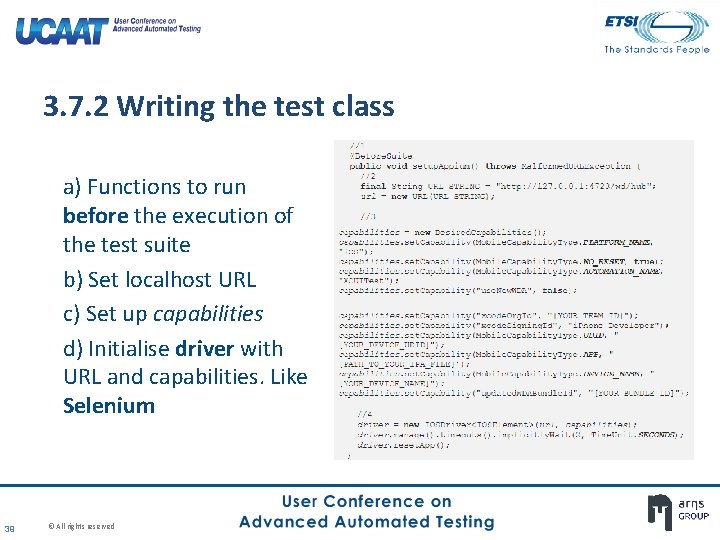
3. 7. 2 Writing the test class a) Functions to run before the execution of the test suite b) Set localhost URL c) Set up capabilities d) Initialise driver with URL and capabilities. Like Selenium 39 © All rights reserved
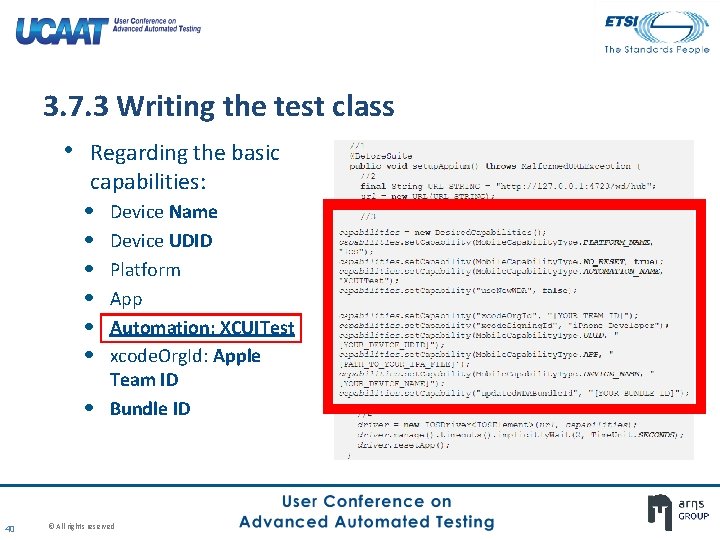
3. 7. 3 Writing the test class • Regarding the basic capabilities: • Device Name • Device UDID • Platform • App • Automation: XCUITest • xcode. Org. Id: Apple • 40 Team ID Bundle ID © All rights reserved
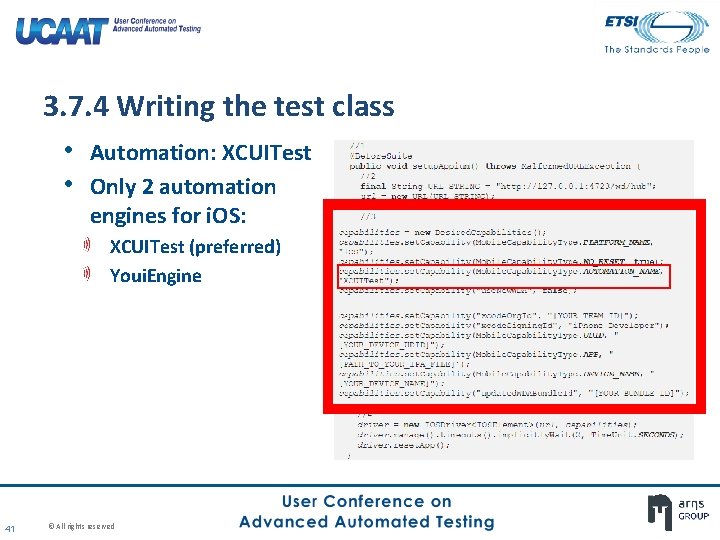
3. 7. 4 Writing the test class • Automation: XCUITest • Only 2 automation engines for i. OS: XCUITest (preferred) Youi. Engine 41 © All rights reserved
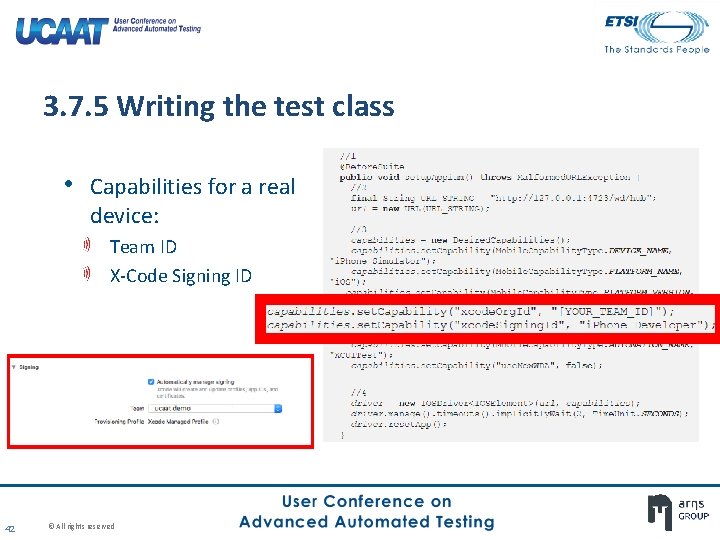
3. 7. 5 Writing the test class • Capabilities for a real device: Team ID X-Code Signing ID 42 © All rights reserved
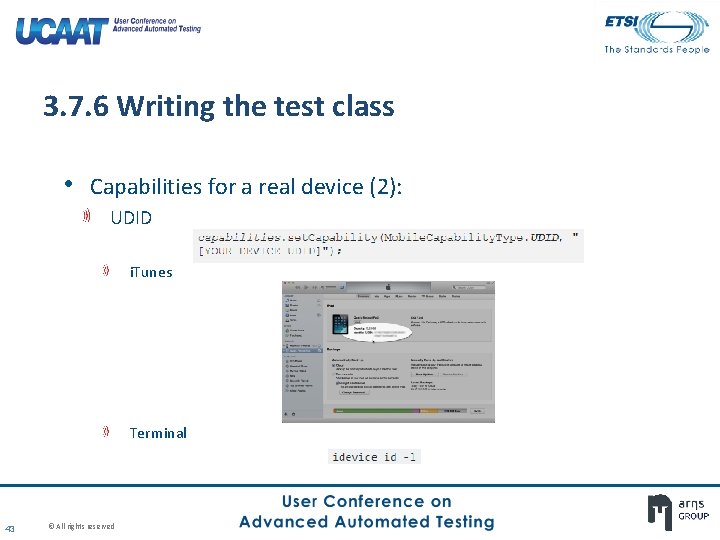
3. 7. 6 Writing the test class • Capabilities for a real device (2): UDID i. Tunes Terminal 43 © All rights reserved
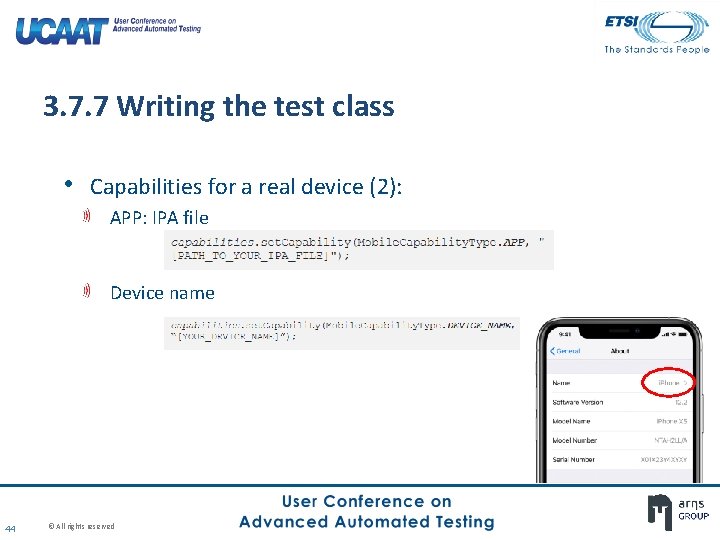
3. 7. 7 Writing the test class • Capabilities for a real device (2): APP: IPA file Device name 44 © All rights reserved
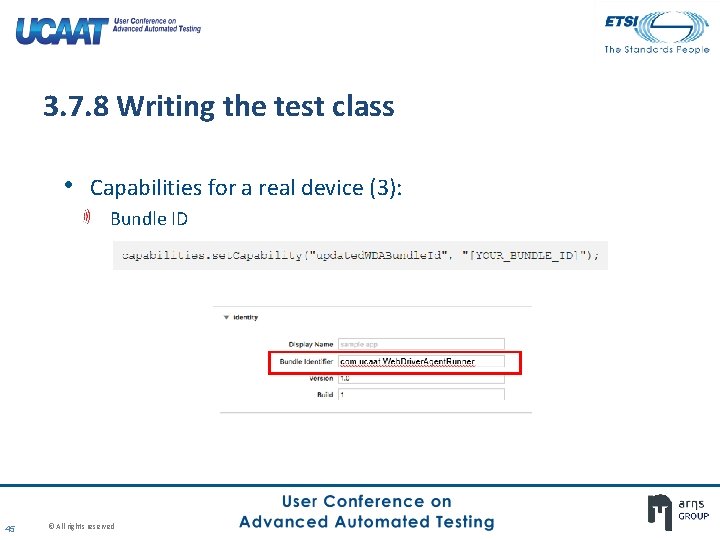
3. 7. 8 Writing the test class • Capabilities for a real device (3): Bundle ID 45 © All rights reserved
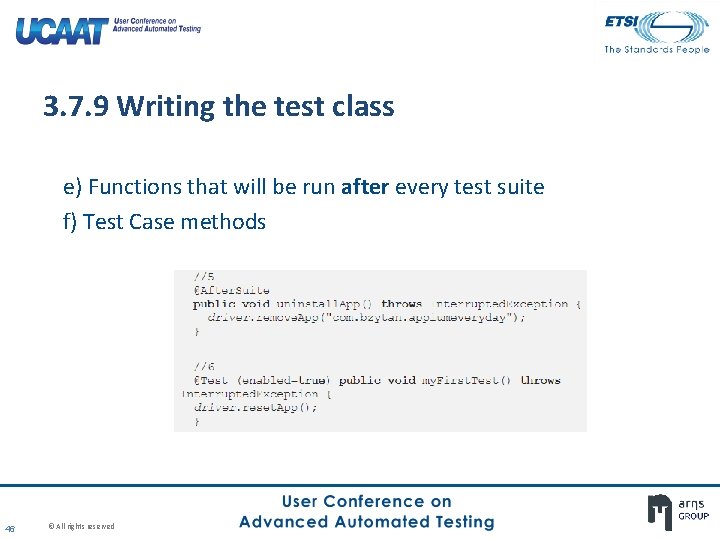
3. 7. 9 Writing the test class e) Functions that will be run after every test suite f) Test Case methods 46 © All rights reserved
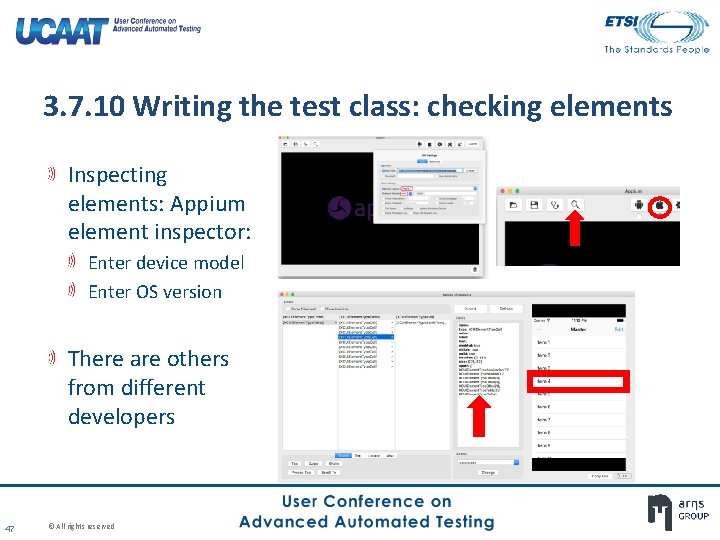
3. 7. 10 Writing the test class: checking elements Inspecting elements: Appium element inspector: Enter device model Enter OS version There are others from different developers 47 © All rights reserved
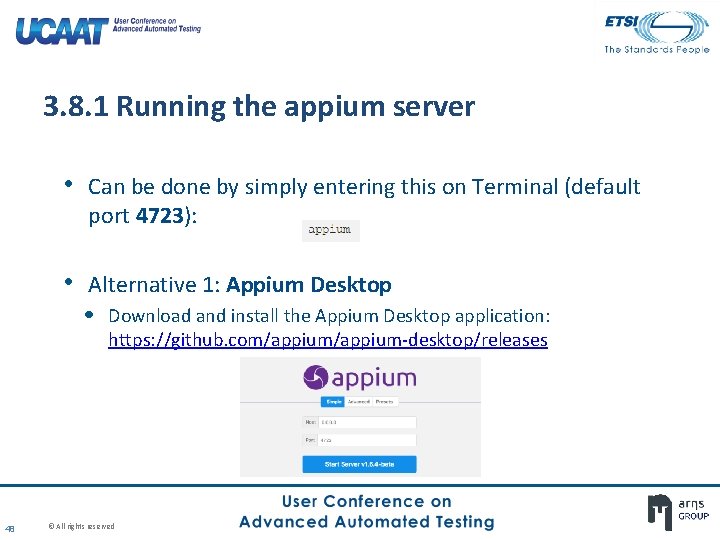
3. 8. 1 Running the appium server • Can be done by simply entering this on Terminal (default port 4723): • Alternative 1: Appium Desktop • Download and install the Appium Desktop application: https: //github. com/appium-desktop/releases 48 © All rights reserved
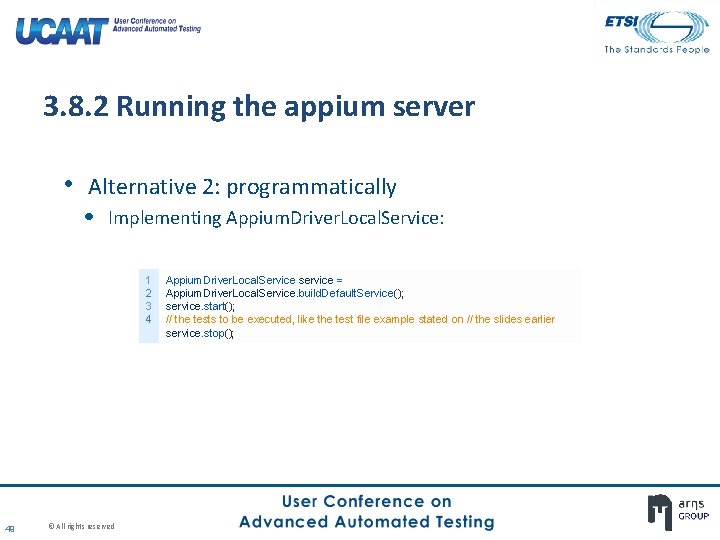
3. 8. 2 Running the appium server • Alternative 2: programmatically • Implementing Appium. Driver. Local. Service: 1 2 3 4 49 © All rights reserved Appium. Driver. Local. Service service = Appium. Driver. Local. Service. build. Default. Service(); service. start(); // the tests to be executed, like the test file example stated on // the slides earlier service. stop();
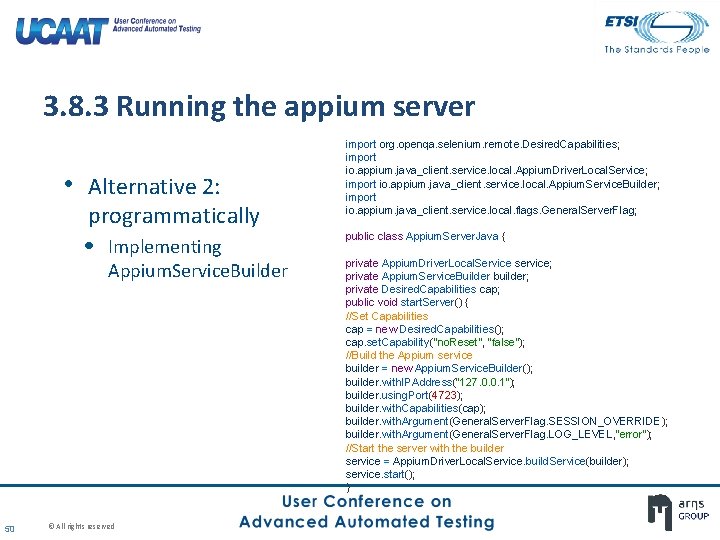
3. 8. 3 Running the appium server • Alternative 2: programmatically • Implementing Appium. Service. Builder 50 © All rights reserved import org. openqa. selenium. remote. Desired. Capabilities; import io. appium. java_client. service. local. Appium. Driver. Local. Service; import io. appium. java_client. service. local. Appium. Service. Builder; import io. appium. java_client. service. local. flags. General. Server. Flag; public class Appium. Server. Java { private Appium. Driver. Local. Service service; private Appium. Service. Builder builder; private Desired. Capabilities cap; public void start. Server() { //Set Capabilities cap = new Desired. Capabilities(); cap. set. Capability("no. Reset", "false"); //Build the Appium service builder = new Appium. Service. Builder(); builder. with. IPAddress("127. 0. 0. 1"); builder. using. Port(4723); builder. with. Capabilities(cap); builder. with. Argument(General. Server. Flag. SESSION_OVERRIDE); builder. with. Argument(General. Server. Flag. LOG_LEVEL, "error"); //Start the server with the builder service = Appium. Driver. Local. Service. build. Service(builder); service. start(); }
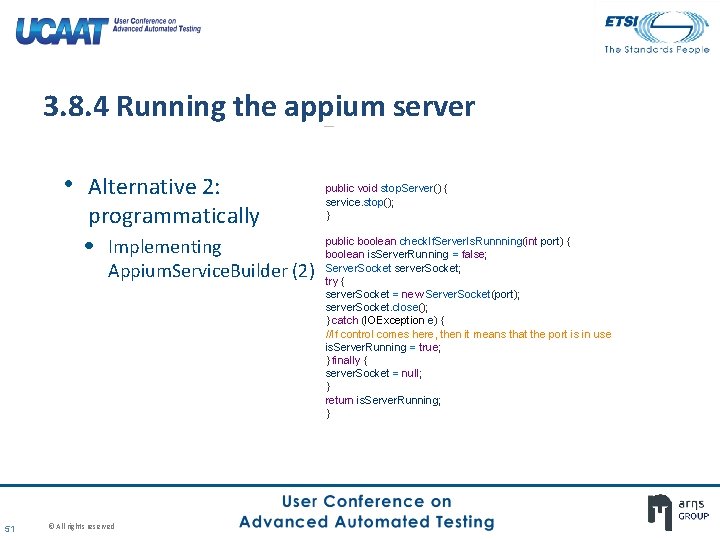
3. 8. 4 Running the appium server • Alternative 2: programmatically • Implementing Appium. Service. Builder (2) 51 © All rights reserved public void stop. Server() { service. stop(); } public boolean check. If. Server. Is. Runnning(int port) { boolean is. Server. Running = false; Server. Socket server. Socket; try { server. Socket = new Server. Socket(port); server. Socket. close(); } catch (IOException e) { //If control comes here, then it means that the port is in use is. Server. Running = true; } finally { server. Socket = null; } return is. Server. Running; }
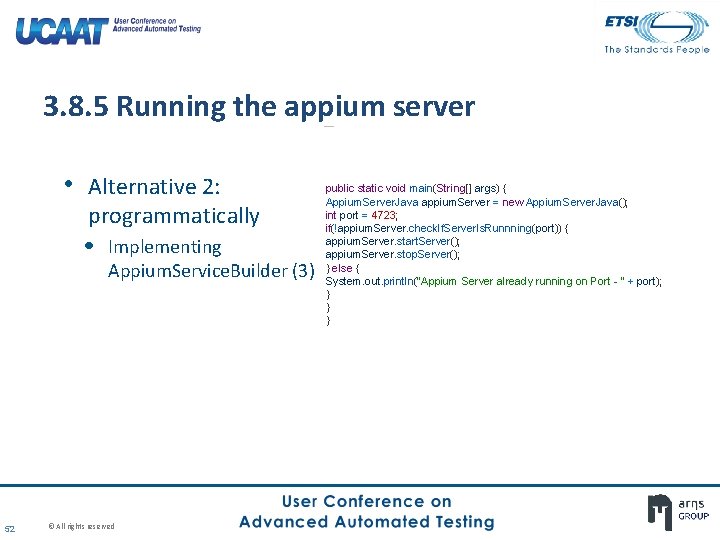
3. 8. 5 Running the appium server • Alternative 2: programmatically • Implementing Appium. Service. Builder (3) 52 © All rights reserved public static void main(String[] args) { Appium. Server. Java appium. Server = new Appium. Server. Java(); int port = 4723; if(!appium. Server. check. If. Server. Is. Runnning(port)) { appium. Server. start. Server(); appium. Server. stop. Server(); } else { System. out. println("Appium Server already running on Port - " + port); } } }
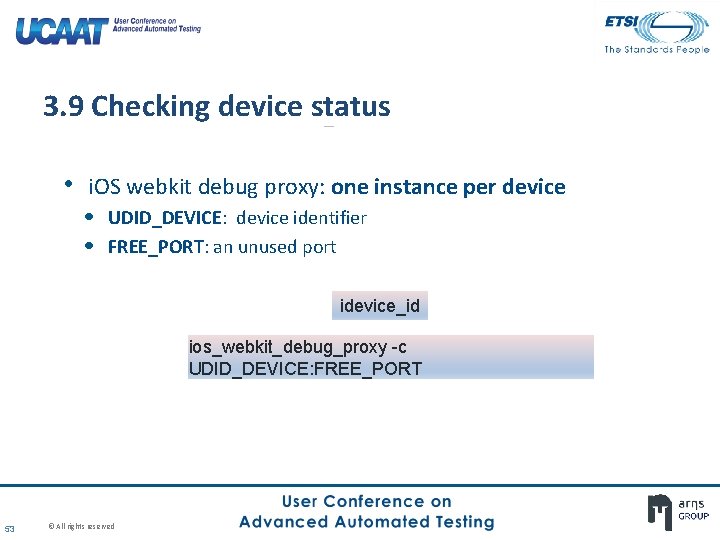
3. 9 Checking device status • i. OS webkit debug proxy: one instance per device • UDID_DEVICE: device identifier • FREE_PORT: an unused port idevice_id ios_webkit_debug_proxy -c UDID_DEVICE: FREE_PORT 53 © All rights reserved
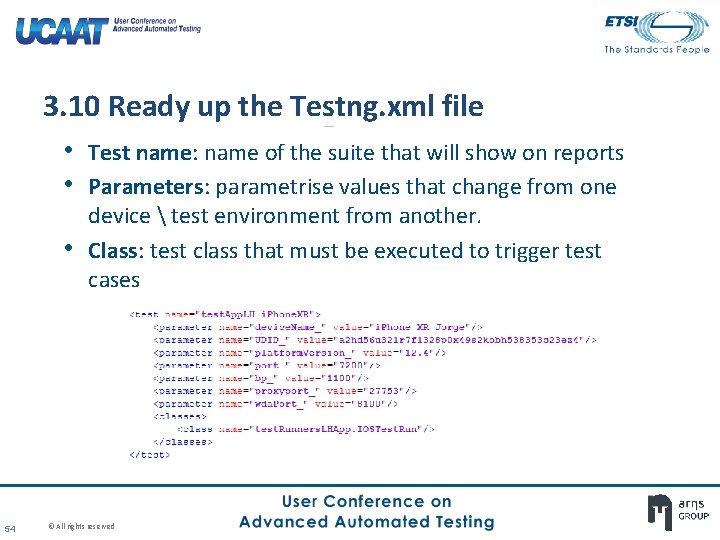
3. 10 Ready up the Testng. xml file • Test name: name of the suite that will show on reports • Parameters: parametrise values that change from one • 54 device test environment from another. Class: test class that must be executed to trigger test cases © All rights reserved
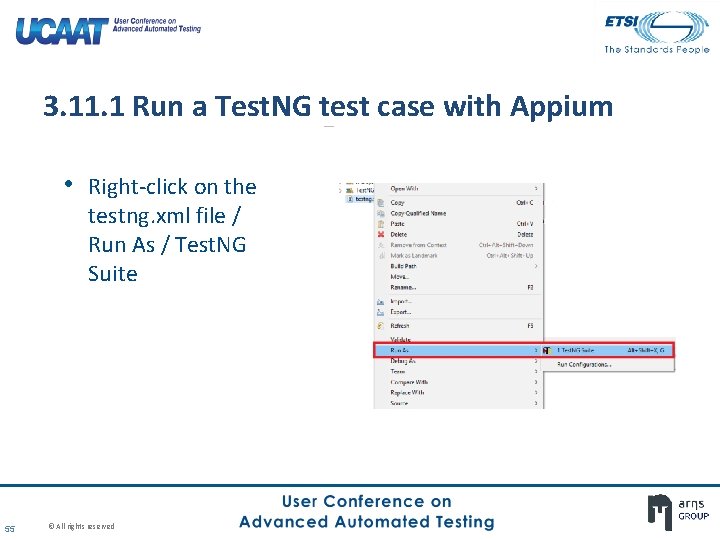
3. 11. 1 Run a Test. NG test case with Appium • Right-click on the testng. xml file / Run As / Test. NG Suite 55 © All rights reserved
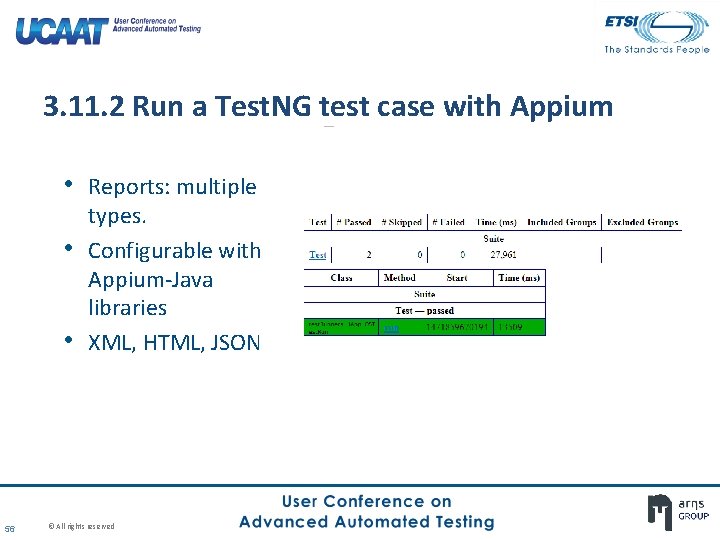
3. 11. 2 Run a Test. NG test case with Appium • Reports: multiple • • 56 types. Configurable with Appium-Java libraries XML, HTML, JSON © All rights reserved
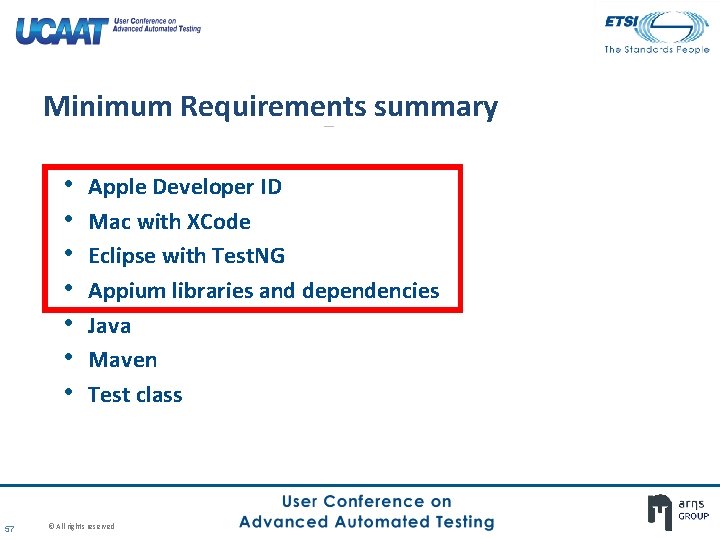
Minimum Requirements summary • • 57 Apple Developer ID Mac with XCode Eclipse with Test. NG Appium libraries and dependencies Java Maven Test class © All rights reserved
PART 4: SETTING UP AN ANDROID FRAMEWORK Android + Appium © All rights reserved
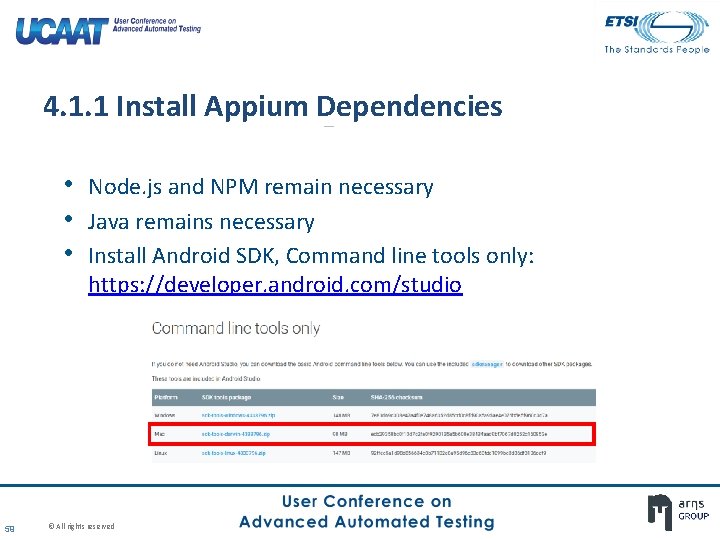
4. 1. 1 Install Appium Dependencies • Node. js and NPM remain necessary • Java remains necessary • Install Android SDK, Command line tools only: https: //developer. android. com/studio 59 © All rights reserved
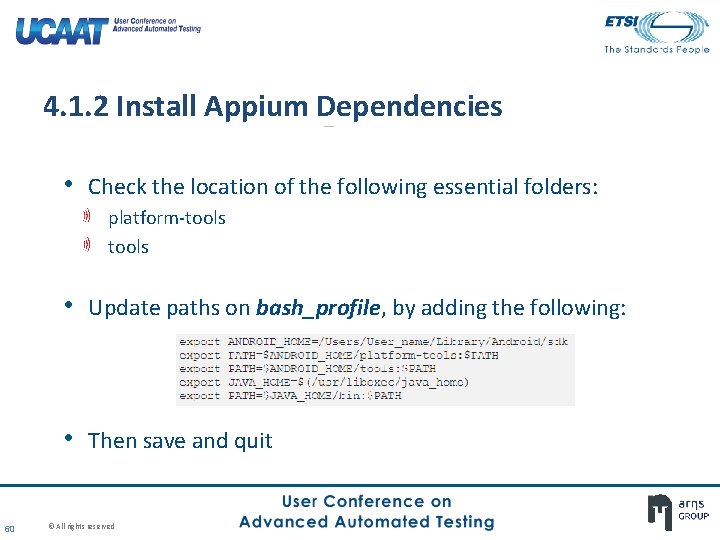
4. 1. 2 Install Appium Dependencies • Check the location of the following essential folders: platform-tools • Update paths on bash_profile, by adding the following: • Then save and quit 60 © All rights reserved
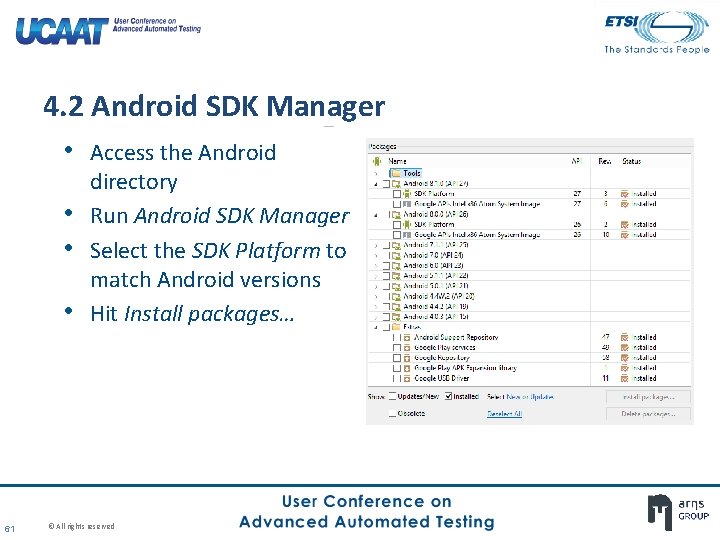
4. 2 Android SDK Manager • Access the Android • • • 61 directory Run Android SDK Manager Select the SDK Platform to match Android versions Hit Install packages… © All rights reserved
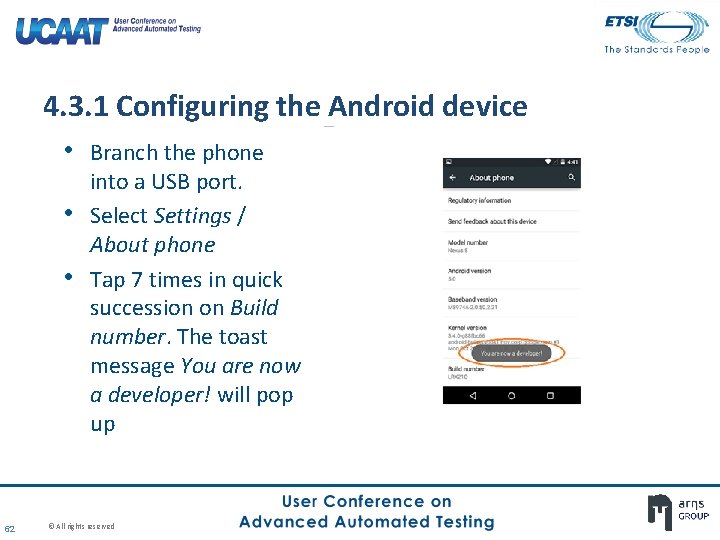
4. 3. 1 Configuring the Android device • Branch the phone • • 62 into a USB port. Select Settings / About phone Tap 7 times in quick succession on Build number. The toast message You are now a developer! will pop up © All rights reserved
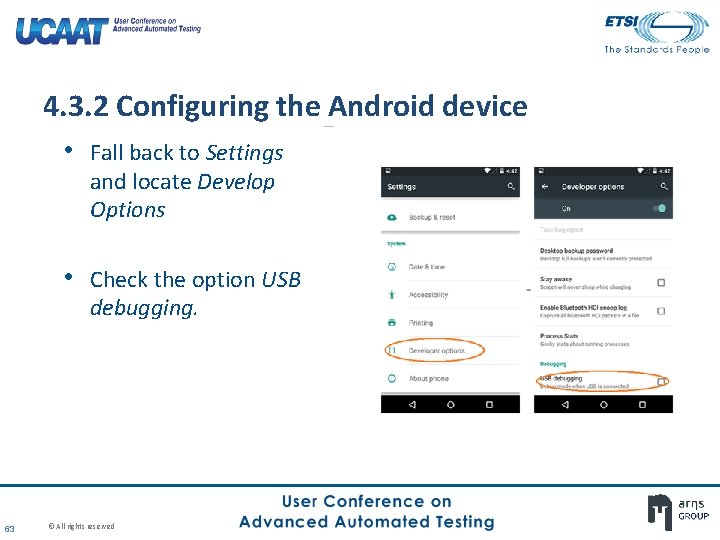
4. 3. 2 Configuring the Android device • Fall back to Settings and locate Develop Options • Check the option USB debugging. 63 © All rights reserved
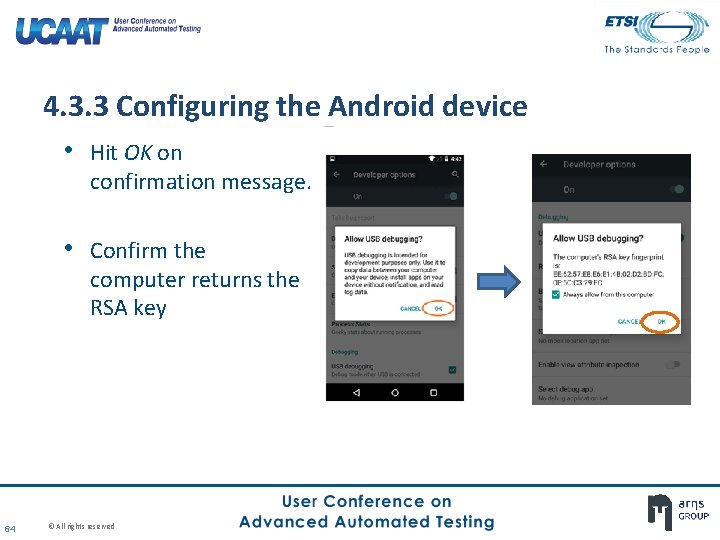
4. 3. 3 Configuring the Android device • Hit OK on confirmation message. • Confirm the computer returns the RSA key 64 © All rights reserved
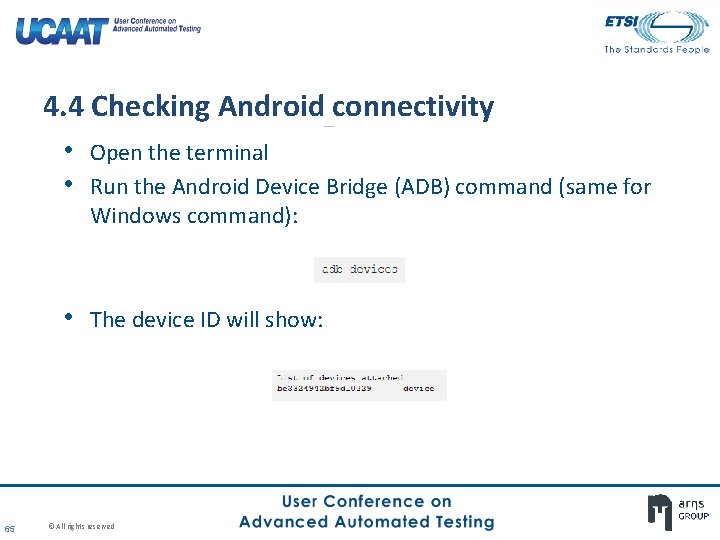
4. 4 Checking Android connectivity • Open the terminal • Run the Android Device Bridge (ADB) command (same for Windows command): • The device ID will show: 65 © All rights reserved
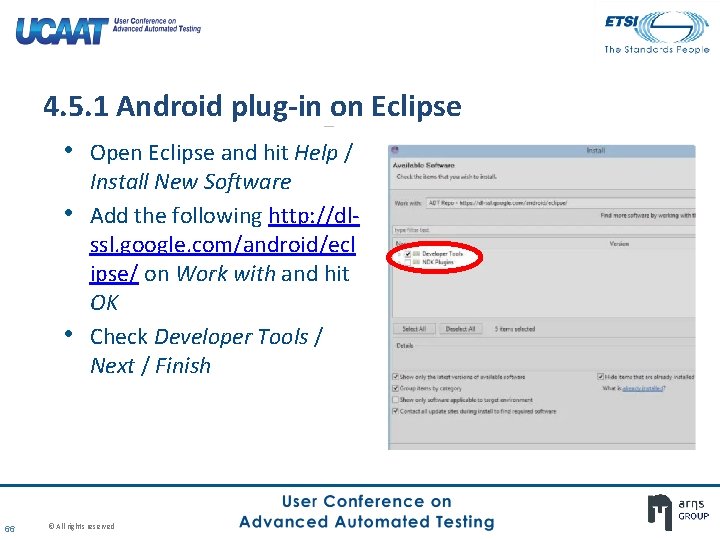
4. 5. 1 Android plug-in on Eclipse • Open Eclipse and hit Help / • • 66 Install New Software Add the following http: //dlssl. google. com/android/ecl ipse/ on Work with and hit OK Check Developer Tools / Next / Finish © All rights reserved
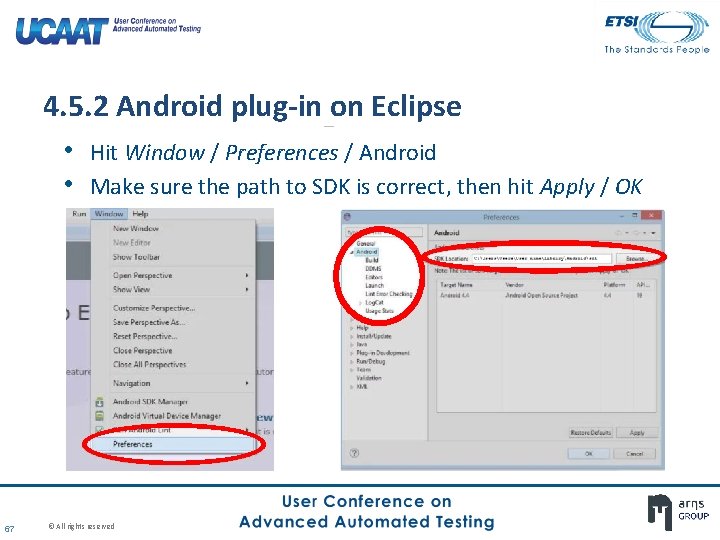
4. 5. 2 Android plug-in on Eclipse • Hit Window / Preferences / Android • Make sure the path to SDK is correct, then hit Apply / OK 67 © All rights reserved
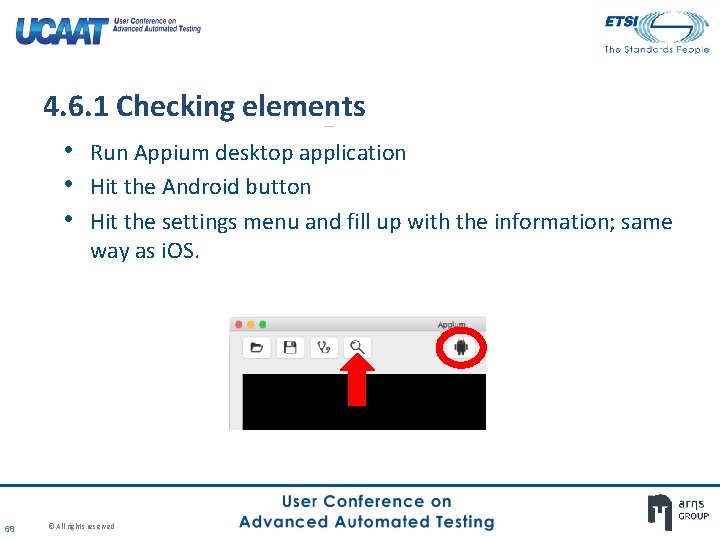
4. 6. 1 Checking elements • Run Appium desktop application • Hit the Android button • Hit the settings menu and fill up with the information; same way as i. OS. 68 © All rights reserved
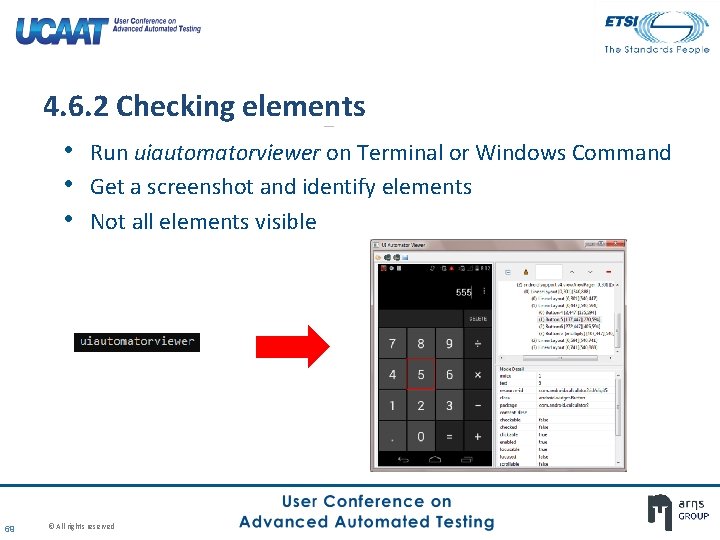
4. 6. 2 Checking elements • Run uiautomatorviewer on Terminal or Windows Command • Get a screenshot and identify elements • Not all elements visible 69 © All rights reserved
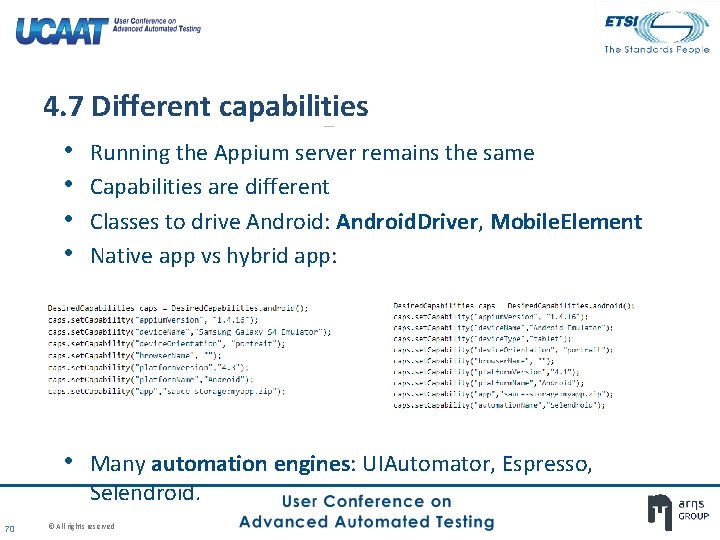
4. 7 Different capabilities • • Running the Appium server remains the same Capabilities are different Classes to drive Android: Android. Driver, Mobile. Element Native app vs hybrid app: • Many automation engines: UIAutomator, Espresso, Selendroid. 70 © All rights reserved
PART 5: TESTING THE APPS ESSENTIAL OPERATIONS WITH APPIUM © All rights reserved
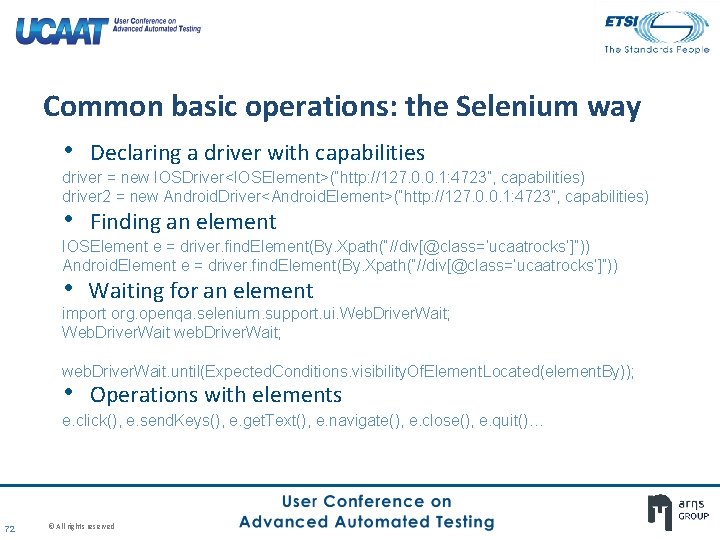
Common basic operations: the Selenium way • Declaring a driver with capabilities driver = new IOSDriver<IOSElement>(“http: //127. 0. 0. 1: 4723”, capabilities) driver 2 = new Android. Driver<Android. Element>(“http: //127. 0. 0. 1: 4723”, capabilities) • Finding an element IOSElement e = driver. find. Element(By. Xpath(“//div[@class=‘ucaatrocks’]”)) Android. Element e = driver. find. Element(By. Xpath(“//div[@class=‘ucaatrocks’]”)) • Waiting for an element import org. openqa. selenium. support. ui. Web. Driver. Wait; Web. Driver. Wait web. Driver. Wait; web. Driver. Wait. until(Expected. Conditions. visibility. Of. Element. Located(element. By)); • Operations with elements e. click(), e. send. Keys(), e. get. Text(), e. navigate(), e. close(), e. quit()… 72 © All rights reserved
PART 6: OBSTACLES AND EXPERIENCES: IOS What has to be taken into account setting up Appium and i. OS © All rights reserved
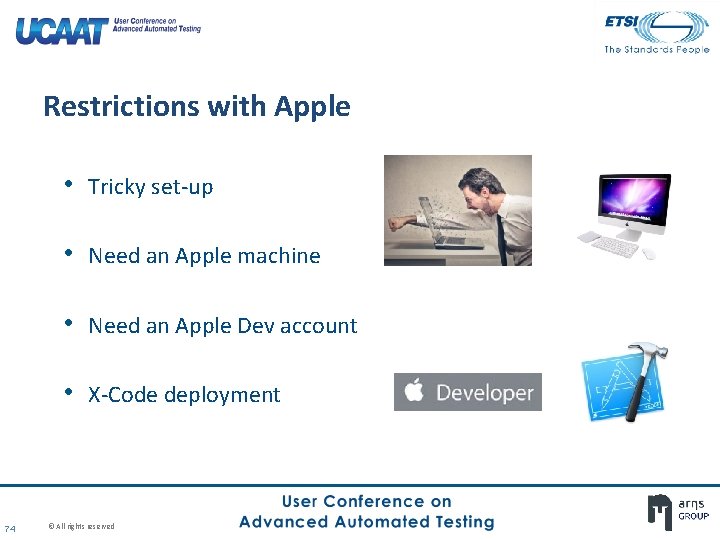
Restrictions with Apple • Tricky set-up • Need an Apple machine • Need an Apple Dev account • X-Code deployment 74 © All rights reserved
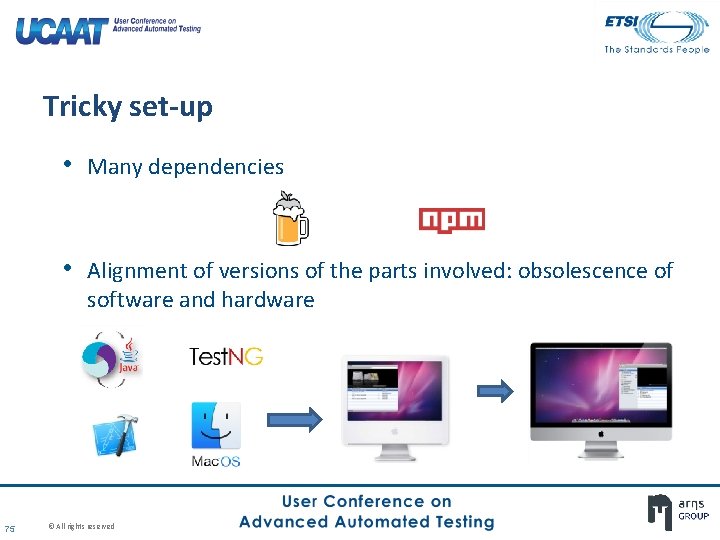
Tricky set-up • Many dependencies • Alignment of versions of the parts involved: obsolescence of software and hardware 75 © All rights reserved
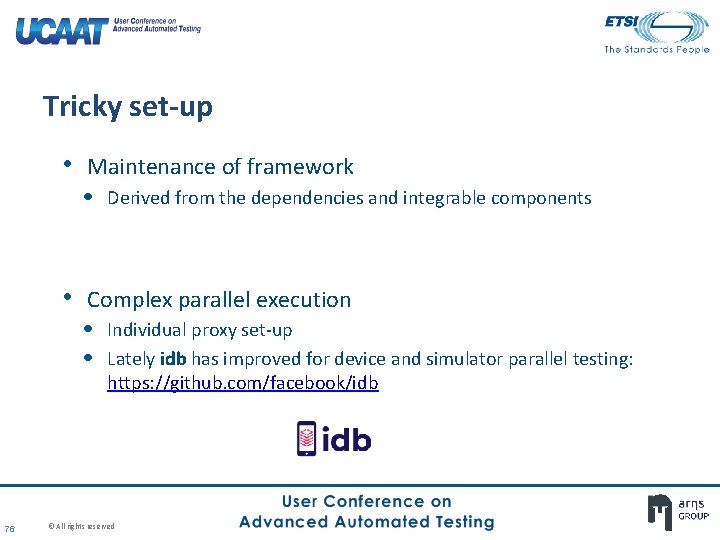
Tricky set-up • Maintenance of framework • Derived from the dependencies and integrable components • Complex parallel execution • Individual proxy set-up • Lately idb has improved for device and simulator parallel testing: https: //github. com/facebook/idb 76 © All rights reserved
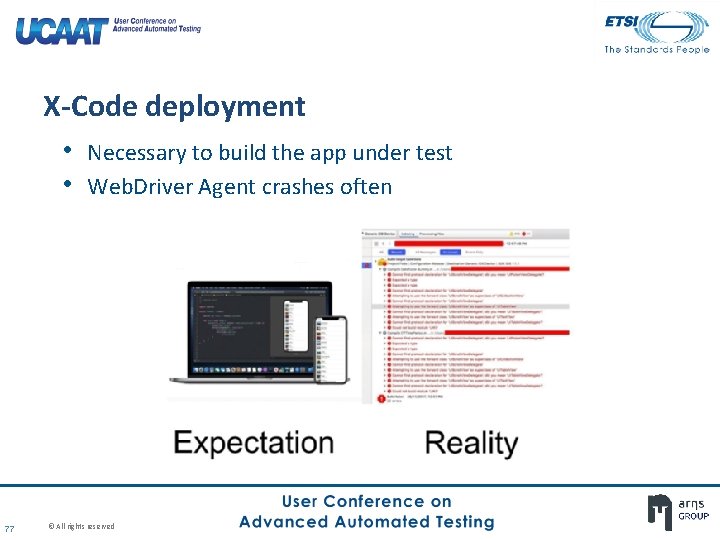
X-Code deployment • Necessary to build the app under test • Web. Driver Agent crashes often 77 © All rights reserved
Need an Apple machine • Necessary to install the app under test in the device • Appium relies on native OS X libraries to support i. OS testing • Costly 78 © All rights reserved
Need an Apple Developer account • Need to sign in on X-Code prior to test-building • Requires a paid subscription 79 © All rights reserved
PART 7: OBSTACLES AND EXPERIENCES: ANDROID What has to be taken into account setting up Appium and Android © All rights reserved
Appium Android Specific SDK for each Android version Very heavy SDK files Differences and conflicts linked to automation engines Different Android implementations (device brands) require additional coding 81 © All rights reserved
PART 7: CHALLENGES What is on the horizon? © All rights reserved
What could be improved? • Increase the simplicity for automation: • i. OS set up • Automation engines on Android • Allow automation under no Apple Developer policy? • More facilities to test with certain CI servers (Jenkins) • Improved smart device proxy selection 83 © All rights reserved
BIBLIOGRAPHY Sauce Labs www. saucelabs. com Today Software Magazine www. todaysoftmag. com Appium project http: //appium. io Research Gate www. researchgate. net Software Testing Class www. softwaretestingclass. com Android www. android. com Apple www. apple. com 84 © All rights reserved
Thank you for your attention! Any questions? 85 © All rights reserved