
Last updated February 22 2021 Survey Class Handout

Last updated February 22, 2021 Survey Class Handout OCTRI Informatics Research Support redcap@ohsu. edu
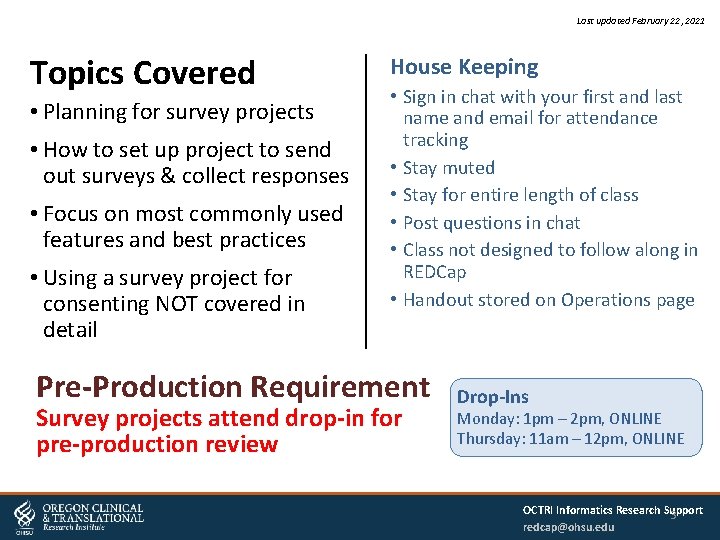
Last updated February 22, 2021 Topics Covered • Planning for survey projects • How to set up project to send out surveys & collect responses • Focus on most commonly used features and best practices • Using a survey project for consenting NOT covered in detail House Keeping • Sign in chat with your first and last name and email for attendance tracking • Stay muted • Stay for entire length of class • Post questions in chat • Class not designed to follow along in REDCap • Handout stored on Operations page Pre-Production Requirement Survey projects attend drop-in for pre-production review Drop-Ins Monday: 1 pm – 2 pm, ONLINE Thursday: 11 am – 12 pm, ONLINE OCTRI Informatics Research Support 3 redcap@ohsu. edu
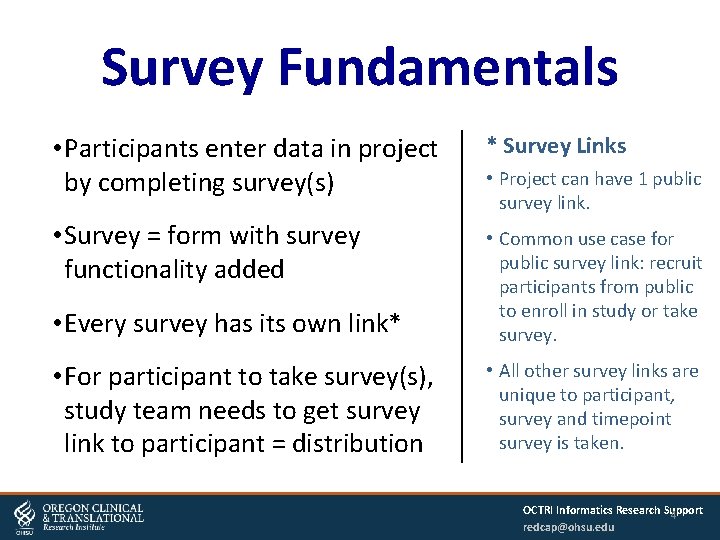
Survey Fundamentals • Participants enter data in project by completing survey(s) * Survey Links • Survey = form with survey functionality added • Every survey has its own link* • Common use case for public survey link: recruit participants from public to enroll in study or take survey. • For participant to take survey(s), study team needs to get survey link to participant = distribution • All other survey links are unique to participant, survey and timepoint survey is taken. • Project can have 1 public survey link. OCTRI Informatics Research Support 4 redcap@ohsu. edu
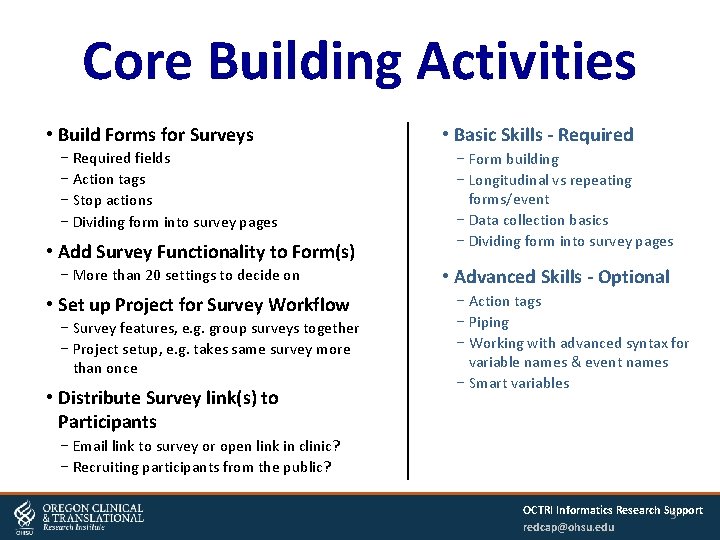
Core Building Activities • Build Forms for Surveys − Required fields − Action tags − Stop actions − Dividing form into survey pages • Add Survey Functionality to Form(s) − More than 20 settings to decide on • Set up Project for Survey Workflow − Survey features, e. g. group surveys together − Project setup, e. g. takes same survey more than once • Distribute Survey link(s) to Participants • Basic Skills - Required − Form building − Longitudinal vs repeating forms/event − Data collection basics − Dividing form into survey pages • Advanced Skills - Optional − Action tags − Piping − Working with advanced syntax for variable names & event names − Smart variables − Email link to survey or open link in clinic? − Recruiting participants from the public? OCTRI Informatics Research Support 5 redcap@ohsu. edu
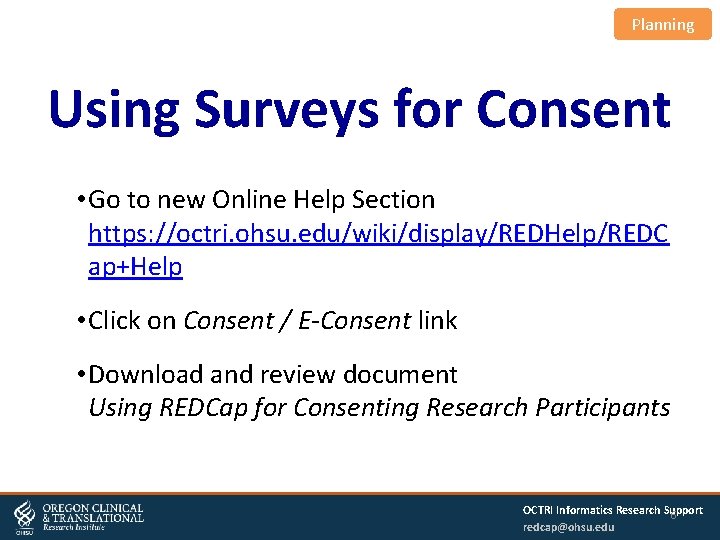
Planning Using Surveys for Consent • Go to new Online Help Section https: //octri. ohsu. edu/wiki/display/REDHelp/REDC ap+Help • Click on Consent / E-Consent link • Download and review document Using REDCap for Consenting Research Participants OCTRI Informatics Research Support 6 redcap@ohsu. edu
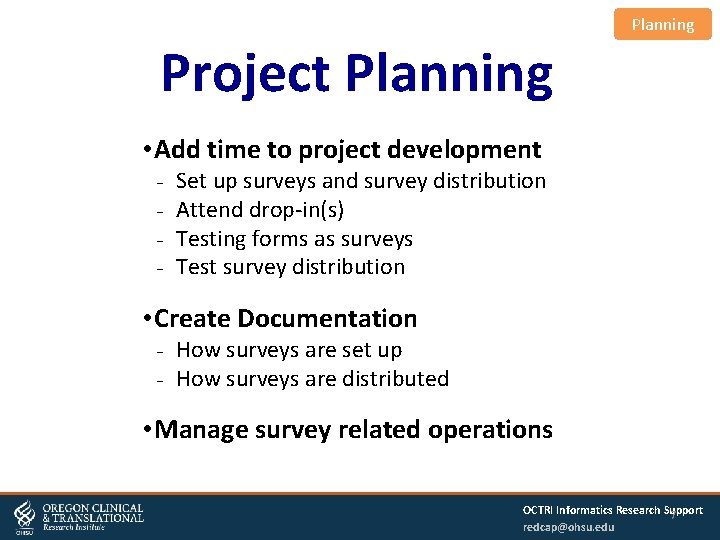
Planning Project Planning • Add time to project development - Set up surveys and survey distribution Attend drop-in(s) Testing forms as surveys Test survey distribution • Create Documentation - How surveys are set up - How surveys are distributed • Manage survey related operations OCTRI Informatics Research Support 7 redcap@ohsu. edu
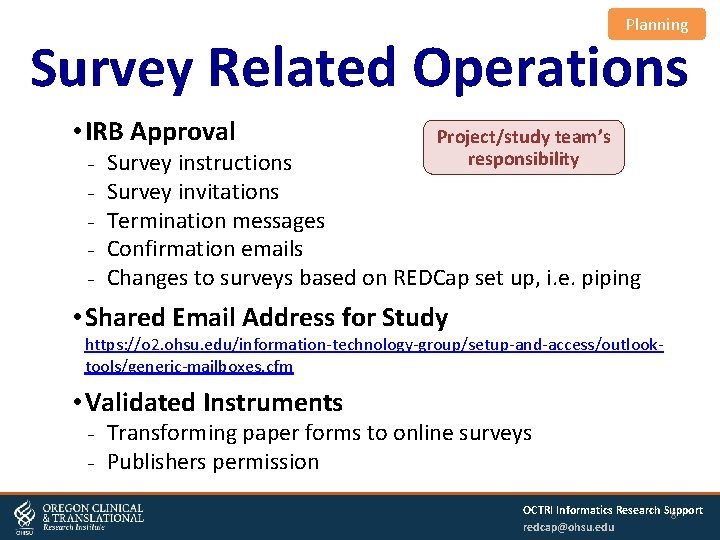
Planning Survey Related Operations • IRB Approval - Project/study team’s responsibility Survey instructions Survey invitations Termination messages Confirmation emails Changes to surveys based on REDCap set up, i. e. piping • Shared Email Address for Study https: //o 2. ohsu. edu/information-technology-group/setup-and-access/outlooktools/generic-mailboxes. cfm • Validated Instruments - Transforming paper forms to online surveys - Publishers permission OCTRI Informatics Research Support 8 redcap@ohsu. edu
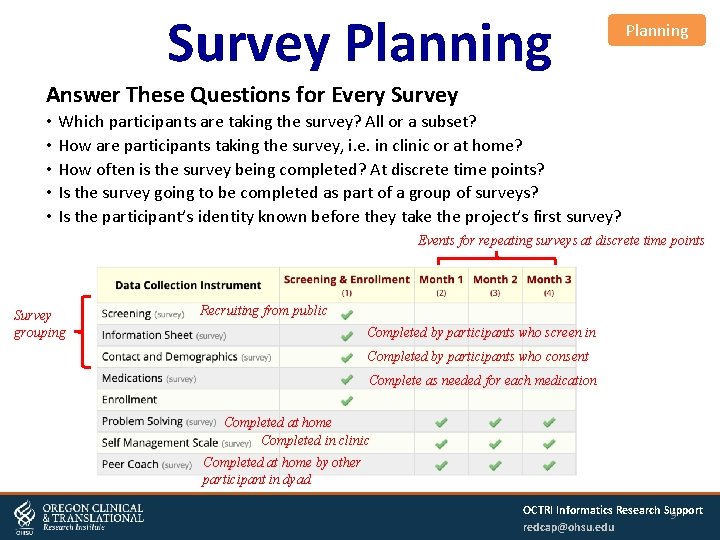
Survey Planning Answer These Questions for Every Survey • • • Which participants are taking the survey? All or a subset? How are participants taking the survey, i. e. in clinic or at home? How often is the survey being completed? At discrete time points? Is the survey going to be completed as part of a group of surveys? Is the participant’s identity known before they take the project’s first survey? Events for repeating surveys at discrete time points Survey grouping Recruiting from public Completed by participants who screen in Completed by participants who consent Complete as needed for each medication Completed at home Completed in clinic Completed at home by other participant in dyad OCTRI Informatics Research Support 9 redcap@ohsu. edu
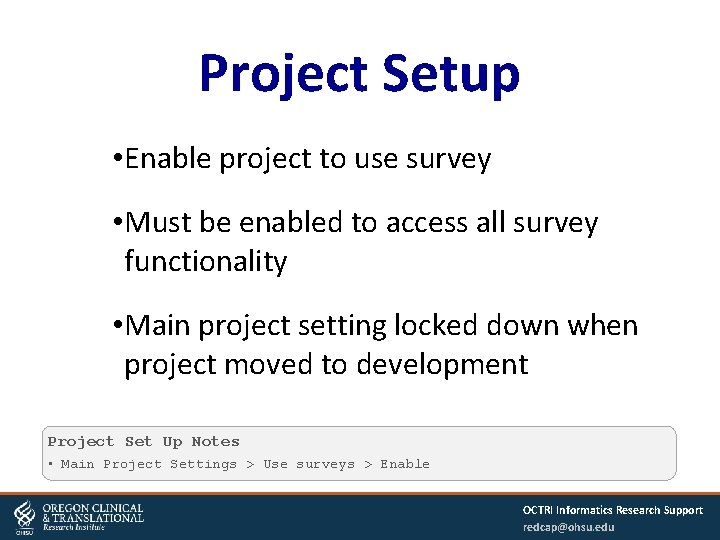
Project Setup • Enable project to use survey • Must be enabled to access all survey functionality • Main project setting locked down when project moved to development Project Set Up Notes • Main Project Settings > Use surveys > Enable OCTRI Informatics Research Support redcap@ohsu. edu
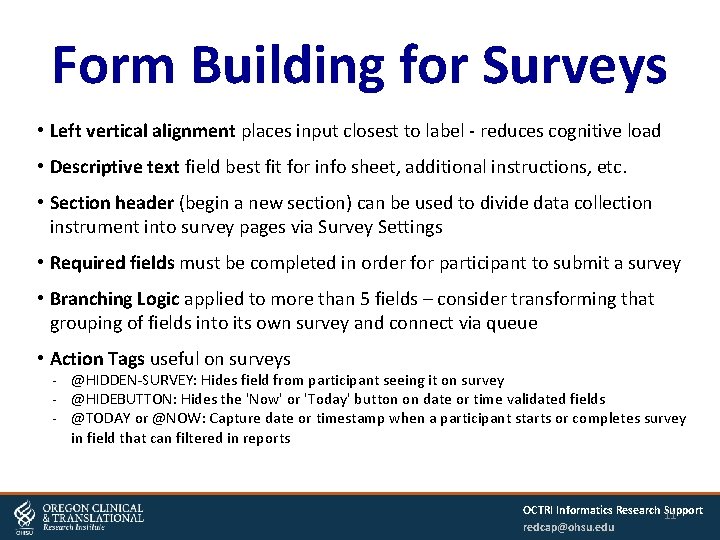
Form Building for Surveys • Left vertical alignment places input closest to label - reduces cognitive load • Descriptive text field best fit for info sheet, additional instructions, etc. • Section header (begin a new section) can be used to divide data collection instrument into survey pages via Survey Settings • Required fields must be completed in order for participant to submit a survey • Branching Logic applied to more than 5 fields – consider transforming that grouping of fields into its own survey and connect via queue • Action Tags useful on surveys @HIDDEN-SURVEY: Hides field from participant seeing it on survey @HIDEBUTTON: Hides the 'Now' or 'Today' button on date or time validated fields @TODAY or @NOW: Capture date or timestamp when a participant starts or completes survey in field that can filtered in reports OCTRI Informatics Research Support 11 redcap@ohsu. edu
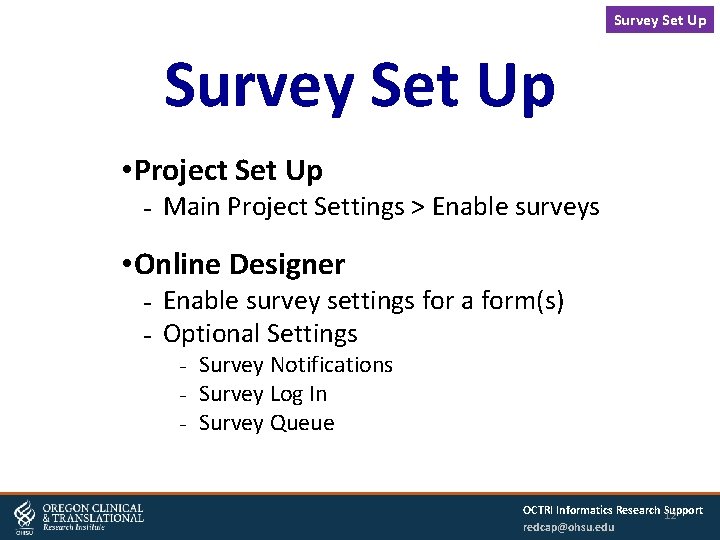
Survey Set Up • Project Set Up Main Project Settings > Enable surveys • Online Designer Enable survey settings for a form(s) Optional Settings Survey Notifications Survey Log In Survey Queue OCTRI Informatics Research Support 12 redcap@ohsu. edu
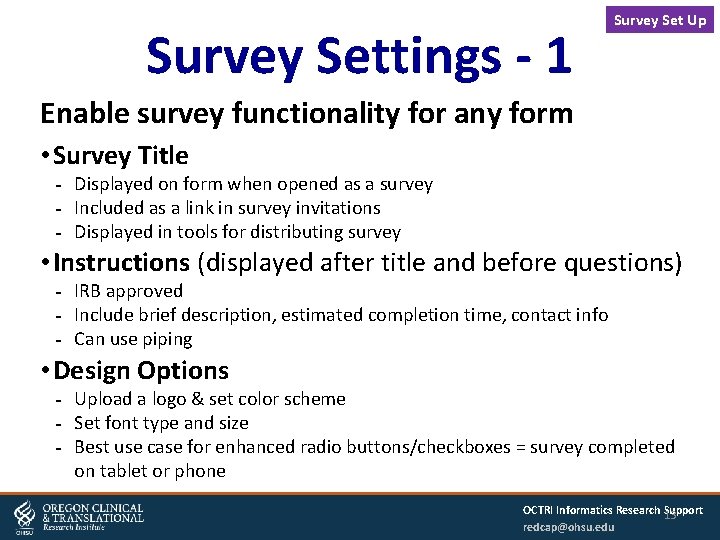
Survey Settings - 1 Survey Set Up Enable survey functionality for any form • Survey Title Displayed on form when opened as a survey Included as a link in survey invitations Displayed in tools for distributing survey • Instructions (displayed after title and before questions) IRB approved Include brief description, estimated completion time, contact info Can use piping • Design Options Upload a logo & set color scheme Set font type and size Best use case for enhanced radio buttons/checkboxes = survey completed on tablet or phone OCTRI Informatics Research Support 13 redcap@ohsu. edu
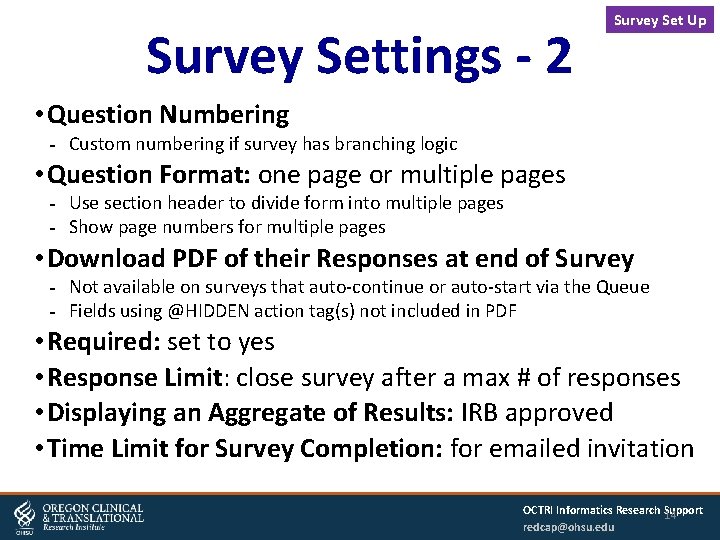
Survey Settings - 2 Survey Set Up • Question Numbering Custom numbering if survey has branching logic • Question Format: one page or multiple pages Use section header to divide form into multiple pages Show page numbers for multiple pages • Download PDF of their Responses at end of Survey Not available on surveys that auto-continue or auto-start via the Queue Fields using @HIDDEN action tag(s) not included in PDF • Required: set to yes • Response Limit: close survey after a max # of responses • Displaying an Aggregate of Results: IRB approved • Time Limit for Survey Completion: for emailed invitation OCTRI Informatics Research Support 14 redcap@ohsu. edu
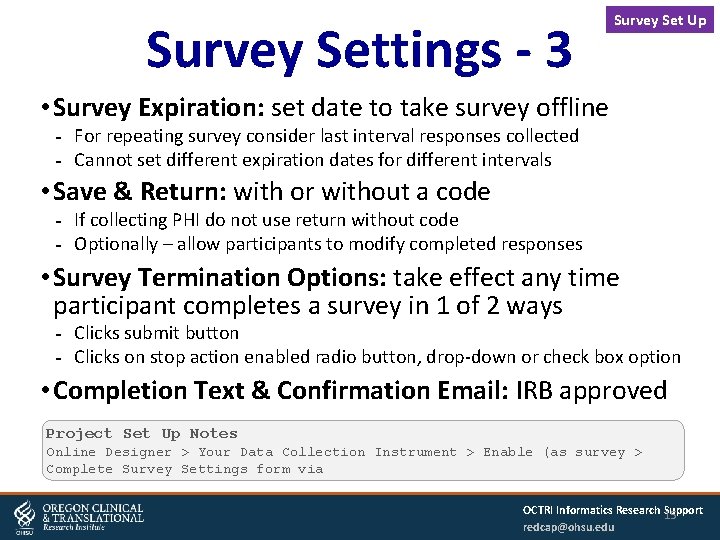
Survey Settings - 3 Survey Set Up • Survey Expiration: set date to take survey offline For repeating survey consider last interval responses collected Cannot set different expiration dates for different intervals • Save & Return: with or without a code If collecting PHI do not use return without code Optionally – allow participants to modify completed responses • Survey Termination Options: take effect any time participant completes a survey in 1 of 2 ways Clicks submit button Clicks on stop action enabled radio button, drop-down or check box option • Completion Text & Confirmation Email: IRB approved Project Set Up Notes Online Designer > Your Data Collection Instrument > Enable (as survey > Complete Survey Settings form via OCTRI Informatics Research Support 15 redcap@ohsu. edu
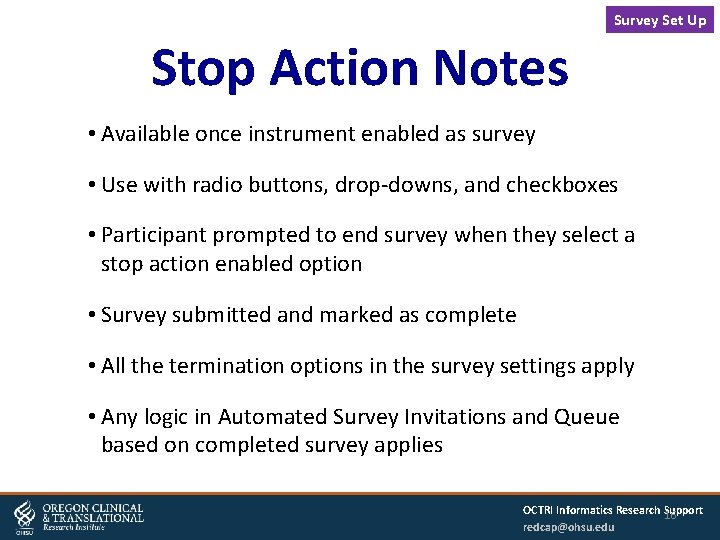
Survey Set Up Stop Action Notes • Available once instrument enabled as survey • Use with radio buttons, drop-downs, and checkboxes • Participant prompted to end survey when they select a stop action enabled option • Survey submitted and marked as complete • All the termination options in the survey settings apply • Any logic in Automated Survey Invitations and Queue based on completed survey applies OCTRI Informatics Research Support 16 redcap@ohsu. edu
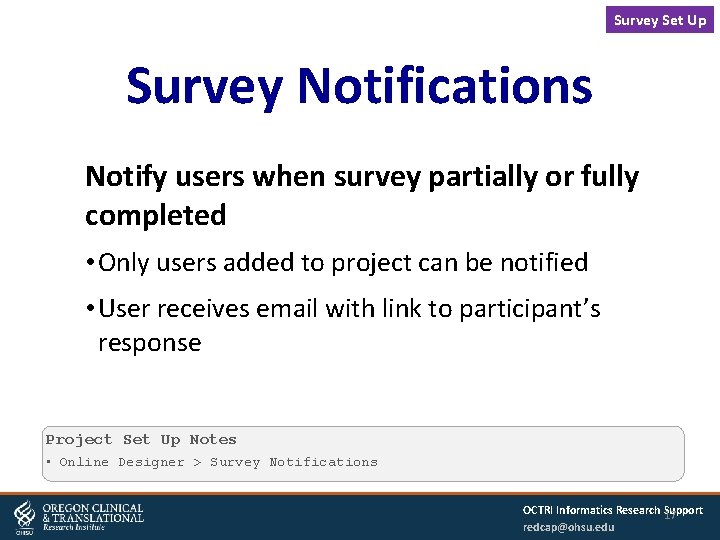
Survey Set Up Survey Notifications Notify users when survey partially or fully completed • Only users added to project can be notified • User receives email with link to participant’s response Project Set Up Notes • Online Designer > Survey Notifications OCTRI Informatics Research Support 17 redcap@ohsu. edu
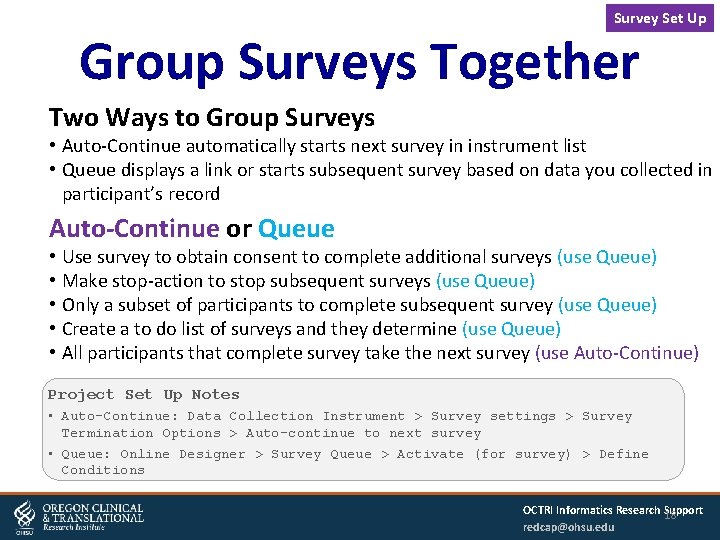
Survey Set Up Group Surveys Together Two Ways to Group Surveys • Auto-Continue automatically starts next survey in instrument list • Queue displays a link or starts subsequent survey based on data you collected in participant’s record Auto-Continue or Queue • Use survey to obtain consent to complete additional surveys (use Queue) • Make stop-action to stop subsequent surveys (use Queue) • Only a subset of participants to complete subsequent survey (use Queue) • Create a to do list of surveys and they determine (use Queue) • All participants that complete survey take the next survey (use Auto-Continue) Project Set Up Notes • Auto-Continue: Data Collection Instrument > Survey settings > Survey Termination Options > Auto-continue to next survey • Queue: Online Designer > Survey Queue > Activate (for survey) > Define Conditions OCTRI Informatics Research Support 18 redcap@ohsu. edu
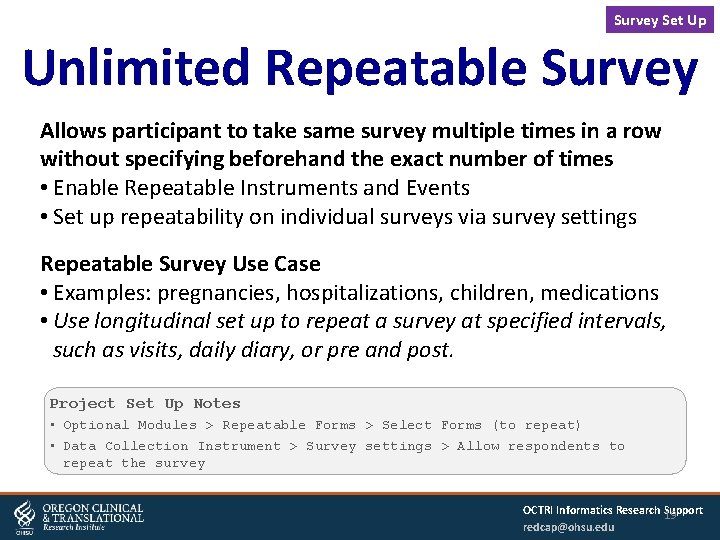
Survey Set Up Unlimited Repeatable Survey Allows participant to take same survey multiple times in a row without specifying beforehand the exact number of times • Enable Repeatable Instruments and Events • Set up repeatability on individual surveys via survey settings Repeatable Survey Use Case • Examples: pregnancies, hospitalizations, children, medications • Use longitudinal set up to repeat a survey at specified intervals, such as visits, daily diary, or pre and post. Project Set Up Notes • Optional Modules > Repeatable Forms > Select Forms (to repeat) • Data Collection Instrument > Survey settings > Allow respondents to repeat the survey OCTRI Informatics Research Support 19 redcap@ohsu. edu
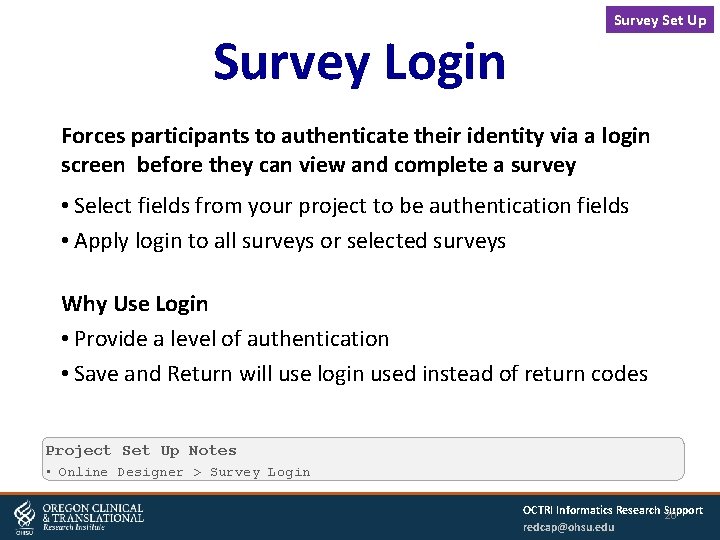
Survey Login Survey Set Up Forces participants to authenticate their identity via a login screen before they can view and complete a survey • Select fields from your project to be authentication fields • Apply login to all surveys or selected surveys Why Use Login • Provide a level of authentication • Save and Return will use login used instead of return codes Project Set Up Notes • Online Designer > Survey Login OCTRI Informatics Research Support 20 redcap@ohsu. edu
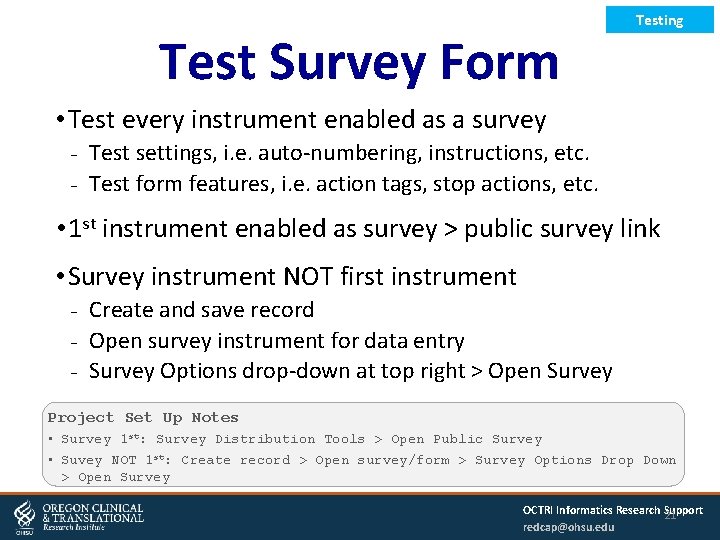
Test Survey Form Testing • Test every instrument enabled as a survey Test settings, i. e. auto-numbering, instructions, etc. Test form features, i. e. action tags, stop actions, etc. • 1 st instrument enabled as survey > public survey link • Survey instrument NOT first instrument Create and save record Open survey instrument for data entry Survey Options drop-down at top right > Open Survey Project Set Up Notes • Survey 1 st: Survey Distribution Tools > Open Public Survey • Suvey NOT 1 st: Create record > Open survey/form > Survey Options Drop Down > Open Survey OCTRI Informatics Research Support 21 redcap@ohsu. edu
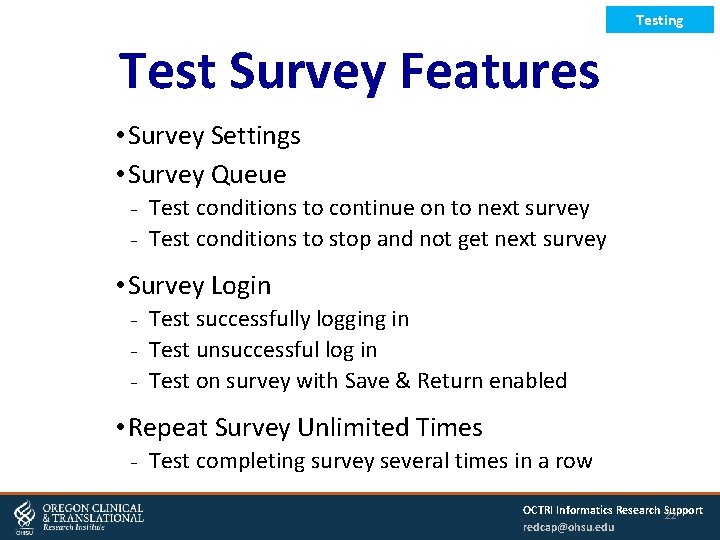
Testing Test Survey Features • Survey Settings • Survey Queue Test conditions to continue on to next survey Test conditions to stop and not get next survey • Survey Login Test successfully logging in Test unsuccessful log in Test on survey with Save & Return enabled • Repeat Survey Unlimited Times Test completing survey several times in a row OCTRI Informatics Research Support 22 redcap@ohsu. edu
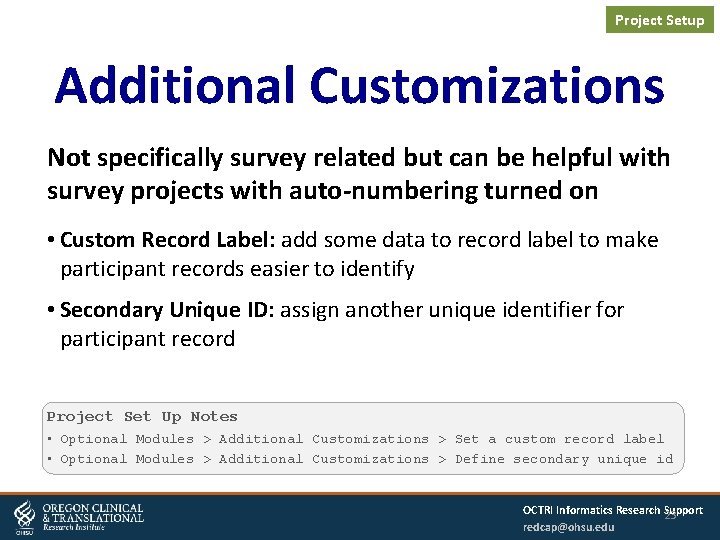
Project Setup Additional Customizations Not specifically survey related but can be helpful with survey projects with auto-numbering turned on • Custom Record Label: add some data to record label to make participant records easier to identify • Secondary Unique ID: assign another unique identifier for participant record Project Set Up Notes • Optional Modules > Additional Customizations > Set a custom record label • Optional Modules > Additional Customizations > Define secondary unique id OCTRI Informatics Research Support 23 redcap@ohsu. edu
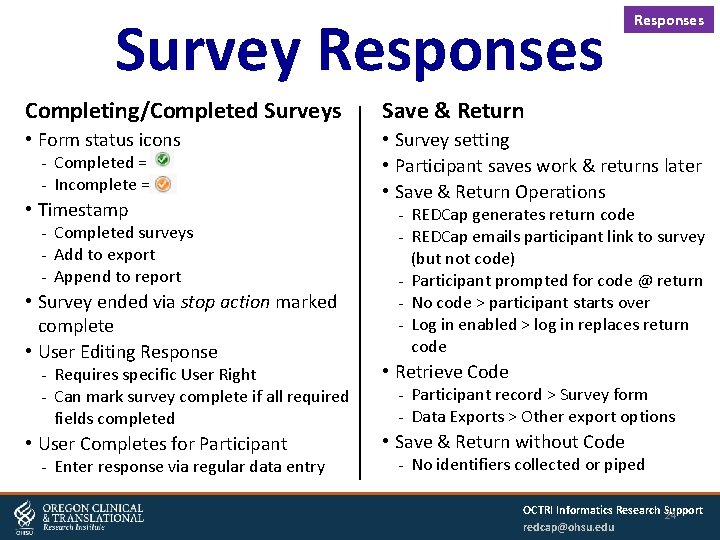
Survey Responses Completing/Completed Surveys Save & Return • Form status icons • Survey setting • Participant saves work & returns later • Save & Return Operations Completed = Incomplete = • Timestamp Completed surveys Add to export Append to report • Survey ended via stop action marked complete • User Editing Response Requires specific User Right Can mark survey complete if all required fields completed • User Completes for Participant Enter response via regular data entry REDCap generates return code REDCap emails participant link to survey (but not code) Participant prompted for code @ return No code > participant starts over Log in enabled > log in replaces return code • Retrieve Code Participant record > Survey form Data Exports > Other export options • Save & Return without Code No identifiers collected or piped OCTRI Informatics Research Support 24 redcap@ohsu. edu
Distribution Distributing Surveys Getting your surveys to your participants • Public survey link • Collect survey data in person • Email or SMS invitations through REDCap Come to drop-in for help setting up distribution Test all distribution methods used in your project OCTRI Informatics Research Support 25 redcap@ohsu. edu
Distribution Functionality • Online Designer Automated Survey Invitations • Survey Distribution Tools Public Survey Link Participant List Survey Invitation Log • User Rights Right to Survey Distribution Tools OCTRI Informatics Research Support 26 redcap@ohsu. edu
Distribution Plan Distribution • Are your participants known or unknown to you before they take the first survey in your project? - Enrolled participants = known - List of email addressed to send individual invitations = known - Recruiting participants via posting link to listserv, Facebook, dept website = unknown - Collecting anonymous responses = unknown • For every survey, how are you getting it to your participant(s)? OCTRI Informatics Research Support 27 redcap@ohsu. edu
Distribution Public Survey Link Unknown participants only • Participant is not known to you before they complete survey • First instrument in Online Designer > List of instruments enabled as survey • Only this survey gets a public survey link (for subsequent surveys, the links are unique for each participant) • Post link to survey whereever you have IRB permission (Facebook, a distribution list, department website, etc. ) Project Set Up Notes • Left Nav > Survey Distribution Tools > Public Survey Link OCTRI Informatics Research Support 28 redcap@ohsu. edu
Public Link Notes Distribution When 1 st form/instrument is survey • Link same in dev & prod • Link changes if change which form/survey is 1 st • QR Code Link converted to QR code • Short Survey Link Test in browsers and devices • Embed Code For HTML link • Custom Survey Link Best practice – do not create this until you have finalized project Link is permanent • Can’t be edited • Can be removed from project by not deleted • Can’t be re-used for a different survey link Link breaks if you change which form/survey is in 1 st position Project Set Up Notes • Survey Distribution Tools > Public Survey Link OCTRI Informatics Research Support 29 redcap@ohsu. edu
In-Person Surveys Distribution Unknown: Open Public Survey + Log Out • OR bookmark public survey link on public device Known: Log Out & Open Survey Link • Open individual record • Open form that is survey • Survey link in Survey Options drop-down • Survey link is unique to each participant/survey Project Set Up Notes (known) • Navigate to record > Navigate to survey/form > Survey Options (dropdown) > Log Out + Open Survey OCTRI Informatics Research Support 30 redcap@ohsu. edu
Distribution Email or SMS Methods Automated Survey Invitations (ASI) • Manage scheduling invitations via data entry • Set up conditions that check data entered in each record • Any time a record is created or updated, REDCap checks if data meets conditions to schedule or cancel invitation Send Invitations On Demand • Compose message and schedule when to send • Send bulk invitations through the Participant List • Send individual invitations via participant record/survey or Participant List *SMS / Texting • Uses a Twilio a third party service • Charges for Twilio include a one time OCTRI charge for set up and Twilio charges for a Twilio number and for SMS messages • Request Twilio via link on Project Setup > Optional Modules OCTRI Informatics Research Support 31 redcap@ohsu. edu
Distribution Why Use ASI’s • Rolling Enrollment Send invitation X number of days after participant enrolled • Based on Participant Event Send invitation X number of days after specific time point, i. e. discharge date • Limit Surveys to Sub-groups of Participants Send invitation based on participant characteristics, i. e. age or diagnosis • Account for Drop Outs and Opt Outs Don’t send invitations to participants who have dropped out or opted out • Restrictive User Permissions Send invitations without user needing to understand survey distribution OCTRI Informatics Research Support 32 redcap@ohsu. edu
Distribution Participant Email Address • Best Practice – Enter Email via Data Entry - Capture email at individual record level in form field Designate this email field to use for all survey invitations REDCap adds email to Participant List Dyad, Triad. . . Data Collection • Specify email address field in the individual survey setting • Over-rides email designated at project level • Directly Add Email to Participant List - Only available if 1 st form has been enabled as a survey - Use case: single & one time mass email not tracking drop or opt outs Project Set Up Notes • Best Practice: Project Setup > Optional Modules > Designate email field… • Survey Level: Project Setup > Online Designer > Survey/Form > Survey Settings> Survey specific email field OCTRI Informatics Research Support 33 redcap@ohsu. edu
Distribution ASI Setup • Sender = any user on the project • Defining Conditions (logic) that trigger invitation to be scheduled Check for participant email Check for drop outs and/or opt outs Create field to explicitly control scheduling invitation Survey complete logic triggered by • Participant completing survey • Participant answering question with stop-action • Staff marking survey as complete Ensure logic still true before sending email invitation • Schedule sending invitation: immediately, after a delay, on specific day • Set ASI to active • ASI feature does not check if invitation manually scheduled Project Set Up Notes • Online Designer > Survey Instrument > Automated Invitations OCTRI Informatics Research Support 34 redcap@ohsu. edu
ASI Tips Distribution • Editing In. ASI Inv Applies to ASI and Manually scheduled invitations Can’t edit messages Can’t change sender • Deleting Scheduled Invitations Manually scheduled invitation can only be deleted via Survey Invitation Log Delete ASI invitation via data entry so record no longer meets ASI conditions If ASI invitation deleted via Survey Invitation Log, it cannot be rescheduled via ASI functionality • Rescheduling Individual invitations can be rescheduled via Survey Invitation Log Bulk manually scheduled invitations need to deleted and new invitation scheduled Bulk ASI invitations rescheduled via data entry so records no longer meet ASI conditions, ASI edited, then data entry so records meet ASI conditions OCTRI Informatics Research Support 35 redcap@ohsu. edu
Distribution ASI Tips • Best practice: include a kill switch field in the ASI logic so invitations can be canceled via data entry. • Message or sender for already scheduled invitations can’t be edited by editing the ASI. • Already scheduled invitations can’t be deleted by de-activating the ASI. Delete an already scheduled invitation by editing the record to make the ASI logic evaluate to be false. • For bulk edits and reschedule Delete already schedule invitations by editing individual records via importing. Edit the ASI. Import data into individual records by importing. OCTRI Informatics Research Support 36 redcap@ohsu. edu
Distribution Why Use On Demand • Follow Up with Individual Participant - Send save and return code - Send log in hint - Send reminder • Distribution Falls Outside of Normal Workflow - Send invitation to survey distributed as part of a group of surveys via the queue or auto-continue • Mass Email - Single & one time mass email - Don’t need to track drop-outs or opt outs - Does not meet the criteria for setting up an ASI OCTRI Informatics Research Support 37 redcap@ohsu. edu
Distribution On Demand Invitations • Send from Participant List Select Survey/Event Select Participant(s) Compose invitation • Send from Individual Record Navigate to record Navigate to survey Survey Options drop-down Compose invitation • Sender Any user on the project • Drop Out / Opt Out Manually delete invitations via Survey Invitation Log • No ASI Check No check for duplicate invitation scheduled via ASI Project Set Up Notes • Survey Distribution Tools > Participant List > Select Survey > Compose Invitation • Data Entry > Survey Form > Survey Options drop-down > Compose invitation OCTRI Informatics Research Support 38 redcap@ohsu. edu
Distribution Email Invitation Attributes • Invitation contains unique link for participant to take survey • Set up per survey, and if longitudinal, per event • Sender = user on the project • Subject line (IRB approved) - Unique and meaningful • Message (IRB approved) - Include: Brief description, study contact info, link to survey - Can personalize through piping • Schedule when invitation will be sent • Reminders (optional) - Re-sends invitation message to participants who have not completed survey • Do not send more than 500 invitations per hour - Come to drop-in to learn how to set up invitations in waves OCTRI Informatics Research Support 39 redcap@ohsu. edu
Tracking Distribution Participant List Survey Invitation Log • All Participants • All Invitations & Reminders Identified via email address • For Each Participant/Survey invitation & response statuses Unique survey link & survey access code Option to compose On Demand survey invitation • How List is Generated By REDCap via designating form field for sending invitations and entering data In rare circumstances, by user directly adding an email to the list • Filtering Options Record Survey Response Invitation Type Timeframe • Editing Options When individual invitation scheduled • Deleting Options Deleted ASI can’t be re-sent via ASI Project Set Up Notes • Left Nav > Survey Distribution Tools > Participant List tab OCTRI Informatics Research Support 40 redcap@ohsu. edu
Testing Distribution Tips • In-person data collection Test on devices that will be used for the study • Email Invitations Send invitations to yourself and other study members Test Survey Invitation Log Test Participant List • Using ASI(s) Test conditions to make scheduling invitations be true Test conditions to make scheduling invitations be false Cancel invitations OCTRI Informatics Research Support 41 redcap@ohsu. edu
Advanced Using REDCap for Consent • Download instructional document, Using REDCap for Consenting Research Participants • https: //octri. ohsu. edu/wiki/pages/viewpage. action? page. Id =109545091 • Additional help* if: Consenting minors or with an LAR Re-consenting More than one language Project is already in production *Charges apply OCTRI Informatics Research Support 42 redcap@ohsu. edu
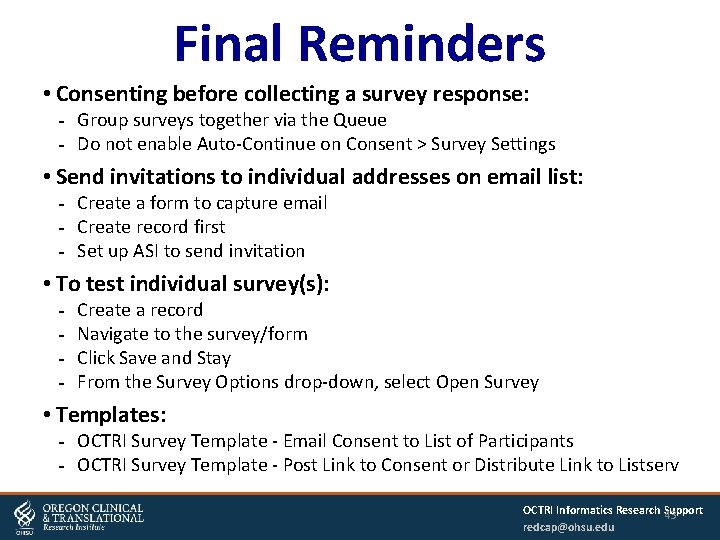
Final Reminders • Consenting before collecting a survey response: Group surveys together via the Queue Do not enable Auto-Continue on Consent > Survey Settings • Send invitations to individual addresses on email list: Create a form to capture email Create record first Set up ASI to send invitation • To test individual survey(s): Create a record Navigate to the survey/form Click Save and Stay From the Survey Options drop-down, select Open Survey • Templates: OCTRI Survey Template - Email Consent to List of Participants OCTRI Survey Template - Post Link to Consent or Distribute Link to Listserv OCTRI Informatics Research Support 43 redcap@ohsu. edu
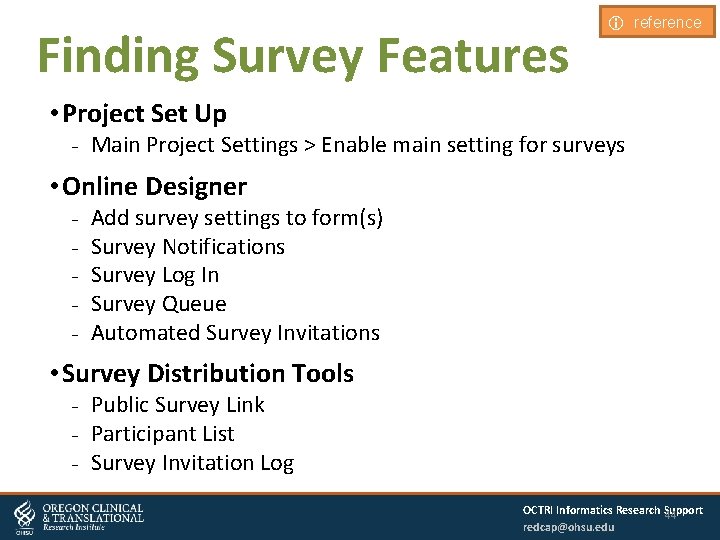
Finding Survey Features i reference • Project Set Up Main Project Settings > Enable main setting for surveys • Online Designer Add survey settings to form(s) Survey Notifications Survey Log In Survey Queue Automated Survey Invitations • Survey Distribution Tools Public Survey Link Participant List Survey Invitation Log OCTRI Informatics Research Support 44 redcap@ohsu. edu
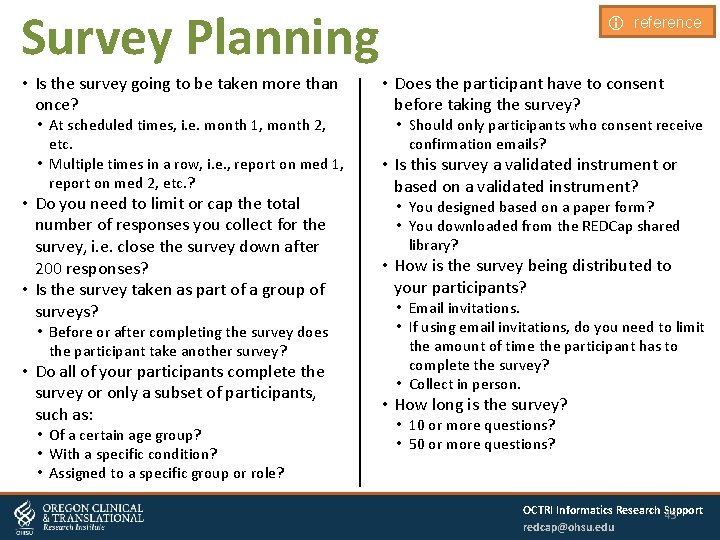
Survey Planning • Is the survey going to be taken more than once? • At scheduled times, i. e. month 1, month 2, etc. • Multiple times in a row, i. e. , report on med 1, report on med 2, etc. ? • Do you need to limit or cap the total number of responses you collect for the survey, i. e. close the survey down after 200 responses? • Is the survey taken as part of a group of surveys? • Before or after completing the survey does the participant take another survey? • Do all of your participants complete the survey or only a subset of participants, such as: • Of a certain age group? • With a specific condition? • Assigned to a specific group or role? i reference • Does the participant have to consent before taking the survey? • Should only participants who consent receive confirmation emails? • Is this survey a validated instrument or based on a validated instrument? • You designed based on a paper form? • You downloaded from the REDCap shared library? • How is the survey being distributed to your participants? • Email invitations. • If using email invitations, do you need to limit the amount of time the participant has to complete the survey? • Collect in person. • How long is the survey? • 10 or more questions? • 50 or more questions? OCTRI Informatics Research Support 45 redcap@ohsu. edu
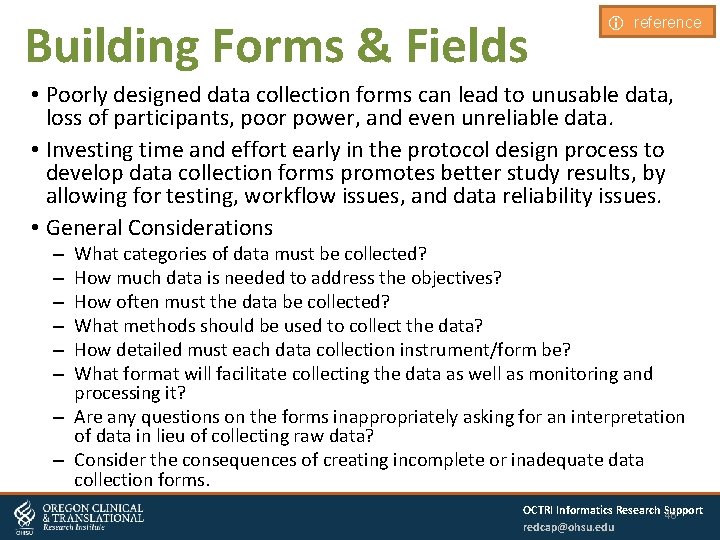
Building Forms & Fields i reference • Poorly designed data collection forms can lead to unusable data, loss of participants, poor power, and even unreliable data. • Investing time and effort early in the protocol design process to develop data collection forms promotes better study results, by allowing for testing, workflow issues, and data reliability issues. • General Considerations What categories of data must be collected? How much data is needed to address the objectives? How often must the data be collected? What methods should be used to collect the data? How detailed must each data collection instrument/form be? What format will facilitate collecting the data as well as monitoring and processing it? – Are any questions on the forms inappropriately asking for an interpretation of data in lieu of collecting raw data? – Consider the consequences of creating incomplete or inadequate data collection forms. – – – OCTRI Informatics Research Support 46 redcap@ohsu. edu
Make Forms Easy to Use i reference • Use left vertical alignment for field layout to reduce cognitive load on person enter dating and to take advantage of best practices for web form design. • Group items into sections with headings indicating the general content of the sections. • Avoid crowding questions on forms. • Use simple, uncomplicated language. • Avoid the using double negatives. • Place instructions for specific items or sections of a form next to those items or sections. • Avoid using terms that may have different meanings to different people entering data. • Do not reproduce an entire form or section of a form used in another study without permission from the study, even if the form is not copyrighted. • Items requiring an affirmation or negative response are confusing when an affirmative reply indicates the absence of a condition. • Considerations in grouping together fields into forms – – Logically what fits together by subject or topic? What fields are you repeating and how often? Do you need to blind any of the study team to certain fields? What is the source of the data being entered - participant, import, manual staff data entry? OCTRI Informatics Research Support 47 redcap@ohsu. edu
Make Forms Useful i reference • Consider the use of closed versus open systems – Closed-form item used defined list response options – Open-form item does not have a list permissible response options • Use consistent units of measurement. • Use consistent codes for similar response options. • Avoid requiring the respondent to make calculations. • Avoid mixing timeframes in a single section. • Differentiate between Unknown, Uncertain, and Missing data instead of using the phrase “Not Available”. • Collect the raw data used to make any summary calculations. • Use validation rules to ensure consistent formatting. OCTRI Informatics Research Support 48 redcap@ohsu. edu
Pre-Production Requirement Required to attend drop-in for survey setup consult before we can approve a request to move a project to production -Mondays 1 pm to 2 pm, ONLINE -Thursdays 11 am to 12 noon, ONLINE OCTRI Informatics Research Support 49 redcap@ohsu. edu
- Slides: 48