Windows Server 2003 jefflms 11 hinet net Introduction
- Slides: 44
Windows Server 2003 檔案分享管理 林寶森 jeffl@ms 11. hinet. net
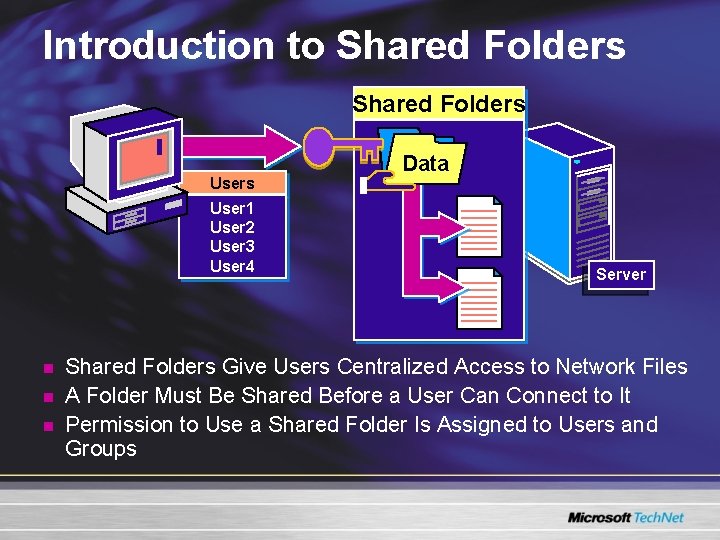
Introduction to Shared Folders Users User 1 User 2 User 3 User 4 n n n Data Server Shared Folders Give Users Centralized Access to Network Files A Folder Must Be Shared Before a User Can Connect to It Permission to Use a Shared Folder Is Assigned to Users and Groups
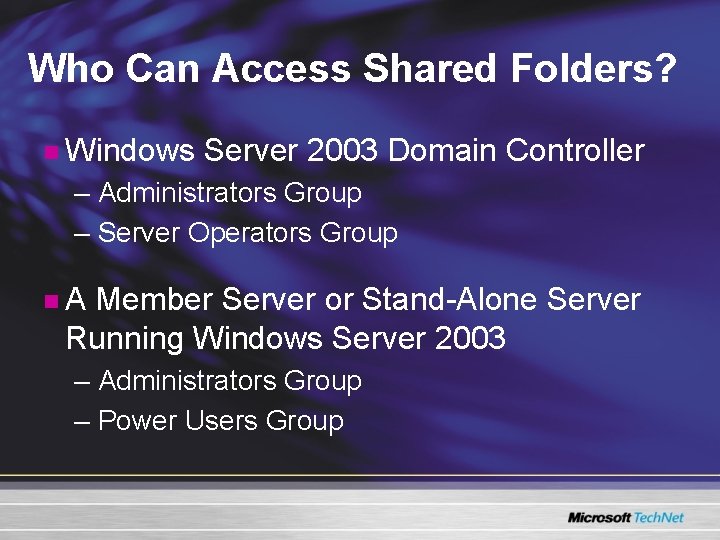
Who Can Access Shared Folders? n Windows Server 2003 Domain Controller – Administrators Group – Server Operators Group n. A Member Server or Stand-Alone Server Running Windows Server 2003 – Administrators Group – Power Users Group
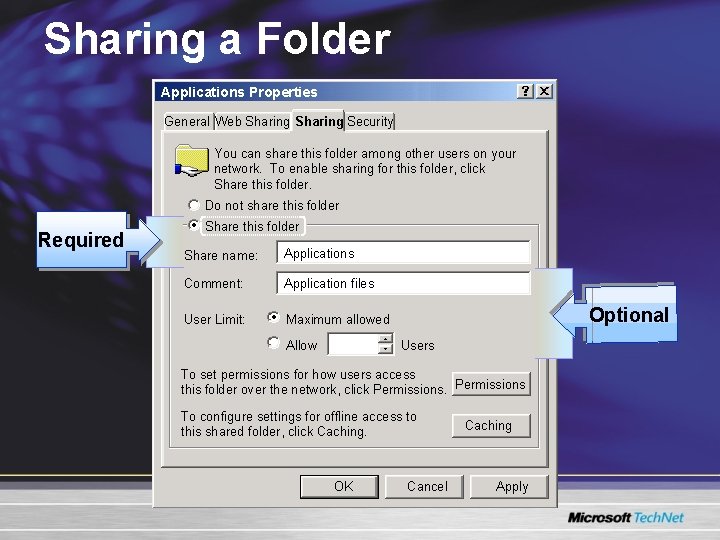
Sharing a Folder Applications Properties General Web Sharing Security You can share this folder among other users on your network. To enable sharing for this folder, click Share this folder. Do not share this folder Required Share this folder Share name: Applications Comment: Application files User Limit: Maximum allowed Allow Optional Users To set permissions for how users access this folder over the network, click Permissions To configure settings for offline access to this shared folder, click Caching. OK Cancel Caching Apply
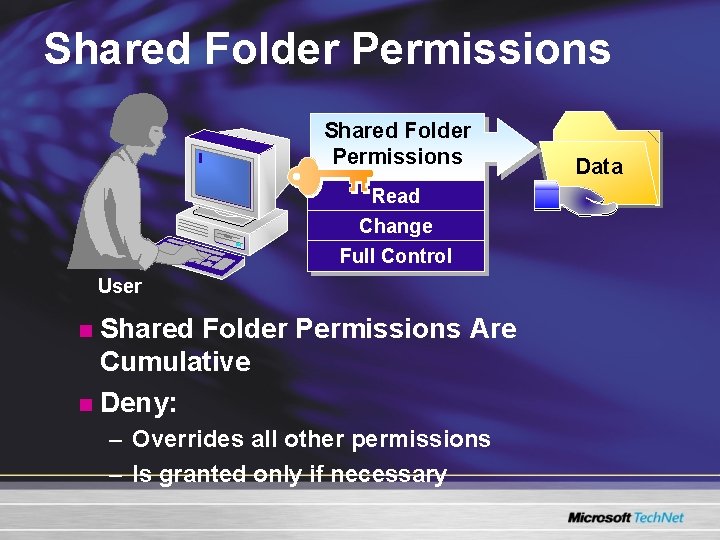
Shared Folder Permissions Read Change Full Control User Shared Folder Permissions Are Cumulative n Deny: n – Overrides all other permissions – Is granted only if necessary Data
Granting Permissions and Modifying Shared Folder Settings n When You Grant Shared Folder Permissions: – A shared folder can reside on an hard disk formatted to NTFS, FAT, or FAT 32 file system – Users also need the appropriate NTFS permission on an NTFS volume n You Can Modify Shared Folder Settings to: – – Stop sharing a folder Modify permissions Create multiple shares for a shared folder Remove a share
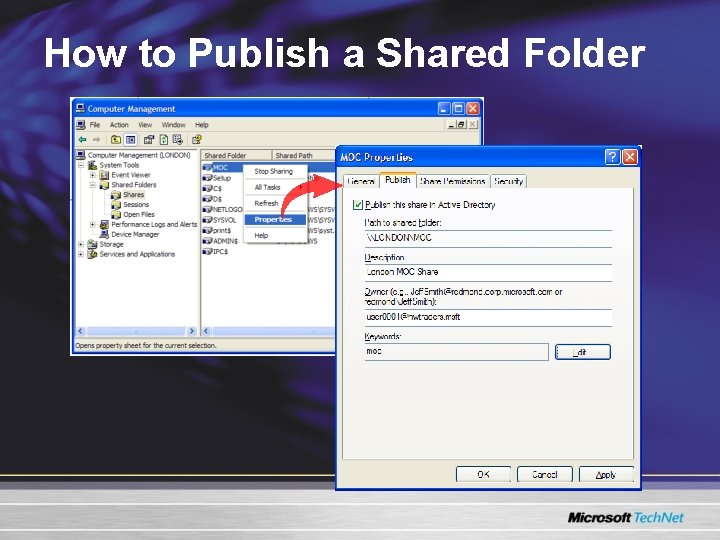
What Are Published Shared Folders? n n n A published shared folder is a shared folder object in Active Directory Clients can search Active Directory for shared folders that are published Clients do not need to know the name of the server to connect to a shared folder Publish shared folders that are relatively static and change infrequently Users can easily find shared folders even if the physical location of the folders changes You can publish any shared folders that are accessible by a UNC name
How to Publish a Shared Folder
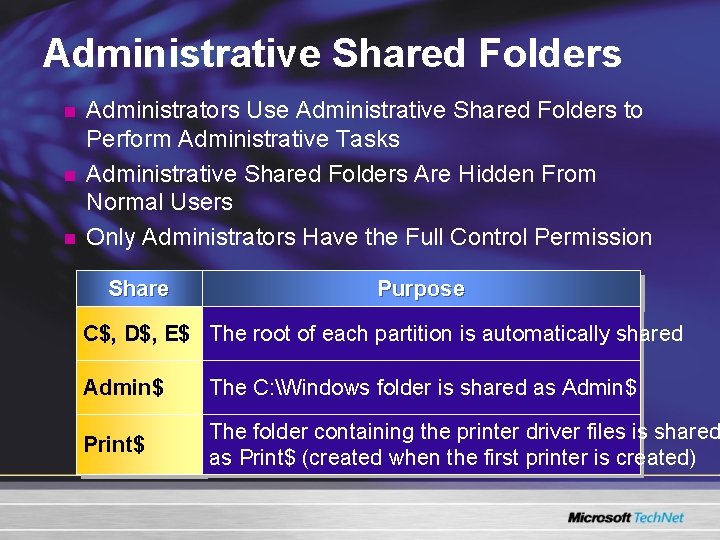
Administrative Shared Folders n n n Administrators Use Administrative Shared Folders to Perform Administrative Tasks Administrative Shared Folders Are Hidden From Normal Users Only Administrators Have the Full Control Permission Share Purpose C$, D$, E$ The root of each partition is automatically shared Admin$ The C: Windows folder is shared as Admin$ Print$ The folder containing the printer driver files is shared as Print$ (created when the first printer is created)
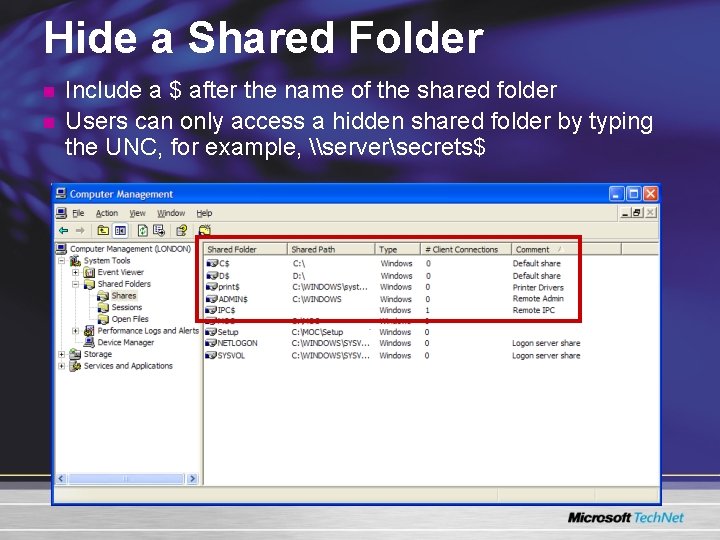
Hide a Shared Folder n n Include a $ after the name of the shared folder Users can only access a hidden shared folder by typing the UNC, for example, \serversecrets$
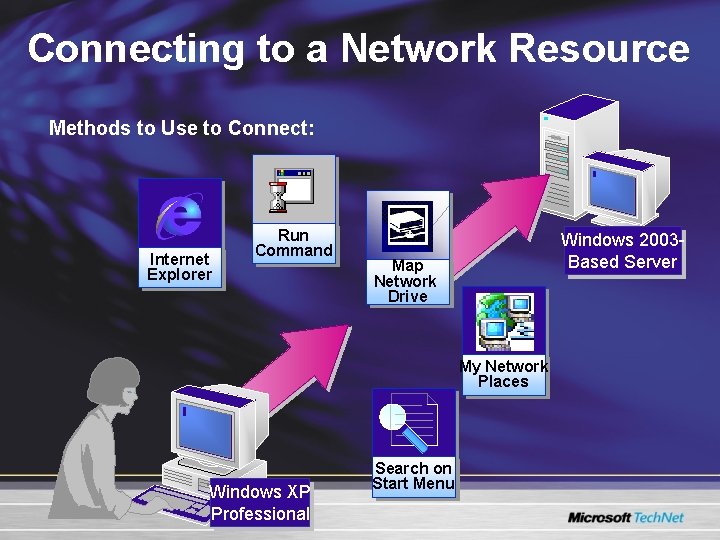
Connecting to a Network Resource Methods to Use to Connect: Internet Explorer Run Command Windows 2003 Based Server Map Network Drive My Network Places Windows XP Professional Search on Start Menu
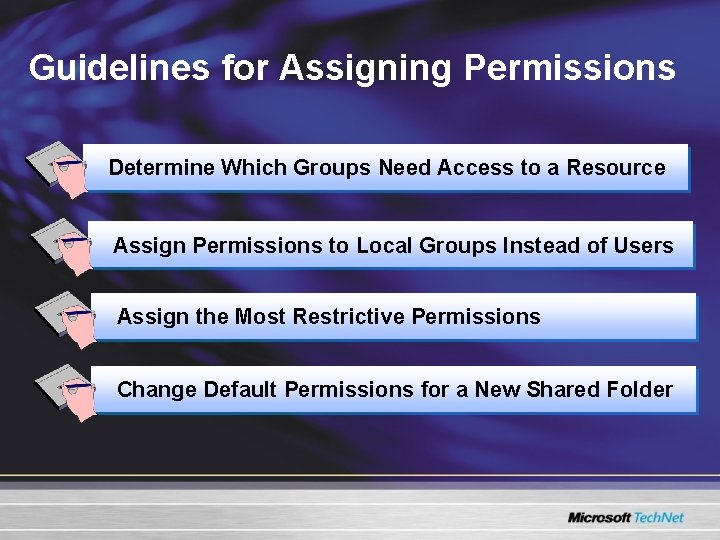
Guidelines for Assigning Permissions Determine Which Groups Need Access to a Resource Assign Permissions to Local Groups Instead of Users Assign the Most Restrictive Permissions Change Default Permissions for a New Shared Folder
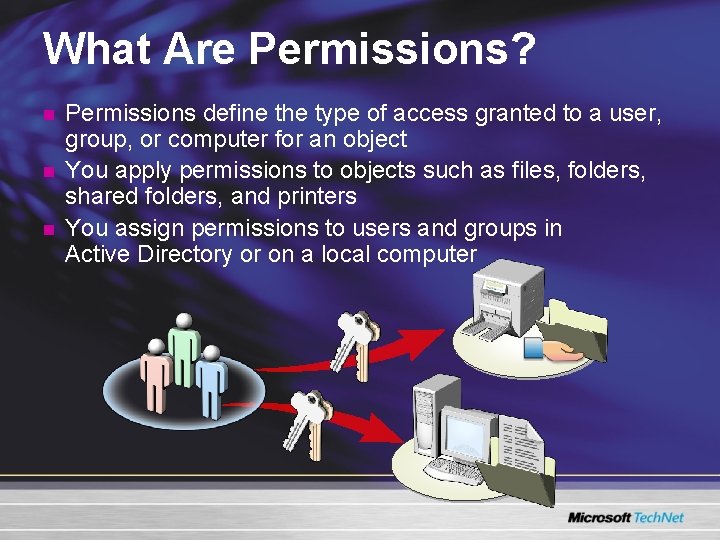
What Are Permissions? n n n Permissions define the type of access granted to a user, group, or computer for an object You apply permissions to objects such as files, folders, shared folders, and printers You assign permissions to users and groups in Active Directory or on a local computer
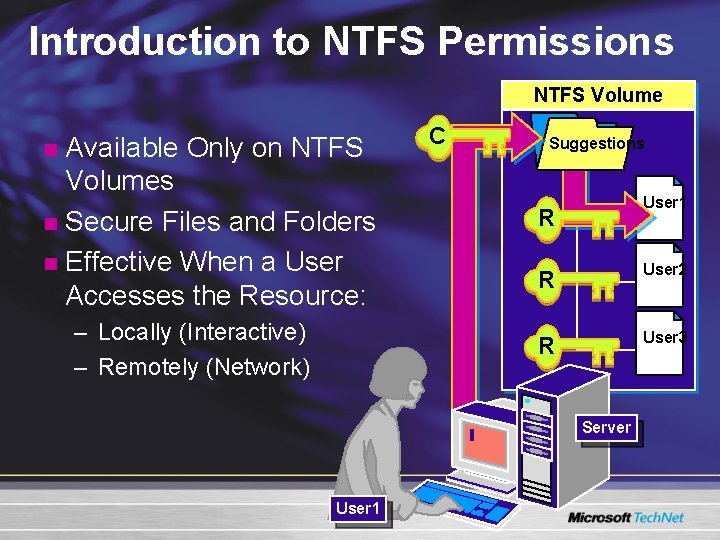
Introduction to NTFS Permissions NTFS Volume Available Only on NTFS Volumes n Secure Files and Folders n Effective When a User Accesses the Resource: n – Locally (Interactive) – Remotely (Network) C Suggestions User 1 R R User 2 R User 3 Server User 1
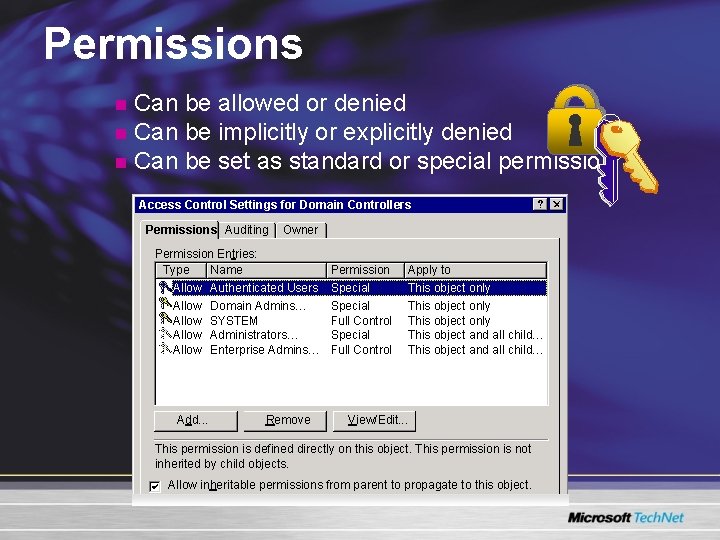
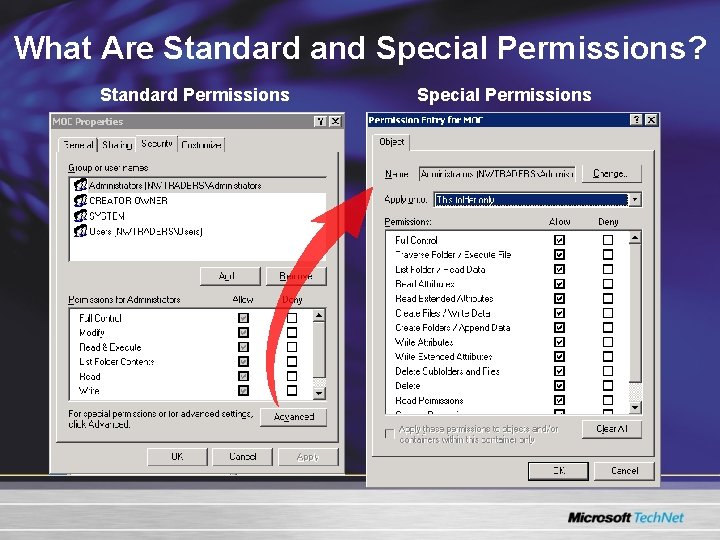
Permissions Can be allowed or denied n Can be implicitly or explicitly denied n Can be set as standard or special permission n Access Control Settings for Domain Controllers Permissions Auditing Owner Permission Entries: Type Name Permission Apply to Allow Authenticated Users Special This object only Allow Special Full Control This object only This object and all child… Add. . . Domain Admins… SYSTEM Administrators… Enterprise Admins… Remove View/Edit. . . This permission is defined directly on this object. This permission is not inherited by child objects. Allow inheritable permissions from parent to propagate to this object.
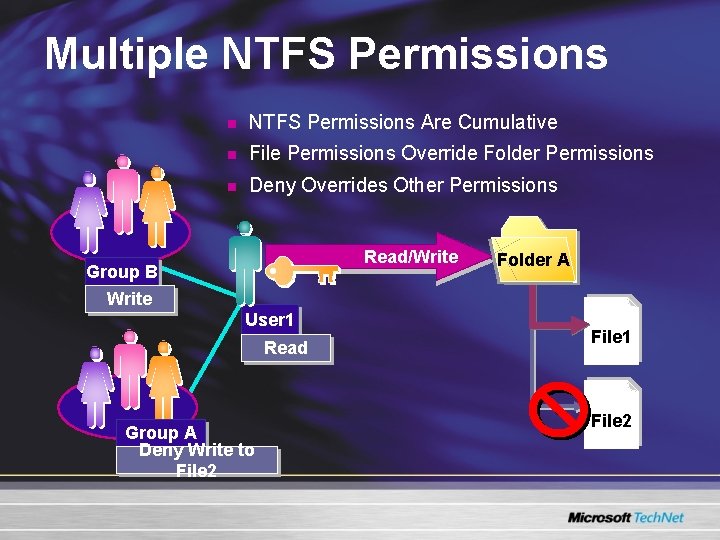
Multiple NTFS Permissions n NTFS Permissions Are Cumulative n File Permissions Override Folder Permissions n Deny Overrides Other Permissions Read/Write Group B Folder A Write User 1 Read Group A Deny Write to File 2 File 1 File 2
What Are Standard and Special Permissions? Standard Permissions Special Permissions
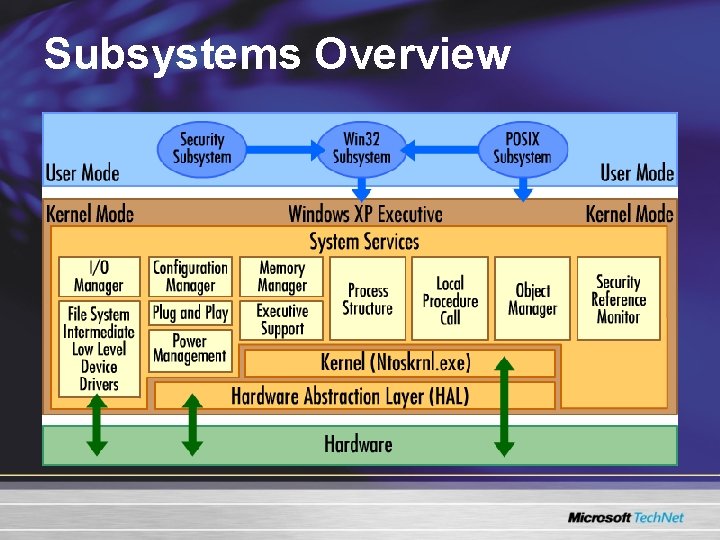
Subsystems Overview
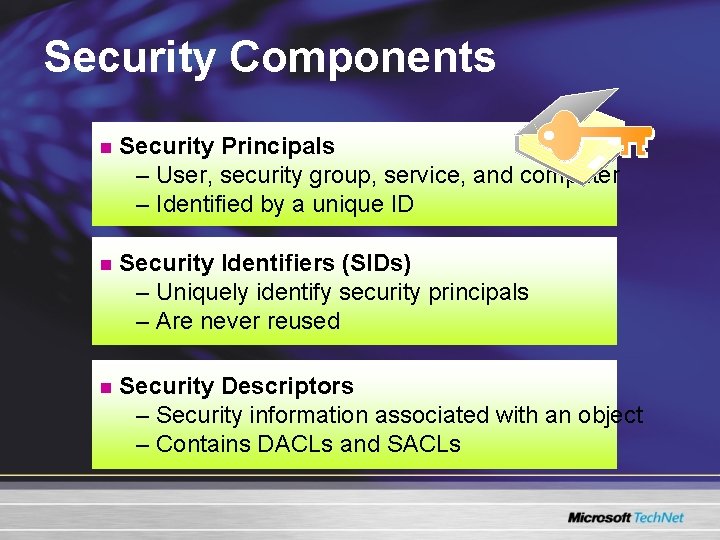
Security Components n Security Principals – User, security group, service, and computer – Identified by a unique ID n Security Identifiers (SIDs) – Uniquely identify security principals – Are never reused n Security Descriptors – Security information associated with an object – Contains DACLs and SACLs
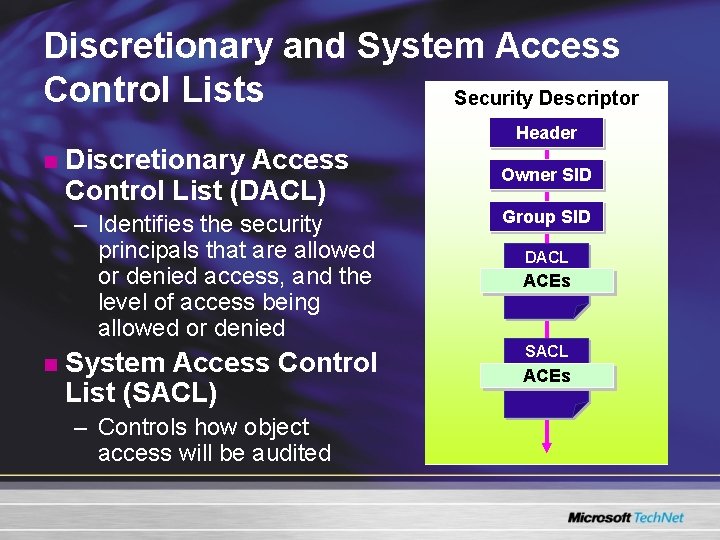
Discretionary and System Access Control Lists Security Descriptor Header n n Discretionary Access Control List (DACL) Owner SID – Identifies the security principals that are allowed or denied access, and the level of access being allowed or denied Group SID System Access Control List (SACL) SACL – Controls how object access will be audited DACL ACEs
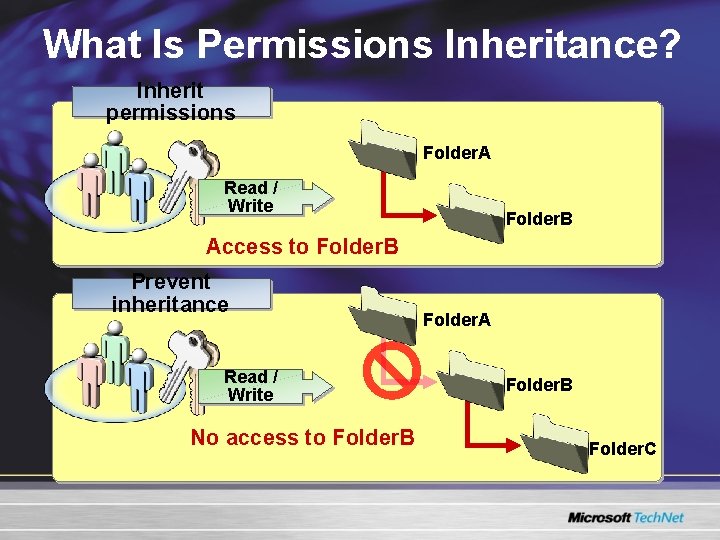
What Is Permissions Inheritance? Inherit permissions Folder. A Read / Write Folder. B Access to Folder. B Prevent inheritance Read / Write No access to Folder. B Folder. A Folder. B Folder. C
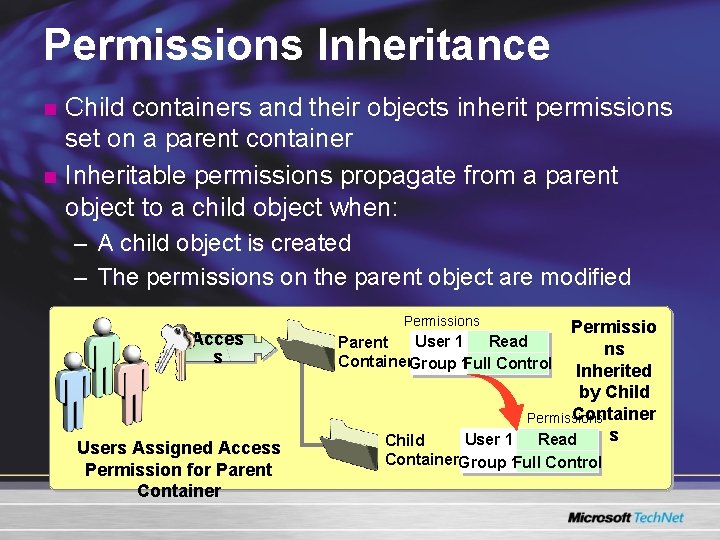
Permissions Inheritance n n Child containers and their objects inherit permissions set on a parent container Inheritable permissions propagate from a parent object to a child object when: – A child object is created – The permissions on the parent object are modified Acces s Users Assigned Access Permission for Parent Container Permissions Permissio ns Inherited by Child Container Permissions s User 1 Read Parent Container. Group 1 Full Control Child Container. Group 1 Full Control
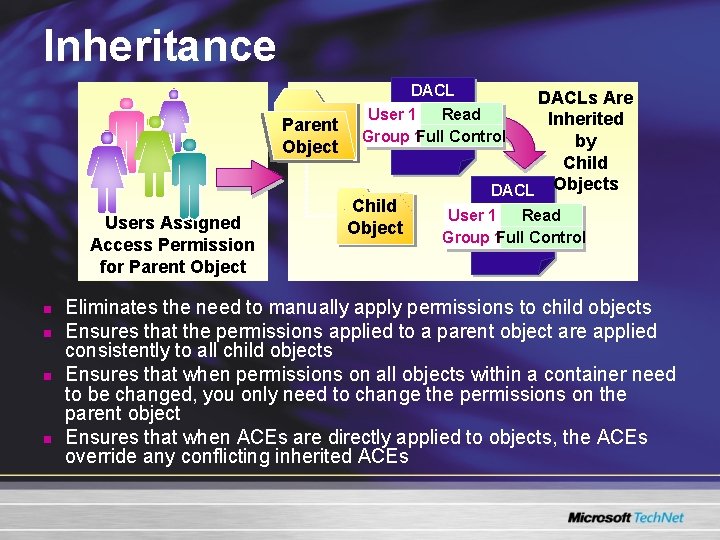
Inheritance Parent Object Users Assigned Access Permission for Parent Object n n DACL User 1 Read Group 1 Full Control Child Object DACLs Are Inherited by Child DACL Objects User 1 Read Group 1 Full Control Eliminates the need to manually apply permissions to child objects Ensures that the permissions applied to a parent object are applied consistently to all child objects Ensures that when permissions on all objects within a container need to be changed, you only need to change the permissions on the parent object Ensures that when ACEs are directly applied to objects, the ACEs override any conflicting inherited ACEs
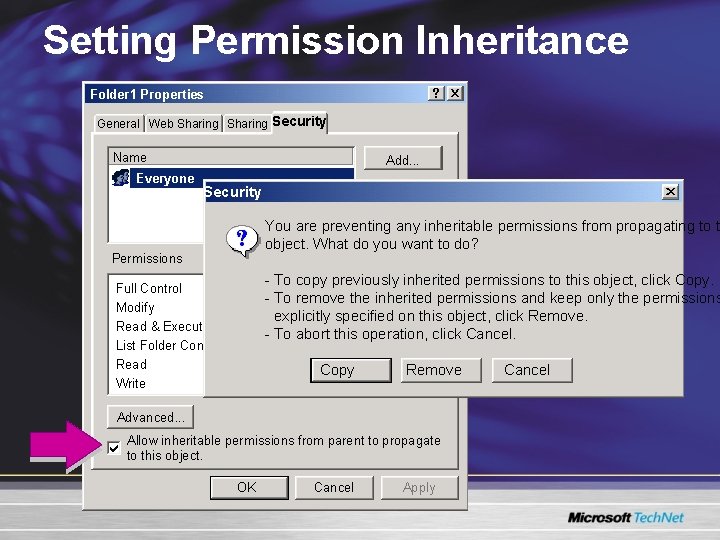
Setting Permission Inheritance Folder 1 Properties General Web Sharing Security Name Everyone Add. . . Remove Security You are preventing any inheritable permissions from propagating to t object. What do you want to do? Permissions - To copy previously inherited permissions to this object, click Copy. - To remove the inherited permissions and keep only the permissions explicitly specified on this object, click Remove. - To abort this operation, click Cancel. Full Control Modify Read & Execute List Folder Contents Read Write Copy Remove Advanced. . . Allow inheritable permissions from parent to propagate to this object. OK Cancel Apply Cancel
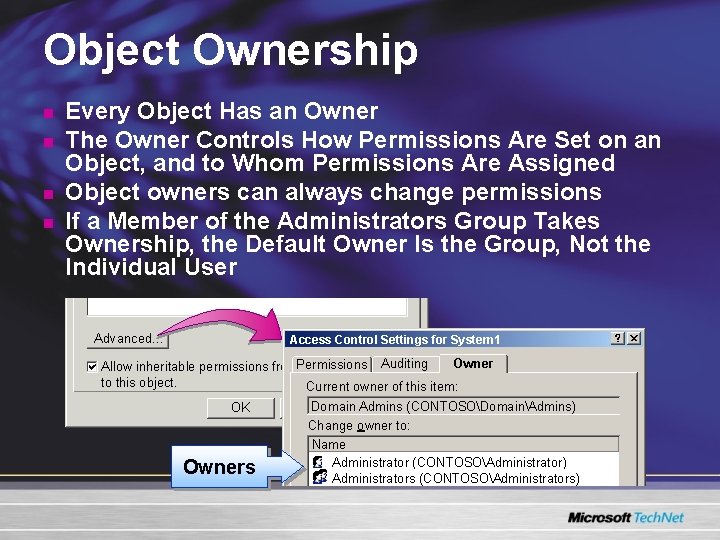
Object Ownership n n Every Object Has an Owner The Owner Controls How Permissions Are Set on an Object, and to Whom Permissions Are Assigned Object owners can always change permissions If a Member of the Administrators Group Takes Ownership, the Default Owner Is the Group, Not the Individual User Advanced… Access Control Settings for System 1 Owner Auditing Allow inheritable permissions from. Permissions parent to propagate to this object. Current owner of this item: OK Owners Domain Admins Cancel Apply (CONTOSODomainAdmins) Change owner to: Name Administrator (CONTOSOAdministrator) Administrators (CONTOSOAdministrators)
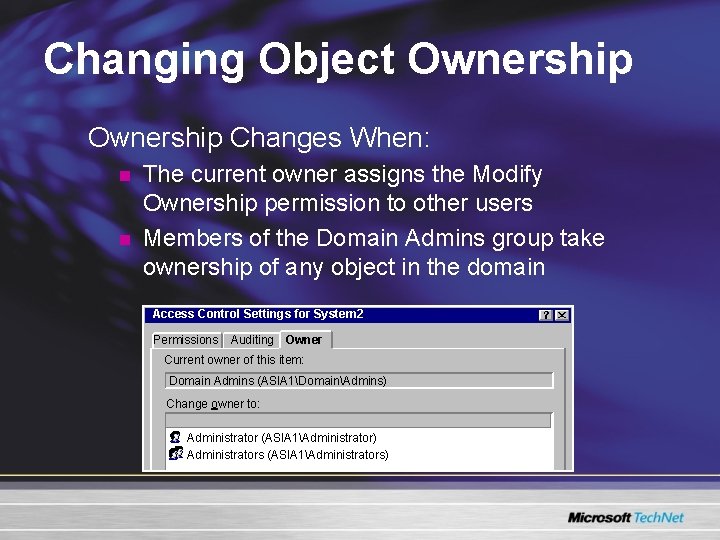
Changing Object Ownership Changes When: n n The current owner assigns the Modify Ownership permission to other users Members of the Domain Admins group take ownership of any object in the domain Access Control Settings for System 2 Permissions Auditing Owner Current owner of this item: Domain Admins (ASIA 1DomainAdmins) Change owner to: Administrator (ASIA 1Administrator) Administrators (ASIA 1Administrators)
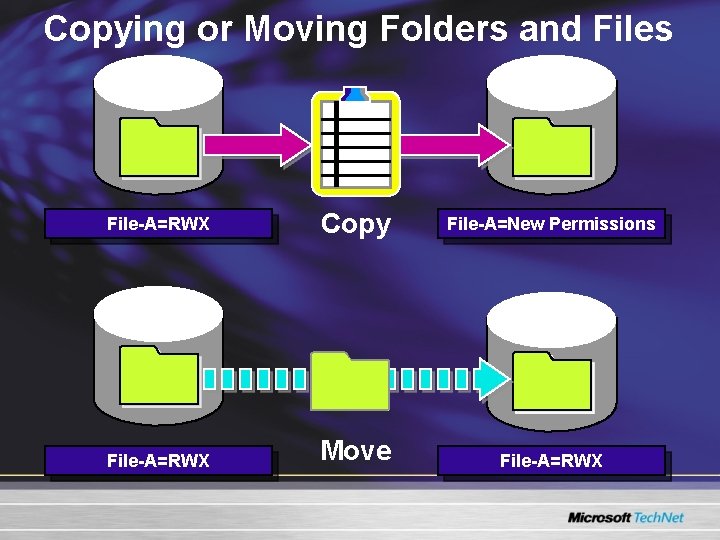
Copying or Moving Folders and Files File-A=RWX Copy File-A=New Permissions File-A=RWX Move File-A=RWX
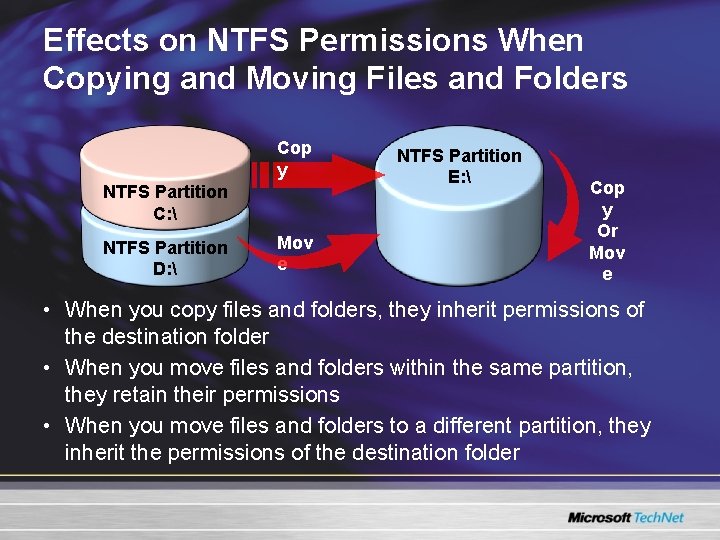
Effects on NTFS Permissions When Copying and Moving Files and Folders Cop y NTFS Partition C: NTFS Partition D: Mov e NTFS Partition E: Cop y Or Mov e • When you copy files and folders, they inherit permissions of the destination folder • When you move files and folders within the same partition, they retain their permissions • When you move files and folders to a different partition, they inherit the permissions of the destination folder
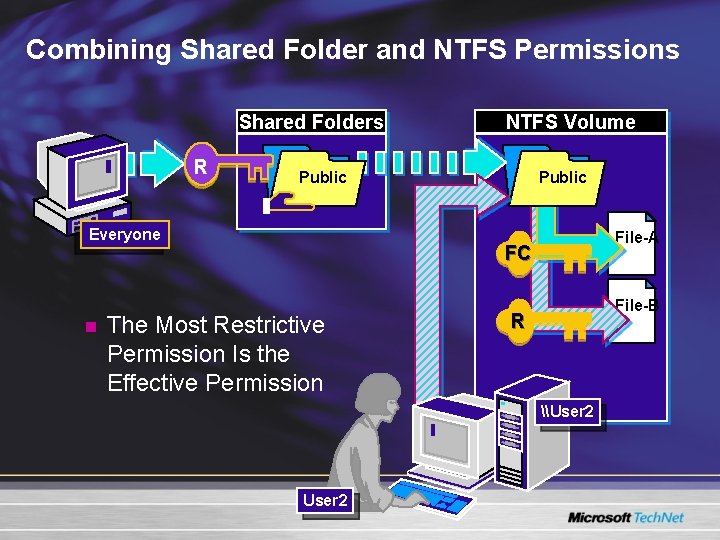
Combining Shared Folder and NTFS Permissions Shared Folders R Public Everyone n NTFS Volume File-A FC The Most Restrictive Permission Is the Effective Permission File-B R \User 2
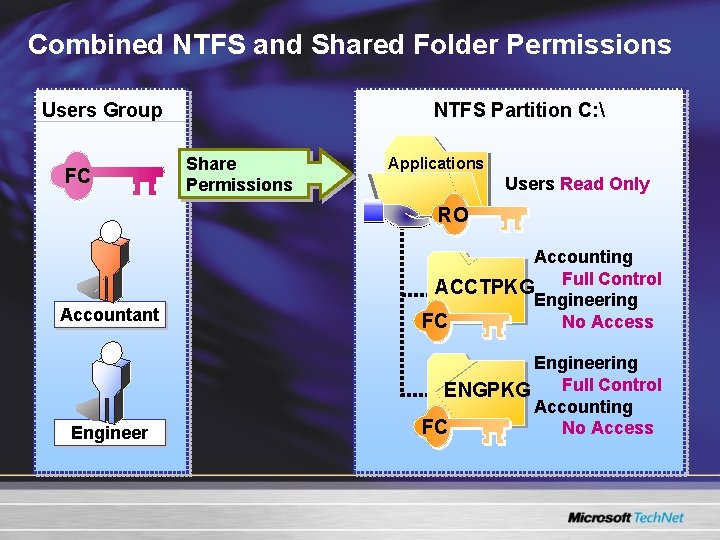
Combined NTFS and Shared Folder Permissions Users Group FC NTFS Partition C: Share Permissions Applications Users Read Only RO Accountant Accounting ACCTPKG Full Control Engineering FC No Access Engineering Full Control ENGPKG Accounting No Access FC
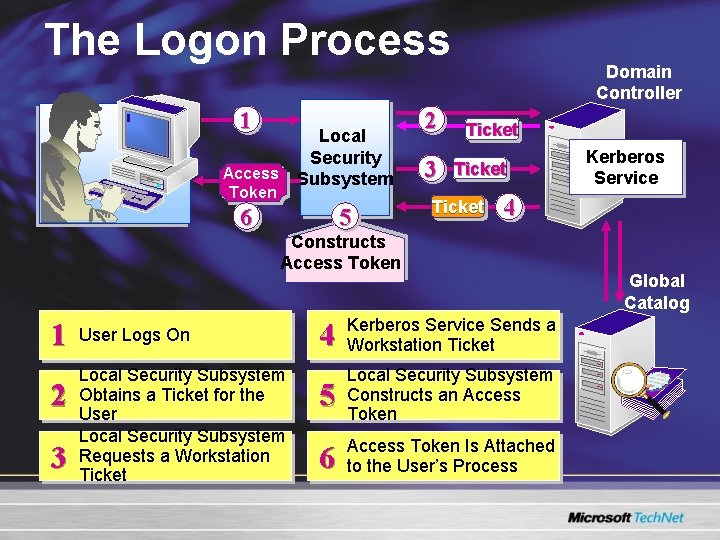
The Logon Process 1 Local Security Subsystem Access Token 6 5 2 3 Domain Controller Ticket 4 Constructs Access Token 1 2 3 User Logs On Local Security Subsystem Obtains a Ticket for the User Local Security Subsystem Requests a Workstation Ticket Kerberos Service 4 Kerberos Service Sends a Workstation Ticket 5 Local Security Subsystem Constructs an Access Token 6 Access Token Is Attached to the User’s Process Global Catalog
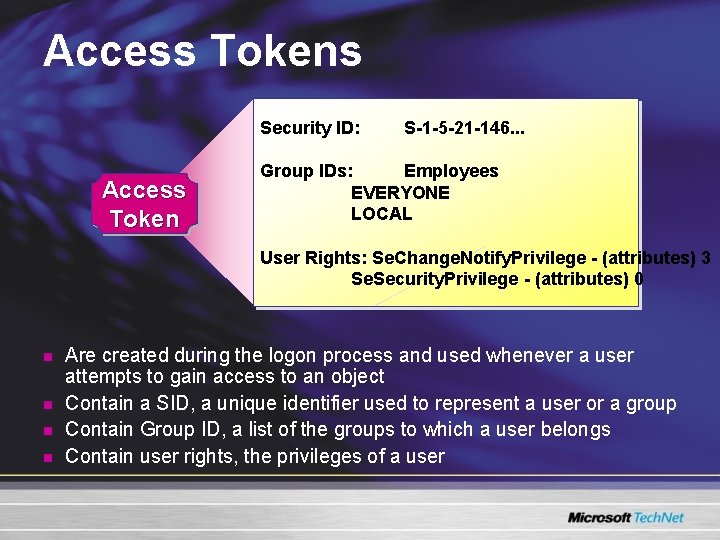
Access Tokens Security ID: Access Token S-1 -5 -21 -146. . . Group IDs: Employees EVERYONE LOCAL User Rights: Se. Change. Notify. Privilege - (attributes) 3 Se. Security. Privilege - (attributes) 0 n n Are created during the logon process and used whenever a user attempts to gain access to an object Contain a SID, a unique identifier used to represent a user or a group Contain Group ID, a list of the groups to which a user belongs Contain user rights, the privileges of a user
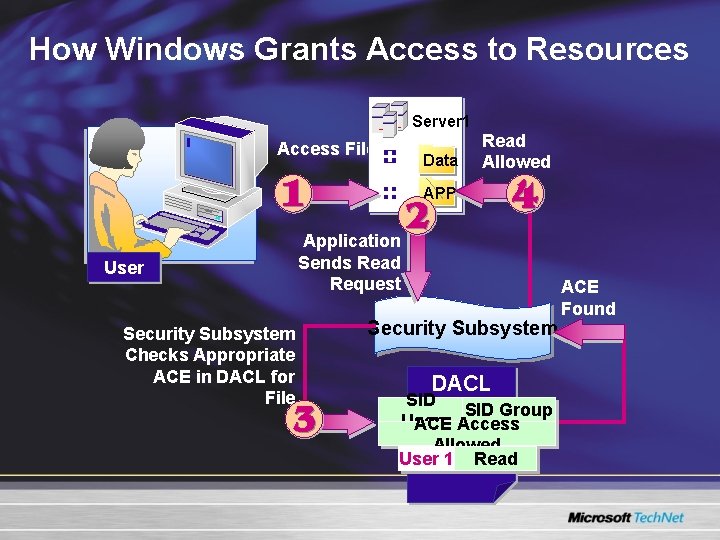
How Windows Grants Access to Resources Server 1 Access File Data Read Allowed APP User Security Subsystem Checks Appropriate ACE in DACL for File Application Sends Read Request Security Subsystem DACL SID Group User ACE Access Allowed User 1 Read ACE Found
Using Disk Quotas n Usage Calculation Based on File and Folder Ownership n Compression Ignored When Calculating Usage n Free Space for Applications Based on Quota Limit n Disk Quotas Tracked for Each NTFS Volume n Disk Quotas Available Only on NTFS Volumes
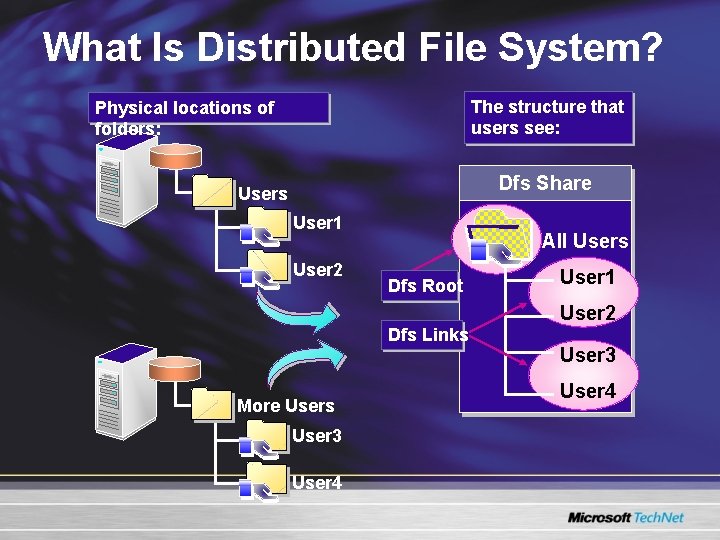
What Is Distributed File System? The structure that users see: Physical locations of folders: Dfs Share Users User 1 User 2 All Users Dfs Root User 1 User 2 Dfs Links More Users User 3 User 4
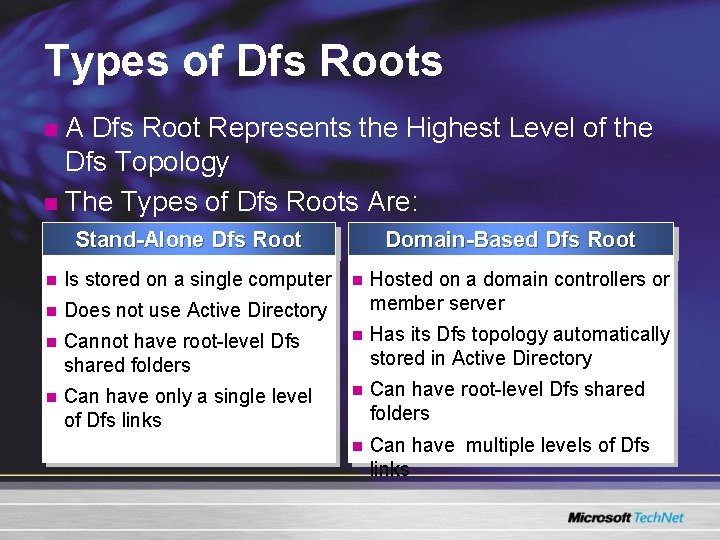
Types of Dfs Roots A Dfs Root Represents the Highest Level of the Dfs Topology n The Types of Dfs Roots Are: n Stand-Alone Dfs Root n Is stored on a single computer n Does not use Active Directory n n Domain-Based Dfs Root n Hosted on a domain controllers or member server Cannot have root-level Dfs shared folders n Has its Dfs topology automatically stored in Active Directory Can have only a single level of Dfs links n Can have root-level Dfs shared folders n Can have multiple levels of Dfs links
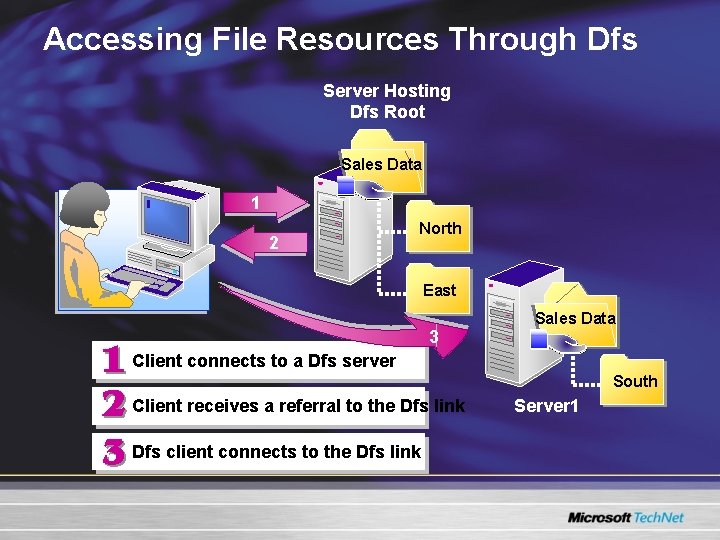
Accessing File Resources Through Dfs Server Hosting Dfs Root Sales Data 1 2 North East Sales Data 3 Client connects to a Dfs server South Client receives a referral to the Dfs link Dfs client connects to the Dfs link Server 1
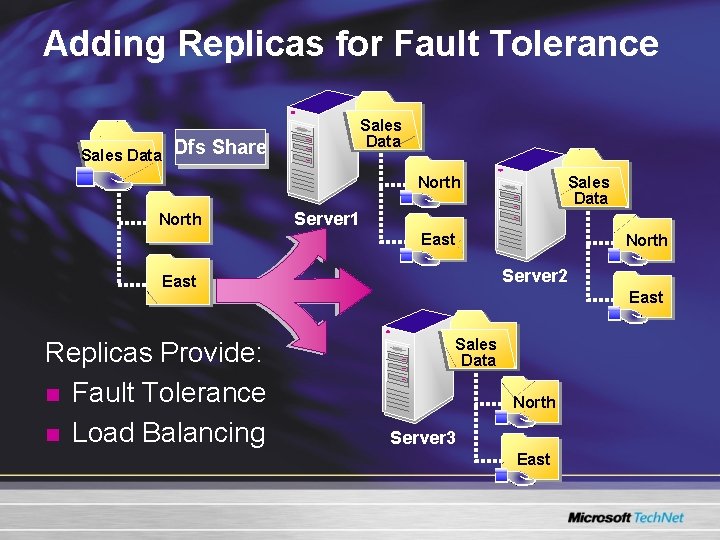
Adding Replicas for Fault Tolerance Sales Data Dfs Share Sales Data North Server 1 East North Server 2 East Replicas Provide: n Fault Tolerance n Load Balancing East Sales Data North Server 3 East
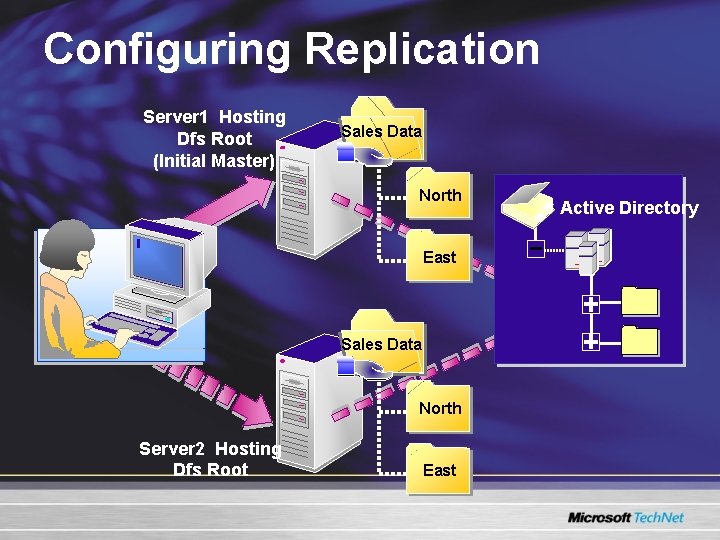
Configuring Replication Server 1 Hosting Dfs Root (Initial Master) Sales Data North East Sales Data North Server 2 Hosting Dfs Root East Active Directory
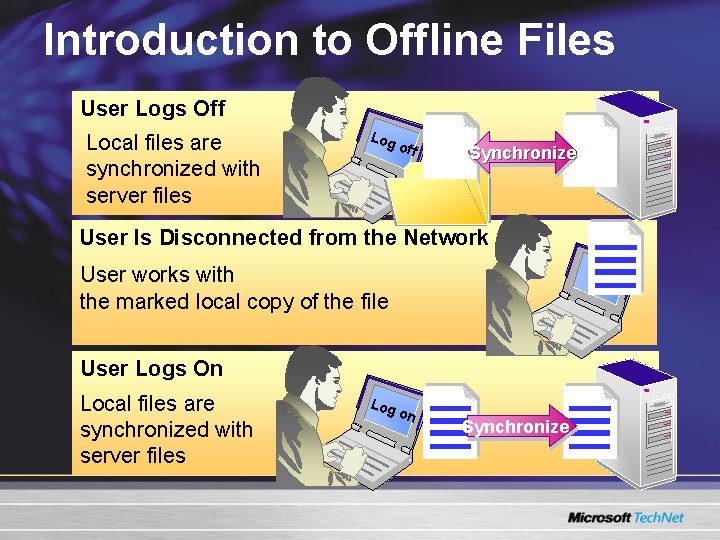
Introduction to Offline Files User Logs Off Local files are synchronized with server files Log o ff Synchronize User Is Disconnected from the Network User works with the marked local copy of the file User Logs On Local files are synchronized with server files Log o n Synchronize
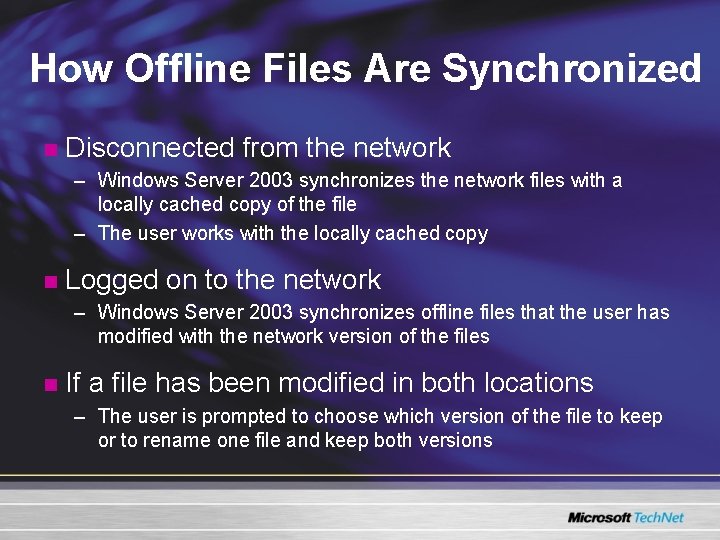
How Offline Files Are Synchronized n Disconnected from the network – Windows Server 2003 synchronizes the network files with a locally cached copy of the file – The user works with the locally cached copy n Logged on to the network – Windows Server 2003 synchronizes offline files that the user has modified with the network version of the files n If a file has been modified in both locations – The user is prompted to choose which version of the file to keep or to rename one file and keep both versions
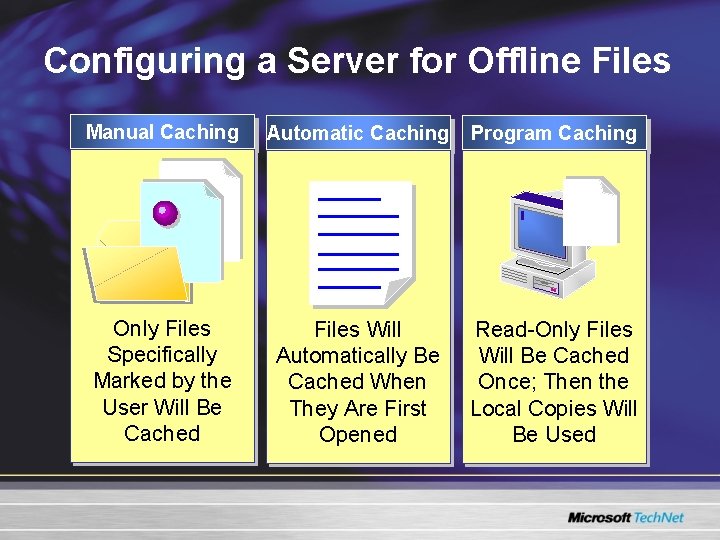
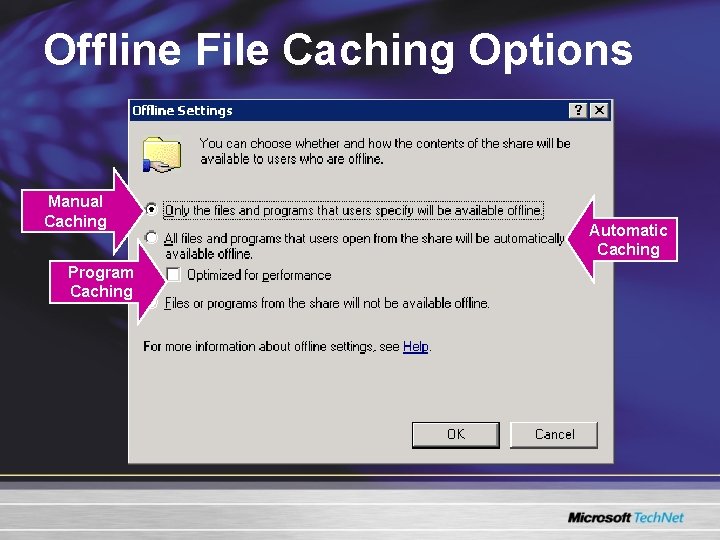
Configuring a Server for Offline Files Manual Caching Automatic Caching Program Caching Only Files Specifically Marked by the User Will Be Cached Files Will Automatically Be Cached When They Are First Opened Read-Only Files Will Be Cached Once; Then the Local Copies Will Be Used
Offline File Caching Options Manual Caching Program Caching Automatic Caching
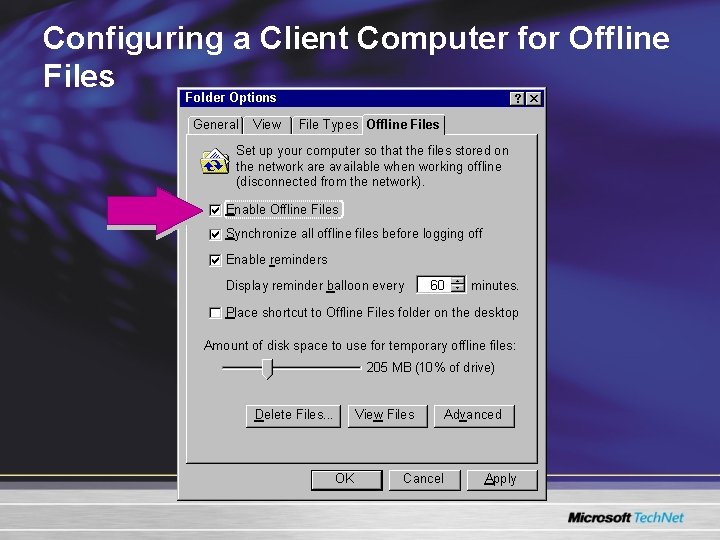
Configuring a Client Computer for Offline Files Folder Options General View File Types Offline Files Set up your computer so that the files stored on the network are available when working offline (disconnected from the network). Enable Offline Files Synchronize all offline files before logging off Enable reminders Display reminder balloon every 60 minutes. Place shortcut to Offline Files folder on the desktop Amount of disk space to use for temporary offline files: 205 MB (10% of drive) Delete Files. . . View Files OK Cancel Advanced Apply