Welcome to Acuity Acuity Training I Teacher Introduction

- Slides: 31
Welcome to Acuity! Acuity Training I Teacher Introduction Customer Service: (800) 282 -4705
Training Agenda • • • Teacher Login Viewing and Printing Class Rosters Viewing and Printing Answer Keys Scoring Constructed Response (CR) Items Scoring Multiple Choice (MC) Items Checking Assignment Status
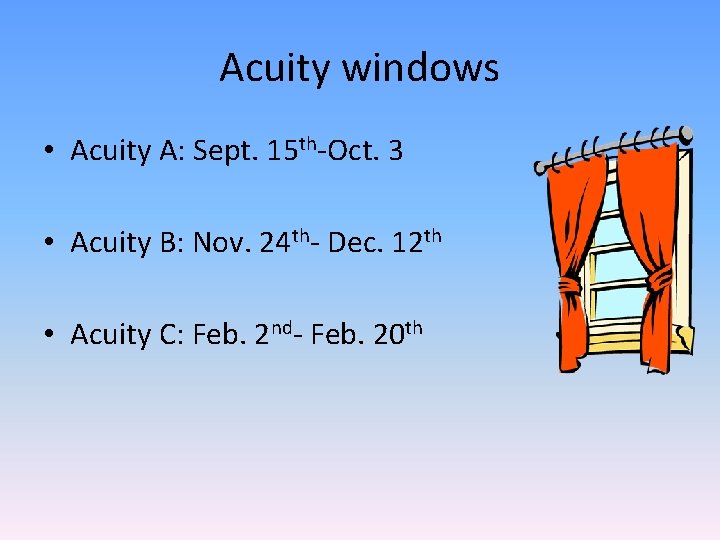
Acuity windows • Acuity A: Sept. 15 th-Oct. 3 • Acuity B: Nov. 24 th- Dec. 12 th • Acuity C: Feb. 2 nd- Feb. 20 th
Scheduling • Language Arts: 60 min • Math: 60 min • Schedule more time for students that get extended time • As best as you are able, provide accommodations to students
Proctoring • Make it as standardized as possible • DON’T allow accommodations for students who don’t receive them on state assessments – Don’t read the items to students on this if they won’t have the test read to them for state assessments
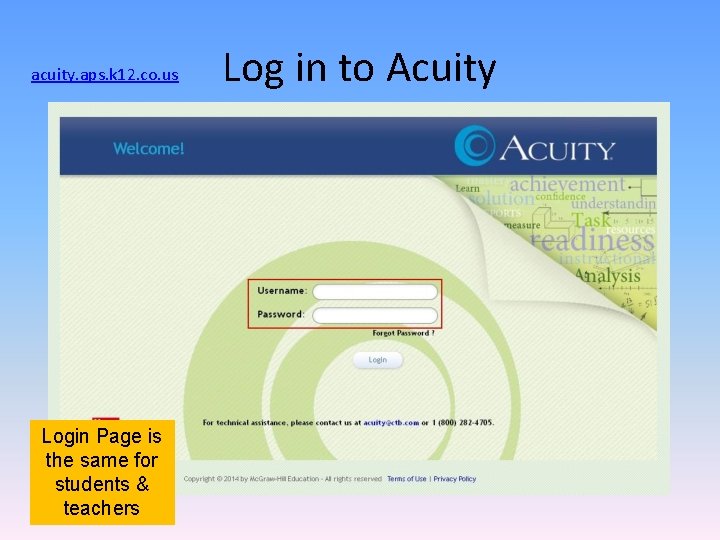
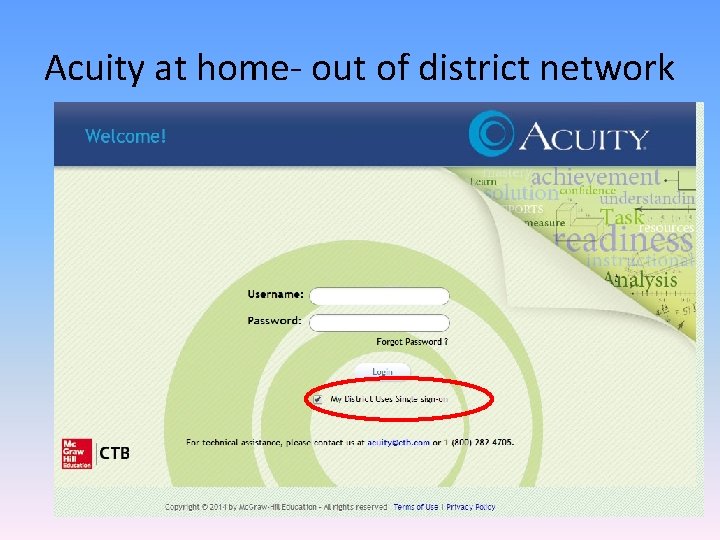
Teacher Login • URL: acuity. aps. k 12. co. us • Enter User name & Password (same as used to log in to your computer)
acuity. aps. k 12. co. us Login Page is the same for students & teachers Log in to Acuity
Acuity at home- out of district network
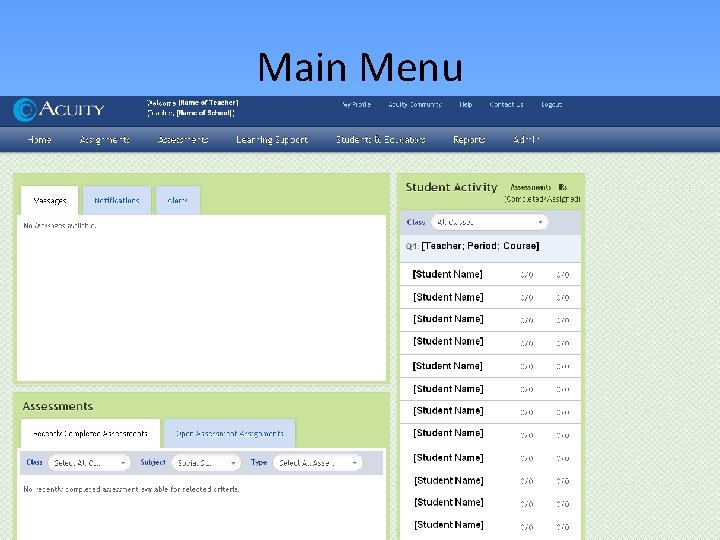
Main Menu
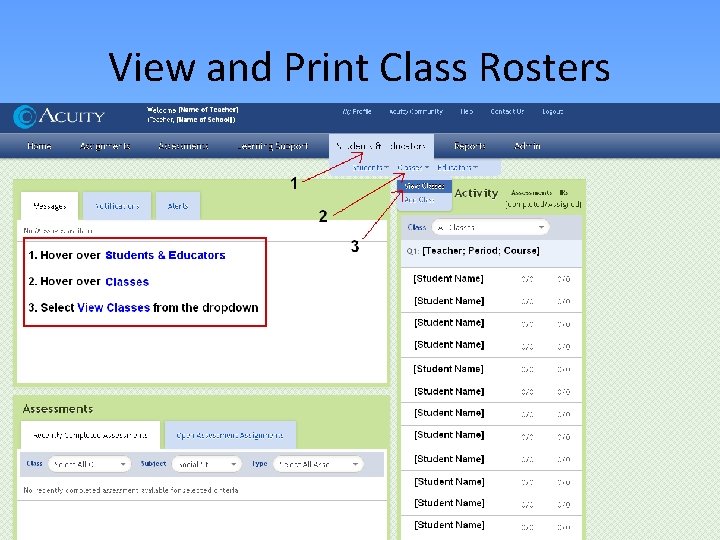
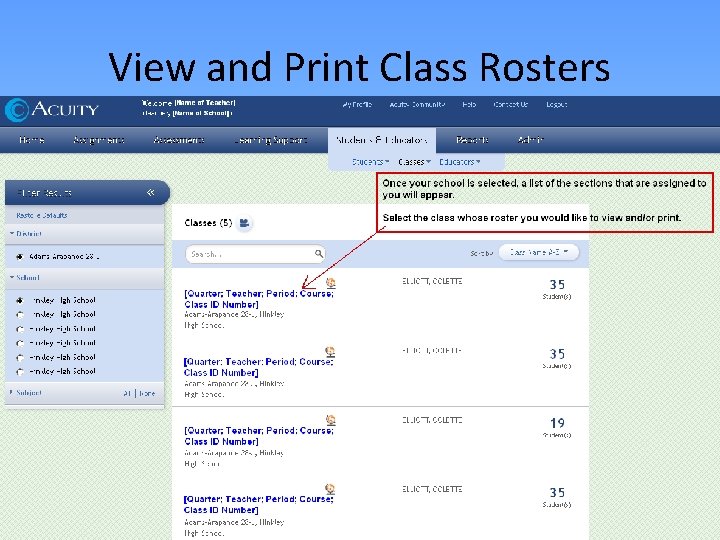
View and Print Class Rosters
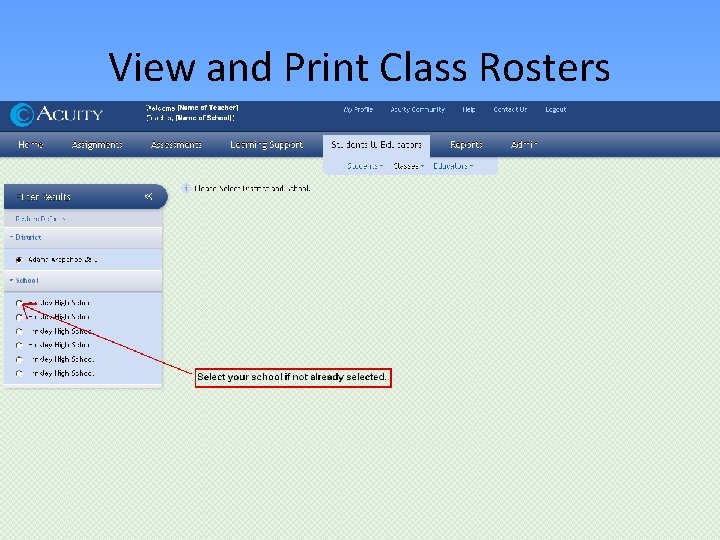
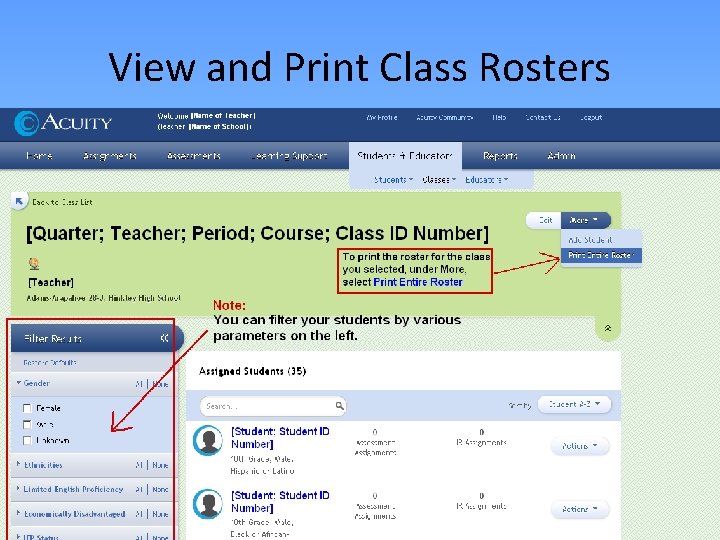
View and Print Class Rosters
View and Print Class Rosters
View and Print Class Rosters
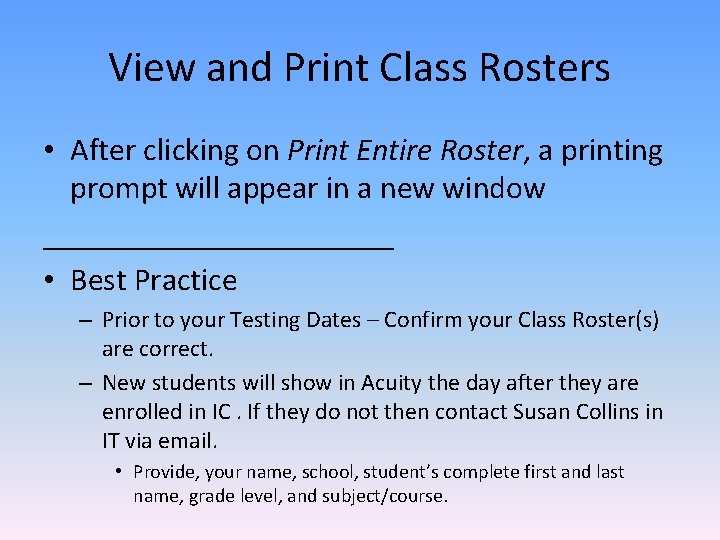
View and Print Class Rosters • After clicking on Print Entire Roster, a printing prompt will appear in a new window ___________ • Best Practice – Prior to your Testing Dates – Confirm your Class Roster(s) are correct. – New students will show in Acuity the day after they are enrolled in IC. If they do not then contact Susan Collins in IT via email. • Provide, your name, school, student’s complete first and last name, grade level, and subject/course.
Printing Rubrics and Answer Keys
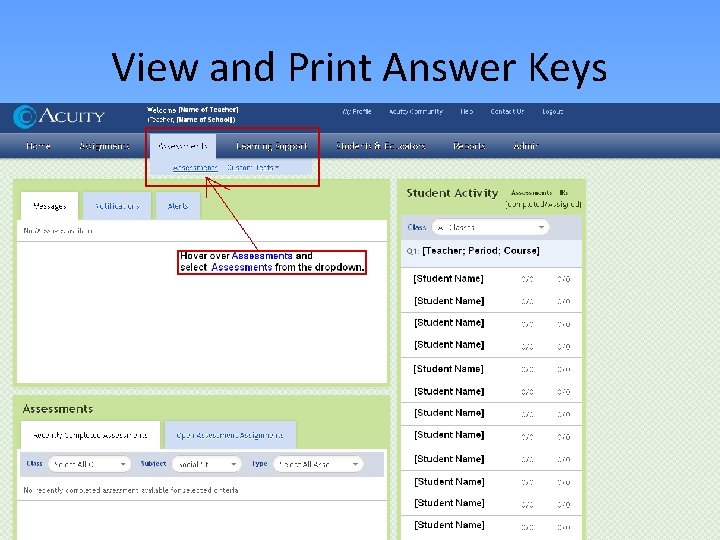
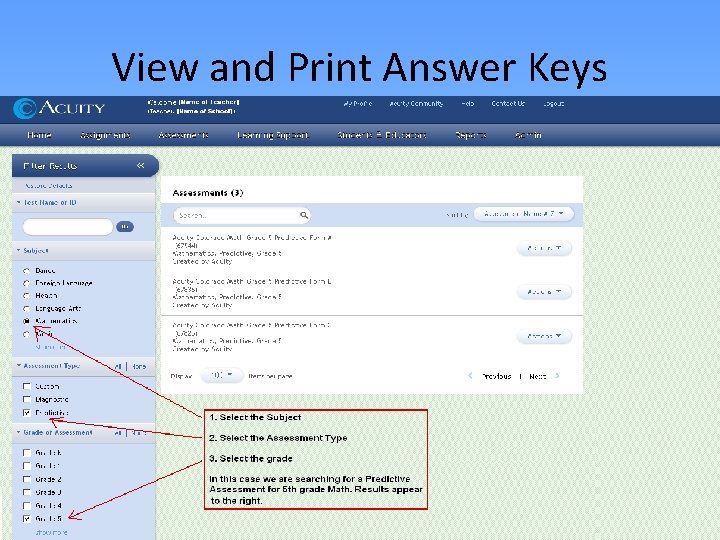
View and Print Answer Keys
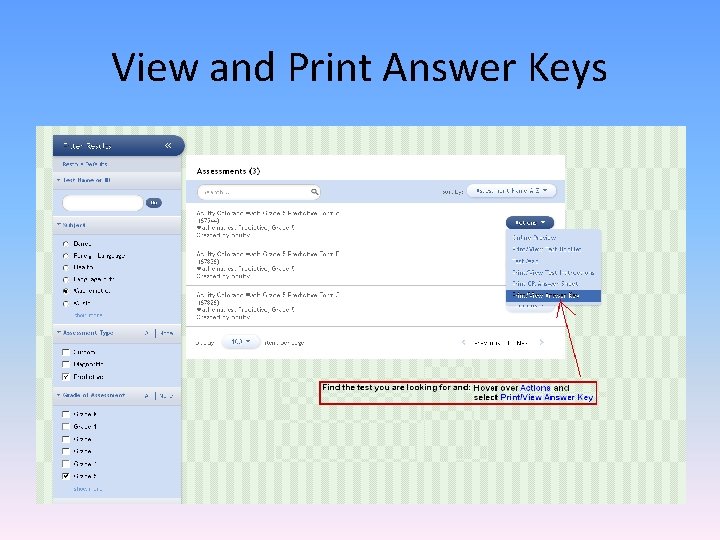
View and Print Answer Keys
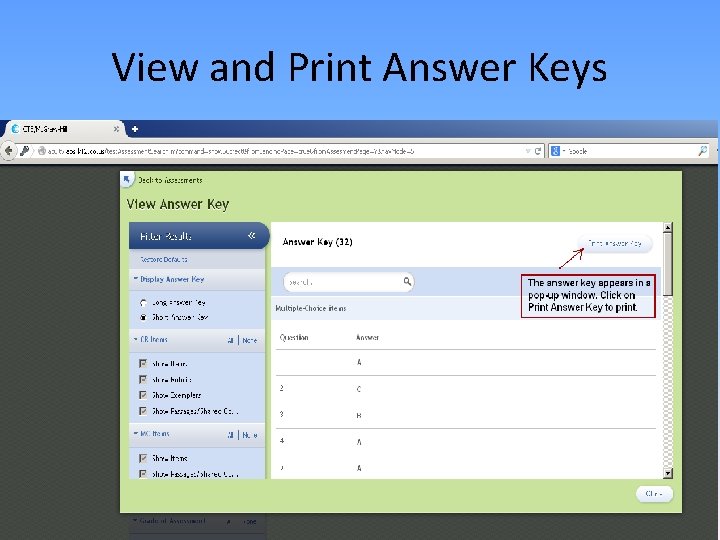
View and Print Answer Keys
View and Print Answer Keys
Constructed Response Score Entry
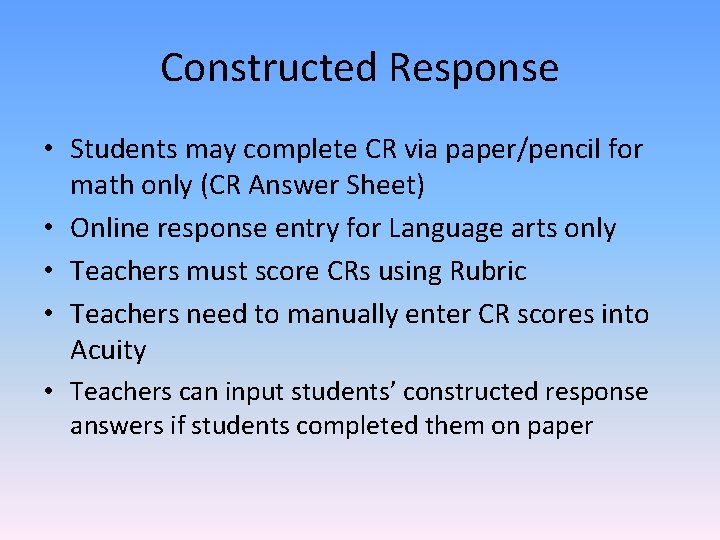
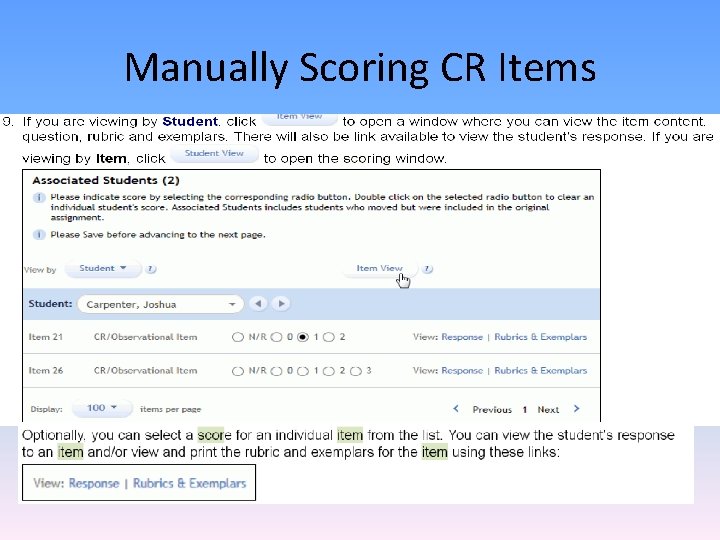
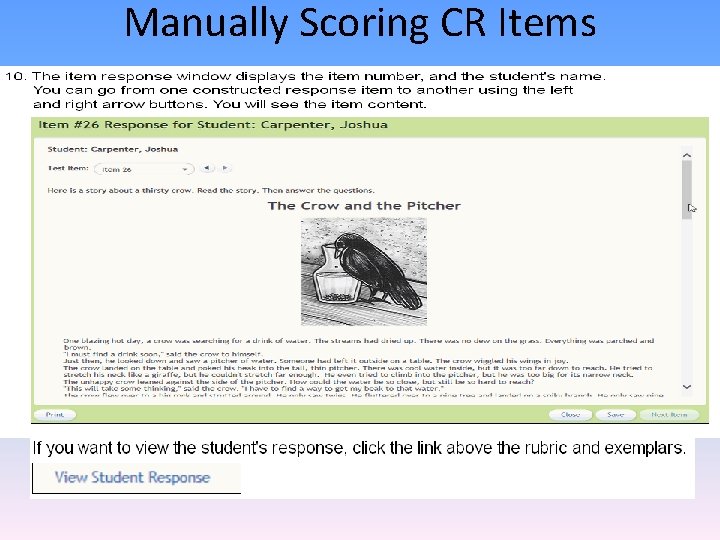
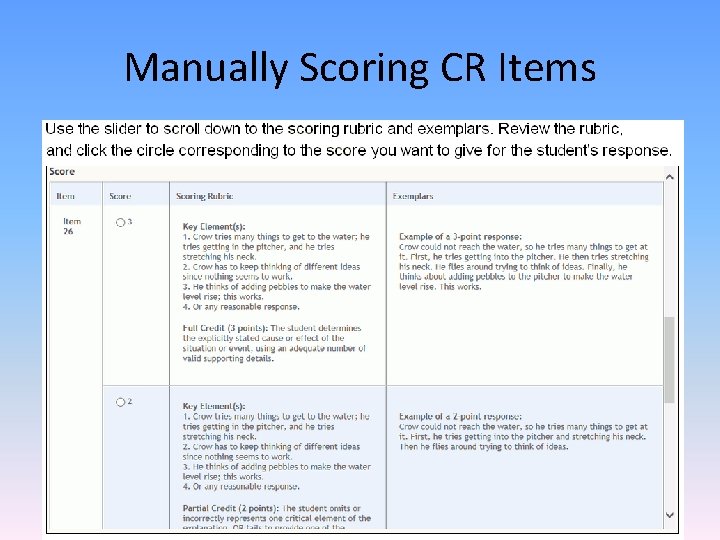
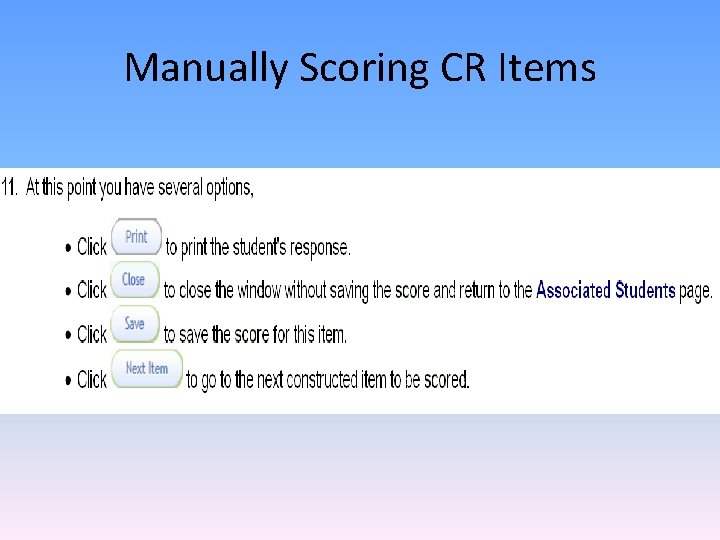
Constructed Response • Students may complete CR via paper/pencil for math only (CR Answer Sheet) • Online response entry for Language arts only • Teachers must score CRs using Rubric • Teachers need to manually enter CR scores into Acuity • Teachers can input students’ constructed response answers if students completed them on paper
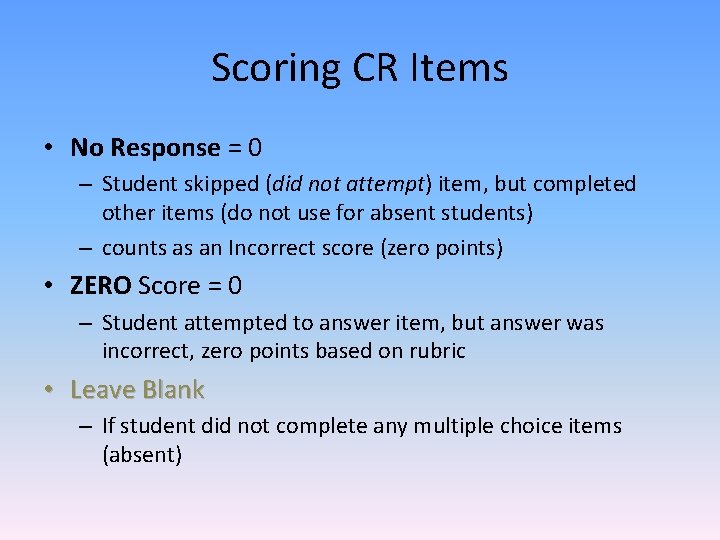
Scoring CR Items • No Response = 0 – Student skipped (did not attempt) item, but completed other items (do not use for absent students) – counts as an Incorrect score (zero points) • ZERO Score = 0 – Student attempted to answer item, but answer was incorrect, zero points based on rubric • Leave Blank – If student did not complete any multiple choice items (absent)
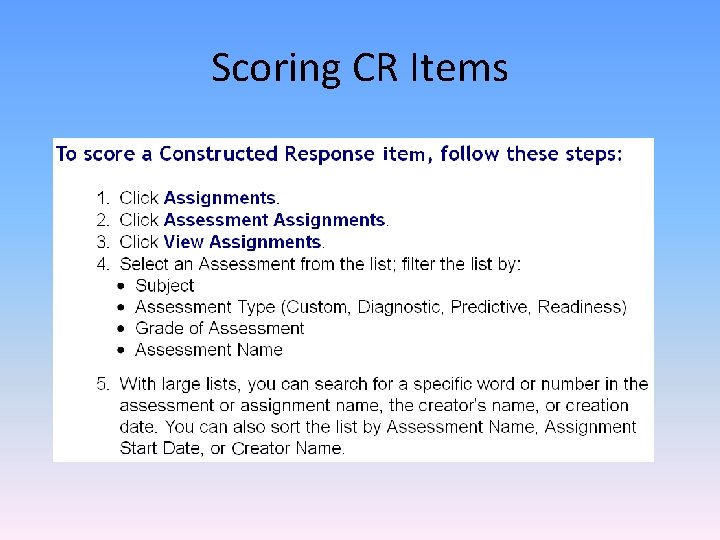
Scoring CR Items
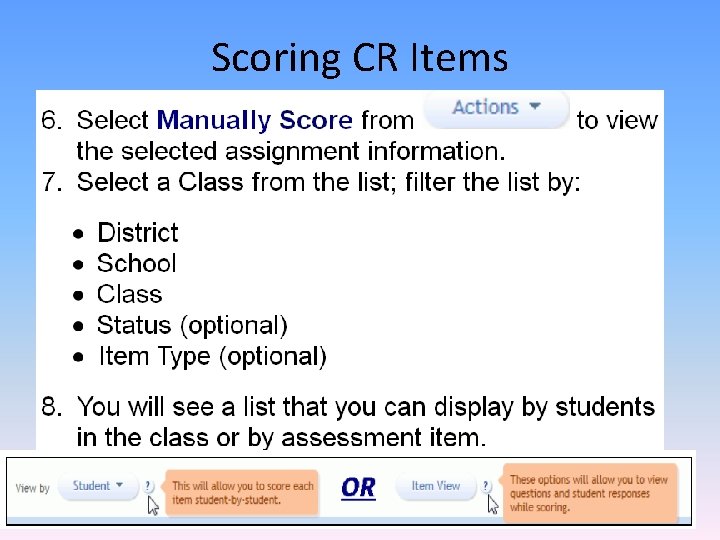
Scoring CR Items
Manually Scoring CR Items
Manually Scoring CR Items
Manually Scoring CR Items
Manually Scoring CR Items
Closing the test window Steps to insure your results will be accessible as soon as students are done testing
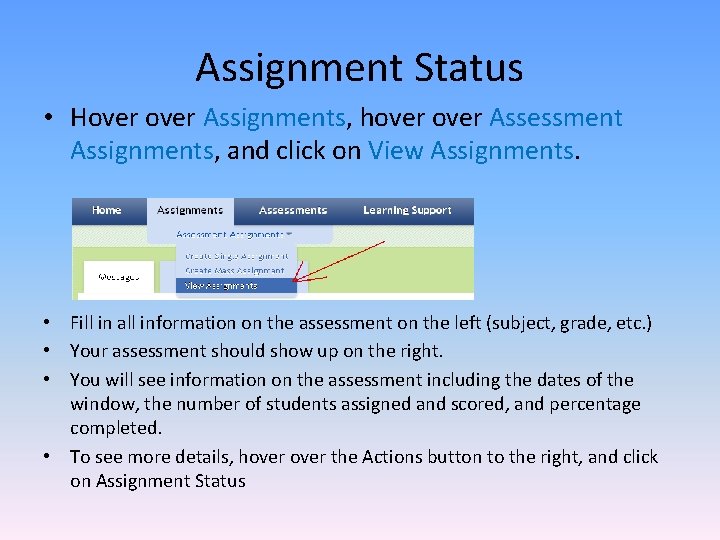
Assignment Status • Hover Assignments, hover Assessment Assignments, and click on View Assignments. • Fill in all information on the assessment on the left (subject, grade, etc. ) • Your assessment should show up on the right. • You will see information on the assessment including the dates of the window, the number of students assigned and scored, and percentage completed. • To see more details, hover the Actions button to the right, and click on Assignment Status
Contact for Help • Kimberly Terry • kkterry@aps. k 12. co. us • Ext. 28335 • Christina Ethier • ckethier@aps. k 12. co. us • Ext. 28337 • Susan Collins • sacollins@aps. k 12. co. us • Ext. 28288