UNIX and Shell Programming 06 CS 36 Unit

![Escaping ü Escaping the * ü Escaping the [ ] ü Escaping the Space](https://slidetodoc.com/presentation_image_h/86ae3cfd2d2ee5f201a1e73e18db6983/image-14.jpg "Escaping ü Escaping the * ü Escaping the [ ] ü Escaping the Space")
![To conclude, After a command line is terminated by [Enter] key, the shell processes](https://slidetodoc.com/presentation_image_h/86ae3cfd2d2ee5f201a1e73e18db6983/image-34.jpg "To conclude, After a command line is terminated by [Enter] key, the shell processes")
- Slides: 36
UNIX and Shell Programming (06 CS 36) Unit 3 Shrinivas R. Mangalwede Department of Computer Science and Engineering K. L. S. Gogte Institute of Technology, Belgaum. INDIA. mangalwede@yahoo. com Shrinivas R. Mangalwede, GIT, Belgaum
Topics The Shell The Process Customizing the environment Shrinivas R. Mangalwede, GIT, Belgaum
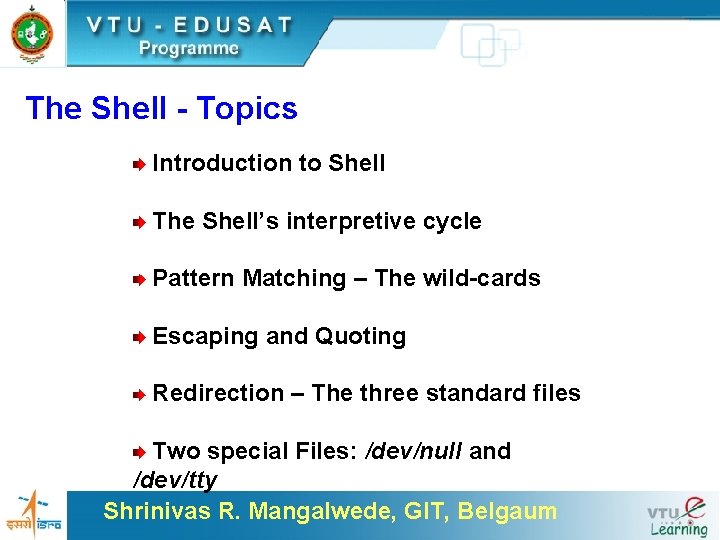
The Shell - Topics Introduction to Shell The Shell’s interpretive cycle Pattern Matching – The wild-cards Escaping and Quoting Redirection – The three standard files Two special Files: /dev/null and /dev/tty Shrinivas R. Mangalwede, GIT, Belgaum
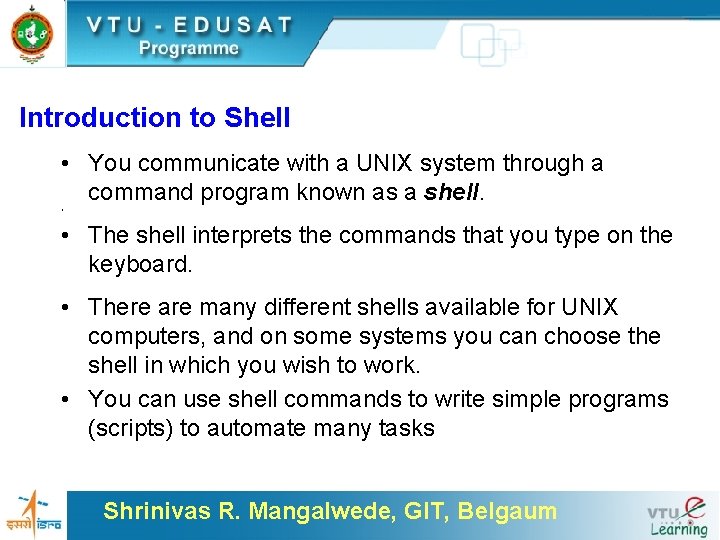
Introduction to Shell • You communicate with a UNIX system through a command program known as a shell. • • The shell interprets the commands that you type on the keyboard. • There are many different shells available for UNIX computers, and on some systems you can choose the shell in which you wish to work. • You can use shell commands to write simple programs (scripts) to automate many tasks Shrinivas R. Mangalwede, GIT, Belgaum
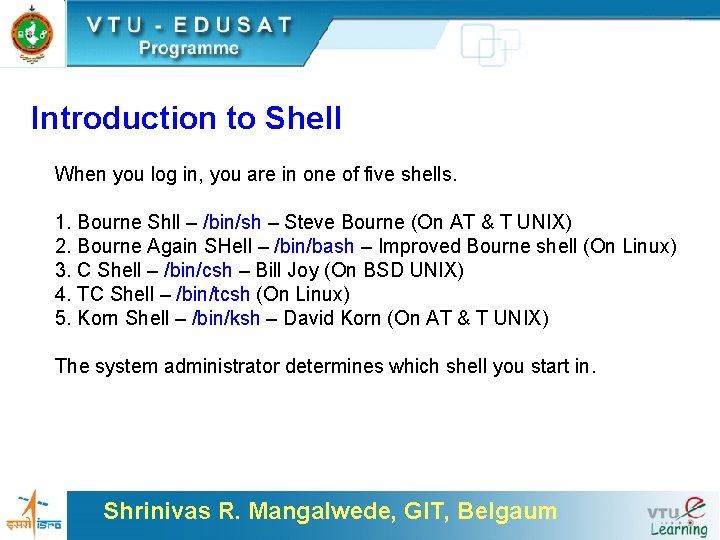
Introduction to Shell When you log in, you are in one of five shells. 1. Bourne Shll – /bin/sh – Steve Bourne (On AT & T UNIX) 2. Bourne Again SHell – /bin/bash – Improved Bourne shell (On Linux) 3. C Shell – /bin/csh – Bill Joy (On BSD UNIX) 4. TC Shell – /bin/tcsh (On Linux) 5. Korn Shell – /bin/ksh – David Korn (On AT & T UNIX) The system administrator determines which shell you start in. Shrinivas R. Mangalwede, GIT, Belgaum
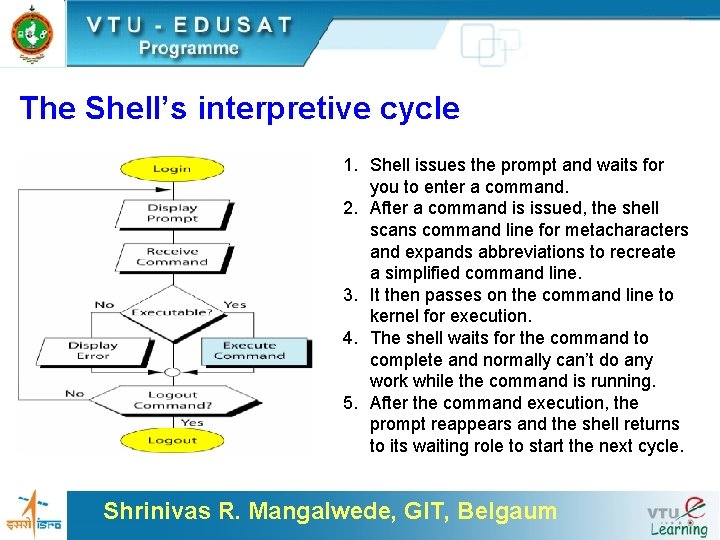
The Shell’s interpretive cycle 1. Shell issues the prompt and waits for you to enter a command. 2. After a command is issued, the shell scans command line for metacharacters and expands abbreviations to recreate a simplified command line. 3. It then passes on the command line to kernel for execution. 4. The shell waits for the command to complete and normally can’t do any work while the command is running. 5. After the command execution, the prompt reappears and the shell returns to its waiting role to start the next cycle. Shrinivas R. Mangalwede, GIT, Belgaum
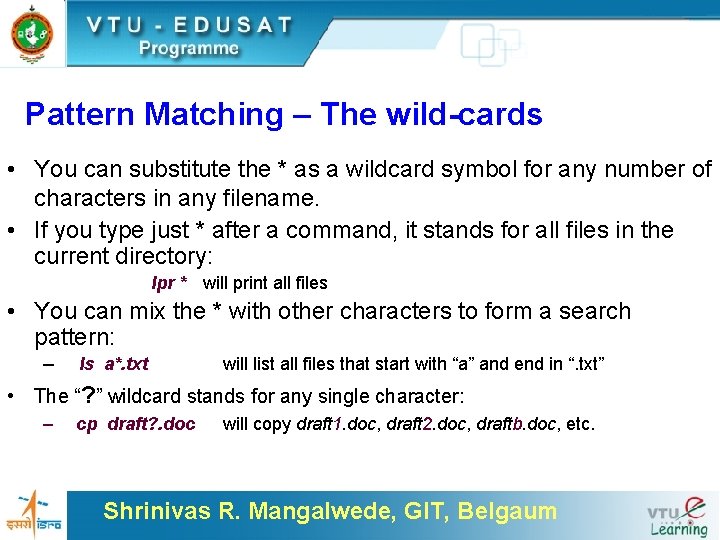
Pattern Matching – The wild-cards • You can substitute the * as a wildcard symbol for any number of characters in any filename. • If you type just * after a command, it stands for all files in the current directory: lpr * will print all files • You can mix the * with other characters to form a search pattern: – ls a*. txt will list all files that start with “a” and end in “. txt” • The “? ” wildcard stands for any single character: – cp draft? . doc will copy draft 1. doc, draft 2. doc, draftb. doc, etc. Shrinivas R. Mangalwede, GIT, Belgaum
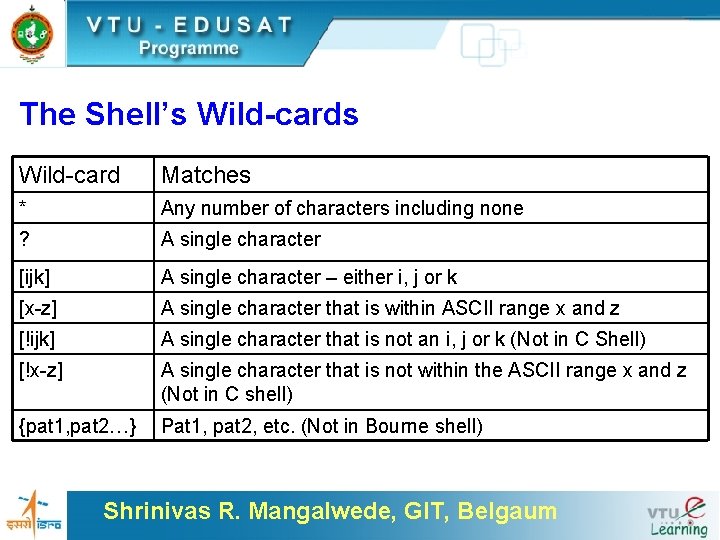
The Shell’s Wild-card Matches * Any number of characters including none ? A single character [ijk] A single character – either i, j or k [x-z] A single character that is within ASCII range x and z [!ijk] A single character that is not an i, j or k (Not in C Shell) [!x-z] A single character that is not within the ASCII range x and z (Not in C shell) {pat 1, pat 2…} Pat 1, pat 2, etc. (Not in Bourne shell) Shrinivas R. Mangalwede, GIT, Belgaum
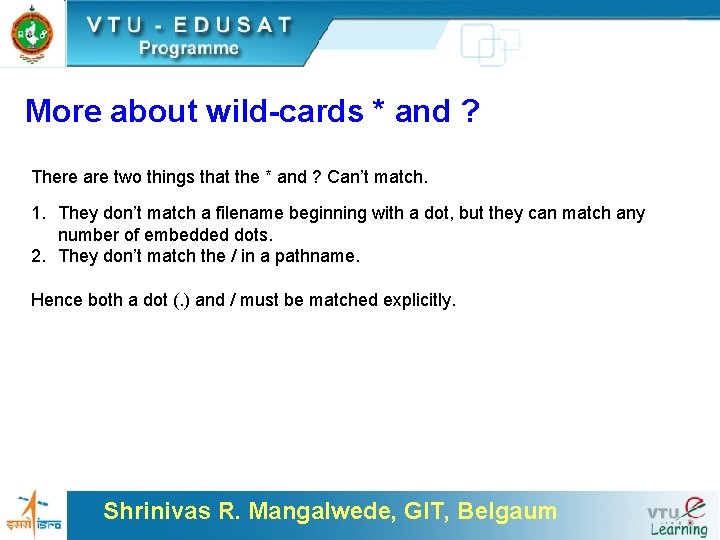
More about wild-cards * and ? There are two things that the * and ? Can’t match. 1. They don’t match a filename beginning with a dot, but they can match any number of embedded dots. 2. They don’t match the / in a pathname. Hence both a dot (. ) and / must be matched explicitly. Shrinivas R. Mangalwede, GIT, Belgaum
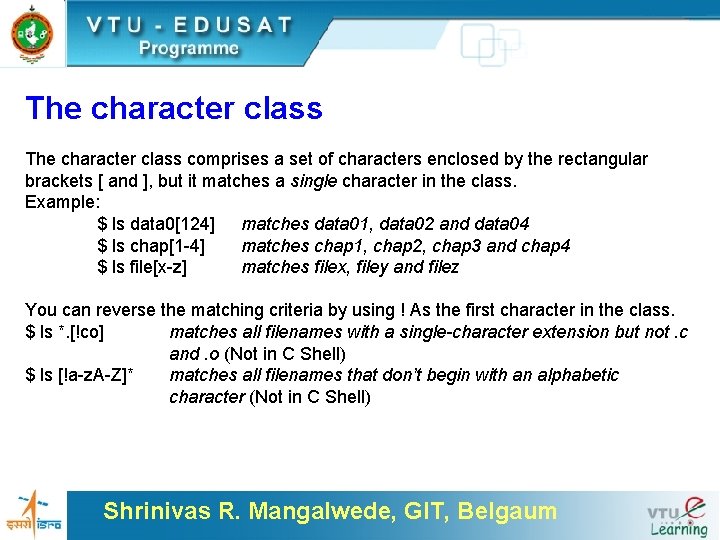
The character class comprises a set of characters enclosed by the rectangular brackets [ and ], but it matches a single character in the class. Example: $ ls data 0[124] matches data 01, data 02 and data 04 $ ls chap[1 -4] matches chap 1, chap 2, chap 3 and chap 4 $ ls file[x-z] matches filex, filey and filez You can reverse the matching criteria by using ! As the first character in the class. $ ls *. [!co] matches all filenames with a single-character extension but not. c and. o (Not in C Shell) $ ls [!a-z. A-Z]* matches all filenames that don’t begin with an alphabetic character (Not in C Shell) Shrinivas R. Mangalwede, GIT, Belgaum
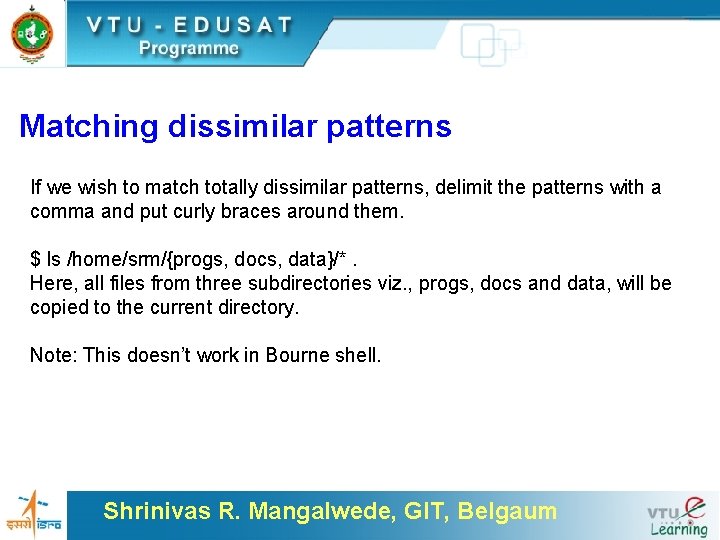
Matching dissimilar patterns If we wish to match totally dissimilar patterns, delimit the patterns with a comma and put curly braces around them. $ ls /home/srm/{progs, docs, data}/*. Here, all files from three subdirectories viz. , progs, docs and data, will be copied to the current directory. Note: This doesn’t work in Bourne shell. Shrinivas R. Mangalwede, GIT, Belgaum
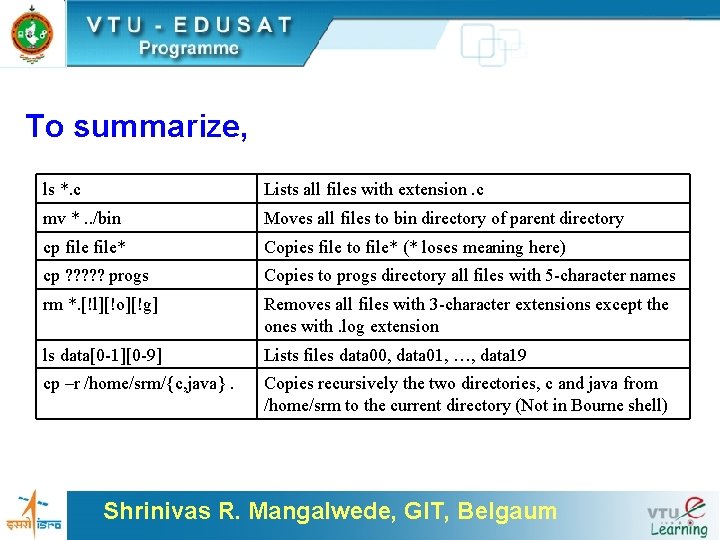
To summarize, ls *. c Lists all files with extension. c mv *. . /bin Moves all files to bin directory of parent directory cp file* Copies file to file* (* loses meaning here) cp ? ? ? progs Copies to progs directory all files with 5 -character names rm *. [!l][!o][!g] Removes all files with 3 -character extensions except the ones with. log extension ls data[0 -1][0 -9] Lists files data 00, data 01, …, data 19 cp –r /home/srm/{c, java}. Copies recursively the two directories, c and java from /home/srm to the current directory (Not in Bourne shell) Shrinivas R. Mangalwede, GIT, Belgaum
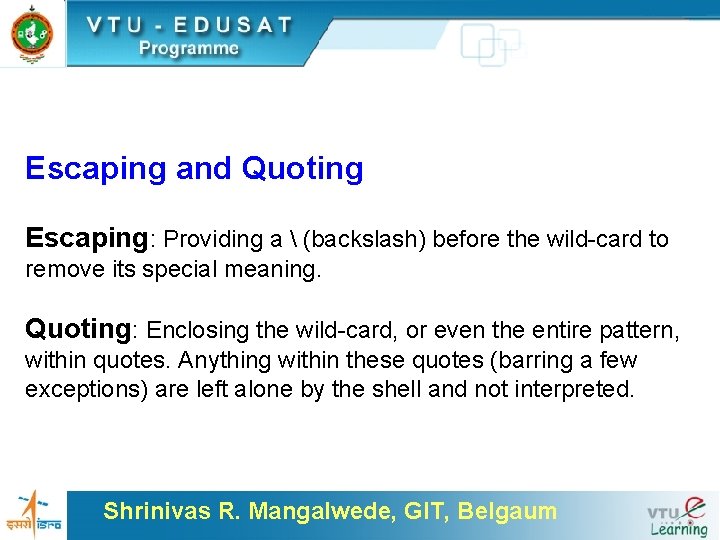
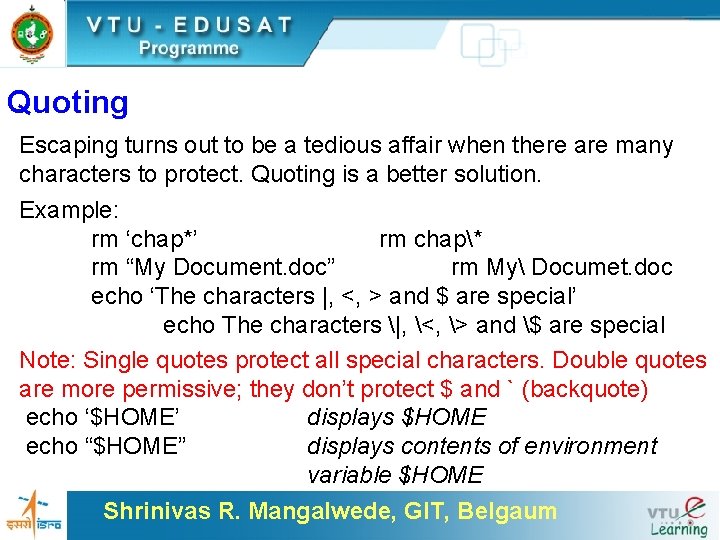
Escaping and Quoting Escaping: Providing a (backslash) before the wild-card to remove its special meaning. Quoting: Enclosing the wild-card, or even the entire pattern, within quotes. Anything within these quotes (barring a few exceptions) are left alone by the shell and not interpreted. Shrinivas R. Mangalwede, GIT, Belgaum
Escaping ü Escaping the * ü Escaping the [ ] ü Escaping the Space ü Escaping the ü Escaping the newline character Shrinivas R. Mangalwede, GIT, Belgaum
Quoting Escaping turns out to be a tedious affair when there are many characters to protect. Quoting is a better solution. Example: rm ‘chap*’ rm chap* rm “My Document. doc” rm My Documet. doc echo ‘The characters |, <, > and $ are special’ echo The characters |, <, > and $ are special Note: Single quotes protect all special characters. Double quotes are more permissive; they don’t protect $ and ` (backquote) echo ‘$HOME’ displays $HOME echo “$HOME” displays contents of environment variable $HOME Shrinivas R. Mangalwede, GIT, Belgaum
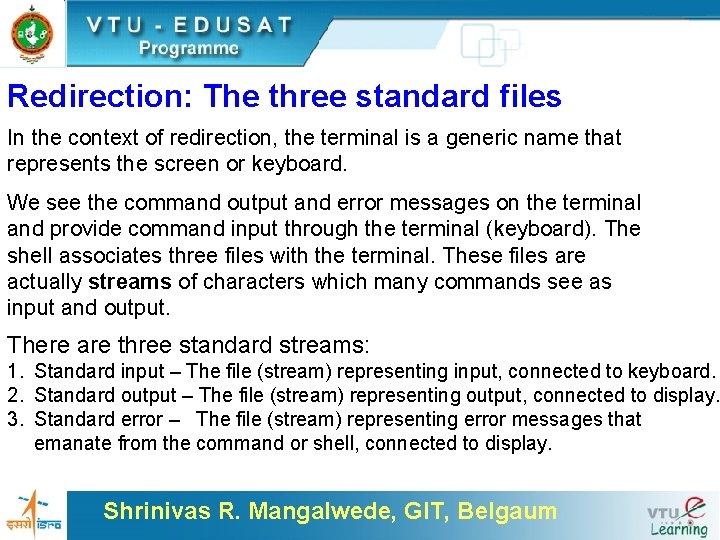
Redirection: The three standard files In the context of redirection, the terminal is a generic name that represents the screen or keyboard. We see the command output and error messages on the terminal and provide command input through the terminal (keyboard). The shell associates three files with the terminal. These files are actually streams of characters which many commands see as input and output. There are three standard streams: 1. Standard input – The file (stream) representing input, connected to keyboard. 2. Standard output – The file (stream) representing output, connected to display. 3. Standard error – The file (stream) representing error messages that emanate from the command or shell, connected to display. Shrinivas R. Mangalwede, GIT, Belgaum
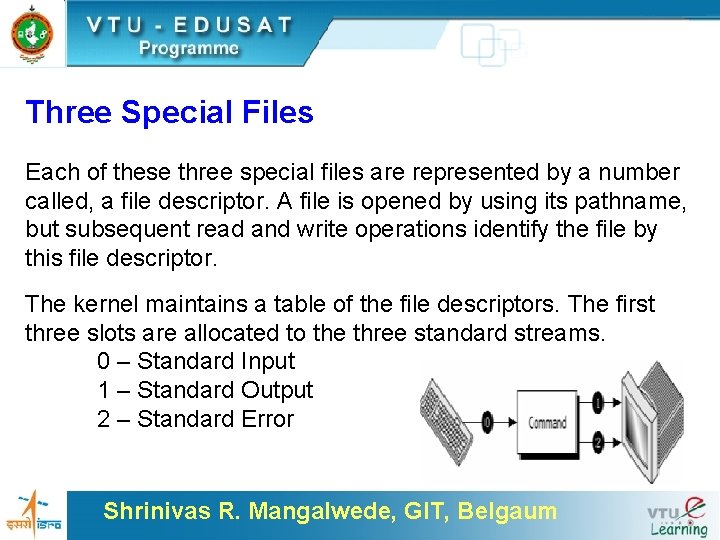
Three Special Files Each of these three special files are represented by a number called, a file descriptor. A file is opened by using its pathname, but subsequent read and write operations identify the file by this file descriptor. The kernel maintains a table of the file descriptors. The first three slots are allocated to the three standard streams. 0 – Standard Input 1 – Standard Output 2 – Standard Error Shrinivas R. Mangalwede, GIT, Belgaum
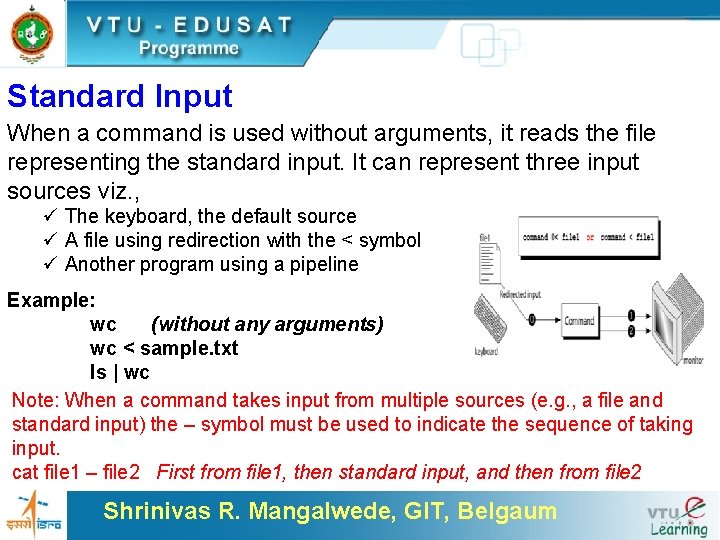
Standard Input When a command is used without arguments, it reads the file representing the standard input. It can represent three input sources viz. , ü The keyboard, the default source ü A file using redirection with the < symbol ü Another program using a pipeline Example: wc (without any arguments) wc < sample. txt ls | wc Note: When a command takes input from multiple sources (e. g. , a file and standard input) the – symbol must be used to indicate the sequence of taking input. cat file 1 – file 2 First from file 1, then standard input, and then from file 2 Shrinivas R. Mangalwede, GIT, Belgaum
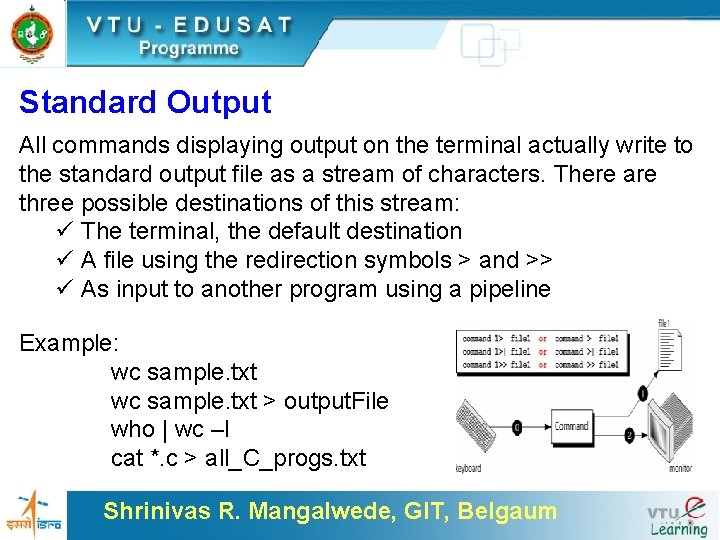
Standard Output All commands displaying output on the terminal actually write to the standard output file as a stream of characters. There are three possible destinations of this stream: ü The terminal, the default destination ü A file using the redirection symbols > and >> ü As input to another program using a pipeline Example: wc sample. txt > output. File who | wc –l cat *. c > all_C_progs. txt Shrinivas R. Mangalwede, GIT, Belgaum
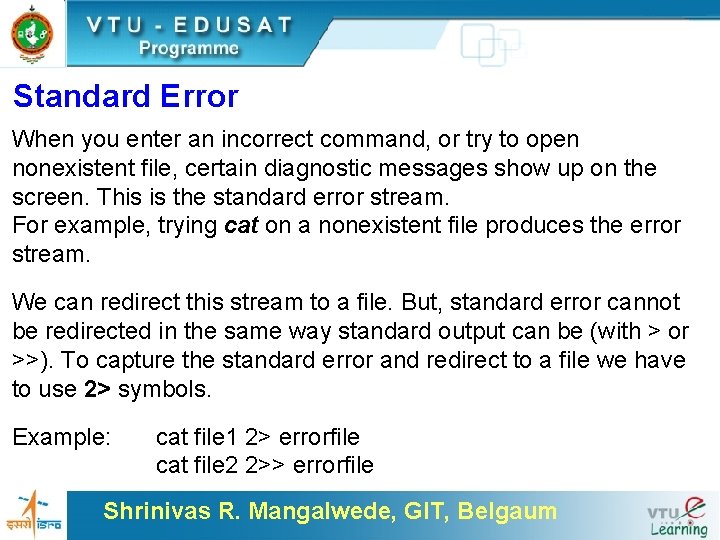
Standard Error When you enter an incorrect command, or try to open nonexistent file, certain diagnostic messages show up on the screen. This is the standard error stream. For example, trying cat on a nonexistent file produces the error stream. We can redirect this stream to a file. But, standard error cannot be redirected in the same way standard output can be (with > or >>). To capture the standard error and redirect to a file we have to use 2> symbols. Example: cat file 1 2> errorfile cat file 2 2>> errorfile Shrinivas R. Mangalwede, GIT, Belgaum
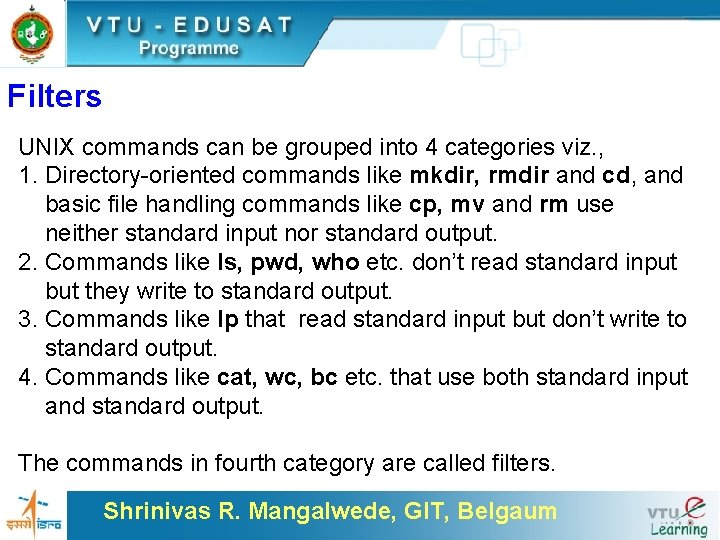
Filters UNIX commands can be grouped into 4 categories viz. , 1. Directory-oriented commands like mkdir, rmdir and cd, and basic file handling commands like cp, mv and rm use neither standard input nor standard output. 2. Commands like ls, pwd, who etc. don’t read standard input but they write to standard output. 3. Commands like lp that read standard input but don’t write to standard output. 4. Commands like cat, wc, bc etc. that use both standard input and standard output. The commands in fourth category are called filters. Shrinivas R. Mangalwede, GIT, Belgaum
Filters When a program/command performs operations on input and writes the result to the standard output, it is called a filter. Example: $ bc < expressions. txt > results. txt Shrinivas R. Mangalwede, GIT, Belgaum
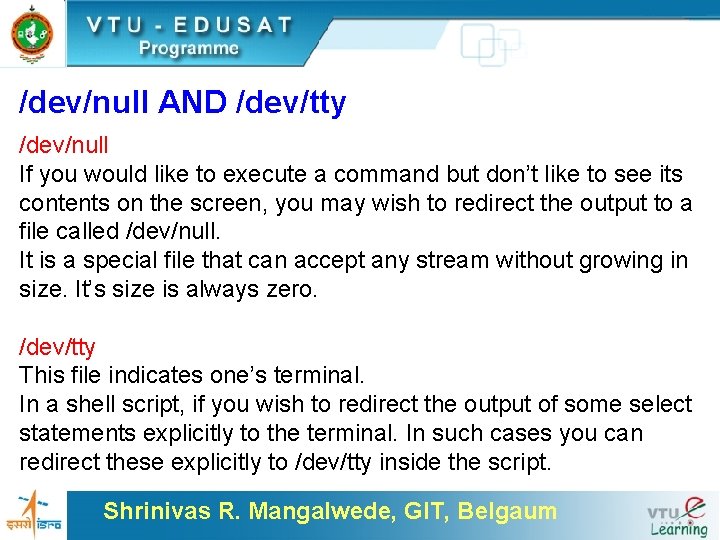
/dev/null AND /dev/tty /dev/null If you would like to execute a command but don’t like to see its contents on the screen, you may wish to redirect the output to a file called /dev/null. It is a special file that can accept any stream without growing in size. It’s size is always zero. /dev/tty This file indicates one’s terminal. In a shell script, if you wish to redirect the output of some select statements explicitly to the terminal. In such cases you can redirect these explicitly to /dev/tty inside the script. Shrinivas R. Mangalwede, GIT, Belgaum
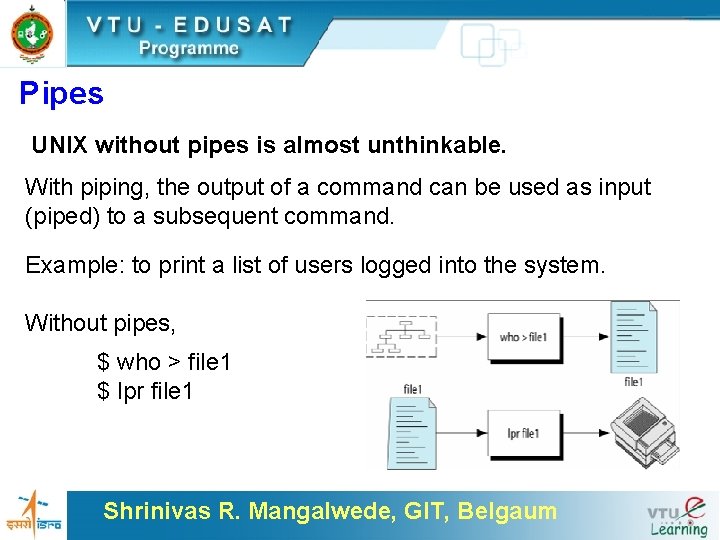
Pipes UNIX without pipes is almost unthinkable. With piping, the output of a command can be used as input (piped) to a subsequent command. Example: to print a list of users logged into the system. Without pipes, $ who > file 1 $ lpr file 1 Shrinivas R. Mangalwede, GIT, Belgaum
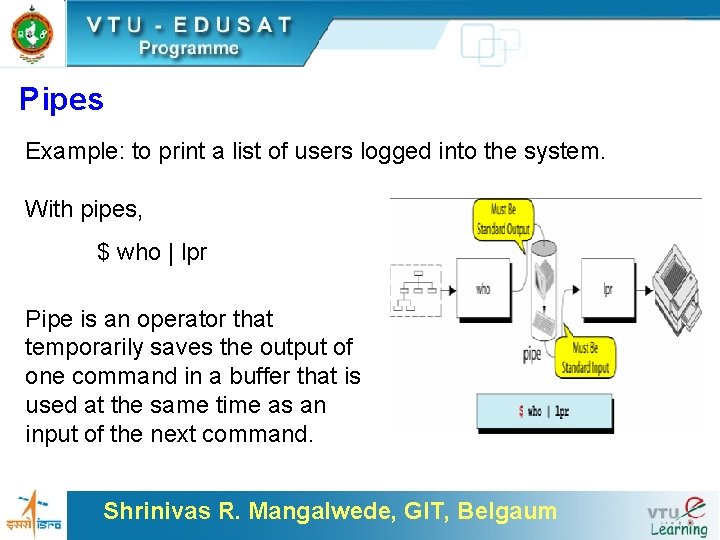
Pipes Example: to print a list of users logged into the system. With pipes, $ who | lpr Pipe is an operator that temporarily saves the output of one command in a buffer that is used at the same time as an input of the next command. Shrinivas R. Mangalwede, GIT, Belgaum
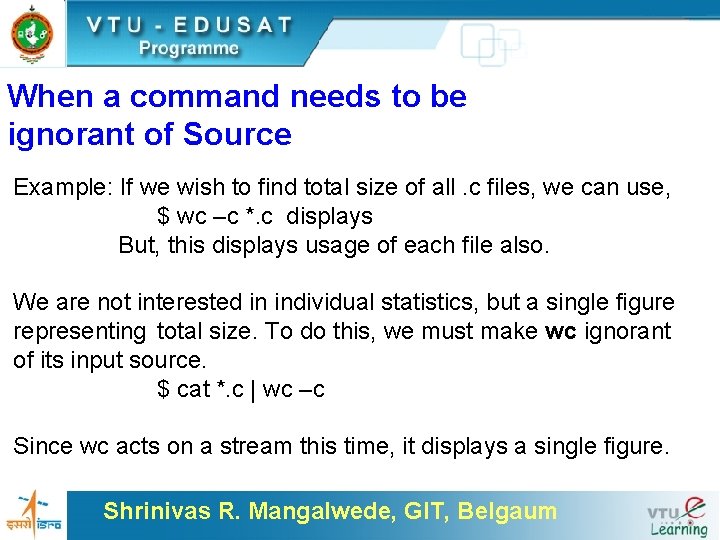
When a command needs to be ignorant of Source Example: If we wish to find total size of all. c files, we can use, $ wc –c *. c displays But, this displays usage of each file also. We are not interested in individual statistics, but a single figure representing total size. To do this, we must make wc ignorant of its input source. $ cat *. c | wc –c Since wc acts on a stream this time, it displays a single figure. Shrinivas R. Mangalwede, GIT, Belgaum
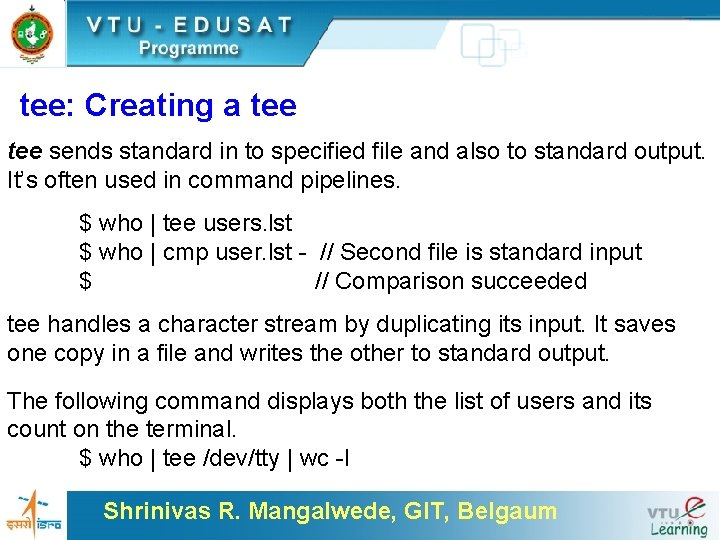
tee: Creating a tee sends standard in to specified file and also to standard output. It’s often used in command pipelines. $ who | tee users. lst $ who | cmp user. lst - // Second file is standard input $ // Comparison succeeded tee handles a character stream by duplicating its input. It saves one copy in a file and writes the other to standard output. The following command displays both the list of users and its count on the terminal. $ who | tee /dev/tty | wc -l Shrinivas R. Mangalwede, GIT, Belgaum
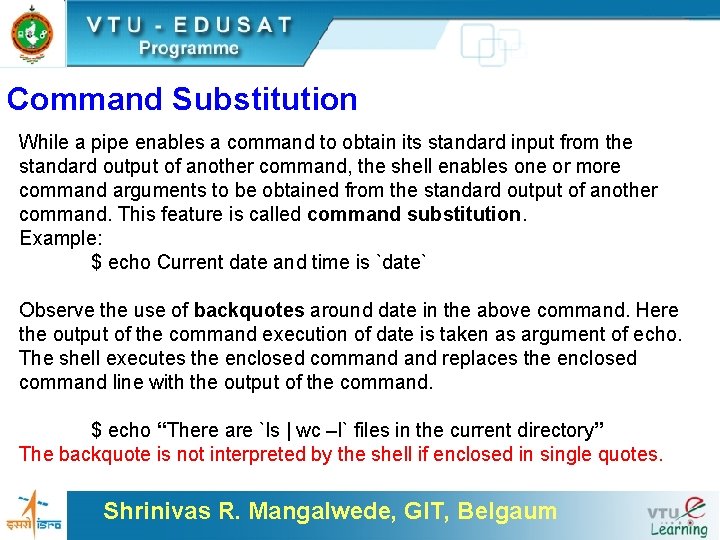
Command Substitution While a pipe enables a command to obtain its standard input from the standard output of another command, the shell enables one or more command arguments to be obtained from the standard output of another command. This feature is called command substitution. Example: $ echo Current date and time is `date` Observe the use of backquotes around date in the above command. Here the output of the command execution of date is taken as argument of echo. The shell executes the enclosed command replaces the enclosed command line with the output of the command. $ echo “There are `ls | wc –l` files in the current directory” The backquote is not interpreted by the shell if enclosed in single quotes. Shrinivas R. Mangalwede, GIT, Belgaum
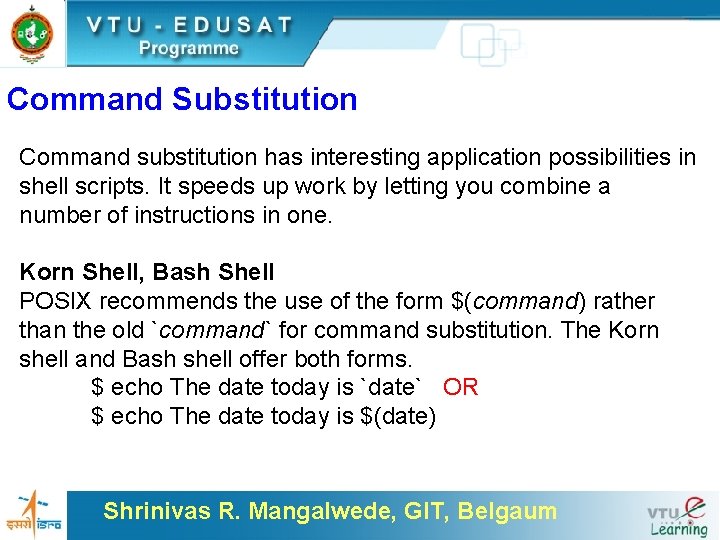
Command Substitution Command substitution has interesting application possibilities in shell scripts. It speeds up work by letting you combine a number of instructions in one. Korn Shell, Bash Shell POSIX recommends the use of the form $(command) rather than the old `command` for command substitution. The Korn shell and Bash shell offer both forms. $ echo The date today is `date` OR $ echo The date today is $(date) Shrinivas R. Mangalwede, GIT, Belgaum
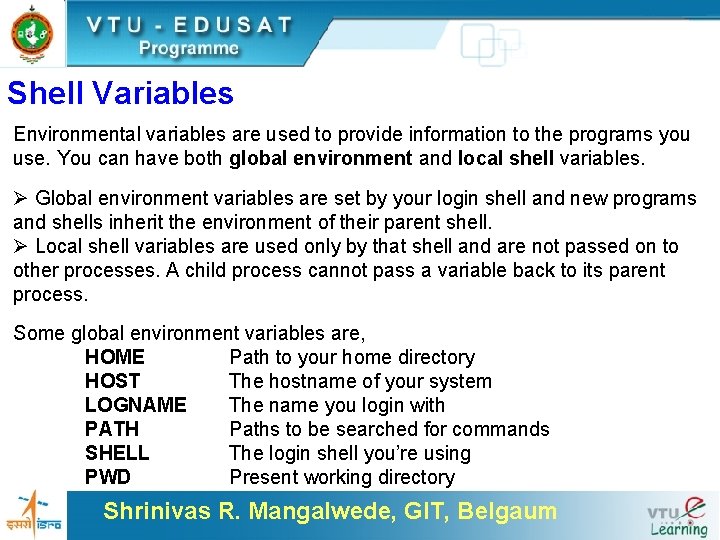
Shell Variables Environmental variables are used to provide information to the programs you use. You can have both global environment and local shell variables. Ø Global environment variables are set by your login shell and new programs and shells inherit the environment of their parent shell. Ø Local shell variables are used only by that shell and are not passed on to other processes. A child process cannot pass a variable back to its parent process. Some global environment variables are, HOME Path to your home directory HOST The hostname of your system LOGNAME The name you login with PATH Paths to be searched for commands SHELL The login shell you’re using PWD Present working directory Shrinivas R. Mangalwede, GIT, Belgaum
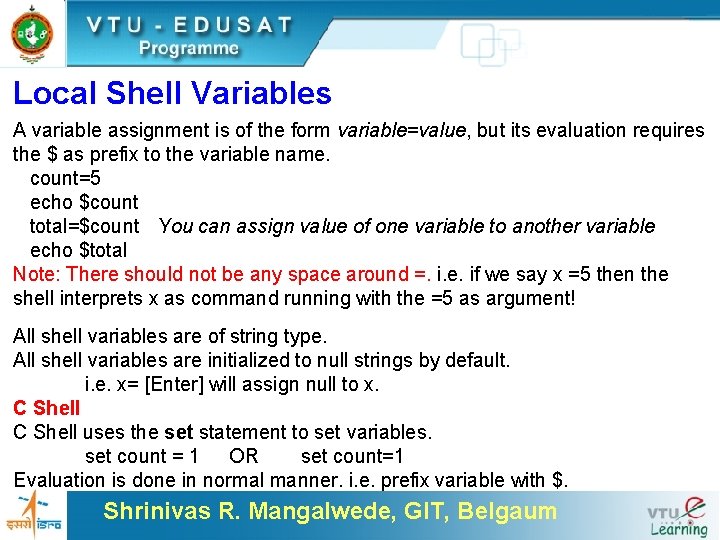
Local Shell Variables A variable assignment is of the form variable=value, but its evaluation requires the $ as prefix to the variable name. count=5 echo $count total=$count You can assign value of one variable to another variable echo $total Note: There should not be any space around =. i. e. if we say x =5 then the shell interprets x as command running with the =5 as argument! All shell variables are of string type. All shell variables are initialized to null strings by default. i. e. x= [Enter] will assign null to x. C Shell uses the set statement to set variables. set count = 1 OR set count=1 Evaluation is done in normal manner. i. e. prefix variable with $. Shrinivas R. Mangalwede, GIT, Belgaum
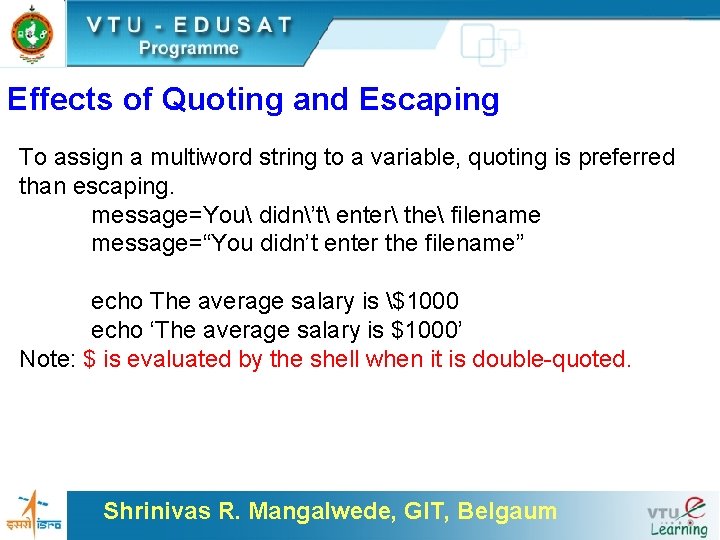
Effects of Quoting and Escaping To assign a multiword string to a variable, quoting is preferred than escaping. message=You didn’t enter the filename message=“You didn’t enter the filename” echo The average salary is $1000 echo ‘The average salary is $1000’ Note: $ is evaluated by the shell when it is double-quoted. Shrinivas R. Mangalwede, GIT, Belgaum
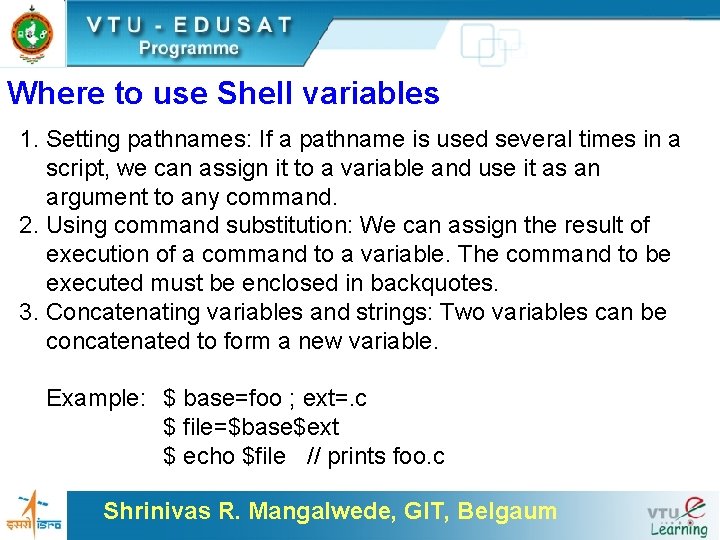
Where to use Shell variables 1. Setting pathnames: If a pathname is used several times in a script, we can assign it to a variable and use it as an argument to any command. 2. Using command substitution: We can assign the result of execution of a command to a variable. The command to be executed must be enclosed in backquotes. 3. Concatenating variables and strings: Two variables can be concatenated to form a new variable. Example: $ base=foo ; ext=. c $ file=$base$ext $ echo $file // prints foo. c Shrinivas R. Mangalwede, GIT, Belgaum
To conclude, After a command line is terminated by [Enter] key, the shell processes the command line in one or more passes in the following order. Parsing: The shell first breaks up the command line into words using spaces and tabs as delimiters, unless quoted. All consecutive occurrences of a space ot tab are replaced with a single space. Variable evaluation: All $-prefixed strings are evaluated as variables, unless quoted or escaped. Command substitution: Any command surrounded by backquotes is executed by the shell, which then replaces the standard output of the command into the command line. Shrinivas R. Mangalwede, GIT, Belgaum
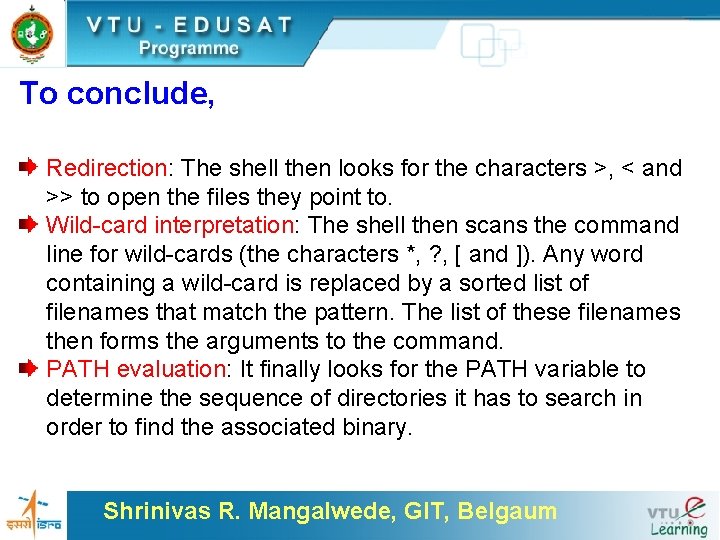
To conclude, Redirection: The shell then looks for the characters >, < and >> to open the files they point to. Wild-card interpretation: The shell then scans the command line for wild-cards (the characters *, ? , [ and ]). Any word containing a wild-card is replaced by a sorted list of filenames that match the pattern. The list of these filenames then forms the arguments to the command. PATH evaluation: It finally looks for the PATH variable to determine the sequence of directories it has to search in order to find the associated binary. Shrinivas R. Mangalwede, GIT, Belgaum
End of Session Shrinivas R. Mangalwede, GIT, Belgaum