
Course code 10 CS 44 UNIT3 The Shell
- Slides: 91
Course code: 10 CS 44 UNIT-3 The Shell Engineered for Tomorrow Prepared by : Thanu Kurian Department : Computer Science Date : 18. 01. 2014
Engineered for Tomorrow The Shell v. Shell is a process that runs when user logs in andterminates when user logs out. v It is a command interpreter and a programming language rolled into one. v It looks for some special symbols in the command line , performs the tasks associated with them and finally executes the command.
Engineered for Tomorrow Shell’s Interpretive cycle: • The following activities are performed by the shell in its interpretive cycle: • The shell issues the prompt and waits for you to enter a command. • After a command is entered , the shell scans the command line for metacharacters and expands abbreviations (like the * in rm*) to recreate a simplified command line. • It then passes on the command line to the kernel for execution. • The shell waits for the command to complete and normally can’t do any work while the command is running. • After command execution is complete, the prompt reappears and the shell returns to its waiting role to start the next cycle. Now, we can enter another command.
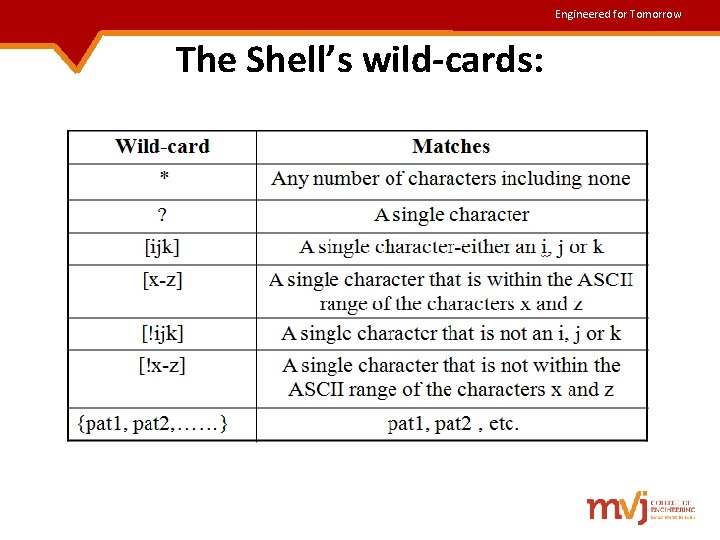
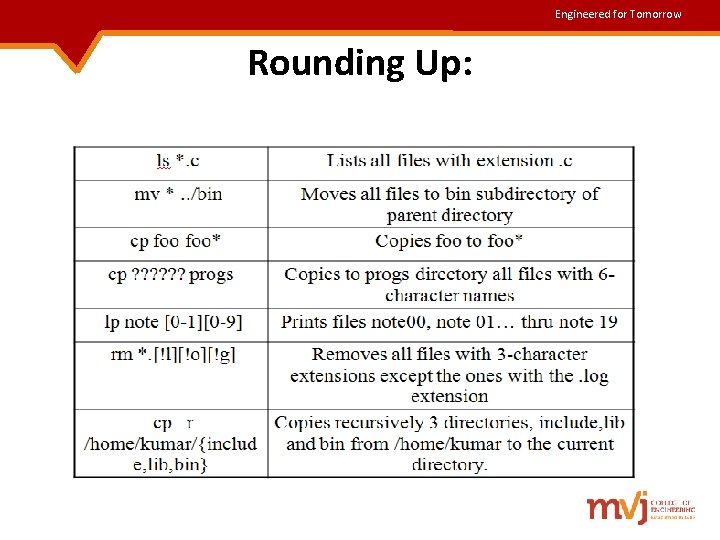
Engineered for Tomorrow Shell Offerings: The shells are grouped into 2 categories: • The Bourne family comprising the Bourne shell (/bin/sh) and its derivatives- the Korn shell (/bin/ksh) and Bash (/bin/bash) • The C shell (/bin/csh) and its derivatives , Tcsh (/bin/tcsh) • When we run the command echo $SHELL , the output displays the absolute pathname of the shell’s command file. If $SHELL evaluates to /bin/bash, the login shell is bash. Pattern Matching-The Wild Cards • The shell matches filenames with wild-cards that have to be expanded before the command is executed.
Engineered for Tomorrow The Shell’s wild-cards:
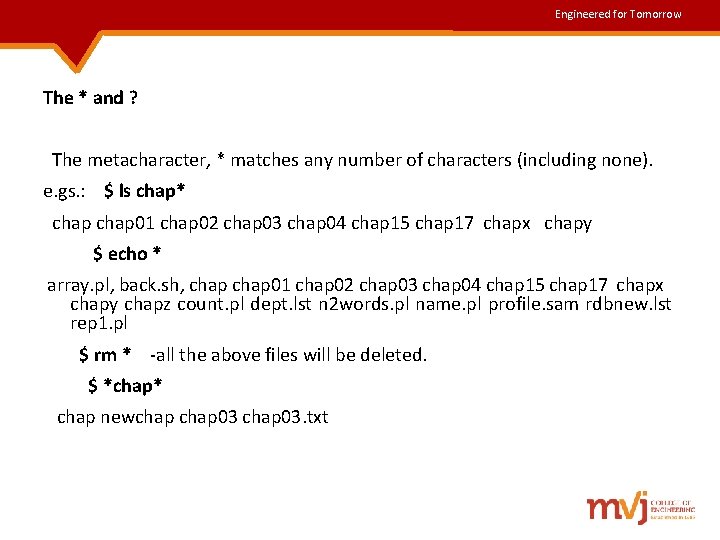
Engineered for Tomorrow The * and ? The metacharacter, * matches any number of characters (including none). e. gs. : $ ls chap* chap 01 chap 02 chap 03 chap 04 chap 15 chap 17 chapx chapy $ echo * array. pl, back. sh, chap 01 chap 02 chap 03 chap 04 chap 15 chap 17 chapx chapy chapz count. pl dept. lst n 2 words. pl name. pl profile. sam rdbnew. lst rep 1. pl $ rm * -all the above files will be deleted. $ *chap* chap newchap 03. txt
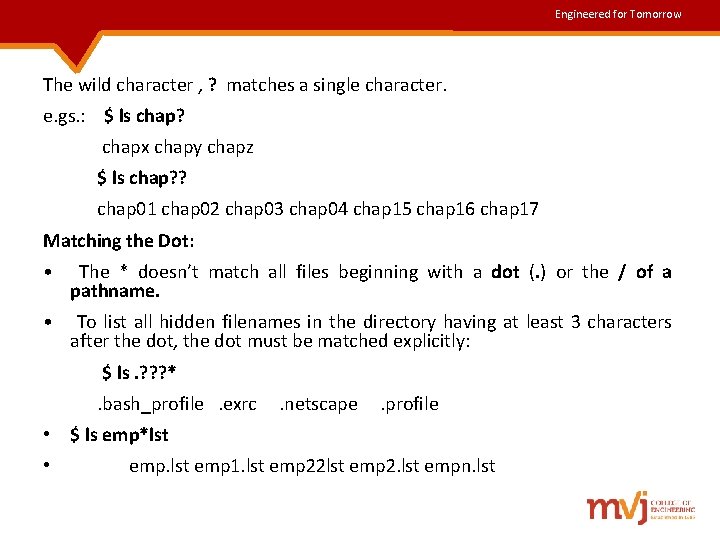
Engineered for Tomorrow The wild character , ? matches a single character. e. gs. : $ ls chap? chapx chapy chapz $ ls chap? ? chap 01 chap 02 chap 03 chap 04 chap 15 chap 16 chap 17 Matching the Dot: • The * doesn’t match all files beginning with a dot (. ) or the / of a pathname. • To list all hidden filenames in the directory having at least 3 characters after the dot, the dot must be matched explicitly: $ ls. ? ? ? * . bash_profile . exrc . netscape . profile • $ ls emp*lst • emp. lst emp 1. lst emp 22 lst emp 2. lst empn. lst
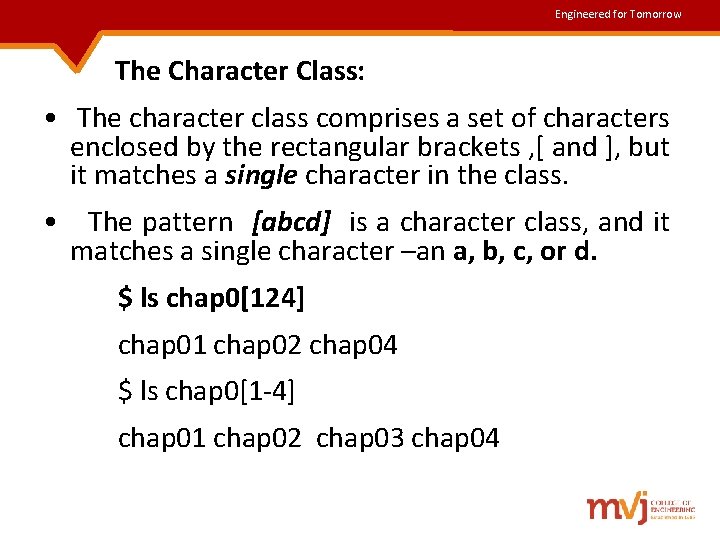
Engineered for Tomorrow The Character Class: • The character class comprises a set of characters enclosed by the rectangular brackets , [ and ], but it matches a single character in the class. • The pattern [abcd] is a character class, and it matches a single character –an a, b, c, or d. $ ls chap 0[124] chap 01 chap 02 chap 04 $ ls chap 0[1 -4] chap 01 chap 02 chap 03 chap 04
Engineered for Tomorrow Rounding Up:
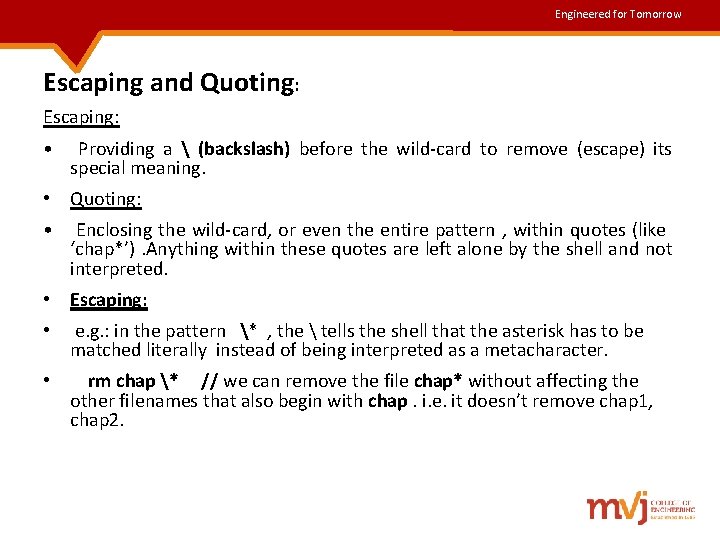
Engineered for Tomorrow Escaping and Quoting: Escaping: • Providing a (backslash) before the wild-card to remove (escape) its special meaning. • Quoting: • Enclosing the wild-card, or even the entire pattern , within quotes (like ‘chap*’). Anything within these quotes are left alone by the shell and not interpreted. • Escaping: • e. g. : in the pattern * , the tells the shell that the asterisk has to be matched literally instead of being interpreted as a metacharacter. • rm chap * // we can remove the file chap* without affecting the other filenames that also begin with chap. i. e. it doesn’t remove chap 1, chap 2.
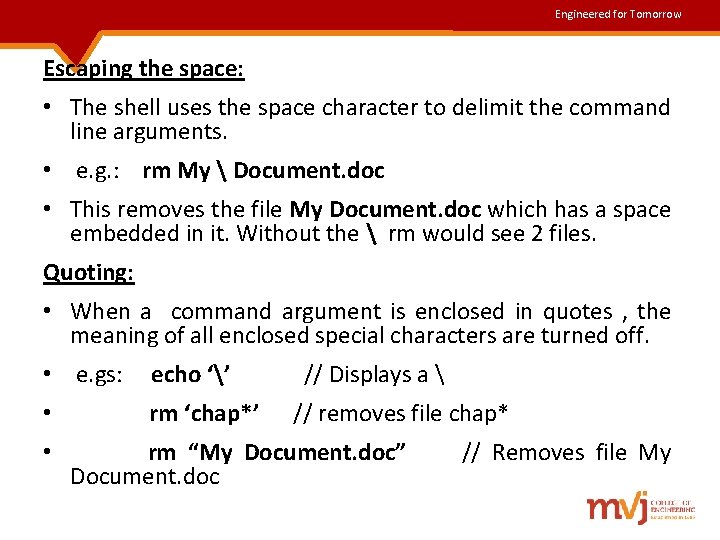
Engineered for Tomorrow Escaping the space: • The shell uses the space character to delimit the command line arguments. • e. g. : rm My Document. doc • This removes the file My Document. doc which has a space embedded in it. Without the rm would see 2 files. Quoting: • When a command argument is enclosed in quotes , the meaning of all enclosed special characters are turned off. • e. gs: echo ‘’ // Displays a • rm ‘chap*’ // removes file chap* • rm “My Document. doc” // Removes file My Document. doc
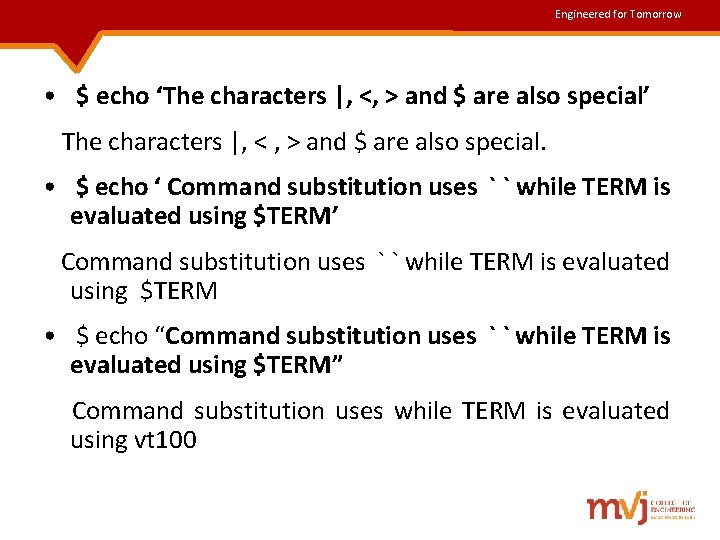
Engineered for Tomorrow • $ echo ‘The characters |, <, > and $ are also special’ The characters |, < , > and $ are also special. • $ echo ‘ Command substitution uses ` ` while TERM is evaluated using $TERM’ Command substitution uses ` ` while TERM is evaluated using $TERM • $ echo “Command substitution uses ` ` while TERM is evaluated using $TERM” Command substitution uses while TERM is evaluated using vt 100
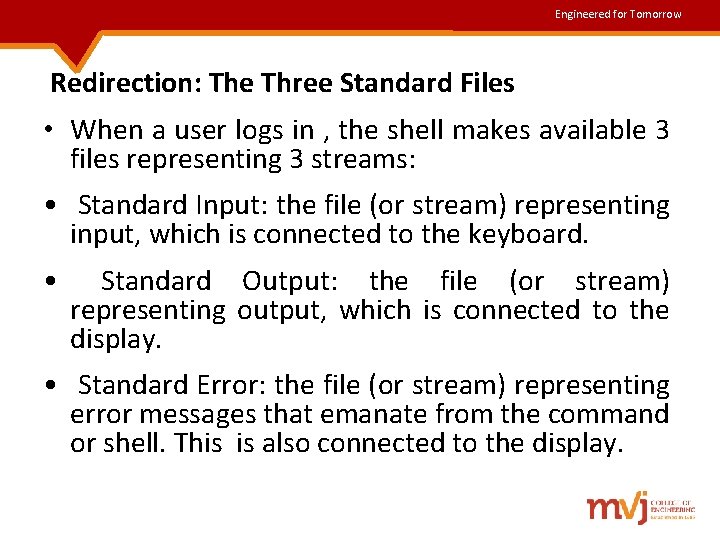
Engineered for Tomorrow Redirection: The Three Standard Files • When a user logs in , the shell makes available 3 files representing 3 streams: • Standard Input: the file (or stream) representing input, which is connected to the keyboard. • Standard Output: the file (or stream) representing output, which is connected to the display. • Standard Error: the file (or stream) representing error messages that emanate from the command or shell. This is also connected to the display.
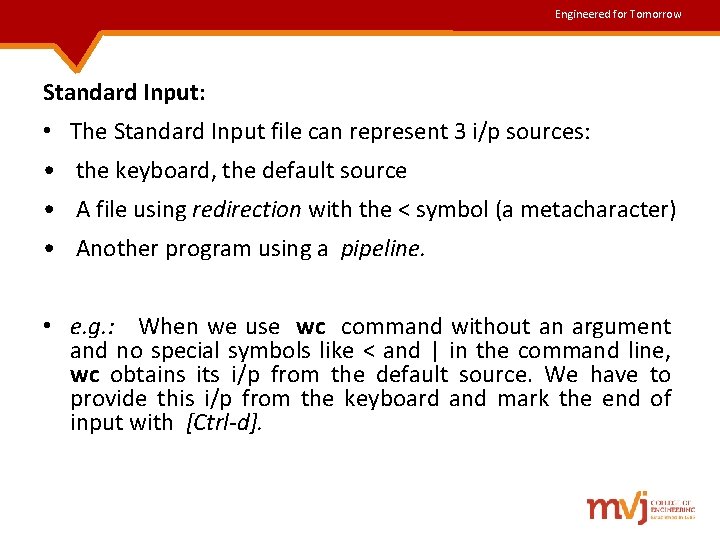
Engineered for Tomorrow Standard Input: • The Standard Input file can represent 3 i/p sources: • the keyboard, the default source • A file using redirection with the < symbol (a metacharacter) • Another program using a pipeline. • e. g. : When we use wc command without an argument and no special symbols like < and | in the command line, wc obtains its i/p from the default source. We have to provide this i/p from the keyboard and mark the end of input with [Ctrl-d].
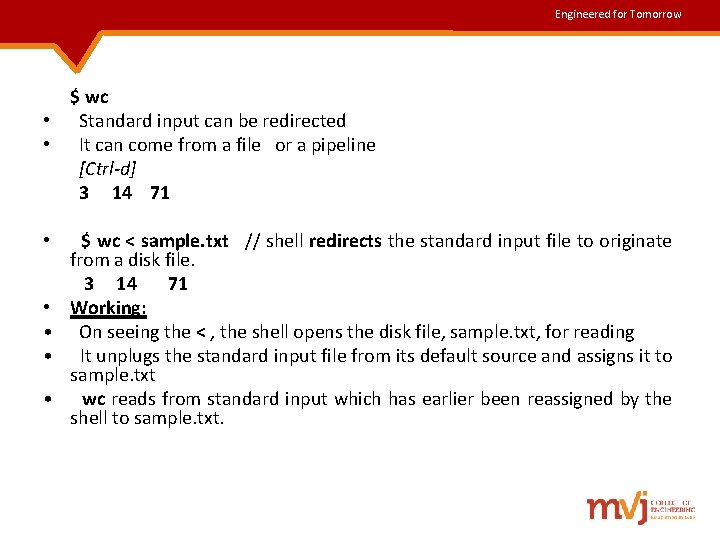
Engineered for Tomorrow $ wc • Standard input can be redirected • It can come from a file or a pipeline [Ctrl-d] 3 14 71 • $ wc < sample. txt // shell redirects the standard input file to originate from a disk file. 3 14 71 • Working: • On seeing the < , the shell opens the disk file, sample. txt, for reading • It unplugs the standard input file from its default source and assigns it to sample. txt • wc reads from standard input which has earlier been reassigned by the shell to sample. txt.
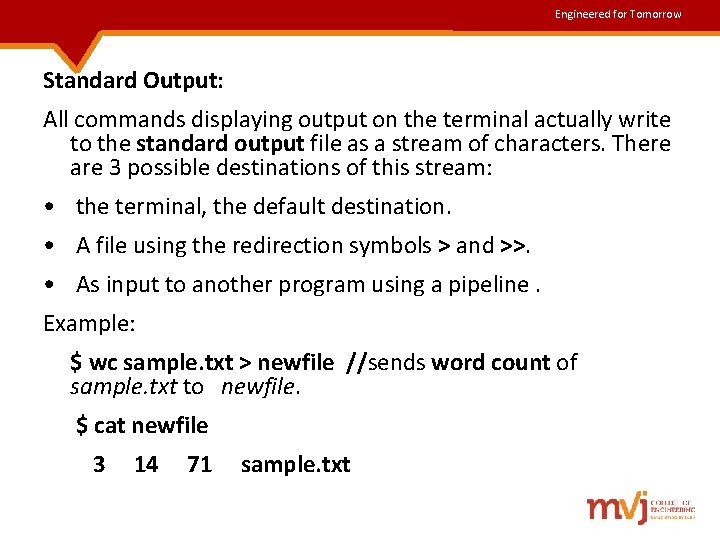
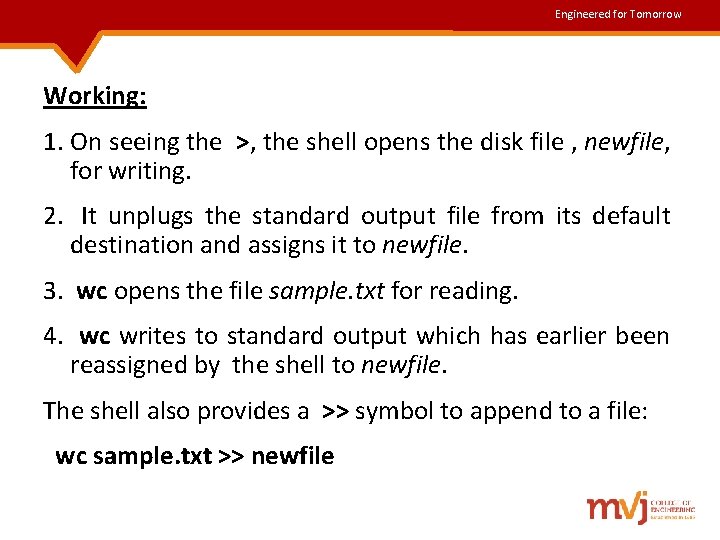
Engineered for Tomorrow Standard Output: All commands displaying output on the terminal actually write to the standard output file as a stream of characters. There are 3 possible destinations of this stream: • the terminal, the default destination. • A file using the redirection symbols > and >>. • As input to another program using a pipeline. Example: $ wc sample. txt > newfile //sends word count of sample. txt to newfile. $ cat newfile 3 14 71 sample. txt
Engineered for Tomorrow Working: 1. On seeing the >, the shell opens the disk file , newfile, for writing. 2. It unplugs the standard output file from its default destination and assigns it to newfile. 3. wc opens the file sample. txt for reading. 4. wc writes to standard output which has earlier been reassigned by the shell to newfile. The shell also provides a >> symbol to append to a file: wc sample. txt >> newfile
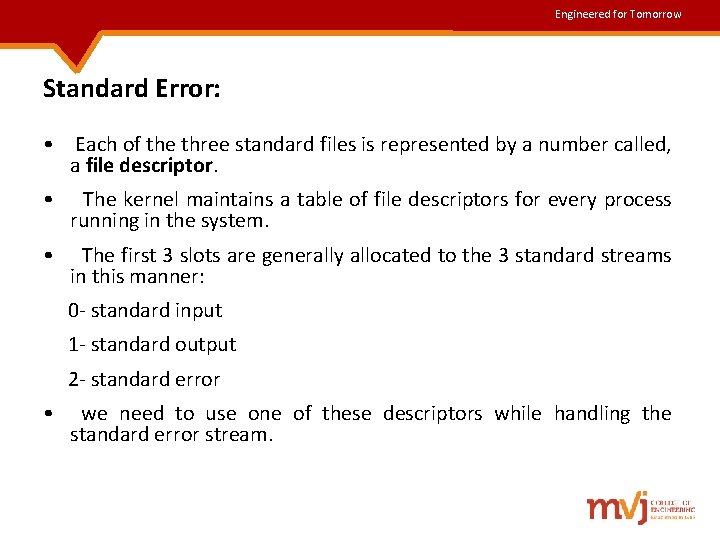
Engineered for Tomorrow Standard Error: • Each of the three standard files is represented by a number called, a file descriptor. • The kernel maintains a table of file descriptors for every process running in the system. • The first 3 slots are generally allocated to the 3 standard streams in this manner: 0 - standard input 1 - standard output 2 - standard error • we need to use one of these descriptors while handling the standard error stream.
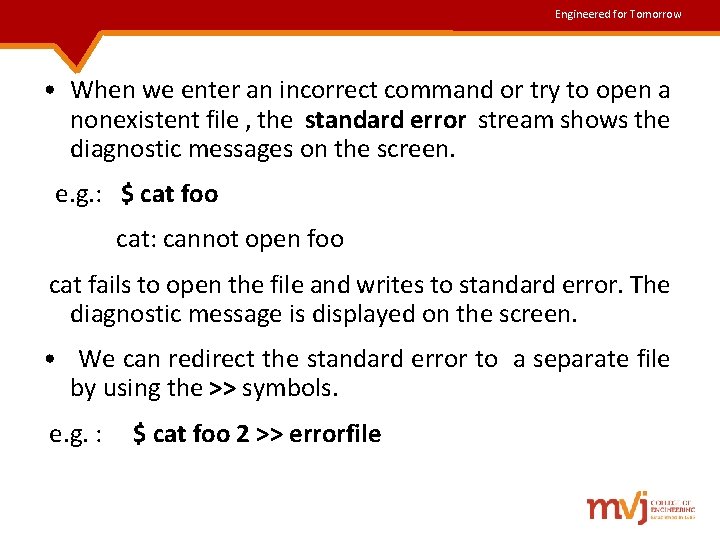
Engineered for Tomorrow • When we enter an incorrect command or try to open a nonexistent file , the standard error stream shows the diagnostic messages on the screen. e. g. : $ cat foo cat: cannot open foo cat fails to open the file and writes to standard error. The diagnostic message is displayed on the screen. • We can redirect the standard error to a separate file by using the >> symbols. e. g. : $ cat foo 2 >> errorfile
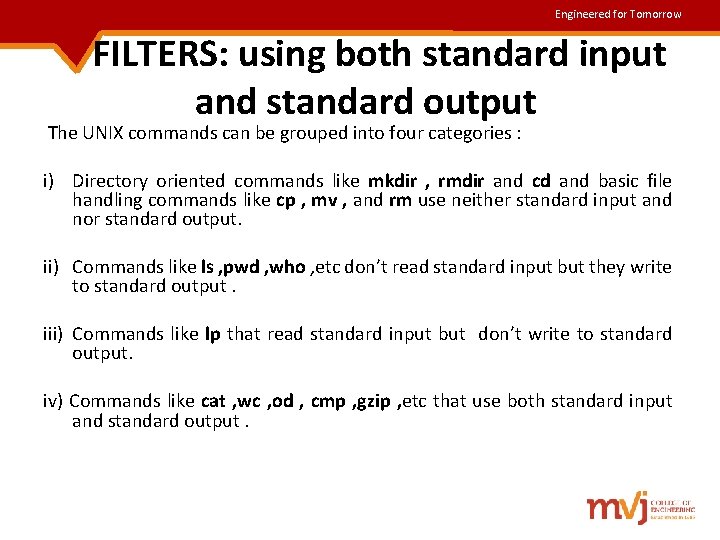
Engineered for Tomorrow FILTERS: using both standard input and standard output The UNIX commands can be grouped into four categories : i) Directory oriented commands like mkdir , rmdir and cd and basic file handling commands like cp , mv , and rm use neither standard input and nor standard output. ii) Commands like ls , pwd , who , etc don’t read standard input but they write to standard output. iii) Commands like lp that read standard input but don’t write to standard output. iv) Commands like cat , wc , od , cmp , gzip , etc that use both standard input and standard output.
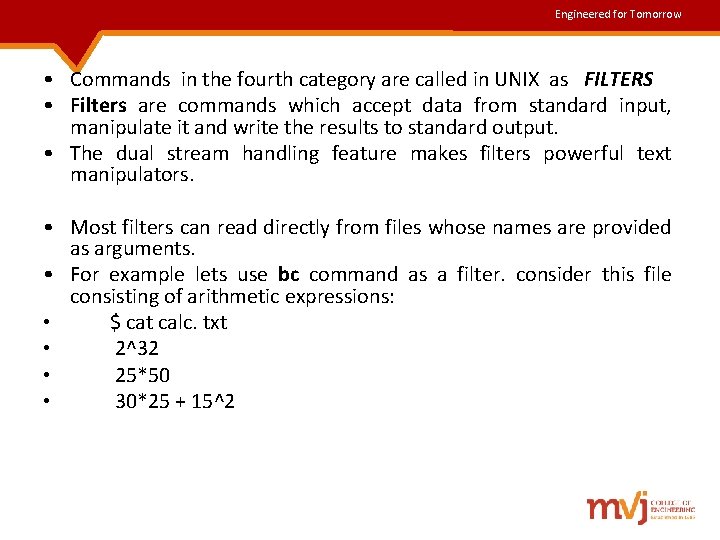
Engineered for Tomorrow • Commands in the fourth category are called in UNIX as FILTERS • Filters are commands which accept data from standard input, manipulate it and write the results to standard output. • The dual stream handling feature makes filters powerful text manipulators. • Most filters can read directly from files whose names are provided as arguments. • For example lets use bc command as a filter. consider this file consisting of arithmetic expressions: • $ cat calc. txt • 2^32 • 25*50 • 30*25 + 15^2
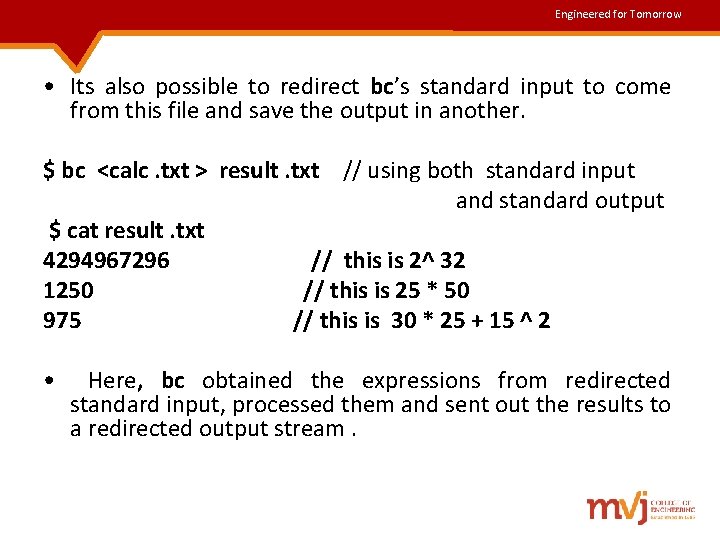
Engineered for Tomorrow • Its also possible to redirect bc’s standard input to come from this file and save the output in another. $ bc <calc. txt > result. txt // using both standard input and standard output $ cat result. txt 4294967296 // this is 2^ 32 1250 // this is 25 * 50 975 // this is 30 * 25 + 15 ^ 2 • Here, bc obtained the expressions from redirected standard input, processed them and sent out the results to a redirected output stream.
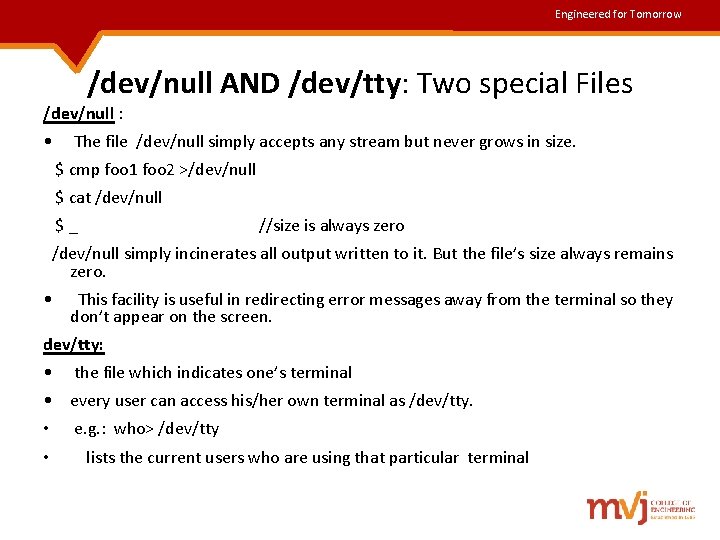
Engineered for Tomorrow /dev/null AND /dev/tty: Two special Files /dev/null : • The file /dev/null simply accepts any stream but never grows in size. $ cmp foo 1 foo 2 >/dev/null $ cat /dev/null $ _ //size is always zero /dev/null simply incinerates all output written to it. But the file’s size always remains zero. • This facility is useful in redirecting error messages away from the terminal so they don’t appear on the screen. dev/tty: • the file which indicates one’s terminal • every user can access his/her own terminal as /dev/tty. • e. g. : who> /dev/tty • lists the current users who are using that particular terminal
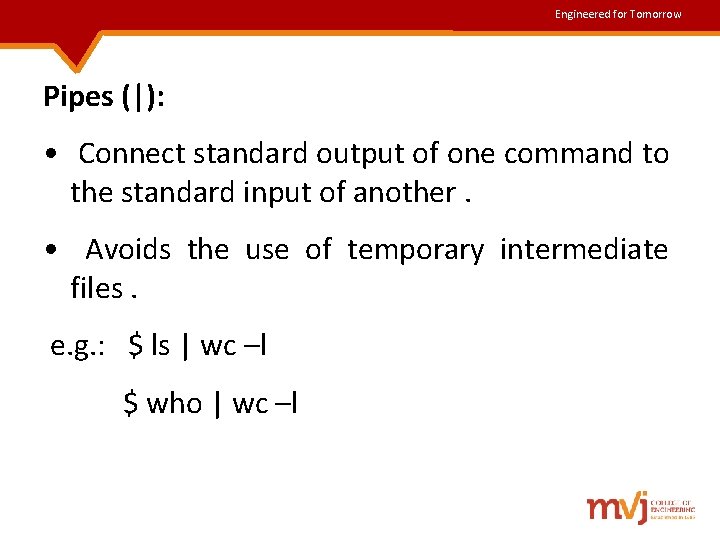
Engineered for Tomorrow Pipes (|): • Connect standard output of one command to the standard input of another. • Avoids the use of temporary intermediate files. e. g. : $ ls | wc –l $ who | wc –l
Engineered for Tomorrow • There’s no restriction on the number of commands we can use in a pipeline. • Consider this command sequence which prints the man page of grep on the printer : man grep | col –b | lp • The online man pages of a command often show the keywords in boldface. • This pages contain a number of control characters which are removed here by the col –b command • lp also reads standard input this time from col’s output and prints the file.
Engineered for Tomorrow • In a pipeline all programs run simultaneously • A pipe also has a built in mechanism to control the flow of the stream • This happens when we use the command ls | more i. e. , kernel makes sure that ls writes to the pipe only as much as more can absorb at a time. tee : CREATING A TEE • tee is an external command not a feature of the shell. • It handles a character stream by duplicating its input.
Engineered for Tomorrow • It saves one copy in a file and writes the other to standard output • Being also a filter tee can be placed anywhere in the pipeline • The following command sequence uses tee to display the output of who and saves this output in a file as well. $ who | tee user. txt abc pts/2 sep 7 08 : 41 (pc 123. heavens. com) xyz pts/3 sep 7 17: 58 (pc 122. heavens. com) • user. txt also contains this output , use cat to view user. txt cat user. txt abc pts/2 sep 7 08 : 41 (pc 123. heavens. com) xyz pts/3 sep 7 17: 58 (pc 122. heavens. com)
Engineered for Tomorrow COMMAND SUBSTITUTION : The shell enables one or more command arguments to be obtained from the standard output of another command this feature is called command substitution. Example: to display today’s date The date today is Sat Oct 11 19: 01: 16 IST 2008 The last part of the statement represents the output of the date command. To incorporate date’s output into the echo’s statement we use command substitution as follows: $ “echo The date today is `date`” //use date as an argument to echo The date today is Sat Oct 11 19: 01: 16 IST 2008
Engineered for Tomorrow Shell Variables: • The shell supports variables that are useful both in command line and shell scripts. • A variable assignment is of the form variable=value e. g. : $ count=5 $ echo $count 5 • A variable can also be assigned the value of another variable: $ total= $count $ echo $total 5
Engineered for Tomorrow Where to use shell variables • Setting pathnames: If a pathname is used several times in a script, we can assign it to a variable and use it as an argument to any command. $ progs=‘/home/kumar/c_progs’ $ cd $progs; pwd /home/kumar/c_progs • Using command substitution: We can assign the result of execution of a command to a variable. The command to be executed must be enclosed in backquotes. $ mydir=`pwd`; echo $mydir /home/kumar/c_progs • Concatenating variables and strings: Two variables can be concatenated to form a new variable. Example: $ base=foo ; ext=. c $ file=$base$ext $ echo $file // prints foo. c $ file=${base}$ext
Engineered for Tomorrow Process Basics: The Process § A process is simply an instance of a running program. § The multitasking nature of UNIX allows a process to spawn (generate) one or more processes. § Like living organisms, processes are born , generate other processes and also die. § A process is said to be born when the program starts execution and remains alive as long as the program is active. After execution is complete, the process is said to die. § A process has a name, usually the name of the program being executed. § For example, when we execute grep command , a process named grep is created. § When 2 users run the same program, there is one program on disk but 2 processes in memory.
Engineered for Tomorrow Role of kernel: § The kernel is responsible for the management of processes. It determines the time and priorities that are allocated to processes so that multiple processes are able to share CPU resources. § It provides a mechanism by which a process is able to execute for a finite period of time and the relinquish control to another process. § The kernel sometimes stores pages (sections) of these processes in the swap area of the disk before calling them again for running. § The kernel maintains the attributes of every process in memory in a separate structure called the process table. Process table is the inode for processes
Engineered for Tomorrow § Two important attributes of a process are: v The process-id (PID): each process is uniquely identified by a unique integer called the process-id (PID) that is allotted by the kernel when the process is born. v The Parent PID(PID): The PID of the parent is also available as a process attribute. When several processes have the same PPID, the parent can be killed rather than killing all its children separately.
Engineered for Tomorrow The Shell Process: § The shell is also a process. When we log on to the UNIX system, this process is immediately set up by the kernel. § This process remains alive until we log out, when it is killed by the kernel. § Any command that we give is actually the standard input to the shell process. § The shell maintains a set of environment variables like PATH and SHELL. The shell’s pathname is stored in SHELL , but its PID is stored in special “variable” , $$ § To know the PID of the current shell, type $ echo $$ 291 § § The PID of the login shell can’t obviously change as long as we are logged in. A low PID indicates that the process was initiated early. § When we log out and log in again, our login shell will be assigned a different PID.
Engineered for Tomorrow Parents and Children: § Every process has a parent and this parent itself is another process. A process born from it is called to be its child. § For example, when we run the following command cat emp. lst from the keyboard, a process representing the cat command , is started by the shell process. This cat process remains active as long as the command is active. The shell (may be sh, ksh , bash or csh) is said to be the parent of cat, while cat is said to be child of the shell. § The ancestry of every process is ultimately traced to the first process (PID 0) that is set up when the system is booted. § Like a file, a process can have only one parent. The multitasking nature of UNIX permits a process to generate (spawn) one or more children. The command cat emp. lst | grep ‘director’ sets up 2 processes for the 2 commands. These processes have the names cat and grep , and both are spawned by the shell. Note: all commands don’t set up processes. The commands such as pwd, cd etc don’t create processes.
Engineered for Tomorrow Wait or Not Wait? : § the parent may wait for the child to die so that it can spawn next process. The death is informed by the kernel to the parent. When we execute a command from the shell, the shell process waits for the command to die before it returns the prompt to take up the next command. § the parent may not wait for the child to die at all and many continue to spawn other processes. The init process does this and hence it is the parent of several processes.
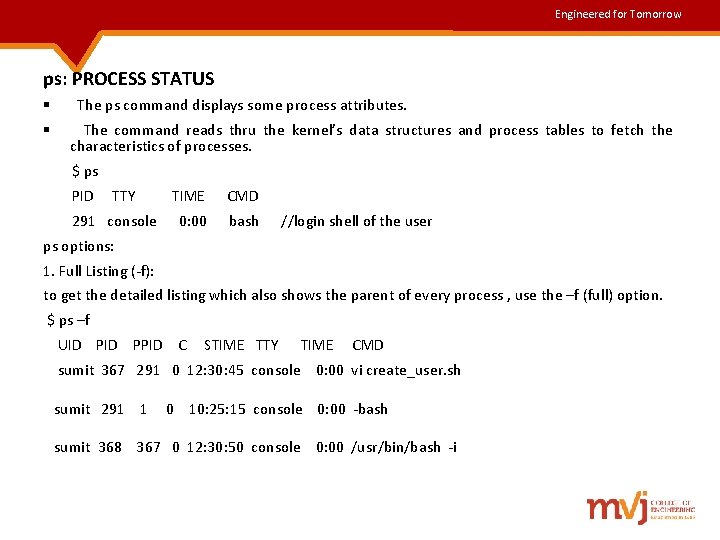
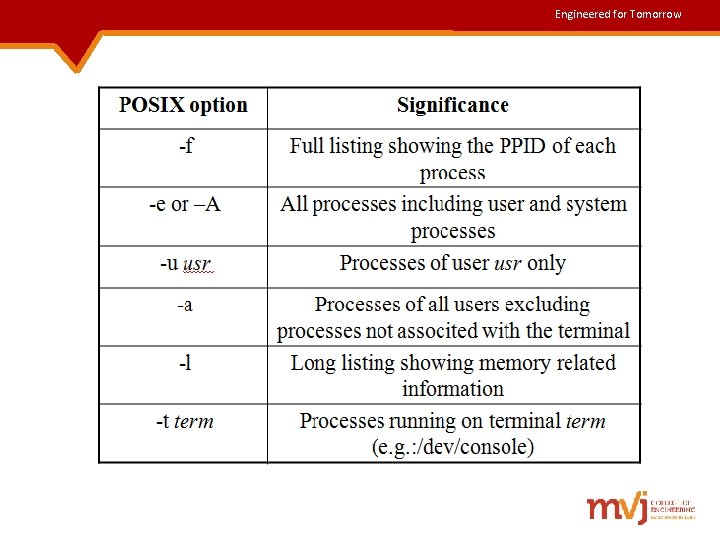
Engineered for Tomorrow ps: PROCESS STATUS § The ps command displays some process attributes. § The command reads thru the kernel’s data structures and process tables to fetch the characteristics of processes. $ ps PID TTY TIME CMD 291 console 0: 00 bash //login shell of the user ps options: 1. Full Listing (-f): to get the detailed listing which also shows the parent of every process , use the –f (full) option. $ ps –f UID PPID C STIME TTY TIME CMD sumit 367 291 0 12: 30: 45 console 0: 00 vi create_user. sh sumit 291 1 0 10: 25: 15 console 0: 00 -bash sumit 368 367 0 12: 30: 50 console 0: 00 /usr/bin/bash -i
Engineered for Tomorrow
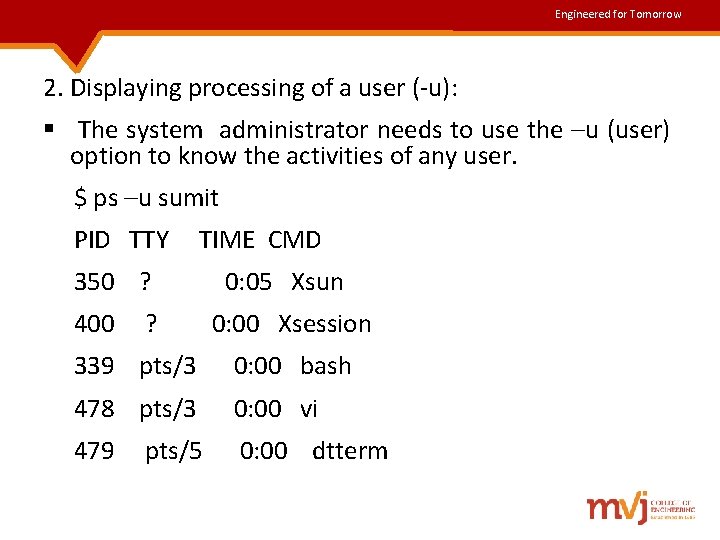
Engineered for Tomorrow 2. Displaying processing of a user (-u): § The system administrator needs to use the –u (user) option to know the activities of any user. $ ps –u sumit PID TTY TIME CMD 350 ? 0: 05 Xsun 400 ? 0: 00 Xsession 339 pts/3 0: 00 bash 478 pts/3 0: 00 vi 479 pts/5 0: 00 dtterm
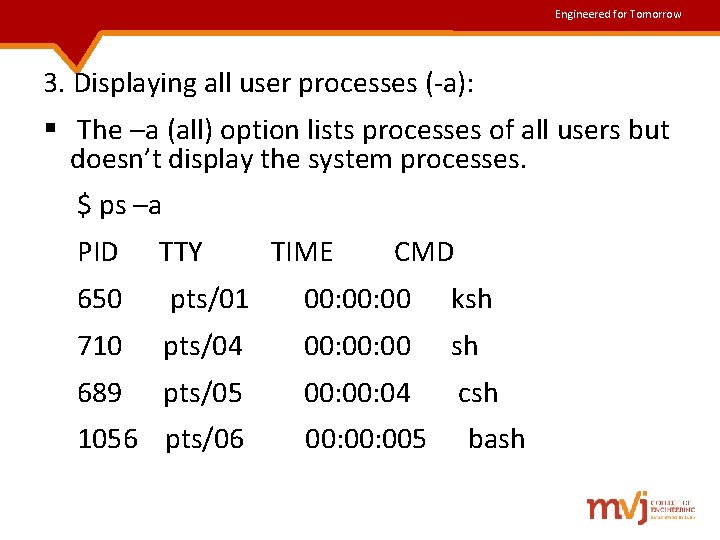
Engineered for Tomorrow 3. Displaying all user processes (-a): § The –a (all) option lists processes of all users but doesn’t display the system processes. $ ps –a PID TTY TIME CMD 650 pts/01 00: 00 ksh 710 pts/04 00: 00 sh 689 pts/05 00: 04 csh 1056 pts/06 00: 005 bash
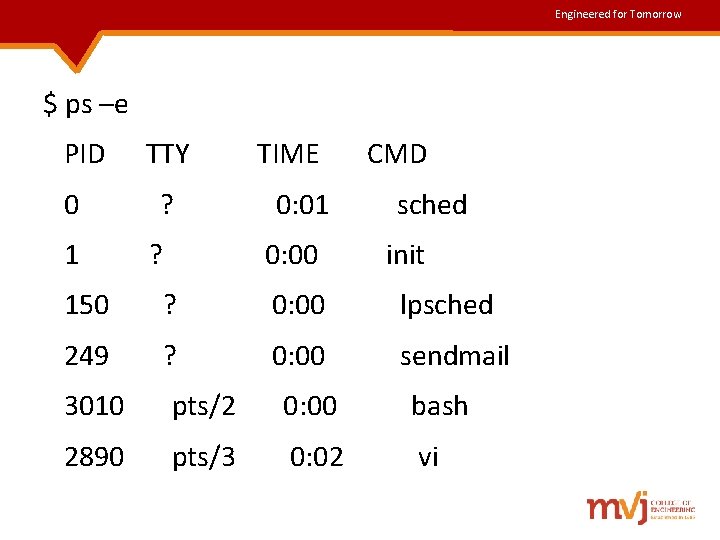
Engineered for Tomorrow 4. System Processes (-e or –A): § This option lists all processes including system and user processes. § system processes are spawned during system startup and some of them start when the system goes to multiuser state. § system processes are easily identified by the ? Symbol in TTY column. § These system processes are known as daemons because they are called without a specific request from a user. Many of these daemons are actually sleeping and wake up only when they receive input. § the lpsched daemon controls all printing activity. § the sendmail handles both incoming and outgoing mail. § the cron looks at its control file once a minute to decide what it should do.
Engineered for Tomorrow $ ps –e PID TTY TIME CMD 0 ? 0: 01 sched 1 ? 0: 00 init 150 ? 0: 00 lpsched 249 ? 0: 00 sendmail 3010 pts/2 0: 00 bash 2890 pts/3 0: 02 vi
Engineered for Tomorrow Mechanism of Process creation § There are 3 distinct phases in the creation of a process and uses 3 important system calls or functions – fork, exec, wait. § The 3 phases are as follows: fork: § A process in UNIX is created with the fork system call , which creates a copy of the process that invokes it. § The process image is practically identical to that of the calling process , except for the PID. § When a process if forked , the child gets a new PID. § Forking mechanism is responsible for multiplication of processes in the system.
Engineered for Tomorrow Exec: § the forked child process overwrites its own image with the code and data of the new program in order to run that new program. § this mechanism is called exec, and the child process is said to exec a new program. § no new process is created here and PID and PPID of the exec’d process remain unchanged. Wait: § the parent executes the wait system call to wait for the child process to complete. § it picks up the exit status of the child and then continues with its other functions.
Engineered for Tomorrow § When we run any command say cat, the shell first forks another shell process. The newly forked shell then overlays itself with the executable image of cat, which then starts to run. The parent (shell) waits for the cat to terminate and then picks up the exit status of the child. § When a process is forked, the child has a different PID and PPID from its parent. The important attributes that are inherited are: • The real UID and real GID of the process. These parameters are stored in the entry for the user in /etc/passwd. • The effective UID and effective GID of the process. • The current directory from where the process was run. • the descriptors of all files opened by the parent process. These descriptors are used to identify a file. The file descriptors table reserves the first 3 slots (0, 1 and 2) for the shell’s standard streams. • Environment variables (like HOME and PATH). Every process knows the user’s home directory and the path used by the shell to look for the commands
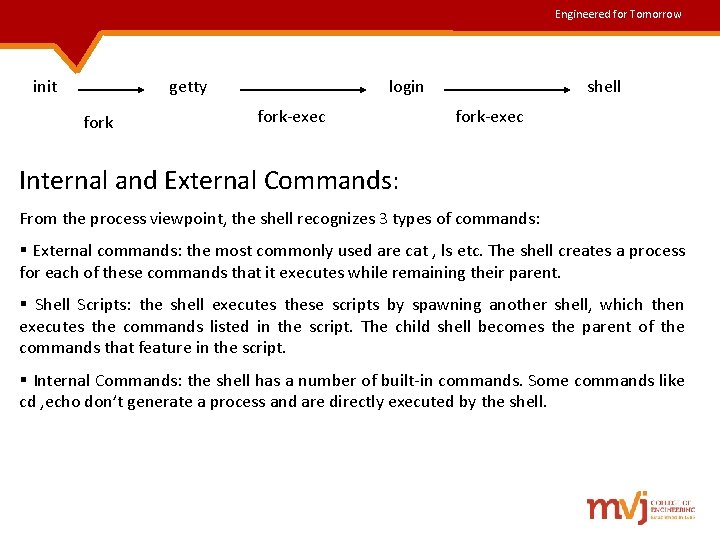
Engineered for Tomorrow How the Shell is created: § when the system moves to multi-user mode, init forks and execs a getty for every active communication port. § Each of these getty prints the login prompt on the respective terminal and then goes off to sleep. § When a user logs in, getty wakes up and fork-execs the login program to verify the login name and password entered. On successful login, login forks-execs the process representing the login shell. Repeated overlaying ultimately results in init becoming the immediate ancestor of the shell • init : a process having the PID number 1, which is responsible for the creation of all major processes. The init runs all system’s daemons. • getty: a process that runs at every free terminal to monitor the next login. It is spawned by init and execs the login program whenever user a user tries to login. • sort –o flname: sorts a file (in ascending or descending ) and places the output in a file flname
Engineered for Tomorrow init getty fork login fork-exec shell fork-exec Internal and External Commands: From the process viewpoint, the shell recognizes 3 types of commands: § External commands: the most commonly used are cat , ls etc. The shell creates a process for each of these commands that it executes while remaining their parent. § Shell Scripts: the shell executes these scripts by spawning another shell, which then executes the commands listed in the script. The child shell becomes the parent of the commands that feature in the script. § Internal Commands: the shell has a number of built-in commands. Some commands like cd , echo don’t generate a process and are directly executed by the shell.
Engineered for Tomorrow Why directory change cant be made in separate process • Child process inherits current working directory from its parent • It is necessary for the cd command not to spawn a child to achieve a change in directory • If it was done through a separate child process, then after cd has completed, control would revert back to parent and original directory restored.
Engineered for Tomorrow Running Jobs in Background: § In a multitasking system , only one task is running in the foreground, rest of the jobs have to run in the background. § There are 2 ways of doing this – with the shell’s & operator and nohup command.
Engineered for Tomorrow 1. &: No Logging out: § The & is used to run a process in the background. § The parent does not wait for childs death § Just terminate the command line with an &; the command will run in the background. $ sort –o emp. lst & 550 //the job’s PID § The shell immediately returns a number –the PID of the invoked command (550). The prompt is returned and the shell is ready to accept another command even though the previous command has not been terminated yet. § Using an & we can run as many jobs in the background as the system load permits § background execution of jobs is a useful feature in relegating time –consuming or low-priority jobs to the background and run the important ones in the foreground.
Engineered for Tomorrow 2. nohup: Log Out safely § the nohup (no hang up) command, when prefixed to a command , permits execution of the process even after the user has logged out. i. e. background jobs can be run ever after the user logs out. $ nohup sort emp. lst & 586 Sending output to nohup. out § if we run more than one command in a pipeline, we should use nohup command at the beginning of each command in the pipeline: nohup grep ‘director’ emp. lst & | nohup sort &
Engineered for Tomorrow nice: Job execution with low priority: § UNIX offers the nice command , which is used with the & operator to reduce the priority of jobs. § more important jobs can have then greater access to the system resources. § to run a job with a low priority , the command name should be prefixed with nice: nice wc –l uxmanual Or nice wc –l uxmanul & § nice is a built-in command in the C shell. The nice values are system dependent and typically range from 1 -19. § A higher nice value implies a low priority
Engineered for Tomorrow § nice reduces the priority of any process , thereby raising its nice value. § we can explicitly specify the nice value as follows: nice –n 5 wc –l uxmnaul & //nice vale increased by 5 units
Engineered for Tomorrow kill : Premature termination of a Process § kill is an internal command in most shells. § the external /bin/kill is executed only when the shell lacks the kill capability. § the kill command sends a signal to kill one or more processes. § the kill command uses one or more PIDs as its arguments , and by default uses the SIGTERM (15) signal. kill 105 // kill –s TERM 105 Terminates the job having PID 105. § when more than job have to be killed at a time with a single kill command by specifying all their PIDs as follows : kill 121 122 134 138 144 150
Engineered for Tomorrow Killing the last background job: § for most shells, the system variable $! stores the PID of the last background job. $ sort –o emp. lst 345 $ kill $! // kills the sort command
Engineered for Tomorrow Using kill with other signals: § By default, kill uses the SIGTERM (15) to terminate the process. § the process can also be killed with the SIGKILL (9) signal. This signal can’t be generated at the press of a key, so we must use kill with the signal name preceded by the –s option: kill –s KILL 121 kill -9 121 § A simple kill command won’t kill the login shell. To kill the login shell use the following command: kill -9 $$ //kills current shell kill –s KILL 0 //kills al processes including login shell
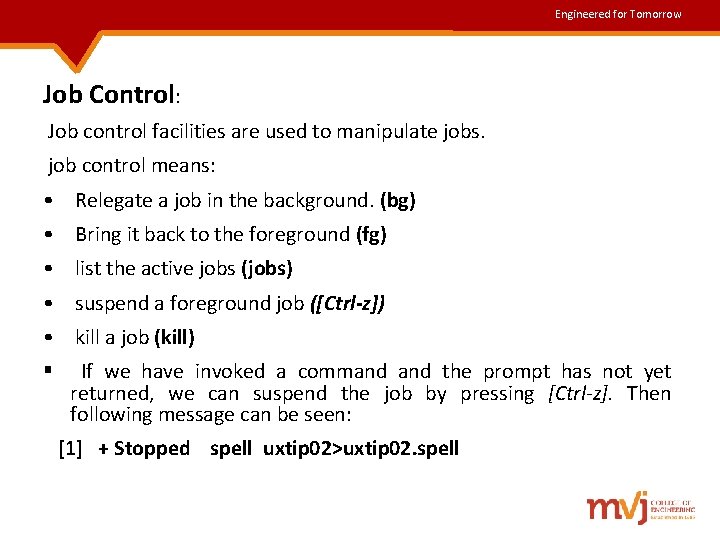
Engineered for Tomorrow Job Control: Job control facilities are used to manipulate jobs. job control means: • Relegate a job in the background. (bg) • Bring it back to the foreground (fg) • list the active jobs (jobs) • suspend a foreground job ([Ctrl-z]) • kill a job (kill) § If we have invoked a command the prompt has not yet returned, we can suspend the job by pressing [Ctrl-z]. Then following message can be seen: [1] + Stopped spell uxtip 02>uxtip 02. spell
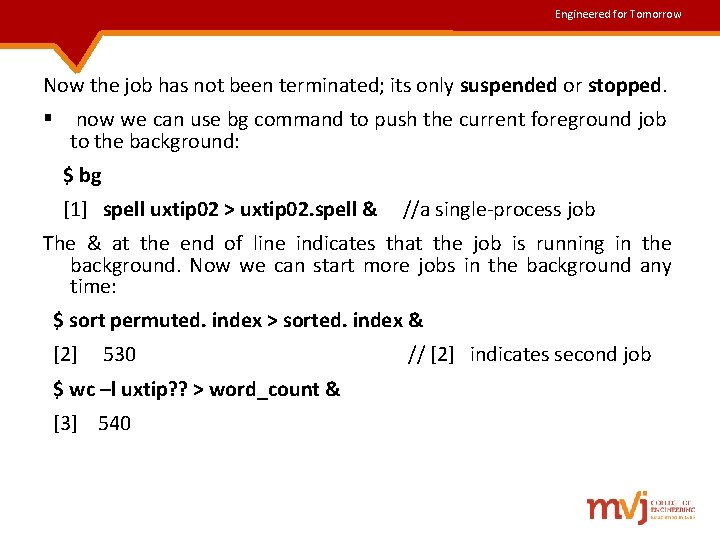
Engineered for Tomorrow Now the job has not been terminated; its only suspended or stopped. § now we can use bg command to push the current foreground job to the background: $ bg [1] spell uxtip 02 > uxtip 02. spell & //a single-process job The & at the end of line indicates that the job is running in the background. Now we can start more jobs in the background any time: $ sort permuted. index > sorted. index & [2] 530 $ wc –l uxtip? ? > word_count & [3] 540 // [2] indicates second job
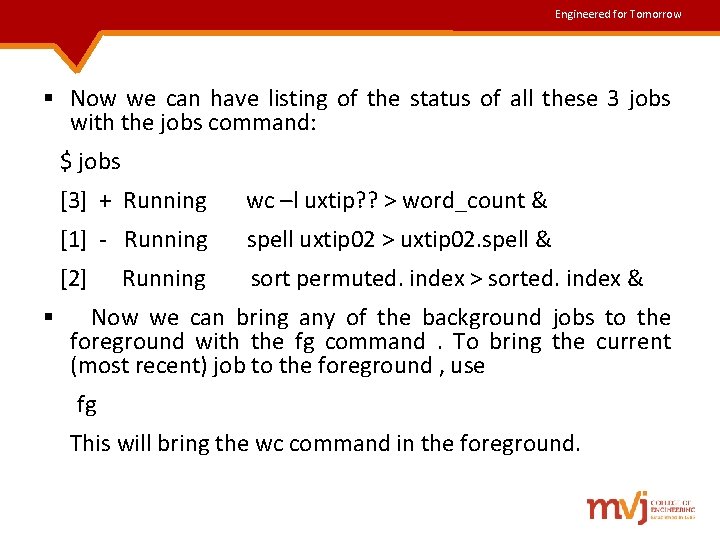
Engineered for Tomorrow § Now we can have listing of the status of all these 3 jobs with the jobs command: $ jobs [3] + Running wc –l uxtip? ? > word_count & [1] - Running spell uxtip 02 > uxtip 02. spell & [2] Running sort permuted. index > sorted. index & § Now we can bring any of the background jobs to the foreground with the fg command . To bring the current (most recent) job to the foreground , use fg This will bring the wc command in the foreground.
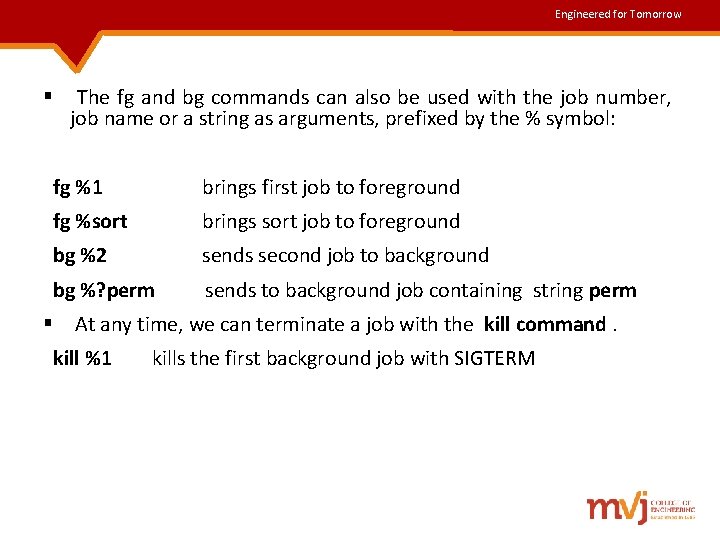
Engineered for Tomorrow § The fg and bg commands can also be used with the job number, job name or a string as arguments, prefixed by the % symbol: fg %1 brings first job to foreground fg %sort brings sort job to foreground bg %2 sends second job to background bg %? perm sends to background job containing string perm § At any time, we can terminate a job with the kill command. kill %1 kills the first background job with SIGTERM
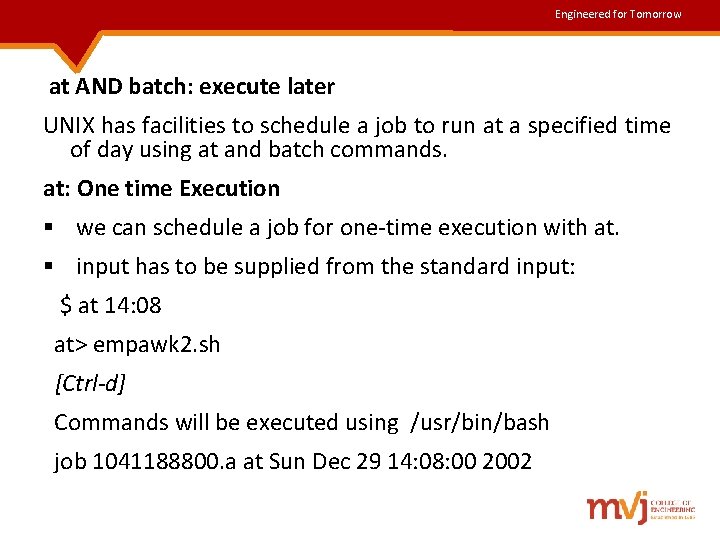
Engineered for Tomorrow at AND batch: execute later UNIX has facilities to schedule a job to run at a specified time of day using at and batch commands. at: One time Execution § we can schedule a job for one-time execution with at. § input has to be supplied from the standard input: $ at 14: 08 at> empawk 2. sh [Ctrl-d] Commands will be executed using /usr/bin/bash job 1041188800. a at Sun Dec 29 14: 08: 00 2002
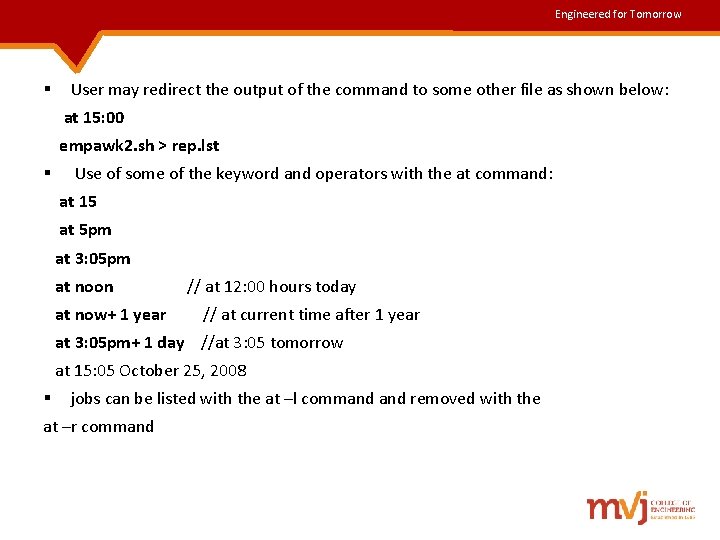
Engineered for Tomorrow § User may redirect the output of the command to some other file as shown below: at 15: 00 empawk 2. sh > rep. lst § Use of some of the keyword and operators with the at command: at 15 at 5 pm at 3: 05 pm at noon // at 12: 00 hours today at now+ 1 year // at current time after 1 year at 3: 05 pm+ 1 day //at 3: 05 tomorrow at 15: 05 October 25, 2008 § jobs can be listed with the at –l command removed with the at –r command
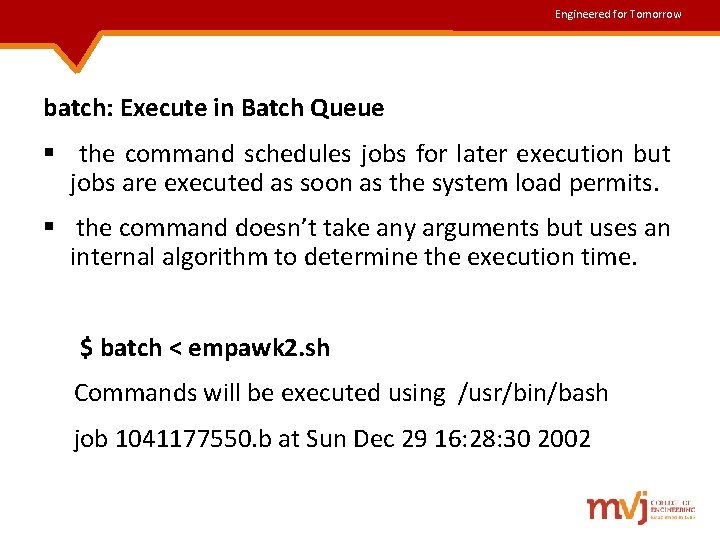
Engineered for Tomorrow batch: Execute in Batch Queue § the command schedules jobs for later execution but jobs are executed as soon as the system load permits. § the command doesn’t take any arguments but uses an internal algorithm to determine the execution time. $ batch < empawk 2. sh Commands will be executed using /usr/bin/bash job 1041177550. b at Sun Dec 29 16: 28: 30 2002
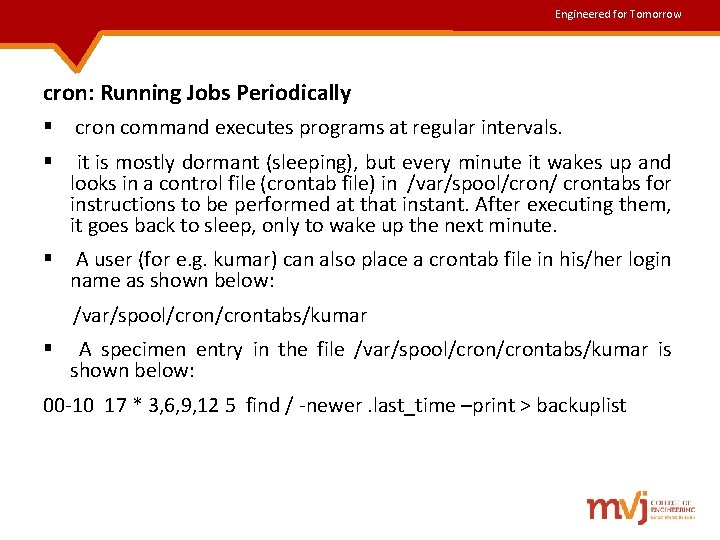
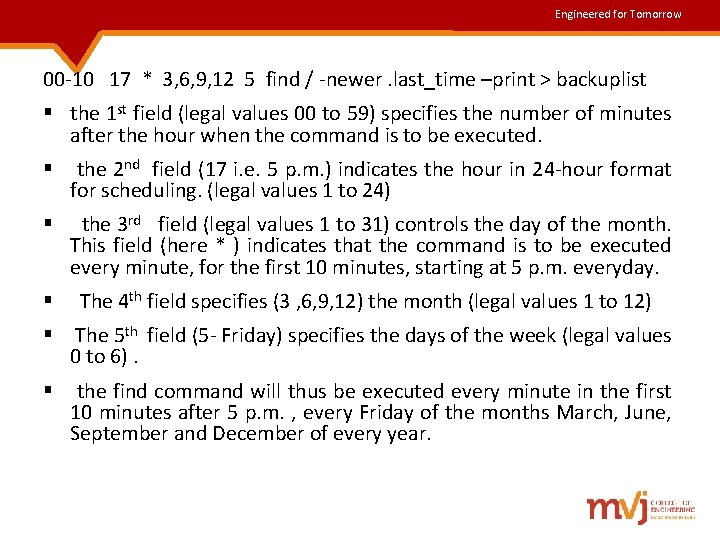
Engineered for Tomorrow cron: Running Jobs Periodically § cron command executes programs at regular intervals. § it is mostly dormant (sleeping), but every minute it wakes up and looks in a control file (crontab file) in /var/spool/cron/ crontabs for instructions to be performed at that instant. After executing them, it goes back to sleep, only to wake up the next minute. § A user (for e. g. kumar) can also place a crontab file in his/her login name as shown below: /var/spool/crontabs/kumar § A specimen entry in the file /var/spool/crontabs/kumar is shown below: 00 -10 17 * 3, 6, 9, 12 5 find / -newer. last_time –print > backuplist
Engineered for Tomorrow 00 -10 17 * 3, 6, 9, 12 5 find / -newer. last_time –print > backuplist § the 1 st field (legal values 00 to 59) specifies the number of minutes after the hour when the command is to be executed. § the 2 nd field (17 i. e. 5 p. m. ) indicates the hour in 24 -hour format for scheduling. (legal values 1 to 24) § the 3 rd field (legal values 1 to 31) controls the day of the month. This field (here * ) indicates that the command is to be executed every minute, for the first 10 minutes, starting at 5 p. m. everyday. § The 4 th field specifies (3 , 6, 9, 12) the month (legal values 1 to 12) § The 5 th field (5 - Friday) specifies the days of the week (legal values 0 to 6). § the find command will thus be executed every minute in the first 10 minutes after 5 p. m. , every Friday of the months March, June, September and December of every year.
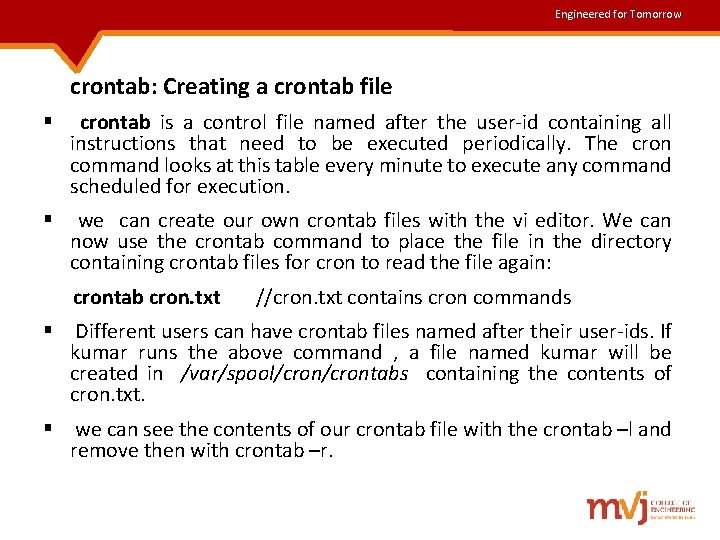
Engineered for Tomorrow crontab: Creating a crontab file § crontab is a control file named after the user-id containing all instructions that need to be executed periodically. The cron command looks at this table every minute to execute any command scheduled for execution. § we can create our own crontab files with the vi editor. We can now use the crontab command to place the file in the directory containing crontab files for cron to read the file again: crontab cron. txt //cron. txt contains cron commands § Different users can have crontab files named after their user-ids. If kumar runs the above command , a file named kumar will be created in /var/spool/crontabs containing the contents of cron. txt. § we can see the contents of our crontab file with the crontab –l and remove then with crontab –r.
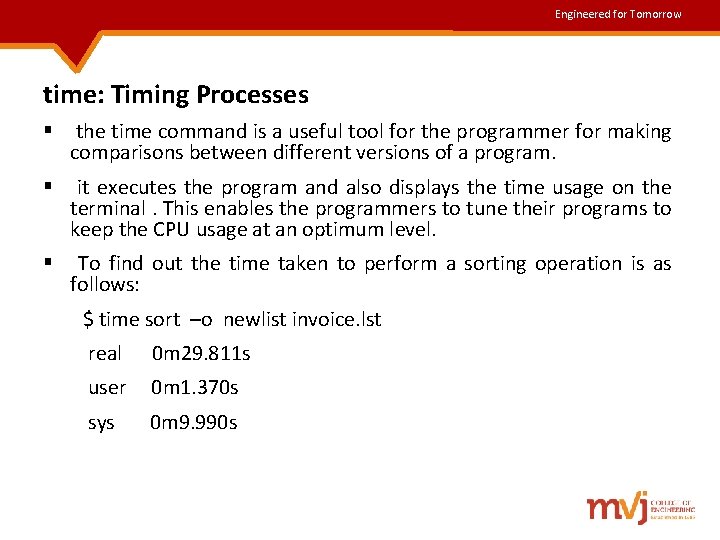
Engineered for Tomorrow time: Timing Processes § the time command is a useful tool for the programmer for making comparisons between different versions of a program. § it executes the program and also displays the time usage on the terminal. This enables the programmers to tune their programs to keep the CPU usage at an optimum level. § To find out the time taken to perform a sorting operation is as follows: $ time sort –o newlist invoice. lst real 0 m 29. 811 s user 0 m 1. 370 s sys 0 m 9. 990 s
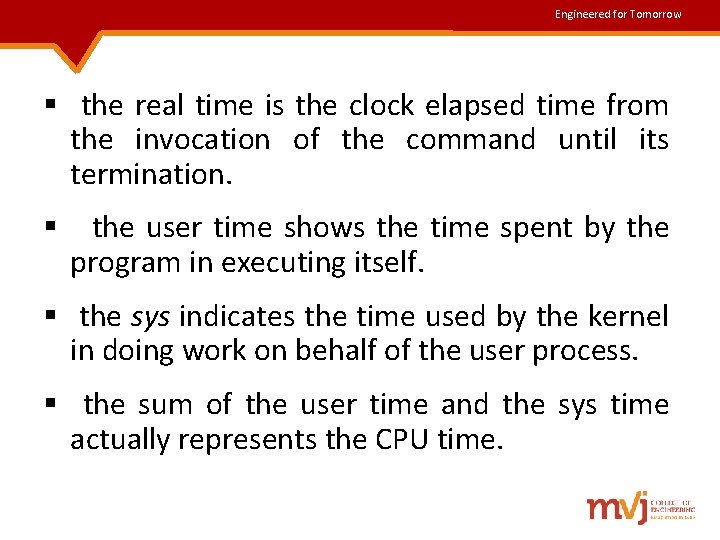
Engineered for Tomorrow § the real time is the clock elapsed time from the invocation of the command until its termination. § the user time shows the time spent by the program in executing itself. § the sys indicates the time used by the kernel in doing work on behalf of the user process. § the sum of the user time and the sys time actually represents the CPU time.
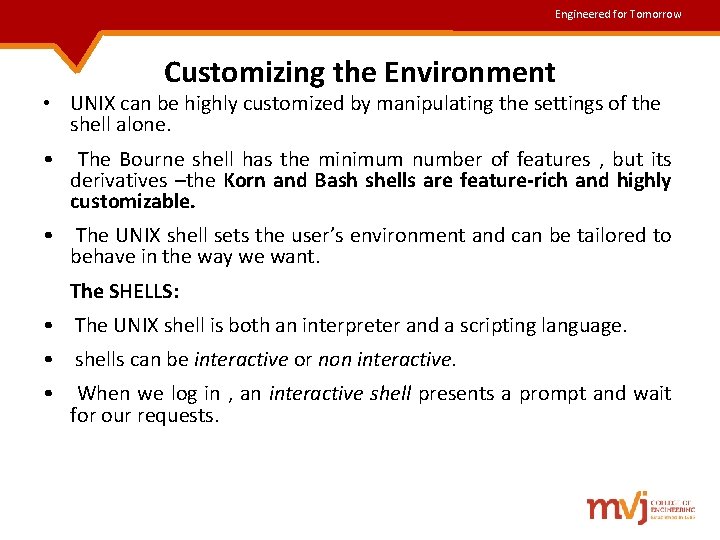
Engineered for Tomorrow Customizing the Environment • UNIX can be highly customized by manipulating the settings of the shell alone. • The Bourne shell has the minimum number of features , but its derivatives –the Korn and Bash shells are feature-rich and highly customizable. • The UNIX shell sets the user’s environment and can be tailored to behave in the way we want. The SHELLS: • The UNIX shell is both an interpreter and a scripting language. • shells can be interactive or non interactive. • When we log in , an interactive shell presents a prompt and wait for our requests.
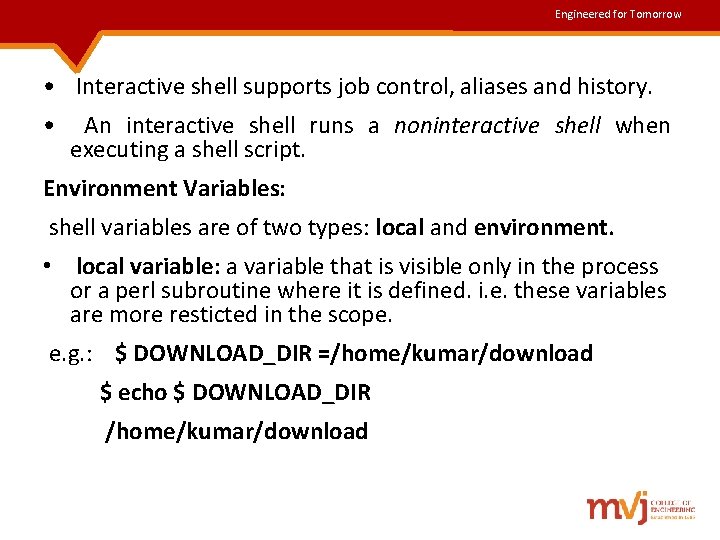
Engineered for Tomorrow • Interactive shell supports job control, aliases and history. • An interactive shell runs a noninteractive shell when executing a shell script. Environment Variables: shell variables are of two types: local and environment. • local variable: a variable that is visible only in the process or a perl subroutine where it is defined. i. e. these variables are more resticted in the scope. e. g. : $ DOWNLOAD_DIR =/home/kumar/download $ echo $ DOWNLOAD_DIR /home/kumar/download
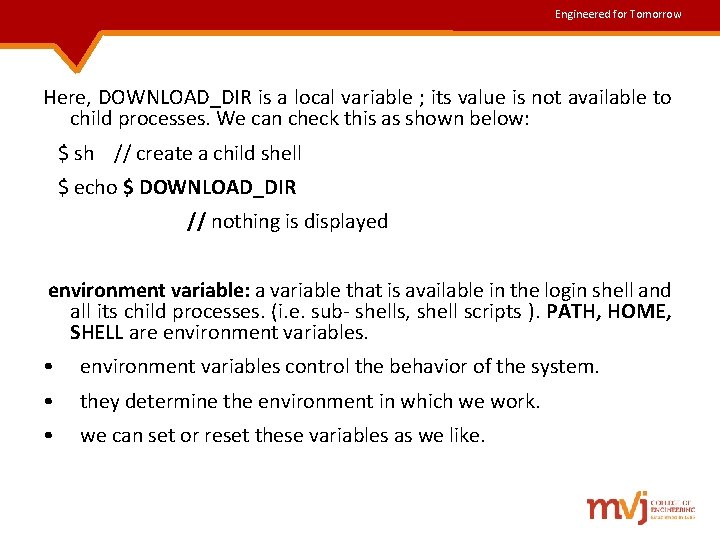
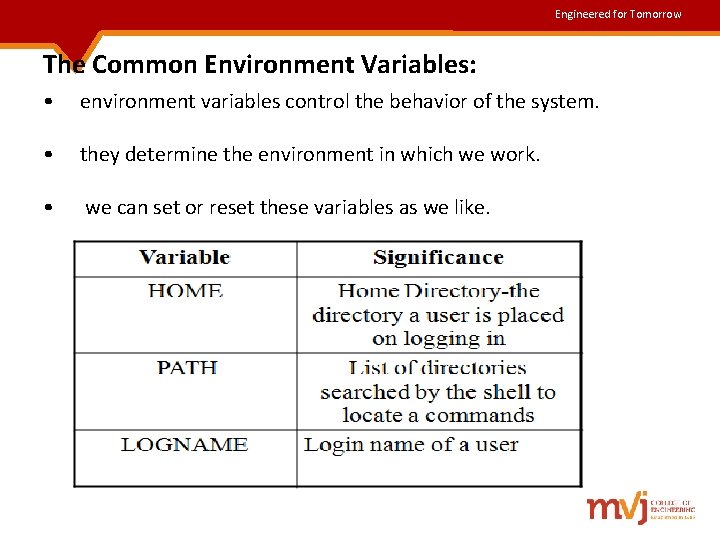
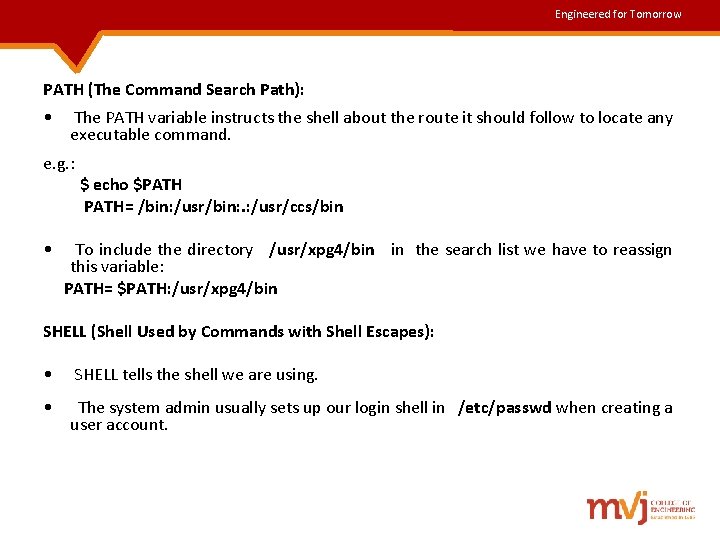
Engineered for Tomorrow Here, DOWNLOAD_DIR is a local variable ; its value is not available to child processes. We can check this as shown below: $ sh // create a child shell $ echo $ DOWNLOAD_DIR // nothing is displayed environment variable: a variable that is available in the login shell and all its child processes. (i. e. sub- shells, shell scripts ). PATH, HOME, SHELL are environment variables. • environment variables control the behavior of the system. • they determine the environment in which we work. • we can set or reset these variables as we like.
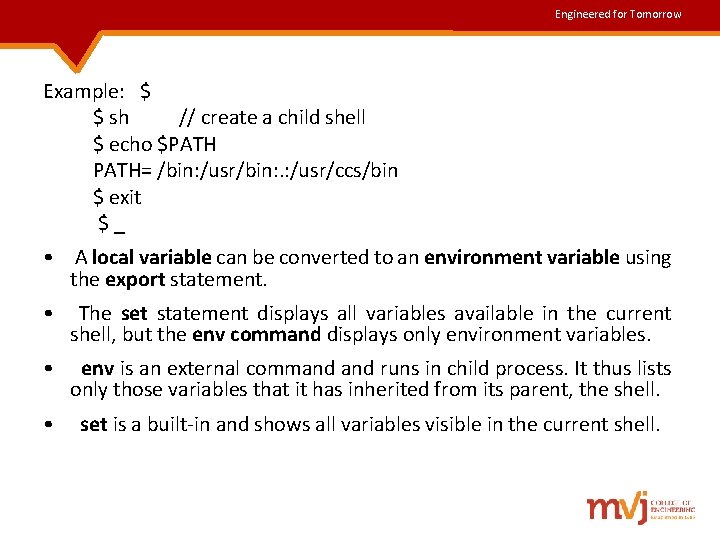
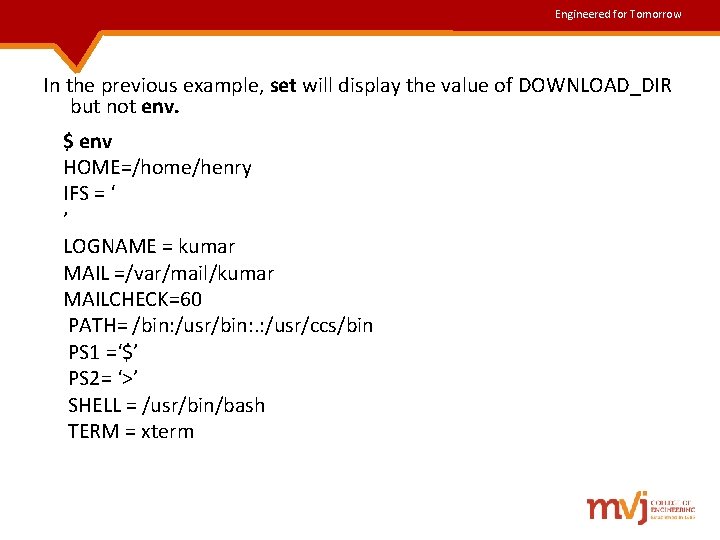
Engineered for Tomorrow Example: $ sh // create a child shell $ echo $PATH PATH= /bin: /usr/bin: . : /usr/ccs/bin $ exit $ _ • A local variable can be converted to an environment variable using the export statement. • The set statement displays all variables available in the current shell, but the env command displays only environment variables. • env is an external command runs in child process. It thus lists only those variables that it has inherited from its parent, the shell. • set is a built-in and shows all variables visible in the current shell.
Engineered for Tomorrow In the previous example, set will display the value of DOWNLOAD_DIR but not env. $ env HOME=/home/henry IFS = ‘ ’ LOGNAME = kumar MAIL =/var/mail/kumar MAILCHECK=60 PATH= /bin: /usr/bin: . : /usr/ccs/bin PS 1 =‘$’ PS 2= ‘>’ SHELL = /usr/bin/bash TERM = xterm
Engineered for Tomorrow The Common Environment Variables: • environment variables control the behavior of the system. • they determine the environment in which we work. • we can set or reset these variables as we like.
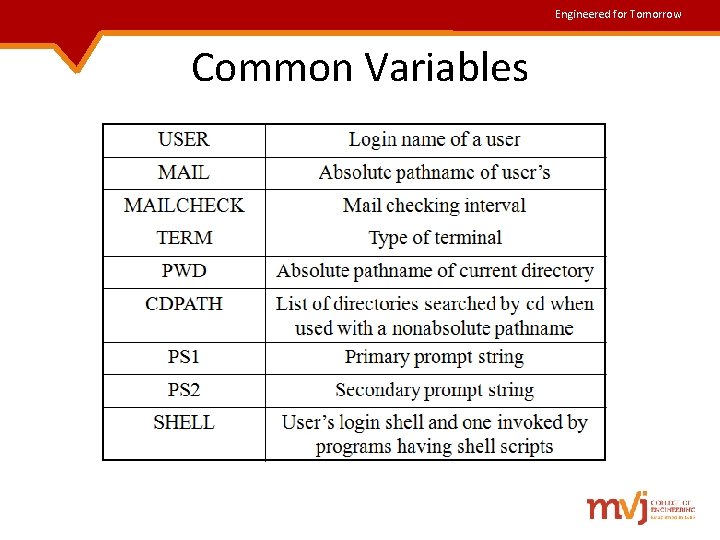
Engineered for Tomorrow Common Variables
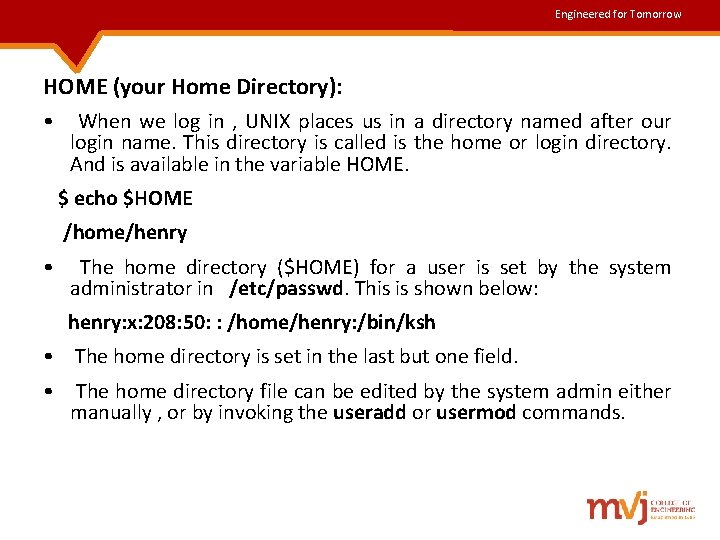
Engineered for Tomorrow HOME (your Home Directory): • When we log in , UNIX places us in a directory named after our login name. This directory is called is the home or login directory. And is available in the variable HOME. $ echo $HOME /home/henry • The home directory ($HOME) for a user is set by the system administrator in /etc/passwd. This is shown below: henry: x: 208: 50: : /home/henry: /bin/ksh • The home directory is set in the last but one field. • The home directory file can be edited by the system admin either manually , or by invoking the useradd or usermod commands.
Engineered for Tomorrow PATH (The Command Search Path): • The PATH variable instructs the shell about the route it should follow to locate any executable command. e. g. : $ echo $PATH PATH= /bin: /usr/bin: . : /usr/ccs/bin • To include the directory /usr/xpg 4/bin in the search list we have to reassign this variable: PATH= $PATH: /usr/xpg 4/bin SHELL (Shell Used by Commands with Shell Escapes): • SHELL tells the shell we are using. • The system admin usually sets up our login shell in /etc/passwd when creating a user account.
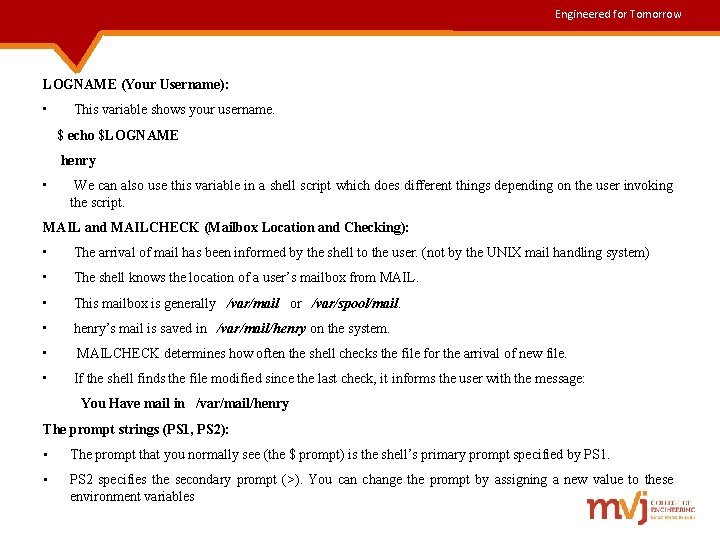
Engineered for Tomorrow LOGNAME (Your Username): • This variable shows your username. $ echo $LOGNAME henry • We can also use this variable in a shell script which does different things depending on the user invoking the script. MAIL and MAILCHECK (Mailbox Location and Checking): • The arrival of mail has been informed by the shell to the user. (not by the UNIX mail handling system) • The shell knows the location of a user’s mailbox from MAIL. • This mailbox is generally /var/mail or /var/spool/mail. • henry’s mail is saved in /var/mail/henry on the system. • MAILCHECK determines how often the shell checks the file for the arrival of new file. • If the shell finds the file modified since the last check, it informs the user with the message: You Have mail in /var/mail/henry The prompt strings (PS 1, PS 2): • The prompt that you normally see (the $ prompt) is the shell’s primary prompt specified by PS 1. • PS 2 specifies the secondary prompt (>). You can change the prompt by assigning a new value to these environment variables
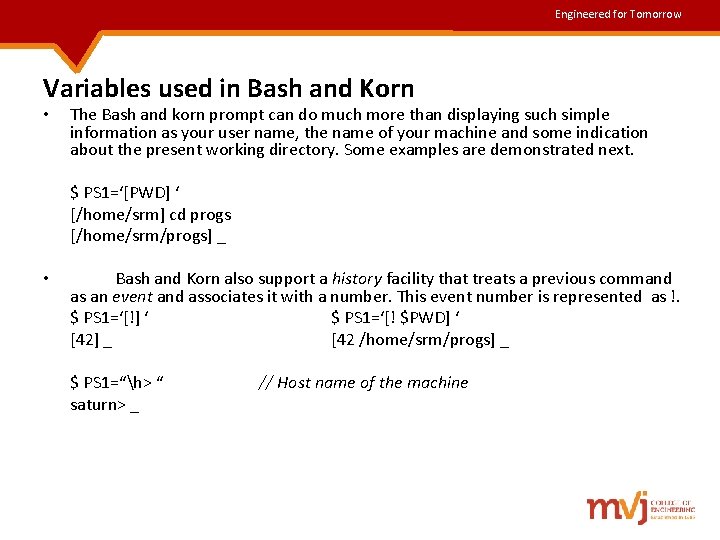
Engineered for Tomorrow Variables used in Bash and Korn • • The Bash and korn prompt can do much more than displaying such simple information as your user name, the name of your machine and some indication about the present working directory. Some examples are demonstrated next. $ PS 1=‘[PWD] ‘ [/home/srm] cd progs [/home/srm/progs] _ Bash and Korn also support a history facility that treats a previous command as an event and associates it with a number. This event number is represented as !. $ PS 1=‘[!] ‘ $ PS 1=‘[! $PWD] ‘ [42] _ [42 /home/srm/progs] _ $ PS 1=“h> “ saturn> _ // Host name of the machine
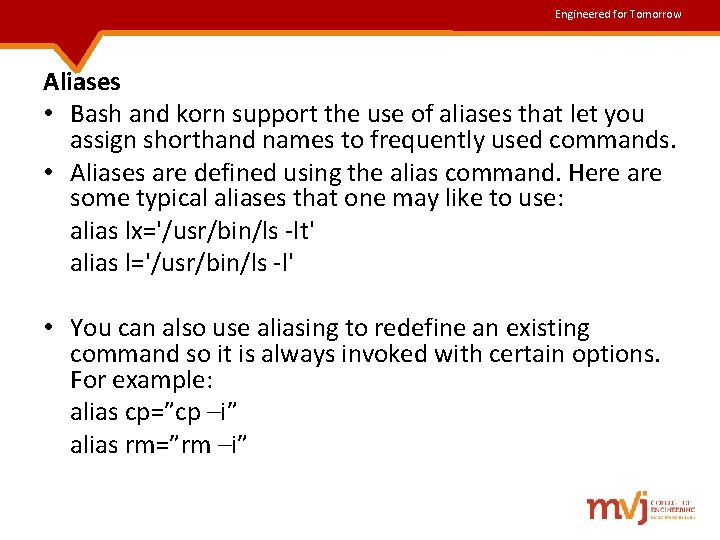
Engineered for Tomorrow Aliases • Bash and korn support the use of aliases that let you assign shorthand names to frequently used commands. • Aliases are defined using the alias command. Here are some typical aliases that one may like to use: alias lx='/usr/bin/ls -lt' alias l='/usr/bin/ls -l' • You can also use aliasing to redefine an existing command so it is always invoked with certain options. For example: alias cp=”cp –i” alias rm=”rm –i”
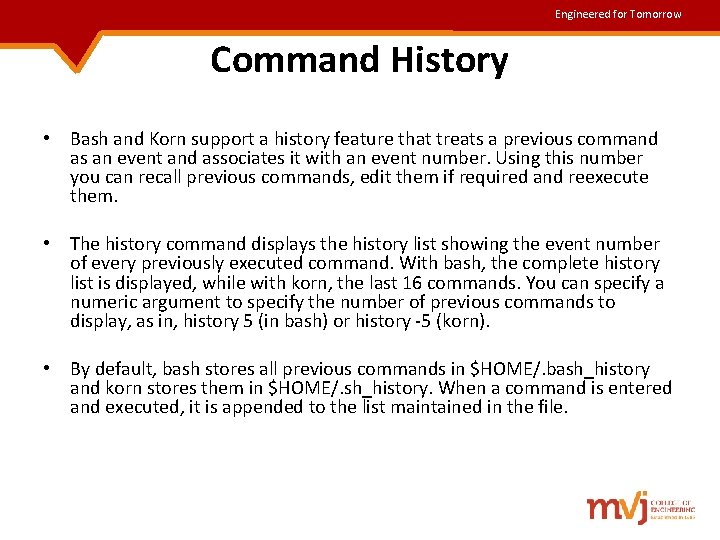
Engineered for Tomorrow Command History • Bash and Korn support a history feature that treats a previous command as an event and associates it with an event number. Using this number you can recall previous commands, edit them if required and reexecute them. • The history command displays the history list showing the event number of every previously executed command. With bash, the complete history list is displayed, while with korn, the last 16 commands. You can specify a numeric argument to specify the number of previous commands to display, as in, history 5 (in bash) or history -5 (korn). • By default, bash stores all previous commands in $HOME/. bash_history and korn stores them in $HOME/. sh_history. When a command is entered and executed, it is appended to the list maintained in the file.
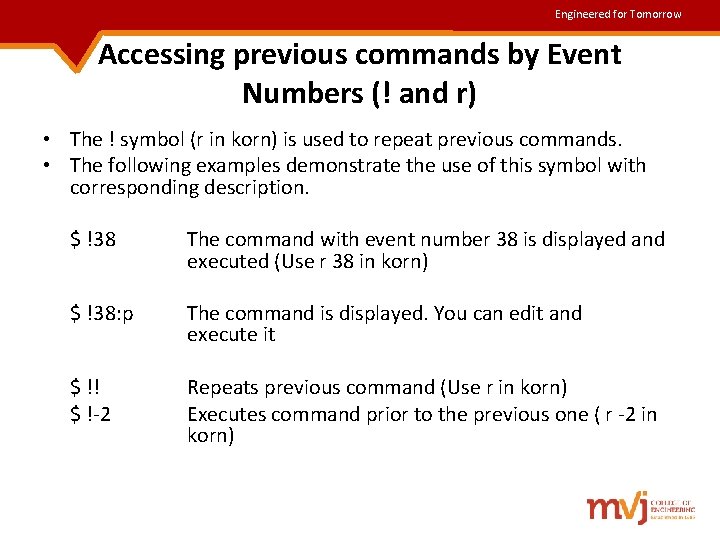
Engineered for Tomorrow Accessing previous commands by Event Numbers (! and r) • The ! symbol (r in korn) is used to repeat previous commands. • The following examples demonstrate the use of this symbol with corresponding description. $ !38 The command with event number 38 is displayed and executed (Use r 38 in korn) $ !38: p The command is displayed. You can edit and execute it $ !! $ !-2 Repeats previous command (Use r in korn) Executes command prior to the previous one ( r -2 in korn)
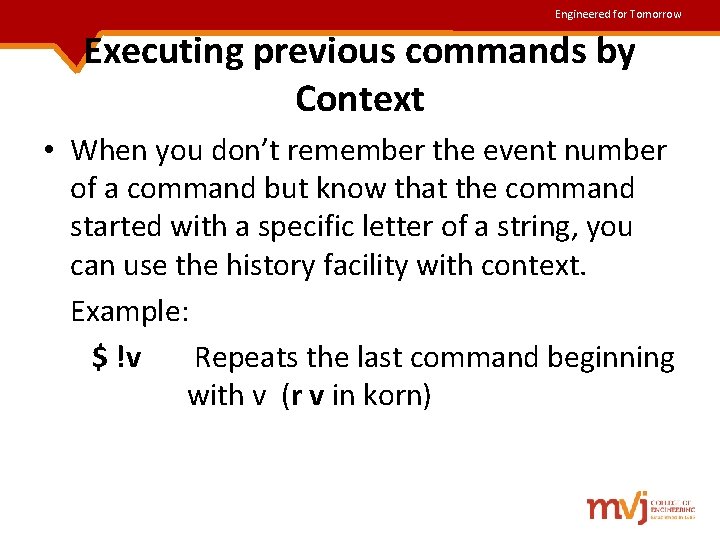
Engineered for Tomorrow Executing previous commands by Context • When you don’t remember the event number of a command but know that the command started with a specific letter of a string, you can use the history facility with context. Example: $ !v Repeats the last command beginning with v (r v in korn)
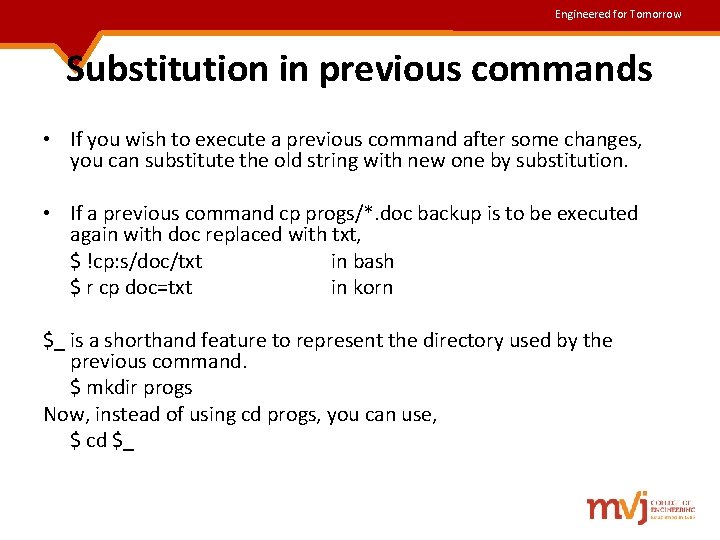
Engineered for Tomorrow Substitution in previous commands • If you wish to execute a previous command after some changes, you can substitute the old string with new one by substitution. • If a previous command cp progs/*. doc backup is to be executed again with doc replaced with txt, $ !cp: s/doc/txt in bash $ r cp doc=txt in korn $_ is a shorthand feature to represent the directory used by the previous command. $ mkdir progs Now, instead of using cd progs, you can use, $ cd $_
Engineered for Tomorrow The History Variables • The command history will be maintained in default history files viz. , . bash_history in Bash. sh_history in Korn • Variable HISTFILE determines the filename that saves the history list. Bash uses two variables HISTSIZE for setting the size of the history list in memory and HISTFILESIZE for setting the size of disk file. Korn uses HISTSIZE for both the purposes.
Engineered for Tomorrow In-Line Command Editing • One of the most attractive aspects of bash and korn shells is their treatment of command line editing. • In addition to viewing your previous commands and reexecuting them, these shells let you edit your current command line, or any of the commands in your history list, using a special command line version of vi text editor. • We have already seen the features of vi as a text editor and these features can be used on the current command line, by making the following setting: set –o vi • Command line editing features greatly enhance the value of the history list. • You can use them to correct command line errors and to save time and effort in entering commands by modifying previous commands. • It also makes it much easier to search through your command history list, because you can use the same search commands you use in vi.
Engineered for Tomorrow Miscellaneous Features (bash and korn) • • • Using set –o The set statement by default displays the variables in the current shell, but in Bash and Korn, it can make several environment settings with –o option. File Overwriting(noclobber): The shell’s > symbol overwrites (clobbers) an existing file, and o prevent such accidental overwriting, use the noclobber argument: set –o noclobber Now, if you redirect output of a command to an existing file, the shell will respond with a message that says it “cannot overwrite existing file” or “file already exists”. To override this protection, use the | after the > as in, head –n 5 emp. dat >| file 1 Accidental Logging out (ignoreeof): The [Ctrl-d] key combination has the effect of terminating the standard input as well as logging out of the system. In case you accidentally pressed [Ctrld] twice while terminating the standard input, it will log you off! The ignoreeof keyword offers protection from accidental logging out: set –o ignoreeof But note that you can logout only by using exit command. A set option is turned off with set +o keyword. To reverse the noclobber feature, use set +o noclobber
Engineered for Tomorrow • • Tilde Substitution The ~ acts as a shorthand representation for the home directory. A configuration file like. profile that exists in the home directory can be referred to both as $HOME/. profile and ~/. profile. You can also toggle between the directory you switched to most recently and your current directory. This is done with the ~- symbols (or simply -, a hyphen). For example, either of the following commands change to your previous directory: cd ~OR cd –
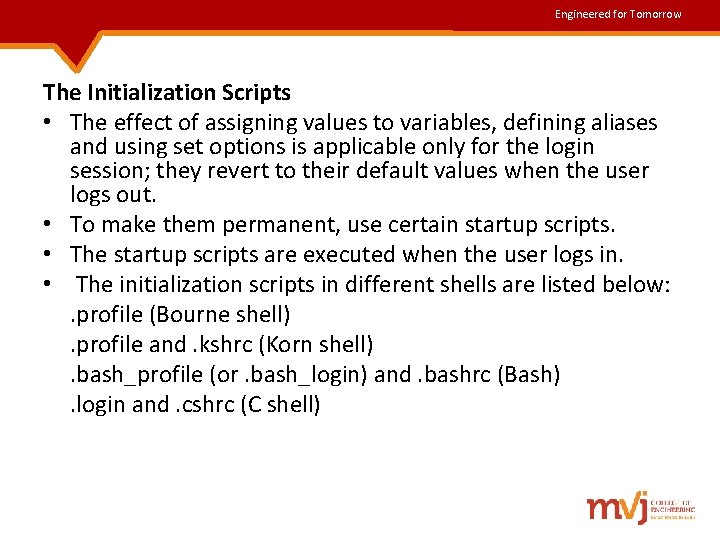
Engineered for Tomorrow The Initialization Scripts • The effect of assigning values to variables, defining aliases and using set options is applicable only for the login session; they revert to their default values when the user logs out. • To make them permanent, use certain startup scripts. • The startup scripts are executed when the user logs in. • The initialization scripts in different shells are listed below: . profile (Bourne shell). profile and. kshrc (Korn shell). bash_profile (or. bash_login) and. bashrc (Bash). login and. cshrc (C shell)
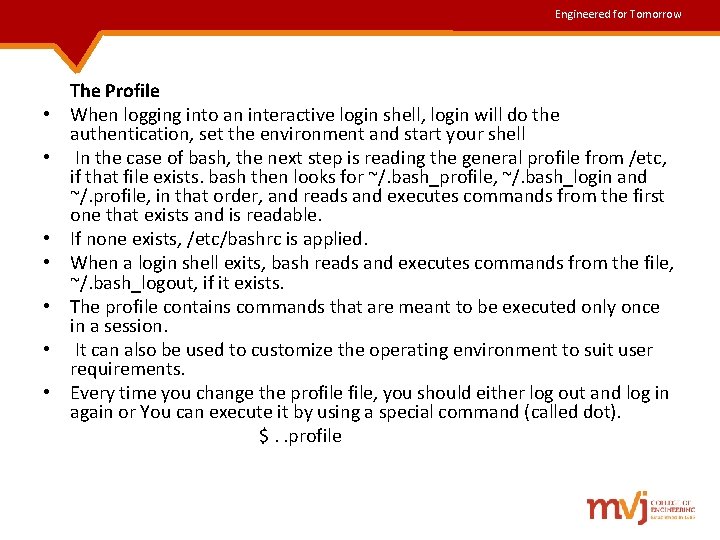
Engineered for Tomorrow • • The Profile When logging into an interactive login shell, login will do the authentication, set the environment and start your shell In the case of bash, the next step is reading the general profile from /etc, if that file exists. bash then looks for ~/. bash_profile, ~/. bash_login and ~/. profile, in that order, and reads and executes commands from the first one that exists and is readable. If none exists, /etc/bashrc is applied. When a login shell exits, bash reads and executes commands from the file, ~/. bash_logout, if it exists. The profile contains commands that are meant to be executed only once in a session. It can also be used to customize the operating environment to suit user requirements. Every time you change the profile, you should either log out and log in again or You can execute it by using a special command (called dot). $. . profile
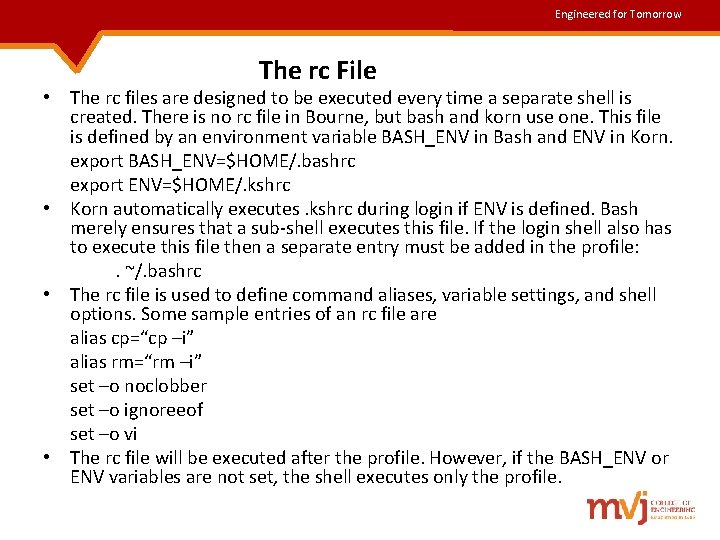
Engineered for Tomorrow The rc File • The rc files are designed to be executed every time a separate shell is created. There is no rc file in Bourne, but bash and korn use one. This file is defined by an environment variable BASH_ENV in Bash and ENV in Korn. export BASH_ENV=$HOME/. bashrc export ENV=$HOME/. kshrc • Korn automatically executes. kshrc during login if ENV is defined. Bash merely ensures that a sub-shell executes this file. If the login shell also has to execute this file then a separate entry must be added in the profile: . ~/. bashrc • The rc file is used to define command aliases, variable settings, and shell options. Some sample entries of an rc file are alias cp=“cp –i” alias rm=“rm –i” set –o noclobber set –o ignoreeof set –o vi • The rc file will be executed after the profile. However, if the BASH_ENV or ENV variables are not set, the shell executes only the profile.