The Patrons Login Journey to Linked In Learning
- Slides: 18
The Patron’s Login Journey to Linked. In Learning for Library - images for illustration only
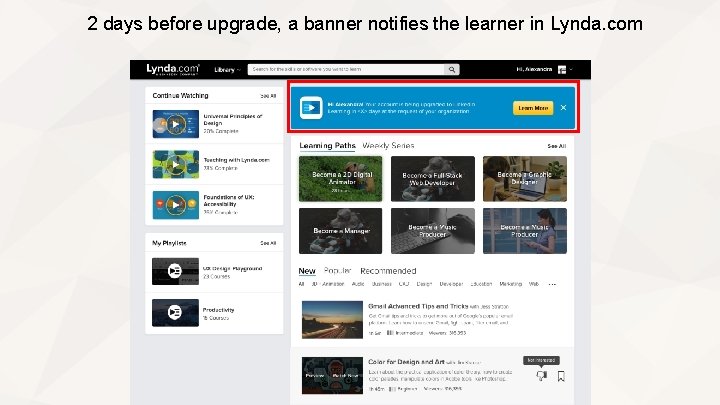
2 days before upgrade, a banner notifies the learner in Lynda. com
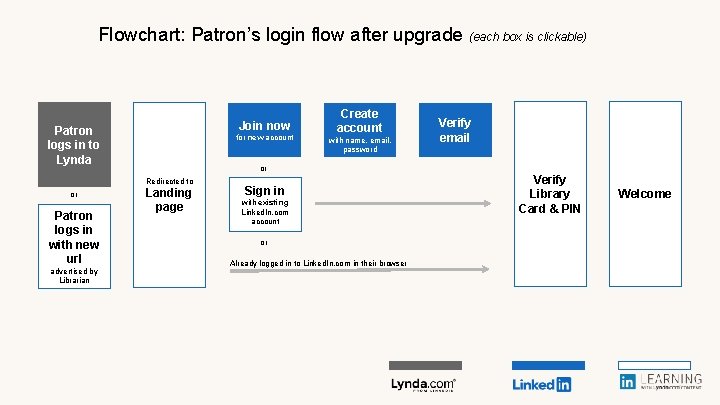
Flowchart: Patron’s login flow after upgrade (each box is clickable) Join now Patron logs in to Lynda for new account Patron logs in with new url advertised by Librarian with name, email, password or Redirected to or Create account Landing page Sign in with existing Linked. In. com account or Already logged in to Linked. In. com in their browser Verify email Verify Library Card & PIN Welcome
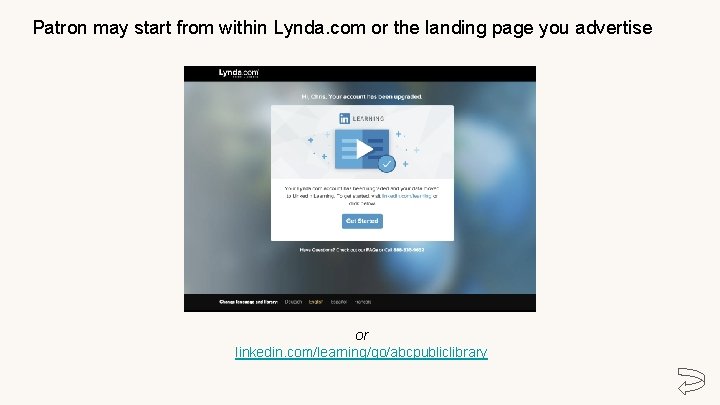
Patron may start from within Lynda. com or the landing page you advertise or linkedin. com/learning/go/abcpubliclibrary
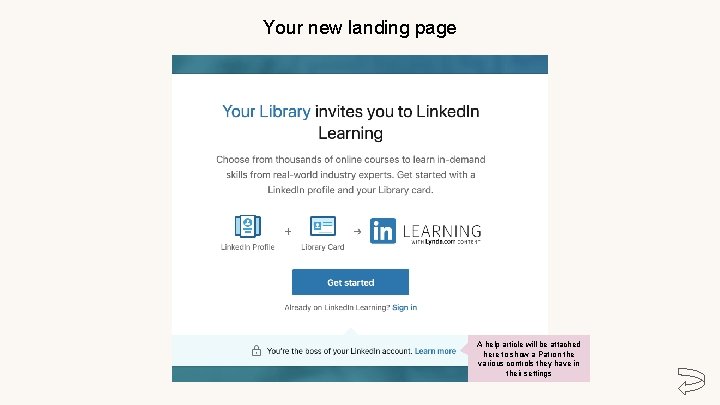
Your new landing page A help article will be attached here to show a Patron the various controls they have in their settings
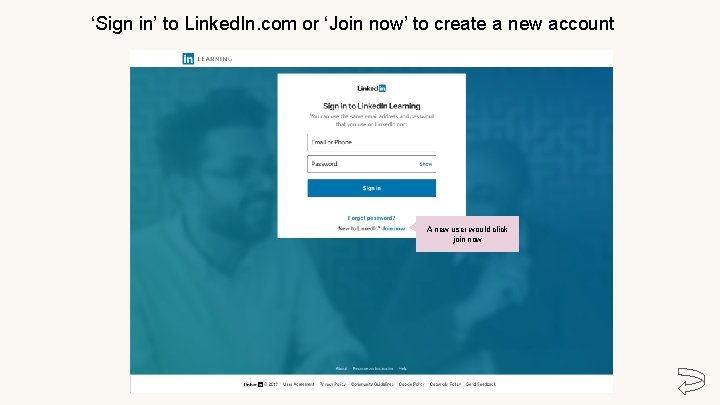
‘Sign in’ to Linked. In. com or ‘Join now’ to create a new account A new user would click join now
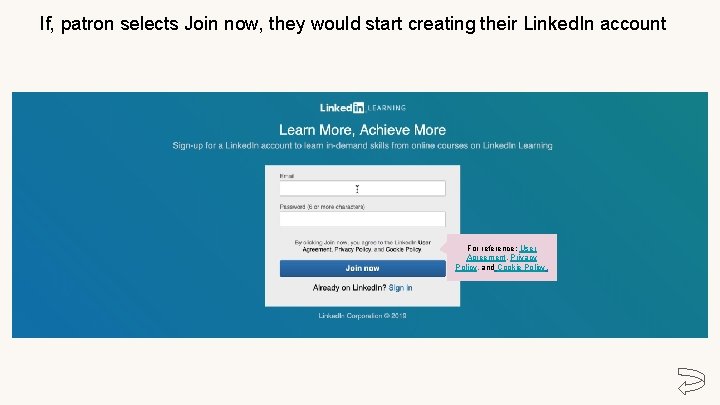
If, patron selects Join now, they would start creating their Linked. In account For reference: User Agreement, Privacy Policy, and Cookie Policy.
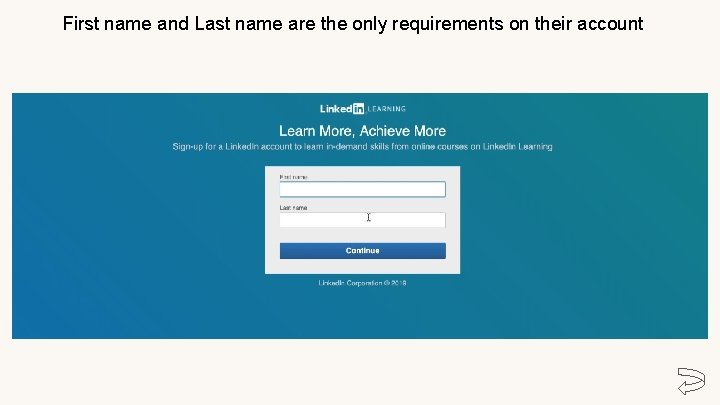
First name and Last name are the only requirements on their account
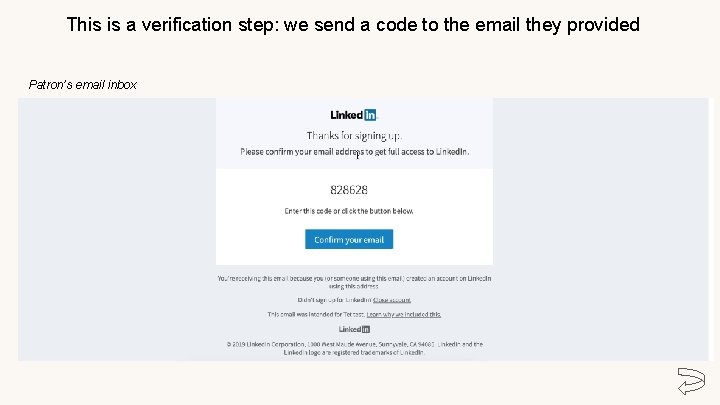
This is a verification step: we send a code to the email they provided Patron’s email inbox
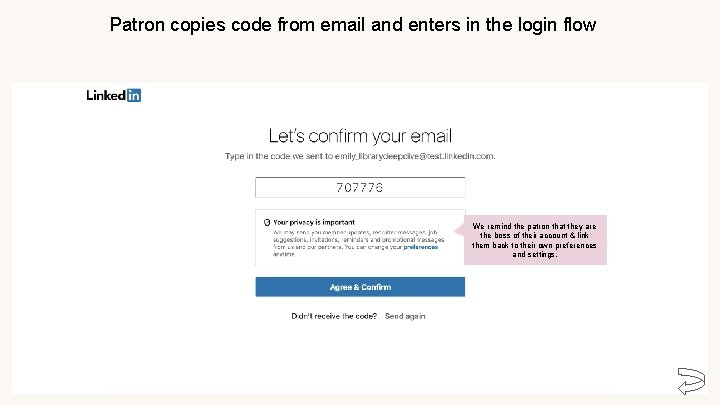
Patron copies code from email and enters in the login flow We remind the patron that they are the boss of their account & link them back to their own preferences and settings.
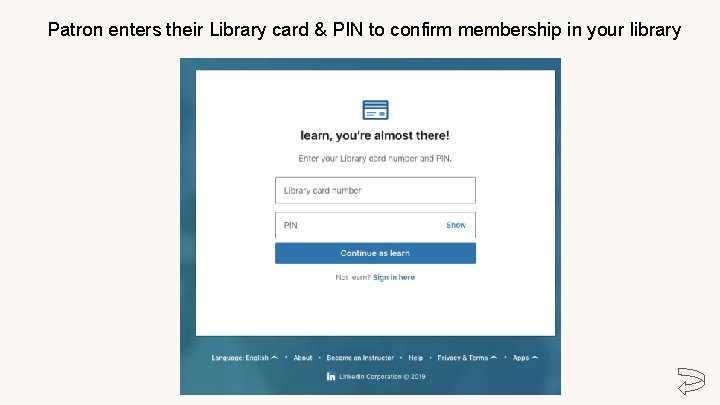
Patron enters their Library card & PIN to confirm membership in your library
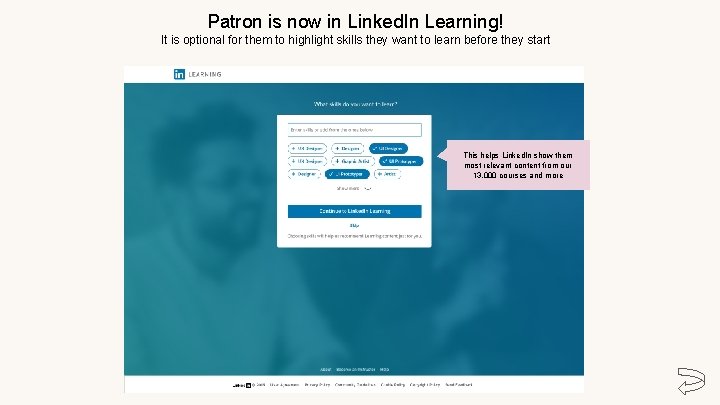
Patron is now in Linked. In Learning! It is optional for them to highlight skills they want to learn before they start This helps Linked. In show them most relevant content from our 13, 000 courses and more
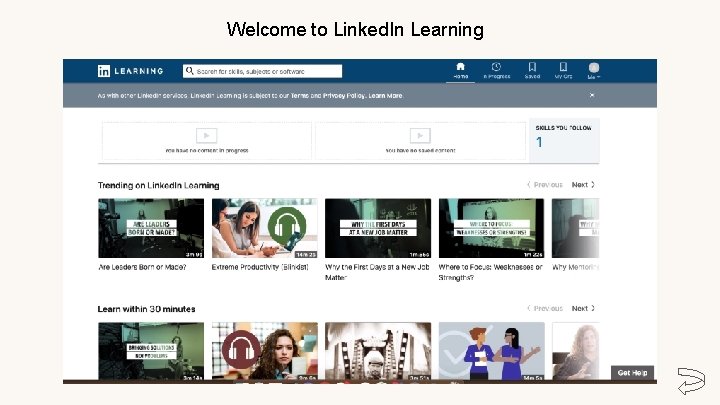
Welcome to Linked. In Learning
FAQs How will the patron know that they have been upgraded? 2 days before upgrade: We splash a banner within Lynda. com After upgrade: We splash a banner redirecting them to Linked. In Learning login flow. We also encourage Library Admins to let patrons know per their convenience, for example through website announcements or posters. What if the patron loses their library card after signing up to Linked. In Learning for Library? If the patron has already gone through the first time authentication and created a Linked. In profile, their learning history is now aligned to their Linked. In profile. If they lose the library card, they can get a new one issued with the Library and use that to login to Linked. In Learning for Library and find their learning history still available. Will Patrons have access to the Linked. In Learning mobile app? Yes, but only after they first authenticate via desktop/mobile browser. Second login onwards they can use the mobile app!
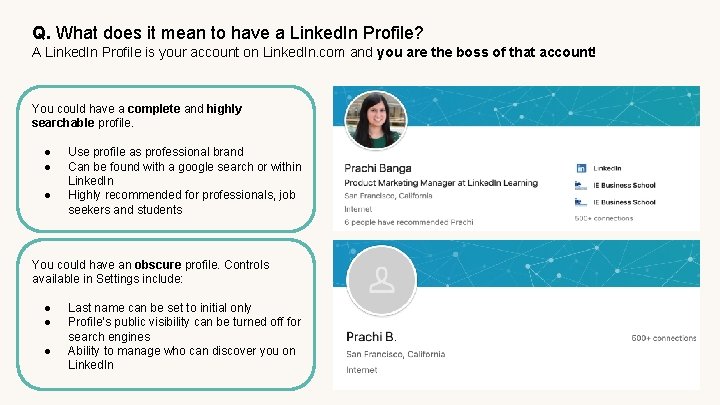
Q. What does it mean to have a Linked. In Profile? A Linked. In Profile is your account on Linked. In. com and you are the boss of that account! You could have a complete and highly searchable profile. ● ● ● Use profile as professional brand Can be found with a google search or within Linked. In Highly recommended for professionals, job seekers and students You could have an obscure profile. Controls available in Settings include: ● ● ● Last name can be set to initial only Profile’s public visibility can be turned off for search engines Ability to manage who can discover you on Linked. In
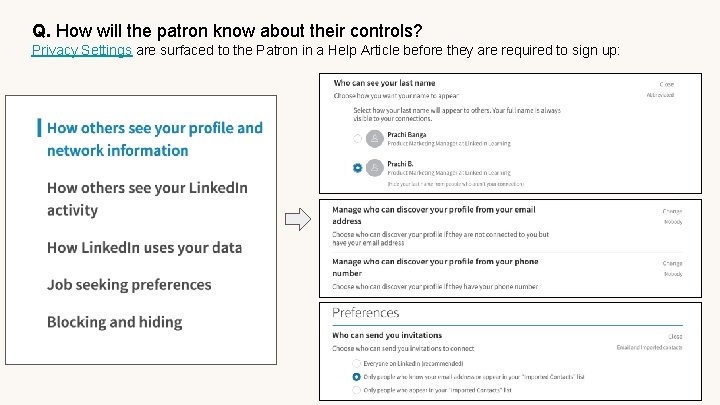
Q. How will the patron know about their controls? Privacy Settings are surfaced to the Patron in a Help Article before they are required to sign up:
Appendix
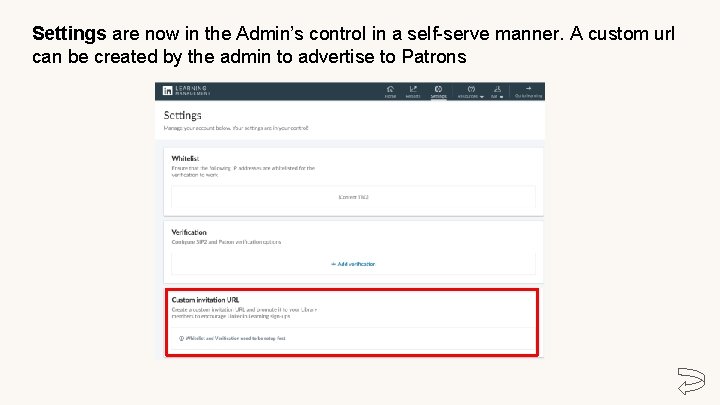
Settings are now in the Admin’s control in a self-serve manner. A custom url can be created by the admin to advertise to Patrons