IGV Demo Slides gfuncgentrainingsvisualizationDemosIGVdemo ppt Galaxy Dev http


- Slides: 37
IGV Demo Slides: /g/funcgen/trainings/visualization/Demos/IGV_demo. ppt Galaxy Dev: http: //gbcs-dev. embl. de/galaxy-dev/ 0
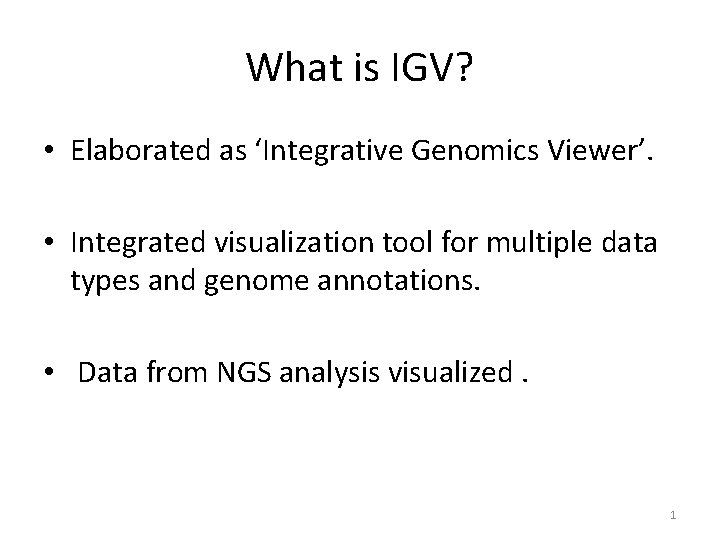
What is IGV? • Elaborated as ‘Integrative Genomics Viewer’. • Integrated visualization tool for multiple data types and genome annotations. • Data from NGS analysis visualized. 1
Why use IGV? • Handles large datasets • Interactive and speedy visualization. Run locally on desktop • View multiple datasets in separate panels on the same pane. • Several track management options (filtering, grouping, sorting) and in-built tools (index, sort, motif finder…) • Direct visualization from Galaxy : bed, wig, gff 3, Bam, big. Wig, big. Bed, vcf formats. 2
Visualizing Galaxy Datasets In IGV 3
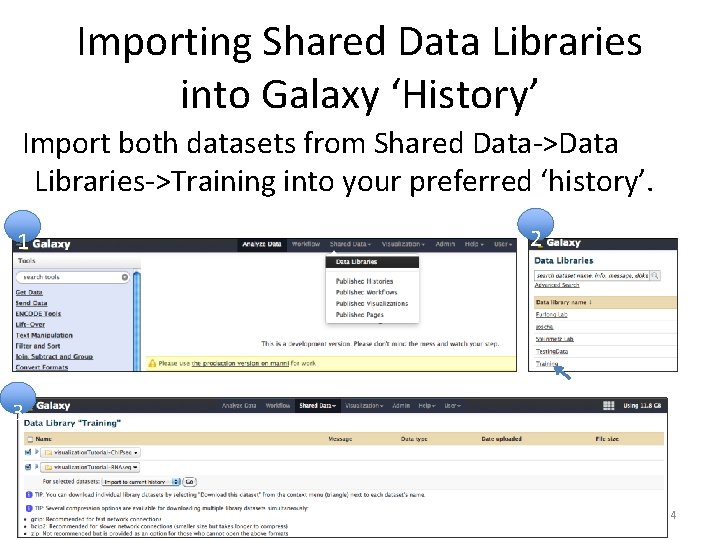
Importing Shared Data Libraries into Galaxy ‘History’ Import both datasets from Shared Data->Data Libraries->Training into your preferred ‘history’. 1 2 3 4
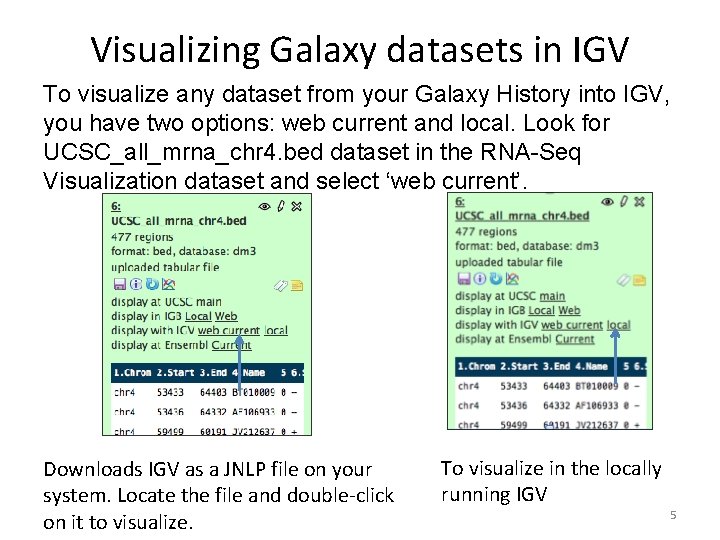
Visualizing Galaxy datasets in IGV To visualize any dataset from your Galaxy History into IGV, you have two options: web current and local. Look for UCSC_all_mrna_chr 4. bed dataset in the RNA-Seq Visualization dataset and select ‘web current’. Downloads IGV as a JNLP file on your system. Locate the file and double-click on it to visualize. To visualize in the locally running IGV 5
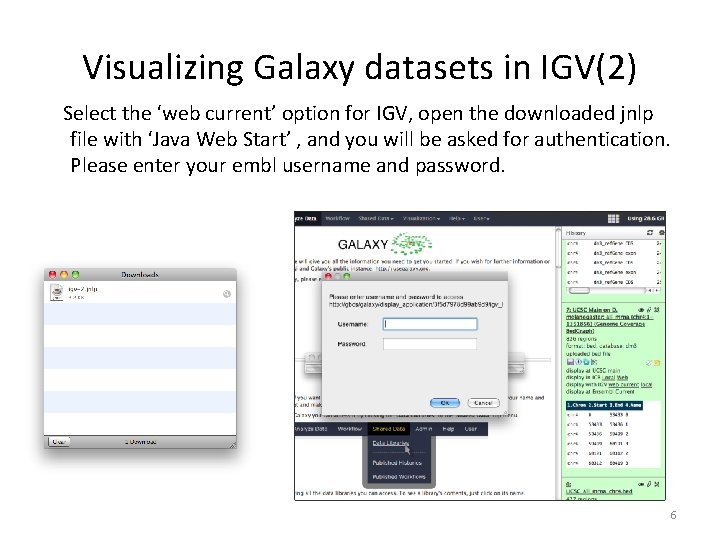
Visualizing Galaxy datasets in IGV(2) Select the ‘web current’ option for IGV, open the downloaded jnlp file with ‘Java Web Start’ , and you will be asked for authentication. Please enter your embl username and password. 6
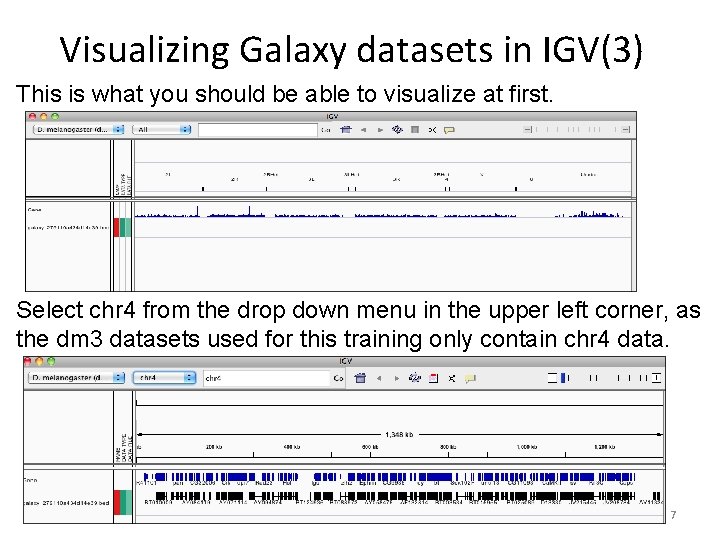
Visualizing Galaxy datasets in IGV(3) This is what you should be able to visualize at first. Select chr 4 from the drop down menu in the upper left corner, as the dm 3 datasets used for this training only contain chr 4 data. 7
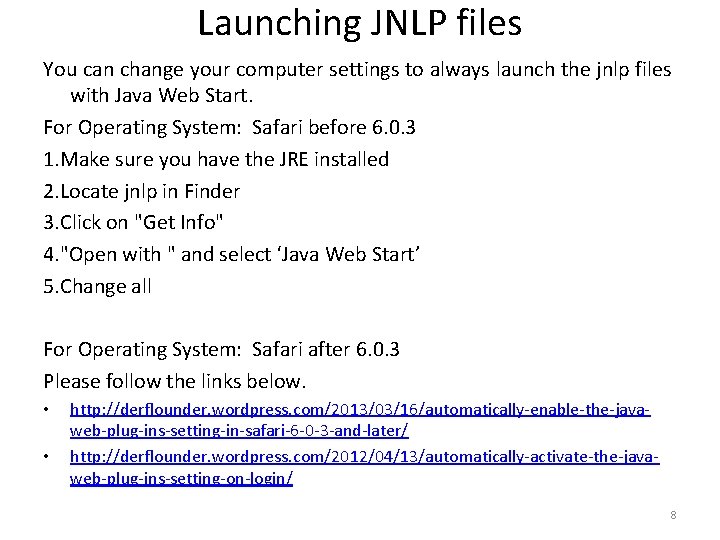
Launching JNLP files You can change your computer settings to always launch the jnlp files with Java Web Start. For Operating System: Safari before 6. 0. 3 1. Make sure you have the JRE installed 2. Locate jnlp in Finder 3. Click on "Get Info" 4. "Open with " and select ‘Java Web Start’ 5. Change all For Operating System: Safari after 6. 0. 3 Please follow the links below. • • http: //derflounder. wordpress. com/2013/03/16/automatically-enable-the-javaweb-plug-ins-setting-in-safari-6 -0 -3 -and-later/ http: //derflounder. wordpress. com/2012/04/13/automatically-activate-the-javaweb-plug-ins-setting-on-login/ 8
Launching JNLP Files (2) For Operating System: Chrome Autostart enabled for jnlp files. For Operating System: Firefox Please follow the link below. • http: //pic. dhe. ibm. com/infocenter/director/pubs/index. jsp? topic=%2 Fco m. ibm. director. console. helps. doc%2 Ffqm 0_t_associating_the_jnlp_file_ty pe_with_jws_firefox. html 9
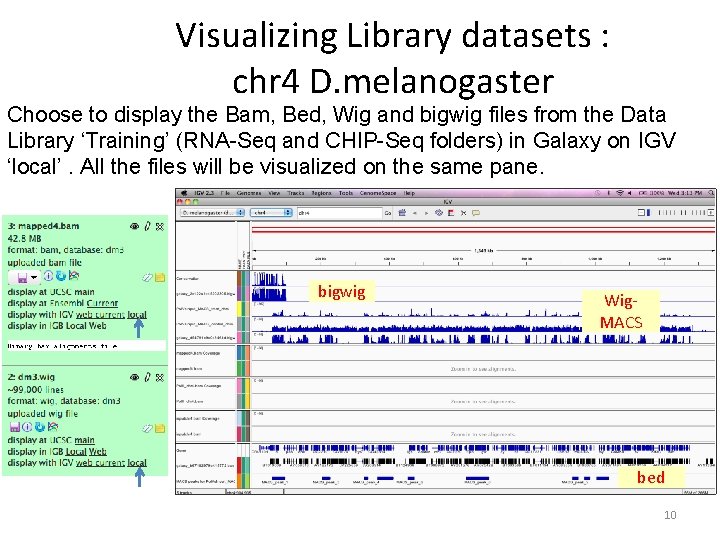
Visualizing Library datasets : chr 4 D. melanogaster Choose to display the Bam, Bed, Wig and bigwig files from the Data Library ‘Training’ (RNA-Seq and CHIP-Seq folders) in Galaxy on IGV ‘local’. All the files will be visualized on the same pane. bigwig Wig. MACS bed 10
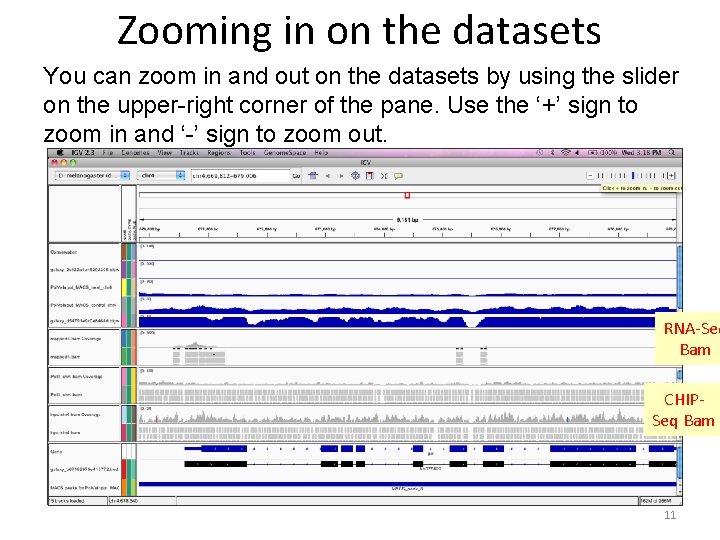
Zooming in on the datasets You can zoom in and out on the datasets by using the slider on the upper-right corner of the pane. Use the ‘+’ sign to zoom in and ‘-’ sign to zoom out. RNA-Seq Bam CHIPSeq Bam 11
IGV Features 12
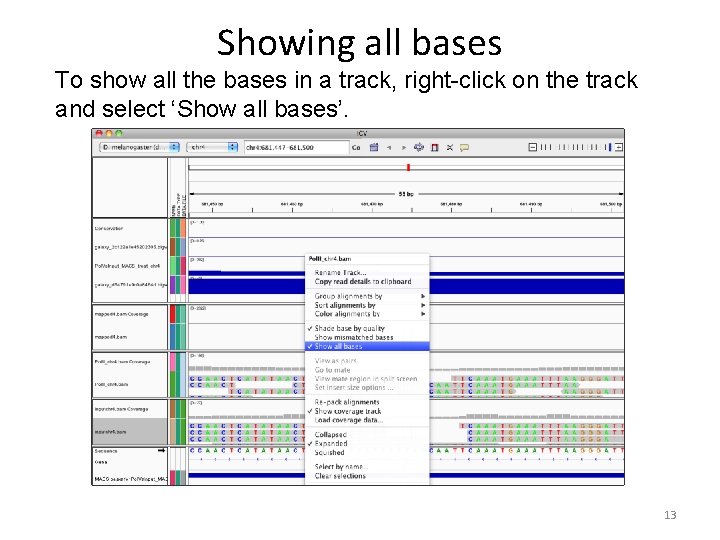
Showing all bases To show all the bases in a track, right-click on the track and select ‘Show all bases’. 13
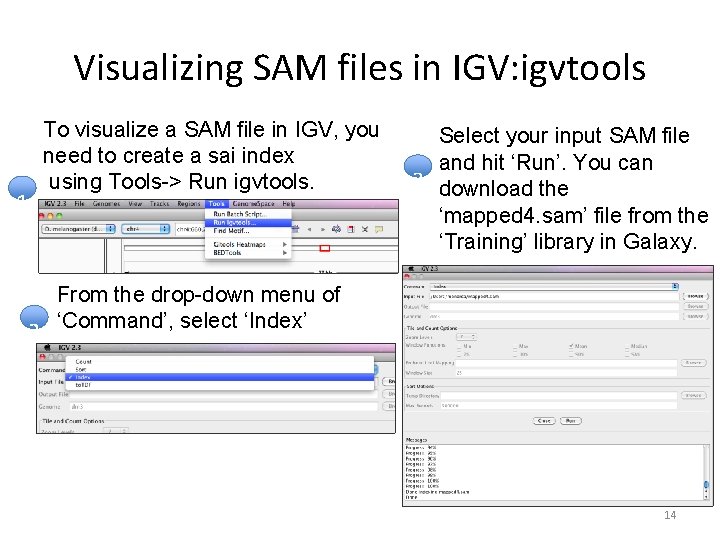
Visualizing SAM files in IGV: igvtools 1 2 To visualize a SAM file in IGV, you need to create a sai index using Tools-> Run igvtools. Select your input SAM file and hit ‘Run’. You can 3 download the ‘mapped 4. sam’ file from the ‘Training’ library in Galaxy. From the drop-down menu of ‘Command’, select ‘Index’ 14
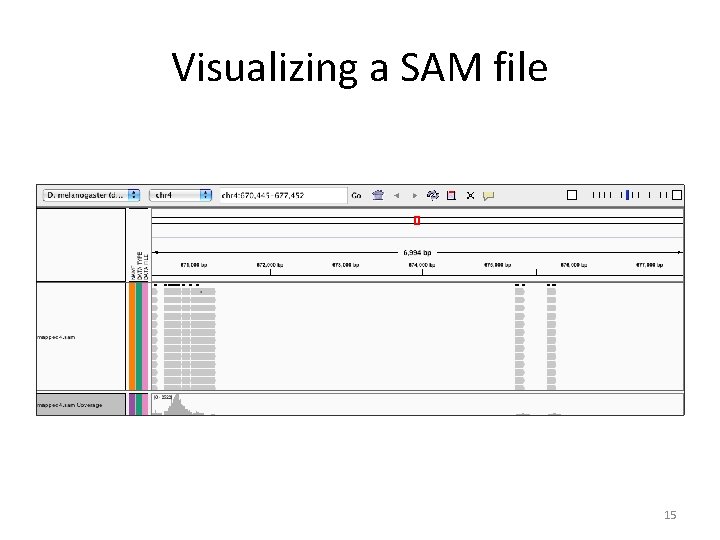
Visualizing a SAM file 15
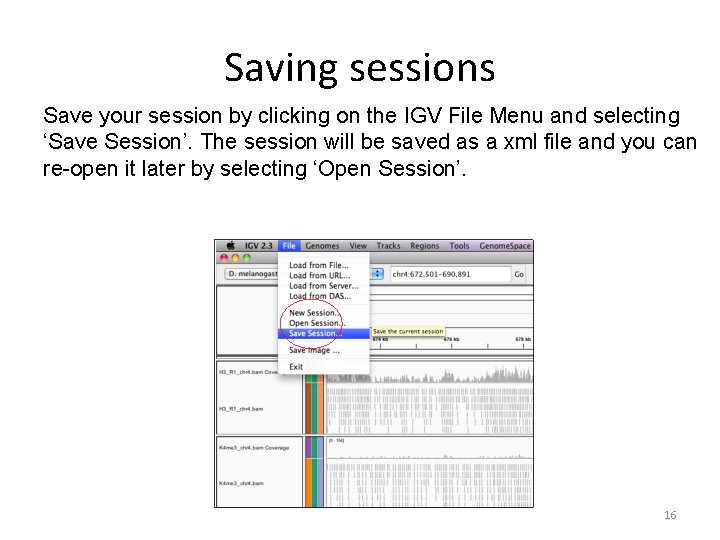
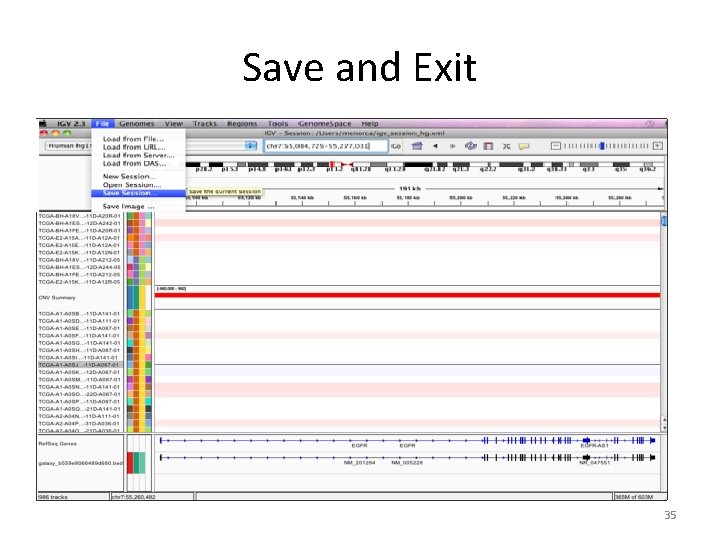
Saving sessions Save your session by clicking on the IGV File Menu and selecting ‘Save Session’. The session will be saved as a xml file and you can re-open it later by selecting ‘Open Session’. 16
Session File • A session file (XML) contains information about the genome, locus, data files opened in IGV when the session was saved. • It also contains detailed information about the tracks which were saved. • Session can be easily restored in IGV at a later point. 17
Exploring IGV using Cancer data from the IGV Server 18
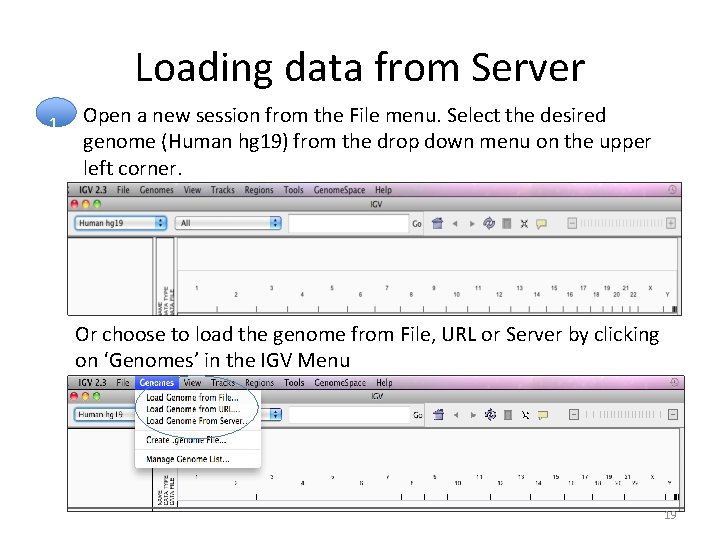
Loading data from Server 1. Open a new session from the File menu. Select the desired genome (Human hg 19) from the drop down menu on the upper left corner. Or choose to load the genome from File, URL or Server by clicking on ‘Genomes’ in the IGV Menu 19
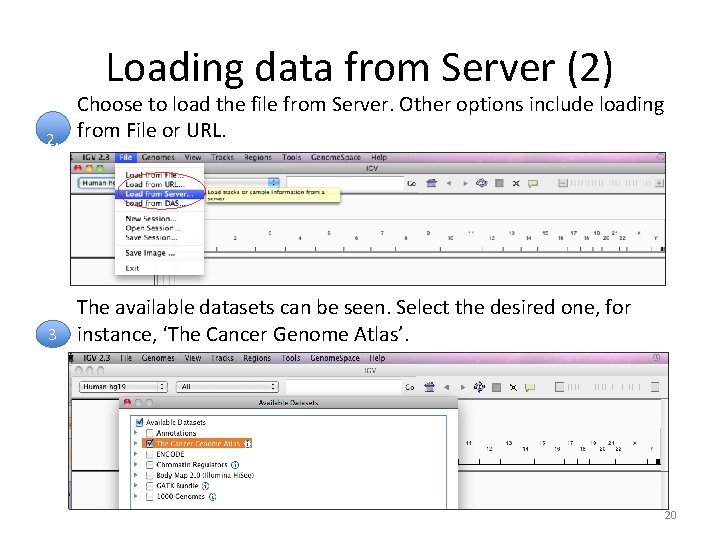
Loading data from Server (2) Choose to load the file from Server. Other options include loading 2. from File or URL. The available datasets can be seen. Select the desired one, for 3 instance, ‘The Cancer Genome Atlas’. 20
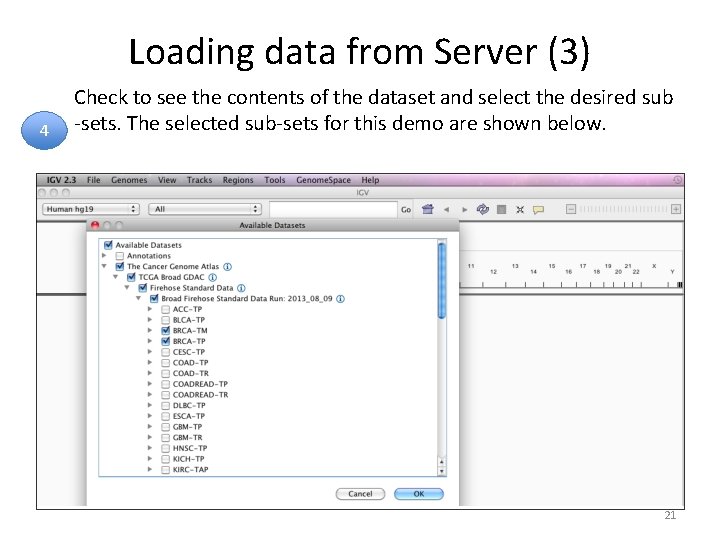
Loading data from Server (3) 4 Check to see the contents of the dataset and select the desired sub -sets. The selected sub-sets for this demo are shown below. 21
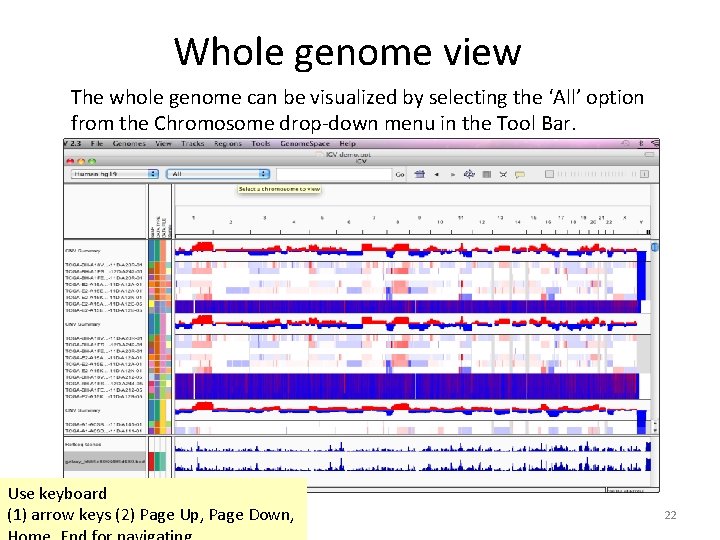
Whole genome view The whole genome can be visualized by selecting the ‘All’ option from the Chromosome drop-down menu in the Tool Bar. Use keyboard (1) arrow keys (2) Page Up, Page Down, 22
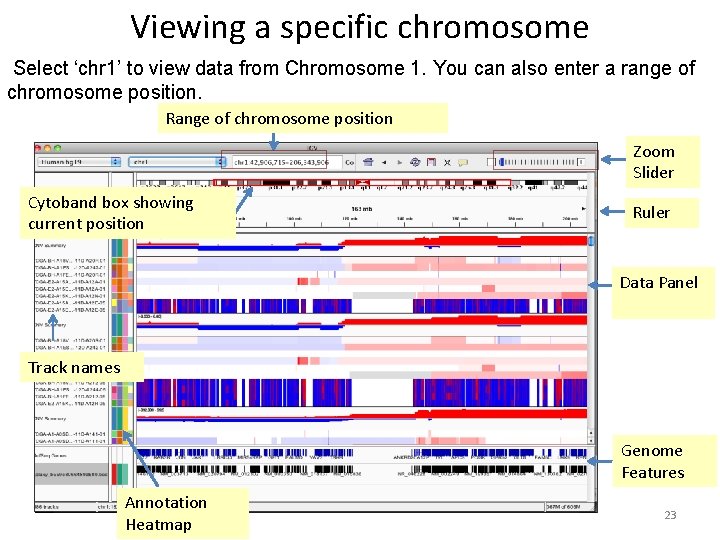
Viewing a specific chromosome Select ‘chr 1’ to view data from Chromosome 1. You can also enter a range of chromosome position. Range of chromosome position Zoom Slider Cytoband box showing current position Ruler Data Panel Track names Genome Features Annotation Heatmap 23
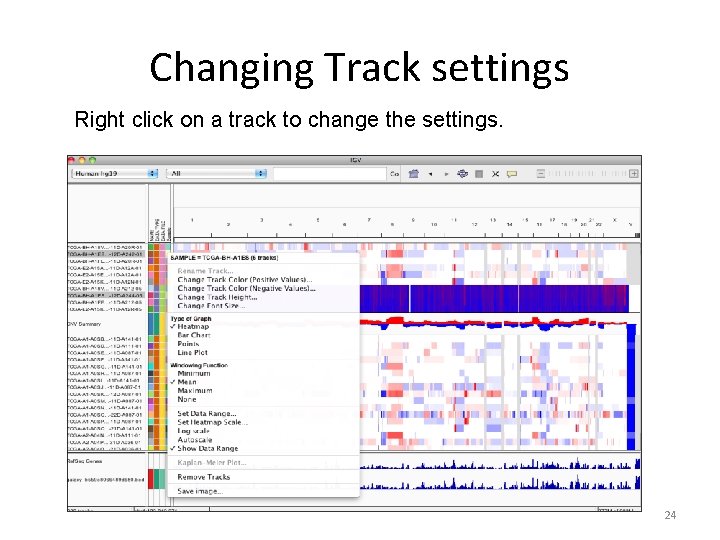
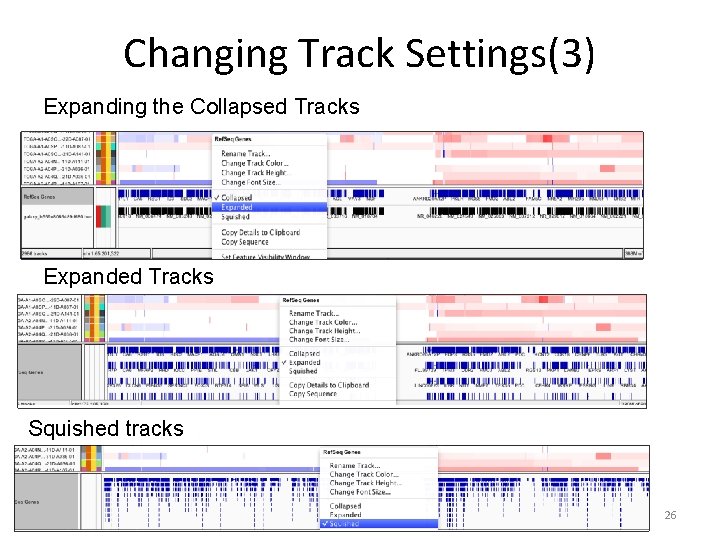
Changing Track settings Right click on a track to change the settings. 24
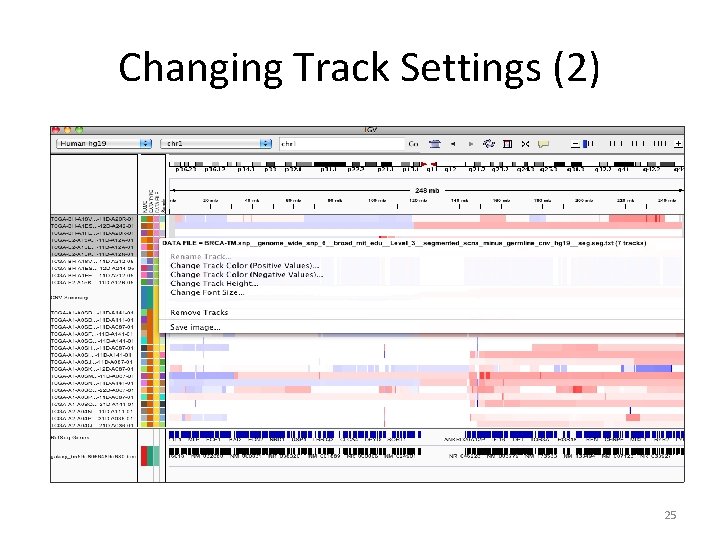
Changing Track Settings (2) 25
Changing Track Settings(3) Expanding the Collapsed Tracks Expanded Tracks Squished tracks 26
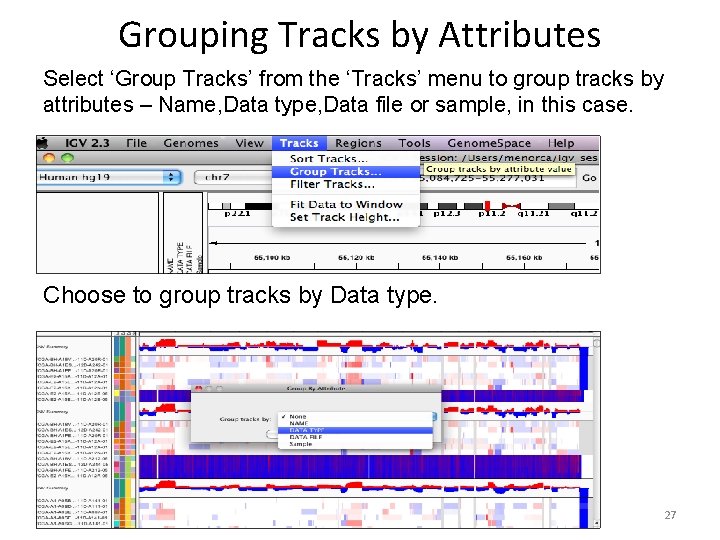
Grouping Tracks by Attributes Select ‘Group Tracks’ from the ‘Tracks’ menu to group tracks by attributes – Name, Data type, Data file or sample, in this case. Choose to group tracks by Data type. 27
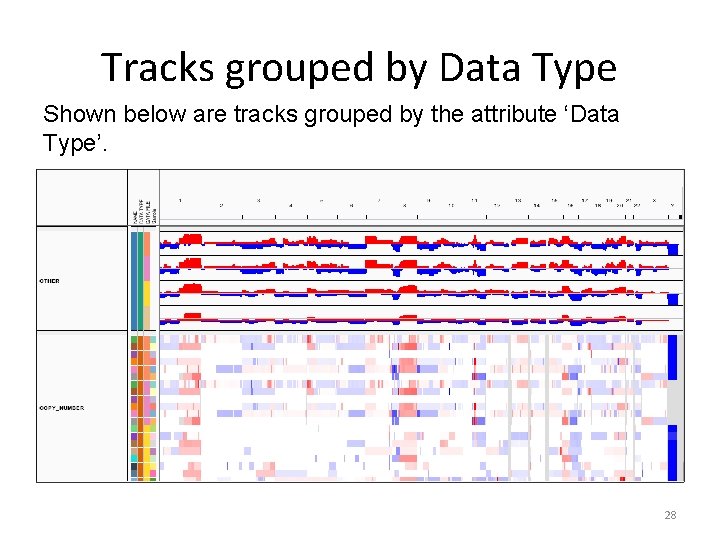
Tracks grouped by Data Type Shown below are tracks grouped by the attribute ‘Data Type’. 28
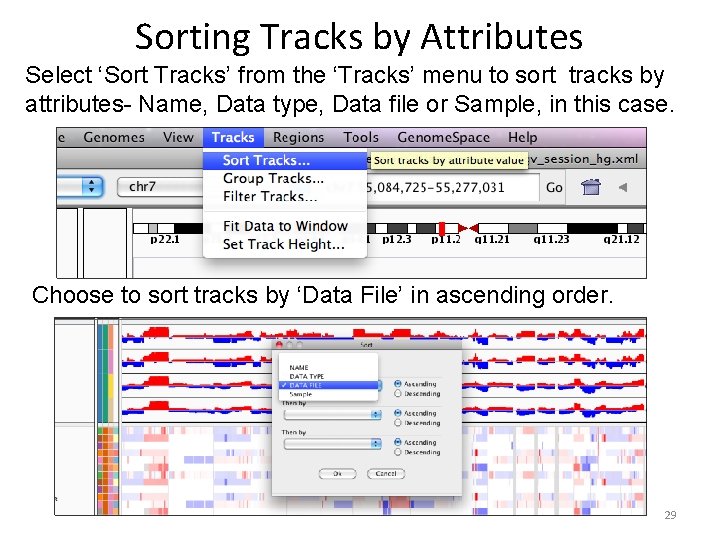
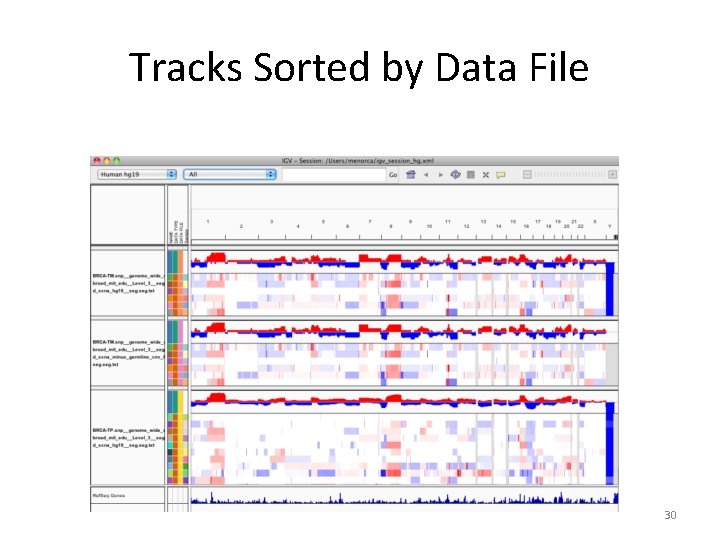
Sorting Tracks by Attributes Select ‘Sort Tracks’ from the ‘Tracks’ menu to sort tracks by attributes- Name, Data type, Data file or Sample, in this case. Choose to sort tracks by ‘Data File’ in ascending order. 29
Tracks Sorted by Data File 30
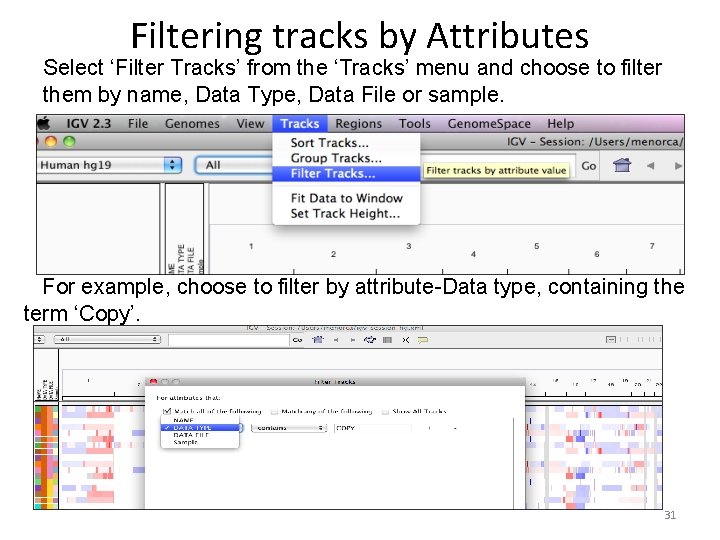
Filtering tracks by Attributes Select ‘Filter Tracks’ from the ‘Tracks’ menu and choose to filter them by name, Data Type, Data File or sample. For example, choose to filter by attribute-Data type, containing the term ‘Copy’. 31
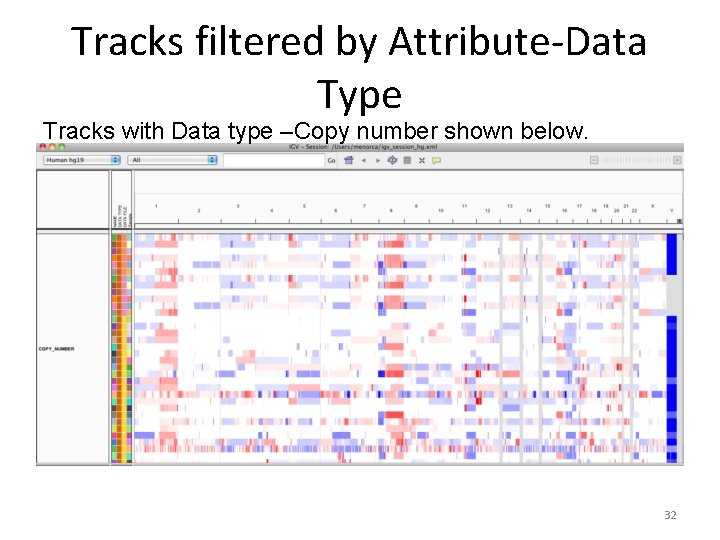
Tracks filtered by Attribute-Data Type Tracks with Data type –Copy number shown below. 32
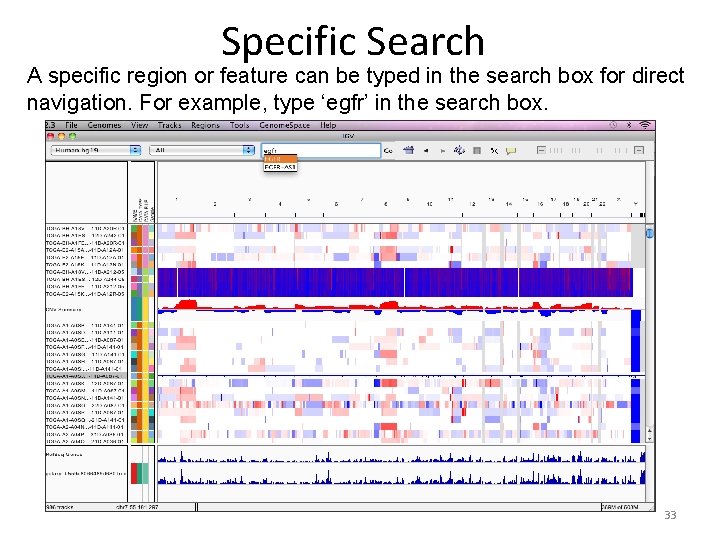
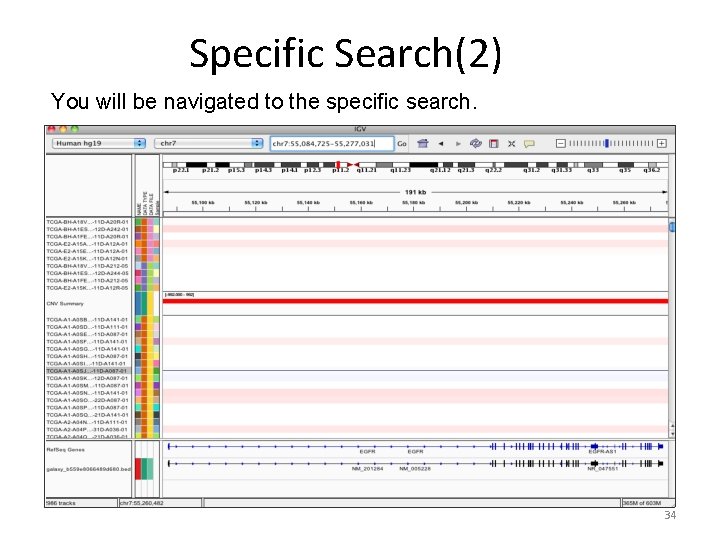
Specific Search A specific region or feature can be typed in the search box for direct navigation. For example, type ‘egfr’ in the search box. 33
Specific Search(2) You will be navigated to the specific search. 34
Save and Exit 35
36