CREATE A SIMPLE GAME IN SCRATCH M 9
- Slides: 48
CREATE A SIMPLE GAME IN SCRATCH M 9. Basic Game – Catch The Baby
Goals Learn about event handling simple sequential execution loops variables conditionals parallel execution message passing
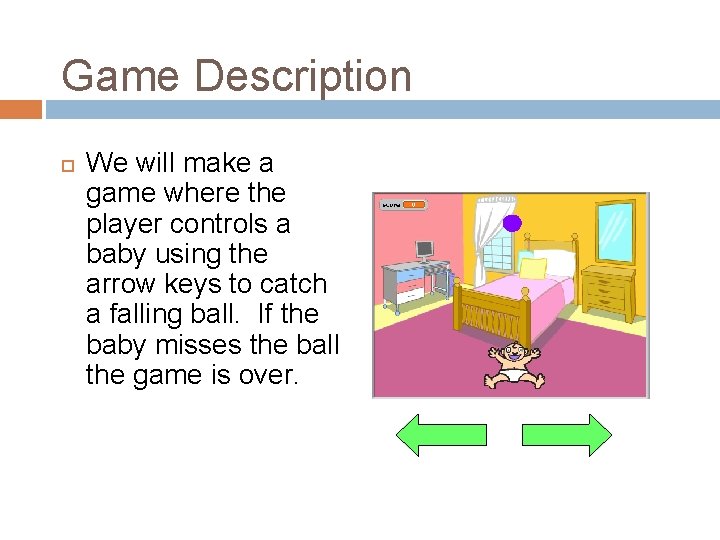
Game Description We will make a game where the player controls a baby using the arrow keys to catch a falling ball. If the baby misses the ball the game is over.
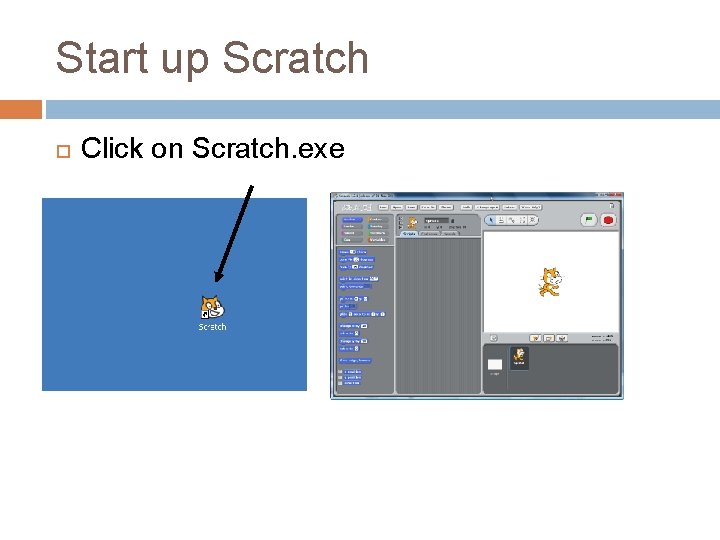
Start up Scratch Click on Scratch. exe
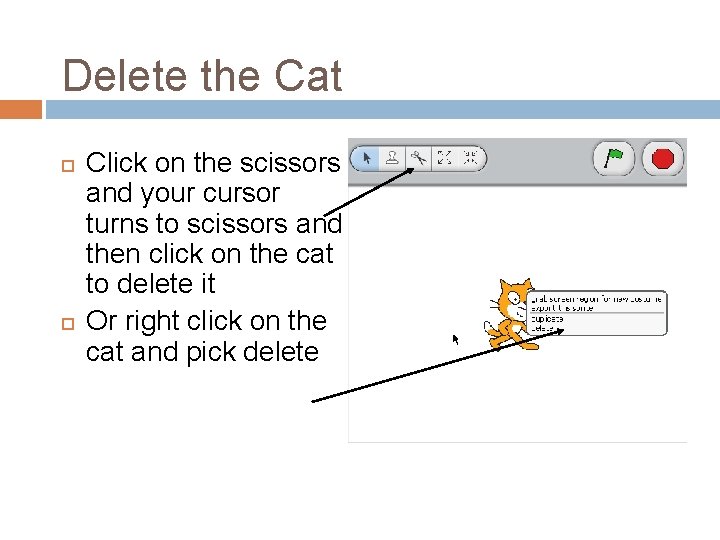
Delete the Cat Click on the scissors and your cursor turns to scissors and then click on the cat to delete it Or right click on the cat and pick delete
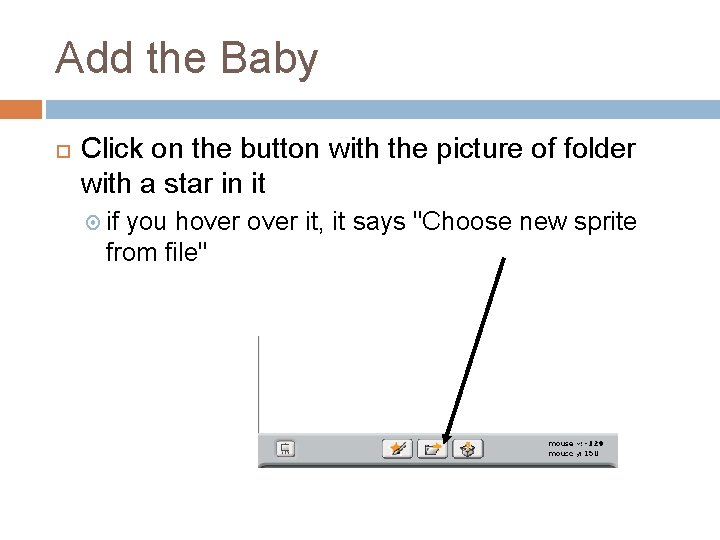
Add the Baby Click on the button with the picture of folder with a star in it if you hover it, it says "Choose new sprite from file"
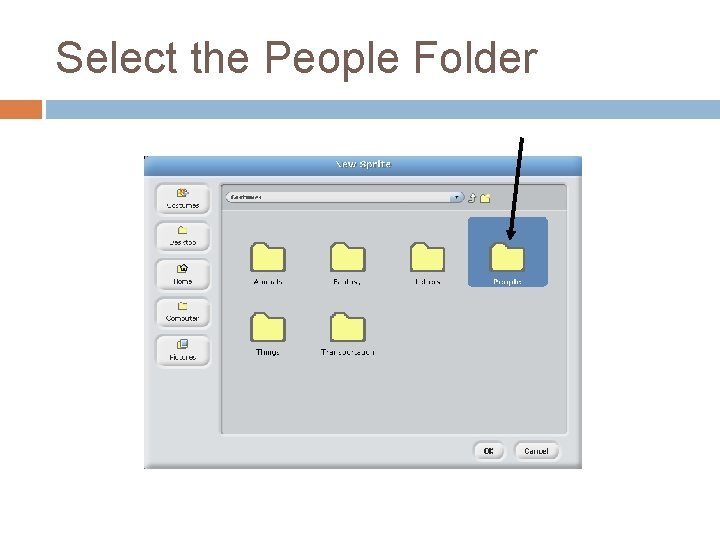
Select the People Folder
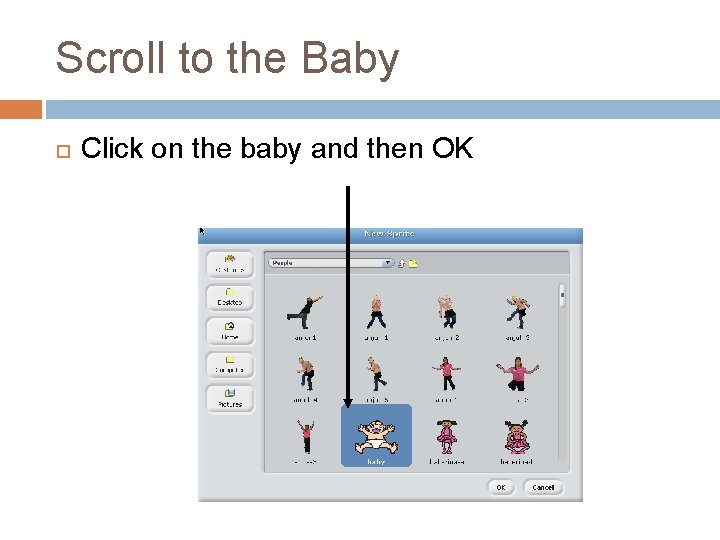
Scroll to the Baby Click on the baby and then OK
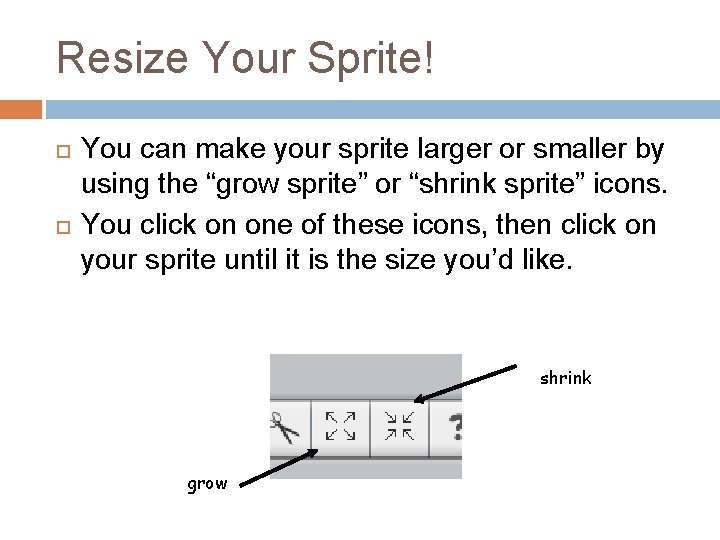
Resize Your Sprite! You can make your sprite larger or smaller by using the “grow sprite” or “shrink sprite” icons. You click on one of these icons, then click on your sprite until it is the size you’d like. shrink grow
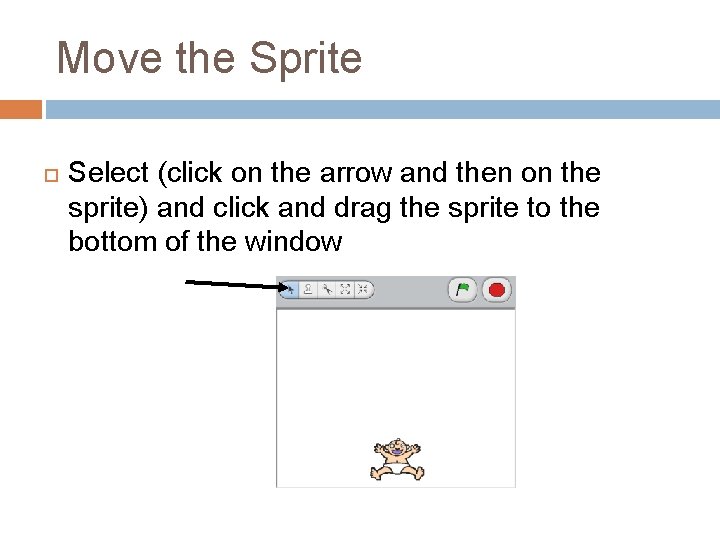
Move the Sprite Select (click on the arrow and then on the sprite) and click and drag the sprite to the bottom of the window
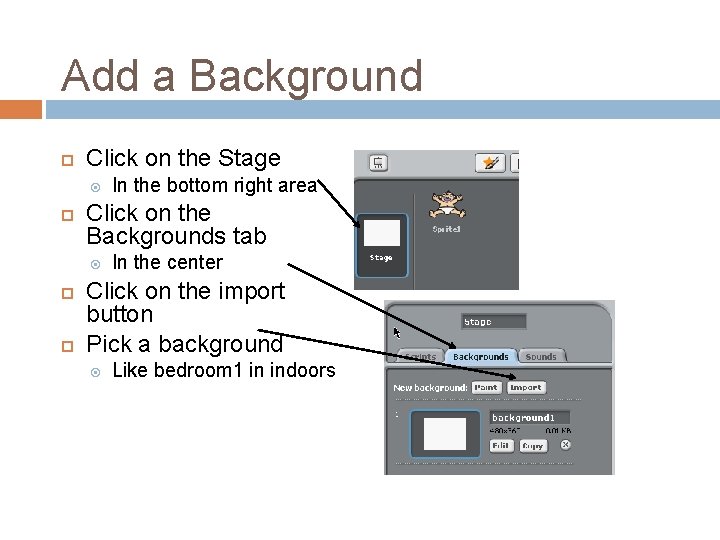
Add a Background Click on the Stage Click on the Backgrounds tab In the bottom right area In the center Click on the import button Pick a background Like bedroom 1 in indoors
Event Handling We want to control the baby using the arrow keys When we click the left arrow the baby should move left When we click the right arrow the baby should move right This is a form of event handling Responding to user actions like mouse clicks and key presses
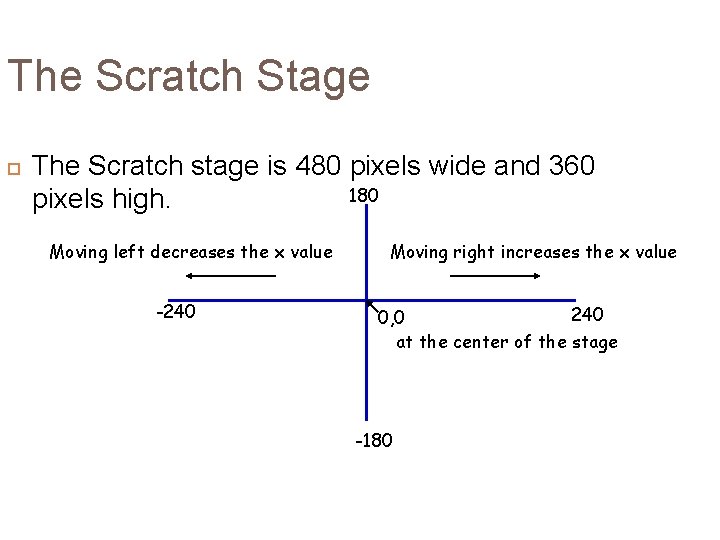
The Scratch Stage The Scratch stage is 480 pixels wide and 360 180 pixels high. Moving left decreases the x value -240 Moving right increases the x value 240 0, 0 at the center of the stage -180
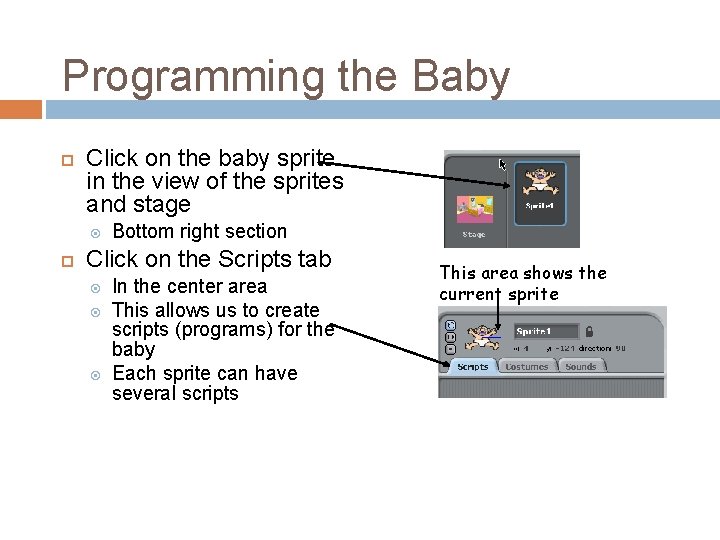
Programming the Baby Click on the baby sprite in the view of the sprites and stage Bottom right section Click on the Scripts tab In the center area This allows us to create scripts (programs) for the baby Each sprite can have several scripts This area shows the current sprite
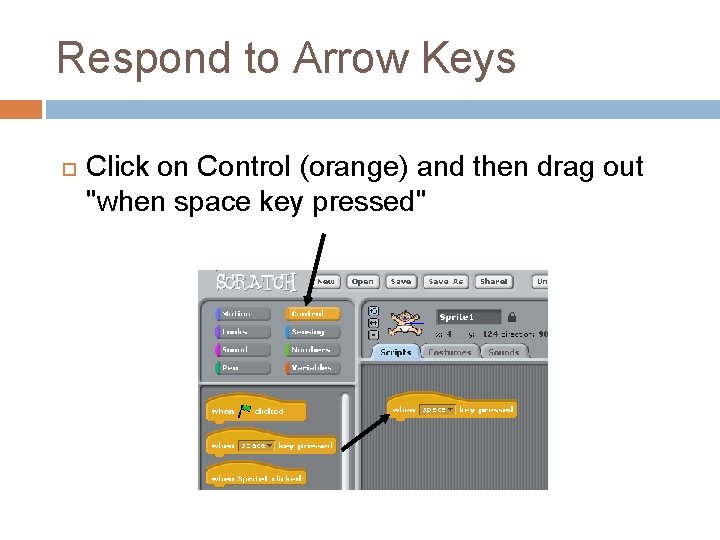
Respond to Arrow Keys Click on Control (orange) and then drag out "when space key pressed"
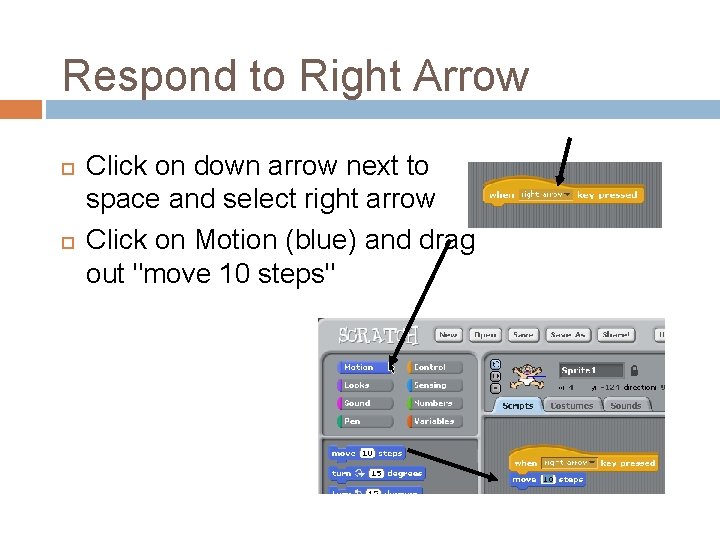
Respond to Right Arrow Click on down arrow next to space and select right arrow Click on Motion (blue) and drag out "move 10 steps"
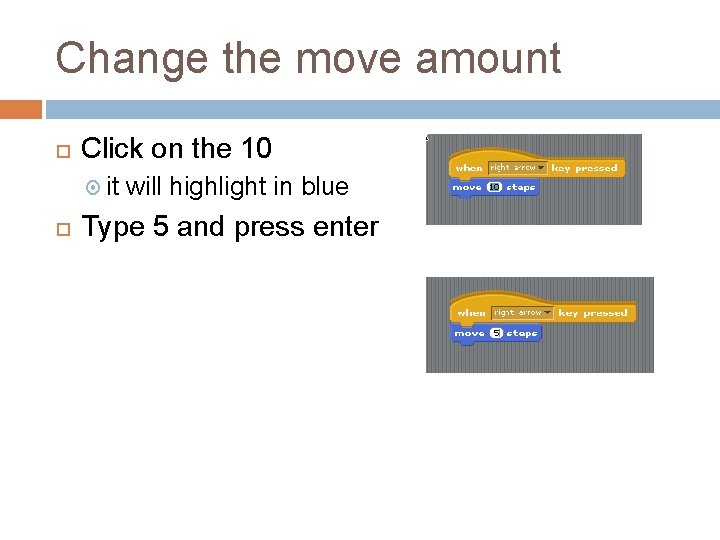
Change the move amount Click on the 10 it will highlight in blue Type 5 and press enter
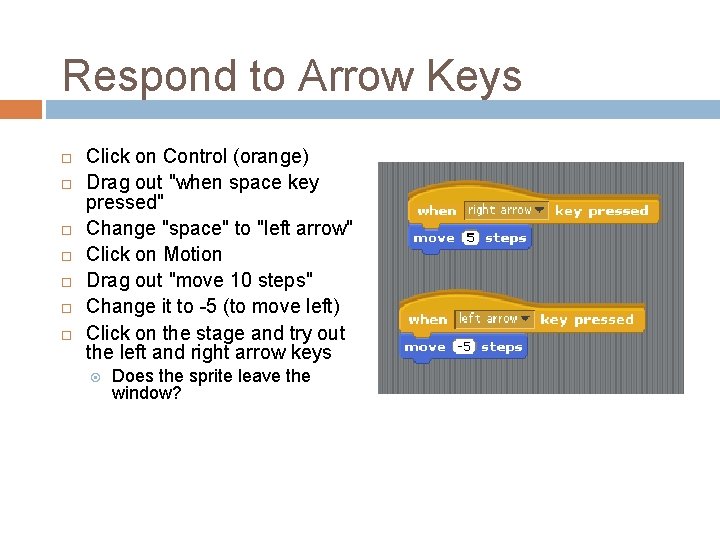
Respond to Arrow Keys Click on Control (orange) Drag out "when space key pressed" Change "space" to "left arrow" Click on Motion Drag out "move 10 steps" Change it to -5 (to move left) Click on the stage and try out the left and right arrow keys Does the sprite leave the window?
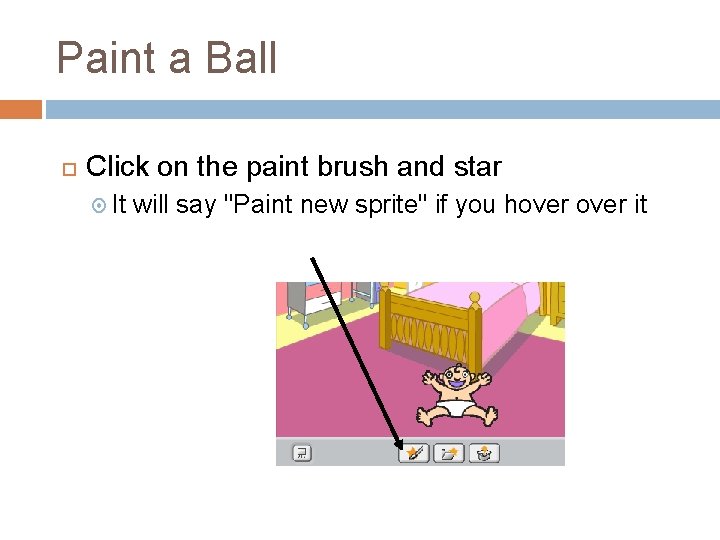
Paint a Ball Click on the paint brush and star It will say "Paint new sprite" if you hover it
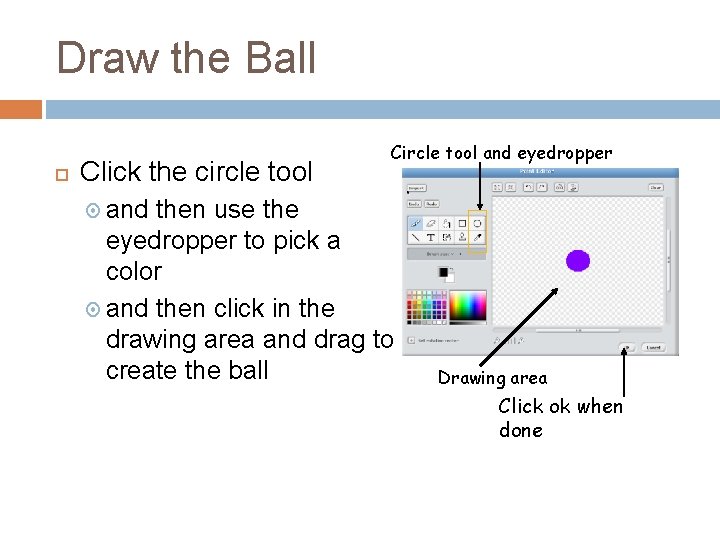
Draw the Ball Click the circle tool Circle tool and eyedropper and then use the eyedropper to pick a color and then click in the drawing area and drag to create the ball Drawing area Click ok when done
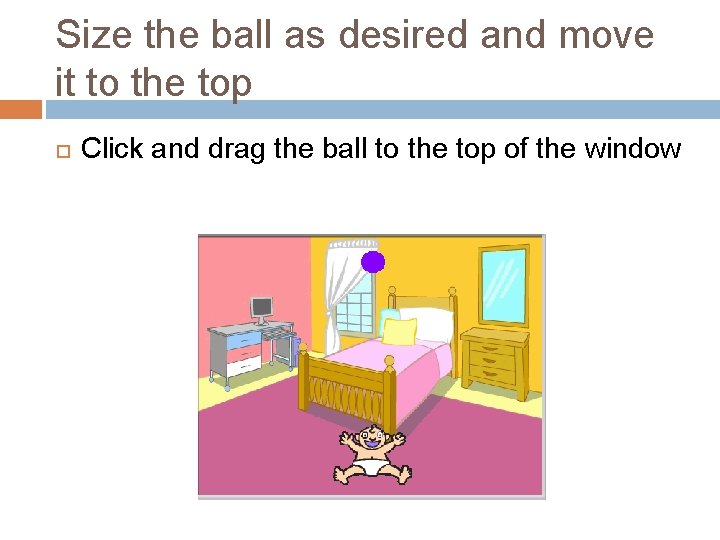
Size the ball as desired and move it to the top Click and drag the ball to the top of the window
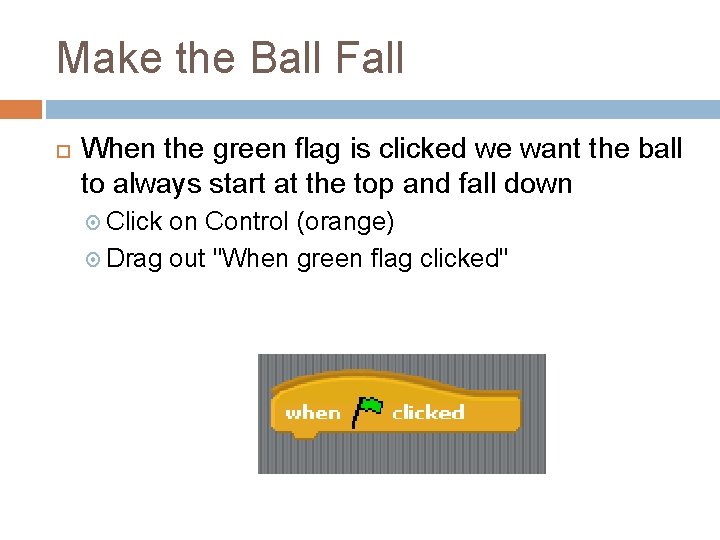
Make the Ball Fall When the green flag is clicked we want the ball to always start at the top and fall down Click on Control (orange) Drag out "When green flag clicked"
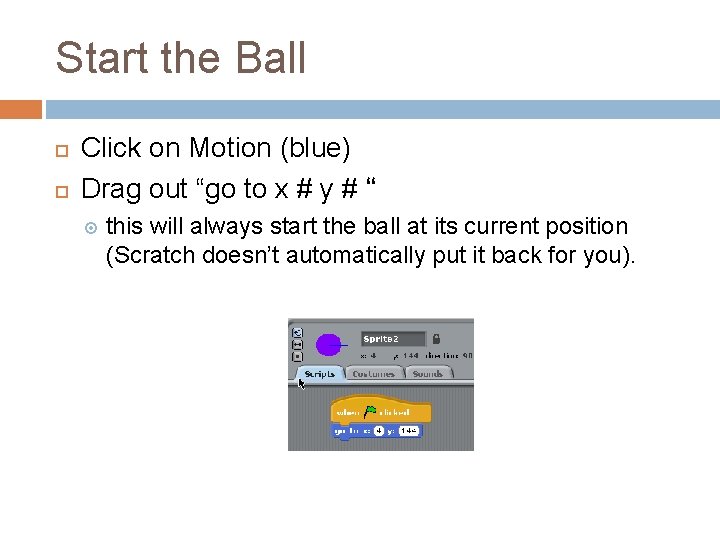
Start the Ball Click on Motion (blue) Drag out “go to x # y # “ this will always start the ball at its current position (Scratch doesn’t automatically put it back for you).
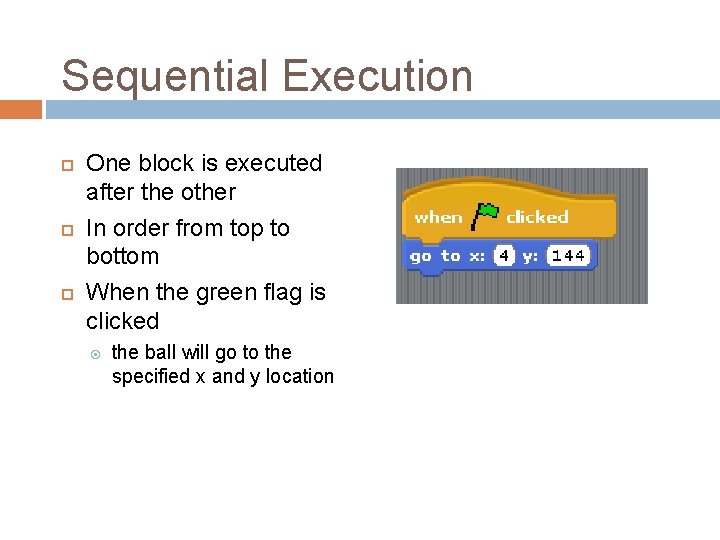
Sequential Execution One block is executed after the other In order from top to bottom When the green flag is clicked the ball will go to the specified x and y location
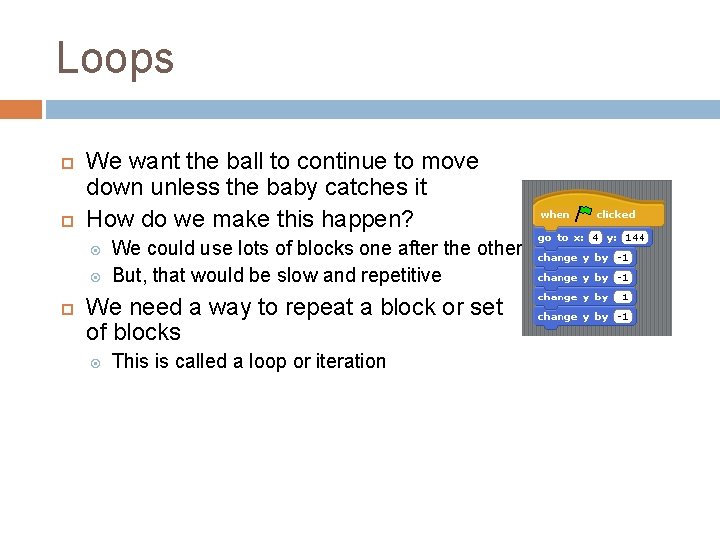
Loops We want the ball to continue to move down unless the baby catches it How do we make this happen? We could use lots of blocks one after the other But, that would be slow and repetitive We need a way to repeat a block or set of blocks This is called a loop or iteration
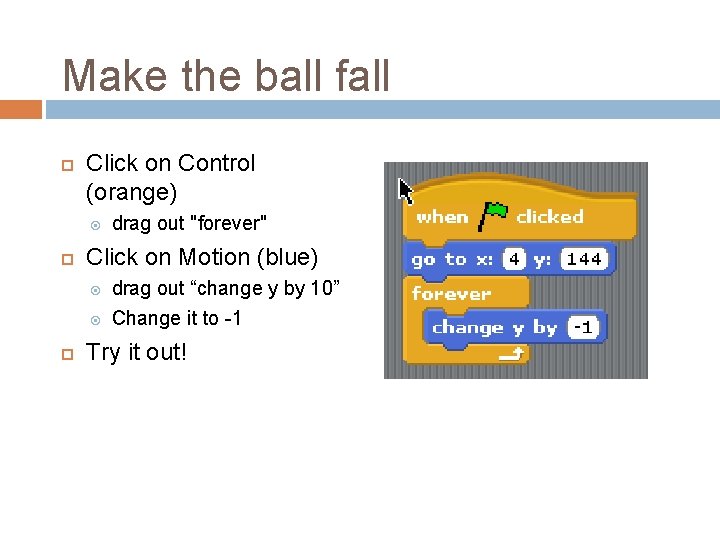
Make the ball fall Click on Control (orange) Click on Motion (blue) drag out "forever" drag out “change y by 10” Change it to -1 Try it out!
Catch the ball! If the ball touches the baby then it is caught Let's track how many balls we have caught with a score We ball will increment the score each time we catch a
Variables If we are going to keep track of the score We want something to hold the current score And we want to be able to change the score We want the value to change or vary This is called a variable
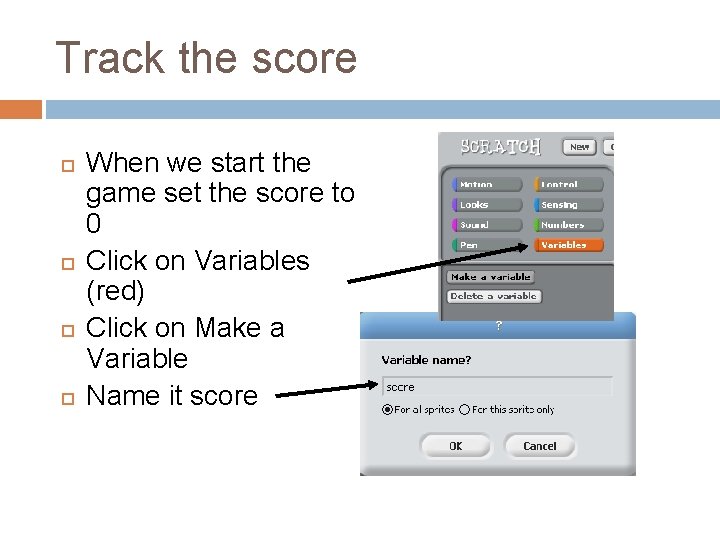
Track the score When we start the game set the score to 0 Click on Variables (red) Click on Make a Variable Name it score
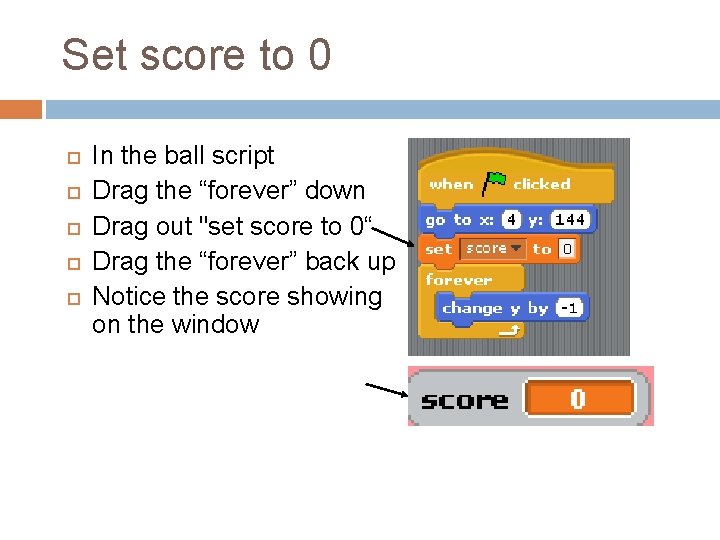
Set score to 0 In the ball script Drag the “forever” down Drag out "set score to 0“ Drag the “forever” back up Notice the score showing on the window
Conditionals We want to increase the score if the baby caught the ball So this action will only occur only if some condition is true This is called a conditional or an “if”
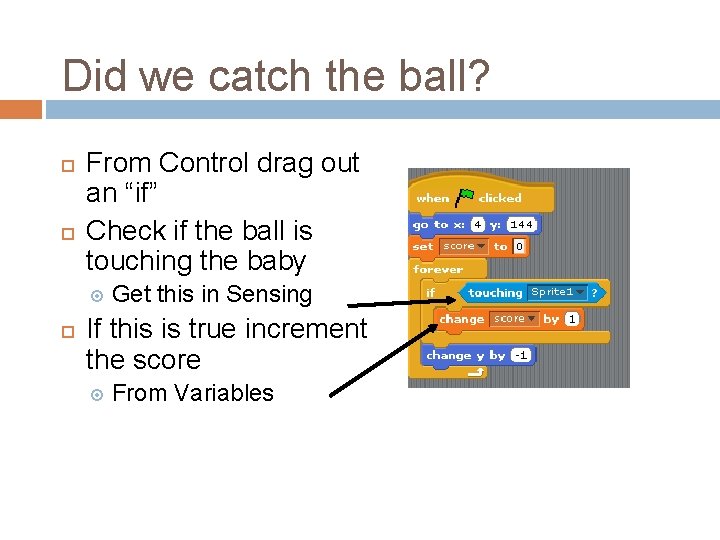
Did we catch the ball? From Control drag out an “if” Check if the ball is touching the baby Get this in Sensing If this is true increment the score From Variables
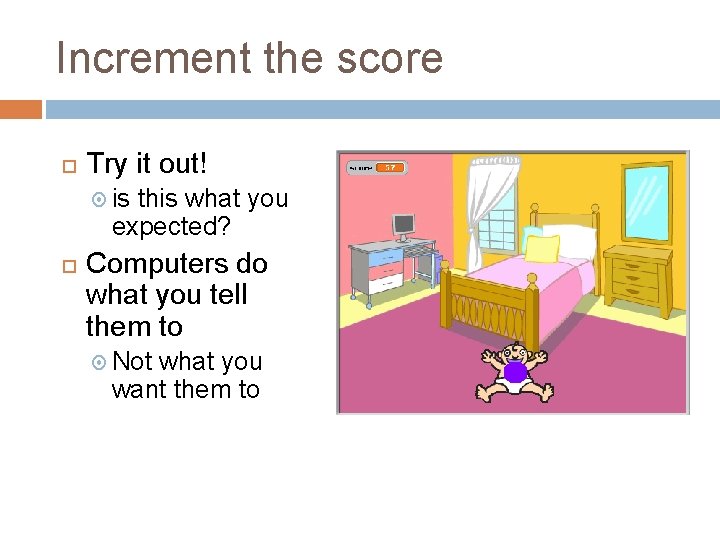
Increment the score Try it out! is this what you expected? Computers do what you tell them to Not what you want them to
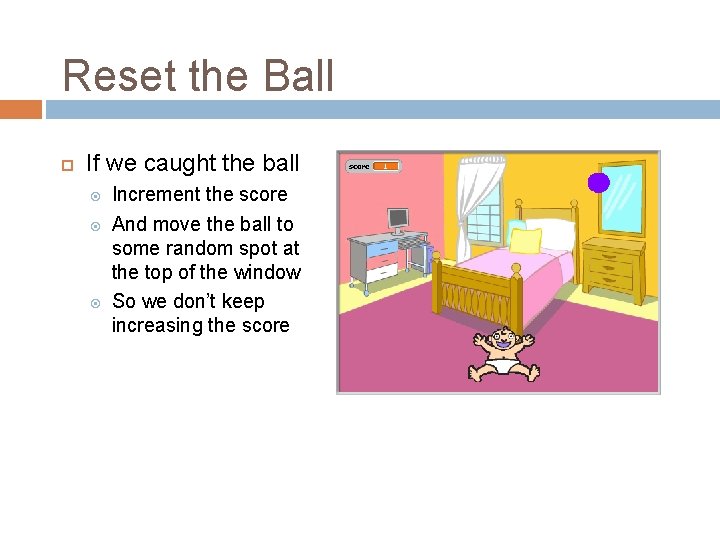
Reset the Ball If we caught the ball Increment the score And move the ball to some random spot at the top of the window So we don’t keep increasing the score
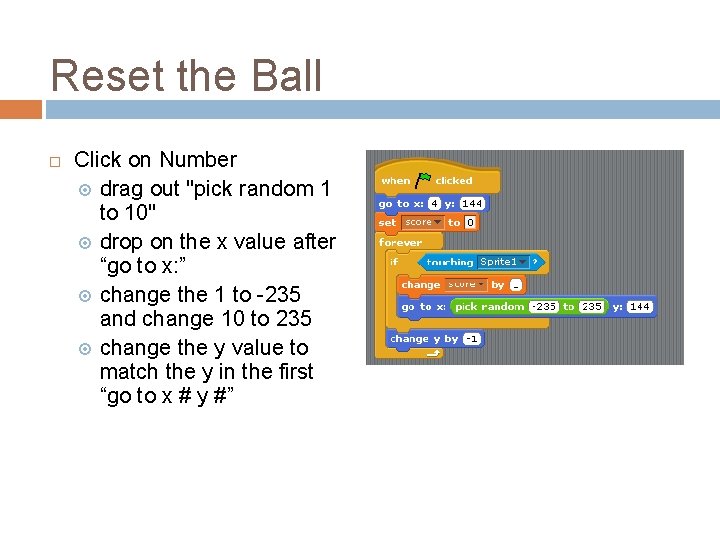
Reset the Ball Click on Number drag out "pick random 1 to 10" drop on the x value after “go to x: ” change the 1 to -235 and change 10 to 235 change the y value to match the y in the first “go to x # y #”
Adding Losing If the baby doesn't catch the ball it just gets stuck at the bottom of the screen Let's tell the player that he or she lost
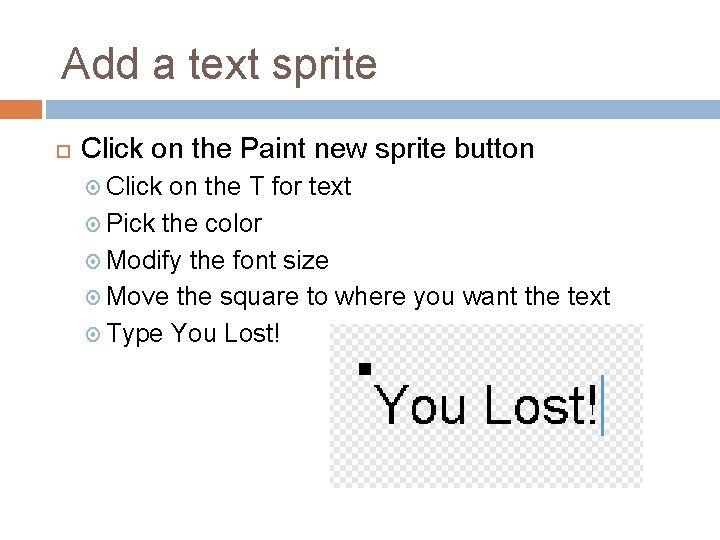
Add a text sprite Click on the Paint new sprite button Click on the T for text Pick the color Modify the font size Move the square to where you want the text Type You Lost!
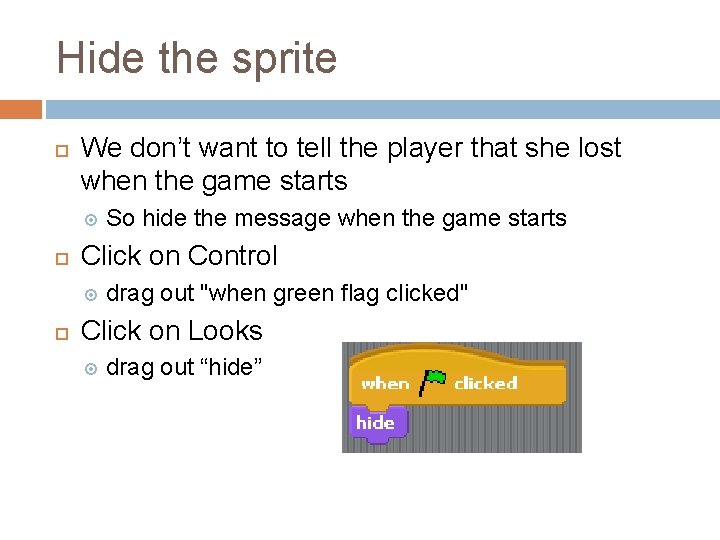
Hide the sprite We don’t want to tell the player that she lost when the game starts Click on Control So hide the message when the game starts drag out "when green flag clicked" Click on Looks drag out “hide”
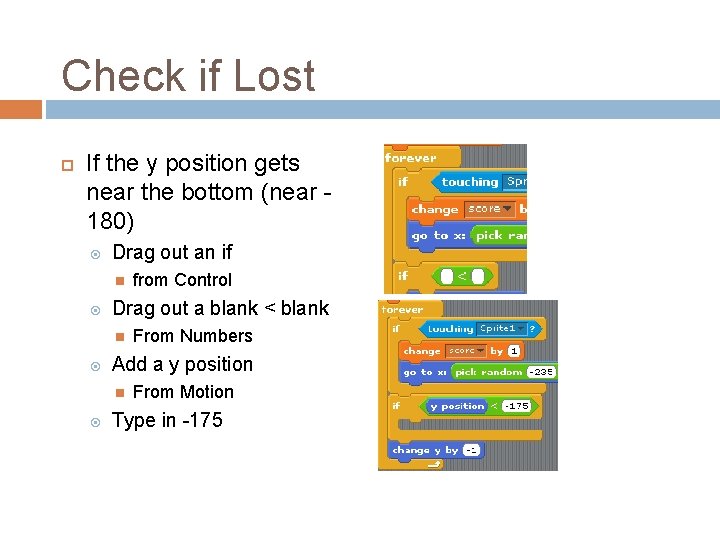
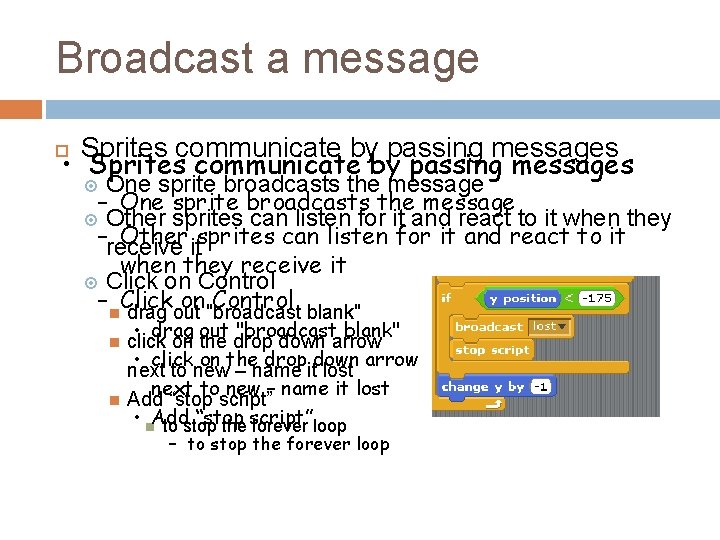
Check if Lost If the y position gets near the bottom (near 180) Drag out an if Drag out a blank < blank From Numbers Add a y position from Control From Motion Type in -175
Broadcast a message Sprites communicate by passing messages • Sprites communicate by passing messages One sprite broadcasts the message – One sprite broadcasts the message Other sprites can listen for it and react to it when they –receive Other itsprites can listen for it and react to it when they receive it Click on Control – Click on Control drag out "broadcast blank" • drag out "broadcast blank" click on the drop down arrow • click on the drop down arrow next to new – name it lost Add “stop script” • Add “stop to stop the script” forever loop – to stop the forever loop
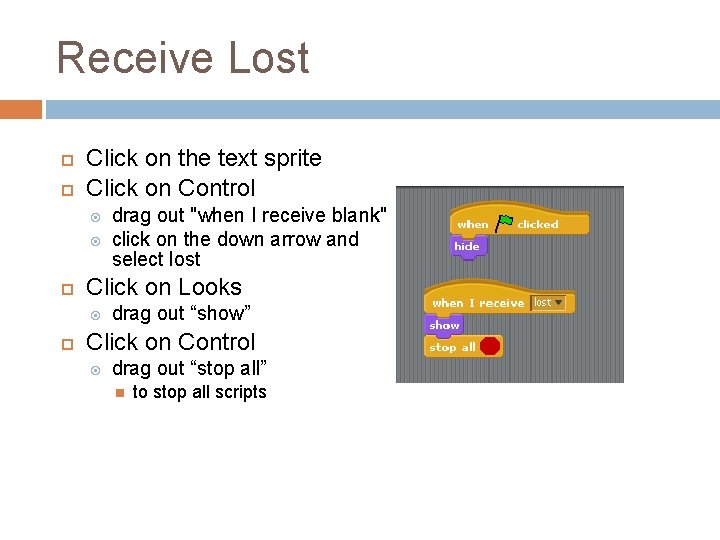
Receive Lost Click on the text sprite Click on Control Click on Looks drag out "when I receive blank" click on the down arrow and select lost drag out “show” Click on Control drag out “stop all” to stop all scripts
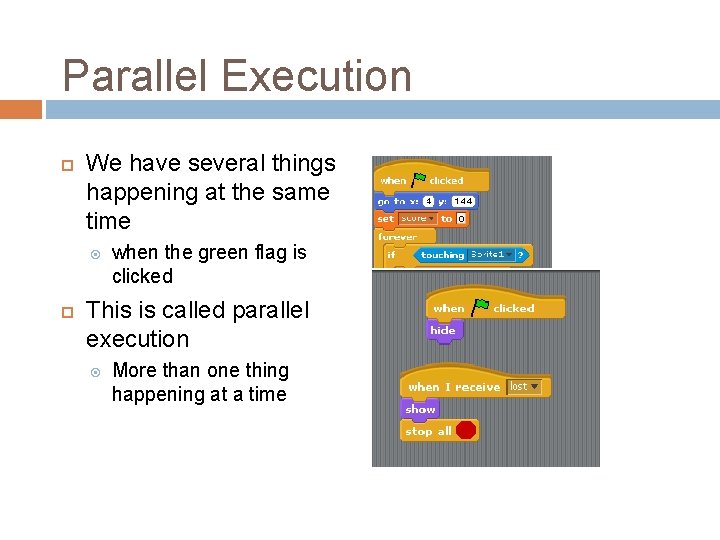
Parallel Execution We have several things happening at the same time when the green flag is clicked This is called parallel execution More than one thing happening at a time
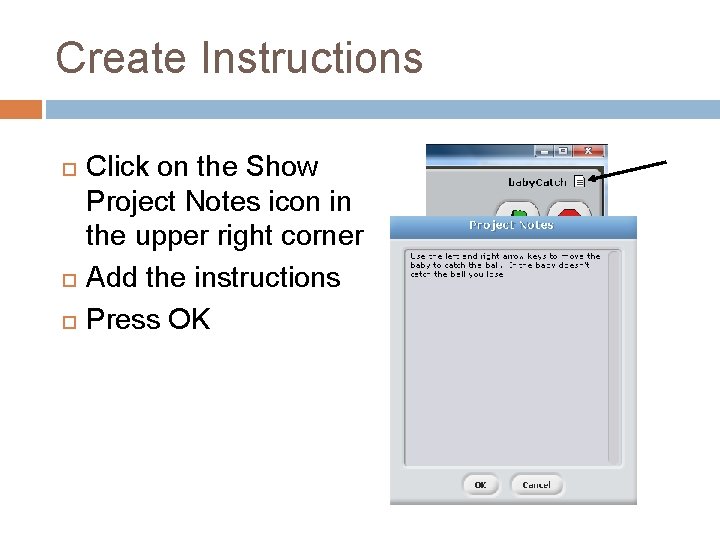
Create Instructions Click on the Show Project Notes icon in the upper right corner Add the instructions Press OK
Test your game Click the green flag If you want, adjust the speed of the ball Increase the amount it changes in y Modify the sprites using the “Costume” tab Save your game with the “Save” button
Share your game You can share your projects at the scratch web site http: //scratch. mit. edu Click on the Share! button You can also download other projects and see how they were created
Other Ideas Add a sound when you lose Add the ability to win When you reach a certain score Track the amount of time it takes as well Speed up the ball over time Add more sprites to catch Add a sprite to avoid (like a big brother) killer sprite
Concept Summary Variables Forever loops and receive them Sprites can react to events only execute the body of the if when the condition is true Sprites can pass messages repeat all the commands inside of them one at a time until the script is stopped or all scripts are stopped Conditionals – ifs can hold values and can change value like clicking the green flag and pressing the left or right arrow keys Sprites can have several scripts, costumes, and sounds Things can happen one after the other – sequential execution or at the same time – parallel execution
Source Mike Scott, University of Texas at Austin Jerry Lee Ford, Jr. Scratch Programming For Teens. Course Technoloy, Boston USA.