
Harry Potter Scratch Game Pranali Choubal Kunal Shah
Harry Potter Scratch Game Pranali Choubal Kunal Shah Barb Ericson ericson@cc. gatech. edu Dec 2007 Harry Potter Scratch Game 1
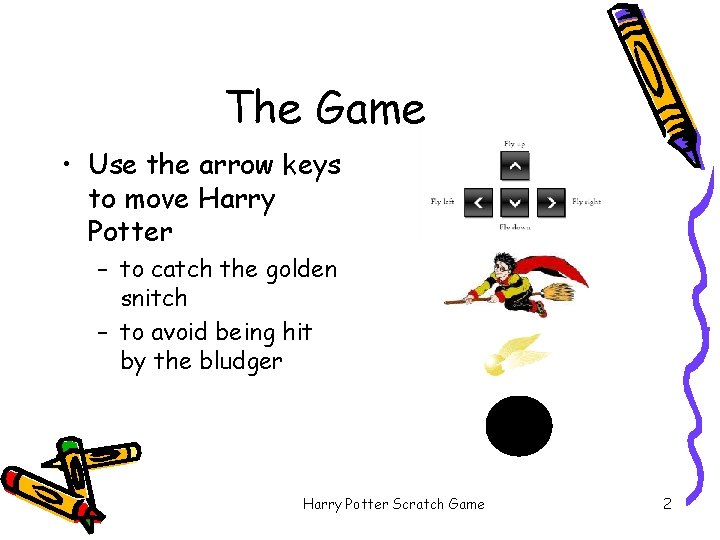
The Game • Use the arrow keys to move Harry Potter – to catch the golden snitch – to avoid being hit by the bludger Harry Potter Scratch Game 2
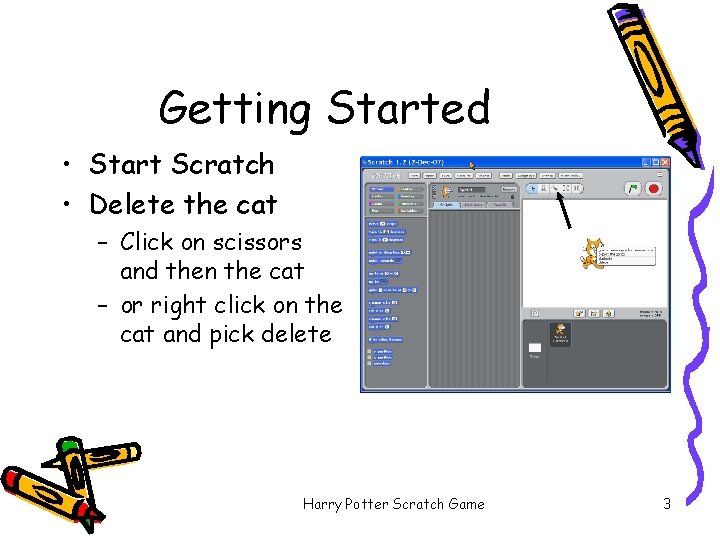
Getting Started • Start Scratch • Delete the cat – Click on scissors and then the cat – or right click on the cat and pick delete Harry Potter Scratch Game 3
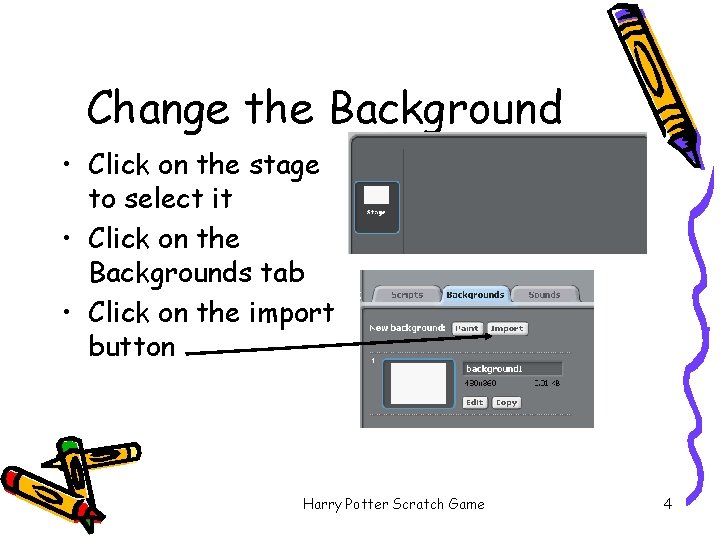
Change the Background • Click on the stage to select it • Click on the Backgrounds tab • Click on the import button Harry Potter Scratch Game 4
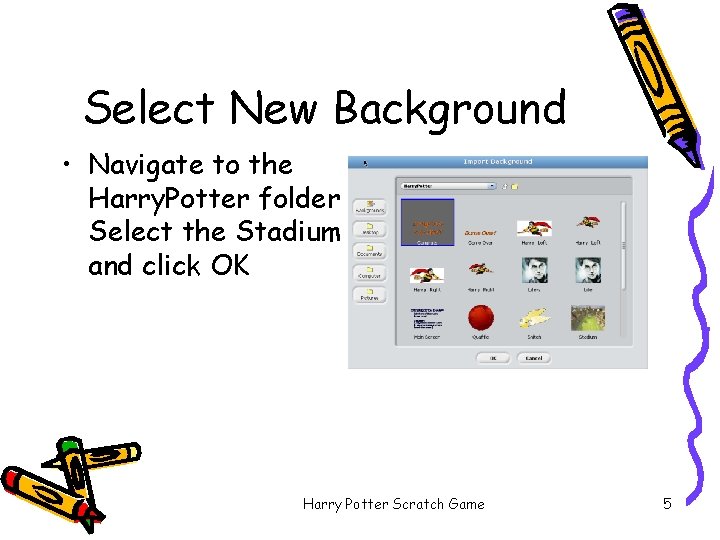
Select New Background • Navigate to the Harry. Potter folder Select the Stadium and click OK Harry Potter Scratch Game 5
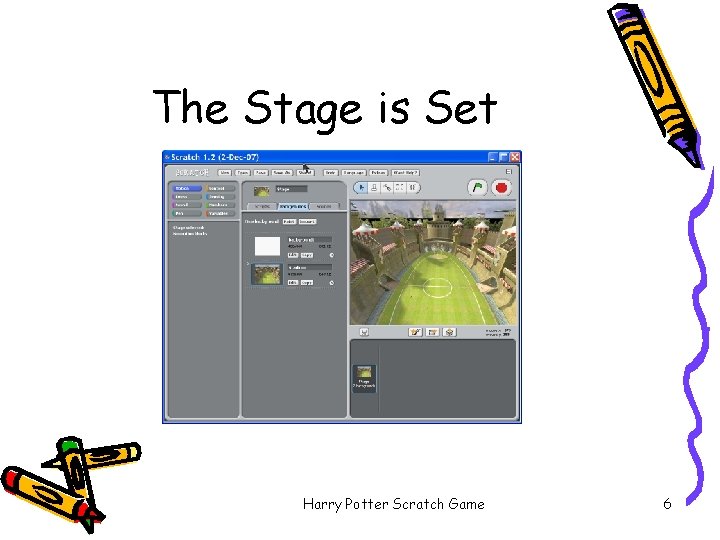
The Stage is Set Harry Potter Scratch Game 6
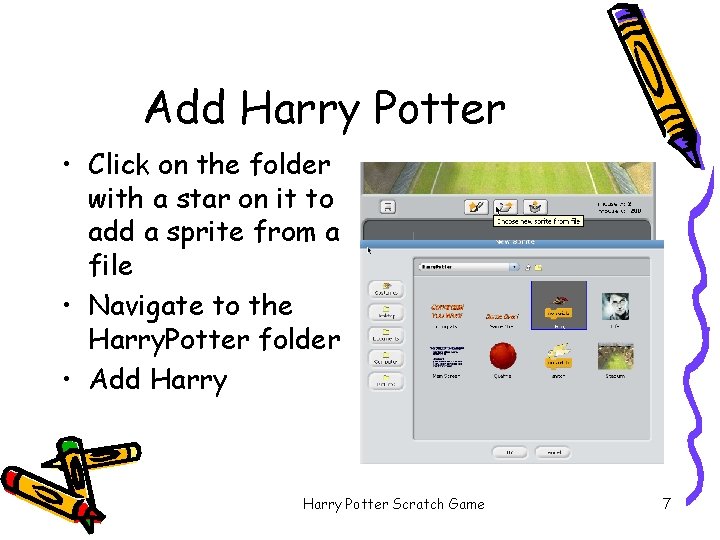
Add Harry Potter • Click on the folder with a star on it to add a sprite from a file • Navigate to the Harry. Potter folder • Add Harry Potter Scratch Game 7
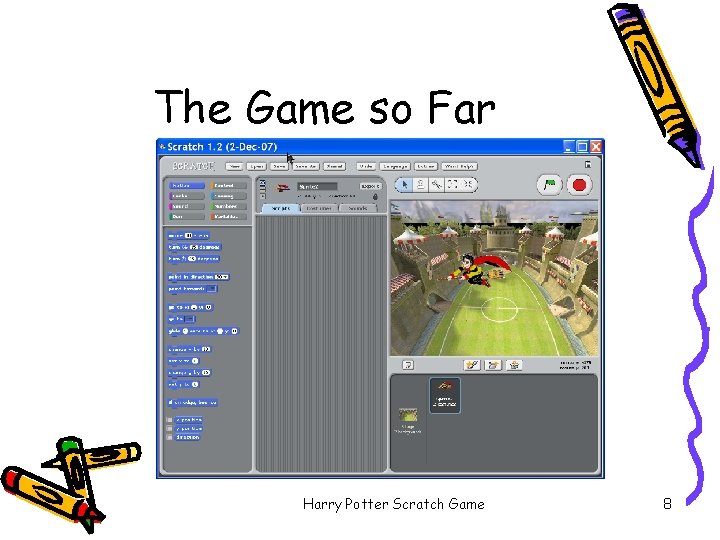
The Game so Far Harry Potter Scratch Game 8
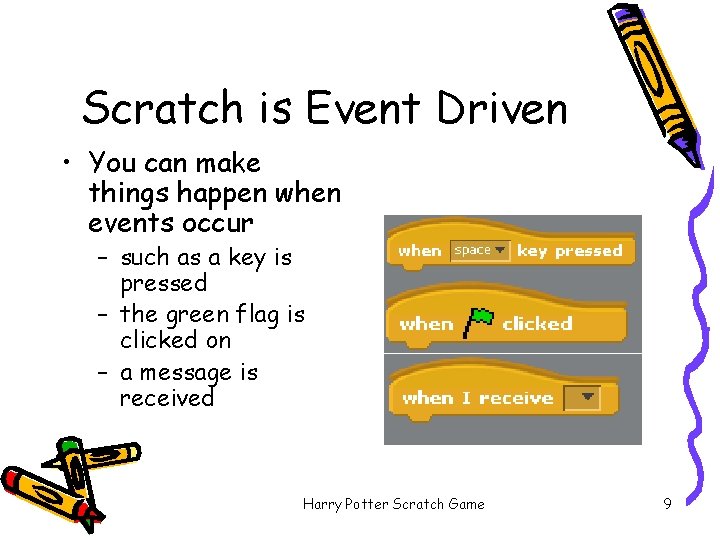
Scratch is Event Driven • You can make things happen when events occur – such as a key is pressed – the green flag is clicked on – a message is received Harry Potter Scratch Game 9
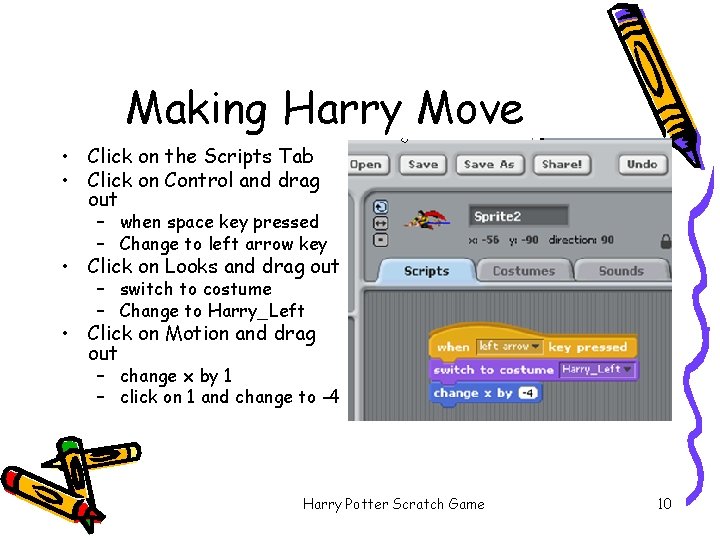
Making Harry Move • Click on the Scripts Tab • Click on Control and drag out – when space key pressed – Change to left arrow key • Click on Looks and drag out – switch to costume – Change to Harry_Left • Click on Motion and drag out – change x by 1 – click on 1 and change to -4 Harry Potter Scratch Game 10
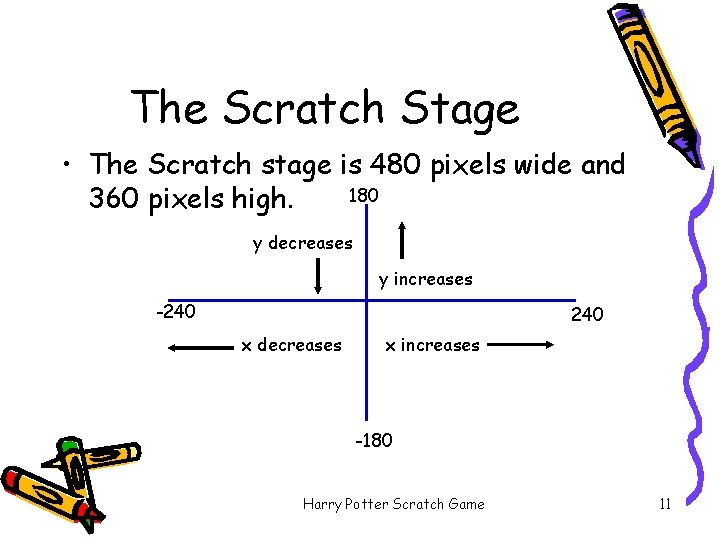
The Scratch Stage • The Scratch stage is 480 pixels wide and 180 360 pixels high. y decreases y increases -240 x decreases x increases -180 Harry Potter Scratch Game 11
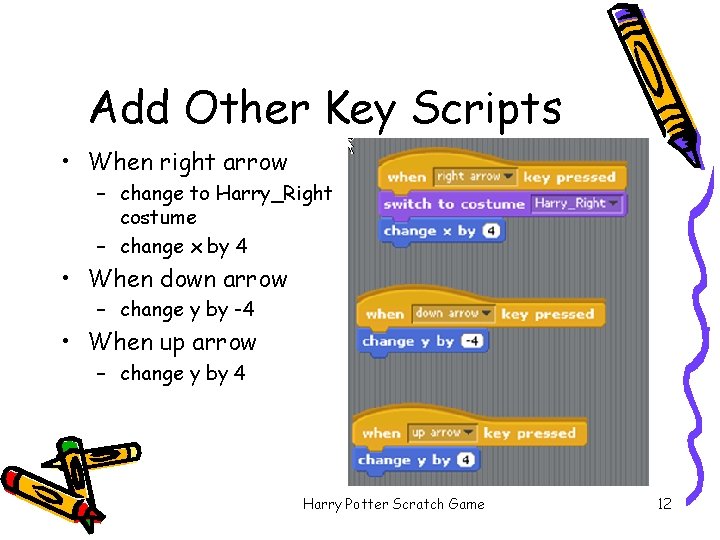
Add Other Key Scripts • When right arrow – change to Harry_Right costume – change x by 4 • When down arrow – change y by -4 • When up arrow – change y by 4 Harry Potter Scratch Game 12
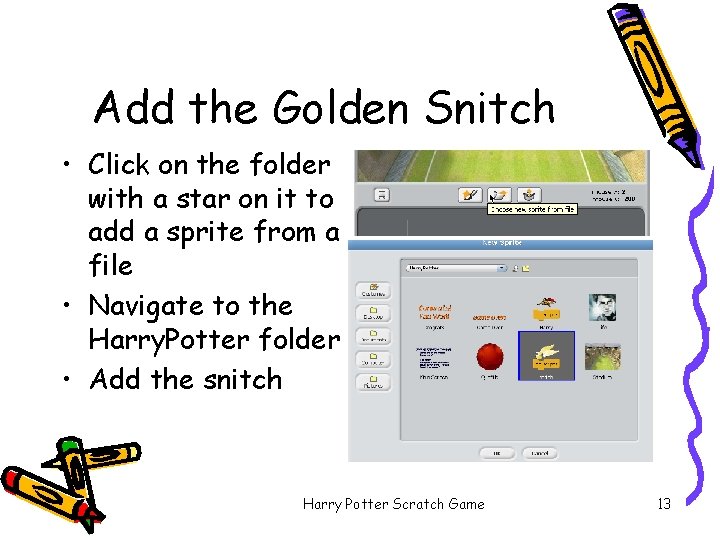
Add the Golden Snitch • Click on the folder with a star on it to add a sprite from a file • Navigate to the Harry. Potter folder • Add the snitch Harry Potter Scratch Game 13
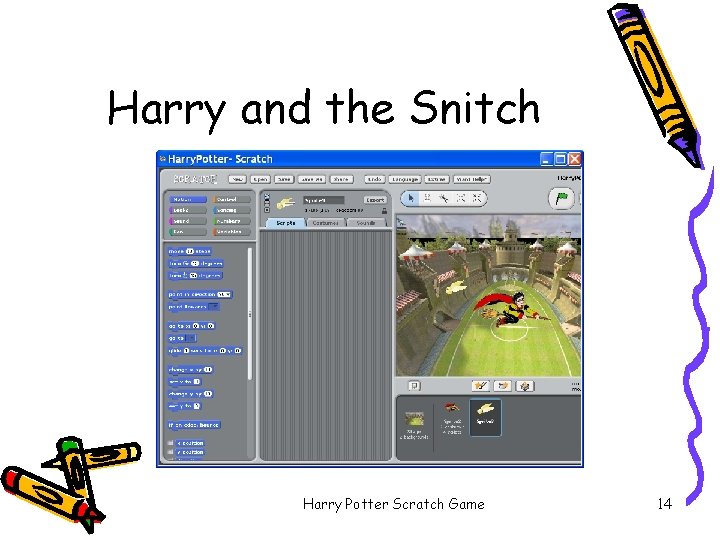
Harry and the Snitch Harry Potter Scratch Game 14
Snitch Behavior • In a 'normal' Quidditch game the game is over when the snitch is caught • But, in this game you will have to catch 10 snitches to win. – you will need to keep track of the number caught • Each time the snitch is caught it will hide and reappear in a new random location Harry Potter Scratch Game 15
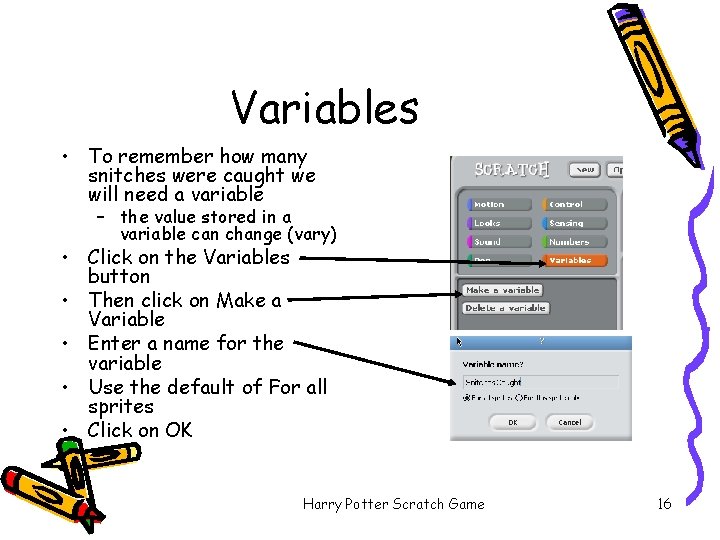
Variables • To remember how many snitches were caught we will need a variable – the value stored in a variable can change (vary) • Click on the Variables button • Then click on Make a Variable • Enter a name for the variable • Use the default of For all sprites • Click on OK Harry Potter Scratch Game 16
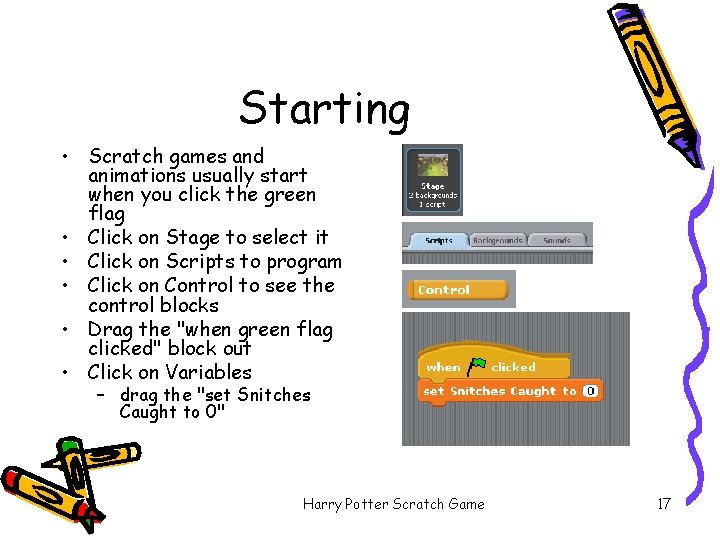
Starting • Scratch games and animations usually start when you click the green flag • Click on Stage to select it • Click on Scripts to program • Click on Control to see the control blocks • Drag the "when green flag clicked" block out • Click on Variables – drag the "set Snitches Caught to 0" Harry Potter Scratch Game 17
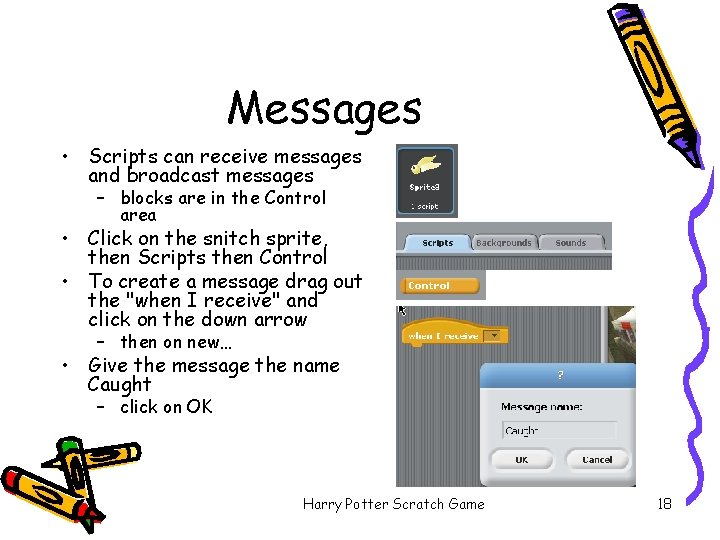
Messages • Scripts can receive messages and broadcast messages – blocks are in the Control area • Click on the snitch sprite, then Scripts then Control • To create a message drag out the "when I receive" and click on the down arrow – then on new… • Give the message the name Caught – click on OK Harry Potter Scratch Game 18
More about Messages • Broadcasting and receiving messages is how sprites communicate with each other – it doesn't cause anything to be printed or appear – it does execute scripts that receive the message – All broadcasted messages should have one or more sprites that receive the message Harry Potter Scratch Game 19
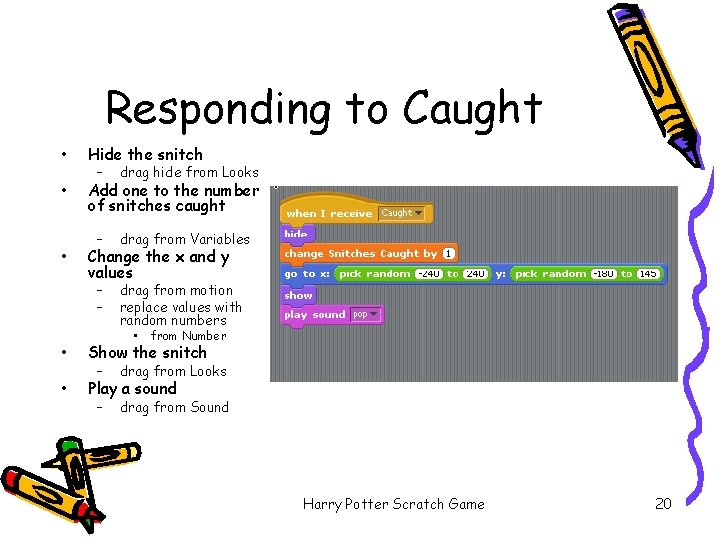
Responding to Caught • Hide the snitch • Add one to the number of snitches caught • – drag hide from Looks – drag from Variables – – drag from motion replace values with random numbers Change the x and y values • from Number • Show the snitch • Play a sound – drag from Looks – drag from Sound Harry Potter Scratch Game 20
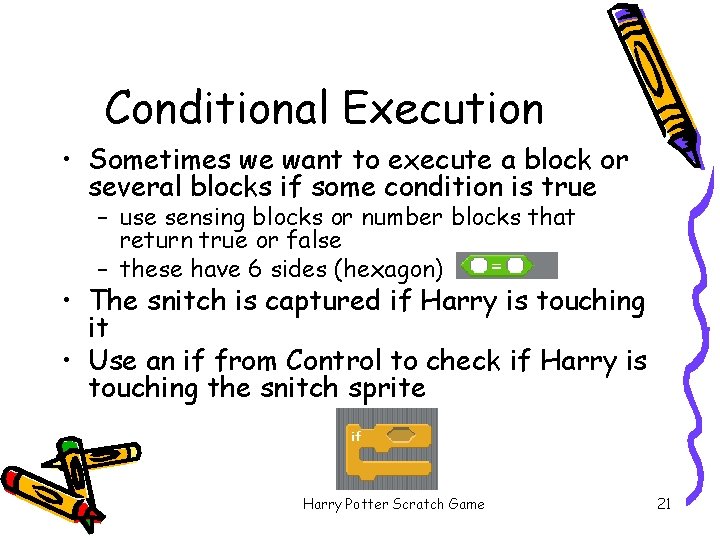
Conditional Execution • Sometimes we want to execute a block or several blocks if some condition is true – use sensing blocks or number blocks that return true or false – these have 6 sides (hexagon) • The snitch is captured if Harry is touching it • Use an if from Control to check if Harry is touching the snitch sprite Harry Potter Scratch Game 21
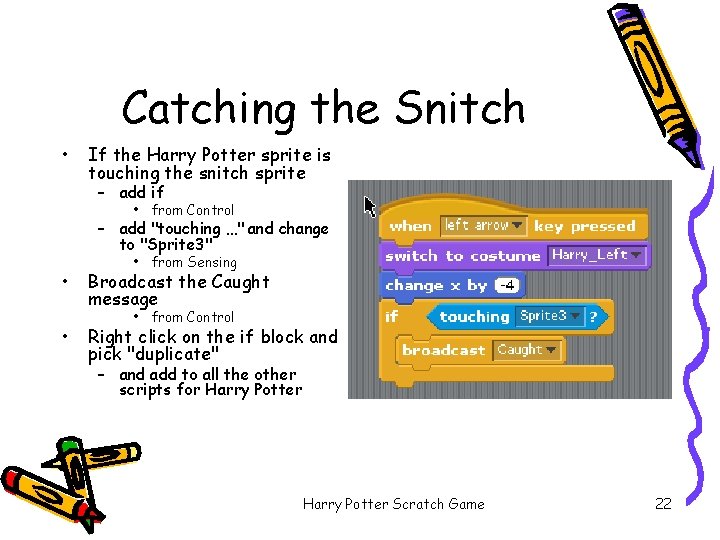
Catching the Snitch • If the Harry Potter sprite is touching the snitch sprite – add if • from Control – add "touching …" and change to "Sprite 3" • • • from Sensing Broadcast the Caught message • from Control Right click on the if block and pick "duplicate" – and add to all the other scripts for Harry Potter Scratch Game 22
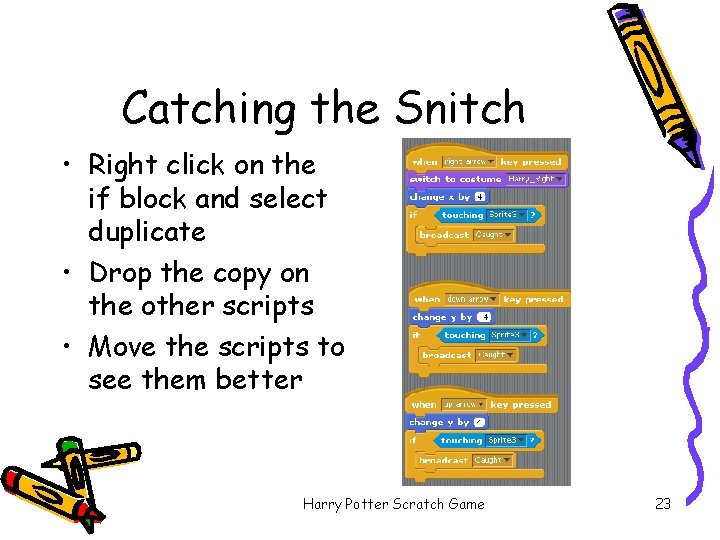
Catching the Snitch • Right click on the if block and select duplicate • Drop the copy on the other scripts • Move the scripts to see them better Harry Potter Scratch Game 23
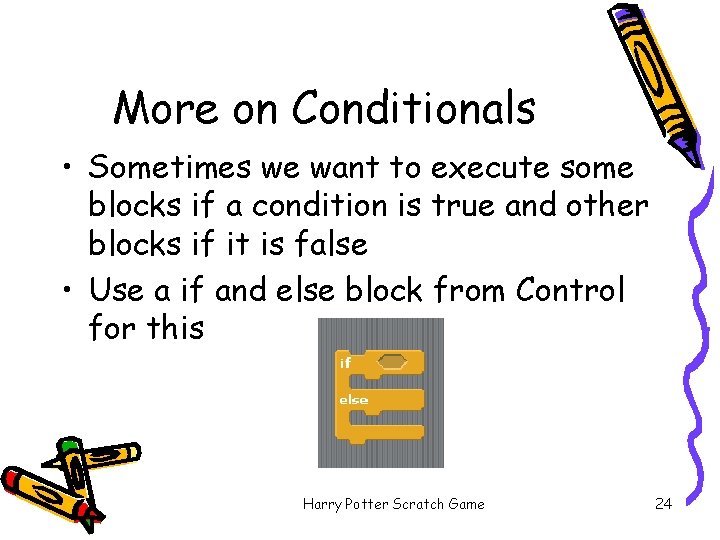
More on Conditionals • Sometimes we want to execute some blocks if a condition is true and other blocks if it is false • Use a if and else block from Control for this Harry Potter Scratch Game 24
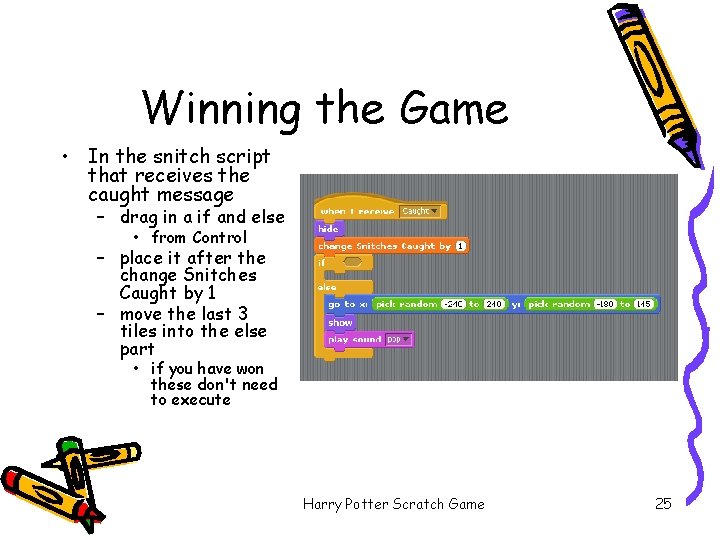
Winning the Game • In the snitch script that receives the caught message – drag in a if and else • from Control – place it after the change Snitches Caught by 1 – move the last 3 tiles into the else part • if you have won these don't need to execute Harry Potter Scratch Game 25
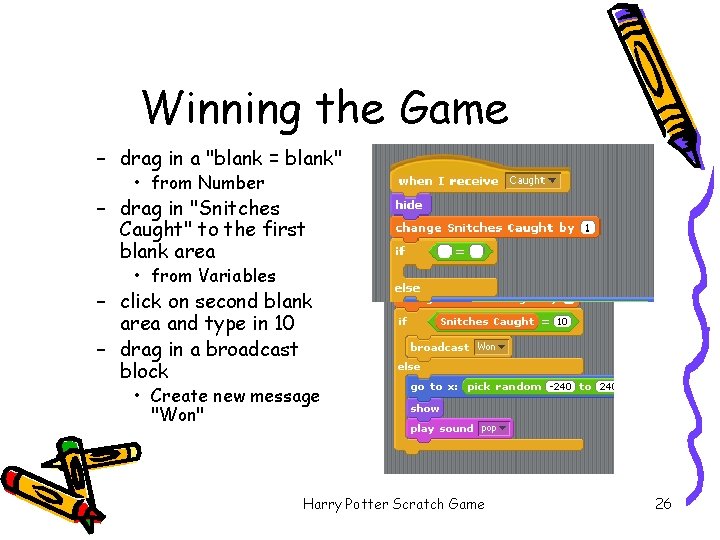
Winning the Game – drag in a "blank = blank" • from Number – drag in "Snitches Caught" to the first blank area • from Variables – click on second blank area and type in 10 – drag in a broadcast block • Create new message "Won" Harry Potter Scratch Game 26
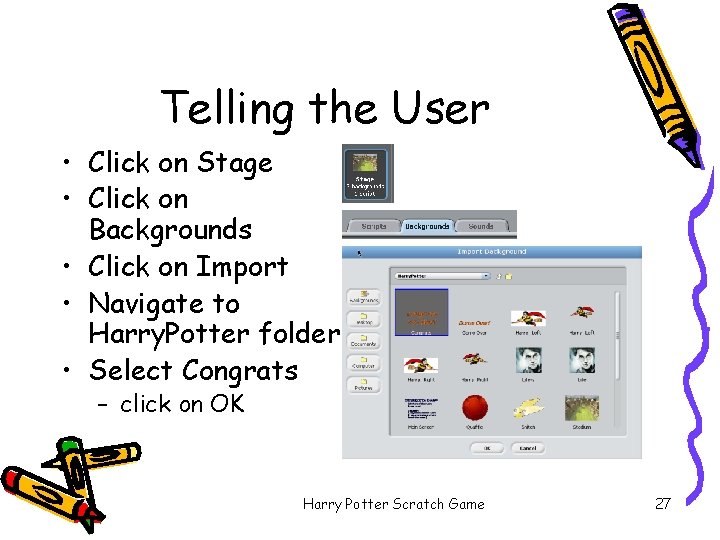
Telling the User • Click on Stage • Click on Backgrounds • Click on Import • Navigate to Harry. Potter folder • Select Congrats – click on OK Harry Potter Scratch Game 27
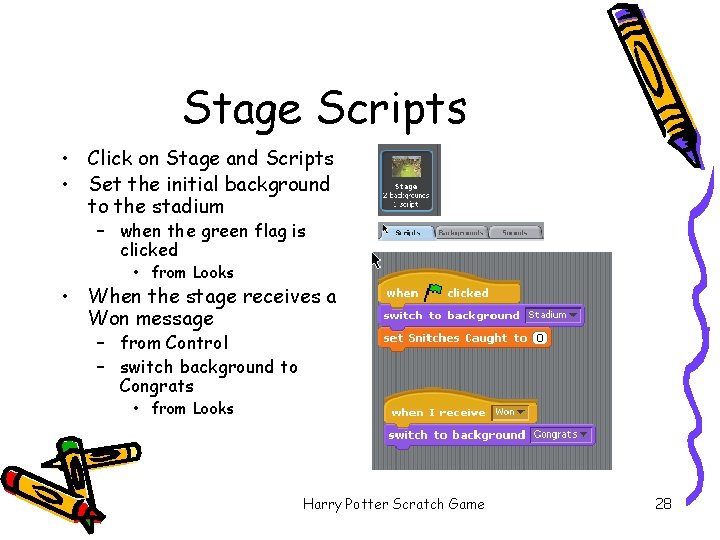
Stage Scripts • Click on Stage and Scripts • Set the initial background to the stadium – when the green flag is clicked • from Looks • When the stage receives a Won message – from Control – switch background to Congrats • from Looks Harry Potter Scratch Game 28
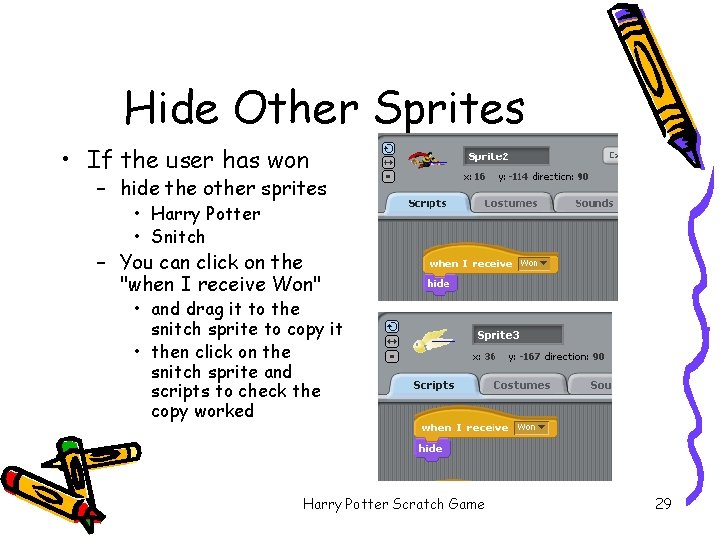
Hide Other Sprites • If the user has won – hide the other sprites • Harry Potter • Snitch – You can click on the "when I receive Won" • and drag it to the snitch sprite to copy it • then click on the snitch sprite and scripts to check the copy worked Harry Potter Scratch Game 29
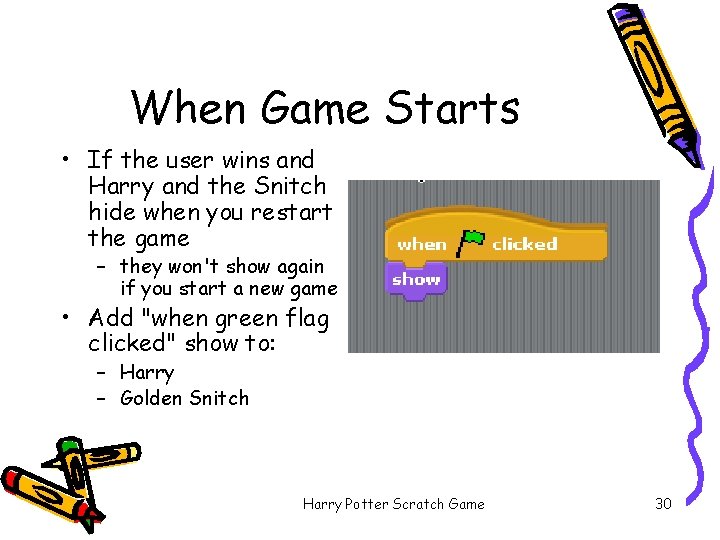
When Game Starts • If the user wins and Harry and the Snitch hide when you restart the game – they won't show again if you start a new game • Add "when green flag clicked" show to: – Harry – Golden Snitch Harry Potter Scratch Game 30
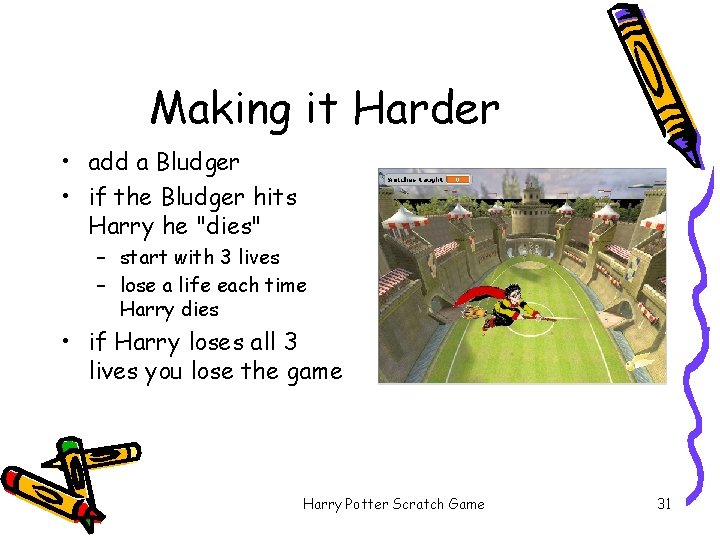
Making it Harder • add a Bludger • if the Bludger hits Harry he "dies" – start with 3 lives – lose a life each time Harry dies • if Harry loses all 3 lives you lose the game Harry Potter Scratch Game 31
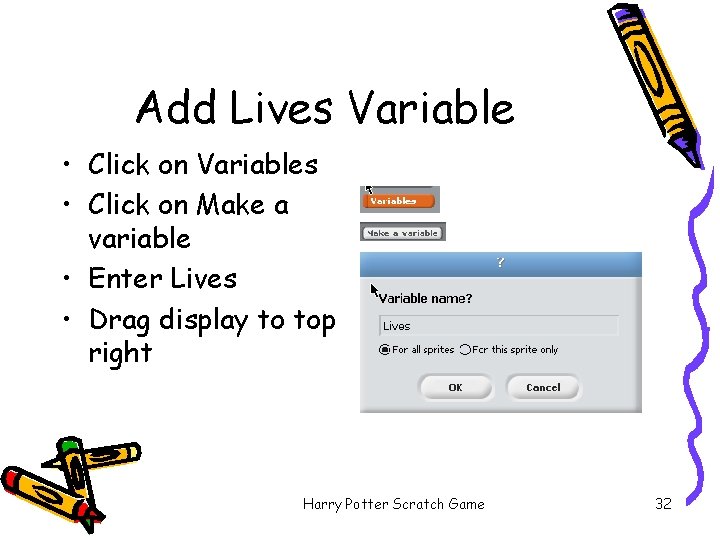
Add Lives Variable • Click on Variables • Click on Make a variable • Enter Lives • Drag display to top right Harry Potter Scratch Game 32
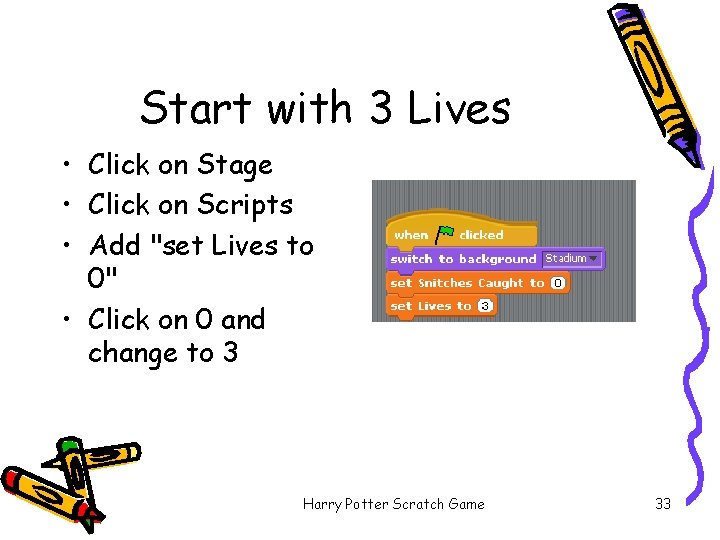
Start with 3 Lives • Click on Stage • Click on Scripts • Add "set Lives to 0" • Click on 0 and change to 3 Harry Potter Scratch Game 33
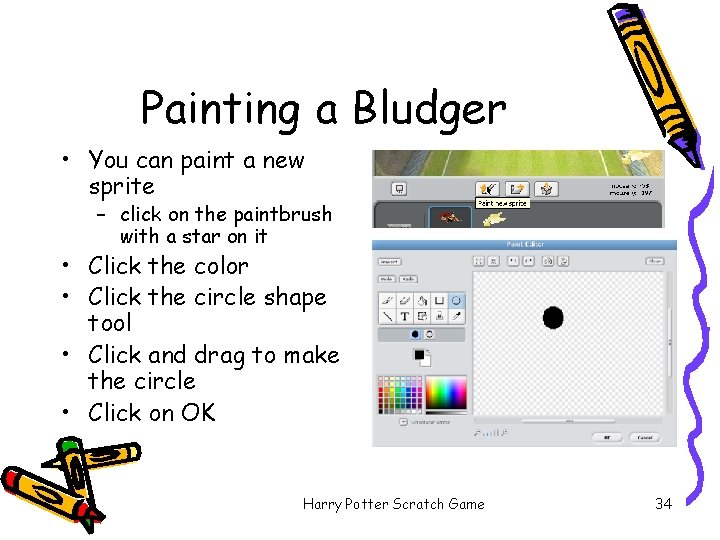
Painting a Bludger • You can paint a new sprite – click on the paintbrush with a star on it • Click the color • Click the circle shape tool • Click and drag to make the circle • Click on OK Harry Potter Scratch Game 34
Loops • Sometimes you want to repeat blocks until the game ends or something happens • Use a forever block to repeat actions until the game ends – use a stop all block to stop all scripts • Use a repeat block to repeat some actions a given number of times Harry Potter Scratch Game 35
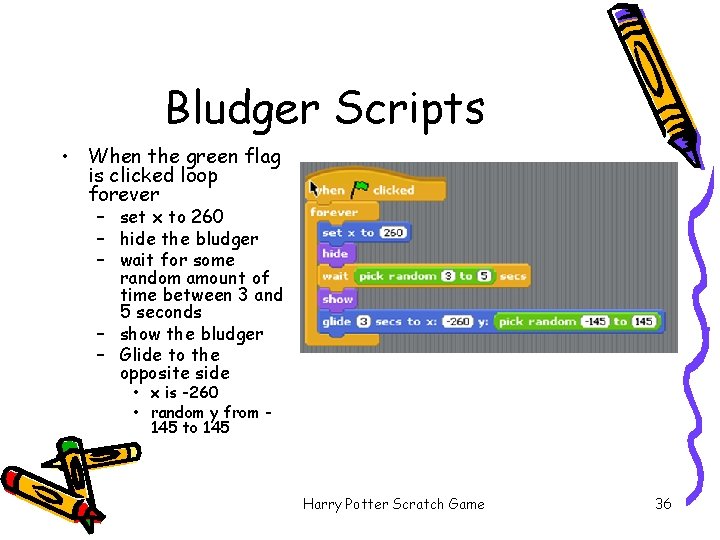
Bludger Scripts • When the green flag is clicked loop forever – set x to 260 – hide the bludger – wait for some random amount of time between 3 and 5 seconds – show the bludger – Glide to the opposite side • x is -260 • random y from 145 to 145 Harry Potter Scratch Game 36
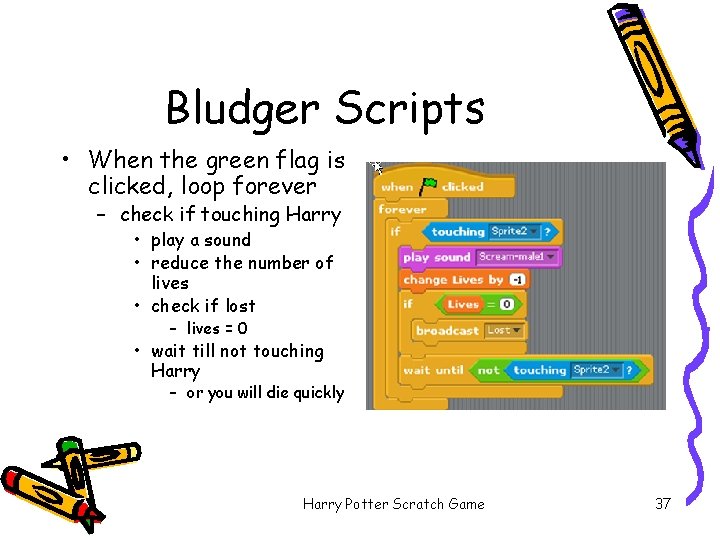
Bludger Scripts • When the green flag is clicked, loop forever – check if touching Harry • play a sound • reduce the number of lives • check if lost – lives = 0 • wait till not touching Harry – or you will die quickly Harry Potter Scratch Game 37
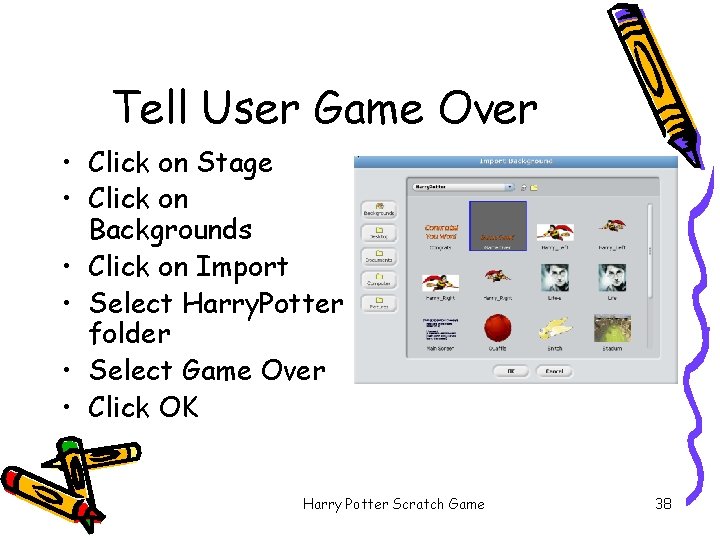
Tell User Game Over • Click on Stage • Click on Backgrounds • Click on Import • Select Harry. Potter folder • Select Game Over • Click OK Harry Potter Scratch Game 38
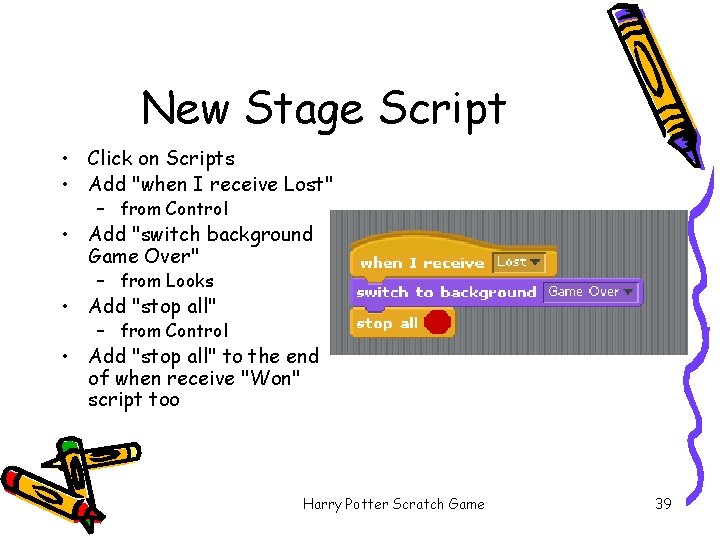
New Stage Script • Click on Scripts • Add "when I receive Lost" – from Control • Add "switch background Game Over" – from Looks • Add "stop all" – from Control • Add "stop all" to the end of when receive "Won" script too Harry Potter Scratch Game 39
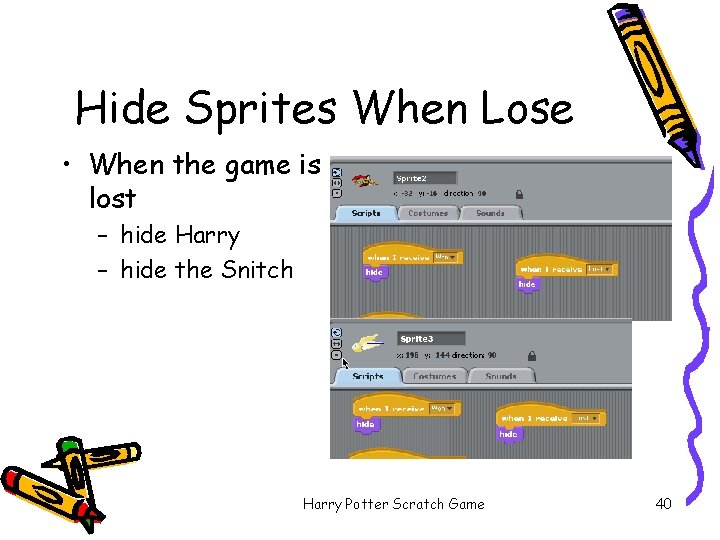
Hide Sprites When Lose • When the game is lost – hide Harry – hide the Snitch Harry Potter Scratch Game 40
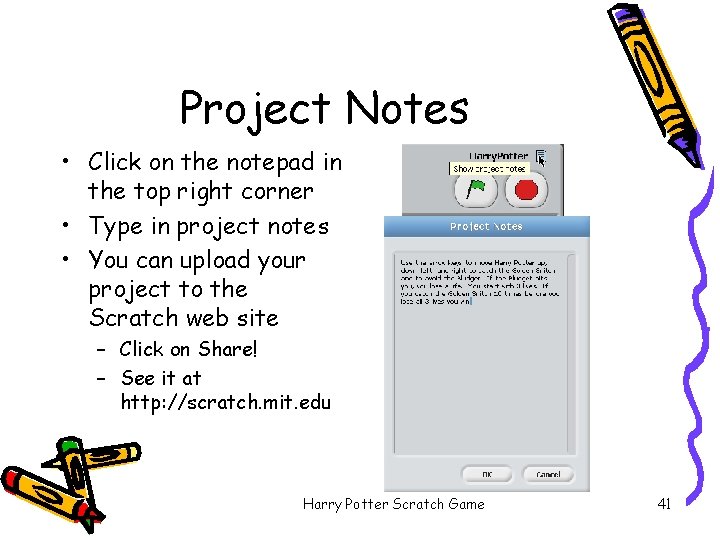
Project Notes • Click on the notepad in the top right corner • Type in project notes • You can upload your project to the Scratch web site – Click on Share! – See it at http: //scratch. mit. edu Harry Potter Scratch Game 41
Extensions • Speed up the Bludger each time a snitch has been caught • Add background music – Will need a variable for "Time to Cross" – Reduce the variable each time the snitch is caught – Import Theme. wav – Add a script to the stage • When the green flag is clicked • Loop forever playing theme and waiting for it to finish • Make the Bludger come from any direction • Add Beaters who can hit the Bludger away • Add a time limit – and glide across to the opposite side – Using the space key – That counts done Harry Potter Scratch Game 42
- Slides: 42