
You Dont have to KNOW Scratch For Your
- Slides: 49
You Don’t have to KNOW Scratch For Your Students to Do Scratch: Everyone’s learning a new language Students can learn Scratch without you Link to this getting inpresentation: their way www. KPSCobra. Coders. weebly. com Ed. Camp 2017
The goals of this workshop are: • To provide a practical and informative session for classroom teachers who would like their students to code in Scratch but believe they don’t know enough about coding or Scratch to begin • To showcase useful resources for teachers so they know what they could do to start and what they could do to continue coding • To highlight specific student tasks that provide a common foundation for Scratch coding and are accessible for all • To share failures and successes and pass on hints
Scratch: https: //scratch. mit. edu
How to start your students coding?
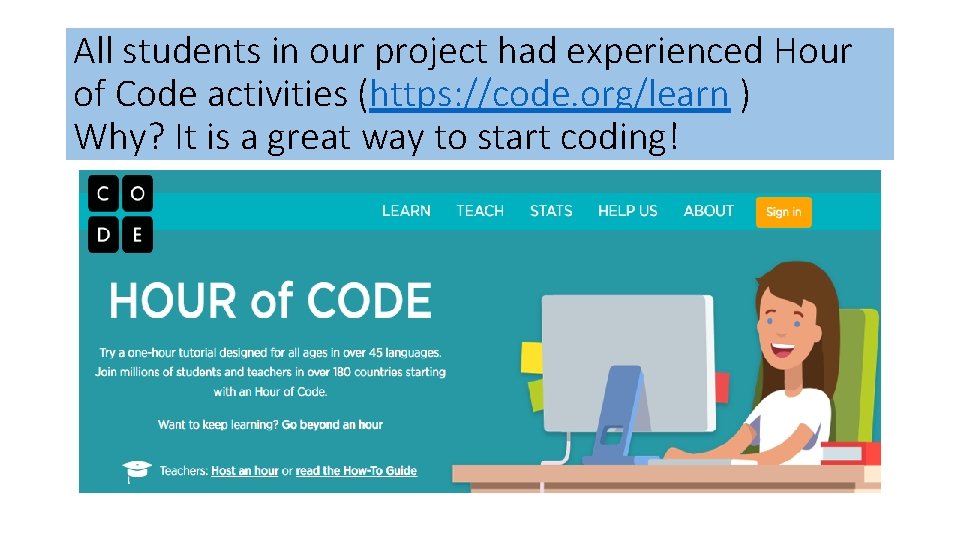
All students in our project had experienced Hour of Code activities (https: //code. org/learn ) Why? It is a great way to start coding!
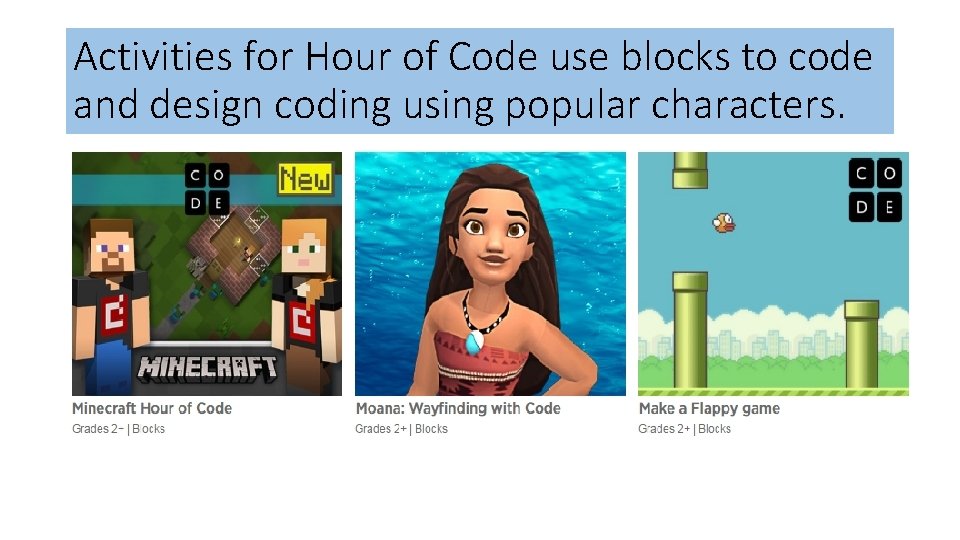
Activities for Hour of Code use blocks to code and design coding using popular characters.
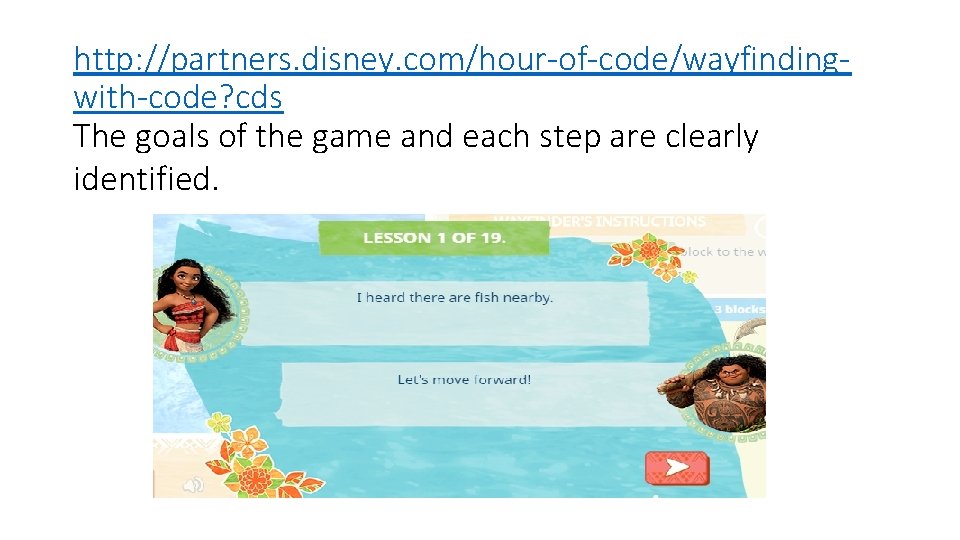
http: //partners. disney. com/hour-of-code/wayfindingwith-code? cds The goals of the game and each step are clearly identified.
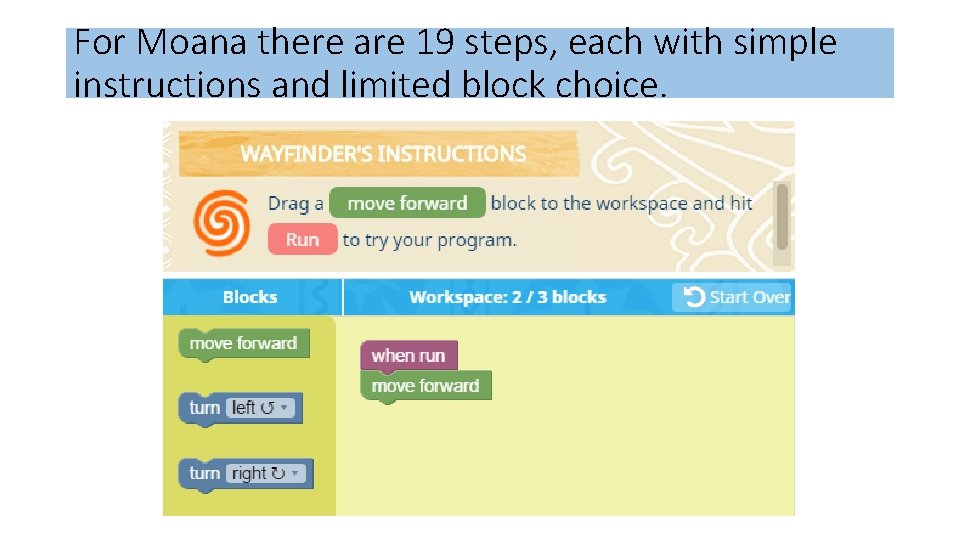
For Moana there are 19 steps, each with simple instructions and limited block choice.
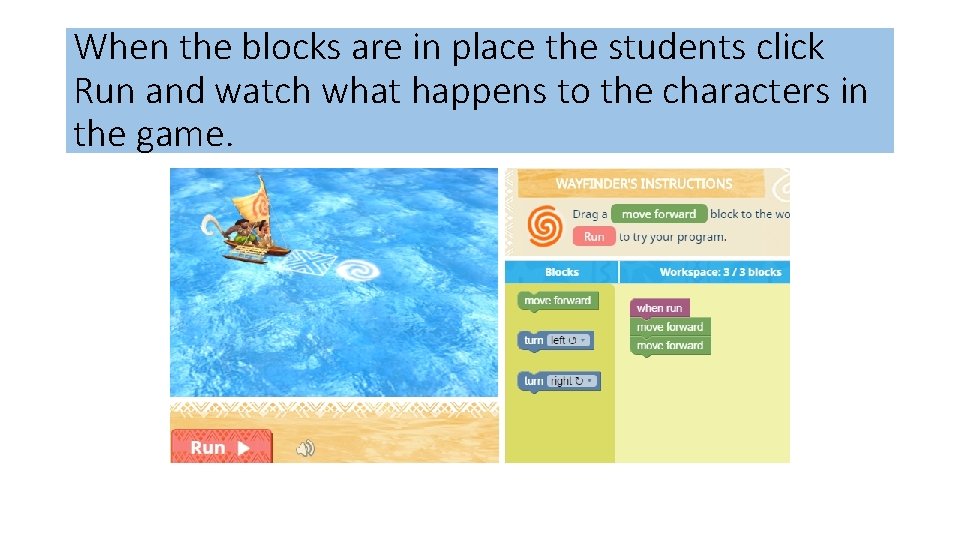
When the blocks are in place the students click Run and watch what happens to the characters in the game.
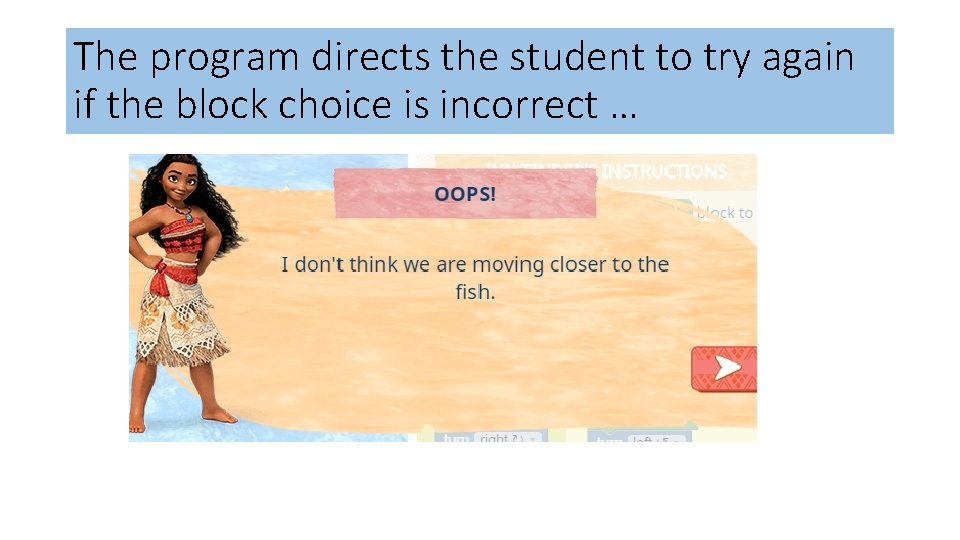
The program directs the student to try again if the block choice is incorrect …
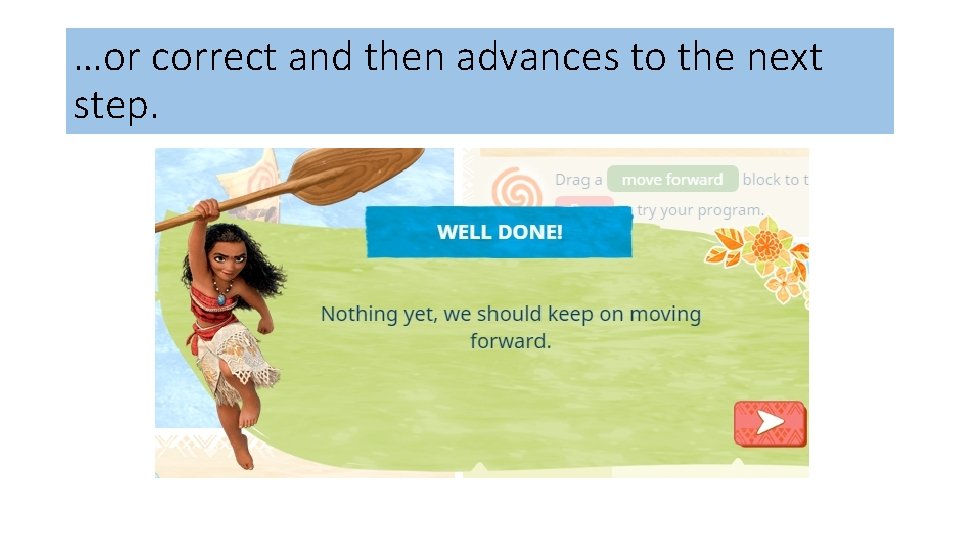
…or correct and then advances to the next step.
With Hour of Code … • it seemed students didn’t show any sizable connections when transferring block knowledge from one “game” to another and often tried varied combinations of blocks until one “worked” • it seemed students were interested in “beating” the level than learning to code • when students reached the final step (to develop a game) they became easily frustrated and it seemed that final step was too much of a leap from the previous steps • it seemed the gamification factor out-weighed the creativity factor
Hour or Code or Scratch? The answer is BOTH… • Hour of Code is a great way to get started coding • Students learn the basics of Block coding • With Scratch the creativity aspect dominates over the gaming aspect • Scratch enables students to continue to learn as they create • Scratch enables students to connect to a world-wide community • Scratch enables students to code in the virtual world and the real world (with devices such as Makey and robots such as Mbots)
What System Requirements and Devices do you need to get started? • Scratch On-line and an off line version • Off-line version 1. 4 • On-line version 2. 0 (the file extension is. sb 2) • Available on Windows, Mac, or Linux computers, Chrome Books NOT i. Pads • Adobe Flash Player (released on or after 06152016 Web Browsers • Internet Explorer 10+ for Windows only • Chrome for Mac, Windows, or Linux • Firefox for Mac or Windows only • Safari Mac or Windows only • Edge for Windows only
What accounts do you need to get started? • Students can create their own accounts • Students can share or NOT share their work • Teachers can create class accounts • These accounts make it easy for students to see their classmates work • Students can share or NOT share their work
In My School and Other schools I … • worked with individual students, • worked with students in my own class (small groups) learning to code during class time while the rest of the class were working on language and math activities • worked with students from other classes, training a small group of students & then supervising them as they coached their classmates over 5 or 6 days • worked with students from another school, training small groups of students while the homeroom teacher worked with the remaining 2/3 of the class in ONE day • worked with students from another school, training a small group of students and they coached/trained their classmates while the homeroom teacher worked with the remaining students in one day • AND THEY ALL STARTED WITH THE SAME SCRATCH CARD
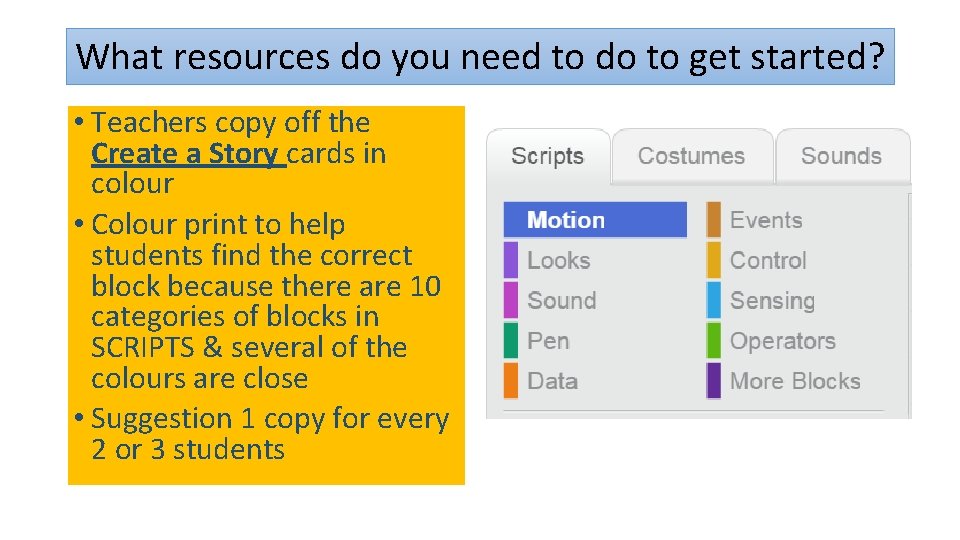
What resources do you need to do to get started? • Teachers copy off the Create a Story cards in colour • Colour print to help students find the correct block because there are 10 categories of blocks in SCRIPTS & several of the colours are close • Suggestion 1 copy for every 2 or 3 students
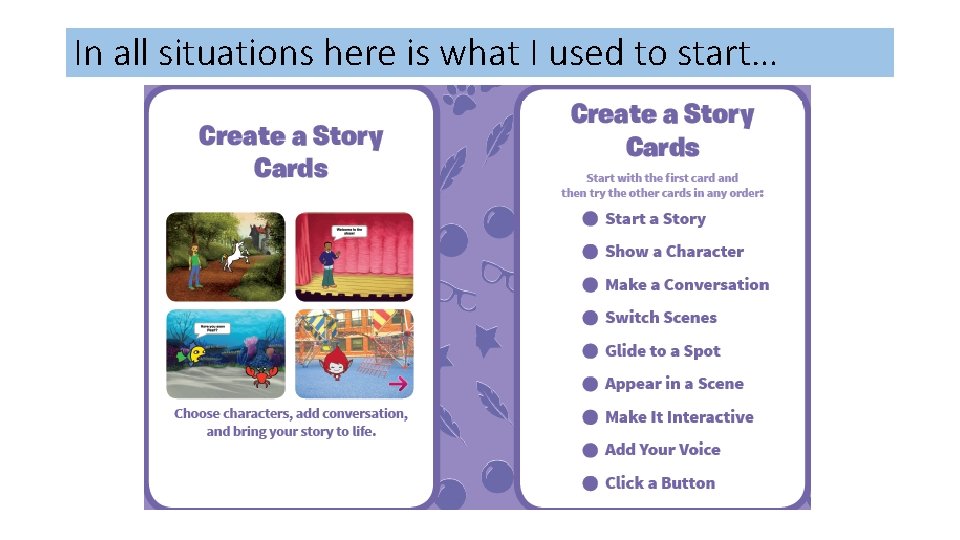
In all situations here is what I used to start…
Why Scratch Cards and Student Coaches? • In this set of cards (Create a Story Cards) there are 9 tasks students complete and this is a manageable number even if the students complete all in one day • We have found that all our students can complete the tasks either independently or with student coaches (The effectiveness of Student Coaches is one of the concepts we did not consider in our original proposal) • We believe the idea of Student Coaches is key for teachers who want to have their students code but don’t know how to accomplish it • Using these cards ensures that all students have the same basic knowledge and therefore form a learning community to develop tasks beyond the ones described in the cards
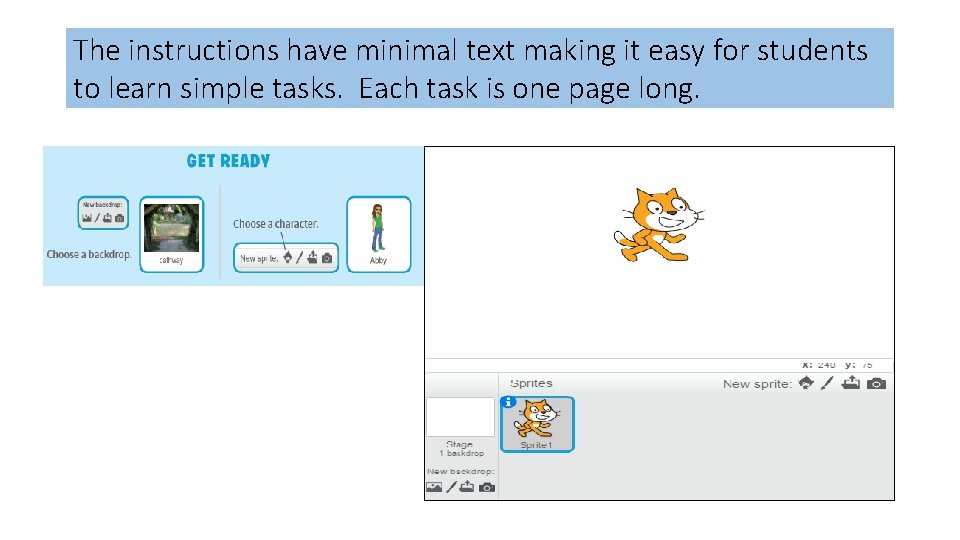
The instructions have minimal text making it easy for students to learn simple tasks. Each task is one page long.
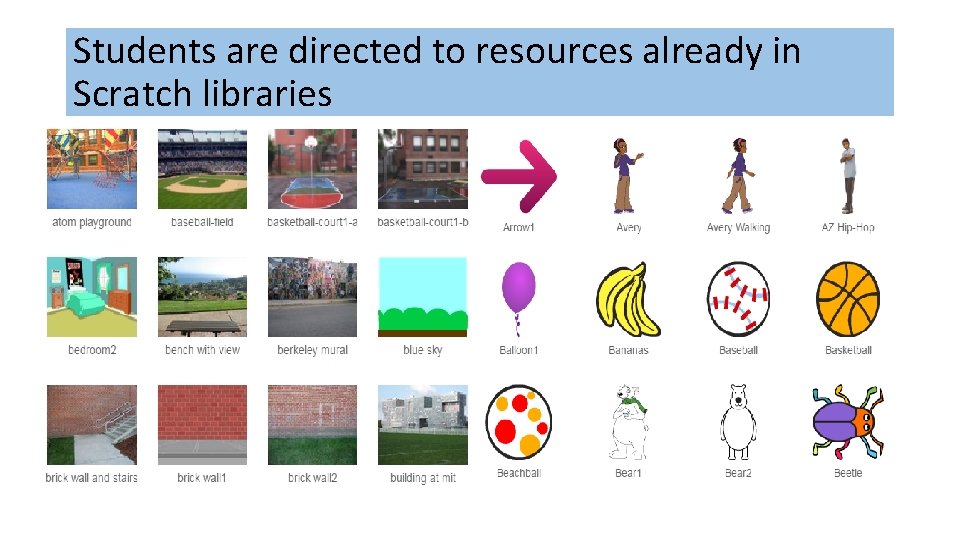
Students are directed to resources already in Scratch libraries
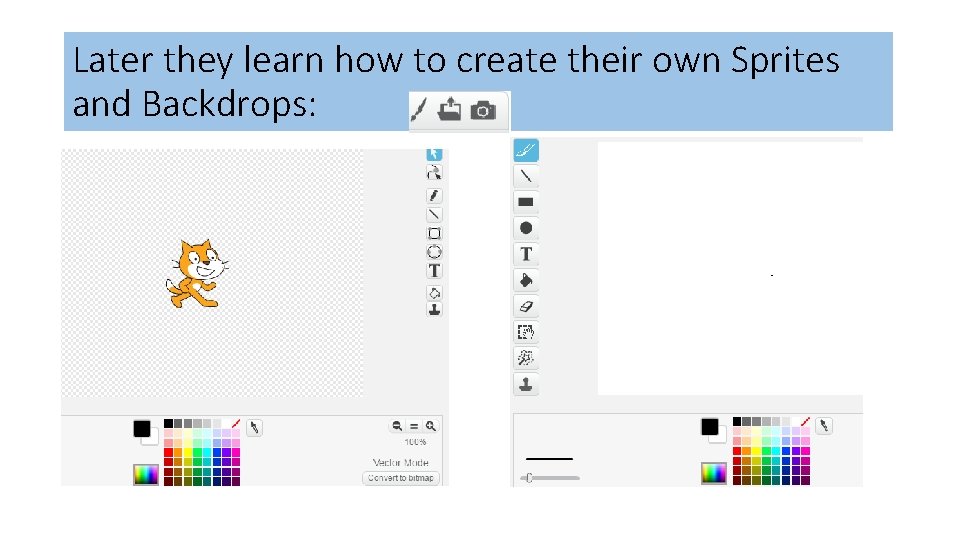
Later they learn how to create their own Sprites and Backdrops:
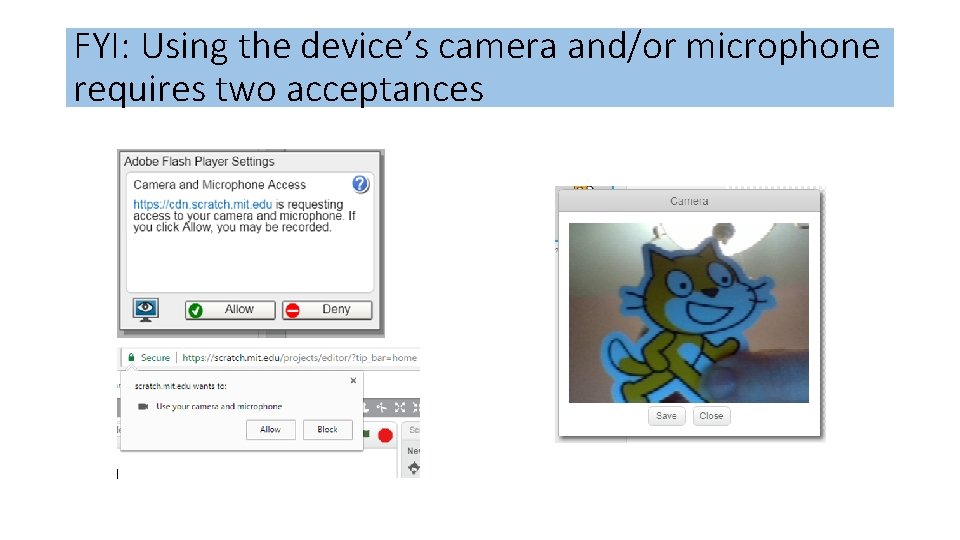
FYI: Using the device’s camera and/or microphone requires two acceptances
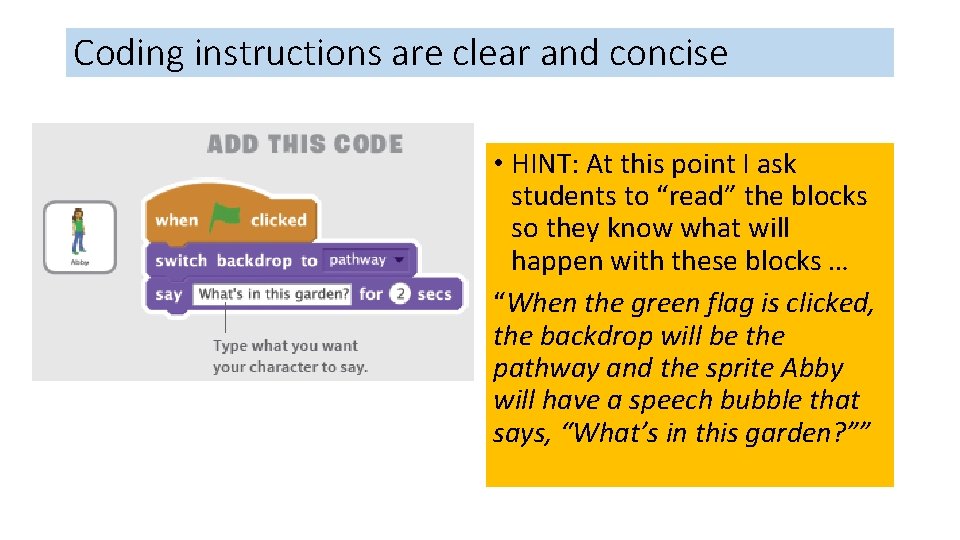
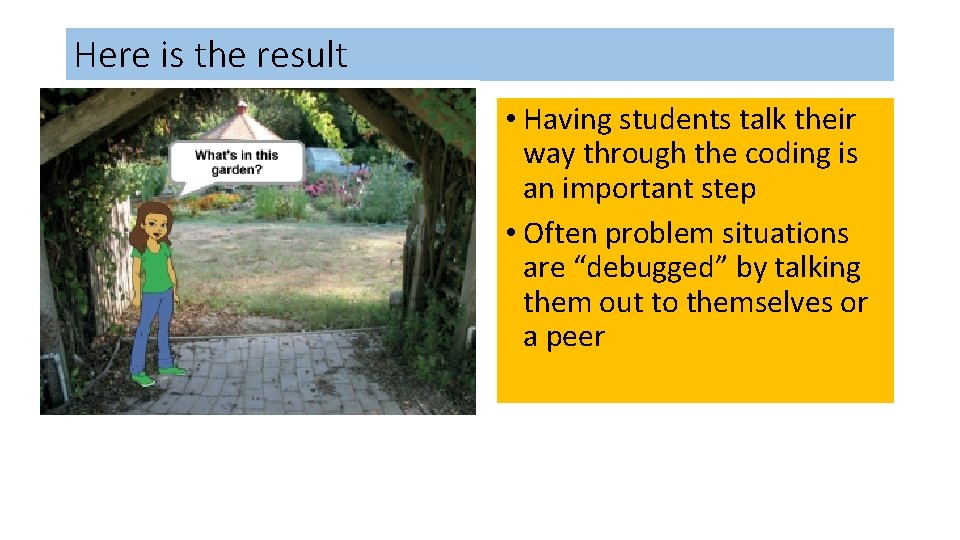
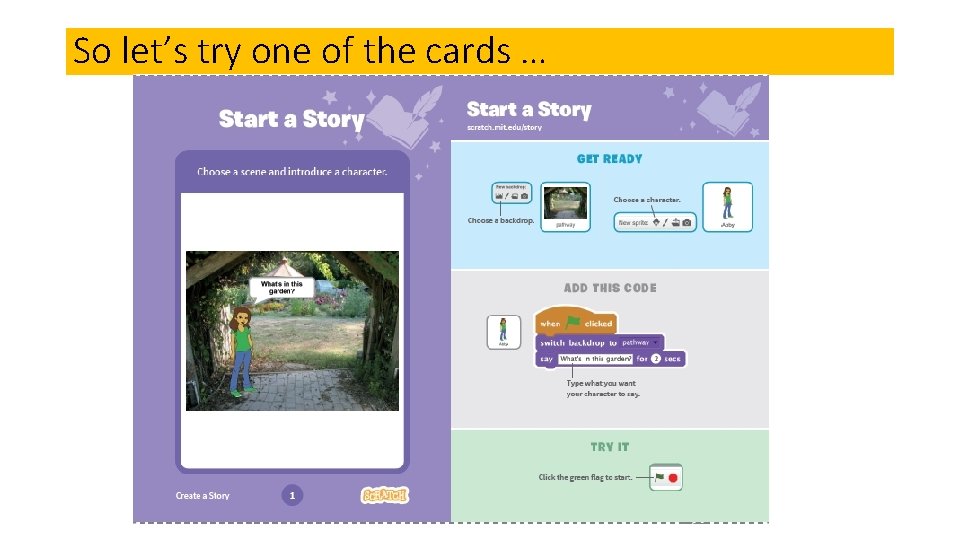
Coding instructions are clear and concise • HINT: At this point I ask students to “read” the blocks so they know what will happen with these blocks … “When the green flag is clicked, the backdrop will be the pathway and the sprite Abby will have a speech bubble that says, “What’s in this garden? ””
Here is the result • Having students talk their way through the coding is an important step • Often problem situations are “debugged” by talking them out to themselves or a peer
By the end of the 9 cards students can … • find and code multiple sprites’ movements separately • code sprites to interact with conversations and movements • code the sprites to move to specific co-ordinates in a four quadrant grid • find multiple backdrops and code them to change on demand • code the sprites to change colour or size • find sound clips and include them in the code • record their own voices to become part of the project • code a button With this information students can begin to put tasks together to make a project.
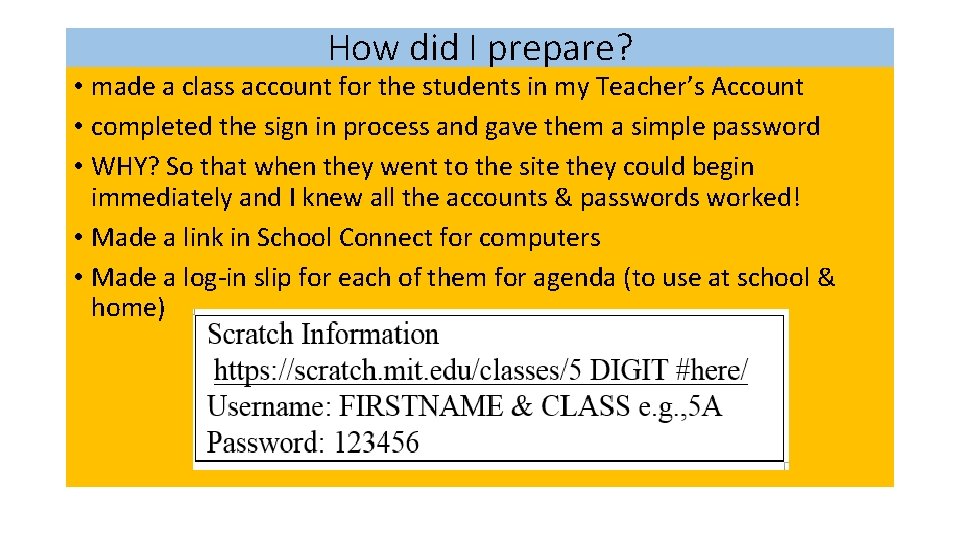
How did I prepare? • made a class account for the students in my Teacher’s Account • completed the sign in process and gave them a simple password • WHY? So that when they went to the site they could begin immediately and I knew all the accounts & passwords worked! • Made a link in School Connect for computers • Made a log-in slip for each of them for agenda (to use at school & home)
How did I start? • Put set of cards between 2 students coaches (trainers) • WHY? To encourage them to discuss how to complete tasks • Showed them to look for Backdrop and Sprite icons at lower LH side of computer screen and look for blocks by colour in screen middle • Explained that these cards were the basic skills that everyone in the class would learn • Connected the cards to learning the alphabet and after they learned the alphabet they could make their own words i. e. , “projects” • Explained they would coach others by following the card instructions • Circulated around and when a student completed a card had them “read” the blocks and show me how it worked
Then … • Once coaches has finished 9 cards they then trained 2 other students each with their own computer but … no computer for the coach • WHY? So the coach would give their full attention to peers • In all cases I had the students check in with me by “reading” the blocks and sharing how it worked • I sat back & listened to them guide each other and share their enthusiasm!
Why this worked … • Student coaches took their jobs to heart and made sure they understood how to complete all the tasks on the cards before they worked with their classmates • Any concerns they had about sharing were alleviated because they knew everything they needed was on the cards • Students saved each page’s work as a project to show their families and as references for future work
So let’s try one of the cards …
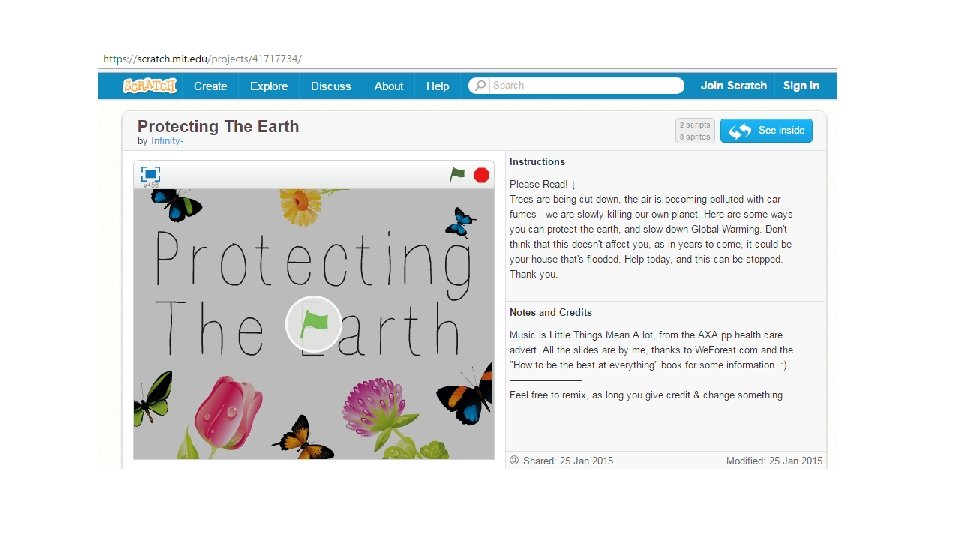
When the whole class finished the cards… • We came together & with the use of a projector I showed them all the button links on the main screen • Part of it was a review and part new information • WHY? I think they should be successful right away and have a basic understanding of how it works and then build from there • Mention how to extend the backdrops and sprites by designing their own, going out on the internet, and using photographs • Explain the Sharing process, the idea of Remixing, and Scratch Community Guidelines • End with TIPS and direct students to Projects to try
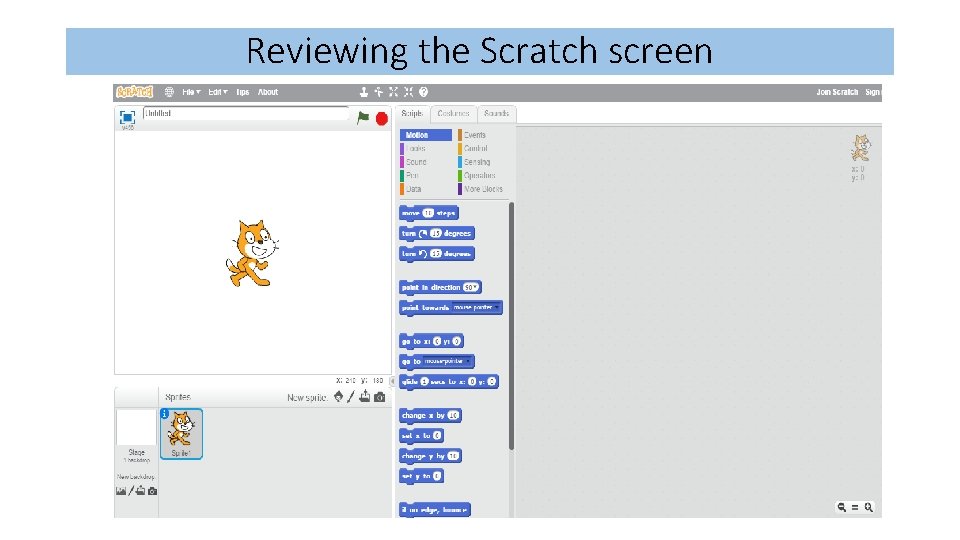
Reviewing the Scratch screen
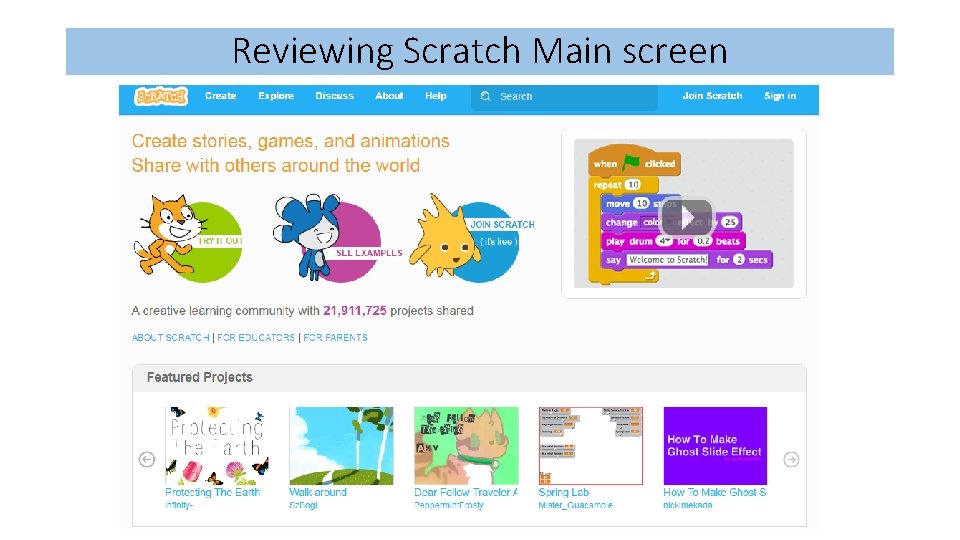
Reviewing Scratch Main screen
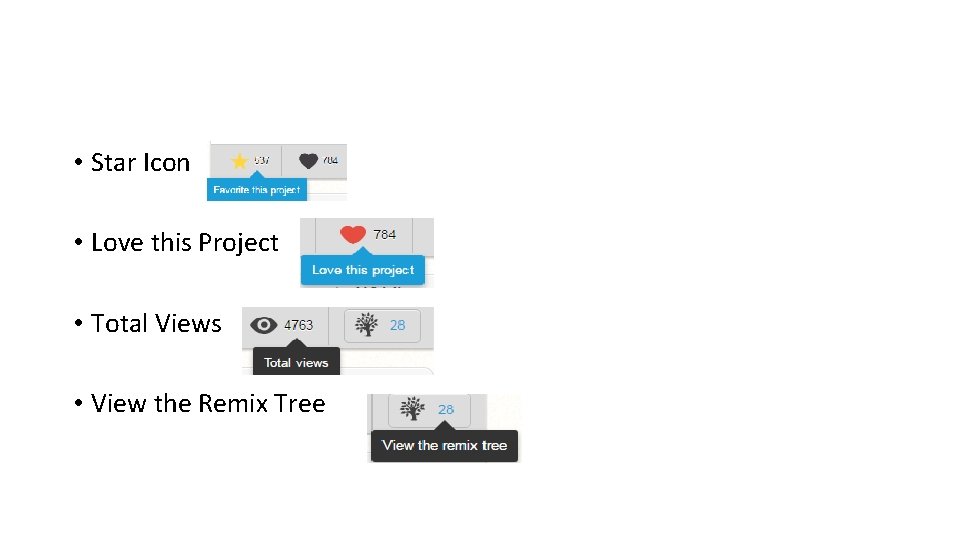
• Star Icon • Love this Project • Total Views • View the Remix Tree
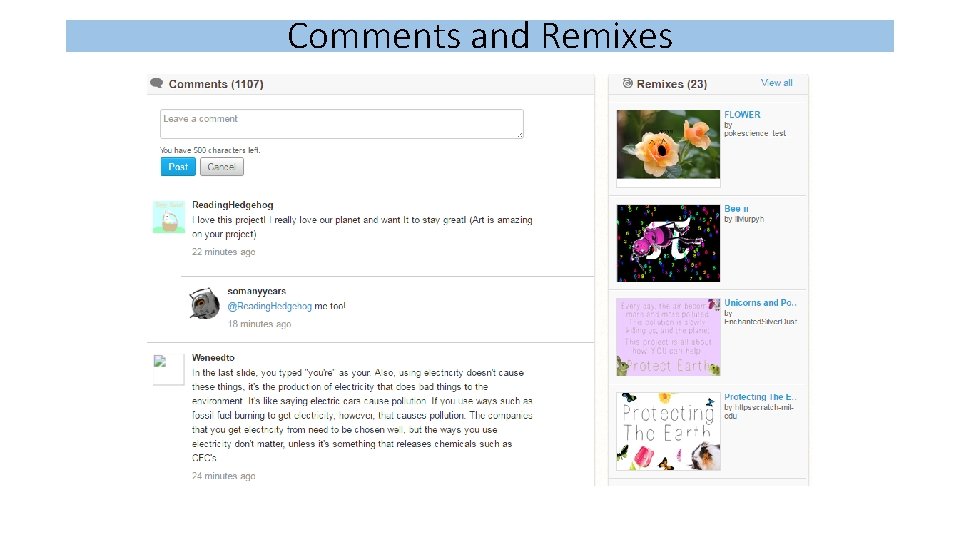
Comments and Remixes
Review Community Guidelines We need everyone’s help to keep Scratch a friendly and creative community where people with different backgrounds and interests feel welcome. Be respectful. • When sharing projects or posting comments, remember that people of many different ages and backgrounds will see what you’ve shared. Be constructive. • When commenting on others' projects, say something you like about it and offer suggestions. Share. • You are free to remix projects, ideas, images, or anything else you find on Scratch – and anyone can use anything that you share. Be sure to give credit when you remix.
Keep personal info private. • For safety reasons, don't give out any information that could be used for private communication - such as real last names, phone numbers, addresses, email addresses, links to social media sites or websites with unmoderated chat. Be honest. • Don’t try to impersonate other Scratchers, spread rumors, or otherwise try to trick the community. Help keep the site friendly. • If you think a project or comment is mean, insulting, too violent, or otherwise inappropriate, click “Report” to let us know about it. Scratch welcomes people of all ages, races, ethnicities, religions, sexual orientations, and gender identities. Scratch is a project of the Lifelong Kindergarten group at the MIT Media lab. It is available free at http: //sctach. mit. edu
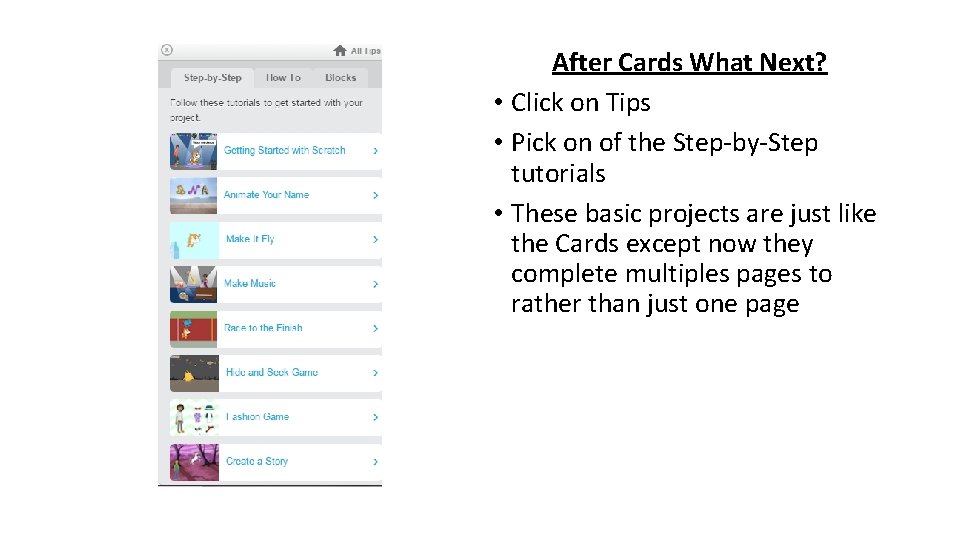
After Cards What Next? • Click on Tips • Pick on of the Step-by-Step tutorials • These basic projects are just like the Cards except now they complete multiples pages to rather than just one page
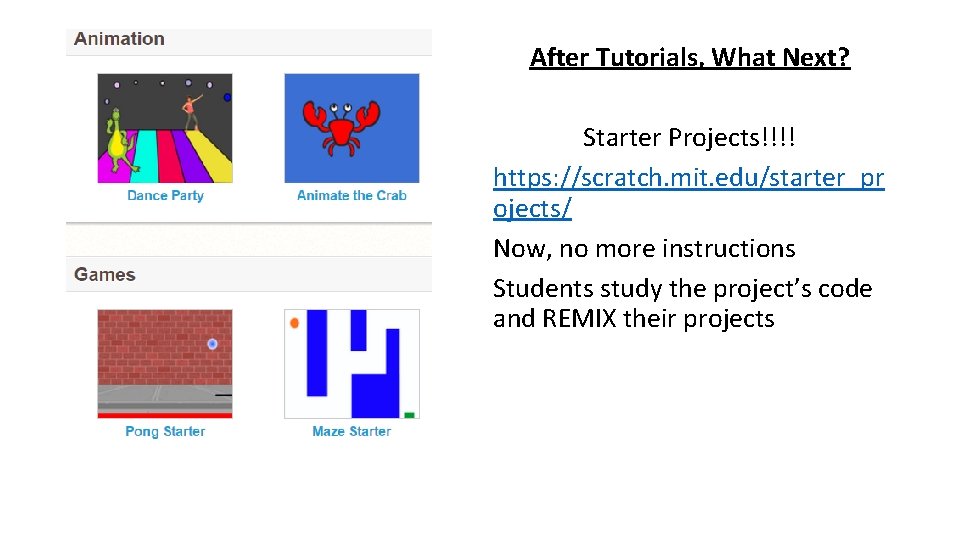
After Tutorials, What Next? Starter Projects!!!! https: //scratch. mit. edu/starter_pr ojects/ Now, no more instructions Students study the project’s code and REMIX their projects
After Cards, Tutorials, & Starter Projects, what’s next for teachers? • There are resources to use: • Follow a series of lesson plans in An Introductory Computing Curriculum Using Scratch http: //scratched. gse. harvard. edu/guide/files/Creative. Computing 201 41015. pdf
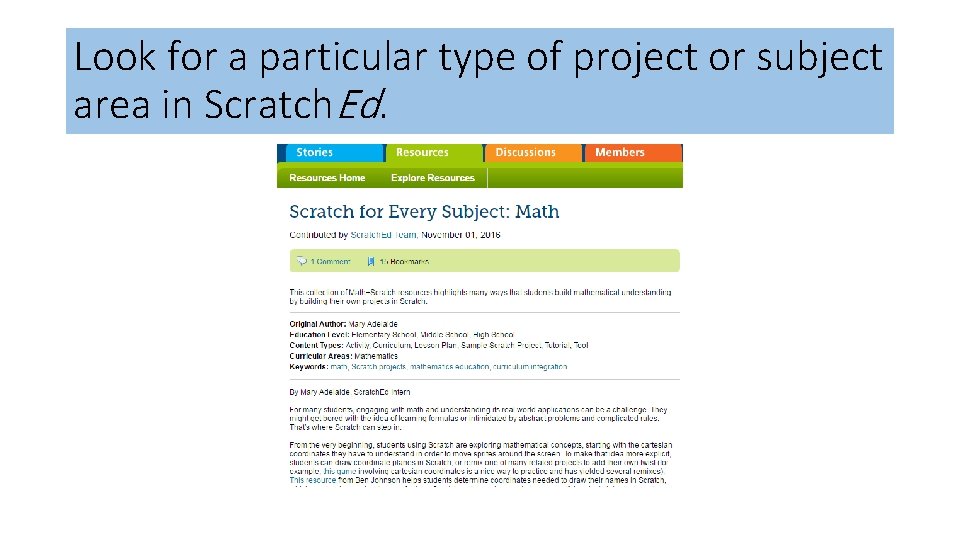
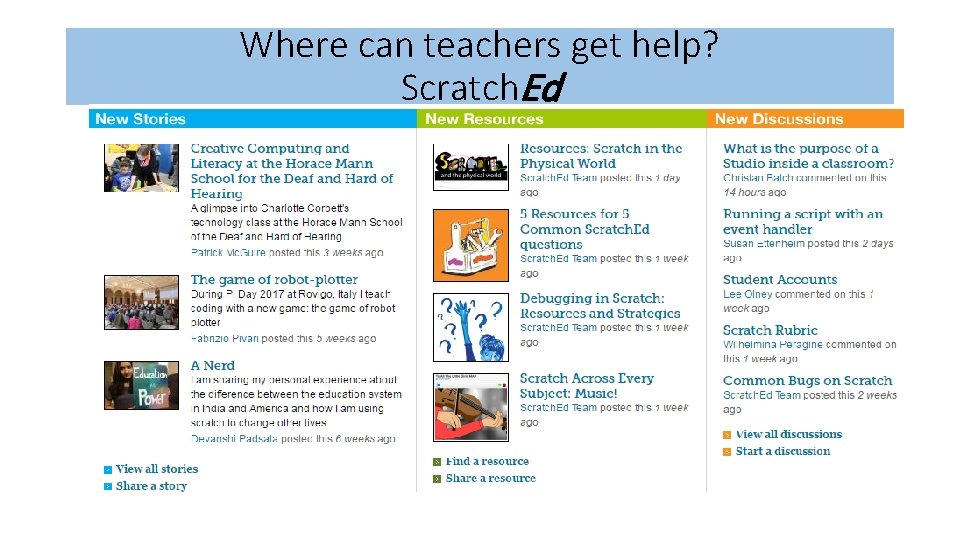
Look for a particular type of project or subject area in Scratch. Ed.
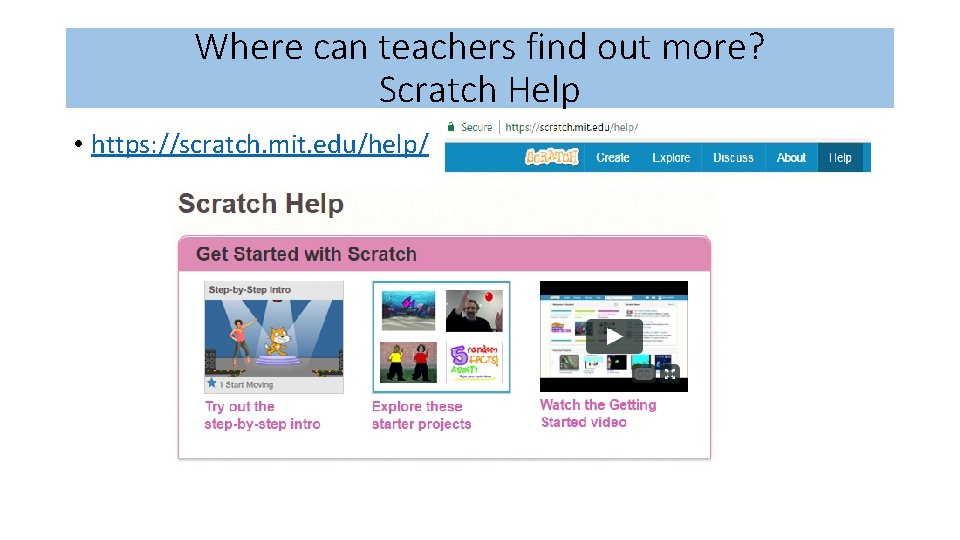
Where can teachers find out more? Scratch Help • https: //scratch. mit. edu/help/
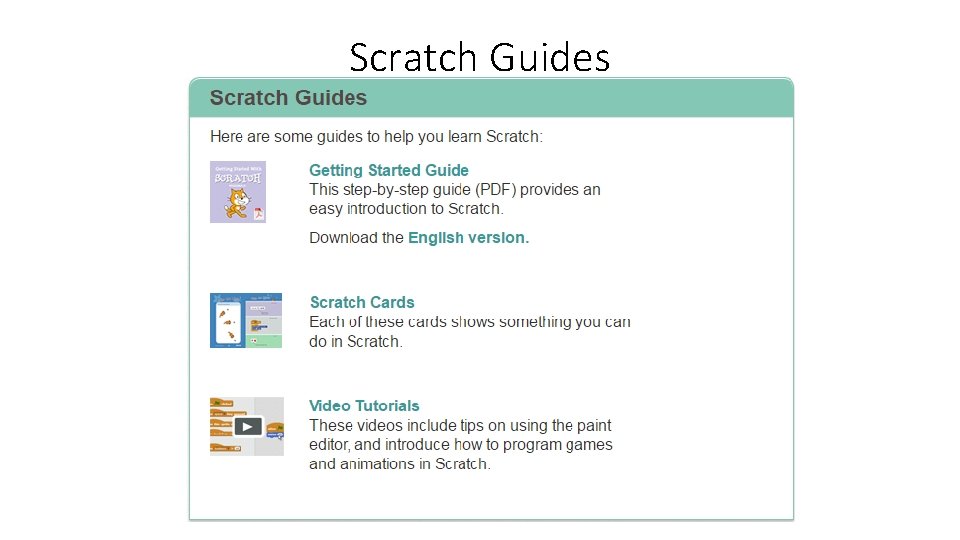
Scratch Guides
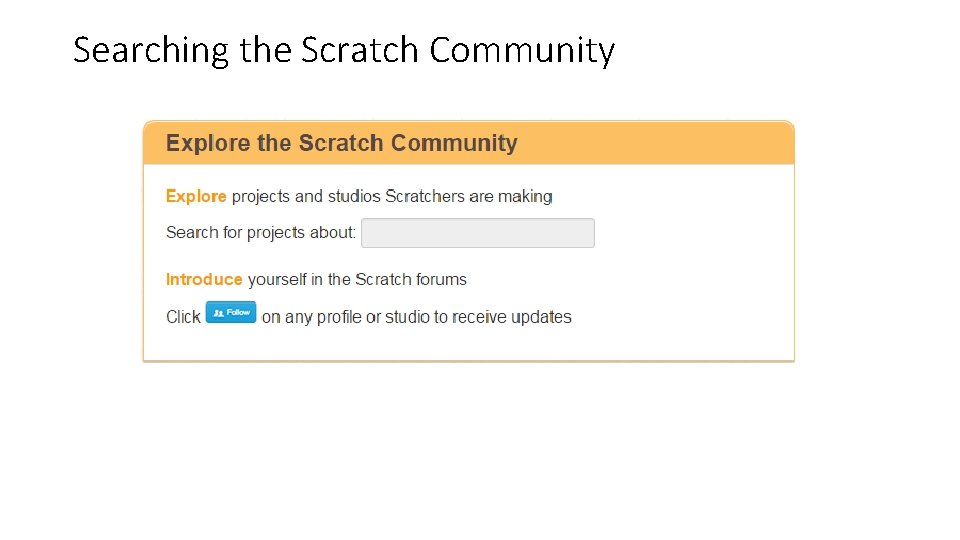
Searching the Scratch Community
Where can teachers get help? Scratch. Ed
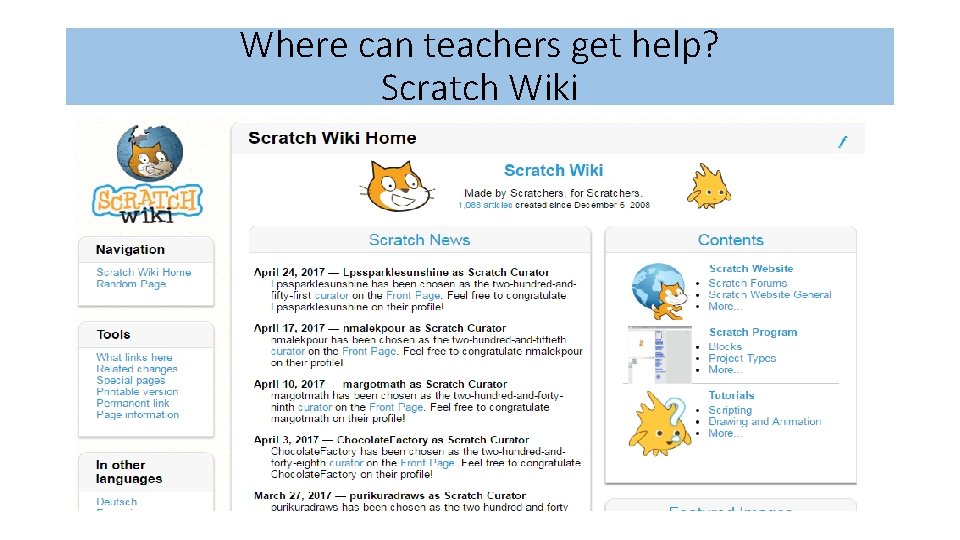
Where can teachers get help? Scratch Wiki
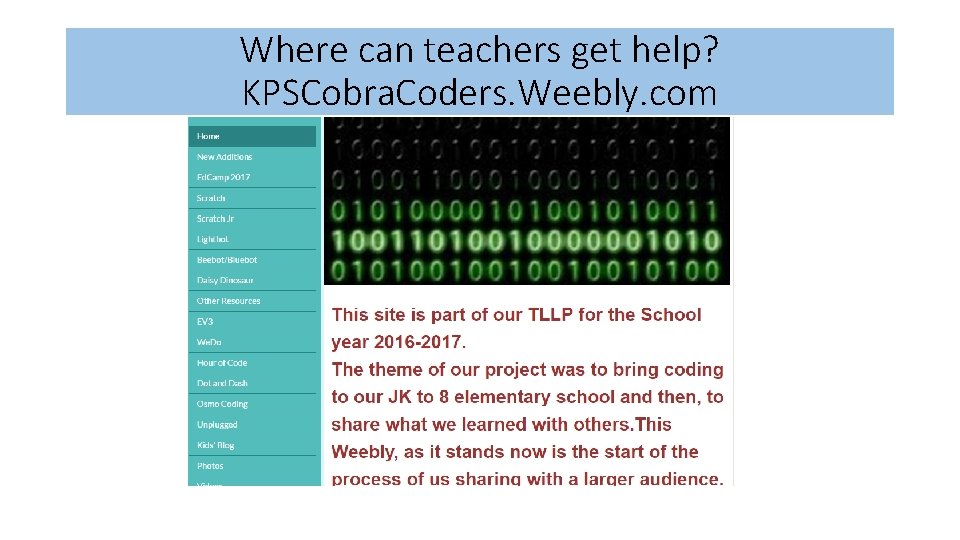
Where can teachers get help? KPSCobra. Coders. Weebly. com