
Scratch Lesson 1 Creating an account Open the
- Slides: 19
Scratch Lesson 1
Creating an account • Open the internet browser : Safari or Internet Explorer • Type in the URL scratch. mit. edu • Using your school computer userid and school password create a new account.
Open your first project • When you have logged in, click CREATE to open a new blank project. • A computer program is a set of instructions for the computer to follow. • Now click on the link below to watch the introduction video
Scripts • Scripts are the instructions for one character(sprite) or one backdrop (stage) in your program. • We drag instructions from the various blocks into the script area. • We run a script by double clicking on it.
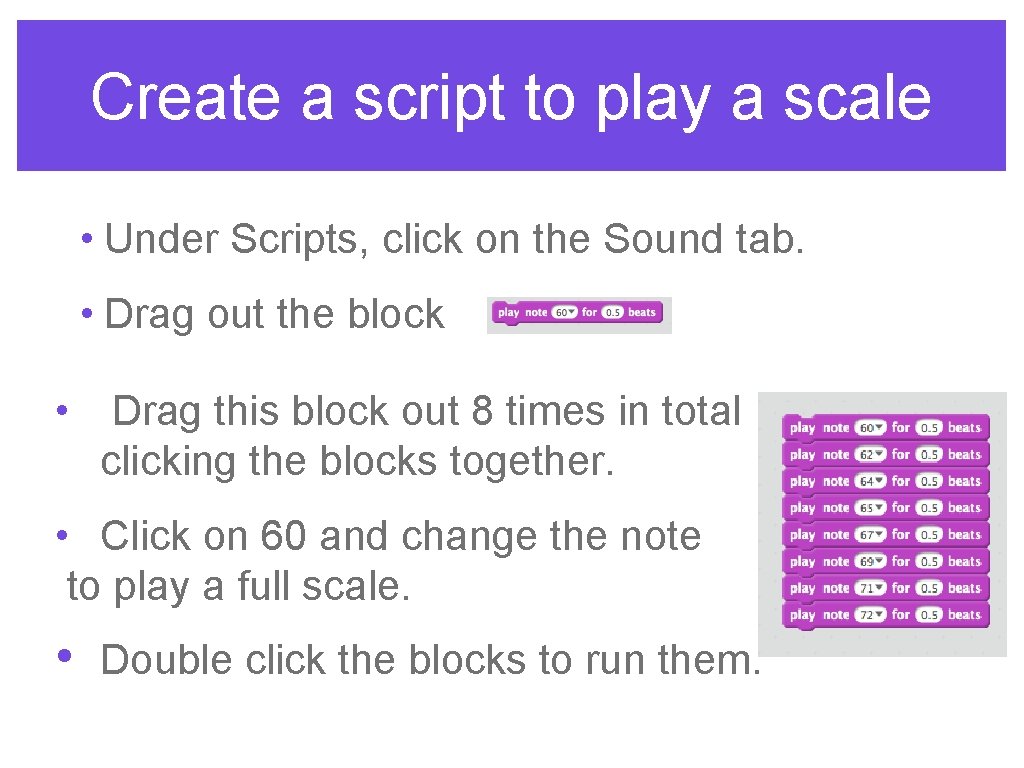
Create a script to play a scale • Under Scripts, click on the Sound tab. • Drag out the block • Drag this block out 8 times in total clicking the blocks together. • Click on 60 and change the note to play a full scale. • Double click the blocks to run them.
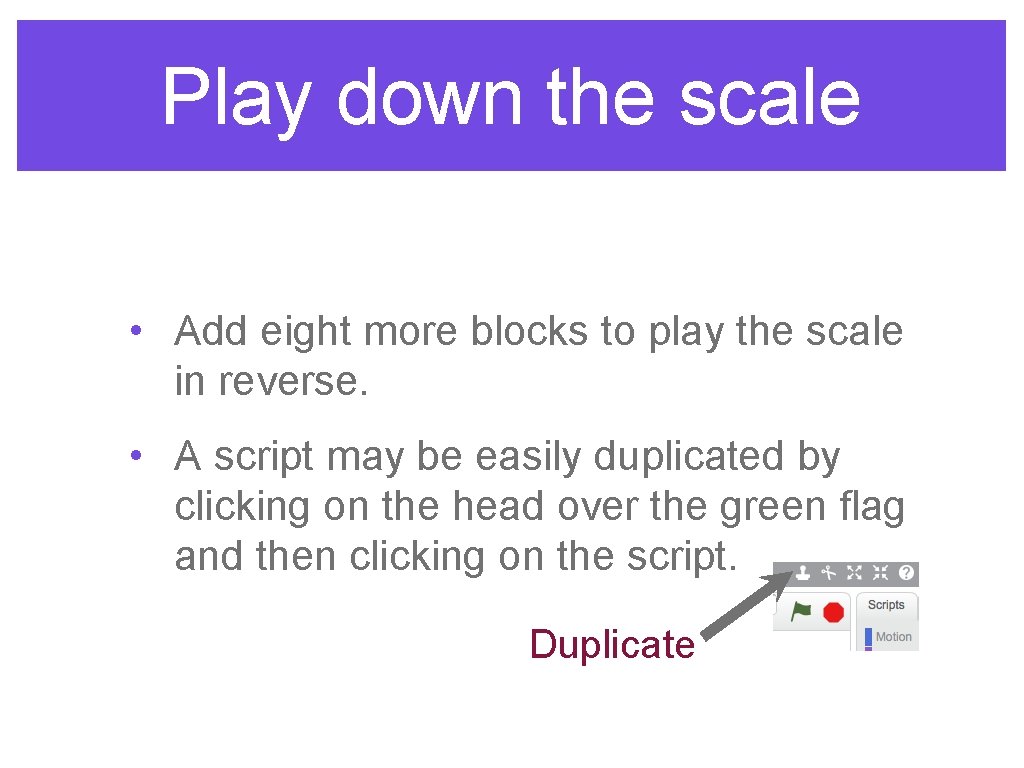
Play down the scale • Add eight more blocks to play the scale in reverse. • A script may be easily duplicated by clicking on the head over the green flag and then clicking on the script. Duplicate
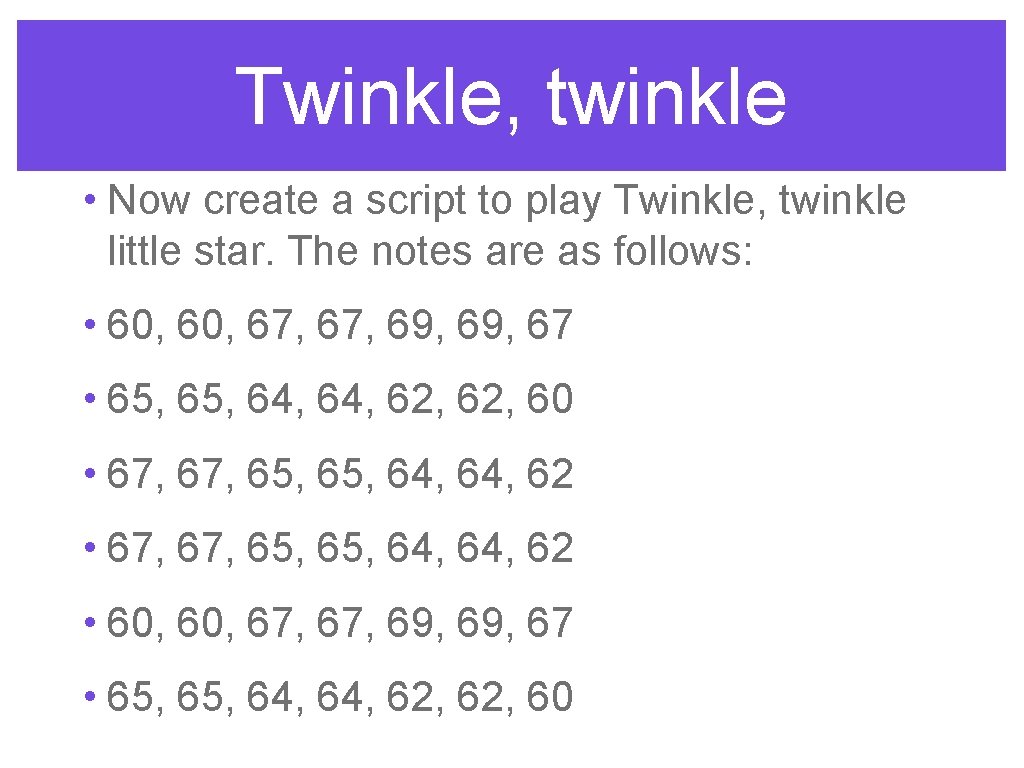
Twinkle, twinkle • Now create a script to play Twinkle, twinkle little star. The notes are as follows: • 60, 67, 69, 67 • 65, 64, 62, 60 • 67, 67, 65, 65, 64, 64, 62 • 60, 67, 69, 67 • 65, 64, 62, 60
Change the instrument • From the Sound tab block, drag across a set instrument to block. • Set the instrument to the clarinet and click this instruction onto the top of the twinkle, twinkle instruction block. • Play the twinkle, twinkle script.
Lengthen the last note from each line • Every 7 th note needs to be lengthened. • Change the number of beats from 0. 5 to 1 for each 7 th note only. • Play the script again. Does it sound better?
Saving • Now name this program Twinkle twinkle by clicking in the title box to the left of the Green Flag and typing. • Click File. • Click Save Now.
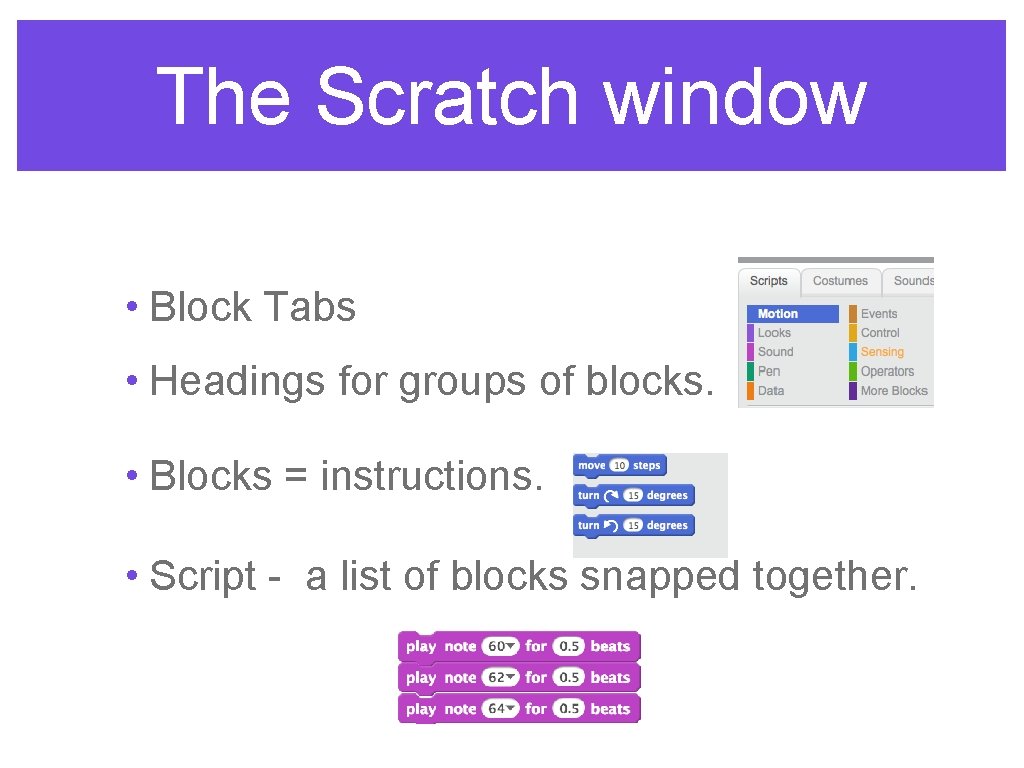
The Scratch window • Block Tabs • Headings for groups of blocks. • Blocks = instructions. • Script - a list of blocks snapped together.
Sprites • Sprites are the characters or objects in a Scratch program. The default sprite is a cat. • Each sprite can have multiple costumes (outfits/colours). • A script must be written for each sprite. • The stage is the background. The sprite appears on the stage.
Chapter 1 - Section A • Open your text book on page 8. • Using your Scratch window, find all of the icons/areas discussed in section A.
Copybook • Put today’s date and the heading Lesson 1 on the top of the first page of your copy. • Write down the Scratch URL scratch. mit. edu • Write down your username and your password for Scratch.
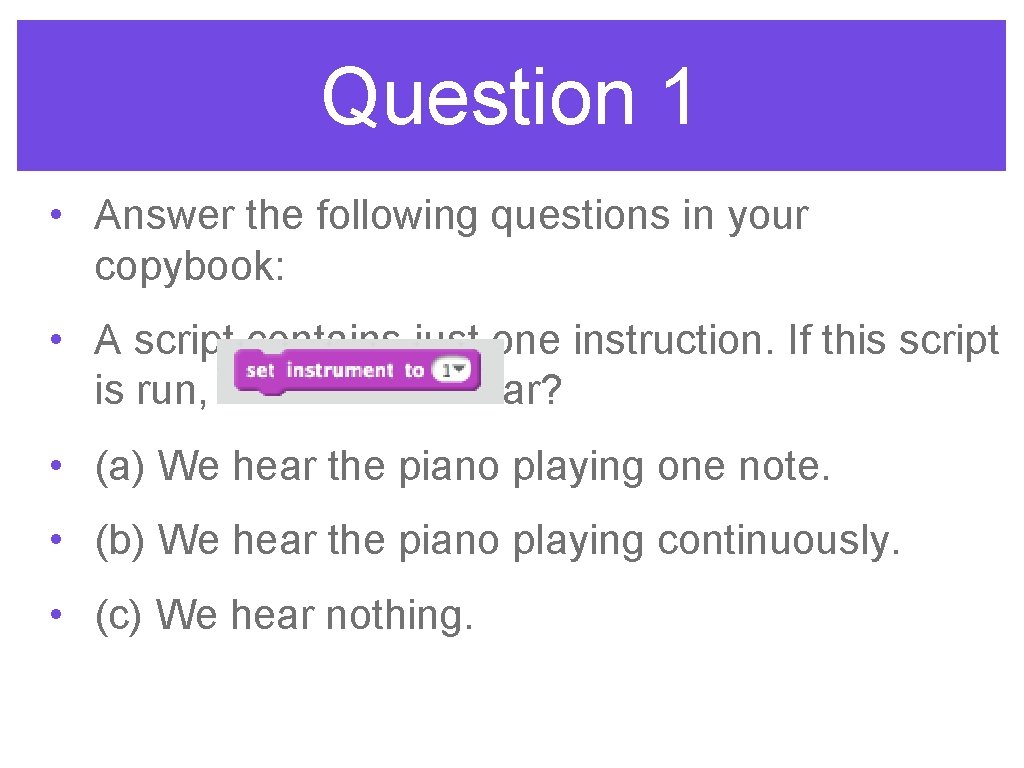
Question 1 • Answer the following questions in your copybook: • A script contains just one instruction. If this script is run, what will we hear? • (a) We hear the piano playing one note. • (b) We hear the piano playing continuously. • (c) We hear nothing.
Question 2 • Motion and Looks are two of the Block Tabs. • Write down the names of any other two of the block tabs.
Question 3 Complete the two sentences below: • (a) A sprite is. . . . • (b) A script is. . . .
Exit a program • Click File. • Click GO To My Stuff.
Logging out • Click on your username on the right hand side of the blue bar across the top of the Scratch window. • Click Sign out.