
Pong Game Cards Make a bouncing ball game
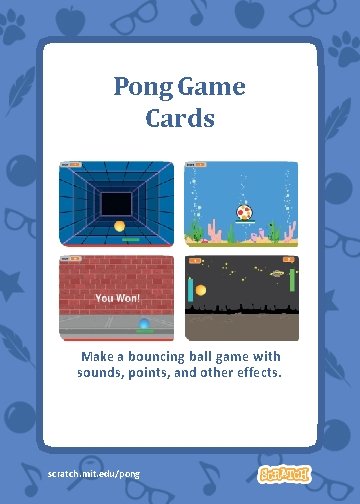
Pong Game Cards Make a bouncing ball game with sounds, points, and other effects. scratch. mit. edu/pong Pong Game
Pong Game Cards Use these cards in this order: 1 Bounce Around 2 Move the Paddle 3 Bounce Off the Paddle 4 Game Over 5 Score Points 6 Win the Game scratch. mit. edu/pong Pong Game
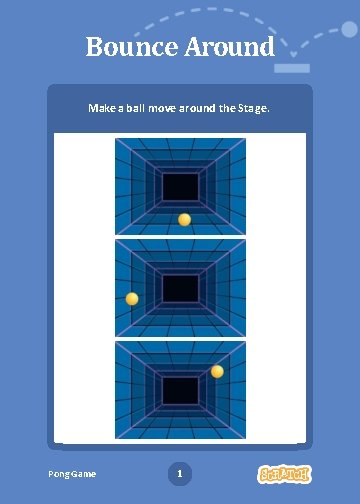
Bounce Around Make a ball move around the Stage. Pong Game 1 Create Pong!
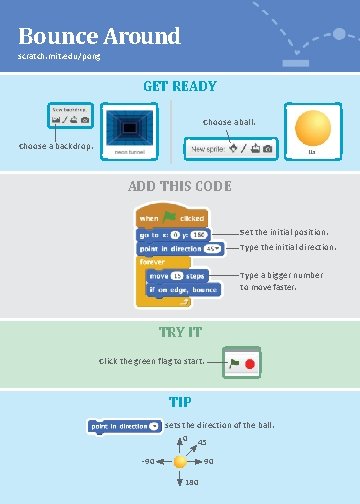
Bounce Around scratch. mit. edu/pong GET READY Choose a ball. Choose a backdrop. ADD THIS CODE Set the initial position. Type the initial direction. Type a bigger number to move faster. TRY IT Click the green flag to start. TIP sets the direction of the ball. 0 45 90 -90 180
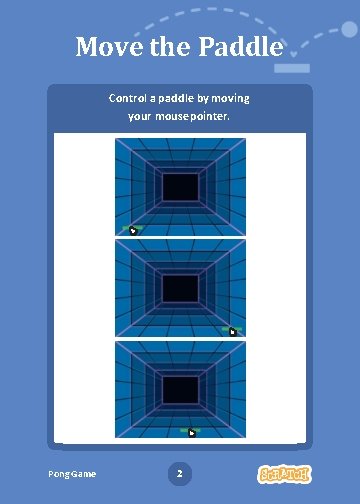
Move the Paddle Control a paddle by moving your mouse pointer. Pong Game 2
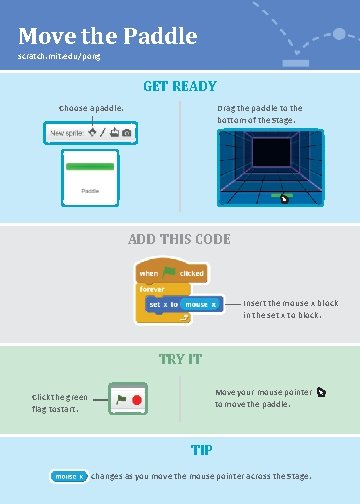
Move the Paddle scratch. mit. edu/pong GET READY Drag the paddle to the bottom of the Stage. Choose a paddle. ADD THIS CODE Insert the mouse x block in the set x to block. TRY IT Move your mouse pointer to move the paddle. Click the green flag to start. TIP changes as you move the mouse pointer across the Stage.
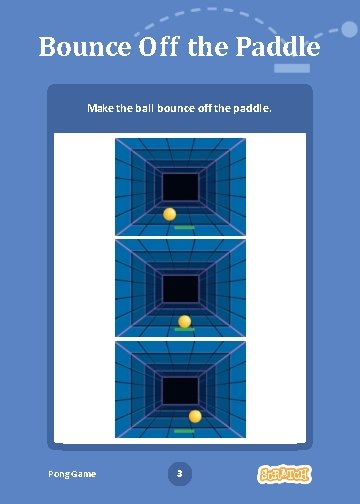
Bounce Off the Paddle Make the ball bounce off the paddle. Pong Game 3
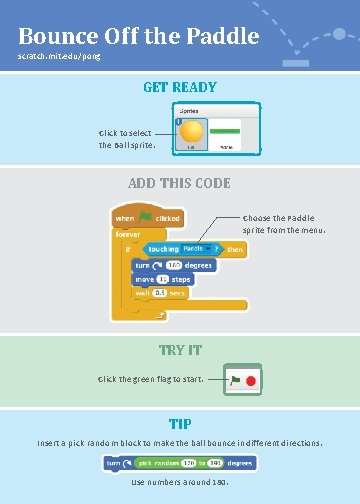
Bounce Off the Paddle scratch. mit. edu/pong GET READY Click to select the Ball sprite. ADD THIS CODE Choose the Paddle sprite from the menu. TRY IT Click the green flag to start. TIP Insert a pick random block to make the ball bounce in different directions. Use numbers around 180.
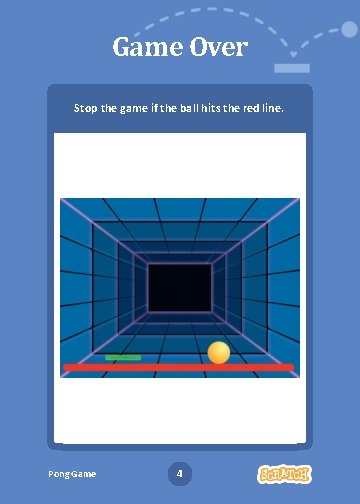
Game Over Stop the game if the ball hits the red line. Pong Game 4
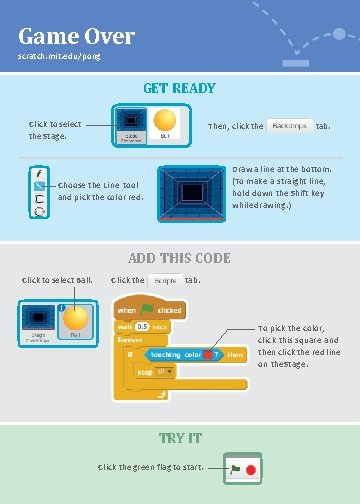
Game Over scratch. mit. edu/pong GET READY Click to select the Stage. Then, click the tab. Draw a line at the bottom. (To make a straight line, hold down the Shift key while drawing. ) Choose the Line tool and pick the color red. ADD THIS CODE Click to select Ball. Click the tab. To pick the color, click this square and then click the red line on the Stage. TRY IT Click the green flag to start.
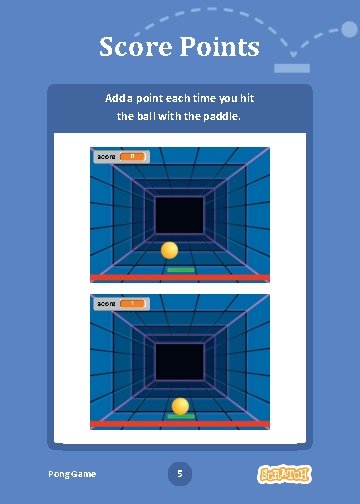
Score Points Add a point each time you hit the ball with the paddle. Pong Game 5
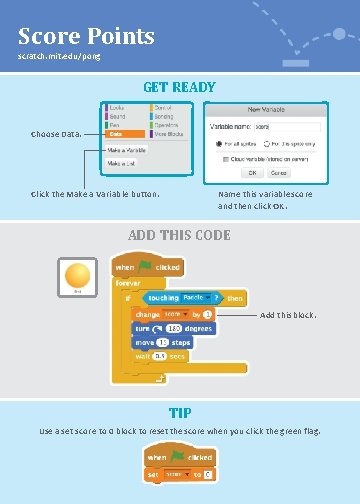
Score Points scratch. mit. edu/pong GET READY Choose Data. Name this variable score and then click OK. Click the Make a Variable button. ADD THIS CODE Add this block. TIP Use a set score to 0 block to reset the score when you click the green flag.
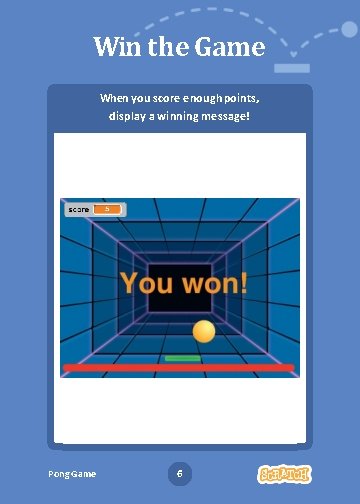
Win the Game When you score enough points, display a winning message! Pong Game 6
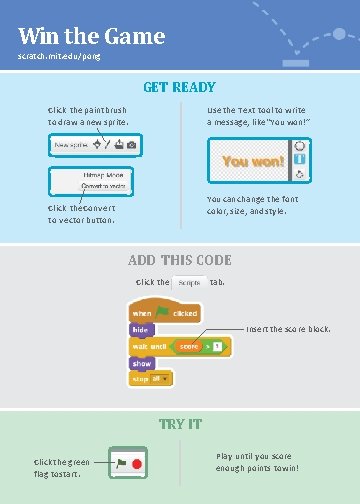
Win the Game scratch. mit. edu/pong GET READY Click the paintbrush to draw a new sprite. Use the Text tool to write a message, like “You won!” You can change the font color, size, and style. Click the Convert to vector button. ADD THIS CODE Click the tab. Insert the score block. TRY IT Click the green flag to start. Play until you score enough points to win!
- Slides: 14