WFM Enhancements Navigation Filter Pane Finding Sorting Moving

- Slides: 46
WFM Enhancements ● ● Navigation Filter Pane Finding Sorting Moving and resizing ● ● Forecasting and Scheduling Calendar Forecast Goals and Requirements Queue Analytics
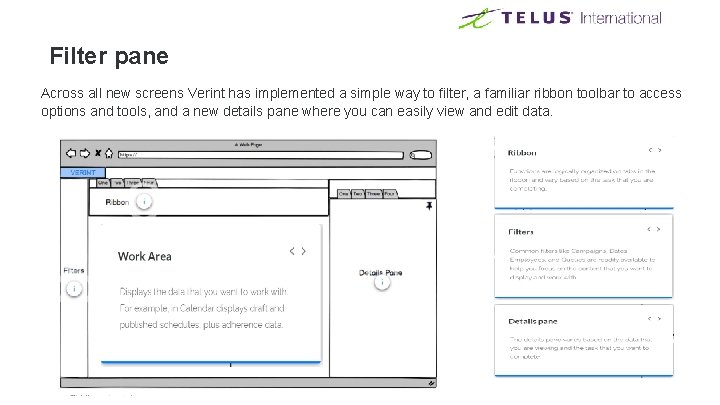
Filter pane Across all new screens Verint has implemented a simple way to filter, a familiar ribbon toolbar to access options and tools, and a new details pane where you can easily view and edit data.
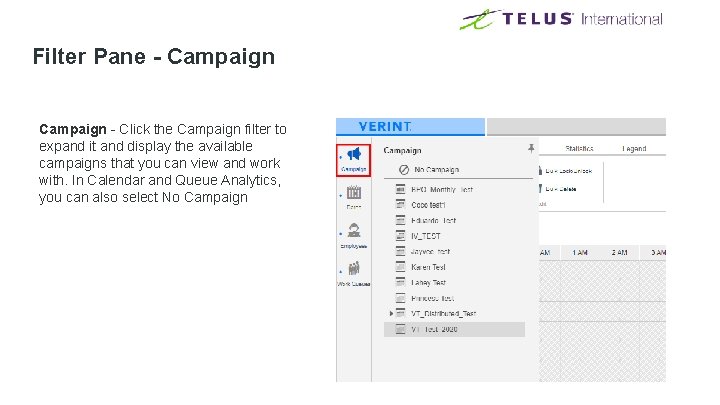
Filter Pane - Campaign - Click the Campaign filter to expand it and display the available campaigns that you can view and work with. In Calendar and Queue Analytics, you can also select No Campaign
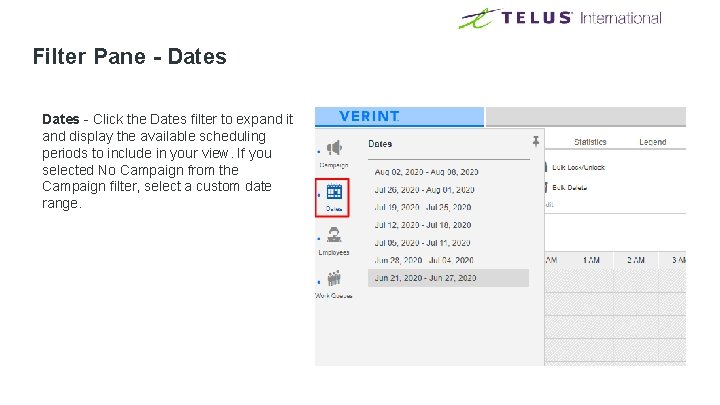
Filter Pane - Dates - Click the Dates filter to expand it and display the available scheduling periods to include in your view. If you selected No Campaign from the Campaign filter, select a custom date range.
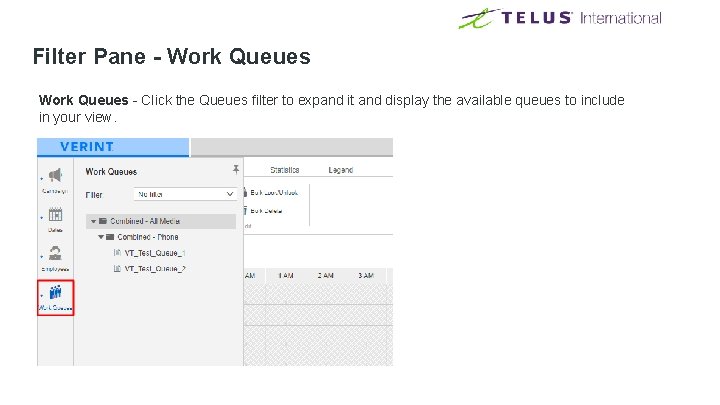
Filter Pane - Work Queues - Click the Queues filter to expand it and display the available queues to include in your view.
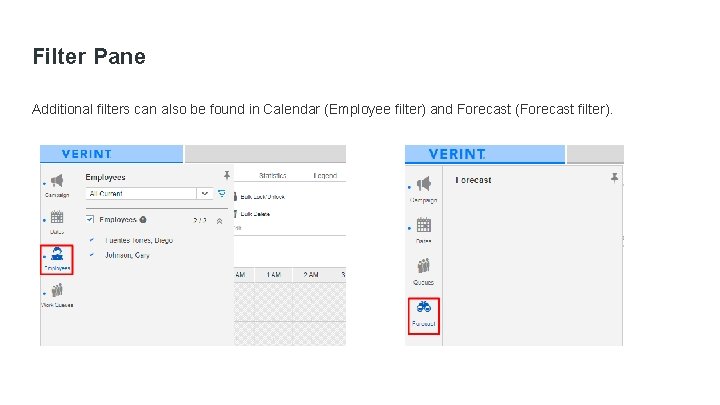
Filter Pane Additional filters can also be found in Calendar (Employee filter) and Forecast (Forecast filter).
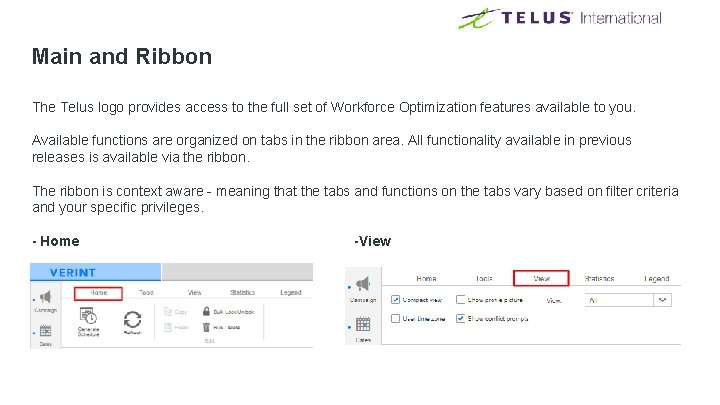
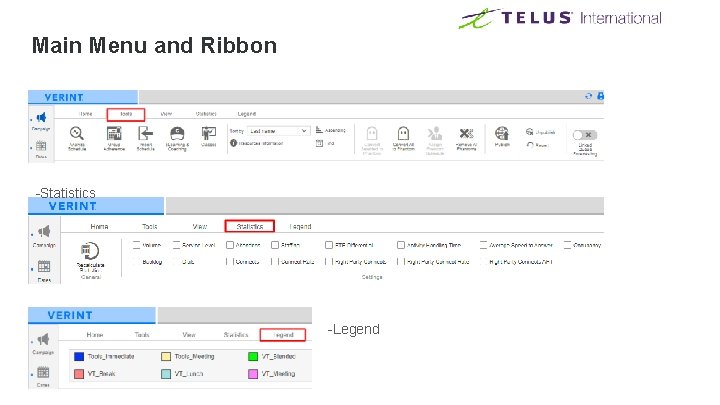
Main and Ribbon The Telus logo provides access to the full set of Workforce Optimization features available to you. Available functions are organized on tabs in the ribbon area. All functionality available in previous releases is available via the ribbon. The ribbon is context aware - meaning that the tabs and functions on the tabs vary based on filter criteria and your specific privileges. - Home -View
Main Menu and Ribbon -Tools -Statistics -Legend
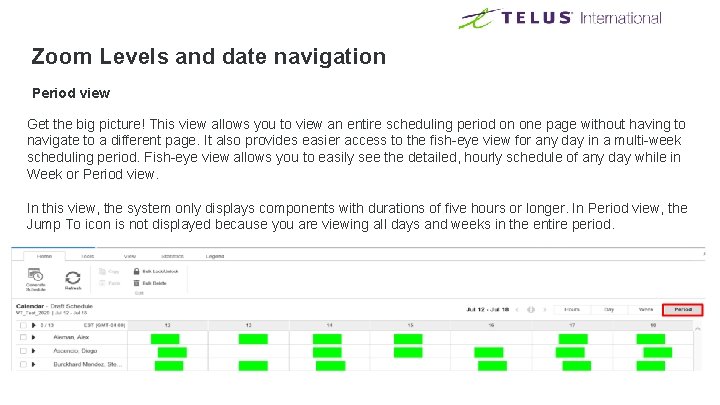
Zoom Levels and date navigation Period view Get the big picture! This view allows you to view an entire scheduling period on one page without having to navigate to a different page. It also provides easier access to the fish-eye view for any day in a multi-week scheduling period. Fish-eye view allows you to easily see the detailed, hourly schedule of any day while in Week or Period view. In this view, the system only displays components with durations of five hours or longer. In Period view, the Jump To icon is not displayed because you are viewing all days and weeks in the entire period.
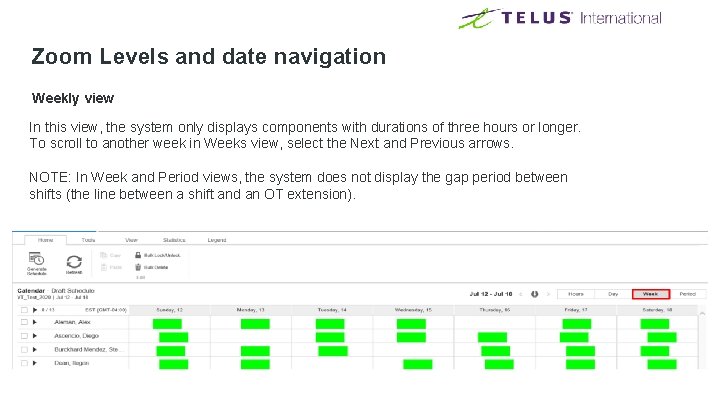
Zoom Levels and date navigation Weekly view In this view, the system only displays components with durations of three hours or longer. To scroll to another week in Weeks view, select the Next and Previous arrows. NOTE: In Week and Period views, the system does not display the gap period between shifts (the line between a shift and an OT extension).
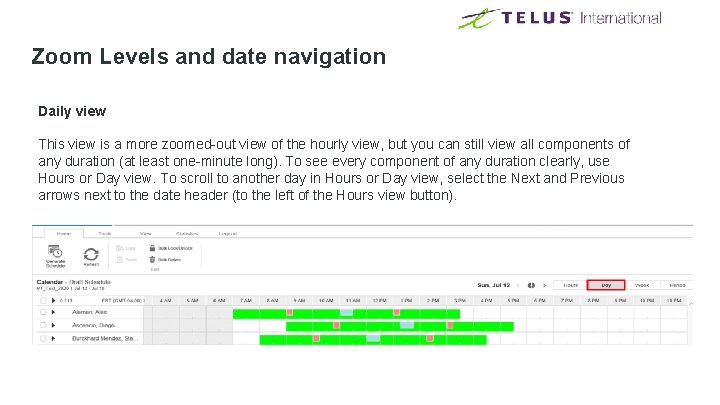
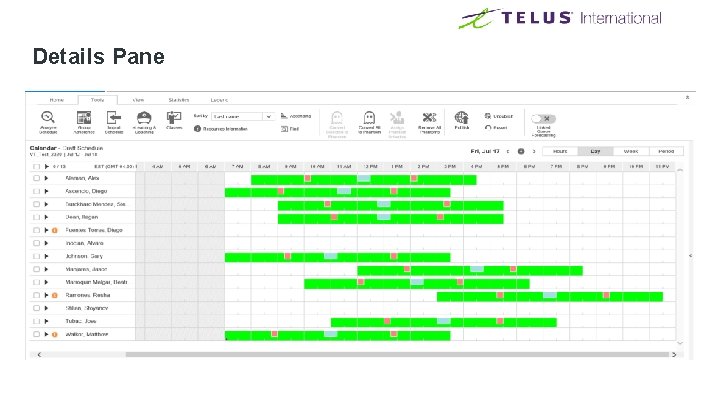
Zoom Levels and date navigation Daily view This view is a more zoomed-out view of the hourly view, but you can still view all components of any duration (at least one-minute long). To see every component of any duration clearly, use Hours or Day view. To scroll to another day in Hours or Day view, select the Next and Previous arrows next to the date header (to the left of the Hours view button).
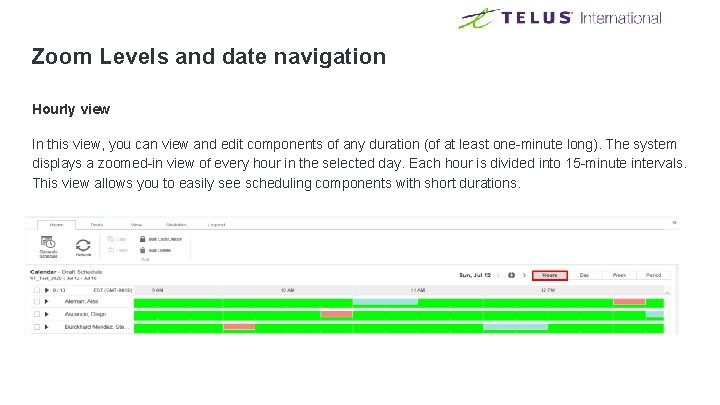
Zoom Levels and date navigation Hourly view In this view, you can view and edit components of any duration (of at least one-minute long). The system displays a zoomed-in view of every hour in the selected day. Each hour is divided into 15 -minute intervals. This view allows you to easily see scheduling components with short durations.
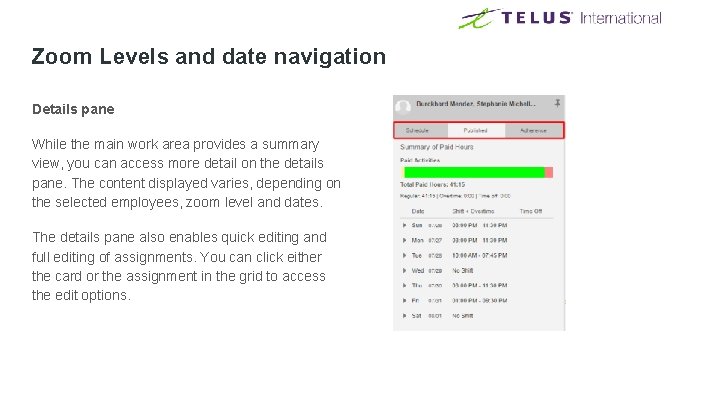
Zoom Levels and date navigation Details pane While the main work area provides a summary view, you can access more detail on the details pane. The content displayed varies, depending on the selected employees, zoom level and dates. The details pane also enables quick editing and full editing of assignments. You can click either the card or the assignment in the grid to access the edit options.
Details Pane
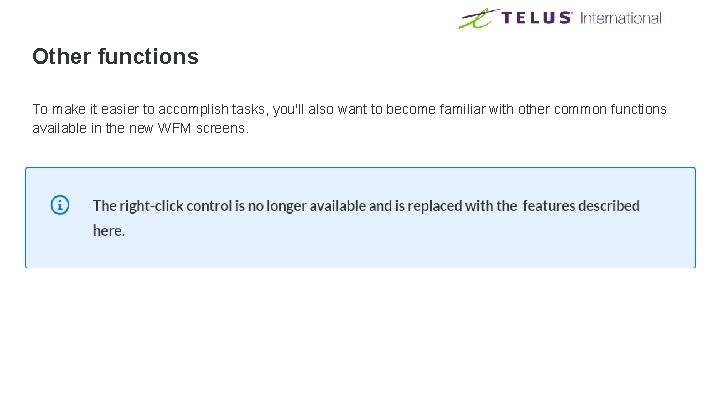
Other functions To make it easier to accomplish tasks, you'll also want to become familiar with other common functions available in the new WFM screens.
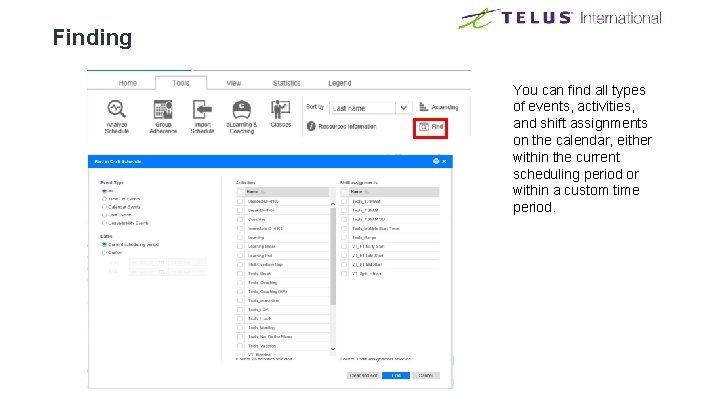
Finding You can find all types of events, activities, and shift assignments on the calendar, either within the current scheduling period or within a custom time period.
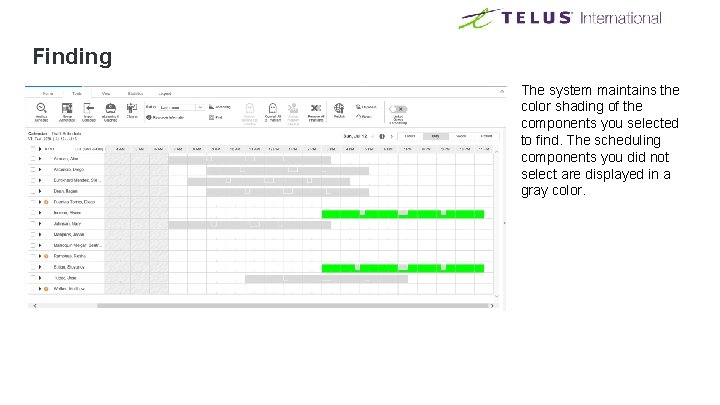
Finding The system maintains the color shading of the components you selected to find. The scheduling components you did not select are displayed in a gray color.
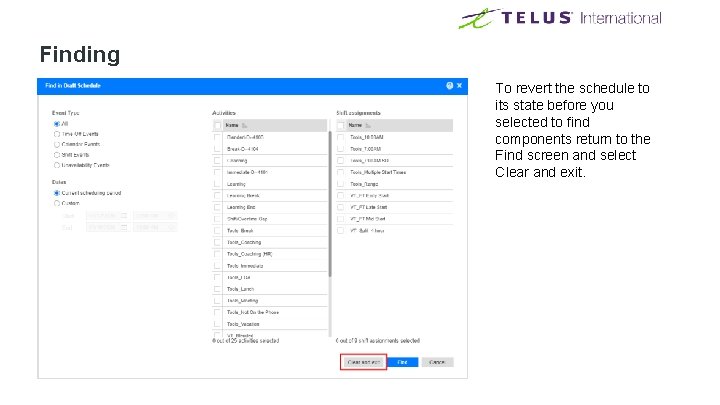
Finding To revert the schedule to its state before you selected to find components return to the Find screen and select Clear and exit.
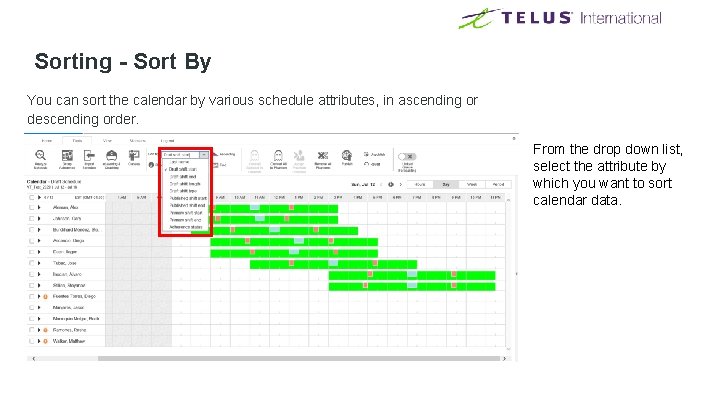
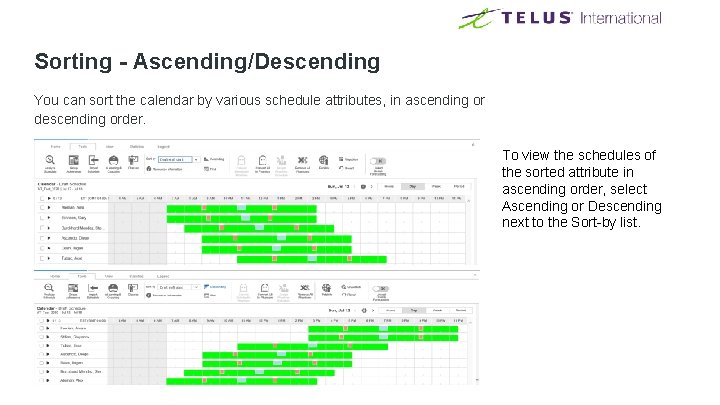
Sorting - Sort By You can sort the calendar by various schedule attributes, in ascending or descending order. From the drop down list, select the attribute by which you want to sort calendar data.
Sorting - Ascending/Descending You can sort the calendar by various schedule attributes, in ascending or descending order. To view the schedules of the sorted attribute in ascending order, select Ascending or Descending next to the Sort-by list.
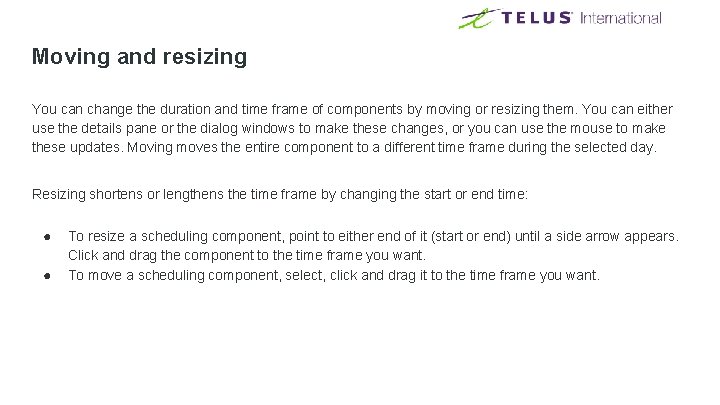
Moving and resizing You can change the duration and time frame of components by moving or resizing them. You can either use the details pane or the dialog windows to make these changes, or you can use the mouse to make these updates. Moving moves the entire component to a different time frame during the selected day. Resizing shortens or lengthens the time frame by changing the start or end time: ● ● To resize a scheduling component, point to either end of it (start or end) until a side arrow appears. Click and drag the component to the time frame you want. To move a scheduling component, select, click and drag it to the time frame you want.
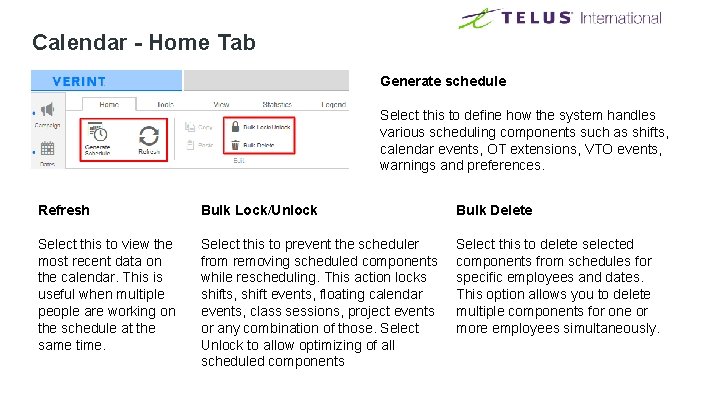
Calendar - Home Tab Generate schedule Select this to define how the system handles various scheduling components such as shifts, calendar events, OT extensions, VTO events, warnings and preferences. Refresh Bulk Lock/Unlock Bulk Delete Select this to view the most recent data on the calendar. This is useful when multiple people are working on the schedule at the same time. Select this to prevent the scheduler from removing scheduled components while rescheduling. This action locks shifts, shift events, floating calendar events, class sessions, project events or any combination of those. Select Unlock to allow optimizing of all scheduled components Select this to delete selected components from schedules for specific employees and dates. This option allows you to delete multiple components for one or more employees simultaneously.
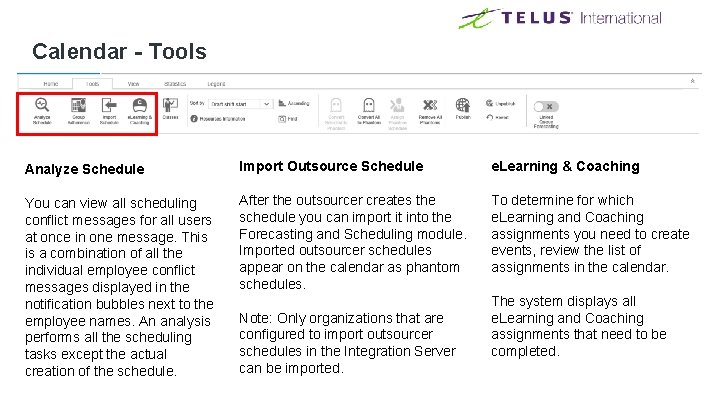
Calendar - Tools Analyze Schedule Import Outsource Schedule e. Learning & Coaching You can view all scheduling conflict messages for all users at once in one message. This is a combination of all the individual employee conflict messages displayed in the notification bubbles next to the employee names. An analysis performs all the scheduling tasks except the actual creation of the schedule. After the outsourcer creates the schedule you can import it into the Forecasting and Scheduling module. Imported outsourcer schedules appear on the calendar as phantom schedules. To determine for which e. Learning and Coaching assignments you need to create events, review the list of assignments in the calendar. Note: Only organizations that are configured to import outsourcer schedules in the Integration Server can be imported. The system displays all e. Learning and Coaching assignments that need to be completed.
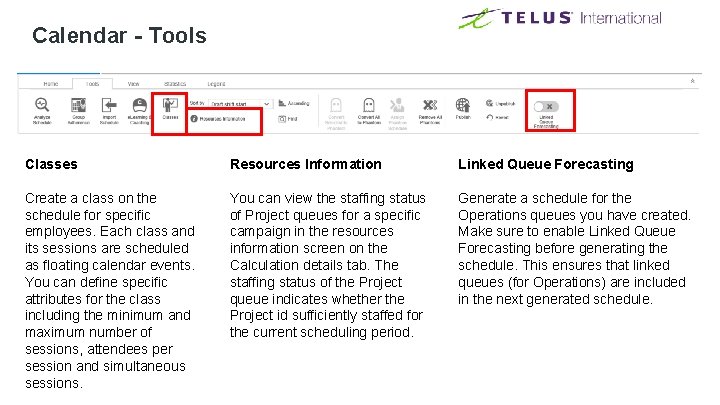
Calendar - Tools Classes Resources Information Linked Queue Forecasting Create a class on the schedule for specific employees. Each class and its sessions are scheduled as floating calendar events. You can define specific attributes for the class including the minimum and maximum number of sessions, attendees per session and simultaneous sessions. You can view the staffing status of Project queues for a specific campaign in the resources information screen on the Calculation details tab. The staffing status of the Project queue indicates whether the Project id sufficiently staffed for the current scheduling period. Generate a schedule for the Operations queues you have created. Make sure to enable Linked Queue Forecasting before generating the schedule. This ensures that linked queues (for Operations) are included in the next generated schedule.
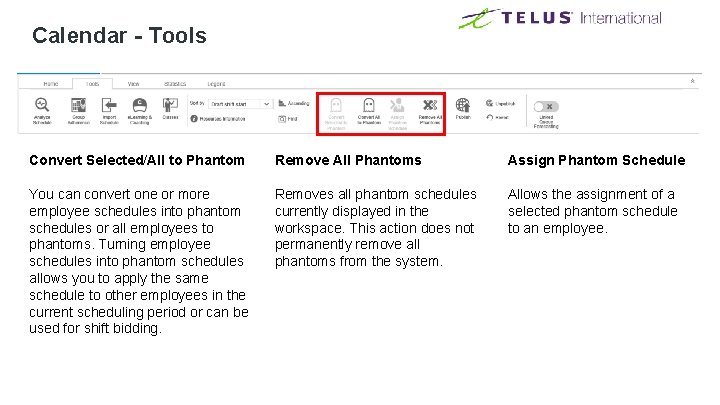
Calendar - Tools Convert Selected/All to Phantom Remove All Phantoms Assign Phantom Schedule You can convert one or more employee schedules into phantom schedules or all employees to phantoms. Turning employee schedules into phantom schedules allows you to apply the same schedule to other employees in the current scheduling period or can be used for shift bidding. Removes all phantom schedules currently displayed in the workspace. This action does not permanently remove all phantoms from the system. Allows the assignment of a selected phantom schedule to an employee.
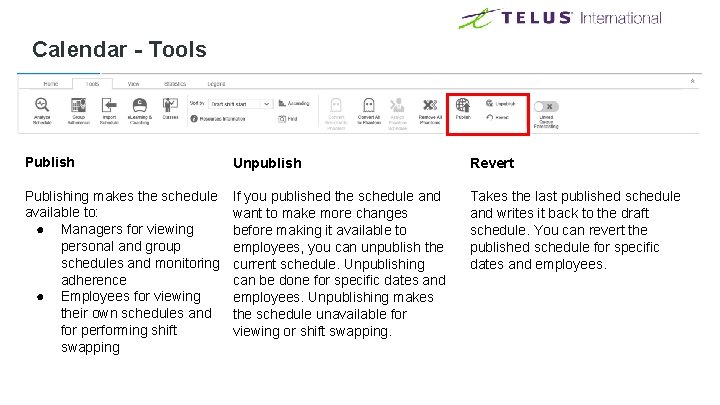
Calendar - Tools Publish Unpublish Revert Publishing makes the schedule available to: ● Managers for viewing personal and group schedules and monitoring adherence ● Employees for viewing their own schedules and for performing shift swapping If you published the schedule and want to make more changes before making it available to employees, you can unpublish the current schedule. Unpublishing can be done for specific dates and employees. Unpublishing makes the schedule unavailable for viewing or shift swapping. Takes the last published schedule and writes it back to the draft schedule. You can revert the published schedule for specific dates and employees.
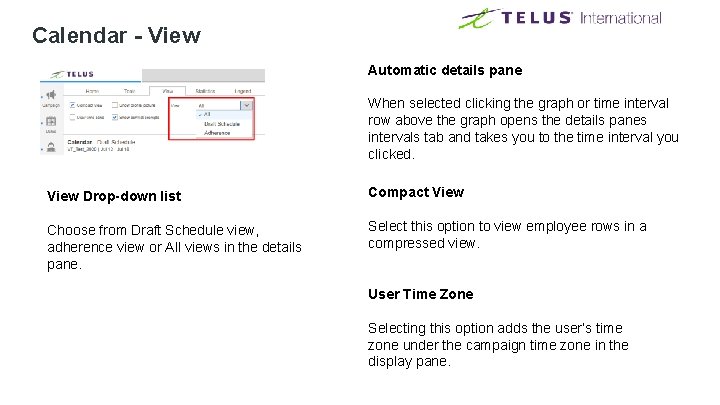
Calendar - View Automatic details pane When selected clicking the graph or time interval row above the graph opens the details panes intervals tab and takes you to the time interval you clicked. View Drop-down list Compact View Choose from Draft Schedule view, adherence view or All views in the details pane. Select this option to view employee rows in a compressed view. User Time Zone Selecting this option adds the user’s time zone under the campaign time zone in the display pane.
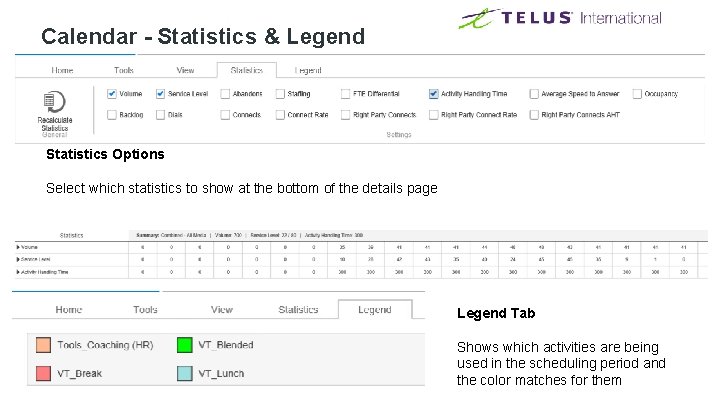
Calendar - Statistics & Legend Statistics Options Select which statistics to show at the bottom of the details page Legend Tab Shows which activities are being used in the scheduling period and the color matches for them
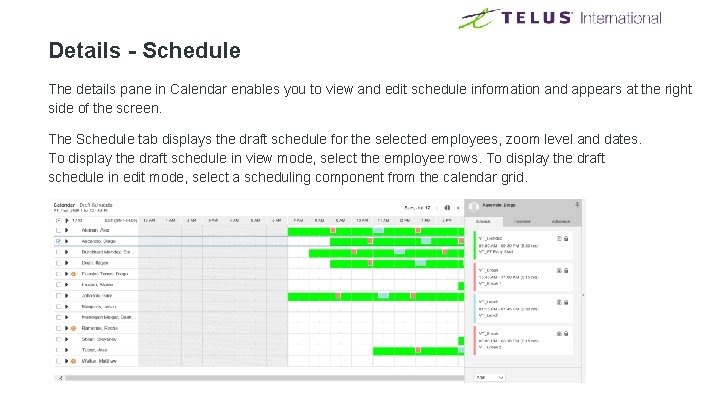
Details - Schedule The details pane in Calendar enables you to view and edit schedule information and appears at the right side of the screen. The Schedule tab displays the draft schedule for the selected employees, zoom level and dates. To display the draft schedule in view mode, select the employee rows. To display the draft schedule in edit mode, select a scheduling component from the calendar grid.
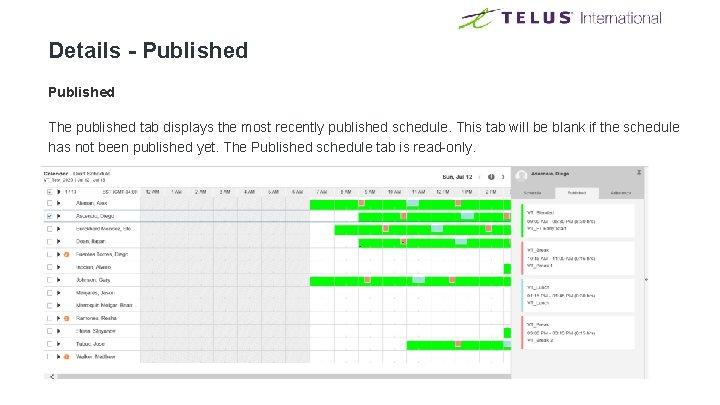
Details - Published The published tab displays the most recently published schedule. This tab will be blank if the schedule has not been published yet. The Published schedule tab is read-only.
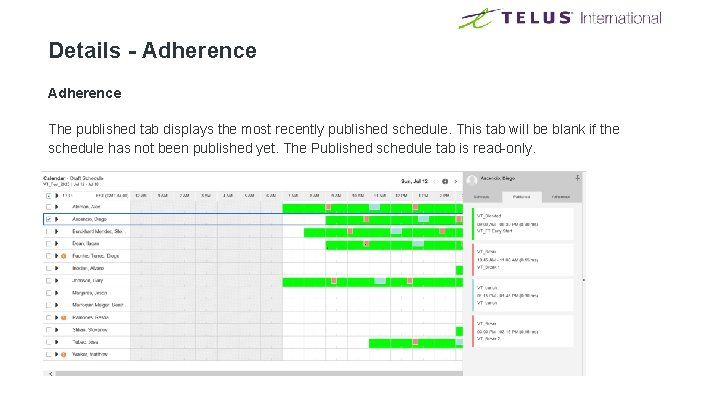
Details - Adherence The published tab displays the most recently published schedule. This tab will be blank if the schedule has not been published yet. The Published schedule tab is read-only.
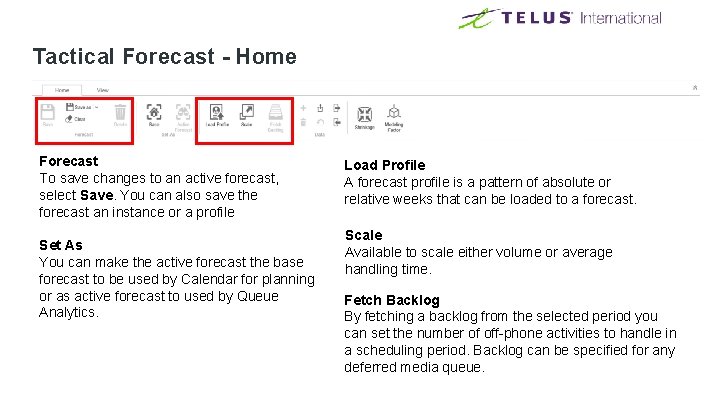
Tactical Forecast - Home Forecast To save changes to an active forecast, select Save. You can also save the forecast an instance or a profile Set As You can make the active forecast the base forecast to be used by Calendar for planning or as active forecast to used by Queue Analytics. Load Profile A forecast profile is a pattern of absolute or relative weeks that can be loaded to a forecast. Scale Available to scale either volume or average handling time. Fetch Backlog By fetching a backlog from the selected period you can set the number of off-phone activities to handle in a scheduling period. Backlog can be specified for any deferred media queue.
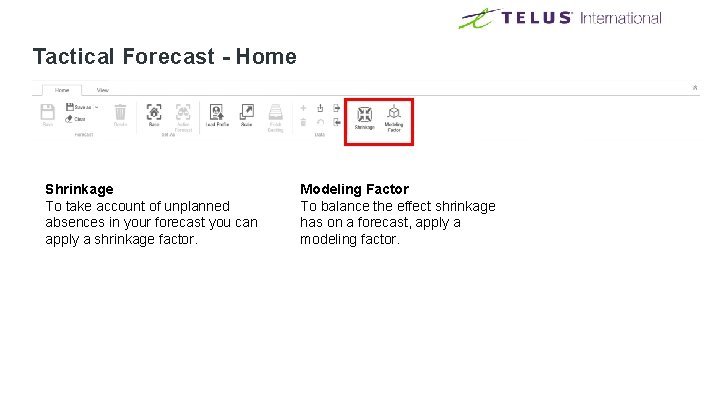
Tactical Forecast - Home Shrinkage To take account of unplanned absences in your forecast you can apply a shrinkage factor. Modeling Factor To balance the effect shrinkage has on a forecast, apply a modeling factor.
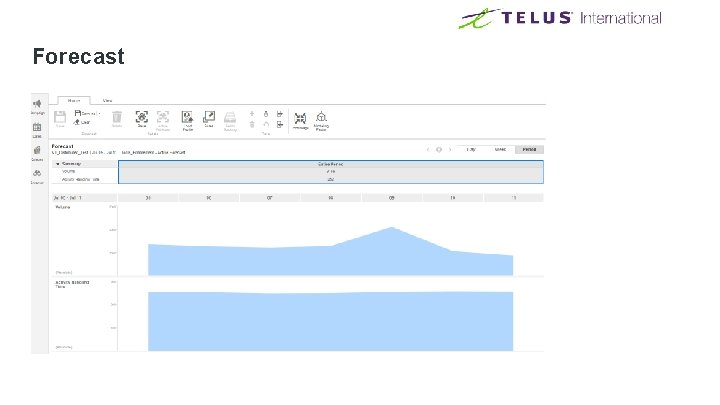
Forecast
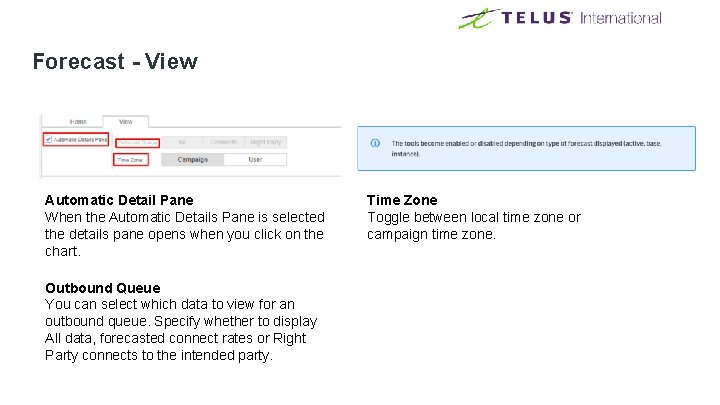
Forecast - View Automatic Detail Pane When the Automatic Details Pane is selected the details pane opens when you click on the chart. Outbound Queue You can select which data to view for an outbound queue. Specify whether to display All data, forecasted connect rates or Right Party connects to the intended party. Time Zone Toggle between local time zone or campaign time zone.
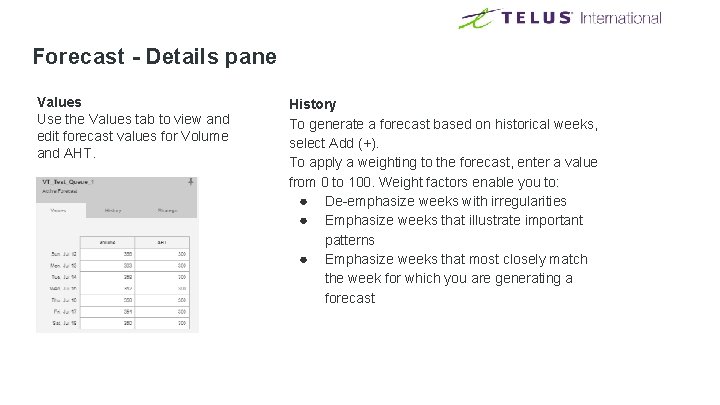
Forecast - Details pane Values Use the Values tab to view and edit forecast values for Volume and AHT. History To generate a forecast based on historical weeks, select Add (+). To apply a weighting to the forecast, enter a value from 0 to 100. Weight factors enable you to: ● De-emphasize weeks with irregularities ● Emphasize weeks that illustrate important patterns ● Emphasize weeks that most closely match the week for which you are generating a forecast
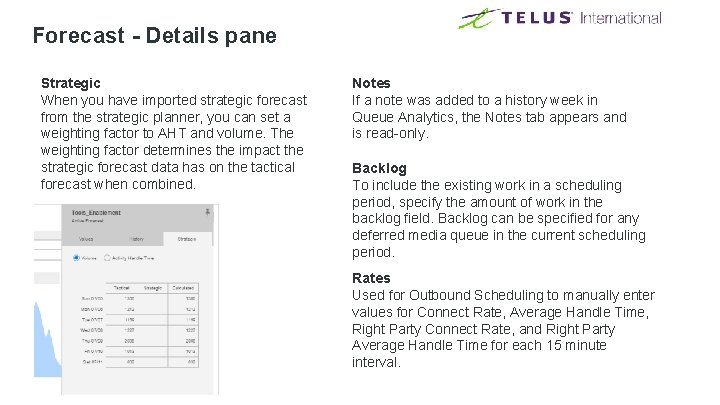
Forecast - Details pane Strategic When you have imported strategic forecast from the strategic planner, you can set a weighting factor to AHT and volume. The weighting factor determines the impact the strategic forecast data has on the tactical forecast when combined. Notes If a note was added to a history week in Queue Analytics, the Notes tab appears and is read-only. Backlog To include the existing work in a scheduling period, specify the amount of work in the backlog field. Backlog can be specified for any deferred media queue in the current scheduling period. Rates Used for Outbound Scheduling to manually enter values for Connect Rate, Average Handle Time, Right Party Connect Rate, and Right Party Average Handle Time for each 15 minute interval.
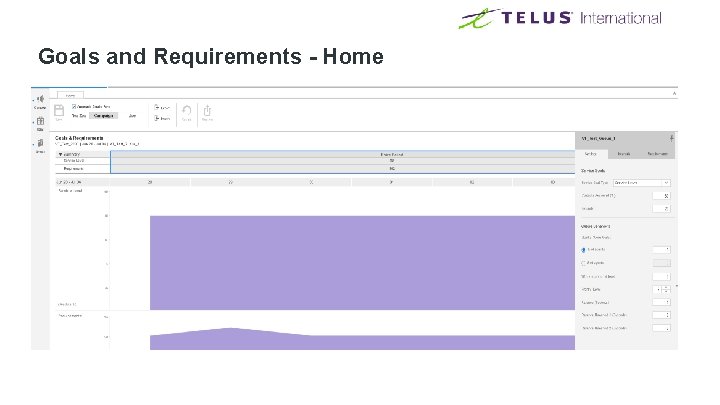
Goals and Requirements - Home
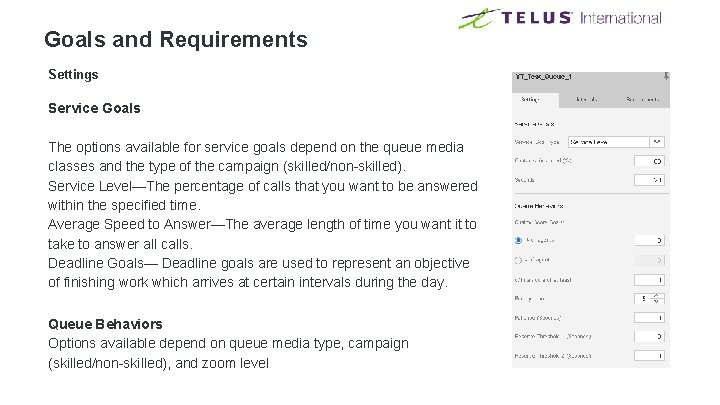
Goals and Requirements Settings Service Goals The options available for service goals depend on the queue media classes and the type of the campaign (skilled/non-skilled). Service Level—The percentage of calls that you want to be answered within the specified time. Average Speed to Answer—The average length of time you want it to take to answer all calls. Deadline Goals— Deadline goals are used to represent an objective of finishing work which arrives at certain intervals during the day. Queue Behaviors Options available depend on queue media type, campaign (skilled/non-skilled), and zoom level
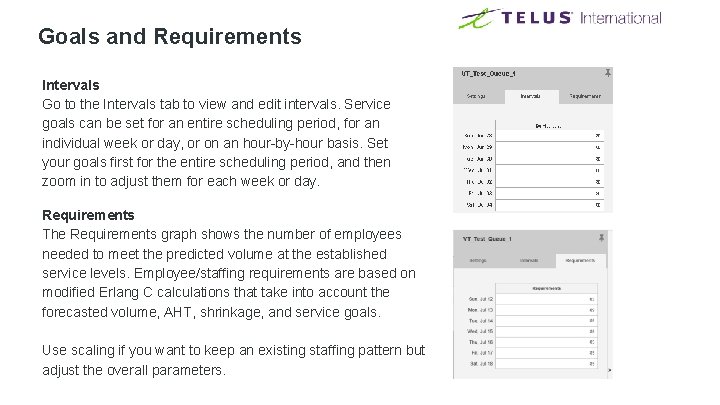
Goals and Requirements Intervals Go to the Intervals tab to view and edit intervals. Service goals can be set for an entire scheduling period, for an individual week or day, or on an hour-by-hour basis. Set your goals first for the entire scheduling period, and then zoom in to adjust them for each week or day. Requirements The Requirements graph shows the number of employees needed to meet the predicted volume at the established service levels. Employee/staffing requirements are based on modified Erlang C calculations that take into account the forecasted volume, AHT, shrinkage, and service goals. Use scaling if you want to keep an existing staffing pattern but adjust the overall parameters.
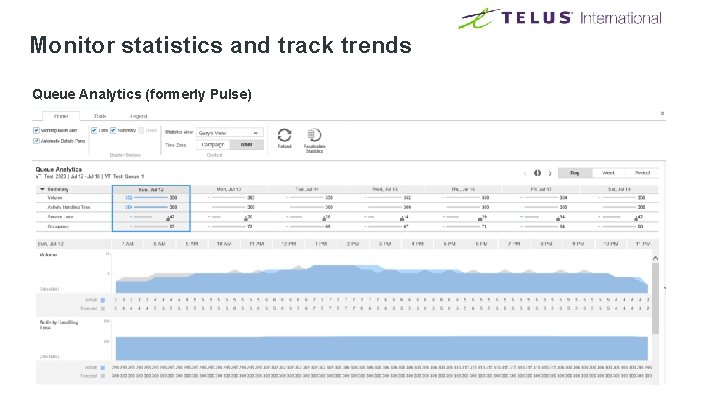
Monitor statistics and track trends Queue Analytics (formerly Pulse)
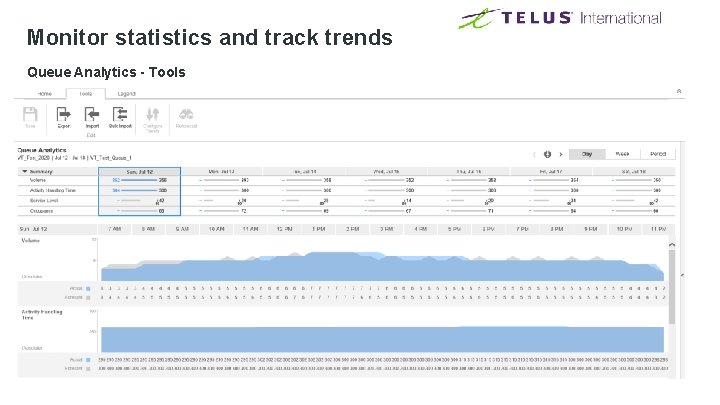
Monitor statistics and track trends Queue Analytics - Tools
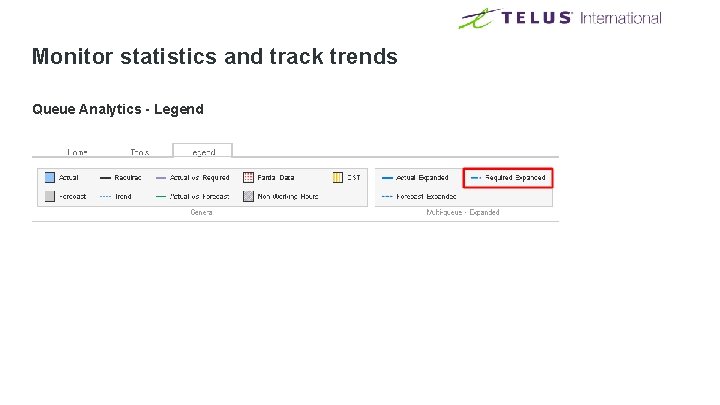
Monitor statistics and track trends Queue Analytics - Legend
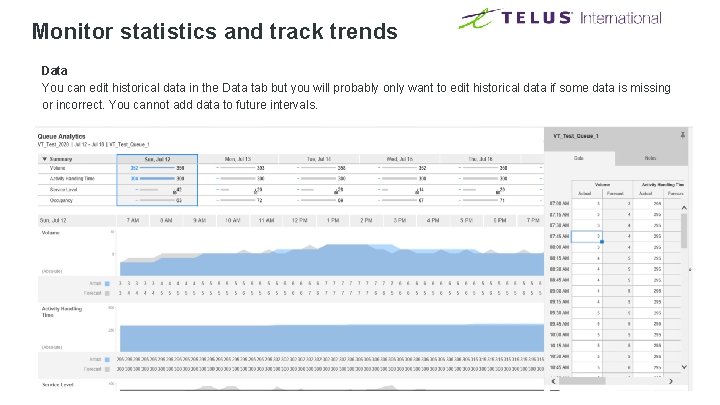
Monitor statistics and track trends Data You can edit historical data in the Data tab but you will probably only want to edit historical data if some data is missing or incorrect. You cannot add data to future intervals.
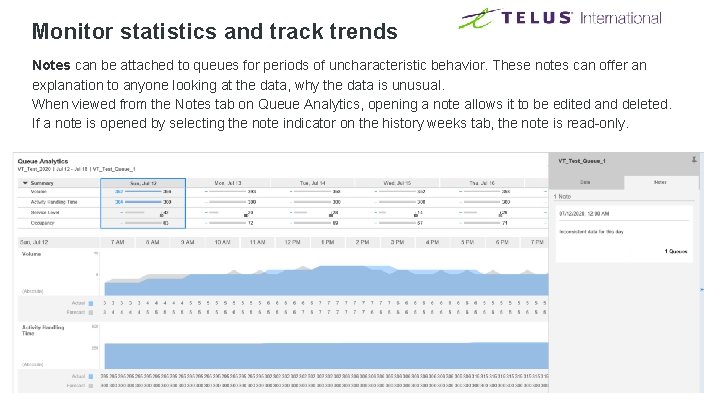
Monitor statistics and track trends Notes can be attached to queues for periods of uncharacteristic behavior. These notes can offer an explanation to anyone looking at the data, why the data is unusual. When viewed from the Notes tab on Queue Analytics, opening a note allows it to be edited and deleted. If a note is opened by selecting the note indicator on the history weeks tab, the note is read-only.
TELUS International